
USB 2.0 Peripheral Switch USER MANUAL US221A / US421A
|
|
|
- Patrick Dorsey
- 10 years ago
- Views:
Transcription
1 USB 2.0 Peripheral Switch USER MANUAL US221A / US421A

2 FCC Information This equipment has been tested and found to comply with the limits for a Class B digital device, pursuant to Part 15 of the FCC Rules. These limits are designed to provide reasonable protection against harmful interference in a residential installation. This equipment generates, uses and can radiate radio frequency energy, and if not installed and used in accordance with the instruction manual, may cause interference to radio communications. However, there is no guarantee that interference will not occur in a particular installation. If this equipment does cause harmful interference to radio or television reception, which can be determined by turning the equipment off and on, the user is encouraged to try to correct the interference by one or more of the following measures: Reorient or relocate the receiving antenna; Increase the separation between the equipment and receiver; Connect the equipment into an outlet on a circuit different from that which the receiver is connected; Consult the dealer or an experienced radio/television technician for help. RoHS This product is RoHS compliant. SJ/T The following contains information that relates to China.
3 US221A / US421A User Manual Online Registration You can register your product at our online support center: International North America Online Support International Support Online Support Technical Support Troubleshooting Documentation Software Updates [email protected] Telephone Support North America Support ATEN TECH [email protected] ATEN NJ [email protected] Online Support Technical Support ATEN TECH ATEN NJ Troubleshooting ATEN TECH Documentation SW Updates ATEN NJ Telephone Support ATEN TECH ATEN ATEN NJ

4 Package Contents The US221A / US421A USB 2.0 Peripheral Switch package contains the following items: 1 2-port (US221A) or 4-port (US421A) USB 2.0 Peripheral Switch m USB Type A to USB Type B Cable 1 Installation Disk 1 User Manual* 1 Quick Start Guide Check to make sure that all the components are present and that nothing got damaged in shipping. If you encounter a problem, contact your dealer. Read this manual thoroughly and follow the installation and operation procedures carefully to prevent any damage to the unit, and/or any of the devices connected to it. * Features may have been added to the US221A / US421A since this manual was printed. Please visit our website to download the most up-to-date version of the manual. Copyright 2009 ATEN International Co., Ltd. Manual Part No. PAPE G Manual Date: ATEN and the ATEN logo are trademarks of ATEN International Co., Ltd. All rights reserved. All other trademarks are the property of their respective owners
5 Overview The US221A / US421A is a 2/4-port USB 2.0 Peripheral Switch that allows up to 2/4 computers to share the use of a single USB peripheral device (such as a printer, scanner, mass storage drive, etc.*) on a one-at-a-time basis. The peripheral focus can be given to a computer manually by using pushbuttons on the switch or by using the software-based configuration utility. In addition, the US221A / US421A has a new Auto Switch function that stores commands sent to the USB peripheral device to be processed on a first-come, first-served basis, meaning that a print server is not required. Compatible with both Windows and Mac, and with multifunction printer support, the US221A / US421A is the ideal way to share the latest USB 2.0 peripherals in a multimedia SOHO environment. Note: The US221A / US421A does not support a USB hub peripheral device

6 Features Enables two (US221A) or four (US421A) computers to share a single USB peripheral device Simple port selection via pushbuttons or easy-to-use configuration utility Auto Switch function no need for a separate print server USB 2.0 compliant Supports transfer rates up to 480 Mbps Multiplatform support Windows and Mac LED indicators display port focus Overcurrent protection Bus-powered Hot pluggable Buzzer indicates switching between computers Supports multifunction printers - 6 -

7 System Requirements Computers The following equipment must be installed on each computer that is to be connected to the system: USB host controller Cables USB to USB cables to connect the computers to the peripheral device. Note: Only one USB Type A to USB Type B cable is provided in the US221A / US421A package. You will need to purchase an additional USB Type A to USB Type B cables for each computer you wish to connect to the US221A / US421A. Operating Systems Supported operating systems are shown in the table, below: OS Version Windows 2000, XP, 2003, 2008, Vista Mac OS X ,

8 Components Top View

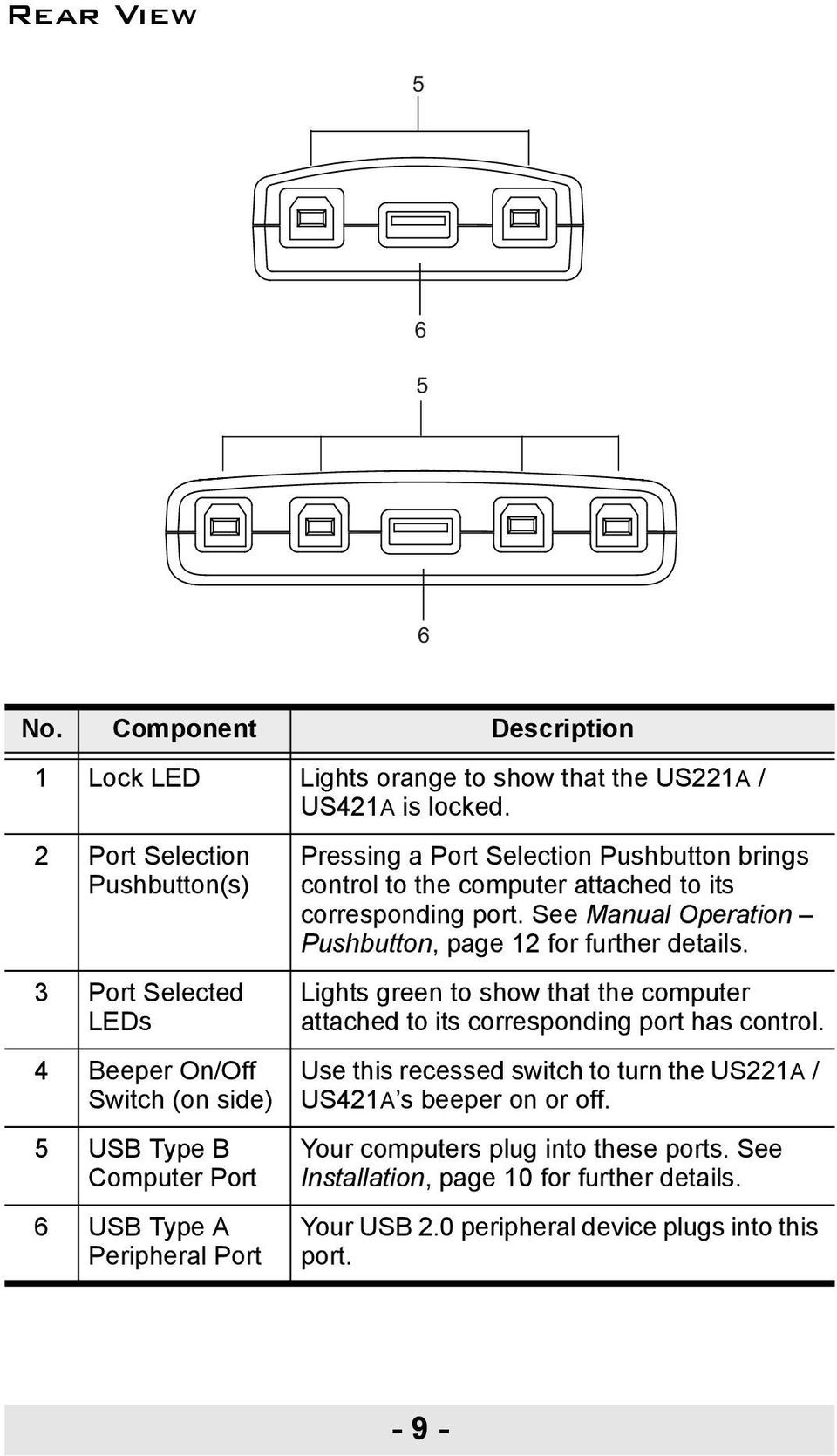
9 Rear View No. Component Description 1 Lock LED Lights orange to show that the US221A / US421A is locked. 2 Port Selection Pushbutton(s) 3 Port Selected LEDs 4 Beeper On/Off Switch (on side) 5 USB Type B Computer Port 6 USB Type A Peripheral Port Pressing a Port Selection Pushbutton brings control to the computer attached to its corresponding port. See Manual Operation Pushbutton, page 12 for further details. Lights green to show that the computer attached to its corresponding port has control. Use this recessed switch to turn the US221A / US421A s beeper on or off. Your computers plug into these ports. See Installation, page 10 for further details. Your USB 2.0 peripheral device plugs into this port
10 Installation 1. Make sure that the power to any device that you connect to the installation has been turned off and that all devices are properly grounded. The US221A / US421A USB 2.0 Peripheral Switch provides 2/4 USB Type B ports for computers to connect to, and one USB Type A port for the peripheral device (multifunction printer, scanner, mass storage device, etc.) that the computers will share. To install the US221A / US421A, do the following: 1. Use your USB device's USB cable to connect it to the US221A / US421A's USB Type A port. 2. Plug the USB Type B connector of the USB Type A to USB Type B cable provided with the US221A / US421A package into any available port on the US221A / US421A. 3. Plug the Type A connector into the computer s USB host port. Repeat steps 2 and 3 for any other computers you are installing. Note: Only one USB Type A to USB Type B cable is provided in the US221A / US421A package. You will need to purchase an additional USB Type A to USB Type B cables for each computer you wish to connect to the US221A / US421A
11

12 Manual Operation Pushbutton Note: Manual operation and the software-based configuration utility operate independently; commands from one will not override the other. US221A To toggle the USB peripheral focus between the two computers, press the port selection pushbutton (located on the top of the unit). The selected port LED flashes and the unit beeps. When the flashing stops and the LED becomes steady (in about four seconds), that port has the peripheral focus. US421A To switch the peripheral focus to another port, press the pushbutton that corresponds to that port. The selected port LED flashes and the unit beeps. When the flashing stops and the LED becomes steady (in about four seconds), that port has the peripheral focus. Lock/Unlock Peripheral Focus To lock the peripheral focus on a certain computer, press and hold the pushbutton that corresponds to that port for two seconds, or until the orange LED lights up. To unlock the peripheral focus, press and hold the pushbutton that corresponds to that port for one second, or until the orange LED turns off

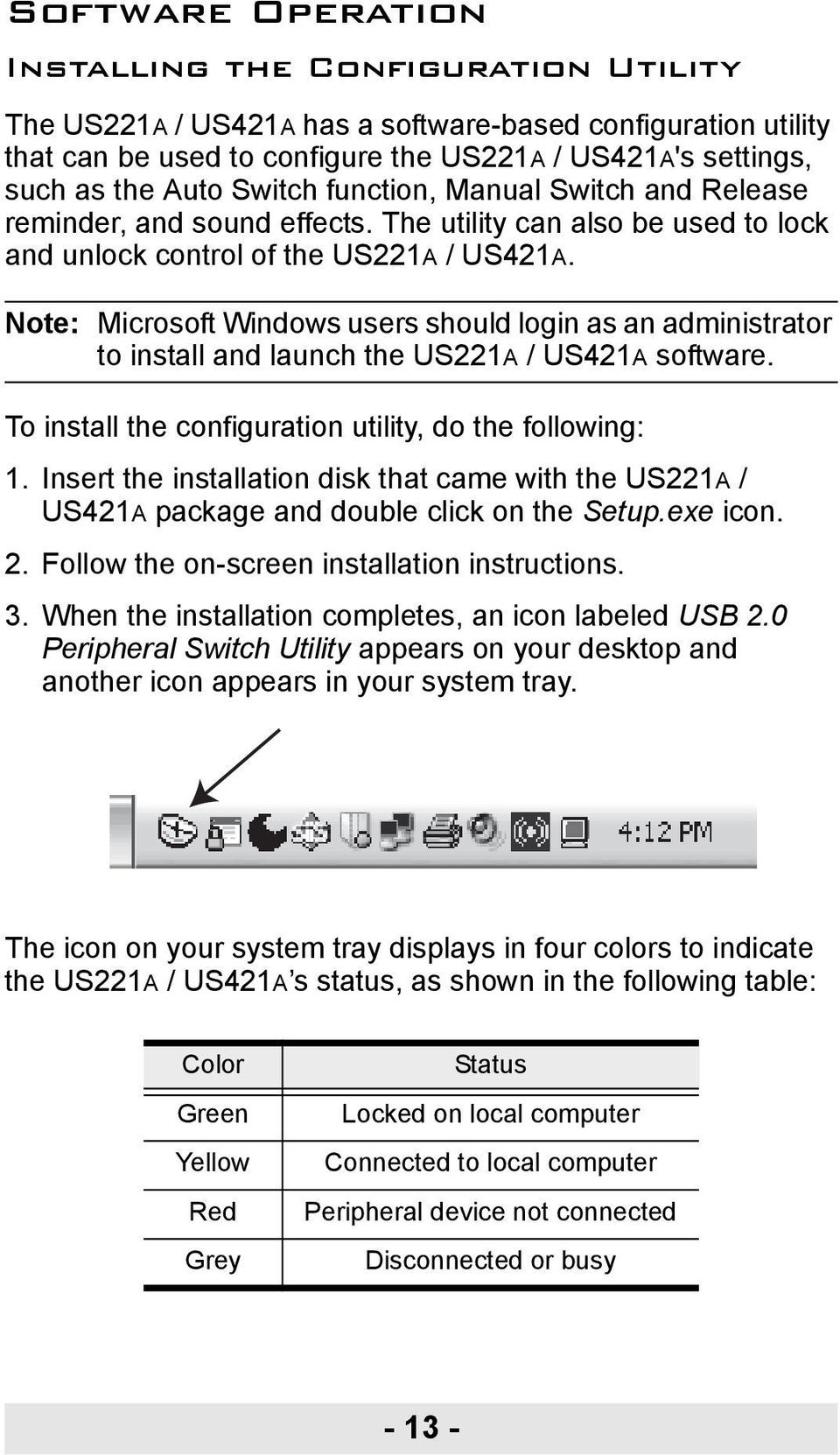
13 Software Operation Installing the Configuration Utility The US221A / US421A has a software-based configuration utility that can be used to configure the US221A / US421A's settings, such as the Auto Switch function, Manual Switch and Release reminder, and sound effects. The utility can also be used to lock and unlock control of the US221A / US421A. Note: Microsoft Windows users should login as an administrator to install and launch the US221A / US421A software. To install the configuration utility, do the following: 1. Insert the installation disk that came with the US221A / US421A package and double click on the Setup.exe icon. 2. Follow the on-screen installation instructions. 3. When the installation completes, an icon labeled USB 2.0 Peripheral Switch Utility appears on your desktop and another icon appears in your system tray. The icon on your system tray displays in four colors to indicate the US221A / US421A s status, as shown in the following table: Color Green Yellow Red Grey Status Locked on local computer Connected to local computer Peripheral device not connected Disconnected or busy
14 Basic Operation When you click on the icon in your system tray, a menu bar of shortcuts appears. The first item at the top of the menu is one of four shortcuts, depending on the current status of the US221A / US421A. Shortcut options are Lock Connection, Unlock Connection, Switch to Local Computer, and Cancel Switch Request. Lock / Unlock Connection To lock the connection from your computer to the USB peripheral, click on the icon in the system tray and select Lock Connection. This method is a toggle between Lock and Unlock, so to unlock the connection, do the same but click Unlock Connection. Switch to Local Computer To bring the control of the USB peripheral device to your computer, click on the icon in the system tray and select Switch to Local Computer. Cancel Switch Request If you have sent a request to the USB peripheral device and the USB peripheral device is busy, your request is queued. To cancel a sent request, click on the icon in the system tray and select Cancel Switch Request

15 Advanced Operation and Settings To use the Configuration Utility to view and change the US221A / US421A s settings, click on the icon in your system tray and select Settings. The following dialog box appears: Auto Switch and Release Enable these buttons to activate the US221A / US421A s Auto Switch function for a printer or other devices. When Auto Switch and Release is enabled, commands sent to the USB peripheral device are stored to be processed on a firstcome, first-served basis. Control of the US221A / US421A and the USB peripheral device is locked on the computer currently performing the action and then automatically released after the action is completed
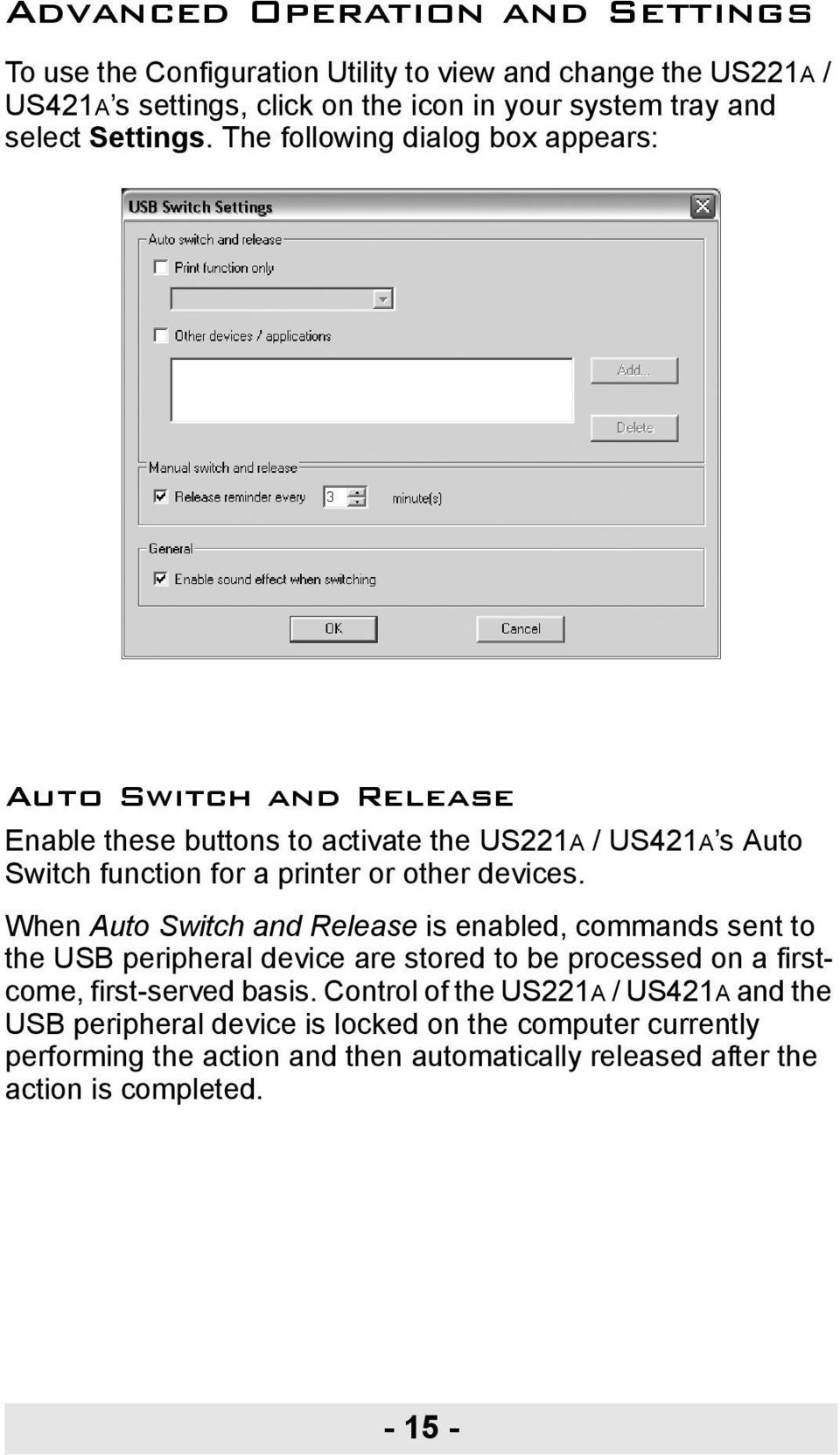
16 Printers If your USB device is a printer or MFP (multifunction printer) and you wish to use its print function, enable the Print Function Only button and select the printer from the drop-down menu. Note: 1. If the USB peripheral device is a printer, you do not need a separate print server. 2. If you cannot find your printer in the drop-down menu, the printer may need to be reinstalled. See Troubleshooting, page 19 for further details. 3. If your printer is a multifunction printer and you want to use its scan function, you must also enable the Other Devices/Applications button if these functions have dedicated applications. See Multifunction Printers, page 17 for further details. Other Devices To add another device (such as a scanner) and associate its application with the Auto Switch function, enable the Other Devices/Applications button and click Add. In the dialog box that appears, click Browse to search for the application program.* (In Microsoft Windows only, you can also key in the device name for easy reference). Note: Be sure to search for the full application path. A desktop shortcut, for example, does not work. Once a device and application has been associated with the Auto Switch function, the US221A / US421A automatically takes control of the attached USB 2.0 peripheral when the application is opened. Control is released when the application is closed
17 Multifunction Printers If your USB 2.0 peripheral device is a multifunction printer and you wish to use its scan function, there are three ways to do this: If the multifunction printer s scan function have dedicated applications, enable both the Print Function Only and the Other Devices/Applications buttons and click Add. In the dialog box that appears, click Browse to search for the application program. (In Microsoft Windows only, you can also key in the device name for easy reference). Simply operate the US221A / US421A manually. See Manual Operation Pushbutton, page 12. Use the shortcut in the system tray. See Basic Operation, page 14. To use the fax function of a multifunction printer, operate the US221A / US421A manually. See Manual Operation Pushbutton, page 12. If your printer is a multifunction printer and you want to use its print and scan functions, you must enable both the Print Function Only and the Other Devices/ Applications buttons, if these functions have dedicated applications
18 Manual Switch and Release If the US221A / US421A is operating under manual control (with a USB 2.0 peripheral such as a storage device, for example), enable this button to set the time for a reminder to release control of the US221A / US421A. The reminder will appear as a dialog box on screen of the PC currently in control of the US221A / US421A. General Enable this button to turn the US221A / US421A s configuration utility beeper on. Note: 1. This enables the software beeper. To enable/disable the hardware beeper, use the On/Off switch located on the side of the US221A / US421A unit. 2. Default settings are Enabled

19 Troubleshooting First, make sure that all cables are securely attached and seated completely in their sockets. Problem Possible Cause Action Unit operates erratically Printer does not appear in configuration utility. Monitor program of a printer does not respond / Print error messages are generated The Lock / Unlock function does not respond Auto Switch print function does not respond. Auto Switch function for other devices does not release control after application closes. Static electricity may cause the unit to operate erratically. Printer was not installed correctly. The printer s USB port is configured for a PC; the US221A / US421A is in Auto Switch mode. The too rapid or continuous connecting / disconnecting of a USB connector from a locked port can cause the status of the lock to be misread. OS printer settings not sent / not set correctly. OS failed to close the application. Disconnect the appropriate USB cable from the US221A / US421A port, then reconnect it. Re-install the printer; the configuration utility will now find the printer. Disable the Auto Switch function and operate the US221A / US421A manually. Disconnect all USB cables from the US221A / US421A, then reconnect them. Reboot your PC to reestablish settings, or reinstall the Configuration Utility. See Software Operation, page 13. Manual close the application in your OS

20 Specifications Function US221A US421A Computer Connections 2 4 Computer Selection Pushbuttons, Software, Auto Switch Connectors Computer 2 x USB Type B 4 x USB Type B Device 1 x USB Type A LEDs Device 1 (Orange) Selected 2 (Green) 4 (Green) Switches 2 x Pushbutton 4 x Pushbutton Power Supply USB Bus Powered Power Consumption DC5V, 2.5W Environment Humidity 0 80% RH, Non-condensing Storage Temp. Operating Temp ºC 5 40ºC Physical Properties Housing Plastic Weight 54 g 97 g Dimensions (L x W x H) 7.20 x 6.60 x 2.50 cm x 7.60 x 2.30 cm Limited Warranty IN NO EVENT SHALL THE DIRECT VENDOR'S LIABILITY EXCEED THE PRICE PAID FOR THE PRODUCT FROM THE DIRECT, INDIRECT, SPECIAL, INCIDENTAL OR CONSEQUENTIAL DAMAGES RESULTING FROM THE USE OF THE PRODUCT, DISK OR ITS DOCUMENTATION. The direct vendor makes no warranty or representation, expressed, implied, or statutory with respect to the contents or use of this documentation, and specially disclaims its quality, performance, merchantability, or fitness for any particular purpose. The direct vendor also reserves the right to revise or update the device or documentation without obligation to notify any individual or entity of such revisions, or update. For further inquires please contact your direct vendor

Laptop USB KVM Switch USER MANUAL CS661
 Laptop USB KVM Switch USER MANUAL CS661 FCC Information This equipment has been tested and found to comply with the limits for a Class B digital device, pursuant to Part 15 of the FCC Rules. These limits
DVI Video Splitter USER MANUAL VS-162 / VS-164
 DVI Video Splitter USER MANUAL VS-162 / VS-164 FCC Information This equipment has been tested and found to comply with the limits for a Class B digital device, pursuant to Part 15 of the FCC Rules. These
USB-to-Serial RS-232 Hub USB-to-Serial RS-422/485 Hub USER MANUAL UC2322 / UC2324 / UC4852 / UC4854
 USB-to-Serial RS-232 Hub USB-to-Serial RS-422/485 Hub USER MANUAL UC2322 / UC2324 / UC4852 / UC4854 FCC Information This equipment has been tested and found to comply with the limits for a Class B digital
USB 2.0 DVI KVM Switch USER MANUAL CS682
 USB 2.0 DVI KVM Switch USER MANUAL CS682 FCC Information This equipment has been tested and found to comply with the limits for a Class B digital device, pursuant to Part 15 of the FCC Rules. These limits
8-Port HDMI Switch USER MANUAL VS0801H
 8-Port HDMI Switch USER MANUAL VS0801H FCC Information This equipment has been tested and found to comply with the limits for a Class B digital device, pursuant to Part 15 of the FCC Rules. These limits
If anything is damaged or missing, contact your dealer.
 User Manual UN-201 Read this guide thoroughly and follow the installation and operation procedures carefully in order to prevent any damage to the units and/or any devices that connect to them. This package
USER MANUAL VS92A / VS94A / VS98A
 Video Splitter USER MANUAL VS92A / VS94A / VS98A FCC Information This equipment has been tested and found to comply with the limits for a Class B digital device, pursuant to Part 15 of the FCC Rules. These
If anything is damaged or missing, contact your dealer.
 User Manual CS-62U Read this guide thoroughly and follow the installation and operation procedures carefully in order to prevent any damage to the units and/or any devices that connect to them. This package
HDMI Switch USER MANUAL VS481A
 HDMI Switch USER MANUAL VS481A FCC Information This equipment has been tested and found to comply with the limits for a Class B digital device, pursuant to Part 15 of the FCC Rules. These limits are designed
HDMI Matrix Switch USER MANUAL VM0404H
 HDMI Matrix Switch USER MANUAL VM0404H FCC Information This equipment has been tested and found to comply with the limits for a Class B digital device, pursuant to Part 15 of the FCC Rules. These limits
VS-0202 VS-0204. User Manual
 User Manual VS-0202 VS-0204 Read this guide thoroughly and follow the installation and operation procedures carefully in order to prevent any damage to the units and/or any devices that connect to them.
If anything is damaged or missing, contact your dealer.
 User Manual CS-62 Read this guide thoroughly and follow the installation and operation procedures carefully in order to prevent any damage to the units and/or any devices that connect to them. This package
USB KVM Switch USER MANUAL CS62US / CS64US
 USB KVM Switch USER MANUAL CS62US / CS64US EMC Information FEDERAL COMMUNICATIONS COMMISSION INTERFERENCE STATEMENT: This equipment has been tested and found to comply with the limits for a Class B digital
TL-PS310U Single USB 2.0 Port MFP and Storage Server
 TL-PS310U Single USB 2.0 Port MFP and Storage Server Rev: 2.0.0 1910010313 Contents Chapter 1 Introduction... 1 1.1 Product Overview...1 1.2 Network Management...1 1.3 Components and Features...1 1.4 Hardware
CONSOLE REMOTE I /O AC 9V
 CONSOLE CONSOLE REMOTE I /O AC 9V AC 9V REMOTE I /O User Manual CE-220 Read this guide thoroughly and follow the installation and operation procedures carefully in order to prevent any damage to the units
Installation Guide Wireless 4-Port USB Sharing Station. GUWIP204 Part No. M1172-a
 Installation Guide Wireless 4-Port USB Sharing Station 1 GUWIP204 Part No. M1172-a 2011 IOGEAR. All Rights Reserved. PKG-M1172-a IOGEAR, the IOGEAR logo, MiniView, VSE are trademarks or registered trademarks
User Manual USB Laptop KVM Switch. GCS661U Part No. M1069
 User Manual USB Laptop KVM Switch 1 GCS661U Part No. M1069 2 Table of Contents User Notice 4 A Note About Terminology 5 Overview 6 Features 7 Package Contents 8 Requirements 9 Operating System Support
2 Port USB Keyboard Mouse Switch Cable with File Transfer for PC and Mac
 2 Port USB Keyboard Mouse Switch Cable with File Transfer for PC and Mac SVKMS2 *actual product may vary from photos DE: Bedienungsanleitung - de.startech.com FR: Guide de l'utilisateur - fr.startech.com
LabelWriter. Print Server. User Guide
 LabelWriter Print Server User Guide Copyright 2010 Sanford, L.P. All rights reserved. 08/10 No part of this document or the software may be reproduced or transmitted in any form or by any means or translated
User Guide USB 2.0 LAPTOP DOCKING STATION WITH VIDEO N2953
 USB 2.0 LAPTOP DOCKING STATION WITH VIDEO 410-1864-001B / ACP51US 1 YEAR LIMITED WARRANTY: We pride ourselves on the quality of our products. For complete warranty details and a list of our worldwide offices,
Installation Guide USB Laptop KVM Switch GCS661U
 Installation Guide USB Laptop KVM Switch 1 GCS661U 2 Table of Contents Table of Contents 3 Package Contents 4 System Requirements 5 Overview 6 Before You Start 7 Software Installation 8 Hardware Installation
Professional USB to Serial Adapter Hub with COM Retention
 Professional USB to Serial Adapter Hub with COM Retention ICUSB2321X ICUSB2322X ICUSB2324X *actual product may vary from photos *actual product may vary from photos DE: Bedienungsanleitung - de.startech.com
Installation Guide 1-port USB 2.0 Print Server 1 GPSU21
 Installation Guide 1-port USB 2.0 Print Server 1 GPSU21 2 Welcome Thank you for purchasing this 1-port USB 2.0 Print Server that allows any networked computer to share a USB printer. It complies with USB
Wireless Mouse USER GUIDE. for Mac. www.targus.com/us/formac ONE YEAR LIMITED WARRANTY N2953
 AMW43US / 410-1514-001C N2953 www.targus.com/us/formac 2008 Manufactured or imported by Targus Group International, Inc. (for U.S. sales: 1211 North Miller Street, Anaheim, CA 92806 USA, for Australia
2 To 1 Serial (RS-232) AUTO SWITCH. AS-251S User Manual
 2 To 1 Serial (RS-232) AUTO SWITCH AS-251S User Manual Read this manual thoroughly and follow the installation procedures carefully to prevent any damage to the AS-251S and/or the devices it connects to.
3.5in Black USB 2.0 IDE SATA External Hard Drive Enclosure
 3.5in Black USB 2.0 IDE SATA External Hard Drive Enclosure UNI3510U2 UNI3510U2EB UNI3510U2EB UNI3510UEBGB *actual product may vary from photos DE: Bedienungsanleitung - de.startech.com FR: Guide de l'utilisateur
How To Use A Ves-0116 Video Splitter With Audio And Video From A Computer Or Tv Aten (Ves-116)
 User Manual VS-0116 Read this guide thoroughly and follow the installation and operation procedures carefully in order to prevent any damage to the units and/or any devices that connect to them. This package
Package Checklist. Overview. Features. USB Data Link Cable User s Manual. USB Data Link Cable User s Manual 1
 USB Data Link Cable User s Manual Congratulations on your purchase of the USB Data Link Cable adapter. This unique cable allows you to easily connect two computers with USB port and instantly transfer
USB 3.0 to HDMI Adapter with 3-Port USB 3.0 Hub USB 3.0 to VGA Adapter with 3-Port USB 3.0 Hub
 USB 3.0 to HDMI Adapter with 3-Port USB 3.0 Hub USB 3.0 to VGA Adapter with 3-Port USB 3.0 Hub USB32HDEH3 / USB32VGAEH3 *actual product may vary from photos DE: Bedienungsanleitung - de.startech.com FR:
Congratulations on your HomePortal purchase. To install your HomePortal and configure your home network, follow these steps.
 Notice to Users 2003 2Wire, Inc. All rights reserved. This manual in whole or in part, may not be reproduced, translated, or reduced to any machine-readable form without prior written approval. 2WIRE PROVIDES
INSTALL GUIDE Making Your Mobile Life Easier.
 Targus USB Bluetooth Adapter Making Your Mobile Life Easier. Visit our Web site at: www.targus.com Features and specifications are subject to change without notice 2005 Targus Group International, Inc.
High Speed File Share Cable USER GUIDE
 High Speed File Share Cable USER GUIDE Visit our Website at www.targus.com/emea Features and specifications are subject to change without notice. 2008 Targus Group International, Inc. and Targus, Inc.
PCI Express USB Card. PCI Express 4 Port USB 2.0 card PEX400USB2. Instruction Manual. Actual product may vary from photo
 PCI Express USB Card PCI Express 4 Port USB 2.0 card PEX400USB2 Actual product may vary from photo FCC Compliance Statement This equipment has been tested and found to comply with the limits for a Class
USB2VGA. Instruction Manual. USB to VGA Adapter. USB 2.0 to VGA External Multi Monitor Video Adapter
 USB to VGA Adapter USB2VGA Instruction Manual USB 2.0 to VGA External Multi Monitor Video Adapter FCC Compliance Statement This equipment has been tested and found to comply with the limits for a Class
ASUS GX900 Gaming Mouse
 ASUS GX900 Gaming Mouse User Manual 15G06S002000 E5887 First Edition (V1) July 20 Copyright 20 ASUSTeK Computer Inc. All Rights Reserved. No part of this manual, including the products and software described
2 Port KVM Switch. If anything is damaged or missing, contact your dealer.
 2 Port KVM Switch User Manual CS-82A Read this guide thoroughly and follow the installation and operation procedures carefully in order to prevent any damage to the units and/or any devices that connect
TL-PS310U Single USB 2.0 Port MFP and Storage Server
 Single USB 2.0 Port MFP and Storage Server REV3.0.0 1910010947 COPYRIGHT & TRADEMARKS Specifications are subject to change without notice. is a registered trademark of TP-LINK TECHNOLOGIES CO., LTD. Other
USER S MANUAL USB FILE TRANSFER CABLE
 1. Introduction USER S MANUAL USB FILE TRANSFER CABLE Congratulations on your purchase of the PC-Linq, an USB file transfer cable. This unique cable allows you to easily connect two computers with USB
reflecta Super 8 Scanner
 reflecta Super 8 Scanner User Manual 1 FEDERAL COMMUNICATIONS COMMISSION (FCC) STATEMENT This Equipment has been tested and found to comply with the limits for a class B digital device, pursuant to Part
PCI USB 2.0 Card. 3 Port PCI USB 2.0 Card PCI330USB2. Instruction Manual. Actual product my vary from photo
 PCI USB 2.0 Card 3 Port PCI USB 2.0 Card PCI330USB2 Instruction Manual Actual product my vary from photo FCC Compliance Statement This equipment has been tested and found to comply with the limits for
4 Port PCI Express Low Profile High Speed USB Card
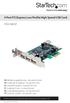 4 Port PCI Express Low Profile High Speed USB Card PEXUSB4DP DE: Bedienungsanleitung - de.startech.com FR: Guide de l'utilisateur - fr.startech.com ES: Guía del usuario - es.startech.com IT: Guida per
3.5 USB 3.0 to SATA III HDD Enclosure with UASP Support
 3.5 USB 3.0 to SATA III HDD Enclosure with UASP Support S3510BMU33 S3510SMU33 *actual product may vary from photos DE: Bedienungsanleitung - de.startech.com FR: Guide de l'utilisateur - fr.startech.com
USB 2.0 to 10/100Mbps Ethernet Adapter UE-9521. User Manual
 USB 2.0 to 10/100Mbps Ethernet Adapter UE-9521 User Manual 1 Copyright Copyright 2004 by PLANET Technology Corp. All rights reserved. No part of this publication may be reproduced, transmitted, transcribed,
USB to DVI Video Adapter
 USB2DVI Instruction Manual USB to DVI Video Adapter USB 2.0 to DVI External Multi Monitor Video Adapter FCC Compliance Statement This equipment has been tested and found to comply with the limits for a
4 Port PCIe 2.0 SATA III 6Gbps RAID Controller
 4 Port PCIe 2.0 SATA III 6Gbps RAID Controller PEXSAT34SFF *actual product may vary from photos DE: Bedienungsanleitung - de.startech.com FR: Guide de l'utilisateur - fr.startech.com ES: Guía del usuario
EZCast 5GHz. Rev. 1.10. ! Quick Start Guide. Introduction
 EZCast 5GHz Quick Start Guide Rev. 1.10 Introduction Thanks for choosing EZCast EZCast 5G is an WiFi display receiver, which supports a reliable WiFi 802.11ac dual band 2.4GHz/5GHz connection, providing
DVI 2/4 PORT USB KVMP Switch
 MiniView DVI 2/4 PORT USB KVMP Switch User Manual (GCS1762 / GCS1764) Welcome Thank you for purchasing one of the most feature-rich DVI KVM with USB peripheral sharing and audio technology on the market.
GWA501 package contains: 1 Wireless-G Broadband Gateway 1 Power Adapter 1 Ethernet Cable 1 Manual CD 1 Quick Start Guide 1 Warranty/Registration Card
 Wireless-G Broadband Gateway GWA501 Quick Start Guide Read this guide thoroughly and follow the installation and operation procedures carefully to prevent any damage to the unit and/or any of the devices
GV-Keyboard. User's Manual V2.0
 GV-Keyboard User's Manual V2.0 Before attempting to connect or operate this product, please read these instructions carefully and save this manual for future use. 2007 GeoVision, Inc. All rights reserved.
HDMI USB Extender VE803 User Manual
 HDMI USB Extender VE803 User Manual www.aten.com VE803 User Manual FCC Information This is an FCC Class A product. In a domestic environment this product may cause radio interference in which case the
USB 3.0 to 3.5 SATA III Upright HDD Enclosure with UASP
 USB 3.0 to 3.5 SATA III Upright HDD Enclosure with UASP S3510BMU33B *actual product may vary from photos DE: Bedienungsanleitung - de.startech.com FR: Guide de l'utilisateur - fr.startech.com ES: Guía
File Share Cable USER GUIDE. for Mac. www.targus.com/us/formac ONE YEAR LIMITED WARRANTY N2953
 N2953 USER GUIDE ACC9602US / 410-1486-001A www.targus.com/us/formac 2008 Manufactured or imported by Targus Group International, Inc. (for U.S. sales: 1211 North Miller Street, Anaheim, CA 92806 USA, for
USB / USB 2.0 DVI KVMP
 USB / USB 2.0 DVI KVMP Switch CS1762 / CS1764A User Manual www.aten.com FCC Information This equipment has been tested and found to comply with the limits for a Class B digital device, pursuant to Part
2.5/3.5 SATA HDD Docking Station
 SATADOCKU2 SATADOCKU2E SATADOCK22UE 2.5/3.5 SATA HDD Docking Station FCC Compliance Statement This equipment has been tested and found to comply with the limits for a Class B digital device, pursuant to
2 Bay USB 3.0 RAID 3.5in HDD Enclosure
 2 Bay USB 3.0 RAID 3.5in HDD Enclosure SAT3520U3SR *actual product may vary from photos DE: Bedienungsanleitung - de.startech.com FR: Guide de l'utilisateur - fr.startech.com ES: Guía del usuario - es.startech.com
3.5 esata USB 2.0 to IDE SATA External Hard Drive Enclosure
 3.5 esata USB 2.0 to IDE SATA External Hard Drive Enclosure UNI3510U2EB UNI3510UEBEU UNI3510UEBGB *actual product may vary from photos DE: Bedienungsanleitung - de.startech.com FR: Guide de l'utilisateur
2 Port USB VGA Cable KVM Switch with Audio
 2 Port USB VGA Cable KVM Switch with Audio SV215MICUSBA *actual product may vary from photos DE: Bedienungsanleitung - de.startech.com FR: Guide de l'utilisateur - fr.startech.com ES: Guía del usuario
Getting Started. Table of Contents. Quick User Guide - English
 Getting Started This Quick User Guide helps you get started with the IRIScan TM Anywhere Wifi. Please read this guide before operating this scanner and its software. All information is subject to change
HDMI or Component Standalone Capture Device 1080p
 HDMI or Component Standalone Capture Device 1080p USB2HDCAPS *actual product may vary from photos DE: Bedienungsanleitung - de.startech.com FR: Guide de l'utilisateur - fr.startech.com ES: Guía del usuario
USB 2.0 to Gigabit Ethernet Adapter
 USB 2.0 to Gigabit Ethernet Adapter USB21000S2 *actual product may vary from photos DE: Bedienungsanleitung - de.startech.com FR: Guide de l'utilisateur - fr.startech.com ES: Guía del usuario - es.startech.com
VM0808H HDMI Matrix Switch RS-232 Control Tool V1.0.064 User Manual
 VM0808H HDMI Matrix Switch RS-232 Control Tool V1.0.064 User Manual www.aten.com FCC Information This is an FCC Class A product. In a domestic environment this product may cause radio interference in which
Docking station for two laptops
 Docking station for two laptops USB3DDOCKFT DE: Bedienungsanleitung - de.startech.com FR: Guide de l'utilisateur - fr.startech.com ES: Guía del usuario - es.startech.com IT: Guida per l'uso - it.startech.com
Laser Wireless Rechargeable Mouse. User s Manual
 Laser Wireless Rechargeable Mouse Model #: LM8000WR User s Manual Rev. 060801 User s Record: To provide quality customer service and technical support, it is suggested that you keep the following information
Targus Bluetooth Keyboard for Tablets
 1 BLUETOOTH KEYBOARD for Tablets 410-2153-001B / AKB33US 1 YEAR LIMITED WARRANTY: We pride ourselves on the quality of our products. For complete warranty details and a list of our worldwide offices, please
USB to VGA Adapter USB2VGAE2. Instruction Manual. USB 2.0 to VGA Multi Monitor External Video Adapter
 USB to VGA Adapter USB2VGAE2 Instruction Manual USB 2.0 to VGA Multi Monitor External Video Adapter *Please ensure that the driver installation is complete prior to the physical installation of the USB
MiniView Micro USB Plus
 MiniView Micro USB Plus 2-Port KVM Switch with Built-in KVM Cables and Audio Support Installation Manual (GCS632U) 2003 IOGEAR. All Rights Reserved. PKG-M0089 IOGEAR, the IOGEAR logo, MiniView, VSE are
1-Port PCI Gigabit Ethernet Network Card
 1-Port PCI Gigabit Ethernet Network Card ST1000BT32 *actual product may vary from photos DE: Bedienungsanleitung - de.startech.com FR: Guide de l'utilisateur - fr.startech.com ES: Guía del usuario - es.startech.com
iosafe Solo External Hard Drive
 Users Manual & Limited Warranty iosafe Solo External Hard Drive USB 2.0 Fireproof Waterproof FloSafe Cooling Technology Data Recovery Service 910-10841-00 REV 7.1 2 COPYRIGHTS Copyright iosafe, Inc. 2009.
4 Port PCI Express Gigabit Ethernet PoE PSE Network Card
 4 Port PCI Express Gigabit Ethernet PoE PSE Network Card ST4000PEXPSE *actual product may vary from photos DE: Bedienungsanleitung - de.startech.com FR: Guide de l'utilisateur - fr.startech.com ES: Guía
2 Port PCI to IDE Controller Card
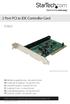 2 Port PCI to IDE Controller Card PCIIDE2 *actual product may vary from photos DE: Bedienungsanleitung - de.startech.com FR: Guide de l'utilisateur - fr.startech.com ES: Guía del usuario - es.startech.com
Verbatim PowerBay Single USB and esata External Hard Drive Version 1.00
 Verbatim PowerBay Single USB and esata External Hard Drive Version 1.00 User Manual Table of Contents Introduction... 2 Controls, Connectors and Indicators... 2 About the Hard Drive... 2 Locating the Drive
2 Port Professional USB KVM Switch Kit with Cables 4 Port Professional USB KVM Switch
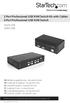 2 Port Professional USB KVM Switch Kit with Cables 4 Port Professional USB KVM Switch SV231USB SV431USB DE: Bedienungsanleitung - de.startech.com FR: Guide de l'utilisateur - fr.startech.com ES: Guía del
EPSON USB/Parallel Adapter User s Guide
 EPSON USB/Parallel Adapter User s Guide EPSON Stylus COLOR 440 EPSON Stylus COLOR 800 EPSON Stylus COLOR 600 EPSON Stylus COLOR 850 EPSON Stylus COLOR 640 EPSON Stylus COLOR 1520 EPSON Stylus Photo EX
USB-2.0 Mobile Mini Hub USER S GUIDE. Making Your Mobile Life Easier. Making Your Mobile Life Easier.
 USB-2.0 Mobile Mini Hub Making Your Mobile Life Easier. Visit our Web site at: www.targus.com Features and specifications are subject to change without notice. 2002 Targus Corp. 400-0093-001A USER S GUIDE
PCI Express USB 2.0 Adapter Card
 PEXUSB400 Instruction Manual PCI Express USB 2.0 Adapter Card 4-Port (Independent) PCI Express to High Speed USB 2.0 Adapter Card FCC Compliance Statement This equipment has been tested and found to comply
USB to RS232 Serial DB9 Adapter Cable
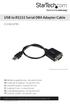 USB to RS232 Serial DB9 Adapter Cable ICUSB232PRO *actual product may vary from photos DE: Bedienungsanleitung - de.startech.com FR: Guide de l'utilisateur - fr.startech.com ES: Guía del usuario - es.startech.com
Wireless Travel Mouse with 5-Buttons User Manual
 Wireless Travel Mouse with 5-Buttons User Manual Product Features 1. Radio frequency 27MHz wireless transmission 2. Use of 256 ID codes to prevent interference between several wireless mice being used
USER GUIDE AC2600 MU-MIMO GIGABIT ROUTER. Model# EA8500
 USER GUIDE AC2600 MU-MIMO GIGABIT ROUTER Model# EA8500 Table of Contents Product overview EA8500.....................................1 Setting Up Your Router Where to find more help.........................
10/100 Mbps USB Print Server
 10/100 Mbps USB Print Server PM1115U *actual product may vary from photos DE: Bedienungsanleitung - de.startech.com FR: Guide de l'utilisateur - fr.startech.com ES: Guía del usuario - es.startech.com IT:
Removable 2.5 SATA HDD Backup System
 Removable 2.5 SATA HDD Backup System SAT2510U3REM SAT2510U3S *actual product may vary from photos DE: Bedienungsanleitung - de.startech.com FR: Guide de l'utilisateur - fr.startech.com ES: Guía del usuario
DELORME. Getting Started with. Earthmate GPS BT-20. Bluetooth
 DELORME Getting Started with GPS BT-20 Bluetooth Earthmate Table of Contents Overview... 2 Hardware Features... 2 Using the Earthmate GPS BT-20... 3 Charging the Battery... 4 Troubleshooting... 4 Hardware
Duplex ID Card & License Scanner. User Guide
 Duplex ID Card & License Scanner User Guide CE Conformity and FCC Statement This equipment has been tested and found to comply with the limits of the European Council Directive on the approximation of
Video Splitter VS-104 / VS-108 User's Manual
 Video Splitter VS-104 / VS-108 User's Manual VS-1048 07-11-02 Page 1 of 6 Packing Checklist 1 VS-104/VS-108 Video Splitter 1 DC 9V 300mA (min.) Power Adapter 1 User's Manual Please read this manual thoroughly
MiniView Micro USB Plus 2-Port KVM Switch with Built-in KVM Cables and Audio Support. Installation Manual (GCS632U)
 MiniView Micro USB Plus 2-Port KVM Switch with Built-in KVM Cables and Audio Support Installation Manual (GCS632U) 2005 IOGEAR. All Rights Reserved. PKG-M0089b IOGEAR, the IOGEAR logo, MiniView, VSE are
RocketStor SMART RAID
 RocketStor SMART RAID User Guide v1.0 1 Copyright HighPoint Technologies Inc., 1995-2012. All rights reserved. OS X and Macintosh are registered trademarks of Apple Corporation. All other trademarks and
2 Port PCI SuperSpeed USB 3.0 Card
 2 Port PCI SuperSpeed USB 3.0 Card PCIUSB3S2 *actual product may vary from photos DE: Bedienungsanleitung - de.startech.com FR: Guide de l'utilisateur - fr.startech.com ES: Guía del usuario - es.startech.com
9,'(2 #6(3$5$725 8VHU V#0DQXDO 96043;
 9,'(2 #6(3$5$725 8VHU V#0DQXDO 96043; Introduction 3 Features 3 Specifications 4 Installation 4 Stand-Alone Installation 4 Daisy-Chain Installation 5 Preventing Radio & TV Interference 6 Limited Warranty
User s Manual Model KB990W
 Wireless Internet Keyboard & Optical Mouse User s Manual Model KB990W FCC Statement This device complies with part 15 of FCC Rules. Operation is subject to the following two conditions: (1) this device
Ethernet Radio Configuration Guide
 Ethernet Radio Configuration Guide for Gateway, Endpoint, and Repeater Radio Units April 20, 2015 Customer Service 1-866-294-5847 Baseline Inc. www.baselinesystems.com Phone 208-323-1634 FAX 208-323-1834
GWA502 package contains: 1 Wireless-G Broadband Router 1 Power Adapter 1 Ethernet Cable 1 Manual CD 1 Quick Start Guide 1 Warranty/Registration Card
 Wireless-G Broadband Router GWA502 Quick Start Guide Read this guide thoroughly and follow the installation and operation procedures carefully to prevent any damage to the unit and/or any of the devices
User Guide. BLUETOOTH WIRELESS KEYBOARD for ipad
 BLUETOOTH WIRELESS KEYBOARD for ipad 410-2119-001A / AKB32US 1 YEAR LIMITED WARRANTY: We pride ourselves on the quality of our products. For complete warranty details and a list of our worldwide offices,
PCI Express FireWire & USB 2.0 card
 PCI Express FireWire & USB 2.0 card PCI Express Firewire 800 and USB 2.0 card PEX3U3F800 Actual product may vary from photo FCC Compliance Statement This equipment has been tested and found to comply with
WBSn Family. FW Upgrade
 WBSn Family FW Upgrade WBSn-2400 and WBSn-2450 Software Version: 1.3.2 Doc version: v1 Jan 2013 WBSn Family FW Upgrade Procedure Copyright 2013 Alvarion All rights reserved. FCC Statement Federal Communication
PCI Express USB 3.0 Controller Adapter Card
 PEXUSB3S2 Instruction Manual PCI Express USB 3.0 Controller Adapter Card 2-Port PCI Express SuperSpeed USB 3.0 Controller Adapter Card FCC Compliance Statement This equipment has been tested and found
Instruction Guide. Professional VGA to NTSC/PAL TV Converter with Remote VGA2NTSCPRO. The Professionals Source For Hard-to-Find Computer Parts
 VIDEO CONVERTER Professional VGA to NTSC/PAL TV Converter with Remote VGA2NTSCPRO Instruction Guide * Actual product may vary from photo Revised: February 4, 2003 The Professionals Source For Hard-to-Find
Bluetooth Wireless USB Adapter. User Manual (GBU221/321)
 Bluetooth Wireless USB Adapter User Manual (GBU221/321) 1 2007 IOGEAR. All Rights Reserved. M0345 IOGEAR, the IOGEAR logo, MiniView, VSE are trademarks or registered trademarks of IOGEAR, Inc. Microsoft
ES-3305P V2 / ES-3308P V2. Quick Installation Guide. 09-2013 / v1.0
 ES-3305P V2 / ES-3308P V2 Quick Installation Guide 09-2013 / v1.0 1 COPYRIGHT Copyright Edimax Technology Co., Ltd. all rights reserved. No part of this publication may be reproduced, transmitted, transcribed,
1 Port FTDI USB to RS232 Null Modem Adapter
 1 Port FTDI USB to RS232 Null Modem Adapter ICUSB232FTN *actual product may vary from photos DE: Bedienungsanleitung - de.startech.com FR: Guide de l'utilisateur - fr.startech.com ES: Guía del usuario