
Laser Wireless Rechargeable Mouse. User s Manual
|
|
|
- Charity Mathews
- 9 years ago
- Views:
Transcription
1 Laser Wireless Rechargeable Mouse Model #: LM8000WR User s Manual Rev

2 User s Record: To provide quality customer service and technical support, it is suggested that you keep the following information as well as your store receipt and this user s manual. Date of Purchase: Model Number: Serial Number: Product Rev Number (located below the UPC on the package): 2

3 Package Contents: Your new Mouse will ship with the following items. Laser Wireless Mouse USB Charger/Receiver Pad 2 AA Ni-MH Rechargeable Batteries User s Manual Driver Software on CD Warranty Information System Requirements: Please be sure that you meet all of the system requirements below to avoid difficulties during installation. IBM PCs or 100% Compatibles Windows ME, 2000, XP Available USB Port CD-ROM Drive System Specifications: Your new Mouse complies with the following specifications. 1600dpi USB Interface 3

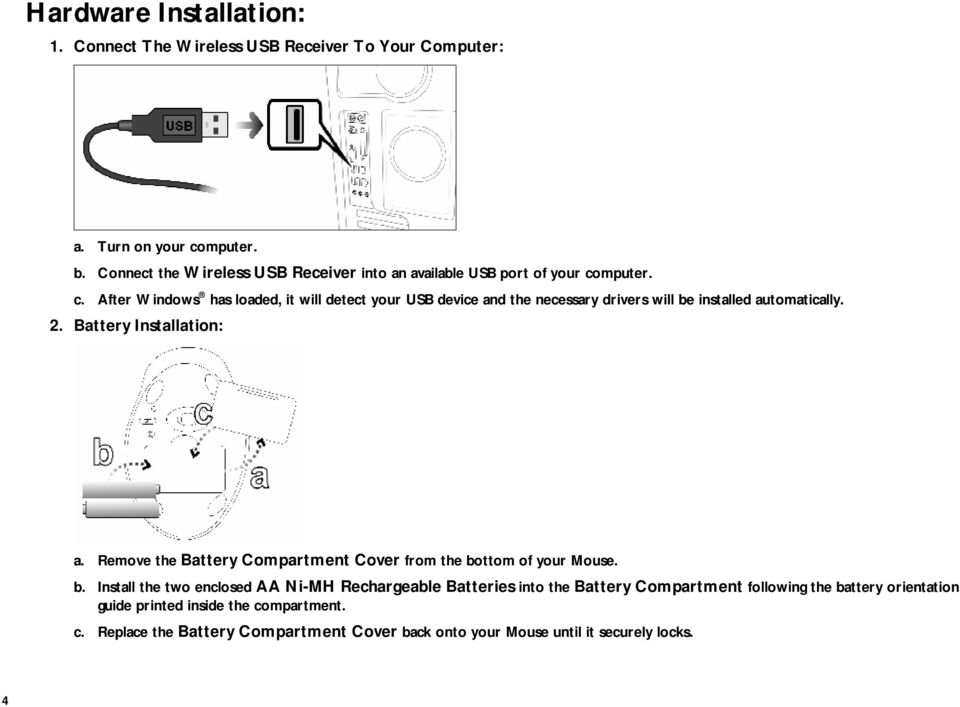
4 Hardware Installation: 1. Connect The Wireless USB Receiver To Your Computer: a. Turn on your computer. b. Connect the Wireless USB Receiver into an available USB port of your computer. c. After Windows has loaded, it will detect your USB device and the necessary drivers will be installed automatically. 2. Battery Installation: a. Remove the Battery Compartment Cover from the bottom of your Mouse. b. Install the two enclosed AA Ni-MH Rechargeable Batteries into the Battery Compartment following the battery orientation guide printed inside the compartment. c. Replace the Battery Compartment Cover back onto your Mouse until it securely locks. 4
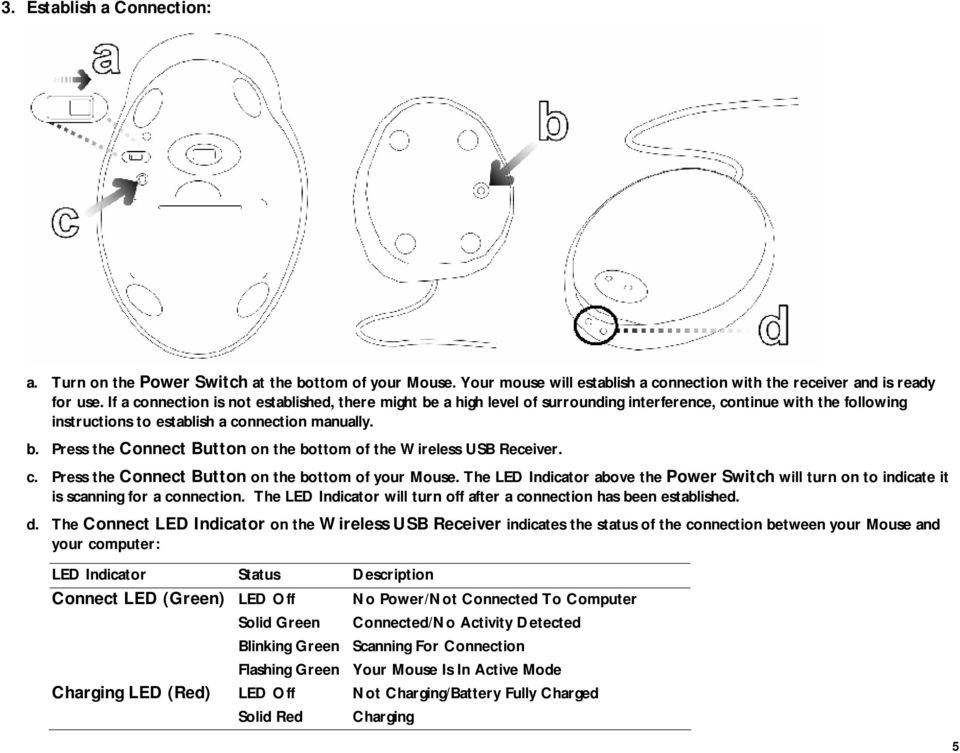
5 3. Establish a Connection: a. Turn on the Power Switch at the bottom of your Mouse. Your mouse will establish a connection with the receiver and is ready for use. If a connection is not established, there might be a high level of surrounding interference, continue with the following instructions to establish a connection manually. b. Press the Connect Button on the bottom of the Wireless USB Receiver. c. Press the Connect Button on the bottom of your Mouse. The LED Indicator above the Power Switch will turn on to indicate it is scanning for a connection. The LED Indicator will turn off after a connection has been established. d. The Connect LED Indicator on the Wireless USB Receiver indicates the status of the connection between your Mouse and your computer: LED Indicator Status Description Connect LED (Green) LED Off No Power/Not Connected To Computer Solid Green Connected/No Activity Detected Blinking Green Scanning For Connection Flashing Green Your Mouse Is In Active Mode Charging LED (Red) LED Off Not Charging/Battery Fully Charged Solid Red Charging 5
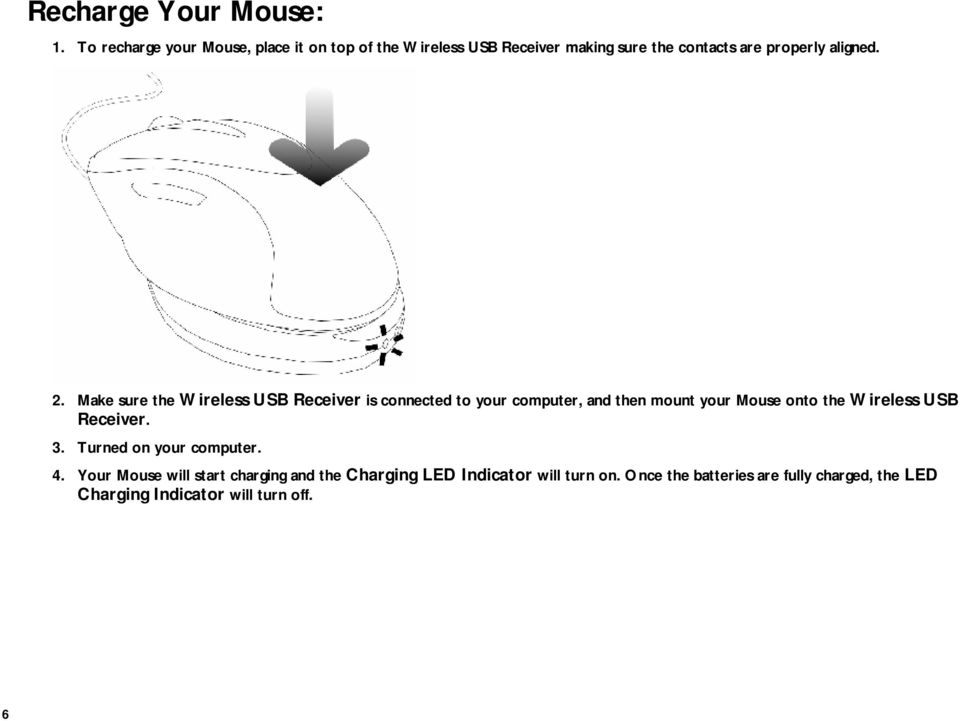
6 Recharge Your Mouse: 1. To recharge your Mouse, place it on top of the Wireless USB Receiver making sure the contacts are properly aligned. 2. Make sure the Wireless USB Receiver is connected to your computer, and then mount your Mouse onto the Wireless USB Receiver. 3. Turned on your computer. 4. Your Mouse will start charging and the Charging LED Indicator will turn on. Once the batteries are fully charged, the LED Charging Indicator will turn off. 6
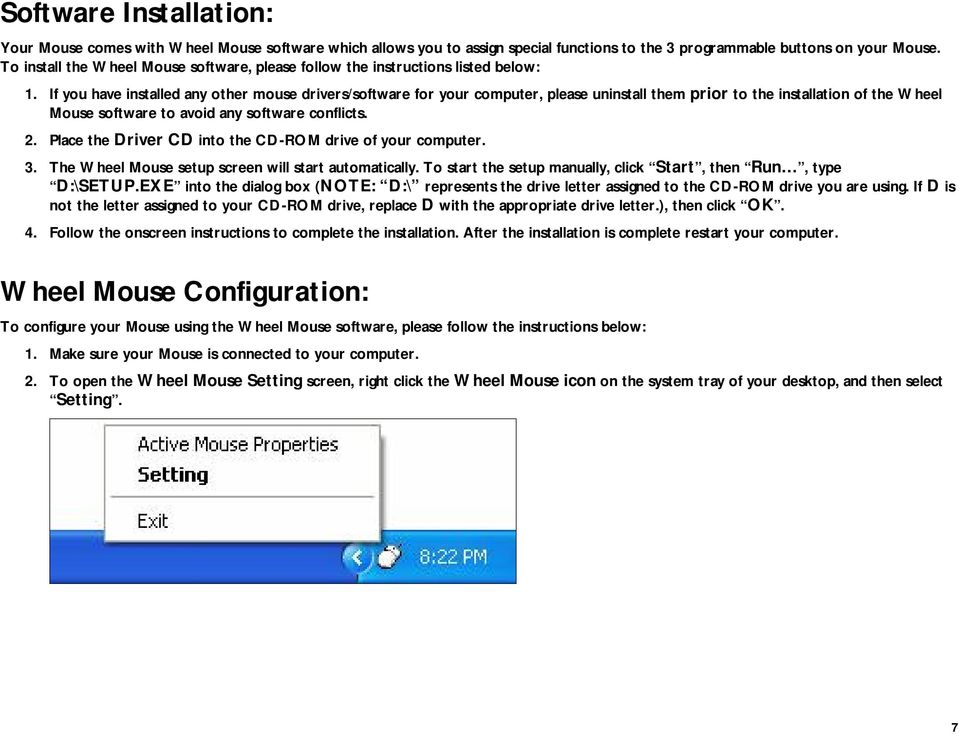
7 Software Installation: Your Mouse comes with Wheel Mouse software which allows you to assign special functions to the 3 programmable buttons on your Mouse. To install the Wheel Mouse software, please follow the instructions listed below: 1. If you have installed any other mouse drivers/software for your computer, please uninstall them prior to the installation of the Wheel Mouse software to avoid any software conflicts. 2. Place the Driver CD into the CD-ROM drive of your computer. 3. The Wheel Mouse setup screen will start automatically. To start the setup manually, click Start, then Run, type D:\SETUP.EXE into the dialog box (NOTE: D:\ represents the drive letter assigned to the CD-ROM drive you are using. If D is not the letter assigned to your CD-ROM drive, replace D with the appropriate drive letter.), then click OK. 4. Follow the onscreen instructions to complete the installation. After the installation is complete restart your computer. Wheel Mouse Configuration: To configure your Mouse using the Wheel Mouse software, please follow the instructions below: 1. Make sure your Mouse is connected to your computer. 2. To open the Wheel Mouse Setting screen, right click the Wheel Mouse icon on the system tray of your desktop, and then select Setting. 7
8 3. To configure the Scroll Wheel on your Mouse, click the Wheel tab. Options Wheel Mode Wheel Speed Descriptions System Default (Intelli-Mouse) Mode: Select this mode to apply only the Windows default scroll wheel options. Enhanced Scroll Mode: Select this mode to apply the Wheel Mouse settings to your Wireless Presenter. Scroll # lines per scroll unit: Select this option, and then specify the number of lines to scroll each time you scroll the scroll wheel on your Mouse. Scroll one page per scroll unit: Select this option to scroll through one page each time you scroll the scroll wheel on your Mouse. 4. After you make all your selections, click Apply to save the changes. To close the screen, click OK. 8

9 5. To configure the programmable buttons on your Mouse, click the Programmable Button tab. Options Button Selections Descriptions Click the drop-down menu for the button you wish to program and then select which of the preprogrammed functions to assign to that button. Function Description This box shows the description of the function you selected. NOTE: For the function Connect To Internet, please make sure to include before the address when you enter the web address you wanted to connect to. 6. After you had made all of your selections, click Apply to save the changes. To close the screen, click OK. 9

10 .. FCC Information: FCC This equipment has been tested and found to comply with limits for Class B digital device pursuant to Part 15 of Federal Communications Commission (FCC) rules. FCC Compliance Statement These limits are designed to provide reasonable protection against frequency interference in residential installation. This equipment generates, uses, and can radiate radio frequency energy, and if not installed or used in accordance with the instructions, may cause harmful interference to radio communication. However, there is no guarantee that interference will not occur in television reception, which can be determined by turning the equipment off and on. The user is encouraged to try and correct the interference by one or more of the following measures: Reorient or relocate the receiving antenna Increase the separation between the equipment and the receiver Connect the equipment into an outlet on a circuit different from that to which the receiver is connected to. CAUTION! The Federal Communications Commission warns the user that changes or modifications to the unit not expressly approved by the party responsible for compliance could void the user s authority to operate the equipment. 10
11 Warranty Information: Gear Head, LLC warrants that this product shall be free from defects in materials and workmanship for the reasonable lifetime of the product. If the product is defective, Gear Head, LLC s sole obligation under this warranty shall be at its election, subject to the terms of this warranty, to repair or replace any parts deemed defective. This warranty is for the exclusive benefit of the original purchaser and is not assignable or transferable. THIS WARRANTY IS MADE IN LIEU OF ALL OTHER WARRANTIES, EXPRESS OR IMPLIED, AND ANY IMPLIED WARRANTIES, INCLUDING THE IMPLIED WARRANTIES OF MERCHANTABILITY AND FITNESS FOR A PARTICULAR PURPOSE, ARE LIMITED TO THE TERMS OF THIS WARRANTY, UNLESS OTHERWISE PROHIBITED BY LAW. Exclusions To the fullest extent permitted by law, Gear Head, LLC expressly disclaims and excludes from this warranty any liability for damages, including but not limited to general, special, indirect, incidental, consequential, aggravated, punitive or exemplary damages, and economic loss (even if Gear Head is informed of their possibility), third party claims against you, including for any loss or damages, and claims or damages related to loss of, or, damage to, your records or data. This warranty does not apply to any product the exterior of which has been damaged or defaced. This warranty will be voided by misuse, improper physical environment, improper repair, acts of God, war or terror, commercial use, and improper service, operation or handling. Technical Support Gear Head provides Technical Support Monday - Friday from 9:00 am 5:30 pm Eastern Time. Before calling, please make sure you have available the Model # (located on the front page of your User s Manual) and information regarding your computer s operating system. Please contact our technicians at Return Merchandise for Service Any claim under this warranty must be made in writing to Gear Head, LLC, at the address provide by our technician, within 30 days after the owner discovers the circumstances giving rise to any such claim, and must include a copy of this warranty document, a receipt or copy of your invoice marked with the date of purchase, and the original packaging. You may obtain service by calling the technician for a Return Merchandise Authorization (RMA) number. The RMA number must be prominently displayed on the outside of the shipping carton and the package must be mailed to Gear Head postage prepaid. 11

Optical Wireless Mouse. User s Manual
 Optical Wireless Mouse Model : OM4000W User s Manual 110935-109154 Rev. 061101 User s Record: To provide quality customer service and technical support, it is suggested that you keep the following information
Dual-Cool Notebook Cooler Pad. User s Manual
 Dual-Cool Notebook Cooler Pad Model #: CF4500U User s Manual Rev. 060801 User s Record: To provide quality customer service and technical support, it is suggested that you keep the following information
USB 2.0 4-Port Hub with USB Power Cable. User s Manual
 USB 2.0 4-Port Hub with USB Power Cable Model: UH2500 User s Manual 251104-109159 Rev. 061107 User s Record: To provide quality customer service and technical support, it is suggested that you keep the
Quick 1.3MP WebCam with Night Vision
 Quick 1.3MP WebCam with Night Vision Model #: WC1100BLU, WC1200RED WC1300BLK, WC1400YLW User s Manual PID # 031362/3/4/5-109281 Rev. 100524 All brand name and trademarks are the property of their respective
DELORME. Getting Started with. Earthmate GPS BT-20. Bluetooth
 DELORME Getting Started with GPS BT-20 Bluetooth Earthmate Table of Contents Overview... 2 Hardware Features... 2 Using the Earthmate GPS BT-20... 3 Charging the Battery... 4 Troubleshooting... 4 Hardware
Wireless Keyboard and Optical Mouse Bundle
 Wireless Keyboard and Optical Mouse Bundle Enjoy the freedom of wireless optical precision User Manual F8E832-BNDL TABLE OF CONTENTS Introduction....................................1 Compatible Equipment............................2
Wireless Optical Mouse
 Wireless Optical Mouse User s Manual Model PD950P FCC STATEMENT PD950P This device complies with part 15 of FCC Rules. Operation is subject to the following two conditions: (1) this device may not cause
Wireless Travel Mouse with 5-Buttons User Manual
 Wireless Travel Mouse with 5-Buttons User Manual Product Features 1. Radio frequency 27MHz wireless transmission 2. Use of 256 ID codes to prevent interference between several wireless mice being used
Wireless Mouse USER GUIDE. for Mac. www.targus.com/us/formac ONE YEAR LIMITED WARRANTY N2953
 AMW43US / 410-1514-001C N2953 www.targus.com/us/formac 2008 Manufactured or imported by Targus Group International, Inc. (for U.S. sales: 1211 North Miller Street, Anaheim, CA 92806 USA, for Australia
Wireless Optical Travel Mouse
 Wireless Optical Travel Mouse User s Manual PLEASE READ THESE INSTRUCTIONS CAREFULLY BEFORE INSTALLING THIS DEVICE. Table of Contents FCC Statement Page 3 Introduction.. Page 6 Package Contents.. Page
USB Scrolling Optical Mini Mouse
 USB Scrolling Optical Mini Mouse Owner s Manual Please read before using this equipment. ˆ Contents Features... 3 System Requirements... 4 FCC Declaration of Conformity... 5 The FCC Wants You to Know...
Wireless Keyboard & Optical Mouse. User Manual
 Wireless Keyboard & Optical Mouse User Manual Table of Contents Introduction... 1 Software Compatibility... 1 Product Features... 2 Quick Installation Setup for PS/2 Connections (PC-only)... 5 Quick Installation
1789 Norwood Avenue Itasca, Illinois 60143-1095 630-893-1600 Customer Service: 1-800-945-4545 http://www.fellowes.com
 1789 Norwood Avenue Itasca, Illinois 60143-1095 630-893-1600 Customer Service: 1-800-945-4545 http://www.fellowes.com Australia Tullamarine, Vic. Benelux Vianen, NL Canada Markham, Ont. France Rennes,
Regulatory Compliance. IC Certification. FCC Certification. Declaration of Conformity
 VP6495 Regulatory Compliance This device complies with Part 15 of the FCC Rules. Operation is subject to the following two conditions: (1) This device may not cause harmful interference, and (2) This device
P220 DIGITAL GAMEPAD USER MANUAL MANUEL D UTILISATION BEDIENUNGSANLEITUNG MANUALE D USO MANUAL DEL USUARIO
 P220 DIGITAL GAMEPAD USER MANUAL MANUEL D UTILISATION BEDIENUNGSANLEITUNG MANUALE D USO MANUAL DEL USUARIO QUICK-START GUIDE FOR THE P220 DIGITAL GAMEPAD Congratulations on your purchase of the Saitek
7 Digital Photo Frame Instructional Manual
 7 Digital Photo Frame Instructional Manual aluratek.com mnl M10084 ADPF07SF Copyright 2010 Aluratek, Inc. All Rights Reserved. Table of Contents Frame Control Close-up... Package Contents... Getting Started...
User Guide. BLUETOOTH WIRELESS KEYBOARD for ipad
 BLUETOOTH WIRELESS KEYBOARD for ipad 410-2119-001A / AKB32US 1 YEAR LIMITED WARRANTY: We pride ourselves on the quality of our products. For complete warranty details and a list of our worldwide offices,
USB2VGA. Instruction Manual. USB to VGA Adapter. USB 2.0 to VGA External Multi Monitor Video Adapter
 USB to VGA Adapter USB2VGA Instruction Manual USB 2.0 to VGA External Multi Monitor Video Adapter FCC Compliance Statement This equipment has been tested and found to comply with the limits for a Class
HANDS-FREE BLUETOOTH CONTROLLER for SMART READY TABLETS AND COMPUTERS
 HANDS-FREE BLUETOOTH CONTROLLER for SMART READY TABLETS AND COMPUTERS Operating Manual 2 CONTENTS Before Turning on Your PED... 4 Power... 5 ON... 5 OFF... 5 Modes... 6 Changing the MODE... 7 Connecting
User Guide. Soft-Touch TM Bluetooth Laser Mouse N2953
 Soft-Touch TM Bluetooth Laser Mouse 410-XXXXXXXXXXX 1 YEAR LIMITED WARRANTY: We pride ourselves on the quality of our products. For complete warranty details and a list of our worldwide offices, please
Wireless Internet Keyboard and Laser Mouse
 Wireless Internet Keyboard and Laser Mouse User s Manual Model KB1045LSR FCC STATEMENT KB1045LSR This device complies with part 15 of FCC Rules. Operation is subject to the following two conditions: (1)
AVerMedia AVerKey imicro User s Manual
 FCC NOTICE This device has been tested and found to comply with the limits for a Class B digital device, pursuant to Part 15 of the FCC Rules. These limits are designed to provide reasonable protection
Alarm Clock USER GUIDE
 Alarm Clock USER GUIDE Jazwares, Inc. 2010 1 CONTENTS Please read the instructions along with the alarm clock carefully before you use it, so that you can operate it conveniently. WELCOME, Safety Tips
Targus USB Port Adapter USER S GUIDE. Making Your Mobile Life Easier. Making Your Mobile Life Easier.
 Targus USB Port Adapter Making Your Mobile Life Easier. Visit our Web site at: www.targus.com Features and specifications are subject to change without notice. 2002 Targus Corp. 400-0066-001A USER S GUIDE
15 Digital Photo Frame Instructional Manual
 15 Digital Photo Frame Instructional Manual aluratek.com mnl M10054 ADMPF315F Copyright 2011 Aluratek, Inc. All Rights Reserved. Table of Contents Frame Close-up... Remote Control Close-up... Package Contents...
User s Manual Model KB990W
 Wireless Internet Keyboard & Optical Mouse User s Manual Model KB990W FCC Statement This device complies with part 15 of FCC Rules. Operation is subject to the following two conditions: (1) this device
user s manual Battery Case model #: SPB3200 Battery Case Charger for Samsung Galaxy S 4
 user s manual model #: SPB3200 Charger for Samsung Galaxy S 4 What s Included Unpack the battery case and make sure all accessories are put aside so they will not be lost. hello. USB to Micro USB Cable
8 Digital Photo Frame Instructional Manual
 8 Digital Photo Frame Instructional Manual aluratek.com mnl M10126 ADMPF108F Copyright 2012 Aluratek, Inc. All Rights Reserved. Table of Contents Frame Close-up... Remote Control Close-up... Package Contents...
1394 CardBus Quick Installation Guide
 1394 CardBus Quick Installation Guide Introducing the 1394 Cardbus The 1394 CardBus is designed to add FireWire (1394) interface to notebook computers for easy connection to DV camcorders, hard disk drives
User manual. Your best protection against theft and loss. (Android) Made for
 User manual Made for Your best protection against theft and loss (Android) Warranty SCOPE OF THE WARRANTY Subject to legal provisions, the responsibility of SECU4 under this warranty is limited to the
Intelli-Time Alarm Clock model 13027
 Instruction Manual Intelli-Time Alarm Clock model 13027 CONTENTS Unpacking Instructions... 2 Package Contents... 2 Product Registration... 2 Features & Benefits... 3 Clock Setup... 4 Intelli-Time Clock...
Verbatim PowerBay Single USB and esata External Hard Drive Version 1.00
 Verbatim PowerBay Single USB and esata External Hard Drive Version 1.00 User Manual Table of Contents Introduction... 2 Controls, Connectors and Indicators... 2 About the Hard Drive... 2 Locating the Drive
Targus Bluetooth Keyboard for Tablets
 1 BLUETOOTH KEYBOARD for Tablets 410-2153-001B / AKB33US 1 YEAR LIMITED WARRANTY: We pride ourselves on the quality of our products. For complete warranty details and a list of our worldwide offices, please
HDMI or Component Standalone Capture Device 1080p
 HDMI or Component Standalone Capture Device 1080p USB2HDCAPS *actual product may vary from photos DE: Bedienungsanleitung - de.startech.com FR: Guide de l'utilisateur - fr.startech.com ES: Guía del usuario
Installation Guide 1-port USB 2.0 Print Server 1 GPSU21
 Installation Guide 1-port USB 2.0 Print Server 1 GPSU21 2 Welcome Thank you for purchasing this 1-port USB 2.0 Print Server that allows any networked computer to share a USB printer. It complies with USB
User s Manual. Bluetooth Calculator Keypad. Page
 User s Manual Bluetooth Calculator Keypad Page Regulatory Compliance This device complies with Part 15 of the FCC Rules. Operation is subject to the following two conditions: (1) This device may not cause
reflecta Super 8 Scanner
 reflecta Super 8 Scanner User Manual 1 FEDERAL COMMUNICATIONS COMMISSION (FCC) STATEMENT This Equipment has been tested and found to comply with the limits for a class B digital device, pursuant to Part
XTEND 900 MHZ WIRELESS MODEM For use with VEEDER-ROOT EMR³ DATALINK INSTALLATION INSTRUCTIONS Manual 577013-859, Rev. B
 INTRODUCTION This Installation Guide Contains the necessary information to Connect the Wireless Modems to the EMR³ Interconnect Box and the Office Computer for running the EMR³ Datalink Program. For Specific
INSTALL GUIDE Making Your Mobile Life Easier.
 Targus USB Bluetooth Adapter Making Your Mobile Life Easier. Visit our Web site at: www.targus.com Features and specifications are subject to change without notice 2005 Targus Group International, Inc.
EZ-USB 2.0 CardBus Card
 EZ-USB 2.0 CardBus Card User Manual www.apricorn.com Table of Contents Introduction...... 1 Installation....... 2-3 Drivers (Windows XP & Windows 2000).. 4 Drivers (Windows 98, 98SE, ME)... 5 Attaching
USB to DVI Video Adapter
 USB2DVI Instruction Manual USB to DVI Video Adapter USB 2.0 to DVI External Multi Monitor Video Adapter FCC Compliance Statement This equipment has been tested and found to comply with the limits for a
2.5/3.5 SATA HDD Docking Station
 SATADOCKU2 SATADOCKU2E SATADOCK22UE 2.5/3.5 SATA HDD Docking Station FCC Compliance Statement This equipment has been tested and found to comply with the limits for a Class B digital device, pursuant to
USB to VGA Adapter USB2VGAE2. Instruction Manual. USB 2.0 to VGA Multi Monitor External Video Adapter
 USB to VGA Adapter USB2VGAE2 Instruction Manual USB 2.0 to VGA Multi Monitor External Video Adapter *Please ensure that the driver installation is complete prior to the physical installation of the USB
PCI USB 2.0 Card. 3 Port PCI USB 2.0 Card PCI330USB2. Instruction Manual. Actual product my vary from photo
 PCI USB 2.0 Card 3 Port PCI USB 2.0 Card PCI330USB2 Instruction Manual Actual product my vary from photo FCC Compliance Statement This equipment has been tested and found to comply with the limits for
PIR-1 Owner s Manual
 PIR-1 Owner s Manual PIR-1 Owner s Manual 2010 Universal Remote Control, Inc. The information in this manual is copyright protected. No part of this manual may be copied or reproduced in any form without
High Speed File Share Cable USER GUIDE
 High Speed File Share Cable USER GUIDE Visit our Website at www.targus.com/emea Features and specifications are subject to change without notice. 2008 Targus Group International, Inc. and Targus, Inc.
2GB MP3 Player USER GUIDE
 DO NOT FORMAT UNIT under FAT. 2GB MP3 Player USER GUIDE Jazwares, Inc. 2010 CONTENTS Please read the instructions along with the MP3 Player carefully before you use it, so that you can operate it conveniently.
Wireless Indoor/ Outdoor Thermometer
 Wireless Indoor/ Outdoor Thermometer Owner s Manual Please read before using this equipment. ˆ Contents FCC Information... 3 FCC Declaration of Conformity... 5 Preparation... 5 Installing Batteries...
Targus Wireless Remote Presenter USER S GUIDE. Making Your Mobile Life Easier. Making Your Mobile Life Easier.
 Targus Wireless Remote Presenter Making Your Mobile Life Easier. Visit our Web site at: www.targus.com Features and specifications are subject to change without notice. 2003 Targus Corp. 400-0110-001B
USER S MANUAL USB FILE TRANSFER CABLE
 1. Introduction USER S MANUAL USB FILE TRANSFER CABLE Congratulations on your purchase of the PC-Linq, an USB file transfer cable. This unique cable allows you to easily connect two computers with USB
USB-2.0 Mobile Mini Hub USER S GUIDE. Making Your Mobile Life Easier. Making Your Mobile Life Easier.
 USB-2.0 Mobile Mini Hub Making Your Mobile Life Easier. Visit our Web site at: www.targus.com Features and specifications are subject to change without notice. 2002 Targus Corp. 400-0093-001A USER S GUIDE
Duplex ID Card & License Scanner. User Guide
 Duplex ID Card & License Scanner User Guide CE Conformity and FCC Statement This equipment has been tested and found to comply with the limits of the European Council Directive on the approximation of
3.5 External Hard Drive Enclosure
 UNI3510U2E / UNI3510U2EGB UNI3510U2EB / UNI3510UEBGB Instruction Manual 3.5 External Hard Drive Enclosure 3.5 esata/usb 2.0 to IDE/SATA External Hard Drive Enclosure with One-Touch Backup FCC Compliance
Congratulations on your HomePortal purchase. To install your HomePortal and configure your home network, follow these steps.
 Notice to Users 2003 2Wire, Inc. All rights reserved. This manual in whole or in part, may not be reproduced, translated, or reduced to any machine-readable form without prior written approval. 2WIRE PROVIDES
User Guide. Cordless Optical Mouse N2953
 Cordless Optical Mouse 410-XXXXXXXXXXX 1 YEAR LIMITED WARRANTY: We pride ourselves on the quality of our products. For complete warranty details and a list of our worldwide offices, please visit www.targus.com.
User Guide USB 2.0 LAPTOP DOCKING STATION WITH VIDEO N2953
 USB 2.0 LAPTOP DOCKING STATION WITH VIDEO 410-1864-001B / ACP51US 1 YEAR LIMITED WARRANTY: We pride ourselves on the quality of our products. For complete warranty details and a list of our worldwide offices,
USB to RS232 Adapter User s Manual
 USB to RS232 Adapter User s Manual 34000212 Rev0 Table of Contents Warnings...3 Introduction...4 USB to RS232 Adapter Package Contents...4 Setup Procedure...5 Setup Procedure for Windows 98, ME, and 2000...5
WUA-0605 300Mbps Wireless USB Network Adapter
 WUA-0605 300Mbps Wireless USB Network Adapter User Manual V1.0 Certification FCC CE FCC Statement This equipment has been tested and found to comply with the limits for a Class B digital device, pursuant
ASUS GX900 Gaming Mouse
 ASUS GX900 Gaming Mouse User Manual 15G06S002000 E5887 First Edition (V1) July 20 Copyright 20 ASUSTeK Computer Inc. All Rights Reserved. No part of this manual, including the products and software described
Docking station for two laptops
 Docking station for two laptops USB3DDOCKFT DE: Bedienungsanleitung - de.startech.com FR: Guide de l'utilisateur - fr.startech.com ES: Guía del usuario - es.startech.com IT: Guida per l'uso - it.startech.com
SATA and SAS Hard Drive Backplane
 SATSASBAY3BK Instruction Manual SATA and SAS Hard Drive Backplane 3 Drive 3.5 Removable SATA/SAS Mobile Rack Backplane FCC Compliance Statement This equipment has been tested and found to comply with the
IDE ATA/133 Controller
 IDE ATA/133 Controller 2 Port PCI ATA-133 IDE Adapter Card PCIIDE2 Actual product may vary from photo FCC Compliance Statement This equipment has been tested and found to comply with the limits for a Class
Key. ➍ Micro USB Port ➎ Operating System Toggle Keys ➏ Foam Screen Protectors. ➊ On/Off switch ➋ Bluetooth Connect Button (flashes when searching)
 INSTRUCTION MANUAL ➏ ➋ ➊ Product Features ➎ ➍ ➌ Built-in wireless Bluetooth 3.0 keyboard Compatible across ios, Android, and Windows, enabling you to mix and match with devices Ultra-thin, lightweight
Quick Start Guide. Control & Display Guide. Direction to Location Battery Level Indicator. Local Time. Satellite Locked Icon MARK Button.
 Record Your Track Find Your Way Back Quick Start Guide Direction to Location Battery Level Indicator Local Time POWER Button TRIP/DATA Button Location Memory (1 of 5 icons shown) Satellite Locked Icon
Table of Contents Function Keys of Your RF Remote Control Quick Setup Guide Advanced Features Setup Troubleshooting
 Congratulations on your purchase of the AT&T U-verse TV Point Anywhere RF Remote Control. This product has been designed to provide many unique and convenient features to enhance your AT&T U-verse experience.
File Share Cable USER GUIDE. for Mac. www.targus.com/us/formac ONE YEAR LIMITED WARRANTY N2953
 N2953 USER GUIDE ACC9602US / 410-1486-001A www.targus.com/us/formac 2008 Manufactured or imported by Targus Group International, Inc. (for U.S. sales: 1211 North Miller Street, Anaheim, CA 92806 USA, for
USB 3.0 to HDMI Adapter with 3-Port USB 3.0 Hub USB 3.0 to VGA Adapter with 3-Port USB 3.0 Hub
 USB 3.0 to HDMI Adapter with 3-Port USB 3.0 Hub USB 3.0 to VGA Adapter with 3-Port USB 3.0 Hub USB32HDEH3 / USB32VGAEH3 *actual product may vary from photos DE: Bedienungsanleitung - de.startech.com FR:
ViviCam 25 Digital Camera User s Manual
 ViviCam 25 Digital Camera User s Manual 2010 Sakar International, Inc. All rights reserved. Windows and the Windows logo are registered trademarks of Microsoft Corporation. All other trademarks are the
Instruction Guide. 4 Port Laptop-Sized USB 2.0 Mini Hub ST4200MINI. The Professionals Source For Hard-to-Find Computer Parts
 USB 2.0 HUB 4 Port Laptop-Sized USB 2.0 Mini Hub ST4200MINI Instruction Guide * Actual product may vary from photo The Professionals Source For Hard-to-Find Computer Parts FCC COMPLIANCE STATEMENT This
If anything is damaged or missing, contact your dealer.
 User Manual UN-201 Read this guide thoroughly and follow the installation and operation procedures carefully in order to prevent any damage to the units and/or any devices that connect to them. This package
LabelWriter. Print Server. User Guide
 LabelWriter Print Server User Guide Copyright 2010 Sanford, L.P. All rights reserved. 08/10 No part of this document or the software may be reproduced or transmitted in any form or by any means or translated
USB 2.0 Peripheral Switch USER MANUAL US221A / US421A
 USB 2.0 Peripheral Switch USER MANUAL US221A / US421A FCC Information This equipment has been tested and found to comply with the limits for a Class B digital device, pursuant to Part 15 of the FCC Rules.
user manual IH-W350DB IH-W351DW MyLife webcam pro 5.0 megapixel max resolution
 IH-W350DB IH-W351DW MyLife webcam pro 5.0 megapixel max resolution Congratulations on the purchase of your new MyLife webcam pro. This product comes with a limited lifetime warranty. Before using your
7 High-Resolution Digital Photo Frame
 TM 16-1003 User s Guide 7 High-Resolution Digital Photo Frame One demo photo included, as illustrated Please read this user s guide before using your new photo frame. Package contents Photo Frame AC Adapter
Verbatim PowerBay 4-Bay RAID Multi-Interface Drive Version 1.00
 Verbatim PowerBay 4-Bay RAID Multi-Interface Drive Version 1.00 User Manual Table of Contents Introduction... 2 Package Contents... 2 Controls, Connectors and Indicators... 2 About the Hard Drive... 4
How To Use An Imclean Dad (Dvd) With A Car Or Car (Dcd) On A Computer Or Car
 IMclean Manual Note: Before you start, Please Fill out the enclosed disclosure form send to Drew Technologies LIMITED WARRANTY Drew Technologies, Inc. guarantees that every IMClean device as well as included
Rapier V1. Laser Gaming Mouse. User Guide English
 Rapier V1 Laser Gaming Mouse User Guide English Contents Welcome 3 Whats in the Pack 3 Key Features 3 Button Assignment 3 Rapier V1 Installation 4 Software Introduction 4 Rapier V1 Gamer Toolkit 4 Funtion
Owner's Manual STEREO EARPHONES WITH BLUETOOTH WIRELESS TECHNOLOGY. Model: CBH515-OD PLEASE READ BEFORE OPERATING THIS EQUIPMENT.
 Size: 148.5(W) x 210(H)mm (A5) STEREO EARPHONES WITH BLUETOOTH WIRELESS TECHNOLOGY Owner's Manual PLEASE READ BEFORE OPERATING THIS EQUIPMENT. Model: CBH515-OD FCC INFORMATION: This equipment has been
2 Port USB Keyboard Mouse Switch Cable with File Transfer for PC and Mac
 2 Port USB Keyboard Mouse Switch Cable with File Transfer for PC and Mac SVKMS2 *actual product may vary from photos DE: Bedienungsanleitung - de.startech.com FR: Guide de l'utilisateur - fr.startech.com
Creatix 802.11g Adapter CTX405 V.1/V.2 User Manual
 Creatix 802.11g Adapter CTX405 V.1/V.2 User Manual 1 Safety instructions for Creatix 802.11g Adapter This equipment has been designed and tested in accordance with the requirements of Standard EN60950.
Fig. 2. Fig. 1a. Fig. 1b. Fig. 3
 Neo+ GPS Rangefinder Watch Quick Start Guide SIMPLE SETUP 1) Charge the battery by attaching the supplied USB cable to the Neo+ Watch (make sure you are in Watch mode with the time displayed, not on the
TL-PS310U Single USB 2.0 Port MFP and Storage Server
 TL-PS310U Single USB 2.0 Port MFP and Storage Server Rev: 2.0.0 1910010313 Contents Chapter 1 Introduction... 1 1.1 Product Overview...1 1.2 Network Management...1 1.3 Components and Features...1 1.4 Hardware
User Manual TuneCast Auto for ipod
 User Manual TuneCast Auto for ipod Introduction Congratulations and thank you for purchasing the innovative TuneCast Auto from Belkin. This product is designed to power, charge, and transmit audio from
Pad. Quick Start Guide
 Pad Quick Start Guide Copyright 2008 Mimio Congratulations on your mimio Pad purchase! mimio Pad is a 4 GHz wireless pad. To configure mimio Pad for use, install the mimio Studio software and plug the
Oscar Mouse Editor Software. User s Guide
 Oscar Mouse Editor Software (Tailor-made to Simplify the Work) User s Guide www.a4tech.com Connecting the mouse Step 1: Insert the USB mouse connector into the USB port of your computer. Step 2: Your computer
Laptop Docking Station - HDMI
 Laptop Docking Station - HDMI USB3VDOCKH *actual product may vary from photos DE: Bedienungsanleitung - de.startech.com FR: Guide de l'utilisateur - fr.startech.com ES: Guía del usuario - es.startech.com
3.5 esata USB 2.0 to IDE SATA External Hard Drive Enclosure
 3.5 esata USB 2.0 to IDE SATA External Hard Drive Enclosure UNI3510U2EB UNI3510UEBEU UNI3510UEBGB *actual product may vary from photos DE: Bedienungsanleitung - de.startech.com FR: Guide de l'utilisateur
USB to IDE or SATA Adapter
 USB to IDE or SATA Adapter USB 2.0 to IDE or SATA Adapter Cable USB2SATAIDE Instruction Manual Actual product may vary from photo FCC Compliance Statement This equipment has been tested and found to comply
BT-105 Transceiver Product Family. Includes DIGIT and ATFS-2. User Manual
 BT-105 Transceiver Product Family Includes DIGIT and ATFS-2 User Manual Table of Contents BT-105... 4 Description... 4 Setup and Pairing... 5 Resetting the Pairing... 5 Turning off the BT-105... 6 Modes...
Quick Start Guide. Model #s: 360050 / 360051 / 360052 / 360053 / 360055 Lit# 98-1572/02-10
 Quick Start Guide Model #s: 360050 / 360051 / 360052 / 360053 / 360055 Lit# 98-1572/02-10 Full Instruction Manual available online at: http://www.bushnell.com/manuals/gps Control & Display Guide MARK/Backlight
USB 3.0 SATA/IDE 2.5 Hard Drive Enclosure
 USB 3.0 SATA/IDE 2.5 Hard Drive Enclosure UNI251BMU33 *actual product may vary from photos DE: Bedienungsanleitung - de.startech.com FR: Guide de l'utilisateur - fr.startech.com ES: Guía del usuario -
3.5 mm Audio Jack. Manual innoxplore ix B24 A2DP Stereo Bluetooth Audio Adapter Dongle 3.5mm Audio Jack [ix B24] Contents
![3.5 mm Audio Jack. Manual innoxplore ix B24 A2DP Stereo Bluetooth Audio Adapter Dongle 3.5mm Audio Jack [ix B24] Contents](/thumbs/40/20932712.jpg "3.5 mm Audio Jack. Manual innoxplore ix B24 A2DP Stereo Bluetooth Audio Adapter Dongle 3.5mm Audio Jack [ix B24] Contents") 3.5 mm Audio Jack Manual innoxplore ix B24 A2DP Stereo Bluetooth Audio Adapter Dongle 3.5mm Audio Jack [ix B24] Contents 1 Safety Information.. 2 1.1. Electronic Devices 2 1.2 Aircraft..2 1.3 Medical Instruments..2
3.5 mm Audio Jack Manual innoxplore ix B24 A2DP Stereo Bluetooth Audio Adapter Dongle 3.5mm Audio Jack [ix B24] Contents 1 Safety Information.. 2 1.1. Electronic Devices 2 1.2 Aircraft..2 1.3 Medical Instruments..2
Ethernet Radio Configuration Guide
 Ethernet Radio Configuration Guide for Gateway, Endpoint, and Repeater Radio Units April 20, 2015 Customer Service 1-866-294-5847 Baseline Inc. www.baselinesystems.com Phone 208-323-1634 FAX 208-323-1834
Quick Start Guide. Version: 1.01 Date: 19/03/2010
 Vigor 2710e/ne ADSL2/2+ Router Quick Start Guide Version: 1.01 Date: 19/03/2010 Warranty We warrant to the original end user (purchaser) that the router will be free from any defects in workmanship or
ZigBee Extender 3. Features. Supported Models and Requirements. Important Safety Instructions. What Is Included: Specifications
 ZigBee Extender 3 Features The Card Access ZigBee Extender 3 operates as a ZigBee (IEEE 802.15.4) router and mesh extender. The Extender is designed to improve ZigBee signal latency that can occur when
USER S MANUAL USB TO IrDA ADAPTER
 USER S MANUAL USB TO IrDA ADAPTER SCM IrDA-ZIO ( Y-160 ) 1. Introduction USB to IrDA bridge adapter is for enabling IrDA wireless data communication through a standard USB port. Powered from USB bus, this
PCI Express USB 3.0 Controller Adapter Card
 PEXUSB3S2 Instruction Manual PCI Express USB 3.0 Controller Adapter Card 2-Port PCI Express SuperSpeed USB 3.0 Controller Adapter Card FCC Compliance Statement This equipment has been tested and found
Usage, Installation, Warranty and Service Information
 T13C Table Updater for Seating Management U S E R M A N UA L Usage, Installation, Warranty and Service Information Long Range Systems, LLC 4550 Excel Parkway, Suite 200 Addison, TX 75001 800.437.4996 www.lrsus.com