
Backups User Guide. for Webroot SecureAnywhere Essentials Webroot SecureAnywhere Complete
|
|
|
- Curtis Moody
- 10 years ago
- Views:
Transcription
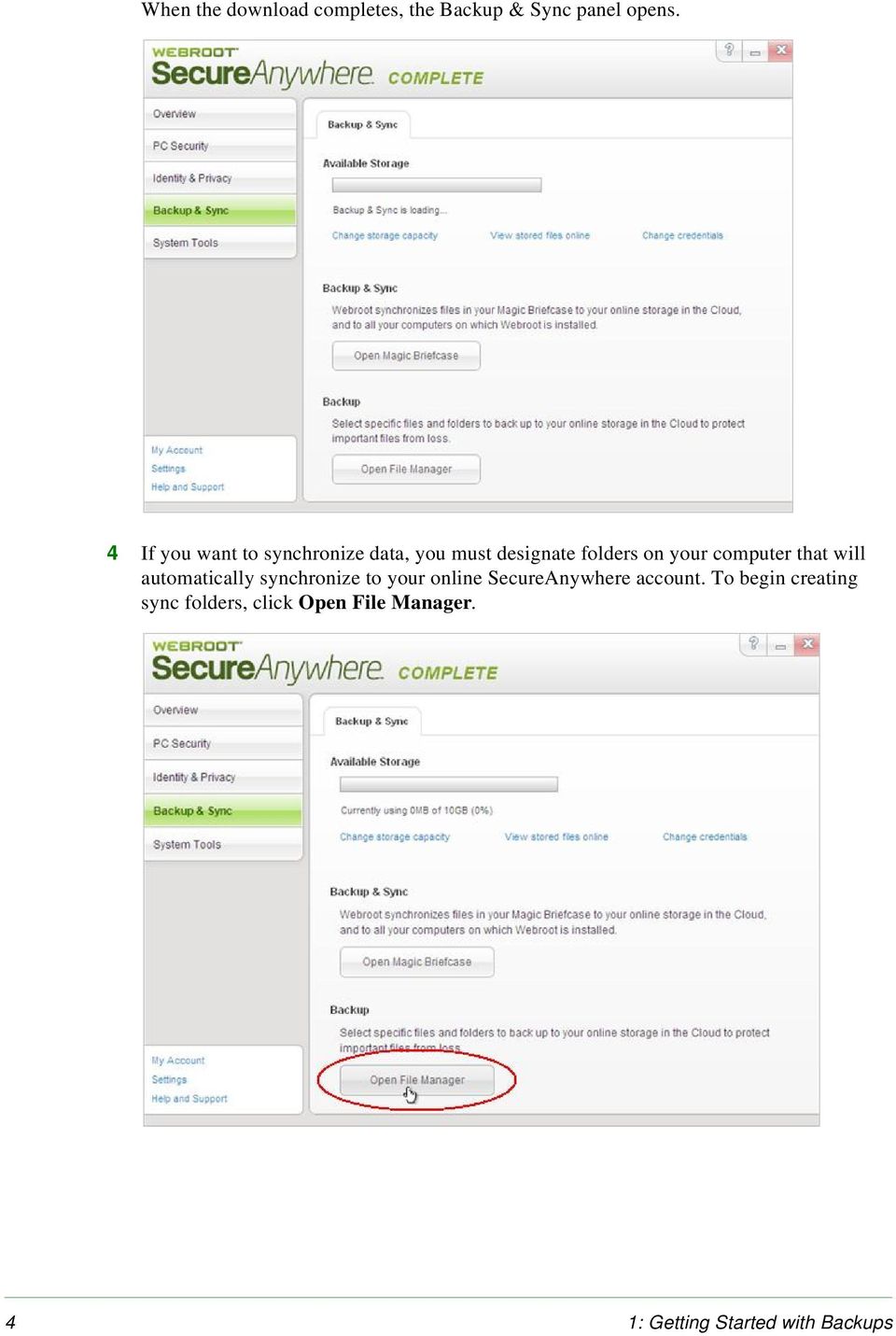
1 Backups User Guide for Webroot SecureAnywhere Essentials Webroot SecureAnywhere Complete Webroot Software, Inc. 385 Interlocken Crescent Suite 800 Broomfield, CO Version 8.0.1

2 Webroot SecureAnywhere Backups User Guide Version 8.0.1; May, Webroot Software, Inc. All rights reserved. Webroot is a registered trademark and SecureAnywhere is a trademark of Webroot Software, Inc. All other product and company names mentioned may be trademarks or registered trademarks of their respective owners.

3 Contents 1: Getting Started with Backups Securing data with Backup & Sync Configuring Backup & Sync Accessing synchronized and archived files Accessing files from your Windows Desktop Accessing files from the SecureAnywhere website Accessing files from a mobile device : Synchronizing Files Adding synchronized folders Synchronizing data between computers Synchronizing files in the Magic Briefcase Removing folders from synchronization : Archiving Files Copying files to the Web Archive Using the Webroot File Manager to copy files Using the SecureAnywhere website to copy files Accessing files in the Web Archive Accessing archives from your Windows Desktop Accessing archives from the website Accessing archives from an Android mobile device Accessing archives from an Apple mobile device : Transferring Files Downloading files Downloading files from the SecureAnywhere website Downloading files from your Windows Desktop Downloading files to an Android mobile device Downloading files to an Apple mobile device Downloading photo albums Editing files remotely Uploading files to the cloud Uploading files to the SecureAnywhere website Uploading files from an Android device Uploading photos from a mobile device Using an Android mobile device to upload photos Using an Apple mobile device to upload photos : Sharing Files and Photos Sending files to others Using the SecureAnywhere website to send files Sending files from an Android mobile device Sending files from an Apple mobile device Sharing photo albums with others Publishing photo albums to Facebook Contents iii
4 6: Restoring Files Retrieving an older version of a file Retrieving files you accidentally deleted Restoring all data to a new computer : Managing Storage and Speed Adding more storage space Reclaiming storage Freeing up storage space Setting the backup speed Index iv Contents
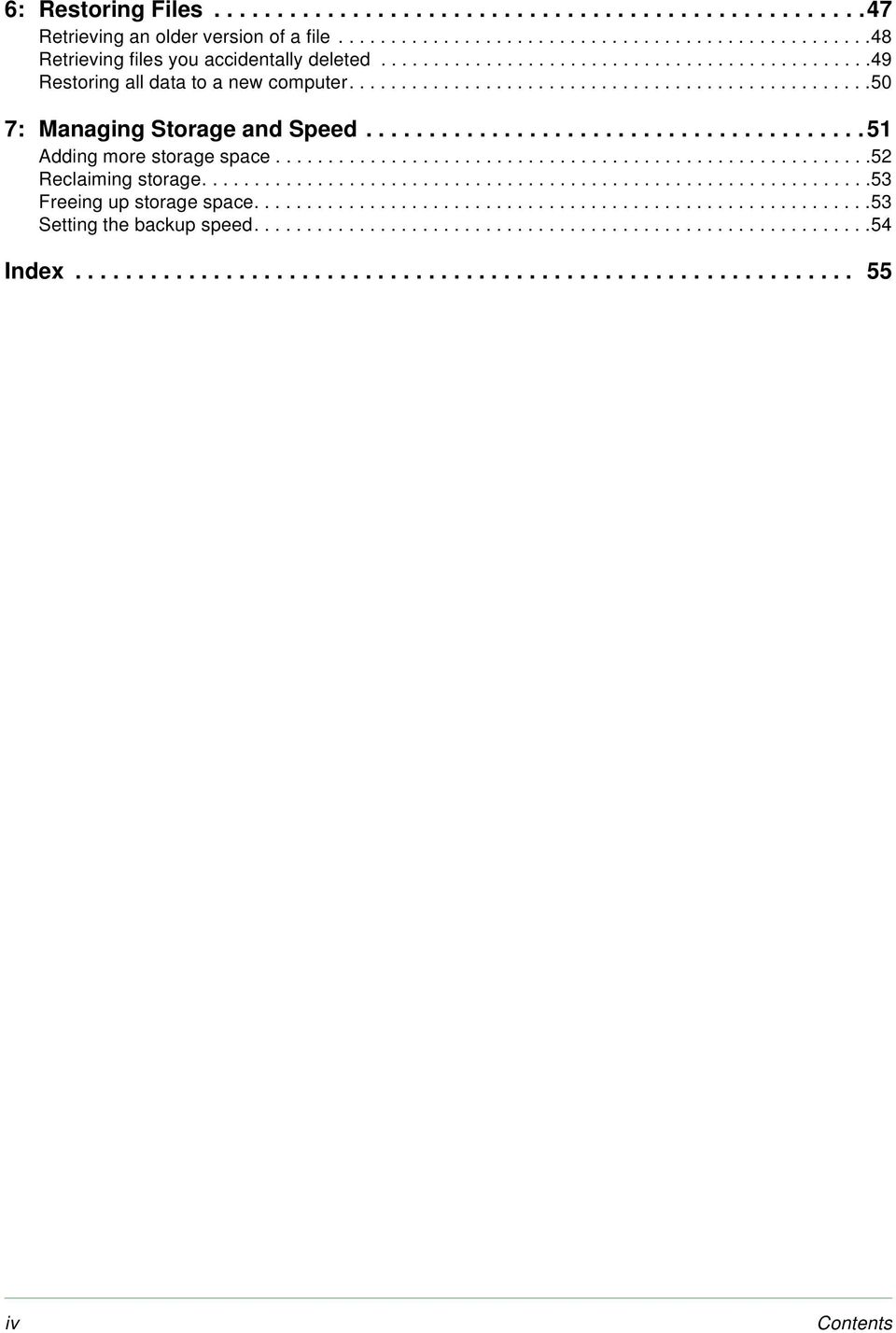
5 1: Getting Started with Backups With your purchase of the Essentials or Complete editions of Webroot SecureAnywhere, you can use Webroot s Backup & Sync manager to synchronize files to your computers, laptops, and mobile devices. Once files are uploaded to the cloud, you can access them remotely from any device with a Internet connection. To get started with Backup & Sync, see the following topics: Securing data with Backup & Sync page 2 Configuring Backup & Sync page 3 Accessing synchronized and archived files page 6 1: Getting Started with Backups 1
6 Securing data with Backup & Sync With Backup & Sync, you can rest assured that your important files and photos are automatically copied to the cloud (an online repository of secure servers where your data is encrypted and stored). If your computer or mobile device is lost or stolen, you can instantly retrieve your data from any device with an Internet connection. You can also start editing a file on one device, then continue editing it on another. There are several methods of securing your data: Synchronizing files and folders. First, locate the folders on your computer where you store important files, then designate them as sync folders. When you save files to sync folders, Backup & Sync immediately uploads them to the cloud and to any shared folders on other computers. You can access these synchronized files from your online SecureAnywhere account and from your mobile devices with the Webroot SecureSync app installed. (The SecureSync app is only available with the Complete edition.) Backup & Sync constantly monitors the sync folders. If it detects a change (an edited file, a new file, or a deleted file), it immediately makes the same change to your online account and to shared folders on other computers. If you are working offline, Backup & Sync automatically picks up changes the next time you connect to the Internet. If Backup & Sync detects an edited file, it does not overwrite the original version stored in the cloud. Instead, it uploads the latest version and makes a copy of the original file. If necessary, you can revert back to previous versions (up to five) from your online account. If you save changes a sixth time, your most recent version is saved and the oldest version is removed. For instructions, see Configuring Backup & Sync on page 3 and Adding synchronized folders on page 14. Storing files in the Magic Briefcase. If you don t want to configure your own sync folders, you can use the preconfigured folder called the Magic Briefcase. Any files you place in the Magic Briefcase are automatically synchronized in the cloud and to any other computers with SecureAnywhere installed. The Magic Briefcase is ideal for remotely accessing a small number of files. Do not place a large number of files there if you are concerned about conserving space on your computers. For instructions, see Synchronizing files in the Magic Briefcase on page 17. Copying files to the Web Archive. If you have important documents or photos that you want backed up, but not synchronized, you should upload them to the Web Archive. For example, you may want to back up tax returns, old photos, and a scanned copy of your passport. These types of documents won t change and don t need to be kept in synchronization with other computers. The Web Archive folder does not reside on your home computer and you cannot view it from Windows Explorer. The contents of the Web Archive physically reside in the cloud. You can only access them from your online SecureAnywhere account. For instructions, see Copying files to the Web Archive on page : Getting Started with Backups

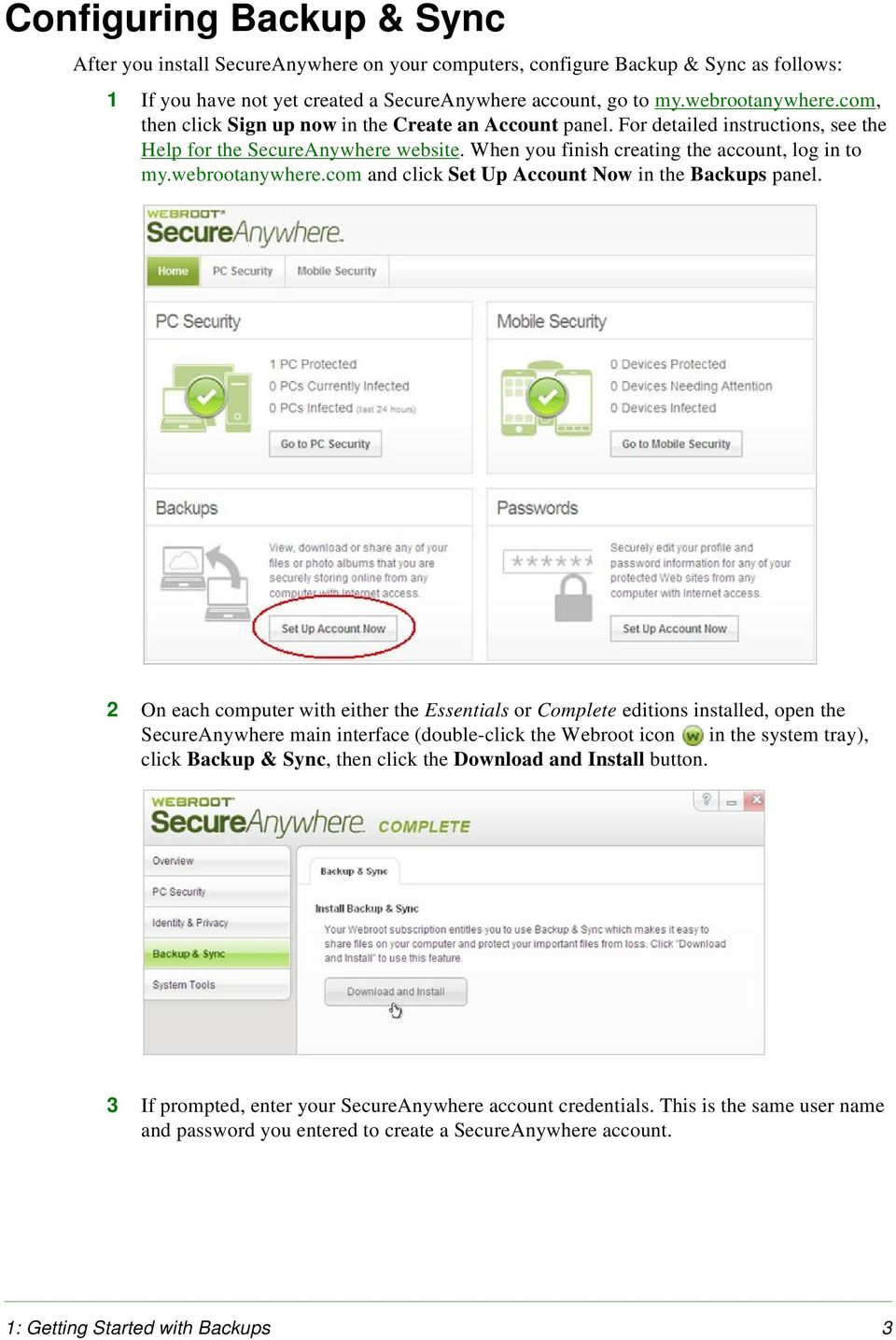
7 Configuring Backup & Sync After you install SecureAnywhere on your computers, configure Backup & Sync as follows: 1 If you have not yet created a SecureAnywhere account, go to my.webrootanywhere.com, then click Sign up now in the Create an Account panel. For detailed instructions, see the Help for the SecureAnywhere website. When you finish creating the account, log in to my.webrootanywhere.com and click Set Up Account Now in the Backups panel. 2 On each computer with either the Essentials or Complete editions installed, open the SecureAnywhere main interface (double-click the Webroot icon in the system tray), click Backup & Sync, then click the Download and Install button. 3 If prompted, enter your SecureAnywhere account credentials. This is the same user name and password you entered to create a SecureAnywhere account. 1: Getting Started with Backups 3
8 When the download completes, the Backup & Sync panel opens. 4 If you want to synchronize data, you must designate folders on your computer that will automatically synchronize to your online SecureAnywhere account. To begin creating sync folders, click Open File Manager. 4 1: Getting Started with Backups
9 The Setup dialog opens as shown below. 5 Click Next. 6 When the Select Sync Folders dialog box opens, select the checkbox next to the folders you want synchronized with your online account, then click Next. Any files residing in these folders will be copied to the cloud. 7 At the final dialog, click Finish. Backup & Sync immediately begins uploading the files. Depending on the number and size of the synchronized folders, the initial upload may take several minutes, but you can still work on your computer during this process. 8 If you want to see the upload progress, open the Webroot File Manager (from the Backup & Sync panel, click Open File Manager). Click the View menu, and select File Transfer Status. A File Transfer Status panel opens and shows the name, size, priority, and location of the files. The synchronized folders and files are also shown in the Webroot File Manager (see Accessing files from your Windows Desktop on page 6) and the SecureAnywhere 1: Getting Started with Backups 5

10 website (see Accessing files from the SecureAnywhere website on page 8). 9 If desired, you can create shared folders between other computers. For instructions, see Synchronizing data between computers on page If you have the Complete edition of SecureAnywhere, you can download the SecureSync app on up to three mobile devices (Android or Apple). Install the SecureSync app by following these instructions: Downloading SecureAnywhere Mobile Complete. Accessing synchronized and archived files You can access synchronized and archived files from the Webroot File Manager on your Windows Desktop, from the SecureAnywhere website, and from the SecureSync app on a mobile device. Note: Be aware that any changes, deletions, or additions you make in the synchronized folders are also propagated to your online SecureAnywhere account and to other synchronized folders on other computers. For example, if you delete a file in one synchronized folder, it will be deleted across all synchronized folders. You can retrieve any files you deleted from the Deleted Files folder in the SecureAnywhere website and in the Webroot File Manager. Accessing files from your Windows Desktop From the Webroot File Manager on your Windows Desktop, you can open, copy, move, and delete synchronized files. The Webroot File Manager is an Explorer-type interface. You do not need to connect to the Internet to view the Webroot File Manager. However, when you are connected, you can manage files online and across all your computers that have SecureAnywhere installed. For example, if you want to access a document that resides on your computer at home and edit the document on your laptop while you re traveling, you can use the Webroot File Manager to open and edit the file. To open the Webroot File Manager: 1 Open the SecureAnywhere main interface (double-click the Webroot icon in the system tray). 2 From the Backup & Sync panel, click Open File Manager. 6 1: Getting Started with Backups

11 The Webroot File Manager opens. The left panel shows synchronized folders, the Magic Briefcase, the Web Archive, and the Deleted Files recycle bin. If you installed SecureAnywhere on multiple computers, the left panel lists each computer. The middle panel shows more detail about whatever you select on the left. The Webroot File Manager includes the following: Menu bar and toolbar at the top. Provides access to commands for configuring synchronized folders, transferring files, managing files, and setting preferences. Folder tree. Provides access to synchronized folders on your own computer and other computers, the Magic Briefcase, the Web Archive, and the Deleted Files recycle bin. Select folders and files from the left to see more detail in the middle panel. 1: Getting Started with Backups 7

12 Tip: Backup & Sync assigns a default name to your computer. If you want to give it a different name, click on the computer name from the folder tree, go to the Tools menu, and select Rename Computer. Middle panel. Shows the contents of the folder selected in the left panel. You can click on a file to open it or right-click to open a pop-up menu of commands. Tip: If a file appears grayed out, it was synchronized from another computer. You can access a synchronized file from another computer by double-clicking on it. Status bar at the bottom. Shows the amount of storage used and free, the status of synchronized files, a link to your personal account, and the connection status to the Internet. The Webroot File Manager includes many commands, which are available from either the menu bar at the top of the panel or from a pop-up menu that opens when you right-click on an item. These commands allow you to perform editing tasks, similar to the Edit menu in Windows Explorer and other Windows programs. Note: Deleted files are moved to the Deleted Files recycle bin, where you can permanently delete them or restore them. Accessing files from the SecureAnywhere website You can manage and access all your synchronized and archived files in the Backups page of the SecureAnywhere website. This Backups page allows you to open, copy, move, delete, and share files in your synchronized folders. You can access these files from any computer with an Internet connection or from a mobile device with the SecureSync app installed. To access files from the Backups page: 1 Log in to my.webrootanywhere.com. 2 Click Go to Backups. 8 1: Getting Started with Backups
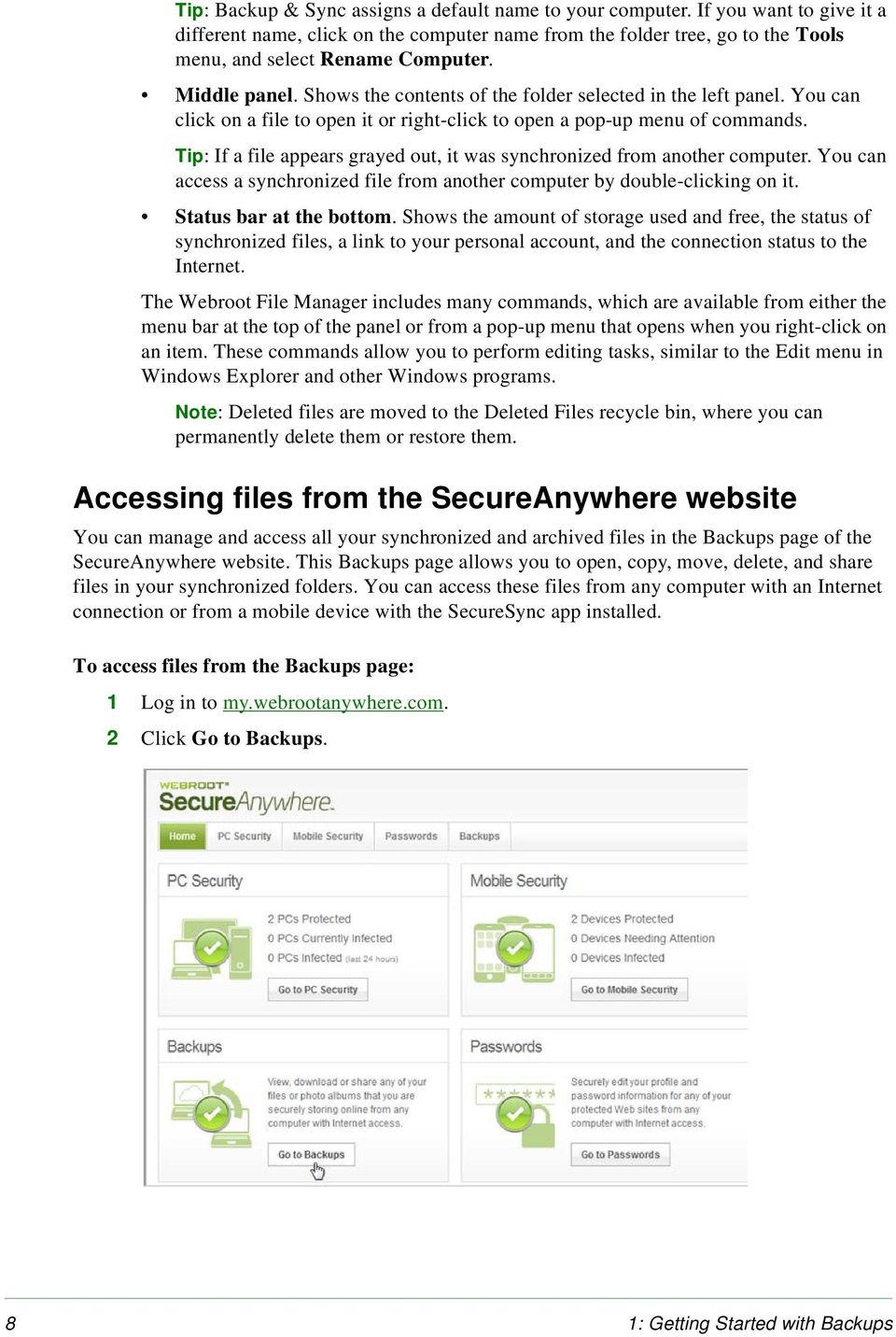
13 The Backups web page opens. The Backups page includes three tabs across the top: My Folders and Files shows synchronized and archived files (mirrors the Webroot File Manager). From this tab, you can perform editing tasks, send files, transfer files, and delete files. Recent Events shows any Backup & Sync activity. Photos shows all your JPG files organized into albums. To view all photos within the album, click on the album picture. Another page opens with thumbnail views of your photos. From there, you can click on a thumbnail to view a larger image and access Photo Actions. 1: Getting Started with Backups 9

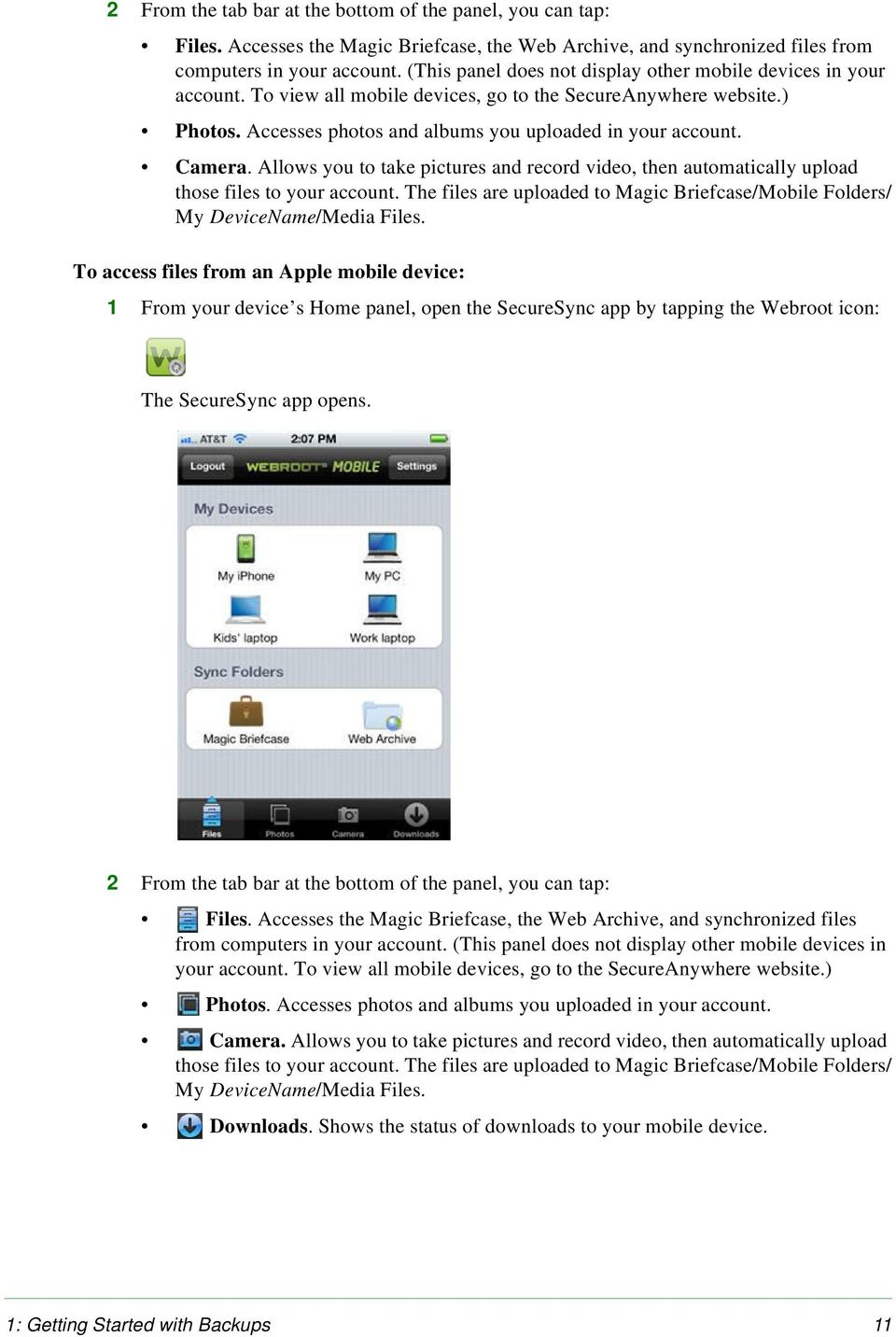
14 Accessing files from a mobile device If you installed the SecureSync app on an Android or Apple mobile device, you can use it to access any synchronized or archived files in your SecureAnywhere account. (The SecureSync app is only available with your purchase of the SecureAnywhere Complete edition. For download instructions, see Downloading SecureAnywhere Mobile Complete.) Note: To preserve space on your mobile device, SecureSync does not automatically download synchronized files to your phone or tablet. However, you can manually download files if you want to access them. To access files from an Android mobile device: 1 From your device s Home panel, open the SecureSync app by tapping the Webroot icon: The SecureSync app opens. 10 1: Getting Started with Backups

15 2 From the tab bar at the bottom of the panel, you can tap: Files. Accesses the Magic Briefcase, the Web Archive, and synchronized files from computers in your account. (This panel does not display other mobile devices in your account. To view all mobile devices, go to the SecureAnywhere website.) Photos. Accesses photos and albums you uploaded in your account. Camera. Allows you to take pictures and record video, then automatically upload those files to your account. The files are uploaded to Magic Briefcase/Mobile Folders/ My DeviceName/Media Files. To access files from an Apple mobile device: 1 From your device s Home panel, open the SecureSync app by tapping the Webroot icon: The SecureSync app opens. 2 From the tab bar at the bottom of the panel, you can tap: Files. Accesses the Magic Briefcase, the Web Archive, and synchronized files from computers in your account. (This panel does not display other mobile devices in your account. To view all mobile devices, go to the SecureAnywhere website.) Photos. Accesses photos and albums you uploaded in your account. Camera. Allows you to take pictures and record video, then automatically upload those files to your account. The files are uploaded to Magic Briefcase/Mobile Folders/ My DeviceName/Media Files. Downloads. Shows the status of downloads to your mobile device. 1: Getting Started with Backups 11
16 12 1: Getting Started with Backups

17 2: Synchronizing Files After you configure sync folders (as described in Configuring Backup & Sync on page 3), you simply store important files in those folders. Backup & Sync immediately synchronizes the files without disrupting your work. Be aware that any changes, deletions, or additions you make in the synchronized folders are also propagated to your online SecureAnywhere account and to shared folders on other computers. For example, if you delete a file in one synchronized folder, it is deleted in your online account and across all computers that share that folder. Note: If you have the SecureSync app installed on a mobile device (available with the SecureAnywhere Complete edition), you can access all files in those sync folders. However, to conserve space on your mobile device, SecureSync does not automatically download files to them. You must use the SecureSync app to manually download files you want. For more information, see Downloading files on page 28. To perform additional synchronization tasks, see the following topics: Adding synchronized folders page 14 Synchronizing data between computers page 15 Synchronizing files in the Magic Briefcase page 17 Removing folders from synchronization page 18 2: Synchronizing Files 13
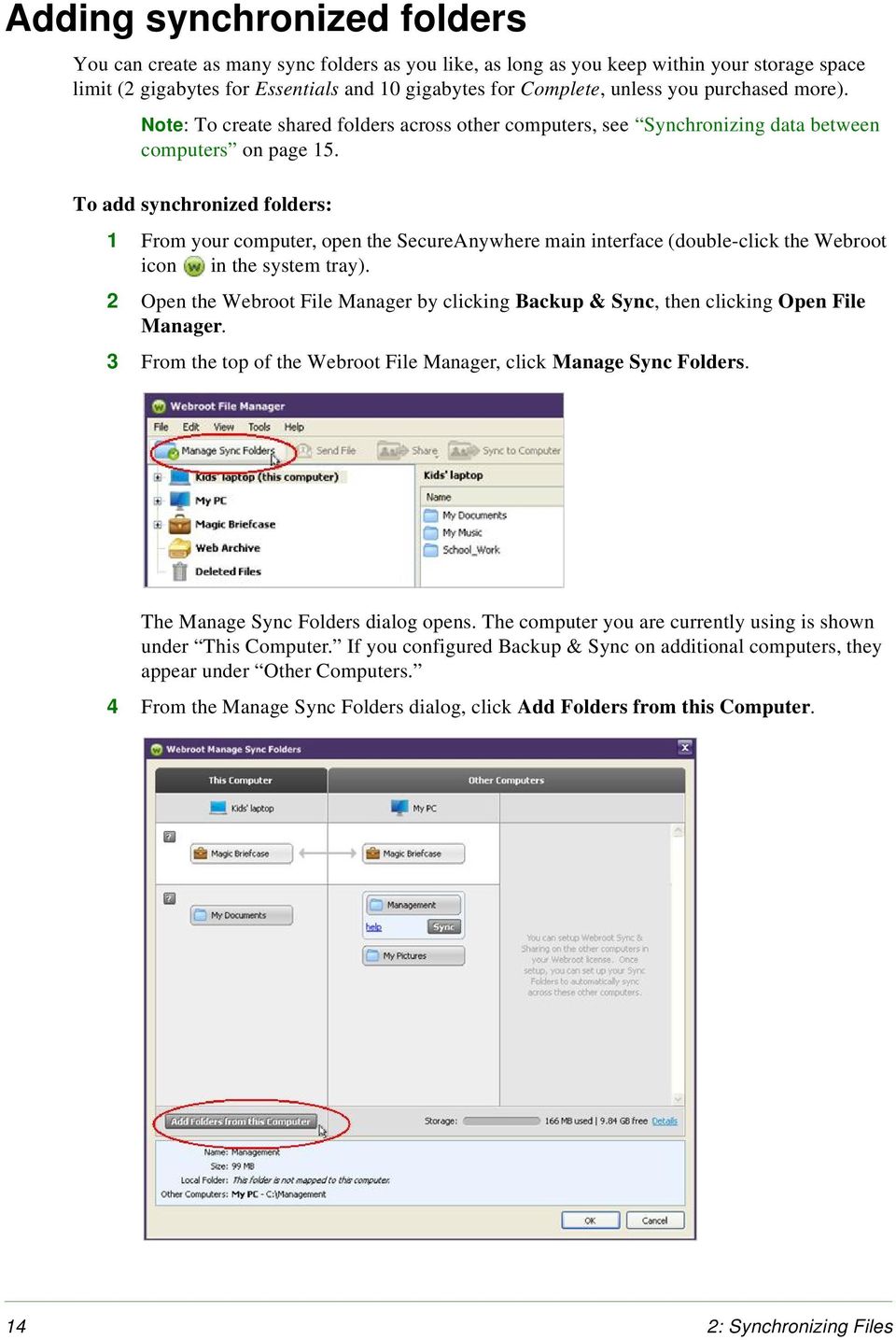
18 Adding synchronized folders You can create as many sync folders as you like, as long as you keep within your storage space limit (2 gigabytes for Essentials and 10 gigabytes for Complete, unless you purchased more). Note: To create shared folders across other computers, see Synchronizing data between computers on page 15. To add synchronized folders: 1 From your computer, open the SecureAnywhere main interface (double-click the Webroot icon in the system tray). 2 Open the Webroot File Manager by clicking Backup & Sync, then clicking Open File Manager. 3 From the top of the Webroot File Manager, click Manage Sync Folders. The Manage Sync Folders dialog opens. The computer you are currently using is shown under This Computer. If you configured Backup & Sync on additional computers, they appear under Other Computers. 4 From the Manage Sync Folders dialog, click Add Folders from this Computer. 14 2: Synchronizing Files
19 5 When the Select New Folders dialog opens, click in the box next to the folders you want included in synchronization, then click OK. 6 Click the OK button at the bottom of the Webroot Manage Folders dialog. You must click OK for the synchronization to begin. Synchronizing data between computers If you installed SecureAnywhere on multiple computers, you can create shared, synchronized folders between them. Whenever you update data in one of these shared folders (adding, editing, moving, or deleting files), Backup & Sync automatically makes the same changes in the cloud and to all shared folders. This automatic synchronization can be beneficial when you frequently use multiple computers and need access to the most recent files. To synchronize data between computers: 1 From one of your computers, open the SecureAnywhere main interface (double-click the Webroot icon in the system tray). 2 Open the Webroot File Manager by clicking Backup & Sync, then clicking Open File Manager. 3 From the Webroot File Manager, click Manage Sync Folders. The Manage Sync Folders dialog opens. The computer you are currently using is shown under This Computer. Your additional computers appear under Other Computers. (You must configure Backup & Sync on those computers for them to appear in this panel.) 4 Select a folder that you want to synchronize between the two computers. Click the Sync button under the folder name. 2: Synchronizing Files 15
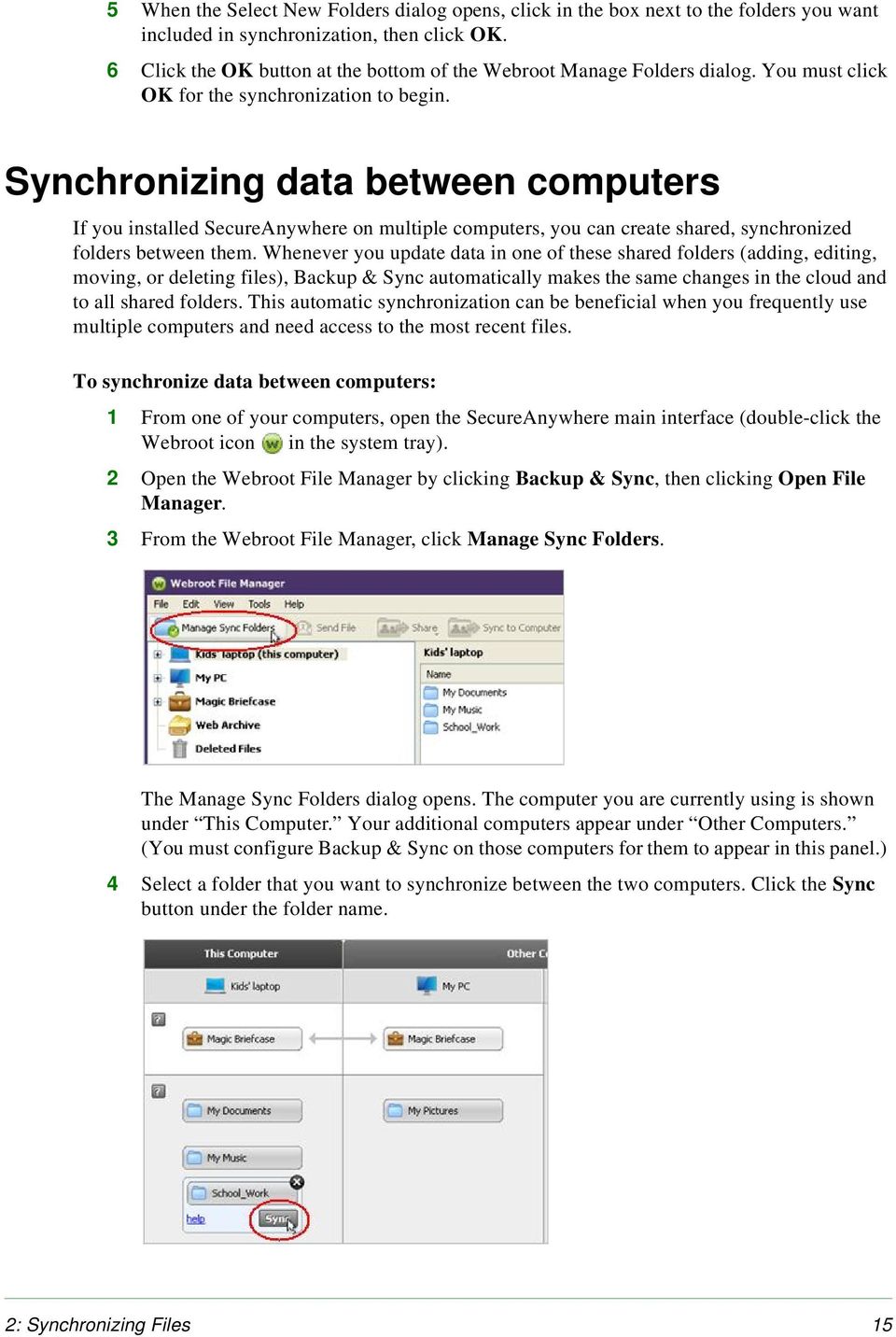
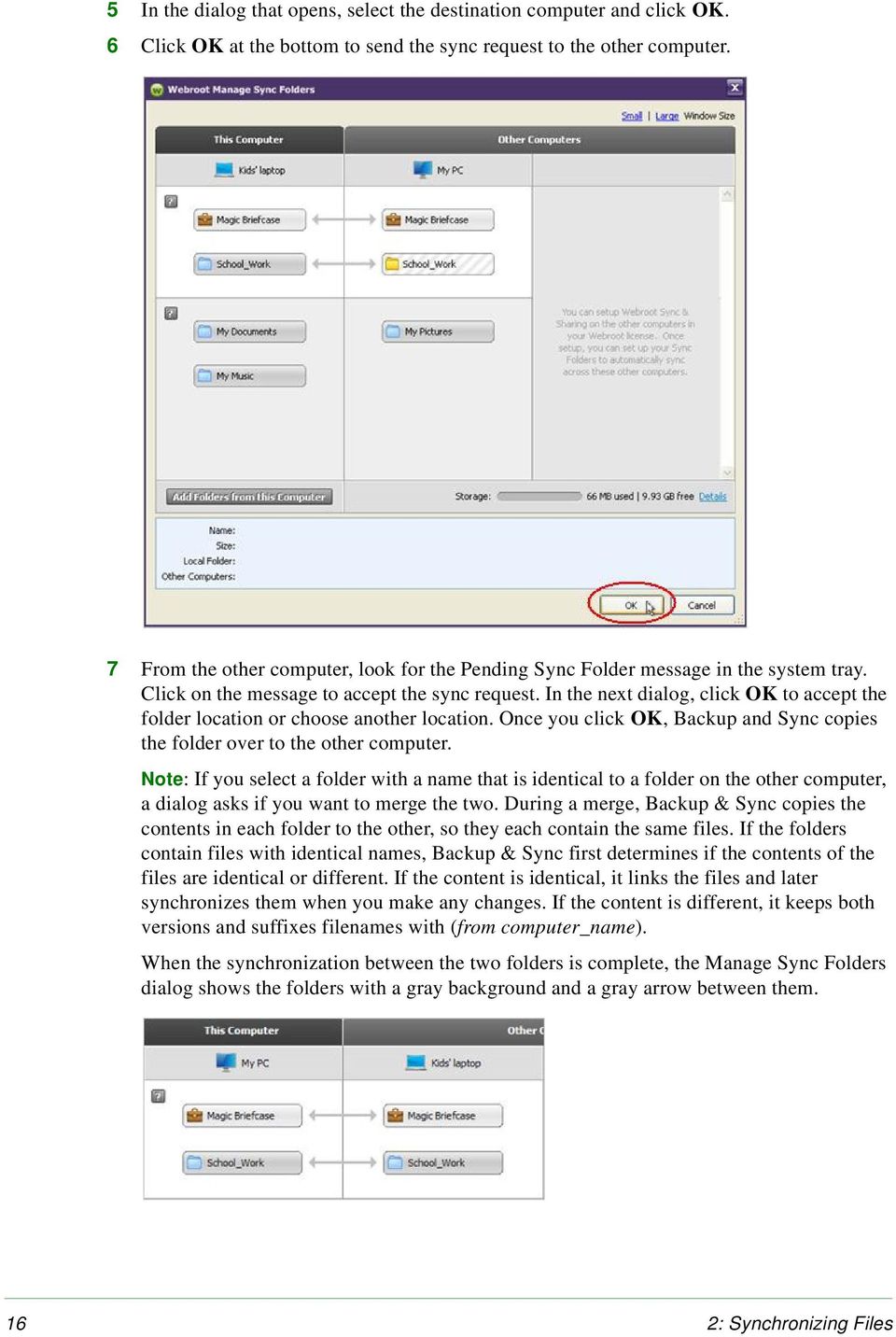
20 5 In the dialog that opens, select the destination computer and click OK. 6 Click OK at the bottom to send the sync request to the other computer. 7 From the other computer, look for the Pending Sync Folder message in the system tray. Click on the message to accept the sync request. In the next dialog, click OK to accept the folder location or choose another location. Once you click OK, Backup and Sync copies the folder over to the other computer. Note: If you select a folder with a name that is identical to a folder on the other computer, a dialog asks if you want to merge the two. During a merge, Backup & Sync copies the contents in each folder to the other, so they each contain the same files. If the folders contain files with identical names, Backup & Sync first determines if the contents of the files are identical or different. If the content is identical, it links the files and later synchronizes them when you make any changes. If the content is different, it keeps both versions and suffixes filenames with (from computer_name). When the synchronization between the two folders is complete, the Manage Sync Folders dialog shows the folders with a gray background and a gray arrow between them. 16 2: Synchronizing Files
21 Synchronizing files in the Magic Briefcase The Magic Briefcase is a synchronized folder that Webroot has configured for your convenience. Any files you put in the Magic Briefcase are automatically synchronized in the cloud and with any other computers configured with Backup & Sync. Files in the Magic Briefcase are also accessible from your mobile devices with the SecureSync app installed (available only with the Complete edition). Tip: You should not load a large amount of files in the Magic Briefcase. Backup & Sync copies all files placed in the Magic Briefcase to all your computers with SecureAnywhere installed. To access the Magic Briefcase: 1 Open Windows Explorer. 2 Go to your personal Documents folder (My Documents) and open the Magic Briefcase folder. Tip: If you have trouble finding the Magic Briefcase in Explorer, go to the SecureAnywhere main interface, access the Backup & Sync panel, and click Open Magic Briefcase. When you copy a file to the Magic Briefcase, the file is instantly synchronized to the cloud and to your other computers with Backup & Sync configured. 2: Synchronizing Files 17
22 Removing folders from synchronization You can remove a folder from the automatic synchronization process, without actually deleting the folder from your computer. You can also remove individual sub-folders or an entire computer from synchronization. To stop synchronizing folders: 1 From your computer, open the SecureAnywhere main interface (double-click the Webroot icon in the system tray). 2 Open the Webroot File Manager by clicking Backup & Sync, then clicking Open File Manager. 3 From the top of the Webroot File Manager, click Manage Sync Folders. 4 In the next dialog, you can select either the entire folder or subfolders: To stop synchronizing the entire folder, click the X in the upper right. At the prompt, click OK. To stop synchronizing a subfolder, click the blue link for Exclude Subfolders. In the dialog that opens, uncheck the folders and click OK. 18 2: Synchronizing Files
23 5 Click the OK button at the bottom of the Webroot Manage Sync Folders dialog. You must click OK for Backup & Sync to stop synchronizing the folder. Backup & Sync does not delete the folder from your computer, but it does remove the folder from your online SecureAnywhere account. To stop synchronizing all folders on a computer: 1 Log in to my.webrootanywhere.com and click Go to Backups. 2 Make sure the My Folders and Files tab is selected. 3 From the left panel, click on the computer you want removed, then click the Settings link. 4 In the Settings panel, click the Remove link. Any files that were synchronized on this computer are moved from your online account to the Web Archive. If you don t want the files stored there, go to the Web Archive and delete them. 2: Synchronizing Files 19
24 20 2: Synchronizing Files
25 3: Archiving Files If you don t want to synchronize certain files, but do want them securely backed up, you can copy the files to the Web Archive. You can also use the Web Archive to free up space on your hard drive by transferring files there. Remember that if you modify the original files, the changes are not automatically synchronized to the Web Archive. You will need to manually upload the updated files. Tip: Use the Web Archive to store important files that do not change, such as a scanned copy of your passport or your tax returns. Any files you store in the Web Archive are readily available. You can access them from any computer with an Internet connection or from your mobile device with the SecureSync app installed. To use the Web Archive, see the following topics: Copying files to the Web Archive page 22 Accessing files in the Web Archive page 24 3: Archiving Files 21
26 Copying files to the Web Archive You can make copies of important files by importing them into the Web Archive, either from the Webroot File Manager or the SecureAnywhere website. Note: Backup & Sync does not move the files, only copies them. Your files remain in their original location. Using the Webroot File Manager to copy files 1 From your computer, open the SecureAnywhere main interface (double-click the Webroot icon in the system tray). 2 Open the Webroot File Manager by clicking Backup & Sync, then clicking Open File Manager. 3 When the Webroot File Manager opens, you can either: Drag and drop files from your Windows Desktop into the Web Archive folder. Right-click Web Archive, then select either Import Files or Import Folder. From the dialog that opens, select the files or folders you want archived. The files are instantly copied to the Web Archive in your online SecureAnywhere account (go to my.webrootanywhere.com). The Webroot File Manager shows the folders or files under the Web Archive folder. The Status column in the middle panel shows Backed Up next to each file that uploaded successfully. 22 3: Archiving Files
27 Using the SecureAnywhere website to copy files 1 Log in to my.webrootanywhere.com and click Go to Backups. 2 Make sure the My Folders and Files tab is selected. 3 Select the Web Archive folder in the left panel. Tip: You can first create a subfolder in the Web Archive by clicking New Folder. 4 Click Upload. 5 Follow the on-screen instructions to upload the file. The uploaded files appear in the middle panel. 3: Archiving Files 23
28 Accessing files in the Web Archive You can view and download files from the Web Archive by using the Webroot File Manager on your Windows Desktop, the SecureAnywhere website, or the SecureSync app from your mobile device. (The SecureSync app is only available with the Complete edition.) Accessing archives from your Windows Desktop 1 From your computer, open the SecureAnywhere main interface (double-click the Webroot icon in the system tray). 2 Open the Webroot File Manager by clicking Backup & Sync, then clicking Open File Manager. 3 When the Webroot File Manager opens, select the Web Archive folder from the left panel. 4 Right-click the file or folder you want to access from the right panel, then select Export/ Save as. 5 Select the destination folder on your local computer, then click OK. The files are copied to the folder you select. Accessing archives from the website 1 Log in to my.webrootanywhere.com and click Go to Backups. 2 Make sure the My Folders and Files tab is selected. 3 Select the Web Archive folder in the left panel. 4 Select the folders or files in the right panel. 24 3: Archiving Files
29 5 Click Download. 6 Select whether you want to view or save the file to your local computer. Accessing archives from an Android mobile device 1 Open the SecureSync app (see Accessing files from a mobile device on page 10). 2 Tap Files from the tab bar. The Web Archive folder appears under Server Folders. 3 Tap Web Archive. The next panel shows the folders and files. 4 Press and hold the file or folder name until the menu panel opens. From here, you can tap Open to view a file or tap Download to copy a file or folder onto your mobile device. Tip: Your mobile device must be able to view the specific file type. If necessary, download a viewing or editing app. 3: Archiving Files 25
30 Accessing archives from an Apple mobile device 1 Open the SecureSync app (see Accessing files from a mobile device on page 10). 2 Tap Files from the tab bar. The Web Archive folder appears under Sync Folders. 3 Tap Web Archive. The next panel shows the folders or files. 4 You can view or download files, as follows: To view a file, tap the file name. (You can also tap the Detail button and then tap View File.) Tip: Your mobile device must be able to view the specific file type. If necessary, download a viewing or editing app. To download all files in that folder, tap the Detail button, then tap Sync to Device. To download individual folders or files, tap the Action button. In the Action sheet, tap Select Items. Tap the individual folders or files so that a checkmark appears. At the bottom of the panel, tap the blue Sync button. 26 3: Archiving Files
31 4: Transferring Files Using any device with an Internet connection, you can upload or download files residing in your synchronized folders, the Magic Briefcase, or the Web Archive. For example, if you are traveling and need access to a file located on your home computer, you can open a browser on another computer, log in to your SecureAnywhere account, and download the file. You can even work on the file remotely and save your changes back into the cloud. If you have the SecureAnywhere Complete edition, you can also upload or download files from a mobile device with the SecureSync app installed. To transfer files, see the following topics: Downloading files page 28 Downloading photo albums page 32 Editing files remotely page 33 Uploading files to the cloud page 34 Uploading photos from a mobile device page 36 4: Transferring Files 27
32 Downloading files You can download synchronized files from the SecureAnywhere website, from the Windows Desktop, or from your mobile device with the SecureSync app installed. Downloading files from the SecureAnywhere website If you are working remotely and need access to synchronized files on a home or office computer, you can download them from any device with an Internet connection. Synchronized files reside in the cloud and are available at all times. (The computer where your original files are stored does not need to be turned on.) To download files from the SecureAnywhere website: 1 Log in to my.webrootanywhere.com and click Go to Backups. 2 Make sure the My Folders and Files tab is selected. 3 Click on a file to display the pop-up menu and select Download, or select one or more files in the middle panel and click the Download button. A dialog prompts you to open the file or save it to your current computer. 4 Select either Open or Save. If you chose to save the file, it creates a Downloads folder (if not already created) and places your files there. 28 4: Transferring Files
33 Downloading files from your Windows Desktop You can use the Webroot File Manager to access synchronized files on other computers. For example, if you are working on one computer and need to access files synchronized on another computer in your account, you can use the Webroot File Manager to download the files. (You do not need to set up shared folders to access the synchronized files on other computers.) To download files using the Webroot File Manager: 1 From your computer, open the SecureAnywhere main interface (double-click the Webroot icon in the system tray). 2 Open the Webroot File Manager by clicking Backup & Sync, then clicking Open File Manager. 3 When the Webroot File Manager opens, select the desired folder from the left panel. Note: The file icon is grayed out if it resides on another computer. You can access the file by double-clicking on it. 4 Right-click the file or folder you want to access from the right panel, then select Export/ Save as. 5 Select the destination folder on your local computer and click OK. 4: Transferring Files 29
34 Downloading files to an Android mobile device You can use the SecureSync app to access synchronized files from other computers in your SecureAnywhere account. The SecureSync app is available with a SecureAnywhere Complete edition. To download files to an Android mobile device: 1 Open the SecureSync app (see Accessing files from a mobile device on page 10). 2 Tap Files from the tab bar. The computers in your SecureAnywhere account are listed under My Devices. 3 Tap the name of the device that you want to access. The next panel shows the synchronized folders and files in your account. 4 Press and hold the file or folder name until the menu panel opens. From here, you can tap Open to view a file or tap Download to copy a file or folder onto your mobile device. Tip: Your mobile device must be able to view the specific file type. If necessary, download a viewing or editing app. 30 4: Transferring Files
35 Downloading files to an Apple mobile device You can use the SecureSync app to access synchronized files from other computers in your SecureAnywhere account. The SecureSync app is available with a SecureAnywhere Complete edition. To download files to an Apple mobile device: 1 Open the SecureSync app (see Accessing files from a mobile device on page 10). 2 Tap Files from the tab bar. The computers in your SecureAnywhere account are listed under My Devices. 3 Tap the name of the device that you want to access. The next panel shows the synchronized folders or files. 4 You can view or download files, as follows: To view a file, tap the file name. (You can also tap the Detail button and then tap View File.) Tip: Your mobile device must be able to view the specific file type. If necessary, download a viewing or editing app. To download all files in that folder, tap the Detail button, then tap Sync to Device. To download individual folders or files, tap the Action button. In the Action sheet, tap Select Items. Tap the individual folders or files so that a checkmark appears. At the bottom of the panel, tap the blue Sync button. 4: Transferring Files 31
36 Downloading photo albums When JPG files are uploaded to your online account, SecureAnywhere organizes each folder with at least one JPG file into a photo album. You can download these photo albums to any device with an Internet connection. To download photo albums: 1 Log in to my.webrootanywhere.com and click Go to Backups. 2 Click the Photos tab. 3 Beneath the album you want to download, click the down arrow next to the Actions field, then click Download Album from the menu. A dialog prompts you to open the file or save it to your current computer. 4 Select either Open or Save. If you chose to save the file, it creates a Downloads folder (if not already created) and places your files there. 32 4: Transferring Files
37 Editing files remotely Using the Edit with WebSync function, you can open and edit files residing in any of your synchronized folders from any location. When you save the file, SecureAnywhere immediately synchronizes the changes. To edit files remotely: 1 Log in to my.webrootanywhere.com and click Go to Backups. 2 Make sure the My Folders and Files tab is selected. 3 Click on a file to display the pop-up menu and select Edit with WebSync. Note: If a dialog opens that instructs you to install Java, click on the install Java link and follow the on-screen instructions. A dialog prompts you to open the file or save it to your current computer. 4 To edit your file, select Java Web Start Launcher. Your document opens in Microsoft Word, along with a Webroot - WebSync dialog. 5 Edit your file, then click Done With All so your changes are immediately synchronized. 4: Transferring Files 33
38 Uploading files to the cloud You can upload files to your SecureAnywhere account from any computer with an Internet connection or from the SecureSync app on your Android mobile device. Note: Due to limitations in ios devices, SecureSync cannot upload files from an Apple mobile device. However, it can upload photos. Uploading files to the SecureAnywhere website 1 Log in to my.webrootanywhere.com and click Go to Backups. 2 Make sure the My Folders and Files tab is selected. 3 Select the folder where you want to load files. If desired, you can create a subfolder by clicking New Folder. 4 Click Upload. 5 Follow the on-screen instructions to upload the files. 34 4: Transferring Files
39 Uploading files from an Android device 1 Open the SecureSync app (see Accessing files from a mobile device on page 10). 2 Tap Files from the tab bar. 3 Tap the icon for your mobile device. 4 Tap the name of the folder that you want to access. 5 The next panel shows the folders and files on your device. Press and hold the folder or file name until the menu panel opens, then tap Upload to Server. 6 To check the status of the transfer, tap More from the tab bar, then tap Transfer Status. The files immediately synchronize to your computers in Magic Briefcase/Mobile Folders. 4: Transferring Files 35
40 Uploading photos from a mobile device By using the SecureSync app to take pictures, your photo files will upload immediately to the cloud. You can also easily upload photos taken on your mobile device s camera. (Photos taken from your device s camera do not automatically upload to your Webroot account; you must upload them yourself.) When you upload photos, the files immediately synchronize to your computers in Magic Briefcase/Mobile Folders. (The Mobile Folders subfolder does not appear until you upload a photo.) Using an Android mobile device to upload photos You can upload photos either by using the SecureSync camera (uploads as soon as you take the picture) or upload photos residing in the Gallery. To take a picture and synchronize it immediately: 1 From the tab bar, tap Camera. 2 Tap either Take a Picture or Record Video. To upload photos from the Gallery on your mobile device: 1 From the tab bar, tap Camera. 2 Tap Upload Current Media. SecureSync locates the JPG files in your gallery and prompts you to start the upload. 3 Tap OK. 36 4: Transferring Files
41 Using an Apple mobile device to upload photos You can upload photos either by using the SecureSync camera (uploads as soon as you take the picture) or upload photos residing in the Camera Roll. To take a picture and synchronize it immediately: 1 From the tab bar, tap Camera. 2 Tap the Camera Options in the top, left of the panel. 3 Tap either Take Photo or Record Video. To upload photos from the Camera Roll on your mobile device: 1 From the tab bar, tap Camera. 2 Tap the Camera Options button in the top, left of the panel. 3 Tap Upload Existing Media to browse to your Camera Roll. 4 Tap a photo or video to upload. 4: Transferring Files 37
42 38 4: Transferring Files
43 5: Sharing Files and Photos If you would like to share files or photos with friends and relatives, you can use Backup & Sync to send them an that provides a link to copies stored in the cloud. This method of sharing files preserves space because you are not attaching files directly to an . It also protects your original files because you are not providing other people with direct access. The recipients of your do not need to have a SecureAnywhere account to access the files. Recipients are given access to a copy of your files for 21 days. Be aware that since they do not have access to your original files, any future changes you make won t be reflected in their copy. To share files and photos, see the following topics: Sending files to others page 40 Sharing photo albums with others page 44 Publishing photo albums to Facebook page 46 5: Sharing Files and Photos 39
44 Sending files to others You can send a message to friends and relatives with a link to files in your online SecureAnywhere account. You can also send files from a mobile device with the SecureSync app installed. Using the SecureAnywhere website to send files 1 Log in to my.webrootanywhere.com and click Go to Backups. 2 Click the My Folders and Files tab. 3 Select a file by clicking on its checkbox, then click Send Files from the toolbar or Send from the right-click pop-up menu. The Send Files dialog opens. 4 In the To: field, enter the addresses of the recipients, separated by commas. In the Message: field, enter a short message for the invitation. Then click Send. A status message opens when your file is sent. 40 5: Sharing Files and Photos
45 Your recipients receive a message that looks similar to the example below. When they click on the link, a web page opens where they can download the files to their computers. (They do not need a SecureAnywhere account.) Recipients are given access to a copy of your files for 21 days. Since they do not have access to your original files, any future changes you make won t be reflected in their copy. When the recipients access the files, Webroot sends you a notification and logs an entry in the Recent Activity page of the SecureAnywhere website. 5: Sharing Files and Photos 41
46 Sending files from an Android mobile device 1 Open the SecureSync app (see Accessing files from a mobile device on page 10). 2 Tap Files from the tab bar. 3 Tap the name of the device or sync folder that you want to access. 4 To access files in a folder, tap the folder name. To access a single file, press and hold the file name until the menu panel opens, then tap Send. 5 Select the method for sending the file, such as or text message. Your recipient can receive a link to the shared file through , Bluetooth, Facebook, or text messaging. The options that appear depend on how you set up your mobile device. For example, Facebook only appears if you installed the Facebook app. 6 Enter the contact information, along with a message to the recipient. Then tap Send. 42 5: Sharing Files and Photos
47 Sending files from an Apple mobile device 1 Open the SecureSync app (see Accessing files from a mobile device on page 10). 2 Browse to the file or photo you want to share: Tap Files in the tab bar. Tap the name of the device or shared folder you want to access. To locate photos, tap Photos in the tab bar. Tap the Detail button next to Mobile Photos or My Albums. 3 To share a single file or folder: Tap the Detail button next to the file you want to share. Tap Share. Enter the address of your contact, then tap Send. 4 To share multiple files: Tap the folder name. Tap the Action button. In the Action sheet, tap Select Items. Tap the individual files so that a checkmark appears. At the bottom of the panel, tap the blue Share button. Enter the address of your contact, then tap Send. 5: Sharing Files and Photos 43
48 Sharing photo albums with others You can share photo albums with friends and family by using your SecureAnywhere online account. Backup & Sync creates an album for every folder that contains at least one JPG file and organizes them in the Photos tab. To share your photo albums with others: 1 Log in to my.webrootanywhere.com and click Go to Backups. 2 Select the Photos tab. 3 Select the drop-down arrow next to Actions, then click Share Album. The Share Album dialog opens. 44 5: Sharing Files and Photos
49 4 In the To: field, enter the addresses of the recipients, separated by commas. Tip: If you frequently send albums to the same people, you can create an address list. Click the Contacts link below the album pictures. The Contacts panel opens, similar to the example below. From this panel, you can add contacts, create groups, and import contacts from Gmail, Yahoo, Hotmail, or AOL. 5 In the Message: field, enter a short message for the invitation. (If you select the Make Public... checkbox, your photo album is accessible to anyone on the Internet.) 6 When you re done, click the Share Album button. A status message opens when your file is sent. Your recipients receive a message with a link to your photos. When they click on the link, a web page opens where they can download the files to their computers. (They do not need a SecureAnywhere account.) Recipients are given access to a copy of your photos for 21 days. Since they do not have access to your original files, any future changes you make won t be reflected in their copy. When the recipients access the album, Webroot sends you a notification and logs an entry in the Recent Activity tab in the Backups web page. If you do not want to receive notifications, click the Photos tab and click Settings below the album pictures. Under Notifications, click Unsubscribe. 5: Sharing Files and Photos 45
50 Publishing photo albums to Facebook From the SecureAnywhere website, you can easily publish photo albums to Facebook. To publish albums to Facebook: 1 Log in to my.webrootanywhere.com and click Go to Backups. 2 Select the Photos tab. 3 Click the Facebook icon below the album you want to publish. 4 When the next page opens, you can choose which photos you want published. Click Select All or click on each photo (use Ctrl and Shift), then click the Publish button. 5 In the Facebook dialog, enter your address and password used for your Facebook account. If the Facebook Special Permissions dialog opens, select Allow Photo Uploads. The following dialog opens: 6 Enter a name for the new album or click Existing Album and select one of your current Facebook albums to load the photos into an existing album. Click OK. 7 Open your Facebook account and check that your photos are posted on your profile. 46 5: Sharing Files and Photos
51 6: Restoring Files You may need to restore data you accidentally deleted or restore all data to a new computer. No matter what the reason, restoring files with Backup & Sync is quick and easy. All your data is stored safely on our Webroot servers. We encrypt your files with 128-bit Advanced Encryption Standard (AES), the same level of hacker-proof protection used by major banks and the United States Government. We then back up your files in two locations for redundancy. When you retrieve files, we encrypt all data before it leaves our servers, ensuring that you are the only one who can download and access your files. To restore files, see the following topics: Retrieving an older version of a file page 48 Retrieving files you accidentally deleted page 49 Restoring all data to a new computer page 50 6: Restoring Files 47
52 Retrieving an older version of a file You can save up to five previous versions of a file and can restore any of those saved versions. (If you save changes a sixth time, your most recent versions are saved and the oldest version is removed.) To retrieve an older version of a file: 1 Log in to my.webrootanywhere.com and click Go to Backups. 2 Make sure the My Folders and Files tab is selected. 3 Select the file you want restored from the middle panel (click in its checkbox). 4 Click on the file name to display the pop-up menu, then click Versions. A dialog opens with more information about the file and previous versions that were uploaded. 5 Locate an older version and click Save As. The dialog prompts you to save a copy of the file and give it a new name. 6 Enter a new name or use the Webroot-generated name and click Save. A copy of the file is added to your synchronized folder and is automatically synchronized (copied to both the online folder and your computer). You can access it locally or online. 48 6: Restoring Files
53 Retrieving files you accidentally deleted The Deleted Files folder acts like a recycle bin for files you deleted from your account. As long as you did not select Permanently Delete from the Deleted Files folder, you can always restore files. To retrieve a file or folder you accidentally deleted: 1 Log in to my.webrootanywhere.com and click Go to Backups. 2 Make sure the My Folders and Files tab is selected. 3 Click on the Deleted Files folder. All previously deleted files or folders reside in the Deleted Files folder. 4 Select the file you want restored from the middle panel (click in its checkbox) and click Restore. 5 In the dialog that opens, select a destination and click Restore. The file is moved to the selected folder and synchronized on your computer. 6: Restoring Files 49
54 Restoring all data to a new computer Backup & Sync safely stores your old computer s files in the synchronized folders, no matter if your computer is lost or damaged. Note: Thieves cannot access your online files because they do not have your account name and password to launch your SecureAnywhere account. To fully restore all data to a new computer: 1 On the new computer, install the SecureAnywhere software and activate your account on that computer. 2 Open the Webroot File Manager. See Accessing files from your Windows Desktop on page 6. 3 Assign a new name and icon to the new computer by clicking on the Tools menu and selecting Rename this Computer. Assign a new icon and enter a unique name for your new computer, then click OK. The name must be different from your old computer. 4 Copy files from your old computer to your new computer by synchronizing each folder. Follow the instructions in Synchronizing data between computers on page 15. Depending on the size and number of files, the synchronization may take awhile. When the process is complete, the status bar at the bottom of the Webroot File Manager shows All files are backed up and in sync and shows the synchronized folders under your new computer. 50 6: Restoring Files
55 7: Managing Storage and Speed You can perform several management tasks to increase your storage space for files uploaded to the cloud and to increase the backup speed of uploads. Note: Webroot only counts your current data in the cloud toward your allotted storage space. Synchronized data on other devices count only once toward your limit. To perform management tasks, see the following topics: Adding more storage space page 52 Reclaiming storage page 53 Freeing up storage space page 53 Setting the backup speed page 54 7: Managing Storage and Speed 51
56 Adding more storage space If you need more storage space in the cloud, you can purchase additional storage from Webroot in increments of 25, 50 and 100 gigabytes. To add more storage space to your account: 1 From your computer, open the SecureAnywhere main interface (double-click the Webroot icon in the system tray). 2 Click Backup & Sync. Under Available Storage, the bar shows the percentage of storage you already consumed and the total you are allotted (either 10 gigabytes per user for Complete or 2 gigabytes per user for Essentials). 3 Click Change storage capacity. A web page opens where you can use a credit card to purchase more data storage space. The web page also shows your current storage allotment. 52 7: Managing Storage and Speed
57 Reclaiming storage If you notice that the total size of the files in the Webroot File Manager does not match how much overall storage space you are using, you can use the Webroot File Manager to make sure all your files are properly accounted for. To reclaim storage: 1 From your computer, open the SecureAnywhere main interface (double-click the Webroot icon in the system tray). 2 Open the Webroot File Manager by clicking Backup & Sync, then clicking Open File Manager. 3 Select the Tools menu and click Reclaim Storage. Freeing up storage space If you have exceeded your storage limit and need to free up space in the cloud, you can perform the following cleanup tasks: Stop synchronizing some folders or exclude some sub-folders. See Removing folders from synchronization on page 18. Move some large, non-essential files from your synchronization folders. Empty your Deleted Files folder. Files that reside in the Deleted Files folder still count toward your storage allotment. Be aware that once you permanently delete a file or folder, you cannot restore it. From the Webroot Files Manager, you can empty the entire folder by right-clicking on the Deleted Files folder and selecting Empty Deleted Files. If you want to select individual files to permanently delete, log in to my.webrootanywhere.com and click Go to Backups. Click on the Deleted Files folder, select individual files from the middle panel, then click Permanently Delete. 7: Managing Storage and Speed 53
58 Setting the backup speed If you upload a large amount of data, the backup and synchronization may take a long time (the duration depends on your Internet connection). In the Webroot File Manager, you can increase the file upload speed. To adjust the upload speed: 1 From your computer, open the SecureAnywhere main interface (double-click the Webroot icon in the system tray). 2 Open the Webroot File Manager by clicking Backup & Sync, then clicking Open File Manager. 3 Select the Tools menu and click Preferences. From the Preferences panel, use your mouse to slide the bar to adjust the speed of uploads: Low. Uses 50% of available bandwidth for uploads. This is an ideal setting if you want other programs on your computer to have greater access to bandwidth while uploads are in progress. Medium. Uses 80% of available bandwidth for uploads. This is the preset value and is ideal in most situations. High. Uses 100% of available bandwidth for uploads. This is an ideal setting if you have a large number of files and want the uploads to finish faster. 4 Adjust the bar to the desired setting and click Apply. 54 7: Managing Storage and Speed
59 Index A Android mobile device accessing files from 10 accessing Web Archive 25 downloading files to 30 sending files from 42 uploading files from 35 uploading photos 36 Apple mobile device accessing files from 11 accessing Web Archive 26 downloading files to 31 sending files from 43 uploading photos 37 archiving files 21 B backup speed, adjusting 54 Backups page 8 See also SecureAnywhere website C change storage capacity 52 computer name, changing in Webroot File Manager 8 configuring Backup & Sync 3 copying files 21 D Deleted Files bin 49 Download and Install 3 downloading files 28 E Edit with WebSync 33 Empty Deleted Files 53 encryption method 47 F files, accessing 6 I Initial Sync 5 installing Backup & Sync 3 J Java Web Start Launcher 33 M Magic Briefcase about 2 accessing 17 mobile app See SecureSync app O online account, accessing 8 P photo albums downloading 32 sharing 44 viewing 9 photos, uploading from mobile device 36 Preferences 54 R Reclaim Storage 53 Recycle bin 49 removing a computer from synchronization 19 Rename Computer 8 restoring files 47 S SecureAnywhere website accessing files from 8 accessing files in Web Archive 24 downloading files from 28 opening 3 sending links to files from 40 uploading files to 34 uploading files to Web Archive 23 SecureSync app accessing files from Android 10 accessing files from Apple device 11 downloading to a mobile device 6 sending files 40 Set up Account Now 3 sharing files and photos 39 speed of backups, adjusting 54 stopping the sync process 18 storage adding more space 52 freeing up space 53 reclaiming 53 viewing amount used 8 Index 55
60 sync folders about 2 accessing 6 adding 14 copying to a new computer 50 editing files remotely 33 excluding from synchronization 18 initial sync 5 merging with another computer 16 removing an entire computer from synchronization 19 retrieving files from Deleted Files bin 49 retrieving older versions of files 48 sharing with other computers 15 sync speed, adjusting 54 synchronizing files 13 T transferring files 27 U uploading files 34 V versions, retrieving old files 48 W Web Archive about 2 accessing files from Android 25 accessing files from Apple mobile device 26 accessing files from Windows desktop 24 copying files to 22 Webroot account, accessing 8 Webroot File Manager accessing Web Archive files 24 copying files to Web Archive 22 downloading files from 29 opening 6 renaming displayed computers 8 Webroot website See SecureAnywhere website Windows Explorer location of Magic Briefcase Index
Management Website User Guide. SecureAnywhere AntiVirus SecureAnywhere Internet Security Plus SecureAnywhere Complete
 Management Website User Guide SecureAnywhere AntiVirus SecureAnywhere Internet Security Plus SecureAnywhere Complete Copyright Management Website User Guide July, 2013 2012-2013 Webroot Software, Inc.
Solution domain. Cloud PC Backup Startingkit for users. Date 26/05/2015 Sensitivity Unrestricted Our reference V1.0 Contact E-mail
 Solution domain Cloud PC Backup Startingkit for users Date 26/05/2015 Sensitivity Unrestricted Our reference V1.0 Contact E-mail Table of contents Table of contents... 2 1. What is Cloud PC Backup?...
User Guide......Version 3.0, May, 2012
 User Guide......Version 3.0, May, 2012 Copyright 2012 SugarSync, Inc. All rights reserved. SugarSync User Guide, Version 3.0. If this guide is distributed with software that includes an end-user agreement,
Xythos on Demand Quick Start Guide For Xythos Drive
 Xythos on Demand Quick Start Guide For Xythos Drive What is Xythos on Demand? Xythos on Demand is not your ordinary online storage or file sharing web site. Instead, it is an enterprise-class document
Table of Contents. OpenDrive Drive 2. Installation 4 Standard Installation Unattended Installation
 User Guide for OpenDrive Application v1.6.0.4 for MS Windows Platform 20150430 April 2015 Table of Contents Installation 4 Standard Installation Unattended Installation Installation (cont.) 5 Unattended
OneDrive for Business FAQ s Updated 6/19/14
 OneDrive for Business FAQ s Updated 6/19/14 What is OneDrive for Business? OneDrive for Business is an online service that provides resources for file storage, collaboration, and communication. It provides
Frequently Asked Questions
 Frequently Asked Questions Share Drive Frequently Asked Questions Table of Contents How do I change my password?... How do I reset my password if I forgot it?... How do I share files/folders with Groups
Quick Start. Installing the software. for Webroot Internet Security Complete, Version 7.0
 Quick Start for Webroot Internet Security Complete, Version 7.0 This Quick Start describes how to install and begin using the Webroot Internet Security Complete 2011 software. This integrated suite delivers
WatchDox for Mac User Guide
 WatchDox for Mac User Guide Version 2.3.0 Confidentiality This document contains confidential material that is proprietary to WatchDox. The information and ideas herein may not be disclosed to any unauthorized
Cox Business Premium Online Backup USER'S GUIDE. Cox Business VERSION 1.0
 Cox Business Premium Online Backup USER'S GUIDE Cox Business VERSION 1.0 Table of Contents ABOUT THIS GUIDE... 4 DOWNLOADING COX BUSINESS PREMIUM ONLINE BACKUP... 5 INSTALLING COX BUSINESS PREMIUM ONLINE
Seagate Manager. User Guide. For Use With Your FreeAgent TM Drive. Seagate Manager User Guide for Use With Your FreeAgent Drive 1
 Seagate Manager User Guide For Use With Your FreeAgent TM Drive Seagate Manager User Guide for Use With Your FreeAgent Drive 1 Seagate Manager User Guide for Use With Your FreeAgent Drive Revision 1 2008
Figure 1: Restore Tab
 Apptix Online Backup by Mozy Restore How do I restore my data? There are five ways of restoring your data: 1) Performing a Restore Using the Restore Tab You can restore files from the Apptix Online Backup
Personal Cloud. Support Guide for Mac Computers. Storing and sharing your content 2
 Personal Cloud Support Guide for Mac Computers Storing and sharing your content 2 Getting started 2 How to use the application 2 Managing your content 2 Adding content manually 3 Renaming files 3 Moving
How to install and use the File Sharing Outlook Plugin
 How to install and use the File Sharing Outlook Plugin Thank you for purchasing Green House Data File Sharing. This guide will show you how to install and configure the Outlook Plugin on your desktop.
Consumer Technical Product Marketing. TREND MICRO SafeSync 5.1 for Consumer Product Guide. SSFC - GLOBAL v2.3
 H TREND MICRO SafeSync 5.1 for Consumer Product Guide SSFC - GLOBAL v2.3 Trend Micro, Inc. 10101 N. De Anza Blvd. Cupertino, CA 95014 T 800.228.5651 / 408.257.1500 F 408.257.2003 www.trendmicro.com Consumer
ShareSync Get Started Guide
 ShareSync Get Started Guide WHAT IS SHARESYNC? ShareSync is a cloud file sync and share service. ShareSync allows you to easily sync files between multiple computers, the ShareSync web portal and mobile
FileCruiser. User Portal Guide
 FileCruiser User Portal Guide FileCruiser Product Manual Contents Contents Getting Started with FileCruiser 1 Using the FileCruiser Agent 2 Desktop Shortcut 2 Log in to FileCruiser Agent 3 Using the FileCruiser
Lenovo Online Data Backup User Guide Version 1.8.14
 Lenovo Online Data Backup User Guide Version 1.8.14 Contents Chapter 1: Installing Lenovo Online Data Backup...5 Downloading the Lenovo Online Data Backup Client...5 Installing the Lenovo Online Data
How To Restore Your Data On A Backup By Mozy (Windows) On A Pc Or Macbook Or Macintosh (Windows 2) On Your Computer Or Mac) On An Pc Or Ipad (Windows 3) On Pc Or Pc Or Micro
 Online Backup by Mozy Restore Common Questions Document Revision Date: June 29, 2012 Online Backup by Mozy Common Questions 1 How do I restore my data? There are five ways of restoring your data: 1) Performing
Simple, Secure User Guide for OpenDrive Drive Application v1.2.0.4 for OS-X Platform 20150501 May 2015
 Simple, Secure User Guide for OpenDrive Drive Application v1.2.0.4 for OS-X Platform 20150501 May 2015 Table of Contents Logging into the Drive Application 4 Log In Sign Up Access the Drive Application
What is My Teamwork? What s new in this release? MY TEAMWORK 5.0 QUICK START GUIDE
 MY TEAMWORK 5.0 QUICK START GUIDE What is My Teamwork? My Teamwork is a converged communications solution that combines presence-aware instant messaging with the ability to make phone calls, conference
Introduction to Cloud Storage GOOGLE DRIVE
 Introduction to Cloud Storage What is Cloud Storage? Cloud computing is one method to store and access data over the internet instead of using a physical hard drive (e.g. computer s hard drive, flash drive,
Qsync Install Qsync utility Login the NAS The address is 192.168.1.210:8080 bfsteelinc.info:8080
 Qsync Qsync is a cloud based file synchronization service empowered by QNAP Turbo NAS. Simply add files to your local Qsync folder, and they will be available on your Turbo NAS and all its connected devices.
WatchDox for Windows User Guide. Version 3.9.0
 Version 3.9.0 Notice Confidentiality This document contains confidential material that is proprietary WatchDox. The information and ideas herein may not be disclosed to any unauthorized individuals or
How To Use Secureanything On A Mac Or Ipad (For A Mac)
 User Guide for Mac OS X Copyright Webroot SecureAnywhere User Guide for Mac OS X March, 2013 2012-2013 Webroot Software, Inc. All rights reserved. Webroot is a registered trademark and SecureAnywhere is
Google Drive: Access and organize your files
 Google Drive: Access and organize your files Use Google Drive to store and access your files, folders, and Google Docs, Sheets, and Slides anywhere. Change a file on the web, your computer, tablet, or
Last modified: November 22, 2013 This manual was updated for the TeamDrive Android client version 3.0.216
 Last modified: November 22, 2013 This manual was updated for the TeamDrive Android client version 3.0.216 2013 TeamDrive Systems GmbH Page 1 Table of Contents 1 Starting TeamDrive for Android for the First
owncloud Configuration and Usage Guide
 owncloud Configuration and Usage Guide This guide will assist you with configuring and using YSUʼs Cloud Data storage solution (owncloud). The setup instructions will include how to navigate the web interface,
Online Backup Client User Manual
 For Mac OS X Software version 4.1.7 Version 2.2 Disclaimer This document is compiled with the greatest possible care. However, errors might have been introduced caused by human mistakes or by other means.
General Product Questions... 3. Q. What is the Bell Personal Vault Vault?...4. Q. What is Bell Personal Vault Backup Manager?...4
 Frequently Asked Questions to be posted at: /faqs/ Table of Contents General Product Questions... 3 Q. What is the Bell Personal Vault Vault?...4 Q. What is Bell Personal Vault Backup Manager?...4 Q. What
Personal Cloud. Support Guide for Mobile Apple Devices
 Personal Cloud Support Guide for Mobile Apple Devices Storing and sharing your content 2 Getting started 2 How to use the application 2 Managing your content 2 Adding content manually 2 Downloading files
Contents First Time Setup... 2 Setting up the Legal Vault Client (KiteDrive)... 3 Setting up the KiteDrive Outlook Plugin... 10 Using the Legal Vault
 Contents First Time Setup... 2 Setting up the Legal Vault Client (KiteDrive)... 3 Setting up the KiteDrive Outlook Plugin... 10 Using the Legal Vault Outlook Plugin... 13 Using KiteDrive to Send Large
A Presentation of TeachUcomp Incorporated. Copyright TeachUcomp, Inc. 2013. Mastering Outlook Made Easy for Lawyers CPE Edition v.2.
 A Presentation of TeachUcomp Incorporated. Copyright TeachUcomp, Inc. 2013 Mastering Outlook Made Easy for Lawyers CPE Edition v.2.0 TeachUcomp, Inc. it s all about you Copyright: Copyright 2013 by TeachUcomp,
Mobility with Eye-Fi Scanning Guide
 Mobility with Eye-Fi Scanning Guide Scan and Transfer Images Wirelessly with Eye-Fi This document is to be used in addition to the scanner s user guide located on the installation disc. The instructions
Online Backup Client User Manual Mac OS
 Online Backup Client User Manual Mac OS 1. Product Information Product: Online Backup Client for Mac OS X Version: 4.1.7 1.1 System Requirements Operating System Mac OS X Leopard (10.5.0 and higher) (PPC
Online Backup Client User Manual Mac OS
 Online Backup Client User Manual Mac OS 1. Product Information Product: Online Backup Client for Mac OS X Version: 4.1.7 1.1 System Requirements Operating System Mac OS X Leopard (10.5.0 and higher) (PPC
You can access OneDrive through your Office 365 account at https://www.office365.ed.ac.uk
 Getting started with OneDrive Information Services Getting started with OneDrive What is OneDrive @ University of Edinburgh? OneDrive @ University of Edinburgh is a cloud storage area where you can create,
Table of Contents. Welcome... 2. Login... 3. Password Assistance... 4. Self Registration... 5. Secure Mail... 7. Compose... 8. Drafts...
 Table of Contents Welcome... 2 Login... 3 Password Assistance... 4 Self Registration... 5 Secure Mail... 7 Compose... 8 Drafts... 10 Outbox... 11 Sent Items... 12 View Package Details... 12 File Manager...
OneDrive for Business User Guide
 OneDrive for Business User Guide Contents About OneDrive for Business and Office 365... 2 Storing University Information in the Cloud... 2 Signing in... 2 The Office 365 Interface... 3 The OneDrive for
Vodafone PC Backup User Guide Version 1.16
 Vodafone PC Backup User Guide Version 1.16 Contents Preface: Preface...v Chapter 1: Overview...7 Chapter 2: Installing Vodafone PC Backup...9 Downloading the Vodafone PC Backup Client...9 Installing the
Anchor End-User Guide
 Table of Contents How to Access Your Account How to Upload Files How to Download the Desktop Sync Folder Sync Folder How to Share a File 3 rd Party Share from Web UI 3 rd Party Share from Sync Folder Team-Share
USER GUIDE. Unit 2: Synergy. Chapter 2: Using Schoolwires Synergy
 USER GUIDE Unit 2: Synergy Chapter 2: Using Schoolwires Synergy Schoolwires Synergy & Assist Version 2.0 TABLE OF CONTENTS Introductions... 1 Audience... 1 Objectives... 1 Before You Begin... 1 Getting
In order to take advantage of the free GVSU business plan, you must download oovoo from GVSU s oovoo website:
 How to oovoo Download oovoo In order to take advantage of the free GVSU business plan, you must download oovoo from GVSU s oovoo website: www.gvsu.edu/oovoo If you already have an oovoo account, you will
How To Use Senior Systems Cloud Services
 Senior Systems Cloud Services In this guide... Senior Systems Cloud Services 1 Cloud Services User Guide 2 Working In Your Cloud Environment 3 Cloud Profile Management Tool 6 How To Save Files 8 How To
Store & Share Quick Start
 Store & Share Quick Start What is Store & Share? Store & Share is a service that allows you to upload all of your content (documents, music, video, executable files) into a centralized cloud storage. You
Throughout this document, you will be instructed to log in as user Ann, or as user Julia. Log in using the user name assigned to you.
 Introduction Oracle Documents Cloud Service (also referred to as "Oracle DOCS ) is a subscription-based file sync and share service available in the Oracle Cloud. It gives your employees a way to easily
WatchDox for Windows. User Guide. Version 3.9.5
 WatchDox for Windows User Guide Version 3.9.5 Notice Confidentiality This document contains confidential material that is proprietary WatchDox. The information and ideas herein may not be disclosed to
INTRODUCTION TO CLOUD STORAGE
 University of North Carolina at Chapel Hill Libraries Carrboro Cybrary Chapel Hill Public Library Durham County Public Library INTRODUCTION TO CLOUD STORAGE GETTING STARTED PAGE 02 Class Overview What
BIGPOND ONLINE STORAGE USER GUIDE Issue 1.1.0-18 August 2005
 BIGPOND ONLINE STORAGE USER GUIDE Issue 1.1.0-18 August 2005 PLEASE NOTE: The contents of this publication, and any associated documentation provided to you, must not be disclosed to any third party without
Dolly Drive User Manual
 Dolly Drive User Manual Dolly Drive User Manual 1 Dolly Drive On Your Mac 1.1 1.2 1.3 1.4 1.5 1.6 Introduction: Installing DollyDrive & Getting Started 4 DollyDrive Preferences 7 Cloud Backup 14 Space
OET Cloud Services Getting Started Guide
 OET Cloud Services Getting Started Guide Introduction OET Cloud Services uses Google Drive to let you store and access OET files anywhere -- on the web, and access them on your PC, or on any device connected
USER MANUAL. v. 1.0.0.95 Windows Client ------------------------ January 2014 ------------------------
 USER MANUAL v. 1.0.0.95 Windows Client ------------------------ January 2014 ------------------------ 1 Contents At a Glance Troubleshoot 3 About SkyCrypt 23 FAQ 4 About this manual 23 Contact support
CTERA Agent for Mac OS-X
 User Guide CTERA Agent for Mac OS-X June 2014 Version 4.1 Copyright 2009-2014 CTERA Networks Ltd. All rights reserved. No part of this document may be reproduced in any form or by any means without written
OneDrive for Business User Guide
 OneDrive for Business User Guide Contents OneDrive for Business and Office 365... 2 Storing University Information in the Cloud... 2 Signing in... 2 The Office 365 Interface... 3 The OneDrive App... 3
OneDrive in Office 365
 OneDrive in Office 365 OneDrive is a universal tool that allows you to upload and share documents with others. You can upload Word Documents, PDFs, Excel spreadsheets, images, and other Office files. Contents
Novell Filr. Windows Client
 Novell Filr Windows Client 0 Table of Contents Supported Environments 2 Supported Languages 2 Getting Started 3 Which Folders Are Synchronized 3 What Actions Are Supported 4 Configuring Folders to Synchronize
GO!Enterprise MDM Device Application User Guide Installation and Configuration for BlackBerry
 GO!Enterprise MDM Device Application User Guide Installation and Configuration for BlackBerry GO!Enterprise MDM Version 4.11.x GO!Enterprise MDM for BlackBerry 1 Table of Contents GO!Enterprise MDM for
ADOBE DRIVE CC USER GUIDE
 ADOBE DRIVE CC USER GUIDE 2 2013 Adobe Systems Incorporated. All rights reserved. Adobe Drive CC User Guide Adobe, the Adobe logo, Creative Cloud, Creative Suite, Illustrator, InCopy, InDesign, and Photoshop
CAS CLOUD WEB USER GUIDE. UAB College of Arts and Science Cloud Storage Service
 CAS CLOUD WEB USER GUIDE UAB College of Arts and Science Cloud Storage Service Windows Version, April 2014 Table of Contents Introduction... 1 UAB Software Policies... 1 System Requirements... 2 Supported
ShareSync Get Started Guide
 ShareSync Get Started Guide WHAT IS SHARESYNC? ShareSync is a cloud file sync and share service. ShareSync allows you to easily sync files between multiple computers, the ShareSync web portal and mobile
Contents What is OneDrive?... 1 Accessing OneDrive... 1 Uploading a File... 1 Create a New Folder... 1 Download a Document... 2 Delete a Document...
 Microsoft OneDrive Contents What is OneDrive?... 1 Accessing OneDrive... 1 Uploading a File... 1 Create a New Folder... 1 Download a Document... 2 Delete a Document... 2 Move a Document to a Folder...
Concentsus Online Backup User Manual
 Concentsus Online Backup User Manual Concentsus Small Business 5252 Edgewood Drive, Suite 250 Provo, UT 84604 888-889-9949 www.concentsus.com 2008 Concentsus, a service of efilecabinet, LC All Rights Reserved.
Colligo Contributor File Manager 4.6. User Guide
 Colligo Contributor File Manager 4.6 User Guide Contents Colligo Contributor File Manager Introduction... 2 Benefits... 2 Features... 2 Platforms Supported... 2 Installing and Activating Contributor File
User Guide Replica Automatic Backup System
 User Guide Replica Automatic Backup System 2009 Seagate Technology Contents 1 Getting Started with the Seagate Replica Automatic Backup System...4 Replica s First Steps...4 Safely Disconnect...4 Using
Qlik Sense Cloud. Qlik Sense 2.0.4 Copyright 1993-2015 QlikTech International AB. All rights reserved.
 Qlik Sense Cloud Qlik Sense 2.0.4 Copyright 1993-2015 QlikTech International AB. All rights reserved. Copyright 1993-2015 QlikTech International AB. All rights reserved. Qlik, QlikTech, Qlik Sense, QlikView,
PC Agent Quick Start. Open the Agent. Autonomy Connected Backup. Version 8.8. Revision 0
 T E C H N I C A L N O T E Autonomy Connected Backup Version 8.8 PC Agent Quick Start Revision 0 Use this document as a quick reference for common Connected Backup PC Agent tasks. If the Agent is not on
Amazon WorkMail. User Guide Version 1.0
 Amazon WorkMail User Guide Amazon WorkMail: User Guide Copyright 2016 Amazon Web Services, Inc. and/or its affiliates. All rights reserved. Amazon's trademarks and trade dress may not be used in connection
How to Use JCWHosting Reseller Cloud Storage Solution
 How to Use JCWHosting Reseller Cloud Storage Solution Go to https://www.internetspace.co.za and log in with your Cloud Reseller account username and password. How to Use create a cloud account for your
Novell Filr 1.0.x Mobile App Quick Start
 Novell Filr 1.0.x Mobile App Quick Start February 2014 Novell Quick Start Novell Filr allows you to easily access all your files and folders from your desktop, browser, or a mobile device. In addition,
8x8 Click2Pop User Guide
 USER GUIDE 8x8 User Guide Getting Started with April 2014 Contents Introduction... 3 What s new.... 3 8x8.... 3 Here is how works...4 8x8 Click2Connect.... 4 Requirements.... 4 Installation on Microsoft
Colligo Email Manager 6.0. Offline Mode - User Guide
 6.0 Offline Mode - User Guide Contents Colligo Email Manager 1 Key Features 1 Benefits 1 Installing and Activating Colligo Email Manager 2 Checking for Updates 3 Updating Your License Key 3 Managing SharePoint
Quick Start Guide. Apptix Online Backup by Mozy (AOBM) Live Support: 866-461-0851
 Quick Start Guide (AOBM) Live Support: 866-461-0851 Quick Start Guide Page 2 of 16 Quick Start Guide Overview Other Guides & Training Resources Admin Guide... [76 Page PDF] Client Software User Guide [46
Getting Started with MozyPro Online Backup Online Software from Time Warner Cable Business Class
 Getting Started with MozyPro Online Backup Online Software from Time Warner Cable Business Class A Guide for Users MozyPro is an online backup service with an easy to use interface so you can start backing
ReadyNAS Remote. User Manual. June 2013 202-11078-03. 350 East Plumeria Drive San Jose, CA 95134 USA
 User Manual June 2013 202-11078-03 350 East Plumeria Drive San Jose, CA 95134 USA Support Thank you for selecting this NETGEAR product. After installing your device, locate the serial number on the label
Abila Grant Management. Document Management
 Abila Grant Management This is a publication of Abila, Inc. Version 2014 2014 Abila, Inc. and its affiliated entities. All rights reserved. Abila, the Abila logos, and the Abila product and service names
Migrating From Bobcat Mail To Google Apps (Using Microsoft Outlook and Google Apps Sync)
 Migrating From Bobcat Mail To Google Apps (Using Microsoft Outlook and Google Apps Sync) This document is intended for those users moving from WVWC s Bobcat Mail system to the new Google Apps mail system
Novell Filr. Mobile Client
 Novell Filr Mobile Client 0 Table of Contents Quick Start 3 Supported Mobile Devices 3 Supported Languages 4 File Viewing Support 4 FILES THAT CANNOT BE VIEWED IN THE FILR APP 4 FILES THAT GIVE A WARNING
Simple Computer Backup
 Title: Simple Computer Backup (Win 7 and 8) Author: Nancy DeMarte Date Created: 11/10/13 Date(s) Revised: 1/20/15 Simple Computer Backup This tutorial includes these methods of backing up your PC files:
ShareSync Get Started Guide for Mac
 ShareSync Get Started Guide for Mac WHAT IS SHARESYNC? ShareSync is an enterprise-class cloud file backup and sharing service. ShareSync allows you to back up your files in real-time to protect against
6 USING WINDOWS XP 6.1 INTRODUCTION
 6 USING WINDOWS XP 6.1 INTRODUCTION The windows operating system started with the introduction of Windows OS and Windows for work group for networking. Since then it has come a long way and Windows 95,
Schools Remote Access Server
 Schools Remote Access Server This system is for school use only. Not for personal or private file use. Please observe all of the school district IT rules. 6076 State Farm Rd., Guilderland, NY 12084 Phone:
Administrator's Guide
 Administrator's Guide Copyright SecureAnywhere Mobile Protection Administrator's Guide November, 2012 2012 Webroot Software, Inc. All rights reserved. Webroot is a registered trademark and SecureAnywhere
DroboAccess User Manual
 DroboAccess User Manual Release 8.2 The DroboAccess developers June 02, 2016 CONTENTS 1 DroboAccess 8.2 User Manual Introduction 1 2 Configuration of DroboAccess 8.2 3 2.1 Users, passwords and share management................................
Allworx OfficeSafe Operations Guide Release 6.0
 Allworx OfficeSafe Operations Guide Release 6.0 No part of this publication may be reproduced, stored in a retrieval system, or transmitted, in any form or by any means, electronic, mechanical, photocopy,
ShareSync Get Started Guide for Windows
 WHAT IS SHARESYNC? ShareSync Get Started Guide for Windows ShareSync is an enterprise-class cloud file backup and sharing service. ShareSync allows you to back up your files in real-time to protect against
TERAcloud w w w. t e r a c l o u d. u k
 Accessing your account Once you have received the confirmation email, there will be a link to your personal area where you can download the backup application. In the example here we are using the support
Contents. Dianne Harrison Ferro Mesarch
 Georgetown Box Basics Contents What is Georgetown Box?... 2 Claiming Your Georgetown Box Account... 2 Logging into Georgetown Box... 2 Uploading Files... 2 File Version History... 3 Downloading Files...
WebEx Meeting Center User's Guide
 WebEx Meeting Center User's Guide Table of Contents Accessing WebEx... 3 Choosing the scheduler that works for you... 6 About the Quick Scheduler Page... 6 About the Advanced Scheduler... 8 Editing a scheduled
Telecom DaySave. User Guide. Client Version 2.2.0.3
 Telecom DaySave User Guide Client Version 2.2.0.3 Table of Contents Chapter 1: DaySave Overview... 4 Chapter 2: Installing DaySave... 5 Downloading the DaySave Client... 5 Installing the DaySave Client...
ASUS WebStorage Client-based for Windows [Advanced] User Manual
![ASUS WebStorage Client-based for Windows [Advanced] User Manual](/thumbs/40/21159954.jpg "ASUS WebStorage Client-based for Windows [Advanced] User Manual") ASUS WebStorage Client-based for Windows [Advanced] User Manual 1 Welcome to ASUS WebStorage, your personal cloud space Our function panel will help you better understand ASUS WebStorage services. The
ASUS WebStorage Client-based for Windows [Advanced] User Manual 1 Welcome to ASUS WebStorage, your personal cloud space Our function panel will help you better understand ASUS WebStorage services. The
Microsoft OneDrive. How to login to OneDrive:
 Microsoft OneDrive The beauty of OneDrive is that it is accessible from anywhere you have an Internet connection. You can access it from a Mac or Windows computer. You can even access it on your Smartphone
Welcome to Bridgit @ CSU The Software Used To Data Conference.
 Welcome to Bridgit @ CSU The Software Used To Data Conference. Overview SMART Bridgit software is a client/server application that lets you share programs and information with anyone, anywhere in the world.
What is OneDrive for Business at University of Greenwich? Accessing OneDrive from Office 365
 This guide explains how to access and use the OneDrive for Business cloud based storage system and Microsoft Office Online suite of products via a web browser. What is OneDrive for Business at University
Qbox User Manual. Version 7.0
 Qbox User Manual Version 7.0 Index Page 3 Page 6 Page 8 Page 9 Page 10 Page 12 Page 14 Page 16 Introduction Setup instructions: users creating their own account Setup instructions: invited users and team
Online Sharing User Manual
 Online Sharing User Manual June 13, 2007 If discrepancies between this document and Online Sharing are discovered, please contact [email protected]. Copyrights and Proprietary Notices The information
Skype for Business. User Guide. Contents
 Skype for Business User Guide Contents What is Skype for Business... 2 Accessing Skype for Business... 2 Starting Skype for Business for the first time... 2 Subsequent access to Skype for Business... 3
How To Set Up An Ipa Ez On A Pc Or Mac Or Macbook Or Ipa Or Ipamorade
 Iomega EZ Media and Backup Center User Guide Table of Contents Setting up Your Device... 1 Setup Overview... 1 Set up My Iomega StorCenter If It's Not Discovered... 2 Discovering with Iomega Storage Manager...
Akin Gump Strauss Hauer & Feld LLP Remote Access Resources (DUO)
 Akin Gump Strauss Hauer & Feld LLP Remote Access Resources (DUO) Firm Laptop Windows Home PC Mac Computer Apple ipad Android Devices Exit akingump.com 2015 Akin Gump Strauss Hauer & Feld LLP Check Point