
EPay Online Payment Services
|
|
|
- Dorothy Chambers
- 10 years ago
- Views:
Transcription
1 EPay User Guide Welcome to Explorer s EPay Online payment services. We offer our payment services in partnership with Bank of America, and hope that you find EPay easy to use! This guide provides an overview of the system, and describes the following: Contents EPay 1-Time Pay...2 Logging into EPay 1-T im e Pa y...3 Making a payment...4 Printing a receipt...5 EPay Automatic Payment Service...6 Enrolling into EPay Automatic Payment Service for the first time...6 Completing your profile...8 Adding your checking or credit card payment account...9 Making a single payment Setting up Recurring Automatic Payments Deactivating Recurring Automatic Payments Check the status of payments Explorer Insurance Company, Avenue Stanford, Santa Clarita CA 91355, Page 1

2 EPay Overview The EPay is offered by Explorer, in partnership with Bank of America. It consists of 2 payment services that we offer free to our customers: 1. EPay Automatic Payment Service Quick Enroll! Our automatic service allows you to self-enroll in just a few easy steps. You can setup credit card or checking information. Make instant payments quickly. Or, setup recurring payments, save on service fees, and relax! Let EPay manage your payment schedule for you. View your payment history, save payment reports, and more! 2. EPay 1-Time Pay If you are in a hurry and haven t yet enrolled, this option is for you. You can skip the steps of enrolling until you have more time. View your current premium amount due. Print your payment confirmation. Explorer Insurance Company, Avenue Stanford, Santa Clarita CA 91355, Page 2

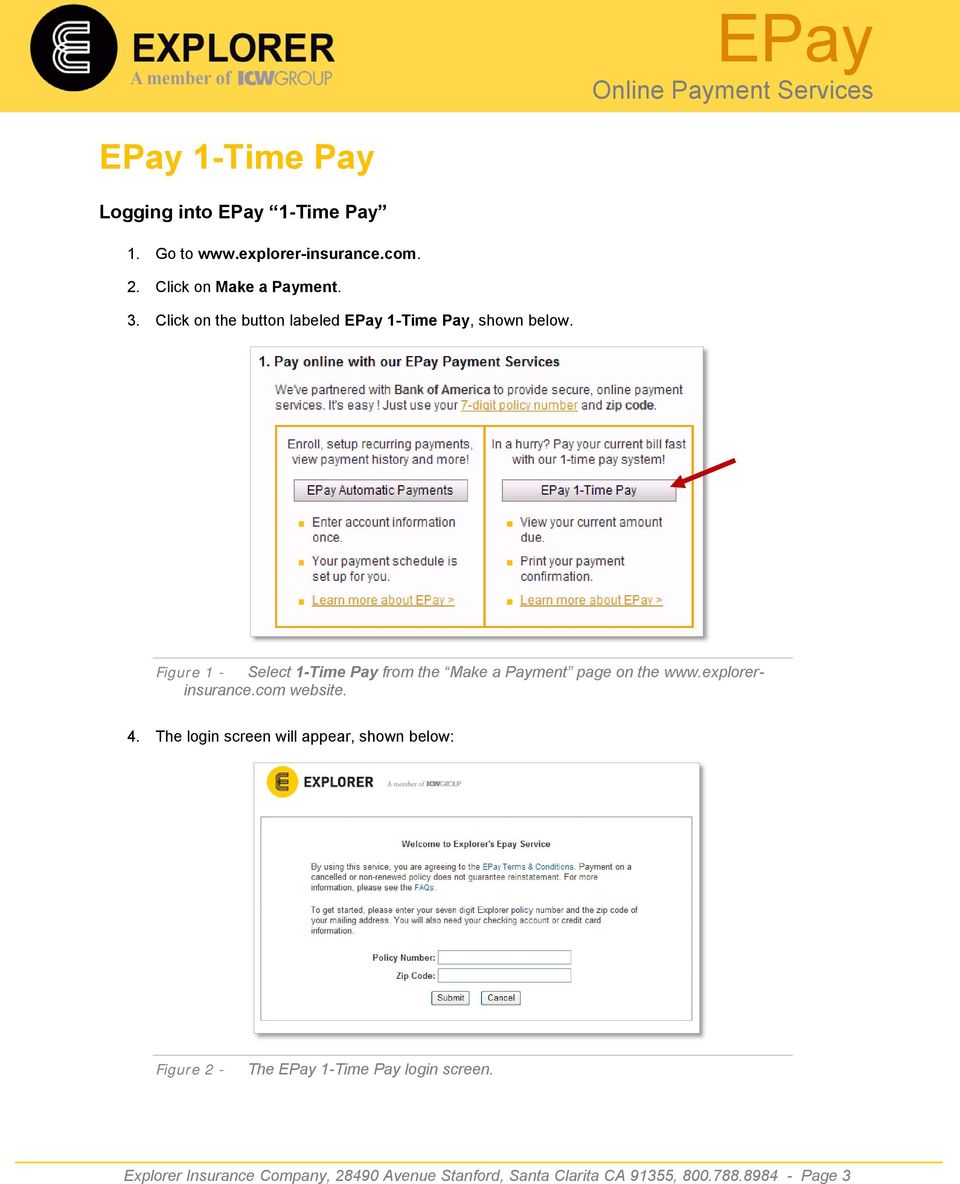
3 EPay 1-Time Pay Logging into EPay 1-Time Pay 1. Go to 2. Click on Make a Payment. 3. Click on the button labeled EPay 1-Time Pay, shown below. Figure 1 - Select 1-Time Pay from the Make a Payment page on the website. 4. The login screen will appear, shown below: Figure 2 - The EPay 1-Time Pay login screen. Explorer Insurance Company, Avenue Stanford, Santa Clarita CA 91355, Page 3
4 5. Type in your 7-digit Policy Number. This is the middle seven digits of the number, as described below. You can find your policy number from your billing notice or policy packet. For example, ABU The number will contain 3 letters, 7 numbers, then a space or a dash, and 2 additional numbers. For example, ABU Use the middle 7 numbers that appear AFTER the first 3 letters, as shown below. For example, if your number was ABU , you would enter Use the middle 7 numbers that appear AFTER the first 3 letters, as shown below. For example, if your number was ABU , you would enter Middle 7-digits of your Policy Number Figure 3 - Use the 7 middle digits of your policy number that appear after the 3 letters, such as as shown. 6. Type in your Zip Code on your policy. 7. Click Submit. Making a payment 1. Once logged in, click Make Payment. 2. Select Credit Card or Checking Account as your payment method. 3. Fill in the required information. 4. If you are paying by Checking account: Be sure to use the name on the account, as indicated below. Refer to this illustration for your Routing Number and Account Number. Explorer Insurance Company, Avenue Stanford, Santa Clarita CA 91355, Page 4

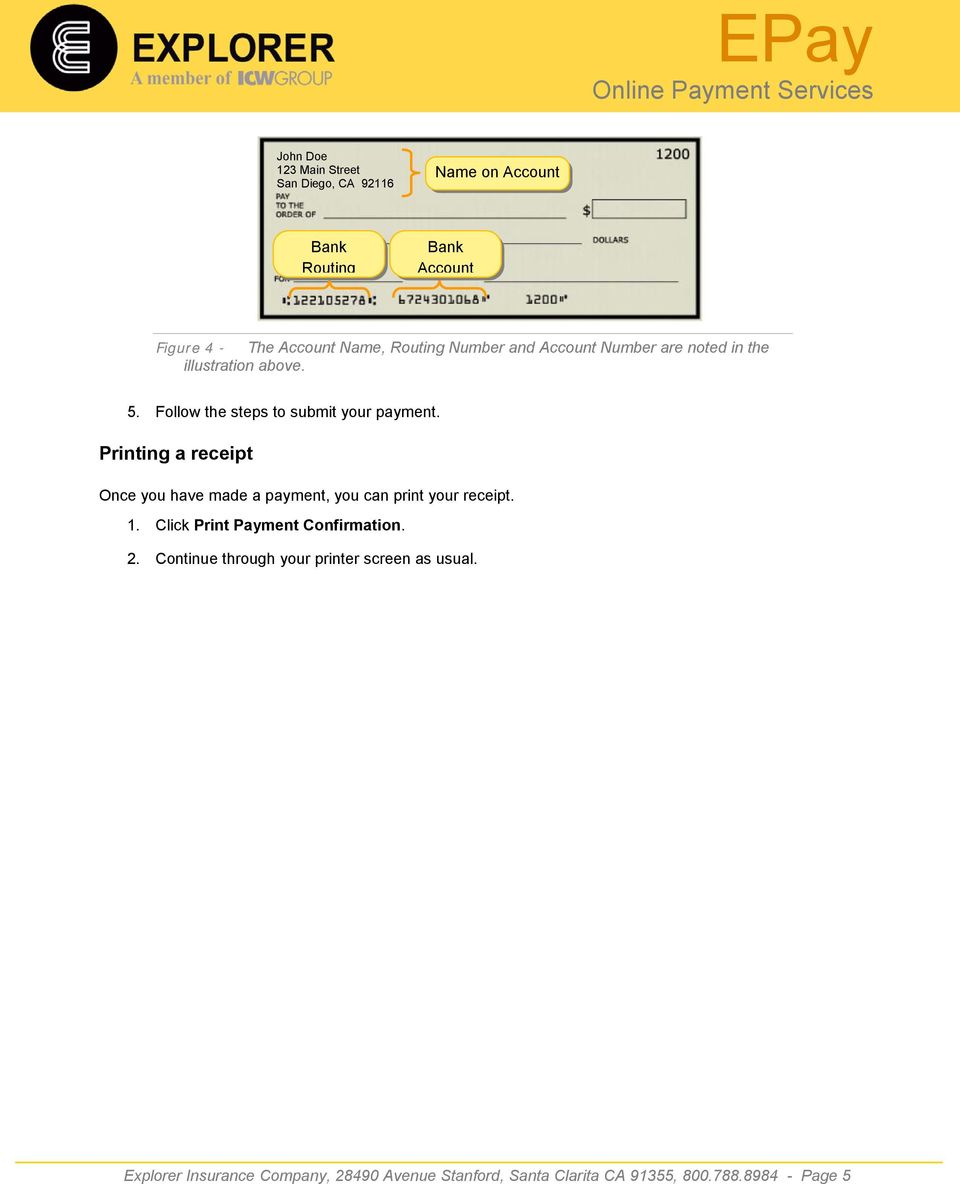
5 John Doe 123 Main Street San Diego, CA Name on Account Bank Routing Number Bank Account Number Figure 4 - The Account Name, Routing Number and Account Number are noted in the illustration above. 5. Follow the steps to submit your payment. Printing a receipt Once you have made a payment, you can print your receipt. 1. Click Print Payment Confirmation. 2. Continue through your printer screen as usual. Explorer Insurance Company, Avenue Stanford, Santa Clarita CA 91355, Page 5
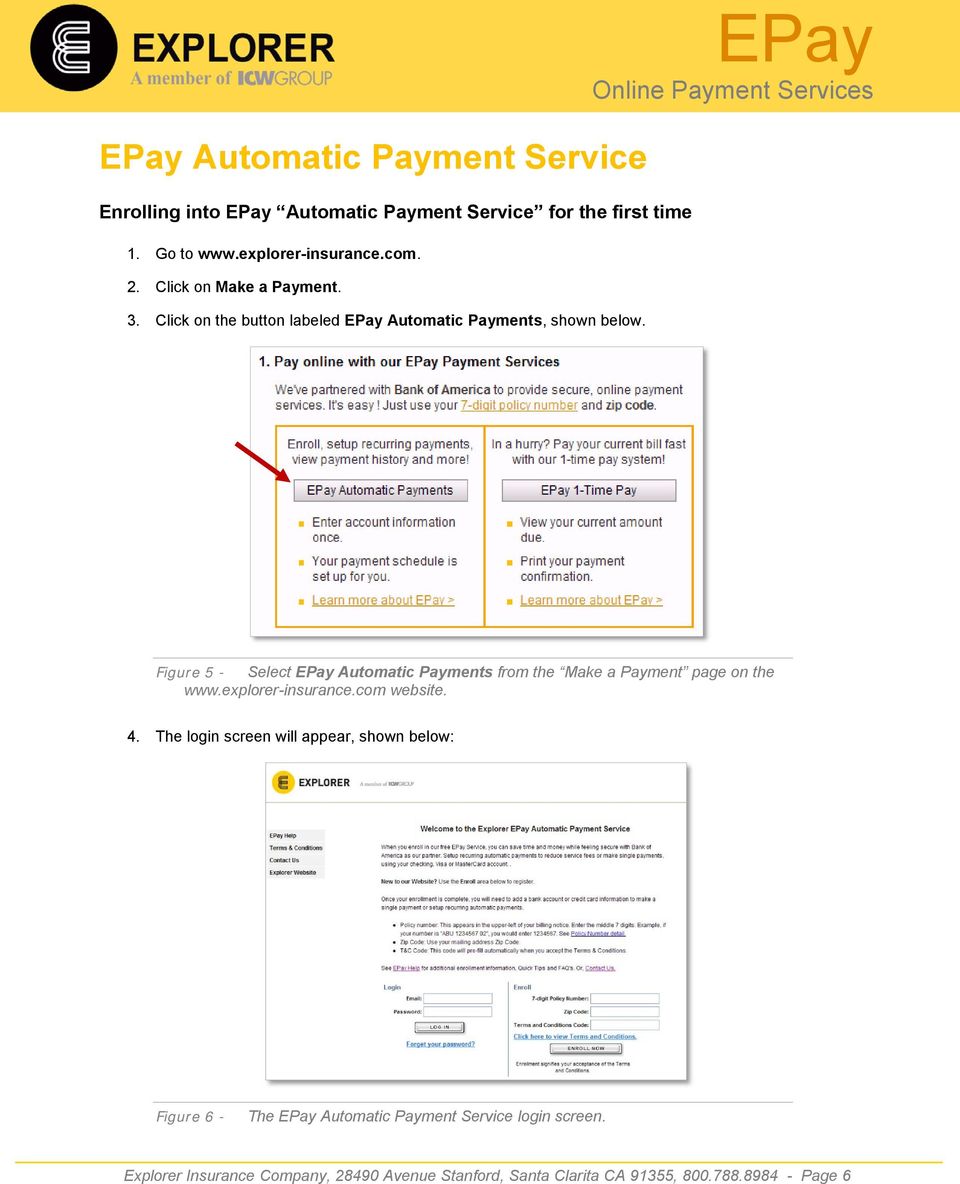
6 Automatic Payment Service Enrolling into EPay Automatic Payment Service for the first time 1. Go to 2. Click on Make a Payment. 3. Click on the button labeled EPay Automatic Payments, shown below. EPay Figure 5 - Select EPay Automatic Payments from the Make a Payment page on the website. 4. The login screen will appear, shown below: Figure 6 - The EPay Automatic Payment Service login screen. Explorer Insurance Company, Avenue Stanford, Santa Clarita CA 91355, Page 6
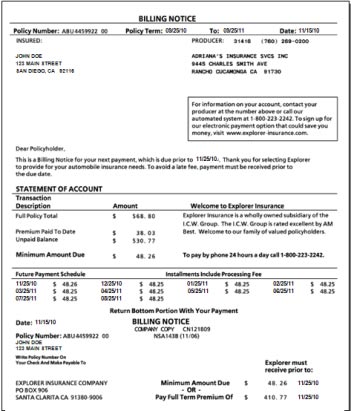
7 5. The right-side of this login screen is for first time enrollment. Figure 7 - The right-side is for first time enrollment. 6. Type in your 7-digit Policy Number. This is the middle seven digits of the number, as described below. You can find your policy number from your billing notice or policy packet. The number will contain 3 letters, 7 numbers, then a space or a dash, and 2 additional numbers. For example, ABU Use the middle 7 numbers that appear AFTER the first 3 letters, as shown below. For example, if your number was ABU , you would enter Middle 7-digits of your Policy Number Figure 8 - Use the 7 middle digits of your policy number that appear after the 3 letters, such as as shown. 7. Type in your Zip Code that is on your policy. 8. Click on Click here to view Terms and Conditions. 9. Click on I Agree button located at the bottom, after reading and agreeing to the terms. 10. The Terms and Conditions Code will automatically fill in. 11. Click Enroll Now. The Personal Information screen is displayed, as shown n the following figure. Explorer Insurance Company, Avenue Stanford, Santa Clarita CA 91355, Page 7

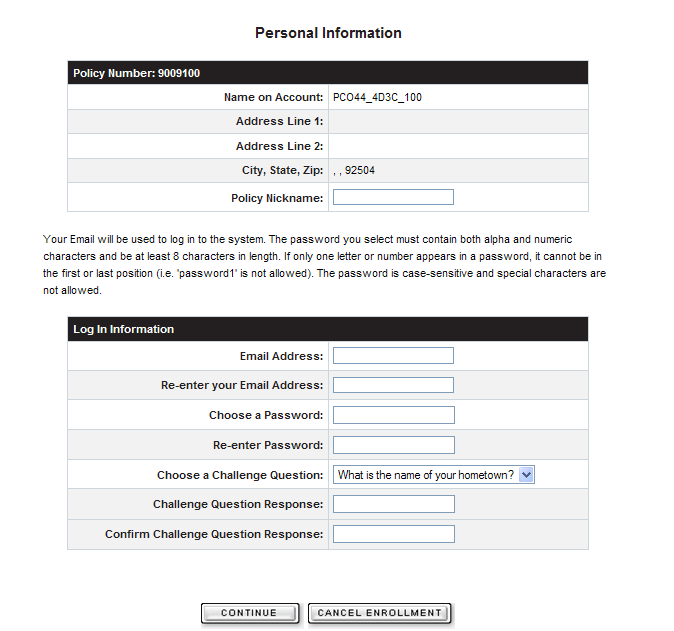
8 Figure 9 - The Personal Information screen allows you to create your user profile. Completing your profile 1. Fill in the Policy Nickname. This will later appear on the main page when you log in next time. For example, you can call it Explorer Auto Policy. 2. Enter your Address. This is important this will be the address that is used when you log in, if you forget your password or have payment receipts ed. 3. Enter a Password. Make sure to create one that you will remember, AND it must be: At least 8 characters long. Contain both alpha and numeric characters. That means at least 1 letter and 1 number. If there is only one letter or number, it can t be located at the very beginning or end of your password. All passwords are case-sensitive, In other words, if you create it with a capital letter, you must always use it like that. Here are some passwords that WON T work (and the reason why): 1mydoggy (One number is used at the very beginning) a (One letter is used at the very end) Bestfriend (Not a mix of letters and numbers) mycat12 (Only 7 characters) 4. Choose a Challenge Question from the drop-down list. This will be used if you ever forget your password. Explorer Insurance Company, Avenue Stanford, Santa Clarita CA 91355, Page 8
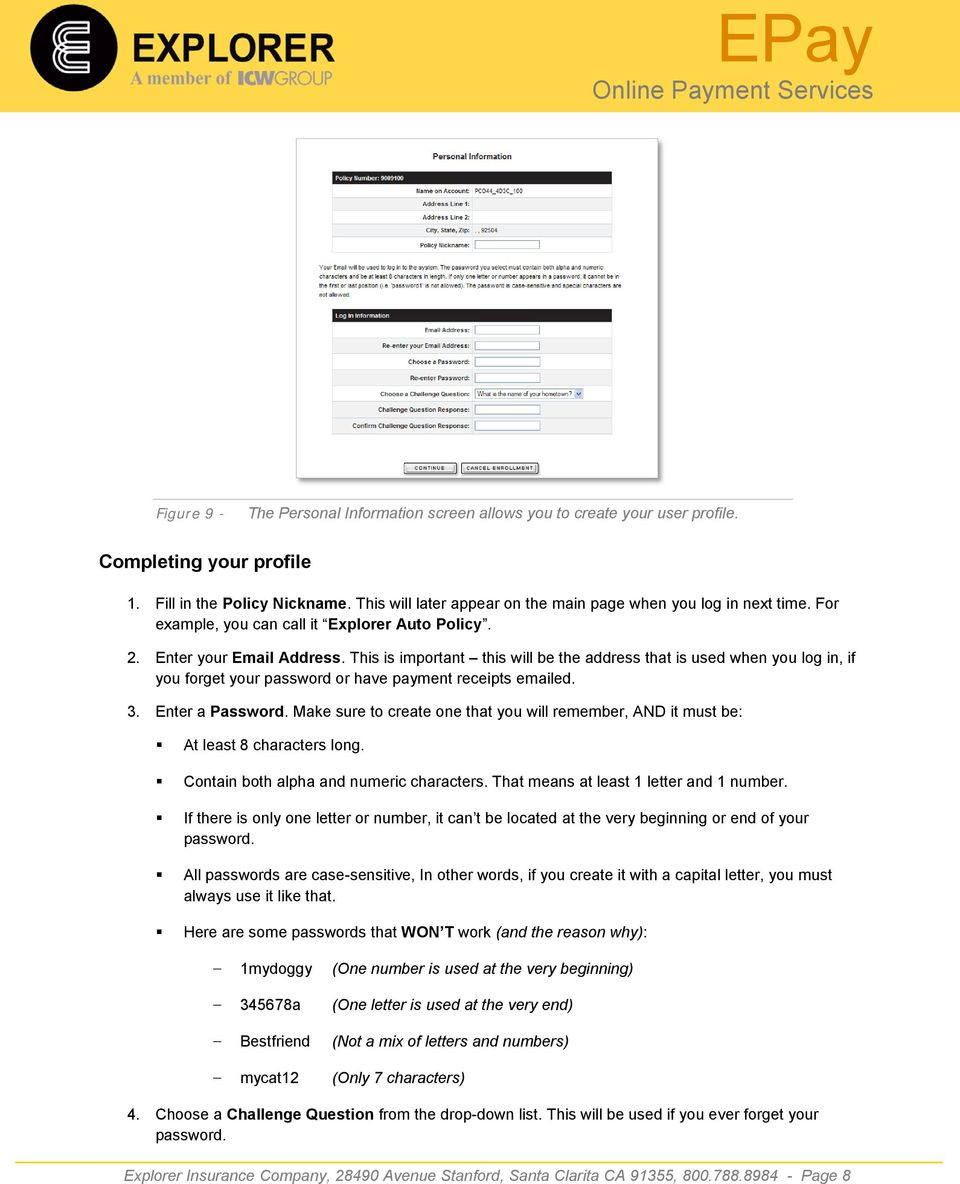


9 5. Enter the Challenge Question Response the answer to the question that you will always remember! 6. When you are done with this page, click Continue. Note: If you have answered anything wrong, or skipped a step, an error message will appear in red at the top of the screen. This message will explain what you need to correct to continue. 7. The Enrollment Confirmation page will appear, as shown. If you wish to change something, you can click Modify. Otherwise, click Complete Enrollment. Figure 10 - The Enrollment Confirmation screen. 8. Now the Congratulations screen will appear, as shown. You may want to print this page for your records. Figure 11 - You are offered Congratulations upon your successful enrollment! Adding your checking or credit card payment account 1. If you just finished Enrolling (as above), you can choose the Add a Bank Account or Add a Credit Card link provided and jump to step If you just logged in, the Account Summary page will be displayed, as shown. Explorer Insurance Company, Avenue Stanford, Santa Clarita CA 91355, Page 9
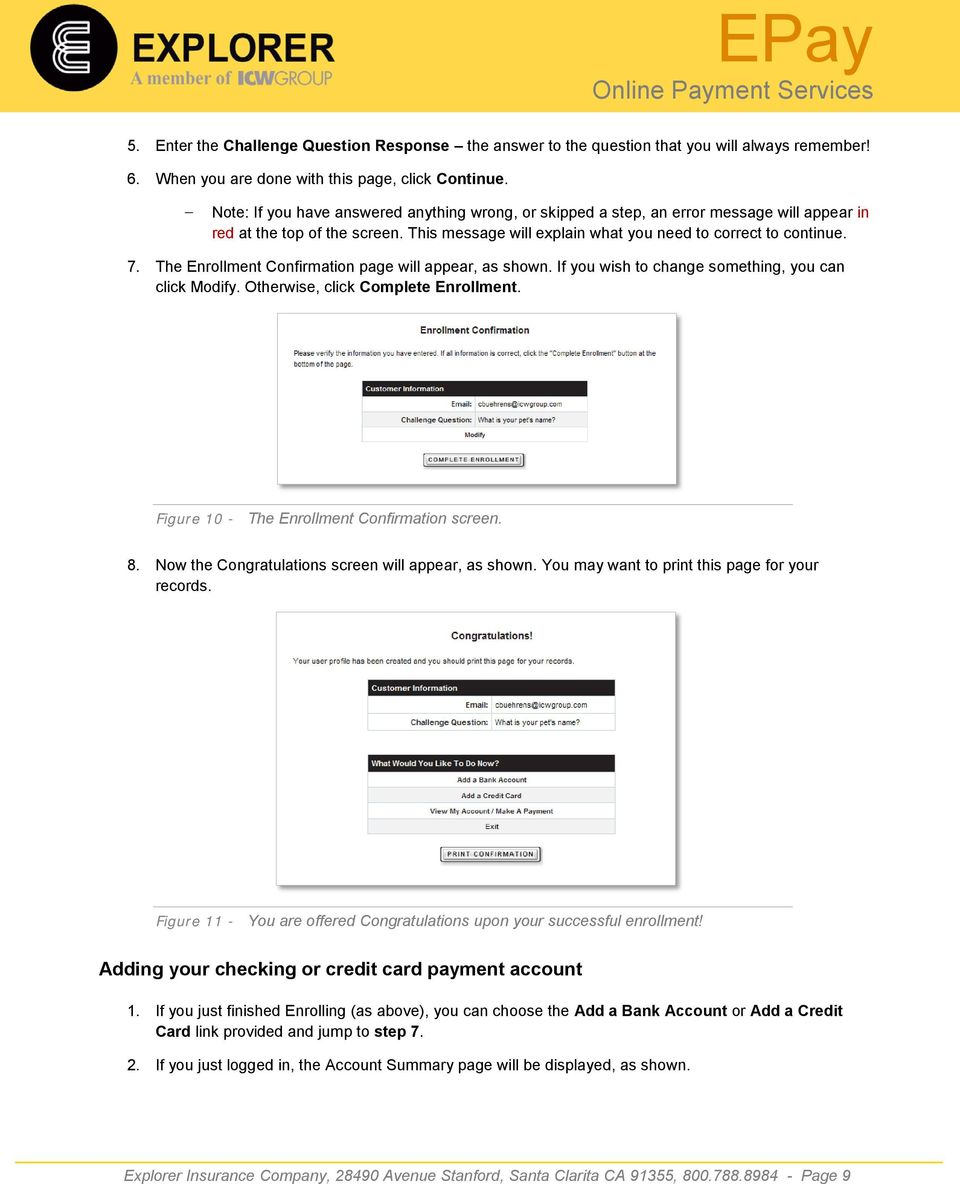
10 Figure 12 - When you log in, the landing page displays your Account Summary. 3. Click on Manage Profile from the left navigation bar. 4. Select BILLING ACCOUNTS, shown below. Figure 13 - The Manage Profile page allows you to set up automatic payment and manage your payment accounts. 5. Click on Payment Accounts. 6. Click on CHECKING or CREDIT CARD from the Add a Payment Account box. 7. Enter the requested information. 8. If you are paying by Checking account: Retrieve your information from your check, as shown below. Be sure to use the name on the account, as indicated. Refer to this illustration for your Routing Number and Account Number. Explorer Insurance Company, Avenue Stanford, Santa Clarita CA 91355, Page 10
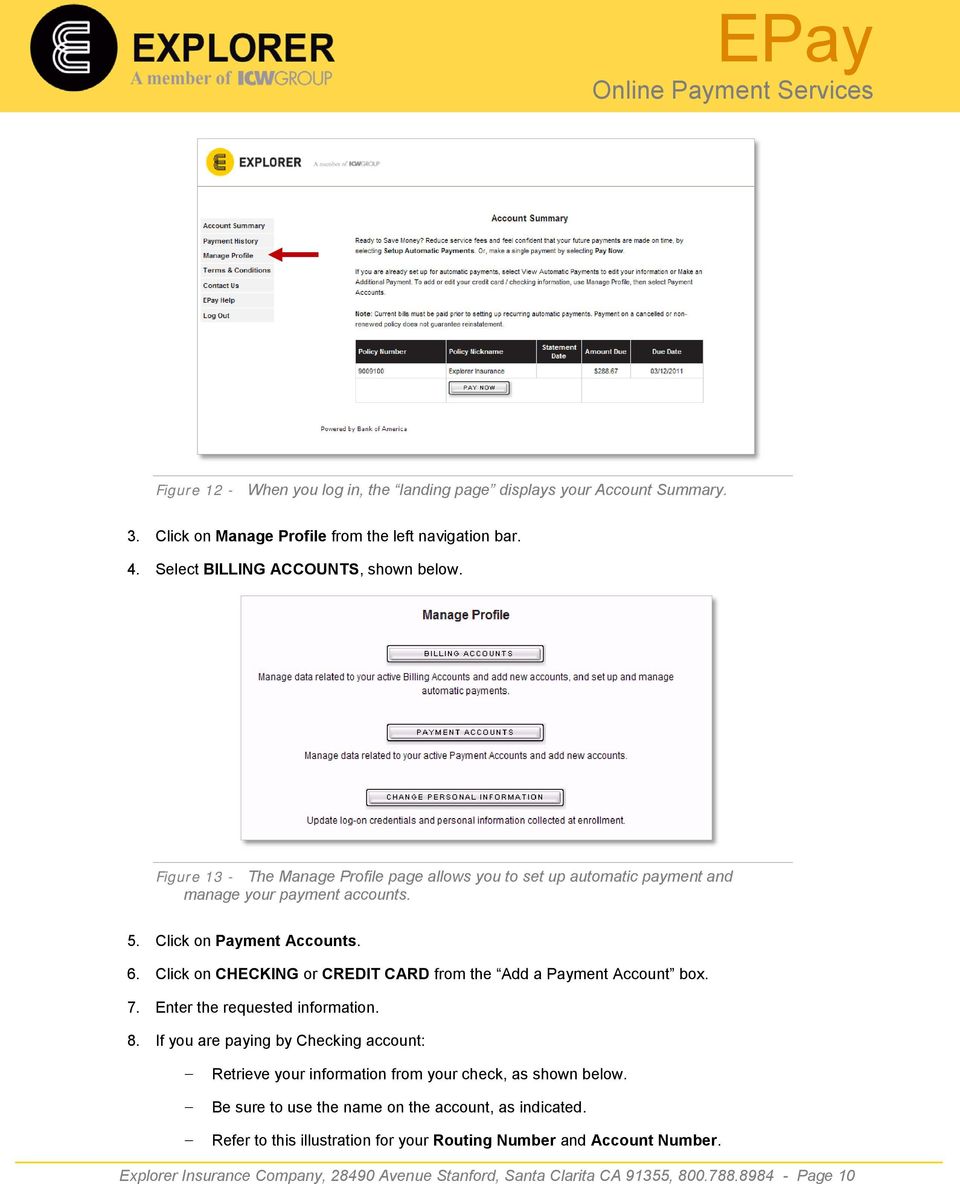
11 John Doe 123 Main Street San Diego, CA Name on Account Bank Routing Number Bank Account Number Figure 14 - The Account Name, Routing Number and Account Number are noted in the illustration above. 9. Click CONTINUE. 10. Review and CONFIRM. Making a single payment 1. If you have just completed enrolling, click on the View my Account / Make a Payment link. 2. If you are on the Accounts Summary page, click the PAY NOW button. 3. If needed, enter the Amount to Pay (see Amount Due for amount). 4. For Payment Date, select the date you want your account debited. 5. Select the Payment Account you want to pay from. For example, Joint Checking. 6. Note: If you haven t set up a payment account, or you wish to add a new one, choose either New Bank Account or New Credit Card. 7. Click CONTINUE. Your information is displayed. If this is a new account, fill in the information. 8. Review and CONFIRM. Print this page for your records. Setting up Recurring Automatic Payments 1. If you are in the Enrollment process, and you ve already setup a payment account, select Setup Automatic Payments link and jump to step Select Manage Profile from the left navigation bar. 3. Click on BILLING ACCOUNTS. 4. Click ADD from the Automatic Payment box. 5. Select your Payment Account from the list. For example, Joint Checking. 6. Note: If you haven t set up a payment account, or you wish to add a new one, choose either New Bank Account or New Credit Card. 7. Click CONTINUE. Your information is displayed. If this is a new account, fill in the information. 8. Review and CONFIRM. Explorer Insurance Company, Avenue Stanford, Santa Clarita CA 91355, Page 11

12 Deactivating Recurring Automatic Payments 1. Select VIEW AUTOMATIC PAYMENT from the Account Summary page. 2. Click on CANCEL AUTOMATIC PAYMENT. 3. Review and CONFIRM. Check the status of payments 1. Select Payment History from the Account Summary page. 2. The payments you ve made online will be displayed, along with any adjustments or credits that have occurred or payments pending. 3. Click View to view individual information about each payment. 4. Click on DOWNLOAD REPORT to save a report of your payments. This will create a Tab Separated Values (TSV) formatted text file. You can read this file in a text reader or bring into a spreadsheet application, such as MS Excel. Explorer Insurance Company, Avenue Stanford, Santa Clarita CA 91355, Page 12

IntelliPay Billpay Application Documentation
 IntelliPay Billpay Application Documentation Contents Billpay Introduction First Time Payment (With username and password) First Time Payment (Without username and password) Returning Customer Introduction:
Setting up an account and logging in using Design & Print Online. Opening a saved project
 Setting up an account and logging in using Design & Print Online Opening a saved project 1 of 7 Account Set-Up & Login 1. On the Design and Print Online home page click on the Click to start Design & Print
Your Archiving Service
 It s as simple as 1, 2, 3 This email archiving setup guide provides you with easy to follow instructions on how to setup your new archiving service as well as how to create archiving users and assign archiving
Electronic Payment Instructions and Tutorial TABLE OF CONTENTS. Getting Started 2. Making a One Time Payment 3. Creating an Account 4
 TABLE OF CONTENTS TOPIC PAGE Getting Started 2 Making a One Time Payment 3 Creating an Account 4 Setting Up Recurring Payments 8 Change Recurring Payments 13 Setting Up Additional Bank Accounts 16 Adding
Registration & Payment FAQs
 Registration & Payment FAQs Welcome to Progress Residential and RentProgress.com! This information packet will guide you through the registration process so that you can easily: Pay your rent online (including
HEALTH SAVINGS ACCOUNT EMPLOYER WEBSITE GUIDE
 REGISTERING YOUR ACCOUNT FOR ONLINE ACCESS HEALTH SAVINGS ACCOUNT EMPLOYER WEBSITE GUIDE A note to accountholders with multiple account types with Sterling HSA: We now support a single login for all of
PaymentNet Federal Card Solutions Cardholder FAQs
 PaymentNet Federal Card Solutions It s easy to find the answers to your questions about PaymentNet! June 2014 Frequently Asked Questions First Time Login How do I obtain my login information?... 2 How
Please use the following index links to quickly access the information you are looking for:
 Please use the following index links to quickly access the information you are looking for: Create a new My PHLY account Registration for Agents Auto ID Web Edit Profile Logout instructions Online Bill
HealthyCT Online Bill Pay
 HealthyCT Online Bill Pay User Guide for Enrollment and Online Payments Copyright 2015 by HealthyCT, Inc. All rights reserved. No part of this document may be reproduced or transmitted by any means, electronic
FAQs: Resident Services Account
 FAQs: Resident Services Account Welcome to Progress Residential and RentProgress.com! This information packet will guide you through the registration process so that you can easily: Pay your rent online
myschoolbucks Parents Getting Started Guide
 myschoolbucks https://www.myschoolbucks.com Parents Getting Started Guide Version 03052013 Copyright 2012 Heartland School Solutions, a division of Heartland Payment Systems, Inc. All Rights Reserved.
Guide. for HR Users. Posted May 1, 2012
 Guide for HR Users Posted May 1, 2012 Go to this URL: https://hrx.talx.com/webmanager/loginclientkey.aspx to log on to the Administrative site for the UGA Onboarding System. The Employer Code is 13990
Parent Online Payment Manual. Updated 09/14/2011. Contents. Logging In for the First Time... 2. Logging In... 4. Viewing Ledger Card...
 1 Parent Online Payment Manual Updated 09/14/2011 Contents Logging In for the First Time... 2 Logging In... 4 Viewing Ledger Card... 5 Making a Payment with your Credit Card or ACH/Electronic Check...
ONLINE BILL PAY QUICK REFERENCE GUIDE
 Thank you for enrolling in the DiCarlo Food Service On-line Payment Program. By enrolling in this service, you will have the ability to: Bullet Receive an email notification when your bill is ready Securely
HealthyCT Online Bill Pay
 HealthyCT Online Bill Pay User Guide for Enrollment and Online Payments Table of Contents I. Enrollment Process: On-line Bill Pay Page 1 II. Payment Process- Pay Your HealthyCT Bill Online A. One-Time
Tired of running to the post office and the bank to get your customers payments
 Getting Paid With QuickBooks Payments APPENDIX E Tired of running to the post office and the bank to get your customers payments into your bank account? Fortunately, Intuit s electronic payment subscription
Wind River Financial iprocess Setup Guide for Android Devices
 Wind River Financial iprocess Setup Guide for Android Devices Contents: iprocess account setup 2 Installing iprocess on your Android device 3 Configuring the iprocess app 8 Attaching the iprocess card
Online Banking & Bill Pay. Quick Start Guide. Step-by-step instructions PLUS easy-to-read screen shots and helpful tips.
 Online Banking & Bill Pay Quick Start Guide Step-by-step instructions PLUS easy-to-read screen shots and helpful tips. Welcome -- Online System Security Welcome to Online Banking and Bill Pay! Whether
New User Enrollment Processes for Online Banking Services
 This package contains instructions for setting up your Online Banking Account, estatements, Mobile Banking, Remote Check Deposit, and Text Banking. New User Enrollment Processes for Online Banking Services
Table of Contents. 1. Software House Website Login. a. Forgot My Password Recovery Feature. 2. Site Registration. a. Creating Your Account
 Welcome to the Software House Website Registration Process Guide. This guide has been assembled to provide an overview of the registration process on the Software House website and can be used to help
MQA Online Services Portal
 MQA Online Services Portal Registration and Adding a License User Guide 1. Hello and welcome to the Division of Medical Quality Assurance s online help tutorials. The MQA Online Services Portal is the
Personal Online Banking:
 Personal Online Banking: If you access your account information through CNB Online Banking, our personal banking site, you will be able to import your account transactions directly into Quicken/QuickBooks.
e-invoicing Online Billing
 e-invoicing Online Billing For any assistance please contact Email: Tel: Contents Welcome to Online Billing 3 Registering for Online Billing 4 einvoicing and epayment 10 Logging in 11 Accessing your new
Reference Guide to the Attorney Registration System
 Reference Guide to the Attorney Registration System What is the Attorney Registration System? The Attorney Registration System allows attorneys to register for a secure user account. Upon registration
Quick Reference Guide Welcome TEST USER
 Welcome TEST USER HELP RETIREMENT MANAGER DEMO FEEDBACK VersionE_000 Getting Started This Retirement Manager participant website Quick Reference Guide will assist you to easily navigate and complete important
SMALL BUSINESS HEALTH OPTIONS PROGRAM. Marketplace BILLING & PAYMENT SERVICES USER GUIDE. Billing & Payment User Guide 1
 SMALL BUSINESS HEALTH OPTIONS PROGRAM Marketplace BILLING & PAYMENT SERVICES USER GUIDE Billing & Payment User Guide 1 Table of Contents 1. SHOP Marketplace Billing & Payment Systems for Employers... 3
Versions Addressed: Microsoft Office Outlook 2010/2013. Document Updated: 2014. Copyright 2014 Smarsh, Inc. All right reserved
 Versions Addressed: Microsoft Office Outlook 2010/2013 Document Updated: 2014 Copyright 2014 Smarsh, Inc. All right reserved Table of Contents Getting Started 3 Add Your New Account 3 Account Setup 5 Basic
Central Commissioning Facility Research Management Systems (RMS): User Guidance
 Central Commissioning Facility Research Management Systems (RMS): User Guidance Contents 1. How to login and register a new account... 2 2. How to accept an invitation to review... 8 3. How to submit a
W-2 DUPLICATE OR REPRINT PROCEDURE/ IMPORTING W-2 INFORMATION INTO TAX RETURN
 W-2 DUPLICATE OR REPRINT PROCEDURE/ IMPORTING W-2 INFORMATION INTO TAX RETURN If you ve lost your W-2 Form or not received the form that we sent, please use these instructions to obtain a copy. Also use
APS Online User Guide
 APS Online User Guide APS Online is a complete set of online payment processing tools, providing you with the most simple and advanced way to manage all your automated customer billing needs. These tools
Online Banking Quick Reference Guide
 1 Page 2 Set Up and Access to Online Banking 2 How do I set up Online Banking? 2 How do I sign in to Online Banking? Online Banking Quick Reference Guide 3 Security 3 How do I change User ID? 3 What should
My PHLY Registration Process and User Guide
 Create a new My PHLY account: 1. From the PHLY.com home page, and select one of the following methods to begin the registration process: 2. Access the Manage Your Account section and click Register 3.
How To Register For A Course Online
 How to Register and Pay for BEST Center Classes Online Welcome to our new online registration system for The BEST Center at Genesee Community College! All of our scheduled noncredit classes are listed
Online Banking & Bill Pay. Quick Start G uide. Step-by-step, how-to instructions plus easy-to-read screen shots and help information
 Online Banking & Bill Pay Quick Start G uide Step-by-step, how-to instructions plus easy-to-read screen shots and help information Welcome -- Online System Security Welcome to Online Banking and Bill Pay!
Setting up CU@Round On line Account
 Setting up CU@Round On line Account Created Date: October 6, 2009 Purpose: This document is a step by step process on how to set up a member s CU@Round online account. Note: The member will need the following
Bill Pay Instructions
 2013 Bill Pay Instructions 1st Auto & Casualty Insurance Company This document provides instruction for using the U.S. Bank E-payment service The WRC Group rev. 11/2013 Table of Contents ACCESSING SECURE
myschoolbucks Parents Getting Started Guide
 myschoolbucks Parents Getting Started Guide Copyright 2012 Heartland School Solutions. myschoolbucks Login Screen Congratulations! Your school district now offers myschoolbucks, a convenient and secure
Reference Document. SedonaOnline Support
 Document Overview This document is being provided to explain how to request a SedonaOnline password and how to use SedonaOnline to submit and view Support Tickets. Our company utilizes the SedonaOffice
Tired of running to the post office and the bank to get your customers payments
 Getting Paid With QuickBooks Payments APPENDIX E Tired of running to the post office and the bank to get your customers payments into your bank account? Fortunately, Intuit s new electronic payment subscription
Wind River Financial iprocess Setup Guide for IOS Devices
 Wind River Financial iprocess Setup Guide for IOS Devices (Requires ios 4.3 or later. Compatible with iphone, ipad, and ipod touch. This app is optimized for iphone 5.) Table of Contents (Clickable Links):
Frequently Asked Questions
 Frequently Asked Questions Contents Frequently Asked Questions...1 Getting Started...2 Creating a Profile...3 Navigating Within Profile...3 Home...4 Managing Properties...5 Managing Payment Accounts...6
How to Register for an Event Using Cheer America s New Online Registration System
 Step 1: Go to our website (www.cachampionships.com). Click on the Registration Button. Step 2: On the Registration Page, click on the blue button Click HERE to REGISTER. Step 3: Welcome to our Registration
Resident Experience. ResidentPay - Resident Experience 1
 Resident Experience To pay rent online, you need to first enroll in ResidentPortal. You can navigate to the ResidentPortal from the property s website. The link to ResidentPortal is most commonly displayed
SHOWING YOU THE WAY TO ONLINE BANKING AT CENTRAL BANK
 SHOWING YOU THE WAY TO ONLINE BANKING AT CENTRAL BANK INTERNET BANKING QUICK START GUIDE: Overview Welcome to CentralNET, the online banking services of Central Bank. Our family of Central Bancshares,
T Analyst User Guide 1
 T Analyst User Guide 1 Contents Contents...2 Getting Started...3 Navigation...4 Logging Out of T Analyst...4 View bills...4 Bill columns and definitions...4 Viewing a PDF bill...5 Comparing bills...5 Requesting
MerchantConnect Premium
 MerchantConnect Premium Quick Reference Guide The online window to your payment processing account. Quick Reference Guide MerchantConnect Premium Getting Started When logging onto MerchantConnect Premium
How to Create a New User Account for MyGovernmentOnline
 How to Create a New User Account for MyGovernmentOnline *Prior to getting started, we encourage you to download and install the web browser Mozilla Firefox. While the MyGovernmentOnline software is designed
The Wells Fargo Payment Gateway Business Center. User Guide
 The Wells Fargo Payment Gateway Business Center User Guide Contents 1 Introduction 1 About the Wells Fargo Payment Gateway service Business Center 1 About this guide 2 Access the Business Center 2 Log
Quick Start Guide to Logging in to Online Banking
 Quick Start Guide to Logging in to Online Banking Log In to Internet Banking: Note: The first time you log in you are required to use your Customer ID. Your Customer ID is the primary account holder s
Patient Portal Users Guide
 e-mds Solution Series Patient Portal Users Guide Version 7.0 How to Use the Patient Portal CHARTING THE FUTURE OF HEALTHCARE e-mds 9900 Spectrum Drive. Austin, TX 78717 Phone 512.257.5200 Fax 512.335.4375
Online Services through My Direct Care www.mydirectcare.com
 Online Services through My Direct Care www.mydirectcare.com WEB PORTAL Employers and Employees associated with Consumer Direct have access to online services available through a secure website www.mydirectcare.com.
Virtual Heart User Manual Username Password
 Virtual Heart User Manual Username Password These instructions are meant to help you use the Virtual Heart website. Please write down your username and password and store them in a safe place in case you
2) Log in using the Email Address and Password provided in your confirmation email
 Welcome to HR Classroom! The following will show you how to use your HR Classroom admin account, including setting up Training Groups, inserting Policies, and generating Trainee Reports. 1) Logging into
A QUICK AND EASY GUIDE TO ONLINE BANKING AND BILL PAY
 A QUICK AND EASY GUIDE TO ONLINE BANKING AND BILL PAY BY PAUL A. MURPHY, AUTHOR OF BANKING ONLINE FOR DUMMIES A Quick and Easy Guide to Online Banking and Bill Pay Disclaimer Concepts, strategies and procedures
Frequently asked questions.
 Frequently asked questions. What is Bath Online? Bath Online is the online savings service from Bath Building Society that provides you with 24-hour access to view your existing savings accounts and the
TELPAS Rater s User Guide for Online Holistic Rating Training
 TELPAS Rater s User Guide for Online Holistic Rating Training New User Registration TrainingCenter Site Code You will need a TrainingCenter site code from your district or campus testing coordinator in
Online Payment System Instruction Manual
 Cindy Boudloche Chapter 13 Bankruptcy Trustee Online Payment System Instruction Manual (The alternative to Cashier s Checks and Money Orders) Rev. April 2014 Table of Contents Introduction and Purpose
HSA EMPLOYER RESOURCE GUIDE. Fifth Third Bank Health Savings Account Revision 3
 HSA EMPLOYER RESOURCE GUIDE Fifth Third Bank Health Savings Account Revision 3 CONTENTS Welcome... 3 About Your HSA... 4 Benefits to You... 4 Benefits to Your Employees... 4 Your HSA Implementation Checklist...
Free Medical Billing. Insurance Payment Posting: The following instructions will help guide you through Insurance Payment Posting Procedures.
 : The following instructions will help guide you through Procedures. Click Windows Start Button Click Open Internet Browser Enter Https://www.FreeMedicalBilling.net Click Login to Your Account Enter Username:
How to Add Documents to Your Blackboard Class
 Southwestern Baptist Theological Seminary BLACKBOARD INSTRUCTOR SERIES How to Add Documents to Your Blackboard Class This manual will show you how to do the following: Log into Blackboard Access Your Blackboard
INVESTOR360º CLIENT USER GUIDE
 INVESTOR360º CLIENT USER GUIDE TABLE OF CONTENTS 1. About Investor360 3 1.1 What does Investor360 provide? 3 1.2 Security 3 2. Logging in to Investor360 4 3. Welcome to Investor360 7 4. Navigating in Investor360
Online Payment Instructions
 Online Payment Instructions Getting Started Creating Your Account 2 2-3 Adding Your Property/Unit(s) 4 Adding Payment Options 5 Making a Payment One-Time Payments Recurring Payments 6-7 6 7 Edit/Cancel
How to Reset Your Password for the ONRR Data Warehouse Portal
 How to Reset Your Password for the ONRR Data Warehouse Portal Audience This document is for all those who access the ONRR Data Warehouse Portal by starting at the following website: https://dwportal.mms.gov/.
account multiple solutions
 Quick Start Guide 1 Our easy to use guide will get you up and running in no time! The guide will assist you with: Generating your Sage Pay login Navigation Creating contacts Creating system users Setting
Hosted Voice Quick Start Guide
 Hosted Voice Quick Start Guide EATEL 225-621-4100 Welcome Welcome to Hosted Voice from EATEL! This guide is intended to get you up and running for the basic features associated with the product. Pages
How to Create a Broker Account
 How to Create a Broker Account 1. Once you have created your NY.gov ID and set your password (see the guide, How to Create a NY.gov ID ), return to the Broker tab from the NYSOH home page and select CLICK
Enrolling in a Payment Plan. This is a guide to enrolling in a Payment Plan and making your payments.
 Enrolling in a Payment Plan This is a guide to enrolling in a Payment Plan and making your payments. Logging In This is the log-in site. You will type in your mygate user name and password and click Log
Switch Your Account Today!
 Switch Your Account Today! A tool to make the switch to a BlackRidgeBANK checking account easy Switch Your Account In 5 Easy Steps! 1. Open a checking account at BlackRidgeBANK Stop in at any one of our
Applicant Instructions
 KSDE Online Application Instructions Step 1 Register for a Login Applicant Instructions Before you can submit your application, you must request a user name and password. To register, do the following:
DOMAIN CENTRAL HOSTING EMAIL
 Welcome to our hosting services, we have created the following documents to help you get up and running as quickly as possible. If at any stage you encounter difficulties, you are welcome to send a help
Online Payment Center T-Mobile User s Guide
 Online Payment Center T-Mobile User s Guide Table of Contents Introduction... 3 Features... 3 Getting Started... 4 Starting Qpay Online Payment Center... 4 Login... 4 Changing Your Password... 5 Navigating...
Sam Houston State University Procurement Card Program
 Sam Houston State University Procurement Card Program Citi Card GCMS On-Line Cardholder Reference Guide COMMERCIAL CARD ADMINISTRATOR: KATHY ROBERTS OFFICE PHONE: 936-294-1991 OFFICE FAX: 936-294-1997
User Guide to epayments
 Contents Register Your Account-First Time User... 3 Login to Your Account... 6 Retrieving Username and/or Password... 7 Make a One-Time Credit Card Payment... 8 Make a One-Time echeck Payment... 11 Schedule
How do I accept my offer of admission to Purdue University?
 How do I accept my offer of admission to Purdue University? 1. Use your Purdue Career Account username and password to login to the MyPurdue portal, www.mypurdue.purdue.edu. (If you have not activated
Frequently Asked Questions..2. Getting Started with Bank 2 Bank Transfers 4. Making a Bank 2 Bank Transfer...8
 Table of Contents Frequently Asked Questions..2 Getting Started with Bank 2 Bank Transfers 4 Making a Bank 2 Bank Transfer...8 Viewing Pending Bank 2 Bank Transfers..10 Viewing Bank 2 Bank Transfer History
FAQ for Students. Note: The new password must be between six and 12 characters long.
 What is MY Portal? MY Portal is a secure website that provides access to news, announcements, personal information, registration and online billing services, collaboration areas, Blackboard and email.
Online Job Application Guide
 Instructions for the First-Time User 1. Go to www.mspb.ms.gov 2. Click on Job Seekers 3. Under MSPB Career Center, Click on Job Openings Important Notes for Applicants: When applying online, each applicant
Frequently Asked Questions
 Frequently Asked Questions We ve compiled a short list of frequently asked questions that will help the transition to new Homebanking easier for members. This list highlights some of the most common questions,
PISA 2015 MS Online School Questionnaire: User s Manual
 OECD Programme for International Student Assessment 2015 PISA 2015 MS Online School Questionnaire: User s Manual Doc: CY6_CBA_SCQ_MSPrincipalManual.docx September 2014 Produced by ETS, Core 2 Contractor
ebilling and epayment for Fully Insured Groups
 ebilling and epayment for Fully Insured Groups This document walks you through the basics of registering for, and using, ebilling and epayment Services. Topics covered are: Setting up Roles in BlueConnection
Online Services User Guide
 Online Services User Guide Welcome to online banking! Whether you re online or using a mobile device, access your accounts whenever and wherever it s convenient for you. Log In: BankMidwest.com Online
QuickBooks Business Accounting Software 2013-2006 for Windows
 QuickBooks Business Accounting Software 2013-2006 for Windows Account Conversion Instructions for Web Connect to Direct Connect QuickBooks Business Accounting Software 2008 2010 for Windows Account Connect
Your Setup Guide to Consumer Online Banking What s Inside:
 Your Setup Guide to Consumer Online Banking What s Inside: Enroll in Online Banking Advanced Authentication Logging In estatements ENROLL IN Online BANKING TODAY! Go to www.renasantbank.com to see how
4H Online Re-Enrollment
 4H Online Re-Enrollment This instruction sheet if for returning 4H members only! 1. Navigate to the site ne.4honline.com. You will see changes have been made to the site since last time you logged in.
Banner Self-Service Direct Deposit Instructions Table of Contents
 Banner Self-Service Direct Deposit Instructions Table of Contents Accessing the Online Form... 2 Primary Accounts... 3 Adding Primary Accounts... 3 Allocation Accounts... 4 Adding Allocation Accounts...
Install MS SQL Server 2012 Express Edition
 Install MS SQL Server 2012 Express Edition Sohodox now works with SQL Server Express Edition. Earlier versions of Sohodox created and used a MS Access based database for storing indexing data and other
https://weboffice.edu.pe.ca/
 NETSTORAGE MANUAL INTRODUCTION Virtual Office will provide you with access to NetStorage, a simple and convenient way to access your network drives through a Web browser. You can access the files on your
Perform this procedure when you need to add a recurring payment option, or when you need to change or withdraw it.
 Purpose Use this procedure to add, change, or remove recurring payments. Trigger Perform this procedure when you need to add a recurring payment option, or when you need to change or withdraw it. Prerequisites
Online Payment Frequently Asked Questions
 Online Payment Frequently Asked Questions Contents Getting Started... 1 What is the Mutual of Omaha Online Payments website?... 1 When will my payment be processed?... 1 What kind of payments can I make
TELPAS Rater s User Guide for Online Holistic Rating Training
 TELPAS Rater s User Guide for Online Holistic Rating Training New User Registration TrainingCenter Site Code If you do not already have a TrainingCenter account used during previous training, including
Online Bill Pay User Manual
 \ Online Bill Pay User Manual Updated: November 14, 2014 Page 1 Table of Contents I. Welcome to Online Bill Pay... 3 II. New User Registration... 4 III. Login for Registered Users... 7 IV. Home Page Functionality...
Security Assertion Markup Language (SAML) Site Manager Setup
 Security Assertion Markup Language (SAML) Site Manager Setup Trademark Notice Blackboard, the Blackboard logos, and the unique trade dress of Blackboard are the trademarks, service marks, trade dress and
Wentworth Institute of Technology Performance Management Employee s Guide
 Wentworth Institute of Technology Performance Management Employee s Guide A Step-By-Step Employee Guide for completing performance evaluations in the PeopleAdmin Performance Management Suite PeopleAdmin
COSTARS Sales Reporting Manual December 2013
 COSTARS Sales Reporting Manual December 2013-1 - DGS/COSTARS website Suppliers access the COSTARS website through the DGS website. Follow the steps below to navigate to the COSTARS website. 1. Navigate
User Manual 03/12/2014. A collaborative effort by
 User Manual 03/12/2014 A USER GUIDE DESIGNED TO HELP CREATE AND MAINTAIN PERSONAL ACCOUNTS IN mynhdoe, THE NH DEPARTMENT OF EDUCATION SINGLE SIGN-ON SYSTEM FOR ACCESSING SECURE APPLICATIONS A collaborative