
Aastra 6771, 6773, 6775 (OpenPhone 71, 73, 75) on the OpenCom 100 and Aastra 800 Communications Systems User Guide
|
|
|
- Brent Jefferson
- 10 years ago
- Views:
Transcription

1 Aastra 6771, 6773, 6775 (OpenPhone 71, 73, 75) on the OpenCom 100 and Aastra 800 Communications Systems User Guide

2 Welcome to Aastra Thank you for choosing this Aastra product. Our product meets the strictest requirements with regard to quality and design. This user guide will show you how to use your Aastra 6771, 6773 or 6775 (OpenPhone 71, 73 or 75) and answer most of the questions that may arise. If you require further technical support or information about other Aastra products, please refer to our website at or It provides additional notes and tips on the product. We hope you enjoy using the Aastra system telephone (OpenPhone). Aastra 800 and OpenCom 100 This user guide applies to the Aastra 800 and OpenCom 100 communications systems. The OpenCom 100 product family comprises the OpenCom 130, OpenCom 131, OpenCom 150, OpenCom 510 and OpenCom X320 communications systems. If individual features differ on the systems, a reference is made in this user guide.
3 Contents 1. Aastra 6771/6773/6775 (OpenPhone 71/73/75) System Phones Using Your Telephone Safety Precautions Installation Site Cleaning Attaching the Pedestals and Adjusting the Inclination Wall Mounting Key Assignments Dial Keypad with ABC Assignment Trunk Key (Call Key 1) Programmable Keys Redial Key ABC Key MenuCard Key C-Key Info Key Hands-Free/Open-Listening Key Muting Key Disconnect Key Headset Key Enquiry Key Plus/Minus Key ESC Key Arrow Key OK Key The Locking of Your Telephone Interface by the System Administrator Labelling the Keys Display and MenuCards Changing the Language Info Line(s) Key Lines MenuCard Display Invoking MenuCards and Selecting Items from the List Setting Windows and their Characteristics, Toggling Entering/Deleting Digits Deleting Lists

4 1.3.9 Entering Text Automatic Exit Key Extensions Operating the Key Extension Keys Choosing a Key Level Labelling a Key on the Key Extension Using a Headset Telephoning In a hurry?: A Brief Explanation of Important Functions Talking on the Phone: Via the Call Key or the Handset Telephoning Redialling Receiving Calls Who Called? Querying/Toggling, Transferring Audio: Muting, Open-Listening, Adjusting Telephone Volume General Functions Assignment of Internal and External Call Numbers Signalling on the Call Keys Calls in the Call Waiting Queue Block Dialling/Automatic Dialling Muting Call-charge Display, Duration Display Adjusting the Volume with the Plus/Minus Key Redialling Hands-free Mode, Open-listening Mode Blocked/Unblocked Call Numbers Telephone Lock DTMF Postdial/VF Signalling Keypad Dialling Least Cost Routing (LCR) Transmission of Call Numbers MenuCards Before and During a Call MenuCard Selection in the Idle State Making External/Internal Calls Manual or Automatic Line Seizure Making an External Call Making an Internal Call

5 2.3.4 Using Destination Keys to Make Calls Using Routes to Make Calls Busy Display for Bundles and Routes on the System Telephone Ending Calls MenuCard Conversation MenuCard Busy Accepting Calls By Lifting the Handset or Pressing a Key Automatic Call Connection Calls During a Conversation MenuCard Call Waiting MenuCard Call Voicebox Queries Enquiry, Toggling, Transfer and Conference Enquiry/Toggling by means of the R-Key or Another Call Key Transferring an Internal/External Call to an Internal Subscriber Transferring an External Call to an External Subscriber MenuCard Subscr (Subscriber) on hold Internal/External Three-Party Conference MenuCard Conference Special Calls/Functions Accepting an Appointment Call Baby Call Announcements (with and without Intercom) Answering a Call-back Forwarding Calls Doorbell, Door Opener Entrance Intercom Calls Making Calls from the Telephone Book The Telephone Book MenuCard Phone book Speed-Dialling Add Phone Numbers to Telephone Book from Lists or during a Call Hot Desking: Your Telephone Goes Wherever Your Desk Is

6 3. VoIP Telephones IP System Telephone Ports Notes for the System Administrator Team Functions Managing Calls in a Team Making External/Internal Calls Accepting Calls Enquiry, Toggling and Transferring Programming the Call Keys MenuCard Prog. call key (Trunk Key) MenuCard Prog. team key MenuCard Prog. busy key Direct-call Key Remote-Controlled Functions Remote-Controlled Dialling (Call Through) Remote-Programmable Call Forwarding Remote-Programmable Voicebox Configuration and Query Setting up an Internet Connection from Remote (ISP Trigger Call) Features and MenuCards How to Set Features Main Menu MenuCard Main Menu MenuCard Calls MenuCard Call Forwarding MenuCard Messages MenuCard Phone Settings MenuCard Protection MenuCard Connections MenuCard Phone Book MenuCard Applications MenuCard Central Settings

7 6.3 Shortcut Menus MenuCard Info MenuCard Active Features MenuCard Prog. call key MenuCard Prog. team key MenuCard Prog. busy key Programming Keys Programming Call Numbers (Destinations) Programming Functions (Features) Stacking or Linking Functions Status Key Feature Key Device Busy Appendix CE Symbol Declaration of Conformity Notes on Disposal Tones and Ringer Signals MenuCards in the Idle State Index
8 6

9 Aastra 6771/6773/6775 (OpenPhone 71/73/75) System Phones 1. Aastra 6771/6773/6775 (OpenPhone 71/73/75) System Phones The Aastra 6771 (OpenPhone 71), Aastra 6773 (OpenPhone 73) and Aastra 6775 (OpenPhone 75) are corded system telephones that you can operate on your OpenCom 100 communications system. The MenuCard display makes your telephone easy to operate and gives you fast access to your system s wide range of different functions and features. The Aastra 6771 (OpenPhone 71), Aastra 6773 (OpenPhone 73) and Aastra 6775 (OpenPhone 75) have the same functionality, the only difference being the size of the display and the number of programmable keys available. Furthermore, the Aastra 6773 (OpenPhone 73) and Aastra 6775 (OpenPhone 75) can be expanded by means of an add-on key extension with a display, that offers additional programmable keys (see page 31). The Aastra 6773 (OpenPhone 73) and the Aastra 6775 (OpenPhone 75) are also available as IP telephones (Aastra 6773ip (OpenPhone 73 IP) and Aastra 6775ip (OpenPhone 75 IP)). These telephones have the same functionality as the standard system telephones. All of the functions described in this guide are also available for the IP telephones. The chapter VoIP Telephones starting on page 87 contains a short summary of the information necessary for the IP system telephone user. You can activate the features and programme functions on the telephones themselves, or equally conveniently, use the Configurator of the communications system. About this User Guide The description of the various functions of your system telephone covers (unfortunately) many pages. Not every user has the time and leisure to read the guide from start to finish before telephoning for the first time. The following chapters are mandatory reading before using your telephone: Safety Precautions starting on page 8: These tips are for your own safety and help you to protect the telephone from damage! Installation Site starting on page 9 7

10 Aastra 6771/6773/6775 (OpenPhone 71/73/75) System Phones Using Your Telephone Key Assignments starting on page 11 and Display and MenuCards starting on page 23: Here is an overview of the features of your telephone. In a hurry?: A Brief Explanation of Important Functions starting on page 38: Read this chapter for quick telephoning access. Take enough time to also read the rest of this user guide and familiarize yourself with the features of your telephone. You will become acquainted with many new functions which you can use for the practical organisation of your communications. Use the index for fast information access of individual functions. The Glossary Should you need further information about any system features described in this user guide, please read the Glossary which comes with your communications system. You Need Authorisation Most of the features mentioned in this user guide are only available to you if you have the appropriate authorisation. This will be set up by your system administrator when configuring the communications system. If you are unable to use a particular feature or have any questions, consult your system administrator. 1.1 Using Your Telephone Safety Precautions The CE symbol on the product confirms that it meets the European guidelines on user safety and electromagnetic compatibility valid at the time of authorisation. WARNING! Do not open the telephone or the connected accessories, as this could lead to you touching live parts. Note: Repairs must only be carried out by authorised personnel. Keep fluids and chemicals away from the telephone and its accessories. 8

11 Aastra 6771/6773/6775 (OpenPhone 71/73/75) System Phones Using Your Telephone Use only the AC adapter plug included in the delivery (product code ; in Britain operate only the AC adapter with the part no ) where necessary. Do not use AC adapter plugs that show visible damage (e. g. cracks in the housing). Connected headsets must conform with the standard DIN EN , Point 6.2 ( Safety of information technology equipment including electrical business equipment ). For more information on this and a list of headsets which meet these requirements please refer to our website at or You can also contact a headset manufacturer of your own choice, of course. Use a shielded CAT-5 Ethernet cable (STP cable, Shielded Twisted Pair cable) to connect an IP telephone to a Local Area Network (LAN). Make sure that no one can trip over the telephone cables Installation Site Do not install the telephone or its accessories near water, moisture or in damp locations; near sources of heat or in direct sunlight; in unventilated rooms; near devices that generate strong magnetic fields, electrical devices, fluorescent lamps, computers, radios or television sets; in dusty places or places subjected to vibrations, shocks or extreme temperature fluctuations. Place the telephones on a non-slip surface. The surface finish of your furniture may affect the telephone s pedestals, softening them and causing them to leave undesirable marks on your furniture. 9
12 Aastra 6771/6773/6775 (OpenPhone 71/73/75) System Phones Using Your Telephone Cleaning Simply wipe your telephone with an antistatic or slightly damp cloth. Never use a dry cloth or a cleaning agent Attaching the Pedestals and Adjusting the Inclination b a b a A B C D Aastra 6771 (OpenPhone 71) Aastra 6773 / Aastra 6775 (OpenPhone 73 / OpenPhone 75) To pull the pedestals out, press them in slightly (a). To replace them, press the pedestals in slightly (a) and push them back in (b). The pedestals lock into place in the notches. There are four positions of inclination possible on the Aastra 6773 (OpenPhone 73) and on the Aastra 6775 (OpenPhone 75) (see A, B, C and D), depending upon the direction in which the pedestals have been attached. Inclination position Degree of inclination A 30 B 26,5 C 23 D 21 10
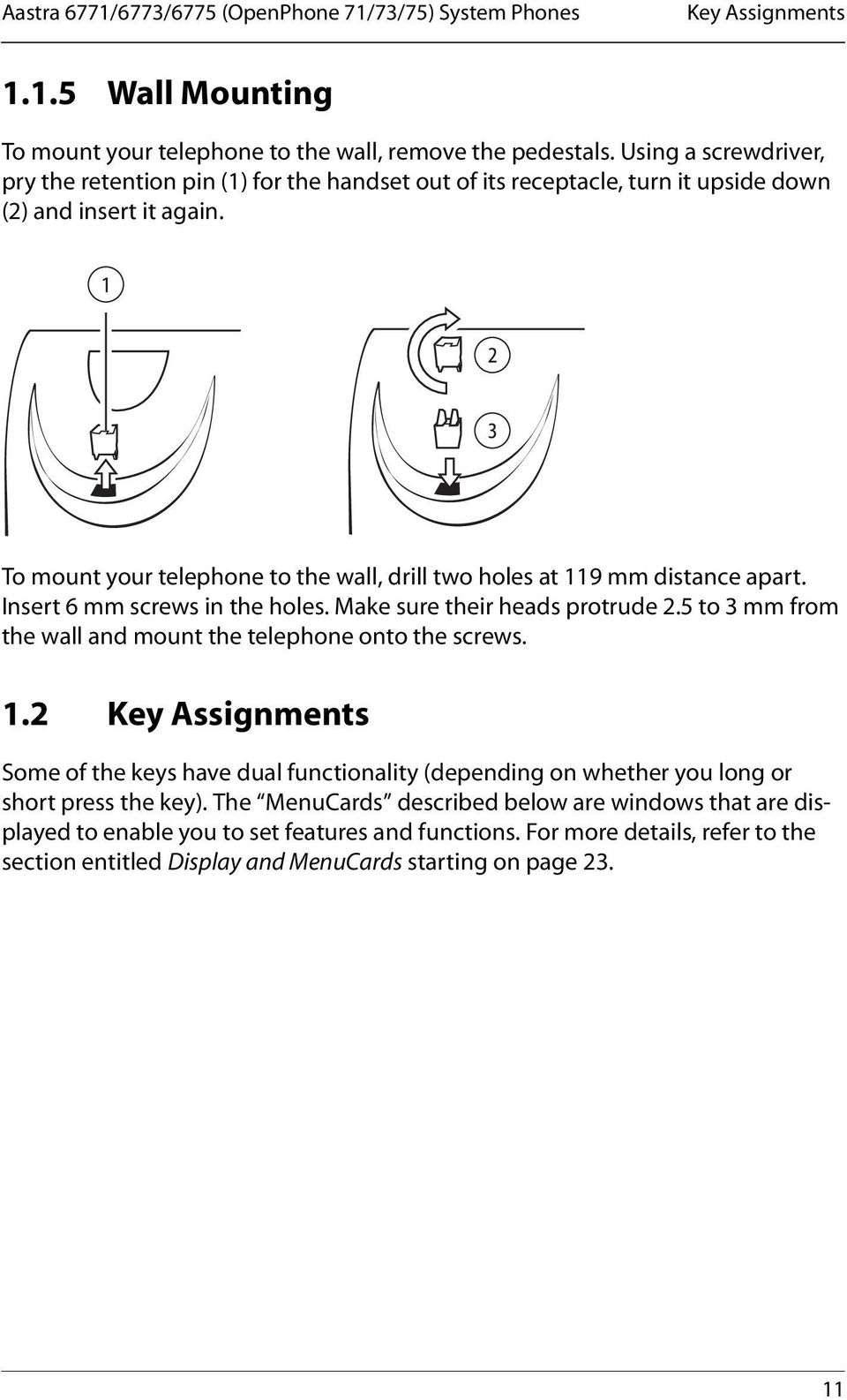
13 Aastra 6771/6773/6775 (OpenPhone 71/73/75) System Phones Key Assignments Wall Mounting To mount your telephone to the wall, remove the pedestals. Using a screwdriver, pry the retention pin (1) for the handset out of its receptacle, turn it upside down (2) and insert it again To mount your telephone to the wall, drill two holes at 119 mm distance apart. Insert 6 mm screws in the holes. Make sure their heads protrude 2.5 to 3 mm from the wall and mount the telephone onto the screws. 1.2 Key Assignments Some of the keys have dual functionality (depending on whether you long or short press the key). The MenuCards described below are windows that are displayed to enable you to set features and functions. For more details, refer to the section entitled Display and MenuCards starting on page
14 Aastra 6771/6773/6775 (OpenPhone 71/73/75) System Phones Key Assignments Trunk key (Call key 1) Programmable keys ESC key Arrow key OK key Aastra 6771 ESC OK i ABC 1 2 ABC 3 DEF C + 4 GHI 5 JKL 6 MNO 7 PQRS 8 * TUV 9 WXYZ 0 # R Plus/minus key C-key MenuCard key ABC key Redial key Dial keypad Enquiry key Headset key Disconnect key Muting Key Hands-free/open-listening key Info key Key assignment on the Aastra 6771 (OpenPhone 71) 12

15 Aastra 6771/6773/6775 (OpenPhone 71/73/75) System Phones Key Assignments Trunk key (Call key 1) Programmable keys ESC key Arrow key OK key Aastra 6773 ESC OK i ABC 1 2 ABC 3 DEF C + 4 GHI 5 JKL 6 MNO 7 PQRS 8 * TUV 9 WXYZ 0 # R Plus/minus key C-key MenuCard key ABC key Redial key Dial keypad Enquiry key Headset key Disconnect key Muting Key Hands-free/open-listening key Info key Key assignment on the Aastra 6773 (OpenPhone 73) 13

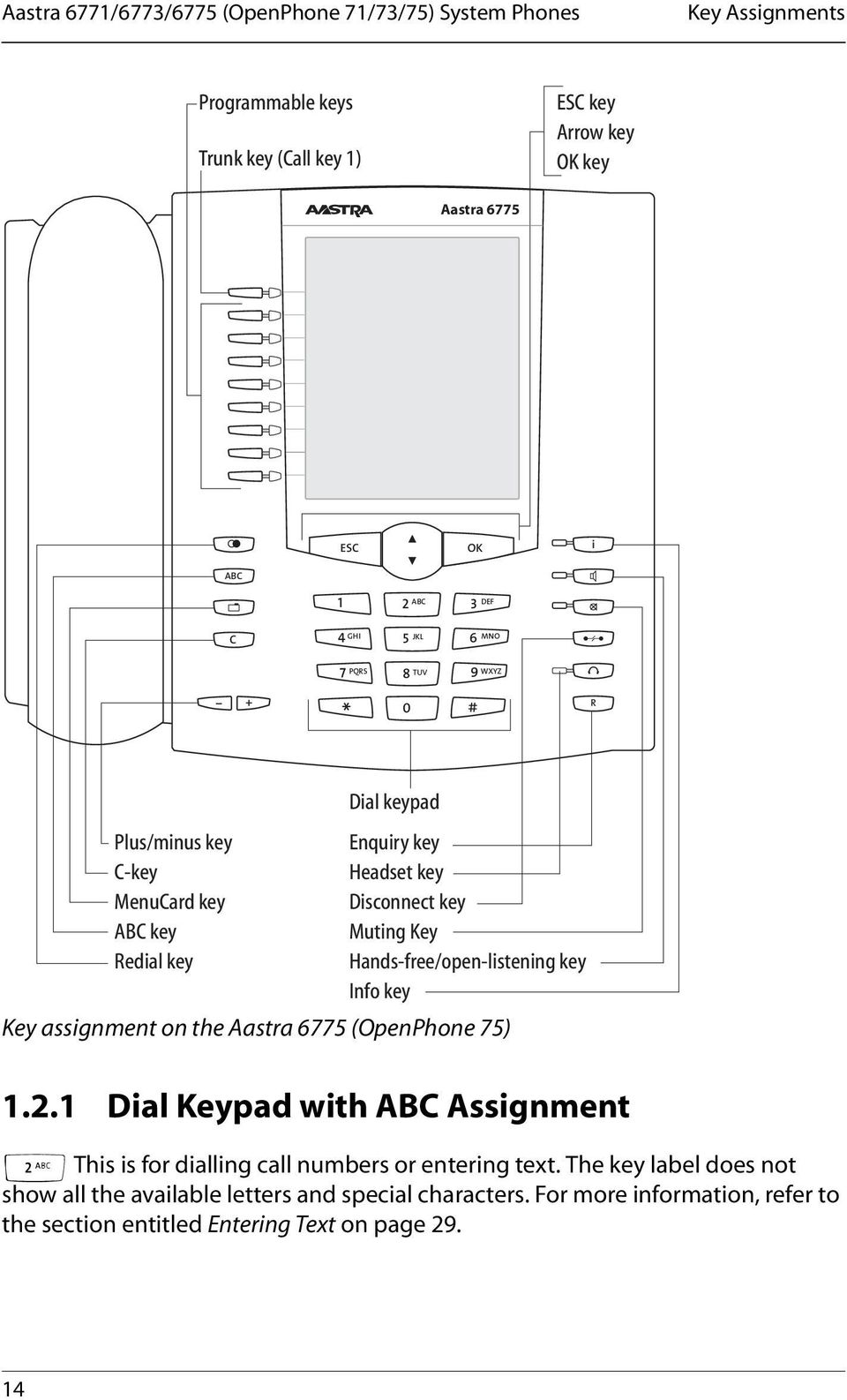
16 Aastra 6771/6773/6775 (OpenPhone 71/73/75) System Phones Key Assignments Programmable keys Trunk key (Call key 1) ESC key Arrow key OK key Aastra 6775 ESC OK i ABC 1 2 ABC 3 DEF C + 4 GHI 5 JKL 6 MNO 7 PQRS 8 * TUV 9 WXYZ 0 # R Plus/minus key C-key MenuCard key ABC key Redial key Dial keypad Enquiry key Headset key Disconnect key Muting Key Hands-free/open-listening key Info key Key assignment on the Aastra 6775 (OpenPhone 75) Dial Keypad with ABC Assignment 2 This is for dialling call numbers or entering text. The key label does not show all the available letters and special characters. For more information, refer to the section entitled Entering Text on page
17 Aastra 6771/6773/6775 (OpenPhone 71/73/75) System Phones Key Assignments Trunk Key (Call Key 1) g The trunk key of the telephone (also: call key 1) is occupied by your internal call number (main number). The key is located to the left of the display, and is labelled with your internal call number (or optionally, with a text programmed by the system administrator). Refer to the respective illustration in the chapter Key Assignments starting on page 11 to determine the position of the key on your equipment. Your internal call number is assigned to an external call number where you can be reached when being called from an external number. It is possible to assign several external call numbers to the key. If you wish to make a call, lifting the handset seizes the key (and the trunk line); you can immediately dial an internal or external number (depending on the system setting). Long pressing the key displays a MenuCard which allows you to programme the key s settings (see the section entitled MenuCard Prog. call key starting on page 125). A system setting makes it possible to have your internal number assigned to other telephones as well. Calls will then be signalled to other telephones simultaneously. The LED of the key indicates the current status, see also the chapter Signalling on the Call Keys starting on page 46. For the System Administrator: Setting the Trunk Keys of the System Telephones The internal call number for a system telephone is configured in the Configurator, Telephony: Ports: Upn menu or for IP phones respectively in the Configurator, Telephony: Devices: VoIP Phones menu. The assigned internal call number is automatically allocated to the trunk key (call key 1). The assignment to external call numbers takes place in the Configurator, Telephony: Call Distribution menu Programmable Keys g The additional keys to the left of the display are free programmable keys. The system administrator can assign other internal call numbers to these keys for you as additional trunk keys (call keys). These keys have also been assigned to external call numbers at which you can be reached from an external number. In order to make a call with a trunk key, first press the key and then dial the call number. 15
18 Aastra 6771/6773/6775 (OpenPhone 71/73/75) System Phones Key Assignments The system administrator can also assign the programmable keys as call keys for team functions. Information on the use of team functions can be found in the chapter Team Functions starting on page 90. The LEDs of the programmed keys indicate different states, see also the chapter Signalling on the Call Keys starting on page 46. You can programme features and destination call numbers yourself directly on the programmable keys of the device that have not been set by the system administrator. See the chapters on Programming Functions (Features) starting on page 128 and Programming Call Numbers (Destinations) starting on page 127 for more information. To use a configured programmable key, do the following: Short key press: The programmed destination call number is dialled or the programmed function (feature) is carried out. Long key press: The key can be programmed with a MenuCard. For the System Administrator: Configuring the Keys of a System Telephone The keys of the system telephones can be programmed in the Configurator, Telephony: Devices: System phones menu. In the Configurator, Telephony: Groups menu you can set up teams and programme team functions for the system telephones of the team members. In the Team Function chapter in the Mounting and Commissioning guide (with an Aastra 800: Installing and Commissioning ) you will find examples and explanations of various possible team configurations Redial Key W Opens a list of the last-dialled numbers ABC Key A Short key press: Opens the MenuCard for the telephone book. When entering texts (please refer to page 29 also) one can switch between the alphanumeric and numeric modes. 16

19 Aastra 6771/6773/6775 (OpenPhone 71/73/75) System Phones Key Assignments Long key press: Opens the list of the available display languages MenuCard Key M Shows MenuCards in the display. Note: You need the appropriate authorisation to operate this key on your system telephone. Consult your system administrator if your authorisation has to be changed. Short key press: A selection of features that can be used in the current device status (e. g. during a call) is shown. Long key press: The MenuCard for the Main menu with all available settings is shown. Note: You need the appropriate authorisation to operate this key on your system telephone. Consult your system administrator if your authorisation has to be changed C-Key C (Clear key) to delete input, entries and lists. Short key press: Input (for example the last digit of an entered call number) or list entries in the menu (for example, an entry in the call list) will be deleted. Long key press: A complete entry or an entire list (for example, the call list) will be deleted Info Key i Indicates incoming calls (LED flashes quickly, the bell is shown in the display), receiving incoming messages and current telephone settings. Short key press: Displays a MenuCard with received messages (the LED of the key flashes slowly). Long key press: Displays a MenuCard with a list of active features, which restrict the reachability of the telephone (e. g., call protection is on). The illuminated 17

20 Aastra 6771/6773/6775 (OpenPhone 71/73/75) System Phones Key Assignments LED of the key indicates that the reachability of the telephone is restricted or that the telephone lock is activated (see also Telephone Lock on page 51) Hands-Free/Open-Listening Key L To make calls using the microphone and/or loudspeaker. The illuminated LED of the key indicates that hands-free telephoning is activated. The LED flashes when open-listening is activated. Situation: You receive a call. You have dialled a call number (block dialling/automatic dialling). You have selected a call number from the telephone book. You are making a call via the handset and want to let a second person listen in on the call. You are making a call via the handset and wish to switch to hands-free mode. By pressing the key: You accept the call without picking up the handset (hands-free mode, the LED is illuminated). The call number is dialled. The call number is dialled. The loudspeaker is switched on (openlistening mode, the LED flashes). Keep the key depressed and replace the handset. Then release the handsfree/open-listening key. You can continue the call in hands-free mode Muting Key S To deactivate the microphone during a call. The illuminated LED of the key indicates that the microphone is turned off. The LED of the key is illuminated when the microphone is deactivated. The ringer of your telephone can be switched off for incoming calls over the muting key Disconnect Key T Pressing this key ends the current call. 18
21 Aastra 6771/6773/6775 (OpenPhone 71/73/75) System Phones Key Assignments Headset Key K If a headset is connected and switched on (to switch on a headset, see page 113), calls can be accepted and calls can be ended by pressing this key. The LED of the key is illuminated when a call is made via the headset. It is also possible to enable a second person to listen in on a call over a connected headset while you are telephoning over the handset. To enable, press the headset key during the call. Listening-in over the headset is now activated, the LED on the headset key flashes Enquiry Key R To initiate and end an enquiry call. After you have ended an enquiry call, switch back to the call being held with this key Plus/Minus Key = This key offers various functions which depend on the device status: It adjusts the volume during open-listening/hands-free mode. It adjusts the volume when making a call via the handset. It adjusts the volume of the headphones of a headset (the volume of the microphone can be adjusted over the Phone settings MenuCard, see page 113). It adjusts the volume of the ringer tone during a call. It sets the contrast of the display when the telephone is in the idle state. It switches features on/off quickly. It changes the volume of the ringer tone and the melody in the Phone settings MenuCard. It moves the cursor when entering call numbers or text. 19
22 Aastra 6771/6773/6775 (OpenPhone 71/73/75) System Phones Key Assignments Tip: If you have already used the plus/minus key to open a menu to set the display contrast or the volume, your current setting will automatically be applied after three seconds, without your using the OK key O to confirm ESC Key e (Escape key) navigates the menu. Short key press: Exits an open input window without changing its contents and/or returns you to the menu branches. Long key press: Exits the menu Arrow Key P This key is used to scroll through the MenuCards and lists OK Key O This key is used to confirm the selected menu items, functions or settings The Locking of Your Telephone Interface by the System Administrator The system administrator can lock your telephone s interface via a setting for your user group. All keys of your telephone no longer function aside from a few exceptions (e. g. the number keys and the call key 1). You can then make calls with your telephone but no system functionality can be configured. If the system administrator has authorised you to do so, you can also set the time group of the communications system (see also MenuCard Central Settings starting on page 123). If your user group authorisation changes according to the time group, then it is possible that the interface lock of your telephone will be cancelled. 20
23 Aastra 6771/6773/6775 (OpenPhone 71/73/75) System Phones Key Assignments Please consult your system administrator if you have any questions about your authorisations. For the System Administrator: Locking the Keys on the System Telephone Administer authorisation of which keys are functional on the system telephone and which keys are locked over the Configurator, User Manager: User groups menu Labelling the Keys Label Strip The five keys above the display on the Aastra 6771 (OpenPhone 71) and on the Aastra 6773 (OpenPhone 73) can be assigned with destinations or functions (features) or programmed as call keys. The programming/assignment does not appear in the display. The label strips provided are for labelling these keys. A label strip is also used for labelling keys on a key extension Aastra M671 (KeyExtension 73P). Proceed as follows to label the insert: Press down slightly on the bottom part of the cover and slide it up to remove it. Remove the label strip. Replace the printed strips. Insert the cover in the slot and slide it down until it snaps into place. Printing Label Strips Using the Configurator of the Web console, you can print the labels for a selected system telephone with the current key assignment (Telephony: Devices: System phones menu). Key Labelling on the Display The keys to the left of the display of the system telephones are also freely programmable (one key on the Aastra 6771 (OpenPhone 71), three keys on the Aastra 6773 (OpenPhone 73), nine keys on the Aastra 6775 (OpenPhone 75)). These keys are labelled with a default text that you can change during or after programming. One of these keys is pre-programmed as a trunk key (see also Trunk Key (Call Key 1) starting on page 15), the text on this key can also be changed. The key labelling also appears in the display on the key extension Aastra M676 (KeyExtension 75D). 21
24 Aastra 6771/6773/6775 (OpenPhone 71/73/75) System Phones Key Assignments Labelling a Key g P O Z OO Press the key (long key press), then Select Modify text. Press the OK key. In the following MenuCard under Text: enter the text (see also the chapter Entering Text starting on page 29). Press the OK key twice. The keys can also be labelled in the Configurator of the Web console (in the Telephony: Devices: System phones menu). If the key labelling is changed in the above mentioned manner or on the key extension, the new text will also be displayed in the Configurator. Conversely, the modified texts will overwrite the display texts on the telephone or key extension. Information regarding the aforementioned key extensions can be found in the chapter Key Extensions starting on page
25 Aastra 6771/6773/6775 (OpenPhone 71/73/75) System Phones Display and MenuCards 1.3 Display and MenuCards Changing the Language Use the following procedure to set the display language: A P O Press the ABC key (long key press). Using the arrow key scroll to the desired setting. Confirm the setting with the OK key. In the Main menu you can use the Phone settings MenuCard to change the language (see page 113) Info Line(s) a Peters 11:45 11 b ESC OK Display Aastra 6773 (OpenPhone 73) in idle state, here: a Info line displaying the user s name and the time b The user s internal call number The first (and on the Aastra 6775 (OpenPhone 75) also the second) line of the display shows additional current information. When the telephone is idle, you can see the user s name as assigned to the device in the Configurator of the Web console by the system administrator and the time (the Aastra 6775 (OpenPhone 75) also displays the day of the week and the date). For the system telephones Aastra 6771 (OpenPhone 71)/Aastra 6773 (OpenPhone 73), the system administrator can adjust the setting so that the date is shown instead of the user name. 23
26 Aastra 6771/6773/6775 (OpenPhone 71/73/75) System Phones Display and MenuCards For the System Administrator: Configuring the Display of the User Name and the Date Assign the user name in the Configurator, User Manager: User menu. Configure the display of the date in the info line of the Aastra 6771 (OpenPhone 71)/ Aastra 6773 (OpenPhone 73) system telephones in the Configurator, Telephony: Settings menu. a Incom..int..call 11:45 Mon.01.Jan.06 Operator ESC OK Display Aastra 6775 (OpenPhone 75) in call state: a Info lines During a call, the current charge counter (if configured) and annotation texts are displayed. During an enquiry call you will see the number of the enquiry call you dialled. On the Aastra 6775 (OpenPhone 75) the second info line is used to display connection information also, you can, for example, view the capacity status of a call queue. If there is an entry in the phone book for the called subscriber (see also page 120), name and call number are displayed alternately in the calling state. 24
27 Aastra 6771/6773/6775 (OpenPhone 71/73/75) System Phones Display and MenuCards Key Lines The display next to the keys is assigned to them on a line-by-line basis. Depending on the type of key, the following display texts are shown.on the On the Aastra 6771 (OpenPhone 71) the display always shows the active line. Note: The call and seizure states are identified by additional symbols on the call keys. For details, refer to the section entitled Telephoning starting on page 38. Peters 11:45 11 & 30 Secretary ESC OK Key lines on the Aastra 6773 (OpenPhone 73): 1 Call key in idle state: internal call number or a user-assigned text. 2 Call key during dial and connection state: dialled call number. 3 Destination key with names programmed: programmed name. Peters 11:45 11 Follow Me Sekretary ESC OK Key lines on the Aastra 6773 (OpenPhone 73): 4 Call key during call state: call number (if transmitted) or the name of the caller (if listed in the telephone book). 5 Feature key programmed: name of feature with status display. 6 Destination key with name programmed. If no name was programmed, the display shows the programmed call number instead of the name. 25
28 Aastra 6771/6773/6775 (OpenPhone 71/73/75) System Phones Display and MenuCards MenuCard Display Sekretary 11:45 Mon.01.Jan Main menu Telephonschloss 1 Calls Peters 2 Call forwarding 3 Messages 4 Phone settings 5 Protection 6 Connections 7 Phone book 0 Central settings ESC OK MenuCard display on the Aastra 6775 (OpenPhone 75) All the features of your telephone and the system are controlled via display windows like the ones on your PC. These display windows look like index cards and are called MenuCards.On the Aastra 6771 (OpenPhone 71) the display shows the active line of the MenuCard. MenuCards are displayed using different keys. Please refer to the explanations in the section entitled Key Assignments on page 11. The top line of a MenuCard contains the name of the menu or that of the selected feature. The lines below it contain all the selectable features or lists of names and call numbers. A MenuCard covers some of the key lines, but it is still possible to execute all the functions (features) assigned to the keys (e. g. accepting a call on a call key) Invoking MenuCards and Selecting Items from the List Use the keys described in the section entitled Key Assignments starting on page 11 to invoke a MenuCard (see the table entitled Invoking MenuCards via the Keypad on page 27). Note when a short or a long press of a key is required. Selecting list entries is described in the table entitled Selecting Items from MenuCard Lists on page
29 Aastra 6771/6773/6775 (OpenPhone 71/73/75) System Phones Display and MenuCards Invoking MenuCards via the Keypad Key Short Long MenuCard Page MenuCard key x Depends on the device s status -- M x Main menu 102 Info key x Info / current messages 124 i x Active features 125 ABC key x Telephone book 120 A x Language setting (display) 23 Redial key W x x Redialling list 50 Programmable key g Selecting Items from MenuCard Lists x Programme the key (destination key or feature key) 126 Arrow key P Number keys 2 OK key O Escape key, short press e The arrow key is used to select items in and/or scroll through the MenuCard lists. If the list is longer than the display window, you will see an arrow at the bottom of the window indicating there are additional items. When the first entry in a menu is selected and you press the up arrow key you go to the last entry of this menu. When the last entry in a menu is selected and you press the down arrow key you go to the last entry. In the Main menu, you can also make your selection by entering the number to the left of the feature. Pressing this key confirms your selection or setting. Depending on the feature, it is now executed and you can exit the MenuCard, or additional setting windows are displayed. This cancels your selection/entry without making any changes and takes you back to the next highest branch of the menu tree. 27
30 Aastra 6771/6773/6775 (OpenPhone 71/73/75) System Phones Display and MenuCards Selecting Items from MenuCard Lists Escape key, long press e This closes the MenuCard without making any changes Setting Windows and their Characteristics, Toggling Peters 11:45 Call div Immediately After delay busy ) 32 ESC OK Display Aastra 6773 (OpenPhone 73) Two dots following a MenuCard item mean: After pressing the OK key O a sub-menu is opened in which you can select options or make entries. The settings in the sub-menu are stored after pressing the OK key O. A + sign to the left of the name of a feature indicates that it is activated and a - sign that it is deactivated. The plus/minus key = lets you toggle between the on/off states, while the OK key moves you to the next item in the setting window Entering/Deleting Digits Peters 11:45 Baby call 11 Dest.: On Off ESC OK Display Aastra 6773 (OpenPhone 73) 28
31 Aastra 6771/6773/6775 (OpenPhone 71/73/75) System Phones Display and MenuCards In an input line (e. g. for a call number) you can make entries/changes straight away. The cursor indicates the position at which the input or deletion is made. If numerical inputs are longer than the display field, the digits disappear off the display to the left. Using the plus/minus key = you can move the cursor and display the digits that were previously not visible. The digits on the right will then disappear from the display field. Inputs are always made to the immediate left of the cursor position. A short press of the C-key C deletes individual digits, whereas a long press deletes the complete entry Deleting Lists In displayed lists (e. g. the call list) you delete individual items from the list with a short press of the C-key C. Long pressing the C-key C deletes the entire list, but only after the query Are you sure?. Press O to delete the list Entering Text In input lines for text, the numerical keypad automatically switches to the entry of letters. You can enter the following characters by repeatedly pressing the number keys: Key Characters 1 1?!,.:; 2 ABC2ÄÅÀÁÂÃÆÇ 3 DEF3ÈÉÊË(Euro sign) 4 GHI4ÌÍÎÏ 5 JKL5 6 MNO6ÑÖÒÓÔÕØ 7 PQRS7ß 8 TUV8ÜÙÚÛ 9 WXYZ9 29
32 Aastra 6771/6773/6775 (OpenPhone 71/73/75) System Phones Display and MenuCards Key Characters 0 0 (space)@$& * *-+=~<>^% # #(){}[]/\ Inputs are always made to the immediate left of the cursor position. The input position moves automatically if you pause briefly between your inputs or if you enter a new character. When entering text, the first letter will automatically be upper case, the remaining letters automatically lower case. After you enter a space, the next letter will be upper case once again. While entering text, you may switch back and forth between upper and lower case by pressing a number key for a longer time. The upper-/lower-case remains activated until the next time you press a number key longer. Press the ABC key A briefly to switch between the alphanumeric and numeric modes. If the text passages are more than one line long, line breaks are made automatically at the end of each line. You can move the cursor by using the plus/minus key =. A short press of the C key C deletes individual digits/characters (in front of the cursor), whereas long pressing the key deletes the complete entry. 30
33 Aastra 6771/6773/6775 (OpenPhone 71/73/75) System Phones Key Extensions Automatic Exit MenuCards close automatically under the following conditions: An open menu is automatically closed after 60 seconds if you do not make any additional entries. Exception: playing back a voicebox message with a duration longer than a minute. Changes that have not been saved are lost. In the idle or connection state, if you receive a call and accept it by lifting the handset or pressing a key. In the connection state, if you make inputs that require a new connectiondependent MenuCard (e. g. you pressed the R-key R to make an enquiry call; see the section entitled Telephoning starting on page 38). If you press a key that invokes a MenuCard other than the one displayed. When you are in a system menu (e. g. phone book of the communications system) and a caller tries to reach you, the caller hears a busy signal. All inputs that have been saved in the MenuCards remain intact when you exit the menu. 1.4 Key Extensions With a key extension, you can extend your system telephone Aastra 6773/6773ip (OpenPhone 73/73 IP) and Aastra 6775/6775ip (OpenPhone 75/75 IP) with additional free programmable keys. The Main menu functions and destination call numbers can be stored on these keys. In addition, the system administrator can programme call keys (trunk keys, team keys, busy keys or direct-call keys) over the configuration software of the communications system. Up to three key extensions can be connected to system telephones: either three key extensions of the model Aastra M671 (KeyExtension 73P) or three key extensions of the model Aastra M676 (KeyExtension 75D). A combination of these key extensions is, however, not possible. The following equipment combinations are possible: 31
34 Aastra 6771/6773/6775 (OpenPhone 71/73/75) System Phones Key Extensions key extension with the features connectable to a system telephone Aastra M671 (KeyExtension 73P) Aastra M676 (KeyExtension 75D) 36keys with LED indicator Labelling on label strips 20keys with LED indicator 3 keys with LED indicator to shift levels; enables programming of 60 storage locations on each key extension Labelling of the keys over the display; each key is assigned to a display line Aastra6773 (OpenPhone 73) Aastra6773ip (OpenPhone 73 IP) Aastra6775 (OpenPhone 75) Aastra6775ip (OpenPhone 75 IP) Aastra6775 (OpenPhone 75) Aastra6775ip (OpenPhone 75 IP) Level keys Fig. left: Key extension Aastra M671 (KeyExtension 73P); Fig. right: Key extension Aastra M676 (KeyExtension 75D) 32
35 Aastra 6771/6773/6775 (OpenPhone 71/73/75) System Phones Using a Headset For the System Administrator: In the Mounting and Commissioning guide (with an Aastra 800: Installing and Commissioning ) you will find the corresponding assembly instructions in the chapter Connecting the Key Extension Operating the Key Extension Keys The keys of the key extension are used in the same way as programmed keys, as described in this user guide (see the following sections: Programming Call Numbers (Destinations) starting on page 127, Programming Functions (Features) starting on page 128, Programming the Call Keys starting on page 94) Choosing a Key Level Keys can be programmed on three levels with a key extension Aastra M676 (KeyExtension 75D). There are a total of 60 storage locations available on 20 keys. To toggle between the levels, use the level keys ; on the lower left. The illuminated LEDs next to the key indicates that the level is activated. In the display of the key extension, you will also see the text with which this storage location is labelled. A key extension Aastra M671 (KeyExtension 73P) offers only one level Labelling a Key on the Key Extension Paper strips are used for labelling the key on the Aastra M671 (KeyExtension 73P) key extension. The keys are either labelled with the default text on the Aastra M676 (KeyExtension 75D) (e. g. when programming a feature key) or by entering an individual text when programming the key (see also the chapter Labelling the Keys starting on page 21). 1.5 Using a Headset You can telephone hands-free if you use a headset. A headset connected to a system telephone can be switched on and off at the telephone (see also page 113 in the chapter entitled MenuCard Phone Settings ). If the headset is switched on, you can accept or end a call by pressing the headset key K on the system telephone, which switches off the microphone and handset on the telephone. If the 33
36 Aastra 6771/6773/6775 (OpenPhone 71/73/75) System Phones Using a Headset headset is switched off, the headset key operating function on the system telephone is not operational. Note: If a cordless DHSG headset is used, the headset key K on the system telephone is operated with the Talk key on the headset. Read the instructions for the headset in the user guide. The headset can be used in combination with the handset and the other keys of your system telephone (e. g. hands-free/open-listening key L). The following table gives an overview of the different operating situations. The headset must be switched on for these operations (see page 113). Situation: Operation: Result: You receive a call. K Press the headset You telephone with the key. headset (LED of the key K is illuminated). or g Press the call key. You want to make a call. You have entered a call number (block dialling/ automatic dialling). K Press the headset key and Z enter the call number. or g Press the call key and Z enter the call number and when necessary L press the handsfree/open-listening key. K Press the headset key. or g Press the call key The call number is dialled (LED of the key K is illuminated). Hands-free/open-listening is switched on (LED of the key L flashes). The call number is dialled (LED of the key K is illuminated). 34
37 Aastra 6771/6773/6775 (OpenPhone 71/73/75) System Phones Using a Headset Situation: Operation: Result: You are telephoning over the handset and want to switch to the headset. You are telephoning in hands-free/open-listening mode (the handset is on-hook, LED of the key L is illuminated); you want to switch to the headset. You are telephoning over the handset and want to let a second person listen in on the call over the headset. You are telephoning over the headset and want to let a second person listen in on the call. and when necessary L press the handsfree/open-listening key. K Press the headset key, keep it pressed and h replace the handset. K Press the headset key. K Press the headset key. H Pick up the handset. Hands-free/open-listening is switched on (LED of the key L flashes). You continue the call over the headset (LED of the key K is illuminated). Hands-free/open-listening is ended (LED of the key L is off ); you continue the call over the headset (LED of the key K is illuminated). Listening-in over the headset is now activated (LED of the key K flashes). End listening-in: K Press the headset key (LED of the key K is off). The second person listens in on the call over the handset (LED of the key K is illuminated). End listening-in: h Replace the handset (LED of the key K is illuminated). 35
38 Aastra 6771/6773/6775 (OpenPhone 71/73/75) System Phones Using a Headset Situation: Operation: Result: or L Press the handsfree/open-listening key. Open-listening is switched on, persons present can listen in on the call (LED of the key L flashes). You are telephoning over the headset, a second person listens in on the call over the handset. You want to switch of the headset. You are telephoning over the handset, open-listening is switched on (LED of the key L flashes); you want to let another person listen in on the call over the headset. K Press the headset key (long key press). K Press the headset key. End open-listening: L Press the handsfree/open-listening key (LED of the key L is off ). The headset is switched off (LED of the key K is off). Listening-in over the headset is now activated (LED of the key K flashes). End listening-in: K Press the headset key (LED of the key K is off). End open-listening: L Press the handsfree/open-listening key (LED of the key L is off ). 36
39 Aastra 6771/6773/6775 (OpenPhone 71/73/75) System Phones Using a Headset Situation: Operation: Result: K Press the headset key (long key press). You are telephoning over the headset, hands-free/ open-listening is switched on (LED of the key L flashes). You want to switch of the headset. You are telephoning over the headset and want to end the call. You are telephoning over the headset, a second person listens in on the call over the handset. You want to end the call. You are telephoning over the headset, hands-free/ open-listening is switched on (LED of the key L flashes). You want to end the call. K Press the headset key. K Press the headset key (short key press). K Press the headset key (short key press). The headset is switched off (LED of the key L flashes; LED of the key K is off). The connection is ended (LED of the key K is off ). The connection is ended (LED of the key K is off ). The connection is ended (LED of the key K is off; LED of the key L is off). For the System Administrator: You will find more information on connecting a headset and suitable devices in the Mounting and Commissioning guide (with an Aastra 800: Installing and Commissioning ) in the chapter Extensions and Accessories for System Telephones. Note: Connected headsets must conform with the standard DIN EN , Point 6.2 ( Safety of information technology equipment including electrical business equipment ). For more information on this and a list of headsets which meet these requirements please refer to our website at or You can also contact a headset manufacturer of your own choice, of course. 37
40 Telephoning In a hurry?: A Brief Explanation of Important Functions 2. Telephoning 2.1 In a hurry?: A Brief Explanation of Important Functions Please read this chapter in order to familiarise yourself with important telephone functions. It will only take you a few minutes Talking on the Phone: Via the Call Key or the Handset a Peters 11:45 11 b ESC OK Display Aastra 6773 (OpenPhone 73): a Call key b Internal call number Your telephone has at least one call key via which you can call or may be called. On the display, this key is labelled with the internal call number under which internal callers can reach you. The internal call number is allocated to an external call number under which you may be reached by external callers. Alternatively, the call key may have a text label. The system administrator may have set this up when the system was configured. When you receive a call or call someone yourself, you have the following options for beginning to talk: H g You pick up the handset. or: You press the call key. 38
41 Telephoning In a hurry?: A Brief Explanation of Important Functions You conduct the following telephone call in the hands-free mode. The loudspeaker is turned on, you speak via the microphone in the handset while the handset remains placed in the telephone cradle. If you have connected a headset to your telephone and activated it via the Phone settings MenuCard (see page 111), pressing the call key will turn on headset operation. The subsequent telephone call is conducted via the headset. In the following explanations of this chapter, the H symbol means that you also have the option of pressing the call key g instead of picking up the handset. Tip: You may have had more than one call key set up for you. The display shows each key labelled with the respective internal call number or with text. Usually you can use the telephone via each of these keys as described above. If these keys have been set up for you because you are a member of a team, you should read the chapter Managing Calls in a Team starting on page 90. It contains information on how to use the team functions set up for you on your telephone Telephoning Do I Need a Code? Depending on the system s configuration, you may have to enter a code (manual line seizure) or not (automatic line seizure) before entering an external call number. The system administrator will inform you what this code is (the default setting upon delivery is the code digit 0). Internal call numbers are also entered differently for automatic or manual line seizure. Calling with Manual Line Seizure (External with Dialling Code) H Z Calling external parties: Enter external line seizure code digit (e. g. 0) and dial external call number. 39
42 Telephoning In a hurry?: A Brief Explanation of Important Functions H Z Calling internal parties: Dial internal call number. Calling with Automatic Line Seizure (External without Dialling Code) H Z H** Z Calling external parties: Dial external call number. Calling internal parties: Press the star key twice. Dial internal call number. Note: Failure to obtain an external connection may be due to the system configuration. You either do not have the authorisation to dial external numbers or the desired external number is blocked. For the System Administrator: System Settings for Dialling External Call Numbers External line seizure (automatic or manual) and authorisation for dialling external numbers (ranked according to local, national or international calls) can be defined in the Configurator, menu User Manager: User groups (Settings: External and Immediate External line seizure). Blocked call numbers are managed in the Configurator, menu Telephony: Lists: Black lists Redialling The call numbers you have most recently dialled are stored in the redial list. To redial one of these call numbers, you have the following options: 40
43 Telephoning In a hurry?: A Brief Explanation of Important Functions W H W P H Redialling the last call number: Press redial key. Pick up handset. Redial a particular call number in the redial list: Press redial key. Use arrow key to select number. Pick up handset Receiving Calls When you receive a call, the LED next to the call key flashes. The symbol appears in the display. The number of the person calling is shown (if the number is transmitted). If the telephone book of the OpenCom 100 / Aastra 800 has an entry for this call number, the name of the caller will be shown instead of their number. HG G g T g G Accepting a call: Pick up handset, conduct call. If you are already telephoning and receive another call: Press the call key. The first caller will be placed on hold. You may now speak with the second caller. To terminate the second call: Press the disconnect key. Press the call key where the first call is being held. Now you may speak with the first caller again. 41
44 Telephoning In a hurry?: A Brief Explanation of Important Functions Who Called? The calls you receive are saved in the call list. Depending on your system configuration, external calls, internal calls, calls on busy, door calls or all calls are saved on this list. This list also shows you whether you have missed calls while you were away. You can query the call list and call the caller back. Missed Calls The LED of the info key i is flashing. To return a call: i P O P H Press the info key. Use the arrow key to select the Missed calls menu entry. Press the OK key. Select the entry in the call list with the arrow key. Pick up handset. Calling a Caller Back To call a caller on the call list: M O O O P O P H Press MenuCard key (long press). Press the OK key (Calls is selected). Press the OK key (1 Call lists is selected). Press the OK key (1 Missed calls is selected). or: Use the arrow key to select 2 Accepted calls and press the OK key. Select the entry using the arrow key. Pick up handset. For the System Administrator: System Settings for the Call List The Configurator, User Manager: User groups menu is where you define which calls are stored in the call list (settings: manage extern call list, manage busy call list and manage door call list). You can have calls where the call number was not 42
45 Telephoning In a hurry?: A Brief Explanation of Important Functions transferred (e. g. because the caller suppressed the number) not included in the call list in the menu Telephony: Settings (Call list: no entry if phone number missing setting) Querying/Toggling, Transferring Querying and Toggling During one call you may make another call: e. g. to obtain information: GR Z R G T RG To initiate a query: Press the R-key. Dial internal or external call number. The first caller is placed on hold and you now may speak with the second caller. You may switch back and forth between calls, speaking alternatively with both callers. To alternate between callers (to toggle): Press the R-key (repeat to toggle). To end query: Press the disconnect key. Press the R-key. Now you may speak with the first caller again. Transferring a Call to an Internal Subscriber You may transfer a call to another internal subscriber with or without advance notice. To do this, you begin by initiating a query connection: GR Z G h Press the R-key. The subscriber you were talking to before is put on hold. Dial the internal call number. If the internal subscriber answers, Inform them that you are transferring a call and replace the handset in the telephone cradle. 43
46 Telephoning In a hurry?: A Brief Explanation of Important Functions h If the internal subscriber does not answer, replace the handset in the telephone cradle. The internal subscriber will be called. If he/she answers, he/ she will be able to speak with the caller on hold. If he/she does not answer, you will automatically be called back after a certain length of time. If the line of the internal subscriber is busy, you may end the query as described on page 43. Transferring a Call to an External Subscriber (Transfer Call) You may also transfer calls to an external subscriber. The system administrator must provide you with the corresponding authorisation to do this, otherwise you will not be able to transfer calls in this way. GR Z M P O Press the R-key. The subscriber you were talking to before is put on hold. Dial the external call number. Press the MenuCard key (short press). Using the arrow key, select the Transfer menu entry. Press the OK key. Note: When you call an external party and then transfer this person to another external party, you will bear the costs for the call between the two external callers. You have no way of influencing how long the transferred call will last. The connection is established via the OpenCom 100 / Aastra 800 and occupies two call channels (ISDN user channels). For the System Administrator: System Settings for Transferring Calls You can define the length of time after which a user trying to transfer a call is called back in the Configurator, menu Telephony: Extended: Timer (Setting: Timeout on diversion to operator). External call transfer authorisation is set in the Configurator, menu User Manager: User groups (Setting: External to external). 44
47 Telephoning In a hurry?: A Brief Explanation of Important Functions Audio: Muting, Open-Listening, Adjusting Telephone Volume Muting While using the phone, you may switch off the microphone if you wish. The person you are speaking with will not be able to hear you: S Press the muting key. Press it once again to switch the microphone back on. Enabling Others to Listen In L Lh To allow others present to hear the telephone conversation, press the hands-free/open-listening key. By switching on the loudspeaker, you may continue your call in hands-free mode. Keeping the hands-free/open-listening key depressed, replace the handset in the telephone cradle. Then release the hands-free/open-listening key. Adjusting Volume G= To adjust volume during a call, use the plus/minus key: for handset volume or if you re using a headset for headset volume or if you have the loudspeaker switched on for loudspeaker volume. This setting applies to the current call. To adjust volume permanently, please refer to the chapter MenuCard Phone Settings starting on page
48 Telephoning General Functions 2.2 General Functions Assignment of Internal and External Call Numbers Your telephone s internal number is assigned when the system administrator configures the OpenCom 100 / Aastra 800 communications system. The call number is linked to the call key g of your telephone, which means you receive calls on this key. You can have several internal call numbers on different call keys on your system telephone. The external call number(s) at which you can be reached is (are) assigned to the call key(s) (with the internal number). External telephone numbers Call distribution scheme Internal telephone numbers on the call keys Telephone 1 Telephone 2 Communications system 51 Telephone 3 Example of the assignment of internal and external call numbers The above example shows that the system s external call numbers are first stored in the OpenCom 100 / Aastra 800. The telephones can be reached selectively by means of call distribution of the numbers to the internal numbers (call keys). As you see, telephone 1 and telephone 2 both ring when a call is made to the number At the same time, telephone 1 can also be reached on the number Signalling on the Call Keys Call key is the general term for all keys of your telephone which you use to make calls and are called. These are feature keys (please refer to page 15 and page 15 also) or call keys with team functions (team keys, busy keys or direct call keys, please refer to the chapter Managing Calls in a Team starting on page 90). 46
49 Telephoning General Functions The LEDs and symbols on the call keys indicate the following states: First call Further call Further call, call waiting queue is full Key seized Call held Team member s key is seized LED flashes rapidly Bell is displayed LED flashes rapidly Bell is displayed Short beep tone (only on the Aastra 6775 (OpenPhone 75)) LED on Arrow is displayed LED flashes slowly Arrow is displayed LED on Handset and team key text are displayed Calls in the Call Waiting Queue The system administrator can configure and activate a call waiting queue especially for your telephone in the OpenCom 100 / Aastra 800 system. While you are making a call, new calls can be queued. These callers first hear an announcement (if the system administrator has preset an announcement) and then the ring tone. The number of calls permitted in the call waiting queue is set by the system administrator during system configuration, 5 calls for example. When this number is reached, further callers hear the busy tone. The calls in the queue are put through in order of priority (baby calls, door calls, VIP calls, other internal and external calls), irrespective of the order in which they came in. Calls that have been in the queue for too long are removed, and the callers then hear the busy tone. The period of time until an external call is released is set by the network operator. In Germany this is usually two minutes and in other European countries usually three minutes. Your telephone can have a call waiting queue even if it belongs to a subscriber group, where it simultaneously affects call forwarding. 47
50 Telephoning General Functions If several call numbers are configured for your telephone (e. g. on trunk or team keys), separate call waiting queues are used for each number. On the Aastra 6775 (OpenPhone 75) incoming calls are signalled by means of a short tone; they are also indicated on the display. If there are calls in the queue, the level indicator appears at the beginning of the second line of the Aastra 6775 (OpenPhone 75) display. If several call numbers with call waiting queues are configured for your telephone, the total number of entries appears. For the System Administrator: The Call Queue chapter in the Mounting and Commissioning guide (with an Aastra 800: Installing and Commissioning ) explains how to configure call waiting queues and set up a enquiry station using this function Block Dialling/Automatic Dialling If you activate the menu item 5 En-bloc dialling in the MenuCard Phone settings, you can enter all call numbers (and correct or add digits to them, if necessary) without lifting the handset (see MenuCard Phone Settings starting on page 111). The number is displayed in the info line. Entries from the redial list, the call list and the telephone book that are to be dialled using O also appear in the info line first. The number you have selected is not dialled until you lift the handset or press the hands-free/open-listening key L. If block dialling is switched off, the telephone switches to open-listening mode as soon as you enter a call number and dial it. Note: An initiated automatic dialling is automatically terminated after 60 seconds if no further entries are made. Block Dialling and Headset Operation It is useful to activate the block dialling feature when using a headset (if you have activated this via the MenuCard Phone settings, see page 113). The call number entered will only be dialled once you have pressed the headset key K. Once block dialling has been activated and the headset switched on, the phone immediately switches over to headset operation and the call number is dialled when you enter a number on the phone. 48
51 Telephoning General Functions Dialling a Different User or a Different Terminal You can also use your system telephone for dialout with a headset. To do so, save a destination call number on your system telephone (via the MenuCard Connections, the menu entry 2ƒDial: 0ƒRemote dialling, please refer to page 117 also). The saved call number will be dialled automatically when you press the headset key within 30 seconds. After 30 seconds, the dialout will be deactivated automatically. This feature can be used on all devices for which the system administrator has configured a device ID. This means that you can also save a dialout for another user who, e. g. also has a system telephone. For the System Administrator: Device IDs are set up in the Configurator, Telephony: Extended: Device ID menu. Authorisation for this feature is assigned in the User Manager: User groups menu with the Dial for other phone setting Muting Pressing the muting key S deactivates the microphone during a call, and the person at the other end of the line can no longer hear you. Press the key again to switch the microphone back on Call-charge Display, Duration Display If your network operator transmits call-charge information, and if you have dialled an external number yourself, you will see the current amount of the charge in the info line during or at the end of a call. The menu item 6 Charge settings in the Phone settings MenuCard lets you deactivate this or switch to the duration display (see also MenuCard Phone Settings starting on page 111) Adjusting the Volume with the Plus/Minus Key Use the plus/minus key = to adjust the volume of the loudspeaker in hands-free/open-listening mode, the volume of the handset during a call via the handset, 49
52 Telephoning General Functions the volume of the headphone during a call via a headset, or the volume of the ringer tone when you receive a call. When the telephone is in its idle state again, it reverts to the default menu setting. You can change the default setting using the 1 Volume menu item in the Phone settings MenuCard (see also MenuCard Phone Settings starting on page 111) Redialling Pressing the redial key W displays a MenuCard containing the last numbers dialled (with the most recent entry at the top). If a call number is also stored in your system s telephone book, you will see the name as well. Dialling a Call Number P H O Select the entry (phone number or name) and lift the handset. The call number will now be dialled automatically. Alternative: If you do not pick up the handset and then press the OK key, you can execute the following functions: Dial: Press the OK key or pick up the handset. The phone number will be dialled. Phone book: You can add the entry to a telephone book (1ƒNew entry) or to an existing entry (2ƒAdd). Please see: Add Phone Numbers to Telephone Book from Lists or during a Call starting on page 81. Info: You can obtain information on the called subscriber (e. g. his or her phone number if his or her name is displayed in the redial list). You can see when you last dialled this number and how often you have tried to reach the subscriber. If there are multiple trunk keys configured on your telephone, the trunk key with which the call was made is indicated. Note: If your internal call number (e. g. 30 ) is configured on more than one terminal, you can view and edit the redial list for the call number 30 on each of these terminals. If, for 50
53 Telephoning General Functions instance, you delete the redial list on one terminal, it will be deleted on all others as well Hands-free Mode, Open-listening Mode In hands-free mode, the handset stays on the hook. You hear the caller over the loudspeaker and speak through the microphone of the handset (although it is on the hook). Open-listening involves both, hearing the caller via handset as well as over the loudspeaker, so that other people present can listen in. Calling via the Handset To switch open-listening on/off, press the hands-free/open-listening key L. To switch to hands-free mode, long press the hands-free/open-listening key and replace the handset. Then release the hands-free/open-listening key. Initiating a Hands-Free Call Instead of lifting the handset, press the hands-free key/open-listening L. End the call by pressing the hands-free/open-listening key again Blocked/Unblocked Call Numbers Your telephone can be blocked from dialling all or selected external numbers. Emergency numbers can be entered in a special list, irrespective of your trunk line access rights, and so always be dialled. Consult your system administrator for details. For the System Administrator: Blocked and unblocked call numbers are managed in the Configurator, menu Telephony: Lists Telephone Lock If you wish to permit another person to temporarily use your telephone, you can activate the telephone lock via the 5ƒProtection: 3ƒTelephone lock menu entry (see page 114). Independent of the system configuration, when the telephone lock is activated, the functionality range is restricted on the telephone, incl. possibly restricted dialling rights. 51
54 Telephoning General Functions When the telephone lock is activated, the LED of the info key i is illuminated while the info key is without function then. To deactivate the telephone lock, press the MenuCard key M and enter your user PIN thereafter DTMF Postdial/VF Signalling Depending on the system s configuration, your telephone is automatically set to VF (voice frequency) signalling in the connection state. You can use this, for example, to query an answering machine or a voice mailbox. Consult your system administrator if you have questions concerning this function Keypad Dialling A number of European network operators need the keypad protocol to set features. Depending on your system configuration your telephone could be set to keypad dialling during the connection state. If this is not the case, you must switch your telephone over to the keypad protocol before dialling and enter the code digits specified by the network operator. These are transmitted directly to the exchange and evaluated there. You usually get an announcement as an acknowledgement. Consult your system administrator if you have questions concerning this function. Switching to Keypad Dialling H*1 2 This switches your telephone over to the keypad protocol. You can now enter the code digits for the appropriate keypad. Note: In the call state, keypad dialling is automatically active. Once the called subscriber answers the call, which could be an external answering machine for example, you can execute the required functions by pressing the number keys. For the System Administrator: Authorisation for keypad dialling is set in the Configurator, menu User Manager: User groups (Setting: Keypad dialling). 52
55 Telephoning General Functions Least Cost Routing (LCR) Whenever you make an external call, your system automatically uses LCR to set up a connection to a network operator that has been selected by the system administrator. If you do not wish to use this preferred connection and want to select a network operator yourself for each call (i.e. on a call-by-call basis), then before making the call, select the LCR off entry from the menu described in the section entitled MenuCard Selection in the Idle State. This is only necessary if LCR has been configured for you in the OpenCom 100 / Aastra 800. Consult your system administrator about this. Note: Baby call and external call forwarding are not automatically switched via preferred connections. In this case, if the network operator you wish to use is not the default operator, you can key in the appropriate operator s code digits before entering the call number Transmission of Call Numbers With ISDN there are different features which allow or prevent the transmission of (external) call numbers between subscribers. CLIP Feature CLIP is an abbreviation for Calling Line Identification Presentation. The caller s call number (if transmitted) is displayed by means of the corresponding call key. If this number is also stored in your telephone book, the caller s name is displayed. CLIP no screening Feature Using CLIP no screening outgoing connections instead of sending the real call number of the caller, send another call number. Thus, instead of being shown your number, the subscriber you have called is shown, for example, a service call number. The feature CLIP no screening must be enabled by the network provider and activated in the system configuration by the system administrator. When you receive an external call where the caller indicates a different number than the one actually being transmitted, your display will show a? next to the call number. If the indicated call number is saved as a phone book entry, as usual, the name will be shown along with a question mark. 53
56 Telephoning General Functions CNIP Feature CNIP is an abbreviation for Calling Name ^Identification Presentation. In addition to the call number, the name configured by the caller is also transmitted and displayed on the corresponding call key. This assumes that the network provider transmits this information with the connection. If the caller's number is listed in the OpenCom 100 / Aastra 800 telephone book, this local entry is displayed in preference. CLIR Feature CLIR is an abbreviation for Calling Line Identification Restriction. Before dialling a call number, you can decide from case to case if you wish to prevent your call number from being displayed to the called subscriber. To do this, select Suppress number from one of the MenuCards described in the next section. If this feature is not provided, your call number will always or never be displayed, depending on the system setting. Consult your system administrator for more information MenuCards Before and During a Call M When your telephone is in the idle or the connection state, a short press of the MenuCard key provides you with statedependent MenuCards displaying frequently used features you can activate. Example H MP O Another telephone in your pick-up group rings and you want to answer the call. Lift the handset, press the MenuCard key, select Pick-up and confirm this with the OK key. Alternatively, let us assume the line you call is busy and you want the person with this number to call you back. When you hear the busy signal, press the MenuCard key and confirm Callback with the OK key. The state-dependent MenuCards are illustrated at the end of each of the following sections. Note: As a rule, the features are only available to you if they can actually be executed. 54
57 Telephoning General Functions MenuCard Selection in the Idle State M Briefly press the MenuCard key (this also works if you have already lifted the handset), then select the following from the Selection MenuCard Unpark call: Consecutively unparks one or more connections which you have previously parked, for instance to make enquiries or forward calls (see MenuCard Conversation starting on page 60). Select the parked call desired from the list offered. Confirm with the key O. Pick-up: Accepts a call for another telephone in your pick-up group. Pick-up select : Accepts a call for any other telephone. To do this, enter the call number of the other telephone. If the other telephone is already in the call state (e. g. an answering machine is in announcement mode), you pick up the call. The subscriber for whom you picked up the call must belong to a user group for which Call removal authorisation is activated, otherwise you will not be able to use the Pick-up selective function. Note: If the called subscriber is a member of a user group for which pick-up protection is active, Pick-up and Pick-up selective are not possible. Take: You accept a current call from a different terminal at your telephone and continue your call on your telephone. The prerequisite is that your telephone and the other terminal have the same internal call number. You can also programme the function Take to a feature key (see also Programming Functions (Features) starting on page 128). Announcement : After entering the call number, you can initiate an announcement to another system telephone, or on a group of system telephones. Intercom: After entering the device ID, you can initiate an announcement to a single system terminal. The microphone is activated on the terminal called and the person you are calling can immediately answer your announcement. The intercom function cannot be used for announcements to a group of terminals. Charges: For each trunk key, you can view the charges for the last call as well as the total charges. Door opener: This activates the door opener. 55
58 Telephoning Making External/Internal Calls Notes: Note a call number and a name or dial a noted call number. Suppress number: For the following (external or internal) call, your call number will not be shown to the subscriber. This menu item is dependent on the system settings. Transmit number: For the following call, your call number will be presented to the called subscriber. This menu item is dependent on the system settings. LCRƒoff: This switches off the LCR function. VIP call: Your next internal call is made as a VIP call. Main menu: This opens the Main menu; see the section entitled Main Menu starting on page 102. You can also open this menu by long pressing the MenuCard key. 2.3 Making External/Internal Calls Manual or Automatic Line Seizure If your telephone is set to manual line seizure, all call keys on your telephone first seize an internal line, and you can dial an internal number straight away. When making external calls, you must first press the line seizure code digit (presetting: 0). Note: This also applies to all enquiry calls and call forwarding to external destinations, but not to call forwarding MSN. Your system administrator configures this code digit for all subscribers on the OpenCom 100 / Aastra 800 system and will tell you what value is currently valid. If your telephone is set to automatic line seizure, all call keys on your telephone seize an external line, and you can dial external numbers straight away. In order to reach internal subscribers, press the star key twice ** before dialling the internal number. 56
59 Telephoning Making External/Internal Calls For the System Administrator: The code digit is defined in the Configurator, menu Telephony: Trunks: Route (Setting for the External trunk route) Making an External Call With Automatic Line Seizure H g K Z Lift the handset (your call key is seized). and/or Press the particular call key (hands-free mode). and/or Press the headset key (headset operation requires that the headset is switched on, see page 113). Dial the external call number. With Manual Line Seizure H g K Z Lift the handset (your call key is seized). and/or Press the particular call key (hands-free mode). and/or Press the headset key (headset operation requires that the headset is switched on, see page 113). Dial the line seizure code digit (presetting: 0) and then the external call number. 57
60 Telephoning Making External/Internal Calls Making an Internal Call With Automatic Line Seizure H g K Lift the handset (your call key is seized). and/or Press the particular call key (hands-free mode). and/or Press the headset key (headset operation requires that the headset is switched on, see page 113). ** Press the star key twice. Z Dial the internal call number. With Manual Line Seizure H g K Z Lift the handset (your call key is seized). and/or Press the particular call key (hands-free mode). and/or Press the headset key (headset operation requires that the headset is switched on, see page 113). Dial the internal call number Using Destination Keys to Make Calls g H / g / L / K You can save call numbers to programmable keys. To dial, simply press the destination key. Then you pick up the handset or press the desired call key, hands-free/open-listening key or headset key. Your call key is seized. 58
61 Telephoning Making External/Internal Calls Using Routes to Make Calls HZ GRZ Enter the routing code and dial the call number. For enquiry calls: Enter the routing code and dial the call number. The OpenCom 100 / Aastra 800 sets up calls to the desired subscribers either automatically or via specific routes. Your system administrator configures these routes in the OpenCom 100 / Aastra 800 and specifies how each route is seized. To manually seize a specific route for a call, you dial the routing code before dialling the (internal or external) call number. Making calls via specific routes enables you to contact subscribers in the branches of a large company network, for example. You can also use a manually-entered routing code to record your call-charge data for private and business external calls separately. The default route External line is always present and cannot be deleted. Automatic line seizure uses the OpenCom 100 / Aastra 800 line seizure code digit for the default route. For information on the current routes and their codes, please contact your system administrator Busy Display for Bundles and Routes on the System Telephone The system telephones can display whether all lines (trunks) of a bundle or a route are busy. To do this, you must programme a feature key (function key) for the system telephone in the Configurator (in the Telephony: Devices: System phones menu, function Bundle state or Route state ). This function cannot be programmed on the system telephone itself. Contact your system administrator if necessary so that this feature key can be configured for you. The name of the bundle or route and the number of busy channels appear in the display. This display is constantly refreshed. 59
62 Telephoning Making External/Internal Calls If the Route state function is programmed and you press this programmed key briefly, the routing code will be dialled accordingly (e. g. 0 ). If all lines in the bundle or the route are busy, the LED on the programmed feature key is illuminated Ending Calls To end a call h T L K replace the handset or press the disconnect key. In hands-free mode, by pressing the hands-free/open-listening key. During headset operation, by pressing the headset key. If the person you are speaking to ends the call while you are in hands-free mode, the busy tone for your telephone is switched off after a few seconds and you can be reached again. This also applies if you were connected to the other subscriber via your headset. The period of time after which the busy tone is switched off is configured by the system administrator. All other calls will be ended after 20 seconds if the handset is off the hook MenuCard Conversation M Briefly press the MenuCard key, then select the following from the Conversation MenuCard Phone Book: You can add the other party s phone number to a telephone book as a new entry (1ƒNew entry) or you can add it to an existing entry (2ƒAdd). Please see: Add Phone Numbers to Telephone Book from Lists or during a Call starting on page 81. Booking Number: You can use a booking number to record the call data of connections to external subscribers and save it in the OpenCom 100 / Aastra 800 for further analysis. Booking numbers are useful, for example, for calculating costs per client (fees and times) in an office. Select the menu item. Under No. enter the booking number (8 digits maximum) and confirm your entry with the O key. 60
63 Telephoning Making External/Internal Calls For further details please refer to the section entitled Hints on Booking Numbers starting on page 62. Park call: Users can park one or more callers to make other calls or put down the handset and engage in other activities. (This is fundamentally different from the Hold Connection function; with this function the connection to the caller is terminated when the called subscriber puts down the handset). Parked calls are recorded in a list on the system terminal. The system offers the next available parking spot (0-9, * or #). Users can accept the calls from the list in whichever order they wish, enabling them to unpark specific calls as required. Until his call is unparked, the caller will hear music on hold, provided music on hold has been configured. If the user does not unpark the caller after a certain amount of time, he will receive an automatic recall if the handset has been replaced (the display shows information on the recall). This automatically unparks the caller. If, however, the user is still making another call and has not hung up, the caller will hear the busy tone and will be unparked. Authorisation for parking connections and the period of time after which there is a recall is defined by the administrator during the configuration of the system. Pick-up*: Accepts a call for another telephone in your pick-up group. Your first call is put on hold. (*: Not possible if there are already two active calls.) Note: If a called subscriber is a member of a user group for which pick-up protection is active, then you cannot pick up calls to that subscriber s number. Pick-up select *: You accept a call for any other telephone. To do this, enter the number of that telephone. If the other terminal is already in the call state (e. g. an answering machine is in announcement mode), you pick up the call. The subscriber for whom you picked up the call must belong to a user group for which Call removal authorisation is activated, otherwise Pick-up selective is not possible. (*: Not possible if there are already two active calls.) Note: If a called subscriber is a member of a user group for which pick-up protection is active, then you cannot selectively pick up calls to that subscriber s number. Take: You accept a current call from a different terminal at your telephone and continue your call on your telephone. The prerequisite is that your telephone and the other terminal have the same internal call number. Your first call is put on hold. 61
64 Telephoning Making External/Internal Calls You can also programme the function Take to a feature key (see also Programming Functions (Features) starting on page 128). Hold: Holding is a team function. When you place a call on hold, this call may be picked up by another member of your team (see also the section Holding and Transferring Calls with a Feature Key starting on page 93). Door opener: This activates the door opener. Notes: You can note a call number during a call. Under Dest., enter the number and a Text, if required, and Save the number. Later, you can then call the number with Dial. Intercept: The call numbers of malicious callers can be saved in your network operator s exchange (if this service is enabled). The function is also possible if the caller has already hung up! Hints on Booking Numbers Entering a booking number during a call is possible only if the system administrator has activated this function for your user group. Only then will the Booking number menu item be displayed. For external connections established by you it is important how the route that you are using for the connection has been configured by the system administrator. Among other things, the system administrator specifies whether a booking number is entered through the system terminal menu (and therefore during a call). He can, however, also specify that booking numbers must be entered with a code procedure. In that case the booking number must be entered before the call is initiated and the connection is made. It is entered after the routing code and before the actual destination number. In this case it is not possible to enter the booking number during the call. You can also programme the function Enter booking number to a feature key (see also Programming Functions (Features) starting on page 128). Via this feature key you can then enter the booking number during the conversion. To programme, select the Connections: 2ƒDial: 9ƒBooking number entry from the Main menu. You can define a booking number that will be saved to the feature key. If you do not define a booking number, then you can after pressing the feature key enter any booking number. Ask your system administrator how long a booking number can be (this depends on the system configuration) and which booking numbers already exist, if any. 62
65 Telephoning Making External/Internal Calls Calls made with booking numbers can be analysed with the OpenCom 100 / Aastra 800 s OpenCount web application MenuCard Busy M Briefly press the MenuCard key, then select the following from the Busy MenuCard Callback: You leave your call-back request with a busy internal subscriber (not possible for hunt group numbers). Pick-up select *: You accept a call for any other telephone. To do this, enter the number of that telephone. If the other telephone is already in the call state (e. g. an answering machine is in announcement mode), you pick up the call. The subscriber for whom you picked up the call must belong to a user group for which Call removal authorisation is activated, otherwise Pick-up selective is not possible. (*: Not possible if there are already two active calls.) Note: If a called subscriber is a member of a user group for which pick-up protection is active, then you cannot selectively pick up calls to this subscriber s number. VIP call*: Your call is acoustically signalled to called internal busy subscribers, even if they have activated their call waiting protection, call protection or call forwarding (only possible on system terminals). (*: Not possible if there are already two active calls.) 63
66 Telephoning Accepting Calls 2.4 Accepting Calls By Lifting the Handset or Pressing a Key Normal Call H g Lift the handset. or Press the call key to which the call is being signalled (handsfree mode). Lifting the handset always accepts the caller who has been waiting the longest (note the bell symbol in the display). VIP Call Calls of this type from authorised subscribers are signalled to you even if you have activated your call waiting protection, call protection or call forwarding. You hear the ringing tone: H g Lift the handset. or Press the appropriate call key (hands-free mode). Call for a Virtual Number (Tele Secretary) In the OpenCom 100 / Aastra 800, numbers can be configured to which no telephone and no subscriber are assigned (virtual numbers). The system administrator can forward a virtual number to another internal number, the number of your telephone for example. A forwarded call is signalled on the corresponding call key of your telephone. For informational purposes the virtual number to which the call was originally made is shown. The system administrator can also assign the virtual number a name. If this has been done, the name is shown on the display of your telephone. 64
67 Telephoning Accepting Calls H g Lift the handset. or Press the call key to which the call is being signalled (handsfree mode). External Calls with Unknown Call Number When you receive an external call where the caller indicates a different number than the one actually being transmitted (CLIP no screening), your display will show a? next to the call number. If the indicated call number is saved as a phone book entry, as usual, the name will be shown along with a question mark Automatic Call Connection In certain operational modes (e. g. in hands-free operation or when making calls with a headset), it can be useful to be able to accept subsequent calls automatically. On your system telephone, you set the delay after which calls are automatically connected in the 5 Auto call Answer. sub-menu of the Calls MenuCard Calls During a Conversation On the Same Call Key G g T g G You are speaking on the telephone, hear the call waiting tone and see the call on your display. Press the call key assigned to the line on which you are speaking. This puts your first call on hold and connects you to the new caller. Press the disconnect key to end the current call. Press the call key again. You are now reconnected to the subscriber you put on hold. 65
68 Telephoning Accepting Calls On a Different Call Key G g T g G You are speaking on the telephone, hear the call waiting tone and see the call on your display. Press the flashing call key. This puts your first call on hold and connects you to the new caller. Press the disconnect key to end the current call. Then press the call key of the held subscriber. (The LED of the call key flashes and the arrow symbol is displayed.) You are now reconnected to the first subscriber. VIP Call g You hear the call waiting tone. During a call, press the call key that signals the call MenuCard Call Waiting M You hear the call waiting tone. Briefly press the MenuCard key, then select the following from the Call Waiting MenuCard Accept: You accept the waiting call. The person you were talking to before is put on hold. Reject: The caller hears a busy tone. Deflect: You do not accept the waiting call, but deflect it to another subscriber after entering this subscriber s call number as the destination (Dest.). You can only use the Deflect call function if your user group is authorised to forward calls to internal and/or external destinations. 66
69 Telephoning Accepting Calls MenuCard Call M Briefly press the MenuCard key, then select the following from the Call MenuCard Reject call: You reject the call. The caller hears a busy signal. Deflect call: You do not accept the call yourself, but deflect it to another subscriber after entering this subscriber s call number as the destination (Dest.). You can only use the Deflect call function if your user group is authorised to forward calls to internal and/ or external destinations. Door opener: This activates the door opener Voicebox Queries There are various ways of listening to the messages in your voicebox: via OpenVoice (from a telephone whose number is not assigned to your voicebox) by calling the voicebox directly (from a telephone whose number is assigned to your voicebox) by means of the additional menu 9 Applications in the Main menu (see the section entitled MenuCard Applications on page 123). Note: For detailed information on the operation of Open- Voice, please refer to the user guide of the add-on component OpenVoice 200 The Voic System in the OpenCom 100 Communications System. 67
70 Telephoning Enquiry, Toggling, Transfer and Conference 2.5 Enquiry, Toggling, Transfer and Conference Enquiry/Toggling by means of the R-Key or Another Call Key R Z g g h/t g/r G During a call, press the R-key (display in the info line) and: Dial the internal or external call number (for manually-seized trunk calls with the line seizure code digit, e. g. 0, see page 56). or: Press another call key to place an enquiry call with a team member. The original call is put on hold while you are consulting with the third person. To toggle (i.e. switch backwards and forwards between the two calls), press the key of the held subscriber (the LED of this call key flashes and the arrow symbol is displayed). End enquiry/toggling by replacing the handset or pressing the disconnect key. Then press the key of the call on hold. You are now reconnected to the caller who was on hold Transferring an Internal/External Call to an Internal Subscriber You have dialled an internal enquiry call (see the section entitled Enquiry/Toggling by means of the R-Key or Another Call Key on page 68). Gh h When the subscriber answers, inform them of the call transfer and hang up. If the subscriber does not answer, hang up; the subscriber is called. 68
71 Telephoning Enquiry, Toggling, Transfer and Conference If the called internal subscriber answers, they are connected to the waiting call. If this call is not accepted within a certain period of time (by default 45 seconds), you are called back and, after lifting your handset or pressing the call key, are reconnected to the original subscriber and the display shows information on the recall. The period of time after which a recall is made can be changed on the OpenCom 100 / Aastra 800 by your system administrator. Ask your administrator what the current time is. While a call is being transferred to another internal subscriber, the caller hears music on hold. The setting Music on hold upon transfer on calling in the Configurator of the Web console specifies whether callers continue to hear music on hold on recall, or whether they hear the ring tone again. T/h R/g If the line of the called internal subscriber is busy, press the disconnect key or replace the handset and then press the enquiry key or the call key on which the subscriber with whom you originally spoke is waiting Transferring an External Call to an External Subscriber An external call can only be transferred to an external subscriber by means of the MenuCard Subscr on hold. M P O To do this, briefly press the MenuCard key. Select the Transfer menu item. Confirm with the OK key. Note: When you call an external number and then transfer this person to another external party, you will bear the costs for the call between these two external callers. You have no way of influencing how long the transferred call will last. The connection is established via the OpenCom 100 / Aastra 800 and occupies two call channels (ISDN user channels). 69
72 Telephoning Enquiry, Toggling, Transfer and Conference MenuCard Subscr (Subscriber) on hold R You are making an internal or external enquiry call M Briefly press the MenuCard key, then select the following from the Subscr on hold MenuCard Transfer: You connect the subscriber on hold to the subscriber with whom you are currently speaking. Conference: This initiates a three-party conference. Toggle: This function enables you to switch between the subscriber with whom you are currently speaking, and the one with whom you last spoke. Park call: You can park one or more calls and make other phone calls in the meantime (see MenuCard Conversation starting on page 60). The system offers the next available parking spot (0-9, * or #). Confirm with the key O. Door opener: This activates the door opener Internal/External Three-Party Conference You have dialled an internal or external enquiry call (see the section entitled Enquiry/Toggling by means of the R-Key or Another Call Key starting on page 68). G P h/t If the subscriber answers, inform them of the conference and Select the Conference menu item from the MenuCard Subscr on hold. The conference is started. End the conference by hanging up or pressing the disconnect key. Note: Interconnecting the two conference subscribers or removing one of them from the conference is only possible using the appropriate menu item in the MenuCard. 3-party conference connections are not available. 70
73 Telephoning Enquiry, Toggling, Transfer and Conference If you wish to speak to one of the conference subscribers separately again or remove one of them, g T g Press this subscriber s call key. You are now speaking with this subscriber, while the other subscriber is on hold. Now you can toggle again. End your conversation with this subscriber by pressing the disconnect key and Then press the call key of the subscriber on hold MenuCard Conference M Briefly press the MenuCard key, then select the following from the Conference MenuCard Disconnect:ƒ : This removes an external subscriber from the conference. Disconnect:ƒ1234: This removes an internal subscriber from the conference. Transfer: This removes you from the conference, while the two other subscribers remain connected. End conference: This ends the conference. Toggle: This breaks up the conference and you can now switch between the subscribers. Door opener: This activates the door opener. 71
74 Telephoning Special Calls/Functions 2.6 Special Calls/Functions Accepting an Appointment Call You can save appointments with the menu item 3ƒAppointments in the MenuCard Messages. At the appropriate time, the appointment message appears on the display and your telephone rings for one minute with the ringer volume steadily increasing. Press the OK key O once to switch the ringer signal off. Press O again to acknowledge the display signal. If you lift the handset during an appointment call, a special tone indicates that the ringer signal was an appointment call. You can also end the appointment call with the e key or by lifting the handset. Elapsed and active appointment calls are displayed in the Info MenuCard Baby Call You can save an internal or external call number in the menu item 4ƒBaby call of the MenuCard Protection. If the menu item has been activated, this programmed call number is dialled when a specified period has expired (default setting is five seconds after you have lifted the handset). If you begin dialling a call number within the specified period, the baby call is cancelled. The baby call can also be triggered by pressing the hands-free/open-listening key L, a call key g or the headset key K (requirement: the headset has to be turned on, see page 113). Your system administrator configures the baby call period from 0 to 20 seconds for all subscribers on the OpenCom 100 / Aastra 800. Ask your administrator what the current value is. 72
75 Telephoning Special Calls/Functions Announcements (with and without Intercom) Announcements can only be made to system terminals. For you to be able to use this function, the system administrator must set up the corresponding authorisation for you. Announcements can be set up on single or multiple system terminals. The Announcement function is available in two versions. Announcement with intercom: the microphone of the terminal called is switched on and the person you are calling can immediately answer your announcement (hands-free mode). An announcement with intercom can only be conducted to a single system terminal (not a group of terminals). Announcement without intercom: The called subscriber hears a special information tone followed by your announcement. In order to answer your announcement, the subscriber has to take the call just like a normal call (please refer to the section Responding to an Announcement on page 74 also). If you make an announcement to a group of system telephones (e. g. to a hunt group number on which calls are signalled simultaneously), all subscribers called hear the announcement at the same time. You hear a signal tone via your telephone when the (announcement) connection has been made to all called subscribers. If one of these subscribers replies to the announcement (by accepting the call), the announcement call to the other system terminals is terminated. If a subscriber being called has activated announcement protection or intercom protection, announcements to that subscriber s call number will not be carried out. Making an Announcement without Intercom M P Z Briefly press the MenuCard key and Select Announcement. Under Dest.: you enter the call number (of a single terminal or of a group of terminals). Make your announcement. 73
76 Telephoning Special Calls/Functions Making an Announcement with Intercom M P Z Briefly press the MenuCard key and Select Intercom. Under Device-ID: you enter the device-id of the terminal. Your system administrator can provide you with the device ID. Make your announcement. Responding to an Announcement If you receive an announcement yourself, you will hear a special information tone. H/L K M P for an announcement without intercom To respond, lift the handset or press the hands-free/open-listening key. or: Press the headset key (requirement for headset operation: headset must be activated, see page 113). or: Briefly press the MenuCard key. Select Accept in the MenuCard Announcement. for an announcement with intercom Your telephone switches to the hands-free mode when it receives the announcement. You can speak with the caller immediately. Note: When you have activated announcement protection (see page 114) and/or intercom protection (see page 115) on your system telephone, announcements to your call number will not be carried out. 74
77 Telephoning Special Calls/Functions Rejecting an Announcement P T / g L / K In the MenuCard Announcement, select Reject if you want to reject the announcement call. The subscriber making the announcement then hears the busy tone. or: You can also reject the announcement by pressing the disconnect key or a feature key on which you have programmed the Reject function. or: You can also reject an announcement call with Announcement with intercom by pressing the hands-free/ open-listening key or if you are using a headset press the headset key (requirement for headset operation: headset must be activated, see page 113) Answering a Call-back A call-back request is carried out when the other subscriber is free again. H When you hear the signal on your telephone, lift the handset. The other subscriber will be called Forwarding Calls Types of forwarding You can forward internal or external calls intended for yourself to another internal call number or, provided that you have the necessary user group authorisation, to another external call number. Calls can be forwarded either immediately, after a specified period of time (delay) or if the line is busy. You can configure more than one call forwarding mode at the same time (Immediately, After delay or Busy). You can, for example, configure call forwarding Immediately for external calls to one call number, and call forwarding After delay for internal calls to a different call number. During configuration, the system administrator defines an interval in seconds for After delay call forwarding. You can replace this default 75
78 Telephoning Special Calls/Functions with your own individual value when programming After delay call forwarding. If more than one forwarding mode has been activated, Immediately is given priority. Call forwarding to a voicebox If OpenVoice, the integrated voic system, is installed in the communications system, you can also forward your calls to a voicebox configured for you. Selective Call Forwarding Further, the system administrator can programme call forwarding where the call number of the caller is analysed ( SCF: Selective Call Forwarding ). Potentially this could be the reason why specific calls do not reach you. If you have any questions concerning this functionality, please consult your system administrator. Least Cost Routing Least Cost Routing (LCR) can be evaluated with call forwarding to external numbers, provided your system administrator has configured LCR and its application in the OpenCom 100 / Aastra 800 correspondingly. Ask your administrator for the configuration applicable to you. Hunt group call numbers During system configuration, the system administrator can configure call forwarding destinations for hunt group call numbers. These destinations are called when all users of a hunt group are busy and/or when a call is not accepted by any member of the hunt group within a certain time interval. You cannot view or change this call forwarding on your device. In addition, the system administrator can determine whether you can forward incoming calls to the hunt group call number or not. If the system administrator does not permit call forwarding for your hunt group call number, any call forwarding that you have programmed on your device is not carried out upon a hunt group call. Call forwarding chains The system administrator can configure the system so multiple call forwarding instances can be linked one to another to form a chain. A simple example: user A forwards to user B, who then forwards to user C. A call for user A is then directly signalled to user C. A setting in your user group regulates which call number appears on your device when a call which has been forwarded multiple times is signalled on your device: you will see either the call number of the last user who programmed the last call 76
79 Telephoning Special Calls/Functions forwarding in the chain, or the call number of the first user in the chain. The number displayed is also saved to the caller list for missed calls. The system prevents call forwarding chains from forming a loop, e. g. when the call forwarding destination refers back to the call forwarding source. When the system detects a call forwarding loop, no further call forwarding is carried out. This can mean that despite call forwarding being programmed calls are nonetheless signalled on your device. A loop is also detected during call deflection. If you receive a call via a call forwarding chain and wish to deflect it to a destination call number which is already in the call forwarding chain, a negative acknowledgement tone is heard and the call signalling on your device will continue. Contact your system administrator if call forwarding is not functioning as expected on your device. The system administrator is able to analyse call forwarding chains and eliminate any possible conflicts. 77
80 Telephoning Special Calls/Functions Doorbell, Door Opener A doorbell is signalled to your call key and appears in the display. If there is an entry in the phone book for the call number, the doorbell name appears. Opening the Door While the Handset is on Hook H M P Lift the handset. Press the MenuCard key. To open the door, select the Door opener menu item in the MenuCard displayed. Opening the Door During a Call G g M P g G If the doorbell signal is triggered during a call, you will hear the call waiting tone. Press the call key to which the door call is being signalled. This puts your first call on hold and connects you to the visitor at the door. Press the MenuCard key. To open the door, select the Door opener menu item in the MenuCard displayed. Press the call key again. You are now reconnected to the subscriber you put on hold. Note: The Door opener menu item is not dependent on an entrance intercom call. The door opener function controls a switching contact in your system which can also be connected to other devices. Consult your system administrator for further details. 78
81 Telephoning Special Calls/Functions Entrance Intercom Calls Calling the Entrance Intercom If your system is connected to an entrance intercom, you can use it as follows to speak with visitors: H * In an enquiry call: G R * If you are operating a DoorLine entrance intercom, use the following code procedure to speak with a visitor: H * In an enquiry call: G R * Signal When the Handset Is on Hook H Lift the handset. If your system is connected to an entrance intercom, you can speak to your visitor. Otherwise you will hear a special door tone when you lift the handset. Signal During a Call G If the doorbell signal is triggered during a call, you hear a call waiting tone. Proceed as described in the chapter Doorbell, Door Opener, section Opening the Door During a Call starting on page 78. Door Call Forwarding You can forward calls signalled from the doorbell to another (internal or external) call number, a so-called pharmacy line. This is done through the Call forwarding menu (see the section entitled MenuCard Call Forwarding starting on page 107). 79
82 Telephoning Making Calls from the Telephone Book Call Duration All door calls are automatically terminated after a specific period has expired. This ensures that forwarded door calls do not unintentionally lead to continuous calls (e. g. to a mailbox). Your system administrator can configure the period in the OpenCom 100 / Aastra 800 from 30 to 300 seconds. Ask him what the current time value is. 2.7 Making Calls from the Telephone Book The Telephone Book Approximately 2,000 entries can be saved in your communications system s telephone book. This number includes the centrally administered telephone book, the personal entries of all subscribers, and, provided you are using the multi-company version of the OpenCom 100 / Aastra 800, the entries in the companies telephone books. How many entries you can save in your personal telephone book is determined by your system administrator when configuring the OpenCom 100 / Aastra 800. The personal entries are automatically sorted into the comprehensive register, but can only be viewed on your telephone. (However, the system administrator or a person with the relevant authorisation can delete your telephone book completely.) For instructions on managing the telephone book, refer to the section entitled MenuCard Phone Book starting on page MenuCard Phone book A P H Briefly press the ABC key. Enter the first letter of the entry you are looking for and use the arrow key to scroll through the list. When you pick up the handset, the entry will be dialled. If the entry has multiple numbers, the preferred number will be dialled. 80
83 Telephoning Making Calls from the Telephone Book OP O If an entry has multiple call numbers, you may also directly select one of them. Press the OK key and select Office, Mobile or Private. Confirm your selection with the OK key and Dial (or pick up the handset). Select Info to display the call numbers of the entry Speed-Dialling All central telephone book entries can also be selected by two-digit or three-digit speed-dialling numbers once they have been configured. The two-digit speeddialling numbers are in the range 00 99, the three-digit are in the range Ask your system administrator how many digits are valid. Selecting a Speed-Dialling Destination H*7Z(SD no.) alternatively: H*7*Z(SD no.) # Note: If you have the telephone book open, instead of keying in the name, you can also press the star key * and enter the speed-dialling destination to find the name entry Add Phone Numbers to Telephone Book from Lists or during a Call You can add phone numbers saved in your call list or your redial list to a telephone book (see MenuCard Calls starting on page 104 and Redialling starting on page 50). You can also add the other party s phone number to the telephone book during the call (see MenuCard Conversation starting on page 60). Select the Phone Book menu item. 1ƒNew entry: You can add the phone number to a telephone book. 2ƒAdd: You can add the phone number to an existing telephone book entry. 81
84 Telephoning Making Calls from the Telephone Book Add Phone Number as New Telephone Book Entry PO PO PO ZO PO PO PO PO Select 1ƒNew Entry and press the OK key. Personal, Central, Company: You can add the entry to your personal telephone book. If your system administrator has given you (or the user group you are part of ) the relevant authorisation, you can also edit the central telephone book and your company s telephone book. Select the desired telephone book and press the OK key. Office, Mobile, Private: Define the kind of phone number the list entry should be saved as. Confirm your selection with the OK key. Enter Name and First Name. Confirm each entry with the OK key. You can add to the telephone book entry by entering further phone numbers. If you add the entry to the central telephone book, you can assign a speed-dialling number. Select Abbrev. no. and press the OK key. The system will offer a speed-dialling number. You can accept this number or enter another one which is not in use. If the newly entered phone number is to be dialled automatically whenever you call the subscriber (by using the telephone book) you can save this number as a default number. To do this, select the list item Default and press the OK key. You can (automatically) suppress your own phone number if you dial the newly entered phone number from the telephone book. To do this, select the list item Suppress number and press the OK key. To save the telephone book entry, select the Save menu item and press the OK key. 82
85 Telephoning Making Calls from the Telephone Book Add Phone Number to a Telephone Book Entry PO PO PO PO ZO PO Select 2ƒAdd and press the OK key. Personal, Central, Company: You can add the entry to your personal telephone book. If your system administrator has authorised you (or the user group you are part of) accordingly, you can also edit the central telephone book and your company s telephone book. Select the desired telephone book and press the OK key. In the relevant telephone book, select the entry you would like to add to (please also refer to the explanations under Look up name in the section MenuCard Phone book starting on page 80). Office, Mobile, Private: Define the kind of phone number the list entry should be saved as. Confirm your selection with the OK key. Add more information to the entry as described in Add Phone Number as New Telephone Book Entry on page 82. To save the telephone book entry, select the Save menu item and press the OK key. 83
86 Telephoning Hot Desking: Your Telephone Goes Wherever Your Desk Is 2.8 Hot Desking: Your Telephone Goes Wherever Your Desk Is Hot Desking means that you log in to the telephone at your desk and your call number and your telephone settings are available to you on that phone. This function is particularly interesting for companies whose staff travels quite a bit. When a Hot Desking user is working in the office, he/she simply logs in to any available telephone. This telephone will then have the corresponding properties and profile of the logged in user. When he/she makes a call from this phone, his/ her name and call number are what the caller sees. And vice versa - the user can be reached via his/her usual call number. To be able to use this function, the system administrator has to configure a user interface for you for a system telephone. This involves saving your internal call number along with a certain terminal type in the database of the communications system. When you load this user interface to a system telephone, you can programme keys, add telephone book entries, edit lists, etc. as you usually do. All these settings are always saved along with your user interface and placed in the communications system database. Which System Telephones Can I Use? This function is supported on the standard system telephones Aastra 6771/6773/ 6775 (OpenPhone 71/73/75), as well as the IP system telephones Aastra 6773ip (OpenPhone 73 IP)/Aastra 6775ip (OpenPhone 75 IP) (please refer to the chapter VoIP Telephones starting on page 87 also). The user interfaces are compatible with standard system telephones and IP telephones. When the system administrator has configured a user interface for you for the Aastra 6775 (OpenPhone 75), you can load it for the same type of IP telephone, the Aastra 6775ip (OpenPhone 75 IP) and vice versa. The same applies to the Aastra 6773 (OpenPhone 73) and Aastra 6773ip (OpenPhone 73 IP) telephones. The system administrator can set up multiple user interfaces for your internal call number, e. g. for an Aastra 6771 (OpenPhone 71) and an Aastra 6773 (OpenPhone 73), so that you have a wider selection to choose from. If you have multiple internal call numbers, the system administrator can set up user interfaces for each of these. Which System Telephone Is Available? The available system telephones display Logged out in their info line. To log in to one of these telephones, please go through the following steps. 84
87 Telephoning Hot Desking: Your Telephone Goes Wherever Your Desk Is Logging in to a System Telephone M Press the MenuCard key. The MenuCard Login will open on the Aastra 6773 (OpenPhone 73) and on the Aastra 6775 (OpenPhone 75); the No: field will appear on the Aastra 6771 (OpenPhone 71). ZP PO Under No:, enter your internal call number and under PIN: enter your user PIN. If necessary, the system administrator will have given you a user PIN to ensure that no other user can log in to your user interface (and use or alter your telephone settings). If you have not yet received a user PIN, skip this entry with the arrow key. If multiple user interfaces are saved to your call number or if you have multiple internal call numbers, a pick-list will appear. Use the arrow key to select the desired entry. Select the Login menu entry and press the OK key. Tip: A feature key (labelled Login) on the Aastra 6773 (OpenPhone 73) and on the Aastra 6775 (OpenPhone 75) enables you to easily log in to system telephones that are logged out. Press this feature key and the MenuCard for logging in will appear. Logging Yourself or Another User Out Use the following steps to log out yourself or another user (if the other user has forgotten to log out). M PO PO O Long press the MenuCard key, then Select MenuCard Protection, press the OK key. Select the Logout menu item, press the OK key. Confirm the security prompt by pressing the OK key once more. 85
88 Telephoning Hot Desking: Your Telephone Goes Wherever Your Desk Is Tip: Programming a feature key enables you to log yourself out at the press of a key (see the chapter Programming Functions (Features) starting on page 128). What Happens if Someone Calls Me and I am Not Logged in to a System Telephone? When you are logged out, system telephones offer functions comparable to the Call protection feature. When a person calls you, he/she hears the ring tone. This call will be saved in your call list. The next time you log in to your system telephone, you can query the call list and call the person back. Can I Make a Call from a System Telephone that is Logged Out? No, system telephones that are logged out cannot be used to make calls, with one exception: Emergency numbers can be dialled. Logging In and Out with the OpenCTI 50 If you use the OpenCTI 50 programme package at your desk, you can log in to any available system telephone via this programme. You can configure the OpenCTI 50 so that when you launch the programme you are automatically logged in to a system telephone. This programme also offers logging out of a system telephone. For more details, please refer to the online help of the OpenCTI 50. For the System Administrator: The Hot Desking function is activated in the menu Telephony: Devices: Hot Desking. This is also where you can configure user interfaces, i. e. assign selected internal call numbers to terminals. Users with these call numbers are then able to use this function at the telephones so defined. Select the telephones to which user interfaces may be loaded in the menus Telephony: Devices: VoIP Phones and Telephony: Ports: UPN. Assigning a user PIN provides log-on protection for system telephones. This PIN is entered in the menu User Manager: User. The call numbers that can be dialled from a logged out telephone (e. g. emergency numbers) are managed in Special list 1 (menu Telephony: Lists: Special lists). 86
89 VoIP Telephones 3. VoIP Telephones VoIP stands for Voice over IP and refers to telephony where voice data is transmitted via Internet Protocol (IP). VoIP enables companies to use existing company data lines without having to lay new telephone lines. To be able to use this technology, however, suitable devices which support it are necessary. The following IP system telephones are suitable, e. g. Aastra 6773ip (OpenPhone 73 IP) and Aastra 6775ip (OpenPhone 75 IP). These telephones offer the same range of functions that the Aastra 6773 (OpenPhone 73) and Aastra 6775 (OpenPhone 75) standard system telephones offer and are operated in exactly the same way. The number of keys and their functions and the displays are the same for both the standard and the IP system telephones. Key extensions can also be connected to IP system telephones (see also the chapter Key Extensions starting on page 31). If your system administrator has configured an IP system telephone for you, the following information will be of interest to you: During some connections you may experience short breaks or hear an echo. This depends on the transmission quality of the line and is not due to your telephone functioning improperly. If your telephone is being connected to the line or the connection is interrupted (e. g. if the company network breaks down), the required terminal software will be loaded (the telephone reboots ). This happens automatically and may take some minutes. The telephone is ready for operation when the display shows the time and the internal call number. Then you may use the telephone as per usual. When telephoning via connected headset, it is advisable to wait a second after accepting an incoming call before you begin to speak. This brief time interval is necessary to allow the VoIP connection to be established between yourself and the caller. 87
90 VoIP Telephones IP System Telephone Ports 3.1 IP System Telephone Ports IP system telephones have additional ports not included with the standard system telephones. Above the display on the back of the device there are two RJ45 jacks for connecting the data line(s). These ports are labelled LAN and PC. Depending on how your workstation is equipped technically, there are two options for connecting the IP system telephone. Your system administrator will connect the telephone for you. If for whatever reason the lines get disconnected at some point, follow the steps below to reconnect the telephone yourself. Option 1: Your Workplace Computer has a Network Port Available. Insert the network cable into the telephone s LAN port and the other end of the cable into the available network port. Option 2: Your Workplace Computer has just One Network Port Available which is Used by Both Telephone and PC. The telephone can be looped into the existing network connection via its LAN and PC jacks. To connect the telephone, use a network cable to connect the telephone to the PC, one end of which is inserted into the PC port of the telephone. A second network cable is inserted into the LAN port of the telephone, the other end of which goes into the network port. The power supply of the telephone and the connected key extensions is provided by the network feed ( Power over Ethernet ). If your company network does not supply Power over Ethernet, the telephone will require a separate power supply via an additional AC adapter plug (product code ; in Britain operate only the AC adapter with the part no ). The AC adapter plug is plugged into the port on the base of the telephone. This symbol identifies this port. If there are one or more key extensions connected to this telephone, the AC adapter plug is not plugged into the port on the base of the telephone but into the outside key extension (insert it into the port with the symbol) and provides power to the entire device. Please note: Never operate an IP system telephone with PoE and AC adapter plug simultaneously! If you have any questions on this topic, would like some more information or need help with anything in this regard, please contact your system administrator. 88
91 VoIP Telephones Notes for the System Administrator 3.2 Notes for the System Administrator The Mounting and Commissioning (with an Aastra 800: Installing and Commissioning ) guide contains detailed information on VoIP and how to commission and configure IP system telephones. Please note: For feeds to IP system telephones, Power-over-Ethernet function in accordance with IEEE 802.3af - class 3 standard is required! Note: Use a shielded CAT-5 Ethernet cable (STP cable, Shielded Twisted Pair cable) to connect an IP system telephone to a Local Area Network (LAN). 89
92 Team Functions Managing Calls in a Team 4. Team Functions The system administrator can form a team with two or more telephones and programme team functions for these telephones by assigning internal call numbers to the telephone s call keys. For each programmed call key, the administrator can determine whether you can receive and make calls or whether you can only call the other members in the team. As a member of a team, you can see on your display which of the other team members are currently busy. Team members can answer one another s calls and transfer them. They can also substitute for one another. For an overview of team functions and some examples of how they are used, please refer to the chapter entitled Team Functions in the Mounting and Commissioning (with an Aastra 800: Installing and Commissioning ) guide. For information on the display texts, please refer to the chapter entitled Display and MenuCards starting on page 23; for information on the call keys, refer to the chapter entitled Key Assignments starting on page Managing Calls in a Team In a team configuration, the operation of call keys is very similar to the operation described in the previous chapters of this user guide. This chapter gives a brief explanation of how to operate the telephones in a team configuration and refers you to other chapters where appropriate Making External/Internal Calls For information on how to operate these functions, please also refer to the chapter entitled Making External/Internal Calls starting on page 56. Using Trunk Keys H / L / K Trunk key 1 is automatically seized when you lift the handset, press the hands-free/open-listening key or the headset key (prerequisite: the headset is switched on, see page 113). You can make internal and external calls. 90
93 Team Functions Managing Calls in a Team g If you have programmed several trunk keys on your system telephone, you can seize them separately. Using Team Keys g To call another team member, simply press their team key. Using Busy Keys g The busy key tells you the current status of a team member s telephone, enabling you to react correspondingly. The LED on the busy key lights up when the number configured for that key is busy. If you want to call another team member (when the LED is off, i.e. when this team member s telephone is not busy), simply press their busy key. As opposed to the team key, the call here is made using your own trunk key, so your call number is then busy. Using Direct-call Keys g Via direct-call keys you can call team members even if they have programmed a substitute Accepting Calls For information on how to use this function, please also refer to the chapter entitled Accepting Calls starting on page 64. Using Trunk Keys Calls are indicated on the appropriate trunk key by a visual signal and (if configured) acoustically as well. H g L You can accept the call by picking up the handset, or pressing the trunk key, or pressing the hands-free/open-listening key, or 91
94 Team Functions Managing Calls in a Team K pressing the headset key (prerequisite: the headset is switched on, see page 113). With the trunk keys you can set your telephone to idle either by programming call protection, call forwarding or a substitute. You can also change the call signalling mode via the trunk keys (see the section entitled MenuCard Prog. call key (Trunk Key) on page 94). Using Team Keys g For calls for another team member, the call number of the caller (or the name if there is a corresponding entry in the telephone book) and the user name of the team member are shown alternately in the display. You can accept a call for another team member by pressing the appropriate team key on your telephone. You can put the accepted call through to the team member using the team key. You can change the call signalling mode via the trunk keys (see the section entitled MenuCard Prog. team key starting on page 96). Using Busy Keys g When a call comes in for a team member, the LED for the programmed busy key flashes. You accept the call by pressing the busy key. As opposed to the team key, the call here is taken on your own trunk key, so that the called call number remains free. You can forward the accepted call to the team member (refer to section Transferring on page 93). Using Direct-call Keys g Via direct-call keys you can only make calls to team and trunk keys programmed with the same call number. No calls are signalled to direct-call keys Enquiry, Toggling and Transferring For information on how to use these functions, please also refer to the chapter entitled Enquiry, Toggling, Transfer and Conference starting on page 68. Within a team you can put a call on hold for enquiries or transfers. Calls on hold are indicated by the LED flashing slowly on your telephone. While the call is on hold you can make an enquiry call to another member in the team and transfer the call. 92
95 Team Functions Managing Calls in a Team The following is a brief description of all call keys (trunk key, team key, busy key and direct-call key). Enquiry Calls g Press the call key of the team member with whom you want to consult. The original call is put on hold. Toggling g To toggle (i.e. switch back and forth between the two subscribers in the call), press the key of the held subscriber. Transferring Gh Announce the call transfer to the other team member and put the handset on the hook. The call on hold is now transferred to the other team member. Holding and Transferring Calls with a Feature Key Using the Hold function, team members can accept a call that has been parked by another team member. To use the Hold function, it must be programmed to an unused feature key on the team members telephones. G gh g You are speaking via a call key, e. g. the trunk key with the call number 11. Press the Hold feature key to put the call on hold. Put the handset on the hook. On the team telephones with the call number 11 programmed on a trunk key or a team key, the LED for the programmed key flashes. The display indicates that a call for the call number 11 is put on hold (is parked). Accepting Calls with a Team Key: Another team member presses the team key to which the call number 11 has been assigned. 93
96 Team Functions Programming the Call Keys g Accepting Calls with a Trunk Key: Another team member presses the trunk key to which the call number 11 has been assigned. For information on how to programme the feature keys, please refer to the chapter entitled Programming Functions (Features) starting on page Programming the Call Keys The call keys are configured in the Configurator on the OpenCom 100 / Aastra 800 Web console. For system telephones, you can configure the following: the type of key (trunk key, team key, busy key or direct-call key), the call number and the text currently assigned to the key, the call signalling mode for this key. You can change the pre-settings for the text and the call signalling mode on the appropriate key s MenuCard (see the following sections: MenuCard Prog. call key (Trunk Key) on page 94, MenuCard Prog. team key on page 96, and MenuCard Prog. busy key on page 97) as well as most of the settings for supported features. If the configuration of a call key is changed in the Configurator, the telephone will load the new settings and not be operational for a few moments. For more information on the configuration, refer to the online help of the OpenCom 100 / Aastra MenuCard Prog. call key (Trunk Key) g Long press the trunk key, then select 1 Modify text: You will see the text currently assigned to the key. This text is displayed on the display of your telephone. To change the text, press O. Delete the existing text with the C key and enter new text, if required. Press O and confirm this with Save. If you delete the text, only the key s call number will be displayed. 2 Call diversion: You can configure one or more types of call forwarding for the trunk key (Immediately, After delay, Busy), see the section entitled 94
97 Team Functions Programming the Call Keys MenuCard Call Forwarding starting on page 107. The call forwarding mode configured for a trunk key only applies to that key, not the telephone. 3 Substitution: You can forward calls for this trunk key to another member of the team. Select Substitute and choose one of the team members from the list. Press O. Select On / Off to switch the substitution function on or off. Note: The 3 Substitution menu entry is only displayed if the allocated call number has been configured on another team member s trunk or team key. Calls for this trunk key are now only indicated on your telephone by a visual signal. On the substitute s telephone, the calls are indicated by a visual signal and acoustically, even if the key there has been configured with a different type of call signalling. On the substitute s telephone, the call is signalled acoustically with the volume set for that telephone (see the section entitled MenuCard Phone Settings on page 111). Calls from direct-call keys to your telephone are signalled acoustically even if you have programmed a substitute (unless you have programmed call protection for this trunk key). 4 Call signalling: Determine whether call signalling to this key is to be Opticalƒ&ƒacoustic, Optical only or Acoustic after delay. If you select Acoustic after delay, specify the number of seconds after which your telephone is to ring. 5 Call protect: Switch call protection On or Off for all calls, for internal calls only, or for external calls only. If call protection has been activated, this trunk key will only indicate calls by means of a visual signal, even if they are made from a direct-call key. 6 Ring tone: You can set the Volume and Melody for different types of incoming calls (1ƒExternal calls, 2ƒInternal calls, 3ƒVIP call, 4ƒDoor call) for each trunk key. Proceed as described in the section 2 Ring Tone on page Charges: For each trunk key, you can view the charges for the last call as well as the total charges. 95
98 Team Functions Programming the Call Keys 8ƒCall wait. prot.: While you are making a call, other calls for the call number of this trunk key are not signalled by a call waiting tone. The caller hears the busy tone. Note: If the internal call number of this trunk key is configured on several telephones, call waiting protection is also activated on these telephones. 9ƒAnnouncement pro... (Announcement protection): Switching on (On) or switching off (Off ) announcement protection for this trunk key. When announcement protection is activated, no announcements can be made to your telephone (see also page 73). 0ƒLists: Define if for the call number of this trunk key the caller lists (missed calls and accepted calls) and the redial list are recorded. Use On / Off to activate/deactivate the lists for this trunk key MenuCard Prog. team key g Long press the team key, then select 1 Modify text: The text currently assigned to the key is shown on the display of your telephone. To change the text, press O. Delete the existing text with the C key and enter new text, if required. Press O and confirm this with Save. If you delete the text, only the key s call number will be displayed. 2 Call signalling: Specify whether call signalling to this key is to be Opticalƒ&ƒacoustic, Optical only or Acoustic after delay. If you select Acoustic after delay, specify the number of seconds after which your telephone is to ring. 3 Call protect: Switch call protection On or Off for all calls, for internal calls only, or for external calls only. If call protection has been activated, this team key will only indicate calls by means of a visual signal, even if they are made from a direct-call key. 6 Ring tone: You can set the Volume and Melody for different types of incoming calls (1ƒExternal calls, 2ƒInternal calls, 3ƒVIP call, 4ƒDoor call) for each trunk key. Proceed as described in the section 2 Ring Tone on page
99 Team Functions Programming the Call Keys 5ƒCall wait. prot.: While you are making a call, other calls for the call number of this team key are not signalled by a call waiting tone (but at the team keys of other terminals unless call waiting protection was programmed there). Use the On / Off options to switch the call waiting protection function on or off MenuCard Prog. busy key g Long press the busy key, then select 1 Modify text: The text currently assigned to the key is shown on the display of your telephone. To change the text, press O. Delete the existing text with the C key and enter new text, if required. Press O and confirm this with Save. If you delete the text, only the key s call number will be displayed Direct-call Key When a direct-call key is long pressed, no MenuCard is displayed. A direct-call key is configured exclusively via the Configurator of the OpenCom 100 / Aastra 800 Web console. 97
100 Remote-Controlled Functions Remote-Controlled Dialling (Call Through) 5. Remote-Controlled Functions The OpenCom 100 / Aastra 800 enables remote-controlled calls and remote-programmable call forwardings. These features are set up by the administrator when configuring the system. The system PIN is required to carry out these features. The system PIN is issued by the system administrator, and it must be changed from the factory setting ( 0000 ) to another value for the features described below to function. All the owners of voiceboxes can also call their voiceboxes from external telephones if they are authorised to do so. They can remotely access and edit their messages as well as modify the central settings of their voiceboxes. 5.1 Remote-Controlled Dialling (Call Through) Without Internal Number Assignment Z Z Enter the reserved call number. Enter the system PIN. * Press the star key. Z Enter the trunk line seizure code, e. g. 0. Z Enter the external call number. # Press the hash key. With Internal Number Assignment Z Z Enter the reserved call number. Enter the system PIN. * Press the star key. Z Enter the trunk line seizure code, e. g. 0. Z Enter the external call number. * Press the star key. 98
101 Remote-Controlled Functions Remote-Programmable Call Forwarding Z Enter the internal call number. # Press the hash key. You can call the OpenCom 100 / Aastra 800 from an external telephone, from your home for example, and then dial an external call number. The cost of the call is then billed to the OpenCom 100 / Aastra 800 line. This way you can take advantage of different tariff zones, for example. For this feature, the system administrator must have set up a call number (for remote control) in the OpenCom 100 / Aastra 800. In addition, the number reserved in the OpenCom 100 / Aastra 800 can also be assigned an internal call number via which the dialling is to be performed. In the case of remote-controlled dialling, there is no check on authorisation. Least Cost Routing (LCR) is used with remote dialling, provided the system administrator has correspondingly configured LCR and its application in the OpenCom 100 / Aastra 800. Ask your administrator for the configuration applicable to you. 5.2 Remote-Programmable Call Forwarding Configuring the Function Z Z Enter the reserved call number. Enter the system PIN. * Press the star key. Z Enter your internal call number. * Press the star key. Z Enter the trunk line seizure code, e. g. 0. Z Enter the destination call number. # Press the hash key. 99
102 Remote-Controlled Functions Remote-Programmable Voicebox Configuration and Query Deleting the Function Z Z Enter the reserved call number. Enter the system PIN. * Press the star key. Z Enter your internal call number. # Press the hash key. Using the call number reserved in the OpenCom 100 / Aastra 800 for remote control, you can configure or delete call forwarding Immediate for your own call number from a remote location. This remotely-programmed forwarding overwrites any other existing call forwarding. Call forwarding On Busy and After Delay are not affected. Incorrect or non-existent call numbers are rejected. Your authorisation is checked in the same way as for call forwarding within the OpenCom 100 / Aastra 800. A correct entry is confirmed with a positive acknowledgement signal, provided the system administrator has not deactivated this function (in the Configurator, Telephony: Settings menu). The external call is subsequently ended. Note: The procedure is aborted if there is a pause of longer than 60 seconds between the entry of two digits. With this duration, remote-controlled functions using GSM cell phones can also be realised. 5.3 Remote-Programmable Voicebox Configuration and Query If the system administrator has configured remote query authorisation for your voicebox, you can query and configure your voicebox from an external telephone: Using the call number of OpenVoice (this number is included in the incoming call distribution) you dial the MSN or the system number assigned by the system administrator to the internal number of OpenVoice. 100
103 Remote-Controlled Functions Setting up an Internet Connection from Remote (ISP Trigger Using your own call number (this number is included in the incoming call distribution, and you have activated call forwarding for this telephone to the voicebox) you dial the MSN or the direct-dialling in number under which you can be reached by external callers. Note: For detailed information on the utilisation and operation of OpenVoice, please refer to the add-on guide Open- Voice The Voic System in the OpenCom 100 Communications System. 5.4 Setting up an Internet Connection from Remote (ISP Trigger Call) If the communications system is connected to the Internet via a dialup connection, a user can initiate from external that the system establishes an Internet connection (ISP Trigger call). The system is then reachable via the Internet and enables to set up a connection for a VPN connection via RAS. Z Z Enter the reserved call number. Enter the system PIN. * Press the star key. # Press the hash key. Note: The ISP Trigger call function is only available with an OpenCom X320 communications system. 101
104 Features and MenuCards How to Set Features 6. Features and MenuCards 6.1 How to Set Features You can set the features of your telephone and system in several different ways: Using MenuCards Invoke the MenuCards using the appropriate key as described under Display and MenuCards starting on page 23 and define your settings. Use the arrow keys and the O key to select your settings and the = keys to switch between settings. In the primary groups of MenuCards you can also select features directly by entering a number. To do this, simply key in the number to the left of the feature. Using Feature Keys Almost all features can be assigned to your telephone s feature keys then called up by pressing the key or by switching the function on or off (see Programming Functions (Features) starting on page 128.) Using the Star and Hash Keys Many features can be set by entering code digits. Code digits are entered using the * or #keys in combination a specific string of code digits. Code digit input is intended primarily for analogue telephones in your system. The code digits can also be used on your system telephones. These are described in the Standard terminals in the OpenCom 100 Communications System user guide (supplied with the system). You can also view a current online overview of codes under the Codes item in the Systeminfo menu of your communications system s Web console. 6.2 Main Menu MenuCard Main Menu This MenuCard contains all available features. Some of the menu items can be found in other MenuCards as well. Incoming s, for example, are under 3ƒMessages in the Main menu and can also be called up by using the info key i (where the system has been so configured). Features affecting your telephone s availability (e. g. active call protection) are in the Main menu and in the 102
105 Features and MenuCards Main Menu MenuCard Active features, which you can call up by long pressing the info key i. You can also use the Main menu to programme features on a key. M Long press the MenuCard key, or if the telephone is idle, short press the MenuCard key and select the menu item Main menu. This displays the primary groups of menus 1ƒ Calls: This contains the most important features relevant to a call. 2 ƒcall forwarding: This menu group contains all the types of call forwarding you can programme on your telephone. Please keep in mind the explanations in the chapter Forwarding Calls starting on page ƒmessages: This menu group provides information on short messages and e- mails that you have received or sent. You can also schedule appointments and activate pre-defined messages ( Presence function). 4 ƒphone settings: In this menu group you can adjust the telephone s settings to suit your personal requirements, e. g. volume, ring tone settings, and display contrast. 5 ƒprotection: Here you can activate call protection or the telephone lock, among other things. 6 ƒconnections: This menu group provides you with all the features that can affect a call. Depending on the particular state, these features are also displayed in the MenuCards that you can call up during a connection. 7 ƒphone book: You can edit the system telephone books in this menu group. 9ƒApplications: This menu group contains all functions offered by your system telephone in conjunction with additional programme packages of your communications system. If your system administrator has set up, e. g. a voicebox with the OpenVoice additional programme for you, a menu will be offered to you here for querying and configuring your voicebox. 0 Central settings: You can change your system settings here. 103
106 Features and MenuCards Main Menu MenuCard Calls MPSelect 1ƒCalls, then select Call lists, followed by 1 Missed calls: Here you can see the call numbers of callers who have tried to reach you. This also applies to calls transferred or forwarded to you from other internal subscribers. The entry will automatically be deleted after you have called back the caller. Specific feature for missed hunt group calls: If a hunt group member has called back the caller, the missed call entry will be deleted in the caller lists of all hunt group members. Which calls are recorded in your call lists is determined by the authorisations of your user group. Your system administrator can specify that internal calls, external calls, calls when busy, and calls from the door all be included in your call list. If a caller is listed in the system s telephone book, the caller s name is displayed instead of the call number. A call when busy is indicated by the handset symbol. The symbol indicates calls which were forwarded to you. When you receive an external call where the caller indicates a different number than the one actually being transmitted, your display will show a? next to the call number. If the indicated call number is saved as a phone book entry, as usual, the name will be shown along with a question mark. Door calls are shown either with the call number, or with the name of the doorbell, depending on the type of door intercom in use. If a caller has suppressed the display of his or her call number using CLIR, the call will still be shown in the call list. Where several calls from unknown numbers have been made, they are grouped together into a single entry. The system administrator can, however, during system configuration, determine that any calls with unknown call numbers will not be included on your call list. Note: If your internal call number (e. g. 30 ) is assigned to several telephones, you can view and edit the call list for the call number 30 on any of these phones. If, for example, you delete a call list on one telephone, it is deleted on all telephones. 104
107 Features and MenuCards Main Menu Call-back PO A O Select an entry (call number or name) and press the OK key. You can open the telephone book by pressing the ABC key while the handset is on the hook (see below for further explanation). If you press the OK key while the handset is on the hook, you can then perform the following actions: Dial: Call the caller back. Press the OK key or pick up the handset. Phone book: To add an entry to the telephone book (1ƒNew Entry) or add to an existing entry (2ƒAdd). See also: Add Phone Numbers to Telephone Book from Lists or during a Call starting on page 81. Info: Provides you with information on callers (e. g. call number, if the caller s name is displayed in the call list), time of the call and number of calls. When you have multiple trunk keys configured on your telephone, the trunk key on which the call was received is indicated. 2ƒAccepted calls: Here you can see the call numbers of the callers you last spoke to. You can also edit this list in the same way as the list for missed calls (see page 104). Note: Calls which have been signalled on your telephone s Team keys are not entered into your call list. 3 Voicebox mess.: Here you can see and edit the list of messages received. Play: To listen to the message the caller recorded. You can also use the number keys 4 (to rewind), 5 (to pause) and 6 (to fast forward). Delete: The message will be deleted after you press O. Dial: To call a caller back. Press O or pick up the handset. 105
108 Features and MenuCards Main Menu Phone book: You can add an entry to the telephone book (1ƒNew Entry) or add to an existing entry (2ƒAdd). See also: Add Phone Numbers to Telephone Book from Lists or during a Call starting on page 81. Forward: You can forward the message to another voicebox, with or without a comment. Enter the call number of the other voicebox under Dest: and confirm a recorded comment by pressing *. Mark as new: If the message is addressed to another person and you accidentally have listened to it, you can use this menu option to reset the messages to the status new. Info: Here you can see a caller s call number (or name, if it is entered in the telephone book) and the date, time and length of the selected message. When you have multiple trunk keys configured on your telephone, the trunk key on which the message was received is indicated. 2ƒCharges: For each trunk key, you can view the charges for the last call as well as the total charges. 3 Remote chargesƒ : You can view the charges of other OpenCom 100 / Aastra 800 users by entering the other user s internal number or by selecting a number from the telephone book. Note: This function requires that the system administrator has assigned Costs authorisation to your user group. 4 Hunt group: If hunt group numbers are configured for your telephone, you can switch hunt group calls to your telephone on or off using On / Off (for individual hunt group numbers or All if you are a member of several hunt groups). If several trunk keys or team keys on your terminal have been assigned to a hunt group number, you will first be offered a list of these keys (or more precisely their internal call numbers) when you access this menu item. Select the key for which you want to activate or deactivate the hunt group. If this key is assigned to several hunt group numbers, select a specific hunt group number, or select the option All if the setting is to be activated for all hunt group numbers assigned to this key. Note: If you are the last reachable member of a hunt group and you log out, any further callers will receive a busy signal. 106
109 Features and MenuCards Main Menu Tip: If you assign a hunt group number to a feature key, you can log out from and log onto the hunt group by pressing single key. The display will show you which hunt group number is assigned to the feature key, which is useful if you are a member of several hunt groups (see also Programming Functions (Features) starting on page 128). 5 Auto call Answer.: You can specify a period of time after which calls to your telephone are answered automatically. Enter the period of time in seconds under Duration: (a value between 0 and 99 seconds). Then select whether the automatic call answering should be activated for Internal calls, External calls or for Int.ƒ&ƒExt. calls. You can activate this function with On or deactivate automatic call answering with Off MenuCard Call Forwarding MPSelect 2ƒCall forwarding, followed by 1ƒCall diversion: When you have multiple trunk keys configured on your telephone, you can programme call forwarding for each of these keys individually. To do so, select the desired key from the displayed list and press O. If the call forwarding should apply to all configured trunk keys, select the Device menu entry and press O. Select Immediately, After delay or Busy to specify the type of forwarding and press O. Then key in the Dest. of the call forwarding (please refer to the chapter entitled Manual or Automatic Line Seizure starting on page 56). Duration: When programming call forwarding after time, enter the time in seconds after which a call is to be forwarded ( seconds). If you do not enter a value, the default time interval provided by the system administrator at system configuration is used (default: 20 seconds). Then select whether Internal calls, External calls or Int./ext. calls are to be forwarded to the destination (Dest.). If you assign the Call diversion function to a feature key (see also Programming Functions (Features) starting on page 128), you can also enter a Text for a label for the key. The label is displayed in the OpenCom 100 / Aastra 800 s Configurator for informational purposes. Activate call forwarding with On. Activated call forwarding (Immediately, After delay, Busy) is indicated by a + sign followed by the call forwarding destination. You can switch call forwarding on or off using the plus/minus key =. 107
110 Features and MenuCards Main Menu Note: Note: All calls to your telephone s numbers are forwarded. If a number is stored on more than one telephone, calls made to any of the other telephones will also be forwarded. 3ƒDivertƒMSN: Divert MSN is available for ISDN multi-terminal accesses. You can use this type of call forwarding to forward incoming external calls to external destinations for each MSN. Select the MSN (one of the call numbers supplied for the multi-terminal access) that you want to forward. Several MSNs can be grouped together (this is configured by your system administrator) and forwarded to a common destination number. Selecting the All menu item lets you forward all configured MSNs to the same destination number. You need the relevant authorisation to forward MSN groups and all MSNs. Only then will the corresponding items appear in the menu. Contact your system administrator if you have any questions about your authorisation and the current configuration of MSN groups. After you have selected an MSN, an MSN group or all MSNs, select the type of call forwarding (Immediately, After delay or Busy) then enter the external destination (Dest.). Note: For this type of call forwarding, the (external) destination number is always entered without the line seizure code. If you assign Divert MSN to a feature key (see also Programming Functions (Features) starting on page 128), you can also enter a Text to label the key with. The label is displayed in the OpenCom 100 / Aastra 800 s Configurator for informational purposes. Activate the function using On. Activated call forwarding (Immediately, After delay, Busy) is indicated in the MSNs selection list by a + before the call number. A? before the entry (e. g.?ƒmsn Groupƒ1) means that different call forwarding types are activated in this group. Using the plus/minus key =, you can switch off an activated call forwarding. Note: If Divert MSN is activated in the exchange (= external call forwarding, configured by the system administrator), it can take a few seconds after configuring for call forwarding to be activated in the exchange. 108
111 Features and MenuCards Main Menu 4ƒDivert door: Divert door is available for door calls. Providing you have the relevant authorisation, you can forward door calls to your telephone to another (internal or external) telephone (a so-called pharmacy line ). If several door bells are configured on your communications system, select first the door bell whose calls are to be diverted. Then key in the Dest. of the call forwarding (please refer to the chapter entitled Manual or Automatic Line Seizure starting on page 56). You can activate the forwarding function with On, and deactivate it with Off. How many door bells are available and which names they are listed under in the menu, depends on the type of entrance intercom you have. Consult your system administrator if you have questions about the configuration of the door bells. 5ƒRemote divert: This function allows you to configure call forwarding for other users call numbers. Programming call forwarding for a virtual call number is also possible (please refer to Call for a Virtual Number (Tele Secretary) starting on page 64 also). You must have Call forwarding for other user authorisation to be able to do this, otherwise this menu item will not be displayed on your terminal. You can also only configure call forwarding for users whose terminal has not been blocked for this type of access (users themselves have authorisation to Prevent call forwarding by other user ). Please consult your system administrator if you have any questions about these authorisations. Enter the internal number that you want to forward or select a number from the telephone book. The rest of the procedure is the same as configuring the Call diversion function (see page 107). 6ƒFollowƒme: This type of call forwarding is configured on another than your own terminal. The user s PIN number for the source telephone is required for this function (see page 114). On the other terminal, select the 6ƒFollowƒme item from the Call forwarding MenuCard. As Source, enter the internal call number for which calls are to be forwarded to this telephone. Then enter the PIN: of the source telephone. You can switch off the Follow Me function with On / Off. You can switch off the Follow Me function on the other (source) telephone by switching off the Call diversion function. If the Follow Me function is active, all the call numbers of the other telephone are forwarded immediately. 109
112 Features and MenuCards Main Menu MenuCard Messages MPSelect 3ƒMessages, followed by 1ƒShort messages: Short messages can be exchanged between users with system terminals. When a message arrives, an extra window containing details on the sender is shown for four seconds (on the system terminal s display). 1ƒReceived mail: A list of senders of messages is displayed. Show: Select an entry and press O. You will see the message s Subject text, sender and date. Forward: Select an entry. You can now edit the text of the message. Press O. Enter the internal number of the user you want to forward the message to or select a number from the telephone book. Press O to confirm the entry/selection of the number. 2ƒOutgoing mail: A list of the messages you have sent is displayed. You can also forward or display these messages as described in the previous section. 3ƒNew message: You can send a new message to another user. Enter the text (max. 160 characters) and press O. Enter the internal number of the user you want to send the message to or select a number from the telephone book. Press O to confirm the entry/selection of the number. Messages can also be sent to system terminals via the Web application OpenCTI 50. Please see the OpenCom 100 / Aastra 800 s online help for more information. 2ƒ Here you can see a list of incoming s (sender). Select an entry. You will see the s Subject text. The OpenCom 100 / Aastra 800 can be configured to notify you when you receive an . When you receive an , an additional window shows details on the sender for four seconds (on system telephone displays). 3 Appointments: Select Appointmentƒ1 or Appointmentƒ2. Enter the time in Time. You can enter a short text (up to 32 characters) under Reason. Specify how often you want to be reminded of the appointment: for a Single Date, enter the date in Date, selecting Moƒ-ƒFr, Saƒ-ƒSu or select Every day. Activate the appointment with On. 110
113 Features and MenuCards Main Menu When you receive an appointment call, your telephone will ring for one minute with a steadily increasing volume.the appointment number will also appear on the display. Press O, to query the reason for the appointment. 4 Presence: You can inform other communications system users regarding your presence status, e. g. you are currently not in the office or on holiday. The text appears on the display of the caller of an internal call provided that the caller s telephone is a system terminal. There are pre-defined message texts available for this. Select the desired text and press O. If no message is to be displayed, select the Available text. You can also write your own message text (maximum length 23 characters). Select the menu item Text:, enter your text and press O. The text is now saved and selected in the list. You can overwrite this text at any time. You can also enter and select a text using the OpenCTI 50 Web application. Note: The settings of the Presence menu entry are saved in the communications entry and remain available following a re-start. 5ƒReceived fax: This menu entry is only shown when the system administrator has set up the fax function in your OpenCom X320 communications system. You see the list of received faxes. When you select an entry, an additional window provides you information on the sender and the time of fax reception. The fax is saved as an image file within the communications system (the additional window contains information on file size). To view and save the fax, use the OpenCTI 50 web application MenuCard Phone Settings MPSelect 4ƒPhone settings, followed by 1ƒVolume: Select 1ƒLoudspeaker, 2ƒHandset or 3ƒHeadset. You can change the default volume by using the = keys or by entering a number from 0 5. To change the headset s volume, use the procedure described here for changing the headset volume (receiver volume). You can change the microphone volume under Menu 7ƒHeadset in the Phone settings MenuCard (see page 113). 111
114 Features and MenuCards Main Menu 2ƒRing tone: You can configure the ring tones for incoming calls on your telephone collectively or individually. You can specify whether a ring tone is to apply to the entire telephone or whether calls to particular call keys are to be signalled in different ways. When you have multiple call keys configured on your telephone, select Device or for individual settings select a key from the list of currently configured call keys. You can use different volumes and melodies to distinguish between four different types of incoming call: 1ƒExternal calls, 2ƒInternal calls, 3ƒVIP call, 4ƒDoor call. You can use the 1ƒVolume and 2ƒMelody individually for each type of call. Select a setting using the = keys. Note: In the Configurator of the Web console, the Dialling tones as cadences setting can be used to specify whether melodies are to be played in full or whether all melodies are to be played at the same speed (played as cadences). The setting in the Configurator also affects melodies on system telephones if selected, so that you may only hear parts of some melodies. 4ƒMessage ring tone: You can set different ringer signals to signal messages on your system telephone or calls for members of your pick-up group. These can then be distinguished from one another. Select 1ƒShort messages, 2ƒ , 3ƒPick-up or 4ƒVoicebox. For each type of message you can specify 1ƒVolume and 2ƒMelody or a short beeping tone instead of a melody. The short beeping tone is the default setting for all messages. Use the = keys to select a different setting. Note: When configuring the pick-up groups in your OpenCom 100 / Aastra 800 s Configurator, your system administrator can also specify that calls for members of your pick-up group be displayed on your system telephone as well. 5ƒEn-bloc dialling: This switches your telephone to automatic dialling (On) or direct dialling (Off ). 6ƒCharge settings: You can view call-charge data if your network operator transmits them. Switch on this function by selecting Charge, switch to Duration to show the length of calls, or to Off to switch off this function. 112
115 Features and MenuCards Main Menu 7 Headset: If you use a headset with your system telephone, you can switch this function on and off here. When the headset is switched on you can make and accept calls by pressing the headset key K. To switch this function on and off select 1ƒHeadset and then the option On or Off. If Option 1ƒHeadset is switched off, the headset key on your system telephone will not function. You can adjust the volume of the headset and the microphone to six different levels using the menu items 2 Receiver vol. and 3ƒSender vol.. Use the plus/minus key = to adjust the volume, or enter a number between ƒDisplay: Select 1ƒContrast or 2ƒLanguage. Contrast lets you adjust the contrast levels of the display using the = keys (or by entering a number from 0 9). Language enables you to directly select the display language from the list of available languages. If your Aastra 6775 (OpenPhone 75) has had one or more key extensions added to it, the contrast levels of the display can be set separately for each key extension. Select 1ƒContrast and select the relevant Expansion from the menu that appears. Adjust the display s contrast levels incrementally using the = keys or enter a number between MenuCard Protection MPSelect 5ƒProtection, followed by 1ƒCall prot. phone: (call protection phone) This switches call signalling on your telephone for all calls or for internal only/for external calls only On / Off (with the exception of VIP and hunt group calls). When there are multiple trunk keys configured on your telephone, you can switch call protection for each of these keys on or off. To do so, select the desired key from the displayed list and press O. If call protection should apply to all configured trunk keys, select the Device menu entry and press O. The most recently activated call protection appears in the first line. To change this setting, select O, then the type of protection (Int./ext. calls, Internal calls or External calls) you want to use. Press O to confirm your choice and activate the function with On. You can switch call protection on or off using the plus/minus key =. When call protection is activated, the caller hears either the ring tone or the busy tone (this is configured by the system administrator as part of the user groups configuration). 113
116 Features and MenuCards Main Menu You can also configure call protection for a trunk key by long pressing the corresponding trunk key and selecting the 5ƒCall protect menu item. When call protection is activated, the caller hears either the ring tone or the busy tone (this is configured by the system administrator as part of the user groups configuration). Calls from direct call keys are only signalled visually on this trunk key. Note: This type of call protection is only activated on the telephone on which it was set. If your internal call number is configured on the trunk or team keys of other telephones, call protection is not automatically activated on those telephones. 2ƒAnnouncement pro...: (Announcement protection) Switching on (On) or switching off (Off ) announcement protection for your device. When announcement protection is activated, no announcements can be made to your telephone (see also page 73). When there are multiple trunk keys configured on your telephone, you can switch announcement protection for each of these keys on/off. To do so, select the desired key and press O. 3ƒTelephone lock: If you wish to temporarily allow another person to use your telephone, you can activate the telephone lock. Then your telephone is given the authorisations for the Guests user group. This user group is configured by the system administrator and prevents unauthorised persons from accessing, reading or making changes in the telephone s menus and lists. Dialling rights may also be restricted. Emergency numbers can be stored in a special list assigned to your user group which can always be dialled, regardless of the external authorisation. Please contact your system administrator for information on the altered range of functions when the telephone lock is on. Telephone lock access is user-pin protected. After entering the PIN (PIN:), activate the function with the On option. When the telephone lock is activated, the LED of the info key i is illuminated while the info key is without function then. 4ƒBaby call: Enter the destination (Dest.:). Activate the baby call with On. 5ƒChange PIN: Enter your old user PIN then enter your new PIN twice. Contact your system administrator if you have forgotten your user PIN. Your user PIN can have up to six characters. 6ƒDelete keys: After entering you user PIN (PIN:) all functions and numbers that you have assigned to the keys are deleted. 114
117 Features and MenuCards Main Menu 7ƒAvailability: All active features that hinder your availability (call protection, call forwarding, call waiting protection), are cleared. 8ƒCall wait. prot.: (call waiting protection) During a telephone conversation, no further calls are signalled by the call waiting tone. The new caller hears the busy tone. Activate the function with On. When there are multiple trunk keys configured on your telephone, you can switch call waiting protection for each of these keys on or off. To do so, select the desired key from the displayed list and press O. If call waiting protection should apply to all configured trunk keys, select the Device menu entry and press O. You can switch call waiting protection on or off using the plus/minus key =. Note: Call waiting protection is only activated on the telephone on which it was set. If your internal call number is also stored on the trunk or team keys of other telephones, call waiting protection is not automatically activated on these telephones. 9ƒIntercom prot.: (Intercom protection) Switching on (On) or switching off (Off) intercom protection. When intercom protection is activated, no intercom announcements can be made to your telephone (see also page 73). 0ƒLogout: If the Hot Desking function is configured by the system administrator and you are logged in as user on the system telephone you can use this menu item to log out. For more information on this function please refer to the chapter entitled Hot Desking: Your Telephone Goes Wherever Your Desk Is starting on page 84) MenuCard Connections Note: The following features are carried out if this is permitted by the current call state of your telephone. These features are also in the call-dependent MenuCards. Some entries in the Connections MenuCard are only shown when you programme the function onto a function key (please refer also to the chapter Programming Functions (Features) starting on page 128). MPSelect 6ƒConnections, then select 1ƒCall pick-up, followed by 115
118 Features and MenuCards Main Menu 1ƒPick-up: This accepts a call for another telephone in your pick-up group. If the person called is a member of a user group for which pick-up protection is active, you can not pick up calls to their number. 2ƒPick-up select : You can answer a call for any other telephone. To do this, enter the call number of the other telephone. If the other terminal is already in the call state (e. g. an answering machine is in announcement mode), you pick up the call. The person for whom you pick up the call must belong to a user group for which Call seizure authorisation is activated, otherwise the Pick-up selective function can not be used. If the person called is a member of a user group for which pick-up protection is active, you can not pick up calls to their number. 3ƒTake: You accept a current call from a different terminal at your system telephone and continue your call on your system telephone. The prerequisite is that your system telephone and the other terminal have the same internal call number. 4ƒUnpark call: Unparks a previously parked caller (see also MenuCard Conversation starting on page 60). Select 2ƒDial, followed by 1ƒAnnouncement: You initiate an announcement to other system terminals. Under To: enter the call number. Announcements can also be directed to call numbers at which several callers can be reached (e. g. a hunt group call number). Note: If a called user has activated the announcement protection (see page 114), this feature is not carried out. 2ƒIntercom: Use this function to initiate an announcement to a single system terminal, The microphone of the system terminal will be switched on (see also page 73). The person you are calling can immediately answer your announcement without having to press a key. Enter the device ID of the terminal for Device-ID:. For information on the existing device IDs, speak with your system administrator. 116
119 Features and MenuCards Main Menu Note: If the called user has activated the intercom protection (see page 115), this feature is not carried out. 3ƒDoor opener: This activates the door opener. 4ƒPhone book: Opens the telephone book (see page 81). 5ƒNote: Note a call number and a name or dial a previously noted call number. 6ƒSuppress number: Your call number is not transmitted to the caller for the subsequent conversation. This menu item functions independently of the system settings. 7ƒTransmit number: Your call number is transmitted to the caller for the subsequent (external or internal) conversation. This menu item functions independently of the system settings. 8ƒLCR off: Switches off LCR. 9ƒBooking number: You can use a booking number to record the call data from a telephone call with an external subscriber and save this data for further analysis in the OpenCom 100 / Aastra 800. Booking numbers can be useful for an office wanting to, for example, calculate the costs (fees accruing and time spent) of conversations with clients. Select this function from the menu. Enter the booking number under No. (max. 8 characters) and press O to confirm. 0ƒRemote dialling : You can also conduct a dialout for another terminal. Enter the Device-ID: of the terminal from which the dialling is to be conducted. Enter the call number to be called under Dest.:. You may also select the desired call number under the Phone book menu entry. Select the On option to save the dialout. The next time the subscriber whose device ID you entered picks up the handset, (or when using a headset, presses the headset key), the saved destination call number will be dialled automatically. This programmed number remains saved for 30 seconds. After 30 seconds, the dialout will be deactivated automatically. To manually deactivate the dialout beforehand, use the Off option. Tip: The destination call number you select for the dialout can also be a call number saved in the phone book or is entered on a call list (re-dial list, missed calls list, call list of accepted 117
120 Features and MenuCards Main Menu calls and voicebox messages). To do so, save the Remote dialling feature to a function key (please refer to Programming Functions (Features) starting on page 128 also). When programming, enter the device ID of the other terminal but not the destination call number. You can now initiate a respective dial-out for this terminal by first selecting a call number from one of the lists or from the phone book and then press the function key. You can, of course, enter other destination call numbers. To do so, first press the function key and then enter the desired call number under Dest.:. Select 3ƒNot available, followed by 1ƒCallback: This leaves a call-back request with another subscriber whose line is busy to call you back (not possible with hunt group numbers). 2ƒVIP call : Your call is acoustically signalled, even if the person whose internal number you are calling has switched on call waiting protection, call protection or call forwarding. Select 4ƒCall, followed by 1ƒToggle: This toggles between current and previous callers. 2ƒTransfer: This connects the caller on hold with the current caller. 3ƒConference: This initiates a three-way conference. 4ƒMute: This switches the microphone in the handset or in the telephone On / Off. 5ƒHold: Hold is a team function. The caller is put on hold and can now be transferred to another member of the team (see also the section on Holding and Transferring Calls with a Feature Key starting on page 93). 6ƒIntercept: The numbers of malicious callers can be saved in the network operator s exchange (if they offer this service). The function can also be used also if the caller has already hung up! 7ƒReject: This rejects the call (this can also be an announcement), and the caller hears the busy tone. 118
121 Features and MenuCards Main Menu 8ƒDeflect call: You do not accept the call. You specify the call number of another subscriber with Destination, and forward the call there after pressing O. You can only use the Deflect call function if your user group is authorised to forward calls to internal and/or external destinations. 9ƒPark call: You can park one or more callers while you make other calls (see MenuCard Conversation starting on page 60). 5ƒISP connection: You can, with the requisite user group authorisation, configure your system telephone to display and edit connections to the Internet established via the OpenCom 100 / Aastra 800. To do this, first assign the ISP connection function to a feature key. The key s LED will light up and remain illuminated for the duration of the Internet connection. 1ƒDisconnect: This disconnects the OpenCom 100 / Aastra 800 s current connection to the Internet, disconnecting all active users from the Internet simultaneously. 2ƒAllowed: This allows Internet connections to be made using OpenCom 100 / Aastra 800. Activate this function by pressing O. 3ƒProhibited: This prohibits Internet connections from being made using OpenCom 100 / Aastra 800. Activate this function by pressing O. 6ƒSwitch. auth. (Switch authorisation): You switch another terminal to a user group defined by the system administrator. Switching the user group means different authorisations, e. g. international dialling authorisation. The switch only applies to the next call made from this terminal. Please contact your system administrator for information on altered authorisations when switching the user group. No. (call number): Enter the internal call number of the terminal whose authorisation is to be switched. Use On / Off to activate/deactivate the switch. Phone book: You can find and select the desired call number in the communications system phone book (see page 80). Use On / Off to activate/deactivate the switch. Note: When the terminal to be switched is currently in the call state, the authorisation switch is carried out after the call is completed. If the next call is not begun within 60 seconds, the authorisation switch expires automatically. At the end of the call, you receive if configured this way a brief mes- 119
122 Features and MenuCards Main Menu sage on your telephone regarding call duration and relevant charges incurred. 7ƒPIN dialling: For the next call, you are switching your telephone into one of the user groups defined by the system administrator. Switching the user group means different authorisations (e. g. international dialling authorisation) and other features are possibly available (e. g. for charging and recording connection data of private calls). Please contact your system administrator for information on the designated application area for PIN dialling. First you enter your internal call number under No. and then your user PIN under PIN. Then you can dial the desired call number. Note: PIN dialling can be done from any terminal which belongs to a user group with this authorisation activated. The call numbers dialled using PIN dialling are not saved in any redial list, neither on the terminal used, nor on one s own terminal MenuCard Phone Book In this menu card you can add, edit and delete entries in your personal telephone book. If your system administrator has assigned you (or the user group you belong to) the necessary authorisation, you can also edit the central telephone book and your company telephone book. You will find more information about company telephone books in the Mounting and Commissioning (with an Aastra 800: Installing and Commissioning ) guide in the chapter entitled Multi-Company Variant and in OpenCom 100 / Aastra 800 s online help. For each of your personal entries (i.e. Name) you can enter several call numbers (Office, Mobile and Private) and set one of them as the default number. This number will always be called automatically if no other number is selected before making a call. An entry in your company telephone book is created in exactly the same way as an entry in your personal telephone book. It can then be used by all employees in your company. 120
123 Features and MenuCards Main Menu You can also assign speed dialling numbers to each call number in the central telephone book (Abbrev. no.). The system offers you the next free speed-dialling number. Creating a New Telephone Book Entry PO PO Z O PO PO PO In the MenuCard Phone book select 1ƒNew Entry and press the OK key. In the MenuCard NewƒEntry select the required telephone book: Personal, Central or Company. Press the OK key to confirm. Enter Name and First name. Press the OK key to confirm each entry. You can enter several call numbers for each entry (Office, Mobile and Private). Confirm each call number entry by pressing the OK key. In the central telephone book you can assign a speeddialling number (Abbrev. no.) to one or more call numbers of the telephone book entry. Select Abbrev. no. and press the OK key to confirm. In the MenuCard Abbrev. no., select the Office, Mobile or Private call number and press the OK key to confirm. The system offers you the next free speed-dialling number. You can either accept this or specify another speed-dialling number which is still free. Repeat these steps to assign a speed-dialling number for another call number of the telephone book entry. You can exit entering speed-dialling numbers by selecting the Ok menu item in the Abbrev. no. MenuCard. Afterwards select Default and press the OK key to confirm. In the MenuCard Default, select the Office, Mobile or Private call number as the default number and press the OK key to confirm. 121
124 Features and MenuCards Main Menu PO PO For each call number of a telephone book entry, you can specify whether your call number should be automatically suppressed whenever you dial these number (from the telephone book). Select Suppress number and press the OK key to confirm. In the Suppress number MenuCard, select the call number (Office, Mobile, Private) and activate the function with On. Repeat these steps where necessary to suppress the display of your number for another call number of the telephone book entry. Exit the setting by selecting the Ok menu item in the Suppress number MenuCard. You can switch the suppress number function on and off using the plus/minus key =. To save the telephone book entry, select the Save menu item and press the OK key. Editing a Telephone Book Entry Note: If you do not activate the Suppress number function for a call number saved in the telephone book, you can still suppress the display of your call number from call to call, i.e. before you dial the destination call number. PO PO ZO P In the Phone book MenuCard, select menu item 2ƒEdit and press the OK key. In the Edit MenuCard, select the desired telephone book: Personal, Central or Company. Press the OK key to confirm your selection. Enter the name next to Name or (for Central) the speeddialling number next to Abbrev. no. If there is no entry matching your search, the list of entries will be displayed. Select the desired entry. Press the OK key to confirm your selection. Select Delete or Edit. To edit the telephone book entry, simply overwrite the current details. Proceed exactly as described above in the section Creating a New Telephone Book Entry starting on page
125 Features and MenuCards Main Menu MenuCard Applications This MenuCard is only shown if the system administrator has set up additional programme packages for your communications system and you have the user authorisation to use these programmes. 1ƒVoicebox: This menu is only available to you if the OpenVoice programme package has been installed in your communications system and if the system administrator has configured a voicebox for you. See the OpenVoice 200 The Voic System in the OpenCom 100 Communications System user guide for further information. 2ƒHotel: This menu is only available to you if the OpenHotel programme package has been installed in your communications system and if your telephone is the receptions telephone. See the OpenHotel Communications System OpenCom 100 for Hoteliers user guide for further information. 3ƒServer menu: Your communications system can also be extended via thirdparty programmes. It is possible to use individual functions of these programmes with your system telephone. The 3ƒServer menu menu entry will be offered to you in this case. For further information, please consult the respective programme documentation MenuCard Central Settings In this MenuCard you can define rules and settings for your system s time management. You can only invoke this MenuCard if your system administrator has configured the Time control or Configurator - active authorisation for your user group. MPSelect 0ƒCentral settings, followed by 1ƒTime control: Several time groups can be configured in the OpenCom 100 / Aastra 800. Incoming calls are then signalled on different telephones depending on the activated time group. Switching between these time groups can be done automatically according to a timetable drawn up by the system administrator, or it can be done manually. You can only programme these functions if the system administrator has activated the Time control authorisation for your user group. 123
126 Features and MenuCards Shortcut Menus Select the Automatic item to activate automatic time control. The configured time groups then change automatically according to the timetable configured by the system administrator. This setting remains active until one of the available time groups is set manually. The system administrator can configure up to ten time groups. The time groups are either numbered (default setting) or named by the system administrator. You can select a specific time group manually, which deactivates the automatic time control. Note: MSN forwarding always remains in effect, regardless of the currently active time group. 2ƒDate/Time: The date and time are taken from the exchange with the first external outgoing call. If your network operator does not transmit this information, you can set the date and time here yourself. You can only programme these functions if the system administrator has activated the Configurator - active authorisation for your user group. Select the required entry (time with hh:mm, date with dd.mm.yy) and press O. Overwrite the current setting, confirm the new setting with O and Save your settings. 6.3 Shortcut Menus MenuCard Info This MenuCard is used to quickly locate messages that have arrived or been saved. The same menu items are also in the Main menu. The LED flashes slowly to indicate that there are entries in the info list. Briefly press the info key i to display one or more of the following items 1ƒShort messages: See Main menu, menu group Messages. 2ƒ See Main menu, menu group Messages. 3ƒMissed calls: See Main menu, menu group Calls. 124
127 Features and MenuCards Shortcut Menus 4ƒVoicebox: See Main menu, menu group Applications. 5ƒAppointments: See Main menu, menu group Messages. 6ƒReceived fax (OpenCom X320 only): See Main menu, menu group Messages. 7ƒCharges: See Main menu, menu group Phone settings. 8ƒActiveƒfeatures: See the following MenuCard MenuCard Active Features This MenuCard gives you an overview of the active features that restrict your availability. The same menu items are also in the Main menu. You can deactivate features directly, thereby removing them from this MenuCard. The LED on the info key lights up to identify active features. Long press the info key i to display one or more of the following items Call prot. all: See Main menu, menu group Protection. Divert all calls: See Main menu, menu group Call forwarding. Restricted dial: Your telephone lock is activated. To unlock your telephone, press O, enter your user PIN and press O to confirm. See also Main menu, menu group Protection. Hunt group: Hunt group numbers are configured for your telephone. You can activate or deactivate the signalling of hunt group calls. See the MenuCard Calls. Time control: You might not receive any external calls if the system s mode of call forwarding has been changed. Contact your system administrator for further information. See the MenuCard Central settings MenuCard Prog. call key This MenuCard can be used to quickly configure the features on a call key which has been programmed as a trunk key. For further information, please refer to the section on MenuCard Prog. call key (Trunk Key) starting on page
128 Features and MenuCards Programming Keys MenuCard Prog. team key This MenuCard can be used to quickly configure the features of a call key which has been programmed as a team key. For further information, please refer to the section on MenuCard Prog. team key starting on page MenuCard Prog. busy key This MenuCard can be used to quickly configure the features of a call key which has been programmed as a busy key. For further information, please refer to the section on MenuCard Prog. busy key on page Programming Keys Your system telephone features several keys which you can individually configure with call numbers (destinations) or functions. You will find an overview of which keys on your telephone these are in the section on Programmable Keys starting on page 15. You can also connect up to three extra key extensions to your system telephone (exception: not to Aastra 6771 (OpenPhone 71)), which provides you with additional freely-programmable keys (see the chapter on Key Extensions starting on page 31). Note: You can only programme programmable keys if your system administrator has provided you with the authorisation to do so. Consult your system administrator if your authorisation has to be changed. You can also use the Configurator of the Web console (in the Telephony: Phones: System Phones menu) to assign destinations or functions to programmable keys. It doesn t matter whether the keys are programmed on the system telephone or in the Configurator. Settings are immediately valid and overwrite any previous settings in both cases. 126
129 Features and MenuCards Programming Keys Programming Call Numbers (Destinations) You can dial call numbers assigned to keys by simply pressing the relevant key. Programming a Destination g PO ZO ZO Long press the programmable key, then select Dest. and press the OK key. Text: Enter a name, then press the OK key. Dest.: Enter the call number, then press the OK key. External call number: Enter the call number directly if external line seizure is automatic. If external line seizure is manual, you must first key in the external line seizure code digit (the default setting is 0). Internal call number: Enter the call number directly if external line seizure is manual. If external line seizure is automatic, first press the star key twice **. Please see the section on Manual or Automatic Line Seizure starting on page 56 for a more detailed explanation of automatic and manual line seizure. PO PO P O You can also save a call number, that has been saved in the phone book, to a destination key. The first and last name of the phone book entry will automatically be included and the call number of the entry saved as destination call number. Select the Phone book menu entry and then the desired entry. Then press the OK key. If there are multiple call numbers saved to this entry, select the call number you would like to save to the destination key. Then press the OK key. To end programming, select the Save menu item. Then press the OK key. The programming is saved. 127
130 Features and MenuCards Programming Keys Changing Destination Key g Z O P O To change or delete a destination key, long press the key, then Text: / Dest.: Overwrite the programmed name / call number. Confirm each entry by pressing the OK key. Select the Save menu item. Then press the OK key. The programming is saved. Deleting a Programmed Key g P O Long press the programmable key, then select Delete key. Press the OK key Programming Functions (Features) You can also store Main menu functions on programmable keys (see MenuCard Main Menu starting on page 102 and the overview of the menu in the appendix on page 137). Long press the key and you will see the feature key s MenuCard with the name of the function in the first line (e. g. call forwarding). You can change the function as required (e. g. change the destination of the call forwarding). Switching Functions On/Off The functions assigned to a key can be activated by a short press on the key or switched on and off by pressing the key (e. g. call forwarding). The function assigned to a key is active (switched on) when the key s LED lights up. If the programmed function conflicts with your terminal s current settings, a menu will open when you press the relevant feature key. You can use this menu to activate or deactivate the function again. The following examples will help to explain this. Example 1 Forwarding MSN Groups If you have assigned an MSN group to a feature key, the LED lights up if all MSNs in the group are forwarded to the destination number specified. If a 128
131 Features and MenuCards Programming Keys single MSN is forwarded to a different number or not forwarded, the LED does not light up. If you now press the feature key, a menu opens in which you can activate or deactivate the function again. The destination numbers for the individual MSNs of the group are overwritten and will have to be reprogrammed if required. Selecting On will forward all MSNs in the group to the originally programmed destination number, or you can specify a new destination number. Selecting Off will deactivate all forwarding for all MSNs in the group. Example 2 Call Waiting Protection If you have assigned Call waiting protection to a feature key, the LED lights up if call waiting protection is activated for all the call keys on your telephone. If you deactivate call waiting protection for a single call key ( Call waiting protection ), the LED goes out. If you now press the feature key, a menu opens in which you can activate or deactivate the function. The call waiting protection for the single key is then deleted and will have to be reprogrammed if required. With the On menu item you turn on call-waiting protection for all call keys. With the Off menu item you turn off call-waiting protection for all keys. Programming a Function onto a Key g PO PZO ZO O Long press the programmable key, then select Features and press the OK key. Select the desired function from the MenuCards, specify the variable part (e. g. call number) if required, then press the OK key. Select Text: to label the key. If you do not enter a text, the key will be labelled with a default text. Press the OK key. The Save menu item is now selected. Press the OK key. The programming is saved. You can also combine multiple functions on a single key. For more information on this please see the section on Stacking or Linking Functions starting on page
132 Features and MenuCards Programming Keys Changing a Programmed Feature Key g Z / P O O Long press the programmed key, then change the programmed function (e. g. the call number of a call forwarding) or select another function. Confirm by pressing the OK key. The Save menu item is now selected. Press the OK key. The programming is saved. Deleting a Programmed Feature Key g P O Long press the programmed key, then select Delete key. Press the OK key Stacking or Linking Functions You can also save multiple functions to a single feature key (stack or link functions). Stack: The functions stored in a stack are displayed in a MenuCard which is assigned to a key. You can save destination numbers as well as functions in a stack and select the desired destination number or function from this MenuCard. Link: Linked functions are executed consecutively after the relevant key is pressed. This makes it possible to combine complex system telephone settings on a single feature key. You can programme more functions in a link than you can on a single feature key. A concrete setting for a function can be saved in a link (e.g on/off for call protection or a concrete display language). This means that a function in a link has an exactly defined switching function in comparison with the functioning of a single feature key. Destination numbers can not be saved in a link. A stack and a link have five free memory locations each. 130
133 Features and MenuCards Programming Keys Programming Multiple Functions and/or Call Numbers on a Key g PO ZO PO Long press the programmable key, then select Stack or Link features and press the OK key. Select Text: to label the key. If you do not enter a text, the key will be labelled with the default text (either Stack or Link ). Press the OK key. Select Add and make a selection from the MenuCard shown Features to programme a feature key (see Programming Functions (Features) starting on page 128), Dest. to programme a destination key (see Programming Call Numbers (Destinations) starting on page 127); only possible when programming a stack. Then press the OK key. O The MenuCard Stack or Link is shown with the new entry in the list. You can now add another entry. When all memory locations are occupied you will hear a negative acknowledgement tone. To end programming, select the Save menu item. Then press the OK key. The programming is saved. Using a Feature Key (Stack / Link) The LED of a key programmed as a stack has no function. You can use a key programmed as a Stack as follows: Short key press: The programmed entries are displayed in a selection menu. Select the desired entry and press the OK key O. The programmed call number will be dialled or the programmed function executed. Long key press: The MenuCard for the key will be opened. You can now edit the stack s entries. 131
134 Features and MenuCards Programming Keys The illuminated LED of a key programmed as a link indicates that all functions of the link are active (switched on). You can use a key programmed as a Link as follows: Short key press: The programmed functions are executed consecutively. When all functions have been executed correctly, you will hear a positive acknowledgement tone. Long key press: The key s MenuCard will open. You can now edit the link s functions. Changing Entries in a Stack / Link You can change or delete individual entries in a stack or a link without deleting all the programming on the key. g PO PZ O Long press the programmed key, then select the desired entry. To change the entry, press the OK key. Select another function or change the programmed call number (for a destination key). To delete the entry, press the C key. Press the OK key to save your programming. Deleting a Programmed Feature Key (Stack / Link) g P O Long press the programmed key, then select Delete key. Press the OK key Status Key If your communications system has been extended via a third-party programme, you can operate individual functions of this programme via what are referred to as the status keys of your system telephone. A status key is thus a kind of special function key. It is programmed similarly to a function key. 132
135 Features and MenuCards Programming Keys Programming a Status Key g PO PZO Z O O Long press the programmable key, then select Status key and press the OK key. Select the Key-ID: item from the Status key MenuCard. Enter the number (0 9) to be used for operating the programme function. For information in this regard, please refer to the respective programme documentation. Then press the OK key. Select Text: to label the key. If you do not enter a text, the key will be labelled with a default text. Press the OK key. The Save menu item is now selected. Press the OK key. The programming is saved. Deleting a Programmed Status Key g P O Long press the programmed key, then select Delete key. Press the OK key Feature Key Device Busy You can use this feature key to monitor the busy state of a device. The illuminated LED of the busy key on your telephone indicates that the monitored device is busy. If the monitored device is in the calling state, this will not be indicated on the busy key. The feature key can only be configured and labelled in the Configurator of the communications system OpenCom 100 / Aastra 800 (in the Telephony: Devices: System phones menu). 133
136 Appendix CE Symbol 7. Appendix 7.1 CE Symbol The CE symbol on the product is a confirmation of its conformity with the technical guidelines for operating safety and electromagnetic compatibility valid at the time of licensing. 7.2 Declaration of Conformity The Aastra 6771 (OpenPhone 71), Aastra 6773 (OpenPhone 73), Aastra 6775 (OpenPhone 75) (with add-on key extensions) and the IP telephones Aastra 6773ip (OpenPhone 73 IP) and Aastra 6775ip (OpenPhone 75 IP) conform to the requirements set down in the EU directive 99/5/EC. The declarations of conformity can be viewed at the Aastra Web site at or Notes on Disposal In order to avoid any possible effects resulting from the disposal of electrical and electronic equipment containing substances damaging to the environment and human health, the European Parliament and Council directives 2002/96/EC on waste electrical and electronic equipment (WEEE) and 2002/95/EC on the restriction of the use of certain hazardous substances in electrical and electronic equipment (RoHS) have been transferred into national law in all EU member states. The primary aim of the legislation is the prevention of waste electrical and electronic equipment, and also the recycling, material recovery and any other form of recovery of such waste in order to reduce the quantities of waste to be disposed of and the amount of hazardous substances from electrical and electronic equipment in waste. The product that you have purchased was developed in line with the current state of the art in an environmentally friendly manner and with a view to recycling. It therefore meets the specifications of the European directives. 134
137 Appendix Notes on Disposal The product is labelled with the symbol illustrated. If you wish to dispose of this product, this symbol obliges you to do so separately from unsorted domestic waste. Suitable facilities have been set up for the return of waste electrical and electronic equipment. Waste equipment can be handed in at these return centres free of charge. To find out where these return centres are located, please consult the information provided by the department of your local authority responsible for waste disposal. Please note: Electrical equipment does not belong in household waste. Deposit it free of charge at a return centre. 135
138 Appendix Tones and Ringer Signals 7.4 Tones and Ringer Signals Time axis in seconds Audio Signals Ring tone Internal busy tone Internal dialling tone External dialling tone/ continuous tone Positive acknowledgement tone Negative acknowledgement tone Special internal dialling tone Special external dialling tone Call waiting tone Special sensor tone Calls External call Internal call VIP call Callback Sensor call The tones and ringer signals mentioned above are valid for Germany; in other countries they may differ. 136
139 Appendix MenuCards in the Idle State 7.5 MenuCards in the Idle State Menu key short Menu key long ABC key short ABC key long Info key short Feature key long Call key long Team key long Selection Unpark call Pick-up, Pick-up select... Take Announcement.. Intercom Charges Door opener Notes Suppress/Transmit number LCR off VIP call.. Main menu Main menu 1 Calls 2 Call forwarding 3 Messages 4 Phone settings 5 Protection 6 Connections 7 Phone book 9 Applications *** 0 Central settings MenuCard: Phone book Menu: Language Info Messages/Calls ** 1 Short messages 2 3 Missed calls 4 Voicebox 5 Appointments 6 Received Fax ***** 7 Charges 8 Active features Prog. feat. key Dest. Features Link features Stack Status key Prog. call key 1 Modify text 2 Call diversion 3± Substitution 4 Call signalling 5± Call protect 6 Ring tone 7 Charges 8± Call wait. prot. 9± Announcement pro 0± Lists Prog. team key 1 Modify text 2 Call signalling 3± Call protect 4 Ring tone 5± Call wait. prot. Calls 1 1 Call lists 2 Charges 3 Remote charges 4 Hunt group 5± Auto call Answer. Call div. 2 1 Call diversion 3 Divert MSN 4 Divert door.. 5 Remote divert 6 Follow me Messages 3 1 Short messages 2 3 Appointments 4 Presence 5 Received Fax ***** Phone settings 4 1 Volume 2 Ring tone 4 Message ring tone 5± En-bloc dialling 6 Charge settings 7 Headset 8 Display Protection 5 1± Call prot. phone 2± Announcement pro... 3± Telephone lock 4± Baby call.. 5 Change PIN 6 Delete keys 7 Availability 8± Call wait. prot. 9± Intercom. prot. 0 Logout **** Phone book 7 1 New entry 2 Edit Applications *** 9 1 Voicebox 2 Hotel 3 Server menu Central settings 0 1 Time control 2 Date / Time * Menu item is only displayed if a function key has been programmed. ** Menu items are only displayed if messages etc. exist (in which case the key LED flashes). *** only if supplementary program packages have been installed **** only if Hot Desking has been activated ***** only with an OpenCom X320 communications system 6 Connections 1 Call pick-up 2 Dial 3 Not available 4 Call 5 ISP connection * 6 Switch auth. 7 PIN dialling Call lists 11 1 Missed calls 2 Accepted calls 3 Voicebox mess. Call div. 21 1± Immediately.. 2± After delay.. 3± Busy.. Short messages 31 1 Received mail 2 Outgoing mail 3 New message Appointments 33 1± Appointment 1 2± Appointment 2 Volume 41 1 Loudspeaker 2 Handset 3 Headset Ring tone 42 1 External calls 2 Internal calls 3 VIP call 4 Door call Message ring tone 44 1 Short messages 2 3 Pick-up 4 Voicebox 48 1 Contrast 2 Language Dial 62 1 Announcement 2 Intercom 3 Door opener 4 Phone book 5 Notes * 6 Suppress number * 7 Transmit number * 8 LCR off * 9 Booking number 0 Remote dialling Not available 63 1 Callback * 2 VIP call Toggle * 2 Transfer * 3 Conference * 4 Mute 5 Hold * 6 Intercept * 7 Reject * 8 Deflect call * 9 Park call Display Call pick-up 61 1 Pick-up 2 Pick-up select 3 Take 4 Unpark call Call 137
140 Index Index A ABC key 16 AC adapter plug 9 Announcement 55, 73, 116 Announcement protection 96, 114 Applications 103 Appointments 110 Accepting an appointment call 72 Arrow key 20 Automatic dialling Using 48 Automatic Exit 31 Availability 115 B Baby call 72, 114 C Call 118 Connecting automatically 65 Pick up 115 Call distribution 46 Call diversion (see call forwarding) 94 Call forwarding Door 109 Door call 79 For other users 109 For your telephone 107 MSN 108 to voicebox 76 Call key Signalling 46 Call key of the telephone 15 Call lists 104 Call number OpenVoice 100 Restricting display of 56 Suppress 117 Transmitting display of 56 Call numbers Blocked 51 Unblocked 51 Call protection 17, 95, 96, 125 Device (phone) 113 Call signalling 95 Call waiting Accepting 65, 66 Deflecting 66 Rejecting 66 Call waiting protection 115 Call-back 63, 69, 118 Answering 75 Calls Accepting 64 Deflecting 67 Ending 60 Rejecting 67 Transferring to external party 69 Transferring to internal party 68 Call-waiting protection 96, 97 Charges 55, 95, 106 Display 49 Settings 112 C-key 17 Cleaning 10 CLIP 53 CLIP no screening 53, 65 CLIR 54 CNIP 54 Conference 68, 70, 118 Ending
141 Index Connections Lists 96 PIN dialling 120 Switch authorisation 119 Contrast 113 D Destination Programming 127 Dial 116 For another terminal 117 Dialling a different user 49 Digits Deleting 28 Entering 28 Direct call key 97 Disconnect 71 Disconnect key 18 Display 113 Door call forwarding 79 Door opener 55, 62, 67, 70, 71, 78, 117 Doorbell 78, 79 DTMF 52 Duration display 49 E 110 En-bloc dialling Switching on/off 112 Enquiry 68 Enquiry key 19 Entrance Intercom Calling 79 Entrance intercom 79 Entrance Intercom Calls 79 ESC Key 20 F Fax Receiving 111 Feature keys 128 Linking 130 Stacking 130 Follow me 109 H Hands-free mode 51 Hands-free/open-listening key 18 Headset 33, 87, 113 Block Dialling and Headset Operation 48 Calling an external subscriber 57 Calling an internal subscriber 58 Ending calls 60 Listen in 19 Headset key 19 Hold 62 Hold call 118 Hot Desking 84 Hotel 123 Hunt group 106 I Inclination Adjusting 10 Info key 17 Info Line(s) 23 Installation site 9 Intercept 62, 118 Intercom 55, 116 to a system terminal 55 Intercom protection 115 Internet connection (ISP)
142 Index IP system telephones 87 ISP Trigger call 101 K Key assignments 11 Key extensions 31 Key lines 25 Keypad dialling 52 Keypad protocol 52 Keypad with ABC assignment 14 Keys Delete 114 Labelling 21 Programming 126 L Language 113 Least Cost Routing (LCR) 53 Switching off 56, 117 Line seizure Automatic 56 Manual 56 Link (feature keys) 130 List items Selecting 26 Listen in (see headset) 19 Lists Deleting 29 Logout (Hot Desking) 115 M Main menu 56 Making calls External calls 57 Internal calls 58 Using destination keys 58 MenuCard Active features 125 Applications 123 Busy 63 Call 67 Call forwarding 107 Call waiting 66 Calls 104 Central settings 123 Conference 71 Connections 115 Conversation 60 Info 124 Main menu 102 Messages 110 Phone book 80 Phone settings 111 Prog. busy key 97 Prog. call key 94 Prog. team key 96 Protection 113 Selection (in idle state) 55 Subscriber on hold 70 MenuCard display 26 MenuCard key 17 MenuCards Calling up 26 Message 110 Mute 118 Muting 49 Muting key 18 N Not available 118 Note 56, 62,
143 Index O OK key 20 Open listening 51 P Parking calls 61, 70, 119 Pharmacy line 79 Phone book 80, 117 Edit entry 122 New entry 121 Pick-up 55, 61, 116 Message 112 Selective 55, 61, 63, 116 PIN (see user PIN) 114 PIN dialling 120 Plus/minus key 19 Presence 111 Programmable keys 15 Destination 127 Features 128 R Redial key 16 Redialling 50 Remote charges 106 Remote dialling 117 Remote-controlled dialling 98 Remote-programmable call forwarding 99 Remote-programmable Voicebox Configuration and Query 100 Restricted dialling 125 Ring tone 95, 96, 112 Key 112 S Safety precautions 8 Server menu 123 Speed-dialling 81 Stack (feature keys) 130 Status key 132 Substitution 95 Switch authorisation 119 T Take 55, 61, 116 Tele secretary 64 Telephone book (see Phone book) Telephone lock 51, 114 Telephone number OpenVoice 100 Telephone numbers External 46 Text Editing 97 Entering 29 Modifying 94, 96 Three-party conference 70 Time control 123, 125 Toggling 28, 68, 70, 71, 118 Transfer 68, 70, 71, 118 Transmission of Call Numbers 53 Trunk key lists 96 U Unparking calls 55, 116 User PIN Change
144 Index V VF signalling 52 VIP call 63 Accepting 64, 66 Starting 56 Voice over IP 87 Voicebox 67, 123 Querying 67 Voic system 76 Volume 49, 111 W Wall mounting
145 Index Notes 143
146 Index Notes 144
147
148 As of Subject to changes
Aastra 6771, 6773, 6775 (OpenPhone 71, 73, 75)
 Aastra 6771, 6773, 6775 (OpenPhone 71, 73, 75) Systeme Telephones User Guide Communications systems Aastra 800 OpenCom X320 OpenCom 130/131/150 OpenCom 510 Welcome to Aastra Thank you for choosing this
Forum 500 Forum 5000 Forum Phone 515 Forum Phone 525 Forum Phone 535
 Forum 500 Forum 5000 Forum Phone 515 Forum Phone 525 Forum Phone 535 User Guide Welcome to Proximus Thank you very much for choosing this Proximus product. Our product meets the strictest requirements
OpenPhone 71, 73, 75. on the Communications Systems OpenCom 100 and OpenCom X300 User Guide
 OpenPhone 71, 73, 75 on the Communications Systems OpenCom 100 and OpenCom X300 User Guide Welcome to Aastra DeTeWe Thank you for choosing this Aastra DeTeWe product. Our product meets the strictest requirements
Aastra 673xi / 675xi. Telephony with SIP Phones at the Aastra 800/OpenCom 100 Communications System User Guide
 Aastra 673xi / 675xi Telephony with SIP Phones at the Aastra 800/OpenCom 100 Communications System User Guide Welcome to Aastra Thank you for choosing this Aastra product. Our product meets the strictest
Aastra 6739i. SIP Telephone User Guide. Communications systems Aastra 800 OpenCom X320 OpenCom 130/131/150 OpenCom 510
 Aastra 6739i SIP Telephone User Guide Communications systems Aastra 800 OpenCom X320 OpenCom 130/131/150 OpenCom 510 Welcome to Aastra Thank you for choosing this Aastra product. Our product meets the
Dialog 4220 Lite/Dialog 4222 Office
 Dialog 4220 Lite/Dialog 4222 Office System telephones for MD110 Communication System User Guide Flinders University Table of Contents Description 2 Incoming Calls... 10 Outgoing Calls... 12 During Calls
BT Big Button 100. User Guide
 BT Big Button 100 User Guide Welcome to your BT Big Button 100 phone Large buttons for easy dialling. Handsfree make and receive calls using the loudspeaker. One-touch 1571 button dials your network answering
How To Use A Telephone In European Europe
 ISDN-Telephone Integral TS 13 connected to Integral 33 systems Operating Instructions We give you the edge. Familiarise yourself with your telephone Important notes What you should definitely read -- Your
snom 370 Quick Installation Kurzanleitung VoIP Business Phone www.snom.com 2007 snom technology AG All rights reserved. Version 1.
 snom 370 VoIP Business Phone Quick Installation Kurzanleitung 2007 snom technology AG All rights reserved. Version 1.0 www.snom.com snom technology AG Gradestr. 46 D-12347 Berlin, Germany Note to the reader
Integral T3 / T3 IP Classic
 Integral T3 / T3 IP Classic connected to Integral 55 Services Internet Call / Contact Center CTI / CRM Messaging Telephony Networking User s guide 2 Table of Contents Table of Contents Table of Contents...
Cisco Unified IP Phone User Guide for Cisco Unified Communications Manager 8.5 (SCCP and SIP)
 Cisco Unified IP Phone User Guide for Cisco Unified Communications Manager 8.5 (SCCP and SIP) For Cisco Unified IP Phone 6921, 6941, 6945, and 6961 Americas Headquarters Cisco Systems, Inc. 170 West Tasman
Operating Manual IP110 IP200 IP230
 Operating Manual IP110 IP200 IP230 PURE IP - TELEPHONY Release 6.0, 1st edition, March 2007 Brand names are used with no guarantee that they may be freely employed. Almost all hardware and software designations
UK s best selling phone brand. User Guide. BT Decor 2200 Corded Phone
 UK s best selling phone brand User Guide BT Decor 2200 Corded Phone 2 This User Guide provides you with all the information you need to get the most from your phone. Before you make your first call you
Ascotel IntelliGate Communications Systems A150 A300 2025 2045 2065. Office 60IP User s Guide
 Ascotel IntelliGate Communications Systems A150 A300 2025 2045 2065 Office 60IP User s Guide Operating and Display Elements Operating and Display Elements 1 4 5 6 7 2 8 9 10 16 11 12 13 17 14 15 3 Operating
User Guide for Cisco Unified IP Phones 7961G and 7941G
 User Guide for Cisco Unified IP Phones 7961G and 7941G Common Phone Tasks Softkey Definitions View online help on the phone Press. Place a call Redial a number Switch to the handset during a call Switch
Euroset 5005. Connections
 Euroset 5005 Connections 1 Repertory keys 2 Recall key 3 Redial key 4 Handset volume control key 5 Pause key 6 Speed dial key 7 Set key 8 Mute key 1 Touches d accès rapide 2 Touche de double appel 3 Touche
Model SPA 303G Quick Start Guide
 mydatavo Model SPA 303G Quick Start Guide Welcome Thank you for choosing Datavo as your business solutions provider. This guide describes how to install your phone and how to perform some basic tasks.
snom 320 VoIP Business Phone Quick Installation www.snom.com 2005 snom technology AG All rights reserved. Version 1.00
 snom 320 VoIP Business Phone Quick Installation 2005 snom technology AG All rights reserved. Version 1.00 www.snom.com snom technology AG Gradestr. 46 12347 Berlin, Germany Note to the reader This is a
Cisco Unified IP Phone User Guide for Cisco Unified Communications Manager 8.5 (SCCP and SIP)
 Cisco Unified IP Phone User Guide for Cisco Unified Communications Manager 8.5 (SCCP and SIP) For Cisco Unified IP Phone 6921, 6941, 6945, and 6961 Americas Headquarters Cisco Systems, Inc. 170 West Tasman
Polycom SoundPoint IP 650
 Polycom SoundPoint IP 650 User Guide For training/documentation, please visit us @ http://customertraining.verizonbusiness.com or call 1 800 662 1049 2009 Verizon. All Rights Reserved. The Verizon and
Polycom SoundPoint IP 600 SIP 1.5
 Polycom SoundPoint IP 600 SIP 1.5 Quick Reference Guide Written by: Customer Training and Documentation (CTD) http://customertraining.verizonbusiness.com Introduction........................................
2 line (1 symbol, 1 display) / 16 character display
 Aastra Office 60 & 60IP Overview of the phone 2 line (1 symbol, 1 display) / 16 character display Message and Phone Status LEDs Absence Redial Phone Book Loudspeaker Microphone key Volume (+ / -) Call
Polycom SoundPoint IP 550
 Polycom SoundPoint IP 550 User Guide For training/documentation, please visit us @ http://customertraining.verizonbusiness.com or call 1 800 662 1049 2009 Verizon. All Rights Reserved. The Verizon and
Four-Line Intercom Speakerphone 944
 1 USER S MANUAL Part 2 Four-Line Intercom Speakerphone 944 Please also read Part 1 Important Product Information AT&T and the globe symbol are registered trademarks of AT&T Corp. licensed to Advanced American
User Guide Dialog 3210, 3211 and 3212 SYSTEM TELEPHONES
 User Guide, and SYSTEM TELEPHONES SYSTEM TELEPHONES, DIALOG, AND USER GUIDE EN/LZT 102 2552 RD Copyright 1999. Ericsson Business Networks AB. All rights reserved. This document contains proprietary information
Quick start guide to your IP phone
 Quick start guide to your IP phone IP Phone Models SPA501G, SPA502G, SPA504G, SPA508G, and SPA509G Welcome Thank you for choosing the Cisco Small Business IP Phone. This guide describes how to install
System Phone. User Guide. System DECT 35
 System Phone User Guide System User Instructions The AGFEO Cordless System Phone is designed for the connection / registration to an AGFEO DECT S0 Base or an AGFEO DECT S0-Base plus. The AGFEO will be
2.4 GHz Dual Handset Cordless Telephone Answering System 2255 with Caller ID/Call Waiting
 USER S MANUAL Part 2 2.4 GHz Dual Handset Cordless Telephone Answering System 2255 with Caller ID/Call Waiting Please also read Part 1 Important Product Information AT&T and the globe symbol are registered
This chapter describes the features of the Cisco Unified IP Phone 6921, 6941, 6945, and 6961.
 This chapter describes the features of the Cisco Unified IP Phone 69, 694, 6945, and 696. Cisco Unified IP Phone 69 The Cisco Unified IP Phone 69 provides these features: Phone connections Buttons and
Features of Your Cisco Unified IP Phone
 Cisco Unified IP Phone 8961, page 1 Cisco Unified IP Phone 9951, page 9 Cisco Unified IP Phone 9971, page 18 General Phone Information, page 27 Cisco Unified IP Phone 8961 The following sections describe
AVAYA 9608 & 9611G IP DESKPHONE INSTRUCTIONS
 AVAYA 9608 & 9611G IP DESKPHONE INSTRUCTIONS 1 MESSAGE WAITING INDICATOR PHONE DISPLAY NAVIGATION ARROWS and the OK BUTTON PHONE BUTTON MESSAGE BUTTON CONTACTS HISTORY HOME HEADSET SPEAKER VOLUME BUTTON
OpenPhone 28. DECT Telephone User Guide. Communications systems Aastra 800 OpenCom X320 OpenCom 130/131/150 OpenCom 510
 OpenPhone 28 DECT Telephone User Guide Communications systems Aastra 800 OpenCom X320 OpenCom 130/131/150 OpenCom 510 Welcome to Aastra Thank you for choosing this Aastra product. Our product meets the
Avaya IP Deskphones 9620/9620L, 9630, 9640, 9650/ 9650C connected to Integral Enterprise
 IP Telephony Contact Centers Mobility Services Avaya IP Deskphones 9620/9620L, 9630, 9640, 9650/ 9650C connected to Integral Enterprise Bedienungsanleitung Operating User Manual instructions Version 1.1-022010
UK s best selling phone brand. User Guide. BT Decor 2500 Corded Phone
 UK s best selling phone brand User Guide BT Decor 2500 Corded Phone 2 This User Guide provides you with all the information you need to get the most from your phone. Before you make your first call you
4 Line Intercom Speakerphone User s Guide. Please read this manual before operating this product for the first time.
 4 Line Intercom Speakerphone User s Guide Please read this manual before operating this product for the first time. Model 25413/14 Important Information Equipment Approval Information Your telephone equipment
IP 15 - IP 20 User guide
 IP 15 IP 20 User guide Corded IP phones About Swissvoice IP phones This user manual is dedicated for both Swissvoice IP15 and IP20 IP phones. Swissvoice IP phones bring a broad array of telephony services
USER GUIDE. Cisco Small Business Pro. SPA 500 Series IP Phones Models 504G, 508G, and 509G. Provided by
 USER GUIDE Cisco Small Business Pro SPA 500 Series IP Phones Models 504G, 508G, and 509G Provided by Understanding Your Phoneʼs Lines and Buttons Use the following graphic and table to identify the parts
How To Use A Sim Sim Sims 3.2 On A Cell Phone On A Pc Or Mac Or Ipa (For A Sims) On A Simmer (For An Ipa) Or Ipb (For Mac) On An Ip
 Telephone and Voice Mail Quick Reference Guide ADTRAN IP 712 and IP 706 Phones ADTRAN Polycom IP 650, IP 601, IP 501, and IP 430 Phones Table of Contents 4 5 6 10 15 16 17 19 20 21 22 Voice Mail Quick
Model No. KX-TGP500. Model No. KX-TGP550
 Panasonic Telephone Systems KX-TGP500/KX-TGP550 KX-TGP500, KXTGP500, TGP500, KX-TGP550, KXTGP550, TGP550 www.voicesonic.com Phone 877-289-2829 User Guide SIP Cordless Phone Model No. KX-TGP500 Model No.
Ipiphony Phone System. User Manual. 1 P a g e
 Ipiphony Phone System User Manual 1 P a g e About this Guide This guide explains how to use the basic features of your new Aastra phones. Not all features listed are available by default. Contact your
Professional answering machine with time control, SMS service and message transfer. Retell 540 office
 Manual (UK) Professional answering machine with time control, SMS service and message transfer Retell 540 office Safety instructions Safety instructions When installing, connecting and operating the Retell
idcs KEYSET USER GUIDE
 idcs KEYSET USER GUIDE SAMSUNG idcs 500 SYSTEM November 2001 Samsung Telecommunications America reserves the right without prior notice to revise information in this guide for any reason. Samsung Telecommunications
Cisco Model SPA 303 Quick Start Guide
 Cisco Model SPA 303 Quick Start Guide Welcome Thank you for choosing the Cisco Small Business IP phone. This guide describes how to install your phone and how to perform some basic tasks. 1 Installing
Four-Line Intercom Speakerphone 955
 1 USER S Revised: August 3, 2000 MANUAL Part 2 Four-Line Intercom Speakerphone 955 2000 Advanced American Telephones. All rights reserved. Printed in Indonesia. 850004037 Issue 1AT&T 8/00 Please also read
AVAYA 9608/9611G SIP DESKPHONE INSTRUCTIONS
 AVAYA 9608/9611G SIP DESKPHONE INSTRUCTIONS MESSAGE WAITING INDICATOR PHONE DISPLAY NAVIGATION ARROWS and the OK BUTTON PHONE BUTTON MESSAGE BUTTON CONTACTS HISTORY HOME HEADSET SPEAKER VOLUME BUTTON MUTE
TruConnect. Hosted PBX User Guide. Quick Start Guide - Page 2. Table of Contents - Page 5. 1-800-768-1212 www.truvista.net
 TruConnect Hosted PBX User Guide R R Quick Start Guide - Page 2. Table of Contents - Page 5. 1-800-768-1212 www.truvista.net TruConnect User Guide Page 1. Hosted TruConnect IP PBX Quick Reference Guide
OfficeSuite Mitel IP Phone User Reference Guide Release 4.1
 OfficeSuite Mitel IP Phone User Reference Guide Release 4.1 2004-2009 Broadview Networks & Natural Convergence Inc. All rights reserved. Table of Contents TABLE OF CONTENTS...I INTRODUCTION...4 WHAT'S
Cisco IP 7961 Telephone & Unity Voicemail User s Guide
 Cisco IP 7961 Telephone & Unity Voicemail User s Guide Office of Information Technology Telecommunications and Network Operations Table of Contents General Information...1 Understanding Lines vs. Calls...2
USER GUIDE. Cisco Small Business Pro. SPA 504G IP Phone for 8x8 Virtual Office
 USER GUIDE Cisco Small Business Pro SPA 504G IP Phone for 8x8 Virtual Office Cisco and the Cisco Logo are trademarks of Cisco Systems, Inc. and/or its affiliates in the U.S. and other countries. A listing
USER MANUAL MANUAL AH99-PN. www.hybrex.com.au www.hybrex.co.nz
 USER MANUAL MANUAL USER AH99-PN www.hybrex.com.au www.hybrex.co.nz Auto Telecom (Australia) Ltd. Unit7, 3 GibbesStreet, Chatswood, NSW2067 www.hybrex.com.au Operator Reception Restaurant Concierge Emergency
Alcatel OmniPCX Office Alcatel 4018/4019
 Alcatel OmniPCX Office Alcatel 4018/4019 First User manual How Introduction How to use this guide Thank you for choosing a telephone from the 4018/4019 range manufactured by Alcatel. Your terminal has
How To Use An Ip Phone On A Cell Phone On An Ip Cell Phone
 USER GUIDE Cisco Small Business Cisco SPA50X and SPA51X SIP IP Phones Models SPA501G, SPA502G, SPA504G, SPA508G, SPA509G, SPA512G, and SPA514G Contents Chapter 1: Getting Started 6 About This Document
Avaya 9650 IP Telephone End User Guide
 Avaya 9650 IP Telephone End User Guide 9650 IP Telephone End User Guide 1 P age Table of Contents About Your Telephone... 3 9650 IP Telephone Button/Feature Descriptions... 3 About Application Buttons,
Cisco Unified IP Phone User Guide for Cisco Unified Communications Manager 8.5 (SCCP and SIP)
 Cisco Unified IP Phone User Guide for Cisco Unified Communications Manager 8.5 (SCCP and SIP) For Cisco Unified IP Phone 8941 and 8945 Americas Headquarters Cisco Systems, Inc. 170 West Tasman Drive San
idcs Keyset User Guide
 idcs Keyset User Guide idcs KEYSET USER GUIDE for OfficeServ 100, OfficeServ 500 and OfficeServ 7000 Series December 2009 Samsung Telecommunications America reserves the right without prior notice to revise
eircom advantage IP Professional phone user guide
 eircom advantage IP Professional phone user guide DM Specifications subject to change without notice. Facilities described may or may not be supported by your network. eircom advantage is the registered
For customers in AL, FL, GA, KS, SC, TN. wowforbusiness.com MATRIX USER GUIDE. For Cisco SPA504 & SPA509 IP Phones MGCP.U.1304.O
 wowforbusiness.com MATRIX USER GUIDE For Cisco SPA504 & SPA509 IP Phones MGCP.U.1304.O Matrix User Guide Table of Contents Getting Started...3 CommPortal...3 Support...3 Understanding Your Phone s Lines
Four-Line Small Business System Speakerphone 945
 945 CIB 2ATT 3/14/05 9:58 AM Page III USER S MANUAL Part 2 Four-Line Small Business System Speakerphone 945 Please also read Part 1 Important Product Information 2005 Advanced American Telephones. All
Avaya 1408 and 1416 Telephones - connected to Integral Enterprise - User Guide
 Avaya 1408 and 1416 Telephones - connected to Integral Enterprise - User Guide 16-603463 Issue 1.09 January 2010 2009 Avaya Inc. All Rights Reserved. Notice While reasonable efforts were made to ensure
Cisco Unified IP Phone 6945 User Guide for Cisco Unified Communications Manager Express Version 8.8 (SCCP)
 Cisco Unified IP Phone 6945 User Guide for Cisco Unified Communications Manager Express Version 8.8 (SCCP) First Published: July 22, 2011 Last Modified: July 22, 2011 Americas Headquarters Cisco Systems,
DS 24D KEYSET USER GUIDE
 DS 24D KEYSET USER GUIDE SAMSUNG idcs 16 SYSTEM March 2005 Samsung Telecommunications America reserves the right without prior notice to revise information in this guide for any reason. Samsung Telecommunications
Cisco IP Phones User Guides
 Cisco IP Phones User Guides Cisco Small Business Cisco SPA50X and SPA51X SIP IP Phones Models SPA501G, SPA502G, SPA504G, SPA508G, SPA509G, SPA512G, and SPA514G Contents Chapter 1: Getting Started 6 About
OPERATING INSTRUCTIONS
 Gemini Speakerphone OPERATING INSTRUCTIONS This Interquartz telephone has been manufactured to very high standards and is very easy to use. Please read this manual carefully to find out how to use the
Operating Instructions. Telephone System tiptel 1/8 fax clip tiptel 2/8 clip. (Release 2) tiptel
 Operating Instructions (UK) Telephone System tiptel 1/8 fax clip tiptel 2/8 clip (Release 2) tiptel Table of Contents Connection of 8 extensions..........3 Connection of 7 extensions and 1 door intercom................4
How To Use A Cisco Phone With A Cell Phone On A Small Business Ip Phone (Pa300) Or A Small Cell Phone (Ppa500) With A Microsoft Ip Phone (Spa500) On A Business Plan (Small Business)
 USER GUIDE Cisco Small Business Cisco SPA300 Series and SPA500 Series IP Phones with Cisco Unified Communications UC320W Phone Models: SPA301, SPA303, SPA501G, SPA502G, SPA504G, SPA508G, SPA509G, SPA525G,
Cisco Unified IP Phone User Guide for Cisco Unified Communications Manager 8.6 (SCCP and SIP)
 Cisco Unified IP Phone User Guide for Cisco Unified Communications Manager 8.6 (SCCP and SIP) For Cisco Unified IP Phone 6921, 6941, 6945, and 6961 Americas Headquarters Cisco Systems, Inc. 170 West Tasman
USER GUIDE Cisco Small Business
 USER GUIDE Cisco Small Business Cisco SPA50X and SPA51X SIP IP Phones Models SPA501G, SPA502G, SPA504G, SPA508G, SPA509G, SPA512G, and SPA514G Contents Chapter 1: Getting Started 6 About This Document
Operating Instructions
 PLEASE READ BEFORE USE AND SAVE. Integrated Telephone System Model No. KX-T7FXW Pulse-or-tone dialing capability Operating Instructions Preparation Basic Operation Advanced Operation Useful Information
AT&T Small Business System Speakerphone with Intercom and Caller ID/Call Waiting 974
 974QSG_(Rev14)ml_23.5.06 5/23/06 11:28 AM Page 1 QUICK START GUIDE AT&T Small Business System Speakerphone with Intercom and Caller ID/Call Waiting 974 This Quick Start Guide provides basic instructions.
Model No. KX-TGP500. Model No. KX-TGP550
 User Guide SIP Cordless Phone Model No. KX-TGP500 Model No. KX-TGP550 Model shown is KX-TGP500. Model shown is KX-TGP550. Thank you for purchasing a Panasonic product. You can configure some of the features
idcs KEYSET USER GUIDE
 idcs KEYSET USER GUIDE for OfficeServ 100, OfficeServ 500 and OfficeServ 7000 Series September 2005 Samsung Telecommunications America reserves the right without prior notice to revise information in this
How To Use A 9608 Phone On A Cell Phone On Sim Sims 2 (Satellite) On A Sims 3 (Cell Phone) On An Iphone Or Ipad Or Ipa 2 (Cellphone) On Sims 4
 AVAYA 9608 SIP DESKPHONE INSTRUCTIONS MESSAGE WAITING INDICATOR YOUR PHONE 9608 PHONE INSTRUCTIONS If there are messages in your Avaya Voice Mailbox, the light on the top right corner of your telephone
User Guide. Nortel Networks. i2004 Internet Telephone
 User Guide Nortel Networks i2004 Internet Telephone Table of Contents Description of the i2004 Internet Telephone 1 Control keys... 1 Display screen... 1 Description of keys...2 Notification of message
How To Use An Ip Phone On A Cell Phone On An Ipphone On A Sim Sim Sim (Cisco) Or Ip Phone (Ip Phone) On A Iphone Or Ipphone (Ipphone) On An Iphon Or Ip
 USER GUIDE Cisco Small Business SPA 300 Series IP Phones Models 301 and 303 Contents Chapter 1: Getting Started 6 About This Document 6 Overview of the Cisco Small Business 300 Series IP Phones 8 Caring
IMS-640 VoIP Intercom Master Station Operating Instructions
 IMS-64 VoIP Intercom Master Station Operating Instructions MicroComm DXL MicroComm DXL IMS-64 VoIP Intercom Master Station Operating Instructions November, 29 Printed in Canada 29 Harding Instruments MN-DXL-IMS-64-Pv1
User s manual. 993 Two-line speakerphone with caller ID/call waiting
 User s manual 993 Two-line speakerphone with caller ID/call waiting Congratulations on purchasing your new AT&T product Before using this AT&T product, please read the Important product information on
Cisco SPA 500 Series IP Phones
 Cisco SPA 500 Series IP Phones Cisco Small Business Pro SPA 500 Series IP Phones Models 502G, 504G, 508G, and 509G Cisco SPA 500 Series IP Phones User Guide 1 P age Table of Contents Getting Started...
DIVERTING CALLS: EXTENSION DIVERT... 36 Diverting all calls from your extension... 36 Diverting your calls while you are at another extension (Follow
 Contents WELCOME...1 USING THIS DOCUMENT...1 BT CONTACT DETAILS...1 ABOUT YOUR BT QUANTUM TELEPHONES...2 BT QUANTUM SYSTEMPHONES...2 BT 8568 Digital Systemphone...2 BT 8528 Digital Systemphone...5 BT 5360
ISDN 970 Telephone USER MANUAL. Copyright 1999 Lucent Technologies Inc. All rights reserved. Printed in Mexico. Issue L3 847937794
 ISDN 970 Telephone USER MANUAL Copyright 1999 Lucent Technologies Inc. All rights reserved. Printed in Mexico. Issue L3 847937794 Table of Contents ABOUT ISDN... 3 ISDN TERMS... 3 A GUIDE TO THIS MANUAL...
Operating instructions. ascom Eurit 40
 Operating instructions ascom Eurit 40 General notes to the user Dear customer, With the Ascom Eurit 40 you have purchased a Swiss quality product. Thank you for the confidence you have shown in our company.
Title page. IP Phone 1140E. User Guide. Business Communications Manager
 Title page Business Communications Manager IP Phone 1140E User Guide Revision history Revision history November 2005 Preliminary 0.22. This document is up-issued to support Nortel Business Communications
IP 700 Series Phone User Manual. Firmware Version 2.x.x
 IP 700 Series Phone User Manual Firmware Version 2.x.x 6AOSUG0001-1A April 2011 Trademarks ADTRAN IP 700 Series Phone User Manual Trademarks Any brand names and product names included in this manual are
Hicom 300 optiset E standard optiset E advance / advance plus optiset E memory
 s Hicom 300 optiset E standard optiset E advance / advance plus optiset E memory 2 User Guide Introduction... 5 Executive / Secretary Features... 7 Dial Executive / Dial Secretary... 7 Answering Calls
Quick Start Guide to Your IP Phone
 Quick Start Guide to Your IP Phone SPA 300 Series IP Phone Models SPA 301 and SPA 303 SPA 300 Series IP phone Phone stand RJ-45 Ethernet cable Quick start guide Product CD-ROM Welcome Thank you for choosing
eircom advantage 4800 System Introduction
 eircom advantage 4800 System Introduction Specifications subject to change without notice. Facilities described may or may not be supported by your network. eircom advantage is the registered trademark
HiPath 1100. HiPath 1120 HiPath 1130 HiPath 1150 HiPath 1190. Instruction Manual System Telephone Profiset 3030
 HiPath 1100 HiPath 1120 HiPath 1130 HiPath 1150 HiPath 1190 Instruction Manual System Telephone Profiset 3030 Contents Installation Recommendations... 3 Installation... 4 Profiset 3030 System Telephone...
Introducing Your Cisco IP Phone
 CHAPTER 1 A Cisco IP Phone is a full-feature telephone that provides voice communication over the same data network that your computer uses. This phone functions much like a traditional analog phone, allowing
Operating Manual IP222 IP232
 Operating Manual IP222 IP232 Release 9.00, hotfix 17, 1. edition November 2012 Brand names are used with no guarantee that they may be freely employed. Almost all hardware and software designations in
The phone key, which starts and ends a call. The phone number is prefaced by 1: or 2:, which indicates the line currently in use.
 BeoCom 1 Guide Before you start 3 This Guide contains instructions in how to use the BeoCom 1 handset with a BeoLine base on the Public Switched Telephone Network (PSTN). How to use this Guide The following
User Guide for the Polycom SoundPoint IP 32x/33x Phone
 User Guide for the Polycom SoundPoint IP 32x/33x Phone SIP 3.1.3 June 2009 1725-11241-001 Rev. E Trademark Information POLYCOM, the Polycom Triangles logo and the names and marks associated with Polycom
Quick start guide to your IP phone
 Quick start guide to your IP phone IP Phone Model SPA 525G/ SPA 525G2 Note The features available on your phone depend on the type of system to which your phone is connected. Contact your system administrator
Four-Line Small Business System Speakerphone 945
 945QSG_(rev22)ml23.5.06 5/23/06 11:29 AM Page 1 QUICK START GUIDE Four-Line Small Business System Speakerphone 945 This Quick Start Guide provides basic instructions. For additional installation options
USER GUIDE Cisco Small Business
 USER GUIDE Cisco Small Business Cisco SPA50X and SPA51X SIP IP Phones Models SPA501G, SPA502G, SPA504G, SPA508G, SPA509G, SPA512G, and SPA514G Contents Chapter 1: Getting Started 6 About This Document
MITEL 5330 IP Phone User Guide. Northwestern Michigan College
 MITEL 5330 IP Phone User Guide Northwestern Michigan College The Mitel 5330 IP Phones is a full-featured, dual port, dual mode enterprise-class telephone that provides voice communication over an IP network.
Avaya one-x Deskphone Edition for 9630/9630G IP Telephone User Guide
 Avaya one-x Deskphone Edition for 9630/9630G IP Telephone User Guide 16-300700 Issue 3 May 2007 Contents Contents Notices... 5 Introduction to the 9630/9630G IP Telephone... 7 Overview... 7 Scrolling and
Cisco SPA300 Series and SPA500 Series IP Phones with Cisco Unified Communications UC320W
 USER GUIDE Cisco Small Business Cisco SPA300 Series and SPA500 Series IP Phones with Cisco Unified Communications UC320W Phone Models: SPA301, SPA303, SPA501G, SPA502G, SPA504G, SPA508G, SPA509G, SPA525G,