
hp LaserJet quick reference service guide
|
|
|
- Tobias Perry
- 10 years ago
- Views:
Transcription
1 hp LaserJet quick reference service guide color service volume III

2

3 hp color LaserJet quick reference service guide volume III March 2004 edition

4 2004 Copyright Hewlett-Packard Development Company, LP Reproduction, adaptation or translation without prior written permission is prohibited, except as allowed under copyright laws. The information contained herein is subject to change without notice. The only warranties for HP products and services are set forth in the express warranty statements accompanying such products and services. Nothing herein should be constructed as constituting an additional warranty. HP shall not be liable for the technical or editorial errors or omissions contained herein. Part number: Edition 2, 3/2004 Trademark credits Adobe and PostScript are registered trademarks of Adobe Systems, Inc., which may be registered in certain jurisdictions. Microsoft, Windows, and Windows NT are U.S. registered trademarks of Microsoft Corporation. UNIX is a registered trademark in the United States and other countries, licensed exclusively through X/Open Company Limited. PANTONE is a registered trademark of Pantone incorporated.

5 Ordering other manuals This HP Color LaserJet Family Quick Reference Service Guide has been created to help the HP LaserJet service engineer quickly troubleshoot common printer problems. Although this reference is intended to provide information that the service engineer needs for onsite repair of HP LaserJet color products, it is not intended to replace the service manual for any product. For detailed information about the HP color LaserJet products described in this guide, see the user guide or service manual for that product. Service manuals for HP LaserJet products are available from Hewlett-Packard. This is the phone number for the Service Parts Order Desk: (U.S. only) If you are located outside of the U.S., contact your local HP Sales and Service Office, see Service support on page 395. ENWW iii

6 Supported products Note This guide will be updated as the service needs change, as new products are introduced, or as information becomes available Table 0-1 Supported products Supported product CLJ 2500 CLJ 2500L CLJ 2500n CLJ 2500tn CLJ 2500se CLJ 3500 CLJ 3500n CLJ 3700 CLJ 3700n CLJ 3700dn CLJ 3700dtn CLJ 4500 CLJ 4500N CLJ 4500dn CLJ 4550 CLJ 4550n CLJ 4550dn CLJ 4550hdn CLJ 4600n CLJ 4600dn CLJ 4600dtn CLJ 4600hdn CLJ 5500 CLJ 5500n CLJ 5500dn CLJ 5500dtn CLJ 5500htn CLJ 8500 CLJ 8500n CLJ 8500dn Model number C9706A C9705A C9707A C9708A C9694A Q1319A Q1320A Q1321A Q1322A Q1323A Q1324A C4084A C4089A C4094A C7085A C7086A C7087A C7088A C9660A C9661A C9662A C9663A C9656A C7131A C9657A C9658A C9659A C3983A C3984A C3985A Maximum pages per month (printing) Service manual part number 30,000 C ,000 Q ,000 Q ,000 C ,000 C ,000 C ,000 C ,000 C iv ENWW

7 Table 0-1 Supported products (continued) Supported product CLJ 8550 CLJ 8550n CLJ 8550dn CLJ 8550gn CLJ 8550mfp CLJ 9500n CLJ 9500hdn Model number C7096A C7097A C7098A C7099A C7834A C8546A C8547A Maximum pages per month (printing) Service manual part number 60,000 C ,000 C ENWW v

8 vi ENWW

9 Contents 1 Control panel Using the control panel Control-panel layouts Setting the control-panel display language Upgrading the firmware Using Internet Explorer (for flashable firmware) Using HP Web Jetadmin Using a manual download (for parallel connections) Using FTP Service and troubleshooting Troubleshooting Pre-troubleshooting checklist Basic troubleshooting Environmental specifications Printing information pages Configuration page Demonstration page Menu map Event log Supplies status page Troubleshooting by using control-panel messages CLJ 2500 control-panel light messages Alphabetical printer messages Numerical error messages Numbered error codes for the CLJ 8550mfp Service-mode functions To gain access to the service mode Service menu items NVRAM Initialization To perform NVRAM initialization Hard-disk initialization Calibration bypass (CLJ 3500/3700/4600/5500 only) Calibrate Now (CLJ 3500/3700/4600/5500 only) Cold Reset Registration page Setting registration numbers (CLJ 4500 and CLJ 4550 only). 267 ENWW vii

10 Engine test Diagnostics mode CLJ 4500/ Gaining access to the diagnostics mode Engine diagnostics CLJ 4500/ Troubleshooting printer accessories CLJ 8500/ Service LED descriptions Troubleshooting tray 4 (CLJ 9500) Tray 4 troubleshooting tools Jams General paper-path checklist Paper-path troubleshooting Paper-path test Jams CLJ 2500 jams CLJ 3500/3700 jam locations CLJ 4500/4550 jam locations CLJ 4600/5500 jam locations CLJ 8500/8550 jam locations CLJ 9500 jam locations Persistent jam troubleshooting CLJ CLJ 3500/ CLJ 4500/ CLJ 4600/ CLJ 8500/ Clearing repeated jams (CLJ 9500) Print quality Printer cleaning page Life expectancies of print cartridges Image quality Drum functional test Print density test and color checks Understanding color variations Common causes of color variation Adjusting color balance Repetitive defects troubleshooting Imaging-drum defects viii Contents ENWW

11 5 Illustrations Major components CLJ 2500 major components CLJ 3500/ CLJ 4500/4550 major components CLJ 4600 major components CLJ 5500 major components CLJ 8500/8550 major components CLJ 9500 major components Power-on sequences CLJ CLJ 3500/ CLJ 4500/ CLJ CLJ CLJ 8500/ CLJ A Service support Obtaining work instructions To gain access to work instructions Embedded web server Obtaining service notes To gain access to service notes Service websites HP Customer Care Online HP learning center Parts Index ENWW Contents ix

12 x Contents ENWW

13 1 Control panel Contents Using the control panel Control-panel layouts Setting the control-panel display language Upgrading the firmware Using Internet Explorer (for flashable firmware) Using HP Web Jetadmin Using a manual download (for parallel connections) Using FTP ENWW 1

14 Using the control panel This section has information about the layout of each product control panel and how to set the control-panel display language. Control-panel layouts CLJ 2500 control-panel layout Figure 1-1 Control-panel layout (CLJ 2500) 1 Black print cartridge light 2 Cyan print cartridge light 3 Magenta print cartridge light 4 Yellow print cartridge light 5 ROTATE CAROUSEL button 6 Imaging drum light 7 CANCEL JOB button 8 Attention light (amber) 9 Ready light (green) 10GO button and Go light (green) 2 Chapter 1 Control panel ENWW

15 CLJ 3500/3700 control-panel layout Figure 1-2 Control-panel layout (CLJ 3500/3700) 1 help button 2 back arrow button 3 ready light 4 menu button 5 data light 6 attention light 7 stop button 8 down arrow button 9 select button 10up arrow button 11print cartridge level indicator 12display ENWW Using the control panel 3

16 CLJ 4500/4550 control-panel layout Figure 1-3 Control-panel layout (CLJ 4500/4550) 1 Control-panel display 2 Ready light 3 Data light 4 GO button 5 CANCEL JOB button * Rocker buttons 6 Attention light 7 MENU button* 8 ITEM button* 9 VALUE button* 10SELECT button 4 Chapter 1 Control panel ENWW

17 CLJ 4600/5500 control-panel layout Figure 1-4 Control-panel layout (CLJ 4600/5500) 1 PAUSE/RESUME button 2 CANCEL JOB button 3 Ready light 4 Data light 5 Attention light 6 Help button 7 Back arrow button 8 Down arrow button 9 SELECT button 10Up arrow button 11Control-panel display ENWW Using the control panel 5

18 CLJ 8500/8550 control-panel layout Figure 1-5 Control-panel layout (CLJ 8500/8550) 1 GO button 2 MENU button 3 Control-panel display 4 -VALUE+ button 5 CANCEL JOB button 6 SELECT button 7 Attention (amber) light 8 Data (green) light 9 Ready (green) light 10ITEM button 6 Chapter 1 Control panel ENWW

19 CLJ 9500 control-panel layout Figure 1-6 Control-panel layout (CLJ 9500) 1 PAUSE/RESUME button 2 Graphical display 3 BACK button 4 UP button 5 SELECT button 6 Numeric keypad 7 CLEAR button 8 DOWN button 9 HELP button 10Supplies-staus indicators 11Attention light (red) 12Data light (green) 13Ready light (green) 14Cancel job button ENWW Using the control panel 7

20 Setting the control-panel display language Note This section only applies to products that have a control-panel display. Product CLJ 2500 CLJ 3500 CLJ 3700 CLJ 4500 CLJ 4550 Procedure This product does not have a control-panel display. 1 Press MENU. 2 Press the DOWN ARROW to highlight CONFIGURE DEVICE, and then press SELECT. 3 Press the DOWN ARROW to highlight SYSTEM SETUP, and then press SELECT. 4 Press the DOWN ARROW to highlight LANGUAGE, and then press SELECT. 5 Press the UP ARROW or DOWN ARROW to select the appropriate language, and then press SELECT to set the selection. 6 Press MENU. 1 Press and hold SELECT at the printer control panel while turning the printer on. Continue holding SELECT until SELECT LANGUAGE (in English) appears on the control-panel display, and then release the SELECT button. 2 When LANGUAGE=ENGLISH * appears on the control-panel display, press VALUE repeatedly until the appropriate language appears. 3 Press SELECT to save the language selection. An asterisk appears next to the selected language. 4 Press GO. After the printer warms up, READY appears on the control-panel display in the selected language. Note If the message does not appear in the language that you selected, press the printer standby button (power switch) and repeat the instructions for changing the display language. 8 Chapter 1 Control panel ENWW

21 Product CLJ 4600 CLJ 5500 CLJ 8500 CLJ 8550 Procedure 1 Press SELECT to open the MENUS. 2 Press the DOWN ARROW to highlight CONFIGURE DEVICE, and then press SELECT. 3 Press the DOWN ARROW to highlight SYSTEM SETUP, and then press SELECT. 4 Press DOWN ARROW to highlight LANGUAGE, and then press SELECT. 5 Press UP ARROW or DOWN ARROW to select the appropriate language, and then press SELECT to set the selection. 6 Press PAUSE/RESUME. 1 Press and hold SELECT while turning the printer on. When CONFIG LANGUAGE (in English) appears on the control-panel display for approximately one second, release SELECT. When the printer has restarted, LANGUAGE = ENGLISH appears on the display. Note Only -VALUE+, SELECT, and GO are active while the display language is being configured. All other buttons are ignored. If you press GO without selecting a language, the printer brings itself online and all subsequent messages are in English. However, because no display language was selected, the LANGUAGE = ENGLISH message reappears (after the power-on self test) when the printer is turned on again. This message appears every time the printer is turned on until you select a language by using this procedure. 1 2 Press -VALUE+ until the language you want appears on the controlpanel display. 3 Press SELECT to save the selection. An asterisk (*) appears to the right of the selection. The language that is selected is the default language until another selection is made by using this procedure. 4 Press GO. 5 Turn the printer off and back on. CLJ Press to open the menus. 2 Use or to scroll to CONFIGURE DEVICE, and then press. 3 Use or to scroll to SYSTEM SETUP, and then press. 4 Use or to scroll to LANGUAGE, and then press. 5 Use or to scroll to the appropriate language, and then press. 6 Press PAUSE/RESUME to close the menus. ENWW Using the control panel 9
22 Upgrading the firmware You can use several methods to upgrade the product firmware. The following table shows whether or not your product has firmware available at Product Firmware available Location on HP website CLJ Not available at the Web site CLJ 3500 Yes Not available at the Web site CLJ 3700 CLJ 4500 Yes Not available at the Web site CLJ 4550 CLJ 4600 Yes CLJ 5500 Yes CLJ 8500 Yes Not available at the Web site CLJ 8550 CLJ 9500 Yes The following is a list of procedures available for upgrading firmware:! Using Internet Explorer (for flashable firmware) on page 11! Using HP Web Jetadmin on page 11! Using a manual download (for parallel connections) on page 12! Using FTP on page Chapter 1 Control panel ENWW
23 Using Internet Explorer (for flashable firmware) This procedure describes how to upgrade a single printer by using a Web browser and file transfer protocol (FTP). This method works with Internet Explorer 5.x and later. 1 Before you can use Internet Explorer as an FTP client, you need to change a browse setting: a In Internet Explorer, on the Tool menu, click Internet Options. b On the Advanced tab, select the Enable folder view for FTP sites check box, and then click OK. 2 Download the firmware image file from the HP website ( The firmware image file is located on the Driver Download page for each specific printer model. 3 Locate the downloaded file on your computer and run the.exe file to extract the downloaded files. The following example uses the HP LaserJet 9000 printer as an example. Two files are created in a folder named lj9000.rfu, which is the new firmware file, and a README file, which explains how to download it to the printer. The following instructions are taken from this readme file. 4 Open a Windows Explorer window and browse to the folder that contains the.rfu file. 5 In the URL address text box, type the letters FTP, type the IP address of the printer, and then press ENTER on the keyboard. For example type, FTP:// A folder named Port 1 appears in the browser window. 6 Drag the.rfu file from the Windows Explorer window to the window in Internet Explorer. The printer should now indicate that it is performing the upgrade. 1 Using HP Web Jetadmin 1 Print a configuration page to determine the printer s IP address. 2 Go to the main page for HP Web Jetadmin. Go to webjetadmin to download HP Web Jetadmin for Microsoft Windows or Linux. 3 For a single printer, select the IP hostname or IP address of the printer in the Quick Device Find field in the upper-right corner and then click Go. For ENWW Upgrading the firmware 11
24 multiple printer updates, see the HP Web Jetadmin User documentation. 4 Click the right arrow below Go and move to the Update menu option. 5 Select Update and Update Printer (not Update Jetdirect) and continue. 6 Click Browse to locate the firmware image file that you downloaded from the Internet. 7 Click Upload to move the firmware image file from the C: drive to the HP Web Jetadmin server. 8 Click Refresh in the upper-right corner. (It looks like a page that contains two arrows in a circle.) 9 Select the date code to send to the printer (firmware file name). The date code format is YYYYMMDD. YYYY is 200x (the year), and MM and DD are the month and the date. 10Click Update Firmware. HP Web Jetadmin sends the selected image to the printer. Using a manual download (for parallel connections) 1 Print a configuration page to determine the firmware version. 2 Download the firmware from the HP Web site and copy it to a directory on the computer. 3 Open up a Command Prompt (MS-DOS prompt) window by using one of the following procedures: " Click Start, point to Programs, and then click Command Prompt. " Click Start, point to Programs, point to Accessories, and then click Command Prompt. 4 Change the drive and the directory to indicate where the firmware file is located. 5 Use one of the following procedures: " For a parallel-connected printer: Type copy /b filename port name, where filename is the firmware file name and port name is the name of the port, such as LPT1. " For a shared printer: Type copy /b filename port name\\computername\sharename, where filename is the firmware file name and port name is the name of the port, such as LPT1. The message PERFORMING UPGRADE appears on the control panel. 12 Chapter 1 Control panel ENWW
25 Using FTP 1 Connect the printer to the network. 2 Verify that the product is configured with an IP address (you might need to configure the I/O device TCP/IP-DHCP). 3 Print a configuration page. The EIO HP Jetdirect page contains the IP Address and the Host Name. 4 Open up a Command Prompt (MS-DOS prompt) window by using one of the following procedures: " Click Start, point to Programs, and then click Command Prompt. " Click Start, point to Programs, point to Accessories, and then click Command Prompt. 5 In the command prompt window, change to the drive by typing C:. 6 Type the directory in which the.rfu file resides: cd c:folder name in which the.rfu resides. 7 At the C:\> type the FTP IP address (for example, C:\>ftp ). 8 Press ENTER, if prompted for a user name, and then press ENTER again, if prompted for a password. 9 Type put (file name.rfu). 1 Note If the connection timed out message appears, type bye and go back to step 7. Various messages appear while the update is in progress. 10Type bye when the FTP prompt returns. This could take a few minutes. 11Exit at the regular Command Prompt to return to Windows. ENWW Upgrading the firmware 13
26 14 Chapter 1 Control panel ENWW
27 2 Service and troubleshooting Contents 263 Troubleshooting Pre-troubleshooting checklist Basic troubleshooting Environmental specifications Printing information pages Configuration page Demonstration page Menu map Event log Supplies status page Troubleshooting by using control-panel messages Control-panel lights Alphabetical printer messages Numerical error messages Numbered error codes for the CLJ 8550mfp Service-mode functions To gain access to the service mode Service menu items NVRAM Initialization To perform NVRAM initialization Hard-disk initialization Calibration bypass (CLJ 3500/3700, CLJ 4600, and CLJ 5500 only) Calibrate Now (CLJ 3500/3700, CLJ 4600, and CLJ 5500 only) 263 Cold Reset ENWW 15
28 276 Registration page Setting registration numbers (CLJ 4500 and CLJ 4550 only) Setting the registration number (CLJ 4500/4550 only): Setting margin numbers (CLJ 4500/4550 only): Engine test Diagnostics mode CLJ 4500/ Gaining access to the diagnostics mode Engine diagnostics CLJ 4500/ Developer test (CLJ 4500/4550) Drum test (CLJ 4500/4550) Path sensors (CLJ 4500/4550) Path sensors (CLJ 2500/3500/3700/4600/5500/8500/8550/9500).. Door sensor test (CLJ 4500/4550) Door sensor test (CLJ 8500/8550 2,000-sheet input unit) Troubleshooting printer accessories CLJ 8500/ Service LED descriptions Service LED interpretation CLJ 8500/ Chapter 2 Service and troubleshooting ENWW
29 Troubleshooting When the printer malfunctions or encounters an unexpected situation, information on the printer control panel (messages or illuminated LEDs) alert you to the situation. This section contains a pre-troubleshooting checklist that helps eliminate many possible causes of the problem. The remainder of the chapter provides steps for correcting the problems that have been identified. Before beginning any trouble shooting procedure, check the following:! Are supply items (for example, the print cartridges, fuser, and rollers) within their rated life?! Does the configuration page reveal any configuration problems? See Configuration page on page Note The customer is responsible for checking and maintaining supplies, and for using supplies that are in good condition. The customer is responsible for media and print-cartridge supplies. The customer is also responsible for replacing the fuser, transfer roller, and all paper pickup, feed, and separation rollers that are at or near the end of their rated life. ENWW Troubleshooting 17
30 Pre-troubleshooting checklist WARNING! Always turn off and then unplug the printer before servicing. Current is present in the dc power supply whenever the printer is plugged in. Before troubleshooting any specific printer problem, evaluate the following printer conditions: Note This is a generalized troubleshooting list. Not all checklist items will apply to all of the printers in this guide.! Is the printer on and does a readable message appear on the control-panel display (for the CLJ 2500: is the Ready LED illuminated)? " Yes. Proceed with troubleshooting. " No. Make sure that the printer is plugged in and turned on. Verify that the fan(s) or motor(s) briefly run. If the printer has a control panel, but no messages appear on the display, verify that the control-panel display wire-harness is connected at both ends. Verify that the firmware DIMM(s) are seated and operating correctly. Remove any HP Jetdirect or other EIO cards, and then try to turn the printer on again. Check the fuse on the power supply to make surethat it is not open.! Does an error message appear on the control-panel display or do the controlpanel LEDs indicate a service error? " Yes. Use the error message or control-panel lights (CLJ 2500) section of this chapter to understand the message or LED pattern. Print an event log and look for reoccurring errors. " No. Proceed with troubleshooting.! Can you print a configuration page? " Yes. Proceed with troubleshooting. " No. If an error message or service LED pattern appears on the control panel when you attempt to print a configuration page, use the error message or control-panel lights (CLJ 2500) section of this chapter to understand the message or LED pattern.! Does the print quality meet the customer s requirements? " Yes. Proceed with troubleshooting. " No. Verify that the correct media is being used and that it has been correctly stored. Compare the images with the print defect samples that are contained in the printer service manual. 18 Chapter 2 Service and troubleshooting ENWW
31 ! Can the customer print successfully from the host computer? " Yes. Troubleshooting is complete. " No. Check the following maintenance, media, voltage, environmental, hardware, and configuration conditions. Repeat the corrective actions for the control-panel error message, service LED pattern, or image defect until all errors and defects are corrected. Maintenance! Has the printer been maintained on a regular basis?! Are all of the maintenance units within their rated life? 2 Media! Is the customer using media as specified in the printer user guide and in the HP LaserJet Family Print Media Guide?! Is the media stored correctly and within environmental limits? Voltage Has the line voltage been checked to make sure that it meets the printer requirements? (Large motors used near the printer can cause temporary voltage changes.) See Electrical specifications on page 28. Operating environment! Is the operating environment within the parameters listed in the printer service manual?! Is the printer installed on a solid, level surface?! Is the printer protected from substances such as office cleaning materials and the ammonia gas that is produced by diazo copiers?! Is the printer protected from direct sunlight? Non-HP components! Have all non-hp components (toner, typeface DIMMs, memory boards, and EIO cards) been removed from the printer? CAUTION Hewlett-Packard recommends the use of HP products in this printer. Use of non-hp products can cause problems that require service not covered by the Hewlett-Packard warranty or service agreements. ENWW Troubleshooting 19
32 Hardware! Are the ITB (or ETB) unit and fusing unit seated correctly?! Are all doors, drawers, and covers closed?! (For the CLJ 4500) Is the duplex-unit power cord plugged into the printer, and is the power-supply plug connected to the duplexer? Configuration! Has the printer hardware or software configuration changed?! Could the problem be associated with any specific software?! Could the problem be related to network configuration changes? Remove the printer from the network and make sure that the failure is associated with the printer before beginning troubleshooting. 20 Chapter 2 Service and troubleshooting ENWW
33 Basic troubleshooting! Does the printer perform the initialization and power-on steps? See Does the printer turn on successfully? on page 22.! Does the control panel show READY, OFFLINE, or POWERSAVE ON? See Is the printer ready? on page 24.! Does the event log show repeating errors? See Troubleshooting by using control-panel messages on page 39.! Does media jam in the printer? See Jams on page 293.! Will the printer print information pages? See Printing information pages on page 31.! Does the print quality meet the customer s expectations? See Image quality on page 330.! Can the customer print from the host system? See the appropriate service manual for the product. 2 ENWW Basic troubleshooting 21
34 Table 2-1 Basic troubleshooting # Verification steps Possible problems 1 Does the printer turn on successfully? When the printer is connected to a grounded power source, the controlpanel lights should be illuminated, and the fans should run. On the CLJ 2500, the controlpanel lights should cycle one after another and the cartridge carousel should rotate. Solutions No power. 1 Verify that the printer is plugged into an active electrical outlet of the correct voltage. 2 Verify that the power cable is functional. 3 Verify that the power switch is on (CLJ 2500), that the power-on button is pushed in (CLJ 4500), that the power switch is switched on (CLJ 3500, CLJ 3700, CLJ 4600, CLJ 5500, and CLJ 9500), or that the three power switches are all switched on (CLJ 8500 and CLJ 8550). 4 (CLJ 8500 and CLJ 8550 only) Verify that the circuit breaker in the copy module has not been tripped). 5 (CLJ 9500 only) Make sure that the switch is set to low-voltage power supply linkage if you suspect a switch problem. 22 Chapter 2 Service and troubleshooting ENWW
35 Table 2-1 Basic troubleshooting # Verification steps Possible problems Does the printer turn on successfully? continued The control panel is blank. (CLJ 2500 only) Control-panel lights do not cycle. (CLJ 4500 only) The front-panel display is dark, and an error message appears. (CLJ 9500 only) Fan operation is incorrect. Solutions 1 Remove any HP Jetdirect or other EIO cards, and then try to turn the printer on again. 2 Check the fuse(s) in the power supply, and replace the power supply if necessary. 3 Verify that the DC controller is functioning, and replace if necessary. Verify that the control-panel cable is seated in both the control panel and the formatter. If the cable is connected correctly, replace the control panel. Verify that the DIMMs are seated correctly in the DIMM slots. 1 Verify that the ribbon cable is seated in both the formatter and the DC controller. 2 Replace the interconnect PCB. The fan operation is important because all of the fans are controlled by the DC controller PCA. Fans 1 through 6 operate at full speed for 30 seconds during the WAIT period. Fans 1 through 5 slow to half-speed, and fan 6 stops during the STBY period, and when the printer is in PowerSave mode. Make sure that the printer is not in Power- Save mode. 2 ENWW Basic troubleshooting 23
36 Table 2-1 Basic troubleshooting # Verification steps Possible problems 2 Is the printer ready? The printer should function without errorindicator-light messages appearing on the control panel or (CLJ 2500 only) error messages appearing on the Printer Status and Alerts screen. 3 Do engine tests and information pages print? Print an engine test (see page 269). For the CLJ 2500, turn the printer off and then on again before printing an engine test. The engine test should print without paper-feed problems or print-quality problems. Also print a Demo page or a configuration page (see page 31). 4 Is the software installed correctly? Control-panel lights, other than the Ready light, are on or blinking. (CLJ 2500 only) An error message appears in the Printer Status and Alerts screen. A problem exists, but no control-panel lights are on or blinking, and no messages appear on the Printer Status and Alerts screen. Consult the lists of control-panel light messages to identify and correct the error. See the appropriate service manual. See the appropriate service manual. Note The formatter must be connected to a power source to perform an engine test. The engine test is not successful. An error-indicator light message appears on the control panel. (CLJ 2500 only) Printer Status and Alerts software generates an error message. See the appropriate service manual. Consult the lists of control-panel light messages to identify and correct the error. See Troubleshooting by using control-panel messages on page 39. Poor print quality. See Image quality on page 330. The software is not installed or an error occurred during software installation. Solutions Uninstall and then reinstall the printer software. Make sure that you use the correct installation procedure and the correct port setting. 24 Chapter 2 Service and troubleshooting ENWW
37 Table 2-1 Basic troubleshooting # Verification steps Possible problems 5 Does the printer print from the computer? Connect the parallel cable or USB cable to the printer and to the computer. Use a word-processing program to send a print job to the printer. A USB cable and a parallel cable are both connected to the printer. The cable is not connected correctly. An incorrect printer driver is selected. Other devices are connected to the parallel port. Solutions When both cables are connected, the USB automatically disables itself. Disconnect both cables and then reinstall the one you want to use. Reconnect the cable. Reset the printer driver. (Make sure that port setting is correct.) Disconnect the other devices and try to print again. 2 ENWW Basic troubleshooting 25
38 Environmental specifications Table 2-2 Operating environment specifications Product Item Operating Storage CLJ 2500 Temperature (printer and print cartridge) 15 to 32.5 C (59 to 90.5 F) -20 to 40 C (-4 to 104 F) Relative humidity (RH) 10% to 80% 95% or less CLJ 3500 Temperature CLJ 3700 Recommended Allowed Humidity Recommended Allowed 17 to 25 C (63 to 77 F) 10 to 27 C (50 to 81 F) 20% to 60% RH 10% to 70% RH 0 to 35 C (32 to 95 F) -20 to 40 C (-4 to 104 F) 35% to 85% RH 10% to 95% or less Altitude Allowed 0 to 2600 m (0 to 8530 ft) 0 to 2600 m (0 to 8530 ft) CLJ 4500 Temperature CLJ 4550 Recommended Allowed Humidity Recommended Allowed 20 to 26 C (68 to 79 ) 15 to 30 C (59 to 86 F) 20% to 50% RH 10% to 80% RH 0 to 35 C (32 to 95 F) -20 to 40 C (-4 to 104 F) 35% to 85% RH 95% or less Altitude Allowed 0 to 3100 m (0 to 10,000 ft) 0 to 3100 m (0 to 10,000 ft) 26 Chapter 2 Service and troubleshooting ENWW
39 Table 2-2 Operating environment specifications Product Item Operating Storage CLJ 4600 Temperature Recommended Allowed Humidity Recommended Allowed 17 to 25 C (63 to 77 F) 10 to 30 C (50 to 86 F) 30% to 70% RH 10% to 80% RH 0 to 35 C (32 to 95 F) -20 to 40 C (-4 to 104 F) 35% to 85% RH 95% or less 2 Altitude Allowed 0 to 2600 m (0 to 8530 ft) 0 to 2600 m (0 to 8530 ft) CLJ 5500 Temperature Recommended Allowed 17 to 25 C (63 to 77 F) 10 to 30 C (50 to 86 F) 0 to 35 C (32 to 95 F) -20 to 40 C (-4 to 104 F) Humidity Recommended Allowed 30% to 70% RH 20% to 80% RH 35% to 85% RH 95% or less Altitude Allowed 0 to 2600 m (0 to 8530 ft) 0 to 2600 m (0 to 8530 ft) CLJ 8500 Temperature CLJ 8550 Recommended Allowed Humidity Recommended Allowed 20 to 26 C (68 to 79 F) 15 to 30 C (59 to 86 F) 20% to 50% RH 10% to 80% RH 0 to 35 C (32 to 95 F) -20 to 60 C (-4 to 140 F) 35% to 85% RH 10% to 95% RH Altitude Allowed 0 to 3,048 m (0 to 10,000 ft) 0 to 3,048 m (0 to 10,000 ft) CLJ 9500 Temperature Recommended Allowed Humidity Recommended Allowed 20 to 26 C (68 to 79 F) 10 to 30 C (50 to 86 F) 20% to 50% 10% to 80% 20 to 26 C (68 to 79 F) 15 to 30 C (59 to 86 F) 5% to 95% 5% to 95% ENWW Basic troubleshooting 27
40 Table 2-3 Electrical specifications Product Item 110-volt models 220-volt models CLJ 2500 Power requirement Power consumption 115 to 127 V (+/- 10%) 60 Hz (+/- 2Hz) Printing color = 400 W Printing mono = 224 W Standby = 30 W Off = 0 W 220 to 240 V (+/- 10%) 50 Hz (+/- 2 Hz) Printing color = 403 W Printing mono = 217 W Standby = 31 W Off = 0 W Minimum recommended circuit capacity (for a typical product) 12 Amps 6 Amps CLJ 3500 Power requirement Power consumption 100 to 127 V (+/-10%) 50 to 60 Hz (+/- 2 Hz) Printing = 400 W Standby = 25 W (26 W for CLJ 3500n printers) Off = 0.25 W 220 to 240 V (+/-10%) 50 to 60 Hz (+/- 2 Hz) Printing = 400 W Standby = 25 W (26 W for CLJ 3500n printers) Off = 0.25 W Minimum recommended circuit capacity (for a typical product) 5.3 Amps 3 Amps CLJ 3700 Power requirement Power consumption 100 to 127 V (+/-10%) 50 to 60 Hz (+/- 2 Hz) Printing = 400 W Standby = 26 W Off = 0.25 W 220 to 240 V (+/-10%) 50 to 60 Hz (+/- 2 Hz) Printing = 400 W Standby = 26 W Off = 0.25 W Minimum recommended circuit capacity (for a typical product) 5.3 Amps 3 Amps 28 Chapter 2 Service and troubleshooting ENWW
41 Table 2-3 Electrical specifications Product Item 110-volt models 220-volt models CLJ 4500 Power CLJ 4550 requirement 100 to 127 V (+/- 10%) 50/60 Hz (+/- 2Hz) 220 to 240 V (+/- 10%) 50/60 Hz (+/- 2 Hz) Power consumption Printing = 470 W Standby = 80 W PowerSave = < 45 W Printing = 480 W Standby = 90 W PowerSave = < 45 W 2 Minimum recommended circuit capacity (for a typical product) 16.0 Amps at 120 V 7.1 Amps at 220 V CLJ 4600 Power requirement 100 to 127 V (+/- 10%) 50/60 Hz (+/- 2Hz) 220 to 240 V (+/- 10%) 50/60 Hz (+/- 2 Hz) Power consumption Printing = 426 W Standby = 34 W PowerSave = 30 W Off = 0 W Printing = 430 W Standby = 36 W PowerSave = 32 W Off = 0 W Minimum recommended circuit capacity (for a typical product) 6 Amps 3 Amps CLJ 5500 Power requirement Power consumption 100 to 127 V (+/- 10%) 50/60 Hz (+/- 2Hz) Printing = 592 W Standby = 54 W PowerSave = 48 W Off = 0 W 220 to 240 V (+/- 10%) 50/60 Hz (+/- 2 Hz) Printing = 562 W Standby = 51 W PowerSave = 44 W Off = 0 W Minimum recommended circuit capacity (for a typical product) 6 Amps 3 Amps ENWW Basic troubleshooting 29
42 Table 2-3 Electrical specifications Product Item 110-volt models 220-volt models CLJ 8500 Power CLJ 8550 requirement Power consumption 100 to 127 V (+/- 10%) 50/60 Hz (+/- 2Hz) Printing color = 375 W Printing b/w = 750 W Standby = 190 W PowerSave = < 45 W Off = < 2 W 220 to 240 V (+/- 10%) 50/60 Hz (+/- 2 Hz) Printing color = 375 W Printing b/w = 750 W Standby = 190 W PowerSave = < 45 W Off = < 2 W Minimum recommended circuit capacity (for a typical product) 12 Amps at 120 V 6 Amps at 220V CLJ 9500 Power requirement Power consumption Minimum recommended circuit capacity (for a typical product) 100 to 127 V (+/- 10%) 50 to 60 Hz (+/- 2 Hz) Printing = 722 W (CLJ 9500n) or 741 W (CLJ 9500hdn) Standby = 171 W (CLJ 9500n) or 173 (CLJ 9500hdn) Low PowerSave (ENERGY STAR ) = 69 W High PowerSave (Blue Angel) = 32 W Off = < Amps (dedicated circuit) 220 to 240 V (+/- 10%) 50 to 60 Hz (+/- 2 Hz) Printing = 722 W (CLJ 9500n) or 741 W (CLJ 9500hdn) Standby = 171 W (CLJ 9500n) or 173 (CLJ 9500hdn) Low PowerSave (ENERGY STAR ) = 69 W High PowerSave (Blue Angel) = 32 W Off = < Amps (dedicated circuit) 30 Chapter 2 Service and troubleshooting ENWW
43 Printing information pages Note You can also gain access to information pages for the CLJ 2500, CLJ 4600, and CLJ 5500 through the embedded Web server. For information about using the embedded Web server, see the HP Embedded Web Server for HP LaserJet Printers and MFPs manual. Configuration page 2 Use the configuration page to view current printer settings and properties, to help troubleshoot printer problems, or to verify installation of optional accessories, such as memory (DIMMs), paper trays, and printer languages. The following sections are included on the configuration page of most printers:! Printer Information. Contains basic information about the printer, such as the product name, printer name, and page count.! Configuration menu. Lists the current settings of the configuration menu items.! Event Log. Contains information about printer errors.! Usage information. Contains the number and types of pages printed! Installed personalities and options. This section contains information about optional items that might be installed, such as DIMMs or an HP Jetdirect print server card.! Memory. Lists memory-related information, such as the total memory installed.! Security. Contains information about security features, such as whether the printer control-panel password is enabled or disabled.! Paper Tray Information. Contains information about the trays, such as whether optional trays are installed and the type and size of paper that might be set for each tray.! I/O menu. Lists the current settings of the I/O menu items.! Calibration density settings. (CLJ 4500 and CLJ 4550 only) Contains, on the bottom row of text, four separate blocks of numbers. The first block is for cyan, second for magenta, third for yellow, and the last is for black. If the numbers are near zero, no calibration was done.! Consumables: % of Life Remaining. (CLJ 8500 and CLJ 8550 only) Lists the percentage of the maximum rated life remaining for the transfer kit, fuser kit, and drum kit. ENWW Printing information pages 31
44 ! Color Adjust. (CLJ 8500 and CLJ 8550 only) Lists the number of pages that have been printed since the last manual color adjustment. To print a configuration page Table 2-4 Printing a configuration page Product CLJ 2500 CLJ 3500 CLJ 3700 CLJ 4600 CLJ 5500 CLJ 4500 CLJ 4550 Instructions Press GO and CANCEL JOB simultaneously. (The supplies status page also prints. If you have an HP Jetdirect print server card installed, the HP Jetdirect page also prints.) Note You can also print a configuration page in the embedded Web server, or from the HP Color LaserJet 2500 Series Toolbox 1 Press SELECT to open the MENUS. 2 Press the DOWN ARROW to highlight INFORMATION. 3 Press SELECT to select INFORMATION. 4 Press the DOWN ARROW to highlight PRINT CONFIGURATION. 5 Press SELECT to select PRINT CONFIGURATION. The message PRINTING... CONFIGURATION appears on the display until the printer finishes printing the configuration page. The printer returns to the READY state after printing the configuration page. Note If the printer is configured with EIO cards (for example, an HP Jetdirect Print Server) or an optional hard-disk drive, an additional configuration page will print that provides interface configuration information. 1 Press MENU until INFORMATION MENU appears on the printer control-panel display. 2 Press ITEM until PRINT CONFIGURATION appears on the display. 3 Press SELECT to print the configuration page. Note If the printer is configured with EIO cards (for example, an HP JetDirect Print Server), an additional configuration page will print that provides interface configuration information. 32 Chapter 2 Service and troubleshooting ENWW
45 Table 2-4 Printing a configuration page Product CLJ 8500 CLJ 8550 Instructions 1 Press MENU until INFORMATION MENU appears on the printer control-panel display. 2 Press ITEM until PRINT CONFIG PAGE appears on the display. 3 Press SELECT to print the page. To print a continuous configuration page: 1 Press MENU until INFORMATION MENU appears on the printer control-panel display. 2 Press ITEM until PRINT CONTINUOUS CONFIG PAGES appears on the display. 3 Press SELECT to print the page. 2 Note Press CANCEL JOB to stop printing. The printer will print all of the pages in the buffer before stopping. CLJ Press SELECT to open the menus. 2 Use UP or DOWN to scroll to Information Menu, and then press SELECT. 3 Use UP or DOWN to scroll to Print Configuration, and then press SELECT. The configuration page prints. The HP Jetdirect network configuration page also prints. 4 Press PAUSE/RESUME to close the menus. Shortcut method: Press 2, and then press 2 again on the printer control panel. Demonstration page Use this page to simulate printing a color image. If the image print quality is poor, print a demonstration page to make sure that the problem is not related to software, communications, or file quality. ENWW Printing information pages 33
46 To print a demonstration page Table 2-5 Printing a demonstration page Product CLJ 2500 CLJ 3500 CLJ 3700 CLJ 4600 CLJ 5500 CLJ 4500 CLJ 4550 CLJ 8500 CLJ 8550 Instructions Press GO when the printer is Ready (Ready light on) and is not printing. You can also view this page from the HP Color LaserJet 2500 Series Toolbox. 1 Press SELECT to enter the MENUS. 2 Press the DOWN ARROW to highlight INFORMATION. 3 Press SELECT to select INFORMATION. 4 Press the DOWN ARROW to highlight PRINT DEMO. 5 Press SELECT to select PRINT DEMO. 1 Press MENU until INFORMATION MENU appears on the printer control-panel display. 2 Press ITEM until PRINT LASERJET DEMO appears on the display. 3 Press SELECT to print the demonstration page. 1 Press MENU until INFORMATION MENU appears on the printer control-panel display. 2 Press ITEM until PRINT LASERJET DEMONSTRATION appears on the display. 3 Press SELECT to print the page. CLJ Press SELECT to open the menus. 2 Use UP or DOWN to scroll to Information Menu, and then press SELECT. 3 Use UP or DOWN to scroll to Print Demo, and then press Select. 4 Press PAUSE/RESUME to close the menus. 34 Chapter 2 Service and troubleshooting ENWW
47 Menu map Use the menu map to navigate through control-panel menus. To print a menu map Table 2-6 Printing a menu map Product CLJ 2500 CLJ 3500 CLJ 3700 CLJ 4500 CLJ 4550 CLJ 4600 CLJ 5500 CLJ 8500 CLJ 8550 Instructions The CLJ 2500 does not have a control-panel display. Note For information about menu items in the embedded Web server, see the HP Embedded Web Server for HP LaserJet Printers and MFPs manual. 1 Press MENU to enter the MENUS. 2 Press the DOWN ARROW to highlight INFORMATION. 3 Press SELECT to select INFORMATION. 4 Press the DOWN ARROW to highlight PRINT MENU MAP. 5 Press SELECT to select PRINT MENU MAP. 1 Press MENU until INFORMATION MENU appears on the printer control-panel display. 2 Press ITEM until PRINT MENU MAP appears on the display. 3 Press SELECT to print the menu map. 1 Press SELECT to enter the MENUS. 2 Press the DOWN ARROW to highlight INFORMATION. 3 Press the DOWN ARROW to highlight PRINT MENU MAP. 4 Press SELECT to select PRINT MENU MAP. 1 Press MENU to cycle through the printer control-panel menus. 2 From the Information Menu, select PRINT MENU MAP. 3 Press SELECT to print the menu map. CLJ Press SELECT to open the menus. 2 Use UP or DOWN to scroll to Information Menu, and then press SELECT. 3 Use UP or DOWN to scroll to Print Menu Map, and then press SELECT. 4 Press PAUSE/RESUME to close the menus. 2 ENWW Printing information pages 35
48 Event log The event log lists the printer events, including printer jams, service errors, and other printer conditions. To print an event log Table 2-7 Printing an event log Product CLJ 2500 CLJ 3500 CLJ 3700 CLJ 4600 CLJ 5500 CLJ 4500 CLJ 4550 CLJ 8500 CLJ 8550 Instructions The last three events appear on the configuration page. For a full list of events, see the HP Color LaserJet 2500 Toolbox, (click the Device tab, and then click Information.) 1 Press SELECT to open the MENUS. 2 Press the DOWN ARROW to highlight DIAGNOSTICS. 3 Press SELECT to select DIAGNOSTICS. 4 Press the DOWN ARROW to highlight PRINT EVENT LOG. 5 Press SELECT to select PRINT EVENT LOG. 1 Press MENU until INFORMATION MENU appears on the printer control-panel display. 2 Press ITEM until SHOW EVENT LOG appears on the display. 3 Press SELECT to print the event log. 1 Press MENU to cycle through the printer control-panel menus. 2 From the Information Menu, select PRINT EVENT LOG. 3 Press SELECT to print the event log. CLJ Press SELECT to open the menus. 2 Use UP or DOWN to scroll to Diagnostics, and then press (Select). 3 Use UP or DOWN to scroll to Print Event Log, and then press (Select). 36 Chapter 2 Service and troubleshooting ENWW
49 Supplies status page The supplies status page lists the remaining life of HP print cartridges and HP imaging drums. It also lists the estimated number of pages that can be printed with the remaining supplies, number of pages printed, and other supplies information. The following information is included on the supply status page of most printers:! Ordering Information. Contains basic information about how to order new HP supplies.! Print-cartridge. Contains a section for each of the print cartridges and provides information about HP print cartridges. This information includes the part number for each print cartridge, the toner level in each print cartridge, and the life remaining for each print cartridge.! Recycling Information. Contains information about the Web site that you can visit for information about recycling.! Imaging-drum area. Contains the same information for the imaging drum that the print-cartridge area provides for the print cartridges.! Warranty Note. Contains information about how the printer warranty is affected when you use non-hp supplies. It also requests that you call the HP fraud hotline if a supply that is being detected as a non-hp supply was sold as a genuine HP supply. 2 To print a supplies status page Table 2-8 Printing a supplies status page Product CLJ 2500 CLJ 3500 CLJ 3700 CLJ 4600 CLJ 5500 Instructions Press GO and CANCEL JOB simultaneously. (The configuration page also prints. If you have an HP Jetdirect print server card installed, the HP Jetdirect page also prints.) Note You can also print a configuration page in the embedded Web server, or from the HP Color LaserJet 2500 Series Toolbox 1 Press SELECT to enter the MENUS. 2 Press the DOWN ARROW to highlight INFORMATION. 3 Press SELECT to select INFORMATION. 4 Press the DOWN ARROW to highlight SUPPLIES STATUS. 5 Press SELECT to select PRINT SUPLIES STATUS. ENWW Printing information pages 37
50 Table 2-8 Printing a supplies status page (continued) Product CLJ 4500 CLJ 4550 CLJ 8500 CLJ 8550 Instructions 1 Press MENU until INFORMATION MENU appears on the printer control-panel display. 2 Press ITEM until SHOW EVENT LOG appears on the display. 3 Press SELECT to print the event log. The CLJ 8500/8550 do not support a supplies status page. For information about the percentage of consumables remaining, print a configuration page. CLJ Press SELECT to open the menus. 2 Use UP or DOWN to scroll to Information Menu, and then press SELECT. 3 Use UP or DOWN to scroll to Print Supplies Status, and then press SELECT. 4 Press PAUSE/RESUME to close the menus. 38 Chapter 2 Service and troubleshooting ENWW
51 Troubleshooting by using control-panel messages This section provides a list of control-panel messages for the CLJ Alphabetical error messages are listed first, on page 53, followed by numerical messages on page 109. Control-panel messages that are self-explanatory are not included. See the service manual for more detailed information. CLJ 2500 control-panel light messages The following section describes the meaning of the light patterns in the Printer Status area. Information about the printer status also appears in the Printer Status and Alerts software and the embedded Web server. Several errors have secondary light patterns, which provide more information about the specific type of error that occurred.the following errors types have secondary light patterns:! Attention with Ability to Continue errors (see page 44)! Accessory errors (see page 47)! Service errors (see page 50) 2 Control-panel lights Use the following legend to read the light messages in Table 2-10, Printer Status light messages for CLJ Table 2-9 Control-panel lights (CLJ 2500) Light Description Light is off. Attention light (amber) is on. Attention light (amber) is blinking. Ready light (green) is on. Go light (green) is on. Ready light (green) is blinking. Go light (green) is blinking. ENWW Troubleshooting by using control-panel messages 39
52 Table 2-10 Printer Status light messages (CLJ 2500) Message Description Solution All control-panel lights cycle one after another. The printer is in Startup state. The printer is in Ready state. Pressing buttons has no effect until the printer is in the Ready state.! No action is needed.! Pressing GO prints a Demo page.! Pressing GO and CANCEL JOB simultaneously prints a configuration page and a supplies status page, as well as an HP Jetdirect page if an HP Jetdirect print server card is installed. The printer is receiving or processing data. Pressing CANCEL JOB cancels the current job. One or two pages might print as the printer clears the print job. The printer returns to the Ready state (Ready light on) after the job has been canceled. 40 Chapter 2 Service and troubleshooting ENWW
53 Table 2-10 Printer Status light messages (CLJ 2500) (continued) Message Description Solution Attention error. The top cover is open. Attention error. The printer is out of media. Attention error. The printer has a jam.! The top cover has been opened and then closed! You pressed ROTATE CAROUSEL. Close the top cover. Load media. 1 Clear the jam (see pages See CLJ 2500 jams on page 293). 2 If the location of the jam is not apparent, check the embedded Web server to find the jam location. " If the jam was under the imaging drum, toggle the registration sensor to check its movement and replace the registration sensor if it does not move freely. " If the jam was in the fuser area, toggle the fuser exit sensor to check its movement and replace the fuser exit sensor if it does not move freely.! Pressing GO returns the printer to the Ready state. If you do not press GO, the printer automatically returns to the Ready state after approximately 10 seconds.! Pressing ROTATE CAROUSEL brings another print cartridge to the top position. 2 ENWW Troubleshooting by using control-panel messages 41
54 Table 2-10 Printer Status light messages (CLJ 2500) (continued) Message Description Solution A manual-feed job was sent to the printer, and the printer is waiting for the special media. The printer has finished printing the first side of a manual-duplex job, and the printer is waiting for the pages to be reloaded so it can print the second side. Someone is trying to print by Source (tray) and there is no paper in the selected tray. The print image is larger than the size of media in the tray. The printer has an Attention with Ability to Continue error. 1 Load media into tray 1. 2 If the printer does not begin printing after the pages have been reloaded, press GO. Or, just press GO to try to print from another tray if another tray is installed. 1 Reload the pages. 2 If the printer does not begin printing after the pages have been reloaded, press GO.! Add paper to the selected tray to print from it.! Press GO to try to print from another tray. Load the correct-size media and press GO. 1 Press GO for the printer to attempt to recover from the error and print whatever data it can. If successful, the printer completes the job while the Ready light blinks. 2 If unsuccessful, the Attention with Ability to Continue message continues to appear. Perform one of these steps: " Press and hold GO and CANCEL JOB simultaneously to see a secondary light pattern. (See Attention with Ability to Continue secondary messages (CLJ 2500) on page 44.) " Press CANCEL JOB to cancel the print job. If the problem has been resolved, the printer returns to the Ready state (Ready light on) 42 Chapter 2 Service and troubleshooting ENWW
55 Table 2-10 Printer Status light messages (CLJ 2500) (continued) Message Description Solution Accessory error. An error has occurred with either the EIO port or a DIMM slot. (The printer stops printing, and pressing any button has no effect.) Press and hold GO and CANCEL JOB simultaneously to see a secondary light pattern. (See Accessory error secondary messages (CLJ 2500) on page 47.) 2 Service error. (The printer stops printing, and pressing any button has no effect.) 1 If the printer is connected to a power strip or surge protector, disconnect it and connect the power cable directly to a working wall outlet. 2 Turn the printer off and then on. If the problem persists, leave the printer off for 15 minutes to reset the printer. 3 If the problem continues, press and hold GO and CANCEL JOB simultaneously to see a secondary light pattern. (See Service error secondary messages (CLJ 2500) on page 50.) ENWW Troubleshooting by using control-panel messages 43
56 Attention with Ability to Continue secondary messages (CLJ 2500) If the printer has an Attention with Ability to Continue error (the Attention light is blinking and the Go light is on), press and hold GO and CANCEL JOB simultaneously to see the secondary error message. You can also view the embedded Web server, which provides a text message that corresponds to the error and its secondary light pattern. Table 2-11 Attention secondary messages (CLJ 2500) Message Description Solution 20 Insufficient Memory error The printer memory is full. Press GO to resume printing. If you lose some data, try to free some printer memory by removing any unnecessary fonts, macros, or any data currently in printer memory. If you continue to lose data, you might need to add more printer memory. For a temporary solution, simplify the image Unexpected Size error or 41.x Printer error 1 Load the correct size of media. If the correct size is loaded, press GO. 2 If printing does not resume, open the top cover, remove the imaging drum, and check for a jam inside the printer. 44 Chapter 2 Service and troubleshooting ENWW
57 Table 2-11 Attention secondary messages (CLJ 2500) (continued) 40 Bad Transmission error 1 Press GO to try to print a portion of the job. 2 If the printer is connected to the network, make sure that the cable is securely connected between the HP Jetdirect print server card and the network port. 3 If the printer is directly connected to a computer, the cable between the printer and computer has a bad connection or the cable is of poor quality. Disconnect the cable and reconnect it. Make sure that you are using a high-quality USB or IEEE compliant, size-b parallel cable. 4 If the error persists, replace the appropriate cable. 22 Buffer Overflow error 1 Press GO to try to print a portion of the job. 2 The connection between the printer and the computer might be loose. Turn the printer off and check the cable connection to make sure that it is secure. 3 The cable is malfunctioning. Try using a different, highquality USB or IEEE-1284 compliant, size-b parallel cable. 4 If the error persists, reduce the complexity of the print job, and try again to print. 2 ENWW Troubleshooting by using control-panel messages 45
58 Table 2-11 Attention secondary messages (CLJ 2500) (continued) Chosen Personality Not Available error The current job was canceled because the printer language (personality) is not supported. 1 Press GO to clear the message. 2 If you printed the job using one of the PCL drivers, try printing using the PS driver, or vice versa. 3 Turn off the printer and remove or replace the language font DIMM. CAUTION You must turn off the printer before inserting or removing DIMMs. Data Received error The printer received data and is waiting for a form feed. Press GO to print the last page. Sending another print job can also cause the page to print. General Attention with Ability to Continue error Press GO to try to continue printing. If the error persists, switch printer drivers and try again to print. 46 Chapter 2 Service and troubleshooting ENWW
59 Table 2-11 Attention secondary messages (CLJ 2500) (continued) 68.x Permanent Storage error The nonvolatile memory (NVRAM) is temporarily full. Press GO to clear the message. Check the printer settings. Remove the Jetdirect card, if it is installed, and then perform a cold reset (see page 264). Perform a NVRAM init (see page 258). 2 Accessory error secondary messages (CLJ 2500) If the printer has an Accessory error (the Attention light, Ready light, and Go light are blinking), press and hold GO and CANCEL JOB simultaneously to see the secondary error message. You can also view the embedded Web server, which provides a text message that corresponds to the error and its secondary light pattern. ENWW Troubleshooting by using control-panel messages 47
60 Table 1. Accessory error secondary messages (CLJ 2500) Message Description Solution 8x.yyyy EIO error A problem exists with the print server card. CAUTION You must turn off the printer before inserting or removing the print server card to avoid damaging the print server card. 53.x1.zz Printer (DIMM Slot 1) error A problem exists with the DIMM in DIMM slot 1. CAUTION You must turn off the printer before inserting or removing DIMMs to avoid damaging them. 1 Remove the print server card and reinstall it to make sure that it is correctly installed. 2 Make sure that a supported print server card. is installed 3 To continue printing, remove the print server card from the EIO port and connect a parallel or USB cable. You must change the port or reinstall the software. 4 If the print server card still is not working, replace the print server. 1 Remove the DIMM and reinstall it to make sure that it is correctly installed. 2 Make sure that a supported DIMM is installed. 3 Move the DIMM to a different DIMM slot. If the DIMM works in a different slot, then DIMM slot 1 is malfunctioning. 4 Many of the first printers of this model were shipped with an 8 MB flash DIMM in DIMM slot 1. If the printer has an 8 MB flash DIMM in DIMM slot 1, then replace the DIMM. The 8 MB flash DIMM will not work in any DIMM slot other than DIMM slot 1. 5 To continue printing, remove the DIMM from DIMM slot Chapter 2 Service and troubleshooting ENWW
61 Table 1. Accessory error secondary messages (CLJ 2500) (continued) 53.x2.zz Printer (DIMM Slot 2) error A problem exists with the DIMM in DIMM slot 2. CAUTION You must turn off the printer before inserting or removing DIMMs to avoid damaging them. 53.x3.zz Printer (DIMM Slot 3) error A problem exists with the DIMM in DIMM slot 3. CAUTION You must turn off the printer before inserting or removing DIMMs to avoid damaging them. 1 Remove the DIMM and reinstall it to make sure that it is correctly installed. 2 Make sure that a supported DIMM is installed. 3 Move the DIMM to a different DIMM slot. If the DIMM works in a different slot, then DIMM slot 2 is malfunctioning. 4 To continue printing, remove the DIMM from DIMM slot 2. 1 Remove the DIMM and reinstall it to make sure that it is correctly installed. 2 Make sure that a supported DIMM is installed. 3 Move the DIMM to a different DIMM slot. If the DIMM works in a different slot, then DIMM slot 3 is malfunctioning. 4 To continue printing, remove the DIMM from DIMM slot 3. 2 ENWW Troubleshooting by using control-panel messages 49
62 Service error secondary messages (CLJ 2500) If the printer has a service error (Attention light, Ready light, and Go light are on), press and hold GO and CANCEL JOB simultaneously to see the secondary error message. You can also view the embedded Web server, which provides a text message that corresponds to the error and its secondary light pattern. Table 2-12 Service error secondary messages (CLJ 2500) Message Description Solution 51.x Bad beam detect error 1 Press GO. The page that contains the error will automatically be reprinted. 2 Turn the printer off and then on. 3 Replace the laser/scanner. 52.x Scanner error 1 Press GO. The page that contains the error will automatically be reprinted. 2 Turn the printer off and then on. 3 Turn the printer off, and then reseat the laser/scanner cable. 4 Replace the laser/scanner. 50 Chapter 2 Service and troubleshooting ENWW
63 Table 2-12 Service error secondary messages (CLJ 2500) (continued) 55.x Engine communication error 1 Turn the printer off and then on. 2 Check the connections to the formatter and the dc controller. 3 Replace the formatter. 4 Replace the dc controller. 5 Replace the laser/scanner xxxxx Formatter/engine error (The control-panel lights are blinking, or the magenta-printcartridge, yellow-printcartridge, and imaging-drum lights are on.) 1 Turn the printer off and then on. 2 Replace the formatter. 50.X Fuser error 1 Turn the printer off for approximately 20 to 30 minutes, and then turn the printer on. 2 If the error persists, replace the fuser. ENWW Troubleshooting by using control-panel messages 51
64 Table 2-12 Service error secondary messages (CLJ 2500) (continued) 57.x Fan motor error 1 Turn the printer off and then on. 2 Turn the printer off, and then reseat the cable that connects the fan and the formatter. 3 Replace the fan. 4 Replace the dc controller. 64 Scan buffer error 1 Turn the printer off and then on. 2 Replace the formatter. 52 Chapter 2 Service and troubleshooting ENWW
65 Alphabetical printer messages The following table contains the alphabetical error messages for all of the printer models that are covered in this guide. Because different models require different procedures, make sure that you find the exact wording of the error message on the control-panel display. Model numbers are not specified for every message in the table. Note Self-explanatory messages are not included. 2 Table 2-13 Alphabetical printer messages Message Description Action ACCESS DENIED MENUS LOCKED BAD DUPLEXER CONNECTION A user has attempted to Contact the printer select a menu value while the administrator to gain access printer control panel is locked. to the control panel. The duplexer is not correctly installed. 1 Turn the printer off and remove the duplexer. 2 Make sure that the duplexer is the correct duplexer for the printer. 3 Turn the printer on and check for other error messages. 4 Check the electrical contacts on the duplexer and on the printer for damage or obstructions. 5 Turn the printer off. 6 Reinstall the duplexer and then turn the printer on again. 7 If the error persists, check the connections to the DC controller PCA, lowvoltage power supply, and high-voltage power supply as appropriate. 8 Replace the duplexer. ENWW Troubleshooting by using control-panel messages 53
66 Table 2-13 Alphabetical printer messages (continued) Message Description Action CANNOT DUPLEX CLOSE REAR BIN CANNOT DUPLEX CHECK REAR BIN alternates with CANNOT DUPLEX CHECK PAPER CHECK CONTROL PANEL SETTINGS The printer cannot duplex because the rear output bin is open. The printer cannot duplex because the rear output bin is open or the duplexer. The page might not be printing because the controlpanel setting for the media type or size does not match the media in the tray. 1 Close the rear output bin door. 2 If the error message persists, turn the printer off and then on. 1 Close the rear output bin. 2 If the error message persists, turn the printer off and then on. Verify that the duplexer supports the media. See Supported media weights and sizes in the appropriate service manual. See the appropriate service manual for information about configuring the media type and size for each tray. CHECK TRAY 1 PAPER GUIDES CHOSEN PERSONALITY NOT AVAILABLE FOR HELP PRESS alternates with CHOSEN PERSONALITY NOT AVAILABLE TO CONTINUE PRESS The width of the paper guides does not match the size of the media selected for the print job. A print job requested a printer language (personality) that is not available with this printer. The job is not printed and is cleared from memory. Adjust the paper-width guides to the edge of the page. Make sure that the media size selected for the print job is the same as the size of media loaded in tray 1.! If available, press HELP for detailed information, and then use the UP ARROW and DOWN ARROW to step through the instructions. -Or-! Print the job by using a printer driver for a different printer language, or add the requested language to the printer (if available). 54 Chapter 2 Service and troubleshooting ENWW
67 Table 2-13 Alphabetical printer messages (continued) Message Description Action CLEAN POST CHARGER (CLJ 9500)! The post charger requires cleaning.! This warning message is prompted when the replace black cartridge message is cleared and the black cartridge count is reset. Printing should continue when this message appears.! When the user opens the upper right door or cycles power when this message appears, the control panel should pop to the menu item charger cleaned in the resets submenu. 1 Clean the post charger (see the service manual for instructions). 2 Select YES when prompted about having cleaned the post charger. 2 ENWW Troubleshooting by using control-panel messages 55
68 Table 2-13 Alphabetical printer messages (continued) Message Description Action CLEAR DUPLEX JAM LOWER LEFT DOOR The printer senses a jam in the duplexer. 1 Open the left lower cover, remove the duplexer, remove the jammed media, reinstall the duplexer, and close the left lower cover. 2 The fusing assembly and diverter assemblies can also cause duplex printing problems. Verify that they are operating correctly. 3 Open the left lower cover and defeat the delivery cover interlock. Toggle the sensors at the paper exit and entrance. While running the sensor monitor test from the Service Mode Menu, verify that sensors 8 and 9 on the printer control panel indicate 1 (on) when toggled. Note This procedure will not work if the left lower cover interlock is not defeated. 4 If the error message persists, replace the duplexer. 56 Chapter 2 Service and troubleshooting ENWW
69 Table 2-13 Alphabetical printer messages (continued) Message Description Action CLEAR FUSER JAM LOWER LEFT DOOR The printer senses a jam in the fuser area. The printer expected a page to come through the fuser, but the paper has not toggled PS1903, or PS1903 has been toggled an extended period of time. WARNING! Do not touch the fuser; it could be very hot and could cause burns. 1 Open the left lower cover, remove the jammed media, and close the left lower cover. 2 On the left side of the fuser, check the fuser exit flag and the reflective absorptive sticker that the sensor (PS1903) uses. 3 Perform the sensor monitor test in the Service Mode Menu. Toggle PS1903 and check to make sure that sensor 2 on the printer control panel indicates 1 (on) when toggled. 2 ENWW Troubleshooting by using control-panel messages 57
70 Table 2-13 Alphabetical printer messages (continued) Message Description Action CLEAR INPUT DEVICE JAM Check the event log message. These instructions are for event log message <X>. There is a jam in the 2,000- sheet input tray. Event log message: <x> <x> Description: 1 Timeout at the paper entry sensor (PS31) B Timeout at the paper exit sensor (PS32) 1 Open the vertical transfer unit (VTU) and remove any media. 2 Verify that the paper entry sensor (PS31) moves freely. 3 Verify that the feed, separation, and pickup rollers are correctly seated. 4 If the problem persists, open the VTU and override the VTU closed sensor (PS35). Perform a paper-path test from the 2,000-sheet input unit, and verify that the feed rollers are advancing the paper. If the rollers do not rotate, check the connections at the pickup assembly and the controller PCA in the 2,000-sheet input unit. 5 If the rollers rotate and drop down but do not advance the paper, replace the feed and separation rollers by using the maintenance kit. 6 If the rollers do not rotate or do not drop down, replace the pickup assembly. 7 If the problem persists, replace the VTU, which includes PS Chapter 2 Service and troubleshooting ENWW
71 Table 2-13 Alphabetical printer messages (continued) Message Description Action CLEAR INPUT DEVICE JAM Check the event log message. These instructions are for event log message <X>. There is a jam in the 2,000- sheet input tray. Event log message: <x> X description 1 Page stays too long at the paper entry sensor (PS31) B Page stays too long at the paper exit sensor (PS32) 1 Open the VTU and remove any media. 2 Verify that the paper entry sensor (PS31) moves freely. 3 Verify that the feed, separation, and pickup rollers are correctly seated. 4 If the problem persists, open the VTU and override the VTU closed sensor (PS35). Perform a paper path test from the 2,000-sheet input unit, and verify that the feed rollers are advancing the paper. If the rollers do not rotate, check the connections at the pickup assembly and the controller PCA in the 2,000-sheet input unit. 5 If the rollers rotate and drop down but do not advance the paper, replace the feed and separation rollers by using the maintenance kit. 6 If the rollers do not rotate or do not drop down, replace the pickup assembly. 7 If the problem persists, replace the VTU, which includes PS31. 2 ENWW Troubleshooting by using control-panel messages 59
72 Table 2-13 Alphabetical printer messages (continued) Message Description Action CLEAR INPUT DEVICE JAM Check the event log message. These instructions are for event log message <X>. CLEAR INPUT JAM There is a jam in the 2,000- sheet input tray. Event log message: <x> X description 1 At power on, the paper entry sensor (PS31) in the VTU is active B At power on, the paper exit sensor (PS32) in the VTU is active The printer senses a jam in the transfer or registration area, in an input tray, or in the duplexer. 1 Open the vertical transfer unit (VTU) and remove any media. 2 Verify that PS31 and PS32 in the VTU move freely. 3 If either PS31 or PS32 is damaged, replace the VTU. 1 Open the front door, press the white button on the lower (green) lever, and swing the lever to the right. Open the right upper door, remove the transfer drum, and remove the jammed media from under the metal paper guide. Reinstall the transfer drum, and close the right upper door. Swing the lower (green) lever to the left, and close the front door. 2 Open each input tray, remove any jammed media, and close the input tray. 3 Open the left lower cover, remove the duplexer, remove the jammed media, reinstall the duplexer, and close the left lower cover. 4 Check the entire paper path for media. 60 Chapter 2 Service and troubleshooting ENWW
73 Table 2-13 Alphabetical printer messages (continued) Message Description Action CLEAR MAILBOX JAM Check the event log message. These instructions are for event log messages and CLEAR MAILBOX JAM Check the event log message. These instructions are for event log message The printer senses a jam in the multi-bin mailbox. Event log message: , The printer senses a jam in the multi-bin mailbox. Event log message: Open the jam access door and remove any media. 2 Verify that the left (faceup) output-bin-full sensor (PSFaceFull) flag moves freely. 3 Verify that the flipper shaft is in place. 4 If the message persists, replace the flipper assembly. 5 If the message persists, replace the multi-bin mailbox controller board PCA. 1 Check for a jam at the double-belt system and delivery head assembly. 2 Ensure free movement of the double belt (both belts). 3 Ensure parallel position of the double belt system. 4 Verify that the metallic tape is in place and in good condition. 5 If the message persists, replace the transport belt motor (M5). 6 If the message persists, replace the multi-bin mailbox controller board PCA. 7 If the message persists, replace the delivery head assembly. 2 ENWW Troubleshooting by using control-panel messages 61
74 Table 2-13 Alphabetical printer messages (continued) Message Description Action CLEAR MAILBOX JAM Check the event log message. These instructions are for event log message The printer senses a jam in the multi-bin mailbox. Event log message: Check for a jam in the delivery head assembly. 2 Ensure free movement in the sensor flags (PSExit1) on the delivery head assembly. 3 Verify that the delivery roller fingers are over the ejector rollers on the delivery head assembly. 4 If the message persists, replace the flat ribbon cable that connects to the delivery head assembly to the controller board PCA. 5 If the message persists, replace the multi-bin mailbox controller board PCA. 6 If the message persists, replace the delivery head assembly. 62 Chapter 2 Service and troubleshooting ENWW
75 Table 2-13 Alphabetical printer messages (continued) Message Description Action CLEAR MAILBOX JAM Check the event log message. These instructions are for event log message CLEAR OUTPUT JAM UPPER LEFT DOOR The printer senses a jam in the multi-bin mailbox. Event log message: The printer senses a jam in the top (face-down) output bin. This message might be caused by the paper not reaching PS11 or by the paper toggling PS11 for an extended period of time. 1 Check for a jam in the delivery head assembly. 2 Ensure free movement in the sensor flags (PSExit2) on the delivery head assembly. 3 Verify that the delivery roller fingers are over the ejector rollers on the delivery head assembly. 4 If the message persists, replace the flat ribbon cable that connects to the delivery head assembly to the controller board PCA. 5 If the message persists, replace the multi-bin mailbox controller board PCA. 6 If the message persists, replace the delivery head assembly. 1 Open the left upper door, remove the jammed media, and close the left upper door. 2 Verify that PS30, PS10, PS11, and PS3 sensors and the surrounding area are clean. 3 Perform the sensor monitor test in the Service Mode Menu to verify that all paper-path sensors are functioning correctly or to locate the jam. 2 ENWW Troubleshooting by using control-panel messages 63
76 Table 2-13 Alphabetical printer messages (continued) Message Description Action CLEAR PAPER JAM CLEAR TRANSFER JAM CLEAR TRAY 4 JAM The printer senses a jam. Because this is a generic jam message, the jam might be at any point in the paper path. The printer senses a jam in the transfer drum area when media has not reached PS5. In some cases the media might wrap around the transfer drum and become lodged near the imaging drum. The printer senses a jam in tray 4. 1 Open and shut the front door of the printer to clear any media from the printer. Be sure to check the fuser area because media can get wrapped around the fuser and be difficult to find. 2 Check all areas of the printer for jammed media, because the printer is unable to determine the location of the jam 3 Perform the sensor monitor test in the Service Mode Menu to verify that all paper-path sensors are functioning correctly or to locate the jam. Open the right upper door, remove the transfer drum, remove the jammed media, reinstall the transfer drum, and close the right upper door. Open tray 4 and the vertical transfer unit (VTU), remove the jammed media, and close the tray and the VTU. Note Most transfer jams for the CLJ 8500/8550 are related to media or environment. 64 Chapter 2 Service and troubleshooting ENWW
77 Table 2-13 Alphabetical printer messages (continued) Message Description Action CLEAR UNEXPECTED PAPER SIZE JAM THEN LOAD TRAY 1 <TYPE> <SIZE> The printer senses a jam in tray 1, or the media is longer than what was expected. <type> = Media type specified in the printer driver or program <size> = Media size specified in the printer driver or program 1 Open the right upper door and remove the jammed media. 2 Load the media type and size indicated on the printer control panel. 2 CLEARING PAPER FROM PRINTER CLOSE <LOCATION> DOOR CLOSE FRONT COVERS FOR HELP PRESS CLOSE FRONT DUPLEX DRAWER The <type> and <size> can be the default media type and size if an automatic paper override has occurred or if GO was pressed during a mount request. The printer is attempting to remove unusable media (such as a misfed page or jam). The printer senses that one of the doors is not closed correctly. The covers need to be closed. The duplex drawer is not completely closed. No action is required. 1 Close the door indicated in the message. 2 Check the function of the door interlocks (see the service manual for interlock locations). 1 Press HELP for more information. 2 Close the front covers. Note This message might also appear if the fuser is missing or incorrectly installed. Ensure that the fuser is correctly installed. Close the duplex drawer. ENWW Troubleshooting by using control-panel messages 65
78 Table 2-13 Alphabetical printer messages (continued) Message Description Action CLOSE MIDDLE FRONT DRAWER CLOSE TOP COVER The drawer that holds the intermediate transfer belt is open. Note This drawer is called the ITB drawer, but is referred to as the middle front drawer for end-users. Switch SW1 indicates the drawer is open. When the drawer is closed, a plastic protrusion on the lower left corner of the drawer pivots an arm that allows SW1 to toggle to the open position. SW2 indicates whether the printer s toner access cover is closed. When the toner access cover is closed, a lever is pushed down. This in turn rotates a pivot forward, opening the top cover switch (SW2). 1 Close the ITB drawer. 2 If the message persists, remove the printer s leftside cover and inspect the mechanical linkage that closes SW1. 3 Refer to the wiring diagram to verify the wiring; the two-wire connector should be firmly seated to SW1 and the wiring harness should be firmly seated to connector J1003 of the DC controller PCB. 4 If the message persists, use an ohmmeter to verify functionality of SW1. 1 Close the top cover. 2 If the message persists, remove the printer s top assembly cover and check all mechanical linkages associated with SW2. 3 Verify that the connector on J1003 of the DC controller PCB is firmly seated. 66 Chapter 2 Service and troubleshooting ENWW
79 Table 2-13 Alphabetical printer messages (continued) Message Description Action CLOSE UPPER REAR DRAWER Switch SW5 monitors the closing of the printer s upper rear door (this door provides access to the fusing assembly). When the fusing door is closed, a tab on the rear door pushes a door switch actuator that runs along the left side of the printer and closes SW5. 1 Close the upper rear drawer. 2 If the message persists, remove the printer s leftside cover and inspect the mechanical linkage of SW5 and the lever. 3 Refer to the wiring diagram and verify that all connections (J103 of the DC controller PCB and to SW5) are firmly seated. 4 Verify that both the drum drawer and the ITB drawer are firmly closed. Closing these drawers also closes SW4. 2 Note The ITB drawer is referred to as the middle front drawer for end-users. Closing the rear door, the drum drawer, and the ITB drawer closes SW4 and SW5. When either of these switches is open, the +24 V supply is disabled. This safety feature protects the operator from any high voltages. ENWW Troubleshooting by using control-panel messages 67
80 Table 2-13 Alphabetical printer messages (continued) Message Description Action CLOSE UPPER FRONT DRAWER The drawer that holds the imaging drum (the drum drawer) is open. Switch SW3 indicates that the drawer is open. When the drawer is closed, a plastic protrusion on the lower left corner of the drawer pivots an arm that allows SW3 to toggle to the open position. 1 Open the drawer and then firmly push it closed using one hand in the middle of the drawer. 2 If the message persists, remove the printer s leftside cover and inspect the mechanical linkage that closes SW3. 3 Refer to the wiring diagram and verify the wiring. The two-wire connector should be firmly seated to SW3 and the wiring harness should be firmly seated to connector J1003 of the DC controller PCB. 4 If the message persists, use an ohmmeter to verify functionality of SW3. 5 Verify that FM3 (in the front of the imaging drum drawer) is functioning correctly. The fan connects through J77 to J1022 on the DC controller. Note Closing the drawer also closes SW4 (the drum drawer switch). When SW4 is open, the +24 V supply is disabled. This safety feature protects the operator from any high voltages when the drum drawer or ITB drawer is open. 68 Chapter 2 Service and troubleshooting ENWW
81 Table 2-13 Alphabetical printer messages (continued) Message Description Action CONFIG LANGUAGE CONTINUOUS PAGE PRESS CANCEL JOB CONTINUOUS TEST PRESS CANCEL JOB The printer has recognized the key sequence for selecting the display language. The printer configuration page is being printed continuously. A continuous configuration page is printing. Wait for the display language options to appear and then select the appropriate language. For more information about selecting the display language, see the service manual. Press CANCEL JOB to terminate continuous configuration page printing and return the printer to the READY state. Note The HP LaserJet 4550 Paper Path test runs from the Information Menu. Press CANCEL JOB to exit the configuration page printout mode. If the printer is in the process of printing when CANCEL JOB is pressed, the printer finishes printing the buffered pages before returning online. 2 ENWW Troubleshooting by using control-panel messages 69
82 Table 2-13 Alphabetical printer messages (continued) Message Description Action CPR SENSOR OUT OF RANGE DATA RECEIVED alternates with READY (CLJ 3500/3700) DATA RECEIVED (CLJ 4500/4550) The CPR sensor is not behaving correctly. The printer received data and is waiting for a form feed. When the printer receives another file, the message should disappear. The printer has received and processed data and is waiting for a form feed. 1 Force a calibration by selecting CALIBRATE NOW from the PRINT QUALITY menu. See Calibrate Now (CLJ 3500/3700, CLJ 4600, and CLJ 5500 only) on page If the message persists, verify that the cables are seated correctly and the connectors J32 (on the color registration detection unit) and J1119 (on the DC controller) are making good contact. 3 If a laser/scanner unit has recently been replaced, make sure it has been installed correctly. If it is installed correctly, replace it with a new one. 4 Replace the color registration detection unit. 5 If the message persists, replace the DC controller PCB. Calibrate the printer after replacing the DC controller. Press to continue. Press CANCEL JOB and resend the last page of the job, making sure that a form feed is sent with it, or press GO to feed a new sheet of media through the printer. 70 Chapter 2 Service and troubleshooting ENWW
83 Table 2-13 Alphabetical printer messages (continued) Message Description Action DATA RECEIVED PRESS GO KEY (CLJ 4600/5550) DATA RECEIVED TO PRINT LAST PAGE PRESS (CLJ 8500/8550) DENSITY SENSOR OUT OF RANGE alternates with CLEAN DENSITY SENSOR DETECTABLE SIZE IN TRAY XX FOR HELP PRESS alternates with DETECTABLE SIZE IN TRAY XX RECOMMEND MOVE SWITCH TO STANDARD The printer has received and processed data. The printer is waiting for a form feed. The printer received data and is waiting for a form feed. When the printer receives another file, the message should disappear. A density sensor out-of-range error was detected during a color calibration. A tray has been loaded with paper that is a standard size and the switch in the tray is set to custom. Press GO. Press SELECT to continue. The density sensor might be dirty. Inspect and clean the sensor. Note The density sensor on the CLJ 8500/8550 is cleaned whenever the top right door is opened and closed. A piece of foam attached to the transfer drum wipes the density sensor lens. This error is more often related to a printer failure that causes the density pattern not to be written to the ITD. Defeat the right upper door interlocks and examine the ITD during calibration to see if the patterns are written correctly. 1 Move the switch to the standard position. 2 Make sure that the media guides are against the media. If available, press HELP for detailed information, and then use the UP ARROW and DOWN ARROW buttons to step through instructions. 2 ENWW Troubleshooting by using control-panel messages 71
84 Table 2-13 Alphabetical printer messages (continued) Message Description Action DIAGNOSTICS MODE DISK DEVICE FAILURE alternates with READY FOR MENUS PRESS (CLJ 4600/5500) or with READY (CLJ 9500) The extended diagnostics power-up key sequence has been entered. See the diagnostics procedures in the service manual. The EIO hard disk had a critical failure and can no longer be used. No action is required. 1 Turn off the printer. 2 Remove and reinstall EIO hard disk. 3 Turn the printer on again. 4 If the error persists, replace the EIO hard disk. DISK DEVICE FAILURE (CLJ 8500/8550) The printer hard disk internal self-test routine has been invoked to read minimum and maximum logical block addresses (with no retries) and has detected a failure. If access to the printer hard disk is not required, printer operation can continue. Replace the printer hard disk. DISK FILE OPERATION FAILED alternates with READY FOR MENUS PRESS (CLJ 4600/5500) DISK FILE OPERATION FAILED (CLJ 8500/8550/9500) The printer received an illogical PJL command (such as a download to a nonexistent directory). The printer received an illogical PJL command (such as a download to a nonexistent directory). 1 Printing can continue. 2 Turn the printer off and then on. 3 If the message persists, a problem might exist with the software program. No action is required. 72 Chapter 2 Service and troubleshooting ENWW
85 Table 2-13 Alphabetical printer messages (continued) Message Description Action DISK IS FULL (CLJ 8500/8550) DISK FILE SYSTEM IS FULL alternates with READY FOR MENUS PRESS (CLJ 4600/5500) The printer hard disk is full. 1 At the host computer, delete data from the printer hard disk by using the printer drivers or a disk-management program. 2 To clear all data from the printer hard disk, reformat the printer hard disk at the printer control panel: The disk file system has reached its capacity. a b c Press MENU until CONFIGURATION MENU appears on the display. Press ITEM until INITIALIZE DISK appears on the display. Press SELECT to reformat the printer hard disk. 1 Use the HP Web Jetadmin software to delete files from the EIO disk drive and try again. 2 To remove this message from the display, turn the printer off and then on. 2 ENWW Troubleshooting by using control-panel messages 73
86 Table 2-13 Alphabetical printer messages (continued) Message Description Action DISK IS WRITE PROTECTED alternates with READY FOR MENUS PRESS (CLJ 4600/5500) or with READY (CLJ 9500) DISK IS WRITE PROTECTED (CLJ 8500/8550) DOORS OPEN TEST ABORTED DRUM ERROR REPLACE DRUM KIT (CLJ 4500/4550) DRUM ERROR REPLACE DRUM KIT (CLJ 8500/8550) The file system device is protected and no new files can be written to it. A user has attempted to save to the printer hard disk while the printer hard disk is writeprotected. A printer door has been opened during a test. The test has been aborted. An error has been detected with a component of the printer drum kit. The printer has detected an error in the imaging-drum memory device. Printing can continue but will be stopped as soon as the waste-toner signal is triggered. Printing behavior is determined by the TONER LOW control-panel setting. See the service manual for information about the TONER LOW setting. 1 To enable writing to the disk, turn off the write protection by using HP Web Jetadmin. 2 To remove this message from the display, turn the printer off and then on. See the system administrator for access to the printer hard disk. Close the door, and restart the test. Replace the drum kit. 1 Turn the printer off and on to reset the printer. 2 Reconnect connector J209, and reconnect relay connectors J47 and J48 on the controller board. 3 Replace the drum kit. 74 Chapter 2 Service and troubleshooting ENWW
87 Table 2-13 Alphabetical printer messages (continued) Message Description Action DRUM LIFE LOW REPLACE DRUM KIT (CLJ 4500) -or- DRUM LIFE LOW ORDER DRUM KIT (CLJ 4550) DRUM LIFE LOW REPLACE DRUM KIT (CLJ 8500/8550) DRUM LIFE OUT REPLACE DRUM KIT (CLJ 4500/4550) DRUM LIFE OUT REPLACE DRUM KIT (CLJ 8500/8550) Approximately 80 percent of the drum life has been consumed. The imaging drum is almost past its specified life. Printing can continue; however, print quality might be degraded. The imaging drum has reached the end of its expected life. The imaging drum is past its specified life or the wastetoner container in the imaging drum is full. Printing cannot continue until the drum kit has been replaced. Continue printing and order the drum kit. Drum replacement will be required in the near future. Although printing can continue, the drum kit should be replaced for optimum printer operation. Replace the drum kit. 1 Replace the drum kit. 2 Remove the drum cartridge from the printer, and clean the waste-toner sensor window with a dry cloth. 3 Reconnect connector J221 on the controller board, and connectors J631 to J633 and relay connector J71 on the waste-toner sensor. 4 Reconnect connector J209, and relay connectors J47 and J48 on the controller board. 5 Replace the drum cartridge. 6 Replace the waste-toner sensor. 2 ENWW Troubleshooting by using control-panel messages 75
88 Table 2-13 Alphabetical printer messages (continued) Message Description Action DUPLEXER ERROR CHECK DUPLEXER (CLJ 4500/4550) DUPLEX ERROR CHECK DUPLEXER (CLJ 8500/8550) EIO DISK X NOT FUNCTIONAL FOR HELP PRESS (CLJ 4600/5500) EIO <N> INITIALIZING An error has occurred in the duplexer. The printer has detected an error in the duplexer. The EIO disk in slot X is not working correctly. An EIO accessory is initializing. <n> = EIO slot number: 1 Bottom EIO slot 2 Top EIO slot 1 Verify that the duplexer is correctly installed. 2 Verify that the small power cord from the duplexer is plugged into the printer, and the power cord from the ac outlet is plugged into the duplexer. 1 Open the left lower cover, press the green tab on the right side of the duplexer, and pull the duplexer out of the printer. Check for and remove any jammed media from the duplexer. Reinstall the duplexer. 2 Turn the printer off and on to reset the printer. 3 If the message persists, replace the duplexer. Remove the EIO disk from the slot indicated and replace it with a new EIO disk drive. No action is required. 76 Chapter 2 Service and troubleshooting ENWW
89 Table 2-13 Alphabetical printer messages (continued) Message Description Action EIO <N> NOT FUNCTIONAL (CLJ 8500/8550) EIO X INITIALIZING YYY alternates with An EIO card error exists, but printing can continue. The configuration page will indicate that EIO <n> is not supported. <n> = EIO slot number: 1 Bottom EIO slot 2 Top EIO slot The EIO device in slot X is initializing. The YYY value increments every 10 seconds during this process. 1 Turn the printer off and on to reset the printer. 2 Replace the offending EIO accessory. No action is required. 2 DO NOT POWER OFF EIO X NOT FUNCTIONAL (CLJ 4500/4550) ENGINE TEST FACE UP OUTPUT BIN FULL The EIO slot specified does not have a card installed or is not functional. The printer is running an internal test to verify operation. When the printer is finished, the printer returns to the ready state but remains offline. The top output bin on the multi-bin mailbox is full. No action is required. Press GO to bring the printer online. 1 Remove all media from the top output bin in the multi-bin mailbox to continue printing. 2 Check the functionality of the Bin Full flag. ENWW Troubleshooting by using control-panel messages 77
90 Table 2-13 Alphabetical printer messages (continued) Message Description Action FLASH DEVICE FAILURE alternates with READY FOR MENUS PRESS or with READY TO CLEAR PRESS or with READY FLASH FILE OPERATION FAILED alternates with READY FOR MENUS PRESS or with READY TO CLEAR PRESS or with READY FLASH FILE SYSTEM IS FULL alternates with READY FOR MENUS PRESS or with READY TO CLEAR PRESS or with READY A device failure has occurred on the specified drive. The requested operation could not be performed. You might have attempted an illegal operation, such as trying to download a file to a nonexistent directory. The flash disk or file system has reached maximum capacity. 1 Printing can continue for jobs that do not require the flash DIMM. 2 To remove this message from the display, turn the printer off and then on. 3 If the message persists, remove and reinstall the flash DIMM. 4 If the message persists, replace the flash DIMM. 1 Printing can continue. 2 Turn the printer off and then on. 3 If the message reappears, a problem might exist with the software program. 1 Use HP Web Jetadmin software to delete files from the flash memory and try again. 2 Use HP Web Jetadmin to download or delete files and fonts (see the download utility help for more information). 3 Using the control panel, delete stored jobs that are not needed. 4 To remove this message from the display, turn the printer off and then on. 78 Chapter 2 Service and troubleshooting ENWW
91 Table 2-13 Alphabetical printer messages (continued) Message Description Action FLASH IS WRITE PROTECTED alternates with READY FOR MENUS PRESS or with READY TO CLEAR PRESS or with READY [FS ] messages (CLJ 3700) GENUINE HP SUPPLIES DESIGNED FOR <PROD> INCORRECT FUSER LOWER LEFT DOOR The file system device is protected and no new files can be written to it. [FS ] messages indicate errors similar to the Flash device errors. [FS ] DEVICE can be either: [FS FLASH] DEVICE or [FS RAM DISK] DEVICE. This genuine HP supply was not designed for this printer and is not supported. Print quality might be affected. The printer has detected that an incompatible fuser (possibly the wrong voltage of fuser for the printer) has been installed. 1 To enable writing to the flash memory, turn off the write protection by using HP Web Jetadmin. 2 To remove this message from the display, turn the printer off and then on. To remove the message from the display, press. Replace this supply with a genuine HP supply designed for the printer in use. 1 Remove the fuser and install the fuser specified for use with this printer. Printing cannot continue until the correct fuser is installed in the printer. 2 Reconnect connector J222 on the controller board and connector J26 on the fuser. 3 Replace the controller board. 2 ENWW Troubleshooting by using control-panel messages 79
92 Table 2-13 Alphabetical printer messages (continued) Message Description Action INCORRECT SUPPLIES FOR STATUS PRESS At least one supply item is incorrectly positioned in the printer and another supply item is missing, incorrectly placed, out, or low. 1 Press SELECT and then press HELP for help. 2 Follow the instructions on the display to locate and replace the incorrect supply. 3 Press the UP ARROW and DOWN ARROW to step through the instructions. 80 Chapter 2 Service and troubleshooting ENWW
93 Table 2-13 Alphabetical printer messages (continued) Message Description Action INSTALL CLEANER (CLJ 9500) The cleaner is not installed or is not installed correctly. 1 Make sure that the transfer cleaner is installed correctly and that the cleaning kit is within life specifications. 2 Remove and reseat the cleaner and the wastetoner collection bottle. 3 Open the front doors and lightly tap on the wastetoner bottle. Close the front doors and check to see if the error goes away. 4 Make sure that the front doors are completely closed. 5 If the error persists, check the sensor flag mechanism in the toner collection bottle to make sure that it moves correctly. 6 Replace the cleaning kit. 7 Check connectors J1403, J1402, and J1401 on the waste sensor assembly; intermediate connector J3081; and connector J821 on the T driver PCA. 8 Replace the waste-toner sensor assembly. 2 ENWW Troubleshooting by using control-panel messages 81
94 Table 2-13 Alphabetical printer messages (continued) Message Description Action INSTALL <COLOR> (CLJ 8500/8550) CAUTION Press the blue button to rotate the carousel to prevent damage to the printer. The print cartridge is not installed, not correctly installed in the printer, or not being detected by the cartridge sensor. <Color> = Cyan, magenta, yellow, or black 1 Insert the cartridge or make sure that the installed cartridge is correctly seated in the printer. Note The color-toner carousel will not rotate unless the following conditions are met: " The blue toner lever is locked. " The clear door is closed. " The imaging drum is installed. " The black print cartridge is installed completely, including removing the orange seal from the black print cartridge and swinging the upper (blue) lever to the left. " The right upper door is closed. 2 Turn the printer off and on to reset the printer. 3 If the cartridge is installed correctly, check that the sensor PS1901C is functioning correctly. If necessary, replace the sensor. 4 Clean the sensor with a toner wipe. 82 Chapter 2 Service and troubleshooting ENWW
95 Table 2-13 Alphabetical printer messages (continued) Message Description Action INSTALL <COLOR> (CLJ 8500/8550) continued 5 Reconnect connector J221 on the controller board, and reconnect connector J621 and relay connector J70 on the remaining color-toner sensor. 6 Make sure that the black print cartridge is installed. If cartridge is installed, turn the printer off, reinstall the cartridge, and then turn the printer on. 7 Reconnect connectors J641 and J644 on the main relay PCA, and connector J102 on the power supply. 8 Reconnect connector J227 on the controller board, and connector J647 on the main relay PCA. 9 Check electrical continuity between connector J644-1 (PBK) and J644-2 (PMP) when the door switch (SW644) is turned on. If no electrical continuity exists, replace the black print cartridge on/off switch. 10 Move the upper lever (blue) to the left. Replace the lever if it is cracked. 2 ENWW Troubleshooting by using control-panel messages 83
96 Table 2-13 Alphabetical printer messages (continued) Message Description Action INSTALL <COLOR> (CLJ 8500/8550) continued INSTALL <COLOR> CARTRIDGE alternates with FOR HELP PRESS (CLJ 3500/3700) A color cartridge is installed in an incorrect slot or the cartridge is the wrong type, and the cover is closed, or either the memory controller PCB or the DC controller PCB are defective. 11 Replace the black print cartridge if it is deformed or damaged. 12 Replace the remaining color-toner sensor. 13 Replace the controller board. 1 Press for help, or verify that the cartridge is installed into the correct slot (slots are color coded for each cartridge) and that it is correctly seated. 2 Replace the memory controller PCB. 3 Replace the DC controller PCB. 84 Chapter 2 Service and troubleshooting ENWW
97 Table 2-13 Alphabetical printer messages (continued) Message Description Action INSTALL <COLOR> CARTRIDGE alternates with FOR HELP PRESS (CLJ 4600/5500) The cartridge is either not installed or not correctly installed in the printer. 1 Insert the cartridge or make sure the cartridge is fully seated. 2 Press HELP for detailed information. 3 Press UP ARROW and DOWN ARROW to step through the instructions. 2 4 If the error persists, replace the cartridge. 5 Verify that the connectors between the memory tag antenna, memory controller board, and the DC controller are seated correctly. 6 Replace the antenna PCB for the indicated color. 7 Replace the memory controller PCB. 8 Replace the DC controller PCB. Calibrate the printer after replacing the DC controller. See Calibrate Now (CLJ 3500/3700, CLJ 4600, and CLJ 5500 only) on page 263. ENWW Troubleshooting by using control-panel messages 85
98 Table 2-13 Alphabetical printer messages (continued) Message Description Action INSTALL FUSER FOR HELP PRESS The fuser is either not installed or not correctly installed in the printer. 1 Insert the fuser or make sure that the installed fuser is fully seated. 2 Press HELP for detailed information and then Press UP ARROW and DOWN ARROW to step through the instructions. 3 If the error persists, verify that the connectors J18 (on the fuser) and J1101 (on the DC controller) are good; replace them if necessary. 4 Replace the fuser assembly. 5 Replace the DC controller PCB. Calibrate the printer after replacing the DC controller. See Calibrate Now (CLJ 3500/3700, CLJ 4600, and CLJ 5500 only) on page Chapter 2 Service and troubleshooting ENWW
99 Table 2-13 Alphabetical printer messages (continued) Message Description Action INSTALL FUSER FOR HELP PRESS The fuser is either not installed or not correctly installed in the printer. 1 Press for help. 2 Make sure the fuser is correctly seated in its slot. 3 Reseat the fuser. Check the connector J5013 between the fuser and the printer. Replace it if damaged. 4 Turn the printer off and remove the fuser. Measure the resistance between the fuser connectors J5013LA-2 (MAINTH) and J5013LA- 1 (GND). If it is not within the range of 330k to 50k ohms (at ambient temperature), replace the fuser. 5 Measure the resistance between the fuser connectors J5013L-2 (FSRH) and J5013L-1 (FSRN) with the fuser removed. If it is not within the range of 12 to 52 ohms (at ambient temperature), replace the fuser. 6 Replace the DC controller PCB. 2 ENWW Troubleshooting by using control-panel messages 87
100 Table 2-13 Alphabetical printer messages (continued) Message Description Action INSTALL FUSER LOWER LEFT DOOR The printer has detected that the fuser is not installed. 1 Install the fuser and verify that it is working correctly. 2 Reconnect connector J26 on the fuser. 3 Reconnect connector J222 on the controller board. 4 If the message persists, replace the controller board. 88 Chapter 2 Service and troubleshooting ENWW
101 Table 2-13 Alphabetical printer messages (continued) Message Description Action INSTALL IMAGING DRUM OPEN FRONT DOOR The printer has detected that the imaging drum is not installed. All doors must be closed for the printer to detect the imaging drum. 1 Install the imaging drum before attempting to print. If the condition persists, take the imaging drum out and reinstall it. Note The imaging drum must be installed and the upper lever must be to the left in order for the carousel to rotate. 2 2 Turn the printer off and on to reset the printer. 3 Replace the drum cartridge. 4 Replace the drum cartridge if the drum cartridge on/off switch guide is deformed. 5 Make sure that the drum cartridge is installed. " Install the drum cartridge if it is not installed. " If the drum cartridge is already installed, turn the printer off, reinstall the drum cartridge, and turn the printer on. ENWW Troubleshooting by using control-panel messages 89
102 Table 2-13 Alphabetical printer messages (continued) Message Description Action INSTALL IMAGING DRUM OPEN FRONT DOOR continued 6 Reconnect connectors J641 to J643 and J647 on the main relay PCA, connectors J671 and J673 on the subrelay PCA, connector J102 on the power supply, and connector J227 on the controller board. 7 Check electrical continuity between connector J641-1 (+24 VB) and J642-3 (PMP) on the main relay PCA when the door switch (SW641) is turned on. If there is no electrical continuity, replace the right cover switch on the main relay PCA. 8 Check electrical continuity between connector J671-2 (PMP) and J671-2 (PFUPR) on the subrelay PCA when the door switch (SW671) is turned on. If no electrical continuity exists, replace the delivery cover/front cover switches on the subrelay PCA. 9 Measure the voltage across connector J641-1 (+24 VB) and J641-A1 (GND) on the main relay PCA after the printer is turned on. If the voltage is not 24 V, replace the power supply. 90 Chapter 2 Service and troubleshooting ENWW
103 Table 2-13 Alphabetical printer messages (continued) Message Description Action INSTALL IMAGING DRUM OPEN FRONT DOOR continued INSTALL TRANSFER BELT (CLJ 9500) The ITB is not installed or cannot be detected. 10 Measure the voltage across connector J647- B11 (+24UH) and J647-4 (GND) on the main relay PCA after the printer is turned on. If the voltage is not 24 V, replace the main relay PCA. 11 Check the drum cartridge on/off switch lever on the printer. Set the lever at the correct position if it is disconnected. Replace the lever if it is cracked. 12 Reconnect connector J209, and reconnect relay connectors J47 and J48 on the controller board. 13 Replace the controller board. 1 Open the front doors, lower the green lever, and then remove and reseat the ITB. 2 Check the connector on the right side of the ITB for damage. Replace the ITB if necessary. 3 Check the harness and the connectors that support the ITB fan and the thermistor (J3022), and check connector J131 on the DC controller. 2 ENWW Troubleshooting by using control-panel messages 91
104 Table 2-13 Alphabetical printer messages (continued) Message Description Action INSTALL TRANSFER DRUM OPEN RIGHT DOOR The printer has detected that the transfer drum is not installed. All doors must be closed for the printer to detect the transfer drum. If the right upper cover interlock is defeated, this error will occur unless the density sensor is covered with paper. 1 Install the transfer drum before attempting to print. 2 Take the transfer drum out and reinstall it. 3 Make sure that the transfer drum is installed. " If the transfer drum is not already installed, install the transfer drum. " If the transfer drum is already installed, turn the printer off, verify that the transfer drum is in the correct position, and turn the printer on again. 4 Reconnect connector J1101 on the density sensor PCA, intermediate connectors J75 and J46, and connector J206 on the controller board. 5 Measure the voltage across connector J704-1 (+24 VAR) and GND on the density sensor PCA after the printer is turned on. If the voltage is not about 24 V, replace the density sensor PCA. 6 Replace the controller board. 92 Chapter 2 Service and troubleshooting ENWW
105 Table 2-13 Alphabetical printer messages (continued) Message Description Action INSTALL TRANSFER ROLLER (CLJ 9500) The second transfer roller is not installed, or a problem occurs when it is lifted into position. 1 Make sure that the secondary transfer roller is installed correctly. Reseat the secondary transfer roller is necessary. 2 Defeat the front door interlocks and check the secondary transfer roller for correct up and down movement. 3 Check for continuity from the secondary transfer assembly high-voltage contacts to the highvoltage power supply. 4 Check connector J3036 on the registration motor (M11) and connector J117 on the DC controller. 5 Check the four lift arms on the secondary transfer assembly for bonds or damage that might inhibit correct movement up. Repair or replace the lift arms if necessary. 6 Check the secondary transfer clutch (CL3) for correct functionality, and check connectors J3030, J3026, and J121 on the DC controller. 7 Replace the secondary transfer assembly. 2 ENWW Troubleshooting by using control-panel messages 93
106 Table 2-13 Alphabetical printer messages (continued) Message Description Action INSTALL TRANSFER UNIT alternates with FOR HELP PRESS INSTALL TRANSFER UNIT alternates with FOR HELP PRESS (CLJ 3500/3700) The transfer unit is either not installed or not correctly installed in the printer. The transfer unit is either not installed or not correctly installed in the printer, is defective, the high-voltage power supply connection to the transfer unit is defective, or the DC controller PCB is defective. 1 Insert the transfer unit or make sure the installed transfer unit is fully seated. 2 Press HELP for detailed information. 3 Press UP ARROW and DOWN ARROW to step through the instructions. 4 If the error persists, verify that the ETB connectors (J36 and J38 on the ETB and J1111 on the DC controller PCB) are good. Replace connectors as necessary. 5 Replace the ETB. 6 Replace the DC controller PCB. Calibrate the printer after replacing the DC controller. See Calibrate Now (CLJ 3500/3700, CLJ 4600, and CLJ 5500 only) on page Press for help. 2 Ensure the transfer unit is fully seated, that the contracts are not damaged. 3 Replace the transfer unit. 4 Replace the high-voltage power supply PCB. 5 Replace the DC controller PCB. 94 Chapter 2 Service and troubleshooting ENWW
107 Table 2-13 Alphabetical printer messages (continued) Message Description Action LOCK TONER LEVER MAILBOX COMM ERROR CHECK CABLES CYCLE POWER The blue lever inside the clear door is not locked. Communication with the multi-bin mailbox has been lost. 1 Open the front door of the printer, open the clear door, and swing the blue toner lock lever on the carousel to the right. 2 Remove the print cartridge, and then reinstall it, making sure the cartridge is all the way in the printer. 3 Swing the blue toner lock lever on the carousel to the left until it clicks, and then close the clear and front doors. 1 Verify that all cables are connected correctly. 2 Turn the printer off and on to reset the printer. 2 ENWW Troubleshooting by using control-panel messages 95
108 Table 2-13 Alphabetical printer messages (continued) Message Description Action NON HP CARTRIDGE DETECTED or NON HP SUPPLY DETECTED A new cartridge or other supply has been installed that is not made by HP. This message continues to appear until an HP cartridge is installed or CANCEL JOB is pressed. If you believe that the supply is an HP supply, call the HP fraud hotline at Any printer repair required as a result of using non- HP supplies is not covered under HP warranty. To continue printing, press CANCEL JOB. The first pending job will be cancelled. 1 Remove and replace the indicated supply, and make sure that genuine HP supplies are installed. If the supplies are not HP supplies, replace them with genuine HP supplies. 2 Press CANCEL JOB to continue printing. Note Moving a print cartridge that is reporting a low or out condition to another printer might cause the print cartridge to report as a non-hp supply. Additional procedures for CLJ 9500: 3 Check connectors J16, J17, J18, and J19 on the print cartridge antenna units, and connectors J1006, J1007, J1008, and J1009 on the T driver PCA. 96 Chapter 2 Service and troubleshooting ENWW
109 Table 2-13 Alphabetical printer messages (continued) Message Description Action NON HP CARTRIDGE DETECTED (continued) NON HP CARTRIDGE IN USE or NON HP SUPPLY DETECTED alternates with READY FOR MENUS PRESS OUT OF MEMORY JOB CLEARED PCL MEMORY FULL STORED DATA LOST The printer has detected that a non-hp supply is currently installed. The printer personality for the current job could not be run in the available memory. The job was canceled, and no pages were printed. The resource save area for the printer personality is full. Fonts downloaded to the printer RAM might have been deleted. 4 Check the e-label on the print cartridge, and check the antenna unit. Replace the print cartridge if you suspect a faulty e-label. 5 Replace the T driver PCA (see the service manual for details). 6 Replace the DC controller PCA (see the service manual for details). If you believe that the supply is an HP supply, call the HP fraud hotline at Any printer repair required as a result of using non- HP supplies is not covered under HP warranty. 1 Reprint the job. If the message persists, turn the printer off and on to reset the printer before sending the print job again. 2 Install more printer memory. For more information on printer memory options, see the service manual. Turn the printer off and on to clear the printer RAM. 2 ENWW Troubleshooting by using control-panel messages 97
110 Table 2-13 Alphabetical printer messages (continued) Message Description Action PRESS SELECT TO INITIALIZE DISK PRESS SELECT TO LOSE DISK DATA PRESS GO KEY TO CANCEL RAM DISK DEVICE FAILURE alternates with READY or with READY TO CLEAR PRESS The printer hard disk is new or has been formatted for another file system. This is a request to confirm initialization of the printer hard disk (see PRESS SELECT TO INITIALIZE DISK above). Initialization will perform a high-level check of the disk. The RAM disk had a critical failure and can no longer be used. 1 Press SELECT to reformat the printer hard disk. All data that is currently on the printer hard disk will be lost. 2 If you do not want to initialize the printer hard disk, wait until the message clears (10 seconds) or press GO and the disk will not be initialized. This will render the disk non-functional, but the configuration page will show that the disk is installed. 1 If you want to proceed with initialization, press SELECT. 2 If you do not want to initialize the printer hard disk, wait until the message clears (10 seconds) or press GO and the disk will not be initialized. This will render the disk non-functional, but the configuration page will show that the disk is installed. For CLJ 3700 printers, printing can continue for jobs that do not require the RAM disk. To remove the message from the display, press. For other printers, turn the printer off, and then turn the printer on again to clear the error. 98 Chapter 2 Service and troubleshooting ENWW
111 Table 2-13 Alphabetical printer messages (continued) Message Description Action RAM DISK FILE OPERATION FAILED alternates with READY or with READY TO CLEAR PRESS RAM DISK FILE SYSTEM IS FULL alternates with READY or with READY TO CLEAR PRESS RAM DISK IS WRITE PROTECTED alternates with READY or with READY TO CLEAR PRESS The requested operation could not be performed. You might have attempted an illegal operation, such as trying to download a file to a nonexistent directory. The RAM disk has reached its capacity. The RAM disk is protected, and no new files can be written to it. 1 Try again with a different file or directory. 2 Check the driver settings to see if any job retention features are selected. 3 To remove the meessage from the display, press. 4 If the message persists, a problem might exist in the software program. 1 Delete files and then try again, or turn the printer off and then turn the printer on again to delete all of the files on the device. (Delete files by using HP Web Jetadmin or another software utility, or from the control panel. See the Help for more information.) 2 To remove the meessage from the display, press. 3 If the error persists, increase the size of the RAM disk and change the RAM disk size from the CONFIGURE DEVICE menu at the control panel. For CLJ 3700 printers, use HP Web Jetadmin to turn off write-protection. To remove the message from the display, press. For other printers, no action is necessary. 2 ENWW Troubleshooting by using control-panel messages 99
112 Table 2-13 Alphabetical printer messages (continued) Message Description Action RECEIVING UPGRADE REMOVE AND SHAKE <COLOR> CARTRIDGE (CLJ 9500) A firmware upgrade is in progress. The T-crg (print cartridge) motor cannot turn the indicated print cartridge. Do not turn the printer off until the printer returns to a Ready state. 1 Remove and check the indicated print cartridge and the printer side for damaged drive linkages. Shake the print cartridge a few times, reseat the print cartridge, turn the printer off, and then turn the printer on again. Replace the print cartridge or the drive linkages if necessary. Note Make sure that the print cartridges, when stored, were not exposed to high temperatures. 2 Check connector 814 on the T driver PCA. 3 Check color-appropriate connections near the motor: 4 K: J C: J M: J Y: J Replace the T driver PCA (see the service manual for details). 9 Replace the DC controller PCA (see the service manual for details). 100 Chapter 2 Service and troubleshooting ENWW
113 Table 2-13 Alphabetical printer messages (continued) Message Description Action REINSTALL TRANSFER BELT This message occurs if you do not have the intermediate transfer belt installed in the printer or if sensor PS5 does not detect the home position marks (on the ITB). The ITB must be rotating before PS5 is able to detect its home positioning marks. Both the ITB and the imaging drum are driven by the drum motor (M4). 1 Check SW1 to make sure it is operating correctly, and make sure the cables are connected. 2 Verify that the ITB is installed in the printer. 3 If the ITB is installed and seated correctly, verify that PS5 is not damaged. PS5 is located on the ITB assembly. If the sensor appears to be damaged, replace the ITB assembly. 4 Clean PS5. 5 Check all wiring within the ITB drawer. Note the connection on the ITB assembly (located on the front, lower, left-hand corner of the assembly). When the drawer is closed, the connector mates with a receptacle connector on the drawer. Verify that the connector and wiring are in good condition. Make sure that there is no paper in the connector at the base of the drawer. 6 Verify that the drum motor (M4) is rotating the imaging drum and the ITB. Run the drum test from diagnostic mode to verify drive-spindle movement for both the imaging drum and ITB. 7 Verify that the imaging drum connector is seated into the connector J204 of the developing PCB. 2 ENWW Troubleshooting by using control-panel messages 101
114 Table 2-13 Alphabetical printer messages (continued) Message Description Action REMOVE PAPER TOP OUTPUT BIN The top output bin holds 250 sheets of paper. Sensor PS9 along with its sensor flag detects the height of the output paper stack. Perform the action items if this message appears when no paper is in the output bin. 1 Verify that the PS9 sensor flag and arm move freely. 2 Verify PS9 is free of dust and debris (top assembly cover must be removed to access sensor). 3 Verify all connectors are firmly seated. Refer to the wiring diagram. RESTORING FACTORY SETTINGS (CLJ 3500/3700) (CLJ 8500/8550) ROM DISK DEVICE FAILURE alternates with READY (CLJ 9500) The printer is resetting the printer s factory defaults. The printer is in the process of completing a cold reset. When the reset is completed, the printer returns to the ready state but remains offline. The ROM disk had a critical failure and cannot be used. Note PS9 (a three-wire sensor) plugs into a through-wall connector on the printer s chassis and then into a 14- pin wire harness, which plugs into J206 on the developing PCB. All signals from the developing PCB are routed to J201 on the developing PCB to J1017 on the DC controller PCB. For CLJ 3500/3700 printers, no action is necessary. For CLJ 8500/8550 printers, reset the EIO type and configure the printer before bringing the printer online. For more information about factory defaults and configuring the printer control panel, see the service manual. Turn the printer off, and then turn the printer on again to clear the error. 102 Chapter 2 Service and troubleshooting ENWW
115 Table 2-13 Alphabetical printer messages (continued) Message Description Action ROM DISK FILE OPERATION FAILED alternates with READY (CLJ 9500) ROM DISK FILE SYSTEM IS FULL alternates with READY (CLJ 9500) ROM DISK IS WRITE PROTECTED (CLJ 9500) SELECT LANGUAGE SERVICE MODE The requested operation could not be performed. You might have attempted an illegal operation, such as trying to download a file to a non-existent directory. The ROM disk reached its maximum capacity. The ROM disk is protected, and no new files can be written to it. The language selection power-up key sequence has been entered. The printer will prompt the user to select a new display language after it has completed initialization. The Service Mode power-up key sequence has been entered. The printer remains in Service Mode until you press GO. No action is necessary. Delete files and then try again, or turn the printer off and then turn the printer on again to delete all of the files on the device. (Delete files by using HP Web Jetadmin, another software utility, or the control panel. See the Help for more information.) Try using a new disk that is not write protected. Select a new language when prompted. Press GO to close Service Mode. 2 ENWW Troubleshooting by using control-panel messages 103
116 Table 2-13 Alphabetical printer messages (continued) Message Description Action SIZE MISMATCH TRAY XX=<SIZE> FOR HELP PRESS alternates with READY FOR MENUS PRESS The tray is loaded with media that is longer or shorter in the feed direction than the size that is configured for the tray. 1 Adjust the side and rear media guides against the paper. 2 If the media used is Letter, Letter-R, A4, A4- R, Executive, B5 JIS, B5- R, A5, A5-R, A3, 11 by 17, or Legal size, the tray switch should be set to STANDARD. Set the tray switch to CUSTOM for all other media sizes. The tray switch must be set before the size can be selected at the control panel. 3 Reset the paper size in the Paper Handling menu. 104 Chapter 2 Service and troubleshooting ENWW
117 Table 2-13 Alphabetical printer messages (continued) Message Description Action TONER OUT REPLACE <COLOR> TOO MANY FILE STORAGE DEVICES REMOVE EITHER DISK The printer is out of the specified toner and cannot continue. <color> = Cyan, magenta, yellow, or black The printer can support only one physical printer hard disk and two have been detected. Printing will not be possible until one of the hard disks has been removed. 1 Replace the print cartridge specified. 2 If the message persists, reconnect connector J226 on the controller board and connector J5001 on high-voltage converter 1 PCA. 3 Check the contact on the black print cartridge and the contact on the printer for damage. " Replace defective parts. (Replace the black print cartridge if it is defective.) " Check the contacts. If they are disconnected, return them to their correct positions. 4 If the message persists, replace the high-voltage converter 1 PCA. 5 If the message persists, replace the controller board. Turn the printer off and remove the extra printer hard disk. Note The 8500/8550 DN model comes with a factoryinstalled internal hard disk on the formatter board. 2 ENWW Troubleshooting by using control-panel messages 105
118 Table 2-13 Alphabetical printer messages (continued) Message Description Action TOP OUTPUT BIN FULL TRAY 1 CONTAINS UNKNOWN MEDIA (CLJ 8500/8550) TRAY 1 LOAD <TYPE> <SIZE> (CLJ 8500/8550) The top (face-down) output bin of the printer is full. Media was stacked in tray 1 for continuous manual feed printing, and the job has been completed. However, the input tray contains media. The printer considers the input tray not to be configured. A user has requested a media size that is not currently installed in tray 1. <type> = Last media type configured for the input tray <size> = Last media size configured for the input tray. 1 Remove all media from the top (face-down) output bin on the printer to continue printing. 2 If the message persists, verify that the PS30, PS10, PS11, and PS3 sensors and the surrounding area are clean. Configure the media type for tray 1 or remove the remaining media. Load the media type and size specified on the printer control-panel display. After tray 1 is loaded, the printer automatically brings itself online. If the correct media type and size are loaded in tray 1 and the media does not feed into the printer, verify that the printer control-panel settings for tray 1 (Cassette mode) match the media type and size requested. 106 Chapter 2 Service and troubleshooting ENWW
119 Table 2-13 Alphabetical printer messages (continued) Message Description Action TRAY 1 SIZE = <SIZE> (CLJ 8500/8550) TRAY X EMPTY [TYPE] [SIZE] (CLJ 8500/8550) This message appears when media is placed in tray 1 and the tray is configured for Cassette Mode. <size> = Last media size configured for the input tray An input tray not currently selected has run out of media. <x> = Input tray number (2, 3, or 4) <type> = Last media type configured for the input tray <size> = Last media size configured for the input tray 1 Press -VALUE+ to view the selections. 2 Press SELECT when the media size and type you want appears. 3 Press GO to bring the printer online. If no key is pressed for 30 seconds after the media is detected in the input tray, the displayed size is automatically selected, the message is cleared, and printing begins. 1 Load the media type and size specified on the printer control-panel display. 2 Replace the upper/lower cassette lifter (remaining paper sensor lever) if it is damaged. Also, if the lifter is out of position, set it in its correct position. 3 If the message persists, reconnect connector J1201 on the pick-up PCA and connector J210 on the controller board. 4 If the message persists, replace the tray 2 and tray 3 remaining paper sensors 1 and 2. 5 If the message persists, replace the pick-up PCA. 6 If the message persists, replace the controller board. 2 ENWW Troubleshooting by using control-panel messages 107
120 Table 2-13 Alphabetical printer messages (continued) Message Description Action TRAY X EMPTY [TYPE] [SIZE] (CLJ 9500)) TRAY X OPEN OR EMPTY (CLJ 3500/3700) WASTE TONER FULL REPLACE DRUM KIT Tray X is detected as empty. 1 Load media into tray X. 2 Reseat the media in tray X. 3 Check the lifter gear of the paper pickup unit for damage. Replace the lifter gear or paper pickup unit if necessary. 4 Check connector J11 and J13 on the lifter motor, intermediate connector J3001, and connector J120 on the DC controller PCA. 5 Check the media detection flag for damage or obstructed movement. 6 Adjust or replace the paper pickup unit if necessary. 7 Replace the DC controller PCA (see the service manual for details). The specified tray is open or is empty. If the tray is not open and is not empty, then the tray sensor, sensor connections, or the DC controller PCB might require replacement. The waste-toner-full sensor PS13 detects a waste-tonerfull condition. A light receiver and light pipe arrangement, along with a window in the drum assembly, look for a waste fill condition. Verify that the sensors and light pipes are not blocked. 1 See the service manual for specific troubleshooting and replacement information. 1 Replace the drum kit. 2 Check the sensor, and replace it if it is defective. 108 Chapter 2 Service and troubleshooting ENWW
121 Numerical error messages The following table contains the numerical error messages for all of the printer models that are covered in this guide. Because different models require different procedures, make sure that you find the exact combination of numbers and words that appears in the error message on the control-panel display. Note For error messages pertaining to the CLJ 8500mfp, see Numbered error codes for the CLJ 8550mfp on page ENWW Troubleshooting by using control-panel messages 109
122 Table 2-14 Numerical error messages Message Description Action 10.XX.YY SUPPLIES ERROR FOR HELP PRESS (CLJ 3500/3700) Note The printer cannot always determine whether the error exists in the cartridge or in the printer reader/writer. The printer cannot read or write to at least one print cartridge memory tag, or at least one memory tag is missing. XX Description 00 memory error on supply 10 missing memory on supply YY Description 00 black print cartridge 01 cyan print cartridge 02 magenta print cartridge 03 yellow print cartridge 1 Open and close the front door to re-engage the cartridges. 2 If the error persists, reseat the cartridges. 3 Exchange the cartridge for the indicated color with a cartridge in another slot to determine whether the error follows the cartridge or stays with the slot. If the error follows the cartridge, replace that cartridge. Otherwise, continue with step 4. 4 Check the memory controller PCB contacts to the memory tag and clean them if they are dirty. 5 Reseat the memory controller PCB connector J201 and DC controller PCB connector J1025.If the message persists, replace the antenna PCB. 6 If the message persists, replace the memory controller PCB. 7 If the message persists, replace the DC controller PCB. 110 Chapter 2 Service and troubleshooting ENWW
123 Table 2-14 Numerical error messages (continued) Message Description Action 10.XX.YY SUPPLIES ERROR FOR HELP PRESS (CLJ 4600, CLJ 5500) Note The printer cannot always determine whether the error exists in the cartridge or in the printer reader/writer. The printer cannot read or write to at least one print cartridge memory tag, or at least one memory tag is missing. XX Description 00 memory error on supply item 10 memory tag missing YY Description 00 black print cartridge 01 cyan print cartridge 02 magenta print cartridge 03 yellow print cartridge 1 Turn the printer off and then on. 2 Exchange the cartridge for the color indicated with a cartridge in another slot to determine whether the error follows the cartridge or stays with the slot. If the error follows the cartridge, replace that cartridge. Otherwise, continue with step 3. 3 Reseat the connectors between the memory PCB (J602-J605) and the antenna PCBs (J901A-D), the memory PCB, and the DC controller PCB (J1028). 4 If the message persists, replace the antenna PCB. 5 If the message persists, replace the memory PCB. 6 If the message persists, replace the DC controller PCB. Calibrate the printer after replacing the DC controller. 2 ENWW Troubleshooting by using control-panel messages 111
124 Table 2-14 Numerical error messages (continued) Message Description Action 10.XX.YY SUPPLIES ERROR (CLJ 9500)) Note Replacing the image drum might correct the problem temporarily because the drum contains toner for about 50 pages. If the problem reoccurs after the image drum is replaced, check the print cartridge or the toner delivery system. The printer cannot read or write to at least one print cartridge or image drum memory tag, or at least one memory tag is missing. XX description 00 = e-label memory data error 10 = e-label memory is missing 20 = refilled, non-hp supply (only appears in the event log) 30 = cloned cartridge/supply (only appears in the event log) 90 = toner replenishment malfunction reported by the image drum YY description 00 = black print cartridge 01 = cyan print cartridge 02 = magenta print cartridge 03 = yellow print cartridge 05 = black image drum 06 = cyan image drum 07 = magenta image drum 08 = yellow image drum When a YY or YY error occurs, a question mark is placed on the gauge for the supply or supplies that are generating the error. These errors are noted in the event log and NON HP SUPPLY IN USE appears on the control panel. 1 In the instance of 10.00, and errors, check to see if refilled cartridges or drums are used. Replace them with HP consumables. Note If a drum or cartridge reached a low or out condition and was moved to a different printer, it might be reported as a NON HP SUPPLY. 2 Turn the printer off, and then turn the printer on again to possibly clear the error. 3 Replace the indicated supply. 4 Check the print cartridge or image drum e-label indicator for damage. Replace the print cartridge or the image drum if necessary. 5 For print cartridges, check the following connectors: " connectors J16, J17, J18, and J19 on the antenna PCAs. " connectors J1001, J1006, J1007, J1008, and J1009 on the memory controller PCA. " connector J802 on the T driver PCA. 112 Chapter 2 Service and troubleshooting ENWW
125 Table 2-14 Numerical error messages (continued) Message Description Action 10.XX.YY SUPPLIES ERROR (CLJ 9500) (continued) If multiple supplies have this error, a 10.XX.YY error is displayed for the first supply detected with the error. When the error corresponding to the first supply is resolved, another 10.XX.YY error is displayed for the next supply. This continues for all of the supplies errors. Note The consumables gauge and supplies status menu are always updated to indicate all supplies with a supplies memory error, even though the message refers to a single supply. Note 00 = memory data error might be caused when using non-hp supplies. 6 For image drums, check the following connectors: " connectors J12, J13, J14, and J15 on the antenna PCAs. " connectors J1001, J1002, J1003, J1004, and J1005 on the memory controller PCA. " connector J802 on the T driver PCA. 7 Replace the antenna PCA for the indicated cartridge or drum. 8 Replace the T driver PCA (see the service manual for details). 9 Replace the DC controller PCA (see the service manual for details).! In the instance of a YY error, the image drum is reporting toner concentration-tocarrier is very low. This error might occur when non-hp supplies are used. Make sure that the toner delivery system and shutters are functioning correctly. 2 ENWW Troubleshooting by using control-panel messages 113
126 Table 2-14 Numerical error messages (continued) Message Description Action YY CARTRIDGES NOT ENGAGED (CLJ 3500/3700) 13.XX JAM ERROR MESSAGES Cartridges are not engaged, poor primary transfer bias contacts exist, the highvoltage supply is defective, or control signal errors exist. 1 Open and close the front door to re-engage the cartridges. 2 If the error persists, reseat the cartridges. 3 Check the printer primary transfer bias contacts to the transfer unit, and then clean them if they are dirty. If the contacts cannot be cleaned or if they are damaged, then replace the transfer unit. 4 If the message persists, replace the high-voltage power supply PCB. 5 If the message persists, replace the DC controller PCB. For more information about jam error messages, see Jams on page Chapter 2 Service and troubleshooting ENWW
127 Table 2-14 Numerical error messages (continued) Message Description Action 40 EIO X DATA ERROR alternates with PRESS GO TO CONTINUE (CLJ 4500) 40 EIO BAD TRANSMISSION (CLJ 4550) 40 EIO X BAD TRANSMISSION TO CONTINUE PRESS (CLJ 4600, CLJ 5500) 40.X HP EIO ERROR (CLJ 8500/8550) A connection with the card in the specified slot has broken. 1 Press SELECT to resume printing. Note A loss of data will occur. 2 Check that all cables are connected to the EIO ports and that the EIO board is seated correctly. 3 Turn the printer off and on to reset it. 4 If possible, print to another network printer to verify that the network is working correctly BAD SERIAL TRANSMISSION (CLJ 9500) 41.X PRINTER ERROR A temporary printing error occurred. X description 1 = unknown misprint error 2 = beam detect misprint 3 = media feed error (size) 5 = media feed error (type) 6 = ITB detection error 7 = feed delay error 1 Turn the printer off and on to reset the printer. 2 Check appropriate connectors. 3 If the error persists, troubleshoot the laser system (41.2), the media feed mechanisms, the media size/type settings, and the ITB seating (see the service manual for specific instructions). ENWW Troubleshooting by using control-panel messages 115
128 Table 2-14 Numerical error messages (continued) Message Description Action 41.3 UNEXPECTED PAPER SIZE LOAD TRAY 1 [WIDTH] [LENGTH] (CLJ 8500/8550) 41.3 UNEXPECTED SIZE TRAY X [WIDTH] [LENGTH] (CLJ 9500) 41.5 UNEXPECTED PAPER TYPE alternates with CHECK PAPER IN TRAY X (CLJ 4500/4550) The tray is configured for a specific media size, but the printer detects a different size being fed. For example, the printer was expecting a letter-sized page but detected that a legal-sized page was fed instead. A tray is configured for a specific media type, but the printer detects that a different media type is loaded. The most common cause for this error is a jam at the registration plate (under the ITB) where the customer does not remove the media. The engine tries to check the OHT sensor and receives an error message. 1 Check the media size definition for the specified tray. If necessary, reconfigure the media size defined for the tray. 2 Verify that the paper guides are set correctly. 3 If the error does not clear, turn the printer off, and then turn the printer on again. 4 If the error persists, check the tray size sensor mechanisms, the registration sensor for correct functionality, and the supporting connectors to the DC controller PCA. 1 Verify that the correct media type is loaded in the input tray and the printer control panel is configured correctly. 2 Clean the detection windows for OHT sensors 1 and Chapter 2 Service and troubleshooting ENWW
129 Table 2-14 Numerical error messages (continued) Message Description Action 41.5 UNEXPECTED PAPER TYPE LOAD TRAY X [TYPE] [SIZE] (CLJ 8500/8550) The printer was expecting one type of media to be fed from an input tray and a different type was fed. For example, the printer was expecting transparencies and plain paper was fed. 1 Open and close the front door to remove the page from the printer. 2 Verify that the correct media is loaded in the input tray and the printer control panel is configured correctly. 3 Clean the detection windows for OHT sensors 1 and 2. 4 Reconnect connectors J1801 and J1802 for OHT sensors 1 and 2, connector J214 on the controller board, and relay connector J17. 5 If the error persists, replace OHT sensors 1 and 2. 6 If the error persists, replace the controller board. 2 ENWW Troubleshooting by using control-panel messages 117
130 Table 2-14 Numerical error messages (continued) Message Description Action 41.5 UNEXPECTED TYPE TRAY X alternates with TO CHANGE TYPE PRESS (CLJ 9500) 41.X PRINTER ERROR FOR HELP PRESS alternates with 41.X PRINTER ERROR TO CONTINUE PRESS (CLJ 4600, CLJ 5500) Tray (X) is loaded with media that is not of the same type configured for the tray. Note The printer only detects media or OHTs. A printer error has occurred. X Description 1 unknown misprint error 2 beam detect misprint error 3 media feed error (size) 4 no VSYNC error 5 media feed error (type) 6 ETB detection error 7 feed delay error 9 noise VSREQ 1 Check the media type definition for the specified tray. 2 If necessary, reconfigure the media type for the tray. 3 If the error does not clear, turn the printer off, and then turn the printer on again. 4 If the error persists, check the transparency sensor for correct functionality. Check connector J3032 on the transparency sensor, intermediate connector J3027, and connector J121 on the DC controller PCA. 1 Press SELECT to continue or press HELP for more information. 2 If the message persists, turn the printer off and then on. 118 Chapter 2 Service and troubleshooting ENWW
131 Table 2-14 Numerical error messages (continued) Message Description Action 49.ERROR XXXX CYCLE POWER (CLJ 4500/4550) A firmware error occurred that caused the processor on the formatter to abort operation. This type of error can be caused by invalid print commands, corrupt data, or invalid operations. In some cases, electrical noise in the cable can corrupt data during transmission to the printer. Other causes include poorquality parallel cables, poor connections, or home-grown programs. On rare occasions, when the formatter is at fault, the error is usually indicated by a 79 Service Error. 1 Turn the printer off and on to reset the printer. 2 Verify that all cables are connected. 3 Cancel all print jobs and then resend. Try to isolate any offending print job. 4 Delete the print job from the Windows spooler or from the print server. 5 If the formatter pan assembly or DC controller was removed, make sure that the ribbon cable between the DC controller and the interconnect PCB is connected. 2 Note The message 49 (FFFF) appears on the printer control panel and the display is dark if the ribbon cable is not connected. (CLJ 4500/4550) To verify that the formatter is functioning correctly, run the formatter tests that are available in the diagnostics mode. If the formatter passes, the formatter is not defective. Do not replace the formatter. See the note in the Description column for information about the formatter. ENWW Troubleshooting by using control-panel messages 119
132 Table 2-14 Numerical error messages (continued) Message Description Action 49.XXXX PRINTER ERROR alternates with TO CONTINUE TURN OFF THEN ON (CLJ 3500/3700, CLJ 4600, CLJ 5500) 49.XXXX ERROR CYCLE POWER (CLJ 8500/8550) A critical firmware error has occurred that caused the processor on the formatter to abort operation. This type of error can be caused by invalid print commands, corrupt data, or invalid operations. In some cases, electrical noise in the cable can corrupt data during transmission to the printer. Other causes include poorquality parallel cables, poor connections, defective EIO devices, or home-grown programs. On rare occasions, when the formatter is at fault, the error is usually indicated by a 79 Service Error. 1 Press CANCEL JOB to clear the print job from the printer memory. 2 Turn the printer off and then on. 3 Try printing a job from a different software program. If the job prints, go back to the first program and try printing a different file. If the message appears only with a certain software program or print job, contact the software vendor for assistance. 4 Try a different driver. 5 If the message persists with different software programs and print jobs, disconnect all the printer cables that connect it to the network or computer. 6 Turn the printer off. 7 Remove all memory DIMMs or third-party DIMMs from the printer. (Do not remove the firmware DIMM in slot J1.) 8 Remove all EIO devices from the printer. 9 Turn the printer on. 120 Chapter 2 Service and troubleshooting ENWW
133 Table 2-14 Numerical error messages (continued) Message Description Action 49.XXXX PRINTER ERROR TO CONTINUE TURN OFF THEN ON (CLJ 3500/3700, CLJ 4600, CLJ 5500) 49.XXXX ERROR CYCLE POWER (CLJ 8500/8550) (continued) 10 If the error no longer exists, install each DIMM and EIO device one at a time, making sure to turn the printer off and then on as you install each device. 11 Replace a DIMM or EIO device if you determine that it causes the error. 12 Reconnect all cables that connect the printer to the network or computer. 13 If the error persists, replace the firmware DIMM. 14 If the error persists, replace the formatter and calibrate the printer. 2 ENWW Troubleshooting by using control-panel messages 121
134 Table 2-14 Numerical error messages (continued) Message Description Action 49.XXYY PRINTER ERROR (CLJ 9500) 49 ADAC OR AFAC (CLJ 4500/4550) 49 FF01 TO FF05 (CLJ 4500/4550) A critical formatter firmware error occurred that caused the processor on the formatter to cease operation. Note Unique subcodes are constructed by creating a unique error of an 8-bit component ID (XX) and an 8-bit componentspecific error (YY). The component ID and component specific error are useful in determining which part of the firmware failed. The printer is printing a PostScript file in Windows 3.1 or 9x. An NEC firmware ROM error has occurred. Note The printer 49 errors are usually not fixed by replacing the formatter. 1 Turn the printer off, and then turn the printer on again to clear the error. 2 Make sure that the customer is using a known good software program, good driver, good cabling, and good connections. 3 Print a configuration page to make sure that the printer has the most recent release of formatter firmware. If necessary, flash the printer with new firmware. 4 Check all of the accessory hardware, such as memory DIMMs and EIO devices, on the formatter by removing them. (Removing the hardware eliminates them as possible causes of the error.) 5 If the error persists, the formatter might need to be replaced (see the service manual for details). No action required. Replace the firmware. 122 Chapter 2 Service and troubleshooting ENWW
135 Table 2-14 Numerical error messages (continued) Message Description Action 49 FF02 (CLJ 4500/4550) 49 04CC (CLJ 4500/4550) 49 04E7 (CLJ 4500/4550) Unsupported EDO memory has been installed. Indicates a media timing issue. This occurs when printing multiple copies of transparencies or heavy or glossy media with either the PCL or PostScript driver. The message also can indicate a timing mismatch between the engine and formatter. Occurs during decompression of the strip buffers when the end of the strip marker is missing. This is triggered by one of the following: 1) The marker is corrupt; 2) The strip buffer size given to HiLite is too small; 3) The strip buffer size given to HiLite is too large. This error is primarily associated with the firmware and should not require a new formatter. Remove unsupported memory. Print one transparency or heavy or glossy sheet at a time. Resend the print job. 2 ENWW Troubleshooting by using control-panel messages 123
136 Table 2-14 Numerical error messages (continued) Message Description Action 49 04FF (CLJ 4500/4550) A large print job (800 to 1,200 pages) or complex graphics can cause the printer to stop printing. 1 Determine the page that is causing the failure. If the page contains an image, try to move the image down on a portrait page or to the left on a landscape page to move the image out of the strip that is failing. The movements have to be very small so that the next strip will not fail. 2 Put the printer in lossy mode with a sequence of PJL commands: Default Service Default Enter Language = PCL ESC%-12345X@PJL Esc*z9999P Esc*z50P Esc*z201X To turn off lossy mode use the following commands: Default Default Service EOJ ESC%-12345X@PJL 49 FFFF (CLJ 4500/4550) An issue reported by the life test when replacing the fuser. This error might also occur during the boot cycle. Using the printer in lossy mode might affect performance and print quality. Replace the formatter. 124 Chapter 2 Service and troubleshooting ENWW
137 Table 2-14 Numerical error messages (continued) Message Description Action 49FFOX (CLJ 4500/4550) 49 OBOA (CLJ 4500/4550) 49 OB22 (CLJ 4500/4550) 50.X FUSER ERROR (CLJ 3500/3700) 50.X FUSER ERROR (CLJ 4500/4550) When this error message appears, you can scroll through the printer control panel to obtain all of the error information. A request is not understood. This error message is generated when the I/O card does not support a command that was sent to it. This error message is generated when the I/O card receives a control-panel menu action that it does not recognize. A fuser error has occurred. X Description 1 low temperature error 2 fuser warm-up service 3 high fuser temperature 4faulty fuser 8 low fuser temperature (subthermistor) 9 high fuser temperature (subthermistor) A fuser error has occurred. X Description 1 low temperature error 2 fuser warm-up service 3 high fuser temperature 4faulty fuser 5 fuser voltage mismatch (verify that you have not installed a 110 V fuser in a 220 V printer, or vice versa) 6 fuser heater cutoff 7 fuser motor malfunction (see recommended action for 50.7 Fuser error) No action required. Check the command being sent; the I/O card might not support a particular feature. Verify the action being sent. See the service manual for specific instructions for troubleshooting and fuser replacement. Note Closely inspect the mechanical linkage. The gears along the gear drive path can bind the gears, which will prevent M1 from rotating. 2 ENWW Troubleshooting by using control-panel messages 125
138 Table 2-14 Numerical error messages (continued) Message Description Action 50.X FUSER ERROR FOR HELP PRESS (CLJ 4600, CLJ 5500) A fuser error has occurred. X Description 1 low fuser temperature 2 fuser warmup service 3 high fuser temperature 4 faulty fuser 5 inconsistent fuser 6 open fuser heating circuit between the fuser and lowvoltage power supply 8 low fuser temperature (subthermistor) 9 high fuser temperature (subthermistor) 1 Turn the printer off and allow it to cool down. 2 Reinstall the fuser, and check the connector J4034 that connects the fuser and the printer. Replace the connector if it is damaged. 3 Turn the printer off and remove the fuser. Measure the resistance between the connector pins on the fuser. If resistance does not meet the following guidelines, replace the fuser. " J to J4034-6: 300 to 500 K ohms " J to J4034-2: less than 1 K ohm 4 Check for continuity between connector pins J and J If no continuity exists, replace the fuser. 5 If the error persists, replace the fuser powersupply PCB. 6 If the error persists, replace the DC controller PCB. Calibrate the printer after replacing the DC controller. 126 Chapter 2 Service and troubleshooting ENWW
139 Table 2-14 Numerical error messages (continued) Message Description Action 50.X (CLJ 9500) A fuser error occurred. Power cycle the printer to continue. X description 1 = low fuser temperature 2 = fuser detected not coming to operating temperature after a jam or open door 3 = high fuser temperature 6 = open fuser heating circuit between the fuser and low-voltage power supply 7 = fuser pressure release mechanism failure 1 Remove the fuser and check it for damage or jammed media. 2 Make sure that the printer is plugged into appropriate ac voltage. 3 Turn the printer off, let it cool for 10 minutes, and then turn the printer on again to possibly clear the error. 4 Replace the fuser. 5 Check the fuser/print engine electrical connectors J3019 for damage. 6 Check connector J1501 on the fusing sensor PCA and connector J115 on the DC controller PCA. 7 Check for a fuser drive or fuser motor failure. Replace if necessary (see the service manual for details). 8 Replace the power supply unit (see the service manual for details). 9 Replace the DC controller PCA (see the service manual for details). 2 ENWW Troubleshooting by using control-panel messages 127
140 Table 2-14 Numerical error messages (continued) Message Description Action 50.1 FUSER ERROR CYCLE POWER (CLJ 8500/8550) 50.2 FUSER ERROR CYCLE POWER (CLJ 8500/8550) A low-temperature error has occurred in the fuser. A warm-up error has occurred in the fuser. 1 Verify that the fuser is completely seated inside the printer. 2 Turn the printer off and on to reset the printer. 3 If the error persists, turn the printer off and remove the fuser. Measure the resistance across fuser connectors J26F-A4 (FXTHU) and J26F-A3 (GND). If it is not in the range of 250 k ohms to 600 k ohms (room temperature), check the wiring from the connector J222 on the controller board up to the upper thermistor. If the wiring is normal, replace the fuser kit. 4 If the error persists, reconnect connector J222 on the controller board and connector J26 on the fuser. 5 If the error persists, replace the fuser kit. 6 If the error persists, replace the power supply. 1 Turn the printer off and on to reset the printer. 2 Verify that the fuser is completely seated inside the printer. 3 Check for jams in the fuser. 4 If the error persists, replace the fuser kit. 128 Chapter 2 Service and troubleshooting ENWW
141 Table 2-14 Numerical error messages (continued) Message Description Action 50.3 FUSER ERROR CYCLE POWER (CLJ 8500/8550) 50.4 FUSER ERROR CYCLE POWER (CLJ 8500/8550) A high-temperature error has occurred in the fuser. The controller board saves this error through an electrical charge in capacitor C259. A fuser drive or power unit error has occurred in the fuser. 1 Turn the printer off and then on to reset the printer. 2 Turn the printer off and unplug it. Place a flat blade of a screwdriver between the two wires of C259 to short out the capacitor and clear the memory. 3 If the error persists, replace the fuser kit. 4 If the error persists, replace the power supply. 5 If the error persists, replace the controller board. 1 Turn the printer off and on to reset the printer. 2 Verify that the fuser is completely seated inside the printer. 3 If the error persists, replace the fuser kit. 4 If the error persists, replace the power supply. 5 If the error persists, replace the controller board. 2 ENWW Troubleshooting by using control-panel messages 129
142 Table 2-14 Numerical error messages (continued) Message Description Action 50.6 FUSER ERROR CYCLE POWER (CLJ 8500/8550) A heater error has occurred in the fuser. 1 Turn the printer off and on to reset the printer. 2 Verify that the fuser is completely seated inside the printer. 3 Reconnect connector J222 on the controller board, connector J26 on the fuser, and connector J101 on the power supply. 4 If the error persists, replace the fuser kit. 5 If the error persists, replace the power supply. 6 If the error persists, replace the controller board. 130 Chapter 2 Service and troubleshooting ENWW
143 Table 2-14 Numerical error messages (continued) Message Description Action 50.7 FUSER ERROR (CLJ 4500/4550) The fusing motor (M1) drives the fusing assembly, the paper transport (web) assembly, the ITB lift mechanism, the transfer roller, the transfer roller lift mechanism, and the facedown output delivery drive assembly. A 50.7 fuser error appears when PS6 detects no motion within the fuser. Photosensor PS6 is the fusing-unit pressure switch. 1 Turn the printer off and on to reset the printer. 2 Remove the left-side cover of the printer. Verify that the fusing motor (M1) connector is seated firmly into J102 of the feed PCB. 3 Ensure that the connector at J110 of the feed PCB is firmly seated (this connector contains the wiring for PS6, which provides fuser-motion feedback). 2 Note Closely inspect the mechanical linkage. The gears along the gear drive path can bind the gears, which will prevent M1 from rotating. 4 If the error persists, observe the drive shaft of M1 while turning on the printer. If this shaft does not rotate, the failure is related to the motor drive circuitry. Refer to the printer wiring diagram to verify that connectors J102 and J106 of the feed PCB are firmly seated. If the error persists, replace the fusing motor and the feed PCB in sequence. ENWW Troubleshooting by using control-panel messages 131
144 Table 2-14 Numerical error messages (continued) Message Description Action 50.7 FUSER ERROR (CLJ 4500/4550) (continued) 51 LASER ERROR (CLJ 4500) -or- 51.X PRINTER ERROR (CLJ 4550) A beam detect error or laser failure has occurred. 5 If the shaft rotates (both forward and reverse) and the 50.7 fuser error appears, the cause of the error is related to the motion feedback circuitry. 6 Remove the fusing assembly and verify that the sensor flag is in good condition and functional. 7 Verify that the connector at sensor PS6 is firmly seated. 8 Clean the sensor. 9 If the error persists, replace sensor PS6. 1 Turn the printer off and on to reset the printer. 2 Verify that connectors J1102 on the laser driver PCB and J1008 on the DC controller are seated correctly. 3 Verify that connectors J551 on the beam detect PCB and J1006 on the DC controller are seated correctly. 4 If the error persists, replace the laser/scanner unit. 132 Chapter 2 Service and troubleshooting ENWW
145 Table 2-14 Numerical error messages (continued) Message Description Action 51 LASER ERROR CYCLE POWER (CLJ 8500/8550) 51.XY PRINTER ERROR FOR HELP PRESS 51.XY PRINTER ERROR TO CONTINUE TURN OFF THEN ON (CLJ 3500/3700, CLJ 4600, CLJ 5500) A beam detect error or laser failure has occurred. A printer error has occurred. X Description 1 beam detect error 2 laser error Y Description 0 no color K black C cyan M magenta Y yellow 1 Turn the printer off and on to reset the printer. 2 Reconnect connector J1001 on the laser driver PCA and connector J205 on the controller board. 3 Reconnect connector J2 on the beam detect PCA, relay connector J40, and connector J211 on the controller board. 4 If the error persists, replace the laser/scanner unit. 5 If the error persists, replace the controller board. 1 Press SELECT to continue. 2 Turn the printer off and then on. 3 Reseat the connectors between the laser/ scanner and DC controller PCB. 4 Replace the laser/ scanner assembly if it is defective. Calibrate the printer after replacing the laser/scanner. 5 If the error persists, replace the DC controller PCB. Calibrate the printer after replacing the DC controller. 2 ENWW Troubleshooting by using control-panel messages 133
146 Table 2-14 Numerical error messages (continued) Message Description Action 51.XY PRINTING ERROR alternates with TO CONTINUE CYCLE POWER A laser scanner assembly laser error occurred. X description 1 = beam detect error 2 = laser error Y description 0 = no color K = black C = cyan M = magenta Y = yellow CAUTION When servicing the printer with the top cover off, cover the top of the printer to prevent light leaks that might blind the laser/scanner beam detect sensors. 1 Check the FFCs for damage, and make sure that they are correctly centered and seated in the connectors. Replace the FFCs if necessary. 2 The following are colorspecific steps: K laser Check connector J3012 on the laser driver PCA, connector J3056 on the scanner motor, connector J3061 on the beam detect PCA, connectors J812 and J815 on the T driver PCA, and connector J110 on the DC controller PCA. C laser Check connector J3011 on the laser driver PCA, connector J3059 on the scanner motor, connector J3062 on the beam detect PCA, connectors J812 and J815 on the T driver PCA, and connector J110 on the DC controller PCA. 134 Chapter 2 Service and troubleshooting ENWW
147 Table 2-14 Numerical error messages (continued) Message Description Action 51.XY PRINTING ERROR alternates with TO CONTINUE CYCLE POWER (continued) M laser Check connector J3010 on the laser driver PCA, connector J3053 on the scanner motor, connector J3063 on the beam detect PCA, connectors J812 and J815 on the T driver PCA, and connector J110 on the DC controller PCA. Y laser Check connector J3009 on the laser driver PCA, connector J3050 on the scanner motor, connector J3064 on the beam detect PCA, connectors J812 and J817 on the T driver PCA, and connector J108 on the DC controller PCA. 3 Check FFC connectors J103 and J106 on the DC controller PCA, J9002 on the formatter cage, and J801 on the T driver PCA. 4 Replace the necessary laser scanner unit (see the service manual for details). 5 Replace the T driver PCA (see the service manual for details). 6 Replace the DC controller PCA (see the service manual for details). 2 ENWW Troubleshooting by using control-panel messages 135
148 Table 2-14 Numerical error messages (continued) Message Description Action 52 SCANNER ERROR (CLJ 4550) -or- 52 PRINTER ERROR (CLJ 4550) 52 SCANNER ERROR CYCLE POWER (CLJ 8500/8550) A scanner error has occurred. A scanner error has occurred. 1 Turn the printer off and on to reset the printer. 2 Verify connectors J551 on the beam detect PCB, J1103 on the scanner motor, and J1006 on the DC controller are fully seated and connected correctly. 3 If the error persists, replace the laser/scanner unit. 1 Turn the printer off and on to reset the printer. 2 Reconnect connector J901 on the scanner motor PCA, relay connector J40, and connector J211 on the controller board. 3 Measure the voltage across connector J647- B11 (+24UH) and J647-4 (GND) on the main relay PCA after the printer is turned on. If the voltage is not 24 V, replace the power supply. 4 Measure the voltage across connector J211-7 (SCND) and J211-6 (GND) on the controller board after the printer is turned on. If the voltage changes from 0 V to 17 V or more, replace the laser/ scanner unit. 5 If the error persists, replace the controller board. 136 Chapter 2 Service and troubleshooting ENWW
149 Table 2-14 Numerical error messages (continued) Message Description Action 52.XY PRINTER ERROR FOR HELP PRESS 52.XY PRINTER ERROR TO CONTINUE TURN OFF THEN ON (CLJ 3500/3700, CLJ 4600, CLJ 5500) A printer error has occurred. X Description 1 scanner error 2 scanner startup error 3 scanner rotation error Y Description 0 no color K black C cyan M magenta Y yellow 1 Press SELECT to continue. 2 Turn the printer off and then on. 3 Reseat the connectors between the laser/ scanner and DC controller PCB. 4 Replace the laser/ scanner assembly if it is defective. Calibrate the printer after replacing the laser/scanner. 5 If the error persists, replace the DC controller PCB. Calibrate the printer after replacing the DC controller. 2 ENWW Troubleshooting by using control-panel messages 137
150 Table 2-14 Numerical error messages (continued) Message Description Action 52.X PRINTER ERROR alternates with TO CONTINUE CYCLE POWER (CLJ 9500) A laser scanner assembly error occurred. X description 1 = scanner error 2 = scanner startup error 3 = scanner rotation error Y description 0 = no color K = black C = cyan M = magenta Y = yellow CAUTION When servicing the printer with the top cover off, cover the top of the printer to prevent light leaks that might blind the laser/scanner beam detect sensors. 1 The following are colorspecific steps: K laser Check connector J3012 on the laser driver PCA, connector J3056 on the scanner motor, connector J3061 on the beam detect PCA, connectors J812 and J815 on the T driver PCA, and connector J110 on the DC controller PCA. C laser Check connector J3011 on the laser driver PCA, connector J3059 on the scanner motor, connector J3062 on the beam detect PCA, connectors J812 and J815 on the T driver PCA, and connector J110 on the DC controller PCA. M laser Check connector J3010 on the laser driver PCA, connector J3053 on the scanner motor, connector J3063 on the beam detect PCA, connectors J812 and J815 on the T driver PCA, and connector J110 on the DC controller PCA. 138 Chapter 2 Service and troubleshooting ENWW
151 Table 2-14 Numerical error messages (continued) Message Description Action 52.X PRINTER ERROR alternates with TO CONTINUE CYCLE POWER (CLJ 9500) (continued) 53.X0.ZZ PRINTER ERROR TO CONTINUE TURN OFF THEN ON (CLJ 4600, CLJ 5500) An error has occurred in the onboard RAM. Y laser Check connector J3009 on the laser driver PCA, connector J3050 on the scanner motor, connector J3064 on the beam detect PCA, connectors J812 and J817 on the T driver PCA, and connector J108 on the DC controller PCA. 2 Check FFC connectors J103 and J106 on the DC controller PCA, J9002 on the formatter cage, and J801 on the T driver PCA. 3 Check the FFCs for damage, and make sure that they are correctly centered and seated in the connectors. Replace the FFCs if necessary. 4 Replace the necessary laser scanner unit (see the service manual for details). 5 Replace the T driver PCA (see the service manual for details). 6 Replace the DC controller PCA (see the service manual for details). 1 Press SELECT to continue. 2 Turn the printer off and then on. 2 ENWW Troubleshooting by using control-panel messages 139
152 Table 2-14 Numerical error messages (continued) Message Description Action 53.XY.ZZ CHECK DIMM A BANK B alternates with PRESS STOP TO CONTINUE (CLJ 3500/3700) An error occurred in printer memory. A Device location 1 = DIMM slot 1 2 = DIMM slot 2 3 = DIMM slot 3 4 = DIMM slot 4 ZZ Error number 00 = DIMM unsupported 01 = DIMM SPD failure (unrecognized memory) 03 = DIMM error 1 Press STOP. 2 Check the ZZ error number for the specific DIMM, and then: " reseat the DIMM. " try the DIMM in another slot (except for the firmware DIMM in slot 1). " make sure that DIMMs are installed. " make sure that the DIMMs are supported. " try the DIMM in another printer. 140 Chapter 2 Service and troubleshooting ENWW
153 Table 2-14 Numerical error messages (continued) Message Description Action 53.XY.ZZ PRINTER ERROR (CLJ 4500/4550) 53.XY.ZZ PRINTER ERROR TO CONTINUE PRESS CANCEL JOB (CLJ 4600, CLJ 5500) 53.XY.ZZ ERROR DIMM SLOT N (CLJ 8500/8550) A memory error has occurred. If a DIMM caused the error, the DIMM will not be recognized (configured). X = Memory Type 0 ROM (CLJ 4500/4550) 1 RAM 2 font DIMM (CLJ 8550 only) Y = Device Location 0 onboard (CLJ 4500/4550) 1 DIMM slot 1 2 DIMM slot 2 3 DIMM slot 3 4 DIMM slot 4 (CLJ 4600, CLJ 5500, CLJ 8500/8550, CLJ 9500) 5 DIMM slot 5 (CLJ 8500/ 8550) 6 DIMM slot 6 (CLJ 8500/ 8550) 7 DIMM slot 7 (CLJ 8500/ 8550) 8 DIMM slot 8 (CLJ 8500/ 8550) 1 Verify that the DIMM is installed correctly. 2 Turn the printer off and then on to reset the printer. 3 Remove and replace the DIMM that caused the error. 2 ZZ = Error Number 00 unsupported memory 01 unrecognized memory 02 unsupported memory size (CLJ 4600, CLJ 5500, CLJ 8500/8550, CLJ 9500) 03 failed RAM test 04 exceeded maximum RAM size (CLJ 4600, CLJ 5500, CLJ 8500/8550, CLJ 9500)) ENWW Troubleshooting by using control-panel messages 141
154 Table 2-14 Numerical error messages (continued) Message Description Action 53.XY.ZZ PRINTER ERROR (CLJ 4500/4550) 53.XY.ZZ PRINTER ERROR TO CONTINUE PRESS CANCEL JOB (CLJ 4600, CLJ 5500) 53.XY.ZZ ERROR DIMM SLOT N (CLJ 8500/8550) continued 05 invalid DIMM speed (CLJ 4600, CLJ 5500, CLJ 9500) 05 exceeded maximum ROM size (CLJ 8500/8550) 06 invalid DIMM speed; check DRAM (CLJ 8500/ 8550) 07 DIMM is reporting incorrect checksum (CLJ 8500/8550) 10 DIMM address (CLJ 8500/8550) 11 PDC XROM out of bounds (CLJ 8500/8550) 12 could not make temporary mapping (CLJ 8500/8550) 13 invalid RAM type (CLJ 8500/8550) 14 DIMM not paired correctly (CLJ 8500/8550) 15 bad firmware upgrade DIMM checksum (CLJ 8500/ 8550) 16 more than one set of firmware upgrade DIMMs (CLJ 8500/8550) 17 not enough DRAM to run (CLJ 8500/8550) PRINTER ERROR TO CONTINUE TURN OFF THEN ON (CLJ 4600, CLJ 5500) (CLJ 9500) N = EIO slot number (CLJ 8500/8550) 1 bottom EIO slot 2 top EIO slot A DIMM is installed in both 168-pin DIMM Slot 4 and 100-pin DIMM Slot 5. This is an invalid configuration. DIMMs cannot be installed in both of these slots at the same time. Remove one of the DIMMs, or move one of the DIMMs to a different slot. 142 Chapter 2 Service and troubleshooting ENWW
155 Table 2-14 Numerical error messages (continued) Message Description Action 54.1 PRINTER ERROR (CLJ 4500/4550) An internal power failure has occurred. 1 Turn the printer off and then turn it on. 2 If the error persists, replace the high-voltage power supply. 3 Check the fuser to make sure that no jams are present TEMPERATURE SENSOR ERROR CYCLE POWER (CLJ 8500/8550) The temperature/humidity sensor in the printer has malfunctioned. The temperature/humidity sensor is located below tray 2. CAUTION 54.1 errors can be caused by damaging the thermistor while clearing fuser jams. 4 Make sure that no fluctuation in the power supply to the printer is occurring. Check that the electrical specifications are met. 5 If the error persists, replace the low-voltage power supply. 1 Reconnect connector J801 and relay connector J55 on the temperature/ humidity sensor, and connector J206 on the controller board. 2 If the error persists, replace the cassette cross member assembly, which includes the temperature/ humidity sensor. 3 If the error persists, replace the controller board. ENWW Troubleshooting by using control-panel messages 143
156 Table 2-14 Numerical error messages (continued) Message Description Action 54.2 PRINTER ERROR (CLJ 4500/4550) A problem exists with the carousel assembly. Either the carousel is not rotating or the sensor has failed. Drive motor (M3) provides drive for the print cartridge carousel. If motion is not detected, a 54.2 error appears. M3 is a 6-phase stepping motor and receives its drive signal from J203 of the developing PCB. Photosensor PS10 monitors movement (and the position) of the print cartridge carousel. Different width tabs (four tabs, one for each cartridge) on the leftend of the carousel housing pass through PS10 to provide positioning information. The black print cartridge tab is the home position. Print cartridge position within the carousel is monitored by PS11. If PS11 fails or is incorrectly connected, a 54.2 error appears. Another indicator of this is that the carousel starts to rotate then stops immediately. A 54.2 error message can also occur if the sensor is installed backwards. 1 Turn the printer off and then on to reset the printer. 2 Open the color print cartridge door and look for an obstruction. If necessary, remove the print cartridges individually by manually releasing the carousel brake and rotating the carousel around to each cartridge position and removing the cartridges. Turn the printer off and on to reset the printer. Note The printer cannot operate with the top cover removed unless the carousel brake has been released or removed. 3 Verify that the carousel drive motor wiring harness is firmly seated into connector J203 of the developing PCB. 4 Verify that PS10 is working correctly and not excessively dirty (clean if necessary) and that the wiring harness is firmly seated into both the sensor assembly and connector J206 of the developing PCB. 144 Chapter 2 Service and troubleshooting ENWW
157 Table 2-14 Numerical error messages (continued) Message Description Action 54.2 PRINTER ERROR (CLJ 4500/4550) (continued) 5 Verify that PS11 is connected and functioning correctly. 6 Verify that all connectors to the developing PCB and the DC controller PCB are firmly seated. 7 Verify that the rotary drive assembly is working. Replace it on older units that have more than 50K of life. The following URL provides help with cartridge installation and removal: ljsupplies. 2 ENWW Troubleshooting by using control-panel messages 145
158 Table 2-14 Numerical error messages (continued) Message Description Action 54.2 CAROUSEL ERROR CYCLE POWER (CLJ 8500/8550) The print cartridge carousel is not working correctly. This could be caused by an obstruction in the carousel path, such as a loose shutter or disengaged print cartridge. In very rare circumstances, this error can be caused by a broken gear on the rear of the carousel assembly or a broken position flag on the carousel gear. 1 Turn the printer off and on to reset the printer. 2 Open the carousel door and waste-toner tray. Look for an obstruction, such as a print cartridge shutter catching on the waste-toner tray. Verify that the toner lock lever is fully locked. If the message does not clear after closing the doors, turn the printer off and on to reset the printer. 3 Clean the carousel position sensor (PS3) by using compressed air. If the problem persists, replace the sensor. 4 Reconnect connector J701 on carousel motor PCA; connectors J641, J642, J644, and J648 on the main relay PCA; connector J672 on the subrelay PCA; and connector J102 on the power supply. 5 Check operation of the carousel stopper arm. Replace the carousel stopper solenoid if necessary. 6 If the error persists, replace the carousel motor (M1). 7 If the error persists, replace the controller board. 146 Chapter 2 Service and troubleshooting ENWW
159 Table 2-14 Numerical error messages (continued) Message Description Action 54.2 CAROUSEL ERROR CYCLE POWER (CLJ 8500/8550) (continued) 8 Check the electrical continuity between connector J641-1 (+24 VB) and J642-3 (PMP) on the main relay PCA when the door switch (SW641) is turned on. If no electrical continuity exists, replace the main relay PCA. 9 Check the electrical continuity between connector J644-1 (PBK) and J644-2 (PMP) on the main relay PCA when the door switch (SW644) is turned on. If no electrical continuity exists, replace the black print cartridge on/off switch. 10 Check the electrical continuity between connector J642-1 (PYMC) and J642-2 (PBK) on the subrelay PCA when the door switch (SW673) is turned on. If no electrical continuity exists, replace the print cartridge cover switch in the subrelay PCA. 2 ENWW Troubleshooting by using control-panel messages 147
160 Table 2-14 Numerical error messages (continued) Message Description Action 54.2 CAROUSEL ERROR CYCLE POWER (CLJ 8500/8550) (continued) 11 Check electrical continuity between connector J642-1 (PYMC) and J648-1 (+24 VAR) on the main relay PCA when the door switch (SW642) is turned on. If no electrical continuity exists, replace the main relay PCA. 12 Measure the voltage across connector J648-1 (+24 VAR) and J648-3 (GND) on the main relay PCA after the printer is turned on. If the voltage is not 24 V, replace the main relay PCA. 13 Reconnect connectors J704 and J706 on the carousel motor PCA, and connector J220 on the controller board. 14 Reconnect connector J43 on the carousel position sensor, and reconnect relay connector J42 and connector J207 on the controller board. 15 Measure the voltage across connector J220- A6 (RLSROT) and J220- B5 (GND) on the controller board after the printer is turned on. If the voltage changes to about 3.5 V from 0 V, replace the carousel motor PCA. 148 Chapter 2 Service and troubleshooting ENWW
161 Table 2-14 Numerical error messages (continued) Message Description Action 54.3 PRINTER ERROR (CLJ 4500/4550) 54.3 CALIBRATION WARNING PRESS GO TO CONTINUE (CLJ 8500/8550) 54.4 PRINTER ERROR (CLJ 4500/4550) 54.4 WASTE TONER SENSOR ERROR CYCLE POWER (CLJ 8500/8550) The printer is not receiving data back from the density sensor (PS14) located in the bottom of the imaging drum drawer. The process marks in the density sensing pattern are corrupted. The optional equipment is not recognized. The waste-toner sensor has failed. Printing cannot continue. 1 Verify that the densitometer is clean; perform the toner density sensor cleaning procedure in chapter 7 of the online user guide. 2 Inspect the density sensor wiring harness for damage. The harness runs from the density sensor through the leftside upper control arm of the imaging drum drawer to J1010 of the DC controller PCB. Verify that the cable is firmly seated into the J1010 of the DC controller PCB. 3 If the error persists, replace the density sensor assembly. 1 Press GO. 2 Print a configuration page and troubleshoot the error as an image-quality problem. 3 Check the transfer guide for cracks and replace the transfer guide as needed. Turn the printer off and then on to reset the printer. 1 Replace the waste-toner sensor assembly. 2 Replace the imaging drum. 2 ENWW Troubleshooting by using control-panel messages 149
162 Table 2-14 Numerical error messages (continued) Message Description Action 54.5 PRINTER ERROR (CLJ 4500/4550) A waste-toner sensor has malfunctioned. 1 Turn the printer off and then on to reset the printer. 2 Remove the drum cartridge and clean the waste-toner detection window by using a dry cloth. 3 Clean the waste-toner sensor unit at the printer side by using a dry cloth. 4 Check the light guide and clean it if necessary. Replace the light guide if the ends are scarred. 5 Reconnect the wastetoner sensor unit connector and the DC controller PCB connector (J1009) correctly. 6 If the error persists, replace the waste-toner sensor (PS13). 150 Chapter 2 Service and troubleshooting ENWW
163 Table 2-14 Numerical error messages (continued) Message Description Action 54.6 PRINTER ERROR (CLJ 4500/4550) The OHT sensor has reported an error condition. This can be caused by contamination in the connectors, a blocked sensor, or a defective sensor. 1 Remove the ITB and verify that the OHT sensor prism is in place. 2 Lift the registration flap and verify that the OHT sensor is not blocked. 3 Remove the ITB drawer and inspect the drawer connectors for contamination such as a piece of media. 4 If the error persists, verify that all connectors are firmly seated. 5 If the error persists, replace the sensor. 6 If the error persists, replace the ITB drawer. 2 ENWW Troubleshooting by using control-panel messages 151
164 Table 2-14 Numerical error messages (continued) Message Description Action 54.X PRINTER ERROR (CLJ 4600, CLJ 5500) X Description 1 temperature 2 carousel rotation error 3 Admix density sensor 5 CPR sensor 6 OHT sensor 7 yellow drum phase sensor 8 magenta drum phase sensor 9 cyan drum phase sensor 10 black drum phase sensor 11 yellow density sensor 12 magenta density sensor 13 cyan density sensor 14 black density sensor 15 yellow CPR sensor 16 magenta CPR sensor 17 cyan CPR sensor 18 black CPR sensor 19 ETB speed control sensor 20 CPR sensor 21 yellow toner remaining sensor 22 magenta toner remaining sensor 23 cyan toner remaining sensor 24 black toner remaining sensor 25 top sensor Turn the printer off and then on, and then check items in the order listed. Check the indicated sensor error Check the fuser. See 50.X Fuser error error Check the connections. Replace the color registration detection assembly if necessary error Check the connections. Replace the color registration detection assembly if necessary error Check the connections. Replace the color registration detection assembly if necessary. 54.7, 54.8, 54.9, or error Check the connections. Replace the drum phase sensor for the indicated color if necessary , 54.12, 54.13, or error Check the connections. Check the cartridge and replace it if necessary. Replace the color registration detection assembly if necessary error Check the ETB connection. Replace the ETB, if necessary. Replace the DC controller if necessary. 152 Chapter 2 Service and troubleshooting ENWW
165 Table 2-14 Numerical error messages (continued) Message Description Action 54.X PRINTER ERROR (CLJ 4600, CLJ 5500) (continued) error Check the connection. Replace the color registration detection assembly , 54.22, 54.23, or error Check the connections. Replace the toner level sensing PCB if necessary. Replace the DC controller if necessary. 2 ENWW Troubleshooting by using control-panel messages 153
166 Table 2-14 Numerical error messages (continued) Message Description Action 54.XX PRINTER ERROR (CLJ 3500/3700) A printer command error has occurred. Note Some messages appear in the event log and some appear on both the control panel and in the event log, as identified in the followin list. XX Description: (Event log only messages) 01 - humidity environmental sensor error 05 - media sensor error 06 - Dmax density sensor out of range 11 - yellow density sensor error 12 - magenta density sensor error 13 - cyan density sensor error 14 - black density sensor error 15 - yellow CPR sensor error 16 - magenta CPR sensor error 17 - cyan CPR sensor error 18 - black CPR sensor error 20 - CPR sensor error 1 Turn the printer off and then on again. 2 For the specific error messages, perform the indicated action: Environment Sensor Abnormality 1 The connector in the environment detection signal line is not correctly connected. Reseat the DC controller PCB connector J The environment sensor is defective. Replace the environment sensor. 3 The DC controller PCB is defective Replace the DC controller PCB Media sensor error 1 Perform the steps for error 54.32, below. 2 Replace the media sensor. 3 Replace the DC controller. 154 Chapter 2 Service and troubleshooting ENWW
167 Table 2-14 Numerical error messages (continued) Message Description Action 54.XX PRINTER ERROR (CLJ 3500/3700) (continued) (Control panel and event log message) 21 - yellow toner remaining sensor error 22 - magenta toner remaining sensor error 23 - cyan toner remaining sensor error 24 - black toner remaining sensor error 31 - media sensor calibration failure (Event log only message) 32 - media sensor is not calibrated (event log only) 33.0X Scanner Beam Detect adjustment abnormality warning X is the scanner number: 1 = yellow/magenta scanner 2 = cyan/black scanner Perform a Calibrate Now procedure. 2 The DC controller is defective. Replace the DC controller PCB Color misregistration sensor abnormality 1 The connectors between the color misregistration sensor (CPR) and the DC controller PCB are not connected correctly. Reseat the color misregistration sensor (CPR) connectors (J505A, J505B) and the DC controller PCB connector J Faulty color misregistration sensor (CPR). Replace the color misregistration sensor (CPR). 3 Faulty DC controller PCB. Replace the DC controller PCB. 2 ENWW Troubleshooting by using control-panel messages 155
168 Table 2-14 Numerical error messages (continued) Message Description Action 54.XX PRINTER ERROR (CLJ 3500/3700) (continued) XX (event log only) HP3700 only Halftone calibration error. XX Description: 06 - magenta data out of range yellow data out of range black data out of range cyan data out of range Toner (Y/M/C/K) level sensor abnormality 1 The connectors in the toner level sensor control line are not connected correctly. Reseat the memory controller PCB connector J201 and the DC controller PCB connector J Faulty memory controller PCB. Replace the memory controller PCB. 3 Faulty DC controller PCB. Replace the DC controller PCB XX Perform a CALIBRATE NOW in the CONFIGURE DEVICE / PRINT QUALITY menu on the printer control panel. 156 Chapter 2 Service and troubleshooting ENWW
169 Table 2-14 Numerical error messages (continued) Message Description Action 54.XX PRINTER ERROR (CLJ 3500/3700) (continued) Media Sensor Abnormality/ Afteradjustment Value Out of Spec 1 Try to calibrate the media sensor again. 2 Dirty media sensor. Clean the media sensor. 3 The connectors in the media detection signal line are not correctly connected. Reseat the media sensor connector J601, relay connector J5026, and DC controller PCB connector J Defective media sensor. Replace the media sensor. 5 Defective DC controller PCB. Replace the DC controller PCB. 2 ENWW Troubleshooting by using control-panel messages 157
170 Table 2-14 Numerical error messages (continued) Message Description Action 54.XX PRINTER ERROR (CLJ 3500/3700) (continued) error: The image density adjustment value, color misregistration adjustment value, and PWM adjustment value (see note) are stored in the EEPROM (NVRAM) of the formatter. Whenever a formatter or laser/scanner unit is replaced, you must calibrate the printer to update the values. a. Image density adjustment (on formatter replacement) b. Color misregistration adjustment (on formatter replacement) c. PWM adjustment (on both formatter and laser/ scanner unit replacement) Note The PWM adjustment value enables reproduction of an image in the best tone. The formatter determines the value based on the amount of lase Electrical Adjustment When the media sensor is replaced, the light intensity of the sensor must be adjusted. Follow the procedure below to adjust the light intensity. 1 Turn the printer off. 2 Open the front door. 3 While pressing down the engine test print switch, turn the printer on. 4 Close the front door. 5 Load paper into Tray 1 (use plain white paper for test printing). 6 As the printer goes into READY period, press the engine-test print switch and test print. 7 One sheet of paper will be fed into the printer from Tray 1 and will be delivered to the facedown delivery tray Defective laser/scanner. Replace the laser/ scanner unit. 2 Defective DC controller PCB. Replace the DC controller PCB. 158 Chapter 2 Service and troubleshooting ENWW
171 Table 2-14 Numerical error messages (continued) Message Description Action 54.XX PRINTER ERROR (CLJ 9500) Note The printer 54 errors indicate sensor abnormalities. Sensor abnormalities are caused by failed or blocked sensors, or sensors reporting results outside an expected range. Some 54 errors do not stop the printing process, and are only noted in the event log but not on the control panel. XX description 00 = ITB misalignment (check the event log for a error and cycle power to recover) 01 = environmental temperature sensor output is abnormal (appears only in the event log) 05 = OHT sensor failure (appears only in the event log) 06 = density sensor failure procedure: 1 Check that all of the environmental requirements are met. 2 Turn the printer off, and then turn the printer on again. 3 Check connector K3013 on the temperature/ humidity sensor, intermediate connector J3085, and connector J807 on the T driver PCA. 4 Replace the temperature/ humidity sensor (see the service manual for details). 5 Replace the T driver PCA (see the service manual for details). 6 Replace the DC controller PCA (see the service manual for details). 2 ENWW Troubleshooting by using control-panel messages 159
172 Table 2-14 Numerical error messages (continued) Message Description Action 54.XX PRINTER ERROR (CLJ 9500) (continued) Note For errors 11 through 14, the density is set to the highest or lowest possible value. This usually occurs because the calibration patches are not on the ITB correctly. These errors appear only in the event log. 11 = yellow density sensor (the engine detects abnormality in the yellow density control and the engine default is used) 12 = magenta density sensor (the engine detects abnormality in the magenta density control and the engine default is used) 13 = cyan density sensor (the engine detects abnormality in the cyan density control and the engine default is used) 14 = black density sensor (the engine detects abnormality in the black density control and the engine default is used) Note Errors 15 through 18 only appear in the event log and printing continues , 54.11, 54.12, 54.13, 54.14, and procedure: 1 Check the cleaning blade and ITB for evidence of a cleaning blade failure (which might cause the density calibration to fail). 2 Check the right door actuated cleaning mechanism for correct functionality. 3 Select CALIBRATE NOW and PRINT STOP TEST on the control panel to check correct formations of the calibration swatches on the ITB. If the swatches are light or missing a color, check the T1 components, image drum, and print cartridge for the missing or light color. Also, check for malformed or too light swatches, stray toner from cleaning failures, and ITB damage. 4 Check connector J3014 at the density sensor, intermediate connector J3072 and J3080, and connector J808 on the TdriverPCA. 5 Replace the density/color registration sensor assembly (see the service manual for details). 15 = yellow CPR sensor (the engine cannot detect the yellow CPR pattern on the ITB) 16 = magenta CPR sensor (the engine cannot detect the magenta CPR 160 Chapter 2 Service and pattern troubleshooting on the ITB) ENWW
173 Table 2-14 Numerical error messages (continued) Message Description Action 54.XX PRINTER ERROR (CLJ 9500) (continued) 17 = cyan CPR sensor (the engine cannot detect the cyan CPR pattern on the ITB) 18 = black CPR sensor (the engine cannot detect the black CPR pattern on the ITB) 20 = CPR sensor (output is abnormal or the engine cannot detect any of the CPR patterns on the ITB Note Errors 21 through 24 indicate a toner concentration sensor failure. 21 = yellow image drum t/d ratio sensor 22 = magenta image drum t/ d ratio sensor 23 = cyan image drum t/d ratio sensor 24 = black image drum t/d ratio sensor 27 = ITB misalignment sensor Note 27 = ITB misalignment sensor appears in the event log, but it might appear as a error on the control panel. 6 Replace the T driver PCA (see the service manual for details). 7 Replace the DC controller PCA (see the service manual for details) procedure: 1 Clean the OHT sensor. 2 Check the transparency sensor for correct functionality. 3 Check connectors J3032 on the transparency sensor, intermediate connector J3027, and connector J121 on the DC controller PCA , 54.16, 54.17, 54.18, and procedure: 1 Check the color and the tray 1 dependent items for the specified color. 2 Defeat the right side upper door (ITB access) interlocks and check during a calibration that the density patches are formed correctly on the ITB. 3 Print a laser alignment page to check for adjustable CPR problems. 2 ENWW Troubleshooting by using control-panel messages 161
174 Table 2-14 Numerical error messages (continued) Message Description Action 54.XX PRINTER ERROR (CLJ 9500) (continued) 28 = clean density/cpr sensor warning (only appears in the event log) Note For error 28, the CLEAN SENSORS (density sensor is dirty) or CLEAN SENSORS (CPR sensor is dirty) appears on the event log. 29 = clean density/cpr sensor failed (only appears in the event log and CLEAN SENSORS appears on the control panel) 30 = halftone calibration error 4 Check the cleaning blade and ITB for e evidence of a cleaning blade failure (which might cause the density calibration to fail), and check the ITB for damage. 5 Check the right door actuated cleaning mechanism for correct functionality. 6 Select CALIBRATE NOW and PRINT STOP TEST on the control panel to check correct formations of the calibration swatches on the ITB (set to 7,000 milliseconds for a CPR pattern check). If the swatches are light or missing a color, check the T1 components, image drum, and print cartridge for the missing or light color. Also, check for malformed or too light swatches, stray toner from cleaning failures, and ITB damage. 7 Check the ITB for smooth belt rotation and belt travel. Replace the ITB if movement problems or damage exists. 8 Check connector J3073 and J3074 at the CPR sensors, intermediate connector J3080, and connector J808 on the TdriverPCA. 162 Chapter 2 Service and troubleshooting ENWW
175 Table 2-14 Numerical error messages (continued) Message Description Action 54.XX PRINTER ERROR (CLJ 9500) (continued) 9 Replace the DC controller PCA (see the service manual for details). 10 Replace the density/color registration sensor assembly (see the service manual for details) Replace the T driver PCA (see the service manual for details) , 54.22, 54.23, and procedure: 1 Turn the printer off, and then turn the printer on again to clear the error. 2 Check the indicated image drum for damaged high-voltage contacts, and check the contacts for continuity to the highvoltage power supply. 3 Check the image drum high-voltage pins on the print engine. 4 Check the following connectors: " Yellow: J3040 and J804 on the T driver PCA. " Magenta: J3038 and J804 on the T driver PCA. " Cyan: J3044 and J805 on the T driver PCA. " Black: J3042 and J805 on the T driver PCA. ENWW Troubleshooting by using control-panel messages 163
176 Table 2-14 Numerical error messages (continued) Message Description Action 54.XX PRINTER ERROR (CLJ 9500) (continued) 5 Replace the indicated image drum (see the service manual for details). (Make sure that the printer is turned off, and then turned on again after the image drum is replaced.) 6 Replace the T driver PCA (see the service manual for details). 7 Replace the DC controller PCA (see the service manual for details) and procedure: 1 Remove the ITB and check the belt for correct alignment and movement. 2 Replace the ITB and seat it correctly. 3 Check connector J3075 and J618 on the P driver PCA. 4 Replace the ITB (see the service manual for details). 5 Replace the P driver PCA (see the service manual for details). 6 Replace the DC controller PCA (see the service manual for details). 164 Chapter 2 Service and troubleshooting ENWW
177 Table 2-14 Numerical error messages (continued) Message Description Action 54.XX PRINTER ERROR (CLJ 9500) (continued) procedure: 1 Make sure that the density/color sensor shutter is in the open position when the front right door is closed. 2 Open and close the front right door to clean the sensor assembly. 3 Adjust or replace the sensor cleaning assembly that is actuated by the front right door. 4 Replace the density/color registration sensor assembly (see the service manual for details) procedure: 1 Check the right door actuated cleaning mechanism for correct functionality. 2 Adjust or replace the sensor cleaning assembly that is actuated by the front right door. 3 Replace the density/color registration sensor assembly (see the service manual for details). 2 ENWW Troubleshooting by using control-panel messages 165
178 Table 2-14 Numerical error messages (continued) Message Description Action 55.X PRINTER ERROR (CLJ 3500/3700) alternates with TO CONTINUE TURN OFF THEN ON 55 DC CONTROLLER ERROR (CLJ 4500/4550) 55.X PRINTER ERROR FOR HELP PRESS alternates with 55.X PRINTER ERROR TO CONTINUE PRESS (CLJ 4600, CLJ 5500) The DC controller is not communicating with the formatter. The problem could be caused by a timing error or an intermittent connection. (Event log only) DC controller memory error HP 3700 only - A job was sent while Resend Upgrade is on the display. The print engine is not communicating with the formatter. The communication link between the formatter and DC controller was lost. This can occur because of a timing error or intermittent connection between the formatter and DC controller. 1 Press to continue. 2 If the message persists, turn the printer off and then on again. 3 Reseat or replace the connectors between the DC controller and the formatter. 4 If the problem persists, replace the DC controller PCB. 5 Replace the formatter. For the following specific error, perform indicated action Replace the DC controller PCB Do not replace the DC controller PCB or formatter PCB. Resend the firmware upgrade before sending any more print jobs. 1 Turn the printer off and on to reset the printer. 2 Reseat the connectors between the formatter and DC controller. 3 If the problem persists, replace the DC controller PCB. Calibrate the printer after replacing the DC controller. 4 Replace the formatter if necessary. Initialize NVRAM. 166 Chapter 2 Service and troubleshooting ENWW
179 Table 2-14 Numerical error messages (continued) Message Description Action 55 PRINTER ERROR CYCLE POWER (CLJ 8500/8550) 55.XX PRINTER ERROR alternates with TO CONTINUE CYCLE POWER (CLJ 9500) 56.1 ERROR CYCLE POWER (CLJ 8500/8550) Indicates a printer command error. The commands cannot be exchanged between the printer and its controller. The engine is not communicating with the formatter. The communication link between the formatter and the DC controller PCA is lost. An input feed error (such as requesting to feed transparencies through the duplexer) has occurred, or the input tray is not installed. 1 Turn the printer off and on to reset the printer. 2 Verify that the controller board is fully seated. 1 Turn the printer off, and then turn the printer on again to clear the error. 2 Turn the printer off and reseat the formatter. 3 Print a configuration page to make sure that the formatter has the latest firmware image. If it does not, perform a flash upgrade. 4 Check the connectors on the FFC between the formatter cage and the DC controller PCA. 5 Replace the DC controller PCA (see the service manual for details). 6 Replace the formatter (see the service manual for details). 1 If the input tray you are trying to print from is not installed, install the input tray. 2 Turn the printer off and on to reset the printer. 2 ENWW Troubleshooting by using control-panel messages 167
180 Table 2-14 Numerical error messages (continued) Message Description Action 56.2 ERROR CYCLE POWER (CLJ 8500/8550) 56.X PRINTER ERROR alternates with TO CONTINUE CYCLE POWER An illegal output error has occurred. For example, the multi-bin mailbox is not installed and it was selected as the output destination, or transparencies are present in the duplexer. A temporary printer error occurred. 1 Open the printer and remove media from the paper path. 2 Verify that the media type is set in the printer control panel. 3 Turn the printer off and on to reset the printer. 1 Turn the printer off, and then turn the printer on again to clear the error. 2 Turn the printer off and reseat the formatter. 3 Print a configuration page to make sure that the formatter has the latest firmware image. If it does not, perform a flash upgrade. 4 Check the connectors on the FFC between the formatter cage and the DC controller PCA. 5 Replace the DC controller PCA (see the service manual for details). 6 Replace the formatter (see the service manual for details). 168 Chapter 2 Service and troubleshooting ENWW
181 Table 2-14 Numerical error messages (continued) Message Description Action 57.1 FAN FAILURE (CLJ 4500/4550) The printer detected that the fan (an exhaust fan located in the upper, left rear corner of the printer) is not rotating. This fan operates off +24 Vdc and is controlled by the DC controller PCB microprocessor. 1 Turn the printer off and on to reset the printer. Visually check to see if the fan is rotating (if you cannot see any rotation, place your hand over the outlet vents to feel whether exhaust air is moving). 2 Remove the printer s leftside cover. Check to see if anything is preventing the fan from rotating freely. 3 Verify that the fan s connector is firmly seated into connector J208 of the developing PCB. 4 If the error persists, replace the fan. 2 ENWW Troubleshooting by using control-panel messages 169
182 Table 2-14 Numerical error messages (continued) Message Description Action 57.1 FAN FAILURE (CLJ 8500/8550) Fan 1 (FM1) has failed or is obstructed. CAUTION Turn the printer off and do not operate the printer in this condition to prevent serious damage. 1 Turn the printer off and on to reset it. 2 Reconnect connectors J702 and J706 on the carousel motor PCA, and connector J220 on the controller board. 3 Reconnect connector J701 on the carousel motor PCA, connectors J648 and J641 on the main relay PCA, and connector J102 on the DC power supply. 4 Measure the voltage across J702-3 (FAN1ON) and J701-2 (GND) on the carousel motor PCA after the printer is turned on. If the voltage changes from 0 V to 24 V, replace fan 1. 5 Measure the voltage across connector J701-1 (+24 VB) and J701-2 (GND) on the carousel motor PCA after the printer is turned on. If the voltage is about 24 V, replace the carousel motor. 170 Chapter 2 Service and troubleshooting ENWW
183 Table 2-14 Numerical error messages (continued) Message Description Action 57.1 FAN FAILURE (CLJ 8500/8550) (continued) 6 Measure the voltage across connector J641-1 (+24 VB) and J641-4 (GND) on the main relay PCA after the printer is turned on. If the voltage is not 24 V, replace the main relay PCA. 7 Check the ac power supply. 8 If the problem is not corrected after the printer is turned off and on again, find the cause of activation of the overcurrent/overvoltage detection circuit in the power supply. Wait more than two minutes before turning the power on again. 9 If the error persists, replace the power supply. 2 ENWW Troubleshooting by using control-panel messages 171
184 Table 2-14 Numerical error messages (continued) Message Description Action 57.2 FAN FAILURE (CLJ 4500/4550) The printer detected that the fan (an exhaust fan located in the upper, right rear corner of the printer) is not rotating. This fan operates off +24 Vdc and is controlled by the DC controller PCB microprocessor. 1 Turn the printer off and on to reset the printer. Visually check to see if the fan is rotating (if you cannot see any rotation, place your hand over the outlet vents to feel whether exhaust air is moving). 2 Remove the left-side cover. Check to see if anything is preventing the fan from rotating freely. 3 Verify that the fan s connector is firmly seated into connector J208 of the developing PCB. 4 If the error persists, replace the fan. 172 Chapter 2 Service and troubleshooting ENWW
185 Table 2-14 Numerical error messages (continued) Message Description Action 57.2 FAN FAILURE (CLJ 8500/8550) Fan 2 (FM 2) has failed or is obstructed. CAUTION Turn the printer off and do not operate the printer in this condition to prevent serious damage. 1 Turn the printer off and on to reset it. 2 Reconnect connectors J703 and J706 on the carousel motor PCA, and reconnect connector J220 on the controller board. 3 Reconnect connector J701 on the carousel motor PCA, connector J648 on the main relay PCA, and connector J102 on the DC power supply. 4 Measure the voltage across connector J703-3 (FAN2ON) and J703-1 (GND) on the carousel motor PCA after the printer is turned on. If the voltage changes from 0 V to 24 V, replace fan 2. 5 Measure the voltage across connector J701-1 (+24 VB) and J701-2 (GND) on the carousel motor PCA after the printer is turned on. If the voltage is about 24 V, replace the carousel motor. 2 ENWW Troubleshooting by using control-panel messages 173
186 Table 2-14 Numerical error messages (continued) Message Description Action 57.2 FAN FAILURE (CLJ 8500/8550) (continued) 57.3 FAN ERROR alternates with CLOSE UPPER FRONT DRAWER (CLJ 4500/4550) The intake fan is located in the front, center of the drum drawer. (The drum drawer is referred to as the upper front drawer for end-users.) Fan rotation stops when the drawer is opened. A fan error message appears when fan motion is not detected by the DC controller s microprocessor if the drawer is closed and the printer is not in PowerSave mode. 6 Measure the voltage across connector J641-1 (+24 VB) and J641-4 (GND) on the main relay PCA after the printer is turned on. If the voltage is 24 V, replace the main relay PCA. 7 Check the ac power supply. 8 If the problem is not corrected after the printer is turned off and on again, find the cause of activation of the overcurrent/overvoltage detection circuit in the power supply. Wait more than two minutes before turning the printer on again. 9 If the error persists, replace the power supply. 1 Turn the printer off and then on to reset the printer. Because the fan is difficult to see, listen to hear if the fan is rotating. 2 Verify that FM3 connector 27 is not damaged or broken. Verify that the fan connector is firmly seated into connector J1022 of the DC controller PCB. 3 Verify that the fan connector is firmly seated into connector J1022 of the DC controller PCB. 4 If the error persists, replace the fan. 174 Chapter 2 Service and troubleshooting ENWW
187 Table 2-14 Numerical error messages (continued) Message Description Action 57.3 FAN FAILURE (CLJ 8500/8550) Fan 3 (FM 3) has failed or is obstructed. CAUTION Turn the printer off and do not operate the printer in this condition to prevent serious damage. 1 Turn the printer off and on to reset it. 2 Reconnect connectors J645 and J647 on the main relay PCA, J18 and J74 relay connectors, and connector J227 on the controller board. 3 Reconnect connector J641 on the main relay PCA, and connector J102 on the power supply. 4 Measure the voltage across J645-3 (FAN3ON) and J645-1 (GND) on the main relay PCA after the printer is turned on. If the voltage changes from 0 V to 24 V, replace fan 3. 5 Measure the voltage across connector J641-1 (+24 VB) and J641-4 (GND) on the main relay PCA after the printer is turned on. If the voltage is not 24 V, replace the main relay PCA. 6 If the error persists, replace the controller board. 2 ENWW Troubleshooting by using control-panel messages 175
188 Table 2-14 Numerical error messages (continued) Message Description Action 57.3 FAN FAILURE (CLJ 8500/8550) (continued) 57.4 PRINTER ERROR alternates with TO CONTINUE TURN OFF THEN ON (CLJ 3500/3700) A printer fan error has occurred as a result of a faulty fan connection, fan or DC controller. 7 Measure the voltage across connector J641-1 (-24 VB) and J641-4 (GND) on the main relay PCA after the printer is turned on. If the voltage is not 24 V, replace the main relay PCA. 8 Check the ac power supply. 9 If the problem is not corrected after the printer is turned off and on again, find the cause of activation of the overcurrent/overvoltage detection circuit in the power supply. Wait more than two minutes before turning the printer on again. 1 Turn the printer off and then on again. 2 Reseat the DC controller PCB connector J Replace the fan. 4 Replace the DC controller PCB. 176 Chapter 2 Service and troubleshooting ENWW
189 Table 2-14 Numerical error messages (continued) Message Description Action 57.X PRINTER ERROR TO CONTINUE TURN OFF THEN ON (CLJ 4600) A printer fan error has occurred. X Description 3 cartridge fan (vertical fan, F2) 4 formatter fan (horizontal fan, F1) Turn the printer off and then on Cartridge fan (F2) 1 Reconnect the connector J1004 on the DC controller PCB. 2 Immediately after starting the print operation, measure the voltage between pins 1 and 3 on the J1004 connector. If the voltage changes from 0 V to12 V or 24 V, replace the cartridge fan. 3 If the error persists, replace the DC controller PCB. Calibrate the printer after replacing the DC controller Formatter fan (F1) 1 Reconnect the connector J1003 on the DC controller PCB. 2 Immediately after turning the printer on, measure the voltage between pins 1 and 3 on the J1004 connector. If the voltage changes from 0 V to 24 V, replace the formatter fan. 3 If the error persists, replace the DC controller PCB. Calibrate the printer after replacing the DC controller. 2 ENWW Troubleshooting by using control-panel messages 177
190 Table 2-14 Numerical error messages (continued) Message Description Action 57.X PRINTER ERROR TO CONTINUE TURN OFF THEN ON (CLJ 5500) X Description 3 cartridge fan (vertical fan, FM3) 4 formatter fan (horizontal fan, FM2) 7 power supply fan (FM1) Turn the printer off and then on Cartridge fan (FM3) 1 Reconnect the connectors J10 for the cartridge fan and J1102 on the DC controller PCB. 2 Immediately after starting the print operation, measure the voltage between pins 1 and 3 on the J10 connector. If the voltage changes from 0 V to 12 V or 24 V, replace the cartridge fan. 3 If the error persists, replace the DC controller PCB. Calibrate the printer after replacing the DC controller. See Calibrate Now (CLJ 3500/3700, CLJ 4600, and CLJ 5500 only) on page Formatter fan (FM2) 1 Reconnect the connectors J11 for the formatter fan and J1102 on the DC controller PCB. 2 Immediately after turning the printer on, measure the voltage between pins 4 and 6 on the J1102 connector. If the voltage changes from 0 V to 12 V or 24 V, replace the formatter fan. 178 Chapter 2 Service and troubleshooting ENWW
191 Table 2-14 Numerical error messages (continued) Message Description Action 57.X PRINTER ERROR TO CONTINUE TURN OFF THEN ON (CLJ 5500) (continued) 57.7 Power supply fan (FM2) 1 Reconnect the connectors J1104 and J1133 on the DC controller PCB. 2 Disconnect the connector J Immediately after turning the printer on, measure the voltage between pins 1 and 3 on the J1133 connector. If the voltage changes from 0 V to 12 V or 24 V, replace the power supply fan. 4 If the error persists, replace the low-voltage power supply. 5 If the error persists, replace the DC controller PCB. Calibrate the printer. after replacing the DC controller. 2 ENWW Troubleshooting by using control-panel messages 179
192 Table 2-14 Numerical error messages (continued) Message Description Action 57.X0 PRINTER ERROR (CLJ 9500) The printer detects that a fan motor has failed. X description 1 = cartridge fan (FM 3) 3 = low-voltage power supply fan (FM5) 5 = face-up delivery paper path fans (FM1 or FM6) 6 = paper-path fan (FM2) 7 = fuser fan (FM4) 9 = ozone/exhaust fan (FM7) 1 Turn the printer off, and then turn the printer on again to clear the error. 2 Check the indicated fan, and check for correct movement of the blades and motor. 3 Check the connectors that apply to the X error: 1: J3078 and J820 on the TdriverPCA. 3: J3 on the low-voltage power supply, and J102 on the DC controller PCA. 5: J3079 and J3087 at the fans, intermediate connector J086, and J811 on the T driver PCA. 6: J818 on the T driver PCA. 7: J819 on the T driver PCA. 9: J3089 at the fan, and J823 on the T driver PCA. 4 Check connector J1 on the low-voltage power supply, J210 and J202 on the high-voltage power supply, J608 and J612 on the P driver PCA, and J806 on the T driver PCA. 5 Replace the fan if voltage is supplied to it at power on and it fails (see the service manual for details). 180 Chapter 2 Service and troubleshooting ENWW
193 Table 2-14 Numerical error messages (continued) Message Description Action 57.X0 PRINTER ERROR (CLJ 9500) (continued) 58.1 ERROR CYCLE POWER (CLJ 8500/8550) 58.X PRINTER ERROR FOR HELP PRESS alternates with 58.X PRINTER ERROR TO CONTINUE TURN OFF THEN ON (CLJ 4600, CLJ 5500) The paper diverter inside the upper-right door is out of position, causing an error in feeding from tray 1. A memory tag error was detected. X Description 3 CPU 4 power supply 6 Replace the T driver PCA (see the service manual for details). 7 Replace the DC controller PCA if X = 3 (FM5) (see the service manual for details). 1 Open the upper-right door and check for a jam or misfed media. 2 Turn the printer off and on to reset the printer. 1 Turn the printer off and then on. 2 If the error persists, replace the memory PCB. 3 If the error persists, replace the DC controller PCB. Calibrate the printer after replacing the DC controller. 2 ENWW Troubleshooting by using control-panel messages 181
194 Table 2-14 Numerical error messages (continued) Message Description Action 58.X0 PRINTER ERROR alternates with TO CONTINUE CYCLE POWER (CLJ 9500) A printer error occurred where a memory tag CPU error was detected Cycle power to continue. X description: 1 = N/A 2 = air temperature sensor 3 = CPU 4 = power supply 1 Turn the printer off, and then turn the printer on again to clear the error. 2 If the error persists, reseat the print cartridges and the image drums. 3 Check the memory tag on the consumables for damage. Replace the consumable if it is damaged. 4 Check the antenna assemblies for each consumable, and the connections to the memory board. 5 Replace the memory board. 6 Replace the DC controller PCA (see the service manual for details). 182 Chapter 2 Service and troubleshooting ENWW
195 Table 2-14 Numerical error messages (continued) Message Description Action 59.X MOTOR ERROR CYCLE POWER (CLJ 8500/8550) The main motor (M4) is not working correctly. X Description 0 general error 1 startup error 2 rotation error 1 Turn the printer off and on to reset the printer. 2 Reconnect connector J219 and relay connector J1 on the controller board. 3 Replace the main motor (M4). 4 Reconnect connectors J641 to J643 and J647 on the main relay PCA, connectors J671 and J673 on the subrelay PCA, connector J102 on the power supply, and connector J227 on the controller board. 5 Check electrical continuity between connector J641-1 (+24 VB) and J642-3 (PMP) on the main relay PCA when the door switch (SW641) is turned on. If no electrical continuity exists, replace the main relay PCA. 2 ENWW Troubleshooting by using control-panel messages 183
196 Table 2-14 Numerical error messages (continued) Message Description Action 59.X MOTOR ERROR CYCLE POWER (CLJ 8500/8550) (continued) 6 Check electrical continuity between connector J671-2 (PMP) and J671-2 (PFUPR) on the subrelay PCA when the door switch (SW671) is turned on. If no electrical continuity exists, replace the subrelay PCA. 7 Measure the voltage across connector J647- B11 (+24 UH) and J647-4 (GND) on the main relay PCA after the printer is turned on. If the voltage is not 24 V, replace the main relay PCA. 8 If the error persists, replace the controller board. 184 Chapter 2 Service and troubleshooting ENWW
197 Table 2-14 Numerical error messages (continued) Message Description Action 59.XY PRINTER ERROR alternates with TO CONTINUE TURN OFF THEN ON (CLJ 3500/3700) A printer motor error has occurred. X and Y are detailed below. X Description: 5 - Primary transfer roller engaging motor (M5) startup error. 6 - Primary transfer roller engaging motor (M5) rotation error. 7 - Developer motor (M4) startup error. 8 - Developer motor (M4) rotation error. 9 - Drum motor (M3) startup error. 9 - (when Y is also 9) - Secondary transfer engaging mechanism error. A - Drum motor (M3) rotation error C - Delivery motor (M2) rotation error Y Description: 0 - No color K - Black C - Cyan M - Magenta Y - Yellow Turn the printer off and then on again. For the following errors perform the indicated action: 59.7Y and 59.8Y Error on control panel: Error occurred when the developing motor started or while the developing motor was rotating. For all the following errors perform the actions listed below 59.5Y and 59.6Y Error on control panel: and Error on Event log only: An error occurred when the primary transfer roller engaging motor started or while the motor is rotating. 1. The connectors in the primary transfer roller engaging motor drive signal line are not connected correctly. Reseat the motor connector J5005 and the DC controller PCB connector J Faulty primary transfer roller engaging motor. Replace the motor. 3. Faulty DC controller PCB. Replace the DC controller PCB. ENWW Troubleshooting by using control-panel messages 185
198 Table 2-14 Numerical error messages (continued) Message Description Action 59.XY PRINTER ERROR alternates with TO CONTINUE TURN OFF THEN ON (CLJ 3500/3700) (continued) 59.7Y Control-panel message: (HP 3700 only; event log only): ZZ (HP 3500 only; event log only): ZZ is color: 00 - Black 01 - Cyan 02 - Magenta 03 - Yellow 59.8Y Control-panel message: (HP 3700 only; event log ly): ZZ - (HP 3500 only; event log only): ZZ is color: 00 - Black 01 - Cyan 02 - Magenta 03 - Yellow 1 The connectors in the developing motor drive signal line are not connected correctly. Reseat the developing motor connector J5006 and the DC controller PCB connector J Faulty developing motor. Replace the developing motor. 3 Faulty DC controller PCB. Replace the DC controller PCB. 186 Chapter 2 Service and troubleshooting ENWW
199 Table 2-14 Numerical error messages (continued) Message Description Action 59.XY PRINTER ERROR alternates with TO CONTINUE TURN OFF THEN ON (CLJ 3500/3700) (continued) and 59.A0 Errors on control panel: (event log only): (event log only): An error occurred when the drum motor started or while the drum motor was rotating. 2 1 The connectors in the drum motor drive signal line are not connected correctly. Reseat the drum motor connector J5002 and the DC controller PCB connector J Faulty drum motor. Replace the drum motor. 3 Faulty DC controller PCB. Replace the DC controller PCB (event log only): An error occurred in the secondary transfer engaging mechanism. 1 Replace the secondary transfer engagement sensor. 2 Faulty secondary transfer engaging solenoid. Replace the secondary transfer engaging solenoid. 3 Replace the feed motor. 4 Replace the DC controller PCB. ENWW Troubleshooting by using control-panel messages 187
200 Table 2-14 Numerical error messages (continued) Message Description Action 59.XY PRINTER ERROR alternates with TO CONTINUE TURN OFF THEN ON (CLJ 3500/3700) (continued) 59.C0 Error on control panel: (event log only): An error occurred in the developing engaging mechanism. 1 The movement of the developing engaging lever is not smooth. Make the movement of the lever smooth. Replace the gear for the lever, if damaged. 2 Check each drive gear between the delivery motor and the developing engaging clutch. Replace any, if damaged. 3 Faulty developing engaging sensor lever Reseat the developing engaging sensor lever to the correct position if its movement is not smooth or it is out of position. Replace the lever if it is damaged or deformed. 4 Faulty developing engaging sensor. Replace the developing engaging sensor. 5 The connectors in the developing engaging clutch drive signal line are not connected correctly. Reseat the connectors J5014 and J1019 between the developing engaging clutch and the DC controller PCB. 188 Chapter 2 Service and troubleshooting ENWW
201 Table 2-14 Numerical error messages (continued) Message Description Action 59.XY PRINTER ERROR alternates with TO CONTINUE TURN OFF THEN ON (CLJ 3500/3700) (continued) 6 The connectors in the delivery motor drive signal line are not connected correctly. Reseat the connectors J5004 and J1016 between the delivery motor and the DC controller PCB. 7 Faulty developing engaging clutch. Replace the developing engaging clutch. 8 Faulty delivery motor. Replace the delivery motor. 9 Faulty DC controller PCB. Replace the DC controller PCB. 2 ENWW Troubleshooting by using control-panel messages 189
202 Table 2-14 Numerical error messages (continued) Message Description Action 59.XY PRINTER ERROR FOR HELP PRESS alternates with 59.XY PRINTER ERROR TO CONTINUE TURN OFF THEN ON (CLJ 4600, CLJ 8500/ 8550) A printer motor error has occurred. X Description 0 motor error 1 motor startup error 2 motor rotation error 3 fuser motor startup error 4 fuser motor rotation error 5 print cartridge motor startup error 6 print cartridge motor rotation error 9 ETB motor startup error A ETB motor rotation error B developing disengaging motor startup error C developing disengaging motor rotation error Y Description 0 no color K black C cyan M magenta Y yellow 1 Turn the printer off and then on. 2 This message might also appear if the transfer unit is missing or incorrectly installed. Ensure that the transfer unit is correctly installed. CLJ 4600 ETB motor error 1 Clean the ETB unit intermediate connector, J4017. If the connector is damaged, replace it. 2 Reconnect the connectors J4022 for the ETB motor, J4017 between the ETB and the printer, and J4014 on the DC controller PCB. 3 If the error persists, replace the ETB motor. 4 If the error persists, replace the DC controller PCB. Calibrate the printer after replacing the DC controller. 190 Chapter 2 Service and troubleshooting ENWW
203 Table 2-14 Numerical error messages (continued) Message Description Action 59.XY PRINTER ERROR FOR HELP PRESS alternates with 59.X Y PRINTER ERROR TO CONTINUE TURN OFF THEN ON (CLJ 4600, CLJ 8500/ 8550) (continued) Fuser motor error 1 Reconnect the connectors J4030 for the fuser motor and J1002 on the DC controller PCB. Replace any damaged parts. 2 If the error persists, replace the fuser drive assembly. 3 If the error persists, replace the DC controller PCB. Calibrate the printer after replacing the DC controller. Print cartridge motor error 1 Reconnect the print cartridge connector on the DC controller PCB (J1013 for cyan, J1031 for magenta, J1032 for yellow, and J1033 for black). 2 If the error persists, replace the drum drive assembly for the indicated print cartridge. 3 If the error persists, replace the DC controller PCB. Calibrate the printer after replacing the DC controller. 2 ENWW Troubleshooting by using control-panel messages 191
204 Table 2-14 Numerical error messages (continued) Message Description Action 59.XY PRINTER ERROR FOR HELP PRESS alternates with 59.XY PRINTER ERROR TO CONTINUE TURN OFF THEN ON (CLJ 4600, CLJ 8500/ 8550) (continued) Developing disengaging motor error 1 Reconnect the connectors J4024 and J1019 between the developing disengaging motor and the DC controller PCB. 2 If the error persists, replace the developing disengaging drive assembly. 3 If the error persists, replace the DC controller PCB. Calibrate the printer after replacing the DC controller. CLJ Turn the printer off and then on. 2 This message might also appear if the transfer unit is missing or incorrectly installed. Ensure that the transfer unit is correctly installed. ETB motor error 1 Clean the ETB unit intermediate connector, J36. If the connector is damaged, replace it. 2 Reconnect the connectors J38 for the ETB motor and J1111 on the DC controller PCB. 192 Chapter 2 Service and troubleshooting ENWW
205 Table 2-14 Numerical error messages (continued) Message Description Action 59.XY PRINTER ERROR FOR HELP PRESS alternates with 59.X Y PRINTER ERROR TO CONTINUE TURN OFF THEN ON (CLJ 4600, CLJ 8500/ 8550) (continued) 3 If the error persists, replace the ETB motor. 4 If the error persists, replace the DC controller PCB. Calibrate the printer after replacing the DC controller. See Calibrate Now (CLJ 3500/3700, CLJ 4600, and CLJ 5500 only) on page 263. Fuser motor error 1 Reconnect the connectors J18 for the fuser motor and J1101 on the DC controller PCB. Replace any damaged parts. 2 If the error persists, replace the fuser drive assembly. 3 If the error persists, replace the DC controller PCB. Calibrate the printer after replacing the DC controller. See Calibrate Now (CLJ 3500/3700, CLJ 4600, and CLJ 5500 only) on page 263. Print cartridge motor error 1 Reconnect the print cartridge connector on the DC controller PCB (J1124 for cyan, J1126 for magenta, J1125 for yellow, and J1127 for black). 2 ENWW Troubleshooting by using control-panel messages 193
206 Table 2-14 Numerical error messages (continued) Message Description Action 59.XY PRINTER ERROR FOR HELP PRESS alternates with 59.XY PRINTER ERROR TO CONTINUE TURN OFF THEN ON (CLJ 4600, CLJ 8500/ 8550) (continued) 2 If the error persists, replace the drum drive assembly for the indicated print cartridge. 3 If the error persists, replace the DC controller PCB. Calibrate the printer after replacing the DC controller. See Calibrate Now (CLJ 3500/3700, CLJ 4600, and CLJ 5500 only) on page 263. Developing disengaging motor error 1 Reconnect the connectors J16 for the developing disengaging motor and J1100 for the DC controller PCB. 2 If the error persists, replace the developing disengaging drive assembly. 3 If the error persists, replace the DC controller PCB. Calibrate the printer after replacing the DC controller. 194 Chapter 2 Service and troubleshooting ENWW
207 Table 2-14 Numerical error messages (continued) Message Description Action 59.XY PRINTER ERROR alternates with TO CONTINUE CYCLE POWER (CLJ 9500) The printer detects a motor that fails to turn or fails to turn at speed. X description 0 = motor error (not possible for the HP color LaserJet 9500) 1 = motor startup error 2 = motor rotation error 3 = fuser motor startup error 4 = fuser motor rotation error 5 = image drum motor startup error 6 = image drum motor rotation error 8 = developer motor failure 9 = ITB motor startup error A = ITB motor rotation error D = registration motor starting error E = registration motor rotation error Note 59.XY errors with X = A, D, or E noted in the log appear as , , and respectively (59.XX.YY), where XX is a decimal conversion of the hexadecimal controlpanel display error. Note If turning the printer off and on again does not resolve the or 59.A0 error, remove and reinstall the image transfer cleaner. Print cartridge motor errors (remove and shake) There are no 59 errors associated with the print cartridge motor errors. When the engine reports a fail to rotate for these motors, the error REMOVE AND SHAKE <COLOR> CARTRIDGE appears. 1 Remove and check the indicated print cartridge. Check the engine for damaged drive linkages. 2 Gently shake the print cartridge, reseat it, and turn the printer on. 3 Turn the printer off, and then turn the printer on again to clear the error. 4 Use the hardware diagnostic tools from the control panel to test each motor for correct functionality. 5 Check connector J1 on the low-voltage power supply, J210 and J202 on the high-voltage power supply, J608 and J612 on the P driver PCA, and J806 on the T driver PCA. 2 ENWW Troubleshooting by using control-panel messages 195
208 Table 2-14 Numerical error messages (continued) Message Description Action 59.XY PRINTER ERROR alternates with TO CONTINUE CYCLE POWER (CLJ 9500) (continued) 6 Replace the print cartridge and the drive linkages if necessary. Note Make sure that the print cartridges, when stored, were not exposed to high temperatures. 7 Check connector 814 on the T driver PCA. 8 Check the colorappropriate connectors: " K: J3046 near the motor " C: J3047 near the motor " M: J3048 near the motor " Y: J3049 near the motor 9 Replace the T driver PCA (see the service manual for details). 10 Replace the DC controller PCA (see the service manual for details). Fuser motor errors 1 Turn the printer off, and then turn the printer on again to clear the error. 2 Remove and check the fuser for jammed media and damaged drive gears. 3 Perform a motor diagnostics test. 196 Chapter 2 Service and troubleshooting ENWW
209 Table 2-14 Numerical error messages (continued) Message Description Action 59.XY PRINTER ERROR alternates with TO CONTINUE CYCLE POWER (CLJ 9500) (continued) 4 Check connector J3035 at the fuser motor and connector J116 on the DC controller PCA. 5 Check the fuser drive train for correct movement. Replace the fuser drive train if necessary. 6 Replace the fuser motor. (see the service manual for details). 7 Replace the DC controller PCA (see the service manual for details). Image drum motor errors 1 Gently shake the print cartridge, reseat it, and turn the printer on. 2 Turn the printer off, and then turn the printer on again to clear the error. 3 Remove and check the indicated image drum, and check the engine for damaged drive linkages. 4 Reseat the image drum. 5 Replace the image drum and the drive linkages if necessary. 6 Check connector J1 on the low-voltage power supply, J210 and J202 on the high-voltage power supply, J608 and J612 on the P driver PCA, and J806 on the T driver PCA. 2 ENWW Troubleshooting by using control-panel messages 197
210 Table 2-14 Numerical error messages (continued) Message Description Action 59.XY PRINTER ERROR alternates with TO CONTINUE CYCLE POWER (CLJ 9500) (continued) Note Make sure that the print cartridges, when stored, were not exposed to high temperatures. 7 Check FFC connectors J104 and J105 on the DC controller PCA, and connectors J601 and J616 on the P driver PCA (especially if the printer has been serviced recently). 8 Make sure that the FFC is centered and that it is completely inserted into the connector. Replace the FFC if it is damaged. 9 Check the colorappropriate connectors: " K: J610 and J613 on the P driver PCA, J701K for the encoder, and J3097 on the motor " C: J607 and J614 on the P driver PCA, J701C for the encoder, and J3095 on the motor " M: J605 and J615 on the P driver PCA, J701M for the encoder, and J3093 on the motor " Y: J603 and J617 on the P driver PCA, J701Y for the encoder, and J3091 on the motor 198 Chapter 2 Service and troubleshooting ENWW
211 Table 2-14 Numerical error messages (continued) Message Description Action 59.XY PRINTER ERROR alternates with TO CONTINUE CYCLE POWER (CLJ 9500) (continued) 10 Check the process cartridge drive assembly encoders and motors for correct functionality. Replace the encoders and motors if necessary. 11 Replace the process cartridge drive assembly (see the service manual for details). 12 Replace the DC controller PCA (see the service manual for details). Registration motor errors 1 Turn the printer off, and then turn the printer on again to clear the error. 2 Use the hardware diagnostic tools from the control panel to test the registration motor for correct functionality. 3 Check the registration motor drive linkages for correct functionality. Replace the linkages if necessary 4 Check connector J3036 at the registration motor and connector J117 on the DC controller PCA. 5 Replace the registration motor (see the service manual for details). 6 Replace the DC controller PCA (see the service manual for details). 2 ENWW Troubleshooting by using control-panel messages 199
212 Table 2-14 Numerical error messages (continued) Message Description Action 59.XY PRINTER ERROR alternates with TO CONTINUE CYCLE POWER (CLJ 9500) (continued) Developer motor errors 1 Turn the printer off, and then turn the printer on again to clear the error. 2 Remove and check the indicated image drum, and check the engine for damaged drive linkages. 3 Reseat the image drum and turn the printer on. 4 Use the hardware diagnostic tools from the control panel to test each motor for correct functionality. 5 Replace the image drum and the drive linkages if necessary. 6 Check connector J1 on the low-voltage power supply, J210 and J202 on the high-voltage power supply, J608 and J612 on the P driver PCA, and J806 on the T driver PCA. 7 Check FFC connectors J104 and J105 on the DC controller PCA, and connectors J601 and J616 on the P driver PCA (especially if the printer has been serviced recently). 8 Make sure that the FFC is centered and that it is completely inserted into the connector. Replace the FFC if it is damaged. 200 Chapter 2 Service and troubleshooting ENWW
213 Table 2-14 Numerical error messages (continued) Message Description Action 59.XY PRINTER ERROR alternates with TO CONTINUE CYCLE POWER (CLJ 9500) (continued) 9 Check the colorappropriate connectors: " K: J609 on the P driver PCA, and J3096 on the motor " C: J606 on the P driver PCA, and J3094 on the motor " M: J604 on the P driver PCA, and J3092 on the motor " Y: J602 on the P driver PCA, and J3090 on the motor 10 Check the process cartridge drive assembly encoders and motors for correct functionality. 11 Replace the process cartridge drive assembly (see the service manual for details). 12 Replace the DC controller PCA (see the service manual for details). Registration motor error 1 Turn the printer off, and then turn the printer on again to clear the error. 2 Check the registration assembly for damage or jammed media. 3 Check the gear train on the registration drive assembly for correct functionality. 2 ENWW Troubleshooting by using control-panel messages 201
214 Table 2-14 Numerical error messages (continued) Message Description Action 59.XY PRINTER ERROR alternates with TO CONTINUE CYCLE POWER (CLJ 9500) (continued) 4 Use the hardware diagnostic tools from the control panel to test each motor for correct functionality. 5 Check connector J3036 on the registration motor, and connector J117 on the DC controller PCA. 6 Use the hardware diagnostic tools from the control panel to test each motor for correct functionality. 7 Check connector J3036 on the registration motor, and connector J117 on the DC controller PCA. 8 Replace the registration motor (see the service manual for details). 9 Replace the DC controller PCA (see the service manual for details). ITB motor error 1 Turn the printer off, and then turn the printer on again to clear the error. 2 Partially remove the ITB. 3 Turn the fly wheel on the right side to check the ITB for damage and correct movement. Check the drive linkages from the ITB motor for damage. Replace any damaged hardware. 202 Chapter 2 Service and troubleshooting ENWW
215 Table 2-14 Numerical error messages (continued) Message Description Action 59.XY PRINTER ERROR alternates with TO CONTINUE CYCLE POWER (CLJ 9500) (continued) 4 Reseat the ITB and raise the green lever. 5 Use the hardware diagnostic tools from the control panel to test the ITB motor for correct functionality. 6 Remove and reseat the secondary transfer roller and the cleaning blade/ toner collection bottle. 7 Check connector J1 on the low-voltage power supply, J210 and J202 on the high-voltage power supply, J608 and J612 on the P driver PCA, and J806 on the T driver PCA. 8 PCA malfunction (especially if the printer was recently serviced). 9 Make sure that the FFC is centered and that it is completely inserted into the connector. Replace the FFC if it is damaged. 10 Check connector J3098 at the motor, and connector J611 on the P driver PCA. 11 Check FFC connector J104 on the DC controller PCA, and FFC connector J601 on the P driver. 2 ENWW Troubleshooting by using control-panel messages 203
216 Table 2-14 Numerical error messages (continued) Message Description Action 59.XY PRINTER ERROR alternates with TO CONTINUE CYCLE POWER (CLJ 9500) (continued) T2 clutch error 1 Turn the printer off, and then turn the printer on again to clear the error. 2 Use the hardware diagnostic tools from the control panel to test each motor for correct functionality. 3 Remove and reseat the secondary transfer roller and the cleaning blade/ toner collection bottle. 4 Check the secondary transfer assembly for damage or jammed media. 5 Check connector J3030 on the secondary transfer assembly, intermediate connector J3026, and connector J121 on the DC controller PCA. 6 Replace the secondary transfer assembly (see the service manual for details). 7 Replace the DC controller PCA (see the service manual for details). 204 Chapter 2 Service and troubleshooting ENWW
217 Table 2-14 Numerical error messages (continued) Message Description Action 60.X PRINTER ERROR (CLJ 9500) 62 NO SYSTEM (CLJ 3500/3700) The tray number specified by X is lifting media to the top of the tray for correct feeding but an obstruction is preventing the tray from lifting correctly. X description 2: tray 2 cassette lifter 3: tray 3 cassette lifter 4: tray 4 cassette tray 8: tray 2 pickup roller lifter 9: tray 3 pickup roller lifter 1 Check the indicated media tray for correct functionality of all of the parts. Replace the media tray if necessary. 2 Check connector J11 near the pickup motor, connector J12 near the pickup roller up/down motor, and connector J13 near the lifter motor. 3 Check intermediate connector J3001, and connector J120 on the DC controller PCA. 4 Check the connectors for the media-size detection switches J52, J54, J3076, and J Replace the paper pickup assembly (see the service manual for details). 6 Replace the DC controller PCA (see the service manual for details). No system was found. 1 Turn the printer off and then on again. 2 HP 3700 only - reseat the firmware DIMM. Make sure it is in slot 1 (the bottom slot). 3 Download new firmware (HP try downloading through the parallel port). 4 Replace the firmware DIMM. 2 ENWW Troubleshooting by using control-panel messages 205
218 Table 2-14 Numerical error messages (continued) Message Description Action 62 NO SYSTEM (CLJ 4500/4550, CLJ 4600, CLJ 5500) 62.X PRINTER ERROR (CLJ 4500/4550) 62.X SERVICE CYCLE POWER (CLJ 8500/8550) 62.M BAD MPTR (CLJ 4500/4550) A printer firmware problem exists. Either no firmware DIMM is installed or the DIMM has failed. If the formatter was just replaced, make sure that all of the DIMMs have been moved from the old formatter to the new one. A problem exists with the internal memory. X Description 0 internal memory 1 DIMM slot 1 2 DIMM slot 2 3 DIMM slot 3 A problem exists with the internal memory. X Description 0 internal memory 1 DIMM slot 1 2 DIMM slot 2 3 DIMM slot 3 4 DIMM slot 4 5 DIMM slot 5 6 DIMM slot 6 7 DIMM slot 7 8 DIMM slot 8 The firmware ran out of memory trying to build the static entity directory. 1 Turn the printer off and on to reset the printer. 2 Reseat the firmware DIMM, making sure it is in the slot surrounded by a white line with the text ROM ONLY IN THIS SLOT. 1 Turn the printer off and on to reset the printer. 2 Reseat the DIMM. 3 If the error persists, replace the bad DIMM. 4 If the error persists, replace the formatter board. 1 Turn the printer off and on to reset the printer. 2 Perform DRAM DIMM test from the formatter diagnostics in the Service Menu. 3 If the problem persists, replace the bad DIMM. 1 Check printer settings to determine which values have been changed. 2 Clear the message by pressing GO. 206 Chapter 2 Service and troubleshooting ENWW
219 Table 2-14 Numerical error messages (continued) Message Description Action 63 SERVICE CYCLE POWER (CLJ 8500/8550) 64 PRINTER ERROR FOR HELP PRESS alternates with TO CONTINUE TURN OFF THEN ON (CLJ 3500/3700) 64 PRINTER ERROR TO CONTINUE TURN OFF THEN ON (CLJ 4600, CLJ 5500) or alternates with TO CONTINUE CYCLE POWER (CLJ 9500) 65 PRINTER ERROR CYCLE POWER (CLJ 8500/8550) The internal RAM memory test failed. 1 Turn the printer off and on to reset the printer. 2 Perform DRAM DIMM test from the formatter diagnostics in the Service Menu. 3 If the problem persists, replace the bad DIMM. Scan buffer error. 1 Turn the printer off and then on. 2 Perform a cold reset. 3 Turn the printer off, remove all of the extra memory and EIO devices, and turn the printer on again (CLJ 9500). 4 If the message persists, replace the firmware DIMM (CLJ 3700, CLJ 4600, CLJ 5500, CLJ 9500). 5 If the message persists, replace the formatter. Indicates a DRAM controller error. 1 Turn the printer off and on to reset the printer. 2 Perform DRAM DIMM test from the formatter diagnostics on the Service Menu. 3 If the problem persists, replace the bad DIMM. 2 ENWW Troubleshooting by using control-panel messages 207
220 Table 2-14 Numerical error messages (continued) Message Description Action 66.X0.YY C-LINK COMM ERROR CHECK CABLES AND CYCLE POWER (CLJ 8500/8550) INPUT DEVICE FAILURE CHECK CABLES AND CYCLE POWER (CLJ 8500/8550) A communication error exists between the 2,000- sheet input unit or the multibin mailbox and the printer. X = device number in the link YY = error code from the optional device A 2,000-sheet input unit lifting-motor error exists. 1 Verify that the C-link and power cables are connected. 2 Turn the printer off and on to reset the printer. 3 If the message persists, see the appropriate service manual. 1 Verify that the C-link and power cables are connected. 2 Turn the printer off and on to reset the printer. 3 Verify that no objects or paper are stored in the left side of the tray. 4 Verify that you can move the lifting plate freely by hand. 5 Verify that the paper size plates are installed correctly, and that they are not bent. 6 If the error persists, replace the paper-deck drive assembly bushing. 7 If the error persists, replace the paper-deck drive assembly. 8 If the error persists, replace the paper tray (tray 4) for the 2,000- sheet input unit. 208 Chapter 2 Service and troubleshooting ENWW
221 Table 2-14 Numerical error messages (continued) Message Description Action INPUT DEVICE FAILURE CHECK CABLES AND CYCLE POWER (CLJ 8500/8550) A 2,000-sheet input unit feed-motor error exists. 1 Verify that the C-link and power cables are connected. 2 Turn the printer off and on to reset the printer. 3 Verify that there are no objects in the left side of the tray. 4 Verify that the paper tray raised sensor (PS34) is working correctly (perform a sensor test). 5 Check for correct installation of the pick-up roller. 6 Check the pick-up assembly and the paperdeck drive assembly cabling. 7 If the error persists, replace the pick-up assembly. 8 If the error persists, replace the paper-deck drive assembly. 2 ENWW Troubleshooting by using control-panel messages 209
222 Table 2-14 Numerical error messages (continued) Message Description Action INPUT DEVICE FAILURE CHECK CABLES AND CYCLE POWER (CLJ 8500/8550) A 2,000-sheet input unit lifting-motor and feed-motor error exists. 1 Verify that the C-link and power cables are connected. 2 Turn the printer off and on to reset the printer. 3 Verify that no objects are in the left side of the tray. 4 Verify that you can move the lifting plate freely by hand. 5 Verify that the paper-size plates are installed correctly, and that they are not bent. 6 If the error persists, replace the paper-deck drive assembly bushing. 7 If the error persists, replace the paper-deck drive assembly. 8 Check that the paper tray raised sensor (PS34) is working correctly (perform a sensor test). 9 Check for correct installation of the pickup roller. 10 Check the pickup assembly cabling. 11 If the error persists, replace the pickup assembly. 210 Chapter 2 Service and troubleshooting ENWW
223 Table 2-14 Numerical error messages (continued) Message Description Action OUTPUT DEVICE FAILURE CHECK CABLES AND CYCLE POWER (CLJ 8500/8550) OUTPUT DEVICE FAILURE CHECK CABLES AND CYCLE POWER (CLJ 8500/8550) XX OUTPUT DEVICE FAILURE CHECK CABLES AND CYCLE POWER (CLJ 8500/8550) A multi-bin mailbox flipper motor error exists. A multi-bin mailbox external memory error exists. A multi-bin mailbox error exists. XX = error code from the optional device 1 Verify that the C-link and power cables are connected. 2 Turn the printer off and on to reset the printer. 3 Check for jams in the flipper assembly area. 4 If the error persists, replace the flipper assembly. 5 If the error persists, replace the multi-bin mailbox controller board PCA. 1 Verify that the C-link and power cables are connected. 2 Turn the printer off and on to reset the printer. 3 If the error persists, replace the multi-bin mailbox controller board PCA. 1 Verify that the C-link and power cables are connected. 2 Turn the printer off and on to reset the printer. 3 If the error persists, replace the C-link cables. 4 If the error persists, replace the multi-bin mailbox controller board PCA. 2 ENWW Troubleshooting by using control-panel messages 211
224 Table 2-14 Numerical error messages (continued) Message Description Action 67.X ERROR POWER CYCLE (CLJ 8500/8550) 68 NVRAM ERROR CHECK SETTINGS (CLJ 4500/4550) 68 NVRAM ERROR SETTINGS CHANGED (CLJ 8500/8550) 68 NVRAM FULL CHECK SETTINGS (CLJ 4500/4550) 68 NVRAM FULL SETTINGS LOST (CLJ 8500/8550) Indicates that an electronic controller error exists. X Description 1 controller board error 2 controller board IC malfunction 3 internal communication malfunction One or more settings saved in the nonvolatile storage device are invalid. Some settings might have been reset to factory defaults. One or more settings saved in the nonvolatile storage device are invalid. Some settings might have been reset to factory defaults. A nonvolatile storage device is full. Some settings might have been reset to factory defaults. A nonvolatile storage device is full. Some settings might have been reset to factory defaults. 1 Turn the printer off and on to reset the printer. 2 If the error persists, replace the controller board. 1 Check the printer settings to determine which values have been changed. 2 Clear the message by pressing GO. 1 Check the printer controlpanel settings. One or more fields have been reset to their factory defaults during the error recovery. 2 Perform a factory defaults reset (see the service manual). 3 Perform a cold reset (see the service manual). 1 Check the printer settings to determine which values have been changed. 2 Clear the message by pressing Go. Check the printer controlpanel settings. One or more fields might have been reset to their factory defaults during error recovery. The next time the printer is turned off and on, NVRAM will clear and all factory defaults will be restored. 212 Chapter 2 Service and troubleshooting ENWW
225 Table 2-14 Numerical error messages (continued) Message Description Action 68.X PERMANENT STORAGE ERROR FOR HELP PRESS alternates with 68.X PERMANENT STORAGE ERROR TO CONTINUE PRESS (CLJ 4600, CLJ 5500, CLJ 9500) One or more printer settings saved in the nonvolatile storage device are invalid and have been reset to its factory default. Pressing the SELECT button should clear the message. Printing can continue, but you might experience unexpected behavior. X Description 0 onboard NVRAM 1 removable disk (flash or hard) 1 Press SELECT to continue. 2 Turn the printer off and then on. 3 Check the printer settings to determine which settings have been changed. 4 Perform a cold reset. 5 Turn the printer off, remove all of the extra memory and EIO devices, and then turn the printer on again. 6 For 68.1 errors, remove files from the hard disk by using the control panel or HP Web Jetadmin. 7 Reinitialize the hard disk drive. 8 Perform an NVRAM initialization. 2 ENWW Troubleshooting by using control-panel messages 213
226 Table 2-14 Numerical error messages (continued) Message Description Action 68.X PERMANENT STORAGE FULL FOR HELP PRESS alternates with 68.X PERMANENT STORAGE FULL TO CONTINUE PRESS (CLJ 3500/3700, CLJ 4600, CLJ 5500, CLJ 9500) 68.X PERMANENT STORAGE WRITE FAIL TO CONTINUE PRESS (CLJ 3500/3700, CLJ 4600, CLJ 5500, CLJ 9500) A nonvolatile storage device is full. Pressing the SELECT button should clear the message. Printing can continue, but you might experience unexpected behavior. X Description 0 onboard NVRAM 1 removable disk (flash or hard) A nonvolatile storage device is failing to write. Pressing the SELECT button should clear the message. Printing can continue, but you might experience unexpected behavior. X Description 0 onboard NVRAM 1 removable disk (flash or hard) 1 Press SELECT to continue. 2 Perform a cold reset (CLJ 9500). 3 For 68.0 errors, remove all extra memory and EIO devices, and then turn the printer off and then on again. 4 If a 68.0 error persists, perform an NVRAM initialization (CLJ CLJ 3700, CLJ 9500). 5 For 68.1 errors, use the HP Web Jetadmin software to delete files from the disk drive. 6 If a 68.1 error persists, reinitialize the hard disk. 1 Press SELECT to continue. 2 Perform a cold reset (CLJ 9500). 3 For 68.0 errors, remove all extra memory and EIO devices, and then turn the printer off and then on again. 4 If a 68.0 error persists, perform an NVRAM initialization (CLJ 3500, CLJ 3700, CLJ 9500) 5 For 68.1 errors, use the HP Web Jetadmin software to delete files from the disk drive. 6 If a 68.1 error persists, reinitialize the hard disk. 214 Chapter 2 Service and troubleshooting ENWW
227 Table 2-14 Numerical error messages (continued) Message Description Action 68.X PERMANENT STORAGE WRITE FAIL alternates with TO CONTINUE PRESS (CLJ 3500/3700) One or more printer settings saved in the nonvolatile storage device are invalid and has been reset to its factory default. Press to clear the message. Printing can continue, but there could be unexpected behavior Press to continue. 2 Turn the printer off and then on again. 3 Check the printer settings to determine which settings have been changed X PRINTER ERROR (CLJ 9500) X Description: 0 - for onboard NVRAM. 1 - for removable flash disk. A temporary printer error occurred. 00 duplex D-roller is not detected at the home position 01 duplex slide adjustment failure 1 Turn the printer off, reseat the duplexer, and then turn the printer on again to clear the error. 2 Remove the duplexer and check for correct seating, residual media, or obstructions. 3 Check the inside of the duplexer and the duplex capacity for residual media or obstructions. 4 Check the duplexer-side registration guides for correct functionality. Replace the duplexer if necessary. 5 Check the feed rollers and drive gear trains for damage. Replace them if necessary. ENWW Troubleshooting by using control-panel messages 215
228 Table 2-14 Numerical error messages (continued) Message Description Action 79 XXXX PRINTER ERROR (CLJ 3700) 79 SERVICE (XXXX) PRINTER ERROR (CLJ 4500/4550) 79.XXXX PRINTER ERROR TO CONTINUE TURN OFF THEN ON (CLJ 4600, CLJ 5500) 79 SERVICE XXXX CYCLE POWER (CLJ 8500/8550) A critical hardware error has occurred A hardware error has occurred. X Description 01XX IO ASIC register error 02XX video ASIC register error 03XX IDE ASIC register error (CLJ 4500/4550) A hardware error has occurred. X Description 01XX IO ASIC register error 02XX video ASIC register error 03XX IDE ASIC register error 1 Turn the printer off and then on again. 2 Reseat the firmware DIMM. 3 Reseat the formatter PCB. 4 Replace the firmware DIMM. 5 Replace the formatter PCB. 1 Turn the printer off and then on. 2 If the problem persists, reseat the firmware DIMM. 3 Reseat the formatter. 4 If the problem persists, replace the firmware DIMM. 5 If the problem persists, replace the formatter, and then calibrate the printer. 1 Turn the printer off. Disconnect all communication cables and EIO cards. Turn the printer on. 2 Run extended formatter diagnostics from the Service Mode Menu to troubleshoot the failure. 3 If the problem persists without the communications connected, replace the formatter board. 216 Chapter 2 Service and troubleshooting ENWW
229 Table 2-14 Numerical error messages (continued) Message Description Action 80 SERVICE (YYYY) EIO ERROR (CLJ 4500/4550) 8X.YYYY EIO ERROR (CLJ 3700, CLJ 4600, CLJ 5500) A critical EIO failure has occurred. X indicates the slot number of the device. YYYY (YYY in the case of the CLJ 8500/8550) indicates the error type. 1 Turn the printer off and on to reset the printer. 2 If the error persists, reseat the EIO card. 3 If the error persists, try the EIO card in a different EIO slot (if available). 4 If the error persists, replace the EIO card. 2 8X.YYY (CLJ 8500/8550) 99 ERROR (CLJ 3500/3700) Event log only Remote firmware update (RFU) failed. Resend the update. ENWW Troubleshooting by using control-panel messages 217
230 Numbered error codes for the CLJ 8550mfp These error messages appear on the copy module LCD at the time they occur. A history of errors can be reviewed through the copy module service mode (COPIER > DISPLAY > ERR). See Service-mode functions on page 248. Note Errors described as printer or printer unit will also appear as error messages on the printer LCD. E000/E003 (CLJ 8550mfp) E000:The fusing assembly warm-up is faulty. This error occurs when it takes longer than the reference time for the assembly to reach the standby temperature after the fusing heater has been turned on. E003:The fusing temperature is abnormally low. This error occurs when the fusing assembly temperature drops below 120 C (248 F) after it has reached the target value. 218 Chapter 2 Service and troubleshooting ENWW
231 Table 2-15 Cause and solutions for E000/E003 errors (CLJ 8550mfp) Cause Issue Solution Upper thermistor (open circuit) Lower thermistor (open circuit) Upper fusing heater, upper thermal switch (open circuit) Lower fusing heater, lower thermal switch (open circuit) Upper or lower thermistor Upper or lower thermistor Connector Remove the fusing assembly, and measure the resistance between connectors J26F-A4 (FXTHU) and J26F-A3 (GND) on the fusing assembly side. Is it between 250 KΩ and 600 KΩ (normal temperature)? Measure the resistance between connectors J26F-A2 (FXTHL) and J26F-A1 (GND) on the fusing assembly side. Is it between 250 KΩ and 600 KΩ (normal temperature)? With the fusing assembly removed, is there electrical continuity between connectors J27F-3 (HTUH) and J27F- 4 (HTUC) on the fusing assembly side? Is there electrical continuity between connectors J26F-3 (HTLH) and J26F- 4 (HTLC) on the fusing assembly side? Is the upper or lower thermistor in even contact with the upper/lower fusing roller? Is the upper or lower thermistor soiled? Are connector J222 on the dc controller PCB and connector J26 of the fusing assembly connected securely? No: Check the wiring from connector J222 on the dc controller PCB to the upper thermistor; if it is normal, replace the fuser assembly. No: Check the wiring from connector J222 on the dc controller PCB to the lower thermistor; if it is normal, replace the fuser assembly. No: Check the upper fusing heater and thermal switch. Replace the fuser assembly if any problems are found. No: Check the lower fusing heater and the lower thermal switch. Replace the fuser assembly if any problems are found. No: Mount the thermistor correctly. Yes: Clean the area of contact with the upper or lower fusing roller. No: Connect the connectors securely. 2 ENWW Troubleshooting by using control-panel messages 219
232 Table 2-15 Cause and solutions for E000/E003 errors (CLJ 8550mfp) Power supply (printer unit) Replace the power supply of the printer unit. Is the problem corrected? Yes: End. No: Replace the dc controller PCB. CAUTION If E001 or E003 is indicated, be sure to discharge the error memory capacitor (C259) on the dc controller PCB after troubleshooting the problem, as it can contain error memory. (Short out JP201 on the dc controller PCB to discharge C259; see the Printer Unit Service Manual.) E001 (CLJ 8550mfp) The fusing assembly has overheated. This error occurs when the fusing temperature during standby or copying exceeds 230 C (446 F). Table 2-16 Cause and solutions for E001 error (CLJ 8550mfp) Cause Issue Solution Upper thermistor (short circuit) Lower thermistor (short circuit) Power supply (printer unit) With the fusing assembly removed, measure the resistance between connectors J26F-A4 (FXTHU) and J26F-A3 (GND) on the fusing assembly side. Is it 2 KΩ or less? Measure the resistance between connectors J26F-A2 (FXTHL) and J26F-A1 (GND) on the fusing assembly side. Is it 2KΩ or less? Replace the power supply of the printer unit. Is the problem corrected? Yes: Check the wiring from connector J222 on the dc controller PCB to the upper thermistor; if it is normal, replace the fuser assembly. Yes: Check the wiring from connector J222 on the dc controller PCB to the lower thermistor: if it is normal, replace the fuser assembly. Yes: End. No: Replace the dc controller PCB. CAUTION If E001 or E003 is indicated, be sure to discharge the error memory capacitor (C259) on the dc controller PCB after troubleshooting the problem, as it can contain error memory. (Short out JP201 on the dc controller PCB to discharge C259; see the Printer Unit Service Manual.) 220 Chapter 2 Service and troubleshooting ENWW
233 E004 (CLJ 8550mfp) The upper and lower fusing heaters have an open circuit. This error occurs when no ac current is found in the fusing heater at the start of temperature control. Table 2-17 Cause and solutions for E004 error (CLJ 8550mfp) Cause Issue Solution Upper fusing heater/ upper thermal switch (open circuit) Lower fusing heater, lower thermal switch (open circuit) Connectors Power supply (printer unit) E009 (CLJ 8550mfp) With the fusing assembly removed, is electrical continuity present between connectors J27F-3 (HTUH) and J27F- 4 (HTUC) on the fusing assembly side? Is there electrical continuity present between connectors J27F-3 (HTLH) and J26F-4 (HTLC) on the fusing assembly side? Are connector J222 on the dc controller PCB, connector J26 of the fusing assembly, and connector J101 of the printer unit power supply connected securely? Replace the power supply of the printer unit. Is the problem corrected? No: Check the upper fusing heater and the upper thermal switch. Replace the fuser if problems are found. No: Check the lower fusing heater and the lower thermal switch. Replace the fuser assembly if problem parts are found. No: Connect the connectors securely. Yes: End. No: Replace the dc controller PCB. 2 Table 2-18 Cause and solutions for E009 error Cause Issue Solution Fusing assembly Does the rated voltage of the fusing assembly match the printer s voltage? No: Check the product number of the fuser assembly; if necessary, replace the fusing assembly or the printer unit power supply. ENWW Troubleshooting by using control-panel messages 221
234 Table 2-18 Cause and solutions for E009 error (continued) Connectors Are connector J222 on the dc controller PCB and connector J26 of the fusing assembly connected securely? No: Connect the connectors. Yes: Replace the dc controller PCB. E010/E011 (CLJ 8550mfp) E010:The main-motor start-up is faulty. This error occurs when the revolution of the main motor fails to reach a specific value. E011:The main-motor rotation is faulty. This error occurs when the revolution of the main motor fails to reach a specific value. Table 2-19 Cause and solutions for E010/E011 errors (CLJ 8550mfp) Cause Issue Solution Connector Are connector J219 on the dc controller PCB and the relay connector J1 connected securely? No: Connect the connectors securely. Main motor Does the voltage change from about 5 to 0 V between connector J219-4 (MON) on the dc controller PCB and connector J219-5 (GND) when the power is turned on? Yes: Replace the main motor. No: Replace the dc controller PCB. E013 (CLJ 8550mfp) A specific number of copies have been made after the waste-toner-case full warning has been issued (DISPLAY > SENSOR > W-TONER). Table 2-20 Cause and solutions for E013 error Cause Issue Solution Waste-toner case Is the photosensitive drum cartridge full of waste toner? Yes: Replace the photosensitive drum cartridge. No: Replace the dc controller PCB. 222 Chapter 2 Service and troubleshooting ENWW
235 E019 (CLJ 8550mfp) At the time of power-on or while the drum motor is rotating during printer operation, the light-receiving cell of the waste-toner sensor does not detect light for a specific time even when the waste-toner case is not full. Table 2-21 Cause and solutions for E019 error (CLJ 8550mfp) Cause Issues Solution Waste-toner detection window Connectors Waste-toner detecting block (lightemitting/ receiving section; printer unit) Waste-toner detection block (printer unit) Is the waste-toner detection window of the photosensitive drum soiled? Are connector J21 on the dc controller PCB, connectors J631 and J633 of the waste-toner sensor, and the relay connector J71 connected securely? Is the light-emitting/receiving section of the waste-toner detection block of the printer unit soiled? Replace the waste-toner detection block of the printer unit. Is the problem corrected? Yes: Wipe the waste-toner detection window with a dry cloth. No: Connect the connectors securely. Yes:Dry-wipe the light-emitting/ receiving section of the wastetoner detection block with a dry cloth. Yes: End. No: Replace the photosensitive drum unit. If the problem cannot be corrected, replace the dc controller PCB. 2 E020 (CLJ 8550mfp) During image stabilization correction control, the LED intensity signal (LEDCNT) is weak or is not generated at all. Table 2-22 Cause and solutions for E020 error Cause Issue Solution Density sensor (lightemitting/ receiving section) Is the density sensor soiled? Yes: Clean the density sensor with the special brush located near the sensor. ENWW Troubleshooting by using control-panel messages 223
236 Table 2-22 Cause and solutions for E020 error (continued) Connector (density detection PCB) Density detection PCB Are connector J1101 on the density detection PCB, relay connectors J75 and J46, and connector J206 on the dc controller PCB connected securely? Is the voltage 24 V between connectors J206-5 (+24 UH) on the density detection PCB and GND when the copier is turned on? No: Connect the connectors securely. No: Replace the density detection PCB. Yes: Replace the dc controller PCB. E021 (CLJ 8550mfp) This error occurs when the developing rotary position sensor (PS3) does not detect the rotation position flag even when the developing rotary motor has rotated for a specific time. This error can also occur when the PS3 detects a faulty or incorrect rotation-flag width. Note On rare occasions, a broken carousel gear or broken position flag on the carousel gear can cause this error. The CLJ 8500/8550/8550mfp carousel assembly cannot be replaced. Table 2-23 Cause and solutions for E021 error (CLJ 8550mfp) Cause Issue Solution Print cartridge Developing rotary motor drive assembly Connector (developing rotary drive assembly) 5-V supply line (developing rotary position sensor) Step 1: Is the shutter of each print cartridge open correctly when in its correct position in the printer? Step 2: Close the print cartridge cover, and turn the power off and then on. Is the developing rotary stopper arm still holding the developing rotary assembly in place? Step 3: Are connectors J704 and J706 on the developing rotary motor PCB and connector J220 on the dc controller PCB connected securely Step 4: Are connector J43 of the developing rotary position sensor, relay connector J42, and connector J207 on the dc controller PCB connected securely? No: Replace the print cartridge whose shutter is not open. Yes: Go to step 6. No: Go to step 3. No: Connect the connectors securely. No: Connect the connectors securely. 224 Chapter 2 Service and troubleshooting ENWW
237 Table 2-23 Cause and solutions for E021 error (CLJ 8550mfp) Developing rotary position sensor Developing rotary stopper Developing rotary motor PCB Fuse (developing rotary motor PCB) Step 5:Replace the developing rotary position sensor. Is the problem corrected? Step 6: Is the operation of the developing rotary stopper arm normal? Disconnect connector J705 of the developing rotary stop solenoid (SL5); then, measure the resistance between connectors J and J on the harness side and between J and J Is it about 30Ω to 60Ω? Step 7: Does the voltage between connectors J220-A6 (RLSROT) and J220-B5 (GND) on the dc controller PCB change from about 0 to about 3.5 V immediately after the copier is turned on? Yes: End. No: Replace the developing rotary stopper solenoid. Yes: Replace the developing rotary motor PCB. Step 8: Is the fuse (FU701, FU702) on Yes: Replace the fuse. the developing rotary motor PCB blown? No: Replace the developing rotary motor. If the problem cannot be corrected, replace the dc controller PCB. 2 E032 (CLJ 8550mfp) The counter for the copy data fails to operate. This error occurs when the illegal prevention bit of the control device goes to zero (0) when the open circuit detection mechanism is not disabled. ENWW Troubleshooting by using control-panel messages 225
238 E040 (CLJ 8550mfp) The holding-plat lifter (multi-feeder) is faulty. This error occurs during multifeeder pick-up, when the holding plate position sensor (PS1302) does not detect the holding plate even when the dc controller PCB has generated the holding plate solenoid (SL4) ON signal. Table 2-24 Cause and solutions for E040 error (CLJ 8550mfp) Cause Issue Solution Connectors Are connector J213 on the dc controller PCB; connectors J641, J642, J643, and J647 on the printer side main relay PCB; connectors J671 and J672 on the sub-relay PCB; connector J1302 of the holding plate solenoid; and connector J102 of the power supply connected securely? Multi-feeder tray PCF Does the voltage between connectors J (+24 UH) and J (GND) on the multi-feeder tray PCB change from 0 to 24 V? +24 UH Is +24 UH present on the multi-feeder tray PCB and the holding plate solenoid? Holding plate solenoid Disconnect connector J1302 of the holding plate solenoid from the multifeeder tray PCB. Measure the resistance between connectors J (MPTSLD) and J (+24 UH) on the harness side. Is it about 160Ω? No: Connect the connectors securely. Yes: Replace the multi-feeder tray PCB. No: See the CLJ 8550mfp service manual. No: Replace the holding plate solenoid. Yes: Replace the dc controller PCB. 226 Chapter 2 Service and troubleshooting ENWW
239 E054 (CLJ 8550mfp) Note This error pertains to the duplexing unit, which is an accessory. The duplexing feeding roller 1 home position sensor (PS23) does not detect the home position of the duplexing feeding roller 1 when copy paper is being fed to the duplexing unit. Table 2-25 Cause and solutions for E054 error (CLJ 8550mfp) Cause Issue Solution Duplexing Is the duplexing feeding roller 1 home Yes: Replace the lever. feeding position sensor level damaged? roller 1 home position sensor lever Duplexing feeding roller drive gear Duplexing driver PCB Duplexing feeding roller 1 home position sensor (PS23) Duplexing feeding clutch (CL5) Is the drive gear of the duplexing feeding roller worn or cracked? Are connectors J2003, J2004, and J2007 on the duplexing driver PCB connected securely? Replace the duplexing feeding roller 1 home position sensor. Is the problem corrected? Disconnect connector J2003 of the duplexing feeding clutch, and measure the resistance between connectors J and J on the harness side. Is it about 140Ω? Yes: Replace the worn or cracking gear. No: Connect the connectors securely. Yes: Replace the sensor. No: Replace the duplexing feeding clutch. 2 ENWW Troubleshooting by using control-panel messages 227
240 Table 2-25 Cause and solutions for E054 error (CLJ 8550mfp) Duplexing motor (M8) Duplexing driver PCB Replace the duplexing motor. Is the problem corrected? Yes: Replace the duplexing motor (M8). No: Replace the duplexing driver PCB. E055 (CLJ 8550mfp) The duplexing driver PCB has detected that the horizontal registration guide has moved in excess of the maximum distance from when the home position was detected. Table 2-26 Cause and solutions for E055 error (CLJ 8550mfp) Cause Issue Solution Horizontal Is the horizontal registration guide No: Mount the guide correctly. registration mounted correctly? guide Horizontal registration guide home position sensor (PS25) lever Horizontal registration guide drive gear Duplexing driver PCB Horizontal registration guide home position sensor (PS25) Is the horizontal registration guide home position sensor lever damaged? Is the horizontal registration guide drive gear worn or cracked? Are connectors J2006 and J2005 of the duplexing driver PCB connected securely? Replace the horizontal registration guide home position sensor (PS25). Is the problem corrected? Yes: Replace the lever. Yes: Replace the worn or cracked gear. No: Connect the connectors securely. Yes: Replace the sensor. 228 Chapter 2 Service and troubleshooting ENWW
241 Table 2-26 Cause and solutions for E055 error (CLJ 8550mfp) Horizontal motor (M7) Duplexing driver PCB Replace the horizontal registration motor. Is the problem corrected? Yes: Replace the horizontal registration motor (M7). No: Replace the duplexing driver PCB. E066(CLJ 8550mfp) During image stabilization control, the dc controller PCB cannot detect the temperature sensor signal (TMPSNS) or the humidity sensor signal (HUMSNS). 2 Table 2-27 Cause and solutions for E066 error (CLJ 8550mfp) Cause Issue Solution Connector Are connectors J801 on the (temperature temperature and humidity sensor and and humidity connector J206 on the dc controller sensor) PCB connected securely? temperature and humidity sensor Replace the temperature and humidity sensor. Is the problem corrected? No: Connect the connectors securely. Yes: End. No: Replace the dc controller PCB. E100 (CLJ 8550mfp) The laser of the scanner unit is faulty. This error occurs when the dc controller PCB detects DBERR for 2.5 seconds or longer after the scanner motor has rotated at a specific speed. Table 2-28 Cause and solutions for E100 error Cause Issue Solution Connector Are connector J1001 on the laser No: Connect the connectors (laser driver signal line) driver PCB and connector J205 on the securely. dc controller PCB connected securely? Connectors (BD line) Laser scanner unit Are connector J2 on the BD PCB, relay connector J40, and connector J211 on the dc controller PCB connected securely? Is the voltage between connectors J211-1 (+5 V) on the dc controller PCB and J211-3 (GND) 5 V immediately after the copier is turned on? No: Connect the connectors securely. Yes: Replace the laser scanner unit. No: Replace the dc controller PCB. ENWW Troubleshooting by using control-panel messages 229
242 E110 (CLJ 8550mfp) This error occurs when the scanner motor fails to reach a specific revolution within 10 seconds after it has started to rotate. This error can also occur when the BC PCB detects an error within 2.5 seconds after the scanner motor has started to rotate. Table 2-29 Cause and solutions for E110 errors (CLJ 8550mfp) Cause Issue Solution Connector Are connector J901 on the laser scanner motor PC, relay connector J40, and connector J211 on the dc controller PCB connected securely? No: Connect the connectors securely. Laser scanner motor Does the voltage between connectors J211-7 (SCND) on the dc controller PCB and J211-6 (GND) change from 0 to 17 V or more when the copier is turned on? Yes: Replace the laser scanner motor. No: Replace the dc controller PCB. E196/E197/E198(CLJ 8550mfp) E196:The EEPROM (IC212) on the dc controller has an error. E197:A machine internal communication error occurs more than once. Or, the reception interruption on the dc controller side does not occur for a specific time for internal communication. E198:The IC on the dc controller has an error. Table 2-30 Cause and solutions for E196/E197/E198 errors Cause Issue Solution dc controller PCB Turn the copier off and then on. Is the problem corrected? Yes: End. No: Replace the dc controller PCB. 230 Chapter 2 Service and troubleshooting ENWW
243 E202 (CLJ 8550mfp) The scanner home position is not detected.this error occurs when the scanner does not return to the home position when it has been started. In response to this code, the control-panel keys will lock, and the Wait message will appear. This code is indicated only on the Error History screen in service mode. Table 2-31 Cause and solutions for E202 error (CLJ 8550mfp) 2 Cause Issue Solution Original scanner home position sensor (PS101) Wiring Scanner motor driver PCB Scanner motor (PM1) Is the scanner at home position when E202 is indicated? Does J1609A-2 on the reader controller PCB generate 5 vdc when the scanner is at PS101? Is there any fault in the wiring or connectors from J1605 on the reader controller PCB to J303 and J302 on the scanner motor driver PCB? Replace the scanner motor driver PCB. Is the problem corrected? Replace the scanner motor (PM1). Is the problem corrected? No: See the CLJ 8550mfp service manual. No: Check the wiring from the reader controller PCB to PS101; if normal, replace PS101. Yes: Connect the wiring correctly. Yes: End. Yes: End. No: Replace the reader controller PCB. ENWW Troubleshooting by using control-panel messages 231
244 E203 (CLJ 8550mfp) The scanner motor driver PCB or the scanner motor is faulty. This error occurs when the scanner home position is detected during back-scanning (not requiring return to the scanner home position sensor). It can also occur if a deviation occurs during back-scanning (returning to the scanner home position sensor). Table 2-32 Cause and solutions for E203 error (CLJ 8550mfp) Cause Issue Solution Scanner motor driver PCB/ Scanner motor Reader controller PCB Does the scanner move until E203 is indicated? Does the voltage between connectors J303-B1 (RST) on the scanner motor driver PCB and J303- B4 (GND) and between connectors J303-B2 (MOVE) and J303-B4 (GND) change from 5 to 0V? No: See the CLJ 8550mfp service manual. Yes: Replace the scanner motor driver PCB. If the problem cannot be corrected, replace the scanner motor. No: Replace the reader controller PCB. 232 Chapter 2 Service and troubleshooting ENWW
245 E211/E215 (CLJ 8550mfp) E211:The scanning lamp (fluorescent lamp) thermistor has an open circuit. This error occurs when the temperature does not reach 10 C (50 F) after supplying the scanning lamp heater with power for two minutes (starting at 0 C [32 F] or less). It can also occur when the temperature drops to 0 C (32 F) or less during temperature control. E215:The scanning lamp (fluorescent lamp) thermistor has a short circuit. This error occurs when the scanning lamp thermistor detects 170 C (338 F) or more when the fluorescent lamp ON signal (FLON) is off (including power-on). 2 Table 2-33 Cause and solutions for E211/E215 errors (CLJ 8550mfp) Cause Issue Solution Step 1: Disconnect connector J1610 of the reader controller PCB, and measure the resistance between connectors J (GND) and J (FL_TH) on the harness side. Is it 100 Ω or less or 100 KΩ or more? Lamp heater Step 2: Disconnect connector J2039 of the lamp heater, and measure the resistance between connectors J (GND) and J (FL_TH). Is it 100 Ω or less or 100 K Ω or more? Flat cable (between J2037 and J2015) and connectors Reader controller PCB Step 3: Are connector J1610, connectors J2037 and J2015 of the flat cable, and connector J2039 of the lamp heater connected securely? Step 4: Is the voltage 38 V between connectors J (GNDU) and J (+38V) on the harness side of the reader controller PCB? No: The reader controller PCB is faulty. Go to step 4. Yes: Go to step 2. Yes: Replace the lamp heater. No: Connect the connectors securely. Yes: Replace the flat cable. Or, check each of the connectors. No: See the CLJ 8550mfp service manual. Yes: Replace the reader controller PCB. ENWW Troubleshooting by using control-panel messages 233
246 E216, E219 (CLJ 8550mfp) E216:The scanning lamp (fluorescent lamp) fails to turn on when the power has been turned off and then on. This error occurs when the intensity sensor does not detect light from the scanning lamp in 15 seconds. E219:The scanning lamp (fluorescent lamp) has reached the end of its life. This error occurs when the thermistor of the scanning lamp detects a temperature of 150 C (302 F) or more while the scanning lamp is on. Table 2-34 Cause and solutions for E216/E219 errors (CLJ 8550mfp) Cause Issue Solution Fluorescent lamp Replace the fluorescent lamp. Is the problem corrected? Inverter PCB Replace the inverter PCB. Is the Reader problem corrected? controller PCB Yes: End. Yes: End. No: Replace the reader controller PCB. E217 (CLJ 8550mfp) The temperature does not exceed the setting when the lamp heater is powered for three minutes or more while the scanning lamp heater is going through constant temperature control. Table 2-35 Cause and solutions for E217 error (CLJ 8550mfp) Cause Issue Solution Lamp heater, Replace the lamp heater. Is the Yes: End. reader controller PCB problem corrected? No: Replace the reader controller PCB. 234 Chapter 2 Service and troubleshooting ENWW
247 E218 (CLJ 8550mfp) The scanning lamp (fluorescent lamp) is absent, or the inverter PCB (copy module) is faulty. This error occurs when activation is attempted and the scanning lamp is not mounted or the lamp filament is broken. Table 2-36 Cause and solutions for E218 error (CLJ 8550mfp) Cause Issue Solution Scanning lamp Is the scanning lamp mounted correctly? Replace the scanning lamp. Is the problem corrected? Inverter PCB Are connectors J1002 and J1003 on the inverter PCB, and connector J1602 on the reader controller PCB connected securely? No: Mount the lamp correctly. (See note below.) Yes: Replace the lamp. No: Connect the connectors securely. Yes: Replace the inverter PCB. 2 Note If you have removed and then remounted the scanning lamp, be sure to execute intensity adjustment in service mode (FUNCTION > MISC-R > USE-LAMP). If you have mounted a new scanning lamp, be sure to execute intensity adjustment and CCD adjustment in service mode (FUNCTION > MISC-R > LAMP-ADJ and FUNCTION > CCD > CCD-ADJ, respectively.) ENWW Troubleshooting by using control-panel messages 235
248 E240 (CLJ 8550mfp) One of the following has occurred: 1 The communication between the dc controller PCB and the reader controller PCB is faulty. This error occurs when the DPPRDY signal is sent for less than 0.25 seconds from the reader controller to the dc controller PCB after poweron. 2 The communication between the dc controller PCB and the formatter or between the reader controller PCB and the formatter is faulty. This error occurs when the signals between the formatter and the dc controller PCB or between the formatter and the reader controller PCB cannot be exchanged for a specific time after power-on. Table 2-37 Cause and solutions for E240 error (CLJ 8550mfp) Cause Issue Solution Interface cable Video interface PCB, reader controller PCB PS/PCL board dc controller PCB Is the interface cable used to connect the copy module and the printer unit connected securely? Further, are the copy module power cord and the printer unit power cord connected securely? Turn the unit off and remove the formatter, and turn on the printer unit and copy module as one (as a copier). Is E240 indicated? No: Make the connections secure, and turn on the copy module. Yes: Replace the video interface PCB or the reader controller PCB. No: Replace the formatter. Yes: Replace the dc controller PCB. E243 (CLJ 8550mfp) The communication between the control-panel CPU PCB and the reader controller PCB is not possible 20 seconds or more after power-on. Table 2-38 Cause and solutions for E243 error (CLJ 8550mfp) Cause Issue Solution Connectors Are connector J901 on the controlpanel CPU PCB and connector J1608 on the reader controller PCB connected securely? No: Connect the connectors securely. 236 Chapter 2 Service and troubleshooting ENWW
249 Table 2-38 Cause and solutions for E243 error (CLJ 8550mfp) Controlpanel CPU PCB, reader controller PCB Replace the control-panel CPU PCB. Is the problem corrected? Yes: End. No: Replace the reader controller PCB. 2 ENWW Troubleshooting by using control-panel messages 237
250 E351 (CLJ 8550mfp) Table 2-39 Cause and solutions for E351 error (CLJ 8550mfp) Cause Issue Solution Power supply Are the PCBs and connectors connected securely? (If the power supply is cut abnormally, the copier can indicate E351 when it warms up. If this occurs, turn the copier off and then on to reset.) ECO PCB/ AP-IP PCB Are the CO PCB and AP-IP PCB connected securely? No: Make the connections secure, and turn the copier off and then on. No: Connect the PCBs securely. Yes: Replace the parts in the order indicated: ECO PCB AP-IP PCB E353 (CLJ 8550mfp) E353 is indicated in response to a mismatch of the serial number of the reader controller PCB and that of the EEPROM while the reader controller PCB is being replaced. See the CLJ 8550mfp service manual. E355 (CLJ 8550mfp) E355 is indicated in response to a mismatch of the serial numbers of the copy module, the reader controller PCB, and the EEPROM while the reader controller PCB is being replaced (as when the wrong serial number is entered). If this code appears, enter the correct serial number of the copy module using Option > User > Serial in service mode. 238 Chapter 2 Service and troubleshooting ENWW
251 E401 (CLJ 8550mfp) The error shown on the touch-screen display is in the ADF. See the CLJ 8550mfp service manual. This error indicates that either the pick-up motor (M1) fails to rotate or the pickup roller sensor (S5) is faulty. In normal operation, a flag is attached to the spindle of the pick-up motor (M1), and the rotation of the motor is checked in reference to the flag blocking the pick-up roller sensor (S5). The E401 error is indicated when the sensor does not turn on and off two times or more within one second. 2 E402 (CLJ 8550mfp) The error shown on the touch-screen display is in the ADF. See the CLJ 8550mfp service manual. This error indicates that either the belt motor (M3) fails to rotate or the belt motor clock (S10) is faulty. This error occurs when the number of belt motor clock pulses within 200 ms is less than a specific value. E403 (CLJ 8550mfp) The error shown on the touch-screen display is in the ADF. See the CLJ 8550mfp service manual. This error indicates that either the ADF motor (M2) fails to rotate, or the ADF motor clock sensor (S9) is faulty. This error occurs when the number of ADF motor clock pulses within 200 ms is less than a specific value. E404 (CLJ 8550mfp) The error shown on the touch-screen display is in the ADF. See the CLJ 8550mfp service manual. This error indicates that either the delivery motor (M5) fails to rotate or the delivery motor clock sensor (S13) is faulty. This error occurs when the number of ADF motor clock pulses within 200 ms is less than a specific value. E411 (CLJ 8550mfp) The error shown on the touch-screen display is in the ADF. See the CLJ 8550mfp service manual. This error indicates that either the document tray paper sensor (S1) or the registration sensor (S3) is faulty. This error occurs when the sensor output is 2.3 V or more in the absence of paper. ENWW Troubleshooting by using control-panel messages 239
252 E545, E546 (CLJ 8550mfp) The error shown on the touch-screen display is in the output device. Note Output devices are not supported on the LJ8550 MFP. This error indicates that the bin flapper 1 (for E545) or bin flapper 2 (for E546) of the sorter-h1 is faulty. These errors occur when the bin flapper solenoid sensor (PI12) does not detect solenoid operation even when the solenoid (SL3 for E545 or SL4 for E546) is driven during initialization or face-down delivery. This error can also occur when the bin flapper sensor remains on even when the solenoid has stopped operation. E677, E678, E679 (CLJ 8550mfp) E677 indicates that an error has occurred during the initial communication between the ACC controller PCB and an accessory. The error occurs when the ACC controller PCB and the accessory are not ready for communication within four seconds (possibly due to a problem in the power supply), or when an initial communication error with each accessory has occurred. E678 indicates that the communication between the ACC controller PCB and an accessory has been interrupted. The error occurs when the accessory is turned off in the middle of communication, or when the cable of the accessory has been disconnected in the middle of communication. E679 indicates that an error has occurred in the protocol used for communication between the ACC controller PCB and an accessory. This error occurs when the read/write/parity check of data is faulty, and communication does not end within a specific time. Table 2-40 Cause and solutions for E677/E678/E679 errors Cause Issue Solution Accessories Are the power cables of the No: Turn the power off, make power, accessories and the communication sure that the cables are accessories cable to the printer unit connected secures, and then turn the securely? power on. Yes: Replace the ACC controller PCB. 240 Chapter 2 Service and troubleshooting ENWW
253 E710, E711 (CLJ 8550mfp) These are IPC (initialization) errors. E710 occurs when the IPC sync register for the copy module and the copy module-related accessories fail to go to one (1) within three seconds. E711 occurs when data has been written 10 times or more to the error register within 1.5 seconds during the communication between the copy module and copy module-related accessories. Table 2-41 Cause and solutions for E710/E711 errors (CLJ 8550mfp) Cause Issue Solution Copy module Turn the copy module rear power Yes: End. switch off and then on; then, turn on the control-panel power soft switch. Is the problem corrected? Reader Replace the reader controller PCB. Is Yes: End. controller PCB, accessories (connected to the copy module) the problem corrected? No: See the Service Manual for the reader-unit accessory in question. 2 E712 (CLJ 8550mfp) The error shown on the touch-screen display is in the ADF. See the CLJ 8550mfp service manual. This error indicates that the IC for communication on the ADF side is faulty. This error occurs when the communication with the copy module has been interrupted for five seconds or more. E717 (CLJ 8550mfp) This error occurs when the copy module is started after disconnecting the copy data control without canceling the open circuit detection mechanism of the copy module. If this error has occurred, execute error clear and set COPIER > OPTION > IN-FACE > B-CLR in service mode to 0, and then disconnect the copy data controller. Note The copy data controller is not available for the LJ8550 MFP. ENWW Troubleshooting by using control-panel messages 241
254 E805 (CLJ 8550mfp) The heat discharge fan 1 (FM, used for the fusing assembly and area near the feeding assembly) is faulty. This error occurs when the motor lock signal (FAN1LK) goes to one (1) for 1.5 seconds or more while the fan is rotating. Table 2-42 Cause and solutions for E805 error (CLJ 8550mfp) Cause Issue Solution Connectors (heat discharge fan 1 drive assembly) Connectors (24 V for heat discharge fan 1 drive) Heat discharge fan 1 Developing rotary motor PCB Main relay PCB The dc power Are connectors J702 and J706 on the developing rotary motor PCB and connector J220 on the dc controller PCB connected securely? Are connector J701 on the developing rotary motor PCB, connectors J648 and J641 on the main relay PCB, and J102 on the dc power supply connected securely? Does the voltage change to about 24 V between connectors J702-3 (FAN1ON) on the developing rotary motor PCB and J702-1 (GND)? Does the voltage change to about 24 V between connectors J701-1 (+24 VB) and J701-2 (GND) on the developing rotary motor PCB immediately after the copier is turned on? Does the voltage between connectors J641-1 (+24 VB) and J641-4 (GND) on the main relay PCB change to 24 V immediately after the copier is turned on? Is the dc power present? No: Connect the connectors securely. No: Connect the connectors securely. Yes: Replace the heat discharge fan 1. Yes: Replace the developing rotary motor PCB. Yes: Replace the main relay PCB. No: See the CLJ 8550mfp service manual. Yes: Replace the dc controller PCB. 242 Chapter 2 Service and troubleshooting ENWW
255 E806 (CLJ 8550mfp) The heat discharge fan 2 (FM2, used for the area around the intermediate transfer drum) is faulty. This error occurs when the fan motor lock signal (FAN2LK) goes to one (1) for 1.5 seconds or more while the fan is rotating. Table 2-43 Cause and solutions for E806 error (CLJ 8550mfp) Cause Issue Solution Connectors (heat discharge fan 2 drive assembly) Connectors (24 V for heat discharge fan 2 drive) Heat discharge fan 2 Developing rotary motor PCB Main relay PCB The dc power (printer unit) Are connectors J603 and J706 on the developing rotary motor PCB and connector J220 on the dc controller PCB connected? Is connector J701 on the developing rotary motor PCB, connectors J648 and J641 on the main relay PCB, and connector J102 on the dc power supply connected securely? Does the voltage change to about 24 V between connector J703-3 (FAN2ON) and J703-1 (GND) on the developing rotary motor PCB immediately after the copier is turned on? Does the voltage change to about 24 V for connector J702-1 (GND)? Does the voltage change to about 24 V between connectors J701-1 (+24 VB) and J701-2 (GND) on the developing rotary motor PCB immediately after the copier is turned on? Does the voltage change to 24V between connectors J641-1 (+24 VB) and J641-4 (GND) on the main relay PCB immediately after the copier is turned on? Is the dc power present in the printer unit? No: Connect the connectors securely. No: Connect the connectors securely. Yes: Replace the heat discharge fan 2. Yes: Replace the developing rotary motor PCB. Yes: Replace the main relay PCB. No: See the CLJ 8550mfp service manual. Yes: Replace the dc controller PCB. 2 ENWW Troubleshooting by using control-panel messages 243
256 E807 (CLJ 8550mfp) The heat discharge fan (FM3, used for the area around the scanner) is faulty. This error occurs when the fan motor lock signal (FAN3LK) goes to one (1) for 1.5 seconds or more while the fan is rotating. Table 2-44 Cause and solutions for E807 error (CLJ 8550mfp) Cause Issue Solution Connectors (heat discharge fan 3 drive assembly) Connectors (24 V for heat discharge fan 3 drive) Heat discharge fan 2 Main relay PCB The dc power (printer unit) Are connectors J681 and J682 on the pre-exposure LED relay PCB and relay connectors J18 and J17, connectors J645 and J647 on the main relay. PCB, and connector J227 on the dc controller PCB connected securely? Are connectors J641 on the main relay PCB and J102 on the dc power supply connected securely? Does the voltage change to about 24 V between connectors J645-3 (FAN3ON) on the main relay PCB and J645-1(GND) immediately after the copier is turned on? Does the voltage change to 24V between connectors J641-1 (+24 VB) and J641-4 (GND) on the main relay PCB immediately after the copier is turned on? Is the dc power present in the printer unit? No: Connect the connectors securely. No: Connect the connectors securely. Yes: Replace the heat discharge fan 3. Yes: Replace the main relay PCB. No: See the CLJ 8550mfp service manual. Yes: Replace the dc controller PCB. 244 Chapter 2 Service and troubleshooting ENWW
257 E808 (CLJ 8550mfp) The fusing drive circuit power unit is faulty. This error occurs when the fusing heater safety circuit has detected a fault in the upper and lower fusing heaters. Table 2-45 Cause and solutions for E808 error (CLJ 8550mfp) Cause Issue Solution Fusing Replace the fusing assembly. Is the Yes: End. assembly problem corrected? Power supply (printer unit) Replace the power supply on the printer side. Is the problem corrected? (The fusing heater drive circuit or the fusing heater safety circuit is faulty.) Yes: End No: Replace the dc controller PCB. 2 E809 (CLJ 8550mfp) The power supply cooling fan (FM4, used for the area around the copy module main power supply) is faulty. This error occurs when the fan error signal (FANERR) goes to zero (0) for 1.5 seconds or more while the fan is rotating. Table 2-46 Cause and solutions for E809error (CLJ 8550mfp) Cause Issue Solution Connectors (power supply Are the relay connector J2031, connectors J7 and J8 on the copy module main power supply PCB, and No: Connect the connectors securely. cooling fan connector J1602 on the reader controller PCB connected securely? drive assembly) Power supply (cooling fan) The dc power Does the voltage change to 24 V between connectors J7-3 (+24 VB) on the copy module main power supply PCB and J7-4 (GND) immediately after the copier is turned on? Is dc power present in the copy module? Yes: Replace the power supply cooling fan. No: See the CLJ 8550mfp service manual. Yes: Replace the dc controller PCB. ENWW Troubleshooting by using control-panel messages 245
258 E810 (CLJ 8550mfp) This error occurs when the drum cartridge detecting switch does not turn on at power-on or when the cover is opened/closed. Table 2-47 Cause and solutions for E810 error (CLJ 8550mfp) Cause Issue Solution Drum cartridge Drum cartridge switching lever Drum cartridge switching guide Connector (memory inside the drum cartridge) Memory (inside the drum cartridge) Is the drum cartridge set in the copier correctly? Check the drum cartridge switching lever on the printer side. Is it displaced or cracked? Is the drum cartridge switching guide defective? Are connector J209 on the dc controller PCB and relay connectors J47 and J48 connected securely? Replace the drum cartridge. Is the problem corrected? No: Set the cartridge correctly, and turn the copier off and then on. Yes: f the lever is displaced, set it to the correct position. If the lever is cracked, replace it. Yes: Replace the drum cartridge. No: Connect the connectors securely. E812 (CLJ 8550mfp) This error occurs when the intermediate transfer drum (ITD) home position is not detected within a specific time (about 10 seconds). Table 2-48 Cause and solutions for E812 error Cause Issue Solution Intermediate transfer drum (ITD), Density sensor Is the intermediate transfer drum (ITD) set in the printer correctly? Yes: End. No: Replace the dc controller PCB. No: Set the drum correctly, and turn the power off and then on. Yes: See E020 (CLJ 8550mfp) on page Chapter 2 Service and troubleshooting ENWW
259 E813 (CLJ 8550mfp) This error occurs when both the upper fusing roller temperature detection signal (FXTHU) and the lower fusing roller temperature detection signal (FXTHL) indicate -10 C (14 F) or less. Table 2-49 Cause and solutions for E813 error (CLJ 8550mfp) Cause Checks Action Fusing assembly Connector (fusing assembly) Connector (dc controller PCB) Is the fusing assembly set in the printer correctly? Is connector J26 of the fusing assembly connected securely? Is connector J222 on the dc controller PCB connected securely? No: Set the fusing assembly correctly, and turn the power off and then on. No: Connect the connector securely. No: Connect the connector. Yes: Replace the dc controller PCB. 2 E814 (CLJ 8550mfp) A specific number of copies have been counted after the photosensitive drum end of life warning has been issued. Table 2-50 Cause and solutions for E814 error (CLJ 8550mfp) Cause Checks Action Drum cartridge Replace the drum cartridge. Is the problem corrected? Yes: End. No: Replace the dc controller PCB. E903 (CLJ 8550mfp) The error shown on the touch-screen display is in the side HCI. See the CLJ 8550mfp service manual. This error indicates one of three problems: 1 An error has been detected in the paper deck lifter motor. 2 The lifter upward movement takes longer than the specified time. 3 The paper level change time is in excess of a specific value while the lifter is moving up. E999 (CLJ 8550mfp) A timing problem has occurred with the copy module. Power cycle the unit to alleviate the problem. ENWW Troubleshooting by using control-panel messages 247
260 Service-mode functions In service mode, you can modify page counts and certain registration values for the printer. Note The CLJ 2500 does not have a control-panel display. Set or modify servicemode information by using the following PJL commands from the MS-DOS Editor window. Follow the instruction in table 2-52 on page 252 to modify or set service information. To gain access to the service mode Table 2-51 Gaining access to the service mode Product CLJ 2500 Instructions The CLJ 2500 does not have a control panel. For service mode functions, open the embedded Web server by using one of these methods:! From the HP Color LaserJet 2500 Series Toolbox, click the picture of the printer on the Device tab (Windows 98, NT 4.0, Me, 2000, and XP only).! For network printers only, type the IP address for the printer. To find the IP address, print a configuration page at the printer control panel by pressing GO and CANCEL JOB simultaneously. The embedded Web server has three tabs that contain settings and information about the printer. See the service manual for more information about each tab. Note For more information about the embedded web server, see the HP Embedded Web Server for HP LaserJet Printers and MFPs manual. 248 Chapter 2 Service and troubleshooting ENWW
261 Table 2-51 Gaining access to the service mode Product CLJ 3500/3700 Instructions The Service menu is PIN protected for added security. Only authorized service people have access to the Service menu. When you select SERVICE from the list of menus, you are prompted to enter your 8-digit PIN number. The PIN for the HP Color LaserJet 3500 series printer is and for the HP Color LaserJet 3700 series printer is Press UP ARROW or DOWN ARROW until the first digit of the PIN is displayed. 2 Press SELECT to save the digit. The display will replace the digit with an asterisk. 3 Repeat steps 1 and 2 until all eight digits are entered. 4 Press BACK ARROW at any time to move to the previous digit. 2 ENWW Service-mode functions 249
262 Table 2-51 Gaining access to the service mode Product CLJ 4500 CLJ 4550 CLJ 4600 CLJ 5500 Instructions Note In the CLJ 4500, when the configuration page is printed while the printer is in service mode, all event log messages are printed as well. The CLJ 4550 event log can be printed from the Information menu. If both the formatter and DC controller are replaced at the same time, use service mode to execute the color-plane registration sequence to ensure optimum print quality. 1 Hold down the CANCEL JOB key and SELECT key while turning the printer on until the display is blank and the three LEDs are on. 2 Press the right side of the MENU key, and then press the SELECT key. Service mode appears on the front panel briefly followed by two rows of asterisks. The printer completes its normal start-up cycle, and then SERVICE MODE appears on the front panel. Entering the Service Mode Menu 1 From a READY state, press MENU until SERVICE MENU appears. 2 Press ITEM (the left side of the key) and VALUE simultaneously. 3 Press the MENU key to access the Service menu. The Service menu is PIN protected for added security. When you select SERVICE from the list of menus, you are prompted to enter your 8-digit PIN number. The PIN for this printer is Press UP ARROW or DOWN ARROW until the first digit of the PIN is displayed. 2 Press SELECT to save the digit. The display replaces the digit with an asterisk. 3 Repeat steps 1 and 2 until all eight digits are entered. 4 Press RIGHT or LEFT ARROW at any time to move to the previous digit. 250 Chapter 2 Service and troubleshooting ENWW
263 Table 2-51 Gaining access to the service mode Product CLJ 8500 CLJ 8550 Instructions 1 From a READY state, press MENU until SERVICE MENU appears. 2 Press ITEM (the left side of the key) and VALUE simultaneously. CLJ From a READY or OFFLINE state, press or to cycle through the control-panel menus until SERVICE MENU appears on the display. 2 Press. 2 ENWW Service-mode functions 251
264 Service menu items Table 2-52 Service menu items Product CLJ 2500 Service menu items The CLJ 2500 does not have a control-panel display. Use PJL commands to set or modify service mode information.. The X and # entries in the PJL command list below are placeholders. Replace them with the correct serial and formatter information and page counts. Page count information is found on the printer configuration page. SET SET SET SET SET SET SERVICEMODE=EXIT ESC%-12345X Use the MS-DOS command prompt to open the MS-DOS editor window. 1 Go to the Windows Start menu, click Programs, and then click Accessories. 2 Select Command Prompt from the menu list. 3 The command prompt window appears. Type in EDIT (no quotation marks) and then press the ENTER key. 4 The MS-DOS editor widow appears. The CLJ 2500 does not have a control panel. For service mode functions, see the HP Embedded Web Server for HP LaserJet Printers and MFPs manual. 252 Chapter 2 Service and troubleshooting ENWW
265 Table 2-52 Service menu items (continued) Product CLJ 2500 continued CLJ 3500/3700 Service menu items Create the escape sequence (ESC) in the MS-DOS editor window. 1 Press and hold down the CTRL key. Press the P key, and then release both keys. 2 Press the ESC key. The editor will insert a left pointing arrow symbol. 3 Type the PJL command line next to the arrow. Send the PJL command to the printer. 1 Open the File menu and select Save As to save and name the PJL command file. 2 Open the File menu and select Exit to return to the MS-DOS prompt window. 3 Type in C:\Copy_filename.txt LPT1; (no quotation marks) and press the ENTER key. 4 The PJL file containing the PJL command is sent to the printer. Clear event log Total mono pages Total color pages Refurbish page count Transfer kit count Fuser kit count Serial number Service ID Cold reset paper 2 ENWW Service-mode functions 253
266 Table 2-52 Service menu items (continued) Product CLJ 4500 CLJ 4550 Service menu items The Service menu provides the following options. Press the ITEM key to scroll through the Service menu.! Serial number! Transfer maintenance count! Fuser maintenance count! Color page count! Total page count! Registration page (see page 266)! Diagnostics mode (see page 270)! Paper-path test (see page 274)! Developer test (see page 274)! Drum test (see page 275)! Door-sensor test (see page 276)! Formatter diagnostics (see page 272)! Engine test (see page 269) 254 Chapter 2 Service and troubleshooting ENWW
267 Table 2-52 Service menu items (continued) Product CLJ 4600 CLJ 5500 Service menu items! CLEAR EVENT LOG Allows you to clear the printer s internal event log! TOTAL PAGE COUNT Allows you to reset the page count after replacing the formatter. The page count should reflect the number of pages printed on the print engine rather than the formatter.! TRANSFER KIT COUNT Allows you to reset the page count of the current transfer unit if the value is lost. This item automatically resets to zero when the transfer unit is replaced and the user selects the choice to reset the transfer count.! FUSER KIT COUNT Allows you to reset the page count of the current fuser if the value is lost. This item automatically resets to zero when the fuser is replaced and the user selects the choice to reset the fuser count.! SERIAL NUMBER Allows you to update the serial number if you replace the formatter.! SERVICE ID If you replace the formatter, this item allows you to set the date to the date the printer was first used, rather than the date the new formatter was installed.! COLD RESET PAPER If the customer uses default paper size of A4 (used in Europe), this item allows you to reset the default if you replace the formatter. 2 ENWW Service-mode functions 255
268 Table 2-52 Service menu items (continued) Product CLJ 8500 CLJ 8550 Service menu items! NVRAM SETTING menu is provided to replace values that might be lost when a formatter board or control board is replaced in the field " Serial number " Formatter number " Total page count " Color page count " Duplex count " Transfer life left " Fuser life left " Engine setting 1(registration values are located on a sticker inside of the front of the printer) " Engine setting 2 (same as above) " CR paper size (cold reset) " Clear event log! FORMATTER DIAGNOSTICS menu is provided for manufacturing and field service personnel to perform specific diagnostic tests on the formatter board and its related components. " Execute tests " Fault setting-determines how the printer will perform when an error is encountered. " ROM CRC-memory test " DRAMM DIM-memory test " IDE ASIC-formatter IDE ASIC test " Disk/hard-disk test " VX ASIC-formatter VX ASIC test " Fault log-event error log " Power-off to exit (turn printer power off to exit the formatter diagnostics)! Paper path! Developer motor! Drum motor! Sensor monitor! Exit service mode 256 Chapter 2 Service and troubleshooting ENWW
269 Table 2-52 Service menu items (continued) Product CLJ 9500 Service menu items CLEAR EVENT LOG Clear the event log after maintenance or repairs are accomplished. TOTAL MONO PAGES Set the total monochrome page count if the formatter is replaced. TOTAL COLOR PAGES Set the total color page count if the formatter is replaced. REFURBISH PAGE COUNT Set to retain the page count of a refurbished printer. This allows the regular page count to be set to zero after the printer is refurbished. The refurbished page count number is zero for new printers. CLEANING KIT COUNT Set the total cleaning kit page count if the formatter is replaced. TRANSFER KIT COUNT Set the total transfer kit page count if the formatter is replaced. FUSER KIT COUNT Set the total fuser kit page count if the formatter is replaced. SERIAL NUMBER Reset the printer serial number if the formatter is replaced. SERVICE ID Establishes the first power-on date for warranty determination. COLD RESET PAPER Sets the printer default media size to A4 or letter. STAPLER/STACKER Perform a staple-position calibration (if the stapler/ stacker is attached). 2 ENWW Service-mode functions 257
270 NVRAM Initialization NVRAM initialization should always be completed immediately after replacing the firmware or the formatter board. This procedure aligns the firmware with the formatter. Not performing NVRAM initialization could result in lower print quality. Before initializing NVRAM, be sure to gather and write down the following information, if possible.! Total page count and color page count! Percentage of life remaining for both the transfer kit and the fuser kit! Serial number Note This information is available on the configuration page or through the service mode. After replacing the firmware or the formatter board, the following settings are changed or lost. If you do not want to accept the new values, use the service mode to enter the previous settings that you wrote down before initializing.! Total page count and total color page count! Transfer kit percentage of life remaining! Fuser kit percentage of life remaining! Printer serial number To perform NVRAM initialization Table 2-53 Performing NVRAM initialization Product Instructions CLJ Turn the printer off. 2 Press and hold the GO button. 3 Turn the printer on and continue to hold the GO button. 4 After the Go, Ready, and Attention LEDs turn on, continue holding for at least 20 seconds. During this process, the Attention, Ready, and Go LEDs will each turn off. 5 Release the GO button. 6 The device LEDs begin cycling from front to back. The NVRAM-init process runs until the printer is in the Ready state. 258 Chapter 2 Service and troubleshooting ENWW
271 Table 2-53 Performing NVRAM initialization Product CLJ 3500/ Turn the printer on and watch the control panel display. 2 When the display begins showing the memory count, press and hold DOWN ARROW until all three lights on the control panel are lit. 3 Press UP ARROW. 4 Press MENU. The display should show SKIP DISK LOAD. 5 Press DOWN ARROW until NVRAM INIT is highlighted. 6 Press SELECT. The printer will initialize NVRAM and then continue its power-on sequence. CLJ 4500 CLJ 4550 CLJ 4600 CLJ 5500 CLJ 8500 CLJ 8550 Instructions 1 Turn on the printer while holding down both the CANCEL JOB and SELECT keys until all the LED lights are on, then release the keys. 2 Press CANCEL JOB. 3 Press SELECT. 1 Turn the printer on and watch the control-panel display. 2 When the display begins showing the memory count, press and hold DOWN ARROW until all three lights on the control panel are lit. 3 Press DOWN ARROW. 4 Press PAUSE/RESUME. The display should show SKIP DISK LOAD. 5 Press DOWN ARROW until NVRAM INIT is highlighted. 6 Press DOWN ARROW. The printer will initialize NVRAM and then continue its power-on sequence. Not applicable. 2 ENWW NVRAM Initialization 259
272 Table 2-53 Performing NVRAM initialization Product Instructions CLJ Turn the printer on and watch the control-panel display. 2 When the display begins showing the memory count, press and hold until all three lights on the control panel are lit. 3 Press. 4 Press PAUSE/RESUME. The display should show SKIP DISK LOAD. 5 Press until NVRAM INIT is highlighted. 6 Press. The printer will initialize NVRAM and then continue its power-on sequence. 260 Chapter 2 Service and troubleshooting ENWW
273 Hard-disk initialization Table 2-54 Hard-disk initialization Product CLJ 2500 series CLJ 3500/3700 CLJ 4500 CLJ 4550 CLJ 4600 CLJ 5500 CLJ 8500 CLJ 8550 Instructions Not applicable Not applicable Not applicable 1 Turn the printer on. 2 As the printer performs its power-on sequence, press and hold the PAUSE/RESUME button until all three lights on the control panel are lit. 3 Press ENTER. The display should show INITIALIZE DISK. 4 Press SELECT. The printer will initialize the hard disk and continue its power-on sequence. 1 From the host computer, delete data from the printer hard disk using the printer drivers or a disk-management program. 2 To clear all data from the printer hard disk, reformat the printer hard disk from the printer control panel. To reformat the printer hard disk: a. Press MENU until CONFIGURATION MENU appears on the display. b. Press ITEM until INITIALIZE DISK appears on the display. c. Press SELECT to reformat the printer hard disk. 2 ENWW Hard-disk initialization 261
274 Table 2-54 Hard-disk initialization Product Instructions CLJ Turn the printer off. 2 Turn the printer on. 3 Press and hold PAUSE/RESUME on the control panel during the memory count. 4 Hold PAUSE/RESUME down until all three error lights illuminate steadily. 5 Press until INITIALIZE DISKS appears on the display panel. 6 Press. 7 The printer begins initializing the disk (this might take a moment). The control panel shows the HP event logo and eventually READY APPEARS. 262 Chapter 2 Service and troubleshooting ENWW
275 Calibration bypass (CLJ 3500/3700, CLJ 4600, and CLJ 5500 only) During certain diagnostic procedures, bypass the automatic calibration that is performed whenever the printer is turned on. To bypass calibration 1 Turn the printer on and watch the control-panel display. 2 When the display begins showing the memory count, press and hold DOWN ARROW until all three lights on the control panel are lit. 3 Press UP ARROW. 4 Press MENU (CLJ 3500/3700) or PAUSE/RESUME (CLJ 4600 and 5500). The display should show SKIP DISK LOAD. 5 Press UP ARROW until SKIP CALIBRATION is highlighted. 6 Press SELECT. The printer will skip calibration and then continue its power-on sequence. 2 Calibrate Now (CLJ 3500/3700, CLJ 4600, and CLJ 5500 only) Use the following procedure to calibrate the printer whenever you replace the DC controller, the ETB, the drum drive motors, the drum drive gears, or a laser/ scanner. 1 Press SELECT to enter the MENUS. 2 Press DOWN ARROW to highlight CONFIGURE DEVICE. 3 Press SELECT to select CONFIGURE DEVICE. 4 Press DOWN ARROW to highlight PRINT QUALITY. 5 Press SELECT to select PRINT QUALITY. 6 Press DOWN ARROW to highlight CALIBRATE NOW. 7 Press SELECT to select CALIBRATE NOW. 8 Wait for the printer to calibrate. ENWW Hard-disk initialization 263
276 Cold Reset Cold reset clears all data from the print buffer and returns the printing menu and the configuration menu to the factory default settings. To perform a cold reset Product Instructions CLJ Turn the printer off. 2 Press and hold down the GO button. 3 Turn the printer on and continue to hold the GO button 4 After the Go, Attention, and Ready LEDs turn on, continue holding the GO button for approximately five seconds, but not longer than fifteen seconds. During this process, the Attention LED will turn off. 5 Release the GO button. Note If either the Go or Ready LED turned off or no LEDs turned off before the GO button was released, then repeat steps 1 through 5. 6 The printer LEDs begin cycling from front to back. The coldreset process runs until the printer is in the Ready state. CLJ 3500/ Turn the printer on. 2 As the printer performs its power-on sequence, press and hold SELECT until all three lights on the control panel are lit. 3 When SELECT LANGUAGE appears on the display, press UP ARROW until COLD RESET appears on the display. 4 Press SELECT. The printer will perform a cold reset and then continue its power-on sequence. CLJ 4500 Select RESTORE FACTORY DEFAULTS from the Reset menu. CLJ 4550 CLJ 4600 CLJ Turn the printer on. 2 As the printer performs its power-on sequence, press and hold SELECT until all three lights on the control panel are lit. 3 When SELECT LANGUAGE appears on the display, press UP ARROW until COLD RESET appears on the display. 4 Press SELECT. The printer performs a cold reset and then continues its power-on sequence. 264 Chapter 2 Service and troubleshooting ENWW
277 Product CLJ 8500 CLJ 8550 Instructions 1 Print a configuration page to record the previous printer settings. 2 Turn the printer off. 3 Hold down GO while turning the printer on. Release GO after COLD RESET appears on the printer control-panel display. COLD RESET (in English) appears on the display for one second to verify that the key sequence has been recognized, followed by the power-on self-test message. 2 Once the power-on self-test is finished, the message RESTORING FACTORY SETTINGS displays in English. CLJ Turn off the printer, and then turn the printer on again. 2 Press and hold during the memory count. 3 Continue to hold until all three control-panel lights illuminate steadily, and then release. 4 When SELECT LANGUAGE appears on the control panel, press. 5 COLD RESET appears. 6 Press while COLD RESET appears on the control panel. The cold reset is complete. ENWW Hard-disk initialization 265
278 Registration page Product Instructions CLJ 2500 Not applicable CLJ 3500 Not applicable CLJ 3700 CLJ 4500 CLJ 4550 Note You must set the registration values if both the formatter and DC controller are replaced at the same time or if the formatter was previously installed in another printer. If the DC controller is replaced by itself, these values are copied from the formatter to the DC controller. If a new formatter is replaced, or if an NVRAM initialization is performed (see page 258), these values are loaded onto the formatter from the DC controller. CLJ 4600 CLJ 5500 Printing a registration page 1 Scroll through the Service menu until PRINT REGISTRATION PAGE appears. 2 Select the paper tray to pull paper from (only when setting left side margins will the tray actually matter). 3 Press SELECT to print the registration page. 1 Press SELECT to enter the MENUS. 2 Press DOWN ARROW to highlight DIAGNOSTICS. 3 Press SELECT to select DIAGNOSTICS. 4 Press DOWN ARROW to highlight PQ TROUBLESHOOTING. 5 Press SELECT to print the pages. CLJ 8500 Not applicable CLJ 8550 Not applicable CLJ 9500 Not applicable 266 Chapter 2 Service and troubleshooting ENWW
279 Setting registration numbers (CLJ 4500 and CLJ 4550 only) On each of the color bars in the process section are bold numbers that indicate the current number set on the control panel. These bold numbers are always in the middle of the bars. To set the correct value for each of the colors, look at the lines within the bar and find the grouping that has the color line directly on top of the black line (it will have more white space). Print at least five registration pages to see if the new settings are correct. Note Using a magnifying glass to look at the lines will help in selecting the best number. 2 Setting the registration number (CLJ 4500/4550 only): 1 Use the ITEM key to select the appropriate color (cyan, magenta, or yellow) in order to view or change its registration number. 2 Press the +VALUE- key to change the registration number to the one identified. 3 Press the SELECT key to enter the value. Setting margin numbers (CLJ 4500/4550 only): The top margin number is not tray-dependent like the left-side margin. You can print the registration page from whichever tray has paper. Using a ruler, measure from the top edge of the paper to the series of lines. Find the line that is 13 mm (0.5 inch) away from the edge of the paper. Setting the top margin registration value: 1 Press the ITEM key to scroll through the Service menu until top margin is displayed. 2 Press the +MENU- key until the number to be entered is displayed. 3 Press the SELECT key to enter the number. Print another registration page and the number just entered will align with the arrow and be bold. The left-side margin setting is tray dependent. Tray 1 has its own number while Trays 2 and 3 are combined. The procedure is the same as the top margin with one exception. The page must be printed from the tray that will be adjusted. ENWW Hard-disk initialization 267
280 Printing from Tray 1: 1 Press the ITEM key until PRINT REGISTRATION PAGE TRAY = 1 (default) is displayed. 2 Press the SELECT key. 3 Measure from the left side of the paper to the lines and find the line that is 13 mm (0.5 inch) from the edge of the paper. If the number for the line is different then the current number: 1 Press the ITEM key until TRAY 1 LEFT MARGIN = # is displayed. 2 Press the +VALUE- key to change the number to the number required. 3 Press the SELECT key. Printing from Tray 2 and 3: 1 Press the ITEM key until PRINT REGISTRATION PAGE TRAY = 2 or 3 is displayed. 2 Press the SELECT key. 3 Measure from the left side of the paper to the lines and find the line that is 13 mm (0.5 inch) from the edge of the paper. If the number for the line is different then the current number: 1 Press the ITEM key until TRAY 2 AND 3 LEFT MARGIN = # is displayed. 2 Press the +VALUE- key to change the number to the number required. 3 Press the SELECT key. 268 Chapter 2 Service and troubleshooting ENWW
281 Engine test The test patterns either contain vertical lines or horizontal lines, depending on the product. When an image defect appears, a test print can be made to identify the problem. The test print can be made by pressing the test print switch located on the right side of the printer (see figure below). The engine test does the following:! Verifies that the print engine is functioning correctly (the formatter PCB is completely bypassed during an engine test).! Isolates printer problems.! Checks and adjusts registration.! Can be activated with the formatter PCB removed. 2 Table 2-55 Engine test button Product CLJ 2500 CLJ 3500/3700 CLJ 4500 CLJ 4550 CLJ 4600 CLJ 5500 CLJ 8500/8550 CLJ 9500 Location of engine test button The engine test switch is inside tray 1, on the left side, just below the front cover. To print an engine test, turn the product off and then on again, open tray 1, and then press the engine-test switch. Note The formatter must be connected to the ECU to perform an engine test. Otherwise, the printer does not print the engine test. Use a small pointed object to depress the test page switch located on the left side of the printer The engine test button is accessed through a small hole on the side of the printer. Note The engine test does not print from tray 1. For the printer to perform an engine test, tray 2 or tray 3 must be installed and loaded with paper, and the print cartridge must be installed in the printer. The engine test button is accessed through a small hole on the side of the printer. The CLJ 8500/8550 do not support this function. The engine test button is located on the DC controller PCA. You can reach it through a hole at the right rear of the printer by using a small, non-metallic screwdriver or long, thin object. ENWW Engine test 269
282 Diagnostics mode CLJ 4500/4550 This section provides an overview of the diagnostic tools incorporated into the HP Color LaserJet 4500 series and 4550 series printers. CAUTION Use caution when performing printer diagnostics to avoid risk of injury. Only trained service personnel should access the diagnostic mode with the skins removed. There are two diagnostic sections built into the firmware, one for the formatter and the other for the engine. Each section contains different tests that allow the service technician to verify printer functionality. While in diagnostic mode there are no error messages associated with these tests. Therefore, determination of the problem will rely on the technicians skill. To exit diagnostic mode, turn the printer off. Note In the 4550 series, you can abort a test run by pressing the CANCEL JOB key and holding it down until the display shows the menu again. In some cases, it will take several seconds. To cancel the NVRAM test while it is running, press the CANCEL JOB key and hold it down until the display show the menu again. NVRAM is put back in its original form, and an error is logged in the Fault log. When the Attention LED is on, then there has been an error in the test. Press the MENU key to get to the Fault log menu, the ITEM key to see the different log messages, and the -VALUE+ key to scroll the message back and forth. 270 Chapter 2 Service and troubleshooting ENWW
283 Gaining access to the diagnostics mode! To access the diagnostics mode, hold down the left side of the ITEM key and turn on the printer. Formatter diagnostics are designed to be used by qualified service personnel. This set of tests are designed to thoroughly test the functionality of the formatter. If all the tests pass, the formatter is working correctly and it is likely that the problem resides elsewhere. Listed below are descriptions of the formatter tests available. 2 CAUTION NVRAM can be lost if the printer is turned off during testing. Note In the 4550 series, you can abort a test run by pressing the CANCEL JOB key and holding it down until the display shows the menu again. In some cases, it will take several seconds. To cancel the NVRAM test while it is running, press the CANCEL JOB key and hold it down until the display show the menu again. NVRAM is put back in its original form, and an error is logged in the Fault log. When the Attention LED is on, then there has been an error in the test. Press the MENU key to get to the Fault log menu, the ITEM key to see the different log messages, and the -VALUE+ key to scroll the message back and forth. ENWW Diagnostics mode CLJ 4500/
284 Table 2-56 Formatter diagnostics CLJ 4500/4550 Test REPEAT ON FAULT ROM CRC DRAM SRAM 1 SRAM 2 NVRAM EXECUTE TESTS Description If set to yes, the tests will run continuously until interrupted. In the 4550 series only, CANCEL JOB will abort the test. The following will occur for each setting: BREAK The test will stop when a failure occurs. PAUSE Stops the test for a short period of time then resume with the remaining tests. CONT Continues to execute the tests even when a failure occurs series only. Tests the firmware ROM for correct functionality. Tests the on-board RAM and the DIMMs. Tests the SRAM inside the ASIC. Tests the SRAM physically mounted on the formatter. Do not interrupt the NVRAM test. Doing so will cause the printer to lose all NVRAM values. Tests the formatter NVRAM. This test takes 18 minutes to run and should only be used when NVRAM values are being lost. In almost all cases, this test should never be run. In the 4550 series only, CANCEL JOB will abort the test. Do not turn off the printer or corruption of the NVRAM could result; if the NVRAM test must be aborted, use the CANCEL JOB key. Runs the selected tests. 272 Chapter 2 Service and troubleshooting ENWW
285 Engine diagnostics CLJ 4500/4550 A good understanding of how the printer operates is required to use the engine diagnostics successfully. To have a better view of the areas being exercised, remove the left-side cover and the ITB drawer. Defeat the two ITB drawer switches located on the left side of the drawer cavity. Listed below are the diagnostics available and a brief description of what the diagnostic will do. 2 Table 2-57 Engine diagnostics CLJ 4500/4550 Menu item Continuous Paper Path Test Developer Test Drum Test Path Sensors Door Sensors Description Selected test will run once. Selected test will run in a continuous loop. In the 4550 series only, CANCEL JOB will abort the test. Turns on the motors that control the paper path section of the printer. In the 4550 series only, CANCEL JOB will abort the test. Rotates the carousel and the developers. In the 4550 series only, CANCEL JOB will abort the test. Turns on the drum drive motor that drives the drum and ITB. In the 4550 series only, CANCEL JOB will abort the test. Displays the state for each of the paper path sensors and switches. In the 4550 series only, this test will continue running until the CANCEL JOB key is pressed. Displays the state for each of the door and drawer switches. In the 4550 series only, this test will continue running until the CANCEL JOB key is pressed. Selected test will run once. Selected test will run in a continuous loop. In the 4550 series only, CANCEL JOB will abort the test. ENWW Diagnostics mode CLJ 4500/
286 Developer test (CLJ 4500/4550) The developer test rotates the carousel stopping at each print cartridge and rotating the developer sleeve. For the best view of the carousel and the print cartridge sleeves, remove the drum cartridge. The drum drawer must be closed before the test can run. 1 Press the ITEM key until ENGINE DIAGS DEVELOPER TEST is displayed. 2 Press the SELECT key to run the test. The front panel displays ENGINE DIAGS E2:DEVELOPER while the test is running. Watch the carousel and make sure that the print cartridge developer sleeve rotates. The sequence is black followed by a pause, then magenta, cyan, and finally yellow. The test takes approximately 35 seconds. While the developer test is running you will see the drum turn if it is installed, as well as the drive gear for the ITB. 274 Chapter 2 Service and troubleshooting ENWW
287 Drum test (CLJ 4500/4550) The drum test exercises the drum drive mechanism. In addition, the fuser motor is turned on to allow the lift cams for the ITB to be rotated into the ITB up position. 1 Press the ITEM key until ENGINE DIAGS DRUM TEST displays. 2 Press the SELECT key to run the test. The front panel displays ENGINE DIAGS E3:DRUM while the test is running. Watch to see if the ITB lift cams turn and if both the drum drive gear and the ITB drive gear is rotating. 2 Path sensors (CLJ 4500/4550) The path sensors test allows the paper path sensors and switches to be tested for correct operation. The table below shows the correlation between the identifier on the front panel and the sensor or switch it represents. Table 2-58 Paper path sensors and switches CLJ 4500/4550 Name Description PS8 Tray 2 paper detect sensor PS3 Tray 1 last piece of media pulled sensor PS4 Tray 1 paper detect sensor SW801 Tray 2 paper size switch 2 SW802 Tray 2 paper size switch 1 SW803 Tray 2 paper size switch 0 PS3001 Optional Tray 3 paper detect sensor SW3001 Optional Tray 3 paper size switch 2 SW3002 Optional Tray 3 paper size switch 1 SW3003 Optional Tray 3 paper size switch 0 PS10 Carousel position sensor PS11 N/A N/A 500-sheet feeder: 1=installed, 0=uninstalled PS9 Top output tray full sensor ENWW Diagnostics mode CLJ 4500/
288 1 Press the ITEM key until ENGINE DIAGS PATH SENSORS is displayed on the front panel. 2 Press the SELECT key to activate the test. The front panel will display A through N with a binary value below it. When running this test, make sure the ITB drawer is installed with Tray 2 and Tray 3 (if installed) removed. In this state, the default value on the front panel should be: 0X , where the x can be either 0 or 1. If there is any other value, then there is a possible problem. Identify the sensor or switch in the table above and test to see if the value changes. Cassette papersize settings for each tray are described in the table below. Table 2-59 Paper-size settings CLJ 4500/4550 Paper Size Tray 2 switches (DEF) A B Custom (A5) * Custom (B5 ISO) * Letter Executive Legal No tray installed Tray 3 switches (HIJ) Path sensors (CLJ 2500/3500/3700/4600/5500/8500/8550/9500) See chapter 5 for locations of path sensors. Door sensor test (CLJ 4500/4550) The door sensor test allows service personnel to open and close doors on the printer while watching the sensor status on the front panel. Switches 4 and 5 are in series with each other, which causes the value to toggle under identifier A. 276 Chapter 2 Service and troubleshooting ENWW
289 Once the door sensor test is initiated, the front panel displays the status for each sensor listed in the table below. As a door is opened and closed, the state of the sensor changes the indicator values on the front panel. Table 2-60 Sensor status CLJ 4500/4550 Name SW4 and SW5 SW1 SW2 SW3 Drum detect Fuser Description Front and rear door switches. ITB drawer switch. Print cartridge door Drum drawer switch. Detect if a drum cartridge is installed. Detects if fuser is installed. Changes the state of the sensor if not detected or removed when rear door is opened and closed. 2 1 Press the ITEM key until ENGINE DIAGS DOOR SENSORS is displayed on the front panel. 2 Press the SELECT key to activate the test. The front panel displays A through F with a binary value below it. All the doors and drawers should be closed. In this state, the display will show all 0 s. Open the doors and drawers one at a time to verify correct functionality. If operating correctly, the 0 will change to a 1. If a 1 is displayed with all doors and drawers closed, there is a bad switch or connection. ENWW Diagnostics mode CLJ 4500/
290 Door sensor test (CLJ 8500/8550 2,000-sheet input unit) 1 Set the DIP switches on the 2,000-sheet input unit s controller PCA for the sensor test. (See page 430 for an explanation of the settings.) 2 For each paper sensor: a Open the paper tray and the VTU on the 2,000-sheet input a unit. b Remove the metal spring that holds the sensor unit in place (secured by 1 screw) (see figure 153 callout 2 and figure 154 callout 2). c Pull out the sensor unit. 4 Use the switch that is located on the unit s power supply to switch to diagnostic mode. 5 Manually activate the sensor. " When you activate the sensor, the bottom service LED on the controller PCA comes on. When you release the sensor, the LED goes off. " If the LED does not come on, there is a problem with the sensor. Replace the corresponding field replaceable unit. 6 To stop the test, turn the power supply switch back to operational mode and set the DIP switches on the controller PCA to the off position. 278 Chapter 2 Service and troubleshooting ENWW
291 Troubleshooting printer accessories CLJ 8500/8550 Status LED descriptions CLJ 8500/8550 The status light on the front of the CLJ 8500/8550 provides status information. Table 2-61 Status LED on the 2,000-sheet input unit CLJ 8500/8550 State Description Resolution Solid green The unit is on and ready. None required. Solid amber The unit is experiencing a hardware malfunction. Isolate the problem using one of the other procedures described in this section. Flashing amber The unit has a jam or a page needs to be removed from the 2,000- sheet input unit, even if the page is not jammed. Clear the jam or remove the page. 2 Off The VTU might be open. The printer might be in Power Save mode. The unit is not receiving power. Close the door. Press GO. Check the power supply and the power cables. ENWW Troubleshooting printer accessories CLJ 8500/
292 Service LED descriptions Figure 2-1 Rear view of 2,000-sheet input unit (CLJ 8500/8550) 1 Service LEDs 2 DIP switches 3 Power supply Note Be sure to turn the power supply off and set all DIP switches to the off position when you finish the test, or the unit will not work. The DIP switch is ON if it is to the right. The DIP switch is OFF if it is to the left. Note To go from one test to another or to change the DIP switch settings, turn the power supply on the 2,000-sheet input unit to operational mode. Reset the DIP switches on the controller PCA, and then switch the power supply back to diagnostic mode to enable the new diagnostic test. 280 Chapter 2 Service and troubleshooting ENWW
293 Service LED interpretation CLJ 8500/8550 If the CLJ 8500/8550 2,000-sheet input unit is working correctly, it will pick up paper from tray 4 and expel it; the bottom service LED will flash regularly every 0.5 seconds. Table 2-62 Patterns of LED flashing (CLJ 8500/8550) Long (1 sec) Short (0.3 sec) Description Recommended action Lifter malfunction Verify that the tray lifts freely by lifting it by hand. Verify that the paper size plates are installed correctly (in the same corresponding slots) and are not bent. If neither of these is the problem, replace tray Registration sensor delay jam 2 2 Registration sensor stationary jam/initial jam 2 3 Jam sensor delay jam 2 4 Jam sensor stationary jam/initial jam The media does not reach the sensor. Open the VTU door and remove the media. Replace the paper feed (VTU) assembly or the paper pick-up assembly. Open the VTU door and remove the media. Check the sensors and replace the corresponding field replaceable unit. The media did not reach the sensor. Open the VTU door and remove the media. Replace the paper feed (VTU) assembly or the paper pick-up assembly. Open the VTU door and remove the media. 1 1 VTU door is open Close the door. 1 2 Tray 4 is open Wrong paper size loaded Close the tray. Load the correct size of paper or check sensors. 1 3 No paper in tray 4 Load paper or check sensors. ENWW Troubleshooting printer accessories CLJ 8500/
294 Troubleshooting tray 4 (CLJ 9500) Tray 4 troubleshooting tools Tray 4 can run standalone diagnostics to test the device motors, functionality, and sensors. You need one power cord, one #2 Phillips screwdriver, and a small, flat-blade screwdriver for the DIP switches. Tray 4 diagnostics label The tray 4 diagnostics label is located on the inside of the tray 4 back cover. Table 2-63 DIP switch settings DIP switch Normal Motor test Standalone running test Sensor test 1 Off On On Off 2 Off On Off Off 3 Off Off Off On 4 Off On On On Note Make sure that you turn the power supply off and set all of the DIP switches to the OFF position (normal settings) when you finish the diagnostics, or the unit will not work correctly. Then, replace the back cover. Tray 4 motor test This test verifies that the three motors on tray 4 are functioning correctly. 1 Identify the back cover (opposite from the tray door). Remove the four screws in the back cover, and then remove the back cover. 2 Open tray 4. 3 Set the DIP switches on the controller PCA to motor test mode. 4 Pull out on the blue handle to turn the power supply switch to diagnostic mode. " if the motors are working correctly, you hear them as they rotate continuously " if the motors do not rotate, replace the corresponding FRU (either the paper pickup assembly or the paper-deck drive assembly) 5 To stop the test, set the power switch to the operational mode (push in), and 282 Chapter 2 Service and troubleshooting ENWW
295 reset the DIP switches on the controller PCA to the OFF position. Tray 4 standalone running test This test verifies that tray 4 is functioning correctly. For this test, use the LED that is located on the controller PCA on tray 4. Note If tray 4 is mounted underneath the printer, jams might occur because the printer will not pick up the media. To prevent excessive jams during this test, feed only six to eight pages. 2 1 Make sure that media is loaded in tray 4. 2 Set the DIP switches on the tray 4 controller PCA for standalone running mode. 3 Pull the blue power supply switch outward to set the power supply switch to the diagnostic mode. The motors start and media should lift from the tray. " if the unit does not work correctly, the lower service LED on the controller PCA flashes in a pattern that indicates the problem (see Table 2-64 for an interpretation of the LED patterns) 4 To stop the test, set the power supply switch to the operational mode, and set the DIP switches on the controller PCA to the OFF position (see Table 2-63). Open tray 4 and remove any media from the paper path. Tray 4 sensor test This test manually activates the sensors on tray 4 to test if they are working correctly. 1 Set the DIP switches on the controller PCA for sensor test mode. 2 For each paper sensor: " open tray 4 " remove the metal spring that holds the sensor unit in place (secured by 1 screw) " pull out the sensor unit 3 To set the power supply switch to the diagnostic mode, pull the blue power supply switch outward. 4 To manually activate each sensor, press it in with your finger. " When you activate the sensor, the bottom service LED on the controller PCA illuminates. When you release the sensor, the LED goes dark. " If the LED does not illuminate, a problem exists with the sensor. Replace the corresponding FRU. 5 To stop the test, set the power supply switch to the operational mode, and set ENWW Troubleshooting tray 4 (CLJ 9500) 283
296 the DIP switches on the controller PCA to the OFF position (see Table 2-63). Tray 4 light pattern interpretation If tray 4 is working correctly, it picks up media from the tray and feeds it to the printer, and the bottom service light flashes regularly every 0.5 second. Table 2-64 Tray 4 light pattern interpretation Long (1 sec) Short (0.03 sec) Error number/ meaning Lifter malfunction Registration sensor delay jam B Registration sensor station jam/initial jam Jam sensor delay jam B Jam sensor stationary jam/initial jam 1 1 Paper path door is open 1 2 Media tray is open Wrong-size media is loaded Recommended action Lift the tray by hand to make sure that it lifts freely. Make sure that the paper size plates are installed correctly (in the same corresponding slots) and are not bent. If neither of these is the problem, replace tray 4. The media does not reach the sensor. Open the door, and remove the media. Replace the paper pickup assembly. Open the door, and remove the media. Check the sensors, and replace the corresponding FRU. The media did not reach the sensor. Open the door, and remove the media. Replace the paper pickup assembly. Open the door and remove the media. Close the door. Close the tray. Load the correct size of media, or check the sensors. 1 3 No media in the tray Load media, or check the sensors. Note If the LED does not come on, replace the paper-deck PCA or the universal power-supply assembly. 284 Chapter 2 Service and troubleshooting ENWW
297 Tray 4 does not print media! make sure that power is supplied to tray 4! print a configuration page and make sure that tray 4 is listed in the paperhandling options section! run a paper-path test from tray 4 (if the test is successful, the paper-size detection switches might have failed or an incorrect size might be specified in the software program)! make sure that the custom-size switch setting is correct 2 ENWW Troubleshooting tray 4 (CLJ 9500) 285
298 286 Chapter 2 Service and troubleshooting ENWW
299 3 Jams Contents General paper-path checklist Paper-path troubleshooting Paper-path test Jams CLJ 2500 jams CLJ 3500/3700 jam locations CLJ 4500/4550 jam locations CLJ 4600/5500 jam locations CLJ 8500/8550 jam locations Persistent jam troubleshooting CLJ CLJ 3500/ CLJ 4500/ CLJ 4600/ CLJ 8500/ ENWW 287
300 General paper-path checklist! Verify that media is correctly loaded in the input trays and that all length and width guides are set correctly.! Clean the printer. Debris in the paper path, such as toner and paper dust inhibits free movement of media through the printer and blocks the sensors.! Change the printer input and output selections to determine if the problem is associated with a particular area of the printer.! Check the condition of the pickup rollers and feed rollers. Worn separation pads on the multipurpose tray can cause media to multifeed. Bent separation tabs can cause media misfeeds and multifeeds. Replace the tray, if necessary.! Defective paper-tray switches can cause jams by indicating the wrong paper size to the formatter.! Scraps of media that remain in the paper path can cause intermittent jams. Always check that the paper path is clear when you clean the printer and when you clear jams. Also, remove the fuser and carefully check it for jammed media. 288 Chapter 3 Jams ENWW
301 Paper-path troubleshooting Paper-path test CLJ 2500 paper-path test If media is not being picked up or is not moving through the paper path, you might want to observe all of the paper-motion activities. Override the door interlock (SW301) to observe the followin functions:! motor rotation! solenoid action! pickup-roller motion! drive-roller, transfer-roller, fuser-roller and gear, and delivery-roller motion Push a piece of heavy paper into the slot in the top cover (callout 1) to engage SW301 (this overrides the door interlock). 3 1 Figure 3-1 CLJ 2500 door interlock ENWW Paper-path troubleshooting 289
302 CLJ 4500/4550 paper-path test 1 Press the ITEM key until you see ENGINE DIAGS PAPER PATH TEST on the control-panel display. 2 Press the SELECT key to activate the test. While the test is running you see ENGINE DIAGS E1:PAPERPATH on the control-panel display. The test takes approximately 15 seconds to run. The following components function during the paper-path test: the fusing motor (M1), paper-path motor (M2), and associated gears and assemblies. The paper pick roller for tray 2 can be activated by manually activating the paper picksolenoid (SL2). This test will not pick paper and move it through the paper path. To test this function, simply run a Configuration page. For multiple pages, select Continuous Configuration page on the control-panel display. The paper-path test allows the service technician to verify the operation of components within the paper path. When the test is initiated, both the M1 and M2 are activated. You will see the ITB lift cams rotate once and the ITB drive gear turn briefly. The remaining portion of the test simply allows both the M1and M2 to run, and to move the gears and rollers that are associated with them. Note If an error occurs during the paper-path test, the message PATH_1PAPER PATH TEST FAILED appears. CLJ 4600/5500 paper-path test This diagnostic test generates one or more test pages that you can use to isolate the cause of jams. To isolate a problem, you can specify which input tray to use, specify whether to use the duplex path, and specify the number of copies to print. Multiple copies can be printed to help isolate intermittent problems. The following options become available after you enter the diagnostic mode:! Print test page. Run the paper path test from the default settings: Tray 2, no duplex, and one copy. To specify other settings, scroll down the menu and select the setting, then scroll back up and select PRINT TEST PAGE to start the test.! Source. Select Tray 1, Tray 2, or Tray 3 (if the optional 500-sheet paper feeder is installed).! Duplex. Enable or disable 2-sided printing.! Copies. Set the numbers of copies to be printed; the choices are 1,10, 50, 100, and Chapter 3 Jams ENWW
303 CLJ 8500/8550 paper-path test The paper-path test simulates a page moving through the paper path from input trays 1, 2, and 3 to the output bins. Removing some engine parts (such as the transfer drum) prevents paper from feeding completely. It is possible to select the input and output trays for the test by indicating in the PAPER PATH menu, the input tray and output bins to use (by selecting ON or OFF). Multiple input trays can be selected, but only a single output can be selected. A page is fed from each input tray to the selected output. If a jam occurs during the test, the test should continue with the next input tray in the list. CAUTION Because jam detection is OFF in this mode, an unattended test might result in damage to the printer. The pickup rollers, feed rollers, registration roller, transfer-belt press clutch (CL4), cleaning-roller press cam and solenoid (SL1), fuser, transfer belt, and output feed roller can be tested during the paper-path test. For safety reasons, the fuser, high-voltage supplies, and scanner are all turned off during testing. 1 From the Service Mode menu, press MENU until PAPER PATH appears. 2 Press ITEM until REPETITIONS appears. 3 Press -VALUE+ to specify the number of repetitions (1 to 10) and then press SELECT. 4 Press ITEM until the input source that you want to test appears (you can select more than one input source for the test). 5 Press -VALUE+ until ON or OFF appears on the display, and then press SELECT. 6 Press ITEM until OUTPUT= appears on the display. 7 Press -VALUE+ until TOP OUTPUT BIN or LEFT OUTPUT BIN appears on the display. 8 Press SELECT to select the output destination. 3 9 Press ITEM until EXECUTE TEST appears on the display, and then press SELECT to perform the paper-path test. Note To stop the paper path test, press CANCEL JOB. The transfer drum can be removed by opening the right upper door open and overriding the right cover interlock. However, media might not feed past the transfer area unless 11 x 17-inch or A3-sized media is used. ENWW Paper-path troubleshooting 291
304 CLJ 9500 paper-path test (and automatic sensors test) The paper-path test can be used to make sure that various paper paths are working correctly or to troubleshoot problems with tray configuration. It also allows you to print a page or pages with complete control over source, duplex, and destination. If the sensors option is ON, you can see the paper-path sensor status when the page is printing. The media jam sensor status is reported if SENSORS is selected. If it is not selected, the normal error message appears and all errors are entered into the event log. 1 Press to open the menus. 2 Use or to scroll to DIAGNOSTICS, and then press. 3 Use or to scroll to PAPER PATH TEST, and then press. 4 Use or to select the input tray that you want to test, the output bin, the duplexer (if available), and the number of copies. Press after you set the value for each location. Note If SENSORS is selected, the printer enters a special diagnostic mode. If you are in the diagnostic mode, the sensor status appears and the SENSORS message will not appear as an option. 5 If the SENSORS option is selected, the letters A through K appear on the control panel. The values are explained in the following list. " A = Tray 2 feed A " G = Pre-fuser " B = Tray 2 feed B " H = Fuser outlet " C = Tray 3 feed A " I = Duplex reverse " D = Tray 3 feed B " J = Fuser feed " E = Preregistration " K = Face-down output. " F = Pre-T2 6 After selecting the last option, use or to scroll to PRINT TEST PAGE, and then press. Perform the following steps to exit the test if SENSORS is selected: 1 Press the CANCEL JOB button. 2 Use or to scroll to EXIT DIAGNOSTICS, and then press. 3 The printer will reboot. 292 Chapter 3 Jams ENWW
305 Jams CLJ 2500 jams Occasionally, paper or other print media can become jammed during a print job. Causes include the following:! Input trays are loaded improperly or are overfilled.! Optional tray 2 or optional tray 3 is removed during a print job.! The top cover is opened during a print job.! Too many sheets have accumulated in an output area or blocked an output area.! The media being used does not meet HP specifications. See the user guide for information about print-media specifications.! The environment in which the paper was stored is too humid or too dry. See the user guide for information about print-media storage specifications.! Non-HP supplies are installed in the printer. 3 Jams can occur in these locations:! Inside the printer! In input areas! In output areas Find and remove the jam by using the instructions on the following pages. If the location of the jam is not obvious, look first inside the printer. Loose toner might remain in the printer after a jam. This problem should resolve itself after a few sheets have been printed. ENWW Jams 293
306 CLJ 2500; to clear jams from inside the printer CAUTION Jams in this area might result in loose toner on the page. If you get toner on your clothes or hands, wash them in cold water. (Hot water will set the toner into the fabric.) 1 Open the top cover. 2 Remove the imaging drum by pushing it away from you and lifting it out of the printer. Note You cannot reach jams by removing the print cartridges. 3 Complete one of these steps: " If the leading edge or the trailing edge of the paper is visible, carefully pull the paper out of the printer. " If the paper is too difficult to remove, remove the jam as described in CLJ 2500; to clear jams from output areas on page After the jam has been removed, replace the imaging drum and close the top cover. 5 Press GO if the Go light is blinking. If the Attention light is still blinking, then another jam is present. See CLJ 2500; to clear jams from input areas on page 294 and CLJ 2500; to clear jams from output areas on page 295. CLJ 2500; to clear jams from input areas 1 Open optional tray 2 or optional tray 3 to expose the jam. 2 Complete one of these steps: " If the jam has already partially entered the printer, see CLJ 2500; to clear jams from inside the printer on page 294. " If the jam is only in the input tray, remove the jam by pulling it out by the visible edge. Realign all of the paper in the tray and proceed to step 4. 3 If you could not remove the jam from inside the printer or by pulling it out of the tray, grasp the jam from the outside of the printer and carefully pull it free. 4 Push the paper down to lock the metal lift plate into place (tray 2 only) and slide the tray back into the printer. 294 Chapter 3 Jams ENWW
307 5 Open the top cover, close it again, and then press GO if the Go light is blinking. If the Attention light is still blinking, then another jam is present. See CLJ 2500; to clear jams from inside the printer on page 294 and CLJ 2500; to clear jams from output areas on page 295. CLJ 2500; to clear jams from output areas CAUTION Jams in these areas might result in loose toner on the page. If you get toner on your clothes or hands, wash them in cold water. (Hot water will set the toner into the fabric.) 1 Complete one of these steps: " If the paper is not almost completely visible from the top output bin, proceed to step 2. " If the paper is almost completely visible, pull it carefully out of the printer and proceed to the step 9. 2 Open the rear output door. 3 If the leading edge of the paper is visible from the rear opening, carefully pull the paper out. 4 If the jam is too far into the printer to remove, turn off the printer and disconnect the power cable. 3 CAUTION Always turn off the printer and disconnect the power cable before you remove the fuser. 5 Rotate the locks on the fuser to the unlocked position. 6 Grasp the fuser handles and pull to remove the fuser from the printer. WARNING! The parts on the internal surface of the fuser are very hot. To avoid burning yourself, do not touch those parts. 7 Using both hands, slowly and steadily remove any paper from inside the printer. Then, carefully reinsert the fuser and secure the locks. 8 Reconnect the power cable and turn on the printer. 9 Open the top cover, close it again, and then press GO if the Go light is flashing. If the Attention light is still blinking, then there is another jam. See CLJ 2500; to clear jams from inside the printer on page 294 and CLJ 2500; to clear jams from input areas on page 294. ENWW Jams 295
308 CLJ 3500/3700 jam locations Figure 3-2 Jam locations (CLJ 3500/3700) (shown without optional Tray 3) Table 3-1 Jam locations and error messages (CLJ CLJ 3500/3700) 1 output bin 2 paper path 3 Tray 1 input 4 trays 5 duplex path 6 path to lower rear door (rear output bin) CLJ 3500/3700; jam in Tray 1 1 Remove the paper from the tray. 2 Grasp the jammed paper by both corners and pull. 3 Reinsert the paper in Tray 1. 4 Confirm that the paper guides are against the paper without bending it and that the paper does not extend above the fill tabs. 5 Press SELECT to resume printing. 296 Chapter 3 Jams ENWW
309 CLJ 3500/3700; jam in Tray 2 or Tray 3 1 If the optional Tray 3 is installed, pull out Tray 3 and place it on a flat surface. If the jammed media is visible, remove it from Tray 3. 2 If the media is not visible, check inside the printer in the top of the tray opening. Remove any media. 3 Pull out Tray 2 and place it on a flat surface. 4 If the media is visible, remove it. 5 If the media is not visible, check inside the printer in the top of the tray opening. Remove any media. 6 Replace Tray 2 and optional Tray 3. Note Use Tray 1 and the lower rear door (rear output bin) when printing on heavier media. 3 7 Press SELECT to resume printing. CLJ 3500/3700; jam inside the upper rear door Note The message 13.XX.YY JAMINSIDEUPPER REAR DOOR can appear on the printer control panel if the upper rear door is open. Make sure the upper rear door is closed when printing. 1 Remove any media that is visible in the top output bin. 2 Open the upper rear door. 3 Remove any media 4 Close the upper rear door. 5 If no media is visible, open the lower rear door (rear output bin). 6 Press down on the green levers and remove the media. Return the green levers to the up position after removing the page. 7 Close the lower rear door (rear output bin). 8 If printing does not resume, press SELECT. ENWW Jams 297
310 CLJ 3500/3700; jam inside the fuser area 1 Open the lower rear door (rear output bin). Note Make sure the green pressure levers are not in the down position. If the green pressure levers are down, they can cause a jam message to appear on the printer control panel. 2 If the media is visible, press down on the green levers and remove the media. Return the green levers to the up position after removing the media, and close the lower rear door (rear output bin). 3 If the paper is not visible, turn the printer off. WARNING! The fuser will be hot. Wait 10 minutes before proceeding. 4 Slide out the lower rear door (rear output bin) tray extender. 5 Remove the lower rear door (rear output bin) by lifting and pulling the right side of the door while pressing the tab with the ridges on the left side of the door. 6 Place your thumbs on the blue ridges (near the warning label), and using your fingers, pull up on the blue latches. 7 Pull the fuser out of the printer. 8 On the fuser, squeeze and lift the black tabs to open the shutter door. CAUTION Do not open the shutter door while the fuser is in the printer. 9 Remove any jammed media. 10Hold the fuser with your thumbs on the blue ridges and your fingers on the blue latches. Push both sides of the fuser into the printer. 11Press the black ridges on the front of the fuser until the fuser clicks into place. 12To reattach the lower rear door (rear output bin), hold the door at a 45º angle, and fit the peg into the round hole on the right side. 13Press the ridges on the tab on the left side of the door, and fit the peg into the round hole. 14Close the lower rear door (rear output bin). Turn the printer on. 298 Chapter 3 Jams ENWW
311 CLJ 3500/3700; jam inside the lower rear door (rear output bin) 1 Open the front door. CAUTION Do not place anything on the transfer unit. Do not touch the top of the transfer unit or the contacts on the left side of the transfer unit. 2 Remove the magenta and yellow print cartridges. 3 If necessary, turn the green roller wheel toward the rear of the printer to advance the media. Remove any media. Note If the media tears, make sure that all media fragments are removed from the paper path before resuming printing. 4 Replace the magenta and yellow print cartridges. 5 Close the front door. 3 CLJ 3500/3700; jam in the duplexer Note This message appears for HP Color LaserJet 3700dn and 3700dtn printer models only. The the message 13.XX.YY JAM REMOVE TRAY 2 appears on the printer control panel. 1 Remove Tray 2 and place it on a flat surface. 2 Remove any paper in the top of the tray opening. 3 On the left side of the tray opening, pull the green lever straight forward until the metal paper-access plate (duplex pan) drops. 4 Remove any jammed paper. 5 Push the metal paper-access plate (duplex pan) up until it locks in place. 6 Replace Tray 2. 7 Press SELECT to resume printing. ENWW Jams 299
312 CLJ 4500/4550 jam locations Figure 3-3 Jam locations (CLJ 4500/4550) (shown with the optional 500-sheet paper feeder and duplex unit installed) See the following tables for the associated error messages. Table 3-2 Jam locations and error messages (CLJ 4500) Media in the paper path is too long. Check the Tray 1 area. Check the entire paper path Media in the paper path is too short. Check the Tray 1 area. Check the entire paper path Irregular-media jam in the paper path. Check the Tray 1 area. Check the entire paper path Door-open jam. Check the rear door, duplex cover, and rear output door Jam in paper-feed area. Check the entire paper path Jam in duplex reverse unit. Inspect the rear of the duplex unit and the duplex tray Jam in fusing area. Check the fuser assembly, output assembly, and duplex unit Jam in fusing area. Check the fuser assembly, output assembly, and duplex unit Jam. OPEN MIDDLE FRONT DRAWER alternates with CHECK IN REAR OF DRAWER. Check the middle front drawer. Check and pull out the fuser. 300 Chapter 3 Jams ENWW
313 Table 3-2 Jam locations and error messages (CLJ 4500) Jam in duplex paper-feed area. Inspect the rear of the duplex unit and the duplex tray Jam in duplex paper-feed area. Inspect the rear of the duplex unit and the duplex tray Jam in duplex unit. Inspect the rear of the duplex unit and the duplex tray Jam. Check in rear of drawer. Check the rear of the middle front drawer. Reseat the transfer roller Jam in input feed area. Check the input trays and duplex unit Media did not clear the input sensor in time. Table 3-3 Jam locations and associated error messages (CLJ 4550) Media in the paper path is too long. Check the Tray 1 area. Check the entire paper path Media in the paper path is too short. Check the Tray 1 area. Check the entire paper path Irregular-media jam in the paper path. Check the Tray 1 area. Check the entire paper path Door-open jam. Check the rear door, duplex cover, and rear output door Jam in paper- feed area. Check the entire paper path Jam in duplex paper-feed area. Inspect the rear of the duplex unit and the duplex tray Jam in duplex paper-feed area. Inspect the rear of the duplex unit and the duplex tray Jam in duplex unit. Inspect the rear of the duplex unit and the duplex tray Jam in duplex reverse unit. Inspect the rear of the duplex unit and the duplex tray Jam in fusing area. Check the fuser assembly, output assembly, and duplex unit Jam in fusing area. Check the fuser assembly, output assembly, and duplex unit Jam. OPEN MIDDLE FRONT DRAWER alternates with CHECK IN REAR OF DRAWER. Check the middle front drawer. Check and pull out the fuser Jam. Check in rear of drawer. Check the rear of the middle front drawer. Reseat the transfer roller Jam in input feed area. Check the input trays and duplex unit Media did not clear the input sensor in time. 3 ENWW Jams 301
314 CLJ 4600/5500 jam locations Jams occur in the areas shown in Figure 3-4. Jam messages correlate with these areas. For instructions to clear jams, see the following pages Figure 3-4 Jam locations (CLJ 4600/5500) Table 3-4 Jam locations and error messages (CLJ 4500) 1 Top-cover area 4 Paper input path 2 Duplex Path 5 Trays 3 Paper path 302 Chapter 3 Jams ENWW
315 Table 3-5 Jam locations and error messages (CLJ 4600/5500) Message JAM IN TRAY X JAM IN TRAY X JAM IN PAPER PATH JAM IN TOP COVER AREA 13.0A.00 JAM IN TOP COVER AREA Solution Media is delayed in the feed area of the specified tray. 1 Open the covers and the ETB. 2 Pull media by both corners to remove it. Media is stuck in the feed area of the specified tray. 1 Open the covers and the ETB. 2 Pull media by both corners to remove it. Media is delayed in the paper input path or has not reached the fuser paper sensor in the expected time. 1 Open the covers and the ETB. 2 Pull media by both corners to remove it. Media has crumpled into an accordion fold as it enters the fuser. 1 Open the top cover. WARNING! The fuser is hot, wait 10 minutes for it to cool down. 2 Firmly lift the two green handles on either side of the fuser to disengage the fuser rollers. 3 Open the fuser cover, and remove the media. 4 Firmly press down on the two green handles on either side of the fuser to re-engage the fuser rollers. During a duplex print job, media was delayed in the output bin before it entered the duplex path. 1 Open the top cover. WARNING! The fuser is hot, wait 10 minutes for it to cool down. 2 Firmly lift the two green handles on either side of the fuser to disengage the fuser rollers. 3 Pull media by both corners to remove it. 4 Firmly press down on the two green handles on either side of the fuser to re-engage the fuser rollers. 3 ENWW Jams 303
316 Table 3-5 Jam locations and error messages (CLJ 4600/5500) Message JAM IN DUPLEX PATH JAM IN PAPER PATH Solution During a duplex print job, media was removed from the output bin before it entered the duplex path, or media has entered the duplex path, but it is stuck. 1 Open the top cover and the front cover. (Do not open the ETB.) 2 Pull media by both corners to remove it. One of the covers is not completely closed. Ensure both covers are closed before printing. 1 Open the covers and the ETB. 2 Pull media by both corners to remove it. 304 Chapter 3 Jams ENWW
317 CLJ 8500/8550 jam locations 3 Figure 3-5 Printer paper path (CLJ 8500/8550) Table 3-6 Jam detection (CLJ 8500/8550) Issue Pick-up delay jam 1 Cause The page has not reached the pick-up unit paper sensor (PS17) within about:! 1.2 seconds after leaving tray 2! 1.3 seconds after leaving tray 3 ENWW Jams 305
318 Table 3-6 Jam detection (CLJ 8500/8550) (continued) Issue Pick-up delay jam 2 Transfer jam Fusing delivery paper delay jam Fusing delivery stationary jam Fusing unit paper coil jam Cause The media does not reach the registration roller paper sensor (PS1) within about:! 1.9 seconds after leaving tray 2! 2.0 seconds after leaving tray 3! 1.8 seconds after leaving tray 1 The separation sensor (PS5) does not detect the media for the specified time or longer within 1.5 to 2.2 seconds after the top-of-paper signal:! about 0.1 seconds (normal mode)! about 0.4 seconds (overhead transparency mode)! about 0.3 seconds (high-gloss mode) The media has not reached the fusing delivery sensor (PS1903) since the top-of-paper signal within about:! 3.2 seconds (normal mode)! 12.8 seconds (overhead transparency mode)! 9.6 seconds (high-gloss mode) The media has not passed through the fusing delivery sensor (PS1903) after PS1903 detects the leading edge of the media within approximately:! 2.4 seconds (normal mode/letter-sized media landscape)! 9.6 seconds (overhead transparency mode/lettersized media landscape)! 7.2 seconds (high-gloss mode/letter-sized media landscape)! 4.2 seconds (normal mode/11-by-17 inch-sized media)! 17.0 seconds (overhead transparency mode/11-by-17 inch-sized media)! 12.7 seconds (high-gloss mode/11-by-17 inch-sized media) The fusing delivery sensor (PS1903) does not detect the media for the specified time or longer within 0.2 to 1.2 seconds after PS1903 detects the leading edge of the media within approximately:! 0.8 seconds (normal mode)! 3.2 seconds (overhead transparency mode)! 2.4 seconds (high-gloss mode) 306 Chapter 3 Jams ENWW
319 Table 3-6 Jam detection (CLJ 8500/8550) (continued) Issue Top (face-down) output bin delivery delay media jam Top (face-down) tray delivery stationary jam Wrong media size feed jam Door-open jam Initial residual jam Cause The media has not reached the top (face-down) output bin delivery sensor (PS11) within the specified time after the fusing delivery sensor (PS1903) detects the media:! about 4.0 seconds (normal mode)! about 16.0 seconds (overhead transparency mode)! about 12.0 seconds (high-gloss mode) The media has not passed through the top (face-down) output bin delivery sensor (PS11) after PS11 detects the media within approximately:! 2.4 seconds (normal mode/letter-sized media landscape)! 9.6 seconds (overhead transparency mode/lettersized media landscape)! 7.2 seconds (high-gloss mode/letter-sized media landscape)! 4.2 seconds (normal mode/11-by-17 inch-sized media)! 17.0 seconds (overhead transparency mode/11-by-17 inch-sized media)! 12.7 seconds (high-gloss mode/11-by-17 inch-sized media) The controller board detects media size with the registration roller paper sensor (PS1), and it stops the engine if the media size differs more than 15 mm between the specified media size and the actual media size. On the other hand, if the difference is within +7.5 to 15 mm, or mm or less, the media is automatically delivered. The sensors listed below detect the media when a cover is opened or closed:! registration paper roller sensor (PS1)! pick-up unit paper sensor (PS17)! separation sensor (PS5)! top (face-down) output bin delivery sensor (PS11)! fusing delivery sensor (PS1903) The sensors listed below detect the media the specified time after the power switch is turned ON:! separation sensor (PS5)! fusing delivery sensor (PS1903) 3 ENWW Jams 307
320 CLJ 9500 jam locations PS901 PS1501 SR6 SR42 SR5 SR4 SR3 SR33 SR30 SR12 SR31 SR11 SR14 SR13 Figure 3-6 Printer paper path (CLJ 9500) 308 Chapter 3 Jams ENWW
321 Table 3-7 Paper path jam sensors (CLJ 9500) Sensor Sensor name Sensor Sensor name SR3 Registration sensor SR14 Tray 3 sensor B SR4 Transparency motor SR30 Duplexer media re-feed sensor SR5 Multifeed sensor SR31 Duplexer media path sensor SR6 Fuser input sensor SR33 Duplexer reverse sensor SR11 Tray 2 sensor A SR42 T2 input sensor SR12 Tray 2 sensor B PS901 Face-down output sensor SR13 Tray 3 sensor A PS1501 Fuser output sensor 3 Note Action for all media jams includes removing the media, checking the flags, testing the sensor with diagnostics, and checking the connectors from the sensor to the DC controller by using the wiring diagram. Table 3-8 CLJ 9500 jam messages Message JAM INSIDE PAPER PATH JJ JAM INSIDE PAPER PATH JAM INSIDE PAPER PATH or JAM INSIDE LOWER RIGHT DOOR Solution 1 Close all of the doors. 2 Clear the jam. 3 Check the front door interlock switches and all of the connections. 1 Open tray 4 and the right side door to check for jammed media. 2 Check the paper path between tray 4 and the printer. 3 Check the tray-size guides. 4 Replace the pickup, separation, or feed rollers. 1 Check the indicated tray. 2 Check the tray-size guides. 3 Open the lower right door and remove the jammed media. ENWW Jams 309
322 Table 3-8 CLJ 9500 jam messages Message JAM INSIDE LOWER RIGHT DOOR or JAM IN TRAY X JAM INSIDE UPPER RIGHT DOOR or JAM INSIDE LOWER RIGHT DOOR JAM INSIDE UPPER RIGHT DOOR JAM INSIDE UPPER RIGHT DOOR JAM INSIDE PAPER PATH Solution 1 Check the indicated tray or open the lower right door. 2 Remove the jammed or loose media. 3 Check the tray-size guides. 4 Replace the pick, separation, or feed rollers. 1 Open the tray 1 door (ITB access) and remove the jammed media. 2 Make sure that the tray 1 door is completely closed. 3 Check the paper path and tray 1 for damage. 4 Check for media in the lower right door area. 1 Check the registration area for jammed media. 2 If the job is multifeed, check for supported media, and check the pick, separation, and feed rollers in the source tray. 3 If the media is fed from tray 1, check the separation pad. 4 Check the registration rollers for correct functionality. 1 Remove the media from tray 1. 2 Open the ITB access door and remove the jammed media. 3 Check for supported media and correct-size specification on the control panel. 1 Remove any residual media near T1 and the fuser. 2 Check the three sensors for correct movement and functionality. 3 Make sure that the fuser, ITB, and T2 roller are seated correctly. 310 Chapter 3 Jams ENWW
323 Table 3-8 CLJ 9500 jam messages Message 13.1D.00 JAM INSIDE PAPER PATH JAM INSIDE LOWER LEFT DOOR or JAM INSIDE PAPER PATH FUSER JAM LOWER LEFT DOOR or JAM INSIDE FRONT DOOR 13.1C.00 FUSER JAM LOWER LEFT DOOR JAM INSIDE LOWER LEFT DOOR or JAM INSIDE DUPLEXER Solution 1 Remove the ITB and check for residual media. Make sure that the ITB is seated correctly and the green lever is moved to the correct position. 2 Check the fuser upstream sensor for missing flag or poor movement. 3 Check for supported media. 4 Check the discharge comb area for damage or contamination. 1 Check for residual media inside and near the fuser. 2 Remove the fuser and check the exit sensor for correct movement and functionality. 3 Check the fuser rollers for damage or contamination. 4 Check the post fuser paper path for jams. 5 Reseat the fuser. 1 Remove the duplexer. 2 Remove the fuser. 3 Check the post secondary transfer area and the fuser inlet area. 1 Check for supported media and media-type settings on the control panel. 2 Check for residual media inside and near the fuser. 3 Remove the fuser and check the exit sensor for correct movement and functionality. 4 Check the fuser rollers for damage and contamination. 5 Check the post fuser paper path for any obstruction. 6 Reseat the fuser. 1 Check the seating of the duplexer, fuser, and fuser access door. 2 Check the face-down and duplexer diverters for correct functionality. 3 Check the fuser and duplexer area feed roller driver trains. 3 ENWW Jams 311
324 Table 3-8 CLJ 9500 jam messages Message JAM INSIDE LOWER LEFT DOOR or JAM INSIDE DUPLEXER JAM INSIDE DUPLEXER JAM INSIDE DUPLEXER 1 Remove the duplexer and check for residual media. 2 Check the seating of the duplexer, fuser, and fuser access door. 3 Check the face-down and duplexer diverters for correct functionality. 4 Check the fuser and duplexer area feed roller driver trains. 1 Remove the duplexer. 2 Check the inside of the duplexer and the duplexer cavity for residual media. 3 Check the duplex delivery sensor for correct movement and functionality. 4 Check the registration guides for correct movement. 5 Check the feed rollers and drive gear trains for damage. 1 Remove the duplexer. 2 Check the inside of the duplexer and the duplexer cavity for residual media. 3 Check the duplex delivery sensor for correct movement and functionality. 4 Check the registration guides for correct movement. 5 Check the feed rollers and drive gear trains for damage Remove the duplexer. 2 Check the inside of the duplexer and the duplexer cavity for residual media. 3 Check the duplex delivery sensor for correct movement and functionality JAM INSIDE LOWER LEFT DOOR or JAM INSIDE UPPER LEFT DOOR Solution 1 Check the face-down output sensor for correct movement and functionality. 2 Check the face-down and duplex diverters for correct functionality. 3 Check for deformed or misaligned delivery rollers. 4 Check the delivery feed assembly drive gear train. 5 Make sure that the upper and lower left doors are completely closed. 312 Chapter 3 Jams ENWW
325 Table 3-8 CLJ 9500 jam messages Message 13.0A.00 JAM INSIDE TOP OUTPUT BIN or 13.0A.00 JAM INSIDE UPPER LEFT DOOR 13.3E.00 JAM INSIDE TOP OUTPUT BIN or 13.3E.00 JAM INSIDE UPPER LEFT DOOR Solution 1 Check for residual media near the face-down output sensor. 2 Check for obstructions in the paper path. 3 Check the feed rollers and drive gear trains for damage. 1 Check for residual media near the face-down output sensor. 2 Check for obstructions in the paper path. 3 Check the feed rollers and drive gear trains for damage. 3 ENWW Jams 313
326 Persistent jam troubleshooting CLJ 2500 See the service notes and work instructions for this product. CLJ 3500/3700 See the service notes and work instructions for this product. CLJ 4500/4550 See the service notes and work instructions for these products. CLJ 4600/5500 If jams occur repeatedly, use the information in this section to diagnose the root cause of the problem. The tables in this section list possible causes and recommended solutions for jams in each area of the paper path. Items are listed in the order in which you should investigate. In general, items at the beginning of the list are relatively minor repairs. Items at the end of the list are more significant repairs. CLJ 4500/4550; basic troubleshooting for jams The basic troubleshooting process for jams consists of the following: 1 Gather data. 2 Identify the cause of the problem. 3 Fix the problem. CLJ 4500/4550; data collection To troubleshoot jams, gather the following information:! the exact error code that appears on the control panel! the location of the leading edge of the media in the paper path! whether media is in the paper path when the jam occurs, or if media is stuck in the input tray! whether the jam occurs at power-up or while paper is moving! whether the media is damaged, and if it is, where the damage occurs on the media and where in the paper path the media stops! whether the jam occurs when feeding from one particular tray 314 Chapter 3 Jams ENWW
327 ! whether the jam occurs only when using duplex printing! whether a particular type of media is jamming! whether any of the supplies are non-hp (non-hp supplies are known to cause jams)! whether the customer is storing the media correctly, overloading the trays, damaging the edge of the media during loading, or using media that has already been fed through the printer CLJ 4500/4550; general paper path troubleshooting Use the following suggestions to isolate the cause of the problem. After you have identified the cause, use the tables that follow to find a recommended solution. Note Use the paper path test in the Diagnostics menu to print pages while troubleshooting. For more information, see CLJ 4600/5500 paper-path test on page ! View or print the event log and determine if a particular jam error occurs more often than others. Try to identify a pattern.! From the event log, determine the frequency of a particular jam. If a jam occurs repeatedly around the same page count, consider this a single jam that the customer tried to clear.! Try printing from all available input trays to identify whether the problem is isolated to one tray.! Print the job in both simplex and duplex modes to identify if the problem occurs only in one mode or the other.! Try printing on paper from an unopened ream that has been stored correctly. If the jam does not occur with this media, then the customer s media might be causing the problem.! If the jam occurs from when the printer is turned on, check the paper path for small torn pieces of paper. Also check for broken sensors or flags, and check for loose or defective connections.! If the paper is torn, folded, or wrinkled (typically along the leading edge), inspect the paper path for items that could be causing the damage.! If the customer is using non-hp supplies, try replacing those supplies with genuine HP supplies to see if the problem goes away.! If necessary, instruct the customer on proper media storage, correct loading technique, and printer operation. Make sure the customer knows not to grab paper in the output bin during duplex printing. ENWW Persistent jam troubleshooting 315
328 CLJ 4500/4550; paper path checklist! Verify that media is correctly loaded in the input trays and that all length and width guides are set correctly.! Clean the printer. Toner and paper dust in the paper path can inhibit free movement of media through the printer and can block the sensors.! Use the paper-path test in the Diagnostic menu to vary the input selections of the printer to determine if the problem is associated with a particular area of the printer.! Worn rollers or separation pads can cause multifeeds. Check the condition of the pickup rollers and separation pads. Bent separation tabs (on the front corners of the input trays) can cause misfeeds and multifeeds. Replace the tray if necessary.! Defective paper tray switches can cause jams by communicating the wrong paper size to the formatter.! Defective paper sensors along the paper path might signal a false jam.! Scraps of media left in the paper path can cause intermittent jams. Always check that the paper path is clear when cleaning the printer and when clearing jams. Also, remove the fuser and carefully check it for debris. 316 Chapter 3 Jams ENWW
329 CLJ 4600/5500; jams in tray 1 Table 3-9 Causes for jams in tray 1 (CLJ 4600/5500) Issue Pickup roller is dirty, worn, or damaged. Separation pad is defective. Drive gears are damaged. Multipurpose tray pickup solenoid is defective. Pickup motor is defective. Paper pickup assembly is defective. DC controller PCB is defective. Solution Clean the pickup roller. If it is still dirty after cleaning, or if it is worn or damaged, replace the pickup roller. Clean the separation pad. If it is still dirty after cleaning, or if it is worn or damaged, replace the separation pad. Check the drive gears in the paper pickup unit. Replace the pickup drive assembly if the gears are damaged. 1 Disconnect the connector J1020 for the multipurpose tray pickup solenoid from the DC controller PCB. 2 Measure the resistance between the cable-side connectors J and J If the measured resistance is NOT about 160 ohms, replace the multipurpose tray pickup solenoid. Replace the paper pickup drive assembly. Replace the paper pickup assembly. Replace the DC controller PCB. Calibrate the printer after replacing the DC controller. 3 ENWW Persistent jam troubleshooting 317
330 CLJ 4600/5500 jams in tray 2 Table 3-10 Causes for jams in tray 2 (CLJ 4600/5500) Issue Separation tabs in the paper cassette are deformed. Pickup roller is worn or damaged. Feed roller is dirty, worn, or damaged. Drive gears are damaged. Cassette pickup solenoid is damaged. Pickup motor is defective. Paper pickup assembly is defective. DC controller PCB is defective. Solution Straighten the tabs on the front corners of the tray, or replace the cassette. Replace the pickup roller. Clean the feed roller. If it is still dirty after cleaning, or if it is worn or damaged, replace the feed roller. Check the drive gears in the paper pickup unit. Replace the pickup drive assembly if the gears are damaged. 1 Disconnect the connector for the cassette pickup solenoid from the DC controller PCB. 2 Measure the resistance between the cable-side connectors J and J If the measured resistance is NOT about 160 ohms, replace the cassette pickup solenoid. Replace the paper pickup drive assembly. Replace the paper pickup assembly. Replace the DC controller PCB. Calibrate the printer after replacing the DC controller. 318 Chapter 3 Jams ENWW
331 CLJ 4600/5500; jams in tray 3 Table 3-11 Causes for jams in tray 3 (CLJ 4600/5500) Issue Separation tabs in the paper cassette are deformed. Pickup roller is worn or damaged. Feed roller is dirty, worn, or damaged. Drive gears are damaged. Connector to the printer has poor contact. Paper feeder pickup solenoid is damaged. Pickup motor is defective. Paper feeder PCB is defective. Paper pickup assembly is defective. DC controller PCB is defective. Solution Straighten the tabs on the front corners of the tray, or replace the cassette. Replace the pickup roller. Clean the feed roller. If it is still dirty after cleaning, or if it is worn or damaged, replace the feed roller. Check the drive gears in the paper pickup unit. Replace the pickup drive assembly if the gears are damaged. Reconnect all connectors to the printer. Replace any damaged connectors. 1 Disconnect the connector J4006 for the paper feeder solenoid from the paper feeder PCB. 2 Measure the resistance between the cable-side connectors J and J If the measured resistance is NOT about 160 ohms, replace the paper feeder pickup solenoid. Replace the paper pickup drive assembly. Replace the paper feeder PCB. Replace the paper pickup assembly. Replace the DC controller PCB. Calibrate the printer after replacing the DC controller. 3 CLJ 4600/5500; jams in the paper path Table 3-12 Causes for jams in the paper path (CLJ 4600/5500) Issue Registration shutter is defective. (This applies to jams that occur before the registration roller.) Solution Make sure that the shutter is clean, that it moves smoothly, and that the spring is in place. If the shutter is damaged, replace the paper pickup assembly. ENWW Persistent jam troubleshooting 319
332 Table 3-12 Causes for jams in the paper path (CLJ 4600/5500) Issue Drive gears are damaged. (This applies to jams that occur before the registration roller.) Registration roller and registration sub roller are dirty, worn, or damaged. (This applies to jams that occur before the registration roller.) Attaching roller is damaged. (This applies to jams in which paper is crumpled into an accordion as it enters the ETB.) Cartridge shutter open/close mechanism is damaged. (This applies to jams in which paper is crumpled into an accordion fold somewhere on the ETB belt.) Cartridge drive motor assembly is damaged. Attaching roller is defective. Paper leading edge sensor is defective. DC controller PCB is defective. Solution Check the drive gears in the paper pickup unit. Replace the pickup drive assembly if the gears are damaged. Clean the registration roller or registration sub roller if it is dirty. If it is still dirty after cleaning, or if it is worn or damaged, replace the paper pickup assembly. Check if the attaching roller is damaged. If it is damaged, replace the ETB. Calibrate the printer after replacing the ETB. The shutters in each print cartridge should open as you close the ETB. If a shutter does not open, replace that print cartridge. Also check for a damaged shutter mechanism in the printer. Inspect the cartridge drive assembly in each print cartridge. If any are damaged, replace the assembly for that print cartridge. Make sure the attaching roller is clean and the spring is in place. If the roller is damaged, replace the ETB. Calibrate the printer after replacing the ETB. Replace the pickup PCB. Replace the DC controller PCB. Calibrate the printer after replacing the DC controller. CLJ 4600/5500; jams in the top cover Table 3-13 Causes for jams in the top cover (CLJ 4600/5500) Issue Fuser paper sensor or sensor lever is defective. Solution Make sure the fuser paper sensor lever moves smoothly and is set in place. Replace the lever if it is damaged. Replace the sensor if it is defective. 320 Chapter 3 Jams ENWW
333 Table 3-13 Causes for jams in the top cover (CLJ 4600/5500) Issue Fuser sleeve or pressure roller does not rotate smoothly. Fuser inlet guide is dirty or has built-up toner. Fuser sleeve or pressure roller is dirty, worn, or damaged. Fuser delivery sensor or sensor lever is defective. Fuser delivery roller is worn. Fuser delivery roller drive gears are worn or damaged. Face-down delivery roller is defective. DC controller PCB is defective. Solution If the fuser drive gears are worn or damaged, replace the fuser. Clean the fuser inlet guide. Clean the fuser sleeve or pressure roller. If it is damaged, replace the fuser. Make sure the fuser delivery sensor lever moves smoothly and is set in place. Replace the lever if it is damaged. Replace the sensor if it is defective. Replace the fuser. Replace the fuser. Replace the fuser. Replace the DC controller PCB. Calibrate the printer after replacing the DC controller. 3 ENWW Persistent jam troubleshooting 321
334 CLJ 4600/5500; jams in the duplex path Table 3-14 Causes for jams in the duplex path (CLJ 4600/5500) Issue Oblique rollers are worn or damaged. Oblique roller drive gears are worn or damaged. Duplex feed guide is damaged. Solution Replace the oblique rollers. Replace the ETB unit. Calibrate the printer after replacing the ETB. Replace the ETB unit. Calibrate the printer after replacing the ETB. 322 Chapter 3 Jams ENWW
335 CLJ 8500/8550 Use this checklist to identify and resolve transfer wrap Jams (TWJ). Make sure to educate the customer about why such jams occur and how to prevent them in the future. You cannot resolve transfer wrap jams by replacing any hardware on the printer. Extensive testing and analysis has pointed out these observations:! Transfer wrap jams occur when the leading edge of the paper does not properly fall away from the Intermediate Transfer Drum (ITD). Paper with high moisture content will jam in some printers. Paper with a rough edge is more susceptible to this type of jam.! The number one cause of TWJ is print media with moisture content beyond appropriate specification (4% to 6% by weight). If the media has too much moisture, the stiffness decreases dramatically and causes the paper not to fall away from the ITD properly.! The CLJ 8500/8550 is the only LaserJet product with an Intermediate Transfer Drum. The curvature of the drum and the natural curl of some paper can lead to TWJ. Heavier media (24 lb and greater) falls away from the ITD more easily because of its weight and stiffness.! Paper is hygroscopic; it gives up or absorbs moisture depending on the environment. Paper left overnight in a tray may absorb enough moisture to cause problems the following day. Likewise, paper left unwrapped might also absorb enough moisture to cause problems.! Paper that is stored outside an office environment might require as many as 2 weeks of storage near the printer before it returns to a moisture content within specifications.! CLEAR TRANSFER JAM is reported as in the event log. For a printer with a High Capacity Output (HCI) tray, 13.x1.31 and 13.x1.3B are usually present because pages are being fed through the Vertical Transfer Unit (VTU) when the jam occurs in the printer. If the customer fails to clear these pages, the jams are reported when the customer attempts to restart the printer.! Duplexing can lead to TWJ because of the fusing of the first side. The temperature of the fuser causes some moisture to vaporize out of the media; the pressure of the rollers may induce curl in the paper. On the second pass, TWJ might occur depending the orientation of the curl.! The reports of TWJ increase dramatically in the United States during the summer months and are typically related to areas with high relative humidity (higher than 50% relative humidity). 3 ENWW Persistent jam troubleshooting 323
336 Clearing repeated jams (CLJ 9500) 1 Make sure that the media is loaded correctly in trays and that all width guides are set correctly (not skewed). 2 Try turning over the stack of media in the tray. If you are using letterhead media, try printing from a different tray. 3 Do not use previously printed media or torn, worn, or irregular media. 4 Check the media specifications. If it is outside of the recommended specifications, problems might occur. See the HP LaserJet Printer Family Print Media Guide. 5 The printer might be dirty. 324 Chapter 3 Jams ENWW
337 4 Print quality Contents Printer cleaning page Life expectancies of print cartridges Image quality Drum functional test Print density test and color checks Understanding color variations Common causes of color variation Adjusting color balance Imaging-drum defects ENWW 325
338 Printer cleaning page Table 4-1 Printer cleaning page Product* CLJ 2500 CLJ 3500 CLJ 3700 Instructions The following procedure must be performed from the HP Color LaserJet 2500 Series Toolbox, which is supported for Windows 98, NT 4.0, Me, 2000, and XP. To clean the engine when the computer is running a different supported operating system, see the Readme on the software CD-ROM, or visit 1 Make sure that the product is turned on and in the Ready state. 2 Open the HP Color LaserJet 2500 Series Toolbox. 3 On the Troubleshooting tab, click Cleaning Page, and then click Print. A page with a pattern prints from the product. 4 At the product, remove any media from tray 1 (multipurpose tray). 5 Remove the page that printed and load it face-down into tray 1. 6 At the computer, click Clean. For even better results, repeat this procedure several times. 1 Press MENU to enter the menus. 2 Press the DOWN ARROW button to highlight CONFIGURE DEVICE, and then press the SELECT button. 3 Press the DOWN ARROW button to highlight PRINT QUALITY, and then press the SELECT button. 4 Press the DOWN ARROW button to highlight CREATE CLEANING PAGE, and then press the SELECT button. A page with a pattern prints from the printer. 5 Remove all media from Tray 1. 6 Remove the cleaning page and load it face-down in Tray 1. Note if you are not still in the menus, navigate to PRINT QUALITYby using these instructions. 7 At the printer control panel, press the DOWN ARROW button to highlight PROCESS CLEANING PAGE,and then press the SELECT button. The message CLEANING appears on the control-panel display. The cleaning process takes a few minutes. 326 Chapter 4 Print quality ENWW
339 Table 4-1 Printer cleaning page (continued) Product* CLJ 4500 CLJ 4550 CLJ 4600 CLJ 5500 CLJ 8500 CLJ 8550 CLJ 9500 Instructions The CLJ 4500/4550 do not include this feature. The CLJ 4600/5500 do not include this feature. The CLJ 8500/8550 do not include this feature. Find PROCESS CLEANING PAGE in the Print Quality menu under the Configure Device menu. 4 ENWW Printer cleaning page 327
340 Life expectancies of print cartridges Table 4-2 Life expectancies of print cartridges Product Description Estimated life* (at 5% coverage*) CLJ 2500 Black print cartridge 5,000 pages Cyan print cartridge 4,000 pages Yellow print cartridge 4,000 pages Magenta print cartridge 4,000 pages CLJ 3500 Black print cartridge 6,000 pages Color print cartridges 4,000 pages CLJ 3700 Print cartridges 6,000 pages CLJ 4500 Black print cartridge 9,000 pages CLJ 4550 Cyan print cartridge 6,000 pages Yellow print cartridge 6,000 pages Magenta print cartridge 6,000 pages CLJ 4600 Black print cartridge 9,000 pages Cyan print cartridge 8,000 pages Yellow print cartridge 8,000 pages Magenta print cartridge 8,000 pages CLJ 5500 Black print cartridge 13,000 pages Cyan print cartridge 12,000 pages CLJ 8500 CLJ 8550 Yellow print cartridge Magenta print cartridge Black print cartridge Cyan print cartridge Yellow print cartridge Magenta print cartridge 12,000 pages 12,000 pages 17,000 pages 8,500 pages 8,500 pages 8,500 pages 328 Chapter 4 Print quality ENWW
341 Table 4-2 Life expectancies of print cartridges Product Description Estimated life* (at 5% coverage*) CLJ 9500 Black print cartridge 25,000 Cyan print cartridge 25,000 Yellow print cartridge 25,000 Magenta print cartridge 25,000 * The estimated toner cartridge life is based on letter- or A4-sized paper with an average of 5% toner coverage and a medium density setting. In some HP color LaserJet products, print cartridge life can be extended further by using the draft-mode settings, which conserves toner. 4 ENWW Life expectancies of print cartridges 329
342 Image quality For information and examples of image defects, see your product service manual. Note Whenever you experience color-related issues, calibrate the product before trying any other steps. Drum functional test Note The CLJ 2500, CLJ 3500, CLJ 3700, CLJ 4600, CLJ 5500, and CLJ 9500 do not support the drum functional test. Table 4-3 Drum functional test Product CLJ 4500 CLJ 4550 CLJ 8500 CLJ 8550 Instructions 1 Press the ITEM key until ENGINE DIAGS DRUM TEST appears. 2 Press the SELECT key to run the test. The front panel will show ENGINE DIAGS E3:DRUM while the test is running. Watch to see if the ITB lift cams turn and if both the drum drive gear and the ITB drive gear are rotating. 1 Press the left side of the ITEM button and the -VALUE+ button at the same time. 2 Press ITEM until DRUM MOTOR appears on the display. 3 Press -VALUE+ until EXECUTE TEST appears on the display. 4 Press SELECT to initiate the drum test. 330 Chapter 4 Print quality ENWW
343 Print density test and color checks Use the configuration page to check the print density of the black, primary, and process color levels. Solid black- and color-filled areas on the configuration page demonstrate the ability to print at full density. In addition to the items listed above, the configuration page provides the following information:! It helps isolate the problem to the software or the product.! It shows that all colors print. The following media-related items are responsible for many image formation and print-quality defects:! rough paper! heavy paper! transparencies out of the specified thickness range! paper that has absorbed too much moisture from the atmosphere! the effect of the room environment (humidity too high or low) Understanding color variations 4 The printed output might not match the computer screen, and the colors printed on successive pages might not match. While color variations are inherent in this printing method, they can indicate changes in the printing environment, print media, or product components. ENWW Image quality 331
344 Common causes of color variation The following list outlines the major causes of color variations between computers, applications, and output devices.! Halftone patterns produced on monitors and the types of patterns used in the print jobs are different and might cause variations in the printed output.! The printed output differs from the image on the monitor because the monitor and the print media have different reference values of black and white. The monitor screen has charcoal gray for the black level, and the white on the monitor screen is actually blue. Black on the print media is limited only by the fill capability of the product, and most good quality paper has a very high white level. In addition, phosphor (used in color monitors) and toner have entirely different spectra characteristics and different color-rendering capabilities. Differences between output are common. Blues generally match better than reds.! The color of the ambient light changes the perception of color. Fluorescent light lacks many colors present in incandescent light, and the color range of natural light is broader than any artificial light. When comparing color, choose a standard light source for reference and understand that the perceived color will change as the light changes.! Long-term color variations occur as paper ages. Use high-quality paper and protect the paper from sunlight to help minimize discoloration.! Environmental changes can cause color variation. The development process places a high potential across an air gap to attract toner to the imaging drum. Changes in relative humidity vary the point at which the toner travels to the imaging drum.! All consumable components have a finite life span, and as these components reach the end of their useful life, their ability to produce consistent print quality diminishes.! Paper roughness can cause colors to look different. Use standard paper. Color selection process The user selects the color in the software program, but the operating system might convert or modify some characteristics of the color before sending the information to the printer driver. The printer driver might also modify color characteristics depending upon the selected output mode. Any color characteristics not addressed by the printer driver or software programs are set to the product default. The default color might not match the color the user selected. 332 Chapter 4 Print quality ENWW
345 Adjusting color balance These products feature automatic color calibration to provide high-quality color output. In situations that require critical color control, you can manually adjust the density balance of the product s four toner colors. CAUTION Performing this procedure changes the color balance of the product by altering halftones and affects all print jobs. Note Whenever you experience color-related issues, calibrate the product before trying any other steps. Table 4-4 Adjusting color calibration Product CLJ 3500 CLJ 3700 CLJ 4500 CLJ 4550 Instructions The Automatic color adjustment option optimizes the neutral gray color treatment, halftones, and edge enhancements used for each element in a document. For more information, see the printer driver online Help. Note Automatic is the default setting and is recommended for printing all color documents. Use the Manual color adjustment option to adjust the neutral gray color treatment, halftones, and edge enhancements for text, graphics, and photographs. To use the Manual color options, on the COLOR TAB, select MANUAL, and then SETTINGS. Print a calibration page 1 Press MENU until CALIBRATION MENU appears. 2 Press ITEM until PRINT CALIBRATION PAGE appears. 3 Press SELECT to print the color balance calibration page. The page consists of four color bars (cyan, magenta, yellow, and black) and a box containing gray balance circles. The factory default setting for each color is zero. The range of settings is -5 to +5. Note Adjusting densities using the four color bars provides coarse colorbalance adjustments. After making these adjustments, you can fine-tune color densities by adjusting the gray balance. (See step 4 for instructions.) 4 ENWW Image quality 333
346 Table 4-4 Adjusting color calibration (continued) Product CLJ 4500 CLJ 4550 continued Instructions Adjust color density 1 Examine the cyan density bar (C), the magenta density bar (M), the yellow density bar (Y), and the black density bar (K) on the color balance calibration page from a distance of 2 meters (6 feet). If the center oval for each bar matches the background pattern more than the other ovals, the color density does not need to be adjusted. If an oval left of center or right of center matches the background more than the center oval, proceed to step 2. 1 Press ITEM until [COLOR] DENSITY appears. 2 Press the right side of the VALUE key to increase the value, or press the left side to decrease it, until the number corresponding to the oval that most closely matches the background pattern appears. 3 Press SELECT to save the value. An asterisk (*) appears next to the selected setting. 4 Repeat step 1. Adjust gray balance 1 Adjusting densities using the gray balance pattern allows you to finetune color balance. This process affects all four color bars. Examine the gray balance circles in the box at the bottom of the color balance calibration page. If the circle in the center most closely matches the background pattern, then the gray balance does not need to be adjusted. If the circle does not match, proceed to step 2. 2 Locate the gray circle that most closely matches the background. The magenta (M) and yellow (Y) numbers associated with this circle indicate the optimum gray balance settings for these colors. 3 Adjust the magenta and yellow settings (yellow is horizontal and magenta is vertical) until the gray circle is in the middle. Use the values from the bars above to select the value to be entered. 4 After making adjustments to the magenta and yellow settings, press GO to return the product to the READY state. 334 Chapter 4 Print quality ENWW
347 Table 4-4 Adjusting color calibration (continued) Product CLJ 4600 CLJ 5500 CLJ 8500 CLJ 8550 Instructions 1 Press SELECT to enter the MENUS. 2 Press DOWN ARROW to highlight CONFIGURE DEVICE MENU. 3 Press SELECT to select CONFIGURE DEVICE MENU. 4 Press DOWN ARROW to highlight PRINT QUALITY. 5 Press SELECT to select PRINT QUALITY. 6 Press DOWN ARROW or UP ARROW to highlight ADJUST COLOR. 7 Press DOWN ARROW or UP ARROW to highlight the desired color. 8 Press DOWN ARROW or UP ARROW to highlight the correct density setting. 9 Press SELECT to select the density setting. 10 Press RIGHT or LEFT ARROW to set the density for the next color. 11 After setting the density for each color, press PAUSE/RESUME. Do not perform the color balance adjustment procedure until all of the following troubleshooting methods have been completed:! Experiment with the printer driver and software settings to adjust the color output.! Clean the density sensor.! Complete the troubleshooting solutions listed in the service manual. Print the color adjust page 1 Press GO and -VALUE+ at the same time. COLOR ADJUST MENU appears on the product control panel display. 2 Press ITEM until PRINT TEST PAGE appears on the display. 3 Press SELECT to print the color adjust page. 4 Press GO to exit the Color Adjust Menu. 5 Note the numbers beside the red arrows for later reference. 6 The color adjust page indicates the last set of saved color settings with a red arrow next to the saved setting. The default for each color is 0 (other possible settings consist of -6 through 6). 7 Determine the color adjustment numbers for each color in the color ramps. 8 Examine the color adjust page from a distance of 6 feet (approximately 2 m). Find the circle of each color that most closely matches the background color. It might be necessary to squint slightly to match the colors. Record the number in the circle. 4 ENWW Image quality 335
348 Table 4-4 Adjusting color calibration (continued) Product CLJ 8500 CLJ 8550 continued Instructions 9 Press GO and -VALUE+ at the same time. COLOR ADJUST MENU appears on the display. 10 Press ITEM until the option you want appears on the display. 11 Press -VALUE+ until the number recorded earlier appears on the display. 12 Press SELECT to enter the number into the product memory. An asterisk (*) appears to the right of the selection. 13 Repeat steps above to adjust the color screens, as necessary. Reprint the color adjust page 14 Examine the new color adjust test page and verify that the color adjustment is correct.! Verify that each of the color ramps (black, cyan, magenta, and yellow) matches the background for each color and has a red arrow next to the circle. If another circle matches the background more closely, return to step 4 to reset the values at the control panel to the number shown in that circle.! Verify that the circles in the neutral axis areas of the color adjust test page are neutral gray (gray without a color tint), and then verify that one of the circles in the ramp is a color very close to the background. If the circles are not neutral gray, additional corrections to cyan, magenta, or yellow might be necessary. If there is an overall tint of color in the circles, make the adjustments suggested by the following table. However, the most accurate correction is determined by the circles in the individual black, cyan, magenta, and yellow ramps. 336 Chapter 4 Print quality ENWW
349 Table 4-4 Adjusting color calibration (continued) Product CLJ 9500 Instructions The HP color LaserJet 9500 features automatic color calibration to provide high-quality color output. In some situations, you can manually adjust the density balance of the four primary toner colors. The available range for each color is from -5 to +5. The default value is 0. CAUTION Performing this procedure changes the color balance of the printer by altering primary transfer biases and affects all print jobs. Note This procedure only has an affect on midtone colors. Solid or very light fills are not affected. 1 Press to open the menus. 2 Use or to scroll to CONFIGURE DEVICE, and then press. 3 Use or to scroll to PRINT QUALITY, and then press. 4 Use or to highlight ADJUST COLOR. 5 Use or to highlight the desired color. 6 Use or to highlight the correct density setting. 7 Press to select the density setting. 8 Press to set the density for the next color. 9 After setting the density for each color, press PAUSE/RESUME. The default values is 0 for each color, a greater negative number might result in lighter or less dense mid-tones for a particular color plane, and a greater positive number might result in darker or more dense mid-tones for a particular color plane. 4 ENWW Image quality 337
350 Repetitive defects troubleshooting Repetitive defects are defects that occur on the page. Most repetitive defects are caused by problems with one of the following parts:! Developer roller! Fuser! Charge roller! Imaging drum! Cleaning roller! Transfer belt or transfer drum! Transfer roller See the service manual for the specific product model for the appropriate repetitive defect ruler. The first occurrence of a repetitive print defect is the defect closes to the leading edge of the media. Measure from the first occurrence of the print defect to the first repetition of the defect and compare this measurement to the repetitive defect table in this section CAUTION Do not expose the imaging drum to light, and be careful not to scratch or get fingerprints on the drum surface during cleaning. Do not blow on the imaging drum. 338 Chapter 4 Print quality ENWW
351 Imaging-drum defects The following are some causes of imaging-drum defects:! Damage such as scratches or dents on the imaging drum. These usually appear as black or white marks on the page.! Paper dust adhering to the imaging drum. These usually appear as white marks in the dark printed areas of the page.! Exposure of portions of the imaging drum to light. This causes light sections in the printed output. The life of the imaging drum is shortened by exposure to light. Take these actions to solve preoblems that are related to these defects:! Print at least four configuration pages to determine if the defect repeats in the same horizontal orientation.! Inspect the imaging drum for scratches, dents, or other damage. Replace if needed.! If the problem is dust, remove the dust with isopropyl alcohol applied with a lint-free, static-free wipe. Try this only if the print defect is unacceptable and the only other alternative is replacing the imaging drum.! Defects caused by exposure to light might clear up over time. If severe, replace the imaging drum. 4 Note The following defect rulers are to scale if this manual is printed on A5-size paper. ENWW Repetitive defects troubleshooting 339
352 Table 4-5 Repetitive defects Product Distance Probable cause CLJ mm (0.87 inch) Pre-ICL roller 33.9 mm (1.33 inches) Developer sleeve 37.9 mm (1.49 inches) ICL roller 38.1 mm (1.50 inches) Charging roller 41.9 mm (1.65 inches) RS roller 44.3 mm (1.74 inches) T1 transfer 56.9 mm (2.24 inches) T2 transfer 66.6 mm (2.62 inches) Pressure roller 75.6 mm (2.98 inches) Fuser film 89.0 mm (3.5 inches) Transfer belt drive roller 90.0 mm (3.54 inches) Transfer belt tension roller mm (5.84 inches) Cartridge drum CLJ mm (1.00 inch) Primary charging roller CLJ mm (1.10 inches) Face-down delivery sub roller 38 mm (1.50 inches) Developing cylinder 41 mm (1.60 inches) Tray 2 feed sub roller Registration sub roller Preasure roller Face-down delivery roller 42 mm (1.65 inches) Tray 2 feed roller 44 mm (1.73 inches) Registration roller 46 mm (1.80 inches) Fuser delivery roller 75 mm (2.95 inches) Fuser sleeve 77 mm (3.00 inches) Photosensitive drum Mark appears at the leading edge of the image with no repatition. Cassesette pickup roller or Multipurpose tray pickup roller 340 Chapter 4 Print quality ENWW
353 Table 4-5 Repetitive defects (continued) Product Distance Probable cause CLJ 4500/ mm (1.6 inches) Charge roller 152 mm (6.0 inches) Imaging drum 37 mm (1.5 inches) Black developer sleeve 30 mm (1.2 inches) Color developer sleeve 131 mm (5.2 inches) Fuser 40 mm (1.6 inches) ITB ICL roller 53 mm (2.1 inches) Transfer roller CLJ mm (0.5 inch) Toner charging roller 33 mm (1.3 inches) Developing cylinder 38 mm (1.5 inches) Primary charging roller media attaching roller fuser delivery roller 39 mm (1.5 inches) Toner feed roller 44 mm (1.7 inches) cassette feed sub roller 49 mm (1.9 inches) face-down delivery roller 54 mm (2.1 inches) cassette feed roller registration roller 57 mm (2.2 inches) registration sub roller 63 mm (2.5 inches) Fuser pressure roller 75 mm (2.9 inches) Photosensitive drum or transfer roller (center-to-center distance) 94 mm (3.7 inches) photosensitive drum 107 mm (4.2 inches) Fuser sleeve 4 ENWW Repetitive defects troubleshooting 341
354 Table 4-5 Repetitive defects (continued) Product Distance Probable cause CLJ mm (0.5 inch) Toner charging roller 36 mm (1.4 inches) Developing cylinder 38 mm (1.5 inches) Fuser delivery roller 41 mm (1.6 inches) Print cartridge Output bin delivery roller 43 mm (1.7 inches) Toner feed roller 44 mm (1.7 inches) Transfer/media attaching roller 53 mm (2.0 inches) Registration roller 63 mm (2.5 inches) Sub-registration roller 79 mm (3.0 inches) Fuser pressure roller 82 mm (3.2 inches) Transfer roller 94 mm (3.7 inches) Photosensitive drum Cassette feed roller Cassette separation roller 107 mm (4.2 inches) Fuser sleeve CLJ 8500/ mm (1.5 inches) Color developer roller 44 mm (1.7 inches) Charging roller 52 mm (1.9 inches) Black developer roller 56 mm (2.2 inches) Cleaning roller 65 mm (2.6 inches) Developer DSD wheels 66 mm (2.7 inches) Transfer roller mm (6.0 inches) Fuser 195 mm (7.8 inches) Image drum 222 mm (8.9 inches) Transfer belt 342 Chapter 4 Print quality ENWW
355 Table 4-5 Repetitive defects (continued) Product Distance Probable cause CLJ mm (1.06 inches) K developer (x1) 30 mm (1.18 inches) CMY developer (x3) 45 mm (1.77 inches) Charger roller (x4) 52 mm (2.04 inches) T1 backing roller (x4 on ITB) 71 mm (2.8 inches) T2 roller 73 mm (2.87 inches) T2 backing roller (on ITB) 98 mm (3.86 inches) OPC (x4) 100 mm (3.93 inches) ITB driver roller 100 mm (3.93 inches) Cleaning backing roller 100 mm (3.93 inches) Space between T1s 140 mm (5.51 inches) Fuser bottom 148 mm (5.83 inches) Fuser top 4 ENWW Repetitive defects troubleshooting 343
356 344 Chapter 4 Print quality ENWW
357 5 Illustrations Contents Major components CLJ 2500 major components CLJ 3500/ CLJ 4500/4550 major components CLJ 4600 major components CLJ 5500 major components CLJ 8500/8550 major components CLJ 9500 major components Power-on sequences CLJ CLJ 3500/ CLJ 4500/ CLJ CLJ CLJ 8500/ CLJ ENWW 345
358 Major components CLJ 2500 major components Figure 5-1 CLJ 2500 assembly locations without optional trays Reference CLJ 2500 component Reference CLJ 2500 component 1 Power-base assembly 5 Front frame assembly 2 Fuser assembly 6 Rotary-drive assembly 3 Middle frame assembly 7 Main drive assembly 4 Rear frame assembly 8 Rotary (carousel) assembly 346 Chapter 5 Illustrations ENWW
359 Figure 5-2 CLJ 2500 photosensors and switches Reference CLJ 2500 component 1 Tray 1 sensor 2 Roller-engaging sensor 3 Developing-rotary-engaging sensor 4 Fuser-delivery sensor 5 Front fuser detection sensor 6 Door-open detection switch 7 Power switch 5 ENWW Major components 347
360 Figure 5-3 CLJ 2500 motors and fans Reference CLJ 2500 component Reference CLJ 2500 component 1 Engaging motor 4 Fuser motor 2 Developing-rotary motor 5 Main motor 3 Toner-cartridge motor 6 Cooling fan 348 Chapter 5 Illustrations ENWW
361 Figure 5-4 CLJ 2500 printed circuit assemblies Reference CLJ 2500 component 1 Developing-rotary/toner-level detection PCA 2 Transfer-belt home-position detection PCA 3 Density-detection PCA 4 Waste-toner-detection PCA 5 Registration-detection PCA 6 Dc controller 7 Sub high-voltage power-supply PCA 8 High-voltage power-supply PCA 9 Power supply 5 ENWW Major components 349
362 CLJ 3500/ Bk C M Y Figure 5-5 CLJ 3500/3700 main components 350 Chapter 5 Illustrations ENWW
363 Reference CLJ 3500/3700 component Reference CLJ 3500/3700 component 1 Face-down delivery roller 11 Registration roller 2 Laser/scanner assembly 12 Tray 2 separation roller 3 Print cartridge 13 Tray 2 pickup roller 4 Photo sensitive drum 14 Media sensor 5 Primary transfer charging roller 15 Secondary transfer charging roller 6 Toner collection unit 16 ITB cleaning blade 7 Transfer unit 17 Duplex feed roller 8 Registration shutter 18 Fuser 9 Tray 1pickup roller 19 Pressure roller 10 Tray 1 separation roller 20 Fuser sleeve unit 5 ENWW Major components 351
364 Figure 5-6 CLJ 3500/3700 location of switches Reference SW1 SW1001 SW3001 CLJ 3500/3700 component Door switch Test print switch Power switch 352 Chapter 5 Illustrations ENWW
365 Figure 5-7 CLJ 3500/3700 location of sensors 5 Reference CLJ 3500/3700 component Reference CLJ 3500/3700 component PS1 Tray 1 paper sensor PS10 Duplexing feed delivery sensor PS2 Cassette paper sensor PS11 Face-up tray sensor PS4 Registration paper sensor PS12 Color misregistration sensor PS5 Media sensor PS13 Waste toner level sensor PS6 Fuser front paper sensor PS14 Developing engaging sensor PS7 Fuser delivery paper sensor PS15 Environmental conditions sensor PS8 PS9 Face-down delivery paper sensor Reveresed paper sensor PS16 Secondary transfer roller engaging sensor ENWW Major components 353
366 Figure 5-8 CLJ 3500/3700 location of solenoids and clutches Reference SL1 SL2 SL4 SL5 CL1 CL2 CL3 CLJ 3500/3700 component Tray 1 pickup solenoid Tray 2 pickup solenoid (pickup and feed assembly) Secondary transfer roller engaging solenoid Duplex feed solenoid Registration clutch K development clutch (image drive unit) Developing engaging clutch (developing engaging drive unit) 354 Chapter 5 Illustrations ENWW
367 5 Figure 5-9 CLJ 3500/3700 location of motors and fans Reference M1 M2 M3 M4 M5 FAN1 CLJ 3500/3700 component Feed motor Delivery motor Drum motor Developing motor Primary transfer roller engaging motor Exhaust fan ENWW Major components 355
368 Figure 5-10 CLJ 3500/3700 location of PCBs Reference CLJ 3500/3700 component 1 DC controller PCB 2 Memory controller PCB 3 High-voltage power supply PCBs 4 Low-voltage power supply PCB 5 Formatter PCB 6 Control panel PCB 356 Chapter 5 Illustrations ENWW
369 CLJ 4500/4550 major components 5 Figure 5-11 CLJ 4500/4550 assembly location diagram (1 of 2) ENWW Major components 357
370 Figure 5-12 CLJ 4500/4550 assembly location diagram (2 of 2) 358 Chapter 5 Illustrations ENWW
371 PS9 PS11 PS3101 PS10 PS3102 PS12 PS3103 PS7 PS6 PS1 PS14 PS13 PS8 PS5 PS301 PS4 PS2 PS3 PS3105 PS3104 PS Figure 5-13 CLJ 4500/4550 sensor locations ENWW Major components 359
372 This table corresponds to Table 5-13 on page 359 Reference CLJ 4500/4550 component Reference CLJ 4500/4550 component PS1 ITB unit life sensor PS12 Toner level sensor PS2 Registration paper sensor PS13 Waste toner sensor PS3 Last paper sensor PS14 Density sensor PS4 Multi-purpose tray paper sensor PS301 OHT sensor (multi-purpose tray PCB) PS5 ITB home position sensor PS3001 Paper feed detection sensor PS6 Fusing unit pressure release sensor PS3101 Reversing unit paper sensor PS7 Delivery paper sensor PS3102 Face-up sensor PS8 Cassette paper sensor PS3103 Reversing unit stationary paper sensor PS9 Face-down tray paper full sensor PS3104 Duplex pick-up paper sensor PS10 Carousel home position sensor PS3105 Side registration home position sensor PS11 Toner cartridge press sensor 360 Chapter 5 Illustrations ENWW
373 CL2 CL3 CL1 CL4 SL2 SL1 Figure 5-14 CLJ 4500/4550 printer solenoids and clutches Reference SL1 SL2 CL1 CL2 CL3 CL4 CLJ 4500/4550 component Multi-purpose tray pick-up solenoid Paper pick-up solenoid Registration clutch ITB unit separation clutch ITB cleaning roller separation clutch Secondary transfer roller separation clutch 5 ENWW Major components 361
374 FM1 M3 FM2 M5 M4 FM3 M1 M2 Figure 5-15 CLJ 4500/4550 motors and fans Table 5-1 CLJ 4500/4550 motor and fan locations Reference CLJ 4500/4550 components Reference CLJ 4500/4550 components M1 Fusing motor M5 Toner cartridge motor M2 Pick-up motor FM1 Large fan M3 Carousel motor FM2 Small fan M4 Drum motor FM3 Front fan 362 Chapter 5 Illustrations ENWW
375 Figure 5-16 CLJ 4500/4550 PCB locations Table 5-2 PCB assembly Reference CLJ 4500/4550 component 1 Developing PCB 2 DC controller PCB 3 Interconnect PCB 4 Paper size sensor PCB 5 Paper feed PCB assembly 6 Formatter PCB 7 Firmware DIMM 8 I/O card 5 ENWW Major components 363
376 CLJ 4600 major components Figure 5-17 CLJ 4600 assembly location diagram Reference CLJ 4600 Component Reference CLJ 4600 Component 1 Fuser drive assembly 9 Paper pickup assembly 2 Drum drive assy (blk) 10 ETB assembly 3 Drum drive assy (c/m) 11 Fuser assembly 4 Drum drive assy (y) 5 Drum drive assy (c/m) 6 Disengaging drive assy 7 Paper pickup drive assy 8 Cassette 364 Chapter 5 Illustrations ENWW
377 Figure 5-18 CLJ 4600 location of switches Reference SW1 SW2 SW3 SW4 SW5 SW1001 CLJ 4600 Component cassette paper size detection switch cassette paper size detection switch cassette paper size detection switch door switch (shown in the photo below) on/off switch test print switch 5 ENWW Major components 365
378 Figure 5-19 CLJ 4600 location of sensors Figure 5-20 CLJ 4600 location of solenoids Reference SL1 SL2 CLJ 4600 Component cassette pickup solenoid (paper pickup drive assembly) multi-purpose tray pickup solenoid (paper pickup drive assembly) 366 Chapter 5 Illustrations ENWW
379 Figure 5-21 CLJ 4600 PCB locations Reference CLJ 4600 Component 1 I/O daughter card 2 Firmware DIMM 3* Formatter (simplex) Formatter (duplex) 4 DC controller PCB 5 Memory controller PCB 6 Memory tag antenna PCBs 7 Low-voltage power supply PCB 8 Pickup PCB 9 Toner sensor PCB 10 High-voltage power supply PCB 11 Fuser power supply PCB 5 * The formatter is available with either simplex or duplex capability. Be sure to use the correct formatter for the model of printer you are servicing. The HP Color LaserJet 4600 and 4600n printers do not have duplex capability. ENWW Major components 367
380 CLJ 5500 major components Figure 5-22 CLJ 5500 assembly location diagram Reference CLJ 5500 component 1 Fuser drive assembly 2 Drum drive assembly (black) 3 Drum drive assembly (cyan/magenta) 4 Drum drive assembly (yellow) 5 Drum drive assembly (cyan/magenta) 6 Disengaging drive assembly 7 Paper pickup drive assembly 8 Cassette 9 Paper pickup assembly 10 ETB assembly 11 Fuser assembly 368 Chapter 5 Illustrations ENWW
381 Figure 5-23 CLJ 5500 location of switches Reference CLJ 5500 component 1 test print switch, SW101 2 paper length detection switch, SW1, SW2, SW3 3 paper width detection switch, SW4, SW5, SW6 4 power switch 5 door open detection switch, SW1 5 ENWW Major components 369
382 Figure 5-24 CLJ 5500 location of sensors Reference CLJ 5500 component 1 output bin full sensor, PS6 2 fuser delivery sensor, PS7 3 fuser paper sensor, PS8 4 cartridge home position sensors, PS1, PS2, PS3, PS4 5 developing disengaging sensor, PS5 6 paper stack surface sensor, PS902 7 cassette paper sensor, PS901 8 horizontal registration/transparency sensor, IS1 9 top of page sensor, PS multi-purpose tray paper sensor, PS pickup sensor, PS9 12 ETB speed sensor, PS10 13 paper feed sensor, PS Chapter 5 Illustrations ENWW
383 1 2 Figure 5-25 CLJ 5500 location of solenoid and clutch Reference CLJ 5500 component 1 multi-purpose tray pickup solenoid, SL1 2 cassette pickup clutch, CL1 5 ENWW Major components 371
384 FM2 FM3 M6 M5 M4 M3 FM1 PM1 PM2 M1 M2 PM3 Figure 5-26 CLJ 5500 location of motors and fans Reference CLJ 5500 component Reference CLJ 5500 component M1 cyan drum motor M6 ETB motor M2 yellow drum motor PM1 developing disengaging motor M3 magenta drum motor PM2 pickup motor M4 black drum motor PM3 lifter motor M5 fuser motor FM1 power supply fan FM2 FM3 formatter fan cartridge fan 372 Chapter 5 Illustrations ENWW
385 Figure 5-27 CLJ 5500 PCB locations Reference CLJ 5500 component 1 I/O daughter card 2 Firmware DIMM 3 Static discharge PCB assembly 4* Formatter (simplex) Formatter (duplex) 5 DC controller PCB 6 E-label memory controller PCB 7 Cassette sensor PCB 8 Multi-purpose tray sensor PCB 9 Toner sensor PCB 10 High-voltage power supply PCB 11 Fuser power supply PCB 5 * The formatter is available with either simplex or duplex capability. Be sure to use the correct formatter for the model of printer you are servicing. The HP Color LaserJet 5500 and 5500n printers do not have duplex capability. ENWW Major components 373
386 CLJ 8500/8550 major components Delivery assembly Black cartridge cam assembly Black cartridge guide assembly Delivery drive assembly Left cover feeder assembly Paper pickup assembly Transfer belt assembly Registration roller assembly Tray 1 pickup assembly Tray 1 assembly Registration frame assembly Figure 5-28 CLJ 8500/8550 major assembly locations (1 of 2) 374 Chapter 5 Illustrations ENWW
387 Solenoid assembly Drum/cartridge drive assembly Delivery frame assembly Fuser assembly Tray 2 Tray 3 5 Color toner cartridge Black toner cartridge Imaging drum Figure 5-29 CLJ 8500/8550 major assembly locations (2 of 2) ENWW Major components 375
388 Figure 5-30 CLJ 8500/8550 printer sensors Reference CLJ 8500/855 component PS1 Registration roller paper sensor Reference CLJ 8500/8550 component PS1206 Tray 2 paper-level sensor 1 PS3 Carousel position sensor PS1207 Tray 3 paper-out sensor PS5 Separation sensor PS1208 Tray 2 paper-out sensor PS10 Top (face-down) output bin paper-full sensor PS1301 Tray 1 paper sensor 376 Chapter 5 Illustrations ENWW
389 Reference CLJ 8500/855 component PS11 Top (face-down) output bin delivery sensor PS1302 Lifting plate position sensor PS17 Pick-up unit paper sensor PS1801 OHT sensor 1 PS18 Pick-up unit cover sensor PS1802 OHT sensor 2 PS19 Tray 1 last page sensor PS1901C Color toner cartridge sensor PS29 Tray 2 last page sensor PS1902 Color toner lever sensor PS30 Left cover sensor PS1903 Fusing delivery sensor PS1201 Tray 3 sensor THU Upper thermistor PS1202 Tray 2 sensor THL Lower thermistor PS1203 Tray 3 paper-level sensor 2 TPU Upper thermo switch PS1204 Tray 3 paper-level sensor 1 TPL Lower thermo switch PS1205 Tray 2 paper-level sensor 2 Reference CLJ 8500/8550 component 5 ENWW Major components 377
390 Figure 5-31 CLJ 8500/8550 printer motors and heaters Reference CLJ 8500/855 component Reference CLJ 8500/855 component M1 Carousel motor FM1 Fan 1 motor M2 Drum motor FM2 Fan 2 motor M3 Cartridge motor FM3 Fan 3 motor M4 Main motor HU Upper fuser heater M5 Pick-up motor HL Lower fuser heater 378 Chapter 5 Illustrations ENWW
391 7 Figure 5-32 CLJ 8500/8550 PCA assemblies Reference CLJ 8500/855 component 1 PCA, cassette-size sensing 2 PCA, main relay 3 PCA, controller board PCA, controller board for HP CLJ 8550 MFP 4 PCA, carousel motor (M1) 5 PCA, subrelay 6 PCA, tray 1 7 PCA, ECO-2 assembly (HP CLJ 8550 MPF) Interface PCB assembly (HP CLJ 8550 MPF) Interface cable (HP CLJ 8550 MPF) IOT cable (HP CLJ 8550 MPF) ECO-2 cable (HP CLJ 8550 MPF) 5 ENWW Major components 379
392 CLJ 9500 major components Figure 5-33 CLJ 9500 major components 380 Chapter 5 Illustrations ENWW
393 Reference CLJ 9500 components 1 Face-down tray delivery sensor flag 2 Face-down tray paper-full sensor flag 3 T cartridges (T-CRG; print cartridges) 4 Laser/scanner assemblies 5 P cartridges (P-CRG; image drums) 6 Intermediate transfer belt (ITB assembly) 7 Secondary transfer assembly 8 Tray 1 pickup roller 9 Separation pad 10 Pre-registration roller 11 Feed roller 12 Separation roller 13 Pickup roller 14 Registration paper sensor flag 15 Registration roller 16 Secondary transfer roller (T2) 17 Fusing front paper sensor flag 18 Fusing roller 19 Pressure roller 20 Fusing delivery roller 21 Duplex deflector 22 Face-up deflector 23 Primary transfer roller (T1) 24 Photosensitive drum 25 Developing cylinder 26 Primary charging roller 5 ENWW Major components 381
394 Figure 5-34 CLJ 9500 location of motors and fans Reference CLJ 9500 component Reference CLJ 9500 component 1 Delivery fan 9 ITB motor 2 Fuser motor 10 Drum motor 3 Fuser fan 11 Developing motor 4 Upper right fan 12 Pickup roller up/down motor 5 Ozone fan 13 Lifter motor 6 Registration motor 14 Front face-up delivery fan 7 Pickup motor 15 Rear face-up delivery fan 8 Print cartridge motors 382 Chapter 5 Illustrations ENWW
395 Figure 5-35 CLJ 9500 location of switches, solenoids, and clutches 7 5 Reference CLJ 9500 component Reference CLJ 9500 component 1 Secondary transfer clutch 7 Tray 1 pickup solenoid 2 Registration clutch 8 Tray 3 paper length detection switch 3 Pre-registration clutch 9 Left door switch 4 Right door switch 10 Tray 2 paper length detection switch 5 Trat 2 paper width detection switch 6 Tray 3 paper width detection switch 11 Face-up deflector solenoid ENWW Major components 383
396 Figure 5-36 CLJ 9500 location of sensors 384 Chapter 5 Illustrations ENWW
397 Reference CLJ 9500 components 1 Print cartridge motor rotation sensors 2 ITB rotation sensor 3 Transparency sensor 4 Last paper sensor 5 Tray 1 paper sensor 6 Temperature/humidity sensor 7 Density sensor 8 Color registration sensor 9 Front fusing paper sensor 10 ITB sensor 11 ITB temperature sensor 12 Waste tone full notice sensor 13 Waste tone full warning sensor 14 Pressure disengaging sensor 15 Fusing delivery paper sensor 16 Upper left door sensor 17 Multifeed sensor 18 Registration paper sensor 19 Front secondary transfer paper sensor 20 Face-down tray paper-full sensor 21 Face-down tray delivery sensor 5 ENWW Major components 385
398 Power-on sequences CLJ Chapter 5 Illustrations ENWW
399 CLJ 3500/3700 Table 5-3 Basic operation sequence (CLJ 3500/3700) Period Purpose Remark WAIT (wait period) STBY (standby period) INTR (initial rotations period) PRINT (print period) LSTR (last rotations period) From the time the power switch is turned on until the ITB cleaning is completed. From the end of the WAIT or LSTR period until either a print command is sent from the formatter or the power switch is turned off. From the time the formatter sends a print command until the registration paper sensor detects the end of the paper. From the time the INTR period is completed and the / TOP signal is sent to the formatter until the fuser delivery paper sensor detects the paper. From the end of PRINT until the delivery motor stops. Clear the charge from the drum surface and clean the ITB. To keep the printer ready to print. Stabilize the sensitivity of the photosensitive drum to be ready for printing. Form the image on the photosensitive drum according to the VIDEO signal sent from the formatter and transfer the toner image to the paper via the ITB. Deliver the paper out of the printer. Detect the presence of the cartridge and the environmental conditions. Control the color misregistration and the image stability as required. Go into "sleep" when a sleep command is sent from the formatter. Adjust the color misregistration and controls the image stability according to the executable command. Carry out the image stabilization control every specified number of print or time after the power is turned on. Return to the INTR period as soon as another print command is sent from the formatter. 5 ENWW Power-on sequences 387
400 388 Chapter 5 Illustrations ENWW
401 CLJ 4500/4550 This information is not available for this product. CLJ 4600 Table 5-4 Basic operation sequence (CLJ 4600) Period Purpose Remark WAIT (wait period) STBY (standby period) INTR (initial rotations period) PRINT (print period) From the time the power switch is turned on until the ETB cleaning is completed. From the end of the WAIT or LSTR period or last rotation until the formatter inputs a print command or until the power is turned off. From immediately after the formatter inputs a print command until the / TOP signal is sent to the formatter. From the end of the INTR period until the leading edge detection sensor detects paper and then turns off the transfer positive bias. To clear a potential on the drum surface and to clean the ETB. To keep the printer ready to print. To stabilize the photosensitive drum s sensitivity in preparation for a print operation. To form an image on the photosensitive drum according to the video signal input from the formatter and to transfer the toner image to the paper. During this period, the printer checks the toner level and detects whether the cartridges are present. The printer also executes the pulse width modulation adjustment, color registration adjustment, and image density calibration control as required. When the formatter sends a sleep command, the printer enters PowerSave mode. After the power is turned on, the cartridge is cleaned every 35 pages and the ETB is cleaned every 100 pages. 5 ENWW Power-on sequences 389
402 Table 5-4 Basic operation sequence (CLJ 4600) Period Purpose Remark LSTR (last rotations period) From the end of the PRINT period until the ETB motor stops. To deliver the paper out of the printer and to clean the ETB. The last rotations period lasts until the instant the formatter sends a print command. Then the initial rotations period starts again. CLJ 5500 Table 5-5 Basic operation sequence (CLJ 5500) Period Purpose Remark WAIT (wait period) STBY (standby period) INTR (initial rotations period) From the time the power switch is turned on until the ETB cleaning is completed. From the end of the WAIT or LSTR period or last rotation until the formatter inputs a print command or until the power is turned off. From immediately after the formatter inputs a print command until the / TOP signal is sent to the formatter. To clear a potential on the drum surface and to clean the ETB. To keep the printer ready to print. To stabilize the photosensitive drum s sensitivity in preparation for a print operation. During this period, the printer checks the toner level and detects whether the cartridges are present. The printer also executes the pulse width modulation adjustment, color registration adjustment, and image density calibration control as required. When the formatter sends a sleep command, the printer enters PowerSave mode. 390 Chapter 5 Illustrations ENWW
403 Table 5-5 Basic operation sequence (CLJ 5500) (continued) Period Purpose Remark PRINT (print period) LSTR (last rotations period) From the end of the INTR period until the leading edge detection sensor detects paper and then turns off the transfer positive bias. From the end of the PRINT period until the ETB motor stops. To form an image on the photosensitive drum according to the video signal input from the formatter and to transfer the toner image to the paper. To deliver the paper out of the printer and to clean the ETB. After the power is turned on, the cartridge is cleaned every 35 pages and the ETB is cleaned every 100 pages. The last rotations period lasts until the instant the formatter sends a print command. Then the initial rotations period starts again. CLJ 8500/8550 This information is not available for this product. 5 ENWW Power-on sequences 391
404 CLJ Chapter 5 Illustrations ENWW
405 Table 5-6 Normal sequence of operation (CLJ 9500) State Period Operation WAIT STBY (standby) INTR (initial rotation) From the time the power is turned on or a door is closed until the secondary transfer roller cleaning is complete From the end of the WAIT or LSTR period until either the print command is sent from the formatter, or the power is turned off From the input of a print reservation command from the formatter until startup of the primary transfer bias! power on! main CPU, sub CPU, and ASIC initialize! power-supply-fan rotates! memory tags are checked! formatter interface communication starts! high-voltage control sequence (values are set and the secondary transfer roller is cleaned)! adjustment is made to reach the standby temperature! calibrations are performed (D-max, D-half, CPR)! jam/door-open/failure/emergency-stop check is performed! print-start check is performed (search for print command)! automatic delivery-request check is performed (the formatter commands the feed rollers to eject residual pages in the paper path, and the ITB, fuser, registration, and pickup rollers turn on)! calibrations are performed! door open/failure check is performed! motor rotates! fan motors rotate at full speed! laser scanner motor rotates! automatic power control (APC) is adjusted! initial-rotation final check is performed (OPC pre-ghost sequence occurs)! jam/door-open/failure/sleep check is performed 5 ENWW Power-on sequences 393
406 Table 5-6 Normal sequence of operation (CLJ 9500) (continued) State Period Operation PRINT From the end of the INTR period until the secondary transfer bias is turned off! fuser temperature control occurs! TOP signal turns on (engine to formatter output signal)! image control occurs! high-voltage control occurs! paper pickup control occurs! next-page-pickup timing is coordinated! toner is supplied to the drum cartridge! jam/door-open/failure/emergency-stop check LSTR (last rotation) From the end of the print operation until the drum motor and the ITB motor stop! paper pickup control occurs! scanner motor stops! high-voltage control stops! fuser control reverts to standby! fan-motor control occurs 394 Chapter 5 Illustrations ENWW
407 A Service support Contents Obtaining work instructions To gain access to work instructions Embedded web server Obtaining service notes To gain access to service notes Service websites ENWW 395
408 Obtaining work instructions To gain access to work instructions 1 Open a Web browser, such as Internet Explorer or Netscape Navigator. 2 Type in the Address or Go box, and then press Enter. 3 Under enter site, click hp partner web. 4 Type your user name and password, and then click OK. 5 Click support. 6 Under technical support information, click technical support website. 7 Click online work instructions. 8 Select the product that you want from one of the lists. Table 5-7 Commonly used work instructions Product Number Descriptions CLJ 4500 CLJ 4550 bpl90005 HP Color LaserJet 4500 and 4550 series Printers - Error 54.2 bpl90006 HP Color LaserJet 4500 and 4550 series Printers - Printing Blank Pages bpl90008 HP Color LaserJet 4500 and 4550 series Printers Paper Jam (HP Color LaserJet 4500) 13.1 (HP Color LaserJet 4550) bpl90043 HP Color LaserJet 4500 and 4550 series Printers - Five Types of Ghosting bpl90129 HP Color LaserJet 4500 and 4550 series Printers - Middle Front Drawer Will Not Open or Close CLJ 4600 bpl90333 HP Color LaserJet 4600 series Printers - Multi feeds from Tray 2 or Tray Appendix A Service support ENWW
409 Embedded web server Use the HP Embedded Web Server to view information pages for the CLJ 2500, CLJ 4600, and CLJ Here is how to gain access to the embedded Web server. 1 Open a Web browser. 2 In the Address or Go to field, type the IP address assigned to the product (for example: or the host name (for example: If you do not know the IP address for the product, it is listed on the Configuration page. Obtaining service notes To gain access to service notes 1 Open a Web browser, such as Internet Explorer or Netscape Navigator. 2 Type in the Address or Go box, and then press Enter. 3 Under enter site, click hp partner web. 4 Type your user name and password. 5 Click support. 6 Under technical support information, click technical support website. 7 Click the product type, such as laserjet or laserjet color. 8 Select the product that you want from the list. Appendix ENWW Embedded web server 397
410 Service websites HP Customer Care Online Go to the following Web site for information about software drivers, support documentation, and frequently asked questions. HP learning center The learning center make Web-based training modules available to HP partners. To open an account and access the learning center, go to the following Web sites.! Direction for opening an account: htpp://vsslfpro.zcce.compaq/plm/contact/index.html! Log-in page: Parts Use the following Web site to search for HP product parts by using the HP product name or model number or part number, or by selecting an HP product from a list. See the hp LaserJet Quick Reference Color Parts Guide ( ) for a complete parts list and printer illustrations To order parts, go to Appendix A Service support ENWW
411 Index Numerics 2,000-sheet input tray DIP switches, CLJ 8500/ jams 58 motor errors 208 sensor test, CLJ 4500/ status light, CLJ 8500/ A access denied, control panel menus 53 accessory error messages, CLJ alphabetical list, error messages 53 Attention light accessory error messages, CLJ Attention with Ability to Continue messages, CLJ CLJ 2500, locating 2 CLJ 2500, messages 40 CLJ 2500, status 39 CLJ 3500/3700, locating 3 CLJ 4500/4550, locating 4 CLJ 4600/5500, locating 5 CLJ 8500/8550, locating 6 CLJ 9500, locating 7 service error messages, CLJ B Bad Transmission error 45 beam detect errors 50, 115, 132 belt, transfer 101 bins errors 168 full 77, 106 jams 63 top, sensor errors 102 Black print-cartridge light, CLJ buffer errors 45, 52, 207 buttons CLJ CLJ 3500/ CLJ 4500/ CLJ 4600/ CLJ 8500/ CLJ engine test 269 C cables, troubleshooting 25, 45 calibration CLJ 4600/ color 333 Cancel Job button CLJ 2500, locating 2 CLJ 2500, using 40 CLJ 4500/4550, locating 4 CLJ 4600/5500, locating 5 CLJ 8500/8550, locating 6 CLJ 9500, locating 7 carousel developer test, CLJ 4500/ errors 144, 146 Rotate button, CLJ , 41 cartridges carousel errors 144, 146 developer test, CLJ 4500/ error messages 110, 111 life expectancies 328 lock toner lever message 95 non-hp 96 replacing, customer responsibilities 17 status lights, CLJ status page, printing 37 toner out message 105 troubleshooting 82 checklist, pre-troubleshooting 18 checks. See tests circuit capacity specifications 28 cleaning page, printing 326 ENWW Index 399
412 CLJ 2500 accessory error messages 47 assemblies, illustrations 346 Attention with Ability to Continue messages 44 control panel lights and buttons 2 jams, clearing 293 language selection, not supported 8 lights, status 39 motors and fans 348 paper path test 289 PCAs 349 power-on sequences 386 sensors and switches 347 service error messages 50 Service menu 252 service mode, accessing 248 CLJ 3500/3700 assemblies, illustrations 350 clutches 354 color calibration 333 fans 355 jams, clearing 296 language, setting 8 motors 355 PCBs 356 power-on sequences 387 sensors 353 Service menu 253 service mode, accessing 249 solenoids 354 switches 352 CLJ 4500/4550 assemblies, illustrations 357 clutches 361 color calibration 333 control panel lights and buttons 3, 4 diagnostics mode 270 drum test 330 jams, clearing 300 language, setting 8 motors and fans 362 paper path test 290 PCBs 363 registration, setting 267 sensors 359 Service menu 254 service mode, accessing 250 solenoids 361 CLJ 4600 assemblies, illustrations 364 calibration 263 color calibration 335 control panel lights and buttons 5 jams, clearing 302 jams, troubleshooting persistent 314 language, setting 9 paper path test 290 PCBs 367 power-on sequences 389 sensors 366 Service menu 255 service mode, accessing 250 solenoids 366 switches 365 CLJ 5500 assemblies, illustrations 368 calibration 263 clutches 371 color calibration 335 control panel lights and buttons 5 jams, clearing 302 jams, troubleshooting persistent 314 language, setting 9 motors and fans 372 paper path test 290 PCBs 373 power-on sequences 390 sensors 370 Service menu 255 service mode, accessing 250 solenoids 371 switches 369 CLJ 8500/8550 2,000-sheet input tray status light 279 assemblies, illustrations 374 color calibration 335 control panel lights and buttons 6 drum test 330 heaters 378 jams, clearing 305 language, setting 9 motors 378 paper path test 291 PCAs 379 sensors 376 Service menu 256 service mode, accessing 251 transfer wrap jams 323 CLJ 8550mfp error messages Index ENWW
413 CLJ 9500 assemblies, illustrations 380 clutches 383 color calibration 337 control panel lights and buttons 7 fans 382 jams, clearing 308 jams, frequent 324 language, setting 9 motors 382 power-on sequences 392 Service menu 257 service mode, accessing 251 switches and solenoids 383 tray 4, troubleshooting 282 close door error messages 65 clutches CLJ 3500/ CLJ 4500/ CLJ CLJ cold reset 264 color calibration 333 matching, troubleshooting 331, 332 color LaserJet See CLJ 2500 color LaserJet 3500/3700. See CLJ 3500/3700 color LaserJet 4500/4550. See CLJ 4500/4550 color LaserJet See CLJ 4600 color LaserJet See CLJ 5500 color LaserJet 8500/8550. See CLJ 8500/8550 color LaserJet See CLJ 9500 components, illustrations CLJ CLJ 3500/ CLJ 4500/ CLJ CLJ CLJ 8500/ CLJ configuration page information included on 31 not printing, troubleshooting 18, 24 printing 32 consumables. See supplies control panel access denied 53 accessory error messages, CLJ Attention with Ability to Continue messages, CLJ CLJ 2500 lights and buttons 2 CLJ 3500/3700 lights and buttons 3 CLJ 4500/4550 lights and buttons 4 CLJ 4600/5500 lights and buttons 5 CLJ 8500/8550 lights and buttons 6 CLJ 9500 lights and buttons 7 error messages, alphabetical list 53 error messages, CLJ error messages, numerical list 109 language, setting 8 menu map 35 service error messages, CLJ Service menu 252, 253, 257 service mode 248 troubleshooting 18, 22 copy module error messages, CLJ 8550mfp 218 CPR sensor 70 customer support 398 Cyan print-cartridge light, CLJ D Data light CLJ 3500/3700, locating 3 CLJ 4500/4550, locating 4 CLJ 4600/5500, locating 5 CLJ 8500/8550, locating 6 CLJ 9500, locating 7 DC controller errors 166 default settings, restoring 264 demonstration page printing 34 troubleshooting 24 using 33 density sensor 71, 149 density test 331 developer test 274 diagnostics density test 331 developer test 274 door sensors, CLJ 4500/ drum test 275, 330 engine test 269 mode, CLJ 4500/ paper path test 289 path sensors, CLJ 4500/ DIMMs DRAM controller errors 207 errors 141, 206 flash, troubleshooting 78 troubleshooting 48 Index ENWW Index 401
414 DIP switches 2,000-sheet input tray for CLJ 8500/ tray 4 for CLJ disk failure errors 72 full errors 73 initialization 98, 261 multiple, not supported 105 write-protected 74 documentation ordering iii part numbers iv service notes 397 work instructions 396 door sensor test, CLJ 4500/ doors, error messages 65 downloading firmware manually 12 using FTP 13 using Internet Explorer 11 websites 10 DRAM controller errors 207 drum test 275, 330 drum, imaging error messages 74 life out 75 repetitive defects, troubleshooting 338 status light 2 status page, printing 37 troubleshooting 89 drum, transfer 92 duplexer errors 76 jams 56, 60 troubleshooting 53 duty cycles iv E EIO errors 48, 76, 115, 217 electrical specifications 28 Embedded Web Server 397 engine test performing 269 troubleshooting 24 environment, printer specifications 26 troubleshooting 19 error messages accessory, CLJ alphabetical list 53 Attention with Ability to Continue, CLJ CLJ CLJ 8550mfp 218 CLJ 9500 jams 309 numerical list 109 service, CLJ event log 36 F face-down output bin, jams 63 face-up output bin full 77 factory default settings, restoring 264 fans CLJ 2500 illustrations 348 CLJ 3500/ CLJ 4500/4550 illustrations 362 CLJ 5500 illustrations 372 CLJ 9500 illustrations 382 errors 52, 169 feed roller, replacing 17 firmware errors 206 firmware upgrades NVRAM initialization 258 using FTP 13 using HP Web Jetadmin 11 using Internet Explorer 11 using manual download 12 versions supported 10 flash DIMMs, error messages 78 formatter DC controller errors 166 diagnostics, CLJ 4500/ errors 119 NVRAM initialization 258 troubleshooting 24 fraud hotline 37, 96 FTP firmware upgrades 11, 13 fuser errors 51, 125 incompatible 79 jams 57 not installed 88 replacing 17 G Go light/button accessory error messages, CLJ Attention with Ability to Continue messages, 402 Index ENWW
415 CLJ CLJ 2500, locating 2 CLJ 2500, messages 40 CLJ 2500, status 39 CLJ 4500/4550, locating 4 CLJ 8500/8550, locating 6 service error messages, CLJ H hard disk failure errors 72 full errors 73 initialization 98, 261 multiple, not supported 105 write-protected 74 heaters, CLJ 8500/ HP color LaserJet See CLJ 2500 HP color LaserJet 3500/3700. See CLJ 3500/ 3700 HP color LaserJet 4500/4550. See CLJ 4500/ 4550 HP color LaserJet See CLJ 4600 HP color LaserJet See CLJ 5500 HP color LaserJet 8500/8550. See CLJ 8500/ 8550 HP color LaserJet See CLJ 9500 HP Customer Care 398 HP Embedded Web Server 397 HP Jetdirect print servers, EIO errors 48 HP Technical Training 398 HP Web Jetadmin, firmware upgrades 11 I illustrations, components CLJ CLJ 3500/ CLJ 4500/ CLJ CLJ CLJ 8500/ CLJ imaging drum error messages 74 life out 75 repetitive defects, troubleshooting 338 status light 2 status page, printing 37 troubleshooting 89 indicator lights. See lights information pages configuration 31 demonstration 33 event log 36 menu map 35 printing 31 troubleshooting 24 initialization hard disk 261 NVRAM 258 instructions, work 396 Internet Explorer, firmware upgrades 11 INTR (initial rotation) sequence 393 IP address 397 J jams 2,000-sheet input tray 58 CLJ 2500, clearing 293 CLJ 3500/3700, clearing 296 CLJ 4500/4550, clearing 300 CLJ 4600/5500, clearing 302 CLJ 8500/8550, clearing 305 CLJ 9500, clearing 308 duplexer 56 error messages 64 face-down output bin 63 fuser 57 input tray 60 multi-bin mailbox 61 persistent, troubleshooting 314 transfer wrap, CLJ 8500/ tray 1 65 tray 4 64 troubleshooting checklist 288 Jetadmin, firmware upgrades 11 Jetdirect print servers, EIO errors 48 K keys. See buttons L language, control panel 8 languages, printer 46, 54 laser/scanner errors 50, 115, 132, 136 LEDs. See lights lever, toner 95 life expectancies, print cartridges 328 Index ENWW Index 403
416 lights 2,000-sheet input tray, CLJ 8500/ accessory error messages, CLJ Attention with Ability to Continue messages, CLJ CLJ 2500, locating 2 CLJ 2500, status 39 CLJ 3500/ CLJ 4500/ CLJ 4600/ CLJ 8500/ CLJ service error messages, CLJ tray troubleshooting 22 locked control panel menus 53 lossy mode 124 LSTR (last rotation) sequence 394 M Magenta print-cartridge light, CLJ mailboxes bin full error message 77 communication errors 95 communication, troubleshooting 208 errors, troubleshooting 211 jams 61 manuals ordering iii part numbers iv service notes 397 work instructions 396 margins, registration 267 matching, color 331, 332 media error messages 44, 106 size mismatch 104 unexpected size 116 unexpected type 116 media jams. See jams memory DIMM errors 48, 141, 206 insufficient 44, 97, 206 NVRAM errors 47, 212 NVRAM initialization 258 Menu button CLJ 8500/8550, locating 6 menu map 35 menus locked 53 messages, error accessory, CLJ alphabetical list 53 Attention with Ability to Continue, CLJ CLJ CLJ 8550mfp 218 CLJ 9500 jams 309 numerical list 109 service, CLJ mfp error messages 218 models supported iv motors CLJ 2500 illustrations 348 CLJ 3500/ CLJ 4500/4550 illustrations 362 CLJ 5500 illustrations 372 CLJ 8500/8550 illustrations 378 CLJ 9500 illustrations 382 errors 52, 183 multi-bin mailboxes bin full error message 77 communication errors 95 communication, troubleshooting 208 errors, troubleshooting 211 jams 61 N networks EIO errors 48 troubleshooting printing 20 non-hp supplies 19, 37, 96 non-volatile memory diagnostics, CLJ 4500/ errors 47, 212 initialization 258 numerical list, error messages 109 NVRAM diagnostics, CLJ 4500/ errors 47, 212 initialization 258 O OHT sensor 151 operating environment specifications 26 troubleshooting 19 ordering parts 398 service manuals iii 404 Index ENWW
417 output bins errors 168 full 77, 106 jams 63 top, sensor errors 102 P pages per month iv paper error messages 44, 106 size mismatch 104 unexpected size 116 unexpected type 116 paper jams. See jams paper path CLJ 2500 jams, clearing 293 CLJ 3500/3700 jams, clearing 296 CLJ 4500/4550 jams, clearing 300 CLJ 4600 jams, clearing 302 CLJ 8500/8550 jams, clearing 305 CLJ 9500 jams, clearing 308 jams, persistent 314 test 289 transfer wrap jams, CLJ 8500/ troubleshooting 288 paper pickup roller, replacing 17 parallel ports, troubleshooting 25 part numbers, service manuals iv parts 398 Pause/Resume button, CLJ 4600/ PCAs CLJ CLJ 8500/ PCBs CLJ 3500/ CLJ 4500/ CLJ CLJ personalities, troubleshooting 46, 54 pickup roller, replacing 17 ports, troubleshooting 25, 45 power electrical specifications 28 troubleshooting 22 unplugging printer 18 power-on sequences CLJ CLJ 3500/ CLJ CLJ CLJ pre-troubleshooting checklist 18 print cartridges carousel errors 144, 146 developer test, CLJ 4500/ error messages 110, 111 life expectancies 328 lock toner lever message 95 non-hp 96 replacing, customer responsibilities 17 status lights, CLJ status page, printing 37 toner out message 105 troubleshooting 82 PRINT sequence 394 printer languages, troubleshooting 46, 54 products supported iv R Ready light accessory error messages, CLJ CLJ 2500, locating 2 CLJ 2500, messages 40 CLJ 2500, status 39 CLJ 3500/3700, locating 3 CLJ 4500/4550, locating 4 CLJ 4600/5500, locating 5 CLJ 8500/8550, locating 6 CLJ service error messages, CLJ recycling 37 registration area jams 60 registration numbers, CLJ 4500/ registration page, printing 266 repetitive defects, troubleshooting 338 replacing supplies, customer responsibilities 17 reset, cold 264 restoring factory default settings 264 rollers, replacing 17 Rotate Carousel button 2, 41 S scan buffer errors 52, 207 secondary error messages, CLJ 2500 accessory 47 Attention with Ability to Continue 44 service 50 Index ENWW Index 405
418 sensors CLJ CLJ 3500/ CLJ 4500/ CLJ CLJ CLJ 8500/ CPR, troubleshooting 70 density, troubleshooting 71, 149 door tests, CLJ 4500/ OHT, troubleshooting 151 temperature/humidity 143 testing, CLJ 4500/ tray separation roller, replacing 17 service error messages, CLJ service manuals ordering iii part numbers iv Service menu CLJ CLJ 3500/ CLJ 4500/ CLJ 4600/ CLJ 8500/ CLJ service mode, accessing 248 service notes 397 settings, restoring factory default 264 size mismatch, paper 104 software, troubleshooting 24 solenoids CLJ 3500/ CLJ 4500/ CLJ CLJ CLJ specifications electrical 28 operating environment 26 status lights. See lights status page, supplies 37 STBY (standby) sequence 393 storage environment, specifications 26 supplies error messages 80 imaging drum errors 74 life expectancies 328 non-hp 19 replacing, customer responsibilities 17 status page, printing 37 support websites 398 switches CLJ CLJ 3500/ CLJ CLJ CLJ tray T technical support 398 temperature/humidity sensor errors 143 tests density 331 developer 274 diagnostics mode, CLJ 4500/ door sensors, CLJ 4500/ drum 275, 330 engine 269 paper path 289 path sensors, CLJ 4500/ toner cartridges. See print cartridges toner lever unlocked error message 95 toner out message 105 top output bin full 106 sensor errors 102 transfer belt 101 transfer drum 92 transfer jams 60, 64 transfer roller, replacing 17 transfer unit, troubleshooting 94 transfer wrap jams, CLJ 8500/ tray 4 lights, interpreting 284 sensors, testing 283 trays CLJ 2500 error messages 42 feed errors 167 jams 60 jams, tray 1 65 jams, tray 4 64 registration 266, 267 size mismatch error message 104 tray 1 errors 54, 106, 181 unexpected size message 116 unexpected type message 116 See also 2,000-sheet input tray 406 Index ENWW
419 troubleshooting accessory errors, CLJ calibration 263 checklist 18 CLJ 8550mfp 218 color 331, 332, 333 configuration page 18 control panel 18, 22 engine test 269 error messages, alphabetical list 53 error messages, numerical list 109 jams. See jams networks 20 paper path 288, 289 power 22 repetitive defects 338 service error messages, CLJ software 24 supplies 17, 80 U unexpected size message 44, 116 unexpected type message 116 unlocked toner lever 95 unplugging printer 18 upgrading firmware using FTP 13 using HP Web Jetadmin 11 using Internet Explorer 11 using manual download 12 versions supported 10 USB ports, troubleshooting 25 V voltage 19, 28 W WAIT sequence 393 waste toner errors 108, 149 Web Jetadmin, firmware upgrades 11 websites firmware upgrades 10 HP Web Jetadmin 11 parts information 398 support 398 work instructions 396 work instructions 396 Index Y Yellow print-cartridge light, CLJ ENWW Index 407
420 408 Index ENWW
421
422 Supported Products: hp color LaserJet 2500/2500L/2500n/2500tn/2500se hp color LaserJet 3500/3500n hp color LaserJet 3700/3700n/3700dn/3700dtn hp color LaserJet 4500/4500n/4500dn hp color LaserJet 4550/4550n/4550dn/4550hdn hp color LaserJet 4600/4600dn/4600dtn/4600hdn hp color LaserJet 5500/5500n/5500dn/5500dtn/5500htn hp color LaserJet 8500/8500n/8500dn hp color LaserJet 8550/8550n/8550dn/8550gn/8550mfp hp color LaserJet 9500n/9500hdn 2004 Hewlett-Packard Development Company, L.P. * * * *
hp embedded web server for hp LaserJet printers
 hp embedded web server for hp LaserJet printers user guide Trademark Credits Microsoft is a U.S. registered trademark of Microsoft Corporation. Netscape is a U.S. trademark of Netscape Communications Corporation.
HP LaserJet MFP Analog Fax Accessory 300 Send Fax Driver Guide
 HP LaserJet MFP Analog Fax Accessory 300 Send Fax Driver Guide Copyright and License 2008 Copyright Hewlett-Packard Development Company, L.P. Reproduction, adaptation, or translation without prior written
use hp color LaserJet 5500 hp LaserJet 4100mfp hp embedded web server hp color LaserJet 4600 hp LaserJet 4300 hp LaserJet 9000mfp
 use hp embedded web server hp LaserJet 00 hp color LaserJet 500 hp LaserJet 400mfp hp LaserJet 400 hp LaserJet 400 hp color LaserJet 4600 hp color LaserJet 5500 hp LaserJet 9000mfp hp embedded web server
HP Color LaserJet 3000/3800 Series printers HP Embedded Web Server User Guide
 HP Color LaserJet 3000/3800 Series printers HP Embedded Web Server User Guide HP Embedded Web Server User Guide Copyright and Warranty 2005 Copyright Hewlett-Packard Development Company, L.P. Reproduction,
HP Color LaserJet 4700 HP Embedded Web Server User Guide
 HP Color LaserJet 4700 HP Embedded Web Server User Guide HP Embedded Web Server User Guide Copyright and Warranty 2005 Copyright Hewlett-Packard Development Company, L.P. Reproduction, adaptation or translation
SMART INSTALL CONTENTS. Questions and answers
 SMART INSTALL Questions and answers CONTENTS Frequently asked questions...2 Compatibility...3 USB connection...3 Wired or wireless network connection...4 Software CD...5 After installation...6 Software
Troubleshooting. Chapter contents
 Troubleshooting To better help our customers - this HP Laserjet P3005 series troubleshooting page is simply a guide / additional information for your convenience, as you search for assistance in repairing
Getting Started. rp5800, rp5700 and rp3000 Models
 Getting Started rp5800, rp5700 and rp3000 Models Copyright 2011 Hewlett-Packard Development Company, L.P. The information contained herein is subject to change without notice. Microsoft, Windows, and Windows
HP Color LaserJet 3000/3600/3800 Series printers. Service Manual
 HP Color LaserJet 3000/3600/3800 Series printers Service Manual HP Color LaserJet 3000/3600/3800 Series printers Service Manual Copyright and license 2005 Copyright Hewlett-Packard Development Company,
HP LaserJet P3005 Series printers HP Embedded Web Server User Guide
 HP LaserJet P005 Series printers HP Embedded Web Server User Guide HP Embedded Web Server User Guide Copyright 005 Copyright Hewlett-Packard Development Company, L.P. Reproduction, adaptation or translation
HP Photosmart Wireless series - B109
 HP Photosmart Wireless series - B109 Apply sticker to printer Important! Do NOT connect the USB cable until prompted by the software (Windows users only) 1 Verify box contents 2 Insert the CD for guided
use hp embedded web server HP 9200C Digital Sender
 use hp embedded web server HP 900C Digital Sender HP Embedded Web Server User Guide Copyright 00 Copyright Hewlett-Packard Development Company, L.P. Reproduction, adaptation or translation without prior
use hp embedded web server hp LaserJet 4345mfp
 use hp embedded web server hp LaserJet 5mfp HP Embedded Web Server User Guide Copyright 00 Copyright Hewlett-Packard Development Company, L.P. Reproduction, adaptation or translation without prior written
HP LaserJet 1160, 1320, 1320n, 1320tn, 1320nw. Use
 HP LaserJet 1160, 1320, 1320n, 1320tn, 1320nw Use hp LaserJet 1160 and hp LaserJet 1320 series printer User Guide Copyright information 2004 Copyright Hewlett-Packard Development Company, L.P. Reproduction,
Common Error Codes of HP Printers
 Common Error Codes of HP Printers Error Code On Screen Description Solution 12 Printer open The printer top cover is open. 13.1 paper jam or 13.2 paper jam Paper jam at paperfeed area 13.5 paper jam or
HP LaserJet MFP Analog Fax Accessory 300 Fax Guide
 HP LaserJet MFP Analog Fax Accessory 300 Fax Guide Copyright and License 2008 Copyright Hewlett-Packard Development Company, L.P. Reproduction, adaptation, or translation without prior written permission
HP LaserJet 1010 series printer. Software Technical Reference
 HP LaserJet 1010 series printer Software Technical Reference ii ENWW Contents 1 Purpose 2 Software overview Printer configurations........................................................ 9 HP LaserJet
NETWORK PRINT MONITOR User Guide
 NETWORK PRINT MONITOR User Guide Legal Notes Unauthorized reproduction of all or part of this guide is prohibited. The information in this guide is subject to change without notice. We cannot be held liable
LASERJET PRO 400. User Guide M401
 LASERJET PRO 400 User Guide M401 HP LaserJet Pro 400 M401 Printer Series User Guide Copyright and License 2012 Copyright Hewlett-Packard Development Company, L.P. Reproduction, adaptation, or translation
LASERJET PRO 400. Troubleshooting Manual M401
 LASERJET PRO 400 Troubleshooting Manual M401 HP LaserJet Pro 400 M401 Printer Series Troubleshooting Manual Copyright and License 2012 Copyright Hewlett-Packard Development Company, L.P. Reproduction,
eprint SOFTWARE User Guide
 eprint SOFTWARE User Guide HP eprint software User Guide Copyright and License 2012 Copyright Hewlett-Packard Development Company, L.P. Reproduction, adaptation, or translation without prior written permission
Lexmark T64x Troubleshooting Guide
 Lexmark T64x Troubleshooting Guide Online technical support Technical support is available on our Lexmark Web site at www.lexmark.com. Checking an unresponsive printer If the printer is not responding,
HP LaserJet 9040/9050 User Guide
 HP LaserJet 9040/9050 User Guide User Guide hp LaserJet 9040/9050 series printers Copyright and License 2005 Copyright Hewlett-Packard Development Company, L.P. Reproduction, adaptation or translation
HP LaserJet P3010 Series Printers HP Embedded Web Server User Guide
 HP LaserJet P3010 Series Printers HP Embedded Web Server User Guide www.hp.com/support/ljp3010series HP LaserJet P3010 Embedded Web Server User Guide Copyright and Warranty 2008 Copyright Hewlett-Packard
HP Photosmart C4700 series
 HP Photosmart C4700 series 1 Unpack Important! Do NOT connect the USB cable until prompted by the software! 2 Set up Insert the software CD to start the software installation. For computers without a CD/DVD
COLOR LASERJET ENTERPRISE CP5520
 COLOR LASERJET ENTERPRISE CP5520 PRINTER SERIES User Guide HP Color LaserJet Enterprise CP5520 Series Printer User Guide Copyright and License 2010 Copyright Hewlett-Packard Development Company, L.P.
Software Technical Reference for the HP LaserJet 8150 Series Printers (8150, 8150N, 8150DN, 8150HN, 8150MFP)
 Software Technical Reference for the HP LaserJet 8150 Series Printers (8150, 8150N, 8150DN, 8150HN, 8150MFP) Notice The information contained in this document is subject to change without notice. HEWLETT-PACKARD
Designjet T2500 emultifunction Series
 Designjet T2500 emultifunction Series What is it? Your printer is a color inkjet multifunction printer designed for printing, scanning, and copying large, high-quality images. This introductory document
Wireless Router Setup Manual
 Wireless Router Setup Manual NETGEAR, Inc. 4500 Great America Parkway Santa Clara, CA 95054 USA 208-10082-02 2006-04 2006 by NETGEAR, Inc. All rights reserved. Trademarks NETGEAR is a trademark of Netgear,
Color LaserJet Enterprise M552 Color LaserJet Enterprise M553
 Color LaserJet Enterprise M552 Color LaserJet Enterprise M553 User Guide M553n M552dn M553dn M553x www.hp.com/support/colorljm552 www.hp.com/support/colorljm553 HP Color LaserJet Enterprise M552, M553
HP Color LaserJet CM2320 MFP Series Paper and Print Media Guide
 HP Color LaserJet CM2320 MFP Series Paper and Print Media Guide Copyright and License 2008 Copyright Hewlett-Packard Development Company, L.P. Reproduction, adaptation, or translation without prior written
HP Color LaserJet CP1210 and CP1510 Series Printers. Service Manual
 HP Color LaserJet CP1210 and CP1510 Series Printers Service Manual HP Color LaserJet CP1210 and HP Color Laserjet CP1510 Series MFP Series Printers Service Manual Copyright information 2008 Copyright
HP Web Jetadmin Database Connector Plug-in reference manual
 HP Web Jetadmin Database Connector Plug-in reference manual Copyright notice 2004 Copyright Hewlett-Packard Development Company, L.P. Reproduction, adaptation or translation without prior written permission
RUNNING A HELPDESK CONTENTS. using HP Web Jetadmin
 RUNNING A HELPDESK using HP Web Jetadmin CONTENTS Overview... 2 Helpdesk examples... 2 Viewing devices... 2 Quick Device Discovery... 3 Search... 3 Filters... 3 Columns... 4 Device Groups... 4 Troubleshooting
hp LaserJet 4250/4350 series printers use
 hp LaserJet 4250/4350 series printers use HP LaserJet 4250 or 4350 series printer User Guide Copyright and License 2004 Copyright Hewlett-Packard Development Company, L.P. Reproduction, adaptation, or
System Overview and Terms
 GETTING STARTED NI Condition Monitoring Systems and NI InsightCM Server Version 2.0 This document contains step-by-step instructions for the setup tasks you must complete to connect an NI Condition Monitoring
Moxa Device Manager 2.0 User s Guide
 First Edition, March 2009 www.moxa.com/product 2009 Moxa Inc. All rights reserved. Reproduction without permission is prohibited. Moxa Device Manager 2.0 User Guide The software described in this manual
HP Point of Sale (POS) Peripherals Configuration Guide ap5000 VFD Windows (non-opos)
 HP Point of Sale (POS) Peripherals Configuration Guide ap5000 VFD Windows (non-opos) Document Version 3.23 November 2010 1 Copyright 2007-2010 Hewlett-Packard Development Company, L.P. The information
HP LaserJet 4050 and 4050 N Printers Getting Started Guide. English
 HP LaserJet 4050 and 4050 N Printers Getting Started Guide English HP LaserJet 4050 and 4050 N Printers Getting Started Guide Copyright Hewlett-Packard Company 1999 All Rights Reserved. Reproduction,
Legal Notes. Regarding Trademarks. Model supported by the KX printer driver. 2010 KYOCERA MITA Corporation
 Legal Notes Unauthorized reproduction of all or part of this guide is prohibited. The information in this guide is subject to change for improvement without notice. We cannot be held liable for any problems
Legal Notes. Regarding Trademarks. 2012 KYOCERA Document Solutions Inc.
 Legal Notes Unauthorized reproduction of all or part of this guide is prohibited. The information in this guide is subject to change without notice. We cannot be held liable for any problems arising from
HP Color LaserJet CM1312 MFP Series Paper and Print Media Guide
 HP Color LaserJet CM1312 MFP Series Paper and Print Media Guide HP Color LaserJet CM1312 MFP Series Paper and Print Media Guide Copyright and License 2008 Copyright Hewlett-Packard Development Company,
JetAdvice Manager Data Collector v. 2.1. Date: 2014-06-30
 JetAdvice Manager Data Collector v. 2.1 Date: 2014-06-30 NOTE The information contained in this document is subject to change without notice. EuroForm makes no warranty of any kind with regard to this
LASERJET ENTERPRISE 500 COLOR
 LASERJET ENTERPRISE 500 COLOR User Guide M551n M551dn M551xh HP LaserJet Enterprise 500 color M551 User Guide Copyright and License 2011 Copyright Hewlett-Packard Development Company, L.P. Reproduction,
NI InsightCM Server Version 1.0
 GETTING STARTED NI InsightCM Server Version 1.0 This document contains step-by-step instructions for the setup tasks you must complete to connect an NI Condition Monitoring System to NI InsightCM Server
Reboot the ExtraHop System and Test Hardware with the Rescue USB Flash Drive
 Reboot the ExtraHop System and Test Hardware with the Rescue USB Flash Drive This guide explains how to create and use a Rescue USB flash drive to reinstall and recover the ExtraHop system. When booting
Software Update, Backup, and Recovery
 Software Update, Backup, and Recovery User Guide Copyright 2007 Hewlett-Packard Development Company, L.P. Windows is a U.S. registered trademark of Microsoft Corporation. The information contained herein
Solving printing problems 1
 Solving printing problems 1 Some printer problems are very easy to solve. If your printer is not responding, first make sure: The printer cable is securely attached to the printer and the host computer.
HP LaserJet 3052/3055 Getting Started Guide
 HP LaserJet 3052/3055 Getting Started Guide Copyright Information 2006 Copyright Hewlett-Packard Development Company, L.P. Reproduction, adaptation or translation without prior written permission is prohibited,
LabelWriter. Print Server. User Guide
 LabelWriter Print Server User Guide Copyright 2010 Sanford, L.P. All rights reserved. 08/10 No part of this document or the software may be reproduced or transmitted in any form or by any means or translated
Oracle Beehive. Using Windows Mobile Device Release 2 (2.0.1.7)
 Oracle Beehive Using Windows Mobile Device Release 2 (2.0.1.7) E28326-01 July 2012 Document updated July, 2012 This document describes how to access Oracle Beehive from your Windows Mobile device using
HP Access Control Smartcard Solution
 HP Access Control Smartcard for U. S. Government Administrator s Guide HP Access Control Smartcard for U.S. Government Administrator's Guide Copyright information 2009 Copyright Hewlett-Packard Development
HP Color LaserJet CM6040/CM6030 MFP Series Analog Fax Accessory 300 Fax Guide
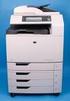 HP Color LaserJet CM6040/CM6030 MFP Series Analog Fax Accessory 300 Fax Guide Copyright and License 2008 Copyright Hewlett-Packard Development Company, L.P. Reproduction, adaptation, or translation without
CentreWare Internet Services Setup and User Guide. Version 2.0
 CentreWare Internet Services Setup and User Guide Version 2.0 Xerox Corporation Copyright 1999 by Xerox Corporation. All rights reserved. XEROX, The Document Company, the digital X logo, CentreWare, and
Version 6.x Generic. KYOCERA KX DRIVER 6.x USER GUIDE
 Version 6.x Generic KYOCERA KX DRIVER 6.x USER GUIDE Legal Notes Unauthorized reproduction of all or part of this guide is prohibited. The information in this guide is subject to change without notice.
DIGITAL MULTIFUNCTIONAL SYSTEM
 MODEL: MX-M283N MX-M363N MX-M453N MX-M503N DIGITAL MULTIFUNCTIONAL SYSTEM Software Setup Guide BEFORE INSTALLING THE SOFTWARE SETUP IN A WINDOWS ENVIRONMENT SETUP IN A MACINTOSH ENVIRONMENT TROUBLESHOOTING
Document Number: 13004.25-4.5.2-6/15/2012
 Mobile Android App User Guide Copyright 2012 icontrol Networks, Inc. All rights reserved. No reproduction in whole or in part without prior written approval. icontrol Networks, icontrol, and icontrol logo
NEC Express5800 Series NEC ESMPRO AlertManager User's Guide
 NEC Express5800 Series NEC ESMPRO AlertManager User's Guide 7-2006 ONL-4152aN-COMMON-128-99-0606 PROPRIETARY NOTICE AND LIABILITY DISCLAIMER The information disclosed in this document, including all designs
Xerox 700 Digital Color Press with Integrated Fiery Color Server. Utilities
 Xerox 700 Digital Color Press with Integrated Fiery Color Server Utilities 2008 Electronics for Imaging, Inc. The information in this publication is covered under Legal Notices for this product. 45072726
HP Device Manager 4.6
 Technical white paper HP Device Manager 4.6 Installation and Update Guide Table of contents Overview... 3 HPDM Server preparation... 3 FTP server configuration... 3 Windows Firewall settings... 3 Firewall
Legal Notes. Regarding Trademarks. Models supported by the KX printer driver. 2011 KYOCERA MITA Corporation
 Legal Notes Unauthorized reproduction of all or part of this guide is prohibited. The information in this guide is subject to change without notice. We cannot be held liable for any problems arising from
user guide hp LaserJet 1200 series products
 user guide hp LaserJet 1200 series products HP LaserJet 1200 Series Printer and Print Copy Scan Products User Guide Copyright Hewlett-Packard Company 2002 All Rights Reserved. Reproduction, adaptation,
HP USB Smartcard CCID Keyboard. User Guide
 HP USB Smartcard CCID Keyboard User Guide Copyright 2013 Hewlett-Packard Development Company, L.P. The information contained herein is subject to change without notice. Microsoft, Windows, and Windows
READ ME FIRST. Installation Instructions for TROY Font DIMM Printer and Font DIMM Kit
 READ ME FIRST Installation Instructions for TROY Font DIMM Printer and Font DIMM Kit (For use with Hewlett-Packard LaserJet 1300, 1320, 2300, 4100, 4200, 4300, 8100, 8150, and 9000 Printers) Introduction
HP Accessibility Guide
 HP Accessibility Guide At HP, we re committed to improving our customers experience with products, information and services that are easier to access and simpler to use. We consider the needs of all our
P C7800 - KIP C7800 Operator Guide - Touchscreen
 P C7800 - KIP C7800 Operator Guide - Touchscreen P C7800 - Introduction The KIP C7800 is a hybrid Color & B/W LED production printing system based on a unique design that lowers the individual operational
Diamante WiFi Wireless Communication User Guide. CradlePoint CTR35
 Diamante WiFi Wireless Communication User Guide CradlePoint CTR35 Release: July 2011; March 2011 Patent Pending. Copyright 2011, Stenograph, L.L.C. All Rights Reserved. Printed in U.S.A. Stenograph, L.L.C.
HP Advanced Wireless Docking Station. User Guide
 HP Advanced Wireless Docking Station User Guide Copyright 2014, 2015 Hewlett-Packard Development Company, L.P. Intel is a trademark of Intel Corporation in the U.S. and other countries. Windows and Windows
SMTP PROXY SERVER INSTALLATION FOR HP QUICKPAGE
 SMTP PROXY SERVER INSTALLATION FOR HP QUICKPAGE INTRODUCTION To ensure accurate billing, the HP QuickPage program requires collection of the metered information from the printers and multifunction products
SOFTWARE SETUP GUIDE DIGITAL MULTIFUNCTIONAL SYSTEM
 SOFTWARE SETUP GUIDE DIGITAL MULTIFUNCTIONAL SYSTEM INTRODUCTION CONTENTS INSTALLING THE SOFTWARE (THAT ACCOMPANIES THE MACHINE) INSTALLING THE SOFTWARE (FOR OPTIONS) TROUBLESHOOTING AND USEFUL INFORMATION
3.5 EXTERNAL NETWORK HDD. User s Manual
 3.5 EXTERNAL NETWORK HDD User s Manual Table of Content Before You Use Key Features H/W Installation Illustration of Product LED Definition NETWORK HDD Assembly Setup the Network HDD Home Disk Utility
Hosting Users Guide 2011
 Hosting Users Guide 2011 eofficemgr technology support for small business Celebrating a decade of providing innovative cloud computing services to small business. Table of Contents Overview... 3 Configure
LASERJET ENTERPRISE 600 M601, M602, AND M603 SERIES PRINTER. User Guide
 LASERJET ENTERPRISE 600 M601, M602, AND M603 SERIES PRINTER User Guide HP LaserJet Enterprise 600 M601, M602, and M603 Series Printer User Guide Copyright and License 2011 Copyright Hewlett-Packard Development
Color LaserJet Pro M252 User Guide
 Color LaserJet Pro M252 User Guide M252n M252dw www.hp.com/support/colorljm252 HP Color LaserJet Pro M252 User Guide Copyright and License 2015 Copyright Hewlett-Packard Development Company, L.P. Reproduction,
SOFTWARE SETUP GUIDE DIGITAL MULTIFUNCTIONAL SYSTEM
 SOFTWARE SETUP GUIDE DIGITAL MULTIFUNCTIONAL SYSTEM INTRODUCTION CONTENTS INSTALLING THE SOFTWARE (THAT ACCOMPANIES THE MACHINE) INSTALLING THE SOFTWARE (FOR OPTIONS) TROUBLESHOOTING AND USEFUL INFORMATION
SA-9600 Surface Area Software Manual
 SA-9600 Surface Area Software Manual Version 4.0 Introduction The operation and data Presentation of the SA-9600 Surface Area analyzer is performed using a Microsoft Windows based software package. The
VM-4 USB Desktop Audio Device Installation Guide
 VM-4 USB Desktop Audio Device Installation Guide THE POSSIBILITIES ARE ENDLESS. 9 Austin Drive, Marlborough, CT 06447 (860) 295-8100 www.essentialtel.com [email protected] Table of Contents Introduction...3
HP BladeSystem Management Pack version 1.0 for Microsoft System Center Essentials Troubleshooting Assistant
 HP BladeSystem Management Pack version 1.0 for Microsoft System Center Essentials Troubleshooting Assistant Part Number 465399-001 November 2007 (First Edition) Copyright 2007 Hewlett-Packard Development
Getting Started. HP Retail Systems
 Getting Started HP Retail Systems Copyright 2012, 2013 Hewlett-Packard Development Company, L.P. The information contained herein is subject to change without notice. Microsoft and Windows are U.S. registered
910 Series Photo Jetprinter. Setup Solutions
 910 Series Photo Jetprinter Setup Solutions Edition: September 2004 The following paragraph does not apply to any country where such provisions are inconsistent with local law: LEXMARK INTERNATIONAL, INC.,
II. Monochrome Image Quality Problems
 I. Introduction Summary of Assumptions of This Document II. Monochrome Image Quality Problems Blank Print... 1 Light Print... 2 Backgrounding... 3 Black Print (edge to edge)... 4 Fine Vertical (black)
VM-8 USB Desktop Audio Device Installation Guide
 VM-8 USB Desktop Audio Device Installation Guide THE POSSIBILITIES ARE ENDLESS. 9 Austin Drive, Marlborough, CT 06447 (860) 295-8100 www.essentialtel.com [email protected] Table of Contents Introduction...3
Diamante WiFi Wireless Communication User Guide. Linksys E1200
 Diamante WiFi Wireless Communication User Guide Linksys E1200 Release: February 2012; August 2011; February 2011 Patent Pending. Copyright 2012, Stenograph, L.L.C. All Rights Reserved. Printed in U.S.A.
Router Setup Manual. NETGEAR, Inc. 4500 Great America Parkway Santa Clara, CA 95054 USA 208-10060-01 2006-03-17
 NETGEAR, Inc. 4500 Great America Parkway Santa Clara, CA 95054 USA 208-10060-01 2006-03-17 2006 by NETGEAR, Inc. All rights reserved. Trademarks NETGEAR is a trademark of Netgear, Inc. Microsoft, Windows,
P3000 Printer Guide. 566372-001 Rev A. January 2006
 P3000 Printer Guide 566372-001 Rev A January 2006 Information resources for the P3000 ID Card Printer Installation Message Help To install one printer to a PC using a USB cable, see the Installation Map,
7130cdn Professional Color Printer User Guide Guide d'utilisation Guida dell'utente Benutzerhandbuch Guía del usuario
 7130cdn Professional Color Printer Guide d'utilisation Guida dell'utente Benutzerhandbuch Guía del usuario www.support.dell.com Copyright protection claimed includes all forms of matters of copyrightable
If you are unable to set up your Linksys Router by using one of the above options, use the steps below to manually configure your router.
 This article describes how to manually configure a Linksys Router for broadband DSL that uses PPPoE (Point-to-Point Protocol over Ethernet) for authentication. For automatic configuration options, please
UFR II Driver Guide. UFR II Driver Ver. 2.20 ENG
 UFR II Driver Guide UFR II Driver Ver. 2.20 Please read this guide before operating this product. After you finish reading this guide, store it in a safe place for future reference. ENG 0 Ot UFR II Driver
LASERJET PRO CP1520 COLOR PRINTER SERIES. Service Manual
 LASERJET PRO CP1520 COLOR PRINTER SERIES Service Manual HP LaserJet Pro CP1520 Color Printer series Service Manual Copyright and License 2010 Copyright Hewlett-Packard Development Company, L.P. Reproduction,
HP LaserJet Pro Color MFP M476. Repair Manual. M476dn M476dw M476nw. www.hp.com/support/colorljmfpm476 www.hp.com/support
 HP LaserJet Pro Color MFP M476 Repair Manual M476dn M476dw M476nw www.hp.com/support/colorljmfpm476 www.hp.com/support HP Color LaserJet Pro MFP M476 Replace and Repair Manual Copyright and License 2014
LASERJET ENTERPRISE 600 M601, M602, AND M603 SERIES PRINTER. User Guide
 LASERJET ENTERPRISE 600 M601, M602, AND M603 SERIES PRINTER User Guide HP LaserJet Enterprise 600 M601, M602, and M603 Series Printer User Guide Copyright and License 2011 Copyright Hewlett-Packard Development
Additional Requirements for ARES-G2 / RSA-G2. One Ethernet 10 Base T/100 Base TX network card required for communication with the instrument.
 TA Instruments TRIOS Software Installation Instructions Installation Requirements Your TRIOS Instrument Control software includes all the components necessary to install or update the TRIOS software, as
Operating Instructions - Recovery, Backup and Troubleshooting Guide
 Personal Computer Operating Instructions - Recovery, Backup and Troubleshooting Guide Please create your recovery discs immediately after setup. Please read this manual carefully before using your product.
HP VMware ESXi 5.0 and Updates Getting Started Guide
 HP VMware ESXi 5.0 and Updates Getting Started Guide Abstract This guide is intended to provide setup information for HP VMware ESXi. HP Part Number: 616896-002 Published: August 2011 Edition: 1 Copyright
Royal Mail Despatch Manager Online Printer Installation Guide
 Royal Mail Despatch Manager Online Printer Installation Guide Getting you started Thank you for opting to use Royal Mail s Despatch Manager Online (DMO) system. To help get you started successfully please
HL2170W Windows Network Connection Repair Instructions
 Difficulty printing from your PC can occur for various reasons. The most common reason a networked Brother machine may stop printing, is because the connection between the computer and the Brother machine
HP Intelligent Management Center v7.1 Virtualization Monitor Administrator Guide
 HP Intelligent Management Center v7.1 Virtualization Monitor Administrator Guide Abstract This guide describes the Virtualization Monitor (vmon), an add-on service module of the HP Intelligent Management
LASERJET PRO CP1520 COLOR PRINTER SERIES. User Guide
 LASERJET PRO CP1520 COLOR PRINTER SERIES User Guide HP LaserJet Pro CP1520 color printer series User Guide Copyright and License 2010 Copyright Hewlett-Packard Development Company, L.P. Reproduction,
N600 WiFi USB Adapter
 Model WNDA3100v3 User Manual December 2014 202-11470-01 350 East Plumeria Drive San Jose, CA 95134 USA Support Thank you for selecting NETGEAR products. After installing your device, locate the serial
Intel Unite Solution. Standalone User Guide
 Intel Unite Solution Standalone User Guide Legal Disclaimers & Copyrights All information provided here is subject to change without notice. Contact your Intel representative to obtain the latest Intel