
Color LaserJet Pro M252 User Guide
|
|
|
- Tyrone Dean
- 9 years ago
- Views:
Transcription
1 Color LaserJet Pro M252 User Guide M252n M252dw

2

3 HP Color LaserJet Pro M252 User Guide

4 Copyright and License 2015 Copyright Hewlett-Packard Development Company, L.P. Reproduction, adaptation, or translation without prior written permission is prohibited, except as allowed under the copyright laws. The information contained herein is subject to change without notice. The only warranties for HP products and services are set forth in the express warranty statements accompanying such products and services. Nothing herein should be construed as constituting an additional warranty. HP shall not be liable for technical or editorial errors or omissions contained herein. Trademark Credits Adobe, Adobe Photoshop, Acrobat, and PostScript are trademarks of Adobe Systems Incorporated. Apple and the Apple logo are trademarks of Apple Computer, Inc., registered in the U.S. and other countries. ipod is a trademark of Apple Computer, Inc. ipod is for legal or rightholderauthorized copying only. Don't steal music. Microsoft, Windows, Windows XP, and Windows Vista are U.S. registered trademarks of Microsoft Corporation. UNIX is a registered trademark of The Open Group. Part number: B4A Edition 1, 4/2015

5 Table of contents 1 Product overview... 1 Product views... 2 Product front view... 2 Product back view line control-panel view (M252n model)... 4 Touchscreen control-panel view (M252dw model)... 5 Home screen layout... 6 How to use the touchscreen control panel... 7 Product specifications... 8 Introduction... 8 Technical specifications... 8 Supported operating systems... 8 Mobile printing solutions Product dimensions Power consumption, electrical specifications, and acoustic emissions Operating-environment range Product hardware setup and software installation Paper trays Load paper into the single-sheet slot (Tray 1) Introduction Load paper into the single-sheet priority feed slot Load an envelope in the single-sheet priority feed slot (Tray 1) Tray 1 paper orientation Load paper into Tray Introduction Load paper into Tray Load envelopes in Tray Tray 2 paper orientation ENWW iii

6 3 Supplies, accessories, and parts Order supplies, accessories, and parts Ordering Supplies and accessories Customer self-repair parts Replace the toner cartridges Introduction Remove and replace the toner cartridges Print Print tasks (Windows) How to print (Windows) Automatically print on both sides (Windows) Manually print on both sides (Windows) Print multiple pages per sheet (Windows) Select the paper type (Windows) Print tasks (OS X) How to print (OS X) Automatically print on both sides (OS X) Manually print on both sides (OS X) Print multiple pages per sheet (OS X) Select the paper type (OS X) Mobile printing Introduction Wi-Fi Direct and NFC Printing (wireless models only) HP eprint via HP eprint software AirPrint Android embedded printing Use walk-up USB printing (touchscreen models only) Manage the product Use HP Web Services applications (touchscreen models only) Change the product connection type (Windows) Advanced configuration with HP Embedded Web Server (EWS) and HP Device Toolbox (Windows) Advanced configuration with HP Utility for OS X Open HP Utility HP Utility features Configure IP network settings Introduction iv ENWW

7 Printer sharing disclaimer View or change network settings Rename the product on a network Manually configure IPv4 TCP/IP parameters from the control panel Product security features Introduction Assign or change the system password using the HP Embedded Web Server Economy settings Introduction Print with EconoMode Configure the Sleep/Auto Off After setting Set the Shut Down After delay and configure the product to use 1 watt or less of power Configure the Delay Shut Down setting HP Web Jetadmin Update the firmware Method one: Update the firmware using the control panel Method two: Update the firmware using the Firmware Update Utility Solve problems Customer support Control panel help system (touchscreen models only) Restore the factory-set defaults A Cartridge is low or Cartridge is very low message displays on the product control panel Change the Very Low settings Order supplies Product does not pick up paper or misfeeds Introduction The product does not pick up paper The product picks up multiple sheets of paper Clear paper jams Introduction Experiencing frequent or recurring paper jams? Paper jam locations Clear paper jams in the single-sheet slot (Tray 1) Clear paper jams in Tray Clear paper jams in the rear door and the fuser area Clear paper jams in the output bin Clear paper jams in the duplexer (duplex models only) Improve print quality Introduction Print from a different software program ENWW v

8 Check the paper-type setting for the print job Check the paper type setting (Windows) Check the paper type setting (OS X) Check toner-cartridge status Print and interpret the print quality page Clean the product Print a cleaning page Visually inspect the toner cartridge Check paper and the printing environment Step one: Use paper that meets HP specifications Step two: Check the environment Adjust color settings (Windows) Calibrate the product to align the colors Check the EconoMode settings Try a different print driver Solve wired network problems Introduction Poor physical connection The computer is using the incorrect IP address for the product The computer is unable to communicate with the product The product is using incorrect link and duplex settings for the network New software programs might be causing compatibility problems The computer or workstation might be set up incorrectly The product is disabled, or other network settings are incorrect Solve wireless network problems Introduction Wireless connectivity checklist The product does not print after the wireless configuration completes The product does not print, and the computer has a third-party firewall installed The wireless connection does not work after moving the wireless router or product Cannot connect more computers to the wireless product The wireless product loses communication when connected to a VPN The network does not appear in the wireless networks list The wireless network is not functioning Perform a wireless network diagnostic test Reduce interference on a wireless network Index vi ENWW

9 1 Product overview Product views Product specifications Product hardware setup and software installation For more information: Go to HP's all-inclusive help for the product includes the following information: Install and configure Learn and use Solve problems Download software updates Join support forums Find warranty and regulatory information ENWW 1

10 Product views Product front view Product back view 2-line control-panel view (M252n model) Touchscreen control-panel view (M252dw model) Product front view line backlit control panel (M252n model) Color touchscreen control panel (M252dw model, shown above) 2 Output bin 3 Walk-up USB port for printing without a computer (M252dw model) 4 Near field communication (NFC) internal antenna 5 Output bin extension 6 Front door (provides toner cartridge access) 7 Power on/off button 8 Single-sheet priority feed slot (Tray 1) 9 Main input tray (Tray 2) 2 Chapter 1 Product overview ENWW

11 Product back view Rear door (provides access for clearing jams) 2 Power connection 3 USB interface port 4 Ethernet port 5 Duplexer (duplex models only) 6 Serial number and product number label ENWW Product views 3

12 2-line control-panel view (M252n model) line control panel display This screen displays menus and product information. 2 OK button Press the OK button for the following actions: Open the control-panel menus. Open a submenu displayed on the control-panel display. Select a menu item. Clear some errors. Begin a print job in response to a control-panel prompt (for example, when the message Press [OK] to continue appears on the control-panel display). 3 Left arrow button Use this button to navigate through the menus or to decrease a value that appears on the display. 4 Right arrow button Use this button to navigate through the menus or to increase a value that appears on the display. 5 Back arrow button Use this button for the following actions: Exit the control-panel menus. Scroll back to a previous menu in a submenu list. Scroll back to a previous menu item in a submenu list (without saving changes to the menu item). 6 Cancel button Press this button to cancel a print job or to exit the control panel menus. 4 Chapter 1 Product overview ENWW
![Begin a print job in response to a control-panel prompt (for example, when the message Press [OK] to continue appears on the control-panel display).](/docs-images/48/18825887/images/page_12.jpg "3 Left arrow button Use this button to navigate through the menus or to decrease a value that appears on the display.")
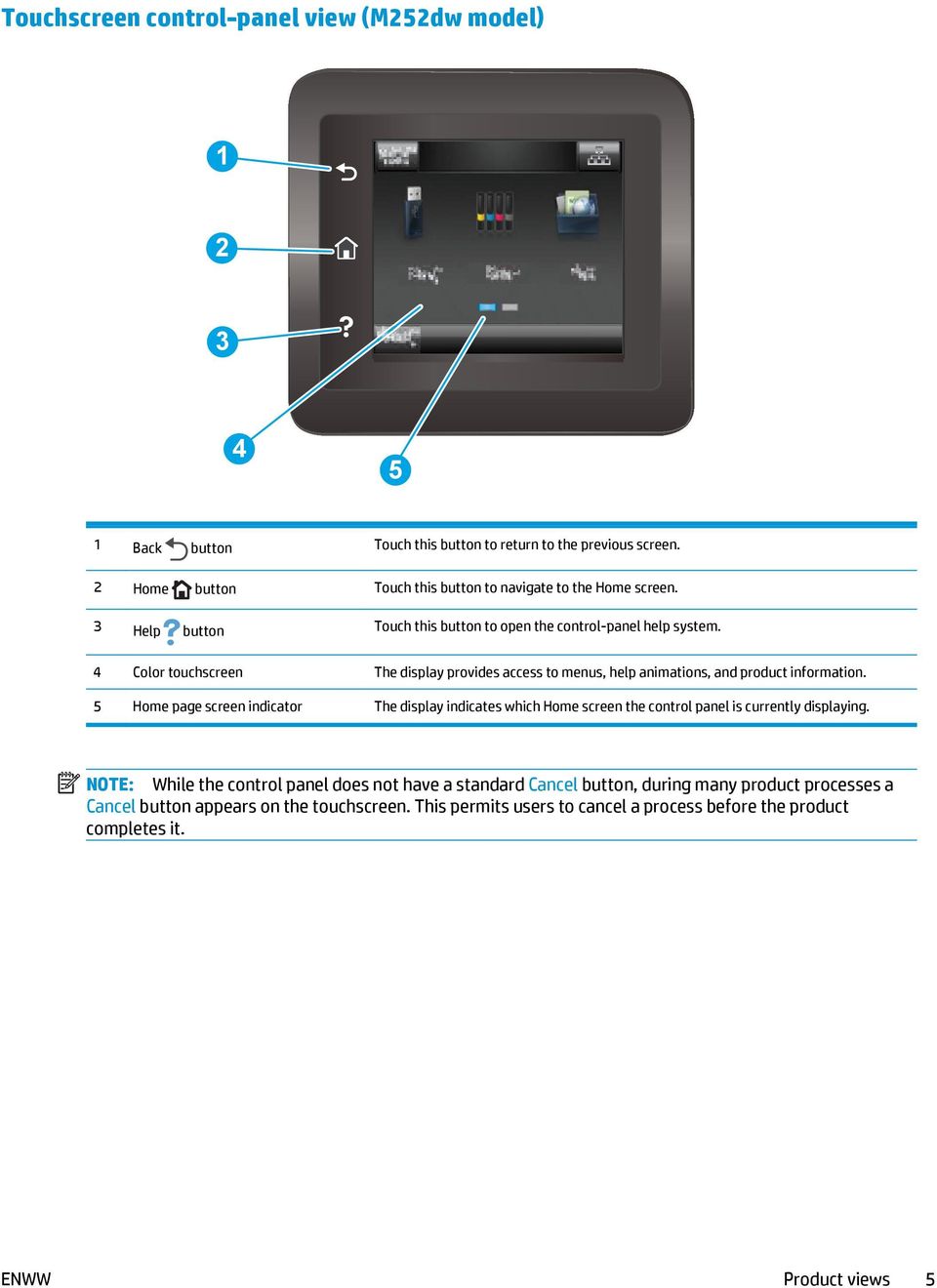
13 Touchscreen control-panel view (M252dw model) Back button Touch this button to return to the previous screen. 2 Home button Touch this button to navigate to the Home screen. 3 Help button Touch this button to open the control-panel help system. 4 Color touchscreen The display provides access to menus, help animations, and product information. 5 Home page screen indicator The display indicates which Home screen the control panel is currently displaying. NOTE: While the control panel does not have a standard Cancel button, during many product processes a Cancel button appears on the touchscreen. This permits users to cancel a process before the product completes it. ENWW Product views 5
14 Home screen layout The Home screen provides access to the product features and indicates the current status of the product. Return to the Home screen at any time by touching the Home button on the product control panel. NOTE: The features that appear on the Home screen can vary, depending on the product configuration Reset button Touch this button to reset any temporary job settings to the default product settings. 2 Connection Information button Touch this button to open the Connection Information menu, which provides network information. The button appears as either a wired network icon or a wireless network icon, depending on the type of network to which the product is connected. 3 Product status This screen area provides information about the overall product status. 4 USB button Touch this button to open the USB Flash Drive menu. 5 Supplies button Touch this button to view information about supplies status. 6 Apps button Touch this button to open the Apps menu to print directly from select Web applications. 7 Setup button Touch this button to open the Setup menu. 6 Chapter 1 Product overview ENWW

15 How to use the touchscreen control panel Use the following actions to use the product touchscreen control panel. Action Description Example Touch Touch an item on the screen to select that item or open that menu. Also, when scrolling through menus, briefly touch the screen to stop the scrolling. Touch the Setup Setup menu. button to open the Swipe Touch the screen and then move the finger horizontally to move the screen sideways. Swipe the Home screen to access the Setup button. Scroll Touch the screen, and then, without lifting the finger, move the finger vertically to move the screen. Scroll through the Setup menu. ENWW Product views 7

16 Product specifications Introduction IMPORTANT: The following specifications are correct at the time of publication, but they are subject to change. For current information, see Technical specifications Supported operating systems Mobile printing solutions Product dimensions Power consumption, electrical specifications, and acoustic emissions Operating-environment range Technical specifications Model name Product number Paper handling Single-sheet priority feed slot (Tray 1) Tray 2 (150-sheet capacity) Automatic duplex printing M252n B4A21A Not available M252dw B4A22A Connectivity 10/100/1000 Ethernet LAN connection with IPv4 and IPv6 Hi-Speed USB 2.0 Easy-access USB port Print server for wireless network connectivity HP near field communication (NFC) and Wi-Fi Direct for printing from mobile devices Not available Not available Not available Control-panel display and input 2-line backlit control panel Not available Color touchscreen control panel Not available Print Prints 18 pages per minute (ppm) on A4 and 19 ppm on letter-size paper Easy-access USB printing (no computer required) Not available Supported operating systems The following information applies to the product-specific Windows PCL 6 and OS X print drivers and to the inbox software installation CD. 8 Chapter 1 Product overview ENWW

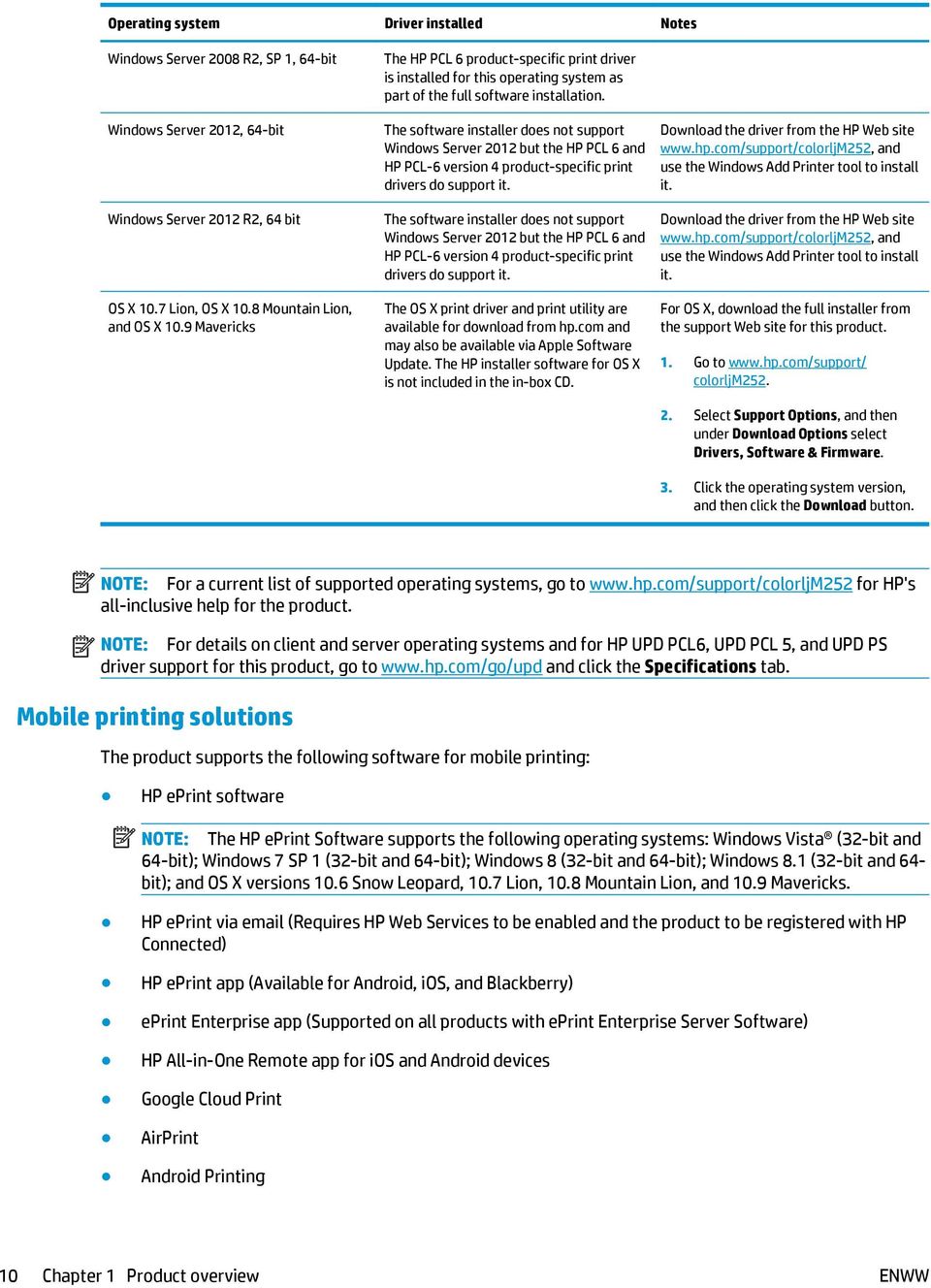
17 Windows: The HP Software Installer CD installs the HP PCL.6 or HP PCL 6 driver depending on the Windows operating system along with optional software when using the full software installer. Mac computers and OS X: Mac computers and Apple mobile devices are supported with this product. The OS X print driver and print utility are available for download from hp.com and may also be available via Apple Software Update. The HP installer software for OS X is not included in the in-box CD. Follow these steps to download the OS X installer software: 1. Go to 2. Select Support Options, and then under Download Options select Drivers, Software & Firmware. 3. Click the operating system version, and then click the Download button. Operating system Driver installed Notes Windows XP SP3 or later, 32-bit Windows Vista, 32-bit Windows Server 2003 SP2 or later, 32-bit Windows 7 SP1 or later, 32-bit and 64-bit Windows 8, 32-bit and 64-bit Windows 8.1, 32-bit and 64-bit Windows Server 2008 SP2, 32-bit Windows Server 2008 SP2, 64-bit The HP PCL 6 product-specific print driver is installed for this operating system as part of the basic software installation. The basic installer installs the driver only. The HP PCL 6 product-specific print driver is installed for this operating system as part of the basic software installation. The basic installer installs the driver only. The HP PCL 6 product-specific print driver is installed for this operating system as part of the basic software installation. The basic installer installs the driver only. The HP PCL 6 product-specific print driver is installed for this operating system as part of the full software installation. The HP PCL 6 product-specific print driver is installed for this operating system as part of the full software installation. The HP PCL 6 product-specific print driver is installed for this operating system as part of the full software installation. The HP PCL.6 product-specific print driver is installed for this operating system as part of the basic software installation. The HP PCL.6 product-specific print driver is installed for this operating system as part of the basic software installation. The full software installation is not supported for this operating system. Use UPD drivers for 64-bit operating systems. Microsoft retired mainstream support for Windows XP in April HP will continue to provide best effort support for the discontinued XP operating system. The full software installation is not supported for this operating system. Use UPD drivers for 64-bit operating systems. The full software installation is not supported for this operating system. Use UPD drivers for 64-bit operating systems. Microsoft retired mainstream support for Windows Server 2003 in July HP will continue to provide best-effort support for the discontinued Server 2003 operating system. Windows 8 RT support is provided through Microsoft IN OS Version 4, 32- bit driver. Windows 8.1 RT support is provided through Microsoft IN OS Version 4, 32- bit driver. ENWW Product specifications 9

18 Operating system Driver installed Notes Windows Server 2008 R2, SP 1, 64-bit Windows Server 2012, 64-bit Windows Server 2012 R2, 64 bit OS X 10.7 Lion, OS X 10.8 Mountain Lion, and OS X 10.9 Mavericks The HP PCL 6 product-specific print driver is installed for this operating system as part of the full software installation. The software installer does not support Windows Server 2012 but the HP PCL 6 and HP PCL-6 version 4 product-specific print drivers do support it. The software installer does not support Windows Server 2012 but the HP PCL 6 and HP PCL-6 version 4 product-specific print drivers do support it. The OS X print driver and print utility are available for download from hp.com and may also be available via Apple Software Update. The HP installer software for OS X is not included in the in-box CD. Download the driver from the HP Web site and use the Windows Add Printer tool to install it. Download the driver from the HP Web site and use the Windows Add Printer tool to install it. For OS X, download the full installer from the support Web site for this product. 1. Go to colorljm Select Support Options, and then under Download Options select Drivers, Software & Firmware. 3. Click the operating system version, and then click the Download button. NOTE: For a current list of supported operating systems, go to for HP's all-inclusive help for the product. NOTE: For details on client and server operating systems and for HP UPD PCL6, UPD PCL 5, and UPD PS driver support for this product, go to and click the Specifications tab. Mobile printing solutions The product supports the following software for mobile printing: HP eprint software NOTE: The HP eprint Software supports the following operating systems: Windows Vista (32-bit and 64-bit); Windows 7 SP 1 (32-bit and 64-bit); Windows 8 (32-bit and 64-bit); Windows 8.1 (32-bit and 64- bit); and OS X versions 10.6 Snow Leopard, 10.7 Lion, 10.8 Mountain Lion, and 10.9 Mavericks. HP eprint via (Requires HP Web Services to be enabled and the product to be registered with HP Connected) HP eprint app (Available for Android, ios, and Blackberry) eprint Enterprise app (Supported on all products with eprint Enterprise Server Software) HP All-in-One Remote app for ios and Android devices Google Cloud Print AirPrint Android Printing 10 Chapter 1 Product overview ENWW
19 Product dimensions Figure 1-1 Dimensions for the M252n models Product fully closed Product fully open 1. Height mm (9.3 in) mm (9.3 in) 2. Depth 384 mm (15.1 in) 849 mm (33.4 in) 3. Width 392 mm (15.4 in) 392 mm (15.4 in) Weight (with cartridges) 13.4 kg (29.5 lb) Figure 1-2 Dimensions for the M252dw models Product fully closed Product fully open 1. Height mm (9.3 in) 285 mm (11.2 in) 2. Depth 417 mm (16.4 in) 1002 mm (39.4 in) 3. Width 392 mm (15.4 in) 392 mm (15.4 in) Weight (with cartridges) 14.2 kg (31.5 lb) ENWW Product specifications 11

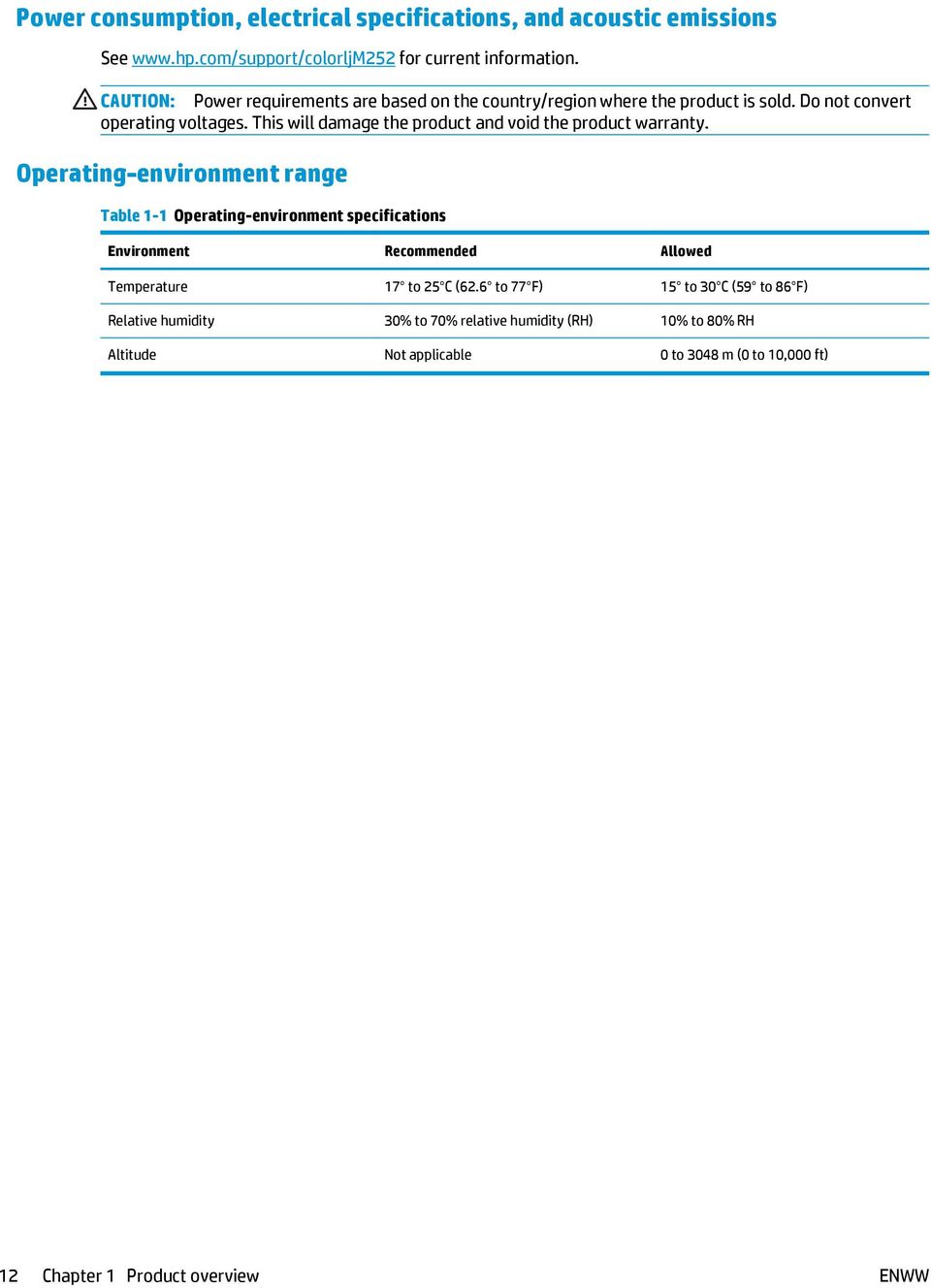
20 Power consumption, electrical specifications, and acoustic emissions See for current information. CAUTION: Power requirements are based on the country/region where the product is sold. Do not convert operating voltages. This will damage the product and void the product warranty. Operating-environment range Table 1-1 Operating-environment specifications Environment Recommended Allowed Temperature 17 to 25 C (62.6 to 77 F) 15 to 30 C (59 to 86 F) Relative humidity 30% to 70% relative humidity (RH) 10% to 80% RH Altitude Not applicable 0 to 3048 m (0 to 10,000 ft) 12 Chapter 1 Product overview ENWW
21 Product hardware setup and software installation For basic setup instructions, see the Hardware Installation Guide that came with the product. For additional instructions, go to HP support on the Web. Go to for HP's all-inclusive help for the product. Find the following support: Install and configure Learn and use Solve problems Download software updates Join support forums Find warranty and regulatory information ENWW Product hardware setup and software installation 13
22 14 Chapter 1 Product overview ENWW
23 2 Paper trays Load paper into the single-sheet slot (Tray 1) Load paper into Tray 2 For more information: Go to HP's all-inclusive help for the product includes the following information: Install and configure Learn and use Solve problems Download software updates Join support forums Find warranty and regulatory information ENWW 15
24 Load paper into the single-sheet slot (Tray 1) Introduction Use the single-sheet priority feed slot to print single-page documents, documents that require multiple paper types, or envelopes. Load paper into the single-sheet priority feed slot Load an envelope in the single-sheet priority feed slot (Tray 1) Tray 1 paper orientation Load paper into the single-sheet priority feed slot 1. Move the paper width guides in the single-sheet priority feed slot outward. 2. Place the top edge of the sheet at the opening, and then adjust the side guides so that they lightly touch the sheet, but do not bend it. 16 Chapter 2 Paper trays ENWW
25 3. Insert the single sheet into the slot and hold it. The product will pull the sheet partially into the paper path. For information about how to orient the paper, see Tray 1 paper orientation on page 19. NOTE: Depending on the size of the paper, you might need to support the sheet with two hands until the sheet advances into the product. 4. At the computer, begin the printing process from the software application. Make sure that the driver is set to the correct paper type and size for the paper being printed from the single-sheet priority feed slot. Load an envelope in the single-sheet priority feed slot (Tray 1) 1. Move the paper width guides in the single-sheet priority feed slot outward. ENWW Load paper into the single-sheet slot (Tray 1) 17
26 2. Place the right edge of the envelope, face-up, at the opening, and then adjust the side guides so that they lightly touch the envelope, but do not bend it. 3. Insert the envelope into the slot and hold it. The product will pull the envelope partially into the paper path.. NOTE: Depending on the size of the envelope, you might need to support it with two hands until the envelope advances into the product. 4. At the computer, begin the printing process from the software application. Make sure that the driver is set to the correct paper type and size for the envelope being printed from the single-sheet priority feed slot. 18 Chapter 2 Paper trays ENWW
27 123 Tray 1 paper orientation When using paper that requires a specific orientation, load it according to the information in the following table. Paper type Output How to load paper Letterhead or preprinted 1-sided printing Face-up Top edge leading into the product 123 Letterhead or preprinted 2-sided printing Face-down Top edge away from the product Prepunched 1-sided printing or 2-sided printing Face-up Holes toward the left side of the product ENWW Load paper into the single-sheet slot (Tray 1) 19
28 Load paper into Tray 2 Introduction The following information describes how to load paper in Tray 2. Load paper into Tray 2 Load envelopes in Tray 2 Tray 2 paper orientation Load paper into Tray 2 1. Open the tray. 2. Adjust the paper guides by sliding the guides to the size of the paper being used. 20 Chapter 2 Paper trays ENWW
29 3. To load legal-size paper, extend the tray front by pressing the blue latch and pulling the front of the tray. NOTE: When loaded with legal-size paper, Tray 2 extends from the front of the product approximately 51 mm (2 in). 4. Load paper into the tray. ENWW Load paper into Tray 2 21
30 5. Make sure that the paper stack is flat at all four corners. Slide the paper length and width guides so that they are against the stack of paper. NOTE: To prevent jams, do not overfill the tray. Be sure that the top of the stack is below the tray full indicator. 6. After making sure that the paper stack is below the tray full indicator, close the tray. Load envelopes in Tray 2 1. Open the tray. 22 Chapter 2 Paper trays ENWW
31 2. Adjust the paper guides by sliding the guides to the size of the envelopes being used. 3. Load envelopes into the tray. ENWW Load paper into Tray 2 23
32 4. Make sure that the envelope stack is flat at all four corners. Slide the length and width guides so that they are against the stack. NOTE: To prevent jams, do not overfill the tray. Be sure that the top of the stack is below the tray full indicator. CAUTION: Loading more than five envelopes in Tray 2 can result in jams. 5. After making sure that the stack is below the tray full indicator, close the tray. 24 Chapter 2 Paper trays ENWW
33 123 Tray 2 paper orientation When using paper that requires a specific orientation, load it according to the information in the following table. Paper type Output How to load paper Letterhead or preprinted 1-sided printing Face-up Top edge toward the product 123 Letterhead or preprinted 2-sided printing Face-down Top edge away from the product Prepunched 1-sided printing or 2-sided printing Face-up Holes toward the left side of the product ENWW Load paper into Tray 2 25
34 26 Chapter 2 Paper trays ENWW
35 3 Supplies, accessories, and parts Order supplies, accessories, and parts Replace the toner cartridges For more information: Go to HP's all-inclusive help for the product includes the following information: Install and configure Learn and use Solve problems Download software updates Join support forums Find warranty and regulatory information ENWW 27
36 Order supplies, accessories, and parts Ordering Order supplies and paper Order genuine HP parts or accessories Order through service or support providers Order using the HP Embedded Web Server (EWS) Contact an HP-authorized service or support provider. To access, in a supported Web browser on the computer, enter the product IP address or host name in the address/url field. The EWS contains a link to the HP SureSupply Web site, which provides options for purchasing Original HP supplies. Supplies and accessories Item Description Cartridge number Part number Supplies HP 201A Black Original LaserJet Toner Cartridge Standard-capacity replacement black toner cartridge 201A CF400A HP 201X High Yield Black Original LaserJet Toner Cartridge High-capacity replacement black toner cartridge 201X CF400X HP 201A Cyan Original LaserJet Toner Cartridge Standard-capacity replacement cyan toner cartridge 201A CF401A HP 201X High Yield Cyan Original LaserJet Toner Cartridge High-capacity replacement cyan toner cartridge 201X CF401X HP 201A Yellow Original LaserJet Toner Cartridge Standard-capacity replacement yellow toner cartridge 201A CF402A HP 201X High Yield Yellow Original LaserJet Toner Cartridge High-capacity replacement yellow toner cartridge 201X CF402X HP 201A Magenta Original LaserJet Toner Cartridge Standard-capacity replacement magenta toner cartridge 201A CF403A HP 201X High Yield Magenta Original LaserJet Toner Cartridge High-capacity replacement magenta toner cartridge 201X CF403X Accessories USB 2.0 printer cable A-to-B cable (2-meter standard) C6518A Customer self-repair parts Customer Self-Repair (CSR) parts are available for many HP LaserJet products to reduce repair time. More information about the CSR program and benefits can be found at and Genuine HP replacement parts can be ordered at or by contacting an HP-authorized service or support provider. When ordering, one of the following will be needed: part number, serial number (found on back of printer), product number, or product name. 28 Chapter 3 Supplies, accessories, and parts ENWW
37 Parts listed as Mandatory self-replacement are to be installed by customers, unless you are willing to pay HP service personnel to perform the repair. For these parts, on-site or return-to-depot support is not provided under the HP product warranty. Parts listed as Optional self-replacement can be installed by HP service personnel at your request for no additional charge during the product warranty period. Item Description Self-replacement options Part number Single-sheet priority feed slot tray Replacement tray for single-sheet priority feed slot (Tray 1) Mandatory RM sheet paper input tray Replacement cassette for Tray 2 Mandatory RM ENWW Order supplies, accessories, and parts 29
38 Replace the toner cartridges Introduction This product indicates when the toner cartridge level is low. The actual toner cartridge life remaining can vary. Consider having a replacement cartridge available to install when print quality is no longer acceptable. To purchase cartridges or check cartridge compatibility for the product, go to HP SureSupply at go/suresupply. Scroll to the bottom of the page and verify that the country/region is correct. The product uses four colors and has a different toner cartridge for each color: yellow (Y), magenta (M), cyan (C), and black (K). The toner cartridges are inside the front door. Item Description Cartridge number Part number HP 201A Black Original LaserJet Toner Cartridge Standard-capacity replacement black toner cartridge 201A CF400A HP 201X High Yield Black Original LaserJet Toner Cartridge High-capacity replacement black toner cartridge 201X CF400X HP 201A Cyan Original LaserJet Toner Cartridge Standard-capacity replacement cyan toner cartridge 201A CF401A HP 201X High Yield Cyan Original LaserJet Toner Cartridge High-capacity replacement cyan toner cartridge 201X CF401X HP 201A Yellow Original LaserJet Toner Cartridge Standard-capacity replacement yellow toner cartridge 201A CF402A HP 201X High Yield Yellow Original LaserJet Toner Cartridge High-capacity replacement yellow toner cartridge 201X CF402X HP 201A Magenta Original LaserJet Toner Cartridge Standard-capacity replacement magenta toner cartridge 201A CF403A HP 201X High Yield Magenta Original LaserJet Toner Cartridge High-capacity replacement magenta toner cartridge 201X CF403X Do not remove the toner cartridge from its package until it is time to install it. CAUTION: To prevent damage to the toner cartridge, do not expose it to light for more than a few minutes. If the toner cartridge must be removed from the product for an extended period of time, place the cartridge in the original plastic packaging, or cover the cartridge with a light-weight, opaque item. The following illustration shows the toner-cartridge components. 30 Chapter 3 Supplies, accessories, and parts ENWW
39 Handle 2 Imaging drum 3 Memory chip CAUTION: If toner gets on clothing, wipe it off by using a dry cloth and wash the clothes in cold water. Hot water sets toner into fabric. NOTE: Information about recycling used toner cartridges is in the toner cartridge box. Remove and replace the toner cartridges 1. Open the front door. ENWW Replace the toner cartridges 31
40 2. Grasp the blue handle on the toner cartridge drawer, and then pull out the drawer. 3. Grasp the handle on the toner cartridge, and then pull the toner cartridge straight up to remove it. 4. Remove the new toner cartridge package from the box, and then pull the release tab on the packaging. 32 Chapter 3 Supplies, accessories, and parts ENWW
41 5. Remove the toner cartridge from the opened packaging shell. 6. Gently rock the toner cartridge from front to back to distribute the toner evenly inside the cartridge. 7. Do not touch the imaging drum on the bottom of the toner cartridge. Fingerprints on the imaging drum can cause printquality problems. ENWW Replace the toner cartridges 33
42 8. Insert the new toner cartridge into the drawer. Make sure that the color chip on the cartridge matches the color chip on the drawer. 9. Close the toner cartridge drawer. 10. Close the front door. 34 Chapter 3 Supplies, accessories, and parts ENWW
43 11. Place the used toner cartridge in the packaging from the new cartridge Use the pre-paid self-addressed label to return the used cartridge to HP for recycling (where available). ENWW Replace the toner cartridges 35
44 36 Chapter 3 Supplies, accessories, and parts ENWW
45 4 Print Print tasks (Windows) Print tasks (OS X) Mobile printing Use walk-up USB printing (touchscreen models only) For more information: Go to HP's all-inclusive help for the product includes the following information: Install and configure Learn and use Solve problems Download software updates Join support forums Find warranty and regulatory information ENWW 37

46 Print tasks (Windows) How to print (Windows) The following procedure describes the basic printing process for Windows. 1. From the software program, select the Print option. 2. Select the product from the list of printers. To change settings, click or tap the Properties or Preferences button to open the print driver. NOTE: The name of the button varies for different software programs. NOTE: To access these features from a Windows 8 or 8.1 Start screen, select Devices, select Print, and then select the printer. 3. Click or tap the tabs in the print driver to configure the available options. For example, set the paper orientation on the Finishing tab, and set the paper source, paper type, paper size, and quality settings on the Paper/Quality tab. 38 Chapter 4 Print ENWW
47 4. Click or tap the OK button to return to the Print dialog box. Select the number of copies to print from this screen. 5. Click or tap the OK button to print the job. Automatically print on both sides (Windows) Use this procedure for products that have an automatic duplexer installed. If the product does not have an automatic duplexer installed, or to print on paper types that the duplexer does not support, you can print on both sides manually. 1. From the software program, select the Print option. 2. Select the product from the list of printers, and then click or tap the Properties or Preferences button to open the print driver. NOTE: The name of the button varies for different software programs. NOTE: To access these features from a Windows 8 or 8.1 Start screen, select Devices, select Print, and then select the printer. 3. Click or tap the Finishing tab. 4. Select the Print on both sides check box. Click the OK button to close the Document Properties dialog box. 5. In the Print dialog box, click the OK button to print the job. Manually print on both sides (Windows) Use this procedure for products that do not have an automatic duplexer installed or to print on paper that the duplexer does not support. 1. From the software program, select the Print option. 2. Select the product from the list of printers, and then click or tap the Properties or Preferences button to open the print driver. NOTE: The name of the button varies for different software programs. NOTE: To access these features from a Windows 8 or 8.1 Start screen, select Devices, select Print, and then select the printer. 3. Click or tap the Finishing tab. 4. Select the Print on both sides (manually) check box. Click the OK button to print the first side of the job. 5. Retrieve the printed stack from the output bin, and place it in Tray If prompted, touch the appropriate control panel button to continue. ENWW Print tasks (Windows) 39
48 Print multiple pages per sheet (Windows) 1. From the software program, select the Print option. 2. Select the product from the list of printers, and then click or tap the Properties or Preferences button to open the print driver. NOTE: The name of the button varies for different software programs. NOTE: To access these features from a Windows 8 or 8.1 Start screen, select Devices, select Print, and then select the printer. 3. Click or tap the Finishing tab. 4. Select the number of pages per sheet from the Pages per sheet drop-down list. 5. Select the correct Print page borders, Page order, and Orientation options. Click the OK button to close the Document Properties dialog box. 6. In the Print dialog box, click the OK button to print the job. Select the paper type (Windows) 1. From the software program, select the Print option. 2. Select the product from the list of printers, and then click or tap the Properties or Preferences button to open the print driver. NOTE: The name of the button varies for different software programs. NOTE: To access these features from a Windows 8 or 8.1 Start screen, select Devices, select Print, and then select the printer. 3. Click or tap the Paper/Quality tab. 4. From the Paper type drop-down list, select the paper type that best describes the paper being used, and then click the OK button.. 5. Click the OK button to close the Document Properties dialog box. In the Print dialog box, click the OK button to print the job. 40 Chapter 4 Print ENWW
49 Print tasks (OS X) How to print (OS X) The following procedure describes the basic printing process for OS X. 1. Click the File menu, and then click the Print option. 2. Select the product. 3. Click Show Details, and then select other menus to adjust the print settings. 4. Click the Print button. Automatically print on both sides (OS X) NOTE: This information applies to products that include an automatic duplexer. NOTE: This feature is available if you install the HP print driver. It might not be available if you are using AirPrint. 1. Click the File menu, and then click the Print option. 2. Select the product. 3. Click Show Details, and then click the Layout menu. 4. Select a binding option from the Two-Sided drop-down list. 5. Click the Print button. Manually print on both sides (OS X) NOTE: This feature is available if you install the HP print driver. It might not be available if you are using AirPrint. 1. Click the File menu, and then click the Print option. 2. Select the product. 3. Click Show Details, and then click the Manual Duplex menu. 4. Click the Manual Duplex box, and select a binding option. 5. Click the Print button. 6. Go to the product, and remove any blank paper that is in Tray Retrieve the printed stack from the output bin and place it with the printed-side facing down in the input tray. 8. If prompted, touch the appropriate control panel button to continue. Print multiple pages per sheet (OS X) 1. Click the File menu, and then click the Print option. 2. Select the product. ENWW Print tasks (OS X) 41
50 3. Click Show Details, and then click the Layout menu. 4. From the Pages per Sheet drop-down list, select the number of pages that you want to print on each sheet. 5. In the Layout Direction area, select the order and placement of the pages on the sheet. 6. From the Borders menu, select the type of border to print around each page on the sheet. 7. Click the Print button. Select the paper type (OS X) 1. Click the File menu, and then click the Print option. 2. Select the product. 3. Click Show Details, and then click the Media & Quality menu or the Paper/Quality menu. 4. Select a type from the Media-type drop-down list. 5. Click the Print button. 42 Chapter 4 Print ENWW
51 Mobile printing Introduction HP offers multiple Mobile and eprint solutions to enable wireless printing to an HP printer from a laptop, tablet, smartphone, or other mobile device. To see the full list and to determine the best choice, go to (English only). Wi-Fi Direct and NFC Printing (wireless models only) HP eprint via HP eprint software AirPrint Android embedded printing Wi-Fi Direct and NFC Printing (wireless models only) Wi-Fi Direct and NFC (Near Field Communication) enable printing from a wireless mobile device without requiring a connection to a network or the Internet. NFC capabilities enable easy one-to-one print connection for mobile devices using device-to-device touch. Use Wi-Fi Direct to print wirelessly from the following devices: iphone, ipad, or ipod touch using Apple AirPrint or the HP eprint app Android mobile devices using the HP eprint App or the Android embedded print solution PC and Mac devices using the HP eprint Software Enable or disable Wi-Fi Direct Wi-Fi Direct capabilities must be enabled first from the product control panel. 1. From the Home screen on the product control panel, touch the Connection Information button. 2. Open the following menus: Wi-Fi Direct Settings On/Off 3. Touch the On menu item. Touching the Off button disables Wi-Fi Direct printing. For more information about wireless printing, go to For more information about how to print using Wi-Fi Direct, go to the product support home page: ENWW Mobile printing 43
52 HP eprint via Use HP eprint to print documents by sending them as an attachment to the product's address from any -enabled device. To use HP eprint, the product must meet these requirements: The product must be connected to a wired or wireless network and have Internet access. HP Web Services must be enabled on the product, and the product must be registered with HP Connected or HP eprint Center. 2-line control panels 1. From the product control panel, press the OK button. 2. Open the following menus: Network Setup Show IP Address 3. To open the HP Embedded Web Server, enter the product IP address into the address line of a Web browser on the computer. 4. Click the HP Web Services tab on the HP Embedded Web Server, and then click Enable. The product enables Web Services, and then prints an information page. The information page contains the printer code that you use to register the HP product at HP Connected. 5. Go to or to create an HP eprint account and complete the eprint via setup process. Touchscreen control panels 1. From the Home screen on the product control panel, touch the Connection Information button. 2. Open the following menus: eprint Settings Enable Web Services 3. Touch the Print button to read the terms of use agreement. Touch the OK button to accept the terms of use and enable HP Web Services The product enables Web Services, and then prints an information page. The information page contains the printer code that you use to register this HP product at HP Connected or HP eprint Center. 4. Go to or to create an HP eprint account and complete the eprint via setup process. Go to to review additional support information for this product. 44 Chapter 4 Print ENWW
53 HP eprint software The HP eprint software makes it easy to print from a Windows or Mac desktop or laptop computer to any HP eprint-capable product. This software makes it easy to find HP eprint-enabled products that are registered to your HP Connected account. The target HP printer can be located in the office or at locations across the globe. Windows: After installing the software, open the Print option from within your application, and then select HP eprint from the installed printers list. Click the Properties button to configure print options. Mac: After installing the software, select File, Print, and then select the arrow next to PDF (in the bottom left of the driver screen). Select HP eprint. For Windows, the HP eprint software supports TCP/IP printing to local network printers on the network (LAN or WAN) to products that support UPD PostScript. Windows and Mac both support IPP printing to LAN or WAN network-connected products that support epcl. Windows and Mac also both support printing PDF documents to public print locations and printing using HP eprint via through the cloud. Go to for drivers and information. NOTE: NOTE: The HP eprint software is a PDF workflow utility for Mac, and is not technically a print driver. HP eprint Software does not support USB printing. AirPrint Direct printing using Apple s AirPrint is supported for ios 4.2 or later and from Mac computers running OS X 10.7 Lion and newer. Use AirPrint to print directly to the product from an ipad, iphone (3GS or later), or ipod touch (third generation or later) in the following mobile applications: Mail Photos Safari ibooks Select third-party applications To use AirPrint, the product must be connected to the same wireless network as the Apple device. For more information about using AirPrint and about which HP products are compatible with AirPrint, go to the support Web site for this product: NOTE: AirPrint does not support USB connections. Android embedded printing HP's built-in print solution for Android and Kindle enables mobile devices to automatically find and print to HP printers that are either on a wireless network or within wireless range for wireless printing. The print solution is built into the supported operating systems, so installing drivers or downloading software is not necessary. ENWW Mobile printing 45
54 For more information on how to use Android embedded printing and which Android devices are supported, go to 46 Chapter 4 Print ENWW
55 Use walk-up USB printing (touchscreen models only) 1. Insert the USB flash drive into the walk-up USB port on the product. 2. The USB Flash Drive menu opens with the following options: Print Documents View and Print Photos 3. To print a document, touch the Print Documents screen, and then touch the name of the folder on the USB drive where the document is stored. When the summary screen opens, you can touch it to adjust the settings. Touch the Print button to print the document. 4. To print photos, touch the View and Print Photos screen, and then touch the preview image to select each photo that you want to print. Touch the Done button. When the summary screen opens, you can touch it to adjust the settings. Touch the Print button to print the photos. 5. Retrieve the printed job from the output bin, and remove the USB flash drive. ENWW Use walk-up USB printing (touchscreen models only) 47
56 48 Chapter 4 Print ENWW
57 5 Manage the product Use HP Web Services applications (touchscreen models only) Change the product connection type (Windows) Advanced configuration with HP Embedded Web Server (EWS) and HP Device Toolbox (Windows) Advanced configuration with HP Utility for OS X Configure IP network settings Product security features Economy settings HP Web Jetadmin Update the firmware For more information: Go to HP's all-inclusive help for the product includes the following information: Install and configure Learn and use Solve problems Download software updates Join support forums Find warranty and regulatory information ENWW 49
58 Use HP Web Services applications (touchscreen models only) Several innovative applications are available for this product that you can download directly from the Internet. For more information and to download these applications go to the HP Connected Web site at To use this feature, the product must be connected to a computer or network that has an Internet connection. HP Web Services must be enabled on the product. 1. From the Home screen on the product control panel, touch the Connection Information button. 2. Open the following menus: eprint Settings 3. Touch the Enable Web Services button. After you download an application from the HP Connected Web site, it is available in the Apps menu on the product control panel. This process enables both HP Web Services and the Apps button. 50 Chapter 5 Manage the product ENWW
59 Change the product connection type (Windows) If you are already using the product and you wish to change the way it is connected, use the Reconfigure your HP Device shortcut on your computer desktop to change the connection. For example, you can reconfigure the product to use a different wireless address, to connect to a wired or wireless network, or change from a network connection to a USB connection. You can change the configuration without inserting the product CD. After you select the type of connection you wish to make, the program goes directly to the portion of the product setup procedure that needs to change. ENWW Change the product connection type (Windows) 51
60 Advanced configuration with HP Embedded Web Server (EWS) and HP Device Toolbox (Windows) Use the HP Embedded Web Server to manage printing functions from your computer instead of the product control panel. View product status information Determine the remaining life for all supplies and order new ones View and change tray configurations View and change the product control-panel menu configuration View and print internal pages Receive notification of product and supplies events View and change network configuration The HP Embedded Web Server works when the product is connected to an IP-based network. The HP Embedded Web Server does not support IPX-based product connections. You do not have to have Internet access to open and use the HP Embedded Web Server. When the product is connected to the network, the HP Embedded Web Server is automatically available. NOTE: HP Device Toolbox is available only if you performed a full installation when you installed the product. Depending on how the product is connected, some features might not be available. NOTE: The HP Embedded Web Server is not accessible beyond the network firewall. Open the HP Embedded Web Server (EWS) from the Start menu 1. Click the Start button, and then click the Programs item. 2. Click your HP product group, and then click the HP Device Toolbox item. Open the HP Embedded Web Server (EWS) from a Web browser 1. 2-line control panels: On the product control panel, press the OK button. Open the Network Setup menu, and then select Show IP Address to display the IP address or host name. Touchscreen control panels: From the Home screen on the product control panel, touch the Connection Information button, and then touch the Network Connected button or the Network Wi- Fi ON button to display the IP address or host name. 2. Open a Web browser, and in the address line, type the IP address or host name exactly as it displays on the product control panel. Press the Enter key on the computer keyboard. The EWS opens. NOTE: If the Web browser displays a There is a problem with this website s security certificate message when attempting to open the EWS, click Continue to this website (not recommended). Choosing Continue to this website (not recommended) will not harm the computer while navigating within the EWS for the HP product. 52 Chapter 5 Manage the product ENWW
61 Tab or section Description Home tab Provides product, status, and configuration information. System tab Provides the ability to configure the product from your computer. Device Status: Shows the product status and shows the approximate percent life remaining of HP supplies. Supplies Status: Shows the approximate percent life remaining of HP supplies. Actual supply life remaining can vary. Consider having a replacement supply available to install when print quality is no longer acceptable. The supply does not need to be replaced unless the print quality is no longer acceptable. Device Configuration: Shows the information found on the product configuration page. Network Summary: Shows the information found on the product network configuration page. Reports: Print the configuration and supplies status pages that the product generates. Event Log: Shows a list of all product events and errors. Device Information: Provides basic product and company information. Paper Setup: Change the default paper-handling settings for the product. Print Quality: Change the default print-quality settings for the product. EcoSMART Console: Change the default times for entering Sleep mode or Auto Power Down mode. Configure which events cause the product to wake. Paper Types: Configure print modes that correspond to the paper types that the product accepts. System Setup: Change the system defaults for the product. Service: Perform the cleaning procedure on the product. Save and Restore: Save the current settings for the product to a file on the computer. Use this file to load the same settings onto another product or to restore these settings to this product at a later time. Administration: Set or change the product password. Enable or disable product features. NOTE: The System tab can be password-protected. If this product is on a network, always consult with the administrator before changing settings on this tab. Print tab Provides the ability to change default print settings from your computer. Printing: Change the default product print settings, such as number of copies and paper orientation. These are the same options that are available on the control panel. PCL5c: View and change the PCL5c settings. PostScript: Turn off or on the Print PS Errors feature. Networking tab (Network-connected products only) Provides the ability to change network settings from your computer. HP Web Services tab Network administrators can use this tab to control network-related settings for the product when it is connected to an IP-based network. It also allows the network administrator to set up Wireless Direct functionality. This tab does not appear if the product is directly connected to a computer. Use this tab to set up and use various Web tools with the product. ENWW Advanced configuration with HP Embedded Web Server (EWS) and HP Device Toolbox (Windows) 53
62 Advanced configuration with HP Utility for OS X Use the HP Utility to check product status or to view or change product settings from your computer. You can use the HP Utility when the product is connected with a USB cable or is connected to a TCP/IP-based network. Open HP Utility 1. At the computer, open the System Preferences menu, and then click Print & Fax, Print & Scan, or Printers & Scanners. 2. Select the product in the list. 3. Click the Options & Supplies button. 4. Click the Utility tab. 5. Click the Open Printer Utility button. HP Utility features The HP Utility toolbar includes these items: Devices: Click this button to show or hide Mac products found by the HP Utility. All Settings: Click this button to return to the HP Utility main view. HP Support: Click this button to open a browser and go to the HP support Web site. Supplies: Click this button to open the HP SureSupply Web site. Registration: Click this button to open the HP registration Web site. Recycling: Click this button to open the HP Planet Partners Recycling Program Web site. HP Utility consists of pages that you open by clicking in the All Settings list. The following table describes the tasks that you can perform with HP Utility. Item Supplies Status Device Information Commands Description Show the product supplies status and provides links for ordering supplies online. Show information about the currently selected product, including the product Service ID (if assigned), the firmware version (FW Version), the Serial Number, and the IP address. Send special characters or print commands to the product after the print job. NOTE: This option is available only after you open the View menu and select the Show Advanced Options item. Color Usage Show information about color jobs that the product has produced. (Color products only) 54 Chapter 5 Manage the product ENWW
63 Item File Upload Description Transfer files from the computer to the product. You can upload the following types of files: HP LaserJet printer command language (.PRN) Portable document format (.PDF) Postscript (.PS) Text (.TXT) Power Management Update Firmware Configure the product economy settings. Transfer a firmware update file to the product. NOTE: This option is available only after you open the View menu and select the Show Advanced Options item. HP Connected Upload Fonts Message Center Duplex Mode Network Settings (Network-connected products only) Supplies Management Trays Configuration Additional Settings Access the HP Connected Web site. Upload fonts from the computer to the product. Display error events that have occurred with the product. Turn on the automatic two-sided printing mode. Configure the network settings, such as the IPv4 settings, IPv6 settings, Bonjour settings, and other settings. Configure how the product should behave when supplies are nearing the end of their estimated life. Change paper size and type for each of the trays. Open the HP Embedded Web Server (EWS) for the product. NOTE: USB connections are not supported. Proxy Server Settings Basic Fax Settings (MFP fax models only) Fax Forwarding Configure a proxy server for the product. Set up the fields in the fax header and configure how the product answers incoming calls. : Set up the product to send the incoming faxes to a different number. (MFP fax models only) Fax Logs View the logs of all faxes. (MFP fax models only) Fax Speed Dials Add fax numbers to the speed dial list. (MFP fax models only) Junk Fax Blocking Store the fax numbers you want to block. (MFP fax models only) ENWW Advanced configuration with HP Utility for OS X 55
64 Item Scan to (MFP products only) Scan to Network Folder (MFP products only) Description Open the HP Embedded Web Server (EWS) page for configuring settings for scanning to . Open the HP Embedded Web Server (EWS) page for configuring settings for scanning to a network folder. 56 Chapter 5 Manage the product ENWW
65 Configure IP network settings Introduction Use the following sections to configure the product network settings. Printer sharing disclaimer View or change network settings Rename the product on a network Manually configure IPv4 TCP/IP parameters from the control panel Printer sharing disclaimer HP does not support peer-to-peer networking, as the feature is a function of Microsoft operating systems and not of the HP printer drivers. Go to Microsoft at View or change network settings Use the HP Embedded Web Server to view or change IP configuration settings. 1. Open the HP Embedded Web Server (EWS): a. 2-line control panels: On the product control panel, press the OK button. Open the Network Setup menu, and then select Show IP Address to display the IP address or host name. Touchscreen control panels: From the Home screen on the product control panel, touch the Connection Information button, and then touch the Network Connected button or the Network Wi-Fi ON button to display the IP address or host name. b. Open a Web browser, and in the address line, type the IP address or host name exactly as it displays on the product control panel. Press the Enter key on the computer keyboard. The EWS opens. NOTE: If the Web browser displays a There is a problem with this website s security certificate message when attempting to open the EWS, click Continue to this website (not recommended). Choosing Continue to this website (not recommended) will not harm the computer while navigating within the EWS for the HP product. 2. Click the Networking tab to obtain network information. Change settings as needed. Rename the product on a network If you want to rename the product on a network so that it can be uniquely identified, use the HP Embedded Web Server. 1. Open the HP Embedded Web Server (EWS): ENWW Configure IP network settings 57
66 a. 2-line control panels: On the product control panel, press the OK button. Open the Network Setup menu, and then select Show IP Address to display the IP address or host name. Touchscreen control panels: From the Home screen on the product control panel, touch the Connection Information button, and then touch the Network Connected button or the Network Wi-Fi ON button to display the IP address or host name. b. Open a Web browser, and in the address line, type the IP address or host name exactly as it displays on the product control panel. Press the Enter key on the computer keyboard. The EWS opens. NOTE: If the Web browser displays a There is a problem with this website s security certificate message when attempting to open the EWS, click Continue to this website (not recommended). Choosing Continue to this website (not recommended) will not harm the computer while navigating within the EWS for the HP product. 2. Open the System tab. 3. On the Device Information page, the default product name is in the Device Status field. You can change this name to uniquely identify this product. NOTE: Completing the other fields on this page is optional. 4. Click the Apply button to save the changes. Manually configure IPv4 TCP/IP parameters from the control panel Use the control-panel menus to manually set an IPv4 address, subnet mask, and default gateway. 2-line control panels 1. On the product control panel, press the OK button. 2. Open the following menus: Network Setup TCP/IP configuration Manual 3. Use the arrow keys and the OK button to enter the IP address, subnet mask, and default gateway, and then touch the OK button to save the changes. Touchscreen control panels 1. From the Home screen on the product control panel, touch the Setup button. 2. Open the following menus: Network Setup TCP/IP configuration Manual 58 Chapter 5 Manage the product ENWW
67 3. Use the keypad on the touchscreen to enter the IP address, and touch the OK button. Touch the Yes button to confirm. 4. Use the keypad on the touchscreen to enter the subnet mask, and touch the OK button. Touch the Yes button to confirm. 5. Use the keypad on the touchscreen to enter the default gateway, and touch the OK button. Touch the Yes button to confirm. ENWW Configure IP network settings 59
68 Product security features Introduction The product includes several security features to restrict who has access to configuration settings, to secure data, and to prevent access to valuable hardware components. Assign or change the system password using the HP Embedded Web Server Assign or change the system password using the HP Embedded Web Server Assign an administrator password for access to the product and the HP Embedded Web Server so that unauthorized users cannot change the product settings. 1. Open the HP Embedded Web Server (EWS): a. 2-line control panels: On the product control panel, press the OK button. Open the Network Setup menu, and then select Show IP Address to display the IP address or host name. Touchscreen control panels: From the Home screen on the product control panel, touch the Connection Information button, and then touch the Network Connected button or the Network Wi-Fi ON button to display the IP address or host name. b. Open a Web browser, and in the address line, type the IP address or host name exactly as it displays on the product control panel. Press the Enter key on the computer keyboard. The EWS opens. NOTE: If the Web browser displays a There is a problem with this website s security certificate message when attempting to open the EWS, click Continue to this website (not recommended). Choosing Continue to this website (not recommended) will not harm the computer while navigating within the EWS for the HP product. 2. Click the Security tab. 3. Open the General Security menu. 4. In the area labeled Set the Local Administrator Password, enter the name to associate with the password in the Username field. 5. Enter the password in the New Password field, and then enter it again in the Verify Password field. NOTE: To change an existing password, first enter the existing password in the Old Password field. 6. Click the Apply button. NOTE: Make note of the password and store it in a safe place. 60 Chapter 5 Manage the product ENWW
69 Economy settings Introduction The product includes several economy features to conserve energy and supplies. Print with EconoMode Configure the Sleep/Auto Off After setting Set the Shut Down After delay and configure the product to use 1 watt or less of power Configure the Delay Shut Down setting Print with EconoMode This product has an EconoMode option for printing drafts of documents. Using EconoMode can use less toner. However, using EconoMode can also reduce print quality. HP does not recommend the full-time use of EconoMode. If EconoMode is used full-time, the toner supply might outlast the mechanical parts in the toner cartridge. If print quality begins to degrade and is no longer acceptable, consider replacing the toner cartridge. NOTE: If this option is not available in your print driver, you can set it using the HP Embedded Web Server. 1. From the software program, select the Print option. 2. Select the product, and then click the Properties or Preferences button. 3. Click the Paper/Quality tab. 4. Click the EconoMode check box. Configure the Sleep/Auto Off After setting 2-line control panels 1. On the product control panel, press the OK button. 2. Open the following menus: System Setup Energy Settings Sleep/Auto Off After 3. Use the arrow keys to select the time for the Sleep/Auto Off After delay, and then press the OK button. Touchscreen control panels 1. From the Home screen on the product control panel, touch the Setup button. 2. Open the following menus: ENWW Economy settings 61
70 System Setup Energy Settings Sleep/Auto Off After 3. Select the time for the Sleep/Auto Off After delay. Set the Shut Down After delay and configure the product to use 1 watt or less of power NOTE: After the product shuts down, the power consumption is 1 watt or less. 2-line control panels 1. On the product control panel, press the OK button. 2. Open the following menus: System Setup Energy Settings Shut Down After 3. Select the time for the Shut Down After delay. NOTE: The default value is 4 hours. Touchscreen control panels 1. From the Home screen on the product control panel, touch the Setup button. 2. Open the following menus: System Setup Energy Settings Shut Down After 3. Select the time for the Shut Down After delay. NOTE: The default value is 4 hours. Configure the Delay Shut Down setting 2 line control panels 1. On the product control panel, press the OK button. 2. Open the following menus: 62 Chapter 5 Manage the product ENWW
71 System Setup Energy Settings Delay Shut Down 3. Select one of the delay options: No Delay: The product shuts down after a period of inactivity determined by the Shut Down After setting. When Ports Are Active: When this option is selected the product will not shut down unless all ports are inactive. An active network link or fax connection will prevent the product from shutting down. Touchscreen control panels 1. On the product control panel, touch the Setup button. 2. Open the following menus: System Setup Energy Settings Delay Shut Down 3. Select one of the delay options: No Delay: The product shuts down after a period of inactivity determined by the Shut Down After setting. When Ports Are Active: When this option is selected the product will not shut down unless all ports are inactive. An active network link will prevent the product from shutting down. ENWW Economy settings 63
72 HP Web Jetadmin HP Web Jetadmin is an award-winning, industry-leading tool for efficiently managing a wide variety of networked HP products, including printers, multifunction products, and digital senders. This single solution allows you to remotely install, monitor, maintain, troubleshoot, and secure your printing and imaging environment ultimately increasing business productivity by helping you save time, control costs, and protect your investment. HP Web Jetadmin upgrades are periodically made available to provide support for specific product features. Go to and click the Self Help and Documentation link to learn more about upgrades. 64 Chapter 5 Manage the product ENWW
73 Update the firmware HP offers periodic product updates, new Web Services apps, and new features to existing Web Services apps. Follow these steps to update the product firmware for a single product. When you update the firmware, Web Service apps will update automatically. There are two supported methods to perform a firmware update on this product. Use only one of the following methods to update the product firmware. Method one: Update the firmware using the control panel Use these steps to load the firmware from the control panel (for network-connected products only), and/or set the product to automatically load future firmware updates. For USB-connected products, skip to method two. 1. Make sure the product is connected to a wired (Ethernet) or wireless network with an active Internet connection. NOTE: The product must be connected to the internet to update the firmware via a network connection. 2. From the Home screen on the product control panel, open the Setup menu. For touchscreen control panels, touch the Setup button. For standard control panels, press the left or right arrow button. 3. Scroll to and open the Service menu, and then open the LaserJet Update menu. NOTE: If the LaserJet Update option is not listed, use method two. 4. Check for updates. For touchscreen control panels, touch Check for Updates Now. For standard control panels, select Check for Update. NOTE: The product automatically checks for an update, and if a newer version is detected, the update process automatically starts. 5. Set the product to automatically update the firmware when updates become available. From the Home screen on the product control panel, open the Setup menu. For touchscreen control panels, touch the Setup button. For standard control panels, press the left or right arrow button. Scroll to and open the Service menu, open the LaserJet Update menu, and then select the Manage Updates menu. Set the product to automatically update the firmware. For touchscreen control panels, set the Allow Updates option to YES, and then set the Check automatically option to ON. For standard control panels, set the Allow Updates option to YES, and then set the Automatic Check option to ON. ENWW Update the firmware 65
74 Method two: Update the firmware using the Firmware Update Utility Use these steps to manually download and install the Firmware Update Utility from HP.com. NOTE: This method is the only firmware update option available for products connected to the computer via a USB cable. It also works for products connected to a network. 1. Go to click the Drivers & Software link, type the product name in the search field, press the ENTER button, and then select the product from the list of search results. 2. Select the operating system. 3. Under the Firmware section, locate the Firmware Update Utility. 4. Click Download, click Run, and then click Run again. 5. When the utility launches, select the product from the drop-down list, and then click Send Firmware. NOTE: To print a configuration page to verify the installed firmware version before or after the update process, click Print Config. 6. Follow the on-screen instructions to complete the installation, and then click the Exit button to close the utility. 66 Chapter 5 Manage the product ENWW
75 6 Solve problems Customer support Control panel help system (touchscreen models only) Restore the factory-set defaults A Cartridge is low or Cartridge is very low message displays on the product control panel Product does not pick up paper or misfeeds Clear paper jams Improve print quality Solve wired network problems Solve wireless network problems For more information: Go to HP's all-inclusive help for the product includes the following information: Install and configure Learn and use Solve problems Download software updates Join support forums Find warranty and regulatory information ENWW 67
76 Customer support Get telephone support for your country/region Have the product name, serial number, date of purchase, and problem description ready Get 24-hour Internet support, and download software utilites and drivers Order additional HP service or maintenance agreements Register your product Country/region phone numbers are on the flyer that was in the box with your product or at Chapter 6 Solve problems ENWW
77 Control panel help system (touchscreen models only) The product has a built-in Help system that explains how to use each screen. To open the Help system, touch the Help button in the upper-right corner of the screen. For some screens, the Help opens to a global menu where you can search for specific topics. You can browse through the menu structure by touching the buttons in the menu. Some Help screens include animations that guide you through procedures, such as clearing jams. For screens that contain settings for individual jobs, the Help opens to a topic that explains the options for that screen. If the product alerts you of an error or warning, touch the Help button to open a message that describes the problem. The message also contains instructions to help solve the problem. ENWW Control panel help system (touchscreen models only) 69
78 Restore the factory-set defaults Restoring the factory-set defaults returns all of the product and network settings to the factory defaults. It will not reset the page count, tray size, or language. To restore the product to the factory-default settings, follow these steps. CAUTION: Restoring the factory-set defaults returns all of the settings to the factory defaults, and it also deletes any pages that are stored in the memory line control panels: On the product control panel, press the OK button. Touchscreen control panels: From the Home screen on the product control panel, touch the Setup button. 2. Open the Service menu. 3. Select the Restore Defaults option, and then press or touch the OK button. The product automatically restarts. 70 Chapter 6 Solve problems ENWW
79 A Cartridge is low or Cartridge is very low message displays on the product control panel Cartridge is low: The product indicates when a toner cartridge level is low. Actual toner cartridge life remaining may vary. Consider having a replacement available to install when print quality is no longer acceptable. The toner cartridge does not need to be replaced now. Cartridge is very low: The product indicates when the toner cartridge level is very low. Actual toner cartridge life remaining may vary. Consider having a replacement available to install when print quality is no longer acceptable. The toner cartridge does not need to be replaced now unless the print quality is no longer acceptable. Once an HP toner cartridge has reached Very Low, HP s Premium Protection Warranty on that toner cartridge has ended. Change the Very Low settings You can change the way the product reacts when supplies reach the Very Low state. You do not have to reestablish these settings when you install a new toner cartridge line control panels: On the product control panel, press the OK button. Touchscreen control panels: From the Home screen on the product control panel, touch the Setup button. 2. Open the following menus: System Setup Supply Settings Black Cartridge or Color Cartridges Very Low Setting 3. Select one of the following options: Select the Continue option to set the product to alert you that the toner cartridge is very low, but to continue printing. Select the Stop option to set the product to stop printing until you replace the toner cartridge. Select the Prompt option to set the product to stop printing and prompt you to replace the toner cartridge. You can acknowledge the prompt and continue printing. A customer configurable option on this product is "Prompt to Remind Me in 100 pages, 200 pages, 300 pages, 400 pages, or never." This option is provided as a customer convenience and is not an indication these pages will have acceptable print quality. Order supplies Order supplies and paper ENWW A Cartridge is low or Cartridge is very low message displays on the product control panel 71
80 Order through service or support providers Order using the HP Embedded Web Server (EWS) Contact an HP-authorized service or support provider. To access, in a supported Web browser on your computer, enter the product IP address or host name in the address/url field. The EWS contains a link to the HP SureSupply Web site, which provides options for purchasing Original HP supplies. 72 Chapter 6 Solve problems ENWW
81 Product does not pick up paper or misfeeds Introduction The following solutions can help solve problems if the product is not picking up paper from the tray or is picking up multiple sheets of paper at one time. The product does not pick up paper The product picks up multiple sheets of paper The product does not pick up paper If the product does not pick up paper from the tray, try these solutions. 1. Open the product and remove any jammed sheets of paper. 2. Load the tray with the correct size of paper for your job. 3. Make sure the paper size and type are set correctly on the product control panel. 4. Make sure the paper guides in the tray are adjusted correctly for the size of paper. Adjust the guides to the appropriate indentation in the tray. 5. Check the product control panel to see if the product is waiting for you to acknowledge a prompt to feed the paper manually. Load paper, and continue. 6. The rollers above the tray might be contaminated. Clean the rollers with a lint-free cloth dampened with warm water. The product picks up multiple sheets of paper If the product picks up multiple sheets of paper from the tray, try these solutions. 1. Remove the stack of paper from the tray and flex it, rotate it 180 degrees, and flip it over. Do not fan the paper. Return the stack of paper to the tray. 2. Use only paper that meets HP specifications for this product. 3. Use paper that is not wrinkled, folded, or damaged. If necessary, use paper from a different package. 4. Make sure the tray is not overfilled. If it is, remove the entire stack of paper from the tray, straighten the stack, and then return some of the paper to the tray. 5. Make sure the paper guides in the tray are adjusted correctly for the size of paper. Adjust the guides to the appropriate indentation in the tray. 6. Make sure the printing environment is within recommended specifications. ENWW Product does not pick up paper or misfeeds 73
82 Clear paper jams Introduction The following information includes instructions for clearing paper jams from the product. Experiencing frequent or recurring paper jams? Paper jam locations Clear paper jams in the single-sheet slot (Tray 1) Clear paper jams in Tray 2 Clear paper jams in the rear door and the fuser area Clear paper jams in the output bin Clear paper jams in the duplexer (duplex models only) Experiencing frequent or recurring paper jams? Follow these steps to solve problems with frequent paper jams. If the first step does not resolve the problem continue with the next step until you have resolved the problem. 1. If paper has jammed in the product, clear the jam and then print a configuration page to test the product. 2. Check that the tray is configured for the correct paper size and type on the product control panel. Adjust paper settings if necessary. a. 2-line control panels: On the product control panel, press the OK button. Touchscreen control panels: From the Home screen on the product control panel, touch the Setup button. b. Open the System Setup menu. c. Open the Paper setup menu. d. Select the tray from the list. e. Select Paper Type and then select the type of paper that is in the tray. f. Select Paper Size and then select the size of paper that is in the tray. 3. Turn the product off, wait 30 seconds, and then turn it on again. 4. Print a cleaning page to remove excess toner from inside the product. a. 2-line control panels: On the product control panel, press the OK button. Touchscreen control panels: From the Home screen on the product control panel, touch the Setup button. b. Open the Service menu. c. Select Cleaning Page. 74 Chapter 6 Solve problems ENWW
83 d. Load plain letter or A4 paper when you are prompted. e. Touch the OK button to begin the cleaning process. The product prints the first side and then prompts you to remove the page from the output bin and reload it in Tray 1, keeping the same orientation. Wait until the process is complete. Discard the page that prints. 5. Print a configuration page to test the product. a. 2-line control panels: On the product control panel, press the OK button. Touchscreen control panels: From the Home screen on the product control panel, touch the Setup button. b. Open the Reports menu. c. Select Configuration Report. If none of these steps resolves the problem, the product might need service. Contact HP customer support. Paper jam locations Output bin See Clear paper jams in the output bin on page Single-sheet priority feed slot (Tray 1) See Clear paper jams in the single-sheet slot (Tray 1) on page Tray 2 See Clear paper jams in Tray 2 on page Rear door and fuser area See Clear paper jams in the rear door and the fuser area on page Duplexer (duplex models only) See Clear paper jams in the duplexer (duplex models only) on page 84. ENWW Clear paper jams 75
84 Clear paper jams in the single-sheet slot (Tray 1) When a jam occurs, the control panel displays an error message (2-line control panels) or an animation (touchscreen control panels) that assists in clearing the jam. 1. Pull Tray 2 completely out of the product. 2. Push down on the single-sheet priority feed slot, and then pull out the feed slot tray. 3. Gently pull any jammed paper straight out of the single-sheet priority feed slot. 76 Chapter 6 Solve problems ENWW
85 4. Push the single-sheet priority feed slot tray into the product. 5. Reinsert and close Tray 2. ENWW Clear paper jams 77
86 Clear paper jams in Tray 2 Use the following procedure to check for a paper jam in Tray 2. When a jam occurs, the control panel displays an error message (2-line control panels) or an animation (touchscreen control panels) that assists in clearing the jam. 1. Pull the tray completely out of the product. 2. Remove any jammed or damaged sheets of paper. 78 Chapter 6 Solve problems ENWW
87 3. If no jammed paper is visible, or if jammed paper is deep enough in the Tray 2 cavity that it is difficult to remove, press down on the single-sheet priority feed slot, and then remove the feed slot tray. 4. Remove any jammed or damaged sheets of paper. ENWW Clear paper jams 79
88 5. Push the single-sheet priority feed slot tray into the product. 6. Reinsert and close Tray Chapter 6 Solve problems ENWW
89 Clear paper jams in the rear door and the fuser area Use the following procedure to check for paper inside the rear door. When a jam occurs, the control panel displays an error message (2-line control panels) or an animation (touchscreen control panels) that assists in clearing the jam. CAUTION: The fuser is located above the rear door, and it is hot. Do not attempt to reach into the area above the rear door until the fuser is cool. 1. Open the rear door. ENWW Clear paper jams 81
90 2. Gently pull out any jammed paper from the rollers in the rear door area. 3. Close the rear door. 82 Chapter 6 Solve problems ENWW
91 Clear paper jams in the output bin Use the following procedure to clear jams in the output bin. When a jam occurs, the control panel displays an error message (2-line control panels) or an animation (touchscreen control panels) that assists in clearing the jam. 1. If paper is visible in the output bin, grasp the leading edge and remove it. ENWW Clear paper jams 83
92 Clear paper jams in the duplexer (duplex models only) Use the following procedure to check for paper in the duplexer. When a jam occurs, the control panel displays an error message (2-line control panels) or an animation (touchscreen control panels) that assists in clearing the jam. 1. At the rear of the product, open the duplexer. 84 Chapter 6 Solve problems ENWW
93 2. Remove any jammed or damaged sheets of paper. CAUTION: The fuser is located above the rear door, and it is hot. Do not attempt to reach into the area above the rear door until the fuser is cool. 3. Close the duplexer. ENWW Clear paper jams 85
94 Improve print quality Introduction If the product is having print-quality problems, try the following solutions in the order presented to resolve the issue. Print from a different software program Check the paper-type setting for the print job Check toner-cartridge status Print and interpret the print quality page Clean the product Visually inspect the toner cartridge Check paper and the printing environment Adjust color settings (Windows) Calibrate the product to align the colors Check the EconoMode settings Try a different print driver Print from a different software program Try printing from a different software program. If the page prints correctly, the problem is with the software program from which you were printing. Check the paper-type setting for the print job Check the paper type setting when printing from a software program and the printed pages have smears, fuzzy or dark print, curled paper, scattered dots of toner, loose toner, or small areas of missing toner. Check the paper type setting (Windows) 1. From the software program, select the Print option. 2. Select the product, and then click the Properties or Preferences button. 3. Click the Paper/Quality tab. 4. From the Paper Type drop-down list, click the More... option. 5. Expand the list of Type is: options. 6. Expand the category of paper types that best describes your paper. 7. Select the option for the type of paper you are using, and click the OK button. 8. Click the OK button to close the Document Properties dialog box. In the Print dialog box, click the OK button to print the job. 86 Chapter 6 Solve problems ENWW
95 Check the paper type setting (OS X) 1. Click the File menu, and then click the Print option. 2. Select the product. 3. Click Show Details, and then click the Media & Quality menu or the Paper/Quality menu. 4. Select a type from the Media-type drop-down list. 5. Click the Print button. Check toner-cartridge status Follow these steps to check the estimated life remaining in the toner cartridges and if applicable, the status of other replaceable maintenance parts. Step one: Print the supplies status page (2-line control panels) 1. On the product control panel, press the OK button. 2. Scroll to the Reports menu, and then press the OK button. 3. Scroll to the Supplies Status menu, and then press the OK button. 4. Scroll to the Print Supplies status page item, and then press the OK. button Step one: Print the supplies status page (touchscreen control panels) 1. From the Home screen on the product control panel, navigate to and touch the Supplies button. 2. Touch the Report button to print the supplies status page. 3. To print a report of the status of all supply items, including the genuine HP part number for reordering the supply, select Manage Supplies, and then select Print Supplies Status. Step two: Check supplies status 1. Look at the supplies status report to check the percent of life remaining for the toner cartridges and if applicable, the status of other replaceable maintenance parts. Print quality problems can occur when using a toner cartridge that is at its estimated end of life. The supplies status page indicates when a supply level is very low. After an HP supply has reached the very low threshold, HP s premium protection warranty on that supply has ended. The toner cartridge does not need to be replaced now unless the print quality is no longer acceptable. Consider having a replacement available to install when print quality is no longer acceptable. If you determine that you need to replace a toner cartridge or other replaceable maintenance parts, the supplies status page lists the genuine HP part numbers. 2. Check to see if you are using a genuine HP cartridge. A genuine HP toner cartridge has the words HP or Hewlett-Packard on it, or has the HP logo on it. For more information on identifying HP cartridges go to ENWW Improve print quality 87
96 Print and interpret the print quality page 1. 2-line control panels: On the product control panel, press the OK button. Touchscreen control panels: From the Home screen, touch the Setup button. 2. Open the Reports menu. 3. Select the Print Quality Page item. This page contains five bands of color, which are divided into four groups as indicated in the following illustration. By examining each group, you can isolate the problem to a particular toner cartridge. Section Toner cartridge 1 Yellow 2 Cyan 3 Black 4 Magenta If dots or streaks appear in only one of the groups, replace the toner cartridge that correlates with that group. If dots appear in more than one group, print a cleaning page. If this does not solve the problem, determine if the dots are always the same color; for example, if magenta dots appear in all five color bands. If the dots are all the same color, replace that toner cartridge. If streaks appear in multiple color bands, contact HP. A component other than the toner cartridge is probably causing the problem. Clean the product Print a cleaning page 2-line control panels 1. From the product control panel, press the OK button. 2. Open the Service menu. 3. Use the arrow keys to select the Cleaning mode option, and then press the OK button. The product prints the first side and then prompts you to remove the page from the output bin and reload it in Tray 1, keeping the same orientation. Wait until the process is complete. Discard the page that prints. 88 Chapter 6 Solve problems ENWW
97 Touchscreen control panels 1. From the Home screen on the product control panel, touch the Setup button. 2. Touch the Service menu. 3. Touch the Cleaning Page button. 4. Load plain letter or A4 paper when you are prompted. 5. Touch the OK button to begin the cleaning process. The product prints the first side and then prompts you to remove the page from the output bin and reload it in Tray 1, keeping the same orientation. Wait until the process is complete. Discard the page that prints. Visually inspect the toner cartridge Follow these steps to inspect each toner cartridge. 1. Remove the toner cartridge from the product. 2. Check the memory chip for damage. 3. Examine the surface of the green imaging drum. CAUTION: problems. Do not touch the imaging drum. Fingerprints on the imaging drum can cause print-quality 4. If you see any scratches, fingerprints, or other damage on the imaging drum, replace the toner cartridge. 5. Reinstall the toner cartridge, and print a few pages to see if the problem has resolved. Check paper and the printing environment Step one: Use paper that meets HP specifications Some print-quality problems arise from using paper that does not meet HP specifications. Always use a paper type and weight that this product supports. Use paper that is of good quality and free of cuts, nicks, tears, spots, loose particles, dust, wrinkles, voids, staples, and curled or bent edges. Use paper that has not been previously printed on. Use paper that does not contain metallic material, such as glitter. Use paper that is designed for use in laser printers. Do not use paper that is designed only for use in Inkjet printers. Use paper that is not too rough. Using smoother paper generally results in better print quality. Step two: Check the environment The environment can directly affect print quality and is a common cause for print-quality or paper-feeding issues. Try the following solutions: ENWW Improve print quality 89
98 Move the product away from drafty locations, such as open windows or doors, or air-conditioning vents. Make sure the product is not exposed to temperatures or humidity outside of product specifications. Do not place the product in a confined space, such as a cabinet. Place the product on a sturdy, level surface. Remove anything that is blocking the vents on the product. The product requires good air flow on all sides, including the top. Protect the product from airborne debris, dust, steam, grease, or other elements that can leave residue inside the product. Adjust color settings (Windows) Follow these steps if colors on the printed page to not match colors on the computer screen, or if the colors on the printed page are not satisfactory. Change the color theme 1. From the software program, select the Print option. 2. Select the product, and then click the Properties or Preferences button. 3. Click the Color tab. 4. Select the HP EasyColor check box to clear it. 5. Select a color theme from the Color Themes drop-down list. Default (srgb): This theme sets the product to print RGB data in raw device mode. When using this theme, manage color in the software program or in the operating system for correct rendering. Vivid (srgb): The product increases the color saturation in the midtones. Use this theme when printing business graphics. Photo (srgb): The product interprets RGB color as if it were printed as a photograph using a digital mini lab. The product renders deeper, more saturated colors differently than with the Default (srbg) theme. Use this theme when printing photos. Photo (Adobe RGB 1998): Use this theme with printing digital photos that use the AdobeRGB color space rather than srgb. Turn off color management in the software program when using this theme. None: No color theme is used. Custom Profile: Select this option to use a custom input profile to accurately control color output (for example, to emulate a specific HP Color LaserJet product). Download custom profiles from 6. Click the OK button to close the Document Properties dialog box. In the Print dialog box, click the OK button to print the job. Change the color options 1. From the software program, select the Print option. 2. Select the product, and then click the Properties or Preferences button. 90 Chapter 6 Solve problems ENWW
99 3. Click the Color tab. 4. Select the HP EasyColor check box to clear it. 5. Click the Automatic or Manual setting. Automatic setting: Select this setting for most color print jobs Manual setting: Select this setting to adjust the color settings independently from other settings. Click the Settings button to open the manual color-adjusment window. NOTE: Changing color settings manually can impact output. HP recommends that only color graphics experts change these settings. 6. Click the Print in Grayscale option to print a color document in black and shades of gray. Use this option to print color documents for photocopying or faxing. Also use this option to print draft copies or to save color toner. 7. Click the OK button to close the Document Properties dialog box. In the Print dialog box, click the OK button to print the job. Calibrate the product to align the colors Calibration is a product function that optimizes print quality. Follow these steps to resolve print-quality problems such as misaligned color, colored shadows, blurry graphics, or other print-quality issues. 2-line control panels 1. On the product control panel, press the OK button. 2. Open the following menus: System Setup Print Quality Color Calibration Calibrate Now 3. Press the OK button to start the calibration process. A Calibrating message will display on the product control panel. The calibration process takes a few minutes to complete. Do not turn the product off until the calibration process has finished. 4. Wait while the product calibrates, and then try printing again. Touchscreen control panels 1. On the product control panel, touch the Setup button. 2. Open the following menus: System Setup Print Quality ENWW Improve print quality 91
100 Color Calibration Calibrate Now 3. A Calibrating message will display on the product control panel. The calibration process takes a few minutes to complete. Do not turn the product off until the calibration process has finished. 4. Wait while the product calibrates, and then try printing again. Check the EconoMode settings HP does not recommend the full-time use of EconoMode. If EconoMode is used full-time, the toner supply might outlast the mechanical parts in the toner cartridge. If print quality begins to degrade and is no longer acceptable, consider replacing the toner cartridge. NOTE: This feature is available with the PCL 6 print driver for Windows. If you are not using that driver, you can enable the feature by using the HP Embedded Web Server. Follow these steps if the entire page is too dark or too light. 1. From the software program, select the Print option. 2. Select the product, and then click the Properties or Preferences button. 3. Click the Paper/Quality tab, and locate the Print Quality area. 4. If the entire page is too dark, use these settings: Select the 600 dpi option. Select the EconoMode check box to enable it. If the entire page is too light, use these settings: Select the FastRes 1200 option. Clear the EconoMode check box to disable it. 5. Click the OK button to close the Document Properties dialog box. In the Print dialog, click the OK button to print the job. Try a different print driver Try a different print driver when printing from a software program and the printed pages have unexpected lines in graphics, missing text, missing graphics, incorrect formatting, or substituted fonts. Download any of the following drivers from the HP Web site: 92 Chapter 6 Solve problems ENWW
101 HP PCL 6 driver Provided as the default driver on the product CD. This driver is automatically installed unless you select a different one. Recommended for all Windows environments Provides the overall best speed, print quality, and product-feature support for most users Developed to align with the Windows Graphic Device Interface (GDI) for the best speed in Windows environments Might not be fully compatible with third-party and custom software programs that are based on PCL 5 HP UPD PS driver Recommended for printing with Adobe software programs or with other highly graphics-intensive software programs Provides support for printing from postscript emulation needs, or for postscript flash font support HP UPD PCL 5 Recommended for general office printing in Windows environments Compatible with previous PCL versions and older HP LaserJet products The best choice for printing from third-party or custom software programs The best choice when operating with mixed environments, which require the product to be set to PCL 5 (UNIX, Linux, mainframe) Designed for use in corporate Windows environments to provide a single driver for use with multiple product models Preferred when printing to multiple product models from a mobile Windows computer HP UPD PCL 6 Recommended for printing in all Windows environments Provides the overall best speed, print quality, and printer feature support for most users Developed to align with Windows Graphic Device Interface (GDI) for best speed in Windows environments Might not be fully compatible with third-party and custom software programs that are based on PCL 5 ENWW Improve print quality 93
102 Solve wired network problems Introduction Check the following items to verify that the product is communicating with the network. Before beginning, print a configuration page from the product control panel and locate the product IP address that is listed on this page. Poor physical connection The computer is using the incorrect IP address for the product The computer is unable to communicate with the product The product is using incorrect link and duplex settings for the network New software programs might be causing compatibility problems The computer or workstation might be set up incorrectly The product is disabled, or other network settings are incorrect NOTE: HP does not support peer-to-peer networking, as the feature is a function of Microsoft operating systems and not of the HP print drivers. For more information, go to Microsoft at Poor physical connection 1. Verify that the product is attached to the correct network port using a cable of the correct length. 2. Verify that cable connections are secure. 3. Look at the network port connection on the back of the product, and verify that the amber activity light and the green link-status light are lit. 4. If the problem continues, try a different cable or port on the hub. The computer is using the incorrect IP address for the product 1. Open the printer properties and click the Ports tab. Verify that the current IP address for the product is selected. The product IP address is listed on the product configuration page. 2. If you installed the product using the HP standard TCP/IP port, select the box labeled Always print to this printer, even if its IP address changes. 3. If you installed the product using a Microsoft standard TCP/IP port, use the hostname instead of the IP address. 4. If the IP address is correct, delete the product and then add it again. The computer is unable to communicate with the product 1. Test network communication by pinging the network. a. Open a command-line prompt on your computer. 94 Chapter 6 Solve problems ENWW
103 For Windows, click Start, click Run, type cmd, and then press Enter. For OS X, go to Applications, then Utilities, and open Terminal. b. Type ping followed by the IP address for your product. c. If the window displays round-trip times, the network is working. 2. If the ping command failed, verify that the network hubs are on, and then verify that the network settings, the product, and the computer are all configured for the same network. The product is using incorrect link and duplex settings for the network Hewlett-Packard recommends leaving these settings in automatic mode (the default setting). If you change these settings, you must also change them for your network. New software programs might be causing compatibility problems Verify that any new software programs are correctly installed and that they use the correct print driver. The computer or workstation might be set up incorrectly 1. Check the network drivers, print drivers, and the network redirection settings. 2. Verify that the operating system is configured correctly. The product is disabled, or other network settings are incorrect 1. Review the configuration page to check the status of the network protocol. Enable it if necessary. 2. Reconfigure the network settings if necessary. ENWW Solve wired network problems 95
104 Solve wireless network problems Introduction Use the troubleshooting information to help resolve issues. NOTE: To determine whether HP NFC and HP wireless direct printing are enabled on your product, print a configuration page from the product control panel. If a page titled Wireless is included, HP Jetdirect 2800w NFC & Wireless Direct Accessory printing is enabled on the product. Wireless connectivity checklist The product does not print after the wireless configuration completes The product does not print, and the computer has a third-party firewall installed The wireless connection does not work after moving the wireless router or product Cannot connect more computers to the wireless product The wireless product loses communication when connected to a VPN The network does not appear in the wireless networks list The wireless network is not functioning Perform a wireless network diagnostic test Reduce interference on a wireless network Wireless connectivity checklist Verify that the network cable is not connected. Verify that the product and the wireless router are turned on and have power. Also make sure that the wireless radio in the product is turned on. Verify that the service set identifier (SSID) is correct. Print a configuration page to determine the SSID. If you are not sure the SSID is correct, run the wireless setup again. With secured networks, verify that the security information is correct. If the security information is incorrect, run the wireless setup again. If the wireless network is working correctly, try accessing other computers on the wireless network. If the network has Internet access, try connecting to the Internet over a wireless connection. Verify that the encryption method (AES or TKIP) is the same for the product as it is for the wireless access point (on networks using WPA security). Verify that the product is within the range of the wireless network. For most networks, the product must be within 30 m (100 ft) of the wireless access point (wireless router). Verify that obstacles do not block the wireless signal. Remove any large metal objects between the access point and the product. Make sure poles, walls, or support columns containing metal or concrete do not separate the product and wireless access point. 96 Chapter 6 Solve problems ENWW
105 Verify that the product is located away from electronic devices that might interfere with the wireless signal. Many devices can interfere with the wireless signal including motors, cordless phones, security system cameras, other wireless networks, and some Bluetooth devices. Verify that the print driver is installed on the computer. Verify that you have selected the correct printer port. Verify that the computer and product connect to the same wireless network. For OS X, verify that the wireless router supports Bonjour. The product does not print after the wireless configuration completes 1. Make sure that the product is turned on and in the ready state. 2. Turn off any third-party firewalls on your computer. 3. Make sure that the wireless network is working correctly. 4. Make sure that your computer is working correctly. If necessary, restart the computer. 5. Verify that you can open the product HP Embedded Web Server from a computer on the network. The product does not print, and the computer has a third-party firewall installed 1. Update the firewall with the most recent update available from the manufacturer. 2. If programs request firewall access when you install the product or try to print, make sure you allow the programs to run. 3. Temporarily turn off the firewall, and then install the wireless product on the computer. Enable the firewall when you have completed the wireless installation. The wireless connection does not work after moving the wireless router or product 1. Make sure that the router or product connects to the same network that your computer connects to. 2. Print a configuration page. 3. Compare the service set identifier (SSID) on the configuration page to the SSID in the printer configuration for the computer. 4. If the numbers are not the same, the devices are not connecting to the same network. Reconfigure the wireless setup for the product. Cannot connect more computers to the wireless product 1. Make sure that the other computers are within the wireless range and that no obstacles block the signal. For most networks, the wireless range is within 30 m (100 ft) of the wireless access point. 2. Make sure that the product is turned on and in the ready state. 3. Turn off any third-party firewalls on your computer. 4. Make sure that the wireless network is working correctly. 5. Make sure that your computer is working correctly. If necessary, restart the computer. ENWW Solve wireless network problems 97
106 The wireless product loses communication when connected to a VPN Typically, you cannot connect to a VPN and other networks at the same time. The network does not appear in the wireless networks list Make sure the wireless router is turned on and has power. The network might be hidden. However, you can still connect to a hidden network. The wireless network is not functioning 1. Make sure that the network cable is not connected. 2. To verify if the network has lost communication, try connecting other devices to the network. 3. Test network communication by pinging the network. a. Open a command-line prompt on your computer. For Windows, click Start, click Run, type cmd, and then press Enter. For OS X, go to Applications, then Utilities, and open Terminal. b. Type ping followed by the router IP address. c. If the window displays round-trip times, the network is working. 4. Make sure that the router or product connects to the same network that the computer connects to. a. Print a configuration page. b. Compare the service set identifier (SSID) on the configuration report to the SSID in the printer configuration for the computer. c. If the numbers are not the same, the devices are not connecting to the same network. Reconfigure the wireless setup for the product. Perform a wireless network diagnostic test From the product control panel, you can run a diagnostic test that provides information about the wireless network settings. 1. From the Home screen on the product control panel, touch the Setup button. 2. Open the Self Diagnostics menu. 3. Touch the Run Wireless Test button to start the test. The product prints a test page that shows test results. Reduce interference on a wireless network The following tips can reduce interference in a wireless network: 98 Chapter 6 Solve problems ENWW
107 Keep the wireless devices away from large metal objects, such as filing cabinets, and other electromagnetic devices, such as microwaves and cordless telephones. These objects can disrupt radio signals. Keep the wireless devices away from large masonry structures and other building structures. These objects can absorb radio waves and lower signal strength. Position the wireless router in a central location in line of sight with the wireless products on the network. ENWW Solve wireless network problems 99
108 100 Chapter 6 Solve problems ENWW
109 Index A accessories ordering 28 part numbers 28 acoustic specifications 12 AirPrint 45 Android devices printing from 45 applications downloading 50 Apps menu 50 B bin, output clear jams 83 locating 2 browser requirements HP Embedded Web Server 52 C calibrate colors 91 cartridge replacing 30 checklist wireless connectivity 96 cleaning paper path 88 color options changing, Windows 90 color theme changing, Windows 90 colors calibrate 91 control panel help 69 locating 2 control panel buttons locating 5 customer support online 68 D defaults, restoring 70 dimensions, product 11 double-sided printing Mac 41 Windows 39 drivers, supported 8 duplex printing Mac 41 duplex printing (double-sided) settings (Windows) 39 Windows 39 duplexer jams 84 locating 3 duplexing manually (Mac) 41 manually (Windows) 39 E EconoMode setting 61, 92 economy settings 61 electrical specifications 12 Embedded Web Server (EWS) assigning passwords 60 features 52 envelopes loading in Tray 1 16 orientation 19 Explorer, versions supported HP Embedded Web Server 52 F factory-set defaults, restoring 70 fuser jams 81 H help, control panel 69 HP Customer Care 68 HP Device Toolbox, using 52 HP Embedded Web Server (EWS) features 52 HP eprint 44 HP eprint software 45 HP EWS, using 52 HP Utility 54 HP Utility for Mac Bonjour 54 features 54 HP Utility, Mac 54 HP Web Jetadmin 64 HP Web Services applications 50 enabling 50 I interface ports locating 3 Internet Explorer, versions supported HP Embedded Web Server 52 J jams duplexer 84 fuser 81 locations 75 output bin 83 rear door 81 single-sheet priority feed slot 76 Tray 1 76 Tray 2 78 Jetadmin, HP Web 64 ENWW Index 101
110 L labels printing (Windows) 40 loading paper in Tray 1 16 paper in Tray 2 20 M Macintosh HP Utility 54 maintenance kits part numbers 28 manual duplex Mac 41 Windows 39 memory included 8 memory chip (toner) locating 30 mobile printing Android devices 45 mobile printing solutions 8 mobile printing, software supported 10 multiple pages per sheet printing (Mac) 41 printing (Windows) 40 N Near Field Communication printing 43 Netscape Navigator, versions supported HP Embedded Web Server 52 network installation 51 network port locating 3 networks HP Web Jetadmin 64 installing the product 51 supported 8 NFC printing 43 O on/off button, locating 2 online help, control panel 69 online support 68 operating systems (OS) supported 8 operating systems, supported 8 ordering supplies and accessories 28 OS (operating system) supported 8 output bin clear jams 83 locating 2 P pages per minute 8 pages per sheet selecting (Mac) 41 selecting (Windows) 40 paper loading Tray 1 16 loading Tray 2 20 selecting 89 Tray 1 orientation 19 Tray 2 orientation 25 paper jams duplexer 84 fuser 81 locations 75 output bin 83 rear door 81 single-sheet priority feed slot 76 Tray 1 76 Tray 2 78 paper pickup problems solving 73 paper type selecting (Windows) 40 paper types selecting (Mac) 42 paper, ordering 28 part numbers accessories 28 replacement parts 28 staple cartridges 28 supplies 28 toner cartridge 28 toner cartridges 28 power consumption 12 power connection locating 3 power switch, locating 2 print drivers, supported 8 print media loading in Tray 1 16 print on both sides Mac 41 manually, Windows 39 Windows 39 printing from USB flash drives 47 printing on both sides settings (Windows) 39 R rear door jams 81 locating 3 replacement parts part numbers 28 replacing toner cartridges 30 restoring factory-set defaults 70 S settings factory-set defaults, restoring 70 shut down after delay setting 62 single-sheet priority feed slot jams 76 loading 16 paper orientation 19 sleep delay setting 61 software HP Utility 54 special paper printing (Windows) 40 specifications electrical and acoustic 12 staple cartridges part numbers 28 status HP Utility, Mac 54 supplies low threshold settings 71 ordering 28 part numbers 28 replacing toner cartridges Index ENWW
111 status, viewing with HP Utility for Mac 54 using when low 71 supplies status 87 support online 68 system requirements HP Embedded Web Server 52 T technical support online 68 toner cartridge low threshold settings 71 part numbers 28 using when low 71 toner cartridges components 30 part numbers 28 replacing 30 toner-cartridge status 87 transparencies printing (Windows) 40 Tray 1 jams 76 loading 16 paper orientation 19 Tray 2 jams 78 loading 20 paper orientation 25 trays capacity 8 included 8 locating 2 troubleshooting network problems 94 wired network 94 wireless network 96 two-sided printing settings (Windows) 39 walk-up USB printing 47 Web browser requirements HP Embedded Web Server 52 Web Services applications 50 enabling 50 Web sites customer support 68 HP Web Jetadmin, downloading 64 weight, product 11 Wi-Fi Direct Printing 43 wireless network troubleshooting 96 wireless network interference 98 U USB flash drives printing from 47 USB port locating 3 W walk-up USB port locating 2 ENWW Index 103
112 104 Index ENWW
113
114 2015 Hewlett-Packard Development Company, L.P. *B4A * *B4A * B4A
Color LaserJet Pro MFP M277 User Guide
 Color LaserJet Pro MFP M277 User Guide www.hp.com/support/colorljmfpm277 HP Color LaserJet Pro MFP M277 User Guide Copyright and License 2015 Copyright Hewlett-Packard Development Company, L.P. Reproduction,
Color LaserJet Enterprise M552 Color LaserJet Enterprise M553
 Color LaserJet Enterprise M552 Color LaserJet Enterprise M553 User Guide M553n M552dn M553dn M553x www.hp.com/support/colorljm552 www.hp.com/support/colorljm553 HP Color LaserJet Enterprise M552, M553
LaserJet Pro MFP M426, M427
 LaserJet Pro MFP M426, M427 User Guide 1 2 M426dw M426fdn M426fdw M427dw M427fdn M427fdw www.hp.com/support/ljm426mfp www.hp.com/support/ljm427mfp HP LaserJet Pro MFP M426, M427 User Guide Copyright and
Color LaserJet Pro MFP M476
 Color LaserJet Pro MFP M476 HP Color LaserJet Pro MFP M476 User Guide Copyright and License 2014 Copyright Hewlett-Packard Development Company, L.P. Reproduction, adaptation, or translation without prior
LaserJet Enterprise M604, M605, M606
 LaserJet Enterprise M604, M605, M606 User Guide 3 M604n M605n M604dn M605dn M606dn M605x M606x www.hp.com/support/ljm604 www.hp.com/support/ljm605 www.hp.com/support/ljm606 HP LaserJet Enterprise M604,
LaserJet Pro M201, M202
 LaserJet Pro M201, M202 User Guide M201n M202n M201dw M202dw www.hp.com/support/ljm201 www.hp.com/support/ljm202 HP LaserJet Pro M201, M202 User Guide Copyright and License 2014 Copyright Hewlett-Packard
LASERJET PRO 400. User Guide M401
 LASERJET PRO 400 User Guide M401 HP LaserJet Pro 400 M401 Printer Series User Guide Copyright and License 2012 Copyright Hewlett-Packard Development Company, L.P. Reproduction, adaptation, or translation
COLOR LASERJET ENTERPRISE M855. User Guide
 COLOR LASERJET ENTERPRISE M855 User Guide M855dn M855xh M855x+ HP Color LaserJet Enterprise M855 User Guide Copyright and License 2013 Copyright Hewlett-Packard Development Company, L.P. Reproduction,
LaserJet Pro MFP M225, M226
 LaserJet Pro MFP M225, M226 User Guide M225dn M225rdn M226dn M225dw M226dw www.hp.com/support/ljmfpm225 www.hp.com/support/ljmfpm226 HP LaserJet Pro MFP M225, M226 User Guide Copyright and License 2014
Color LaserJet Enterprise M651
 Color LaserJet Enterprise M651 User Guide M651n M651dn M651xh www.hp.com/support/colorljm651 HP Color LaserJet Enterprise M651 User Guide Copyright and License 2014 Copyright Hewlett-Packard Development
Color LaserJet Enterprise MFP M680
 Color LaserJet Enterprise MFP M680 User Guide M680dn M680f M680z www.hp.com/support/colorljmfpm680 HP Color LaserJet Enterprise MFP M680 User Guide Copyright and License 2014 Copyright Hewlett-Packard
User Guide. Color LaserJet Enterprise M750
 User Guide Color LaserJet Enterprise M750 HP Color LaserJet Enterprise M750 Printer Series User Guide Copyright and License 2013 Copyright Hewlett-Packard Development Company, L.P. Reproduction, adaptation,
LASERJET PRO 200 COLOR. User Guide
 LASERJET PRO 200 COLOR User Guide M251n M251nw HP LaserJet Pro 200 color M251 Series Printer User Guide Copyright and License 2012 Copyright Hewlett-Packard Development Company, L.P. Reproduction, adaptation,
LASERJET PRO MFP. User Guide M125-126 M125-126 M127-128 M127-128
 LASERJET PRO MFP User Guide M125-126 M125-126 M127-128 M127-128 HP LaserJet Pro MFP M125, M126, M127, M128 User Guide Copyright and License 2014 Copyright Hewlett-Packard Development Company, L.P. Reproduction,
eprint SOFTWARE User Guide
 eprint SOFTWARE User Guide HP eprint software User Guide Copyright and License 2012 Copyright Hewlett-Packard Development Company, L.P. Reproduction, adaptation, or translation without prior written permission
LASERJET PRO 400 MFP. User Guide M425
 LASERJET PRO 400 MFP User Guide M425 HP LaserJet Pro 400 MFP M425 Series User Guide Copyright and License 2012 Copyright Hewlett-Packard Development Company, L.P. Reproduction, adaptation, or translation
COLOR LASERJET PRO MFP. User Guide
 OK COLOR LASERJET PRO MFP User Guide X M176 M177 HP Color LaserJet Pro MFP M176, M177 User Guide Copyright and License 2014 Copyright Hewlett-Packard Development Company, L.P. Reproduction, adaptation,
LASERJET ENTERPRISE 700
 LASERJET ENTERPRISE 700 User Guide 2 3 M712 HP LaserJet Enterprise 700 M712 User Guide Copyright and License 2012 Copyright Hewlett-Packard Development Company, L.P. Reproduction, adaptation, or translation
How To Set Up An Hp Print Printer
 LASERJET PRO 400 MFP User Guide M425 HP LaserJet Pro 400 MFP M425 Series User Guide Copyright and License 2014 Copyright Hewlett-Packard Development Company, L.P. Reproduction, adaptation, or translation
HP Color LaserJet CM2320 MFP Series Paper and Print Media Guide
 HP Color LaserJet CM2320 MFP Series Paper and Print Media Guide Copyright and License 2008 Copyright Hewlett-Packard Development Company, L.P. Reproduction, adaptation, or translation without prior written
LASERJET PRO 200 COLOR MFP
 LASERJET PRO 200 COLOR MFP User Guide M276 HP LaserJet Pro 200 color MFP M276 Series User Guide Copyright and License 2014 Copyright Hewlett-Packard Development Company, L.P. Reproduction, adaptation,
hp embedded web server for hp LaserJet printers
 hp embedded web server for hp LaserJet printers user guide Trademark Credits Microsoft is a U.S. registered trademark of Microsoft Corporation. Netscape is a U.S. trademark of Netscape Communications Corporation.
LASERJET ENTERPRISE 700 COLOR MFP
 LASERJET ENTERPRISE 700 COLOR MFP User Guide M775dn M775f M775z M775z+ HP LaserJet Enterprise 700 color MFP M775 User Guide Copyright and License 2012 Copyright Hewlett-Packard Development Company, L.P.
Understanding the home screen
 Quick Reference Learning about the printer Using the printer control panel 1 2 3 4 5 6 Understanding the home screen When the printer is turned on, the display shows a basic screen, referred to as the
Understanding the home screen
 Quick Reference Learning about the printer Using the printer control panel 1 2 3 4 5 6 Understanding the home screen When the printer is turned on, the display shows a basic screen, referred to as the
HP LaserJet 4050 and 4050 N Printers Getting Started Guide. English
 HP LaserJet 4050 and 4050 N Printers Getting Started Guide English HP LaserJet 4050 and 4050 N Printers Getting Started Guide Copyright Hewlett-Packard Company 1999 All Rights Reserved. Reproduction,
HP Color LaserJet CM1312 MFP Series Paper and Print Media Guide
 HP Color LaserJet CM1312 MFP Series Paper and Print Media Guide HP Color LaserJet CM1312 MFP Series Paper and Print Media Guide Copyright and License 2008 Copyright Hewlett-Packard Development Company,
HP LaserJet MFP Analog Fax Accessory 300 Send Fax Driver Guide
 HP LaserJet MFP Analog Fax Accessory 300 Send Fax Driver Guide Copyright and License 2008 Copyright Hewlett-Packard Development Company, L.P. Reproduction, adaptation, or translation without prior written
NETGEAR genie Apps. User Manual. 350 East Plumeria Drive San Jose, CA 95134 USA. August 2012 202-10933-04 v1.0
 User Manual 350 East Plumeria Drive San Jose, CA 95134 USA August 2012 202-10933-04 v1.0 Support Thank you for choosing NETGEAR. To register your product, get the latest product updates, get support online,
HP LaserJet P2050 Series Printer Print tasks
 Cancel a print job Stop the current print job from the control panel Press the Cancel button on the control panel. OK Stop the current print job from the software program When you send the print job, a
WF-R5690 User's Guide
 WF-R5690 User's Guide Contents WF-R5690 User's Guide... 15 Product Basics... 16 Using the Control Panel... 16 Control Panel Buttons and Lights... 17 Status Icon Information... 18 Status Button Information...
use hp color LaserJet 5500 hp LaserJet 4100mfp hp embedded web server hp color LaserJet 4600 hp LaserJet 4300 hp LaserJet 9000mfp
 use hp embedded web server hp LaserJet 00 hp color LaserJet 500 hp LaserJet 400mfp hp LaserJet 400 hp LaserJet 400 hp color LaserJet 4600 hp color LaserJet 5500 hp LaserJet 9000mfp hp embedded web server
LASERJET ENTERPRISE 600 M601, M602, AND M603 SERIES PRINTER. User Guide
 LASERJET ENTERPRISE 600 M601, M602, AND M603 SERIES PRINTER User Guide HP LaserJet Enterprise 600 M601, M602, and M603 Series Printer User Guide Copyright and License 2011 Copyright Hewlett-Packard Development
LASERJET PRO CP1020 COLOR PRINTER SERIES. User Guide
 LASERJET PRO CP1020 COLOR PRINTER SERIES User Guide HP LaserJet Pro CP1020 Color Printer Series User Guide Copyright and License 2010 Copyright Hewlett-Packard Development Company, L.P. Reproduction,
WF-3620/WF-3640 User's Guide
 WF-3620/WF-3640 User's Guide Contents WF-3620/WF-3640 User's Guide... 13 Product Basics... 14 Setting Up the Control Panel... 14 Control Panel Buttons and Lights... 15 Status Icons... 16 Status Button...
WF-2650 User's Guide
 WF-2650 User's Guide Contents WF-2650 User's Guide... 13 Product Basics... 14 Using the Control Panel... 14 Control Panel Buttons and Lights... 14 Status Icons... 15 Entering Characters on the LCD Screen...
HP LaserJet 1160, 1320, 1320n, 1320tn, 1320nw. Use
 HP LaserJet 1160, 1320, 1320n, 1320tn, 1320nw Use hp LaserJet 1160 and hp LaserJet 1320 series printer User Guide Copyright information 2004 Copyright Hewlett-Packard Development Company, L.P. Reproduction,
Mobility with Eye-Fi Scanning Guide
 Mobility with Eye-Fi Scanning Guide Scan and Transfer Images Wirelessly with Eye-Fi This document is to be used in addition to the scanner s user guide located on the installation disc. The instructions
HP LaserJet P3005 Series printers HP Embedded Web Server User Guide
 HP LaserJet P005 Series printers HP Embedded Web Server User Guide HP Embedded Web Server User Guide Copyright 005 Copyright Hewlett-Packard Development Company, L.P. Reproduction, adaptation or translation
LASERJET ENTERPRISE 500 COLOR
 LASERJET ENTERPRISE 500 COLOR User Guide M551n M551dn M551xh HP LaserJet Enterprise 500 color M551 User Guide Copyright and License 2011 Copyright Hewlett-Packard Development Company, L.P. Reproduction,
Contents XP-410 User's Guide... 11 Product Basics... 12 Wi-Fi Networking... 25
 XP-410 User's Guide Contents XP-410 User's Guide... 11 Product Basics... 12 Setting Up the Control Panel... 12 Control Panel Buttons and Lights... 12 Adjusting Control Panel Position... 13 Changing LCD
Contents XP-860 User's Guide... 15 Product Basics... 16 Wi-Fi or Wired Networking... 37
 XP-860 User's Guide Contents XP-860 User's Guide... 15 Product Basics... 16 Using the Control Panel... 16 Control Panel Buttons and Lights... 16 Using the LCD Screen... 17 Adjusting Control Panel Position...
HP Accessibility Guide
 HP Accessibility Guide At HP, we re committed to improving our customers experience with products, information and services that are easier to access and simpler to use. We consider the needs of all our
SMART INSTALL CONTENTS. Questions and answers
 SMART INSTALL Questions and answers CONTENTS Frequently asked questions...2 Compatibility...3 USB connection...3 Wired or wireless network connection...4 Software CD...5 After installation...6 Software
use hp embedded web server hp LaserJet 4345mfp
 use hp embedded web server hp LaserJet 5mfp HP Embedded Web Server User Guide Copyright 00 Copyright Hewlett-Packard Development Company, L.P. Reproduction, adaptation or translation without prior written
LASERJET ENTERPRISE 600 M601, M602, AND M603 SERIES PRINTER. User Guide
 LASERJET ENTERPRISE 600 M601, M602, AND M603 SERIES PRINTER User Guide HP LaserJet Enterprise 600 M601, M602, and M603 Series Printer User Guide Copyright and License 2011 Copyright Hewlett-Packard Development
LASERJET PRO CP1520 COLOR PRINTER SERIES. User Guide
 LASERJET PRO CP1520 COLOR PRINTER SERIES User Guide HP LaserJet Pro CP1520 color printer series User Guide Copyright and License 2010 Copyright Hewlett-Packard Development Company, L.P. Reproduction,
HP Photosmart Wireless series - B109
 HP Photosmart Wireless series - B109 Apply sticker to printer Important! Do NOT connect the USB cable until prompted by the software (Windows users only) 1 Verify box contents 2 Insert the CD for guided
HP Color LaserJet Pro MFP M476nw. M476 series. Data sheet. Put total connectivity to work
 Data sheet HP Color LaserJet Pro MFP M476 series Put total connectivity to work This HP Color LaserJet Pro MFP connects the whole office to vibrant colour printing, even on the go 1,2. See productivity
Quick Start. Nighthawk X8 AC5300 Tri-Band WiFi Router Model R8500. Package Contents. NETGEAR, Inc. 350 East Plumeria Drive San Jose, CA 95134 USA
 Support Thank you for purchasing this NETGEAR product. You can visit www.netgear.com/support to register your product, get help, access the latest downloads and user manuals, and join our community. We
use hp embedded web server HP 9200C Digital Sender
 use hp embedded web server HP 900C Digital Sender HP Embedded Web Server User Guide Copyright 00 Copyright Hewlett-Packard Development Company, L.P. Reproduction, adaptation or translation without prior
COLOR LASERJET ENTERPRISE CP5520
 COLOR LASERJET ENTERPRISE CP5520 PRINTER SERIES User Guide HP Color LaserJet Enterprise CP5520 Series Printer User Guide Copyright and License 2010 Copyright Hewlett-Packard Development Company, L.P.
HP Color LaserJet 3000/3800 Series printers HP Embedded Web Server User Guide
 HP Color LaserJet 3000/3800 Series printers HP Embedded Web Server User Guide HP Embedded Web Server User Guide Copyright and Warranty 2005 Copyright Hewlett-Packard Development Company, L.P. Reproduction,
HP Color LaserJet 4700 HP Embedded Web Server User Guide
 HP Color LaserJet 4700 HP Embedded Web Server User Guide HP Embedded Web Server User Guide Copyright and Warranty 2005 Copyright Hewlett-Packard Development Company, L.P. Reproduction, adaptation or translation
HP eprint Enterprise. Installation Checklist. Release 4.2
 HP eprint Enterprise Installation Checklist Release 4.2 Copyright and License Copyright 2015 HP Development Company, L.P. Reproduction, adaptation, or translation without prior written permission is prohibited,
Technical Support. Package Contents. CENTRIA WNDR4700/WNDR4720 Installation Guide
 Technical Support After installing your device, locate the serial number on the label of your product and use it to register your product at https://my.netgear.com. You must register your product before
Start Here USB. (802.11) (Ethernet)
 Start Here 1 USB 802.11 Ethernet USB cable users: Do not connect the USB cable until Section A. USB A USB Wireless (802.11) or wired (Ethernet) network users : you must follow the instructions in this
genie app and genie mobile app
 genie app and genie mobile app User Manual 350 East Plumeria Drive San Jose, CA 95134 USA June 2012 202-10933-02 v1.0 2012 NETGEAR, Inc. All rights reserved No part of this publication may be reproduced,
XP-420/XP-424 User's Guide
 XP-420/XP-424 User's Guide Contents XP-420/XP-424 User's Guide... 13 Product Basics... 14 Using the Control Panel... 14 Control Panel Buttons and Lights... 14 Adjusting Control Panel Position... 15 Changing
Version 6.x Generic. KYOCERA KX DRIVER 6.x USER GUIDE
 Version 6.x Generic KYOCERA KX DRIVER 6.x USER GUIDE Legal Notes Unauthorized reproduction of all or part of this guide is prohibited. The information in this guide is subject to change without notice.
hp LaserJet quick reference service guide
 hp LaserJet quick reference service guide color service volume III hp color LaserJet quick reference service guide volume III March 2004 edition 2004 Copyright Hewlett-Packard Development Company, LP
HP Color LaserJet Enterprise M651 Printer series
 Data sheet M651 series Top-quality color your business can count on Performance you can count on: high-volume, professional-quality, two-sided colour documents with outstanding reliability. Efficient one-touch
KODAK HERO 7.1 All-in-One Printer. Extended User Guide
 KODAK HERO 7.1 All-in-One Printer Extended User Guide Eastman Kodak Company Rochester, NY 14650 Eastman Kodak Company, 2011 Kodak, EasyShare, Hero, and Perfect Touch are trademarks of Eastman Kodak Company.
Fiery E100 Color Server. Welcome
 Fiery E100 Color Server Welcome 2011 Electronics For Imaging, Inc. The information in this publication is covered under Legal Notices for this product. 45098226 27 June 2011 WELCOME 3 WELCOME This Welcome
WF-3540 User's Guide
 WF-3540 User's Guide Contents WF-3540 User's Guide... 13 Product Basics... 14 Setting Up the Control Panel... 14 Control Panel Buttons and Lights... 14 Changing LCD Screen Language... 15 Turning Off Touch
Internet and Email Help. Table of Contents:
 Internet and Email Help The following tips are provided to assist you in troubleshooting and managing your Plex Internet and email services. For additional issues or concerns, you may also call our Product
7130cdn Professional Color Printer User Guide Guide d'utilisation Guida dell'utente Benutzerhandbuch Guía del usuario
 7130cdn Professional Color Printer Guide d'utilisation Guida dell'utente Benutzerhandbuch Guía del usuario www.support.dell.com Copyright protection claimed includes all forms of matters of copyrightable
HP LaserJet MFP Analog Fax Accessory 300 Fax Guide
 HP LaserJet MFP Analog Fax Accessory 300 Fax Guide Copyright and License 2008 Copyright Hewlett-Packard Development Company, L.P. Reproduction, adaptation, or translation without prior written permission
Gauge Drawing Tool... 8. Slider Drawing Tool... 8. Toggle Button Drawing Tool... 8. One-Way List Drawing Tool... 8
 v. 20120510 Table of Contents RTiPanel Overview and Requirements... 3 Software Requirements:... 3 Hardware Requirements:... 3 Network Requirements:... 3 Licensing Requirements:... 4 Basic Integration Designer
HP LaserJet Pro 400 MFP M425dn
 HP LaserJet Pro 400 MFP M425dn Ordering Information Commercial model number: CF286A (BGJ) Canada model number: CF286A Sidebar In the box: Black print cartridge 5 Getting started guide Support flyer Software
HP Officejet 5740 e-all-in-one series
 HP Officejet 5740 e-all-in-one series Table of contents 1 How do I?... 1 2 Get started... 2 Printer parts... 3 Control panel and status lights... 5 Paper basics... 8 Load media... 11 Load original...
This guide describes features that are common to most models. Some features may not be available on your tablet.
 User Guide Copyright 2013 Hewlett-Packard Development Company, L.P. Bluetooth is a trademark owned by its proprietor and used by Hewlett-Packard Company under license. Google, Android, AdWords, Gmail,
HP LaserJet 1010 series printer. Software Technical Reference
 HP LaserJet 1010 series printer Software Technical Reference ii ENWW Contents 1 Purpose 2 Software overview Printer configurations........................................................ 9 HP LaserJet
HP Photosmart C4700 series
 HP Photosmart C4700 series 1 Unpack Important! Do NOT connect the USB cable until prompted by the software! 2 Set up Insert the software CD to start the software installation. For computers without a CD/DVD
HP Color LaserJet CP1510 Series Printer. User Guide
 HP Color LaserJet CP1510 Series Printer User Guide HP Color LaserJet CP1510 Series Printer User Guide Copyright and License 2007 Copyright Hewlett-Packard Development Company, L.P. Reproduction, adaptation,
Legal Notes. Regarding Trademarks. Model supported by the KX printer driver. 2010 KYOCERA MITA Corporation
 Legal Notes Unauthorized reproduction of all or part of this guide is prohibited. The information in this guide is subject to change for improvement without notice. We cannot be held liable for any problems
Getting Started. rp5800, rp5700 and rp3000 Models
 Getting Started rp5800, rp5700 and rp3000 Models Copyright 2011 Hewlett-Packard Development Company, L.P. The information contained herein is subject to change without notice. Microsoft, Windows, and Windows
HP DeskJet Ink Advantage 3830 All-in-One series
 HP DeskJet Ink Advantage 3830 All-in-One series Table of contents 1 HP DeskJet 3830 series Help... 1 2 Get started... 3 Printer parts... 4 Control panel and status lights... 5 Load media... 7 Load original...
LASERJET PRO 500 COLOR MFP
 LASERJET PRO 500 COLOR MFP User Guide M570 HP LaserJet Pro 500 color MFP M570 User Guide Copyright and License 2014 Copyright Hewlett-Packard Development Company, L.P. Reproduction, adaptation, or translation
User Guide Vodafone Pocket WiFi Pro. Designed by Vodafone
 User Guide Vodafone Pocket WiFi Pro Designed by Vodafone Welcome to the world of mobile communications 1 Welcome 2 Device overview 3 Getting started: setup 4 Getting started: use 5 Pocket WiFi online dashboard
Xerox 700 Digital Color Press with Integrated Fiery Color Server. Printing from Mac OS
 Xerox 700 Digital Color Press with Integrated Fiery Color Server Printing from Mac OS 2008 Electronics for Imaging, Inc. The information in this publication is covered under Legal Notices for this product.
Checking the Package Contents. Installing the Printer Software. Connecting. Unpacking the. the Printer. Printer. Attaching
 Installing the Printer Software Checking the Package Contents Connecting the Printer Unpacking the Printer Installing the Ink Cartridges Plugging in the Printer Attaching the Printer Parts 4032216-00 EUL
Xerox 700 Digital Color Press with Integrated Fiery Color Server. Utilities
 Xerox 700 Digital Color Press with Integrated Fiery Color Server Utilities 2008 Electronics for Imaging, Inc. The information in this publication is covered under Legal Notices for this product. 45072726
Contents XP-610 User's Guide... 13 Product Basics... 14 Wi-Fi Networking... 30
 XP-610 User's Guide Contents XP-610 User's Guide... 13 Product Basics... 14 Setting Up the Control Panel... 14 Control Panel Buttons and Lights... 14 Adjusting Control Panel Position... 15 Changing LCD
WF-4630/WF-4640 User's Guide
 WF-4630/WF-4640 User's Guide Contents WF-4630/WF-4640 User's Guide... 13 Product Basics... 14 Using the Control Panel... 14 Control Panel Buttons and Lights... 15 Status Icon Information... 16 Status
UFR II Driver Guide. UFR II Driver Ver. 2.20 ENG
 UFR II Driver Guide UFR II Driver Ver. 2.20 Please read this guide before operating this product. After you finish reading this guide, store it in a safe place for future reference. ENG 0 Ot UFR II Driver
LASERJET PRO 100 COLOR MFP M175. Quick Reference Guide
 LASERJET PRO 100 COLOR MFP M175 Quick Reference Guide HP Smart Install installation The product includes the HP Smart Install installation software for Windows operating systems. The software uses the
DIGITAL MULTIFUNCTIONAL SYSTEM
 MODEL: MX-M283N MX-M363N MX-M453N MX-M503N DIGITAL MULTIFUNCTIONAL SYSTEM Software Setup Guide BEFORE INSTALLING THE SOFTWARE SETUP IN A WINDOWS ENVIRONMENT SETUP IN A MACINTOSH ENVIRONMENT TROUBLESHOOTING
Getting Started with VMware Horizon View (Remote Desktop Access)
 Getting Started with VMware Horizon View (Remote Desktop Access) Use The Links Below To Navigate This Document Using VMware Horizon View with Tablet and Smartphone APP or Mobile Web Browser Walk Through
Contents XP-620 User's Guide... 13 Product Basics... 14 Wi-Fi Networking... 32
 XP-620 User's Guide Contents XP-620 User's Guide... 13 Product Basics... 14 Using the Control Panel... 14 Control Panel Buttons and Lights... 14 Using the LCD Screen... 15 Adjusting Control Panel Position...
HP OfficeJet 4650 All-in-One series
 HP OfficeJet 4650 All-in-One series Table of contents 1 How do I?... 1 2 Get started... 2 Accessibility... 2 Printer parts... 3 Control panel and status lights... 4 Paper basics... 6 Load media... 8 Load
HP DeskJet 3630 All-in-One series
 HP DeskJet 3630 All-in-One series Table of contents 1 HP DeskJet 3630 series Help... 1 2 Get started... 3 Printer parts... 4 Control panel features... 5 Control panel lights and display icons status...
User Guide. E-Series Routers
 User Guide E-Series Routers Table of Contents Table of Contents Product overview E900/E1200/E1500/E2500/E3200 1 Back view 1 Bottom view 1 E4200 2 Top view 2 Back view 2 Setting Up Your E-Series Router
Version 1.0 November 2010. Xerox Phaser 4600/4620 User Guide
 Version 1.0 November 2010 Xerox Phaser 4600/4620 2010 Xerox Corporation. XEROX and XEROX and Design are trademarks of Xerox Corporation in the United States and/or other countries. Changes are periodically
HP LaserJet 9040/9050 User Guide
 HP LaserJet 9040/9050 User Guide User Guide hp LaserJet 9040/9050 series printers Copyright and License 2005 Copyright Hewlett-Packard Development Company, L.P. Reproduction, adaptation or translation
Xerox WorkCentre 7800 Series Control Panel
 Control Panel Available services can vary on your printer setup. For details about services and settings, see the User Guide. ABC DEF Menus GHI PQRS 7 JKL TUV 8 MNO 6 WXYZ 9 7 Job controls 0 # C Touch
HP LaserJet 3052/3055 Getting Started Guide
 HP LaserJet 3052/3055 Getting Started Guide Copyright Information 2006 Copyright Hewlett-Packard Development Company, L.P. Reproduction, adaptation or translation without prior written permission is prohibited,
Dolphin Ocean Server and Dolphin Mobile Client Installation Guide for Android and ios. May 2012
 Dolphin Ocean Server and Dolphin Mobile Client Installation Guide for Android and ios May 2012 Patterson Dental Supply, Inc dba Dolphin Imaging and Management Solutions 9200 Eton Avenue Chatsworth, CA
Artisan 1430 User's Guide
 Artisan 1430 User's Guide Contents Artisan 1430 User's Guide... 9 Product Basics... 10 Printer Parts Locations... 10 Printer Parts - Top... 10 Printer Parts - Back... 11 Printer Parts - Inside... 12 Printer
HP LaserJet Pro M402 series
 Data sheet HP LaserJet Pro M402 series Impressive speed. Solid security. Printing performance and robust security built for how you work. This capable printer finishes jobs faster and delivers comprehensive