
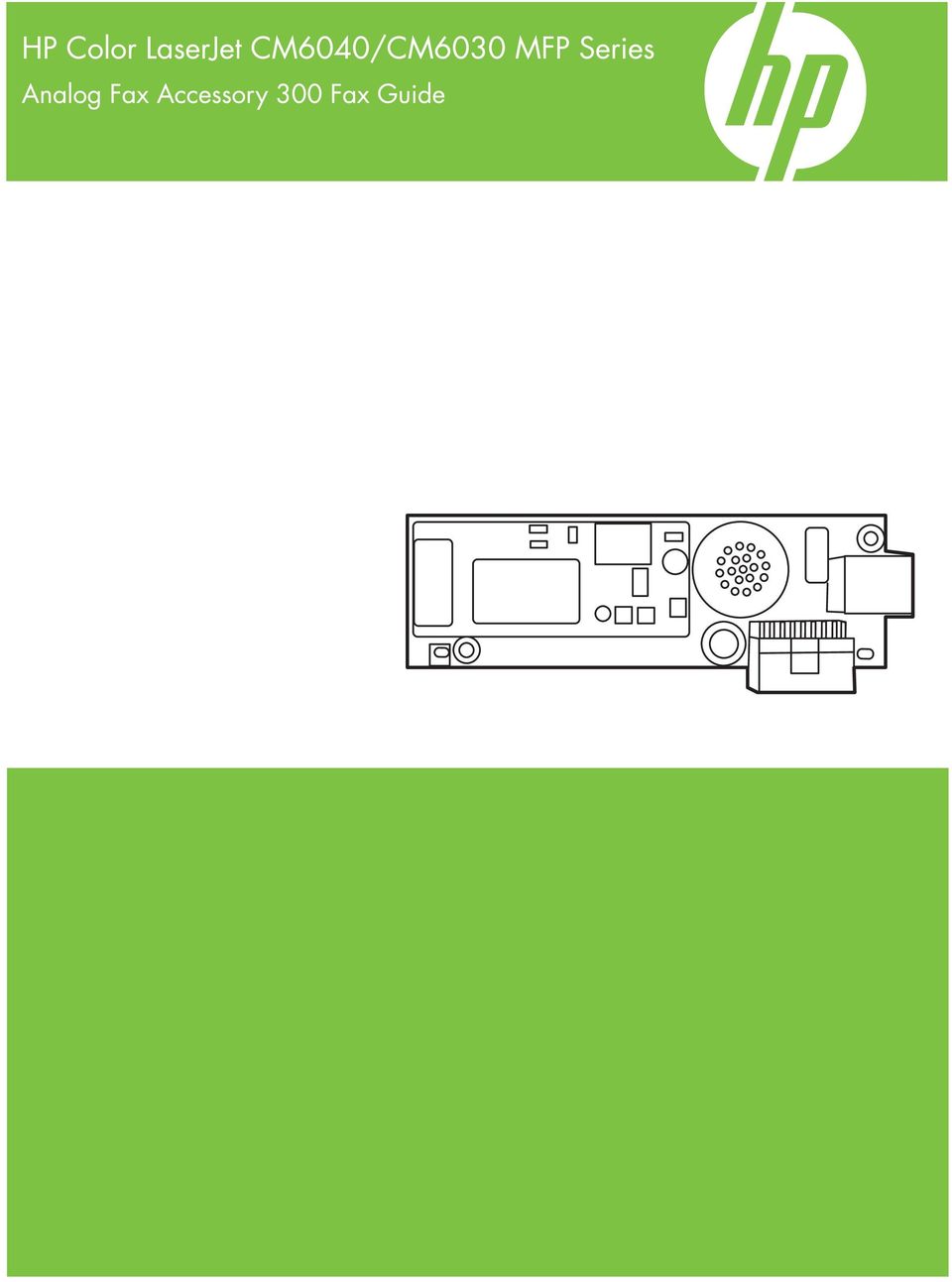
HP Color LaserJet CM6040/CM6030 MFP Series Analog Fax Accessory 300 Fax Guide
|
|
|
- Samuel White
- 9 years ago
- Views:
Transcription
1
2

3 HP Color LaserJet CM6040/CM6030 MFP Series Analog Fax Accessory 300 Fax Guide

4 Copyright and License 2008 Copyright Hewlett-Packard Development Company, L.P. Reproduction, adaptation, or translation without prior written permission is prohibited, except as allowed under the copyright laws. The information contained herein is subject to change without notice. The only warranties for HP products and services are set forth in the express warranty statements accompanying such products and services. Nothing herein should be construed as constituting an additional warranty. HP shall not be liable for technical or editorial errors or omissions contained herein. Trademark Credits Microsoft and Windows are U.S. registered trademarks of the Microsoft Corporation. All products mentioned herein may be trademarks of their respective companies. Local country/region laws may prohibit the use of this product outside of the countries/ regions specified. It is strictly forbidden by law in most countries/regions to connect nonapproved telecommunications equipment (fax machines) to public telephone networks. ENERGY STAR and the ENERGY STAR logo are U.S. registered marks of the United States Environmental Protection Agency. Edition 1, 04/2008 Part number: Q
5 Table of contents 1 Setup Parts included with the fax accessory... 2 Verifying fax operation... 3 Required fax settings... 4 Fax Configuration Wizard... 4 Accessing fax settings menu... 4 Set or verify the date and time... 4 Set, verify, or change the MFP/fax accessory country/region... 5 Set the fax header Set fax settings Remote fax configuration... 8 Web browser... 8 HP Web Jetadmin... 8 HP MFP Digital Sending Software Configuration Utility... 9 Send fax settings Set the dial tone detection Set the overlay header (outgoing faxes) Set the dialing mode Set a dialing prefix Set the redial rules Set redial-on-busy Set redial-on-no-answer Set redial interval Set the outgoing fax resolution Set billing codes Set the JBIG compression mode Change the sharpness setting Change the background setting Change the light/dark setting Activate Fax Number Confirmation Activate Fax Number Speed Dial Matching Receive fax settings Set rings-to-answer ENWW iii
6 Stamp received faxes (incoming faxes) Set fit-to-page Set the paper tray Set the destination bin Blocking incoming faxes Create a blocked-fax list Remove numbers from the blocked-fax list Clear all numbers from the blocked-fax list Initiate polling receive Changing notification settings Set the error correction mode Set the modem volume Set the ringer volume Use Fax Fax feature screen Status message bar Send a fax Send a fax - enter number(s) manually Send a fax using speed dial Sending a fax using one touch speed dial Search a speed-dial list by name Sending a fax using phone book numbers DSS fax phone book search Canceling a fax Cancel the current fax transmission Cancel all pending faxes Receiving faxes Creating and deleting speed dial lists Create a speed dial list Delete a speed dial list Delete a single number from the speed dial list Add a number to an existing speed dial list Assigning speed dial lists to one-touch keys Clear or reassign speed dial lists to one-touch keys Voice Calls and Retries Fax Call Report Fax Activity Log T.30 Report Secure settings Change your PIN Set fax forwarding Scheduling fax printing (memory lock) iv ENWW

7 Fax-printing behavior Enable or disable the schedule for printing of faxes Create a fax printing schedule Using Fax over VoIP networks Solve fax problems Is your fax set up correctly? What type of phone line are you using? Are you using a surge-protection device? Are you using a phone company voice-messaging service or an answering machine? Checking fax accessory status Fax feature is not operating General fax problems Receiving fax problems Sending fax problems Error codes Fax error messages Send-fax messages Receive-fax messages Fax logs and reports Printing the fax call report (include thumbnail) To schedule fax call report printing Printing the fax activity log Printing the billing code report Clearing the fax activity log and billing code report Printing the blocked fax list report Printing the speed dial list report Service settings Firmware upgrades Appendix A Service and support Hewlett-Packard limited warranty statement HP Customer Care World Wide Web Phone Appendix B Specifications Fax accessory product specifications Replacement parts and accessories Appendix C Regulatory Information ENWW v

8 Environmental Product Stewardship Program Declaration of conformity US Federal Communications Commission FCC Part 15 Compliance Statement FCC Part 68 Telecom Telephone Consumer Protection Act (US) Canadian Department of Communications Canadian Limitations Notice Other regulatory information Regulatory information for EU countries/regions New Zealand Telecom Warning Notice South African Notice TAIWAN BSMI Class A Warning Index vi ENWW
9 1 Setup The HP LaserJet MFP Analog Fax Accessory 300 enables the HP multifunction product (MFP) to function as a standalone analog fax machine. This guide describes the fax functions of this product in the following sections: Parts included with the fax accessory Verifying fax operation Required fax settings In addition, this guide provides information on product specifications and regulatory information. NOTE: In addition to the analog fax feature, the MFP also supports LAN faxing. LAN faxing is managed by the HP MFP Digital Sending Software Configuration Utility which is a separate product and is not covered in this document. For information about LAN faxing, see the HP MFP Digital Sending Software User Guide or the HP MFP Digital Sending Software Support Guide. If both the analog fax accessory and the LAN fax are installed, only one fax can be enabled at a time. You should save this guide so that you can refer back to instructions on specific fax features. NOTE: If the MFP came with the fax accessory installed, you need to remove the fax connection cover, connect the phone cord, and then perform the initial fax configuration that is also described in this chapter. The fax connection cover is located on the phone connector on the formatter rear panel. ENWW 1

10 Parts included with the fax accessory The following components are included with the fax accessory: Fax guide (this document) (on CD) Send Fax Driver and Send Fax Driver Guide (on CD) Phone cord(s) (cords vary depending on the country/region) NOTE: The Send Fax Driver allows a user to send a fax directly from their PC to a network connected MFP. Installation of this driver is optional. (See Send Fax Driver Guide on the CD for further instructions). 2 Chapter 1 Setup ENWW
11 Verifying fax operation When the fax accessory is installed and operating correctly, the fax icon displays on the MFP control panel. If the fax accessory has just been installed but has not been configured, the fax icon is grayedout and (depending on the MFP model) may have Not Configured written across it. If this occurs, the fax accessory needs to be configured, see Required fax settings on page 4. ENWW Verifying fax operation 3

12 Required fax settings NOTE: A Fax Configuration Wizard is available to guide you through the steps to make the required fax settings. For more information, see Fax Configuration Wizard on page 4. After the fax accessory is installed, you must configure certain settings before you can use the accessory. If these settings are not configured, the fax icon is grayed-out. These settings include: Date and time Location (country/region) Fax header (phone number and company name) This information is used in the fax header, which is printed on all outgoing faxes. NOTE: When first installed, the fax accessory might read some of these settings from the MFP; therefore, a value may already be set. You should check the values to verify that they are set and correct. NOTE: In the U.S. and many other countries/regions, setting the date, time, location, phone number, and company name is a legal requirement for fax. Fax Configuration Wizard The Fax Configuration Wizard guides users through a step-by-step procedure to configure fax settings that are required to use the fax feature. If the settings are not configured, the fax feature is disabled. The following is a list of fax settings that are configured using the wizard: Location (country/region) Fax phone number Company name This information is used in the fax header, which is printed on all outgoing faxes. The wizard starts when the device is turned on. You can choose to use the wizard or exit the wizard to configure the settings at a later date. NOTE: The settings configured using the wizard on the control panel override any settings made in the embedded Web server. Accessing fax settings menu The required fax settings are set by accessing the appropriate menu for your MFP. NOTE: If the fax menu settings do not appear in the menu listing, LAN fax may be enabled. When LAN fax is enabled, the analog fax accessory is disabled and the fax menu does not display. Only one fax feature, either LAN fax or analog fax, can be enabled at a time. The fax icon displays for either fax feature. If you wish to use analog fax when LAN fax is enabled, use the HP MFP Digital Sending Software Configuration Utility to disable LAN fax. Set or verify the date and time The date and time setting for the fax accessory is the same value as the MFP date and time setting. If this is the first time you are powering up the MFP, you will prompted for this information. 4 Chapter 1 Setup ENWW
13 To verify or change the date and time settings, complete the following steps. 1. On the control panel, scroll to and touch the Administration icon to open the Administration menu. 2. Scroll to and touch Initial Setup to display the setup settings menu and then touch Fax Setup. 3. Touch Required Settings. 4. Select the date format and then enter the date. 5. Select the time format and then enter the time. 6. Touch Save to accept the settings. Set, verify, or change the MFP/fax accessory country/region The location setting identifies the country/region where the MFP/fax accessory is located. This setting also sets the date/time format and minimum/maximum rings-to-answer range for the country/region. Because this setting is a legal requirement in some countries/regions, it must be set for the fax accessory to operate. If this is the first time you are powering up the printer, you will be prompted for this information. Set, verify, or change the MFP/fax country/region 1. On the control panel, scroll to and touch the Administration icon to open the Administration menu. 2. Scroll to and touch Initial Setup to display the setup settings menu. 3. Touch Fax Setup to display the Fax Setup menu and touch Required Settings. 4. Touch Location to display the list of countries/regions. 5. Scroll through the list until your country/region is displayed, and then touch the country/region to select it. 6. Touch Save to save the settings. Set the fax header The fax header setting is used to set a phone number and company name that are placed in the fax header. This information is required and must be set. If the fax icon is displayed on the control panel screen and does not have Not Configured written across and/or is not grayed, you have completed all necessary setup. To send a fax, see Use Fax on page 25 for information about sending faxes. Set, verify, or change the fax header 1. On the control panel, scroll to and touch the Administration icon to open the Administration menu. 2. Scroll to and touch Initial Setup to display the Initial Setup menu. 3. Touch Fax Setup to display the Fax Setup menu. 4. Touch Required Settings to display the Required Settings menu. 5. Touch Fax Header Information to display the header information. 6. Touch Phone Number to display the Phone Number screen. ENWW Required fax settings 5

14 7. Touch the text box to display the keyboard. 8. Using the keyboard, type the phone number, and then touch OK. 9. Touch Save to save the header phone number. 10. Touch Company Name and repeat the process. 6 Chapter 1 Setup ENWW
15 2 Set fax settings This chapter describes the configuration settings for the MFP fax accessory that you access through the fax menu on the control panel. In addition to the control panel, you can access these settings through remote configuration tools. NOTE: For information about the following settings, see Setup on page 1. The following fax settings are described in the first chapter and are not included here: Canceling faxes; Setting the date and time; Setting the location; Setting the header. ENWW 7
16 Remote fax configuration In addition to using the MFP control panel, you can configure the fax accessory remotely by using various software tools. Because the MFP contains an embedded Web server (EWS), you can configure the fax accessory across the Web by using either a Web browser or HP Web Jetadmin (WJA). In addition, you can configure the fax accessory across the network with a network-connected computer by using the HP MFP Digital Sending Software Configuration Utility (DSS). These tools provide access to most of the fax accessory configuration settings that available from the MFP fax menu, as described in this document. NOTE: The DSS configuration utility can disable or enable the analog-fax feature on the MFP. If the DSS configuration utility disables the analog fax and then the MFP is detached from the configuration utility, you will not see Send to Fax in the EWS or WJA Digital Sending menu. If this happens, enable the analog fax for the MFP by using the DSS configuration utility. Web browser The MFP contains an embedded Web server (EWS). The EWS allows you to use a Web browser to access and set the analog-fax settings, described in this chapter. To use a Web browser to access the EWS fax setting screens, perform the following steps. 1. Type the IP address of the MFP in the browser URL address bar and press Enter to open the EWS Configure MFP screen. To get the IP address of the MFP, print an MFP Configuration page. NOTE: If DSS is being used, a message appears on EWS indicating that DSS is in control. The only way to change settings is through DSS. 2. Click the Digital Sending tab. 3. Click the Send Fax tab to open the Fax configuration settings screen. 4. On the Fax Settings screen make any changes to the settings and click OK to accept the settings. Select Advanced to open the Advanced MFP Modem Settings screen for additional fax settings. For information about the settings, see the setting descriptions in this guide. 5. After you have made changes to the settings, click OK to accept the settings. HP Web Jetadmin To access the MFP analog-fax settings by using HP Web Jetadmin, perform the following steps. For detailed information about HP Web Jetadmin, see the HP Web Jetadmin Reference Manual. 1. Start HP Web Jetadmin. 2. In the At a Glance text box, type the IP address of the MFP in the Quick Device Find text box, and then click Go to see the device status in the right pane. Select Digital Sending and Fax from the status drop-down menu in that pane. 3. Configure the options in the Fax Settings or the Advanced Fax Settings sections. For information about a specific setting, select the context help next to the setting. 4. After you have made changes to the settings, click Apply to accept the settings. In addition to configuring a single MFP, you can also perform multiple device configuration. Multiple device mode configures several MFPs at once. For information about this feature, see the HP Web Jetadmin Reference Manual. 8 Chapter 2 Set fax settings ENWW
17 HP MFP Digital Sending Software Configuration Utility To access the analog MFP fax settings by using the DSS configuration utility, perform the following steps Start the utility (on the computer or server) to open the main screen. 2. Select the MFP and click the Configure MFP button on the main screen, and then click the Send to Fax tab to open the Fax Settings screen. 3. To enable the fax capabilities on the MFP, select Enable Send to Fax. To access Analog-fax settings, select directly from the MFP's internal modem in the Send Faxes drop-down list. On the Fax Settings screen make any changes to the settings and click OK to accept the settings. Select Advanced to open the Advanced MFP Modem Settings screen for additional fax settings. For information about these settings, see the setting descriptions in this guide. 4. After you have made changes to the settings, click OK to accept the settings. In addition to configuring a single MFP, you can also configure multiple devices. For more information about the HP MFP Digital Sending Software Configuration Utility, see the HP MFP Digital Sending Software User Guide or the HP MFP Digital Sending Software Support Guide. NOTE: Depending on the capabilities and settings of your fax method, some of these options might not be available or configurable. ENWW Remote fax configuration 9
18 Send fax settings Set the dial tone detection The detect dial tone setting determines whether the fax checks for a dial tone before sending a fax. Set the dial tone detection 1. On the control panel, scroll to and touch the Administration icon to open the Administration menu. 2. Scroll to touch Initial Setup to open the initial setup menu. 3. Touch Fax Setup to open the fax setup menu. 4. Touch Fax Send Settings and use the down arrow key to scroll to Detect Dial Tone. 5. Touch Enabled (default) to enable dial tone detection, or touch Disabled to disable dial tone detection. Set the overlay header (outgoing faxes) The overlay header consists of the date, time, company name, phone number, and page number and is printed at the top of the page on outgoing faxes. This setting determines whether the header is appended to the top of the page or is printed as an overlay. If the header is appended to the top of a page, it moves page data down which can result in data at the bottom of a page being pushed to another page, possibly printing an additional page. If the header is printed as an overlay, it does not push any page data, but might print over data at the top of the page. NOTE: When fax forwarding is enabled, the overlay header is always appended to the top of the page, even if overlay is enabled. Set the overlay header for outgoing faxes 1. On the control panel, touch the Administration icon to open the Administration menu. 2. Scroll to and touch Default Job Options 3. Scroll to and touch Default Fax Options. 4. Scroll to and touch FAX SEND. 5. Touch Fax Header to see the header settings. 6. Touch Overlay to print the header as an overlay, or touch Prepend (default) to append the header to the top of the page. 7. Touch Save. Set the dialing mode The dialing mode setting sets the type of dialing that is used: either tone (touch-tone phones) or pulse (rotary-dial phones). To set the dialing mode, perform the following steps. 10 Chapter 2 Set fax settings ENWW
19 Set the dialing mode 1. On the control panel, scroll to and touch the Administration icon to open the Administration menu. 2. Scroll to touch Initial Setup to open the initial setup menu. 3. Touch Fax Setup to open the fax setup menu. 4. Touch Fax Send Settings and use the down arrow key to scroll to Dialing Mode. 5. Touch Dialing Mode to see the dialing mode settings. 6. Touch Tone (default) to set the fax for tone dialing, or touch Pulse to set the fax for pulse dialing. 7. Touch Save. Set a dialing prefix The dialing prefix setting allows you to enter a prefix number (such as a "9" to access an outside line) when dialing. This prefix number is automatically added to all phone numbers when dialed. NOTE: You might need a pause between the prefix and the phone number. To insert a 2 second pause, enter a comma (,). For more information on using a comma see Send a fax on page 29. Set a dialing prefix 1. On the control panel, scroll to and touch the Administration icon to open the Administration menu. 2. Scroll to touch Initial Setup to open the initial setup menu. 3. Touch Fax Setup to open the fax setup menu. 4. Touch Fax Send Settings and use the down arrow key to scroll to Dialing Prefix to see the dialing prefix settings. 5. Touch Custom to enter a dialing prefix number. NOTE: If you want to disable the dialing prefix, touch OFF (default), touch Save, and then skip the remaining steps. 6. Touch Save to open the Set Dialing Prefix screen. 7. Touch Dialing Prefix Number. 8. Touch the text box to display the keyboard. 9. Type the dialing prefix number and touch OK. 10. Touch Save. Set the redial rules Set redial-on-busy The redial-on-busy setting selects the number of times (0 through 9) the fax accessory redials a number when the number is busy. The interval between retries is set by the Redial Interval setting. ENWW Send fax settings 11

20 Set the redial-on-busy setting 1. On the control panel, scroll to and touch the Administration icon to open the Administration menu. 2. Scroll to touch Initial Setup. 3. Scroll to touch Fax Setup. 4. Touch Fax Send Settings and use the down arrow key to scroll to Redial on Busy. 5. Touch the text box to display the keyboard. 6. Enter the value (0 9) and touch OK. 7. Touch Save. Set redial-on-no-answer The redial-on-no-answer setting selects the number of times the fax accessory redials if the number dialed does not answer. The number of retries is either 0 to 1 (used in the U.S.) or 0 to 2, depending on the country/region setting. The interval between retries is set by the redial interval setting. Set the redial-on-busy setting 1. On the control panel, scroll to and touch the Administration icon to open the Administration menu. 2. Scroll to touch Initial Setup to open the initial setup menu. 3. Scroll to touch Fax Setup to open the fax setup menu. 4. Touch Fax Send Settings and use the down arrow key to scroll to Redial on No Answer. 5. Touch Never or Once. 6. Touch Save. Set redial interval The redial interval setting selects the number of minutes between retries if the number dialed is busy or not answering. NOTE: You might observe a redial message on the control panel when both the Redial-on-Busy and Redial-on-No-Answer settings are set to off. This occurs when the fax accessory dials a number, establishes a connection, and then loses the connection. As a result of this error condition, the fax accessory performs two automatic redial attempts regardless of the redial settings (the first one at 26,400 bps and, if that fails, a second one at 14,400 bps). During this redial operation, a message appears on the control panel to indicate that a redial is in progress. Set the redial interval 1. On the control panel, scroll to and touch the Administration icon to open the Administration menu. 2. Scroll to touch Initial Setup to open the initial setup menu. 3. Touch Fax Setup to open the fax setup menu. 4. Touch Fax Send Settings and use the down arrow key to scroll to Redial Interval. 5. Touch the text box to display the keyboard. 12 Chapter 2 Set fax settings ENWW

21 6. Enter the value (1 5) and touch OK. 7. Touch Save. Set the outgoing fax resolution The outgoing fax resolution setting determines the maximum resolution supported by the receiving fax. The fax accessory uses the highest possible resolution (as limited by this setting) and the maximum resolution of the receiving fax. NOTE: Faxes wider than cm (8.5 inches) are automatically sent by using standard or fine resolution, to reduce phone time. NOTE: The default resolution setting is a lower dpi than previous MFP model default resolution settings. For example, previous MFP models had a default resolution of FINE (200 x 200 dpi). NOTE: The higher the resolution, the longer the transmission time required. Set the resolution for outgoing faxes 1. On the control panel, scroll to and touch the Administration icon to open the Administration menu. 2. Touch Default Job Options 3. Touch Default Fax Options 4. Scroll to and touch FAX SEND. 5. Touch Resolution to see the resolution settings. 6. Touch Standard (200 x 100 dpi, default), Fine (200 x 200 dpi), or Superfine (300 x 300 dpi) to select the resolution. 7. Touch Save. Set billing codes Set billing codes The billing-code setting, when enabled, prompts the user to enter a number when sending a fax. This number is placed in the billing-code report. To view the billing-code report, either print the report or query it by using an application. 1. On the control panel, scroll to and touch the Administration icon to open the Administration menu. 2. Scroll to and touch Initial Setup and then Fax Setup to open the fax menu. 3. Touch Fax Send Settings to see the Fax Send settings. 4. Scroll to and touch Billing Codes to see the billing code settings. 5. Touch Custom to enable billing codes. NOTE: steps. If you want to disable billing codes, touch OFF, touch Save, and then skip the remaining 6. Touch Save to open the Billing Code screen. 7. Touch the text box to display the keyboard. ENWW Send fax settings 13
22 8. Type the minimum number of digits you want in the billing code, and then touch OK. 9. Touch Save. Set the JBIG compression mode Enabling JBIG compression can reduce phone-call charges by reducing fax transmission time and is, therefore, the preferred setting. However, JBIG might cause compatibility problems when communicating with some older fax machines, in which case you might need to disable it. NOTE: JBIG compression only works when both the sending and receiving machines have JBIG compression. To enable or disable JBIG compression, perform the following steps. Set the JBIG compression mode 1. On the control panel, scroll to and touch the Administration icon to open the Administration menu. 2. Scroll to and touch Initial Setup. 3. Scroll to and touch Fax Setup. 4. Scroll to and touch Fax Send Settings. 5. Touch JBIG Compression to see the settings. 6. Touch Enable (default) to enable JBIG compression, or touch Disabled to disable JBIG compression. Change the sharpness setting The Sharpness setting specifies the sharpness that the scanner uses when the MFP scans your original. Sharpness enhances the edges of the original so that faint or fine text and graphics are reproduced more sharply. Increasing sharpness increases resolution which also increases transmission time. Change the sharpness setting 1. On the control panel, touch the FAX icon to display the Fax screen. 2. Scroll to and touch More Options. 3. Scroll to and touch Image Adjustment. 4. Scroll to and touch Sharpness. 5. Touch the left arrow to decrease the sharpness or touch the right arrow to increase the sharpness of the image. 6. Touch OK to accept the setting. Change the background setting If you are faxing a document that is printed on colored paper, you can enhance your fax copy quality by removing the background that might cause your fax copy to streak or blur. 14 Chapter 2 Set fax settings ENWW
23 Change the background setting 1. On the control panel, touch the FAX icon to display the Fax screen. 2. Scroll to and touch More Options. 3. Scroll to and touch Image Adjustment. 4. Scroll to and touch Background Cleanup. 5. Touch the left arrow or touch the right arrow to change the background setting. 6. Touch OK to accept the setting. Change the light/dark setting The light/dark setting adjusts how light or dark the transmitted image appears on the recipient fax machine. Change the light/dark setting 1. On the control panel, touch the FAX icon to display the Fax screen. 2. Scroll to and touch More Options. 3. Scroll to and touch Image Adjustment. 4. Scroll to and touch Darkness. 5. Touch the left arrow to make the image lighter and touch the right arrow to make the image darker. 6. Touch OK to accept the setting. Activate Fax Number Confirmation When fax number confirmation is enabled, the fax number must be entered twice to ensure that it was entered correctly. The default setting for this feature is Disabled. Activate Fax Number Confirmation 1. On the control panel, touch the Administration icon to open the Administration menu. 2. Scroll to and touch Initial Setup and then Send Setup. 3. Scroll to and touch Fax Number Confirmation. 4. Touch Enable. 5. Touch Save. Activate Fax Number Speed Dial Matching If this feature is enabled, the MFP tries to match any fax number entered with existing entries in the speed dial list. If a match is found, you can confirm the match and have the MFP complete the faxing action automatically. The default setting for this feature is Disabled. ENWW Send fax settings 15
24 Activate Fax Number Speed Dial Matching 1. On the control panel, touch the Administration icon to open the Administration menu. 2. Scroll to and touch Initial Setup and then Send Setup. 3. Scroll to and touch Fax Number Speed Dial Matching. 4. Touch Enable. 5. Touch Save. 16 Chapter 2 Set fax settings ENWW
25 Receive fax settings Set rings-to-answer The rings-to-answer setting determines the number of times the phone rings before the call is answered by the fax accessory. NOTE: The default setting range for rings-to-answer is country/region-specific. Set the number of rings-to-answer 1. On the control panel, touch the Administration icon to open the Administration menu. 2. Scroll to and touch Initial Setup and then Fax Setup to open the fax menu. 3. Scroll to and touch Fax Receive Settings. 4. Touch Rings To Answer to open the rings-to-answer screen. 5. Use the up and down arrows to select the number of rings (the default is 2), and then touch OK. 6. Touch the text box to display the keyboard. 7. Type the number of rings (1 9), and then touch OK. 8. Touch Save. Stamp received faxes (incoming faxes) The stamp received faxes setting enables or disables stamping incoming faxes. The stamp prints the date, time, phone number, and page number on each incoming page. Stamp received faxes (incoming faxes) 1. On the control panel, scroll to and touch the Administration icon to open the Administration menu. 2. Touch Default Job Options and then Default Fax Options. 3. Touch Fax Receive to see the Fax Receive setting. 4. Touch Stamp Received Faxes to see the settings. 5. Touch Disabled (default) to disable the stamp, or touch Enabled to enable the stamp. 6. Touch Save. Set fit-to-page Set fit-to-page When selecting a page size to print a fax, the MFP determines the closest page size that matches the intended size from sizes available in the MFP. If the fit-to-page setting is enabled and the received image is larger than that page size, the MFP attempts to scale the image to fit the page. If this setting is disabled, an incoming image larger than the page splits across pages. 1. On the control panel, scroll to and touch the Administration icon to open the Administration menu. 2. Touch Default Job Options and then Default Fax Options. ENWW Receive fax settings 17
26 3. Scroll to and touch Fax Receive to see the Fax Receive setting. 4. Touch Fit to Page to see the fit-to-page settings. 5. Touch Enabled (default) to enable fit-to-page, or touch Disabled to disable fit-to-page. 6. Touch Save. Set the paper tray Set the paper tray The paper tray setting selects the MFP paper tray to pull paper from for printing faxes. 1. On the control panel, scroll to and touch the Administration icon to open the Administration menu. 2. Touch Default Job Options. 3. Touch Default Fax Options. 4. Touch Fax Receive to display the Fax Receive menu. 5. Touch Fax Paper Tray to display the Fax Paper Tray menu. 6. Touch the text box to enter the desired paper tray value, 0 (default) - 2. (Other values may be displayed depending on installed paper trays) 7. Touch Save to save the paper tray value. Set the destination bin Set the output bin The destination bin setting specifies the MFP output bin to receive the printed fax. NOTE: Some menu items (such as Output Bin) are not present if there is only a single selection available. 1. On the control panel, scroll to and touch the Administration icon to open the Administration menu. 2. Touch Default Job Options to display the Default Job Options menu. 3. Touch Default Fax Options to display the Fax Receive menu. 4. Touch Output Bin to display the Output Bin menu. 5. Touch the text box to enter the desired paper tray value, 0 (default) - 2. (Other values may be displayed depending on installed paper trays) 6. Touch Save. Blocking incoming faxes Use the fax block list setting to create a list of blocked phone numbers. When a fax is received from a blocked phone number, the fax is not printed and is immediately deleted from memory. NOTE: Only numbers can be used in the fax block list. Do not use dashes or spaces. If a fax is sent from a blocked phone number and the sender uses a dash or a space in the number, the fax will not be blocked. 18 Chapter 2 Set fax settings ENWW
27 Create a blocked-fax list 1. On the control panel, scroll to and touch the Administration icon to open the Administration menu. 2. Scroll to and touch Initial Setup. 3. Touch Fax Setup. 4. Scroll to and touch Fax Receive Settings. 5. Scroll to and touch Blocked Fax List to open the blocked fax menu. 6. Touch Add Blocked Number to make the keyboard available. 7. Type a number and touch OK. 8. To add additional numbers, repeat steps 5 and 6. Remove numbers from the blocked-fax list 1. On the control panel, scroll to and touch the Administration icon to open the Administration menu. 2. Scroll to and touch Initial Setup. 3. Touch Fax Setup. 4. Scroll to and touch Fax Receive Settings. 5. Scroll to and touch Blocked Fax List to open the blocked fax menu. 6. Touch Remove Blocked Number to make the keyboard available. 7. Type a number and touch OK. 8. To add additional numbers, repeat steps 5 and 6. Clear all numbers from the blocked-fax list 1. On the control panel, scroll to and touch the Administration icon to open the Administration menu. 2. Scroll to and touch Initial Setup. 3. Touch Fax Setup. 4. Scroll to and touch Fax Receive Settings. 5. Scroll to and touch Blocked Fax Numbers to open the blocked fax menu. 6. Touch Clear all Blocked Numbers to make the keyboard available. 7. Touch Yes to clear all numbers from the list, or touch No to exit and retain the numbers. Initiate polling receive Some fax machines can hold a fax until another fax machine requests that the fax be sent. When an MFP polls another fax machine that is holding a fax and requests that the held fax be sent to the MFP, this is known as polling receive. ENWW Receive fax settings 19
28 Initiate polling receive 1. On the control panel, touch the FAX icon to display the Fax screen. 2. Touch More Options to display the options screen. 3. Scroll to page Touch Fax Polling to display the Fax Polling screen. 5. Touch the text box to display the keyboard. 6. Using the keypad, type a polling receive number, and then touch Start. 7. The number entered is dialed. If a stored fax is being held at the fax machine dialed, that fax is transmitted to the mfp and printed. If no fax is held, a No Fax is Available message will be displayed. If the fax machine does not support the polling feature, a Poll Invalid error message will be shown. Changing notification settings Notification selects when and how you are notified of the status of an outgoing fax. This setting applies to the current fax only. To change the setting permanently, change the default setting. Change notification settings 1. On the control panel, touch the FAX icon to open the Fax screen. 2. Touch More Options. 3. Touch Notification. 4. Select a notification setting: Touch None to turn off notification. Touch This Job to enable notification for the current job. Touch On Error to enable error notification only for the current job. 5. Touch Print to receive a printed notification, or touch to receive an notification. 6. If you selected Print, touch OK to complete the notification setup. -or- If you selected , use the keyboard to type an address. Then touch OK to complete the notification setup. 20 Chapter 2 Set fax settings ENWW
29 Set the error correction mode Normally, the fax accessory monitors the signals on the telephone line while it is sending or receiving a fax. If the fax accessory detects an error during the transmission and the error correction setting is on, the fax accessory can request that the error portion of the fax be sent again. You should turn off error correction only if you are having trouble sending or receiving a fax and if you are willing to accept the errors in the transmission. Turning off the setting might be useful when you are trying to send a fax overseas or receive one from overseas, or if you are using a satellite telephone connection. Set the error correction mode 1. On the control panel, scroll to and touch the Administration icon to open the Administration menu. 2. Touch Initial Setup to open the setup settings menu and then touch Fax Setup. 3. Touch Fax Send Settings to see the settings. 4. Touch Error Correction Mode to see the settings. 5. Touch Enabled (default) to enable error correction mode, or touch Disabled to disable correction mode. ENWW Set the error correction mode 21
30 Set the modem volume 1. On the control panel, scroll to and touch the Administration icon to open the Administration menu. 2. Scroll to and touch Initial Setup to display the Initial Setup menu. 3. Touch Fax Setup to display the Fax Setup menu. 4. Touch Fax Send Settings to display the Fax Send Settings menu. 5. Touch Fax Dial Volume to display the Fax Dial Volume menu. 6. Touch OFF; Low (default), or High to set the volume. 7. Touch Save to save the volume setting. 22 Chapter 2 Set fax settings ENWW
31 Set the ringer volume 1. On the control panel, scroll to and touch the Administration icon to open the Administration menu. 2. Scroll to and touch Initial Setup to display the Initial Setup menu. 3. Touch Fax Setup to display the Fax Setup menu. 4. Touch Fax Receive Settings to display the Fax Receive Settings menu. 5. Touch Ringer Volume to display the Ringer Volume menu. 6. Touch OFF; Low (default), or High to set the volume. 7. Touch Save to save the volume setting. ENWW Set the ringer volume 23
32 24 Chapter 2 Set fax settings ENWW
33 3 Use Fax This chapter provides information about fax setup, sending faxes, and receiving faxes in the following sections: Fax feature screen Status message bar Send a fax Canceling a fax Receiving faxes Creating and deleting speed dial lists Assigning speed dial lists to one-touch keys Voice Calls and Retries Secure settings Set fax forwarding Scheduling fax printing (memory lock) Using Fax over VoIP networks ENWW 25
34 Fax feature screen The Fax feature screen is used to send faxes. To access this screen, press the FAX icon displayed on the control panel Home screen. Figure 3-1 Fax feature screen 1 Home Key - return to main screen 2 Send Fax - press to send fax to recipients 3 Enter Number into Recipient List 4 Backspace/Delete Number 5 Status Message Bar 6 Access Phone Book 7 Speed Dial Search by Number 8 Alert Message - touch to display 9 Help - touch to display help selections 10 Speed Dial - Edit Key 11 Speed Dial - Search by Name 12 Speed Dial List (scroll to display other entries) 13 Current Date and Time 14 Touch to access additional Fax Settings for current job 15 Press for Details of Selected Recipient 16 Press to Delete Selected Recipient from List 17 Recipient List 18 Recipient Number Entry Box - Touch for keyboard or enter from control panel keypad 1 26 Chapter 3 Use Fax ENWW
35 1 When the Recipient Number Entry Box is pressed, a pop up is displayed which includes the PIN button for adding special character brackets ([ ]) to hide a PIN number, and a Pause button to insert a comma for a two second pause. See the figure below: Figure 3-2 Recipient number entry box ENWW Fax feature screen 27
36 Status message bar While sending and receiving faxes, status information will display in the status bar located at the top of some touch screens. This status includes such information as: Ready, Receiving call, Page sent, and others. 28 Chapter 3 Use Fax ENWW
37 Send a fax To send a fax, you can use one of three basic methods to enter numbers: Enter number(s) manually. Enter number(s) using speed dial. Enter number(s) using the phone book (available only if HP MFP Digital Sending Software Configuration Utility is installed and the phone book has been populated). NOTE: For online information about sending a fax, touch? on the screen to access the help menu, and then touch Send a fax under the list of help topics. When entering a phone number from the numeric keypad, include any pauses or other numbers, such as area codes, access codes for numbers outside a PBX system (usually a 9 or 0), or a long-distance prefix. A two second pause may be included by typing a comma (,). If the fax prefix setting has been set to automatically include the dialing prefix, you will not need to enter it. NOTE: When a fax is sent, it is first scanned and stored into memory. After the entire document is stored, it is sent and then deleted from memory. Faxes that fail to send, because the number was busy or did not answer, are deleted from memory. If Redial-On-Busy or Redial-On-No-Answer are set, the fax will not be deleted until all retries fail or the fax is sent successfully. Send a fax - enter number(s) manually 1. Place the document in the automatic document feeder (ADF) or on the scanner glass. 2. From the main screen, touch the FAX icon. You may be prompted to type a user name and password. 3. Touch More Options. Verify that the Describe Original settings match those of your original. These settings include: Original size (such as letter or A4) Original sides - 1 sided or 2 sided printing Optimize text/picture (text, mixed text and graphics, or graphics and photos) Sending graphics and photos in text mode results in lower quality images. Content Orientation (portrait or landscape) Job Build combines multiple scans into a single job. Image adjustment Sharpness enhances text and graphic edges. Darkness Background removes a background that might be a result from copying color paper. Notification changes how you are notified of the status of the fax transmission (that is, if the fax was sent or if an error occurred and the fax was not sent). NOTE: Notification changes the notification setting for the current fax only. 4. When all settings are completed, touch OK to return to the Settings menu. ENWW Send a fax 29
38 5. On the Settings screen, touch the Light or Dark arrow to adjust the lightness/darkness of the fax you are sending. 6. When all settings are completed on the Settings screen, touch OK to return to the Fax screen. 7. Using the keyboard, enter a phone number. To enter additional numbers, touch Next Number and continue entering numbers. To remove a number from the list, use the arrow keys to highlight a number and then touch Remove. NOTE: If needed, enter a comma (,) to provide a two second pause after a prefix number (such as a "9" or "0" ) to allow the internal phone system time to access an outside line before the remainder of the number is dialed. To enter a comma, use the keypad on the control panel that pops up when you touch the Recipient Number Entry Box To enter a PIN as part of the recipient number, use the keypad on the control panel. Touch the Recipient field, and then touch the PIN button. This inserts a left bracket ([). Type the PIN, and then touch the PIN button again to insert the right (]) bracket. The number within the brackets is not displayed in the fax number that appears on fax reports. 8. Touch Start to send the fax. You can either touch the Start icon on the touch screen or press the green Start button on the control panel. 9. If the fax recipient number matches one or more saved speed dials, the matched speed dials are displayed and you are asked if you want to continue sending the fax to the indicated recipient(s). Touch Yes to confirm the number and send the fax, or touch No to cancel the fax. Note that this step is not required if the Fax Number Speed Dial Matching feature is disabled. If the fax recipient number does not match any saved speed dials, a number confirmation screen appears and you must re-type the fax number. After re-typing the number, touch OK to send the fax. Note that this step is not required if the Fax Number Confirmation feature is disabled. NOTE: If you have made any changes to the settings on the Settings screen (such as changing notification or 1-sided to 2-sided), a Processing Job screen displays asking "Would you like to keep your current settings?". If you press Yes, the MFP returns you to the Fax screen and the settings you made are retained. This allows you to send another fax using the same settings. If you press No, the settings are cleared (returned to their default values) and the MFP home screen displays. Send a fax using speed dial NOTE: Prior to sending a fax using speed dial, you must create a speed dial. To create a speed dial, see Creating and deleting speed dial lists on page Place the document in the automatic document feeder (ADF) or on the scanner glass. 2. On the control panel, touch the FAX icon to display the Fax screen. 3. Touch Speed Dials to display the Speed Dial screen. 4. Touch a Speed Dial number for the speed dial name you wish to use. 5. The speed dial name will appear in the Fax Recipients section of the Fax screen. 6. Touch the fax recipient name to highlight. 7. Touch Start to send the fax. You can either touch the Start button on the touch screen or press the green Start button on the control panel. 30 Chapter 3 Use Fax ENWW
39 Sending a fax using one touch speed dial NOTE: Prior to sending a fax using a one touch speed dial key, you must first create a speed dial, see Creating and deleting speed dial lists on page 36. Then set up the one touch keys. NOTE: If you have made any changes to the settings on the Settings screen (such as changing notification or 1-sided to 2-sided ), a Processing Job screen displays asking "Would you like to keep your current settings?". If you press Yes, the MFP returns you to the Fax screen and the settings you made are retained which allows you to send another fax using the same settings. If you press No, the settings are cleared (returned to their default values) and the MFP home screen is displayed. 1. Place the document in the automatic document feeder (ADF) or on the scanner glass. 2. From the main screen, touch the FAX icon. You may be prompted to type a user name and password. 3. Touch Settings. Verify that the Describe Original settings match those of your original. These settings include: Page size (such as letter or A4) 1-sided or 2-sided printing Page content (text, mixed text and graphics, or graphics and photos) Sending graphics and photos in text mode results in lower quality images. Orientation (portrait or landscape) Job Mode combines multiple scans into a single job. If the settings do not match, complete the following steps. a. Touch Describe Original to display the Original Setting screen. b. Make any required changes to match your original. c. When all settings are completed, touch OK to return to the Settings screen. NOTE: All settings made on the Settings screen are temporary settings, enabled for the current fax only. 4. On the Settings screen touch Fax Settings to make adjustments to the following settings: Sharpness--enhances text and graphic edges. Background Removal--removes a background that might be a result from copying color paper. 5. When all settings are completed, touch OK to return to the Settings screen. 6. On the Settings screen, to adjust the lightness/darkness of the fax you are sending, touch the Light or Dark arrows and touch OK to return to the Settings screen. 7. When all settings are completed on the Settings screen, touch OK to return to the Fax screen. 8. To change notification, touch NOTIFY. Make changes to notification settings and then touch OK to return to the Settings screen. NOTE: Notify/Notification changes the notification setting for the current fax only. ENWW Send a fax 31
40 9. Touch the one touch speed dial key for the speed dial you want. 10. Touch Start to send the fax. You can either touch the Start button on the touch screen or press the green Start button on the control panel. Search a speed-dial list by name Use this feature to search an existing speed dial by name. NOTE: If you do not know the unique name of the speed dial, type a letter to select any portion of the list. For example, to view speed-dial names that begin with the letter N, type the letter N. If no matching entries exist, a message appears before the search shows the entry that is closest to the letter N. 1. On the control-panel main screen, touch the FAX icon to display the Fax screen. 2. Touch the Speed Dial Search button. This button looks like a magnifying glass and is located to the right of the Speed Dial button. 3. Type the first letters of the name to search for. As matches are found, the list at the top of the search screen is populated. If necessary, scroll to see all the entries, or type more letters to narrow the search. 4. Select the appropriate name from the list and touch OK. The speed-dial list on the main fax screen shows the selected entry at the top of the list. 5. Touch the selected entry to add it into the recipients list. 6. Select or search for additional names as needed. Sending a fax using phone book numbers The fax phone book feature is available when the MFP is configured to use the HP MFP Digital Sending Configuration software. If the MFP has not been configured for use with this software, the Phone Book button will not display. To configure the MFP for use with the HP MFP Digital Sending Configuration software, see the HP MFP Digital Sending Software User Guide or the HP MFP Digital Sending Software Support Guide. Also, when Authentication is enabled from the HP MFP Digital Sending Configuration software, your personal fax numbers from your Microsoft Exchange contact list appear in the phone book. NOTE: Fax numbers cannot be added or deleted from the phone book from this device. Fax numbers can only be added or deleted using the Address Book Manager (ABM) running on the Digital Send Server or by changing the entries in your contact list. NOTE: If you have made any changes to the settings on the Settings screen (such as changing notification or 1-sided to 2-sided), a Processing Job screen displays asking "Would you like to keep your current settings?". If you press Yes, the MFP returns you to the Fax screen and the settings you made are retained, which allows you to send another fax using the same settings. If you press No, the settings are cleared (returned to their default values) and the MFP home screen is displayed. 1. On the control panel, touch the FAX icon to display the Fax screen. 2. Touch Address Book icon to display the Address Book screen. 3. Select a phone book source from the drop down menu. 4. Touch the names to highlight and touch the Right Arrow icon to move the highlighted names to the Fax Recipients section. 32 Chapter 3 Use Fax ENWW
41 5. Touch OK to return to the Fax screen. 6. Touch Start to send the fax. You can either touch the Start button on the touch screen or press the green Start button on the control panel. DSS fax phone book search Use the fax phone book search feature to complete a name search of the fax phone book that is supplied through the Digital Sending Service (DSS) and the Address Book Manager (ABM). Check the HP Web site to determine if firmware updates are available for your MFP model. NOTE: If you are not using DSS, the fax phone book does not appear on the MFP display. The DSS phone book is not the same as the speed-dial list. Use the fax phone book search feature 1. Touch the FAX icon on the display. 2. Touch the Phone Book icon (located to the right of the fax recipients box). 3. Select the phone book source or All in the pull-down menu at the top of the phone book screen. 4. Select the recipient name from the phone book list. For long lists, a name search is available by pressing the Search icon (magnifying glass) at the bottom of the phone book screen. In the search screen, type the first letter or letters of the name; matching recipients appear as letters are typed. Type more letters to further refine the search. Select from the name(s) found at the top of the screen, and then touch OK. The screen returns to the Fax Phone Book. 5. Touch the right arrow to enter the selected name into the Fax Recipients list. 6. Touch OK to return to the Send Fax job screen. NOTE: NOTE: Use the Address Book Manager (part of DSS) to create/add content to the Fax Address Book. To import/export the local fax phone book to the EWS, refer to the EWS documentation. ENWW Send a fax 33
42 Canceling a fax Cancel the current fax transmission The Cancel Current Transmission menu item only appears if an outgoing fax call is in progress. NOTE: The cancel operation may require up to 30 seconds to complete. 1. On the control panel, press the red Stop button to display the Cancel Fax menu. NOTE: All current and pending Fax jobs on the device will continue progress until the cancellation is confirmed with OK 2. Touch Cancel current fax job to cancel the current fax job. 3. Touch OK to cancel the current fax transmission. Cancel all pending faxes This deletes all outgoing faxes stored in memory. However, if a fax is in the process of being transmitted, that fax is not deleted and will be sent. NOTE: If other outgoing faxes are waiting in memory, they will also be deleted. 1. On the control panel, press the red Stop button to display the Cancel Fax menu. NOTE: All current and pending Fax jobs on the device will continue progress until the cancellation is confirmed with OK. 2. Touch Cancel all fax jobs to cancel all current and pending fax jobs. 3. Touch OK to cancel all current and pending fax jobs. 34 Chapter 3 Use Fax ENWW
43 Receiving faxes When the fax accessory receives incoming faxes, it stores them in memory before printing. After the entire fax is stored, it is printed and then deleted from memory. Faxes print when received unless Schedule Printing of Faxes is enabled. If Schedule Printing of Faxes is enabled, all incoming faxes are stored in memory and not printed. When Schedule Printing of Faxes is disabled, all stored faxes print. For more information, see Scheduling fax printing (memory lock) on page 42. You can change the fax-receive default settings to modify the way a fax is received. These settings include the following options: Selecting the number of rings-to-answer Printing date, time, and page number on faxes (stamp) Selecting input paper tray and destination bin Forwarding faxes to another number Blocking faxes from certain numbers Schedule the printing of faxes (memory lock) For information about changing these menu settings, see Set fax settings on page 7. NOTE: You cannot cancel incoming faxes. ENWW Receiving faxes 35
44 Creating and deleting speed dial lists Speed dial allows you to assign a speed dial name to a single number or a group of numbers and then send a fax to that number or numbers by selecting the speed dial name. Create a speed dial list 1. On the control panel, touch the FAX icon to display the Fax screen. 2. Touch Speed Dials to display the Speed Dial screen. 3. Touch a Speed Dial number. 4. Touch the Speed Dial Name box to display the keyboard. 5. Type a name for the speed dial and touch OK to return to the Speed Dials screen. 6. Touch the Fax Numbers box to display the keyboard. 7. Type a fax number for the Speed Dial Name and touch OK to return to the Speed Dials screen. 8. Touch the Speed Dial number selected for the Speed Dial Name to save. The name and fax number will appear next to the Speed Dial number. 9. Repeat steps 3-8 to enter all the numbers for the speed dial 10. When finished, press OK to return to the Fax screen Delete a speed dial list 1. On the control panel main screen, touch the FAX icon to display the Fax screen. 2. Touch Speed Dial to display the Speed Dial screen. 3. Touch a Speed Dial number of the list to be deleted. 4. Touch Delete. 5. The next screen will ask to confirm the deletion. 6. Touch Yes to delete the speed dial list. 7. Touch Yes again to return to the Fax screen. Delete a single number from the speed dial list 1. On the control panel, touch the FAX icon to display the Fax screen. 2. Touch Speed Dials to display the Speed Dial screen. 3. Touch the Speed Dial number of the list to be edited. 4. Touch the Fax Numbers box to display the keyboard. 5. Scroll through the list of fax numbers and touch the screen to the right of last digit of the fax number to be deleted. Use the backspace key to delete the fax number. 36 Chapter 3 Use Fax ENWW
45 6. Touch OK to return to the Speed Dials screen. 7. Touch OK to return to the Fax screen. Add a number to an existing speed dial list 1. On the control panel, touch the FAX icon to display the Fax screen. 2. Touch Speed Dials to display the Speed Dial screen. 3. Touch the Speed Dial number of the list to be edited. 4. Touch the Fax Numbers box to display the keyboard. 5. Using the keyboard, type the fax number to add to the speed dial list. NOTE: dial list. The cursor defaults to the next open space below the last entered fax number of the speed 6. Touch OK to return to the Speed Dials screen. 7. Touch OK to return to the Fax screen. ENWW Creating and deleting speed dial lists 37
46 Assigning speed dial lists to one-touch keys The one-touch keypad allows you to send a fax to a speed dial list simply by touching a one-touch key. However, before using the one-touch keys, you must create a speed dial list and assign the speed dial name to a one-touch key. Clear or reassign speed dial lists to one-touch keys If you want to remove a speed dial list from a one-touch button, perform the following steps. 1. Touch Configure on the one-touch keypad to open the One-Touch Button Configuration screen. 2. Touch the number key with the speed dial name that you want to remove. 3. The Button is already configured screen opens. Touch Clear to remove the speed dial name from the one-touch button, or touch Reassign to assign a different speed dial name to the key, or touch Cancel to return to the One-Touch Button Configuration screen. 4. Touch OK to accept the settings. 38 Chapter 3 Use Fax ENWW
47 Voice Calls and Retries Voice calls are not included in the Fax Activity log and do not generate a T.30 report. The following sections provide information on retries of a fax job. Fax Call Report When all fax attempts have been exhausted, a Fax Call Report will be printed for a fax send. It shows the fax job log ID. The result of the final attempt is printed on the Fax Call Report. A Fax Call Report does not print for voice calls. NOTE: A Fax Call Report only generates Job numbers for final attempts. If one of these reports is printed manually from the menu and the last call was neither the final attempt nor a Voice call the Job number will be zero. Fax Activity Log T.30 Report Voice Calls are not included in the Fax Activity Log by default. Only the final attempt will be displayed in the Fax Activity Log. Voice Calls will not cause a T.30 report to print. All retry attempts will cause a T.30 report to print. ENWW Voice Calls and Retries 39
48 Secure settings Two settings, fax forwarding and fax printing, are secure features and require a PIN. The first time you access either setting, you will be required to create a PIN. After you create that PIN, it is used to access both features. That is, if a PIN that has been created for fax forwarding it is also used to access fax printing, or if the PIN was first created for fax printing, it must be used to access fax forwarding. Only one PIN can be created to access these secure settings. If fax call report is enabled with thumbnails, a report prints with a thumbnail of the first page of the fax when fax printing or fax forwarding is enabled. If you want secure fax printing, disable printing the thumbnail on the fax call report. Change your PIN This procedure describes how to change your existing PIN. CAUTION: Always save your PIN in a secure place. If you lose your PIN, you must contact HP Service Support for information about how to reset the PIN. For more information, see HP Customer Care on page On the control panel, scroll to and touch the Administration icon to open the Administration menu. 2. Touch Default Job Options to display the Default Job Options menu. 3. Touch Default Fax Options to display the Default Fax Options menu. 4. Touch Fax Receive to display the Fax Receive screen. 5. Touch Fax Forwarding to display the PIN screen. 6. Using the keypad, type the PIN (at least four digits), and then touch OK to display the Fax Forwarding screen. 7. Touch Change PIN to display the PIN screen. 8. Using the keypad, type the new PIN (at least four digits), and then touch OK. 9. Using the keypad, confirm the new PIN, and then touch OK. 10. Touch OK again. 40 Chapter 3 Use Fax ENWW
49 Set fax forwarding Use the forward fax setting to forward all received faxes to another fax number. When forward fax is enabled, the receiving MFP prints the fax (if fax printing is disabled, the fax prints when the printing is enabled), and also forwards the fax to the fax forward number. NOTE: If the fax fails to forward to another phone number, the device will not attempt to forward the fax again. All faxes are forwarded in fine or standard resolution. 1. On the control panel, scroll to and touch the Administration icon to open the Administration menu. 2. Touch Default Job Options to display the Default Job Options menu. 3. Touch Default Fax Options to display the Default Fax Options menu. 4. Touch Fax Receive to display the Fax Receive screen. 5. Touch Fax Forwarding to display the PIN screen. 6. Using the keypad, type the PIN (at least four digits), and then touch OK to display the Fax Forwarding screen. 7. Touch Fax Forwarding. 8. Touch Custom and touch save to display the Set Fax Forwarding screen. 9. Touch Forward to Number to display the Forward to Number screen. 10. Touch the text box to enter the fax forward phone number and touch OK. ENWW Set fax forwarding 41
50 Scheduling fax printing (memory lock) Use the fax printing feature to specify when faxes print. There are three fax printing modes that can be selected. The selections are Store all received faxes, Print all received faxes, or Use fax printing schedule. If Store all received faxes is selected, then all incoming faxes will be stored in memory and not printed. It is possible to access fax jobs stored in memory through the MFP Retrieve Job menu. Using this menu, you can print or delete print jobs while they are stored in memory. For additional information about this feature, see the Retrieve Job menu description in the MFP user guide. NOTE: Retrieved stored faxes can be accessed by entering the Fax Printing menu and changing the mode to Print all received faxes. If Print all received faxes is selected, then all incoming faxes will be printed. Any faxes that are currently stored in memory will also be printed. If Use fax printing schedule is selected, then faxes will be only printed per the fax printing schedule. The fax printing schedule can be set to lockout an entire day (24 hours) or lockout a time period during the day. Only one lockout period can be set, but it can be applied to any number of days. The lockout period is setup under the Fax Printing menu. For more information, see Create a fax printing schedule on page 43. NOTE: When the lockout time ends, any faxes that were received and stored during the lockout period are printed automatically. Fax-printing behavior To increase fax security, the behavior of the Fax Printing feature changed with the release of the HP LaserJet CM6040/CM6030 MFP Series. The key differences are how call reports, T.30 reports, report menus, and the control panel status line are handled or displayed. The following table assumes that Fax Printing is enabled. Menu setting for call report and/or T.30 Report When fax is received, how are call report/t. 30 report handled? What happens when a stored fax is printed? What happens to menus for fax reports & T.30 report? Does the control panel show incoming telephone number? Never Not printed Fax prints Hidden Hidden Every fax Not printed and stored with fax Fax prints, call report(s) prints Hidden Hidden Enable or disable the schedule for printing of faxes NOTE: Before enabling a fax-printing schedule, a schedule must be created. For more information, see Create a fax printing schedule on page On the control panel, scroll to and touch the Administration icon to open the Administration menu. 2. Scroll to and touch Time/Scheduling to display the Time/Scheduling screen. 3. Scroll to and touch Fax Printing to display the PIN menu. 4. Touch the text box to display the keyboard. 42 Chapter 3 Use Fax ENWW
51 5. Using the keypad, type the PIN (at least four digits), and then touch OK to display the Fax Printing menu. If you do not have a PIN, you will be prompted to create one. NOTE: Always save your PIN in a secure place. If you loose your PIN, you must contact HP Service Support for information on how to reset the PIN. For more information, see HP Customer Care on page Scroll to and touch Fax Printing Mode. 7. Select a fax printing mode: Scroll to and touch Store all received faxes to disable printing of faxes and store all received faxes to memory. Scroll to and touch Print all received faxes to allow all stored faxes to print and to print all faxes as received. Scroll to and touch Use fax printing schedule to use the fax printing schedule to automatically turn on and off the printing of faxes. 8. Scroll to and touch Save to exit. NOTE: Fax printing and fax forwarding use the same PIN. If you have created a PIN for fax forwarding, use that PIN here. Create a fax printing schedule 1. On the control panel, scroll to and touch the Administration icon to open the Administration menu. 2. Touch Time/Scheduling to display the Time/Scheduling screen. 3. Touch Fax Printing to display the PIN menu. 4. Touch the text box to display the keyboard. 5. Using the keypad, type the PIN (at least four digits), and then touch OK to display the Fax Printing menu. If you do not have a PIN, you will be prompted to create one. 6. Touch Fax Printing Mode, then touch Use fax printing schedule. 7. Touch Create Fax Printing Schedule to display the schedule settings. To edit the start/stop times, select a day, select As Scheduled, then touch Save. NOTE: The following menu allows you to edit the print start time or the print end time. To edit both, touch Back after editing one to return to the previous menu and then select the other. 8. Touch Print Start Time to set the scheduled time when faxes will start printing (end the lockout period when faxes are not stored to memory). a. Touch the text box to display the keyboard. b. Type a value for the hour, and then touch OK. c. Touch Save to save the hour setting. d. Touch the text box to display the keyboard. ENWW Scheduling fax printing (memory lock) 43
52 e. Type a value (1 59) for the minutes, and then touch OK. f. Touch Save to save the minutes setting. g. Touch AM or PM. h. A prompt appears asking to apply the changes to all scheduled days. Touch Yes, to apply the changes to all scheduled days, or touch No to apply the changes only to the currently selected scheduled date. i. Touch Save. 9. Touch Print End Time to set the scheduled time when faxes will not print (begin the lockout period when faxes store to memory). a. Touch the text box to display the keyboard. b. Type a value for the hour, and then touch OK. c. Touch Save to save the hour setting. d. Touch the text box to display the keyboard. e. Type a value (1 59) for the minutes, and then touch OK. f. Touch Save to save the minutes setting. g. Touch AM or PM. h. A prompt appears asking to apply the changes to all scheduled days. Touch Yes, to apply the changes to all scheduled days, or touch No to apply the changes only to the currently selected scheduled date. i. Touch Save. 44 Chapter 3 Use Fax ENWW
53 Using Fax over VoIP networks VoIP technology converts the analog phone signal into digital bits. These are then assembled into packets which travel on the Internet. The packets are converted and transmitted back to analog signals at or near the destination. The transmission of the information on the Internet is done digitally instead of analog. Therefore, there are different constraints on the fax transmission that may require different fax settings than the analog Public Switched Telephone Network (PSTN). Fax is very dependent upon timing and signal quality, so a fax transmission is more sensitive to a VoIP environment. The following are suggested changes in settings for the Analog Fax Accessory 300 when it is connected to a VoIP service: Start off with the fax set in V.34 mode and with Error Correction Mode (ECM) turned on. The V.34 protocol handles any changes in transmission speed needed to accommodate VoIP networks. If numerous errors or retries occur with the unit set to V.34, set V.34 Off and set Maximum Baud Rate to 14,400 bps. If errors and retries persist, set a lower fax speed as some VoIP systems cannot handle the higher signal rates associated with fax. Set the Maximum Baud Rate to 9,600 bps. In rare cases, if errors persist, turn off ECM on the product. The image quality might decrease. Ensure that the image quality is acceptable with ECM off before using this setting. If the preceding setting changes have not improved the VoIP fax reliability, contact your VoIP provider for help. ENWW Using Fax over VoIP networks 45
54 46 Chapter 3 Use Fax ENWW
55 4 Solve fax problems Use the information in this chapter to troubleshoot general fax issues. Before you can use your fax accessory, you must complete the following tasks: Select a location Set the date, time, and fax header When the fax accessory is installed for the first time, the settings must be entered manually by the administrator through the menus, or the fax configuration wizard at initial power up. NOTE: In the U.S. and many other countries/regions, setting the date, time, and other fax header information is a legal requirement. ENWW 47
56 Is your fax set up correctly? Use the following checklist to help identify the cause of any fax related problems you are encountering: Are you using the phone cord supplied with the fax accessory? This fax accessory has been tested with the supplied phone cord to meet RJ11 specifications. Do not substitute another phone cord; the analog-fax accessory requires an analog phone cord. It also requires an analog phone connection. Is the fax/phone line connector seated in the socket on the fax accessory? Make sure that the phone jack is well seated in the socket. The connector should be inserted into the socket until it "clicks." Is the phone wall jack working properly? Verify that a dial tone exists by attaching a phone to the wall jack. Can you hear a dial tone, and can you make a phone call? What type of phone line are you using? Dedicated line: A standard fax/phone number assigned to receive or send faxes. NOTE: The phone line should be for mfp fax use only and not shared with other types of telephone devices. Examples include alarm systems that use the phone line for notifications to a monitoring companies. PBX system: A business-environment phone system. Standard home phones and the fax accessory use an analog phone signal. Some PBX systems are digital and might not be compatible with the fax accessory. You need to have access to a standard analog phone line to be able to send and receive faxes. Roll-over lines: A phone system feature where a new call "rolls over" to the next available line when the first incoming line is busy. Try attaching the fax accessory to the first incoming phone line. The fax accessory will answer the phone after it rings the number of times set in the rings-toanswer setting. NOTE: Roll-over lines can cause problems with the fax accessory's ability to receive faxes. Using rollover lines with this product is not recommended. Are you using a surge-protection device? A surge-protection device can be used between the wall jack and the fax accessory to protect the fax accessory against electrical power passed through the phone lines. These devices can cause some fax communication problems by degrading the quality of the phone signal. If you are having problems sending or receiving faxes and are using one of these devices, connect the fax accessory directly to the phone jack on the wall to determine whether the problem is with the surge-protection device. Are you using a phone company voice-messaging service or an answering machine? If the rings-to-answer setting for the messaging service is lower than the rings-to-answer setting for the fax accessory, the messaging service answers the call, and the fax accessory is not able to receive faxes. If the rings-to-answer setting for the fax accessory is lower than that of the messaging service, the fax accessory answers all calls, and no calls are routed to the messaging service. 48 Chapter 4 Solve fax problems ENWW
57 Checking fax accessory status If the analog-fax accessory does not appear to be functioning, print a Fax Accessory Page to check the status. Print the Fax Accessory Page 1. On the control panel, scroll to and touch the Administration icon to open the Administration menu. 2. Scroll to and touch Information. 3. Scroll to and touch Configuration/Status Pages. 4. Scroll to and touch Configuration Page to print the configuration pages. On the Fax Accessory Page of the Information Page, under the HARDWARE INFORMATION heading, check the MODEM STATUS. The following table identifies the status conditions and possible solutions. OPERATIONAL / ENABLED 1 OPERATIONAL / DISABLED 1 NON-OPERATIONAL / ENABLED/DISABLED 1 DAMAGED / ENABLED/DISABLED 1 The analog-fax accessory is installed and ready. The fax accessory is installed and operational, however, HP Digital Sending utility has either disabled the MFP fax feature or has enabled LAN fax. When LAN fax is enabled, the analog-fax feature is disabled. Only one fax feature, either LAN fax or analog fax, can be enabled at a time. A firmware failure has been identified. The firmware should be updated, see Firmware upgrades on page 65. Fax accessory has failed; reseat the fax accessory card and check for bent pins. If the status is still DAMAGED, replace the analog-fax accessory card. 1 ENABLED indicates that the analog fax accessory is enabled, turned on; DISABLED indicates that LAN fax is enabled (analog fax is turned off). ENWW Checking fax accessory status 49
58 Fax feature is not operating Use the table in this section to identify and solve fax malfunctions. The fax accessory is installed but the icon does not appear on the MFP main screen. Cause HP MFP Digital Sending Software Configuration utility has disabled the analog-fax feature. The accessory is not operating correctly. Solution Use the HP MFP Digital Sending Software Configuration utility to enable the analog-fax feature. Check the fax accessory status, see Checking fax accessory status on page 49. If the status is NON-OPERATIONAL, new firmware might need to be installed. If the status is DAMAGED and you just installed the card, try reseating the card and check for bent pins. If the status is DAMAGED and the card is installed correctly, the card might need to be replaced. Faulty formatter board. Contact your HP service representative for service, see HP Customer Care on page 69. The MFP is not displaying the fax menus. Cause LAN fax is enabled. Solution This is normal operation. When the HP Digital Sending Software enables LAN fax, the analog fax is disabled and the fax menu, which is used for the analog fax only, does not open. 50 Chapter 4 Solve fax problems ENWW
59 General fax problems Use the table in this section to solve fax problems. Problem Cause Solution Fax failed to send. An "Out of Memory" status message appears on the status message bar. Print quality of a photo is poor or prints as a gray box. Pressed the Cancel button on the MFP keyboard to cancel a fax transmission and the fax was still sent. No Phone Book button appears. Not able to locate the Fax settings in HP Web Jetadmin. The header is being appended to the top of the page when I have overlay enabled. Have a mix of names and numbers in the recipients box. My one page fax prints as two pages. Document stops feeding in the middle of faxing. The volume for sounds coming from the fax accessory is too high or too low. JBIG is enabled and receiving fax does not have JBIG capability. The MFP storage disk is full. Wrong Page Content mode setting. Cancellation takes place after making a selection in the cancellation menu (displayed after pressing red Stop button) and acknowledging with OK. The Phone Book feature has not been enabled. Fax settings in HP Web Jetadmin are located under the device's status page drop-down menu. The fax will append the overlay header to the top of a page when overlay is set, when the fax has been forwarded. This is normal for both names and numbers to appear, depending on where they are from, the phone book lists names, and all other databases list numbers. The fax header is being appended to the top of the fax, pushing text to a second page. There might be a jam in the ADF. The volume setting needs to be adjusted. Set JBIG off. Delete some files from the disk, see the MFP user guide for information about managing the disk. Try setting the Page Content mode to Graphics or Text and Graphics, see Send a fax - enter number(s) manually on page 29, or refer to Page Content mode in the MFP user guide. Cancel faxes using the fax menu, see Canceling a fax on page 34. Use the HP MFP Digital Sending Software Configuration utility to enable the phone book feature. Select Digital Sending and Fax from the drop-down menu. For more information, see HP Web Jetadmin on page 8. This is normal operation. Normal, no action required. If you want your one page fax to print on one page, set the overlay header to overlay mode. If there is a jam, see the MFP user guide for instructions on clearing jams. See Set the ringer volume on page 23 for information about changing the sound volume settings. ENWW General fax problems 51
60 Receiving fax problems Use the table in this section to solve problems that might occur when receiving faxes. Incoming fax calls are not being answered by the fax accessory (no fax detected). Cause The rings-to-answer setting might not be set correctly. The phone cord might not be connected properly, or the phone cord is not working. The phone line might not be working. A voice-messaging service might be interfering with the fax accessory's ability to answer calls. Solution Check the rings-to-answer setting. Check the installation. Make sure you are using the phone cord that came with the fax accessory. Disconnect the fax accessory from the phone jack, and connect a phone. Try to make a phone call to ensure the phone line is working. Do one of the following: Discontinue the messaging service. Get a phone line dedicated to fax calls. Decrease the rings-to-answer for the fax accessory to a number less than the rings-to-answer for the voice mail. Faxes are transmitting or being received very slowly. Cause You might be sending or receiving a very complex fax, such as one with many graphics. The receiving fax machine might have a slow modem speed. Solution Complex faxes take longer to be sent or received. The fax accessory only sends the fax at the fastest modem speed the receiving fax machine can use. Faxes are transmitting or being received very slowly (continued). Cause The resolution at which the fax was sent or is being received is very high. A higher resolution typically results in better quality, but also requires a longer transmission time. If there is a poor phone-line connection, the fax accessory and the receiving fax machine slow down the transmission to adjust for errors. Solution If you are receiving the fax, call and ask the sender to decrease the resolution and resend the fax. If you are sending, decrease the resolution and change the Page Content mode setting described under Send a fax - enter number(s) manually on page 29. Cancel and resend the fax. Have the phone company check the phone line. Faxes are not printing on the MFP. Cause There is no media in the media input tray. Solution Load media. Any faxes received while the input tray is empty are stored and will print after the tray has been refilled. 52 Chapter 4 Solve fax problems ENWW
61 Faxes are not printing on the MFP. Cause Schedule Printing of Faxes is set. The MFP is either low on toner or has run out of toner. Incoming call may be a voice call. Solution If Schedule Printing of Faxes is enabled, faxes will not print until it is disabled. If you want to print your faxes, see Enable or disable the schedule for printing of faxes on page 42. The MFP stops printing as soon as it is low on toner or runs out of toner. Any faxes received are stored in memory and print after the toner has been replaced. For other MFP printing problems, see the MFP user guide. Incoming voice calls usually show up in the call report as a Communication Error (17) As these are voice calls and not a fax error, no action is needed to be taken. Ensure that those calling you have a voice number that is different from the fax number. ENWW Receiving fax problems 53
62 Sending fax problems Use the table in this section to solve problems that might occur when sending faxes. Problem Cause Solution Faxes quit during sending. The fax accessory is receiving faxes but is not sending them. Outgoing fax calls keep dialing. Faxes you send are not arriving at the receiving fax machine. The fax machine to which you are sending might be malfunctioning. Your phone line might not be working. Your phone line might be noisy or poor quality If the fax accessory is on a PBX system, the PBX system might be generating a dial tone the fax accessory cannot detect. There might be a poor phone connection. The fax machine to which you are sending might be malfunctioning. Your phone line might not be working. The fax accessory automatically redials a fax number if the Redial on Busy option is set to on or if the Redial On No Answer is set on. The receiving fax machine might be turned off or might have an error condition, such as being out of paper. A fax might be in memory because it is waiting to redial a busy number, or there are other jobs ahead of it waiting to be sent. Try sending to another fax machine. Disconnect the fax accessory from the phone jack, and connect a phone. Try to make a phone call to ensure the phone line is working. Try using a lower baud rate to improve the reliability of transmission. See maximum baud rate setting. Disable the detect dial tone setting. Try again later. Try sending to another fax machine. Disconnect the fax accessory from the phone jack, and connect a phone. Try to make a phone call to ensure the phone line is working. This is normal operation. If you do not want the fax to retry, set Redial on Busy to 0 and set Redial On No Answer to 0. Call the recipient to make sure the fax machine is turned on and ready to receive faxes. If a fax job is in memory for either of these reasons, an entry for the job appears in the fax log. Print the fax activity log, and check the Result column for jobs with a Pending designation. 54 Chapter 4 Solve fax problems ENWW
63 Error codes If a fax problem occurs which prevents or interrupts sending or receiving of a fax, an error code is generated that will help in determining the cause of the problem. Error codes show up in the fax activity log, the fax call report, and the T.30 Protocol Trace (see Service settings on page 63). Print one of these three reports to obtain the error code. A detailed description of the error codes and the appropriate action can be found at by searching for the Q3701A or HP LaserJet MFP Analog Fax Accessory 300. ENWW Error codes 55
64 Fax error messages When an analog fax is sent or received on a LaserJet MFP, any errors that occur during the fax process will be displayed on the MFP control panel and entered into the fax reports. Fax errors can occur for many reasons and often they are due to interruptions or noise on the telephone connection. Any error that takes place during the fax process regardless of where it originates will be displayed by the MFP. If the fax process is interrupted or an error occurs during a fax transmission or reception, a two part status/error description is generated by the fax subsystem on the MFP. Normal or successful faxes also generate messages indicating success. The message information consists of a text description and a numeric code (a few messages don t include numeric codes). Only the text part of the message will be displayed on the MFP control panel; however, both the text message and numeric code will be listed in the Fax Activity Report, Fax Call Report, and the Fax T.30 Trace (these fax reports can be printed out individually from the MFP control panel under the Administration > Information and Administration > Troubleshooting menus). The numeric code is shown in parentheses after the text part of the message in the reports. For example, if a communication error occurred, the control panel display would show Fax Failed: Communication Error. The same error would be shown in the Result field in the Fax Activity Report as Communication Error (17). For this example, the numeric code associated with this communication error is 17. The numeric code is generated by the fax modem. Usually a numeric code of (0) indicates a normal modem response. Some messages will always display a numeric code of (0), whereas other messages can have a range of numeric codes depending on the circumstances, and a few messages will have no numeric code. Usually a numeric code of (0) indicates an error was not associated with the fax modem, but occurred in another part of the fax subsystem. Non-zero error codes give further detail into the particular action or process that the modem is executing, and they don t necessarily indicate that there is a problem with the modem. In the Send-fax messages on page 57 and Receive-fax messages on page 58 tables, the fax messages with the most common number codes are given with recommended corrective action. Several messages that are normal or indicate a normal event are also included in tables. For example, if a fax was not able to be sent to a busy number, a Fail Busy message will be shown. Nothing is wrong with the fax subsystem; the message indicates the fax was not completed due to a busy telephone number at the receiving end. Further troubleshooting information is available in the HP MFP Analog Fax 300 User Guide (available at Persistent error messages with numeric codes different than those listed here require assistance of customer support. A more detailed listing of the last fax call can be printed out before contacting customer support to help identify the problem. The detailed fax listing is called a Fax T.30 Trace and can be printed for the last fax, or it can be set to print whenever a fax error occurs. To print or configure the Fax T.30 Trace, press Administration, Troubleshooting, and then Fax T.30 Trace. You can then print the report for the last fax or configure when to print the T.30 trace. 56 Chapter 4 Solve fax problems ENWW
65 Send-fax messages Table 4-1 Send-fax messages Message Error No. Description Action(s) Cancelled 0 Fax was cancelled by user at control panel of MFP. None. Success n/a Fax sent successfully. None. Fail Busy 0 The receiving fax machine is busy. No Answer 0 The receiving fax machine is not answering the call. Compression Error Any Fax may be corrupted or not sent. No Dial 0 No dial tone is detected when sending the fax. Modem Fail Any Unexpected or bad response from the internal fax modem to MFP. Communication Error 17 or 36 Lost telephone connection between sender and receiver. Communication Error Any besides 17 or 36 General communications issue where the fax transmission was interrupted or did not proceed as expected. Space Fail 0 Unable to read or write the fax image file to disk; could be corrupt MFP disk or no space available on the MFP's disk. Page Fail 0 Incompatible page width, or page had too many bad lines. The fax will be retired automatically (if configured), otherwise try resending fax later. The receiving fax machine may be disconnected or turned off; contact the receiver to check the machine. Try resending. Try resending fax. Verify the phone line is active; set the sending fax to "not" to detect a dial tone. Try resending fax; if the error persists, contact service. Try resending the fax. Try resending fax; if the error persists, contact service. Try resending fax; if the error persists, contact service. Try resending fax; if the error persists, contact service. Memory Error 0 Out of RAM memory on MFP. If error persists, may need to add RAM to MFP. Job Fail Any Fax failure; the fax job did not complete. Power Failure 0 A power failure occurred during the fax transmission on the sending fax MFP. No Fax Detected 17 or 36 No fax machine was detected at receiving end. Try resending fax; if the error persists, contact service. Try resending the fax. Verify fax number and have receiver verify fax machine is on and connected; then try resending fax. ENWW Fax error messages 57
66 Receive-fax messages Table 4-2 Receive-fax messages Message Error No. Description Action(s) Success n/a Fax received ok. None. Blocked n/a Fax reception was blocked by receiving fax machine using blocked number feature. None. Modem Fail Any Unexpected or bad response from the internal modem to the MFP - example is trying to send a fax just as another fax is arriving. Have fax resent; if the error persists, contact service. Communication Error 17, 36 Lost telephone connection or interruption between sender/ receiver. Communication Error Any besides 17 or 36 General communications issue where the fax transmission was interrupted or did not proceed as expected. Space Fail 0 Unable to read or write image file to disk; could be corrupt MFP disk or no space on disk. Have the sender resend the fax (if the sending machine does not automatically retry). Have fax resent; if the error persists, contact service. Have fax resent; if the error persists, contact service. Page Fail 0 Incompatible page width or page had too many bad lines. Have fax resent; if the error persists, contact service. Memory Error 0 Out of RAM memory on MFP. If error persists, may need to add additional RAM memory to MFP. Compression Error 0 Corrupted fax - the received image file cannot be decoded. Print Fail 0 Corrupted fax - the received image file cannot be decoded. Have fax resent; enable ECM (Error Correction Mode) if not already. Have fax resent; enable ECM (Error Correction Mode) if not already. Poll Invalid 0 The fax polling feature attempted to retrieve a fax from another machine but no fax was available. Job Fail Any Fax failure; this includes all non-specific failures. Power Failure 0 A power failure occurred during the fax reception. No Fax Detected 17, 36 A voice call was made to the fax. Contact the administrator of the fax machine being polled and verify a fax is available, and then retry. Have fax resent; if the error persists, contact service. Have the sender resend the fax. None 58 Chapter 4 Solve fax problems ENWW
67 Fax logs and reports Printing the fax call report (include thumbnail) The fax call report is a brief report that indicates the status of the last fax that was sent or received. If you want a thumbnail (a 62 percent reduction of the first page) of the fax printed on this report, select the Thumbnail on Report setting. 1. On the control panel, touch the Administration icon to open the Administration menu. 2. Touch Information to display the Information menu. 3. Touch Fax Reports to display the Fax Reports menu. 4. Touch Fax Call Report to display the Fax Call Report screen. 5. If you want a thumbnail of first page of the fax, touch THUMBNAIL ON REPORT, and then: Touch Yes to include a thumbnail of the first page. Touch No to disable printing a thumbnail on the report. 6. Touch Fax Call Report to print the fax call report. 7. Touch Auto Print to set when the printer prints the Fax Call Report. Touch Never auto print to never print a Fax Call Report. NOTE: If you select Never auto print, you will have no printed indication other than the touchscreen status bar message, that a fax failed to be transmitted, unless you print a fax activity log. Touch Print after any fax job to print a Fax Call Report after a fax is sent or received. Touch Print after fax send jobs to print a Fax Call Report after a fax is sent. Touch Print after any fax error (default) to print a Fax Call Report after the device detects a fax error. Touch Print after receive errors only to print a Fax Call Report after the device detects a fax receive error. ENWW Fax logs and reports 59
68 To schedule fax call report printing Use the When To Print Report setting to specify under what conditions you want to print the fax call report. 1. On the control panel, scroll to and touch the Administration icon to open the Administration menu. 2. Touch Information then Fax Reports. 3. Touch Fax Call Report then To Print Report. Touch Never auto print to never print a Fax Call Report. NOTE: If you select Never auto print, you will have no printed indication other than the touchscreen status-bar message, that a fax failed to be transmitted unless you print a fax activity log. Touch After any fax job to print a Fax Call Report after a fax is sent or received. Touch After fax send jobs to print a Fax Call Report after a fax is sent. Touch After any fax error (default) to print a Fax Call Report after the device detects a fax error. Touch After send errors only to print a Fax Call Report after the device detects a fax send error. Touch After receive errors only to print a Fax Call Report after the device detects a fax receive error. NOTE: If you select Never, you will have no printed indication other than the touchscreen status-bar message, that a fax failed to be transmitted unless you print a fax activity log. Printing the fax activity log Date and time of all faxes received, sent, or failed to send Identification (phone number, if available) Duration (off-hook time) Number of pages Result (successfully sent, pending, or failed to send which includes error type and code) The database stores the most recent 500 fax entries (older faxes are deleted from the log). The database fax entries include any fax session as an entry. For example, a fax session could be a sent fax, received fax, or firmware upgrades. Depending on the activity, there might be fewer than 500 entries in the report (unless you sent 500 faxes without receiving any faxes or other completing another activity). If you want to use the log for record keeping purposes, you should print the log periodically (at least every 500 faxes) and then clear it. To print the fax activity log, complete the following steps. 60 Chapter 4 Solve fax problems ENWW
69 Print the fax activity log 1. On the control panel, scroll to and touch the Administration icon to open the Administration menu. 2. Scroll to and touch Information. 3. Scroll to and touch Fax Reports then Fax Activity Log. (Prints report) Printing the billing code report The billing code report is a list of the most recent 500 faxes that were successfully sent, listed by billing code. The following information is provided in this report. Billing code number Date and time of all faxes that were successfully sent Identification number Duration (off hook time) Number of pages sent Result (success) The database stores the most recent 500 faxes (older faxes are deleted from the database). If you want to use the report for record keeping purposes, you should print the report periodically (at least every 500 faxes) and then clear it. 1. On the control panel, scroll to and touch the Administration icon to open the Administration menu. 2. Scroll to and touch Information. 3. Scroll to and touch Fax Reports. 4. Scroll to and touch Billing Codes Report. 5. Touch Print to print the report. Clearing the fax activity log and billing code report The fax activity log and the billing code report use the same database. This setting clears the database and therefore clears both the activity log and the billing report data. To clear the fax database, complete the following steps. 1. On the control panel, touch the Administration icon to open the Fax menu. 2. Scroll to and touch Resets to open the menu. 3. Scroll to and touch Clear Fax Activity Log. 4. Touch Yes to clear all entries, or touch No to exit and retain the entries. Printing the blocked fax list report 1. On the control panel, scroll to and touch the Administration icon to open the Administration menu. 2. Scroll to and touch Information. ENWW Fax logs and reports 61
70 3. Scroll to and touch Fax Reports 4. Touch Blocked Fax List to print the report. Printing the speed dial list report A speed dial list report lists the fax numbers assigned to speed dial names. 1. On the control panel, scroll to and touch the Administration icon to open the Administration menu. 2. Scroll to and touch Information. 3. Scroll to and touch Fax Reports. 4. Touch Speed Dial List to print the report. 62 Chapter 4 Solve fax problems ENWW
71 Service settings These selections can help with troubleshooting if the corrective action taken under the Error Codes section is unsuccessful. They are intended to be used when an HP service representative is assisting you. These selections are located in one of three places: under Administration > Initial Setup > Fax Setup > Fax Receive Settings; under Administration > Troubleshooting; or under Administration > Resets. Print a menu map from the MFP Administration > Information menu to help locate the desired item. T.30 Trace: The T.30 trace is a printed report which produces a record of all the communications between the sending and receiving fax machines for the last Fax transmission or reception. The report has many technical details which are usually beyond the scope of most users. However the report contains detailed error codes and other information that might be useful in troubleshooting a particular problem related to sending or receiving a FAX. The report contents might be requested by an HP service representative when trying to determine the cause of a problem and will help to determine the appropriate action. (For error code information, see Error codes on page 55.) Restore Factory Telecom Settings or Restore Default Telecom Settings: This selection resets several menu changes back to their default settings. This includes the maximum baud rate, ring-burst off time, V.34, speaker mode, and transmit signal loss. Transmit Signal Loss: This selection compensates for phone line signal loss. It is not recommended to modify this setting unless requested to do so by an HP service representative as it might render the fax inoperable. V.34: This setting has two values (Normal and Off) that control the modem's baud rate. The Normal setting allows the modem to select (negotiate with the other modem) any of the supported baud rates up to 33,600 bps. The Off setting sets the baud rate to 14,400 bps. This setting remains set, until changed. Maximum baud rate: This setting is similar to V.34 but provides a list of baud rates to select for operation. If the fax is having communication errors, use this setting to select slower baud rates to determine if the communication error is caused by the phone line. Once this setting is set, it remains set until changed. Speaker mode: This service setting has two modes, Normal and Diagnostic. In Normal mode, the modem speaker is turned on during dialing through the initial connection and then shuts off. For Diagnostic mode, the speaker is turned on and remains on for all fax communications until the setting is returned to Normal. Ring interval or Ring-burst off time: This setting is used to adjust for some PBX ring signals. Use this setting when directed by an HP technical support agent. Ring Frequency: This setting has a range between 1 to 200 Hz. It should be left at its default value of 68 Hz. Use this setting when directed by an HP technical support agent as adjustment procedures associated with it is beyond the scope of this guide. These selections are located in Administration > Initial Setup > Fax Setup > Fax Send Settings > Ring Frequency. Select Custom to activate the menu selection for a specific value. TCF T.30 Delay: This setting has a range between 60 to 255 ms. It should be left to its default value of 60 ms. Use this setting when directed by an HP technical support agent as adjustment procedures associated with it is beyond the scope of this guide. These selections are located under the Administration > Initial Setup > Fax Setup > Fax Send Settings > TCF T.30 Delay Timer. Select Custom to activate the menu selection for a specific value. ENWW Service settings 63
72 TCF T.30 Extend: This setting has a range between 0 to 2550 ms. It should be left to its default value of 0 ms. Use this setting when directed by an HP technical support agent as adjustment procedures associated with it is beyond the scope of this guide. These selections are located under the Administration > Initial Setup > Fax Setup > Fax Send Settings > TCF Extend. Select Custom to activate the menu selection for a specific value. 64 Chapter 4 Solve fax problems ENWW
73 Firmware upgrades The firmware on the HP LaserJet MFP Analog Fax Accessory 300 can be updated. Fax firmware updates will occur as part of an overall MFP firmware update. For additional information about MFP firmware updates, refer to MFP service documentation. NOTE: To update the fax firmware, go to the MFP Web site and download the MFP firmware. The fax firmware updates are a part of the MFP firmware updates. ENWW Firmware upgrades 65
74 66 Chapter 4 Solve fax problems ENWW
75 A Service and support ENWW 67
76 Hewlett-Packard limited warranty statement HP PRODUCT HP LaserJet MFP Analog Fax Accessory 300 DURATION OF LIMITED WARRANTY 1 year, Limited Warranty HP warrants to you, the end-user customer, that HP hardware and accessories will be free from defects in materials and workmanship after the date of purchase, for the period specified above. If HP receives notice of such defects during the warranty period, HP will, at its option, either repair or replace products which prove to be defective. Replacement products may be either new or equivalent in performance to new. HP warrants to you that HP software will not fail to execute its programming instructions after the date of purchase, for the period specified above, due to defects in material and workmanship when properly installed and used. If HP receives notice of such defects during the warranty period, HP will replace software which does not execute its programming instructions due to such defects. HP does not warrant that the operation of HP products will be uninterrupted or error free. If HP is unable, within a reasonable time, to repair or replace any product to a condition as warranted, you will be entitled to a refund of the purchase price upon prompt return of the product. HP products may contain remanufactured parts equivalent to new in performance or may have been subject to incidental use. Warranty does not apply to defects resulting from (a) improper or inadequate maintenance or calibration, (b) software, interfacing, parts or supplies not supplied by HP, (c) unauthorized modification or misuse, (d) operation outside of the published environmental specifications for the product, or (e) improper site preparation or maintenance. TO THE EXTENT ALLOWED BY LOCAL LAW, THE ABOVE WARRANTIES ARE EXCLUSIVE AND NO OTHER WARRANTY OR CONDITION, WHETHER WRITTEN OR ORAL, IS EXPRESSED OR IMPLIED AND HP SPECIFICALLY DISCLAIMS ANY IMPLIED WARRANTIES OR CONDITIONS OF MERCHANTABILITY, SATISFACTORY QUALITY, AND FITNESS FOR A PARTICULAR PURPOSE. Some countries/regions, states or provinces do not allow limitations on the duration of an implied warranty, so the above limitation or exclusion might not apply to you. This warranty gives you specific legal rights and you might also have other rights that vary from country/region to country/region, state to state, or province to province. HP's limited warranty is valid in any country/ region or locality where HP has a support presence for this product and where HP has marketed this product. The level of warranty service you receive may vary according to local standards. HP will not alter form, fit or function of the product to make it operate in a country/region for which it was never intended to function for legal or regulatory reasons. TO THE EXTENT ALLOWED BY LOCAL LAW, THE REMEDIES IN THIS WARRANTY STATEMENT ARE YOUR SOLE AND EXCLUSIVE REMEDIES. EXCEPT AS INDICATED ABOVE, IN NO EVENT WILL HP OR ITS SUPPLIERS BE LIABLE FOR LOSS OF DATA OR FOR DIRECT, SPECIAL, INCIDENTAL, CONSEQUENTIAL (INCLUDING LOST PROFIT OR DATA), OR OTHER DAMAGE, WHETHER BASED IN CONTRACT, TORT, OR OTHERWISE. Some countries/regions, states or provinces do not allow the exclusion or limitation of incidental or consequential damages, so the above limitation or exclusion may not apply to you. THE WARRANTY TERMS CONTAINED IN THIS STATEMENT, EXCEPT TO THE EXTENT LAWFULLY PERMITTED, DO NOT EXCLUDE, RESTRICT OR MODIFY AND ARE IN ADDITION TO THE MANDATORY STATUTORY RIGHTS APPLICABLE TO THE SALE OF THIS PRODUCT TO YOU. 68 Appendix A Service and support ENWW
77 HP Customer Care World Wide Web Phone Solutions to many fax accessory issues can be found at Go to the Support site and search for HP LaserJet MFP Analog Fax Accessory 300. This Web site includes troubleshooting help, information about fax maintenance and use, manuals, FAQs, software updates, and more. NOTE: Check the HP Web site for additional information regarding updates or changes to the product that might have been made after the printing of this document. Go to and search for "Q3701A". Use the Product quick links to go to the product manuals and look if the Errata document is present. The errata document identifies the most current changes to the product. For the quickest response, visit and click Contact HP. support is in English only. Search for HP LaserJet MFP Analog Fax Accessory 300, and look for a link to contact support. You can find telephone contact information which can help with problem resolution. ENWW HP Customer Care 69
78 70 Appendix A Service and support ENWW
79 B Specifications This chapter contains specifications for the fax accessory. The sections described here include: Fax accessory product specifications Replacement parts and accessories ENWW 71
80 Fax accessory product specifications Environmental specifications Operating environment Temperature: 10 to 32.5 C (50 to 91 F) Relative Humidity: 20 to 80 percent (no condensation) Storage environment Temperature: -20 C to 40 C (-4 F to 104 F) Relative Humidity: Less than 95 percent (no condensation) Fax specifications Fax compatibility CCIT/ITU-T Group 3, EIA/TIA Class 1, Class 2.1 Phone connector RJ11 Compression methods MH, MR, MMR, and JBIG Transmission speeds and standards supported V.17 at 14,400, 12,000, 9,600, 7,200 bps V.33 at 14,400, 12,000 bps V.29 at 9,600, 7,200 bps V.27 at 4,800, 2,400 bps V.34 at 16,800, 19,200, 21,600, 24,000, 26,400, 28,800, 31,200, 33,600 bps Modem speed Up to 33.6K bits per second (bps) Speed dialing Yes Fax resolution, (send and receive) Standard x 100 dots per inch (dpi) Fine x 200 dpi Superfine x 300 dpi Ultrafine x 400 (receive only) Ultrafine x 400 (receive only) 72 Appendix B Specifications ENWW
81 Replacement parts and accessories You can obtain replacement parts for the fax accessory by contacting your sales representative or your Hewlett-Packard dealer. ENWW Replacement parts and accessories 73
82 74 Appendix B Specifications ENWW
83 C Regulatory Information This section contains the following regulatory information: Environmental Product Stewardship Program Declaration of conformity US Federal Communications Commission Canadian Department of Communications Other regulatory information ENWW 75
84 Environmental Product Stewardship Program Protecting the environment Hewlett-Packard Company is committed to providing quality products in an environmentally sound manner. This product has been designed with several attributes to minimize impacts on our environment. Plastics Plastic parts over 25 grams are marked according to international standards that enhance the ability to identify plastics for recycling purposes at the end of the product's life. Material restrictions This HP product does not contain added mercury. This HP product contains lead in solder and might require special handling at end-of-life. Disposal of Waste Equipment by Users in Private Households in the European Union This symbol on the product or on its packaging indicates that this product must not be disposed of with your other household waste. Instead, it is your responsibility to dispose of your waste equipment by handing it over to a designated collection point for the recycling of waste electrical and electronic equipment. The separate collection and recycling of your waste equipment at the time of disposal will help to conserve natural resources and ensure that it is recycled in a manner that protects human health and the environment. For more information about where you can drop off your waste equipment for recycling, please contact your local city office, your household waste disposal service or the shop where you purchased the product. For more information See or for more information about HP's environmental programs, which include the following: Product environmental profile sheet for this and many related HP products HP's commitment to the environment HP's environmental management system HP's end-of-life product return and recycling program Material Safety Data Sheets 76 Appendix C Regulatory Information ENWW
85 Declaration of conformity Declaration of Conformity according to ISO/IEC and EN Manufacturer's Name: Hewlett-Packard Company Manufacturer's Address: Chinden Boulevard, Boise, Idaho , USA declares, that the product Product Name: HP LaserJet MFP Analog Fax Accessory Regulatory Model Number: 2) BOISB Product Numbers Q , Q , Q , Q Product Options All conforms to the following Product Specifications: Safety: IEC :2001 / EN : A11 EMC: CISPR22:1997 / EN55022: Class A 1)3) EN 55024:1998 +A1:2002 +A2:2003 FCC Title 47 CFR, Part 15 Class A 3) / ICES-003, Issue 4 GB , GB / CNS13438 Telecom: FCC Rules Part 68 TBR-21:1998 Supplementary Information: The product herewith complies with the requirements of the EMC Directive 89/336/EEC and the Low Voltage Directive 2006/95/EC, the R&TTE Directive 1999/5/EC (Annex II) and carries the CE-Marking accordingly. This Device complies with Part 15 of the FCC Rules. Operation is subject to the following two Conditions: (1) this device may not cause harmful interference, and (2) this device must accept any interference received, including interference that may cause undesired operation. 1) The product was tested in a typical configuration with Hewlett-Packard Personal Computer Systems. Compliance testing of product to standard with exception of Clause 9.5, which is not yet in effect. 2) For regulatory purposes, this product is assigned a Regulatory model number. This number should not be confused with the product name or the product number(s). 3) Warning: This is a class A product. In a domestic environment this product may cause radio interference in which case the user may be required to take adequate measures. Boise, Idaho , USA October 24th, 2007 For Regulatory Topics only, contact: European Contact: Your Local Hewlett-Packard Sales and Service Office or Hewlett-Packard Gmbh,Department HQ-TRE / Standards Europe, Herrenberger Straße 140, D Böblingen, Germany, (FAX: ) USA Contact: Product Regulations Manager, Hewlett-Packard Company, PO Box 15, Mail Stop 160, Boise, Idaho , USA, (Phone: ) ENWW Declaration of conformity 77
86 US Federal Communications Commission FCC Part 15 Compliance Statement This equipment has been tested and found to comply with the limits for a Class A digital device, pursuant to Part 15 of the FCC Rules. These limits are designed to provide reasonable protection against harmful interference when the equipment is operated in a commercial environment. This equipment generates, uses, and can radiate radio frequency energy and, if not installed and used in accordance with the instruction manual, may cause harmful interference to radio communications. Operation of this equipment in a residential area is likely to cause harmful interference in which case the user will be required to correct the interference at his own expense. WARNING! Any changes or modifications to the fax accessory that are not expressly approved by HP could void the user's authority to operate this equipment. NOTE: Use of a shielded interface cable is required to comply with the Class A limits of the FCC rules FCC Part 68 Telecom If requested, you must be prepared to provide the telephone company with the following information for the SocketModem card included within this product: Manufacturer: Multi-Tech Systems, Inc Woodale Drive Mounds View, MN USA Trade Name: Model Number: FCC Registration No: Modem Module MT5634SMI AU7-USA M5-E Ringer Equivalence: 0.3B Modular Jack (USOC): Service Center in USA: RJ11C or RJ11W (single line) U.S.A. (763) (763) Fax The equipment complies with FCC Rules, Part 68. The Socket Modem Module has a label that contains, along with other information, the FCC registration number and ringer equivalence number (REN) for this equipment. If requested, this information must be provided to the telephone company. The REN is used to determine the quantity of devices which may be connected to the telephone line. Excessive RENS on the telephone line may result in the devices not ringing in response to an incoming call. In most, but not all areas, the sum of the RENS should not exceed five (5.0). To be certain of the number of devices that may be connected to the line, as determined by the total RENS, contact the Telephone Company to determine the maximum REN for the calling area. This equipment uses the following USOC jacks: RJ11C or RJ11W (single line) 78 Appendix C Regulatory Information ENWW
87 An FCC compliant telephone cord and modular plug is provided with this equipment. This equipment is designed to be connected to the telephone network or premises wiring using a compatible modular jack with is Part 68 compliant. This equipment cannot be used on telephone company provided coin service. Connection to Party Line Service is subject to state tariffs. If this equipment causes harm to the telephone network, the telephone company will notify you in advance that temporary discontinuance of service may be required. If advance notice isn't practical, the Telephone Company will notify the customer as soon as possible. Also you will be advised of your right to file a complaint with the FCC if you believe it is necessary. The telephone company may make changes in its facilities, equipment, operations, or procedures that could affect the operation of the equipment. If this happens, the telephone company will provide advance notice in order for you to make the necessary modifications in order to maintain uninterrupted service. If trouble is experienced with this equipment, please contact HP customer service by using the contact information provided in the Customer Support section of this manual for troubleshooting, repair and (or) warranty information. If the trouble is causing harm to the telephone network, the Telephone Company may request you remove the equipment from the network until the problem is resolved. The following repairs can be done by the customer: Replace any original equipment that came with the product and the telephone cord. It is also recommended that the customer install an AC surge arrestor in the AC outlet of the host equipment to which the device is connected. This is to avoid damage to the equipment caused by lightning strikes and other electrical surges. Telephone Consumer Protection Act (US) The Telephone Consumer Protection Act of 1991 makes it unlawful for any person to use a computer or other electronic device, including fax machines, to send any message unless such message clearly contains, in a margin at the top or bottom of each transmitted page or on the first page of the transmission, the date and time it is sent and an identification of the business, other entity, or individual sending the message and the telephone number of the sending machine or such business, or other entity, or individual. (The telephone number provided cannot be a 900 number or any other number for which charges exceed local or long distance transmission charges). In order to program this information into your facsimile, please see Required fax settings on page 4 in Chapter 1. ENWW US Federal Communications Commission 79
88 Canadian Department of Communications This equipment complies with Canadian EMC Class A requirements. << Conforme á la classe A des normes canadiennes de compatibilité électromagnétiques (CEM). >> Canadian Limitations Notice Notice: The ringer equivalence number (REN) assigned to each terminal device provides an indication of the maximum number of terminals allowed to be connected to a telephone interface. The termination on an interface may consist of any combination of devices subject only to the requirement that the sum of the ringer equivalence numbers of all the devices does not exceed 5. Notice: The Industry Canada label identifies certified equipment. This certification means that the equipment meets certain telecommunications network protective, operational, and safety requirements. The Industry Canada label does not guarantee the equipment will operate to the user's satisfaction. Before installing this equipment, users should ensure that it is permissible to be connected to the facilities of the local telecommunications company. The equipment must also be installed using an acceptable method of connection. The customer should be aware that compliance with the above conditions may not prevent degradation of service in some situations. Repairs to certified equipment should be made by an authorized Canadian maintenance facility designated by the supplier. Any repairs or alterations made by the user to this equipment or equipment malfunctions may give the telecommunications company cause to request the user to disconnect the equipment. Users should ensure for their own protection that the electrical ground connections of the power utility, telephone lines and internal metallic water pipe system, if present, are connected together. This precaution may be particularly important in rural areas. CAUTION: Users should not attempt to make such connections themselves, but should contact the appropriate electric inspection authority, or electrician, as appropriate. Notice: The Ringer Equivalence Number (REN) assigned to each terminal device provides an identification of the maximum number of terminals allowed to be connected to a telephone interface. The termination of an interface may consist of any combination of devices subject only to the requirement that this sum of Ringer Equivalence Number of all the devices does not exceed five (5.0). The standard connecting arrangement code (telephone jack type) for equipment with direct connections to the telephone network is CA11A. 80 Appendix C Regulatory Information ENWW
89 Other regulatory information Regulatory information for EU countries/regions This equipment has been designed to work in all countries/regions of the European Economic Area (Public Switched Telephone Networks). Network compatibility is dependent on internal software settings. Contact your equipment supplier if it is necessary to use the equipment on a different telephone network. For further product support, contact Hewlett-Packard at the phone numbers provided in the support flyer that came with the product. New Zealand Telecom Warning Notice 1. The grant of a Telepermit for any item of terminal equipment indicates only that Telecom has accepted that the item complies with minimum conditions for connection to its network. It indicates no endorsement of the product by Telecom, nor does it provide any sort of warranty. Above all, it provides no assurance that any item will work correctly in all respects with another item of Telepermitted equipment of a different make or model, nor does it imply that any product is compatible with all of Telecom's network services. This equipment is not capable under all operating conditions of correct operation at the higher speed which it is designated kbps and 56 kbps connections are likely to be restricted to lower bit rates when connected to some PSTN implementations. Telecom will accept no responsibility should difficulties arise in such circumstances. 2. Immediately disconnect this equipment should it become physically damaged, and arrange for its disposal or repair. 3. This modem shall not be used in any manner, which could constitute a nuisance to other Telecom customers. 4. This device is equipped with pulse dialing, while the Telecom standard is DTMF tone dialing. There is no guarantee that Telecom lines will always continue to support pulse dialing. Use of pulse dialing, when this equipment is connected to the same line as other equipment, may give rise to 'bell tinkle' or noise and may also cause a false answer condition. Should such problems occur, the user should not contact the Telecom Faults Service. The preferred method of dialing is to use DTMF tones, as this is faster than pulse (decadic) dialing and is readily available on almost all New Zealand telephone exchanges. 5. Warning Notice: No '111' or other calls can be made from this device during a mains power failure. 6. This equipment may not provide for the effective hand-over of a call to another device connected to the same line. 7. Some parameters required for compliance with Telecom's Telepermit requirements are dependent on the equipment (PC) associated with this device. The associated equipment shall be set to operate within the following limits for compliance with Telecom's Specifications: For repeat calls to the same number: There shall be no more than 10 call attempts to the same number within any 30-minute period for any single manual call initiation, and The equipment shall go on-hook for a period of not less than 30 seconds between the end of one attempt and the beginning of the next attempt. ENWW Other regulatory information 81
90 For automatic calls to different numbers: The equipment shall be set to ensure that automatic calls to different numbers are spaced such that there is no less than 5 seconds between the end of one call attempt and the beginning of another. For automatically answered incoming calls: The equipment shall be set to ensure that calls are answered between 3 and 30 seconds of receipt of ringing. 8. For correct operation, total of the RN's of all devices connected to a single line at any time should not exceed 5. South African Notice This modem must be used in conjunction with an approved surge protection device. TAIWAN BSMI Class A Warning 82 Appendix C Regulatory Information ENWW
91 Index A accessories 73 activity log 61 B background setting copying colored paper 15 removing from transmitted faxes 15 billing code report printing 61 billing codes 13 blocked fax list report printing 61 browser, Web remote configuration 8 C call report 59, 60 canceling a fax 34 clearing log/report data 61 company name 5 configuration remote 8 contacting HP 69 customer support 69 D dark/light setting for transmitted faxes 15 database 61 date/time setting 4 declaration of conformity 77 destination paper bin 18 dial tone detection, setting 10 dialing mode setting 11 dialing prefix setting 11 digital sending utility, remote configuration 9 DSS. See digital sending utility E embedded Web server 8 environmental specifications 72 error codes 55 error correction mode settings 21 EWS. See embedded Web server F fax canceling 34 configuration wizard 4 feeding problems 51 printing 42 receiving 35 required settings 4 resolution 72 send a fax using one touch speed dial 31 sending 29 fax header 5 fax number confirmation 15 fax number speed dial matching 16 feeding problems 51 firmware upgrades 65 fit-to-page 17 forwarding a fax 41 G graphics, low quality 29 group dial. See speed dial J JBIG compression setting 14 L LAN fax 1, 4 light/dark setting for transmitted faxes 15 location 5 locked fax printing 42 log/report activity log 61 activity log, clearing 61 billing code report 61 billing report, clearing 61 blocked fax list report 61 fax call report 59, 60 speed dial list report 62 M memory lock disabling 42 enabling 42 PIN 40 memory, saving and deleting faxes 29 menu, fax settings 4 MFP. See multifunction product modem speed 52, 72 multifunction product 1 N not configured 4 O one touch speed dial 31 output paper bin. See destination paper bin overlay header setting 10 ENWW Index 83
92 P paper tray selection 18 parts 2 pause, when dialing 29 PBX systems troubleshooting 54 phone book 32 phone lines troubleshooting 54 phone number 5 phone support 69 photos, low quality 29 PIN changing 40 creating 40 resetting 40 prefix automatic dialing 11 printing locked faxes 42 pulse dialing setting 11 R receiving faxes 35 redial interval, setting 12 redial-on-busy setting 12 regulatory statements declaration of conformity 77 remote configuration digital sending utility 9 Web browser 8 Web Jetadmin 8 replacement parts 73 required settings country/region 4 resolution setting 13 resolution, faxing 72 rings-to-answer 17 S secure settings 40 sending a fax delete multiple recipients 36 to multiple recipients 36 using phone book numbers 32 service settings 63 settings billing codes 13 change light/dark setting 15 destination paper bin 18 dial tone detection 10 dialing mode 11 dialing prefix 11 error correction mode 21 fax forwarding 41 fax number confirmation 15 fax number speed dial matching 16 fit-to-page 17 JBIG compression 14 memory lock 42 menu 4 overlay header 10 paper tray selection 18 redial interval 12 redial-on-busy 12 required 4 resolution 13 rings-to-answer 17 stamp received faxes 17 settings menu does not appear 4 sharpness setting for transmitted faxes 14 slow fax reception 52 slow fax transmission 54 specifications 72 speed dial creating 36 delete 36 list report 62 stamp received faxes 17 status message bar 28 status, fax accessory page 49 storage, environment 72 support 69 T T.30 Trace report 63 tone dialing setting 11 troubleshooting fax settings menu does not appear 4 PBX systems 54 slow fax reception 52 slow fax transmission 54 V voice calls and retries 39 VoIP 45 W warranty product 67, 68 Web Jetadmin, remote configuration 8 wizard, fax configuration 4 84 Index ENWW
93
94
HP LaserJet MFP Analog Fax Accessory 300 Fax Guide
 HP LaserJet MFP Analog Fax Accessory 300 Fax Guide Copyright and License 2008 Copyright Hewlett-Packard Development Company, L.P. Reproduction, adaptation, or translation without prior written permission
HP LaserJet MFP Analog Fax Accessory 300 Send Fax Driver Guide
 HP LaserJet MFP Analog Fax Accessory 300 Send Fax Driver Guide Copyright and License 2008 Copyright Hewlett-Packard Development Company, L.P. Reproduction, adaptation, or translation without prior written
HP Accessibility Guide
 HP Accessibility Guide At HP, we re committed to improving our customers experience with products, information and services that are easier to access and simpler to use. We consider the needs of all our
Modem and Local Area Network
 Modem and Local Area Network User Guide Copyright 2007 Hewlett-Packard Development Company, L.P. The information contained herein is subject to change without notice. The only warranties for HP products
eprint SOFTWARE User Guide
 eprint SOFTWARE User Guide HP eprint software User Guide Copyright and License 2012 Copyright Hewlett-Packard Development Company, L.P. Reproduction, adaptation, or translation without prior written permission
File Management Utility User Guide
 File Management Utility User Guide Legal Notes Unauthorized reproduction of all or part of this guide is prohibited. The information in this guide is subject to change without notice. We cannot be held
Faxing. Fax Overview
 Fax Overview Faxing is an optional printer feature providing several methods for faxing an original document. Embedded Fax: Document is scanned and sent directly to a fax machine. Server Fax: Document
Modem and Local Area Networks. Document Part Number: 383057-002
 and Local Area Networks Document Part Number: 383057-002 October 2005 Contents 1 Modem Using the modem cable............................ 2 Using a country-specific modem cable adapter.......... 3 Modem
use hp color LaserJet 5500 hp LaserJet 4100mfp hp embedded web server hp color LaserJet 4600 hp LaserJet 4300 hp LaserJet 9000mfp
 use hp embedded web server hp LaserJet 00 hp color LaserJet 500 hp LaserJet 400mfp hp LaserJet 400 hp LaserJet 400 hp color LaserJet 4600 hp color LaserJet 5500 hp LaserJet 9000mfp hp embedded web server
Operating Instructions
 Operating Instructions (For Facsimile and Internet Fax) Digital Color Imaging Systems Model No. DP-C406 / C306 / C266 Before operating this machine, please carefully read this manual, and keep this documentation
Legal Notes. Regarding Trademarks. Model supported by the KX printer driver. 2010 KYOCERA MITA Corporation
 Legal Notes Unauthorized reproduction of all or part of this guide is prohibited. The information in this guide is subject to change for improvement without notice. We cannot be held liable for any problems
X644e, X646e. User s Guide. www.lexmark.com. January 2006
 X644e, X646e User s Guide January 2006 www.lexmark.com Lexmark and Lexmark with diamond design are trademarks of Lexmark International, Inc., registered in the United States and/or other countries. 2006
ES3452 MFP, ES5462 MFP,
 Configuration Guide This guide supports the following models: MC332dn, MC342dn, MC342dw, MC352dn, MC362dn, MC362dw, MC562dn, MC562dw, ES3452 MFP, ES5462 MFP, MPS2731mc PREFACE Every effort has been made
Quick Reference Guide. copy. locked print. fax. scan-to-email
 Quick Reference Guide copy locked print fax scan-to-email Copy Basic Copy Procedure 3 Place original(s) face up in the Auto Document Feeder, or face down on the Platen Glass.. Select the [Copy] function
hp embedded web server for hp LaserJet printers
 hp embedded web server for hp LaserJet printers user guide Trademark Credits Microsoft is a U.S. registered trademark of Microsoft Corporation. Netscape is a U.S. trademark of Netscape Communications Corporation.
Empowered by Innovation. Setting Up and Using Fax Mail. P/N 1770087 July 2006 Printed in U.S.A.
 Empowered by Innovation Setting Up and Using Fax Mail P/N 1770087 July 2006 Printed in U.S.A. This manual has been developed by NEC Unified Solutions, Inc. It is intended for the use of its customers and
use hp embedded web server hp LaserJet 4345mfp
 use hp embedded web server hp LaserJet 5mfp HP Embedded Web Server User Guide Copyright 00 Copyright Hewlett-Packard Development Company, L.P. Reproduction, adaptation or translation without prior written
Send to Network Folder. Embedded Digital Sending
 Send to Network Folder Embedded Digital Sending Embedded Digital Sending Legal Notice Copyright 2005 Hewlett-Packard Development Company, L.P. The information contained herein is subject to change without
Legal Notes. Regarding Trademarks. 2011 KYOCERA MITA Corporation
 Legal Notes Unauthorized reproduction of all or part of this guide is prohibited. The information in this guide is subject to change without notice. We cannot be held liable for any problems arising from
Advanced User s Guide
 Advanced User s Guide MFC-9130CW MFC-9330CDW MFC-9340CDW Not all models are available in all countries. Version 0 USA/CAN User s Guides and where do I find them? Which Guide? What s in it? Where is it?
Fax Getting Started Guide
 Fax Getting Started Guide April 2009 www.lexmark.com Contents IMPORTANT SAFETY INSTRUCTIONS...3 Getting started...4 Finding more information about the printer...4 Navigating menus using the printer control
use hp embedded web server HP 9200C Digital Sender
 use hp embedded web server HP 900C Digital Sender HP Embedded Web Server User Guide Copyright 00 Copyright Hewlett-Packard Development Company, L.P. Reproduction, adaptation or translation without prior
CONTENTS. Contents > 3
 PREFACE Every effort has been made to ensure that the information in this document is complete, accurate, and up-to-date. The manufacturer assumes no responsibility for the results of errors beyond its
XEROX. WorkCentre Pro 665, 685, 765, 785 System Administrator s Guide
 XEROX WorkCentre Pro 665, 685, 765, 785 System Administrator s Guide Xerox Limited, Global knowledge and Language Services, Enterprise Centre, Bessemer Road, WELWYN GARDEN CITY, AL7 1HL United Kingdom
Personal Call Manager User Guide. BCM Business Communications Manager
 Personal Call Manager User Guide BCM Business Communications Manager Document Status: Standard Document Version: 04.01 Document Number: NN40010-104 Date: August 2008 Copyright Nortel Networks 2005 2008
MULTIFUNCTIONAL DIGITAL SYSTEMS. Network Fax Guide
 MULTIFUNCTIONAL DIGITAL SYSTEMS Network Fax Guide 2009 KYOCERA MITA Corporation All rights reserved Preface Thank you for purchasing Multifunctional Digital Color Systems. This manual explains the instructions
NETWORK PRINT MONITOR User Guide
 NETWORK PRINT MONITOR User Guide Legal Notes Unauthorized reproduction of all or part of this guide is prohibited. The information in this guide is subject to change without notice. We cannot be held liable
AR-M316 AR-M317 AR-M318 AR-M256 AR-M257 AR-M258 DIGITAL MULTIFUNCTIONAL SYSTEM. OPERATION MANUAL (for network scanner)
 AR-M56 AR-M57 AR-M58 MODEL AR-M6 AR-M7 AR-M8 DIGITAL MULTIFUNCTIONAL SYSTEM OPERATION MANUAL (for network scanner) INTRODUCTION BEFORE USING THE NETWORK SCANNER FUNCTION HOW TO USE THE NETWORK SCANNER
LASERJET PRO MFP. User Guide M125-126 M125-126 M127-128 M127-128
 LASERJET PRO MFP User Guide M125-126 M125-126 M127-128 M127-128 HP LaserJet Pro MFP M125, M126, M127, M128 User Guide Copyright and License 2014 Copyright Hewlett-Packard Development Company, L.P. Reproduction,
NETWORK USER S GUIDE MFC-9460CDN MFC-9465CDN MFC-9560CDW. Internet Fax and Fax to Server features
 Internet Fax and Fax to Server features NETWORK USER S GUIDE MFC-9460CDN MFC-9465CDN MFC-9560CDW To find basic information about network and advanced network features of your Brother machine, see the Network
HP LaserJet P3005 Series printers HP Embedded Web Server User Guide
 HP LaserJet P005 Series printers HP Embedded Web Server User Guide HP Embedded Web Server User Guide Copyright 005 Copyright Hewlett-Packard Development Company, L.P. Reproduction, adaptation or translation
HP Device Manager 4.6
 Technical white paper HP Device Manager 4.6 Installation and Update Guide Table of contents Overview... 3 HPDM Server preparation... 3 FTP server configuration... 3 Windows Firewall settings... 3 Firewall
Scan to Network and Scan to Network Premium. Administrator's Guide
 Scan to Network and Scan to Network Premium Administrator's Guide March 2015 www.lexmark.com Contents 2 Contents Overview...3 Configuring the application...4 Configuring a destination...4 Configuring destination
HP Color LaserJet CM6030 and CM6040 MFP Series Use output finishers
 Print to the optional -bin stapler/stacker. If you have the optional stapler/stacker the following options are available: Job offset: Each copy of a job is shifted to one side in the output bin in order
Xerox Multifunction Devices. Verify Device Settings via the Configuration Report
 Xerox Multifunction Devices Customer Tips March 15, 2007 This document applies to these Xerox products: X WC 4150 X WCP 32/40 X WCP 35/45/55 X WCP 65/75/90 X WCP 165/175 X WCP 232/238 X WCP 245/255 X WCP
SMART INSTALL CONTENTS. Questions and answers
 SMART INSTALL Questions and answers CONTENTS Frequently asked questions...2 Compatibility...3 USB connection...3 Wired or wireless network connection...4 Software CD...5 After installation...6 Software
Advanced User s Guide
 Advanced User s Guide MFC-8950DW MFC-8950DWT Not all models are available in all countries. Version 0 USA/CAN User's Guides and where do I find them? Which Guide? What's in it? Where is it? Product Safety
ADVANCED USER S GUIDE
 ADVANCED USER S GUIDE MFC-7360N MFC-7460DN MFC-7860DW Not all models are available in all countries. Version 0 USA/CAN User's Guides and where do I find it? Which manual? What's in it? Where is it? Safety
Scan to E-mail Quick Setup Guide
 Xerox WorkCentre M118i Scan to E-mail Quick Setup Guide 701P42574 This guide provides a quick reference for setting up the Scan to E-mail feature on the Xerox WorkCentre M118i. It includes procedures for:
MULTIFUNCTIONAL DIGITAL SYSTEMS. Operator s Manual for AddressBook Viewer
 MULTIFUNCTIONAL DIGITAL SYSTEMS Operator s Manual for AddressBook Viewer 2008, 2009 TOSHIBA TEC CORPORATION All rights reserved Under the copyright laws, this manual cannot be reproduced in any form without
Scan to FTP Guide. Version 0 ENG
 Scan to FTP Guide To find basic information about network and advanced network features of your Brother machine: See the uu Network User's Guide. To find basic information about network scanning features
HP ProtectTools Embedded Security Guide
 HP ProtectTools Embedded Security Guide Document Part Number: 364876-001 May 2004 This guide provides instructions for using the software that allows you to configure settings for the HP ProtectTools Embedded
Corporate Telephony Toolbar User Guide
 Corporate Telephony Toolbar User Guide 1 Table of Contents 1 Introduction...6 1.1 About Corporate Telephony Toolbar... 6 1.2 About This Guide... 6 1.3 Accessing The Toolbar... 6 1.4 First Time Login...
UX Mail Fax Features. Empowered by Innovation. P/N 0913251 Rev 1, September 15, 2008 Printed in U.S.A. V4.21
 Empowered by Innovation UX Mail Fax Features P/N 0913251 Rev 1, September 15, 2008 Printed in U.S.A. V4.21 For additional resources, visit UX5000 on the web at http://www.necux5000.com. This manual has
Getting Started. rp5800, rp5700 and rp3000 Models
 Getting Started rp5800, rp5700 and rp3000 Models Copyright 2011 Hewlett-Packard Development Company, L.P. The information contained herein is subject to change without notice. Microsoft, Windows, and Windows
Xerox WorkCentre 6655 Color Multifunction Printer Control Panel
 Control Panel Available services can vary on your printer setup. For details about services and settings, see the User Guide. 3 4 5 Touch screen Menus 6 6 Alphanumeric keypad 7 Job controls 7 Services
Network FAX Driver. Operation Guide
 Network FAX Driver Operation Guide About this Operation Guide This Operation Guide explains the settings for the Network FAX driver as well as the procedures that are required in order to use the Network
Document Number: 13004.25-4.5.2-6/15/2012
 Mobile Android App User Guide Copyright 2012 icontrol Networks, Inc. All rights reserved. No reproduction in whole or in part without prior written approval. icontrol Networks, icontrol, and icontrol logo
Premium Digital Voice Solution. User Guide
 Premium Digital Voice Solution User Guide Table of Contents How to Log into Account Portal & Changing your Password 1 How to Download Toolbar 2 Utilizing Voice Mail 3 Feature Guide & How to Configure
Scanning. WorkCentre C2424 Copier-Printer
 Scanning This chapter includes: "Basic Scanning" on page 4-2 "Installing the Scan Driver" on page 4-4 "Adjusting Scanning Options" on page 4-5 "Retrieving Images" on page 4-11 "Managing Files and Controlling
AR-NB2 A NETWORK EXPANSION KIT. OPERATION MANUAL (for network scanner) SCANNER FUNCTION 17 USING THE NETWORK
 MODEL AR-NB A NETWORK EXPANSION KIT OPERATION MANUAL (for network scanner) Page INTRODUCTION BEFORE USING THE NETWORK SCANNER FUNCTION USING THE NETWORK SCANNER FUNCTION 7 TROUBLESHOOTING SHARPDESK CD-ROM
FaxFinder. User Guide
 FaxFinder User Guide FAXFINDER CLIENT USER GUIDE FaxFinder Client User Guide Models: FF240, FF440, FF840, FF240-IP FF130, FF230, FF430, and FF830 Part Number: S000523, Version 4.1.02 Copyright This publication
TX3 Series TELEPHONE ACCESS SYSTEMS. Configurator Quick Start. Version 2.2 Mircom Copyright 2014 LT-973
 TX3 Series TELEPHONE ACCESS SYSTEMS Configurator Quick Start Version 2.2 Mircom Copyright 2014 LT-973 Copyright 2014 Mircom Inc. All rights reserved. Mircom Configurator Software Guide v.2.2 for Windows
Scan to Network Guide (Windows )
 Scan to Network Guide (Windows ) To find basic information about network and advanced network features of your Brother machine: See the uu Network User's Guide. To find basic information about network
MULTIFUNCTIONAL DIGITAL COLOR SYSTEMS / MULTIFUNCTIONAL DIGITAL SYSTEMS. Remote Scan driver Help
 MULTIFUNCTIONAL DIGITAL COLOR SYSTEMS / MULTIFUNCTIONAL DIGITAL SYSTEMS Remote Scan driver Help 2012, 2013 TOSHIBA TEC CORPORATION All rights reserved Under the copyright laws, this manual cannot be reproduced
Quick Scan Features Setup Guide. Scan to E-mail Setup. See also: System Administration Guide: Contains details about E-mail setup.
 Quick Scan Features Setup Guide XE3024EN0-2 This guide includes instructions for: Scan to E-mail Setup on page 1 Scan to Mailbox Setup on page 6 Network Scanning Setup on page 9 Scan to PC Setup on page
Plain-paper digital Fax/Copier/Printer/Scanner Scanner and Fax Guide
 Plain-paper digital Fax/Copier/Printer/Scanner Scanner and Fax Guide Please read this guide before operating this machine. After you finish reading this guide, keep it handy for easy reference. Chapter
Understanding the home screen
 Quick Reference Learning about the printer Using the printer control panel 1 2 3 4 5 6 Understanding the home screen When the printer is turned on, the display shows a basic screen, referred to as the
HP Access Control Smartcard Solution
 HP Access Control Smartcard for U. S. Government Administrator s Guide HP Access Control Smartcard for U.S. Government Administrator's Guide Copyright information 2009 Copyright Hewlett-Packard Development
HP Color LaserJet 3000/3800 Series printers HP Embedded Web Server User Guide
 HP Color LaserJet 3000/3800 Series printers HP Embedded Web Server User Guide HP Embedded Web Server User Guide Copyright and Warranty 2005 Copyright Hewlett-Packard Development Company, L.P. Reproduction,
HP Color LaserJet 4700 HP Embedded Web Server User Guide
 HP Color LaserJet 4700 HP Embedded Web Server User Guide HP Embedded Web Server User Guide Copyright and Warranty 2005 Copyright Hewlett-Packard Development Company, L.P. Reproduction, adaptation or translation
Learning about your All-In-One on page 9. Information about the printer parts and software. How to use your All-In-One in a network environment.
 X6100 Series User s Guide for Windows Learning about your All-In-One on page 9 Information about the printer parts and software. Networking on page 75 How to use your All-In-One in a network environment.
KM-1820 FS-1118MFP. Network Scanner Setup Guide
 KM-180 FS-1118MFP Network Scanner Setup Guide Introduction Trademark Information About this Guide Important Microsoft, Windows, Windows NT and Internet Explorer are registered trademarks of Microsoft
How To Use A Powerpoint 3D Printer On A Pc Or Mac Or Mac (For Pc Or Ipad) On A Mac Or Ipod (For Mac) On An Ipod Or Ipo (For Ipo) On Pc Or Pc
 Xerox ColorQube 90 / 90 / 90 Control Panel Available services can vary on your printer setup. For details about services and settings, see the User Guide.? Menus GHI PRS 7 * ABC JKL TUV 8 0 DEF MNO 6 WXY
MULTIFUNCTIONAL DIGITAL COLOR SYSTEMS / MULTIFUNCTIONAL DIGITAL SYSTEMS. e-filing Guide
 MULTIFUNCTIONAL DIGITAL COLOR SYSTEMS / MULTIFUNCTIONAL DIGITAL SYSTEMS e-filing Guide 2012-2014 TOSHIBA TEC CORPORATION All rights reserved Under the copyright laws, this manual cannot be reproduced in
Polycom SoundPoint IP 650
 Polycom SoundPoint IP 650 User Guide For training/documentation, please visit us @ http://customertraining.verizonbusiness.com or call 1 800 662 1049 2009 Verizon. All Rights Reserved. The Verizon and
Global Monitoring + Support
 Use HyperTerminal to access your Global Monitoring Units View and edit configuration settings View live data Download recorded data for use in Excel and other applications HyperTerminal is one of many
How To Set Up An Hp Print Printer
 LASERJET PRO 400 MFP User Guide M425 HP LaserJet Pro 400 MFP M425 Series User Guide Copyright and License 2014 Copyright Hewlett-Packard Development Company, L.P. Reproduction, adaptation, or translation
Using Avaya Flare Experience for Windows
 Using Avaya Flare Experience for Windows Release 9.0 Issue 02.01 September 2013 Contents Chapter 1: About Flare Experience... 5 About Flare Experience... 5 Main window... 6 Button descriptions... 10 Chapter
HP Web Jetadmin Database Connector Plug-in reference manual
 HP Web Jetadmin Database Connector Plug-in reference manual Copyright notice 2004 Copyright Hewlett-Packard Development Company, L.P. Reproduction, adaptation or translation without prior written permission
I-Fax (Internet Fax) 1: Basic Overview. 2: Benefits to the customer. Machines included:
 (Internet Fax) Machines included: HL-4040CN HL-4050CDN HL-4070CDW DCP-9040CN DCP-9045CDN MFC-9440CN MFC-9840CDW DCP-8060 DCP-8065DN MFC-8460N MFC-8860DN MFC-8870DW Contents 1) Overview 2) Benefits to the
Attachment E ACCESSING THE FCC NETWORK USING WINDOWS 95/98 FOR ULS FILING
 Attachment E ACCESSING THE FCC NETWORK USING WINDOWS 95/98 FOR ULS FILING This attachment describes how to use Windows 95/98 Dial-Up Networking to establish a direct connection from your PC to the FCC
Embedded Document Accounting Solution (edas) for Cost Recovery. Administrator's Guide
 Embedded Document Accounting Solution (edas) for Cost Recovery Administrator's Guide September 2013 www.lexmark.com Contents 2 Contents Overview...4 Getting started...5 Understanding installation requirements...5
Print Server Application Guide
 Print Server Application Guide TD W8968 TD W8970 / TD W8970B TD W8980 / TD W8980B Rev: 1.0.0 1910010772 Contents Overview...1 Installation for Windows OS...2 Application for Windows OS...7 How to launch/exit
WF-R5690 User's Guide
 WF-R5690 User's Guide Contents WF-R5690 User's Guide... 15 Product Basics... 16 Using the Control Panel... 16 Control Panel Buttons and Lights... 17 Status Icon Information... 18 Status Button Information...
FaxFinder Fax Servers
 FaxFinder Fax Servers Models: FF130 FF230 FF430 FF830 Client User Guide FaxFinder Client User Guide Fax Client Software for FaxFinder Series PN S000460B, Version B Copyright This publication may not be
HP 9200c Digital Sender Support Guide
 HP 9200c Digital Sender Support Guide HP 9200C Digital Sender Support Guide Copyright and License 2004 Copyright Hewlett-Packard Development Company, LP Reproduction, adaptation, or translation without
All Rights Reserved. Copyright 2006
 All Rights Reserved Copyright 2006 The use, disclosure, modification, transfer, or transmittal of this work for any purpose, in any form, or by any means, without the written permission of the copyright
Xerox WorkCentre 7800 Series Control Panel
 Control Panel Available services can vary on your printer setup. For details about services and settings, see the User Guide. ABC DEF Menus GHI PQRS 7 JKL TUV 8 MNO 6 WXYZ 9 7 Job controls 0 # C Touch
TouchPad and Keyboard
 TouchPad and Keyboard Document Part Number: 393522-001 October 2005 This guide explains the TouchPad and keyboard. Contents 1 TouchPad Identifying the Touchpad........................... 1 Using the TouchPad...............................
HP Deskjet 2640 series
 HP Deskjet 2640 series Table of contents 1 HP Deskjet 2640 series Help... 1 2 Get to know the HP Deskjet 2640 series... 3 Printer parts... 4 Control panel and status lights... 6 3 Print... 7 Print documents...
Legal Notes. Regarding Trademarks. 2012 KYOCERA Document Solutions Inc.
 Legal Notes Unauthorized reproduction of all or part of this guide is prohibited. The information in this guide is subject to change without notice. We cannot be held liable for any problems arising from
User Manual. 3CX VOIP client / Soft phone Version 6.0
 User Manual 3CX VOIP client / Soft phone Version 6.0 Copyright 2006-2008, 3CX ltd. http:// E-mail: [email protected] Information in this document is subject to change without notice. Companies names and data
020112 2008 Blackbaud, Inc. This publication, or any part thereof, may not be reproduced or transmitted in any form or by any means, electronic, or
 Point of Sale Guide 020112 2008 Blackbaud, Inc. This publication, or any part thereof, may not be reproduced or transmitted in any form or by any means, electronic, or mechanical, including photocopying,
Operating Instructions
 Getting to Know Your Machine Operating Instructions (For Facsimile and Internet Fax/ Email Functions) Digital Imaging Systems Model No. DP-8060 / 8045 / 8035 Facsimile Features Internet Fax Features Advanced
HP LaserJet P3010 Series Printers HP Embedded Web Server User Guide
 HP LaserJet P3010 Series Printers HP Embedded Web Server User Guide www.hp.com/support/ljp3010series HP LaserJet P3010 Embedded Web Server User Guide Copyright and Warranty 2008 Copyright Hewlett-Packard
CRESTRON-APP-ANDROID Control App for Android
 1 Introduction The app from Crestron provides a Smart Graphics touch screen user interface on Android devices. Fully integrated with Crestron programming software including Crestron Studio, VT Pro-e, and
Sharing Pictures, Music, and Videos on Windows Media Center Extender
 Sharing Pictures, Music, and Videos on Windows Media Center Extender Applies to: Microsoft Windows XP Media Center Edition Microsoft Windows Media Center Extender Microsoft Windows Media Center Extender
Scan to Network and Scan to Network Premium
 Scan to Network and Scan to Network Premium Administrator's Guide Important: This guide is intended for MX6500e. March 2013 www.lexmark.com Contents 2 Contents Overview...3 Configuring Scan to Network...4
AXIS Camera Station Quick Installation Guide
 AXIS Camera Station Quick Installation Guide Copyright Axis Communications AB April 2005 Rev. 3.5 Part Number 23997 1 Table of Contents Regulatory Information.................................. 3 AXIS Camera
EMBEDDED WEB SERVER CONFIGURATION TO ENABLE AUTOSEND AND OUTGOING EMAIL FOR HP QUICKPAGE
 EMBEDDED WEB SERVER CONFIGURATION TO ENABLE AUTOSEND AND OUTGOING EMAIL FOR HP QUICKPAGE INTRODUCTION To ensure accurate billing, the HP QuickPage program requires collection of the metered information
FTP Server Configuration
 FTP Server Configuration For HP customers who need to configure an IIS or FileZilla FTP server before using HP Device Manager Technical white paper 2 Copyright 2012 Hewlett-Packard Development Company,
1 Getting Started. Before you can connect to a network
 1 Getting Started This chapter contains the information you need to install either the Apple Remote Access Client or Apple Remote Access Personal Server version of Apple Remote Access 3.0. Use Apple Remote
Polycom SoundPoint IP 550
 Polycom SoundPoint IP 550 User Guide For training/documentation, please visit us @ http://customertraining.verizonbusiness.com or call 1 800 662 1049 2009 Verizon. All Rights Reserved. The Verizon and
KM-1820 FS-1118MFP. Network Scanner Setup Guide
 KM-1820 FS-1118MFP Network Scanner Setup Guide The KM-1820 model is applicable to USA, Canada, and the Asia Pacific region. The FS-1118MFP model is applicable to Europe and Australasia. Introduction About
Using MioNet. 2006 Senvid Inc. User Manual Version 1.07
 Using MioNet Copyright 2006 by Senvid, Inc. All rights reserved. 2445 Faber Place, Suite 200, Palo Alto, CA 94303 Voice: (650) 354-3613 Fax: (650) 354-8890 1 COPYRIGHT NOTICE No part of this publication
 FaxTalk FaxCenter Pro Because your faxes are important! Version 8 Send. Receive. Manage. FaxTalk FaxCenter Pro Version 8 Because your faxes are important! Copyright 1992-2010 Thought Communications, Inc.
Integrated Cloud Environment Google Drive User s Guide
 Integrated Cloud Environment Google Drive User s Guide 2012-2015 Ricoh Americas Corporation It is the reader's responsibility when discussing the information contained this document to maintain a level
Bluetooth for Windows
 Bluetooth for Windows Getting Started Copyright 2006 Hewlett-Packard Development Company, L.P. Microsoft and Windows are U.S. registered trademarks of Microsoft Corporation. Bluetooth is a trademark owned