
HP Photosmart C4700 series
|
|
|
- Augustus Baldwin
- 10 years ago
- Views:
Transcription
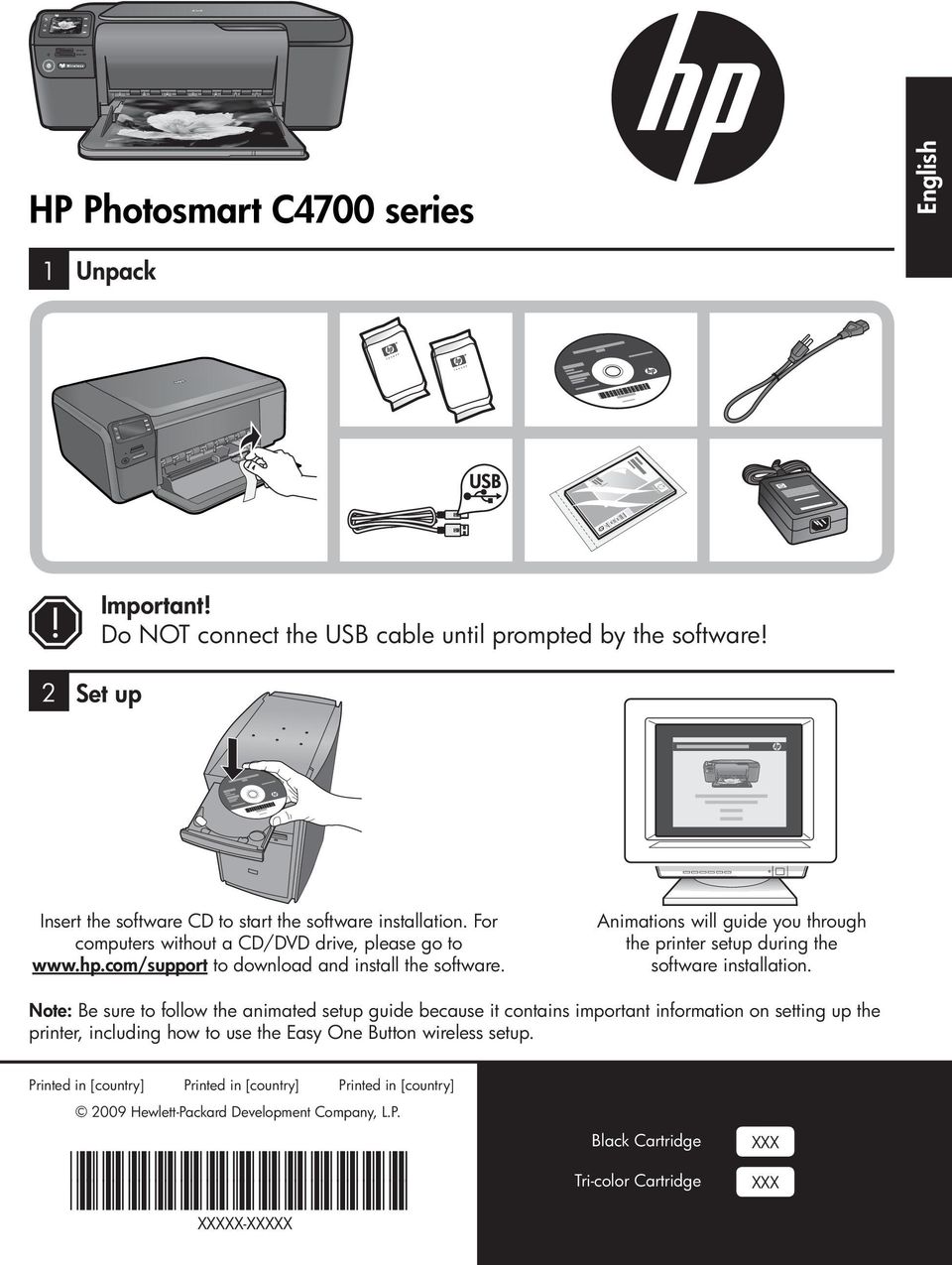
1 HP Photosmart C4700 series 1 Unpack Important! Do NOT connect the USB cable until prompted by the software! 2 Set up Insert the software CD to start the software installation. For computers without a CD/DVD drive, please go to to download and install the software. Animations will guide you through the printer setup during the software installation. Note: Be sure to follow the animated setup guide because it contains important information on setting up the printer, including how to use the Easy One Button wireless setup. Printed in [country] Printed in [country] Printed in [country] 2009 Hewlett-Packard Development Company, L.P. *XXXXX-XXXXX* *XXXXX-XXXXX* XXXXX-XXXXX Black Cartridge Tri-color Cartridge XXX XXX
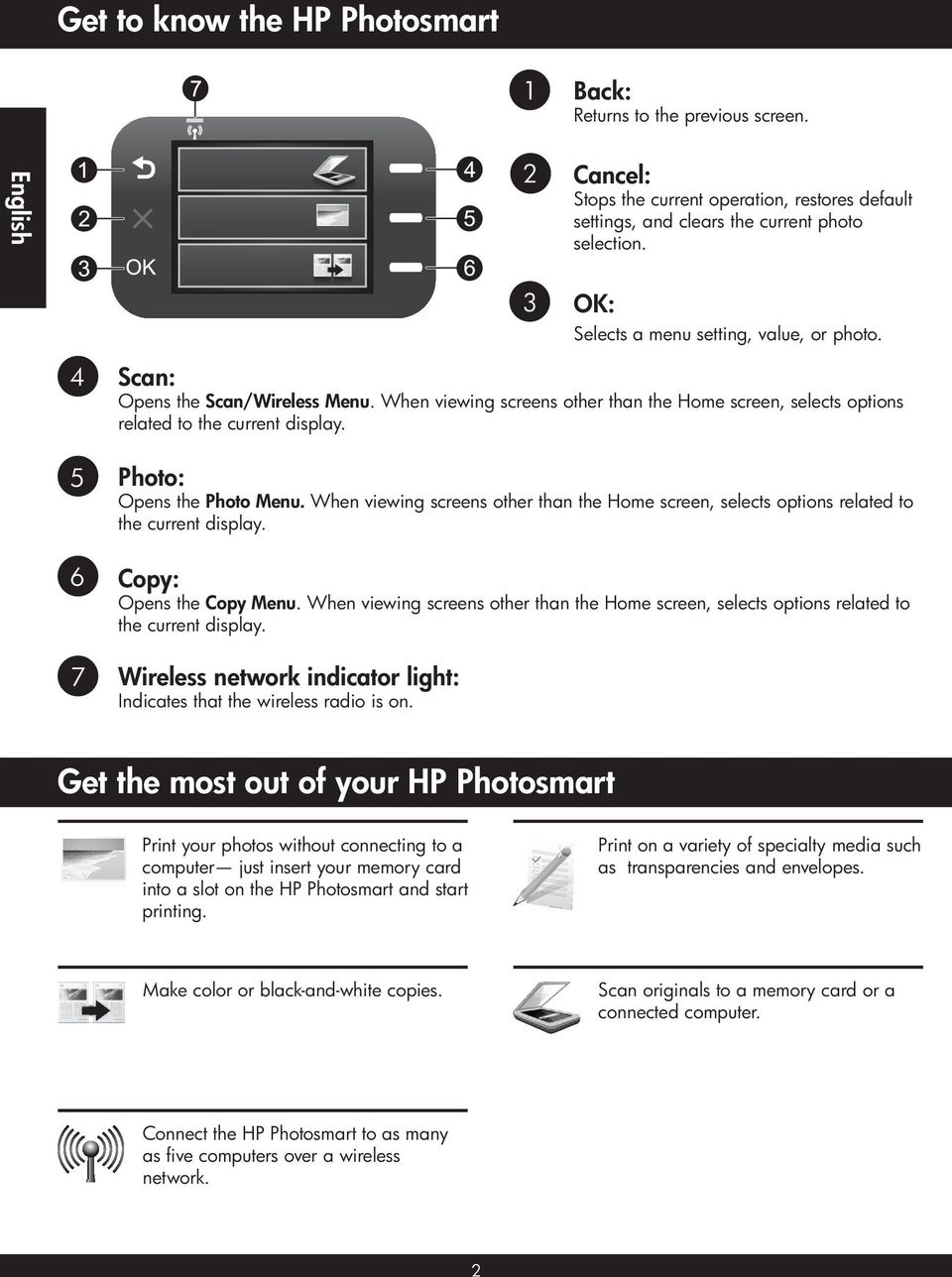
2 Get to know the HP Photosmart Back: Returns to the previous screen. Cancel: Stops the current operation, restores default settings, and clears the current photo selection. OK: Selects a menu setting, value, or photo Scan: Opens the Scan/Wireless Menu. When viewing screens other than the Home screen, selects options related to the current display. Photo: Opens the Photo Menu. When viewing screens other than the Home screen, selects options related to the current display. Copy: Opens the Copy Menu. When viewing screens other than the Home screen, selects options related to the current display. Wireless network indicator light: Indicates that the wireless radio is on. Get the most out of your HP Photosmart Print your photos without connecting to a computer just insert your memory card into a slot on the HP Photosmart and start printing. Print on a variety of specialty media such as transparencies and envelopes. Make color or black-and-white copies. Scan originals to a memory card or a connected computer. Connect the HP Photosmart to as many as five computers over a wireless network. 2
3 Get the most out of your HP Photosmart Connect to additional computers on a network You can connect the HP Photosmart to more than one computer on a small network of computers. If the HP Photosmart is already connected to a computer on a network, for each additional computer you must install the HP Photosmart Software. During installation of a wireless connection, the software will automatically discover the product on the network. Once you have set up the HP Photosmart on the network you will not need to configure it again when you add additional computers. Change the HP Photosmart from a USB connection to a network connection If you first install the HP Photosmart with a USB connection, you can later change to a wireless network connection. If you already understand how to connect to a network, you can use the general directions below. To change a USB connection to an integrated wireless WLAN 8011 connection Unplug the USB connection from the back of the product. Insert the product CD in the computer CD-ROM drive. Select Add a Device, and then follow the onscreen instructions for a wireless network installation. Find more information All other product information can be found in the electronic Help and Readme. Electronic Help includes instructions on product features and troubleshooting. It also provides product specifications, legal notices, environmental, regulatory, and support information. The Readme file contains HP support contact information, operating system requirements, and the most recent updates to your product information. To access the Electronic Help Windows: Click Start > All Programs > HP > Photosmart C4700 series > Help. Mac OS x v10.4: Click Help > Mac Help, Library > HP Product Help. Mac OS x v10.5: Click Help > Mac Help. In the Help Viewer, select HP Product Help. Power specifications: Power adapter: Input voltage: 100 to 240 Vac Input frequency: Hz Power consumption: 70W Maximum, 20W Average Note: Use only with the power adapter supplied by HP. Ink usage Note: Ink from the cartridges is used in the printing process in a number of different ways, including in the initialization process, which prepares the device and cartridges for printing, and in printhead servicing, which keeps print nozzles clear and ink flowing smoothly. In addition, some residual ink is left in the cartridge after it is used. For more information see 3
4 Troubleshooting Setup Troubleshooting If the HP Photosmart does not turn on: 4. Check the power cord. Make sure the power cord is firmly connected to both the product and the power adapter. If you are using a power strip, make sure the power strip is turned on. Or, try plugging the product directly into a power outlet. Test the power outlet to make sure it is working. Plug in an appliance that you know works, and see if the appliance has power. If not, then there might be a problem with the power outlet. If you plugged the product into a switched outlet, make sure the outlet is switched on. If it is switched on but still does not work, then there might be a problem with the power outlet. Turn off the product, and then unplug the power cord. Plug the power cord back in, and then press the On button to turn on the product. The product might not respond if you press the On button too quickly. Press the On button once. It might take a few minutes for the product to turn on. If you press the On button again during this time, you might turn the product off. If you have completed all of the steps provided in the previous solutions and are still having a problem, contact HP support for service. Go to: Windows If you are unable to print make sure the product is set as your default printing device: Windows Vista: On the Windows taskbar, click Start, click Control Panel, and then click Printers. Windows XP: On the Windows taskbar, click Start, click Control Panel, and then click Printers and Faxes. Make sure that your product has a check mark in the circle next to it. If your product is not selected as the default printer, right-click the printer icon and choose Set as default printer from the menu. If you are still unable to print, or the Windows software installation fails: Remove the CD from the computer s CD-ROM drive, and then disconnect the USB cable from the computer. Restart the computer. Temporarily disable any software firewall and close any anti-virus software. Restart these programs after the product software is installed. Insert the product software CD in the computer s CD-ROM drive, then follow the onscreen instructions to install the product software. Do not connect the USB cable until you are told to do so. After the installation finishes, restart the computer. 4

5 Troubleshooting Mac If you are unable to print, uninstall and reinstall the software: Note: The uninstaller removes all of the HP software components that are specific to the device. The uninstaller does not remove components that are shared by other products or programs. To uninstall the software: Disconnect the HP Photosmart from your computer. Open the Applications: Hewlett-Packard folder. Double-click HP Uninstaller. Follow the onscreen instructions. To install the software: To install the software, insert the HP software CD into your computer s CD drive. On the desktop, open the CD and then double-click HP Installer. Follow the onscreen instructions. Network Troubleshooting Use this section to solve problems you might encounter when setting up a network connection. The product cannot be found during software installation If the HP software is unable to find your product on the network during software installation, try the following troubleshooting steps. If you have a wireless connection, start with step 1 and proceed through step 4 as necessary. Wireless connections Step 1: Determine if the product is connected to the network by running the Wireless Network Test and following any instructions provided. To run the Wireless Network Test 4. Press button next to Scan. Press button next to Wireless Menu. Press button next to Wireless Settings. Press button next to Run Wireless Network Test. 5

6 Troubleshooting Step 2: If you determined in Step 1 that the product is not connected to a network and this is the first time you are installing the product, you will need to follow the onscreen instructions during software installation to connect the product to the network. To connect the product to a network Insert the product Software CD in the computer CD-ROM drive. Follow the instructions on the screen. When you are prompted, connect the product to the computer using the USB setup cable included in the box. The product will attempt to connect to the network. If the connection fails, follow the prompts to correct the problem, and then try again. When the setup is finished, you will be prompted to disconnect the USB cable and test the wireless network connection. Once the product connects successfully to the network, install the software on each computer that will use the product over the network. Here is how to resolve some common issues that can keep the product from joining your network: You may have picked the wrong network or typed in your network name (SSID) incorrectly. Check these settings to ensure they are correct. You may have typed in your WEP key or your WPA encryption key incorrectly (if you are using encryption). Note: If the network name or the WEP/WPA keys are not found automatically during installation, and if you don t know them, you can download an application from that may help you locate them. This application works for only Windows Internet Explorer and is only available in. You may have a router problem. Try restarting both the product and the router by turning the power for each of them off, and then on again. Step 3: Check for and resolve the following possible conditions: Your computer may not be connected to your network. Make sure that the computer is connected to the same network to which the HP Photosmart is connected. If you re connected wirelessly, for example, it is possible that your computer is connected to a neighbor s network by mistake. Your computer may be connected to a Virtual Private Network (VPN). Temporarily disable the VPN before proceeding with the installation. Being connected to a VPN is like being on a different network; you will need to disconnect the VPN to access the product over the home network. Security software may be blocking communication. Security software (firewall, anti-virus, anti-spyware) installed on your computer may be blocking communication between the product and the computer. An HP diagnostic runs automatically during installation and can provide messaging about what may be blocked by the firewall. Try temporarily disconnecting your firewall, anti-virus, or anti-spyware applications to see if you can successfully finish the installation. 6

7 Troubleshooting You can re-enable your firewall application after installation is complete. Make sure the following files are included in the exceptions list of the firewall: C:\Program Files\Hp\Digital maging\bin\hpqtra08.exe. C:\Program Files\Hp\Digital Imaging\bin\hpqscnvw.exe or hpiscnapp.exe. C:\Program Files\Hp\Digital Imaging\bin\hpqdstcp.exe. Tip: Configure your firewall software to allow communication over UDP port 427. Step 4: Use the advanced search feature. Print a network configuration report using the following instructions: 4. Press button next to Scan. Press button next to Wireless Menu. Press button next to Wireless Settings. Press button next to Print Network Configuration Page. Identify the IP address of the HP Photosmart from the network configuration report. Use the advanced search option available during software installation, then click on Search by IP address and enter the product s IP address. Other network problems after software installation If the HP Photosmart has been successfully installed, and you are experiencing problems such as not being able to print, try the following: Turn off the router, product, and computer, and then turn them back on in this order: router first, then the product, and finally the computer. Sometimes, cycling the power will recover a network communication issue. If the previous step does not solve the problem and you have successfully installed the HP Photosmart Software on your computer, run the Network Diagnostic tool. To run the Network Diagnostic tool > In the Solution Center, click Settings, click Other Settings, and then click Network Toolbox. On the Utilities tab, click Run Network Diagnostics. 7
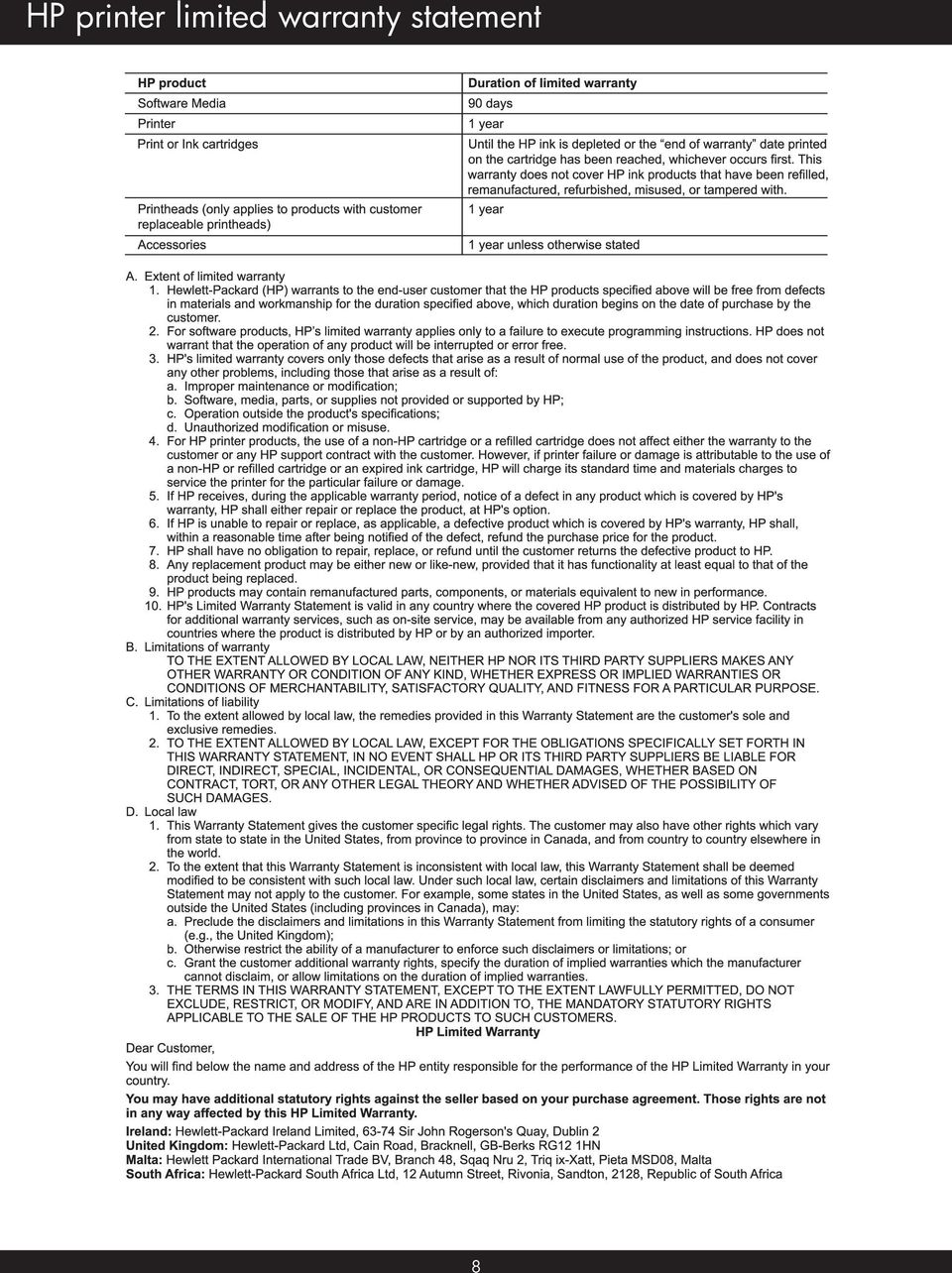
8 HP printer limited warranty statement
HP Photosmart Wireless series - B109
 HP Photosmart Wireless series - B109 Apply sticker to printer Important! Do NOT connect the USB cable until prompted by the software (Windows users only) 1 Verify box contents 2 Insert the CD for guided
Start Here USB. (802.11) (Ethernet)
 Start Here 1 USB 802.11 Ethernet USB cable users: Do not connect the USB cable until Section A. USB A USB Wireless (802.11) or wired (Ethernet) network users : you must follow the instructions in this
Network Setup Guide. Introduction. Setting up for use over LAN
 Network Setup Guide This manual contains the setup information required to use the machine over wired LAN. If you use the machine with USB connection, refer to your setup sheet. Introduction To use the
HP Photosmart C6300 All-in-One series. Basics Guide
 HP Photosmart C6300 All-in-One series Basics Guide Hewlett-Packard Company notices The information contained in this document is subject to change without notice. All rights reserved. Reproduction, adaptation,
Networking. General networking. Networking overview. Common home network configurations. Wired network example. Wireless network examples
 Networking General networking Networking overview A network is a collection of devices such as computers, printers, Ethernet hubs, wireless access points, and routers connected together for communication
910 Series Photo Jetprinter. Setup Solutions
 910 Series Photo Jetprinter Setup Solutions Edition: September 2004 The following paragraph does not apply to any country where such provisions are inconsistent with local law: LEXMARK INTERNATIONAL, INC.,
Getting Your Multifunction Back On Your Network After A Router Or Network Change
 Getting Your Multifunction Back On Your Network After A Router Or Network Change PIXMA MX860 Windows OS 1 If any of the following situations exist, you will need to Uninstall and Re-Install the MP Drivers
HP Photosmart C7100 All-in-One series. Basics Guide
 HP Photosmart C7100 All-in-One series Basics Guide HP Photosmart C7100 All-in-One series Basics Guide 2006 Hewlett-Packard Development Company, L.P. Adobe and the Acrobat logo are trademarks of Adobe Systems
HL2170W Windows Network Connection Repair Instructions
 Difficulty printing from your PC can occur for various reasons. The most common reason a networked Brother machine may stop printing, is because the connection between the computer and the Brother machine
Installing Your Multifunction to Your Network for the First Time
 > Installing Your Multifunction to Your Network for the First Time PIXMA MP499 Mac OS 1 > Installing Your Multifunction to Your Network for the First Time PIXMA MP499
MFC8890DW Vista Network Connection Repair Instructions
 Difficulty printing from your PC can occur for various reasons. The most common reason a networked Brother machine may stop printing, is because the connection between the computer and the Brother machine
CANON FAX L360 SOFTWARE MANUAL
 CANON FAX L360 SOFTWARE MANUAL Before You Begin the Installation: a Checklist 2 To ensure a smooth and successful installation, take some time before you begin to plan and prepare for the installation
Network Installation Guide. WorkForce 610 Series Artisan 710 Series
 Network Installation Guide WorkForce 610 Series Artisan 710 Series Contents Before You Begin.......................................... 3 Choose Your Connection Type................................ 4 Wireless.............................................
How do I configure the wireless printer using a USB or Ethernet cable and install the printer driver in Windows?
 How do I configure the wireless printer using a USB or Ethernet cable and install the printer driver in Windows? STEP I: Gather the wireless network settings of your wireless access point or wireless router
HP Photosmart C4380 All-in-One series. Basics Guide
 HP Photosmart C4380 All-in-One series Basics Guide Hewlett-Packard Company notices The information contained in this document is subject to change without notice. All rights reserved. Reproduction, adaptation,
Chapter 1 Downloading Images to Your Computer (Windows)
 Software User Guide For the safe use of your camera, be sure to read the Safety Precautions thoroughly before use. Types of software installed on your computer varies depending on the method of installation
NETWORK USER S GUIDE. Multi-Protocol On-board Ethernet Multi-function Print Server and Wireless Ethernet Multi-function Print Server
 Multi-Protocol On-board Ethernet Multi-function Print Server and Wireless Ethernet Multi-function Print Server NETWORK USER S GUIDE This Network User's Guide provides useful information of wired and wireless
Installing Your Printer to the Network for the First Time
 Installing Your Printer to the Network for the First Time PIXMA ip110 Windows OS Wireless Setup Using the USB Cable 1 Installing Your Printer to Your Network for the First Time PIXMA ip110 Windows OS Preparing
N600 WiFi USB Adapter
 Model WNDA3100v3 User Manual December 2014 202-11470-01 350 East Plumeria Drive San Jose, CA 95134 USA Support Thank you for selecting NETGEAR products. After installing your device, locate the serial
ENPS-MF1. 1 USB Port. Multifunctional Print Server. Quick Installation Guide V1.0
 ENPS-MF1 1 USB Port Multifunctional Print Server V1.0 Specifications or features are subject to change without prior notice. All brand names or trademarks are the property of their respective owners. Packing
Network Installation Guide. Artisan 810 Series
 Network Installation Guide Artisan 810 Series Before You Begin Make sure you installed ink cartridges and loaded paper as described on the Start Here sheet. Then follow the instructions in this guide to
Troubleshooting Sprint Mobile Broadband USB Modem by Novatel Wireless TM (Ovation TM U727)
 Troubleshooting Sprint Mobile Broadband USB Modem by Novatel Wireless TM (Ovation TM U727) If you are unable to resolve your issue using the Troubleshooting steps below, please contact Sprint Customer
NETWORK USER S GUIDE. Multi-Protocol On-board Ethernet Multi-function Print Server and Wireless Ethernet Multi-function Print Server
 Multi-Protocol On-board Ethernet Multi-function Print Server and Wireless Ethernet Multi-function Print Server NETWORK USER S GUIDE This Network User's Guide provides useful information of wired and wireless
Network Installation Guide. WorkForce 600 Series Artisan 700 Series Artisan 800 Series
 Network Installation Guide WorkForce 600 Series Artisan 700 Series Artisan 800 Series Before You Begin Make sure you installed ink cartridges and loaded paper as described on the Start Here poster. Then
LPT1 Printer Connector. External Power Supply Connector Power Indicator
 AXIS 1650 Set-up Instructions Page 3 Unpack box Verify that you have all the items listed below: LPT1 Printer Connector Network Indicator Ethernet Connector External Power Supply Connector Power Indicator
hp digital home networking wireless USB network adapter hn210w quick start guide
 hp digital home networking wireless USB network adapter hn210w quick start guide Revision #: 15 Page: 1 of 11 Printed: 08/15/01 04:44 PM The Hewlett-Packard Company makes no warranty of any kind with regard
SATO Network Interface Card Configuration Instructions
 SATO Network Interface Card Configuration Instructions Table of Contents 1. Reset of wired/wireless interface card... 3 2. Installing the All-In-One Utility (recommended)... 4 3. Configuring wired/wireless
TE100-P21/TEW-P21G Windows 7 Installation Instruction
 Hardware Installation TE100-P21/TEW-P21G Windows 7 Installation Instruction 1. Go to http://www.trendnet.com/downloads/ to download the Windows 7 Utility. Save the file to your desktop. 2. Right click
Wireless and Wired Network Guide
 Wireless and Wired Network Guide HP all-in-one Network Guide Copyright 2004 Hewlett-Packard Development Company, L.P. The information contained herein is subject to change without notice. Reproduction,
Installing Your Printer to Your Network for the First Time
 Installing Your Printer to Your Network for the First Time PIXMA ip8720 Windows OS 1 Installing Your Printer to Your Network for the First Time PIXMA ip8720 Windows OS Preparing to Connect My Printer to
Installing a Westell USB Network Adapter
 Installing a Westell USB Network Adapter Before You Begin Before you begin installing your Westell USB Network adapter: 1. Make sure the computer with the USB adapter meets the minimum system requirements
3600-4600 Series User's Guide
 3600-4600 Series User's Guide 2008 www.lexmark.com Contents Safety information...9 Introduction...10 Finding information about the printer...10 Setting up the printer...13 Bypassing security warnings
A6210 WiFi USB Adapter 802.11ac USB 3.0 Dual Band User Manual
 802.11ac USB 3.0 Dual Band User Manual August 2014 202-11373-01 350 East Plumeria Drive San Jose, CA 95134 USA Support Thank you for selecting NETGEAR products. After installing your device, locate the
SMART INSTALL CONTENTS. Questions and answers
 SMART INSTALL Questions and answers CONTENTS Frequently asked questions...2 Compatibility...3 USB connection...3 Wired or wireless network connection...4 Software CD...5 After installation...6 Software
1-Port Wireless USB 2.0 Print Server Model # APSUSB201W. Quick Installation Guide. Ver. 2A
 1-Port Wireless USB 2.0 Print Server Model # APSUSB201W Quick Installation Guide Ver. 2A Section 1 Step 1Connect one end of the Ethernet cable to the RJ-45 port of the Print Server and attach the other
AXIS 1440 Print Server For EPSON Printers: Product Update. Important Information for Windows
 Important Information for Windows AXIS 1440 Print Server For EPSON Printers: Product Update Important Information for Windows If you are using Windows 95, Windows 98, or Windows NT 4.0, you need to turn
Internet and Email Help. Table of Contents:
 Internet and Email Help The following tips are provided to assist you in troubleshooting and managing your Plex Internet and email services. For additional issues or concerns, you may also call our Product
MFC6490CW Windows Network Connection Repair Instructions
 Difficulty printing from your PC can occur for various reasons. The most common reason a networked Brother machine may stop printing, is because the connection between the computer and the Brother machine
Epson Stylus CX9475Fax. Start Here
 Epson Stylus CX9475Fax Start Here Unpack Caution: Do not open ink cartridge packages until you are ready to install the ink. Cartridges are vacuum packed to maintain reliability. If anything is missing,
LabelWriter. Print Server. User Guide
 LabelWriter Print Server User Guide Copyright 2010 Sanford, L.P. All rights reserved. 08/10 No part of this document or the software may be reproduced or transmitted in any form or by any means or translated
Network User s Guide
 Network User s Guide Multi-Protocol On-board Ethernet Multi-function Print Server and Wireless Multi-function Print Server This Network User s Guide provides useful information of wired and wireless network
Installing Your Multifunction to Your Network for the First Time
 Installing Your Multifunction to Your Network for the First Time PIXMA MG3520 Windows OS 1 Installing Your Multifunction to Your Network for the First Time PIXMA MG3520 Windows OS Preparing to Connect
Getting Started. rp5800, rp5700 and rp3000 Models
 Getting Started rp5800, rp5700 and rp3000 Models Copyright 2011 Hewlett-Packard Development Company, L.P. The information contained herein is subject to change without notice. Microsoft, Windows, and Windows
Print Server Application Guide. This guide applies to the following models.
 Print Server Application Guide This guide applies to the following models. TL-WR842ND TL-WR1042ND TL-WR1043ND TL-WR2543ND TL-WDR4300 CONTENTS Chapter 1. Overview... 1 Chapter 2. Before Installation...
2 Setting Up the Hardware for a Wired Ethernet Network... 13. 3 Setting Up the Software for an Ethernet Network... 21
 Contents 1 Networking Basics............................................... 1 Selecting a network connection........................................ 2 Wired Ethernet network...........................................
Contents. Business Everywhere user guide. 1. Introduction. 2. How to Install/Uninstall Business Everywhere. 3. The Business Everywhere interface
 Contents 1. Introduction 2. How to Install/Uninstall Business Everywhere 3. The Business Everywhere interface 4. Launching Business Everywhere 5. Connection 6. Business Everywhere management tools 7. Troubleshooting
Checking the Package Contents. Installing the Printer Software. Connecting. Unpacking the. the Printer. Printer. Attaching
 Installing the Printer Software Checking the Package Contents Connecting the Printer Unpacking the Printer Installing the Ink Cartridges Plugging in the Printer Attaching the Printer Parts 4032216-00 EUL
Installing Your Multifunction to Your Network for the First Time
 Installing Your Multifunction to Your Network for the First Time PIXMA MG2920 Windows OS 1 Installing Your Multifunction to Your Network for the First Time PIXMA MG2920 Windows OS Preparing to Connect
AIM SOFTWARE AND USB DRIVER INSTALLATION PROCEDURE
 AIM SOFTWARE AND USB DRIVER INSTALLATION PROCEDURE CONTENTS AIM software and USB Driver installation Chapter 1 Installing AIM software and AIM USB driver... 2 Chapter 2 Installation under Microsoft Windows
HP Scanjet G4000 series. User Guide
 HP Scanjet G4000 series User Guide Contents 1 How to use the scanner...2 Where to get additional information...2 Accessibility...2 How to use the HP Photosmart software...3 Front panel and accessories
Lexmark 1400 Series. Getting Started
 Lexmark 1400 Series Getting Started February 2007 www.lexmark.com Lexmark and Lexmark with diamond design are trademarks of Lexmark International, Inc., registered in the United States and/or other countries.
HP Photosmart C4700 series
 HP Photosmart C4700 series Contents 1 HP Photosmart C4700 series Help...3 2 Finish setting up the HP Photosmart Add the HP Photosmart to a network...5 Set up a USB connection...10 3 Get to know the HP
Frequently Asked Questions
 FAQs Frequently Asked Questions Connecting your Linksys router to the Internet 1 What computer operating systems does my Linksys router support? 1 Why can t I connect my computer or device to my router?
Using the Control Panel for Wireless Network Installation. WorkForce 600 Series Artisan 700 Series
 Using the Control Panel for Wireless Network Installation WorkForce 600 Series Artisan 700 Series Before You Begin Make sure you installed ink cartridges and loaded paper in the printer as described on
Table of Contents. Hardware Installation...7 Push Button Security... 8. Using the Setup Wizard...10. Configuration...11 Main... 12 Security...
 Table of Contents Table of Contents Product Overview...3 Package Contents...3 System Requirements... 3 Introduction...4 Features... 4 Hardware Overview...5 LEDs... 5 Connection... 6 Hardware Installation...7
EasyMP Multi PC Projection Operation Guide
 EasyMP Multi PC Projection Operation Guide Contents Introduction to EasyMP Multi PC Projection... 7 EasyMP Multi PC Projection Features... 7 Connection to Various Devices... 7 Four-Panel Display... 8
Installation Guide Wireless 4-Port USB Sharing Station. GUWIP204 Part No. M1172-a
 Installation Guide Wireless 4-Port USB Sharing Station 1 GUWIP204 Part No. M1172-a 2011 IOGEAR. All Rights Reserved. PKG-M1172-a IOGEAR, the IOGEAR logo, MiniView, VSE are trademarks or registered trademarks
PCLinq2 Hi-Speed USB Bridge-Network Cable. Quick Network Setup Guide
 PCLinq2 Hi-Speed USB Bridge-Network Cable Congratulations! Quick Network Setup Guide For Windows 98/ME/2000/XP Congratulations for installing the PCLinq2 Hi-Speed USB Bridge-Network Cable. This Quick Network
DIGITAL MULTIFUNCTIONAL SYSTEM
 MODEL: MX-M283N MX-M363N MX-M453N MX-M503N DIGITAL MULTIFUNCTIONAL SYSTEM Software Setup Guide BEFORE INSTALLING THE SOFTWARE SETUP IN A WINDOWS ENVIRONMENT SETUP IN A MACINTOSH ENVIRONMENT TROUBLESHOOTING
Wireless Setup Guide
 Wireless Setup Guide Edition notice October 2008 The following paragraph does not apply to any country where such provisions are inconsistent with local law: THIS PUBLICATION IS PROVIDED AS IS WITHOUT
HP-1000 Powerline USB Adapter
 HP-1000 Powerline USB Adapter User s manual BEFORE INSTALLATION Plan ahead the installation of your powerline network. Note: You will need at least two powerline adapters to create a powerline network.
DIGITAL FULL COLOR MULTIFUNCTIONAL SYSTEM. Software Setup Guide
 DIGITAL FULL COLOR MULTIFUNCTIONAL SYSTEM Software Setup Guide BEFORE INSTALLING THE SOFTWARE SETUP IN A WINDOWS ENVIRONMENT SETUP IN A MACINTOSH ENVIRONMENT TROUBLESHOOTING Thank you for purchasing this
Installing Your Multifunction to Your Network for the First Time. PIXMA MX410 Mac OS
 Installing Your Multifunction to Your Network for the First Time PIXMA MX410 Mac OS 1 Navigation Tips for Macintosh Users DOWN To navigate this guide, please use the arrows on the MAC keyboard or use the
HP-1000 Powerline Ethernet Adapter
 HP-1000 Powerline Ethernet Adapter User s manual BEFORE INSTALLATION Plan ahead the installation of your powerline network. Note: You will need at least two powerline adapters to create a powerline network.
Network Installation Guide
 Network Installation Guide Before You Begin Make sure you installed ink cartridges and loaded paper as described on the Start Here sheet. Then follow the instructions in this guide to set up the printer
EPSON Stylus. Start Here
 EPSON Stylus C84 EPSON Stylus Start Here C84 CPD-16675R1 4043482-00 XXX 1 Unpack 1 Remove everything from the box. Paper support Printer Manual Power cord Ink cartridges CD-ROM 2 Remove all the blue tape
EPSON Stylus COLOR 740. USB Software Installation Guide (Windows 98/iMac ) USB Setup Guide (imac)
 EPSON Stylus COLOR 740 TM USB Software Installation Guide (Windows 98/iMac ) USB Setup Guide (imac) This guide includes USB setup instructions for your imac computer, as well as software installation instructions
Mobility with Eye-Fi Scanning Guide
 Mobility with Eye-Fi Scanning Guide Scan and Transfer Images Wirelessly with Eye-Fi This document is to be used in addition to the scanner s user guide located on the installation disc. The instructions
Quick Installation Guide
 V48.01 Model: FI8919W Quick Installation Guide Outdoor Pan/Tilt Wireless IP Camera For Windows OS ------- Page 1 For MAC OS ------- Page 15 ShenZhen Foscam Intelligent Technology Co., Ltd Quick Installation
User Guide. Linksys PLWK400. Powerline AV Wireless Network Extender Kit
 User Guide Linksys PLWK400 Powerline AV Wireless Network Extender Kit Contents Contents Overview............... 3 Features..................... 3 PLE400 3 PLW400 4 How Powerline networking works...........
HP Deskjet 2540 All-in-One series
 HP Deskjet 2540 All-in-One series Table of contents 1 HP Deskjet 2540 series Help... 1 2 Get to know the HP Deskjet 2540 series... 3 Printer parts... 4 Control panel features... 5 Wireless settings...
Installing Your Multifunction to Additional Computers on Your Network. PIXMA MX340/ PIXMA MX350/ PIXMA MX870 Mac OS
 Installing Your Multifunction to Additional Computers on Your Network PIXMA MX340/ PIXMA MX350/ PIXMA MX870 Mac OS 1 Navigation Tips for Macintosh Users DOWN To navigate this guide, please use the arrows
USER S GUIDE RJ-4030 RJ-4040
 USER S GUIDE RJ-4030 RJ-4040 Before using this printer, be sure to read this User's Guide. We suggest that you keep this manual in a handy place for future reference. Version A US ENG Introduction Thank
CLEARONE DOCUMENT 801-000-002 (REVISION 1.0) October, 2008. with Converge Pro Units
 APPLICATION NOTES Converge Pro Products CLEARONE DOCUMENT 801-000-002 (REVISION 1.0) October, 2008. Troubleshooting USB Connections with Converge Pro Units Description This document explains how to connect
Star t Here. Epson Stylus Photo RX620. Unpack and Assemble. 1 Make sure you have all the parts shown here. If any parts are missing,
 Star t Here Epson Stylus Photo RX0 Unpack and Assemble Make sure you have all the parts shown here. If any parts are missing, contact Epson as described on the back of this sheet. Epson Stylus Photo RX0
How do I monitor the ink levels on my EPSON Stylus printer using Windows 2000 or XP?
 Faulty analysis Error indicators Status Monitor PrintJet Doesn't Print Mats are not drawn in or transported Mats are not delivered correctly The statusmonitor caused an error message Maintenance of PrintJet
TCC INTERNET. Setup and Configuration. Comtrend DSL Modem with built-in Wireless Router
 TCC INTERNET Setup and Configuration Comtrend DSL Modem with built-in Wireless Router Guide Contents The Basics: Lights & Plug-ins Security: WEP Setup USB Driver Installation Troubleshooting & Support
1 Installation. Note: In Windows operating systems, you must be logged in with administrator rights to install the printer driver.
 Installation A printer driver is an application that manages communication between a printer and your computer. Once installed, the printer driver settings must be configured in the printer Properties
The Wireless LAN (Local Area Network) USB adapter can be operated in one of the two following networking configurations :
 SAGEM Wi-Fi 11g USB ADAPTER Quick Start Guide About this guide This Quick Start Guide describes how to install and operate your SAGEM Wi-Fi 11g USB ADAPTER. Please read this manual before you install the
Configuring the wireless security of your Linksys Wireless-N router through the web-based setup page
 Contents Configuring the wireless security of your Linksys Wireless-N router through the web-based setup page.. 2 Checking the Linksys router s wireless settings through the web-based setup page and adding
INSTALLING THE WIFI DONGLE ON WINDOWS VISTA
 INSTALLING THE WIFI DONGLE ON WINDOWS VISTA Please note that setting up the WiFi dongle on the Windows Vista operating system differs to that of other Windows systems like XP/ME/2000. Please refer to this
USER GUIDE AC2400. DUAL BAND GIGABIT Wi Fi ROUTER. Model# E8350
 USER GUIDE AC2400 DUAL BAND GIGABIT Wi Fi ROUTER Model# E8350 Table of Contents Product overview E8350..................................... 1 Setting Up Your E-Series Router Where to find more help.........................
4-441-095-12 (1) Network Camera
 4-441-095-12 (1) Network Camera SNC easy IP setup Guide Software Version 1.0 Before operating the unit, please read this manual thoroughly and retain it for future reference. 2012 Sony Corporation Table
Start Here. All-in-One Printer. Print Copy Scan
 Start Here 7 Print Copy Scan All-in-One Printer Note: For a USB cable connection, a USB 2.0 cable is required to connect your KODAK All-in-One Printer to your WINDOWS or MACINTOSH OS computer. Available
Software Manual. HP SimpleSave. Backup Software User Manual. SimpleSave
 HP SimpleSave Backup Software User Manual Software Manual SimpleSave Getting Help For additional help with your drive, its installation, and the software, contact one of the following: HP Customer Care
The range of Wi-Fi coverage and usage. Hub Computers which can
 300Mbps Wireless LAN Repeater Quick Start Guide Version:MZK-EX300N_QIG-A_V1.1 In order to guarantee the correct usage of our products, this guide gives instructions on how to set and use our products.
3500-4500 Series All-In-One
 3500-4500 Series All-In-One Getting Started March 2007 www.lexmark.com Lexmark and Lexmark with diamond design are trademarks of Lexmark International, Inc., registered in the United States and/or other
F.A.Q. Mustek A3 scanners 600-1200-2400
 F.A.Q. Mustek A3 scanners 600-1200-2400 Q- When I connect the scanner there is no light on the scanner, is the scanner working? A- There is no LED on the scanner that indicates if the scanner is switched
Installation Guide (No Router)
 Installation Guide (No Router) This installation guide will show you how to get your voip phone service working. This installation guide should be used if you have a standard DSL or cable modem and no
IEEE 802.11b WLAN PC Card
 IEEE 802.11b WLAN PC Card User s Guide Version: 1.3 August 2001 Please install the Utility/Driver first before inserting the PCMCIA Card. FCC Class B Radio Frequency Interference Statement The manufacturer
USB Driver Installation for Windows XP
 USB Driver Installation for Windows XP USB Serial Converter Driver Installation for Windows XP CAUTION: You must use the drivers on the CD-ROM supplied with your USB Device. DO NOT download drivers from
Installing Your Multifunction to Your Network for the First Time. PIXMA MP980 / PIXMA MP620 Mac OS
 Installing Your Multifunction to Your Network for the First Time PIXMA MP980 / PIXMA MP620 Mac OS 1 Navigation Tips for Macintosh Users DOWN To navigate this guide, please use the arrows on the MAC keyboard
WUA-1610, WUA-1610H. 300Mbps Wireless USB Adapter. User Manual V1.0
 WUA-1610, WUA-1610H 300Mbps Wireless USB Adapter User Manual V1.0 Table of Contents Chapter 1 Introduction... 1 1.1 PACKAGE CONTENTS... 1 1.2 PRODUCT FEATURES... 1 1.3 LED INDICATOR DESCRIPTION... 2 1.4
FI8910W Quick Installation Guide. Indoor MJPEG Pan/Tilt Wireless IP Camera
 Model: FI8910W Quick Installation Guide (For Windows OS) (For MAC OS please go to page 17) Indoor MJPEG Pan/Tilt Wireless IP Camera Black White Package Contents IP Camera FI8910W with IR-Cut.x 1 DC Power
FX-BTCVT Bluetooth Commissioning Converter Commissioning Guide
 FX-BTCVT Bluetooth Commissioning Converter Commissioning Guide FX-BTCVT-1 (Bluetooth Commissioning Converter) Code No. LIT-12011665 Issued December 5, 2014 Refer to the QuickLIT website for the most up-to-date
MFC7840W Windows Network Connection Repair Instructions
 Difficulty printing from your PC can occur for various reasons. The most common reason a networked Brother machine may stop printing, is because the connection between the computer and the Brother machine
Resolving H202 Errors (INTERNAL)
 Resolving H202 Errors (INTERNAL) Contents Scope and audience.......3 General H202 Error Information...... 3 System Recommendations....4 QuickBooks Multi User Mode - QuickBooks Over a Network......4 QuickBooks
Installing Your Multifunction to Your Network for the First Time
 > Installing Your Multifunction to Your Network for the First Time PIXMA MX452 Mac OS 1 > Installing Your Multifunction to Your Network for the First Time PIXMA MX452