
Ericsson W25. Mobile Networks. Quick Installation Guide
|
|
|
- Doris Hunt
- 10 years ago
- Views:
Transcription
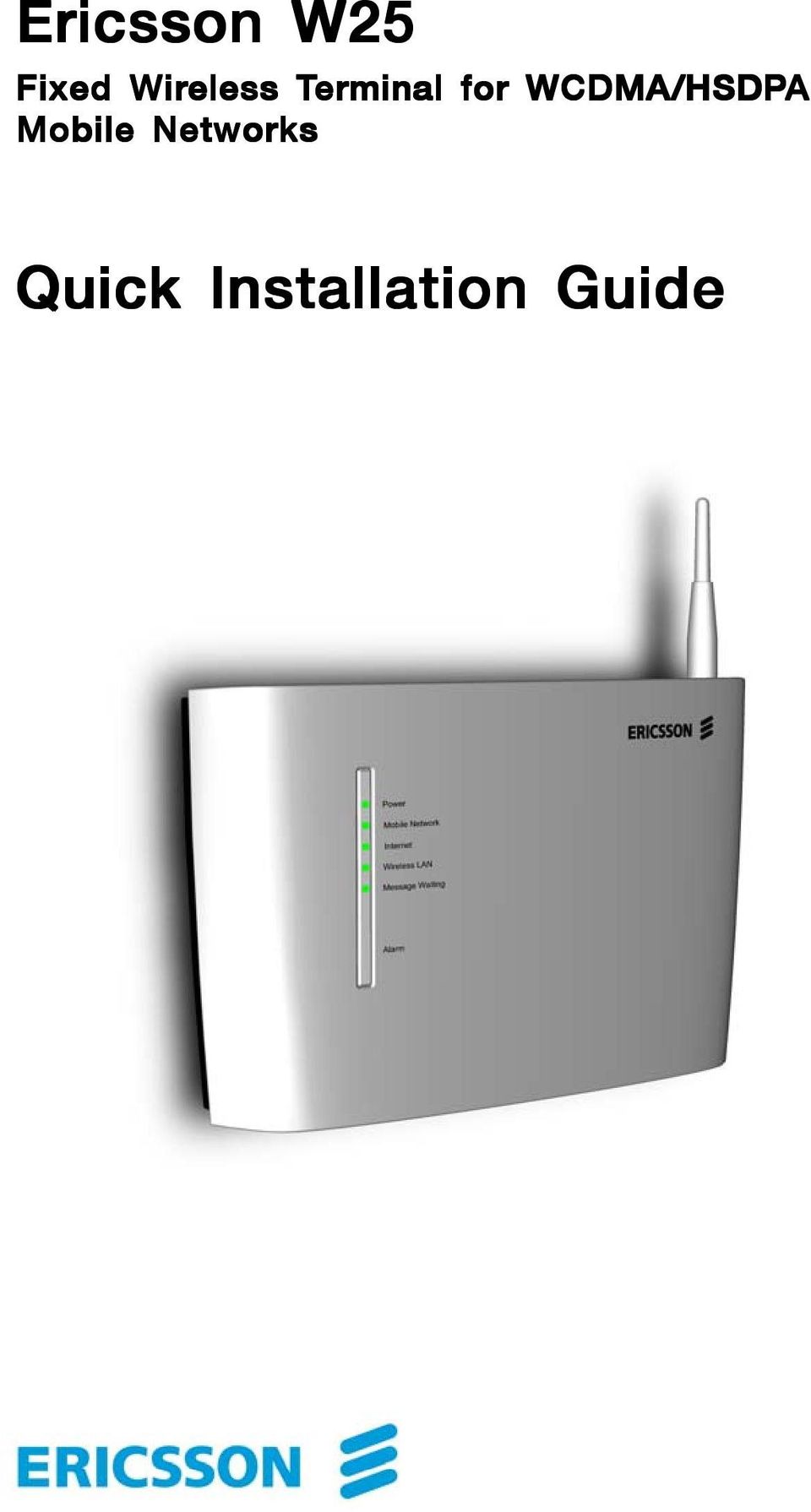
1 Ericsson W25 Fixed Wireless Terminal for WCDMA/HSDPA Mobile Networks Quick Installation Guide
2 Table of Contents INTRODUCTION... 3 Package Contents... 3 Requirements... 3 INSTALLATION... 4 Unit Preparation... 4 Basic Configuration... 6 Choosing a Location... 8 HARDWARE DESCRIPTION Connectors Indicators No part of this document may be reproduced in any form without permission from the copyright owner. The contents of this document are subject to revision without notice due to continued progr ogress in methodology, design, and manufacturing. Ericsson shall have no liability for any error or damage of any kind resulting from the use of this document. Ericsson Enterprise AB 2006 All rights reserved. XX/LZT X/LZT R2
3 INTRODUCTION This Quick Installation Guide provides instructions on how to install and get started with your Ericsson W25 Fixed Wireless Terminal. For further information about the product, advanced configuration, and troubleshooting, see the User s Guide included on the enclosed CD. For information about connection of services, please contact your service provider. NOTE! Carefully read the document containing safety and regulatory information included on the enclosed CD. PACKAGE CONTENTS The Ericsson W25 package includes the items listed below: Ericsson W25 unit UMTS/GSM antenna Power supply adapter Power cord Ethernet cable Quick Installation Guide CD Verify that all items are included in the package before proceeding with the installation. If any item is missing or damaged, please contact the dealer/service provider from which the equipment was purchased. REQUIREMENTS To install your Ericsson W25 you need the following items: A SIM card and configuration details (such as PIN code, APN, etc.) provided by your service provider. The SIM card contains information about your subscription and the services included. A PC with an Ethernet network interface and a web browser for basic configuration of the unit. Supported web browsers are: Internet Explorer 5.x or higher, Safari 1.3 or higher, Firefox 1.0 or higher, Opera 8 or higher. Introduction 3

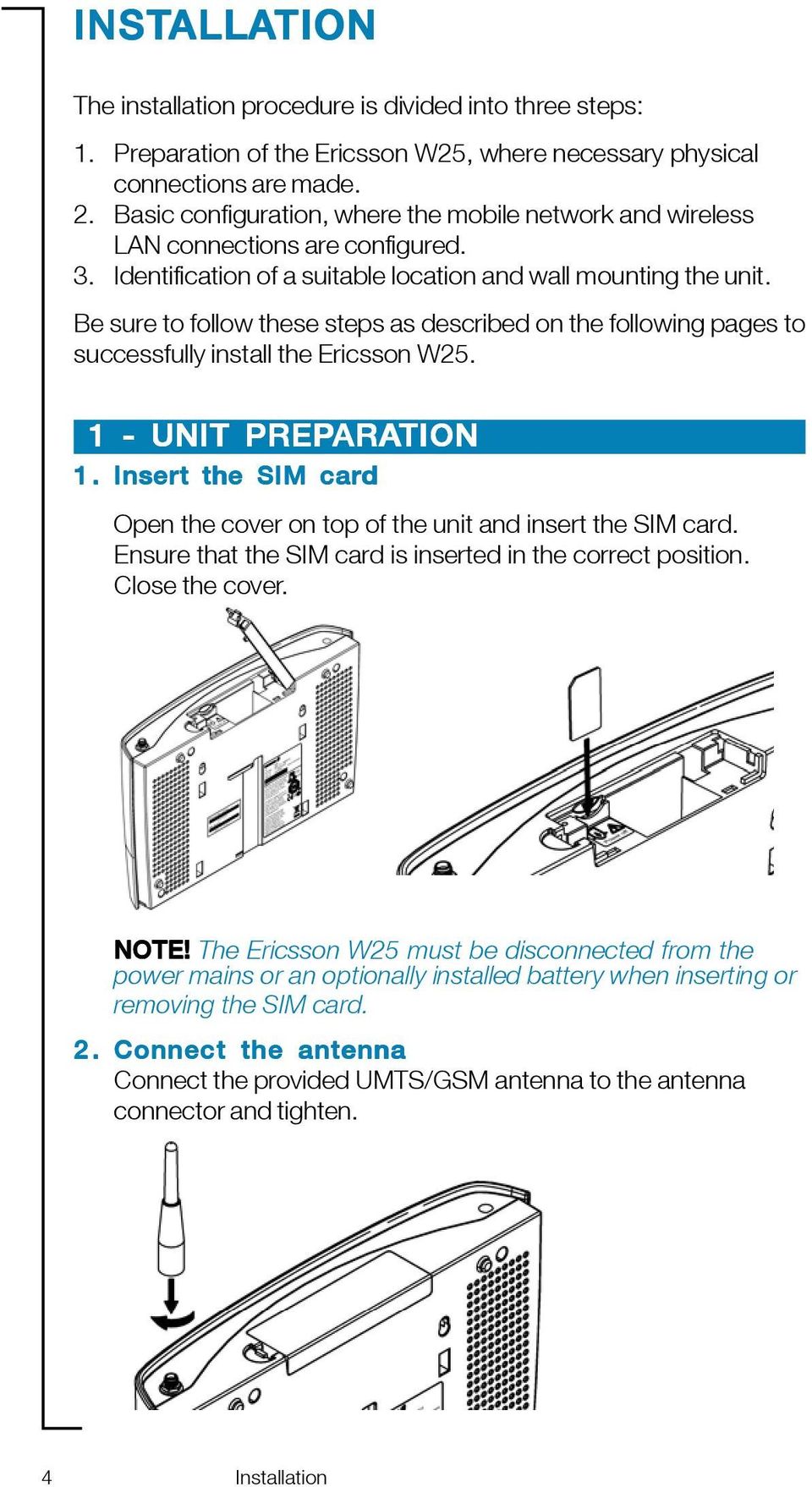
4 INSTALLA ALLATION The installation procedure is divided into three steps: 1. Preparation of the Ericsson W25, where necessary physical connections are made. 2. Basic configuration, where the mobile network and wireless LAN connections are configured. 3. Identification of a suitable location and wall mounting the unit. Be sure to follow these steps as described on the following pages to successfully install the Ericsson W UNIT PREPARA ARATION 1. Insert the SIM card Open the cover on top of the unit and insert the SIM card. Ensure that the SIM card is inserted in the correct position. Close the cover. NOTE! The Ericsson W25 must be disconnected from the power mains or an optionally installed battery when inserting or removing the SIM card. 2. Connect the antenna Connect the provided UMTS/GSM antenna to the antenna connector and tighten. 4 Installation
5 3. Connect power Connect the cable from the enclosed power supply adapter to the VDC power input on the Ericsson W25. Connect the power cord to the power supply adapter and then insert the plug into a mains outlet. 4. Connect a PC Attach the enclosed Ethernet cable to one of the LAN ( ) connectors on the Ericsson W25 and connect the other end to the Ethernet connector on a PC. This connector is most likely marked with this symbol: 5. Connect a telephone Connect a telephone to the Phone connector on the Ericsson W25. Use a telephone cable with RJ11 connector. After power up, allow approximately one minute for start-up before proceeding to the next step. Installation 5

6 2 - BASIC CONFIGURATION The SIM card contains information about the subscription and is normally protected by a PIN (Personal Identification Number) and a PUK (Personal Unblock Key) code. The PIN code can either be entered from a connected phone (see step 1 below) or from the web pages (see step 2 on the next page). NOTE! Emergency calls (i.e. 112 or 911) are always possible to make, even without a SIM card or correct PIN code. 1. Enter PIN code from a phones touchpad Follow these steps to enter the PIN code via a phone connected to the Ericsson W25: - Pick up the telephone handset. If you hear the normal dial tone, you do not need to enter any PIN. If you hear the specific PIN required tone (see description in the table below), proceed to the next step. - Dial *<PIN># If the PIN is correct, you will hear the normal dial tone which indicates that the voice service is activated and that it is possible to make a phone call. If the PIN is incorrect, you will hear the PIN required tone again. If three attempts have been made with an incorrect PIN, the SIM card is blocked and you will hear a new tone indicating that the PUK is required to unblock the SIM card. To unblock the SIM card, dial the following sequence: *<PUK>*<new PIN>*<new PIN># Description of information tones: Tone Nature PIN Repeating tone of 200 ms at regular intervals required of 50 ms PUK required Repeating tone of 50 ms at regular intervals of 50 ms NOTE! If ten attempts have been made with a wrong PUK, the SIM card is permanently blocked and a new SIM card is required. Contact your service provider. 6 Installation

7 2. Access the Ericsson W25 web pages Start a web browser on the PC connected to your Ericsson W25, type in the address field, and press the Enter key. The User login page is displayed: NOTE! If this page does not appear, verify that the TCP/IP settings in the PC are set to Obtain an IP address automatically. Type user in both the User name and Password text fields and click the Log In button. The Overview page is displayed: 2. Run the Configuration Wizard The Configuration Wizard can be used for easy setup of the mobile network and wireless LAN connections. To start the wizard, click Configuration Wizard and then follow the onscreen instructions to complete the wizard. Installation 7

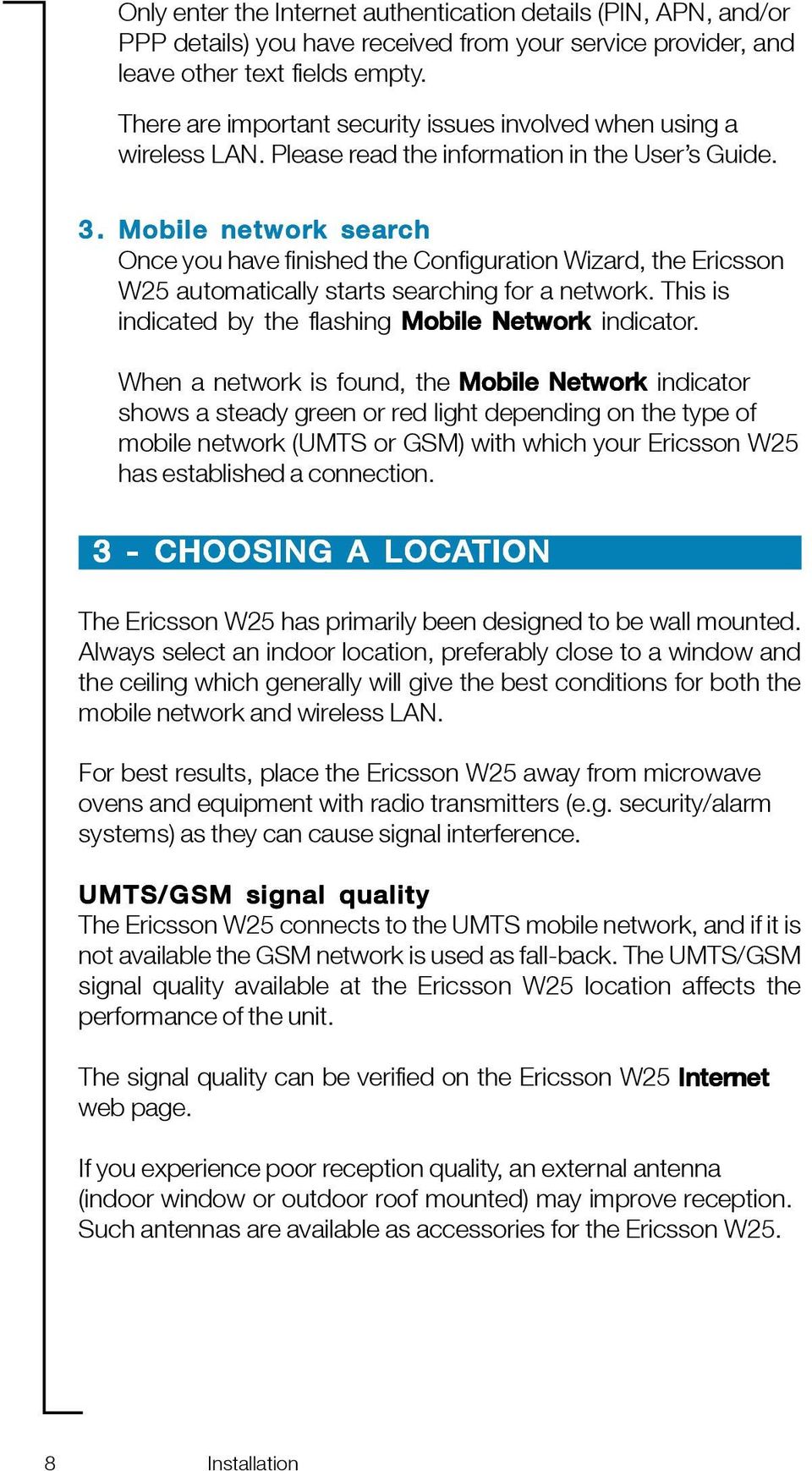
8 Only enter the Internet authentication details (PIN, APN, and/or PPP details) you have received from your service provider, and leave other text fields empty. There are important security issues involved when using a wireless LAN. Please read the information in the User s Guide. 3. Mobile network search Once you have finished the Configuration Wizard, the Ericsson W25 automatically starts searching for a network. This is indicated by the flashing Mobile Network indicator. When a network is found, the Mobile Network indicator shows a steady green or red light depending on the type of mobile network (UMTS or GSM) with which your Ericsson W25 has established a connection. 3 - CHOOSING A LOCATION The Ericsson W25 has primarily been designed to be wall mounted. Always select an indoor location, preferably close to a window and the ceiling which generally will give the best conditions for both the mobile network and wireless LAN. For best results, place the Ericsson W25 away from microwave ovens and equipment with radio transmitters (e.g. security/alarm systems) as they can cause signal interference. UMTS/GSM signal quality The Ericsson W25 connects to the UMTS mobile network, and if it is not available the GSM network is used as fall-back. The UMTS/GSM signal quality available at the Ericsson W25 location affects the performance of the unit. The signal quality can be verified on the Ericsson W25 Internet web page. If you experience poor reception quality, an external antenna (indoor window or outdoor roof mounted) may improve reception. Such antennas are available as accessories for the Ericsson W25. 8 Installation
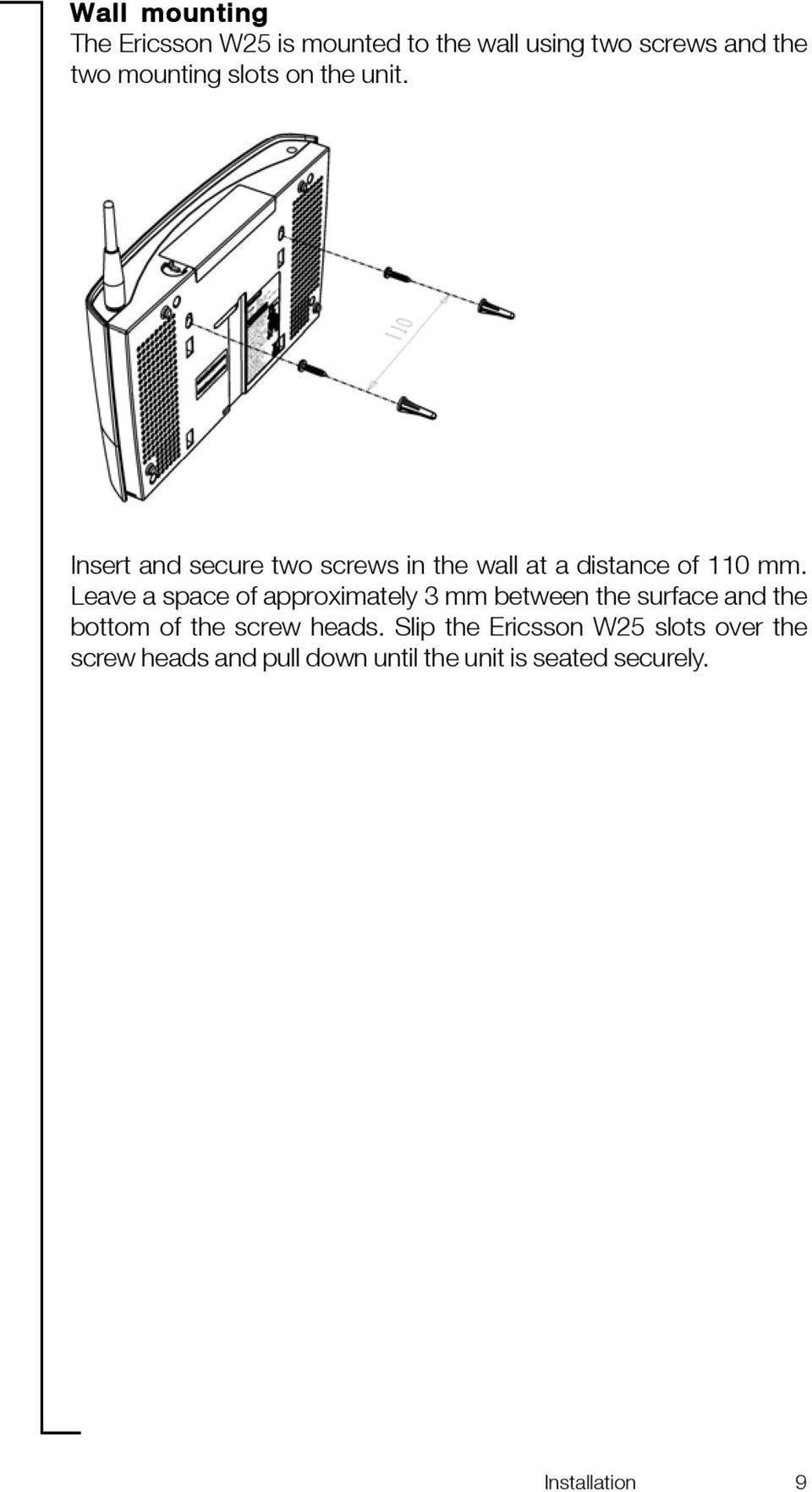
9 Wall mounting The Ericsson W25 is mounted to the wall using two screws and the two mounting slots on the unit. Insert and secure two screws in the wall at a distance of 110 mm. Leave a space of approximately 3 mm between the surface and the bottom of the screw heads. Slip the Ericsson W25 slots over the screw heads and pull down until the unit is seated securely. Installation 9
10 HARDWARE DESCRIPTION CONNECTORS The connectors on the Ericsson W25 are positioned as shown in the illustration below. A description of each connector is provided in the table below (from left to right): Label VDC Reset Description Power input for connecting the included power supply adapter. Reset button used to restore the Ericsson W25 to its factory default settings. The following procedure will reset ALL configurable values back to their factory default, including the login User name and Password: 1. Disconnect the power cable from the Ericsson W Press and hold the Reset button with the tip of a pen and then reconnect the power cable. Keep the button pressed for at least 20 seconds. 3. The Ericsson W25 will restart and come online with the factory default settings. USB Phone Phone/ Fax LAN 1-4 USB connectors. Reserved for future use. Telephone connector (RJ11), for connecting the Ericsson W25 to one or more phones. Reserved for future use. Ethernet LAN connectors (RJ45), for connecting the Ericsson W25 to client PCs or an Ethernet switch/hub. 10 Hardware Description

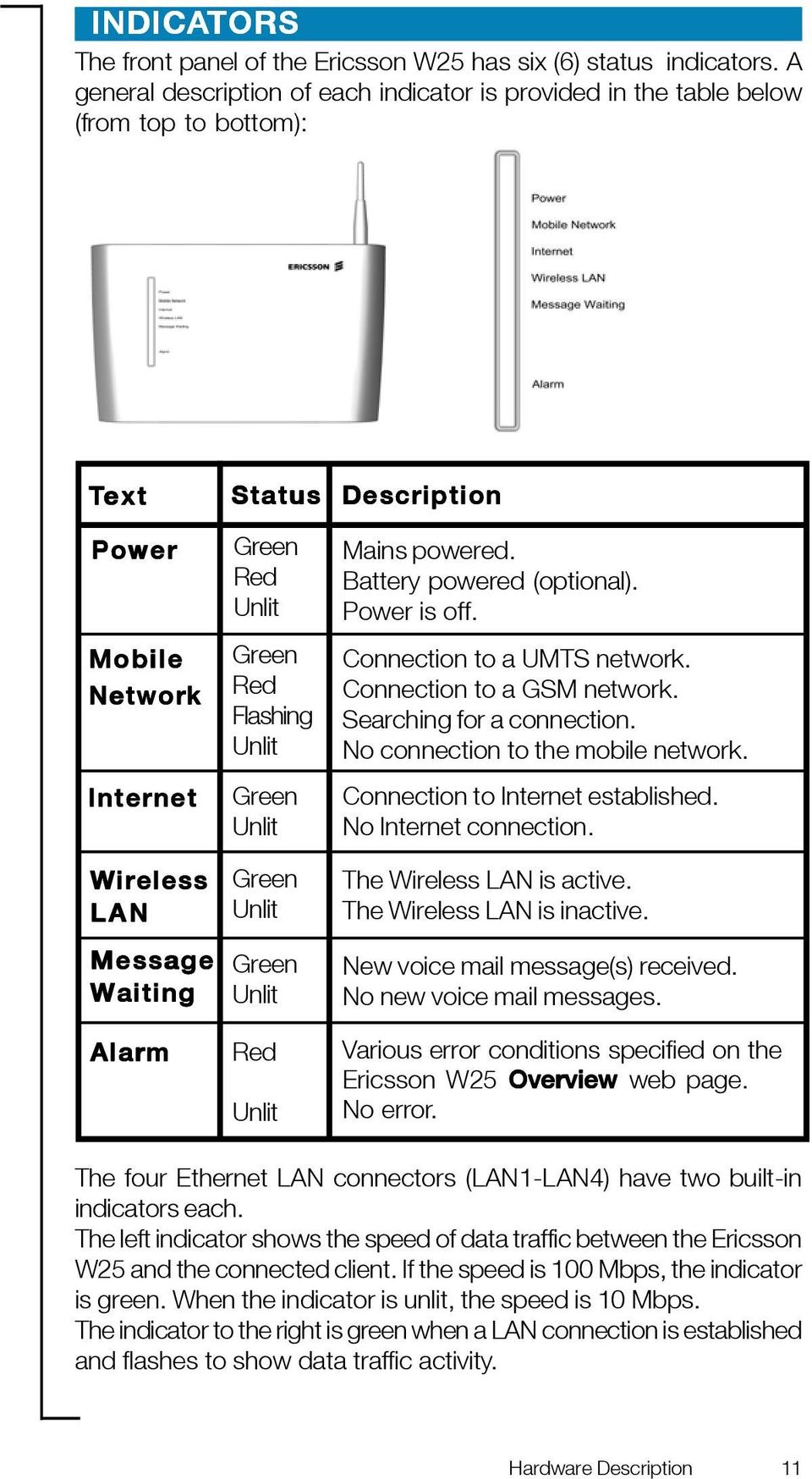
11 INDICATORS The front panel of the Ericsson W25 has six (6) status indicators. A general description of each indicator is provided in the table below (from top to bottom): Text Power Mobile Network Internet Wireless LAN Message Waiting Alarm Status Green Red Unlit Green Red Flashing Unlit Green Unlit Green Unlit Green Unlit Red Unlit Description Mains powered. Battery powered (optional). Power is off. Connection to a UMTS network. Connection to a GSM network. Searching for a connection. No connection to the mobile network. Connection to Internet established. No Internet connection. The Wireless LAN is active. The Wireless LAN is inactive. New voice mail message(s) received. No new voice mail messages. Various error conditions specified on the Ericsson W25 Overview web page. No error. The four Ethernet LAN connectors (LAN1-LAN4) have two built-in indicators each. The left indicator shows the speed of data traffic between the Ericsson W25 and the connected client. If the speed is 100 Mbps, the indicator is green. When the indicator is unlit, the speed is 10 Mbps. The indicator to the right is green when a LAN connection is established and flashes to show data traffic activity. Hardware Description 11
12 Ericsson Enterprise AB 2006 XX/LZT R2

B890 4G LTE Smart Hub Getting Started Guide
 B890 4G LTE Smart Hub Getting Started Guide HUAWEI TECHNOLOGIES CO., LTD. Thank You for Purchasing the B890 4G LTE Smart Hub! Before You Begin What s in the Box : 1. B890 4G LTE Smart Hub 2. Power adapter
Wireless Router Setup Manual
 Wireless Router Setup Manual NETGEAR, Inc. 4500 Great America Parkway Santa Clara, CA 95054 USA 208-10082-02 2006-04 2006 by NETGEAR, Inc. All rights reserved. Trademarks NETGEAR is a trademark of Netgear,
Getting started guide Turbo Hub
 Getting started guide Turbo Hub NETGEAR MVBR1210C Welcome and thanks for choosing Bell. Your new Turbo Hub will enable you to connect to the Internet and make voice calls using a landline phone. This guide
Chapter 1 Installing the Gateway
 Chapter 1 Installing the Gateway This chapter describes how to set up the wireless voice gateway on your Local Area Network (LAN), connect to the Internet, and perform basic configuration. For information
DRG700 Quick Installation Guide. This guide applies to all DRG700 models
 DRG700 Quick Installation Guide This guide applies to all DRG700 models Contents 1. DRG700 overview... 2. Installation... 3. Network setup... 4. Wireless setup... 5. Configuring your DRG700... 6. Troubleshooting...
CPEi 800/825 Series. User Manual. * Please see the Introduction Section
 CPEi 800/825 Series User Manual * Please see the Introduction Section Contents Introduction...iii Chapter 1: CPEi 800/825 User Guide Overview... 1-1 Powerful Features in a Single Unit... 1-2 Front of the
BEC 6200WZL. 4G/LTE Cellular Broadband Router. Quick Start Guide
 BEC 6200WZL 4G/LTE Cellular Broadband Router Quick Start Guide 1 BEC 6200WZL 4G/LTE Cellular Broadband Router PLEASE READ THE QUICK START GUIDE AND FOLLOW THE STEPS CAREFULLY. THIS QUICK START GUIDE WILL
Quick Start Guide. Vonage VWR Device
 Quick Start Guide Vonage VWR Device Before you begin 1. If you purchased your Vonage Device from a retail store, you must first activate your Vonage phone service. (You will need to provide the MAC ID
Quick Start Guide. RV0xx Series Routers
 Quick Start Guide RV0xx Series Routers RV042 Dual WAN VPN Router RV042G Gigabit Dual WAN VPN Router RV082 Dual WAN VPN Router RV016 Multi-WAN VPN Router Package Contents VPN Router Power Adapter (Cisco
Contents. Section A Networking Basics... 1. 1 Learning the Basics... 3. Section B Wired Ethernet Networking... 17
 Contents Section A Networking Basics...................................... 1 1 Learning the Basics............................................. 3 Selecting a network connection........................................
Installation Guide (No Router)
 Installation Guide (No Router) This installation guide will show you how to get your voip phone service working. This installation guide should be used if you have a standard DSL or cable modem and no
Quick Installation Guide. Live! Titanium
 Quick Installation Guide Live! Titanium Contents 1. Live! overview... 2. Installation... 3. Network setup... 4. Wireless setup... 5. Configuring your Live!... 6. Troubleshooting... 2 4 7 8 9 10 1 1. Live!
CM500 High Speed Cable Modem User Manual
 User Manual February 2015 202-11472-04 350 East Plumeria Drive San Jose, CA 95134 USA Support Thank you for selecting NETGEAR products. After installing your device, locate the serial number on the label
Quick Start Guide. WAP371 Wireless AC/N Dual Radio Access Point with Single Point Setup Quick Start Guide. Cisco Small Business
 Quick Start Guide Cisco Small Business WAP371 Wireless AC/N Dual Radio Access Point with Single Point Setup Quick Start Guide Versión en Español para México en el CD Version en français sur CD Versione
Chapter 1 Connecting the Router to the Internet
 Chapter 1 Connecting the Router to the Internet This chapter describes how to set up the router on your Local Area Network (LAN) and connect to the Internet. It describes how to set up your wireless ADSL
2 Setting Up the Hardware for a Wired Ethernet Network... 13. 3 Setting Up the Software for an Ethernet Network... 21
 Contents 1 Networking Basics............................................... 1 Selecting a network connection........................................ 2 Wired Ethernet network...........................................
LET S GO. Get your Ultra Broadband ready Business gateway up and running
 LET S GO Get your Ultra Broadband ready Business gateway up and running CONTENTS BUSINESS GATEWAY ULTRA BROADBAND READY 1 2 3 4 5 6 7 8 9 10 11 12 13 14 15 Equipment Check 2 Getting Started 3 Setting Up
N600 Wireless Dual Band Gigabit Router WNDR3700v3 Setup Manual
 N600 Wireless Dual Band Gigabit Router WNDR3700v3 Setup Manual NETGEAR, Inc. 350 E. Plumeria Drive San Jose, CA 95134 USA May 2011 208-10774-02 v1.0 2011 by NETGEAR, Inc. All rights reserved. Trademarks
TP-LINK TD-W8901G. Wireless Modem Router. Advanced Troubleshooting Guide
 TP-LINK TD-W8901G Wireless Modem Router Advanced Troubleshooting Guide Released on 2009.09.25 Version 1.0 Content Summary... 3 Troubleshooting Flow Chart and Resolutions... 3 Check 1... 3 Check 2... 4
Quick Start Guide. Vonage Device Motorola VT2142
 Quick Start Guide Vonage Device Motorola VT2142 Before you begin 1. If you purchased your Vonage Device from a retail store, you must first activate your Vonage phone service. (You will need to provide
Installation Guide. Wireless N Access Point EAP110/EAP120/EAP220
 Installation Guide Wireless N Access Point EAP110/EAP120/EAP220 CONTENTS Network Topology 01 Hardware Overview 02 Hardware Installation 05 1. Installation Requirements... 05 2. Mounting Bracket... 05
InnoMedia ESBC 9380-4B. Quick Install Guide. www.innomedia.com 1
 InnoMedia ESBC 9380-4B Quick Install Guide www.innomedia.com 1 Table of Contents Introduction 2 Package Contents 2 CAUTION 2 Installation 3 Wall-Mounting Instructions 5 Troubleshooting 6 Appendix A. LED
RouteFinder SOHO. Quick Start Guide. SOHO Security Appliance. EDGE Models RF825-E, RF825-E-AP CDMA Models RF825-C-Nx, RF825-C-Nx-AP
 RouteFinder SOHO SOHO Security Appliance EDGE Models RF825-E, RF825-E-AP CDMA Models RF825-C-Nx, RF825-C-Nx-AP Quick Start Guide RouteFinder RF825 Series Quick Start Guide RouteFinder SOHO Security Appliance
Router Setup Manual. NETGEAR, Inc. 4500 Great America Parkway Santa Clara, CA 95054 USA 208-10060-01 2006-03-17
 NETGEAR, Inc. 4500 Great America Parkway Santa Clara, CA 95054 USA 208-10060-01 2006-03-17 2006 by NETGEAR, Inc. All rights reserved. Trademarks NETGEAR is a trademark of Netgear, Inc. Microsoft, Windows,
Phone Adapter. with 2 Ports for Voice-over-IP. Installation and Troubleshooting Guide. Model No. PAP2 Ver. 2. Voice
 Phone Adapter with 2 Ports for Voice-over-IP Voice Installation and Troubleshooting Guide Model No. PAP2 Ver. 2 Copyright and Trademarks Specifications are subject to change without notice. Linksys is
802.11n Wireless Broadband Router WNRT-625
 802.11n Wireless Broadband Router WNRT-625 Quick Installation Guide Table of Contents Introduction... 3 Package Content... 4 Hardware Installation... 5 Web Configuration... 8 Further Configuration...11
TL-PS310U Single USB 2.0 Port MFP and Storage Server
 TL-PS310U Single USB 2.0 Port MFP and Storage Server Rev: 2.0.0 1910010313 Contents Chapter 1 Introduction... 1 1.1 Product Overview...1 1.2 Network Management...1 1.3 Components and Features...1 1.4 Hardware
Chapter1. Interface Introduction
 Robustel GoRugged R3000 Quick Guide Chapter1. Interface Introduction 1.1 LED Indicators After inserting the SIM card into the router and power on, the LED indicators status should be as follow when work
CM400 High Speed Cable Modem User Manual
 User Manual July 2015 202-11412-02 350 East Plumeria Drive San Jose, CA 95134 USA Support Thank you for selecting NETGEAR products. After installing your device, locate the serial number on the label of
Quick Start Guide. RV 120W Wireless-N VPN Firewall. Cisco Small Business
 Quick Start Guide Cisco Small Business RV 120W Wireless-N VPN Firewall Package Contents Wireless-N VPN Firewall Ethernet Cable Power Adapter Quick Start Guide Documentation and Software on CD-ROM Welcome
BiPAC 7800NL. Wireless-N ADSL2+ Firewall Router. Quick Start Guide
 BiPAC 7800NL Wireless-N ADSL2+ Firewall Router Quick Start Guide BiPAC 7800NL Wireless-N ADSL2+ Firewall Router Billion BiPAC 7800NL Wireless-N ADSL2+ Firewall Router PLEASE READ THE QUICK START GUIDE
TPG MOBILE BROADBAND QUICK SETUP GUIDE
 TPG MOBILE BROADBAND QUICK SETUP GUIDE TPG USB E1762 Modem Thank you for choosing TPG Mobile Broadband and USB E1762 modem. This User Guide provides step by step instructions that will take you through
Networking. General networking. Networking overview. Common home network configurations. Wired network example. Wireless network examples
 Networking General networking Networking overview A network is a collection of devices such as computers, printers, Ethernet hubs, wireless access points, and routers connected together for communication
Installing Your Vonage Device in Front of an Existing Router for customers with DSL INTERNET SERVICE
 Installing Your Vonage Device in Front of an Existing Router for customers with DSL INTERNET SERVICE Figure 1. Sample Installation Setup - Vonage phone adapter in front of router 1. Determine Internet
N300 WiFi Range Extender
 Model EX2700 User Manual July 2014 202-11395-01 350 East Plumeria Drive San Jose, CA 95134 USA Support Thank you for selecting NETGEAR products. After installing your device, locate the serial number on
Linksys Gateway SPA2100-SU Manual
 Linksys Gateway SPA2100-SU Manual Manuel de l'utilisateur Table of Contents Looking for Basic Setup Instructions?... 3 Most Recent Version of this Manual... 3 Advanced Setup Instructions... 4 Wiring Your
TE100-P21/TEW-P21G Windows 7 Installation Instruction
 Hardware Installation TE100-P21/TEW-P21G Windows 7 Installation Instruction 1. Go to http://www.trendnet.com/downloads/ to download the Windows 7 Utility. Save the file to your desktop. 2. Right click
Getting started guide Turbo Hub
 Getting started guide Turbo Hub NETGEAR MBR1210 Welcome and thanks for choosing Bell. Your new Turbo Hub will enable you to connect to the Internet. This guide will provide you with an overview of your
WIRELESS INTERNET TROUBLESHOOTING GUIDE. 320.834.5151 888.236.3574 www.gctel.com. Help Desk 320.834.5155
 WIRELESS INTERNET TROUBLESHOOTING GUIDE 320.834.5151 888.236.3574 www.gctel.com Help Desk 320.834.5155 Table of Contents Check Physical Connection Connection Diagram - Page 1 Power Inserter - Page 2 Identify
10/2011 - English Edition 1. Quick Start Guide. NWA1100N-CE CloudEnabled Business N Wireless Access Point
 10/2011 - English Edition 1 Quick Start Guide NWA1100N-CE CloudEnabled Business N Wireless Access Point Package Contents - 1 x ZyXEL NWA1100N-CE Access Point - 2 x Detachable Antennas - 1 x Power Adapter
801.11n Wireless Broadband Router
 801.11n Wireless Broadband Router WNRT-626 Quick Installation Guide Table of Contents Hardware Installation... 4 Web Configuration... 6 Further Configuration... 8 Thank you for purchasing PLANET 801.11n
Get to Know Your Device 4G LTE BROADBAND ROUTER WITH VOICE
 Get to Know Your Device 4G LTE BROADBAND ROUTER WITH VOICE FRONT VIEW The Verizon 4G LTE Broadband Router with Voice is a wireless device that delivers Internet connectivity and telephone service. You
MAX-306M1 Series. WiMAX MIMO Outdoor Simple CPE DEFAULT LOGIN DETAILS. Models: MAX-306M1 (2.5 GHz) and MAX-316M1 (3.5 GHz)
 MAX-306M1 Series Models: MAX-306M1 (2.5 GHz) and MAX-316M1 (3.5 GHz) WiMAX MIMO Outdoor Simple CPE Firmware v3.70 Edition 2, 12/2009 DEFAULT LOGIN DETAILS IP Address: Username: http://192.168.1.1 admin
Hardware Overview. Ooma Linx devices These are installed around the office and are used to connect phones and other devices to your Ooma Office system
 Quick Start Guide Introduction Installation Overview Setting up the Ooma Office system in your business is easy. You should have your first extensions up and running in about 20 minutes. Ooma Office blends
Welcome to life on. Get started with this easy Self-Installation Guide.
 Welcome to life on Get started with this easy Self-Installation Guide. Welcome to a network that s light years ahead. Welcome to life on FiOS. Congratulations on choosing Verizon FiOS! You re just a few
Frontier DSL SelfConnect Guide
 Frontier DSL SelfConnect Guide Frontier DSL Self-Installation Guide Table of Contents Getting Started...2 Customer and Computer Requirements...2...3 STEP 1: Install Microfilters...3 STEP 2: Install Your
WLAN Outdoor CPE For 2.4G. Quick Installation Guide
 WLAN Outdoor CPE For 2.4G Quick Installation Guide Part I: External Installation Direction A. Check the parts in your box CPE SET 1 DC 12V/1.5A Power Adapter 1 PoE DC Injector 1 Hose Clamps 2 Manual &
Infinity C Reference Guide
 1 2! Infinity C Reference Guide Table of Contents Components... 1 Hardware Setup... 5 SmartDrive Configuration... 12 Startup... 15 Login... 16 System Configuration... 19 DICOM Setup... 20 Monitoring Status...
N150 Wireless Router Setup Manual
 N150 Wireless Router Setup Manual NETGEAR, Inc. 350 E. Plumeria Drive San Jose, CA 95134 USA July 2010 208-10679-01 v1.0 2010 by NETGEAR, Inc. All rights reserved. Trademarks NETGEAR and the NETGEAR logo
Quick Installation Guide DSL-2750U/NRU. 3G/ADSL/Ethernet Router with Wi-Fi and Built-in Switch
 DSL-2750U/NRU 3G/ADSL/Ethernet Router with Wi-Fi and Built-in Switch BEFORE YOU BEGIN Delivery Package Router DSL-2750U/NRU Power adapter RJ-11 telephone cable Straight-through Ethernet cable (CAT 5E)
Features Phone Access... 1. Features Web Access... 3. emta Quick Reference Guide...14. Troubleshooting...15. Quick Reference Guide...
 Phone TABLE OF CONTENTS Features Phone Access... 1 Features Web Access... 3 emta Quick Reference Guide...14 Troubleshooting...15 Quick Reference Guide...16 Features Phone Access Caller ID Feature that
How to setup EW-7438RPn with a Windows computer to extend an existing Wi-Fi network
 2 How to setup EW-7438RPn with a Windows computer to extend an existing Wi-Fi network Note: 1. This instruction use pictures from EW-7438RPn firmware v1.13. 2. If you need to restore to the default settings,
AXIS 205 Network Camera Quick Installation Guide
 AXIS 205 Quick Installation Guide Page 1 of 6 AXIS 205 Network Camera Quick Installation Guide Focus Ring Status Indicator (surrounding the focus ring) Serial number Network Indicator Control Button Power
PCS300 Universal IP Reporting Module V1.0
 PCS300 Universal IP Reporting Module V1.0 Reference and Installation Manual Patents: One or more of the following US patents may apply: 7046142, 6215399, 6111256, 6104319, 5920259, 5886632, 5721542, 5287111,
If you are unable to set up your Linksys Router by using one of the above options, use the steps below to manually configure your router.
 This article describes how to manually configure a Linksys Router for broadband DSL that uses PPPoE (Point-to-Point Protocol over Ethernet) for authentication. For automatic configuration options, please
Home Wi-Fi Gateway Instructions
 Home Wi-Fi Gateway Instructions 1. Connect the gateway. Use the coaxial cable provided by BendBroadband to connect the cable port (A) to your cable outlet. 2. Connect your computer to the cable modem gateway
mysensors mysensors Wireless Sensors and Ethernet Gateway Quick Start Guide Information to Users Inside the Box mysensors Ethernet Gateway Quick Start
 mysensors Information to Users mysensors Wireless Sensors and Ethernet Gateway Quick Start Guide This equipment has been tested and found to comply with the limits for a Class B digital devices, pursuant
Let s go. Get your Ultra Broadband ready modem up and running
 Let s go Get your Ultra Broadband ready modem up and running Contents TELECOM HOME MODEM ULTRA BROADBAND READY 1 2 3 4 5 6 7 8 9 10 11 12 13 14 15 16 Equipment Check 2 Getting Started 3 Setting Up Fibre
P-2024. Quick Start Guide. VoIP Analog Telephone Adaptor DEFAULT LOGIN. IP Address http://192.168.5.1 Password 1234. Version 3.60 7/2007 Edition 1
 P-2024 VoIP Analog Telephone Adaptor Quick Start Guide Version 3.60 7/2007 Edition 1 DEFAULT LOGIN IP Address http://192.168.5.1 Password 1234 Copyright 2007. All rights reserved. Overview Use your P-2024
Welcome. Unleash Your Phone
 User Manual Welcome Unleash Your Phone For assistance with installation or troubleshooting common problems, please refer to this User Manual or Quick Installation Guide. Please visit www.vonage.com/vta
T E L ST R A S NEXT G INTEGRATED D E V I C E OFFER
 T E L ST R A S NEXT G INTEGRATED D E V I C E OFFER Q U ICK START USER GUIDE Please retain the original packaging prov ided for the return of the unit HOW TO M A N UA LLY S E T U P T H E VOICE AND BROADB
Business Wireless Internet quick install guide
 Read me first Business Wireless Internet quick install guide Wi-Fi and email set-up instructions included Actiontec Wireless Gateway TELUS Internet account information Record your personal account information
DVG-2101SP VoIP Telephone Adapter
 This product can be set up using any current web browser, i.e., Internet Explorer 6 or Netscape Navigator 6.2.3. DVG-2101SP VoIP Telephone Adapter Before You Begin 1. If you purchased this VoIP Telephone
Quick Installation Guide DIR-620. Multifunction Wireless Router Supporting GSM, CDMA, WiMAX with Built-in 4-port Switch
 DIR-620 Multifunction Wireless Router Supporting GSM, CDMA, WiMAX with Built-in 4-port Switch BEFORE YOU BEGIN Delivery Package Multifunction wireless router DIR-620 Power adapter DC 5V/2.5A Ethernet cable
PRO 5000 CPE 1D Quick Installation Guide
 PRO 5000 CPE 1D Quick Installation Guide Introduction This Quick Installation Guide covers the basic installation of the PRO 5000 CPE. For more information, refer to the relevant sections in the Product
InnoMedia ESBC 9580-4B. Quick Install Guide. www.innomedia.com 1
 InnoMedia ESBC 9580-4B Quick Install Guide www.innomedia.com 1 Table of Contents Introduction 2 Package Contents 2 CAUTION 2 Installation 3 Wall-Mounting Instructions 5 Troubleshooting 6 Appendix A. LED
Getting Started. Linksys RE1000 Wireless-N Extender
 Getting Started Linksys RE1000 Wireless-N Extender Introduction This Getting Started guid e can help you connect the extend er to your network and solve common setup issues. You can find more help from
IMPORTANT NOTICE CONCERNING EMERGENCY 911 SERVICES
 IMPORTANT NOTICE CONCERNING EMERGENCY 911 SERVICES Your service provider, not the manufacturer of the equipment, is responsible for the provision of phone services through this equipment. Any services
The Gigaset SX762 WLAN dsl... 7
 First steps Contents Contents The Gigaset SX762 WLAN dsl.................. 7 Do your part for the environment (ECO)................................. 8 Local area networks with Gigaset products..................................
Error! Bookmark not defined. Error! Bookmark not defined. Error! Bookmark not defined.
 Remote Lighting Kit Table of Contents Lighting Kit Overview 2 System Requirements 3 Basic Concepts of Wireless Routers and Networks 4 Basic Concepts of Network Light Bulbs 8 Planning Your Lighting Network
GSM WIRELESS DIGITAL ALARM SYSTEM USER GUIDE. Please read it carefully before installation and operation
 GSM WIRELESS DIGITAL ALARM SYSTEM USER GUIDE Please read it carefully before installation and operation Your New Diamond Designs Alarm works with a GSM SimCard via the cellular phone,system to call up
If you need additional assistance please contact our Technical Support Center at 24 hours a day, 7 days a week.
 Cisco SPA 2100 Phone Adapter Installation Manual Index Installation of the Cisco SPA 2100 Phone Adapter to NationPhone P. 1 Index, before you begin, and what is included P.2 Installing the NationPhone
WF720 Wireless Home Phone User Manual
 WF720 Wireless Home Phone User Manual Content Getting to Know Your Device... 3 Appearance...3 LED Indicator...4 Device Installation... 5 Before You Begin...5 Installing the SIM Card and the Battery...5
OM2260VW2 USER MANUAL VERIZON WIRELESS HOME PHONE CONNECT
 OM2260VW2 USER MANUAL VERIZON WIRELESS HOME PHONE CONNECT Welcome to Verizon Wireless Thank you for choosing Verizon Wireless Home Phone Connect. You re now connected to the power of America s most reliable
ROCKET HUB QUICK START GUIDE
 ROCKET HUB QUICK START GUIDE 3G27WV-R Internet and Voice Key Features High speed internet Convenient internet access, portable for use anywhere on the Rogers wireless network. Download speeds of up to
Quick Start Guide. Cisco Small Business. 300 Series Managed Switches
 Quick Start Guide Cisco Small Business 300 Series Managed Switches Welcome Thank you for choosing the Cisco 300 Series Managed Switch, a Cisco Small Business network communications device. This device
Quick Installation Guide DSL-2750U. 3G/ADSL/Ethernet Router with Wi-Fi and Built-in Switch
 DSL-2750U 3G/ADSL/Ethernet Router with Wi-Fi and Built-in Switch BEFORE YOU BEGIN Delivery Package Router DSL-2750U Power adapter DC 12V/1A RJ-11 telephone cable Ethernet cable (CAT 5E) Splitter (brochure).
Adding or replacing a mesh node in an existing mesh network
 Adding or replacing a mesh node in an existing mesh network Use this procedure to add or replace a in an existing mesh For this procedure to work all nodes running the same firmware version. Before you
IMPORTANT NOTICE CONCERNING EMERGENCY 911 SERVICES
 IMPORTANT NOTICE CONCERNING EMERGENCY 911 SERVICES Your service provider, not the manufacturer of the equipment, is responsible for the provision of phone services through this equipment. Any services
N600 Wireless Dual Band Router WNDR3400 Setup Manual
 N600 Wireless Dual Band Router WNDR3400 Setup Manual NETGEAR, Inc. 350 E. Plumeria Drive San Jose, CA 95134 USA March 2010 208-10532-03 v1.0 Trademarks NETGEAR and the NETGEAR logo are registered trademarks,
N300 Wireless Router WNR2000v3 Setup Manual
 N300 Wireless Router WNR2000v3 Setup Manual NETGEAR, Inc. 350 E. Plumeria Drive San Jose, CA 95134 USA August 2010 208-10658-01 v1.0 2010 by NETGEAR, Inc. All rights reserved. Trademarks NETGEAR, NETGEAR
All Rights Reserved. Copyright 2007
 All Rights Reserved. Copyright 2007 The use, disclosure, modification, transfer, or transmittal of this work for any purpose, in any form, or by any means, without the written permission of the copyright
Prestige 2002 Series. VoIP Analog Telephone Adaptor. Quick Start Guide
 VoIP Analog Telephone Adaptor Quick Start Guide Version 3.60 5/2005 Overview The Prestige allows you to use an analog telephone to make phone calls over the Internet (Voice over IP or VoIP). It uses SIP
Quick Start Guide. Cisco SPA232D Mobility Enhanced ATA
 Quick Start Guide Cisco SPA232D Mobility Enhanced ATA Package Contents Analog Telephone Adapter Ethernet Cable Phone Cable Power Adapter Quick Start Guide Product CD-ROM Welcome Thank you for choosing
Technical and Troubleshooting. Guide AIRAVE 2.5
 Technical and Troubleshooting Guide AIRAVE 2.5 Welcome! Sprint is committed to developing technologies addressing in-home coverage and ensuring you have a great wireless experience. This booklet provides
4G LTE router: MIFI-4G
 4G LTE router: MIFI-4G 1. Introduction MIFI-4G is a multi-function device: WIFI router & power bank. It support 3G/4G internet, WIFI repeater and Ethernet, support 10 users simultaneously. Any terminal
Quick Start Guide. Comwave Home Phone Adapter. iphone Connections. Home Phone Adapter. Package Contents
 Quick Start Guide Comwave Home Phone Adapter Important: This guide describes the supported configuration for Comwave Home Phone Service. When calling Comwave s Technical Support Team, your network must
Quick Installation Guide
 V48.01 Model: FI8919W Quick Installation Guide Outdoor Pan/Tilt Wireless IP Camera For Windows OS ------- Page 1 For MAC OS ------- Page 15 ShenZhen Foscam Intelligent Technology Co., Ltd Quick Installation
AC1900, N900, and N450 WiFi Cable Data Gateways
 AC1900, N900, and N450 WiFi Cable Data Gateways Models C6300BD, CG4500BD, and CG3000Dv2 User Manual March 2015 202-11434-03 350 East Plumeria Drive San Jose, CA 95134 USA Support Thank you for selecting
N300 WiFi Range Extender WN2000RPT User Manual
 N300 WiFi Range Extender WN2000RPT User Manual December 2013 202-11333-01 350 East Plumeria Drive San Jose, CA 95134 USA Support Thank you for selecting NETGEAR products. After installing your device,
Connecting to the Internet. LAN Hardware Requirements. Computer Requirements. LAN Configuration Requirements
 Connecting to the Internet LAN Hardware Requirements Computer Requirements LAN Configuration Requirements Installation Performed by Time Warner Cable Technician Connecting via Ethernet Connecting via USB
Digital Phone Installation & User Guide
 Digital Phone Installation & User Guide Telephone #1 Voicemail PIN Telephone #2 Voicemail PIN skybeam high speed internet digital phone We would like you to verify that the 911 address we have for you
SwannSecure Monitoring System
 EN SwannSecure Monitoring System Wi-Fi Connections Quick Setup Guide Welcome! Lets get started. QWIFISS130814E Swann Communications 2014 1 INTRODUCTION 1 2 3 4 By default, the SwannSecure Monitoring System
ON HOLD ANNOUNCER. Once you receive your audio announcer, check the packaging to ensure that all of the following items are enclosed:
 ON HOLD ANNOUNCER The is a high quality digital on-hold announcer. It is designed to be attached to a 100BASE-T Ethernet network to receive audio production updates via the Internet. These instructions
Broadband ADSL2+ Modem Model DM111Pv2 Setup Manual
 Broadband ADSL2+ Modem Model DM111Pv2 Setup Manual NETGEAR, Inc. 350 East Plumeria Drive San Jose, CA 95134 USA October 2014 208-10256-02 v1.0 Support Thank you for selecting NETGEAR products. After installing
User Guide. Guide d utilisation Guida dell'utente Benutzerhandbuch Guía del usuario Guia do Usuário WNA-100. Wireless Network Adapter
 WNA-100 Wireless Network Adapter User Guide Guide d utilisation Guida dell'utente Benutzerhandbuch Guía del usuario Guia do Usuário www.xerox.com/office/wna Copyright 2007 Xerox Corporation. All Rights
1 DDW2600 (U10C037) Wireless Cable Modem: FAQ
 1 DDW2600 (U10C037) Wireless Cable Modem: FAQ 1.1 Web Interface Login This FAQ provides general tips, procedures, and troubleshooting information that can be used for the DDW2600 Wireless Cable Modem.
c. Securely insert the Ethernet cable from your cable or DSL modem into the Internet port (B) on the WGT634U. Broadband modem
 Start Here Follow these instructions to set up your router. Verify That Basic Requirements Are Met Assure that the following requirements are met: You have your broadband Internet service settings handy.
ZyAIR G-2000 Plus 802.11g Wireless 4-port Router Quick Start Guide
 ZyAIR G-2000 Plus 802.11g Wireless 4-port Router Quick Start Guide Version 3.60 3/2005 Table of Contents 1 Introducing the ZyAIR... 3 2 Hardware Connections... 4 2.1 Side Panel and Connections... 4 2.2
Quick Start Guide. Cisco Small Business. 200E Series Advanced Smart Switches
 Quick Start Guide Cisco Small Business 200E Series Advanced Smart Switches Welcome Thank you for choosing the Cisco 200E series Advanced Smart Switch, a Cisco Small Business network communications device.