
Nettbank Bedrift user guide
|
|
|
- Dortha Nash
- 10 years ago
- Views:
Transcription
1 Nettbank Bedrift user guide
2 Contents Log in to Nettbank Bedrift... 2 Log in with code card:... 2 Log in with BankID... 2 BankID på Mobil... 3 Nettbank Bedrift portal... 4 General information... 4 Meldinger (Messages)... 5 Bytt bedrift (Change company)... 5 Kontoinformasjon (Accounts and Balances)... 5 Saldoinformasjon (Balance statement)... 6 Transaksjonshistorikk (Transaction history)... 7 Ikke bokførte transaksjoner (Future transactions)... 9 Kontodetaljer (Account details)... 9 Renteinformasjon (Interest information) Betaling innland (Domestic payments) The process from a payment is confirmed until it becomes available to the beneficiary What is meant by Oppdragsdato (Payment order date) and Oppgjørsdato (Settlement date)? At what time during the day is the amount charged to the payer's account, and at what time do the funds become available to the beneficiary? Regningsbetaling (Payment of bills) Regningsbetaling (Payment of bills) Incoming efaktura with AvtaleGiro Repeterende betalingsoppdrag (Recurring payments) Giro utbetaling (giro payment) Mottakerregister (register of beneficiaries) AvtaleGiro (Direct Debit) Kontoregulering (Intercompany payments) Cross-border payments Regningsbetaling (Payment of bills) Ubekreftede betalinger (Unconfirmed payments) Betalingsoversikt (List of payments) Mottakerregister (register of beneficiaries) Søk etter mottakere (search for beneficiaries) Legg inn ny mottaker (add a new beneficiary) efaktura (e-invoice) in Nettbank Bedrift Incoming invoice efaktura Privat agreements Create and send outgoing invoices or credit notes Files search for invoice Arkivsøk (File search) Nettpost (Net mail) Innboks (Inbox): Arkiv (File) Søk (Search) Oppsett (Settings) File services Retrieve files Send files Confirmation Integrated/Telepay Direct remittance Avtalegiro/Autogiro Innstillinger (Settings) Betalingsinnstillinger Innland (Settings - domestic payments) Account name Mobile phone settings Låneinformasjon (Information about loans) Lån (Type of loan) Transaksjoner (Transactions) Nedbetalingsplan (Repayment plan) Enter into agreements electronically OCR Security Nettbank Bedrift manual (as of 20/11/14) 1

3 Log in to Nettbank Bedrift Go to click Logg inn in the upper right corner, then Nettbank Bedrift. Log in with code card: You should have received a code card (ActivCard) and a PIN code when you ordered Nettbank Bedrift. If you do not have a code card or a PIN code, please contact Kundeservice Bedrift on telephone To log in with the code card: 1. Key in your Norwegian national id. number (11 digits) in the log-in window 2. Enter your personal PIN code in the code card 3. Key in the code from your code card in the log-in window 4. Click Logg inn Log in with BankID Use your personal BankID code unit To log in with your personal BankID: 1. Key in your Norwegian national id. number (11 digits) in the log-in window Nettbank Bedrift manual (as of 20/11/14) 2

4 2. Click Neste A new window for Engangskode (one-time code) appears: 3. Enter your PIN code in your BankID code unit (4 digits) 4. Key in the code from the BankID code unit in the field Engangskode in the log-in window 5. Click OK A new window for Personlig passord (personal password) appears: 6. Key in your personal password for BankID in the log-in window 7. Click OK You are now logged in. BankID på Mobil Nettbank Bedrift manual (as of 20/11/14) 3

5 Use your personal BankID på Mobil (Bank ID on your mobile phone) To log in with BankID på Mobil: 1. Key in your mobile telephone number (8 digits) and date of birth (11 digits) in the respective fields in the log-in window 2. Then click Neste. A new window for Identifisering (Identification) appears: The reference text in this illustration is only an example. It will vary from time to time. 3. The reference in the new window will appear on your mobile telephone. Press Godkjenn (Confirm) on your mobile telephone to confirm that the reference in the log-in window and on your mobile phone is the same. 4. You will now be asked to key in the PIN code on your mobile phone. Key in the PIN code on your mobile phone (4 digits) and click OK. You will now be logged into the netbank. Nettbank Bedrift portal General information On the Nettbank Bedrift front page you will find information about all the services you as user have access to. This may be ordinary services on the left hand menu or additional services on the tab menu at the top of the page. You will also find information about the balance on all the accounts you have access to in Nettbank Bedrift. By clicking on kontonummeret (the account number), more information about the account will be displayed, including all transactions made during the last 2 weeks. Read more in the chapter Kontoinformasjon (accounts and balances). Nettbank Bedrift manual (as of 20/11/14) 4


6 Meldinger (Messages) Under Meldinger (Messages) all unconfirmed domestic and cross-border payments are displayed, as well as unconfirmed e-invoices. Bytt bedrift (Change company) Applies if you have access to more than one company in Nettbanken. By clicking the Bytt bedrift-link in the grey area in the upper right corner you can easily change company. The link takes you back to the front page, where you mark the company you want to change to. You can connect as many companies as you like to this service. Kontoinformasjon (Accounts and Balances) In Nettbank Bedrift you have access to account information on all your accounts with Nordea and you can transfer funds between own accounts. In Kontoinformasjon (Accounts and balances) you have the following choices: Saldoinformasjon (Balance statement) Transaksjonshistorikk (Transaction history) Nettbank Bedrift manual (as of 20/11/14) 5


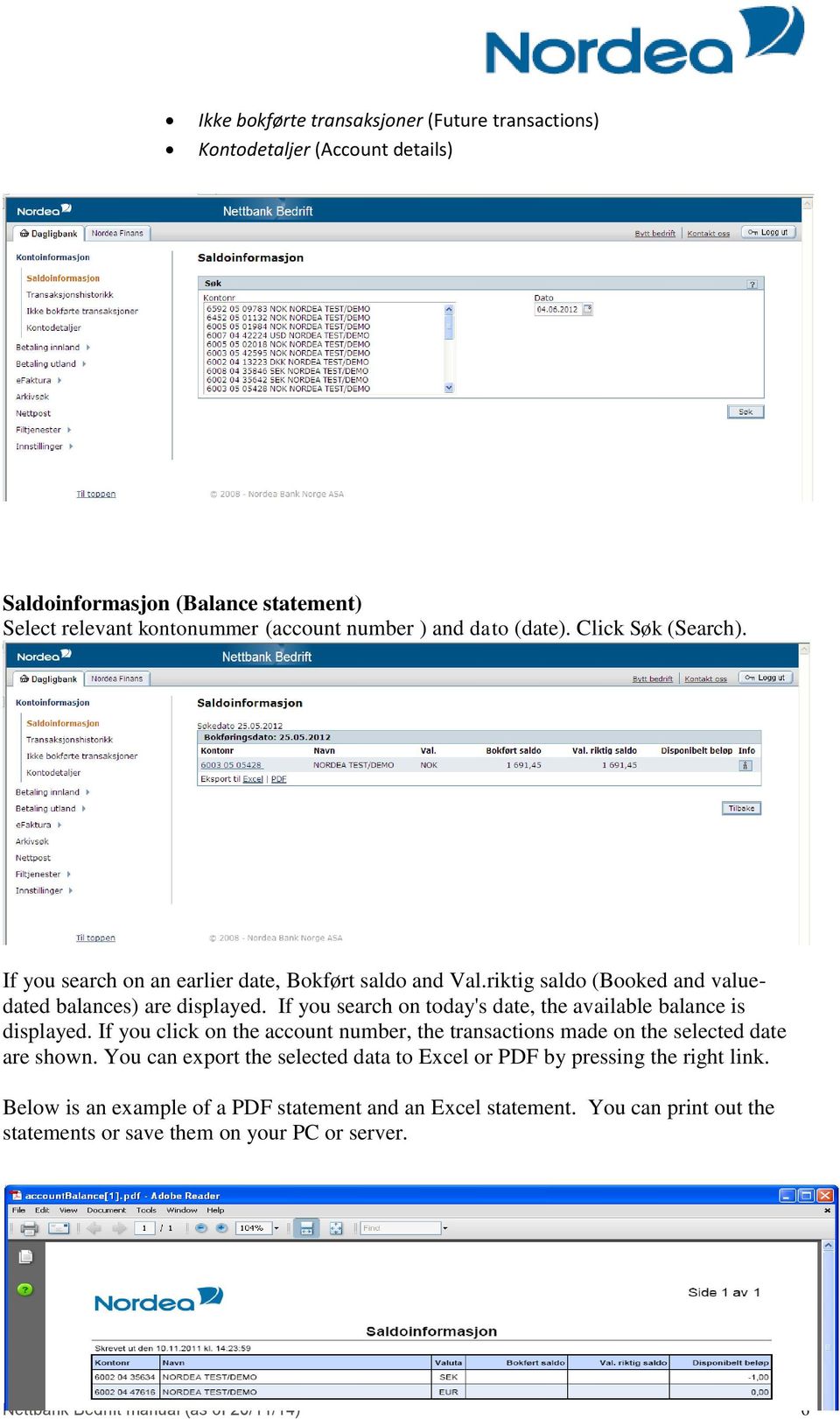
7 Ikke bokførte transaksjoner (Future transactions) Kontodetaljer (Account details) Saldoinformasjon (Balance statement) Select relevant kontonummer (account number ) and dato (date). Click Søk (Search). If you search on an earlier date, Bokført saldo and Val.riktig saldo (Booked and valuedated balances) are displayed. If you search on today's date, the available balance is displayed. If you click on the account number, the transactions made on the selected date are shown. You can export the selected data to Excel or PDF by pressing the right link. Below is an example of a PDF statement and an Excel statement. You can print out the statements or save them on your PC or server. Nettbank Bedrift manual (as of 20/11/14) 6

8 Transaksjonshistorikk (Transaction history) The list of transactions shows all the transactions and transaction details during a selected period. You can search for value-date, booked date, incoming or outgoing transactions up to 24 months back in time. The field Kontonr (account number) is a "Combobox", meaning that you can enter an account number or an account name. All accounts corresponding to your entries will automatically appear as you are entering them. Select account number (Kontonr) to view the account's transaction history. Define desired period (Dato fra (from date) and Dato til (to date). If you wish to view the transactions according to value-date, you check off Per valutadato(per value-date). You can also search for amounts by entering an amount in Beløp fra (from amount) and Beløp til (to amount). If you search for an outgoing transaction, remember to add a minus before the amount. Nettbank Bedrift manual (as of 20/11/14) 7


9 To the left of each transaction there is a plus sign. If you click the plus sign, all transaction details are displayed. You can export the list of transactions to Excel or PDF. Below is an example of a PDF statement and an Excel statement. You can print out the statements or save them on your PC or server. Nettbank Bedrift manual (as of 20/11/14) 8


10 Ikke bokførte transaksjoner (Future transactions) Here you will find information about the current day's unbooked transactions known to the bank as per the time of query. To view transaction details you click the plus sign next to the transaction. Kontodetaljer (Account details) Kontodetaljer (Account details) contains information about Inngående saldo (opening balance) and Utgående saldo (closing balance) and Val.riktig saldo (value-dated balance). Nettbank Bedrift manual (as of 20/11/14) 9

11 The field Kontonr (account number) is a "Combobox", meaning that you can enter an account number or an account name. All accounts corresponding to your entries will automatically appear. Choose the right Kontonr. (account number) and click Søk (search). Renter Innskudd shows the company s interest rate on deposit Renter Utlån shows the company s interest rates on credit (konto- og/eller kassekreditt) Provisjon shows the company s commision of granted credit limit Renteinformasjon (Interest information) Renteinformasjon (Interest information) provides a complete overview of interest and provisions payed (provision of approved credit). It also provides an overview of accrued interest and provisions not payed for the current year. Clicking the blue link above the information displays an overview of interest and provisions payed last year. Interest information current year: Nettbank Bedrift manual (as of 20/11/14) 10


12 Interest information last year: Betaling innland (Domestic payments) This chapter describes routines, terms and settlement times and then continues with the following menus under Betaling innland (domestic payments): Regningsbetaling (Payment of bills) Ubekreftede betalinger (Unconfirmed payments) Betalingsoversikt (List of payments) Nettbank Bedrift manual (as of 20/11/14) 11

13 Mottakerregister (Beneficiary register) Avtalegiro (Direct debit) The process from a payment is confirmed until it becomes available to the beneficiary Domestic payments are entered in Betalingsoversikten (List of payments) with status Venter (waiting). By clicking on the + (plus) icon to the left of the transaction, you will see the initials of the person(s) who has(have) registered and confirmed the payment, and other transaction details. The account is checked four times a day, at 24:00 hrs, 10:00 hrs, 12:00 hrs and 14:00 hrs, respectively, for sufficient fonds to cover all payments due on that day and with status Venter (Waiting). During this process the transaction status is changed to Under behandling (pending). If there are sufficient funds on the account, the available balance will be reduced and the status on Betalingsoversikten (List of payments) is changed to Betalt (paid). If the funds on the account are insufficient, the payment status will be Dekning mangler (insufficient funds). The account is checked for sufficient funds for three days and up to 12 times before the payment is finally rejected. The payment status is then changed from Dekning mangler to Avvist (Rejected). What is meant by Oppdragsdato (Payment order date) and Oppgjørsdato (Settlement date)? Oppdragsdato (Payment order date) The calendar date on which Nordea accepts the payment order. Oppdragsdato (Payment order date) follows the payment to the beneficiary. Oppdragsdato (Payment order date) is regarded as the date on which the bill is paid. Oppgjørsdato (Settlement date) The calendar date on which the funds are charged to the payer's account. For all domestic payments the beneficiary will receive the amount on the same day that it is charged to the payer's account. At what time during the day is the amount charged to the payer's account, and at what time do the funds become available to the beneficiary? Cut-off times and settlement times - Nettbank Bedrift Registered and accepted by Nordea at the latest Charged to payer's account Credited to beneficiary's account Time of settlement Nettbank Bedrift manual (as of 20/11/14) 12

14 Domestic payments at Kontoregulering (Intercompany payments) at at at 10:00 CET CET CET CET Payment order date Payment order date Payment order date Payment order date Same day Same day Same day Next business day Same day Same day Same day Next business day Noon settlement Afternoon settlement End settlement Morning settlement at CET Same day Same day Payments registered after CET on a Friday or a day before a public holiday and payments registered on a Saturday, Sunday or a public holiday will be settled in the morning settlement on the next business day. Morning settlement Noon settlement Afternoon settlement End settlement Value-dated and available on the account around CET Value-dated and available on the account around 11:45 CET Value-dated and available on the account around 14:15 CET Value-dated and available on the account around CET Regningsbetaling (Payment of bills) The window shown when you choose Betaling innland (domestic payments), Regningsbetaling (payment of bills) as four tabs: Registrer betaling (Register payment) A clear and easy way to register one or more payments with KID or advice to beneficiaries in Norway consecutively. You can choose different "from accounts" for the different payments. Repeterende betalingsoppdrag (recurring payments). Recurring payments may be entered here, ie payments recurring regularly, for example, daily, weekly, monthly, etc. Lønningslister (pay lists). You can create and maintain pay lists with or without amounts and use them for every future salary payment. The salary payments appear as a lump sum in Betalingsoversikten (List of payments) and on the account statement. Only users with access to the service Lønningslister (Pay lists) can view the single items. Giro utbetaling (giro payment) Payments to beneficiaries without account numbers. Nettbank Bedrift manual (as of 20/11/14) 13


15 Regningsbetaling (Payment of bills) You use the tab key to move ( ) between the fields Fra konto (From account), Betalingsdato (Execution date), Mottaker (Beneficiary), KID /melding (KID/advice), Til konto (To account), etc. Fra konto (from account): Here you enter the account number or the account name to be charged, or you use the arrows. As you write, a list will appear of accounts which you are authorised to charge and which match the data you have specified. You can either mark an account on the list or enter the full account number. If you enter an account to which you do not have access, an error message will pop up when you press Lagre (Save) og Gå videre (Continue). If your payments are often charged to one specific account, you may choose to make this your default account, which means that this account will automatically be suggested as Fra konto (From account). (See Innstillinger (Settings)). You may, of course, easily change the Fra konto (From account) when you enter a payment. Betalingsdato (Execution date) may be up to 13 months into the future. Execution dates earlier than today's date are not allowed. TIP: If you enter a payment on for example 15 August with due date on 20 August, you only have to enter 20 and then use the tabulator key to continue. The system automatically chooses 20 August. If, on the same day, you register a payment with due date on 10 September, you only have to enter 10. The system will then suggest the 10th of the next month, as the 10th of the current month has passed. Mottaker (Beneficiary): You enter the beneficiary's account number or his/her name, or use the arrows. As you write, a list will appear of beneficiaries in your beneficiary register who match the data you have specified. You mark an account on the list or enter the beneficiary's account number. If you enter a payment to a beneficiary not registered in Mottakerregisteret (the register of beneficiaries), you will need to fill in the fields Konto (account no.) and Navn (name). If you want to add the beneficicary's account number and name to the beneficiary register, tick off Lagre mottaker (save beneficiary). KID eller melding (KID or advice). KID should consist of digits only, while Melding (Advice) must contain letters. The system suggests payment type based on Nettbank Bedrift manual (as of 20/11/14) 14


16 the beneficiary's account number. However, another payment type may in some cases be selected. We generally recommend the payment type suggested by the system. If there is an OCR agreement connected to the beneficiary account, the payment type will be Betaling med KID (payment with KID). Other payment types may be used, but we recommend Betaling med KID (payment with KID), as this is the cheapest payment type and the most rational payment type for the Beneficiary. When the beneficiary's account has an OCR agreement which requires a KID number (for example municipal treasurers), no other payment type may be chosen. When the beneficiary's account does not have an OCR agreement, the proposed payment type will be Betaling med Melding (payment with advice). Betaling med KID (Payment with KID) cannot be used. Beløp (The amount) must be higher than nil and consist of digits only. To enter a decimal, use comma. The decimals will automatically be placed in the decimal field. Several invoices/credit notes You can easily pay several invoices to the same beneficiary. If you tick off the box Flere fakturaer (several invoices), a new line is opened automatically for registration of the next invoice to the same beneficiary. You can also deduct a credit note. To do so, you enter a negative amount in the amount field (minus). Please note that if you use this function, the payment will executed as one collective payment with advice and not a payment with KID. Eget notat (Own notes) Here you can add notes for your own use. This is not a message that is forwarded to the beneficiary, but a note for your own use, for example when the payment is a payment with KID. Nettbank Bedrift manual (as of 20/11/14) 15


17 Lagre (Save) moves the registered payment to Ubekreftede betalinger (Unconfirmed payments), and a new payment can then be entered. The saved payments will be visible until you click on Gå videre (Continue). You can easily Endre (Change) and Slette (Delete) a registered payment here. Gå videre (Continue) takes you to Ubekreftede betalinger (Unconfirmed payments) which displays all payments that have been registered and are ready for confirmation. Fields containing errors are marked in a yellow green colour, and an error message is shown in a separate field marked with an exclamation mark. (see picture) Hent og betal efaktura (Retrieve and pay e-invoices): When you select this link, all incoming e-invoices will be displayed. Select Fra konto (From account), tick off the invoices to pay, and then click Betal valgte (Pay selected). To view invoice details, klick Se efaktura (View e-invoice). Choose Endre (Change) to change amount and execution date. Press Slett (Delete) to delete an efaktura (e-invoice). If you wish to certify an invoice, tick Attester (Certify) and then Attester valgte (Certify selected). Incoming efaktura with AvtaleGiro Nettbank Bedrift manual (as of 20/11/14) 16

18 This is simply an overview of electronic invoices settled by Avtalegiro. No adjustments can be made. To view invoice details, click Se efaktura (View e-invoice). Repeterende betalingsoppdrag (Recurring payments) Here you will find a list of all active Recurring payments on the accounts you have access to. To view the payment information, you click on the Info icon. You yourself are responsible for registering correct account number and beneficiary name. We recommend that you regularly check that the beneficiary's account number is correct, and make any necessary changes under Repeterende betalingsoppdrag (Recurring payments). To do this you you click the Endre-icon (Change). Changes to a recurring payment will impact all future payments related to the payment order. To delete a payment order and all future payments related to the payment order, select Slett (delete). Single payments are deleted in Betalingsoversikten (List of payments). The next due payment will always be on the payment list and can be changed or deleted. Choose Registrer ny (Enter a new payment) to create a new recurring payment. Register a new recurring payment Nettbank Bedrift manual (as of 20/11/14) 17


19 If a KID number is required, a recurring payment cannot be created. Fra konto (From account): Enter the account number or the name of the account to be charged. As you write, a list will appear of the accounts that you are authorised to charge and which match the data you have specified. You can either mark an account on the list or enter the full account number. If you enter an account number which you are not authorised to charge, an error message will pop up. Til konto (To account): Enter the beneficiary's account number or his/her name, or use the arrows. As you write, a list will appear of beneficiaries in your beneficiary register that match the data you have specified. You may mark an account on the list or enter the beneficiary's account number. When you register payments to beneficiaries who are not included in the beneficiary register, the fields Til konto (To account) and Mottaker (Beneficiary) must be filled in. If you want to add the beneficicary's account number and name to the beneficiary register, you tick off Lagre (Save). The information can be used for future payments to the beneficiary. Beløp (Amount) must be higher than nil and consist of digits only. Frekvens (Frequency) must be stated, ie how often the payments are to be executed after Første forfall (First due date). Alternatives are Stoppdato (Stop date) ie last execution date, or Løpende (Recurring). A recurrent payment will be executed until it is deleted or until a stop date is defined. Tilbake (Return) deletes all payment information and takes you back to your list of recurring payments. Fortsett (continue) takes you to the confirmation screen where you verify the payment using a code from your code card. Endre Repeterende Betalingsoppdrag (Change recurring payment) All fields related to a recurrent payment can be changed. Changes made will impact all future payments related to the payment order concerned. Nettbank Bedrift manual (as of 20/11/14) 18


20 If you only want to change one single payment related to a payment order, this is done in Betalingsoversikten (List of payments). where the next due payment can always be changed. Lønningslister (Pay lists) The first display shows the company's pay lists. When you create a pay list template, you must consider whether or not to include amounts. One suggestion is to have two pay list templates, one for advance salaries including amounts and one for monthly salaries without amounts. Create a pay list Select Registrere ny (Create new). Enter the account number or account name to be charged in the field Fra konto (From account). Give the pay list a name, for example company name, department, unit etc., and in the field Beløpet gjelder (Payment information) you enter the transaction information to be shown in the beneficiary's account statement, for example Salary, Salary in advance, etc. Nettbank Bedrift manual (as of 20/11/14) 19


21 Enter beneficiary's account number and name. It is optional to enter an amount in the field Beløp (Amount). Finally you click Legg til mottaker (Add beneficiary), which moves the registered beneficiary to the "bills basket" below, and a new beneficiary can be added. When the list is complete, select Lagre liste (Save list). Administration of the Pay list Any changes to or deletion of salary earners, amounts, etc. must be made in the pay list. Click the Endre-icon (Change) behind the relevant pay list. To change a salary earner click the Endre-icon (change) behind the salary earner concerned. The salary earner is marked green and all fields can be changed. When the change has been made, click the Endre (Change) button. When all the changes have been made, select Lagre liste (Save list). Salary payment Select Utbetal (Payment) on the relevant pay list. All the information on the pay list will be displayed and can be used. Enter desired utbetalingsdato (execution date), or beløp (amount)and choose Utbetal valgte (Pay selected). Beløp (amount) must be higher than nil. If one of the salary earners is not to receive any salary during the month concerned, you untick his/her name. The salary earner will still be on the pay list, but will not receive any salary for that month. To remove a salary earner permanently from the list, do it on the Lønningslisten screen. Nettbank Bedrift manual (as of 20/11/14) 20

22 Giro utbetaling (giro payment) A Giro payment is only recommended when no other options exist, because it is an expensive payment type, and days may pass before the beneficiary receives and can cash the Giro payment. This payment type differs from other payment types in that it does not state the beneficiary's account number. Therefore, the fields Mottaker (beneficiary), Postnr. (postal code) and Sted (place) must be completed in order for the bank to execute the payment. Ubekreftede betalinger (Unconfirmed payments) Shows all the user's registered, unconfirmed payments, as well as payments registered by other users waiting to be confirmed by the user who is logged in. A check box next to the payment indicates that the user is authorised to confirm it. The user can filter out a selection by defining a date interval. The user may choose enkelte (single) payments by ticking the check box for the relevant payment or choose Velg alle (Choose all payments) at the top right of the table. Payments which have been registered by or need to be confirmed by another user do not have a check box. The following functions are available Confirm payments Delete unconfirmed payments Change unconfirmed payments To view payment details, press the + (plus) icon in front of the respective payment. To view payment details for all payment, press the + icon in front of Dato (Date) on the heading bar. Sum total all or selected payments Nettbank Bedrift manual (as of 20/11/14) 21

23 Ubekreftede betalinger (Unconfirmed payments) contain all unconfirmed payments and/or approved payments registered under Registrer betaling (Register payment), Lønnsutbetalinger (Pay lists), Giro utbetaling (Giro payments) and efaktura (e-invoice). You will see the sum total of all payments per account, or you can check off for individual payments and view the sum total of the selected payments. (see picture above) The payments you are authorised to confirm, have a check box next to them. You can choose single payments by ticking the check box after the relevant payment or choose all payments by ticking the Velg alle check box on the heading bar. Payments registered by or requiring confirmation by another user do not have check boxes. If a payment with a tilbake i tid (backdated) execution date is ticked off, the execution date is automatically changed to the current date. If you decide to Slette (Delete) a payment, a text box will appear in which you confirm that the payment is to be deleted. If a payment is deleted by mistake, it must be re-entered. Tips for fast navigation in the list of unconfirmed payments: Arrow down marks a transaction further down the list Arrow up marks a transaction further up the list Right arrow shows details of a marked transaction (alternative to pressing +) Left arrow hides details of an opened transaction Space key on a marked transaction checks off the transaction in the box to the right. If the transaction in question has already been closed, a stroke on the Space key will remove this check-off. Ctr+a checks off all the transactions on the list, and the opposite if they have already been checked off. Nettbank Bedrift manual (as of 20/11/14) 22
24 Betalingsoversikt (List of payments) Shows all registered and confirmed payments, including AvtaleGiro, irrespective of payment status. You can search for payments with execution date 2 years back in time or 13 months into the future, with the exception of AvtaleGiro payments which are only available for 3 months. To optimise your Søk (Search) in Betalingsoversikten (List of payments) we recommend that you use Utvidet søk (Advanced search) as far as possible to simplify the search results. Nullstill (reset) deletes the contents of all fields. In Fritekstsøk (Free text search) field you can search on letters and words in own notes, advice and beneficiary's name. The Søkeresultat (search result) lists the payments entered and their status. When you click on the+ (plus) symbol in front of a transaction, all transaction information relating to this payment is displayed. Nettbank Bedrift manual (as of 20/11/14) 23

25 The sum total of all payments at the top and bottom of the table include all payments during the defined time interval. If you only choose some of the payments, one or more, by checking off the box to the right of the individual transactions, you will get the sum total of your selected payments. (Sum total selected payments). You can Endre (Change)or Stoppe (Stop) a transaction. A stopped transaction can be activated by using Endre (Change). Nytt søk (new search) takes you back to Betalingsoversikt Søk (List of payments Search). Your last search results are still displayed. Tips for fast navigation in the list of payments in Betalingsoversikten: Arrow down marks a transaction further down the list Arrow up marks a transaction further up the list Right arrow shows details of a marked transaction (alternative to pressing +) Left arrow hides details of an opened transaction Space key on a marked transaction checks off the transaction in the box to the right. If the transaction in question has already been closed, a stroke on the Space key will remove this check-off. Ctr+a checks off all the transactions on the list, and the opposite if they have already been checked off. Explanation of the status of payments in Betalingsoversikten (List of payments) Transactions with status Venter (waiting) have been confirmed and are awaiting payment on their respective execution dates. The account is checked three times a day for sufficient funds to cover payments with status Venter (Waiting), at CET, CET and CET During this process the transaction status is changed to Under behandling (Pending). When the payment has been executed, the status changes to Betalt (Paid). Nettbank Bedrift manual (as of 20/11/14) 24
26 If the funds on the account are insufficient, the payment status will be Dekning mangler (Insufficient funds). The account will be checked for sufficient funds during the next three days and up to twelve times before the payment is rejected. If the payment is rejected, the status changes from Dekning mangler (Insufficient means) to Avvist (rejected). Mottakerregister (register of beneficiaries) In Nettbank Bedrift the beneficiary register is per company and/or organisation number, ie all the company's users have access to the same beneficiary register. The register can include an unlimited number of beneficiaries. You yourself are responsible for registering correct account number and beneficiary name. We recommend that you regularly check that the beneficiary's account number is correct, and in case of changes, that you update the beneficiary register. To do so, you click the Endre (change) icon next to the beneficiary. Payments already entered, and with a future execution date will not be updated automatically. Changes to already entered payments must be made individually for each single payment in Betalingsoversikten (List of payments). If you select Slette (Delete) a beneficiary, the beneficiary will be deleted from the list. The deletion of a beneficiary will have no impact on registered payments in Betalingsoversikten (List of payments), irrespective of status. If a beneficiary is deleted by mistake, the beneficiary must be re-entered. AvtaleGiro (Direct Debit) Shows active agreements Shows suggestions for new agreements Shows deleted agreements A user can change from accounts and amount limits on active agreements A user can create new agreements The AvtaleGiro screen shows Aktive avtaler, Forslag til ny(e) avtale(r), Avtaler som er stoppet (active, suggestions for new agreements and stopped agreements). Agreements can be changed and created, and deleted agreements can be restored. When creating an AvtaleGiro agreement, it is important to enter an adequate beløpsgrense (amount limit) to prevent rejection of payments. A from account can be changed after an agreement has been created. Nettbank Bedrift manual (as of 20/11/14) 25

27 To change the AvtaleGiro agreement You can Endre (change) the from account, egen tekst (text) and beløpsgrense (amount limit) of the Avtalegiro avtale (AvtaleGiro agreement). An Avtalegiro transaksjon (AvtaleGiro transaction) cannot be changed, only deleted. The change of from account does not impact the due payments in Betalingsoversikten (List of payments), but will affect the coming payments in Betalingsoversikten (List of payments). Beløpsgrense (amount limit) is the maximum amount that can be charged to the account during a month. If the amount limit is exceeded, the payment will be rejected. Changed amount limits will not impact payments rejected because the amount limit is exceeded. These payments must be paid by other means. A changed amount limit will only affect future payments under the agreement. A restored agreement is regarded as a new agreement. Historical transactions will not be restored. Kontoregulering (Intercompany payments) In intercompany payments you can transfer amounts between your own accounts. The amount will be available immediately. Nettbank Bedrift manual (as of 20/11/14) 26

28 The field Fra konto (from account) is a "Combobox", meaning that you can enter an account number or an account name. All accounts corresponding to your entries will appear automatically. Select the from account number. In the field Fra konto (from account) enter the account number to be debited, and in Til konto (to account) the account number to be credited. Enter the amount and press Bekreft (confirm). When Kvittering (receipt) appears, the amount is available. Cross-border payments This chapter describes terms and settlement times and thereafter the contents of the following menus under Betaling innland (domestic payments): Regningsbetaling (Payment of bills) Ubekreftede betalinger (Unconfirmed payments) Betalingsoversikt (List of payments) Mottakerregister (register of beneficiaries) You need the following information to transfer an amount to a beneficiary abroad: Beneficiary's name, address, account number (in IBAN-format ), and BIC/SWIFT address of beneficiary's bank (or the bank's name and address). Nettbank Bedrift manual (as of 20/11/14) 27
29 The various payment services are described below: Ordinary payment Ordinary payment can be used for payments in most currencies to all parts of the world without any amount limit. Information about the beneficiary's account number and bank must be stated. The payment will in most cases be available to the beneficiary after 2-3 business days depending on the country. An ordinary payment to an EU/EEA country is cheaper than other payments types on certain conditions and subject to the payment information. Express payment Express payment is the fastest way to make a cross-border payment. The funds will normally be available to the beneficiary bank on the same or next business day, subject to currency and time difference. The price for an express payment is somewhat higher than for an ordinary payment. International cheque Nordea's correspondent in the relevant country will issue and send a cheque, if the beneficiary's account number and bank is unknown. Intercompany payment within Nordea An intercompany payment within Nordea is a transfer of funds between your own accounts in Nordea. It is handled as an express payment with value on the same day, but at a considerably lower price. Receipt No receipts are issued for cross-border payments, but the amount charged including costs and the transferred amount will appear from the account statement. D = The execution date Debit value date = The day on which interest calculation starts Credit value date = The day on which the amount is available to the beneficiary bank Ordinary cross-border payment - without currency exchange Cut-off EUR, GBP, USD, NOK at CET Other currencies at CET Value date Debit/Credit D+1 / D+1 D+2 / D+2 Ordinary cross-border payment - with currency exchange Nettbank Bedrift manual (as of 20/11/14) 28

30 Cut-off EUR at CET All currencies at CET Value date Debit/Credit D+0 / D+1 D+0 / D+2 Express payment/intercompany payment Cut-off EUR, USD at CET CAD, GBP, SEK at CET NOK at CET DKK at CET CZK at CET LTL, LVL, PLN, HUF, TRY at CET CHF, JPY, MXN at CET at CET AED, AUD, HKD, HRK, ILS, ISK, KWD, NZD, RON, RUB, SAR, SGD, ZAR Other currencies at CET Value date Debit/Credit D+0 / D+0 D+0 / D+0 D+0 / D+0 D+0 / D+0 D+0 / D+0 D+0 / D+0 D+1 / D+1 D+1 / D+1 D+2 / D+2 Regningsbetaling (Payment of bills) Fra konto (From account): Here you enter the account number or the account name to be charged, or you use the up/down arrows. As you write, a list will appear of the accounts that you are authorised to charge and which match the data you have specified. You can either mark an account on the list or enter the full account number. If you enter an account you do not have access to, an error message will pop up when you press Lagre (Save). State your E-post ( address) and/or Telefon (telephone number). Nettbank Bedrift manual (as of 20/11/14) 29

31 The fields Alternativ oppdragsgivers navn og adresse (alternative sender's name and address) must be used if the sender operates on behalf of the account holder. If this field is used, the sender's full address (minimum two lines) must be stated. Select valutasort (currency) from the drop-down menu and enter the amount in the selected currency. If the payment is to be transferred in another currency, select the currency in the drop-down menu Overføres i (transfer currency). Beløp (amount) must be higher than nil. and only digits are allowed. Amounts containing full stop and commas are not allowed and will create an error message. If an exchange rate has been agreed, this must be stated in the field Avtalt kurs (agreed exchange rate). If a forward contract has been entered into, state the rate in the field Terminkurs (forward rate) and the contract number in the field below. The exchange rate can have maximum four decimals. Use the calendar to indicate Betalingsdato (execution date). Saturday, Sunday and Norwegian public holidays are not accepted. Dato (date) may be up to 13 months into the future. Execution dates cannot be backdated. Choose Ordinær overførsel (ordinary payment) or Hasteoverførsel (express payment). If the payment type is not given, an ordinary payment will be sent. The price for an express payment is somewhat higher than for an ordinary payment, but the funds will be available to the beneficiary on an earlier date. Omkostninger (costs) The option Delt - avsender betaler kun omkostninger i Norge (Shared - the sender pays the Norwegian costs only) is mandatory for payments to EU/EEA countries and Switzerland in euro or in local currency. As Sender you can choose to pay all costs in Norway and in the beneficiary country, but the option Delt (Shared) is recommended. If no option is chosen, the sender will be charged for the Norwegian costs only. Melding til mottaker (Information to beneficiary) may consist of up to 4 lines of 35 characters each. Nettbank Bedrift manual (as of 20/11/14) 30
32 Beneficiary information can be retrieved from the beneficiary register by pressing the M button. The beneficiary's IBAN (International Bank Account Number) or account number must be stated. PLEASE NOTE! IBAN must always be stated on payments within Europe, Beneficiary's name must be stated, maximum 35 characters. Beneficiary's address can be stated over 3 lines of 35 characters each. Select Mottakers land (Beneficiary country) from the dropdown menu. Beneficiary bank can be stated in different ways, but for payments within Europe, the bank's 8 or 11 character BIC (Bank Identifier Code) is mandatory. You find BIC by clicking on the link BIC/SWIFT address. Some countries use Bankkode (Bank code), which is not required if BIC is stated, see table: Country Bank code Other term Australia AU + 6 digits Clearing code Canada CC + 9 digits (if 8, start with 0) Clearing code Ireland SC + 6 digits Sorting Code Great Britain SC + 6 digits Sorting Code Switzerland SW digits Swiss Clearing Number South-Africa ZA + 6 digits Clearing code Germany BL + 8 digits BLZ/Bankleitzahl USA FW + 9 digits Fed Wire/ABA/Routing No. Austria AT + 5 digits BLZ/Bankleitzahl If you know the beneficiary's preferred cover bank, you state this in the field Dekningsbank (cover bank). BIC must be stated, see the above table. Nettbank Bedrift manual (as of 20/11/14) 31

33 Mottakerbankens navn/adresse (beneficiary bank's name and address) are only necessary if BIC is missing. The country of the beneficiary bank must always be stated and is selected from the drop-down menu under Land (country). If necessary, Nordea can telefax a separate payment advice to the beneficiary or a third party against a surcharge. Information about the beneficiary's fax number and contact person must be given in the fields Telefaks (fax) and Attention (contact person). Select country from the drop-down menu under Land. All amounts exceeding NOK 100,000.- or the equivalent in another currency must be reported to Valutaregisteret (the Norwegian Foreign Exchange Register). A transfer purpose code must be stated for these payments. Select the code from the drop-down menu under Betalingskode (transfer purpose code) and the transfer purpose must be described in the free text field Beløpet gjelder (eg type of goods, services, etc). Tick the box Lagre mottaker i mottakerregister (save the beneficiary in the beneficiary register) if you want to store the information in the beneficiary register and give it a short name of maximum 11 characters in the field Kortnavn (Short name). 11 characters. Error messages will appear at the top of the page as follows: Ubekreftede betalinger (Unconfirmed payments) Nettbank Bedrift manual (as of 20/11/14) 32

34 Ubekreftede betalinger (Unconfirmed payments) contain all registered, unconfirmed payments. The payments you are authorised to confirm, have a check box next to them. You can choose single payments by ticking the check box after the relevant payment or all payments by ticking the check box in the text line at the top of the table. Payments registered by or requiring confirmation by another user do not have check boxes. If you choose Slette (delete) a payment, the payment will automatically be deleted from the list without any warning. If a payment is deleted by mistake, it must be re-entered. The following functions are available Confirm payments Delete unconfirmed payments Copy unconfirmed payments Change unconfirmed payments View payment details Betalingsoversikt (List of payments) You can search for payments with execution date 2 years back in time, and with 13 months into the future. Nettbank Bedrift manual (as of 20/11/14) 33
35 In Betalingsoversikten you can search different levels and status. Choose the desired from and to dates from the calendar under Betalingsdato (execution date). Søkeresultat (search result) lists the payments entered and their status. When you click on the Info-icon behind a transaction, all transaction information relating to this payment is displayed. You can Kopi, Endre (copy, change) or Slett (delete) a transaction. A Deleted transaction may be activated by using Kopier (copy). Nytt søk (new search) takes you back to Betalingsoversikt Søk where all fields have been emptied. The Tilbake (return) button takes you back to Betalingsoversikt Søk where the fields are filled in with your latest search criterias. Nettbank Bedrift manual (as of 20/11/14) 34

36 Mottakerregister (register of beneficiaries) Søk etter mottakere (search for beneficiaries) Click the M button on the registration screen to go to the beneficiary register. You can search for beneficiaries based on: alle (all), kortnavn (short name), navn (name) or kontonummer (account number). When the search is finished, you have two options, Info and Bruk (use). To get all beneficiary information, click Info. By pressing Bruk all beneficiary information will automatically be added to the payment. Tilbake (return) gets you back to the registration screen. Nettbank Bedrift manual (as of 20/11/14) 35
37 Legg inn ny mottaker (add a new beneficiary) Create a short name of maximum 11 characters. The beneficiary's IBAN (International Bank Account Number) or account number must be stated. PLEASE NOTE! IBAN must always be stated on payments within Europe, Beneficiary's name must be stated, maximum 35 characters. beneficiary address, 3 lines a 35 characters. Select country from the drop-down menu under Land. Under Omkostninger (costs) you can decide on how to split the costs. The option Delt (Shared) the sender pays the Norwegian costs only, is recommended. The above applies to payments within Europe. If no option is chosen, the sender will be charged for the Norwegian costs only. Beneficiary bank may be stated in different ways, but for payments within Europe, the bank's 8 or 11 character BIC (Bank Identifier Code) is mandatory. You find BIC by clicking on the link BIC/SWIFT address. Some countries use Bankkode (Bank code), which is not required if BIC is stated, see table: Country Bank code Other term Australia AU + 6 digits Clearing code Canada CC + 9 digits (if 8, start with 0) Clearing code Ireland SC + 6 digits Sorting Code Great Britain SC + 6 digits Sorting Code Switzerland SW digits Swiss Clearing Number South-Africa ZA + 6 digits Clearing code Germany BL + 8 digits BLZ/Bankleitzahl USA FW + 9 digits Fed Wire/ABA/Routing No. Austria AT + 5 digits BLZ/Bankleitzahl Nettbank Bedrift manual (as of 20/11/14) 36

38 If you know the beneficiary's preferred cover bank, you state this in the field Dekningsbank (cover bank). BIC must be stated, see above. Mottakerbankens navn/adresse (beneficiary bank's name and address) should only be stated when BIC is missing. The country of the beneficiary bank must always be stated and is selected from the drop-down menu. efaktura (e-invoice) in Nettbank Bedrift The demand for electronic invoices is increasing, and an increasing number of suppliers prefer to send electronic invoices to their corporate customers. Drivers are the government and other public bodies, which request electronic invoices from their suppliers. efaktura Bedrift enables you to send and receive electronic invoices via Nettbank Bedrift. The solution is intended for companies which are requested to send e-invoices to their customers, but also includes the option to send paper invoices by ordinary post. A company may also receive e-invoices from its suppliers to ensure an easy and secure way of handling payments via the Internet. Incoming e-invoices are displayed on the frontpage. Click on the link to view the invoice. Incoming invoice To view, check and pay incoming efakturas, click Innkomne efakturaer (incoming e- invoices) in the menu to the left. The following screen appears: Nettbank Bedrift manual (as of 20/11/14) 37

39 To view the invoice, click which will display a read-only copy of the invoice (PDF). Save and/or print the invoice copy for accounting purposes, if necessary. Confirmation An invoice may be confirmed before it is paid. This function is normally used when the confirmation of the invoice is needed before payment. To confirm, click Attester (certify) in the column next to the invoice. You can mark several invoices for confirmation. Click Attester valgte (Certify selected) and your reference appears in the confirmation field. Pay the invoice To pay the invoice on execution date, mark the relevant invoices in the "Betal" (pay) column. When you click Betal valgte (pay selected), the payments are transferred to the bank's payment system, and you must confirm the payment by using a code from your code card. Nettbank Bedrift manual (as of 20/11/14) 38

40 The payment will be referred to the bank's register of future payments and will be paid on the specified execution date. Please note! Remember to book the invoice in the usual way. efaktura Privat agreements Those who wish to enter into agreements for e-invoices for their companies in Nettbank Bedrift, can search for merchants offering this service. This is done in the menu option efaktura avtaler (e-invoice agreements) which is only shown if efaktura Privat has been been registered. You can search for one specific supplier or all suppliers offering efaktura Privat Nettbank Bedrift manual (as of 20/11/14) 39

41 Agreements are entered into in the same way as in NettbankPrivat, by filling in all mandatory fields. The next invoice you receive, will then be an efaktura. Create and send outgoing invoices or credit notes You can create and send invoices to all your customers; to those who prefer electronic invoices, and to those who prefer paper-based invoices. There is also a separate option for credit notes. Create an efaktura The service Lage og Sende efaktura (Prepare and send e-invoice) can be used for electronic invoices to both the private and public sectors, including invoices to be transferred through a Peppol access point/elma. You must enter the information which your customer needs for correct bookkeeping and payment purposes. The information can be saved as a template for reuse on future invoices to the customer. The necessary invoice issuer information appears automatically, based on the information registered in the agreement. The invoice issuer's account number to appear on the invoice can be changed in the field for account number. Nettbank Bedrift manual (as of 20/11/14) 40
42 The Norwegian Bookkeeping Act requires certain invoice information, which also applies to electronic invoices. Mandatory fields: Organisasjonsnummer (Organisation number) Mottaker (Name of the invoice receiver) Postnr./sted (adresse) Zip code and place (address) Fakturadato og Forfallsdato (Invoice and due dates) Fakturanummer (Invoice number) Varelinje-beskrivelse (Description of goods) Antall (No of items) Enhetspris (Price per item) Kjøpers referanse (Buyer's reference) Leveringsadresse (Delivery address) Leveringsdato (Date of delivery) MVA % (VAT in %) Fields marked * are mandatory. The other fields are filled in as required depending on delivery and the customer's requirements. Please note that some large companies have special requirements to invoice information, particularly electronic invoices. The invoice recipient's organisation number is always used as part of the address and must be filled in. The invoice number must be a unique number for each invoice registered and sent, if not the invoice will be rejected in the duplicate control. Some invoice recipients have certain requirements as to how the field Deres referanse (Your reference) should be filled in. This should be specified in the agreement between the customer and the supplier, or in separate information about the customer's requirements to electronic invoicing. Delivery details must be specified even if the delivery address is the same as the invoice address. The number of lines for description of goods is unlimited, click Legg inn ny varelinje (Add new line) To save the invoice contents below as invoice template, click Lagre (Save). To send the invoice, click Fortsett (Continue), then Send faktura (Send invoice). Attachment to invoice: To include an attachment to the invoice, click Last opp vedlegg (Upload attachment), click on the document to follow the invoice, and then on Åpne (Open). You can add up to four attachments per invoice. Example of attachment to efaktura: Nettbank Bedrift manual (as of 20/11/14) 41
43 The following attachment formats are accepted: PDF, TXT, GIF, TIFF, JPEG, JPG, PNG, XLS, DOC An example of a completed invoice: Create a credit note You can send credit notes to your customers electronically. You register the credit notes in the same display that is used for invoices. To enter a credit note, select Kreditnota (Credit note) from the drop-down menu under Fakturatype (Invoice type). Enter the information as described above and send the credit note in the same way as an ordinary invoice. Please note! A minus sign (-) must be added before the number of items to mark a negative amount on the credit note. Example of a credit note: Nettbank Bedrift manual (as of 20/11/14) 42

44 Error messages An error message will appear if the invoice or credit note contains errors or lack information. The errors must be corrected before the invoice or credit note can be sent. The below screen is an example of an error in a credit note. A minus sign is missing before the number of items. Nettbank Bedrift manual (as of 20/11/14) 43

45 Send an invoice/a credit note When the invoice screen has been completed and checked, click Fortsett (continue). The next screen displays the information in the invoice or the credit note you have registered and are to send: Nettbank Bedrift manual (as of 20/11/14) 44

46 If the information is wrong and needs to be changed, click Tilbake (Return) to return to the registration screen. If the invoice is correct, click Send Faktura (Send invoice). You will receive the following receipt when the invoice has been sent: View sent invoices To check the status of the invoices you have sent, click the tab Sendte Fakturaer (Sent invoices): Mark the invoices you wish to view and their status, enter the period you wish to search (from date to date) and the name of the beneficiary or amount/amount interval (fra beløp (from amount) and til beløp (to amount). Click Søk (Search) and the relevant invoice or credit note is displayed, see the below example: Nettbank Bedrift manual (as of 20/11/14) 45

47 Invoice templates You may choose to store information about customers you expect to send more invoices to by clicking Lagre (Save) before you click Fortsett (Continue). The information will then be used to create an invoice template which you can see by clicking on the tab Fakturamaler (Invoice templates). To use the information in the template, click the right template under Endre (Change). The template can be used for the next invoice to the same customer. Remember to fill in invoice number, change invoice amount, date of delivery and the description of the goods. Files search for invoice You can search for sent and received invoices up to 16 months back in time in Nettbank Bedrift. You can also enter into an additional agreement for a 10 year filing period for the invoices you send and receive in Nettbank Bedrift. To view an invoice you open the pdf file in the column "Info". Nettbank Bedrift manual (as of 20/11/14) 46

48 Arkivsøk (File search) You have access to this service irrespective of your Nettbank Bedrift authorisation. Arkivsøk (File search) gives you access to more information about individual transactions. You are granted access to the service when the bank has registered your access. When you click Arkivsøk (File search), the below screen appears and you can enter your search criteria. Fra dato (from date) and the account credited (Kreditkonto) and/or debited (Debitkonto)must be entered. Maximum search period is 14 days. You can limit the search further by entering ID-nummer (ID number), beløp (amount), KID and arkivreferanse (file reference). Click Søk (search) to start the search Nettbank Bedrift manual (as of 20/11/14) 47

49 If you click the Info icon next to the transaction, you will get more payment details. Nettpost (Net mail) Nordea sends reports and messages as net mail in Nettbank Bedrift, eg account statements and credit advice. Net mail, which you can access via the main menu, has 4 options (tabs): Innboks (Inbox): Contains received, unread net mails. Arkiv (File): Received net mails can be sorted in folders. Søk (Search): Contains a search function. Oppsett (Settings): Definition of the net mailbox with folders for sorting of mail according to you own needs. Innboks (Inbox): Nettbank Bedrift manual (as of 20/11/14) 48

50 By clicking melding (message), eg account statement, a PDF copy of the statement is displayed. You can choose whether to print it out or save it on your PC or server. You can also mark it as processed as information to your colleagues. To do this, mark "Beh" and click Behandle valgte (Process selected). Your initials will appear from "Beh.av" (processed by). Arkiv (File) If you have chosen to save your mails in separate folders, you can search for the messages in the folder. Click the drop-down menu and select mappe (folder) and thereafter vis (view). The contents of the folder will be displayed. To open a message, you click on it. All read/processed net mails will end in the folder Ugruppert (ungrouped) unless you have defined your own folders. Nettbank Bedrift manual (as of 20/11/14) 49

51 Søk (Search) You can search for the received net mails. Select Kontonummer (account number) and Meldingstype (message type). Then select måned (month) or Fra dato (from date) and Til dato (to date). If you know the status of the mail, select this in the Status field. If you do not know the status, select Alle (all). Click Søk (search). Oppsett (Settings) If you wish to sort your net mails in various folders, you can create the folders under Settings. New net mails will then be automatically saved in the folder. You can choose Innboks (inbox) or Arkiv (file)as your Standard Åpningsfane (default opening tab). In mappenavn (name of folder) you enter a name for the message type which is to be saved in the defined folder and the kontonummer (account number) of the received message. Define the type of nettpostmelding (net mail) to be saved in the folder. All incoming net mails will then automatically be saved in the folder. At the same time, the net mail will be visible in the Inbox. Select Lagre (Save) The net mail folders are your personal folders. Nettbank Bedrift manual (as of 20/11/14) 50

52 File services File services is a channel for transfer of files between the company and Nordea. All files included in the agreement can be retrieved, sent, confirmed and deleted. You have to be authorised to perform the file service. Java Web Start must be installed on your PC before you can start using the service. The program can be downloaded from By using Java Web Start the predefined settings will be saved on your PC and The folders and file paths you have defined or used will be remembered. If you change your PC, you have to redefine them. The description below is based on examples of file types. Generally, the functions for retrieving, sending or confirming payment files are the same. To use File services, select Filtjenester (file services) in the left menu on the Nettbank Bedrift front page. Retrieve files a) a) Select Hent filer (retrieve files) b) b) Select Filtype (file type)(html is printable) c) c) Select Kontonummer/Kundenr (account number/customer number (one or all) d) d) Select from and to dates for the search e) e) Select nye (new)or hentet (files already retrieved) Nettbank Bedrift manual (as of 20/11/14) 51

53 When using a file type for the first time, a check box automatically appears and you must specify the file path. State the folder you will use, the location of the folder on the server/pc, and the name of the file when saved (file name). This can be changed later by clicking Search (marked in green above). When the file has been retrieved, you get a receipt. Select se (view) to view the file or åpne mappe (open folder) to find the location of the file. The next time you retrieve a file you can either overwrite the current file or save it as a new file in the folder. Nettbank Bedrift manual (as of 20/11/14) 52

54 Send files a) a) Select Send fil (send file) b) b) Select Filtype (file type) c) c) Select "Fil som skal sendes (file to be sent) Enter the file path or select søk (search). Go to the correct folder and select the file to be sent. d) d) Click Send Example of file (Telepay): When the file has been sent, a receipt appears. It is important to check whether the file has been accepted or rejected. If the file has been rejected, you must contact the bank to get the reason for the rejection. Confirmation Nettbank Bedrift manual (as of 20/11/14) 53

55 Integrated/Telepay A Telepay file must be confirmed singly or jointly, depending on your agreement with Nordea. Choose Ettergodkjenning (confirmation) and Betaling Integrert/Utland. To search for a sent field you mark Kontonr (account number). Then you mark your choice in status. Select innsendt dato (sent date) and click Ok. Status: Innsendt (sent): The bank has received the file, which must be confirmed by the person who sent it Godkjent 1(confirmation 1): The file has been confirmed once, but must also be confirmed by another person. Godkjent ferdig (Confirmation completed): The file has been confirmed and awaits execution. Slettet (deleted): The amount has been deleted. Innsendt dato (sent on): Innland (domestic): Payments to Norwegian account numbers. Utland (cross-border) Payments to foreign suppliers or local currency payments. You have to mark Kontonr (account number) to search for a sent file.. Mark your choice in status. Select innsendt dato (sent date) and click Ok. If you wish to see payment details on all payments in the file, click the foretaksnummeret (organisation number). You can delete the entire file by clicking the slett (delete) icon. More details about the file are found under the info icon. To confirm the file, mark the left check box and select Godkjenn (confirm). Nettbank Bedrift manual (as of 20/11/14) 54

56 Enter your sikkerhetskode (code from your card card) and click Bekreft (confirm). Kvittering (receipt): file confirmation receipt. In the below example the file must be confirmed by another person (the status is Godkjent 1 (confirmed 1)). If the file had been finally confirmed, the status would have been Godkjent ferdig (confirmation completed). By clicking the foretaks-/kundenummeret (organisation and/or account number)a list of all file payments is displayed. If you want to delete a payment to a supplier, tick off the Slett (delete) box. Click Slett valgte (delete selected). Nettbank Bedrift manual (as of 20/11/14) 55

57 To view the invoice specification of the payment, click on Info. Direct remittance. A Direct remittance file must be confirmed singly or jointly, depending on your agreement with Nordea. Choose Ettergodkjenning (confirmation) and Betaling Innland (domestic payments). Status: Innsendt (sent): The bank has received the file, which must be confirmed by the person who sent it Godkjent 1(confirmation 1): The file has been confirmed once, but must also be confirmed by another person. Godkjent ferdig (confirmation completed): The file has been confirmed and awaits execution. Overført (transferred): The amount has been transferred to the beneficiary. Slettet (deleted): The amount has been deleted. Nettbank Bedrift manual (as of 20/11/14) 56

58 You have to mark Kontonr (account number) to search for a sent file. Mark your choice in status. Select Betalingsdato (execution date). To see the payment details, click Kontonr (account number). You can delete the entire file by clicking the slett (delete) icon. More details about the file are found under the info icon. To confirm the file, mark the check box to the left and select Godkjenn (confirm). The example shows details of an innsendt betalingsfil (sent payment file). Nettbank Bedrift manual (as of 20/11/14) 57

59 Enter sikkerhetskode (code from your code card) to confirm the file. When the code from your code card has been entered, you get a file status receipt. In this case the status is Godkjent 1 (confirmed 1), which means that the file is not finally confirmed. The file must therefore be confirmed by another user. Avtalegiro/Autogiro An Avtale/Autogiro must be confirmed, and if necessary, confirmed by another person. To do this, select Autogiro/Avtalegiro. Status: Innsendt (sent): The bank has received the file, but it must be confirmed by the person who sent it Godkjent 1(confirmation 1): The file has been confirmed once, but must also be confirmed by another person. Godkjent ferdig (confirmation completed): The file has been confirmed and is sent to Nets. Overført (transferred): The file has been transferred to Nets. Slettet (deleted): The file has been deleted. Nettbank Bedrift manual (as of 20/11/14) 58

60 Mark KundeID (customer ID) and mark the preferred Status. Select the dato (date)of the sent file and click OK. To confirm (godkjenne) a file, mark the box and click Godkjenn (confirm). Enter sikkerhetskode (code from your code card) click Bekreft (confirm) to confirm the file. Innstillinger (Settings) Betalingsinnstillinger Innland (Settings - domestic payments) Here you choose Standard forfallsdato (Default due date) and Standard Fra-konto (Default from account) for your payments. Standard forfallsdato (Default due date) automatically appears when you are to register a payment. You choose between today's date, blank or the most recently used due date. Standard konto (Default account) automatically appears when you are to register a payment. You choose a specific account, blank or the most recently used account. The advantage of choosing these settings is that the fields may already be completed when you start registering a payment, and that you can reduce the number of clicks during the Nettbank Bedrift manual (as of 20/11/14) 59

61 payment process. Both account number and due date can still be changed when you register a payment. Account name You can choose to give your accounts unique names. The accounts will then be shown under their new names. Enter your preferred account name and click Lagre (save). The name can be reset by marking Tilbakestill navn (reset name). Mobile phone settings Enter your mobile phone number and address. We will call you on your mobile phone number if we need you to reconfirm some payments, and you can confirm by using the code card you use to log in. Låneinformasjon (Information about loans) Here you find an overview of the company's amortising loans. Go to the tab Lån (Loans): The first screen will show an overview of all loans. In the next sections you can read about the different choices: - Lån (Type of loan) - Lånenummer/Kontonummer (Loan number/account number) - Siste transaksjondato (Date of most recent transaction) - Lånesaldo (Loan balance) Lån (Type of loan) You can click on Lån (Type of loan). By clicking on Lån you get to the next screen which gives you information about the terms of the respective loan. Nettbank Bedrift manual (as of 20/11/14) 60

62 Transaksjoner (Transactions) You are still looking at the same loan, chosen under Type of loan. You now get an overview of interest, instalments and fees paid, as well as the next periodic payment. You can also obtain information about interest and instalment paid on the loan in previous years. Nedbetalingsplan (Repayment plan) Choose the tab Nedbetalingsplan (Repayment plan). You are still looking at the same loan, chosen under Type of loan. Nettbank Bedrift manual (as of 20/11/14) 61

63 This gives you an overview of the repayment plan for the loan for the next months and years. Enter into agreements electronically OCR In Nettbank Bedrift, those who sign for their companies alone, can enter into OCR agreements for beneficiaries. Access to this service is given under Avtaler (Agreements). When you click Avtaler, the following screen appears: Click OCR Avtaleinngåelse (Entry into of OCR agreement) to register an agreement: Nettbank Bedrift manual (as of 20/11/14) 62

64 Choose account and address. Register the length and modulus of your KIDs and add an example of a KID. Confirm that the KID information entered is correct before you confirm by pressing Bekreft (Confirm). You will then see the confirmation that the form has been registered. The agreement is active. Access to file services in Nettbank Bedrift for OCR return will be established, so that accounting information can be obtained. To obtain OCR return in Nettbank Bedrift, you click Filtjenester (file services) and then Hent filer (Retrieve files). In Filoverføring (File transfer) you choose Filtype (File type) OCR returdata NO, account number and check off Ny (New). When you check off Ny (New) you will only see return data not retrieved before, so that double entries are avoided. Click Søk (Search). Nettbank Bedrift manual (as of 20/11/14) 63

65 When you use a file type for the first time, a check box automatically appears and you must specify the file path. State the folder you will use, the location of the folder on the server/pc, and the name of the file when saved (file name). This can be changed later by clicking Search (marked in green above). Nettbank Bedrift manual (as of 20/11/14) 64
66 Security Nordea continuously aims to ensure a high security standard of Nettbank Bedrift. Secure PC and the bank's security advice: The customer is responsible for the security of his/her PC. Remember that the code card and the PIN codes are personal and must not be used by a third party. Read more about security in Nettbank Bedrift: Nettbank Bedrift manual (as of 20/11/14) 65
Price list - Corporate customers
 Price list - Corporate customers Effective from 14 September 2015 The list contains the standard financial services for corporate customers provided by Nordea Bank Norge ASA and its subsidiaries. Nordea
International payments Tariff for corporate customers effective from 1 January 2015
 International payments Tariff for corporate customers effective from 1 January 2015 About the customer tariff This tariff is applicable to international payment services provided via branches by Nordea
Timeframes for Payment Processing for local Rabobank business clients. Euro Payments, Euro Direct Debits and World Payments. Share in each other
 Timeframes for Payment Processing for local Rabobank business clients November 2015 Euro Payments, Euro Direct Debits and World Payments Share in each other Contents 1 Introduction 3 2 Euro Payments 4
Payments via Unitel & Corporate Netbank Request for Transfer Customer tariff effective from 1 September 2016
 Payments via Unitel & Corporate Netbank for Transfer Customer tariff effective from 1 September 2016 Contents About the... 3 Charges... 3 and local... 3 Intercompany transfers... 3 Cancellations... 3 Disclosure
Pricelist. Retail Banking
 Pricelist Retail Banking Price list of retail banking Table of Contents: 1. Deposits and savings 3 2. Account access 4 2.1 Debit cards 4 2.2 Online banking 4 2.3 Mobile banking 5 2.4** SMS services 5 2.5
BUSINESS ONLINE USER MANUAL
 BUSINESS ONLINE USER MANUAL Version, date: June 2015 Table of Contents INTRODUCTION... 3 SECURITY... 4 WHAT IS DHB BUSINESS ONLINE?... 5 User Profiles... 5 APPLICATION... 6 If you are already using DHB
Complete Citibank Online Internet Banking Manual
 Complete Citibank Online Internet Banking Manual 2 Contents 1. INTRODUCTION... 5 2. STARTING AT CITIBANK ONLINE... 5 2.1. REGISTER FOR THE FIRST TIME... 5 2.2. EASY SIGN ON... 6 2.2.1. ACCESS BLOCKING,
ONLINE MERCHANT PORTAL USER GUIDE
 ONLINE MERCHANT PORTAL USER GUIDE MARCH 2015 Content 1. Introduction... 3 1.1. Payments History... 3 2. Getting Started... 4 2.1. Registration... 4 2.2. Logging into Your Account... 6 3. Home Page... 7
Price list - Corporate customers
 Price list - Corporate customers Effective from 1 August 2016 The list contains the standard financial services for corporate customers provided by Nordea Bank Norge ASA and its subsidiaries. Nordea Bank
User Manual for Corporate Online Bank
 User Manual for Corporate Online Bank Version 04.2013 1 Main functions in Corporate Online Bank Account details with overview of account and balance Individual domestic and foreign payments Transfer between
TARIFF & CUT-OFF TIMES - IRELAND
 TARIFF & CUT-OFF TIMES - IRELAND January 2015 Domestic Outgoing Payments Transfer Type Product at sender Third-party payments Group transfers Account Transfer External Within Danske Bank in Ireland Account
User's manual for OTPdirekt Internet Banking. v.1.0
 User's manual for OTPdirekt Internet Banking v.1.0 1 Contents General... 4 Log in... 4 Logging out... 4 Home page... 5 Accounts... 5 Accounts - Overview of movements... 6 Accounts - OTPdirekt transactions...
Deutsche Bank Global Transaction Banking. Internet Bankieren. Entering Payments and Collections. www.deutschebank.nl
 Deutsche Bank Global Transaction Banking Internet Bankieren Entering Payments and Collections www.deutschebank.nl Internet Bankieren Entering Payments and Collections 2 Entering payments and collections
Isabel 6 Guide Group #1. How to encode SEPA and Non-SEPA transactions from an ING Belgium (BBRUBEBB) account?
 Isabel 6 Guide Group #1 How to encode SEPA and Non-SEPA transactions from an ING Belgium (BBRUBEBB) account? Version 2.1 06-11-2013 Purpose This document describes how to use the Isabel 6 Payment Wizard
This is how you use our Netbank
 Netbank This is how you use our Netbank Bank. Forsikring. Og deg. BANK. Forsikring. OG DEG. 2 Nettbank Our Netbank brings the Bank into your own lounge Through the Netbank, you can do a number of banking
USER MANUAL FOR INTERNET BANKING (IB) SERVICE
 USER MANUAL FOR INTERNET BANKING (IB) SERVICE Content: Introduction and General questions. Accessing and using Internet Banking. 1. Log In, Log Out and Printing screen/transaction information 2. Inquiries
BT 24 User Manual 1. Useful information... 4 2. Application access... 6 2.1 First log into BT24... 6 2.2 Subsequent logins into BT 24... 6 2.
 BT 24 User Manual 1. Useful information... 4 2. Application access... 6 2.1 First log into BT24... 6 2.2 Subsequent logins into BT 24... 6 2.3 Password changing... 7 2.4 How I reset the password... 8 2.5
Supply Chain Finance WinFinance
 Supply Chain Finance WinFinance Customer User Guide Westpac Banking Corporation 2009 This document is copyright protected. Apart from any fair dealing for the purpose of private study, research criticism
User Manual Internet Banking Enter and Send Orders
 This manual of ABN AMRO Internet Banking describes how to enter payment orders, stock orders, investment orders and how to send your orders to the bank. You can enter a maximum of 45 orders for dispatch.
Terms and conditions - Cross-border payments
 Terms and conditions - Cross-border payments Do you plan to make a cross-border payment? Or are you to receive a payment from a country outside Denmark? Here you can learn what to do if you are to transfer
User manual AvtaleGiro
 User manual AvtaleGiro User manual AvtaleGiro v 2.8 p. 1-35 User manual AvtaleGiro Contents 1 THIS IS AVTALEGIRO... 3 1.1 AVTALEGIRO... 3 1.2 AVTALEGIRO ADVANTAGES FOR PAYER AND PAYEE... 3 1.2.1 For payer...
Introduction to Client Online. Factoring Guide
 Introduction to Client Online Factoring Guide Contents Introduction 3 Preparing for Go live 3 If you have any questions 4 Logging In 5 Welcome Screen 6 Navigation 7 Navigation continued 8 Viewing Your
Corporate Netbank User Guide Cash Management Services
 Corporate Netbank User Guide Cash Management Services Introduction This guide is designed to give you an overview of the most commonly used cash management functionalities in Corporate Netbank and to provide
How To Create An Overseas Telegraphic Transfer
 VELOCITY@OCBC 2.0 BUSINESS INTERNET BANKING USER GUIDE 1 of 131 1 Contents 1. Log in to Velocity@ocbc 2.0 4 2. View Trade Finance portfolio 12 3. View and download a bank statement 15 4. Create a Letter
BZWBK24 Internet. How to access the Bank? Logging on to BZWBK24 Internet: Step-by-step instruction
 BZWBK24 Internet BZWBK24 Internet is a service which offers quick and easy access to bank accounts using a personal computer connected to the Internet. This service ensures the most comprehensive access
Midnight on the Payment Date. Midnight on the Payment Date. Midnight on the Payment Date
 Time Rules for Payments Valid from 01/01/2016 Page 1 of 10 This document is a translation of the Swedish original. The Swedish version shall be the sole authentic version and in event of discrepancies,
and transfers in foreign currency in Denmark Consumers Effective from 1 January 2015
 This is a translation of an original document in the Danish language. In case of discrepancies, the Danish version prevails. and transfers in foreign currency in Denmark Consumers Effective from 1 January
MySagePay. User Manual. Page 1 of 48
 MySagePay User Manual Page 1 of 48 Contents About this guide... 4 Getting started... 5 Online help... 5 Accessing MySagePay... 5 Supported browsers... 5 The Administrator account... 5 Creating user accounts...
Terms and conditions Cross-border trading
 Terms and conditions Cross-border trading Here you and your company can gain an overview of the various payment forms you can choose from when trading with partners abroad. Cross-border trading also includes
Contact Treasury Management Support: 866-563-1010 (toll free) Monday through Friday, 7:30 am 5:30 pm (Pacific Time) TreasuryManagement@umpquabank.
 Contact Treasury Management Support: 866-563-1010 (toll free) Monday through Friday, 7:30 am 5:30 pm (Pacific Time) [email protected] Updated October 2013 - TreasuryPro 3.8 Contents Welcome...
PayPal Foreign Currency Acceptance Training Guide
 1 PayPal Foreign Currency Acceptance Training Guide Table of Contents PayPal Overview... 2 What is Different from Prior PayPal Payments... 2 How to Create a PayPal Account... 3 Foreign Currency Payments
User Manual Internet Banking
 This manual describes the main functions of ABN AMRO Internet Banking. It tells you how to enter a payment order or fund order, explains order statuses and account balance overviews and also how to respond
Swedbank Business Internet Banking User Manual
 Swedbank Business Internet Banking User Manual Content Introduction 1. HOW TO START 1.1 USING INTERNET BANKING 1.2 TERMINATING INTERNET BANKING SESSION 2. INTERNET BANKING SECURITY 2.1 PASSWORD SYSTEM
User Manual. Firm Bank Manager (includes instructions for employees and firms) U.S Network of Virtual Enterprises Bank. for
 U.S Network of Virtual Enterprises Bank User Manual for Firm Bank Manager (includes instructions for employees and firms) US Network Bank User Manual Bank Manager Page 1 of 8 FOR FIRM BANK MANAGER LOGIN
Quick Reference Guide
 Quick Reference Guide Business Internet Banking COMMERCIAL BANKING 3 Summary of Business Internet Banking functionalities Utilities Authorisation module Access and security controls Cash Management Account
Information concerning Terms and Conditions of Provision of Payment Services by Citibank Europe plc, pobočka zahraničnej banky
 Information concerning Terms and Conditions of Provision of Payment Services by Citibank Europe plc, pobočka zahraničnej banky I. Introductory Provisions 1. This Information concerning Terms and Conditions
HSBC. Business Internet Banking. User Guide. Issued by HSBC Bank (Vietnam) Ltd.
 1 HSBC Business Internet Banking User Guide Issued by HSBC Bank (Vietnam) Ltd. Contents 1. INTRODUCTION 2. OVERVIEW 2.1. Users 2.2. Administration Control 3. HOW TO START 3.1. Application 3.2. Registration
Westpac Live Quick Reference Guides
 Westpac Live Quick Reference Guides Accounts Overview How do I conduct a transaction search? How do I generate an online service fees report? How do I look up a merchant for a transaction? How do I dispute
PC Business Banking Quick reference cards
 PC Business Banking Quick reference cards Contents A Overview A.1 Useful information about PC Business Banking A.2 Getting started on PCBB A.3 An overview of roles B Accessing and exporting B.1 Viewing,
Price list. Corporate customers in Danske Bank
 Prices Corporate customers valid from1.2.216 Price list Corporate customers in Danske Bank Danske Bank Enterprise No. NO 977 74 1 MVA, Danske Bank A/S Erhvervs- og Selskabsstyrelsen CVR-nr. 61 12 62 28,
Entering payment order abroad and payment order in a foreign currency in the Czech Republic via electronic banking service ČSOB InternetBanking 24
 Entering payment order abroad and payment order in a foreign currency in the Czech Republic via electronic banking service ČSOB InternetBanking 24 Content 1. Payment order abroad... 2 1.1. Entering payment
INFORMATION OF Česká spořitelna, a.s. ON PAYMENT SERVICES Business and Corporate Clients
 INFORMATION OF Česká spořitelna, a.s. ON PAYMENT SERVICES Business and Corporate Clients TABLE OF CONTENTS This document contains important information on the payment services that Česká spořitelna, a.s.
The Wells Fargo Payment Gateway Business Center. User Guide
 The Wells Fargo Payment Gateway Business Center User Guide Contents 1 Introduction 1 About the Wells Fargo Payment Gateway service Business Center 1 About this guide 2 Access the Business Center 2 Log
MyState Business Internet Banking User Guide
 MyState Business Internet Banking User Guide 1 Welcome to MyState Business Internet Banking The following links and information will help you make the most of your MyState Business Internet Banking. Contents
Straight2Bank Invoice Finance
 Straight2Bank Invoice Finance Client User Guide Import & Export Invoice Finance Version April 2015 Overview This guide contains information which will help users navigate and familiarise with the functions
and transfers in foreign currency in Denmark Corporate Effective from 17 June 2016
 This is a translation of an original document in the Danish language. In case of discrepancies, the Danish version prevails. and transfers in foreign currency in Denmark Corporate Effective from 17 June
ipko biznes Administrator s Guide
 ipko biznes Administrator s Guide 1 1. GLOSSARY Client an entity that entered into e-banking agreement with the Bank. User a representative entitled to use e-banking services, that is a person appointed
Chapter A5: Creating client files and attaching bank accounts
 Chapter A5: Creating client files and attaching bank accounts This chapter is aimed at BankLink Administrators It covers the set up of your BankLink Practice clients. A BankLink Practice user needs BankLink
Internet Payment Gateway
 Internet Payment Gateway Merchant Administration Console Merchant Services TABLE OF CONTENTS Introduction to the Merchant Administration Console... 5 Console Overview... 5 Login Conditions... 5 Merchant
Creating international money transfers
 Creating international money transfers About this guide This guide takes you through the process of creating international money transfers (IMT) through CommBiz. Important information If you are making
User Manual. CitiDirect \ CitiDirect EB - Citi Trade Portal. InfoTrade Phone No. 0 801 258 369 [email protected]
 CitiDirect \ CitiDirect EB - Citi Trade Portal User Manual InfoTrade Phone No. 0 801 258 369 [email protected] CitiDirect HelpDesk Phone No. 0 801 343 978, +48 (22) 690 15 21 Monday Friday 8.00 17.00
PAYMENT TRANSACTION. Your payment transaction information
 PAYMENT TRANSACTION Your payment transaction information Contents Payment transaction information 1 Outbound domestic payments 2 Inbound domestic payments 3 International payments 4 Outbound international
More information on completing payment details
 More information on completing payment details Agreement number [applicable to Transfer from account abroad] Enter reference number for agreed rate or forward rate. Amount Enter the amount, and specify
Wealth and Investment Management Intermediaries. Online Banking. Bulk Payments User guide
 Wealth and Investment Management Intermediaries Online Banking Bulk Payments User guide Contents Contents 1. Introduction 3 2. Log in steps 4 3. Make BACS payments 5 3.1 Select BACS from account 6 3.2
U.S. Online Banking & Bill Pay Frequently Asked Questions
 U.S. Online Banking & Bill Pay Frequently Asked Questions How do I enroll in estatements? Choosing estatements is a smart, safe and environmentally-friendly way to receive and manage your monthly account
Transactions User Guide (Internet)
 Version Oct 2011 Pg 1 of 256 Table of Contents Purpose...5 1. Transaction Flow Overview...5 2. Bulk Import...6 2.1. Import...6 2.2. Batch Instructions...8 3. Create Transaction From Template...10 4. Copy
Choosing estatements is a smart, safe and environmentally-friendly way to receive and manage your monthly account information.
 U.S. Online Banking Frequently Asked Questions How do I enroll in estatements? Choosing estatements is a smart, safe and environmentally-friendly way to receive and manage your monthly account information.
Business On Line. The complete online package for your business
 Business On Line The complete online package for your business Manage your cash flow wherever you are Controlling your cash flow is crucial to the success of your business. At Bank of Ireland we understand
TRANS-TASMAN ANZ TRANSACTIVE AUSTRALIA AND NEW ZEALAND 01.2012. Simplifying and connecting your transaction banking across Australia and New Zealand
 TRANS-TASMAN ANZ TRANSACTIVE User GUIDE AUSTRALIA AND NEW ZEALAND 01.2012 Simplifying and connecting your transaction banking across Australia and New Zealand contents Notes...4 Introduction to the ANZ
Clearing Firm ID No. Asset Account ID No.
 CLEARING MEMBER SETTLEMENT AND CUSTODY LISTING AND DEBIT AUTHORIZATION Clearing Firm ID No. Asset Account ID No. NOTE: CLEARING MEMBER FIRM MUST CONTACT ITS DESIGNATED S AND EXECUTE ALL DEBIT AUTHORITY
Nordea Bank AB Lithuania branch Price List for corporate customers Valid from 1 st of September, 2016. Contents
 Contents DAILY BANKING... 2 BANK ACCOUNTS...2 ELECTRONIC SERVICES...2 Nordea Electronic Banking... 2 Nordea Internetbank for... 2 Package of daily banking services for corporate... 2 Web Service channel...
Accounts. Step by Step Data Setup Wizard and How to Guide. online
 online Accounts Step by Step Data Setup Wizard and How to Guide Main Tel. 0845 450 7304 Support Tel. 0844 484 9412 Email [email protected] Free 30day trial www.liquidaccounts.com Page 1 Online Accounts
DarwiNet Client Level
 DarwiNet Client Level Table Of Contents Welcome to the Help area for your online payroll system.... 1 Getting Started... 3 Welcome to the Help area for your online payroll system.... 3 Logging In... 4
Raiffeisen Connect User Manual
 Internet Banking System Raiffeisen Connect User Manual Version (February 2014) 1. Introduction... 2 1.1 Services... 2 2. Raiffeisen Connect User Manual... 3 2.1 Getting Started... 3 2.2 General View, Personal
Payment Transaction.
 Payment Transaction. Payment transaction information. Payment instructions will be processed on the same business day if we receive them before the relevant cut-off time on that day. Any payment instructions
Metavante Bill Payment User s Guide May 21, 2002. Version 3.2.4 1
 Metavante Bill Payment User s Guide May 21, 2002. Version 3.2.4 1 CHAPTER 1. BILL PAYMENT OVERVIEW... 3 Accessing Bill Payment For New Users... 5 To access Bill Payment from Internet Banking:... 5 To access
Barclaycard Spend Management Training Guide. December 2010
 Barclaycard Spend Management Training Guide December 2010 About this Guide The following slides are intended to assist with cardholder and manager (approver) Barclaycard Spend Management training. The
NHSP:Online. Uploading Agency Rates. NHSP:Online. Agency Rates Admin V2.2 Issued December 2012 Page 1 of 31
 Uploading Agency Rates Page 1 of 31 Contents Page 1.0 Getting Started...3 2.0 Notifications...6 3.0 Downloading a Blank Template...7 4.0 Filling out your rates template...8 5.0 Uploading your completed
First 10 transactions Transactions 11 to 50 Transactions 51 and above
 This is our standard Tariff of charges for your accounts held at the UK Branch of Silicon Valley Bank. It sets out the prices that we charge you for our most frequently used account services in the UK.
efunds User Guide For School Office Employees
 efunds User Guide For School Office Employees Table of Contents Introduction & Login Procedure... 1 Welcome to efunds: Main Screen... 3 General Ledger... 3 Receive Money... 3 Pay Bills... 3 Bank Reconciliation...
Online School Payments (OSP) User Guide
 Online School Payments (OSP) User Guide November, 2013 OSP User Guide Table of Contents Overview...3 Site Information...3 Login to Portal...4 Activity Setup...6 OSP Activity Setup Form...6 Add Activity...7
2. How to Complete Your Company Registration
 2. How to Complete Your Company Registration Upon completion of your initial registration form you will receive a temporary login for the Mitie Sourcing Portal. This is so you can submit some further information
First Financial Bank Online Banking Quick Reference. February, 2013
 February, 2013 PURPOSE... 2 SUPPORT... 2 ACCESSING ONLINE BANKING... 2 Getting to the Online Banking Site... 2 Requesting Enrollment in Online Banking... 2 Logging in for the First Time... 2 Registering
Instructions for approval of digital invoices
 Instructions for approval of digital invoices Leiden University Instruction digital invoices Pagina: 1/17 Processing digital invoices Contents: 1 Processing digital invoices...3 1.1 Approving digital invoices...5
I Expense Online Expense submissions For fulltime Faculty & Staff Revised: Sept 2013
 I Expense Online Expense submissions For fulltime Faculty & Staff Revised: Sept 2013 Table of Contents I-EXPENSE PROCESS... 1 IEXPENSE - LOGIN... 3 NAVIGATING THE I-EXPENSE HOME PAGE... 5 Expenses Home
SANTANDER ONLINE CORPORATE BANKING ACCOUNT REPORTING Your guide to getting started
 SANTANDER ONLINE CORPORATE BANKING ACCOUNT REPORTING Your guide to getting started FUELLING BUSINESS AMBITION September 2013 Contents Welcome 03 How to get started 04 Administrator role 05 Managing users
OSP User Guide. 1 P a g e
 Online School Payments (OSP) User Guide February, 2014 OSP User Guide Table of Contents Overview...3 Site Information...3 Login to Portal...4 Activity Setup...6 OSP Activity Setup Form...6 Add Activity...7
Enterprise Reporting Advanced Web Intelligence Training. Enterprise Reporting Services
 Enterprise Reporting Advanced Web Intelligence Training Enterprise Reporting Services Table of Contents Chapter Page 1 Overview 4 2 Web Intelligence Access 8 3 BI Launch Pad Navigation 12 4 Nested Query
Terms and Conditions for Banks Bank Handlowy w Warszawie S.A. SWIFT code CITIPLPX
 Terms and Conditions for Banks Bank Handlowy w Warszawie S.A. SWIFT code CITIPLPX These Payments Terms and Conditions for Banks (hereinafter referred to as the Terms and Conditions ) are applicable to
How To Set Up An Apple Mail Account On A Mac Computer Or Macbook With A Password Protected Email (For A Mac) For A Long Time (For An Older Computer) For Free (For New Mac) (For Older Mac)
 Apple Mail Email Setup Account Types 2 Exchange account 3 POP account 4 Maintenance Setting up an Email signature 6 Checking Email Storage 7 Archiving Emails 8 Troubleshooting Checking your Account Settings
I. Simplifying Payment Processing. II. Authorizing Your Transactions Correctly page 6
 Welcome to PaySimple! Congratulations on choosing PaySimple for all your payment processing needs! You will quickly notice that billing and collections is transformed into an effortless process. With PaySimple,
Account Management System Guide
 Account Management System Guide Version 2.2 March 2015 Table of Contents Introduction...5 What is the Account Management System?...5 Accessing the Account Management System...5 Forgotten Password...5 Account
Dayforce HCM Employee Access Employee Guide
 Dayforce HCM Employee Access Employee Guide Contents Employee Tasks... 2 Dayforce HCM Login... 2 Tool Bar Buttons... 3 Time Entry 4 Time Clock Entry 4 Hours Entry..6 Time In/Out Manually Entered..7 Salaried
Recruiter s Resource Guide
 Recruiter s Resource Guide First Edition 1.29.2015 Contents Section One Recruiting... 3 Accessing Team Georgia Careers... 4 My Setup Preferences... 5 Creating a Requisition... 6 Approving a Requisition...
IMS Online Express. Employee user guide
 IMS Online Express Employee user guide Table of Contents IMS Online Express: employee user guide Logging into IMS Online Express... 3 Web address... 3 Login details... 3 Changing your password... 3 IMS
User manual for the Sberbank Online Banking application
 User manual for the Sberbank Online Banking application Manual version: 1.12 June 2015. Sberbank d.d. Page 1 TABLE OF CONTENTS 1 INTRODUCTION... 3 2 FIRST LOGIN... 4 3 USAGE OF THE SBERBANK ONLINE BANKING
Straight2Bank Receivables Services
 Straight2Bank Receivables Services Client User Guide Document-Level Financing Version April 2015 Overview This guide contains information which will help users navigate and familiarise with the functions
Zenith Bank Corporate Internet Banking User Guide. Zenith Bank Corporate Internet Banking User Guide
 Zenith Bank Corporate Internet Banking User Guide 1 STEP-BY-STEP USER GUIDE The following information will help you make the most of your Corporate Internet Banking (CIB). Table of Contents i. Brief on
Business Online. Quick Reference Guide
 Business Online Quick Reference Guide . All rights reserved. This work is confidential and its use is strictly limited. Use is permitted only in accordance with the terms of the agreement under which it
First Security Bank. Retail User Guide. First Security Bank - Retail User Guide
 First Security Bank Retail User Guide Rev: 09/23/2015 UUX Support Overview About the Unified User Experience (UUX) Hardware and software requirements Exploring the Accounts page Accounts The Menu The Sidebar
View Payments. User Guide. Online Merchant Services
 View Payments User Guide Online Merchant Services Copyright Statement Copyright 2010 by American Express Company. All rights reserved. No part of this document may be reproduced in any form or by any electronic
Extra service for your customers: payments in their own currency. Dynamic Currency Conversion for transactions via your payment terminal or website
 PaySquare whitepaper Dynamic Currency Conversion for transactions via your payment terminal or website Extra service for your customers: payments in their own currency 1 Content Introduction: No need to
Concur Expense System. User Reference Guide
 Concur Expense System User Reference Guide February, 2009 Table of Contents HOW TO GET SETUP IN THE CONCUR EXPENSE SYSTEM... 1 LOG IN... 1 CHANGE YOUR PASSWORD... 1 VIEW AND EDIT YOUR PROFILE INFORMATION...
Webmail with. Sun Convergence
 Webmail with 09 08 1 TABLE OF CONTENTS TABLE OF CONTENTS 1 2 1.1 Getting started 2 1.2 Reading E-mail 4 Sorting 4 Searching 4 Opening a message 5 Writing a message 6 1.3 Sending E-mail 6 Message with an
Western Union Payments Frequently Asked Questions
 Edith Cowan University Western Union Payments Frequently Asked Questions International student payments We are here to help Edith Cowan University and Western Union Business Solutions, have come together
Accounts and payment services VP Bank Ltd, valid from 1 October 2015
 Accounts and payment services VP Bank Ltd, valid from 1 October 2015 VP Bank Ltd is a bank domiciled in Liechtenstein and is subject to the Financial Market Authority (FMA) Liechtenstein, Landstrasse 109,
INFO SHEET Effective from 1 January 2012 Applies to individuals
 This Info Sheet from Citibank Europe plc, a company established and existing under the laws of Ireland, with its registered office at North Wall Quay 1, Dublin, Ireland, registered in the Company Register
How to Manage Email. Guidance for staff
 How to Manage Email Guidance for staff 1 Executive Summary Aimed at Note Purpose Benefits staff Necessary skills to All staff who use email This guidance does NOT cover basic IT literacy skills. Staff