
DarwiNet Client Level
|
|
|
- Jonathan McDonald
- 10 years ago
- Views:
Transcription
1 DarwiNet Client Level

2

3 Table Of Contents Welcome to the Help area for your online payroll system Getting Started... 3 Welcome to the Help area for your online payroll system Logging In... 4 Forgot Password... 4 Failed Login... 5 Home... 7 Client Welcome Page... 7 Company...11 Company Setup...11 Departments...12 Additional Information...13 JBS Codes...15 HR Setup...19 HR Setup...19 Training...20 Training Types...21 Add Training Types...21 Updating a Training Type...22 Deleting a Training Types...22 Removing Changes...22 Training Status...23 Add Training Status...23 Updating a Training Status...24 Deleting a Training Status...24 Removing Changes...24 Training Rating...26 Add Training Rating...26 Updating a Training Rating...27 Deleting a Training Rating...27 Removing Changes...27 Manager...28 Add Managers...28 Editing Existing Managers...29 Delete a Manager...29 Removing Changes...29 Reviews...30 Review Types...34 Add Review Types...34 Updating a Review Types...35 Deleting a Review Types...35 Removing Changes...35 Review Action...36 Add Review Action...36 Updating a Review Action...37 Deleting a Review Action...37 Removing Changes...37 iii

4 DarwiNet Client Level Review Rating...38 Add Review Rating...38 Updating a Review Rating...39 Deleting a Review Rating...39 Removing Changes...39 Employees...41 Employee Details...41 Employee Dependents...44 Employee Licenses...47 Benefits...50 Check History...55 Deductions...56 Direct Deposit...62 Pay Codes...66 Updating Pay Codes...66 Adding Pay Codes...68 Removing Changes...69 Excel Export...70 Actions Column...70 Transaction History...70 Pay Rate Changes...70 Pay Rate History...71 Tax Status...72 New Employee Setup...74 Employee Additional Details...77 Successor Tax...78 Successor SUTA Balance...80 Employee Addresses...81 Plans...85 Time Reports...87 Time Sheets...87 Invoices...93 Invoices...93 Summary...95 Report Writer...97 Create HR Reports...97 Create Invoice Reports Create PDF Reports Other Reports Reports Directory Birthday Report Phone List System Client User Menu Upload User Doc Client Private Menu Notification iv
5 Welcome to the Help area for your online payroll system. This online payroll system that you are being introduced to is the most robust online payroll system available. With proper training from your payroll administrator, this system will give you the advantage and convenience of having your payroll information available to you 24 hours a day, 7 days a week. Reports, documents, employee updates, timesheets and more, can now be accessed at any time, any where you have access to the Internet. No more waiting for your payroll administrator to be in office for copies of reports or documents or to manage payroll information. It is important to remember while reading through these help pages, that some of the features and utilities described, may or may not be available to you or, you may have different levels of access. Your payroll administrator has determined your level of access. If you have questions regarding features, utilities, or access, please speak with your account representative. Thank you for allowing us to serve you. 1
6

7 Getting Started Welcome to the Help area for your online payroll system. This online payroll system that you are being introduced to is the most robust online payroll system available. With proper training from your payroll administrator, this system will give you the advantage and convenience of having your payroll information available to you 24 hours a day, 7 days a week. Reports, documents, employee updates, timesheets and more, can now be accessed at any time, any where you have access to the Internet. No more waiting for your payroll administrator to be in office for copies of reports or documents or to manage payroll information. It is important to remember while reading through these help pages, that some of the features and utilities described, may or may not be available to you or, you may have different levels of access. Your payroll administrator has determined your level of access. If you have questions regarding features, utilities, or access, please speak with your account representative. Thank you for allowing us to serve you. 3

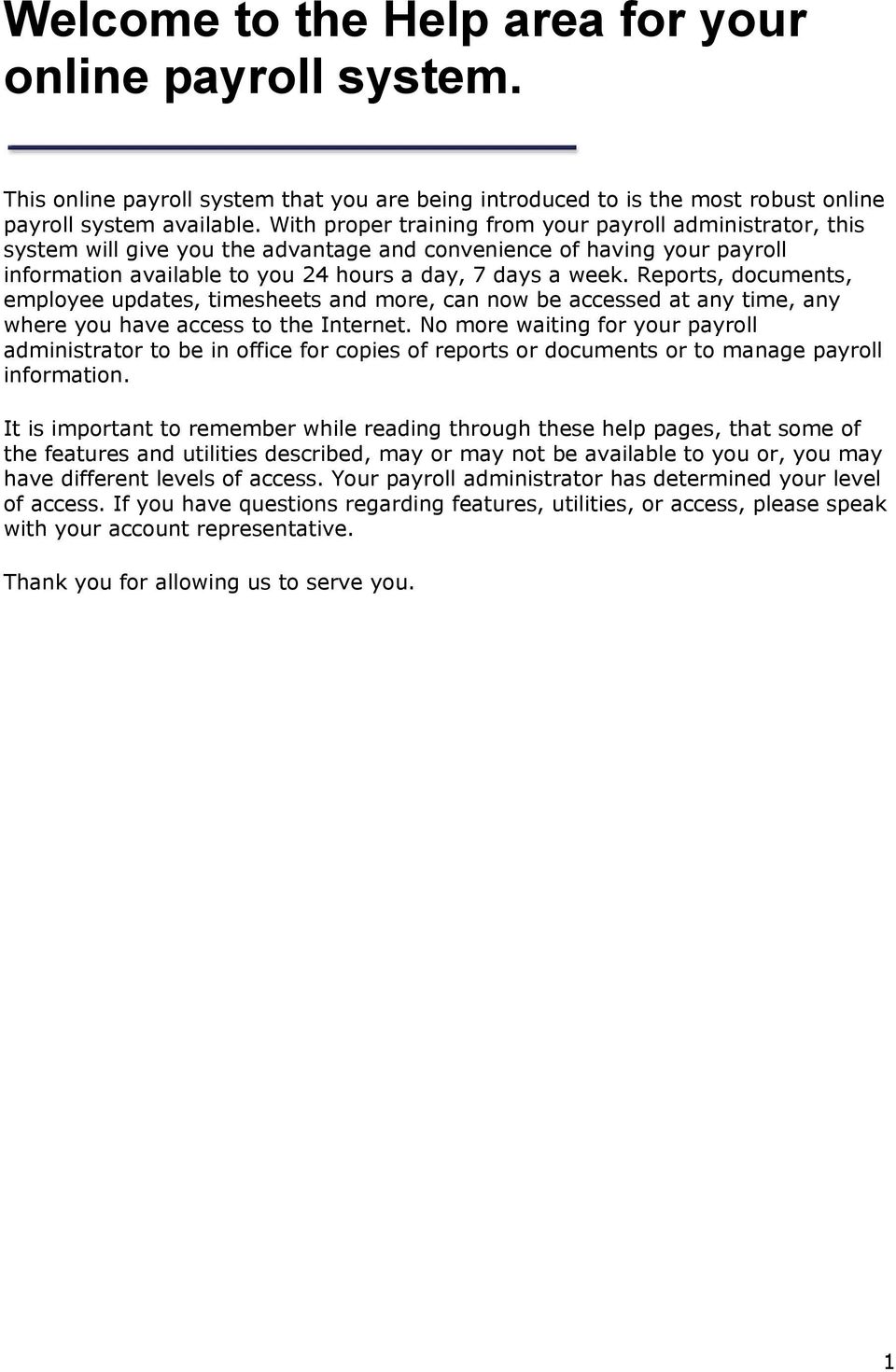
8 DarwiNet Client Level Logging In Although you may already be logged into the system. This information is provided as reference for your convenience. Your PEO/ASO will have provided you with your Username and Password. These values must be entered into the appropriate text boxes: Once the values are entered, click the Log In button. This will take you to the Welcome Page. Forgot Password If your password has been forgotten, click on the "Forgot your password?" button. This functionality requires that you have an active address and that this address has been provided to the PEO/ASO. Clicking the button will open a new page on the right of the screen: 4
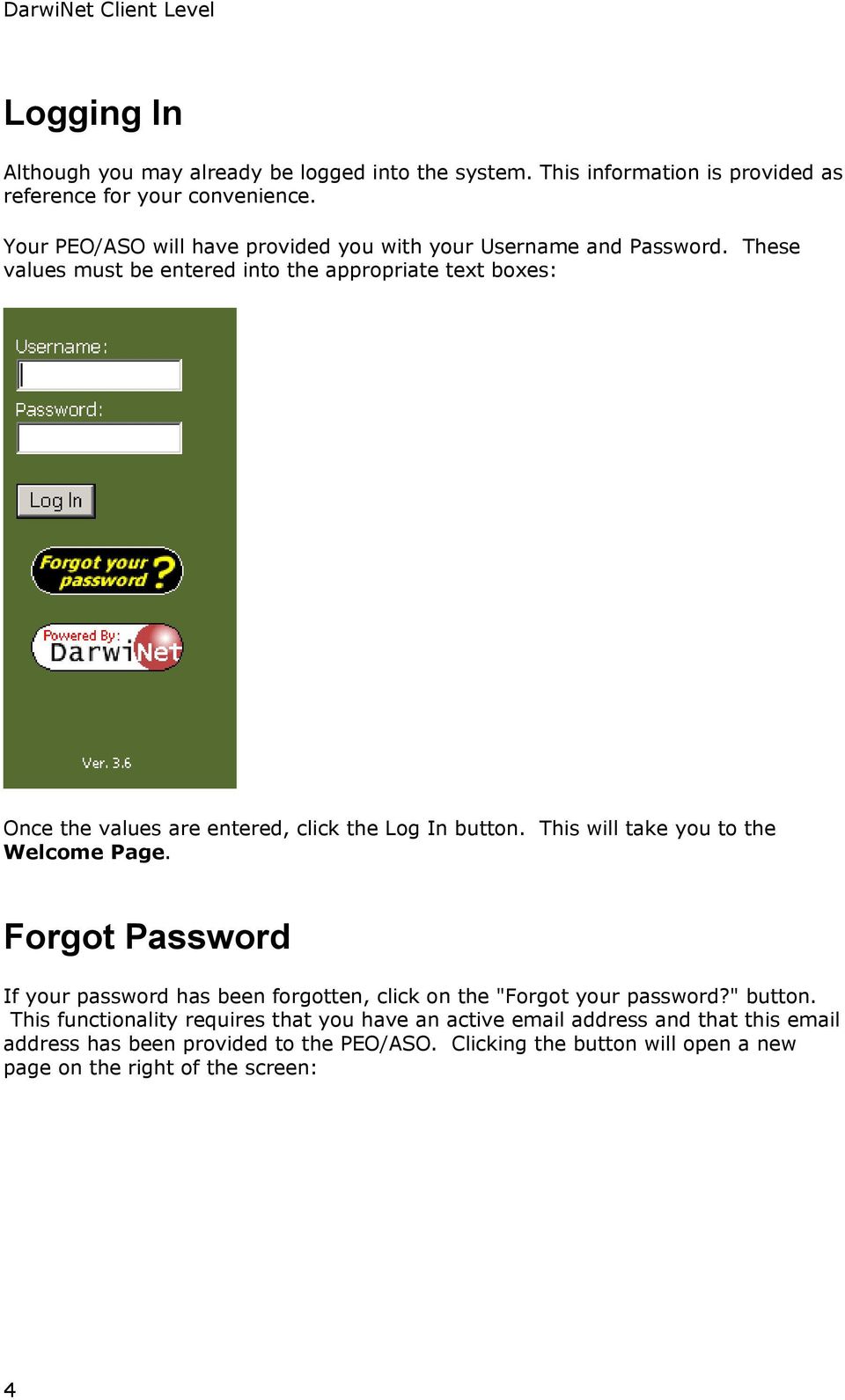
9 Getting Started Typically, entering only your User ID is sufficient to retrieve your information. Because User IDs must be unique, entering only the User ID will provide enough information for retrieval. Within a few minutes you will receive an automated response that will list your User ID and Password. Additionally, you can click on the "contact the administrator" text to open a form that will be submitted to the PEO/ASO. Failed Login Should you unsuccessfully enter your login and password three times, the login page will be removed and the Forgot Password page will display. If you have a working address and it has be registered by the PEO/ASO, then you can fill out the form and have your information ed to you. 5
10

11 Home Client Welcome Page The client welcome page will display a summary of information and is designed to give quick access to the most common areas of the payroll system. The Welcome Page is displayed: After successfully logging into the Client Area. By clicking the Home link in the menu. By clicking the Home link on the toolbar. The following image will help explain the Welcome Page. 1. The Toolbar - This is located at the top of the window. It contains the name of your payroll system and the name of your company. Locate the red colored ToDo near the (1) in the image of the Welcome Screen. This reminder only appears when changes have been made that may require additional tasks to complete. Clicking on this reminder will open the task. These tasks can also be located under To Do List ( 7) on the Welcome Screen. Once these tasks have been acknowledged, the reminder will disappear. Along the top right side of the toolbar may be the following links: Refresh - Refreshes the page. Never use the Refresh, Back or Forward buttons on the Internet Explorer browser. Hide Menu - This will toggle on or off, the main navigation menu on the left of the online system. Home - This will take you back to the Welcome Screen. 7
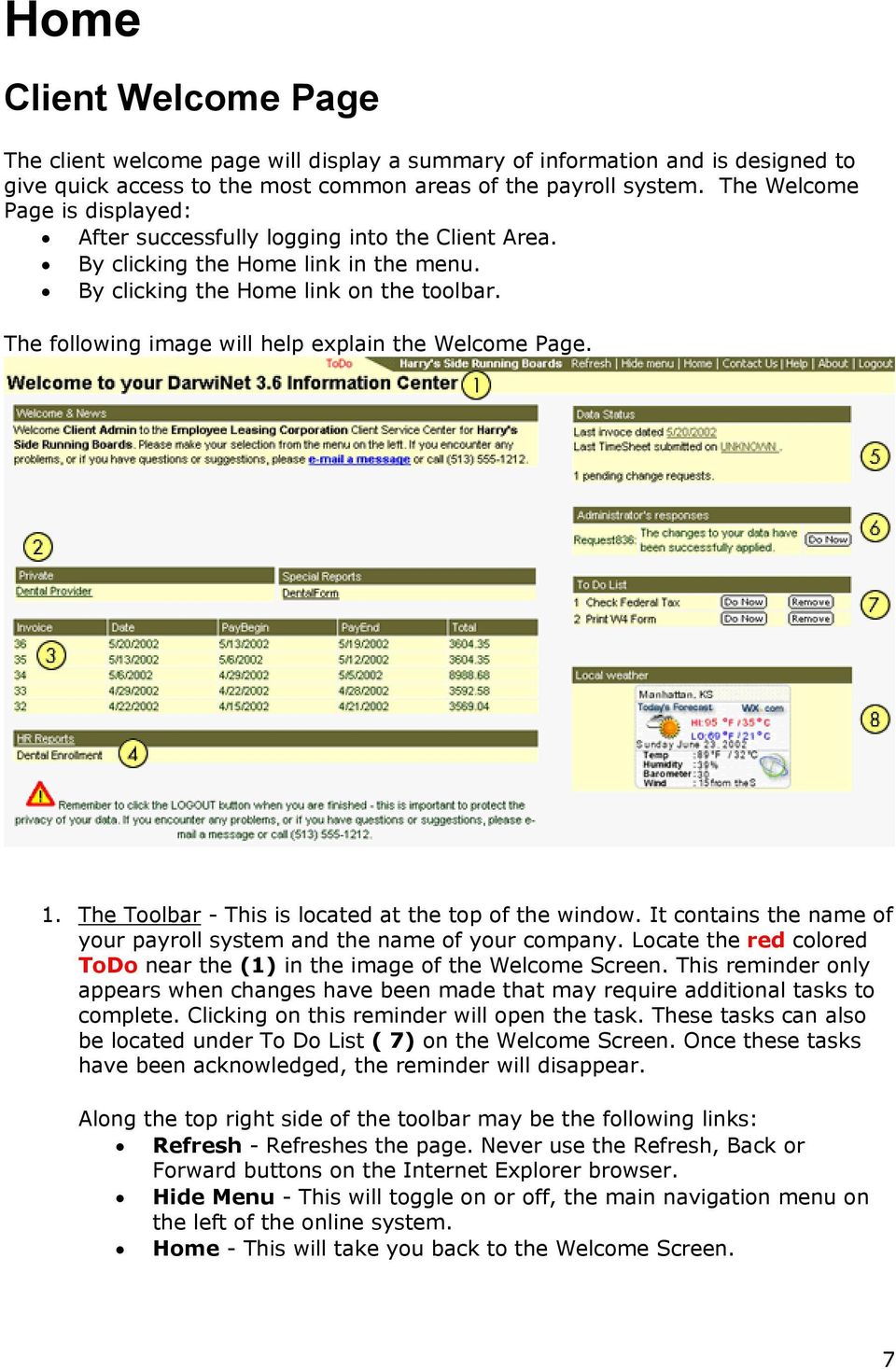
12 DarwiNet Client Level Contact Us - This link will open a message window to the Payroll Administrator of the online system. Help - Clicking on Help will open the help screen for the online system. About - Displays the version and copyright information of the online system. Logout - Safely ends your online session. It is highly recommended that you use this button to securely close your session. 2. Special Reports - This area will show any private links you may have added to your online system, as well as any special forms or reports including manuals and policies that have been uploaded into the system for you convenience. Clicking on the item will either open that document or take to the area in the system where the item can be found. If no reports/forms exist, this area will not de displayed. 3. Invoice List - This area will display up to 5 of the most recent posted invoices. Clicking on any of these will take you to the invoice area. 4. HR Reports - Displays a list of custom created reports within the online system. These reports are generated using the payroll data that is available within the online system. If no reports exist, this area will not de displayed. 5. Data Status - Displays the date of the last posted invoice, the date the most recent timesheet was released, and the number of pending change requests. Clicking on the line item "Pending Change Requests" will display the following window: This windows displays all pending change requests. Each change request includes: Request ID - The unique number automatically assigned to this change request. Date - The date and time the change was made. Change Requested - Indicates the database table the change request refers to. Primary Key - Typically this will be the Employee ID for whom the change is being applied to. However, it is possible that some other text will be listed. Database Field Name - The 8
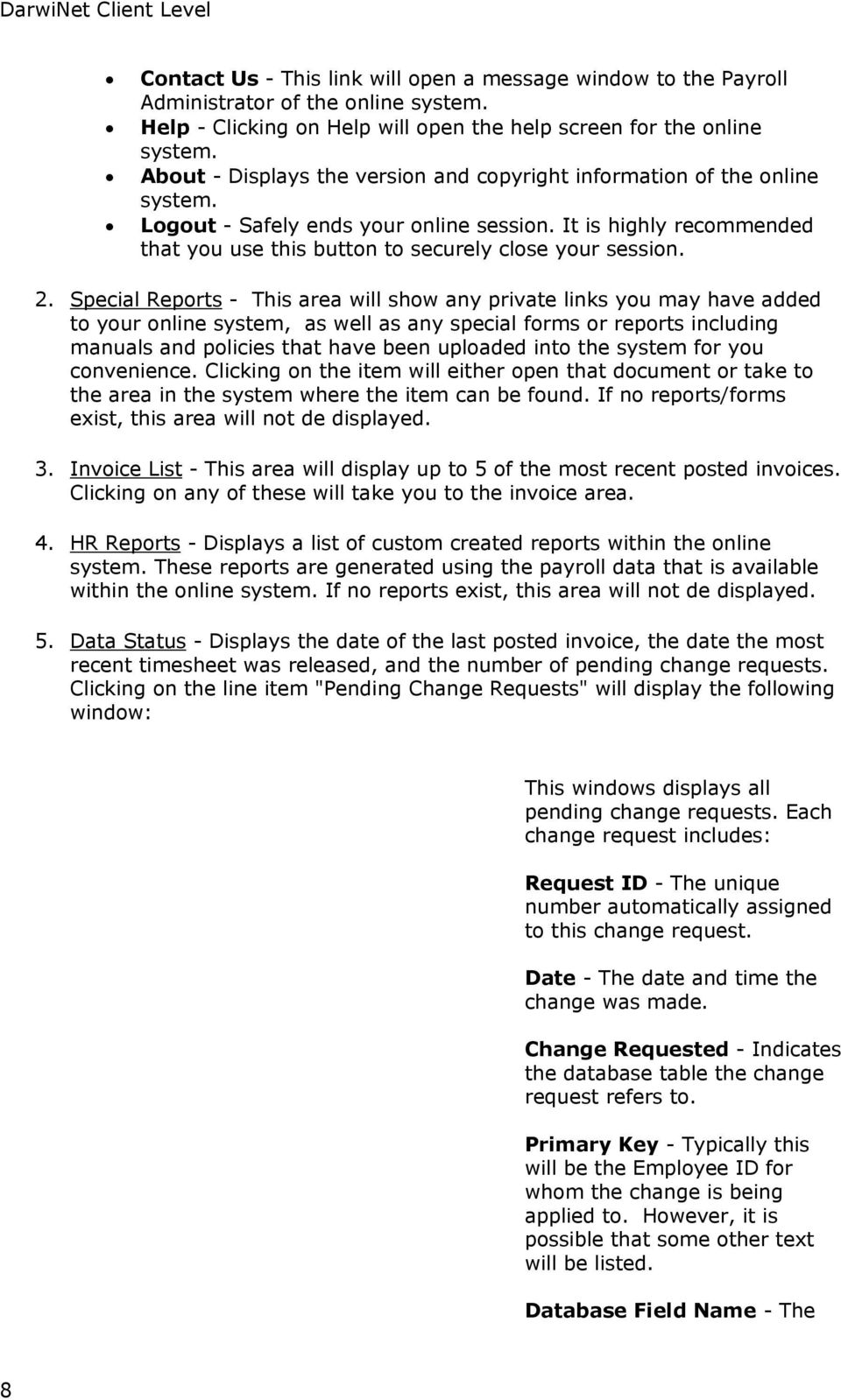
13 Home field name or names that will be affected following change request. Old Value - The previous value before the change request. New Value - The new value being requested. 6. Administrative Response - This window will only appear when a change request receives a response from the main payroll system. It will show whether the change was accepted or rejected by your payroll company. Click on the line item to view the details of the change. If the change was rejected, the payroll personnel are required to enter a reason for rejection which will be displayed in the corresponding column. Click OK to clear the display. 7. To Do List - Displays additional tasks resulting from change requests. These will primarily result from tax status changes, and will include I-9 or W-4 forms. The online payroll system will automatically fill these forms with the required information for the tax change. Simply print the form. If no changes exist, this frame will not be displayed. 8. Local Weather - Displays a summary of your local weather. Click on the image to display your local weather page. This frame is created using your zip code. If your zip code is not recognized by the weather service, a red x will be displayed. Please note. The online payroll system works under SSL. The weather window displays weather information from an external link that is not under SSL. This alert is advising you of this. Click the Yes button to display the weather image. No data is compromised by clicking this button. To disable this alert window, click on the Internet Explorers browser menus TOOLS>INTERNET OPTIONS, then click on the SECURITY tab. At the bottom of that window, click on "Custom Level". Scroll through the options until you find "Display Mixed Content". Select "Enable" and then click OK. 9

14

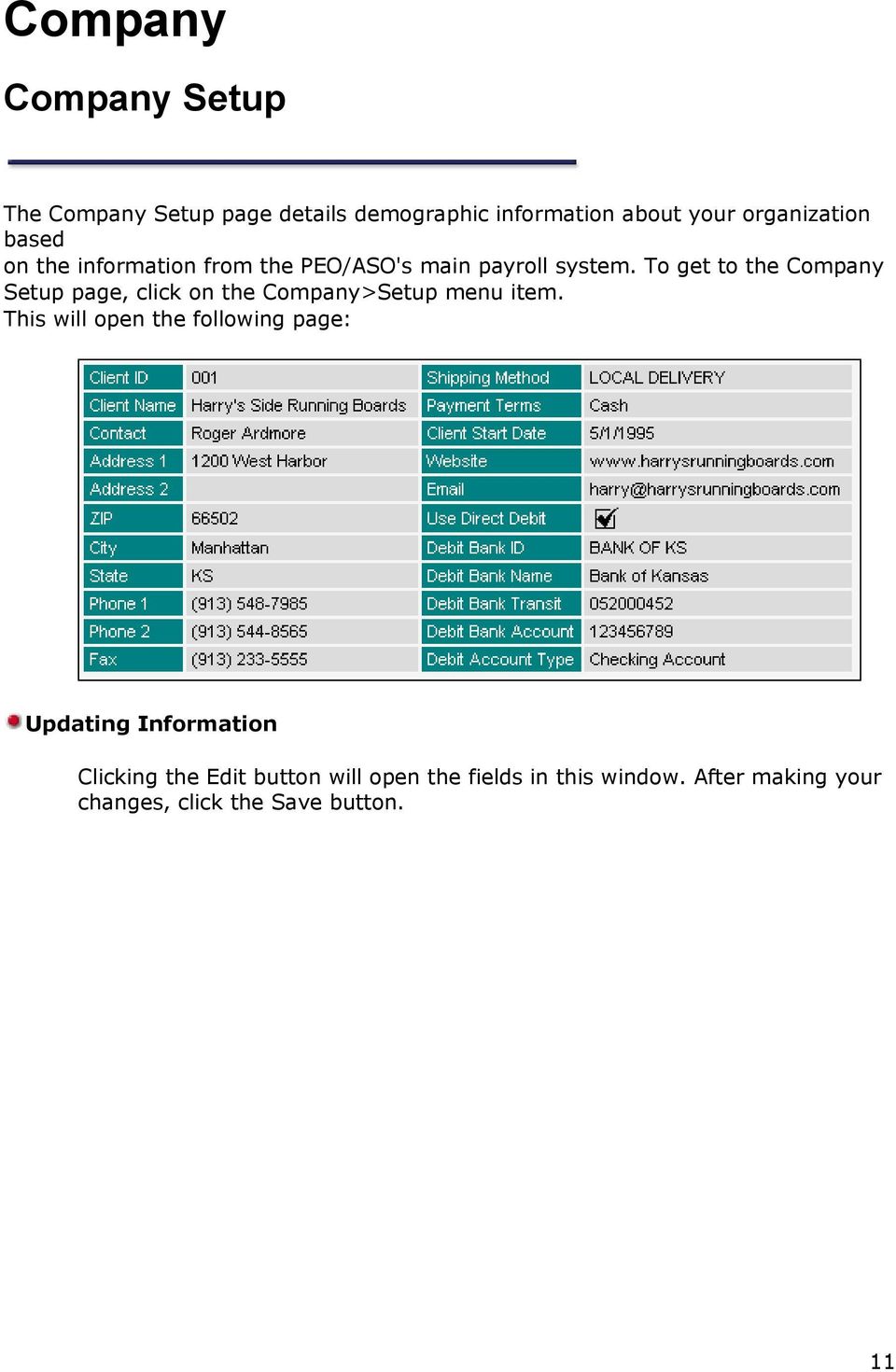
15 Company Company Setup The Company Setup page details demographic information about your organization based on the information from the PEO/ASO's main payroll system. To get to the Company Setup page, click on the Company>Setup menu item. This will open the following page: Updating Information Clicking the Edit button will open the fields in this window. After making your changes, click the Save button. 11
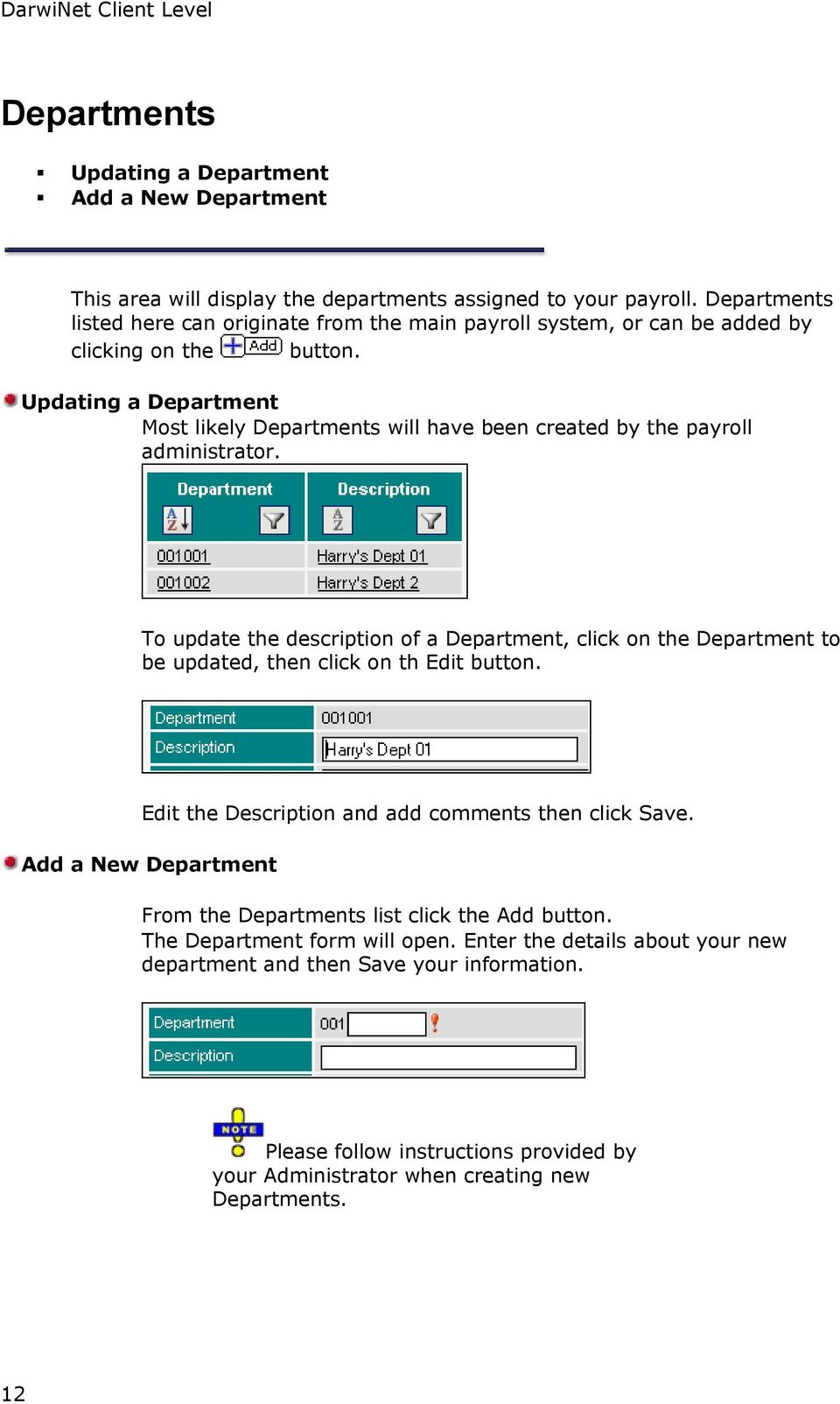
16 DarwiNet Client Level Departments Updating a Department Add a New Department This area will display the departments assigned to your payroll. Departments listed here can originate from the main payroll system, or can be added by clicking on the button. Updating a Department Most likely Departments will have been created by the payroll administrator. To update the description of a Department, click on the Department to be updated, then click on th Edit button. Edit the Description and add comments then click Save. Add a New Department From the Departments list click the Add button. The Department form will open. Enter the details about your new department and then Save your information. Please follow instructions provided by your Administrator when creating new Departments. 12
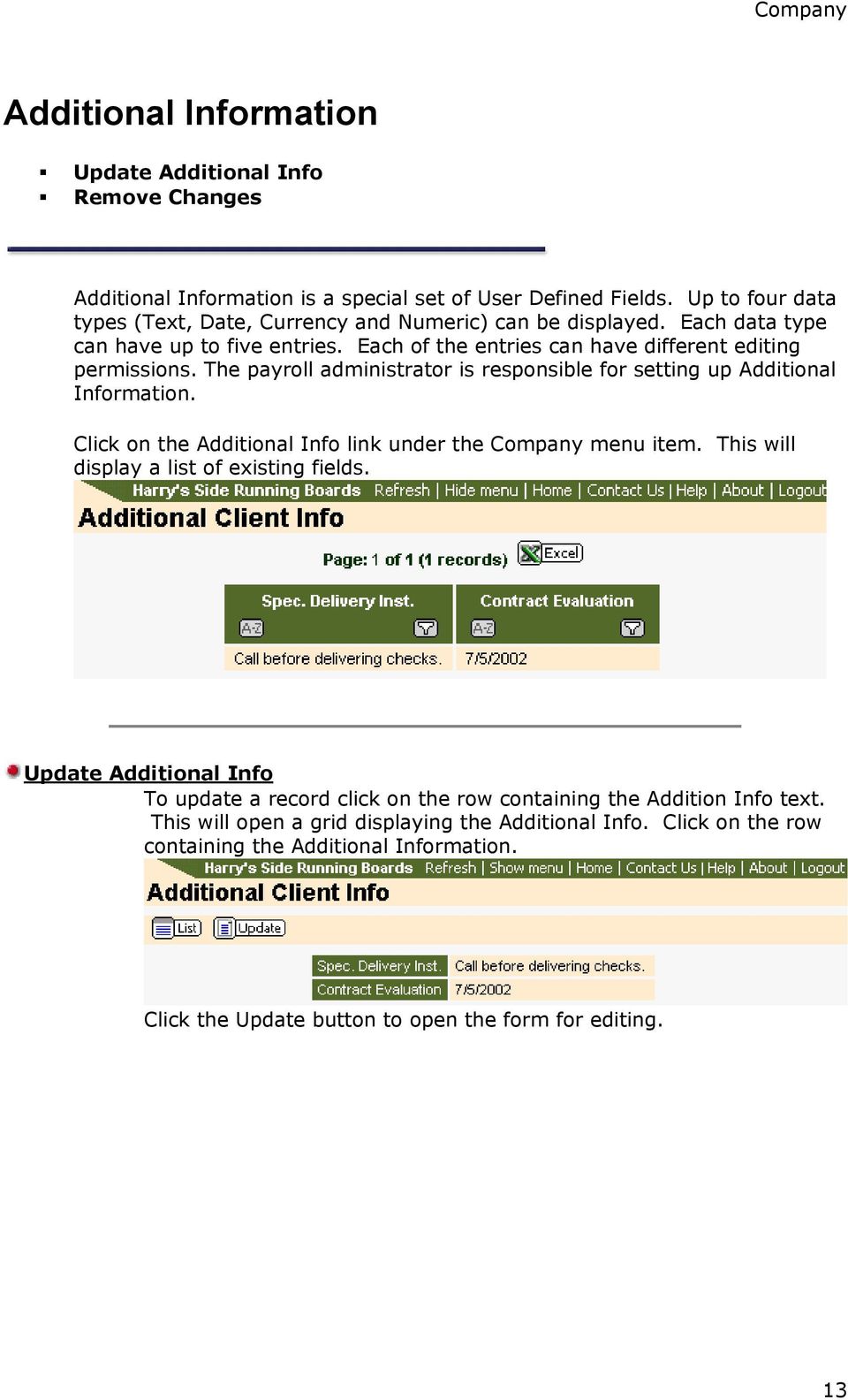
17 Company Additional Information Update Additional Info Remove Changes Additional Information is a special set of User Defined Fields. Up to four data types (Text, Date, Currency and Numeric) can be displayed. Each data type can have up to five entries. Each of the entries can have different editing permissions. The payroll administrator is responsible for setting up Additional Information. Click on the Additional Info link under the Company menu item. This will display a list of existing fields. Update Additional Info To update a record click on the row containing the Addition Info text. This will open a grid displaying the Additional Info. Click on the row containing the Additional Information. Click the Update button to open the form for editing. 13
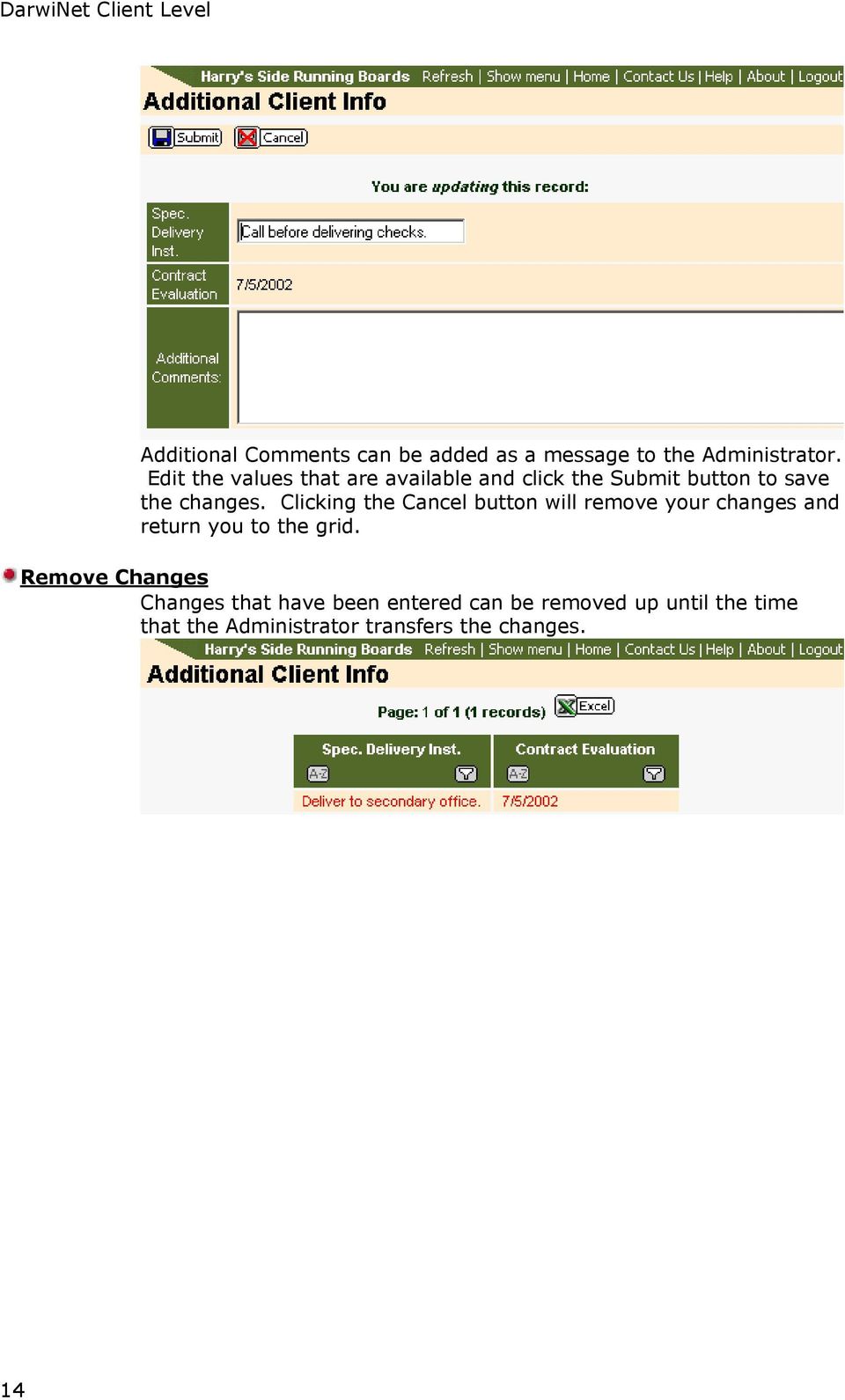
18 DarwiNet Client Level Additional Comments can be added as a message to the Administrator. Edit the values that are available and click the Submit button to save the changes. Clicking the Cancel button will remove your changes and return you to the grid. Remove Changes Changes that have been entered can be removed up until the time that the Administrator transfers the changes. 14
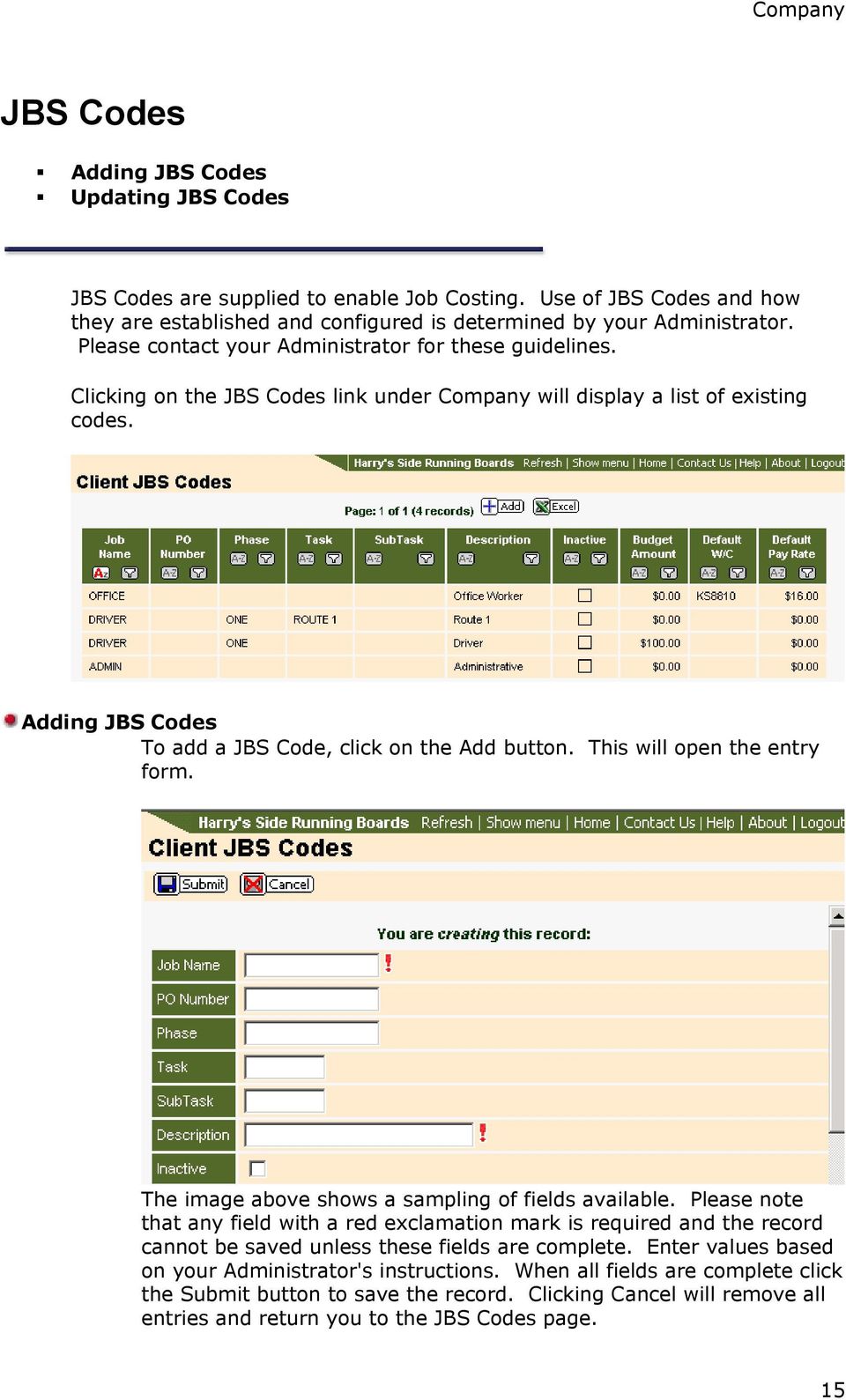
19 Company JBS Codes Adding JBS Codes Updating JBS Codes JBS Codes are supplied to enable Job Costing. Use of JBS Codes and how they are established and configured is determined by your Administrator. Please contact your Administrator for these guidelines. Clicking on the JBS Codes link under Company will display a list of existing codes. Adding JBS Codes To add a JBS Code, click on the Add button. This will open the entry form. The image above shows a sampling of fields available. Please note that any field with a red exclamation mark is required and the record cannot be saved unless these fields are complete. Enter values based on your Administrator's instructions. When all fields are complete click the Submit button to save the record. Clicking Cancel will remove all entries and return you to the JBS Codes page. 15
20 DarwiNet Client Level Updating JBS Codes Click on the JBS Codes link under Company. Click on the row containing the JBS Code to be updated. Click the Update button to open the form for editing. Remove Changes Additional Comments can be added as a message to the Administrator. Edit the desired fields and then click the Submit button to save the changes. Clicking the Cancel button will reset your changes and return you to the previous screen. 16

21 Company Click the Undo button to remove your changes. 17
22
23 HR Setup HR Setup This area will allow you to track your employee training and employee reviews. For detailed information, click on the respective links. Training or Review Types - Types of training and/or reviews. i.e. First Aid Training. Training or Review Status - Types of status of the training and/or reviews. i.e. In Progress, Completed, etc. Training or Review Rating - Types of ratings to give the completed training or review. i.e. Pass, Fail, etc. 19
24 DarwiNet Client Level Training The Employee Training area allows the client to track and maintain training for each of the employees. Once set up, the training is tracked from the Employee Details menu > Training. Clicking on a row for a particular event will open that event for updating. 20
25 HR Setup Training Types Training Types allows you to setup various Training Type codes. These can be used to track when an employee attends job-related training. These types can then be used in the Training Status area of the system. After clicking on the Training Types link you will be provided a list of existing Types codes. Add Training Types From the Training Types list click the a new record. button. This will open a form for adding Enter an ID for the new training type in the Trainingtype line item. This is a required field. The record cannot be saved if this field is left blank. Additional Comments can be added as a note to the PEO/ASO Administrator. Once you have entered the information, click the Submit button to save the record. Clicking the Cancel button will remove the information entered and return you to the list. 21
26 DarwiNet Client Level Updating a Training Type Any existing Training Type can be updated. Click the record to be updated. Click the Update button to open the form for editing. Make the necessary changes and click the Submit button. Clicking the Cancel button will remove the changes and return you to the Training Types list. Deleting a Training Types A Training Type can be deleted. It is advised that you contact your PEO/ASO Administrator before doing so. From the Training Types list click on the record to be deleted. Click the Delete button. Click the OK button on the confirmation to continue the delete process. Clicking the Cancel button on the confirmation message will abort this process. Removing Changes Click the to remove changes. 22
27 HR Setup Training Status The Training Status link under the HR Setup menu item allows you to setup various Training Status codes to be used when an employee attends job-related training. This item will be used in the Employee Training area of the system. After clicking on the Training Status link you will be provided a list of existing Status codes. Add Training Status From the Training Status list click the Add button. This will open a form for adding the record. The line item with the red exclamation mark is required. The record cannot be saved if this value is left blank. Additional Comments can be added as a note to the PEO/ASO Administrator. 23
28 DarwiNet Client Level Once you have entered the information, click the Submit button to save the record. Clicking the Cancel button will remove the information entered and return you to the list. Updating a Training Status An existing Training Status can be updated. From the Training Status list click the record to be updated. This will open the grid of information about this record. Click the Update button to open the form for editing. Make the necessary changes and click the Submit button. Clicking the Cancel button will remove the changes and return you to the Training Status list. Deleting a Training Status A Training Status can be deleted; however, it is advised that you contact your PEO/ASO Administrator before so. From the Training Status list click on the record to be deleted. Click the Delete button. Click the OK button on the confirmation to continue the delete process. Clicking the Cancel button on the confirmation message will abort this process. Removing Changes 24
29 HR Setup Click the to remove changes. 25
30 DarwiNet Client Level Training Rating The Training Rating link under the HR Setup menu item allows you to setup various Training Rating codes to be used when an employee attends job-related training. This item will be used in the Employee Training area of the system. After clicking on the Training Rating link you will be provided a list of existing Rating codes. Add Training Rating From the Training Rating list click the Add button. This will open a form for adding the record. The line item with the red exclamation mark is required. The record cannot be saved if this value is left blank. Additional Comments can be added as a note to the PEO/ASO Administrator. Once you have entered the information, click the Submit button to save the record. Clicking the Cancel button will remove the information entered and return you to the list. 26
31 HR Setup Updating a Training Rating An existing Training Rating can be updated. From the Training Rating list click the record to be updated. This will open the grid of information about this record. Click the Update button to open the form for editing. Make the necessary changes and click the Submit button. Clicking the Cancel button will remove the changes and return you to the Training Rating list. Deleting a Training Rating A Training Rating can be deleted; however, it is advised that you contact your PEO/ASO Administrator before so. From the Training Rating list click on the record to be deleted. Click the Delete button. Click the OK button on the confirmation to continue the delete process. Clicking the Cancel button on the confirmation message will abort this process. Removing Changes Click the to remove changes. 27
32 DarwiNet Client Level Manager Employee's managers can be maintained from the Managers link under the HR Setup menu item. Managers can be assigned to all employees. After clicking the Managers link a list of existing managers will be shown. If no records exist you will need to add a manager to track Employee Reviews. The image below shows a list of managers. Add Managers Click the Add button to add a new manager. After clicking the Add button a form will open where you can complete your entry. The EE Manager field is required. The record cannot be saved if this field is left blank. Complete the form and click the Submit button. Clicking the Cancel button will delete the entered information and return you to the Managers list. 28
33 HR Setup Editing Existing Managers From the manager's list, click the row containing the manager to edit. This will open the grid of manager specific information. Click the Update button to open the form for editing. Edit the Description and optionally add Additional Comments. Click the Submit button to save the changes. Clicking the Cancel button will remove any changes made and return you to the Managers list. Delete a Manager From the Manager list click the row containing the manager to be deleted. Click the Delete button and then click the OK button on the confirmation message. Clicking the Cancel button on the confirmation message will abort the delete process. Removing Changes Click the to remove changes. 29
34 DarwiNet Client Level Reviews You are able to track employee reviews in the system. To get to this section click on the Employee Details link under the Employees menu item. Locate the employee in the grid and click on his/her Actions button. Select the Reviews item from the drop list. Existing review will be displayed. Adding a Review To add a review you must first make sure that Review Actions, Review Types and Review Ratings have been created. When these are established, click the Add button to open the form for adding the new review. 30
35 HR Setup Things to know about this screen: The Incident Number will increase by one each time a review is added. Though there are no required fields, you must enter some information for the record to be saved. The drop lists for Manager, Type, Action and Rating are generated from the values placed in HR Setup. The Date Created and Created By fields are added automatically and cannot be updated. Each date field has three buttons to the right of the field. The up and down arrow buttons will add or reduce the day by one day. The third button will open a calendar in a new window. Selecting the date from this calendar will put that date in the field. After entering all pertinent information, click the Submit button to save the record. Clicking the Cancel button will remove all information added and return you to the Reviews list. Updating a Review From the Reviews list, click on a review to be updated. This will open the Review grid. Note on this screen that the Changed By and Modified Date are already in red. This is by design as these fields are automatically filled and cannot be edited. Clicking the List button at this point will return you to the Reviews list and will not save any changes. To make changes to the review click the Update button to open the editable form. 31
36 DarwiNet Client Level Make necessary changes using the drop lists and add optional Additional Comments. Click the Submit button to save your changes. Clicking the Cancel button will remove your changes and return you to the previous grid. The Created By field may show a user from your PEO/ASO. This is normal. Deleting a Review Reviews can be deleted, but you should contact your PEO/ASO for guidelines and recommendations. From the Reviews list, click the review to be deleted. When the Review grid appears click the Delete button. Click the OK button on the confirmation message to complete the process. Clicking the Cancel button on the confirmation message will abort the delete process. Removing Changes Once changes have been established, they can be removed up until the time your PEO/ASO transfers the changes. A changed Review will appear in the list with red text. Click on the Review where changes exist and are to be removed. This will show the Review grid. 32
37 HR Setup Clicking on the Changes Exist button will show details and the status of the changes. Click the Undo button to remove the changes. Click the OK button on the confirmation message to complete the process. Clicking the Cancel button on the confirmation message will abort the Undo process. 33
38 DarwiNet Client Level Review Types The Review Types link under the HR Setup menu item allows you to setup various Review Types codes to be used when entering an employee review. This item will be used in the Employee Review area of the system. Clicking on the Review Types link will display a list of existing codes. Add Review Types From the Review Types list click the Add button. This will open a form for adding the record. The line item with the red exclamation mark is required. The record cannot be saved if this value is left blank. Additional Comments can be added as a note to the PEO/ASO Administrator. Once you have entered the information, click the Submit button to save the record. Clicking the Cancel button will remove the information entered and return you to the list. 34
39 HR Setup Updating a Review Types An existing Review Types can be updated. From the Review Types list click the record to be updated. This will open the grid of information about this record. Click the Update button to open the form for editing. Make the necessary changes and click the Submit button. Clicking the Cancel button will remove the changes and return you to the Review Types list. Deleting a Review Types A Review Types can be deleted; however, it is advised that you contact your PEO/ASO Administrator before so. From the Review Types list click on the record to be deleted. Click the Delete button. Click the OK button on the confirmation to continue the delete process. Clicking the Cancel button on the confirmation message will abort this process. Removing Changes Click the to remove changes. 35
40 DarwiNet Client Level Review Action The Review Action link under the HR Setup menu item allows you to setup various Review Action codes to be used when entering an employee review. This item will be used in the Employee Review area of the system. After clicking on the Review Action link you will be provided a list of existing Action codes. Add Review Action From the Review Action list click the Add button. This will open a form for adding the record. The line item with the red exclamation mark is required. The record cannot be saved if this value is left blank. Additional Comments can be added as a note to the PEO/ASO Administrator. Once you have entered the information, click the Submit button to save the record. Clicking the Cancel button will remove the information entered and return you to the list. 36
41 HR Setup Updating a Review Action An existing Review Action can be updated. From the Review Action list click the record to be updated. This will open the grid of information about this record. Click the Update button to open the form for editing. Make the necessary changes and click the Submit button. Clicking the Cancel button will remove the changes and return you to the Review Action list. Deleting a Review Action A Review Action can be deleted; however, it is advised that you contact your PEO/ASO Administrator before so. From the Review Action list click on the record to be deleted. Click the Delete button. Click the OK button on the confirmation to continue the delete process. Clicking the Cancel button on the confirmation message will abort this process. Removing Changes Click the to remove changes. 37
42 DarwiNet Client Level Review Rating The Review Rating link under the HR Setup menu item allows you to setup various Review Rating codes to be used when entering an employee review. This item will be used in the Employee Review area of the system. After clicking on the Review Rating link you will be provided a list of existing Rating codes. Add Review Rating From the Review Rating list click the Add button. This will open a form for adding the record. The line item with the red exclamation mark is required. The record cannot be saved if this value is left blank. Additional Comments can be added as a note to the PEO/ASO Administrator. Once you have entered the information, click the Submit button to save the record. Clicking the Cancel button will remove the information entered and return you to the list. 38
43 HR Setup Updating a Review Rating An existing Review Rating can be updated. From the Review Rating list click the record to be updated. This will open the grid of information about this record. Click the Update button to open the form for editing. Make the necessary changes and click the Submit button. Clicking the Cancel button will remove the changes and return you to the Review Rating list. Deleting a Review Rating A Review Rating can be deleted; however, it is advised that you contact your PEO/ASO Administrator before so. From the Review Rating list click on the record to be deleted. Click the Delete button. Click the OK button on the confirmation to continue the delete process. Clicking the Cancel button on the confirmation message will abort this process. Removing Changes Click the to remove changes. 39
44
45 Employees Employee Details Alphabet Filter Bar Column Filter and Sort Edit Personal Info Terminating an Employee Quick Link Clicking on the Employee Details link under the Employees menu item will display a list of your active and inactive employees and allows for quick navigation to employee-specific details. Alphabet Filter Bar: This bar across the top of the window, allows you to filter the list by last name. Column Filter and Sort: The filter icon located in the top of column heads, allow you to add filters to find specific records. The sort icon will sort the column. Clicking again on the sort icon will reverse the sort order. Edit Personal Info: Clicking on the Employee line will open the employees Personal Information window. After opening the Personal Information window, you can update the information by clicking on the Update button. This will open the fields to edit. 41
46 DarwiNet Client Level Terminating Employees: Employees are terminated from the Personal Information window. This will not delete the employee out of the system. It will set the employee as inactive. To terminate or inactivate an employee, simply check the box at the top of the employees Personal Information window. After checking the box, click submit to get the termination dialogue box. This box allows you to enter a termination date, the termination code, and a description. It will also allow you to disable the employees login to the online payroll system. Please make note of the following functionality when terminating an employee: The Termination Date is a required field. This is the actual date the employee is to be terminated. The Termination Code is also required. Each PEO/ASO can set these values up differently: Please consult with your PEO/ASO for clarification on which code to enter. The Termination Description field cannot be edited. This simply shows the description of the selected Termination Code. Reactive an Inactive Employee: Employees that have a status of Inactive can be reactivated. From the employee Personal Information screen, click the Update button and then remove the checkmark in the Inactive field. Click the Submit button and the following window will be displayed. 42
47 Employees Select any of the employee records to reactivate and click the Submit button. Quick Link: In the last column to the right of each employee listed, is a Quick Link icon. This button will open a drop-down list of payroll related areas available to view or update. Click on this button and let the page refresh to show the drop-down box. Then select the desired area. 43
48 DarwiNet Client Level Employee Dependents Updating a dependent Adding a Dependent Deleting a Dependent The Dependents page can be accessed by clicking on the Employee Dependents link under Employees or by selecting Dependents from the Employee Details Actions button. When Employee Dependents is selected, a list of ALL dependents for all employees will be provided. Clicking on the Dependents item from the drop list will provide employee-specific dependents. Management of dependents is the same regardless of method of getting to the Dependents page. Updating Dependents To update an existing Dependent, click on the row containing that dependent. A grid showing all dependent related information will be displayed. 44
49 Employees Clicking the Update button will open the fields for editing. When all changes are made, click the Submit button. Clicking the Cancel button will remove all changes made. Adding a Dependent To add a dependent click the Add button. Complete the required fields and including any additional information. Click the Submit button. If the dependent is a new born that does not yet have a Social Security Number, enter in the field. Enter the correct number at a later time. Deleting Dependents Dependents can be deleted. After the Dependent grid is displayed, click the Delete button. Click the OK button on the confirmation message to complete the delete process. Clicking the Cancel button on the confirmation will abort the delete process. Removing Changes Changes can be removed up until the time the Administrator transfers the changes. Dependents that contain changes are displayed in red. Click on the row containing the dependent. This will open the grid for the dependent. 45
50 DarwiNet Client Level Clicking the Changes Exist button will display detailed information about the changes and their status. Click the Undo button to remove the changes. Click the OK button on the confirmation message to complete the process. Clicking the Cancel button on the confirmation page will abort the Undo process. 46
51 Employees Employee Licenses Updating Employee License Adding Employee License The Licenses page can be accessed by clicking on the Employee Licenses link under Employees. This will display all licenses for all employees. By selecting Licenses from the Employee Details Actions column drop list will provide employee-specific licenses. A license list will be displayed if licenses exist. Updating Employee License Click the row containing the employee's license to update. This will display all information about the license. Click the Update button to open the fields for editing. 47
52 DarwiNet Client Level Manually enter a date into the date field. Or, click on an arrow button to enter todays date into the empty field. Continue to click the arrow button to advance the date by one day or decrease the date by one day. Clicking the calendar button will allow you to select a date from a calendar in a pop-up window. Click the Submit button to save all changes. Clicking the Cancel button will remove all changes. Adding an Employee License From the Employee License list click the Add button. The entry form will be displayed. 48
53 Employees Any field with a red exclamation mark is required. The license will not be saved if one of these fields is left blank. Using the buttons to the right of the date fields can assist in adding the date Click the down arrow to decrease the day by one. Click the up arrow to increase the day by one. Click the calendar button to display a calendar in a new window. Clicking on a particular date will add this date to the field. Additional Comments can be added as a message to the Administrator. Click the Submit button once all fields have been entered. Clicking the Cancel button will remove all entered information. 49
54 DarwiNet Client Level Benefits Updating Benefits Adding Benefits Removing Changes Excel Export Actions Column The Employee Benefits page can be accessed by clicking on the Benefits link under Employees or by selecting Benefits from the Employee Details Actions column. When Benefits is selected from the menu a list of ALL benefits for all employees will be provided. Clicking on the Benefits item from the drop list will provide employee-specific benefits. Management of Benefits is the same regardless of method of getting to the Benefits page. Clicking on the Benefits link will display a list of benefits. Updating Benefits Clicking on a row will open the benefit information grid for that specific employees code. 50
55 Employees Click the Update button to open the form for editing. (partial view of benefit update screen) 51
56 DarwiNet Client Level Adding Benefits Existing benefit codes can be added to employees It is not possible to add a new benefit code. Click the Add button from the Benefit list. Removing Changes Changes to information can be removed up until the time that the Administrator transfers the changes. When a specific employee with a specific benefit code has had changes applied to that code, the Benefit list will display this line with red text. To remove the changes for this employee, click on that row from the list. 52
57 Employees Clicking on the Changes Exist button will display detailed information and status about the changes. Click the Undo button to remove the changes. Click the OK button on the confirmation message to complete the process. Clicking the Cancel button on the confirmation message will abort the process. Excel Export The Benefit list screen includes an Excel button at the top of the page. Clicking this button will allow you to export the list into a Microsoft Excel spreadsheet. Once the button is clicked, a new window will open and display the benefit information. This process can take several seconds depending on the number of benefits you have. Using the grid sorting features, you can lessen the number of records displayed and export only those values. Otherwise, ALL records will be exported to the Excel document. Actions Column The button in the Actions column provides an additional link to Benefit Transaction History. Clicking on the Actions button will cause a drop down list to appear. Click the down arrow and select Transaction History. The resulting page will provide a list of transactions for this particular code and employee. 53
58 DarwiNet Client Level Clicking the List button on any of the pages will take you back to the previous page you viewed. 54
59 Employees Check History The Check History page can be accessed by clicking on the Check History link under Employees or by selecting Check History from the Employee Details Actions column. When Check History is selected from the menu a list of ALL check history for all employees will be provided. Clicking on the Check History item from the drop list will provide employee-specific check history. In order to view the employee's stub, you will need to install the free Adobe Acrobat Reader, which can be downloaded from Adobe. When viewing the employee's pay stub it is best to use the Adobe tool bars to save or print the document. Clicking on the Check History link will display a list of checks. Clicking on a particular line will display the pay stub. 55
60 DarwiNet Client Level Deductions Updating Deductions Adding Deductions Removing Changes The Deductions page can be accessed by clicking on the Deductions link under Employees or by selecting Deductions from the Employee Details Actions column. When the Deductions link is selected from the menu a list of ALL deductions for all employees will be provided. Clicking on the Deductions item from the drop list will provide employee-specific deductions. Management of Deductions is the same regardless of method of getting to the Deductions page. Clicking on the Deductions link will display a list of deductions. Partial image of deductions screen Updating Deductions Clicking on a row will open the deduction information grid for that specific employee and code. 56
61 Employees Click the Update button to open the form for editing. Partial image of deductions update screen 57
62 DarwiNet Client Level Things to know about this page: Any field with a red exclamation mark is required. The deduction will not save if one of these fields is left blank. Using the buttons to the right of the date fields can assist in adding the date Click the down arrow to decrease the day by one. Click the up arrow to increase the day by one. Click the calendar button to display a calendar in a new window. Clicking on a particular date will add this date to the field. Additional Comments can be added as a message to the Administrator. Click the Submit button once all fields have been entered. Clicking the Cancel button will remove all entered information. Adding Deductions Deductions can be added to employees; however, it is not possible to add a new deduction code. Click the Add button from the Deduction list. You will be provided with the form for adding the deduction. 58
63 Employees Partial image of deductions add screen Things to know about this page: Any field with a red exclamation mark is required. The benefit will not be saved if one of these fields is left blank. Using the buttons to the right of the date fields can assist in adding the date Click the down arrow to decrease the day by one. Click the up arrow to increase the day by one. Click the calendar button to display a calendar in a new window. Clicking on a particular date will add this date to the field. Additional Comments can be added as a message to the Administrator. Click the Submit button once all fields have been entered. Clicking the Cancel button will remove all entered information. Removing Changes Changes to information can be removed up until the time that the Administrator transfers the changes. When a specific employee with a specific deduction code has had changes applied to that code, the Deduction list will display this line with red text. To remove the changes for this employee, click on that row from the list. 59
64 DarwiNet Client Level Clicking on the Changes Exist button will display detailed information and status about the changes. Click the Undo button to remove the changes. Click the OK button on the confirmation message to complete the process. Clicking the Cancel button on the confirmation message will abort the process. Excel Export On the Deduction list screen an Excel button can be seen at the top of the page. Clicking this button will allow you to export information into a Microsoft Excel spreadsheet. Once the button is clicked, a new window will open and display the deduction information. This process can take several seconds depending on the number of deductions you have. Using the grid sorting features, you can lessen the number of records displayed and export only those values. Otherwise, ALL records will be exported to the Excel document. Actions Column The button in the Actions column provides an additional link to Deduction Transaction History. Clicking on the Actions button will cause a drop down list to appear. Click the down arrow and select Transaction History. The resulting page will provide a list of transactions for this particular code and employee. 60
65 Employees Clicking the List button on any of the pages will take you back to the previous page you viewed. 61
66 DarwiNet Client Level Direct Deposit The Direct Deposit page can be accessed by clicking on the Direct Deposits link under Employees or by selecting Direct Deposit from the Employee Details Actions column. When the Direct Deposits link is selected from the menu a list of ALL direct deposits for all employees will be provided. Clicking on the Direct Deposits item from the drop list will provide employee-specific direct deposits. Management of Direct Deposits is the same regardless of method of getting to the direct deposit page. Clicking on the Direct Deposits link will display a list of deposits. Updating Direct Deposits Clicking on a row will open the direct deposit information grid for that specific employee. Click the Update button to open the form for editing. 62
67 Employees Things to know about this page: Any field with a red exclamation mark is required. The deduction will not be saved if one of these fields is left blank. When the Deposit Option is Percentage, the Amount field cannot be edited. When the Deposit Option is Dollars, the Amount field becomes active. Whenever a direct deposit is updated the Precheck flag will be marked. Additional Comments can be added as a message to the Administrator. Click the Submit button once all fields have been entered. Clicking the Cancel button will remove all entered information. Adding Direct Deposits Direct Deposits can be added to employees. Click the Add button from the Direct Deposits list. You will be provided with the form for adding the direct deposit. 63
68 DarwiNet Client Level Things to know about this page: Any field with a red exclamation mark is required. The benefit will not be saved if one of these fields is left blank. When the Deposit Option is Percentage, the Amount field cannot be edited. When the Deposit Option is Dollars, the Amount field becomes active. Whenever a direct deposit is added the Precheck flag will be marked. Additional Comments can be added as a message to the Administrator. Click the Submit button once all fields have been entered. Clicking the Cancel button will remove all entered information. Deleting a Direct Deposit From the Direct Deposit list page, click the Delete button. Click the OK button on the confirmation message to continue the delete process. Clicking the Cancel button on the confirmation message will abort the delete process. The direct deposit grid for this record will show, click the Submit button to complete the process. Clicking the Cancel button now will abort the delete process. 64
69 Employees Removing Changes Changes can be undone until the Administrator transfers the changes. Once they are transferred the record becomes locked and no additional changes can be made. Direct Deposit records that contain changes are displayed in red on the Direct Deposit list screen. To remove the changes click on the row containing the changes to be removed. This will open a grid displaying the direct deposit information. Clicking the Changes Exist button will display detailed information and status of the changes. Click the Undo button to remove the changes. Click the OK button on the confirmation message to complete the process. Clicking the Cancel button on the confirmation message will abort the Undo process. Excel Export On the Direct Deposits list screen an Excel button can be seen at the top of the page. Clicking this button will allow you to export information into a Microsoft Excel spreadsheet. Once the button is clicked, a new window will open and display the direct deposit information. This process can take several seconds depending on the number of direct deposits that you have. Using the grid sorting features, you can lessen the number of records displayed and export only those values. Otherwise, ALL records will be exported to the Excel document. 65
70 DarwiNet Client Level Pay Codes Updating Paycodes The Pay Codes page can be accessed by clicking on the Pay Codes link under Employees or by selecting Pay Codes from the Employee Details Actions column. When the Pay Codes link is selected from the menu a list of ALL pay codes for all employees will be provided. Clicking on the Pay Codes item from the Quick Links drop list will provide employee-specific pay codes. Clicking on the Pay Codes link will display a list of pay codes. Updating Pay Codes There are two ways to change a pay rate amount. 1. Clicking on a pay code in the pay code list will open the pay code information grid for that specific employee and code. Click the Update button to open the fields for editing. 66
71 Employees Things to know about this page: Any field with a red exclamation mark is required. The pay code will not be saved if one of these fields is left blank. Additional Comments can be added as a message to the Administrator. Inactive - If marked, the pay code is flagged as inactive and will be unavailable for inclusion in pay runs. Pay Rate - Enter the pay rate for the pay code, if different than the default. Pay Period - Select the frequency of the pay run, if different than the default that was specified at the setup level. Max. Period/Month/Year/Life - Enter a maximum amount for the pay code, if desired. Shift Code - If using Shift Code functionality, enter or select the shift code that corresponds to the indicated pay code. Click the Submit button once all fields have been entered. Clicking the Cancel button will remove all entered information. 67
72 DarwiNet Client Level Adding Pay Codes Pay Codes can be added to employees; however, it is not possible to add a new pay code. Click the Add button from the Pay Codes list. You will be provided with the form for adding the pay code. Partial image of pay codes add screen Things to know about this page: 68
73 Employees Any field with a red exclamation mark is required. The benefit will not be saved if one of these fields is left blank. Additional Comments can be added as a message to the Administrator. Click the Submit button once all fields have been entered. Clicking the Cancel button will remove all entered information. Removing Changes Changes to information can be removed up until the time that the Administrator transfers the changes. When a specific employee with a specific pay code has had changes applied to that code, the Pay Code list will display this line with red text. To remove the changes for this employee, click on that row from the list. Clicking on the Changes Exist button will display detailed information and status about the changes. Click the Undo button to remove the changes. Click the OK button on the confirmation message to complete the process. Clicking the Cancel button on the confirmation message will abort the process. 69
74 DarwiNet Client Level Excel Export On the Pay Code list screen an Excel button can be seen at the top of the page. Clicking this button will allow you to export information into a Microsoft Excel spreadsheet. Once the button is clicked, a new window will open and display the pay code information. This process can take several seconds depending on the number of pay codes you have. Using the grid sorting features, you can lessen the number of records displayed and export only those values. Otherwise, ALL records will be exported to the Excel document. Actions Column The button in the Actions column provides additional links to Pay Code information. Three links are available in the pay codes action column: Transaction History, Pay Rate Changes and Pay Rate History. Each will be explained below. Clicking on the Actions button will cause a drop down list to appear. Click the down arrow and select one of the available links. Transaction History Clicking on the Transaction History link will open a list of transactions for this code/employee. Clicking the List button on any of the pages will take you back to the previous page you viewed. Pay Rate Changes The Pay Rate Changes screen allows for scheduled rate changes based on an employee's pay code. After clicking on the Pay Rate Changes item from the drop down list a screen will open showing any pending pay rate changes. Changes that are displayed in red are pending authorization from the PEO/ASO. 70
75 Employees Pay Rate History The Pay Rate History link allows you to see the history for rate changes based on pay code. No changes or updates can be made on this page. Click the List button to return to the Pay Codes screen. 71
76 DarwiNet Client Level Tax Status The Tax Status page can be accessed by clicking on the Tax Status link under Employees or by selecting Tax Status from the Employee Details Actions column. When Tax Status is selected from the menu a list of ALL tax status' for all employees will be provided. Clicking on the Tax Status item from the drop list will provide employee-specific benefits. Management of Tax Status is the same regardless of method of getting to the Tax Status page. Clicking on the Tax Status link will display the tax status list. This page contains three tabs: Federal Tax, State Tax and Local Tax. Each tabs when clicked will display the records specific to the tax type. Federal Tax can only be edited, while State and Local Taxes can have multiple codes per employee, so you have the ability to add and update these. Federal Tax To edit a federal tax item, click on the row for the employee to be edited. When the grid of specific information is presented click the Update button. Edit the fields and then click the Submit button. After making a change to a Federal Tax record you will be prompted to print a W-4 form for this employee. The printing of the form can be done immediately, delayed to a later time or never printed. If it is delayed, ToDo text will remain in the toolbar until the file is printed. State Tax To add a State Tax code to an employee, click on the State Tax tab and then click on the Add button. Add the necessary information and click the Submit button. 72
77 Employees To edit State Tax information for an employee, click on the State Tax tab, locate and click on the row containing the employee. When the grid of state-specific information appears click the Update button. Make all necessary changes and then click the Submit button. Local Tax To add a Local Tax code to an employee, click on the Local Tax tab, locate and then click on the Add button. Add the necessary information and click the Submit button. To edit Local Tax information for an employee, click on the Local Tax tab, locate and click on the row containing the employee. When the grid of Local Code specific information appears click the Update button. Make all necessary changes and then click the Submit button. 73
78 DarwiNet Client Level New Employee Setup Access to be able to add new employees into the payroll system is granted by the Payroll Administrator. If you have been granted access to do so, there will be an "Add" button at the top of the New Employee Setup screen. To begin, click the Add button. The first screen will allow the user to enter the employee ID. The Payroll Administrator will define how the Employee ID is created. Consult with your Payroll Administrator for the proper method of entering the Employee ID. The user may also enter data into any other fields desired. Fields with the are required fields and must be added before moving to the next step. Client ID - ID of the current client. Employee ID Method - The method chosen by the Payroll Administrator for creating the new Employee ID. Employee ID - All Employee ID's will begin with the Region ID then Client ID then the characters from the ID creation method chosen by the Payroll Administrator. (i.e. Social Security Number) 74
79 Employees If the Employee ID is set to Manual Entry as shown above, then up to 10 Alpha/Numeric characters may be entered. Do not use any other characters such as hyphen, underscore, apostrophe, etc. If the Employee ID is set to Social Security Number, enter the employee Social Security number. If the Employee ID is set to Sequence Number, the Employee ID will be automatically generated. Employee Class - Employee Classes are profiles created by the Payroll Administrator to ease the process of creating a new employee. The Payroll Administrator can set a class to define what pay codes, deductions, etc. will automatically be assigned to the employee when that class is selected for the employee. Classes are not required and may not be available to select. Online User ID - Enter the ID that the new employee will use to log into their online payroll system. This may be automatically generated after entering the employees ID. User Password - Enter the password that the employee will use to log into the online system. Once you have entered the appropriate information click the Submit button. Clicking the Cancel button will terminate this process and remove all entered information. After submitting the User ID and New Employee name, a new employee grid will be displayed. It is critical that the Payroll Administrator give instruction on how and what should be entered into this area. This grid shows each table available for employee payroll information. First, click on the Employee ID in the Info tab. This will open the employee details. Enter details for all required fields as well as other fields desired. Continue through the additional tabs if desired, Fed Tax, State Tax, etc. Tabs colored red are areas designated as required by the Payroll Administrator. Shown above, the Pay Codes area is required. You will not be able to release the employee until these required areas have been completed. 75
80 DarwiNet Client Level At any time you may leave this area and return at a later time to finish entering information. When you return to the New Employee Setup you will see a list of any unreleased new employees. Each employee listed will show which areas have been completed by showing a check mark. To access the employee, click on any part of the employee line item. Continue adding desired information. When all required areas have been completed, the Release button will appear. Once the employee is released, the employee is immediately active in the online payroll system and ready for payroll. If a timesheet is now created, the released employee will be in that timesheet. If an address was entered for the employee during setup, the new employee may receive a welcome . This will depend upon if the Payroll Administrator has this option active. After releasing the new employee, you may be prompted to print out any required forms when navigating out of the new employee setup area. You may choose to view the forms immediately or at a later time. 76
81 Employees Help Area Introduction Making a Change Permission Settings Employee Additional Details The Employee's Additional Details screen, accessed from the Actions column while in the Employee Details, provides PEO/ASO specific User Defined Fields for employees. After clicking the Additional Details link you will be presented with the following screen: Clicking on the employee's row opens a grid that displays the Additional Details information: Click the Update button to update this information. Jun
82 DarwiNet Client Level Successor Tax Successor Tax information can be viewed by clicking on the Actions button for an employee. From the drop list select Successor Tax. This will open the screen that displays this information. Information here can only be viewed; therefore, no updates are permitted. 78
83 Employees Successor SUTA Successor SUTA information can be viewed by clicking on the Actions button for an employee. From the drop list select Successor SUTA. This will open the screen that displays this information. Information here can only be viewed; therefore, no updates are permitted. 79
84 DarwiNet Client Level 125 Balance Employee's 125 Deduction balance and payments can be viewed by clicking on the 125 Balance link from the employee's Actions column under Employee Details. The 125 Deduction information can only be viewed, no edits can be made. Please contact your PEO/ASO for more information regarding 125 Deductions. 80
85 Employees Employee Addresses Employees are allowed to have multiple addresses. Because of this addresses cannot be edited from the employee's record. To edit an employee's address you must go to the Employee Details link under the Employees menu item. Locate the employee and then locate the Actions column and button for the employee. Click on the button and then select Addresses from the drop down list. This will open list of existing addresses. Adding an Address Click on the Add button to open the form for adding a new address. Things to know about this screen: 81
86 DarwiNet Client Level The field with a red exclamation mark is required. You will not be able to save the record if you leave this field blank. Entering a Zip code will automatically populate the City and State fields. If you do not know the zip code for a particular city, type at least four characters into the City field then click the House button to the right of the field. A list of cities matching your criteria will be displayed. Select the city that fits your needs. Addition Comments about this record can be provide for the PEO/ASO Administrator. Confirm with your PEO/ASO the naming structure for Address Codes. Enter as much information as possible and click the Submit button. Clicking the Cancel button will remove all information added and return you to the Address List page. Updating an Address From the Address List page click on the employee's address to be edited. This will open a grid showing the address details. Click the Update button to open the form for editing. 82
87 Employees Enter the necessary changes and click the Submit button to save the record. Clicking the Cancel button will remove your changes and return you to the address list page. Removing Address Changes Changes made can be removed up until the time the PEO/ASO Administrator transfers the changes. Addresses with changes are shown in red on the Address list page. 83
88 DarwiNet Client Level The partial image above shows the changed record. To remove these changes, click on the row containing the record. This will open the grid showing the details of the record. Click the Changes Exist button to see the details and the status of the requested change. Click the Undo button to remove the changes. Click the OK button on the confirmation message to complete process. Clicking the Cancel button on the confirmation message will abort the remove process. 84
89 Employees Plans The Plans menu item, under Employees, is designed so that the Client User can view the employees that are enrolled in plans. After clicking the menu item, a page similar to the following will open: Clicking on a alphabetical button will display only those employees with a last name that begins with the letter selected. Clicking on the row for an employee will display either the plans that employee is eligible for or the plans that the employee has enrolled in. 85
90
91 Time Reports Time Sheets Timesheet Profiles Creating a Timesheet Timesheet Entry Saving a Timesheet Editing a Timesheet Releasing a Timesheet Deleting a Timesheet The timesheet area allows you to create a timesheet and submit that timesheet to the main payroll system. This allows an accurate and secure way to submit salary information for your employees. All Change Requests such as new employee's, pay rate changes, tax adjustments, etc. should be entered into the employee area before creating a timesheet. It is very important that the payroll administrator give instruction on how to use the timesheet. The timesheets ability to save time and be accurate in providing payroll information depends on your ability to use the timesheet properly. Training should include submission of a few timesheets. If active timesheets already exist, they will be listed when entering the timesheet area: : Click on one of the existing timesheets to open and edit the timesheet. Click on the "Add" button to create a new timesheet. The "Show Transferred" button allows you to view timesheets previously submitted to the payroll administrator. Transferred timesheets can no longer be edited and can only be viewed. 87
92 DarwiNet Client Level The Status column indicates if the timesheet has been Released for the payroll administrator or if the timesheet is still in the "Edit" mode. The status "Edit" indicates the timesheet has been saved and not yet released. The Actions column has three functions: - Is displayed only if the timesheet has not been released. Clicking on this button will release the timesheet. - Allows you to view the timesheet. You will not be able to edit the timesheet. - Deletes the timesheet. If a timesheet is accidentally deleted, contact your payroll administrator. They may be able to recover the timesheet. Timesheet Profiles Timesheets use a profile created by the main payroll system. This profile determines how the timesheet looks and acts. Some companies use more than one profile for various payroll situations. If your company uses only one profile, that profile will automatically open when entering the timesheet area. If your company uses more than one profile, you will be presented with a list of timesheet profiles to choose from. If there is a list of profiles to choose from, contact the payroll administrator for instruction on which profile to use. Creating a Timesheet Once the profile is selected you will be presented with the timesheet parameter window. This window allows you to set options for the timesheet. These parameters can be changed at any time, even after the timesheet has been created by clicking on the Setup button in the timesheet toolbar. 88
93 Time Reports The "Submit" button accepts the options and creates the timesheet. The "Cancel" button resets the parameters back to the default settings. The "Show Transferred" button displays any previous timesheets that have been sent to the main payroll system. Timesheets previously submitted can still be viewed. "Pay Period From/To" sets the pay period dates for the timesheet. Depending on the timesheet profile set up by the payroll administrator, this value may automatically increment each pay period. The arrow buttons increase/decrease the date by one day. The select button opens a calendar for choosing a date. "Sort By" will determine how the employees are sorted in the timesheet. "AutoSave" determines how many minutes the timesheet automatically saves. "Display All Employees", if selected, will display the maximum amount of employee rows per page (50). A second page will be created if there are more than 50 rows. "Display (xx) Employees Per Page" allows you to set how many employee rows are on each page of the timesheet. This helps users with slow computers to use less computer resources to display the timesheet. "Create (xx) Row(s) per Employee" allows you to set more than one row per employee. "Additional Comments" allows you to submit a comment along with the timesheet to the payroll administrator. In most cases you will not need to change any parameters. Continue by clicking the Submit button and the timesheet will be generated. Timesheet Entry Click on areas of the timesheet below for information on how it works. 89
94 DarwiNet Client Level Employee Row Each row is dedicated to one employee. By default your cursor will be placed in the first cell of the first employee. Here you can begin entering time values. Using the Tab key on your keyboard will move the cursor one cell to the right. As a result of the qualities of Internet Explorer, the keyboard arrow keys cannot be used in the timesheet. If additional variable codes, departments, shift codes etc... are required, click on the Replicate Line button at either end of the employee line. Click the red X to remove the added line. As an example, the following is how to add a variable code. 1. In the variable column, click on the variable code button 2. This will open a selection window. Select the type of code. 3. This will open a list of codes available for the type of code selected. 4. Clicking on the code will open the details window. Enter a value and click the Submit button. 5. The code has now been added to the timesheet. 90
95 Time Reports Saving a Timesheet To save a timesheet, simply click the Save button in the timesheet toolbar. A saved timesheet cannot be transferred to the payroll system by the Payroll Administrator. Only when you release a timesheet, can the Payroll Administrator collect the timesheet. The timesheet will also automatically save itself at a timed interval. This is set to a default of every 3 minutes, but can be set at the timesheet parameters window when you first create the timesheet. When the timesheet auto-saves, the time saved should appear in the browsers status bar. Editing a Timesheet To edit an existing timesheet, go to the timesheet list by clicking on Time Reports>Time Sheets. This will produce a list of existing timesheets. Click on one of the timesheets to open it. If no timesheets appear, no active timesheets exist. Releasing a Timesheet When a timesheet is considered complete, the next step is to submit the timesheet to the Payroll Administrator. To do this, click on the Release button in the timesheet toolbar. When the timesheet is released, an is sent to the Payroll Administrator with notification that the timesheet is ready for payroll. If it is discovered that additional changes need to be made to the timesheet, the timesheet can be re-opened and modified. This is only allowed until the time the Payroll Administrator transfers the timesheet to the main payroll system. This will lock the timesheet making it view only. Afterwards, to make additional changes to the timesheet will require contacting the Payroll Administrator. The Payroll Administrator will be able to release the lock on the timesheet. Deleting a Timesheet Delete a timesheet by clicking on the Delete button. It may be possible to recover a deleted timesheet. To do so, contact your Payroll Administrator. 91
96
97 Invoices Invoices Three methods of viewing invoices are provided. You may click on the Directory, Register or Current menu items to view your invoices. Clicking on Directory or Register will provide list of invoices. The image below shows a partial screen shot of the Invoice Register page: Clicking on the invoice row will open a screen that provides links to the invoice and invoice reports available for this invoice. Click on the row to open your invoice or invoice report. When clicking on the Current link under the Invoices menu item you will be taken to the list of reports for the most current invoice. Click on the row containing the report that you wish to view. In order to view your invoice or reports, you will need to install the free Adobe Acrobat Reader, which can be downloaded from Adobe. 93
98 DarwiNet Client Level When viewing the available reports it is best to use the Adobe tool bars to accomplish your task. 94
99 Invoices Summary The Summary link under Invoices provides a summary of your account status with the PEO/ASO. Please contact you PEO/ASO for more information regarding the content of the screen. 95
100
101 Report Writer Create HR Reports Report Setup Selecting Report Fields Setting Filters Setting Sort Merging with a PDF Form The Report Writer function is a convenient tool for creating payroll reports. With just a few clicks you can create reports utilizing any data that is available within the online payroll system. Report Writer does not do any calculating functions, but the data can be exported and used within your own Excel forms. This utility has many features that is worth learning. You have the ability to create many reports that will be available to you 24 hours a day, 7 days a week. Report Setup To create a report, go to Report Writer>HR Reports. The page may display a list of reports that has already been created. To create a new report, click on the Add button. Report Name: This will be the title of the report. Status: This determines who will see the report. Selecting "Private" will hide the report from all other users. Otherwise, the report will be seen by all users in your company. Report Page Size: Determines how many records will be displayed per page of the report. For example, if you create a report of all employee names then set the report page size to 15 and you have 30 employees, the report will display a two page report with 15 employees per page. Report Form: Allows you to merge your report with a form created in Adobe. You can use your report to automatically fill in Adobe forms with the report data. 97
102 DarwiNet Client Level After setting the new report parameters, click the Submit button. Selecting Report Fields The report fields are where you select what kind of data will be in the report. Click on a main category item to open the sub menu. With the sub menu open, select which fields you need in your report. This will move the fields into the Selected Fields window. You can use the arrow buttons to arrange the order of fields in the selected fields window. This will determine in what order the fields are shown in the report. The main category item actually refers to a database table name. The sub category items refer to fields within that table. One common field in all of the categories is the Employee ID field. Include the Employee ID field from each of the main categories you are using for your report. This will allow you to link all of the fields selected in each of categories to one employee. The requirement for this example, is a report of paycode ID's for each employee. The following fields were selected to create this report: From the Employee Information category, Employee ID and Employee Last Name From the Pay Codes category, Pay Code ID After selecting these three fields, click Next. 98
103 Report Writer The second part of selecting the fields is the window that will allow you to hide or set a summary on each field. Hiding a field allows us to use that field to filter with, but not show in the report. The summary option allows the report to total any numerical values in that field and display the total in the report. Click Next. Setting Filters Setting up filters on a report can help reduce the size of the report and help to find the specific data we are looking for. Filters in DarwiNet Report Writer uses Boolean Logic. For our example report, we will create a filter to return any employees with a last name of Winton. After selecting the fields and typing in the name of Winton, click the submit button. You will see the filter added to the script box. This filter will return all pay code ID's for employees with the last name Winton. We can add another filter to the existing filter. Click on the drop-down box in the And/Or column. Select "AND". This will add an additional filter line. Select Pay Code ID from the Field column drop-down box. Select Equal To in the Expression column. Enter BONUS in the 99
104 DarwiNet Client Level Value column. Click Submit to add the new filter to the script box. The report displayed will show all BONUS pay codes for Winton. Let's remove one of the filters. In the Delete column, tick the checkbox for the "Last Name" filter. Then click the red X button below the checkboxes. This will remove the selected filters. Click Next. Clicking on the Remove button will remove all filters. Use a minimal set of filters here. You will be able to add additional filter options on the finished report. Each column will have a Filter and Sort button on the final report. Setting conflicting filters here, may cause the report to error. Here are a few examples of how the filter settings function: Employee ID > AND Pay Code = HOURLY This will pull out only those employees that have an employee ID higher than and only those employees that have the pay code HOURLY. Pay Code = HOURLY OR Pay Code = OT This will pull out only those employees that have either the pay code HOURLY or the pay code OT. Those employees that have both of these pay codes will be shown twice. Additionally, since a Logical Expression is being built, parenthesis can be used to in the creation of a filter expression. From the drop list you will see the following options: OR( - AND( - )OR - )AND - )OR( - )AND( and finally ) The parenthesis control the flow of the statement. Examples: Pay Code = HOURLY OR Pay Code = OT AND Pay Rate >
105 Report Writer This expression will not work. The AND expression of the statement would process first and provide erroneous information. This statement can be changed using the parenthesis: (Pay Code = HOURLY OR Pay Code = OT) AND Pay Rate > 10 - This expression will work. By placing the pay code requests inside of parenthesis, the OR expression will be evaluated as one entity and will be then be used with the AND clause. The result of this statement will yield all employees that have an HOURLY or OT pay code where the rate is greater than $10. If the employee has both HOURLY and OT that employee will be listed twice. Search the Internet for a more detailed explanation on how Boolean Logic works. Setting Sort The next screen is for setting sort options on your report. Sub sorting can also be done by adding additional fields in the Sort By window. This report will sort by Last Name and then sort by Pay Code ID. To change the sort order use the arrow buttons. To change between Ascending sort or Descending sort, highlight the field and click the button. Setting a sort option on a field here, will remove the sort button from that field on the finished report. After selecting your sort options, click Next. The completed report will be displayed. Notice we set the sort order on the Last Name and Pay Code ID fields when creating the report, therefore removing the sort buttons from the columns. To make a change to the sort options for these fields, you will need to re-enter the set-up for the report by clicking on the Report Setup button. 101
106 DarwiNet Client Level Merging with a PDF Form A report created in Report Writer can be merged with a PDF form. As shown above, the report created is in a simple grid format. Merging the report with a PDF form will allow you to create a report in a more presentable fashion. The form will need to be uploaded into the payroll system and then assigned to the proper report. To upload the form, go to Report Writer>Upload Report Form: Click the Browse button and locate the PDF form. Click the submit button to upload the form. The Overwrite Form File check box is for updating an existing form with the same name. After the file has been uploaded, the form needs to be assigned to a report. Go back to where the Report Writer reports are listed. Find the report you created and click on the setup button: The report setup screen will open. Click on the Report Form folder icon and select the PDF form that was uploaded. The form name will be entered into the field and is now merged with the report. To remove the assigned form, simply delete the form name from the Report Form field. 102
107 Report Writer Create Invoice Reports You have the ability to create Invoice based reports. The reports can be web-based, meaning the results will appear in a web page, or they can be form based, meaning the creation of an Adobe form is required. To create a report: 1. Log in and locate the Report Writer menu item. Click on this and locate the Invoice Reports item. 2. If this is the first time a report is being create a blank screen will appear with an Add button ( ) at the top of the page. Click this button. 3. The New Report Setup page will display: Report Parameters Report Name: The name being applied to the report. Status: The Status value allows you to create a report that can be viewed and edited by any client user or one that is user-specific, meaning that only that user can edit the report. Selecting Client XXX will create a report for all users. Selecting Private means that only the user who created the report has rights to the report. Report Page Size: This drop list provides a list of numbers to determine how many records will be placed on each page. For example: If a client has five employees and sets this setting to one, the report will generate five report pages. Report Form: Adobe Acrobat can be used to create a form that will be populated with data generated by this report. Please see the "Create PDF Forms" help topic. For standard web-based reports, no report form needs to be entered. This field can be left blank. 103
108 DarwiNet Client Level 4. Once the parameters have been entered, click the Submit button ( ). 5. Fields must now be selected to go into the report: Each of the initial items displayed relates to a table that contains fields that can be used in the report. To reveal the fields of a particular category, leftclick once on the name and selection will expand to display the fields. Each field that is to be used in the report needs to be moved to the right text area (Selected Fields). This can be done by left-clicking once on the field. When this click takes place, the field will be moved to the right text area. Make all field selections. Note - It is advisable at this point to try to arrange the fields in the order that they will be displayed. In the Selected Fields area the fields are displayed top-to-bottom. When these fields are shown in the report they will be displayed left-to-right in the same order. By doing this, time will be saved in having to reorder the fields for display. The image below shows the fields selected for this report. The report being created is an Invoice List: 104
109 Report Writer To move fields in the Selected fields box, left-click on a field once to highlight it. Use the Up Arrow to move it to the proper place. Move the placement of any other field. If a field is moved to the Selected box by mistake, click on this field once to highlight it and use the left-facing arrow to remove it. Once all fields for the report are in the Selected box, click the Next button. 6. The selected fields will be displayed. On this screen it is possible to hide the fields that are to not be shown. Additionally, for numerical fields, a summary of the fields can be displayed. Click on the row to edit. The row will open as a form where changes can be made. 105
110 DarwiNet Client Level Click on the Hide or Summary checkbox to mark it and you can change the display name for the field. When done click the Submit button. Repeat this process for additional fields. When complete click the Next button. 7. Filtering of fields can be established during the creation of the report. Filtering allows you to obtain only the data that is required. Leaving the filter empty will show all records. The filter can be left blank. Click the Next button after establishing your filter or leaving the filter blank. A note about constructing Filters. To the right of the page the And/Or column can be seen. This column allows for the use of multiple search criteria. Here are a couple of examples: 106
111 Report Writer Client ID = 001 AND Invoice Post Date = November 1, This provides a report that includes all invoices for client 001 that were posted on November 1, Additionally, since a Logical Expression is being built, parenthesis can be used to aid in the creation of the expression. From the drop list you will see the following items: OR(, AND(, )OR, )AND, )OR(, )AND(, and finally ). The parenthesis control the flow of the statement. Examples: Client ID = 001 OR Client ID = 002 AND Invoice post Date > November 1, 2002 AND Invoice post date < December 1, This expression will not work. By using parenthesis we can turn this in to a viable expression: (Client ID = 001 OR Client ID = 002) AND (Invoice post Date > November 1, 2002 AND Invoice post date < December 1, 2002). This provides a report that includes all invoices for Clients 001 and 002 with invoices posted during the month of November, Sorting allows for the display of records based on Ascending or Descending records. If desired, select a field to sort by clicking on the field. Double-clicking on the field will move it to one or the other box. Also, you can single click on the field and use the left or right arrows to move the fields. The button to the right of Sort By allows you to change between ASC (ascending) or DESC (descending) sorting. After setting up your sorting click the Next button. 107
112 DarwiNet Client Level 9. Your report will be displayed. Editing Existing Reports From the HR Report list, locate the report to be edited. Click the Setup button ( ). Click the Setup button one more time. 108
113 Report Writer The fields will be shown. When editing the report fields you can Hide a field, change display name of the field or set the field as a Summary field. Adding more fields is not possible. Using the buttons at the top of the page you can navigate to other setup parameters. The buttons from left-to-right: List - Navigate back to the list of HR Reports. Update Field List - Navigates to the list of fields where you can change the order of the fields 109
114 DarwiNet Client Level Single-click on a field and use the up or down arrow to change the placement. Remember that items listed top-to-bottom are shown in a let-to-right order in the report. Filtering - Allows you to Add, Change or Remove filtering. Add - Click the And/Or drop list and make a selection. A second row will appear. Add your filtering criteria. Change - Edit the parameters of the existing filter. Delete - Place a checkmark in the box to the left of the filtering line that you want to remove. Click the Delete button (Red X) to complete the deletion. Sorting - Click the sorting button to get to the sorting screen. 110
115 Report Writer In this case there is no sorting. Either single-click on a field and use the right arrow to move it over or double-click on a field to move it over. Change the ascending or descending sort order by clicking on the field and then clicking on the button to the right of the Sort By display. Add PDF Form to a Report After creating an HR Report and creating a PDF to go with that report it needs to be associated with the HR Report. From the HR Report list click the Setup icon to open the setup parameters for the report. Click on the folder to the right of the Report Form field. This will open a new window where one of the existing reports can be selected. After selecting the report the window will close and the report name will be presented in the Report Form field. Click the Submit button to save the change. Clicking the Cancel button will remove the form. 111
116 DarwiNet Client Level Once assigned to the report, the form can be removed by placing you cursor in the field and deleting the contents. Click the Submit button to save the change. 112
117 Report Writer Create PDF Reports Client Users the ability to use specially created PDF (Adobe Acrobat) files for use with the Report Functionality. To user who opts to create the file, known as a PDF Form, must have the full version of Adobe Acrobat installed. Knowledge of creating forms in Adobe will greatly assist in this process. It is recommended that the user become familiar with creating reports (HR Reports and/or Invoice Reports) prior to attempting the creation of customized reports. Known Variables To create a custom form, the following variables will must be understood. It is not necessary to use all of the variables in a form. When used in a form, the exact name shown must be used. The exact name is listed in quotes in the right column of the table below. When using the variable, do not include the quotations. reportheader: reportpage: reportdate: fn: rf: tf: ts: tp: tfn: tsn: tpn; Creating a form field called "reportheader" will place the Report Name onto the printed report. Creating a form field called "reportpage" will place the page number on the report. Creating a form field called "reportdate" will place the date that the report is printed on the report. Use "fn" to designate the Field Name. The field names are used/selected during the creation of the DarwiNet report. During the creation of the report, field names were selected and placed in a top-to-bottom alignment. This, in turn, creates left-to-right fields on the report. the first field name, regardless of the actual field name, will be "fn0" and the "0" designation will increase by 1 for each additional field. See more below. Using "rf" designate the Report Field. The report field is the actual data to be displayed in the report. The "rf" fields are designated with "rf0_1" where the "0" is the first column and the "1" is the second row. So, to get the first column, first row, the value will be "rf0_0". Using "tf" designates that the field is a Summary (Total) field from the report setup. This value will appear on the LAST PAGE of the report. Using "ts" designates that this is a Sub Total for a particular field. Using "tp" designates a Page Total for a particular field. Add the "tfn" form field when a Field Name for a "tf" is needed. Using the properties of the form field, in Adobe, Options tab, Default field, type in the value that you want to display. Add the "tsn" form field when a Field Name for a "ts" is needed. Using the properties of the form field, in Adobe, Options tab, Default field, type in the value that you want to display. Add the "tpn" form field when a Field Name for a "tp" is 113
118 DarwiNet Client Level needed. Using the properties of the form field, in Adobe, Options tab, Default field, type in the value that you want to display. The above information can prove to be confusing, so lets take a look at a sample report. The report created is an Anniversary report and was created under HR Reports. During the setup of the report the Employee `ID, Last Name, First Name and Original Hire Date fields were selected. The report was setup to have 10 records per page. Having completed the setup of the report, the result of the report is as follows: To start the creation of the custom form, open any text editor (MS Word, Notepad, etc.) and go to File Print. Select the Adobe PDFWriter as the printer. Check the box to open the file, name the file and click Save. Adobe Acrobat will open displaying the blank form. Use Adobe's Form Tool to start creating form fields. Add the fields to the report, as can be seen below: Once the form file is complete, use the "Upload Report Form" menu link to upload the file. After clicking on the link, the following page will display: 114
119 Report Writer Use the Browse button to locate your completed file on your hard drive or network drive. If you are uploading a new version of the file, click the checkbox next to "Overwrite Form File." Click the Submit button to complete the upload. After the file is uploaded, go to the HR Report or Invoice Report that will use the file. Click the Setup ( ) button in the Actions column. When the screen refreshes the following screen will be seen: Click on the yellow folder, on the Report Form line, to open a screen where you can choose your file. Click on the file and save the setup by clicking the Submit button. After these steps have been completed, the report will now be displayed using Adobe Acrobat Reader, which is the free version available from Adobe. The next image shows the report as it has been generated in Adobe: Remove Form File From Report When a form is no longer required for a report, go to the report where the file is being used. Delete all text from the Report Form line and click the Submit button. Formatting PDF Files Adobe Forms can be formatted. The formatting will come from the creation of the PDF form. 115
120
121 Other Reports Reports Directory Clicking on the Directory link under the Other Reports menu item will open a list of reports uploaded by your PEO/ASO. The items listed here can be forms, reports, document, etc. After clicking the Directory menu item you will be presented with a list of items that have been uploaded for you. The image above is an example of what may be uploaded. Your list will most likely be different. Click on the row containing the report/document that you want to open. The item will open in the right side of the viewable area. 117
122 DarwiNet Client Level Help Area Introduction Making a Change Permission Settings Birthday Report The Birthday List provides a report based on employee's birth dates. After clicking on the Birthday List link under Other Reports you will be presented with a screen that lists your employees. Using the button at the top of the page you can sort your employees based on the month of their birth. Excel Export Clicking on the Excel button at the top of the page allows you to export the birth date information into a Microsoft Excel spreadsheet. After clicking the Excel button a new window will open and the data will be displayed. This document can be saved by using the File Save As functionality in the browser. Download to Text File Clicking the button allows you to download the file into a text file onto your hard drive. This file is saved as a standard text file and can be opened simply in Notepad. Jun
123 Other Reports Phone List Clicking on the Phone List link under the Other Reports menu item will open a report that displays all employee's phone numbers. Sorting of employees can be done by using the standard sorting or by using the letter buttons at the top of the page. Excel Export Clicking on the Excel button at the top of the page allows you to export the birth date information into a Microsoft Excel spreadsheet. After clicking the Excel button a new window will open and the data will be displayed. This document can be saved by using the File Save As functionality in the browser. Download to Text File Clicking the button allows you to download the file into a text file onto your hard drive. This file is saved as a standard text file and can be opened simply in Notepad. 119
124
125 System Help Area Introduction Making a Change Permission Settings Client User Menu The Client User Menu allows you to create and maintain menu items for your employees. The menu will be presented at the employee level under Manuals/Policies. Also, documents that have been uploaded using "Upload Client Document" can be managed through this link. After clicking the Client User Menu link, found under the System category, you will be presented with a screen similar to the following: Adding Menu Items Click on the Add button to add a new menu item. An entry form will open after clicking the Add button. 121
126 DarwiNet Client Level Things to know about this screen: Items with a red exclamation mark are required. The record will not be saved if one of these items is left blank. The MenuSeq value is the numerical value that determines where the menu item will be placed. The MenuSeq value must be between 7001 and The MenuSeq value increments at +5 each time you enter a new item. This value can be manually edited. Entering a value that already exists will overwrite the existing value. The Function value is the value the will be displayed in the menu. The FunctionURL is the actual link that will be navigated to. When entering a web link, please precede the link with " or the appropriate address identifier. The Hide checkbox allows you to hide an existing menu item. Click the Submit button once you have entered the information. Once back at the Client User Menu list, click the Roll-Down button. This will apply the links to all employees. Deleting a Client User Menu Item Once added, menu items can be deleted. After clicking on the Client User Menu link the menu list will be displayed. Click on the row containing the menu item to be deleted. Click the Delete button to remove the menu item. Click the OK button when the confirmation message appears. Clicking Cancel will abort the delete process. After deleting one or more menu items, click the Roll-Down button to apply the changes to the employee's menu. Jun
127 System Upload User Doc Clicking the Upload User Doc menu item under the System menu item, will allow you to upload virtually any type of document to your employees (users). After clicking Client User Doc you will be presented with the following screen: Fill out the fields based on these parameters: Overwrite Employee Document - This must be checked if you are updating an existing document. If the doc already exists and this is not ticked, the upload will not complete. No harm will occur if this is checked for the first upload of a document. Menu Number - The menu number determines where the document will be viewed in the menu. The lower the number, the higher it will appear in the list. By default the Menu Number will increase by +5 from the previously available item; however, this value can be manually edited to a different number. The menu number must be between 7001 and Description - The Description is the title of the menu item that will be seen in the menu. Apply to all Employee Menus - By default this box is ticked. This will allow all employees to immediately see the document. Removing the checkmark will upload the document and create an entry into the users menu, but the menu item will not show at the Employee Level. At a later time you may activate the document by going to the Client User Menu to roll-down this document. Once all parameters are entered click the Submit button. 123
128 DarwiNet Client Level Help Area Introduction Making a Change Permission Settings Client Private Menu The Client Menu link under the System menu item allows you to create links to your favorite web addresses. After clicking on the Client Menu link you will be presented with a list of existing menu items. At minimum you will be presented with the Private Folder item. Adding a Client Menu (Private) Item From the Client Menu list click the Add button. This will open the form for adding a new menu item. Things to know about this page: Items with a red exclamation mark are required. The record cannot be saved if one these items is left blank. 124
129 System The MenuSeq item must be between 8001 and When you first enter this screen the MenuSeq will increment by +5; however, you may edit this value to be anything between 8001 and 8999 as long as the value has not been used. The lower the number, the higher it will be in the menu. The Function item is the value that will be seen in the menu. The FunctionURL is the actual link. It is best to use proper URL (web address) rules when creating this link. For example, use " instead of "weather.com." The Access item has no real bearing on the items you list here, so no editing of this drop down list is needed. The Hide item will hide a link from appearing in the menu. Editing Client Menu Items From the Client Menu list page, click on the row containing the menu item to be edited. This will open a grid showing the menu item's information. Click the Update button to enter the update form. 125
130 DarwiNet Client Level Make any changes necessary and then click the Submit button. Clicking the Cancel button will remove all changes to this screen and return you to the Client Menu list. Deleting a Client Menu Item From the Client Menu list click on the menu item to be deleted. Click the Delete button. Click the OK button on the confirmation message to complete the process. Clicking the Cancel button on the confirmation message will abort the process. Jun
131 System Notification The Notification menu item under System allows you, or some other member of your staff, to receive an update when an employee makes a change to his/her information. The notification does not detail the change, rather it lets you know that the change was made. After clicking the Notification link you will be presented with the following screen: By default you will not receive any notifications. You must place a checkmark in the box provided. After placing a checkmark in the box the screen will refresh to show the following: options: Use Default Address - Selecting this item will use the address provided on the Company Setup screen. 127
132 DarwiNet Client Level From the AdminUser List - Allows you to select the Client User that receives the notification. I want to use another - Allows you to physically type in the address to be used. Once you have made your selection click the Submit button. The information is saved even though nothing is seen on screen. Simply click another menu item to leave this screen. Updating Notification If you need to change the notification, click on the Notification link. When this has been previously set, your selection will be displayed. You may change the parameters or remove the checkmark to receive an . Once your changes are made, click the Submit button to save the changes. 128
Payco, Inc. Evolution and Employee Portal. Payco Services, Inc.., 2013. 1 Home
 Payco, Inc. Evolution and Employee Portal Payco Services, Inc.., 2013 1 Table of Contents Payco Services, Inc.., 2013 Table of Contents Installing Evolution... 4 Commonly Used Buttons... 5 Employee Information...
Council of Ontario Universities. COFO Online Reporting System. User Manual
 Council of Ontario Universities COFO Online Reporting System User Manual Updated September 2014 Page 1 Updated September 2014 Page 2 Table of Contents 1. Security... 5 Security Roles Defined in the Application...
Cyber Pay ONLINE Product Manual Payroll Administrator User Guide
 -1- Cyber Pay ONLINE Product Manual Payroll Administrator User Guide -2- Table of Contents 1. Overview 3 2. Logging In 4 a. The Log In Screen 4 b. Forgotten Password 5 3. Basic Interface 5 4. Payroll Entry
Business Reports. ARUP Connect
 Business Reports ARUP Connect User Manual November 2015 Table of Contents Business Reports... 4 Quick Reference... 4 View Reports... 5 My Reports Tab... 5 Open a Report... 5 Save a Report... 5 Modify My
Cypress Connexion HELP Guide www.cypressconnexion.com
 Welcome to Cypress Connexion your one-stop-shop for accessing and managing your Cypress Communications account online, at your convenience. The following guide will provide you with helpful information
Resource Online User Guide JUNE 2013
 Resource Online User Guide JUNE 2013 CHASE PAYMENTECH SOLUTIONS MAKES NO WARRANTY OF ANY KIND, EITHER EXPRESSED OR IMPLIED, WITH REGARD TO THIS MATERIAL, INCLUDING, BUT NOT LIMITED TO, THE IMPLIED WARRANTIES
Welcome to PowerClaim Net Services!
 Welcome to PowerClaim Net Services! PowerClaim Net Services provides a convenient means to manage your claims over the internet and provides detailed reporting services. You can access PowerClaim Net Services
Web Payroll. User Guide. 2013 Payroll Solutions, Inc & www.payrollmadeeasy.com
 Web Payroll User Guide 2013 Payroll Solutions, Inc & www.payrollmadeeasy.com Overview Introduction This web-based system was designed to give our clients more access and control of their payroll operations
Strategic Asset Tracking System User Guide
 Strategic Asset Tracking System User Guide Contents 1 Overview 2 Web Application 2.1 Logging In 2.2 Navigation 2.3 Assets 2.3.1 Favorites 2.3.3 Purchasing 2.3.4 User Fields 2.3.5 History 2.3.6 Import Data
ithenticate User Manual
 ithenticate User Manual Version: 2.0.2 Updated March 16, 2012 Contents Introduction 4 New Users 4 Logging In 4 Resetting Your Password 5 Changing Your Password or Username 6 The ithenticate Account Homepage
ithenticate User Manual
 ithenticate User Manual Updated November 20, 2009 Contents Introduction 4 New Users 4 Logging In 4 Resetting Your Password 5 Changing Your Password or Username 6 The ithenticate Account Homepage 7 Main
Business Mobile Banking
 Business Mobile Banking Union Bank & Trust Business Mobile Application User Guide Contents Overview... 2 Security... 2 Requirements... 3 Downloading the App... 3 Logging In... 4 One-time Passcode Entry...
PowerSchool Parent Portal User Guide. PowerSchool 7.x Student Information System
 PowerSchool 7.x Student Information System Released December 2011 Document Owner: Documentation Services This edition applies to Release 7.1 of the [product name] software and to all subsequent releases
Resolve Disputes User Guide
 Resolve Disputes User Guide Online Merchant Services Copyright Statement Copyright 2012 by American Express Travel Related Services Company, Inc. All rights reserved. No part of this document may be reproduced
Access and Login. Single Sign On Reference. Signoff
 Access and Login To access single sign on, here are the steps: Step 1: type in the URL: postone.onelogin.com Step 2: Enter your Post student email in the username field Step 3: Enter your Post student
MyTax Illinois Help. General use information... 5. Access and logon information... 12
 MyTax Illinois Help General use information... 5 Install Adobe Reader... 5 Enable Pop-ups in My Browser... 5 Determine Your Current Browser... 6 Change Browser Font Size... 6 Browsers that You Can Use...
Selection Manager: Quick Start Guide
 VERSION 1103 01.24.12 SELECTION MANAGER GUIDE Selection Manager: Quick Start Guide PART 1: GENERAL INFORMATION Selection Manager is the hiring official s interface for USA Staffing. In Selection Manager,
TriCore Secure Web Email Gateway User Guide 1
 TriCore Secure Web Email Gateway User Guide This document provides information about TriCore Secure Web Email Gateway. This document is for users who are authorized to send and receive encrypted email
NYS OCFS CMS Manual CHAPTER 1...1-1 CHAPTER 2...2-1 CHAPTER 3...3-1 CHAPTER 4...4-1. Contract Management System
 NYS OCFS CMS Manual C O N T E N T S CHAPTER 1...1-1 Chapter 1: Introduction to the Contract Management System...1-2 Using the Contract Management System... 1-2 Accessing the Contract Management System...
Appointment Scheduler
 EZClaim Appointment Scheduler User Guide Last Update: 11/19/2008 Copyright 2008 EZClaim This page intentionally left blank Contents Contents... iii Getting Started... 5 System Requirements... 5 Installing
OSP User Guide. 1 P a g e
 Online School Payments (OSP) User Guide February, 2014 OSP User Guide Table of Contents Overview...3 Site Information...3 Login to Portal...4 Activity Setup...6 OSP Activity Setup Form...6 Add Activity...7
for 740 N. Plankinton Ave 12463 Rancho Bernardo Rd Suite 730 PMB #157 Milwaukee, Wisconsin 53203 San Diego, CA 92128 (800) 654-0441 (866) 402-8901
 for Integrated Time Systems Advanced Time Concepts 740 N. Plankinton Ave 12463 Rancho Bernardo Rd Suite 730 PMB #157 Milwaukee, Wisconsin 53203 San Diego, CA 92128 www.integratedtime.com www.timesystems.biz
DI SHAREPOINT PORTAL. User Guide
 DI SHAREPOINT PORTAL User Guide -1- TABLE OF CONTENTS PREFACE... 3 SECTION 1: DI PORTAL ACCESS... 4 REQUEST USER ACCESS... 4 To register... 4 SIGNING IN TO THE PORTAL... 8 To sign in to the DI Portal...
CONTRACT MANAGEMENT SYSTEM USER S GUIDE VERSION 2.7 (REVISED JULY 2012)
 CONTRACT MANAGEMENT SYSTEM USER S GUIDE VERSION 2.7 (REVISED JULY 2012) VERSION 2.6 (REVISED APRIL 2012)... I INTRODUCTION... 5 Helpful Hints... 5 Pop-Up Blockers... 5 Users... 6 CPUC Staff Administrator...
Online School Payments (OSP) User Guide
 Online School Payments (OSP) User Guide November, 2013 OSP User Guide Table of Contents Overview...3 Site Information...3 Login to Portal...4 Activity Setup...6 OSP Activity Setup Form...6 Add Activity...7
NYS OCFS CMS Contractor Manual
 NYS OCFS CMS Contractor Manual C O N T E N T S CHAPTER 1... 1-1 Chapter 1: Introduction to the Contract Management System... 1-2 CHAPTER 2... 2-1 Accessing the Contract Management System... 2-2 Shortcuts
Health Indicators Advancing Healthy Aging in Your Community. Database Instructions for Managers
 Health Indicators Advancing Healthy Aging in Your Community Database Instructions for Managers Getting to the Database Website You can access the Health Indicators online database in two different ways.
ithenticate User Manual
 ithenticate User Manual Version: 2.0.8 Updated February 4, 2014 Contents Introduction 4 New Users 4 Logging In 4 Resetting Your Password 5 Changing Your Password or Username 6 The ithenticate Account Homepage
Last Updated on 11/06/2008. www.jobprotech.com
 Last Updated on 11/06/2008 www.jobprotech.com Copyright JobPro Technology, 2008 How to Use this Guide This manual is designed as a reference for JobPro customers. It is not intended to be a replacement
AT&T Voice DNA User Guide
 AT&T Voice DNA User Guide Page 1 Table of Contents GET STARTED... 4 Log In... 5 About the User Dashboard... 9 Manage Personal Profile... 15 Manage Messages... 17 View and Use Call Logs... 22 Search the
ACHieve Access 4.3 User Guide for Corporate Customers
 ACHieve Access 4.3 User Guide for Corporate Customers January 2015 Citizens Bank 1 February 2015 Table of Contents SECTION 1: OVERVIEW... 4 Chapter 1: Introduction... 5 How to Use This Manual... 5 Overview
Barclaycard Spend Management Training Guide. December 2010
 Barclaycard Spend Management Training Guide December 2010 About this Guide The following slides are intended to assist with cardholder and manager (approver) Barclaycard Spend Management training. The
Click on Faculty & Staff Then Staff Resources. Click on Kiosk
 Click on Faculty & Staff Then Staff Resources Click on Kiosk 1 Login For First Time Users without a password, you will want to click where the arrow is instructing you. When prompted, you must use your
Hosted VoIP Phone System. Admin Portal User Guide for. Call Center Administration
 Hosted VoIP Phone System Admin Portal User Guide for Call Center Administration Contents Table of Figures... 4 1 About this Guide... 6 2 Accessing the Hosted VoIP Phone System Administration Portal...
rbweb RB Web 8 online office for attorneys, paralegals and secretaries User Guide
 rbweb RB Web 8 online office for attorneys, paralegals and secretaries User Guide Table of Contents Program Basics Logging in.... 1 Resetting password for security reasons.... 1 Navigating the site...
Invoices & Statements
 Welcome to My Account a fast and easy way to manage your WinWholesale account online! This tutorial will provide you with step-by-step instructions for accessing and navigating the Invoices and Statements
Table of Contents 1. Contents...1
 Table of Contents 1. Contents...1 1.1 Introduction/Getting Started...1 1.1.1 Creating an Account...1 1.1.2 Logging In...2 1.1.3 Forgotten Password...2 1.1.4 Creating a New Project...3 1.2 My Projects...3
Time Matters and Billing Matters 11.1. User Guide
 Time Matters and Billing Matters 11.1 User Guide About this guide This guide provides steps to achieve basic, commonly performed tasks. For additional details, including interface elements and advanced
ACCOUNT RECEIVABLES TABLE OF CONTENTS
 ACCOUNT RECEIVABLES TABLE OF CONTENTS 1. SETUP CUSTOMER...2 2. CUSTOMER LISTING...6 3. CUSTOMER INVOICE...7 4. CUSTOMER INVOICE LISTING...12 5. ENTER CREDITS / REFUNDS...14 6. CUSTOMER CREDITS LISTING...20
Patient Portal Users Guide
 e-mds Solution Series Patient Portal Users Guide Version 7.0 How to Use the Patient Portal CHARTING THE FUTURE OF HEALTHCARE e-mds 9900 Spectrum Drive. Austin, TX 78717 Phone 512.257.5200 Fax 512.335.4375
Expat Tracker. User Manual. 2010 HR Systems Limited
 Expat Tracker User Manual Expat Tracker Assignee Management Software HR Systems Limited Expat Tracker All rights reserved. No parts of this work may be reproduced in any form or by any means - graphic,
Internet Banking Basics. Online Banking Basics. Welcome
 Online Banking Basics Welcome Internet Banking Basics Welcome to online banking, Please take a moment to acquaint yourself with this online help system. General topics are presented below as jump links
Cox Business Premium Online Backup USER'S GUIDE. Cox Business VERSION 1.0
 Cox Business Premium Online Backup USER'S GUIDE Cox Business VERSION 1.0 Table of Contents ABOUT THIS GUIDE... 4 DOWNLOADING COX BUSINESS PREMIUM ONLINE BACKUP... 5 INSTALLING COX BUSINESS PREMIUM ONLINE
2013 Kelly Services, Inc. R6/13
 2013 Kelly Services, Inc. R6/13 KASS Reference Guide for Substitute Employees Table of Contents First Things First Section A: Verify Your Name Recording Internet Feature Section B: Section C: Section D:
ewebextra OfficeMate Integration User s Guide
 ewebextra OfficeMate Integration User s Guide September 2013 2013 Eyefinity, Inc. All rights reserved. Eyefinity, OfficeMate, ewebextra, and ExamWRITER are registered trademarks of Eyefinity, Inc. All
End User Training Guide
 End User Training Guide October 2013 2005-2013 ExpenseWire LLC. All rights reserved. 1 expensewire.com Use of this user documentation is subject to the terms and conditions of the applicable End- User
Hosted Fax Service User Guide. Version 3.2 March, 2010 This document is subject to change without notice.
 Hosted Fax Service User Guide Version 3.2 March, 2010 This document is subject to change without notice. Table of Contents 1 Quick Start: Sending a Fax by Email... 3 2 Quick Start: Sending a Fax from Web
User Guidelines for QFES e-lodgement
 Guidelines to assist with electronically registering, submitting, receiving and viewing applications for QFES Referral Agency Advice under the Sustainable Planning Act 2009. State of Queensland (Queensland
INTERNET DESTINATION SALES SYSTEM (IDSS) PARTNER INTERFACE PROGRAM MEMBER INSTRUCTIONS MANUAL
 INTERNET DESTINATION SALES SYSTEM (IDSS) PARTNER INTERFACE PROGRAM MEMBER INSTRUCTIONS MANUAL INTERNET DESTINATION SALES SYSTEM (IDSS) The Internet Destination Sales System (idss) is an online business
NEW USER REGISTRATION AND EMAIL VERIFICATION
 NEW USER REGISTRATION AND EMAIL VERIFICATION The Children s Treatment (CT) or Residential Treatment (RT) organization must have an assigned Departmental Vendor Number (DVN), a PIN number issued to the
BIG LOTS VENDOR COMPLIANCE WEB PORTAL USER GUIDE - VENDOR 300 PHILLIPI RD. COLUMBUS, OH 43228
 BIG LOTS VENDOR COMPLIANCE WEB PORTAL USER GUIDE - VENDOR 300 PHILLIPI RD. COLUMBUS, OH 43228 Contents Getting Started...4 Tips for Using Actionable Intelligence... 4 Logging into Actionable Intelligence...
Big Lots Vendor Compliance Web Portal User Guide - Vendor
 Big Lots Vendor Compliance Web Portal User Guide - Vendor https://visibility.inovis.com/dataquality/xclient/biglots 1. To login to the system for the first time: Open the New User Notification Invite e-mail
Smart Web. User Guide. Amcom Software, Inc.
 Smart Web User Guide Amcom Software, Inc. Copyright Version 4.0 Copyright 2003-2005 Amcom Software, Inc. All Rights Reserved. Information in this document is subject to change without notice. The software
Sign in. Select Search Committee View
 Applicant Tracking for Search Committees Thank you for agreeing to serve on a search committee at Youngstown State University. The following information will enable you to utilize our online applicant
NHS Professionals Online Management Information System Training Manual Management Information Training Manual
 NHS Professionals Online Management Information System Training Manual Author and Creation date: Mark Frost October 2010 Page 1 Contents Page 1. Getting Started...3 2. Overview...4 3. The System Toolbar...5
Banner Web Time Entry. Banner Web Time Entry (WTE) Time Entry User Guide
 Banner Web Time Entry Banner Web Time Entry (WTE) Time Entry User Guide Overview Banner s Web Time Entry module automates the time entry collection, calculation and approval process for job assignments.
ONLINE MERCHANT PORTAL USER GUIDE
 ONLINE MERCHANT PORTAL USER GUIDE MARCH 2015 Content 1. Introduction... 3 1.1. Payments History... 3 2. Getting Started... 4 2.1. Registration... 4 2.2. Logging into Your Account... 6 3. Home Page... 7
Institution/Department Administrator Manual
 ETS Major Field Tests Institution/Department Administrator Manual Updated: December 2010 Table of Contents 1.0 WELCOME... 1 1.1 INTRODUCTION... 1 1.2 COMPUTER HARDWARE AND SOFTWARE REQUIREMENTS... 1 2.0
INVESTOR360º CLIENT USER GUIDE
 INVESTOR360º CLIENT USER GUIDE TABLE OF CONTENTS 1. About Investor360 3 1.1 What does Investor360 provide? 3 1.2 Security 3 2. Logging in to Investor360 4 3. Welcome to Investor360 7 4. Navigating in Investor360
Creating a Participants Mailing and/or Contact List:
 Creating a Participants Mailing and/or Contact List: The Limited Query function allows a staff member to retrieve (query) certain information from the Mediated Services system. This information is from
NCAA Single-Source Sign-On System User Guide
 NCAA Single-Source Sign-On System Table of Contents General Description... 1 Glossary of Terms... 1 Common Features Log In... 2 Password... 3 Log Out... 4 Tabs... 4 Buttons and Links... 4 Management and
The Welcome screen displays each time you log on to PaymentNet; it serves as your starting point or home screen.
 PaymentNet Cardholder Quick Reference Card Corporate Card ffwelcome to PaymentNet The Welcome screen displays each time you log on to PaymentNet; it serves as your starting point or home screen. PaymentNet
Editor Manual for SharePoint Version 1. 21 December 2005
 Editor Manual for SharePoint Version 1 21 December 2005 ii Table of Contents PREFACE... 1 WORKFLOW... 2 USER ROLES... 3 MANAGING DOCUMENT... 4 UPLOADING DOCUMENTS... 4 NEW DOCUMENT... 6 EDIT IN DATASHEET...
Recruiter s Resource Guide
 Recruiter s Resource Guide First Edition 1.29.2015 Contents Section One Recruiting... 3 Accessing Team Georgia Careers... 4 My Setup Preferences... 5 Creating a Requisition... 6 Approving a Requisition...
mywcb Online User Guide
 WCB REV NOVEMBER, 2014 mywcb Online User Guide for Employers ebusiness Support Team Phone: 780-498-7688 Fax: 780-498-7866 Email: [email protected] Hours: 8:00 a.m. to 4:30 p.m., Monday through
Basic ebusiness Banking User Guide
 Basic ebusiness Banking User Guide 1 Welcome: Welcome to Chemical Bank s ebusiness Banking system. With ebusiness Banking, you can access your accounts 24-hours a day, seven days a week; anywhere an Internet
ewebextra OfficeMate Integration User s Guide
 ewebextra OfficeMate Integration User s Guide April 2014 2014 Eyefinity, Inc. All rights reserved. Eyefinity, OfficeMate, ewebextra, and ExamWRITER are registered trademarks of Eyefinity, Inc. All other
The United States Office Of Personnel Management eopf System Administrator Training Manual for eopf Version 4.0.
 The United States Office Of Personnel Management eopf System Administrator Training Manual for eopf Version 4.0. Copyright 1994-2007 by Northrop Grumman. All rights reserved. Northrop Grumman, the Northrop
User guide. Tax & Accounting. Version 4.1. Last updated April 16, 2010. Copyright 2010 Thomson Reuters/ONESOURCE. All Rights Reserved
 Onesource Fileroom User guide Version 4.1 Last updated April 16, 2010 Tax & Accounting Copyright 2010 Thomson Reuters/ONESOURCE. Proprietary Materials No use of these Proprietary materials is permitted
Microsoft Project Server 2010 Project Manager s Guide for Project Web App
 Microsoft Project Server 2010 Project Manager s Guide for Project Web App Copyright This document is provided as-is. Information and views expressed in this document, including URL and other Internet Web
How to Login Username Password:
 How to Login After navigating to the SelecTrucks ATTS Call Tracking & Support Site: www.selectrucksatts.com Select Corporate Link to login for Corporate owned Centers/Locations. Username: Your Email Address
esd Mobile Student User Guide v. 4.2.0
 esd Mobile Student User Guide v. 4.2.0 Copyright 2002-2014 eschooldata, LLC All rights reserved. TABLE OF CONTENTS Overview... 3 Logging In... 3 Navigating esd Mobile Student... 5 Home Tab... 7 Students
MyCaseInfo Attorney Administration Users Guide. A Best Case Bankruptcy Add-on Tool
 MyCaseInfo Attorney Administration Users Guide A Best Case Bankruptcy Add-on Tool 2 Table of Contents I. ATTORNEY ADMINISTRATION OVERVIEW... 4 II. HELP CENTER... 5 Documents Web Tutorials Online Seminar
Hatco Lead Management System: http://hatco.scangroup.net/
 Hatco Lead Management System User Guide General Notes: The Hatco Lead Management System (HLMS) is designed to work with modern web browsers, such as Internet Explorer 9 or newer, Firefox, Chrome & Safari.
SUCCESSFACTORS LEARNING USER OVERVIEW REFERENCE GUIDE
 SUCCESSFACTORS LEARNING USER OVERVIEW REFERENCE GUIDE SuccessFactors, Inc. 4401 Wilson Boulevard, Suite 400 Arlington, VA 22203 Tel: (703) 678-0000 www.successfactors.com Confidential and Proprietary For
Optum Patient Portal. 70 Royal Little Drive. Providence, RI 02904. Copyright 2002-2013 Optum. All rights reserved. Updated: 3/7/13
 Optum Patient Portal 70 Royal Little Drive Providence, RI 02904 Copyright 2002-2013 Optum. All rights reserved. Updated: 3/7/13 Table of Contents 1 Patient Portal Activation...1 1.1 Pre-register a Patient...1
Supply Chain Finance WinFinance
 Supply Chain Finance WinFinance Customer User Guide Westpac Banking Corporation 2009 This document is copyright protected. Apart from any fair dealing for the purpose of private study, research criticism
Online Timesheets Guide for Contractors
 Online Timesheets Guide for Contractors Table Of Contents 1. Welcome To Online Timesheets Page 2 2. Email Activation Page 2 3. Logging Onto The Online Timesheet Portal Page 2 4. Online Timesheet Portal
First Security Bank. Retail User Guide. First Security Bank - Retail User Guide
 First Security Bank Retail User Guide Rev: 09/23/2015 UUX Support Overview About the Unified User Experience (UUX) Hardware and software requirements Exploring the Accounts page Accounts The Menu The Sidebar
efiletexas.gov Review Queue User Guide
 efiletexas.gov Review Queue User Guide EFS-TF-200-3194 v.4 February 2014 Copyright and Confidentiality Copyright 2014 Tyler Technologies, Inc. All rights reserved. All documentation, source programs, object
The Wells Fargo Payment Gateway Business Center. User Guide
 The Wells Fargo Payment Gateway Business Center User Guide Contents 1 Introduction 1 About the Wells Fargo Payment Gateway service Business Center 1 About this guide 2 Access the Business Center 2 Log
Getting Started. Powerpay Version 4.1
 Getting Started Powerpay Version 4.1 Contents Opening Powerpay... 5 Before you open Powerpay... 5 Opening Powerpay for the first time... 5 Log on to Powerpay for the first time... 6 Password restrictions
Express Reports. HealthStream Express TM
 HealthStream Express TM Administrator access to features and functions described in the HLC Help documentation is dependent upon the administrator s role and affiliation. Administrators may or may not
CyberSource EBC for MIT Clubs Transcript
 CyberSource EBC for MIT Clubs Transcript... 1 1. INTRODUCTION... 2 2. OVERVIEW... 4 3. NAVIGATING CYBERSOURCE EBC... 7 4. SEARCH FOR AND VIEW TRANSACTIONS... 10 5. VOID TRANSACTIONS... 17 6. MANAGE SOFT
DIRECT ADMISSIONS SYSTEM
 1/24/2013 UNIVERSITY OF GLASGOW DIRECT ADMISSIONS SYSTEM Postgraduate Taught Application User Guide Online Application Guide Table of Contents Introduction... 1 Technical support... 1 1. Creating your
Introduction to Client Online. Factoring Guide
 Introduction to Client Online Factoring Guide Contents Introduction 3 Preparing for Go live 3 If you have any questions 4 Logging In 5 Welcome Screen 6 Navigation 7 Navigation continued 8 Viewing Your
What s Inside. Welcome to Busey ebank
 What s Inside Security............................ Getting Started...................... 5 Account Access...................... 6 Account Detail...................... 7 Transfer Funds......................
EMPLOYEE MANUAL. ESS 4.1.4.2 Document Version 1.0
 EMPLOYEE MANUAL ESS 4.1.4.2 Document Version 1.0 TABLE OF CONTENTS 1 ESS PRE REQUISITES... 4 2 INTRODUCTION... 5 2.1 What is ESS?... 5 3 LOGGING ONTO ESS... 6 3.1 Employee Login... 6 4 Using ESS... 7 4.1
EmpCenter Employee Training for Harvey Mudd College. TR-01: Time and Attendance Employee Functions
 ` EmpCenter Employee Training for Harvey Mudd College TR-01: Time and Attendance Employee Functions LEGAL NOTICES Copyright 2012 WorkForce Software All Rights Reserved. WorkForce Software 38705 Seven Mile
HMIS Client Services User Guide
 HMIS Client Services User Guide Washington State HMIS AES Adaptive Enterprise Solutions unlocking the dawn of better results for your organization 2009 AdSystech, Inc. This document is not to be photocopied
User Documentation. Administrator Manual. www.proposalsoftware.com
 User Documentation Administrator Manual Proposal Software 1140 US Highway 287, Suite 400-102 Broomfield, CO 80020 USA Tel: 203.604.6597 www.proposalsoftware.com Table of Contents Open the WebPro Viewer...
Employee Quick Reference Guide
 Employee Quick Reference Guide Thank you for using ADP's ipaystatements to view your payroll information. Use this Quick Reference Guide to learn how to view your pay statements, W-2s, 1099s, and adjustments.
INFORMATION SERVICES TECHNOLOGY GUIDE RHS STUDENT EMPLOYMENT WEB APPLICATION
 Overview The RHS Student Employment Web Application provides a central system where MSU students can apply for RHS jobs and where RHS Administrators can review and process those applications. System Access
Results CRM 2012 User Manual
 Results CRM 2012 User Manual A Guide to Using Results CRM Standard, Results CRM Plus, & Results CRM Business Suite Table of Contents Installation Instructions... 1 Single User & Evaluation Installation
Ohio Electronic Child Care Provider Website (PWeb) User Guide
 Ohio Electronic Child Care Provider Website (PWeb) User Guide Table of Contents 1.0 Introduction... 5 1.1 About This Guide... 5 1.2 About the Ohio Electronic Child Care Provider Website... 5 2.0 Provider
User Manual for ADP Manager Self Service
 User Manual for ADP Manager Self Service 1 Introduction to Manager Self Service (MSS) University System of Georgia Training Manual In Manager Self Service (MSS), Employee related data may be entered, updated,
Customer Portal User Guide
 Customer Portal User Guide COPYRIGHT NOTICE ViaWest Customer Portal User Guide is published and copyrighted 2012 by ViaWest Inc. All rights reserved. No part of this manual may be reproduced in any form,
Step-by-Step Instructions for Using OPOL Order Manager
 Step-by-Step Instructions for Using OPOL Order Manager Getting Started: 1. Once you have logged on to OPOL, you will automatically be taken to the Order Manager screen. At the bottom of the screen there
Employer Online Access Documentation
 Employer Online Access Documentation BBCS Payroll Services Online Portal The following has been provided as a brief introduction to the Online Access Portal for BBCS Payroll Customers. It is to help you