
PM_BR_EHSGUIDE_1201_V09. Electronic Hook Switch (EHS) Solutions
|
|
|
- Howard Powers
- 10 years ago
- Views:
Transcription
1 PM_BR_EHSGUIDE_1201_V09 Electronic Hook Switch (EHS) Solutions

2 Electronic Hook Switch (EHS) Solutions Discover freedom with Jabra Why Jabra headsets? Jabra headsets are more ergonomic and convenient to use, enhancing flexibility and the ability to multitask with maximum efficiency. Once you discover the benefits of handsfree telephony, you never want to go back to traditional handsets. Wireless mobility Move up to 150 meters away from your desk. comfort and ergonomics Headsets prevent aching muscles and neck strain. Discover freedom with a wireless Jabra headset optimized for your desk phone! Jabra Electronic Hook Switch (EHS) provides a solution that enable remote operation, e.g. answer/end functions, of compatible Jabra wireless headsets with various phones, thus eliminating the need for a mechanical handset lifter. Why EHS? As mobility within the working environment continues to increase, it is vital that employees have business tools that enable them to work efficiently regardless of location. With an EHS solution they can roam within the facility and still do business on the spot! Jabra wireless headsets with EHS functionality boost productivity as they provide the user with the ability to answer and end a call, while away from their desk. The EHS adapter allows the user to: - Hear ring tones - Answer and end calls - Adjust the volume - Mute the microphone All from your headset All quite convenient, when you are up to 150 meters away from your desk! Freedom for all Jabra headsets allow you to search for documents, make copies or enter data on your PC while talking to a customer. With a wireless headset you can enjoy freedom of movement up to 150 meters away from your desk. As a result you can provide better service and use time more effectively by reducing the call-back rate. Conference calls are a growing part of communication with colleagues and partners. A wireless headset with mute functionality allows you to stretch your legs and walk around during a long call without background noise interfering with the call. Hands-free efficiency Multitask with maximum efficiency; find documents or information to solve customer issues while on a call. Safe and secure PeakStop TM technology protects users hearing from sudden loud noises. Tested for safety of radiated emissions. Encrypted voice calls in wireless headsets. Sound economics Improvement in employee productivity significantly outweighs the headsets costs. Do your own calculation on how soon your headset will have earned itself with the Jabra ROI calculator: Jabra EHS Adapter 2

3 Electronic Hook Switch (EHS) Solutions DOWNLOAD GUIDE (PDF) for print Headset JABRA PRO 9400 SERIES Connectivity STAY IN TOUCH AROUND THE OFFICE (Mobile phone only available with Jabra PRO 9470 and Jabra PRO 9465) JABRA GO 6470 STAY IN TOUCH WHEREVER YOU GO JABRA PRO 920 WIRELESS COMMUNICATION STARTS HERE JABRA GN9350e/ JABRA GN9330e SUPERIOR SOUND AND LIGHT WEIGHT COMFORT Jabra GN9120 EHS/ AWARD WINNING SCANDINAVIAN Jabra GO 660 Extreme And Crystal Clear Sound Range 1 150m Soft+desk phone: 100m Mobile phone: 25m 2 Up to 120m 120m 150m Up to 10m Talk time 1 Up to 10 hrs Up to 6 hrs Up to 8 hrs Up to 9 hrs (Around the clock talk time with additional battery) Touch screen Yes (Not Jabra PRO 9450) Up to 12 hrs Yes No No No No Auto set-up Yes Yes No No No No Wideband sound Yes Yes Yes Yes (Jabra GN9350e with USB connection) 2 mic Noise Blackout Noise-canceling microphone Full hearing protection Wearing styles in box Conference function Yes, Jabra PRO 9470 Yes No No No Yes Yes, Jabra PRO 9465 and Jabra PRO 9460 No Yes Yes Yes No Yes Yes Yes Yes Yes 4 Yes 4 Headband + earhook + neckband 3 (Neckband only included with Jabra PRO 9470) Headband 3 Headband 5 Headband + earhook + neckband 3 (Neckband only included with Jabra GN9350e) Yes No Yes Yes (Only Jabra GN9350e) No Headband + earhook Yes Up to 5.5 hrs No Earhook in two sizes and Ultimate-fit Eargel No Jabra headsets with EHS capabilities Jabra offers a range of EHS enabled headsets designed for different needs and situations in offices and contact centers. Lightweight design and multiple wearing styles provide exceptional comfort. Jabra has won numerous prizes for both design and functionality. Jabra EHS enabled headsets work with desk phones from the world s leading phone manufacturers including Aastra, Alcatel-Lucent, Avaya, Cisco, Nortel, Polycom, Shoretel, Siemens, Snom and Toshiba. Table of content Aastra 4 Alcatel-Lucent 6 Audio-codes 8 Avaya 10 Cisco 12 MITEL 14 NEC 15 Nortel 17 Polycom 19 Shoretel 21 Siemens 23 Snom 25 Toshiba 27 Yealink 29 Jabra PRO 9400 and Jabra GO 6470 Series EHS set up 31 Ordering information 32 Contact information 33 1 Range and talk time vary according to the environment in which the headset is used 2 Range depends on the device with which the headset is connected 3 Neckband available as accessory. Jabra PRO 9460 Duo and Jabra PRO 9465 Duo, headband only 4 For Jabra GN9330e and Jabra GN9120 EHS/ built-in basic Jabra PeakStop protection 5 Neckband and earhook available as accessory For more information visit Detailed set up information can be found in the headset user manuals. Set up information on various phones subject to change. Please see the phone manual for an updated guide. 3

4 Electronic Hook Switch (EHS) Solutions for Aastra Supported AASTRA IP phones Aastra 6771 Aastra 6773/ip Aastra 6775/ip Aastra 7434ip Aastra 7444ip Aastra 5370 Aastra 5370ip Aastra 5380 Aastra 5380ip Aastra 6739i 1 Aastra 6753i (53i) Aastra 6755i (55i) Aastra 6757i (57i) Aastra 6757i CT (57i) - only available in NA Jabra LINK EHS Adapter Jabra LINK EHS Adapter Aastra DHSG cable kit - available from your Aastra reseller OR OR OR OR Jabra PRO 9400 Series 1 Jabra GO 6470 Jabra PRO 920 Jabra GN9350e/ Jabra GN9330e Jabra GN9120 EHS/ 1 Jabra PRO 9400 Series headsets, Jabra GO 660 and Jabra GO 6430 provide EHS via Bluetooth connection with Aastra 6739i See page 32 for order info For more information and disclaimer, visit 4

5 Electronic Hook Switch (EHS) Solutions for Aastra Set up information To connect your Aastra phone and Jabra headset with the DHSG cable, just follow these simple steps: Setting up the Aastra IP phone 1. Plug the single end of the Y cable in the headset socket on the phone s headset port. 2. Connect the large plug in the other end to the AUX port on the headset base. 3. Plug the smaller RJ9 in the normal phone socket on the headset base. Setting up Jabra PRO 9400 and Jabra GO 6470 follow the guide on page 31. Setting up Jabra PRO Connect the Jabra LINK adapter as shown in adapter documentation supplied with the Jabra LINK. On some phones the telephone cable will also need to be connected. 2. Call your connected desk phone using another phone to enable the Jabra LINK adapter. Wait 10 seconds before answering. 3. Set a clear dial tone. Locate the clear dial tone switch on the back of the Jabra PRO 920 base and rotate to A. 4. Set the Microphone volume. Make a call to test your speaking volume. The listener should not adjust their own volume. You may adjust your microphone speaking volume using the + / - volume buttons. Setting up Jabra GN9350e 1. Open up the cover on the base unit. 2. On the LCD display, navigate to the handset picture. 3. Navigate to the DHSG mode and select it by pressing the OK button. 4. Set Compatibility selector in position A. Compatibility selector Jabra GN9350e Setting up Jabra GN9330e 1. Place the headset in the base with its indicators facing you. 2. Press the Telephone button on the Base for 6 seconds while the headset is in the base until the headset s blue LED is flashing rapidly. 3. Use the volume up/down button to shift between the different EHS settings see table below. The base unit s 4 battery indicators show which EHS mode the Jabra GN9330e is in. GN RHL (Default) 25 % DHSG AEI 100 % MSH Note: If more than 15 seconds elapse without pressing the volume + or volume button, the last selected interface will be activated. 4. Set the base unit to the DHSG mode. 5. To set the EHS mode, press the Telephone button on the Base for 6 seconds until the 4 battery indicators flash once. Now wait 5 seconds and the headset is initialized. 6. Set Compatibility selector in position A. Setting up Jabra GN9120 EHS/ 1. Set Compatibility selector (Telephone Termination Switch Wheel) in position A. 2. Set the base unit to the DHSG mode by keeping the headset in the base and hold the volume + / - buttons on the headset for 6 seconds until the red light on the base flashes rapidly. 3. Scroll through the four different settings using + / - and set to the lips icon. Leave for 15 seconds until the unit has displayed the confirmation flash sequence and it is ready to go! For more information and disclaimer, visit 5

6 Electronic Hook Switch (EHS) Solutions for ALCATEL-LUCENT Supported Alcatel-Lucent IP phones Alcatel 8-Series (IP) IP Touch 4028 EE IP Touch 4038 EE IP Touch 4068 EE Alcatel 8-Series (IP) IP Touch IP Touch IP Touch 4068 Alcatel 9-Series (UA) Jabra LINK EHS Adapter Jabra LINK EHS Adapter OR OR OR OR Jabra PRO 9400 Series Jabra GO 6470 Jabra PRO 920 Jabra GN9350e/ Jabra GN9330e Jabra GN9120 EHS 2/ 2 1 Silent Mode or Progressive ringing must not be selected on the telephone 2 MSH enabled model. is not compatible with MSH mode See page 32 for order info For more information and disclaimer, visit 6

7 Electronic Hook Switch (EHS) Solutions for ALCATEL-LUCENT Set up information To connect your Alcatel-Lucent phone and Jabra headset with the MSH cable, just follow these simple steps: Jabra headset base and Alcatel 8+9 Series. Setting up Jabra PRO 9400 and Jabra GO 6470 follow the guide on page 31. Setting up Jabra PRO Connect the Jabra LINK adapter as shown in adapter documentation supplied with the Jabra LINK. On some phones the telephone cable will also need to be connected. 2. Call your connected desk phone using another phone to enable the Jabra LINK adapter. Wait 10 seconds before answering. 3. Set a clear dial tone. Locate the clear dial tone switch on the back of the Jabra PRO 920 base and rotate to A. 4. Set the Microphone volume. Make a call to test your speaking volume. The listener should not adjust their own volume. You may adjust your microphone speaking volume using the + / - volume buttons. Setting up Jabra GN9350e 1. Open up the cover on the base unit. 2. On the LCD display, navigate to the handset picture. 3. Navigate to the MSH mode and select it by pressing the OK button. 4. Set Compatibility selector in position A. Compatibility selector Jabra GN9350e Setting up Jabra GN9330e 1. Place the headset in the base with its indicators facing you. 2. Press the Telephone button on the Base for 6 seconds while the headset is in the base until the headset s blue LED is flashing rapidly. 3. Use the volume up/down button to shift between the different EHS settings see table below. The base unit s 4 battery indicators show which EHS mode the Jabra GN9330e is in. GN RHL (Default) DHSG AEI MSH 25 % 100 % Note: If more than 15 seconds elapse without pressing the volume + or volume button, the last selected interface will be activated. 4. Set the base unit to the MSH mode. 5. To set the EHS mode, press the Telephone button on the Base for 6 seconds until the 4 battery indicators flash once. Now wait 5 seconds and the headset is initialized. 6. Set Compatibility selector in position A. Setting up Jabra GN9120 EHS/ 1. Set Compatibility selector (Telephone Termination Switch Wheel) in position A. 2. Set the base unit to the MSH mode by keeping the headset in the base and hold the volume + / - buttons on the headset for 6 seconds until the red light on the base flashes rapidly. 3. Scroll through the four different settings using + / - and set to the lips icon. Leave for 15 seconds until the unit has displayed the confirmation flash sequence and it is ready to go! To install your Jabra LINK EHS adapter with your Alcatel phone Settings 1. Install your headset solution to your desk phone according to the headset manual. 2. Set Clear dial tone switch in A position see headset manual. 3. Ensure your headset base unit EHS mode is set up to DHSG - see headset manual*. Connections 4. With the cable included with your headset system, connect the phone socket on your headset base unit to the phone socket on your Jabra LINK EHS Adapter. 5. With the cable marked white D, connect the Headset / Handset socket on your Jabra LINK EHS Adapter to the 3.5 mm headset socket on the side of your desk phone. 6. With the cable marked orange A, connect the COM socket on your Jabra LINK EHS Adapter to the modular socket on your desk phone marked with a Bell icon. 7. With the cable marked red, connect the AUX socket on your headset base unit to the Jabra LINK EHS Adapter AUX socket. Alcatel cables EE4028 EE4038 EE Cable marked: D White - Cable marked: Red - Cable marked: A Orange - Telephone cord 1 Note: The marked end of each cable must be connected to the Jabra LINK EHS adapter. Using Dictaphone output The dictaphone output can be used to record a conversation in both directions. A 2.5 mm jack to 3.5 mm jack cable is not included but can be ordered as an accessory (Part Number ). Cleaning the Jabra LINK EHS Adapter Only use a soft and, if necessary, slightly damp cloth for cleaning the Jabra LINK EHS Adapter. Do not use any solvents or cleansing agents as these can damage the finish of the Jabra LINK EHS Adapter. 1 Cable included in headset pack For more information and disclaimer, visit 7

8 Electronic Hook Switch (EHS) Solutions for AudioCodes Supported AudioCodes IP phones AudioCodes 310HD AudioCodes 320HD EHS with AudioCodes Adapter Available from your AudioCodes reseller Please contact AudioCodes for part number information OR OR OR OR Jabra PRO 9400 Series Jabra GO 6470 Jabra PRO 920 Jabra GN9350e/ Jabra GN9330e Jabra GN9120 EHS/ See page 32 for order info For more information and disclaimer, visit 8

9 Electronic Hook Switch (EHS) Solutions for AudioCodes Set up information To connect your AudioCodes phone and Jabra headset with the EHS cable, just follow these simple steps: Setting up Jabra PRO 9400 and Jabra GO 6470 follow the guide on page 31. Setting up Jabra PRO Connect the Jabra LINK adapter as shown in adapter documentation supplied with the Jabra LINK. On some phones the telephone cable will also need to be connected. 2. Call your connected desk phone using another phone to enable the Jabra LINK adapter. Wait 10 seconds before answering. 3. Set a clear dial tone. Locate the clear dial tone switch on the back of the Jabra PRO 920 base and rotate to A. 4. Set the Microphone volume. Make a call to test your speaking volume. The listener should not adjust their own volume. You may adjust your microphone speaking volume using the + / - volume buttons. Setting up Jabra GN9350e 1. Open up the cover on the base unit. 2. On the LCD display, navigate to the handset picture. 3. Navigate to the DHSG mode and select it by pressing the OK button. 4. Set Compatibility selector in position A. Setting up Jabra GN9330e 1. Place the headset in the base with its indicators facing you. 2. Press the Telephone button on the Base for 6 seconds while the headset is in the base until the headset s blue LED is flashing rapidly. 3. Use the volume up/down button to shift between the different EHS settings see table below. The base unit s 4 battery indicators show which EHS mode the Jabra GN9330e is in. GN RHL (Default) 25 % DHSG AEI 100 % MSH Note: If more than 15 seconds elapse without pressing the volume + or volume button, the last selected interface will be activated. 4. Set the base unit to the DHSG mode. 5. To set the EHS mode, press the Telephone button on the Base for 6 seconds until the 4 battery indicators flash once. Now wait 5 seconds and the headset is initialized. 6. Set Compatibility selector in position A. Setting up Jabra GN9120 EHS/ 1. Set Compatibility selector (Telephone Termination Switch Wheel) in position A 2. Set the base unit to the DHSG mode by keeping the headset in the base and hold the volume + / - buttons on the headset for 6 seconds until the red light on the base flashes rapidly. 3. Scroll through the four different settings using + / - and set to the lips icon. Leave for 15 seconds until the unit has displayed the confirmation flash sequence and it is ready to go! Compatibility selector Jabra GN9350e For more information and disclaimer, visit 9

10 Electronic Hook Switch (EHS) Solutions for AVAYA Supported AVAYA phones IP phones DIGITAL phones IP phones IP phones Avaya 2420 Avaya 5420 Avaya 4610/4610SW - Firmware> 1.8 Avaya 4620/4620SW - Firmware> 1.8 Avaya 4621/4621SW - Firmware> 1.8 Avaya 4622/4622SW - Firmware> 1.8 Avaya 4625/4625SW - Firmware> 1.8 Avaya 4630/4630SW - Firmware> 1.8 Avaya 5610 Avaya 5620 Avaya 5621 Avaya 5625 Avaya 1408 Avaya 1416 Avaya 2410 Avaya 5410 Avaya 6416D+M Avaya 6424D+M Avaya Avaya Avaya 9404 Avaya 9408 Avaya 9504 Avaya 9508 Avaya 9608 Avaya 9610 Avaya 9611G Avaya 9620/20C/20L Avaya 9621G Avaya 9630/30G Avaya 9640/40C/40G Avaya 9641G Avaya 9650/50C Avaya Avaya 1120E 2 Avaya 1140E 2 Avaya 1150E 2 Avaya 1165E 2 Jabra LINK EHS Adapter Jabra LINK EHS Adapter Jabra LINK EHS Adapter OR OR OR OR Jabra PRO 9400 Series Jabra GO 6470 Jabra PRO 920 Jabra GN9350e/ Jabra GN9330e Jabra GN9120 EHS/ 1 Minimum FW for 1608/1616 phones is 1.300B 2 Former Nortel deskphone series Nortel 1120E, Nortel 1140E, Nortel 1150E and Nortel 1165E. UNIStim firmware release 5.2 for IP Phones is available for download from the Software Download link under Support and Training on the Nortel website located at: The firmware is available by phone model under Phones, Clients and Accessories. These firmware loads have not been introduced as the default loads for the IP Phones shipped from Nortel, and must be installed by your system administrator 3 Jabra PRO 9400 Series headsets and Jabra GO 6470 provide EHS via Bluetooth connection with Avaya 9670G See page 32 for order info For more information and disclaimer, visit 10

11 Electronic Hook Switch (EHS) Solutions for AVAYA Set up information To connect your Avaya phone and Jabra Setting up Jabra GN9330e 6 seconds until the red light on the base place the ring sensor as close as possible to headset with the Jabra LINK EHS 1. Place the headset in the base with its flashes rapidly. the ringer sound outlet on your desk phone. adapter, just follow these simple steps: indicators facing you. 3. Scroll through the four different settings 7. With the cable marked red, connect the 2. Press the Telephone button on using + / - and set to the lips icon. Leave for AUX socket on your headset base unit to Setting up Jabra PRO 9400 and the Base for 6 seconds while 15 seconds until the unit has displayed the the Jabra LINK EHS Adapter AUX socket. Jabra GO 6470 follow the guide on page 31. the headset is in the base confirmation flash sequence and it is ready Setting up Jabra PRO Connect the Jabra LINK adapter as shown in adapter documentation supplied with the Jabra LINK. On some phones the telephone cable will also need to be connected. 2. Call your connected desk phone using another phone to enable the Jabra LINK adapter. Wait 10 seconds before answering. 3. Set a clear dial tone. Locate the clear dial tone switch on the back of the Jabra PRO 920 base and rotate to A. 4. Set the Microphone volume. Make a call to test your speaking volume. The listener should not adjust their own volume. You may adjust your microphone speaking until the headset s blue LED is flashing rapidly. 3. Use the volume up/down button to shift between the different EHS settings see table below. The base unit s 4 battery indicators show which EHS mode the Jabra GN9330e is in. GN RHL (Default) 25 % DHSG AEI 100 % MSH Note: If more than 15 seconds elapse without pressing the volume + or volume button, the last selected interface will be activated. to go! To install your Jabra LINK EHS adapter with your Avaya phone Settings 1. Install your headset solution to your desk phone according to the headset manual. 2. Set Clear dial tone switch in A position - see headset manual. 3. Ensure your headset base unit EHS mode is set up to DHSG see headset manual 1. Avaya cables D+M 6424D+M I 1616-I G 9620/C/L 9621G 9630/G 9640/C/G 9641G 9650/C Cable marked: A White - Cable marked: Purple (Jack 2.5 mm) - Cable marked: B White - Cable marked: Purple (Jack 2.5 mm) - Cable marked: Red - Telephone cord 1 - Cable marked: C White - Cable marked: Purple (Jack 2.5 mm) - Cable marked: Red - Telephone cord 1 volume using the + / - volume buttons. Setting up Jabra GN9350e 4. Set the base unit to the DHSG mode. 5. To set the EHS mode, press the Telephone Connections 4. With the cable included with your headset system, connect the phone socket in your Note: The marked end of each cable must be connected to the Jabra LINK EHS adapter. 1. Open up the cover on the base unit. 2. On the LCD display, navigate to the handset picture. 3. Navigate to the DHSG mode and select it by pressing the OK button. 4. Set Compatibility selector in position A. Compatibility selector Jabra GN9350e 1 If your base unit does not support DHSG mode, RHL mode (Jabra default AUX mode) can be used with limited functionality between phone and base unit which means under installation you may need to do hook ON and OFF a couple of times before phone and base/ headset are in sync. For RHL mode we recommend either to use your headset or phone to answer/end calls. button on the Base for 6 seconds until the 4 battery indicators flash once. Now wait 5 seconds and the headset is initialized. 6. Set Compatibility selector in position A. Setting up Jabra GN9120 EHS/ 1. Set Compatibility selector (Telephone Termination Switch Wheel) in position A. 2. Set the base unit to the DHSG mode by keeping the headset in the base and hold the volume + / - buttons on the headset for headset base unit to the phone socket on your Jabra LINK EHS Adapter. 5. With the cable marked white A, B, or C, connect the Headset / Handset socket on your Jabra LINK EHS Adapter to the headset socket on your desk phone - ensure you select the right cable for your Avaya desktop phone. See the Cable Matrix section. 6. With the cable marked purple, connect the 2.5 mm jack to the ring tone detector socket in the Jabra LINK EHS Adapter, and Note: When using the EHS adapter with Avaya phones, please note that the MFB button on your headset acts as the Master button for on- and off-hooking your telephone. This means that both devices can work independently, but the MFB may override the headset button on the telephone. Note: For setup information on Avaya 1120E, Avaya 1140E and Avaya 1150E, follow the guide on page 18. For more information and disclaimer, visit 11

12 Electronic Hook Switch (EHS) Solutions for CISCO Supported Cisco IP phones Cisco Unified IP Phone 7942G Cisco Unified IP Phone 7945G Cisco Unified IP Phone 7962G Cisco Unified IP Phone 7965G 1 Cisco Unified IP Phone 7975G 1 Cisco Unified IP Phone 8961 Cisco Unified IP Phone 9951 Cisco Unified IP Phone 9971 Cisco Unified IP Phone 8945 Cisco Unified IP Phone 9951 Cisco Unified IP Phone 9971 Cisco CIUS Jabra LINK EHS Adapter 2 Jabra LINK EHS Adapter 2,3 Jabra LINK EHS Adapter 2,3 Bluetooth connection Jabra GN9350e/ Jabra GN9330e 2 OR OR Jabra PRO 9400 Series 4 Jabra PRO 920 OR OR OR OR Jabra PRO 9400 Jabra GO Jabra PRO 920 Jabra GN9120 EHS 2 / Series 2 Jabra GO Jabra GN9350e Jabra GO 6470 Jabra GO 6430 Jabra GO 660 Note: Headset Hookswitch Control must be enabled on each phone. 1 EHS also possible via Cisco 7915IP extension panel 2 The Jabra PRO 9400 Series, Jabra GO 6470, Jabra LINK and Jabra LINK have tested compatible with the listed Cisco Unified IP Phones 3 HHC requires Cisco Unified Communications Manager 4.1 (3) service release 6 or above plus the 8.3 (3) phone firmware load 4 Required software version: Minimum Value Pack 2. Value Pack 2 and Value Pack 3 can be downloaded via Jabra PC Suite See page 32 for order info For more information and disclaimer, visit 12

13 Electronic Hook Switch (EHS) Solutions for CISCO Set up information To connect your Cisco Unified IP Phone and Jabra headset with the Jabra EHS Adapter, just follow these simple steps: Setting up the Cisco Unified IP Phone 1. Connect the large plug to the AUX port on the phone. 2. Connect the smaller plug to the AUX port on the headset base. 3. Connect the normal audio cable to the headset socket on the phone and the phone socket on the headset base. 4. Ensure compatibility selector setting on headset base is set to B and EHS setting is set to DSHG. Set to CISCO on Jabra PRO 9400 Series and Jabra GO 6470 Series. Setting up the Cisco Unified IP Phone 9971, 9951/ Set Compatibility selector on headset base to position A with DHSG on headset. Set to CISCO on Jabra PRO 9400 Series and Jabra GO 6470 Series. 2. Connect via USB to side port of phone 3. Connection should read: The Jabra LINK is now connected. 4. Confirm by going to Setup>Accessories in the phone. You should see the Jabra LINK as a Device Type: Peripheral/ Device Class: Audio/Configured: Yes Setting up Jabra PRO 9400 and Jabra GO 6470 follow the guide on page 31. Setting up Jabra PRO Connect the Jabra LINK adapter as shown in adapter documentation supplied with the Jabra LINK. On some phones the telephone cable will also need to be connected. 2. Call your connected desk phone using another phone to enable the Jabra LINK adapter. Wait 10 seconds before answering. 3. Set a clear dial tone. Locate the clear dial tone switch on the back of the Jabra PRO 920 base and rotate to B. 4. Set the Microphone volume. Make a call to test your speaking volume. The listener should not adjust their own volume. You may adjust your microphone speaking volume using the + / - volume buttons. Setting up Jabra GN9350e 1. Open up the cover on the base unit. 2. On the LCD display, navigate to the handset picture. 3. Navigate to the DHSG mode and select it by pressing the OK button. 4. Set Compatibility selector in position B. Compatibility selector Jabra GN9350e Setting up Jabra GN9330e 1. Place the headset in the base with its indicators facing you. 2. Press the Telephone button on the Base for 6 seconds while the headset is in the base until the headset s blue LED is flashing rapidly. 3. Use the volume up/down button to shift between the different EHS settings see table below. The base unit s 4 battery indicators show which EHS mode the Jabra GN9330e is in. GN RHL (Default) 25 % DHSG AEI 100 % MSH Note: If more than 15 seconds elapse without pressing the volume + or volume button, the last selected interface will be activated. 4. Set the base unit to the DHSG mode. 5. To set the EHS mode, press the Telephone button on the Base for 6 seconds until the 4 battery indicators flash once. Now wait 5 seconds and the headset is initialized. 6. Set Compatibility selector in position B. Setting up Jabra GN9120 EHS/ 1. Set compatibility selector (Telephone Termination Switch Wheel) in position B. 2. Set the base unit to the DHSG mode by keeping the headset in the base and hold the volume + / - buttons on the headset for 6 seconds until the red light on the base flashes rapidly. 3. Scroll through the four different settings using + / - and set to the lips icon. Leave for 15 seconds until the unit has displayed the confirmation flash sequence and it is ready to go! Setting up Jabra GO Turn headset on. 2. Press and hold answer/end button until solid blue light comes on. 3. Activate Bluetooth on your phone. 4. Search for Bluetooth devices and select Jabra EXTREME. 5. Press OK on the phone and confirm with PIN code 0000 (4 zeros). For more information and disclaimer, visit 13

14 Electronic Hook Switch (EHS) Solutions for MITEL Supported MITEL IP phones 5330 IP phone 5340 IP phone 5360 IP phone Bluetooth Module from Mitel 1 Bluetooth connection OR OR OR OR Jabra PRO 9400 Series Jabra GO 6470 Jabra PRO 9465 Jabra GO 6430 Jabra GO EHS is only possible on these phones when connected via the Bluetooth Module. Jabra PRO 9470 & 9465 have to be paired with the Bluetooth Module as a mobile phone See page 32 for order info For more information and disclaimer, visit 14

15 Electronic Hook Switch (EHS) Solutions for NEC Supported NEC DT 730 IP phones ITL-12D-1P 1 ITL-24D-1P 1 ITL-32D-1P 1 ITL-8LD-1P 1 Jabra LINK EHS Adapter OR Jabra PRO 9400 Series Jabra GO EHS only with SIP phone firmware (NOT N-SIP firmware with SV81/83/8500 servers) See page 32 for order info For more information and disclaimer, visit 15

16 Electronic Hook Switch (EHS) Solutions for NEC Set up information To connect your NEC phone and Jabra headset with the Jabra LINK just follow these simple steps: Setting up the NEC phone 1. Press Menu. 2. Select 4 AdminSettings > Maintenence >Connector Mode > select Jabra Headset Kit, press OK > press Exit > press Yes restart phone. 3. Press Menu > select 3 User Settings > Headset > select 1 Enable > press OK to save setting. 4. Press Menu > select 3 User Settings > select ringing. Choose which ringing you require 1. Phone, 2. Headset, 3 Phone and Headset > press OK to save setting. 5. Connect Jabra EHS Adapter to the side 2. port on the back of the phone. Setting up Jabra PRO 9400 and Jabra GO 6470 follow the guide on page 31. For more information and disclaimer, visit 16

17 Electronic Hook Switch (EHS) Solutions for NORTEL Supported NORTEL IP phones Nortel IP phone 1120E 1 Nortel IP phone 1140E 1 Nortel IP phone 1150E 1 Nortel IP phone 1165E 1 Jabra LINK EHS Adapter 2 OR OR OR OR Jabra PRO 9400 Series Jabra GO 6470 Jabra GN9350e Jabra GN9330e Jabra GN9120 EHS/ 1 UNIStim firmware release 5.2 for IP Phones is available for download from the Software Download link under Support and Training on the Nortel website 2 UNIStim firmware release 5.1 required for full feature set support See page 32 for order info For more information and disclaimer, visit 17

18 Electronic Hook Switch (EHS) Solutions for NORTEL Set up information To connect your Nortel phone and Jabra headset, just follow these simple steps: Jabra LINK Setting up the Nortel IP Phone using 1. In the Preferences menu, choose Setting up the JABRA HEADSET Headsets 1. Set Compatibility selector on headset base 2. Press the Apply button. to position A with DHSG on headset. 3. In Active Headset Device select the 2. Connect via USB port of phone. appropriate headset type from a list of USB headsets. Setting up the Nortel phone 1. In the Preferences menu, choose Headsets. 2. Press the Apply button. 3. In Active Headset Device select the appropriate headset type from a list of Wired, USB, or Bluetooth headsets. USB Connection Phone to Headset Selection of a particular headset type fine tunes the audio to that particular headsets type. Selecting the right headset type is therefore recommended to achieve best performance. UNIStim firmware release 5.2 for IP Phones is available for download from the Software Download link under Support and Training on the Nortel website located at: The firmware is available by phone model under Phones, Clients and Accessories. These firmware loads have not been introduced as the default loads for the IP Phones shipped from Nortel, and must be installed by your system administrator. For more information and disclaimer, visit 18

19 Electronic Hook Switch (EHS) Solutions for POLYCOM Supported POLYCOM IP phones SoundPoint IP 650 phone SoundPoint IP 560 phone SoundPoint IP 550 phone SoundPoint IP 670 phone SoundPoint IP 430/450 phone SoundPoint IP 320/321 1 phone SoundPoint IP 330/331 1 phone Soundpoint IP 335 phone VVX 1500 phone Jabra LINK EHS Adapter OR OR OR OR Jabra PRO 9400 Series Jabra GO 6470 Jabra PRO 920 Jabra GN9350e/ Jabra GN9330e Jabra GN9120 EHS/ 1 2.5mm adapter required for 320/321/330/331 models. Part No You must be running SIP application version 3.0 or later and BootRom or later See page 32 for order info For more information and disclaimer, visit 19

20 Electronic Hook Switch (EHS) Solutions for POLYCOM Set up information To connect your Polycom phone and Jabra headset with the Jabra LINK , just follow these simple steps: Setting up the Polycom phone 1. Press Menu. 2. Select Settings>Basic>Preferences> Head-set>Analog Headset Mode. 3. Use the up and down arrow keys to select Jabra Mode, then press the Select soft key. 4. Press Menu or the exit soft key to return to the idle display. Setting up Jabra PRO 9400 and Jabra GO 6470 follow the guide on page 31. Setting up Jabra PRO Connect the Jabra LINK adapter as shown in adapter documentation supplied with the Jabra LINK. On some phones the telephone cable will also need to be connected. 2. Call your connected desk phone using another phone to enable the Jabra LINK adapter. Wait 10 seconds before answering. 3. Set a clear dial tone. Locate the clear dial tone switch on the back of the Jabra PRO 920 base and rotate to A. 4. Set the Microphone volume. Make a call to test your speaking volume. The listener should not adjust their own volume. You may adjust your microphone speaking volume using the + / - volume buttons. Setting up Jabra GN9350e 1. Open up the cover on the base unit. 2. On the LCD display, navigate to the handset picture. 3. Navigate to the DHSG mode and select it by pressing the OK button. 4. Set Compatibility selector in position A. Compatibility selector Jabra GN9350e Setting up Jabra GN9330e 1. Place the headset in the base with its indicators facing you. 2. Press the Telephone button on the Base for 6 seconds while the headset is in the base until the headset s blue LED is flashing rapidly. 3. Use the volume up/down button to shift between the different EHS settings see table below. The base unit s 4 battery indicators show which EHS mode the Jabra GN9330e is in. GN RHL (Default) DHSG AEI MSH 25 % 100 % Note: If more than 15 seconds elapse without pressing the volume + or volume button, the last selected interface will be activated. 4. Set the base unit to the DHSG mode. 5. To set the EHS mode, press the Telephone button on the Base for 6 seconds until the 4 battery indicators flash once. Now wait 5 seconds and the headset is initialized. 6. Set Compatibility selector in position A. Setting up Jabra GN9120 EHS/ 1. Set Compatibility selector (Telephone Termination Switch Wheel) in position A. 2. Set the base unit to the DHSG mode by keeping the headset in the base and hold the volume + / - buttons on the headset for 6 seconds until the red light on the base flashes rapidly. 3. Scroll through the four different settings using + / - and set to the lips icon. Leave for 15 seconds until the unit has displayed the confirmation flash sequence and it is ready to go! For more information and disclaimer, visit 20

21 Electronic Hook Switch (EHS) Solutions for SHORETEL Supported SHORETEL IP phones IP 212k IP 230 IP 230g IP 265 IP 560 IP 560g IP 565 IP 565g Jabra LINK EHS Adapter OR OR OR OR Jabra PRO 9400 Series Jabra GO 6470 Jabra PRO 920 Jabra GN9350e/ Jabra GN9330e Jabra GN / 1 Use non-ehs model of Jabra GN9120 See page 32 for order info For more information and disclaimer, visit 21
22 Electronic Hook Switch (EHS) Solutions for SHORETEL Set up information To install your Jabra LINK EHS Connections adapter with your Shoretel phone, just follow 4. With the cable included with your headset these simple steps: system, connect the phone socket in your headset base unit to the phone socket on Settings your Jabra LINK EHS Adapter. 1. Install your headset solution to your desk 5. With the cable marked white A, B, or C, phone according to the headset manual. connect the Headset/Handset socket 2. Set Clear dial tone switch in A position on your Jabra LINK EHS Adapter to the see headset manual. headset socket on your desk phone - ensure 3. Ensure your headset base unit EHS mode is you select the right cable for your Shoretel set up to RHL see headset manual. desktop phone. See the Cable Matrix section. 6. With the cable marked purple, connect the 2.5 mm jack to the ring tone detector socket in the Jabra LINK EHS Adapter, and place the ring sensor as close as possible to the ringer sound outlet on your desk phone. 7. With the cable marked red, connect the AUX socket on your headset base unit to the Jabra LINK EHS Adapter AUX socket. Calculate your ROI The ROI calculator is a tool built by Jabra to make it easy for you to calculate the payback time for a headset. All you have to do is key in a few parameters (hours per day spent on the phone and average salary) and, based on this 7.5-minutes-per-hour average time saving, the tool will calculate the number of days until your customers companies recoup their investment. For more information and disclaimer, visit 22
23 Electronic Hook Switch (EHS) Solutions for SIEMENS Supported SIEMENS IP phones OpenStage 30/40/60/80 Plus OptiPoint 600 OptiPoint 500 Basic/Std/Adv/Eco OptiPoint 410/420 Std/Adv Jabra LINK EHS Adapter 1 OR OR OR OR Jabra PRO 9400 Series Jabra GO 6470 Jabra PRO 920 Jabra GN9350e/ Jabra GN9330e Jabra GN9120 EHS/ 1 Also requires Acoustic Adapter from Siemens. must be version 10 or above. S30817-K7110-B This does not apply to the OpenStage 40/60/80 phones See page 32 for order info For more information and disclaimer, visit 23
24 Electronic Hook Switch (EHS) Solutions for SIEMENS Set up information To connect your Siemens phone and Jabra headset with the Jabra EHS Adapter cable, just follow these simple steps: Setting up the Siemens IP phone 1. Plug the single end of the Y cable in the headset socket on the phone s headset port. 2. Connect the RJ9 plug in the normal phone socket on the headset base. 3. Connect the large clear plug RJ45 into the phones AUX port. Setting up Jabra PRO 9400 and Jabra GO 6470 follow the guide on page 31. Setting up Jabra PRO Connect the Jabra LINK adapter as shown in adapter documentation supplied with the Jabra LINK. On some phones the telephone cable will also need to be connected. 2. Call your connected desk phone using another phone to enable the Jabra LINK adapter. Wait 10 seconds before answering. 3. Set a clear dial tone. Locate the clear dial tone switch on the back of the Jabra PRO 920 base and rotate to A. 4. Set the Microphone volume. Make a call to test your speaking volume. The listener should not adjust their own volume. You may adjust your microphone speaking volume using the + / - volume buttons. Setting up Jabra GN9350e 1. Open up the cover on the base unit. 2. On the LCD display, navigate to the handset picture. 3. Navigate to the DHSG mode and select it by pressing the OK button. 4. Set Compatibility selector in position A. Compatibility selector Jabra GN9350e Setting up Jabra GN9330e 1. Place the headset in the base with its indicators facing you. 2. Press the Telephone button on the Base for 6 seconds while the headset is in the base until the headset s blue LED is flashing rapidly. 3. Use the volume up/down button to shift between the different EHS settings see table below. The base unit s 4 battery indicators show which EHS mode the Jabra GN9330e is in. GN RHL (Default) DHSG AEI MSH 25 % 100 % 4. Set the base unit to the DHSG mode. 5. To set the EHS mode, press the Telephone button on the Base for 6 seconds until the 4 battery indicators flash once. Now wait 5 seconds and the headset is initialized. 6. Set Compatibility selector in position A. Setting up Jabra GN9120 EHS/ 1. Set Compatibility selector (Telephone Termination Switch Wheel) in position A. 2. Set the base unit to the DHSG mode by keeping the headset in the base and hold the volume + / - buttons on the headset for 6 seconds until the red light on the base flashes rapidly. 3. Scroll through the four different settings using + / - and set to the lips icon. Leave for 15 seconds until the unit has displayed the confirmation flash sequence and it is ready to go! Note: If more than 15 seconds elapse without pressing the volume + or volume button, the last selected interface will be activated. For more information and disclaimer, visit 24
25 Electronic Hook Switch (EHS) Solutions for SNOM Supported SNOM IP phones Snom 300 Snom 320 Snom 360 Snom 370 Snom 820 Snom 821 Snom 870 EHS with Snom EHS Adapter. Available from your Snom reseller OR OR OR OR Jabra PRO 9400 Series Jabra GO 6470 Jabra PRO 920 Jabra GN9350e/ Jabra GN9330e Jabra GN9120 EHS/ See page 32 for order info For more information and disclaimer, visit 25
26 Electronic Hook Switch (EHS) Solutions for SNOM Set up information To connect your Snom phone and Jabra headset with the Snom-cable, just follow these simple steps: Setting up the Snom phone Setting up Jabra GN9350e 1. Open up the cover on the base unit. 2. On the LCD display, navigate to the handset picture. 3. Navigate to the DHSG mode and select it by pressing the OK button. 4. Set Compatibility selector in position A. Compatibility selector Jabra GN9350e Note: If more than 15 seconds elapse without pressing the volume + or volume button, the last selected interface will be activated. 4. Set the base unit to the DHSG mode. 5. To set the EHS mode, press the Telephone button on the Base for 6 seconds until the 4 battery indicators flash once. Now wait 5 seconds and the headset is initialized. 6. Set Compatibility selector in position A. Setting up Jabra GN9120/ Setting up Jabra PRO 9400 and Jabra GO 6470 follow the guide on page 31. Setting up Jabra PRO Connect the Jabra LINK adapter as shown in adapter documentation supplied with the Jabra LINK. On some phones the telephone cable will also need to be connected. 2. Call your connected desk phone using another phone to enable the Jabra LINK adapter. Wait 10 seconds before answering. 3. Set a clear dial tone. Locate the clear dial tone switch on the back of the Jabra PRO 920 base and rotate to A. 4. Set the Microphone volume. Make a call to test your speaking volume. The listener should not adjust their own volume. You may adjust your microphone speaking volume using the + / - volume buttons. Setting up Jabra GN9330e 1. Place the headset in the base with its indicators facing you. 2. Press the Telephone button on the Base for 6 seconds while the headset is in the base until the headset s blue LED is flashing rapidly. 3. Use the volume up/down button to shift between the different EHS settings see table below. The base unit s 4 battery indicators show which EHS mode the Jabra GN9330e is in. GN RHL (Default) DHSG AEI 25 % 100 % 1. Set Compatibility selector (Telephone Termination Switch Wheel) in position A. 2. Set the base unit to the DHSG mode by keeping the headset in the base and hold the volume + / - buttons on the headset for 6 seconds until the red light on the base flashes rapidly. 3. Scroll through the four different settings using + / - and set to the lips icon. Leave for 15 seconds until the unit has displayed the confirmation flash sequence and it is ready to go! MSH For more information and disclaimer, visit 26
27 Electronic Hook Switch (EHS) Solutions for TOSHIBA Supported TOSHIBA IP phones DKT2000-series: IPT2000-series: DKT3000-series: DP5000-series: IP5000-series: DKT2001 DKT2010-S DKT2010-SD DKT2020-S DKT2020-SD DKT2020-FDSP IPT2008-SDL IPT2010-SD IPT2010-SDC IPT2020-SD DKT3007-SD DKT3010-S DKT3010-SD DKT3014-SDL DKT3020-S DKT3020-SD DP5008 DP5018-S DP5022-SD DP5032-SD DP5122-SD DP5130-FSDL DP5130-SDL DP5132-SD IP5022-SD IP5122-SD IP5122-SDC IP5131-SDL IP5132-SD IP5631-SDL IP5522-SD IP5622-SD Jabra LINK EHS Adapter OR OR OR OR Jabra PRO 9400 Series Jabra GO 6470 Jabra PRO 920 Jabra GN9350e/ Jabra GN9330e Jabra GN9120 1/ 1 Use non-ehs model of Jabra GN9120 See page 32 for order info For more information and disclaimer, visit 27
28 Electronic Hook Switch (EHS) Solutions for TOSHIBA Set up information To install your Jabra LINK EHS Connections adapter with your Toshiba phone, just follow 5. With the cable included with your headset these simple steps:: system, connect the phone socket in your headset base unit to the phone socket on Settings your Jabra LINK EHS Adapter. 1. Install your headset solution to your desk 6. With the cable marked white A, B, or C, phone according to the headset manual. connect the Headset/Handset socket 2. Set Clear dial tone switch in A position on your Jabra LINK EHS Adapter to the see headset manual. headset socket on your desk phone - ensure 3. If you are connecting to an older Toshiba you select the right cable for your Toshiba deskphone model, we recommend to desktop phone. See the Cable Matrix try switch setting G, for best possible section. compatibility. 7. With the cable marked purple, connect 4. Ensure your headset base unit EHS mode is the 2.5 mm jack to the ring tone detector set up to RHL see headset manual. socket in the Jabra LINK EHS Adapter, and place the ring sensor as close as possible to the ringer sound outlet on your desk phone. 8. With the cable marked red, connect the AUX socket on your headset base unit to the Jabra LINK EHS Adapter AUX socket. Plug-and-play with leading Unified Communications applications Unified Communications integrates technologies such as voice, and instant messaging and facilitates enhanced productivity and collaboration by unifying and streamlining the way we communicate. Our headsets are plug-and-play with all leading Unified Communications applications. For more information and disclaimer, visit 28
29 Electronic Hook Switch (EHS) Solutions for Yealink Supported YEALINK IP phones T26P T28 + EXP39 T28P T38G SIP Yealink EHS36 Adapter OR OR OR OR Jabra PRO 9400 Series Jabra GO 6470 Jabra PRO 920 Jabra GN9350e/ Jabra GN9330e Jabra GN9120 EHS/ See page 32 for order info For more information and disclaimer, visit 29
30 Electronic Hook Switch (EHS) Solutions for Yealink Set up information To connect your Yealink phone and Jabra headset with the Yealink-cable, just follow these simple steps: Setting up the Yealink phone Setting up Jabra GN9350e 1. Open up the cover on the base unit. 2. On the LCD display, navigate to the handset picture. 3. Navigate to the DHSG mode and select it by pressing the OK button. 4. Set Compatibility selector in position A. Compatibility selector Jabra GN9350e Note: If more than 15 seconds elapse without pressing the volume + or volume button, the last selected interface will be activated. 4. Set the base unit to the DHSG mode. 5. To set the EHS mode, press the Telephone button on the Base for 6 seconds until the 4 battery indicators flash once. Now wait 5 seconds and the headset is initialized. 6. Set Compatibility selector in position A. Setting up Jabra PRO 9400 and Jabra GO 6470 follow the guide on page 31. Setting up Jabra PRO Connect the Jabra LINK adapter as shown in adapter documentation supplied with the Jabra LINK. On some phones the telephone cable will also need to be connected. 2. Call your connected desk phone using another phone to enable the Jabra LINK adapter. Wait 10 seconds before answering. 3. Set a clear dial tone. Locate the clear dial tone switch on the back of the Jabra PRO 920 base and rotate to A. 4. Set the Microphone volume. Make a call to test your speaking volume. The listener should not adjust their own volume. You may adjust your microphone speaking volume using the + / - volume buttons. Setting up Jabra GN9330e 1. Place the headset in the base with its indicators facing you. 2. Press the Telephone button on the Base for 6 seconds while the headset is in the base until the headset s blue LED is flashing rapidly. 3. Use the volume up/down button to shift between the different EHS settings see table below. The base unit s 4 battery indicators show which EHS mode the Jabra GN9330e is in. GN RHL (Default) DHSG AEI 25 % 100 % Setting up Jabra GN9120/ 1. Set Compatibility selector (Telephone Termination Switch Wheel) in position A. 2. Set the base unit to the DHSG mode by keeping the headset in the base and hold the volume + / - buttons on the headset for 6 seconds until the red light on the base flashes rapidly. 3. Scroll through the four different settings using + / - and set to the lips icon. Leave for 15 seconds until the unit has displayed the confirmation flash sequence and it is ready to go! MSH For more information and disclaimer, visit 30
31 Jabra PRO 9400 series and Jabra GO 6470 EHS set up Jabra PRO 9400 series and Jabra GO 6470 headsets feature a unique screen-based set up service Manufacturor Aastra Alcatel- Lucent Avaya Cisco MITEL NEC Polycom Shoretel SNOM Siemens Toshiba YEALINK A SmartSetup wizard on the touch screen guides you through the simple process of connecting phones and setting up EHS functionality. Once you are up and running, the screen s colourful icons and intuitive menu system make remote call-handling a breeze. Jabra PRO 9400 and Jabra GO 6470 Series support EHS with following phone system manufacturers: Aastra, Alcatel-Lucent, Avaya, Cisco, Polycom, Shoretel, Siemens and Toshiba. Setting up Jabra PRO Connect the Jabra LINK adapter as shown in adapter documentation supplied with the Jabra LINK. On some phones the telephone cable will also need to be connected. 2. Call your connected desk phone using another phone to enable the Jabra LINK adapter. Wait 10 seconds before answering the phone. 3. Set a clear dial tone. Remove the front panel of the Jabra PRO 9450 base, as illustrated. Put on the headset. 4. The desk phone icon will change to. If the icon does not change, tap the desk phone button on the base keypad. 5. Lift the desk phone handset and set aside, or press the headset button on the desk phone. 6. Rotate the clear dial tone switch from A to G, as illustrated, and listen in the headset for a clear dial tone. (this setting A on most phones B on Cisco, A or G on Toshiba). 7. Set the microphone volume. Remove the front panel of the Jabra PRO 9450 base, as illustrated. 8. Make a call to test your speaking volume. The listener should not adjust their own volume. You may adjust your microphone speaking volume on the base, as illustrated. When finished, end the call and return the front panel of the Jabra PRO EHS mode First choose the remote solution (EHS or Jabra GN1000) Press Yes to connect to desk phone Press Yes Choose Electronic Hook Switch adapter Now connect your headset to your phone Unplug handset cable DHSG DHSG MSH 1 Connect handset to base DHSG DHSG Cisco Bluetooth The example above illustrates configuration of a Cisco-solution. The specific configuration may vary from manufacturer to manufacturer. IQ DHSG RHL DHSG DHSG RHL DHSG Determine cable type Choose EHS mode Connect to base Connect desk phone Connect to base Connect adapter to desk phone 1 MSH for non-ee(extended Edition) models, used with Jabra LINK DHSG for EE models, used with Jabra LINK For more information visit 31
32 Electronic Hook Switch (EHS) Solutions Ordering information PHONES MODEL NA ITEM NO# EMEA ITEM NO# UK ITEM NO# APAC ITEM NO# Jabra PRO Jabra PRO N/A Jabra PRO Jabra PRO 9460 Duo Jabra PRO Jabra PRO Jabra GO Jabra GO AUS/NZ JP PRC KR Jabra GO Jabra LINK EHS ADAPTERS MANUFACTURER GLOBAL ITEM NO# Alcatel Aastra, Siemens Cisco Polycom Avaya Avaya, Alcatel, Shoretel, Toshiba Cisco Cisco NEC AVAYA, NORTEL Jabra GN9350e Jabra GN9330e Jabra GN9330e USB Jabra GN9120 FLEX MONO EHS FLEX MONO AUS/NZ AP Jabra GN9120 FLEX MONO 5 N/A JPN AP Jabra GN9120 FLEX DUO EHS FLEX DUO N/A N/A Jabra GN9120 FLEX DUO N/A N/A N/A 1 Jabra PRO 9400 Series + Jabra GO 6470 UK Item numbers also available for sale in Hong Kong and Singapore 2 Australia and New Zealand 3 Jabra GO 6470 NA Item numbers also available for sale in Japan 4 EHS adapter for Jabra PRO 9400 Series and Jabra GO Non EHS models for Shoretel & Toshiba Phones 6 UK power supply must be specified For more information visit 32
33 CONTACT information EMEA customer contact information For more information visit Electronic Hook Switch (EHS) Solutions Country Telephone United Kingdom +44 (0) France +33 (0) Deutschland +49 (0) España Italia Denmark Sverige +46 (0) [email protected] Norge [email protected] Suomi [email protected] Russia [email protected] Poland [email protected] Czech Republic [email protected] Nederland +49 (0) [email protected] Belgique/Belgium +49 (0) [email protected] Luxemborg +49 (0) [email protected] Österreich +49 (0) [email protected] Middle East/Africa [email protected] USA and Canada customer contact information Country Telephone USA [email protected] Canada [email protected] ASIA PACIFIC customer contact information Country Telephone Australia (local distributor) [email protected] China [email protected] Hong Kong (Toll free) [email protected] Indonesia [email protected] Japan [email protected] Malaysia (Toll free) [email protected] New Zealand (Toll free) [email protected] Singapore (Toll free) [email protected] Taiwan (Toll free) [email protected] India (Toll free) [email protected] Philippine [email protected] All corporate, product and brand names used in this document are trademarks of their respective owners Jabra is a registered trademark of GN Netcom A/S GN Netcom is a world leader in innovative headset solutions. GN Netcom develops, manufactures and markets its products under the Jabra brand name GN Netcom cannot guarantee accuracy, this Guide is a guideline only, all information is believed to be correct and is based on GN Netcom s extensive testing or on the soft client vendors own statements The Bluetooth word mark and logos are owned by the Bluetooth SIG, Inc. and any use of such marks by GN Netcom A/S is under license. (Design and specifications subject to change without notice)
electronic hook switch (ehs) solutions
 V06_02 electronic hook switch (ehs) solutions JAbRA IS A REGISTERED TRADEMARk OF GN NETCOM A/S WWW.JAbRA.COM electronic hook switch (ehs) solutions Discover freedom with Jabra Why Jabra headsets? Jabra
PARTNER SOLUTIONS GUIDE
 PARTNER SOLUTIONS GUIDE ELECTRONIC HOOK SWITCH (EHS) SOLUTIONS WITH JABRA HEADSETS FROM GN NETCOM DISCOVER FREEDOM WITH A WIRELESS JABRA HEADSET OPTIMIZED FOR YOUR DESK PHONE! Electronic Hook Switch (EHS)
Electronic Hook Switch Solutions
 Electronic Hook Switch Solutions Table of contents: Aastra EHS solution Aastra EHS solution Agfeo EHS Solution Alcatel EHS solution Alcatel-Lucent EHS Solution Audiocodes EHS solution Auerswald EHS Solution
JABRA - CISCO COMPATIBILITY GUIDE
 Contact information: Name Title Department Phone Web/Fax E-mail Name Title Department Phone Web/Fax E-mail COMPATIBILITY OVERVIEW F CISCO jabra.com/cisco JABRA - CISCO COMPATIBILITY GUIDE PROFESSIONAL
Jabra TALK USER MANUAL
 Jabra TALK USER MANUAL CONTENTS THANK YOU...2 ABOUT YOUR...2 WHAT YOUR HEADSET DOES...3 GETTING STARTED...4 CHARGE YOUR HEADSET...4 TURNING YOUR HEADSET ON AND OFF...5 PAIRING IT WITH YOUR PHONE...5 WEARING
JABRA - CISCO COMPATIBILITY GUIDE
 Contact information: Name Title Department Phone Web/Fax E-mail Name Title Department JABRA - CISCO COMPATIBILITY GUIDE Phone Web/Fax E-mail COMPATIBILITY OVERVIEW F CISCO jabra.com/cisco Image shows the
Jabra Business solutions 2011. Jabra is a registered trademark of GN Netcom A/S www.jabra.com
 Jabra Business solutions 2011 Jabra is a registered trademark of GN Netcom A/S www.jabra.com JABRA Background Jabra business solutions Jabra headsets combine the latest design and technology to give you
Jabra SUPREME. User manual. www.jabra.com
 Jabra SUPREME User manual www.jabra.com Contents THANK YOU...2 ABOUT YOUR JABRA SUPREME...2 WHAT YOUR headset CAN DO...3 GETTING STARTED...4 CHARGE YOUR...4 TURNING YOUR headset ON AND OFF...5 PAIRING
How to Install and Set up a Jabra Go 6400 and Pro9400 Series Headset with an Avaya 96x1 Series IP Phone
 How to Install and Set up a Jabra Go 6400 and Pro9400 Series Headset with an Avaya 96x1 Series IP Phone Note: The EHS (Electronic Hook Switch) link 14201-35 is used with all Jabra Headsets sold by CNS/NI&S.
Jabra MOTION OFFICE. User Manual. jabra.com/motionoffice
 Jabra MOTION OFFICE User Manual jabra.com/motionoffice 1. WELCOME... 4 2. PRODUCT OVERVIEW... 6 2.1 TOUCHSCREEN BASE 2.2 HEADSET 2.3 BLUETOOTH ADAPTER (JABRA LINK 360 TM ) 2.4 OPTIONAL ACCESSORIES 3. HOW
Jabra Business solutions 2012. Click to turn page
 Jabra Business solutions 2012 Click to turn page JABRA Background Jabra business solutions Jabra headsets combine the latest design and technology to give you superb quality and comfort. Whether your priority
JABRA EXTREME2. Jabra USER MANUAL
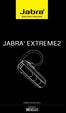 JABRA EXTREME2 Jabra USER MANUAL Contents THANK YOU...2 ABOUT YOUR JABRA EXTREME2...2 WHAT YOUR HEADSET DOES...3 JABRA VOICE GUIDANCE...4 GETTING STARTED............................................. 5
2. Important Safety Information...7. 4. System Setup and Connections... 14
 Contents 1. Introduction...6 2. Important Safety Information...7 2.1 Read the Safety Booklet...7 2.2 Protecting your Hearing with SafeTone...7 2.3 Care and Maintenance...8 2.4 Other Specifications...8
Electronic Hook Switch Guide
 Electronic Hook Switch Guide Savi 700 SEries series Electronic Hook Switch Guide Contents Electronic Hook Switch Cables (EHS) provide remote desk phone call control (answer/end) with your Plantronics wireless
JABRA DRIVE USER MANUAL
 JABRA DRIVE USER MANUAL Contents THANK YOU...2 ABOUT YOUR JABRA DRIVE...2 WHAT YOUR JABRA DRIVE CAN DO....3 HOW TO PRESS THE BUTTONS...4 WHAT THE LIGHT MEANS...4 GETTING STARTED.............................................
JABRA - UNIFY COMPATIBILITY GUIDE
 Contact information: Name Title Department Phone Web/Fax E-mail Name Title Department Phone Web/Fax E-mail COMPATIBILITY OVERVIEW F UNIFY jabra.com/unify JABRA - UNIFY COMPATIBILITY GUIDE PROFESSIONAL
GN 6210 - Bluetooth Wireless Headset for use in the office, at home or even on the move
 GN 6210 - Bluetooth Wireless Headset for use in the office, at home or even on the move USE WITH MOBILE PHONES AND PAIRING Does the GN 6210 work the same way with all Bluetooth-enabled mobile phones? Mobile
Jabra BIZ 2400 USB USER MANUAL
 Jabra BIZ 2400 USB USER MANUAL 1 2011 GN Netcom A/S. All Rights Reserved. This user guide is published by GN Netcom A/S. The information in this user guide is furnished for informational use only, is subject
User Manual. www.jabra.com
 Jabra PRO 920 User Manual www.jabra.com CONTENTS 1. WELCOME...4 2. PRODUCT OVERVIEW...5 2.1 PACKAGE CONTENTS...5 2.2 HEADSET OVERVIEW...6 2.3 HEADSET ATTACHMENTS...7 2.4 BASE OVERVIEW...8 2.5 OPTIONAL
Jabra SOLEMATE USER MANUAL
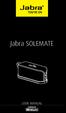 Jabra SOLEMATE USER MANUAL Contents Welcome...2 JABRA Solemate OVERVIEW...3 connecting...6 play music, chat and voice guidance...8 support... 12 technical specifications... 16 1 WELCOME Thank you for purchasing
Title page. IP Phone 1140E. User Guide. Business Communications Manager
 Title page Business Communications Manager IP Phone 1140E User Guide Revision history Revision history November 2005 Preliminary 0.22. This document is up-issued to support Nortel Business Communications
Nortel IP Phone 1140E User Guide
 Nortel IP Phone 1140E User Guide NN10300-023 Document status: Standard Document version: 0103 Document date: 13 April 2007 All Rights Reserved The information in this document is sourced in Canada, the
Jabra FREEWAY. User manual. www.jabra.com
 Jabra FREEWAY User manual www.jabra.com CONTENTS THANK YOU.................................................... 2 ABOUT YOUR.................................. 2 WHAT YOUR SPEAKERPHONE CAN DO..........................
RENTAL EQUIPMENT LISTING Wireless Headsets
 5-8-15 EQUIPMENT LISTING Wireless Headsets Plantronics CS510 84691-01 Monaural wireless Dect 6.0 headset - noise canceling 269.95 15 Plantronics CS510XD 88284-01 Monaural wireless headset - 900- Mhz -
Jabra EXTREME FOR PC. jabra USER MANUAL
 Jabra EXTREME FOR PC jabra USER MANUAL Contents Thank you.................................................... 2 About your........................ 2 ABOUT YOUR Jabra LINK 320 USB ADAPTER....................
How To Use A Jabra Go 6470 Headset And Power Adapter On A Cell Phone (Mini) For Free (For Women) For A Week (For Men) For $99.99) (For A Long Time) (Women)
 Jabra GO 6470 User Manual www.jabra.com WELCOME Congratulations on purchasing your new Jabra GO 6470. We are sure you will enjoy its wide range of features, and find the headset comfortable to wear and
How To Use The Jabra Pro 9450 With A Desk Phone And A Bluetooth Headset
 Jabra PRO 9450 User Manual www.jabra.com WELCOME Congratulations on purchasing your new Jabra PRO 9450. We are sure you will enjoy its wide range of features, and find it comfortable to wear and easy to
CS530. Wireless Headset System. User Guide
 CS530 Wireless Headset System User Guide Contents Welcome 3 What s in the Box 4 Base and Headset Basics 5 Accessories 6 Customize Your Headset 7 Change the Eartip 7 Position Your Headset 7 Connect Your
Full workday of talk time 8 hours wideband and 12 hours narrowband Two years warranty for peace of mind
 D 10 Phone D 10 PHONE Made for office professionals, the Sennheiser D 10 Phone is a single-sided wireless DECT headset for connecting directly to the desk phone. Designed for all-day use, its streamlined
CS540. Wireless Headset System. User Guide
 CS540 Wireless Headset System User Guide Contents Welcome 3 What s in the Box 4 Base and Headset Basics 5 Accessories 6 Customize Your Headset 7 Change Headset Configuration 7 Left Earloop Assembly 7 Headband
Features of Your Cisco Unified IP Phone
 Cisco Unified IP Phone 8961, page 1 Cisco Unified IP Phone 9951, page 9 Cisco Unified IP Phone 9971, page 18 General Phone Information, page 27 Cisco Unified IP Phone 8961 The following sections describe
CS510 /CS520. Wireless Headset System. User Guide
 CS510 /CS520 Wireless Headset System User Guide Contents Welcome 3 What s in the Box 4 Base and Headset Basics 5 Accessories 6 Headset Set Up 7 Connect Your Desk Phone 8 Connect the Power 8 Charge the
Jabra PRO 9450. User Manual. www.jabra.com
 Jabra PRO 9450 User Manual www.jabra.com WELCOME Congratulations on purchasing your new Jabra PRO 9450. We are sure you will enjoy its wide range of features, and find it comfortable to wear and easy to
Cisco SPA 525G. Quick Start guide. Business
 Cisco SPA 525G Quick Start guide Business Cisco Small Business SPA IP Phone Model SPA 525G/SPA 525G2 Package Contents IP telephone (Fig. 1) Desk Stand RJ-45 Ethernet Cable Setup CD-ROM Quick Start Guide
JABRA STYLE. User Manual. jabra.com/style
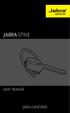 User Manual jabra.com/style CONTENTS 1. WELCOME... 3 2. HEADSET OVERVIEW... 4 3. HOW TO WEAR... 5 3.1 CHANGE EARGELS 4. HOW TO CHARGE THE BATTERY... 6 5. HOW TO CONNECT... 7 5.1 CONNECT WITH A BLUETOOTH
Quick start guide to your IP phone
 Quick start guide to your IP phone IP Phone Model SPA 525G/ SPA 525G2 Note The features available on your phone depend on the type of system to which your phone is connected. Contact your system administrator
Quick Start Guide to Your IP Phone
 Quick Start Guide to Your IP Phone SPA 300 Series IP Phone Models SPA 301 and SPA 303 SPA 300 Series IP phone Phone stand RJ-45 Ethernet cable Quick start guide Product CD-ROM Welcome Thank you for choosing
IP Phone 1140E User Guide. BCM Business Communications Manager
 IP Phone 1140E User Guide BCM Business Communications Manager Document Status: Standard Document Version: 03.02 Document Number: NN40050-105 Date: November 2006 Copyright Nortel Networks Limited 2006,
Phone & Features Guide. Edition Eleven
 Phone & Features Guide Edition Eleven Contents Introduction To The Guide... 11 1. Star2Star Supported Phones... 12 2. Polycom Phones... 15 a). Answering a Call... 15 b). Making a Call... 15 c). Microphone
Jabra SPEAK 410. User Manual. www.jabra.com
 Jabra SPEAK 410 User Manual www.jabra.com CONTENTS WELCOME...3 PRODUCT OVERVIEW...3 INSTALLATION...4 CONNECTING...4 SETUP...4 CALL FUNCTIONS...4 GETTING ASSISTANCE...6 www.internetvoipphone.co.uk [email protected]
Savi Office WO100. Wireless Headset System. with Optional HL10 Lifter User Guide
 Savi Office WO100 Wireless Headset System with Optional HL10 Lifter User Guide Welcome Congratulations on purchasing your new Plantronics product. This guide contains instructions for setting up and using
Jabra CRUISER2. User manual. www.jabra.com MUTE VOL - VOL + jabra
 Jabra CRUISER2 VOL - VOL + MUTE jabra User manual www.jabra.com Contents THANK YOU...2 ABOUT YOUR JABRA CRUISER2...2 WHAT YOUR SPEAKERPHONE CAN DO...3 GETTING STARTED...4 CHARGE YOUR SPEAKERPHONE...4 TURNING
More freedom to work your way
 More freedom to work your way See how far the evolved GN 9120 will take you Global innovator in headsets When was the last time you had only one thing to do? You re working faster and trying to accomplish
Setting Up the Cisco Unified IP Phone
 CHAPTER 3 This chapter includes the following topics, which help you install the Cisco Unified IP Phone on an IP telephony network: Before You Begin, page 3-1 Understanding the Cisco Unified IP Phone 7962G
Polycom SoundPoint IP 600 SIP 1.5
 Polycom SoundPoint IP 600 SIP 1.5 Quick Reference Guide Written by: Customer Training and Documentation (CTD) http://customertraining.verizonbusiness.com Introduction........................................
MSRP Range $$ $$ $$ $$ USB desk phone offers familiar interface to ease the transition to PC calling. UC presence indicator Yes Yes Yes Yes
 USB Desk Phones snom UC600 Calisto 540 (P540-M) Polycom CX300 Polycom CX200 MSRP Range $$ $$ $$ $$ Qualification Date September 2011 February 2010 November 2009 July 2007 USB business giving small businesses
Jabra BIZ 2400. User manual. www.jabra.com
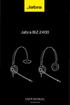 Jabra BIZ 2400 User manual www.jabra.com 1 2012 GN Netcom A/S. All Rights Reserved. This user guide is published by GN Netcom A/S. The information in this user guide is furnished for informational use
Polycom SoundPoint IP 550
 Polycom SoundPoint IP 550 User Guide For training/documentation, please visit us @ http://customertraining.verizonbusiness.com or call 1 800 662 1049 2009 Verizon. All Rights Reserved. The Verizon and
Jabra FREEWAY. User manual. www.jabra.com
 Jabra FREEWAY User manual www.jabra.com CONTENTS THANK YOU...2 ABOUT YOUR...2 WHAT YOUR SPEAKERPHONE CAN DO...3 GETTING STARTED...4 CHARGE YOUR SPEAKERPHONE...4 TURNING YOUR SPEAKERPHONE ON AND OFF...5
6739i Reference Guide
 Contents Introduction... 3 Phone Features... 3 Call Control... 3 Dialing a number... 3 Muting a Call... 4 Answering an incoming Call... 4 Sending an Incoming Call to Voicemail... 4 Placing a Call on Hold...
Polycom SoundPoint IP 650
 Polycom SoundPoint IP 650 User Guide For training/documentation, please visit us @ http://customertraining.verizonbusiness.com or call 1 800 662 1049 2009 Verizon. All Rights Reserved. The Verizon and
Savi Office WO100. wireless headset system. with optional HL10 lifter User guide
 Savi Office WO100 wireless headset system with optional HL10 lifter User guide Welcome Congratulations on purchasing your new Plantronics product. This guide contains instructions for setting up and using
Electronic Hook Switch Guide
 find your space Guide For Plantronics Systems Overview The Plantronics family of wireless headsets are designed to work with a wide range of telephone systems. Plantronics has developed the (EHS) range
USER GUIDE. Cisco Small Business Pro. SPA 504G IP Phone for 8x8 Virtual Office
 USER GUIDE Cisco Small Business Pro SPA 504G IP Phone for 8x8 Virtual Office Cisco and the Cisco Logo are trademarks of Cisco Systems, Inc. and/or its affiliates in the U.S. and other countries. A listing
GXP-2020 6-line SIP Enterprise Phone Quick Installation Guide
 1 GXP-2020 6-line SIP Enterprise Phone Quick Installation Guide WARNING: Please DO NOT power cycle the GXP-2020 when LED lights are flashing during system boot up or firmware upgrade. You may corrupt firmware
Quick start guide to your IP phone
 Quick start guide to your IP phone IP Phone Models SPA501G, SPA502G, SPA504G, SPA508G, and SPA509G Welcome Thank you for choosing the Cisco Small Business IP Phone. This guide describes how to install
USER GUIDE. Cisco Small Business Pro. SPA 500 Series IP Phones Models 504G, 508G, and 509G. Provided by
 USER GUIDE Cisco Small Business Pro SPA 500 Series IP Phones Models 504G, 508G, and 509G Provided by Understanding Your Phoneʼs Lines and Buttons Use the following graphic and table to identify the parts
Ipiphony Phone System. User Manual. 1 P a g e
 Ipiphony Phone System User Manual 1 P a g e About this Guide This guide explains how to use the basic features of your new Aastra phones. Not all features listed are available by default. Contact your
Setting Up the Cisco Unified IP Phones
 CHAPTER 3 This chapter includes the following topics, which help you install the Cisco Unified IP Phones on an IP telephony network: Before You Begin, page 3-1 Understanding the Cisco Unified IP Phone
How To Use An Ip Phone On A Cell Phone On An Ipphone On A Sim Sim Sim (Cisco) Or Ip Phone (Ip Phone) On A Iphone Or Ipphone (Ipphone) On An Iphon Or Ip
 USER GUIDE Cisco Small Business SPA 300 Series IP Phones Models 301 and 303 Contents Chapter 1: Getting Started 6 About This Document 6 Overview of the Cisco Small Business 300 Series IP Phones 8 Caring
MDA200. Audio switcher. User guide
 MDA200 Audio switcher User guide Contents Welcome 3 What s in the box 4 MDA200 Basics 5 Accessories 6 Connect your headset 7 Desk phone: connect and call 8 Desk phone (standard) 8 Desk Phone Plus HL10
Cisco compatibility. Sennheiser Communications solutions overview
 Cisco compatibility Sennheiser Communications solutions overview The outlined Sennheiser headsets have tested compatible with Cisco Unified IP phones and Cisco Unified Communications clients Go to www.cisco.com/go/compatibledisclaimer
Changing the Receiver Volume (receiver - the voice you hear)
 Trouble Shooting Series 9120 The letter on the dial is on the left side of the dial you may need a magnifying glass or better light to read it. Using Mute Changing the Channel on Your Jabra GN9120 Wireless
Headsets for IP phones and computer use!
 CORDED HEADSETS IP & USB Headsets for IP phones and computer use! Exceptional voice transmission for IP phones! Enjoy crystal-clear voice clarity from your IP phone with the GN2000 and GN2100 IP series!
Carrier VoIP Nortel IP Phone 2004 User Guide (CICM) Release: CICM 10.1 Document Revision: 09.01. www.nortel.com NN10300-009
 Nortel IP Phone 2004 User Guide (CICM) Release: CICM 10.1 Document Revision: 09.01 www.nortel.com NN10300-009. Release: CICM 10.1 Publication: NN10300-009 Document status: Standard Document release date:
Cloud Voice Service. Cisco Unified IP Phone 7942G User Guide. (Version 1.0)
 Cisco Unified IP Phone 7942G User Guide (Version 1.0) Table of Content 1. Phone Set Features and Functions... 2 1.1 Operation for IP Phone 7942G... 3 1.2 Adjusting the Height of the Footstand... 4 2. Preference
CS530. Wireless Headset System. User Guide
 CS530 Wireless Headset System User Guide Contents Welcome 3 What s in the Box 4 Base and Headset Basics 5 Accessories 6 Customize Your Headset 7 Change the Eartip 7 Position Your Headset 7 Connect Your
Accessibility Features on Polycom Phones
 s on Polycom Phones Polycom designs and builds products for people who have many and varied abilities. In this feature profile, you ll learn about the a ccessibility features available on Polycom SoundPoint
Nortel IP Phone 1120E User Guide (CICM)
 Nortel IP Phone 1120E User Guide (CICM) NN10300-022 Document status: Standard Document version: 0201 Document date: 15 June 2007 All Rights Reserved Sourced in Canada, the United States of America, and
AT&T Unified Communications Voice. IP Communicator Installation Guide
 AT&T Unified Communications Voice IP Communicator Installation Guide For Customer s System Administrator V1.1 July, 2015 Disclaimer The contents of the document may be revised by AT&T at any time without
Welcome to the GreatCall Family.
 pms2603 pms1235 pms226 pms298 How-To Guide Welcome to the GreatCall Family. Thank you for choosing the Jitterbug. At GreatCall, we ve made it easy for you to stay Orange - pms 143 connected to friends
Jabra SPORT WIRELESS+
 Jabra SPORT WIRELESS+ User manual www.jabra.com CONTENTS THANK YOU...2 ABOUT YOUR....3 WHAT YOUR HEADSET DOES...3 GETTING STARTED............................................. 4 CHARGING YOUR...4 TURNING
Jabra PRO 930. User Manual. www.jabra.com
 Jabra PRO 930 User Manual www.jabra.com CONTENTS 1. WELCOME...4 2. PRODUCT OVERVIEW...5 2.1 PACKAGE CONTENTS...5 2.2 HEADSET OVERVIEW...6 2.3 HEADSET ATTACHMENTS...7 2.4 BASE OVERVIEW...8 2.5 OPTIONAL
Jabra SPORT. User manual. www.jabra.com
 Jabra SPORT User manual www.jabra.com Contents Thank you...2 About your Jabra SPORT...3 What your headset DOES...3 GETTING STARTED............................................. 4 CHARGING YOUR JABRA SPORT...4
Carrier VoIP Nortel IP Phone 1150E User Guide (CICM) Release: CICM 10.1 MR2 Document Revision: 04.01. www.nortel.com NN10300-025
 Nortel IP Phone 1150E User Guide (CICM) Release: CICM 10.1 MR2 Document Revision: 04.01 www.nortel.com NN10300-025. Release: CICM 10.1 MR2 Publication: NN10300-025 Document status: Standard Document release
Model SPA 303G Quick Start Guide
 mydatavo Model SPA 303G Quick Start Guide Welcome Thank you for choosing Datavo as your business solutions provider. This guide describes how to install your phone and how to perform some basic tasks.
Aastra 480i Broadsoft SIP VoIP Telephone User s Guide
 Aastra 480i Broadsoft SIP VoIP Telephone User s Guide Initial Start-Up/Restart The first time you plug in your phone and every time you restart your phone it automatically goes through the start-up process.
USER GUIDE. Cisco Small Business. SPA 303 IP Phone for 8x8 Virtual Office
 USER GUIDE Cisco Small Business SPA 303 IP Phone for 8x8 Virtual Office May 2011 Cisco and the Cisco Logo are trademarks of Cisco Systems, Inc. and/or its affiliates in the U.S. and other countries. A
JABRA EVOLVE 65. User Manual. jabra.com/evolve65
 User Manual jabra.com/evolve65 2014 GN Netcom A/S / GN Netcom US, Inc. All rights reserved. Jabra is a registered trademark of GN Netcom A/S. All other trademarks included herein are the property of their
USER GUIDE Cisco Small Business
 USER GUIDE Cisco Small Business Cisco SPA50X and SPA51X SIP IP Phones Models SPA501G, SPA502G, SPA504G, SPA508G, SPA509G, SPA512G, and SPA514G Contents Chapter 1: Getting Started 6 About This Document
Q3 USER GUIDE. Read Me to Get the Most Out of Your Device...
 Q3 USER GUIDE Read Me to Get the Most Out of Your Device... TO GET STARTED 1. Turn The Q3 On 2. Put It On 3. Listen In Model: Q3 Contents Charge Your Earpiece 6 Wearing the Q3 7 Pair Your Earpiece 7 Use
Cisco IP Phones User Guides
 Cisco IP Phones User Guides Cisco Small Business Cisco SPA50X and SPA51X SIP IP Phones Models SPA501G, SPA502G, SPA504G, SPA508G, SPA509G, SPA512G, and SPA514G Contents Chapter 1: Getting Started 6 About
Cisco Model SPA 303 Quick Start Guide
 Cisco Model SPA 303 Quick Start Guide Welcome Thank you for choosing the Cisco Small Business IP phone. This guide describes how to install your phone and how to perform some basic tasks. 1 Installing
How To Use An Ip Phone On A Cell Phone On An Ip Cell Phone
 USER GUIDE Cisco Small Business Cisco SPA50X and SPA51X SIP IP Phones Models SPA501G, SPA502G, SPA504G, SPA508G, SPA509G, SPA512G, and SPA514G Contents Chapter 1: Getting Started 6 About This Document
How To Use An Ip Phone With A Sim Sim Sims 2 (Iphone) Or Ip Phone (Ip Phone) With A Microsoft Ip Phone 2 (Ipphone) With An Ipro (Ipro) Or Sims 1 (Ip
 Thomson Telecom S.A.S with a capital of 130 037 460 RCS 390 546 059 Copyright THOMSON 2005 All rights reserved 09/2005-1 www.speedtouchpartner.com ST2030 TM SIP European Community Declaration of Conformity
Quick Guide for Polycom VVX 400 Business Media Phone. Document Date: 01/28/14 Document Version: 1.0d
 Quick Guide for Polycom VVX 400 Business Media Phone Document Date: 01/28/14 Document Version: 1.0d VVX400 Quick Guide Content VVX400 Diagram... 3 Polycom VVX400/410 Telephone Feature Overview... 4 Polycom
Polycom SoundPoint IP phones Advanced features for outstanding business communications! Top-quality conferencing for your SIP environment!
 IP CONFERENCERS and PHONES I P conferencing and phone solutions to fit your business needs AND your IP platform! Polycom IP products are compatible with a wide range of SIP-based phone systems as well
USER GUIDE Cisco Small Business
 USER GUIDE Cisco Small Business Cisco Unified Communications Manager Express for IP Phone Models 30X August 2013 Cisco and the Cisco logo are trademarks or registered trademarks of Cisco and/or its affiliates
ALCATEL-LUCENT 8 series. So much more than a phone!
 ALCATELLUCENT 8 series IP touch phones So much more than a phone! I am not a phone I am your security agent. I am your contact center agent. I am your meeting room assistant. I am your factory administration
9356-607-401 10332 desk telephone and PC. 9337-508-401 6972 desk telephone. 9337-508-401 and choose between Pos. 70-72. 7532 desk telephone
 59 GN9350e monaural, 3-in-1 Set cordless, DECT for connectin on every deskphone and PC (Softphone) NC (Noise Cancelling-Microphone) - with integrated USB-connector 9356-607-401 10332 desk telephone and
USER GUIDE Cisco Small Business
 USER GUIDE Cisco Small Business Cisco SPA50X and SPA51X SIP IP Phones Models SPA501G, SPA502G, SPA504G, SPA508G, SPA509G, SPA512G, and SPA514G Contents Chapter 1: Getting Started 6 About This Document
USER GUIDE Cisco Small Business
 USER GUIDE Cisco Small Business SPA 300 Series IP Phones Models 301 and 303 August 2013 Cisco and the Cisco logo are trademarks or registered trademarks of Cisco and/or its affiliates in the U.S. and other
Quick Guide for the SoundStation IP5000. Document Date: 07/26/13 Document Version: 1.0d
 Quick Guide for the SoundStation IP5000 Document Date: 07/26/13 Document Version: 1.0d SoundStation IP5000 Quick Guide Content IP5000 Features... 3 Polycom SoundStation IP 5000... 3 The Lights... 3 How
USER GUIDE Cisco Small Business
 USER GUIDE Cisco Small Business IP Phone Models SPA50X (SPCP) Contents Chapter 1: Getting Started 4 About This Document 4 Overview of the Cisco Small Business IP Phones 6 Caring for Your Phone 7 Understanding
Fusion Hosted Voice. NCTC North Central. 872 Highway 52 Bypass E. Lafayette, TN 37083. 615-666-2151 www.nctc.com
 User Guide Fusion Hosted Voice User Guide, Revision 4, December 2014 NCTC North Central 872 Highway 52 Bypass E Lafayette, TN 37083 615-666-2151 www.nctc.com Fusion Hosted Voice User Guide Page 1 Table
User Manual. For additional help please send a detailed e-mail to [email protected]. - 1 Phoenix Audio Technologies www.phnxaudio.
 User Manual Please read the instructions in this manual before using the Duet Please refer to our website www.phnxaudio.com for more information, specifically to our Q&A section in our Support page. For
USER GUIDE Cisco Small Business
 USER GUIDE Cisco Small Business SPA50X and SPA51X Series SPCP IP Phones Models SPA501G, SPA502G, SPA504G, SPA508G, SPA509G, SPA512G, and SPA514G Contents Chapter 1: Getting Started 4 About This Document
Office of Telecommunications. Using Your Temple University Voice Over IP Phone
 Office of Telecommunications Using Your Temple University Voice Over IP Phone Version 2.0 January 2015 Table of Contents Page Aastra 6737i Telephone... 5 Feature Overview... 5 Key Descriptions... 7 Aastra
Savi. Office WO201 Wireless Headset System. with Optional HL10 Lifter User Guide
 Savi Office WO201 Wireless Headset System with Optional HL10 Lifter User Guide Welcome Congratulations on purchasing your new Plantronics product. This guide contains instructions for setting up and using
CX600 Lync Telephone Get Help Guide
 Guide What is Lync? Microsoft Lync is an enterprise-ready unified communications platform. Unified communication is the integration of telephone, instant messaging, video conferencing, and desktop collaboration