
USER GUIDE Cisco Small Business
|
|
|
- Rafe Clarke
- 10 years ago
- Views:
Transcription
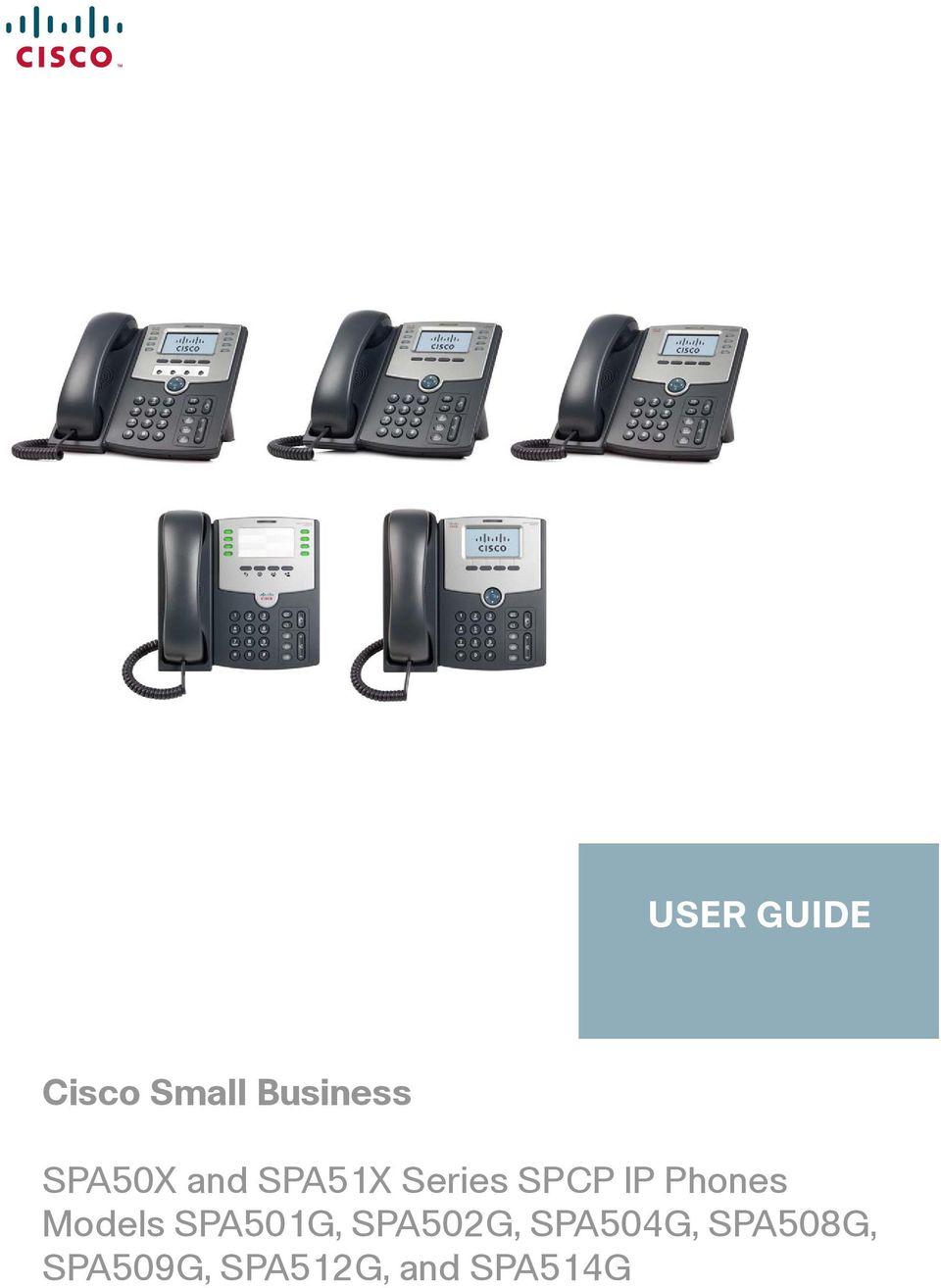
1 USER GUIDE Cisco Small Business SPA50X and SPA51X Series SPCP IP Phones Models SPA501G, SPA502G, SPA504G, SPA508G, SPA509G, SPA512G, and SPA514G
2 Contents Chapter 1: Getting Started 4 About This Document 4 Overview of the Cisco Small Business IP Phones 6 Caring for Your Phone 7 Understanding Your Phone Lines and Buttons 7 Phone Components 7 Softkey Buttons 9 Using Keypad Shortcuts 11 Accessing the Phone Web Interface 11 Using the Cisco Attendant Console 12 Changing the Cisco SPA500DS Attendant Console Display 13 Chapter 2: Installing Your Phone 14 Before You Begin 14 Phone Connections 15 Connecting the Handset 16 Connecting the Power 16 Connecting Your Phone to the Network 17 Connecting Your Phone to the Wired Network 17 Connecting the Phone to the Wireless Network 17 Connecting a PC to Your Phone 18 Connecting a Wired or Wireless Headset 18 Installing the Desk Stand or Wall Mount (Optional) 19 Mounting the Phone to the Wall (Optional) 20 Reverse the Handset Retention Tab 21 Verifying Phone Startup 22 Updating Your Phone Firmware 22 Chapter 3: Using Basic Phone Functions 23 Using the Speaker or a Headset 24 Using the Speaker 24 Cisco Small Business SPA50X and SPA51X Series SPCP IP Phone User Guide 1

3 Contents Sending Audio to the Phone Speaker 24 Choosing Your Preferred Audio Device 24 Using the Headset with Your IP Phone 25 Adjusting Call Volume and Muting 25 Adjusting Call Volume 25 Adjusting the Ringer Volume 26 Muting a Call 26 Placing or Answering a Call 26 Using Hold and Resume 27 Using Mute 27 Ending a Call 27 Transferring Calls 28 Performing a Transfer 28 Redialing a Number 29 Redialing Calls in the History List 29 Forwarding All Calls to Another Number 30 Setting Do Not Disturb 30 Picking Up a Call from Another Extension 31 Placing a Three-Way Conference Call 31 Using the Local Directory 32 Using the Call History Lists 33 Accessing Voic 33 Chapter 4: Using Advanced Phone Features 34 Logging in to Your Phone 34 Creating Speed Dials 36 Adding Speed Dials 36 Editing Speed Dials 36 Deleting Speed Dials 37 Calling Speed Dials 37 Monitoring/Accessing Another Phone from Your Phone 38 Cisco Small Business SPA50X and SPA51X Series SPCP IP Phone User Guide 2

4 Contents Customizing Your IP Phone Screen 39 Changing the IP Phone Screen Contrast 39 Setting the Back Light Timer 39 Configuring the IP Phone Screen Saver 40 Turning on the Screen Saver Immediately 40 Updating Your Ring Tone 41 Using the Cisco SPA501G Interactive Voice Response Menu 41 Advanced Procedures for Technical Support 42 Status Information and Statistics 42 Rebooting, Restarting, and Resetting a Phone 42 Chapter 5: Using the Phone Web User Interface 44 Logging in to the Phone Web User Interface 44 Saving the Configuration Profile 46 Setting Voice System Parameters 46 Setting Voice Regional Parameters 49 Call Progress Tones 49 Tone Script 52 Distinctive Ring Patterns 54 Setting Voice Phone Parameters 55 Setting Voice User Parameters 55 Viewing Call History Lists 58 Using Your Personal Directory 58 Viewing Attendant Console Status 59 Appendix A: Where to Go From Here 60 Cisco Small Business SPA50X and SPA51X Series SPCP IP Phone User Guide 3

5 1 Getting Started This chapter provides an overview of this document and basic information about your Cisco Small Business IP phone. About This Document, page 4 Overview of the Cisco Small Business IP Phones, page 6 Understanding Your Phone Lines and Buttons, page 7 Accessing the Phone Web Interface, page 11 Using the Cisco Attendant Console, page 12 About This Document This guide describes the concepts and tasks necessary to use and configure your Cisco Small Business IP Phone. The Cisco Small Business IP Phone features vary, depending on the type of call control system that you are using. This document describes using the Cisco Small Business IP Phones with a SPCP phone system, such as the Cisco Unified Communications 500 Series. If you are using your Cisco Small Business IP Phone with a BroadSoft or Asterisk system, see the Cisco Small Business IP Phone SPA50X and SPA51X SIP IP Phone User Guide. Cisco Small Business SPA50X and SPA51X Series SPCP IP Phone User Guide 4
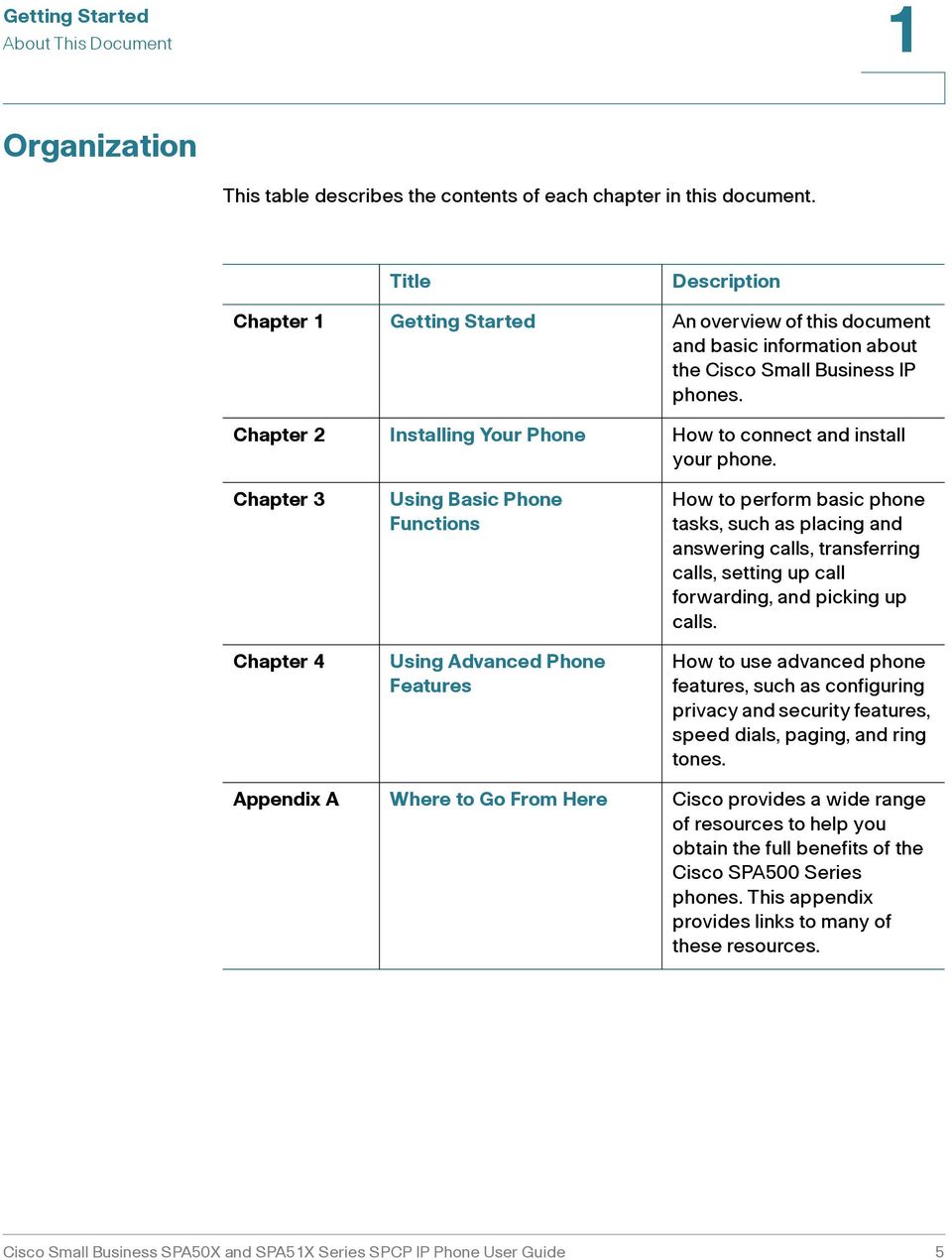
6 Getting Started About This Document 1 Organization This table describes the contents of each chapter in this document. Title Description Chapter 1 Getting Started An overview of this document and basic information about the Cisco Small Business IP phones. Chapter 2 Installing Your Phone How to connect and install your phone. Chapter 3 Chapter 4 Using Basic Phone Functions Using Advanced Phone Features How to perform basic phone tasks, such as placing and answering calls, transferring calls, setting up call forwarding, and picking up calls. How to use advanced phone features, such as configuring privacy and security features, speed dials, paging, and ring tones. Appendix A Where to Go From Here Cisco provides a wide range of resources to help you obtain the full benefits of the Cisco SPA500 Series phones. This appendix provides links to many of these resources. Cisco Small Business SPA50X and SPA51X Series SPCP IP Phone User Guide 5
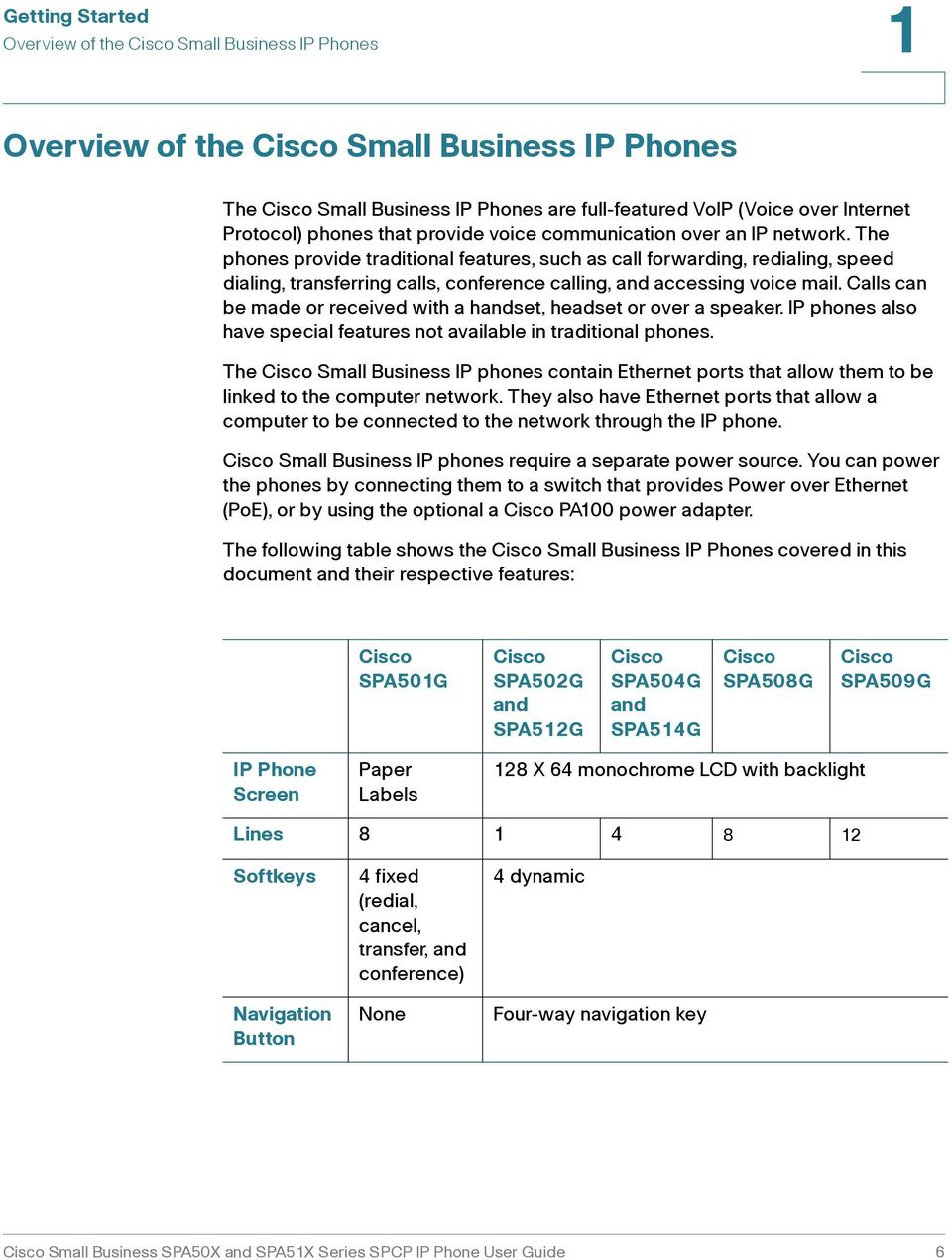
7 Getting Started Overview of the Cisco Small Business IP Phones 1 Overview of the Cisco Small Business IP Phones The Cisco Small Business IP Phones are full-featured VoIP (Voice over Internet Protocol) phones that provide voice communication over an IP network. The phones provide traditional features, such as call forwarding, redialing, speed dialing, transferring calls, conference calling, and accessing voice mail. Calls can be made or received with a handset, headset or over a speaker. IP phones also have special features not available in traditional phones. The Cisco Small Business IP phones contain Ethernet ports that allow them to be linked to the computer network. They also have Ethernet ports that allow a computer to be connected to the network through the IP phone. Cisco Small Business IP phones require a separate power source. You can power the phones by connecting them to a switch that provides Power over Ethernet (PoE), or by using the optional a Cisco PA100 power adapter. The following table shows the Cisco Small Business IP Phones covered in this document and their respective features: Cisco SPA501G Cisco SPA502G and SPA512G Cisco SPA504G and SPA514G Cisco SPA508G Cisco SPA509G IP Phone Screen Paper Labels 128 X 64 monochrome LCD with backlight Lines Softkeys Navigation Button 4 fixed (redial, cancel, transfer, and conference) None 4 dynamic Four-way navigation key Cisco Small Business SPA50X and SPA51X Series SPCP IP Phone User Guide 6
8 Getting Started Understanding Your Phone Lines and Buttons 1 Caring for Your Phone The Cisco Small Business IP phones are electronic devices that should not be exposed to excessive heat, sun, cold, or water. To clean the equipment, wipe it with a slightly moistened paper or cloth towel. Do not spray or pour cleaning solution directly onto the device. Understanding Your Phone Lines and Buttons Use the following graphic and table to identify the parts of your phone. Phone Components Figure 1 Phone Components The Cisco SPA509G shown in Figure 1 illustrates most of the Cisco Small Business IP Phone physical features. Other models support different features. See the Overview of the Cisco Small Business IP Phones section on page 6. Cisco Small Business SPA50X and SPA51X Series SPCP IP Phone User Guide 7

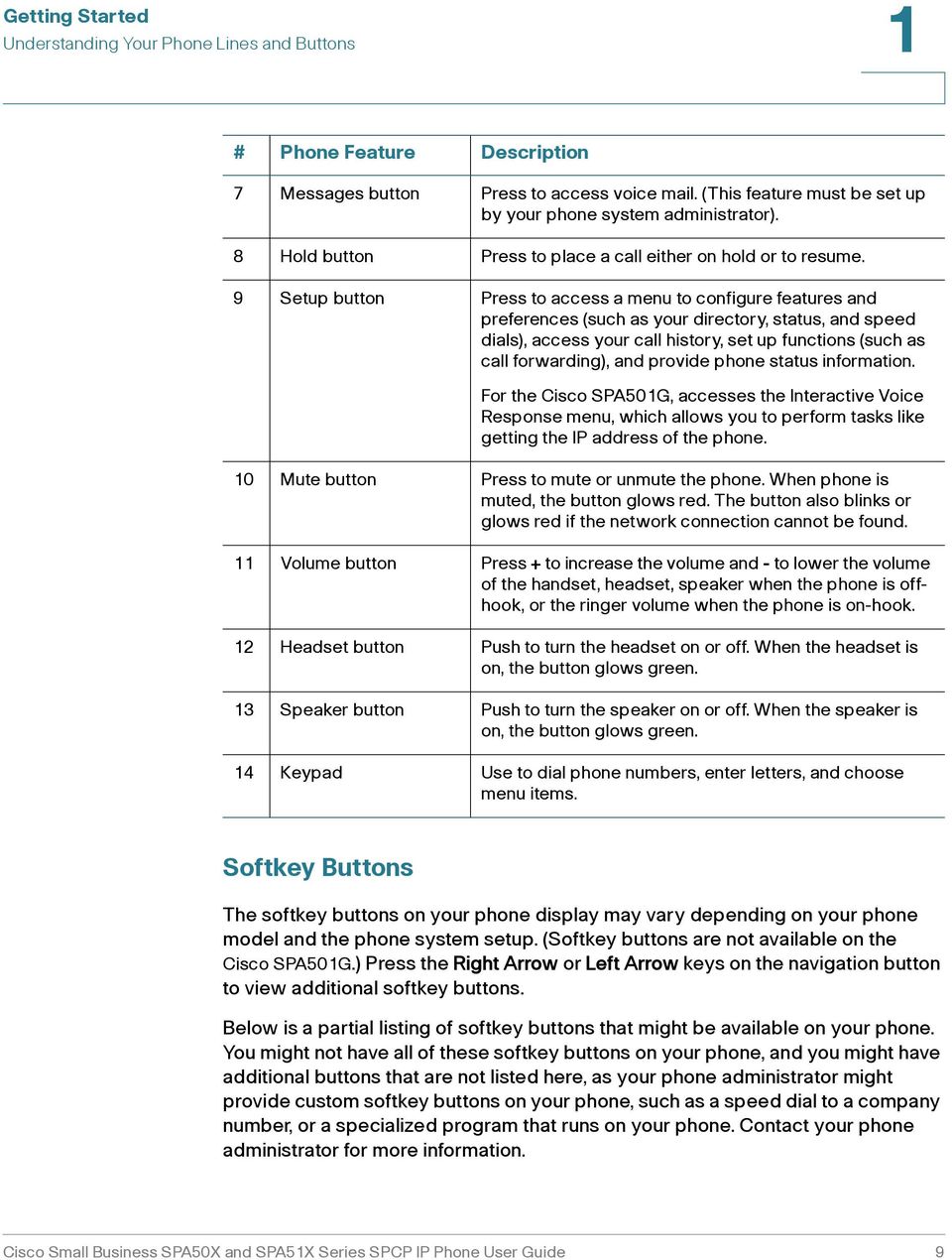
9 Getting Started Understanding Your Phone Lines and Buttons 1 Numbered objects in Figure 1 are described in the following table. # Phone Feature Description 1 Handset Pick up to place or answer a call. 2 Message Waiting indicator Displays solid red when you have a new voice mail message. Flashes red during an incoming call. 3 IP phone screen Displays date and time, phone station name, line extensions, and softkey options (except on the Cisco SPA501G). 4 Line keys Indicates phone line status (not available on the Cisco SPA502G or Cisco SPA512G.): Off: Line is idle. Green: Line is active or in use. Green (flashing): There is an inbound call. Orange (flashing, UC320): There is an inbound call. Red (flashing): Line is on hold or there is an inbound call. These keys can also be programmed by your system administrator to perform differently than described here or to add functions such as speed dial, call pickup, or monitor an extension. 5 Softkey buttons Press a softkey button to perform the action shown on the label on the IP phone screen above. Note: The Cisco SPA501G has the following four buttons: Redial Dials the last number called. Cancel Cancels an action (such as a transfer). Conference While on a call, press to start a conference call and dial another number. After the second party answers, press Conference again to create the conference. Transfer Transfers a call. 6 Navigation button Press an arrow key to scroll left, right, up, or down through items shown on the IP phone screen (except on the Cisco SPA501G). Cisco Small Business SPA50X and SPA51X Series SPCP IP Phone User Guide 8

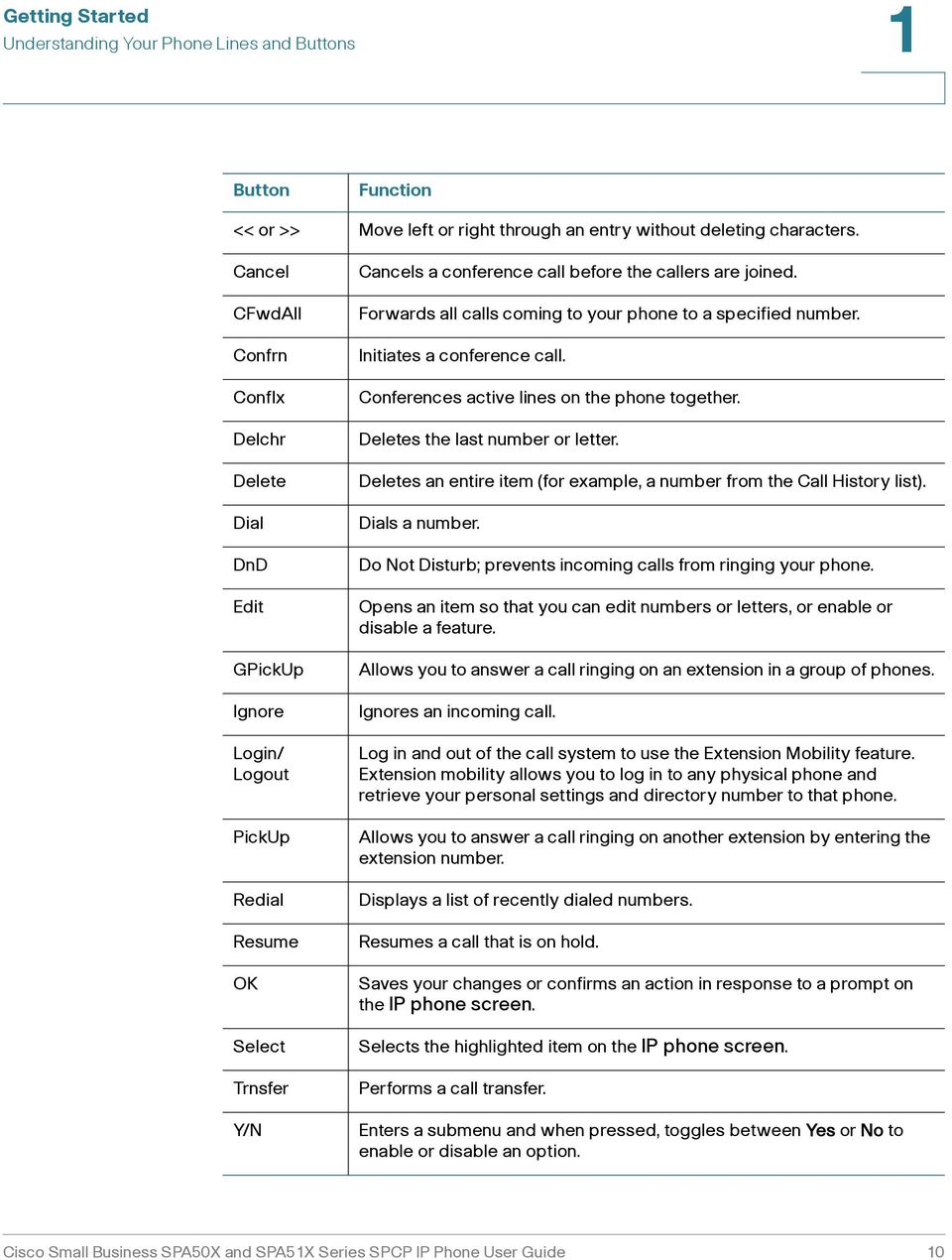
10 Getting Started Understanding Your Phone Lines and Buttons 1 # Phone Feature Description 7 Messages button Press to access voice mail. (This feature must be set up by your phone system administrator). 8 Hold button Press to place a call either on hold or to resume. 9 Setup button Press to access a menu to configure features and preferences (such as your directory, status, and speed dials), access your call history, set up functions (such as call forwarding), and provide phone status information. For the Cisco SPA501G, accesses the Interactive Voice Response menu, which allows you to perform tasks like getting the IP address of the phone. 10 Mute button Press to mute or unmute the phone. When phone is muted, the button glows red. The button also blinks or glows red if the network connection cannot be found. 11 Volume button Press + to increase the volume and - to lower the volume of the handset, headset, speaker when the phone is offhook, or the ringer volume when the phone is on-hook. 12 Headset button Push to turn the headset on or off. When the headset is on, the button glows green. 13 Speaker button Push to turn the speaker on or off. When the speaker is on, the button glows green. 14 Keypad Use to dial phone numbers, enter letters, and choose menu items. Softkey Buttons The softkey buttons on your phone display may vary depending on your phone model and the phone system setup. (Softkey buttons are not available on the Cisco SPA501G.) Press the Right Arrow or Left Arrow keys on the navigation button to view additional softkey buttons. Below is a partial listing of softkey buttons that might be available on your phone. You might not have all of these softkey buttons on your phone, and you might have additional buttons that are not listed here, as your phone administrator might provide custom softkey buttons on your phone, such as a speed dial to a company number, or a specialized program that runs on your phone. Contact your phone administrator for more information. Cisco Small Business SPA50X and SPA51X Series SPCP IP Phone User Guide 9
11 Getting Started Understanding Your Phone Lines and Buttons 1 Button Function << or >> Move left or right through an entry without deleting characters. Cancel CFwdAll Confrn Conflx Delchr Delete Dial DnD Edit GPickUp Ignore Login/ Logout PickUp Redial Resume OK Select Trnsfer Y/N Cancels a conference call before the callers are joined. Forwards all calls coming to your phone to a specified number. Initiates a conference call. Conferences active lines on the phone together. Deletes the last number or letter. Deletes an entire item (for example, a number from the Call History list). Dials a number. Do Not Disturb; prevents incoming calls from ringing your phone. Opens an item so that you can edit numbers or letters, or enable or disable a feature. Allows you to answer a call ringing on an extension in a group of phones. Ignores an incoming call. Log in and out of the call system to use the Extension Mobility feature. Extension mobility allows you to log in to any physical phone and retrieve your personal settings and directory number to that phone. Allows you to answer a call ringing on another extension by entering the extension number. Displays a list of recently dialed numbers. Resumes a call that is on hold. Saves your changes or confirms an action in response to a prompt on the IP phone screen. Selects the highlighted item on the IP phone screen. Performs a call transfer. Enters a submenu and when pressed, toggles between Yes or No to enable or disable an option. Cisco Small Business SPA50X and SPA51X Series SPCP IP Phone User Guide 10
12 Getting Started Accessing the Phone Web Interface 1 Using Keypad Shortcuts When using the phone menus, you can use the keypad to enter the number shown next to the menu or sub-menu item on the IP phone screen. (Not applicable to the Cisco SPA501G.) For example, on the Cisco SPA509G, to change your ring settings, press 3 for Settings and press 2 for Ring Type. NOTE Menus and options vary depending on phone model. Accessing the Phone Web Interface The Cisco IP Phone provides a phone web user interface that displays phone settings and statistics, and might be used to configure some features of your phone. Access to the phone web user interface and the features that you are allowed to configure are determined by the system administrator. The phone web user interface has four main tabs: Voice Contains information about the phone, including: - Info System and phone information. - System Password configuration and network settings. - Phone Screen saver. - User Call forwarding, speed dials, call waiting, privacy, and audio settings. Call History Displays calls received and made from your phone. Personal Directory Personal address book. Attendant Console Status Cisco Attendant Console information (if installed). Cisco Small Business SPA50X and SPA51X Series SPCP IP Phone User Guide 11

13 Getting Started Using the Cisco Attendant Console 1 To access the phone web user interface: Determine the IP address of the phone: Cisco SPA502G, Cisco SPA504G, Cisco SPA508G, Cisco SPA509G, Cisco SPA514G: a. Press the Setup button. b. Scroll to network and press select. c. Scroll to view Current IP. This is the IP address of your phone. Cisco SPA501G: a. Press the Setup button. b. Enter 110, then press #. The IP address is recited. (You can also press 9 for help and follow the prompts.) STEP 3 On a PC connected to the same subnetwork as the IP phone, open a Web browser. Enter the IP address in the browser URL field. The phone web user interface displays. Using the Cisco Attendant Console The Cisco Attendant Consoles are accessory consoles for the Cisco SPA500 Series IP phones. The Cisco SPA500S provides 32 three-color (red, green, and orange) programmable line buttons, and the Cisco SPA500DS provides 30 buttons. The Cisco Attendant Console attaches to the IP phone with the attachment arm provided. It obtains power directly from the IP phone; it does not require a separate power supply. Two Cisco Attendant Console units can be attached to a single IP phone to monitor a total of 64 (SPA500S) or 60 (SPA500DS) separate lines. Detailed information on the installation of the Cisco Attendant Consoles are provided in the Cisco Small Business SPA500S Attendant Console Quick Start Guide and the Cisco Small Business SPA500DS 15-Button Digital Attendant Console for SPA500 Family Phones Quick Start Guide. Cisco Small Business SPA50X and SPA51X Series SPCP IP Phone User Guide 12

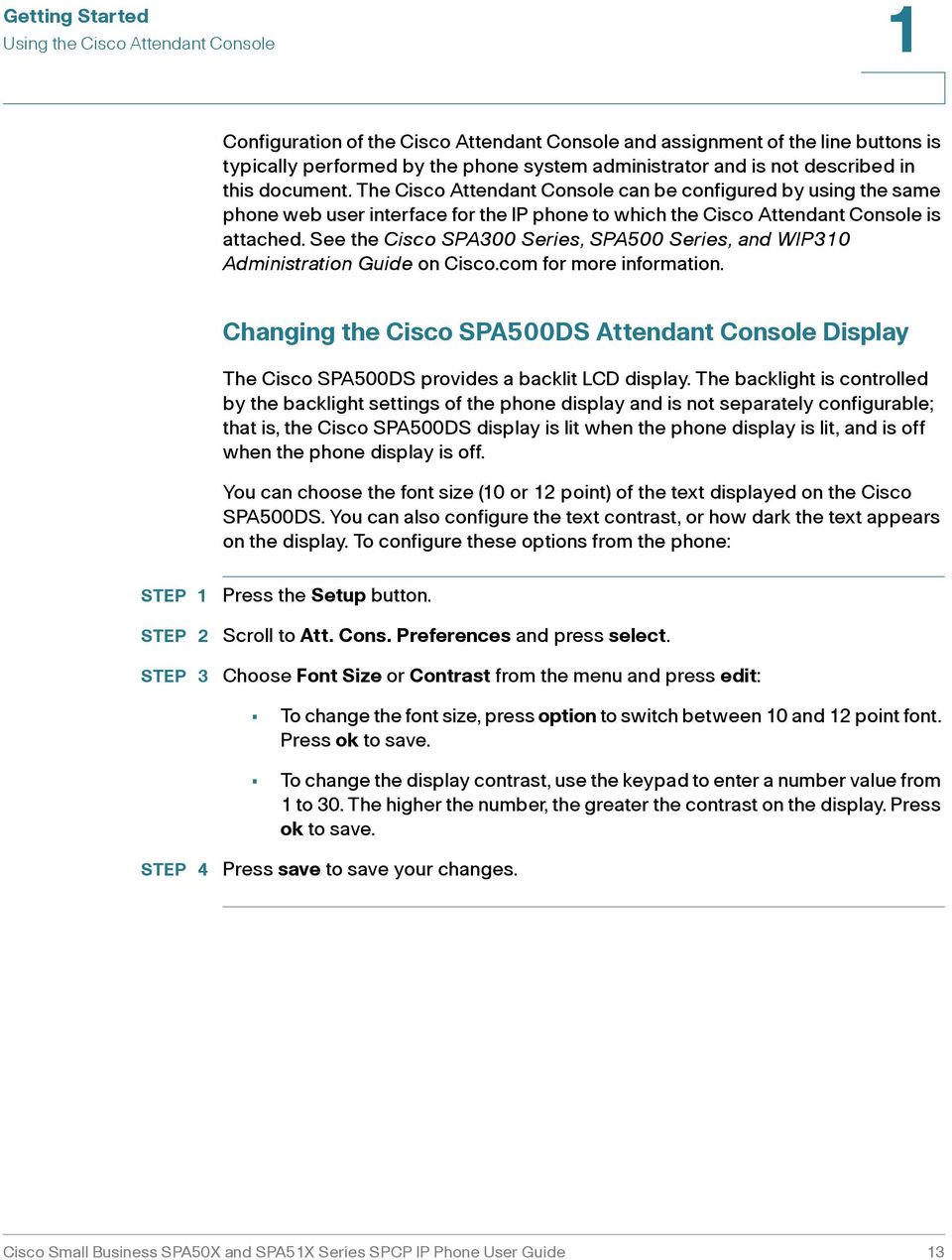
14 Getting Started Using the Cisco Attendant Console 1 Configuration of the Cisco Attendant Console and assignment of the line buttons is typically performed by the phone system administrator and is not described in this document. The Cisco Attendant Console can be configured by using the same phone web user interface for the IP phone to which the Cisco Attendant Console is attached. See the Cisco SPA300 Series, SPA500 Series, and WIP310 Administration Guide on Cisco.com for more information. Changing the Cisco SPA500DS Attendant Console Display The Cisco SPA500DS provides a backlit LCD display. The backlight is controlled by the backlight settings of the phone display and is not separately configurable; that is, the Cisco SPA500DS display is lit when the phone display is lit, and is off when the phone display is off. You can choose the font size (10 or 12 point) of the text displayed on the Cisco SPA500DS. You can also configure the text contrast, or how dark the text appears on the display. To configure these options from the phone: STEP 3 Press the Setup button. Scroll to Att. Cons. Preferences and press select. Choose Font Size or Contrast from the menu and press edit: To change the font size, press option to switch between 10 and 12 point font. Press ok to save. To change the display contrast, use the keypad to enter a number value from 1 to 30. The higher the number, the greater the contrast on the display. Press ok to save. STEP 4 Press save to save your changes. Cisco Small Business SPA50X and SPA51X Series SPCP IP Phone User Guide 13
15 2 Installing Your Phone This chapter describes how to install your Cisco Small Business IP Phone and connect it to your network. It contains the following sections: Before You Begin, page14 Phone Connections, page 15 Mounting the Phone to the Wall (Optional), page 20 Verifying Phone Startup, page 22 Updating Your Phone Firmware, page 22 Before You Begin Before you install and connect your phone, verify with your System Administrator (if applicable) that the network is ready for the phone, read the safety notices, and make sure you have all the phone parts and documentation available.! CAUTION Do not plug a telephone line cord into the port marked AUX. The RJ-11 port marked AUX is reserved for connection with the Cisco Attendant Console. It is not for use as a telephone line port or IP device connection. Cisco Small Business SPA50X and SPA51X Series SPCP IP Phone User Guide 14

16 Installing Your Phone Phone Connections 2 Phone Connections The phone connections are shown in Figure 1. Figure 1 Phone Connections Numbered objects in Figure 1 are described in the following table. # Description 1 Auxiliary port. (For use only with the Cisco Attendant Console.) 2 Upper slots. 3 Lower slots. 4 PC port. 5 Network (switch) port. 6 Cable run. Cisco Small Business SPA50X and SPA51X Series SPCP IP Phone User Guide 15

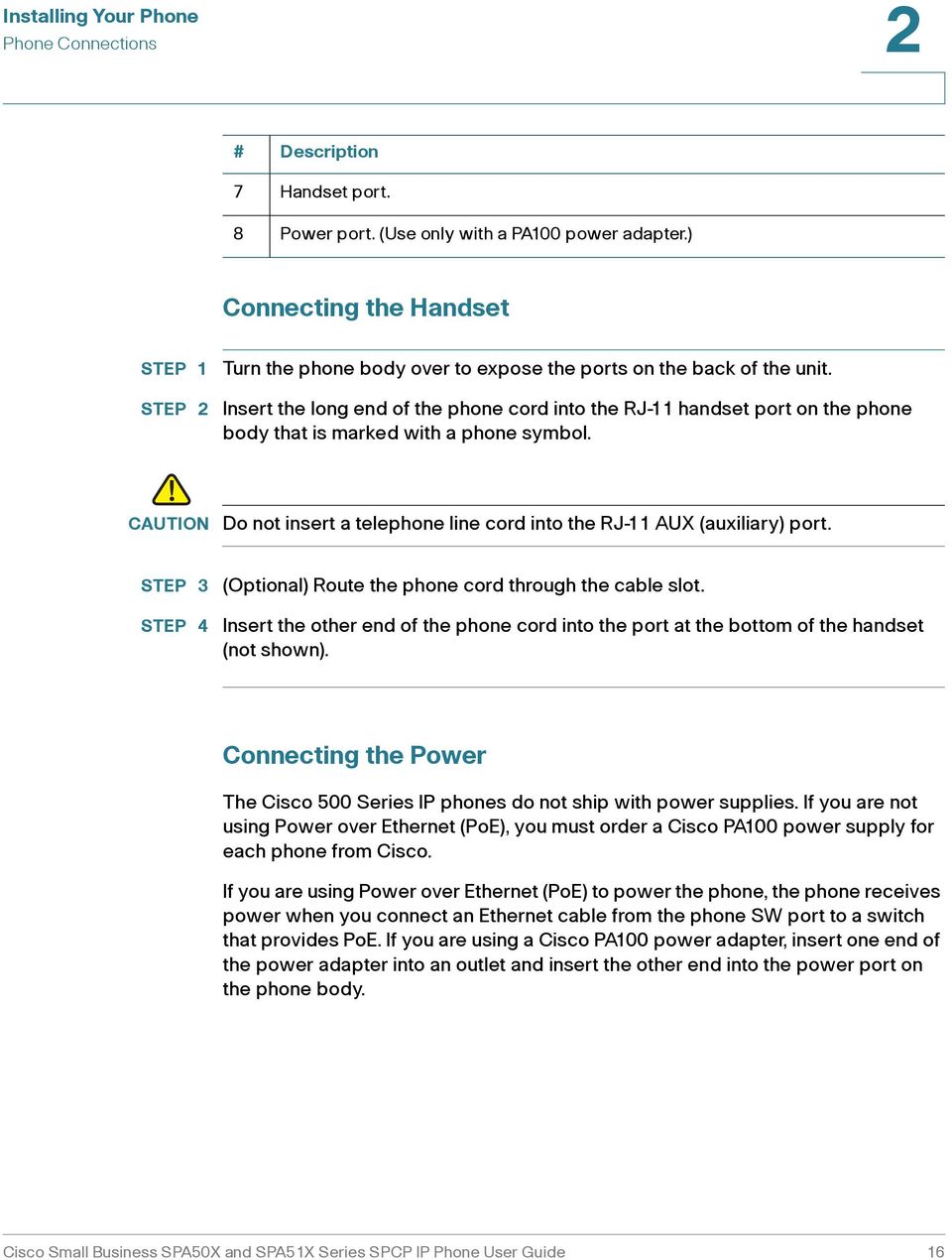
17 Installing Your Phone Phone Connections 2 # Description 7 Handset port. 8 Power port. (Use only with a PA100 power adapter.) Connecting the Handset Turn the phone body over to expose the ports on the back of the unit. Insert the long end of the phone cord into the RJ-11 handset port on the phone body that is marked with a phone symbol.! CAUTION Do not insert a telephone line cord into the RJ-11 AUX (auxiliary) port. STEP 3 STEP 4 (Optional) Route the phone cord through the cable slot. Insert the other end of the phone cord into the port at the bottom of the handset (not shown). Connecting the Power The Cisco 500 Series IP phones do not ship with power supplies. If you are not using Power over Ethernet (PoE), you must order a Cisco PA100 power supply for each phone from Cisco. If you are using Power over Ethernet (PoE) to power the phone, the phone receives power when you connect an Ethernet cable from the phone SW port to a switch that provides PoE. If you are using a Cisco PA100 power adapter, insert one end of the power adapter into an outlet and insert the other end into the power port on the phone body. Cisco Small Business SPA50X and SPA51X Series SPCP IP Phone User Guide 16
18 Installing Your Phone Connecting Your Phone to the Network 2 Connecting Your Phone to the Network The phone can be connected to the network by using a Cat5e or higher Ethernet cable, or through a wireless network connection. Connecting Your Phone to the Wired Network To connect the phone by using an Ethernet cable: Insert one end of the Ethernet cable into the network port on the RJ-45 phone port marked SW. Insert the other end of the Ethernet cable into the device, such as a switch. Connecting the Phone to the Wireless Network You can use a wireless device, such as a Cisco Wireless-N Bridge for Phone Adapters (WNBP), to connect the IP phone to a wireless network. This example procedure requires the Cisco PA100 power adapter to provide power to the Cisco WNBP. Cisco does not recommend connecting a PC to the network by using the phone when it is operating wirelessly. To connect your phone to the Cisco WNBP: STEP 3 STEP 4 STEP 5 Configure the Cisco WNBP by using the Setup Wizard. When instructed to do so by the Setup Wizard, insert the Ethernet cable of the wireless bridge into the RJ-45 phone port marked SW, located on the back of the IP phone base station. Connect the power cable of the Cisco WNBP to the power port on the phone base. Connect one end of the IP phone power adapter into the power port of the wireless bridge. Connect the other end of the IP phone power adapter into an electrical outlet. Cisco Small Business SPA50X and SPA51X Series SPCP IP Phone User Guide 17

19 Installing Your Phone Connecting Your Phone to the Network 2 Connecting a PC to Your Phone A PC can be connected to the network through the phone. Cisco does not recommend connecting a PC to the phone if the phone is connected to the network wirelessly. To connect a PC to your phone: Connect one end of a Cat5e or higher Ethernet cable (not provided) to the RJ-45 port marked PC on the back of the phone body. See the Figure 1. Connect the other end of the Ethernet cable to the Ethernet port on your PC. Connecting a Wired or Wireless Headset Cisco IP phones support headsets from other manufacturers. For the latest supported models, contact your reseller. Additional information can be found at the manufacturer websites. Each brand and type of headset might require different steps for connection. Consult the documentation for your particular headset for more information. In general, to connect a headset: Wireless Connect the headset telephone cord into the telephone port on the back of the IP Phone. Cisco Small Business SPA50X and SPA51X Series SPCP IP Phone User Guide 18

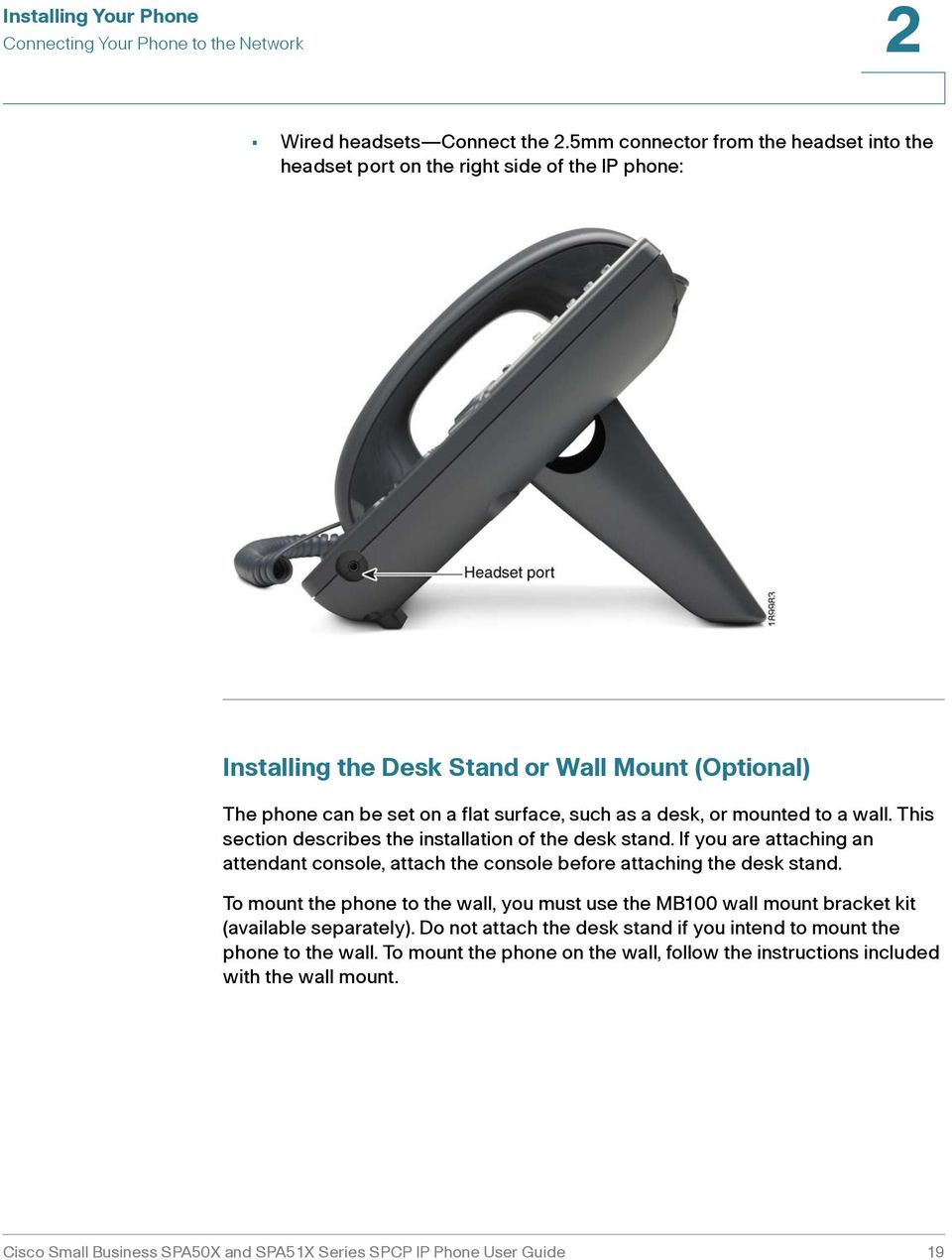
20 Installing Your Phone Connecting Your Phone to the Network 2 Wired headsets Connect the 2.5mm connector from the headset into the headset port on the right side of the IP phone: Installing the Desk Stand or Wall Mount (Optional) The phone can be set on a flat surface, such as a desk, or mounted to a wall. This section describes the installation of the desk stand. If you are attaching an attendant console, attach the console before attaching the desk stand. To mount the phone to the wall, you must use the MB100 wall mount bracket kit (available separately). Do not attach the desk stand if you intend to mount the phone to the wall. To mount the phone on the wall, follow the instructions included with the wall mount. Cisco Small Business SPA50X and SPA51X Series SPCP IP Phone User Guide 19
21 Installing Your Phone Mounting the Phone to the Wall (Optional) 2 To install the desk stand: Connect the phone stand by lining up the tabs on the stand with the slots on the phone body. Slide the bottom tabs into the lower slots on the phone body and lightly press down on the stand. It should easily slide into the upper stand slots. Do not force it. Mounting the Phone to the Wall (Optional) To mount the phone to the wall, you must use the MB100 wall mount bracket kit (available separately). Figure 2 MB100 Wall Mount Kit Cisco Small Business SPA50X and SPA51X Series SPCP IP Phone User Guide 20
22 Installing Your Phone Mounting the Phone to the Wall (Optional) 2 Reverse the Handset Retention Tab If you mount the phone to a vertical surface, such as a wall, you must reverse the handset retention tab on the phone body so that the handset does not fall off the phone when it is placed on the cradle. Push the latch in. Slide the retention tab up until it detaches from the phone. STEP 3 Rotate the tab 180 and re-insert into the phone base. The tab now catches the slot in the handset when the handset is placed onto the cradle. Cisco Small Business SPA50X and SPA51X Series SPCP IP Phone User Guide 21
23 Installing Your Phone Verifying Phone Startup 2 Verifying Phone Startup After receiving power and network connectivity, the phone executes a boot sequence. During this sequence, phones with IP phone screens display the Cisco logo, the message Initializing Network and all of the lights on the phone flash. After your phone successfully connects to the network, it checks for and downloads an updated configuration and firmware. When the boot process is complete, the extension number appears on the IP phone screen (on models with a IP phone screen) and the phone has a dial tone. On models with IP phone screens, the phone displays the standard menu for the phone. The date, name and number of the phone display on the top line of the IP phone screen. At the bottom of the IP phone screen, softkeys are displayed over their associated soft buttons. On models with no IP phone screen, such as the Cisco SPA501G, the lines glow green and you hear a dial tone when the handset is picked up or when the speaker button is pressed. If the phone does not start, confirm your installation and connections. If these are correct, try unplugging the phone and plugging it back in again. Cycling the phone connection updates the configuration and the firmware. If you still do not see the display, then contact your phone administrator or Internet Telephony Service Provider (ITSP). Updating Your Phone Firmware The phone firmware is updated automatically by the Cisco Smart Business Communications System (SBCS), according to the administrative settings. Cisco Small Business SPA50X and SPA51X Series SPCP IP Phone User Guide 22
24 3 Using Basic Phone Functions This chapter provides instructions on using the basic phone functions. It includes the following sections: Using the Speaker or a Headset, page 24 Adjusting Call Volume and Muting, page 25 Placing or Answering a Call, page 26 Using Hold and Resume, page 27 Using Mute, page 27 Ending a Call, page 27 Transferring Calls, page 28 Redialing a Number, page 29 Forwarding All Calls to Another Number, page 30 Setting Do Not Disturb, page 30 Picking Up a Call from Another Extension, page 31 Placing a Three-Way Conference Call, page 31 Using the Local Directory, page 32 Using the Call History Lists, page 33 Accessing Voic , page 33 NOTE All the features of these phones can be modified by your phone system administrator. Not all of features described in this document may be available or they might function slightly differently on your phone. This document describes the features as they function in factory default mode. Cisco Small Business SPA50X and SPA51X Series SPCP IP Phone User Guide 23
25 Using Basic Phone Functions Using the Speaker or a Headset 3 Using the Speaker or a Headset You can use the handset, headset, or speakerphone to place or receive a call. And you can switch among these devices during a call; however, only one of these devices at a time can be used. When switching from the handset to the speakerphone, make sure the speakerphone or headset light is illuminated before placing the handset back on the hook. When switching from the handset to a wireless headset, do not replace the handset on hook or you will disconnect the call. Using the Speaker To use the speakerphone, press the Speaker button (the handset can be either on or off hook). Sending Audio to the Phone Speaker You can send the audio to the speaker when the handset is lifted. (Not available for the Cisco SPA501G.) To send the audio to the speaker when the handset is lifted: STEP 3 STEP 4 STEP 5 STEP 6 Press the Setup button. Select Preferences. Choose Send Audio to Speaker > edit. Press y/n to enable or disable the feature. Press ok. Press Save. Choosing Your Preferred Audio Device This option designates the headset, handset, or speaker as the preferred audio device. (Not available for the Cisco SPA501G.) Cisco Small Business SPA50X and SPA51X Series SPCP IP Phone User Guide 24
26 Using Basic Phone Functions Adjusting Call Volume and Muting 3 To choose your preferred audio device: STEP 3 STEP 4 STEP 5 Press the Setup button. Select Preferences. Choose Preferred Audio Device and press edit. Press option to view your choices. When the option you want is displayed, press ok. Press save. Using the Headset with Your IP Phone Install the headset as described in the Connecting a Wired or Wireless Headset section on page 18 NOTE The steps to install and use a headset with the IP phone can vary. Consult the user documentation for your headset for more information. To use a wired headset, press the Headset button on your phone and dial the number to place a call, or press the Headset button to answer an incoming call. To use a wireless headset, lift the handset off hook to speak and listen through the wireless headset. Adjusting Call Volume and Muting Adjusting Call Volume To adjust the volume of the handset or speaker during a call, press + on the Volume button to increase the volume, or press - to decrease the volume. The volume will return to the previous level when you disconnect the call. To retain the setting, press OK (except on the (except on the Cisco SPA501G)) and the setting is saved. Cisco Small Business SPA50X and SPA51X Series SPCP IP Phone User Guide 25
27 Using Basic Phone Functions Placing or Answering a Call 3 Adjusting the Ringer Volume To adjust the ringer volume, press + on the Volume button to increase the volume, or press - to decrease the volume when the handset is on-hook and the speaker is off. Retain the setting by pressing OK (except on the Cisco SPA501G) and the setting is saved. Muting a Call To mute the phone microphone, speaker, or headset microphone, press the Mute button on the phone. The button glows red. Press the Mute button again to unmute. Placing or Answering a Call There are several ways to place or answer a call: Pick up the handset. Press the Speaker button. Press the Headset button. Press a configured line button (to place a call) or a green flashing line button (to answer a call). (Not applicable to the Cisco SPA502G or Cisco SPA512G). You might have to dial a number or series of numbers to reach an outside line. Ask your phone administrator for specific information. To place a call without dialing a number: Press Redial to dial the last number. If you have configured speed dials, press the assigned speed dial code and then press AbbrDial. To answer a call that is ringing on another phone in the phone system, press Pickup. Then enter the extension number of the ringing phone. Choose a number from a directory. See Using the Local Directory, page 32. Choose a number from the Call History. See Using the Call History Lists, page 33. Cisco Small Business SPA50X and SPA51X Series SPCP IP Phone User Guide 26
28 Using Basic Phone Functions Using Hold and Resume 3 Using Hold and Resume To put a call on hold, press the Hold button/hold sofkey. A series of beeps or music on hold plays for the caller to indicate that the call is on hold. To resume a call, press the flashing red line button for that call or the Hold button or the Resume softkey. If you are on a call and another call comes in, press the flashing red line button or the Hold button/hold sofkey to place the call on hold and answer the incoming call. To resume the first call, press the line button for the call or select it using the Up or Down navigation button and press the Resume softkey or the Hold button. Using Mute When mute is enabled you can hear other parties on a call, but they cannot hear you. You can use this feature on the handset, speakerphone, or headset. To toggle mute on, press the Mute button. The button is lit. To toggle mute off, press the lit Mute button. Ending a Call To end a call: Press the EndCall button. If you are using the handset, hang up. If you are using the speakerphone, press the Speaker button. If you are using the headset, either press the Headset button (wired) or replace the handset (wireless). Cisco Small Business SPA50X and SPA51X Series SPCP IP Phone User Guide 27
29 Using Basic Phone Functions Transferring Calls 3 Transferring Calls You can perform two types of transfers: Attended You call the person to whom you are transferring the call and speak to them before transferring the call. Blind You transfer the call without speaking to the other party to whom you are transferring the call. Performing a Transfer Cisco SPA502G, Cisco SPA504G, Cisco SPA508G, Cisco SPA509G, Cisco SPA514G: STEP 3 During an active call, press Trnsfer. The call is placed on hold and a new line is opened to dial the number. Enter the number where you want to transfer the call and wait for the other line to ring. Do one of the following: To blind transfer the call, press Trnsfer after the call begins to ring and then hang up. If you hang up before the target line rings, the transfer fails and the caller is disconnected. If you misdial, press the line button again to receive a dial tone (not available on the Cisco SPA502G or Cisco SPA512G). To transfer after speaking privately to the other person, press Trnsfer at any time during the conversation. Cisco SPA501G: STEP 3 During an active call, press the Transfer button. Enter the number where you want to transfer the call. Press the Transfer button again. Cisco Small Business SPA50X and SPA51X Series SPCP IP Phone User Guide 28
30 Using Basic Phone Functions Redialing a Number 3 Redialing a Number To redial the last number called, press the Redial softkey (except on the Cisco SPA501G). To redial the last number called from a Cisco SPA501G, press the Redial button. Redialing Calls in the History List You can view, edit, and return calls by looking the number up in a call history list. (The Cisco SPA501G does not have an IP phone screen and does not support these functions.) For example, the IP phone screen on your IP phone notifies you if a call came in that was unanswered. To return the missed call, you can press Missed to view a list of missed calls and dial a selected number. To redial any call by selecting it from a call history list: STEP 3 Press Setup. Scroll to Call History and press Select. Scroll to the desired list, such as Missed Calls, and press Select. If a call is from an outside line or a long distance number, it might be necessary to edit the call before returning it. For example, it might be necessary to add a prefix digit that your system requires for an outgoing call. You can: Press Dial to dial the number that called you. Press EditDial to modify the number before calling it, and then press Dial. The modified number is retained in the history list. Cisco Small Business SPA50X and SPA51X Series SPCP IP Phone User Guide 29
31 Using Basic Phone Functions Forwarding All Calls to Another Number 3 Forwarding All Calls to Another Number You can forward all calls to another IP phone in your phone system. For example, calls can be forwarded to your voice mailbox or another extension. You might be able to forward calls to an external number, such as your home or cell phone number, if this is allowed by your phone system administrator. For outside numbers, be sure to include any digit that is required to access an outside line. To forward calls: STEP 3 Press the CFwdAll softkey. Enter a number where all calls are to be forwarded. For an outside line, be sure to enter any access code or area code that is required to complete the call. Press EndCall. The IP phone screen displays Forwarded to number. Disable call forwarding by pressing the CFwdAll softkey. This procedure only cancels the Call Forward All feature; it does not cancel Call Forward Busy or Call Forward No Answer. Setting Do Not Disturb Use the Do Not Disturb feature to prevent incoming calls from ringing your phone. The IP phone screen indicates that the call is incoming, but the phone does not ring. The unanswered call is handled according to your settings. These calls are not logged to the Missed Calls list. To activate Do Not Disturb, press more and then press DnD. The IP phone screen indicates that Do Not Disturb is turned on for your phone. To deactivate Do Not Disturb, press the DnD softkey. Cisco Small Business SPA50X and SPA51X Series SPCP IP Phone User Guide 30
32 Using Basic Phone Functions Picking Up a Call from Another Extension 3 Picking Up a Call from Another Extension You can pick up a call that is ringing at another extension. Depending on the way your phone network is configured by your system administrator, you can pick up a call in the following ways: To pick up a call that is ringing at an extension in your group, use the GPickUp softkey (except on the Cisco SPA501G). If only one pickup group is configured by your system administrator, call control is transferred to your phone. If the ringing phone and your phone are in different pickup groups, dial the pickup group number where the phone is ringing to transfer call control to your phone. To pick up a call that is ringing at specific extension, press the Pickup softkey (except on the Cisco SPA501G). To pick up a call ringing at an extension that is configured on one of the line buttons on your phone, press the flashing line button. (This functionality requires configuration by your phone administrator.) To specify the extension from where the call is to be picked up, press the PickUp softkey and enter the extension number of the phone from which you are picking up the call. Placing a Three-Way Conference Call During an active call, you can add another caller to the conversation. Cisco SPA502G, Cisco SPA504G, Cisco SPA508G, Cisco SPA509G, Cisco SPA514G: To initiate a conference call: STEP 3 During an active call, press more and then press Confrn. The first call is placed on hold, a second line is opened, and you hear a dial tone. Dial the second telephone number. When the second person answers, press the Confrn softkey again. All three parties are connected in the conference call. When you hang up, the other two parties are disconnected. Cisco Small Business SPA50X and SPA51X Series SPCP IP Phone User Guide 31
33 Using Basic Phone Functions Using the Local Directory 3 NOTE You can cancel the conference by pressing the Cancel softkey before connecting the calls. Cisco SPA501G: STEP 3 Press the Conference button during an active call. The first call is placed on hold, a second line is opened, and you hear a dial tone. Dial the second telephone number. When the second person answers, press the Conference button again. All three parties are connected in the conference call. When you hang up, the other two parties are disconnected. Using the Local Directory The local directory lists the phones and extension numbers in your company. Depending on your phone network configuration, you might have the following directories available (except on the Cisco SPA501G): To display the local directory: STEP 3 STEP 4 STEP 5 STEP 6 Press the Setup button. Scroll to Directory and press Select. Scroll to Local Directory and press Select. The search form appears. Enter a last name, a first name, or both to search for a specific entry, or leave the fields blank to display a complete list of all available records. Click Submit to search for matching records. Scroll to an entry and press Dial to dial the number. Press Edit Dial to change the number before dialing. Press Cancel to exit. Cisco Small Business SPA50X and SPA51X Series SPCP IP Phone User Guide 32
34 Using Basic Phone Functions Using the Call History Lists 3 Using the Call History Lists You can display several call history lists: Missed Calls Shows the last 60 missed calls. Received Calls Shows the caller ID of the last 60 answered calls. Placed Calls Shows the last 60 numbers dialed from your phone. To display the Call History lists: STEP 3 STEP 4 Press the Setup button. Scroll to Call History and press Select. Scroll to the Call History list that you want to view: Missed Calls, Received Calls, or Placed Calls. Scroll to an entry and press Dial to dial the number. Press Edit Dial to change the number before dialing. Press Cancel to exit. To delete all numbers from the history lists, press the Clear softkey. Accessing Voic To access voic , press the Messages button on your phone. Your system administrator should have configured your phone with the correct voic number so that pressing the Messages button automatically dials your voic system. Cisco Small Business SPA50X and SPA51X Series SPCP IP Phone User Guide 33
35 4 Using Advanced Phone Features This chapter describes how to configure advanced features on your IP Phone. It contains the following sections: Logging in to Your Phone, page 34 Creating Speed Dials, page 36 Monitoring/Accessing Another Phone from Your Phone, page 38 Customizing Your IP Phone Screen, page 39 Updating Your Ring Tone, page 41 Using the Cisco SPA501G Interactive Voice Response Menu, page 41 Advanced Procedures for Technical Support, page 42 Logging in to Your Phone Your phone system provides a feature called extension mobility. This feature allows you to log in to any physical phone and assign your personal settings and directory number to that phone. For example, if you are working at a remote location for the day, you can log in to one of the company phones on the network and make and receive calls from your phone number and access your voic . To log in to your phone: If you have the Login softkey on your phone, press it. (It might be necessary to press More and scroll through the IP phone screen to locate this softkey.) If you do not have the Login softkey on your phone: a. Press the Setup button. b. Scroll to CME Services and press Select. c. Choose Extension Mobility. Cisco Small Business SPA50X and SPA51X Series SPCP IP Phone User Guide 34
36 Using Advanced Phone Features Logging in to Your Phone 4 STEP 3 STEP 4 Enter your username. Press the Down Arrow key and enter your password. Press Submit. The phone is loaded with your user profile (for example, your configured speed dial buttons). To log out of your phone: If you have the Logout softkey on your phone, press it. (It might be necessary to press More and scroll through the IP phone screen to locate this softkey.) If you do not have the Logout softkey on your phone: a. Press the Setup button. b. Scroll to CME Services and press Select. c. Choose Extension Mobility. STEP 3 Choose Logout. Press Exit. Cisco Small Business SPA50X and SPA51X Series SPCP IP Phone User Guide 35
37 Using Advanced Phone Features Creating Speed Dials 4 Creating Speed Dials You can configure up to 32 speed dials. Each speed dial can be a phone number, IP address or URL. You can also configure additional speed dials on unused line buttons on your phone. System-wide speed dials can be configured by the system administrator. Adding Speed Dials You can use the phone menu to add a speed dial that is not associated with a line button. Cisco SPA502G, Cisco SPA504G, Cisco SPA508G, Cisco SPA509G, Cisco SPA514G: To add a speed dial: STEP 3 STEP 4 STEP 5 STEP 6 Press the Setup button. Scroll to CME Services and press Select. Scroll to My Phone Apps and press Select. Scroll to Speed Dial Buttons and press Select. Press Add to add a new number. Enter the following information: Label: Enter a name or other identifier for this speed dial entry. Number: Enter the destination number. STEP 7 Press Submit. Editing Speed Dials To edit a speed dial entry: STEP 3 Press the Setup button. Scroll to CME Services and press Select. Scroll to My Phone Apps and press Select. Cisco Small Business SPA50X and SPA51X Series SPCP IP Phone User Guide 36
38 Using Advanced Phone Features Creating Speed Dials 4 STEP 4 STEP 5 STEP 6 STEP 7 Scroll to Speed Dial Buttons and press Select. Scroll to the entry that you want to change. Press Change to edit the selected entry. Enter the following information: Label: Enter a name or other identifier for this speed dial entry. Number: Enter the destination number. STEP 8 Press Submit. The new entry appears in the list, along with the assigned speed dial number. Deleting Speed Dials To delete a speed dial entry: STEP 3 STEP 4 STEP 5 STEP 6 STEP 7 Press the Setup button. Scroll to CME Services and press Select. Scroll to My Phone Apps and press Select. Scroll to Speed Dial Buttons and press Select. Scroll to the entry that you want to delete. Press Delete. Press Submit. Calling Speed Dials To call one of your configured speed dial numbers: Open a phone line by using any method you would normally use to start a new call. Press the assigned number for the speed dial, then press AbbrDial. The phone number is dialed. Cisco Small Business SPA50X and SPA51X Series SPCP IP Phone User Guide 37
39 Using Advanced Phone Features Monitoring/Accessing Another Phone from Your Phone 4 NOTE If you have configured an unused line button with a speed dial number, press the button to dial. Cisco SPA501G: To call one of your configured speed dial numbers, press the number for the speed dial and wait a few seconds. Monitoring/Accessing Another Phone from Your Phone Your system administrator can configure your phone so that you can monitor other phones on the network from your phone if the feature is available on your system. If this feature is configured, some line buttons on your phone are assigned to display the status of another user phone. For example, if your line 4 is configured to display Bob s phone line, the button color shows you the status of that phone line: Green: Line is idle. Red (steady): Line is active or in use. Red (blinking): Line is ringing. Orange (solid): Line status cannot be monitored. Orange (blinking): The phone is subscribing to monitor the line status. In addition, if your system administrator has configured it, you can press the same line button (4) to speed dial Bob s extension, or to pick up a ringing call at his extension. NOTE User cannot configure BLF on the SPA502G and SPA512G phones as they have only 1 line and no line buttons, but the BLF function can be configured on the Attendant Console. Cisco Small Business SPA50X and SPA51X Series SPCP IP Phone User Guide 38
40 Using Advanced Phone Features Customizing Your IP Phone Screen 4 Customizing Your IP Phone Screen NOTE Not available on the Cisco SPA501G. You can customize your IP phone screen in several ways. Changing the IP Phone Screen Contrast To adjust the contrast of the IP phone screen: STEP 3 STEP 4 Press the Setup button. Scroll to Settings and press Select. Scroll to Screen Contrast and press Select. Use the navigation button to adjust the IP phone screen contrast: To decrease the contrast: Press the Left navigation button. To increase the contrast: Press the Right navigation button. STEP 5 Press OK. Setting the Back Light Timer You can set a timer for your IP phone screen back light so that your IP phone screen becomes dark after a specified period of idle time on the phone. STEP 3 Press the Setup button. Scroll to Preferences and press Select. Scroll to Back Light Timer and press Select. STEP 4 Press Option repeatedly to view the available options: Always On, Off, 10s, 20s, and 30s. STEP 5 To choose a displayed option, press OK. Cisco Small Business SPA50X and SPA51X Series SPCP IP Phone User Guide 39
41 Using Advanced Phone Features Customizing Your IP Phone Screen 4 Configuring the IP Phone Screen Saver You can enable your IP phone screen saver and specify its appearance and the amount of time for the phone to be idle before it begins. To configure your IP phone screen saver: STEP 3 STEP 4 Press the Setup button. Scroll to Preferences and press Select. Scroll to Screen Saver Mode and press Select. To change the status of your IP phone screen saver: a. Scroll to Enable Screen Saver and press Edit. b. Press Y/N until the desired option appears: Yes to enable a screen saver or No to disable this feature. c. Press OK to save the changes. STEP 5 To specify the amount of idle time that can elapse before the screen saver appears: a. Scroll to Screen Saver Wait Time and press Edit. b. Clear the displayed time by pressing Clear. c. Enter the idle time period in seconds by pressing numbers on the keypad. d. Press OK to save your changes. Turning on the Screen Saver Immediately The screen saver must be enabled to immediately activate it. To turn on your phone screen saver without waiting for the specified Screen Saver Wait Time to elapse: STEP 3 Press the Setup button. Scroll to Screen Saver Mode. Press Activate. Cisco Small Business SPA50X and SPA51X Series SPCP IP Phone User Guide 40
42 Using Advanced Phone Features Updating Your Ring Tone 4 Updating Your Ring Tone Each extension of your phone can have a different ring tone. You can also create your own ring tones. To change a ring tone: STEP 3 STEP 4 STEP 5 STEP 6 Press the Setup button. Scroll to Settings and press Select. Scroll to Ring Type and press Select. A list of available tones appears Choose the ring tone that you want to change, and press Select. Scroll through the ring tones. To hear a ring tone, press Play. To choose a ring tone, press Select. Press Exit to close the IP phone screen. Using the Cisco SPA501G Interactive Voice Response Menu The Cisco SPA501G provides an interactive voice response (IVR) menu. You can enter options and receive information about the phone and its operation. To access the IVR: Press the Setup button. Enter the IVR option by dialing the number code for the specific option, then press #. Some typical options that you might use are: Option Number Action 110 The IP address of the phone. 140 The MAC address (hardware address) of the phone. 150 The version of the firmware on the phone. Cisco Small Business SPA50X and SPA51X Series SPCP IP Phone User Guide 41
43 Using Advanced Phone Features Advanced Procedures for Technical Support 4 Advanced Procedures for Technical Support Technical support personnel might need to view information about your phone or phone activities. Follow these procedures if instructed to do so by the technical support person assisting you. Status Information and Statistics To view status information and statistics: STEP 3 Press the Setup button. Scroll to Settings and press Select. Choose from the following options: Network Configuration: Displays information about the network, including WAN connection, DHCP server, IP address, MAC address, domain name, subnet mask, default router, DNS servers, and TFTP server. Model Information: Displays information about the phone, including model number, serial number, software version, and call control protocol. Status: Displays information about the phone activity, including status messages, network statistics, and call statistics. Rebooting, Restarting, and Resetting a Phone If required, you can reboot, restart, or reset your phone. You should not do so unless directed by your phone administrator as this can negatively affect your phone function. To reboot your phone and the firmware: STEP 3 Press the Setup button. Scroll to Reboot and press Select. When the confirmation message appears, press OK to confirm or press Cancel to close the message without rebooting the phone. Cisco Small Business SPA50X and SPA51X Series SPCP IP Phone User Guide 42
44 Using Advanced Phone Features Advanced Procedures for Technical Support 4 To restart your phone without reloading the firmware: STEP 3 Press the Setup button. Scroll to Restart and press Select. When the confirmation message appears, press OK to confirm or press Cancel to close the message without restarting the phone. To reset your phone to the factory default values and reboot:! CAUTION If you choose factory reset, you will return the phone to the original factory settings and will erase ALL current settings, including the directory and call logs. It is also possible that your phone extension will change. STEP 3 Press the Setup button. Scroll to Factory Reset and press Select. When the confirmation message appears, press OK to confirm or press Cancel to close the message without resetting the phone. Cisco Small Business SPA50X and SPA51X Series SPCP IP Phone User Guide 43
45 5 Using the Phone Web User Interface Your Cisco IP Phone provides a web interface for the phone user that allows you to configure some features of your phone by using a web browser. Your phone system administrator can allow you to view the phone statistics and modify some or all of the parameters by using the phone web user interface. The features of the Cisco SPA phones that can be modified by the user by using the phone web user interfaceare described in this chapter; however, not all features are available on all phones. This chapter contains the following sections: Logging in to the Phone Web User Interface, page 44 Saving the Configuration Profile, page 46 Setting Voice System Parameters, page 46 Setting Voice Phone Parameters, page 55 Setting Voice User Parameters, page 55 Viewing Call History Lists, page 58 Using Your Personal Directory, page 58 Logging in to the Phone Web User Interface To log into the phone web user interface: Get the IP address of your phone: Cisco SPA502G, Cisco SPA504G, Cisco SPA508G, Cisco SPA509G, Cisco SPA514G: a. Press the Setup button. b. Scroll to Settings > Network Configuration. Cisco Small Business SPA50X and SPA51X Series SPCP IP Phone User Guide 44
46 Using the Phone Web User Interface Logging in to the Phone Web User Interface 5 c. Scroll to view IP Address. This is the IP address of your phone. Cisco SPA501G: a. Press the Setup button. b. Enter 110, then press #. The IP address is recited. STEP 3 On your PC, open a Web browser. Your PC must be on the same subnetwork as the phone. Enter the IP address in the browser address bar. The phone web user interface displays. The phone web user interface has two main options: Voice Contains information about your phone, including the following subtabs: - Info System, reboot history, product, status, extension, and line information (read only). - System Password and network settings. - Regional Ring cadence. - Phone Ring tones - User Call forwarding, speed dials, call waiting, privacy settings, and audio settings. - Ext 1 Time of Service (ToS) and Cost of Service (CoS). Call History Calls placed, received, and missed on your phone. Personal Directory Personal address book. Attendant Console Status Information about Cisco Attendant Consoles, if installed. Cisco Small Business SPA50X and SPA51X Series SPCP IP Phone User Guide 45
47 Using the Phone Web User Interface Saving the Configuration Profile 5 Saving the Configuration Profile Click Submit All Changes when you have finished modifying the fields in the phone web user interface to update the configuration profile. The phone is rebooted and the changes are applied. Click Undo All Changes if you want to clear all changes made this session and return to the parameter values set before the session began or since the last time you clicked Submit All Changes. Setting Voice System Parameters The voice system parameters control password protection for the phone configuration profile and the values used to identify the phone to the network. Typically a user should not modify these parameters. The table identifies and describes the parameters in the System tab. Parameter Enable Web Server Web Server Port Enable Web Admin Access Admin Passwd User Password Signaling Protocol Description Choose yes to enable the phone web server that allows a user to view the phone web user interface. Choose no to disable the web server. Port number for the web server. Choose yes to enable the phone web server that allows an administrator to modify the phone configuration by using the phone web user interface. Choose no to make the phone web user interface read-only. Alphanumeric string that allows administrator access to the configuration profile. Alphanumeric string that allows user access to the configuration profile. Specifies the SPCP or SIP protocol. Cisco Small Business SPA50X and SPA51X Series SPCP IP Phone User Guide 46
48 Using the Phone Web User Interface Setting Voice System Parameters 5 Parameter SPCP Autodetect Phone-UIreadonly Phone-UI-usermode PoE Power Required Connection Type Static IP Netmask Gateway HostName Domain Primary DNS Secondary DNS DNS Server Order Description Choose yes to automatically detect the Simple Phone Control Protocol (SPCP) or Session Initiation Protocol (SIP). Choose no to disable automatic detection. Choose yes to allow phone users to change the phone parameters by using the phone interface. Choose no to restrict ability of the phone users to modify the phone parameters through the phone interface. Choose yes to restrict ability of the phone users to see the phone interface. Choose no to restrict ability of the phone users to see the phone interface. Choose Normal to signal the switch that the expected power draw will be normal levels. Choose Maximum to signal the switch that the expected power draw will be normal levels. Choose DHCP to get the IP address from a DHCP server or choose Static to set a static IP address. If you selected a Static connection type, enter the static IP address for the device. If you selected a Static connection type, enter the subnetwork mask. If you selected a Static connection type, enter the gateway IP address. Hostname of the phone. Network domain name. Primary DNS server IP address. Secondary DNS server IP address. Method for selecting the DNS server. The options are Manual (enter the IP address of the DNS server manually; do not look at the DHCP-supplied DNS table), Manual/ DHCP, and DHCP/Manual. Cisco Small Business SPA50X and SPA51X Series SPCP IP Phone User Guide 47
49 Using the Phone Web User Interface Setting Voice System Parameters 5 Parameter DNS Query Mode TFTP Server Alternate TFTP Syslog Server Debug Server Debug Level Layer 2 Logging NTP Enable Primary NTP Server Secondary NTP Server Enable VLAN Enable CDP Description Parallel or Sequential DNS query. A parallel DNS query sends the same DNS lookup request to all of the DNS servers at the same time. The first incoming reply is accepted by the phone. A sequential query polls the DNS servers in sequence. Defaults to parallel. IP address or name of the primary TFTP server. IP address or name of the secondary TFTP server. Specify the syslog server name and port. This feature specifies the server for logging device system information and critical events. If both Debug Server and Syslog Server are specified, Syslog messages are also logged to the Debug Server. The debug server name and port. This feature specifies the server for logging debug information. The level of detailed output depends on the debug level parameter setting. Choose a debug level from 0-3. The higher the level, the more debug information is generated. Zero (0) means no debug information is generated. Defaults to 0. Choose yes to enable Layer 2 Logging. Choose no to disable it. Choose yes to use Network Time Protocol (NTP) to set the time on the device. Choose no to disable NTP. IP address or name of the primary NTP server. The phones use these servers to synchronize its time. IP address or name of the secondary NTP server. The phones use these servers to synchronize its time. Choose yes to enable VLAN. Choose no to disable. Enable CDP only if you are using a switch that has Cisco Discovery Protocol (CDP). CDP is negotiation-based and determines which VLAN the IP phone resides in. Cisco Small Business SPA50X and SPA51X Series SPCP IP Phone User Guide 48
50 Using the Phone Web User Interface Setting Voice Regional Parameters 5 Parameter Enable LLDP- MED Description Choose yes to enable LLDP-MED for the phone to advertise itself to devices that use that discovery protocol. (By default, this setting is enabled.) When the LLDP-MED feature is enabled, after the phone has initialized and Layer 2 connectivity is established, the phone sends out LLDP-MED PDU frames. If the phone receives no acknowledgment, the manually configured VLAN or default VLAN is used if applicable. If CDP is used concurrently, a waiting period of 6 seconds is used. The waiting period increases the overall startup time for the phone. Network Startup Delay VLAN ID Asset ID Enter the delay in seconds for the switch to get to the forwarding state before the phone sends out the first LLDP- MED packet. The default delay is 3 seconds. For configuration of some switches, it might be necessary to increase this value to a higher value for LLDP-MED to work. Configuring a delay can be important for networks that use Spanning Tree Protocol. A value ranging from 0 to 4095 (default 0). The phone tags all of the untagged frames coming from the PC. (It does not tag frames with existing tags). Enter a string to identify the phone in inventory. Setting Voice Regional Parameters This section describes the fields for the Regional tab. Call Progress Tones Parameter Dial Tone Description Prompts the user to enter a phone number. Defaults to 350@-19,440@-19;10(*/0/1+2). Cisco Small Business SPA50X and SPA51X Series SPCP IP Phone User Guide 49
51 Using the Phone Web User Interface Setting Voice Regional Parameters 5 Parameter Outside Dial Tone Prompt Tone Busy Tone Reorder Tone Off Hook Warning Tone Ring Back Tone Call Waiting Tone Confirm Tone SIT1 Tone Description Alternative to the Dial Tone. It prompts the user to enter an external phone number, as opposed to an internal extension. It is triggered by a, (comma) character encountered in the dial plan. Defaults to 420@-16;10(*/0/1). Prompts the user to enter a call forwarding phone number. Defaults to 520@-19,620@-19;10(*/0/1+2). Played when a 486 RSC is received for an outbound call. Defaults to 480@-19,620@-19;10(.5/.5/1+2). Played when an outbound call has failed or after the far end hangs up during an established call. Reorder Tone is played automatically when <Dial Tone> or any of its alternatives times out. Defaults to 480@-19,620@-19;10(.25/.25/1+2). Played when the caller has not properly placed the handset on the cradle. Off Hook Warning Tone is played when Reorder Tone times out. Defaults to 480@10,620@0;10(.125/.125/1+2). Played during an outbound call when the far end is ringing. Defaults to 440@-19,480@-19;*(2/4/1+2). Played when a call is waiting. Defaults to 440@-10;30(.3/9.7/1) Brief tone to notify the user that the last input value has been accepted. Defaults to 600@-16; 1(.25/.25/1). Alternative to the Reorder Tone played when an error occurs as a caller makes an outbound call. The RSC to trigger this tone is configurable on the SIP IP phone screen. Defaults to 985@-16,1428@-16,1777@-16;20(.380/0/1,.380/0/ 2,.380/0/3,0/4/0). Cisco Small Business SPA50X and SPA51X Series SPCP IP Phone User Guide 50
52 Using the Phone Web User Interface Setting Voice Regional Parameters 5 Parameter SIT2 Tone SIT3 Tone SIT4 Tone MWI Dial Tone Cfwd Dial Tone Holding Tone Conference Tone Description Alternative to the Reorder Tone played when an error occurs as a caller makes an outbound call. The RSC to trigger this tone is configurable on the SIP IP phone screen. Defaults to 914@-16,1371@-16,1777@-16;20(.274/ 0/1,.274/0/2,.380/0/3,0/4/0). Alternative to the Reorder Tone played when an error occurs as a caller makes an outbound call. The RSC to trigger this tone is configurable on the SIP IP phone screen. Defaults to 914@-16,1371@-16,1777@-16;20(.380/ 0/1,.380/0/2,.380/0/3,0/4/0) This is an alternative to the Reorder Tone played when an error occurs as a caller makes an outbound call. The RSC to trigger this tone is configurable on the SIP IP phone screen. Defaults to 985@-16,1371@-16,1777@-16;20(.380/ 0/1,.274/0/2,.380/0/3,0/4/0). Played instead of the Dial Tone when there are unheard messages in the caller s mailbox. Defaults to 350@-19,440@-19;2(.1/.1/1+2);10(*/0/ 1+2). Played when all calls are forwarded. Defaults to 350@-19,440@-19;2(.2/.2/1+2);10(*/0/ 1+2). Informs the local caller that the far end has placed the call on hold. Defaults to 600@-19*(.1/.1/1,.1/.1/1,.1/9.5/1). Played to all parties when a three-way conference call is in progress. Defaults to 350@-19;20(.1/.1/1,.1/9.7/1). Cisco Small Business SPA50X and SPA51X Series SPCP IP Phone User Guide 51
53 Using the Phone Web User Interface Setting Voice Regional Parameters 5 Parameter Secure Call Indication Tone Page Tone Alert Tone Description Played when a call has been successfully switched to secure mode. It should be played only for a short while (less than 30 seconds) and at a reduced level (less than -19 dbm) so it does not interfere with the conversation. Defaults to 397@-19,507@-19;15(0/2/0,.2/.1/1,.1/ 2.1/2). (Before attempting to use Secure Call, verify with your phone service provider that Secure Call is available.) Specifies the tone transmitted when the paging feature is enabled. Defaults to 600@-16;.3(.05/0.05/1). Played when an alert occurs. Defaults to 600@-19;.2(.05/0.05/1). Tone Script A ToneScript is a mini-script that specifies the frequency, level, and cadence of a call progress tone. It can include up to 127 characters. Syntax: FreqScript;Z1[;Z2] The section Zi is similar to the Si section in a CadScript except that each on/off segment is followed by a frequency components parameter: Zi = Di(oni,1/offi,1/fi,1[,oni,2/offi,2/fi,2 [,oni,3/offi,3/ fi,3 [,oni,4/offi,4/fi,4 [,oni,5/offi,5/fi,5 [,oni,6/offi,6/ fi,6]]]]]) where fi,j = n1[+n2]+n3[+n4[+n5[+n6]]]]] and 1 < nk < 6 indicates which of the frequency components in the FreqScript shall be used in that segment. If more than one frequency component is used in a segment, the components are summed together. Example 1: Dial Tone 350@-19,440@-19;10(*/0/1+2) Number of Frequencies = 2 Frequency 1 = 350 Hz at -19 dbm Cisco Small Business SPA50X and SPA51X Series SPCP IP Phone User Guide 52
54 Using the Phone Web User Interface Setting Voice Regional Parameters 5 Frequency 2 = 440 Hz at -19 dbm Number of Cadence Sections = 1 Cadence Section 1: Section Length = 10 s Number of Segments = 1 Segment 1: On=forever, with Frequencies 1 and 2 Total Tone Length = 10s Example 2: Stutter Tone 350@-19,440@-19;2(.1/.1/1+2);10(*/0/1+2) Number of Frequencies = 2 Frequency 1 = 350 Hz at -19 dbm Frequency 2 = 440 Hz at -19 dbm Number of Cadence Sections = 2 Cadence Section 1: Section Length = 2s Number of Segments = 1 Segment 1: On=0.1s, Off=0.1s with Frequencies 1 and 2 Cadence Section 2: Section Length = 10s Number of Segments = 1 Segment 1: On=forever, with Frequencies 1 and 2 Total Tone Length = 12s Example 3: SIT Tone 985@-16,1428@-16,1777@-16;20(.380/0/1,.380/0/2,.380/0/3, 0/4/0) Number of Frequencies = 3 Frequency 1 = 985 Hz at -16 dbm Frequency 2 = 1428 Hz at -16 dbm Frequency 3 = 1777 Hz at -16 dbm Number of Cadence Sections = 1 Cisco Small Business SPA50X and SPA51X Series SPCP IP Phone User Guide 53
55 Using the Phone Web User Interface Setting Voice Regional Parameters 5 Cadence Section 1: Section Length = 20s Number of Segments = 4 Segment 1: On=0.38s, Off=0s, with Frequency 1 Segment 2: On=0.38s, Off=0s, with Frequency 2 Segment 3: On=0.38s, Off=0s, with Frequency 3 Segment 4: On=0s, Off=4s, with no frequency components Total Tone Length = 20s Distinctive Ring Patterns Parameter Description Cadence 1 Cadence script for distinctive ring 1. Defaults to 60(2/4). Cadence 2 Cadence script for distinctive ring 2. Defaults to 60(.3/.2, 1/.2,.3/4). Cadence 3 Cadence script for distinctive ring 3. Defaults to 60(.8/.4,.8/4). Cadence 4 Cadence script for distinctive ring 4. Defaults to 60(.4/.2,.3/.2,.8/4). Cadence 5 Cadence script for distinctive ring 5. Defaults to 60(.2/.2,.2/.2,.2/.2,1/4) Cadence 6 Cadence script for distinctive ring 6. Defaults to60(.2/.4,.2/.4,.2/4). Cadence 7 Cadence script for distinctive ring 7. Defaults to 60(4.5/4). Cadence 8 Cadence script for distinctive ring 8. Defaults to 60(0.25/9.75) Cadence 9 Cadence script for distinctive ring 9. Defaults to 60(.4/.2,.4/2). Cisco Small Business SPA50X and SPA51X Series SPCP IP Phone User Guide 54
56 Using the Phone Web User Interface Setting Voice Phone Parameters 5 Setting Voice Phone Parameters This section describes the parameters in the Phone tab. You can configure the characteristics of the Ring Tones by using a script. In a Ring Tone script, specify: Name (n) Ring tone name, such as Classic, Simple, and Office Waveform (w) 1, 2, 3, 4, 5, 6, 7, 8, 9, 10 Cadence (c) 1, 2, 3, 4, or 5 Under Audio Input Gain (db), you can choose a value of -6 decibels, 0 decibels, or +6 decibels. All fields default to zero. Setting Voice User Parameters The voice User parameters control the phone user options, such as caller ID and speed dial numbers. The table identifies and describes the parameters in the User tab. Parameter Cfwd Setting Cfwd All Dest CFWD Busy Dest CFWD No Ans Dest CFWD No Ans Delay Description Choose yes to enable call forwarding. Choose no to disable the feature. Enter the target phone number to where all calls are forwarded. When this field is anything other than blank, the phone rings once and the call is forwarded. Enter the target phone number to where all calls are forwarded when this phone is busy. Enter the target phone number to where all calls are forwarded. Enter the number of seconds to delay before forwarding calls because there is no answer at your phone. Cisco Small Business SPA50X and SPA51X Series SPCP IP Phone User Guide 55
57 Using the Phone Web User Interface Setting Voice User Parameters 5 Parameter Speed Dial X CW Setting Block CID Setting Block ANC Setting DND Setting Dial Assistance Preferred Audio Device Time Format Date Format Description Enter the target a phone number, IP address, or URL that will be called or launched when you press the speed dial number. You can configure up to eight speed dials, one for each of the numbered keys 2 through 9. Choose yes to enable call waiting. Choose no to disable the feature. Call waiting alerts you when you are on a call by ringing the phone and displaying a status message that you have an incoming call. If you turn call waiting off, incoming calls do not ring your phone when you are on another call, and the caller hears a busy signal or message. Choose yes to block your caller ID from displaying on another phone. Choose no to disable the feature. Choose yes to block anonymous callers. Choose no to disable the feature. Blocking anonymous calls prevents a call with an unknown Caller ID from ringing your phone. For example, if a caller set their phone to not display their Caller ID, the call is considered anonymous. These callers receive a busy signal or message. Choose yes to enable Do Not Disturb. Choose no to disable the feature. When enabled, the Do Not Disturb feature to prevents incoming calls from ringing your phone. If you have voice mail configured, incoming callers are immediately sent to voice mail. If voice mail is not configured, callers hear a busy signal or a message. If dial assistance is enabled, when placing calls, you will see a list of matching, recently dialed or received phone numbers on the IP phone screen as you begin dialing. Choose the preferred audio device. When you answer a call by pressing the line button, the audio is directed to the headset or the speaker. Choose the time format. Choose 12hr to display the time as am or pm. Choose 24hr to display the time as a 24-hour clock. Choose the date format. Choose month/day to display the date in month-day sequence. Choose day/month to display the date in day-month sequence. Cisco Small Business SPA50X and SPA51X Series SPCP IP Phone User Guide 56
58 Using the Phone Web User Interface Setting Voice User Parameters 5 Parameter Text Message Text Message from 3rd Party Alert Tone Off Ringer Volume Speaker Volume Headset Volume Headset Volume Handset Version Description Choose yes to enable text messaging from the phone. Choose no to disable the feature. Choose yes to enable receiving text messaging from others on the phone. Choose no to disable the feature. Choose yes to disable the alert tone sounded when a text message is received on the phone. Choose no to enable the alert tone. Enter a volume between 1 and 10, with 1 being the lowest level. Handset Version Administrator can change the handset version manually. Auto Phone automatically sets the handset version based on the hardware version and model. (Default) Original Handset set to Version 2 and below. V3 Handset set to Version 3. This parameter should not be modified, unless you are requested to do so by your phone system administrator. Deep Bass LCD Contrast Standard tone or enhanced bass tone. Enter a number between 1 and 10, with 1 being the lowest contrast. Cisco Small Business SPA50X and SPA51X Series SPCP IP Phone User Guide 57
59 Using the Phone Web User Interface Viewing Call History Lists 5 Viewing Call History Lists To view Call History Lists: Log in to the phone web user interface. Click the Call History tab. A window appears with the call history lists for your phone. These include: Placed Shows the last 100 numbers dialed from your phone. Answered Shows the caller ID of the last 100 answered calls. Missed Shows the last 100 missed calls. Click the tab for each list to view it. Using Your Personal Directory Your IP phone provides a phone directory for you to store and view frequently dialed numbers. This directory appears on your phone, and you can dial numbers from the directory. The Cisco SPA502G, Cisco SPA504G, Cisco SPA508G, and Cisco SPA509G support up to 100 entries. The Cisco SPA512G and Cisco SPA514G support up to 150 entries. (Not available for the Cisco SPA501G.) To view and edit your personal directory: STEP 3 Log in to the phone web user interface. Click the Personal Directory tab. A window appears with the Personal Directory listings for your phone. To enter a new item into the directory, select the line and enter the information in the following format: n=entryname;p=nnnnnnnnnn where n= indicates the name for the entry and p= indicates the phone number (including area code), for example STEP 4 At the bottom of the page, click Submit Changes. Cisco Small Business SPA50X and SPA51X Series SPCP IP Phone User Guide 58
60 Using the Phone Web User Interface Viewing Attendant Console Status 5 Viewing Attendant Console Status The attendant console user parameters are displayed in the Attendant Console Status window. The table identifies and describes the values in the Attendant Console Status tab. Parameter Unit Enable Unit Online Subscribe Expires Subscribe Retry Interval HW Version SW Version Key Name Type Line Station Subscribed Description Yes indicates the unit is enabled. No indicates it is disabled. Yes indicates the unit is connected. No indicates it is not connected. Time in seconds when the current subscription expires. After the subscription expires, the Cisco Attendant Console automatically requests a new subscription. Length of time the Cisco Attendant Console waits to try again if the subscription fails. Hardware version of the attendant console. Firmware (software) version of the attendant console. Name assigned to each key on the Cisco Attendant Console. Name identifying the entry. Function enabled for each key on the Cisco Attendant Console attendant console unit. Displays the extension assigned to each key on the Cisco Attendant Console. Subscribe URI (uniform resource identifier) configured for each key on the Cisco Attendant Console. Subscription status of the unit/key. The value can be Yes, Fail, or No. No indicates that the feature/function (fnc) of that line does not require a subscription (such as speed dial). Cisco Small Business SPA50X and SPA51X Series SPCP IP Phone User Guide 59
61 A Where to Go From Here Cisco provides a wide range of resources to help you obtain the full benefits of the Cisco SPA IP phones. Product Resources Support Cisco Small Business Support Community Online Technical Support and Documentation (Login Required) Phone Support Contacts Software Downloads (Login Required) Product Documentation IP Phone Accessories Cisco Unified Communications 500 Series for Small Business tsd_cisco_small_ business_support_ center_contacts.html Go to tools.cisco.com/support/downloads, and enter the model number in the Software Search box. tsd_products_support_series_home.html tsd_products_support_series_home.html tsd_products_support_series_home.html Cisco Small Business SPA50X and SPA51X Series SPCP IP Phone User Guide 60
62 Where to Go From Here A Regulatory Compliance and Safety Information for the Cisco SPA300 Series and Cisco SPA500 Series IP Phones Cisco Small Business Cisco Partner Central for Small Business (Partner Login Required) Cisco Small Business Home Marketplace csbpipp/ip_phones/regulatory_compliance/ guide/rcsi_500_series.pdf Cisco Small Business SPA50X and SPA51X Series SPCP IP Phone User Guide 61
63 Cisco and the Cisco logo are trademarks or registered trademarks of Cisco and/or its affiliates in the U.S. and other countries. To view a list of Cisco trademarks, go to this URL: Third-party trademarks mentioned are the property of their respective owners. The use of the word partner does not imply a partnership relationship between Cisco and any other company. (1110R) 2013 Cisco Systems, Inc. All rights reserved. OL
USER GUIDE Cisco Small Business
 USER GUIDE Cisco Small Business SPA50X and SPA51X Series SPCP IP Phones Models SPA501G, SPA502G, SPA504G, SPA508G, SPA509G, SPA512G, and SPA514G Contents Chapter 1: Getting Started 4 About This Document
USER GUIDE Cisco Small Business
 USER GUIDE Cisco Small Business IP Phone Models SPA50X (SPCP) Contents Chapter 1: Getting Started 4 About This Document 4 Overview of the Cisco Small Business IP Phones 6 Caring for Your Phone 7 Understanding
USER GUIDE Cisco Small Business
 USER GUIDE Cisco Small Business Cisco SPA50X and SPA51X SIP IP Phones Models SPA501G, SPA502G, SPA504G, SPA508G, SPA509G, SPA512G, and SPA514G Contents Chapter 1: Getting Started 6 About This Document
USER GUIDE Cisco Small Business
 USER GUIDE Cisco Small Business Cisco SPA50X and SPA51X SIP IP Phones Models SPA501G, SPA502G, SPA504G, SPA508G, SPA509G, SPA512G, and SPA514G Contents Chapter 1: Getting Started 6 About This Document
Cisco IP Phones User Guides
 Cisco IP Phones User Guides Cisco Small Business Cisco SPA50X and SPA51X SIP IP Phones Models SPA501G, SPA502G, SPA504G, SPA508G, SPA509G, SPA512G, and SPA514G Contents Chapter 1: Getting Started 6 About
USER GUIDE Cisco Small Business
 USER GUIDE Cisco Small Business Cisco Unified Communications Manager Express for IP Phone Models 30X August 2013 Cisco and the Cisco logo are trademarks or registered trademarks of Cisco and/or its affiliates
How To Use An Ip Phone On A Cell Phone On An Ip Cell Phone
 USER GUIDE Cisco Small Business Cisco SPA50X and SPA51X SIP IP Phones Models SPA501G, SPA502G, SPA504G, SPA508G, SPA509G, SPA512G, and SPA514G Contents Chapter 1: Getting Started 6 About This Document
USER GUIDE Cisco Small Business
 USER GUIDE Cisco Small Business Cisco Unified Communications Manager Express for IP Phone Models 30X June 2010 Cisco and the Cisco Logo are trademarks of Cisco Systems, Inc. and/or its affiliates in the
How To Use A Cisco Small Business Pro Ip Phone 50X (Ip Phone)
 USER GUIDE Cisco Small Business Cisco Unified Communications Manager Express for IP Phone Models SPA 50X (SPCP) FCC and IC Statement Federal Communication Commission Interference Statement This equipment
How To Use An Ip Phone On A Cell Phone On An Ipphone On A Sim Sim Sim (Cisco) Or Ip Phone (Ip Phone) On A Iphone Or Ipphone (Ipphone) On An Iphon Or Ip
 USER GUIDE Cisco Small Business SPA 300 Series IP Phones Models 301 and 303 Contents Chapter 1: Getting Started 6 About This Document 6 Overview of the Cisco Small Business 300 Series IP Phones 8 Caring
USER GUIDE. Cisco Small Business. SPA 303 IP Phone for 8x8 Virtual Office
 USER GUIDE Cisco Small Business SPA 303 IP Phone for 8x8 Virtual Office May 2011 Cisco and the Cisco Logo are trademarks of Cisco Systems, Inc. and/or its affiliates in the U.S. and other countries. A
USER GUIDE. Cisco Small Business Pro. SPA 504G IP Phone for 8x8 Virtual Office
 USER GUIDE Cisco Small Business Pro SPA 504G IP Phone for 8x8 Virtual Office Cisco and the Cisco Logo are trademarks of Cisco Systems, Inc. and/or its affiliates in the U.S. and other countries. A listing
USER GUIDE Cisco Small Business
 USER GUIDE Cisco Small Business SPA 300 Series IP Phones Models 301 and 303 August 2013 Cisco and the Cisco logo are trademarks or registered trademarks of Cisco and/or its affiliates in the U.S. and other
USER GUIDE. Cisco Small Business Pro. SPA 500 Series IP Phones Models 504G, 508G, and 509G. Provided by
 USER GUIDE Cisco Small Business Pro SPA 500 Series IP Phones Models 504G, 508G, and 509G Provided by Understanding Your Phoneʼs Lines and Buttons Use the following graphic and table to identify the parts
Quick start guide to your IP phone
 Quick start guide to your IP phone IP Phone Models SPA501G, SPA502G, SPA504G, SPA508G, and SPA509G Welcome Thank you for choosing the Cisco Small Business IP Phone. This guide describes how to install
For customers in AL, FL, GA, KS, SC, TN. wowforbusiness.com MATRIX USER GUIDE. For Cisco SPA504 & SPA509 IP Phones MGCP.U.1304.O
 wowforbusiness.com MATRIX USER GUIDE For Cisco SPA504 & SPA509 IP Phones MGCP.U.1304.O Matrix User Guide Table of Contents Getting Started...3 CommPortal...3 Support...3 Understanding Your Phone s Lines
Cisco SPA 500 Series IP Phones
 Cisco SPA 500 Series IP Phones Cisco Small Business Pro SPA 500 Series IP Phones Models 502G, 504G, 508G, and 509G Cisco SPA 500 Series IP Phones User Guide 1 P age Table of Contents Getting Started...
USER GUIDE Cisco Small Business
 USER GUIDE Cisco Small Business IP Phone Model SPA92X, SPA94X, and SPA962 Contents Chapter 1: Getting Started 6 Overview of the Cisco SPA9000 Voice System IP Phones 6 SPA921/922 IP Phone 8 SPA941/942 IP
Model SPA 303G Quick Start Guide
 mydatavo Model SPA 303G Quick Start Guide Welcome Thank you for choosing Datavo as your business solutions provider. This guide describes how to install your phone and how to perform some basic tasks.
Cisco SPA 525G. Quick Start guide. Business
 Cisco SPA 525G Quick Start guide Business Cisco Small Business SPA IP Phone Model SPA 525G/SPA 525G2 Package Contents IP telephone (Fig. 1) Desk Stand RJ-45 Ethernet Cable Setup CD-ROM Quick Start Guide
CISCO SMALL BUSINESS PRO IP PHONE
 CISCO SMALL BUSINESS PRO IP PHONE For Models: SPA501G, SPA502G, SPA504G, SPA508G, and SPA509G Business Communications Solutions 9910 Irvine Center Drive Irvine, CA 92618 www.bcsconsultants.com [ m ] 949.333.1000
Quick start guide to your IP phone
 Quick start guide to your IP phone IP Phone Model SPA 525G/ SPA 525G2 Note The features available on your phone depend on the type of system to which your phone is connected. Contact your system administrator
Quick Start Guide to Your IP Phone
 Quick Start Guide to Your IP Phone SPA 300 Series IP Phone Models SPA 301 and SPA 303 SPA 300 Series IP phone Phone stand RJ-45 Ethernet cable Quick start guide Product CD-ROM Welcome Thank you for choosing
Cisco Model SPA 303 Quick Start Guide
 Cisco Model SPA 303 Quick Start Guide Welcome Thank you for choosing the Cisco Small Business IP phone. This guide describes how to install your phone and how to perform some basic tasks. 1 Installing
USER GUIDE Cisco Small Business Pro
 USER GUIDE Cisco Small Business Pro Cisco Unified Communications Manager Express for IP Phone Models SPA50X (SPCP) CCDE, CCENT, CCSI, Cisco Eos, Cisco HealthPresence, Cisco Ironport, the Cisco logo, Cisco
Using Basic Call Management Functions
 Using Basic Call Management Functions This chapter provides instructions on using your basic phone functions. It includes the following sections: Managing the Audio Source and Volume, page 28 Answering
USER GUIDE Cisco Small Business
 USER GUIDE Cisco Small Business IP Phone Model SPA92X, SPA94X, and SPA962 Contents Chapter 1: Getting Started 6 Overview of the Cisco SPA9000 Voice System IP Phones 6 SPA921/922 IP Phone 8 SPA941/942 IP
How To Use A Cisco Phone With A Cell Phone On A Small Business Ip Phone (Pa300) Or A Small Cell Phone (Ppa500) With A Microsoft Ip Phone (Spa500) On A Business Plan (Small Business)
 USER GUIDE Cisco Small Business Cisco SPA300 Series and SPA500 Series IP Phones with Cisco Unified Communications UC320W Phone Models: SPA301, SPA303, SPA501G, SPA502G, SPA504G, SPA508G, SPA509G, SPA525G,
USER GUIDE Cisco Small Business Pro
 USER GUIDE Cisco Small Business Pro SPA500 Series IP Phones Models 501G, 502G, 504G, 508G, and 509G CCDE, CCENT, CCSI, Cisco Eos, Cisco HealthPresence, Cisco IronPort, the Cisco logo, Cisco Lumin, Cisco
USER GUIDE. Cisco Small Business. SPA 500 Series IP Phones Model SPA 525G/SPA 525G2. Provided by
 USER GUIDE Cisco Small Business SPA 500 Series IP Phones Model SPA 525G/SPA 525G2 Provided by +"*.#)%+$%&'/01*'230%"4.'5$%".')%+'61##0%. Understanding Your Phoneʼs Lines and Buttons Use the following graphic
Using Advanced Phone Features
 Using Advanced Phone Features This chapter describes how to configure advanced features on your IP Phone. It contains the following sections: Configuring Privacy and Security, page 9 Enabling and Using
Cisco SPA300 Series and SPA500 Series IP Phones with Cisco Unified Communications UC320W
 USER GUIDE Cisco Small Business Cisco SPA300 Series and SPA500 Series IP Phones with Cisco Unified Communications UC320W Phone Models: SPA301, SPA303, SPA501G, SPA502G, SPA504G, SPA508G, SPA509G, SPA525G,
Napa Valley College Cisco Telephone User Guide
 Napa Valley College Cisco Telephone User Guide Button Legend 1 Programmable buttons Depending on configuration, programmable buttons provide access to: Phone lines (line buttons) Speed-dial numbers (speed-dial
Optus VoIP IP Handset Quick Start Guide.
 Optus VoIP IP Handset Quick Start Guide. Congratulations on your new IP Handset The Linksys SPA-942 is a functionally powerful and easy to use business phone featuring a high resolution graphical display,
USER GUIDE Cisco Small Business
 USER GUIDE Cisco Small Business SPA525G and SPA525G2 SPCP IP Phones Contents Chapter 1: Getting Started 4 Overview 4 Caring for Your Phone 6 Understanding Your Phone Lines and Buttons 7 Phone Components
Optus VoIP IP Handset Quick Start Guide.
 Optus VoIP IP Handset Quick Start Guide. Congratulations on your new IP Handset The Linksys SPA-942 is a functionally powerful and easy to use business phone featuring a high resolution graphical display,
Ipiphony Phone System. User Manual. 1 P a g e
 Ipiphony Phone System User Manual 1 P a g e About this Guide This guide explains how to use the basic features of your new Aastra phones. Not all features listed are available by default. Contact your
User Guide for Cisco Unified IP Phones 7961G and 7941G
 User Guide for Cisco Unified IP Phones 7961G and 7941G Common Phone Tasks Softkey Definitions View online help on the phone Press. Place a call Redial a number Switch to the handset during a call Switch
USER GUIDE Cisco Small Business Pro
 USER GUIDE Cisco Small Business Pro SPA 500 Series IP Phones Models 501G, 502G, 504G, 508G, and 509G CCDE, CCENT, CCSI, Cisco Eos, Cisco HealthPresence, Cisco IronPort, the Cisco logo, Cisco Lumin, Cisco
2 Session buttons. 1 Phone Screen
 1 Phone Screen 2 Session buttons Shows information about your phone, including directory number (extension), call information (for example caller ID, icons for an active call or call on hold) and available
USER GUIDE Cisco Small Business
 USER GUIDE Cisco Small Business SPA525G and SPA525G2 SIP IP Phones Contents Chapter 1: Getting Started 8 Overview 8 Caring for Your Phone 10 Understanding Your Phone Lines and Buttons 10 Softkey Buttons
Cisco IP Phone 7960G and Cisco IP Phone 7940G for Cisco IOS Telephony Services
 CHAPTER 1 Cisco IP Phone 7960G and Cisco IP Phone 7940G for Cisco IOS Telephony Services Button Legend The Cisco IP Phone 7960G and the Cisco IP Phone 7940G differ only in the number of available line
Overview of IP Phone. 1 Handset Pick up to place or answer a call. 2 Message Waiting Indicator
 Overview of IP Phone 1 Handset Pick up to place or answer a call. 2 Message Waiting Indicator Displays solid red when you have a new voice mail message. Flashes red during an incoming call. 3 LCD Screen
If you are having a problem or technical issue regarding your IP Telephone, please call the UAA IT Call Center at 907.786.4646
 If you are having a problem or technical issue regarding your IP Telephone, please call the UAA IT Call Center at 907.786.4646 1 Physical Layout. 3-4 Connecting Your Phone. 5 Adjusting the Handset Rest
IP Phone 7941/7961 User Manual
 IP Phone 7941/7961 User Manual IP Phone User Manual IP Phone User Manual...2 IP Phone Introduction...3 Setting Up Your IP Phone...3 Locating Buttons and Hardware...5 Using Help on Your Phone...7 Choosing
Cisco SPA302D Mobility Enhanced Cordless Handset
 USER GUIDE Cisco SPA30D Mobility Enhanced Cordless Handset Contents Chapter 1: Getting Started 1 Overview 1 Understanding Your Cisco SPA30D Cisco SPA30D Display Screen 4 Turning the Handset On and Off
Cisco IP Phone Models 7941 and 7945 Quick Reference Guide December 23, 2011
 Emergency Calls Dial 911 or 3 911 Cisco IP Phone Models 7941 and 7945 Quick Reference Guide December 23, 2011 Place a Call Lift handset (or press the Speaker button, the line button, or New Call soft key)
Cloud Voice Service Cisco Unified IP Phone 6921 User Guide. (Version 1.0)
 Cisco Unified IP Phone 6921 User Guide (Version 1.0) Table of Content 1 Phone Set Features and Functions... 3 1.1 Operation for IP Phone 6921... 3 2 Location of Control... 4 3 Preference Setup... 6 3.1
Cloud Voice Service Remote Extension for Cisco Unified IP Phone 7942G User Guide
 Cloud Voice Service Remote Extension for Cisco Unified IP Phone 7942G User Guide (Version 1.0) Table of Content 1. Phone Set Features and Functions... 2 1.1 Setup the IP Phone... 3 1.2 Adjusting the Height
Setting up & using your IP Telephone
 Setting up & using your IP Telephone Version: 1.8 Last Edited: 09/02/15 Welcome to your new IP Telephone! In order to help you get acquainted with your new phone this helpsheet provides a basic description
How To Use A 9608 Phone On A Cell Phone On Sim Sims 2 (Satellite) On A Sims 3 (Cell Phone) On An Iphone Or Ipad Or Ipa 2 (Cellphone) On Sims 4
 AVAYA 9608 SIP DESKPHONE INSTRUCTIONS MESSAGE WAITING INDICATOR YOUR PHONE 9608 PHONE INSTRUCTIONS If there are messages in your Avaya Voice Mailbox, the light on the top right corner of your telephone
Cisco Unified IP Phone 6945 User Guide for Cisco Unified Communications Manager Express Version 8.8 (SCCP)
 Cisco Unified IP Phone 6945 User Guide for Cisco Unified Communications Manager Express Version 8.8 (SCCP) First Published: July 22, 2011 Last Modified: July 22, 2011 Americas Headquarters Cisco Systems,
Cloud Voice Service. Cisco Unified IP Phone 7942G User Guide. (Version 1.0)
 Cisco Unified IP Phone 7942G User Guide (Version 1.0) Table of Content 1. Phone Set Features and Functions... 2 1.1 Operation for IP Phone 7942G... 3 1.2 Adjusting the Height of the Footstand... 4 2. Preference
Information Systems Cisco 7940/7942 IP Phone Quick Reference Guide
 Information Systems Cisco 7940/7942 IP Phone Quick Reference Guide Contents Page: Cisco 7940/7942 IP Phone Quick Reference Guide Contents 2 Introduction 3 Phone Overview 3 How Do I: 4 Place a Call? 4 Put
Cisco IP Phone 7941 and 7961 User Guide
 Cisco IP Phone 7941 and 7961 User Guide Depending on configuration, programmable buttons provide access to: Phone lines (line buttons) Speed-dial numbers (speed-dial buttons) 1 The buttons illuminate to
1. Primary Phone Line 2. Programmable Button Indicators 3. Soft Key Labels 4. Status Line 5. Call Activity Area 6. Phone Tab 7.
 CISCO IP 7975 Series QUICK REFRENCE 1. Programmable Buttons 2. Foot stand Button 3. Display Button 4. Messages Button 5. Directies Button 6. Help Button 7. Settings Button 8. Services Button 9. Volume
Training Guide For 7960 & 7940 Series Cisco IP Phones
 Training Guide For 7960 & 7940 Series Cisco IP Phones Prepared by: Corporate Technologies, LLC 2000 44 th Street SW, Suite 100 Fargo, ND 58103 (701) 893-4000 1 Table of Contents: Section I: GETTING STARTED
Information Systems Cisco 7945 IP Phone Quick Reference Guide
 Information Systems Cisco 7945 IP Phone Quick Reference Guide Contents Cisco 7945 IP Phone Quick Reference Guide Contents Page 2 Introduction 3 Overview of Phone 3 How Do I: 4 Place a Call? 4 Put a Call
Cisco 504 IP Phone. Quick User guide. Produced by: The Nomis Support Desk. [email protected]
 Cisco 504 IP Phone Quick User guide Produced by: The Nomis Support Desk 0844 880 0018 [email protected] Nomis Connections, Connections House, 11a Kings Road, Fleet, Hampshire, GU51 3AA 0844
Quick Start Guide Cisco 7912 IP Telephone
 Quick Start Guide Cisco 7912 IP Telephone Contents: Cisco 7912 IP Phone Feature and Key Overview...3 Basic Features...5 Installing the IP Phone and Connecting to the Network...5 Placing a Call...5 Answering
Polycom SoundPoint IP 550
 Polycom SoundPoint IP 550 User Guide For training/documentation, please visit us @ http://customertraining.verizonbusiness.com or call 1 800 662 1049 2009 Verizon. All Rights Reserved. The Verizon and
Using the Cisco IP Phone System
 Using the Cisco IP Phone System Chapter 0 The Cisco IP Phones 7970 and 7960G are full-feature telephones that provide voice communication over the same data network that your computer uses, allowing you
Quick Start Guide Cisco 7940/7960 IP Telephone
 Quick Start Guide Cisco 7940/7960 IP Telephone Contents: Cisco 7960/7940 IP Phone Feature and Key Overview...2 Basic Features...5 Installing the IP Phone and Connecting to the Network...5 Adjusting the
Setting Up the Cisco Unified IP Phone
 CHAPTER 3 This chapter includes the following topics, which help you install the Cisco Unified IP Phone on an IP telephony network: Before You Begin, page 3-1 Understanding the Cisco Unified IP Phone 7962G
Information Systems Cisco 7965 IP Phone Quick Reference Guide
 Information Systems Cisco 7965 IP Phone Quick Reference Guide Contents Cisco 7965 IP Phone Quick Reference Guide Contents Page 2 Introduction 3 Overview of Phone 3 How Do I: 4 Place a Call? 4 Put a Call
CISCO IP 7962 Series QUICK REFRENCE
 CISCO IP 7962 Series QUICK REFRENCE 1. Programmable Buttons 2. Phone Screen 3. Foot stand Button 4. Messages Button 5. Directies Button 6. Help Button 7. Settings Button 8. Services Button 9. Volume Button
VoIP Handset User Manual. Digital Voice Quality Business Grade Handset Easy Plug & Play
 Digital Voice Quality Business Grade Handset Easy Plug & Play Table of Contents 1.0 Getting Started... 1 1.1 Unpacking the box... 1 1.2 Assembling the Phone... 2 2.0 Phone Button Features... 3 3.0 Phone
Cisco 7941 / 7961 IP Phone User Guide
 Cisco 7941 / 7961 IP Phone User Guide Emergency To dial 911 for emergency service, you must dial the Outside Access Digit first (usually 9) + 911. Customer Service / Technical Support (919) 459-2300, option
Polycom SoundPoint IP 650
 Polycom SoundPoint IP 650 User Guide For training/documentation, please visit us @ http://customertraining.verizonbusiness.com or call 1 800 662 1049 2009 Verizon. All Rights Reserved. The Verizon and
7971 Basic Phone Overview
 7971 Basic Phone Overview 1 Programmable buttons Configurable buttons that provide access to various phone features 2 Footstand button Allows you to adjust the angle of the phone base. Awakens the touchscreen
Cisco 504 IP phone. An Administrator's Guide
 Cisco 504 IP phone An Administrator's Guide Contents Introduction to Horizon... 4 SETTING UP YOUR PHONE... 5 What you ll need... 5 Assembling the phone... 5 Connecting your router... 6 Connecting the service...
End User Phone Training 7945/7965 Reference Guide
 End User Phone Training 7945/7965 Reference Guide Page 1 Navigation (Scroll) The user may display his/her last calls out using the blue navigation button. Please note that the phone handset will display
Your Phones Display and Buttons. Using Your Phone. Personalising Your Phone. Call Handling Features
 Your Phones Display and Buttons Using Your Phone Using Line Keys Using Busy Lamp Fields Handling Missed Calls Do Not Disturb Making Calls Taking Calls Taking Multiple Calls Accessing Voicemail Personalising
Cisco VoIP IP SPA504G Setup & User Guide
 Cisco VoIP IP SPA504G Setup & User Guide About This Guide This guide is intended to show you how to install your phone and describes how to use some of the basic functions and features. The features available
IP Phone Training. University Information Technology Services. uits.arizona.edu. Revised 05-26-2010
 IP Phone Training Revised 05-26-2010 Know Your IP Phone 1) Line/speed dial buttons 2) Foot stand adjustment 3) Display button 4) Voice Mail button 5) Directories button 6) Help button 7) Settings button
SIP-T22P User s Guide
 SIP-T22P User s Guide Thank you for choosing this T-22 Enterprise IP Phone. This phone is especially designed for active users in the office environment. It features fashionable and sleek design, and abundant
USER GUIDE Cisco Small Business
 USER GUIDE Cisco Small Business Cisco Unified Communications Manager Express for the Cisco Small Business IP Phone SPA 525G/ SPA 525G2 (SPCP) Power Adapter Statement This product is intended to be supplied
AVAYA 9608/9611G SIP DESKPHONE INSTRUCTIONS
 AVAYA 9608/9611G SIP DESKPHONE INSTRUCTIONS MESSAGE WAITING INDICATOR PHONE DISPLAY NAVIGATION ARROWS and the OK BUTTON PHONE BUTTON MESSAGE BUTTON CONTACTS HISTORY HOME HEADSET SPEAKER VOLUME BUTTON MUTE
Phone & Features Guide. Edition Eleven
 Phone & Features Guide Edition Eleven Contents Introduction To The Guide... 11 1. Star2Star Supported Phones... 12 2. Polycom Phones... 15 a). Answering a Call... 15 b). Making a Call... 15 c). Microphone
Welcome to Cisco s IP Telephony Phone and Voice Mail Training
 Welcome to Cisco s IP Telephony Phone and Voice Mail Training Last Updated: June 2010 Features and Benefits Full-feature Telephone Provides voice communication over your Data network Phone number moves
USER GUIDE Cisco Unified IP Phones 7945G and 7965G for Cisco Unified Communications Manager Express Version 7.1
 USER GUIDE Cisco Unified IP Phones 7945G and 7965G for Cisco Unified Communications Manager Express Version 7.1 1 Overview, page 2 2 Operating Your Phone, page 6 3 Phone Features Index, page 20 1 Overview
IP Phone System: Cisco 7960G and 7940G
 IP Phone System: Cisco 7960G and 7940G Table of Contents: IP Phone System 7940G and 7960G CISCO IP PHONE ROAD MAP...1 NAVIGATE THE PHONE SYSTEM AND USE THE LCD SCREEN...2 SOFT KEYS... 2 USE THE NAVIGATION
Features of Your Cisco Unified IP Phone
 Cisco Unified IP Phone 8961, page 1 Cisco Unified IP Phone 9951, page 9 Cisco Unified IP Phone 9971, page 18 General Phone Information, page 27 Cisco Unified IP Phone 8961 The following sections describe
Overview of IP Phone Notes:
 Overview of IP Phone 1 Handset Pick up to place or answer a call. 2 LCD Screen Displays date and time, phone station name, line extensions, and soft key options. 3 Line Keys/Additional Line Keys Indicates
Cisco IP 7961 Telephone & Unity Voicemail User s Guide
 Cisco IP 7961 Telephone & Unity Voicemail User s Guide Office of Information Technology Telecommunications and Network Operations Table of Contents General Information...1 Understanding Lines vs. Calls...2
Setting Up the Cisco Unified IP Phones
 CHAPTER 3 This chapter includes the following topics, which help you install the Cisco Unified IP Phones on an IP telephony network: Before You Begin, page 3-1 Understanding the Cisco Unified IP Phone
USER GUIDE Cisco Unified IP Phones 7942G and 7962G for Cisco Unified Communications Manager Express Version 7.1
 USER GUIDE Cisco Unified IP Phones 7942G and 7962G for Cisco Unified Communications Manager Express Version 7.1 1 Overview, page 2 2 Operating Your Phone, page 6 3 Phone Features Index, page 20 1 Overview
USER GUIDE Cisco Unified IP Phones 7942G and 7962G for Cisco Unified Communications Manager Express Version 7.1
 USER GUIDE Cisco Unified IP Phones 7942G and 7962G for Cisco Unified Communications Manager Express Version 7.1 1 Overview, page 2 2 Operating Your Phone, page 6 3 Phone Features Index, page 20 1 Overview
Cisco Unified IP Conference Station 7937G Phone Guide for Cisco Unified Communications Manager 6.0
 Cisco Unified IP Conference Station 7937G Phone Guide for Cisco Unified Communications Manager 6.0 INCLUDING LICENSE AND WARRANTY Americas Headquarters Cisco Systems, Inc. 170 West Tasman Drive San Jose,
Cisco IP Phone Training 8/26/15
 Cisco IP Phone Training 8/26/15 Using your Phone This document will provide information on the following: Introduce you to your phone Place, transfer, forward, park and pick up a call Set voice mail passwords
Cisco Unified Communications System End-User Guide
 Cisco Unified Communications System End-User Guide Version 1.0 Revised 11/19/2012 Customized for East Orange School District Note: Information in this document is drawn from Cisco documentation. These
Aastra 480i Broadsoft SIP VoIP Telephone User s Guide
 Aastra 480i Broadsoft SIP VoIP Telephone User s Guide Initial Start-Up/Restart The first time you plug in your phone and every time you restart your phone it automatically goes through the start-up process.
AVAYA 9608 & 9611G IP DESKPHONE INSTRUCTIONS
 AVAYA 9608 & 9611G IP DESKPHONE INSTRUCTIONS 1 MESSAGE WAITING INDICATOR PHONE DISPLAY NAVIGATION ARROWS and the OK BUTTON PHONE BUTTON MESSAGE BUTTON CONTACTS HISTORY HOME HEADSET SPEAKER VOLUME BUTTON
Cloud Voice Service Cloud Communicator User Guide. (Version 1.0)
 Cloud Voice Service Cloud Communicator User Guide (Version 1.0) Table of Content 1.0 Cloud Communicator Installation Guide... 3 1.1 Install Cisco AnyConnect VPN...3 1.2 Install Cisco IP Communicator...5
Quick Start Guide. Cisco 7940/7960. IP Telephone
 Quick Start Guide Cisco 7940/7960 IP Telephone Quick Start Guide Cisco 7940/7960 IP Telephone CONTENTS CISCO 7960/7940 IP PHONE FEATURE AND KEY OVERVIEW... 3 BASIC FEATURES... 5 Installing the IP Phone
User Guide - Allworx Phones
 User Guide - Allworx Phones Model 9112 Model 9102 Warranties and Specifications This equipment has been tested and found to comply with the limits for a Class B digital device, pursuant to Part 15 of the
Cisco IP Phone 7960 / 7940 Quick Reference Guide
 Cisco IP Phone 7960 / 7940 Quick Reference Guide CONTENTS CALLS... 5 Placing a Call... 5 Dialing... 5 Answering a Call... 5 Ending a Call... 5 Muting a Call... 5 Placing a Call on Hold... 5 TRANSFERS...
CISCO IP PHONE 6945 Series User Guide
 CISCO IP PHONE 6945 Series User Guide Notes Page 15 VOICE MAIL Setting up Voice Mail for the First Time: Press the messages key on your phone. Follow the recorded instruction to record your name, record