
Training Document for Integrated Automation Solutions Totally Integrated Automation (TIA) Module S01 Fundamentals of CNC Programming with SinuTrain
|
|
|
- Mervyn Daniel
- 9 years ago
- Views:
Transcription
1 Training Document for Integrated Automation Solutions Totally Integrated Automation (TIA) Module S01 Fundamentals of CNC Programming with SinuTrain T I A Training Document Page 1 of 53 Module S01

2 This document was prepared by Siemens AG for training purposes for the project 'Siemens Automation Cooperates with Education (SCE). Siemens AG does not guarantee the content of this document. Passing on this document, copying it and using and sharing its content is allowed within public training facilities and continued education facilities. Exceptions require written approval by Siemens AG (Michael Knust Offenders are held liable. All rights reserved, including translation rights, particularly in the event a patent is granted or a utility model or design is registered. We thank the Michael Dziallas Engineering corporation, the teachers of vocational schools others for their support during the preparation of this document. T I A Training Document Page 2 of 53 Module S01

3 Table of Contents 1 Preface Introduction Development Phases of CNC Technology Controller Requirements for the New Millennium Advantages of CNC Programming with SinuTrain SHOPMILL, SHOPTURN Programming a Turned Part in G-Code Programming a Turned Part according to the Machining Step Procedure Starting SINUTRAIN Selecting the Machine SINUTRAIN Basic Display Generating the Turning Program Setting Up a New Directory/Program Generation Setting Up a New Workpiece Program Program Header Program Editor Tool Selection Face Turning Workpiece Contour Stock Removal Cycle Roughing Finishing the Outside Contour Thread Undercut Thread Cutting Making Grooves Simulation Programming a Milled Part in G-Code Programming a Milled Part according to the Machining Step Process Start SINUTRAIN Selecting the Machine SINUTRAIN Basic Display Setting Up a New Directory/Program Generation Setting Up a New Workpiece Program Program Header Outside Contour Roughing the Outside Contour Selecting the Tool Finishing the Outside Contour Stock Removal, Residual Material and Finishing of Contour Pockets and Inside Contour Stock Removal of Contour Pocket Roughing Removing Residual Material from the Corners Finishing the Base Finishing the Edge Roughing the Circular Pocket Diameter Finishing the Circular Pocket Diameter Roughing the Circular Pocket Diameter Finishing the Circular Pocket Diameter Centering and Drilling taking Obstructions into Account Machining Step Centering Machining Step Drilling Inputting the Line of Holes to the Left First Obstruction...47 T I A Training Document Page 3 of 53 Module S01

4 6.25 Inputting the Line of Holes to the Right Second Obstruction Drilling the Full Circle Third Obstruction Drilling a Single Hole Simulation Additional Tasks for Turning Step Shaft Shaft Additional Tasks Milling Flange Exercise T I A Training Document Page 4 of 53 Module S01

5 1 Preface This training document 'Fundamentals of CNC Programming is the prerequisite for working with the additional modules with SINUTRAIN. Fundamentals of CNC Programming with SINUTRAIN 2 to 3 days Modules S01 Additional CNC Programming with ShopTurn 2 to 3 days Modules S02 Additional CNC Programming with mit ShopMill 2 to 3 days Modules S03 Today, CNC controllers are considered the most essential part of any automation. Depending on the problem definition, the most varied tasks in the areas of turning, milling, lasering, and grinding as well as in many other areas can be carried out economically with the controllers ShopMill and ShopTurn.. Training objective: The CNC S01module is structured in a way that you have before you a completely programmed workpiece in G-code programming (DIN 66025). The same workpiece is generated step by step with this document according to the machining step programming. In this way, you will learn the simple operation of this software, and control and optimize it with the simulation. T I A Training Document Page 5 of 53 Module S01

6 Required Hardware and Software 1 PC, operating system Windows XP Professional starting with SP1 with 500 MHz and 256 MB RAM, free disk storage approx. 400 MB, of that 50 MB on the system drive, 1GB for installing all products, MS Internet Explorer starting with Software SINUTRAIN 802D/ 810D/840D/840Di/Programming &Training, SinuTrain/JopShop 1 PC 2. SINUTRAIN T I A Training Document Page 6 of 53 Module S01

7 2 Introduction 2.1 Development Phases of CNC Technology - At the beginning of the eighties, first CNC machines with simple controllers - In the middle of the eighties, more powerful controllers with cycles because of faster processors as well as machine tools with greater processing speed - At the end of the eighties, machine tools with 5 and more axes and special software tools for external programming by using CAD/CAM systems - At the beginning of the nineties, flexible manufacturing systems with extensive supplementary functions such as palette systems and multiple clamping with multiple spindle drives - In the middle of the nineties, continued development of tool systems and the use of special tools for processing complex workpiece contours with only one tool - End of the nineties: central programming systems for programming several different controllers at different machine tools 2.2 Controller Requirements for the New Millennium - Openness: It is to be possible for the machine manufacturer or the user to configure and expand controllers according to their own requirements - Independence: Programming by means of a uniform controller interface for the most varied CNC processing - Equality: All machine data is to be available also at the external programming units. Programming at the external programming units is the same as on the machine tool. - Saving programming time: With graphic machining plans and help displays, it is to be possible to generate complex workpiece contours very easily and quickly - Editing capability: Extensive editing functions provide for fast and simple program changes/program expansion 2.3 Advantages of CNC Programming with SinuTrain SHOPMILL, SHOPTURN The controller is continuously optimized and can be adapted any time to the individual requirements of the machine manufacturers. Moreover, cycles and functions can be integrated later. Regardless of whether turning, milling, or any other type of processing is performed, always the same program interface and the same menus or functions are used. Retrofit: This means: Siemens can retrofit also older CNC machines to ShopMill and ShopTurn. Advantage: Operating the software and the menu structure has to be learned only once. By transferring the machine data to the programming system of SINUTRAIN, programming at the external programming unit is the same as on the machine tool. By using contour calculators and CAD readers, simple programming is possible without technical terms. By directly entering technological values, no external calculations have to be made beforehand. The integrated contour calculator is able to process all conceivable dimensions, yet is very simple to handle. Through work step programming and many online help functions, extensive programming tasks can be solved very quickly. Convenient programming is possible with functions such as Copy, Cut, and Insert. Since the program is generated in the editor as a graphic machining plan by means of individual work steps, all editing steps are provided in a straightforward arrangement. T I A Training Document Page 7 of 53 Module S01

8 3 Programming a Turned Part in G-Code Schrupper = roughing tool Schlichter = finishing tool Gewindestahl = threading tool Stecher = grooving tool T I A Training Document Page 8 of 53 Module S01

9 4 Programming a Turned Part according to the Machining Step Procedure Using this drawing, we will generate a program in the machining step procedure. 4.1 Starting SINUTRAIN To start SinuTrain, double click on, or start SinuTrain using the start bar. T I A Training Document Page 9 of 53 Module S01

10 4.2 Selecting the Machine After booting up the computer, a menu is displayed with a selection of machines with the respective version number. 1. Select turning machine with >> ShopTurn Open V << 2. Click the Start button 4.3 SINUTRAIN Basic Display After selecting the machine, the basic display of SINUTRAIN appears. From here, all SINUTRAIN actions are started. T I A Training Document Page 10 of 53 Module S01

11 4.4 Generating the Turning Program 4.5 Setting Up a New Directory/Program Generation Various actions can be performed in the Program Manager (for example: New, Rename, Copy, etc.) By pressing the softkeys, the available directories are opened in the operating area DIRECTORY <<VERZEICHNIS>> under ShopTurn. With the softkey <<Werkstuecke>>., we are now setting up a new directory with the name "Work pieces Confirm the input with OK. T I A Training Document Page 11 of 53 Module S01

12 The directory with the name Work pieces is set up. By pressing the arrow key selected directory opens. on the CNC keyboard or with the cursor key toward the right, the Note The cursor keys can be used for navigating in SinuTrain. 4.6 Setting Up a New Workpiece Program After the directory is opened, existing programs are displayed, or new programs can be set up. By pressing the softkey and the selection Shopturn or G-Code (vertical softkeys), a new program name Name of the machining plan is entered, in our case Shaft << Welle >>. Confirm input with OK. T I A Training Document Page 12 of 53 Module S01

13 4.7 Program Header The program header of the new program opens automatically. In the program header, the following is entered: the workpiece data, zero shift, raw part pattern, distance to the chuck, retraction planes, tool change point, safety clearance incremental or absolute, and the spindle speed limitation.. With the softkey you can now call the associated help display. Make all inputs as indicated in the display above and accept the input into the machining plan. Note With the softkey you can alternate, for example, between different zero points, units of mass, mm, inch, raw part shapes, cylinder, pipe, rectangle, corner, etc. The blue line above always shows you the current input type. T I A Training Document Page 13 of 53 Module S01

14 4.8 Program Editor Entered/edited in the program editor in the form of machining steps. 4.9 Tool Selection First, you need a tool for face turning and for roughing the outside contour. Click on Then, by clicking on Tools again, call the tool list. Here, the tools that have already been set up are provided. But you can also create new ones. Accept the roughing tool. The finishing tool and the threading tool are added later from the tool list. The grooving tool has to be set up, however. Click on ROUGHING TOOL T I A Training Document Page 14 of 53 Module S01

15 Now, enter the data for the constant cutting speed and the plane. Accept the values with the input key. If needed, change the unit or selection with and finally confirm your input with The roughing tool is included in the program, with all the data Face Turning Positioning for face turning in rapid feed. By using line/circle, we can program a travel movement. Click on. Enter X80 Z0.1 and click on Confirm with T I A Training Document Page 15 of 53 Module S01

16 Next, face the front of the workpiece to X-1.6 (2 x plate radius size R=0.8) so no residual material remains in the center. Click on and enter X-1.6 and F0.3 and mm/u Confirm with Now, position on X90 Z5 at rapid feed. T I A Training Document Page 16 of 53 Module S01

17 After accepting, you are back in the program Workpiece Contour The contour is generated with the contour calculator. Click on the button below and then in the upper right on Assign a name to the new contour; then the contour calculator opens. The first input specifies the starting point. EnterX0 Z0 and confirm with Note With the buttons we describe the contour. T I A Training Document Page 17 of 53 Module S01

18 Here, the first diameter of the finished part contour is described. A chamfer 2 x 45 degrees as transition element is appended to the end of the element. Click on the button and enter X30 and FS 2. Click on the button and enter Z-20. Click on the button and enter X40 R2.5. T I A Training Document Page 18 of 53 Module S01

19 Click on the button and enter X50 Z-30. Click on the button and enter Z-44 R2.5. Click on the button and enter X60 FS1. T I A Training Document Page 19 of 53 Module S01

20 Click on the button and enter Z-70 and R1. Click on the button and enter X66 and R1. Click on the button and enter Z-77 and R1. T I A Training Document Page 20 of 53 Module S01

21 Click on the button and enter X82 and FS3. The raw part is diameter 80 in the program and is run to 82, in order to gain distance from the tool. For that reason, the chamfer size has to be programmed 1mm larger. The finished part contour has now been described, and is accepted into the program with. After that, you are back in the program editor. T I A Training Document Page 21 of 53 Module S01
22 4.12 Stock Removal Cycle Roughing The stock removal of a contour is performed in the area Contouring and Stock Removal. Using the Help Key brings up the help display. Click on the button and. Select the tool and enter the cutting data. Accept all other data in the picture. Here, you should test the program with a simulation display. Click on the button Clicking on the button "End takes you back to the program editor. T I A Training Document Page 22 of 53 Module S01
23 4.13 Finishing the Outside Contour The outside contour is executed with the finishing tool contour parallel. Click on the button and Select the tool and enter the cutting data. Accept all other data from the figure Thread Undercut We incorporate the undercut DIN 76 Click on the button and and then on Use all data from the figure and exit the menu with. T I A Training Document Page 23 of 53 Module S01
24 We can see here that the contour during roughing and finishing is connected with stock removal. The thread undercut was generated with its own cycle. Here, you can test your program with the simulation display Thread Cutting A thread of M30 X 1.5 is to be manufactured. Click on and on and enter the values. T I A Training Document Page 24 of 53 Module S01
25 4.16 Making Grooves Finally, we are making two grooves. Click on and on and enter the values. Exit menu with. T I A Training Document Page 25 of 53 Module S01
26 We are done with our machining step program Simulation Finally, test your program with a simulation display. First in the side view. T I A Training Document Page 26 of 53 Module S01
27 Next in the 3 window view and in the volume model. Using EXIT, we exit the ShopTurn software. T I A Training Document Page 27 of 53 Module S01
28 5 Programming a Milled Part in G-Code T I A Training Document Page 28 of 53 Module S01
29 T I A Training Document Page 29 of 53 Module S01
30 PLANFRAESER = facing tool FRAESER = milling tool ZENTRIERER = centering tool T I A Training Document Page 30 of 53 Module S01
31 6 Programming a Milled Part according to the Machining Step Process T I A Training Document Page 31 of 53 Module S01
32 6.1 Start SINUTRAIN To start SinuTrain, double click on or start SinuTrain using the start bar. 6.2 Selecting the Machine After you booted the computer, a menu is displayed with the selection of machines with the respective version number. 1. Select milling machine >> ShopMill Open V <<. 2. Click on the Start button. 6.3 SINUTRAIN Basic Display After you selected the machine, the basic display of SINUTRAIN appears. All SINUTRAIN actions are started from here. T I A Training Document Page 32 of 53 Module S01
33 6.4 Setting Up a New Directory/Program Generation Different actions can be performed in the program manager. By clicking on the softkeys ShopMill, in the operating area DIRECTORY, the available directories are opened under With the softkey "Pattern plate. we are now setting up a new directory called Confirm the input with OK. T I A Training Document Page 33 of 53 Module S01
34 The selected directory opens by pressing the arrow key cursor key toward the right. on the CNC keyboard, or with the 6.5 Setting Up a New Workpiece Program After opening the directory, existing programs are displayed, or new programs can be set up. By pressing the softkey and selecting ShopMill or G-Code (vertical softkeys), a new program name Name of the work plan is entered; in our case Pattern plate. Confirm the input with OK. T I A Training Document Page 34 of 53 Module S01
35 6.6 Program Header The program header of the new program opens automatically. The following is entered in the program header: the workpiece data, zero shift, raw part pattern, distance to the chuck, retraction planes, tool change point, safety clearance incremental or absolute, and the spindle speed limitation. With the softkey you can now call the associated help display. Enter all data as in the figure above and accept the inputs in the machining plan with. Note With the softkey you can alternate, for example, between different zero points and measurement units, mm, inch. The blue line above always shows the current input type. T I A Training Document Page 35 of 53 Module S01
36 6.7 Outside Contour The contour is generated with the contour calculator. Click on the button below and then in the upper right on. Assign a name to the new contour; after that, the contour calculator opens. The first input specifies the starting point. Complete programming the outside contour with the contour calculator. The outside contour is now described, and is accepted into the program with. T I A Training Document Page 36 of 53 Module S01
37 6.8 Roughing the Outside Contour To perform the machining step roughing on the outside, with contour compensation on the left, do the following: Click on and on and enter the values. 6.9 Selecting the Tool Here the tools that have already been set up are provided. But you can also generate new ones. Here, take the MillingTool32. Click on to accept the selected tool. T I A Training Document Page 37 of 53 Module S01
38 Accept all data from the graphic and exit the menu with Finishing the Outside Contour To perform the machining step Finishing Outside, with contour compensation to the left, do the following: Click on and enter the values. Accept all values from the figure, and exit the menu with. T I A Training Document Page 38 of 53 Module S01
39 Here, you can test your program with the simulation display Stock Removal, Residual Material and Finishing of Contour Pockets and Inside Contour The contour is generated with the contour calculator. Below, click on the button and then in the upper right on. Assign a name to the new contour; then the contour calculator opens. T I A Training Document Page 39 of 53 Module S01
40 The first input specifies the starting point. With the contour calculator, complete programming the inside contour. The inside contour is now described and is accepted into the program with. T I A Training Document Page 40 of 53 Module S01
41 6.12 Stock Removal of Contour Pocket Roughing Click on and on and enter the values. Select the tool and enter the cutting data. Accept all additional data from the figure. T I A Training Document Page 41 of 53 Module S01
42 6.13 Removing Residual Material from the Corners Click on and on and enter the values. Select the tool and enter the cutting data. Accept all additional data from the figure. T I A Training Document Page 42 of 53 Module S01
43 6.14 Finishing the Base Click on and on and enter the values. Select the tool and enter the cutting data. Accept all additional data from the picture. T I A Training Document Page 43 of 53 Module S01
44 6.15 Finishing the Edge Click on and on and enter the values. Select the tool and enter the cutting data. Accept all additional data from the picture.. T I A Training Document Page 44 of 53 Module S01
45 6.16 Roughing the Circular Pocket Diameter 60 Click on and on and enter the values. Select the tool and enter the cutting data. Accept all additional data from the picture Finishing the Circular Pocket Diameter 60 Click on and on and enter the values. Select the tool and enter the cutting data. Accept all additional data from the picture. T I A Training Document Page 45 of 53 Module S01
46 6.18 Roughing the Circular Pocket Diameter 30 Rough the circular pocket yourself. Important: The starting depth is no longer at 0 but at -10mm 6.19 Finishing the Circular Pocket Diameter 30 Rough the circular pocket yourself. Important: The starting depth is no longer at 0 but at -10mm 6.20 Centering and Drilling taking Obstructions into Account For centering and drilling, first the corresponding machining steps are programmed, and then the individual positions are specified. The obstructions have to be taken into account when positioning Machining Step Centering Click on and on and enter the values. Select the tool and enter the cutting data. Accept all additional data from the picture. T I A Training Document Page 46 of 53 Module S01
47 6.22 Machining Step Drilling Click on and on and enter the values. Select the correct tool for drilling, enter the cutting data and exit the menu with 6.23 Inputting the Line of Holes to the Left Click on and enter the values for the left side First Obstruction Click on and enter the Z value. T I A Training Document Page 47 of 53 Module S01
48 6.25 Inputting the Line of Holes to the Right Click on and enter the values for the right side Second Obstruction Click on and enter the Z value Drilling the Full Circle Click on and enter the values for the right hole circle Third Obstruction Click on and enter the Z value Drilling a Single Hole Click on and enter the values. T I A Training Document Page 48 of 53 Module S01
49 6.30 Simulation Finally, test your program by using the different simulation displays. T I A Training Document Page 49 of 53 Module S01
50 R2 R2 Industry Automation and Drive Technologies SCE 7 Additional Tasks for Turning 7.1 Step Shaft DIN F1x0,2 50 M30 Ø40 Ø60 Ø70 Ø90 70 R2 2x45 0.5x45 2x45 (Verwendungsbereich) (Zul. Abw.) Datum Bearb Gepr. Norm (Oberfl.) Name KHE Maßstab 1:1 (Gewicht) (Werkstoff, Halbzeug) (Rohteil-Nr) (Modell- oder Gesenk-Nr) STUFENWELLE Zust. Änderung Datum Name Ursprung 02 Ersatz für: Ersatz durch: Blatt Blätter T I A Training Document Page 50 of 53 Module S01
51 7.2 Shaft X 80 R x45 Ø90 Ø34 M48 R6 R4 R4 R Ø60 15 X 4.2 All non-dimensioned radii Alle unbemaßten Radien R=1 (Verwendungsbereich) (Zul. Abw.) Datum Bearb Gepr. Norm (Oberfl.) Name KHE Maßstab 1:1 (Werkstoff, Halbzeug) (Rohteil-Nr) (Modell- oder Gesenk-Nr) WELLE02 (Gewicht) Zust. Änderung Datum Name Ursprung Ersatz für: 05 Ersatz durch: Blatt Blätter T I A Training Document Page 51 of 53 Module S01
52 8 Additional Tasks Milling 8.1 Flange T I A Training Document Page 52 of 53 Module S01
53 8.2 Exercise11 T I A Training Document Page 53 of 53 Module S01
Training Document for Comprehensive Automation Solutions Totally Integrated Automation (T I A) MODULE C2. High Level Programming with S7-SCL
 Training Document for Comprehensive Automation Solutions Totally Integrated Automation (T I A) MODULE High Level Language Programming with S7-SCL T I A Training Document Page 1 of 34 Module High Level
Milling and turning with SINUMERIK: CNC solutions for the shopfloor
 Milling and turning with SINUMERIK: CNC solutions for the shopfloor 15 CONTENTS Shopfloor solutions for CNC machines with SINUMERIK solution line... 3 Milling with the 840D sl and ShopMill Flexible for
ME 1355 CAD/CAM LABORATORY CNC MILLING PROGRAM. Study of G Codes and M Codes to Write Manual Part Programming for Fanuc Control Systems
 ME 1355 CAD/CAM LABORATORY CNC MILLING PROGRAM Ex.No.1 Study of G Codes and M Codes to Write Manual Part Programming for Fanuc Control Systems PREPARATORY FUNCTION ( G CODES ) The preparatory functions
TEST PROJECT TEACHER GUIDELINES
 TEST PROJECT TEACHER GUIDELINES Mastercam Intro to CAD/CAM Objectives You will create the geometry for Pen Base & Acylic Plaque, and then generate a toolpath to machine the part on a CNC machine. This
5. Tutorial. Starting FlashCut CNC
 FlashCut CNC Section 5 Tutorial 259 5. Tutorial Starting FlashCut CNC To start FlashCut CNC, click on the Start button, select Programs, select FlashCut CNC 4, then select the FlashCut CNC 4 icon. A dialog
Optimized NC programming for machinery and heavy equipment. Summary NX CAM software redefines manufacturing productivity with a full range of NC
 Siemens PLM Software NX CAM for machinery Optimized NC programming for machinery and heavy equipment Benefits Effectively program any type of machinery part Program faster Reduce air cutting Automate programming
Training Document for Comprehensive Automation Solutions Totally Integrated Automation (T I A) MODUL E04
 Training Document for Comprehensive Automation Solutions Totally Integrated Automation (T I A) MODUL PROFINET with IO Controller CPU 315F-2 PN/DP and IO Device ET 200S T I A Training Document Page 1 of
Training Document for Comprehensive Automation Solutions Totally Integrated Automation (T I A) MODULE A5 Programming the CPU 314C-2DP
 Training Document for Comprehensive Automation Solutions Totally Integrated Automation (T I A) MODULE T I A Training Document Page 1 of 25 Module This document has been written by Siemens AG for training
Mastercam Instructions. KTH School of Architecture Digital Fabrication Lab - CNC Router Version 2.1 2014-02-06
 Mastercam Instructions KTH School of Architecture Digital Fabrication Lab - CNC Router Version 2.1 2014-02-06 CONTENTS: 1. Setup in Rhino and Mastercam 2. Creating A Drilling Operation 3. Creating A Contour
SolidWorks Tutorial 3 MAGNETIC BLOCK
 SolidWorks Tutorial 3 MAGNETIC BLOCK Magnetic Block In this exercise you will make a magnetic block. To do so, you will create a few parts, which you will assemble. You will learn the following new applications
CNC Turning Training CNC MILLING / ROUTING TRAINING GUIDE. www.denford.co.uk Page 1
 CNC Turning Training www.denford.co.uk Page 1 Table of contents Introduction... 3 Start the VR Turning Software... 3 Configure the software for the machine... 4 Load your CNC file... 5 Configure the tooling...
Training document for the company-wide automation solution Totally Integrated Automation (T I A) MODULE A5. PLC-Simulation with S7-PLCSIM
 Training document for the company-wide automation solution Totally Integrated Automation (T I A) MODULE A5 PLC- Simulation with S7-PLCSIM T I A Training document Page 1 of 14 Module A5 This document was
3300M CNC Control Editing, Part Programming and Running simple program
 3300M CNC Control diting, Part Programming and Running simple program Writen by Robin Baker F2 dit to enter editor. F1 F2 F3 F4 F5 F6 F7 F8 F9 Teach Draw Drill Pocket Mill Tool Calc Sub Misc xit Dimension
Introduction to CATIA V5
 Introduction to CATIA V5 Release 16 (A Hands-On Tutorial Approach) Kirstie Plantenberg University of Detroit Mercy SDC PUBLICATIONS Schroff Development Corporation www.schroff.com www.schroff-europe.com
Figure 1 - Delta Theta Input Selection
 Creating Cams in Pro/Engineer Wildfire Using DYNACAM Mechanical Engineering Mechanical Design Created by: David E. Yamartino M.S. Mechanical Engineering May 2004 April 12, 2004 Objective: The objective
CNC 8055 / CNC 8055i SELF-TEACHING MANUAL ( TC OPTION) (REF 0607) (Ref 0607)
 CNC 8055 / CNC 8055i (REF 0607) SELF-TEACHING MANUAL ( TC OPTION) (Ref 0607) All rights reserved. No part of this documentation may be copied, transcribed, stored in a data backup system or translated
FAGOR CNC 8055 ia-mc Control
 FAGOR CNC 8055 ia-mc Control The Fagor 8055 i/a-mc CNC control combines value & reliability with a featured packed modular control. This control was built for the shop environment with a rugged keyboard
CAD/CAM DESIGN TOOLS. Software supplied with all new and upgraded Boxford Lathes, Mills and Routers
 CAD/CAM DESIGN TOOLS Software supplied with all new and upgraded Boxford Lathes, Mills and Routers The Boxford CAD/CAM Design Tools software is a unique suite of integrated CAD and CAM tools designed specifically
Part Design. Page 1 1997 2001 DASSAULT SYSTEMES. IBM Product Lifecycle Management Solutions / Dassault Systemes
 Part Design Page 1 Tutorial Objectives Description This tutorial is an introduction to Part Design. Message This tutorial illustrates how CATIA can Design precise 3D mechanical parts with an intuitive
Easy Machining Center Setup
 White Paper Document No. MWA-072-EN_01_1404 April 2014 Easy Machining Center Setup Using FANUC s Direct Input of Workpiece Origin Setting Measured and Tool Length Measurement features to easily establish
Milling & Machining Centers
 Training Objective After watching the program and reviewing this printed material, the viewer will gain knowledge and understanding of basic milling theories and procedures. In addition, the viewer will
Course outline. Know Your Machine From A Programmer s Viewpoint 11 If you ve had experience with conventional (non-cnc) machine tools 11
 Course outline Know Your Machine From A Programmer s Viewpoint 11 If you ve had experience with conventional (non-cnc) machine tools 11 Machine Configurations 13 Vertical machining centers 13 C-frame style
Machine Tool Control. Besides these TNCs, HEIDENHAIN also supplies controls for other areas of application, such as lathes.
 Machine Tool Control Contouring controls for milling, drilling, boring machines and machining centers TNC contouring controls from HEIDENHAIN for milling, drilling, boring machines and machining centers
SprutCAM is a CAM system for NC program generation for machining using multi-axis milling, turning, turn/mill, Wire EDM numerically controlled
 SprutCAM is a CAM system for NC program generation for machining using multi-axis milling, turning, turn/mill, Wire EDM numerically controlled machines and machining centers. The system enables the creation
Generative Drafting. Page 1 1997 2001 DASSAULT SYSTEMES. IBM Product Lifecycle Management Solutions / Dassault Systemes
 Generative Drafting Page 1 Tutorial Objectives Description This Tutorial is an introduction to Generative Drafting. Message To show how CATIA V5 allows the user to automatically generate associative drafting
Intuitive operation SINUMERIK Operate. The CNC user interface for simple step-by-step programming. siemens.com/sinumerik
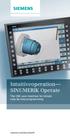 Intuitive operation SINUMERIK Operate The CNC user interface for simple step-by-step programming siemens.com/sinumerik The new SINUMERIK user interface The new SINUMERIK Operate user interface is now even
MET 306 Activity 6. Using Pro/MFG Milling Operations Creo 2.0. Machining a Mast Step
 Using Pro/MFG Milling Operations Creo 2.0 Machining a Mast Step If the Trim option is grayed out when trimming the mill volume, Save (making sure the.asm file is going to the correct subdirectory), Exit
CATIA Functional Tolerancing & Annotation TABLE OF CONTENTS
 TABLE OF CONTENTS Introduction...1 Functional Tolerancing and Annotation...2 Pull-down Menus...3 Insert...3 Functional Tolerancing and Annotation Workbench...4 Bottom Toolbar Changes...5 3D Grid Toolbar...5
Computer-Aided Numerical Control (CNC) Programming and Operation; Lathe Introduction, Advanced Mills
 1 of 6 9/9/2014 3:59 PM I. Catalog Information Credit- Degree applicable Effective Quarter: Fall 2014 MCNC 75B Computer-Aided Numerical Control (CNC) Programming and Operation; Lathe Introduction, Advanced
CNC 8055 MC. Self-teaching manual REF. 1010
 CNC 8055 MC Self-teaching manual REF. 1010 All rights reserved. No part of this documentation may be transmitted, transcribed, stored in a backup device or translated into another language without Fagor
SINUMERIK 802D SINUMERIK 802D base line. Programming and Operating Turning. Introduction 1. Turning On, Reference Point Approach 2.
 Introduction 1 Turning On, Reference Point Approach 2 Setting Up 3 SINUMERIK 802D SINUMERIK 802D base line Programming and Operating Turning Manually Controlled Mode 4 Automatic Mode 5 Part Programming
Shop-Talk Cad/Cam The language between man and machine!
 Shop-Talk Cad/Cam The language between man and machine! The job shop progamming solution Its so simple even a CaveMan can use it! CNC Solutions, Inc. 13955 Murphy Road #122 Stafford, TX 77477 TEL: 832-407-4455
Overview. Milling Machine Fundamentals. Safety. Shop Etiquette. Vehicle Projects Machine Shop
 Overview Milling Machine Fundamentals Wayne Staats, UW-Madison FSAE Safety Shop Etiquette Before Machining Indicating Calculating Feeds and Speeds Machining Maintenance Safety Respect the machines Common
CATIA Drafting TABLE OF CONTENTS
 TABLE OF CONTENTS Introduction...1 Drafting...2 Drawing Screen...3 Pull-down Menus...4 File...4 Edit...5 View...6 Insert...7 Tools...8 Drafting Workbench...9 Views and Sheets...9 Dimensions and Annotations...10
User Manual V5.0.0 1
 User Manual V5.0.0 1 Introduction... 4 Safety... 4 Initial setup... 4 Setup Wizard... 4 Linear units... 5 Angular units... 5 Feed rate... 5 Plasma cutting... 5 Rotary cutting... 5 Multiple drawings...
CNCTRAIN OVERVIEW CNC Simulation Systems 1995 2008
 CNCTRAIN OVERVIEW CNC Simulation Systems 1995 2008 p2 Table of Contents Getting Started 4 Select a control system 5 Setting the Best Screen Layout 6 Loading Cnc Files 7 Simulation Modes 9 Running the Simulation
G and M Programming for CNC Milling Machines. Denford Limited Birds Royd Brighouse West Yorkshire England HD6 1NB Tel: +44 (0) 1484 712264
 COMPUTERISED MACHINES AND SYSTEMS G and M Programming for CNC Milling Machines Denford Limited Birds Royd Brighouse West Yorkshire England HD6 1NB Tel: +44 (0) 1484 712264 G AND M Fax: PROGRAMMING +44
CNC Programming. Lecture 25. Engineering 475 Automated Production Systems
 CNC Programming Lecture 25 Engineering 475 Automated Production Systems Information Needed by a CNC Machine 1. Preparatory Information: units, incremental or absolute positioning 2. Coordinates: X,Y,Z,
Proficiency Test For Machining Center
 Proficiency Test For Machining Center Name: Date: Section One: General CNC Questions 1) The spindle speed for a particular tool in a program is incorrect and you wish to reduce it. The kind of CNC word
MACHINING OPERATIONS AND MACHINE TOOLS
 MACHINING OPERATIONS AND MACHINE TOOLS 1. Turning and Related Operations 2. Drilling and Related Operations 3. Milling 4. Machining & Turning Centers 5. Other Machining Operations 6. Shape, Tolerance and
Instrument Software Update Instructions. Keysight X-Series Signal Analyzers (PXA/MXA/EXA/CXA) Upgrading an older version to A.12.
 Instrument Software Update Instructions Keysight X-Series Signal Analyzers (PXA/MXA/EXA/CXA) Purpose Upgrading an older version to A.12.09 and above The purpose of this document is to outline the instrument
CNCTRAIN. Cnc Simulation Systems, 1985,2009
 CNCTRAIN Cnc Simulation Systems, 1985,2009 p2 Table of Contents CNCTRAIN 4 Introduction 4 CNCWRITE 6 CNCwrite Milling Example 6 CNCwrite Turning Example 7 CNCwrite Slots on Circle Example 8 G and M Code
Getting Started with CATIA Version 5
 WB Getting Started with CATIA Version 5 Page 1 CATIA User Interface Let s review the following key features: Multi-document support Standard and specific menus & toolbars (File, Edit, Insert, ) Standard
Basic 2D Design Be sure you have the latest information!
 Basic 2D Design mastercam x getting started tutorials Basic 2D Design December 2011 Be sure you have the latest information! Information might have been changed or added since this document was published.
Radius Compensation G40, G41, & G42 (cutter radius compensation for machining centers, tool nose radius compensation for turning centers)
 Radius Compensation G40, G41, & G42 (cutter radius compensation for machining centers, tool nose radius compensation for turning centers) These features are commonly well covered in most basic CNC courses.
Basic 2D Machining. mastercam x getting started tutorials. December 2011. Be sure you have the latest information!
 Basic 2D Machining mastercam x getting started tutorials Basic 2D Machining December 2011 Be sure you have the latest information! Information might have been changed or added since this document was
Short Description Installation Starting Up Configuration. Generalized Postprocessor
 Short Description Installation Starting Up Configuration Generalized Postprocessor Index TesoPost Generalized Postprocessor Index... 2 Short Description...3 Concept...3 System Requirements... 4 Delivered
NC Manufacturing. Page 1 1997 2001 DASSAULT SYSTEMES. IBM Product Lifecycle Management Solutions / Dassault Systemes
 NC Manufacturing Page 1 Tutorial Objectives Demo Description This tutorial illustrates Manufacturing integration with other CATIA products. Product Demo (LMG / PMG) Messages Integration with CATIA V5 modelling
Merging Labels, Letters, and Envelopes Word 2013
 Merging Labels, Letters, and Envelopes Word 2013 Merging... 1 Types of Merges... 1 The Merging Process... 2 Labels - A Page of the Same... 2 Labels - A Blank Page... 3 Creating Custom Labels... 3 Merged
Milling and Machining Center Basics
 Training Objectives After watching the video and reviewing this printed material, the viewer will gain knowledge and understanding of basic milling theories and procedures. In addition, the viewer will
The revolution in multi-channel turning / milling centres. ShopTurn 3G shop floor programming
 www.gildemeister.com DMG technologies for tomorrow The revolution in multi-channel turning / milling centres ShopTurn 3G shop floor programming ShopTurn 3G Optimisation of the process chain CTX gamma 1250
Solidworks Lesson 6 - Assembly & Part Drawings. UCF Engineering
 Solidworks Lesson 6 - Assembly & Part Drawings UCF Engineering Mechanical Drawings So far we have been dealing with creating parts and assemblies in SolidWorks, however, when you go to get a part machined,
Presentation on CNC MACHINES. By: Hafiz Muhammad Rizwan
 Presentation on CNC MACHINES By: Hafiz Muhammad Rizwan WELCOME CNC Machines What is a CNC Machine? CNC : Computer Numerical Control Conventionally, an operator decides and adjusts various machines parameters
accord 20 fx CNC machining centre
 accord 20 fx CNC machining centre accord 20 fx CNC machining centre New-generation modular machining centre designed for machining operations involving heavy duty stock removal with high precision and
ACS Version 10.6 - Check Layout Design
 ACS Version 10.6 - Check Layout Design Table Of Contents 1. Check Designer... 1 About the Check Design Feature... 1 Selecting a Check Template... 2 Adding a Check Template... 2 Modify a Check Template...
DEUTSCHE NORM June 1998. Forms and dimensions of undercuts
 DEUTSCHE NORM June 1998 Forms dimensions of s { 509 ICS 01.100.20; 25.020 Descriptors: Undercuts, types, dimensions, technical drawings. Supersedes August 1966 edition. Freistiche Formen, Maße In keeping
Summary Of GCODE Commands By Category (HTT0196)
 Summary Of GCODE Commands By Category (HTT0196) SET UP COMMANDS CODE COMMAND FORMAT PURPOSE PAGE # F Feed Speed Fn Designates feed rate, or rate 05 of movement, of the axes. G4 Dwell Time G4/d Specifies
SolidWorks Tutorial 5
 SolidWorks Tutorial 5 Tic-Tac-Toe Preparatory Vocational Training and Advanced Vocational Training Dassault Systèmes SolidWorks Corporation, 75 Wyman Street Waltham, Massachusetts 05 USA Phone: +-800-69-9000
EVOLUTION 7405. Complete CNC Machining in Compact Format. provides for complete machining on all 4 workpiece edges as well as the surface.
 Edgebanders CNC Machining Centers Vertical Panel Saws Pressure Beam Saws Panel Handling Complete CNC Machining in Compact Format EVOLUTION 7405 Unique! The EVOLUTION 7405 4mat provides for complete machining
EVOLUTION 7403 7405. Complete CNC Machining in Compact Format. provides for complete machining on all 4 workpiece edges as well as the surface.
 Edgebanders CNC Machining Centers Vertical Panel Saws Pressure Beam Saws Panel Handling Complete CNC Machining in Compact Format EVOLUTION 7403 7405 Unique! The EVOLUTION 7405 4mat provides for complete
What enables user-friendly operation and programming of SINUMERIK CNCs right on your PC?
 What enables user-friendly operation and programming of SINUMERIK CNCs right on your PC? SinuTrain practical CNC training based on SINUMERIK Operate. Answers for industry. Prepared for the shopfloor our
SolidWorks: Mirror, Revolve, and. Introduction to Robotics
 SolidWorks: Mirror, Revolve, and Circular Pattern Introduction to Robotics Let s Review At this point we have learned the following: Extrude Boss/Base Extruded Cut Adding Relations and Dimensions Linear
Teachware CNC Technology
 Teachware CNC Technology Contents CNC Basics CNC Turning CNC Milling CAD/CAM Turning & Milling CNC Basics - Excerpt MTS TeachWare Student s Book - MTS GmbH 1999 MTS Mathematisch Technische Software-Entwicklung
Introduction to the TI-Nspire CX
 Introduction to the TI-Nspire CX Activity Overview: In this activity, you will become familiar with the layout of the TI-Nspire CX. Step 1: Locate the Touchpad. The Touchpad is used to navigate the cursor
2.008 Design & Manufacturing II
 2.008 Design & Manufacturing II The CAD/CAM Labs Lab I Process Planning G-Code Mastercam Lathe Lab II Mastercam Mill Check G-Code Lab III CNC Mill & Lathe Machining OBJECTIVE 2 BACKGROUND 2 LAB EXERCISES
The Basics of a Rotary Table with Cross Slide mounted on a Mill Table, Version 2
 The Basics of a Rotary Table with Cross Slide mounted on a Mill Table, Version 2 by Gerry Goldberg as told to Rick Sparber 08/21/2008 Copyleft protects this article. On 08/16/2008 the Valley Metal Club
Backup MyPC. User Guide
 Backup MyPC User Guide December 2003 FOR WINDOWS XP SP1 ONLY! Restoring All of Your Files with Windows XP SP1 and Backup MyPC Some versions of Windows XP Service Pack 1 do not support automated Disaster
MITSUBISHI CNC M700V Series, M70 Series Simple programming function NAVI MILL / NAVI LATHE
 MITSUBISHI CNC M700V Series, M70 Series Simple programming function NAVI MILL / NAVI LATHE U s e r Friendly Programming function with simple operation "NAVI MILL" "NAVI LATHE" ~Installed in M700V/M70 Series~
SDC. Schroff Development Corporation WWW.SDCACAD.COM PUBLICATIONS. MultiMedia CD by Jack Zecher
 MultiMedia CD by Jack Zecher An audioi/visual presentation of the tutorial exercises SDC PUBLICATIONS Schroff Development Corporation WWW.SDCACAD.COM AutoCAD 2002 Tutorial 2-1 Lesson 2 Geometric Construction
Project Instruction Booklet. CNC Milling Machine Project
 CNC Milling Machine Project Instruction Booklet 1 P a g e Project Overview In this project students will learn how to use the following tools and shop materials to finish this project: personal protective
Table of Contents Getting Started... 3 The Motors... 4 The Control Board... 5 Setting up the Computer with Mach3... 6 Starting up the Equipment...
 User Manual Table of Contents Getting Started... 3 The Motors... 4 The Control Board... 5 Setting up the Computer with Mach3... 6 Starting up the Equipment... 12 G-Code Example... 13 2 Getting Started
MILLPWR Setup Access Code
 MILLPWR Setup Access Code An access code must be entered before the installation setup parameters can be accessed or changed. IMPORTANT The access code is 8891. Refer to Section 7, Setup. IMPORTANT Supervisors
Mastercam X6 Basic 3D Design
 Basic 3D Design mastercam x getting started tutorials Mastercam X6 Basic 3D Design December 2011 Be sure you have the latest information! Information might have been changed or added since this document
InventorCAM + Inventor. The complete integrated Manufacturing Solution GETTING STARTED
 InventorCAM + Inventor The complete integrated Manufacturing Solution GETTING STARTED InventorCAM imachining InventorCAM imachining is an intelligent High Speed Machining CAM software, designed to produce
Electron S.R.L. B55 CNC TRAINING MACHINES
 Electron S.R.L. Design Production & Trading of Educational Equipment B55 CNC TRAINING MACHINES Specifications may change without notice Page 1 of 12 File B55 MODULAR TRAINING SYSTEM FOR THE STUDY OF CNC
SolidWorks Tutorial 4 CANDLESTICK
 SolidWorks Tutorial 4 CANDLESTICK Candlestick In this tutorial you will make a simple container and a candlestick out of sheetmetal. You will learn about working with sheet metal in SolidWorks. We will
Model 288B Charge Plate Graphing Software Operators Guide
 Monroe Electronics, Inc. Model 288B Charge Plate Graphing Software Operators Guide P/N 0340175 288BGraph (80207) Software V2.01 100 Housel Ave PO Box 535 Lyndonville NY 14098 1-800-821-6001 585-765-2254
The NX CAM-SINUMERIK advantage
 The NX CAM-SINUMERIK advantage White Paper Optimizing the connection between CAM software and your machine tool controllers To get the best performance out of today s advanced machine tools, your company
Sample. CNC Programming product family... CNC Programming: Basics & Tutorial Textbook. & CNC Programming: Reference Book. CNC Programming: Workbook
 CNC Programming product family... CNC Programming: Basics & Tutorial Textbook CNC Programming: Reference Book CNC Programming: Workbook CNC Programming: Workbook - Instructor Edition CNC Programming: Basics
Complete. PCB Design Using. NI Multisim, NI Ultiboard, LPKF CircuitCAM and BoardMaster. pg. 1. Wei Siang Pee
 Complete Wei Siang Pee PCB Design Using NI Multisim, NI Ultiboard, LPKF CircuitCAM and BoardMaster pg. 1 Introduction Multisim equips educators, students, and professionals with the tools to analyze circuit
Productivity+ CNC plug-in
 Productivity+ CNC plug-in Productivity+ CNC plug-in The Productivity+ CNC plug-in is a unique software application for CNC machine tools, offering unparalleled opportunities for workpiece measurement,
Xerox DocuPrint P12 Print Driver User Guide
 Xerox DocuPrint P12 Print Driver User Guide Xerox Corporation 800 Phillips Road Webster, New York 14580 1998 Xerox Corporation. Xerox, The Document Company, the stylized X, and the identifying product
WORKBOOK MODELING OF MULTI- MEMBER MACHINES
 WORKBOOK MODELING OF MULTI- MEMBER MACHINES LUBLIN 2014 0 Author: Mirosław Ferdynus Desktop publishing: Mirosław Ferdynus Technical editor: Mirosław Ferdynus Figures: Mirosław Ferdynus Cover and graphic
Sample Table. Columns. Column 1 Column 2 Column 3 Row 1 Cell 1 Cell 2 Cell 3 Row 2 Cell 4 Cell 5 Cell 6 Row 3 Cell 7 Cell 8 Cell 9.
 Working with Tables in Microsoft Word The purpose of this document is to lead you through the steps of creating, editing and deleting tables and parts of tables. This document follows a tutorial format
Deposit Direct. Getting Started Guide
 Deposit Direct Getting Started Guide Table of Contents Before You Start... 3 Installing the Deposit Direct application for use with Microsoft Windows Vista... 4 Running Programs in Microsoft Windows Vista...
Windows XP Pro: Basics 1
 NORTHWEST MISSOURI STATE UNIVERSITY ONLINE USER S GUIDE 2004 Windows XP Pro: Basics 1 Getting on the Northwest Network Getting on the Northwest network is easy with a university-provided PC, which has
How to use the Microfilm Reader/Scanner
 How to use the Microfilm Reader/Scanner You can print each page directly to the printer on the left of the machine. This printer can only print on one side of the paper. OR, you can scan the entire article
CNC PILOT 4290 NC Software 368 650-xx V7. User s Manual
 CNC PILOT 4290 NC Software 368 650-xx V7 User s Manual English (en) 10/2004 Data input keypad Manual operating mode Automatic mode Programming modes (DIN PLUS, simulation, TURN PLUS) Organization modes
Content Author's Reference and Cookbook
 Sitecore CMS 6.5 Content Author's Reference and Cookbook Rev. 110621 Sitecore CMS 6.5 Content Author's Reference and Cookbook A Conceptual Overview and Practical Guide to Using Sitecore Table of Contents
Production of a Bottle Opener
 Production of a Bottle Opener Bottle opener and stopper The ideal companion when visiting a beer garden or also for the balcony, the bottle opener and stopper, which can be used to open standard bottles
ABERLINK 3D MKIII MEASUREMENT SOFTWARE
 ABERLINK 3D MKIII MEASUREMENT SOFTWARE PART 1 (MANUAL VERSION) COURSE TRAINING NOTES ABERLINK LTD. EASTCOMBE GLOS. GL6 7DY UK INDEX 1.0 Introduction to CMM measurement...4 2.0 Preparation and general hints
Structure Design. Preface What's New? Getting Started Basic Tasks Advanced Tasks Workbench Description Customizing Glossary Index
 Structure Design Preface What's New? Getting Started Basic Tasks Advanced Tasks Workbench Description Customizing Glossary Index Dassault Systèmes 1994-2000. All rights reserved. Preface CATIA Version
Training Document for SIMIT SCE. MODULE G2 'Startup System Simulation with SIMIT SCE V7
 Training Document for SIMIT SCE MODULE G2 Training Document for SIMIT SCE Page 1 ofn 39 Module G2 Status December 2009 Trademark SIMIT is a trademark of Siemens AG. The other names in this document may
Instruction manual. testo easyheat Configuration and Analysis software
 Instruction manual testo easyheat Configuration and Analysis software en 2 General Information General Information This documentation includes important information about the features and application of
Lathe Milling Attachment
 Lathe Milling Attachment By L C. MASON BY CLEVERLY stacking cold-rolled flat stock together, T-slots and slide for this lathe milling attachment are made without costly machinery. In fact, only two tools,
CNC Milling/ Routing Training
 CNC Milling/ Routing Training www.denford.co.uk Page C1 Table of contents Introduction... 3 Start the VR Milling V5 Software... 3 Configure the software for the machine... 4 Load your CNC file... 5 Configure
SpaceClaim Introduction Training Session. A SpaceClaim Support Document
 SpaceClaim Introduction Training Session A SpaceClaim Support Document In this class we will walk through the basic tools used to create and modify models in SpaceClaim. Introduction We will focus on:
Chapter 1. Creating Sketches in. the Sketch Mode-I. Evaluation chapter. Logon to www.cadcim.com for more details. Learning Objectives
 Chapter 1 Creating Sketches in Learning Objectives the Sketch Mode-I After completing this chapter you will be able to: Use various tools to create a geometry. Dimension a sketch. Apply constraints to
Auto Clicker Tutorial
 Auto Clicker Tutorial This Document Outlines Various Features of the Auto Clicker. The Screenshot of the Software is displayed as below and other Screenshots displayed in this Software Tutorial can help