
Instrument Software Update Instructions. Keysight X-Series Signal Analyzers (PXA/MXA/EXA/CXA) Upgrading an older version to A.12.
|
|
|
- Ethelbert Newman
- 9 years ago
- Views:
Transcription
1 Instrument Software Update Instructions Keysight X-Series Signal Analyzers (PXA/MXA/EXA/CXA) Purpose Upgrading an older version to A and above The purpose of this document is to outline the instrument software update procedure for all X-Series Signal Analyzes (PXA/MXA/EXA and CXA) from the revision that is currently installed, to the latest revision available. The advantages of updating the instrument software with the current revision include: 1. Keeps the analyzer current and up to date. 2. Updating the advanced measurement applications where appropriate. 3. Updating the PC board software where appropriate. An update to the instrument software revision does not require a new license key for the measurement application(s), so long as the application(s) were licensed prior to the update. This procedure will not update the 89601A or 89601B VSA measurement software. To determine what revision of instrument software is currently installed, press [System], {Show}, {System} on the instrument, look for the Instrument S/W Revision number (for example: A ). If the installed revision is the same as the latest revision on the web, there is no need to update the Software. Instruments with Windows XP X-Series analyzers with Windows XP must have Windows Service Pack 3 installed before upgrading to the latest instrument software. These instructions include how to identify if you analyzer has Service Pack 3, and steps to download Service Pack 3 from the Microsoft website and install it on your instrument if needed. All X-Series analyzers running Windows XP that have instrument software version A or later will already have this Service Pack installed. To determine if you need to download Service Pack 3: Go to Start My Computer right click and go to Properties.

2 If you have Service Pack 3 skip this section. To obtain Service Pack 3, go to 1. Click Downloads and select Download Center from the drop down menu. 2. Scroll down to Download categories at the bottom of the page and click Service Packs 3. Under Popular downloads click on Windows XP Service Pack 3 Network Installation Package for IT Professionals and Developers 4. Click the red Download button to download the Windows XP Service Pack 3 Network Installation Package for IT Professionals and Developers onto a large capacity USB storage device for transfer to the instrument. 5. You may see a message that says We recommend that you run Microsoft Update. Where it asks What would you like to do?, click Proceed with this download and click Next. 6. Another window may appear entitled May we also suggest. Click No thanks and continue. 7. At this point, you should see a window that will allow you to select where the file should be saved. Note: Although Microsoft recommends using Automatic Updates as the easiest way to install SP3, this process can take several hours and requires a great deal of manual intervention. Following the procedure above is faster and requires less manual intervention. Instrument Software Installation Note: This will only update the instrument software that currently resides on the C: drive of the instrument. It will not update the version that exists on the recovery partition. Because of this, if the recovery process is performed, the instrument will revert back to the instrument software revision that was originally shipped from the factory. Requirements

3 To use this update procedure, the following requirements must be met: Instrument must be functioning properly before the update is attempted Must have a USB keyboard and mouse to perform tasks required to install update Must have the ability to login to the instrument as the administrator. Must have the ability to transfer a large file (~1G Byte) to the instrument being updated. File Download 1. Go to 2. Select the appropriate link in the Software Upgrade section of the table for the x-series analyzer that is being updated. 3. Download the executable file by clicking on the Download button and then selecting the appropriate instrument model number. Save the file to a location of your choice. If you do not have the ability to download files directly to the C: drive of the instrument being updated, store the file on a large capacity USB storage device for transfer to the instrument. (The file size is ~1 GByte.) Update Procedure The default user account is Instrument, which does not have the required permissions to install the instrument software updates. For the process outlined below, the user must be logged in as the Administrator. The new X-Series automated instrument software upgrade process has an install wizard which removes the old software version and installs new software version without manual steps. The removal of the old software version and the installation of the new software version completes in approximately 40 minutes. 1. If the analyzer is not already running, turn the analyzer on and allow to completely boot up 2. Close the analyzer application by pressing [File], {Exit} 3. Connect a USB keyboard and mouse to the instrument. 4. Log out of the default user (Instrument) by selecting Start Log Off Log Off. 5. At the login prompt enter: User name: administrator Password: agilent4u (If the front panel label above the analyzer display says Agilent Technologies in the upper left-hand corner) OR Password: Keysight4u! (If the front panel label above the analyzer display says Keysight Technologies in the upper left-hand corner) Important: The password depends on the age of the disk drive installed in the instrument. Instruments labeled Agilent Technologies on the front panel may contain newer disk drives that require Keysight4u! for the password.
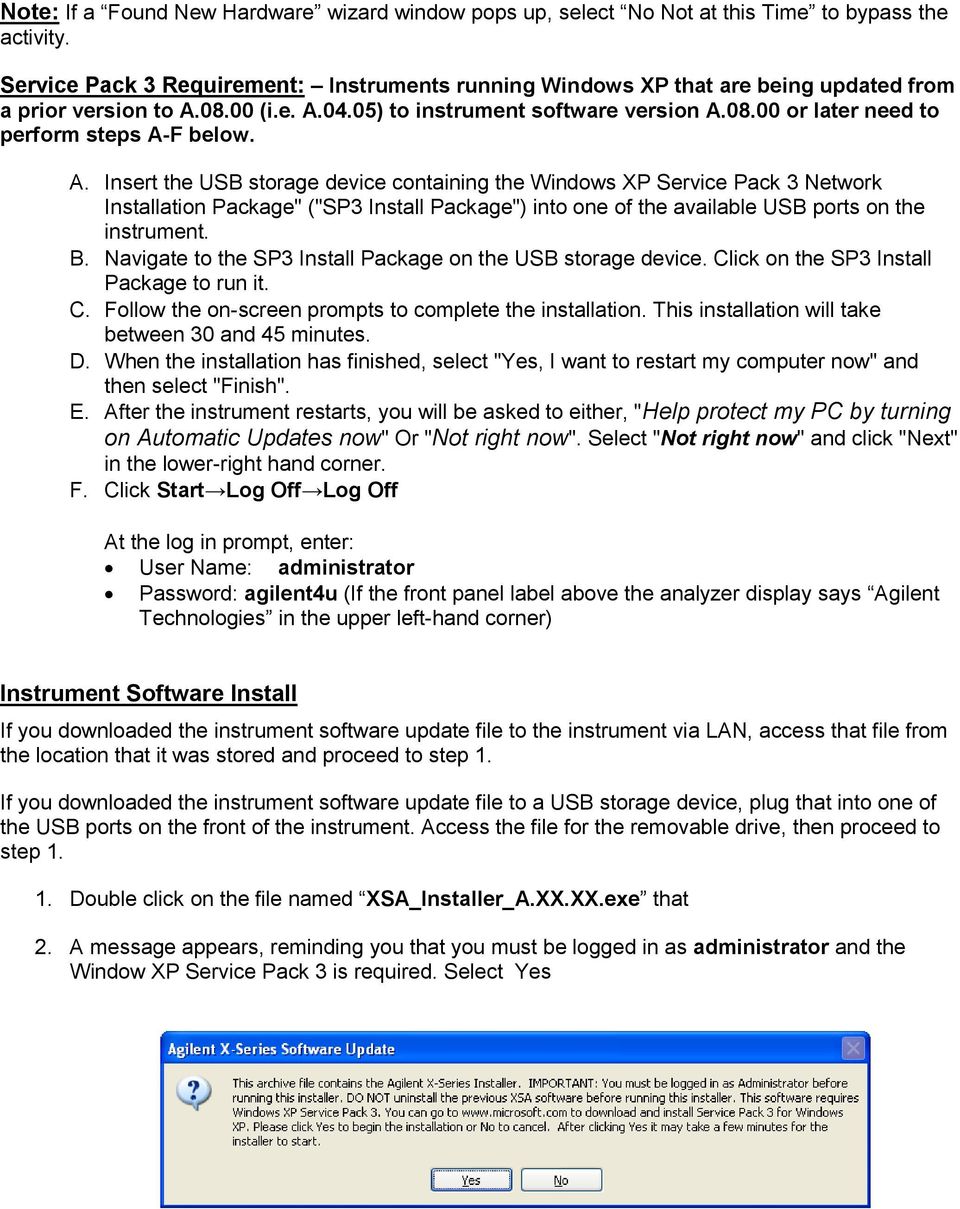
4 Note: If a Found New Hardware wizard window pops up, select No Not at this Time to bypass the activity. Service Pack 3 Requirement: Instruments running Windows XP that are being updated from a prior version to A (i.e. A.04.05) to instrument software version A or later need to perform steps A-F below. A. Insert the USB storage device containing the Windows XP Service Pack 3 Network Installation Package" ("SP3 Install Package") into one of the available USB ports on the instrument. B. Navigate to the SP3 Install Package on the USB storage device. Click on the SP3 Install Package to run it. C. Follow the on-screen prompts to complete the installation. This installation will take between 30 and 45 minutes. D. When the installation has finished, select "Yes, I want to restart my computer now" and then select "Finish". E. After the instrument restarts, you will be asked to either, "Help protect my PC by turning on Automatic Updates now" Or "Not right now". Select "Not right now" and click "Next" in the lower-right hand corner. F. Click Start Log Off Log Off At the log in prompt, enter: User Name: administrator Password: agilent4u (If the front panel label above the analyzer display says Agilent Technologies in the upper left-hand corner) Instrument Software Install If you downloaded the instrument software update file to the instrument via LAN, access that file from the location that it was stored and proceed to step 1. If you downloaded the instrument software update file to a USB storage device, plug that into one of the USB ports on the front of the instrument. Access the file for the removable drive, then proceed to step Double click on the file named XSA_Installer_A.XX.XX.exe that 2. A message appears, reminding you that you must be logged in as administrator and the Window XP Service Pack 3 is required. Select Yes

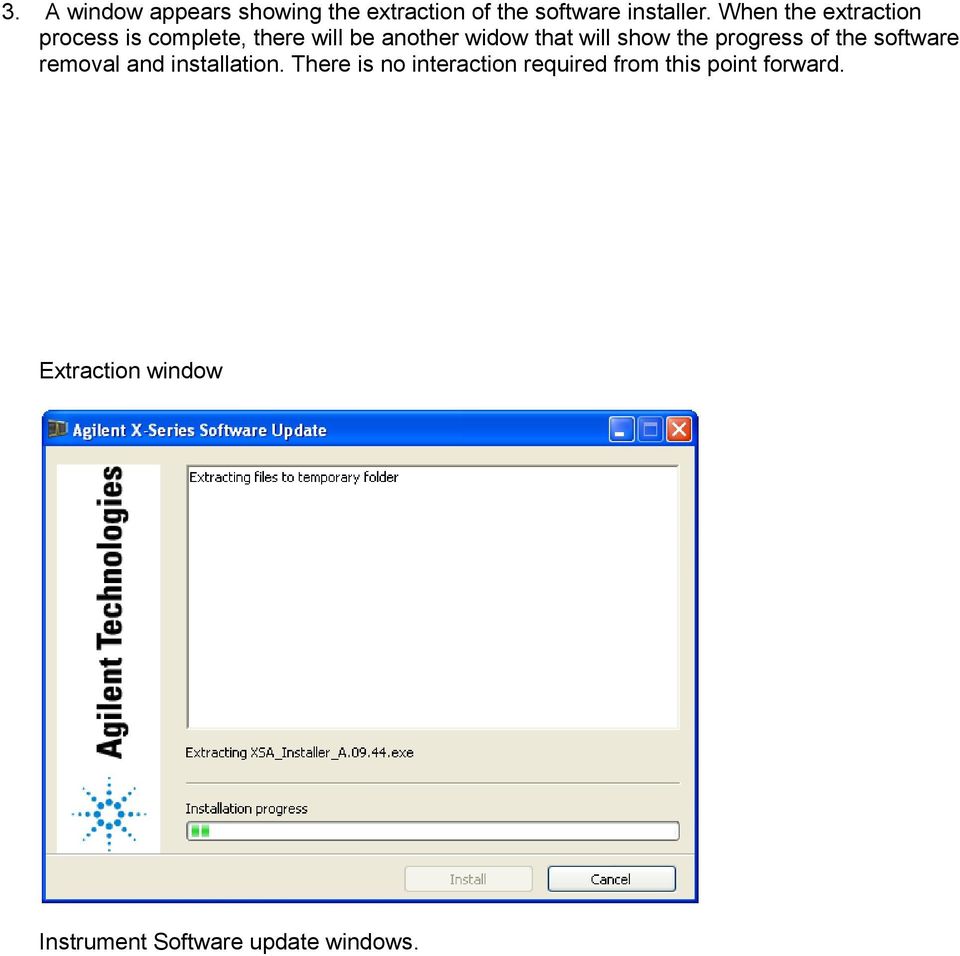
5 3. A window appears showing the extraction of the software installer. When the extraction process is complete, there will be another widow that will show the progress of the software removal and installation. There is no interaction required from this point forward. Extraction window Instrument Software update windows.
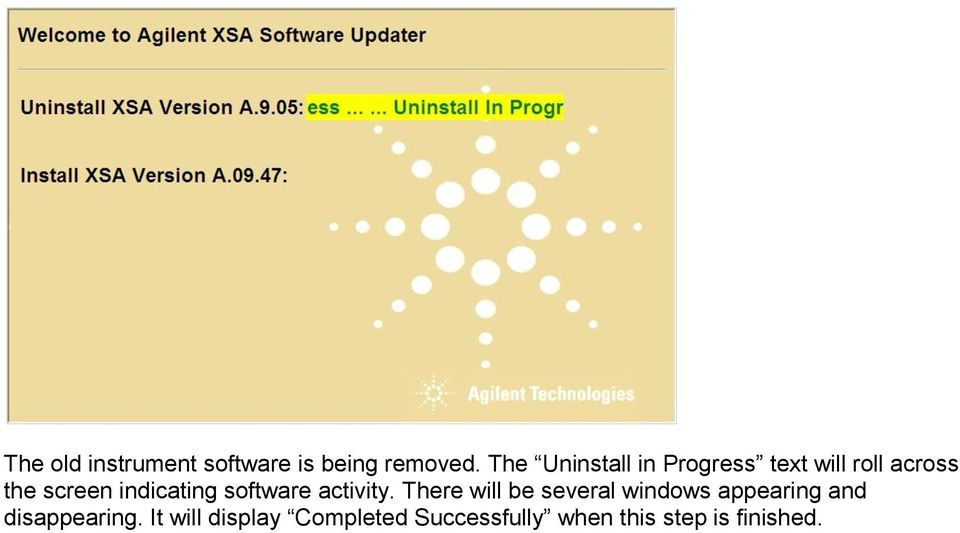
6 The old instrument software is being removed. The Uninstall in Progress text will roll across the screen indicating software activity. There will be several windows appearing and disappearing. It will display Completed Successfully when this step is finished.
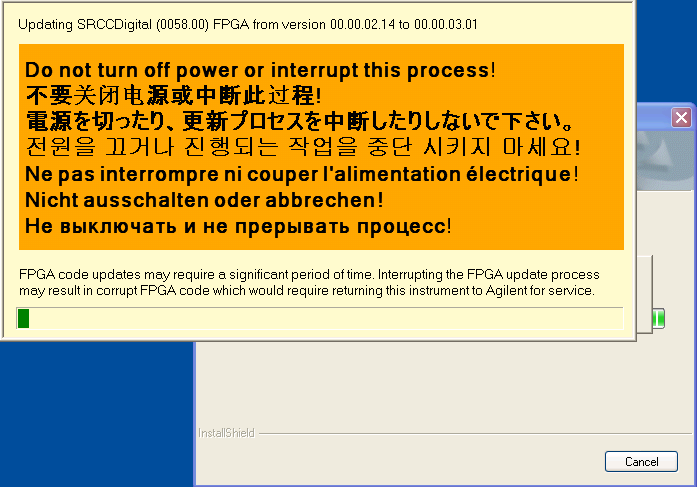
7 NO interaction with the instrument is required. The new instrument software is being installed. The Installation in Progress text will roll across the screen indicating software activity. There will be several windows appearing and disappearing during this time. NO interaction with the instrument is required. Please be patient the total software installation process can take 35 to 40 minutes. It will display Completed Successfully when the software update is complete. You will be prompted to restart you instrument at the end. Example of one of the windows you will see during the software update process: FPGA Programming: DO NOT power off the instrument at this time for ANY reason. If this process is interrupted, the instrument may end up in an unusable state, and will likely need to be sent to an Keysight for repair before it will be usable again.

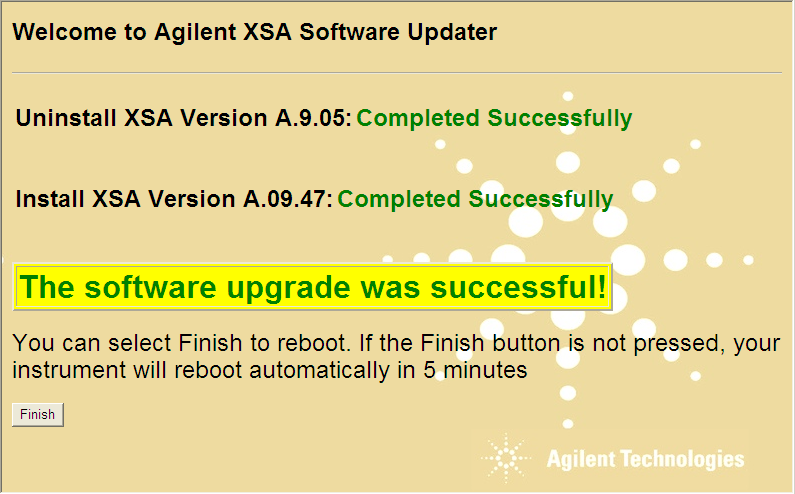

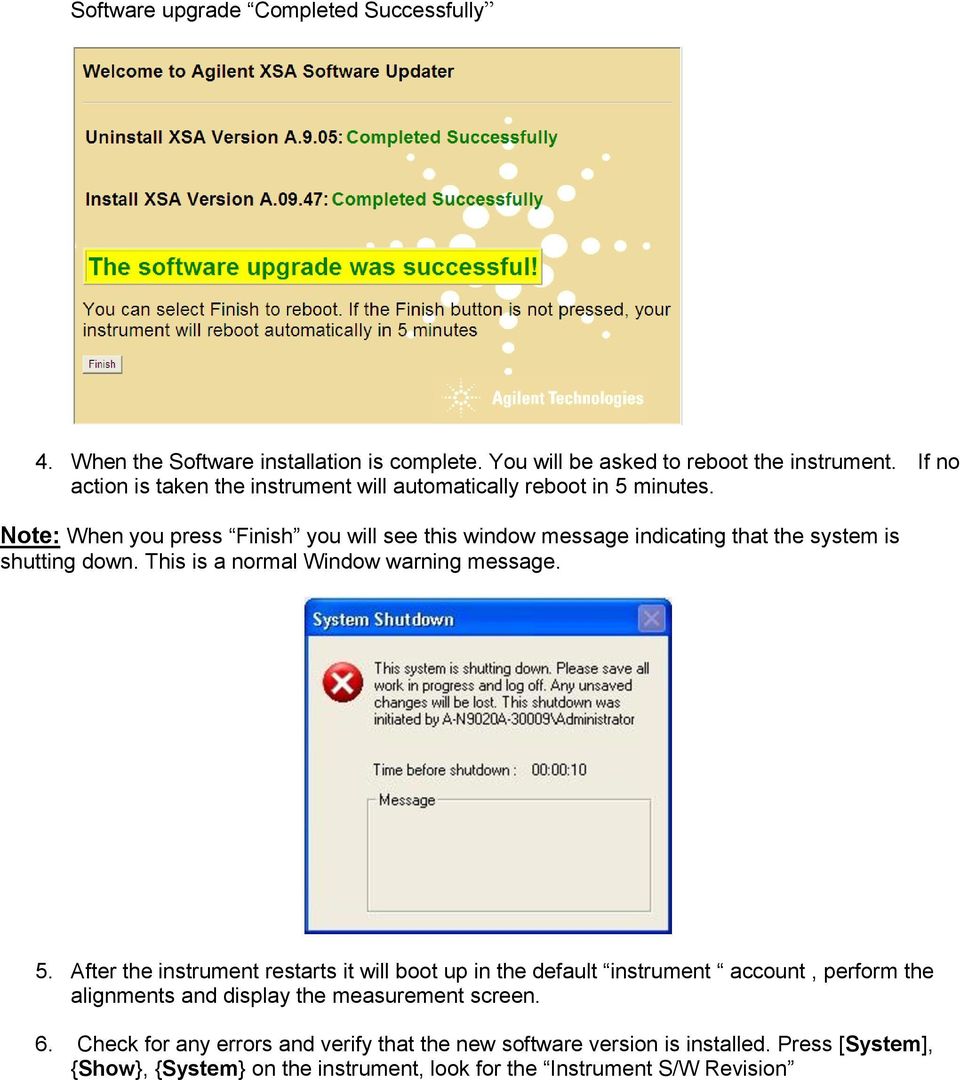
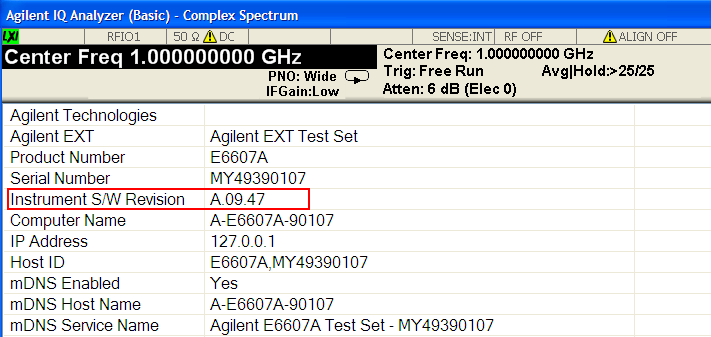
8 Software upgrade Completed Successfully 4. When the Software installation is complete. You will be asked to reboot the instrument. If no action is taken the instrument will automatically reboot in 5 minutes. Note: When you press Finish you will see this window message indicating that the system is shutting down. This is a normal Window warning message. 5. After the instrument restarts it will boot up in the default instrument account, perform the alignments and display the measurement screen. 6. Check for any errors and verify that the new software version is installed. Press [System], {Show}, {System} on the instrument, look for the Instrument S/W Revision
9 Note: If the instrument does not reboot, remove the USB storage device and cycle power. The boot order for the instrument may have been changed in the instrument BIOS previously, and the instrument may be instructed to boot from USB first, and the internal disk drive second. If this is the case, failure to remove the USB device will result in an error, as the instrument attempts to boot from it.

Instrument Software Update Instructions
 Instrument Software Update Instructions These update instructions are valid for the following signal analyzer models: N9000B, CXA Signal Analyzer N9010B, EXA Signal Analyzer N9020B, MXA Signal Analyzer
CLEARONE DOCUMENT 801-000-002 (REVISION 1.0) October, 2008. with Converge Pro Units
 APPLICATION NOTES Converge Pro Products CLEARONE DOCUMENT 801-000-002 (REVISION 1.0) October, 2008. Troubleshooting USB Connections with Converge Pro Units Description This document explains how to connect
PC Instructions for Miller LiveArc Software
 PC Instructions for Miller LiveArc Software Contents Instructions for Installing LiveArc Software on a PC... 2 Instructions for Loading Data from the LiveArc System onto a PC... 10 Instructions for Transferring
Installing Global Logger USB Drivers
 Installing Global Logger USB Drivers For 32-bit Windows 8, skip to the section labeled, Continue with Driver Installation. For 64-bit Windows 8, start the process here. At the time of this writing, the
XConsole GUI setup communication manual September 2010.
 XConsole GUI setup communication manual September 2010. XConsole is compatible with Microsoft XP, Vista and Windows 7. The software will also work if using Boot camp on a Mac. IMPORTANT NOTES: - Do NOT
Argus Direct add-in for spreadsheets - Installation Guide
 Argus Direct add-in for spreadsheets - Installation Guide The add-in enables you to download Argus data that you are permissioned for directly in Excel spreadsheets. The spreadsheet can be refreshed to
User Guide for Windows 10
 User Guide for Windows 10 System requirements E10684 First Edition July 2015 To facilitate a smoother transition from your previous operating system, read the system requirements below before upgrading
How To Install Database Oasis On A Computer Or Computer (For Free)
 INSTALLATION INSTRUCTIONS Table of Contents Installation Instructions 1 Table of Contents 1 System Requirements 2 Installation 3 Selecting where to Install the Professional Server 3 Installing Prerequisites
HP Personal Workstations Step-By- Step Instructions for Upgrading Windows Vista or Windows XP Systems to Windows 7
 HP Personal Workstations Step-By- Step Instructions for Upgrading Windows Vista or Windows XP Systems to Windows 7 September 15, 2009 Introduction HP is committed to supporting our customer s operating
Infiniium Upgrade and Recovery Guide
 Infiniium Upgrade and Recovery Guide For detailed upgrade and recovery instructions, find the section of this document that pertains to your particular model number. If your model number is not printed
Vmed QUICKSTART PC-DISPLAY INSTALLATION & PC-Display and Bluetooth Instructions
 QUICKSTART PC-DISPLAY INSTALLATION & BLUETOOTH SETUP INSTRUCTIONS Vmed PC-Display and Bluetooth Instructions This is the Quick Start manual for PC-Display software. The complete software user manual for
 UX3600/NT/NTL/NTS Quick Start Guide This Quick Start Guide will explain how to connect and communicate with the EAW UX3600, NTL720, NTS250, KFNT, and JFNT powered speakers. Table of Contents 1. Downloading
c. Securely insert the Ethernet cable from your cable or DSL modem into the Internet port (B) on the WGT634U. Broadband modem
 Start Here Follow these instructions to set up your router. Verify That Basic Requirements Are Met Assure that the following requirements are met: You have your broadband Internet service settings handy.
Table of Contents. Rebit 5 Help
 Rebit 5 Help i Rebit 5 Help Table of Contents Getting Started... 1 Making the First Recovery Point... 1 Don't Forget to Create a Recovery Media... 1 Changing Backup Settings... 1 What Does Rebit 5 Do?...
SMART CONSOLE Software and Firmware Upgrade Procedure
 Smart Console Technical Document 114-01 20/04/07 SMART CONSOLE Software and Firmware Upgrade Procedure Overview Professional and Elite Series This document describes the process of upgrading both the software
Installing Remote Desktop Connection
 SETTING UP YOUR REMOTE DESKTOP This section will assist you in setting you Remote Desktop Connection. This will allow you to create an icon for easy access to your virtual desktop. DISCLAIMER: All images
USB 2.0 3.5 External Hard Disk Drive
 USB 2.0 3.5 External Hard Disk Drive System Requirements Notebook or Desktop PC with USB2.0 or USB1.1 port. Windows 98SE/Me/2000, or Windows XP (Make sure the device driver for USB Host controller has
Joining an XP workstation to a domain Version 1.00
 Joining an XP workstation to a domain Version 1.00 All Windows XP Professional workstations need to be joined to a domain to function as part of the domain security environment. Need to Know TM 1. To join
Mini Amazing Box 4.6.1.1 Update for Windows XP with Microsoft Service Pack 2
 Mini Amazing Box 4.6.1.1 Update for Windows XP with Microsoft Service Pack 2 Below you will find extensive instructions on how to update your Amazing Box software and converter box USB driver for operating
Read Me UNISTREAM AUTOMATION IDE
 Read Me UNILOGIC SOFTWARE UNISTREAM AUTOMATION IDE Unitronics UniLogic software is the programming Integrated Development Environment (IDE) you use to configure hardware, communications, and develop both
The FlexiSchools Online Order Management System Installation Guide
 The FlexiSchools Online Order Management System Installation Guide Installation Pack Welcome to the FlexiSchools system. You will have received a disc containing: Zebra Drivers FlexiSchools Online Order
Getting Started. HP Retail Systems
 Getting Started HP Retail Systems Copyright 2012, 2013 Hewlett-Packard Development Company, L.P. The information contained herein is subject to change without notice. Microsoft and Windows are U.S. registered
Dual-boot Windows 10 alongside Windows 8
 Most of the people are very much interested to install the newly launched Operating System Windows 10 on their devices. But, it is not recommended to directly use Windows 10 as the primary OS because it
Verbatim Secure Data USB Drive. User Guide. User Guide Version 2.0 All rights reserved
 Verbatim Secure Data USB Drive User Guide User Guide Version 2.0 All rights reserved Table of Contents Table of Contents... 2 1. Introduction to Verbatim Secure Data USB Drive... 3 2. System Requirements...
Digital Persona Fingerprint Reader Installation
 Digital Persona Fingerprint Reader Installation The link to download the Fingerprint Reader Software for AXIS-ACH is http://corpcu.com/fingerprint-reader-software This will begin the download for the drivers.
EASE Scan Tool Customers. SECTION I - Installation
 Please Install Your EASE Scan Tool DVD Before Installing Any Other Software That Came With Your Package. SECTION I - Installation ATTENTION: Do NOT connect an EASE Vehicle Interface Device to your Computer
Getting to Know Your Mobile Internet Key
 Thank you for choosing the Huawei E3276 4G LTE Mobile Internet Key. With your Mobile Internet Key, you can enjoy a full high speed Internet experience on the go. This guide shows you how to set-up and
Carry it Easy. User Guide
 Carry it Easy User Guide User Manual Version 3.2 2004-2010 CoSoSys Ltd. Carry it Easy User Manual Table of Contents Table of Contents... I 1. Introduction... 1 2. System Requirements... 1 3. Installation...
How to upgrade your TOSHIBA Windows PC or Tablet to Windows 10
 How to upgrade your TOSHIBA Windows PC or Tablet to Windows 10 Dear Customer, The information in this document explains how to upgrade certain TOSHIBA Windows PC or Tablets pre-installed with Windows 7
Troubleshooting Guide
 How to remove Windows XP Service Pack 2 from your computer Company web site: Support email: support@ Support telephone: +44 20 3287-7651 +1 646 233-1163 2 Some of the EMCO Products don't work properly
Acer erecovery Management
 1 Acer erecovery Management Developed by Acer's software team, Acer erecovery Management is a tool that provides you with an easy, reliable and safe means of restoring your computer to its factory default
How to Make a USB Bootable
 /0/0 Ways to Make a USB Bootable - wiki How to Make a USB Bootable Five Methods: Ad Making a USB Drive to Install Any PC Operating System Making a Windows Vista or 7 Install Drive Creating a USB PC Repair
Dynamics CRM 2011 Outlook Configuration Guide With Windows XP
 Dynamics CRM 2011 Outlook Configuration Guide With Windows XP With migrating to a new version of CRM, one of the side-affects is that the Outlook Integration Client has also been updated and needs to be
Updating the BIOS and BMC on the FreeNAS Mini
 Updating the BIOS and BMC on the FreeNAS Mini Oct 15, 2014 ixsystems, Inc. These instructions are for updating the BMC (IPMI controller) and the BIOS for the FreeNAS Mini. You will also need the following
InventoryControl for use with QuoteWerks Quick Start Guide
 InventoryControl for use with QuoteWerks Quick Start Guide Copyright 2013 Wasp Barcode Technologies 1400 10 th St. Plano, TX 75074 All Rights Reserved STATEMENTS IN THIS DOCUMENT REGARDING THIRD PARTY
This Manual contains the following How To information:
 This Manual contains the following How To information: I. How to Register a Humminbird Product II. How to Download HumminbirdPC III. How to Download and Install Humminbird Software Upgrades IV. How to
CANON FAX L360 SOFTWARE MANUAL
 CANON FAX L360 SOFTWARE MANUAL Before You Begin the Installation: a Checklist 2 To ensure a smooth and successful installation, take some time before you begin to plan and prepare for the installation
16.4.3 Lab: Data Backup and Recovery in Windows XP
 16.4.3 Lab: Data Backup and Recovery in Windows XP Introduction Print and complete this lab. In this lab, you will back up data. You will also perform a recovery of the data. Recommended Equipment The
Welch Allyn Vital Signs Monitor 300 Series
 Welch Allyn Vital Signs Monitor 300 Series Upgrade Installation Guide Vital Signs Monitor 300 Series Service Utility Tool Version 2.0.0 ii Welch Allyn Vital Signs Monitor 300 Series Copyright 2007, Welch
Maintaining the Content Server
 CHAPTER 7 This chapter includes the following Content Server maintenance procedures: Backing Up the Content Server, page 7-1 Restoring Files, page 7-3 Upgrading the Content Server, page 7-5 Shutting Down
HP RDX Continuous Data Protection Software Quickstart Guide
 HP RDX Continuous Data Protection Software Quickstart Guide *5697-3351* HP Part Number: 5697-3351 Published: May 2014 Edition: Fourth Copyright 2008 2014 Hewlett-Packard Development Company, L.P. Microsoft,
HP MediaSmart Server Software Upgrade from v.2 to v.3
 HP MediaSmart Server Software Upgrade from v.2 to v.3 Table of Contents Table of Contents Upgrade Your Server Software to HP MediaSmart Server v.3 2 Before You Begin 3 What's New 3 Features That Will
DocAve Upgrade Guide. From Version 4.1 to 4.5
 DocAve Upgrade Guide From Version 4.1 to 4.5 About This Guide This guide is intended for those who wish to update their current version of DocAve 4.1 to the latest DocAve 4.5. It is divided into two sections:
SSD Firmware Update Utility Guide
 SSD Firmware Update Utility Guide Crucial m4 2.5 SSD Firmware Revision 070H Firmware Update Guide for Windows 8 (Update from Rev 0001, 0002, 0009, 0309, 000F, 010G, 040H to Rev 070H) Introduction This
How to Install Microsoft Windows Server 2008 R2 in VMware ESXi
 How to Install Microsoft Windows Server 2008 R2 in VMware ESXi I am not responsible for your actions or their outcomes, in any way, while reading and/or implementing this tutorial. I will not provide support
U90Ladder / VisiLogic /UniLogic and software utilities system requirements. Contents
 U90Ladder / VisiLogic /UniLogic and software utilities system requirements Contents Minimum System Requirements... Error! Bookmark not defined. UniLogic Installation... 3 Firmware Update and Management...
Quick start to evaluating HP Windows Embedded Standard 2009 Thin Clients. HP t5630w, HP t5730w, HP t5740, HP gt7720
 Get your thin client running Right out of the box Quick start to evaluating HP Windows Embedded Standard 2009 Thin Clients HP t5630w, HP t5730w, HP t5740, HP gt7720 Get your new thin client system up and
1. Installing SC-SED Driver
 1. Installing SC-SED Driver How to install the SC-SED Driver: To install the SC-SED driver application please follow the step-by-step instructions provided here. Firstly,download the setup file of SC-SED
HP MediaSmart Server Software Upgrade from v.1 to v.3
 HP MediaSmart Server Software Upgrade from v.1 to v.3 Table of Contents Upgrade Your Server Software to HP MediaSmart Server v.3 2 Before You Begin 3 What's New... 3 Features That Will Change... 4 Prepare
Windows 10.1 Tablet (UB-15MS10 and UB-15MS10SA) FAQ December 2014
 Windows 10.1 Tablet (UB-15MS10 and UB-15MS10SA) FAQ December 2014 Navigation... 2 Question 1: What are charms used for?... 2 Question 2: How do I navigate while using a mouse or trackpad?... 3 Question
A+ Guide to Software: Managing, Maintaining, and Troubleshooting, 5e. Chapter 3 Installing Windows
 : Managing, Maintaining, and Troubleshooting, 5e Chapter 3 Installing Windows Objectives How to plan a Windows installation How to install Windows Vista How to install Windows XP How to install Windows
Select Correct USB Driver
 Select Correct USB Driver Windows often installs updated drivers automatically, and defaults to this latest version. Not all of these drivers are compatible with our software. If you are experiencing communications
Cleaning your Windows 7, Windows XP and Macintosh OSX Computers
 Cleaning your Windows 7, Windows XP and Macintosh OSX Computers A cleaning of your computer can help your computer run faster and make you more efficient. We have listed some tools and how to use these
Citrix Client Install Instructions
 Citrix Client Install Instructions If you are using Citrix remotely, Information Technology Services recommends updating Citrix client to the newest version available online. You must be an administrator
AERMOD View. Version 8
 AERMOD View Version 8 Installation & HASP License Activation Instructions AERMOD View is a Microsoft Windows -based program that can be installed in the following Windows operating systems (32-Bit or 64-Bit):
A+ Guide to Managing and Maintaining Your PC, 7e. Chapter 16 Fixing Windows Problems
 A+ Guide to Managing and Maintaining Your PC, 7e Chapter 16 Fixing Windows Problems Objectives Learn what to do when a hardware device, application, or Windows component gives a problem Learn what to do
PIGCHAMP MOBILE. PigCHAMP Knowledge Software. Installation Guide for Mobile Units
 PIGCHAMP MOBILE PigCHAMP Knowledge Software Installation Guide for Mobile Units Table of Contents: Important Note:... 4 Chapter 1: PC Setup... 5 A. Install PigCHAMP Mobile Manager on Windows XP...5 B.
Windows XP.. ELITE Firmware Update procedures.. v1.41
 Windows XP.. ELITE Firmware Update procedures.. v1.41 Download and Extract the ELITE update. Note.. Please ensure you are logged in to Windows as an Administrator before carrying out the instructions in
Bluetooth Installation
 Overview Why Bluetooth? There were good reasons to use Bluetooth for this application. First, we've had customer requests for a way to locate the computer farther from the firearm, on the other side of
Note: The USTInstaller does check for and installs *if needed* Adobe Reader and MS.NET Framework. Topics covered in this Manual:
 This UST Installation guide is designed to ensure that your installation/upgrade of UST is a seamless one. Should you encounter any complexity, contact the UST Helpdesk Support Team immediately so that
In order to enable BitLocker, your hard drive must be partitioned in a particular manner.
 ENABLE BITLOCKER ON WINDOWS VISTA - WITHOUT A TPM Requirements: You must be running Vista Enterprise or Vista Ultimate to enable BitLocker. Any other version of Vista is not compatible. It is recommended
Printer Driver Installation Guide
 Fujitsu Dot Matrix Printer DL Series Printer Driver Installation Guide - Windows 7 - Windows Server 2008 R2 Rev.01: April 12, 2010 IMPORTANT NOTE TO USERS For Windows 7 / Windows Server 2008 R2, install
Contents. VPN Instructions. VPN Instructions... 1
 VPN Instructions Contents VPN Instructions... 1 Download & Install Check Point VPN Software... 2 Connect to FPUA by VPN... 6 Connect to Your Computer... 8 Determine Your Machine Type... 10 Identify 32-bit
Fiery Clone Tool For Embedded Servers User Guide
 Fiery Clone Tool For Embedded Servers User Guide Fiery Clone Tool allows you to clone image files to a folder on a USB flash drive connected to the Fiery server. You can restore the image file to the Fiery
Upgrading your VIZIO PC to Windows 8
 Upgrading your VIZIO PC to Windows 8 This guide will take you through each step in upgrading your VIZIO PC to Windows 8. The steps include: Getting Started Installing Windows 8 Updating Drivers It is important
ThinLinX TLXOS 64-bit Firmware Installation Guide for the Intel NUC Range. Materials Required
 ThinLinX TLXOS 64-bit Firmware Installation Guide for the Intel NUC Range The Intel NUC is a small form factor computer that incorporates several models from Intel Core processors to the economical Single
10.3.1.6 Lab - Data Backup and Recovery in Windows XP
 5.0 10.3.1.6 Lab - Data Backup and Recovery in Windows XP Introduction Print and complete this lab. In this lab, you will back up data. You will also perform a recovery of the data. Recommended Equipment
Upgrading from Call Center Reporting to Reporting for Call Center
 Upgrading from Call Center Reporting to Reporting for Call Center www.nortelnetworks.com 2003 Nortel Networks i Table of Contents Table of Contents Change History...1 How to use this guide...2 Introduction...
Getting Started. rp5800, rp5700 and rp3000 Models
 Getting Started rp5800, rp5700 and rp3000 Models Copyright 2011 Hewlett-Packard Development Company, L.P. The information contained herein is subject to change without notice. Microsoft, Windows, and Windows
To download and install directly to your phone
 Important update: To continue logging in from T-Mobile HotSpot locations, you will need to update the T-Mobile HotSpot Login Utility on your Dash. This upgrade takes only a few minutes. There are two ways
Instructions for installing Microsoft Windows Small Business Server 2003 R2 on HP ProLiant servers
 Instructions for installing Microsoft Windows Small Business Server 2003 R2 on HP ProLiant servers integration note Abstract... 2 Installation requirements checklists... 3 HP ProLiant server checklist...
Windows Symantec Encryption Desktop (PGP) Install Guide. Symantec Encryption Desktop (PGP) Windows system requirements
 Image not found https://it.ucsf.edu/sites/it.ucsf.edu/themes/custom/it_new/logo.png it.ucsf.edu Published on it.ucsf.edu (https://it.ucsf.edu) Home > Windows Symantec Encryption Desktop (PGP) Install Guide
Lenovo IdeaCentre Q180 Series
 Machine type: 10087/3110 Lenovo IdeaCentre Q180 Series User Guide Version 1.0 2011.09 31500665 Important Safety Information Before using this manual, it is important that you read and understand all of
2014 Electrical Server Installation Guide
 2014 Electrical Server Installation Guide TITLE: 2014 Electrical Server Installation Guide DATE: September 2013 SUBJECT: ABSTRACT: Installation guide for SolidWorks Electrical 2014 on the server Guide
DUKANE Intelligent Assembly Solutions
 PC Configuration Requirements: Configuration Requirements for ipc Operation The hardware and operating system of the PC must comply with a list of minimum requirements for proper operation with the ipc
Weston Public Schools Virtual Desktop Access Instructions
 Instructions for connecting to the Weston Schools Virtual Desktop Environment Notes: You will have to have administrator permission on your computer in order to install a VMWare Client application which
For Windows XP 64 bit
 Installation Guide Beta drivers for Windows XP[64], Win 7[32/64bit,], Win 8.1[64bit] This version of Orange-5 software introduces support for 64 bit operational systems (Win XP 64 bit, Win7 64, etc..).
PLEASE NOTE: The client data used in these manuals is purely fictional.
 Welcome! CAREWare Quick Start guides will walk you through the basics of setting up, managing and using the main CAREWare functions. It is intended for non-technical users who just need to get basic information
Chapter 1 Installing the Gateway
 Chapter 1 Installing the Gateway This chapter describes how to set up the wireless voice gateway on your Local Area Network (LAN), connect to the Internet, and perform basic configuration. For information
1 Intel Smart Connect Technology Installation Guide:
 1 Intel Smart Connect Technology Installation Guide: 1.1 System Requirements The following are required on a system: System BIOS supporting and enabled for Intel Smart Connect Technology Microsoft* Windows*
Crystal Print Control Installation Instructions for PCs running Microsoft Windows XP and using the Internet Explorer browser
 Crystal Print Control Installation Instructions for PCs running Microsoft Windows XP and using the Internet Explorer browser Important Notice: You must have administrative rights to your PC to perform
Agilent 89600 Software. Software Installation Guide
 Agilent 89600 Software Software Installation Guide Notices Agilent Technologies, Inc. 2000-2012 No part of this manual may be reproduced in any form or by any means (including electronic storage and retrieval
Troubleshooting Sprint Mobile Broadband USB Modem by Novatel Wireless TM (Ovation TM U727)
 Troubleshooting Sprint Mobile Broadband USB Modem by Novatel Wireless TM (Ovation TM U727) If you are unable to resolve your issue using the Troubleshooting steps below, please contact Sprint Customer
Installation and initial configuration of UI View32, with PMap Server 7 and Precision Mapping Streets and Traveler 8.0 on Microsoft Vista
 Installation and initial configuration of UI View32, with PMap Server 7 and Precision Mapping Streets and Traveler 8.0 on Microsoft Vista Background: UI View is considered one of the best Automated Position
BIGPOND ONLINE STORAGE USER GUIDE Issue 1.1.0-18 August 2005
 BIGPOND ONLINE STORAGE USER GUIDE Issue 1.1.0-18 August 2005 PLEASE NOTE: The contents of this publication, and any associated documentation provided to you, must not be disclosed to any third party without
Reboot the ExtraHop System and Test Hardware with the Rescue USB Flash Drive
 Reboot the ExtraHop System and Test Hardware with the Rescue USB Flash Drive This guide explains how to create and use a Rescue USB flash drive to reinstall and recover the ExtraHop system. When booting
HP EliteBook and ProBook Notebook PCs - Upgrading from Windows 7 to Windows 8
 HP EliteBook and ProBook Notebook PCs - Upgrading from Windows 7 to Windows 8 This document pertains to HP business notebook computers to be upgraded from Windows 7 using a digital copy of Windows 8. You
Applies to: F1PG200ENau Belkin Analogue Telephone Adapter (ATA) Firmware release notes
 Applies to: F1PG200ENau Belkin Analogue Telephone Adapter (ATA) Firmware release notes 1. Voice over IP registration indicator and error codes 2. Error 482 loop detected fixed. This error is caused if
Making a system recovery disc
 System Recovery TM Should your system fail or become corrupted, you have options. You might be able to recover your system from the recovery partition on the hard disk drive, from a recovery disc you made
MyNetFone Virtual Fax. Virtual Fax Installation
 Table of Contents MyNetFone Virtual Fax MyNetFone Virtual Fax Installation... 1 Changing the SIP endpoint details for the fax driver... 11 Uninstalling Virtual Fax... 13 Virtual Fax Installation Follow
Installing the Gerber P2C Plotter USB Driver
 Installing the Gerber P2C Plotter USB Driver 1 You can install a Gerber P2C plotter using a USB connection and communicate with it using compatible design software. The following procedures describe installing
Remote access set up for a home PC
 Remote access set up for a home PC Please follow these instructions to set up remote access from home. These instructions are for a Windows PC only.! * NOTE Upon installation, you will be required To restart
The FlexiSchools Online Order Management (FOOM) Installation Guide
 The FlexiSchools Online Order Management (FOOM) Installation Guide Installation Pack Welcome to the FlexiSchools system. You will have been sent an email and two packages delivered by courier, one with
ESC Mobile App Guide
 ESC Mobile App Guide General Info and Installation Guide For Android Note: If you re just trying to demo the ESC Mobile app in our sample database, then all that is required is to download it from your
Getting Started with VMware Fusion
 Getting Started with VMware Fusion VMware Fusion for Mac OS X 2008 2012 EN-000933-00 2 Getting Started with VMware Fusion You can find the most up-to-date technical documentation on the VMware Web site
Virtual Private Server Manual
 Virtual Private Server Manual How to access your VPS....Page 2 Downloading MetaTrader 4.Page 6 Automatic Performance Updates and MT4 Restart.. Page 10 Troubleshooting.Page 14 Loading an EA..Page 15 1 How
Guide to Installing BBL Crystal MIND on Windows 7
 Guide to Installing BBL Crystal MIND on Windows 7 Introduction The BBL Crystal MIND software can not be directly installed on the Microsoft Windows 7 platform, however it can be installed and run via XP
Smart Control Center. User Guide. 350 East Plumeria Drive San Jose, CA 95134 USA. November 2010 202-10685-01 v1.0
 Smart Control Center User Guide 350 East Plumeria Drive San Jose, CA 95134 USA November 2010 202-10685-01 v1.0 2010 NETGEAR, Inc. All rights reserved. No part of this publication may be reproduced, transmitted,
OnDemand Version 1.7. Installation Manual and User s Guide. AST Technology. Sophienstrasse 4 32051 Herford Germany
 OnDemand Version 1.7 Installation Manual and User s Guide AST Technology Sophienstrasse 4 32051 Herford Germany Contents Overview of OnDemand Software... 1 System and Software Requirements... 1 CVe Monitor
Image Backup and Recovery Procedures
 Image Backup and Recovery Procedures Thank you for purchasing a Fujitsu computer. Fujitsu is committed to bringing you the best computing experience with your new system. It is very important that you