
Auto Clicker Tutorial
|
|
|
- Ada Maxwell
- 9 years ago
- Views:
Transcription

1 Auto Clicker Tutorial This Document Outlines Various Features of the Auto Clicker. The Screenshot of the Software is displayed as below and other Screenshots displayed in this Software Tutorial can help you to utilize various features of the Software. 1 P a g e


2 Apart from the Main Screen of the Auto Clicker, you can also use the Notification Area Icon created by the Auto Clicker as displayed below to view and configure various features of the software. The above Screenshot was captured by hovering Mouse Cursor over the Icon of Auto Clicker. You can also Right Click on the Notification Area Icon to view a Menu from which you can configure various features of the software as displayed in the Screenshot below. 2 P a g e


3 Another way to configure various features of the Auto Clicker is to click on the top left corner of the software and invoke the Software s System Menu as displayed in the screenshot below. Launch Auto Clicker You can launch or Start Auto Clicker with the Desktop Shortcut created during Setup or launch the Auto Clicker from the Programs Menu. 3 P a g e


4 Use a Keyboard Shortcut to Start and Stop Automatic Clicking The Auto Clicker allows you to use a Configurable Keyboard Shortcut to Start Automatic Clicking. When the Auto Clicker is Clicking, you can press the same Keyboard Shortcut again to stop the Automatic Clicking. Step 1: Click with Mouse on the White Box which says As displayed in the Screenshot below. None Step 2: Now Press the Keyboard Shortcut you want to use in order to Start / Stop Automatic Clicking. As Displayed in the Above Screenshot, the Keyboard Key F8 was pressed after clicking on the word None in the White Box. 4 P a g e


5 Step 3: Click on the Button which says Save Keyboard Key Once you have followed the above Steps, you can either Minimize the Auto Clicker or Hide it to Notification Area by Clicking on the Button Labeled Hide to System Tray and use the Keyboard Shortcut to Start and Stop Automatic Mouse Clicking. Note: When Mouse Clicking is being done by the Auto Clicker, the Icon in Notification Area changes From To Note that a Blue Border Appears around the Red Auto Clicker Icon in the Notification Area when the Auto Clicker is Clicking. 5 P a g e


6 Note: Once you have assigned a Keyboard Shortcut, the Tooltip text of the Notification Icon of Auto Clicker changes From To This Tooltip Text can also be useful when you forget the Keyboard Shortcut to Start / Stop Automatic Clicking. Just Hover Mouse Cursor over the icon of Auto Clicker to know the settings stored in the software. Note: In case you have Enabled Multiple Instances, every time you launch Auto Clicker from Desktop Shortcut or Programs Menu, a New Icon will appear in the Notification Area and each icon / Instance will have its own Settings. 6 P a g e


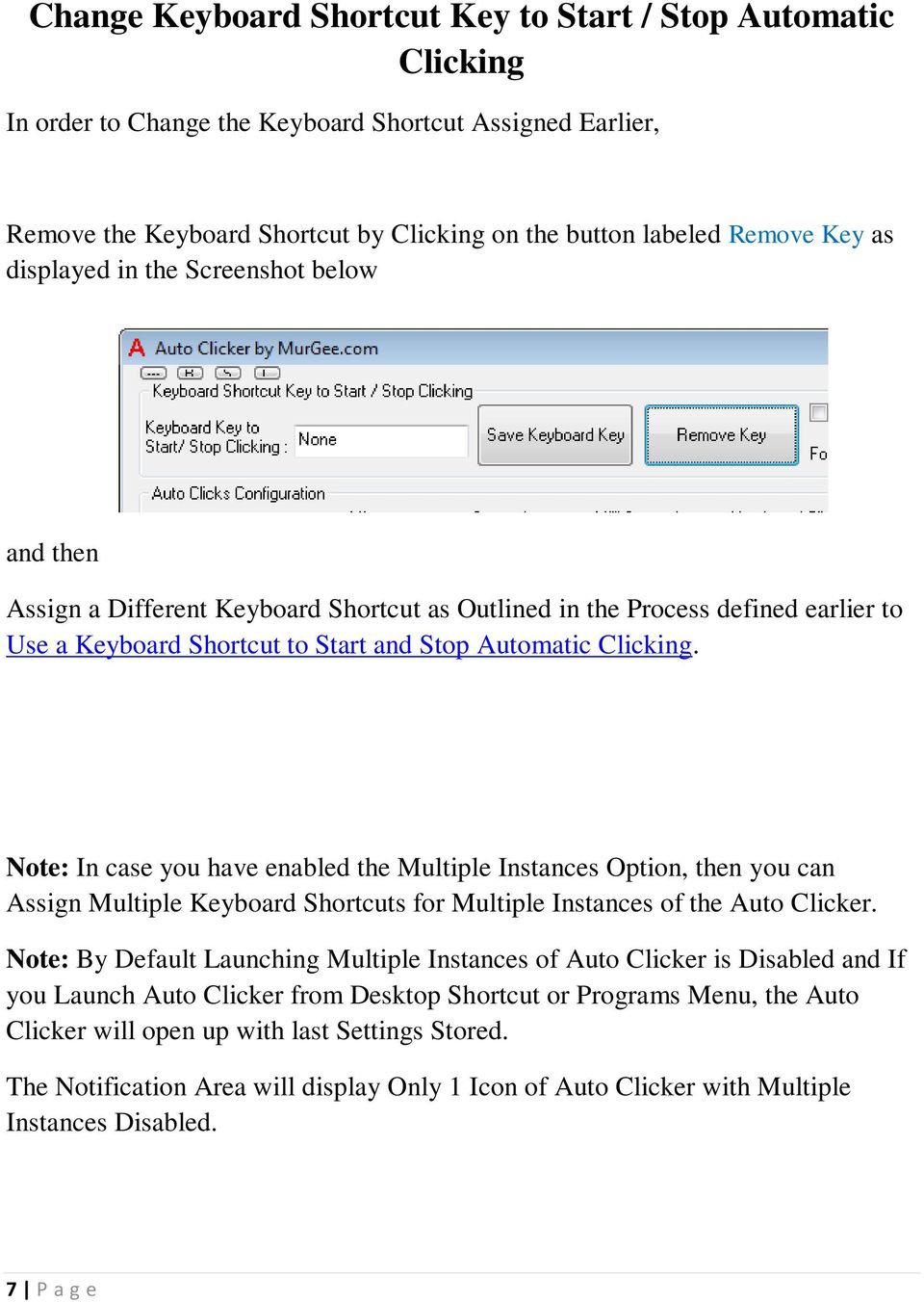
7 Change Keyboard Shortcut Key to Start / Stop Automatic Clicking In order to Change the Keyboard Shortcut Assigned Earlier, Remove the Keyboard Shortcut by Clicking on the button labeled Remove Key as displayed in the Screenshot below and then Assign a Different Keyboard Shortcut as Outlined in the Process defined earlier to Use a Keyboard Shortcut to Start and Stop Automatic Clicking. Note: In case you have enabled the Multiple Instances Option, then you can Assign Multiple Keyboard Shortcuts for Multiple Instances of the Auto Clicker. Note: By Default Launching Multiple Instances of Auto Clicker is Disabled and If you Launch Auto Clicker from Desktop Shortcut or Programs Menu, the Auto Clicker will open up with last Settings Stored. The Notification Area will display Only 1 Icon of Auto Clicker with Multiple Instances Disabled. 7 P a g e

8 Where do you want the Auto Clicker to Click? You can configure the Auto Clicker to either Click at Current Mouse Cursor Location or Click at a Specific Screen Location. Note a little button labeled L at the middle right corner of the Auto Clicker. This button can be used to configure the Automatic Clicking Location of the Auto Clicker with the screen as displayed below. By Default the Auto Clicker is configured to Click wherever Mouse Cursor is Present. 8 P a g e


9 In case you would like the Auto Clicker to Click at a Specific Screen Location, Click on the Button labeled Pick Location and then Click at the Specific Screen Location. As per above Screenshot, the Auto Clicker will Click at Screen Location Identified by X = 1503 Pixel and Y = 277 Pixel. The ToolTip Text of the Notification Icon also displays the Click Location as Configured above. Note: The X (= 828) and Y (= 239) Values displayed in the Click Location Screenshot above are the Mouse Location Co-Ordinates at the Time of Screenshot Capture. They are displayed for Information Purpose Only. 9 P a g e


10 Single or Multiple Instances of Auto Clicker The Auto Clicker allows you to Launch Single or Multiple Instances of Auto Clicker from Desktop Shortcut. By default, Multiple Instances option is disabled which means that every time you launch the Auto Clicker from Desktop Shortcut or Programs Menu, a Single Auto Clicker will open up and 1 Icon will be displayed in the Notification Area. In order to view the current Settings / Change the Single or Multiple Instance Settings, Click on the Single or Multiple Instances Menu as displayed in the Screenshot above. Now select any of the Radio Buttons as displayed in the Screenshot below. In case it is the first time you are using the Auto Clicker, go ahead with Single Instance option and play with other settings of the software as required. 10 P a g e


11 The Advantage of Using Multiple Instances is that you can use the Auto Clicker with different Keyboard Shortcuts. Let s say you can configure one Keyboard Shortcut to Click Really Fast and configure another Keyboard Shortcut to Click Slow and so on. Example: Launch 2 Instances of Auto Clicker. Step 1: Double Click on Desktop Shortcut of Auto Clicker or Click on the Auto Clicker Icon in the Programs Menu. Step 2: Configure Auto Clicker to Launch Multiple Instances from the Instance Controller Screen as displayed above. Step 3: Double Click on Desktop Shortcut of Auto Clicker or Click on the Auto Clicker Icon in the Programs Menu. Step 4: Verify 2 Instances of Auto Clicker Running in Notification Area as displayed below. Double Click on any of the Icon in Notification Area to Configure that Instance. 11 P a g e


12 Let Auto Clicker do Clicking like Humans The Auto Clicker allows you to simulate Human Clicking. When Clicking is done by Hand, the Mouse Clicks are not done at a single and fixed specific location. The Extra Random Distance option allows you to Jiggle Mouse Cursor while Clicking so that the Game or Software on which you are Clicking feels that a Human is Clicking. The Extra Random Distance Screen allows you to Enable or Disable the Mouse Jiggling when Clicking. 12 P a g e


13 Let Auto Clicker do Clicking at Irregular Speed Another way to Simulate Human Clicking is add Random Time Delay between Consecutive Clicks. The Auto Clicker allows you to add configurable Extra Random time Delay between Consecutive Clicks with the Extra Random Delay button as displayed in the Screenshot below. In case your Auto Clicker does not have this feature, you might be using an older version of the software. In order to get this feature, do visit the Auto Clicker page and download the latest version and let the Auto Clicker do Clicking Just like Humans do at Variable Speed and Variable Location. 13 P a g e


14 Click or Hold Mouse Button or Something Else? The Auto Clicker allows you to Automate Left Click, Right Click, Middle Click or even keep on pressing Mouse Button down for as long as you want. By default the Auto Clicker is configured to do Left Mouse Clicks. In order to change the Mouse Click type, just select the appropriate Click type from the Mouse Click Dropdown. 14 P a g e


15 Other Features of Auto Clicker There are lots of other features in the Auto Clicker which makes it really the best. The Latest Version of Auto Clicker is available from MurGee.com. In case you need another feature in Auto Clicker, do write to and get it implemented for you without fees. After using the basic features of the Auto Clicker as outlined above, you should be able to explore on your own and explore other features of this software. Given below is the list of other features which have not been documented in this Tutorial, but are available in the software. Change Text and background Color of the Auto Clicker. 15 P a g e


16 Change the Mouse Cursor that is displayed when Clicking is done by the Auto Clicker. Assign an audio file (.wav file) to be played automatically when Clicking is done. 16 P a g e


17 Click only if Mouse Cursor is Not Moved. Change the Mouse Clicking Speed to use this Auto Clicker as Fast Clicker or as Slow Clicker. Basic Rule is lesser the Delay between the Clicks, the Faster the Auto Clicker will Click. Start/ Stop Automatic Mouse Clicking with Actual Mouse Click. This way you can Start / Stop Automatic Mouse Clicking when let s say Middle Mouse Button is Clicked. In case you do not see any of the feature outlined above in your Auto Clicker, Exit the Software, Uninstall it, Download and Install from the Auto Clicker Home Page and get the Best Auto Clicker and let it Click for you. 17 P a g e

SnagIt Add-Ins User Guide
 Version 8.1 User Guide By TechSmith Corp. User Guide User Guide Contents User s Guide 1 Overview...1 Word, PowerPoint, and Excel Add-Ins...2 Outlook Add-In...2 Internet Explorer / Windows Explorer Add-In...2
Celluon Laserkey - User Guide for Microsoft Windows XP
 Celluon Laserkey - User Guide for Microsoft Windows XP INDEX 1. System Requirements... 2 2. Installation / Uninstalling the Driver... 2 3. Bluetooth dongle software settings... 3 4. Connection Method...4
Bluetooth Installation
 Overview Why Bluetooth? There were good reasons to use Bluetooth for this application. First, we've had customer requests for a way to locate the computer farther from the firearm, on the other side of
First Time On-Campus Remote Desktop Connection ipad Edition
 First Time On-Campus Remote Desktop Connection ipad Edition General: This guide is a step-by-step guide for configuring and using an ipad to remotely connect to a work computer from on campus. This guide
Welcome to Bridgit @ CSU The Software Used To Data Conference.
 Welcome to Bridgit @ CSU The Software Used To Data Conference. Overview SMART Bridgit software is a client/server application that lets you share programs and information with anyone, anywhere in the world.
Stellar Phoenix Exchange Server Backup
 Stellar Phoenix Exchange Server Backup Version 1.0 Installation Guide Introduction This is the first release of Stellar Phoenix Exchange Server Backup tool documentation. The contents will be updated periodically
Tutorial for Tracker and Supporting Software By David Chandler
 Tutorial for Tracker and Supporting Software By David Chandler I use a number of free, open source programs to do video analysis. 1. Avidemux, to exerpt the video clip, read the video properties, and save
ICP Data Entry Module Training document. HHC Data Entry Module Training Document
 HHC Data Entry Module Training Document Contents 1. Introduction... 4 1.1 About this Guide... 4 1.2 Scope... 4 2. Step for testing HHC Data Entry Module.. Error! Bookmark not defined. STEP 1 : ICP HHC
Using WebEx Player. Playing a recording. Installing WebEx Player. System requirements for listening to audio in a recording
 17 of 24 Using WebEx Player Using WebEx Player, you can play back any recording that was made using WebEx Recorder that is, a WebEx Recording Format (.wrf) file. Installing WebEx Player If you do not yet
Instructions for Importing (migrating) Data
 Instructions for Importing (migrating) Data from CTAS Version 7 to CTAS Version 8 For Windows 8 and 8.1 CTAS Version 8 is designed to work with your Version 7 data if you choose to. These instructions
Instrument Software Update Instructions. Keysight X-Series Signal Analyzers (PXA/MXA/EXA/CXA) Upgrading an older version to A.12.
 Instrument Software Update Instructions Keysight X-Series Signal Analyzers (PXA/MXA/EXA/CXA) Purpose Upgrading an older version to A.12.09 and above The purpose of this document is to outline the instrument
6. If you want to enter specific formats, click the Format Tab to auto format the information that is entered into the field.
 Adobe Acrobat Professional X Part 3 - Creating Fillable Forms Preparing the Form Create the form in Word, including underlines, images and any other text you would like showing on the form. Convert the
5. Tutorial. Starting FlashCut CNC
 FlashCut CNC Section 5 Tutorial 259 5. Tutorial Starting FlashCut CNC To start FlashCut CNC, click on the Start button, select Programs, select FlashCut CNC 4, then select the FlashCut CNC 4 icon. A dialog
Inside Blackboard Collaborate for Moderators
 Inside Blackboard Collaborate for Moderators Entering a Blackboard Collaborate Web Conference 1. The first time you click on the name of the web conference you wish to enter, you will need to download
AT&T Global Network Client v6.8.0 and Passport IP Setup Instructions for Broadband VPN Access
 AT&T Global Network Client v6.8.0 and Passport IP Setup Instructions for Broadband VPN Access October 19, 2006 1 Installing AT&T GNC 6.8.0 for Broadband VPN Access... 3 Getting Started... 3 License Agreement...
Microsoft PowerPoint 2010 Handout
 Microsoft PowerPoint 2010 Handout PowerPoint is a presentation software program that is part of the Microsoft Office package. This program helps you to enhance your oral presentation and keep the audience
Desktop VirtualPBX Softphone Setup Instructions for Windows
 Desktop VirtualPBX Softphone Setup Instructions for Windows If you have not yet done so, please contact us to purchase the VirtualPBX Desktop Softphone. Desktop Softphones are a one time payment of $40
User manual. Screen Capture Tool. www.a4tech.com
 User manual Screen Capture Tool www.a4tech.com About "Screen Capture Tool" Consists of value-added functions, such as: Screen capture, TutorPen, 16-in-One, multimedia, Internet, 4-way wheel, etc. Best
SMART BOARD USER GUIDE FOR PC TABLE OF CONTENTS I. BEFORE YOU USE THE SMART BOARD. What is it?
 SMART BOARD USER GUIDE FOR PC What is it? SMART Board is an interactive whiteboard available in an increasing number of classrooms at the University of Tennessee. While your laptop image is projected on
Remote Online Support
 Remote Online Support STRONGVON Tournament Management System 1 Overview The Remote Online Support allow STRONGVON support personnel to log into your computer over the Internet to troubleshoot your system
BIGPOND ONLINE STORAGE USER GUIDE Issue 1.1.0-18 August 2005
 BIGPOND ONLINE STORAGE USER GUIDE Issue 1.1.0-18 August 2005 PLEASE NOTE: The contents of this publication, and any associated documentation provided to you, must not be disclosed to any third party without
First Time Off-Campus Remote Desktop Connection ipad Edition
 First Time Off-Campus Remote Desktop Connection ipad Edition General: This guide is a step-by-step guide for configuring and using an ipad to remotely connect to a work computer from off campus. This guide
1. Right click using your mouse on the desktop and select New Shortcut.
 offers 3 login page styles: Standard Login, List Login or Quick Time Punch. Each login page can be saved as a shortcut to your desktop or as a bookmark for easy fast login access. For quicker access to
Contents. I. General Information...3. III. Pen Storage and Maintenance...9 IV. Question & Answer...10
 10 Contents I. General Information...3 1. Overview...3 2. Pen Tablet Functions...3 3. System Requirements...3 4. Installing the Driver Software on Windows...3 5. Hardware Installation...3 6. Verifying
Macs are not directly compatible with Noetix.
 Those that use Macintosh computers to access Noetix cannot directly access Noetix through http://www.sandiego.edu/noetix. If one is on a Mac and goes to Noetix directly in a web browser, the page is likely
Audio Web Conferencing Elluminate Live and Skype Guidelines for Use
 Audio Web Conferencing Elluminate Live and Skype Guidelines for Use UNITAR will use Audio Web Conferencing (AWC) to let Mentors and Fellows speak and communicate with each other in real time during their
Step-by-Step Guide Procurement Card & Travel Reconciliation Expense Reports: Step 4c Attaching Documents by Receipt Store to Individual Expenses
 There are three ways to attach documents to an expense report in the Concur Travel & Expense System: scanning, faxing, or using the Receipt Store to attach to individual expenses. Note: Approvers have
KEYBOARD SHORTCUTS. Note: Keyboard shortcuts may be different for the same icon depending upon the SAP screen you are in.
 KEYBOARD SHORTCUTS Instead of an SAP icon button, you can use a keyboard shortcut. A keyboard shortcut is a key or combination of keys that you can use to access icon button functions while you are working
ios 9 Accessibility Switch Control - The Missing User Guide Updated 09/15/15
 ios 9 Accessibility Switch Control - The Missing User Guide Updated 09/15/15 Apple, ipad, iphone, and ipod touch are trademarks of Apple Inc., registered in the U.S. and other countries. ios is a trademark
Installing Remote Desktop Connection
 SETTING UP YOUR REMOTE DESKTOP This section will assist you in setting you Remote Desktop Connection. This will allow you to create an icon for easy access to your virtual desktop. DISCLAIMER: All images
Chart of Accounts Management Window - Screenshot The Chart of Accounts Management window could also be referred to as the Accounting Management
 Chart of Accounts Management Window - Screenshot The Chart of Accounts Management window could also be referred to as the Accounting Management Window. This window can be used to navigate to general accounting
Using WINK to create custom animated tutorials
 Using WINK to create custom animated tutorials A great way for students and teachers alike to learn how to use new software is to see it demonstrated and to reinforce the lesson by reviewing the demonstration.
itunes Basics Website: http://etc.usf.edu/te/
 Website: http://etc.usf.edu/te/ itunes is the digital media management program included in ilife. With itunes you can easily import songs from your favorite CDs or purchase them from the itunes Store.
IT Quick Reference Guides Using Windows 7
 IT Quick Reference Guides Using Windows 7 Windows Guides This sheet covers many of the basic commands for using the Windows 7 operating system. WELCOME TO WINDOWS 7 After you log into your machine, the
ACS CLIENT SOFTWARE USER MANUAL
 ACS CLIENT SOFTWARE USER MANUAL 1 ACS USER GUIDE 1.1 System Requirement Recommended System Requirement OS CPU VGA RAM HDD WindowXP, Vista Pentium 4, 2Ghz 1024*768, 64MB 24bit color graphic card 1GB 20MB
Tutorial. Introduction to Windows Movie Maker 2.1. A Hands-on Workshop. from the Academic Technology Center. Distributed Learning Services, CIT
 Tutorial Introduction to Windows Movie Maker 2.1 A Hands-on Workshop from the Academic Technology Center Distributed Learning Services, CIT Adapted with permission by Waynesburg College AAM Copyright 2005
Microsoft Word 2010. Quick Reference Guide. Union Institute & University
 Microsoft Word 2010 Quick Reference Guide Union Institute & University Contents Using Word Help (F1)... 4 Window Contents:... 4 File tab... 4 Quick Access Toolbar... 5 Backstage View... 5 The Ribbon...
Copyright 2006 TechSmith Corporation. All Rights Reserved.
 TechSmith Corporation provides this manual as is, makes no representations or warranties with respect to its contents or use, and specifically disclaims any expressed or implied warranties or merchantability
Instructions for Formatting MLA Style Papers in Microsoft Word 2010
 Instructions for Formatting MLA Style Papers in Microsoft Word 2010 To begin a Microsoft Word 2010 project, click on the Start bar in the lower left corner of the screen. Select All Programs and then find
Hot Spot (Unsecured) Wireless Access Initial Setup and Login for MCC_HOTSPOT
 CLIENT INSTRUCTIONS PRIMARY KNOWLEDGE AREA Hot Spot (Unsecured) Wireless Access Initial Setup and Login for MCC_HOTSPOT Wireless Windows XP service pack 2 Purpose: Wireless Initial Setup sets the parameters
Skype for Business User Guide
 Skype for Business User Guide Contents Accessing Skype for Business... 2 Starting Skype for Business on your desktop... 2 Subsequent access to Skype for Business... 3 Changing Skype for Business startup
HHC Compensation Module Training Document
 HHC Compensation Module Training Document CONTENTS 1. ICP Compensation Module Installation...3 2. Launch the compensation...6 3. Setup Survey Setup/Import Data Initial Setup...6 4. Exporting the Master
Adobe Captivate Tips for Success
 Adobe Captivate Tips for Success Before you begin editing your Captivate project, make sure you create a back up copy of your.cp file in case you delete something you need later. 1 Before You Record Your
Inking in MS Office 2013
 VIRGINIA TECH Inking in MS Office 2013 Getting Started Guide Instructional Technology Team, College of Engineering Last Updated: Fall 2013 Email [email protected] if you need additional assistance after
Introduction to SketchUp
 Introduction to SketchUp This guide is handy to read if you need some basic knowledge to get started using SketchUp. You will see how to download and install Sketchup, and learn how to use your mouse (and
Testing your Linux Virtual Box
 Testing your Linux Virtual Box This document will guide you through downloading and installing the software you need for this offering. Make sure you get a fully working system early in the week so you
Microsoft Migrating to PowerPoint 2010 from PowerPoint 2003
 In This Guide Microsoft PowerPoint 2010 looks very different, so we created this guide to help you minimize the learning curve. Read on to learn key parts of the new interface, discover free PowerPoint
Getting Started with Vision 6
 Getting Started with Vision 6 Version 6.9 Notice Copyright 1981-2009 Netop Business Solutions A/S. All Rights Reserved. Portions used under license from third parties. Please send any comments to: Netop
Download and Installation Instructions. Java JDK Software for Windows
 Download and Installation Instructions for Java JDK Software for Windows Updated January, 2012 The TeenCoder TM : Java Programming and TeenCoder TM : Android Programming courses use the Java Development
Hands-on Practice. Hands-on Practice. Learning Topics
 Using Microsoft PowerPoint Software on a SMART Board Interactive Whiteboard You make presentations for a reason to communicate a message. With a SMART Board interactive whiteboard, you can focus the attention
Table of Contents. Part I Introduction 2. Part II Keyboard Monitor 2. Part III Console Viewer 4. Part IV FAQ 5. Part V Support 6. Index 0.
 Contents I Table of Contents Part I Introduction 2 1 Setup... 2 Part II Keyboard Monitor 2 Part III Console Viewer 4 1 Options... 4 Part IV FAQ 5 Part V Support 6 Index 0 I 2 CYBERsitter Keyboard Monitor
OPERATION MANUAL. MV-410RGB Layout Editor. Version 2.1- higher
 OPERATION MANUAL MV-410RGB Layout Editor Version 2.1- higher Table of Contents 1. Setup... 1 1-1. Overview... 1 1-2. System Requirements... 1 1-3. Operation Flow... 1 1-4. Installing MV-410RGB Layout
edgebooks Quick Start Guide 4
 edgebooks Quick Start Guide 4 memories made easy SECTION 1: Installing FotoFusion Please follow the steps in this section to install FotoFusion to your computer. 1. Please close all open applications prior
Cassette2CD Wizard User's Manual
 Cassette2CD Wizard User's Manual Table of Contents 1. Installation Instructions a. Connecting tape-deck to the computer b. Installing the Software 2. Using Cassette2CD Wizard a. Setting up and Testing
Introduction to Microsoft Word 2003
 Introduction to Microsoft Word 2003 Sabeera Kulkarni Information Technology Lab School of Information University of Texas at Austin Fall 2004 1. Objective This tutorial is designed for users who are new
Sample Table. Columns. Column 1 Column 2 Column 3 Row 1 Cell 1 Cell 2 Cell 3 Row 2 Cell 4 Cell 5 Cell 6 Row 3 Cell 7 Cell 8 Cell 9.
 Working with Tables in Microsoft Word The purpose of this document is to lead you through the steps of creating, editing and deleting tables and parts of tables. This document follows a tutorial format
Instructions for Formatting APA Style Papers in Microsoft Word 2010
 Instructions for Formatting APA Style Papers in Microsoft Word 2010 To begin a Microsoft Word 2010 project, click on the Start bar in the lower left corner of the screen. Select All Programs and then find
Petrel TIPS&TRICKS from SCM
 Petrel TIPS&TRICKS from SCM Knowledge Worth Sharing Building Montages in Petrel Most Petrel projects require display maps to be made for presentations; either for partners or peers. This TIPS&TRICKS provides
Getting Started Guide
 MadCap Software Getting Started Guide Capture 7 Copyright 2015 MadCap Software. All rights reserved. Information in this document is subject to change without notice. The software described in this document
Windows Movie Maker 2012
 Windows Movie Maker 2012 Open Windows Movie Maker A shortcut for Movie Maker should be on the desktop, but if it is not, you can search for the program by touching the right edge of the screen and swiping
MY WORLD GIS. Installation Instructions
 MY WORLD GIS Version 4.1 Installation Instructions Copyright 2007 by Northwestern University. All rights reserved. Created August 15, 2002 Last Revised April 14, 2008 2. Launching the Installer On the
Mikogo Web Conferencing & Remote Support. User Guide (Windows Version)
 Mikogo Web Conferencing & Remote Support User Guide (Windows Version) Table of Contents Register an Account... 3 Download the Software... 3 Start a Session... 4 Informing your Participants to Join the
Check current version of Remote Desktop Connection for Mac.. Page 2. Remove Old Version Remote Desktop Connection..Page 8
 CONTENTS SECTION 1 Check current version of Remote Desktop Connection for Mac.. Page 2 SECTION 2 Remove Old Version Remote Desktop Connection..Page 8 SECTION 3 Download and Install Remote Desktop Connection
FrenzelSoft Stock Ticker
 FrenzelSoft Stock Ticker User Manual 1 Table of Contents 1 First Start... 5 2 Basic Elements... 6 3 Context Menu Elements... 10 3.1 Show/Hide... 10 3.2 Add Symbol... 10 3.3 Remove Symbol... 10 3.4 Remove...
To Begin Customize Office
 To Begin Customize Office Each of us needs to set up a work environment that is comfortable and meets our individual needs. As you work with Office 2007, you may choose to modify the options that are available.
ASUS WebStorage Client-based for Windows [Advanced] User Manual
![ASUS WebStorage Client-based for Windows [Advanced] User Manual](/thumbs/40/21159954.jpg "ASUS WebStorage Client-based for Windows [Advanced] User Manual") ASUS WebStorage Client-based for Windows [Advanced] User Manual 1 Welcome to ASUS WebStorage, your personal cloud space Our function panel will help you better understand ASUS WebStorage services. The
ASUS WebStorage Client-based for Windows [Advanced] User Manual 1 Welcome to ASUS WebStorage, your personal cloud space Our function panel will help you better understand ASUS WebStorage services. The
Setting up VPN and Remote Desktop for Home Use
 Setting up VPN and Remote Desktop for Home Use Contents I. Prepare Your Work Computer... 1 II. Prepare Your Home Computer... 2 III. Run the VPN Client... 3 IV. Remote Connect to Your Work Computer... 4
Google Sites: Site Creation and Home Page Design
 Google Sites: Site Creation and Home Page Design This is the second tutorial in the Google Sites series. You should already have your site set up. You should know its URL and your Google Sites Login and
Crown Field Support Engineering
 Crown Field Support Engineering Issue Date: 17 January 2014 Ref. No: GEN Go Online #0002 Subject: Basic Go Online w/ Audio Architect (Network Based Product) Applicability: The following step by step instructions
Matterport Workshop 2.0. User Guide
 Matterport Workshop 2.0 User Guide Matterport Workshop 2.0 Table of Contents Table of Contents Matterport Workshop 2.0... 3 Overview... 3 Key Features... 3 Tools... 4 Scan Management... 5 Annotation Management...
Snagit 10. Getting Started Guide. March 2010. 2010 TechSmith Corporation. All rights reserved.
 Snagit 10 Getting Started Guide March 2010 2010 TechSmith Corporation. All rights reserved. Introduction If you have just a few minutes or want to know just the basics, this is the place to start. This
ios App for Mobile Website! Documentation!
 ios App for Mobile Website Documentation What is IOS App for Mobile Website? IOS App for Mobile Website allows you to run any website inside it and if that website is responsive or mobile compatible, you
ANDROID GUEST GUIDE. Remote Support & Management PC Tablet - Smartphone. 1. An Introduction. Host module on your PC or device
 ANDROID GUEST GUIDE Remote Support & Management PC Tablet - Smartphone Remote Desktop Guest module on your Android device Host module on your PC or device 1. An Introduction WiseMo develops software for
CORSAIR GAMING KEYBOARD SOFTWARE USER MANUAL
 CORSAIR GAMING KEYBOARD SOFTWARE USER MANUAL TABLE OF CONTENTS CORSAIR UTILITY ENGINE OVERVIEW PROFILES 1 9 Introduction 2 Starting the Corsair Utility Engine 2 Profiles: Settings for a Specific Program
BabyWare Imperial PC Software
 Overview (see page 1) Things You Should Know (see page 1) Getting Started (see page 2) Licenses and Registration (see page 6) Usernames Passwords and Login (see page 7) BabyWare Imperial PC Software Overview
Kansas City Scout. Subscriber s Guide. Version 1.0
 Kansas City Scout Subscriber s Guide Version 1.0 November 15, 2010 TABLE OF CONTENTS 1 INTRODUCTION... 1-1 1.1 Overview... 1-1 2 SYSTEM DESCRIPTION... 2-1 2.1 System Overview... 2-1 2.1.1 Information Services...
Task Card #2 SMART Board: Notebook
 Task Card #2 SMART Board: Notebook Objectives: Participants will learn how to utilize the SMART Notebook. Table of Contents: Launching The SMART Notebook Page 1 Entering Text Page 1 Top Toolbar Page 2
Triggers & Actions 10
 Triggers & Actions 10 CHAPTER Introduction Triggers and actions are the building blocks that you can use to create interactivity and custom features. Once you understand how these building blocks work,
Microsoft PowerPoint 2011
 Microsoft PowerPoint 2011 Starting PowerPoint... 2 Creating Slides in Your Presentation... 3 Beginning with the Title Slide... 3 Inserting a New Slide... 3 Adding an Image to a Slide... 4 Downloading Images
Microsoft Access 2010 handout
 Microsoft Access 2010 handout Access 2010 is a relational database program you can use to create and manage large quantities of data. You can use Access to manage anything from a home inventory to a giant
Global Image Management System For epad-vision. User Manual Version 1.10
 Global Image Management System For epad-vision User Manual Version 1.10 May 27, 2015 Global Image Management System www.epadlink.com 1 Contents 1. Introduction 3 2. Initial Setup Requirements 3 3. GIMS-Server
To export data formatted for Avery labels -
 Information used to create labels in the Client Data System (CDS) can be exported out of CDS and used to create labels in Microsoft Word, making it possible to customize the font style, size, and color.
BROWSER TIPS FOR PEOPLESOFT
 BROWSER TIPS FOR PEOPLESOFT Please note: This document is designed to be used online and has a number of embedded links to processes and additional information. We discourage the printing of these documents
Set up and using the WinTV v7 application with HD PVR 2
 Set up and using the WinTV v7 application with HD PVR 2 To run the WinTV v7 application for watching TV, recording videos and playing them back on your PC, double click on the WinTV icon on your Windows
Audience Response System (Turning Point) A Quick Start Guide
 Audience Response System (Turning Point) A Quick Start Guide What is Turning Point? Turning Point is an audience response system and by downloading a plug-in for PowerPoint it enables you to add interactivity
1. Installing The Monitoring Software
 SD7000 Digital Microphone Monitor Software manual Table of Contents 1. Installing The Monitor Software 1.1 Setting Up Receivers For Monitoring 1.2 Running The Application 1.3 Shutdown 2. The Detail Monitoring
Using SANDBOXIE to Safely Browse the Internet (verified with ver 4.20) Jim McKnight www.jimopi.net Sandboxie.lwp revised 5-25-2016
 Using SANDBOXIE to Safely Browse the Internet (verified with ver 4.20) Jim McKnight www.jimopi.net Sandboxie.lwp revised 5-25-2016 GENERAL NOTES: These tips are based on my personal experience using Sandboxie.
Harrisburg University Skype for Business User Guide
 Harrisburg University Skype for Business User Guide Contents 2 Accessing Skype for Business... 2 Starting Skype for Business on your desktop... 3 Subsequent access to Skype for Business... 3 Changing Skype
Understanding offline files
 Understanding offline files Introduction If you've ever needed to access important files stored in a shared folder on your network but couldn't because the network connection was unavailable, then you
E-Loader Operation Manual
 Multi-Function Tools for E-MU Instruments Revision A _ Before you Begin - Read and follow the instructions given in the READ BEFORE INSTALLING file that comes with the E-Loader installer program. E-Loader
Changing How the Mouse Works in Windows 7
 Changing How the Mouse Works in Windows 7 Mada Assistive Technology Center Tel: 00 974 44594050 Fax: 00 974 44594051 Email: [email protected] Pen Introduction There are several ways to adjust the mouse
User Guide FOR TOSHIBA STORAGE PLACE
 User Guide FOR TOSHIBA STORAGE PLACE (This page left blank for 2-sided "book" printing.) Table of Contents Overview... 5 System Requirements... 5 Storage Place Interfaces... 5 Getting Started... 6 Using
RMS Cloud - Setup Instructions for Windows Computers
 RMS Cloud - Setup Instructions for Windows Computers Please follow these instructions on each windows computer that requires a connection to the RMS Cloud system. If you are using a Mac, please see the
itunes 4.2 User Guide for Windows Apple Computer, Inc.
 itunes 4.2 User Guide for Windows Apple Computer, Inc. itunes 4.2 User Guide for Windows Apple Computer, Inc. itunes 4.2 User Guide 2000-2003 Apple Computer, Inc. All rights reserved. First printing September,
Fleet Maintenance Software
 Fleet Maintenance Software Welcome Thank you for taking time to review FleetWise VB Maintenance Management Made Simple. This guide is intended to provide a quick overview of installing the software and
QQConnect Overview Guide
 QQConnect Overview Guide Last Updated: 3/20/2015 About QQConnect QQConnect is an add-on utility for QQCatalyst that makes it easy to transfer documents and e- mails from your Windows desktop or desktop
Microsoft Word defaults to left justified (aligned) paragraphs. This means that new lines automatically line up with the left margin.
 Microsoft Word Part 2 Office 2007 Microsoft Word 2007 Part 2 Alignment Microsoft Word defaults to left justified (aligned) paragraphs. This means that new lines automatically line up with the left margin.