
Software manual Displays and Dash
|
|
|
- Allyson Daniella Barrett
- 9 years ago
- Views:
Transcription
1 Displays and Dash Software manual Displays and Dash

2 AIM s.r.l. reserves the right to make changes in the content of this manual without obligation to notify any person of such changes. AIM s.r.l. shall not be liable for any errors contained herein or for incidental or consequential damages in connection with the furnishing, performance or use of all the parts (hardware, software and manuals). Revision code:

3 Table of Contents Table of Contents...3 M2-Dash...4 Connected to the Drack...4 Connected to the MyChronPro...4 Main menu...5 Light...5 Total run...5 Clear testdata...5 Daily setup...5 Mode...5 Data recall...5 View...5 Light-Dash...6 Total run...6 Data recall...6 View...7 DashChron...8 Configuration...8


4 M2-Dash The M2-Dash display, shown in Fig. 1, can be connected to the Drack data loggers or to the MyChronPro data logger. Fig. 1 M2-Dash The display will show rpm, two temperatures, wheel speed and lap time. It then records the maximum values for every lap. WARNING. Only temperature channels with thermocouple sensors can be shown. The display has two rows in the first row the two temperatures are shown, in the second row the speed (on the left) and the rpm (on the right) are displayed. If the maximum rpm value introduced in the Daily setup is higher than the displayed value is divided by 10, for example is shown as When the track side beacon is passed the display shows in the first row the lap time (the BE will appear when it is the best lap of the session up to that lap) and in the second row the test number T## and the lap number L##. This visualisation is shown for approximately 8 seconds. Connected to the Drack Drack Running the Configuration-Display command from the main menu of the Race Studio program it is possible to select the M2-Dash as the Drack display and to select also the channels to display (one speed and two temperatures). For more information about the configuration of the display from the Race Studio see the Software manual Configuration for Drack. Connected to the MyChronPro MyChronPro Running the Configuration-Display command from the main menu of the Race Studio program it is possible to select the M2-Dash as the MyChronPro display. It is not possible to select the channels to display because of the MyChronPro acquires one speed and two temperatures, for more information about the configuration of the display from the Race Studio see the Software manual Configuration for MyChronPro.

5 Main menu The display provides a main menu that is accessed by pressing the [MENU] button. You can switch from one menu item to the next by pressing the [MENU] button. Pressing the [VIEW] button at any time the display will return to the default visualisation. Light Pressing the [CONF] button will turn on/off the back light. When the motor is running, you can turn the light on by pressing the [MENU] button only. Total run The display keeps a separate timer for the total time on the motor and total distance travelled, these numbers are displayed here. The total time accumulates time a rpm signal is present to the input of the data logger. The total distance is accumulated by the wheel travel. Press the [MEM] button to display the totals. To clear totals, press [CONF] or [MEM], then, at the prompt press [MEM] to confirm. Clear testdata Reserved function for test only. Daily setup First of all the maximum rpm value has to be input. Enter here a value that is about 10% more than the maximum rpm value reached by the engine This is a small menu that allows configuring the warning LED s for rpm and temperatures. Pressing the [CONF] button it is possible to edit the daily setup items. Flash_1 through Flash_5 items allow configuring the rpm warning LED s. These LED s can be individually configured to come on at a specific rpm. To configure the value, use the [NEXT] button to increase the number of the flashing digit. Toggle to the next digit by pressing the [CONF] button. Press the [MENU] button and repeat for each desired LED. Temp_1 and Temp_2 items allow configuring warning LED s (one for each temperature) as an alarm. If the temperature reaches the alarm value you have configured, the LED will light and continue to blink until the value goes below that value. Toggle to the next digit by pressing the [CONF] button. Press the [MENU] button and repeat for temperature 2. Mode This item allows changing an internal parameter of the device. Data recall To enter the data review mode, press [MEM]. The display will first show the best lap in the session, it is indicated by the BE to the left of the lap time. Press the direction keys to move forward [>>] or backward [<<] through the lap times. To view the maximum channel values for the lap currently on the display, press the [MEM] button. You will see the maximum values for each channel. View Pressing the [View] button the data of the last lap are shown. IMPORTANT. The data recorded in the display are cleaned when they are deleted from the connected data logger, when this operation is performed the Done string is shown. The Total Run is not affected by this operation.
![When the motor is running, you can turn the light on by pressing the [MENU] button only.](/docs-images/47/20617769/images/page_5.jpg "Total run The display keeps a separate timer for the total time on the motor and total distance travelled, these numbers are displayed here.")
6 Light-Dash The Light-Dash display, shown in Fig. 2, can be connected to the Drack data loggers. Fig. 2 Light-Dash The display will show rpm, two temperatures, wheel speed and lap time. It then records the maximum values for every lap. The display has five big digits for displaying the rpm, three small digits, on the left, for displaying the speed and two temperatures alternatively. When the track side beacon is passed the display shows in the big digits the lap time for approximately 8 seconds. To configure the Light-Dash as the Drack display and to select also the channels to display (one speed and two temperatures) run the Configuration-Display command from the main menu of the Race Studio program. For more information about the configuration of the display from the Race Studio see the Software manual Configuration for Drack. Total run The display keeps a separate timer for the total time on the motor, this number is displayed here. The total time accumulates time a rpm signal is present to the input of the data logger. Press the [MENU] button then the [CONF] button the Total Run time is displayed. To clear Total Run, press [CONF] again, then, at the prompt press [MEM] to confirm any other button makes the display shows the main visualisation. Data recall To enter the data review mode, press [NEXT]. The big digits display will first show the best lap in the session. It is indicated by the BST to the left of the lap time. Then, pressing every time the [NEXT] button, the following values will be sequentially shown maximum engine value of the best lap, maximum engine value of the test, maximum speed value of the test, maximum temperature #1 value of the test and maximum temperature #2 value of the test. The big digits display shows the channel values, the small digits display shows the number of the lap. Press the direction keys to move forward [>>] or backward [<<] through the lap times. For each lap the lap time and the maximum engine value are automatically shown.

7 View Pressing the [VIEW] button the lap time of the last one is always shown. IMPORTANT. The data recorded in the display are cleaned when they are deleted from the connected data logger, when this operation is performed the Done string is shown. The Total Run is not affected by this operation.


8 DashChron The DashChron dashboard, shown in Fig. 3, can be connected to the Drack data loggers. Fig. 3 DashChron The DashChron shows the rpm in the analog meter, one temperature in the display near the analog meter, the lap time and the value of another channel (selected among three different analogue channels and the speed) in the big display. Configuration The DashChron is a fully configurable dashboard the configuration is made from the Race Studio program. From the main window of the Race Studio choose the item Configuration Display then select the DashChron device and the window shown in Fig. 4 is displayed. Fig. 4 Configuration of the DashChron

9 The Measures group allows selecting the channels that will be shown on the dashboard. They are a speed channel and four analogue channels. For the first and the second channels only temperature measures are allowed, for the third and the fourth channels only temperature and pressure measures are allowed. The first channel will be shown in the display (1) of Fig. 4, the other analogue channels and the speed can be shown in the display (2) of Fig. 4; this selection is performed on the dashboard pressing the [CONF] button. REMEMBER. The display (3) of Fig. 4 will always show the lap time. The Alarms group allows configuring the four alarms LED s of the dashboard. Each analogue channel can have a minimum and a maximum alarm. For any alarm it is possible to input the threshold value ( Minimum and/or Maximum fields) and the LED that will be light when the threshold value will be reached (the # field). Fig. 4 shows that the channel #1 has a minimum alarm (40 is the threshold value) and a maximum alarm (95 is the threshold value) for both the LED number 4 will be light, all the other alarms are disabled. The Gear Flash group allows configuring the five Gear Flash LED s of the dashboard. For each LED it is possible to input the rpm threshold value. Different values or the same value for all the LED s can be input. When the configuration is ended it must be sent to the Drack data logger, the Configuration Transmission to the logger command of the main menu has to be run.

Dear MyChron 3 Owner
 Dear MyChron 3 Owner The MyChron 3 represents the new generation of Aim data acquisition systems that provides the karter with a sophisticated and easy to use display normally reserved for premium sports
MyChron4 User Manual
 is an extremely innovative instrument in the world of multi-purpose kart loggers. Designed and developed to be the heart of a modular end expandable system, MyChron4 perfectly connects to a wide range
FORMULA STEERING WHEEL User Manual
 FORMULA STEERING WHEEL User Manual To the owner of Formula Steering wheel The new Formula Steering Wheel belongs to the last generation of AIM dashes for car racings and provides the driver with an high
MyChron Expansion User Manual
 This user manual is copyright of Aim srl. All procedures here described can change even substantially. Please always refer to to know the latest procedures. Aim reserves the right of periodically updating
NortechCommander Software Operating Manual MAN-00004 R6
 NortechCommander Software Operating Manual MAN-00004 R6 If the equipment described herein bears the symbol, the said equipment complies with the applicable European Union Directive and Standards mentioned
USER MANUAL OPERATION AND USE OF CAR WITH. Diego G3 / NEVO SEQUENTIAL GAS INJECTION SYSTEM
 USER MANUAL OPERATION AND USE OF CAR WITH Diego G3 / NEVO SEQUENTIAL GAS INJECTION SYSTEM Page 2 z 7 Table of contents 1. STARTING THE ENGINE... 3 2. CONTROL PANEL... 3 2.1 Indication of the current level
Defi Meter C Application User s Guide
 Defi Meter C Application User s Guide BEFORE INSTALLATION 1 Download the App Search Defi Meter C application through App Store and download the App. 2 Pairing your mobile device with the SMART ADAPTER
AirPatrol WiFi Full Manual V1.0
 AirPatrol WiFi Full Manual V1.0 Index What AirPatrol WiFi does? 3 Lights and buttons 4 WiFi Network 5 Installing AirPatrol Wifi 6 Quick Setup steps 7 AirPatrol WiFi setup 8 Sending commands (Low heat mode)
MXG Dash Logger USER GUIDE
 Dash Logger USER GUIDE AiM Srl. Via Cavalcanti, 8 20063 Cernusco S/N (MI) Italia Tel. (+39) 02.9290571 Made in Italy www.aim-sportline.com Dash Logger 04 06 08 10 11 12 12 12 14 16 17 18 19 21 22 23 23
Firmware version: 1.10 Issue: 7 AUTODIALER GD30.2. Instruction Manual
 Firmware version: 1.10 Issue: 7 AUTODIALER GD30.2 Instruction Manual Firmware version: 2.0.1 Issue: 0.6 Version of the GPRS transmitters configurator: 1.3.6.3 Date of issue: 07.03.2012 TABLE OF CONTENTS
MXL2 Dash Logger USER GUIDE
 Dash Logger USER GUIDE AiM Srl. Via Cavalcanti, 8 20063 Cernusco S/N (MI) Italia Tel. (+39) 02.9290571 Made in Italy www.aim-sportline.com Dash Logger 04 06 08 10 11 12 12 12 14 14 14 14 16 17 18 19 21
Yamaha R1 2007/2008/2009 R6 2006/2007/2008 Plug&Play kit user manual
 Yamaha R 007/008/009 R6 006/007/008 Plug&Play kit user manual INDEX Introduction... Chapter Plug&Play kit content.... Part numbers... 8 Chapter Plug&Play kit installation... 9. Installation on Yamaha R
Dear MyChron 3 Plus/Gold Owner
 Dear MyChron 3 Plus/Gold Owner The MyChron 3 Plus/Gold represents the newest generation of Aim data acquisition systems that provide the karter with a wide and easy to use display normally reserved for
Operating Instructions Display, graphic. Numeric language
 Operating Instructions Display, graphic Numeric language Contents Numeric language, general... 1 Numeric language, general... 1 Display control stalk... 1 Text strings... 1 Stop message... 2 Change language...
DASH2 General Layout. Figure 1: DASH2 general layout
 Introduction Congratulations on your purchase of a DASH2 display unit from Race Technology. This is an advanced, feature-packed display system, designed to be compact, robust and water resistant. Make
Owner s Guide. ca6554
 PROFESSIONAL SERIES Owner s Guide For Models: ca6554 Deluxe Vehicle Security and Remote Start System with 2 Way Confirming LCD Remote Control IMPORTANT NOTE: The operation of the Security and Convenience
The service note describes the basic steps to install a ip camera for the DVR670
 Tech note Description Adding IP camera to DVR670 General The service note describes the basic steps to install a ip camera for the DVR670 Steps involved: 1) Configuration Manager application 2) Camera
User Manual. (updated December 15, 2014) Information in this document is subject to change without notice.
 User Manual (updated December 15, 2014) Information in this document is subject to change without notice. Copyright 2013-2014, Exacq Technologies, Inc. All rights reserved. Exacq Technologies is a trademark
OVERVIEW Playbacks: Shortcuts: Memories: Data Entry Wheels: Touchpad: Master and Blackout:
 OVERVIEW The MIDIcon is a USB MIDI control panel designed to work alongside the Elation lighting software packages. The Midicon is USB powered and uses the USB class drivers so that no driver needs to
Wireless Laser Barcode Scanner ils 6300BU. User s Manual
 Wireless Laser Barcode Scanner ils 6300BU User s Manual FCC Compliance This equipment has been tested and found to comply with the limits for a Class A digital device, pursuant to Part 15 of the FCC Rules.
Logger Management Software USER GUIDE
 Logger Management Software USER GUIDE Pi Delta Logger Management Software User Guide Part Number: 29P-071398-5E April 2007 Applies to Version 4.2.83 of the LMS software. Pi and the Pi logo are trademarks
Mode Switch. Fan Switch Menu button Program button
 Operation 3M-30 Day Time of day Target Temperature Time Slot Touch Screen Current Room Temperature Thermostat Mode Statement of use: The 3M-30 can be used with millivolt, 24VAC, single and 2 stage conventional
F re Alarm Network etwo (FAN) T rou rou h Virt Vi ual u Private Network etwo (VPN) Dr. Dr Sa S mir H. Abdull--Ja J u a wad
 Fire Alarm Network (FAN) Through Virtual Private Network (VPN) By Dr. Samir H. Abdul-Jauwad Director General (Acting) Environment, Health and Safety Department July 07, 2013 1 Outline Introduction of Virtual
BROOKFIELD MODEL VTE250 ELECTRIC VISCOSEL PROCESS VISCOMETER. Installation, Operation, and Maintenance Instructions. Manual No.
 BROOKFIELD MODEL VTE250 ELECTRIC VISCOSEL PROCESS VISCOMETER Installation, Operation, and Maintenance Instructions Manual No. M06-512 SPECIALISTS IN THE MEASUREMENT AND CONTROL OF VISCOSITY BROOKFIELD
AxxonSoft Inc. Axxon Smart. Quick Start Guide. AxxonSoft. The. Axxon Smart. Software Package. Quick Start Guide. Version 1.0
 AxxonSoft The Axxon Smart Software Package Quick Start Guide Version 1.0 Moscow 2010 1 Contents CONTENTS... 2 1 INTRODUCTION... 3 1.1 Document purpose... 3 1.2 Purpose of the Axxon Smart software package...
User Guide. Temperature and Humidity Datalogger. Model 42280
 User Guide Temperature and Humidity Datalogger Model 42280 Introduction Congratulations on your purchase of the Extech 42280 Thermometer and Relative Humidity Datalogger. The 42280 is a wall-mount, tripod
Dash 18X / Dash 18 Data Acquisition Recorder
 75 Dash 18X / Dash 18 Data Acquisition Recorder QUICK START GUIDE Supports Recorder System Software Version 3.1 1. INTRODUCTION 2. GETTING STARTED 3. HARDWARE OVERVIEW 4. MENUS & BUTTONS 5. USING THE DASH
Parts List. Navigation
 Parts List quantity description 1 LCD-200 Display 1 LCD-200 Display cable 1 CD-ROM 2 dual lock or velcro 1 1GB SD card (optional) 1 CAN termination plug Navigation Main Menu Begin Log/Stop Log page 4 Log
SMS GSM Alarm Messenger
 SMS GSM Alarm Messenger Data Logging Alarm Input Relay Output Voice Temperature Humidity Analog Input Capture and Send Data via SMS Report triggered alarm via SMS Output triggered via SMS Auto pick up
Monnit Wi-Fi Sensors. Quick Start Guide
 Monnit Wi-Fi Sensors Quick Start Guide Inside the Box You should find the following items in the box: Monnit Wi-Fi (MoWi ) Sensors 2 x AA Batteries for Each MoWi Sensor Quick Start Guide Note: A MoWi USB
Digital Voice Services User Guide
 Digital Voice Services User Guide * Feature Access Codes *72 Call Forwarding Always Activation *73 Call Forwarding Always Deactivation *90 Call Forwarding Busy Activation *91 Call Forwarding Busy Deactivation
Lab 4 - Data Acquisition
 Spring 11 Lab 4 - Data Acquisition Lab 4-1 Lab 4 - Data Acquisition Format This lab will be conducted during your regularly scheduled lab time in a group format. Each student is responsible for learning
WAM Remote Wireless Asset Monitoring. Website User Guide
 WAM Remote Wireless Asset Monitoring Website User Guide Table of Contents Overview... 2 Login Page... 2 Quick Start Guide...3-4 Locations Page... 5 Devices Page... 5 Register Devices Page... 6 Temp or
Nokia E61i Configuring connection settings
 Nokia E61i Configuring connection settings Nokia E61i Configuring connection settings Legal Notice Copyright Nokia 2007. All rights reserved. Reproduction, transfer, distribution or storage of part or
IN-OUT Thermometer with Cable Free Sensor and Clock
 IN-OUT Thermometer with Cable Free Sensor and Clock MODEL: RAR232 USER'S MANUAL INTRODUCTION Congratulations on your purchase of the RAR232 In-Out Thermometer with 433MHz cable free sensor and calendar
NI InsightCM Server Version 1.0
 GETTING STARTED NI InsightCM Server Version 1.0 This document contains step-by-step instructions for the setup tasks you must complete to connect an NI Condition Monitoring System to NI InsightCM Server
Key Connected Office Voice User Reference Guide
 Key Connected Office Voice User Reference Guide 02/10/2016 031114/FT/13v1/EX Page 0 Key System User Reference Guide Table of Contents PLACING/RECEIVING CALLS... 1 Answer a Call... 1 Dialing a Number or
Sensi TM. Wi-Fi Programmable Thermostat MANUAL OPERATION. Version: March 2016 2016 Emerson Electric Co. All rights reserved.
 Sensi TM Wi-Fi Programmable Thermostat MANUAL OPERATION Version: March 2016 2016 Emerson Electric Co. All rights reserved. Contents MANUAL OPERATION GUIDE Buttons and Icons 3 Basic Functionality 4 Manual
INSTRUCTION MANUAL OVERVIEW. ---------- Remote Meter: MT-5 Remote meter (Model MT-5) is available to connect with solar controller Tracer MPPT series.
 INSTRUCTION MANUAL ---------- Remote Meter: MT-5 Remote meter (Model MT-5) is available to connect with solar controller Tracer MPPT series. OVERVIEW The digital Remote Meter displays system operating
RC Camera Control. User Guide v1.2. 10/20/2012
 RC Camera Control User Guide v1.2 10/20/2012 kristaps_r@rcgroups INTRODUCTION RC Camera Control board (RCCC) is multifunctional control board designed to for aerial photography or First Person Video flying.
Model ST700 Dash Display System
 Quartz krpm 200227-001 Model ST700 Dash Display System ST542059 001 IMPORTANT The ST700 Dash Display System is supplied with its Demonstration Mode active. Connecting power will start the Demonstration
Client Manager User Guide. Version 1.2 Last update: 30 April 2015
 Version 1.2 Last update: 30 April 2015 TABLE OF CONTENTS 1. Connecting to Client Manager 2 1.1. Logging into the system 2 2. Client Level Features 3 2.1. Group Availability 3 2.2. Client Selection 4 2.3.
FLOW CALCULATOR INSTRUCTION MANUAL MESURES BAMOPHOX 759 26-06-2007 759 M1 02 E MES FLOW CALCULATOR 759-02/1
 BAMOPHOX 759 E - M FLOW CALCULATOR INSTRUCTION MANUAL MESURES 22, Rue de la Voie des Bans - Z.I. de la Gare - 95100 ARGENTEUIL Tél : (33) 01 30 25 83 20 - Web : www.bamo.fr Fax : (33) 01 34 10 16 05 -
2.8. EM24 DIN Energy Analyser
 2.8. EM24 DIN Energy Analyser 2.8.1. Multiplexer (transmission of counter values) with EM24 Function: Control and transfer of counter values Application: Registration of energy and operating hours etc.
ISDN 970 Telephone USER MANUAL. Copyright 1999 Lucent Technologies Inc. All rights reserved. Printed in Mexico. Issue L3 847937794
 ISDN 970 Telephone USER MANUAL Copyright 1999 Lucent Technologies Inc. All rights reserved. Printed in Mexico. Issue L3 847937794 Table of Contents ABOUT ISDN... 3 ISDN TERMS... 3 A GUIDE TO THIS MANUAL...
MOBILE ALERT MONITORING SERVICE TUTORIAL
 INITIAL LOGIN 1. Enter http://www.westernwx.com/weatherdb/ 2. Login with assigned username and password. 3. Click on the Weather Database link under the Latest Weather Data section of your home page. 4.
BiPAC 7800NL. Wireless-N ADSL2+ Firewall Router. Quick Start Guide
 BiPAC 7800NL Wireless-N ADSL2+ Firewall Router Quick Start Guide BiPAC 7800NL Wireless-N ADSL2+ Firewall Router Billion BiPAC 7800NL Wireless-N ADSL2+ Firewall Router PLEASE READ THE QUICK START GUIDE
SPC-1. Single Point Controller. Operation Manual
 SPC-1 Single Point Controller Operation Manual NOTICE: PPM Technology Limited shall not be liable for errors that may appear herein or for incidental or consequential damages in connection with or arising
Dash 8Xe / Dash 8X Data Acquisition Recorder
 75 Dash 8Xe / Dash 8X Data Acquisition Recorder QUICK START GUIDE Supports Recorder System Software Version 2.0 1. INTRODUCTION 2. GETTING STARTED 3. HARDWARE OVERVIEW 4. MENUS & BUTTONS 5. USING THE DASH
ThermIT: Setting up Alarms
 ThermIT: Setting up Alarms Contents Introduction... 2 Alarm Types... 2 Main Module Alarms:... 2 Linked Sensor Alarms... 2 Temperature Alarms:... 3 How to find the alarm page... 3 Alarm overview... 4 Main
NetworX TM NX-8E Alarm Panel. Application Note. NetworX NX-8E. 1.0 The NetworX NX-8E Alarm Panel
 The PXL-510 tiger controller can be connected with the NetworX 1 NX-8E Alarm panel to allow arming and disarming of the alarm system by using the alarm panel keypad, using a wireless Wiegand device, or
PDA Software Manual For the Windows CE and Mobile Operating Systems
 PDA Software Manual For the Windows CE and Mobile Operating Systems Global Water Instrumentation, Inc. 151 Graham Road P.O. Box 9010 College Station, TX 77842-9010 T: 800-876-1172 Int l: (979) 690-5560,
Temperature & Humidity SMS Alert Controller
 Temperature & Humidity SMS Alert Controller Version 7 [Windows XP/Vista/7] GSMS THR / GSMS THP Revision 110507 [Version 2.2.14A] ~ 1 ~ SMS Alarm Messenger Version 7 [Windows XP/Vista/7] SMS Pro series
Weather Direct Displays show Lost Forecast (blank boxes in the picture icons)
 Weather Direct Displays show Lost Forecast (blank boxes in the picture icons) Many routine events can cause a Lost Forecast situation. Examples include: Power outage Change batteries Internet down in your
HEALTH MANAGEMENT SYSTEM RESISTANCE EXERCISE MODULE TABLE OF CONTENTS
 BIO ANALOGICS HEALTH MANAGEMENT SYSTEM RESISTANCE EXERCISE MODULE TABLE OF CONTENTS 1.0 HMS Main Module Installation 2.0 Resistance Training Module Installation 3.0 Weight Training And Rehabilitation Program
LiteKeeper 4 & 8 Programming Guide and User Manual
 LiteKeeper 4 & 8 Programming Guide and User Manual Table of Contents Safety Instructions... 3 Chapter 1: Introduction... 4 p1 How It Works... 4 What are relays?... 4 What are inputs?... 4 How do I program
Royal Digital Rapid steam
 Test program and Diagnosis menu for the models Royal Royal Exclusive senza Rapid steam Royal Digital senza Rapid steam Royal Digital Rapid steam Royal Digital Insta steam Index 2 Test program ROYAL PROFESSIONAL
SharePoint Wiki Redirect Installation Instruction
 SharePoint Wiki Redirect Installation Instruction System Requirements: Microsoft Windows SharePoint Services v3 or Microsoft Office SharePoint Server 2007. License management: To upgrade from a trial license,
Fleet Manager Quick Guide (Non Maintenance Mode)
 Fleet Manager Quick Guide (Non Maintenance Mode) Launch Fleet Manager: Open the Fleet Manager Application by: 1. Double clicking the icon located on the desktop - or 2. Via Start > Programs > MobileView
TabletWorks Help Index 1
 TabletWorks Help Index 1 When the driver for your tablet type has been installed, the TabletWorks Control Panel is set up on the Windows Control Panel. The TabletWorks Control Panel is divided into several
Using DVT with Gen4 Systems
 Using DVT with Gen4 Systems Introduction: The DVT software can be installed on a PC to allow engineers and service technician s access to adjustments and allows them to monitor status of a Sevcon Gen4
For more detailed information, see your Vantage Vue Console manual.
 For more detailed information, see your Vantage Vue Console manual. Current Weather Mode Moon phase, alarm & forecast icons Wind Rose Compass Antenna icon shows active transmission Graph of selected variable
Malwarebytes Anti-Malware 1.42
 Downloading Installing And First-Time Use Updating and Scanning Malwarebytes Anti-Malware 1.42 DOWNLOADING Download the latest version of Malwarebytes Anti-Malware (currently 1.42) from http://www.download.com.
IQAN MDM Operation Manual
 IQAN MDM Operation Manual Purpose The primary purpose of this document is to inform a user of the IQAN system on the ease of adjustments of the system. A person can create a much smoother machine control
How To Program A Germane Germany Germani With A Gorgon 2.2.2 (Gorgon) With A Powerline 2.3.2 And Germanian Germanie 2.4.2
 BEHRINGER MIDI FOOT CONTROLLER FCB1010 QUICK GUIDE TO PROGRAMMING 1 GLOBAL PROGRAMMING Ctrl Chg 1 Ctrl Chg 2 Exp. A Exp. B Note Prg Chg 1 Prg Chg 2 Prg Chg 3 Prg Chg 4 Prg Chg 5 Fig. 1 : Global Configuration
Configuring connection settings
 Configuring connection settings Nokia E90 Communicator Configuring connection settings Nokia E90 Communicator Configuring connection settings Legal Notice Nokia, Nokia Connecting People, Eseries and E90
USER GUIDE Version 2.0
 USER GUIDE Version 2.0 TABLE of CONTENTS Introduction... 3 Hardware Overview... 3 Software Overview... 4 DAYSHIFT Panel... 5 Settings Panel... 6 Setup Tab... 6 Configure... 6 Show User Guide... 6 Preview
Bidirectional wireless communication using EmbedRF
 Bidirectional wireless communication using EmbedRF 1. Tools you will need for this application note... 2 2. Introduction... 3 3. Connect EmbedRF Board to USB Interface Board... 3 4. Install and Run EmbedRF
BTH360-S Bluetooth Stereo Headset Specifications & User's Guide
 BTH360-S Bluetooth Stereo Headset Specifications & User's Guide www.kinivo.com Email: [email protected] Warranty BTH360-S is covered under 1 year limited hardware warranty. Please contact Kinivo technical
WA Manager Alarming System Management Software Windows 98, NT, XP, 2000 User Guide
 WA Manager Alarming System Management Software Windows 98, NT, XP, 2000 User Guide Version 2.1, 4/2010 Disclaimer While every effort has been made to ensure that the information in this guide is accurate
G-100/200 Operation & Installation
 G-100/200 Operation & Installation 2 Contents 7 Installation 15 Getting Started 16 GPS Mode Setup 18 Wheel Sensor Mode Setup 20 Fuel Calibration 23 Basic Operation 24 Telemetery Screen 27 Entering a Distance
USB-5100 Series. USB Data Loggers for Windows and Mac. Software Help
 USB-5100 Series USB Data Loggers for Windows and Mac Software Help Document Revision 6 December 2015 Copyright 2015 Your new Measurement Computing product comes with a fantastic extra Management committed
TC-9102 Series Surface Mount Temperature Controllers
 TC-9102 Series Surface Mount Temperature Controllers General Description & Applications The TC-9102 Series Temperature Controller offers a versatile solution for a wide variety of applications that may
MAXIS ONE TECHNOLOGIES, L.L.C. MAXIS ONE TECHNOLOGIES, L.L.C. CLOUD-BASED VIRTUAL HOSTED PBX USER S MANUAL
 MAXIS ONE TECHNOLOGIES, L.L.C. WWW.MAXISONE.COM BRINGING THE NEXT GENERATION OF VOICE TECHNOLOGY TO YOU CLOUD-BASED VIRTUAL HOSTED PBX USER S MANUAL July 27, 2015 MAXIS ONE TECHNOLOGIES, L.L.C. A Service-Disabled
INSTRUCTION MANUAL DTH31. 1-800-547-5740 Fax: (503) 643-6322 www.ueitest.com email: [email protected]
 INSTRUCTION MANUAL DTH31 Digital Psychrometer 1-800-547-5740 Fax: (503) 643-6322 www.ueitest.com email: [email protected] Introduction The DTH31 Digital Psychrometer is an advanced handheld humidity and
K-Type Thermocouple Sensor User s Guide
 K-Type Thermocouple Sensor User s Guide 1 TABLE OF CONTENTS: 1 INTRODUCTION... 2 2 TYPICAL APPLICATION:... 2 3 INSTALLATION RULES:... 2 3.1 Connecting the sensor to M1/MD4 data logger:... 2 3.2 Connecting
RcWare SoftPLC Modbus server mapping editor User manual
 RcWare SoftPLC Modbus server mapping editor User manual 1 Contents 1 Contents... 2 2 Why SoftPLC as a Modbus server... 3 3 Installation and setup of the Modbus mapping editor... 4 4 Creating and editing
wowforbusiness.com Virtual Office WOW! Business VOMW.U.1407.O
 wowforbusiness.com Virtual Office (Easy Attendant) Guide WOW! Business VOMW.U.1407.O Virtual Office (Easy Attendant) Table of Contents Product Overview...3 CommPortal Login Screen...4 Main Page...5 Schedule...6
BEHRINGER B-CONTROL Programming Guide
 BEHRINGER B-CONTROL Programming Guide The software used for illustration purposes is not included in the delivery. All rights contained therein belong to the respective owners. Screenshots were used with
Operating Your Cisco IP Phone Quick Reference Guide. Basic Operations: Answering, Ending and Placing a call
 Operating Your Cisco IP Phone Quick Reference Guide Basic Operations: Answering, Ending and Placing a call Answer a Call End a call Place a Call Using the handset Using the handset To get a dial tone:
PAC1 Door Access Controller
 PAC1 Door Access Controller Series 2 IMPORTANT DIFFERENCES FROM SERIES 1 1. A PACDL data logger revision 4.0 or higher attached to the DLOG terminal is able to program all features (i.e. times, relay type,
Feature Reference. Features: Call Forwarding Call Waiting Conference Calling Outbound Caller ID Block Last Call Return VoiceMail
 Feature Reference This document will provide you with information on and how to use the following features of your phone service with Standard Broadband. Features: Call Forwarding Call Waiting Conference
MAGICAR M871A. Car alarm with two-way remote User s guide
 MAGICAR M871A Car alarm with two-way remote User s guide EN MAGICAR M871A Car alarm with two-way remote User s guide TABLE OF CONTENTS Table of contents...2 1. Important notice...4 2. Introduction...4
Chapter 9 N.C. C. N.O. Single-Pole Double-Throw
 rather than providing multiple choices. The sensor modules used may only be suitable for use with the matching controller so it is wise to read the specifications to make sure the unit suits your application.
PRODUCTIVITY THROUGH INNOVATION 600 CONTROL DIRECT DRIVE TECHNICAL/OPERATION MANUAL
 Rev. D PRODUCTIVITY THROUGH INNOVATION 600 CONTROL DIRECT DRIVE TECHNICAL/OPERATION MANUAL 10 BORIGHT AVENUE, KENILWORTH NEW JERSEY 07033 TELEPHONE: 800-524-0273 FAX: 908-686-9317 TABLE OF CONTENTS Page
SMS Alarm Messenger. Setup Software Guide. SMSPro_Setup. Revision 090210 [Version 2.2]
![SMS Alarm Messenger. Setup Software Guide. SMSPro_Setup. Revision 090210 [Version 2.2]](/thumbs/29/13662687.jpg "SMS Alarm Messenger. Setup Software Guide. SMSPro_Setup. Revision 090210 [Version 2.2]") SMS Alarm Messenger SMSPro_Setup Revision 090210 [Version 2.2] ~ 1 ~ Contents 1. How to setup SMS Alarm Messenger?... 3 2. Install the SMSPro_Setup software... 5 3. Connection Type... 6 4. Connection Port
SMS Alarm Messenger SMSPro_Setup Revision 090210 [Version 2.2] ~ 1 ~ Contents 1. How to setup SMS Alarm Messenger?... 3 2. Install the SMSPro_Setup software... 5 3. Connection Type... 6 4. Connection Port
BLUETOOTH SOUNDBAR WITH SUBWOOFER
 BLUETOOTH SOUNDBAR WITH SUBWOOFER Quick Installation Guide DA-10295 Welcome Thank you for buying Digitus Bluetooth Soundbar with Subwoofer! No matter how you use this product whether it is for playing
Thirdlane User Portal 2.1. Users Guide 05/12/2008. Third Lane Technologies, LLC 39 Power Lane Fairfax, CA 94930. http://www.thirdlane.
 Thirdlane User Portal 2.1 Users Guide 05/12/2008 Third Lane Technologies, LLC 39 Power Lane Fairfax, CA 94930 http://www.thirdlane.com Copyright 2003-2008. Third Lane Technologies, LLC. All rights reserved.
Savant Systems LLC Technical Application Note How to Guide: HVAC Scheduling Setup
 Savant Systems LLC Technical Application Note How to Guide: HVAC Scheduling Setup Technical Description: This document describes how to schedule HVAC services. The HVAC Schedule allows the end user to
Cellular Edition TM- CELL400 User Guide. 1 TM- CELL400 Rev 1.2 http://www.temperaturealert.com/ 2012 Temperature@lert
 Cellular Edition TM- CELL400 User Guide 1 TM- CELL400 Rev 1.2 http://www.temperaturealert.com/ 2012 Temperature@lert User Guide Thank you for choosing Temperature@lert to protect your highly valuable belongings
Dual Laser InfraRed (IR) Thermometer
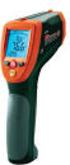 User Manual Dual Laser InfraRed (IR) Thermometer MODEL 42570 Introduction Congratulations on your purchase of the Model 42570 IR Thermometer. This Infrared thermometer measures and displays non-contact
This presentation introduces you to the new call home feature in IBM PureApplication System V2.0.
 This presentation introduces you to the new call home feature in IBM PureApplication System V2.0. Page 1 of 19 This slide shows the agenda, which covers the process flow, user interface, commandline interface
DASYLab Techniques. Saving DASYLab data to an ASCII (text) readable file. Updated to reflect changes in DASYLab 13
 DASYLab Techniques Saving DASYLab data to an ASCII (text) readable file Updated to reflect changes in DASYLab 13 The DASYLab Getting Started Guide provides examples for storing data using the DASYLab binary
Simplify Data Acquisition with a Built-in LXI Web Server
 M E A S U R E M E N T T I P S Volume 9, Number 3 Simplify Data Acquisition with a Built-in LXI Web Server Snapshot: Make temperature measurements quickly and easily There are many applications in which
InfplusWin OPERATING MANUAL
 InfplusWin OPERATING MANUAL Edition: October 2010. Vers. 1.70 ASSEMBLAD - Technical office - Automotive Division Inf-Win170ManGB GB 1 Index 1 INFPLUS-WIN SOFTWARE...3 1.1 INSTALLATION...3 2 INFPLUS-WIN
System Overview and Terms
 GETTING STARTED NI Condition Monitoring Systems and NI InsightCM Server Version 2.0 This document contains step-by-step instructions for the setup tasks you must complete to connect an NI Condition Monitoring
GSM SMS IR CONTROLLER
 Automatically monitoring Air Conditioner by SMS Text! Remotely Control Air Conditioner by SMS Text! Temperature Monitoring by SMS Text! GSM SMS IR CONTROLLER RTU5016 User Manual Ver 1.0 Date Issued: 2012-03-05
Electric Landing Gear controllers and sequencer LGC12 / LGC 13C
 Electric Landing Gear controllers and sequencer LGC12 / LGC 13C Users Guide. Torrent d en Puig, 31. 08358, Arenys de Munt, Barcelona,Catalonia,Spain E-mail: [email protected]. Fax: +34 933 969 743 web: www.xicoy.com
Nokia and Nokia Connecting People are registered trademarks of Nokia Corporation
 Nokia and Nokia Connecting People are registered trademarks of Nokia Corporation Nokia E70 Configuring connection settings Nokia E70 Configuring connection settings Legal Notice Copyright Nokia 2006. All
GAUGEMASTER PRODIGY EXPRESS
 GAUGEMASTER PRODIGY EXPRESS DCC01 USER MANUAL Version 1.1 2011 T A B L E O F C O N T E N T S 1 Getting Started Introduction Specifications and Features Quick Start Connecting to Your Layout Running a Loco