
User s manual E5921/E5922B/E5923B/E5924B 5.8 GHz cordless telephone/ answering system with caller ID/ call waiting
|
|
|
- Marvin Jones
- 9 years ago
- Views:
Transcription
1 User s manual E5921/E5922B/E5923B/E5924B 5.8 GHz cordless telephone/ answering system with caller ID/ call waiting
2 Congratulations on purchasing your new AT&T product. Before using this AT&T product, please read the Important safety instructions on pages 58 to 60 of this manual Please thoroughly read the user s manual for all the feature operation and troubleshooting information you need to install and operate your new AT&T product. For customer service or product information, please visit our website at or call 1 (800) In Canada dial 1 (866) Model #: Product name: Serial #: Purchase date: Place of purchase: E5921/E5922B/E5923B/E5924B 5.8GHz cordless telephone/answering system (found on the bottom of the telephone base) The ENERGY STAR R program ( recognizes and encourages the use of products that save energy and help protect our environment. We are proud to mark this product with the ENERGY STAR R label indicating it meets the latest energy efficiency guidelines. Copyright 2007 Advanced American Telephones. All rights reserved. AT&T and the AT&T logo are trademarks of AT&T Knowledge Ventures, licensed to Advanced American Telephones.

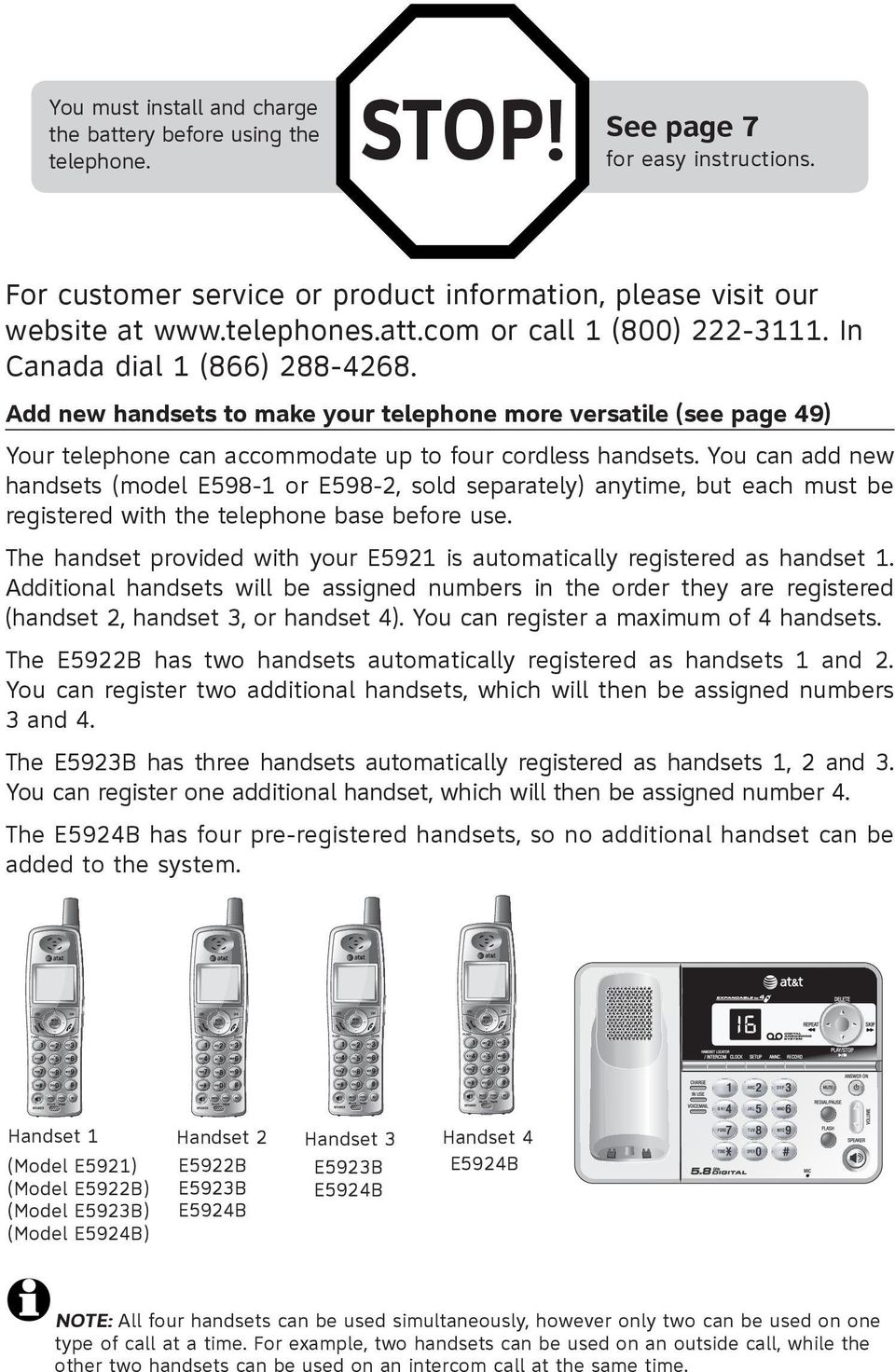
3 You must install and charge the battery before using the telephone. STOP! See page 7 for easy instructions. For customer service or product information, please visit our website at or call 1 (800) In Canada dial 1 (866) Add new handsets to make your telephone more versatile (see page 49) Your telephone can accommodate up to four cordless handsets. You can add new handsets (model E598-1 or E598-2, sold separately) anytime, but each must be registered with the telephone base before use. The handset provided with your E5921 is automatically registered as handset 1. Additional handsets will be assigned numbers in the order they are registered (handset 2, handset 3, or handset 4). You can register a maximum of 4 handsets. The E5922B has two handsets automatically registered as handsets 1 and 2. You can register two additional handsets, which will then be assigned numbers 3 and 4. The E5923B has three handsets automatically registered as handsets 1, 2 and 3. You can register one additional handset, which will then be assigned number 4. The E5924B has four pre-registered handsets, so no additional handset can be added to the system. Handset 1 (Model E5921) (Model E5922B) (Model E5923B) (Model E5924B) Handset 2 Handset 3 Handset 4 E5922B E5923B E5924B E5923B E5924B E5924B NOTE: All four handsets can be used simultaneously, however only two can be used on one type of call at a time. For example, two handsets can be used on an outside call, while the other two handsets can be used on an intercom call at the same time.
4 User s manual E5921/E5922B/E5923B/E5924B 5.8 GHz cordless telephone/ answering system with caller ID/ call waiting Table of contents Getting started Quick reference guide...2 Parts checklist...4 Telephone base installation...5 Telephone base and charger installation...6 Battery installation & charging...7 Installation options...8 Belt clip & optional headset...10 Telephone operation Basic handset operation Basic telephone base operation Options while on calls Intercom calls Intercom call transfer Handset settings Base settings Directory Directory New directory entries Directory search To dial, delete or change entries Answering system operation Answering system operation...37 Day & time announcements...38 Outgoing announcement...39 Changing feature options...40 Message playback...41 Recording & playing memos...42 Message counter displays...43 Answering system mode...44 Remote access...45 Appendix Screen icons, indicator lights & tones...46 Handset display screen messages...47 Adding and replacing handsets...49 Replacing a handset...50 Troubleshooting Important safety instructions FCC Part 68 and ACTA FCC Part Limited warranty Technical specifications Index Caller ID operation Caller ID operation To review the call log

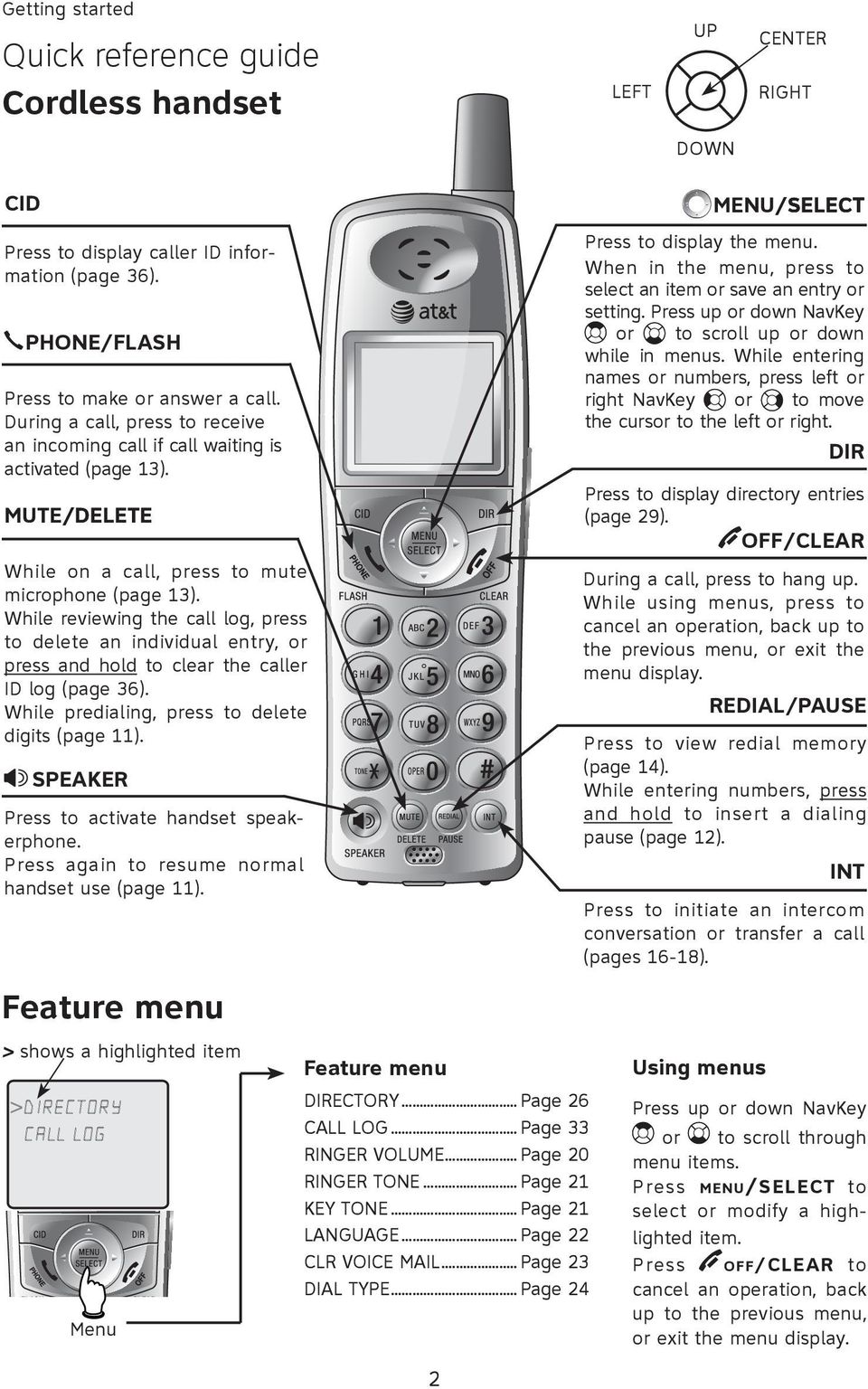
5 Getting started Quick reference guide Cordless handset LEFT UP CENTER RIGHT DOWN CID Press to display caller ID information (page 36). PHONE/FLASH Press to make or answer a call. During a call, press to receive an incoming call if call waiting is activated (page 13). MUTE/DELETE While on a call, press to mute microphone (page 13). While reviewing the call log, press to delete an individual entry, or press and hold to clear the caller ID log (page 36). While predialing, press to delete digits (page 11). SPEAKER Press to activate handset speakerphone. Press again to resume normal handset use (page 11). Feature menu > shows a highlighted item >DIRECTORY CALL LOG Menu Feature menu DIRECTORY... Page 26 CALL LOG... Page 33 RINGER VOLUME... Page 20 RINGER TONE... Page 21 KEY TONE... Page 21 LANGUAGE... Page 22 CLR VOICE MAIL... Page 23 DIAL TYPE... Page 24 2 Press to display the menu. When in the menu, press to select an item or save an entry or setting. Press up or down NavKey or to scroll up or down while in menus. While entering names or numbers, press left or right NavKey or to move the cursor to the left or right. DIR Press to display directory entries (page 29). OFF/CLEAR During a call, press to hang up. While using menus, press to cancel an operation, back up to the previous menu, or exit the menu display. INT Press to initiate an intercom conversation or transfer a call (pages 16-18). Using menus MENU/SELECT REDIAL/PAUSE Press to view redial memory (page 14). While entering numbers, press and hold to insert a dialing pause (page 12). Press up or down NavKey or to scroll through menu items. Press MENU/SELECT to select or modify a highlighted item. Press OFF/CLEAR to cancel an operation, back up to the previous menu, or exit the menu display.
6 Getting started Quick reference guide Telephone base MUTE While on a call, press to mute microphone; press again to resume (page 15). VOLUME Press to adjust speakerphone listening volume (page 15). REDIAL/PAUSE Press to dial out the most recently dialed number using the speakerphone (page 12). FLASH During a call, press to receive an incoming call if call waiting is activated (page 15). SPEAKER Press to turn speakerphone on or off (begin or end a call, page 12). Answering system controls (pages 37-45) SETUP Press to listen to setup options (page 40). CLOCK Press to review or set clock (page 38). ANNC Press to review or record announcement; press again to quit (page 39). RECORD Press to record a memo (page 42) or after pressing ANNC. to record an outgoing announcement (page 39). REPEAT Press to repeat message; press twice, or once at the beginning of the date and time announced, to play previous message (page 41). PLAY/STOP DELETE Press to delete message currently playing; hold to delete all old messages (page 41). SKIP Press to skip message (page 41). ANSWER ON Press to turn answering system on or off. Press to start or stop message playback (page 41). NOTE: Press desired feature. PLAY/STOP to confirm your selection and exit the menu after changing your 3

7 Getting started Parts checklist Save your sales receipt and original packaging in case it is necessary to ship your telephone for warranty service. Check to make sure the telephone package includes the following. The model number of your phone can be found on the label located on the bottom of the telephone base. User s manual Quick start guide E5921/E5922B/ E5923B/E5924B 5.8 GHz cordless telephone/ answering system with caller ID/ call waiting E5921/E5922B/ E5923B/E5924B 5.8 GHz cordless telephone/ answering system with caller ID/ call waiting User's manual Quick start guide Charger for cordless handset(s) (1 for E5922B) (2 for E5923B) (3 for E5924B) Power adapter for telephone base Cordless handset(s) (1 for E5921) (2 for E5922B) (3 for E5923B) (4 for E5924B) Telephone base with mounting bracket installed Battery for cordless handset(s) (1 for E5921) (2 for E5922B) (3 for E5923B) (4 for E5924B) Power adapter for handset charger(s) (1 for E5922B) (2 for E5923B) (3 for E5924B) Belt clip for cordless handset(s) (1 for E5921) (2 for E5922B) (3 for E5923B) (4 for E5924B) Battery compartment cover(s) (1 for E5921) (2 for E5922B) (3 for E5923B) (4 for E5924B) Telephone line cord

8 Getting started Telephone base installation Choose a central location close to a telephone jack and a power outlet not connected to a wall switch. The telephone base can be placed on a flat surface or mounted on a standard wall plate. For optimum range and better reception, place the telephone base in a high and open location. Avoid placing the telephone base too close to: Communication devices such as: personal computers, computer routers, television sets, VCRs, wireless routers (wireless broadband, wi-fi, or ) or other cordless telephones. Excessive heat sources. Noise sources such as a window with traffic outside, motors, microwave ovens, refrigerators, or fluorescent lighting. Excessive dust sources such as a workshop or garage. Excessive moisture. Extremely low temperature. Mechanical vibration or shock such as on top of the washing machine or work bench. 5

9 Getting started Telephone base and charger installation 1. Plug one end of the telephone line cord into the telephone jack at the bottom of the telephone base. 2. Plug the small end of the larger power adapter into the power jack at the bottom of the telephone base. 3. Route cords through slots. DSL filter (Optional for DSL users, see Note No. 4 below) 5. Plug the other end of the telephone line cord into a telephone jack. Telephone line cord 4. Plug the large end of the larger power adapter into an electrical outlet not controlled by a wall switch. a. Plug the small end of the smaller power adapter into the jack on the underside of the charger, then route the cord through the slots as shown. b. Plug the large end of the smaller power adapter into an electrical outlet not controlled by a wall switch. NOTES: 1. Use only the provided power cord. If you need a replacement, visit our website at or call 1 (800) In Canada dial 1 (866) Be sure to use an electrical outlet not controlled by a wall switch. 3. This power adapter is intended to be correctly oriented in a vertical or floor mount position. The prongs are not designed to hold the plug in place if it is plugged into a ceiling, underthe-table or cabinet outlet. 4. If you receive high speed internet through your telephone line (commonly referred to as DSL) and you are experiencing interference during telephone conversations and/or your caller ID features are not functioning properly, install a DSL filter to the telephone line between the telephone base and the telephone wall jack. Contact your DSL service provider for a DSL filter. 6 c. The battery may have enough charge to allow for some calls. For best performance, place handset in telephone base or charger to charge for at least 16 hours before first use.

10 Getting started Battery installation & charging After installing the battery, it may have enough charge to allow some calls. For best performance, place each handset in the telephone base or a charger and allow to charge for 16 hours before use. You can keep the batteries charged by returning the handsets to the telephone base or chargers after each use. When the battery is fully depleted, a recharge takes about 16 hours. The average talk time on a fully charged battery is about eight hours depending on environmental conditions, and the standby time is approximately three days. 1. Plug the battery securely into the plug inside the handset battery compartment, matching the color-coded label. 2. Place the battery and wires neatly inside the compartment. 3. Slide the battery compartment cover towards the center until it clicks into place. LOW BATTERY Low battery indicator Return handset to telephone base or charger to recharge when this symbol flashes, the handset screen is dim or completely clear. (Handset will beep when battery is low.) To replace the battery, press down and push outward on the tab to open the battery compartment cover. Remove the old battery and disconnect it from the compartment. Follow the instructions on this page to install and charge the new battery. Caution: Use only the supplied rechargeable battery or replacement battery (model 27910, part number ). To order, visit our website at or call 1 (800) In Canada dial 1 (866)

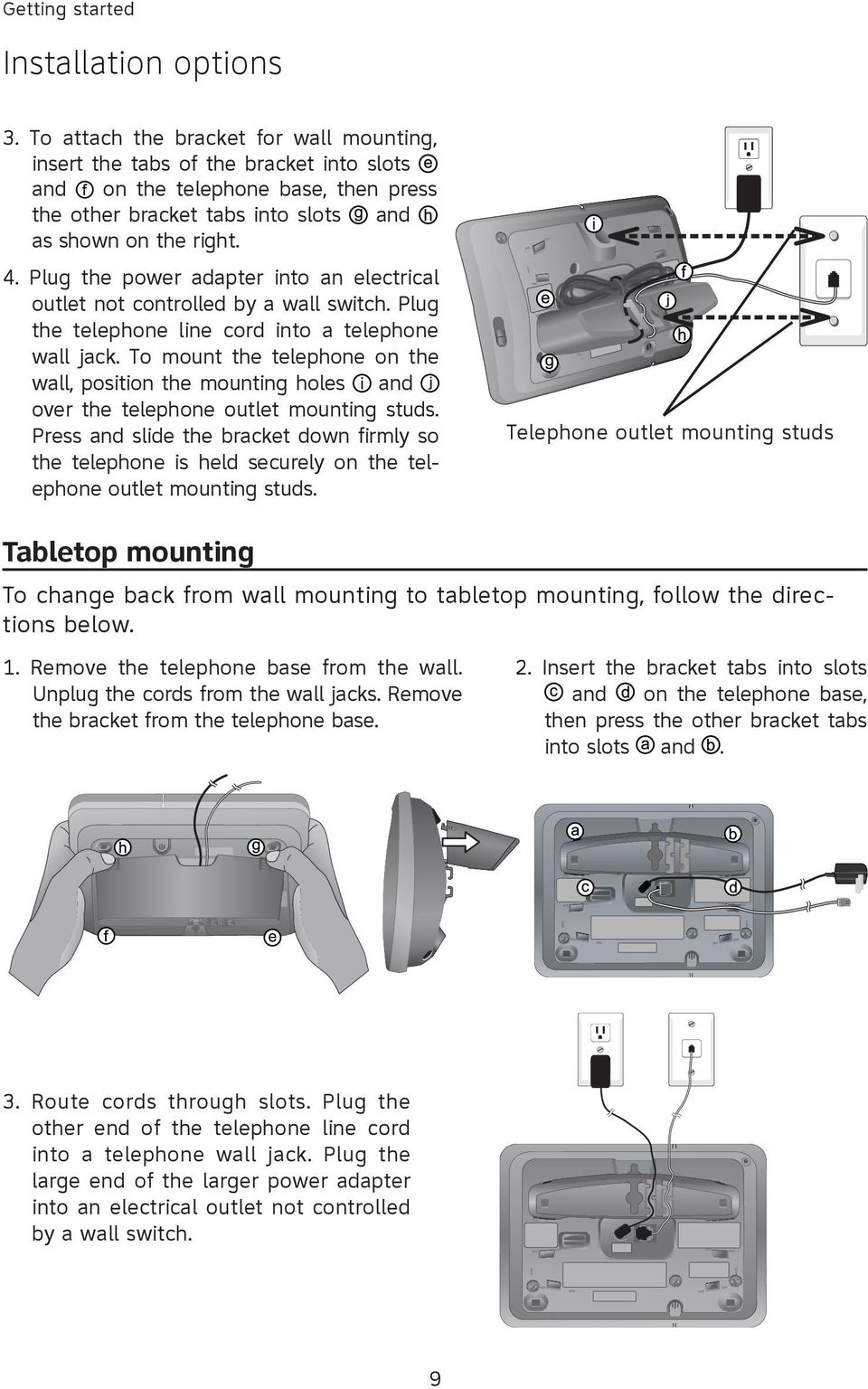
11 Getting started Installation options NOTE: The mounting bracket must be used for both tabletop use and wall mounting. Tabletop mount Wall mount Wall mounting Telephone outlet mounting plate with mounting studs The telephone base comes with the bracket mounted for tabletop use. If wallmounting is desired, replace the telephone outlet mounting plate with one equipped with mounting studs from your local hardware store. 1. To remove the bracket, hold the telephone base in both hands. Press the two bracket tabs and lift the bracket away from slots and. 2. Connect the telephone line cord and power adapter to the jacks on the bottom of the telephone base. Bundle the telephone cord, and secure it with a twist tie before placing it inside the bracket. 8

12 Getting started Installation options 3. To attach the bracket for wall mounting, insert the tabs of the bracket into slots and on the telephone base, then press the other bracket tabs into slots and as shown on the right. 4. Plug the power adapter into an electrical outlet not controlled by a wall switch. Plug the telephone line cord into a telephone wall jack. To mount the telephone on the wall, position the mounting holes and over the telephone outlet mounting studs. Press and slide the bracket down firmly so the telephone is held securely on the telephone outlet mounting studs. Telephone outlet mounting studs Tabletop mounting To change back from wall mounting to tabletop mounting, follow the directions below. 1. Remove the telephone base from the wall. Unplug the cords from the wall jacks. Remove the bracket from the telephone base. 2. Insert the bracket tabs into slots and on the telephone base, then press the other bracket tabs into slots and. 3. Route cords through slots. Plug the other end of the telephone line cord into a telephone wall jack. Plug the large end of the larger power adapter into an electrical outlet not controlled by a wall switch. 9
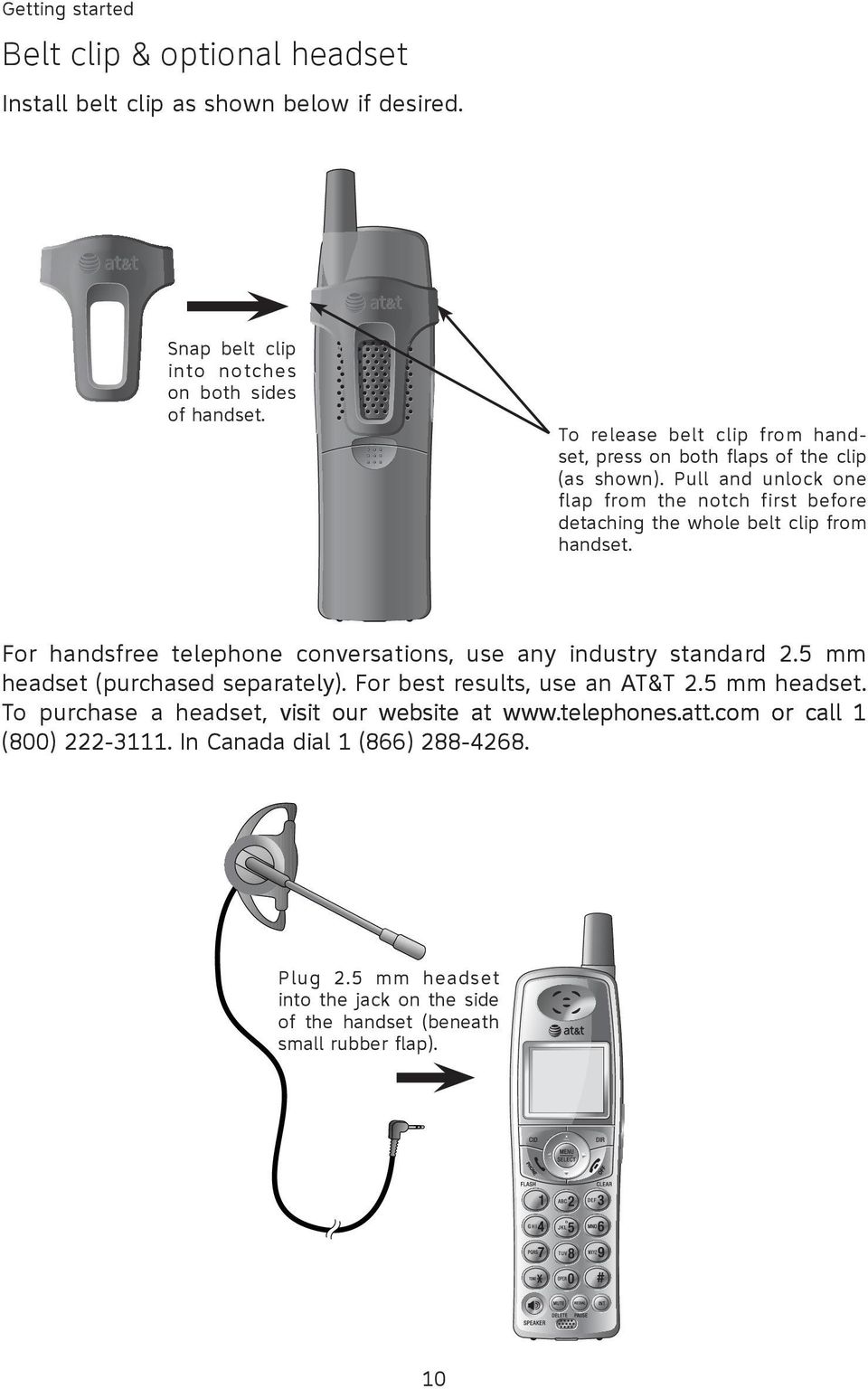
13 Getting started Belt clip & optional headset Install belt clip as shown below if desired. Snap belt clip into notches on both sides of handset. To release belt clip from handset, press on both flaps of the clip (as shown). Pull and unlock one flap from the notch first before detaching the whole belt clip from handset. For handsfree telephone conversations, use any industry standard 2.5 mm headset (purchased separately). For best results, use an AT&T 2.5 mm headset. To purchase a headset, visit our website at or call 1 (800) In Canada dial 1 (866) Plug 2.5 mm headset into the jack on the side of the handset (beneath small rubber flap). 10
14 Press to make a call Press to switch between handsfree speakerphone and normal handset use PHONE 00:00:30 Elapsed time Press to end a call Telephone operation Basic handset operation Making and answering calls To answer an incoming call, press PHONE/FLASH or SPEAKER, or any dial pad key (0-9, * or #). To make a call, press PHONE/FLASH or SPEAKER, then dial a number. Press OFF/CLEAR to hang up. To predial (preview numbers before dialing), enter numbers first, then press PHONE/FLASH or SPEAKER to dial. Press MUTE/DELETE or OFF/CLEAR anytime to make corrections when entering numbers. The screen displays the elapsed time of the call (in hours, minutes and seconds). NOTE: Pressing PHONE/FLASH to access services from your local telephone company will not affect the elapsed time. SPEAKER 00:00:12 NOTE: If a headset is plugged into the handset, you will not be able to use the handset speaker phone. REDIAL Hands-free speakerphone calls To answer a call, press SPEAKER. To make a call, press SPEAKER, then dial a number. During a call, press SPEAKER to alternate between handsfree speakerphone and normal handset use. Press OFF/CLEAR to hang up. Last number redial Press REDIAL/PAUSE to display the most recently called number (up to 32 digits). Press up or down NavKey, or REDIAL/PAUSE repeatedly to view up to five recently called numbers. The handset will beep twice at the beginning and end of the list. Press OFF/CLEAR to exit. Press PHONE/FLASH or SPEAKER to redial the displayed number or press PHONE/FLASH or SPEAKER then REDIAL/PAUSE to call the last number dialed (up to 32 digits). Press MUTE/DELETE to delete the displayed number from the redial memory. 11

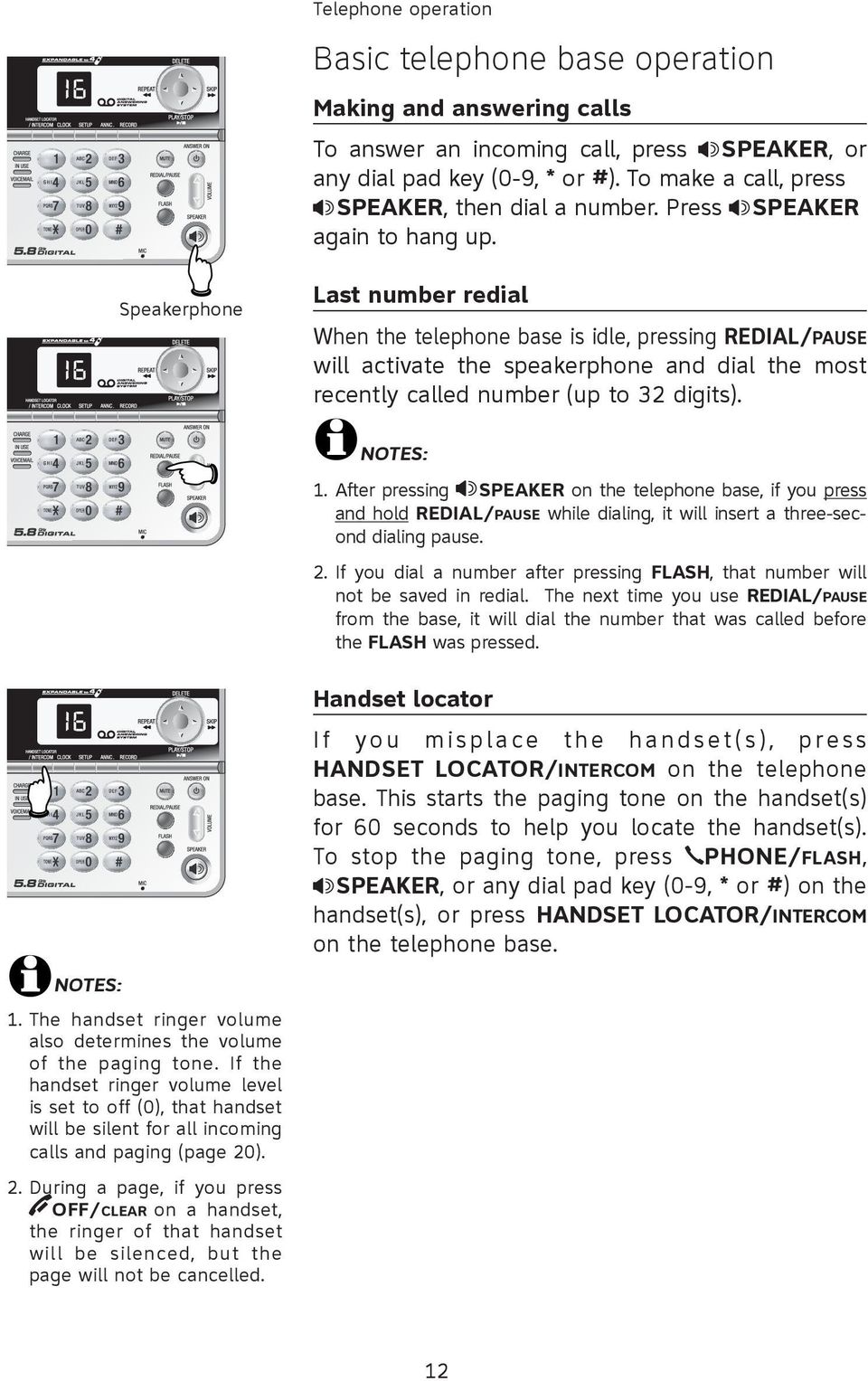
15 Telephone operation Basic telephone base operation Making and answering calls To answer an incoming call, press SPEAKER, or any dial pad key (0-9, * or #). To make a call, press SPEAKER, then dial a number. Press SPEAKER again to hang up. Speakerphone Last number redial When the telephone base is idle, pressing REDIAL/PAUSE will activate the speakerphone and dial the most recently called number (up to 32 digits). NOTES: 1. After pressing SPEAKER on the telephone base, if you press and hold REDIAL/PAUSE while dialing, it will insert a three-second dialing pause. 2. If you dial a number after pressing FLASH, that number will not be saved in redial. The next time you use REDIAL/PAUSE from the base, it will dial the number that was called before the FLASH was pressed. NOTES: 1. The handset ringer volume also determines the volume of the paging tone. If the handset ringer volume level is set to off (0), that handset will be silent for all incoming calls and paging (page 20). 2. During a page, if you press OFF/CLEAR on a handset, the ringer of that handset will be silenced, but the page will not be cancelled. Handset locator I f y o u m i s p l a ce t h e h a n d s e t ( s ), p re s s HANDSET LOCATOR/INTERCOM on the telephone base. This starts the paging tone on the handset(s) for 60 seconds to help you locate the handset(s). To stop the paging tone, press PHONE/FLASH, SPEAKER, or any dial pad key (0-9, * or #) on the handset(s), or press HANDSET LOCATOR/INTERCOM on the telephone base. 12
16 Press to switch calls. NOTES: Press to adjust the listening volume 1. All volume settings, (normal, speakerphone, and headset) are independent. 2. When you try to increase the maximum volume or decrease the minimum volume, you will hear two beeps Telephone operation Options while on calls Volume control Press VOLUME keys on the side of the handset to adjust listening volume. Each press of the button increases or decreases the volume. When you change the volume level, the new setting is saved. Call waiting If you subscribe to call waiting service with your local telephone company, there will be a beep if there is an incoming call while on a call. Press PHONE/FLASH to put your current call on hold and take the new call. You can press PHONE/FLASH anytime to alternate between calls. Multiple handset use During a call, a person at another handset can press PHONE/FLASH or SPEAKER to join the conversation. The person on either handset can press OFF/CLEAR, or place the handset in the telephone base or charger to drop out of the call, but the call will not be terminated until all handsets hang up. NOTE: All four handsets can be used simultaneously, however only two can be used on one type of call at a time. For example, two handsets can be used on an out side call, while the other two handsets can be used on an intercom call at the same time. Mute Press MUTE/DELETE to silence the microphone. When mute is on, MUTED will be shown temporarily on the handset screen, then MUTE will remain on the screen. You will be able to hear the caller, but your caller will not be able to hear you until you press MUTE/DELETE again and resume speaking. When mute is turned off, MICROPHONE ON will show temporarily on the handset screen. 13

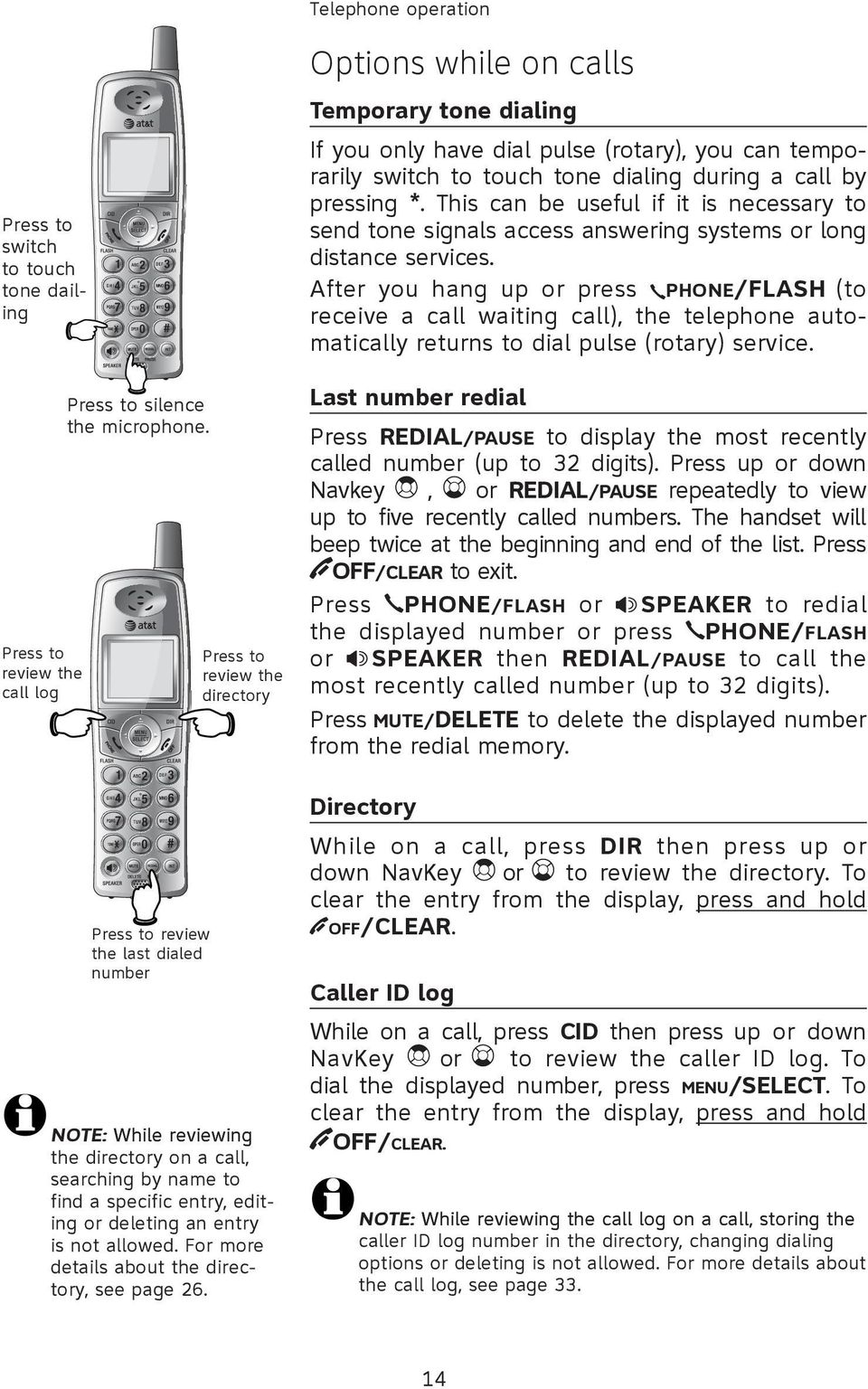
17 Telephone operation Press to switch to touch tone dailing Press to review the call log Press to silence the microphone. Press to review the last dialed number Press to review the directory NOTE: While reviewing the directory on a call, searching by name to find a specific entry, editing or deleting an entry is not allowed. For more details about the directory, see page 26. Options while on calls Temporary tone dialing If you only have dial pulse (rotary), you can temporarily switch to touch tone dialing during a call by pressing *. This can be useful if it is necessary to send tone signals access answering systems or long distance services. After you hang up or press PHONE/FLASH (to receive a call waiting call), the telephone automatically returns to dial pulse (rotary) service. Last number redial Press REDIAL/PAUSE to display the most recently called number (up to 32 digits). Press up or down Navkey, or REDIAL/PAUSE repeatedly to view up to five recently called numbers. The handset will beep twice at the beginning and end of the list. Press OFF/CLEAR to exit. Press PHONE/FLASH or SPEAKER to redial the displayed number or press PHONE/FLASH or SPEAKER then REDIAL/PAUSE to call the most recently called number (up to 32 digits). Press MUTE/DELETE to delete the displayed number from the redial memory. Directory While on a call, press DIR then press up or down NavKey or to review the directory. To clear the entry from the display, press and hold OFF/CLEAR. Caller ID log While on a call, press CID then press up or down NavKey or to review the caller ID log. To dial the displayed number, press MENU/SELECT. To clear the entry from the display, press and hold OFF/CLEAR. NOTE: While reviewing the call log on a call, storing the caller ID log number in the directory, changing dialing options or deleting is not allowed. For more details about the call log, see page
18 Flash Mute Volume NOTES: 1. The normal handset use, hands-free speakerphone and headset listening volume are separate functions. 2. When you adjust the volume to highest or lowest, there will be two beeps. 3. While on a call, only the m o s t re c e n t l y c a l l e d number can be reviewed, and erasing the entry is not allowed. For more details about the redial memory, see page 11. Telephone operation Options while on calls Volume control Press VOLUME keys on the telephone base to adjust listening volume. Each press of the button increases or decreases the volume. When you change the volume level, the new setting is saved. Call waiting If you subscribe to call waiting service with your local telephone company, there will be a beep if there is an incoming call while on a call. Press FLASH to put your current call on hold and take the new call. You can press FLASH anytime to alternate between calls. Mute Press MUTE to silence the microphone. You will be able to hear the caller, but your caller will not be able to hear you until you press MUTE again and resume speaking. Temporary tone dialing If you only have dial pulse (rotary), you can temporarily switch to touch tone dialing during a call by pressing *. This can be useful if it is necessary to send tone signals access answering systems or long distance services. After you hang up or press FLASH (to receive a call waiting call), the telephone automatically returns to dial pulse (rotary) service. 15

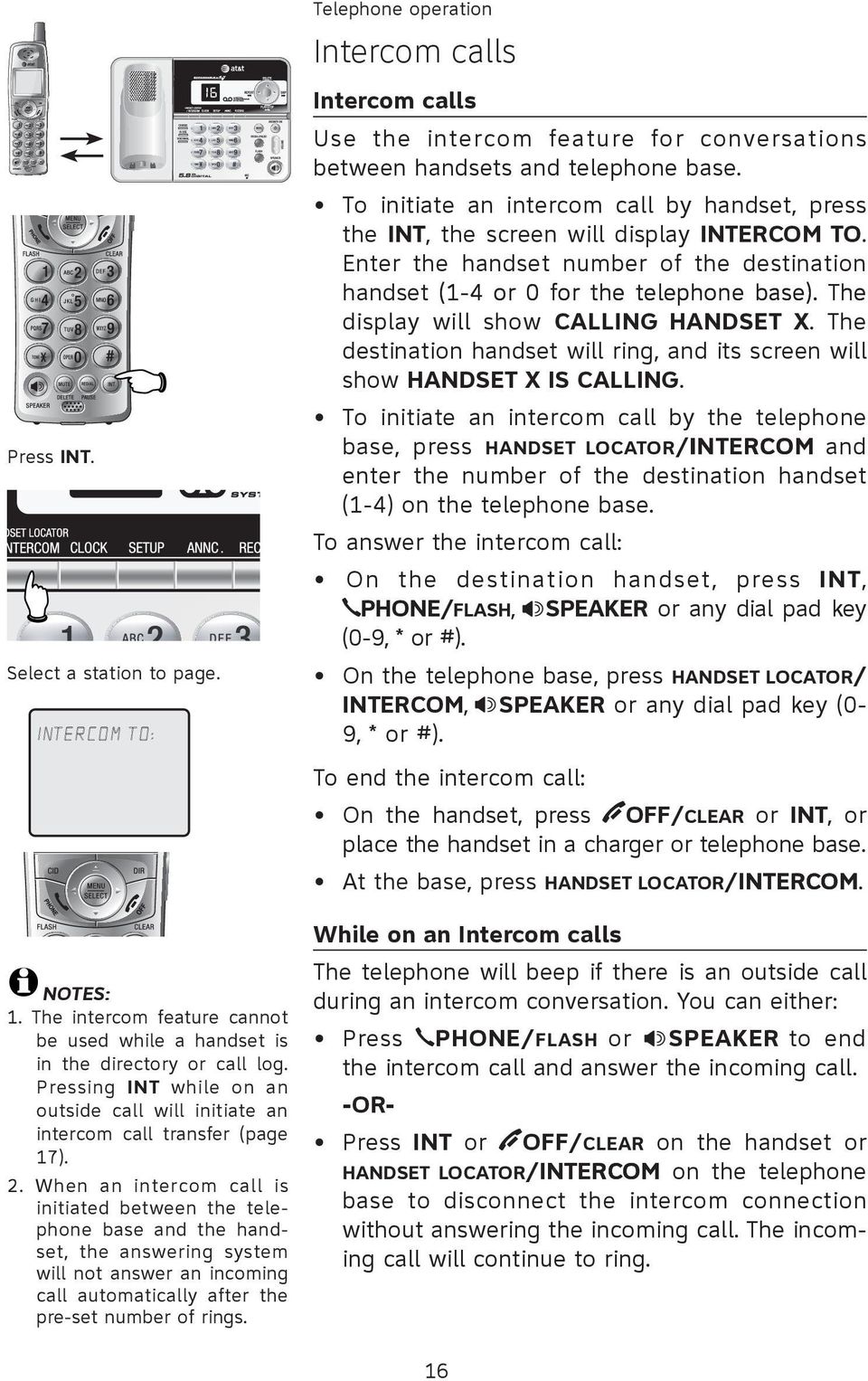
19 Press INT. Select a station to page. INTERCOM TO: NOTES: 1. The intercom feature cannot be used while a handset is in the directory or call log. Pressing INT while on an outside call will initiate an intercom call transfer (page 17). 2. When an intercom call is initiated between the telephone base and the handset, the answering system will not answer an incoming call automatically after the pre-set number of rings. Telephone operation Intercom calls Intercom calls Use the intercom feature for conversations between handsets and telephone base. To initiate an intercom call by handset, press the INT, the screen will display INTERCOM TO. Enter the handset number of the destination handset (1-4 or 0 for the telephone base). The display will show CALLING HANDSET X. The destination handset will ring, and its screen will show HANDSET X IS CALLING. To initiate an intercom call by the telephone base, press HANDSET LOCATOR/INTERCOM and enter the number of the destination handset (1-4) on the telephone base. To answer the intercom call: On the destination handset, press INT, PHONE/FLASH, SPEAKER or any dial pad key (0-9, * or #). On the telephone base, press HANDSET LOCATOR/ INTERCOM, SPEAKER or any dial pad key (0-9, * or #). To end the intercom call: On the handset, press OFF/CLEAR or INT, or place the handset in a charger or telephone base. At the base, press HANDSET LOCATOR/INTERCOM. While on an Intercom calls The telephone will beep if there is an outside call during an intercom conversation. You can either: Press PHONE/FLASH or SPEAKER to end the intercom call and answer the incoming call. -OR- Press INT or OFF/CLEAR on the handset or HANDSET LOCATOR/INTERCOM on the telephone base to disconnect the intercom connection without answering the incoming call. The incoming call will continue to ring. 16
20 Telephone operation Intercom call transfer An external call can be transferred between the following parties: From one handset to another handset (if you have more than one handset). From a handset to the telephone base. From the telephone base to a handset. INTERCOM TO: Intercom call transfer During a conversation, you can transfer the call to another handset or to the telephone base. 1. While a handset or the telephone base is on call, press INT on the handset,or HANDSET LOCATOR/INTERCOM on the telephone base. The external call is automatically placed on hold and TRANSFER TO: is displayed in the handset screen. 2. Enter the destination handset number (1-4) or enter 0 to intercom the telephone base. 3. The originating set's screen will show CALLING HANDSET X. The destination handset will ring, and its screen will show HANDSET X IS CALLING. NOTES: Before the intercom call is answered, you can cancel the transfer and return to the external call by pressing OFF/CLEAR, PHONE/FLASH, or INT. If the destination handset does not answer the intercom call within 100 seconds, or if the other handset is in the directory or call log mode, or out of range, the originating handset will show UNABLE TO CALL TRY AGAIN on its screen and will automatically return to the external call. 4. On the ringing destination handset or the telephone base, press INT, PHONE/FLASH, SPEAKER or any dial pad key (0-9, * or #) on the destination handset to answer the intercom call. On the telephone base, press HANDSET LOCATOR/INTERCOM INTERCOM, SPEAKER or any dial pad key (0-9, * or #) to answer the intercom call. 17
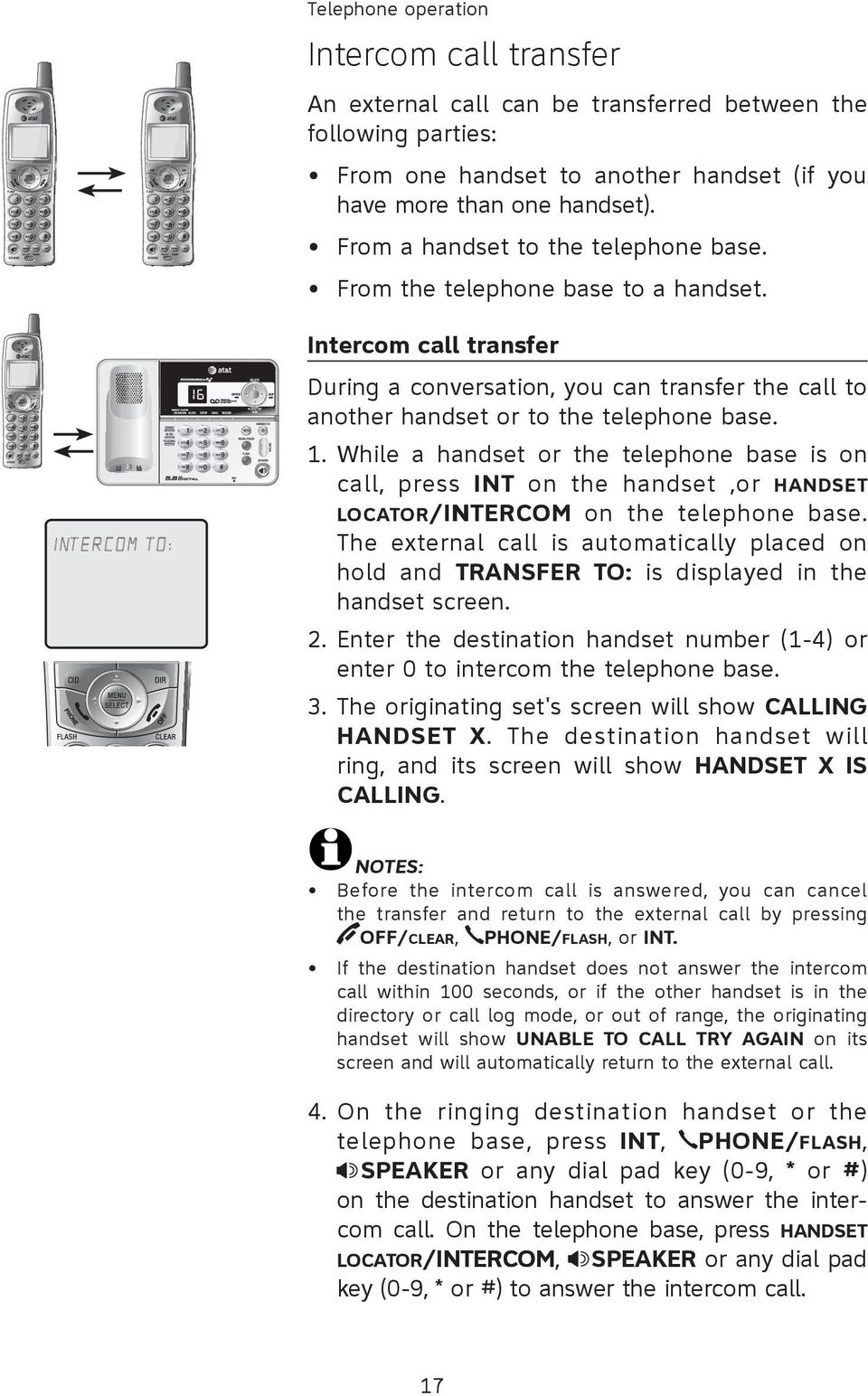
21 Telephone operation Intercom call transfer NOTES: You can switch between the intercom call and the outside call by pressing INT on the originating handset. The display will change between INTERCOM and OUTSIDE to indicate which party is active. You can end the intercom call and return to the external call by pressing PHONE/FLASH on the originating handset. The person on the ringing destination handset can join the external call by pressing PHONE/FLASH, connecting both handsets to the outside call. 5. Complete the transfer by pressing OFF/CLEAR on the originating handset or placing that handset in the telephone base or handset charger, or press SPEAKER on the telephone base. The originating handset's screen will show CALL TRANSFERRED and the other handset will automatically be connected to the external call. 18
22 Telephone operation Handset settings Using the feature menu, you can change settings to customize how the telephone works. 1. Press MENU/SELECT in idle mode to enter the feature menu. 2. Use up or down NavKey or to scroll to the feature to be changed. When scrolling through the menu, the top menu item is always highlighted with a > symbol. 3. Press MENU/SELECT to select the highlighted item. >DIRECTORY CALL LOG >CALL LOG RINGER VOLUME Andrew Call log In this menu, the call log displays the caller ID entries in reverse chronological order starting with the most recent call. To view the CALL LOG: 1. Press MENU/SELECT in idle mode to enter the feature menu. 2. Use up or down NavKey or to scroll to the CALL LOG menu, press MENU/SELECT to enter the menu when it is highlighted with a > symbol. 3. Press up or down NavKey or to view the call log. 4. Press OFF/CLEAR to cancel an operation, back up to the previous menu, or exit the menu display. Press and hold OFF/CLEAR to return to the idle mode. 19
23 Telephone operation >DIRECTORY CALL LOG >RINGER VOLUME RINGER TONE RINGER VOLUME Handset settings Ringer volume Using this menu, you can set a ring volume level (1-6), or turn the ringer off (0). When the ringer is turned off, the will appear on the handset screen. To adjust the RINGER VOLUME: 1. Press MENU/SELECT in idle mode to enter the feature menu. 2. Use up or down NavKey or to scroll to the RINGER TONE menu, press MENU/SELECT to enter the menu when it is highlighted with a > symbol. 3. Press left or right NavKey or to sample each volume level. 4. Press MENU/SELECT to save your preference. -OR- When the handset is in idle mode, press the VOLUME buttons on the right side of the handset to change ringer volume. 5. Press OFF/CLEAR to cancel an operation, back up to the previous menu, or exit the menu display. Press and hold OFF/CLEAR to return to the idle mode. NOTE: The ringer volume level also determines the ringer levels of intercom calls (pages 16-18) and the paging tone when initiating the handset locator feature (page 12). If the handset ringer volume level is set to off (0), that handset is silenced for all incoming calls and paging. 20
24 Telephone operation >DIRECTORY CALL LOG >RINGER TONE KEY TONE RINGER TONE 1 Handset settings Ringer tone This feature allows you to choose one of 10 ringer tones. To choose a ringer tone: 1. Press MENU/SELECT in idle mode to enter the feature menu. 2. Use up or down NavKey or to scroll to the RINGER TONE menu, press MENU/SELECT to enter the menu when it is highlighted with a > symbol. 3. Use up or down NavKey or to sample each ringer tone. 4. Press MENU/SELECT to save your preference. 5. Press OFF/CLEAR to cancel an operation, back up to the previous menu, or exit the menu display. Press and hold OFF/CLEAR to return to the idle mode. >DIRECTORY CALL LOG >LANGUAGE CLR VOICE MAIL LANGUAGE ENGLISH Key tone The handset is factory programmed to beep with each key press. If you turn off the KEY TONE, there will be no beeps when keys are pressed. To turn the KEY TONE on or off: 1. Press MENU/SELECT in idle mode to enter the feature menu. 2. Use up or down NavKey or to scroll to the KEY TONE menu, press MENU/SELECT to enter the menu when it is highlighted with a > symbol. 3. Use up or down NavKey or to select ON or OFF. 4. Press MENU/SELECT to save the preference. 5. Press OFF/CLEAR to cancel an operation, back up to the previous menu, or exit the menu display. Press and hold OFF/CLEAR to return to the idle mode. 21
25 Telephone operation Handset settings >DIRECTORY CALL LOG Language In this menu, you can select the language used in all screen displays. To select a language: >KEY TONE LANGUAGE KEY TONE ON 1. Press MENU/SELECT in idle mode to enter the feature menu. 2. Use up or down NavKey or to scroll to the LANGUAGE menu, press MENU/SELECT to enter the menu when it is highlighted with a > symbol. 3. Press the up or down NavKey or to select ENGLISH, FRANCAIS or ESPANOL. 4. Press MENU/SELECT to save your preference. 5. Press OFF/CLEAR to cancel an operation, back up to the previous menu, or exit the menu display. Press and hold OFF/CLEAR to return to the idle mode. 22
26 Telephone operation >DIRECTORY CALL LOG >CLR VOICE MAIL DIAL TYPE TURN INDICATOR OFF? Handset settings Clear voice mail indication If you subscribe to voice mail services provided by your local telephone company, the VOIC light on the telephone base will flash and NEW VOICE MAIL and the icon will appear on all handset screens when you have new voice mail. To manually turn off the NEW VOICE MAIL message, the icon and VOIC light: 1. Press MENU/SELECT in idle mode to enter the feature menu. 2. Use up or down NavKey or to scroll to the CLR VOICE MAIL menu, press MENU/SELECT to enter the menu when it is highlighted with a > symbol. 3. Press MENU/SELECT. 4. Press MENU/SELECT again to remove the displayed message, or press OFF/CLEAR to cancel an operation, back up to the previous menu, or exit the menu display. Press and hold OFF/ CLEAR to return to the idle mode. NOTES: 1. This only turns off the displayed NEW VOICE MAIL message, icon and VOIC light; it does not delete your voice mail message(s). Use this feature when the telephone indicates there is voice mail when there is none or you have accessed your voice mail from a different telephone line (while away from home). If there actually is a new voice mail message, your local telephone company will continue to send the message which turns the displayed NEW VOICE MAIL message, icon and the VOIC light back on. 2. Telephone company voice mail may alert you to new messages with stutter, (broken) dial tone. Contact your telephone company for more details. 23
27 Telephone operation >DIRECTORY CALL LOG >DIAL TYPE DIRECTORY DIAL TYPE TONE Handset settings Dial type Using this function, you can choose TONE or PULSE (rotary) dialing. The factory default setting is TONE. Change this to PULSE only if you do not have touch-tone dialing service. 1. Press MENU/SELECT in idle mode to enter the feature menu. 2. Use up or down NavKey or to scroll to the DIAL TYPE menu, press MENU/SELECT to enter the menu when it is highlighted with a > symbol. 3. Press up or down NavKey or to select TONE or PULSE. 4. Press MENU/SELECT to save your preference. 5. Press OFF/CLEAR to cancel an operation, back up to the previous menu, or exit the menu display. Press and hold OFF/CLEAR to return to the idle mode. NOTE: If you have more than one handset registered, dial type change made on any one handset will apply to all. Temporary ring silencing Press OFF/CLEAR or MUTE/DELETE while the telephone is ringing to silence the ringer temporarily. This will silence the ringer without disconnecting the call. The next incoming call will ring normally at the pre-set volume. NOTE: If there is more than one handset in use, all handsets ring with an incoming call except those with the volume turned off. Press OFF/CLEAR or MUTE/DELETE on one handset will only silence the ringer of that particular handset but the other handset(s) will continue to ring. 24
28 Telephone operation Base settings Ringer volume You can set the telephone base ringer volume level to HI, LOW or OFF. When the telephone base is idle, move the RINGER button on the right side of the telephone base to select the one you prefer. NOTE: The ringer volume level also determines the ringer volume for intercom calls (page 16). If the telephone base ringer volume level is set to off, the telephone base will be silenced for all calls. 25
29 Directory Pat Williams Directory Shared directory The directory is stored in the telephone base, and is shared by all handsets. Changes made to the directory on any one handset will be applied in all. Memory capacity The directory can store up to 50 entries. Each entry can contain a number up to 32 digits, and a name up to 16 letters. A convenient search feature can help you find and dial numbers quickly (page 29). Timeouts and error messages If you pause for too long while creating an entry, the procedure will time out and you will have to begin again. If all memory locations are in use, the screen will display LIST FULL. You will not be able to store a new number until an existing one is deleted. 26
30 Directory >DIRECTORY CALL LOG >REVIEW STORE >STORE REVIEW ENTER NUMBER _ New directory entries To create and store a new directory entry 1. Press MENU/SELECT in idle mode to enter the feature menu. 2. Press MENU/SELECT again to enter the DIRECTORY when it is highlighted with a > symbol. 3. Press up or down NavKey or to highlight STORE. 4. Press MENU/SELECT 5. Enter the telephone number when prompted. Use the dial pad to enter up to 32 digits. Press left or right NavKey or to move the cursor to the left or right. Press MUTE/DELETE to erase numbers. Press and hold REDIAL/PAUSE to enter a three-second dialing pause. -OR- Copy a number from redial by pressing REDIAL/PAUSE then press up or down NavKey or to locate the number to copy. Press MENU/SELECT to copy the number. 6. Press MENU/SELECT to save the number in the display. The display will show ALREADY SAVED if the number is already in the directory. NOTE: Each line can hold 16 digits, so if you enter a number longer than 16 digits, the numbers will be displayed in the following line. 27
31 Directory ENTER NAME Pat Williams_ New directory entries 7. Enter the name when prompted. Use the dial pad to enter a name (up to 16 characters). Each time a key is pressed, the character on that key will be displayed. Additional key presses will produce other characters on that key. See the chart below. Press left or right NavKey or to move the cursor to the left or right. Press MUTE/DELETE to erase letters. Dial Characters by number of key presses Key A D G J M P T W 0 # B E H K N Q U X C F I L O R V Y, S 8 Z - a d g j m 7 t 9. b e h k n p u w & c f i l o q v x r y s z?! / ( # space Pat Williams Press MENU/SELECT to store your new directory entry. The name and the telephone number will then be shown on the screen. To change it later, see page Press OFF/CLEAR to cancel an operation, back up to the previous menu, or exit the menu display. Press and hold OFF/CLEAR to return to the idle mode. 28
32 Directory Andrew Barbara Directory search To browse through the directory 1. Press DIR in idle mode to display the first listing in the directory. DIRECTORY EMPTY will be displayed if there are no directory entries. 2. Press up or down NavKey or to browse through the directory. Entries will be displayed alphabetically by the first letter in the name. 3. Press OFF/CLEAR at anytime to exit the directory. NOTE: You can also display the first listing in the directory by first pressing MENU/SELECT, press MENU/SELECT to choose DIRECTORY, then press MENU/SELECT again to choose REVIEW. To search by name 1. Press DIR in idle mode to display the first listing in the directory. DIRECTORY EMPTY will be displayed if there are no directory entries. 2. When a name entry is displayed, press a dial pad keys (2-9) to start a quick name search. The directory will display the first name begin ning with the first letter associated with the dial pad key, if there is an entry in the directory that begins with that letter. 3. To see other names that start with the letters on the dial pad key, keep pressing the key. The names will be shown in alphabetical order. 4. Press OFF/CLEAR at anytime to exit the direc tory. 29
33 Directory Directory search For example, if you have name entries Jennifer, Jessie, Kevin and Linda in your directory: If you press 5 (JKL) once, you will see Jennifer. If you press 5 (JKL) twice, you will see Jessie. If you press 5 (JKL) three times, you will see Kevin. If you press 5 (JKL) four times, you will see Linda. If you press 5 (JKL) five times, you will see Jennifer again. NOTES: 1. If there is no name entry matching the first letter of the key you press, you will see a name entry that matches the second letter of the key. 2. If you press a key (2-9) and there is no name entry to match those letters, the directory will show the entry that matches the next available letter in the directory. Viewing long numbers The screen can display only 16 digits at a time. To view numbers longer than this, press left or right NavKey or to display the remaining digits. 30
34 Caller ID Andrew To dial, delete or change entries To dial a displayed number Press DIR on the handset to display the first listing in the directory. Use up or down NavKey or to browse through the directory, or search to find a specific entry. When the desired entry displays, press PHONE/FLASH or SPEAKER to dial the displayed number. Andrew To delete an entry Press DIR on the handset to display the first listing in the directory. Use up or down NavKey or to browse through the directory, or search to find a specific entry. When the desired entry displays, press MUTE/DELETE to delete the displayed entry from the directory. Once deleted, an entry cannot be recovered. 31
35 Caller ID Andrew EDIT NUMBER _ EDIT NAME Andy_ Andy To dial, delete or change entries To change an entry Press DIR on the handset to display the first listing in the directory. Use up or down NavKey or to browse through the directory, or search to find a specific entry. When any directory entry is displayed, press MENU/SELECT to modify the entry: 1. You are prompted to EDIT NUMBER. Press MUTE/DELETE to erase digits and enter the correct telephone number. Press left NavKey to move the cursor to the left and right NavKey to move the cursor to the right. Press and hold REDIAL/PAUSE to add a threesecond pause if necessary, a p will be displayed. You can also press REDIAL/PAUSE, then press up or down NavKey or to scroll to the previously dialed number on the redial list to store the desired entry in the directory, then press MENU/SELECT. 2. Press MENU/SELECT. 3. When prompted to EDIT NAME, press MUTE/DELETE to erase characters, then use the dial pad keys to enter the correct name (page 28). Press left NavKey to move the cursor to the left and right NavKey to move the cursor to the right. 4. Press MENU/SELECT to confirm. 5. Press OFF/CLEAR to exit the menu. 32
36 Caller ID Caller ID operation Information about caller ID with call waiting CHRISTINE SMITH NEW AM 10:01 11/23 This product has a caller ID function with call waiting feature which works with service from your local telephone company. Caller ID with call waiting lets you see the name and telephone number of the caller before answering the telephone, even while on another call. It may be necessary to change your telephone service to use this feature. Contact your telephone company if: You have both caller ID and call waiting, but as separate services (you may need combined service). You have only caller ID service, or only call waiting service. You do not have any caller ID or call waiting services. This product can be used with regular caller ID service, or this product s other features can be used without subscribing to either caller ID or combined caller ID with call waiting service. There are fees for caller ID services. In addition, services may not be available in all areas. Depending on your service, you may see the caller s number or the caller s name and number. This product can provide information only if both you and the caller are in areas offering caller ID service and if both telephone companies use compatible equipment. The time and date are sent by the telephone company along with the call information. 33
37 Caller ID Caller ID operation Shared caller ID log CHRISTINE SMITH NEW AM 10:01 11/23 The caller ID log is stored in the telephone base, and is shared by all handsets. Changes made at any one handset will be reflected in all handsets. NOTE: Only one handset can review the caller ID log or directory at a time. If another handset attempts to enter the directory or caller ID log, it will display NOT AVAILABLE AT THIS TIME. Caller s name CHRISTINE SMITH NEW 10:01 AM 11/23 Caller s number Appears when the call is missed and un-reviewed Date of call Time of call How caller ID works If you subscribe to caller ID service provided by your local telephone company, information about each caller will be displayed between the first and second ring. Information about the last 50 incoming calls is stored in the call log. You can review the call log to find out who has called, easily return the call, or copy the caller s name and number into your directory. When the call log is full, the oldest entry is deleted to make room for new incoming call information. If you answer a call before the information appears on the screen, it will not be saved in the call log. NOTE: Caller ID features will work only if both you and the caller are in areas offering caller ID service, and if both telephone companies use compatible equipment. 34
38 Caller ID Caller ID operation Chris NEW 10:01 AM 11/23 Memory match Names of callers will be displayed only if the information is provided by your local telephone company. If the incoming telephone number exactly matches a telephone number in your directory, the name that appears on the screen will match the corresponding name in your directory. (Example: If Christine Smith calls, her name will appear as Chris if this is how you entered it into your directory.) NOTE: The number shown by your caller ID will be in the format sent by the phone company. The phone company usually delivers ten-digit phone numbers (area code plus phone number). If the telephone number of the person calling does not exactly match a number in your directory, the name will appear as delivered by the phone company. For example if the phone company includes the area code and the directory number does not, the name will appear as delivered by the phone company. HANDSET 1 6 MISSED CALLS Missed calls When a handset is in idle mode and has calls that have not been reviewed, its screen will show XX MISSED CALLS. Any entries which have not been reviewed will be counted as missed calls when the phone is idle. Each time a call log entry marked NEW is reviewed, the number of missed calls decreases by one. If you have too many missed calls and you don t want to review them one by one, but you still want to keep them in the call log, you can press and hold OFF/CLEAR for four seconds when the handset is idle. All the entries in the caller ID log will be considered old (have been reviewed), and the missed calls counter is reset to 0. 35
39 HANDSET 1 6 MISSED CALLS Pat Williams NEW 10:31 AM 11/23 Jeffrey Adams NEW 10:21 AM 11/23 Chris Thompson NEW 10:11 AM 11/23 The various dialing options are: NOTE: If both the name and number are not provided, UNABLE TO SAVE will be displayed. Caller ID To review the call log To review the call log Press CID to review the call log. The call log displays the caller ID entries in reverse chronological order starting with the most recent call. Press up or down NavKey or to scroll through the list as shown on the left. To return a call Press PHONE/FLASH or SPEAKER to call the number as displayed. Caller ID numbers may appear with an area code which may not be required for local calls, or without a 1 which may be needed for long distance calls. If the number displayed is not in the correct format, you can change how it is dialed. To change the number before calling, press # repeatedly to see the different dialing options (you can choose to dial with or without an area code, or with or without the 1), then press PHONE/FLASH or SPEAKER to place the call. Other options Press MUTE/DELETE to delete the displayed entry from the call log. Press and hold MUTE/DELETE to delete all entries from the call log. When asked to confirm, press MENU/SELECT to clear the call log of all entries, or press OFF/CLEAR to exit and leave all call log entries intact. Press MENU/SELECT to copy this entry into your directory. If the name or number is not provided, you will be prompted to enter them (page 28). 36
40 Answering system operation Answering system operation Message capacity The answering system can record up to 95 messages, depending on the length of each message. Individual messages can be up to four minutes, and the total maximum recording time is 14 minutes. Messages will remain available for replay until they are deleted. Message counter Number of messages stored (or during playback, message number currently playing) Press once to repeat message; press twice, or once at the beginning of the date and time announced, to play previous message (page 41). Press to delete message currently playing; press and hold to delete all old messages when set is idle (page 41). Press to skip message (page 41). Press to start or stop message playback (page 41). Press to review or set clock (page 38). Press to listen to setup options (page 40). Press to turn answering system on or off. Press to adjust playback volume (page 41). Press to review or record an announcement; press again to quit (page 39). Press to record a memo (page 42) or after pressing ANNC. to record an outgoing announcement (page 39). NOTE: Press desired feature. PLAY/STOP to confirm your selection and exit the menu after changing your 37
41 1. CLOCK The system will announce the current clock setting, then "To set the clock, press CLOCK." 2. CLOCK The system will announce the current day setting, then "To change the day, press SKIP or REPEAT, to change the hour, press CLOCK." Answering system operation Day & time announcements To set day & time Before playing each message, the answering system announces the day and time the message was received. Before using the answering system, follow the steps on the left to set the day, time and year, so messages are dated correctly. If the clock is not set before playing messages, the system will prompt "Time and date not set" each time. The system uses voice prompts to guide you. Each time you press SKIP or REPEAT, the day, hour, minute or year increases or decreases by one. When the correct setting is announced, press CLOCK to proceed to the next setting. 3. SKIP or REPEAT until the system announces the correct day, then press CLOCK. 4. SKIP or REPEAT until the system announces the correct hour, then press CLOCK. SKIP or 5. REPEAT until the system announces the correct minutes, then press CLOCK. 6. SKIP or REPEAT until the system announces the correct year, then press CLOCK. The system announces the current clock setting. To check day & time Press CLOCK anytime to hear the current day and time without changing it. NOTES: 1. Press and hold SKIP or REPEAT to increase or decrease the minute or year by ten. 2. Caller ID provides the time and date. Set the year so that the day of the week can be calculated from the caller ID information. After you set the time once, it will thereafter be set automatically with incoming caller ID information. The time will be set automatically only if you subscribe to caller ID service provided by your local telephone company (page 34). 38
42 Elapsed recording time (seconds). Press to stop recording. Answering system operation Outgoing announcements Outgoing announcements are the messages callers hear when calls are answered by the answering system. The telephone is pre-set with an announcement. If the telephone is set up to record messages, it answers calls with Hello. Please leave a message after the tone. You can use this announcement, or replace it with your own recording. 1. ANNC. 2. Announcement. Press PLAY or press RECORD. (Plays announcement previously recorded). 3. RECORD OR- Record after the tone. Press STOP when you are done. Speak into microphone. 6. ANNC. PLAY/STOP Microphone PLAY/STOP (Announcement is played back). to exit announcement programming. NOTE: Press ANNC. to exit the announcement programming. To play your outgoing announcement Press ANNC and the system will announce "Announcement. Press PLAY or press RECORD." Then press PLAY/STOP. The outgoing announcement will be played. Press ANNC to exit the announcement menu. To record your outgoing announcement Press ANNC and the system will announce "Announcement. Press PLAY or press RECORD." Then press RECORD and begin speaking after hearing "Record after the tone. Press STOP when you are done." Speak facing the microphone from about nine inches away. Press PLAY/STOP when finished recording your recorded announcement will be played back. Press ANNC to exit the announcement menu. Elapsed time (in seconds) will be shown in the message window when recording. You can record an announcement up to 90 seconds. Announcements shorter than three seconds will not be recorded. To delete your outgoing announcement Press ANNC. You will hear Announcement. Press PLAY or press RECORD. Then press PLAY/STOP to begin playback. Press DELETE during playback to delete the announcement. Press ANNC to exit the announcement menu. When your announcement is deleted, calls will be answered with the pre-set announcement described above. 39
43 1. SETUP Press repeatedly until desired feature is announced (see list at right). 2. SKIP or REPEAT Press until the desired selection is announced. 3. SETUP Press to set selection and move to next menu option. Answering system operation Changing feature options Menu features can be changed to program how the answering system operates. Press SETUP repeatedly to listen to each feature. When the desired feature is announced, press SKIP or REPEAT to change the setting. Press SETUP to confirm your selection and move to the next menu option or press PLAY/STOP to confirm your selection and exit the menu. Feature options System announces: "Number of rings," current setting, then "To change the setting press SKIP or REPEAT; to continue setup, press SETUP." Options: 2/4/6/toll saver (Default settings underlined). Feature description: Choose the number of rings before the system answers a call. When toll saver is active, the system answers after two rings if there are new messages, and after four rings if there are no new messages. When retrieving messages from a long distance call, you may disconnect your call after three rings so that long distance charges will not be charged. -OR- PLAY/STOP Press to set selection and exit menu. "Call screening," current setting, then "To change the setting press SKIP or REPEAT; to continue setup, press SETUP." Options: On/Off "Remote access code," current setting, then "To change the setting press SKIP or REPEAT; to continue setup, press SETUP." Options: (enter two-digit code) 19 When on, you can hear callers leaving messages, or answer the call. Enter a two-digit number (10-99) for remote access from another telephone (page 45). "Message alert tone," current setting, then "To change the setting press SKIP or REPEAT; to continue setup, press SETUP." Options: On/Off When on, the telephone beeps every 10 seconds when there are new messages. NOTES: 1. The message alert tone will beep only if all the conditions below are met: Answering system is on. Message alert tone setting is on. There are new messages. Pressing any telephone base key (except HANDSET LOCATOR/ INTERCOM) will temporarily silence the message alert tone. If you press and hold DELETE in idle mode, you will delete all old messages and the message alert tone will be temporarily silenced. The message alert tone will be re-activated with the next incoming message. 2. Press and hold SKIP or REPEAT to increase or decrease the remote access code number by
44 Number of messages stored (or during playback, message number currently playing). Press PLAY/STOP to begin or end message playback. 1. You have [xx] new messages and [xx] old messages Message playback begins. See options at right. 2. PLAY/STOP PLAY/STOP Message playback ends. Answering system operation Message playback Press PLAY/STOP to listen to messages. The system announces the number of messages, then begins playback. If there are new messages, only the new messages will be played back (oldest first). If there are no new messages, the system will play back all messages (oldest first). Announcements When playback begins, the total number of messages will be announced. Before each message, the day and time it was received will be announced. After the last message, End of messages. will be announced. If the system has shorter than five minutes of recording time left, the time remaining will be announced. NOTES: 1. If F is flashing in the message window, the memory is full. Some messages must be deleted before new ones can be received. 2. New (unheard) messages cannot be deleted. Options during playback Press VOLUME button to adjust speaker volume. Press SKIP to skip to the next message. Press REPEAT to repeat the message currently playing. Press twice, or once at the beginning of the date and time announced, to listen to the previous message. Press DELETE to delete the message being played back. Press PLAY/STOP to stop playback. To delete all messages To delete all messages, press and hold DELETE while the telephone is idle (not during a call, or during message playback). 41
45 Elapsed recording time (seconds). 1. RECORD 2. Press to stop recording. Record after the tone. Press STOP when you are done. Speak into microphone. Answering system operation Recording & playing memos Memos are messages you record yourself. They are saved, played back and deleted exactly like incoming messages. You can record a memo as a reminder to yourself, or leave a message for other members of your household using the answering system. To record a memo Press RECORD. Elapsed time (in seconds) is shown in the message window when recording. You can record a memo up to four minutes. Memos shorter than one second will not be recorded. Press PLAY/STOP to stop recording. To play back a memo Press PLAY/STOP to listen to messages and memos (see page 41 for other options). Microphone 3. PLAY/STOP "Beep" memo has been recorded 42
46 Answering system operation Message counter Message counter displays The message counter usually displays the total number of memos and incoming messages. See the list below for explanations of other displays in this counter. Message counter displays 0 No messages Number of messages/memos, or message number currently playing (flashes when there are new messages) Current remote access code while setting (page 45) (counting) Elapsed time while recording a memo (page 42) or announcement up to 90 seconds (page 39) (flashing) Number of unreviewed messages and memos. 99 (flashing) Memo recording exceeded maximum time. F (flashing) Memory is full. Messages must be deleted before new messages can be received. -- System is answering a call, being accessed remotely, or the clock is being programmed. -- (flashing) System is being programmed or initialized. On (or) OF Displayed for two second when any answering system setting is turned on or off. 02, 04, 06, ts Current number of rings while setting (page 40). 43
47 Directory Answering system mode The answering system is factory turned on to answer and record. You can turn the answering system off, but if you do so, the answering system will not answer calls and record incoming messages. 1. ANSWER ON Press until the system announces Calls will not be answered. To turn the answering system off Press ANSWER ON until you hear Calls will not be answered" then a beep to confirm the system is off. The ANSWER ON light is off. 2. "Beep." The system has been off. 1. -OR- ANSWER ON Press until the system announces Calls will be answered. 2. "Beep." The system has been on. NOTE: If the answering system is off, after 10 rings, announce Please enter your remote access code. You can enter your remote access code to enter the remote access mode (page 45). If no correct remote access code is entered, the call will be ended automatically. To turn the answering system on Press ANSWER ON until you hear Calls will be answered then a beep to confirm the system is on. The ANSWER ON light is lit. Call screening If the answering system is on and the base volume is not off, you will hear the announcement and the incoming message when a call comes in. Call intercept While you are call screening, you can intercept the call by pressing PHONE/FLASH or SPEAKER on the handset. 44
48 Answering system operation Remote access Dial your telephone number from any touch-tone telephone. When system answers, enter the two digit remote access code (19 unless you have changed it). Enter remote commands (see list at right). Hang up to end call and save all undeleted messages. A two digit security code is required to access your answering system from any touch-tone telephone. This code is programmed as 19; see page 40 to change it. Play all messages 1 Play new messages 2 Delete the message 3 33 Press to listen to all messages. Press to listen to new messages. Press during playback to delete the current message. Press 3 twice to delete all old messages. Repeat or go back 4 Stop 5 Skip to next message 6 Press during message playback to repeat the same message. Press during the beginning of the day and time announcement to go back to the previous message. Press to stop any operation (stop playback, stop recording). Press to skip the current message and advance to the next message. NOTES: 1. If you pause for more than four seconds during remote access, a help menu listing all features and commands will be announced. If there is no command for another 20 seconds, the call will end automatically. 2. If memory is full, after 10 rings, announce "Memory is full, enter your remote access code." Enter your remote access code to enter the remote access mode. Record announcement *7 to begin recording 5 to stop recording Help menu *5 Turn system off 0 Turn system on 0 Exit 8 Press * 7; wait for beep and then begin speaking. Press 5 to stop recording and listen to the playback of new announcement. Press to listen to a list of features & commands. Press to turn off answering system. Incoming calls will no longer be answered. If off, the system will answer after 10 rings. Enter your access code, then press 0 to turn on. Press 8 to end remote access call or hang up. 45
49 Appendix Screen icons, indicator lights & tones Screen icons & alert tones Screen icons HANDSET 1 25 MISSED CALLS 10:22 AM 11/23 MUTE NEW Two short beeps Ringer off. Battery charging (animated display). Low battery (flashing); place handset in telephone base or charger to recharge. Handset alert tones Four short beeps Two beeps Speakerphone is in use. New voice mail messages have been received. Microphone is muted. Missed and un-reviewed calls. When you attempt to change the volume when it is already at its highest or lowest setting. Low battery warning. Out of range during off-hook. Confirmation tone Command completed successfully. Telephone base tones One beep every 10 seconds Two short beeps Message alert. When you attempt to change the volume when it is already at its highest or lowest setting. Indicator lights CHARGE On when the handset is charging in the charger. SPEAKER On when the speakerphone is in use. CHARGE On when the cordless handset is properly positioned to charge in the telephone base. ANSWER ON On when the answering system is on and ready to receive calls. VOIC Flashes when you have new voice mail (Different voice mail system from the answering system on the telephone base, requires voice mail service from your local telephone company). IN USE On when the handset is in use, the answering system is answering an incoming call, or you are registering a handset. Flashes while an incoming call is ringing, when another telephone is in use on the same line, or you are de-registering a handset from the telephone base. 46
50 Appendix Handset display screen messages Screen display messages PHONE ENDED CALL LOG EMPTY DIRECTORY EMPTY LIST FULL MUTED SPEAKER LOW BATTERY INCOMING CALL NEW VOICE MAIL XX MISSED CALLS CONNECTING... The handset is in use. A call just ended. You are accessing an empty call log. You are accessing an empty directory. You are saving to a full directory. The call is on mute. The handset speakerphone is in use. The battery needs to be recharged. There is a call coming in. There are new voice mail messages. There are new calls in the caller ID log. The handset has lost communication with the telephone base. ** PAGING ** The handset is being paged. HANDSET X IS CALLING LINE IN USE NO LINE ALREADY SAVED SAVED WARNING CHECK BATTERY! PLACE IN CHARGER Another handset is calling. An extension telephone is in use. There is no telephone line connected. The telephone number entered is already stored in the directory. The call log entry is saved to the directory successfully. The battery is not installed or not installed properly in the handset while in the charger or telephone base. -OR- The battery needs to be replaced. -OR- An incorrect battery has been installed. Use only the supplied battery or replacement battery (model 27910, part number ). Battery power is very low. The handset should be placed in the telephone base or charger. 47
51 Appendix Handset display screen messages Screen display messages CHARGING UNABLE TO CALL TRY AGAIN MICROPHONE ON INTERCOM TO: A handset with a low battery has been placed in the telephone base or charger. Failed intercom or conference call (there are already two handsets being used). The call switches from being on mute to normal call. The handset is initiating an intercom call to another handset. (Press the destination handset number) INTERCOM ENDED The intercom call has just been ended. CALLING HANDSET X TRANSFER TO: NO SIGNAL, CALL ENDED The handset is calling another handset (for intercom calls). The handset is transferring an external call to another handset. The handset is out of range while on a call. 48
52 Appendix Adding and replacing handsets Your telephone can accommodate up to four cordless handsets. You can add new handsets (E598-1 or E598-2, sold separately) to the E5921/E5922B/ E5923B anytime, but each handset must be registered with the same telephone base before use. Each handset must be registered separately. The handset provided with your E5921 is automatically registered as handset 1. Additional handsets will be assigned numbers in the order they are registered (handset 2, handset 3, or handset 4). The E5922B has two handsets automatically registered as handset 1 and 2. You can register two additional handsets, which will be assigned number 3 and 4. The E5923B has three handsets automatically registered as handset 1, 2 and 3. You can register one additional handset, which will be assigned number 4. The E5924B has four pre-registered handsets, so no additional handset can be registered to it. NOT REGISTERED PRESS HNDST LOC 4 SEC ON BASE Handsets purchased separately need to be registered to the telephone base before use. When first purchased, all optional accessory handsets will show NOT REGISTERED on the screen. The new handset may need to be charged for five minutes before registering to the main telephone base. To register a handset to your telephone base 1. Place the unregistered handset into the telephone base. If PRESS HNDST LOC 4 SEC ON BASE does not appear on the handset screen after a few seconds, remove the handset and place it in the telephone base again. 2. On the telephone base, press and hold HANDSET LOCATOR for about four seconds (until the red IN USE light on the telephone base turns on) and then release the button. The handset will show PLEASE WAIT... and it will take about 10 seconds to complete the registration. The handset will show HS X REGISTERED and will beep if registration is successful. PLEASE WAIT... HS X REGISTERED NOTES: 1. If the registration is not successful, the display will show NOT REGISTERED. To reset the handset, remove the handset from the telephone base and place it back in. Try the registration process again. 2. You cannot register a handset if any telephone connected to the same telephone line is in use. 49
53 Appendix Replacing a handset You may need to de-register your handsets if: You have the maximum number of registered handsets (four) and need to replace a handset. -OR- You wish to change the designated handset number of your registered handsets. You must first de-register ALL the handsets, and then re-register ALL the handsets you wish to use. Please read carefully through all the instructions on this page before beginning the de-registration process. To de-register all handsets 1. Press and hold HANDSET LOCATOR/INTERCOM on the telephone base for about 10 seconds (until the IN USE light turns on and starts to flash), then release the HANDSET LOCATOR/INTERCOM button. 2. Immediately press and release HANDSET LOCATOR/INTERCOM again. You must press HANDSET LOCATOR/INTERCOM while the IN USE light is still flashing. (The light flashes for about seven seconds. When the light stops flashing, pick up the handset and place it back into the telephone base, then start again with step number one above). 3. The handset(s) will show CONNECTING... and it will take about 10 seconds to complete the de-registration process. All handsets will show NOT REGISTERED if de-registration is successful. NOT REGISTERED 3. To re-register the handset(s) to the telephone base, follow the registration instructions on page 49. NOTES: 1. If the de-registration process is not successful, you may need to reset the system and try again. To reset: pick up the handset and press the PHONE/FLASH button, then press the OFF/CLEAR button and place the handset back into the telephone base. You may also reset by unplugging the power from the telephone base then plugging it back in. 2. You cannot de-register the handset(s) if any telephone connected to the telephone line is in use. 50
54 Appendix Troubleshooting If you have difficulty with your phone, please try the suggestions below. For Customer Service, visit our website at or call 1 (800) In Canada dial 1 (866) My phone doesn t work at all I cannot get a dial tone I cannot dial out Make sure the power cord is securely plugged in. Make sure that the battery pack connector is securely plugged into the cordless handset. Make sure the telephone line cord is securely and firmly plugged into the telephone base and the telephone wall jack. Charge the battery pack in the cordless handset for at least 16 hours. For optimum daily performance, return the cordless handset to its base when not in use. Reset the telephone base. Unplug the unit s electrical power. Wait for approximately 15 seconds, then plug it back in. Allow up to one minute for the cordless handset and telephone base to reset. You may need to purchase a new battery pack, please refer to page 7 of this user s manual. First try all the suggestions above. Move the cordless handset closer to the telephone base. You might have moved out of range. Your line cord might be malfunctioning. Try installing a new line cord. If the previous suggestions don t work, disconnect the telephone base from the telephone jack and connect to a different phone. If there is no dial tone on that phone either, the problem is in your wiring or local service. Contact your local telephone company. First try all the suggestions above. Make sure you have a dial tone before dialing. The cordless handset may take a second or two to find the telephone base and produce a dial tone. This is normal. Wait an extra second before dialing. Make sure your phone is set to the correct dial mode for the type of service that you have (pulse or touch tone). Refer to the Telephone operation section of this user s manual (page 24) to set the dial mode. If the other phones in your home are having the same problem, the problem is in your wiring or local service. Contact your local telephone company (charges may apply). 51
55 Appendix Troubleshooting Eliminate any background noise. Noise from a television, radio or other appliances may cause the phone to not dial out properly. If you cannot eliminate the background noise, first try muting the cordless handset before dialing, or dialing from another room in your home with less background noise. My cordless handset isn t p e r f o r m i n g normally CONNECTING... displays on my cordless handset Make sure the power cord is securely plugged into the telephone base. Plug the unit into a different, working electrical outlet not controlled by a wall switch. Move the cordless handset closer to the telephone base. You might have moved out of range. Reset the telephone base. Unplug the unit s electrical power. Wait for 15 seconds then plug it back in. Allow up to one minute for the cordless handset and telephone base to reset. Other electronic products can cause interference to your cordless phone. Try installing your phone as far away from these types of electronic devices as possible: wireless routers, radios, radio towers, pager towers, cell phones, intercoms, room monitors, televisions, personal computers, kitchen appliances and other cordless phones. Ensure that the telephone base is powered up. Place the cordless handset in the telephone base for one minute to allow the cordless handset and telephone base to synchronize channels. Move the cordless handset closer to the telephone base. You might have moved out of range. If the cordless handset is in its base and the charging light does not come on, refer to The charge light is off section in this troubleshooting guide. Reset the telephone base. Unplug the unit s electrical power. Wait for 15 seconds then plug it back in. Allow up to one minute for the cordless handset and telephone base to reset. Other electronic products can cause interference with your cordless phone. Try installing your phone as far away from these types of electronic devices as possible: wireless routers, radios, radio towers, pager towers, cell phones, intercoms, room monitors, televisions, personal computers, kitchen appliances and cordless phones. 52
56 Appendix Troubleshooting The batteries will not hold a charge I get noise, static, or weak signal even when I m near the telephone base Charge the battery in the cordless handset for at least 16 hours. For optimum daily performance, return the cordless handset to its base when not in use. You may need to purchase a new battery, please refer to the Battery section of this user s manual. Your phone might be malfunctioning. Please refer to the Limited warranty section of this user s manual for further instruction. If the cordless handset is in its base and the charging light does not come on, refer to The charge light is off in this troubleshooting guide. Other cordless phones and wireless routers that are used for home computer networks both use internal radios to communicate. The radios may interfere with one another. You can improve the performance of your cordless phones and your router by: a. Positioning your new phone as far away as possible from any other existing cordless telephone system that is already installed in your home to avoid the two systems from interfering with each other. b. Positioning your telephone base as far as possible from your router, computer or any other computer devices. c. Selecting channels four through 10 for your router (refer to your router s user manual for more information). Other electronic products can cause interference to your cordless phone. Try installing your phone as far away from the following electronic devices as possible: wireless routers, radios, radio towers, pager towers, cell phones, intercoms, room monitors, televisions, personal computers, kitchen appliances and other cordless phones. Microwaves operate on the same frequency as your phone. It is normal to experience static on your phone while the microwave oven is operating. Do not install this phone in the same outlet or near a microwave oven. If your phone is plugged in with a modem or a surge protector, plug the phone (or modem/surge protector) into a different location. If this solves the problem, re-locate your phone or modem farther apart from one another, or use a different surge protector. 53
57 Appendix Troubleshooting I hear other c a l l s w h i l e using my phone Relocate your phone to a higher location. The phone will likely have better reception when not installed in a low area. If the other phones in your home are having the same problem, the problem is in your wiring or local service. Contact your local telephone company (charges may apply). If you subscribe to DSL service and if you hear noise during conversations and/or your caller ID features are not functioning properly, install a DSL filter to the telephone line between the telephone base and the telephone line jack. Contact your DSL provider to obtain a DSL filter. Disconnect the telephone base from the telephone jack, and plug in a different telephone. If you still hear other calls, the problem is probably in your wiring or local service. Call your local telephone company. I hear noise in Make sure the power cord is plugged in securely. t h e co rd le s s handset, and n o n e o f t h e keys or buttons work My cordless handset does not ring when I receive a call Make sure that the ringer is not turned off. Refer to the section(s) on ringer selection in this user s manual. Make sure the telephone line cord is plugged securely into the telephone base and the telephone jack. Make sure the power cord is securely plugged in. The cordless handset may be too far from the telephone base. Charge the battery in the cordless handset for at least 16 hours. For optimum daily performance, return the cordless handset to its base when not in use. You may have too many extension phones on your telephone line to allow all of them to ring simultaneously. Try unplugging some of the other phones. The layout of your home or office might be limiting the operating range. Try moving the telephone base to another location, preferably on an upper floor. If the other phones in your home are having the same problem, the problem is in your wiring or local service. Contact your local telephone company (charges may apply). 54
58 Appendix Troubleshooting Test a working phone at the phone jack. If another phone has the same problem, the problem is the phone jack. Contact your local telephone company (charges may apply). Other electronic products can cause interference with your cordless phone. Try installing your phone as far away as possible from electronic devices like wireless routers, radios, radio towers, pager towers, cell phones, intercoms, room monitors, televisions, personal computers, kitchen appliances and other cordless phones. Your line cord might be malfunctioning. Try installing a new line cord. Re-install the battery pack, and place cordless handset in the telephone base. Wait for the cordless handset to re-establish its connection with the telephone base. Allow up to one minute for this to take place. My calls fade out or cut in and out while I m using my cordless handset Other electronic products can cause interference with your cordless phone. Try installing your phone as far away from the following electronic devices as possible: wireless routers, radios, radio towers, pager towers, cell phones, intercoms, room monitors, televisions, personal computers, kitchen appliances and other cordless phones. Microwaves operate on the same frequency as your phone. It is normal to experience static on your phone while the microwave oven is operating. Do not install this phone in the same outlet or near the microwave oven. If your phone is plugged in with a modem or surge protector, plug the phone (or modem/surge protector) into a different location. If this solves the problem, re-locate your phone or modem farther apart from one another, or use a different surge protector. Relocate your telephone base to a higher location. The phone will have better reception when not installed in a low area. If the other phones in your home are having the same problem, the problem is in your wiring or local service. Contact your local telephone company (charges may apply). 55
59 Appendix Troubleshooting The charge light is off My caller ID isn t working System does n o t r e c e i v e caller ID or system does not display caller ID during call waiting Common cure for electronic equipment Clean the cordless handset and telephone base charging contacts each month using a pencil eraser or cloth. Make sure the power and line cords are plugged in correctly and securely. Unplug the unit s electrical power. Wait for 15 seconds, then plug it back in. Allow up to one minute for the cordless handset and telephone base to reset. Your phone might be malfunctioning. Please refer to the Limited warranty section of this user s manual for further instruction. Caller ID is a subscription service. You must subscribe to this service from your local telephone company for this feature to work on your phone. Your caller must be calling from an area that supports caller ID. Both you and your caller s telephone companies must use caller ID compatible equipment. Make sure you subscribe to caller ID with call waiting features services provided by your local telephone company. Caller ID features will work only if both you and the caller are in areas offering caller ID service, and if both telephone companies use compatible equipment. If the unit does not seem to be responding normally, try putting the cordless handset in its base. If it does not seem to respond, do the following (in the order listed): Disconnect the power to the telephone base. Disconnect the cordless handset battery, and spare battery, if applicable. Wait a few minutes. Connect power to the telephone base. Re-install the battery pack, and place the cordless handset into the telephone base. Wait for the cordless handset to re-establish its connection with the telephone base. Allow up to one minute for this to take place. 56
60 Appendix Troubleshooting Incomplete messages Difficulty hearing messages System does not answer after correct number of rings Time and day not set prompts If a caller leaves a very long message, part of it may be lost when the system disconnects the call after four minutes. If the caller pauses for more than seven seconds, the system stops recording and disconnects the call. If the system s memory becomes full during a message, the system stops recording and disconnects the call. If the caller's voice is very soft, the system may stop recording and disconnects the call. Press VOLUME to increase speaker volume. Make sure that the answering system is on (page 44). If toll saver is activated, the number of rings changes to two when you have new messages stored (page 40). If the memory is full or the system is off, the system will answer after 10 rings. You need to reset the answering system clock (page 38). System does not respond to remote commands System does not record message Announcement message is not clear Make sure to enter your remote access code correctly (page 45). Make sure you are calling from a touch-tone phone. When you dial a number, you should hear tones. If you hear clicks, the phone is not a touch-tone telephone and cannot activate the answering system. The answering system may not detect the remote access code while your announcement is playing. Try waiting until the announcement is over before entering the code. There may be noise or interference on the phone line you are using. Press dial pad keys firmly. Make sure answering system is on (page 44). When you record your announcement, make sure you speak in a normal tone of voice, about nine inches from the telephone base. Make sure there is no background noise (TV, music, etc.) while you are recording. 57
61 Appendix Important safety instructions This symbol is to alert you to important operating or servicing instructions that may appear in this user s manual. Always follow basic safety precautions when using this product to reduce the risk of injury, fire, or electric shock. Safety information Read and understand all instructions in the user s manual. Observe all markings on the product. Avoid using a telephone during a thunderstorm. There may be a slight chance of electric shock from lightning. Do not use a telephone in the vicinity of a gas leak. If you suspect a gas leak, report it immediately, but use a telephone away from the area where gas is leaking. If this product is a cordless model, make sure the telephone base is also away from the area. Do not use this product near water, or when you are wet. For example, do not use it in a wet basement or shower, or next to a swimming pool, bathtub, kitchen sink, or laundry tub. Do not use liquids or aerosol sprays for cleaning. If the product comes in contact with any liquids, unplug any line or power cord immediately. Do not plug the product back in until it has dried thoroughly. Install this product in a protected location where no one can trip over any line or power cords. Protect cords from damage or abrasion. If this product does not operate normally, read Troubleshooting in this user s manual. If you cannot solve the problem, or if the product is damaged, refer to the limited warranty. Do not open this product except as may be directed in your user s manual. Opening the product or reassembling it incorrectly may expose you to hazardous voltages or other risks. If this product has user-replaceable batteries, replace batteries only as described in your user s manual. Do not burn or puncture batteries they contain caustic chemicals. If this product has a three-prong (grounding) plug or a polarized plug with one wide prong, it may not fit in non-polarized outlets. Do not defeat the purpose of these plugs. If they do not fit in your outlet, the outlet should be replaced by an electrician. The power adapter is intended to be correctly oriented in a vertical or floor mount position. The prongs are not designed to hold the plug in place if it is plugged into a ceiling, under-the-table or cabinet outlet. CAUTION: Use only the power adapter provided with this product. To obtain a replacement, visit or call 1 (800) In Canada dial 1 (866)
62 Appendix Important safety instructions Especially About Cordless Telephones Privacy: The same features that make a cordless phone convenient create some limitations. Telephone calls are transmitted between the telephone base and handset by radio waves, so there is a possibility that your cordless phone conversations could be intercepted by radio receiving equipment within range of the cordless handset. For this reason, you should not think of cordless phone conversations as being as private as those on corded phones. Electrical power: The telephone base of this cordless telephone must be connected to a working electrical outlet. The electrical outlet should not be controlled by a wall switch. Calls cannot be made from the handset if the telephone base is unplugged or switched off, or if the electrical power is interrupted. Potential TV interference: Some cordless telephones operate at frequencies that may cause interference to TVs and VCRs. To minimize or prevent such interference, do not place the telephone base of the cordless telephone near or on top of a TV or VCR. If interference is experienced, moving the cordless telephone farther away from the TV or VCR will often reduce or eliminate the interference. Rechargeable batteries: This product contains either Nickel-Cadmium or Nickel-Metal Hydride rechargeable batteries. Exercise care in handling batteries in order not to short the battery with conducting material such as rings, bracelets, and keys. The battery or conductor may overheat and cause harm. Observe proper polarity between the battery and the battery charger. Nickel-cadmium rechargeable batteries: Must be recycled or disposed of properly. Do not dispose of in household garbage. Do not burn or puncture. Like other batteries of this type, if burned or punctured, they could release caustic material which could cause injury. Nickel-metal hydride rechargeable batteries: Dispose of these batteries in a safe manner. Do not burn or puncture. Like other batteries of this type, if burned or punctured, they could release caustic material which could cause injury. The RBRC Seal means that the manufacturer is voluntarily participating in an industry program to collect and recycle Nickel-cadmium rechargeable batteries when taken out of service within the United States. These batteries may be taken to a participating local retailer of replacement batteries or recycling center. Or you may call 1 (800) 8 BATTERY for locations accepting spent nickel-cadmium Batteries. The RBRC Seal means that the manufacturer is voluntarily participating in an industry program to collect and recycle Nickel-metal rechargeable batteries when taken out of service within the United States. These batteries may be taken to a participating local retailer of replacement batteries or recycling center. Or you may call 1 (800) 8 BATTERY for locations accepting spent nickel-metal Batteries. 59
63 Appendix Important safety instructions Precautions for users of implanted cardiac pacemakers Cardiac pacemakers (applies only to 900 MHz digital cordless telephones): Wireless Technology Research, LLC (WTR), an independent research entity, led a multidisciplinary evaluation of the interference between portable wireless telephones and implanted cardiac pacemakers. Supported by the U.S. Food and Drug Administration, WTR had recommended to physicians that: Pacemaker patients Should keep wireless phones at least six inches from the pacemaker. Should NOT place wireless phones directly over the pacemaker, such as in a breast pocket, when it is turned ON. Should use the wireless phone at the ear opposite the pacemaker. WTR s evaluation did not identify any risk to bystanders with pacemakers from other persons using wireless phones. Especially about telephones answering systems Two-way recording: This unit does not sound warning beeps to let the other party know that the call is being recorded. To ensure that you are in compliance with any federal or state regulations regarding recording a telephone call, you should start the recording process and then inform the other party that you are recording the call. SAVE THESE INSTRUCTIONS 60
64 Appendix FCC Part 68 and ACTA This equipment complies with Part 68 of the FCC rules and with technical requirements adopted by the Administrative Council for Terminal Attachments (ACTA). The label on the back or bottom of this equipment contains, among other things, a product identifier in the format US: AAAEQ##TXXXX. This identifier must be provided to your local telephone company upon request. The plug and jack used to connect this equipment to premises wiring and the telephone network must comply with applicable Part 68 rules and technical requirements adopted by ACTA. A compliant telephone cord and modular plug is provided with this product. It is designed to be connected to a compatible modular jack that is also compliant. An RJ11 jack should normally be used for connecting to a single line and an RJ14 jack for two lines. See Installation Instructions in the user s manual. The Ringer Equivalence Number (REN) is used to determine how many devices you may connect to your telephone line and still have them ring when you are called. The REN for this product is encoded as the 6th and 7th characters following the US: in the product identifier (e.g., if ## is 03, the REN is 0.3). In most, but not all areas, the sum of all RENs should be five (5.0) or less. For more information, please contact your local telephone company. This equipment may not be used with Party Lines. If you have specially wired alarm dialing equipment connected to your telephone line, ensure the connection of this equipment does not disable your alarm equipment. If you have questions about what will disable alarm equipment, consult your telephone company or a qualified installer. If this equipment is malfunctioning, it must be unplugged from the modular jack until the problem has been corrected. Repairs to this telephone equipment can only be made by the manufacturer or its authorized agents. For repair procedures, follow the instructions outlined under the Limited Warranty. If this equipment is causing harm to the telephone network, the telephone company may temporarily discontinue your telephone service. The telephone company is required to notify you before interrupting service. If advance notice is not practical, you will be notified as soon as possible. You will be given the opportunity to correct the problem and the telephone company is required to inform you of your right to file a complaint with the FCC. Your telephone company may make changes in its facilities, equipment, operation, or procedures that could affect the proper functioning of this product. The telephone company is required to notify you if such changes are planned. If this product is equipped with a corded or cordless handset, it is hearing aid compatible. If this product has memory dialing locations, you may choose to store emergency telephone numbers (e.g., police, fire, medical) in these locations. If you do store or test emergency numbers, please: Remain on the line and briefly explain the reason for the call before hanging up. Perform such activities in off-peak hours, such as early morning or late evening. 61
65 Appendix FCC Part 15 This equipment has been tested and found to comply with the requirements for a Class B digital device under Part 15 of the Federal Communications Commission (FCC) rules. These requirements are intended to provide reasonable protection against harmful interference in a residential installation. This equipment generates, uses and can radiate radio frequency energy and, if not installed and used in accordance with the instructions, may cause harmful interference to radio communications. However, there is no guarantee that interference will not occur in a particular installation. If this equipment does cause harmful interference to radio or television reception, which can be determined by turning the equipment off and on, the user is encouraged to try to correct the interference by one or more of the following measures: Reorient or relocate the receiving antenna. Increase the separation between the equipment and receiver. Connect the equipment into an outlet on a circuit different from that to which the receiver is connected. Consult the dealer or an experienced radio/tv technician for help. Changes or modifications to this equipment not expressly approved by the party responsible for compliance could void the user s authority to operate the equipment. To ensure safety of users, the FCC has established criteria for the amount of radio frequency energy that can be safely absorbed by a user or bystander according to the intended usage of the product. This product has been tested and found to comply with the FCC criteria. The handset may be safely held against the ear of the user. The telephone base shall be installed and used such that parts of the user s body other than the hands are maintained at a distance of approximately 20 cm (8 inches) or more. If you choose to use a clipping device, please make sure to only use the supplied AT&T belt clip. 62
66 Appendix Limited warranty The AT&T brand is used under license - any repair, replacement or warranty service, and all questions about this product should be directed to: In the United States of America, visit or call 1(800) In Canada dial 1 (866) What does this limited warranty cover? The manufacturer of this AT&T-branded product warrants to the holder of a valid proof of purchase ( CONSUMER or you ) that the product and all accessories provided in the sales package ( PRODUCT ) are free from defects in material and workmanship, pursuant to the following terms and conditions, when installed and used normally and in accordance with the PRODUCT operating instructions. This limited warranty extends only to the CONSUMER for products purchased and used in the United States of America and Canada. 2. What will be done if the PRODUCT is not free from defects in materials and workmanship during the limited warranty period ( materially defective PRODUCT )? During the limited warranty period, the manufacturer s authorized service representative will repair or replace at the manufacturer s option, without charge, a materially defective PRODUCT. If the manufacturer repairs the PRODUCT, they may use new or refurbished replacement parts. If the manufacturer chooses to replace the PRODUCT, they may replace it with a new or refurbished PRODUCT of the same or similar design. The manufacturer will retain defective parts, modules, or equipment. Repair or replacement of the PRODUCT, at the manufacturer s option, is your exclusive remedy. The manufacturer will return repaired or replacement products to you in working condition. You should expect the repair or replacement to take approximately 30 days. 3. How long is the limited warranty period? The limited warranty period for the PRODUCT extends for ONE (1) YEAR from the date of purchase. If the manufacturer repairs or replaces a materially defective PRODUCT under the terms of this limited warranty, this limited warranty also applies to repaired or replacement PRODUCT for a period of either (a) 90 days from the date the repaired or replacement PRODUCT is shipped to you or (b) the time remaining on the original one-year limited warranty; whichever is longer. 4. What is not covered by this limited warranty? This limited warranty does not cover: 63
67 Appendix Limited warranty PRODUCT that has been subjected to misuse, accident, shipping or other physical damage, improper installation, abnormal operation or handling, neglect, inundation, fire, water, or other liquid intrusion; or PRODUCT that has been damaged due to repair, alteration, or modification by anyone other than an authorized service representative of the manufacturer; or PRODUCT to the extent that the problem experienced is caused by signal conditions, network reliability or cable or antenna systems; or PRODUCT to the extent that the problem is caused by use with non-at&t accessories; or PRODUCT whose warranty/quality stickers, PRODUCT serial number plates or electronic serial numbers have been removed, altered or rendered illegible; or PRODUCT purchased, used, serviced, or shipped for repair from outside the United States of America or Canada, or used for commercial or institutional purposes (including but not limited to products used for rental purposes); or PRODUCT returned without valid proof of purchase (see item 6 below); or Charges for installation or setup, adjustment of customer controls, and installation or repair of systems outside the unit. 5. How do you get warranty service? To obtain warranty service in the United States of America, call 1 (800) ; in Canada, please dial 1 (866) NOTE: Before calling for service, please review the user s manual - a check of the PRODUCT controls and features may save you a service call. Except as provided by applicable law, you assume the risk of loss or damage during transit and transportation and are responsible for delivery or handling charges incurred in the transport of the PRODUCT(s) to the service location. The manufacturer will return repaired or replaced PRODUCT under this limited warranty to you, transportation, delivery or handling charges prepaid. The manufacturer assumes no risk for damage or loss of the PRODUCT in transit. If the PRODUCT failure is not covered by this limited warranty, or proof of purchase does not meet the terms of this limited warranty, the manufacturer will notify you and will request that you authorize the cost of repair prior to any further repair activity. You must pay for the cost of repair and return shipping costs for the repair of products that are not covered by this limited warranty. 64
68 Appendix Limited warranty 6. What must you return with the PRODUCT to get warranty service? You must: a. Return the entire original package and contents including the PRODUCT to the service location along with a description of the malfunction or difficulty; and b. Include valid proof of purchase (sales receipt) identifying the PRODUCT purchased (PRODUCT model) and the date of purchase or receipt; and c. Provide your name, complete and correct mailing address, and telephone number. 7. Other limitations This warranty is the complete and exclusive agreement between you and the manufacturer of this AT&T branded PRODUCT. It supersedes all other written or oral communications related to this PRODUCT. The manufacturer provides no other warranties for this PRODUCT. The warranty exclusively describes all of the manufacturer s responsibilities regarding the PRODUCT. There are no other express warranties. No one is authorized to make modifications to this limited warranty and you should not rely on any such modification. State/Provincial Law Rights: This warranty gives you specific legal rights, and you may also have other rights which vary from state to state or province to province. Limitations: Implied warranties, including those of fitness for a particular purpose and merchantability (an unwritten warranty that the PRODUCT is fit for ordinary use) are limited to one year from date of purchase. Some states/provinces do not allow limitations on how long an implied warranty lasts, so the above limitation may not apply to you. In no event shall the manufacturer be liable for any indirect, special, incidental, consequential, or similar damages (including, but not limited to lost profits or revenue, inability to use the PRODUCT or other associated equipment, the cost of substitute equipment, and claims by third parties) resulting from the use of this PRODUCT. Some states/provinces do not allow the exclusion or limitation of incidental or consequential damages, so the above limitation or exclusion may not apply to you. Please retain your original sales receipt as proof of purchase. 65
69 Appendix Technical specifications RF frequency band (handset to base) RF frequency band (base to handset) 2400 MHz MHz 5725 MHz 5850 MHz Channels 95 Operating temperature 32 F 122 F 0 C 50 C Telephone base voltage (AC voltage, 60Hz) Telephone base voltage (AC adapter output) Handset voltage Vrms DC DC V 600mAh Charger voltage (AC adapter output) Rechargeable battery DC 3.6V 600mAh 5.8 GHz digital spread spectrum frequency hopping technology This technology digitally transmits your voice across multiple channels in both the 5.8GHz and 2.4GHz frequencies to provide enhanced range, ultimate sound clarity and advanced privacy against eavesdropping on your calls, while not interfering with wireless routers. Telephone operating range This cordless telephone operates within the maximum power allowed by the Federal Communications Commission (FCC). Even so, this handset and base can communicate over only a certain distance which can vary with the locations of the base and handset, the weather, and the construction of your home or office. 66
70 Appendix Index A AC adapter, 6 Adding new handsets, 49 Alert tones, 46 Answering calls, 11 Answering system, B Battery charging, 7 Battery installation, 7 Belt clip, 10 C Call intercept, 44 Call screening, 44 Call transfer, 17 Call waiting, 13, 15 Caller ID, 33 add entries to phone directory, 36 delete entries, 36 dial entries, 36 Clear voice mail indication, 23 D Delete call log entries, 36 Delete redial entries, 14 Dialing, from a caller ID record, 36 directory dialing, 31 Directory, 26 dial number, 31 edit entries, 32 name search, 29 new entries, 27 E Elapsed time, 11 Ending calls, 11 F Flash (switchhook flash), 13, 15 H Hands-free use, 11 Handset locator, 12 Headset, 10 I Intercom, 16 Incoming call log, 33 Incoming calls, answering, 11 Indicator lights, 46 L Last number redial, 14 Low battery, 7 M Making calls, 11 Memory match, 35 Menus, 19 Messages, Mute, 15 N Names, enter into directory, 28 search for, 29 Q Quick reference guide, 2-3 R Receiving calls, 11 Recharging, 7 Redial, 12 Replacing a handset, 50 Ring silencing, 24 Ring tone options, 21 S Search for names, 29 Speakerphone, 11 Switchhook flash, 13, 15 T Technical specifications, 66 Telephone operating range, 66 Troubleshooting, 51 V Volume controls, 13 67
71 Appendix Remote access wallet card Use the wallet card below to help you remember commands to control your answering system from any touch tone telephone. Cut along dotted line Call your phone number, then enter your 2-digit access code (preset to 19). Action Remote command Play all messages...1 Play new messages...2 Delete the message...3 Delete all old messages...33 Repeat a message...4 Stop...5 Help menu...*5 Fold card here Skip the message...6 Record announcement...*7 Turn system off/on...0 End remote access call...8 (or hang up) 5.8 GHz corded/cordless telephone/answering system E5921/E5922B/E5923B/E5924B Copyright 2007 Advanced American Telephones. All rights reserved. AT&T and the AT&T logo are trademarks of AT&T Knowledge Ventures, licensed to Advanced American Telephones. Printed in China.
72 Copyright 2007 Advanced American Telephones. All rights reserved. AT&T and the AT&T logo are trademarks of AT&T Knowledge Ventures, licensed to Advanced American Telephones. Printed in China. Issue 3 AT&T 04/
Quick start guide E5827 5.8 GHz corded/cordless telephone/answering system with caller ID/ call waiting
 Quick start guide E5827 5.8 GHz corded/cordless telephone/answering system with caller ID/ call waiting Battery installation & charging After installing the battery, you may be able to make or receive
EL52200/EL52210/EL52250/ EL52300/EL52350/EL52400/ EL52450/EL52500/EL52510 DECT 6.0 cordless telephone/ answering system with caller ID/call waiting
 User s manual EL52200/EL52210/EL52250/ EL52300/EL52350/EL52400/ EL52450/EL52500/EL52510 DECT 6.0 cordless telephone/ answering system with caller ID/call waiting Congratulations on purchasing your new
User s manual. EL52100/EL52110 DECT 6.0 cordless telephone/answering system with caller ID/ call waiting
 User s manual EL52100/EL52110 DECT 6.0 cordless telephone/answering system with caller ID/ call waiting Congratulations on purchasing your new AT&T product. Before using this AT&T product, please read
Quick start guide. CL84109/CL84209/CL84309 DECT 6.0 corded/cordless telephone/answering system with caller ID/call waiting
 Quick start guide CL84109/CL84209/CL84309 DECT 6.0 corded/cordless telephone/answering system with caller ID/call waiting Installation You must install and charge the battery before using the telephone.
CL82109/CL82209/CL82309/ CL82359/CL82409/CL82509/ CL82609/CL82659/CL82859 DECT
 User s manual CL82109/CL82209/CL82309/ CL82359/CL82409/CL82509/ CL82609/CL82659/CL82859 DECT 6.0 corded/cordless telephone/answering system with caller ID/call waiting Congratulations on your purchase
Models: CS6328-2/CS6328-3/ CS6328-4/CS6328-5/ CS6329/CS6329-2/ CS6329-3/CS6329-4/ CS6329-5. User s manual. w w w.v t e c h p h o n e s.
 Models: CS6328-2/CS6328-3/ CS6328-4/CS6328-5/ CS6329/CS6329-2/ CS6329-3/CS6329-4/ CS6329-5 User s manual w w w.v t e c h p h o n e s. c o m Congratulations on purchasing your new VTech product. Before
User s manual. CL4940 Big button/big display telephone/ answering system with caller ID/ call waiting
 User s manual CL4940 Big button/big display telephone/ answering system with caller ID/ call waiting Congratulations on your purchase of this AT&T product. Before using this AT&T product, please read the
Models: CS6449/CS6449-2/ CS6449-3. User s manual. w w w.v t e c h c a n a d a. c o m
 Models: CS6449/CS6449-2/ CS6449-3 User s manual w w w.v t e c h c a n a d a. c o m Congratulations on purchasing your new VTech product. Before using this telephone, please read Important safety instructions
User s manual. EL52109 DECT 6.0 cordless telephone/ answering system with caller ID/call waiting
 User s manual EL52109 DECT 6.0 cordless telephone/ answering system with caller ID/call waiting Congratulations on purchasing your new AT&T product. Before using this AT&T product, please read the Important
User s manual TONE TONE
 User s manual EL52103/EL52113/EL52203/ EL52213/EL52253/EL52303/ EL52313/EL52333/EL52353/ EL52403/EL52503 DECT 6.0 cordless telephone/ answering system with caller ID/call waiting TONE TONE Congratulations
User s manual. TL92278/TL92328/TL92378 DECT 6.0 cordless telephone/answering system with BLUETOOTH wireless technology
 User s manual TL92278/TL92328/TL92378 DECT 6.0 cordless telephone/answering system with BLUETOOTH wireless technology Congratulations on your purchase of this AT&T product. Before using this AT&T product,
User s manual. EL52109 DECT 6.0 cordless telephone/ answering system with caller ID/call waiting
 User s manual EL52109 DECT 6.0 cordless telephone/ answering system with caller ID/call waiting Congratulations on purchasing your new AT&T product. Before using this AT&T product, please read the Important
Complete user s manual
 Complete user s manual www.vtechphones.com Models: CS6619/CS6619-2 Congratulations on purchasing your new VTech product. Before using this telephone, please read Important safety instructions on page 53
Models: LS6425/LS6425-2/ LS6425-3/ LS6425-4/ LS6426-3/LS6426-4. User s manual. w w w.v t e c h p h o n e s. c o m
 Models: LS6425/LS6425-2/ LS6425-3/ LS6425-4/ LS6426-3/LS6426-4 User s manual w w w.v t e c h p h o n e s. c o m Congratulations on purchasing your new VTech product. Before using this telephone, please
How To Use An At&T Phone At&Ts At&Ty Phone At Home On A Cell Phone (Cell Phone) At&Terra) At &T At&S Phone (Phone) At Andt At &S Phone At And
 User s manual CL84109/CL84209/CL84309 DECT 6.0 corded/cordless telephone/answering system with caller ID/call waiting Congratulations on your purchase of this AT&T product. Before using this AT&T product,
User s manual. ML17929 Two-line corded telephone with caller ID/call waiting
 User s manual ML17929 Two-line corded telephone with caller ID/call waiting Congratulations on purchasing your new AT&T product. Before using this AT&T product, please read Important safety information
Quick start guide. ML17939/17959 Two-line corded telephone/ answering system with caller ID/call waiting
 Quick start guide ML17939/17959 Two-line corded telephone/ answering system with caller ID/call waiting Installation preparation You must install the power adapter before using the telephone. See pages
5.8 GHz Corded/Cordless Telephone/Answering System E5908 with Caller ID & Call Waiting
 User s Manual 5.8 GHz Corded/Cordless Telephone/Answering System E5908 with Caller ID & Call Waiting Congratulations on your purchase of this AT&T product. Before using this telephone system, please read
5.8 GHz Corded/Cordless Telephone/Answering System E5909B with Caller ID & Call Waiting
 User's Manual 5.8 GHz Corded/Cordless Telephone/Answering System E5909B with Caller ID & Call Waiting Congratulations on your purchase of this AT&T product. Before using this telephone system, you must
2.4 GHz Cordless Telephone/Answering System E2125
 91-5743-10-00.E2125.RO.qxd 2/13/1950 7:21 PM Page 1 User Manual (Part 2) 2.4 GHz Cordless Telephone/Answering System E2125 with Caller ID & Call Waiting 91-5743-10-00.E2125.RO.qxd 2/13/1950 7:21 PM Page
User s manual. CL4939 Big button big display telephone/answering system with caller ID/ call waiting
 User s manual CL4939 Big button big display telephone/answering system with caller ID/ call waiting Congratulations on purchasing your new AT&T product. Before using this AT&T product, please read the
User s manual. w w w. v t e c h p h o n e s. c o m. Models: mi6885/mi6889/mi6890
 User s manual w w w. v t e c h p h o n e s. c o m Models: mi6885/mi6889/mi6890 Table of contents Getting started...................... 5 Parts checklist for mi6885............... 5 Parts checklist for
User s manual. Corded telephone. w w w.v t e c h c a n a d a. c o m. Big Button Big Display. Model:CD1281 DIR CID
 User s manual w w w.v t e c h c a n a d a. c o m DIR CID Model:CD1281 Corded telephone Big Button Big Display Congratulations on purchasing your new VTech product. Before using this telephone, please read
User s manual. ML17939/ML17959 Two-line corded telephone/ answering system with caller ID/call waiting
 User s manual ML17939/ML17959 Two-line corded telephone/ answering system with caller ID/call waiting Congratulations on purchasing your new AT&T product. Before using this AT&T product, please read Important
User s manual. TL86109 DECT 6.0 2-line corded/cordless telephone/ answering system with BLUETOOTH wireless technology
 User s manual TL86109 DECT 6.0 2-line corded/cordless telephone/ answering system with BLUETOOTH wireless technology Congratulations on purchasing your new AT&T product. Before using this AT&T product,
2.4 GHz Dual Handset Cordless Telephone Answering System 2255 with Caller ID/Call Waiting
 USER S MANUAL Part 2 2.4 GHz Dual Handset Cordless Telephone Answering System 2255 with Caller ID/Call Waiting Please also read Part 1 Important Product Information AT&T and the globe symbol are registered
5.8 GHz Cordless Telephone/Answering System E5945B
 User s manual 5.8 GHz Cordless Telephone/Answering System E5945B with Caller ID & Call Waiting Congratulations on your purchase of this AT&T product. Before using this telephone system, you must read Important
User s manual. CL4939 Big button big display telephone/answering system with caller ID/call waiting
 User s manual CL4939 Big button big display telephone/answering system with caller ID/call waiting Congratulations on purchasing your new AT&T product. Before using this AT&T product, please read the Important
Complete user s manual
 Complete user s manual CL82113/CL82213/CL82263/ CL82313/CL82363/CL82413/ CL82463 DECT 6.0 cordless telephone/ answering system with caller ID/call waiting Congratulations on your purchase of this AT&T
2.4 GHz Cordless Telephone E2717B
 CHAN User Manual 2.4 GHz Cordless Telephone E2717B with Caller ID & Call Waiting MUTE REDIAL Congratulations on your purchase of this AT&T product. Before using this telephone system, you must read Important
User s manual. CL2940 Big button/big display telephone with speakerphone/caller ID/ call waiting
 User s manual CL2940 Big button/big display telephone with speakerphone/caller ID/ call waiting Congratulations on your purchase of this AT&T product. Before using this AT&T product, please read Important
User s Manual. w w w. v t e c h p h o n e s. c o m. Model: ia5874, ia5876, ia5877
 User s Manual w w w. v t e c h p h o n e s. c o m Model: ia5874, ia5876, ia5877 Table of Contents GETTING STARTED................... 4 Before You Begin..................... 4 Parts Check List:...................
User s manual. 993 Two-line speakerphone with caller ID/call waiting
 User s manual 993 Two-line speakerphone with caller ID/call waiting Congratulations on purchasing your new AT&T product Before using this AT&T product, please read the Important product information on
Quick start guide. CL4939 Big button big display telephone/answering system with caller ID/ call waiting
 Quick start guide CL4939 Big button big display telephone/answering system with caller ID/ call waiting Introduction This quick start guide provides you basic installation and use instructions A limited
Printed in China. Issue 1.2 AT&T 03/07. Advanced American Telephones. AT&T and the AT&T logo are trademarks of AT&T Knowledge Ventures, licensed to
 2007 Advanced American Telephones. All rights reserved. AT&T and the AT&T logo are trademarks of AT&T Knowledge Ventures, licensed to Advanced American Telephones. Printed in China. Issue 1.2 AT&T 03/07
5.8 GHz 2-Line Corded/Cordless Answering System EP5962
 OLUME 91-000302-050-000_EP5962Englishmanual_Sep.02,2005.qxd 2/13/1950 7:21 PM Page 1 User Manual (Part 2) 5.8 GHz 2-Line Corded/Cordless Answering System EP5962 with Caller ID & Call Waiting SPEAKER SPEAKER
Complete user s manual
 Complete user s manual w w w.v t e c h p h o n e s. c o m Models: CS6729/CS6729-2/ CS6729-21/CS6729-3/ CS6729-4/CS6729-4D/ CS6729-5 BC Congratulations on purchasing your new VTech product. Before using
2.4 GHz Cordless Telephone/Answering System E2725B
 91-000153-031-000_E2725B_RO.qxd 2/13/1950 7:21 PM Page 1 User Manual (Part 2) 2.4 GHz Cordless Telephone/Answering System E2725B with Caller ID & Call Waiting 91-000153-031-000_E2725B_RO.qxd 2/13/1950
2.4 GHz Corded/Cordless Telephone/Answering System 1487/1187
 91-5783-10-00_ATT1487_R0.qxd 6/2/2003 12:14 PM Page 1 User Manual (Part 2) 2.4 GHz Corded/Cordless Telephone/Answering System 1487/1187 with Caller ID & Call Waiting 91-5783-10-00_ATT1487_R0.qxd 6/2/2003
Part 2. Copyright 1998 Philips Consumer Communications L.P. All rights reserved. Printed in Mexico. Issue 1AT&T 848229506
 2 User's Manual for Two-Line Digital Answering System Telephone with Speakerphone 1872 Fold open this paper for information about this telephone's installation and operation. Please read Part 1 Important
User s Guide. DECT 6.0 Cordless / Corded Phones with Answering System. Warning
 User s Guide L702C / L703C / L704C / L705C / L706C L702CM / L703CM / L704CM / L705CM / L706CM DECT 6.0 Cordless / Corded Phones with Answering System Warning Use only the adapter and telephone line cord
Speakerphone/ Answering System 1855
 ATT-1855CIB-d04.qxd 3/19/05 5:08 PM Page 1 User Manual (Part 2) Speakerphone/ Answering System 1855 with Caller ID & Call Waiting CALLER ID ATT-1855CIB-d04.qxd 3/19/05 5:08 PM Page 2 User Manual (Part
User s manual. 1856 Speakerphone/ answering system with caller ID/call waiting
 User s manual 1856 Speakerphone/ answering system with caller ID/call waiting Congratulations on purchasing your new AT&T product. Before using this AT&T product, please read the Important product information
User s Guide. DECT 6.0 Cordless / Corded Phones with Answering System. Warning. For L402C / L403C / L404C / L405C
 User s Guide For L402C / L403C / L404C / L405C DECT 6.0 Cordless / Corded Phones with Answering System Warning Use only the power adapters and telephone line cords provided in the box. Welcome... to your
User s manual SynJ SB67158 DECT 6.0 4-line corded/cordless small business system
 User s manual SynJ SB67158 DECT 6.0 4-line corded/cordless small business system Congratulations on your purchase of this AT&T product. Before using this AT&T product, please read the Important safety
User s manual. speakerphone/ answering system and answering system with caller ID/call waiting caller ID/ call waiting
 User s manual 1080 Corded 4-Line small telephone/ business small system business with digital system/ speakerphone/ answering system and answering system with caller ID/call waiting caller ID/ call waiting
Quick start guide. EL52201/EL52251/ EL52301/EL52351/EL52401 DECT 6.0 cordless telephone/ answering system with caller ID/call waiting
 Quick start guide EL52201/EL52251/ EL52301/EL52351/EL52401 DECT 6.0 cordless telephone/ answering system with caller ID/call waiting Instructions This quick start guide provides you with basic installation
Four-Line Intercom Speakerphone 955
 1 USER S Revised: August 3, 2000 MANUAL Part 2 Four-Line Intercom Speakerphone 955 2000 Advanced American Telephones. All rights reserved. Printed in Indonesia. 850004037 Issue 1AT&T 8/00 Please also read
User s manual SynJ SB67138 DECT 6.0 4-line corded/cordless small business system
 User s manual SynJ SB67138 DECT 6.0 4-line corded/cordless small business system Congratulations on your purchase of this AT&T product. Before using this AT&T product, please read the Important safety
Printed in China. Issue 4 AT&T 12/11. Message Guard is a registered trademark of Advanced American Telephones.
 www.telephones.att.com 2011 Advanced American Telephones. All Rights Reserved. AT&T and the AT&T logo are trademarks of AT&T Intellectual Property licensed to Advanced American Telephones, San Antonio,
User s manual. 1070 4-Line small business system with caller ID/call waiting and speakerphone
 User s manual 1070 4-Line small business system with caller ID/call waiting and speakerphone 7 Congratulations on purchasing your new AT&T product. Before using this AT&T product, please read the Important
User s manual. 1070 4-Line small business system with caller ID/call waiting and speakerphone
 User s manual 1070 4-Line small business system with caller ID/call waiting and speakerphone 7 1 Congratulations on purchasing your new AT&T product. Before using this AT&T product, please read the Important
User s manual. 1080 4-Line small business system with digital answering system and caller ID/call waiting
 User s manual 1080 4-Line small business system with digital answering system and caller ID/call waiting Congratulations on purchasing your new AT&T product. Before using this AT&T product, please read
Quick reference guide. 1070 4-Line small business system with caller ID/ call waiting and speakerphone
 Quick reference guide 1070 4-Line small business system with caller ID/ call waiting and speakerphone 7 This quick reference guide provides basic instructions For additional installation options and complete
2.4 GHz Corded/Cordless Answering System E2562
 ATT-2562CIB-d4.qxd 12/29/2003 6:19 PM Page 1 User Manual (Part 2) 2.4 GHz Corded/Cordless Answering System E2562 with Caller ID & Call Waiting ATT-2562CIB-d4.qxd 12/29/2003 6:19 PM Page 2 You must install
Four-Line Intercom Speakerphone 944
 1 USER S MANUAL Part 2 Four-Line Intercom Speakerphone 944 Please also read Part 1 Important Product Information AT&T and the globe symbol are registered trademarks of AT&T Corp. licensed to Advanced American
Quick reference guide. 1080 4-Line small business system with digital answering system and caller ID/call waiting
 Quick reference guide 1080 4-Line small business system with digital answering system and caller ID/call waiting This quick reference guide provides basic instructions. For additional installation options
User s manual. 1070 4-Line small business system with caller ID/call waiting and speakerphone
 User s manual 100 4-Line small business system with caller ID/call waiting and speakerphone 1 Congratulations on purchasing your new AT&T product. Before using this AT&T product, please read the Important
User s manual. speakerphone/ answering system and answering system with caller ID/call waiting caller ID/ call waiting
 User s manual 1080 Corded 4-Line small telephone/ business small system business with digital system/ speakerphone/ answering system and answering system with caller ID/call waiting caller ID/ call waiting
How To Use A Ppanasonic Cell Phone With A Cell Phone From A Cellphone From Alexa (Panasonic) For A Long Distance Phone From An Older Model (Panoramos) For An Extra Money (Panamontani
 INTERCOM PLEASE READ BEFORE USE AND SAVE. Integrated Telephone System Operating Instructions Model No. KX-TS8B KX-TS8W Pulse-or-tone dialing capability KX-TS8W LINE Caller ID Compatible Panasonic World
Operating Instructions
 2.4GHz Expandable Cordless Phone System Operating Instructions Model No. KX-TG2770S Pulse-or-tone dialing capability Preparation Telephone System PLEASE READ BEFORE USE AND SAVE. Caller ID Compatible Charge
Four-Line Intercom Speakerphone 964
 1 USER S MANUAL Part 2 Four-Line Intercom Speakerphone 964 2000 Advanced American Telephones. All rights reserved. Printed in Indonesia. 850002940 Issue 1AT&T 6/00 Please also read Part 1 Important Product
D714 D712. User Guide. Big Button Cordless Phone with Digital Answering Machine
 D714 D712 User Guide Big Button Cordless Phone with Digital Answering Machine Clarity, a Division of Plantronics, Inc. 4289 Bonny Oaks Drive, Chattanooga,TN 37406 Tel: 800-426-3738 Fax: 800-325-8871 E-mail:
D703. User Guide Clarity DECT6.0 Amplified Big Button Cordless Phone
 D703 User Guide Clarity DECT6.0 Amplified Big Button Cordless Phone Clarity, a Division of Plantronics, Inc. 4289 Bonny Oaks Drive, Chattanooga,TN 37406 Tel: 800-426-3738 Fax: 800-325-8871 E-mail: [email protected]
TAD-729. 900 MHz Digital Caller ID Call Waiting Cordless Speakerphone with Digital Answerer OWNER S MANUAL. Cat. No. 43-729 A
 Cat. No. 43-729 A OWNER S MANUAL Please read before using this equipment. TAD-729 900 MHz Digital Caller ID Call Waiting Cordless Speakerphone with Digital Answerer FEATURES WARNING: To reduce the risk
Quick reference guide. 1040 4-Line small business system with speakerphone
 Quick reference guide 1040 4-Line small business system with speakerphone This quick reference guide provides basic instructions For additional installation options and complete instructions that enable
4 Line Intercom Speakerphone User s Guide. Please read this manual before operating this product for the first time.
 4 Line Intercom Speakerphone User s Guide Please read this manual before operating this product for the first time. Model 25413/14 Important Information Equipment Approval Information Your telephone equipment
User Guide BT914 Amplified Big Button Cordless Phone with Bluetooth Connectivity
 User Guide BT914 Amplified Big Button Cordless Phone with Bluetooth Connectivity 2 IMPORTANT SAFETY INSTRUCTIONS Congratulations on purchasing your new Clarity product. Before using this telephone, please
User s Guide EKT-824
 User s Guide EKT-824 The Communiqué Telephone Station Table of Contents Introduction 3 About This Guide 3 The Basics Answering and Making Calls 4 Answering an External Call 4 Answering an Internal Call
2-Line Intercom Speakerphone DECT6.0 Corded/Cordless Handset Telephone Answering System User s Guide 25255RE2
 2-Line Intercom Speakerphone DECT6.0 Corded/Cordless Handset Telephone Answering System User s Guide 25255RE2 ViSYS Equipment Approval Information Your telephone equipment is approved for connection to
EP4300 4 Line Intercom Speakerphone with Caller ID and Jumbo Pivoting Display
 EP4300 4 Line Intercom Speakerphone with Caller ID and Jumbo Pivoting Display User s Guide Please read before using telephone Getting Started Congratulations! You ve purchased a HGC EP4300 System Intercom
BUSINESS COMMUNICATIONS DIVISION. IP4100 SIP DECT User Guide
 BUSINESS COMMUNICATIONS DIVISION IP4100 SIP DECT User Guide TOSHIBA IP4100 DECT HANDSET END USER GUIDE FEATURES Toshiba IP4100 DECT Handset Features 2.0 inch colour TFT back-lit display Li-ion battery
User s manual CM18445. 4-Line Small Business System Main Console
 Go to www.vtechphones.com to register your product for enhanced warranty support and the latest VTech product news. CM18445 4-Line Small Business System Main Console User s manual Congratulations on your
Telstra V850a. Cordless Telephone User Guide. If you have any problems with your phone, refer to the Help section of this User Guide.
 Telstra V850a Cordless Telephone User Guide This telephone has been designed for ease of use. Please read the instructions in (Setting up the Telstra V850a) and keep it handy for future reference. If you
AT&T Small Business System Speakerphone with Intercom and Caller ID/Call Waiting 974
 974QSG_(Rev14)ml_23.5.06 5/23/06 11:28 AM Page 1 QUICK START GUIDE AT&T Small Business System Speakerphone with Intercom and Caller ID/Call Waiting 974 This Quick Start Guide provides basic instructions.
Model 25423/24. 4-Line Intercom Speakerphone User s Guide. Quick Guide on Pgs. 7-14
 4-Line Intercom Speakerphone User s Guide Quick Guide on Pgs. 7-14 Please read this manual before operating product for the first time. Model 25423/24 Important Information Equipment Approval Information
Congratulations on your purchase of this VTech product NEED HELP?
 Congratulations on your purchase of this VTech product NEED HELP? Our representatives are here to help you with any questions concerning the operation of this product, available accessories, or any other
Operating Instructions
 5.8 GHz Digital Cordless Phone Operating Instructions Model No. KX-TG5050 Pulse-or-tone dialing capability The unit is Caller ID compatible. To display the Caller s name and phone number, you must subscribe
Four-Line Small Business System Speakerphone 945
 945 CIB 2ATT 3/14/05 9:58 AM Page III USER S MANUAL Part 2 Four-Line Small Business System Speakerphone 945 Please also read Part 1 Important Product Information 2005 Advanced American Telephones. All
User s manual UP416. 4-Line Offi ce Phones Main Console
 Go to businessphones.vtech.com to register your product for enhanced warranty support and latest VTech product news. UP416 4-Line Offi ce Phones Main Console User s manual Congratulations on your purchase
D3588 Series User's Guide
 D3588 Series User's Guide What's in the box? You will also find: D3588 base with answering system and corded handset Accessory handset and charger Not pictured: x Rechargeable battery (BT-1031) x Belt
AT&T Small Business System Speakerphone with Intercom and Caller ID/Call Waiting 974
 974CIB_(Rev11-12)ml24.05.06 5/24/06 9:29 PM Page II USER S MANUAL Part 2 AT&T Small Business System Speakerphone with Intercom and Caller ID/Call Waiting 974 For Customer Service Or Product Information,
Model No. KX-TGP500. Model No. KX-TGP550
 Panasonic Telephone Systems KX-TGP500/KX-TGP550 KX-TGP500, KXTGP500, TGP500, KX-TGP550, KXTGP550, TGP550 www.voicesonic.com Phone 877-289-2829 User Guide SIP Cordless Phone Model No. KX-TGP500 Model No.
User s manual. 1040 4-Line small business system with speakerphone
 User s manual 1040 4-Line small business system with speakerphone 1 Congratulations on purchasing your new AT&T product. Before using this AT&T product, please read the Important product information on
Four-Line Small Business System Speakerphone 945
 945QSG_(rev22)ml23.5.06 5/23/06 11:29 AM Page 1 QUICK START GUIDE Four-Line Small Business System Speakerphone 945 This Quick Start Guide provides basic instructions. For additional installation options
Venture Multiline Communications System
 THREE LINE TELEPHONE User Guide Venture Multiline Communications System Introduction...1 Your Venture phone... 2 Key descriptions... 3 Unpacking the phone... 4 Getting started...5 Preparing for the installation...
 DO NOT RETURN THIS PRODUCT TO THE STORE! Please read the following important information For Siemens Customer Care, product operation information, or for problem resolution, call toll-free 1-888-777-0211
Vista. Vista 150 User Guide
 Vista Vista 150 User Guide TABLE of CONTENTS Call Waiting Display 1 Installing your Vista telephone 2 Checking your telephone 2 Key reference 3 Personalizing your telephone 3 Options 4 Visual Call Waiting
Model 28871 DECT 6.0 Telephone/ Answering System with Cordless Handset User's Guide
 Model 28871 DECT 6.0 Telephone/ Answering System with Cordless Handset User's Guide Equipment Approval Information Your telephone equipment is approved for connection to the Public Switched Telephone Network
AT&T Small Business System Speakerphone with Digital Answering System and Caller ID Call Waiting 984
 USER S MANUAL Part 2 AT&T Small Business System Speakerphone with Digital Answering System and Caller ID Call Waiting 984 Please also read Part 1 Important Product Information 2004 Advanced American Telephones.
Motorola C12A. Digital Cordless Telephone with Digital Answering Machine. For C1211A, C1212A, C1213A and C1214A
 Digital Cordless Telephone with Digital Answering Machine Motorola C12A For C1211A, C1212A, C1213A and C1214A Warning: Charge the handset for 24 hours before use. Welcome... to your new Motorola C12A Digital
Model No. KX-TGP500. Model No. KX-TGP550
 User Guide SIP Cordless Phone Model No. KX-TGP500 Model No. KX-TGP550 Model shown is KX-TGP500. Model shown is KX-TGP550. Thank you for purchasing a Panasonic product. You can configure some of the features
Model 25425. 4-Line Intercom Speakerphone with Answering System and Caller ID User s Guide. Quick Guide on Pgs. 7-13
 4-Line Intercom Speakerphone with Answering System and Caller ID User s Guide Quick Guide on Pgs. 7-13 Please read this manual before operating product for the first time. Model 25425 Important Information
Contents Welcome/Accessibility...2 Terminology/Manual.Conventions...3 Product.Overview...4 Controls.and.Functions...5 Installing.the.Phone...
 Contents Welcome/Accessibility...2 Terminology/Manual Conventions...3 Product Overview...4 Controls and Functions...5 Installing the Phone...7 Choosing the Best Location... 7 Installing the Rechargeable
DSS7955 DSS7955+1 DSS7955+2 Series Owner s Manual OWNER S MANUAL
 DSS7955 DSS7955+1 DSS7955+2 Series Owner s Manual OWNER S MANUAL Contents Welcome... 4 Terminology used in this Manual... 5 Product Overview... 6 Features... 6 Answering Machine Features... 6 Parts of
XDECT 8155 Series. For more exciting new products please visit our website: Australia: www.uniden.com.au New Zealand: www.uniden.co.
 XDECT 8155 Series For more exciting new products please visit our website: Australia: www.uniden.com.au New Zealand: www.uniden.co.nz 1 IMPORTANT SAFETY INSTRUCTIONS When using your telephone equipment,
User Guide E814CC Amplified Big Button Cordless Phone with Corded Digital Answering Machine
 User Guide E814CC Amplified Big Button Cordless Phone with Corded Digital Answering Machine important safety instructions Warnings: Privacy of communications may not be ensured when using this phone.
BT Freestyle 750. User Guide
 BT Freestyle 750 User Guide Welcome to your BT Freestyle 750 Digital Cordless Telephone Answering Machine Answering machine with up to 15 minutes digital recording time and helpful voice prompts. 50 Name
Model 28811 Series DECT 6.0 Cordless Handset Speakerphone Answering System User s Guide
 Model 28811 Series DECT 6.0 Cordless Handset Speakerphone Answering System User s Guide Your new GE telephone system is EXPANDABLE up to a total of 6 handsets (by purchase of optional Model 28801 handset