
PC-EFTPOS i5100 Merchant Operating Guide
|
|
|
- Arlene Harmon
- 9 years ago
- Views:
Transcription
1 PC-EFTPOS i5100 Merchant Operating Guide
2 PHONE NUMBERS. THE FOLLOWING HELP DESK S AND AUTHORISATION CENTRE S ARE AVAILABLE TO YOU 24 HOURS A DAY, 7 DAYS A WEEK. ST.GEORGE ELECTRONIC BANKING SERVICE CENTRE Service and Sales Support Help Desk (including stationery orders) AUTHORISATIONS - FOR FALL BACK PURPOSES ONLY Cardlink Authorisation Centre (credit cards only) EFTPOS Help Desk (debit cards only) American Express Authorisations JCB Authorisations Diners Club Authorisations THE FOLLOWING HELP DESK IS AVAILABLE TO YOU MONDAY TO FRIDAY 8.30AM TO 10.00PM (AEST) AND SATURDAY TO SUNDAY 10.00AM TO 3.00PM (AEST). PC-EFTPOS HELP DESK For General PC-EFTPOS Enquiries (02) MERCHANT DETAILS. Please complete the details below for your merchant facility. Trading name: Merchant number: Terminal number(s): PC-EFTPOS i5100 Merchant Operating Guide - Version June 2011
3 Contents. 1.0 Introduction Merchant Responsibility for Equipment and Materials Provided Cancellation of Facility Damaged, Lost or Stolen Equipment Merchant Receipts EFTPOS Stationery Getting Started PC-EFTPOS i5100 Terminal Keypad Layout Connecting the PC-EFTPOS i5100 Terminal Communications Terminal Configuration Printer and Paper Load Function Passwords Refund Password Settlement Password Void Password Procedures Inserting a Chip Card Swiping a Magnetic Stripe Card Damaged Cards PIN Entry Operating Training Mode Switching Between Standalone Lite Mode and Integrated Mode Store and Forward Processing Transaction Procedures How to Process a Purchase How to Process a Purchase with Cash Transaction How to Process a Cash Only Transaction How to Process a Refund How to Void a Transaction How to Process a Sale with Tip How to Process a Tip Adjustment How to Process a Mail/Telephone Order/e-Commerce Transaction How to Process a Pre-Authorisation How to Process a Pre-Authorisation Enquiry How to Process a Completion Reporting Functions Terminal Settlement How to Print a Pre-Settlement Report How to Reprint Last Settlement Fall Back Sales Procedures Electronic Fall Back Manual Fall Back Standalone Lite Mode Configuring Standalone Lite Mode Switching Between Standalone Lite Mode and Integrated Mode PC-EFTPOS i5100 MERCHANT OPERATING GUIDE 1
4 Contents (continued) 8.3 Standalone Lite Function Menu Terminal Logon using Standalone Lite Mode Purchase using Standalone Lite Mode Cash Only using Standalone Lite Mode Refund using Standalone Lite Mode Terminal Settlement using Standalone Lite Mode Print a Pre-Settlement Report using Standalone Lite Mode Print a Last Settlement Report using Standalone Lite Mode Reprint the Last Transaction using Standalone Lite Mode Print a Shift Report using Standalone Lite Mode Minimising Fraud CCV Security Codes Trouble Shooting Hardware Faults Response Codes Glossary Of Common Terms PC-EFTPOS i5100 MERCHANT OPERATING GUIDE
5 1.0 Introduction. The PC-EFTPOS i5100 terminal enables online transactions to be processed for Debit Cards (Savings and Cheque accounts), Credit Cards (Visa and MasterCard ) and Charge Cards (American Express, Diners Club and JCB). To accept Charge Card transactions please contact the Charge Card provider. The features of the PC-EFTPOS i5100 terminal include: Process Purchases Process Purchases with Cash Out for Debit Cards Process Refunds Process Voids Process Mail/Telephone Order Transactions (MOTO) and ecommerce (ECOM) Transactions (approved merchants only) Process Cash Out Transactions for Debit Cards Process Pre-Authorisation and Completion Transactions (approved merchants only) Process Tips (approved merchants only) Training Mode supported This PC-EFTPOS i5100 Merchant Operating Guide forms part of your Agreement with the Bank. 1.1 Merchant Responsibility for Equipment and Materials Provided. Imprinters, terminals, any other hardware or equipment and any unused stationery and promotional materials supplied by the Bank, remain the property of the Bank. You must not sell, assign or in any way encumber them. You shall not part with possession of them to a third party or give access to a third party. You must ensure that the terminals are covered by your business or contents insurance. Terminals must not be relocated without prior authorisation. Terminals must be located where customers can use the pinpad without the risk of other people seeing them key in their PIN. * American Express is a registered trademark of American Express Company. * MasterCard and the MasterCard Brand Mark are registered trademarks of MasterCard International Incorporated. * Visa is a registered trademark of Visa Worldwide PTe Limited. PC-EFTPOS i5100 MERCHANT OPERATING GUIDE INTRODUCTION 3
6 1.2 Cancellation of Facility. If your merchant facility is cancelled for any reason, this equipment and materials must be returned to us. To make arrangements for return call the EFTPOS Helpdesk on You must ensure that all equipment and materials are available to be returned within five business days of our request. Fees and charges will continue to be incurred until the equipment is returned to the bank as instructed. 1.3 Damaged, Lost or Stolen Equipment. You are responsible for your equipment. If equipment is damaged, lost or stolen, you will be charged for their replacement. 1.4 Merchant Receipts. You must retain all merchant receipts printed, in a secure manner for reconciliation and in case of terminal failure. You must provide the customer with a receipt unless he or she requests otherwise. 1.5 EFTPOS Stationery. All items of stationery relating to fall back procedures can be ordered by phone or online on the internet. Please place your orders before running your stocks too low. Orders will be delivered to you within five business days. There are no additional fees for stationery supplies. Ordering Stationery Online Log on to to order stationery online. Select Order Merchant Stationery from the menu on the right of the page, which will direct you to the stationery order page on the St.George website and enter the following details: Merchant Number (MID) Trading Address Postcode then: Select your stationery items and quantities and follow the prompts. Ordering Stationery By Phone Call the EFTPOS Helpdesk on (available 24/7). Follow the prompts and use your phone keypad to enter the following details: 4 Select your stationery items and quantities then: Merchant Number (MID) Trading Address Postcode PC-EFTPOS i5100 MERCHANT OPERATING GUIDE INTRODUCTION
7 2.0 Getting Started. 2.1 PC-EFTPOS i5100 Terminal. The PC-EFTPOS i5100 terminal is a complete unit that operates as a pinpad for the customer and has an internal thermal printer for fast quiet printing. The PC-EFTPOS i5100 kit includes: an i5100 terminal a detachable power supply and cable a telephone cable an RS232 serial cable (DB9 to RJ12) PC-EFTPOS i5100 MERCHANT OPERATING GUIDE GETTING STARTED 5
8 2.2 Keypad Layout. CHQ/SAV (Soft Function Keys) CHQ SAV CR CREDIT (Soft Function Key) 1Q Z 2 abc 3 def Cancel Cancel Key 4 ghi 5 jkl 6 mno Clear Clear Key Paper Feed Key 7 pqr Feed 8 tuv 0 9 wxy Func E N T E R Enter Key Function Key Account Keys: The CHQ (Cheque), SAV (Savings) and CR (Credit) keys (also referred to as Soft Function Keys) allow the user to access the particular account type required when prompted. These keys are also used to access the terminal function menus. Paper Feed: The FEED key performs a 20mm paper feed. Cancel Key: The CANCEL key is used to cancel the current function and return the terminal to the idle state. Clear Key: The CLEAR key is used to correct any invalid data entered. It is also used to cycle backwards through the transaction steps if an error is made. Enter Key: The ENTER key is used to confirm data entered or displayed, and to cycle forwards through the menus. Function Key: The FUNCTION key is used to access the terminal functions. 6 PC-EFTPOS i5100 MERCHANT OPERATING GUIDE GETTING STARTED
9 2.3 Connecting the PC-EFTPOS i5100 Terminal. The PC-EFTPOS i5100 terminal is connected to the PC using an RS232 serial cable (DB9 to RJ12) connection. Cable Management Clip v Telephone Line (RJ12) COM Port 1 (RJ12) Power Socket COM Port 2 (RJ12) Ethernet Socket (RJ45) Plug It PC-EFTPOS i5100 MERCHANT OPERATING GUIDE GETTING STARTED 7
10 To connect the terminal: 1. Place the terminal on a clear, flat surface close to a mains power outlet and telephone socket. The connectors are located underneath the terminal as shown. 2. Plug the RJ12 phone connector on the curly end of the Y powered curly cord into the socket marked. 3. Plug the opposite end of the RJ12 curly cord into the telephone cable adaptor, which inserts into the telephone wall socket (Note: This step is only required if the internal modem is being used for primary or secondary communications. Refer section 2.4, Communications for more information). 4. Plug the DC connector on the curly end of the Y powered curly cord into the terminals power socket. 5. Plug the opposite ends DC connector into the terminals power supply. 6. Plug the RJ12 end of the serial cable into the socket on the base of the terminal marked RS232-1 (or COM1). 7. Plug the other end of the serial cable into a COM port on the back of the PC and secure it in place. 8. Plug the power supply into a mains power outlet. Y Powered Curly Cord CAB321359b Power Supply ALI0142 Power Cord CAB PC-EFTPOS i5100 MERCHANT OPERATING GUIDE GETTING STARTED
11 2.4 Communications. The PC-EFTPOS i5100 terminal is capable of using several different methods of communication with the Bank. This will depend on the set up of your site and your preference. The PC-EFTPOS i5100 terminal supports a primary method of communication as well as secondary communication methods. The terminal can communicate via: Dial up phone line (provided by your telephone service provider), using the internal modem or a P68 modem (provided by the Bank) Argent ISDN (provided by Telstra) Internet Protocol (IP) Gateway (provided by PC-EFTPOS) Connection to each communication method varies Dial up Connection. The PC-EFTPOS i5100, using a dial up connection, requires the use of a dial up phone line, supplied by you and the use of the internal modem (single terminal sites) or the installation of a P68 modem (multiple terminal sites). The P68 modem (where required) is supplied by the Bank and is installed by you or your POS vendor. The P68 modem kit includes: the P68 modem a detachable power supply and cable a Y powered curly cord (power and telephone cable) a telephone cable adaptor a serial cable (DB9 to RJ12) To connect the P68 modem: 1. Place the modem on a clear, flat surface close to a mains power outlet and telephone socket. The connectors are located underneath the modem as shown. 2. Plug the RJ12 phone connector on the curly end of the Y powered curly cord into the socket marked. 3. Plug the opposite end of the RJ12 curly cord into the telephone cable adaptor, which inserts into the telephone wall socket. 4. Plug the DC connector on the curly end of the Y powered curly cord into the modems power socket. 5. Plug the opposite ends DC connector into the modem power supply. 6. Plug the RJ12 end of the serial cable into the socket on the base of the modem marked RS Plug the other end of the serial cable into a COM port on the back of the PC and secure it in place. 8. Plug the power supply into a mains power outlet. PC-EFTPOS i5100 MERCHANT OPERATING GUIDE GETTING STARTED 9
12 Base of i5100 terminal RS232-1 RS232-2 Power To connect the internal modem: 1. Plug the RJ12 phone connector on the curly end of the Y powered curly cord into the socket marked, if it is not already. 2. Plug the opposite end of the RJ12 curly cord into the telephone cable adaptor, which inserts into the telephone wall socket. 3. Refer to section 8.1 for internal modem configuration Argent ISDN Connection. The Telstra Argent ISDN connection is obtained by applying for this service direct from Telstra. The PC-EFTPOS i5100, using a Telstra Argent ISDN connection requires the installation of a Telstra On Ramp and Telstra Argent Terminal Adaptor (ATA). This is supplied and installed by Telstra. Other equipment required: Serial cable (DB9 to DB9/DB25) (Note: the required cable is dependant on the Argent ATA that has been installed and is either supplied by Telstra or you) 10 PC-EFTPOS i5100 MERCHANT OPERATING GUIDE GETTING STARTED
13 To connect the Telstra Argent ISDN service: 1. Plug the serial cable (DB9 or DB25 end) into the serial port on the Argent ATA and secure it in place. 2. Plug the other end of the serial cable into a COM port on the back of the PC and secure it in place. 3. If the connections are correct, the Argent ATA will display a steady dot on the display panel, after a short while. Telstra On Ramp Argent Terminal Adapter Serial Cable (DB9 to DB9/25) RS232 Cable Rear of PC Serial COM Port COM Com Port Internet Protocol (IP) Gateway Connection. The IP Gateway connection is obtained by applying for this service direct from PC-EFTPOS. The PC-EFTPOS i5100, using the IP Gateway, requires the use of an internet connection, supplied by you; and the PC-EFTPOS IP Gateway software package, supplied by PC-EFTPOS. It does not require any additional cables or equipment. The software is installed by you, your POS vendor or PC-EFTPOS. 2.5 Terminal Configuration. Once the PC-EFTPOS i5100 terminal is connected, the Merchant ID and Terminal ID will need to be entered into the PC-EFTPOS EFT Client. This is done via the Control Panel within PC-EFTPOS. Refer to your POS vendor or PC-EFTPOS for assistance. PC-EFTPOS i5100 MERCHANT OPERATING GUIDE GETTING STARTED 11
14 2.6 Printer and Paper Load Function. The PC-EFTPOS i5100 terminal has an in-built thermal printer. To load paper: (a) Ensure the terminal is powered on (b) Open the paper compartment cover by pressing the button located towards the top of the terminal, above the metal blade, as shown below. Paper compartment button Press button in this direction (c) Position the paper roll with the end of the roll protruding from underneath the roll. Correct paper position Paper compartment cover Metal blade to tear off paper (d) Pull the paper out slightly and close the cover. (e) Test the operation of the printer by pressing the paper FEED button. 12 PC-EFTPOS i5100 MERCHANT OPERATING GUIDE GETTING STARTED
15 3.0 Passwords. The following information describes the passwords and codes used in this guide. Ensure that your passwords are changed regularly to prevent unauthorised use. 3.1 Refund Password. This password is only required when the terminal is operating in standalone lite mode. This password is a security measure to ensure only those personnel who are authorised by you (as the authorised signatory) can process refunds through your terminal. You are responsible for protecting this password against unauthorised use. Do not key in your password in a manner that enables customers or unauthorised staff to observe the number. 3.2 Settlement Password. This password is only required when the terminal is operating in standalone lite mode. This password is a general security password that allows you to restrict access to the SETTLEMENT, PRE-SETTLEMENT and LAST SETTLEMENT functions. Automatic settlement does not require a password. Access to these settlement functions can be limited at your discretion. 3.3 Void Password. This password is a general security password that allows you to restrict access to the VOID function. Access to the void function can be limited at your discretion. Refund, Settlement and Void passwords will have a default setting (unless nominated by you at the time of application) when you receive your terminal(s). You (as the authorised signatory) will need to contact the EFTPOS Helpdesk to change your passwords on PC-EFTPOS i5100 MERCHANT OPERATING GUIDE PASSWORDS AND CODES 13
16 4.0 Procedures. 4.1 Inserting a Chip Card. When your terminal is enabled for chip card acceptance, chip cards are inserted into the terminal and left there for the duration of the transaction. The chip card reader is located at the bottom of the terminal below the keypad. 1. Check the terminal is displaying the message PRESENT CARD. 2. Hold the card face-up with the chip towards the terminal. 3. Insert the card as far as it will go into the reader and continue processing the transaction. 4. Leave the card in the terminal until prompted to remove it. 5. If a chip card is swiped in error, the terminal will display the message CHIP CARD INSERT CARD. 6. If a chip card is faulty or cannot be read, the terminal will display the message CHIP ERROR REMOVE CARD. Retry inserting the card. If the chip card still cannot be read, the terminal may display the message CHIP ERROR USE MAG STRIPE. If this occurs, swipe the card. 14 PC-EFTPOS i5100 MERCHANT OPERATING GUIDE PROCEDURES
17 4.2 Swiping a Magnetic Stripe Card. The magnetic stripe reader is located on the right hand side of the terminal. 1. Check the terminal is displaying the message PRESENT CARD. 2. Hold the card upside-down with the magnetic stripe facing inwards. 3. Swipe the card smoothly through the card reader, in either direction. Ensure the whole magnetic stripe is swiped through the reader. 4. If there is no response from the terminal, or a CARD READ ERROR message is displayed, swipe the card again. You might need to swipe faster or slower. 4.3 Damaged Cards. If a credit card will not read, when inserted in the chip card reader or when swiped, while performing a credit account transaction, the manual key process should not be used. Warning: Where the manual key process has been used to perform a credit card transaction (contrary to the MOTO or ECOM instructions outlined in section 5.8, How to Process a MOTO/ECOM Transaction), and that transaction is subsequently disputed by the cardholder, the merchant will be liable for the amount of the transaction. A manual fall back voucher can be used to fulfil the sale as per the instructions outlined in section 7.2, Manual Fall Back. The option of completing a manual voucher ONLY applies to credit account transactions where the credit card will not read. In the following situations, the cardholder must be referred to their card issuer and an alternative form of payment requested: PC-EFTPOS i5100 MERCHANT OPERATING GUIDE PROCEDURES 15
18 - Credit account transaction DECLINED - Savings/Cheque account transaction DECLINED - Credit/Debit card will NOT READ when performing a Savings/Cheque account transaction. Note: The non compliance to the above procedure will be considered a serious breach of the merchant agreement and may result in termination of your merchant facility. 4.4 PIN Entry. There are three different PIN request messages that can be displayed on the terminal when a transaction is being processed. The display shown will depend on the card used. The three PIN request messages are: 1. PIN AND ENTER for mandatory PIN entry 2. PIN OR ENTER for optional PIN entry 3. PRESS ENTER for no PIN entry As the cardholder enters their PIN on the terminal, asterisk (*) characters will be displayed for each digit entered. A minimum of four and maximum of twelve digits can be entered. PIN entry is finalised by pressing the ENTER key on the terminal. The CANCEL key on the terminal cannot be pressed to exit/cancel the transaction. The transaction can be cancelled by pressing the CANCEL key on the POS if required. If an incorrect digit is entered during PIN entry, it can be cleared by pressing the CLEAR key on the terminal. PIN entry will time out after sixty seconds if no keys are pressed. For offline PIN on chip cards, the terminal will check the PIN attempt counter and if there is only one attempt remaining, a warning will be displayed. 4.5 Operating Training Mode. Training mode helps you train new staff members in the operation of the terminal. Training mode can be initiated at any time during the day, from your POS, whenever the terminal is in a READY state, without affecting live value totals. During training mode the terminal will not connect to the host but will perform all transactions offline. Transactions performed in training mode will not affect your settlement total. Please Note: Training mode is not supported when the terminal is in standalone lite mode. The terminal will only display **TRAINING MODE** once a transaction is initiated. The terminal will NOT revert back to live mode by itself. 16 PC-EFTPOS i5100 MERCHANT OPERATING GUIDE PROCEDURES
19 Training mode can only be enabled when there are no reversals or advices pending. In training mode, whole dollar amounts will generate an approved transaction. Other amounts will result in a response code corresponding to the number of cents. For example an amount of $2.01 or $0.01 will result in a response code of 01 Declined, Contact Bank. To start and operate training mode: TERMINAL DISPLAY ACTION hh:mm READY dd/mm/yy Set the training mode flag on the POS and initiate a transaction. PURCHASE $X.XX PRESENT CARD **TRAINING MODE** Insert the customer s chip card into the chip card reader. Or: Swipe the customer s card through the card reader. Process transactions as per procedures in section 5.0. Receipts will display **TRAINING ONLY** NOT A VALID TRANSACTION on them. PC-EFTPOS i5100 MERCHANT OPERATING GUIDE PROCEDURES 17
20 Receipt in Training Mode MERCHANT COPY **TRAINING ONLY** NOT A VALID TRANSACTION CUSTOMER COPY **TRAINING ONLY** NOT A VALID TRANSACTION MasterCard.1234 (C) MasterCard.1234 (C) ACCT TYPE CREDIT TRANS TYPE PURCHASE TERMINAL ID POS REF INV/ROC NO DATE/TIME 22 JUN 09 16:14 AID TC A AF6702D8211E2290 AMOUNT $2.00 ACCT TYPE CREDIT TRANS TYPE PURCHASE TERMINAL ID POS REF INV/ROC NO DATE/TIME 22 JUN 09 16:14 AID TC A AF6702D8211E2290 AMOUNT $2.00 TOTAL AUD $2.00 AUTH APPROVED 00 TOTAL AUD $2.00 AUTH APPROVED 00 CARDHOLDER SIGN HERE X 18 PC-EFTPOS i5100 MERCHANT OPERATING GUIDE PROCEDURES
21 To exit training mode: TERMINAL DISPLAY ACTION hh:mm READY dd/mm/yy Remove the training mode flag on the POS and the terminal is now ready to process live transactions again. At the end of training mode all transactions will be reset and previous values are restored to batch and ROC (Record of Charge) number. 4.6 Switching Between Standalone Lite Mode and Integrated Mode. The terminal can be switched between standalone lite mode and integrated mode. Standalone lite mode means that the terminal can operate independently of the POS. Integrated mode means that the terminal operates with the POS. To enter standalone lite mode: TERMINAL DISPLAY ACTION READY hh:mm dd/mm/yy Press the FUNC key. FUNCTION: Key in and press ENTER. SWITCH TO STANDALONE MODE? [ENTER] = YES [CLEAR] = NO Press the ENTER key for standalone lite mode. PURC CASH RFND The standalone lite mode idle screen is displayed. Note: Please refer to section 8.0, for further information about configuring and using standalone lite mode. PC-EFTPOS i5100 MERCHANT OPERATING GUIDE PROCEDURES 19
22 To exit standalone lite mode: TERMINAL DISPLAY ACTION PURC CASH RFND Press the FUNC key. FUNCTION: Key in and press ENTER. SWITCH TO INTEGRATED MODE? [ENTER] = YES [CLEAR] = NO Press the ENTER key for integrated mode. READY hh:mm dd/mm/yy The integrated mode idle screen is displayed. Note: Please refer to section 8.0, for further information about configuring and using standalone lite mode. 20 PC-EFTPOS i5100 MERCHANT OPERATING GUIDE PROCEDURES
23 4.7 Store and Forward Processing. Transactions which are unable to be processed online at the time of the transaction origination will be stored and forwarded later. These transactions will be stored in the SAF until they can be processed. TERMINAL DISPLAY ACTION hh:mm READY * dd/mm/yy An * will be displayed in the top right hand corner if SAF transactions are present. SENDING SAF TRANSACTIONS This message will be displayed when the terminal is sending SAF transactions. Note: The terminal will attempt to process stored transactions in the following instances: Every 90 seconds when idle After the next successful online transaction After the terminal is logged on Before settlement is processed PC-EFTPOS i5100 MERCHANT OPERATING GUIDE PROCEDURES 21
24 5.0 Transaction Procedures. 5.1 How to Process a Purchase. TERMINAL DISPLAY PROCEDURE READY hh:mm dd/mm/yy Initiate a purchase transaction from the POS. PURCHASE PRESENT CARD $X.XX If presented with a chip card, insert the customer s card into the chip card reader. Refer to Inserting a Chip Card in section 4.1. OR: If presented with a magnetic stripe card, swipe the customer s card through the card reader. Refer to Swiping a Magnetic Stripe Card in section 4.2. PURCHASE $X.XX SELECT ACCOUNT CHQ SAV CR CREDIT $X.XX PIN AND/OR ENTER DEBIT/CREDIT SALE PROCESSING REMOVE CARD VERIFY SIGNATURE CORRECT? Have the cardholder select their account type. Note: The terminal will only display the available accounts for the card entered. Where prompted, have the cardholder key in their PIN and press Enter, or just press Enter 1. Refer to section 4.4, for the appropriate PIN entry prompt that will be displayed. The terminal is connecting to the bank and processing the transaction 2. If a credit transaction is selected, the issuer s name (eg: MASTERCARD, Visa, AMEX) is displayed. If a debit transaction (savings or cheque) is selected, DEBIT is displayed. If a chip card was inserted, remove the card from the reader. If signature is required, remove the card from the terminal: Have the customer sign the receipt. If the signature matches the signature on the card, press YES on the POS. Otherwise press NO. DEBIT/CREDIT SALE APPROVED This message will be displayed if the transaction is approved. 22 PC-EFTPOS i5100 MERCHANT OPERATING GUIDE TRANSACTION PROCEDURES
25 Note: 1. The entering of PIN on credit is optional. Allow the cardholder to enter their PIN at the terminal prompt. If the cardholder bypasses PIN entry a signature will need to be obtained to authorise the transaction. The entering of PIN on debit is mandatory. 2. If the terminal reads ENTER AUTH ID, please refer to section 7.0 (where available). Before completing the sale, check that the transaction was approved. Hand the customer their copy of the transaction record and their card. If the transaction is declined, the terminal will display an error message giving the reason. An explanation of the error code is available in section 10.2, Response Codes. PC-EFTPOS i5100 MERCHANT OPERATING GUIDE TRANSACTION PROCEDURES 23
26 Approved Purchase Receipt (signature required) Approved Purchase Receipt (approved with PIN, no signature required) MERCHANT COPY CUSTOMER COPY ST GEORGE TEST LAB MONTGOMERY STREET KOGARAH NSW 2217 MasterCard (C) ACCT TYPE CREDIT TRANS TYPE PURCHASE TERMINAL ID POS REF INV/ROC NO BANK REF DATE/TIME 23 JUN 09 16:56 AID A TC 244F234AC7FD7547 AMOUNT $28.00 ST GEORGE TEST LAB MONTGOMERY STREET KOGARAH NSW 2217 MasterCard (C) ACCT TYPE CREDIT TRANS TYPE PURCHASE TERMINAL ID POS REF INV/ROC NO BANK REF DATE/TIME 23 JUN 09 16:56 AID A TC 244F234AC7FD7547 AMOUNT $28.00 TOTAL AUD $... AUTH APPROVED 00 TOTAL AUD $... AUTH APPROVED 00 CARDHOLDER SIGN HERE X Remember to always check the receipt to verify if a transaction has been approved. 24 PC-EFTPOS i5100 MERCHANT OPERATING GUIDE TRANSACTION PROCEDURES
27 5.2 How to Process a Purchase with Cash Transaction. If Cash is enabled on the terminal, customers can be given cash out. Cash is available from cheque and savings accounts only. TERMINAL DISPLAY PROCEDURE READY hh:mm dd/mm/yy Initiate a purchase with cash transaction from the POS. PUR/CASH PRESENT CARD $X.XX If presented with a chip card, insert the customer s card into the chip card reader. Refer to Inserting a Chip Card in section 4.1. OR: If presented with a magnetic stripe card, swipe the customer s card through the card reader. Refer to Swiping a Magnetic Stripe Card in section 4.2. PUR/CASH $X.XX SELECT ACCOUNT CHQ SAV Have the cardholder select their account type. Note: Credit is not an option. CHEQUE PIN AND ENTER $X.XX Have the cardholder key in their PIN and press Enter. DEBIT SALE PROCESSING The terminal is connecting to the bank and processing the transaction. REMOVE CARD If a chip card was inserted, remove the card from the reader. DEBIT SALE APPROVED This message will be displayed if the transaction is approved. Before completing the sale, check that the transaction was approved. Hand the customer their copy of the transaction record and their card. If the transaction is declined, the terminal will display an error message giving the reason. An explanation of the error code is available in section 10.2, Response Codes. PC-EFTPOS i5100 MERCHANT OPERATING GUIDE TRANSACTION PROCEDURES 25
28 Approved Purchase with Cash Receipt CUSTOMER COPY ST GEORGE TEST LAB MONTGOMERY STREET KOGARAH NSW 2217 DEBIT (C) ACCT TYPE CHEQUE TRANS TYPE PUR/CASH TERMINAL ID POS REF INV/ROC NO BANK REF DATE/TIME 23 JUN 09 10:45 AMOUNT $13.00 CASH OUT $20.00 TOTAL AUD $33.00 AUTH ID APPROVED 00 Remember to always check the receipt to verify if a transaction has been approved. 26 PC-EFTPOS i5100 MERCHANT OPERATING GUIDE TRANSACTION PROCEDURES
29 5.3 How to Process a Cash Only Transaction. If Cash is enabled on the terminal, customers can be given cash out. Cash is available from cheque and savings accounts only. TERMINAL DISPLAY PROCEDURE READY hh:mm dd/mm/yy Initiate a cash out only transaction from the POS. CASH-OUT PRESENT CARD $X.XX If presented with a chip card, insert the customer s card into the chip card reader. Refer to Inserting a Chip Card in section 4.1. OR: If presented with a magnetic stripe card, swipe the customer s card through the card reader. Refer to Swiping a Magnetic Stripe Card in section 4.2. CASH-OUT $X.XX SELECT ACCOUNT CHQ SAV Have the cardholder select their account type. Note: Credit is not an option. CHEQUE PIN AND ENTER $X.XX Have the cardholder key in their PIN and press Enter. DEBIT CASH PROCESSING The terminal is connecting to the bank and processing the transaction. REMOVE CARD If a chip card was inserted, remove the card from the reader. DEBIT CASH APPROVED This message will be displayed if the transaction is approved. Before completing the transaction, check that the transaction was approved. Hand the customer their copy of the transaction record and their card. If the transaction is declined, the terminal will display an error message giving the reason. An explanation of the error code is available in section 10.2, Response Codes. PC-EFTPOS i5100 MERCHANT OPERATING GUIDE TRANSACTION PROCEDURES 27
30 Approved Cash Only Receipt CUSTOMER COPY ST GEORGE TEST LAB MONTGOMERY STREET KOGARAH NSW 2217 DEBIT (C) ACCT TYPE CHEQUE TRANS TYPE CASH-OUT TERMINAL ID POS REF INV/ROC NO BANK REF DATE/TIME 23 JUN 09 10:46 CASH OUT $20.00 TOTAL AUD $20.00 AUTH ID APPROVED 00 Remember to always check the receipt to verify if a transaction has been approved. 28 PC-EFTPOS i5100 MERCHANT OPERATING GUIDE TRANSACTION PROCEDURES
31 5.4 How to Process a Refund. Refunds may only be processed where there was an initial valid transaction on the same card. If a customer returns a purchase, or if an incorrect amount was charged, process a refund as follows: TERMINAL DISPLAY PROCEDURE READY hh:mm dd/mm/yy Initiate a refund transaction from the POS. REFUND PRESENT CARD $X.XX If presented with a chip card, insert the customer s card into the chip card reader. Refer to Inserting a Chip Card in section 4.1. OR: If presented with a magnetic stripe card, swipe the customer s card through the card reader. Refer to Swiping a Magnetic Stripe Card in section 4.2. REFUND $X.XX SELECT ACCOUNT CHQ SAV CR Have the cardholder select their account type. CREDIT $X.XX PIN AND/OR ENTER Where prompted, have the cardholder key in their PIN and press Enter, or just press Enter. 1 DEBIT/CREDIT RFND PROCESSING The terminal is connecting to the bank and processing the transaction. REMOVE CARD VERIFY SIGNATURE CORRECT? DEBIT/CREDIT RFND APPROVED If a chip card was inserted, remove the card from the reader. If signature is required: Have the customer sign the receipt. If the signature matches the signature on the card, press YES on the POS. Otherwise press NO. This message will be displayed if the transaction is approved. PC-EFTPOS i5100 MERCHANT OPERATING GUIDE TRANSACTION PROCEDURES 29
32 Note: 1. The entering of PIN on credit is optional. Allow the cardholder to enter their PIN at the terminal prompt. If the cardholder bypasses PIN entry a signature will need to be obtained to authorise the transaction. A PIN on Debit is mandatory. For a credit account, a signature may be required for a refund even when a PIN has been entered. Before completing the refund, check that the transaction was approved. Hand the customer their copy of the transaction record and their card. If the transaction is declined, the terminal will display an error message giving the reason. An explanation of the error code is available in section 10.2, Response Codes. Approved Refund Receipt (signature required) MERCHANT COPY Approved Refund Receipt (approved with PIN, no signature required) CUSTOMER COPY ST GEORGE TEST LAB MONTGOMERY STREET KOGARAH NSW 2217 MasterCard (C) ACCT TYPE CREDIT TRANS TYPE REFUND TERMINAL ID POS REF INV/ROC NO BANK REF DATE/TIME 23 JUN 09 11:18 AMOUNT $ ST GEORGE TEST LAB MONTGOMERY STREET KOGARAH NSW 2217 MasterCard (C) ACCT TYPE CREDIT TRANS TYPE REFUND TERMINAL ID POS REF INV/ROC NO BANK REF DATE/TIME 23 JUN 09 11:18 AMOUNT $ TOTAL AUD $ AUTH APPROVED 08 TOTAL AUD $ AUTH APPROVED 00 CARDHOLDER SIGN HERE X Remember to always check the receipt to verify if a transaction has been approved. 30 PC-EFTPOS i5100 MERCHANT OPERATING GUIDE TRANSACTION PROCEDURES
33 5.5 How to Void a Transaction. The Void function can be carried out on credit or charge cards to reverse a transaction that has not yet settled (where available). Note: Debit card and pre-authorisation transactions cannot be voided. TERMINAL DISPLAY PROCEDURE READY hh:mm dd/mm/yy Initiate a void transaction from the POS. ENTER ROC NO ON POS This message will be displayed, if the ROC (Record of Charge) number was not entered on the POS. Key in the ROC number of the transaction that needs adjustment on the POS and press ACCEPT. PASSWORD Key in the void password and press Enter. SCANNING BATCH PLEASE WAIT The terminal will search for the transaction. VERIFY VOID CORRECT? The transaction details will be displayed on the POS. Press YES on the POS to confirm the void. CREDIT VOID APPROVED This message will be displayed if the void is approved. Before completing the void, check that the transaction was approved. Hand the customer their copy of the transaction record and their card. If the transaction is declined, the terminal will display an error message giving the reason. An explanation of the error code is available in section 10.2, Response Codes. PC-EFTPOS i5100 MERCHANT OPERATING GUIDE TRANSACTION PROCEDURES 31
34 Approved Void Receipt MERCHANT COPY CUSTOMER COPY ST GEORGE TEST LAB MONTGOMERY STREET KOGARAH NSW 2217 MasterCard.1234 (C) ACCT TYPE CREDIT TRANS TYPE VOID REFUND TERMINAL ID POS REF INV/ROC NO BANK REF DATE/TIME 22 JUN 09 16:14 AID TC A AF6702D8211E2290 AMOUNT $73.00 ST GEORGE TEST LAB MONTGOMERY STREET KOGARAH NSW 2217 MasterCard.1234 (C) ACCT TYPE CREDIT TRANS TYPE VOID REFUND TERMINAL ID POS REF INV/ROC NO BANK REF DATE/TIME 22 JUN 09 16:14 AID TC A AF6702D8211E2290 AMOUNT $73.00 TOTAL AUD $73.00 AUTH APPROVED 08 TOTAL AUD $73.00 AUTH APPROVED 08 CARDHOLDER SIGN HERE X Remember to always check the receipt to verify if a transaction has been approved. 32 PC-EFTPOS i5100 MERCHANT OPERATING GUIDE TRANSACTION PROCEDURES
35 5.6 How to Process a Sale with Tip. This process is a sale with tip enabled. It is most commonly used by restaurants. Note: The Tip feature needs to be enabled on the terminal. TERMINAL DISPLAY PROCEDURE READY hh:mm dd/mm/yy Set the enable tip flag on the POS and initiate a transaction. PURCHASE PRESENT CARD $X.XX If presented with a chip card, insert the customer s card into the chip card reader. Refer to Inserting a Chip Card in section 4.1. OR: If presented with a magnetic stripe card, swipe the customer s card through the card reader. Refer to Swiping a Magnetic Stripe Card in section 4.2. PURCHASE $X.XX SELECT ACCOUNT CHQ SAV CR CREDIT $X.XX PIN AND/OR ENTER DEBIT/CREDIT SALE PROCESSING Have the cardholder select their account type. Note: The terminal will only display the available accounts for the card entered. Tips can only be added to transactions where credit has been selected. Where prompted, have the cardholder key in their PIN and press Enter, or just press Enter. The terminal is connecting to the bank and processing the transaction. REMOVE CARD VERIFY SIGNATURE CORRECT? If a chip card was inserted, remove the card from the reader. If signature is required, remove the card from the terminal: Have the customer sign the receipt. If the signature matches the signature on the card, press Yes on the POS. Otherwise press NO. PC-EFTPOS i5100 MERCHANT OPERATING GUIDE TRANSACTION PROCEDURES 33
36 TERMINAL DISPLAY DEBIT/CREDIT SALE APPROVED PROCEDURE This message will be displayed if the transaction is approved. Before completing the sale, check that the initial transaction was approved. Hand the customer their copy of the transaction record and their card. If the transaction is declined, the terminal will display an error message giving the reason. An explanation of the error code is available in section 10.2, Response Codes. 34 PC-EFTPOS i5100 MERCHANT OPERATING GUIDE TRANSACTION PROCEDURES
37 MERCHANT COPY CUSTOMER COPY ST GEORGE TEST LAB MONTGOMERY STREET KOGARAH NSW 2217 MasterCard 1234(C) ACCT TYPE CREDIT TRANS TYPE PURCHASE TERMINAL ID POS REF INV/ROC NO BANK REF DATE/TIME 23 JUN 09 13:01 AID A TC 68A5AD0B8F422FE2 AMOUNT $24.00 TIP $... ST GEORGE TEST LAB MONTGOMERY STREET KOGARAH NSW 2217 MasterCard 1234(C) ACCT TYPE CREDIT TRANS TYPE PURCHASE TERMINAL ID POS REF INV/ROC NO BANK REF DATE/TIME 23 JUN 09 13:01 AID A TC 68A5AD0B8F422FE2 AMOUNT $24.00 TIP $... TOTAL AUD $... AUTH APPROVED 00 TOTAL AUD $... AUTH APPROVED 00 CARDHOLDER SIGN HERE X Remember to always check the receipt to verify if a transaction has been approved. PC-EFTPOS i5100 MERCHANT OPERATING GUIDE TRANSACTION PROCEDURES 35
38 5.7 How to Process a Tip Adjustment. A tip adjustment is performed after the original transaction has been processed. The customer verifies the base amount of the sale, offers a tip and signs the receipt. The adjustment transaction is then processed. Note: Tip Addition applies to credit and charge cards only. The original purchase must not yet have been settled. When tip addition is enabled, a signature must be obtained if the receipt reads Approved with Signature or if the cardholder writes a tip addition on the receipt. This applies even if the original purchase is approved with PIN. A signature does not need to be obtained if the receipt shows the original purchase as Approved, and no Tip is added. TERMINAL DISPLAY PROCEDURE READY hh:mm dd/mm/yy Initiate a tip adjustment via the POS. ENTER ROC NO ON POS This message will be displayed, if the ROC (Record of Charge) number was not entered on the POS. Key in the ROC number of the transaction that needs adjustment on the POS and press ACCEPT. SCANNING BATCH PLEASE WAIT The terminal will search for the transaction. VERIFY TIP CORRECT? The transaction details will be displayed on the POS. Press YES on the POS to confirm the tip addition. CREDIT TIP APPROVED This message will be displayed if the tip addition is approved. 36 PC-EFTPOS i5100 MERCHANT OPERATING GUIDE TRANSACTION PROCEDURES
39 MERCHANT COPY CUSTOMER COPY ST GEORGE TEST LAB MONTGOMERY STREET KOGARAH NSW 2217 MasterCard 1234(C) ACCT TYPE CREDIT TRANS TYPE PURCHASE TERMINAL ID POS REF INV/ROC NO BANK REF DATE/TIME 23 JUN 09 13:01 AID A TC 68A5AD0B8F422FE2 AMOUNT $24.00 TIP $... ST GEORGE TEST LAB MONTGOMERY STREET KOGARAH NSW 2217 MasterCard 1234(C) ACCT TYPE CREDIT TRANS TYPE PURCHASE TERMINAL ID POS REF INV/ROC NO BANK REF DATE/TIME 23 JUN 09 13:01 AID A TC 68A5AD0B8F422FE2 AMOUNT $24.00 TIP $... TOTAL AUD $... AUTH APPROVED 00 TOTAL AUD $... AUTH APPROVED 00 CARDHOLDER SIGN HERE X PC-EFTPOS i5100 MERCHANT OPERATING GUIDE TRANSACTION PROCEDURES 37
40 Approved Tip Addition Receipt MERCHANT COPY ST GEORGE TEST LAB MONTGOMERY STREET KOGARAH NSW 2217 MasterCard 1234(C) ACCT TYPE CREDIT TRANS TYPE TIP ADJUST TERMINAL ID POS REF INV/ROC NO BANK REF DATE/TIME 23 JUN 09 16:14 AID A TC AF6702D8211E2290 AMOUNT $24.00 TIP AMOUNT $1.00 TOTAL AUD $25.00 AUTH APPROVED 08 Remember to always check the receipt to verify if a transaction has been approved. 38 PC-EFTPOS i5100 MERCHANT OPERATING GUIDE TRANSACTION PROCEDURES
41 5.8 How to Process a Mail/Telephone Order/e-Commerce Transaction. Transactions initiated by mail or telephone are known as MOTO (Mail Order or Telephone Order) transactions. ECOM (Electronic Commerce) transactions are those initiated over the Internet. MOTO and ECOM transactions can be processed on credit and charge cards only, as the cardholder is not present. For information on how to register as a MOTO or ECOM merchant, contact the EFTPOS Helpdesk on Note: Until registered as a MOTO/ECOM merchant you must not process MOTO or ECOM transactions. An authorisation of a MOTO or ECOM transaction only establishes that the funds are available in the cardholder s account and that the card has not been reported lost or stolen. It does not guarantee that the person whose name appears on the card is making the purchase or that the purchase will not be subject to a chargeback. You will be liable for all chargebacks on MOTO/ECOM transactions. You must retain all merchant receipts for at least eighteen months from the transaction date. TERMINAL DISPLAY PROCEDURE READY hh:mm dd/mm/yy Initiate a MOTO or ECOM transaction via the POS. ENTER CCV ON POS This message will be displayed if the CCV was not entered when the transaction was initiated via the POS. Key in the CCV on the POS and press ACCEPT. Or, if the CCV is not available, just press ACCEPT. If CANCEL is selected the terminal will return to the idle state. Note: CCV is described in section 9.0, Minimising Fraud. CREDIT PRESS ENTER $X.XX Confirm the transaction amount and press ENTER. CREDIT MOTO PROCESSING The terminal is connecting to the bank and processing the transaction. PC-EFTPOS i5100 MERCHANT OPERATING GUIDE TRANSACTION PROCEDURES 39
42 TERMINAL DISPLAY CREDIT MOTO APPROVED PROCEDURE This message will be displayed if the transaction is approved. Before completing the sale, check that the transaction was approved. If the transaction is declined, the terminal will display an error message giving the reason. An explanation of the error code is available in section 10.2, Response Codes. Approved MOTO Receipt MERCHANT COPY ST GEORGE TEST LAB MONTGOMERY STREET KOGARAH NSW 2217 MasterCard 1234 (M) ACCT TYPE CREDIT TRANS TYPE MOTO PURCH TERMINAL ID POS REF INV/ROC NO BANK REF DATE/TIME 23 JUN 09 10:50 AMOUNT $14.00 TOTAL AUD $14.00 APPROVED 08 Remember to always check the receipt to verify if a transaction has been approved. Note: Only a merchant copy will be printed for MOTO and ECOM transactions. 40 PC-EFTPOS i5100 MERCHANT OPERATING GUIDE TRANSACTION PROCEDURES
43 5.9 How to Process a Pre-Authorisation. This function is used to reserve funds for a sale to be processed at a later time. Car rentals and hotels/motels most commonly use this function. Note: Pre-authorisation transactions can only be performed on credit cards and charge cards and only where you have been authorised to do so. Be sure to retain the receipt as it might be required to process the completion transaction. The terminal retains pre-authorisations for seven calendar days only. The length of time funds are held on a customer s card varies depending on the rules set by the cardholder s card issuer. Once obtained, a pre-authorisation cannot be cancelled except by the card issuer, or until the authorisation expires. TERMINAL DISPLAY PROCEDURE READY hh:mm dd/mm/yy Initiate a pre-authorisation transaction via the POS. PRE-AUTH PRESENT CARD $X.XX If presented with a chip card, insert the customer s card into the chip card reader. Refer to Inserting a Chip Card in section 4.1. OR: If presented with a magnetic stripe card, swipe the customer s card through the card reader. Refer to Swiping a Magnetic Stripe Card in section 4.2. CREDIT PIN OR ENTER $X.XX Have the cardholder key in their PIN and press Enter, or just press Enter. CREDIT AUTH PROCESSING The terminal is connecting to the bank and processing the transaction. REMOVE CARD If a chip card was inserted, remove the card from the reader. VERIFY SIGNATURE CORRECT? If signature is required: Have the customer sign the receipt. If the signature matches the signature on the card, press YES on the POS. Otherwise press NO. PC-EFTPOS i5100 MERCHANT OPERATING GUIDE TRANSACTION PROCEDURES 41
44 TERMINAL DISPLAY PROCEDURE CREDIT AUTH APPROVED This message will be displayed if the transaction is approved. Before completing the authorisation, check that the transaction was approved. Hand the customer their copy of the transaction record and their card. If the transaction is declined, the terminal will display an error message giving the reason. An explanation of the error code is available in section 10.2, Response Codes. Approved Pre-Auth Receipt (signature required) MERCHANT COPY ST GEORGE TEST LAB MONTGOMERY STREET KOGARAH NSW 2217 MasterCard (C) ACCT TYPE CREDIT TRANS TYPE PRE-AUTH TERMINAL ID POS REF INV/ROC NO BANK REF DATE/TIME 23 JUN 09 13:01 EXPIRY DATE 03/12 AID A TC 68A5AD0B8F422FE2 AMOUNT $24.00 TOTAL AUD $24.00 AUTH APPROVED 08 CARDHOLDER SIGN HERE X Approved Pre-Auth Receipt (approved with PIN, no signature required) CUSTOMER COPY ST GEORGE TEST LAB MONTGOMERY STREET KOGARAH NSW 2217 MasterCard 1111(C) ACCT TYPE CREDIT TRANS TYPE PRE-AUTH TERMINAL ID POS REF INV/ROC NO BANK REF DATE/TIME 23 JUN 09 13:01 AID A TC 68A5AD0B8F422FE2 AMOUNT $24.00 TOTAL AUD $24.00 AUTH APPROVED 00 Remember to always check the receipt to verify if a transaction has been approved. 42 PC-EFTPOS i5100 MERCHANT OPERATING GUIDE TRANSACTION PROCEDURES
45 5.10 How to Process a Pre-Authorisation Enquiry. A pre-authorisation enquiry is used to view an earlier pre-authorisation transaction. TERMINAL DISPLAY ACTION READY hh:mm dd/mm/yy Initiate a pre-authorisation enquiry via the POS. ENTER ROC NO ON POS Key in the ROC number of the transaction that you are enquiring about on the POS and select ACCEPT. SCANNING BATCH PLEASE WAIT VERIFY AUTH CORRECT? The terminal will search for the transaction. The transaction details will be displayed on the POS. Press YES on the POS to confirm the transaction enquiry. AUTH ENQUIRY APPROVED This message will be displayed when the preauthorisation transaction is displayed. Note: No receipt is printed for pre-authorisation enquiry transactions. PC-EFTPOS i5100 MERCHANT OPERATING GUIDE TRANSACTION PROCEDURES 43
46 5.11 How to Process a Completion. A completion is used to complete an earlier pre-authorisation and charge the cardholder. A completion may also be known as a checkout. You can process a completion in one of two ways: 1. Using the ROC number from the pre-authorisation transaction. 2. Using the authorisation number of the pre-authorisation transaction Note: The terminal retains pre-authorisations for seven calendar days only Using the ROC Number. TERMINAL DISPLAY PROCEDURE READY hh:mm dd/mm/yy Initiate a completion transaction via the POS. ENTER ROC NO ON POS Key in the ROC number of the transaction that needs completing on the POS and press ACCEPT. SCANNING BATCH PLEASE WAIT The terminal will search for the transaction. VERIFY CHECK-OUT CORRECT? VERIFY SIGNATURE CORRECT? The transaction details will be displayed on the POS. Press YES on the POS to confirm the completion. Have the customer sign the receipt. If the signature matches the signature on the card, press YES on the POS. Otherwise press NO. CREDIT C/O APPROVED This message will be displayed if the completion is approved. Before completing the sale, check that the transaction was approved. Hand the customer their copy of the transaction record and their card. If the transaction is declined the terminal will display an error message giving the reason. An explanation of the error code is available in section 10.2, Response Codes. 44 PC-EFTPOS i5100 MERCHANT OPERATING GUIDE TRANSACTION PROCEDURES
47 Approved Completion Receipt (using ROC number) MERCHANT COPY CUSTOMER COPY ST GEORGE TEST LAB MONTGOMERY STREET KOGARAH NSW 2217 MasterCard 1234(C) ACCT TYPE CREDIT TRANS TYPE CHECKOUT TERMINAL ID POS REF INV/ROC NO DATE/TIME 23 JUN 09 13:08 AID TC A FCB4E55B34C5EDCA AMOUNT $26.00 ST GEORGE TEST LAB MONTGOMERY STREET KOGARAH NSW 2217 MasterCard 1234(C) ACCT TYPE CREDIT TRANS TYPE CHECKOUT TERMINAL ID POS REF INV/ROC NO DATE/TIME 23 JUN 09 13:08 AID TC A FCB4E55B34C5EDCA AMOUNT $26.00 TOTAL AUD $26.00 APPROVED 08 TOTAL AUD $26.00 APPROVED 08 CARDHOLDER SIGN HERE X Remember to always check the receipt to verify if a transaction has been approved. PC-EFTPOS i5100 MERCHANT OPERATING GUIDE TRANSACTION PROCEDURES 45
48 Using the Authorisation Number. TERMINAL DISPLAY PROCEDURE READY hh:mm dd/mm/yy Initiate a completion transaction via the POS. ENTER ROC NO ON POS Leave the input data field blank and press ACCEPT. ENTER AUTH NO ON POS Key in the authorisation number of the transaction that needs completing on the POS and press ACCEPT. SCANNING BATCH PLEASE WAIT CHECKOUT PRESENT CARD $X.XX The terminal will search for the transaction. If presented with a chip card, insert the customer s card into the chip card reader. Refer to Inserting a Chip Card in section 4.1. OR: If presented with a magnetic stripe card, swipe the customer s card through the card reader. Refer to Swiping a Magnetic Stripe Card in section 4.2. CREDIT PIN OR ENTER $X.XX Have the cardholder key in their PIN and press ENTER, or just press ENTER. REMOVE CARD If a chip card was inserted, remove the card from the reader. VERIFY SIGNATURE CORRECT? Have the customer sign the receipt. If the signature matches the signature on the card, press YES on the POS. Otherwise press NO. CREDIT C/O APPROVED This message will be displayed if the completion is approved. Before completing the sale, check that the transaction was approved. Hand the customer their copy of the transaction record and their card. If the transaction is declined, the terminal will display an error message giving the reason. An explanation of the error code is available in section 10.2, Response Codes. 46 PC-EFTPOS i5100 MERCHANT OPERATING GUIDE TRANSACTION PROCEDURES
49 Approved Completion Receipt (using authorisation number) MERCHANT COPY CUSTOMER COPY ST GEORGE TEST LAB MONTGOMERY STREET KOGARAH NSW 2217 MasterCard 1234(C) ACCT TYPE CREDIT TRANS TYPE CHECKOUT TERMINAL ID POS REF INV/ROC NO BANK REF DATE/TIME 23 JUN 09 13:08 AMOUNT $26.00 ST GEORGE TEST LAB MONTGOMERY STREET KOGARAH NSW 2217 MasterCard 1234(C) ACCT TYPE CREDIT TRANS TYPE CHECKOUT TERMINAL ID POS REF INV/ROC NO BANK REF DATE/TIME 23 JUN 09 13:08 AMOUNT $26.00 TOTAL AUD $26.00 APPROVED 08 TOTAL AUD $26.00 APPROVED 08 CARDHOLDER SIGN HERE X Remember to always check the receipt to verify if a transaction has been approved. PC-EFTPOS i5100 MERCHANT OPERATING GUIDE TRANSACTION PROCEDURES 47
50 6.0 Reporting Functions. 6.1 Terminal Settlement. Settlement for the terminal can occur via a programmed terminal settlement (automatic settlement) either by the Bank or by the PC-EFTPOS software or by a manual settlement. Failure to perform a settlement may result in split deposits for settlements. The terminal and POS must be powered on for settlement to occur at the programmed time. Note: A settlement can only be performed once in a 24-hour period. You cannot settle between 9.30pm and 11.00pm (AEST). To enable an automatic settlement: The terminal will have a default automatic settlement time (unless nominated by you at the time of application), which can vary by business. You (as the authorised signatory) may contact the EFTPOS Helpdesk to change the default automatic settlement time. Alternatively, a scheduled task can be setup via the PC-EFTPOS EMS client, to schedule an automatic settlement time. Refer to your POS vendor or PC-EFTPOS for assistance. To process a manual settlement: TERMINAL DISPLAY PROCEDURE READY hh:mm dd/mm/yy Initiate a settlement via the POS. SETTLEMENT PLEASE WAIT The terminal is connecting to the bank and processing the settlement. SETTLEMENT APPROVED This message is displayed if the settlement is approved. A settlement report will be printed. 48 PC-EFTPOS i5100 MERCHANT OPERATING GUIDE REPORTING FUNCTIONS
51 Settlement Report MERCHANT NAME MERCHANT ADDRESS 1 MERCHANT ADDRES 2 SETTLEMENT MERCHANT ID xxxxxxxx TERMINAL ID xxxxxxxx DATE/TIME 22JUN09 16:14 VISA PURCHASE COUNT 999 REFUND COUNT 999 PURCHASE $ REFUND $ TOTAL AUD $ MASTERCARD PURCHASE COUNT 999 REFUND COUNT 999 PURCHASE $ REFUND $ TOTAL AUD $ DEBIT PURCHASE COUNT 999 REFUND COUNT 999 PURCHASE $ REFUND $ TOTAL AUD $ BANK TOTALS TOTAL PUR CNT 999 TOTAL PUR 999 PURCHASE $ TOTAL REFUND $ NET TOTAL AUD $ AMEX TOTALS PURCHASE COUNT 999 REFUND COUNT 999 PURCHASE $ REFUND $ TOTAL AUD $ Continued DINERS TOTALS PURCHASE COUNT 999 REFUND COUNT 999 PURCHASE $ REFUND $ TOTAL AUD $ JCB TOTALS PURCHASE COUNT 999 REFUND COUNT 999 PURCHASE $ REFUND $ TOTAL AUD $ TERMINAL TOTALS TOTAL PUR CNT 999 TOTAL REFUND CNT 999 TOTAL PUR $ TOTAL REFUND $ NET TOTAL AUD $ PRE-AUTH TOTALS PURCHASE COUNT 999 PURCHASE $ TOTAL AUD $ SETTLEMENT COMPLETE X00* * X = T if the settlement is generated by the terminal (manual or automated settlements). X = F if the settlement is generated by the host system at the bank. PC-EFTPOS i5100 MERCHANT OPERATING GUIDE REPORTING FUNCTIONS 49
52 6.2 How to Print a Pre-Settlement Report. This function will print a report of all transactions performed since the last settlement, without resetting the totals. TERMINAL DISPLAY PROCEDURE READY hh:mm dd/mm/yy Initiate a pre-settlement via the POS. PRE-SETTLEMENT PLEASE WAIT The terminal is connecting to the bank and processing the pre-settlement. PRE-SETTLEMENT APPROVED This message is displayed if the pre-settlement is approved. A pre-settlement report will be printed. 50 PC-EFTPOS i5100 MERCHANT OPERATING GUIDE REPORTING FUNCTIONS
53 Pre-Settlement Report MERCHANT NAME MERCHANT ADDRESS 1 MERCHANT ADDRES 2 PRE-SETTLEMENT MERCHANT ID xxxxxxxx TERMINAL ID xxxxxxxx DATE/TIME 22JUN09 16:14 VISA PURCHASE COUNT 999 REFUND COUNT 999 PURCHASE $ REFUND $ TOTAL AUD $ MASTERCARD PURCHASE COUNT 999 REFUND COUNT 999 PURCHASE $ REFUND $ TOTAL AUD $ DEBIT PURCHASE COUNT 999 REFUND COUNT 999 PURCHASE $ REFUND $ TOTAL AUD $ AMEX TOTALS PURCHASE COUNT 999 REFUND COUNT 999 PURCHASE $ REFUND $ TOTAL AUD $ DINERS TOTALS PURCHASE COUNT 999 REFUND COUNT 999 PURCHASE $ REFUND $ TOTAL AUD $ Continued JCB TOTALS PURCHASE COUNT 999 REFUND COUNT 999 PURCHASE $ REFUND $ TOTAL AUD $ TERMINAL TOTALS TOTAL PUR CNT 999 TOTAL REFUND CNT 999 TOTAL PUR $ TOTAL REFUND $ NET TOTAL AUD $ PRE-AUTH TOTALS PURCHASE COUNT 999 PURCHASE $ TOTAL AUD $ PC-EFTPOS i5100 MERCHANT OPERATING GUIDE REPORTING FUNCTIONS 51
54 6.3 How to Reprint Last Settlement. This function will reprint the the last settlement which has occurred. TERMINAL DISPLAY PROCEDURE hh:mm READY dd/mm/yy Initiate a last settlement via the POS. LAST SETTLEMENT PLEASE WAIT The terminal is connecting to the bank and processing the last settlement. LAST SETTLEMENT APPROVED This message is displayed if the last settlement is approved. A last settlement report will be printed. 52 PC-EFTPOS i5100 MERCHANT OPERATING GUIDE REPORTING FUNCTIONS
55 Last Settlement Report MERCHANT NAME MERCHANT ADDRESS 1 MERCHANT ADDRES 2 MERCHANT ID TERMINAL ID LAST SETTLEMENT xxxxxxxx xxxxxxxx DATE/TIME 25JUN09 15:54 CREDIT TOTALS TOTAL COUNT 999 TOTAL AUD $ DEBIT TOTALS TOTAL COUNT 999 TOTAL AUD $ CREDIT/DEBIT TOTALS TOTAL COUNT 999 TOTAL AUD $ AMEX TOTALS TOTAL COUNT 999 TOTAL AUD $ JCB TOTALS TOTAL COUNT 999 TOTAL AUD $ DINERS TOTALS TOTAL COUNT 999 TOTAL AUD $ SETTLEMENT COMPLETE X00* * X = T if the settlement is generated by the terminal (manual or automated settlements). X = F if the settlement is generated by the host system at the bank. PC-EFTPOS i5100 MERCHANT OPERATING GUIDE REPORTING FUNCTIONS 53
56 7.0 Fall Back Sales Procedures. 7.1 Electronic Fall Back. The Electronic Fall Back (EFB) facility is available only when enabled on the terminal, and only for certain card types. Electronic Fall Back is the ability to continue performing transactions on the terminal, even when communication with the host system for on-line approval has been lost or the card issuer is unavailable. In EFB mode, transactions are stored within the terminal and manual vouchers are not required. After communication has been restored, the terminal forwards the stored transactions to the Bank for processing. Your Merchant Letter of Offer contains your debit and credit floor limits. You are reminded that you must not split a sale in order to avoid obtaining authorisation. When processing in EFB Mode some differences apply to normal on-line processing: For credit card transactions that are over your credit card floor limit, you will be required to enter an authorisation number which you can obtain by calling Alternatively ask your customer for an alternate means of payment. Signature capture is required on all EFB transactions regardless of the account selection or whether PIN was entered. The terminal will process the transaction in accordance with the EFB floor limits and other validation settings. Cheque/Savings account transactions exceeding your debit card floor limit will be declined. Ask your customer for an alternate means of payment. When communication has been lost and the amount of the transaction is over your floor limit, the terminal will display the following: TERMINAL DISPLAY ENTER AUTH ID ON POS VERIFY SIGNATURE CORRECT? PROCEDURE You will be required to enter an authorisation number, which you can obtain by calling Key in the authorisation number on the POS and press ACCEPT. Have the customer sign the receipt. If the signature matches the signature on the card, press YES on the POS. Otherwise press NO. CREDIT SALE APPROVED This message will be displayed if the transaction is approved. 54 PC-EFTPOS i5100 MERCHANT OPERATING GUIDE FALL BACK SALES PROCEDURES
57 EFB Purchase Receipt MERCHANT COPY CUSTOMER COPY ST GEORGE TEST LAB MONTGOMERY STREET KOGARAH NSW 2217 MasterCard (C) ACCT TYPE CREDIT TRANS TYPE PURCHASE TERMINAL ID POS REF INV/ROC NO BANK REF DATE/TIME 23 JUN 09 17:31 Exp Date 11/11 AMOUNT $80.00 TOTAL AUD $80.00 APPROVED *08 (P7) CARDHOLDER SIGN HERE ST GEORGE TEST LAB MONTGOMERY STREET KOGARAH NSW 2217 MasterCard 1111 (C) ACCT TYPE CREDIT TRANS TYPE PURCHASE TERMINAL ID POS REF INV/ROC NO BANK REF DATE/TIME 23 JUN 09 17:31 AMOUNT $80.00 TOTAL AUD $80.00 APPROVED *08 (P7) X Remember to always check the receipt to verify if a transaction has been approved. Note: The terminal is only able to convert to EFB mode if it has already performed a successful logon and a successful transaction on that day. PC-EFTPOS i5100 MERCHANT OPERATING GUIDE FALL BACK SALES PROCEDURES 55
58 7.2 Manual Fall Back. The EFTPOS terminal supplied to you is very reliable and St.George is committed to ensuring its smooth operation is maintained. Any problems should be promptly reported to the EFTPOS Helpdesk on If your terminal fails to function correctly you may revert to manual fall back. Before Performing a Fall Back Transaction: For credit cards, if the transaction is over your credit card floor limit, call Cardlink on for authorisation. If you are unsure of your floor limit for credit cards please call the EFTPOS Helpdesk on For debit cards, if the transaction is over your debit card floor limit, call the EFTPOS Helpdesk on for authorisation. If you are unsure of your floor limit for debit cards please call the EFTPOS Helpdesk on Minimum Requirements: You must complete all sales details on the voucher. The completed voucher must be signed by the customer and the signature compared with that appearing on the reverse of the card. If the signature does not match or you are in any doubt as to the authenticity of the cardholder, another form of payment should be sought. You must check the to and from dates to ensure the card has not expired. You must ensure the card is presented and imprinted. Banking: To ensure you receive value for your fall back vouchers, they must be banked within two business days. Vouchers can be charged back for late deposits. Separate the completed credit vouchers from the debit vouchers. Complete an EFTPOS Merchant Summary slip for each type of voucher. Place the Summary on top of the vouchers and place each into a separate Merchant Summary Envelope. Take the envelope(s) to St.George and deposit them into your account as you would a cheque. If you bank with another financial institution, you will need to use the postal arrangements i.e. use the Reply Paid envelopes provided in your EFTPOS kit. Retain all of your merchant copies of the fall back vouchers and the merchant summaries for a minimum of three years. These are your evidence of the transaction in case the customer later disputes it. If you require any additional information, please contact the EFTPOS Helpdesk on PC-EFTPOS i5100 MERCHANT OPERATING GUIDE FALL BACK SALES PROCEDURES
59 8.0 Standalone Lite Mode. Standalone lite mode is a configurable option which enables the terminal to operate independently of the POS. The terminal will have the ability to process the following transaction types and reports when it is switched to standalone lite mode: Purchases Cash out Refunds Settlement Pre Settlement Last Settlement Receipt Reprint The terminal also has the ability to use some of the standalone lite configurations when it is switched to integrated mode. These are: Use the internal modem of the terminal Use the internal printer of the terminal 8.1 Configuring Standalone Lite Mode. TERMINAL DISPLAY ACTION INTERNAL PRINTER? [ENTER] = YES [CLEAR] = NO Press ENTER to use the internal printer, or press CLEAR to use an external printer. USE WINDOWS DEFAULT PRINTER? [ENTER] = YES [CLEAR] = NO Press ENTER to use the Windows default printer, or press CLEAR to use another printer. INTERNAL MODEM? [ENTER] = YES [CLEAR] = NO Press ENTER to use the internal modem, or press CLEAR to use an external modem. PC-EFTPOS i5100 MERCHANT OPERATING GUIDE STANDALONE LITE MODE 57
60 JOURNAL TXNS? [ENTER] = YES [CLEAR] = NO Press ENTER to use Journal Transactions, or press CLEAR to continue. PRINT SECOND RECEIPT? [ENTER] = YES [CLEAR] = NO Press ENTER to print a second copy of receipts, or press CLEAR to print one copy of receipts. SWIPE START TRANSACTIONS? [ENTER] = YES [CLEAR] = NO Press ENTER to enable swipe start transactions, or press CLEAR to disable swipe start transactions. 8.2 Switching Between Standalone Lite Mode and Integrated Mode. TERMINAL DISPLAY ACTION READY hh:mm dd/mm/yy Press the FUNC key. FUNCTION: Key in and press ENTER. SWITCH TO STANDALONE MODE? [ENTER] = YES [CLEAR] = NO Press the ENTER key for standalone lite mode. PURC CASH RFND The standalone lite mode idle screen is displayed. 58 PC-EFTPOS i5100 MERCHANT OPERATING GUIDE STANDALONE LITE MODE
61 8.3 Standalone Lite Function Menu. The standalone lite function menu enables the user to access the terminal functionality without the use of the POS. The user can scroll between the functions by pressing ENTER. The user can access the terminal functions, by pressing the account (soft) keys. The diagram below illustrates the terminals standalone lite function menu structure. PURC CASH RFND SETL PRE LAST INIT COPY SHFT 8.4 Terminal Logon using Standalone Lite Mode. TERMINAL DISPLAY ACTION PURC CASH RFND Press ENTER until INIT is displayed. INIT COPY SHFT Press the soft key below INIT. INITIALISATION PLEASE WAIT The terminal is connecting to the bank and processing the transaction. N PASSED The terminal prints the logon receipt and returns to the main menu. PC-EFTPOS i5100 MERCHANT OPERATING GUIDE STANDALONE LITE MODE 59
62 8.5 Purchase using Standalone Lite Mode. TERMINAL DISPLAY ACTION PURC CASH RFND Press the soft key below PURC. PURCHASE AMOUNT? $X.XX Key in the purchase amount and press ENTER. CASH-OUT AMOUNT? $X.XX If Purchase with Cash transactions are enabled on the terminal, you can enter a cash-out amount. The cashout amount may be left at $0.00. Press ENTER. TOTAL AMOUNT $X.XX If the total amount is correct, press ENTER. PURCHASE PRESENT CARD $X.XX If presented with a chip card, insert the customer s card into the chip card reader. Refer to Inserting a Chip Card in section 4.1. OR: If presented with a magnetic stripe card, swipe the customer s card through the card reader. Refer to Swiping a Magnetic Stripe Card in section 4.2. PURCHASE $X.XX SELECT ACCOUNT CHQ SAV CR Press the soft key beneath the account type needed. CHEQUE $X.XX PIN AND/OR ENTER Where prompted, have the cardholder key in their PIN and press ENTER, or just press ENTER. DEBIT/CREDIT SALE PROCESSING VERIFY SIGNATURE CORRECT? Displayed while the transaction is processed online to the bank. The issuer s name (eg: MASTERCARD) is displayed on this screen. If the card was inserted, remove the card from the reader. If signature is required: Have the customer sign the receipt. If the signature matches the signature on the card, press ENTER. Otherwise press CANCEL. 60 PC-EFTPOS i5100 MERCHANT OPERATING GUIDE STANDALONE LITE MODE
63 TERMINAL DISPLAY Customer Copy? ACTION Press ENTER to print customer receipt. DEBIT/CREDIT SALE APPROVED This message will be displayed if the transaction is approved. Before completing the sale, check that the transaction was approved. Hand the customer their copy of the transaction record and their card. If the transaction is declined, the terminal will display an error message giving the reason. An explanation of the error code is available in section 10.2, Response Codes. 8.6 Cash Only using Standalone Lite Mode. TERMINAL DISPLAY PURC CASH RFND ACTION Press the soft key below CASH. CASH-OUT AMOUNT? $X.XX Key in the cash amount and press ENTER. TOTAL AMOUNT $X.XX If the total amount is correct, press ENTER. CASH-OUT PRESENT CARD CASH-OUT SELECT ACCOUNT CHQ SAV $X.XX $X.XX If presented with a chip card, insert the customer s card into the chip card reader. Refer to Inserting a Chip Card in section 4.1. OR: If presented with a magnetic stripe card, swipe the customer s card through the card reader. Refer to Swiping a Magnetic Stripe Card in section 4.2. Have the cardholder select their account type. Note: Credit is not an option. PC-EFTPOS i5100 MERCHANT OPERATING GUIDE STANDALONE LITE MODE 61
64 TERMINAL DISPLAY CHEQUE PIN AND ENTER $X.XX ACTION Have the cardholder key in their PIN and press ENTER. DEBIT CASH PROCESSING The terminal is connecting to the bank and processing the transaction. CUSTOMER COPY? Press ENTER to print customer receipt. DEBIT CASH APPROVED This message will be displayed if the transaction is approved. Before completing the transaction, check that the transaction was approved. Hand the customer their copy of the transaction record and their card. If the transaction is declined, the terminal will display an error message giving the reason. An explanation of the error code is available in section 10.2, Response Codes. 8.7 Refund using Standalone Lite Mode. TERMINAL DISPLAY ACTION PURC CASH RFND Press the soft key below RFND. PASSWORD Key in the refund password and press ENTER. REFUND AMOUNT? $X.XX Key in the refund amount and press ENTER. TOTAL AMOUNT $X.XX If the total amount is correct, press ENTER. 62 PC-EFTPOS i5100 MERCHANT OPERATING GUIDE STANDALONE LITE MODE
65 TERMINAL DISPLAY REFUND PRESENT CARD $X.XX ACTION If presented with a chip card, insert the customer s card into the chip card reader. Refer to Inserting a Chip Card in section 4.1. OR: If presented with a magnetic stripe card, swipe the customer s card through the card reader. Refer to Swiping a Magnetic Stripe Card in section 4.2. REFUND $X.XX SELECT ACCOUNT CHQ SAV CR Have the cardholder select their account type. CHEQUE $X.XX PIN AND/OR ENTER Where prompted, have the cardholder key in their PIN and press ENTER, or just press ENTER. DEBIT/CREDIT RFND PROCESSING The terminal is connecting to the bank and processing the transaction. VERIFY SIGNATURE CORRECT? If signature is required: Have the customer sign the receipt. If the signature matches the signature on the card, press ENTER. Otherwise press CANCEL. Customer Copy? Press ENTER to print customer receipt. DEBIT REFUND APPROVED This message will be displayed if the transaction is approved. Before completing the refund, check that the transaction was approved. Hand the customer their copy of the transaction record and their card. If the transaction is declined, the terminal will display an error message giving the reason. An explanation of the error code is available in section 10.2, Response Codes. PC-EFTPOS i5100 MERCHANT OPERATING GUIDE STANDALONE LITE MODE 63
66 8.8 Terminal Settlement using Standalone Lite Mode. TERMINAL DISPLAY ACTION PURC CASH RFND Press ENTER until SETL is displayed. SETL PRE LAST Press the soft key below SETL. PASSWORD Key in the settlement password and press ENTER. SETTLEMENT PLEASE WAIT The terminal is connecting to the bank and processing the settlement. A settlement report will be printed. 8.9 Print a Pre-Settlement Report using Standalone Lite Mode. TERMINAL DISPLAY ACTION PURC CASH RFND Press ENTER until PRE is displayed. SETL PRE LAST Press the soft key below PRE. PASSWORD Key in the settlement password and press ENTER. PRE-SETTLEMENT PLEASE WAIT The terminal is connecting to the bank and processing the pre-settlement. A pre-settlement report will be printed. 64 PC-EFTPOS i5100 MERCHANT OPERATING GUIDE STANDALONE LITE MODE
67 8.10 Print a Last Settlement Report using Standalone Lite Mode. TERMINAL DISPLAY ACTION PURC CASH RFND Press ENTER until LAST is displayed. SETL PRE LAST Press the soft key below LAST. PASSWORD Key in the settlement password and press ENTER. LAST SETTLEMENT PLEASE WAIT The terminal is connecting to the bank and processing the last settlement. A last settlement report will be printed Reprint the Last Transaction using Standalone Lite Mode. This function will reprint the receipt of the last transaction performed. The receipt will show ** DUPLICATE RECEIPT ** printed at the top. TERMINAL DISPLAY ACTION PURC CASH RFND Press ENTER until COPY is displayed. INIT COPY SHFT Press the soft key below COPY. The duplicate receipt will be printed. PC-EFTPOS i5100 MERCHANT OPERATING GUIDE STANDALONE LITE MODE 65
68 8.12 Print a Shift Report using Standalone Lite Mode. TERMINAL DISPLAY ACTION PURC CASH RFND Press ENTER until SHIFT is displayed. INIT COPY SHFT Press the soft key below SHFT. SHIFT TOTALS PRINTING A shift report will be printed. RESET SHIFT TOTALS? YES OR NO Press ENTER to reset the shift totals, or press CANCEL to exit without resetting the shift totals. 66 PC-EFTPOS i5100 MERCHANT OPERATING GUIDE STANDALONE LITE MODE
69 9.0 Minimising fraud. At St.George, we take fraud seriously, and you should too. Fraud can cost your business significant amounts of money. Certain types of merchants based on the types of goods sold are more prone to fraudulent transactions than others. We believe it is essential for you to have a sound understanding of credit card fraud, how it can be detected and how it can be prevented. Additional fraud prevention information is available on the St.George website at: CCV Security Codes. What is CCV? The three or four digit value printed on a payment card, used to verify card-not-present transactions. CCV security codes are a way to lessen the risk of fraud and chargeback when the cardholder is not physically present, or when a card cannot be inserted/swiped successfully. In these cases you can key in the card number. A CCV security code is printed on the card but does not appear on receipts. When you key in the CCV code, a check is made that the code matches the card number. This gives greater assurance that the customer is in possession of the card. CCV codes are numbers of three or four digits, depending on the card type. Note: Some cards do not have a CCV code. CCV (Card Check Value) is also known as CVV and CVC. PC-EFTPOS i5100 MERCHANT OPERATING GUIDE MINIMISING FRAUD 67
70 Where Can I Find the CCV Security Code? Some cards, for example MasterCard and Visa, have a three-digit CCV printed on the signature panel on the reverse side of the card. Other numbers may precede the CCV. The last three digits on the signature panel are the CCV. Other cards, for example American Express, have a four-digit CCV on the front of the card, above the account number. AUTHORISED SIGNATURE NOT VALID UNLESS SIGNED CCV Some cards do not have a CCV. Should I Save CCV Security Codes? No. It is prohibited to store the CCV codes. They must remain secret. You must not write them down or save them electronically. Doing so might lead to heavy penalties. Manual Authorisations and CCV If your terminal is not functioning at all, you can revert to a manual imprinter. When seeking authorisation for a credit card transaction above the floor limit, be sure to provide the CCV number if available. 68 PC-EFTPOS i5100 MERCHANT OPERATING GUIDE MINIMISING FRAUD
71 10.0 Trouble shooting Hardware Faults. HARDWARE FAULTS ACTION No response from the terminal 1. Ensure that the power cable is securely connected to the terminal. 2. Power off the terminal for 10 seconds. 3. Power on the terminal. 4. Retry the transaction. 5. Call the Helpdesk if the problem persists. Terminal not reading cards 1. Re-insert/swipe the card as per instructions in section If there is still no response from the card reader power off the terminal for 10 seconds. 3. Power on the terminal. 4. Retry the transaction. 5. Call the Helpdesk if the problem persists. Paper jamming Or Not feeding Or Not printing 1. Remove the paper roll from the printer to ensure that there is no paper caught. 2. If the existing paper roll is damaged in any way then replace this with a new roll. 3. If the problem continues power off the terminal for 10 seconds. 4. Power on the terminal. 5. If the terminal is using standalone lite mode, initialise the terminal by pressing ENTER until INIT is displayed as one of the options. Press the select key directly beneath INIT. 6. The terminal should print a logon receipt. This will confirm if the printer is operational. 7. Re-test the printer using the FEED button. 8. Call the Helpdesk if the problem persists. PC-EFTPOS i5100 MERCHANT OPERATING GUIDE TROUBLE SHOOTING 69
72 10.2 Response Codes. Below is a copy of a receipt which indicates the location of the Response Codes. CUSTOMER COPY ST GEORGE TEST LAB MONTGOMERY STREET KOGARAH NSW 2217 MasterCard 1234 (C) ACCT TYPE CHEQUE TRANS TYPE PURCHASE TERMINAL ID POS REF INV/ROC NO BANK REF DATE/TIME 23 JUN 09 11:35 AID TC A F234AC7FD7547 AMOUNT $20.00 TOTAL AUD $20.00 AUTH APPROVED 00 Response Code Location Remember to always check the receipt to verify if a transaction has been approved. Where your terminal displays a response code not listed in this guide, and you use an electronic terminal supplied by us, you should phone the EFTPOS Helpdesk on for clarification. 70 PC-EFTPOS i5100 MERCHANT OPERATING GUIDE TROUBLE SHOOTING
73 Code Display Cause/Action 00 APPROVED The transaction has been approved 08 APPROVED With signature The transaction has been approved if the signature is correct Y1 APPROVED The transaction has been approved Y3 APPROVED The transaction has been approved 01 CALL FOR AUTH Unable to obtain electronic authorisation Call for authorisation from appropriate authorisation centre then complete manual sales voucher if approved 02 CALL FOR AUTH Unable to obtain electronic authorisation Call for authorisation from appropriate authorisation centre then complete manual sales voucher if approved 03 INVALID PPID Contact the Helpdesk 04 CONTACT CARD ISSUER Obtain another form of payment Advise cardholder to contact card issuer 05 CANNOT PAY Obtain another form of payment Advise cardholder to contact card issuer 06 CANNOT PAY Obtain another form of payment Advise cardholder to contact card issuer 08 APPROVED PENDING SIGNATURE The transaction is approved if the signature is correct The cardholder should now sign the receipt 12 INVALID TRANSACTION Retry the transaction selecting a different account If the transaction is declined again, obtain another form of payment Advise cardholder to contact card issuer 13 CANNOT PAY Obtain another form of payment Advise cardholder to contact card issuer 14 CONTACT CARD ISSUER Obtain another form of payment Advise cardholder to contact card issuer PC-EFTPOS i5100 MERCHANT OPERATING GUIDE TROUBLE SHOOTING 71
74 Code Display Cause/Action 30 FORMAT ERR CALL HELPDESK Power the terminal off and on and retry the transaction Contact the Helpdesk whilst the cardholder is present to confirm if the transaction has been processed correctly 39 WRONG ACCOUNT Retry the transaction, selecting a different account If the transaction is declined again, obtain another form of payment Advise cardholder to contact card issuer 41 CONTACT CARD ISSUER Contact manual Credit Card Authorisations Press the option for extension CONTACT CARD ISSUER Contact manual Credit Card Authorisations Press the option for extension CANNOT PAY Obtain another form of payment Advise cardholder to contact card issuer 52 WRONG ACCOUNT Retry the transaction, selecting a different account If the transaction is declined again, obtain another form of payment Advise cardholder to contact card issuer 53 WRONG ACCOUNT Retry the transaction, selecting a different account If the transaction is declined again, obtain another form of payment Advise cardholder to contact card issuer 54 EXPIRED CARD CANNOT PAY Check the card expiry date Obtain another form of payment Advise cardholder to contact card issuer 55 INVALID PIN The cardholder has entered the wrong PIN Retry the transaction with the correct PIN 56 CONTACT CARD ISSUER Obtain another form of payment Advise cardholder to contact card issuer 58 INVALID TRANSACTION Obtain another form of payment Advise cardholder to contact card issuer 72 PC-EFTPOS i5100 MERCHANT OPERATING GUIDE TROUBLE SHOOTING
75 Code Display Cause/Action 59 CANNOT PAY Obtain another form of payment Advise cardholder to contact card issuer 61 CANNOT PAY Obtain another form of payment Advise cardholder to contact card issuer 62 CANNOT PAY Obtain another form of payment Advise cardholder to contact card issuer 65 CANNOT PAY Obtain another form of payment Advise cardholder to contact card issuer 75 CANNOT PAY Retry the transaction If the transaction is declined again, obtain another form of payment Advise cardholder to contact card issuer 90 PLEASE RETRY Retry the transaction If the transaction is declined again, obtain another form of payment Advise cardholder to contact card issuer 91 ISSUER NOT AVAILABLE Bank is unavailable; retry the transaction If the transaction is declined again follow manual fall back procedures as explained in section CANNOT PAY Obtain another form of payment Advise cardholder to contact card issuer 97 SETTLE NOT AVAILABLE A settlement has been processed in the last 24 hours, or the settlement is being attempted between 9.30pm and 11.00pm (AEST) Retry during settlement hours, making sure 24 hours have elapsed since the previous settlement 98 SYSTEM ERROR Turn terminal off, then back on, and retry the transaction Contact the Helpdesk if the problem persists TC DECLINED TC Retry the transaction, selecting a different account If the transaction is declined again, obtain another form of payment Advise cardholder to contact card issuer TL DECLINED TL Signature error PC-EFTPOS i5100 MERCHANT OPERATING GUIDE TROUBLE SHOOTING 73
76 Code Display Cause/Action XO DECLINED TIME OUT Retry the transaction Contact the Helpdesk if the problem persists X7 CANCELLED SYSTEM ERROR Retry the transaction Contact the Helpdesk if the problem persists Z1 CANNOT PAY Obtain another form of payment Z3 ISSUER UNAVAILABLE Obtain another form of payment Z4 CANNOT PAY Obtain another form of payment 74 PC-EFTPOS i5100 MERCHANT OPERATING GUIDE TROUBLE SHOOTING
77 11.0 Glossary Of Common Terms. CCV Number (Card Check Value) Charge Card Credit Card Debit (EFTPOS) Card Electronic Fall Back (EFB) Manual Fall Back Merchant (ID) Number ROC Number Terminal (ID) Number An additional security feature used in transactions where the card number is entered manually, for example when the cardholder is not present (MOTO or ECOM). American Express (AMEX), Diners Club or Japanese Credit Bureau (JCB). MasterCard or Visa. A card that gives the customer access to a cheque account or savings account. The customer must be present when accessing these account types. Details cannot be hand-keyed into an EFTPOS terminal. The ability to continue performing transactions on the terminal when communication with the host has been lost. The use of a manual click clack imprinter as a back-up, when an electronic terminal is not working. An eight digit number used to identify your business and obtain an authorisation code for credit card transactions. This number is unique to your business, and can be found on any of the following: An EFTPOS receipt printed from your POS or terminal. Your merchant statement. The metal plate on your manual imprinter. The Record of Charge number found on your terminal receipt. An eight digit number that identifies your EFTPOS terminal. The terminal ID can be found on any transaction receipt or EFTPOS report printed from your POS. PC-EFTPOS i5100 MERCHANT OPERATING GUIDE GLOSSARY OF COMMON TERMS 75
78 Notes 76 PC-EFTPOS i5100 MERCHANT OPERATING GUIDE NOTES
79 This page has been left blank intentionally.
80 This page has been left blank intentionally.
81 This page has been left blank intentionally.
82 Information contained in this brochure was correct at time of printing (July 2011) and is subject to change. St.George Bank A Division of Westpac Banking Corporation ABN AFSL ST /11
PC-EFTPOS i3070 Merchant Operating Guide
 PC-EFTPOS i3070 Merchant Operating Guide Phone Numbers THE FOLLOWING HELP DESKS AND AUTHORISATION CENTRES ARE AVAILABLE TO YOU 24 HOURS A DAY, 7 DAYS A WEEK. Bank of Melbourne Electronic Banking Service
A complete guide to your EFTPOS Terminal.
 A complete guide to your EFTPOS Terminal. EFTPOS Terminal User Guide. Phone Numbers Westpac Merchant Business Solutions Help Desk Service, Sales and Support Terminal Difficulties Stationery Orders Manual
EFTPOS Professional Hypercom Mobile User Guide.
 EFTPOS Professional Hypercom Mobile User Guide. Phone Numbers Westpac Merchant Business Solutions Help Desk Service, Sales and Support Terminal Difficulties Stationery Orders Manual Credit Card Authorisations
EFTPOS 1i Terminal User Guide. Learn how to use your new terminal with this easy-to-follow guide.
 EFTPOS 1i Terminal User Guide Learn how to use your new terminal with this easy-to-follow guide. Get in touch Merchant Help Desk Service, Sales and Support Terminal Difficulties Stationery Orders 1300
Quick Merchant Operator Guide IPP350
 Quick Merchant Operator Guide IPP350 IPP350 Terminal Features USB PORT Location INTEGRATED CONTACTLESS reader MAGNETIC STRIP reader Yellow OPTION buttons ALPHANUMERIC keys MENU button Red CANCEL button
EFTPOS 1. User guide
 EFTPOS 1 User guide Contact Details Westpac Merchant Helpdesk Service, Sales and Support Terminal Difficulties Stationary Orders Cardholder Behaving Suspiciously Note: If one of our operators asks you
Integrated EFTPOS User Guide
 business Integrated EFTPOS User Guide www.bendigobank.com.au Table of contents Keypad layout....3 Debit card purchase...4 Credit and charge card purchase...5 Processing a tip (restaurants only)...6 Pre-authorisation
NAB EFTPOS User Guide. for Countertop & Mobile Terminals
 NAB EFTPOS User Guide for Countertop & Mobile Terminals About your NAB EFTPOS Terminal NAB EFTPOS Mobile NAB EFTPOS Countertoptop Table of Contents Getting to know your NAB EFTPOS VeriFone terminal...5
Quick IWL255 Merchant Operator Guide
 Quick IWL255 Merchant Operator Guide Easy loading printer IWL255 Terminal Features Integrated contactless reader USB connector Magnetic card reader Navigation keys Smart card reader Key Functions Power
PC-EFTPOS Reference Guide
 PC-EFTPOS Reference Guide Vx810 Version 2.05 Sept 2013 Page 1 20-Sep-13 Table of Contents PC-EFTPOS Contact Details... 2 Introduction... 2 Using PC-EFTPOS with a POS... 3 BWA Merchant Services Specific
Contactless Card Reader Merchant Operating Guide. PC-EFTPOS i5100 Terminal
 Contactless Card Reader Merchant Operating Guide PC-EFTPOS i5100 Terminal Phone Numbers The following Help Desk s and authorisation centre s are available to you 24 hours a day, 7 days a week. Bank of
EFTPOS Merchant Facilities Quick Reference Guide
 EFTPOS Merchant Facilities Quick Reference Guide How to Use this Guide This handy Quick Reference Guide has been designed to give you step-by-step, easy-to-follow instructions on how to correctly use your
2 Scroll button 8 Power button
 PAX User Guide. 1 Table of contents. Keypad layout 3 Debit card purchase 4 Credit and charge card purchase 5 Processing a purchase when tipping is enabled 6 Processing a purchase with cash out when tipping
Leo (for any device) User Guide. 1. Important information to protect your business
 User Guide 1. Important information to protect your business The following steps should be followed at all times to protect you and your customers from fraud. You must ensure that the software application
Merchant Operating Guide EFTPOS
 Merchant Operating Guide EFTPOS 5 June 2009 PHONE NUMBERS Merchant Help Desk Service and Support Terminal Difficulties KeyAuth - Manual Card Authorisations (Visa and MasterCard) 1800 068 427 1300 302 226
Mobile PayWay. User guide
 Mobile PayWay User guide The following help desks and authorisation centres are available to you 24 hours a day, 7 days a week. St.George Electronic Banking Service Centre Service and Sales Support Help
EFTPOS Merchant Facilities Quick Reference Guide (VX520/VX680)
 EFTPOS Merchant Facilities Quick Reference Guide (VX520/VX680) How to Use this Guide This handy Quick Reference Guide has been designed to give you step-by-step, easy-to-follow instructions on how to correctly
Verifone User Guide. VX 820 VX 680.
 Verifone User Guide. VX 820 VX 680. Table of contents. Terminal layout 3 Purchase transactions 4 Purchase transactions Restaurants only. 5 Pre-authorisation 7 Processing a void transaction 8 Processing
Mobile PayWay User guide
 Mobile PayWay User guide Phone numbers Westpac Merchant Business Solutions Help Desk Service, Sales and Support Card reader difficulties Westpac Key Auth Service Cardholder Behaving Suspiciously Note:
EFTPOS PLUS & EFTPOS MOBILE
 INGENICO 5110 & 7910 TERMINAL SUPPLEMENTARY TERMINAL OPERATOR GUIDE v2.59 PLUS & MOBILE EPEMV2.59.0408 Commonwealth Bank of Australia ABN 48 123 123 124 Contents IMPORTANT NOTES...2 MOBILE USING THE TERMINAL...3
Quick Merchant Operator Guide Emmy
 Quick Merchant Operator Guide Emmy 1. Emmy Terminal Features ❶ ❶ Magnetic Strip Reader ❿ Bluetooth is not connected ❷ Integrated Contactless Reader ❷ ❿ Bluetooth is connected and ready ❸ Battery Indicator
EFTPOS Merchant Facilities Quick Reference Guide (T4220/M4230)
 EFTPOS Merchant Facilities Quick Reference Guide (T4220/M4230) How to Use this Guide This handy Quick Reference Guide has been designed to give you step-by-step, easy-to-follow instructions on how to correctly
EFTPOS merchant user guide for NAB Integrated
 EFTPOS merchant user guide for NAB Integrated Contact the Merchant Service Centre on 1300 369 852 24 hours a day, 7 days a week or visit nab.com.au/eftpos Hearing impaired people with telephone typewriters
Contactless Card Reader Merchant Operating Guide
 Contactless Card Reader Merchant Operating Guide Hypercom Terminals Phone Numbers. The following Help Desk s and Authorisation Centre s are available to you 24 hours a day, 7 days a week. BankSA Electronic
hicaps terminal user guide
 hicaps terminal user guide 1 This page has been left blank intentionally. contact phone numbers for HICAPS/EFTPOS HICAPS Help Desk 1300 650 852 your merchant details Merchant No. For Authorisations: Credit
Integrated POS Quick Reference Guide (VX820)
 Integrated POS Quick Reference Guide (VX820) Contents Contact details...4 System Timeouts...5 PC EFTPOS generated response codes...6 Terminal Response Messages...14 Troubleshooting...15 Terminal Care
Merchant Operating Guide
 Merchant Operating Guide multipos Turbo and mulitpos Mobile Terminals Australia s Merchant Specialist Merchant Trading Name: Merchant Identification Number: Terminal Identification Number: Contents 1.
Using Your Terminal for UnionPay Cards (05/15)
 Using Your Terminal for UnionPay Cards (05/15) Contents IMPORTANT: READ FIRST... 2 UnionPay overview... 3 How to identify UnionPay cards... 4 Card entry and card verification methods... 5 Processing UnionPay
Merchant Operating Guide
 Merchant Trading Name: Merchant Identification Number: Terminal Identification Number: PB 1 Merchant Operating Guide ANZ POS PLUS INTEGRATED EFTPOS SOLUTIONS Contents 1. Welcome 4 1.1 Merchant Agreement
TD Generation Merchant Guide with PINPad
 TD Generation Merchant Guide with PINPad 534004 V1.1 10/15 (EN) CALL CENTRE INFORMATION Please call the TD Merchant Services Help Desk at 1-800-363-1163. We would be happy to answer any questions you may
Moneris HiSpeed 6200 OPERATING MANUAL For Credit, Chip and Debit Card Processing
 Moneris HiSpeed 6200 OPERATING MANUAL For Credit, Chip and Debit Card Processing Software Version: 3.17 Documentation Version: 1.05a Documentation Date: October 31, 2005 Copyright Moneris Solutions, 2005.
PC-EFTPOS Installation Guide. EFT Client. Release 5.0 April 09
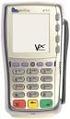 PC-EFTPOS Installation Guide EFT Client Release 5.0 April 09 Revision Record Version Date Author Document Revisions Preparation 0.01 June 00 Craig Godden Craig Godden Document Creation 1.00 May 01 Craig
CBA - Extensive Response Code Report. 00 -Transaction Approved Approved or completed successfully. Who to Contact. The transaction was approved
 CBA - Extensive Response Code Report 00 -Transaction Approved Approved or completed successfully The transaction was approved 01 -Contact the Bank Declined by Card Issuer for unspecified reason Card holder
ANZ - Extensive Response Code Report. 00 -Approved Approved. The transaction completed successfully. Who to Contact. The transaction was approved
 ANZ - Extensive Response Code Report 00 -Approved Approved. The transaction completed successfully The transaction was approved 01 -Card Read Error There has been an error with the card. Refer to card
VX-670 Series APACS 40 User Guide
 VX-670 Series APACS 40 User Guide 2006 VeriFone. All rights reserved. VeriFone, the VeriFone logo, Vx are either trademarks or registered trademarks of VeriFone. No part of the contents of this document
Merchant Operating Guide. ANZ POS Turbo Plus INTEGRATED EFTPOS SOLUTIONS
 1 Merchant Operating Guide ANZ POS Turbo Plus INTEGRATED EFTPOS SOLUTIONS Contents 2 1. Welcome 4 1.1 Merchant Agreement 4 1.2 Important Contact Details 4 1.3 Authorisation 4 1.4 Floor Limits 5 1.5 Change
EFTPOS. Quick Reference Guide for NAB Integrated
 EFTPOS Quick Reference Guide for NAB Integrated Before you start Before you begin the installation of your NAB Integrated terminal, you should ensure you have the following: A NAB Integrated EFTPOS terminal
How To Use An Hicaps Terminal
 hicaps terminal user guide contact phone numbers for HICAPS/EFTPOS HICAPS Help Desk 1300 650 852 your merchant details Merchant No. Manual Merchant No. For Authorisations: Credit Card (Credit) Account
Merchant Operating Guide. ANZ POS Plus 2 SIMPLE AND RELIABLE PAYMENT SOLUTIONS
 1 Merchant Operating Guide ANZ POS Plus 2 SIMPLE AND RELIABLE PAYMENT SOLUTIONS Contents 2 1. Welcome 4 1.1 Merchant Agreement 4 1.2 Important Contact Details 4 1.3 Authorisation 4 1.4 Floor Limit 5 1.5
Credit & Debit Application
 USER MANUAL ALL TERMINAL PRODUCTS Credit & Debit Application Magic Models: C5, X5, X8, M3, M8 V Series Models: V5, V8, V9, V8 Plus, V9 Plus 1 Dejavoo Systems Instruction Manual V429.12 Instruction Manual
Credit & Debit Application
 USER MANUAL ALL TERMINAL PRODUCTS Credit & Debit Application Instruction Manual V525.15 Dejavoo Systems Instruction Manual V525.15 1 ABOUT THIS MANUAL This manual provides basic instructions for user of
FUTURE PROOF TERMINAL QUICK REFERENCE GUIDE. Review this Quick Reference Guide to. learn how to run a sale, settle your batch
 QUICK REFERENCE GUIDE FUTURE PROOF TERMINAL Review this Quick Reference Guide to learn how to run a sale, settle your batch and troubleshoot terminal responses. INDUSTRY Retail and Restaurant APPLICATION
NAB - Extensive Response Code Report. 00 -Approved Approved, completed successfully. Who to Contact. The transaction was approved.
 NAB - Extensive Response Code Report 00 -Approved Approved, completed successfully The transaction was approved 01 -Declined See Card Issuer Declined refer card holder to issuer 04 -Declined Call Auth
Credit & Debit Application
 USER MANUAL ALL TERMINAL PRODUCTS Credit & Debit Application Magic Models: C5, X5, X8, M3, M8 V Series Models: V5, V8, V9, V8 Plus, V9 Plus 1 Dejavoo Systems Instruction Manual V429.12 Instruction Manual
CHARGE Anywhere. Mobile POS. User s Guide
 CHARGE Anywhere Palm Treo Mobile POS User s Guide 1 PURPOSE... 4 2 SCOPE... 4 3 DEFINITIONS... 4 3.1 Quick Sale... 4 3.2 Sale... 4 3.3 Auth Only... 4 3.4 Force... 4 3.5 Void... 4 3.6 Retry... 4 3.7 Return...
AIB Merchant Services AIB Merchant Services Quick Reference Guide Ingenico
 AIB Merchant Services AIB Merchant Services Quick Reference Guide Ingenico AIB Merchant Services AIBMS Quick Reference Guide This quick reference guide has been designed to answer the most common queries
MERCHANT FACILITY. Operating Guide. VX520 Countertop
 MERCHANT FACILITY Operating Guide VX520 Countertop January 2015 Your Merchant Support VX520 Contact Guide The Merchant Helpdesk is available 24 hours, 7 days a week, Australian Eastern Standard Time (AEST).
Internet Payment Gateway
 Internet Payment Gateway Merchant Administration Console Merchant Services TABLE OF CONTENTS Introduction to the Merchant Administration Console... 5 Console Overview... 5 Login Conditions... 5 Merchant
EFT930 Mobile GPRS Terminal. Quick Reference Guide
 EFT930 Mobile GPRS Terminal Quick Reference Guide 0 123 Send Mobile GPRS Terminal INDEX PAGE Glossary of Terms 2 Getting Started 3 Terminal Layout 4 Till Rolls 5 Changing Your Passwords 6 Taking Card Payments
faster smarter ip eftpos
 faster smarter ip eftpos Tyro EFTPOS Set Up Guide April 2014 Faster Smarter IP EFTPOS Tyro s EFTPOS terminals are easy to set up and use with step-by-step prompts guiding you through the process. This
Using Your Terminal. Moneris Vx810 Duet
 Using Your Terminal Moneris Vx810 Duet Need help? Call 1-866-319-7450 Record your Moneris merchant number here: 2 Contents Moneris Vx810 Duet... 2 Optional devices............................... 4 Card
Quick Reference Guide
 First National Bank - a division of FirstRand Bank Limited. An Authorised Financial Services and Credit Provider (NCRCP20). Merchant Services Making card transaction faster. Quick Reference Guide Gemalto
How to use your terminal
 ict/iwl Terminal How to use your terminal The basics Chip and PIN cards Insert the card with the chip facing up and towards the terminal. If the card has been inserted the wrong way or there is a problem
Merchant Operating Guide. ANZ POS Mobile 2 SIMPLE AND RELIABLE PAYMENT SOLUTIONS
 1 Merchant Operating Guide ANZ POS Mobile 2 SIMPLE AND RELIABLE PAYMENT SOLUTIONS Contents 2 1. Welcome 4 1.1 Merchant Agreement 4 1.2 Important Contact Details 4 1.3 Authorisation 4 1.4 Floor Limits 5
Shell Card Merchant Operating Guide ANZ SHELL POS Turbo TM 2
 Shell Acquiring Shell Card Merchant Operating Guide ANZ SHELL POS Turbo TM 2 Shell Helpdesk: 13 16 18 (For Shell Card queries) Release date: July 2013 Contents 1. Overview of Features... 3 1.1 Major Features...
American Express. Merchant Services. Grow your business With POS terminals from American Express
 American Express Merchant Services Grow your business With POS terminals from American Express POS Terminals Electronic Devices for fast, efficient and reliable card transaction processing to suit all
ANZ Merchant Business Solutions MERCHANT OPERATING GUIDE
 ANZ Merchant Business Solutions MERCHANT OPERATING GUIDE Contents Getting Started Welcome to ANZ 2 How to Contact Us 2 Your Key Responsibilities 3 Which Cards Should you Accept? 4 Security Checks to Validate
Quick set-up and fast facts guide
 BCD112079FCTB23 04/06/2013 23:19 Page 1 C M Y K Banking How to print a transaction log Banking must be carried out at the end of each business day. Just follow these simple steps: To help with reconciliation
Quick Reference Guide. ict200 Series
 Quick Reference Guide ict200 Series Hotkey Support Pressing one of the numeric keys (0-9) from the Idle Screen will take the user directly to certain pre-assigned transactions or tasks. Should any of those
Balance Inquiry (Food Stamp or Cash Account) Use this function to obtain a cardholder s Account balance. Touch EBT. Touch desired option.
 Food Stamp (FS) Sale Use this function to perform a FS Sale transaction. REFUND VOUCH EBT TYPE? FOOD STAMP CASH BENEFIT EBT APPROVED ##### Swipe card or key account number and touch Touch Food Stamp Key
Sync Guide. Sync Overview. Before the Event. During the Event. After the Event. Greater Giving Event Software
 Sync Guide Sync Overview Timeline Equipment Terms + This guide will instruct you on how to transfer data between Greater Giving Event Software and Auctionpay Master terminal Before, During and After your
How to connect your D200 using Bluetooth. How to connect your D200 using GPRS (SIM Card)
 D200 En User Guide Content 3 Introduction 3 Scope 3 Related Documentation 4 Internet Connectivity 4 Using D200 with Mobile Phone 5 Using D200 with wireless (Wi-Fi) router 6 Using D200 with GPRS (requires
V x 810 DUET. Reference Guide
 V x 810 DUET Reference Guide Copyright Statement Copyright 2010 by Amex Bank of Canada. All rights reserved. No part of this document may be reproduced in any form or by any electronic or mechanical means,
Terminal User Guide. ict220 & ML30
 Terminal User Guide ict220 & ML30 Contents Section Title Page Introduction 2 Important Safety Instructions 2 Declaration of Conformity 5 4. Installing the Terminal 6 5. Using the Terminal 9 6. Starting
FREQUENTLY ASKED QUESTIONS - CHARGEBACKS
 FREQUENTLY ASKED QUESTIONS - CHARGEBACKS # Questions Answer 1 What is a Chargeback? A Chargeback is the term used by Banks for debiting a merchant s bank account due to successful return of a transaction
Contents Section Title Page
 Contents Section Title Page 1. Introduction 2 2. Important Safety Instructions 2 3. Declaration of Conformity 5 4. Installing the Terminal 6 5. Using the Terminal 8 6. Sale (Inserting a Card) 10 7. Sale
Moneris ict250 OPERATING MANUAL
 Moneris ict250 OPERATING MANUAL Software Version 2.31 Documentation Date: July 15, 2013 MONERIS, MONERIS & Design, MONERIS SOLUTIONS & Design, and MERCHANT DIRECT are registered trade-marks of Moneris
Getting Started. Quick Reference Guide for Payment Processing
 Getting Started Quick Reference Guide for Payment Processing In today s competitive landscape, you have many choices when it comes to selecting your payments provider, and we appreciate your business.
User Guide: Apple devices
 1 User Guide: Apple devices Your details You may need these details from time to time. So it can be handy to have them here. But if you do record them, make sure you keep this guide somewhere safe. Your
Terminal User Guide. ict220
 Terminal User Guide ict220 Contents Section Title Page 1. Introduction 2 2. Important Safety Instructions 2 3. Declaration of Conformity 5 4. Installing the Terminal 6 5. Using the Terminal 8 6. Sale (Inserting
DPS POS Integration Certification Request and Test Scripts
 DPS POS Integration Certification Request and Test Scripts 1 DOCUMENT HISTORY Version Author Date 3.0.0 David Merry 01/2012 3.0.1 Grant Shannon 01/2012 3.0.2 David Merry 01/2012 3.0.3 James Rees 06/2013
Commonwealth Bank. CommBank. Payment app User Guide. Including Split Bill app. Version 2.0
 Commonwealth Bank CommBank Payment app User Guide Including Split Bill app Version 2.0 Updated Wednesday, 11 March 2015 2 Contents 1. Getting started... 4 Getting to know the Payment app... 4 2. Customising
Dolphin's Automatic Credit Card Authorisation and Fund Transfer - Servebase
 Dolphin Dynamics Dolphin's Automatic Credit Card Authorisation and Fund Transfer - Servebase Copyright 2009 Dolphin Dynamics Ltd. The information contained herein is the property of Dolphin Dynamics Ltd.
ANZ egate Merchant Administration. Quick Reference Guide
 ANZ egate Merchant Administration Quick Reference Guide Purpose The purpose of this Quick Reference Guide is to provide the user with a quick reference to using the ANZ egate Merchant Administration. We
MySagePay. User Manual. Page 1 of 48
 MySagePay User Manual Page 1 of 48 Contents About this guide... 4 Getting started... 5 Online help... 5 Accessing MySagePay... 5 Supported browsers... 5 The Administrator account... 5 Creating user accounts...
Your guide to merchant fees
 Merchant Solutions Your guide to merchant fees ADB3166 270607 We re here to help If you have any questions about this guide, please call Merchant Enquiries on 1800 230 177, Monday to Friday, 8 am to 8
NURIT 8400 EASY USER GUIDE RETAIL AND RESTAURANT APPLICATION POS 11.30
 NURIT 8400 EASY USER GUIDE RETAIL AND RESTAURANT APPLICATION POS 11.30 Cards are swiped with magnetic stripe down and to the front. They can be swiped either top to bottom or bottom to top. CREDIT CARD
Bank and SecurePay Response Codes
 Bank and SecurePay s Last updated: 19/07/2013 Bank s for Credit Card Transactions APPROVED 00 Approved 08 Honour with ID 11 Approved VIP (not used) 16 Approved, Update Track 3 (not used) 77 Approved (ANZ
FD40 User Guide. Version 16.0 June 2015
 FD40 User Guide Version 16.0 June 2015 First Data Merchant Solutions is a trading name of First Data Europe Limited, a private limited company incorporated in England (company number 02012925) with a registered
mypos Frequently asked questions
 mypos Frequently asked questions End user guide Document version 1.2 Intercard Finance AD 2007 2014 VERSION CONTROL Date posted Document revision Description Author Approving managers 30.05.2014 draft
Ingenico QUICK REFERENCE GUIDE
 QUICK REFERENCE GUIDE Ingenico This Quick Reference Guide will guide you through understanding your terminal s functionality and navigation, and will help you with troubleshooting. INDUSTRY Retail and
VX 680 USER GUIDE. 001 Rev 1. VeriFone www.verifone.com
 VX 680 USER GUIDE 001 Rev 1. VeriFone www.verifone.com W2P VX 680 KEYPAD SIGNAL STRENGTH BATTERY STRENGTH MOVEABLE HIGHLIGHT TO SELECT OPTIONS UP AND DOWN ARROW BUTTONS DISPLAY ON MULTI- OPTION SELECTION
QUICK REFERENCE GUIDE Retail Application
 Ingenico Telium2 Canada QUICK REFERENCE GUIDE Retail Application 2015 Elavon Inc. Elavon is a registered trademark in the United States and other countries. All rights reserved. Apple Pay and Touch ID
THE QUICK GUIDE FOR NEDBANK MERCHANTS
 THE QUICK GUIDE FOR NEDBANK MERCHANTS Handy phone numbers Merchant helpdesk 0860 114 966 Visa/MasterCard authorisation 0860 321 222 American Express authorisation 0860 321 555 Diners Club authorisation
How To Use Payclip On A Credit Card On A Payclip
 TM PayClip User Guide The easy way to accept Visa and MasterCard credit and debit card payments on the spot. Getting started made easy This User Guide gives you all the information you need on how to use
Merchant e-solutions Payment Gateway Back Office User Guide. Merchant e-solutions January 2011 Version 2.5
 Merchant e-solutions Payment Gateway Back Office User Guide Merchant e-solutions January 2011 Version 2.5 This publication is for information purposes only and its content does not represent a contract
Redwood Merchant Services. Merchant Processing Terminology
 ACH - Automated Clearing House for member banks to process electronic payments or withdrawals. (Credits or debits to a bank account) through the Federal Reserve Bank. Acquiring Bank - Licensed Visa/MasterCard
USER GUIDE. Rev 9/05
 USER GUIDE Rev 9/05 Document Change History Contents Contents About This Guide ii Document Change History iii Section : Transaction Central - CHAPTER : Getting Started...-3 CHAPTER 2: Credit Card Transactions...-9
VinNOW-TSYS Integration Setup
 VinNOW-TSYS Integration Setup Once your account is established with TSYS, and installation appoint should have been arranged. If not, contact your sales representative as these steps should be done for
Read me next. Mobile card machine. Get ready to trade
 1 Read me next Mobile card machine Get ready to trade 2 Useful numbers: (Call charges apply) Customer services: 0844 822 2011 Authorisation: 0844 822 2000 / 0844 824 5092 Chargebacks: 0844 755 0094 American
Read me next. Portable card machine. Get ready to trade
 1 Read me next Portable card machine Get ready to trade 2 Useful numbers: (Call charges apply) Customer Services: 0844 811 6666 Authorisation: 0844 822 2000 / 0844 824 5092 Chargebacks: 0844 755 0094 American
Virginia ECC. Vendor POS User Manual. Vendor Help Desk: 1-877-918-2776 Cardholder Call Center: 1-877-918-2322
 Virginia ECC Vendor POS User Manual Vendor Help Desk: 1-877-918-2776 Cardholder Call Center: 1-877-918-2322 Contents I. General Information... 4 II. Glossary... 5 III. Call Centers... 6 Vendor Help Line...
Ingenico iwl250. Product Release Kit PAGE 1. Ingenico iwl250-user
 Ingenico iwl250 Product Release Kit PAGE 1 Table of Contents Product Overview... 3 Getting Started... 4 Quick Reference... 6 Credit Transactions... 7 Debit Transactions... 8 Receipts & Reports... 9 Apriva
PROTECT YOUR BUSINESS FROM LOSSES WHILE ACCEPTING CREDIT CARDS
 PROTECT YOUR BUSINESS FROM LOSSES WHILE ACCEPTING CREDIT CARDS TABLE OF CONTENTS Introduction...1 Preventing Fraud in a Card-Present Environment...2 How to Reduce Chargebacks in a Card-Present Environment...4
Terminal Guide. Ingenico ICT220, ICT250, IWL220 & IWL250 Retail & Restaurant POS
 Terminal Guide Ingenico ICT220, ICT250, IWL220 & IWL250 Retail & Restaurant POS This Quick Reference Guide will guide you through understanding your terminal s functionality, for both countertop and wireless
CRM4M Accounting Set Up and Miscellaneous Accounting Guide Rev. 10/17/2008 rb
 CRM4M Accounting Set Up and Miscellaneous Accounting Guide Rev. 10/17/2008 rb Topic Page Chart of Accounts 3 Creating a Batch Manually 8 Closing a Batch Manually 11 Cancellation Fees 17 Check Refunds 19
Merchant Operating Guide
 PB 1 Merchant Operating Guide ANZ FastPay MOBILE PAYMENT SOLUTION Contents 1. Welcome 4 1.1 Merchant Agreement 4 1.2 Contact Details 4 1.3 How to get started 4 1.4 Authorisation 4 1.4.1 Authorisation Declined
SL-Series Integrated Credit and Gift Card User s Guide
 SL-Series Integrated Credit and Gift Card User s Guide SICOM Systems, Inc. 4140 Skyron Drive Doylestown, Pennsylvania 18902 800-54-SICOM (800-547-4266) or 215-489-2500 http://www.sicom.com [email protected]
Gift Card Program Using Your Terminal for Gift Card
 Gift Card Program Using Your Terminal for Gift Card For Moneris Mobile 8200 Contents Gift card program.............................. 2 Gift card entry options......................... 3 Hints and shortcuts............................
Full Dial Download to a Terminal with NO Existing Applications (The terminal will display DOWNLOAD NEEDED/*GO FILE NOT FOUND )
 5/29/2007 Full Dial Download to a Terminal with Existing Applications (The terminal will display the SoftPay menu or a VMAC menu that includes Comm Server.) 1 2 Press F2+F4 to enter system mode. Enter