
How To Use Payclip On A Credit Card On A Payclip
|
|
|
- Adele Sherman
- 5 years ago
- Views:
Transcription
1 TM PayClip User Guide The easy way to accept Visa and MasterCard credit and debit card payments on the spot. Getting started made easy This User Guide gives you all the information you need on how to use PayClip. It introduces you to your PayClip device and gives you enough information about the PayClip app so you can get started. We also walk you through how to make simple everyday transactions and how to process refunds. Information for Merchants If you re the Merchant, please refer to page 2 of this User Guide. There you ll find information on how to complete the registration process in the BNZ PayClip Merchant portal and, importantly, on how to set up Mobile Users. Learn more Please visit bnz.co.nz/payclipinfo for more information about PayClip, including the following: Quick Start Guide for Merchants Quick start Guide for Mobile Users Information about PayClip-compatible smartphones/tablets Customer support If you are having problems using PayClip, please contact BNZ on Get to know your PayClip device 1. Your PayClip device. 2. Card slot for cards with a chip: If your customer s card has an embedded chip you need to insert it into the card slot. 3. Magnetic reader: If your customer s card doesn t have a chip, you need to swipe it through the magnetic reader Audio jack: Used to clip your PayClip device into your smartphone/tablet s headphone socket. 5. USB port: Used for charging your PayClip device Securing clips: Used to secure the PayClip device onto your smartphone/tablet. Charging your PayClip device Your PayClip device comes fully charged, so it s ready to use straight away. To recharge your PayClip device, plug one end of the USB cable (which comes inside the box) into your PayClip device and the other into: A standard USB charger (not supplied, but if your smartphone/tablet comes with a USB charger you should be able to use this), or A powered USB port on your computer. Important note: Once fully charged, your PayClip device should perform around 2,500 transactions. To check how much battery charge your PayClip device has remaining, in the PayClip app, swipe right for the Settings menu and select About. You ll find more information about how to do this on page 3. 1
2 Download the PayClip app Before you re able to take your first payments, you need to download the free PayClip app onto your smartphone/tablet. A list of PayClip-compatible smartphones/tablets can be found at bnz.co.nz/payclipinfo. If you have an Apple iphone TM or ipad TM, follow these instructions 1 : 1. Visit the App Store Search for BNZ PayClip. 3. Download the free PayClip app onto your smartphone/tablet. If you have an Android TM phone or tablet, follow these instructions: 1. Visit Google Play Search for BNZ PayClip. 3. Download the free PayClip app onto your smartphone/tablet. Finding your way around the PayClip app The PayClip app lets you process transactions using your PayClip device and your smartphone/tablet. Now you have the PayClip app on your smartphone/tablet, you should spend a couple of minutes getting to know your way around it. It will make processing your first few transactions quick and simple. Login to the PayClip app 1. Open the PayClip app on your smartphone/tablet. 2. At the prompt, login to the app by entering your user ID and PIN. Important note: When you login to the PayClip app for the first time, you ll be prompted to enter the user ID and temporary PIN which were ed to you. You ll also be required to enter the new user activation code which we sent to your mobile phone. Note that you ll be asked to change your PIN as part of this process. Forgotten your PIN? If you can t find your login details or have forgotten them, call us on and we ll send them to you again. Information for merchants Important note: This section contains important information for Merchants. You can skip this section if you re not the Merchant. The BNZ PayClip Merchant portal is where you ll manage all aspects of PayClip for your business, including the ability to: View all transactions relating to your Merchant account. Set up Mobile Users who can use your PayClip device. Manage your PayClip device and disable it in the event it s lost or stolen. Login to the BNZ PayClip Merchant portal 1. You can access the BNZ PayClip Merchant portal at payclip.co.nz. 2. At the prompt, login by entering your username and password. Important note: When you login to the BNZ PayClip Merchant portal for the first time, you ll be prompted to enter the username we ed to you. You ll also be required to enter the temporary password which we sent to your mobile phone. Note that you ll be asked to change your password as part of this process. 1. ipad and iphone are trademarks of Apple Inc., registered in the U.S. and other countries. 2. App Store is a service mark of Apple Inc. 3. Google Play is a trademark of Google Inc. 2
3 Forgotten your password? If you can t find your login details or have forgotten them, call us on and we ll send them to you again. Setting up Mobile Users Before you can use the PayClip app you need to set up your Mobile Users. Even if you re the only person using PayClip in your business, you need to set yourself up as follows: 1. Login to the BNZ PayClip Merchant portal. 2. Select Add a Mobile User from the main screen. 3. Enter your address (this will become your username in the app), name and mobile number. Check the box if you d like to be able to perform refunds within the app. 4. We ll send you an containing your username and a temporary PIN. We ll also send a new user activation code to your mobile phone, which you ll need the first time you login to the PayClip app. You ll be asked to change your PIN during this process. You should also set up any staff members who you wish to use your PayClip device. Repeat the process above, entering the details (including their address) for each new Mobile User you wish to set up. Navigating the Settings menu in the PayClip app Now you re logged in to the PayClip app, let s go over one of the main screens, the Settings menu. You ll use this screen to manage all basic operations. Swipe right in the PayClip app to access the Settings menu. You ll find the following options: New Sale: Used to begin a new transaction. Transaction History: Shows all processed transactions made by the Mobile User. You ll visit this screen to process a refund (see page 6). Security Settings: Used for entering and changing your Signature Verification Code (see below). Support: Contact details for help and support on BNZ PayClip. About: Used to find information about your PayClip device, including how much battery charge is remaining. Logout: Used to exit the PayClip app. The Signature Verification Code Before you re able to use your PayClip device to process a transaction, we recommend you set up your own four-digit Signature Verification Code within the app. Important note: The Signature Verification Code is defaulted to If you do not set your own code, this will be your code. The Signature Verification Code gives you (or any Mobile User) the opportunity to check the customer s signature before a transaction begins processing. It s not the customer s four-digit PIN. How to set your Signature Verification Code 1. Swipe right in the PayClip app to access the Settings menu. 2. Select Security Settings. 3. Check Signature Verification is set to ON, select a PIN and follow the on-screen instructions to set and confirm your four-digit Code. The Signature Verification Code is stored within the PayClip app on a smartphone/tablet. So if you login to the PayClip app on someone else s smartphone/tablet using your own user ID and PIN, you ll need to set a new Signature Verification Code. You can do this at any time without having to know the previous code you (or someone else) had set. You now have all the information you need to get started. Over the next few pages we ll walk you through how to process a simple transaction using BNZ PayClip. 3
4 Taking a payment for the first time How to process your first transaction using PayClip 1. Open the PayClip app on your smartphone/tablet. 2. At the prompt, login to the app by entering your user ID and PIN. 3. You ll be instructed to clip your PayClip device into your smartphone/tablet. Insert the audio jack on your PayClip device into your smartphone/tablet s headphone socket. It should fit snugly. If you have a cover on your smartphone/ tablet, you may need to remove it. You can also adjust the clips on your PayClip device to hold it more securely in place. A Reader Detected message will appear in the PayClip app when correctly fitted. If you re using an Apple iphone or ipad, see Important note below. Depending on the location of the audio socket on your smartphone/tablet, you may have to clip your PayClip device into the top or bottom of your smartphone/ tablet, or back-to-front. Important note: If you re running ios 7 on an Apple device, you may get the warning Missing Reader, Please Connect Your Reader. This is due to a new privacy setting in ios 7, but it s easy to fix. Go to Settings on your Apple device, select Privacy, then Microphone. Turn Microphone ON for BNZ PayClip. Enter in the amount The PayClip app defaults to the New Sale screen. This is so you can take payments quickly at the point of sale. 1. Enter the value of your transaction. For example, the value of your transaction is $ Type The decimal point will be automatically inserted. If you enter an amount incorrectly, or your customer changes their mind about a transaction, use the backspace key. 2. Press Pay to enter an amount. Check the amount 1. You ll be prompted to check the amount before you continue to the next stage of the transaction. 2. Press Cancel to stop the transaction going to the next stage, or OK to confirm the value of the payment. 4
5 Inserting or swiping cards Next you ll be prompted to enter or swipe your customer s card. The front of the card should always face the flat side of your PayClip device. If customer has a card with a chip: Insert the card into the card slot, chip first, then press Continue. If customer has a card without a chip: Press Continue, then swipe the card through the magnetic reader. You can swipe the card in either direction (left to right, or right to left). Flat side of your PayClip device Card slot for chipped cards Swipe for magnetic reader Important note: PayClip only works with Visa and MasterCard credit and debit cards. It does not support EFTPOS, American Express (Amex) or Diners cards. If your customer s credit card has a chip, you must insert the card into the card slot. You cannot swipe credit cards with a chip through the magnetic reader. At the moment PayClip is a signature-only payment device and does not support Visa paywave or MasterCard PayPass. Therefore you must insert the customer s card into the card slot, or swipe the customer s card (if they only have a magnetic stripe on their card) and your customer must provide you with their signature. Obtain the customer signature The PayClip app now requires you to obtain the customer s signature on your smartphone/tablet s screen. Rotate the screen to the correct orientation shown in the app. 1. Obtain the customer s signature by getting them to sign the screen using their finger. If the customer makes a mistake, press Clear Signature to allow them to sign again. 2. Check their signature against the one shown on their card (if the customer s card is in the card slot, it s safe to remove it now). If the signature doesn t appear correct and you re concerned about the validity of the card, press Void to cancel the transaction. 3. Press Signature Verified if you re happy. 4. You ll be prompted to enter your four-digit Signature Verification Code (see page 3). Important note: The Signature Verification Code is not the customer s four-digit card PIN. See page 3 for more information. 5
6 Payment notifications and errors The PayClip app tells you when the transaction has been authorised. There may be occasions where you get an error message to let you know why a transaction has not been processed. The most common error messages are as follows: Transaction declined: This may be a result of the customer not having sufficient funds to complete payment. Or, if you re processing a refund (see below), you may get this message if the customer has not presented you with the original card they used to pay in the first instance. Transaction cancelled: This may occur if anything has interrupted the transaction process, such as a phone call. If this happens you should try taking a payment again. You have exceeded your maximum daily transaction limit: This is where you ve exceeded your daily transaction limit. If you re the Merchant, call us on and we may be able to increase the limit for you. Issuing your customer with a receipt 1. If your customer would like a receipt for the transaction, enter their address or mobile phone number and press Send. 2. If they do not want a receipt, press Done to finish the transaction. 3. Success you ve transacted using PayClip! Processing a refund You can easily process refunds in the PayClip app. The customer must present you with the same card that was used to process the original transaction and, ideally, their transaction ID (which was ed/texted to them). 1. First, locate the original transaction. You do this in Transaction History, which is accessed through the Settings menu in the PayClip app (swipe right from anywhere within the app). 2. Scroll through the records to find the original transaction (use the customer s name and/or the last four digits of their card to locate it). Or, search using the reference number on the customer s receipt. 3. Once located, select the transaction to get taken to the Transaction Details screen. 4. Choose Refund and follow the on-screen prompts. It s similar to taking a new payment. Important note: You can only process refunds in the PayClip app if you re authorised to do so. If you re the Merchant you can set yourself up to do this in the BNZ PayClip Merchant portal. You re unable to refund more than the original transaction amount and there s no time limit on processing refunds. If you accidentally processed a transaction for the wrong amount, we suggest you refund the entire amount and then process the transaction again, rather than refunding part payments. 6
7 Security of your PayClip Device and smartphone Security of your information is paramount. That s why you need a user ID and PIN to login to the PayClip app. You should note that no customer information or card details are held on the app or on a Mobile User s smartphone/tablet. We recommend all Mobile Users of your PayClip device take the following actions: Log-out of the PayClip app whenever they re not using PayClip. Place a security PIN/password on any smartphone/tablet they use with their PayClip device, as additional protection in the event both items are stolen. If you lose your BNZ PayClip device You should report any lost or stolen PayClip devices to BNZ by calling us on We can disable your PayClip device for you. If you re the Merchant, or it s out-of-hours (evenings and weekends), you can disable your PayClip in the BNZ PayClip Merchant portal. If you ve disabled your PayClip device (or we ve done this for you), for security reasons you must contact BNZ to have it re-enabled (e.g. if you find your PayClip device after you thought it was lost). 7
The easy way to accept EFTPOS, Visa and MasterCard payments on the spot. Mobile Users... 2. Charging your PayClip. 2. Downloading the PayClip app.
 PayClip User Guide The easy way to accept EFTPOS, Visa and MasterCard payments on the spot. Contents Getting started made easy 2 Information for Merchants....................................................2
WorldPay Mobile Demonstration
 Demonstration 2014 1 Creating your Merchant Portal Login 1. Before using WorldPay Mobile, you will need to create a Merchant Portal account by going to Portal.WorldPay.us and clicking Create My Account.
Manual. Start accepting card payments with payleven
 Manual Start accepting card payments with payleven The Chip & PIN card reader Top Magnetic stripe card reader Front Bluetooth symbol Battery life 0-button (pairing button) Cancel Back Confirmation Bottom
Wind River Financial iprocess Setup Guide for IOS Devices
 Wind River Financial iprocess Setup Guide for IOS Devices (Requires ios 4.3 or later. Compatible with iphone, ipad, and ipod touch. This app is optimized for iphone 5.) Table of Contents (Clickable Links):
Mobile credit & debit card acceptance for your Smart Phone or Tablet. MobilePAY Shuttle
 Mobile credit & debit card acceptance for your Smart Phone or Tablet MobilePAY Shuttle User Information Record your Merchant Account and other useful information here. From time to time, you may need quick
Leo (for any device) User Guide. 1. Important information to protect your business
 User Guide 1. Important information to protect your business The following steps should be followed at all times to protect you and your customers from fraud. You must ensure that the software application
User Guide: Apple devices
 1 User Guide: Apple devices Your details You may need these details from time to time. So it can be handy to have them here. But if you do record them, make sure you keep this guide somewhere safe. Your
mpos Solution A: Visa, MasterCard and JCB are supported. Both Debit & Credit Cards which is supported by any of this Card Type can be accepted.
 mpos Solution GENERAL Q1: What is mpos Solution? A: mpos Solution is an innovative payment solution that turns a smartphone or tablet into a secure mobile card payment acceptance device. It consists of:
Mobile credit & debit card acceptance for your iphone
 Mobile credit & debit card acceptance for your iphone Datecs Bluepad50 PIN pad Contents Content. Page. User Information...... 1. CardEase Mobile - Introduction......... 2. Basic requirements........3.
Your Guide to PayAnywhere
 Your Guide to PayAnywhere Items included: 1. Frequently Asked Questions Answers to FAQ about the PayAnywhere program 2. Apply Site Guide Refer to this section for helpful hints on applying for your PayAnywhere
*ROAMpay powered by ROAM
 *ROAMpay powered by ROAM Table of Contents 1. Introduction 2. Setting up Service 3. Supporting ROAMpay Customers 4. Helpful Links and Contacts 5. ROAMpay User s Guide Welcome to ROAMpay powered by ROAM!
MobileMerchant Application Guide
 MobileMerchant Application Guide United Kingdom Ireland Version 6 Android: Google Play is a trademark of Google Inc. Apple: Apple, the Apple logo, iphone and ipad are trademarks of Apple Inc., registered
Using the Square. [[email protected]] within
![Using the Square. [norepy@messaging.squareup.com] within](/thumbs/27/10450437.jpg "Using the Square. [norepy@messaging.squareup.com] within") Using the Square Square is an electronic payment system that allows users to accept credit card payments on mobile devices (iphone, ipad, ipod touch, or an Android device). STEP 1 - Sign up When registering
Using the Square Square is an electronic payment system that allows users to accept credit card payments on mobile devices (iphone, ipad, ipod touch, or an Android device). STEP 1 - Sign up When registering
Wind River Financial iprocess Setup Guide for Android Devices
 Wind River Financial iprocess Setup Guide for Android Devices Contents: iprocess account setup 2 Installing iprocess on your Android device 3 Configuring the iprocess app 8 Attaching the iprocess card
Quick Merchant Operator Guide Emmy
 Quick Merchant Operator Guide Emmy 1. Emmy Terminal Features ❶ ❶ Magnetic Strip Reader ❿ Bluetooth is not connected ❷ Integrated Contactless Reader ❷ ❿ Bluetooth is connected and ready ❸ Battery Indicator
Mobile PayWay. User guide
 Mobile PayWay User guide The following help desks and authorisation centres are available to you 24 hours a day, 7 days a week. St.George Electronic Banking Service Centre Service and Sales Support Help
Office Depot Merchant Services Mobile Application User Guide
 Office Depot Merchant Services Mobile Application User Guide Table of Contents Product Overview... 3 Downloading Office Depot Merchant Services Application... 4 Welcome Emails... 5 Create New Account Office
How to connect your D210 using Bluetooth. How to connect your D210 using GPRS (SIM Card)
 D210 En User Guide Content 3 Introduction 3 Scope 3 Related Documentation 4 Internet Connectivity 4 Using D210 with Mobile Phone 5 Using D210 with wireless (Wi-Fi) router 6 Using D210 with GPRS (requires
User Guide. for Card Reader and Payment Application
 User Guide for Card Reader and Payment Application Introduction to Pogo> This document provides detailed information on how best to use the Pogo> application to benefit your business. The intention is
Using PAYD. Mobile app. For Android TM devices (05/13)
 Using PAYD TM Mobile app For Android TM devices TM (05/13) Contents Important: Read First........................... 2 TM Set up the app.................................. 3 Connect the card reader.........................
mcashier User Guide To accept payments To cancel a payment
 mcashier User Guide To accept payments 1. Enter the purchase amount in the app. If desired, you can enter a reference under the amount (e.g. the product name). The reference will appear on the receipt.
Mobile PayWay User guide
 Mobile PayWay User guide Phone numbers Westpac Merchant Business Solutions Help Desk Service, Sales and Support Card reader difficulties Westpac Key Auth Service Cardholder Behaving Suspiciously Note:
Contents Error! Bookmark not defined.
 PayFox User Guide Contents Table of Contents... Error! Bookmark not defined. Product Overview... 3 Peripheral Devices... 3 Product Features and Functionality... 4 Account Activation Programming Enablement...
ROAMpay powered by ROAM
 ROAMpay powered by ROAM Table of Contents 1. Introduction 2. Setting up Service 3. Supporting ROAMpay Customers 4. Helpful Links and Contacts 5. ROAMpay User s Guide Welcome to ROAMpay powered by ROAM!
Pogo> User Guide. for iphone, ipad and ipod touch
 Pogo> User Guide for iphone, ipad and ipod touch Introduction to Pogo> This document provides detailed information on how best to use the Pogo> application to benefit your business. The intention is to
Quick IWL255 Merchant Operator Guide
 Quick IWL255 Merchant Operator Guide Easy loading printer IWL255 Terminal Features Integrated contactless reader USB connector Magnetic card reader Navigation keys Smart card reader Key Functions Power
How to connect your D200 using Bluetooth. How to connect your D200 using GPRS (SIM Card)
 D200 En User Guide Content 3 Introduction 3 Scope 3 Related Documentation 4 Internet Connectivity 4 Using D200 with Mobile Phone 5 Using D200 with wireless (Wi-Fi) router 6 Using D200 with GPRS (requires
User Guide: VirtualMerchant Mobile
 User Guide: VirtualMerchant Mobile Two Concourse Parkway, Suite 800, Atlanta, GA 30328 Elavon, Incorporated 2013. All Rights Reserved Copyright Copyright 2013 Elavon, Incorporated. All rights reserved.
STX Beacon User Guide. Credit Card Processing Mobile Devices Mac & Windows OS
 STX Beacon User Guide Credit Card Processing Mobile Devices Mac & Windows OS Table of Contents 3 Process Electronic Payments via Mobile Terminals - ipad, iphone, Android 3 Mobile Terminals: Activate PaymentMate
Verifone User Guide. VX 820 VX 680.
 Verifone User Guide. VX 820 VX 680. Table of contents. Terminal layout 3 Purchase transactions 4 Purchase transactions Restaurants only. 5 Pre-authorisation 7 Processing a void transaction 8 Processing
A guide to Barclaycard Anywhere
 A guide to Barclaycard Anywhere Contents Barclaycard Anywhere components Card reader specifications Getting started Payments Getting the most out of Barclaycard Anywhere Checking how your business is doing
Authorize.Net Mobile Application
 Authorize.Net Mobile Application ios User Guide October 2015 Authorize.Net Developer Support http://developer.authorize.net Authorize.Net LLC 082007 Ver.2.0 Authorize.Net LLC ( Authorize.Net ) has made
Two Factor Authentication (TFA; 2FA) is a security process in which two methods of authentication are used to verify who you are.
 Two Factor Authentication Two Factor Authentication (TFA; 2FA) is a security process in which two methods of authentication are used to verify who you are. For example, one method currently utilized within
MiniPOS and BluePad-50 user manual
 MiniPOS and BluePad-50 user manual Welcome to MiniPOS application for mobile and card payments! +386 (30) 70 4444 +386 (30) 70 5555 [email protected] www.paywiser.si Slovenska ulica 54 Ljubljana, Slovenija
NAB EFTPOS User Guide. for Countertop & Mobile Terminals
 NAB EFTPOS User Guide for Countertop & Mobile Terminals About your NAB EFTPOS Terminal NAB EFTPOS Mobile NAB EFTPOS Countertoptop Table of Contents Getting to know your NAB EFTPOS VeriFone terminal...5
What does the First Mobile app do for me? What else can I do with the mobile banking app beyond the basics? Why should I use the mobile banking app?
 What does the First Mobile app do for me? What else can I do with the mobile banking app beyond the basics? Why should I use the mobile banking app? How do I sign up to use mobile banking? What type of
Wireless epay Configuration and User Guide (Jave version)
 Wireless epay Configuration and User Guide (Jave version) INDEX 1 Section 1 - Installing Cradle/Card Reader to Phone... Page 04 Section 2 - Settings... Page 06 Section 3 - Starting and Login in to Wireless
Frequently Asked Questions about MobileMerchant
 Frequently Asked Questions about MobileMerchant 1. Who provides the card payment services? The MobileMerchant solution is provided by Elavon Merchant Services ( Elavon ). Elavon is a leading payment services
Mobile Pay. for Android TM. *Android Version 4.0 or higher required
 Mobile Pay TM for Android TM *Android Version 4.0 or higher required 2014 First Data Corporation. All Rights Reserved. All trademarks, service marks and trade names referenced in this material are the
VirtualMerchant. VirtualMerchant Mobile 2.2 User Guide. Revision Date: June 2014
 VirtualMerchant Revision Date: June 2014 Two Concourse Parkway, Suite 800, Atlanta, GA 30328 Elavon, Incorporated 2014. All Rights Reserved Copyright Copyright 2014 Elavon, Incorporated. All rights reserved.
ONLINE ACCOUNTABILITY FOR EVERY DEVICE. Quick Reference Guide V1.0
 ONLINE ACCOUNTABILITY FOR EVERY DEVICE Quick Reference Guide V1.0 TABLE OF CONTENTS ACCOUNT SET UP Creating an X3watch account DOWNLOADING AND INSTALLING X3WATCH System Requirements How to install on a
Guidance for CPGs on use of IT equipment in the meeting rooms
 Guidance for CPGs on use of IT equipment in the meeting rooms The Code of Conduct states that MSPs, but not other members of CPGs, may make reasonable use of the Parliament s telephone, fax, photocopying,
FD40 User Guide. Version 16.0 June 2015
 FD40 User Guide Version 16.0 June 2015 First Data Merchant Solutions is a trading name of First Data Europe Limited, a private limited company incorporated in England (company number 02012925) with a registered
CommBank Small Business app User Guide
 CommBank Small Business app User Guide CommBank Small Business app user guide 2 Contents Welcome to the CommBank Small Business app 4 CommBank Small Business app in 5 easy steps 4 We re here to help 4
VinNOW/TSYS Integration Setup. Overview
 Overview TSYS credit card processing communications to the gateway are all done via LAN internet linked PAX payment terminals. The terminals supplied by TSYS have the client s merchant account information
Troubleshooting. Your quick guide to solving problems with WorldPay Zinc
 Troubleshooting Your quick guide to solving problems with WorldPay Zinc 1 Introduction We ve designed WorldPay Zinc to be as simple to set up and use as possible. But any technology can throw up the odd
U S E R S G U I D E Last Modified: 12/06/2012 1
 USER S GUIDE Last Modified: 12/06/2012 1 Contents 2 Welcome 3 User Service Activation 4 Introduction 4 Purpose 5 Key Features 6 Activate 8 Using the System 8 Login 9 Credit Sale 10 For Swipe Capable Devices
PayWithIt for Android Devices User Guide Version 1.0.0
 PayWithIt for Android Devices User Guide Table of Contents About PayWithIt... 1 Installing PayWithIt... 1 Logging on to PayWithIt... 2 Logging Off from PayWithIt... 2 Configuring PayWithIt Settings...
SwannEye HD Plug & Play Wi-Fi Security Camera Quick Start Guide Welcome! Lets get started.
 EN SwannEye HD Plug & Play Wi-Fi Security Camera Quick Start Guide Welcome! Lets get started. QHADS453080414E Swann 2014 1 1 Introduction Congratulations on your purchase of this SwannEye HD Plug & Play
Mobility with Eye-Fi Scanning Guide
 Mobility with Eye-Fi Scanning Guide Scan and Transfer Images Wirelessly with Eye-Fi This document is to be used in addition to the scanner s user guide located on the installation disc. The instructions
Setting up RDP on your ipad
 This document will show you how to set up RDP (Remote Desktop Protocol) on your ipad. It will cover the following: Step 1: Creating an itunes account (if necessary) Step 2: Using the App Store Step 3:
mypos Frequently asked questions
 mypos Frequently asked questions End user guide Document version 1.2 Intercard Finance AD 2007 2014 VERSION CONTROL Date posted Document revision Description Author Approving managers 30.05.2014 draft
Contactless Card Reader Merchant Operating Guide
 Contactless Card Reader Merchant Operating Guide Hypercom Terminals Phone Numbers. The following Help Desk s and Authorisation Centre s are available to you 24 hours a day, 7 days a week. BankSA Electronic
Integrated EFTPOS User Guide
 business Integrated EFTPOS User Guide www.bendigobank.com.au Table of contents Keypad layout....3 Debit card purchase...4 Credit and charge card purchase...5 Processing a tip (restaurants only)...6 Pre-authorisation
User Guide. Your first steps to smart monitoring
 User Guide Your first steps to smart monitoring 2 3 Important safety and legal Information We have taken all measures to ensure the BabyPing Video Monitor meets the highest safety standards but it must
Online Services User Guide
 Online Services User Guide Welcome to online banking! Whether you re online or using a mobile device, access your accounts whenever and wherever it s convenient for you. Log In: BankMidwest.com Online
AT&T U-verse App for iphone FAQ s
 About AT&T U-verse What is AT&T U-verse for iphone? The AT&T U-verse for iphone is a service that provides all U-verse subscribers with the ability to view their U-verse TV Guide, manage their home DVR,
Basic Software Setup Guide. www.easyclocking.com
 1 Basic Software Setup Guide www.easyclocking.com 2 Table of Contents Software registration 3 How to connect the time clock.. 5 How to turn the time clock on 5 Defining the type of connection... 5 TCP/IP
Chase Mobile Checkout Canada User Guide
 Chase Mobile Checkout Canada User Guide TM Trademark of Chase Paymentech, LLC, Chase Paymentech Solutions authorized user. Contents 1. INTRODUCTION... 3 1.1. OVERVIEW... 3 1.2. GET ADDITIONAL ASSISTANCE...
Authorize.Net Mobile Application
 Authorize.Net Mobile Application Android User Guide October 2015 Authorize.Net Developer Support http://developer.authorize.net Authorize.Net LLC 082007 Ver.2.0 Authorize.Net LLC ( Authorize.Net ) has
Contents. 2 Welcome. 20 Settings. 3 Activation Steps. 4 Introduction. 4 Purpose. 20 Offline Mode Change Password. 5 Key Features
 User s Guide Contents 2 Welcome 3 Activation Steps 4 Introduction 4 Purpose 5 Key Features 6 Activation 8 Using the System 8 Login 9 Credit Sale 10 For Swipe Capable Devices 10 For Manual Entry 12 Cash
PINsentry. User Guide. Please read this leaflet carefully before you start using PINsentry
 PINsentry User Guide Please read this leaflet carefully before you start using PINsentry Welcome to PINsentry for Online Banking Contents PINsentry is an improved protection system for Online Banking,
Mercury VirtualTerminal ios Application
 Mercury VirtualTerminal ios Application Quick Reference Guide v2.1 Contents Introduction... 3 Downloading the application from itunes:... 3 Launching the application:... 4 Login and configuration:... 5
Schools CPD Online General User Guide Contents
 Schools CPD Online General User Guide Contents New user?...2 Access the Site...6 Managing your account in My CPD...8 Searching for events...14 Making a Booking on an Event...20 Tracking events you are
Contactless Card Reader Merchant Operating Guide. PC-EFTPOS i5100 Terminal
 Contactless Card Reader Merchant Operating Guide PC-EFTPOS i5100 Terminal Phone Numbers The following Help Desk s and authorisation centre s are available to you 24 hours a day, 7 days a week. Bank of
Idaho State University CASHNet ipad App Step-By-Step Training Guide
 Idaho State University CASHNet ipad App Step-By-Step Training Guide Login & Navigation Overview This section contains instructions for logging in and out of the app and provides an overview of the app
Frequently Asked Questions About Mobile Banking/Deposit App
 Frequently Asked Questions About Mobile Banking/Deposit App What is the myazstcu Mobile App? The myazstcu Mobile App is a service that enables members to access their account information, make deposits,
Mobile Banking Frequently Asked Questions
 Mobile Banking Frequently Asked Questions What types of Mobile Banking does Midwest BankCentre offer? We offer three types of Mobile Banking: Mobile Apps allows you to easily connect to Midwest BankCentre
/ 1. Online Banking User Guide SouthStateBank.com / (800) 277-2175
 / 1 Online Banking User Guide SouthStateBank.com / (800) 277-2175 Welcome Thank you for using South State s Online Banking. Whether you are a first time user or an existing user, this guide will walk you
iphone and Android Apps Guide iphone and Android Apps Guide
 iphone and Android Apps Guide A safe and efficient way of accessing your People s Choice Credit Union accounts, paying bills and transferring money. 1 Contents. 1. Mobile Banking using the People s Choice
A Guide for Patients of Abington Park Surgery
 A Guide for Patients of Abington Park Surgery This guide covers the following topics: About SystmOnline Logging in to SystmOnline Changing/Resetting Your Password Logging Out of SystmOnline Managing Appointments
Frequently Asked Questions (FAQs) IDBI Bank PayApt
 A. About PayApt Frequently Asked Questions (FAQs) IDBI Bank PayApt Q1. What is IDBI Bank PayApt? IDBI Bank PayApt is a mobile payment solution accessible from your Android smartphone that enables you to
Electronic approvals for forms
 Click on any of the boxes below to explore more detail, including answers to frequently asked questions, video quick links, and more. Electronic approvals for wires Electronic approvals for forms Security
Mobile Device Management AirWatch Enrolment ios Devices (ipad, iphone, ipod) Documentation - End User
 Mobile Device Management AirWatch Enrolment ios Devices (ipad, iphone, ipod) Documentation - End User Version 1.0 Contents Definitions... 1 Expected Time Taken to complete... 1 What do I need or need to
Student Quick Start Guide
 Student Quick Start Guide Welcome to Top Hat! This guide will help you register a student account and understand how to use Top Hat for your class. Creating an Account 1. If you don t already have a previous
Mobile App Frequently Asked Questions
 Mobile App Frequently Asked Questions Basics 1. What can I do with AAFCU s Mobile App? AAFCU s Mobile App makes your everyday banking activities easy and convenient. Here's what we offer: Pay bills Transfer
Welcome to your CIBC Dividend Visa * Card
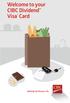 Welcome to your CIBC Dividend Visa * Card Turn your everyday spending into cash back rewards Get 2% cash back on all grocery purchases 1 Get started with your new cash back card 1. Activate your card Activate
How can I protect against the loss of my ID if my device is lost or stolen?
 How can I protect against the loss of my if my device is lost or stolen? If your mobile device is stolen or lost, you can reactivate your user on a new device and deactivate it on your stolen or lost device.
Online Timesheets Guide for Contractors
 Online Timesheets Guide for Contractors Table Of Contents 1. Welcome To Online Timesheets Page 2 2. Email Activation Page 2 3. Logging Onto The Online Timesheet Portal Page 2 4. Online Timesheet Portal
Guide for Setting Up Your Multi-Factor Authentication Account and Using Multi-Factor Authentication. Mobile App Activation
 Guide for Setting Up Your Multi-Factor Authentication Account and Using Multi-Factor Authentication Mobile App Activation Before you can activate the mobile app you must download it. You can have up to
Banking at the speed of your life. Online. Mobile. Superior. Safe.
 Banking at the speed of your life. Online. Mobile. Superior. Safe. PARKSTERLING Answers You Can Bank On. At Park Sterling Bank, we know that there are times when our answer can help expand a child s future,
Get to know PayAnywhere.
 Get to know PayAnywhere. Hello there! Applying for PayAnywhere How do I get $5,000 free in transactions? PayAnywhere will waive processing fees up to $5000 for the first six months after account approval
VinNOW-TSYS Integration Setup
 VinNOW-TSYS Integration Setup Once your account is established with TSYS, and installation appoint should have been arranged. If not, contact your sales representative as these steps should be done for
Mobile Banking Applications Premier Members Mobile User Guide
 Mobile Banking Applications Premier Members Mobile User Guide 1.0 P REMIER MEMBERS MOBILE BASICS Mobile Banking allows the user to access their account information via mobile smartphone or tablet either
User's Guide. [Home Network] app. Model No.
![User's Guide. [Home Network] app. Model No.](/thumbs/26/8329814.jpg "User's Guide. [Home Network] app. Model No.") User's Guide [Home Network] app Model No. Table of Contents Table of Contents 1 Welcome to the Panasonic Home Network System!...5 1.1 What is the Panasonic Home Network System?...5 1.2 What can I use it
User's Guide [Home Network] app Model No. Table of Contents Table of Contents 1 Welcome to the Panasonic Home Network System!...5 1.1 What is the Panasonic Home Network System?...5 1.2 What can I use it
Booth Gmail Configuration
 Student email is accessed via a Booth branded Gmail service. Student mailboxes will be accessed via Gmail. Configure Gmail Settings Before you connect Gmail to send and receive Booth Gmail on your mobile
OfficeSuite HD Meeting User Manual
 OfficeSuite HD Meeting User Manual Welcome to Broadview Networks OfficeSuite HD Meeting. Our service unifies cloud video conferencing, simple online meeting and mobile collaboration into one easy-to-use
ipayu TM Prepaid MasterCard FREQUENTLY ASKED QUESTIONS
 ipayu TM Prepaid MasterCard FREQUENTLY ASKED QUESTIONS What is the ipayu Prepaid The ipayu Prepaid MasterCard provides parents with a convenient, safe way to send money to their students. Students can
Your Flexible Spending Account
 QuickStart Guide Your Flexible Spending Account Includes: Your FSA: The Essentials Managing Your Account Using Your FSA Dollars Eligible Expenses 5 Ways to Use the Fund Documentation Register for an online
FiLIP 2 USER GUIDE 2015 Filip Technologies, Inc. All Rights Reserved. APR 2015
 FiLIP 2 USER GUIDE 2015 Filip Technologies, Inc. All Rights Reserved. APR 2015 WELCOME TO THE FiLIP FAMILY FiLIP helps children stay in touch with their parents and helps parents know where their children
FAMILY. Reference Guide. Pogoplug Family. Reference Guide. 2012 Cloud Engines, Inc. All Rights Reserved.
 Reference Guide Pogoplug Family Reference Guide Table of Contents Table of Contents 1. What s Included 2. Setting Up Your Pogoplug Device 3. Back Up a. Backing Up Your Computers b. Backing Up Your Mobile
Girl Scouts NC Coastal Pines Frequently Asked Questions Sage Credit Card Swipers
 Girl Scouts NC Coastal Pines Frequently Asked Questions Sage Credit Card Swipers Q: Our troop had an account last year; can we use the same user I.D and password? Is our Merchant I.D the same? This year,
White Rabbit Mobile App. Quick Reference
 White Rabbit Mobile App Quick Reference Confidentiality Statement All information contained in this document is provided in confidence and shall not be published or disclosed wholly or in part to any other
VX 680 USER GUIDE. 001 Rev 1. VeriFone www.verifone.com
 VX 680 USER GUIDE 001 Rev 1. VeriFone www.verifone.com W2P VX 680 KEYPAD SIGNAL STRENGTH BATTERY STRENGTH MOVEABLE HIGHLIGHT TO SELECT OPTIONS UP AND DOWN ARROW BUTTONS DISPLAY ON MULTI- OPTION SELECTION