
Hello Modem. Today I would like
|
|
|
- Angela Fitzgerald
- 9 years ago
- Views:
Transcription
1 Quick Setup Guide
2 Hello Modem. Today I would like to
3 Start from scratch 1 Plug Modem in 3 Connect a computer to Modem 7 Learn how to view Modem settings 21 Change my wireless network name 22 Change my wireless password 23 Attach the stand to Modem 24 Contact Customer Support 25
4 Have you got everything? Before you get started, please check that the following items are in your Modem box. Power Pack Line Filter Ethernet Cable Phone Cable 1
5 Meet Modem s sockets and buttons... ADSL Connects Modem to filter or phone socket Wired Connects Modem to computer Phone Connects a VoIP phone to Modem PSTN Fail Over Connects Modem to phone filter Storage Connects USB hard drive to Modem Reset Modem Wipes all custom settings off Modem Power Connects Modem to power source Power Button Will light up green around edges when Modem is on how would you like to plug in? Modem and phone share a socket - go to page 3 how would you like to plug in? Modem and phone in separate sockets - go to page 5 2
6 Plugging in Modem and phone share a socket 1. Connect Modem to a power source and turn him on with the power button next to the power port. 2. Plug one end of the white phone cable into Modem s adsl port, and the other into the ADSL socket on your line filter. 3. Plug your phone handset into the phone socket on your line filter
7 Plugging in 4. Plug the LINE cable on your line filter into the phone socket on your wall. 5. Let Modem sit for minutes while it communicates with Jiva. You should see a solid blue adsl and internet light. Head to page 7 to learn how to connect Modem to a computer
8 Plugging in Modem and phone in separate sockets You ll need an additional phone cable and line filter for each phone or fax you connect to a different phone socket in your house. 1. Connect Modem to a power source and turn him on with the power button next to the power port. 2. Plug one end of a white phone cable into Modem s adsl port. 3. Plug the other end of the phone cable directly into a phone socket on your wall
9 Plugging in 4. Using another phone cable, plug your phone handset into the PHONE socket on your line filter. 5. Plug the LINE cable on your line filter into a different phone socket in your home. Repeat steps 4-5 for any remaining devices or sockets as necessary. 6. Let Modem sit for minutes while it communicates with Jiva. You should see a solid blue adsl and internet light Head to page 7 to learn how to connect Modem to a computer. 6
10 Connecting a computer to Modem How would you like to connect your computer? with a cable Make sure you have your yellow ethernet cable, and then turn to page 8. wirelessly Which operating software do you use on your computer, smartphone or tablet? Windows XP page 9 Windows 7 page 11 Windows 8 page 13 MAC OS page 15 Apple ios page 17 Android OS page 19 A device needs an antenna to receive a wireless signal. Most smartphone, tablets and laptops have these built-in, but many desktop computers don t. You may need to buy an attachable antenna known as a wireless adapter. 7
11 Getting connected 1. Plug one end of a yellow ethernet cable into any wired socket on Modem, and the other into the network socket on your computer. 2. On most desktop computers, this network socket will be on the back of the CPU tower. Laptops usually have this on the side. 3. After a few minutes you should see a solid blue wired light on the front of your Modem. Your computer should now be online
12 Getting connected Connecting wirelessly with Windows XP 1. Write down your unique wireless network name (WPA) and password (SSID) on the sticker on the back of Modem. 2. Open the Start Menu and select the Connect To option from the right-hand column. Click on Wireless Network Connection. Jiva 4-port Wireless VoIP Modem Model : GL411-JI N27865 Designed by iinet Labs in Australia Made in China IDL
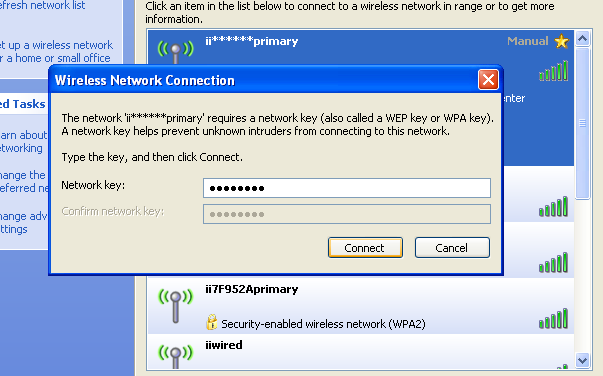
13 Getting connected 3. Select the name (SSID) of your wireless network from the list and click the Connect button. 4. Enter the Network key, which is your wireless password (WPA) and then click OK. Your computer should remember this password from now on. 10
14 Getting connected Connecting wirelessly with Windows 7 1. Write down your unique wireless network name (WPA) and password (SSID) on the sticker on the back of Modem. 2. Click the Network icon on the bottom right-hand corner of your screen. Jiva 4-port Wireless VoIP Modem Model : GL411-JI N27865 Designed by iinet Labs in Australia Made in China IDL
15 Getting connected 3. Select the name (SSID) of your wireless network from the list. Ensure Connect Automatically is ticked and then click the Connect button. 4. Enter the Security key, which is your wireless password (WPA) and then click OK. Your computer should remember this password from now on. 12
16 Getting connected Connecting wirelessly with Windows 8 1. Write down your unique wireless network name (WPA) and password (SSID) on the sticker on the back of Modem. 2. Click the Network icon on the bottom right-hand corner of your screen. Jiva 4-port Wireless VoIP Modem Model : GL411-JI N27865 Designed by iinet Labs in Australia Made in China IDL
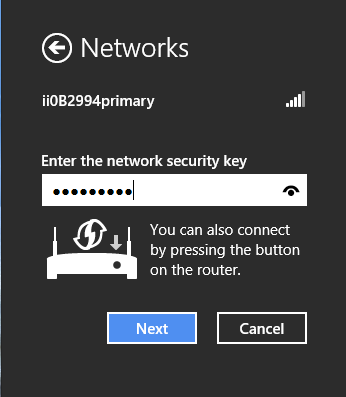
17 Getting connected 3. Select the name (SSID) of your wireless network from the list. Ensure Connect Automatically is ticked and then click the Connect button. 4. Enter the Network security key, which is your wireless password (WPA) and then click OK. Your computer should remember this password from now on. 14
18 Getting connected Connecting wirelessly with MAC OS 1. Write down your unique wireless network name (WPA) and password (SSID) on the sticker on the back of Modem. 2. Click the AirPort icon on the upper righthand corner of your screen and select Turn AirPort On. Jiva 4-port Wireless VoIP Modem Model : GL411-JI N27865 Designed by iinet Labs in Australia Made in China IDL
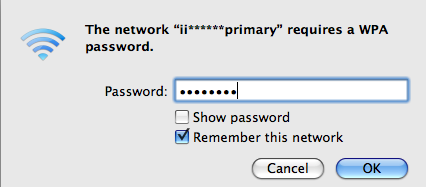
19 Getting connected 3. Click the AirPort icon again and select the name (SSID) of your wireless network from the list. 4. Enter your wireless password (WPA) and then click OK. Your computer should remember this password from now on. 16
20 Getting connected Connecting wirelessly with Apple ios 1. Write down your unique wireless network name (WPA) and password (SSID) on the sticker on the back of Modem. 2. Tap the Settings icon on your menu screen and select Wi-Fi from the list. Jiva 4-port Wireless VoIP Modem Model : GL411-JI N27865 Designed by iinet Labs in Australia Made in China IDL
21 Getting connected 3. Ensure the Wi-Fi slider is set to ON, then select the name (SSID) of your wireless network from the list. 4. Enter your wireless password (WPA) and then tap Join. Your Apple device should remember this password from now on. 18
22 Getting connected Connecting wirelessly with Android OS 1. Write down your unique wireless network name (WPA) and password (SSID) on the sticker on the back of Modem. 2. Open the Settings menu and select Wi-Fi from the Network connections list. Jiva 4-port Wireless VoIP Modem Model : GL411-JI N27865 Designed by iinet Labs in Australia Made in China IDL

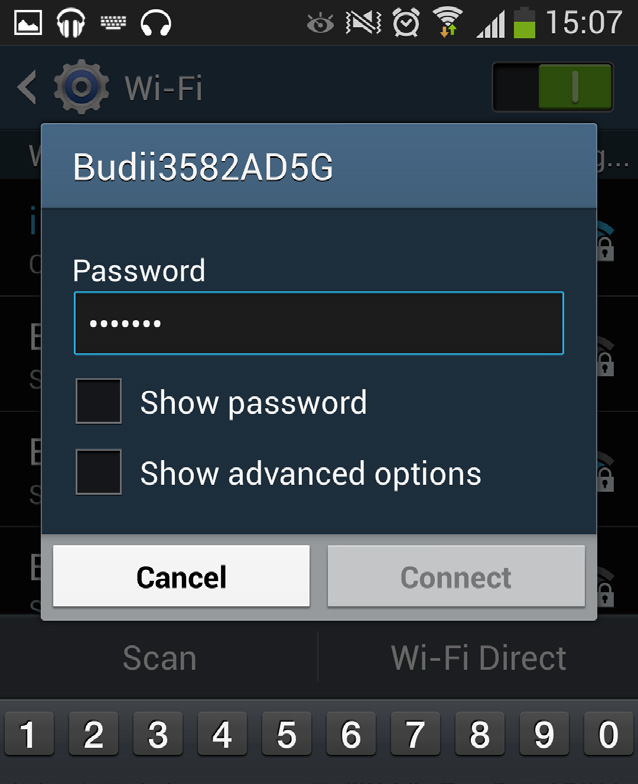
23 Getting connected 3. Ensure that Wi-Fi is turned on, then select the name (SSID) of your wireless network from the list. 4. Enter your wireless password (WPA) and then tap Connect. Your Android device should remember this password from now on. 20

24 Modem settings Viewing your Modem settings Your computer must be connected to Modem with a cable or a wireless signal before you can access the settings page. Modem has a settings page that you can use to manage its settings and features through your web browser. How to go to your Modem settings page 1. Open your computer s web browser and type in the address bar. Then hit the Enter key on your keyboard. 2. You ll see the Modem settings home page. Enter the default password admin, then press the log in button. 3. You ll now see the Wizard page for your Modem settings. You can get to other settings using the tabs across the top of the page, and the list of pages in the left-hand column. 21

25 Changing your wireless network name Wireless settings You can customise your wireless network name (SSID) through your Modem settings page. Check page 21 if you re not sure how to log in. Changing your network name (SSID) 1. After logging in, you ll see the Wizard section on the first page. Ensure Enable primary SSiD is ticked underneath Wireless Network. 2. In the text box to the right of Enable primary SSiD, replace the default network name with your preferred network name. 3. Click the Save Settings button to finish. You ll need to reconnect any wireless devices. 22
26 Wireless settings Changing your wireless password (WPA) You can customise your wireless password (WPA) through your Modem settings page. Check page 21 if you re not sure how to log in. 1. After logging in, you ll see the Wireless Wizard page. Ensure WPA/WPA2 PSK (Wi-F Protected Access with Pre-Shared Key) is selected. 2. Select Password (8~63 characters), then replace the default password in the text box with your preferred password. 3. Click the Save Settings button to finish. You ll need to reconnect any wireless devices. 23
27 Attaching the stand to Modem Attaching the stand If you need to disconnect cables, do so one by one so you can keep track of where they plug in, and make sure to restart Modem once you re finished. 1. Lay Modem face down on a cloth or towel to avoid scratches. 2. Pass all the cables through the hole in the supplied stand as shown. 3. Align the four pegs on the stand with the holes on the back of your Modem. 4. Apply a small amount of downward pressure, and push the stand towards the upper edge of your Modem. You will hear a click as the pegs lock into place
28 All done! If you have any issues with your setup or technology just isn t your strong point, you can always call our friendly staff using the contact information below. Jiva Customer Support am to 8pm (local time) [email protected] Jiva Online Support jiva.com.au/support
INSTALLING YOUR MODEM
 1 INSTALLING YOUR NEW wireless MODEM Thank you for choosing Orcon In this box you ll find your new Orcon Wireless modem. Just follow the instructions below and you will soon be up and running with high
ADSL2+ BROABDAND INTERNET
 ADSL2+ BROABDAND INTERNET Your modem comes pre-configured, so simply plug it in as per the instructions received with the modem and it should be working. A diagram of what a typical set up might look like
Internet basics 2.1 Getting online. Beginner s guide to. www.bt.com/getittogetherresources. Basics. Get IT Together
 Beginner s guide to Internet basics 2.1 Getting online Use this document with the glossary A helper should take you through this guide This activity will help you get online for the first time. What will
This document contains important personal information, so please keep it safe.
 ZyXEL Router AMG1202-T10A AMG1302-T10A User Guide Use this guide for resolving issues with your ZyXEL wireless router. affix customer details here This document contains important personal information,
How To Connect To A Wireless Network On Your Computer (Wired) Or Ipv) On A Computer (Wireless) On Your Ipv Or Ipa (Wired Or Wireless) On An Ipv (Wired/Wired) On Pc Or Mac
 HI-SPEED INTERNET USER GUIDE Wireless Modem Router - 2704R 2013-11 VERSION 1-800-360-8555 TABLE OF CONTENTS 1. Installing Your Wireless Modem Router...4 1.1 Hardware Provided...4 1.2 Connecting Your Modem
A quick Guide to your Super Hub 2ac
 A quick Guide to your Super Hub 2ac HELLO. W el c o m e t o t h i s h a n d y g u i d e t o y o u r n ew v i r g i n m e d i a b u s i n e s s b r o a d b a n d. What s inside Getting to know your Super
4 Setting up Broadband 10 Setting up Fibre Broadband 16 Moving from Broadband to Fibre Broadband
 To make your life easier, we ve already set-up your Bright Box wireless router so it will connect to the internet once your broadband is ready. Simply plug it in and connect your device. If you d like
Wireless Setup Guide
 Wireless Setup Guide BoB2 TM Wireless Setup The following information provides an easy, step-by-step guide to setting up your wireless network. By now you ve used the Quick Installation Guide to connect
Internet basics 2.1 Getting online. Beginner s guide to. Basics
 Basics Beginner s guide to Internet basics 2.1 Getting online Use this document with the glossary A helper should take you through this guide This activity will help you get online for the first time.
Configuring the wireless security of your Linksys Wireless-N router through the web-based setup page
 Contents Configuring the wireless security of your Linksys Wireless-N router through the web-based setup page.. 2 Checking the Linksys router s wireless settings through the web-based setup page and adding
Business Broadband Kit Quick Installation Guide
 Business Broadband Kit Quick Installation Guide Business Broadband Kit Quick Installation Guide 1 Thank you for choosing the Business Broadband Kit from Telecom New Zealand. Our new broadband is designed
Using LAN Wi-Fi (WLAN) 3-2 Connecting Wi-Fi Devices via Wi-Fi (WLAN) 3-3 Connecting Windows 3-5 Connecting Mac 3-8
 Wi-Fi (WLAN) -2 Connecting Wi-Fi Devices via Wi-Fi (WLAN) - Connecting WPS Supported Wi-Fi Devices - Connecting Game Consoles - Connecting Android Devices -4 Connecting Windows -5 Windows 7-5 Windows Vista
BT Business Total Broadband Fibre User Guide
 BT Business Total Broadband Fibre User Guide Fibre Contents Learn about 4 Your Fibre Hub and BT Business Total Broadband Fibre service. Extra features 7 Setting up extra features once you re online security,
IN THIS GUIDE YOU WILL LEARN HOW TO GET YOUR ROUTER GOING IN NO TIME THE INCREDIBLY EASY GUIDE TO SETTING UP YOUR DGN2200 WIFI MODEM ROUTER
 IN THIS GUIDE YOU WILL LEARN HOW TO GET YOUR ROUTER GOING IN NO TIME THE INCREDIBLY EASY GUIDE TO SETTING UP YOUR DGN2200 WIFI MODEM ROUTER MAKE SURE YOU HAVE THESE BITS AND BOBS HANDY The Netgear WiFi
Mobile Broadband Manager Guide Huawei E8278
 Mobile Broadband Manager Guide Huawei E8278 What s mobile broadband? Mobile broadband means you can surf the internet when you re out and about. 4G mobile broadband is the same but using our glorious 4G
SwannEye HD Security Camera Wi-Fi Connections Quick Setup Guide. Welcome! Lets get started.
 EN SwannEye HD Security Camera Wi-Fi Connections Quick Setup Guide Welcome! Lets get started. 1 1 Introduction 1 2 3 4 Congratulations on your purchase of this SwannEye HD Wi-Fi Security Camera from Swann!
HI-SPEED INTERNET USER GUIDE
 HI-SPEED INTERNET USER GUIDE Connecting to a Wireless Network (Wi-Fi) 2012-10 VERSION 1-800-360-8555 TABLE OF CONTENTS 4. Connecting to a Wireless Network (Wi-Fi)...3 Before you connect to a wireless network...3
Quick Reference Guide
 Welcome to BT Business Total Broadband Quick Reference Guide Follow the steps in this Quick Reference Guide to set up and start using your new BT Business Total Broadband service. The CD will help you
Quick Start Guide Vodafone Mobile Connect USB Modem
 Quick Start Guide Vodafone Mobile Connect USB Modem Designed for Vodafone Welcome to your new USB data modem, designed for Vodafone with 3G and 3G Broadband. We ll now take you through the simple process
Troubleshooting Guide
 Troubleshooting Guide Before you start troubleshooting: Power down the Tooway modem for 60 seconds. Connect a computer directly (via Ethernet cable) to the Tooway modem Power the Tooway modem and wait
Designed for Vodafone
 Quick Start Guide Vodafone Mobile Connect USB Modem Designed for Vodafone Welcome to your new USB data modem, designed for Vodafone with 3G and 3G Broadband. We ll now take you through the simple process
Business Broadband Kit Quick Installation Guide
 Business Broadband Kit Quick Installation Guide Business Broadband Kit Quick Installation Guide 1 Thank you for choosing the Business Broadband Kit from Telecom New Zealand. Our new broadband is designed
Business Wireless Internet quick install guide
 Read me first Business Wireless Internet quick install guide Wi-Fi and email set-up instructions included Actiontec Wireless Gateway TELUS Internet account information Record your personal account information
Installation Guide (No Router)
 Installation Guide (No Router) This installation guide will show you how to get your voip phone service working. This installation guide should be used if you have a standard DSL or cable modem and no
BoB TM 4 port wireless VoIP router
 BoB TM 4 port wireless VoIP router Table of Contents Chapter 1 Introduction...4 Chapter 2 Product Overview...5 Chapter 3 Knowing BoB Lite...8 Chapter 4 Connection and configuration...9 Chapter 5 Modem
USER GUIDE AC2400. DUAL BAND GIGABIT Wi Fi ROUTER. Model# E8350
 USER GUIDE AC2400 DUAL BAND GIGABIT Wi Fi ROUTER Model# E8350 Table of Contents Product overview E8350..................................... 1 Setting Up Your E-Series Router Where to find more help.........................
Let s go. Get your Ultra Broadband ready modem up and running
 Let s go Get your Ultra Broadband ready modem up and running Contents TELECOM HOME MODEM ULTRA BROADBAND READY 1 2 3 4 5 6 7 8 9 10 11 12 13 14 15 16 Equipment Check 2 Getting Started 3 Setting Up Fibre
ShareLink 200 Setup Guide
 ShareLink 00 Setup Guide This guide provides instructions for installing and connecting the Extron ShareLink 00. The ShareLink USB 00 Wireless Collaboration Gateway allows anyone to present content from
Internet User Guide. For the ZTE H298N routers. LAN4 LAN3 LAN2 LAN1 WAN Phone USB2 USB2 WAN WLAN WLAN WLAN
 Internet User Guide For the ZTE H298N routers LAN4 LAN3 LAN2 LAN1 WAN Phone Reset On/Off Power WLAN USB2 LAN4 LAN3 LAN2 LAN1 WAN Phone Power LAN1 Internet LAN3 LAN2 LAN4 WLAN Phone USB1 WAN Reset USB2
Sky Broadband upgrading your router software
 Sky Broadband upgrading your router software Why upgrade to the new software? As with all aspects of the services we provide, we have been working to enhance the performance of the software in your wireless
Quickstart Guide Vodafone Mobile Wi-Fi R216-Z
 Quickstart Guide Vodafone Mobile Wi-Fi R216-Z Welcome to the world of mobile communications 1 Welcome 2 Device overview 3 Getting started 5 Mobile Wi-Fi Web app 6 Web app overview 7 Current network panel
ZyXEL VoIP 2602HWL - Setup guide
 POWER A/C Adapter 4 3 2 1 PHONE 2 PHONE 1 LINE 2.0 Setup Network 2.1 Click on the Start button on the bottom left hand corner, and then choose Control Panel. ZyXEL VoIP 2602HWL - Setup guide Contents 1.
Quick Start Guide. Business Wireless Gateway. WiFi Devices. Model Number: DPC3939B. Business Wireless Gateway
 Business Wireless Gateway Model Number: DPC3939B Quick Start Guide WiFi Devices Business Wireless Gateway Set up your Private and Public WiFi networks About the Business Wireless Gateway Model Number:
How to connect to NAU s WPA2 Enterprise implementation in a Residence Hall:
 How to connect to NAU s WPA2 Enterprise implementation in a Residence Hall: General Settings To connect to the ResNet-Secure SSID, a device is needed that supports 802.1X authentication and WPA2 Enterprise.
Here s your guide to easy installation. Get the most out of Verizon High Speed Internet.
 Here s your guide to easy installation. Get the most out of Verizon High Speed Internet. Congratulations on choosing Verizon High Speed Internet. In this guide, you ll find everything you need to set up
Setting up a WiFi Network (WLAN)
 Setting up a WiFi Network (WLAN) How to set up Wi-Fi on your Huawei E960 InZone Step 1: In the address field on your internet browser, type http://192.168.1.1/ Step 2: Type admin into the Password box
Quick Reference Guide
 Welcome to BT Business Total Broadband Quick Reference Guide Read the information in this Quick Reference Guide to help you start using your new BT Business Total Broadband service powered by fibre. The
Home Internet Filter User Guide
 Home Internet Filter User Guide TABLE OF CONTENTS About Home Internet Filter... 2 How Home Internet Filter help you?... 2 Setting up the Residential Gateway and accessing to SingTel Home Internet Filter
Mac OS X Secure Wireless Setup Guide
 Mac OS X Secure Wireless Setup Guide Requirements: Apple computer with built-in AirPort card capable of WPA2-Enterprise encryption Mac OS X Snow Leopard version 10.6.0 or greater or Mac OS X Lion version
Internet and Email Help. Table of Contents:
 Internet and Email Help The following tips are provided to assist you in troubleshooting and managing your Plex Internet and email services. For additional issues or concerns, you may also call our Product
Home Wi-Fi Gateway Instructions
 Home Wi-Fi Gateway Instructions 1. Connect the gateway. Use the coaxial cable provided by BendBroadband to connect the cable port (A) to your cable outlet. 2. Connect your computer to the cable modem gateway
Networking. General networking. Networking overview. Common home network configurations. Wired network example. Wireless network examples
 Networking General networking Networking overview A network is a collection of devices such as computers, printers, Ethernet hubs, wireless access points, and routers connected together for communication
WiFi DSL Modem Router
 Support Thank you for purchasing this NETGEAR product. After installing your device, locate the serial number on the label of your product and use it to register your product at https://my.netgear.com.
Powerwifi USB Router in combination with the Powerwifi USB outdoor antenna
 INSTALLATION MANUAL Powerwifi USB Router in combination with the Powerwifi USB outdoor antenna INTRODUCTION The Powerwifi USB Router can be used together with the Powerwifi USB outdoor antenna. This creates
Introduction. Overview. Contents. Linksys AC1200 Max Wi-Fi Range Extender. Front
 User Guide RE6500 Linksys AC1200 Max Wi-Fi Range Extender Introduction This User Guide can help you connect the extender to your network and solve common setup issues. You can find more help from our award-winning,
Discover Broadband. A quick guide to your Virgin Broadband service
 Discover Broadband A quick guide to your Virgin Broadband service Contents Discover the internet with Virgin Broadband 2 Getting to know your Super Hub 4 Top tips on getting the best 6 wireless connection
How to setup EW-7438RPn with a Windows computer to extend an existing Wi-Fi network
 2 How to setup EW-7438RPn with a Windows computer to extend an existing Wi-Fi network Note: 1. This instruction use pictures from EW-7438RPn firmware v1.13. 2. If you need to restore to the default settings,
NETGEAR genie Apps. User Manual. 350 East Plumeria Drive San Jose, CA 95134 USA. August 2012 202-10933-04 v1.0
 User Manual 350 East Plumeria Drive San Jose, CA 95134 USA August 2012 202-10933-04 v1.0 Support Thank you for choosing NETGEAR. To register your product, get the latest product updates, get support online,
User Guide. E-Series Routers
 User Guide E-Series Routers Table of Contents Table of Contents Product overview E900/E1200/E1500/E2500/E3200 1 Back view 1 Bottom view 1 E4200 2 Top view 2 Back view 2 Setting Up Your E-Series Router
MobileLite Wireless G2 5-in-1 Mobile Companion User Manual
 MobileLite Wireless G2 5-in-1 Mobile Companion User Manual Document No. 480-MLWG2-021315.A00 Kingston MobileLite Wireless Page 1 of 21 Table of Contents Introduction... 3 What s Included:... 3 Getting
A Guide To Getting Connected
 A Guide To Getting Connected Step 1 Step 2 Step 3 Step 4 Step 5 Step 6 About this installation and user guide Preparing the installation Your broadband checklist Installing the microfilters Installing
2016 Frontier Communications. Here s your guide to easy installation. Get the most out of Frontier High-Speed Internet.
 2016 Frontier Communications Here s your guide to easy installation. Get the most out of Frontier High-Speed Internet. Congratulations on choosing Frontier High-Speed Internet. In this guide, you ll find
Quick Start Guide. Vonage VWR Device
 Quick Start Guide Vonage VWR Device Before you begin 1. If you purchased your Vonage Device from a retail store, you must first activate your Vonage phone service. (You will need to provide the MAC ID
KU Information Technology provides wireless access for both the KU campus community and for guest users at many points across campus.
 Wireless at KU KU Information Technology provides wireless access for both the KU campus community and for guest users at many points across campus. The Campus IT map provides building locations where
PSC Defective Customer Equipment Return Policy
 Copyright 2010 PSC PSC Defective Customer Equipment Return Policy Customer Equipment purchased from PSC can be returned with proof of purchase for identical or comparable equipment, at no cost to you within
Table of Contents. P a g e 2
 Welcome to your personal ADSL Setup Guide. This document will explain how to setup your VoIP enabled ADSL router. Once you ve had a chance to explore the guide, we d love to hear what your comments, suggestions
You may refer the Quick Installation Guide in the package box for more information.
 Hardware Installation: 1. Turn off your modem. 2. Use one Ethernet cable to connect your modem to WAN port (Blue) port of BR-6228nC. 3. Use another Ethernet cable to connect your PC to one LAN Port (Yellow)
MODEM INSTALLATION GUIDE
 AT AUSTRALIAN PHONE & INTERNET WE RE HAPPY WHEN YOU RE HAPPY MODEM INSTALLATION GUIDE 1300 137 768 1300 349 851 [email protected] australianphoneandinternet.com.au Box R1768 Royal Exchange PO
HP-1000 Powerline USB Adapter
 HP-1000 Powerline USB Adapter User s manual BEFORE INSTALLATION Plan ahead the installation of your powerline network. Note: You will need at least two powerline adapters to create a powerline network.
HP-1000 Powerline Ethernet Adapter
 HP-1000 Powerline Ethernet Adapter User s manual BEFORE INSTALLATION Plan ahead the installation of your powerline network. Note: You will need at least two powerline adapters to create a powerline network.
P-2612HNU-Fx. 802.11n ADSL2+ VoIP IAD DEFAULT LOGIN DETAILS. Firmware V3.00 Edition 1, 1/2010. Password: 1234 User Name: admin Password: 1234
 P-2612HNU-Fx 802.11n ADSL2+ VoIP IAD Firmware V3.00 Edition 1, 1/2010 DEFAULT LOGIN DETAILS IP Address: User Login: Administrator Login: http://192.168.1.1 User Name: user Password: 1234 User Name: admin
Check Your Package Contents. CD-ROM containing Manual and Warranty
 This product can be set up using any current web browser, i.e., Internet Explorer 6 or Netscape Navigator 6.2.3. DVA-G3340S Wireless VoIP Router Before You Begin If you purchased this Router to share your
Diamante WiFi Wireless Communication User Guide. Linksys E1200
 Diamante WiFi Wireless Communication User Guide Linksys E1200 Release: February 2012; August 2011; February 2011 Patent Pending. Copyright 2012, Stenograph, L.L.C. All Rights Reserved. Printed in U.S.A.
Quickstart Guide Vodafone Mobile Wi-Fi R209-Z
 Quickstart Guide Vodafone Mobile Wi-Fi R209-Z Welcome to the world of mobile communications 1 Welcome 2 Device overview 3 Getting started 5 Mobile Wi-Fi Web app 6 Web app overview 7 Current network panel
125 8880 telstra.com/ppmbb visit a telstra store or partner GETTING TO KNOW YOUR
 FOR MORE INFORMATIoN: 125 8880 telstra.com/ppmbb visit a telstra store or partner GETTING TO KNOW YOUR Telstra PRE-paid 4G wi-fi LET S GET THIS SHOW ON THE ROad WHAT S INSIDE Your Telstra Pre-Paid 4G Wi-Fi
PREMIUM BUSINESS GATEWAY - DEVG2020 DIGITAL BUSINESS USER GUIDE
 PREMIUM BUSINESS GATEWAY - DEVG2020 DIGITAL BUSINESS USER GUIDE NEED MORE SUPPORT? If you have questions beyond this guide, we want to help. To learn more about your Business Broadband or Digital Business
Get connected with your TELSTRA. Quick start guide Fold out to get started
 Get connected with your TELSTRA Quick start guide Fold out to get started Wireless Network Name (SSID): Telstra123A45 Wireless Security Key (WPA): WHAT S IN THE BOX To set up the T-Gateway, make sure you
Windows 10.1 Tablet (UB-15MS10 and UB-15MS10SA) FAQ December 2014
 Windows 10.1 Tablet (UB-15MS10 and UB-15MS10SA) FAQ December 2014 Navigation... 2 Question 1: What are charms used for?... 2 Question 2: How do I navigate while using a mouse or trackpad?... 3 Question
LET S GO. Get your Ultra Broadband ready Business gateway up and running
 LET S GO Get your Ultra Broadband ready Business gateway up and running CONTENTS BUSINESS GATEWAY ULTRA BROADBAND READY 1 2 3 4 5 6 7 8 9 10 11 12 13 14 15 Equipment Check 2 Getting Started 3 Setting Up
Discover Virgin Broadband. A quick guide to your broadband service
 Discover Virgin Broadband A quick guide to your broadband service Contents Discover Discover the internet with Virgin Broadband 2 Getting to know your Super Hub 5 How to protect kids in the digital world
Welcome to your new Broadband Service Set-up Guide
 Welcome to your new Broadband Service Set-up Guide Welcome to your new Broadband Service Thank you for choosing the Utility Warehouse Discount Club to provide your Broadband Service. Please read this
Software and Settings Instructions
 SoelTech Automation Inc. Software and Settings Instructions Select the blue disclosure button that is associated with the network name you want to connect the Mobile GDO to (Blue >). It would normally
Quick Installation Guide DIR-620. Multifunction Wireless Router Supporting GSM, CDMA, WiMAX with Built-in 4-port Switch
 DIR-620 Multifunction Wireless Router Supporting GSM, CDMA, WiMAX with Built-in 4-port Switch BEFORE YOU BEGIN Delivery Package Multifunction wireless router DIR-620 Power adapter DC 5V/2.5A Ethernet cable
Almond. Quick Setup Guide
 Almond Quick Setup Guide 2 Contents 1 Introduction 1.1 Getting to know your Almond 2 Connecting your Almond as a Range Extender (Repeater) 3 Connecting your Almond as a Router 3.1 Using your Almond with
PIGCHAMP MOBILE. PigCHAMP Knowledge Software. Installation Guide for Mobile Units
 PIGCHAMP MOBILE PigCHAMP Knowledge Software Installation Guide for Mobile Units Table of Contents: Important Note:... 4 Chapter 1: PC Setup... 5 A. Install PigCHAMP Mobile Manager on Windows XP...5 B.
This guide is intended to help you troubleshoot problems connecting a wireless device to the Gogo Biz network.
 This guide is intended to help you troubleshoot problems connecting a wireless device to the Gogo Biz network. TABLE OF CONTENTS Windows Operating System... 3 Blackberry... 5 Android... 6 Apple Macbook...
How to find the MAC address of your computer
 How to find the MAC address of your computer To complete the Application for IP Connection, it is required that you include your MAC address. Explanations are provided for the following systems. Windows
Quick Installation Guide
 V2.01 IP Wired / Wireless Camera Quick Installation Guide (For Windows OS) Model: FI8602/FI8602W ShenZhen Foscam Intelligent Technology Co., Ltd Packing List Quick Installation Guide 1) IP CAMERA X 1 2)
Welcome to John Lewis Broadband
 Welcome to John Lewis Broadband Getting started with your wireless router ZyXEL VMG8924 Contents Before you begin 3 Read this before you start setting up. Get connected 4 What to do and when. Wi-Fi 8 How
DSL Self-install Kit Instructions
 DSL Self-install Kit Instructions Cover and installation notes Page 1 1. Verify your system requirements Page 2 2. Verify the contents of your DSL Self-Install kit Page 2 3. Install filters on your telephone
English version. LW320/LW321 Sweex Wireless 300N Router. Package Contents. Terminology list
 LW320/LW321 Sweex Wireless 300N Router Do not expose the Sweex Wireless 300N Router to extreme temperatures. Do not place the device in direct sunlight or in the direct vicinity of heating elements. Do
Apple MacBook/Pro/Air Laptop Guide Tech Tips & Common Issues
 Apple MacBook/Pro/Air Laptop Guide Tech Tips & Common Issues This helpful guide was created to address some of the most common questions/issues/concerns you may have about using MacBook, MacBook Air &
NF5 VOIP Setup Guide (for Generic)
 NF5 VOIP Setup Guide (for Generic) Configuring your NF5 for VOIP Service The following steps will take you through the process of setting up your VOIP connection. Step 1: Checking Computer Network Settings:
Fibe Internet Connection Hub Reference Guide
 Fibe Internet Connection Hub Reference Guide FibeInternet_ConnectionHub_ReferenceGuide_Eng_V7 1 Bell Internet Service Agreement Use of the Bell Internet service is subject to the terms and conditions of
LW310V2 Sweex Wireless 300N Router
 LW310V2 Sweex Wireless 300N Router Please notice! On the included CD-ROM you will find the Setup Wizard. This easy install procedure will show you how to setup the router step-by-step. Do not expose the
Hello and welcome. If you have any questions about the service, check out our fibre optic broadband support pages: www.plus.
 Print out and keep safe Hello and welcome We really hope you ll enjoy using Plusnet and being part of our community. This guide will help you get your fibre optic broadband set up. It ll also show you
Start here. BT Total Broadband Quick Start
 Start here BT Total Broadband Quick Start Follow Quick Start v1.5 Compatible with the following operating systems: Microsoft Windows 98SE, ME, 2000, XP and Vista Apple Mac OS 10.2.4 to 10.5.x Bringing
High-Speed Internet Quick Start Guide
 High-Speed Internet Quick Start Guide Connect Your World. NEED HELP? Call 1.800.239.4430 or visit Frontier.com/HelpCenter Contents PART #1: Wi-Fi Router Setup... 4 PART #2: Configure Wi-Fi Router... 8
Error! Bookmark not defined. Error! Bookmark not defined. Error! Bookmark not defined.
 Remote Lighting Kit Table of Contents Lighting Kit Overview 2 System Requirements 3 Basic Concepts of Wireless Routers and Networks 4 Basic Concepts of Network Light Bulbs 8 Planning Your Lighting Network
Frontier DSL SelfConnect Guide
 Frontier DSL SelfConnect Guide Frontier DSL Self-Installation Guide Table of Contents Getting Started...2 Customer and Computer Requirements...2...3 STEP 1: Install Microfilters...3 STEP 2: Install Your
BT Business Total Broadband User Guide
 BT Business Total Broadband User Guide Contents To install your BT Business Hub, follow your handy Quick Start guide. This User Guide contains more detailed set-up and service information, including troubleshooting.
WiFi troubleshooting. How s your WiFi signal? Android WiFi settings. ios WiFi settings
 1 WiFi troubleshooting How s your WiFi signal? If your connection appears to keep dropping off: check in your WiFi settings that you added @kent.ac.uk to your username, and entered your password correctly.
IT user guide. Campus WiFi eduroam. September 2015. www.kent.ac.uk/itservices Information Services
 IT user guide Campus WiFi eduroam September 2015 www.kent.ac.uk/itservices Information Services Before you get online Hello eduroam! You can pick up the University WiFi service eduroam in all indoor spaces
Wireless Setup Guide. Before you start please ensure:
 To use the AirPlay feature, must be connected to your existing home network (from now on referred to as your home network ). The following procedure will give you a step-by-step guide to set up the AirPlay
TE100-P21/TEW-P21G Windows 7 Installation Instruction
 Hardware Installation TE100-P21/TEW-P21G Windows 7 Installation Instruction 1. Go to http://www.trendnet.com/downloads/ to download the Windows 7 Utility. Save the file to your desktop. 2. Right click
Installation:... 1 Configuration Procedure... 2 Single- Click connection/disconnection using menu bar icon... 6
 Instructions for how to configure Mac OSX for Globalstar Data Communications with GSP- 1700. Contents Installation:... 1 Configuration Procedure... 2 Single- Click connection/disconnection using menu bar
CONNECTING TO THE INTERNET THE EASY WAY. THE SIMPLE GUIDE TO INSTALLING YOUR WiFi MODEM
 CONNECTING TO THE INTERNET THE EASY WAY 1 MAKE SURE YOU HAVE THESE BITS AND BOBS HANDY WIFI MODEM STEP 1 PLUG IN YOUR MODEM MAKE SURE YOU DON T SWITCH OFF YOUR MODEM FOR AT LEAST 10 MINUTES AFTER PLUGGING