
All Rights Reserved. Copyright 2007
|
|
|
- Samuel Caldwell
- 9 years ago
- Views:
Transcription
1

2 All Rights Reserved Copyright 2007 The use, disclosure, modification, transfer, or transmittal of this work for any purpose, in any form, or by any means, without the written permission of the copyright holder, is strictly forbidden. Disclaimer The content of this manual is subject to change without notice and should not be construed as a commitment by the manufacturer, distributor, or service provider. This manual is furnished for informational use only and the manufacturer, distributor, or service provider assumes no responsibility for any errors or inaccuracies that may appear herein. Any services provided through this equipment are not intended to replace or be a substitute for primary line voice services or Plain Old Telephone Service ( POTS ) and are not meant to provide guaranteed Automatic Number Identification or Automatic Location Information capabilities associated with 911 or E911 services or to permit access to 411 directory assistance services. The manufacturer, distributor, or service provider will not be liable for any damages, expenses, liabilities, risks, or harms arising out of or related to the services provided through this equipment. Version 7.4 October 2007

3 Table of Contents 1. Welcome to Net2Phone VoiceLine... 1 Features and Benefits...1 All Customers...1 Low Rates...1 Share the Savings...1 Save Wherever You Travel...1 No Contract and No End-Of-The-Month Bill...2 Affordable Calling Plans...2 Convenient Online Account Management...2 Multiple Languages...2 Small Business Customers...2 U.S. Presence for Small Businesses...2 Receive Calls Anywhere You Have a Broadband Connection...2 Great Service Features...2 Service Requirements...4 Customer Support...4 VoiceLine Customer Support Contact Information Setting Up the VoiceLine Service Placing Calls... 6 Calling within Your Area Code...6 Calling within North America...6 Calling International Destinations Using VoiceLine Calling Features Way Calling...9 Placing a 3-Way Call...9 Disconnecting a 3-Way Call...9 Account Balance Announcement...9 Activating/Deactivating from the VoiceLine-enabled Phone Account Balance Announcement Dial Codes Summary Activating and Deactivating the Account Balance Announcement Feature Activating/Deactivating from the Remote Account Center Activating/Deactivating from the My Account Center Web Site Activating and Deactivating the Account Balance Announcement Feature Call Blocking Call Blocking Rules Activating/Deactivating from the VoiceLine-enabled Phone Call Blocking Dial Codes Summary Activating and Deactivating Call Blocking Activating/Deactivating from the Remote Account Center Activating/Deactivating from the My Account Center Web Site Activating Selective Call Acceptance and Defining the Acceptance List Activating Selective Call Rejection and Defining the Rejection List Page i

4 Deactivating All Call Blocking Features Call Forwarding Feature Conflicts Activating/Deactivating from the Phone Call Forwarding Dial Codes Summary Activating and Deactivating Call Forwarding Activating/Deactivating from the Remote Account Center Activating/Deactivating from the My Account Center Web Site Activating and Deactivating Call Forwarding Call Hold Call Return Call Return Dial Codes Summary Activating Call Return from the VoiceLine-enabled Phone Canceling Call Return Activating/Canceling Call Return from the Remote Account Center Call Waiting Disabling Permanent Call Waiting From the VoiceLine-enabled Phone From the Account Center Web Site Disabling Call Waiting for a Single Outbound Call Answering a Call Waiting Call Caller ID/Caller ID Delivery Enabling/Disabling from the VoiceLine-enabled Phone Caller ID Deliver Dial Codes Summary Enabling and Disabling Caller ID Delivery Enabling/Disabling from the Remote Account Center Enabling/Disabling from the My Account Center Web Site Click2Call Placing Click2Call calls from the Click2Call Page Placing Click2Call Calls from Other Account Center Locations Do Not Disturb Enabling/Disabling from the VoiceLine-enabled Phone Enabling the Do Not Disturb Feature Disabling the Do Not Disturb Feature Enabling/Disabling from the Remote Account Center Enabling/Disabling from the My Account Center Web Site Enabling/Disabling Do Not Disturb to Voic Enabling/Disabling from the Voic Timer Feature Using the Special Pass Code From the VoiceLine-enabled Phone or Remote Account Center From the My Account Center Web Site Fax Bandwidth Requirements Language Selection Selecting the Prompt Language from the VoiceLine-enabled Phone Selecting the Prompt Language from the Remote Account Center Page ii

5 Selecting the Prompt Language from the My Account Center Web Site Reach Me Feature Conflicts Enabling/Disabling Reach Me from the VoiceLine-Connected Phone Configuring the Reach Me Options Enabling/Disabling Reach Me from the Remote Account Center Enabling/Disabling Reach Me from the My Account Center Web Site Redial Redial Dial Codes Summary Activating Redial Canceling Redial Activating/Canceling Redial from the Remote Account Center Remote Account Center Accessing the Remote Account Center Via your VoiceLine Phone Number Via an Access Number Accessing Voic Accessing Account Balance Managing Calling Features Placing a Call Enabling Calling Card Calling Placing a Calling Card Call Service Interruption Forwarding Feature Conflicts Activating/Deactivating from the Phone Service Interruption Forwarding Dial Codes Summary Activating and Deactivating the Service Interruption Forwarding Feature Activating/Deactivating from the Remote Account Center Activating/Deactivating from the My Account Center Web Site Activating and Deactivating the Service Interruption Forwarding Feature SoftPhone Dialer Downloading VoiceLine SoftPhone Speed Dial Assigning Speed Dial Codes from the Phone Via the Menu Via the Keypad Assigning Speed Dial Codes from the My Account Center Web Site Setting the Phone Number Playback Feature Editing or Deleting a Speed Dial Entry from the VoiceLine-enabled Phone.. 61 Editing and Deleting a Speed Dial Entry from the My Account Center Web Site Editing a Speed Dial Entry from the My Account Center Web Site Deleting a Speed Dial Entry from the My Account Center Web Site Placing a Call Using a Speed Dial Code Browsing through the List of Speed Dial Codes Using Speed Dial with Remote Account Center Voic Page iii

6 Setting Up Your Mailbox Recording/Changing Your Personal Greeting Changing the Number of Rings Listening to Your Voic Messages Listening to Voic Messages with the VoiceLine-Enabled Phone Listening to Voic Messages from the Remote Account Center Listening to Voic Messages on the My Account Center Web Site Saving Voic Messages Deleting Voic Messages From the VoiceLine-Enabled Phone or Any Touch-Tone Telephone From the My Account Center Web Site Setting Up Notifications and Voic Attachments for New Voic Messages Enabling Multiple Notification and Voic Attachments Disabling Notification and Voic Attachments Using the My Account Center Web Site Logging into the My Account Center Web Site Viewing the My Information Page Viewing Your Call History Viewing Your Billing History Viewing Rates Adding Funds to Your Account Managing Your VoiceLine Settings Setting the Dial Plan and Time Zone Managing Your VoiceLine Device Features Optimizing Call Quality Updating Your MAC Address Troubleshooting Inbound Call Behavior and Error Codes ESP Cause Codes FAQs General Installation Phone Numbers Calling Features Faxing Pricing Appendices Appendix A. FireWall Server List Appendix B. VoiceLine Service Codes Index Page iv

7 1. Welcome to Net2Phone VoiceLine Congratulations on purchasing the VoiceLine service! VoiceLine is a new service that allows residential or small business customers to use their broadband Internet connections with a variety of devices or software programs to make and receive phone calls, all for significant savings over PSTN (Public Switched Telephone Network) calls with traditional carriers. With VoiceLine, you can choose a single plan that meets all of your calling needs local, long distance, and international. VoiceLine allows customers outside of the United States to establish a U.S. presence by setting up a US-based local or toll-free phone number that can be used by customers, coworkers, friends, and family within the U.S. to call them. As a VoiceLine customer, you can also use the service to place outbound calls to the U.S. and other international destinations on the same billing account, providing a flexible, powerful, and cost-effective telecommunications tool. In this chapter, you will learn the benefits of the VoiceLine service, as well as the service requirements. The sections are: Features and Benefits Service Requirements NOTE: The term VoiceLine-enabled phone can refer to a variety of telephone adapters, WiFi phones, or software programs that are designed for use with the VoiceLine service. Features and Benefits All Customers The VoiceLine service offers you the following features: LOW RATES VoiceLine transmits calls securely over the Internet, which costs less than routing calls through the traditional telephone network. We pass these savings on to you. SHARE THE SAVINGS VoiceLine is more than just great low rates. By using VoiceLine, you can help friends and family lower their phone bills. As a VoiceLine subscriber, you can choose a toll-free or local number in the U.S. or a toll-free or local number in the U.K. wherever you reside. So if you choose a U.S. phone number but reside in India, a caller will have the same experience as calling any other U.S. phone number even though the phone rings in your home! SAVE WHEREVER YOU TRAVEL Your VoiceLine service can travel with you. When someone calls your VoiceLine phone number, your phone rings wherever your VoiceLine-enabled phone can access a broadband Internet connection -- whether you are at home or traveling somewhere else in the world. IMPORTANT: If you move your VoiceLine device to a location other than your primary service address, you may not be able to place emergency calls, or your calls could be misrouted to the incorrect emergency service personnel. It is not recommend that you dial emergency access services if you move your device. Page 1

8 NO CONTRACT AND NO END-OF-THE-MONTH BILL VoiceLine is a pre-paid service. You choose a calling plan, put money into your account, and then use those funds to make calls. There is no annual contract to sign and no bill to pay at the end of the month. AFFORDABLE CALLING PLANS You can choose from a variety of monthly calling plans. The most popular plan is the Unlimited U.S. & Canada Monthly Plan. Monthly plans include Voic , call waiting, 3-way calling, call forwarding, and more. There are also monthly plans for calling specific parts of the world, such as North America, Europe, Asia, Israel, and India. If a monthly calling plan is more than you need, you can sign up for our Pay-As-You-Go option, which charges a per-minute rate for calls. You can get started for as little as $10. CONVENIENT ONLINE ACCOUNT MANAGEMENT You can log into the VoiceLine account center and manage your account. This includes viewing a summary of your account, looking up your recent calls and transactions, listening to your Voic messages through your PC, updating your account information, and managing your feature settings. MULTIPLE LANGUAGES My Account Center is available fully in three different languages English, Spanish, and Portuguese. Small Business Customers If you own a small business, the VoiceLine service can do much more than just lower your communication costs. It also offers the following benefits: U.S. PRESENCE FOR SMALL BUSINESSES For a small business, having a phone number in the U.S. or U.K. can be very advantageous. For example, small business owners outside of the U.S. can establish a U.S. presence by offering a U.S. phone number or, even better, a U.S. toll-free number that rings wherever there is a broadband connection - whether it s Mexico, Brazil, or anywhere in the world. RECEIVE CALLS ANYWHERE YOU HAVE A BROADBAND CONNECTION With VoiceLine, small business owners don t need to worry about missing an important call. For example, a business trip may take your customers from India to England and then to France, but because their VoiceLine phone numbers are linked to a portable VoiceLine-enabled phone (and not to a specific location, such as their offices), the VoiceLine service can travel with them. When someone calls a VoiceLine number, the subscriber s VoiceLine-enabled phone will simply ring (or otherwise indicate an incoming call) anywhere in the world whenever connected to a broadband Internet connection. GREAT SERVICE FEATURES Monthly calling plans include Voic , 3-Way Calling, Caller ID, Call Waiting, Call Hold, Call Forwarding, Anonymous Call Blocking, Redial, and Call Return. NOTE: This feature may not be available for every type of VoiceLine-enabled phone. Page 2

9 Page 3 VoiceLine User s Guide

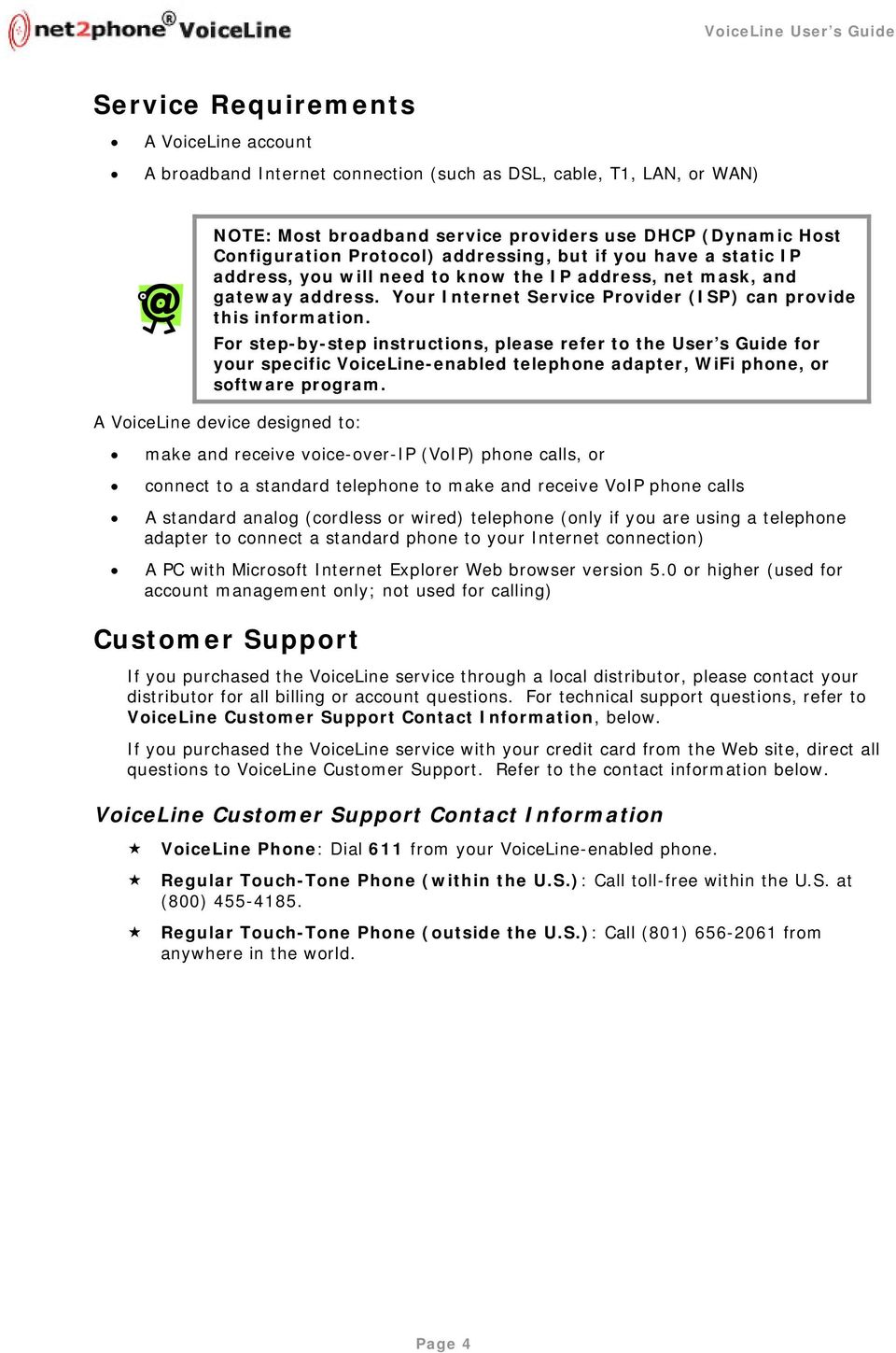
10 Service Requirements A VoiceLine account A broadband Internet connection (such as DSL, cable, T1, LAN, or WAN) NOTE: Most broadband service providers use DHCP (Dynamic Host Configuration Protocol) addressing, but if you have a static IP address, you will need to know the IP address, net mask, and gateway address. Your Internet Service Provider (ISP) can provide this information. For step-by-step instructions, please refer to the User s Guide for your specific VoiceLine-enabled telephone adapter, WiFi phone, or software program. A VoiceLine device designed to: make and receive voice-over-ip (VoIP) phone calls, or connect to a standard telephone to make and receive VoIP phone calls A standard analog (cordless or wired) telephone (only if you are using a telephone adapter to connect a standard phone to your Internet connection) A PC with Microsoft Internet Explorer Web browser version 5.0 or higher (used for account management only; not used for calling) Customer Support If you purchased the VoiceLine service through a local distributor, please contact your distributor for all billing or account questions. For technical support questions, refer to VoiceLine Customer Support Contact Information, below. If you purchased the VoiceLine service with your credit card from the Web site, direct all questions to VoiceLine Customer Support. Refer to the contact information below. VoiceLine Customer Support Contact Information VoiceLine Phone: Dial 611 from your VoiceLine-enabled phone. Regular Touch-Tone Phone (within the U.S.): Call toll-free within the U.S. at (800) Regular Touch-Tone Phone (outside the U.S.): Call (801) from anywhere in the world. Page 4
11 2. Setting Up the VoiceLine Service Each VoiceLine-enabled phone requires different set-up steps, so please refer to the User s Guide for your specific VoiceLine-enabled telephone adapter, WiFi phone, or software program for step-by-step instructions. Once you have successfully completed the set up instructions and have confirmed that the VoiceLine-enabled phone is connected correctly, you are ready to begin making calls! Continue to Chapter 3, Placing Calls, for more information. Page 5

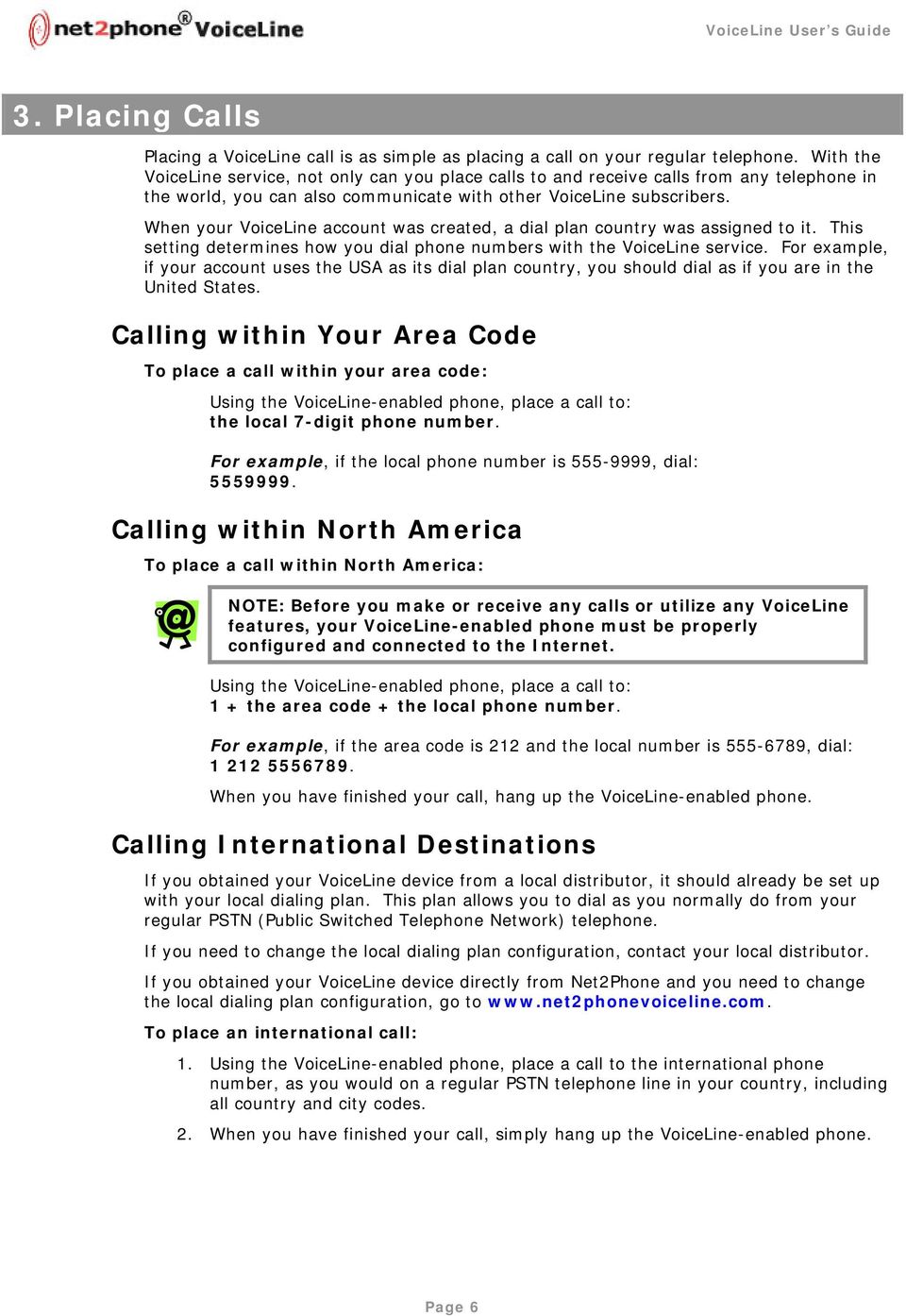
12 3. Placing Calls Placing a VoiceLine call is as simple as placing a call on your regular telephone. With the VoiceLine service, not only can you place calls to and receive calls from any telephone in the world, you can also communicate with other VoiceLine subscribers. When your VoiceLine account was created, a dial plan country was assigned to it. This setting determines how you dial phone numbers with the VoiceLine service. For example, if your account uses the USA as its dial plan country, you should dial as if you are in the United States. Calling within Your Area Code To place a call within your area code: Using the VoiceLine-enabled phone, place a call to: the local 7-digit phone number. For example, if the local phone number is , dial: Calling within North America To place a call within North America: NOTE: Before you make or receive any calls or utilize any VoiceLine features, your VoiceLine-enabled phone must be properly configured and connected to the Internet. Using the VoiceLine-enabled phone, place a call to: 1 + the area code + the local phone number. For example, if the area code is 212 and the local number is , dial: When you have finished your call, hang up the VoiceLine-enabled phone. Calling International Destinations If you obtained your VoiceLine device from a local distributor, it should already be set up with your local dialing plan. This plan allows you to dial as you normally do from your regular PSTN (Public Switched Telephone Network) telephone. If you need to change the local dialing plan configuration, contact your local distributor. If you obtained your VoiceLine device directly from Net2Phone and you need to change the local dialing plan configuration, go to To place an international call: 1. Using the VoiceLine-enabled phone, place a call to the international phone number, as you would on a regular PSTN telephone line in your country, including all country and city codes. 2. When you have finished your call, simply hang up the VoiceLine-enabled phone. Page 6
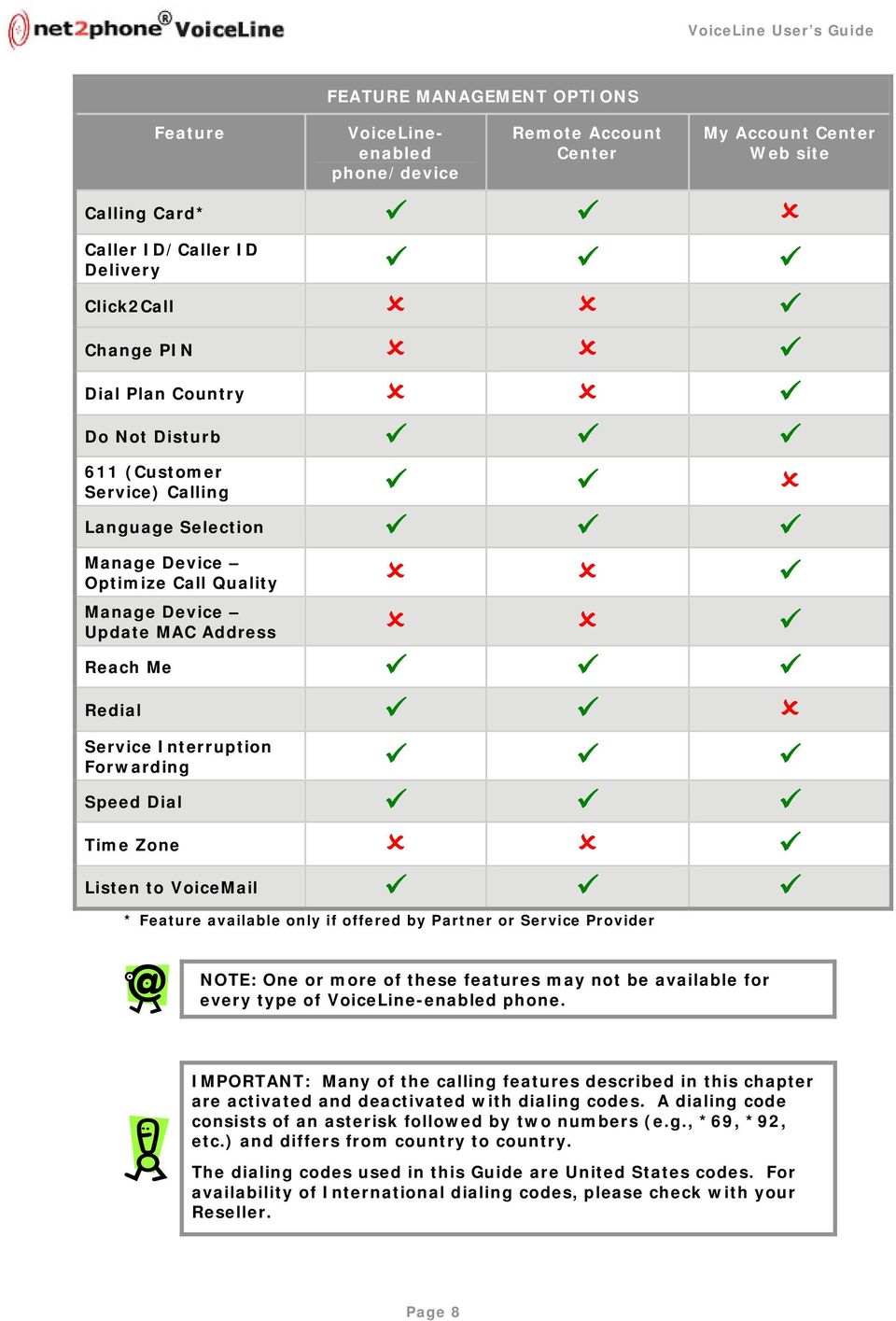
13 4. Using VoiceLine Calling Features In this chapter, you will learn about each feature and how to use it with the VoiceLine service. The following calling features are available to subscribers of the VoiceLine service: 3-Way Calling Account Balance Announcement Call Blocking Call Forwarding Call Hold Call Return Call Waiting Caller ID/Caller ID Delivery Click2Call Do Not Disturb Fax Language Selection Reach Me Redial Remote Account Center Service Interruption Forwarding Speed Dial Voic The calling features can be managed via the VoiceLine-enabled device, the Remote Account Center, or through the My Account Center Web site. The following table provides information on which management options can be used with the calling features. Feature FEATURE MANAGEMENT OPTIONS VoiceLineenabled phone/device Remote Account Center My Account Center Web site 3-Way Calling Account Balance Announcement* Call Blocking Call Forwarding Call Hold Call Return Call Waiting Page 7

14 Feature FEATURE MANAGEMENT OPTIONS VoiceLineenabled phone/device Remote Account Center My Account Center Web site Calling Card* Caller ID/Caller ID Delivery Click2Call Change PIN Dial Plan Country Do Not Disturb 611 (Customer Service) Calling Language Selection Manage Device Optimize Call Quality Manage Device Update MAC Address Reach Me Redial Service Interruption Forwarding Speed Dial Time Zone Listen to Voic * Feature available only if offered by Partner or Service Provider NOTE: One or more of these features may not be available for every type of VoiceLine-enabled phone. IMPORTANT: Many of the calling features described in this chapter are activated and deactivated with dialing codes. A dialing code consists of an asterisk followed by two numbers (e.g., *69, *92, etc.) and differs from country to country. The dialing codes used in this Guide are United States codes. For availability of International dialing codes, please check with your Reseller. Page 8
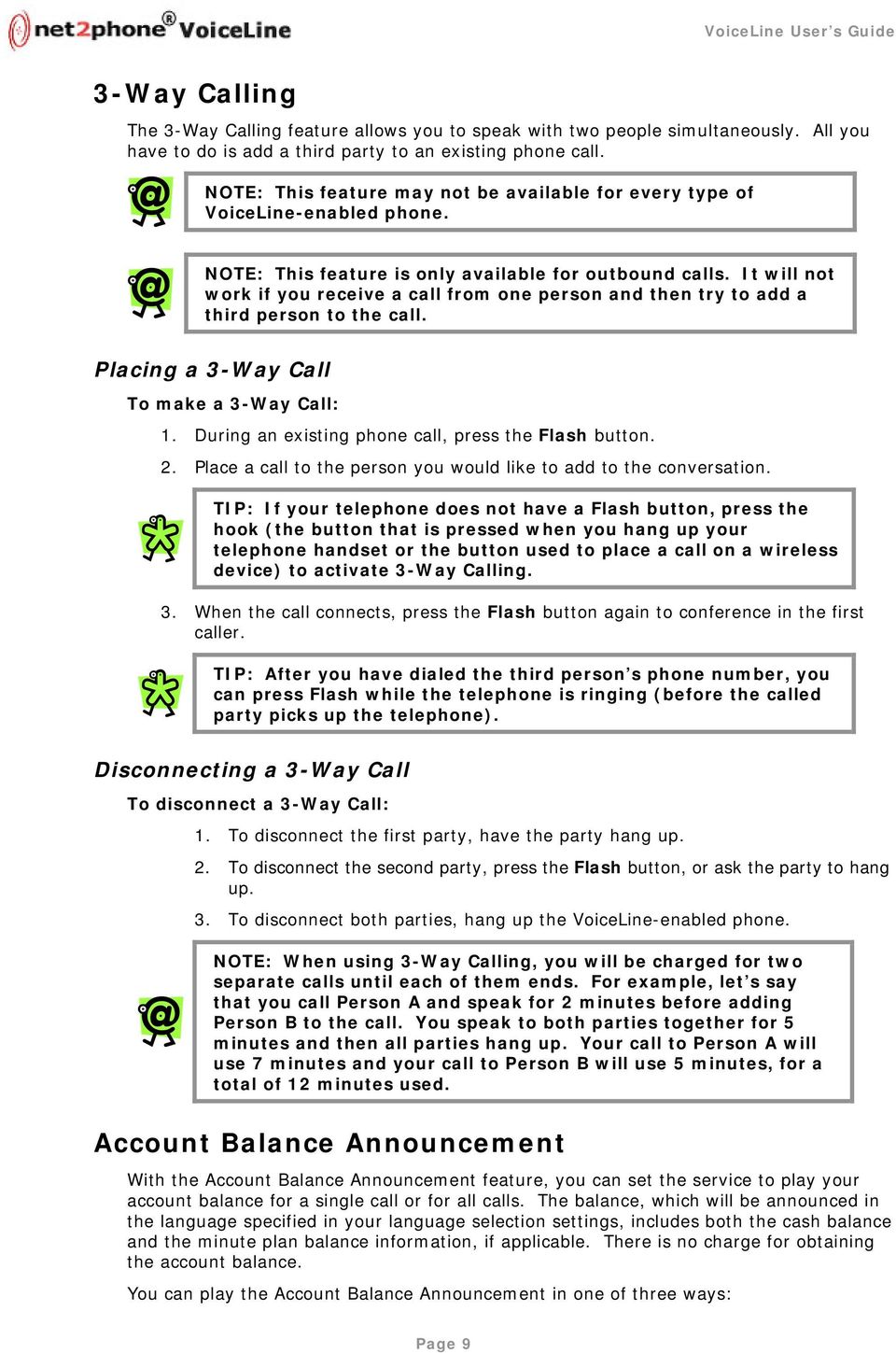
15 3-Way Calling The 3-Way Calling feature allows you to speak with two people simultaneously. All you have to do is add a third party to an existing phone call. NOTE: This feature may not be available for every type of VoiceLine-enabled phone. NOTE: This feature is only available for outbound calls. It will not work if you receive a call from one person and then try to add a third person to the call. Placing a 3-Way Call To make a 3-Way Call: 1. During an existing phone call, press the Flash button. 2. Place a call to the person you would like to add to the conversation. TIP: If your telephone does not have a Flash button, press the hook (the button that is pressed when you hang up your telephone handset or the button used to place a call on a wireless device) to activate 3-Way Calling. 3. When the call connects, press the Flash button again to conference in the first caller. TIP: After you have dialed the third person s phone number, you can press Flash while the telephone is ringing (before the called party picks up the telephone). Disconnecting a 3-Way Call To disconnect a 3-Way Call: 1. To disconnect the first party, have the party hang up. 2. To disconnect the second party, press the Flash button, or ask the party to hang up. 3. To disconnect both parties, hang up the VoiceLine-enabled phone. NOTE: When using 3-Way Calling, you will be charged for two separate calls until each of them ends. For example, let s say that you call Person A and speak for 2 minutes before adding Person B to the call. You speak to both parties together for 5 minutes and then all parties hang up. Your call to Person A will use 7 minutes and your call to Person B will use 5 minutes, for a total of 12 minutes used. Account Balance Announcement With the Account Balance Announcement feature, you can set the service to play your account balance for a single call or for all calls. The balance, which will be announced in the language specified in your language selection settings, includes both the cash balance and the minute plan balance information, if applicable. There is no charge for obtaining the account balance. You can play the Account Balance Announcement in one of three ways: Page 9
16 Play the account balance announcement one time only, without placing a call. Play the account balance announcement before placing a single call. Play the account balance announcement before all calls. If you do not want to hear the announcement before a call, you can disable it for one call only or all calls. This feature may be set from your VoiceLine-enabled phone, any touch-tone phone (via the Remote Account Center), or from the My Account Center site. Activating/Deactivating from the VoiceLine-enabled Phone ACCOUNT BALANCE ANNOUNCEMENT DIAL CODES SUMMARY The following table displays the summary of dial codes for the Account Balance Announcement feature: ACCOUNT BALANCE ANNOUNCEMENT DIAL CODES Action Dial Code Play the Account Balance Announcement before all calls. *02 Block the Account Balance Announcement for all calls. *03 Play the Account Balance Announcement one time only. *04 Play the Announcement before placing a single call. *04 [phone number] Block the Account Balance Announcement for a single call. *05 [phone number] ACTIVATING AND DEACTIVATING THE ACCOUNT BALANCE ANNOUNCEMENT FEATURE To activate the Account Balance Announcement feature for a single call or all calls, use your VoiceLine-enabled phone to place a call to the appropriate activation code in the table above. To deactivate the Account Balance Announcement feature for a single call or all calls, dial the appropriate deactivation code. NOTE: Playing/blocking the announcement before placing a single call will work even if the Account Balance Announcement feature is disabled/enabled for all calls. NOTE: If your minute plan balance drops to one minute remaining, you will receive a one-minute warning announcement, regardless of the Account Balance Announcement being enabled or disabled. Activating/Deactivating from the Remote Account Center You can manage this feature from any touch-tone telephone using the Remote Account Center. To activate/deactivate the Account Balance Announcement feature: 1. Access the Remote Account Center by calling your VoiceLine phone number and pressing star (*) during your outgoing message or by calling an access number. Refer to the Accessing the Remote Account Center section on page 47 in this Guide for instructions. 2. From the Main Menu, press 3 to manage your calling features. You will hear the prompt, Please enter a calling feature dial code exactly as you would from your device. Page 10

17 3. Dial the appropriate dial code (see the dial codes table above) to activate or deactivate the Account Balance Announcement feature. Activating/Deactivating from the My Account Center Web Site ACTIVATING AND DEACTIVATING THE ACCOUNT BALANCE ANNOUNCEMENT FEATURE To enable or disable the announcement of your account balance before all calls: 1. Using a Web browser, access the My Account Center site at and log in with your VoiceLine phone number and PIN. For detailed instructions, refer to the Logging into the My Account Center Web Site section on page 72 in this Guide. 2. From the My Information page, click the Manage Features button. The Manage Service Features page displays. 3. Click the Account Balance Announcement link. The Account Balance Announcement page displays. See the screen on the following page. 4. Check the Manage Features for drop-down field at the top of the page to make sure it displays the line for which you would like to set Account Balance Announcement options. If it does not, click the drop-down menu and select the appropriate line. 5. The Your current settings line displays whether or not you currently have the Account Balance Announcement feature enabled or disabled. Account Balance Announcement Page 6. The button that displays depends on whether or not Account Balance Announcement is enabled. If this feature is currently enabled (Account Balance Announcement is On), the Turn Off button displays. If you would like to disable it, click the Turn Off button. If this feature is currently disabled (Account Balance Announcement is Off), the Turn On button displays. If you would like to enable it, click the Turn On button. Call Blocking The Account Balance Announcement page refreshes and displays the new setting in the Your current settings line. The Call Blocking feature determines which incoming calls you receive by designating certain phone numbers to an accept or reject list. These lists can be edited from the My Account Center Web site. (For details on accessing the My Account Center Web site, Page 11

18 refer to the Logging into the My Account Center Web Site section on page 72 of this Guide.) The Call Blocking feature has three (3) components: Selective Call Acceptance This Call Blocking feature allows you to set up a list of phone numbers from which you would like to accept calls. When you enable the Selective Call Acceptance feature, it blocks calls from phone numbers that are NOT in the list. Selective Call Rejection This Call Blocking feature allows you to set up a list of phone numbers from which you DO NOT want to accept calls. When you enable the Selective Call Rejection feature, it blocks calls from phone numbers that are INCLUDED in the list. Anonymous Call Rejection The Anonymous Call Rejection feature allows you to block all calls whose phone numbers are hidden due to the caller purposely blocking that information. When you enable the Anonymous Call Rejection feature, it blocks ALL calls from callers who are listed as anonymous or unavailable. For example, if the caller presses *67 before dialing your phone number, the caller s number is not transmitted, and the caller is considered anonymous. If you enabled the Anonymous Call Rejection feature, this call would be blocked. The feature only allows calls whose phone numbers are public and are displayed on Caller ID. You can add phone numbers to the appropriate list and activate it to control which calls you receive. The table on the following page describes the types of calls received or blocked by each list and when to use each feature. CALL BLOCKING OPTIONS Call Block List/Option Receives Blocks Selective Call Acceptance Use this list if you want to accept only certain calls and reject all other calls. Selective Call Rejection Use this list if you want to block only certain calls and accept all other calls. Anonymous Call Rejection Use this option if you want to block all private calls and accept all other calls. Calls from phone numbers that are INCLUDED in the list. Calls from phone numbers that are NOT in the list. Calls whose phone numbers are public and are displayed on Caller ID. Calls from phone numbers that are NOT in the list. Calls from phone numbers that are INCLUDED in the list. Calls whose phone numbers are hidden due to a privacy feature that prevents their numbers from displaying to the called party; these numbers usually appear on Caller ID as anonymous or unavailable. Before you can activate the Selective Call Acceptance list or the Selective Call Rejection List, you must first define the phone numbers that you would like to include in the list(s). You can set up the list(s) on the My Account Center Web site. NOTE: Since the Anonymous Call Rejection feature does not require you to indicate specific phone numbers to block (it blocks ALL anonymous calls), that feature needs no setup. Refer to the Call Blocking Dial Codes Summary table on the following page for the dial codes used to activate the Anonymous Call Rejection feature. Page 12

19 You can access this setting from your VoiceLine-enabled phone, any touch-tone phone (via the Remote Account Center), or from the My Account Center Web site. CALL BLOCKING RULES The following rules apply to the Call Blocking features: The Anonymous Call Rejection feature supersedes the Selective Call Acceptance feature. If an anonymous caller s phone number appears on the Selective Call Acceptance list and the Anonymous Call Rejection feature is enabled, the call will be blocked. Anonymous Call Rejection can be activated alone or together with one of the other two call blocking features (Selective Call Acceptance or Selective Call Rejection). Selective Call Acceptance and Selective Call Rejection are mutually exclusive features; you can enable only ONE of these features at a time. The Anonymous Call Rejection feature supersedes the Selective Call Acceptance feature. If an anonymous caller s phone number appears on the Selective Call Acceptance list and the Anonymous Call Rejection feature is enabled, the call will be blocked. Page 13
20 Activating/Deactivating from the VoiceLine-enabled Phone CALL BLOCKING DIAL CODES SUMMARY The following table displays the summary of dial codes for the Call Blocking features: CALL BLOCKING DIAL CODES Call Blocking Feature Activation Code Deactivation Code Selective Call Acceptance *64 *84 Selective Call Rejection *60 *80 Anonymous Call Rejection *77 *87 Before you can activate the Selective Call Acceptance or Selective Call Rejection features, you must set up the acceptance or rejection lists on the My Account Center Web site. Refer to the Logging into the My Account Center Web Site section on page 72 for instructions on logging into the site; for instructions on defining the lists, refer to the From the Account Center Web Site section below. ACTIVATING AND DEACTIVATING CALL BLOCKING To activate a Call Blocking feature, use your VoiceLine-enabled phone to place a call to the appropriate activation code in the table above. To deactivate the feature, dial the appropriate deactivation code. Activating/Deactivating from the Remote Account Center You can manage this feature from any touch-tone telephone using the Remote Account Center. To activate/deactivate the Call Blocking feature: 1. Access the Remote Account Center by calling your VoiceLine phone number and pressing star (*) during your outgoing message or by calling an access number. Refer to the Accessing the Remote Account Center section on page 47 in this Guide for instructions. 2. From the Main Menu, press 3 to manage your calling features. You will hear the prompt, Please enter a calling feature dial code exactly as you would from your device. 3. Dial the appropriate code (see the dial codes table above) to activate or deactivate the Call Blocking feature. Activating/Deactivating from the My Account Center Web Site The My Account Center Web site allows you to activate and deactivate Call Blocking features, as well as define and edit the Selective Call Acceptance and Selective Call Rejection lists. Page 14
21 ACTIVATING SELECTIVE CALL ACCEPTANCE AND DEFINING THE ACCEPTANCE LIST The selective call acceptance list allows you to accept calls only from phone numbers that you define. You can include up to ten (10) phone numbers in the selective acceptance list. The Account Center Web site allows you to activate, define, and edit the acceptance list. To accept only those calls from a defined list of phone numbers: 1. Using a Web browser, access the Account Center Web site, and log in with your VoiceLine phone number and PIN. For detailed instructions, refer to the Logging into the Account Center Web Site section on page 72 in this Guide. 2. From the My Information page, click the Manage Features button. The Manage Service Features page displays. 3. Click the Call Blocking link. The Call Blocking page displays. See the screen on the following page. 4. Check the Manage Features for drop-down field at the top of the page to confirm that it displays the line for which you would like to set Call Blocking options. If it does not, click the drop-down menu and select the appropriate line. 5. Click the radio button next to the option titled, I would like to accept calls only from certain phone numbers, and then click the Save Settings button. The Phone Numbers Currently Accepted section displays. Call Blocking Page 6. Under the Add a new phone number to your Accepted list heading, click in the Name field, enter a name associated with the phone number you are adding to the Selective Call Acceptance list. 7. In the Phone Number field, enter the phone number you would like to accept. To accept phone numbers within the U.S., please include a "1" in addition to the area code and phone number. For example, to accept (201) , you would enter To accept phone numbers outside the U.S., please include 011, the country code, and the city code. You do not need to include "+" before the phone number. Page 15
22 For example, to accept 33 (1) , you would enter Call Blocking Selective Call Acceptance Page 8. Click the Add button. A success message indicates that the number has been added to the selective acceptance list, which is displayed at the bottom of the page. 9. To add another phone number to the selective acceptance list, repeat steps 6 through Once you are finished creating your selective acceptance list, click the My Account Center link at the upper left-hand corner of the page to return to the My Information page. 11. To edit a selective acceptance list entry, click the Edit link in the list table, make the desired changes, and then click the Save button. 12. To delete a selective acceptance list entry, click the Delete link in the list table and then click the Delete button. ACTIVATING SELECTIVE CALL REJECTION AND DEFINING THE REJECTION LIST The selective call rejection list allows you to block calls only from phone numbers that you define. You can include up to ten (10) phone numbers in the selective call rejection list. The Account Center Web site allows you to activate, define, and edit the rejection list. To block calls from a defined list of phone numbers: 1. Using a Web browser, access the Account Center Web site, and log in with your VoiceLine phone number and PIN. For detailed instructions, refer to the Logging into the Account Center Web Site section on page 72 in this Guide. 2. From the My Information page, click the Manage Features button. The Manage Service Features page displays. 3. Click the Call Blocking link. The Call Blocking page displays. 4. Check the Manage Features for drop-down field at the top of the page to make sure it displays the line for which you would like to set Call Blocking options. If it does not, click the drop-down menu and select the appropriate line. Page 16
23 5. Click the radio button next to the option titled, I would like to block calls from certain phone numbers, and then click the Save Settings button. The Phone Numbers Currently Blocked section displays. Call Blocking Selective Call Rejection Page 6. In the Name field, enter a name associated with the phone number you are adding to the Selective Call Rejection list. 7. In the Phone Number field, enter the phone number you would like to block. To block phone numbers within the U.S., please include a "1" in addition to the area code and phone number. For example, to block (201) , you would enter To block phone numbers outside the U.S., please include 011, the country code, and the city code. You do not need to include "+" before the phone number. For example, to block 33 (1) , you would enter Click the Add button. A success message indicates that the number has been added to the selective rejection list, which is displayed at the bottom of the page. 9. To add another phone number to the selective rejection list, repeat steps 6 through Once you are finished creating your selective rejection list, click the My Account Center link at the upper left-hand corner of the page to return to the My Information page. To edit a selective rejection list entry, click the Edit link in the list table, make the desired changes, and then click the Save button. To delete a selective rejection list entry, click the Delete link in the list table and then click the Delete button. DEACTIVATING ALL CALL BLOCKING FEATURES To deactivate all Call Blocking features, click the I would like to accept all calls radio button. Page 17
24 Call Forwarding The Call Forwarding feature helps you stay in touch, even when you know you won t be available to answer your VoiceLine-enabled phone. You can have the device forward all or only certain incoming calls to a phone number of your choice, such as your home phone, cell phone, office, Voic , or to another VoiceLine phone number. The forwarding number you set must be included in your dial plan and/or rate table in order to be valid. By default, all call forwarding features, when activated, will forward calls to your Voic until you specify a different destination. There are three (3) Call Forwarding options: All Calls (Unconditional) Forwards ALL calls to Voic or to a specified phone number; you also have the option of hearing a short ring (splash tone) to notify you each time a call is forwarded. Unconditional Call Forwarding Splash Tone Notification (Call Alert) When you choose to forward all calls, you can elect to hear a short ring, or a splash tone, to alert you each time a call is forwarded. Because the call will be forwarded automatically, you will not be able to answer the forwarded calls, but you can make outgoing calls, including calling the person who called you last. See the Call Return feature description on page 22 in this Guide. NOTE: The Call Alert feature may not be available for every type of VoiceLine-enabled phone. No Answer Forwards calls only when you do not answer within a pre-set number of rings; the default is six (6) rings, but you can modify the number of rings from one (1) to six (6) on the Manage Service Features: Call Forwarding page in the My Account Center Web site. You can choose to forward unanswered calls to Voic or another phone number. Busy Signal Forwards calls when callers receive a busy signal when dialing your phone number; this includes calls that are rejected because you already have two parties on the line through Call Waiting or 3-Way Calling. You can choose to forward busy calls to Voic or to another phone number. You can access this setting from your VoiceLine-enabled phone, any touch-tone phone (via the Remote Account Center), or from the My Account Center Web site. Feature Conflicts Review the following scenario(s) to familiarize yourself with how Call Forwarding may conflict with other calling features. When the Reach Me feature is active and Call Forwarding All Calls is off the Call Forwarding settings for No Answer and Busy Signal will not be applied. To review your Reach Me settings, click here. When the Reach Me feature is active and Call Forwarding All Calls is ON your Reach Me settings will not be applied. To enable Reach Me, turn off Call Forwarding - All Calls using the table below. Page 18
25 Activating/Deactivating from the Phone CALL FORWARDING DIAL CODES SUMMARY The following table contains a summary of the dial codes for each type of Call Forwarding. CALL FORWARDING DIAL CODES SUMMARY Call Forwarding Feature Activate Activate & Set the Destination Phone Number Activate to Voic Deactivate All Calls (Unconditional) *72 *72 [phone number] *72123 *73 All Calls Splash Tone (Alert) *08 - *08123 *09 No Answer *92 *92[phone number] *92123 *93 Busy Signal *68 *68[phone number] *68123 *88 ALL FEATURES *91 You can activate the Call Forwarding feature that best suits your needs at any given time. For example, if you only want to forward calls when you are not available to answer after a certain number of rings, you would use the No Answer option. Later in the day, if you are going to be unavailable to answer any calls, you may want to activate the All Calls option. You can configure these features and set the destination phone numbers directly on the VoiceLine-enabled phone, from any touch-tone phone (via the Remote Account Center), or on the My Account Center Web site (via the Manage Service Features: Call Forwarding page). When you activate or deactivate a Call Forwarding feature via the VoiceLineenabled phone, the new feature status will be reflected in the My Account Center Web site. ACTIVATING AND DEACTIVATING CALL FORWARDING To activate a Call Forwarding feature, use your VoiceLine-enabled phone to place a call to the appropriate activation code in the table above. IMPORTANT: Calls cannot be forwarded to 911, 611, or any other n11 number. When you activate a Call Forwarding Feature, such as All Calls (Unconditional) Call Forwarding, you may want to confirm that it has been set up properly by calling your VoiceLine number to confirm that the call is forwarded to the correct number. If it is not forwarding to the correct number, go to the My Account Center Web site and check the number you entered. To deactivate the feature, dial the appropriate deactivation code above. The *91 code will deactivate ALL enabled Call Forwarding features. IMPORTANT: Forwarded calls will be billed as two calls: one for the incoming call and one for the outgoing call (to the forwarding destination number). NOTE: When the All Calls Call Forwarding feature is active, it takes precedence over the Call Forward on No Answer feature. All calls will be automatically forwarded according to the All Calls Call Forwarding settings until it is deactivated. Page 19
26 Activating/Deactivating from the Remote Account Center You can manage this feature from any touch-tone telephone using the Remote Account Center. To activate/deactivate the Call Forwarding feature: 1. Access the Remote Account Center by calling your VoiceLine phone number and pressing star (*) during your outgoing message or by calling an access number. Refer to the Accessing the Remote Account Center section on page 47 in this Guide for instructions. 2. From the Main Menu, press 3 to manage your calling features. You will hear the prompt, Please enter a calling feature dial code exactly as you would from your device. 3. Dial the appropriate dial code (see the dial codes table on page 19) to activate or deactivate Call Forwarding. Activating/Deactivating from the My Account Center Web Site ACTIVATING AND DEACTIVATING CALL FORWARDING To activate or deactivate a Call Forwarding feature: 1. Using a Web browser, access the My Account Center site at and log in with your VoiceLine phone number and PIN. For detailed instructions, refer to the Logging into the My Account Center Web Site section on page 72 in this Guide. 2. From the My Information page, click the Manage Features button. The Manage Service Features page displays. 3. Click the Call Forwarding link. The Call Forwarding page displays. See the screen on the following page. 4. Check the Manage Features for drop-down field at the top of the page to make sure it displays the line for which you would like to set Call Forwarding options. If it does not, click the drop-down menu and select the appropriate line. 5. Find the section pertaining to the Call Forwarding feature you would like to activate or deactivate: All Calls, No Answer, Busy Signal, or Network Interruption. 6. In the appropriate section, click the Call Forwarding is drop-down menu and select the status you would like. To activate the feature, select On from the list. To deactivate the feature, select Off, then proceed to step In the Calls will be forwarded to field, click the radio button for the destination to which you would like your calls forwarded: Voic or a Phone Number. IMPORTANT: Calls cannot be forwarded to 911, 611, or any other n11 number. 8. If you selected Phone Number, you must indicate the destination phone number in the text box. To forward calls to a phone number within the U.S., please include a "1" in addition to the area code and phone number. For example, to forward calls to (201) , you would enter To forward calls to a phone number outside the U.S., please include 011, the country code, and the city code. You do not need to include "+" before the phone Page 20
27 number. For example, to forward calls to 33 (1) , you would enter Call Forwarding Page 9. If you are activating the All Calls Call Forwarding feature, click the Call Forwarding Alert drop-down menu to select whether you would like to receive an alert when a call has been forwarded. If you select On, you will hear a short ring whenever an incoming call has been forwarded. If you select Off, you will not hear an alert when a call is forwarded. 10. If you are activating the No Answer Call Forwarding feature, click the Number of rings before call is forwarded drop-down menu to select a number between one (1) and six (6). After an incoming call rings this number of times, it will be forwarded according to your No Answer Call Forwarding settings. Page 21
28 Call Hold IMPORTANT: If you forward your calls to a phone number that is not in your calling plan, you will be charged according to the per-minute rates for that country. 11. Click the Save Settings button at the bottom of the page to save the changes. 12. Click the My Account Center link at the upper left-hand corner of the page to return to the My Information page. With the Call Hold feature, you can place a caller on hold and pick it up again at a later time. NOTE: This feature may not be available for every type of VoiceLine-enabled phone. NOTE: Your VoiceLine-enabled phone must be equipped with a Hold button in order for this feature to work. To activate the Call Hold feature during an existing phone call, simply press the Hold button on your telephone. While the call is on hold, the person on the other end of the line will not be able to hear anything you say and you will not hear anything said by the other person. Press Hold again to pick up the call. Call Return The Call Return feature allows you to call the phone number of your last incoming call without having to dial the number. This feature will dial the most recent incoming call, regardless of how the call ended. It will work if you answered the call, if you did not answer the call, or even if it was a Call Waiting call. If the called party s line is busy, the Call Return feature will attempt to dial the phone number every two (2) minutes for up to 30 minutes. When the phone number you are trying to reach is no longer busy, your phone will ring to alert you. In the meantime, you can continue to make outgoing phone calls. NOTE: If you use the Call Return feature to call someone who does not use the VoiceLine service, it may not be possible to determine that the line is busy. If this happens and the called party does not answer, the Call Return feature will continue to make attempts to dial the phone number. For example, if the phone rings and you are unable to answer it in time, you can use the Call Return feature to connect to the person who called you. When you activate the Call Return feature, VoiceLine will attempt to connect to that phone number immediately. If the line is busy, a new attempt will be made every two minutes for up to 30 minutes. Your request ends when one of the following conditions is met: The called party answers the call. The called party s line rings, and you answer the notification call. 30 minutes expires (the clock starts at the first attempt). You deactivate the feature. When one of the above events occurs, no further attempts are made. You can activate the Call Return feature for up to ten (10) phone numbers. For example, if you have activated the feature for the last incoming call and, in the meantime, you Page 22
29 receive another incoming call that you missed, you can activate it for that phone number, as well. If you no longer want those calls to be connected, you can cancel the feature. You can access this setting from your VoiceLine-enabled phone, or any touch-tone phone (via the Remote Account Center). Call Return Dial Codes Summary The following table displays the summary of dial codes for the Call Return feature: CALL RETURN DIAL CODES Action Dial Code Dial the phone number of the most recent incoming call. *69 Deactivate the Call Return feature (once you have activated it for at least one phone number). *89 Activating Call Return from the VoiceLine-enabled Phone To call the phone number of the last person who called you: 1. Using the VoiceLine-enabled phone, place a call to *69. You will hear the connection announcement, You received a call from <phone number> on <day of week>, <month> <date> at <time>. Press 1 to call this party. Otherwise, hang up. 2. Press 1 to activate the Call Return feature. You will hear the message, Please hang up, and I will redial your party for 30 minutes and call you back. Thank you. The VoiceLine service attempts to contact that phone number. If the line rings, you will hear a notification ring on your phone. If the called party s line is busy, VoiceLine will attempt to contact that phone number every two minutes until the phone number rings or until 30 minutes elapses. When the called party s line rings, you will hear a notification ring on your phone. NOTE: On certain VoiceLine-enabled phones, the Call Return notification ring may be the same as your standard ring tone. 3. If your phone rings in a distinctive tone, it means the Call Return phone number is ringing or the called party has answered. Answer the VoiceLine-enabled phone. The called party may already be on the line when you answer the notification ring, so if you hear silence, speak to alert the called party of your presence. NOTE: If the called party answers but your line is busy or you are unable to answer the notification call, the Call Return is considered complete, and no more attempts will be made to reach the phone number. NOTE: If the last incoming phone number is Anonymous or Unavailable, the Call Return feature will not be able to dial the number. Canceling Call Return To cancel the Call Return feature: Page 23
30 1. Using the VoiceLine-enabled phone, place a call to *89. You will hear the message, You have successfully deactivated your active call return requests. 2. Hang up the VoiceLine-enabled phone. All active Call Return requests are cancelled. Activating/Canceling Call Return from the Remote Account Center You can manage this feature from any touch-tone telephone using the Remote Account Center. To activate/deactivate the Call Return feature: 1. Access the Remote Account Center by calling your VoiceLine phone number and pressing star (*) during your outgoing message or by calling an access number. Follow the steps to login to the Account Center in the Accessing the Remote Account Center section on page 47 in this Guide. 2. From the Main Menu, press 3 to manage your calling features. You will hear the prompt, Please enter a calling feature dial code exactly as you would from your device. 3. Dial the appropriate dial code (see the dial codes table on the previous page) to activate or deactivate Call Return. Call Waiting When you are already on a call, the Call Waiting feature alerts you when a second call comes in and displays the incoming phone number on the Caller ID display. You can then put the first call on hold to speak with the second caller. You can alternate between calls as often as you like, and you can end a conversation with one of the callers and continue speaking to the other caller. If you elect to ignore a Call Waiting call while your current call is in progress, it will be forwarded according to the settings for the Call Forwarding No Answer feature. You can have the call forwarded to Voic or to another phone number. Refer to the Call Forwarding section on page 18 for more information. There are two types of Call Waiting features: permanent and per-call. By default, all VoiceLine accounts are enabled with permanent Call Waiting, which means that you will be alerted if you are already on a call and another caller tries to reach you. You can choose to disable Call Waiting permanently (for all calls) or on a per-call basis. NOTE: This feature may not be available for every type of VoiceLine-enabled phone. NOTE: If you answer a call using the Call Waiting feature (so that two calls are active) and another call comes in, that call will get forwarded according to the Call Forward on Busy settings. You can access this setting from your VoiceLine-enabled phone only. Disabling Permanent Call Waiting FROM THE VOICELINE-ENABLED PHONE All VoiceLine accounts have the permanent Call Waiting feature enabled by default, meaning that you will hear a tone to alert you that another call is coming in during all calls. You can disable permanent Call Waiting to prevent all of your calls from being interrupted when another caller tries to reach you. If you disable the feature, you can also enable it by following the same steps. Page 24
31 To disable the permanent Call Waiting feature from the phone: 1. Using the VoiceLine-enabled phone, place a call to * Depending on the features enabled for your account, you may hear different menus: If you hear the menu, Press 1 for outbound calling. Press 2 for call waiting. Press 3 for Reach Me, press 2 to access the Call Waiting menu, and then press the appropriate number to either enable or disable the feature. If you hear the menu, Press 1 to enable Call Waiting for all calls. Press 2 to disable Call Waiting for all calls. Press 9 to return to the previous menu, press the appropriate number to either enable or disable the feature. If you press 1, you will hear the prompt, Call waiting has been enabled for all calls. Please note that this change may take a few minutes to take effect. Thank you. If you press 2, you will hear the prompt, Call waiting has been disabled for all calls. Please note that this change may take a few minutes to take effect. Thank you. FROM THE ACCOUNT CENTER WEB SITE The My Account Center Web site provides another method in which you can disable the permanent Call Waiting feature. If you disable the feature, you can also enable it by following the same steps. To disable the permanent Call Waiting feature from the Web: 1. Using a Web browser, access the My Account Center site at and log in with your VoiceLine phone number and PIN. For detailed instructions, refer to the Logging into the My Account Center Web Site section on page 72 in this Guide. 2. From the My Information page, click the Manage Features button. The Manage Service Features page displays. 3. Click the Disable Call Waiting link. The Disable Call Waiting page displays. Disable Call Waiting Page The Your current settings section displays whether permanent Call Waiting is on or off. To change the setting, click the button to the right of the Disable Call Waiting field label. (The button s label toggles between Turn Off and Turn On, Page 25
32 depending on whether the feature is on or off.) The page refreshes and displays the new setting in the Your current settings section. Disabling Call Waiting for a Single Outbound Call There may be instances where you do not want a specific call to be interrupted by inbound calls. For example, you may need to make an important call and do not want the call waiting tone to interrupt your conversation. You can deactivate the Call Waiting feature for any single outbound call. If someone dials your phone number while you are on a call for which you have deactivated Call Waiting, the caller will be forwarded to Voic . To disable Call Waiting when placing an outbound call: 1. Using the VoiceLine-enabled phone, place a call to *70, followed by the phone number you would like to dial. Any incoming calls while you are on this call will be forwarded to Voic . For example, if you would like to ensure that your conversation with phone number is uninterrupted by Call Waiting calls, you would dial: * When you have finished your call, simply hang up the VoiceLine-enabled phone. TIP: If you would like to disable Call Waiting and use another calling feature at the same time, you must dial the Call Waiting disable code first. For example, if you would like to disable Call Waiting while also disabling Caller ID delivery for a single call, you would dial *70*67. Answering a Call Waiting Call To answer a call during an existing call: 1. When a call is in progress and you hear a tone indicating that another call is on the line, press the telephone s Flash button. The first call is placed on hold and you are connected to the second caller. NOTE: If the phone has no Flash button, use the hook button (this button is usually used to hang up) or the Send button on a wireless phone. 2. To switch back to the first call, press the telephone s Flash button or, if the phone has no Flash button, the hook button. NOTE: While both calls are connected, you can switch between both callers as many times as you like by pressing the Flash button. 3. When one party hangs up, press the telephone s Flash button or, if the phone has no Flash button, press the hook button to switch to the other caller. Caller ID/Caller ID Delivery With Caller ID, you can find out who is calling before you pick up the telephone, even if you are already on the line. This feature is enabled automatically, so you will see the phone number of the person calling you. The Caller ID feature also transmits your name and phone number to identify you when you make outgoing calls. The Caller ID delivery feature is enabled by default, so anyone you call can see your phone number on his or her Caller ID display (provided that the called party s Page 26
33 phone service provider transmits the information to their Caller ID display). You can disable this feature (and hide your phone number to those you call) on a call-by-call basis or for all calls. You can disable Caller ID delivery so that your phone number will not display to the called party. This setting may be accessed from your VoiceLine-enabled phone, any touch-tone phone via the Remote Account Center, or from the My Account Center site. NOTE: In order for the Caller ID feature to display the phone number of those who call you, your VoiceLine-enabled phone must be equipped with a Caller ID display OR you must have a separate Caller ID display unit connected to the VoiceLine-enabled phone. You can access this setting from your VoiceLine-enabled phone, any touch-tone phone (via the Remote Account Center), or from the My Account Center Web site. Enabling/Disabling from the VoiceLine-enabled Phone CALLER ID DELIVER DIAL CODES SUMMARY CALLER ID DELIVERY DIAL CODES SUMMARY If you want to Dial Result FOR ALL CALLS Hide your phone number from your called parties Caller ID displays for ALL CALLS. Allow all called parties to view your phone number on their Caller ID displays for ALL CALLS. Hide your phone number from your called party s Caller ID display for a SINGLE CALL. Allow a called party to view your phone number on his/her Caller ID display for a SINGLE CALL. *95 The called party s Caller ID display will be anonymous for this call and all following calls until the feature is enabled again. *96 The system will transmit your phone number to the called party s Caller ID display for every call. *67 [phone number] The called party s Caller ID display for the party will be anonymous for this call only. Your phone number will display on the called party s Caller ID display for all following calls. *82 [phone number] The system will transmit your phone number to the called party s Caller ID display for this call only. Your phone number will NOT be transmitted for all following calls. ENABLING AND DISABLING CALLER ID DELIVERY The Caller ID feature is automatically enabled for both incoming and outgoing calls. When Caller ID delivery is enabled, the people you call can see your phone number on their Caller ID displays. If you disable Caller ID delivery, the caller ID display of the people you call will read, Anonymous. To enable Caller ID delivery, use your VoiceLine-enabled phone to place a call to the appropriate activation code above. To disable Caller ID delivery, dial the appropriate deactivation code above. Page 27
34 Enabling/Disabling from the Remote Account Center You can manage this feature from any touch-tone telephone using the Remote Account Center. To activate/deactivate the Caller ID feature: 1. Access the Remote Account Center by calling your VoiceLine phone number and pressing star (*) during your outgoing message or by calling an access number. Refer to the Accessing the Remote Account Center section on page 47 in this Guide for instructions. 2. From the Main Menu, press 3 to manage your calling features. You will hear the prompt, Please enter a calling feature dial code exactly as you would from your device. 3. Dial the appropriate dial code (see the dial codes table on the previous page) to activate or deactivate Caller ID. Enabling/Disabling from the My Account Center Web Site To enable or disable Caller ID delivery: 1. Using a Web browser, access the My Account Center site at and log in with your VoiceLine phone number and PIN. For detailed instructions, refer to the Logging into the My Account Center Web Site section on page 72 in this Guide. 2. From the My Information page, click the Manage Features button. The Manage Service Features page displays. 3. Click the Caller ID link. The Caller ID page displays. Caller ID Page 4. Check the Manage Features for drop-down field at the top of the page to make sure it displays the line for which you would like to set Caller ID options. If it does not, click the drop-down menu and select the appropriate line. The Your current settings line displays whether or not you currently display your phone number on all outgoing calls. The button that displays depends on whether or not Caller ID delivery is enabled. Page 28
35 If this feature is currently enabled (you are displaying your phone number), the Turn Off button displays. If you would like to disable the Caller ID delivery feature, click the Turn Off button. If this feature is currently disabled (you are not displaying your phone number), the Turn On button displays. If you would like to enable the Caller ID delivery feature, click the Turn On button. The Caller ID (for outgoing calls) page refreshes and displays the new setting in the Your current settings line. If the Caller ID delivery feature is enabled and you have two VoiceLine phone numbers, you can choose which number you would like displayed on your call recipient s Caller ID display. Click the Please choose the phone number drop-down menu (beneath the Turn Off button) and select the number you would like to display for your outgoing calls. Click the Save Settings button to save the change. Click2Call Click the My Account Center link at the upper left-hand corner of the page to return to the My Information page. With Click2Call you can place phone calls directly from the online account center by clicking on the telephone icon next to a phone number. To access the Click2Call page from the My Account page, click on the Manage Features button, then click on the Click2Call link on the Manage Service Features page. You can also place Click2Call calls from the Speed Dial page, the Call History page, and the Voic page. Placing Click2Call calls from the Click2Call Page To place a call using Click2Call: 1. From the My Account home page, click on the Manage Features button. The Manage Service Features page is displayed. Page 29
36 2. Click the Click2Call link. The Click2Call page is displayed. 3. From the Click2Call page locate and click on the Place a phone call using Click2Call link. The Call History page is displayed. Page 30
37 4. Click the telephone icon next to the desired phone number as illustrated in the picture above. The Click2Call window is displayed When the window opens the phone number is pre-populated. From the Call pull-down menu, select the time to place the call. The options are Now, 5 minutes from now, 10 minutes from now, 20 minutes from now, or 30 minutes from now. 6. Click the Click2Call button to place the call. Depending on the time delay you have chosen, your VoiceLine-enabled phone will ring to indicate that the call is being placed. Pick up the receiver and listen to complete the call. Page 31
38 Placing Click2Call Calls from Other Account Center Locations The Click2Call telephone icons are also located on the Speed Dial page, Voic page, and Call History page. Click2Call phone calls can be made from any of these locations by accessing that page and following steps 4-6 above. Do Not Disturb The Do Not Disturb feature allows you to block all incoming calls and play a preset announcement to callers. You can define a special pass code, which is a 4-digit number that callers can use to bypass the Do Not Disturb announcement and complete the call. You can distribute the code to only those callers whose calls you would like to receive while Do Not Disturb is enabled. When you enable the Do Not Disturb feature, callers will hear the announcement, The party you have reached at <your VoiceLine number> is not available. Please hold to leave a Voic message. Callers will then be forwarded to Voic . NOTE: When the Do Not Disturb feature is enabled, calls will be forwarded to Voic even if you have disabled the Call Forwarding feature. You can access this setting from your VoiceLine-enabled phone, any touch-tone phone (via the Remote Account Center), or from the My Account Center Web site. Enabling/Disabling from the VoiceLine-enabled Phone ENABLING THE DO NOT DISTURB FEATURE To enable the Do Not Disturb feature: 1. Using the VoiceLine-enabled phone, place a call to *98. You will hear the connection announcement, Press 1 to enable Do Not Disturb. Press 2 to disable Do Not Disturb. Press 3 for Do Not Disturb options. 2. Press 1 to enable the Do Not Disturb feature. You will hear the message, Do not disturb has been enabled. Press 9 to return to the previous menu. 3. Hang up the VoiceLine-enabled phone. All calls will now be blocked and your preset announcement will be played to all incoming callers. DISABLING THE DO NOT DISTURB FEATURE To disable the Do Not Disturb feature: 1. Using the VoiceLine-enabled phone, place a call to *98. You will hear the connection announcement, Press 1 to enable Do Not Disturb. Press 2 to disable Do Not Disturb. Press 3 for Do Not Disturb options. 2. Press 2 to disable the Do Not Disturb feature. You will hear the message, Do Not Disturb has been disabled. Thank you. 3. Hang up the VoiceLine-enabled phone. All calls are unblocked and will now connect normally to your phone. Enabling/Disabling from the Remote Account Center You can manage this feature from any touch-tone telephone using the Remote Account Center. To activate/deactivate the Do Not Disturb feature: Page 32
39 1. Access the Remote Account Center by calling your VoiceLine phone number and pressing star (*) during your outgoing message or by calling an access number. Refer to the Accessing the Remote Account Center section on page 47 in this Guide for instructions. 2. From the Main Menu, press 3 to manage your calling features. You will hear the prompt, Please enter a calling feature dial code exactly as you would from your device. 3. Dial *98. You will hear the connection announcement, Press 1 to enable Do Not Disturb. Press 2 to disable Do Not Disturb. Press 3 for Do Not Disturb options. 4. Dial the appropriate number to enable or disable Do Not Disturb. Enabling/Disabling from the My Account Center Web Site To enable or disable the Do Not Disturb feature: 1. Using a Web browser, access the My Account Center site at and log in with your VoiceLine phone number and PIN. For detailed instructions, refer to the Logging into the My Account Center Web Site section on page 72 in this Guide. 2. From the My Information page, click the Manage Features button. The Manage Service Features page displays. 3. Click the Do Not Disturb link. The Do Not Disturb page displays. Do Not Disturb Page 4. Check the Manage Features for drop-down field at the top of the page to make sure it displays the line for which you would like to set Do Not Disturb options. If it does not, click the drop-down menu and select the appropriate line. 5. The button that displays depends on whether or not Do Not Disturb is enabled. If this feature is currently enabled (incoming calls are blocked), the Turn Off button displays. If you would like to disable it, click the Turn Off button. If this feature is currently disabled (incoming calls are allowed), the Turn On button displays. If you would like to enable it, click the Turn On button. The page refreshes and displays the new setting in the Your current settings field. Page 33
40 Do Not Disturb Page Feature Enabled Enabling/Disabling Do Not Disturb to Voic To enable or disable the Do Not Disturb Voic feature: 1. With Do Not Disturb turned on, click the Voic Turn On button. If the Voic button reads Turn Off, the feature is already active. Do Not Disturb Turn Voic On 2. To disable the feature, click the Voic Turn Off button. When the Voic feature is off, the caller will hear the default Do Not Disturb message. Page 34
41 Enabling/Disabling from the Voic Timer Feature To enable or disable the Do Not Disturb Timer feature: 1. To set a time limit for the Do Not Disturb feature, click the Timer Turn On button, and enter the Do not Disturb will be enabled until time. The Save Timer Settings button displays. Do Not Disturb Timer Enabled 2. Click the Save Timer Settings button to set the timer. 3. To disable the Timer feature, click the Timer Turn Off button. Using the Special Pass Code The special pass code allows certain callers to enter a 4-digit number to bypass the Do Not Disturb announcement. You can distribute the code to only those callers whose calls you would like to receive while Do Not Disturb is enabled. When a caller hears the Do Not Disturb announcement, he can enter the 4-digit code you defined to bypass the Do Not Disturb announcement. Although there is no specific prompt for users to enter the special pass code, the user can enter the special pass code at any time during the announcement. The call is then placed as usual. If you choose to not set the special pass code, callers will be directed to your Voic at the end of the announcement. FROM THE VOICELINE-ENABLED PHONE OR REMOTE ACCOUNT CENTER DEFINING THE SPECIAL PASS CODE To define the special pass code: Page 35
42 1. If using the VoiceLine-enabled phone, place a call to *98, or if using the Remote Account Center, press 3 from the Main Menu, and then dial *98 You will hear the connection announcement, Press 1 to enable Do Not Disturb. Press 2 to disable Do Not Disturb. Press 3 for Do Not Disturb options. 2. Press 3 for Do Not Disturb options. 3. Press 1 to set the special pass code. You will hear the announcement, Please enter a 4-digit special pass code. 4. Choose a 4-digit code you would like to give callers to bypass the Do Not Disturb feature. Enter the code using your VoiceLine-enabled phone keypad. You will hear the announcement, Your special pass code has been set to xxxx. Thank you. Page 36
43 ENABLING THE SPECIAL PASS CODE To enable the special pass code: 1. If using the VoiceLine-enabled phone, place a call to *98, or if using the Remote Account Center, press 3 from the Main Menu, and then dial *98. You will hear the announcement, The special pass code used by callers to bypass Do Not Disturb is xxxx. Press 1 to change this code. Press 2 to enable it." 2. Press 2 to enable the special pass code. You will hear the message, Special pass code has been enabled. Thank you. DISABLING THE SPECIAL PASS CODE To disable the special pass code: 1. If using the VoiceLine-enabled phone, place a call to *98, or if using the Remote Account Center, press 3 from the Main Menu, and then dial *98. You will hear the announcement, Press 1 to enable Do Not Disturb. Press 2 to disable Do Not Disturb. Press 3 for Do Not Disturb options. 2. Press 3 for Do Not Disturb options. 3. Press 1 for Special Code options. You will hear the message, The special pass code used by callers to bypass Do Not Disturb is xxxx. Press 1 to change this code. Press 2 to disable special pass code." 4. Press 2 to disable the special pass code. You will hear the message, Special pass code has been disabled. Callers will no longer be able to bypass Do Not Disturb using a special pass code. Thank you. CHANGING THE SPECIAL PASS CODE To change the special pass code: 1. If using the VoiceLine-enabled phone, place a call to *98, or if using the Remote Account Center, press 3 from the Main Menu, and then dial *98. You will hear the announcement, Press 1 to enable Do Not Disturb. Press 2 to disable Do Not Disturb. Press 3 for Do Not Disturb options. 2. Press 3 for Do Not Disturb options. You will hear the message, Press 1 for special pass code. Press 9 to return to the previous menu. 3. Press 1 for Special Code options. You will hear the message, The special pass code used by callers to bypass Do Not Disturb is xxxx. Press 1 to change this code. Press 2 to disable special pass code." 4. Press 1 to change the special pass code. You will hear the message, Please enter a 4-digit special pass code. 5. Choose a new 4-digit code you would like to give callers to bypass the Do Not Disturb feature. Enter the code using your VoiceLine-enabled phone keypad. You will hear the message, Your special code has been set to xxxx. Thank you. FROM THE MY ACCOUNT CENTER WEB SITE ENABLING AND DEFINING THE SPECIAL PASS CODE To enable and define the special pass code: 1. Using a Web browser, access the My Account Center site at and log in with your VoiceLine phone number and PIN. For detailed instructions, refer to the Logging into the My Account Center Web Site section on page 72 in this Guide. Page 37
44 2. From the My Information page, click the Manage Features button. The Manage Service Features page displays. 3. Click the Do Not Disturb link. The Do Not Disturb page displays. 4. The button that displays depends on whether or not the special pass code is enabled. If this feature is currently enabled (callers may enter the code to override the Do Not Disturb feature), the Turn Off button displays. If you would like to disable it, click the Turn Off button. If this feature is currently disabled (there is no code set for callers to override the Do Not Disturb feature), the Turn On button displays. If you would like to enable it, click the Turn On button. The page refreshes and displays, Do Not Disturb is ON in the Your current settings field. 5. In the Enter your Special Pass Code field, enter a 4-digit code, consisting of numbers only. You can give this code to certain callers to allow their calls to reach you even when you have Do Not Disturb enabled. 6. Click the Turn On button next to the Special Pass Code label. The page refreshes and displays the special pass code in the Your current settings field. Do Not Disturb Page Feature Enabled and Code Assigned DISABLING THE SPECIAL PASS CODE To disable the special pass code: 1. Using a Web browser, access the My Account Center site at and log in with your VoiceLine phone number and PIN. For detailed instructions, refer to the Logging into the My Account Center Web Site section on page 72 in this Guide. 2. From the My Information page, click the Manage Features button. The Manage Service Features page displays. 3. Click the Do Not Disturb link. The Do Not Disturb page displays. 4. Click the Turn Off button next to the Special Pass Code label. The page refreshes and displays Special Pass Code is not set in the Your current settings field. Page 38
45 NOTE: When you disable the special pass code, the previously set code is not saved. You must re-define the code each time you enable this feature. Fax The fax feature allows you to send and receive faxes using your VoiceLine-enabled device. Simply connect a fax machine to any port on your device. Bandwidth Requirements Faxing requires 70k bandwidth for sending and up to 90k bandwidth for receiving. When fax and voice are used simultaneously on both the ports of the InnoMedia MTA device, the bandwidth requirement increases to between 100k and 170k. IMPORTANT: Fax is only available through the InnoMedia MTA R telephone adapter with built-in router. The InnoMedia MTA telephone adapter without router and the XJ100 Wireless Handset do not support fax. TIP: If you send and receive faxes frequently, we suggest you add a calling plan to the second line (if you haven't already done so). You can connect a fax machine permanently to the 2nd line so that you can talk on the phone simultaneously when you are sending and/or receiving faxes. Language Selection The languages in which your telephone prompts are announced is initially defined when the account is set up. If you would like to change the language in which prompts are played for inbound or outbound callers, you can do so from your phone or from the Web. You can access this setting from your VoiceLine-enabled phone, any touch-tone phone (via the Remote Account Center), or from the Account Center Web site. Selecting the Prompt Language from the VoiceLine-enabled Phone To change the language in which announcements are played for inbound and/or outbound callers via the VoiceLine-enabled phone: 1. Using the VoiceLine-enabled phone, place a call to *94. You will hear the announcement, Press 1 to select a language for prompts heard by inbound callers. Press 2 to select a language for prompts you hear when making outbound calls. Press 3 to hear an example of your inbound language. Otherwise, hang up to end this call. 2. Press 1 to select the language heard by inbound callers. Press 2 to select the language heard when making outbound calls. You will hear the announcement, Choose from the following languages for <inbound/outbound> calls. A list of available languages is played. The prompt for each language is spoken in that language. 3. Press the number that corresponds with the desired language. You will hear the announcement, You have successfully changed the language used for <inbound/outbound> calls. Thank you. Page 39
46 To hear an example of the language played for inbound callers: 1. Using the VoiceLine-enabled phone, place a call to *94. You will hear the announcement, Press 1 to select a language for prompts heard by inbound callers. Press 2 to select a language for prompts you hear when making outbound calls. Press 3 to hear an example of your inbound language. Otherwise, hang up to end this call. 2. Press 3 to listen to an example of the selected inbound language. You will hear the announcement, You will now hear a prompt played in your current inbound language. The prompt plays in the inbound language. You are then returned to the main language selection menu. Selecting the Prompt Language from the Remote Account Center You can manage this feature from any touch-tone telephone using the Remote Account Center. 1. Access the Remote Account Center by calling your VoiceLine phone number and pressing star (*) during your outgoing message or by calling an access number. Refer to the Accessing the Remote Account Center section on page 47 in this Guide for instructions. 2. From the Main Menu, press 3 to manage your calling features. You will hear the prompt, Please enter a calling feature dial code exactly as you would from your device. 3. Dial *94. You will hear the announcement, Press 1 to select a language for prompts heard by inbound callers. Press 2 to select a language for prompts you hear when making outbound calls. Press 3 to hear an example of your inbound language. Otherwise, hang up to end this call. 4. Press 1 to select the language heard by inbound callers. Press 2 to select the language heard when making outbound calls. You will hear the announcement, Choose from the following languages for <inbound/outbound> calls. A list of available languages is played. The prompt for each language is spoken in that language. 5. Press the number that corresponds with the desired language. You will hear the announcement, You have successfully changed the language used for <inbound/outbound> calls. Thank you. Selecting the Prompt Language from the My Account Center Web Site To change the language in which announcements are played for inbound and/or outbound callers via the My Account Center site: 1. Using a Web browser, access the My Account Center site at and log in with your VoiceLine phone number and PIN. For detailed instructions, refer to the Logging into the My Account Center Web Site section on page 72 in this Guide. 2. From the My Information page, click the Manage Features button. The Manage Service Features page displays. 3. Click the Service Language link. The Service Language page displays. Page 40
47 Service Language Page 4. Check the Manage Features for drop-down field at the top of the page to make sure it displays the line for which you would like to set Caller ID options. If it does not, click the drop-down menu and select the appropriate line. 5. The current language is displayed in the drop-down menu. Click the drop-down menu and select another language. 6. Click the Save Settings button to save the change. 7. Click the My Account Center link at the upper left-hand corner of the page to return to the My Information page. Reach Me The Reach Me feature allows you to specify a list of up to five (5) phone numbers where you can be reached. Incoming calls to your VoiceLine phone number will be forwarded to each Reach Me phone number, either sequentially or simultaneously, until you answer the call. IMPORTANT: When Reach Me is enabled, the following Call Forwarding settings will be ignored: Busy, No Answer and Network Interrupt. The only Call Forwarding that overrides Reach Me is: All Call Forwarded Unconditional. If that is enabled, Reach Me is ignored. Call Reach Me Numbers All At Once Incoming calls will be routed to the account s primary phone number and all other phone numbers listed at the same time. If the line is busy or if there is no answer after a certain number of rings, the call will be routed to Voic . Call Reach Me Numbers In Order Incoming calls will be routed to the account s primary phone number. If the line is busy or if there is no answer after a certain number of rings, the call will then be routed to the next phone number on the list and so forth until the call is answered. IMPORTANT: When entering Reach Me phone numbers, either via the phone or the Web, enter the phone number according to the Dial Plan associated with your account. For example, if you have an Italy Dial Plan, you must enter the phone number as a local number for Italy. When Reach Me is enabled, it will be active for all calls to any phone number associated with the account. You can access this setting from your VoiceLine-enabled phone or from the My Account Center Web site. Page 41
48 Feature Conflicts To use Reach Me, you must first turn off the Call Forwarding - All Calls feature. To review your Call Forwarding settings, click here. IMPORTANT: While Reach Me is on, the settings for Call Forwarding on No Answer and Busy Signal, and Service Interruption Forwarding will not be applied. Enabling/Disabling Reach Me from the VoiceLine-Connected Phone To enable/disable the Reach Me feature via the VoiceLine-enabled phone: 1. Using the VoiceLine-enabled phone, place a call to *00. You will hear the message, Press 1 for outbound calling. Press 2 for call waiting. Press 3 for Reach Me. 2. Press 3 to access the Reach Me menu. You will hear the message, Press 1 to enable Reach Me. Press 2 to disable Reach Me. Press 3 to manage the Reach Me list. Press 4 for Reach Me options. Press 9 to return to the previous menu. 3. Press the number that corresponds with the option you would like to select: To enable the Reach Me feature, press 1. The Reach Me feature is now enabled using the settings you have defined (if any). To define the settings now, press 9 after the enable confirmation message to return to the main menu and refer to the next section for configuration options. To disable the Reach Me feature, press 2. The Reach Me feature is now disabled. CONFIGURING THE REACH ME OPTIONS The following table outlines the configuration options in the Reach Me menu of the Remote Account Center. REACH ME CONFIGURATION OPTIONS From the Reach Me Menu Sub-Menu Options Feature Option 3: Manage the Reach Me List Press 1 to change the Reach Me list. Allows you to edit the phone numbers in your Reach Me list. NOTE: Phone numbers must be entered according to the Dial Plan assigned to the account. Press 2 to clear the Reach Me list. Press 3 to include or exclude your device phone number. Press 4 to browse the Reach Me list. Erases the phone numbers in your Reach Me list. Allows you to direct Reach Me calls to your device s phone number. Allows you to review the list of Reach Me phone numbers you have defined. Page 42
49 REACH ME CONFIGURATION OPTIONS From the Reach Me Menu Sub-Menu Options Feature Option 4: Reach Me Options Press 1 for call sequence. Press 2 for the number of rings. Press 3 for call acceptance. Press 4 for caller interrupt. Press 5 to browse Reach Me options. Allows you to choose whether incoming calls should be routed to the Reach Me phone numbers in sequence or all at once. Allows you to designate the number of rings before an incoming call is routed to the next phone number in the sequence. Allows you to enable or disable positive call acceptance. When enabled and a call is received, this feature prompts you to accept the call, decline the call, or send the call to Voic . Allows you to give the caller the option of interrupting the Reach Me message and going directly to Voic . Announces all current Reach Me settings, including the call sequence, number of rings, positive call acceptance, and caller interrupt settings. Enabling/Disabling Reach Me from the Remote Account Center To enable/disable the Reach Me feature via the Remote Account Center: 1. Access the Remote Account Center by calling your VoiceLine phone number and pressing star (*) during your outgoing message or by calling an access number. Refer to the Accessing the Remote Account Center section on page 47 in this Guide for instructions. 2. From the Main Menu, press 3 to manage your calling features. You will hear the prompt, Please enter a calling feature dial code exactly as you would from your device. 3. Dial *00. You will hear the message, Press 1 for outbound calling. Press 2 for call waiting. Press 3 for Reach Me. 4. Press 3 to access the Reach Me menu. You will hear the message, Press 1 to enable Reach Me. Press 2 to disable Reach Me. Press 3 to manage the Reach Me list. Press 4 for Reach Me options. Press 9 to return to the previous menu. 5. Press the number that corresponds with the option you would like to select: To enable the Reach Me feature, press 1. The Reach Me feature is now enabled using the settings you have defined (if any). To define the settings now, press 9 after the enable confirmation message to return to the main menu and refer to the next section for configuration options. Page 43
50 To disable the Reach Me feature, press 2. The Reach Me feature is now disabled. Enabling/Disabling Reach Me from the My Account Center Web Site To enable/disable the Reach Me feature from the My Account Center Web site: 1. Using a Web browser, access the My Account Center site at and log in with your VoiceLine phone number and PIN. For detailed instructions, refer to the Logging into the My Account Center Web Site section on page 72 in this Guide. 2. From the My Information page, click the Manage Features button. The Manage Service Features page displays. 3. Click the Reach Me link. The Reach Me page displays. Reach Me Page Page 44
51 Redial 4. In the Your current settings section, select the Call Reach Me numbers all at once or Call Reach Me numbers in order radio button. 5. If you would like all calls sent to your VoiceLine phone number first, click the Send calls to your phone checkbox. 6. Click the Number of rings drop-down menu, and select the number of rings before the next phone number is called (for the Call Reach Me numbers in order option). 7. In the table, select the following values: Position Select the number corresponding with the order in which this number should be contacted. Description Enter a label to identify the phone number (e.g., home, work, cell, etc.). Phone Number Enter the phone number to which calls should be forwarded. Enter it exactly as you would when dialing from the VoiceLineenabled phone (i.e., as a local number using your specific dial plan). 8. Select the desired call acceptance setting: Automatic Call Acceptance The call is automatically connected to the first Reach Me phone number that answers. Positive Call Acceptance You will be prompted to accept, decline, or send the call to Voic . If you choose the Positive Call Acceptance option, you can also choose to allow the caller to record his or her name to be played in the prompt. You can also have the caller prompted to record his or her name so you can hear it in the call acceptance prompt. Click the Ask caller to record name checkbox to enable this feature. 9. Click the Provide option checkbox to allow the caller the option of going directly to Voic Once you have entered all the information, click the Save Settings button. The Redial feature allows you to call the last phone number you dialed without having to re-enter the number. This feature will dial the phone number of your most recent outgoing call, regardless of how the call ended. It will work if the call was answered or unanswered. If the called party s line is busy, the Redial feature will attempt to dial the phone number every two (2) minutes for up to 30 minutes. When the phone number you are trying to reach is no longer busy, your phone will ring to alert you. In the meantime, you can continue to make outgoing phone calls. NOTE: If you use the Redial feature to call someone who does not use the VoiceLine service, it may not be possible to determine that the line is busy. If this happens and the called party does not answer, the Redial feature will continue to make attempts to dial the phone number. For example, when you dial a number and hear a busy signal, you can use the Redial feature to attempt to connect to that number, as long as it was the last number that you dialed. When you activate the Redial feature, VoiceLine will attempt to connect to that phone number immediately. If the line is busy, a new attempt will be made every two minutes for up to 30 minutes. Your request ends when one of the following conditions is met: Page 45
52 The called party answers the call. The called party s line rings, and you answer the notification call. 30 minutes expires (the clock starts at the first attempt). You deactivate the feature. When one of the above conditions is met, no further attempts are made. You can activate the Redial feature for up to ten (10) phone numbers. For example, if you have activated the feature for the last outbound call and, in the meantime, you place another outbound call that was also busy or unanswered, you can activate it for that phone number, as well. If you no longer want those calls to be connected, you can cancel the feature. You can access this setting from your VoiceLine-enabled phone, or any touch-tone phone (via the Remote Account Center). NOTE: Redial cannot be activated for the following numbers: Numbers outside your regional calling area numbers Toll-free numbers Operator-assisted numbers Redial Dial Codes Summary The following table displays the summary of dial codes for the Redial feature: REDIAL DIAL CODES Action Dial Code Dial the phone number of the most recent outbound call. *66 Deactivate the automatic Redial feature (once you have activated it for at least one phone number). *86 Activating Redial To redial the last number you called: 1. Using the VoiceLine-enabled phone, place a call to *66. You will hear the connection announcement, Press 1 to redial. Otherwise, hang up. 2. Press 1 to activate the Redial feature. You will hear the message, Please hang up, and I will redial your party for 30 minutes and call you back. Thank you. The VoiceLine service attempts to contact that phone number. If the line rings, you will hear a notification ring on your phone. If the called party s line is busy, VoiceLine will attempt to contact that phone number every two minutes until the phone number rings or until 30 minutes elapses. When the called party s line rings, you will hear a notification ring on your phone. Page 46
53 NOTE: On certain VoiceLine-enabled phones, the Redial notification ring may be the same as your standard ring tone. 3. If your phone rings in a distinctive tone, it means the Redial phone number is ringing or the called party has answered. Answer the VoiceLine-enabled phone. The called party may already be on the line when you answer the notification ring, so if you hear dead air, speak to alert the called party of your presence. NOTE: If the called party answers but your line is busy or you are unable to answer the notification call, the Redial is considered complete, and no more attempts will be made to reach the phone number. Canceling Redial To cancel the Redial feature: 1. Using the VoiceLine-enabled phone, place a call to *86. You will hear the message, You have successfully deactivated your active redial requests. 2. Hang up the VoiceLine-enabled phone. All active Redial requests are cancelled. Activating/Canceling Redial from the Remote Account Center You can manage this feature from any touch-tone telephone using the Remote Account Center. To activate/deactivate the Redial feature: 1. Access the Remote Account Center by calling your VoiceLine phone number and pressing star (*) during your outgoing message or by calling an access number. Refer to the Accessing the Remote Account Center section on page 47 in this Guide for instructions. 2. From the Main Menu, press 3 to manage your calling features. You will hear the prompt, Please enter a calling feature dial code exactly as you would from your device. 3. Dial the appropriate dial code (refer to the Redial Dial Codes Summary section on page 46) to activate or deactivate Redial. Remote Account Center The Remote Account Center allows you to manage your VoiceLine service details and features while you are away from your device using any touch-tone telephone. You can access the Remote Account Center by dialing your VoiceLine phone number or an access number (given to you by your reseller). Accessing the Remote Account Center VIA YOUR VOICELINE PHONE NUMBER To access the Remote Account Center via your VoiceLine phone number: 1. Using any touch-tone phone, pick up the telephone handset and dial your VoiceLine phone number. The phone will ring until Voic picks up. Page 47
54 2. During the Voic greeting, press the star (*) key. You will hear the message, Welcome to the Remote Center. Please enter your personal identification number. 3. Using the telephone keypad, enter your PIN number. You will hear the prompt, Main Menu. Press 1 for Voic . For account information, press 2. To manage calling features, press 3. To speak to a customer service representative, press 0. VIA AN ACCESS NUMBER To access the Remote Account Center via an access number: 1. Using any touch-tone telephone, pick up the telephone handset and dial the access number given to you by your reseller. You will hear the message, Welcome to the Remote Center. Please enter your telephone number. 2. Using the telephone keypad, enter your VoiceLine phone number including the area code. You will hear the prompt, Please enter your PIN. 3. Using the telephone keypad, enter the PIN you were assigned to access the Remote Account Center. You will hear the prompt, Main Menu. Press 1 for Voic . For account information, press 2. To manage calling features, press 3. To speak to a customer service representative, press 0. Accessing Voic From the Remote Account Center, you can listen to your messages or change your mailbox options. To access your Voic account: 1. Access the Remote Account Center by calling your VoiceLine phone number and pressing star (*) during your outgoing message or by calling an access number. Refer to the Accessing the Remote Account Center section above. 2. From the Main Menu, press 1 to access Voic . You will hear the message, Welcome to the Voic service. Press 1 to hear your messages. Press 2 to administer your mailbox. Press 9 to return to the Main Menu. 3. Follow the usual prompts to listen to your Voic messages or administer your mailbox. Accessing Account Balance The Remote Account Center allows you to hear your account balance anytime from any touch-tone telephone. To access your account balance: 1. Follow the steps to login to the Account Center in the Accessing the Remote Account Center section on the previous page. 2. From the Main Menu, press 2 to access your account information. The system announces your account balance information. Managing Calling Features You can manage all of your calling features from any touch-tone telephone using the Remote Account Center. To manage your calling features: Page 48
55 1. Follow the steps to login to the Account Center in the Accessing the Remote Account Center section on the previous page. 2. From the Main Menu, press 3 to manage your calling features. You will hear the prompt, Please enter a calling feature dial code exactly as you would from your device. 3. Access the desired calling feature by dialing that feature s dial code(s), as you normally would from the VoiceLine-enabled phone. For instructions on using each feature, refer to Chapter 4, Using VoiceLine Calling Features, on page 7 in this Guide. TIP: You can press 9 to return to the Main Menu at any point. Placing a Call The Remote Account Center s Calling Card feature allows you to make outbound calls from any phone. All of the calls you make will be billed to your VoiceLine account. Before you can use this feature, however, you must enable it. ENABLING CALLING CARD CALLING NOTE: Calling Card calling can only be enabled from the VoiceLineenabled phone. To enable calling card calling: 1. Using the VoiceLine-enabled phone, place a call to *00. You will hear the announcement, Press 1 to allow outbound calling from the Account Center. Press 2 to block outbound calling from the Account Center. 2. Press 1 to enable outbound calling. You will hear the announcement, Outbound calling can now be made from the Account Center. Thank you. PLACING A CALLING CARD CALL You can make outbound calls from any phone using the Remote Account Center. All of the calls you make will be billed to your VoiceLine account. To place a calling card call: 1. To log into the Account Center, follow the steps in the Accessing the Remote Account Center section on page 47 in this Guide. 2. From the Main Menu, press the number corresponding to the Outbound calling option to make a call. You will hear the prompt, Please enter the number you wish to dial. 3. Using the telephone keypad, enter the phone number you would like to call, and then press the # key. 4. When the call is completed, you will be returned to the Main Menu. TIP: If you would like to place another call while connected to the Remote Account Center, remain on the line after the called party hangs up. Once you hear the Main Menu options, you can then choose to make another call. Page 49
56 Service Interruption Forwarding If your VoiceLine device is not logged into or fails to respond to the VoiceLine server, all incoming calls will be forwarded according to the Service Interruption Forwarding settings. You can activate Service Interruption Forwarding from the VoiceLine-enabled phone, any touch-tone phone via the Remote Account Center, or from the My Account Center site. Feature Conflicts Review the following scenario(s) to familiarize yourself with how Service Interruption Forwarding may conflict with other calling features. When the Reach Me feature is active the Service Interruption Forwarding settings will not be applied. To review your Reach Me settings, click here. Activating/Deactivating from the Phone SERVICE INTERRUPTION FORWARDING DIAL CODES SUMMARY The following table contains a summary of the dial codes for the Service Interruption Forwarding feature. SERVICE INTERRUPTION FORWARDING DIAL CODES SUMMARY Feature Activate Activate & Set the Destination Phone Number Activate to Voic Deactivate Service Interruption Forwarding *74 *74[phone number] *74123 *75 ACTIVATING AND DEACTIVATING THE SERVICE INTERRUPTION FORWARDING FEATURE To activate the Service Interruption Forwarding feature, use your VoiceLineenabled phone to place a call to the appropriate activation code in the table above. Activating/Deactivating from the Remote Account Center You can manage this feature from any touch-tone telephone using the Remote Account Center. To activate/deactivate the Service Interruption Forwarding feature: 1. Access the Remote Account Center by calling your VoiceLine phone number and pressing star (*) during your outgoing message or by calling an access number. Refer to the Accessing the Remote Account Center section on page 47 in this Guide for instructions. 2. From the Main Menu, press 3 to manage your calling features. You will hear the prompt, Please enter a calling feature dial code exactly as you would from your device. 3. Dial the appropriate dial code to activate or deactivate the Service Interruption Forwarding feature. Refer to the Service Interruption Forwarding Dial Codes Summary table above for details. Page 50
57 Activating/Deactivating from the My Account Center Web Site ACTIVATING AND DEACTIVATING THE SERVICE INTERRUPTION FORWARDING FEATURE To activate or deactivate the Service Interruption Forwarding feature: 1. Using a Web browser, access the My Account Center site at and log in with your VoiceLine phone number and PIN. For detailed instructions, refer to the Logging into the My Account Center Web Site section on page 72 in this Guide. 2. From the My Information page, click the Manage Features button. The Manage Service Features page displays. 3. Click the Service Interruption Forwarding link. The Service Interruption Forwarding page displays. Service Interruption Forwarding 4. Check the Manage Features for drop-down field at the top of the page to make sure it displays the line for which you would like to set Call Forwarding options. If it does not, click the drop-down menu and select the appropriate line. 5. Click the Call Forwarding is drop-down menu and select the status you would like. To activate the feature, select On from the list. To deactivate the feature, select Off, then proceed to step In the Calls will be forwarded to field, click the radio button for the destination to which you would like your calls forwarded: Voic or a Phone Number. 7. If you selected Phone Number, you must indicate the destination phone number in the text box. To forward calls to a phone number within the U.S., please include a "1" in addition to the area code and phone number. For example, to forward calls to (201) , you would enter To forward calls to a phone number outside the U.S., please include 011, the country code, and the city code. You do not need to include "+" before the phone number. Page 51
58 For example, to forward calls to 33 (1) , you would enter IMPORTANT: Calls cannot be forwarded to 911, 611, or any other n11 number. 8. Click the Save Settings button at the bottom of the page to save the changes. 9. Click the My Account Center link at the upper left-hand corner of the page to return to the My Information page. NOTE: When the All Calls Call Forwarding feature is active, it takes precedence over the Service Interruption Forwarding feature. All calls will be automatically forwarded according to the All Calls Call Forwarding settings until it is deactivated. NOTE: If a destination phone number was set for the Service Interruption Forwarding feature, it will be saved when you deactivate the feature. If you re-activate the feature later, the same destination number will apply, unless you set a new one. SoftPhone Dialer Eligible VoiceLine customers are now able to download the new SoftPhone dialer from the online account center as part of their new service. Along with the SoftPhone dialer you will receive a 16 alphanumeric SoftPhone Key via . The SoftPhone Key along with the account number must be entered into SoftPhone to begin making and receiving calls from your PC. Downloading VoiceLine SoftPhone To Download the SoftPhone Dialer: 1. Login to the online account center and click the Download the SoftPhone link on the My Account page. Page 52
59 The SoftPhone page is displayed. 2. Click the Download the SoftPhone link. The file download begins. Page 53
60 3. Click the Save button. Save the application file to the location of your choice. 4. Locate the SoftPhone application icon and double-click to begin the installation process. 5. Click the Run button. The Welcome to VoiceLine SoftPhone installation window displays. Page 54
61 6. Click the Next button to continue. The License Agreement window is displayed. 7. Select the radio button for I accept the license agreement, and click the Next button to continue. The Install Options window is displayed. Page 55
62 8. Check the boxes for the desired options and click the Next button to continue. The Choose Install Location window is displayed. 9. After choosing an installation location, click the Install button. The installation process runs, and indicates when it is complete. Page 56
63 10. Click the Next button to continue. VoiceLine SoftPhone has now been successfully installed. 11. To launch the SoftPhone dialer, check the Launch VoiceLine Softphone checkbox, and click the Finish button. Page 57
64 12. To login into the SoftPhone dialer, enter your Account Number and 16 alphanumeric PIN, and click the OK button. Speed Dial The Speed Dial feature allows you to define a list of up to 99 telephone numbers with assigned speed dial codes. Instead of dialing the entire phone number, all you need to do is dial the star key twice (**), followed by the assigned code. In this section, you will learn how to: Define Speed Dial codes from the VoiceLine-enabled phone (via the menu and the keypad) and from the My Account Center Web site. Set the phone number playback feature. Edit or delete Speed Dial entries from both the VoiceLine-enabled phone and from the My Account Center Web site. Make a call using Speed Dial. Browse through your list of Speed Dial codes. Assigning Speed Dial Codes from the Phone You can assign phone numbers to Speed Dial codes via the service s interactive voice response (IVR) interface, or for a quicker method, you can use the phone s keypad. The online account center will validate the Speed Dial phone numbers against the dial plan to ensure that they are handled properly and the call will be successful. VIA THE MENU To define Speed Dial numbers via the menu: 1. Using the VoiceLine-enabled phone, place a call to *97. You will hear the message, Press 1 to enter a Speed Dial code. Press 2 to browse all Speed Dial codes. 2. Press 1 to define the speed dial code. You will hear the message, Please enter a number from 1 to Enter the Speed Dial code you would like to set. You will hear the message, Speed Dial code <code> is not set. Press 1 to enter a phone number. Press 9 to return to the previous menu. Page 58
65 4. Press 1 to enter the phone number. You will hear the message, Please enter a telephone number for Speed Dial code <code>. 5. Enter the telephone number you would like to have associated with the given Speed Dial code. You will hear the message, Speed Dial code <code> has been set to <telephone number>. Thank you. VIA THE KEYPAD To define Speed Dial via the keypad: 1. Using the VoiceLine-enabled phone, place a call to: ** + speed dial code + * + the phone number You will hear the message, Speed dial code <code> has been set to <telephone number>. Thank you. For example, if you want to assign the telephone number to speed dial code 22, you would enter: **22* Assigning Speed Dial Codes from the My Account Center Web Site The My Account Center Web site provides another method in which you can assign phone numbers to Speed Dial codes for quick and easy dialing. To define Speed Dial numbers via the Web: 1. Using a Web browser, access the My Account Center site at and log in with your VoiceLine phone number and PIN. For detailed instructions, refer to the Logging into the My Account Center Web Site section on page 72 in this Guide. 2. From the My Information page, click the Manage Features button. The Manage Service Features page displays. 3. Click the Speed Dial link. The Speed Dial page displays. See the screen on the following page. 4. In the Speed Dial Code field, enter the code you would like to define. For example, if you would like to assign a phone number to Speed Dial Code 1, you would enter In the Name/Description field, enter a name or description for the phone number. 6. In the Phone Number field, enter the telephone number you would like to assign to the Speed Dial code. Be sure to enter the phone number exactly as you would dial it on your telephone. Page 59
66 Speed Dial Page 7. Click the Add Code button. The Speed Dial Code list displays all saved codes and their corresponding names and phone numbers at the bottom of the page. Speed Dial Code List Setting the Phone Number Playback Feature The phone number playback option allows you to decide whether or not you would like the system to announce the phone number associated with the Speed Dial code upon dialing it. You can turn this feature on and off from the My Account Center Web site only. To set the phone number playback option via the Web: 1. Access the Speed Dial page on the My Account Center Web site as directed in steps 1 through 3 in the Assigning Speed Dial Codes from the My Account Center Web Site section on page 59 in this Guide. Page 60
67 2. The Your current settings section displays if the phone number playback is on or off. To change the setting, click the button to the right of the Phone Number Playback field label. (The button s label changes depending on whether the feature is on or off.) The page refreshes and displays the new setting in the Your current settings section. Editing or Deleting a Speed Dial Entry from the VoiceLine-enabled Phone To edit or delete a Speed Dial entry from the VoiceLine-enabled phone: 1. Using the VoiceLine-enabled phone, place a call to *97. You will hear the message, Press 1 to enter a Speed Dial code. Press 2 to browse all Speed Dial codes. 2. Press 1, and then enter the Speed Dial code you would like to edit. You will hear the message, Speed Dial code <code> dials <telephone number>. Press 1 to change this telephone number. Press 2 to clear it. Press 3 to dial it. Press 9 to return to the previous menu. 3. Press 1 to change the phone number, or press 2 to delete the number. If you press 1 to change the phone number, you will hear the message, Please enter a telephone number for Speed Dial code <code. If you press 2 to delete the phone number, you will hear the message, Speed Dial code <code> has been cleared. Thank you. Editing and Deleting a Speed Dial Entry from the My Account Center Web Site EDITING A SPEED DIAL ENTRY FROM THE MY ACCOUNT CENTER WEB SITE To edit a Speed Dial entry from the My Account Center Web site: 1. Access the Speed Dial page on the My Account Center Web site as directed in steps 1 through 3 in the Assigning Speed Dial Codes from the My Account Center Web Site section on page 59 in this Guide. The list of saved Speed Dial codes is displayed in the Your Speed Dial Codes section. 2. Click the Edit button under the Your Speed Dial Codes section. All entries in the list display in text fields and are now editable. 3. Edit the name/description and/or phone number for the Speed Dial entry you would like to edit. 4. Once you are finished making changes, click the Save button. The corrected entries display. DELETING A SPEED DIAL ENTRY FROM THE MY ACCOUNT CENTER WEB SITE To delete a Speed Dial entry from the My Account Center Web site: 1. Access the Speed Dial page on the My Account Center Web site as directed in steps 1 through 3 in the Assigning Speed Dial Codes from the My Account Center Web Site section on page 59 in this Guide. The list of saved Speed Dial codes is displayed in the Your Speed Dial Codes section. 2. Find the Speed dial entry you would like to delete and click the corresponding Delete link in the rightmost column. A pop-up message displays, Are you sure you want to delete Speed Dial <code>? Page 61
68 3. Click the OK button to confirm the deletion. The page refreshes and the entry no longer appears on the Speed Dial list. Placing a Call Using a Speed Dial Code To make a Speed Dial call: 1. Using the VoiceLine-enabled phone, dial: ** + speed dial code You will hear the message, Dialing <telephone number>, and then your call will be placed. Browsing through the List of Speed Dial Codes To browse through your list of Speed Dial Codes: 1. Using the VoiceLine-enabled phone, dial *97. You will hear the message, Press 1 to enter a Speed Dial code. Press 2 to browse all Speed Dial codes. 2. Press 2 to browse speed dial codes. 3. Press # to move forward through the list, or press * to move backward through the list. Using Speed Dial with Remote Account Center You can manage this feature from any touch-tone telephone using the Remote Account Center. To use the Speed Dial feature from any touch-tone phone: 1. Follow the steps to login to the Account Center in the Accessing the Remote Account Center section on page 47 in this Guide. 2. From the Main Menu, press 3 to manage your calling features. You will hear the prompt, Please enter a calling feature dial code exactly as you would from your device. 3. Access the desired calling feature by dialing that feature s dial code(s), as you normally would from the VoiceLine-enabled phone. Refer to the Speed Dial section on page 58 for details. Voic When you are unavailable to answer incoming calls, the Voic feature allows callers to record messages, which you can then retrieve anytime from any telephone. Each message can be up to 5 minutes in length, and you have a total of 30 minutes available for all Voic in your mailbox. If your mailbox is full, a caller who is transferred to your Voic will hear a message stating that your mailbox is full and will be unable to leave a message. In this section, you will learn how to: Set up your mailbox by recording your personal greeting or setting the number or rings before unanswered calls are forwarded to Voic or a pre-set destination number. Listen to your Voic messages via a VoiceLine-enabled phone, any touch-tone telephone, or the My Account Center Web site. Set up Voic notification to one or more (up to 10) addresses. Save your Voic messages. Delete your Voic messages. Page 62
69 Setting Up Your Mailbox Your VoiceLine service gives you the option of recording a personal greeting for all calls that go into your Voic account. You can also adjust the number of rings in which your unanswered calls will go to Voic . RECORDING/CHANGING YOUR PERSONAL GREETING To record a personal greeting: 1. Using the VoiceLine-enabled phone, place a call to 123#. You will be connected to the Voic system, which will prompt you to enter your PIN. TIP: To bypass the Voic greeting, press Using the telephone keypad, enter the PIN you were assigned to access the Account Center Web site. NOTE: If you enter a PIN that is not valid, you will be prompted to enter both your VoiceLine phone number and PIN. 3. Press 2 on the keypad to administer your mailbox. 4. Press 1 to administer your personal greeting. 5. Press 2 to change your greeting. You will be prompted to record your greeting. 6. Press 1 to listen to your personal greeting. Key Action 1 Listen to your greeting. 2 Change your greeting. 3 Accept and activate your greeting. 4 Delete your greeting and activate the default greeting. * Return to main menu. # Return to previous menu. 7. When you are satisfied with your greeting, press 3 to accept and activate your greeting. You will hear the message, Your personal greeting has been activated. IMPORTANT: You must accept and activate your personal greeting in order for it to be saved. If you record a greeting and hang up the VoiceLine-enabled phone before accepting and activating it, it will be deleted and the previous greeting will be used. CHANGING THE NUMBER OF RINGS You can change the number of rings in which a call is forwarded according to the Call Forwarding on No Answer settings. The default is six (6) rings, but you can change the number of rings to any number between one (1) and six (6). To change the number of rings: Page 63
70 1. Using the VoiceLine-enabled phone, place a call to 123#. You will be connected to the Voic system, which will prompt you to enter your PIN. NOTE: To bypass the Voic greeting, press Using the telephone keypad, enter the PIN you were assigned to access the Account Center Web site. NOTE: If you enter a PIN that is not valid, you will be prompted to enter both your VoiceLine phone number and PIN. 3. Press 2 on the keypad to administer your mailbox. 4. Press 2 to administer the number of rings. 5. Press 2 to change the number of rings. You will hear the message, Please enter the number of rings after the beep. 6. Using your keypad, press the key representing the number of rings you would like, from 1 to Press 1 to confirm the number of rings. IMPORTANT: You must direct the Voic system to keep the number of rings you indicated in order for it to be saved. If you do not choose to keep the number of rings, the setting will not be changed. For information about setting Voic options via the My Account Center Web site, please refer to the Setting Voic Options section of Chapter 5, on page 79 in this Guide. Listening to Your Voic Messages There are three (3) ways to access your VoiceLine Voic messages: From the VoiceLine-enabled phone. From any touch-tone telephone. From the My Account Center Web site. LISTENING TO VOIC MESSAGES WITH THE VOICELINE-ENABLED PHONE To listen to your Voic messages from the VoiceLine-enabled phone: 1. Using the VoiceLine-enabled phone, place a call to 123. You will be connected to the Voic system. NOTE: To bypass the Voic greeting, press Press 1 on the keypad to hear your messages. The system will announce how many new and saved messages you have in your mailbox. If you have messages, you will hear the date and time each message was left. 3. Press 1 to listen to the message. 4. Press 2 to save the message or press 3 to delete the message. The system announces the date and time of any other new or saved messages. Page 64
71 Key Action 1 Listen to your greeting. 2 Save the message. 3 Delete the message. * Return to main menu. 5. Follow the voice prompts to continue listening to, saving, and/or deleting your messages. 6. When you are done listening to your messages, hang up the VoiceLine-enabled phone. LISTENING TO VOIC MESSAGES FROM THE REMOTE ACCOUNT CENTER If you do not have access to the telephone connected to your telephone adapter, you can check for and access Voic messages from a regular touch-tone telephone by dialing your VoiceLine phone number or a local access number. The following table displays the Voic access numbers you can use to listen to your messages and administer your mailbox from regular touch-tone telephones. Find the appropriate number for your state and city, and follow the instructions below. Please check with your Reseller for a list of the latest Voic access phone numbers. Find the appropriate number for your state and city, and follow the instructions below. VOIC ACCESS NUMBERS VOIC ACCESS NUMBERS State City/Area Number California Los Angeles San Diego Florida Miami Orlando Illinois Chicago New Jersey Jersey City Newark New York New York Pennsylvania Philadelphia Pittsburgh To check for and listen to your Voic messages from a regular touch tone telephone: 1. Access the Remote Account Center by calling your VoiceLine phone number and pressing star (*) during your outgoing message or by calling an access number. Refer to the Accessing the Remote Account Center section on page 47 in this Guide for instructions. 2. Press 1 on the telephone keypad to hear your messages. The system will announce how many new and saved messages you have in your mailbox. If you have messages, you will hear the date and time each message was left. 3. Press 1 to listen to the message. Page 65
72 4. Press 2 to save the message or press 3 to delete the message. The system announces the date and time of any other new or saved messages. 5. Follow the voice prompts to continue listening to, saving, and/or deleting your messages. 6. When you are done listening to your messages, hang up the telephone. NOTE: All calls to access your Voic will be billed according to the account s call rates. LISTENING TO VOIC MESSAGES ON THE MY ACCOUNT CENTER WEB SITE The Voic page on the My Account Center Web site displays details about each of your Voic messages, including the phone number from which the message was received, the date and time it was received, and the duration of the message. You can select the specific Voic messages you would like to hear. For more information on using the My Account Center Web site to manage your VoiceLine service, refer to Chapter 5, Using the My Account Center Web Site, on page 72 in this Guide. To listen to your voice mail messages from the My Account Center Web site: 1. Open an Internet Explorer Web browser window. 2. Enter the following URL in the Address text box: 3. Click the Go button or press the Enter key on your keyboard. The My Account Center Web site login page displays. The My Account Center Web Site Login Page 4. Enter your account number and PIN and click the Login button. The My Information page displays. Page 66
73 My Information Page 5. Click the Voic button. The Voic page displays. See the screen on the following page. 6. Make sure you are viewing the correct line by checking the Manage Features for: drop-down field on the upper right-hand corner of the page. 7. Click the Play link for the messages you would like to hear. The media player displays and plays the message. That message s Play link changes colors to indicate that it has been played. TIP: To save a message to your PC, right-click the Play link, and select Save As from the shortcut menu. Once the message is saved, you can then attach it to s. 8. When you are finished listening to messages, close the media player. 9. Click the My Account Center link in the upper left-hand corner of the page to return to the My Information page. Page 67
74 Voic Page Saving Voic Messages To save your Voic messages: 1. Access the Voic system from the VoiceLine-enabled phone or a touch-tone telephone. For instructions, refer to page 64. You will be connected to the Voic system. 2. Press 1 on the telephone keypad to hear your messages. The system will announce how many new and saved messages you have in your mailbox. If you have messages, you will hear the date and time each message was left. 3. Press 1 to listen to the message. 4. Press 2 to save the message. You will hear the message, Message saved. The system announces any remaining messages in the order they were saved. Page 68
75 Key Action 1 Listen to your greeting. 2 Save the message. 3 Delete the message. * Return to main menu. 5. Follow the voice prompts to continue listening to, saving, and/or deleting your messages. 6. When you are done listening to your messages, hang up the telephone or wireless handset. Deleting Voic Messages Since there is a 30-minute cumulative limit for all Voic s, it is a good idea to delete messages once you have listened to them and no longer need them. This section explains how to delete messages from the VoiceLine-enabled phone, a regular touch-tone telephone, or the My Account Center Web site. FROM THE VOICELINE-ENABLED PHONE OR ANY TOUCH-TONE TELEPHONE To delete your Voic messages: 1. Access the Voic system from the VoiceLine-enabled phone or a touch-tone telephone. For instructions, refer to page 64. You will be connected to the Voic system. 2. Press 1 on the telephone keypad to hear your messages. The system will announce how many new and saved messages you have in your mailbox. If you have messages, you will hear the date and time each message was left. 3. Press 1 to listen to the message. 4. Press 3 to delete the message. You will hear the message, Message deleted. The system announces any remaining messages in the order they were saved. Key Action 1 Listen to your greeting. 2 Save the message. 3 Delete the message. * Return to main menu. 5. Follow the voice prompts to continue listening to, saving, and/or deleting your messages. 6. When you are done listening to your messages, hang up the VoiceLine-enabled phone. Page 69
76 FROM THE MY ACCOUNT CENTER WEB SITE To delete Voic messages from the My Account Center Web site: 1. Using a Web browser, access the My Account Center site at and log in with your VoiceLine phone number and PIN. For detailed instructions, refer to the Logging into the My Account Center Web Site section on page 72 in this Guide. 2. From the My Information page, click the Voic button. The Voic page displays. 3. Check the Manage Features for field to make sure it displays the line for which you would like to delete Voic s. If it does not, click the drop-down menu and select the appropriate line. 4. Click the checkbox to the left of each message you would like to delete. A checkmark appears in each checkbox. 5. Once you have marked all the messages you would like to delete, click the Delete Selected button above the list of Voic messages. The selected messages will be removed from your mailbox. 6. Click the My Account Center link in the upper left-hand corner of the page to return to the My Information page. Setting Up Notifications and Voic Attachments for New Voic Messages The Voic page offers a feature that will alert you via whenever you receive a new Voic message. You also have the option of receiving the Voic as an attachment so you can hear the message directly from your inbox. ENABLING MULTIPLE NOTIFICATION AND VOIC ATTACHMENTS To receive notification of new Voic messages and include Voic attachments: 1. From the My Information page on the Account Center Web site, click the Voic button. The Voic page displays. Voic Page Page 70
77 2. Check the Manage Features for field at the top of the page to make sure it displays the line for which you would like to begin receiving notification. If it does not, click the drop-down menu and select the appropriate line. TIP: If you would like to change the number of rings before all unanswered incoming calls will be transferred to Voic , click the Call Forwarding link (just above the Your Current Settings heading) and edit the Number of rings before call is Forwarded drop-down field. 3. If the Enable Notification checkbox is not already checked, click the checkbox to place a checkmark in it. 4. In the text box, enter the addresses to which you would like the Voic notification sent. You can enter up to 10 addresses. 5. To have the new Voic message attached to the notification , click the Include Voic message as attachment checkbox. 6. Click the Save Settings button to save your changes. You will now receive an and a Voic attachment each time someone leaves you a new Voic message. 7. Click the My Account Center link at the upper left-hand corner of the page to return to the My Information page. NOTE: If you have enabled notification for new Voic s and you do not see any s in your Inbox when you get a new message, check your Bulk or Spam folders. Sometimes, the notifications are directed somewhere other than your Inbox. DISABLING NOTIFICATION AND VOIC ATTACHMENTS To stop receiving notification of new Voic messages or Voic attachments: 1. From the My Information page, click the Voic button. The Voic page displays. 2. Check the Manage Features for field to make sure it displays the line for which you would like to stop receiving notification. If it does not, click the dropdown menu and select the appropriate line. 3. Disable the desired features: If the Enable Notification to this address checkbox is checked, click the checkbox to remove the checkmark. This will disable e- mail notifications. If the Include Voic message as attachment checkbox is checked, click the checkbox to remove the checkmark. This will disable Voic attachments to the notifications. 4. Click the Save Settings button. If you disabled notifications, please not that the address you had previously entered will be saved. If you enable notification in the future, the s will be sent to that address by default, unless you specify a new one. 5. Click the My Account Center link at the upper left-hand corner of the page to return to the My Information page. Page 71
78 5. Using the My Account Center Web Site NOTE: The My Account Center Web site is available to Reseller customers ONLY. The My Account Center Web site is a powerful tool that you can use to manage your VoiceLine account. In this chapter, you will learn how to use the My Account Center Web site to: View your account information View your current usage details View your call history View your billing history Find rates for different countries Add funds to your account Listen to your Voic messages Manage your VoiceLine calling features Manage your VoiceLine device (for telephone adapters only) To access the My Account Center Web tool, make sure you know your account number and PIN. If you do not know your PIN, please contact your local distributor for assistance. Logging into the My Account Center Web Site To log into the My Account Center Web site: 1. Open an Internet Explorer Web browser window. 2. Enter the following URL in the Address text box: 3. Click the Go button or press the Enter key on your keyboard. The My Account Center Web site login page displays. Login Page 4. In the Account Number field, enter your 11-digit VoiceLine phone number (starting with 1 ). Page 72
79 5. In the PIN field, enter your PIN, and then click the Login button. The Account Center Web site My Information page displays. NOTE: If you are not sure what your PIN is, please contact your distributor. My Information Page Viewing the My Information Page The My Information page includes a snapshot of your account information and links to useful features: Account Information Displays your account number, calling plan, all phone numbers associated with your account, your device ID (MAC address), and a Voic indicator. Current Usage Displays your billing period, the minutes used for your account, the minutes remaining in your account, and your reserve fund balance. Quick Links Provide quick access to account information via the following buttons: Call History Displays details on all calls made within the last 90 days. Find Rates Displays the rates applied to your calls. Billing History Displays a detailed record of your most recent billing transactions, including payments and credits made to your account. Page 73
80 Add Funds Allows you to add funds to your account using a Recharge Code. Voic Allows you to listen to and delete your messages, as well as set an notification for all new Voic s. Manage Features Allows you to view and edit your calling feature settings, such as activating/deactivating features, setting forwarding phone numbers, setting the number of rings before an unanswered call is forwarded, etc., as well as manage your device (telephone adapters only). Logout Formally closes your Web session and prevents other users from accessing your account; click the Logout link each time you are finished using the site. Viewing Your Call History Using the My Account Center Web site, you can view complete call details for your VoiceLine service. The Call History page displays the following information: Type Indicates whether the call was incoming ( in ) or outgoing ( out ) Date/Time Displays the date and time that the call was made in your local time zone Phone Number Displays the calling or called phone number. The phone number format matches that of your dialing plan Location Displays where the call was placed to or where it came from Call Duration Displays how long the call lasted in minutes Minutes Deducted Displays the number of minutes (rounded up to the nearest whole minute) that will be deducted from your minutes balance Amount Charged If applicable, displays the cost of the call, according to your dial plan and rate table NOTE: Non-billable call detail records (CDRs) are not displayed. To view your call history: 1. From the My Information page, click the Call History button. The Call History page displays the calls made and received in the past seven (7) days. See the screen on the following page. 2. Check the phone number drop-down field at the top of the page to make sure it displays the line for which you would like to view the Call History. If you have only one phone number, it will default to that number. If it does not display the correct phone number, click the drop-down menu and select the appropriate line. TIP: If the calls during the specified time span display on more than one page (check the page indicator above the Cash Charges column), click the page arrows to move ahead or back one page at a time. TIP: To sort the Call Type, Date/Time, Phone Number, or Location columns, click the column header text. 3. Adjust the date range displayed by changing the dates in the Starts on and/or Ends on fields. Page 74
81 NOTE: You must enter a date range of 31 days or less. 4. Click the Update button to view the calls for the new date range. The calls within the dates you specified are displayed. Call History Page TIP: The arrow icon next to the Date/Time column header indicates if the data is displayed in ascending or descending chronological order. To switch the order in which the calls are displayed, click the Date/Time column header. 5. Click the phone number link to do a reverse lookup of that phone number. A pop-up window displays the name assigned to the person or business called. If the number is unlisted, or if the call was made from a cell phone, the window will display a No information was found message. 6. To display a caller s name ( In Call Type), click the phone number in the Phone Number column. A pop-up window displays the caller s name and phone number, if available. If the name is not available, the pop-up displays only the caller s phone number. 7. Click the x in the upper right-hand corner of the window to close it. 8. Click a value in the Amount Charged column to view the rate and surcharge information for the selected call. A pop-up window displays the rate and the surcharge applied, if any. 9. Click the x in the upper right-hand corner of the window to close it. 10. Click the My Account Center link at the upper left-hand corner of the page to return to the My Information page. Page 75
82 IMPORTANT: When you are finished using the My Account Center Web site, always remember to click the Logout link at the upper right-hand corner of the page. Viewing Your Billing History The Billing History page displays a detailed record of your most recent transactions, including payments and credits made to your VoiceLine account. NOTE: Toll-free monthly minute plans include 100 free inbound monthly minutes. You will see $5 added to your reserve balance at the beginning of each monthly cycle for these 100 inbound minutes. If you receive less than 100 inbound minutes in the month, the remainder of the free $5 will be removed from the account. To view your billing history: 1. From the My Information page, click the Billing History button. The Billing History page displays the transactions made in the past month and displays information about the Last Transaction for the account, including the date, amount, and type (e.g., Credit Card Payment, Credit Card Refund, etc.). 2. Check the phone number drop-down field at the top of the page to make sure it displays the line for which you would like to view the Billing History. If you have only one phone number, it will default to that number. If it does not display the correct phone number, click the drop-down menu and select the appropriate line. Billing History Page 3. Adjust the date range displayed by changing the dates in the From and/or To fields. 4. Click the Refresh link to view the transactions for the new date range. NOTE: The number in the Amount field represents a credit card charge or cash payment. It does not display monthly deductions that fund your Minute Plan. Page 76
83 TIP: You can sort the data in either the Date column or the Transaction column. The arrow icon appears next to the field that is currently being sorted. If the arrow appears in the Date column and you would like to sort the Transaction column, simply click the Transaction heading. The arrow will appear in the Transaction column heading. Then you can indicate whether you would like the data to appear in ascending or descending order. 5. Click the My Account Center link at the upper left-hand corner of the page to return to the My Information page. IMPORTANT: When you are finished using the My Account Center Web site, always remember to click the Logout link at the upper right-hand corner of the page. Viewing Rates Before you place calls to other countries, check the calling rates to specific countries on the My Account Center Web site. To view calling rates for a particular country: 1. From the My Information page, click the Find Rates button. The Calling Rates page displays. Calling Rates Page 2. Click the Where are you calling FROM? drop-down menu, and select the country from which you place calls. 3. Click the Where are you calling TO? drop-down menu and select the country for which you would like the calling rate. 4. Click the View Rates button. A table containing the calling rates displays. 5. To obtain the calling rate for another country, repeat steps 3 and Click the My Account Center link at the upper left-hand corner of the page to return to the My Information page. IMPORTANT: When you are finished using the My Account Center Web site, always remember to click the Logout link at the upper right-hand corner of the page. Page 77
84 Calling Rates Page with Country-Specific Rates Displayed Adding Funds to Your Account Adding more money to your account is simple. All you have to do is purchase a recharge code from your local distributor and enter it on the My Account Center Web site or your VoiceLine-enabled telephone. To add funds using your VoiceLine-enabled telephone, simply press *07 on the telephone keypad and enter the recharge code as instructed. To add funds to your account using My Account Center: 1. From the My Information page, click the Add Funds button. The Recharge Code Form page displays. Add Funds Page 2. In the Recharge Code field, enter the recharge code you received from your local distributor, and then click the Submit button. A confirmation screen displays. Add Funds Confirmation Page Page 78
85 NOTE: If you make an error entering the recharge code, click the Reset button to clear the field. IMPORTANT: When you use a recharge code, your minutes will not be added to your balance until your next monthly billing cycle. If you would like your minutes to be added immediately, please contact your local distributor. 3. Click the My Account Center link at the upper left-hand corner of the page to return to the My Information page. IMPORTANT: When you are finished using the My Account Center Web site, always remember to click the Logout link at the upper right-hand corner of the page. Managing Your VoiceLine Settings In this section, you will learn about the Dial Plan & Time Zone settings on the Account Center Web site. Manage Service Features Page Setting the Dial Plan and Time Zone When your account was created, a Dial Plan was assigned to it. This represents the country in which you will be using the phone and determines how you dial phone numbers with the VoiceLine service. For example, if you will be using the phone in the United States, the Dial Plan is set to USA. To place a call, you would dial as you would in the United States. If you travel to Page 79
86 Mexico and take your telephone adapter with you, you would still dial as if you were in the United States. IMPORTANT: It is important that the correct Dial Plan is assigned to your account, because the VoiceLine service may not work if it is set incorrectly. If the current Dial Plan is incorrect or if you will be traveling outside the specified Dial Plan with your VoiceLine-enabled phone, and you would like to dial as they normally do in that country, you will need to change the Dial Plan setting in order for the service to work. You can also change the time zone so that the proper time displays for Caller ID. To change the Dial Plan and Time Zone: 1. From the My Information page, click the Manage Features button. The Manage Service Features page displays. 2. Click the Dial Plan & Time Zone link. The Dial Plan & Time Zone page displays. Dial Plan & Time Zone Page 3. Check the Manage Features for drop-down field at the top of the page to make sure it displays the line for which you would like to set Caller ID options. If it does not, click the drop-down menu and select the appropriate line. 4. Click the Choose Dial Plan drop-down menu and select the country in which you will be using the phone. 5. Click the Time Zone drop-down menu and select the country of the time zone you would like displayed for Caller ID (for both inbound and outbound calls). For example, if you were in New York, you would select United States as the Time Page 80
87 Zone. The State/Region field options display, based on the selected Time Zone. 6. In the State/Region field, click the region of the Time Zone you would like displayed for Caller ID. For example, if you were in New York, you would select New York New York, Albany, Buffalo (GMT 05:00) as the State/Region. 7. Click the Save Settings button. The page displays the message, Your dial plan country and time zone have been updated (just above the What is this feature? section). Managing Your VoiceLine Device Features VoiceLine s My Account Center Web site allows you to set certain options: Optimize Call Quality (Telephone Adapters Only) - This feature may be automated and therefore not manageable online with certain types of VoiceLineenabled phones. Update Your MAC Address This allows you to change the MAC address associated with your account (e.g., if you are using a different device than the one with which you were originally set up). Manage Device Page In this section, you will learn how to edit the settings for these features. Optimizing Call Quality The call quality setting you use depends on your bandwidth connection. There are two options: High bandwidth broadband connection use this setting if you have an upstream speed of at least 80Kbps. Medium or low bandwidth broadband connection use this setting if you have an upstream speed of less than 80Kbps. To change the call quality setting: 1. From the My Information page, click the Manage Features button. The Manage Service Features page displays. 2. In the Manage Device section, click the Click here link. The Manage Device page displays. 3. Click the Optimize Call Quality link. The Optimize Call Quality page displays. See the screen on the following page. 4. Check the Manage Features for drop-down field at the top of the page to make sure it displays the line for which you would like to set call optimization options. If it does not, click the drop-down menu and select the appropriate line. Page 81
88 5. Select the appropriate radio button for your broadband connection, and then click the Save Settings button. 6. In order for the change to take effect immediately, reboot your telephone adapter by unplugging its power cord, waiting 30 seconds, and then plugging the cord back in. If you do not reboot the telephone adapter, it may take up to 24 hours fort the change to take effect. Optimize Call Quality Page Updating Your MAC Address In order for the VoiceLine service to work properly, your telephone adapter s MAC address must be registered with your account. This is most often completed before the device is shipped to you. If, for whatever reason, you are using a device other than the one originally set up for you, you must contact customer support to update the MAC address that is registered with your account. The MAC address is located on a label on the bottom of the telephone adapter. You can also find it on the box in which the device was shipped. Page 82
89 6. Troubleshooting The following sections describe common problems encountered when setting up or using the VoiceLine service and their suggested solutions. The sections are divided into the following categories: Inbound Call Behavior and Error Codes ESP Cause Codes Inbound Call Behavior and Error Codes When a caller dials a VoiceLine number and the call does not connect, the caller hears an appropriate failure message and the corresponding error code. The table below describes the call behavior, possible problems, and the suggested actions. NOTE: The numbers in bold following the messages below correspond with the error code associated with the message. INBOUND CALL BEHAVIOR AND ERROR CODES User Hears Possible Problem Actions 1. busy signal disconnect No ports are available. Try calling again later. 2. phone rings six times (from PSTN) The party you called did not answer. Please try again later. At least 1 port is available, but there is no answer. Try calling again later. disconnect 3. Your call cannot be completed at this time: 2. disconnect The VoiceLine account is set to make only one call at a time. Contact Net2Phone to change to a multiple-call account. 4. Your call cannot be completed at this time: 3. disconnect The VoiceLine account has insufficient funds to connect the call. Check your account balances on the Partner Resource Center or the Net2Phone Account Manager. Recharge your account(s), if necessary. 5. Your call cannot be completed at this time: 4. disconnect The VoiceLine account has expired. Contact Net2Phone Support or your Net2Phone account manager. Page 83
90 INBOUND CALL BEHAVIOR AND ERROR CODES User Hears Possible Problem Actions 6. Your call cannot be completed at this time: 5. disconnect The VoiceLine account is not configured properly. Contact Net2Phone Support. 7. Your call cannot be completed at this time: 6. disconnect The VoiceLine account has been disabled. Contact Net2Phone Support. 8. Your call cannot be completed at this time: 8. disconnect The VoiceLine account has been locked due to six (6) attempts to log in with the wrong PIN. Contact Net2Phone Support to unlock the VoiceLine account. 9. Your call cannot be completed at this time: 10. The VoiceLine account is not configured properly. Contact Net2Phone support. disconnect Page 84
91 ESP Cause Codes When the VoiceLine service encounters an error, one of the following cause codes may be announced. The following table contains descriptions for each cause code. ESP CAUSE CODES Cause Code Description 200 The ANI (Caller ID) of the incoming call is not allowed to make this call. 201 The account and/or PIN provided for this call is invalid. 202 The destination number dialed for this call is invalid. The number may not be a properly formatted phone number or the caller s account setup does not allow calls to this destination. 206 The account used for this call has expired and is no longer valid. 207 The account used for this call has been disabled by Net2Phone and is no longer valid. 208 The account has insufficient funds to make at least a 1-minute call. 209 The time for the current call has expired and the call was disconnected. 210 The call could not be completed. 211 The called party did not answer the call. 212 The call was not answered because the called party is busy. 217 The call was dropped due to a system problem. 221 The call could not be attempted because the account is in use on another call. 233 The phone associated with this access number is currently not logged into the network. 237 The destination number for this call is blocked for the customer s account 238 The call failed because the account number is in use on another call. 240 The call failed due to a lack of terminating telephony resources. 242 The call rang the maximum number of times at the destination phone. 243 The phone associated with this access number is currently not logged into the network. Page 85
92 7. FAQs This section contains frequently asked questions regarding the VoiceLine service. The questions have been categorized into the following categories: General System/Service Requirements Installation Phone Numbers Calling Features Pricing General Q Q Q Q Q How does the VoiceLine service work? A The VoiceLine service works with a variety of telephone adapters, WiFi phones, and software programs that use a VoiceLine account to place outbound calls and receive inbound calls over a high-speed Internet connection. How do I order the service? A Distributors must provide the following information to their Net2Phone account managers: The number of VoiceLine accounts you will sell. (You must order in lots of ten numbers.) The denomination of each account. (The minimum is $10.) If you need VoiceLine-enabled telephone adapters, WiFi phones, or software programs, place that order, as well. Can I call locations that are not in my calling plan? A Yes. You can make calls to any location not included in your monthly calling plan. Different calling rates will apply to these calls. Can I keep making calls once I have used all of my monthly minutes? A Yes, as long as you have a Reserve Fund for your VoiceLine account. Refer to the Pricing section below for more information about setting up a Reserve Fund. When does my monthly minute plan begin? A Your monthly minute plan begins when you make or receive your first phone call. So even if it takes two weeks for your telephone adapter to be delivered, your calling plan will not begin until that first call. Page 86
93 General (continued) Q Q If I upgrade my plan, does my anniversary date change? A No. If you wish to have the anniversary date change, call your distributor and request it. Can I use VoiceLine anywhere in the world? When I travel? A Yes. Your VoiceLine service travels with you. When someone calls your phone number, your phone simply rings wherever you have your VoiceLine-enabled phone plugged into a broadband Internet connection -- whether you are at home or traveling somewhere else in the world. To make phone calls from countries other than the one in which your VoiceLine account was set, dial as you normally would in your own country. Please note that if you move your VoiceLine device to a location other than your primary service address, you may not be able to place emergency calls, or your calls could be misrouted to the incorrect emergency service personnel. It is not recommended that you dial emergency access services if you move your device. System/Service Requirements Q Q Q Q Q Do I need any additional accessories to start making calls? A To use the VoiceLine service, you need a broadband Internet connection, a telephone adapter, a standard phone, and, in some situations, a router. What is broadband? A A broadband Internet connection is a cable modem, DSL, LAN, T1, T3, LAN, WAN, or any other high-speed always on connection. If you have to dial up to an access number to reach the Internet then you do not have broadband. Do I need to have my computer turned on to make a call? A No. A computer is not used to make VoiceLine calls. For setup details, refer to the device User s Guide. What happens if there is a problem with my high-speed Internet service provider? A The VoiceLine service is dependent on your high-speed Internet connection, so if your connection is not working, the VoiceLine service will not work. Call your ISP to resolve the connection problem. What is a telephone adapter? Why do I need one? A A telephone adapter allows you to use a standard or cordless telephone to make calls over your broadband Internet connection. If you are using a standard telephone with your VoiceLine service, you need a telephone adapter. Page 87
94 System/Service Requirements (continued) Q What is a router? Why do I need one? A A router allows you to share your Internet connection with more than one VoiceLine-enabled phone or PC. If you are using a telephone adapter that does not have router capabilities and you want to share your Internet connection between the VoiceLine service and an Internet-enabled PC, then you must use a router. If your telephone adapter has a built-in router, you can share your Internet connection with a PC via the adapter. Q Q Can I use a regular phone -- or even a cordless phone with the telephone adapter? A Yes. Any standard telephone will work with VoiceLine. Connect the base of your cordless phone to your telephone adapter and walk around your house while you talk. Is there any software to download? A No. You do not need to download any software to use VoiceLine. Installation Q Q Do I use a Windows or a Mac computer with VoiceLine? A You do not use a Windows or Mac computer to make calls with VoiceLine. You will, however, need a computer to access the online account center and to change any configuration settings. How do I use a firewall with a telephone adapter? A To use a firewall with a telephone adapter, open the following ports on the firewall both ways: Provisioning Needs- TCP80, 8080, 9090 Signaling Needs- UDP5060, 6070, 7080, 8090 RTP (Voice) Needs- UDP from and For a list of firewall servers, refer to Appendix A on page 96 in this Guide. Page 88
95 Installation (continued) Q How do I configure my Thompson/Alcatel/Speedtouch router? A If you have a Thompson/Alcatel/Speedtouch router, telnet into the router and type the following commands to configure: Username: <enter> Password: <enter> Nat unbind: <enter> SIP <enter> 5060 <enter> If you see a prompt for end port, press <enter> or saveall <enter> Reboot the router for the changes to take place. If you have a 510 model, and the previous instructions were not effective, use the following commands instead: Nat unbind application=sip port=5060 Config save System reboot Q If my PC is connected to the broadband Internet connection, how can I set up the telephone adapter to share the connection? A 1. On the primary PC (connected to the Internet), click the Start button and select Settings: Control Panel. 2. Double-click Network and Dial-up Connections. 3. Find the Internet connection and the network card that you will use to share to the rest of the computers. Right-click the Internet connection, and click Properties. 4. Click the Advanced tab, and then click the checkbox labeled Allow other network users to connect through this computer s Internet connection. 5. In the Home networking connection drop-down field, select the network card that is connected to the other computers in your home/office. 6. Confirm the changes by clicking the OK button. Your broadband Internet connection is now shared with the telephone adapter. NOTE: For everything to work properly, the primary PC must be turned on and running before the telephone adapter is turned on. The primary PC must be available to assign its network address to the telephone adapter. If you are still unable to hear a dial tone (after following these instructions and rebooting the device), try disabling the firewall. In Windows XP, go to: Programs: Accessories: Systems Tools: Security Center: Windows Firewall: OFF. Page 89
96 Phone Numbers Q Q Q Q Q Q Q What kind of phone number can I choose? A You can choose from the following types of phone numbers: 1. local U.S. number 2. toll-free U.S. number 3. toll-free U.K. phone number Check with your Net2Phone representative for more information. What U.S. area codes are available? A Net2Phone offers many different area codes. Check with your Net2Phone representative to obtain a list of available area codes. When will you have my area code? A If your area code is not yet available, then you can either choose a toll-free phone number or periodically check back for new additions to our area code list. Can I obtain a toll-free number? A Yes. VoiceLine allows you to have a toll-free U.S. phone number or a toll-free U.K. phone number. Can I transfer my current phone number to VoiceLine? A At this time, local number portability is not offered. What is a toll-free number? A A toll-free number allows people in a certain location or area to call you for free. VoiceLine allows you to have a toll-free U.S. phone number or a toll-free U.K. phone number. If you have a toll-free U.S. phone number then anyone in the U.S. can all you for free -- wherever you have your VoiceLine service connected. The same is true for a U.K. toll-free phone number -- anyone in the U.K. can call you for free. Even if you have your VoiceLine service connected to a broadband Internet connection in South America, someone in the U.S. can call your U.S. toll-free number for free! Does VoiceLine provide 911 service? A At this time, VoiceLine does not provide emergency 911 phone service. Page 90
97 Phone Numbers (continued) Q Can I use a U.S. or U.K phone number in other countries? A Yes. You can use your VoiceLine service anywhere in the world that you have a broadband Internet connection, regardless of the type of phone number you choose. For example, if you choose a U.S. phone number but reside in another country, a caller will have the same experience as calling any other standard U.S. phone number, but your phone rings in your home! Your VoiceLine service can even travel with you. When someone calls your phone number, your phone simply rings wherever you have your telephone and adapter plugged into a broadband connection whether you are at home or traveling somewhere else in the world. Calling Features Q Q Q Q Q What features come with VoiceLine? A VoiceLine phone features include Voic , call waiting, 3-way calling, call forwarding, and more. These features are included with monthly calling plans. If you choose a Pay-As-You-Go pricing plan you can add Voic for an additional fee. Contact your Net2Phone representative for more details. How do I use my VoiceLine features? A Please refer to Chapter 4, Using VoiceLine Calling Features, on page 7 in this Guide. Can I retrieve my Voic messages from anywhere in the world? A Yes. You can retrieve your Voic messages remotely from any telephone or you can download and listen to your messages on a computer by logging in to the VoiceLine online account center ( How do I use Voic ? A Please refer to the Voic section on page 62 or the Setting Voic Options section on page 79. Can I add the VoiceLine service to my current Net2Phone PC-to-Phone or Net2Phone calling card account? A No. You must open a new account for VoiceLine. You may continue using your other Net2Phone accounts, but if you have a broadband Internet connection, we recommend using VoiceLine instead of PC-to-Phone or a calling card because of the superior calling quality of the VoiceLine service. Page 91
98 Calling Features (continued) Q Q What happens if I decide not to pick up a Call Waiting call that interrupts my current conversation? A The call will be handled according to the settings for the Call Forwarding No Answer feature. If you indicated that all unanswered calls should be directed to Voic , that is how an unanswered Call Waiting call will be handled. I want to activate the Anonymous Call Rejection feature, but I m not sure if I already have it activated. How do I know if it s already activated? A You can check the status of your calling features on the My Account Center Web site. Simply log into the site and click the Manage Features link. Or, you can simply activate the feature by picking up the telephone handset and dialing *77. The announcement will confirm that the Anonymous Call Rejection feature is activated, regardless of whether or not it was activated before. Q I activated the Call Return feature to automatically connect to my most recent incoming call. If I begin another phone call with a different party while VoiceLine is making the Call Return attempts, will I still be notified when the phone number I am trying to reach rings? A If you have Call Waiting, you will hear a tone letting you know there is another incoming call (the notification call). If you do not have Call Waiting, or if you do not answer the notification call, the Call Return request will be considered complete and no further attempts will occur. The same principle applies to the automatic Redial feature. Q Do my funds ever expire? A In the Pay-As-You-Go plan, your funds never expire as long as you make or receive at least one call every 90 days. Q If I don't use all of my minutes, do they roll over? A No. VoiceLine does not include roll over minutes. Q If I call another VoiceLine subscriber, are those minutes deducted from my monthly minute plan? A No. Calls from one VoiceLine subscriber to another VoiceLine subscriber are not deducted from your monthly minute plan. Q What happens if I use up all the minutes in my minute plan? A When you use up all of your allotted minutes, any additional calls will be treated as overage minutes. The overage charges will be deducted from your cash balance (the amount of credit available for out-of-plan or overage calls) or will be included in the next month s bill, depending on your billing arrangement. Page 92
99 Calling Features (continued) Q Are there any advertisements? A There are no advertisements with VoiceLine. Faxing Q Can I send and receive faxes with VoiceLine? A Yes. You can connect your fax machine to the InnoMedia MTA R telephone adapter to send and receive faxes. You do not need to change any settings on the telephone adapter. IMPORTANT: Fax is only available through the InnoMedia MTA R telephone adapter with built-in router. The InnoMedia MTA telephone adapter without router and the XJ100 Wireless Handset do not support fax. Q Q What are the bandwidth requirements for faxing with VoiceLine? A There are two requirements: You must connect the fax machine to a telephone adapter port that is associated with a calling plan. You must have a high bandwidth broadband connection. Sending faxes requires 70K of bandwidth and receiving faxes requires up to 90K of bandwidth. Simultaneous calling and faxing requires K of bandwidth. Can I use one port on the MTA for a voice call and a second port for a FAX call simultaneously? A Yes, the MTA can support a simultaneous voice and fax call on each port. However, if the fax call is established while the voice call is in progress, and the fax machine is near to the phone used for the voice call, the audible fax tones played by the fax machine might be transmitted in the voice call. This may cause the voice call to be disconnected. Page 93
100 Pricing Q Q Q Q Q Q How much does VoiceLine cost? A There are a variety of monthly calling plans to choose from. The most popular plan is the Unlimited U.S. & Canada Monthly Plan. Monthly plans include Voic , call waiting, 3-way calling, call forwarding, and more. There are also monthly plans for calling specific parts of the world, such as North America, Europe, Asia, Israel, and India. If a monthly calling plan is more than you need, you can sign up for our Pay-As-You-Go option, which charges a per-minute rate for calls. You can get started for as little as $10. VoiceLine is a pre-paid service. You choose a calling plan, put money into your account, and then use those funds to make calls. There is no annual contract to sign and no bill to pay at the end of the month. How much do monthly plans cost? A The price of a monthly plan depends on the locations you call and the amount of minutes that are offered. VoiceLine offers unlimited plans and a variety of minute plans to meet your calling needs. Contact your Net2Phone representative for a list of our calling plans. Do I need to sign up for an annual contract to use VoiceLine? A No. There are no contracts to sign. VoiceLine is a pre-paid service: you choose a calling plan, put money into your account, and then use those funds to make calls. What are your international rates? A International rates depend on the type of calling plan you choose. Contact your Net2Phone representative for a list of our calling plans. What am I charged when I make calls outside of my calling plan? A What you are charged depends on the type of calling plan that you have. If you have an unlimited outbound calling plan to a specific region, calls made to anywhere outside of that region will be charged at a per minute rate; the cost of these calls will be deducted from your Reserve Funds. If you have a calling plan that gives you a set amount of minutes per month (350 or 500 minutes for example) to a specific region, calls made to anywhere outside of that region will be deducted from your minute balance. How does a Pay-As-You-Go plan work? A If you would prefer not to purchase a monthly minutes plan, VoiceLine also offers a convenient way to fund an account and make calls. Simply add funds to your account in denominations of $10/$25/$50/$100 and make calls. Outgoing as well as inbound calls will deduct from your balance according to your rate plan. You choose when to add more funds to your account, and your funds will never expire as long as you make or receive at least one call every 90 days. For your convenience, our Auto-Recharge feature can make sure you always have funds for making calls. Page 94
101 Pricing (continued) Q What is Auto-Recharge? A If you are on a Pay-As-You-Go plan, you can use the Auto-Recharge feature to automatically replenish your account with funds. When your balance falls below a level that you set, your credit card will be charged and funds will be added to your account -- so you don t have to worry about your VoiceLine service being interrupted. This is an optional feature that you can turn on and off at your convenience. Q Is it free to call other VoiceLine customers? A VoiceLine-to-VoiceLine calls are free with any monthly minute calling plan. Page 95
102 8. Appendices Appendix A. FireWall Server List Server List: [0] prov1.net2phone.com [1] prov2.net2phone.com Prov. Port List: 80 [0] sipvoiceline.net2phone.com SIP Proxy Port List: 5060 Page 96
103 Appendix B. VoiceLine Service Codes This section contains the service codes that you dial when activating and deactivating some of the calling features. Account Balance Announcement Call Blocking Call Forwarding Call Return Call Waiting Caller ID Delivery VOICELINE CODES Feature Use Dial All Calls Single Call Anonymous Call Rejection Selective Call Acceptance Selective Call Rejection All Calls Play *02 Don t Play *03 Play *04 Don t Play *05 Activate *77 Deactivate *87 Activate *64 Deactivate *84 Activate *60 Deactivate *80 Activate *72 Deactivate *73 All Calls Splash Tone Activate *08 Notification Deactivate *09 Busy Signal Activate *68 Deactivate *88 No Answer Activate *92 Deactivate *93 All Calls, No Answer, Busy Deactivate *91 Single Call Invoke *69 Cancel *89 Single Call Deactivate *70 Permanent Enable/Disable *00 All Calls Single Call Hide *95 Display *96 Hide *67 Display *82 Calling Card All Calls Enable/Disable *00 Do Not Disturb All Calls Enable/Disable *98 Language Selection All Calls Select *94 Redial Service Interruption Speed Dial Single Call All Calls Single Call Invoke *66 Cancel *86 Activate *74 Deactivate *75 Assign code *97 Dial number **[code] Voic Single Call Access 123# Page 97
104 9. Index 3 3-Way Calling... 9 A Account Balance Announcement... 9 Activating and deactivating from the phone. 10 Activating and deactivating from the Web Account Center Web Site Viewing Rates Viewing the My Information Page Viewing your Billing History Viewing your Call History Adding Funds...82 Anonymous Call Rejection...12 B Billing History Viewing on the Account Center Web Site C Call Blocking...12 Activating and deactivating from the phone. 14 Activating and deactivating from the Web Call Blocking Rules...13 Call Forwarding...18 Activating and deactivating from the phone. 19 Activating and deactivating from the Web Call History Viewing on the Account Center Web Site Call Hold...22 Call Return...22 Activating Canceling Call Waiting...24 Answering a Call Disabling Permanent, Disabling from the Phone Permanent, Disabling from the Web Caller ID...27 Caller ID Delivery... 27, 30 Enabling and disabling from the phone Enabling and disabling from the Web Calling... 6 Enabling Calling Card calling via the Remote Account Center International Destinations... 6 Placing a Calling Card call via the Remote Account Center...52 within North America... 6 within Your Area Code... 6 Calling Features Using... 7 Customer Support... 4 D Dial Plan Setting via the Account Center Web Site...84 Do Not Disturb Enabling and disabling from the phone.. 30, 33 Enabling and disabling from the Web...34 Using the Special Pass Code from the phone 36 Using the Special Pass Code from the Web..38 E Notifications Configuring Voic Attachments F Fax Features... 1 Frequently Asked Questions L Language Selection from the phone...40 From the Remote Account Center...42 from the Web...42 M My Account Center Web Logging in...76 My Information Page Viewing on the Account Center Web Site...77 R Rates Viewing on the Account Center Web Site...81 Reach Me Configuring Options...44 Page 98
105 Enabling/Disabling from the My Account Center Web Site Enabling/Disabling from the Remote Account Center Enabling/Disabling from the VoiceLine- Connected Phone Redial...48 Activating Canceling Remote Account Center...50 Accessing Managing Calling Features Placing a Call S Selective Call Acceptance...12 Selective Call Rejection...12 Service Interruption Forwarding... 52, 55 Activating and deactivating from the phone 53, 61 Activating and deactivating from the Web Service Requirements... 4 Speed Dial...61 Assigning codes from the phone Assigning codes from the Web Browsing through the list of codes Editing or deleting a code Editing or deleting an entry Placing a call using...65 Setting Phone Number Playback...63 Using with Remote Account Center...65 Support Customer... 4 T Time Zone Setting via the Account Center Web Site...84 V VoiceLine Managing Settings...83 Voic Accessing via the Remote Account Center...51 Deleting Messages from a phone...72 Deleting Messages from the Web...73 Disabling Notifications...75 Disabling Voic Attachments...75 Enabling Notifications...73 Listening to Voic Messages...67 Number of Rings...67 Recording a Personal Greeting...66 Saving Messages...71 Setting Up Your Mailbox...66 Voic Access Numbers Page 99
All Rights Reserved. Copyright 2009
 IMPORTANT NOTICE CONCERNING EMERGENCY 911 SERVICES Your service provider, not the manufacturer of the equipment, is responsible for the provision of phone services through this equipment. Any services
Orbitel. Residential Digital Phone Service User s Guide
 Orbitel Residential Digital Phone Service User s Guide All Rights Reserved Copyright 2005 The use, disclosure, modification, transfer, or transmittal of this work for any purpose, in any form, or by any
IMPORTANT NOTICE CONCERNING EMERGENCY 911 SERVICES
 IMPORTANT NOTICE CONCERNING EMERGENCY 911 SERVICES Your service provider, not the manufacturer of the equipment, is responsible for the provision of phone services through this equipment. Any services
IMPORTANT NOTICE CONCERNING EMERGENCY 911 SERVICES
 IMPORTANT NOTICE CONCERNING EMERGENCY 911 SERVICES Your service provider, not the manufacturer of the equipment, is responsible for the provision of phone services through this equipment. Any services
Voicemail Plus User Guide
 Voicemail Plus User Guide Version: 2.0_US Revised: 25 September 2007 Notices Copyright 2007 Vonage. All rights reserved. No part of this documentation may be reproduced in any form or by any means or used
VoIP Services User Guide
 VoIP Services User Guide Table of Contents Overview of Services 3 Service Numbers 4 Line Services and Codes 5 Voice Mail 12 Overview of Services This guide is about Tera-Byte's VoIP services for residential
Northland Phone Service RESIDENTIAL AND BUSINESS USER GUIDE
 Northland Phone Service RESIDENTIAL AND BUSINESS USER GUIDE Important 911 Information Access to 911 emergency services via our Home Phone service is very similar to traditional 911 service access, but
Northland Phone Service RESIDENTIAL AND BUSINESS USER GUIDE
 Northland Phone Service RESIDENTIAL AND BUSINESS USER GUIDE Important 911 Information Access to 911 emergency services via our Home Phone service is very similar to traditional 911 service access, but
BP_UserGuide_1113. Business Phone User Guide
 BP_UserGuide_1113 Business Phone User Guide Contents Welcome to Shaw Business Phone 2 Voicemail 6 Call Forward 7 Call Forward Busy 8 Call Forward No Answer 9 Call Waiting 10 Multi-line Hunting 12 Call
BP_UserGuide_0113. Business Phone User Guide
 BP_UserGuide_0113 Business Phone User Guide Contents Welcome to Shaw Business Phone 2 Voicemail 6 Call Forward 7 Call Forward Busy 8 Call Forward No Answer 9 Call Waiting 10 Multi-line Hunting 12 Call
Digital Voice Services Residential User Guide
 Digital Voice Services Residential User Guide 2 P a g e * Feature Access Codes *11 Broadworks Anywhere (pulling call to alternate phone) *62 Access Voicemail *72 Call Forwarding Always Activation *73 Call
All Rights Reserved. Release 5.6, March 2009
 All Rights Reserved The use, disclosure, modification, transfer or transmittal of this work for any purpose, in any form, or by any means, without the written permission from IDT/Net2Phone is strictly
Reject calls from callers who block their Caller ID information so their calls don't even ring on your line.
 Anonymous Call Rejection Reject calls from callers who block their Caller ID information so their calls don't even ring on your line. TO ACTIVATE ANONYMOUS CALL REJECTION 1. 2. Press *77 (on a rotary phone,
Business Telephone User Guide
 Business Telephone User Guide 1 Proud to provide Conway s Electric, Water, Cable, Internet and Telephone services. Welcome to Conway Corporation Business Telephone Service We take pride in providing superior
Contents. WOW! Phone Reference Guide
 WOW! Phone Reference Guide Intro to WOW! Phone P-1 WOW! Phone Features P-1 Call Waiting P-1 Call Forwarding P-1 3-Way Calling P-1 Call Return P-1 Anonymous Call Rejection P-2 Caller ID P-2 Caller ID Block
Clear Choice Communications. Digital Voice Services User Guide
 Clear Choice Communications Digital Voice Services User Guide 2 P a g e * Feature Access Codes *62 Access Voicemail *72 Call Forwarding Always Activation *73 Call Forwarding Always Deactivation *90 Call
Digital Voice Services User Guide
 Digital Voice Services User Guide 2 P a g e * Feature Access Codes *11 Broadworks Anywhere (pulling call to alternate phone) *62 Access Voicemail *72 Call Forwarding Always Activation *73 Call Forwarding
HPUG_1014. Shaw Home Phone. User Guide
 HPUG_1014 Shaw Home Phone. User Guide Hello. Welcome to the wonderful world of Shaw Home Phone. This tiny book tells you every detail you need to know to use all of your new phone features like a superstar.
www.metrocast.com/business
 www.metrocast.com/business All Rights Reserved The use, disclosure, modification, transfer or transmittal of this work for any purpose, in any form, or by any means, without the written permission from
Digital Telephone User Guide
 Digital Telephone User Guide 1 Proud to provide Conway s Electric, Water, Cable, Internet and Telephone services. Welcome to Conway Corporation Digital Telephone Service We take pride in providing superior
# $ %&' ( $" )% %! $" )$) %! &%& $'('!
 !!" # $ %&' ( $" )% %! $" )$) %! &%& $'('! Contents Anonymous Call Rejection 3 Call Block 3 Call Forward 4 Call Return 5 Call Waiting 5 Caller ID 6 Do Not Disturb 7 Find Me 7 Last Number Redial 8 Selective
This service allows you to talk to the 3rd party before transferring the original called party to them. To use Attended Call transfer:
 Calling Features Attend Call Transfer Auto Redial Anonymous Call Rejection Call Blocking Call Forward Busy Line Call Forward Don't Answer Call Forwarding Remote Access Call Forwarding Universal Call Holding
Getting Started. Getting Started with Time Warner Cable Business Class. Voice Manager. A Guide for Administrators and Users
 Getting Started Getting Started with Time Warner Cable Business Class Voice Manager A Guide for Administrators and Users Table of Contents Table of Contents... 2 How to Use This Guide... 3 Administrators...
Adapter GL386. User Manual is available in other languages at
 Adapter GL386 User Manual is available in other languages at www.glipfone.com GL386 User Manual Contents: Chapter 1 Introduction ---------------------------------------------------------------- 1 Chapter
Vonage Voicemail Plus. User Guide
 Vonage Voicemail Plus User Guide Version:. Revised 08 DEC 006 Vonage documentation is considered proprietary and is made available for business operations and review by employees and regulatory agencies.
1 P a g e. Digital Voice Services Business User Guide
 1 P a g e Digital Voice Services Business User Guide Feature Access Codes *62 Voice Portal *86 Direct Voice Mail Retrieval *77 Anonymous Call Rejection Activation *87 Anonymous Call Rejection Deactivation
Single-User VoIP Service User Manual. Version 20080501 Revised 20110202
 Single-User VoIP Service User Manual Version 20080501 Revised 20110202 Table of Contents Table of Contents... 2 Your VoIP Service... 2 Who Should Read this Manual... 2 Basic Features... 2 Optional Features...
ADVANCED PHONE SERVICE
 table of contents ADVANCED PHONE SERVICE USER GUIDE December 2009 Version 1-800-360-8555 northerntel.ca/telephony What is NorthernTel Advanced Phone Service 2 What is included with the NorthernTel Advanced
Anonymous Call Rejection
 Anonymous Call Rejection Don t waste time taking calls you don t want. Anonymous Call Rejection (ACR) allows you to block incoming calls from people who use *67 to block their phone number as well as calls
Anonymous Call Rejection
 Contents Anonymous Call Rejection 4 Call Block 5 Call Forward 6-7 Call Return 8 Call Waiting 9 Caller ID 10-11 Do Not Disturb 12 Find Me 13 Selective Call Forwarding 14 Speed Dial 15 Three-Way Calling
Verizon Collaboration Plug-In for Microsoft Outlook User Guide
 Verizon Collaboration Plug-In for Microsoft Outlook User Guide Version 4.11 Last Updated: July 2011 2011 Verizon. All Rights Reserved. The Verizon and Verizon Business names and logos and all other names,
Contents 1. Setting up your Phone Phone Setup Phone Usage 2. User Portal 3. Softphone for your computer 4. Faxing
 User Guide 1 Contents 1. Setting up your Phone Phone Setup Phone setup instructions Recording Voicemail Greeting and Voicemail Menu Testing tools Phone Usage Call Transfer, Call Forwarding and Do Not Disturb
Feature Reference. Features: Call Forwarding Call Waiting Conference Calling Outbound Caller ID Block Last Call Return VoiceMail
 Feature Reference This document will provide you with information on and how to use the following features of your phone service with Standard Broadband. Features: Call Forwarding Call Waiting Conference
Office Voice User Guide. User Guide
 Office Voice User Guide User Guide Contents Anonymous Call Rejection 3 Call Block 3 Call Forward 4 Call Return 5 Call Waiting 5 Caller ID 6 Do Not Disturb 7 Find Me 7 Last Number Redial 8 Selective Call
Call Waiting. Cancel Call Waiting
 PhoneFeatures 1 Call Waiting Cancel Call Waiting 2 Three-Way Calling Personal Ringing 3 Speed Calling Call Transfer 4 Call Hold Call Forwarding 5 Call Forwarding Don t Answer Call Forwarding Busy Line
managedip Hosted TDS Table of Contents Calling Features User Guide
 Table of Contents Anonymous Call Rejection... 2 Automatic Callback... 2 Call Forwarding... 3 Call Park/Directed Call Park... 7 Call Park Retrieve... 8 Call Pickup... 8 Call Retrieve... 8 Call Return...
Verizon Collaboration Plug-In for Microsoft Outlook User Guide
 Verizon Collaboration Plug-In for Microsoft Outlook User Guide Version 4.11 Last Updated: July 2011 2011 Verizon. All Rights Reserved. The Verizon and Verizon Business names and logos and all other names,
Digital Voice Services Business User Guide
 Digital Voice Services Business User Guide 2 P a g e * Feature Access Codes *11 Broadworks Anywhere (pulling call to alternate phone) *62 Access Voicemail *72 Call Forwarding Always Activation *73 Call
All Rights Reserved. Copyright 2007
 All Rights Reserved. Copyright 2007 The use, disclosure, modification, transfer, or transmittal of this work for any purpose, in any form, or by any means, without the written permission of the copyright
Premium Digital Voice Solution. User Guide
 Premium Digital Voice Solution User Guide Table of Contents How to Log into Account Portal & Changing your Password 1 How to Download Toolbar 2 Utilizing Voice Mail 3 Feature Guide & How to Configure
Welcome to Cogeco Home Phone Service
 Welcome Welcome to Cogeco Home Phone Service By choosing to get your phone service from Cogeco, you have made an important decision about the quality of your connections. Unlike third-party voice over
Time Warner Cable Business Class Phone User Guide
 Features of Business Class Phone Caller ID When you receive a call, the name and telephone number of the person calling you is shown on your Caller ID display screen. To use Caller ID: 1. When you receive
To activate Anonymous Call Rejection: 1. Lift the receiver and listen for dial tone. 2. Dial *77. 3. Listen for confirmation tone, hang up.
 Anonymous Call Rejection Anonymous Call Rejection allows a customer to deny any calls from ringing the line if the calling party has blocked the identification number. The calling party receives a message
Address Book. Store all of your contacts in your online Address Book.
 Contents Address Book 4 Anonymous Call Rejection 5 Call Block 5 Call Forward 6-7 Call Logs 7 Call Return 7 Call Waiting 8 Caller ID 9 Do Not Disturb 10 Find Me 11 Outbound Caller ID Block 9 Selective Call
Digital Voice Services User Guide
 Digital Voice Services User Guide * Feature Access Codes *72 Call Forwarding Always Activation *73 Call Forwarding Always Deactivation *90 Call Forwarding Busy Activation *91 Call Forwarding Busy Deactivation
VoIP Adapter User Guide
 VoIP Adapter User Guide This guide is meant to help you set up your VIRTUAL PhoneFusion One phone number and PhoneFusion VoIP Adapter. It will also provide you some tips and shortcuts. Note that PhoneFusion
Digital Phone @ Home Tutorial
 Digital Phone @ Home Tutorial 2 Table of Contents Quick Start Guide... 4 Making Phone Calls... 5 Voicemail Setup... 6 Setup instructions:... 6 To Check Messages:... 6 Quick Key Reference:... 6 Customer
Welcome to Cogeco Business Digital Phone Service
 Welcome Welcome to Cogeco Business Digital Phone Service Congratulations on choosing Cogeco Business Digital Phone Service. 1 Your decision to subscribe to our digital quality phone service is a smart
How To Install The Sipura Spa 2000
 SIPURA SPA-2000 Installation Guide Version 1.1 DocVersion: SPA-2000-IG-v1-1-041205 All Rights Reserved. Copyright 2005 The use, disclosure, modification, transfer, or transmittal of this work for any purpose,
YOUR HOME PHONE. Horry Telephone Cooperative, Inc.
 YOUR HOME PHONE Horry Telephone Cooperative, Inc. CONTENTS Calling Features Anonymous Call Rejection page 4 Automatic Busy Redial page 4 Automatic Call Return page 5 Call Forwarding page 6 Call Forwarding
Hosted VoIP Phone System. Desktop Toolbar User Guide
 Hosted VoIP Phone System Desktop Toolbar User Guide Contents 1 Introduction... 3 1.1 System Requirements... 3 2 Installing the Telesystem Hosted VoIP Toolbar... 4 3 Accessing the Hosted VoIP Toolbar...
VoiceManager User Guide Release 2.0
 VoiceManager User Guide Release 2.0 Cox Communications Policies Terms and Conditions Customer Obligations/911 Disclaimer Refer to item (8) of the Cox Communications Policies, Terms and Conditions, Customer
Please let us know if you need anything. Our customer service number is 1-866-311-5900. We re always happy to help.
 Dear Valued Customer, We are proud to welcome you to the EvenLink s Crystal Clear Digital Phone service. Our network reliability, customer support and value pricing are a great combination. We appreciate
Digital Phone Installation & User Guide
 Digital Phone Installation & User Guide Telephone #1 Voicemail PIN Telephone #2 Voicemail PIN skybeam high speed internet digital phone We would like you to verify that the 911 address we have for you
Contents. Note: Feature commands and/or functionality may vary dependent on the telephone equipment you choose to use with this product.
 Contents Address Book 4 Anonymous Call Rejection 5 Call Block 5 Call Forward 6-7 Call Hold 7 Call Log 8 Call Return 8 Call Waiting 9 Caller ID 10 Outbound Caller ID Block 10 Outbound Caller ID Deactivation
WiLine Networks. Phone Feature Guide
 WiLine Networks Phone Feature Guide Copyright Disclaimer Trademarks and patents Copyright 2009, WiLine Networks All rights reserved. This document may not be copied or otherwise reproduced, in whole or
TalkBroadband TM Quick Feature Guide
 5-way Calling To include an additional party or parties to the current call: Flash (press quickly and release) the receiver button The call is placed on hold and you hear dial tone. Dial the phone number
Call Answer Service. User Guide. outside front cover
 Call Answer Service User Guide outside front cover 204 225-9999 toll-free Call Answer access number from anywhere in Manitoba 1 866 GET-MSGS toll-free Call Answer access number from anywhere in Canada
SMALL BUSINESS USER GUIDE
 SMALL BUSINESS USER GUIDE TABLE OF CONTENTS Anonymous Call Rejection 4 Anywhere 5 Call Block 6 Call Forwarding 7 Call Logs 8 Call Return 8 Call Transfer 8 Call Waiting 9 Caller ID 9 Do Not Disturb 10 Find
Cox Digital Telephone Quick Guide
 Cox Digital Telephone Quick Guide Managing Your Calls Voice Mail Phone Tools Quick Reference Guides 2010 CoxCom, Inc. dba Cox Communications Arizona. All rights reserved. Welcome People love choices. Digital
Telephone User Guide. Mt. Angel. Telephone
 Telephone User Guide Mt. Angel Telephone 4Welcome Thank You for Choosing Mt. Angel Telephone! Additional information about your telephone service may be found in the white pages of the North Willamette
PAP2 Phone Adapter. Installation Guide OUTBOUND CALLING. Version 1.0. DocVersion: PAP2-IG-v1-0-042805
 PAP2 Phone Adapter Installation Guide OUTBOUND CALLING Version 1.0 DocVersion: PAP2-IG-v1-0-042805 All Rights Reserved Copyright 2005 The use, disclosure, modification, transfer, or transmittal of this
Guide to Your Telephone Service
 Guide to Your Telephone Service OPTIONS AND FEATURES AVAILABLE WITH EPLUS BROADBAND TELEPHONE SERVICE 422-7500 Table of Contents Included in this guide is a comprehensive list of features and services
Calling FEATURES. User s Guide. Call *123 or 336-463-5022 or visit yadtel.com
 Calling FEATURES User s Guide Call * or 6-6-50 or visit yadtel.com Table of Contents QUICK REFERENCE GUIDE... KEEP IN TOUCH Call Waiting.... 5 Cancel Call Waiting.... 5 Three-Way Calling.... 6 Usage Sensitive
Calling Feature Instructions
 Rainier Connect Calling Feature Instructions Anonymous Call Rejection (*77) Call Forward Busy (*90) Call Forward No Answer (*92) Also known as Block the Blocker and Privacy Block it blocks private or anonymous
Bristol: (276) 821-6200 Abingdon: (276) 698-3210 Toll Free: 877-835-1272 www.bvu-optinet.com
 Bristol: (276) 821-6200 Abingdon: (276) 698-3210 Toll Free: 877-835-1272 www.bvu-optinet.com TABLE OF CONTENTS Contact Information...1 Safety Line...1 Favorite Five...2 Caller ID...2 Call Forwarding...2
Business Voice Services Voicemail * Guide
 Voicemail * Guide You can access your business voicemail using any phone. IMPORTANT: FIRST-TIME LOGIN INSTRUCTIONS The first time you log in, you will need to use the Voicemail Wizard to set a password
For customers in IN, IL, OH, MI. wowforbusiness.com. Business Services PHONE FEATURES. User Guide BPGM.U.1506.R
 wowforbusiness.com Business Services PHONE FEATURES User Guide BPGM.U.1506.R Anonymous Call Rejection 1. It s easy to activate and start blocking anonymous calls. Simply lift the receiver and press *77.
Features & Instructions Guide For Your New VoIP Services
 Features & Instructions Guide For Your New VoIP Services Coast Communications 349 Damon Rd NE Ocean Shores, WA 98569 Phone: 360-289-2252 Fax: 360-289-2750 Email: [email protected] WELCOME This Guide
Centrepoint Technologies. Phone System Solutions for: Smart homes Home businesses Small offices Branch/Remote offices DESKTOP PHONE SYSTEM.
 Centrepoint Technologies DESKTOP PHONE SYSTEM Phone System Solutions for: Smart homes Home businesses Small offices Branch/Remote offices User Guide Table of Contents 1.0 Installing TalkSwitch 1.1 What's
How To Use Fairpoint.Com On A Cell Phone On A Pc Or Landline Phone On An Iphone Or Ipad Or Ipa Or Ipo Or Cell Phone (For A Cell) On A Landline Or Cellphone On A
 Definition FairPoint Communications Hosted PBX is easy to use and manage. Hosted PBX is packed with a wide variety of useful standard, advanced and business group calling features, including voicemail.
Hosted PBX Calling Features and Voice Mail Guide
 Definition FairPoint Communications Hosted PBX is easy to use and manage. Hosted PBX is packed with a wide variety of useful standard, advanced and business group calling features, including voicemail.
Anonymous Call Rejection Refuse calls from those who have blocked their numbers.
 How to Use Your Digital Voice Features Effective 01/12/15 To learn how to use your voice features, locate your service by selecting from the Quick Links that follow, or, you can find the same instructions
RIT Extension to Cellular User Guide
 RIT Extension to Cellular User Guide Welcome GETTING STARTED Welcome to being connected wherever you are! Instead of waiting for a call at your desk, the RIT Extension to Cellular solution (hereafter called
How To Use Allworx On A Pc Or Mac Or Ipod Or Ipo Or Ipode Or Ipro Or Iporode Or Mac (For A Mac) Or Ipore Or Ipos Or Ipob Or Ipocode (
 Allworx User s Guide (Release 7.2.3.x) No part of this publication may be reproduced, stored in a retrieval system, or transmitted, in any form or by any means, electronic, mechanical, photocopy, recording,
RESIDENTIAL PHONE FEATURES
 RESIDENTIAL PHONE FEATURES User Guide Athens-Dec 9/10 Caller ID The Telephone display screen will show you the caller s name and telephone number, usually after the first complete ring. The service also
User Guide. Updated 1-1-11
 User Guide Updated 1-1-11 1 Contents 1. Setting up your Phone Phone Setup o Phone setup instructions o Recording Voicemail Greeting and Voicemail Menu o Testing tools Phone Usage o Call Transfer, Call
3 Residential VoIP Service
 User Guide 3 Residential VoIP Service Content 1.0 About VoIP Service 1.1 System Requirement 1.2 Enquiry and Support 2.0 VoIP Access Device 2.1 Hardware Description 2.2 Connection Map 2.3 Connection Steps
Phone User Guide. Dear FiberNET Phone Customer,
 Phone User Guide Dear FiberNET Phone Customer, Thank you for choosing MUS FiberNET as your broadband services provider. As a FiberNET Telephone service user, you receive your local phone service from Windstream
For customers in AL, FL, GA, SC, TN. wowforbusiness.com. Business Services PHONE FEATURES. User Guide BPG.U.1303.O
 wowforbusiness.com Business Services PHONE FEATURES User Guide BPG.U.0.O ANONYMOUS CALL REJECTION. It s easy to activate and start blocking anonymous calls. Simply lift the receiver and press *.. When
AT&T Voice DNA User Guide
 AT&T Voice DNA User Guide Page 1 Table of Contents GET STARTED... 4 Log In... 5 About the User Dashboard... 9 Manage Personal Profile... 15 Manage Messages... 17 View and Use Call Logs... 22 Search the
TRANS-VIDEO PHONE SERVICE
 TRANS-VIDEO PHONE SERVICE FEATURE GUIDE telephone number username password Manage your account online at: www.trans-video.net/voice.html CONTENTS Address Book Anonymous Call Rejection Call Block Call Logs
Polycom Conference Phone Quick Reference Guide ACC-1144 PUG
 ACC-1144 PUG Polycom Conference Phone Quick Reference Guide Table of Contents INTRODUCTION TO YOUR POLYCOM CONFERENCE PHONE... 2 WELCOME... 2 CONFERENCE PHONE... 2 HOW TO USE YOUR POLYCOM CONFERENCE PHONE...
Cisco Linksys SPA 2102
 Cisco Linksys SPA 2102 Phone adapter with Router for your Internet calling 1 www.joip.com Home Phone Adapter 1. Introduction... 3 2. Signup... 4 3. Using the Linksys Phone Adapter as an ATA... 6 3. Using
ACN CALLING PLAN FEATURES ALABAMA GEORGIA FLORIDA KENTUCKY LOUISIANA NORTH CAROLINA SOUTH CAROLINA TENNESSEE
 ACN CALLING PLAN FEATURES ALABAMA GEORGIA FLORIDA KENTUCKY LOUISIANA NORTH CAROLINA SOUTH CAROLINA TENNESSEE USING YOUR NEW FEATURES ACN customers can select from a variety of calling features each designed
Digital Phone User Guide. 911 S. Primrose, Suite E, Monrovia, CA 91016 877-899-8898 championbroadband.com
 Digital Phone User Guide 911 S. Primrose, Suite E, Monrovia, CA 91016 877-899-8898 championbroadband.com Champion Digital Phone User Guide Welcome to the Champion Broadband Digital Phone Calling Plan.
Bringing value back to voice. Your Guide to Broadband for Business
 BROADBAND FOR BUSINESS Bringing value back to voice. Your Guide to Broadband for Business TELEPHONE Service 1 Business Phone Services from LUS Fiber connect you to affordability and opportunity. You re
COMCAST DIGITAL VOICE USER GUIDE
 COMCAST DIGITAL VOICE USER GUIDE WELCOME TO COMCAST DIGITAL VOICE Go ahead. Pick up your phone. Call your neighbor. Your best friend across the country. Or your cousin in Europe. Now that you have Comcast
We thank you for being our customer, we take pride in providing superior and reliable Commercial Voice services to our customers.
 Welcome to USA Communications Commercial Voice. We thank you for being our customer, we take pride in providing superior and reliable Commercial Voice services to our customers. This document should answer
Polycom VVX500 4 and 6-Line Touch Screen Desk Phone Quick Reference Guide
 Polycom VVX500 4 and 6-Line Touch Screen Desk Phone Quick Reference Guide Contents Introduction to your Polycom VVX500 Touch Screen Desk Phone... 3 Welcome... 3 Desk Phone... 3 Interacting with your Polycom
CALL MANAGEMENT SERVICES. User Guide. 1 888 télébec telebec.com
 CALL MANAGEMENT SERVICES User Guide 888 télébec telebec.com QUICK REFERENCE Télébec Call Management Services - Important Codes Service Activation Cancellation Call Blocking 6 7 Call Forwarding 7 2 7 3
Polycom 2-Line Desk Phone Quick Reference Guide
 Polycom 2-Line Desk Phone Quick Reference Guide ACC-1142 PUG Table of Contents INTRODUCTION TO YOUR POLYCOM 2-LINE DESK PHONE... 2 WELCOME... 2 DESK PHONE... 2 HOW TO USE YOUR POLYCOM 2-LINE DESK PHONE...
5330 IP Phone Quick Reference User Guide
 5330 IP Phone Quick Reference User Guide Introduction to your Mitel 5330 IP Phone The Mitel 5330 IP Phone provides the similar functionality as the Mitel 3000 Feature Phone. It can be connected directly
1 VoIP/PBX Axxess Server
 - 1 1 VoIP/PBX Axxess Server The Axxess Server supports comprehensive Voice Over Internet Protocol network services, which are based on the Open Source Asterisk VoIP software. The Axxess Server VoIP telephony
Hardware Overview. Ooma Linx devices These are installed around the office and are used to connect phones and other devices to your Ooma Office system
 Quick Start Guide Introduction Installation Overview Setting up the Ooma Office system in your business is easy. You should have your first extensions up and running in about 20 minutes. Ooma Office blends
VoiceManager User Guide Release 2.0
 VoiceManager User Guide Release 2.0 Table of Contents 2013 by Cox Communications. All rights reserved. No part of this document may be reproduced or transmitted in any form or by any means, electronic,