
Challan Generation Steps
|
|
|
- Antony Randell Wood
- 9 years ago
- Views:
Transcription
1 IT Rollout Challan Generation Steps

2 INTRODUCTION : IT ENABLEMENT IN ESIC INSTITUTIONS In order to provide hassle-free services to the stakeholders, ESIC is implementing an IT Roll Out Plan named Project Panchdeep, for which work hs been entrusted to M/s WIPRO under BOOT (Build, Own, Operate and Transfer) model. Necessary hardware, software, networking would be provided by the vendor and the project would be completed within the specified time limit in phases. Task Pragati Pashan Pehchan The Project Panchdeep has five main components:- Description All services related to ERP modules. All services related hardware for data center, disaster recovery, desktops/pcs/laptops and middleware. All services related to issues pertaining to identification, authentication and verification. Dhanvantri all services related to the hospital and dispensary. Milap all services related to provision of networking, bandwidth, IT Telephony and video conferencing. The project Panchdeep includes the work relating to issue of two Identity Cards to the Insured Persons (one for Insured Person and one for his family) for availing of Cash and Medical Benefit from any institution of ESIC, anywhere in the country. After successful completion of the IT Roll Out Plan the following benefits will accrue to stakeholders: Direct connectivity with all employers through portal User id/password has been distributed Online payment of contribution by employers through portal of website Online registration of new employers and employees through portal of website Family can be treated separately at different locations Insured Persons can migrate without disruption of services All medical records of Insured Persons available for better diagnosis Defaulting employers identified on regular basis Since all the information is available on 24x365 basis, the information about contribution and entitlement would be accessible on real time basis and no certificate would be required either by Insured Person or by employer Training / Facilitation centres have been set up at RO/SRO/DO Delhi.

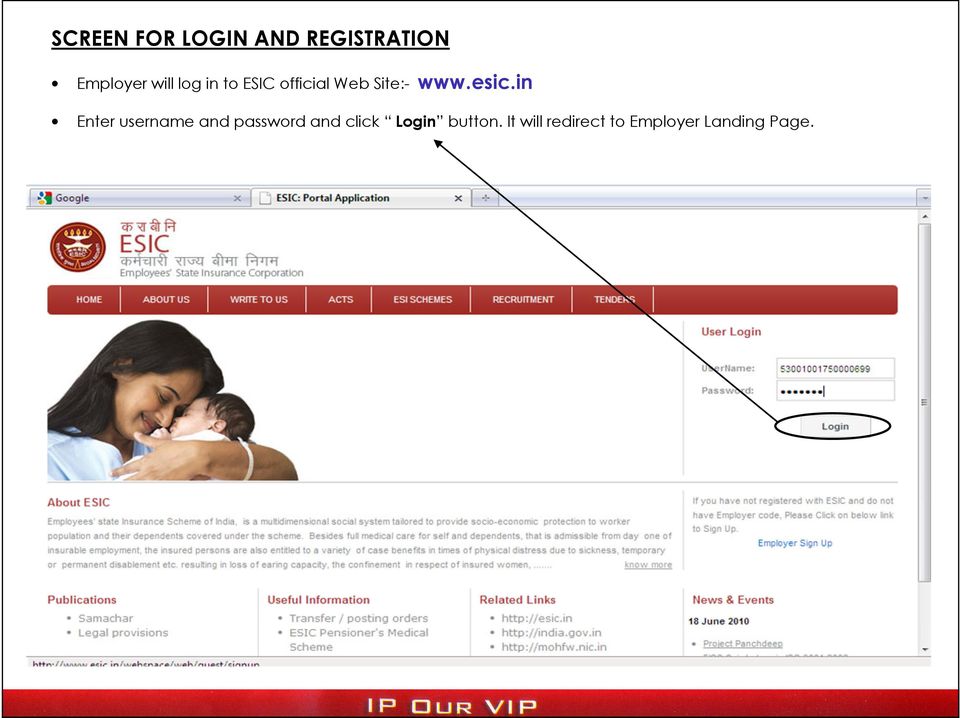
3 SCREEN FOR LOGIN AND REGISTRATION Employer will log in to ESIC official Web Site:- Enter username and password and click Login button. It will redirect to Employer Landing Page.
4 STEPS TO DO BEFORE SUBMITTING MONTHLY CONTRIBUTION AND CHALLAN GENERATION: 1. Ensure all existing IP s having Insurance No. are registered for and mapped to the employer, if not listed and then Click Insert IP Details in Employer Landing page. 2. Ensure those employees(new Joinings ) entering insuarable employement for the first time, for filling Declaration Form, click Register New IP in Employer Landing Page for generating Insurance No./TIC. Fill all the required fields in Employees Registration Screens in Employment Registration Screens. 3. In case of Inter Region Migration of an IP from one region to another. Click Register New IP. There will be an option in the screen Is IP already registered, then select option Yes and fill all required fields and Submit. 4. Mandatory fields are marked in RED asterisk (*) and must be filled. 5. If all Employees inserted/registered then Click File Monthly Contributions LINK in the Employer Landing Page shown in next SCREEN.

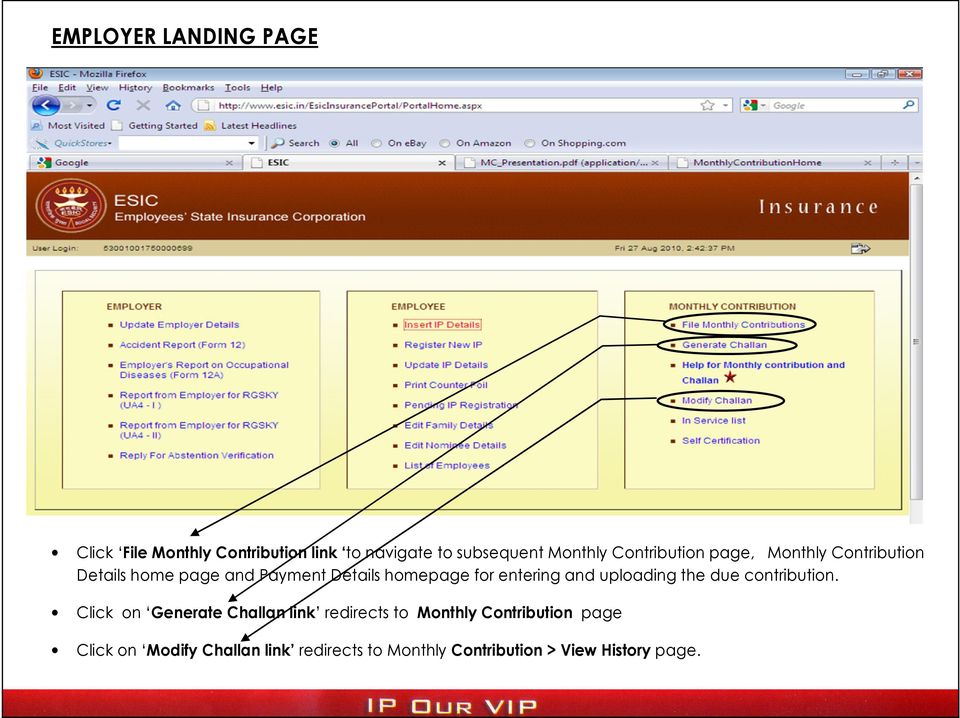
5 EMPLOYER LANDING PAGE Click File Monthly Contribution link to navigate to subsequent Monthly Contribution page, Monthly Contribution Details home page and Payment Details homepage for entering and uploading the due contribution. Click on Generate Challan link redirects to Monthly Contribution page Click on Modify Challan link redirects to Monthly Contribution > View History page.
6 MONTHLY CONTRIBUTION PROCESSING In order to process the payable contribution, provide the basic information like Contribution Period, type of contribution. We have two option for filing the Contribution :- 1) Through the upload excel file, for big Employers or in alternative 2) Online entry of contribution of all employees.


7 MONTHLY CONTRIBUTION PROCESSING Click on Browse. Browse this sheet from Desktop and click on Upload.

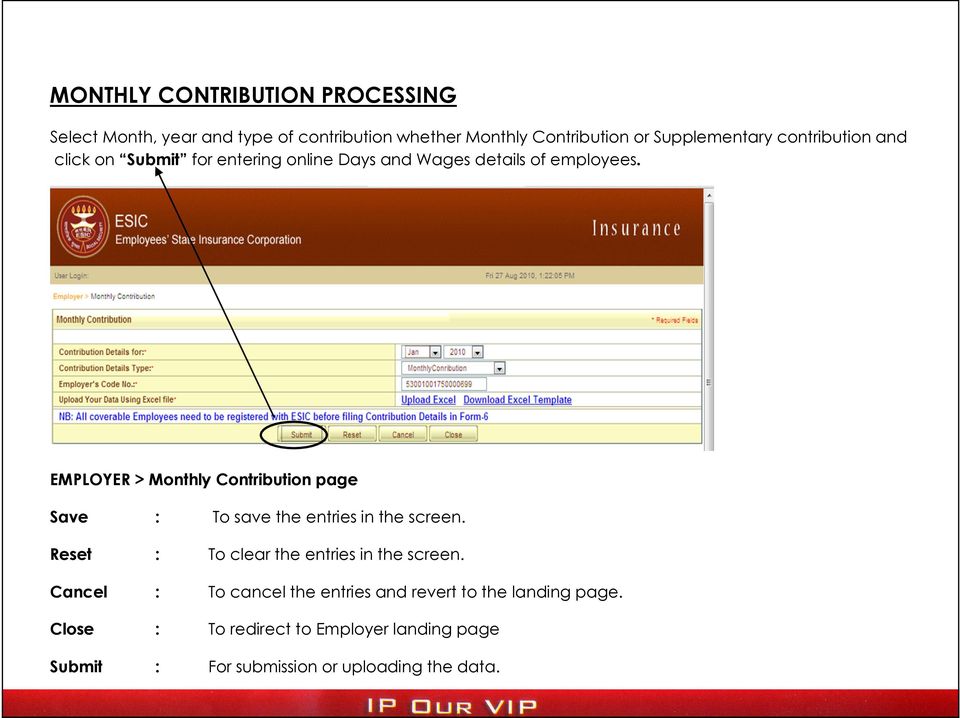
8 MONTHLY CONTRIBUTION PROCESSING Select Month, year and type of contribution whether Monthly Contribution or Supplementary contribution and click on Submit for entering online Days and Wages details of employees. EMPLOYER > Monthly Contribution page Save : To save the entries in the screen. Reset : To clear the entries in the screen. Cancel : To cancel the entries and revert to the landing page. Close : To redirect to Employer landing page Submit : For submission or uploading the data.
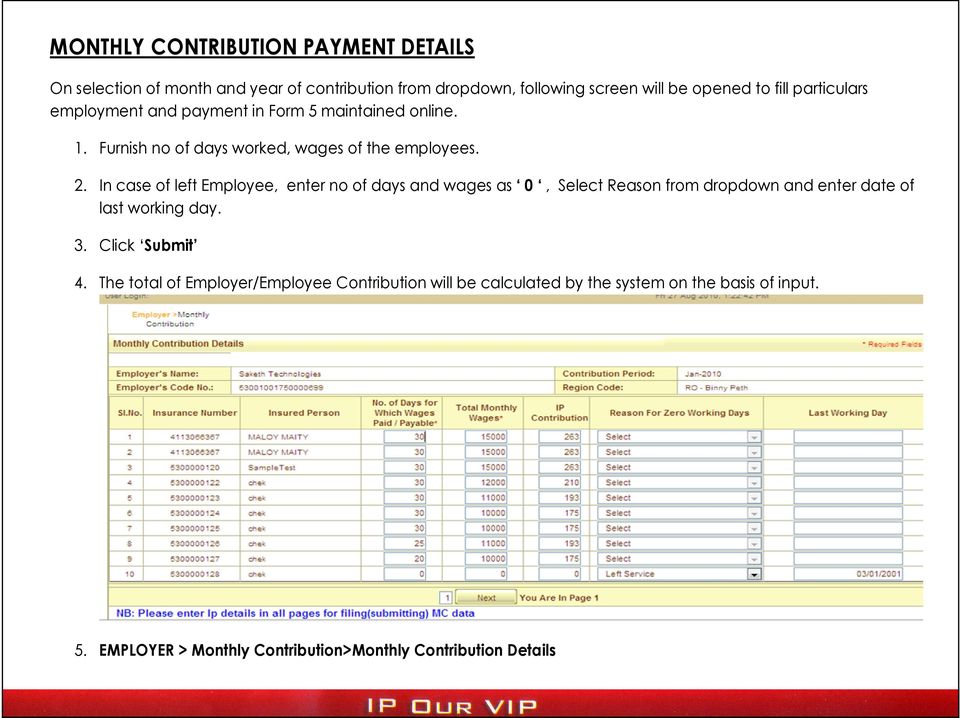
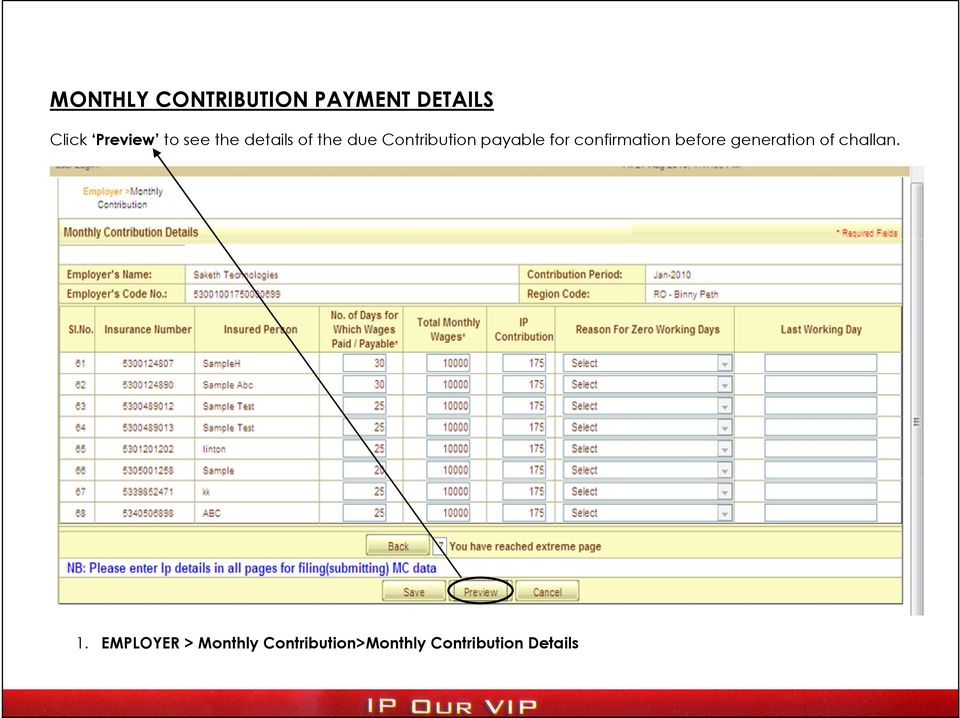
9 MONTHLY CONTRIBUTION PAYMENT DETAILS On selection of month and year of contribution from dropdown, following screen will be opened to fill particulars employment and payment in Form 5 maintained online. 1. Furnish no of days worked, wages of the employees. 2. In case of left Employee, enter no of days and wages as 0, Select Reason from dropdown and enter date of last working day. 3. Click Submit 4. The total of Employer/Employee Contribution will be calculated by the system on the basis of input. 5. EMPLOYER > Monthly Contribution>Monthly Contribution Details
10 MONTHLY CONTRIBUTION PAYMENT DETAILS Click Preview to see the details of the due Contribution payable for confirmation before generation of challan. 1. EMPLOYER > Monthly Contribution>Monthly Contribution Details
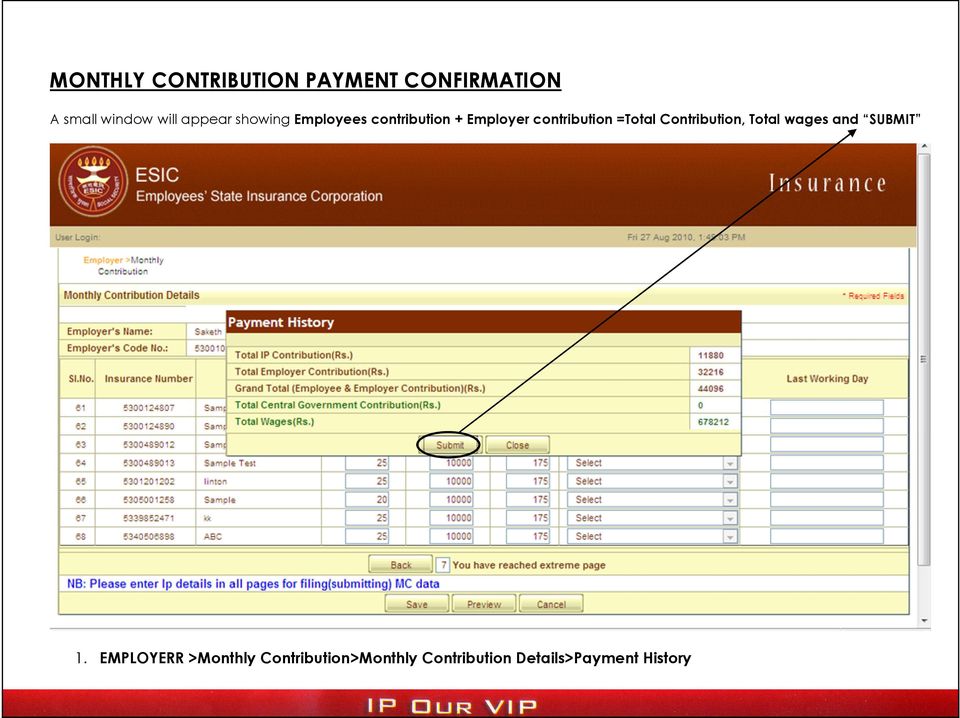
11 MONTHLY CONTRIBUTION PAYMENT CONFIRMATION A small window will appear showing Employees contribution + Employer contribution =Total Contribution, Total wages and SUBMIT 1. EMPLOYERR >Monthly Contribution>Monthly Contribution Details>Payment History
12 MONTHLY CONTRIBUTION CHALLAN GENERATION Click Create Challan in small window to generate the Challan 1. EMPLOYERR >Monthly Contribution>Monthly Contribution Details>Payment History

13 MONTHLY CONTRIBUTION VIEW On Clicking View, it will redirect to Payment page. EMPLOYER > ONLINE Monthly Contribution > PAYMENT

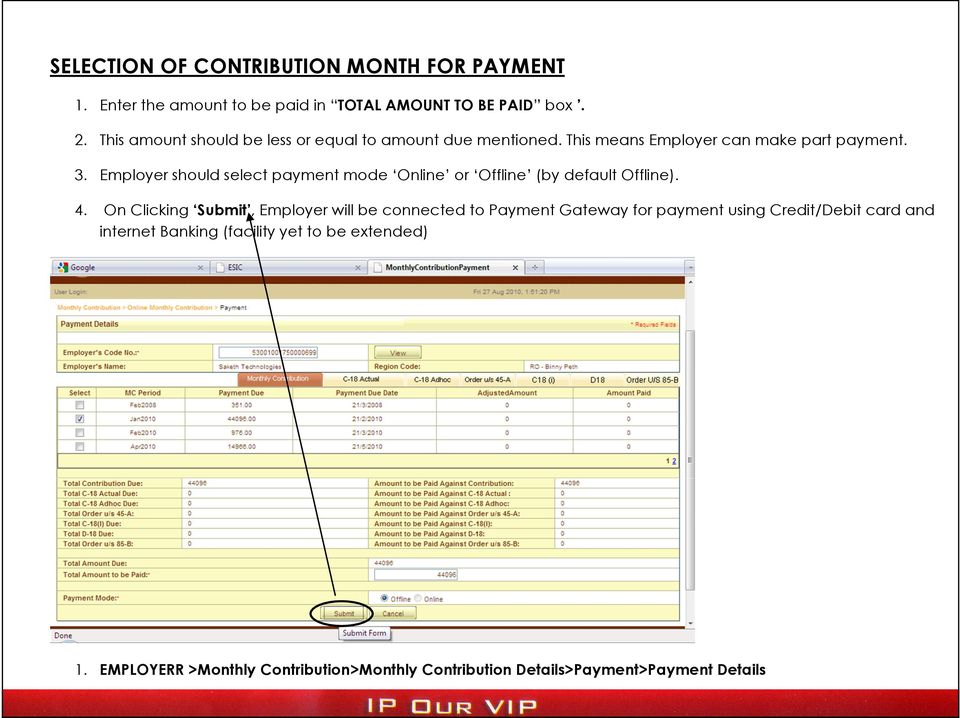
14 SELECTION OF CONTRIBUTION MONTH FOR PAYMENT 1. Enter the amount to be paid in TOTAL AMOUNT TO BE PAID box. 2. This amount should be less or equal to amount due mentioned. This means Employer can make part payment. 3. Employer should select payment mode Online or Offline (by default Offline). 4. On Clicking Submit, Employer will be connected to Payment Gateway for payment using Credit/Debit card and internet Banking (facility yet to be extended) 1. EMPLOYERR >Monthly Contribution>Monthly Contribution Details>Payment>Payment Details


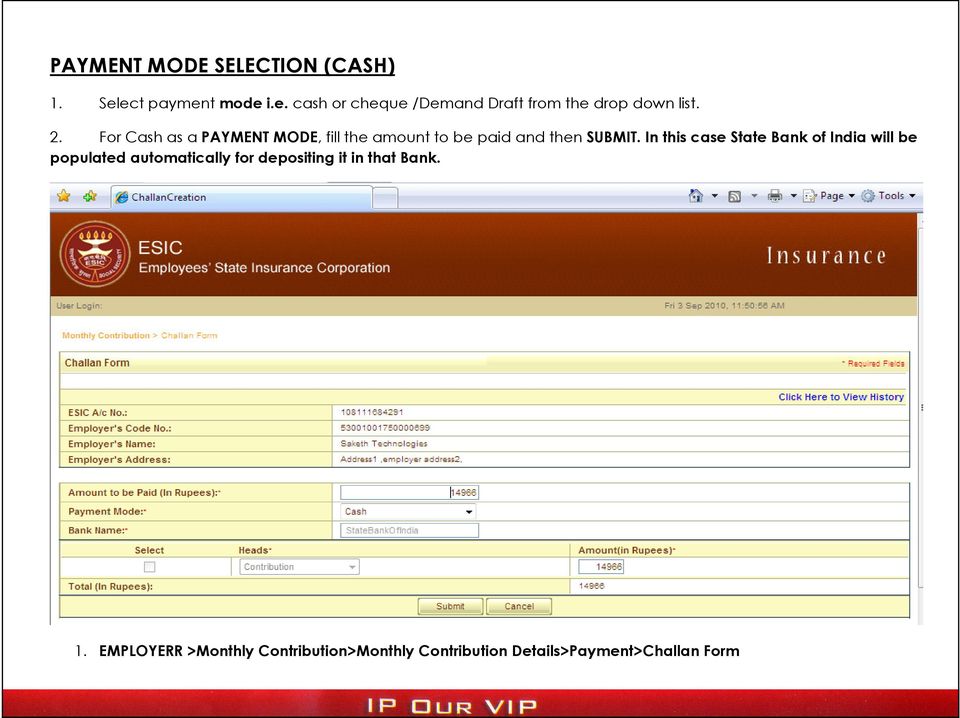
15 PAYMENT MODE SELECTION (CASH) 1. Select payment mode i.e. cash or cheque /Demand Draft from the drop down list. 2. For Cash as a PAYMENT MODE, fill the amount to be paid and then SUBMIT. In this case State Bank of India will be populated automatically for depositing it in that Bank. 1. EMPLOYERR >Monthly Contribution>Monthly Contribution Details>Payment>Challan Form
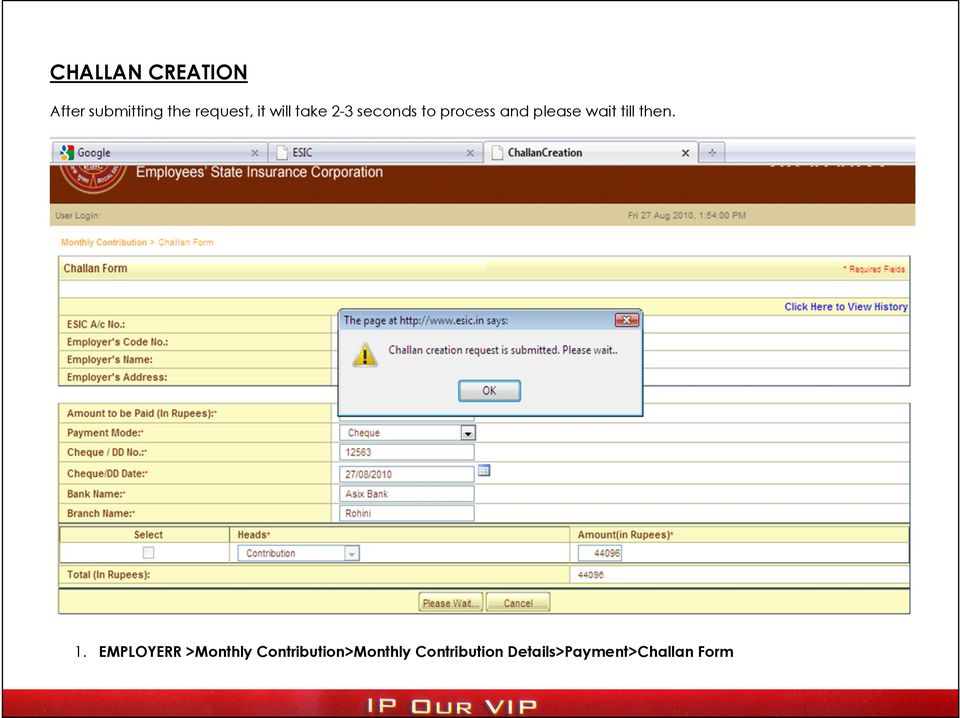
16 PAYMENT MODE SELECTION (CHEQUE / DEMAND DRAFT) 1. In case of Cheque/Demand Draft as PAYMENT MODE, fill the cheque/demand Draft details as Cheque/DD No, Cheque/DD Date, drawn Bank name, Branch name. 2. Click SUBMIT. EMPLOYERR >Monthly Contribution>Monthly Contribution Details>Payment>Challan Form

17 CHALLAN CREATION After submitting the request, it will take 2-3 seconds to process and please wait till then. 1. EMPLOYERR >Monthly Contribution>Monthly Contribution Details>Payment>Challan Form
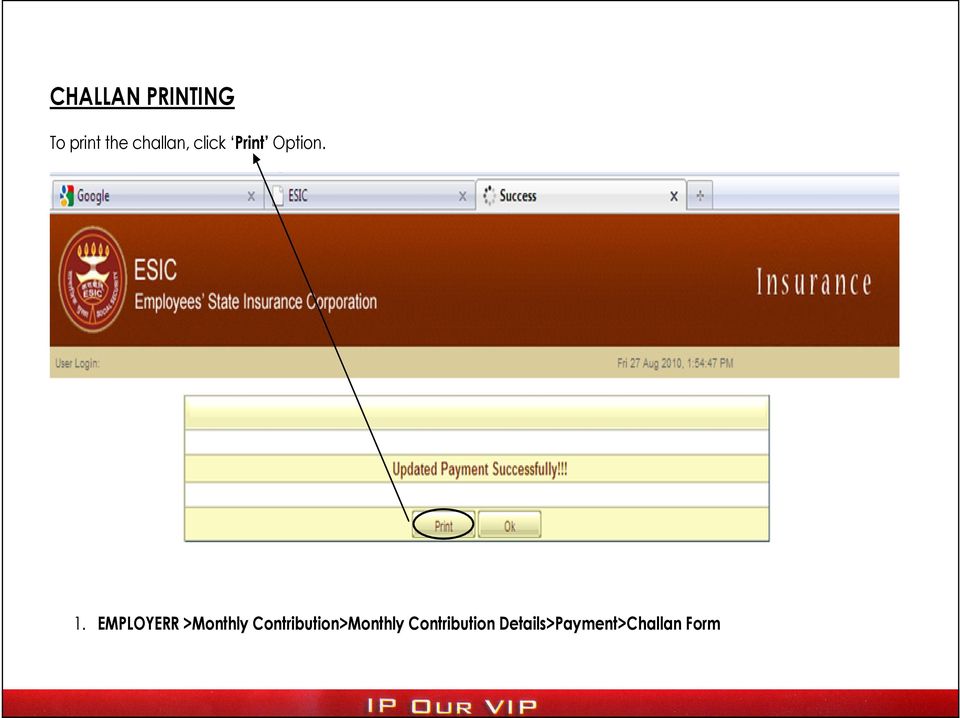
18 CHALLAN PRINTING To print the challan, click Print Option. 1. EMPLOYERR >Monthly Contribution>Monthly Contribution Details>Payment>Challan Form
19 CHALLAN PRINTING Click on Option. It will direct to a pop-up window. 1. EMPLOYERR >Monthly Contribution>Monthly Contribution Details>Payment>Challan Form

20 CHALLAN PRINTING Select Allow pop-ups for and click Print Button. 1. EMPLOYERR >Monthly Contribution>Monthly Contribution Details>Payment>Challan Form

21 CHALLAN PRINTING You have successfully generated the challan.
22 CHALLAN PRINTING Click on Export and select the file type as PDF. Again click on Print then it will be converted into PDF File in Landscape mode.
23 CHALLAN PRINTING Select All and click ok to print the report.
24 CHALLAN PRINTING 1. The challan print is in twin (Bank Copy/Depositors Copy) for presenting it along with cash/cheque for payment before any branch of State Bank of India. 2. Depositors Copy of the challan is payment instrument/receipt for further reference. 3. Henceforth system generated challan will only be accepted by our Bankers.
25 FLOW CHART OF ACTIVITIES FOR FILING OF MONTHLY CONTRIBUTION AND CHALLAN CREATION PREACTIVITY Inserting of existing covered employees having Insurance no. EMLOYERS->INSERT IP DETAILS Insertion of not already covered employees drawing wages less than Rs.15000/- EMLOYERS->REGISTER NEW IPs FILING OF MONTHLY CONTRIBUTION CLICK Filing of Monthly Contribution Link. EMPLOYERS->FILING OF MONTHLY CONTRIBUTION Select M/Y and Type of Contribution from dropdown. Entry of contribution details either online or upload. Enter no of days worked and wages paid. Enter no of days and wages as 0 and reason of leaving of employees from dropdown in ONLINE register of employees in Form 5 u/r 32(1) and 32(1A). Click SUBMIT. Click preview button to confirm correctness of total due contribution. Click Create Challan for updating the monthly payable contribution by the employer in the system. Select View to show the page listing Contribution History of all paid/payable dues of the Employer. Select Type of Contribution and M/Y of Contribution and Submit. Select Mode of Payment. Click Print to print the challan. Click Option. Select Allow Pop for Click on Export and Select the file type as PDF (applicable to Internet Explorer) Again click Print. Select ALL and Click OK.
26 ========== Thank You! ==========
Online Payment of Monthly Contribution (SBI Net Banking)
 Online Payment of Monthly Contribution (SBI Net Banking) Last Revised Date :18/04/2012 1 Introduction 1. This user manual is in continuation of Monthly Contribution Help Document. 2. Users are advised
In my.ielts Essentials a user account must be created to save your booking and register you within the system.
 Registration In this section: Creating a new user account. In my.ielts Essentials a user account must be created to save your booking and register you within the system. 1. Register as a new user and create
VENDOR ENROLMENT HELP MANUAL MATERIALS, COMPONENTS & SERVICES
 VENDOR ENROLMENT HELP MANUAL For MATERIALS, COMPONENTS & SERVICES Page 0 OFB eprocurement System Vendor Enrolment Module This module affects all users who wish to enroll as a Vendor. Through this enrolment,
MULTI-FACTOR AUTHENTICATION SET-UP
 MULTI-FACTOR AUTHENTICATION SET-UP DepositPartner Desktop Application TABLE OF CONTENTS Click the link below to go to the section you need: First Time Enrollment Enrolled User Contact information on file
Share Point Document Management For Sage 100 ERP
 Share Point Document Management For Sage 100 ERP 457 Palm Drive Glendale, CA 91202 818-956-3744 818-956-3746 [email protected] www.iigservices.com Share Point Document Management 2 Information in this
Contents 1 Overview 2 Steps to run an Excel Add-In Setup: 3 Add-Ins 4 LOGIN 5 SEND SMS 5.1 Send Text or Flash Sms 5.2 Select Range 5.
 Contents 1 Overview 2 Steps to run an Excel Add-In Setup: 3 Add-Ins 4 LOGIN 5 SEND SMS 5.1 Send Text or Flash Sms 5.2 Select Range 5.3 Selected Range Preview List 5.4 Scheduling of Messages 5.5 Scheduled
INVESTOR MANUAL. Anywhere and anytime access by the stakeholders Increased efficiency and transparency in Government departments Reduced cost and time
 INVESTOR MANUAL Karnataka Udyog Mitra is a single window facilitation mechanism for the investors to invest in Karnataka. Portal facilitates different departments to process the investor s application
KNPC esourcing Portal. Getting Started - Registration & Authentication. KNPC esourcing Registration & Authentication
 Getting Started - Registration & Authentication Supplier Registration & Authentication Process Any new Supplier (Local or International) who wishes to get Prequalified or participate in Tenders run by
How to Add Users 1. 2.
 Administrator Guide Contents How to Add Users... 2 How to Delete a User... 9 How to Create Sub-groups... 12 How to Edit the Email Sent Out to New Users... 14 How to Edit and Add a Logo to Your Group's
Surplus Lines Online User Guide
 Surplus Lines Online User Guide Missouri Department of Insurance, Financial Institutions and Professional Registration Contents Summary... 1 Site Address... 1 Account Management... 2 Account Registration...
E-LEARNING STUDENT S MANUAL
 E-LEARNING STUDENT S MANUAL By Williams College E-Learning is the College s Online Learning Environment, designed to enhance your learning experience by providing access to online course materials, activities,
account multiple solutions
 Quick Start Guide 1 Our easy to use guide will get you up and running in no time! The guide will assist you with: Generating your Sage Pay login Navigation Creating contacts Creating system users Setting
Grade Sheet Application
 Grade Sheet Application allows faculty and Faculty Assistants (FAs) to upload grades, from a downloaded spreadsheet retrieved from the My Courses portlet on the portal or by downloading from the Chalk
Traders Registration. User Guide. For. Dealers of Tobacco
 Traders Registration User Guide For Dealers of Tobacco User Guide Developed by: Version: 1.0 1 P a g e Contents 1. INTRODUCTION... 3 2. PRE-REQUISITES... 4 2.1. Connectivity:... 4 2.2. Webpage Link:...
Applying for Archive Service Accreditation: Using the online application system
 Applying for Archive Service Accreditation: Using the online application system 1 Archive Service Accreditation online application system: user guide Table of Contents 1 Registering on the online application
Customer Relationship Management Software
 Customer Relationship Management Software Second CRM Mobile Web App Guide Version 1.2 Table of Contents SECOND CRM MOBILE OVERVIEW... 3 USER LOGIN... 3 LOGIN & NAVIGATION... 5 DASHBOARD... 5 VIEW... 6
ONLINE LEVEL ONE UMPIRES COURSE PARTICIPANT FACT SHEET
 About the course The Level One Online Umpire s Course has been designed to assist you in achieving the necessary skills and knowledge to be an effective umpire and enjoy your officiating role. The course
2. How to Complete Your Company Registration
 2. How to Complete Your Company Registration Upon completion of your initial registration form you will receive a temporary login for the Mitie Sourcing Portal. This is so you can submit some further information
REGISTER OF COMPANIES, ENTERPRISES AND BUSINESS
 RWANDA BUSINESS REGISTRY PROJECT REGISTER OF COMPANIES, ENTERPRISES AND BUSINESS NAMES USER MANUAL Online user Version: 1.0 March 9 th 2010 NORWAY REGISTERS DEVELOPMENT AS TABLE OF CONTENTS 1 INTRODUCTION...
HELPDESK SYSTEM (HDS) USER MANUAL
 HELPDESK SYSTEM (HDS) USER MANUAL Release No.: 2.0 prepared by OMESTI Berhad. TABLE OF CONTENTS 1.0 HOW TO ACCESS THE HELPDESK SYSTEM (HDS)... 1 2.0 HOW TO REGISTER NEW USER... 2 3.0 HOW TO RECOVER PASSWORD...
Pay your mobile bills online. Intel Easy Steps 1 2012 Intel Corporation All rights reserved.
 Pay your mobile bills online Intel Easy Steps 1 2012 Intel Corporation Online Payments: Pay your mobile bills online (Airtel*) Online Payments All of us use a number of utility services in our daily activities
User Manual for Constituent Colleges(PIT) - Student
 User Manual for Constituent Colleges(PIT) - Student Step 1 Go to http://ptuaccounts.ac.in or http://ptu.ac.in Step 2 Take/Hover mouse on Registration/Online payment link Step 3 Click on Constituent Colleges
Configuring NXT Hardware with Mercury Inside into Doors.NET TM Application Note
 1.0 Installing the Mercury SCP Gateway The MSC/SCP gateway must be installed to interface with Mercury hardware. This gateway must be chosen during the installation of the software, or it can be added
Submitting an application
 Submitting an application Procedure 1. If you would like to submit an application via the DAAD Portal, please start by selecting your chosen programme in our database for scholarship holders or academic
IRDA TRAINEE User Manual
 IRDA TRAINEE User Manual Version: 1.0 / 28-Dec-2012 Surveyor Version History Version No. Date of Release Prepared by ( L&T Side ) Reviewed by (L&T Side) Apeksha Madan, 1.0 28/12/2012 Tinaz Bhathena Jayanti
Online Payroll Documents (OPD) User Guide
 Online Payroll Documents (OPD) User Guide Contents 1. Online Payroll Documents (OPD) 2. Self-Registration 3. Payslips 4. P60 s 3.1 View your payslip 3.2 Print your payslip 3.3 Save your payslip 4.1 View
IRDA BROKER REGISTRATION AND RETURNS SUBMISSION USER MANUAL
 IRDA BROKER REGISTRATION AND RETURNS SUBMISSION USER MANUAL Version 1.0/04-April-2014 1 Version History Version History Version Date of No. Release Prepared by (L&T side) Reviewed by (L&T side) Approved
rbweb RB Web 8 online office for attorneys, paralegals and secretaries User Guide
 rbweb RB Web 8 online office for attorneys, paralegals and secretaries User Guide Table of Contents Program Basics Logging in.... 1 Resetting password for security reasons.... 1 Navigating the site...
Table of Contents INTRODUCTION... 2 HOME PAGE... 3. Announcements... 7 Personalize & Change Password... 8 Reminders... 9 SERVICE CATALOG...
 Table of Contents INTRODUCTION... 2 HOME PAGE... 3 Announcements... 7 Personalize & Change Password... 8 Reminders... 9 SERVICE CATALOG... 11 Raising a Service Request... 12 Edit the Service Request...
DISCOVER LOCAL TALENT WITH JOBS BANK
 www.jobsbank.gov.sg USER GUIDE FOR EMPLOYERS DISCOVER LOCAL TALENT WITH JOBS BANK The portal that links you to local individuals CONTENTS PREFACE PART I : NAVIGATING THE JOBS BANK MAIN PORTAL A. ACCESS
User Manual for efiling of Return for VAT (ver. 2.2) Download/ Upload Return Filing Method E-FILING RETURN FOR
 E-FILING OF RETURN FOR VAT USER MANUAL National Informatics Centre, WBSC Page 1 of 48 Online Filing of Returns Thanks for accessing the website of the Directorate of Commercial Taxes, West Bengal. Now
OSP Quick Start Guide
 OSP Quick Start Guide Table of Contents Notes...1 Overview...1 Site Information...2 Login to Portal...2 Activity Setup...3 Add Activity...3 Activity Lookup...4 Edit Activity...4 Remove Activity...4 View
Android App for SAP Business One. Z3moB1le App Version 1.00 Pagina 1 di 12. www.z3engineering.it
 Android App for SAP Business One Z3moB1le App Version 1.00 Pagina 1 di 12 Z3 Mobile for SAP Business One (Z3moB1le) Contents Overview... 3 Phone requirements... 3 Available modules... 4 Settings before
Vodafone Bulk Text. User Guide. Copyright Notice. Copyright Phonovation Ltd
 Vodafone Bulk Text User Guide Copyright Notice Copyright Phonovation Ltd Important Notice: The Information contained in this document is subject to change without notice and should not be construed as
emobile Bulk Text User Guide Copyright Notice Copyright Phonovation Ltd
 emobile Bulk Text User Guide Copyright Notice Copyright Phonovation Ltd Important Notice: The Information contained in this document is subject to change without notice and should not be construed as a
EQUATE PETROCHEMICAL COMPANY HLL E-RECRUITING USER GUIDE
 EQUATE PETROCHEMICAL COMPANY HLL USER GUIDE CONTENTS Using this guide... 02 Browse vacancies/search for a position... 02 How to register online... 04 Hints for registered users... 05 How to create a profile...
Quick Reference Guide
 Quick Reference Guide Business Internet Banking COMMERCIAL BANKING 3 Summary of Business Internet Banking functionalities Utilities Authorisation module Access and security controls Cash Management Account
Online School Payments (OSP) User Guide
 Online School Payments (OSP) User Guide November, 2013 OSP User Guide Table of Contents Overview...3 Site Information...3 Login to Portal...4 Activity Setup...6 OSP Activity Setup Form...6 Add Activity...7
EXTERNAL GUIDE HOW TO COMPLETE THE COMPANY INCOME TAX RETURN ITR14 EFILING
 RETURN ITR14 EFILING TABLE OF CONTENTS 1 PURPOSE 3 2 INTRODUCTION 3 3 RETURN 4 3.1 REQUESTING THE RETURN 4 3.2 GETTING STARTED 5 3.3 COMPLETION OF THE RETURN 7 3.4 COMPLETING AND SUBMITTING THE ITR14 RETURN
Online Payments. Intel Learn Easy Steps Activity Card
 Activity Card : Pay your mobile bills online (Airtel*) All of us use a number of utility services in our daily activities at business and home. Utility services are services like electricity, telephone,
BitLocker Encryption for non-tpm laptops
 BitLocker Encryption for non-tpm laptops Contents 1.0 Introduction... 2 2.0 What is a TPM?... 2 3.0 Users of non-tpm University laptops... 2 3.1 Existing Windows 7 laptop users... 2 3.2 Existing Windows
ACR Triad Web Client. User s Guide. Version 2.5. 20 October 2008. American College of Radiology 2007 All rights reserved.
 ACR Triad Web Client Version 2.5 20 October 2008 User s Guide American College of Radiology 2007 All rights reserved. CONTENTS ABOUT TRIAD...3 USER INTERFACE...4 LOGIN...4 REGISTER REQUEST...5 PASSWORD
ONSITE TRACK EASY Yancoal Contractor Management Portal Portal User Guide: Company Registration. Yancoalcontractors.com.
 ONSITE TRACK EASY Yancoal Contractor Management Portal Portal User Guide: Company Registration Yancoalcontractors.com.au 1300 663 816 CONTENTS Navigate to the Yancoal Contractor Management Portal... 3
UCB erequest IIS Requestor - Quick Reference Guide
 UCB erequest - CONTENTS 1 INTRODUCTION... 3 2 HOW TO REGISTER AND LOG-IN... 3 2.1 REGISTER TO RECEIVE AN EXTERNAL REQUESTOR USER ID AND PASSWORD... 3 2.2 LOGIN WITH USER ID AND PASSWORD... 5 3 HOW TO SUBMIT
Trademark e-filing 2013
 2013 1. Login facility is available on the home page. User has to register for logging in. If a user is already registered he can log in using the User ID and Password or Digital signature. How to Register:
How To Create An Overseas Telegraphic Transfer
 VELOCITY@OCBC 2.0 BUSINESS INTERNET BANKING USER GUIDE 1 of 131 1 Contents 1. Log in to Velocity@ocbc 2.0 4 2. View Trade Finance portfolio 12 3. View and download a bank statement 15 4. Create a Letter
TRAINING MANUAL FOR NATIONAL E-GOVERNMENT PROCUREMENT SYSTEM OF NEPAL
 TRAINING MANUAL FOR NATIONAL E-GOVERNMENT PROCUREMENT SYSTEM OF NEPAL Bidders Group www.bolpatra.gov.np/egp Organized By: Government of Nepal Public Procurement Monitoring Office, Tahachal, Kathmandu Table
ACT State Testing Online Services Tutorial
 ACT State Testing Online Services Tutorial Back-up Test Supervisor Version Released July, 2009 2009 by ACT, Inc., All rights reserved. Back-up Test Supervisor Online Profile Form Introduction The Back-up
How To Set Up A Xerox Econcierge Powered By Xerx Account
 Xerox econcierge Account Setup Guide Xerox econcierge Account Setup Guide The free Xerox econcierge service provides the quickest, easiest way for your customers to order printer supplies for all their
account multiple solutions
 Quick Start Guide 1 Our easy to use guide will get you up and running in no time! The guide will assist you to: Validate bank numbers Validate ID numbers Access number tips Release funds to your bank Transfer
What is e-services? Registered User Portal RUP
 IRS e-services Registration Process What is e-services? Suite of products designed for tax professionals and taxpayers to do business with IRS electronically Includes: Registration e-file Application Preparer
The Peer Reviewer s Guide to Editorial Manager
 The Peer Reviewer s Guide to Editorial Manager Registering with EM The Register option is found in the main toolbar. New users simply click on REGISTER. [Note: You may have been proxy registered as a review
Help Desk Web User Guide
 Help Desk Web User Guide 1 P age Contents Create an Incident... 3 Classifying Category... 3 Describe Incident Request... 3 Add Attachments to the Request... 4 Requests... 4 Request List View... 5 Modes
Document Services Online Customer Guide
 Document Services Online Customer Guide Logging in... 3 Registering an Account... 3 Navigating DSO... 4 Basic Orders... 5 Getting Started... 5 Attaching Files & Print Options... 7 Advanced Print Options
OSP User Guide. 1 P a g e
 Online School Payments (OSP) User Guide February, 2014 OSP User Guide Table of Contents Overview...3 Site Information...3 Login to Portal...4 Activity Setup...6 OSP Activity Setup Form...6 Add Activity...7
EMPLOYEES STATE INSURANCE CORPORATION (ESIC) Welcome to Pre Bid conference 12-10-2015
 EMPLOYEES STATE INSURANCE CORPORATION (ESIC) Welcome to Pre Bid conference 12-10-2015 ESI ACT, 1948 The Employees State Insurance Act - Promulgated by the Parliament in the year 1948. The Scheme was introduced
INTRODUCTION SAHAJ ACCOUNTING
 INTRODUCTION Welcome to SAHAJ ACCOUNTING software, not just accounting, complete business solutions. Whether you plan to manage your personal accounts or the finances of your business, you can use SAHAJ
E-FILING OF PATENT APPLICATIONS IN INDIA. A User Manual
 E-FILING OF PATENT APPLICATIONS IN INDIA A User Manual USER MANUAL This User Manual explains the steps for electronic-filing (e-filing) of a Patent Application in India. This Manual details various steps
USER MANUAL FOR INTERNET BANKING (IB) SERVICE
 USER MANUAL FOR INTERNET BANKING (IB) SERVICE Content: Introduction and General questions. Accessing and using Internet Banking. 1. Log In, Log Out and Printing screen/transaction information 2. Inquiries
Broker Registration Guide for TrustFunds Authentication A- B- C Registration Steps 1-2- 3-4
 Broker Registration Guide for TrustFunds Authentication A- B- C Registration Steps 1-2- 3-4 Broker Authentication 1. From the TrustFunds website homepage, click Get Started Now to begin your Authentication
Instruction for Payment through IITKGP Payment Gateway
 Instruction for Payment through IITKGP Payment Gateway Any fee payment made in violation of the process set out below including payment through bank pay in slip, POS machines, non-sbi demand draft, non-sbi
Tips for Web Filers. Tips for Web Filers. New Company Registration Page
 Please read all information and instructions prior to entering the data. The instructions provide important details about completing the form and will help make your web experience a positive one. 1. How
Big Lots Vendor Compliance Web Portal User Guide - Vendor
 Big Lots Vendor Compliance Web Portal User Guide - Vendor https://visibility.inovis.com/dataquality/xclient/biglots 1. To login to the system for the first time: Open the New User Notification Invite e-mail
Please click on ANNX-K menu option as in the screen below.
 Process flow for online submission of NEFT Payment Details, Payment Invoice & Annexure-K by an Exempted Trust to EPFO office (For a member who has changed employment from an exempted establishment to an
HEALTH SAVINGS ACCOUNT EMPLOYER WEBSITE GUIDE
 REGISTERING YOUR ACCOUNT FOR ONLINE ACCESS HEALTH SAVINGS ACCOUNT EMPLOYER WEBSITE GUIDE A note to accountholders with multiple account types with Sterling HSA: We now support a single login for all of
A Guide to Submitting Invoices for Related Services
 A Guide to Submitting Invoices for Related Services and SETSS via the Vendor Portal Updated 3/2013 Table of Contents Chapter 1 Overview Pages 1 6 Chapter 2 Vendor Portal Registration Pages 7 9 Chapters
Using YSU Password Self-Service
 Using YSU Password Self-Service Using YSU Password Self-Service Password Self-Service Web Interface Required Items: YSU (MyYSU) Directory account, Web browser This guide will assist you with using the
STEPS FOR UPDATING/WRITING CASH BOOK
 STEPS FOR UPDATING/WRITING CASH BOOK STEP 1: STEP 2: STEP 3: STEP 4: Log in from Cashier ID (ERP Module) Go to WorkList Finance and Accounts Year Account Head - Update Bank Balance -Click Active Cash with
Training Module for Customer Portal & Customer Care. Enabling the Next Wave of Connectivity
 Training Module for Customer Portal & Customer Care Customer Portal Interface used by the registered end user to interact with the network End user can modify Information, change Password & check the account,billing
Pearson Onscreen Platform (POP) Using POP Offline testing system guide
 Pearson Onscreen Platform (POP) Version 1.0 October 2014 02 What s in this guide? Contents 1 Before you start 2 Download a test 3 Play test 4 Upload response Read more Read more Read more Read more 03
Chapter No. Topics Page No. Chapter 1 Introduction 6-7 1.1 Overview 6 1.2 Salient Features 7 Chapter 2 Hardware And Software Specification 8
 USER MANUAL for Workflow based Online Letter of Credit (LOC) Monitoring System Government of West Bengal National Informatics Centre West Bengal State Unit Department of Information Technology Ministry
Learning Management System (LMS) User Guide for Network Learners
 Learning Management System (LMS) User Guide for Network Learners Table of Contents 1) Create an Account... 1 2) Log In... 3 3) Find Courses... 4 4) Register for Courses... 5 5) Complete Presentation Activity...
CONTRACT MANAGEMENT SYSTEM USER S GUIDE VERSION 2.7 (REVISED JULY 2012)
 CONTRACT MANAGEMENT SYSTEM USER S GUIDE VERSION 2.7 (REVISED JULY 2012) VERSION 2.6 (REVISED APRIL 2012)... I INTRODUCTION... 5 Helpful Hints... 5 Pop-Up Blockers... 5 Users... 6 CPUC Staff Administrator...
e-procurement Solution ECIL
 User Manual of EPS-Vendor User e-procurement Solution ECIL Vendor Manual Page 1 Table of Contents 1 General Information... 3 1.1 Application Overview... 3 1.2 Purpose... 3 1.3 Scope... 3 1.4 Points of
Council of Ontario Universities. COFO Online Reporting System. User Manual
 Council of Ontario Universities COFO Online Reporting System User Manual Updated September 2014 Page 1 Updated September 2014 Page 2 Table of Contents 1. Security... 5 Security Roles Defined in the Application...
MULTI-FACTOR AUTHENTICATION SET-UP
 MULTI-FACTOR AUTHENTICATION SET-UP DepositPartner Desktop Application FIRST TIME ENROLLMENT NOTE: Your computer settings cannot be set to clear cookies upon exit, otherwise you will be prompted to enter
Leads360 Small Business Admin Training Manual
 Leads360 Small Business Admin Training Manual 1 Contents Getting Started... 4 Logging In... 4 Release Notes... 4 Dashboard... 5 Message from Admin... 5 New Features... 5 Milestones Report... 5 Performance
MicroStrategy Quick Guide: Running the PI Report ITU Data Mart Support Group Go to reporting.gmu.edu and click on Login to Microstrategy
 MicroStrategy Quick Guide: Running the PI Report ITU Data Mart Support Group Go to reporting.gmu.edu and click on Login to Microstrategy ACTION Enter User name and Password. Keep default selection of LDAP
Instruction Guide. People First Dependent Certification Process
 People First Dependent Certification Process Each time an employee logs into People First to make an enrollment selection during open enrollment or because of a qualified status change (QSC), he/she must
Revision History. Profile, Images to Details Planning, Resubmission Feedback/Comments. 1.4 22 nd July 2013
 Revision History Revision Date Comment 1.0 15 th January 2013 1 st Edition 1.1 18 th January 2013 Update on Other Researchers 1.2 22 th January 2013 Account Registration and Miscellaneous updates. 1.3
SIRIM Online Application For Certificate of Approval For Importation of Goods.
 SIRIM Online Application For Certificate of Approval For Importation of Goods. IRON & STEEL User Guide Trader Module Version 1.0 12 August 2011 Dagang Net Technologies Sdn. Bhd. Tower 3, Avenue 5, The
INSTRUCTIONS TO THE CANDIDATES FOR FILLING ONLINE RECRUITMENT APPLICATION (ORA)
 ORA- Instruction to the candidates Page 1 INSTRUCTIONS TO THE CANDIDATES FOR FILLING ONLINE RECRUITMENT APPLICATION (ORA) 1. Online Recruitment Application is spread over different Modules/Sections designed
IRIS Help. I R I S H e l p D a t e : 22- S e p - 2 0 1 4 P a g e 1 of 5
 IRIS Help Action Steps Screen Reference Login Enter the User ID already being used for logging in to e-portal in the Field marked Registration No.. Enter the Password already being used for logging in
Introduction of Databridge Customer Support System
 Introduction of Databridge Customer Support System Databridge Customer Support System is a comprehensive customer support management software that provides help desk agents, account managers and customer,
INFORMATION SYSTEMS SERVICE NETWORKS AND TELECOMMUNICATIONS SECTOR. User Guide for the RightFax Fax Service. Web Utility
 INFORMATION SYSTEMS SERVICE NETWORKS AND TELECOMMUNICATIONS SECTOR User Guide for the RightFax Fax Service Web Utility August 2011 CONTENTS 1. Accessing the Web Utility 2. Change Password 3. Web Utility:
What s New in Version 10 Details for Web Essentials
 What s New in Version 10 Details for Web Essentials TABLE OF CONTENTS Overview... 3 Dashboard Module... 3 General Changes... 3 New Proposal... 3 Create Proposal in Word... 5 Create New Proposal in Excel...
To create User who have already been registered with OCR and have received Registration Number can follow the following steps.
 3 Post Registration 3.1 Create User To create User who have already been registered with OCR and have received Registration Number can follow the following steps. Figure 50: Link for new User Registration
The Emirates Group Destination and Leisure Management Division (DLM)
 The Emirates Group Destination and Leisure Management Division (DLM) Electronic Invoice Processing User Manual Ver.2.0 01-Jul-2015 1 Table of Contents INTRODUCTION... 3 ACCESS & LOGIN... 4 EXCEL SHEET
MnSCU MediaSpace. Getting Started with MediaSpace
 MnSCU MediaSpace Minnesota State Colleges & Universities Getting Started with MediaSpace Logging In Login to MediaSpace at http://mediaspace.mnscu.edu Use your StarID and password. If you do not know your
OLAS Applicant Process
 OLAS Home Page Enter https://olas.wi.gov in the browser location box to display the OLAS Home page. Click on the Create Account tab on the OLAS menu to display the DOA/Wisconsin Logon Management System
Lawson Portal User s Manual
 Lawson Portal User s Manual Table of Contents 1. Lawson Portal FAQ s page 1 2. Login Page page 9 3. Portal Home Page page 10 4. Form Search (a) Search by form ID page 11 (b) Search by form description
FUNCTIONALITY. 07/2015 v1.00 Outcome and Assessment Information Set (OASIS) FUNCTIONALITY 3-1 Submission User s Guide
 3 FUNCTIONALITY INTRODUCTION... 2 ESTABLISHING THE COMMUNICATION CONNECTION... 2 MENU BAR... 7 FILE UPLOAD... 7 SUBMISSION STATUS... 7 HELP... 8 LOGOUT...11 WELCOME PAGE...11 SUBMITTING OASIS DATA...11
User manual for the visitors of Interreg Danube Programme website
 User manual for the visitors of Interreg Danube Programme website Table of contents National contact points... 2 Newsletter subscription... 2 Subscribe... 2 Unsubscribe... 2 Forum... 2 Approved projects...
PROCEDURE TO FILL APPLICATION FORMS FOR GGS INDRAPRASTHA UNIVERSITY
 PROCEDURE TO FILL APPLICATION FORMS FOR GGS INDRAPRASTHA UNIVERSITY For any technical queries please contact GGSIPU helpdesk toll free no 18002660513 or email on [email protected] (Only queries
Self- Paced Training Guide:
 Self- Paced Training Guide: You will need to have access to a QuickBooks Online Accountant (QBOA) dashboard before completing the course (if you already have access then you can refer to the link below).
General Overview Portal Administration
 COMSCENTRE ONE TOUCH CONTROL General Overview Portal Administration Version 2.0 Date: September 2014 TABLE OF CONTENTS 1 General... 3 1.1 Prerequisites... 3 1.2 Logging into the OTC... 3 2 Accounts...
Managing Food Service Payment Information
 Managing Food Service Payment Information Registering Payment Information Modifying Payment Information Viewing Online Payment History PATH: Portal > Payments Online Payment functionality allows the ability
Bahamas Tax Information Exchange Portal Documentation
 Bahamas Tax Information Exchange Portal Documentation This sub section of the Portal Documentation covers the following Topics: Portal Overview Portal Login Account Status Reportable Account File Processing