
Submitting an application
|
|
|
- Ashlee Tucker
- 10 years ago
- Views:
Transcription
1 Submitting an application Procedure 1. If you would like to submit an application via the DAAD Portal, please start by selecting your chosen programme in our database for scholarship holders or academic teaching staff. This ensures that the programme and other information is already entered in the application form, making it easier for you to fill in. The scholarship database can be found outside the DAAD Portal, on the DAAD website. The web address is as follows: 2. You will be directed to the DAAD Portal. If you have not yet registered an account, please do so now. Consult the chapter "Registration" of the documentation if you require help with this procedure. Once you have logged in, you will be taken directly to the "Personal funding" section of the Portal. To begin the application process, please click on the field "Application".


2 The funding programme, the country in which the programme is being offered, the destination country and the applicant status are entered automatically in advance. To go to the application form, click on "Continue" above the selected funding programme.

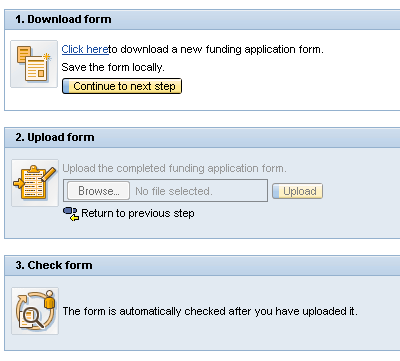
3 3. This will take you to the "Funding application" section. 4. In the "Personal funding" section, we provide a step-by-step procedure for you to follow, to download an application form, fill it in and upload it again to the Portal. This procedure is divided into three different steps: Step 1: Download the form and fill in the required information Step 2: Upload the form Step 3: The form is checked automatically by the system You can navigate from step to step by clicking on. The currently active step will be shown in white. In the illustration below, this is step 1 (Download form). Step 2 and 3 are greyed out.


4 After you have downloaded the application form, you can fill it in outside the Portal. Once you have completed the form, save it and go back into the Portal and return to the "Personal funding" tab. Here, on the lower half of the homepage, you will find an overview of the application(s) you have started. Highlight your application so that it is marked in orange and click on "Continue application". If the application deadline for a funding programme has passed, the end of the application period is shown in red in the table of started applications. If you select a started application after the deadline has passed, the "Continue application" button will be greyed out, making it impossible to continue the application process any further. 5. To upload a completed form, confirm that you have downloaded the form by clicking on the "Continue to the next step" button. 6. Finally, in step 2 (Upload the form), you can select the completed form on your data carrier using the "Browse " button and upload it by clicking on "Upload".

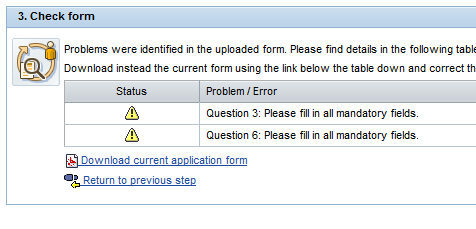
5 The uploaded form is now checked automatically to ensure that it is complete. If any mandatory fields have not been filled in, for example, such errors are shown in a list under Step 3.


6 7. If there are problems with your application, please make sure that you download the current form via the link "Download current application form". Do not use the version of the file already saved to your computer. Please make the necessary changes in the current form and use the "Save as" function to save the new, corrected document in a location of your choice. This ensures you are able to upload the most recent version to the portal. 8. To upload the corrected form, click on This will take you back to step If your corrections are successful, you will receive a message to confirm this. Clicking on "Continue" will then take you to the "Attachments" section, the third part of the application process. In the "Attachments" section, you can add the required attachments to your funding application.

7 To ensure that we can process these attachments in our digital files, please upload them in PDF format only. Any other file format will need to be converted beforehand. Please note that changing the end of the file name (e.g. from "doc" to "pdf") is not a viable way of converting files in this case. Current versions of most Office suites offer a "Save as PDF" function. Additionally, there are several freeware programs which can be used to convert Word documents to PDF. Please also make sure that the PDF files you upload are NOT encrypted and do NOT have any commenting restrictions on them. It is also advisable to check documents which you have already received in PDF format. These PDFs cannot be processed in our system, so we would have to ask for the document to be resubmitted. 10. To add attachments, first choose the type of attachment from the dropdown menu. 11. Click on "Browse" to find and select the relevant PDF on your system. After that, enter a unique, specific name, under which the attachment will be filed and click "Add Document". Per attachement type only the specified number of documents can be uploaded. In the upper left corner you will see a confirmation that your attachment has been added to your application..
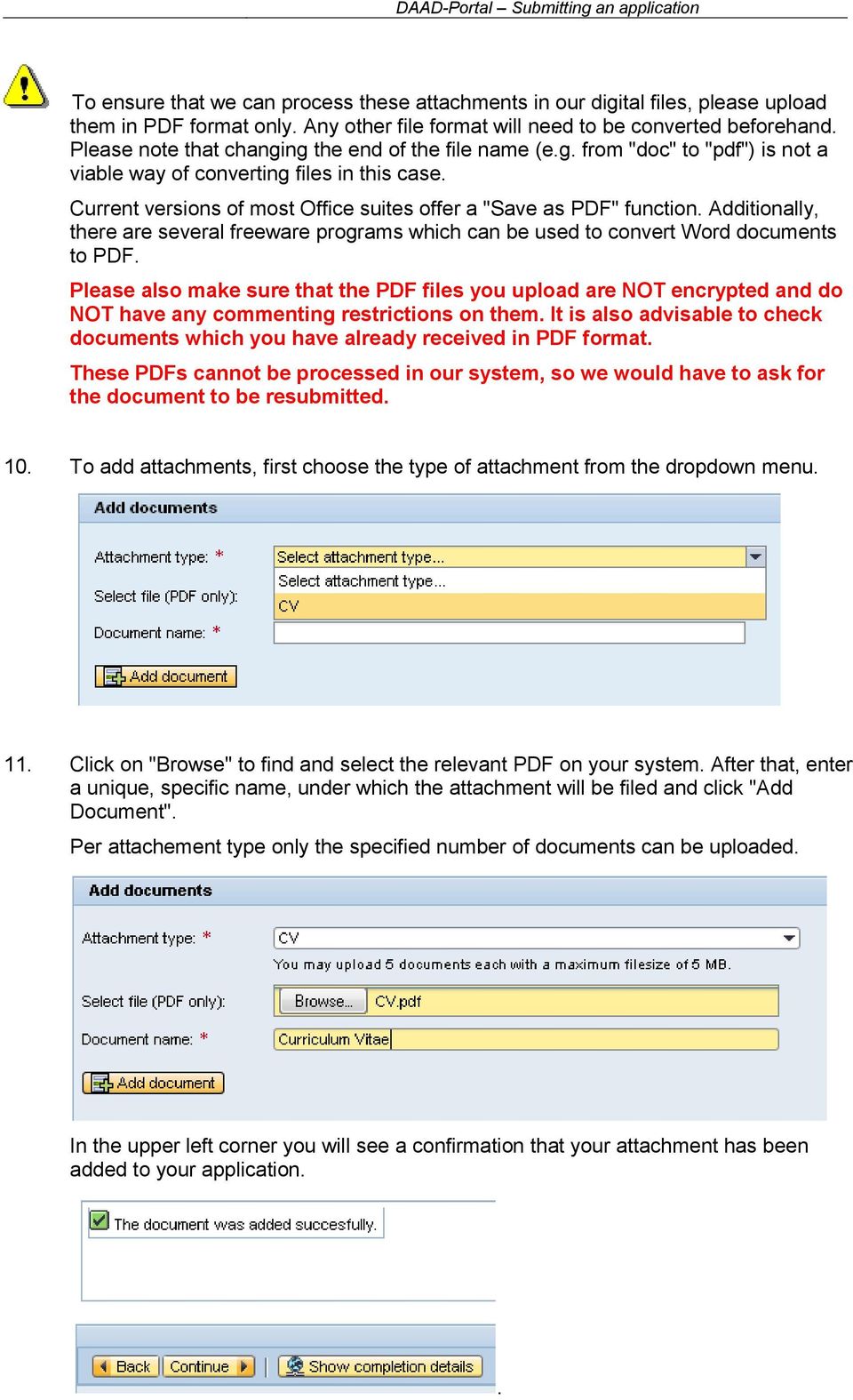
8 The uploaded attachment now appears in the list of added documents. 12. Please note that you will not be able to submit your application without uploading the attachments required by your specific funding programme (please consult your funding guide). As long as you have not uploaded at least one document of each required attachment type (see the notice on the right side of the portal), the "Continue" button will be greyed out and not selectable. When you have uploaded your required attachments, click on "Continue" in the navigation menu in the top left. This will take you to an overview of your application. Here you can once again access your application form and the uploaded attachments. If you wish, you can make changes to the form or upload further attachments.

9 13. In order to submit your application, you will have to confirm that you have acknowledged the note on how to proceed further: After you have sent off your application, an "application summary" will be displayed in a confirmation message. This must be printed out and sent in the post to the applications office responsible for your country by the application deadline stated for your country in three paper copies (for your application location and deadline: see "country-specific information" in the programme advertisement). The application is only valid if it is also submitted in hard copy (exclusively as a printout of the "application summary" mentioned above) in the post and before the deadline. After you have acknowledged the note, you can send the application via the button "Send Documents". 14. You will now receive a message confirming that your application has been submitted successfully.
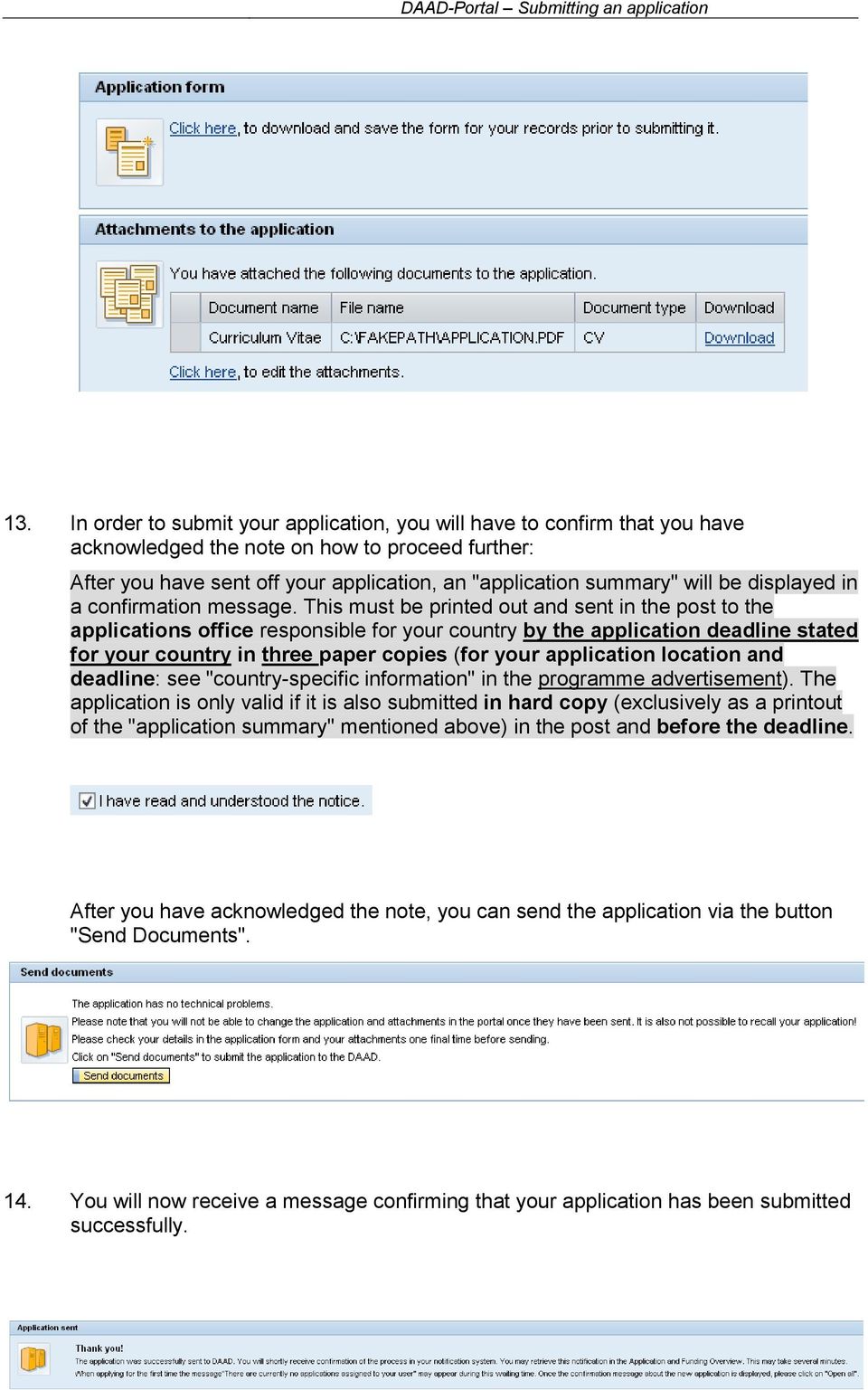
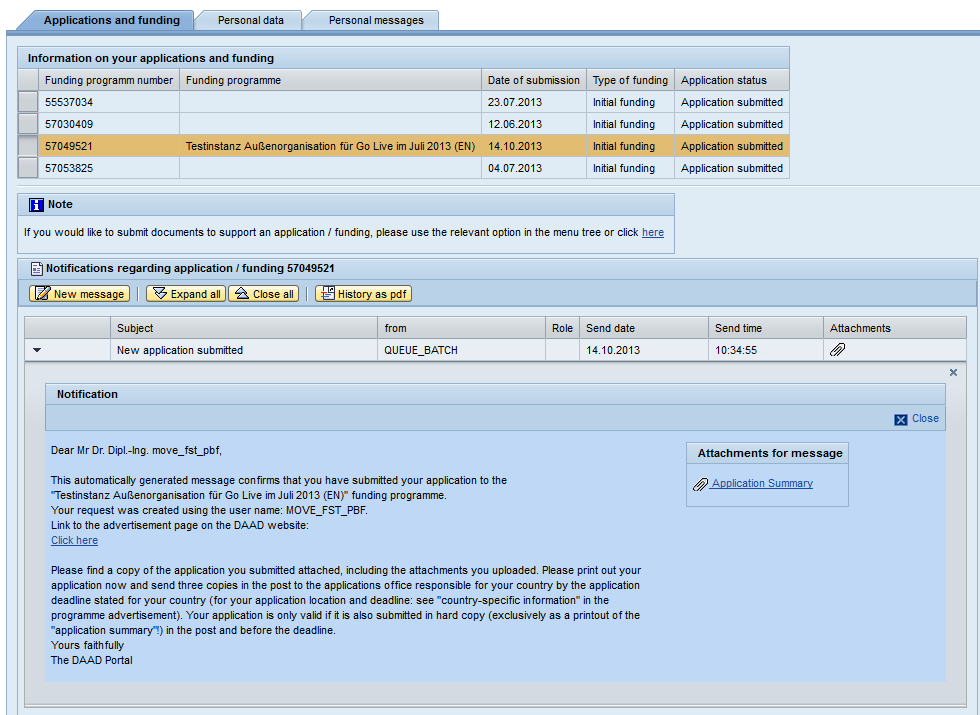
10 A few minutes after sending your application, you will be able to view it in the "Application and funding overview". 15. In the messaging system located below the applications you will find an additional confirmation of your submitted application. An will inform you when messages arrive for you in this section. To open a message, please click the black triangle in front of it. If you have already submitted more than one application, you will first need to select the correct one to view your messages.

11 16. Attached to the confirmation of the successful submission of the application you will find a PDF file titled "application summary". It contains your application form and all submitted attachments. Please take note of the next steps required for the application process listed in the confirmation message, specifically regarding the mailing of physical copies of your forms to the information and advice centre in your country. 17. To exit the Portal please click "Log off" in the upper right corner and click "Yes" in the confirmation dialogue.

Guidelines for online application procedure
 Guidelines for online application procedure Step 1 Go to www.funding guide.de Step 2 Fill up the details indicated by the orange coloured arrows below (Status: Undergraduates, your Country of Origin: India,
Applicants: How to apply for a Commonwealth PhD Scholarship
 Applicants: How to apply for a Commonwealth PhD Scholarship Log On/Register Apply for a Scholarship A. Application Details B. Personal Information C. Career To Date D. References E. Endorsement F. Proposed
Support System User Guide
 Support System User Guide The Virtual Office support system provides users with a useful way to submit and track issues and resolutions. This feature- rich system is one more way that VO provides customers
HEALTH SAVINGS ACCOUNT EMPLOYER WEBSITE GUIDE
 REGISTERING YOUR ACCOUNT FOR ONLINE ACCESS HEALTH SAVINGS ACCOUNT EMPLOYER WEBSITE GUIDE A note to accountholders with multiple account types with Sterling HSA: We now support a single login for all of
Your Archiving Service
 It s as simple as 1, 2, 3 This email archiving setup guide provides you with easy to follow instructions on how to setup your new archiving service as well as how to create archiving users and assign archiving
7. In the boxed unlabeled field, enter the last 4 digits of your Social Security number.
 CREATE YOUR MYVIEW LOGIN To access myview while ensuring security, you will be given an encrypted access key token. You will use this token the first time you log into myview. Once you have successfully
ClicktoFax Service Usage Manual
 ClicktoFax Service Usage Manual 1. Log in to Fax Service 2. Configure your account 3. Send a fax 4. Receive a fax/search for Faxes/View Faxes 5. Logout 6. Additional Support 1. Log into fax service: a.
Surplus Lines Online User Guide
 Surplus Lines Online User Guide Missouri Department of Insurance, Financial Institutions and Professional Registration Contents Summary... 1 Site Address... 1 Account Management... 2 Account Registration...
Medical Services Administration Bureau of Medicaid Financial Services. LTC File Transfer Application. User Manual
 Medical Services Administration Bureau of Medicaid Financial Services LTC Reimbursement and Rate Setting Section LTC File Transfer Application User Manual LTC File Transfer User Manual Version 1 May 1,
Perform this procedure when you need to add a recurring payment option, or when you need to change or withdraw it.
 Purpose Use this procedure to add, change, or remove recurring payments. Trigger Perform this procedure when you need to add a recurring payment option, or when you need to change or withdraw it. Prerequisites
DCH File Transfer Application User Manual
 DCH File Transfer Application User Manual Table of Contents HIPAA Compliancy Statement 3 Overview 4 General.4 Getting Started 4 Screen Basics...4 Accessing the File Transfer application...5 Single Sign
Applying for Archive Service Accreditation: Using the online application system
 Applying for Archive Service Accreditation: Using the online application system 1 Archive Service Accreditation online application system: user guide Table of Contents 1 Registering on the online application
Applicant User Guide. SaskPolytech Recruiting and Onboarding System (SROS) Version 2.0 (January 2015) Human Resources
 Applicant User Guide SaskPolytech Recruiting and Onboarding System (SROS) Version 2.0 (January 2015) Human Resources Table of Contents 1. Get ready... 2 1.1 Need to know information... 3 2. Access the
BRILL s Editorial Manager (EM) Manual for Reviewers
 BRILL s Editorial Manager (EM) Manual for Reviewers Table of Contents Introduction... 2 1. Logging into EM... 2 2. Changing Your Access Codes and Contact Information... 2 3. Agreeing or Declining to Review...
360Pro Providers Quick Reference Guide. Introduction
 360Pro Providers Quick Reference Guide This guide will step you through the basics, from logging on, to answering ATM questions and then submitting a Response. This Guide is available at: https://langeconsulting.zendesk.com/entries/24921676-360pro-providers-quick-reference-guide
Creating a Website with Google Sites
 Creating a Website with Google Sites This document provides instructions for creating and publishing a website with Google Sites. At no charge, Google Sites allows you to create a website for various uses,
P a g e 2. First, to access Smarthinking, log in to your MyGCC account.
 P a g e 1 Online tutoring anytime, anywhere in the following subjects: writing assistance (for any course), math, statistics, biology, chemistry, physics, nursing and allied health, accounting, economics,
www.etenders.gov.ie Electronic Tender Management System Quick User Guide Supplier
 Electronic Tender Management System Quick User Guide Supplier Page 1 Contents 1. Using the system 1.1 1.2 Supplier registration Finding published tenders 2. Responding to a public advertisement / notice
Licensure Management & Application Online System
 Licensure Management & Application Online System School System User Guide March/April 2015 Created by: Iron Data with NCDPI/Licensure Section March, 2015 1 School System User Guide NC DPI Online Licensure
DOCQNET Project. Financial Services Applications
 DOCQNET Project Financial Services Applications CA Department of Business Oversight Version 2.0 (6/18/2014) Table of Contents 1. Overview... 3 2. Financial Services Applications... 4 2.1 How to Apply for
STAFF HIRING PROCESS ******************************************* Posting a Position
 Hiring Manager creates a job posting on-line. STAFF HIRING PROCESS ******************************************* Posting a Position 1. From the www.cmich.edu webpage, select CentralLink in the upper right
Click on Grant Guidelines for Empowering YOUth Initiatives Round 1. This will provide you with further details on this Approach to the Market.
 360Pro Applicants Quick Reference Guide For help or issues related to access to 360Pro or 360Pro functions, please direct your queries to the Employment Services Purchasing Hotline ([email protected]).
BankNet Instructions for Large File Transfer. May 20, 2013 Version 1.1
 May 20, 2013 Version 1.1 Table of Contents 1 Introduction... 1 2 Accessing the Secure Large File Transfer Tool... 2 3 Setting Your Email Address for Confirmation Notifications.. 7 4 Uploading a File...
DOCQN. Account. CA Departm. Version 2.0
 DOCQN NET Project Account Creation & Maintenancee CA Departm ment of Business Oversight Version 2.0 (6/18/2014) Table of Contents 1. Overview... 3 2. Account Management... 4 2.1 How to Create a New Account...
Document Management Portal User Guide
 NetClient CS Document Management Portal User Guide Version 8.x Copyright Information Text copyright 2001-2009 by Thomson Reuters/Tax & Accounting. All rights reserved. Video display images copyright 2001-2009
!"#$ Stonington Public Schools Parents Guide for InfoSnap Online Enrollment. for Returning. Students. August. Online Enrollment.
 Stonington Public Schools Parents Guide for InfoSnap Online Enrollment for Returning Students August!"#$ Explains how to complete Returning Student Enrollment forms Online through the PowerSchool Parent
The purpose of this User Guide is to provide users with guidance on the following:
 LEAD MANAGEMENT Introduction The purpose of this User Guide is to provide users with guidance on the following: Creating a Lead Importing Leads Managing Leads Completing a Lead Not Proceeding Re-opening
NYSESLAT Audio File Upload Instructions
 Provided below are step-by-step instructions for utilizing the MetriTech website to securely submit student audio file data. If you have any questions, please contact MetriTech technical support at 800.747.4868.
Research Ethics System How To Supervise A Student Application Returned by Administrator. This symbol represents a handy tip or further information.
 This symbol represents a handy tip or further information. 1. Logging In Open Internet Explorer or Firefox and log in to the system through the Business Systems front door page - https://frontdoor.spa.gla.ac.uk/login/
Managing Documents in the Citrix XenApp Remote Desktop
 Introduction Managing Documents in the Citrix XenApp Remote Desktop What is a Citrix XenApp Remote Desktop? It is a virtualized instance of MS Windows with only enough software to run TAS in a controlled
External Account Creation and Upload Instructions for the Local Government (LG) Audit Report Collection System
 External Account Creation and Upload Instructions for the Local Government (LG) Audit Report Collection System In order to submit data for any Department of Audits and Accounts (DOAA) web application,
E-Maritime Services Module
 E-Maritime Services Module Quick Guide to Importing Information This document provides basic instructions on how to use the Import Feature in the e-maritime Services module on TTBizLink. It covers two
How To Apply For A Degree At Griffith University
 Applying for admission to a postgraduate program through Griffith University Degree and Career Finder video script Target audience Direct postgraduate applicants Welcome to this short video titled Griffith
TRAINING MANUAL FOR NATIONAL E-GOVERNMENT PROCUREMENT SYSTEM OF NEPAL
 TRAINING MANUAL FOR NATIONAL E-GOVERNMENT PROCUREMENT SYSTEM OF NEPAL Bidders Group www.bolpatra.gov.np/egp Organized By: Government of Nepal Public Procurement Monitoring Office, Tahachal, Kathmandu Table
How to Add Users 1. 2.
 Administrator Guide Contents How to Add Users... 2 How to Delete a User... 9 How to Create Sub-groups... 12 How to Edit the Email Sent Out to New Users... 14 How to Edit and Add a Logo to Your Group's
From the Start Page click on Create New Client. Alternatively, you can click on New Client within the Browse window on the left hand side
 Lead Management The purpose of this User Guide is to provide users with guidance on how to create and manage leads. The guide has been split into a number of sections for ease of reference: Creating a
MERCHANT SERVICES ONLINE. TD Retail Card Services
 MERCHANT SERVICES ONLINE TD Retail Card Services FAST, FREE & SECURE Web Manual Version 11.30 Table of Contents The TDRCS Online Merchant Services Website What is it? How to Use It Log In Main Menu Consumer
Access and Login. Single Sign On Reference. Signoff
 Access and Login To access single sign on, here are the steps: Step 1: type in the URL: postone.onelogin.com Step 2: Enter your Post student email in the username field Step 3: Enter your Post student
Logging in to Google Chrome
 Logging in to Google Chrome By logging in to Google Chrome, you will be able to quickly access any saved applications, bookmarks, and resources from any location. Please remember...if you are using a lab
NAIT Student Employment Job Posting System
 NAIT Student Employment Job Posting System Student Employment is using PlacePro software to optimize the online services students can access when looking for employment. The following is a step by step
Old National offers both Mobile Web and a Mobile App, so you can choose the best fit for your device type. Either solution enables you to:
 Your bank. For your mobile life. Getting started You live life on the move, and Old National Mobile Banking goes right along with you. Whether you re at work, play, running errands or on vacation, you
UCB erequest IIS Requestor - Quick Reference Guide
 UCB erequest - CONTENTS 1 INTRODUCTION... 3 2 HOW TO REGISTER AND LOG-IN... 3 2.1 REGISTER TO RECEIVE AN EXTERNAL REQUESTOR USER ID AND PASSWORD... 3 2.2 LOGIN WITH USER ID AND PASSWORD... 5 3 HOW TO SUBMIT
Instructions for Creating or Validating Your Cana Online Account
 Instructions for Creating or Validating Your Cana Online Account We are excited about our new online shop! Click http://canavineyards.com/website-update/ if you want to know more about what our online
WEB-BASED CLAIMS REPORTING AN OVERVIEW OF THE ONLINE FIRST NOTICE OF LOSS TOOL
 WEB-BASED CLAIMS REPORTING AN OVERVIEW OF THE ONLINE FIRST NOTICE OF LOSS TOOL CONTENTS Overview... 3 How to submit a claim online Step 1: Access the application - POLICY HOLDERS... 4 Step 1A: Access the
Secure File Transfer Training Guide. Secure File Transfer Training Guide. Author: Glow Team Page 1 of 15 Ref: GC265_v1.1
 Secure File Transfer Training Guide Internet Explorer Version Ref: GC265_v1.1 Author: Glow Team Page 1 of 15 Ref: GC265_v1.1 Contents Introduction... 3 Prerequisites for this guide... 3 What is Secure
MARKETING SERVICES REGISTER
 MARKETING SERVICES REGISTER MARKETING ONLINE SYSTEM SUPPLIER GUIDELINES Version Control Version Number Author Date Released Changes 1.0 Veronica Bilbao 26 November 2013 1 Table of Contents I. PURPOSE...3
Support Desk Help Manual. v 1, May 2014
 Support Desk Help Manual v 1, May 2014 Table of Contents When do I create a ticket in DataRPM?... 3 How do I decide the Priority of the bug I am logging in?... 3 How do I Create a Ticket?... 3 How do I
Blackboard File & Content Management
 Blackboard File & Content Management Welcome to Tarleton State University's Blackboard 8! Blackboard is the online Learning Management System (LMS) of Tarleton State University. Blackboard enables the
Providers can access the precertification tool by logging in to the Amerigroup provider self service website or the Availity Web Portal.
 Precertification Status and Appeals Use the Amerigroup Provider self service website to check the status of a precertification request, submit a request for Amerigroup to change a decision we made on a
Online Registration Instructions
 Online Registration Instructions 1. Open Internet Explorer and browse to my.nyack.edu 2. Click on Check Email icon and login to the MyNyackSSO page shown below using the login information you were assigned
College Credit Plus Funding Application Parent User Manual. College Credit Plus Student Funding Application
 College Credit Plus Funding Application Parent User Manual College Credit Plus Student Funding Application February 2016 Table of Contents Accessing the Funding Application...2 Adding New Funding Application...5
NCEPTION REPORT. Short Introduction to use of MESA Training Distance Education LMS
 NCEPTION REPORT Short Introduction to use of MESA Training Distance Education LMS Implementation of the training strategy of the Monitoring for Environment and Security in Africa (MESA) programme EuropeAid/134534/D/SER/MULTI
Medical Professional Liability Insurance Claims Online User Manual
 Medical Professional Liability Insurance Claims Online User Manual Missouri Department of Insurance, Financial Institutions and Professional R egistration Contents Summary... 1 Site Address... 1 Account
I. Setting Listserv password
 I. Setting Listserv password Before you can manage the Listserv lists that you own, you will need to set up a Listserv password. This is a one- time procedure, although for security purposes it is a good
An Introduction to the Moodle Online Learning Platform
 An Introduction to the Moodle Online Learning Platform For a general orientation to features of the course platform review the Computer Configuration, Course Navigation and Moodle Features document presented
User Manual. Statkraft Supplier Collaboration Portal
 User Manual Statkraft Supplier Collaboration Portal Heidi Gjerde Lester 09.01.2014 Contents Navigating in the Statkraft supplier collaboration portal... 2 Questions and Answers... 3 Uploading bid documents
Faculty Tutorial: Upload a Syllabus and Course Schedule
 Faculty Tutorial: Upload a Syllabus and Course Schedule Purpose: To show faculty how to download, update, and then re upload a Syllabus in courses developed by the Office of Online Learning and Web Marketing.
Database Program Instructions
 Database Program Instructions 1) Start your Comparative Rating software by double-clicking the icon on your desktop. 2) Click on the button on the Comparative Rating Software Main Menu. 3) A message Loading
Adding a File Attachment to a CFS Requisition
 Adding a File Attachment to a CFS Requisition When creating a requisition, there are certain purchases that may require additional documentation. The Attachment feature is used to attach this documentation.
Creating a Website with Google Sites
 Creating a Website with Google Sites This document provides instructions for creating and publishing a website with Google Sites. At no charge, Google Sites allows you to create a website for various uses,
Adobe Acrobat: Creating Interactive Forms
 Adobe Acrobat: Creating Interactive Forms This document provides information regarding creating interactive forms in Adobe Acrobat. Please note that creating forms requires the professional version (not
Cloud Web Portal User Guide Version 2.0
 Cloud Web Portal User Guide Version 2.0 Welcome to ncrypted Cloud! ncrypted Cloud is a Privacy, Security, and Collaboration application that uses Industry Standard Encryption Technology (AES-256 bit encryption)
mba international eduportal
 June 2015 mba international eduportal Student Manual Author: Tagalaki Vasiliki, Special Technical Laboratorial Staff Department of Management Science and Technology Athens University of Economics and Business
Creating a Participants Mailing and/or Contact List:
 Creating a Participants Mailing and/or Contact List: The Limited Query function allows a staff member to retrieve (query) certain information from the Mediated Services system. This information is from
proposalcentral Prepare and Submit a Proposal.
 proposalcentral Prepare and Submit a Proposal. If you need assistance, contact Customer Service by email at [email protected] or by phone at 1-800-875-2562 1 Recommended Software proposalcentral Recommends
Google Drive Create, Share and Edit Documents Online
 Revision 3 (1-31-2014) Google Drive Create, Share and Edit Documents Online With Google Drive, you can easily create, share, and edit documents online. Here are a few specific things you can do: Convert
Document Management Portal User Guide
 NetClient CS Document Management Portal User Guide Version 8.x TL22805 07/26/10 Copyright Information Text copyright 2001-2010 by Thomson Reuters/Tax & Accounting. All rights reserved. Video display images
E-LEARNING STUDENT S MANUAL
 E-LEARNING STUDENT S MANUAL By Williams College E-Learning is the College s Online Learning Environment, designed to enhance your learning experience by providing access to online course materials, activities,
Quick Guide for the ASCOBANS Online Reporting System
 Quick Guide for the ASCOBANS Online Reporting System (http://cms-family-ors.unep-wcmc.org/) This guide summarizes the key points to be aware of in order to use the system as intended. Contents User Dashboard...
How To Import Credit Card Charges Into Concur
 Importing Credit Card Expenses into Concur For faster expense reporting and less manual data entry, try importing your credit card charges into Concur. Step 1: Download Credit Card Data Log onto your credit
How to Attach the Syllabus and Course Schedule to a Content Item
 How to Attach the Syllabus and Course Schedule to a Content Item Getting Started Part of preparing your course for delivery to students includes uploading your syllabus and course schedule to your online
2. How to Complete Your Company Registration
 2. How to Complete Your Company Registration Upon completion of your initial registration form you will receive a temporary login for the Mitie Sourcing Portal. This is so you can submit some further information
How to Add Documents to Your Blackboard Class
 Southwestern Baptist Theological Seminary BLACKBOARD INSTRUCTOR SERIES How to Add Documents to Your Blackboard Class This manual will show you how to do the following: Log into Blackboard Access Your Blackboard
Algoma District School Board. Microsoft Office 365 Guide
 Algoma District School Board Microsoft Office 365 Guide Table of Contents Accessing Your Office 365 Account... 3 Outlook - Your Office 365 Email Account... 4 Calendar - Your Office 365 Events Calendar...
How To Use Turna 4Europe Online Education And Training Programmes Online (Eu)
 Carries your information globally USER MANUAL v.2.0 2 TABLE OF CONTENTS TABLE OF CONTENTS... 2 LIST OF FIGURES... 3 1. PURPOSE... 4 2. TURNA... 4 3. TURNA USER INTERFACE... 4 3.1 TURNA Login Page... 4
Erasmus Charter for Higher Education
 Erasmus Charter for Higher Education How to complete and submit an application for accreditation Version 1 2 March 2015 TABLE OF CONTENTS Technical requirements... 3 Overview of the application process...
How To Access The Self Study Guide On Ncaa.Org
 Accessing the 2013 Digital Self-Study Guide The NCAA Division III Self-Study Guides are provided in an online-only format. Submission through the Self-Study Guide online program is the only format that
Homepage / Login FAQ - VENDOR MANAGEMENT SYSTEM
 Homepage / Login To access the Login dropdown box, click on the Login hyperlink on the upper right side of the page Returning users enter their existing credentials, click on the Login button, and are
Student Guide - Student Groups and Adobe Connect in Canvas
 Student Guide - Student Groups and Adobe Connect in Canvas Creating an Adobe Connect Conference 1. Use Chrome or Firefox as your browser. Make sure you are on the latest version. 2. Connect your headset
This symbol represents a handy tip or further information.
 This symbol represents a handy tip or further information. 1. Logging In Open Internet Explorer or Firefox and log in to the system through the Business Systems front door page - https://frontdoor.spa.gla.ac.uk/login/
EDGETECH FTP SITE CUSTOMER & VENDOR ACCESS
 EDGETECH FTP SITE CUSTOMER & VENDOR ACCESS 1. The EdgeTech FTP site is a web hosted site, not a true FTP site, remember to use http:// not ftp:// in the web address. IMPORTANT: Do Not use FileZilla or
BAI online FAQs. Sound and Vision II A Broadcasting Funding Scheme. Version 1.0 23 rd January 2013
 Sound and Vision II A Broadcasting Funding Scheme BAI online FAQs Version 1.0 23 rd January 2013 For all queries regarding this document, contact the BAI at: T: +353 1 6441200 E: [email protected] A: Broadcasting
User Manual Online Clinical Trial Application & Monitoring System
 User Manual Online Clinical Trial Application & Monitoring System URL:http://octams.gov.in/CT For Scheme of Central Drugs Standard Control Organization (CDSCO) Application Designed and Developed by NIC
EU-METALIC II Application Process
 EU-METALIC II Application Process A walkthrough guide to completing an online application This illustrated step-by-step guide has been designed to take applicants through the application process whilst
Guide to Using Citrix at SLU (Windows)
 1 Guide to Using Citrix at SLU (Windows) Section 1: Installing Citrix Client on Your Computer Page 2 Section 2: Citrix Homepage Page 9 Section 3: Troubleshooting Page 11 Section 4: Opening and Saving Files
Engaged Management ReView Reviewer Guidelines V.1.0. Friday, March 11, 2015
 Engaged Management ReView Reviewer Guidelines V.1.0 Friday, March 11, 2015 Table of Contents Engaged Management ReView (EMR) Reviewer Guidelines... 3 SECTION 1: Reviewer Receiving Invitation to Review
How To Set Up A Webhosting Website On Windstream.Com
 E-commerce Web Hosting Package Welcome To Your Windstream Hosting Service! We are pleased you have chosen us as your solutions provider to help your business become even more successful. We recognize your
KPLC SUPPLIER RELATIONSHIP MANAGEMENT USER GUIDE FOR VENDOR REGISTRATION, RFX PARTICIPATION AND PURCHASE ORDER COLLABORATION
 KPLC SUPPLIER RELATIONSHIP MANAGEMENT USER GUIDE FOR VENDOR REGISTRATION, RFX PARTICIPATION AND PURCHASE ORDER COLLABORATION 1 This document is updated to reflect approved changes to the content, and is
If you have any questions about the suitability of a programme, please contact the Admissions Team by emailing [email protected].
 Guide to completing the Online Application Form Welcome to The Courtauld Institute of Art! This guide is intended to provide help with completing the Online Application Form. However, it does not contain
Central Commissioning Facility Research Management Systems (RMS): User Guidance
 Central Commissioning Facility Research Management Systems (RMS): User Guidance Contents 1. How to login and register a new account... 2 2. How to accept an invitation to review... 8 3. How to submit a
The Cancer Institute NSW Grants Management System User Guide
 The Cancer Institute NSW Grants Management User Guide Version 1.1 12 February 2016 Contents 1. Registration 2 2. Login to the Institute s GMS 3 3. Forgot password 3 4. The home page 4 5. Creating a profile