
E-FILING OF PATENT APPLICATIONS IN INDIA. A User Manual
|
|
|
- Rafe Chambers
- 9 years ago
- Views:
Transcription
1 E-FILING OF PATENT APPLICATIONS IN INDIA A User Manual

2 USER MANUAL This User Manual explains the steps for electronic-filing (e-filing) of a Patent Application in India. This Manual details various steps and the procedure that is to be followed while filing a patent application on-line. The Patent Office would gradually switch over to a completely paper-less office in a phased manner. Development of back-end operation for e-processing is in an advanced stage. The Patent Office in the coming months would provide on-line tutorials to guide customers at every steps from e-filing and electronic processing (such as examination, correspondence, publication, opposition, hearing, registration, renewal and assignment), thus, truly facilitating a transparent, error free and round the clock services. It wishes to acknowledge the contribution of National Informatics Centre (NIC) for this dream project. Certifying Authority The Information Technology (IT) Act, 2000 provides for use of Digital Signatures on the documents submitted in electronic form in order to ensure the security and authenticity of the documents filed. Certification Agencies are appointed by the office of the Controller of Certification Agencies (CCA) under the provisions of IT Act. The Controller General of Patents, Designs and Trade Marks (CGPDTM) has stipulated a Class-III category certificate for e-filing of Patent and Trade Marks applications in India. A person who already has a specified Digital Signature Certificate (DSC) for any other application can use the same for e-filing of a patent application and is not required to obtain a fresh DSC. The e-filing systems for Patents and Trade Marks are designed to support Class III Digital Signature Certificates (DSCs). You may obtain your Class III DSC from the following Certifying Authorities in India : 1. (n) Code Solutions 2. TCS 3. Safe Script
3 Authorised Bank The e-filing systems for patent and trade mark are designed to support Electronic Fund Transfer (EFT) using State Bank of India (SBI) & Axis Bank Payment Gateways. You may use Internet Banking facility of SBI & Axis Bank for Electronic Fund Transfer. Pre-requisites for e-filing Your system must have Client Software application that can accept the data and documents for e-filing of patent applications and later upload it to the XML version with Digital Signature. The Client Software for e-filing can be downloaded from e-filing portal of the office of the CGPDTM after on-line registration. A individual or a Patent Agent or a proprietor or an organisation can file its applications electronically. Without registering, no individual can file an application on-line. For e-filing, your computer must have the following components installed :- Windows-XP Internet Explorer v6.0 and above Digital Signature Broadband connectivity for Internet.NET Framework
4 Procedures and Guidelines for e-filing of Patent Applications 1) Who can file a patent application on-line? Any Individual (Indian national or foreigner) or a registered Patent Agent can file a patent application on-line. 2) How to create your Login account so as to access on-line Patent Application Filing System? If the applicant is totally new to this system and does not have User ID, he can register on-line. After successful registration & uploading Digital Signatures, the user will get system generated user name and password to access the system 3) From where can I get the Digital Signature? You can get your Digital Signatures from(n) Code Solutions, TCS & Safe Script. 4) Where can I deposit the fee? You can deposit the fee through SBI & Axis Bank Net Banking.
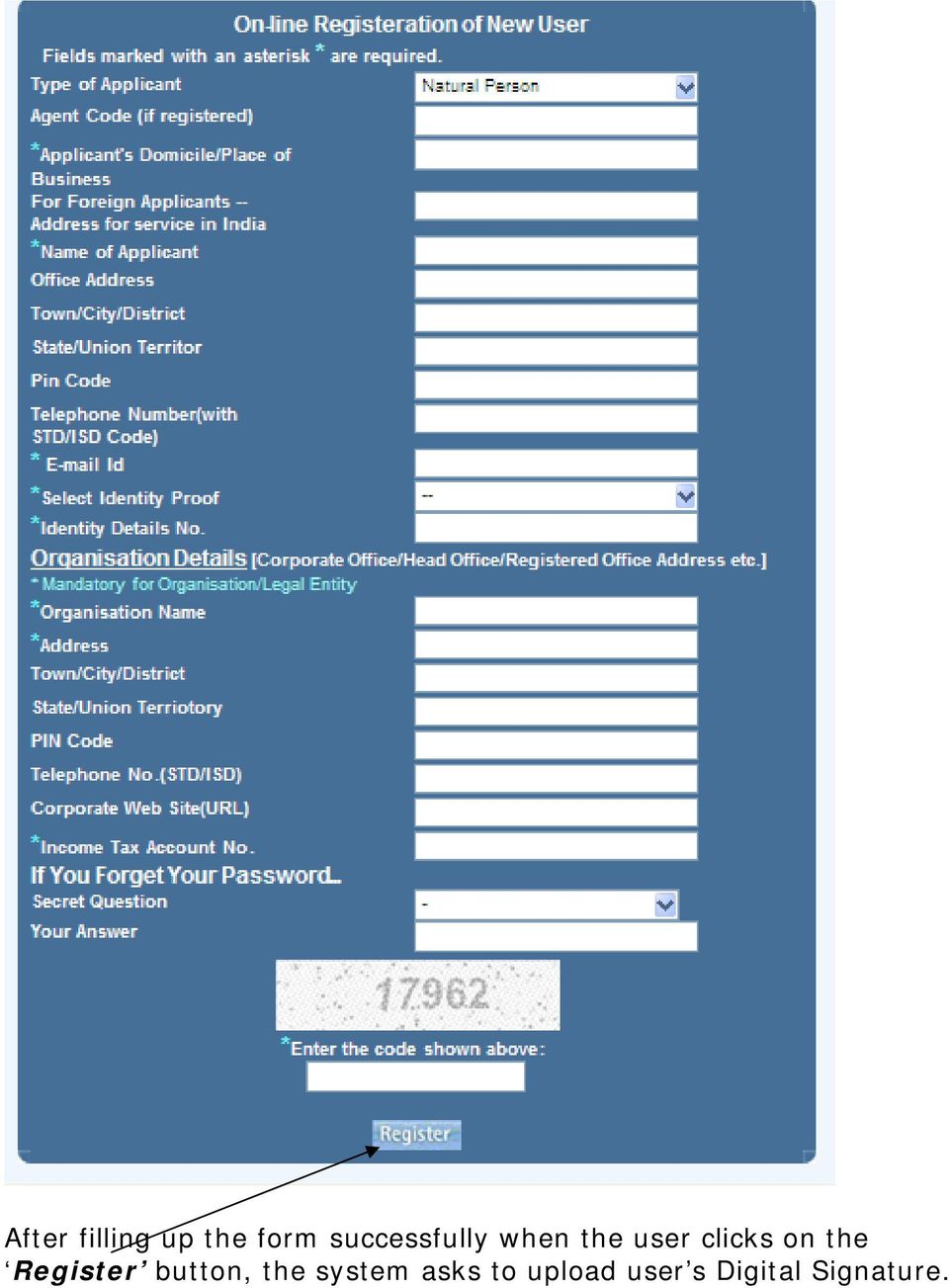
5 e-filing of Patent Applications 1.0 URL for e-filing The URL for accessing the portal for e-filing of patent applications is : This is the main page of the portal for e-filing of patent applications to Indian Patent Office (IPO). All users have to register themselves on-line for using the system. Click on the link On-line Registration for New User. 2.0 On-line Registration of New User For the registration of a new user, he will have to fill and submit the following on-line registration form by clicking on the link On-line Registration for New User.

6 After filling up the form successfully when the user clicks on the Register button, the system asks to upload user s Digital Signature.
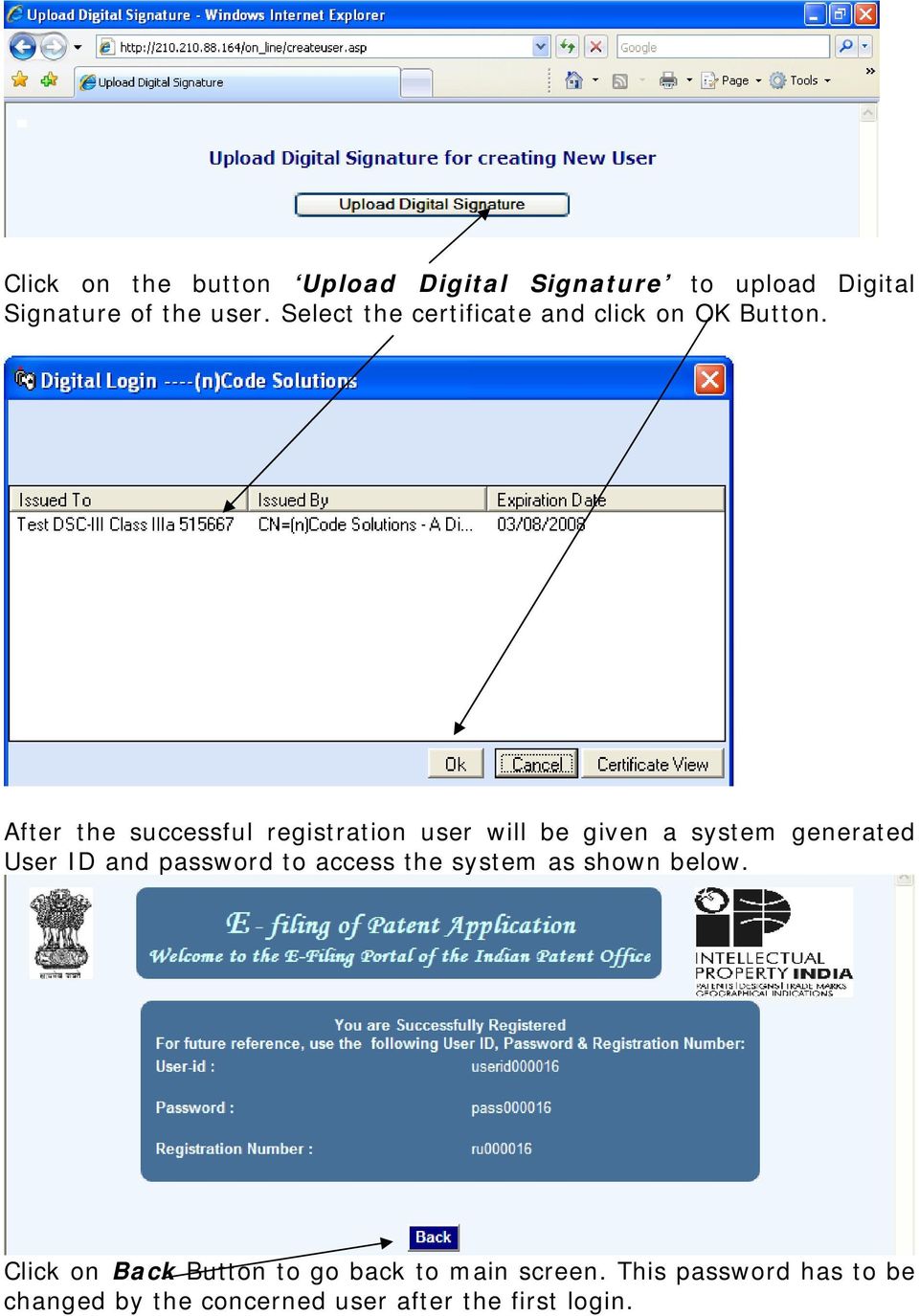
7 Click on the button Upload Digital Signature to upload Digital Signature of the user. Select the certificate and click on OK Button. After the successful registration user will be given a system generated User ID and password to access the system as shown below. Click on Back Button to go back to main screen. This password has to be changed by the concerned user after the first login.
8 3.0 Login into the system The user has to provide this User ID and Password at the time of first login. Now the following screen is displayed. Change the password here. After the successful password change option the following page is displayed. This web page would provide all the options present in the online patent filling application. All the options are in a step-by-step manner. This means that if a new user is trying to work through the portal then he will have to follow the top-to-bottom approach.
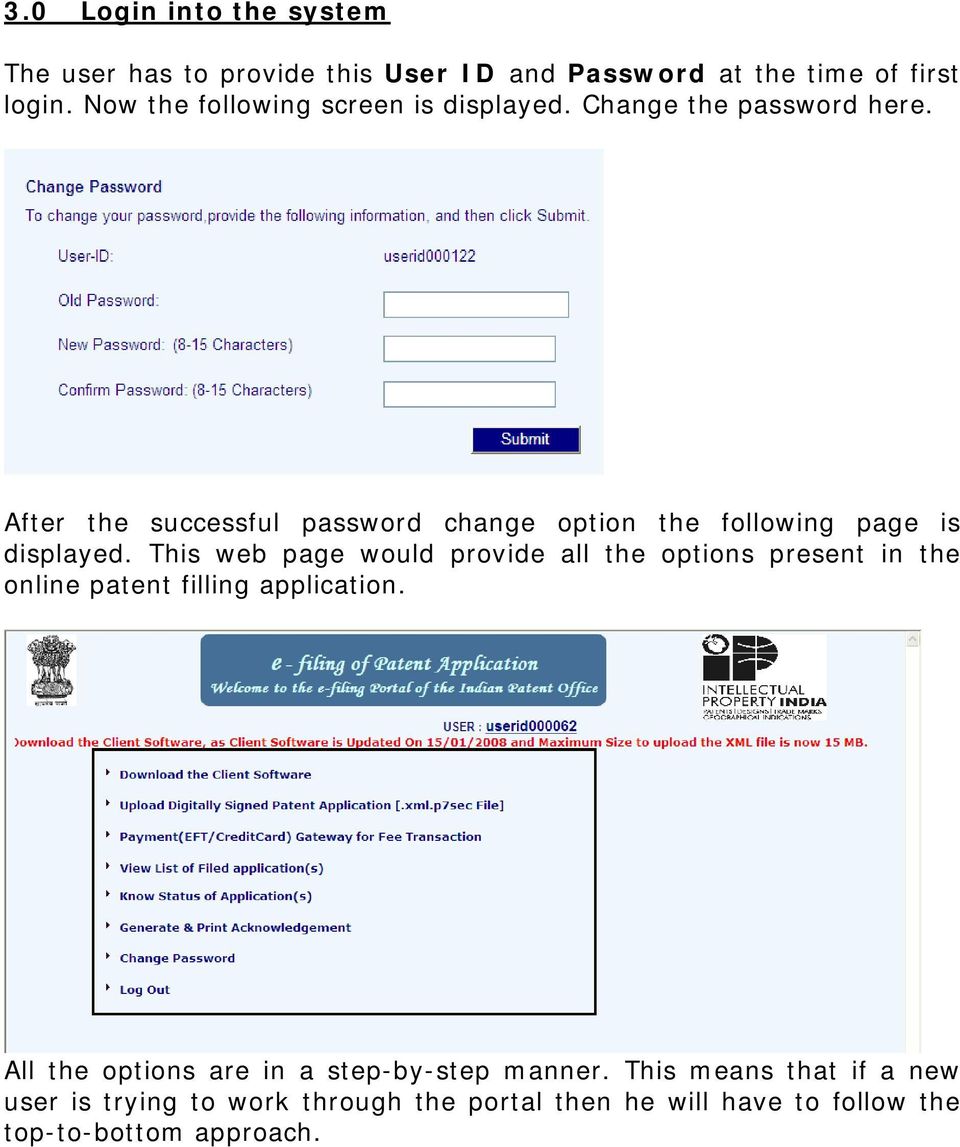
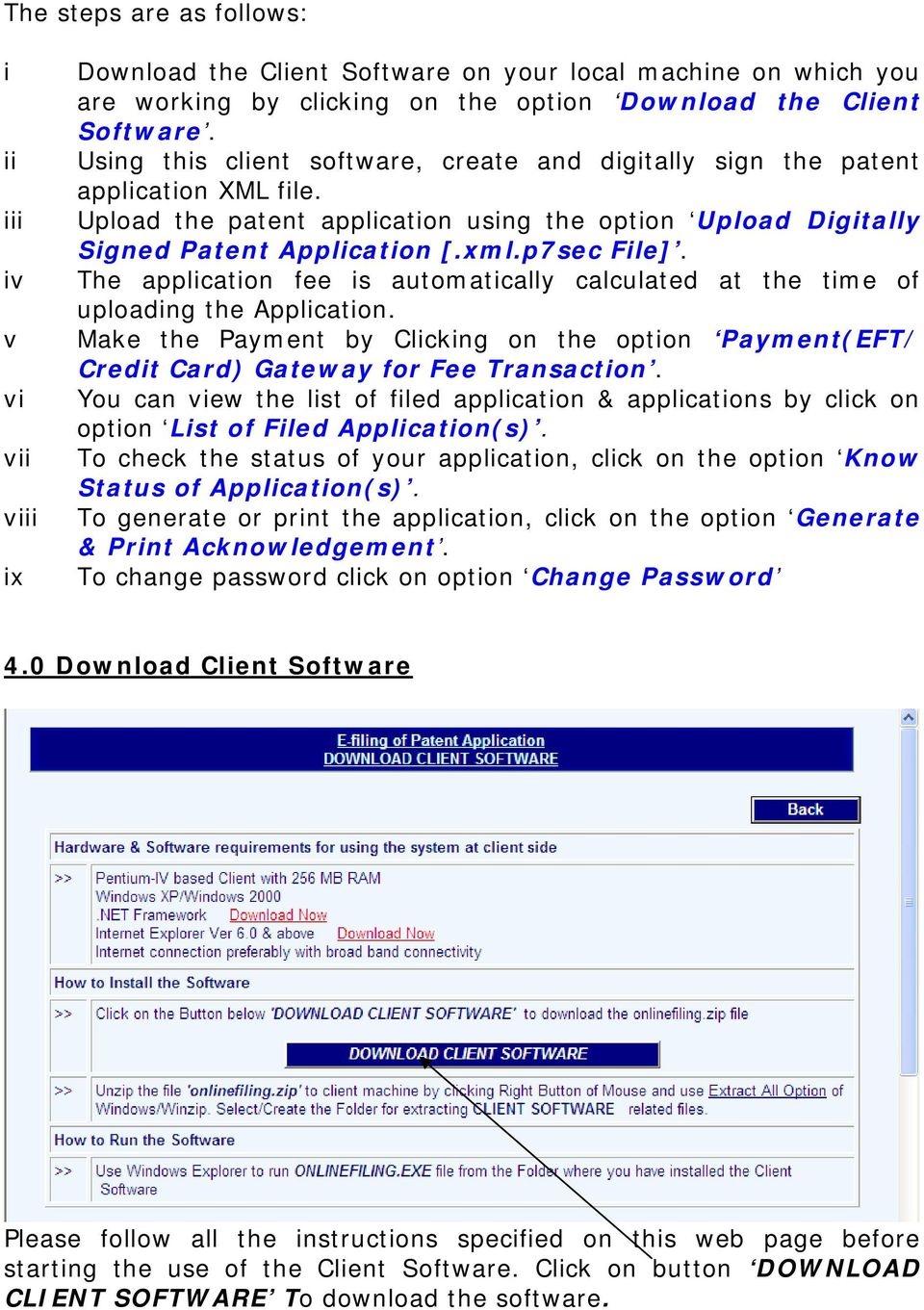
9 The steps are as follows: i ii iii iv v vi vii viii ix Download the Client Software on your local machine on which you are working by clicking on the option Download the Client Software. Using this client software, create and digitally sign the patent application XML file. Upload the patent application using the option Upload Digitally Signed Patent Application [.xml.p7sec File]. The application fee is automatically calculated at the time of uploading the Application. Make the Payment by Clicking on the option Payment(EFT/ Credit Card) Gateway for Fee Transaction. You can view the list of filed application & applications by click on option List of Filed Application(s). To check the status of your application, click on the option Know Status of Application(s). To generate or print the application, click on the option Generate & Print Acknowledgement. To change password click on option Change Password 4.0 Download Client Software Please follow all the instructions specified on this web page before starting the use of the Client Software. Click on button DOWNLOAD CLIENT SOFTWARE To download the software.
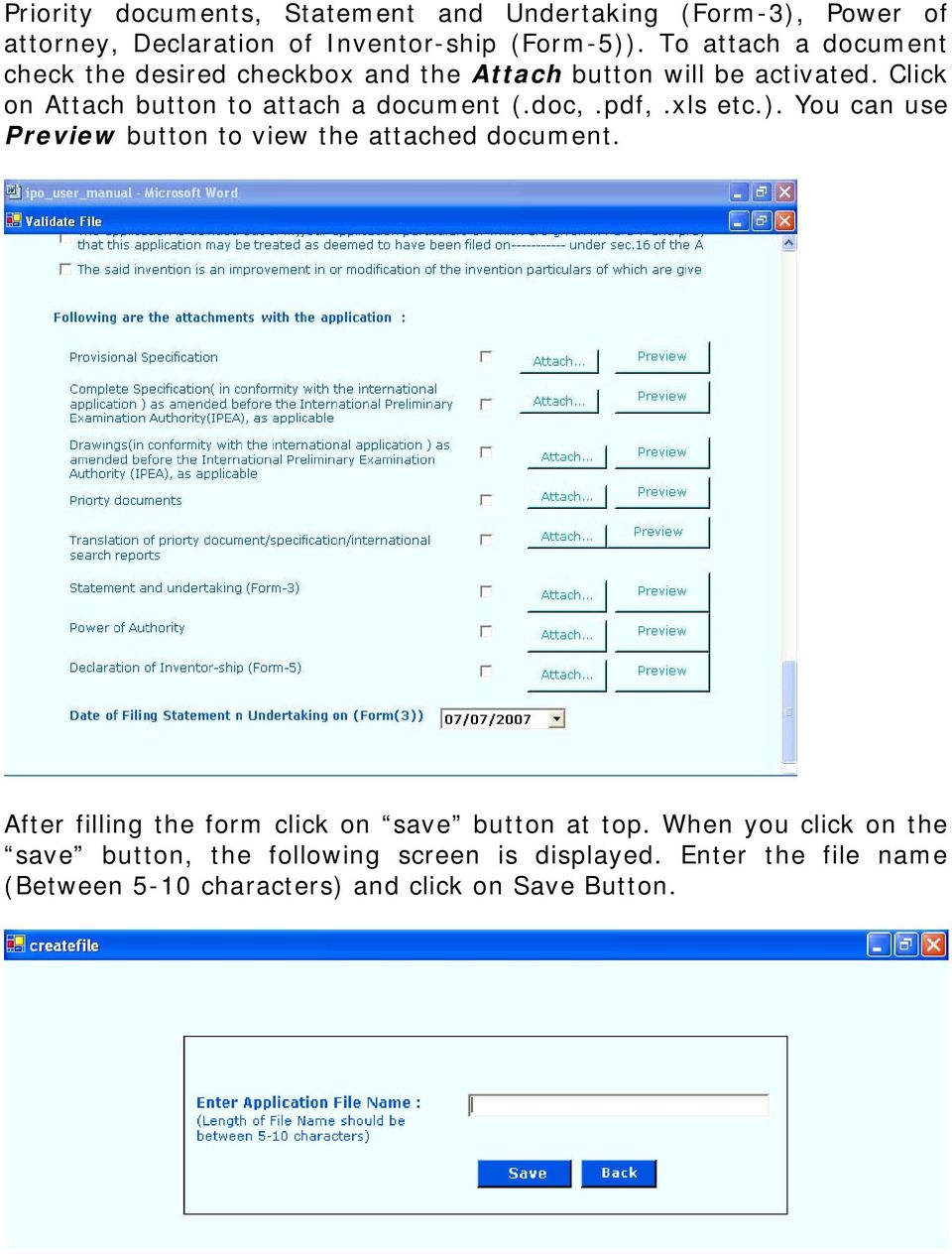
10 5.0 Using Client Software When you double click on onlinefiling.exe file from the folder where you installed the software the following screen is displayed. 5.1 Create New Application Click on 1 st button Create New Application to create new application. & the following screen is displayed. At the bottom of form there are buttons to attach documents (like Complete Specification, Drawings, Priority Documents, Translation of
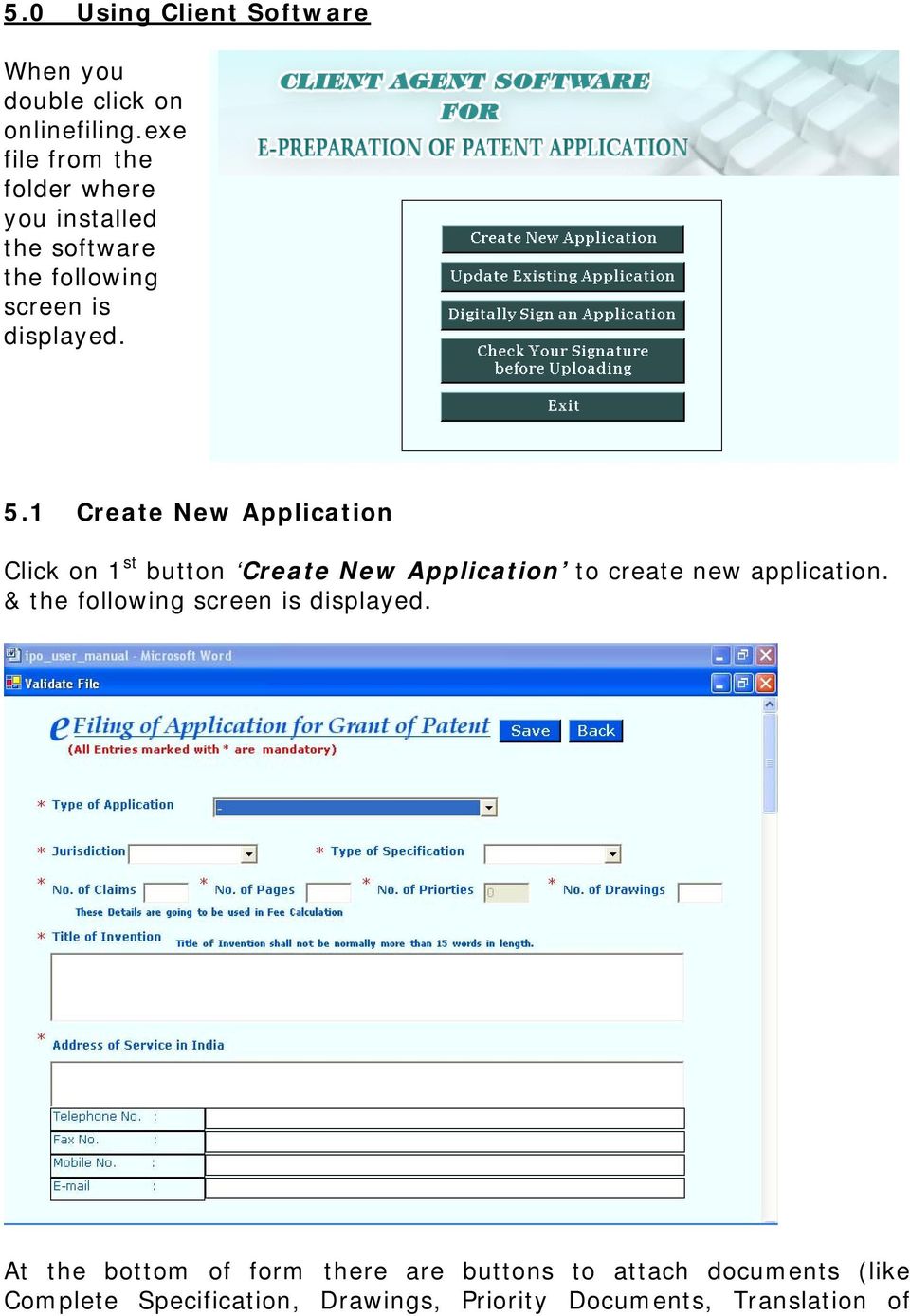
11 Priority documents, Statement and Undertaking (Form-3), Power of attorney, Declaration of Inventor-ship (Form-5)). To attach a document check the desired checkbox and the Attach button will be activated. Click on Attach button to attach a document (.doc,.pdf,.xls etc.). You can use Preview button to view the attached document. After filling the form click on save button at top. When you click on the save button, the following screen is displayed. Enter the file name (Between 5-10 characters) and click on Save Button.
12 5.2 Update an existing Application Click on 2 nd button Update an existing Application to update an existing application and the following screen is displayed. Select the file from the dropdown list and click on Open button. Make the desired changes and click on Save button. Monitor the size of your XML file so that it does not exceed the maximum file size allowed.

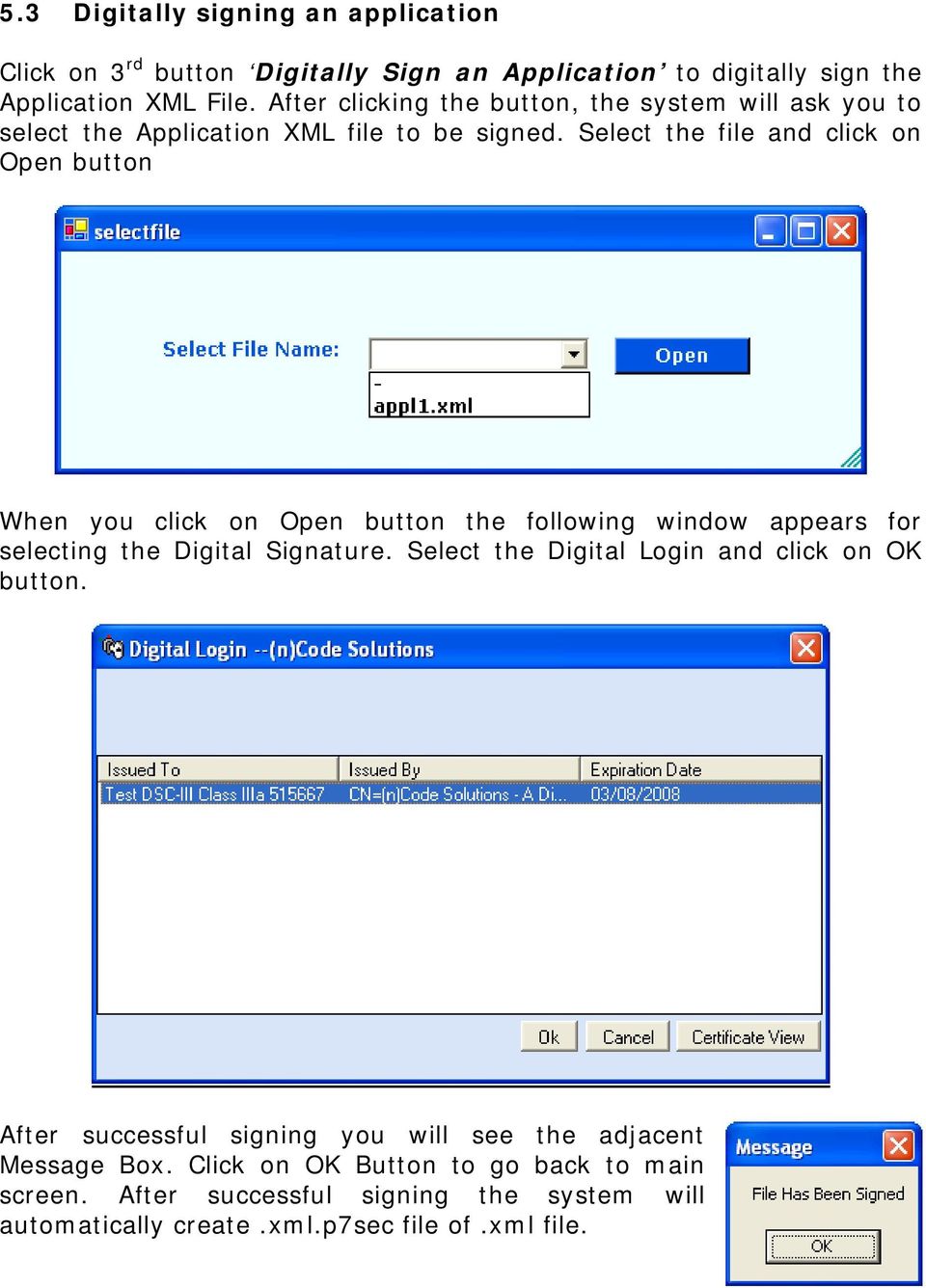
13 5.3 Digitally signing an application Click on 3 rd button Digitally Sign an Application to digitally sign the Application XML File. After clicking the button, the system will ask you to select the Application XML file to be signed. Select the file and click on Open button When you click on Open button the following window appears for selecting the Digital Signature. Select the Digital Login and click on OK button. After successful signing you will see the adjacent Message Box. Click on OK Button to go back to main screen. After successful signing the system will automatically create.xml.p7sec file of.xml file.
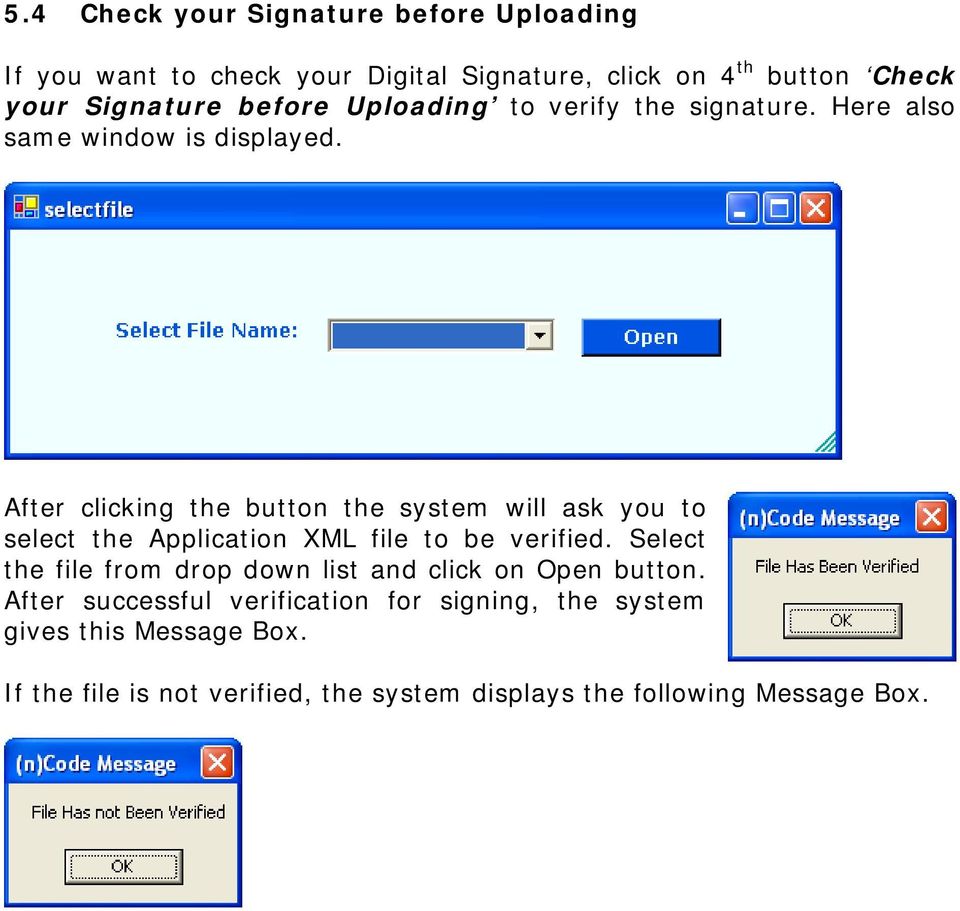
14 5.4 Check your Signature before Uploading If you want to check your Digital Signature, click on 4 th button Check your Signature before Uploading to verify the signature. Here also same window is displayed. After clicking the button the system will ask you to select the Application XML file to be verified. Select the file from drop down list and click on Open button. After successful verification for signing, the system gives this Message Box. If the file is not verified, the system displays the following Message Box.
15 6.0 Upload Digitally Signed Patent Application [.xml.p7sec File] This option is required to upload the digitally signed Application XML file created with the help of client software. When you click on option Upload Digitally Signed Patent Application [.xml.p7sec File] the system gives the following window. Click on Browse button to select the file. When you click on Browse button a pop up window appears on your screen as shown here. Select the file from the folder where you installed the Client Software and click on Open Button. After selecting the file click on Upload button to upload your file to Patent Server. Note : Upload only the.xml.p7sec digitally signed file After successful uploading the system will give this Message Box.

16 After successful uploading, the system will generate a temporary Application Number for your electronically filed application as shown below : Click on Go Back to Options button to go back to main screen and go for payment gateway using the next option. 7.0 Payment(EFT/CreditCard) Gateway for Fee Transaction The option Payment (EFT/Credit Card) Gateway for Fee Transaction is used for the online payment of the patent Application fee. When you click on this option, the following window is displayed. Select the Jurisdiction, Bank & mode of payment and click on SUBMIT button. When you click on SUBMIT button the list of applications (which are ready for payment) is displayed.

17 Check the applications for which you want to make the payment and click on Proceed and the following screen is displayed. Here you will see the list of applications which were selected by you in previous screen and the total amount to be paid by the applicant for all the selected applications. Now click on Pay Now button. This will redirect you to Payment Gateway. 8.0 List of Filed Application(s) This option displays the list of all patent applications that are submitted by the logged in user to the IPO office.
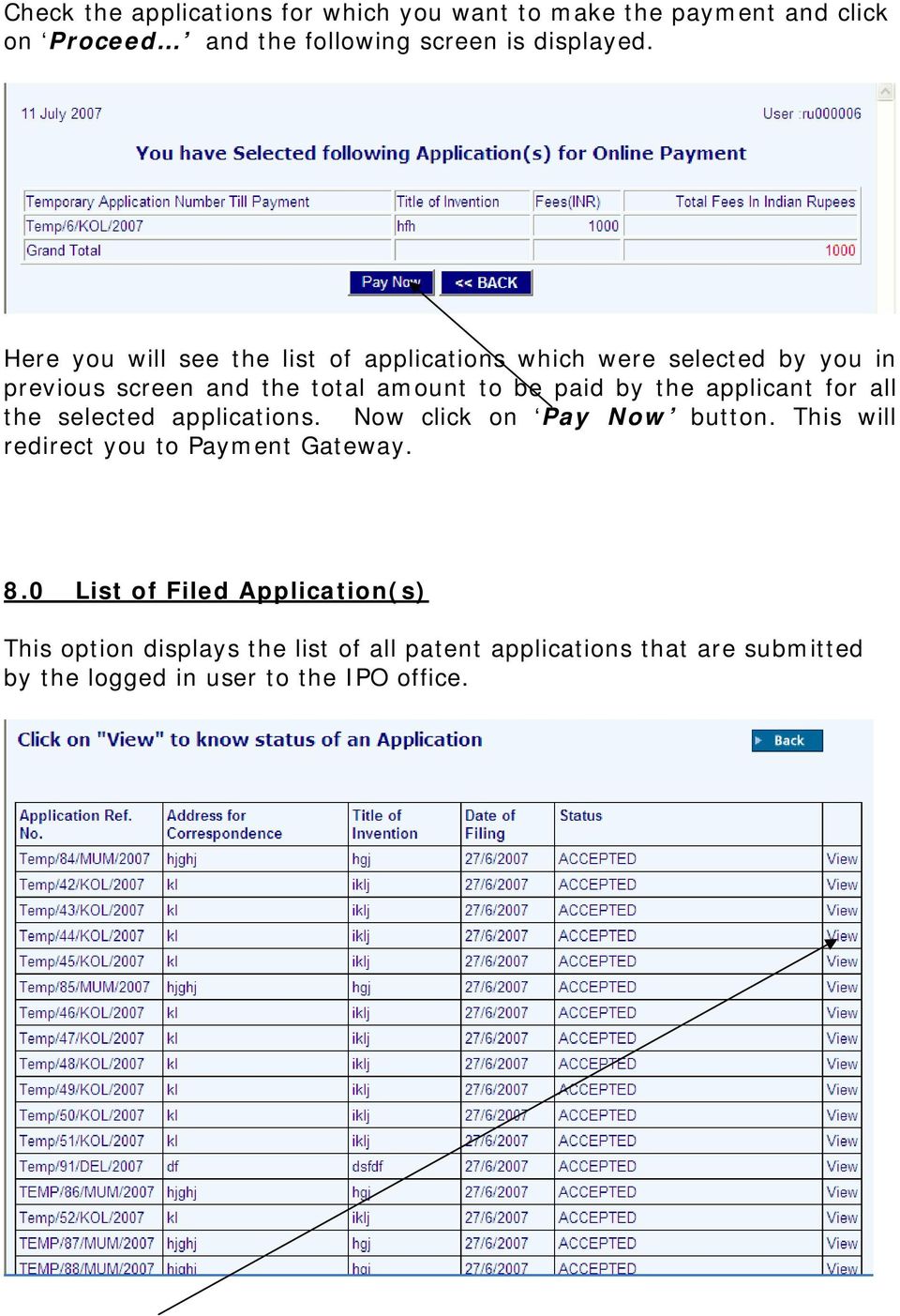
18 Click on View button to see the details of a particular application. 9.0 Know Status of Application(s) This option is used to check the status of a particular Application Number submitted by a user. Enter the patent application reference number and click on GO button to get the status of the application. 10. Generate and Print Acknowledgement This option generates the list of accepted applications Click on the Generate button to generate the Acknowledgement Receipt.

19 11. Change Password Click on this option to change the current user s password. It will ask you for the old password and then the new password that you want to change. 12. Log out Click on this option to close the application. Always use this option when you want to close the application. Do not directly close the window.

Trademark e-filing 2013
 2013 1. Login facility is available on the home page. User has to register for logging in. If a user is already registered he can log in using the User ID and Password or Digital signature. How to Register:
e-verification of Returns User Manual
 e-verification of Returns User Manual Page 1 List of Abbreviations Term PAN ITR AY ITD CPC EVC Abbreviation Permanent Account Number Income Tax Return Assessment Year Income Tax Department Centralized
Guidelines to bidders for participation e-taps (e-tender And Procurement System) of Airports Authority of India (AAI).
 Guidelines to bidders for participation e-taps (e-tender And Procurement System) of Airports Authority of India (AAI). 1. e-taps portal of AAI. 1.1 The bidders can visit and download the electronic bids
Pre requisites for Digital Signature
 Pre requisites for Digital Signature Know about Digital Signature Certificate You should have a legally valid Class III digital certificate as per Indian IT Act from the licensed Certifying Authorities
Trouble Shooting on e-filing
 DSC Registration Problem Description: I am not able to register my Digital Signature Certificate. Or while trying to e-file Income Tax Return using Digital Signature Certificate, the 'Select your.pfx file'
MQA Online Services Portal
 MQA Online Services Portal Registration and Adding a License User Guide 1. Hello and welcome to the Division of Medical Quality Assurance s online help tutorials. The MQA Online Services Portal is the
User Manual for efiling of Return for VAT (ver. 2.2) Download/ Upload Return Filing Method E-FILING RETURN FOR
 E-FILING OF RETURN FOR VAT USER MANUAL National Informatics Centre, WBSC Page 1 of 48 Online Filing of Returns Thanks for accessing the website of the Directorate of Commercial Taxes, West Bengal. Now
Registering the Digital Signature Certificate for Bank Officials
 Registering the Digital Signature Certificate for Bank Officials Overview When Bank officials login to the MCA21 application for the first time, they need to register their Digital Signature Certificate
Steps to Troubleshoot Error Your CA is not trusted. Please use a trusted CA
 Troubleshooting Errors When Using DSC When you try to register a Digital Signature Certificate (DSC) or upload a form with signature on it, you may face errors such as, Your Certifying Authority (CA) is
Installing Globodox Web Client on Windows Server 2012
 Installing Globodox Web Client on Windows Server 2012 Make sure that the Globodox Desktop Client is installed. Make sure it is not running. Note: Please click on Allow or Continue for all required UAC
e-filing Vault Higher Security
 e-filing Vault Higher Security Page 1 Contents e-filing Vault Higher Security... 3 Steps involved in e-filing Vault-Higher Security Process... 3 Login with Higher Security Options... 3 Lock Reset Password
Simple Guide to Digital Signatures
 Simple Guide to Digital Signatures Rohas Nagpal Asian School of Cyber Laws About the author Rohas Nagpal is the founder President of Asian School of Cyber Laws. He advises Governments and corporates around
ADFS Integration Guidelines
 ADFS Integration Guidelines Version 1.6 updated March 13 th 2014 Table of contents About This Guide 3 Requirements 3 Part 1 Configure Marcombox in the ADFS Environment 4 Part 2 Add Relying Party in ADFS
SEC External Guide for Using Accellion
 Securities and Exchange Commission Office of Information Technology SEC External Guide for Using Accellion The Securities and Exchange Commission National Exam Program Hotline (202) 551-3925 Washington,
Digital Certificate for Corporate Internet Banking - User Guide
 Digital Certificate for Corporate Internet Banking - User Guide 1. What is Digital Certificate 2. Who can avail this facility 3. Procedure for availing the facility 4. Problem in Logging after enabling
Instruction Guide. People First Dependent Certification Process
 People First Dependent Certification Process Each time an employee logs into People First to make an enrollment selection during open enrollment or because of a qualified status change (QSC), he/she must
Obtaining a digital signature certificate
 Obtaining a digital signature certificate This document is an extract from the book Ecommerce - Legal Issues authored by Rohas Nagpal. This book is available as courseware for the Diploma in Cyber Law
SEZ SEZ Online Manual Digital Signature Certficate [DSC] V Version 1.2
![SEZ SEZ Online Manual Digital Signature Certficate [DSC] V Version 1.2](/thumbs/32/15683057.jpg "SEZ SEZ Online Manual Digital Signature Certficate [DSC] V Version 1.2") SEZ SEZ Online Manual Digital Signature Certficate [DSC] V Version 1.2 Table of Contents 1 Introduction...2 2 Procurement of DSC...3 3 Installation of DSC...4 4 Procedure for entering the DSC details of
SEZ SEZ Online Manual Digital Signature Certficate [DSC] V Version 1.2 Table of Contents 1 Introduction...2 2 Procurement of DSC...3 3 Installation of DSC...4 4 Procedure for entering the DSC details of
PROCEDURE FOR REGISTRATION OF DIGITAL SIGNATURE AND UPLOAD OF INCOME TAX RETURNS USING DIGITAL SIGNATURE
 PROCEDURE FOR REGISTRATION OF DIGITAL SIGNATURE AND UPLOAD OF INCOME TAX RETURNS USING DIGITAL SIGNATURE A. The salient features of use of Digital Signature Certificate (DSC) for signing the Income Tax
Preparing the PCT-EASY.zip for fully electronic filing with RO/US using EFS-Web. Version 6.0
 Preparing the PCT-EASY.zip for fully electronic filing with RO/US using EFS-Web Version 6.0 November 2013 page 2 TABLE OF CONTENTS Introduction... 3 Creating the request form... 3 1. Create a PCT request
USER GUIDE FOR THE PARTICIPANTS IN RESPECT OF E-TENDER. With the introduction of e Tendering in the BEST Undertaking (referred as the Undertaking ),
 USER GUIDE FOR THE PARTICIPANTS IN RESPECT OF E-TENDER INTRODUCTION: With the introduction of e Tendering in the BEST Undertaking (referred as the Undertaking ), the Tenderers are now able to view, download
Shopping Cart Software
 Shopping Cart Software QuickStart Guide 1 Please note: The Quick Start guide covers only the minimum requirements to get your cart up and running; there are many more features for you to take advantage
REPORTING CENTRAL EXTERNAL USER GUIDE FEDERAL RESERVE SYSTEM
 REPORTING CENTRAL EXTERNAL USER GUIDE FEDERAL RESERVE SYSTEM February 2016 Version 3.1 Table of Contents I. Overview.... Page 3 II. Accessing and Logging Into Reporting Central..... Pages 4-5 III. Reporting
3. From the Merchant Administration drop down select VCS Interfacing (page1)
 VCS INTEGRATION PROCEDURE 1. Log into VCS Admin Login / Virtual Terminal 2. Select Merchant Administration 3. From the Merchant Administration drop down select VCS Interfacing (page1) Set the fields to
ONSITE TRACK EASY Yancoal Contractor Management Portal Portal User Guide: Company Registration. Yancoalcontractors.com.
 ONSITE TRACK EASY Yancoal Contractor Management Portal Portal User Guide: Company Registration Yancoalcontractors.com.au 1300 663 816 CONTENTS Navigate to the Yancoal Contractor Management Portal... 3
BCBSNC Electronic Funds Transfer (EFT) Register for EFT through Blue e
 BCBSNC Electronic Funds Transfer (EFT) Electronic Funds Transfer (EFT) is the fastest way to receive reimbursement from Blue Cross and Blue Shield of North Carolina and have the following benefits: Payments
ONGC Guidelines to Bidders for E-Procurement Application
 ONGC Guidelines to Bidders for E-Procurement Application Page 1 of 18 1. Guidelines : The Notice Inviting Tenders (NITs) of all tenders/bid invitations above value of Rs.5.00 lakhs including e-procurement
Accessing the FTP Server - User Manual
 CENTRAL BANK OF CYPRUS Accessing the FTP Server - User Manual IT Department, CENTRAL BANK OF CYPRUS TABLE OF CONTENTS 1 EXECUTIVE SUMMARY... 1 1.1 AUDIENCE... 1 1.2 SCOPE... 1 2 CHANGES FROM THE OLD FTP
GRS Advantage Website User Reference Guide
 GRS Advantage Website User Reference Guide This document describes how to use the GRS Advantage Website. Table of Contents GRS Advantage Website... 2 Accessing the Website... 2 Requesting Access to the
SYSPRO App Store: Registration Guide
 SYSPRO App Store: Registration Guide SYSPRO App Store Registration Guide 2 Table of Contents What is the SYSPRO App Store?... 3 The SYSPRO App Store URL... 3 Who can use it?... 3 Register as a customer...
Accessibility and security of Monthly Contribution (SBI Net Banking)
 Accessibility and security of Monthly Contribution (SBI Net Banking) Last Revised Date : 28/03/2012 Gateway 1 Users are advised to read the Accessibility and security help file before generating online
The Toyota Foundation Grant Programs Guide for Web-based Grant Applications (Project Proposals)
 The Toyota Foundation Grant Programs Guide for Web-based Grant Applications (Project Proposals) 1 1. Before Applying Please check the following before starting application processes via the Toyota Foundation
Your Archiving Service
 It s as simple as 1, 2, 3 This email archiving setup guide provides you with easy to follow instructions on how to setup your new archiving service as well as how to create archiving users and assign archiving
Getting Started with StoreGrid Cloud
 Getting Started with StoreGrid Cloud This document describes the steps to quickly sign up and start backing up your data to StoreGrid Cloud. I. Signing Up 1. Go to http://storegridcloud.vembu.com and select
Purpose: Steps for enjoying the Digital Signature Certificate at Directorate s website are explained in this User Manual.
 Manual for Digital Signature Certificate (DSC) Service Thanks for accessing the website of the Directorate of Commercial Taxes, West Bengal. Now the dealers registered under West Bengal Value Added Tax
Delaware Insurance Plan
 Delaware Insurance Plan Web Application User s Guide Issued November 2012 Page 2 TABLE OF CONTENTS I. INTRODUCTION II. GETTING STARTED A. First Time User B. Forgot Password or User ID C. Welcome Screen
Exchange 2010. Outlook Profile/POP/IMAP/SMTP Setup Guide
 Exchange 2010 Outlook Profile/POP/IMAP/SMTP Setup Guide September, 2013 Exchange 2010 Outlook Profile/POP/IMAP/SMTP Setup Guide i Contents Exchange 2010 Outlook Profile Configuration... 1 Outlook Profile
How to register a company (Pvt. Ltd.)
 How to register a company (Pvt. Ltd.) Pre-requisites 1. Have paid-up capital of INR 1,00,000 2. Have minimum of 2 directors/board members and two shareholders 3. Have maximum of 50 members only 4. Cannot
DocuSign Connect for Salesforce Guide
 Information Guide 1 DocuSign Connect for Salesforce Guide 1 Copyright 2003-2013 DocuSign, Inc. All rights reserved. For information about DocuSign trademarks, copyrights and patents refer to the DocuSign
DISCOVER LOCAL TALENT WITH JOBS BANK
 www.jobsbank.gov.sg USER GUIDE FOR EMPLOYERS DISCOVER LOCAL TALENT WITH JOBS BANK The portal that links you to local individuals CONTENTS PREFACE PART I : NAVIGATING THE JOBS BANK MAIN PORTAL A. ACCESS
End User s Guide. Electronic Filing
 End User s Guide Electronic Filing Rev: August 2014 This end user s guide has been skillfully created by smartech.net through meetings with the Clerk of the Circuit Court of Cook County and Online Information
Account Activation. Guide
 Account Activation Guide Table of Contents Introduction... 3 Activating Your Account... 3 Activation Step 1: Identity Verification... 3 Activation Step 2: User Information... 5 Verify Account Information...
HertSFX. User Guide V2.04. Hertfordshire s Secure File Exchange Portal. (Jan 2014) HertSFX User Guide V2.04 Jan 2014 Page 1 of 17
 Hertfordshire s Secure File Exchange Portal User Guide V2.04 (Jan 2014) HertSFX User Guide V2.04 Jan 2014 Page 1 of 17 CONTENTS 1. About HertSFX... 3 2. HertSFX Limitations... 3 3. Getting Started... 3
SEZ Online Manual Unit Regularization. Version 2.0
 SEZ Online Manual Version 2.0 Note: This document is intended for use by existing (All units which have Letter of Approval available) SEZ units for the purpose of registering in SEZ online system. The
Step-by-Step guide for SSO from MS Sharepoint 2010 to SAP EP 7.0x
 Step-by-Step guide for SSO from MS Sharepoint 2010 to SAP EP 7.0x Sverview Trust between SharePoint 2010 and ADFS 2.0 Use article Federated Collaboration with Shibboleth 2.0 and SharePoint 2010 Technologies
SEZ SEZ Online Manual- DSC Signing with Java Applet. V Version 1.0 ersion 1.0
 SEZ SEZ Online Manual- V Version 1.0 ersion 1.0 Table of Contents 1 Introduction...2 2 DSC signing functionality with java applet...2 3 Troubleshooting...5 4 Annexure I: JAVA Console Setting... 13 5 Annexure
ONGC e-procurement Online Guide
 ONGC e-procurement Online Guide 1. Technical Settings Web Browser supported: Microsoft IE 5.5+ Active Content: JavaScript, cookies, ActiveX controls, pop-ups must be enabled on all browsers Recommended
ACT State Testing Online Services Tutorial
 ACT State Testing Online Services Tutorial Back-up Test Supervisor Version Released July, 2009 2009 by ACT, Inc., All rights reserved. Back-up Test Supervisor Online Profile Form Introduction The Back-up
Upgrade of Business Systems Data Warehouse Reporting
 Upgrade of Business Systems Data Warehouse Reporting The Business Systems Data Warehouse Reporting System was upgraded to a new version of Business Objects the weekend of December 12 th. The current system
Online Statements. About this guide. Important information
 Online Statements About this guide This guide shows you how to: View online statements, including CommBiz Activity Statements (Billing summaries) and online statements for Transaction Accounts, Credit
DAVA (Drugs Authentication and Verification Application)
 DAVA (Drugs Authentication and Verification Application) Guidelines and User Manual for Registration of Manufacturer (Draft Version-1.0.1) Dated : 10-08-2015 No part of this document shall be reproduced
Training Management System User Manual for Individual Participants and Schools
 Training Management System User Manual for Individual Participants and Schools URL of the Training Website : http://cbseacademic.in/ -> Training Innovation & Research -> Capacity Building Program The Process
Chhattisgarh State Power Companies
 Chhattisgarh State Power Companies User Manual for e-bidding Version 2.0 Page 1 of 39 CONTENT 1. About E-tender Web Portal... 3 2. Pre-requisites to participate in Bidding... 4 3. PC/Laptop Settings...
MMPCT. (Mission Mode Project Commercial Taxes) User Manual Registration Regular Dealer HVAT & CST Act
 Excise and Taxation Govt. of Haryana Plot I-3, Sector 5, Panchkula, Haryana MMPCT (Mission Mode Project Commercial Taxes) User Manual Registration Regular Dealer HVAT & CST Act Wipro Limited HETD User
Central Commissioning Facility Research Management Systems (RMS): User Guidance
 Central Commissioning Facility Research Management Systems (RMS): User Guidance Contents 1. How to login and register a new account... 2 2. How to accept an invitation to review... 8 3. How to submit a
User Guide. Foreign Professor/Researcher
 User Guide Foreign Professor/Researcher 1 Registration and Login In order for you to register as a Foreign Professor/Researcher in the General Registry of the Information System "Apella", you need to create
Manual for Installing CA Root Certificates and User Digital
 Manual for Installing CA Root Certificates and User Digital Certificate A. Installing the CA root certificate 1. Download the CCA, NICCA, NIC Sub CA and VPNCA root certificates from the website http://vpn.nic.in
THE FIRST SCHEDULE (See rule 7) Table I - FEES PAYABLE
 Number of entry On what payable Number of the relevant Form THE FIRST SCHEDULE (See rule 7) Table I - FEES PAYABLE Natural For e-filing Small entity, alone or with natural Others, alone or with natural
Secure File Transfer Guest User Guide Updated: 5/8/14
 Secure File Transfer Guest User Guide Updated: 5/8/14 TABLE OF CONTENTS INTRODUCTION... 3 ACCESS SECURE FILE TRANSFER TOOL... 3 REGISTRATION... 4 SELF REGISTERING... 4 REGISTER VIA AN INVITATION SENT BY
Directorate of Insurance, Maharashtra
 MAHAONLINE LIMITED Directorate of Insurance, Maharashtra User Manual For D.O.I Application ABOUT This Document CONTENTS 1. Purpose... 3 2. Intended Audience... 3 3 Getting Started... 4 3.1 Login Procedure.....4
Landlord Registration U s e r G u i d e
 Landlord Registration U s e r G u i d e Department of Code Enforcement Applicant s User Guide December 2014 TABLE OF CONTENTS CREATING A CITIZEN ACCESS ACCOUNT Creating an Account Email Confirmation COMPLETING
Digital Signature Certificate (DSC)
 User Manual Digital Signature Certificate (DSC) DSC Manual version 1.2 1 Contents 1. INTRODUCTION... 3 2. PROCUREMENT OF DSC... 4 3. INSTALLATION OF DSC... 5 4. PROCEDURE FOR ENTERING THE DSC DETAILS OF
(CP) Claim Processing Electronic Select Short Cut Key (F12) Type in Menu Id:
 Manual Section 4 Claim Processing (CP) Claim Processing Electronic Select Short Cut Key (F12) Type in Menu Id: CP and enter The # symbol will generate the next Claim ID Process Type: Proof (This will check
Schools Remote Access Server
 Schools Remote Access Server This system is for school use only. Not for personal or private file use. Please observe all of the school district IT rules. 6076 State Farm Rd., Guilderland, NY 12084 Phone:
Outlook Profile Setup Guide Exchange 2010 Quick Start and Detailed Instructions
 HOSTING Administrator Control Panel / Quick Reference Guide Page 1 of 9 Outlook Profile Setup Guide Exchange 2010 Quick Start and Detailed Instructions Exchange 2010 Outlook Profile Setup Page 2 of 9 Exchange
e-verification User Manual e-verification of Returns User Manual Page1
 e-verification of Returns User Manual Page1 Table of Contents Contents Introduction... 4 e-verification Process/Modes... 4 Steps to e-verify the Return... 4 Option 1: I already have an EVC to e-verify
REGISTER OF COMPANIES, ENTERPRISES AND BUSINESS
 RWANDA BUSINESS REGISTRY PROJECT REGISTER OF COMPANIES, ENTERPRISES AND BUSINESS NAMES USER MANUAL Online user Version: 1.0 March 9 th 2010 NORWAY REGISTERS DEVELOPMENT AS TABLE OF CONTENTS 1 INTRODUCTION...
How To Register A Power Plant On The Em Delivery Body Website
 EMR Company Registration and User Management Guidance document for EMR participants User Support Guide for EMR Company Registration and User Management 02 nd July 2015 National Grid Electricity Transmission
MSSQL quick start guide
 C u s t o m e r S u p p o r t MSSQL quick start guide This guide will help you: Add a MS SQL database to your account. Find your database. Add additional users. Set your user permissions Upload your database
User Manual. NGO Proposal Online Application and Processing Tracking System. Ministry of Social Justice and Empowerment
 User Manual (for NGO Users) NGO Proposal Online Application and Processing Tracking System (Version 1.2 ) URL: http://ngograntsje.gov.in Ministry of Social Justice and Empowerment Application Designed
Microsoft Outlook 2010
 Microsoft Outlook 2010 a. Open Outlook 2010. b. Click File i. Select Info. ii. Within Account Information, click Add Account. c. Within the Setup wizard select Manually configure server settings or additional
General Supplier Training: Ariba e-sourcing Tool
 General Supplier Training: Ariba e-sourcing Tool December 2013 100 YEARS STRONG Table of Contents What is e-sourcing Ariba e-mail Notification Supported Browsers/Compatibility Establish an Ariba Commerce
CWOPA Broadband Users. Windows Operating System
 CWOPA Broadband Users Windows Operating System October 2012 Background These instructions are to be used for VPN users who have been assigned a CWOPA username and password. If your machine has Internet
Shakambaree Technologies Pvt. Ltd.
 Welcome to Support Express by Shakambaree Technologies Pvt. Ltd. Introduction: This document is our sincere effort to put in some regular issues faced by a Digital Signature and USB Token user doing on
User Manual For Online Registration of Private Schools
 User Manual For Online Registration of Private Schools Important Instructions for the Private Schools: 1. The purpose of this web portal is to monitor RTE compliance in schools and assess 25% reservation
Blackboard 9.1 How To Manual Beginner
 Blackboard 9.1 How To Manual Beginner Table of Contents Getting Started Page I. Requesting a Shell 1 II. Logging In 1 III. Changing Password 1 IV. Helpdesk Functions 2 How-To V. Managing Home and Course
EMR Link Server Interface Installation
 EMR Link Server Interface Installation Version 1.0 ** INTRODUCTION ** If you would like assistance with installation, please contact our preferred support provider at [email protected], or call
VENDOR ENROLMENT HELP MANUAL MATERIALS, COMPONENTS & SERVICES
 VENDOR ENROLMENT HELP MANUAL For MATERIALS, COMPONENTS & SERVICES Page 0 OFB eprocurement System Vendor Enrolment Module This module affects all users who wish to enroll as a Vendor. Through this enrolment,
INTELLECTUAL PROPERTY OFFICE, INDIA
 Department of Industrial Policy and Promotion Ministry Of Commerce and Industry Office of the Controller General of Patents, Designs & Trademarks INTELLECTUAL PROPERTY OFFICE, INDIA The Patents Act, 1970
SSL VPN Setup for Windows
 SSL VPN Setup for Windows SSL VPN allows you to connect from off campus to access campus resources such as Outlook email client, file sharing and remote desktop. These instructions will guide you through
Logging In You must log in to the system before you can begin exchanging files with UMB. To log in to the system, follow the steps below.
 Using UMB Secure File Transfer UMB Secure File Transfer is a Java-based interface that you can use to upload and download your files through a secure SSL connection using a Javasupported web browser such
KETTERING EACCOUNTS WEB PORTAL HELP SHEET
 KETTERING EACCOUNTS WEB PORTAL HELP SHEET Kettering eaccounts solution builds in the convenience for students and employees to manage their BJ Bucks, Meal Plan or Kettering Cash accounts. eaccounts features
Initial Setup of Microsoft Outlook 2011 with IMAP for OS X Lion
 Initial Setup of Microsoft Outlook Concept This document describes the procedures for setting up the Microsoft Outlook email client to download messages from Google Mail using Internet Message Access Protocol
Installing Globodox Web Client on Windows 7 (64 bit)
 Notes: Supported Editions - Windows 7 Professional, Windows 7 Enterprise, and Windows 7 Ultimate. Make sure that the Globodox Desktop Client is installed. Make sure it is not running. Please click on Allow
XenApp & XenDesktop Documentation. Help Desk (202) 994-8096 www.columbian.gwu.edu/ots
 XenApp & XenDesktop Documentation Help Desk (202) 994-8096 www.columbian.gwu.edu/ots 1 Version Date Comments Author v1.0 June 2011 Initial Version R. Shore v2.0 December 2011 Full Revision R. Shore v2.1
Exchange 2010. Outlook Profile/POP/IMAP/SMTP Setup Guide
 Exchange 2010 Outlook Profile/POP/IMAP/SMTP Setup Guide Document Revision Date: Nov. 13, 2013 Exchange 2010 Outlook Profile/POP/IMAP/SMTP Setup Guide i Contents Introduction... 1 Exchange 2010 Outlook
Digital Signature Certificate Online Enrollment Guide using etoken
 Digital Signature Certificate Online Enrollment Guide using etoken C O N T A C T U S [email protected] http://www.tcs-ca.tcs.com 1. A B O U T T H E D O C U M E N T This document describes the procedure
Your Gateway to Electronic Payments & Financial Services. Getting Started Guide - English
 Your Gateway to Electronic Payments & Financial Services Getting Started Guide - English Contents Introduction Register online for noqodi How to fund? How to execute Transactions and Payments? Conclusion
Shell Card Online e-invoicing Service User Manual. Version 2.7
 User Manual Version 2.7 October 2012 Contents 1 To Access Shell Card Online e-invoicing Service... 3 1.1 How to access e-invocing service via Shell Card Online... 3 1.2 What to do if you forget your password...
Coillte IT has recently upgraded the Remote Access Solution to a new platform.
 Overview Coillte IT has recently upgraded the Remote Access Solution to a new platform. This document explains how to gain access to the Coillte network using your home computer through the new Remote
Help Desk User Manual (Version 1.0)
 Help Desk User Manual (Version 1.0) Table of Contents Accessing Infinity Technologies Help Desk Portal... 2 Logging into Infinity Technologies Help Desk Portal for the First Time... 3 Resetting Your Password...
DaRIS portal visual user guide
 DaRIS portal visual user guide In this guide, we show some basic operations that you can do with DaRIS portal. Login / logout To access to the portal, click on this link https://mf-erc.its.monash.edu.au:8443/daris
3-5: Downloading Your Client Portal. 6: Logging In To Your Account. 7: Uploading New Account Spreadsheets & Documents 8-11: Viewing & Noting Consumer
 1 3-5: Downloading Your Client Portal. 6: Logging In To Your Account. 7: Uploading New Account Spreadsheets & Documents 8-11: Viewing & Noting Consumer Accounts 12: Client Reports 2 Step 1 Verify your
INFORMATION SYSTEMS SERVICE NETWORKS AND TELECOMMUNICATIONS SECTOR. User Guide for the RightFax Fax Service. Web Utility
 INFORMATION SYSTEMS SERVICE NETWORKS AND TELECOMMUNICATIONS SECTOR User Guide for the RightFax Fax Service Web Utility August 2011 CONTENTS 1. Accessing the Web Utility 2. Change Password 3. Web Utility:
Setting up VMware ESXi for 2X VirtualDesktopServer Manual
 Setting up VMware ESXi for 2X VirtualDesktopServer Manual URL: www.2x.com E-mail: [email protected] Information in this document is subject to change without notice. Companies, names, and data used in examples
SSDG Operational Manual Draft version: 0.1. Operational Manual For SSDG
 Operational Manual For SSDG 1 Table of Contents ABBREVIATIONS... 5 SECTION 1: INTRODUCTION... 6 1 INTRODUCTION... 7 1.1 INTENDED USER... 7 1.2 HOW TO USE... 7 1.3 ORGANIZATION OF THE MANUAL... 8 1.4 HELPDESK...
Form 23AC INSTRUCTIONS FOR FILLING OF EFORM 23AC (For filing Balance Sheet and other documents with the Registrar)
 Form 23AC INSTRUCTIONS FOR FILLING OF EFORM 23AC (For filing Balance Sheet and other documents with the Registrar) NOTE: The information to be provided in the eform should be as on the date of the balance
How To Set Up A Xerox Econcierge Powered By Xerx Account
 Xerox econcierge Account Setup Guide Xerox econcierge Account Setup Guide The free Xerox econcierge service provides the quickest, easiest way for your customers to order printer supplies for all their