
Windows 95 Revision B Installation Instructions
|
|
|
- Jocelin Mason
- 9 years ago
- Views:
Transcription
1 Windows 95 Revision B Installation Instructions Follow the instructions in this document if you are installing Live on a PC that runs Windows 95 revision B (OSR2). The Windows 95 version number is listed on the General tab, you can check yours by double-clicking the System icon in the Control Panel. Click the following links for complete information: Upgrading from a Previous Release Installing the Driver Software Installing the Application Software Upgrading from a Previous Release If you are upgrading your software from a previous release of Live200, follow these procedures: Save installed system information Remove the current driver software Install the new driver software Install the application software If you have the previous version of Live200 in your Startup folder, remove it before you continue.
2 Saving Installed System Information Save the following information from your current system before you start the upgrade process: ISDN Protocol Service Profile ID (SPID) Live200 Serial Number ISDN Protocol To find the ISDN protocol for your currently installed system: 1. Select Preferences from the Tools menu in the main toolbar. 2. Click the Hardware Settings tab. 3. Click the ISDN tab to display your ISDN settings. 4. Record the the information displayed in the Protocol box. SPID All ISDN protocols except 5ESS Point-to-Point require SPIDs. To find the SPIDs for your currently installed system: 1. Select Preferences from the Tools menu in the main toolbar. 2. Click the Hardware Settings tab. 3. Click the ISDN tab to display your ISDN settings. 4. Record the the information displayed in Service Profile ID boxes (usually the same number). Record the number exactly as shown on the screen, do not add additional alphanumeric characters. Live200 Serial Number The last line of the licensing information contains your serial number. To find the serial number for your currently installed system: Select About PictureTel LiveWare from the Help menu in the main toolbar.
3 Removing the Driver Software To remove the driver software: 1. Click Run from the Start menu. The Run dialog box appears. 2. Access \Lv200Drv\disk1\Setup200 by typing the path to where you put the directory or by clicking the Browse button to locate the directory. For example: c:\windows\temp\lv200drv\disk1\setup Append Remove200Driver at the end of the path in the Run dialog box. Insert a space between Setup200 and Remove200Driver. For example: c:\windows\temp\lv200drv\disk1\setup200 Remove200Driver 4. Click OK. The Live200 Hardware Setup dialog box appears asking if you want to continue the deinstallation process. 5. Click Yes. When the system software has been removed from your system, a dialog box appears asking if you want the deinstall program to restart your computer now. You must restart your computer to complete the process. 6. Click Yes to restart your computer and complete the deinstallation process. Your computer restarts.

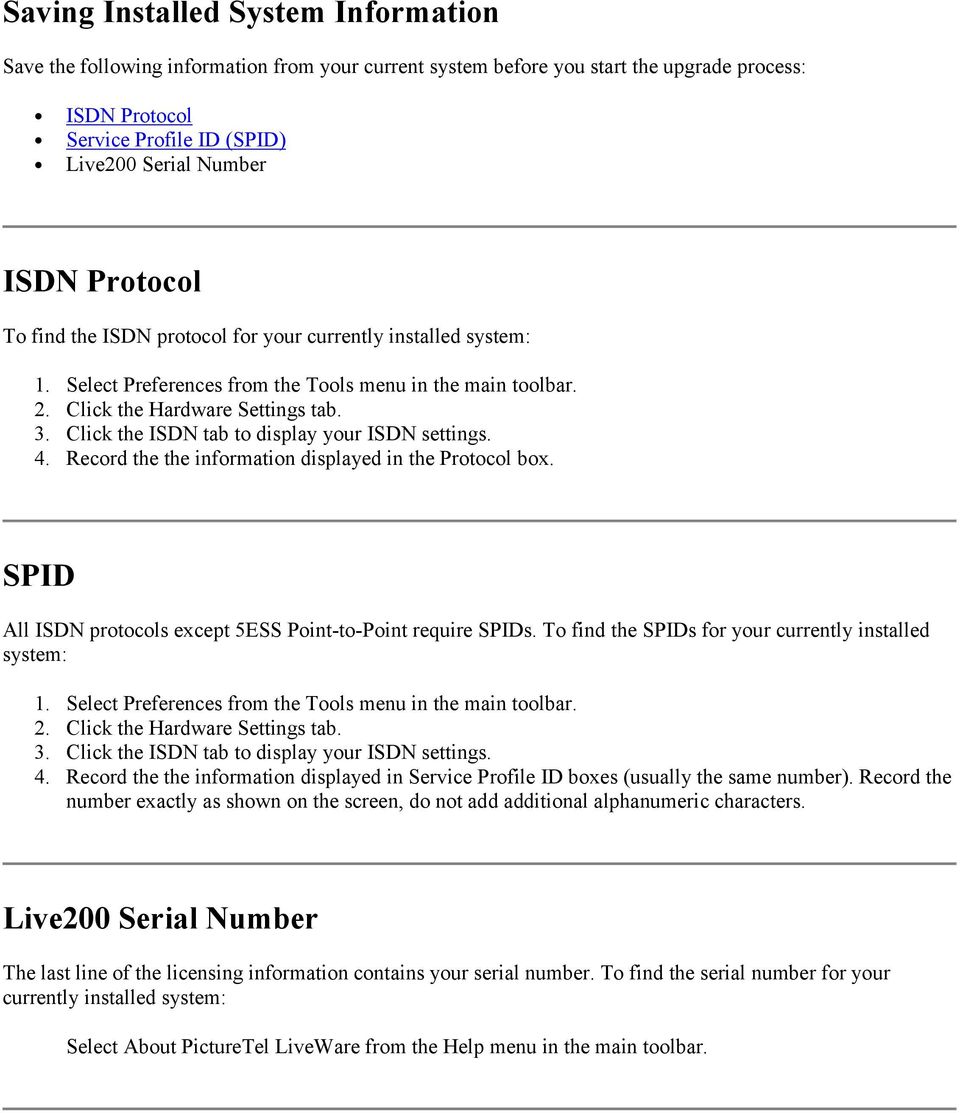
4 Installing the Driver Software 1. Power on your computer. The New Hardware Located dialog box appears while the driver database is being created, before the Update Device Driver dialog box is displayed. 2. Click Next. Windows 95 searches for updated drivers and the Update Device Driver dialog box appears.
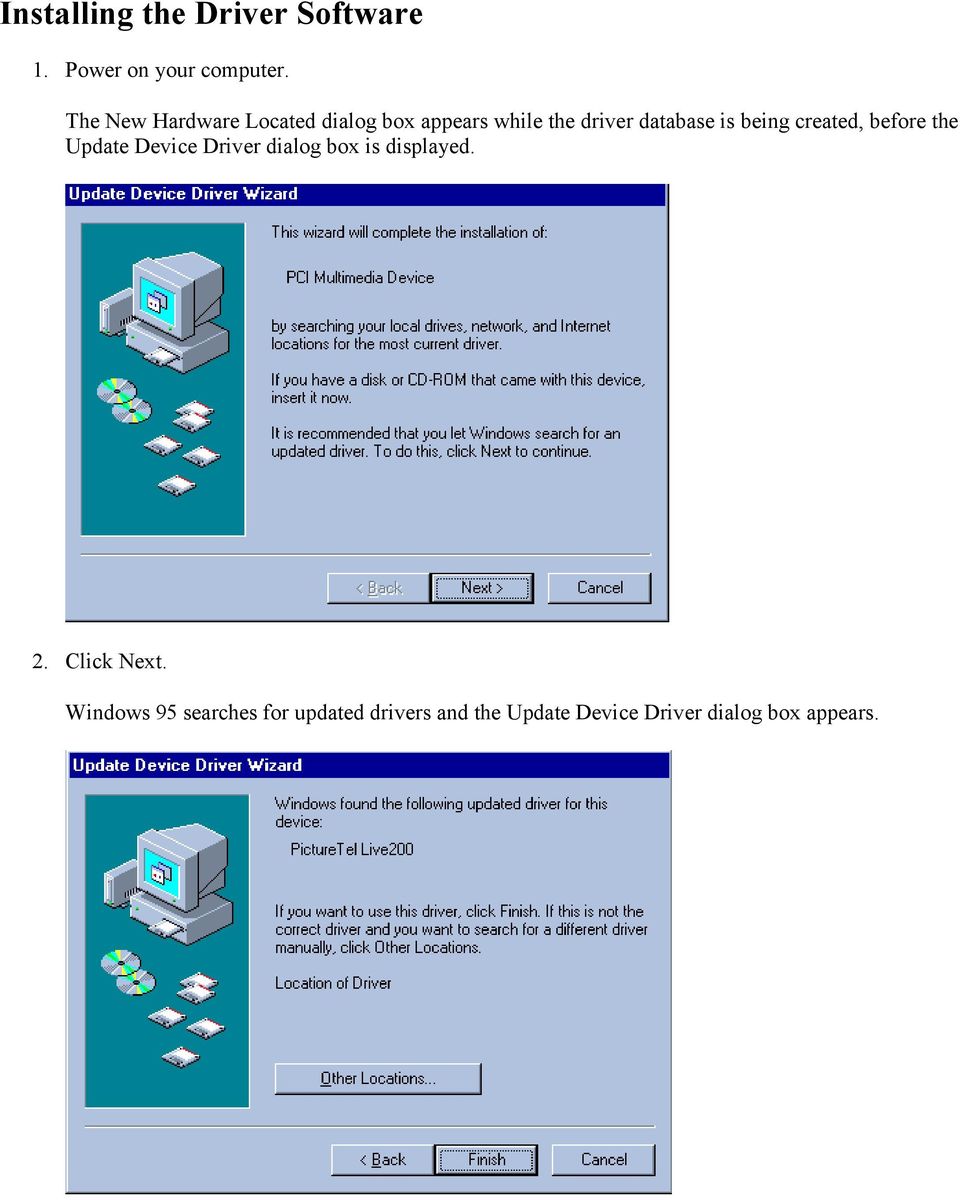
5 3. If the driver Windows 95 has located is correct, click Finish. If it is not correct, click the Other Locations button to browse for the correct file. The Insert Disk dialog box appears. 4. Click OK. The Copying Files dialog box appears. 5. Click Browse. The Open dialog box appears. Choose the Lv200Drv directory and highlight the ac.386 file. The filename ac.386 appears in the File Name box. 6. Click OK. The Copying files dialog box appears. 7. Click OK. The driver file install process starts. After the files are copied to your hard driver, the Live200 settings dialog box appears.
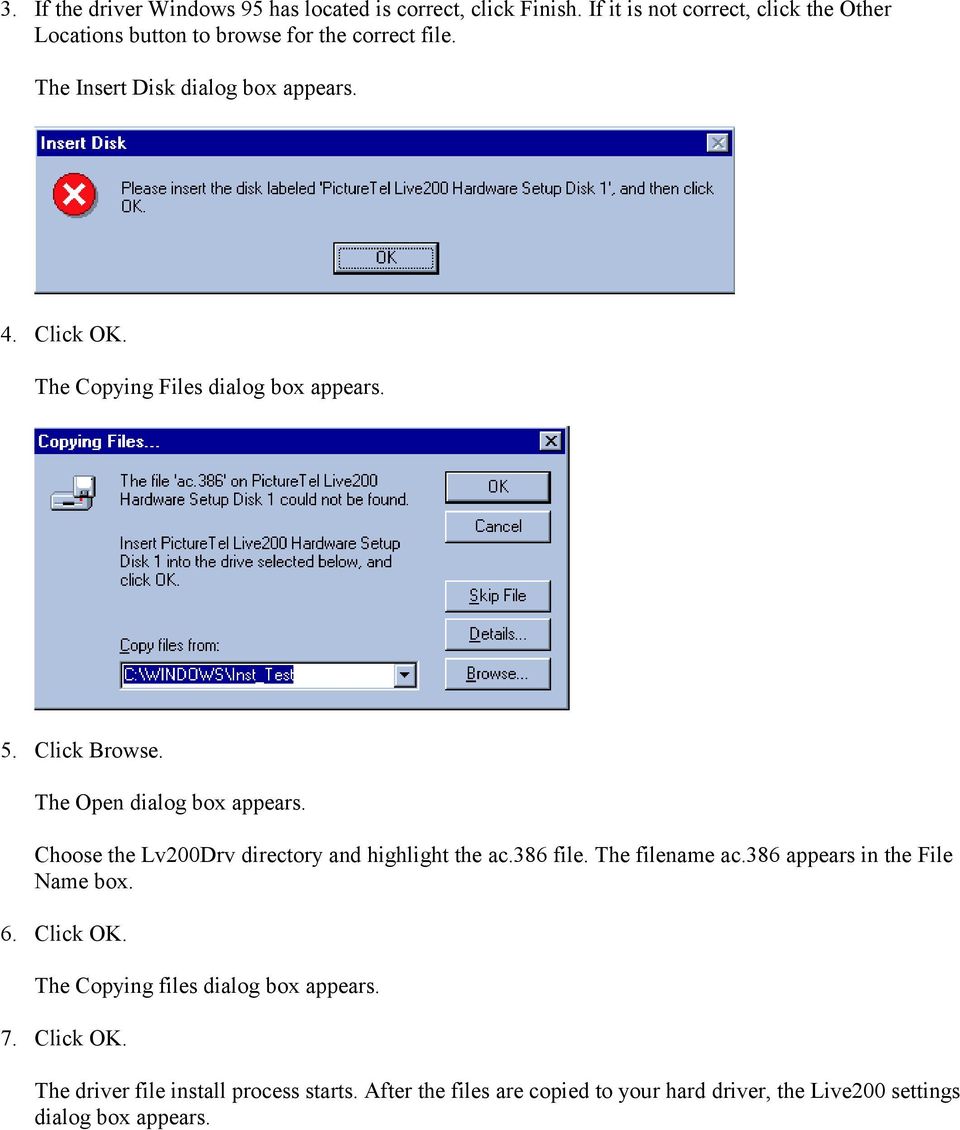
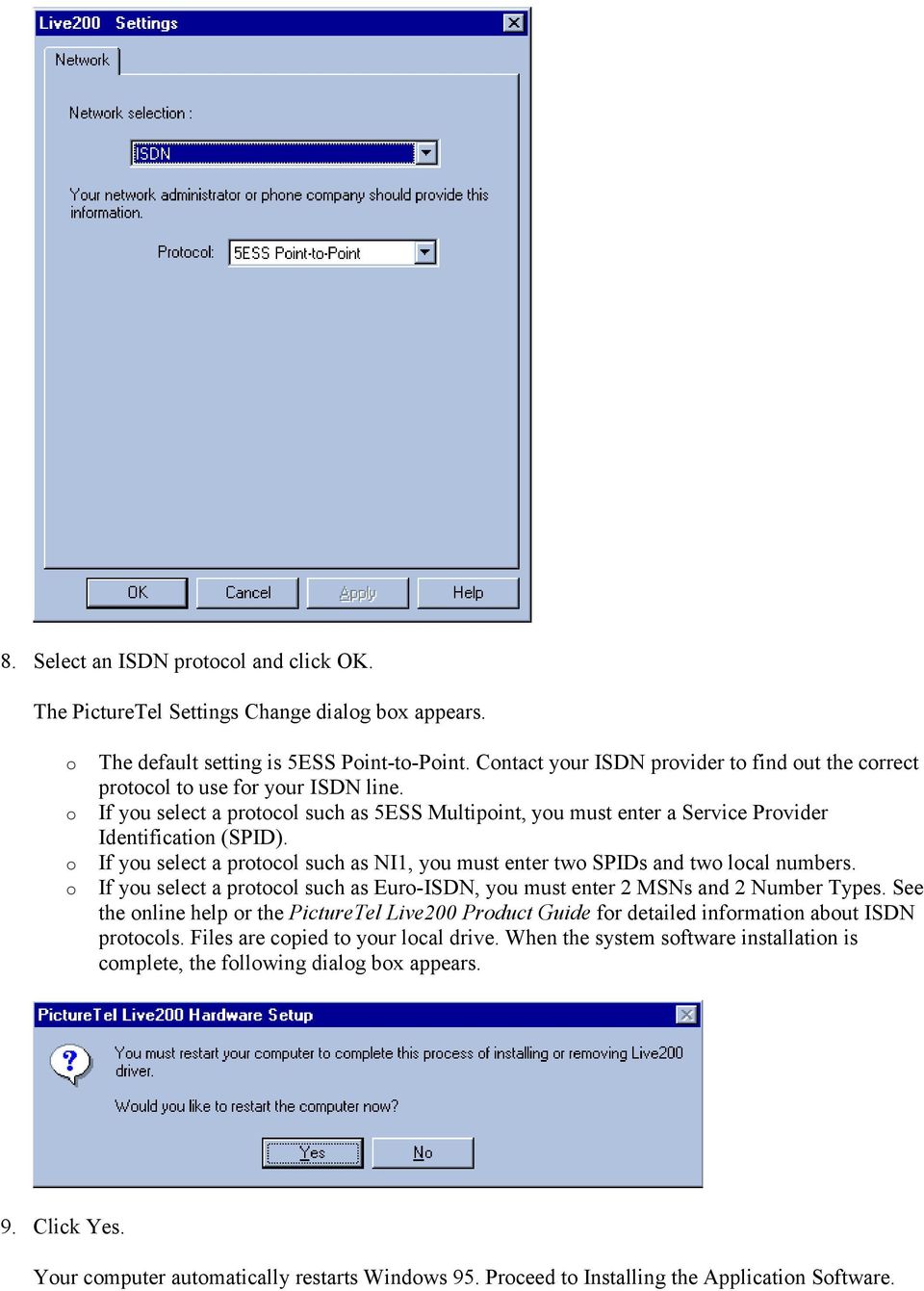
6 8. Select an ISDN protocol and click OK. The PictureTel Settings Change dialog box appears. o o o o The default setting is 5ESS Point-to-Point. Contact your ISDN provider to find out the correct protocol to use for your ISDN line. If you select a protocol such as 5ESS Multipoint, you must enter a Service Provider Identification (SPID). If you select a protocol such as NI1, you must enter two SPIDs and two local numbers. If you select a protocol such as Euro-ISDN, you must enter 2 MSNs and 2 Number Types. See the online help or the PictureTel Live200 Product Guide for detailed information about ISDN protocols. Files are copied to your local drive. When the system software installation is complete, the following dialog box appears. 9. Click Yes. Your computer automatically restarts Windows 95. Proceed to Installing the Application Software.
7 Installing the Application Software To install the application software: 1. Click the Start button from the Windows 95 desktop. 2. Click Run from the Start menu. The Run dialog box appears. 3. Type the path to \Lv200App\Disk1\setup.exe or click Browse to locate the file. 4. Click OK. The Setup box appears displaying the status of the InstallShield Wizard as it is prepared. The Welcome to the PictureTel Live200 Setup Program dialog box appears. 5. Click the Next button. The PictureTel Live200 Software License Agreement dialog box appears. 6. Read the agreement and click Yes to continue. The PictureTel Registration dialog box appears. 7. Type your name, company (optional), and the PictureTel Live200 serial number and click the Next button. The Registration Confirmation dialog box appears. 8. Click Yes if the information you entered is correct.

8 The Choose Destination Location dialog box appears. 9. Select the destination folder in which you want to install PictureTel Live200. If you are installing the software for the first time, the default folder is C:\Program Files\PictureTel. If you are upgrading the software from a previous release, the default folder is wherever you last installed the software. You can click Browse to choose a directory or type a path name. 10. Click Next to continue. The Folder Selection dialog box appears. 11. Accept the default folder name PictureTel Live200 or type a new one. The Identity Name dialog box appears. Your identity is shown to other conference attendees during a call. 12. Enter your identity and click Next. The Select Network Transports dialog box appears.

9 13. Select the transports you will be using and click Next. Make sure Enable ISDN is checked. Enable ISDN - You must enable ISDN to make video calls. You can select another transport to make a data-only call. For example, you might want to share an application with someone who does not have an ISDN line. Both you and the other conference attendee would select the transport that you have in common. If you are not enabling additional network transports, click Next to continue with the installation. Enable Modem - If you have a modem in your computer, you can use it to make data-only calls. Additional screens appear that let you choose the modem you want to use. If you need help choosing a modem, see your System Administrator. Click Next to continue with the installation. Enable TCP/IP, IPX, or NetBIOS - If your computer is configured with the TCP/IP, IPX, or NetBIOS transport, you can use those transports to make data-only calls. Select the transport you want to use and click Next to continue with the installation. Enable GroupShare - Select the GroupShare transport if you want to make and answer calls through a PictureTel group videoconferencing system, such as the Venue 2000, Concorde 4500, or SwiftSite. To use this transport, your Live200 system must be physically connected to the group videoconferencing system and the system must be configured to work with the Live200. Set the baud rate to match the baud rate of the data port option on the group videoconferencing system. Select the COM port used to connect the Live200 to the group videoconferencing system. For more information, refer to the configuration documentation for your group videoconferencing system. 14. Click Next to continue with the installation. The ISDN Network Numbers screen appears.

10 15. Type your ISDN dialing number and click the Next button. You can enter the ISDN phone number in a variety of ways, for example: 1-(700) You might need to enter the ISDN number twice, depending on your ISDN configuration. Depending on the protocol you are using, you might also need to enter SPIDs. Contact your ISDN provider for details. Your ISDN dialing number is entered into a default address book list with your name, and company name. Your ISDN number is also entered in the About PictureTel Live200 dialog box, which is available from the Help menu in the main toolbar. 16. Specify whether or not you want PictureTel Live200 to be copied to your Startup folder. If you answer "yes," PictureTel Live200 automatically runs every time you start your computer. If you answer "no," no action is taken. 17. Click Yes if you want to view the README file. The Setup Complete dialog box appears.

11 18. Do one of the following: Click Yes if you want to start the Live200 application now. or Click the Finish button if you want to return to the Windows 95 desktop without running the Live200 application. The Live200 software installation process is complete. Copyright 1997, PictureTel Corporation. All rights reserved.
Installing the Microsoft Network Driver Interface
 Installing the Microsoft Network Driver Interface Overview This guide explains how to install the PictureTel Live200 Microsoft Network Driver Interface (NDIS) software you have downloaded from PictureTel's
Installation Instruction STATISTICA Enterprise Small Business
 Installation Instruction STATISTICA Enterprise Small Business Notes: ❶ The installation of STATISTICA Enterprise Small Business entails two parts: a) a server installation, and b) workstation installations
STATISTICA VERSION 12 STATISTICA ENTERPRISE SMALL BUSINESS INSTALLATION INSTRUCTIONS
 STATISTICA VERSION 12 STATISTICA ENTERPRISE SMALL BUSINESS INSTALLATION INSTRUCTIONS Notes 1. The installation of STATISTICA Enterprise Small Business entails two parts: a) a server installation, and b)
STATISTICA VERSION 9 STATISTICA ENTERPRISE INSTALLATION INSTRUCTIONS FOR USE WITH TERMINAL SERVER
 Notes: STATISTICA VERSION 9 STATISTICA ENTERPRISE INSTALLATION INSTRUCTIONS FOR USE WITH TERMINAL SERVER 1. These instructions focus on installation on Windows Terminal Server (WTS), but are applicable
DP-313 Wireless Print Server
 DP-313 Wireless Print Server Quick Installation Guide TCP/IP Printing (LPR for Windows 95/98/Me/2000) Rev. 03 (August, 2001) Copyright Statement Trademarks Copyright 1997 No part of this publication may
LPR for Windows 95/98/Me/2000/XP TCP/IP Printing User s Guide. Rev. 03 (November, 2001)
 LPR for Windows 95/98/Me/2000/XP TCP/IP Printing User s Guide Rev. 03 (November, 2001) Copyright Statement Trademarks Copyright 1997 No part of this publication may be reproduced in any form or by any
STATISTICA VERSION 11 CONCURRENT NETWORK LICENSE WITH BORROWING INSTALLATION INSTRUCTIONS
 data analysis data mining quality improvement web-based analytics Notes STATISTICA VERSION 11 CONCURRENT NETWORK LICENSE WITH BORROWING INSTALLATION INSTRUCTIONS 1. The installation of the Concurrent network
Guide to Installing BBL Crystal MIND on Windows 7
 Guide to Installing BBL Crystal MIND on Windows 7 Introduction The BBL Crystal MIND software can not be directly installed on the Microsoft Windows 7 platform, however it can be installed and run via XP
LPR for Windows 95 TCP/IP Printing User s Guide
 LPR for Windows 95 TCP/IP Printing User s Guide First Edition Printed in Taiwan, R.O.C. RECYCLABLE Copyright Statement Trademarks Limited Warranty Copyright 1997 D-Link Corporation No part of this publication
SECURITY SYSTEM MANAGEMENT SOFTWARE FOR WINDOWS. Quick Start Instructions
 TM SECURITY SYSTEM MANAGEMENT SOFTWARE FOR WINDOWS Quick Start Instructions Introduction WinLoad for Windows was developed to simplify and speed up the task of programming Paradox control panels. Remote
Network Server for Windows. Overview of the Sequencher Network Page 2. Installing Sequencher Server for the First Time Page 3
 Network Server for Windows Installation Instructions Overview of the Sequencher Network Page 2 Installing Sequencher Server for the First Time Page 3 Adding Sequencher licenses to KeyServer Page 4 Updating
Chapter 3 Software Installation
 Software Installation Chapter 3 Software Installation This chapter provides information on how to install the CyberSerial PCI s drivers and utilities for the following operating systems: Windows 95/98
BioWin Network Installation
 BioWin Network Installation Introduction This document outlines the procedures for installing the network version of BioWin. There are three parts to the network version installation: 1. The installation
Meridian 1 Meridian 1 Attendant PC LAN Interface Installation Guide
 Meridian 1 Meridian 1 Attendant PC LAN Interface Installation Guide Document Number: P0874391 Document Release: Standard 1.00 Date: November 1997 Year Publish FCC TM 1997 All rights reserved Printed in
Chapter 2 Installing Sharpdesk and Network Scanner Tool
 Chapter 2 Installing Sharpdesk and Network Scanner Tool Before the setup Check that your PC meets the minimum system requirements for Sharpdesk and Network Scanner Tool described in this Installation Guide.
Printer Sharing of the PT-9500pc in a Windows Environment
 Printer Sharing of the PT-9500pc in a Windows Environment This procedure is for configuring the PT-9500pc as a shared printer in Microsoft Windows. For printer sharing to operate correctly, please be sure
Installation Instruction STATISTICA Enterprise Server
 Installation Instruction STATISTICA Enterprise Server Notes: ❶ The installation of STATISTICA Enterprise Server entails two parts: a) a server installation, and b) workstation installations on each of
Installation Instruction STATISTICA. Concurrent Network License with Borrowing Domain Based Registration
 Installation Instruction STATISTICA Concurrent Network License with Borrowing Domain Based Registration Notes: ❶ The installation of the Concurrent network version entails two parts: a) a server installation,
Introduction. Before you begin. Installing efax from our CD-ROM. Installing efax after downloading from the internet
 Introduction Before you begin Before you begin installing efax, please check the following: You have received confirmation that your application for the efax service has been processed. The confirmation
STATISTICA VERSION 10 STATISTICA ENTERPRISE SERVER INSTALLATION INSTRUCTIONS
 Notes: STATISTICA VERSION 10 STATISTICA ENTERPRISE SERVER INSTALLATION INSTRUCTIONS 1. The installation of the STATISTICA Enterprise Server entails two parts: a) a server installation, and b) workstation
USING SSL/TLS WITH TERMINAL EMULATION
 USING SSL/TLS WITH TERMINAL EMULATION This document describes how to install and configure SSL or TLS support and verification certificates for the Wavelink Terminal Emulation (TE) Client. SSL/TLS support
Inmagic ODBC Driver 8.00 Installation and Upgrade Notes
 Inmagic ODBC Driver 8.00 Installation and Upgrade Notes Thank you for purchasing the Inmagic ODBC Driver for DB/Text. This document is for new and upgrade customers. Use the Inmagic ODBC Driver to develop
WhatsUp Gold v16.1 Installation and Configuration Guide
 WhatsUp Gold v16.1 Installation and Configuration Guide Contents Installing and Configuring Ipswitch WhatsUp Gold v16.1 using WhatsUp Setup Installing WhatsUp Gold using WhatsUp Setup... 1 Security guidelines
Windows 98 Workstation Install
 Windows 98 Workstation Install To install the Oracle Client Software on a Windows 98 workstation you need to do a manual install installing the Oracle Client Software first then the Infinitime software.
Dell Statistica 13.0. Statistica Enterprise Installation Instructions
 Dell Statistica 13.0 2015 Dell Inc. ALL RIGHTS RESERVED. This guide contains proprietary information protected by copyright. The software described in this guide is furnished under a software license or
Converting InfoPlus.21 Data to a Microsoft SQL Server 2000 Database
 Technical Bulletin Issue Date August 14, 2003 Converting InfoPlus.21 Data to a Microsoft SQL Server 2000 Database Converting InfoPlus.21 Data to a Microsoft SQL Server 2000 Database...2 Introduction...
CODESOFT Installation Scenarios
 CODESOFT Installation Scenarios NOTES: CODESOFT is a separate install from existing versions of CODESOFT. You will need to make note of your current settings (default directories, etc.) so you can duplicate
Motorola Phone Tools. Quick Start
 Motorola Phone Tools Quick Start Contents Minimum Requirements...2 Before Installing Motorola Phone Tools...3 Installing Motorola Phone Tools...4 Mobile Device Installation and Configuration...5 Online
Setup and Configuration Guide for Pathways Mobile Estimating
 Setup and Configuration Guide for Pathways Mobile Estimating Setup and Configuration Guide for Pathways Mobile Estimating Copyright 2008 by CCC Information Services Inc. All rights reserved. No part of
e-dpp 4.0.2 May 2013 Quick Installation Guide Microsoft Windows 2003 Server, XP, Vista, 7 Access Database
 e-dpp 4.0.2 May 2013 Microsoft Windows 2003 Server, XP, Vista, 7 Access Database ELTECHS Engineering and Consulting Co., Ltd., Japan www.eltechs.co.jp Tel No. +81 (47) 490-1010 Fax No. +81 (47) 490-1011
PCLinq2 Hi-Speed USB Bridge-Network Cable. Quick Network Setup Guide
 PCLinq2 Hi-Speed USB Bridge-Network Cable Congratulations! Quick Network Setup Guide For Windows 98/ME/2000/XP Congratulations for installing the PCLinq2 Hi-Speed USB Bridge-Network Cable. This Quick Network
Connecting your Blackberry to Aliant Hosted Exchange. Instructions for connecting Blackberry hand-held devices to Aliant Hosted Exchange
 Instructions for connecting Blackberry hand-held devices to Aliant Hosted Exchange 1 Table of Contents: BLACKBERRY 7750/6750 VERSIONS 3.7188 OR 3.6... 3 1. Verify the configuration of Outlook on the PC
SmartStation ATM Installation Guide Addendum
 SmartStation ATM Installation Guide Addendum This addendum replaces pages 12-17, 20, and 34-40 of the SmartStation ISDN 384 Installation Guide (P/N 907-679-EN5.00). It also provides additional information
Network Printing In Windows 95/98/ME
 Network Printing In Windows 95/98/ME If you are using Windows 2000/ XP: To install a printer on your network using D-Link Print Server or DI-series router with built-in print server you do not need to
64-Bit Compatibility with Micromeritics Applications
 Tech Tip 7 64-Bit Compatibility with Micromeritics Applications Micromeritics products are designed to operate in most Microsoft Windows environments. However, more current versions of Microsoft Windows,
10 Step 2 System Service Setup. 11 Step 3 RelayFax Server Setup. 11 Step 4 Company Name and CSID String. 12 Step 5 Fax and Voice Number
 Contents Before you Begin 2 RelayFax Server Setup RelayFax Desktop SMTP Client Setup Step 1 Begin Install 3 Step 1 Install RelayFax Desktop SMTP Client 10 Step 2 System Service Setup 4 Step 2 RelayFax
Windows 98 and Windows Me
 Windows 98 and Windows Me This topic includes: "Preliminary Steps" on page 3-25 "Quick CD-ROM Install Steps" on page 3-26 "Other Methods of Installation" on page 3-26 "Windows 98 and Windows Me Troubleshooting"
Interact for Microsoft Office
 Interact for Microsoft Office Installation and Setup Guide Perceptive Content Version: 7.0.x Written by: Product Knowledge, R&D Date: October 2014 2014 Perceptive Software. All rights reserved Perceptive
CANON FAX L360 SOFTWARE MANUAL
 CANON FAX L360 SOFTWARE MANUAL Before You Begin the Installation: a Checklist 2 To ensure a smooth and successful installation, take some time before you begin to plan and prepare for the installation
Installation Instructions for 9555 USB Driver
 Prior to using the data modem features of your 9555 handset; you must first install the VCOMPORT 9555 USB Driver. This driver is compatible with: Windows XP Service Pack 2, Windows 2000 Service Pack 4,
Interfacing PC ChargePayment Server with Focus
 Interfacing PC ChargePayment Server with Focus When you have decided to use the PC Charge Payment Server software with Focus, this feature will allow you to process credit cards through your credit card
WhatsUp Gold v16.3 Installation and Configuration Guide
 WhatsUp Gold v16.3 Installation and Configuration Guide Contents Installing and Configuring WhatsUp Gold using WhatsUp Setup Installation Overview... 1 Overview... 1 Security considerations... 2 Standard
SharpdeskTM R3.1. Installation Guide Version 3.1.01
 SharpdeskTM R3.1 Installation Guide Version 3.1.01 1 Copyright 2000-2004 by Sharp Corporation. All rights reserved. Reproduction, adaptation or translation without prior written permission is prohibited,
IXP120 Alarm Monitor Utility
 IXP120 Alarm Monitor Utility SOFTWARE MANUAL Scope of Document This document provides a brief overview of the Alarm Monitor Utility and its interaction with the IXP120 Software. Document Conventions We
Colorfly Tablet Upgrade Guide
 Colorfly Tablet Upgrade Guide (PhoenixSuit) 1. Downloading the Firmware and Upgrade Tool 1. Visit the official website http://www.colorful.cn/, choose 产 品 > 数 码 类 > 平 板 电 脑, and click the product to be
SafeWord Domain Login Agent Step-by-Step Guide
 SafeWord Domain Login Agent Step-by-Step Guide Author Johan Loos Date January 2009 Version 1.0 Contact [email protected] Table of Contents Table of Contents... 2 Why SafeWord Agent for Windows Domains?...
Human Resources Installation Guide
 Human Resources Installation Guide Installing HR i Index Copyright 2001 Jenzabar, Inc. You may print any part or the whole of this documentation to support installations of Jenzabar software. Where the
VERITAS Backup Exec 9.1 for Windows Servers Quick Installation Guide
 VERITAS Backup Exec 9.1 for Windows Servers Quick Installation Guide N109548 Disclaimer The information contained in this publication is subject to change without notice. VERITAS Software Corporation makes
WhatsUp Gold v16.2 Installation and Configuration Guide
 WhatsUp Gold v16.2 Installation and Configuration Guide Contents Installing and Configuring Ipswitch WhatsUp Gold v16.2 using WhatsUp Setup Installing WhatsUp Gold using WhatsUp Setup... 1 Security guidelines
Installation Guide for Workstations
 Installation Guide for Workstations Copyright 1998-2005, E-Z Data, Inc. All Rights Reserved. No part of this documentation may be copied, reproduced, or translated in any form without the prior written
NETGATE Data Backup. User Manual. Document version 1. 1 EN ( 17. 10. 2010 ) Copyright (c) 2010 NETGATE Technologies s.r.o. All rights reserved.
 NETGATE Data Backup User Manual Document version 1. 1 EN ( 17. 10. 2010 ) Copyright (c) 2010 NETGATE Technologies s.r.o. All rights reserved. Content 1. Introduction... 3 1.1. Basic Concepts... 3 1.1.1.
for Windows 7 Laplink Software, Inc. Quick Start Guide h t t p : / / w w w. l a p l i n k. c o m / h e l p MN-LLG-EN-15 (REV.
 1 for Windows 7 Laplink Software, Inc. Customer Service/Technical Support: Web: http://www.laplink.com/help E-mail: [email protected] Laplink Software, Inc. 14335 NE 24th Street, Suite 201 Bellevue,
Experiment # 6 Remote Access Services
 Experiment # 6 Remote Access Services 7-1 : Introduction Businesses today want access to their information anywhere, at any time. Whether on the road with customers or working from home, employees need
GUARD1 PLUS Mini-Attendant File Manager User's Guide Version 2.71
 GUARD1 PLUS Mini-Attendant File Manager User's Guide Version 2.71 Copyright 2002 TimeKeeping Systems, Inc. GUARD1 PLUS and THE PIPE are registered trademarks of TimeKeeping Systems, Inc. Introduction This
Guide to Setting up Internet Connection Sharing for Windows
 Guide to Setting up Internet Connection Sharing for Windows Document Date: December 20, 2005 Document Version: Version: 1.0 Disclaimer: Please note that this document is provided on an as is where is basis
Vodafone Text Centre User Guide for Microsoft Outlook
 Vodafone Text Centre User Guide for Microsoft Outlook 1 Contents Introduction 1 System requirements 2 Installation 3 The installation guide 3 First use 5 Send a message 8 Select recipient 8 Enter the message
Installing a printer in Windows 95.
 Installing a printer in Windows 95. Click on Start - Settings - Printers In the Printers Folder double click on the Add Printer Icon Click on the Next Button to start the installation process of your printer
SQL Server 2008 R2 Express Edition Installation Guide
 Hardware, Software & System Requirements for SQL Server 2008 R2 Express Edition To get the overview of SQL Server 2008 R2 Express Edition, click here. Please refer links given below for all the details
InventoryControl for use with QuoteWerks Quick Start Guide
 InventoryControl for use with QuoteWerks Quick Start Guide Copyright 2013 Wasp Barcode Technologies 1400 10 th St. Plano, TX 75074 All Rights Reserved STATEMENTS IN THIS DOCUMENT REGARDING THIRD PARTY
PP8X Printer Driver Installation Instruction
 PP8X Printer Driver Installation Instruction Pinnacle Technology Corp. CONTENTS 1 BT Device Installation... 1 2 Printer Driver Installation... 6 3 How to Know the Connecting Port... 10 4 How to Configure
Installation Guide. Your FedEx Ship Manager system number. Before you start
 Installation Guide Your FedEx Ship Manager system number Installation Guide During registration, you receive a FedEx Ship Manager system number. Write the number here so you have it on hand whenever you
FedEx Ship Manager Software. Installation Guide
 FedEx Ship Manager Software Installation Guide Before you start Check here to see that your PC has what it needs to run FedEx Ship Manager Software: Minimum System and Hardware Requirements Intel Pentium
Tech Tips Helpful Tips for Pelco Products
 DX4104 UPDATING FROM THE NETWORK SERVER October 29, 2009 DX4104 UPDATING FROM THE NETWORK SERVER The Operation/Configuration manual provides users an option for updating the server through the network
Palomar College Dial-up Remote Access
 Palomar College Dial-up Remote Access Instructions for Windows 95/98 and Windows 2000 Following are instructions to implement dialup access to the Palomar College network, email and Internet. The minimum
Omni 56K USB Lite Quick Start Guide
 Omni 56K USB Lite Quick Start Guide ZyXEL TOTAL INTERNET ACCESS SOLUTION 1. Hardware Installation Connect your modem to your analog phone or fax. Use the phone cord included to connect to the phone jack
Metasys System Direct Connection and Dial-Up Connection Application Note
 Metasys System Direct Connection and Dial-Up Connection Application Note Code No. LIT-1201639 Software Release 5.1 Issued August 27, 2013 Supersedes October 4 2010 Refer to the QuickLIT website for the
CS SoftDent Practice Management Software Installation Guide for Client/Server Configurations
 DE1005-15 CS SoftDent Practice Management Software Installation Guide for Client/Server Configurations Notice Carestream Health, Inc., 2012. No part of this publication may be reproduced, stored in a retrieval
Transferring Scans from your Dolphin into Destiny
 Transferring Scans from your Dolphin into Destiny Summary: This article is intended to provide Destiny users with an overview of the following tasks 1. Downloading the Dolphin Transfer Utility to their
Iridium Extreme TM Satellite Phone. Data Services Manual
 Iridium Extreme TM Satellite Phone Data Services Manual Table of Contents 1 OVERVIEW... 1 2 HOW IT WORKS... 1 3 BEFORE INSTALLING... 2 4 USB DRIVER INSTALLATION... 3 5 MODEM INSTALLATION AND CONFIGURATION...
Installing the Gerber P2C Plotter USB Driver
 Installing the Gerber P2C Plotter USB Driver 1 You can install a Gerber P2C plotter using a USB connection and communicate with it using compatible design software. The following procedures describe installing
Guest PC. for Mac OS X. User Guide. Version 1.6. Copyright 1996-2005 Lismore Software Systems, Ltd. All rights reserved.
 Guest PC for Mac OS X Version 1.6 User Guide Copyright 1996-2005 Lismore Software Systems, Ltd. All rights reserved. Table of Contents About Guest PC... 1 About your Virtual Computer... 1 Creating a Virtual
Batch Eligibility Long Term Care claims
 Hewlett Packard Enterprise Provider Electronic Solutions software lets Connecticut Medical Assistance Program providers verify patient s eligibility and submit and correct claims for services all electronically.
AIM SOFTWARE AND USB DRIVER INSTALLATION PROCEDURE
 AIM SOFTWARE AND USB DRIVER INSTALLATION PROCEDURE CONTENTS AIM software and USB Driver installation Chapter 1 Installing AIM software and AIM USB driver... 2 Chapter 2 Installation under Microsoft Windows
Installation / Migration Guide for Windows 2000/2003 Servers
 PSQL v9 SP1 (9.1) & Installation / Migration Guide for Windows 2000/2003 Servers Ebix, Inc. Corporate Headquarters Concourse Parkway, Suite 3200 Atlanta, GA 30328 USA Phone: 678-281-2020 Fax: 678-281-2019
SOFTWARE INSTALLATION INSTRUCTIONS
 AUDITGARD LGA Electronic Combination Lock SOFTWARE INSTALLATION INSTRUCTIONS Implementation Package The AuditGard Software implementation package includes: 707013 AuditGard Software Install CD 42145 Programming/Audit
VRC 7900/8900 Avalanche Enabler User s Manual
 VRC 7900/8900 Avalanche Enabler User s Manual WLE-VRC-20030702-02 Revised 7/2/03 ii Copyright 2003 by Wavelink Corporation All rights reserved. Wavelink Corporation 6985 South Union Park Avenue, Suite
Trend Micro Worry-Free Remote Manager Agent Installation Guide
 Trend Micro Worry-Free Remote Manager Agent Installation Guide Agent Installation Guide The Agent Installation Guide contains information about the Worry-Free Remote Manager (WFRM) agent installation process
File Management Utility. T u t o r i a l
 File Management Utility T u t o r i a l Contents System Requirements... 2 Preparing Files for Transfer to GlobalMark... 2 Application Launch... 2 Printer Setup... 2 Communication Status... 4 Communication
Plug-in for Maitre'D Hospitality POS Setup Guide
 Plug-in for Maitre'D Hospitality POS Setup Guide Copyright May 2006, VeriFone Inc. Before you begin Carefully review the hardware, software and operating system requirements before proceeding. Install
MGC WebCommander Web Server Manager
 MGC WebCommander Web Server Manager Installation and Configuration Guide Version 8.0 Copyright 2006 Polycom, Inc. All Rights Reserved Catalog No. DOC2138B Version 8.0 Proprietary and Confidential The information
Installation of USB Virtual COM. Version 1.02
 Installation of USB Virtual COM Version 1.02 RELEASE NOTES Version Date Notes 1.02 May 13, 2014 Modified: Install USB Virtual COM Drivers files on CD updated 1.01 Dec. 10, 2009 Supports driver for Windows
Primavera P6 Professional Windows 8 Installation Instructions. Primavera P6. Installation Instructions. For Windows 8 Users
 Primavera P6 Installation Instructions For Windows 8 Users 1 IMPORTANT: READ THESE INSTRUCTIONS CAREFULLY AND FOLLOW THEM EXACTLY. The following is provided for your convenience only. Ten Six Consulting
The following items are trademarks or registered trademarks of Kaba Mas in the United States and/or other countries. GITCON
 The Gitcon Access Management Software Installation Guide is a publication of Kaba Mas LLC (hereinafter Kaba Mas). No part of this book may be reproduced or transmitted in any form or by any means, electronic
ivms-4200 Client Software Quick Start Guide
 ivms-4200 Client Software Quick Start Guide Notices The information in this documentation is subject to change without notice and does not represent any commitment on behalf of HIKVISION. HIKVISION disclaims
ScanShell.Net Install Guide
 ScanShell.Net Install Guide Please install the software first - DO NOT PLUG IN THE SCANNER The scanner has been carefully packaged to avoid damage during transportation. Before operating the scanner, please
Central Management System
 Central Management System Software Installation Guide Ver. 1.5.0.101115.001 ... ii System Introduction... 3 Client/Server Architecture...3 System Requirements... 4 System Setup...4 Multiple Monitor Configuration...5
footscan SCSI system Installation guide: balance software
 footscan SCSI system Installation guide: balance software Doc nr RS-PRD-00137-01 PN 80000061 Page 1 Information in this guide is subject to change without notice. No part of this document may be reproduced
All Windows Installations Guide Contents
 Sage Line 100 Business Suite Version 7.20 All Windows Installations Guide Contents Installing/Upgrading to Sage Line 100 Windows Version 7.20 1 To Install Windows Version 7.20 from CD-ROM 1 Pearson Phoenix
Maintaining the Content Server
 CHAPTER 7 This chapter includes the following Content Server maintenance procedures: Backing Up the Content Server, page 7-1 Restoring Files, page 7-3 Upgrading the Content Server, page 7-5 Shutting Down
Server & Workstation Installation of Client Profiles for Windows (WAN Edition)
 C ase Manag e m e n t by C l i e n t P rofiles Server & Workstation Installation of Client Profiles for Windows (WAN Edition) T E C H N O L O G Y F O R T H E B U S I N E S S O F L A W Important Note on
INSTALLATION INSTRUCTIONS FOR UKSSOGATEWAY
 INSTALLATION INSTRUCTIONS FOR UKSSOGATEWAY 1) Install the UKSSOGateway application on the desktop: The UKSSOGateway application passes information from the myuk portal to launch the FESClient. The FESClient
Magaya Software Installation Guide
 Magaya Software Installation Guide MAGAYA SOFTWARE INSTALLATION GUIDE INTRODUCTION Introduction This installation guide explains the system requirements for installing any Magaya software, the steps to
How to Setup Scan to SMB to a Microsoft Vista Workstation Using a bizhub C451/ C550
 How to Setup Scan to SMB to a Microsoft Vista Workstation Using a bizhub C451/ C550 Send to the SMB server You can send the data read in from the copier's ADF or the original scanning glass (scanned data)
Omgeo OASYS Workstation Installation Guide. Version 6.4 December 13, 2011
 Omgeo OASYS Workstation Installation Guide Version 6.4 December 13, 2011 Copyright 2011 Omgeo LLC. All rights reserved. This publication (including, without limitation, any text, image, logo, compilation,
Introduction and Overview
 Inmagic Content Server Workgroup 10.00 Microsoft SQL Server 2005 Express Edition Installation Notes Introduction and Overview These installation notes are intended for the following scenarios: 1) New installations
Installing S500 Power Monitor Software and LabVIEW Run-time Engine
 EigenLight S500 Power Monitor Software Manual Software Installation... 1 Installing S500 Power Monitor Software and LabVIEW Run-time Engine... 1 Install Drivers for Windows XP... 4 Install VISA run-time...
Select Correct USB Driver
 Select Correct USB Driver Windows often installs updated drivers automatically, and defaults to this latest version. Not all of these drivers are compatible with our software. If you are experiencing communications