
WhatsUp Gold v16.1 Installation and Configuration Guide
|
|
|
- Jordan Joseph
- 10 years ago
- Views:
Transcription
1 WhatsUp Gold v16.1 Installation and Configuration Guide
2 Contents Installing and Configuring Ipswitch WhatsUp Gold v16.1 using WhatsUp Setup Installing WhatsUp Gold using WhatsUp Setup... 1 Security guidelines for installing WhatsUp Gold... 3 Running WhatsUp Setup... 3 Installing WhatsUp Gold using basic options... 4 Installing WhatsUp Gold using advanced options... 6 Activating WhatsUp Gold for new or upgraded licenses Upgrading WhatsUp Gold Repairing WhatsUp Gold Uninstalling WhatsUp Gold About device count limits About the Status Tray (WhatsUp Gold Status Center) and Desktop Actions applications Installing IIS on Windows Server Using Windows Authentication for remote database access Finding more information Copyright notice i

3 Installing and Configuring Ipswitch WhatsUp Gold v16.1 using WhatsUp Setup In This Chapter Installing WhatsUp Gold using WhatsUp Setup... 1 Activating WhatsUp Gold for new or upgraded licenses Upgrading WhatsUp Gold Repairing WhatsUp Gold Uninstalling WhatsUp Gold About device count limits About the Status Tray (WhatsUp Gold Status Center) and Desktop Actions applications Installing IIS on Windows Server Using Windows Authentication for remote database access Finding more information Copyright notice Installing WhatsUp Gold using WhatsUp Setup Note: The Release Notes ( contain the most up-to-date information about installing WhatsUp Gold. Read the release notes prior to installing to be aware of any potential installation issues. Note: If you are installing WhatsUp Gold on a Windows 2003 Server, you must first install IIS 6.0 on the server prior to running the installation utility. For information on how to install and configure IIS, see Installing IIS on Windows Server 2003 (on page 19). 1
4 Before installing WhatsUp Gold Installing WhatsUp Gold is a simple straightforward process, however there are several decisions that you must make, and options that you should be aware of before you install WhatsUp Gold. You can choose to use either the bundled Microsoft SQL Server 2008 R2 Express Edition, installed by the WhatsUp Gold installation program, or an existing Microsoft SQL Server 2005, Microsoft SQL Server 2008 or 2008 R2, or Microsoft SQL Server Cluster 2005, 2008, or 2008 R2 to store the data collected by WhatsUp Gold. See Installing WhatsUp Gold using advanced options (on page 6) for more information. You can choose to use port 80 or some other port for the WhatsUp Gold web site that is created and runs on the IIS web server. See Installing WhatsUp Gold for more information. Note: It is recommended that port 80 be used for the WhatsUp Gold web site. If another port number is used, the URL for the WhatsUp Gold web site will require that port number to be appended to the hostname or IP address when forming the URL. For example if you chose 8888 as the port number instead of 80 your URL for a WhatsUp Gold install on the local host would be: localhost:8888/nmconsole. Note: If port 80 is used by a current IIS web site, you must either allow WhatsUp Gold to disable that web site and take over port 80, or choose another port. You can choose to use a non-default database name for the WhatsUp Gold and Flow Monitor databases. See Installing WhatsUp Gold using advanced options (on page 6) for more information. Note: The default database name for the WhatsUp Gold database is WhatsUp, the default name for the Flow Monitor database is Netflow, and the default name for the Flow Monitor Archive database is NFArchive. Note: The Netflow Archive database will use the Flow Monitor database name with the letters 'Ar' appended to the end. If you have changed the Flow Monitor database name to NetFlowDB, the NetFlow Archive database will be NetFlowDBAr. You can choose to create a non-default Windows user account for WhatsUp Gold (default: WhatsUpGold_User). See Installing WhatsUp Gold using advanced options (on page 6) for more information. You can choose to use Windows Authentication to access an existing remote Microsoft SQL Server 2005, Microsoft SQL Server 2008 or 2008 R2, or Microsoft SQL Server Cluster 2005, 2008, or 2008 R2. See Using Windows Authentication for remote database access for more information. 2
5 Note: The installation instructions in this document apply only to WhatsUp Gold Standard Edition and WhatsUp Gold Premium Edition. For installation instructions for WhatsUp Gold Distributed Edition or WhatsUp Gold MSP Edition, see WhatsUp Gold Distributed Edition Deployment Guide ( or WhatsUp Gold MSP Edition Deployment Guide ( Security guidelines for installing WhatsUp Gold To maintain adequate security protection for your WhatsUp Gold deployment, Ipswitch recommends the following installation and configuration guidelines: Install WhatsUp Gold and any components in a locked server room or cabinet so that physical access is restricted to trusted administrators. Install WhatsUp Gold software components on dedicated servers. Do not use these servers for any other purpose. Configure HTTPS for WhatsUp Gold web access. Follow the Microsoft recommended procedures and your organization security policy to configure HTTPS. Read and follow as much as possible, the complete Security Guidelines in the WhatsUp Gold Online Help ( Running WhatsUp Setup To install WhatsUp Gold using the default Microsoft SQL Server 2008 R2 Express Edition instance: 1 Log in directly to Microsoft Windows using the Administrator account (if you do not have an account called Administrator, use an account that has full administrative privileges to the computer). Caution: We do not recommend using Terminal Services or Remote Desktop to install any WhatsUp product. 2 Start the WhatsUp Setup: If you downloaded an electronic version of the WhatsUp Setup, double-click the downloaded file. If you purchased a WhatsUp Setup CD-ROM, insert the CD-ROM into the appropriate drive. If it does not run automatically, click Start, select Run, then enter the CD path followed by AutoRun.exe (for example, D:\AutoRun.exe). 3

6 Installing WhatsUp Gold using basic options Note: The installation instructions in this document apply only to WhatsUp Gold Standard Edition and WhatsUp Gold Premium Edition. For installation instructions for WhatsUp Gold Distributed Edition or WhatsUp Gold MSP Edition, see WhatsUp Gold Distributed Edition Deployment Guide ( or WhatsUp Gold MSP Edition Deployment Guide ( Note: If you are installing WhatsUp Gold on a Windows 2003 Server, you must first install IIS 6.0 on the server prior to running the installation utility. For information on how to install and configure IIS, see Installing IIS on Windows Server 2003 (on page 19). Note: To launch the WhatsUp Gold installation program, you must run the WhatsUp Setup. For more information see Running WhatsUp Setup (on page 3). To install WhatsUp Gold: Note: When IIS is detected, but not all of the required role services are installed, you will be asked if you would like to install the IIS role services. If you are asked to install the required role services, click Yes. The installation program installs the required IIS components. 1 Read the Welcome screen and click Next. The License Agreement dialog appears. 2 Read the license agreement. If you accept the terms of the license agreement, select I accept the terms of the license agreement. To print a copy of the license agreement, click Print. The license agreement is sent to the default printer. If you do not accept the terms of the license agreement, click Cancel to exit the installation program. 3 Click Next to continue. The License Information dialog appears. 4 Enter your WhatsUp Gold Activation Key or select an alternative activation method. Note: You must enter your Activation Key made up of the Serial Number and the Username and Password (UAP) appended to the end of your Serial Number, which combined are a total of 23 characters. Note: If you are installing using the installation application downloaded from the web link provided in the purchase confirmation , the Activation Key box will be pre-populated with your Activation Key. 4

7 The following is an example of an activation key, which is made up of the serial number and UAP and the to be entered in Activation Key. Serial Number (15 characters) UAP (8 characters) Activation Key (23 characters) 01MTBDK5TN99NQ1 XKQKC966 01MTBDK5TN99NQ1XKQKC966 5 Click Next to continue. The WhatsUp Gold Welcome screen specific to the edition you are activating appears. 6 Read the Welcome screen and click Next. The Installation Options dialog where the SQL Server is configured appears. 7 Select the install directories for Microsoft SQL Server 2008 R2 Express Edition. The application and data files are installed in default directories. Important: Make sure that you have a large capacity drive selected for data storage. The data files for WhatsUp Gold can reach a maximum size of 22 GB. Important: During installation, databases are created for WhatsUp Gold Flow Monitor. These basic databases are limited in size, but are increased the first time the Flow Monitor collector initializes. If at least 16 GB of disk space is available when the collector initializes, the maximum size of the Flow Monitor databases is increased to 4 GB each (16 GB total including transaction logs). If less than 16 GB is available, the maximum size of the Flow Monitor databases is limited proportionately to the amount of free disk space. If your license includes WhatsUp Gold Flow Monitor, we strongly recommend that you verify that you have at least 16 GB of free disk space before installing. 8 Click Next to continue. The Installation Options dialog where the 'sa' password is configured appears. Important: If you want to change the SQL Server user account, the account you want to use must have the same permissions as the 'sa' account. The password you create must meet any password complexity rules enforced by the local server or domain. 9 Specify and confirm a Password for the account. You also have the option to Keep the default password. 10 Click Next to continue. The Installation Options dialog where the SQL Server login is created appears. 11 Specify and confirm a Password for WhatsUp Gold to use when accessing the database. 12 Click Next to continue. The Installation Options dialog where the installation directory is set appears. 5

8 13 Select the installation directory for the WhatsUp Gold application files. The default path is C:\Program Files\Ipswitch\WhatsUp. We recommend that you use the default path. Tip: The Program Files directory path may vary if on a 64 bit system (for example, Program Files (x86)). You can install WhatsUp Gold to a different location. To select a different location, click Change. Note: If the installation program detects data from a previous installation of WhatsUp Gold, the Backup Web and Report Files dialog appears. We recommend that you select Back up the existing Web and report files, then click Next. 14 Click Next to continue. The Installation Options dialog where the TCP port is selected appears. 15 Choose a TCP port for the WhatsUp Gold web site. The installation program creates an IIS web site using this port. The default port is 80. Note: It is recommended that port 80 be used for the WhatsUp Gold web site. If another port number is used, the URL for the WhatsUp Gold web site will require that port number to be appended to the hostname or IP address when forming the URL. For example if you chose 8888 as the port number instead of 80 your URL for a WhatsUp Gold install on the local host would be: localhost:8888/nmconsole Note: If port 80 is used by a current IIS web site, you must either allow WhatsUp Gold to disable that web site and take over port 80, or choose another port. 16 Click Next to continue. The Installation Summary dialog appears. 17 Click Proceed. The WhatsUp Gold install program begins the installation. When the installation program completes, the InstallShield Wizard Complete dialog appears. 18 Click Finish. The setup program closes. The WhatsUp Setup will appear, and the WhatsUp Gold Web interface will appear. 19 Complete the installation following the instructions that appear in the web browser. Installing WhatsUp Gold using advanced options Note: The installation instructions in this document apply only to WhatsUp Gold Standard Edition and WhatsUp Gold Premium Edition. For installation instructions for WhatsUp Gold Distributed Edition or WhatsUp Gold MSP Edition, see WhatsUp Gold Distributed Edition Deployment Guide ( or WhatsUp Gold MSP Edition Deployment Guide ( Note: If you are installing WhatsUp Gold on a Windows 2003 Server, you must first install IIS 6.0 on the server prior to running the installation utility. For information on how to install and configure IIS, see Installing IIS on Windows Server 2003 (on page 19). Note: To launch the WhatsUp Gold installation program, you must run the WhatsUp Setup. For more information see Running WhatsUp Setup (on page 3). 6
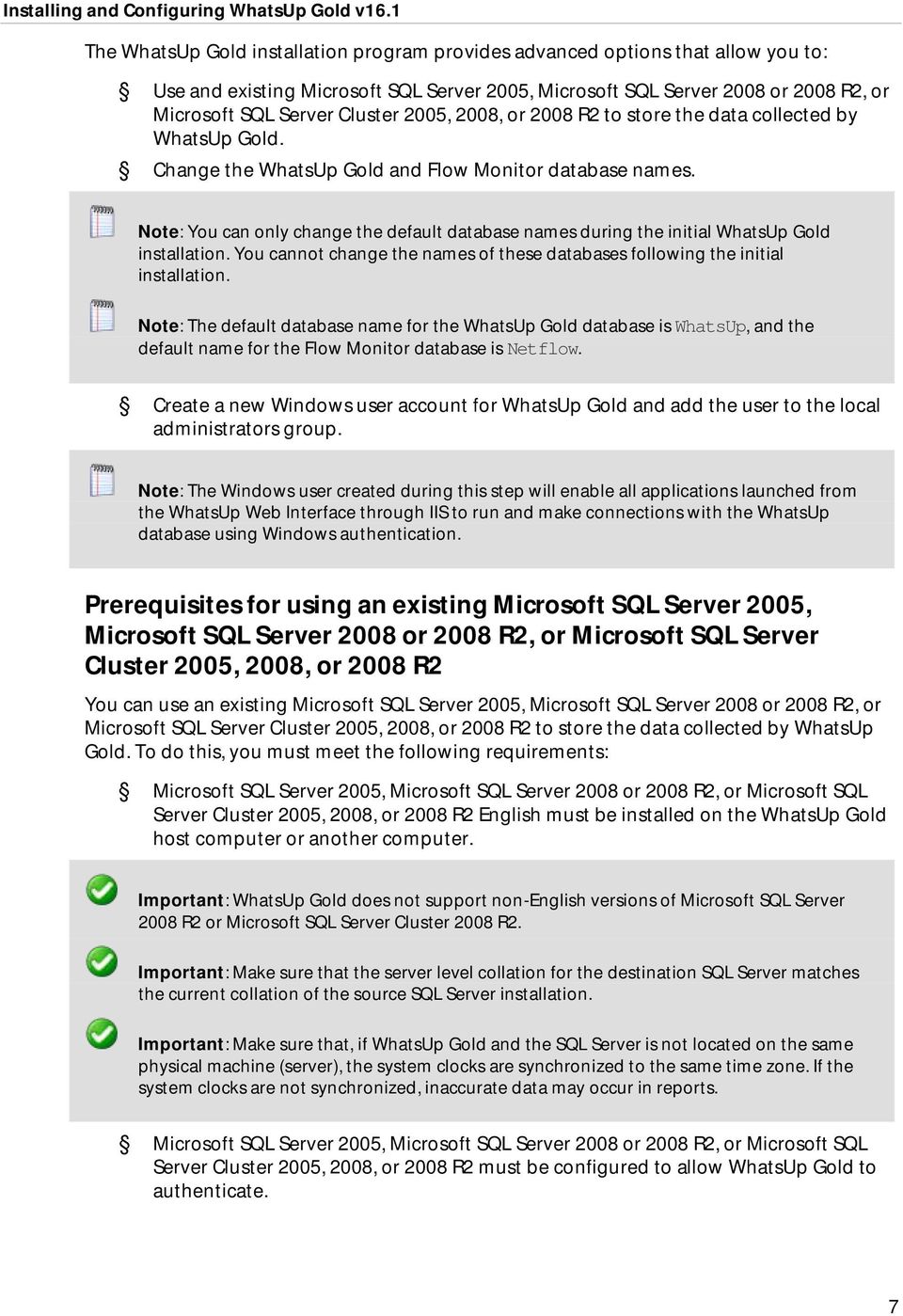
9 The WhatsUp Gold installation program provides advanced options that allow you to: Use and existing Microsoft SQL Server 2005, Microsoft SQL Server 2008 or 2008 R2, or Microsoft SQL Server Cluster 2005, 2008, or 2008 R2 to store the data collected by WhatsUp Gold. Change the WhatsUp Gold and Flow Monitor database names. Note: You can only change the default database names during the initial WhatsUp Gold installation. You cannot change the names of these databases following the initial installation. Note: The default database name for the WhatsUp Gold database is WhatsUp, and the default name for the Flow Monitor database is Netflow. Create a new Windows user account for WhatsUp Gold and add the user to the local administrators group. Note: The Windows user created during this step will enable all applications launched from the WhatsUp Web Interface through IIS to run and make connections with the WhatsUp database using Windows authentication. Prerequisites for using an existing Microsoft SQL Server 2005, Microsoft SQL Server 2008 or 2008 R2, or Microsoft SQL Server Cluster 2005, 2008, or 2008 R2 You can use an existing Microsoft SQL Server 2005, Microsoft SQL Server 2008 or 2008 R2, or Microsoft SQL Server Cluster 2005, 2008, or 2008 R2 to store the data collected by WhatsUp Gold. To do this, you must meet the following requirements: Microsoft SQL Server 2005, Microsoft SQL Server 2008 or 2008 R2, or Microsoft SQL Server Cluster 2005, 2008, or 2008 R2 English must be installed on the WhatsUp Gold host computer or another computer. Important: WhatsUp Gold does not support non-english versions of Microsoft SQL Server 2008 R2 or Microsoft SQL Server Cluster 2008 R2. Important: Make sure that the server level collation for the destination SQL Server matches the current collation of the source SQL Server installation. Important: Make sure that, if WhatsUp Gold and the SQL Server is not located on the same physical machine (server), the system clocks are synchronized to the same time zone. If the system clocks are not synchronized, inaccurate data may occur in reports. Microsoft SQL Server 2005, Microsoft SQL Server 2008 or 2008 R2, or Microsoft SQL Server Cluster 2005, 2008, or 2008 R2 must be configured to allow WhatsUp Gold to authenticate. 7
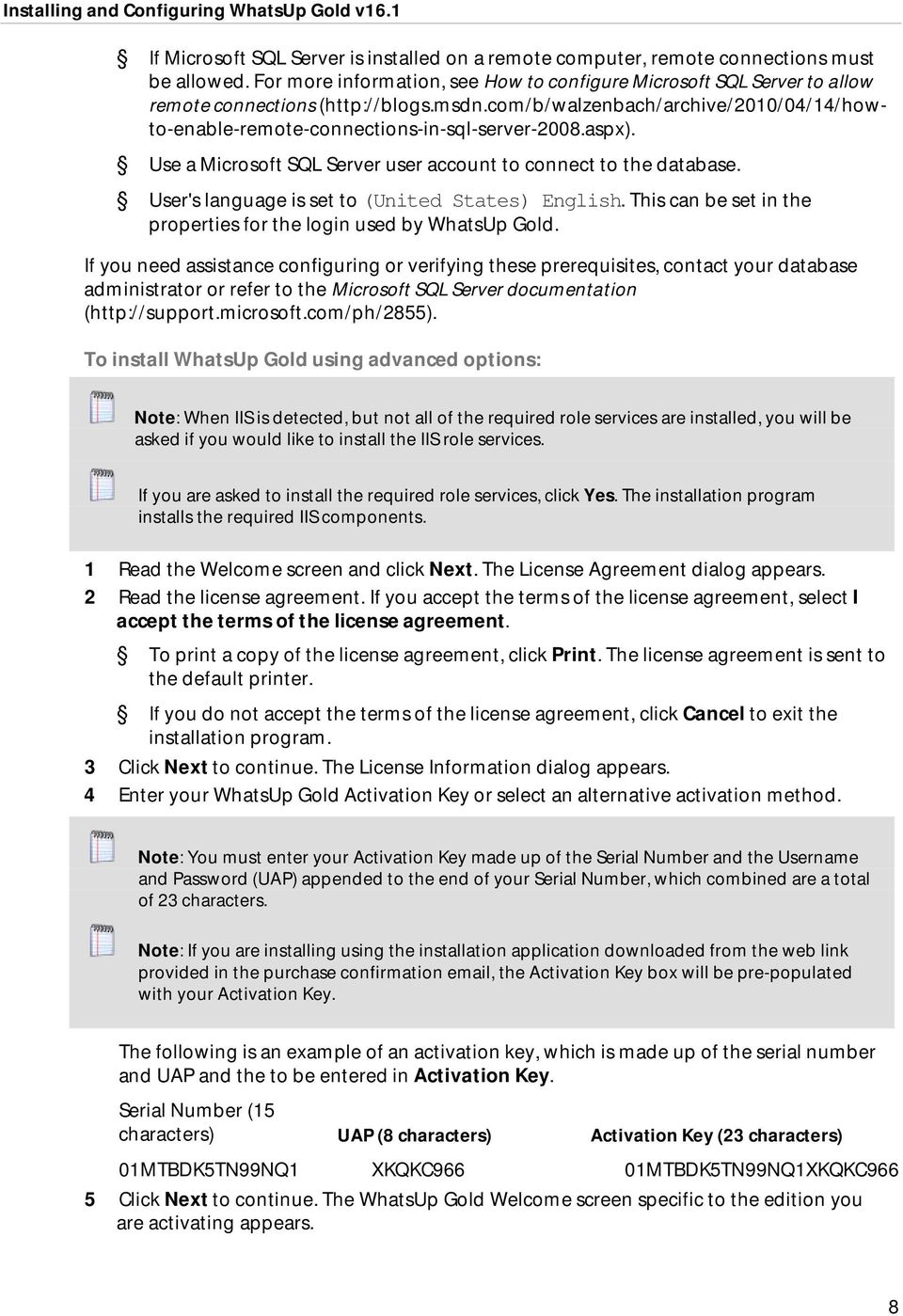
10 If Microsoft SQL Server is installed on a remote computer, remote connections must be allowed. For more information, see How to configure Microsoft SQL Server to allow remote connections ( Use a Microsoft SQL Server user account to connect to the database. User's language is set to (United States) English. This can be set in the properties for the login used by WhatsUp Gold. If you need assistance configuring or verifying these prerequisites, contact your database administrator or refer to the Microsoft SQL Server documentation ( To install WhatsUp Gold using advanced options: Note: When IIS is detected, but not all of the required role services are installed, you will be asked if you would like to install the IIS role services. If you are asked to install the required role services, click Yes. The installation program installs the required IIS components. 1 Read the Welcome screen and click Next. The License Agreement dialog appears. 2 Read the license agreement. If you accept the terms of the license agreement, select I accept the terms of the license agreement. To print a copy of the license agreement, click Print. The license agreement is sent to the default printer. If you do not accept the terms of the license agreement, click Cancel to exit the installation program. 3 Click Next to continue. The License Information dialog appears. 4 Enter your WhatsUp Gold Activation Key or select an alternative activation method. Note: You must enter your Activation Key made up of the Serial Number and the Username and Password (UAP) appended to the end of your Serial Number, which combined are a total of 23 characters. Note: If you are installing using the installation application downloaded from the web link provided in the purchase confirmation , the Activation Key box will be pre-populated with your Activation Key. The following is an example of an activation key, which is made up of the serial number and UAP and the to be entered in Activation Key. Serial Number (15 characters) UAP (8 characters) Activation Key (23 characters) 01MTBDK5TN99NQ1 XKQKC966 01MTBDK5TN99NQ1XKQKC966 5 Click Next to continue. The WhatsUp Gold Welcome screen specific to the edition you are activating appears. 8
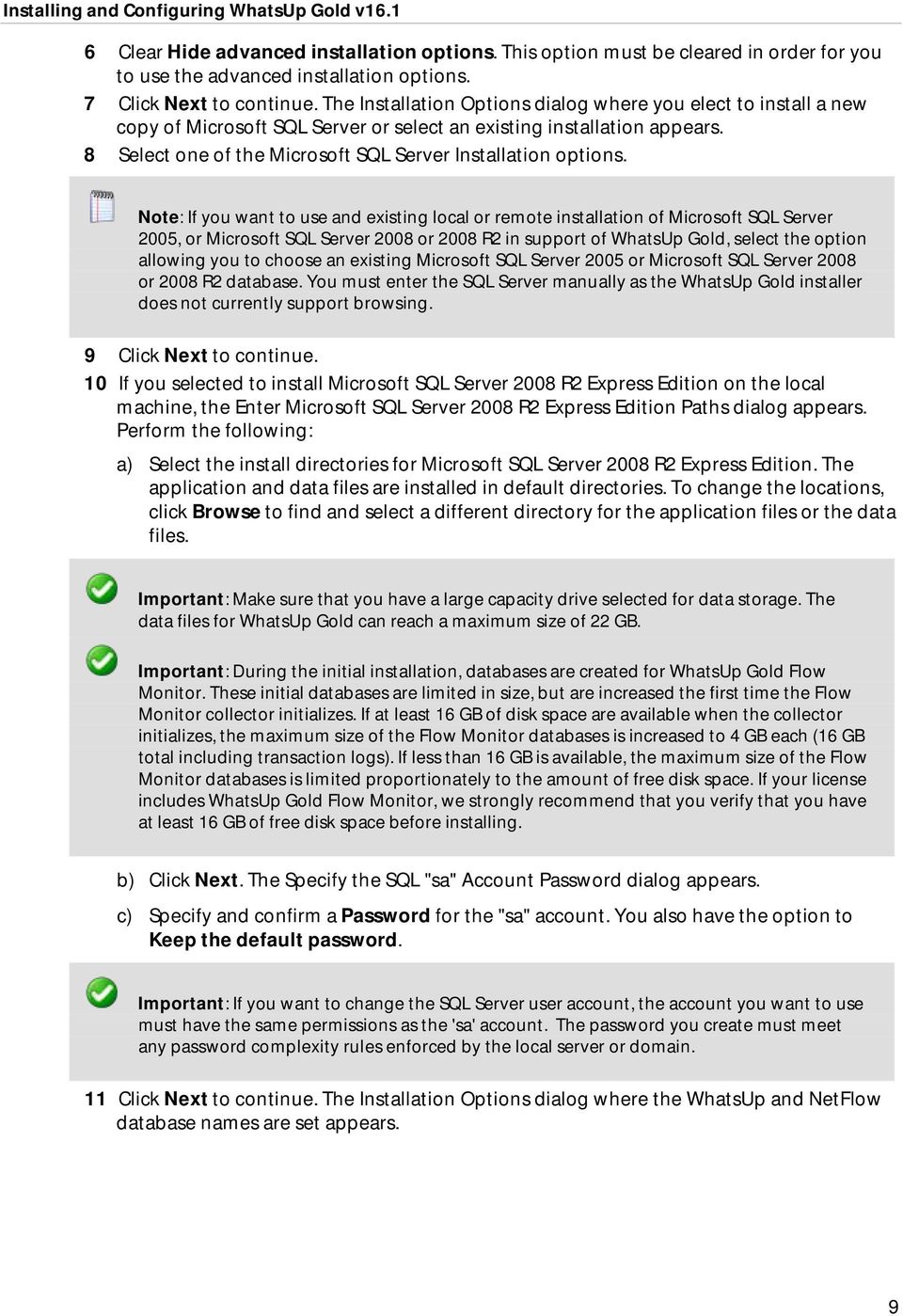
11 6 Clear Hide advanced installation options. This option must be cleared in order for you to use the advanced installation options. 7 Click Next to continue. The Installation Options dialog where you elect to install a new copy of Microsoft SQL Server or select an existing installation appears. 8 Select one of the Microsoft SQL Server Installation options. Note: If you want to use and existing local or remote installation of Microsoft SQL Server 2005, or Microsoft SQL Server 2008 or 2008 R2 in support of WhatsUp Gold, select the option allowing you to choose an existing Microsoft SQL Server 2005 or Microsoft SQL Server 2008 or 2008 R2 database. You must enter the SQL Server manually as the WhatsUp Gold installer does not currently support browsing. 9 Click Next to continue. 10 If you selected to install Microsoft SQL Server 2008 R2 Express Edition on the local machine, the Enter Microsoft SQL Server 2008 R2 Express Edition Paths dialog appears. Perform the following: a) Select the install directories for Microsoft SQL Server 2008 R2 Express Edition. The application and data files are installed in default directories. To change the locations, click Browse to find and select a different directory for the application files or the data files. Important: Make sure that you have a large capacity drive selected for data storage. The data files for WhatsUp Gold can reach a maximum size of 22 GB. Important: During the initial installation, databases are created for WhatsUp Gold Flow Monitor. These initial databases are limited in size, but are increased the first time the Flow Monitor collector initializes. If at least 16 GB of disk space are available when the collector initializes, the maximum size of the Flow Monitor databases is increased to 4 GB each (16 GB total including transaction logs). If less than 16 GB is available, the maximum size of the Flow Monitor databases is limited proportionately to the amount of free disk space. If your license includes WhatsUp Gold Flow Monitor, we strongly recommend that you verify that you have at least 16 GB of free disk space before installing. b) Click Next. The Specify the SQL "sa" Account Password dialog appears. c) Specify and confirm a Password for the "sa" account. You also have the option to Keep the default password. Important: If you want to change the SQL Server user account, the account you want to use must have the same permissions as the 'sa' account. The password you create must meet any password complexity rules enforced by the local server or domain. 11 Click Next to continue. The Installation Options dialog where the WhatsUp and NetFlow database names are set appears. 9
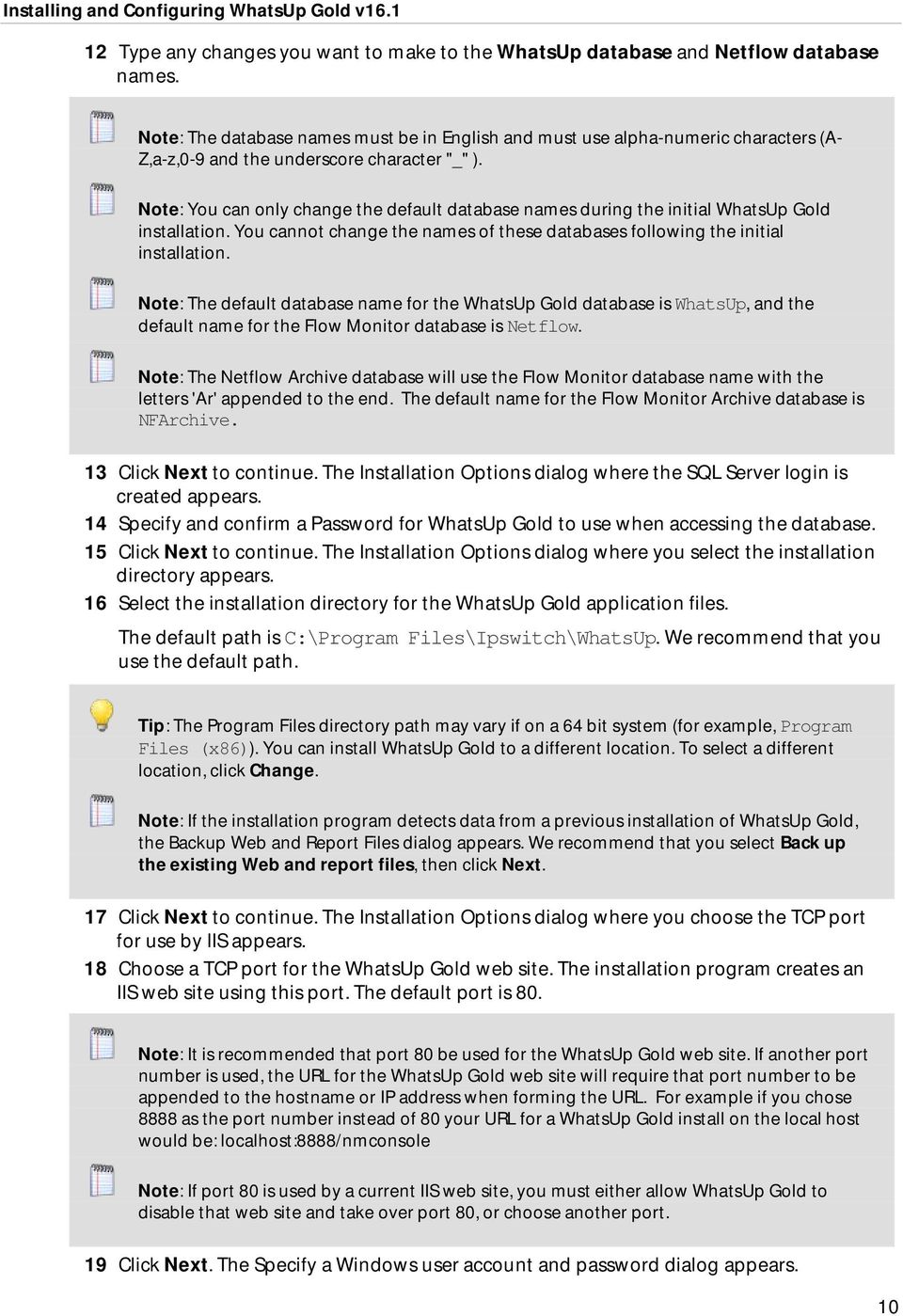
12 12 Type any changes you want to make to the WhatsUp database and Netflow database names. Note: The database names must be in English and must use alpha-numeric characters (A- Z,a-z,0-9 and the underscore character "_" ). Note: You can only change the default database names during the initial WhatsUp Gold installation. You cannot change the names of these databases following the initial installation. Note: The default database name for the WhatsUp Gold database is WhatsUp, and the default name for the Flow Monitor database is Netflow. Note: The Netflow Archive database will use the Flow Monitor database name with the letters 'Ar' appended to the end. The default name for the Flow Monitor Archive database is NFArchive. 13 Click Next to continue. The Installation Options dialog where the SQL Server login is created appears. 14 Specify and confirm a Password for WhatsUp Gold to use when accessing the database. 15 Click Next to continue. The Installation Options dialog where you select the installation directory appears. 16 Select the installation directory for the WhatsUp Gold application files. The default path is C:\Program Files\Ipswitch\WhatsUp. We recommend that you use the default path. Tip: The Program Files directory path may vary if on a 64 bit system (for example, Program Files (x86)). You can install WhatsUp Gold to a different location. To select a different location, click Change. Note: If the installation program detects data from a previous installation of WhatsUp Gold, the Backup Web and Report Files dialog appears. We recommend that you select Back up the existing Web and report files, then click Next. 17 Click Next to continue. The Installation Options dialog where you choose the TCP port for use by IIS appears. 18 Choose a TCP port for the WhatsUp Gold web site. The installation program creates an IIS web site using this port. The default port is 80. Note: It is recommended that port 80 be used for the WhatsUp Gold web site. If another port number is used, the URL for the WhatsUp Gold web site will require that port number to be appended to the hostname or IP address when forming the URL. For example if you chose 8888 as the port number instead of 80 your URL for a WhatsUp Gold install on the local host would be: localhost:8888/nmconsole Note: If port 80 is used by a current IIS web site, you must either allow WhatsUp Gold to disable that web site and take over port 80, or choose another port. 19 Click Next. The Specify a Windows user account and password dialog appears. 10
13 20 Specify a User Name for the Windows user account and enter and confirm a Password. 21 Click Next to continue. The Installation Summary dialog appears. 22 Click Proceed. The WhatsUp Gold install program begins the installation. When the installation program completes, the InstallShield Wizard Complete dialog appears. 23 Click Finish. The setup program closes. The WhatsUp Setup will appear, and the WhatsUp Gold Web interface will appear. Activating WhatsUp Gold for new or upgraded licenses If WhatsUp Gold is installed using the installation application downloaded from the Web link provided in the purchase confirmation , the program is fully functional immediately after installation. If the license is not automatically activated during the installation or if you are upgrading from a previous version, you can manually activate WhatsUp Gold. Important: Make sure that you activate WhatsUp Gold before starting the application. If the application is not activated before the polling engine is started, the engine will not start and a message telling you that the license has expired is written to the log. The application is not functional until after it has been activated. To activate WhatsUp Gold manually: Note: Before you start the manual activation process, make sure that you have your product Activation Key available to use in the activation program. 1 Click Start > Programs > Ipswitch WhatsUp Gold > Manage WhatsUp Gold License. The activation program appears. - or - If you run the WhatsUp Gold console at the end of the installation, it displays an Invalid License dialog. Click Purchase/Unlock to start the license activation process. 2 Follow the onscreen instructions to complete the product activation. Note: When the activation is complete, a confirmation page indicates the license has been activated. If the activation does not complete successfully, you may be behind a proxy or firewall that is blocking the activation request. In this case, click Offline, then follow the onscreen instructions. For more help and information about licensing, go to the WhatsUp Customer Portal ( 11

14 Tip: You can view information about your installation via the About WhatsUp Gold dialog, located on both the console (Help > About WhatsUp) and web interface (Application Settings > About WhatsUp Gold). The About WhatsUp Gold dialog displays your license type, serial number, product edition, registered user, maximum devices. From the About WhatsUp Gold dialog, you can view the plug-in licensing information. Important: WhatsUp Gold first attempts to perform online activation over the same port (80) Internet browsers use by default. If the direct connection cannot be established, WhatsUp Gold looks for proxy settings on the computer and attempts to perform online activation though defined proxy servers. Many internet service providers use proxy servers. If no connection can be established at all, or if the product still does not succeed in connecting through a proxy server, then the user must perform offline activation through one of two methods: 1. If your browser is able to connect to the Ipswitch offline activation service on the WhatsUp Gold Customer Portal ( offline activation can be completed without moving to another computer. Offline activation instructions are provided by the product and are also available on the WhatsUp Gold Customer Portal ( 2. If your browser is unable to establish a connection to the offline activation service, offline activation can be completed using another computer connected to the Internet. Using this method, you must copy and transfer the offline activation files between the computers as directed. Upgrading WhatsUp Gold WhatsUp Gold v16 supports direct upgrade installations from WhatsUp Gold v14.x or v15.x. The installation program delivers new application files and upgrades the database. The installation program automatically upgrades databases on Microsoft SQL Server Desktop Edition, Microsoft SQL Server 2008 R2 Express Edition, Microsoft SQL Server 2005, and Microsoft SQL Server 2008 or 2008 R2. Note: If you are using Microsoft SQL Server 2000, you must upgrade to Microsoft SQL Server 2005, Microsoft SQL Server 2008 or 2008 R2, or Microsoft SQL Server Cluster 2005, 2008, or 2008 R2 prior to upgrading WhatsUp Gold. Microsoft SQL Server 2000 is no longer supported by WhatsUp Gold. If the database is currently hosted on Microsoft SQL Server 2008 R2 Express Edition and you want to migrate your database to Microsoft SQL Server 2008 R2 or Microsoft SQL Server Cluster 2008 R2, complete the upgrade on the existing database, then follow the steps outlined in the WhatsUp Gold Database Migration Guide ( 12

15 To upgrade WhatsUp Gold: Note: To launch the WhatsUp Gold installation program, you must run WhatsUp Setup. For more information see Running WhatsUp Setup (on page 3). 1 On the WhatsUp Setup Install Options dialog, select the WhatsUp Gold version you want to which you want to upgrade. The status will show a message detailing the version being upgraded. Note: When IIS is detected, but not all of the required role services are installed, you will be asked if you would like to install the IIS role services. If you are asked to install the required role services, click Yes. The installation program installs the required IIS components. Note: You will need to install IIS if you are upgrading from a WhatsUp Gold installation that uses the WhatsUp Gold web server, as it is no longer supported, or if you are installing on Windows Server 2003 (you must install IIS6 for Windows Server 2003). When installing on operating systems that support IIS7, the installation program will automatically install IIS7 if it is not installed. 1 The Welcome dialog appears. It provides the WhatsUp Gold version to which the setup program will upgrade the installed WhatsUp Gold system. Read the Welcome screen and click Next. 2 Click Next. The License Agreement dialog appears. 3 Read the license agreement. If you accept the terms of the license agreement, select I accept the terms of the license agreement. To print a copy of the license agreement, click Print. The license agreement is sent to the default printer. If you do not accept the terms of the license agreement, click Cancel to exit the installation program. Click Next. The Back Up Existing Database dialog appears. 4 Since the installation program makes changes to the WhatsUp Gold database, we strongly recommend that you select Yes, back up the existing database. Click Next. The Back Up Web and Report Files dialog appears. 5 If you have modified any of the Web or Report files, select Back up the existing Web and report files. If this option is selected, the existing Web and report files are copied to a backup folder before the upgrade begins. We recommend that you select this option. Click Next. The Choose Port dialog appears. 13

16 6 Choose a TCP port for the WhatsUp Gold web site. The installation program creates an IIS web site using this port. The default port is 80. Note: It is recommended that port 80 be used for the WhatsUp Gold web site. If another port number is used, the URL for the WhatsUp Gold web site will require that port number to be appended to the hostname or IP address when forming the URL. For example if you chose 8888 as the port number instead of 80 your URL for a WhatsUp Gold install on the local host would be: localhost:8888/nmconsole Note: If port 80 is used by a current IIS web site, you must either allow WhatsUp Gold to disable that web site and take over port 80, or choose another port. Note: If you selected to use port 80 on the Choose Port dialog and port 80 is in use by an existing web site, a message will appear that asks if you want the WhatsUp Gold installation program to take over port 80 for use by the 'WhatsUp Gold web site. If you want the WhatsUp Gold installation program to take over port 80, click Yes. Otherwise, click No. The dialog closes and the Choose Port dialog appears. Click Next. The Ready to Install the Program dialog appears. 7 Click Install. The installation program upgrades the necessary components. 8 Click Finish. Updating user accounts after upgrade When upgrading from WhatsUp Gold v14.x or earlier to WhatsUp Gold v15.0 or later, user accounts that had been granted the Manage User user right may not have access to portions of the web interface, such as the Admin Panel on the Admin tab. It may appear as if these user accounts have all of the available user rights, however the user account does not actually have any of the new user rights released in the WhatsUp Gold v15.0 or later releases, and the account will need to be updated before the user rights actually assigned to the user account are displayed properly. To update a user account following upgrade: 1 Navigate to the Manage Users dialog (Admin > Manage Users) 2 Select the user account you want to update, then click Edit. The Edit User Account dialog appears. 3 Without making any changes, click OK. The user account is updated 4 Log out of the WhatsUp Gold web interface, then log back in to the WhatsUp Gold web interface. 5 Verify that the user account displays the user rights actually assigned to the account. 14

17 Repairing WhatsUp Gold Note: To launch the WhatsUp Gold installation program, you must run WhatsUp Setup. For more information see Running WhatsUp Setup (on page 3). To repair WhatsUp Gold: 1 On the WhatsUp Setup Install Options dialog, select the WhatsUp Gold version you want to which you want to repair. Continue with WhatsUp Setup using instructions provided in Running WhatsUp Setup (on page 3). The Welcome dialog of the WhatsUp installation program will appear. 2 Select Repair to reinstall all program features installed by the previous setup. Tip: Select Remove to uninstall WhatsUp Gold. Click Next. The Back Up Existing Database dialog appears. 3 Since the installation program makes changes to the WhatsUp Gold database, we strongly recommend that you select Yes, back up the existing database. Click Next. The Back Up Web and Report Files dialog appears. 4 If you have modified any of the Web or Report files, select Back up the existing Web and report files. If this option is selected, the existing Web and report files are copied to a backup folder before the upgrade begins. We recommend that you select this option. Click Next. The Setup Type dialog appears. 5 Select Repair IIS configuration to repair the current IIS configuration. Tip: Select Don't change current IIS configuration, if you do not want to change the current IIS configuration. Click Next. The Ready to Install the Program dialog appears. 6 Click Finish. 15
18 Uninstalling WhatsUp Gold To uninstall WhatsUp Gold: 1 Launch the install program from the WhatsUp Setup: a) Run the WhatsUp Setup. For more information, see Running WhatsUp Setup (on page 3). On the Install Options dialog, select the WhatsUp Gold product option, then click Next. Note: The WhatsUp Setup program detects any currently installed Ipswitch WhatsUp branded software and determines which installation options are available (New Installation, Upgrade, Repair or Un-install). This information is displayed to the right of the product name and version. b) On the License Information dialog, select Use existing installed license, then click Next. c) On the Installation Summary dialog, ensure that the currently installed version of WhatsUp Gold is displayed as the product selected for repair or uninstall, then click Next. The Welcome dialog of the WhatsUp Gold Installation program will appear. d) Select Remove to uninstall WhatsUp Gold. Tip: Select Repair to reinstall all program features installed by the previous setup. e) Click Next. - OR - 2 Launch the install program from the Programs and Features dialog: a) Navigate to the Control Panel dialog (Start > Control Panel). b) Click Uninstall a Program. The Uninstall or change a program dialog will appear and populate with all of the installed programs. c) Select the version of Ipswitch WhatsUp Gold you want to uninstall. d) Click Uninstall. The WhatsUp Gold installation program will appear. 16

19 3 Select one of the following options: If you want to remove WhatsUp Gold but maintain your configuration data, select Keep my configuration data, but uninstall Ipswitch WhatsUp Gold v16.1. The configuration data includes device definitions, custom monitors, users, recurring reports and historical poll data. If you want to remove your configuration data and uninstall Ipswitch WhatsUp Gold v16.1, select Remove my configuration data and uninstall Ipswitch WhatsUp Gold v16.1. If you selected Remove my Configuration data and uninstall Ipswitch WhatsUp Gold v16.1 and you want to remove the WhatsUp SQL Server Express Edition instance created during the install, select Also, remove the WhatsUp instance of SQL Server Express. Caution: Selecting Remove my Configuration data and uninstall Ipswitch WhatsUp Gold v16.1 will delete the WhatsUp Gold database. If you remove the configuration data, it cannot be recovered. However, if you maintain your configuration data, you can reinstall WhatsUp Gold and restore the saved configuration. If you remove the WhatsUp instance of SQL Server Express, any other database created on the instance will be lost. A confirmation screen will appear. 1 Click Yes to remove WhatsUp Gold. The Setup Status dialog appears. The setup status dialog shows the status of the uninstall. When the uninstall is complete, the Uninstall Complete dialog appears. 2 Select Yes, I want to restart my computer now. Click Finish. The Uninstall Complete dialog closes and your computer will shutdown and restart. 17

20 About device count limits WhatsUp Gold is licensed by the number of monitored devices. After the maximum number of monitored devices has been reached, you must add additional device counts to your WhatsUp Gold license. To view the number of devices your license allows and the number of devices you have currently configured: 1 From the console, select Help > About WhatsUp. The About WhatsUp dialog appears. - or - From the web interface, select Help > About WhatsUp. The About WhatsUp dialog appears. 2 Maximum Devices indicates the number of devices your license allows you to monitor. The total number of devices currently configured in WhatsUp Gold is indicated in the first paragraph. Tip: You can upgrade your license to include more devices through the WhatsUp Customer Portal ( About the Status Tray (WhatsUp Gold Status Center) and Desktop Actions applications WhatsUp Gold installs two task bar icons on your computer; the Status Tray icon, now called the WhatsUp Gold Status Center, and the Desktop Actions icon. WhatsUp Gold Status Center The WhatsUp Gold Status Center icon automatically displays popup messages about WhatsUp Gold polling activity as they are generated. To configure WhatsUp Gold Status Center preferences: 1 Click on the icon to launch a dialog that reports the message server status and the number of status messages that are available. 2 Click Advanced View to open the WhatsUp Gold Status Center configuration dialog. On the Messages tab, you can click Clear All to delete current status messages. On the Message Settings tab, you can select the desired check boxes to enable and/or filter message types. On the Poller Configuration tab, you can modify the Service Bus IP and the Service Port for the local poller. 18
21 Note: If the Service Bus IP or the Service Bus IP is changed, click Save and Restart to save changes and restart the polling controller. 3 Close the dialog to save any changes made to the Message Settings. Desktop Actions The Desktop Actions icon Speech actions is turned on. displays to indicate that the application for Sound and Text-to- Note: Desktop Actions must be running for the Sound and Text-to-Speech actions to work. To turn off the Desktop Actions icon, right-click the icon, then click Close. Note: Sound and Text-to-Speech actions are disabled when you close the Desktop Actions icon. Installing IIS on Windows Server 2003 Use the following procedure to enable the required IIS Web Extension and install IIS if it has not been installed. The required Web Extension is Active Server Pages (ASP). Note: You will need to provide your Windows Server 2003 Enterprise x64 Edition CD-ROM to copy files necessary to install IIS. To install IIS and the required Web Extensions on Windows Server 2003: 1 Install Internet Information Services (IIS). a) Navigate to the Programs and Features dialog (Start > Settings > Control Panel > Add or Remove Programs). The Add or Remove Programs dialog appears. b) From the pane on the left side of the window, select Add/Remove Windows Components. The Windows Components Wizard appears. c) Select Application Server. Note: You will need to provide your Windows Server 2003 Enterprise x64 Edition CD-ROM to copy files necessary to install IIS. d) Click Next. Setup installs IIS. 19
22 2 Allow Active Server Pages as a Web Service Extension. a) Navigate to the Internet Information Services (IIS) Manager. (Start > Settings > Control Panel > Administrative Tools > Internet Information Services (IIS) Manager). The Internet Information Services Manager appears. b) Select Web Service Extensions in the left pane. The Web Services Extensions dialog appears in the right pane. c) Select Active Server Pages, and click Allow. The Active Server Pages extension is allowed. 3 Close the IIS Manager. You can now run the WhatsUp Gold installation program. Using Windows Authentication for remote database access Prerequisites Before you begin, you must have access to the following: Remote Microsoft SQL Server server Computer on which to install WhatsUp Gold Note: The computer on which you are going to install WhatsUp Gold must be on the same domain as the Microsoft SQL Server server. Domain user account (called user1 in this example) For details regarding minimum hardware and software requirements, see System Requirements. Overview To configure a WhatsUp Gold installation to use Windows Authentication for remote Microsoft SQL Server database access: 1 Add the domain user to the Local Administrator group on the machine that will host WhatsUp Gold. 2 Add the domain user to the Local Administrator group on the machine that is hosting Microsoft SQL Server. 3 Add the domain user (e.g. user1) to the Microsoft SQL Server database using the Login dialog. 4 Assign the same permissions that are assigned to the Microsoft SQL Server 'sa' user to the Domain User (user1) in the Microsoft SQL Server database. 5 Install WhatsUp Gold with a local Microsoft SQL Server 2008 R2 Express Edition database. 6 Run the Database Configuration utility and configure the WhatsUp Gold database connection to connect to the remote database using Windows Authentication. 20
23 7 Configure the ODBC driver to connect to the remote database using Windows Authentication. 8 Configure IIS to use the Domain User for the NMConsole application pool and change the anonymous access user account to the Domain User for the WhatsUp Gold web site. 9 Configure the Ipswitch Services Control Manager to use the Domain User to run the WhatsUp Gold processes. Creating and adding the domain user to the WhatsUp Gold and Microsoft SQL Server host machines To add the domain user to the Local Administrators group on the machine that will host WhatsUp Gold: 1 Log in to Windows as a local administrator on the machine that will host WhatsUp Gold. 2 Create the domain user, or otherwise determine which domain user (e.g. user1) you want WhatsUp Gold to connect to the remote Microsoft SQL Server database. Use the following steps to create a domain user: a) Open Microsoft Management Console by clicking the Start button, typing mmc into the Search box, and then pressing ENTER. If you are prompted for an administrator password or confirmation, type the password or provide confirmation. b) In the left pane of Microsoft Management Console, click Local Users and Groups. c) Click the Users folder. d) Click Action, and then click New User. e) Type the appropriate information in the dialog box, and then click Create. f) When you are finished creating user accounts, click Close. 3 Add the selected domain user (e.g. user1) to the Local Administrator group. a) In the left pane of Microsoft Management Console, click Local Users and Groups. b) Double-click the Groups folder. c) Right-click the Local Administrator group, and then click Add to Group. d) Click Add, and then type the name of the user account. e) Click Check Names, and then click OK. 4 Restart the computer (optional, but recommended). To add the domain user to the Local Administrators group on the machine that is hosting the Microsoft SQL Server database: 1 Log in to Windows as a local administrator on the machine that is hosting the Microsoft SQL Server database. Note: The MSSQL server must be on the same domain as the WhatsUp Gold server. 2 Add the selected domain user (e.g. user1) to the Local Administrator group. a) In the left pane of Microsoft Management Console, click Local Users and Groups. b) Double-click the Groups folder. c) Right-click the Local Administrator group, and then click Add to Group. 21
24 d) Click Add, and then type the name of the user account. e) Click Check Names, and then click OK. 3 Restart the computer (optional, but recommended). Adding the domain user as a Microsoft SQL Server database user To create a SQL Server login that uses Windows Authentication (SQL Server Management Studio) 1 Launch the SQL Server Management Studio. 2 Add the domain user: a) In SQL Server Management Studio, open Object Explorer and expand the folder of the server instance in which to create the new login. b) Right-click the Security folder, select New, and then click Login. c) On the General page, enter the domain user name (e.g. user1) in Login name. d) Select Windows Authentication. e) Click OK. 3 Provide the domain user (e.g. user1) with the same permissions as the Microsoft SQL Server system administrator (sa) user. The following is a guideline that provides the most common settings for the 'sa' user. On the Server Roles page, select the sysadmin role. On the User Mapping page - Select the db_owner role membership for each database. If you do not wish the domain user to have access to a specific database, do not provide db_owner (dbo) role membership for that database. On the Status page in the Settings menu: Select Grant for Permission to connect to database engine. Select Enabled for Login. 4 Save your changes and exit SQL Server Management Studio. Installing WhatsUp Gold and configuring the connection to the remote database To configure WhatsUp Gold and connect to the remote database: 1 Log in to the machine that you using the domain user (e.g. user1) on the WhatsUp Gold server. 2 Install WhatsUp Gold. Use all of the default settings, allowing the Microsoft SQL Server 2008 R2 Express Edition database to install locally. Note: Because of service dependencies, you must allow the local database to install and run. It is possible remove this dependency later. 22
25 3 After the WhatsUp Gold installation completes, run RemoteDBConfig.exe, using Windows authentication, and point it at the remote database server. (Start > Programs > Ipswitch WhatsUp Gold v16.1 > Utilities > Database Configuration Utility) a) Locate the RemoteDBConfig.exe file in the default location: C:\Program Files (x86)\ipswitch\whatsup, or in the custom location where you installed WhatsUp Gold. b) Double-click the RemoteDBConfig.exe file. The Database Connection dialog appears. c) Check to make sure the Server Name is correct for the location of your local SQL server for WhatsUp Gold. d) Browse for the remote SQL server you want to use. e) In the Authentication section, select Windows Authentication. Note: You must be logged in as the domain user (e.g. user1). f) Click Connect. g) Click Continue to update the databases. h) Click Finish to exit. Note: If you see BCP errors, delete the WhatsUp and NetFlow databases on the remote SQL server and try running RemoteDBConfig.exe again. Set up the ODBC connection on the machine hosting WhatsUp Gold 1 Set up the ODBC connection to use Windows Authentication and the remote SQL database server. a) On 32-bit systems, click Start > Settings > Control Panel, then double-click the 32bit ODBC icon. - or - On 64-bit systems, locate the C:\Windows\SysWOW64 folder, and double-click the ODBCAD32.exe icon. b) Select the System DSN tab. c) Select NetFlow. d) Click Configure. e) Select the remote SQL server from the Server list. f) Click Next. g) Select With Windows NT authentication using the network login ID. h) Continue clicking Next, accepting the current settings. Save the changes and exit. i) Repeat steps b through g for all other sources. 23
26 Configure WhatsUp Gold to use Windows Authentication 1 Run NmConfig.exe to configure WhatsUp Gold to use Windows authentication: a) Click Start > Programs > Ipswitch WhatsUp Gold > Utilities > Database Configuration Utility. b) Select Use Windows Authentication. c) Click Connect. d) Ensure Restart the WhatsUp services after the update is selected. e) Click Save. Configure IIS on the machine hosting WhatsUp Gold For operating systems that use IIS6, you must add the domain user account to the IIS_WPG group and change the identity for the NmConsole application pool to the domain user, and configure the account used for anonymous authentication to the domain user (e.g. user1). For operating systems using IIS7, you only need to change the identity for the NmConsole application pool, and configure the account used for anonymous authentication. The following procedures provide information on performing these tasks. To add the domain user account (e.g. user1) to the IIS_WPG group on IIS6 1 On the desktop, right-click My Computer, and then click Manage. 2 In the Computer Management screen, under System Tools, expand Local Users and Groups, and then click Groups. 3 Right-click the IIS_WPG group, and then click Add to Group. 4 In the IIS_WPG Properties dialog box, click Add. 5 In the Select User, Computers, or Groups dialog box, in the Enter the object names to select box, type the account name on which you want your worker process to run (e.g. <Web domain>\user1), and then click OK. 6 In the IIS_WPG Properties dialog box, click OK. 7 Close the Computer Management screen. To change the identity for the NmConsole application pool on IIS6 1 To change the account under which an application pool runs using IIS Manager 2 In IIS Manager, expand the local computer, expand Application Pools, right-click the NmConsole application pool, and then click Properties. 3 Click the Identity tab, and click Configurable. Configurable refers to registered user names. 4 In the User name and Password boxes, type the user name and password of the domain account (e.g. user1). 5 Click OK. To change the identity for the NmConsole application pool on IIS7 1 Open IIS Manager. (Control Panel > System and Security > Administrative Tools > Internet Information Services (IIS) Manager) 2 In the Connections pane, expand the server node and click Application Pools. The Application Pools list populates. 24
27 3 On the Application Pools page, select the NmConsole application pool, and then click Advanced Settings in the Actions pane. The Advanced Settings dialog appears. 4 Select the Identity property under the Process Model heading, and then click the... browse button. The Application Pool Identity dialog appears. 5 Select Custom account and click Set. The Set Credentials dialog appears. 6 Type the domain account name in the User name box (e.g. user1) 7 Type and confirm the password for the domain account (e.g. user1) in the Password text box 8 Click OK. The Set Credentials dialog closes. 9 Click OK. The Application Pool Identity dialog closes. 10 Click OK. The Advanced Settings dialog closes. 11 Exit the IIS Manager application. To configure the account used for Anonymous authentication on IIS 6.0: 1 In IIS Manager, expand the local computer, right-click the WhatsUpGold website, and then click Properties. The WhatsUpGold Properties dialog appears. 2 Click the Directory Security tab. 3 In the Authentication and access control section, click Edit. The Authentication Methods dialog appears. 4 Select the Enable anonymous access check box. 5 Type the valid Windows user account you want to use for Anonymous access, or click Browse to locate it. 6 Click OK. The Authentication Methods dialog closes. 7 Click OK. The WhatsUpGold Properties dialog closes. 8 Exit the IIS Manager application. To configure the account used for Anonymous authentication on IIS 7.0: 1 Open IIS Manager (Control Panel > System and Security > Administrative Tools > Internet Information Services (IIS) Manager). 2 Click the Features View tab, double-click Authentication. The Authentication page appears. 3 On the Authentication page, select Anonymous Authentication. 4 In the Actions pane, click Edit. The Edit Anonymous Authentication Credentials dialog appears. 5 Select Specific user, then click Set. The Set Credentials dialog appears. 6 Type a user name and password for the identity. 7 Click OK. The Set Credentials dialog closes. Important: If you use the Network Service account, you grant anonymous users all the internal network access associated with that account. 8 Click OK to close the Edit Anonymous Authentication Credentials dialog box. 9 Exit the IIS Manager application. 25
28 Configure the Ipswitch Service Control Manager service to run under the domain user To configure services on the WhatsUp Gold server: 1 Log in to the WhatsUp Gold server as user1. 2 Click Start and type services.msc. Press Enter. The Services dialog appears. 3 Locate Ipswitch Service Control Manager in the Name column and right-click it. 4 Select Properties from the list. The Properties dialog for the service appears. 5 Click the Log On tab. 6 Select This account. 7 Type or browse for user1. Enter and confirm the password for the user1 account. 8 Click OK. Finding more information Following are information resources for WhatsUp Gold. This information may be periodically updated and available on the WhatsUp Gold web site ( Release Notes. The release notes provide an overview of changes, known issues, and bug fixes for the current release. The notes also contain instructions for installing, upgrading, and configuring WhatsUp Gold. The release notes are available at Start > Programs > Ipswitch WhatsUp Gold > Release Notes or on the WhatsUp Gold web site ( Application Help for the console and web interface. The console and web help contain dialog assistance, general configuration information, and how-tos that explain how to use the features. The Table of Contents is organized by functional area, and can be accessed from the main menu or by clicking Help in the console, or the? icon in the web interface. WhatsUp Community. WUGspace is a WhatsUp Gold IT community centered around valuable technical content for network engineers, IT managers, Architects, and System Administrators. Visit the community for additional product information and help, learn from other users, submit product ideas, and more. Visit the WhatsUp Gold forum on the WUGspace community site ( Additional WhatsUp Gold resources. For a list of current and previous guides and help available for WhatsUp Gold products, see the WhatsUp Gold web site ( Licensing Information. Licensing and support information is available on the WhatsUp Customer Portal ( The web portal provides enhanced web-based capabilities to view and manage Ipswitch product licenses. Technical Support. Use the WhatsUp Gold Support Site for a variety of WhatsUp Gold product help resources. From here you can view product documentation, search Knowledge Base articles, access the community site for help from other users, and get other Technical Support information. The Support Site is available on the WhatsUp Gold web site ( 26
29 Copyright notice Ipswitch, Inc. All rights reserved. This document, as well as the software described in it, is furnished under license and may be used or copied only in accordance with the terms of such license. Except as permitted by such license, no part of this publication may be reproduced, photocopied, stored on a retrieval system, or transmitted, in any form or by any means, electronic, mechanical, recording, or otherwise, without the expressed prior written consent of Ipswitch, Inc. The content of this document is furnished for informational use only, is subject to change without notice, and should not be construed as a commitment by Ipswitch, Inc. While every effort has been made to assure the accuracy of the information contained herein, Ipswitch, Inc. assumes no responsibility for errors or omissions. Ipswitch, Inc., also assumes no liability for damages resulting from the use of the information contained in this document. IMail, the IMail logo, WhatsUp, the WhatsUp Gold logo, WS_FTP, the WS_FTP logos, Ipswitch, and the Ipswitch logo are trademarks of Ipswitch, Inc. Portions of Telerik Extensions for ASP.NET MVC by Telerik Corporation. All rights reserved. Other products and their brands or company names, are or may be trademarks or registered trademarks, and are the property of their respective companies. This document was published on Monday, March 11, 2013 at 16:18. 27
WhatsUp Gold v16.2 Installation and Configuration Guide
 WhatsUp Gold v16.2 Installation and Configuration Guide Contents Installing and Configuring Ipswitch WhatsUp Gold v16.2 using WhatsUp Setup Installing WhatsUp Gold using WhatsUp Setup... 1 Security guidelines
WhatsUp Gold v16.3 Installation and Configuration Guide
 WhatsUp Gold v16.3 Installation and Configuration Guide Contents Installing and Configuring WhatsUp Gold using WhatsUp Setup Installation Overview... 1 Overview... 1 Security considerations... 2 Standard
WhatsUp Gold v16.2 MSP Edition Deployment Guide This guide provides information about installing and configuring WhatsUp Gold MSP Edition to central
 WhatsUp Gold v16.2 MSP Edition Deployment Guide This guide provides information about installing and configuring WhatsUp Gold MSP Edition to central and remote sites. Contents Table of Contents Using WhatsUp
Installing and Configuring WhatsUp Gold
 Installing and Configuring WhatsUp Gold This guide provides information about installing and configuring WhatsUp Gold v14.2, including instructions on how to run the WhatsUp web interface through an Internet
WhatsUp Gold v16.2 Database Migration and Management Guide
 WhatsUp Gold v16.2 Database Migration and Management Guide Contents CHAPTER 1 How to use this guide CHAPTER 2 Migrating the WhatsUp Gold Microsoft SQL Server 2008 R2 Express Edition database to Microsoft
WhatsUp Gold v16.1 Database Migration and Management Guide Learn how to migrate a WhatsUp Gold database from Microsoft SQL Server 2008 R2 Express
 WhatsUp Gold v16.1 Database Migration and Management Guide Learn how to migrate a WhatsUp Gold database from Microsoft SQL Server 2008 R2 Express Edition to Microsoft SQL Server 2005, 2008, or 2008 R2
WhatsUp Gold v16.0 Database Migration and Management Guide Learn how to migrate a WhatsUp Gold database from Microsoft SQL Server 2005 Express
 WhatsUp Gold v16.0 Database Migration and Management Guide Learn how to migrate a WhatsUp Gold database from Microsoft SQL Server 2005 Express Edition or SQL Server 2008 Express R2 to Microsoft SQL Server
Database Migration and Management Guide v15.0
 Database Migration and Management Guide v15.0 Learn how to migrate a WhatsUp Gold database from Microsoft SQL Server 2005 Express Edition to Microsoft SQL Server 2005 or 2008 Enterprise, Standard, or Workgroup
WhatsUpGold. v12.3. User Guide
 WhatsUpGold v12.3 User Guide CHAPTER 1 WhatsUp Gold Overview Welcome to Ipswitch WhatsUp Gold v12... 1 WhatsUp Gold editions... 2 New in v12.3... 4 Finding more information and updates... 5 Sending feedback...
Using Additional Pollers with WhatsUp Gold v16.0 Learn how to install, configure, and manage pollers for load balancing on your WhatsUp Gold system
 Using Additional Pollers with WhatsUp Gold v16.0 Learn how to install, configure, and manage pollers for load balancing on your WhatsUp Gold system Contents CHAPTER 1 Polling Overview WhatsUp Gold Polling
Spector 360 Deployment Guide. Version 7
 Spector 360 Deployment Guide Version 7 December 11, 2009 Table of Contents Deployment Guide...1 Spector 360 DeploymentGuide... 1 Installing Spector 360... 3 Installing Spector 360 Servers (Details)...
NSi Mobile Installation Guide. Version 6.2
 NSi Mobile Installation Guide Version 6.2 Revision History Version Date 1.0 October 2, 2012 2.0 September 18, 2013 2 CONTENTS TABLE OF CONTENTS PREFACE... 5 Purpose of this Document... 5 Version Compatibility...
Reconfiguring VMware vsphere Update Manager
 Reconfiguring VMware vsphere Update Manager vsphere Update Manager 6.0 This document supports the version of each product listed and supports all subsequent versions until the document is replaced by a
QUANTIFY INSTALLATION GUIDE
 QUANTIFY INSTALLATION GUIDE Thank you for putting your trust in Avontus! This guide reviews the process of installing Quantify software. For Quantify system requirement information, please refer to the
Installation Instruction STATISTICA Enterprise Server
 Installation Instruction STATISTICA Enterprise Server Notes: ❶ The installation of STATISTICA Enterprise Server entails two parts: a) a server installation, and b) workstation installations on each of
Juris Installation / Upgrade Guide
 Juris Installation / Upgrade Guide Version 2.7 2015 LexisNexis. All rights reserved. Copyright and Trademark LexisNexis, Lexis, and the Knowledge Burst logo are registered trademarks of Reed Elsevier Properties
Setting Up a Unisphere Management Station for the VNX Series P/N 300-011-796 Revision A01 January 5, 2010
 Setting Up a Unisphere Management Station for the VNX Series P/N 300-011-796 Revision A01 January 5, 2010 This document describes the different types of Unisphere management stations and tells how to install
Desktop Surveillance Help
 Desktop Surveillance Help Table of Contents About... 9 What s New... 10 System Requirements... 11 Updating from Desktop Surveillance 2.6 to Desktop Surveillance 3.2... 13 Program Structure... 14 Getting
Operating System Installation Guide
 Operating System Installation Guide This guide provides instructions on the following: Installing the Windows Server 2008 operating systems on page 1 Installing the Windows Small Business Server 2011 operating
Installation Instruction STATISTICA Enterprise Small Business
 Installation Instruction STATISTICA Enterprise Small Business Notes: ❶ The installation of STATISTICA Enterprise Small Business entails two parts: a) a server installation, and b) workstation installations
STATISTICA VERSION 9 STATISTICA ENTERPRISE INSTALLATION INSTRUCTIONS FOR USE WITH TERMINAL SERVER
 Notes: STATISTICA VERSION 9 STATISTICA ENTERPRISE INSTALLATION INSTRUCTIONS FOR USE WITH TERMINAL SERVER 1. These instructions focus on installation on Windows Terminal Server (WTS), but are applicable
NovaBACKUP xsp Version 15.0 Upgrade Guide
 NovaBACKUP xsp Version 15.0 Upgrade Guide NovaStor / November 2013 2013 NovaStor, all rights reserved. All trademarks are the property of their respective owners. Features and specifications are subject
Migrating TimeForce To A New Server
 Rev. 4/28/14 Migrating TimeForce To A New Server Table of Contents 1. Installation Prerequisites... 2 Required... 2 Recommended... 3 2. Update to a Migration Compatible Version... 3 Determine the Database
STATISTICA VERSION 12 STATISTICA ENTERPRISE SMALL BUSINESS INSTALLATION INSTRUCTIONS
 STATISTICA VERSION 12 STATISTICA ENTERPRISE SMALL BUSINESS INSTALLATION INSTRUCTIONS Notes 1. The installation of STATISTICA Enterprise Small Business entails two parts: a) a server installation, and b)
How To Create An Easybelle History Database On A Microsoft Powerbook 2.5.2 (Windows)
 Introduction EASYLABEL 6 has several new features for saving the history of label formats. This history can include information about when label formats were edited and printed. In order to save this history,
WhatsUp Log Management Installation and Migration Guide, including Getting Started Information. (Applies to v10.1.5 and later)
 WhatsUp Log Management Installation and Migration Guide, including Getting Started Information (Applies to v10.1.5 and later) C o n t e n t s Getting Started with WhatsUp Log Management Before You Begin...
Portions of this product were created using LEADTOOLS 1991-2009 LEAD Technologies, Inc. ALL RIGHTS RESERVED.
 Installation Guide Lenel OnGuard 2009 Installation Guide, product version 6.3. This guide is item number DOC-110, revision 1.038, May 2009 Copyright 1992-2009 Lenel Systems International, Inc. Information
Moving the TRITON Reporting Databases
 Moving the TRITON Reporting Databases Topic 50530 Web, Data, and Email Security Versions 7.7.x, 7.8.x Updated 06-Nov-2013 If you need to move your Microsoft SQL Server database to a new location (directory,
safend a w a v e s y s t e m s c o m p a n y
 safend a w a v e s y s t e m s c o m p a n y SAFEND Data Protection Suite Installation Guide Version 3.4.5 Important Notice This guide is delivered subject to the following conditions and restrictions:
User Manual. Onsight Management Suite Version 5.1. Another Innovation by Librestream
 User Manual Onsight Management Suite Version 5.1 Another Innovation by Librestream Doc #: 400075-06 May 2012 Information in this document is subject to change without notice. Reproduction in any manner
Sophos for Microsoft SharePoint startup guide
 Sophos for Microsoft SharePoint startup guide Product version: 2.0 Document date: March 2011 Contents 1 About this guide...3 2 About Sophos for Microsoft SharePoint...3 3 System requirements...3 4 Planning
Crystal Reports Installation Guide
 Crystal Reports Installation Guide Version XI Infor Global Solutions, Inc. Copyright 2006 Infor IP Holdings C.V. and/or its affiliates or licensors. All rights reserved. The Infor word and design marks
Reconfiguring VMware vsphere Update Manager
 Reconfiguring VMware vsphere Update Manager vsphere Update Manager 5.5 This document supports the version of each product listed and supports all subsequent versions until the document is replaced by a
3 Setting up Databases on a Microsoft SQL 7.0 Server
 3 Setting up Databases on a Microsoft SQL 7.0 Server Overview of the Installation Process To set up GoldMine properly, you must follow a sequence of steps to install GoldMine s program files, and the other
Inmagic ODBC Driver 8.00 Installation and Upgrade Notes
 Inmagic ODBC Driver 8.00 Installation and Upgrade Notes Thank you for purchasing the Inmagic ODBC Driver for DB/Text. This document is for new and upgrade customers. Use the Inmagic ODBC Driver to develop
Symantec Backup Exec 12.5 for Windows Servers. Quick Installation Guide
 Symantec Backup Exec 12.5 for Windows Servers Quick Installation Guide 13897290 Installing Backup Exec This document includes the following topics: System requirements Before you install About the Backup
GUARD1 PLUS SE Administrator's Manual
 GUARD1 PLUS SE Administrator's Manual Version 4.4 30700 Bainbridge Road Solon, Ohio 44139 Phone 216-595-0890 Fax 216-595-0991 [email protected] www.guard1.com i 2010 TimeKeeping Systems, Inc. GUARD1 PLUS
Installing the Microsoft Network Driver Interface
 Installing the Microsoft Network Driver Interface Overview This guide explains how to install the PictureTel Live200 Microsoft Network Driver Interface (NDIS) software you have downloaded from PictureTel's
Table of Contents. CHAPTER 1 About This Guide... 9. CHAPTER 2 Introduction... 11. CHAPTER 3 Database Backup and Restoration... 15
 Table of Contents CHAPTER 1 About This Guide......................... 9 The Installation Guides....................................... 10 CHAPTER 2 Introduction............................ 11 Required
Dell Statistica 13.0. Statistica Enterprise Installation Instructions
 Dell Statistica 13.0 2015 Dell Inc. ALL RIGHTS RESERVED. This guide contains proprietary information protected by copyright. The software described in this guide is furnished under a software license or
STATISTICA VERSION 10 STATISTICA ENTERPRISE SERVER INSTALLATION INSTRUCTIONS
 Notes: STATISTICA VERSION 10 STATISTICA ENTERPRISE SERVER INSTALLATION INSTRUCTIONS 1. The installation of the STATISTICA Enterprise Server entails two parts: a) a server installation, and b) workstation
Reconfiguration of VMware vcenter Update Manager
 Reconfiguration of VMware vcenter Update Manager Update 1 vcenter Update Manager 4.1 This document supports the version of each product listed and supports all subsequent versions until the document is
Upgrading from MSDE to SQL Server 2005 Express Edition with Advanced Services SP2
 Upgrading from MSDE to SQL Server 2005 Express Edition with Advanced Services SP2 Installation and Configuration Introduction This document will walk you step by step in removing MSDE and the setup and
Ekran System Help File
 Ekran System Help File Table of Contents About... 9 What s New... 10 System Requirements... 11 Updating Ekran to version 4.1... 13 Program Structure... 14 Getting Started... 15 Deployment Process... 15
Introduction and Overview
 Inmagic Content Server Workgroup 10.00 Microsoft SQL Server 2005 Express Edition Installation Notes Introduction and Overview These installation notes are intended for the following scenarios: 1) New installations
Metalogix SharePoint Backup. Advanced Installation Guide. Publication Date: August 24, 2015
 Metalogix SharePoint Backup Publication Date: August 24, 2015 All Rights Reserved. This software is protected by copyright law and international treaties. Unauthorized reproduction or distribution of this
Maintaining the Content Server
 CHAPTER 7 This chapter includes the following Content Server maintenance procedures: Backing Up the Content Server, page 7-1 Restoring Files, page 7-3 Upgrading the Content Server, page 7-5 Shutting Down
MGC WebCommander Web Server Manager
 MGC WebCommander Web Server Manager Installation and Configuration Guide Version 8.0 Copyright 2006 Polycom, Inc. All Rights Reserved Catalog No. DOC2138B Version 8.0 Proprietary and Confidential The information
SMART Vantage. Installation guide
 SMART Vantage Installation guide Product registration If you register your SMART product, we ll notify you of new features and software upgrades. Register online at smarttech.com/registration. Keep the
Migrating MSDE to Microsoft SQL 2008 R2 Express
 How To Updated: 11/11/2011 2011 Shelby Systems, Inc. All Rights Reserved Other brand and product names are trademarks or registered trademarks of the respective holders. If you are still on MSDE 2000,
MIGRATING TO AVALANCHE 5.0 WITH MS SQL SERVER
 MIGRATING TO AVALANCHE 5.0 WITH MS SQL SERVER This document provides instructions for migrating to Avalanche 5.0 from an installation of Avalanche MC 4.6 or newer using MS SQL Server 2005. You can continue
Installation & Configuration Guide
 Installation & Configuration Guide Bluebeam Studio Enterprise ( Software ) 2014 Bluebeam Software, Inc. All Rights Reserved. Patents Pending in the U.S. and/or other countries. Bluebeam and Revu are trademarks
Magaya Software Installation Guide
 Magaya Software Installation Guide MAGAYA SOFTWARE INSTALLATION GUIDE INTRODUCTION Introduction This installation guide explains the system requirements for installing any Magaya software, the steps to
Sage 200 Web Time & Expenses Guide
 Sage 200 Web Time & Expenses Guide Sage (UK) Limited Copyright Statement Sage (UK) Limited, 2006. All rights reserved If this documentation includes advice or information relating to any matter other than
Mobility Services Platform 3.1.1 Software Installation Guide
 Mobility Services Platform 3.1.1 Software Installation Guide Mobility Services Platform 3.1.1 Software Installation Guide 72E-100159-04 Revision D January 2008 2007 by Motorola, Inc. All rights reserved.
Bosch ReadykeyPRO Unlimited Installation Guide, product version 6.5. This guide is item number DOC-110-2-029, revision 2.029, May 2012.
 Bosch ReadykeyPRO Unlimited Installation Guide, product version 6.5. This guide is item number DOC-110-2-029, revision 2.029, May 2012. Copyright 1995-2012 Lenel Systems International, Inc. Information
Installing SQL Express. For CribMaster 9.2 and Later
 Installing SQL Express For CribMaster 9.2 and Later CRIBMASTER USER GUIDE Installing SQL Express Document ID: CM9-031-03012012 Copyright CribMaster. 1996, 1997, 1998, 1999, 2000, 2001, 2002, 2003, 2004,
IIS, FTP Server and Windows
 IIS, FTP Server and Windows The Objective: To setup, configure and test FTP server. Requirement: Any version of the Windows 2000 Server. FTP Windows s component. Internet Information Services, IIS. Steps:
VERITAS Backup Exec TM 10.0 for Windows Servers
 VERITAS Backup Exec TM 10.0 for Windows Servers Quick Installation Guide N134418 July 2004 Disclaimer The information contained in this publication is subject to change without notice. VERITAS Software
ilaw Installation Procedure
 ilaw Installation Procedure This guide will provide a reference for a full installation of ilaw Case Management Software. Contents ilaw Overview How ilaw works Installing ilaw Server on a PC Installing
How To Upgrade A Websense Log Server On A Windows 7.6 On A Powerbook (Windows) On A Thumbdrive Or Ipad (Windows 7.5) On An Ubuntu 7.3.2 (Windows 8) Or Windows
 Websense v7.6 Install or Upgrade Checklist Greetings from Websense Technical Support. Most Websense upgrades complete successfully, and from my years of troubleshooting, I have learned a number of steps
4.0 SP1 (4.0.1.0) November 2014 702P03296. Xerox FreeFlow Core Installation Guide: Windows Server 2008 R2
 4.0 SP1 (4.0.1.0) November 2014 702P03296 Installation Guide: Windows Server 2008 R2 2014 Xerox Corporation. All rights reserved. Xerox, Xerox and Design, FreeFlow, and VIPP are trademarks of Xerox Corporation
Installation Guide for Pulse on Windows Server 2012
 MadCap Software Installation Guide for Pulse on Windows Server 2012 Pulse Copyright 2014 MadCap Software. All rights reserved. Information in this document is subject to change without notice. The software
Microsoft Corporation. Project Server 2010 Installation Guide
 Microsoft Corporation Project Server 2010 Installation Guide Office Asia Team 11/4/2010 Table of Contents 1. Prepare the Server... 2 1.1 Install KB979917 on Windows Server... 2 1.2 Creating users and groups
Legal Notes. Regarding Trademarks. 2013 KYOCERA Document Solutions Inc.
 Legal Notes Unauthorized reproduction of all or part of this guide is prohibited. The information in this guide is subject to change without notice. We cannot be held liable for any problems arising from
Reporting for Contact Center Setup and Operations Guide. BCM Contact Center
 Reporting for Contact Center Setup and Operations Guide BCM Contact Center Document Number: NN40040-302 Document Status: Standard Document Version: 04.00 Part Code: N0060637 Date: June 2006 Copyright 2005
Upgrade Guide. McAfee Vulnerability Manager Microsoft Windows Server 2008 R2
 Upgrade Guide McAfee Vulnerability Manager Microsoft Windows Server 2008 R2 COPYRIGHT Copyright 2012 McAfee, Inc. Do not copy without permission. TRADEMARKS McAfee, the McAfee logo, McAfee Active Protection,
File Share Navigator Online 1
 File Share Navigator Online 1 User Guide Service Pack 3 Issued November 2015 Table of Contents What s New in this Guide... 4 About File Share Navigator Online... 5 Components of File Share Navigator Online...
ProSystem fx Document
 ProSystem fx Document Server Upgrade from Version 3.7 to Version 3.8 1 This Document will guide you through the upgrade of Document Version 3.7 to Version 3.8. Do not attempt to upgrade from any other
Installation Guide for Pulse on Windows Server 2008R2
 MadCap Software Installation Guide for Pulse on Windows Server 2008R2 Pulse Copyright 2014 MadCap Software. All rights reserved. Information in this document is subject to change without notice. The software
Sharp Remote Device Manager (SRDM) Server Software Setup Guide
 Sharp Remote Device Manager (SRDM) Server Software Setup Guide This Guide explains how to install the software which is required in order to use Sharp Remote Device Manager (SRDM). SRDM is a web-based
NETWRIX WINDOWS SERVER CHANGE REPORTER
 NETWRIX WINDOWS SERVER CHANGE REPORTER INSTALLATION AND CONFIGURATION GUIDE Product Version: 4.0 March 2013. Legal Notice The information in this publication is furnished for information use only, and
Installation Guide v3.0
 Installation Guide v3.0 Shepherd TimeClock 4465 W. Gandy Blvd. Suite 800 Tampa, FL 33611 Phone: 813-882-8292 Fax: 813-839-7829 http://www.shepherdtimeclock.com The information contained in this document
NeuralStar Installation Guide
 NeuralStar Installation Guide Version 9.8 Release 2 October 2011 1st Edition Preface Software License Agreement Software is defined as the Kratos Technology & Training Solutions, Inc. computer programs
ManageEngine IT360. Professional Edition Installation Guide. [[email protected]]
![ManageEngine IT360. Professional Edition Installation Guide. [ims-eval@manageengine.com]](/thumbs/20/454087.jpg "ManageEngine IT360. Professional Edition Installation Guide. [ims-eval@manageengine.com]") ManageEngine IT360 (Division of ZOHO Corporation) ) www.manageengine.com/it360 ManageEngine IT360 Professional Edition Installation Guide [[email protected]] [This document is a guideline for installing
ManageEngine IT360 (Division of ZOHO Corporation) ) www.manageengine.com/it360 ManageEngine IT360 Professional Edition Installation Guide [[email protected]] [This document is a guideline for installing
Synchronizer Installation
 Synchronizer Installation Synchronizer Installation Synchronizer Installation This document provides instructions for installing Synchronizer. Synchronizer performs all the administrative tasks for XenClient
Installing RMFT on an MS Cluster
 Installing RMFT on an MS Cluster RMFT Software Version 2.4.3 Supported on: Windows Server 2003 Enterprise Edition Windows Server 2000 Advanced Windows Server 2003 Datacenter Edition Windows Server 2008
Sage Intelligence Financial Reporting for Sage ERP X3 Version 6.5 Installation Guide
 Sage Intelligence Financial Reporting for Sage ERP X3 Version 6.5 Installation Guide Table of Contents TABLE OF CONTENTS... 3 1.0 INTRODUCTION... 1 1.1 HOW TO USE THIS GUIDE... 1 1.2 TOPIC SUMMARY...
VERITAS Backup Exec 9.1 for Windows Servers Quick Installation Guide
 VERITAS Backup Exec 9.1 for Windows Servers Quick Installation Guide N109548 Disclaimer The information contained in this publication is subject to change without notice. VERITAS Software Corporation makes
DOCSVAULT Document Management System for everyone
 Installation Guide DOCSVAULT Document Management System for everyone 9 v Desktop and Web Client v On Premises Solution v Intelligent Data Capture v Email Automation v Workflow & Record Retention Installing
Setup and configuration for Intelicode. SQL Server Express
 Setup and configuration for Intelicode SQL Server Express Due to overwhelming demand and the increased load on support, we are providing a complete SQL Server installation walkthrough document. SQL Server
Pearl Echo Installation Checklist
 Pearl Echo Installation Checklist Use this checklist to enter critical installation and setup information that will be required to install Pearl Echo in your network. For detailed deployment instructions
Symantec Backup Exec TM 11d for Windows Servers. Quick Installation Guide
 Symantec Backup Exec TM 11d for Windows Servers Quick Installation Guide September 2006 Symantec Legal Notice Copyright 2006 Symantec Corporation. All rights reserved. Symantec, Backup Exec, and the Symantec
Portions of this product were created using LEADTOOLS 1991-2010 LEAD Technologies, Inc. ALL RIGHTS RESERVED.
 Installation Guide Lenel OnGuard 2010 Installation Guide, product version 6.4. This guide is item number DOC-110, revision 1.045, May 2010 Copyright 1995-2010 Lenel Systems International, Inc. Information
Password Reset Server Installation Guide Windows 8 / 8.1 Windows Server 2012 / R2
 Password Reset Server Installation Guide Windows 8 / 8.1 Windows Server 2012 / R2 Last revised: November 12, 2014 Table of Contents Table of Contents... 2 I. Introduction... 4 A. ASP.NET Website... 4 B.
Introduction 1-1 Installing FAS 500 Asset Accounting the First Time 2-1 Installing FAS 500 Asset Accounting: Upgrading from a Prior Version 3-1
 Contents 1. Introduction 1-1 Supported Operating Environments................ 1-1 System Requirements............................. 1-2 Security Requirements........................ 1-3 Installing Server
Issue Tracking Anywhere Installation Guide
 TM Issue Tracking Anywhere Installation Guide The leading developer of version control and issue tracking software Table of Contents Introduction...3 Installation Guide...3 Installation Prerequisites...3
Point of Sale 2015 Enterprise. Installation Guide
 Point of Sale 2015 Enterprise Installation Guide Contents About this guide 3 System Requirements - Microsoft SQL Server 2008 R2 Express 3 System Requirements - POS Enterprise 2015 (Administrator) 3 System
IceWarp Server Windows Installation Guide
 IceWarp Unified Communications IceWarp Server Windows Installation Guide Version 11.3 Published on 2/6/2015 Contents IceWarp Server Windows... 4 Pre-requisites... 5 Launch Installer Wizard... 6 Select
Sage 300 ERP 2014. Sage CRM 7.2 Integration Guide
 Sage 300 ERP 2014 Sage CRM 7.2 Integration Guide This is a publication of Sage Software, Inc. Version 2014 Copyright 2013. Sage Software, Inc. All rights reserved. Sage, the Sage logos, and the Sage product
User Guide. CTERA Agent. August 2011 Version 3.0
 User Guide CTERA Agent August 2011 Version 3.0 Copyright 2009-2011 CTERA Networks Ltd. All rights reserved. No part of this document may be reproduced in any form or by any means without written permission
INSTALLATION GUIDE. Snow License Manager Version 7.0 Release date 2014-03-31 Document date 2015-04-01
 INSTALLATION GUIDE Product Snow License Manager Version 7.0 Release date 2014-03-31 Document date 2015-04-01 CONTENT ABOUT THIS DOCUMENT... 3 PREREQUISITES... 3 INSTALLATION... 5 UNINSTALL A PREVIOUS VERSION...
Sage ERP Accpac 6.0A. Installation and System Administrator's Guide
 Sage ERP Accpac 6.0A Installation and System Administrator's Guide 2010 Sage Software, Inc. All rights reserved. Sage, the Sage logos, and all Sage ERP Accpac product and service names mentioned herein
SolarWinds Migrating SolarWinds NPM Technical Reference
 SolarWinds Migrating SolarWinds NPM Technical Reference Copyright 1995-2015 SolarWinds Worldwide, LLC. All rights reserved worldwide. No part of this document may be reproduced by any means nor modified,
TSM for Windows Installation Instructions: Download the latest TSM Client Using the following link:
 TSM for Windows Installation Instructions: Download the latest TSM Client Using the following link: ftp://ftp.software.ibm.com/storage/tivoli-storagemanagement/maintenance/client/v6r2/windows/x32/v623/
LifeSize Control Installation Guide
 LifeSize Control Installation Guide April 2005 Part Number 132-00001-001, Version 1.0 Copyright Notice Copyright 2005 LifeSize Communications. All rights reserved. LifeSize Communications has made every
SQL 2014 Configuration Guide
 SQL 2014 Configuration Guide 2015 ImproMed, LLC. All rights reserved. No part of this publication may be reproduced, transmitted, transcribed, stored in a retrieval system, or translated into any language
Upgrade Guide BES12. Version 12.1
 Upgrade Guide BES12 Version 12.1 Published: 2015-02-25 SWD-20150413111718083 Contents Supported upgrade environments...4 Upgrading from BES12 version 12.0 to BES12 version 12.1...5 Preupgrade tasks...5
Installation and Configuration of VPN Software
 Installation and Configuration of VPN Software for Remote Spat Systems These instructions help you install AT&T Global Services and VPN Client (Extranet Access) software on your Windows computer for accessing
4cast Client Specification and Installation
 4cast Client Specification and Installation Version 2015.00 10 November 2014 Innovative Solutions for Education Management www.drakelane.co.uk System requirements The client requires Administrative rights