
DP-313 Wireless Print Server
|
|
|
- Myrtle Armstrong
- 10 years ago
- Views:
Transcription
1 DP-313 Wireless Print Server Quick Installation Guide TCP/IP Printing (LPR for Windows 95/98/Me/2000) Rev. 03 (August, 2001)

2

3 Copyright Statement Trademarks Copyright 1997 No part of this publication may be reproduced in any form or by any means or used to make any derivative such as translation, transformation, or adaptation without permission from the authors, as stipulated by the United States Copyright Act of All trademarks are the property of their respective owners.

4

5 Setting up Windows 95/98/Me TCP/IP Printing The Print Server can provide print services to TCP/IP networks using the LPR/LPD network printing protocol. Most UNIX systems are capable of supporting LPD, as is Windows NT/2000. The LPR for TCP/IP Printing client gives Windows 95/98/Me workstations the ability to print using the LPR/LPD printing protocol. Though it is possible to print to Print Servers from Windows 95/98/Me, LPR printing is primarily used in networks with UNIX based implementation or if the user wants to print from workstations that are only accessible through IP routing. Installing the LPR for TCP/IP Printing Client Before your Windows 95/98/Me workstation can print using the LPR protocol, you will need to install the client program, as follows: 1. Make sure that you have installed the TCP/IP protocol, and have properly configured the Windows 95/98/Me TCP/IP settings. You can install the protocol from the Network control panel if necessary. 2. From the Start menu, choose the Settings submenu, then the Control Panel item within it. Windows will display the Control Panel folder. 3. Double-click on the Network icon in the Control Panel folder.
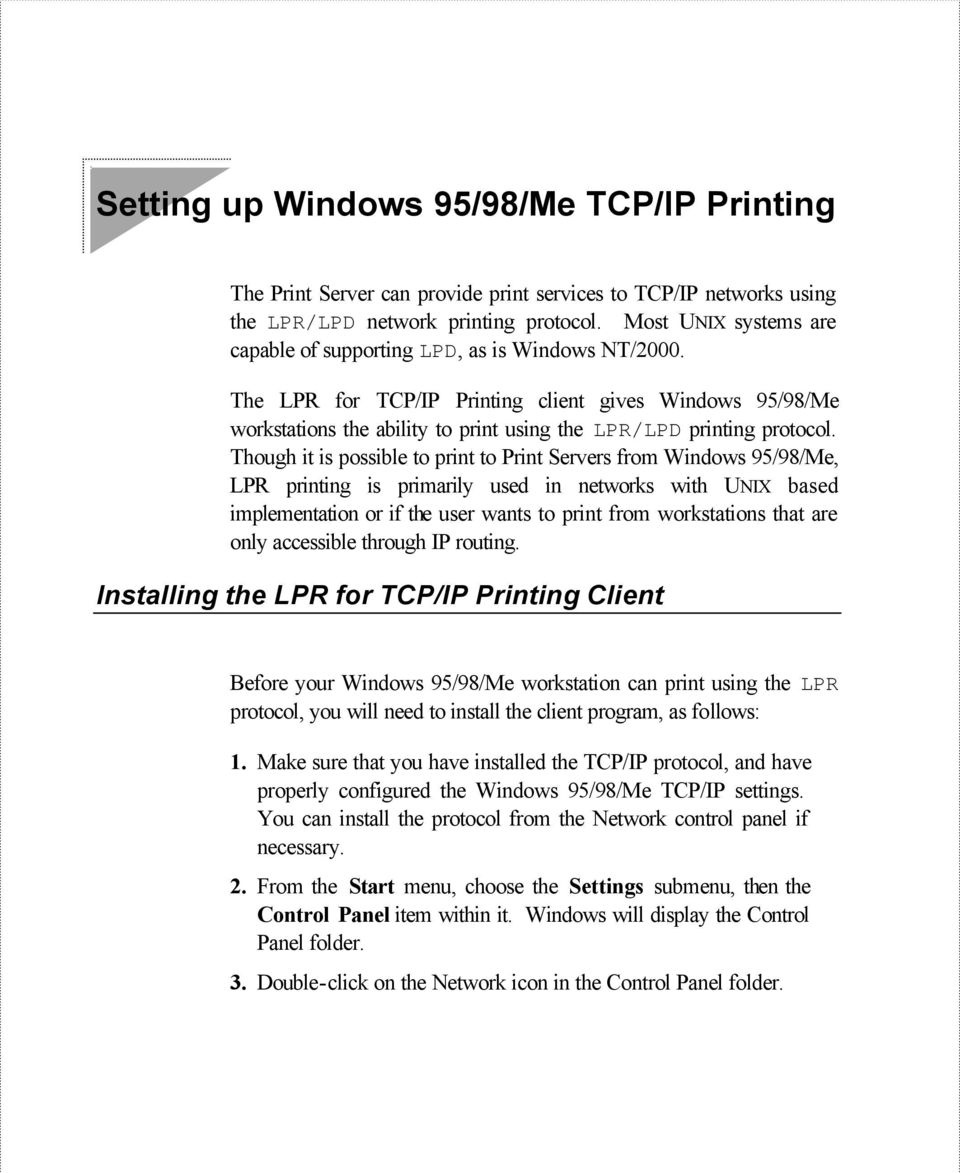
6 4. Click on the Add... button on the Configuration tab. 5. Windows will ask for the type of component to add. Select Client and click Add... to continue. 6. When Windows asks you to select a network client, click the Have Disk... button. 7. Insert the Print Server installation CD in your computer s CD- ROM, enter the proper pathname (for example, D:\ lpr), and click OK. 8. Select the LPR for TCP/IP Printing client and click OK. 9. Windows will copy the necessary files, and return to the Network dialog. Click OK to let Windows restart. 2 Setting up Windows 95/98/Me TCP/IP Printing
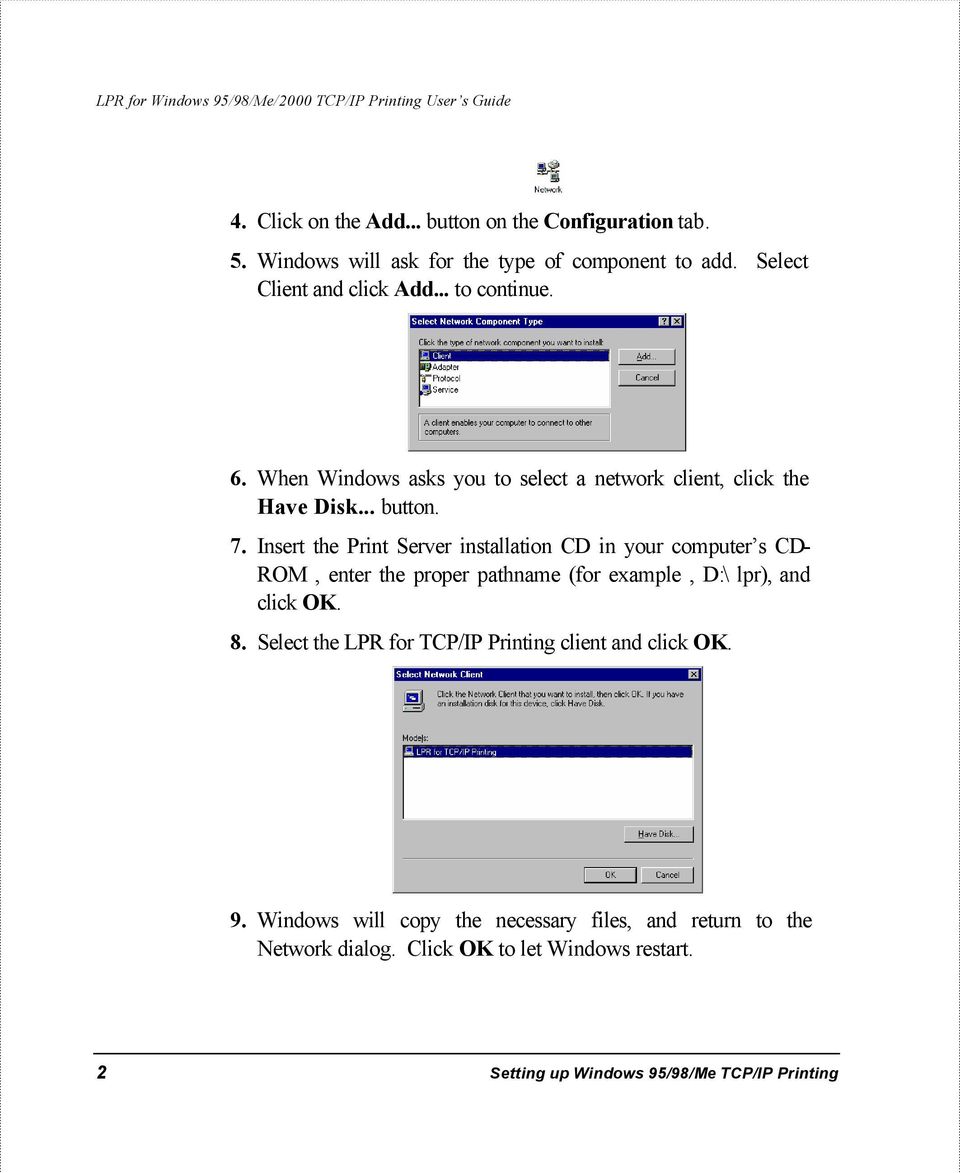
7 Adding LPR Printer Ports Once you have installed the client, and have enabled TCP/IP printing for the Print Servers, then you will need to add a printer port for each printer you will be printing to using the LPR/LPD protocol. To add a printer port, 1. From the Start menu, choose the Settings submenu, then the Control Panel item within it. Windows will display the Control Panel folder. 2. Double-click on the Network icon in the Control Panel folder. 3. Choose the LPR for TCP/IP Printing client and click the Properties button. Setting up Windows 95/98/Me TCP/IP Printing 3
8 4. Click the Add Port... button to add a new LPD-accessible printer port. 5. Enter the IP address of the Print Server and the name of the printer port that you will be printing to, and then press OK. 6. Click OK to leave the LPR for TCP/IP Printing Properties window. 4 Setting up Windows 95/98/Me TCP/IP Printing

9 Printing from Windows 95/98/Me After you have added the necessary printer ports, you can add a printer device for printing to the port. To enable printing to an LPR-accessible printer port from Windows 95/98/Me, 1. From the Start menu, choose the Settings submenu, then the Printers item within it. Windows will display the Printers folder. 2. Double-click on the Add Printer icon in the Printers folder. Windows will start the Add Printer Wizard. Setting up Windows 95/98/Me TCP/IP Printing 5

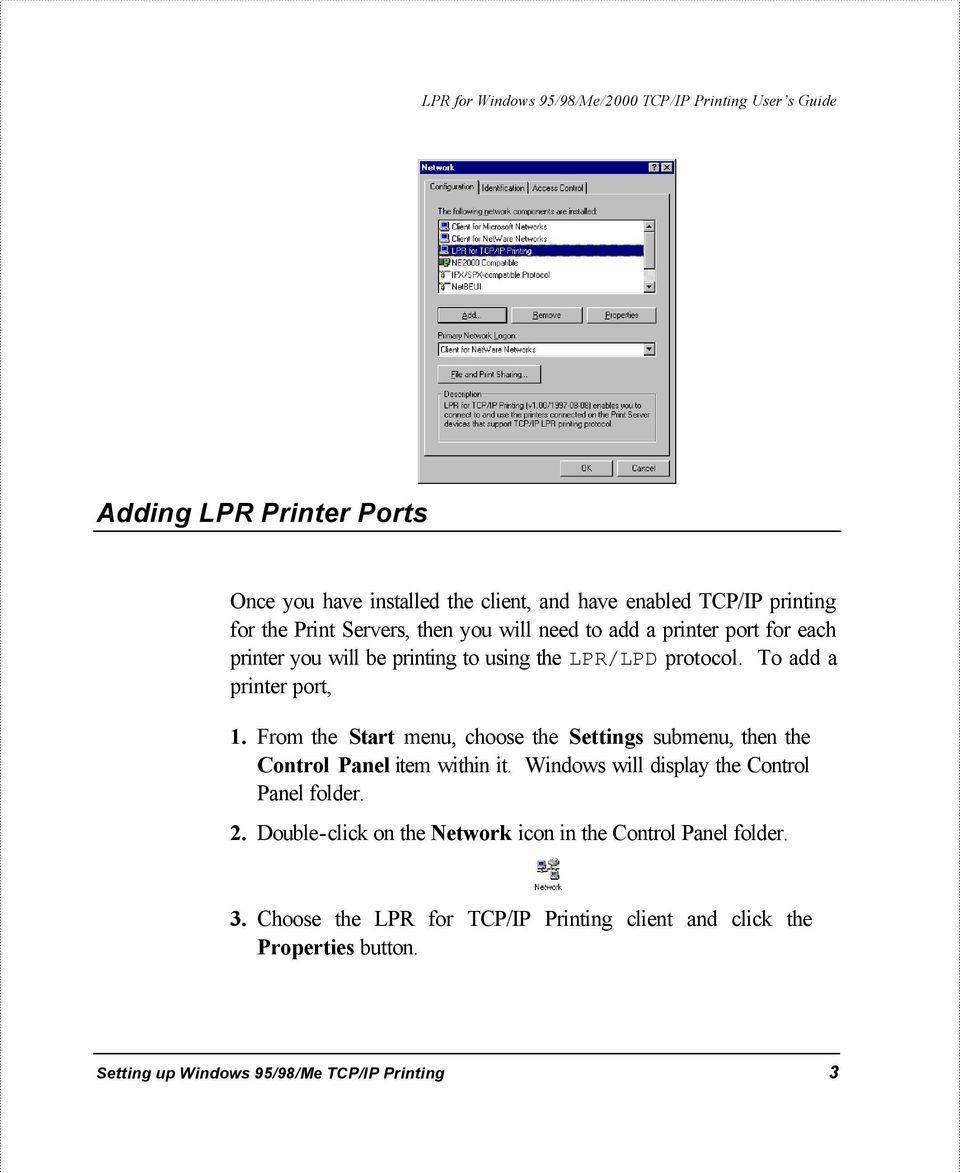
10 Click the Next > button to continue to the next screen. 3. Choose the Network Printer selection and click the Next > button to continue. 4. Enter the name of the port, as displayed in the LPR for TCP/IP Printing Port List. 6 Setting up Windows 95/98/Me TCP/IP Printing
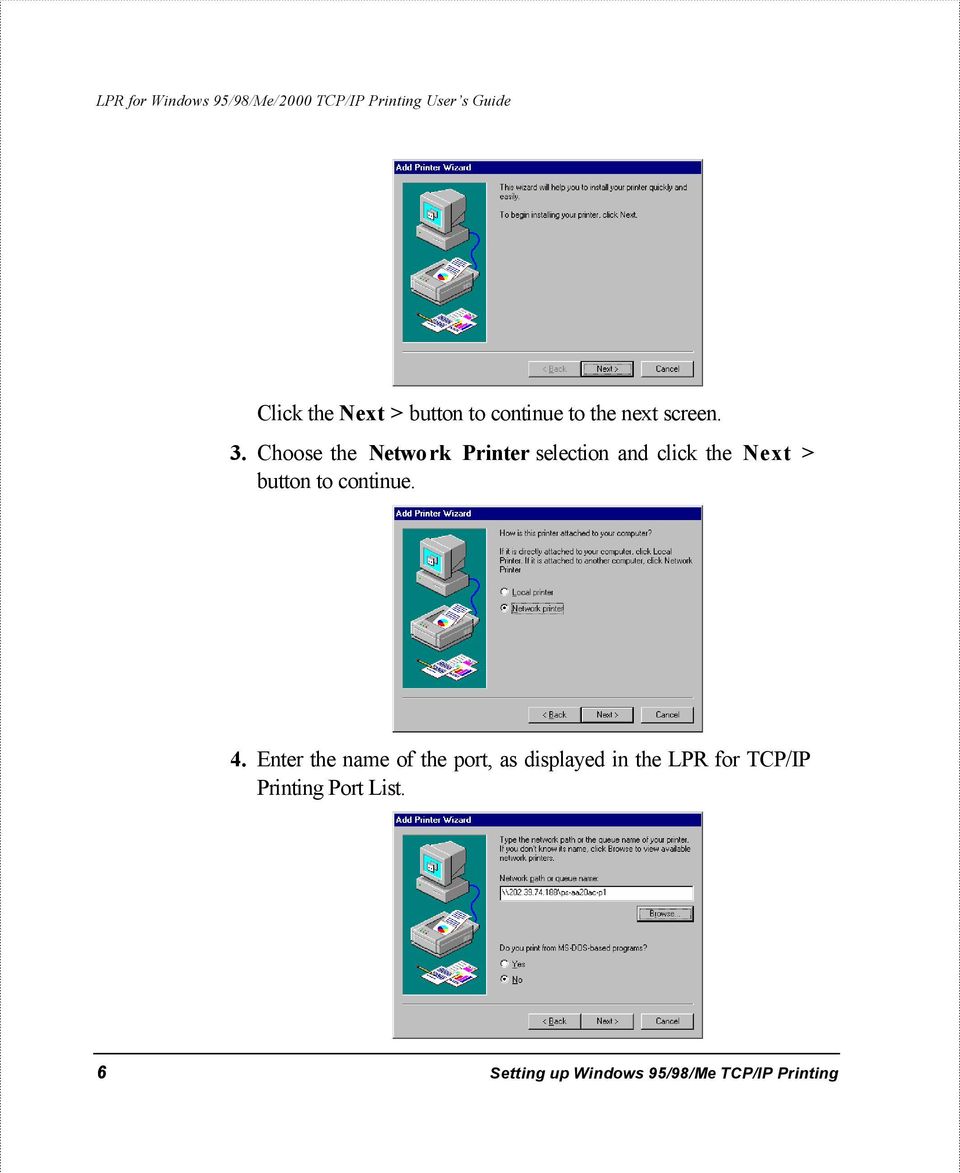
11 Alternatively, you can click Browse... and locate the printer port. TCP/IP printing ports are located under the Entire Network icon, within the Print Servers - TCP/IP LPR icon. Press OK when you have located the proper printer port. Click Next > to continue to the next step. 5. At this point Windows will ask you to choose the correct printer driver for the printer. Choose you printer s make and model from the list, or use the driver disk included with the printer. When you have chosen the correct printer, click Next > to continue. 6. Windows will then ask for a name for the new printer, and ask whether or not you want to set the printer as the Windows default printer. Click Finish (or Next >) to continue. Setting up Windows 95/98/Me TCP/IP Printing 7
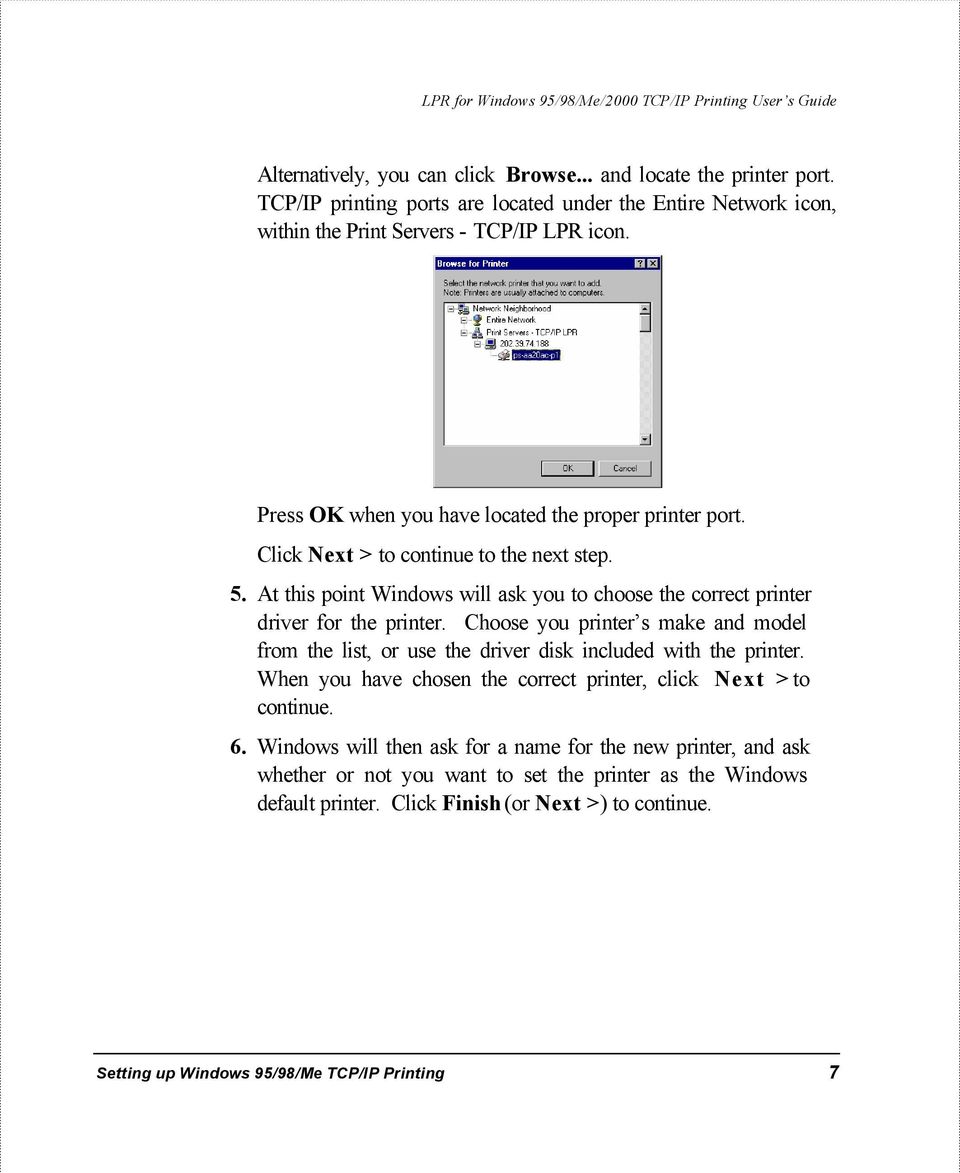
12 7. Windows will prompt whether to print a test page to make sure that the printer that the printer is functioning properly. Windows will then prompt whether the test page printed. Setting TCP/IP Printing Settings The LPR client s Properties dialog allows you to change several of the client s settings. To change these settings, 1. From the Start menu, choose the Settings submenu, then the Control Panel item within it. Windows will display the Control Panel folder. 2. Double-click on the Network icon in the Control Panel folder. 3. Choose the LPR for TCP/IP Printing client and click the Properties button. 8 Setting up Windows 95/98/Me TCP/IP Printing
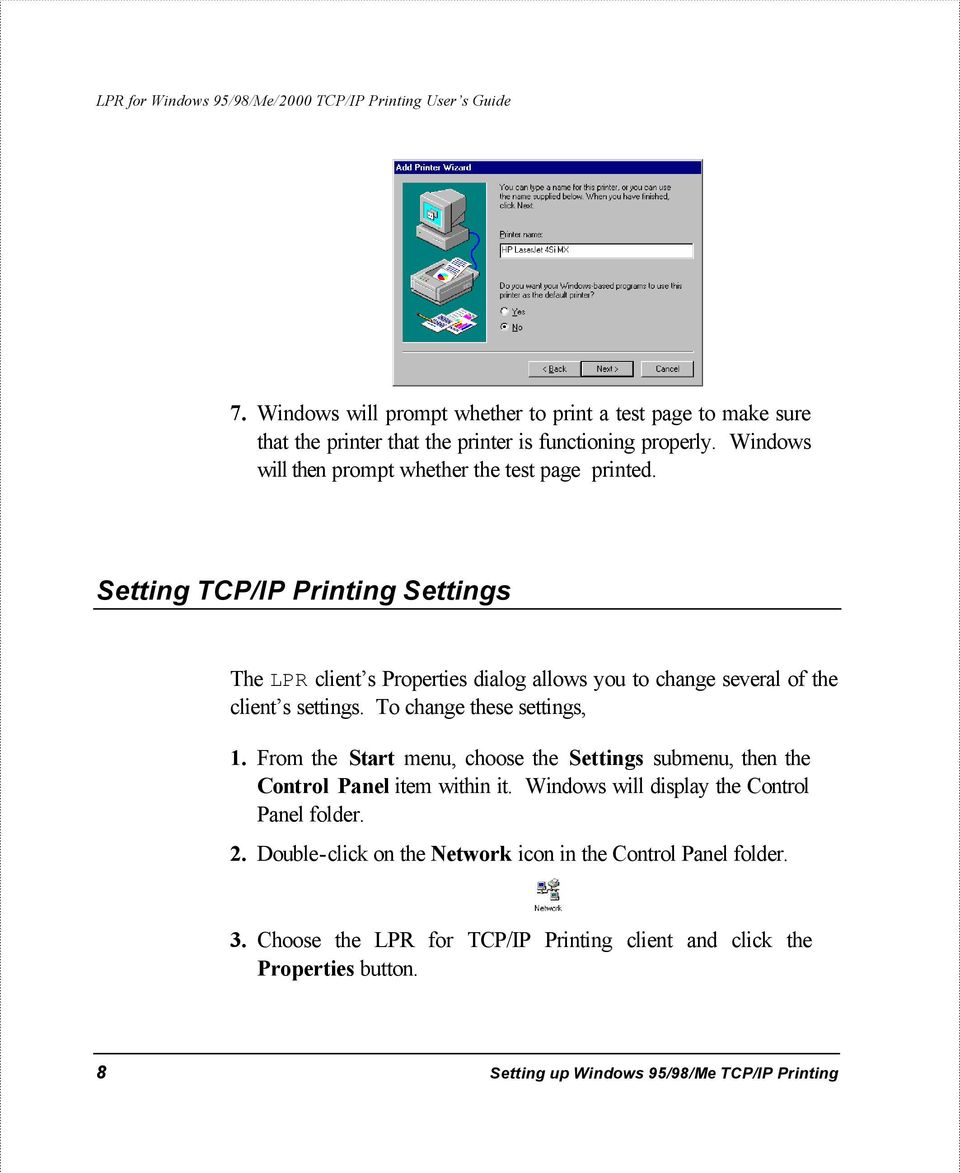
13 4. Click on the Settings tab to access the LPR client settings. Change the settings as necessary, and press OK to let the changes take effect. Setting up Windows 95/98/Me TCP/IP Printing 9

14 The parameters are as follows: Communication Timeout - Determines how long, in seconds, the system will wait before determining that it has lost connection with LPR/LPD print servers. Retry Interval - Determines how long, in seconds, the system will wait before retrying a lost connection. Retry Times - Determines how many times the system will retry a lost connection with an LPR/LPD print server. If Infinite is checked, it will retry indefinitely. Spool Path - Gives the directory path where the system will temporarily store LPR/LPD print server job files. 10 Setting up Windows 95/98/Me TCP/IP Printing

15 Setting up Windows 2000 TCP/IP Printing Following is the correct procedure for setting up TCP/IP LPR printing under Windows Click Start > Settings > Printers.Double Click Add Printer Select Local Printer Create a new Standard TCP/IP Port Setting up Windows 2000 TCP/IP Printing 11
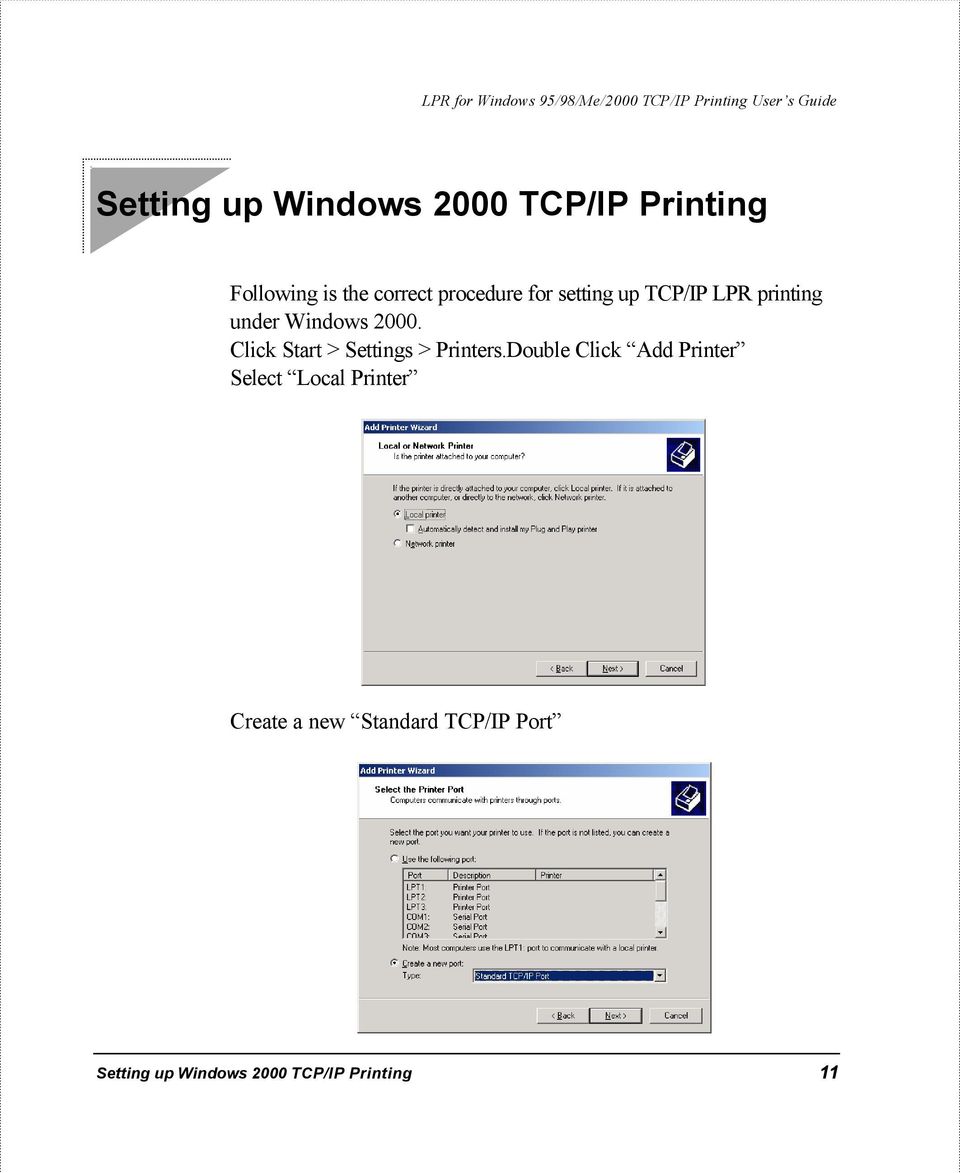
16 Click Next Input the IP Address of the DP-313, and the Port name of the Port that will be printed to, then click Next. 12 Setting up Windows 2000 TCP/IP Printing

17 The Port name can be located from the Web Management. DP-313 Select Custom, and click Settings. Setting up Windows 2000 TCP/IP Printing 13
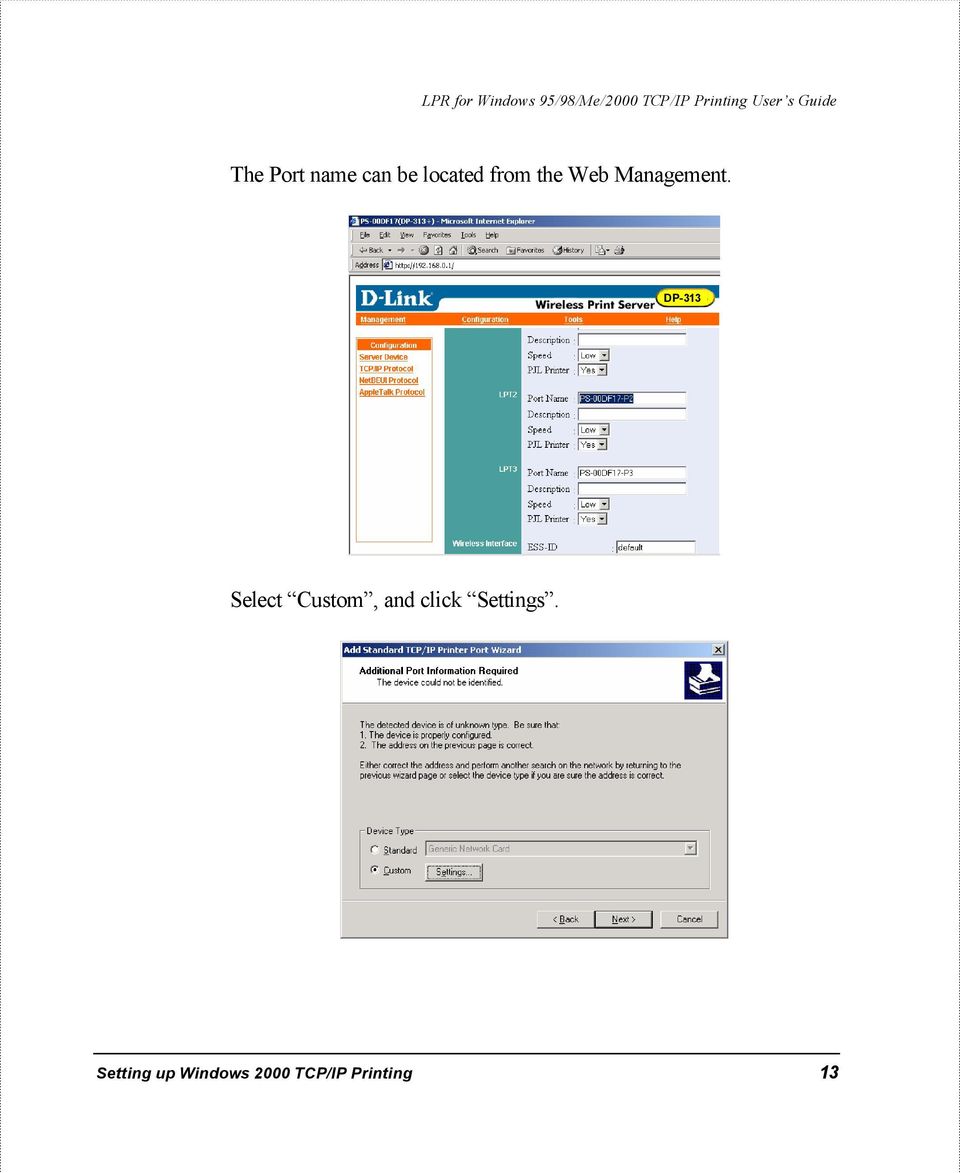
18 Select LPR, and put the Port name in the field labeled Queue Name. Then Click OK. Click Next. 14 Setting up Windows 2000 TCP/IP Printing

19 Click Finish The Printer Install Wizard will now prompt for drivers. Select the correct Make and Model, or click Have Disk, to provide the Manufacturer s Driver Disk. Setting up Windows 2000 TCP/IP Printing 15

20 Click Next. Select a Printer Name. 16 Setting up Windows 2000 TCP/IP Printing
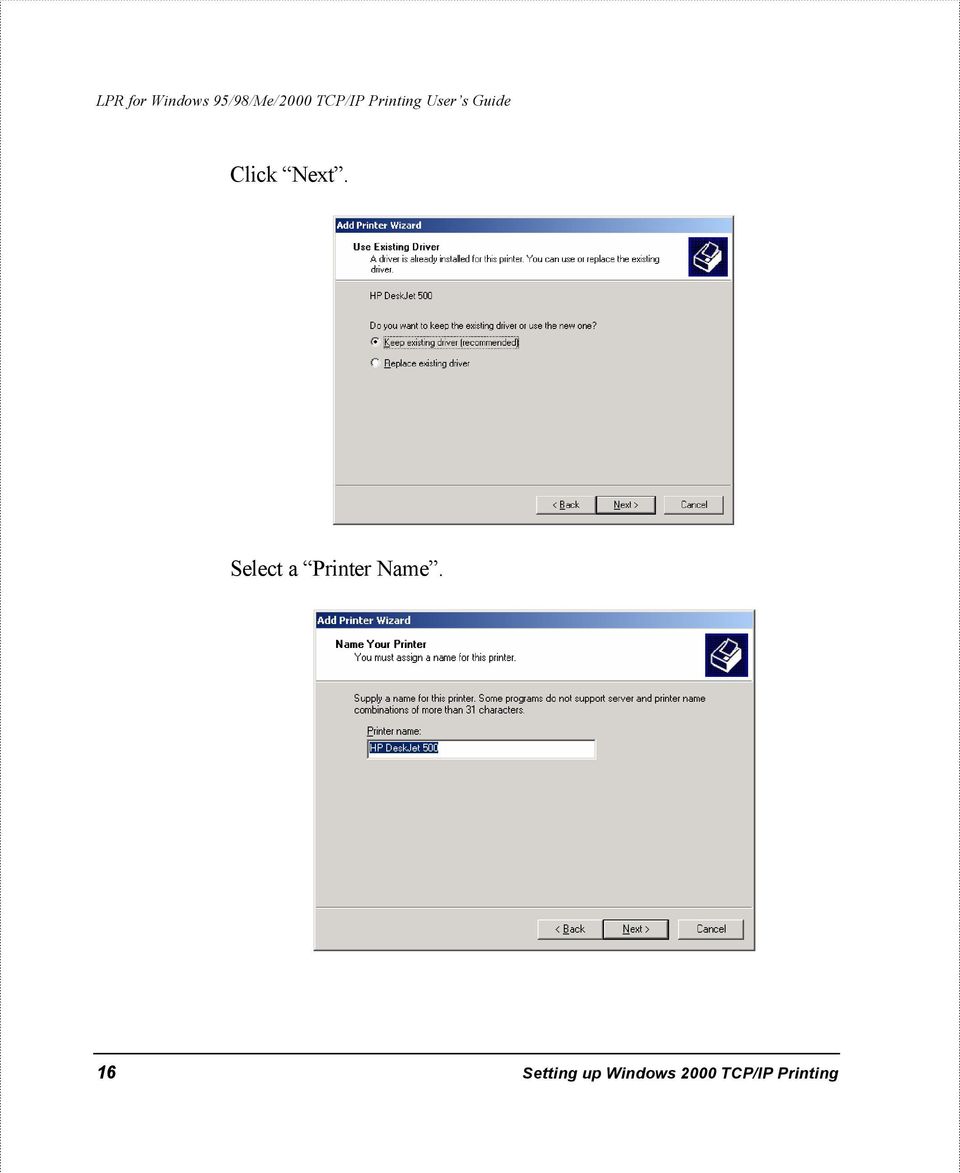
21 Sharing can be enabled here. Also, a Test Page can be printed to confirm proper configuration. Setting up Windows 2000 TCP/IP Printing 17
22 When the Test Page has printed, click Finish to complete the installation. 18 Setting up Windows 2000 TCP/IP Printing
LPR for Windows 95/98/Me/2000/XP TCP/IP Printing User s Guide. Rev. 03 (November, 2001)
 LPR for Windows 95/98/Me/2000/XP TCP/IP Printing User s Guide Rev. 03 (November, 2001) Copyright Statement Trademarks Copyright 1997 No part of this publication may be reproduced in any form or by any
LPR for Windows 95 TCP/IP Printing User s Guide
 LPR for Windows 95 TCP/IP Printing User s Guide First Edition Printed in Taiwan, R.O.C. RECYCLABLE Copyright Statement Trademarks Limited Warranty Copyright 1997 D-Link Corporation No part of this publication
Network Printing In Windows 95/98/ME
 Network Printing In Windows 95/98/ME If you are using Windows 2000/ XP: To install a printer on your network using D-Link Print Server or DI-series router with built-in print server you do not need to
Installing the Microsoft Network Driver Interface
 Installing the Microsoft Network Driver Interface Overview This guide explains how to install the PictureTel Live200 Microsoft Network Driver Interface (NDIS) software you have downloaded from PictureTel's
Installing the KX-P8420 or KX-PS8100 on Windows NT 4.0.
 Installing the KX-P8420 or KX-PS8100 on Windows NT 4.0. Overview The KX-P8420 and KX-PS8100 can be set up using 2 methods. METHOD 1 The printer can be installed on the NT server and setup as a shared device.
Printing Options. Netgear FR114P Print Server Installation for Windows XP
 Netgear FR114P Print Server Installation for Windows XP January 2007 This chapter describes how to install and configure the print server in your Netgear Firewall/Print Server Model FR114P. Below, the
WINDOWS LPR SPOOLER FOR WIN95
 WINDOWS LPR SPOOLER FOR WIN95 About Windows LPR Spooler: Windows LPR Spooler is a program which allows transparent printing from Microsoft Windows 3.1, Windows 95, and Windows NT applications to network
AXIS 1440 Print Server For EPSON Printers: Product Update. Important Information for Windows
 Important Information for Windows AXIS 1440 Print Server For EPSON Printers: Product Update Important Information for Windows If you are using Windows 95, Windows 98, or Windows NT 4.0, you need to turn
Windows 98 and Windows Me
 Windows 98 and Windows Me This topic includes: "Preliminary Steps" on page 3-25 "Quick CD-ROM Install Steps" on page 3-26 "Other Methods of Installation" on page 3-26 "Windows 98 and Windows Me Troubleshooting"
Configuring Socket Input for ECRM RIPMate
 Configuring Socket Input for ECRM RIPMate AppleTalk is not longer supported on newer Mac Computers. However, there is still a need for printing directly to the RIP from the Page Layout application. This
INTELLIscribe Installation and Setup for Windows 2000, XP, Server 2003, and Vista
 INTELLIscribe Installation and Setup for Windows 2000, XP, Server 2003, and Vista Version 4.0 February 2007 The Power to Print Brooks Internet Software, Inc. www.brooksnet.com Installing INTELLIscribe
Windows 2000, Windows XP, and Windows Server 2003
 Windows 2000, Windows XP, and Windows Server 2003 This topic includes: "Preliminary Steps" on page 3-14 "Quick CD-ROM Install Steps" on page 3-14 "Other Methods of Installation" on page 3-15 "Windows 2000,
Windows 2000/XP Network
 This section provides installation and troubleshooting steps for Windows 2000/XP: Preliminary steps see page 23. Quick CD-ROM install steps see page 23. Other methods of installation see page 24. Quick
XEROX DOCUPRINT N4525 NETWORK LASER PRINTER QUICK NETWORK INSTALL GUIDE
 XEROX DOCUPRINT N4525 NETWORK LASER PRINTER QUICK NETWORK INSTALL GUIDE Xerox DocuPrint N4525 Network Laser Printer Quick Network Install Guide 721P56640 September 2000 2000 by Xerox Corporation. All
Print Server. Quick Installation Guide
 Print Server Quick Installation Guide Table of Contents INTRODUCTION... 1 INSTALL THE HARWARE... 2 INSTALL UTILITIES FOR WINDOWS 95/98... 3 CONFIGURE THE PRINT SERVER... 4 Network environment without file
Installing a printer in Windows 95.
 Installing a printer in Windows 95. Click on Start - Settings - Printers In the Printers Folder double click on the Add Printer Icon Click on the Next Button to start the installation process of your printer
CANON FAX L360 SOFTWARE MANUAL
 CANON FAX L360 SOFTWARE MANUAL Before You Begin the Installation: a Checklist 2 To ensure a smooth and successful installation, take some time before you begin to plan and prepare for the installation
? Index. Introduction. 1 of 38 About the QMS Network Print Monitor for Windows NT
 1 of 38 About the QMS Network for Windows NT System Requirements" Installing the " Using the " Troubleshooting Operations" Introduction The NT Print Spooler (both workstation and server versions) controls
Installation Instruction STATISTICA Enterprise Small Business
 Installation Instruction STATISTICA Enterprise Small Business Notes: ❶ The installation of STATISTICA Enterprise Small Business entails two parts: a) a server installation, and b) workstation installations
HL2170W Windows Network Connection Repair Instructions
 Difficulty printing from your PC can occur for various reasons. The most common reason a networked Brother machine may stop printing, is because the connection between the computer and the Brother machine
Converting InfoPlus.21 Data to a Microsoft SQL Server 2000 Database
 Technical Bulletin Issue Date August 14, 2003 Converting InfoPlus.21 Data to a Microsoft SQL Server 2000 Database Converting InfoPlus.21 Data to a Microsoft SQL Server 2000 Database...2 Introduction...
B.11 Quick Guide #11: Installing a Printer (Refer to CAREpoint Users Manual Section 6 for more information)
 B.11 Quick Guide #11: Installing a Printer (Refer to CAREpoint Users Manual Section 6 for more information) Note: Before you start this procedure, you want to make sure that you have the driver for the
Printer Sharing of the PT-9500pc in a Windows Environment
 Printer Sharing of the PT-9500pc in a Windows Environment This procedure is for configuring the PT-9500pc as a shared printer in Microsoft Windows. For printer sharing to operate correctly, please be sure
STATISTICA VERSION 11 CONCURRENT NETWORK LICENSE WITH BORROWING INSTALLATION INSTRUCTIONS
 data analysis data mining quality improvement web-based analytics Notes STATISTICA VERSION 11 CONCURRENT NETWORK LICENSE WITH BORROWING INSTALLATION INSTRUCTIONS 1. The installation of the Concurrent network
IBM TCP/IP Network Port Monitor
 IBM TCP/IP Network Port Monitor Demo - Installation and Setup Demos shown below: 1. Installation 2. Creating an IBM TCP/IP Network Port 3. Sharing a printer to the network 4. Windows 95/98 client setup
BioWin Network Installation
 BioWin Network Installation Introduction This document outlines the procedures for installing the network version of BioWin. There are three parts to the network version installation: 1. The installation
Setting up your laptop to print to the student lounge printer
 Setting up your laptop to print to the student lounge printer Click on the system you are using: 1) MacOS X 10.2 2) MacOS X 10.3/10.4 3) Windows 2000/XP 4) Windows 7/Vista 1) MacOS X 10.2 In order to print
Option nv, Gaston Geenslaan 14, B-3001 Leuven Tel +32 16 317 411 Fax +32 16 207 164 http://www.option.com Page 1 of 14
 Page 1 of 14 ! " #!"#$ % &&' Page 2 of 14 1 INTRODUCTION One of the highly desirable features of the GlobeSurfer III device is the ability to network together Printers and External Hard Disk drives (aka
SmartStation ATM Installation Guide Addendum
 SmartStation ATM Installation Guide Addendum This addendum replaces pages 12-17, 20, and 34-40 of the SmartStation ISDN 384 Installation Guide (P/N 907-679-EN5.00). It also provides additional information
This document details the following four steps in setting up a Web Server (aka Internet Information Services -IIS) on Windows XP:
 Wazza s QuickStart: Setting up a Web Server (IIS) Windows XP This document details the following four steps in setting up a Web Server (aka Internet Information Services -IIS) on Windows XP: Configuring
STATISTICA VERSION 9 STATISTICA ENTERPRISE INSTALLATION INSTRUCTIONS FOR USE WITH TERMINAL SERVER
 Notes: STATISTICA VERSION 9 STATISTICA ENTERPRISE INSTALLATION INSTRUCTIONS FOR USE WITH TERMINAL SERVER 1. These instructions focus on installation on Windows Terminal Server (WTS), but are applicable
Fiery EX4112/4127. Printing from Windows
 Fiery EX4112/4127 Printing from Windows 2008 Electronics for Imaging, Inc. The information in this publication is covered under Legal Notices for this product. 45083884 01 April 2009 CONTENTS 3 CONTENTS
Windows 95 Revision B Installation Instructions
 Windows 95 Revision B Installation Instructions Follow the instructions in this document if you are installing Live200 1.5 on a PC that runs Windows 95 revision B (OSR2). The Windows 95 version number
CentreWare Internet Services Setup and User Guide. Version 2.0
 CentreWare Internet Services Setup and User Guide Version 2.0 Xerox Corporation Copyright 1999 by Xerox Corporation. All rights reserved. XEROX, The Document Company, the digital X logo, CentreWare, and
ColorBurst RIP for Epson Stylus Pro Edition 3800 4800 7800 9800 GETTING STARTED
 P U B L O F F S E T f o r S P E C I F I C A T I O N S I O N S I C A T CERTIFIED SYSTEM W E B Certified June, 2004 ColorBurst RIP for Epson Stylus Pro Edition 3800 4800 7800 9800 GETTING STARTED Getting
Meridian 1 Meridian 1 Attendant PC LAN Interface Installation Guide
 Meridian 1 Meridian 1 Attendant PC LAN Interface Installation Guide Document Number: P0874391 Document Release: Standard 1.00 Date: November 1997 Year Publish FCC TM 1997 All rights reserved Printed in
October, 2015. Install/Uninstall Xerox Print Drivers & Apps Best Practices for Windows 8, 8.1, and 10 Customer Tip
 October, 2015 Install/Uninstall Xerox Print Drivers & Apps Best Practices for Windows 8, 8.1, and 10 Customer Tip 2015 Xerox Corporation. All rights reserved. Xerox, Xerox and Design, ColorQube, and WorkCentre
To install the SMTP service:
 To install the SMTP service: From the Start menu, click Control Panel. 2. Double-click Add or Remove Programs. 3. From the left pane, click Add/Remove Windows Components. 4. From the Components list, click
PRINT CONFIGURATION. 1. Printer Configuration
 PRINT CONFIGURATION Red Flag Server5 has improved the designs of the printer configuration tool to facilitate you to conduct print configuration and print tasks management in a more convenient and familiar
Installation / Migration Guide for Windows 2000/2003 Servers
 PSQL v9 SP1 (9.1) & Installation / Migration Guide for Windows 2000/2003 Servers Ebix, Inc. Corporate Headquarters Concourse Parkway, Suite 3200 Atlanta, GA 30328 USA Phone: 678-281-2020 Fax: 678-281-2019
Network Server for Windows. Overview of the Sequencher Network Page 2. Installing Sequencher Server for the First Time Page 3
 Network Server for Windows Installation Instructions Overview of the Sequencher Network Page 2 Installing Sequencher Server for the First Time Page 3 Adding Sequencher licenses to KeyServer Page 4 Updating
Operating Instructions Driver Installation Guide
 Operating Instructions Driver Installation Guide For safe and correct use, be sure to read the Safety Information in "Read This First" before using the machine. TABLE OF CONTENTS 1. Introduction Before
ColorBurst RIP for Epson Stylus Pro Edition 3880 4880 7880 9880 GETTING STARTED
 ColorBurst RIP for Epson Stylus Pro Edition 3880 4880 7880 9880 GETTING STARTED Getting Started The enclosed disc includes the ColorBurst RIP server software and client PPD (PostScript Printer Description)
A browser must be open and connected through Jeffco s network How to set up network printing over WI-FI
 Windows XP 1. From the Start menu, select Printers and Faxes. 2. On the left side of the window, in the Printer Tasks section, click on the link for Add a Printer. 3. In the Add Printer Wizard window,
PostScript Printer Descriptions
 PostScript Printer Descriptions Installation and Release Notes 554 Clark Rd. Tewksbury, MA 01876 Phone (978) 851-0207 Fax - (978) 851-7016 AG11915 Rev. 1 PostScript Printer Descriptions Installation and
STATISTICA VERSION 12 STATISTICA ENTERPRISE SMALL BUSINESS INSTALLATION INSTRUCTIONS
 STATISTICA VERSION 12 STATISTICA ENTERPRISE SMALL BUSINESS INSTALLATION INSTRUCTIONS Notes 1. The installation of STATISTICA Enterprise Small Business entails two parts: a) a server installation, and b)
Omni 56K USB Lite Quick Start Guide
 Omni 56K USB Lite Quick Start Guide ZyXEL TOTAL INTERNET ACCESS SOLUTION 1. Hardware Installation Connect your modem to your analog phone or fax. Use the phone cord included to connect to the phone jack
JAVS Scheduled Publishing. Installation/Configuration... 4 Manual Operation... 6 Automating Scheduled Publishing... 7 Windows XP... 7 Windows 7...
 1 2 Copyright JAVS 1981-2010 Contents Scheduled Publishing... 4 Installation/Configuration... 4 Manual Operation... 6 Automating Scheduled Publishing... 7 Windows XP... 7 Windows 7... 12 Copyright JAVS
Ethernet Interface Manual Thermal / Label Printer. Rev. 1.01 Metapace T-1. Metapace T-2 Metapace L-1 Metapace L-2
 Ethernet Interface Manual Thermal / Label Printer Rev. 1.01 Metapace T-1 Metapace T-2 Metapace L-1 Metapace L-2 Table of contents 1. Interface setting Guiding...3 2. Manual Information...4 3. Interface
Chapter 5 - Ethernet Setup
 Chapter 5 - Ethernet Setup Chapter Overview Introduction... 5-3 EtherTalk Network Configuration... 5-3 Select the EtherTalk Phase 2 Driver...5-3 Change the EtherTalk Zone Name...5-4 Novell NetWare Configuration...
Xerox EX Print Server, Powered by Fiery, for the Xerox 700 Digital Color Press. Printing from Windows
 Xerox EX Print Server, Powered by Fiery, for the Xerox 700 Digital Color Press Printing from Windows 2008 Electronics for Imaging, Inc. The information in this publication is covered under Legal Notices
1 Installation. Note: In Windows operating systems, you must be logged in with administrator rights to install the printer driver.
 Installation A printer driver is an application that manages communication between a printer and your computer. Once installed, the printer driver settings must be configured in the printer Properties
Network User's Guide for HL-2070N
 f Multi-Protocol On-board Print Server Network User's Guide for HL-2070N Please read this manual thoroughly before using the printer. You can print or view this manual from the Printer CD-ROM at any time,
Motorola Phone Tools. Quick Start
 Motorola Phone Tools Quick Start Contents Minimum Requirements...2 Before Installing Motorola Phone Tools...3 Installing Motorola Phone Tools...4 Mobile Device Installation and Configuration...5 Online
ColorBurst RIP for Epson Stylus Pro Edition 3800 4880 7880 9880 GETTING STARTED
 P U B L O F F S E T f o r S P E C I F I C A T I O N S I O N S I C A T CERTIFIED SYSTEM W E B Certi ed June, 2004 ColorBurst RIP for Epson Stylus Pro Edition 3800 4880 7880 9880 GETTING STARTED Getting
Microsoft File and Print Service Failover Using Microsoft Cluster Server
 Microsoft File and Print Service Failover Using Microsoft Cluster Server TechNote First Edition (March 1998) Part Number 309826-001 Compaq Computer Corporation Notice The information in this publication
Installation of the KX-P8420 Print Driver And Support Files (Windows). Introduction:
 Installation of the KX-P8420 Print Driver And Support Files (Windows). Introduction: When installing the printer driver and support files for the KX-P8420 there are many options to consider. Choosing the
Using an Automatic Back Up for Outlook 2003 and Outlook 2007 Personal Folders
 Using an Automatic Back Up for Outlook 2003 and Outlook 2007 Personal Folders Part 1 Install the Personal Folder Backup Utility Note: You should close Outlook and any other applications before installing
SonicWALL Global Management System Installation Guide Entry Edition. Version 2.1
 SonicWALL Global Management System Installation Guide Entry Edition Version 2.1 Copyright Information 2001 SonicWALL, Inc. All rights reserved. Under the copyright laws, this manual or the software described
File and Printer Sharing with Microsoft Windows
 Operating System File and Printer Sharing with Microsoft Windows Microsoft Corporation Published: November 2003 Abstract File and printer sharing in Microsoft Windows allows you to share the contents of
TOSHIBA GA-1310. Printing from Windows
 TOSHIBA GA-1310 Printing from Windows 2009 Electronics for Imaging, Inc. The information in this publication is covered under Legal Notices for this product. 45081979 04 February 2009 CONTENTS 3 CONTENTS
Chapter7 Setting the Receiving PC for Direct Upload. Setting the Receiving PC for Direct Upload... 148 For Windows... 148 For Macintosh...
 Chapter7 Setting the Receiving PC for Direct Upload Setting the Receiving PC for Direct Upload... 148 For Windows... 148 For Macintosh... 153 Setting the Receiving PC for Direct Upload This section explains
PCLinq2 Hi-Speed USB Bridge-Network Cable. Quick Network Setup Guide
 PCLinq2 Hi-Speed USB Bridge-Network Cable Congratulations! Quick Network Setup Guide For Windows 98/ME/2000/XP Congratulations for installing the PCLinq2 Hi-Speed USB Bridge-Network Cable. This Quick Network
Crystal Reports Installation Guide
 Crystal Reports Installation Guide Version XI Infor Global Solutions, Inc. Copyright 2006 Infor IP Holdings C.V. and/or its affiliates or licensors. All rights reserved. The Infor word and design marks
UFR II Driver Guide. UFR II Driver Ver. 2.20 ENG
 UFR II Driver Guide UFR II Driver Ver. 2.20 Please read this guide before operating this product. After you finish reading this guide, store it in a safe place for future reference. ENG 0 Ot UFR II Driver
Postscript Printer Descriptions Installation and Release Notes
 Postscript Printer Descriptions Installation and Release Notes PostScript Printer Descriptions Installation and Release Notes This guide reflects the PPD Installation and Release Notes as of June, 2002.
Dell Statistica 13.0. Statistica Enterprise Installation Instructions
 Dell Statistica 13.0 2015 Dell Inc. ALL RIGHTS RESERVED. This guide contains proprietary information protected by copyright. The software described in this guide is furnished under a software license or
16.4.3 Lab: Data Backup and Recovery in Windows XP
 16.4.3 Lab: Data Backup and Recovery in Windows XP Introduction Print and complete this lab. In this lab, you will back up data. You will also perform a recovery of the data. Recommended Equipment The
TRENDnet. <a href="mailto:webmaster@ trendnet.com"> www.trendnet.com. Quick Installation Guide. Product Warranty Registration
 Quick Installation Guide Product Warranty Registration website at http://www.trendnet.com www.trendnet.com Please take a moment to register your product online.
IB-2x. Quick Configuration Guide. Network Connectivity for Kyocera Mita Printers
 IB-2x Quick Configuration Guide Network Connectivity for Kyocera Mita Printers Contents Introduction... 2 CD-ROM Contents / Using the CD-ROM... 2 Supported Connections and Models... 3 IB-2x Hardware Installation...
Immotec Systems, Inc. SQL Server 2005 Installation Document
 SQL Server Installation Guide 1. From the Visor 360 installation CD\USB Key, open the Access folder and install the Access Database Engine. 2. Open Visor 360 V2.0 folder and double click on Setup. Visor
Brother Automatic E-Mail Printing OPERATION MANUAL
 Brother Automatic E-Mail Printing OPERATION MANUAL Copyright Brother 1999 No part of this publication may be reproduced in any form or by any means without permission in writing from the publisher. The
e-dpp 4.0.2 May 2013 Quick Installation Guide Microsoft Windows 2003 Server, XP, Vista, 7 Access Database
 e-dpp 4.0.2 May 2013 Microsoft Windows 2003 Server, XP, Vista, 7 Access Database ELTECHS Engineering and Consulting Co., Ltd., Japan www.eltechs.co.jp Tel No. +81 (47) 490-1010 Fax No. +81 (47) 490-1011
Setting up a networked printer on a local PC
 Setting up a networked printer on a local PC The following document is a guide on how to set up a networked printer on a local PC. In order to complete the task, you will need the following information/resources:
Printer Driver Installation Guide
 Fujitsu Dot Matrix Printer DL Series Printer Driver Installation Guide - Windows 7 - Windows Server 2008 R2 Rev.01: April 12, 2010 IMPORTANT NOTE TO USERS For Windows 7 / Windows Server 2008 R2, install
EPSON Stylus COLOR 740. USB Software Installation Guide (Windows 98/iMac ) USB Setup Guide (imac)
 EPSON Stylus COLOR 740 TM USB Software Installation Guide (Windows 98/iMac ) USB Setup Guide (imac) This guide includes USB setup instructions for your imac computer, as well as software installation instructions
Barak & Caldera Network Setup
 Barak & Caldera Network Setup Application Note 10100112 Rev. A February 2008 Prepared by the Application Department 10100112A Matan Digital Printers Ltd. Page 1 of 17 Safety Procedures Before reading this
VERITAS Backup Exec 9.1 for Windows Servers Quick Installation Guide
 VERITAS Backup Exec 9.1 for Windows Servers Quick Installation Guide N109548 Disclaimer The information contained in this publication is subject to change without notice. VERITAS Software Corporation makes
USB DRIVER INSTALLATION GUIDE
 USB DRIVER INSTALLATION GUIDE Use these instructions to install the USB drivers and Microsoft synchronization software for your Pathfinder 6057 printer. You need these utilities for your printer and computer
Portions of this product were created using LEADTOOLS 1991-2009 LEAD Technologies, Inc. ALL RIGHTS RESERVED.
 Installation Guide Lenel OnGuard 2009 Installation Guide, product version 6.3. This guide is item number DOC-110, revision 1.038, May 2009 Copyright 1992-2009 Lenel Systems International, Inc. Information
NETWORK USER S GUIDE. HL-5250DN series HL-5270DN. Multi-Protocol On-board Ethernet Print Server
 Multi-Protocol On-board Ethernet Print Server NETWORK f USER S GUIDE HL-5250DN series HL-5270DN Please read this manual thoroughly before using the printer. You can print or view this manual from the Printer
Windows 98 Workstation Install
 Windows 98 Workstation Install To install the Oracle Client Software on a Windows 98 workstation you need to do a manual install installing the Oracle Client Software first then the Infinitime software.
Migrating MSDE to Microsoft SQL 2008 R2 Express
 How To Updated: 11/11/2011 2011 Shelby Systems, Inc. All Rights Reserved Other brand and product names are trademarks or registered trademarks of the respective holders. If you are still on MSDE 2000,
January 9, 2014. Xerox Global Print Driver Installation Guide
 January 9, 2014 Xerox Global Print Driver Installation Guide 2010-2014 Xerox Corporation. All Rights Reserved. Xerox, Xerox and Design, WorkCentre, Global Print Driver, and Mobile Express Driver are trademarks
LPT1 Printer Connector. External Power Supply Connector Power Indicator
 AXIS 1650 Set-up Instructions Page 3 Unpack box Verify that you have all the items listed below: LPT1 Printer Connector Network Indicator Ethernet Connector External Power Supply Connector Power Indicator
Configuring Network Load Balancing with Cerberus FTP Server
 Configuring Network Load Balancing with Cerberus FTP Server May 2016 Version 1.0 1 Introduction Purpose This guide will discuss how to install and configure Network Load Balancing on Windows Server 2012
EPSON Stylus C84N. Supplement. Includes information about networking utilities and installation on Windows 98 and Me
 EPSON Stylus C84N Supplement Includes information about networking utilities and installation on Windows 98 and Me Copyright Notice All rights reserved. No part of this publication may be reproduced, stored
ilaw Installation Procedure
 ilaw Installation Procedure This guide will provide a reference for a full installation of ilaw Case Management Software. Contents ilaw Overview How ilaw works Installing ilaw Server on a PC Installing
August 13, 2014. Install/Uninstall/Share Xerox Print Drivers Best Practices for Windows Server 2012 R2 Customer Tip
 August 13, 2014 Install/Uninstall/Share Xerox Print Drivers Best Practices for Windows Server 2012 R2 Customer Tip 2014 Xerox Corporation. All rights reserved. Xerox, Xerox and Design, ColorQube, and WorkCentre
How do I configure the wireless printer using a USB or Ethernet cable and install the printer driver in Windows?
 How do I configure the wireless printer using a USB or Ethernet cable and install the printer driver in Windows? STEP I: Gather the wireless network settings of your wireless access point or wireless router
TASKE Call Center Management Tools
 TASKE Call Center Management Tools Version 7 Integrating and Configuring Blue Pumpkin PrimeTime and PrimeTime Skills TASKE Technology Inc. Copyright 2000, TASKE Technology Inc. All rights reserved. Printed
Network Scanner Tool R3.1. User s Guide Version 3.0.04
 Network Scanner Tool R3.1 User s Guide Version 3.0.04 Copyright 2000-2004 by Sharp Corporation. All rights reserved. Reproduction, adaptation or translation without prior written permission is prohibited,
Operating System Installation Guide
 Operating System Installation Guide This guide provides instructions on the following: Installing the Windows Server 2008 operating systems on page 1 Installing the Windows Small Business Server 2011 operating
Installation Manual (MSI Version)
 Installation Manual (MSI Version) 1. SYSTEM REQUIREMENTS... 2 2. INSTALLATION INSTRUCTIONS... 2 2.1 REMOTE INSTALLATION USING GROUP POLICY... 2 2.1.1 Assigning Software...2 2.1.2 Publishing Software...2
Interact for Microsoft Office
 Interact for Microsoft Office Installation and Setup Guide Perceptive Content Version: 7.0.x Written by: Product Knowledge, R&D Date: October 2014 2014 Perceptive Software. All rights reserved Perceptive
10.3.1.6 Lab - Data Backup and Recovery in Windows XP
 5.0 10.3.1.6 Lab - Data Backup and Recovery in Windows XP Introduction Print and complete this lab. In this lab, you will back up data. You will also perform a recovery of the data. Recommended Equipment
Empowered by Innovation. Setting Up and Using Fax Mail. P/N 1770087 July 2006 Printed in U.S.A.
 Empowered by Innovation Setting Up and Using Fax Mail P/N 1770087 July 2006 Printed in U.S.A. This manual has been developed by NEC Unified Solutions, Inc. It is intended for the use of its customers and
AirStation VPN Setup Guide WZR-RS-G54
 AirStation VPN Setup Guide WZR-RS-G54 WZR-RS-G54 Introduction The WZR-RS-G54 s VPN services allows users to securely access their home or office network from anywhere in the world. All services available