
Installation / Migration Guide for Windows 2000/2003 Servers
|
|
|
- Abigail Morton
- 9 years ago
- Views:
Transcription
1 PSQL v9 SP1 (9.1) & Installation / Migration Guide for Windows 2000/2003 Servers Ebix, Inc. Corporate Headquarters Concourse Parkway, Suite 3200 Atlanta, GA USA Phone: Fax: info@ebix Support Phone: Fax: [email protected] Copyright 2006, Ebix, Inc. All Rights Reserved. EbixONE is a registered trademark and registered service mark of Ebix Incorporated. All other trademarks and service marks are the property of their respective owners. Revised 11/1/2006

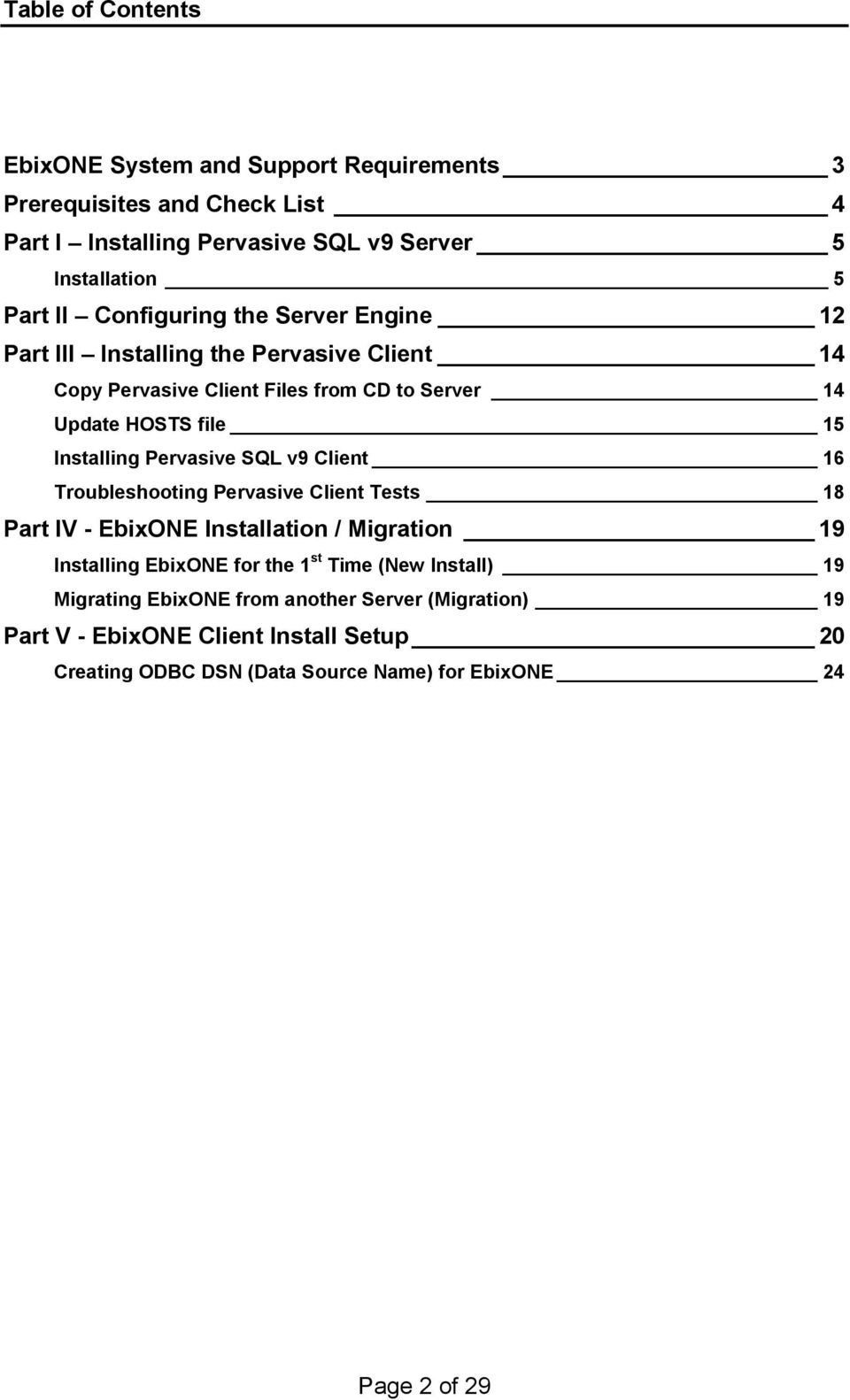
2 Table of Contents EbixONE System and Support Requirements 3 Prerequisites and Check List 4 Part I Installing Pervasive SQL v9 Server 5 Installation 5 Part II Configuring the Server Engine 12 Part III Installing the Pervasive Client 14 Copy Pervasive Client Files from CD to Server 14 Update HOSTS file 15 Installing Pervasive SQL v9 Client 16 Troubleshooting Pervasive Client Tests 18 Part IV - EbixONE Installation / Migration 19 Installing EbixONE for the 1 st Time (New Install) 19 Migrating EbixONE from another Server (Migration) 19 Part V - EbixONE Client Install Setup 20 Creating ODBC DSN (Data Source Name) for EbixONE 24 Page 2 of 29
3 Part I Pervasive SQL 2000i Server Upgrade EbixONE System and Support Requirements System Requirements: Please verify that your system meets the EbixONE System, Network and Software requirements: (For details, please refer to the EbixONE Microsoft Solution requirement documentation at Windows 2000 or Windows XP Pro installed on workstations A CD-ROM Drive installed on the Server and Administrator Workstation A Minimum of 2 GB free disk space on the server A Minimum of 200 Mb free disk space on the Administrator workstation HP PCL5 or 100% compatible laser printer(s) Office XP / Office 2000 (for Word or Excel merge only) Note: Windows 95, 98, ME and Windows NT workstation are not supported Support Requirements: pcanywhere version 9.02 or higher installed on EbixONE administrative workstation. Note: pcanywhere 10.5 or higher is required for Windows XP. A modem or high speed Internet connection is required on the administrator workstation. Recommendation: MS Windows Remote Desktop or NetMeeting 3.01 or pcanywhere installed on all other EbixONE workstations. Page 3 of 29
4 Prerequisites and Check List Prerequisites: A full backup of your server prior to the installation is necessary. All workstations using EbixONE must have the same drive mapping for shared resources on the server where EbixONE is installed. A shared folder with Full Permissions called EBIX on the server. Create the folder and make it sharable prior to the Pervasive and EbixONE installations. You will copy CDPROD (the EbixONE program folder) into the EBIX folder at the end of the installation process. Pervasive SQL v9.1 must be installed and tested prior to installing EbixONE. Note: EbixONE is not certified with PSQL V9 SP9 (9.5). EbixONE will not work with V9.5 or higher. If you have a later version on CD, you will need to download PSQL V9.1 from You need to have a minimum of 2Gb free disk space on the server and 200Mb disk space on the administrative workstation before the installation Check List: Verify the backup is complete and valid. 1. Unload or disable any anti-virus, fax or backup software on the server. 2. Have the following information ready: Server IP address Administrator Login ID Administrator Password 3. Unload or disable all TSRs such as screen savers, anti-virus and fax software on the workstation doing the installation. Page 4 of 29
5 Part I Installing Pervasive SQL v9 Server Restarting the server prior to the install is suggested. If you do, make sure everyone is logged out of the server and remains out during the installation. Note: The Pervasive SQL v9.1 installation must be performed at the server. If you have more than one partitions on the server. The EBIX folder should be created on a partition that has the most disk space. If installing on a Terminal Sever, please contact Ebix Support for additional documentation. Installation 1. Place Pervasive SQL v9.1 Server for Windows CD into the server s CDROM drive. The Install Shield Wizard for Pervasive should open. If you do not see this Setup box, click Start, Select Run, and then Browse for Setup.exe on CD-ROM drive. Double Click on Setup.exe and then click Ok. Tip When installing Pervasive SQL v9.1 for the first time on a system the Setup program will check if the needed system files are locked by operating system. In Page 5 of 29

6 some cases, a reboot is required and a dialog box will appear giving you the option to restart the server. Click the Finish button to restart. Setup will then automatically restart. Page 6 of 29

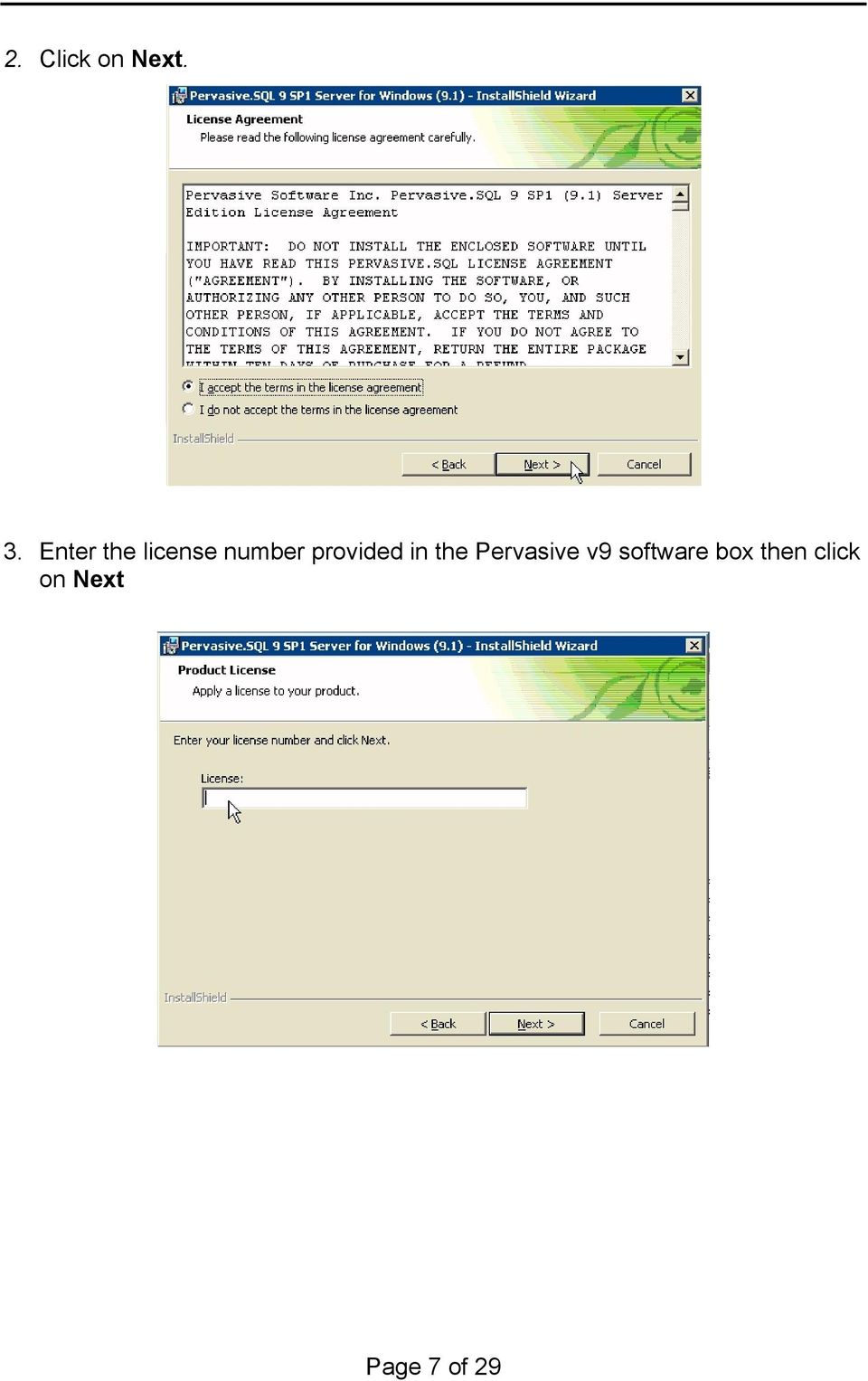
7 2. Click on Next. 3. Enter the license number provided in the Pervasive v9 software box then click on Next Page 7 of 29
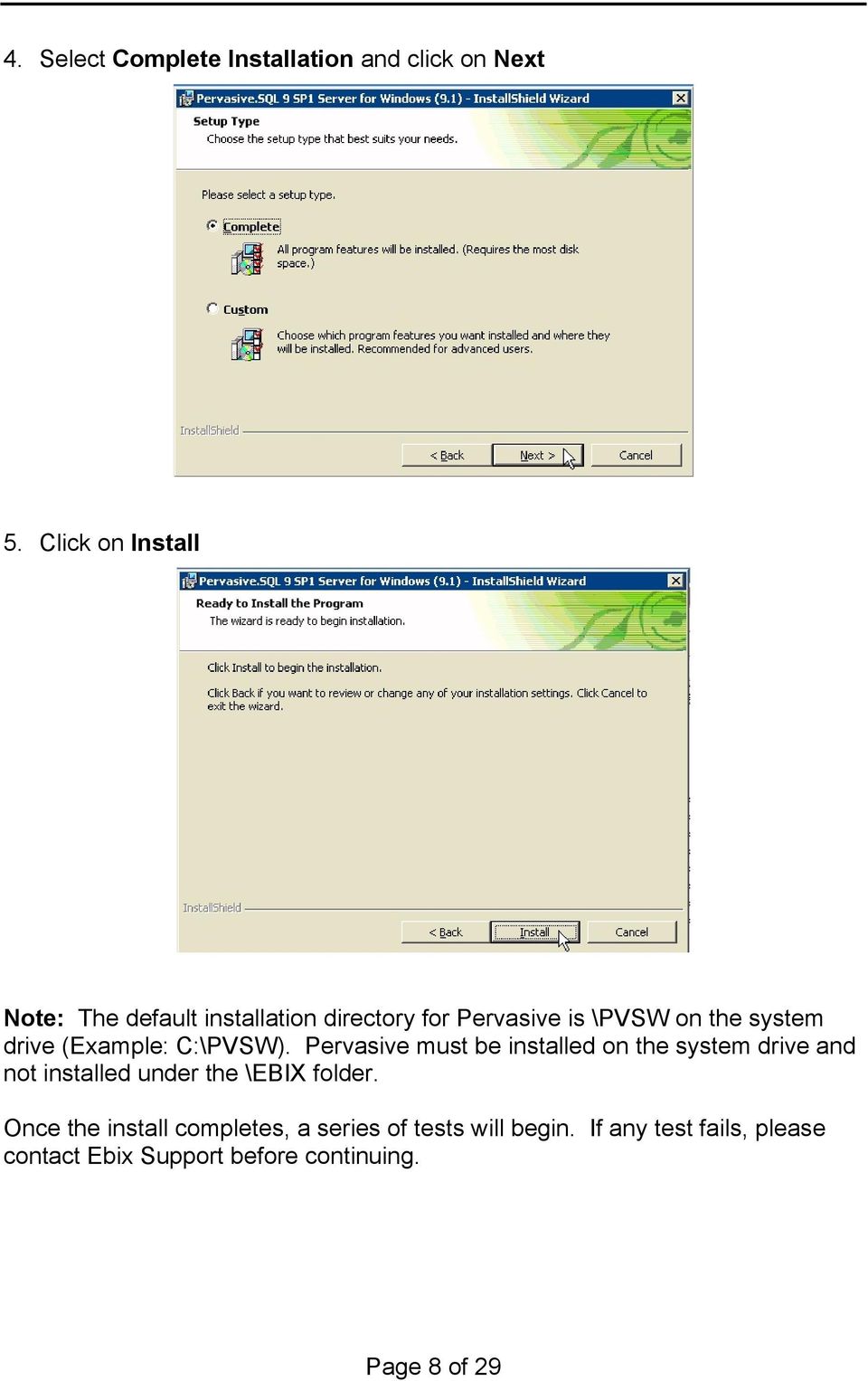
8 4. Select Complete Installation and click on Next 5. Click on Install Note: The default installation directory for Pervasive is \PVSW on the system drive (Example: C:\PVSW). Pervasive must be installed on the system drive and not installed under the \EBIX folder. Once the install completes, a series of tests will begin. If any test fails, please contact Ebix Support before continuing. Page 8 of 29
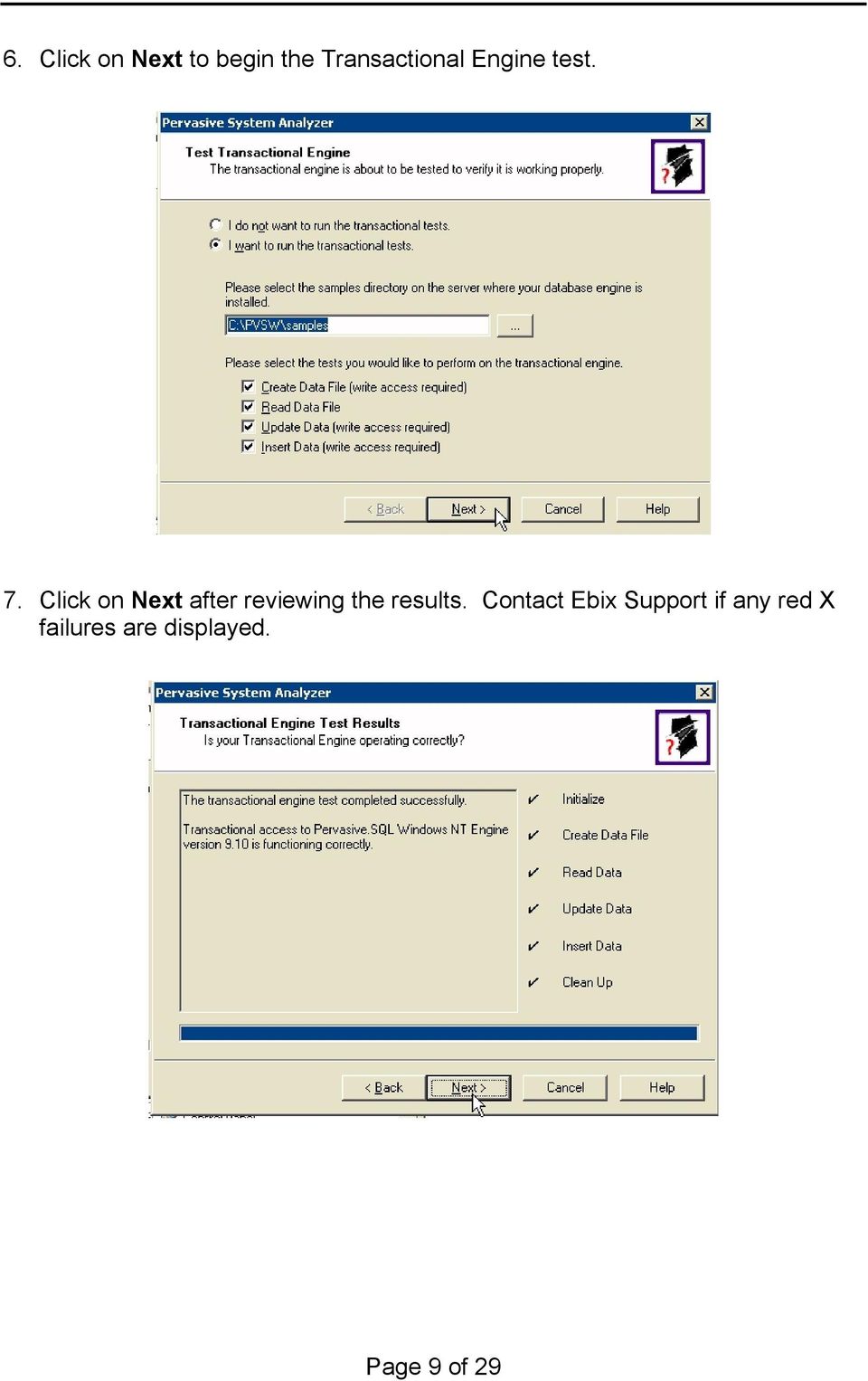
9 6. Click on Next to begin the Transactional Engine test. 7. Click on Next after reviewing the results. Contact Ebix Support if any red X failures are displayed. Page 9 of 29
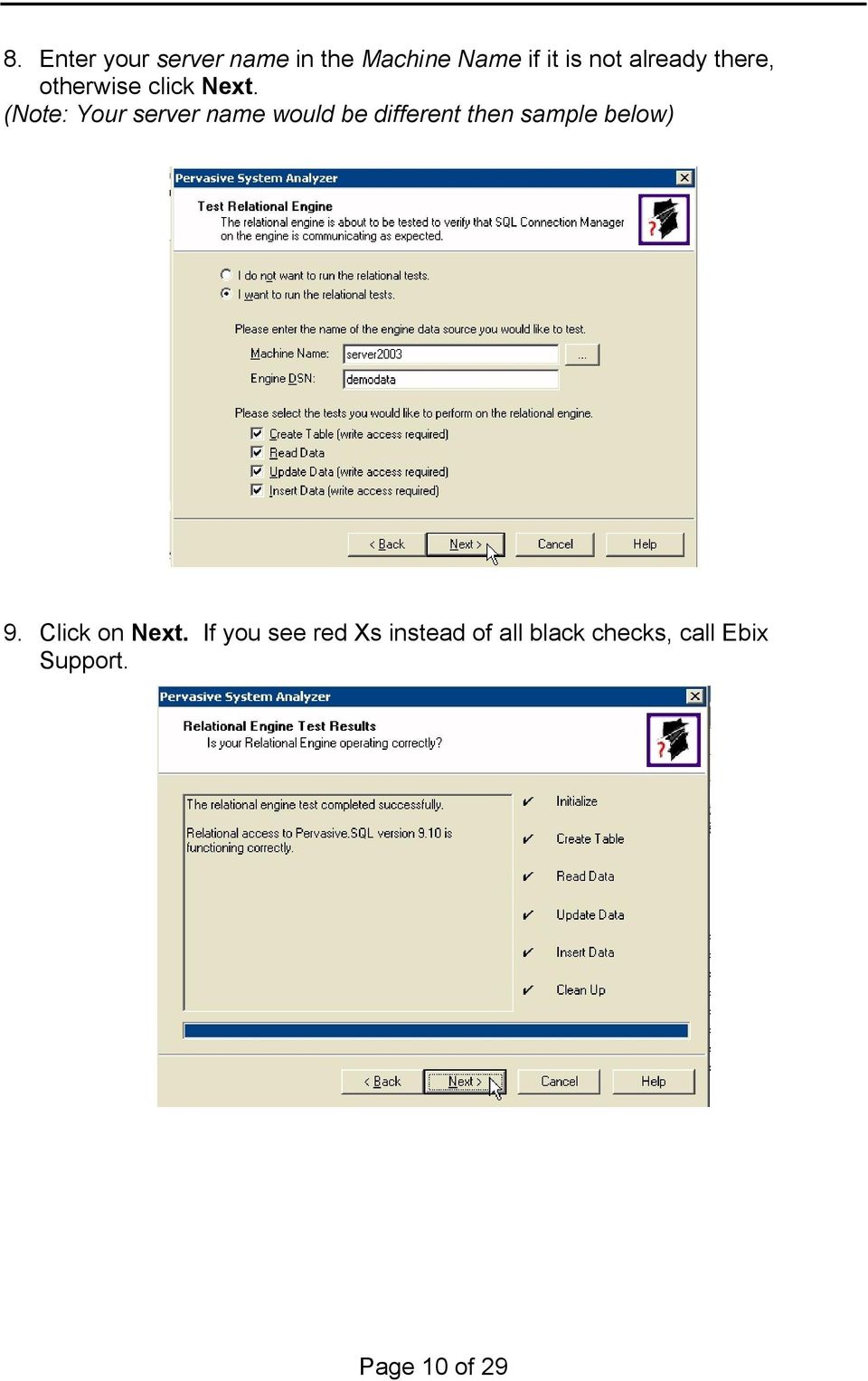
10 8. Enter your server name in the Machine Name if it is not already there, otherwise click Next. (Note: Your server name would be different then sample below) 9. Click on Next. If you see red Xs instead of all black checks, call Ebix Support. Page 10 of 29
11 10. Click on Finish to close the Pervasive System Analyzer Wizard. 11. Click on Finish Once you finish, you will be prompted by Pervasive to register the software now or close window if you prefer to do it later. It is up to you when you want to register your license. Note: You may receive a few wizard dialog boxes wrapping up additional supporting installation programs on the server. Review dialog boxes and click Finish when done. Page 11 of 29

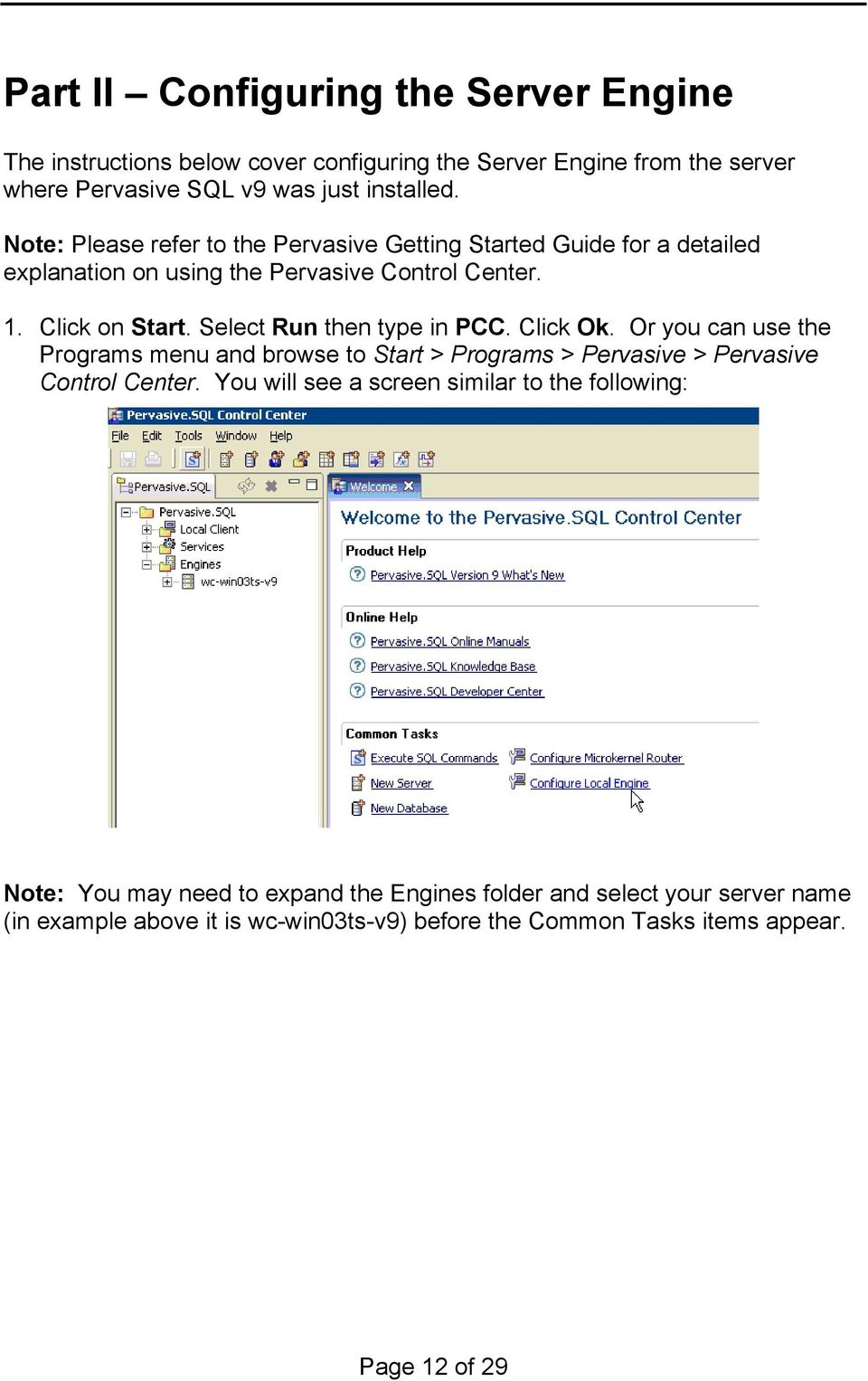
12 Part II Configuring the Server Engine The instructions below cover configuring the Server Engine from the server where Pervasive SQL v9 was just installed. Note: Please refer to the Pervasive Getting Started Guide for a detailed explanation on using the Pervasive Control Center. 1. Click on Start. Select Run then type in PCC. Click Ok. Or you can use the Programs menu and browse to Start > Programs > Pervasive > Pervasive Control Center. You will see a screen similar to the following: Note: You may need to expand the Engines folder and select your server name (in example above it is wc-win03ts-v9) before the Common Tasks items appear. Page 12 of 29
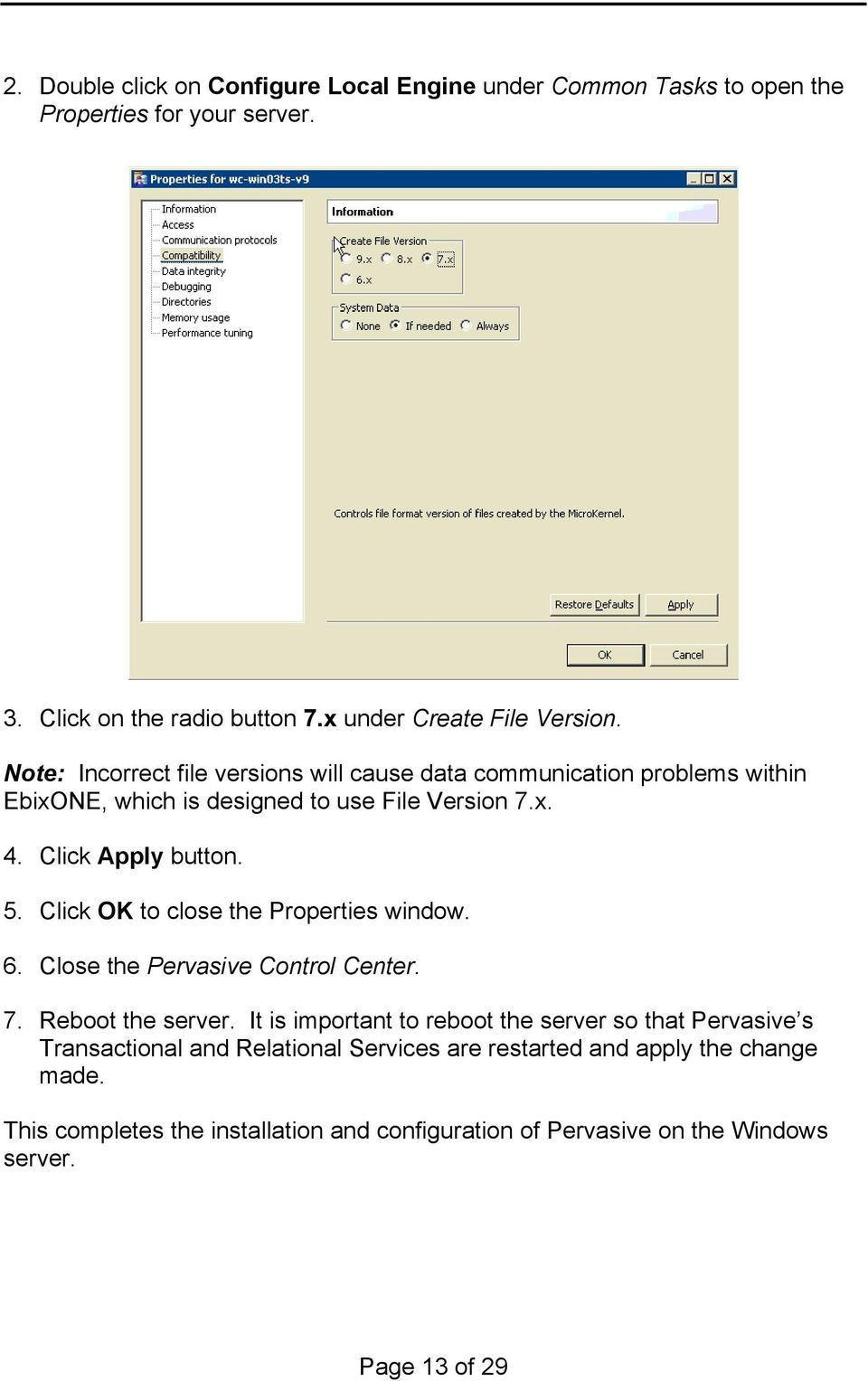
13 2. Double click on Configure Local Engine under Common Tasks to open the Properties for your server. 3. Click on the radio button 7.x under Create File Version. Note: Incorrect file versions will cause data communication problems within EbixONE, which is designed to use File Version 7.x. 4. Click Apply button. 5. Click OK to close the Properties window. 6. Close the Pervasive Control Center. 7. Reboot the server. It is important to reboot the server so that Pervasive s Transactional and Relational Services are restarted and apply the change made. This completes the installation and configuration of Pervasive on the Windows server. Page 13 of 29
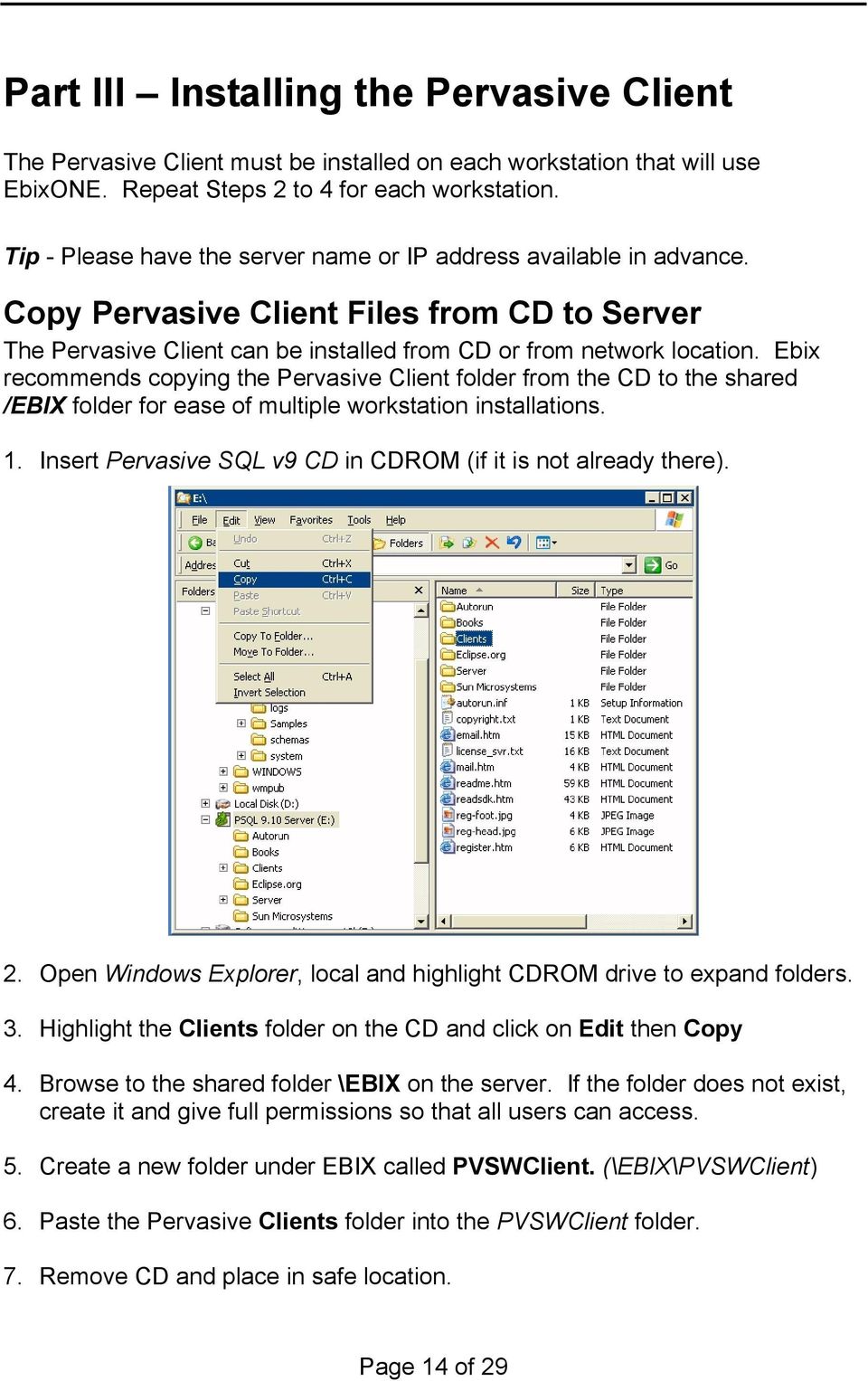
14 Part III Installing the Pervasive Client The Pervasive Client must be installed on each workstation that will use EbixONE. Repeat Steps 2 to 4 for each workstation. Tip - Please have the server name or IP address available in advance. Copy Pervasive Client Files from CD to Server The Pervasive Client can be installed from CD or from network location. Ebix recommends copying the Pervasive Client folder from the CD to the shared /EBIX folder for ease of multiple workstation installations. 1. Insert Pervasive SQL v9 CD in CDROM (if it is not already there). 2. Open Windows Explorer, local and highlight CDROM drive to expand folders. 3. Highlight the Clients folder on the CD and click on Edit then Copy 4. Browse to the shared folder \EBIX on the server. If the folder does not exist, create it and give full permissions so that all users can access. 5. Create a new folder under EBIX called PVSWClient. (\EBIX\PVSWClient) 6. Paste the Pervasive Clients folder into the PVSWClient folder. 7. Remove CD and place in safe location. Page 14 of 29
15 Update HOSTS file The HOSTS file must have your server name and IP address listed If you are using the TCP/IP protocol This must be done for each workstation. To check your Hosts File: For Windows 2000 Start > Run then type the following NOTEPAD C:\WINDOWS\SYSTEM32\DRIVERS\ETC\HOSTS. <Enter> (see *) Type the IP address and server name at the bottom of the HOSTS file For Windows XP Professional Start > Run then type the following NOTEPAD C:\WINDOWS\SYSTEM32\DRIVERS\ETC\HOSTS. <Enter> (see *) Type the IP address and server name at the bottom of the HOSTS file Note: A period. is entered at the end of HOSTS. Save the HOSTS file and exit. SAMPLE # Copyright Microsoft Corp. # # This is a sample HOSTS file used by Microsoft TCP/IP for Windows. # # This file contains the mappings of IP addresses to host names. Each # entry should be kept on an individual line. The IP address should # be placed in the first column followed by the corresponding host name. # The IP address and the host name should be separated by at least one # space. # Additionally, comments (such as these) may be inserted on individual # lines or following the machine name denoted by a # symbol. # localhost SERVER (sample) Enter your server s IP address and name here Page 15 of 29

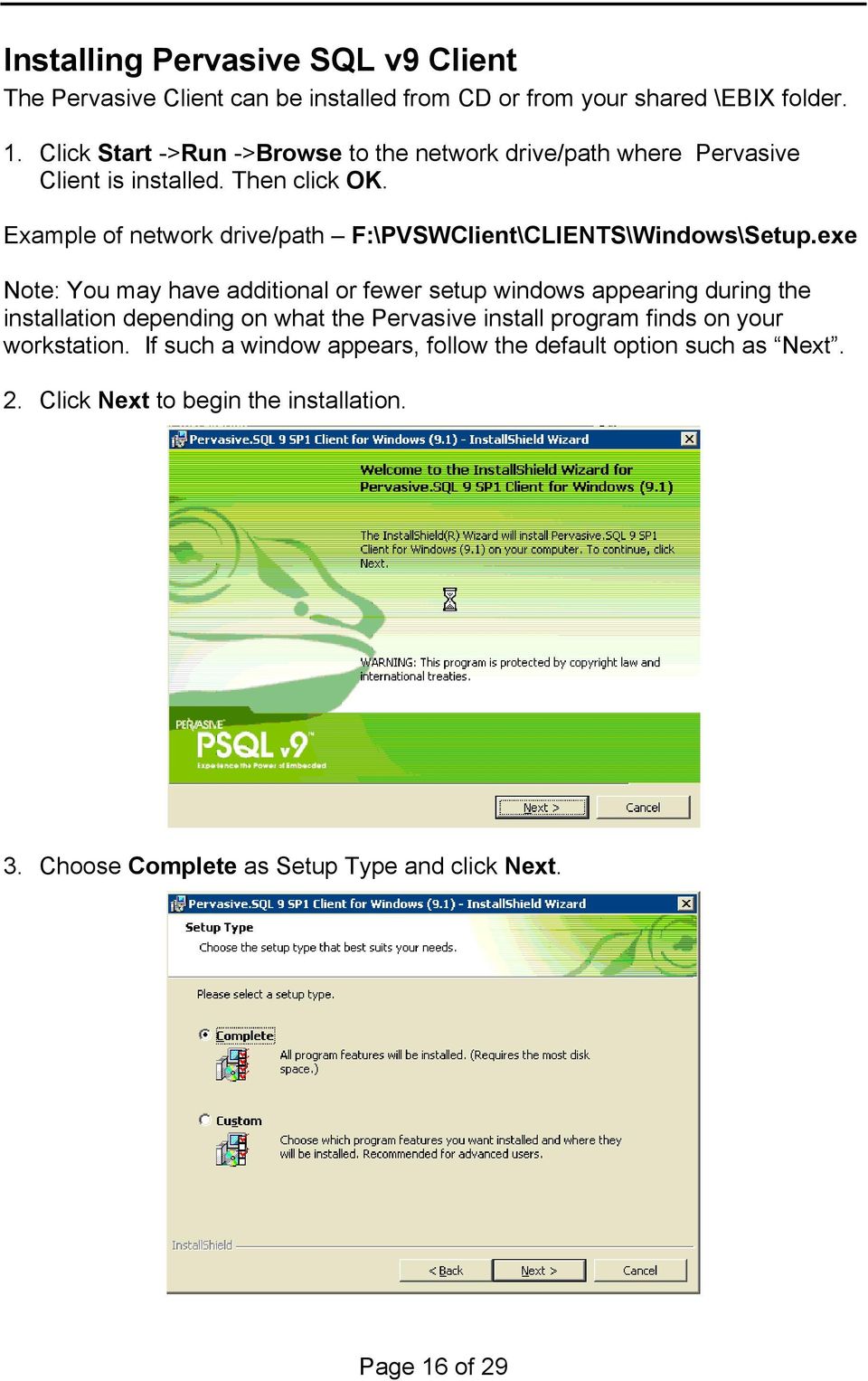
16 Installing Pervasive SQL v9 Client The Pervasive Client can be installed from CD or from your shared \EBIX folder. 1. Click Start ->Run ->Browse to the network drive/path where Pervasive Client is installed. Then click OK. Example of network drive/path F:\PVSWClient\CLIENTS\Windows\Setup.exe Note: You may have additional or fewer setup windows appearing during the installation depending on what the Pervasive install program finds on your workstation. If such a window appears, follow the default option such as Next. 2. Click Next to begin the installation. 3. Choose Complete as Setup Type and click Next. Page 16 of 29
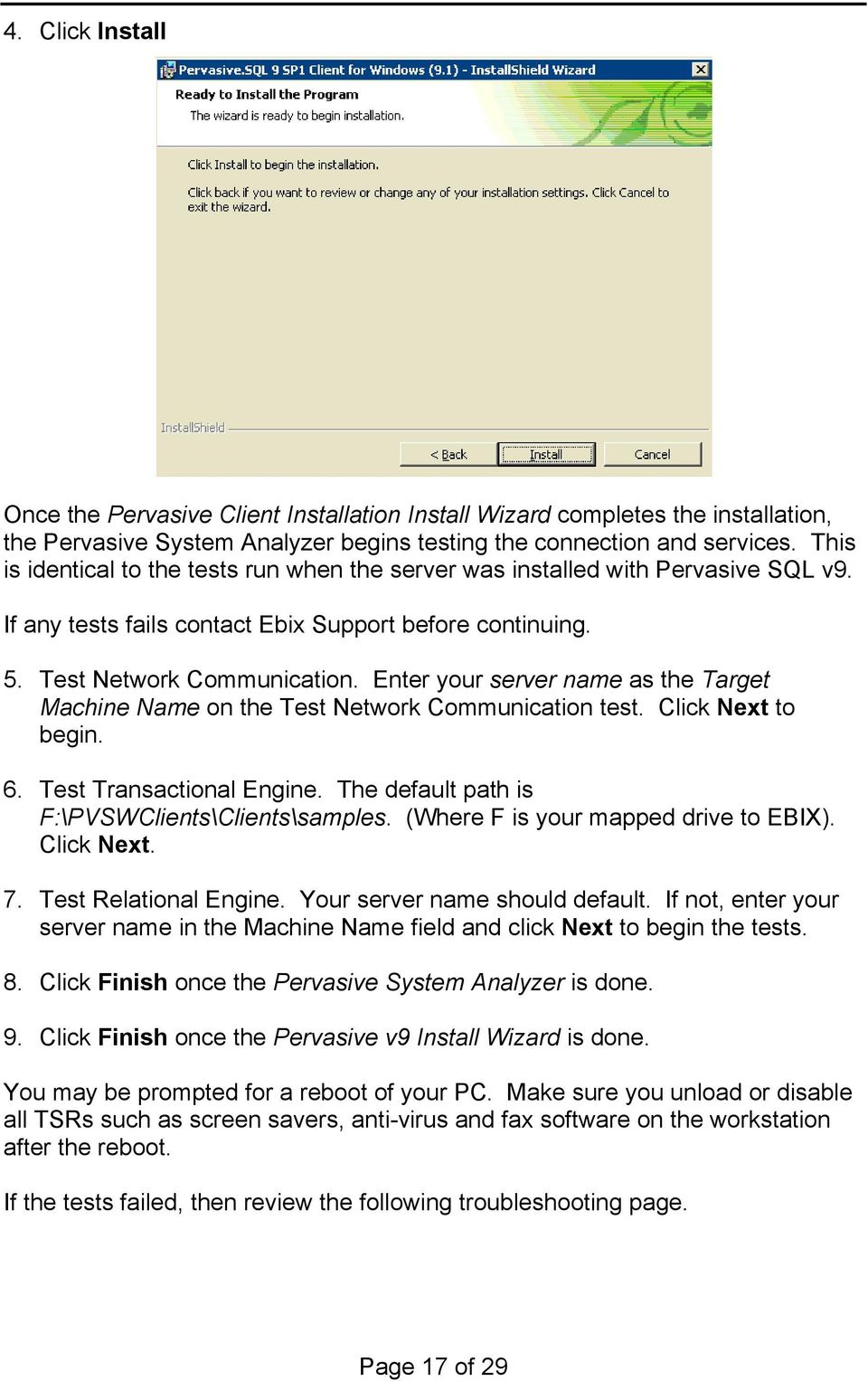
17 4. Click Install Once the Pervasive Client Installation Install Wizard completes the installation, the Pervasive System Analyzer begins testing the connection and services. This is identical to the tests run when the server was installed with Pervasive SQL v9. If any tests fails contact Ebix Support before continuing. 5. Test Network Communication. Enter your server name as the Target Machine Name on the Test Network Communication test. Click Next to begin. 6. Test Transactional Engine. The default path is F:\PVSWClients\Clients\samples. (Where F is your mapped drive to EBIX). Click Next. 7. Test Relational Engine. Your server name should default. If not, enter your server name in the Machine Name field and click Next to begin the tests. 8. Click Finish once the Pervasive System Analyzer is done. 9. Click Finish once the Pervasive v9 Install Wizard is done. You may be prompted for a reboot of your PC. Make sure you unload or disable all TSRs such as screen savers, anti-virus and fax software on the workstation after the reboot. If the tests failed, then review the following troubleshooting page. Page 17 of 29
18 Troubleshooting Pervasive Client Tests There are multiple reasons for the Relational Test to fail. Review the common problems below to troubleshoot the failed test. Click Next to complete the installation and if prompted, reboot your workstation. If you are using TCP/IP protocol, the Windows HOSTS file may be missing the server name or IP address or the server name and IP address may be incorrect. To check the HOSTS file, refer to the beginning of this section, Part III, on page 14 and follow the steps to check or modify your HOSTS file. The Relational Engine uses ODBC components that need to be loaded when your PC is started. A reboot, if prompted, may load the necessary drivers for a successful connection. After reboot, run the Pervasive System Analyzer and check the box Relational Test to retest. Pervasive PSQL V9 Server \PVSW folder was installed on a non-system drive (Example second hard drive D: instead of system C: drive where Windows was installed). Earlier versions of Relational Test expected demodata files on system C: drive. If /PVSW installed on non-system drive, skip the relational test and continue with setup. You will test ODBC DSN setup to EbixONE database later and if it passes, relational service is running fine. Retry the Relational Test by using the Pervasive System Analyzer utility usually found under your Start Program Menu > Programs > Pervasive v9> Other Utilities > Pervasive System Analyzer. If the Relational Test continues to fail, please contact the EbixONE Technical Support. Page 18 of 29

19 Part IV - EbixONE Installation / Migration Installing EbixONE for the 1 st Time (New Install) Note: Pervasive v9 must be installed (both server and client) prior to installing EbixONE. You must have your EbixONE 9.08 CD and registration disk available. Important: EbixONE installation must be run from the Administrative Workstation. pcanywhere must be installed on the workstation so that Ebix Support can dial in and complete the installation. 1. Insert the EbixONE 9.08 Installation CD into the CD-ROM drive. 2. Copy the CDPROD folder on the CD to the root of the mapped shared drive /EBIX on the server. 3. Contact Ebix Support to complete the setup of the CDPROD folder. Migrating EbixONE from another Server (Migration) Everyone must be logged off EbixONE. Ebix recommends stopping the Pervasive Transactional and Relational Services on the old server. 1. Copy the CDPROD folder from the old server to the to the new shared folder /EBIX on the new server. If you are planning to change mapped drive letters that point to the new server and EbixONE (example F:\CDPROD to G:\CDPROD), you will need to change the following files: On the Server Update the global.ini. Using Notepad or DOS editor, edit \cdprod\global.ini and replace all mentions of the old drive letters with the new drive letter. Update the disrun.ini. Using Notepad or DOS editor, edit \cdprod\disrun.ini and replace the old drive letters with the new drive letter that will be used. Page 19 of 29

20 Part V - EbixONE Client Install Setup If you are migrating from an older server and have not changed the drive mappings for the global.ini and disrun.ini files, and your PCs already have the EbixONE Client installed and configured correctly you can skip to the next section Creating ODBC DSN (Data Source Name) for EbixONE ODBC DSN. If you changed the drive mappings (Example F:\CDPROD to G:\CDPROD) you will need to reinstall the EbixONE Client so that local delphi.ini file and shortcuts get updated correctly. Installing the EbixONE Client Note: You must have Pervasive SQL v9 Client already installed before doing the EbixONE client setup. Begin with the Administrator workstation and then install all subsequent workstations. Please have the following information ready Server IP Address Administrator Login ID ID Password The EbixONE client is best installed through the Windows Add/Remove Programs found under the Windows Control Panel. 1. Open Control Panel and click Add or Remove Programs. Visit or use your local PC Help for instructions on using the Add or Remove Program. 2. Click Add Programs 3. Click load from CD or Floppy. No file will be found and a Browse button will appear. 4. Click on Browse and point to the location of your system server installation and run SETUP.EXE from the CDPROD\SYSFILES directory. Example: F:\CDPROD\SYSFILES\SETUP Note :If this fails, check if you have included SYSFILES Page 20 of 29

21 5. Click on OK. Then the following screen appears. Verify that no other programs are running then press Next. 6. Click the Administrator Workstation button. Note: On any remaining workstations, you would click Workstation button. Page 21 of 29
22 7. Click Next. The files begin copying. 8. You will receive 8 dialog screens referencing registering DllRegisterServer. Press OK on all of them. Page 22 of 29
23 You may receive the following error message if you have a later comdlg32.ocx installed on your workstation. Document that you received the error and Press OK to continue. There is no need to report this error. 9. If prompted to place an icon on your desktop, we recommend selecting Yes. 10. Press Yes to setup your DSN now. Continue to the next section ODBC DSN (Data Source Name) for EbixONE. Page 23 of 29
24 Creating ODBC DSN (Data Source Name) for EbixONE You will need to configure a new ODBC Data Source Name for Pervasive SQL. This will need to be done on each workstation that plans to use EbixONE. 1. Open your ODBC Data Source Administrator if not already started. (To open from Windows desktop, Click Start > Programs > Pervasive V9 > Other Utilities > ODBC Administrator) Note: If you have an existing Ebix ODBC DSN using a prior Pervasive driver, you will need to remove it before continuing to step Click on the System DSN tab then click Add 3. Scroll down to select Pervasive Client Interface. Click Finish. Page 24 of 29
25 4. Enter a Data Source Name under the client section. We recommend the name ebixclient. Enter your Server IP address. Select Try TCPIP only for Transport Hint. Note: If this is your first workstation setup, Click Create button to setup the Data Source Name in the server section. You only need to create the Data Source Name for the server once. You won t need to create it again when you do the other workstations setup. If you have previously created the ebix server Data Source Name in the Server section on a prior workstation setup, skip to Step 11. Page 25 of 29
26 5. Enter the User name and Password. You must use either administrator or a user ID that has administrator privilege to the server. Click OK 6. Enter the Data Source Name (for the server). We recommend ebixserver. 7. Click Create. The Create Database window displays. 8. Enter a Database Name. We recommend using ebixdata. Page 26 of 29
27 Browse the Dictionary Location to your ebix server data directory. Example: F:\CDPROD\DATA. Click OK. 9. Click OK Page 27 of 29
28 10. Click OK. 11. Click Get DSN List button and select Data Source Name for your server, usually ebixserver or ebixone. Click OK 12. Click Test. Note: If test fails, contact EbixONE Support. 13. Once test completes successfully, click OK to close the Pervasive ODBC Client DSN Setup window. Page 28 of 29
29 14. Click OK to close the ODBC Data Source Window You have completed the ODBC DSN Setup. Test EbixONE Connection Attempt to login to EbixONE. Access the Customer Lobby to make sure you can view customer information. If you can login, the.ini files are correct and the transactional services are running fine. If you can access customer data, then the relational communication is running fine and the migration is complete. Repeat the EbixONE Client Installation and DSN setup steps 1 through 4 then step 11 to 14 for all other PC workstations. This ends the Installation / Migration of EbixONE with Pervasive PSQL V9 Page 29 of 29
Initial Installation and Configuration
 Windows Terminal Server with EbixONE Windows 2000 and Windows 2003 Server Initial Installation and Configuration IMPORTANT: The use of this document is intended to be a quick reference for a certified
Installation Instruction STATISTICA Enterprise Small Business
 Installation Instruction STATISTICA Enterprise Small Business Notes: ❶ The installation of STATISTICA Enterprise Small Business entails two parts: a) a server installation, and b) workstation installations
STATISTICA VERSION 9 STATISTICA ENTERPRISE INSTALLATION INSTRUCTIONS FOR USE WITH TERMINAL SERVER
 Notes: STATISTICA VERSION 9 STATISTICA ENTERPRISE INSTALLATION INSTRUCTIONS FOR USE WITH TERMINAL SERVER 1. These instructions focus on installation on Windows Terminal Server (WTS), but are applicable
STATISTICA VERSION 12 STATISTICA ENTERPRISE SMALL BUSINESS INSTALLATION INSTRUCTIONS
 STATISTICA VERSION 12 STATISTICA ENTERPRISE SMALL BUSINESS INSTALLATION INSTRUCTIONS Notes 1. The installation of STATISTICA Enterprise Small Business entails two parts: a) a server installation, and b)
Installation Instruction STATISTICA Enterprise Server
 Installation Instruction STATISTICA Enterprise Server Notes: ❶ The installation of STATISTICA Enterprise Server entails two parts: a) a server installation, and b) workstation installations on each of
LPR for Windows 95/98/Me/2000/XP TCP/IP Printing User s Guide. Rev. 03 (November, 2001)
 LPR for Windows 95/98/Me/2000/XP TCP/IP Printing User s Guide Rev. 03 (November, 2001) Copyright Statement Trademarks Copyright 1997 No part of this publication may be reproduced in any form or by any
VERITAS Backup Exec 9.1 for Windows Servers Quick Installation Guide
 VERITAS Backup Exec 9.1 for Windows Servers Quick Installation Guide N109548 Disclaimer The information contained in this publication is subject to change without notice. VERITAS Software Corporation makes
Dell Statistica 13.0. Statistica Enterprise Installation Instructions
 Dell Statistica 13.0 2015 Dell Inc. ALL RIGHTS RESERVED. This guide contains proprietary information protected by copyright. The software described in this guide is furnished under a software license or
Installing the Microsoft Network Driver Interface
 Installing the Microsoft Network Driver Interface Overview This guide explains how to install the PictureTel Live200 Microsoft Network Driver Interface (NDIS) software you have downloaded from PictureTel's
Converting InfoPlus.21 Data to a Microsoft SQL Server 2000 Database
 Technical Bulletin Issue Date August 14, 2003 Converting InfoPlus.21 Data to a Microsoft SQL Server 2000 Database Converting InfoPlus.21 Data to a Microsoft SQL Server 2000 Database...2 Introduction...
STATISTICA VERSION 10 STATISTICA ENTERPRISE SERVER INSTALLATION INSTRUCTIONS
 Notes: STATISTICA VERSION 10 STATISTICA ENTERPRISE SERVER INSTALLATION INSTRUCTIONS 1. The installation of the STATISTICA Enterprise Server entails two parts: a) a server installation, and b) workstation
Installing SQL Express. For CribMaster 9.2 and Later
 Installing SQL Express For CribMaster 9.2 and Later CRIBMASTER USER GUIDE Installing SQL Express Document ID: CM9-031-03012012 Copyright CribMaster. 1996, 1997, 1998, 1999, 2000, 2001, 2002, 2003, 2004,
Keystone 600N5 SERVER and STAND-ALONE INSTALLATION INSTRUCTIONS
 The following instructions are required for installation of Best Access System s Keystone 600N5 (KS600N) network key control software for the server side. Please see the system requirements on the Keystone
Inmagic ODBC Driver 8.00 Installation and Upgrade Notes
 Inmagic ODBC Driver 8.00 Installation and Upgrade Notes Thank you for purchasing the Inmagic ODBC Driver for DB/Text. This document is for new and upgrade customers. Use the Inmagic ODBC Driver to develop
STATISTICA VERSION 11 CONCURRENT NETWORK LICENSE WITH BORROWING INSTALLATION INSTRUCTIONS
 data analysis data mining quality improvement web-based analytics Notes STATISTICA VERSION 11 CONCURRENT NETWORK LICENSE WITH BORROWING INSTALLATION INSTRUCTIONS 1. The installation of the Concurrent network
Matisse Installation Guide for MS Windows. 10th Edition
 Matisse Installation Guide for MS Windows 10th Edition April 2004 Matisse Installation Guide for MS Windows Copyright 1992 2004 Matisse Software Inc. All Rights Reserved. Matisse Software Inc. 433 Airport
Copyrights, Legal Notices, Trademarks and Servicemarks
 Installation Guide Copyrights, Legal Notices, Trademarks and Servicemarks Copyright 1998-2003 Westbrook Technologies Incorporated. All rights reserved. No part of this work may be reproduced or transmitted
Pervasive SQL 9 Client/Server Installation and Configuration
 Before you begin: Pervasive SQL 9 Client/Server Installation and Configuration 1. Anti-virus software must be disabled on every computer where you will be installing Pervasive SQL 9. After the install
SQL Server 2008 R2 Express Edition Installation Guide
 Hardware, Software & System Requirements for SQL Server 2008 R2 Express Edition To get the overview of SQL Server 2008 R2 Express Edition, click here. Please refer links given below for all the details
ilaw Installation Procedure
 ilaw Installation Procedure This guide will provide a reference for a full installation of ilaw Case Management Software. Contents ilaw Overview How ilaw works Installing ilaw Server on a PC Installing
DP-313 Wireless Print Server
 DP-313 Wireless Print Server Quick Installation Guide TCP/IP Printing (LPR for Windows 95/98/Me/2000) Rev. 03 (August, 2001) Copyright Statement Trademarks Copyright 1997 No part of this publication may
Installation Instructions Release Version 15.0 January 30 th, 2011
 Release Version 15.0 January 30 th, 2011 ARGUS Software: ARGUS Valuation - DCF The contents of this document are considered proprietary by ARGUS Software, the information enclosed and any portion thereof
WhatsUp Gold v16.1 Installation and Configuration Guide
 WhatsUp Gold v16.1 Installation and Configuration Guide Contents Installing and Configuring Ipswitch WhatsUp Gold v16.1 using WhatsUp Setup Installing WhatsUp Gold using WhatsUp Setup... 1 Security guidelines
Network Printing In Windows 95/98/ME
 Network Printing In Windows 95/98/ME If you are using Windows 2000/ XP: To install a printer on your network using D-Link Print Server or DI-series router with built-in print server you do not need to
Reporting for Contact Center Setup and Operations Guide. BCM Contact Center
 Reporting for Contact Center Setup and Operations Guide BCM Contact Center Document Number: NN40040-302 Document Status: Standard Document Version: 04.00 Part Code: N0060637 Date: June 2006 Copyright 2005
Batch Eligibility Long Term Care claims
 Hewlett Packard Enterprise Provider Electronic Solutions software lets Connecticut Medical Assistance Program providers verify patient s eligibility and submit and correct claims for services all electronically.
Install MS SQL Server 2012 Express Edition
 Install MS SQL Server 2012 Express Edition Sohodox now works with SQL Server Express Edition. Earlier versions of Sohodox created and used a MS Access based database for storing indexing data and other
Printing Options. Netgear FR114P Print Server Installation for Windows XP
 Netgear FR114P Print Server Installation for Windows XP January 2007 This chapter describes how to install and configure the print server in your Netgear Firewall/Print Server Model FR114P. Below, the
Voyager Reporting System (VRS) Installation Guide. Revised 5/09/06
 Voyager Reporting System (VRS) Installation Guide Revised 5/09/06 System Requirements Verification 1. Verify that the workstation s Operating System is Windows 2000 or Higher. 2. Verify that Microsoft
MGC WebCommander Web Server Manager
 MGC WebCommander Web Server Manager Installation and Configuration Guide Version 8.0 Copyright 2006 Polycom, Inc. All Rights Reserved Catalog No. DOC2138B Version 8.0 Proprietary and Confidential The information
SAS 9.1.3 Installation Instructions Windows 2003, XP, 2000, NT. SAS 9.1.3 Client Server Installation. Introduction:
 UCit Instructional and Research Computing, Software Distribution Office, 303B Zimmer Hall, Cincinnati, OH 45221-0088. Phone: (513) 556 9068 Email: [email protected] SAS 9.1.3 Installation Instructions Windows
Installation Guide for Workstations
 Installation Guide for Workstations Copyright 1998-2005, E-Z Data, Inc. All Rights Reserved. No part of this documentation may be copied, reproduced, or translated in any form without the prior written
Blackbaud FundWare Installation and Update Guide VERSION 7.60, JULY 2010
 Blackbaud FundWare Installation and Update Guide VERSION 7.60, JULY 2010 Blackbaud FundWare Installation and Update Guide USER GUIDE HISTORY Date Changes November 2000 June 2001 August 2001 January 2002
Magaya Software Installation Guide
 Magaya Software Installation Guide MAGAYA SOFTWARE INSTALLATION GUIDE INTRODUCTION Introduction This installation guide explains the system requirements for installing any Magaya software, the steps to
Browser Client 2.0 Admin Guide
 Browser Client is a web-based application that allows users to point their browser at a URL and view live video from a set of Intellex units. Browser Client 2.0 is compatible with Intellex 3.2 software.
Upgrading from Call Center Reporting to Reporting for Contact Center. BCM Contact Center
 Upgrading from Call Center Reporting to Reporting for Contact Center BCM Contact Center Document Number: NN40010-400 Document Status: Standard Document Version: 02.00 Date: June 2006 Copyright Nortel Networks
Operating System Installation Guide
 Operating System Installation Guide This guide provides instructions on the following: Installing the Windows Server 2008 operating systems on page 1 Installing the Windows Small Business Server 2011 operating
Installation Instruction STATISTICA. Concurrent Network License with Borrowing Domain Based Registration
 Installation Instruction STATISTICA Concurrent Network License with Borrowing Domain Based Registration Notes: ❶ The installation of the Concurrent network version entails two parts: a) a server installation,
Migrating helpdesk to a new server
 Migrating helpdesk to a new server Table of Contents 1. Helpdesk Migration... 2 Configure Virtual Web on IIS 6 Windows 2003 Server:... 2 Role Services required on IIS 7 Windows 2008 / 2012 Server:... 2
Networking Best Practices Guide. Version 6.5
 Networking Best Practices Guide Version 6.5 Summer 2010 Copyright: 2010, CCH, a Wolters Kluwer business. All rights reserved. Material in this publication may not be reproduced or transmitted in any form
Crystal Reports Installation Guide
 Crystal Reports Installation Guide Version XI Infor Global Solutions, Inc. Copyright 2006 Infor IP Holdings C.V. and/or its affiliates or licensors. All rights reserved. The Infor word and design marks
WhatsUp Gold v16.2 Installation and Configuration Guide
 WhatsUp Gold v16.2 Installation and Configuration Guide Contents Installing and Configuring Ipswitch WhatsUp Gold v16.2 using WhatsUp Setup Installing WhatsUp Gold using WhatsUp Setup... 1 Security guidelines
Introduction and Overview
 Inmagic Content Server Workgroup 10.00 Microsoft SQL Server 2005 Express Edition Installation Notes Introduction and Overview These installation notes are intended for the following scenarios: 1) New installations
Server & Workstation Installation of Client Profiles for Windows
 C ase Manag e m e n t by C l i e n t P rofiles Server & Workstation Installation of Client Profiles for Windows T E C H N O L O G Y F O R T H E B U S I N E S S O F L A W General Notes to Prepare for Installing
How To Create An Easybelle History Database On A Microsoft Powerbook 2.5.2 (Windows)
 Introduction EASYLABEL 6 has several new features for saving the history of label formats. This history can include information about when label formats were edited and printed. In order to save this history,
Setup and Configuration Guide for Pathways Mobile Estimating
 Setup and Configuration Guide for Pathways Mobile Estimating Setup and Configuration Guide for Pathways Mobile Estimating Copyright 2008 by CCC Information Services Inc. All rights reserved. No part of
Portions of this product were created using LEADTOOLS 1991-2009 LEAD Technologies, Inc. ALL RIGHTS RESERVED.
 Installation Guide Lenel OnGuard 2009 Installation Guide, product version 6.3. This guide is item number DOC-110, revision 1.038, May 2009 Copyright 1992-2009 Lenel Systems International, Inc. Information
Abila MIP. Installation User's Guide
 This is a publication of Abila, Inc. Version 2014.x Copyright 2013 Abila, Inc. All rights reserved. Abila, the Abila logos, and the Abila product and service names mentioned herein are registered trademarks
Table of Contents. CHAPTER 1 About This Guide... 9. CHAPTER 2 Introduction... 11. CHAPTER 3 Database Backup and Restoration... 15
 Table of Contents CHAPTER 1 About This Guide......................... 9 The Installation Guides....................................... 10 CHAPTER 2 Introduction............................ 11 Required
Diamond II v2.3 Service Pack 4 Installation Manual
 Diamond II v2.3 Service Pack 4 Installation Manual P/N 460987001B ISS 26APR11 Copyright Disclaimer Trademarks and patents Intended use Software license agreement FCC compliance Certification and compliance
Creating client-server setup with multiple clients
 Creating client-server setup with multiple clients Coffalyser.Net uses a SQL client server database model to store all project/experiment- related data. The client-server model has one main application
Network Scanner Tool R3.1. User s Guide Version 3.0.04
 Network Scanner Tool R3.1 User s Guide Version 3.0.04 Copyright 2000-2004 by Sharp Corporation. All rights reserved. Reproduction, adaptation or translation without prior written permission is prohibited,
Migrating TimeForce To A New Server
 Rev. 4/28/14 Migrating TimeForce To A New Server Table of Contents 1. Installation Prerequisites... 2 Required... 2 Recommended... 3 2. Update to a Migration Compatible Version... 3 Determine the Database
LockView 4.3.1 CompX Database & Network Configuration & Installation Manual
 LockView 4.3.1 CompX Database & Network Configuration & Installation Manual Table of Contents CompX Database & Network Configuration & Installation Manual Introduction... 4 Installation Requirements...
How To Install Database Oasis On A Computer Or Computer (For Free)
 INSTALLATION INSTRUCTIONS Table of Contents Installation Instructions 1 Table of Contents 1 System Requirements 2 Installation 3 Selecting where to Install the Professional Server 3 Installing Prerequisites
Partner. Sage Pastel. Accounting. Installation Guide
 Sage Pastel Accounting Partner Installation Guide Sage Pastel: +27 11 304 3000 Sage Pastel Intl: +27 11 304 3400 www.pastel.co.za www.sagepastel.com [email protected] [email protected] Sage Pastel Accounting
Installation Manual (MSI Version)
 Installation Manual (MSI Version) 1. SYSTEM REQUIREMENTS... 2 2. INSTALLATION INSTRUCTIONS... 2 2.1 REMOTE INSTALLATION USING GROUP POLICY... 2 2.1.1 Assigning Software...2 2.1.2 Publishing Software...2
FedEx Ship Manager Software. Installation Guide
 FedEx Ship Manager Software Installation Guide Before you start Check here to see that your PC has what it needs to run FedEx Ship Manager Software: Minimum System and Hardware Requirements Intel Pentium
Centran Version 4 Getting Started Guide KABA MAS. Table Of Contents
 Page 1 Centran Version 4 Getting Started Guide KABA MAS Kaba Mas Welcome Kaba Mas, part of the world-wide Kaba group, is the world's leading manufacturer and supplier of high security, electronic safe
Installing Novell Client Software (Windows 95/98)
 Installing Novell Client Software (Windows 95/98) Platform: Windows 95/98 Level of Difficulty: Intermediate The following procedure describes how to install the Novell Client software. This software allows
LPR for Windows 95 TCP/IP Printing User s Guide
 LPR for Windows 95 TCP/IP Printing User s Guide First Edition Printed in Taiwan, R.O.C. RECYCLABLE Copyright Statement Trademarks Limited Warranty Copyright 1997 D-Link Corporation No part of this publication
Upgrading from Call Center Reporting to Reporting for Call Center
 Upgrading from Call Center Reporting to Reporting for Call Center www.nortelnetworks.com 2003 Nortel Networks i Table of Contents Table of Contents Change History...1 How to use this guide...2 Introduction...
Network Server for Windows. Overview of the Sequencher Network Page 2. Installing Sequencher Server for the First Time Page 3
 Network Server for Windows Installation Instructions Overview of the Sequencher Network Page 2 Installing Sequencher Server for the First Time Page 3 Adding Sequencher licenses to KeyServer Page 4 Updating
How to use the VMware Workstation / Player to create an ISaGRAF (Ver. 3.55) development environment?
 Author Janice Hong Version 1.0.0 Date Mar. 2014 Page 1/56 How to use the VMware Workstation / Player to create an ISaGRAF (Ver. 3.55) development environment? Application Note The 32-bit operating system
iw Document Manager Cabinet Converter User s Guide
 iw Document Manager Cabinet Converter User s Guide Contents Contents.................................................................... 1 Abbreviations Used in This Guide................................................
FrontDesk Installation And Configuration
 Chapter 2 FrontDesk Installation And Configuration FrontDesk v4.1.25 FrontDesk Software Install Online Software Activation Installing State Related Databases Setting up a Workstation Internet Transfer
Abila MIP. Installation Guide
 This is a publication of Abila, Inc. Version 2015.x Copyright 2014 Abila, Inc. All rights reserved. Abila, the Abila logos, and the Abila product and service names mentioned herein are registered trademarks
Upgrading from MSDE to SQL Server 2005 Express Edition with Advanced Services SP2
 Upgrading from MSDE to SQL Server 2005 Express Edition with Advanced Services SP2 Installation and Configuration Introduction This document will walk you step by step in removing MSDE and the setup and
Install SQL Server 2014 Express Edition
 How To Install SQL Server 2014 Express Edition Updated: 2/4/2016 2016 Shelby Systems, Inc. All Rights Reserved Other brand and product names are trademarks or registered trademarks of the respective holders.
VERITAS Backup Exec TM 10.0 for Windows Servers
 VERITAS Backup Exec TM 10.0 for Windows Servers Quick Installation Guide N134418 July 2004 Disclaimer The information contained in this publication is subject to change without notice. VERITAS Software
Pearl Echo Installation Checklist
 Pearl Echo Installation Checklist Use this checklist to enter critical installation and setup information that will be required to install Pearl Echo in your network. For detailed deployment instructions
How do I EVOLVE to Best Practice Software?
 How do I EVOLVE to Best Practice Software? This FAQ is intended to answer common questions about installing Best Practice Software on a new system when using the disc marked New installations. (Evolution
Spector 360 Deployment Guide. Version 7
 Spector 360 Deployment Guide Version 7 December 11, 2009 Table of Contents Deployment Guide...1 Spector 360 DeploymentGuide... 1 Installing Spector 360... 3 Installing Spector 360 Servers (Details)...
RECOMMENDED HARDWARE CONFIGURATION FOR SCRB RECOMMENDED SOFTWARE REQUIREMENT FOR SCRB
 RECOMMENDED HARDWARE CONFIGURATION FOR SCRB WEB SERVER DATABASE SERVER Xeon Processor Xeon Processor 1 GB RAM 1 GB RAM 80 GB Hard Disk 140 GB Hard Disk LAN Card LAN Card CLIENT Pentium 4 Processor 512
Installing Windows 95 Drivers and Utilities for the Cisco Aironet 340/350 Series Client Adapters
 Installing Windows 95 Drivers and Utilities for the Cisco Aironet 340/350 Series Client Adapters Document ID: 12134 You need a valid Cisco.com account in order to download Cisco Aironet drivers, firmware,
CONFIGURING SQL SERVER FOR METRIX
 CONFIGURING SQL SERVER FOR METRIX Rules Based Productivity Copyright 2012 Outback Software www.metrixsoftware.com Pty. Metrix is a trademark Outback Software Pty Limited and may be registered in certain
User Manual. Onsight Management Suite Version 5.1. Another Innovation by Librestream
 User Manual Onsight Management Suite Version 5.1 Another Innovation by Librestream Doc #: 400075-06 May 2012 Information in this document is subject to change without notice. Reproduction in any manner
How To Configure CU*BASE Encryption
 How To Configure CU*BASE Encryption Configuring encryption on an existing CU*BASE installation INTRODUCTION This booklet was created to assist CU*Answers clients with the configuration of encrypted CU*BASE
Novell ZENworks Asset Management 7.5
 Novell ZENworks Asset Management 7.5 w w w. n o v e l l. c o m October 2006 INSTALLATION GUIDE Table Of Contents 1. Installation Overview... 1 If you are upgrading... 1 Installation Choices... 1 ZENworks
Bosch ReadykeyPRO Unlimited Installation Guide, product version 6.5. This guide is item number DOC-110-2-029, revision 2.029, May 2012.
 Bosch ReadykeyPRO Unlimited Installation Guide, product version 6.5. This guide is item number DOC-110-2-029, revision 2.029, May 2012. Copyright 1995-2012 Lenel Systems International, Inc. Information
Guide to Installing BBL Crystal MIND on Windows 7
 Guide to Installing BBL Crystal MIND on Windows 7 Introduction The BBL Crystal MIND software can not be directly installed on the Microsoft Windows 7 platform, however it can be installed and run via XP
Tufts VPN Client User Guide for Windows
 Tufts VPN Client User Guide for Windows Introduction The Tufts Virtual Private Network (VPN) implementation is a service that is provided to the faculty and staff of Tufts University to enable secure access
UPS WorldShip Install on a Workgroup Remote
 PRE-INSTALLATION INSTRUCTIONS: Install UPS WorldShip on the Workgroup Admin. Temporarily disable any virus scan software that you may have installed. Request access to the network share drive created by
Meridian 1 Meridian 1 Attendant PC LAN Interface Installation Guide
 Meridian 1 Meridian 1 Attendant PC LAN Interface Installation Guide Document Number: P0874391 Document Release: Standard 1.00 Date: November 1997 Year Publish FCC TM 1997 All rights reserved Printed in
Nortel Networks Call Center Reporting Set Up and Operation Guide
 Nortel Networks Call Center Reporting Set Up and Operation Guide www.nortelnetworks.com 2001 Nortel Networks P0919439 Issue 07 (24) Table of contents How to use this guide... 5 Introduction...5 How this
LockView 4.2 CompX Database & Network Configuration & Installation Manual
 LockView 4.2 CompX Database & Network Configuration & Installation Manual Table of Contents CompX Database & Network Configuration & Installation Manual Introduction... 4 Installation Requirements... 5
Topaz Installation Sheet
 Topaz Installation Sheet P/N 460924001E ISS 08FEB12 Content Introduction... 3 Recommended minimum requirements... 3 Setup for Internet Explorer:... 4 Topaz installation... 10 Technical support... 14 Copyright
NOTE: You may want to choose the Word Wrap option from Notepad Edit menu to make this text more readable.
 ------------------ Interactions/Gas Exchange Version 1.2, CD Version Copyright 2003 by John Wiley & Sons, Inc. All rights reserved. ------------------ NOTE: You may want to choose the Word Wrap option
RE:Open for SQL Anywhere. Installation Guide. RE:Open for SQL Anywhere Installation Guide 1
 RE:Open for SQL Anywhere Installation Guide RE:Open for SQL Anywhere Installation Guide 1 Pre-Installation Considerations Close all other Windows applications before running the installation. Your Raiser
InventoryControl for use with QuoteWerks Quick Start Guide
 InventoryControl for use with QuoteWerks Quick Start Guide Copyright 2013 Wasp Barcode Technologies 1400 10 th St. Plano, TX 75074 All Rights Reserved STATEMENTS IN THIS DOCUMENT REGARDING THIRD PARTY
5.6.3 Lab: Registry Backup and Recovery in Windows XP
 5.6.3 Lab: Registry Backup and Recovery in Windows XP Introduction Print and complete this lab. In this lab, you will back up a computer registry. You will also perform a recovery of a computer registry.
16.4.3 Lab: Data Backup and Recovery in Windows XP
 16.4.3 Lab: Data Backup and Recovery in Windows XP Introduction Print and complete this lab. In this lab, you will back up data. You will also perform a recovery of the data. Recommended Equipment The
Server & Workstation Installation of Client Profiles for Windows (WAN Edition)
 C ase Manag e m e n t by C l i e n t P rofiles Server & Workstation Installation of Client Profiles for Windows (WAN Edition) T E C H N O L O G Y F O R T H E B U S I N E S S O F L A W Important Note on
Sage ERP MAS 90 Sage ERP MAS 200 Sage ERP MAS 200 SQL. Installation and System Administrator's Guide 4MASIN450-08
 Sage ERP MAS 90 Sage ERP MAS 200 Sage ERP MAS 200 SQL Installation and System Administrator's Guide 4MASIN450-08 2011 Sage Software, Inc. All rights reserved. Sage, the Sage logos and the Sage product
ICE.TCP Pro Update Installation Notes
 ICE.TCP Pro Update Installation Notes Important Note: Based on customer comments, we are providing these revised installation instructions. They supercede the instructions in the manual. For previous users
GUARD1 PLUS SE Administrator's Manual
 GUARD1 PLUS SE Administrator's Manual Version 4.4 30700 Bainbridge Road Solon, Ohio 44139 Phone 216-595-0890 Fax 216-595-0991 [email protected] www.guard1.com i 2010 TimeKeeping Systems, Inc. GUARD1 PLUS
SPECIALIST PRACTICE MANAGER
 INSTALLATION GUIDE FOR SPECIALIST PRACTICE MANAGER using a MICROSOFT SQL SERVER DATABASE Updated October 2009 All rights reserved. No reproduction, transmission, transcription, storage in a retrieval system,
ADC Windows 7 Professional
 ADC Windows 7 Professional 8-April-2014 Revision: Release Publication Information 2014 Imagine Communications Corp. Proprietary and Confidential. Imagine Communications considers this document and its
How to Manage a Windows NT Server Computer Remotely
 MCSE Server Enterprise Using Windows NT Server Tools CHAPTER 14 Windows NT Server Tools................. 541 NT Server Tools for Windows 95 Computers........ 541 Installing NT Server tools on a Windows
Windows 98 Workstation Install
 Windows 98 Workstation Install To install the Oracle Client Software on a Windows 98 workstation you need to do a manual install installing the Oracle Client Software first then the Infinitime software.