
Metasys System Direct Connection and Dial-Up Connection Application Note
|
|
|
- Richard Harrison
- 10 years ago
- Views:
Transcription
1 Metasys System Direct Connection and Dial-Up Connection Application Note Code No. LIT Software Release 5.1 Issued August 27, 2013 Supersedes October Refer to the QuickLIT website for the most up-to-date version of this document. Document Introduction...2 Related Documentation...2 Related Concepts...2 Communications Setup...3 Detailed Procedures...3 Microsoft Windows XP Operating Systems Direct Serial Connection...3 Direct Serial Communications Checklist Windows XP Operating Systems...3 Adding a Null Modem Serial Cable...3 Making a New Direct Serial Connection Using Windows XP Operating Systems...9 Completing a New Direct Serial Connection Using Windows XP Operating Systems...15 Dial-Up Connection...18 Dial-Up (Modem) Communications Checklist...19 Adding a Modem...19 Downloading the USR 5637 Modem Driver...19 Making a New Dial-Up Connection Using Windows XP Operating Systems...23 Completing a New Dial-Up Connection Using Windows XP Operating Systems...26 Enabling Communication with Multiple Internet Addresses...30 Establishing the Connection...35 Making a New Dial-Up Connection Using Windows 7 Operating Systems...38 Troubleshooting...41 Error Error User Name or Password Not Accepted

2 Document Introduction This document provides the prerequisites, guidelines, and instructions for establishing direct serial connections and dial-up modem connections between a service person s laptop computer running the Windows 7 or Windows XP operating system (OS) and one of the following devices: Network Automation Engine (NAE) Network Integration Engine (NIE) Application and Data Server (ADS) Extended Application and Data Server (ADX) The computer with a web browser that you are connecting to an NAE or NIE can reside on an ADS or an ADX, but we recommend that the computer with a web browser be a separate computer to achieve optimal performance from the ADS/ADX. The information in this document is also useful when troubleshooting direct serial connections and dial-up modem connections in Metasys system solutions. Related Documentation See Table 1 for sources of further information on related topics. Table 1: Related Documentation For Information On Understanding Metasys System Understanding Network and Information Technology Requirements for Metasys System Configuring and Troubleshooting an NAE45, NAE55, or NIE Configuring and Troubleshooting an ADS Reducing the Download Time After Establishing a Connection See Document Metasys System Overview Technical Bulletin Network and IT Professional Technical Bulletin NAE Commissioning Guide ADS/ADX Commissioning Guide Metasys System Extended Architecture Remote Access Installation Instructions LIT Number LIT LIT LIT LIT LIT Related Concepts You must set the communications parameters before configuring for a connection. See the Communications Setup section in this document. Direct serial connection, also called direct connect, is a connection made from a computer to another computer or some other device (such as an NAE or NIE) using a null modem cable connected from the serial port on the computer to a serial port on the other computer or device. See the Microsoft Windows XP Operating Systems Direct Serial Connection section in this document. Use a direct serial connection for troubleshooting, support, or to obtain information in any of the following circumstances: There is no Local Area Network (LAN) or cable modem to use for a connection with the NAE/NIE or ADS/ADX. There is a firewall blocking the user from connecting to the NAE/NIE or ADS/ADX. Note: This document describes direct connect using a serial port on a computer to the Serial A RS-232 port on the NAE or NIE using a null modem cable. This procedure applies only to a computer running the Windows XP OS. Direct serial connection using a null modem cable is not supported on a computer with the Windows 7 OS. In a dial-up connection, a computer uses a modem to call and connect to another computer or some other device (such as an NAE or NIE). You must connect the NAE or NIE to a phone line. An example application for a dial-up connection is monitoring a remote site with a computer. See the Dial-Up Connection section in this document. Use a dial-up connection for troubleshooting, support, or to obtain information in any of the following circumstances: There is no ADS/ADX. The ADS/ADX is located in another part of the building. You cannot connect from the web browser. 2

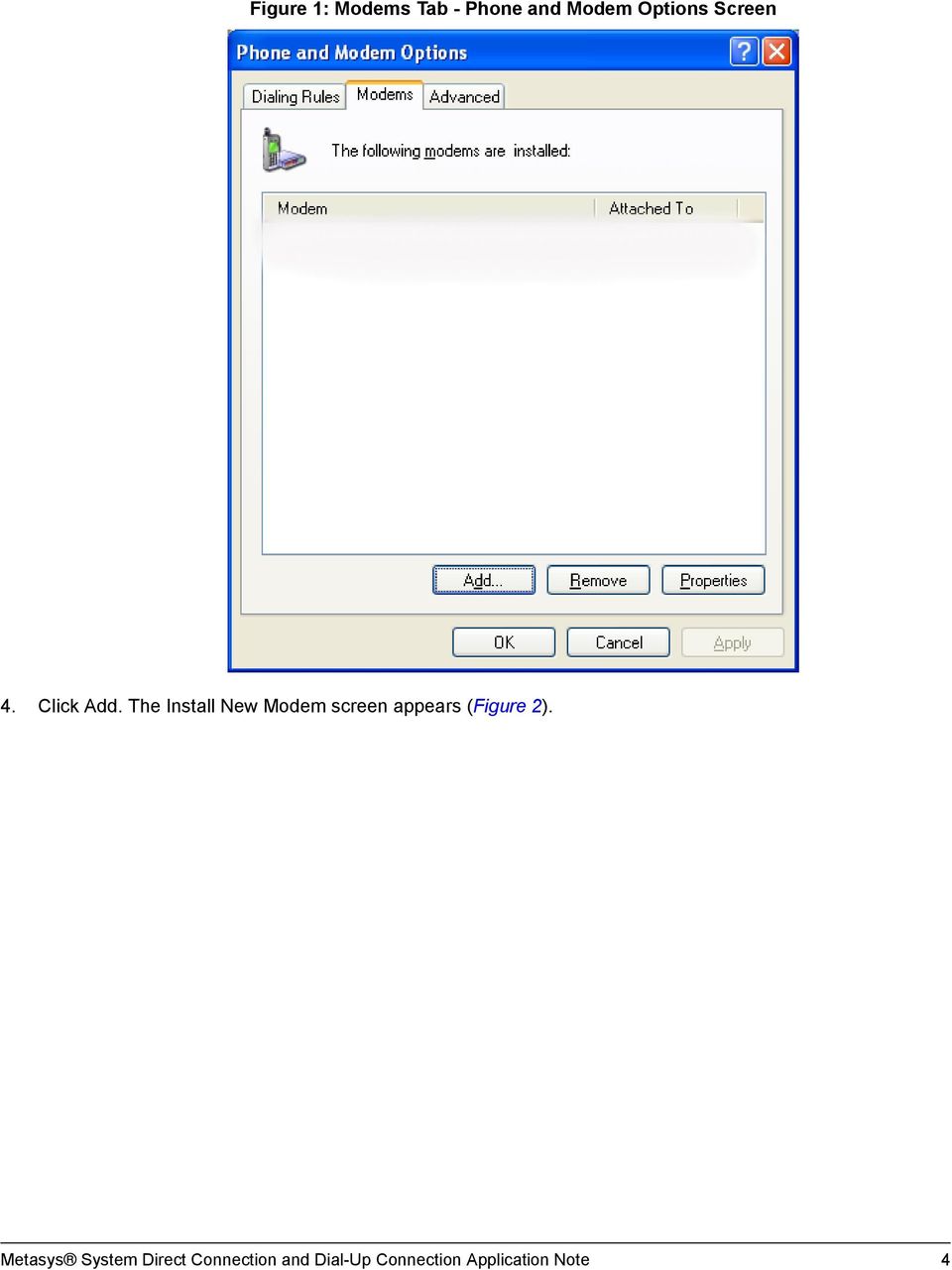
3 Communications Setup This document only covers the setup for the computer. You must also set up the other devices to which the computer connects. For performance reasons, the external modem Universal Serial Bus (USB) driver is not loaded as a default. For security reasons, Dial In capability is not enabled by default. To successfully configure a direct serial or dial-up connection, you must set up the communications for each device. The following documents cover how to set up the NAE, NIE, or ADS: Establishing the NAE Network Parameters and Establishing the NAE Direct-Connect and Modem Parameters sections of the NAE Commissioning Guide (LIT ) Configuring an ADS/ADX to Accept Dial-Up Connections section of the ADS/ADX Commissioning Guide (LIT ) For direct connect communications, you must use identical settings for each NAE or NIE. For dial-up communications, you must also use identical settings for each NAE or NIE; however, you must either set up a different phone number for each connection when configuring the computer, or you can change the phone number each time you connect to a different NAE/NIE. Detailed Procedures Microsoft Windows XP Operating Systems Direct Serial Connection You can connect a serial port on the computer to the Serial A RS-232 port on the NAE or NIE using a null modem cable. Refer to Wiring section of the NAE55/NIE55 Installation Instructions (Part No ) for information on the physical connections. Direct Serial Communications Checklist Windows XP Operating Systems The setup of communications between a computer and an external device is a multi-step process. Table 2 is a guide to verify that all steps required for successful communications using a direct serial connection are complete. Table 2: Direct Serial Communications Checklist Windows XP Operating Systems Step Task Completed Verify that the null modem serial cable is installed. On the Windows Start menu, select Settings > Control Panel. Double-click the Phone And Modem Options icon. (Click the Printers and Other Hardware icon if you are using Category view.) If Communications cable between two computers is not on the Modems tab of the Phone And Modem Options screen, go to the Adding a Null Modem Serial Cable section in this document. Make a new direct serial connection. See the Making a New Direct Serial Connection Using Windows XP Operating Systems section in this document. To continue by generating databases for NAE/NIEs, refer to the NAE Commissioning Guide (LIT ). Adding a Null Modem Serial Cable To add a null modem serial cable: 1. On the Windows Start menu, click Settings > Control Panel. The Control Panel screen appears. 2. Double-click the Phone And Modem Options icon. The Phone And Modem Options screen appears. 3. Click the Modems tab (Figure 1). If a null modem serial connection already exists, it appears here, listed as Communications cable between two computers. Click Cancel and continue to the Making a New Direct Serial Connection Using Windows XP Operating Systems section. Otherwise, continue with Step 4. 3


4 Figure 1: Modems Tab - Phone and Modem Options Screen 4. Click Add. The Install New Modem screen appears (Figure 2). 4
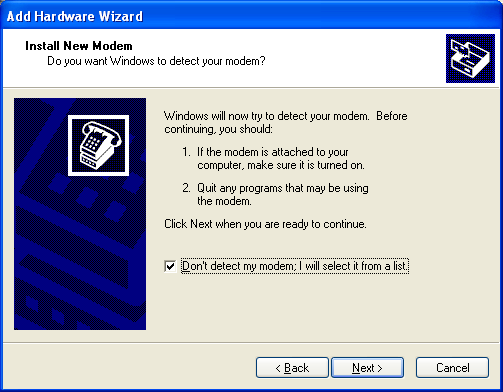
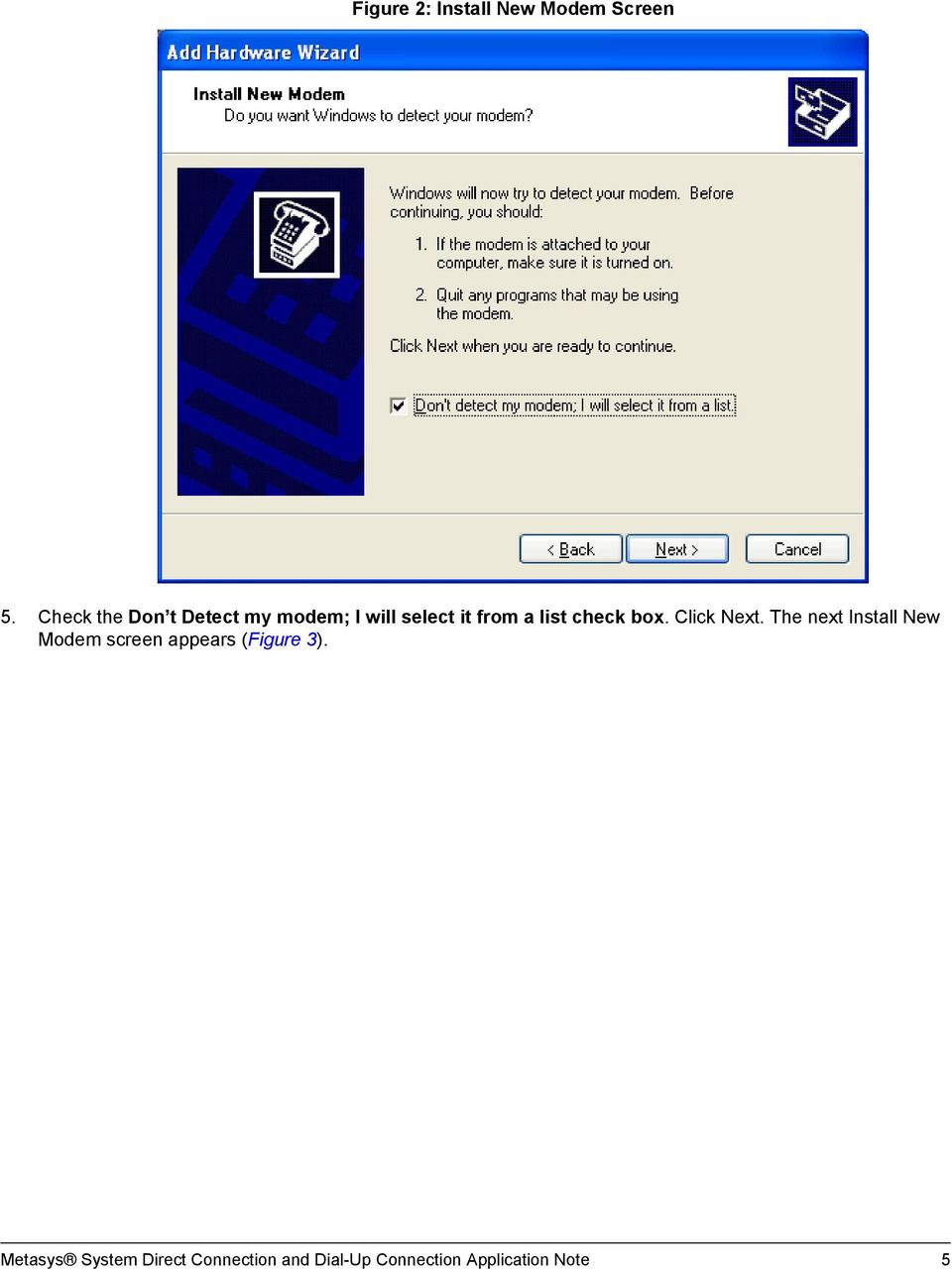
5 Figure 2: Install New Modem Screen 5. Check the Don t Detect my modem; I will select it from a list check box. Click Next. The next Install New Modem screen appears (Figure 3). 5
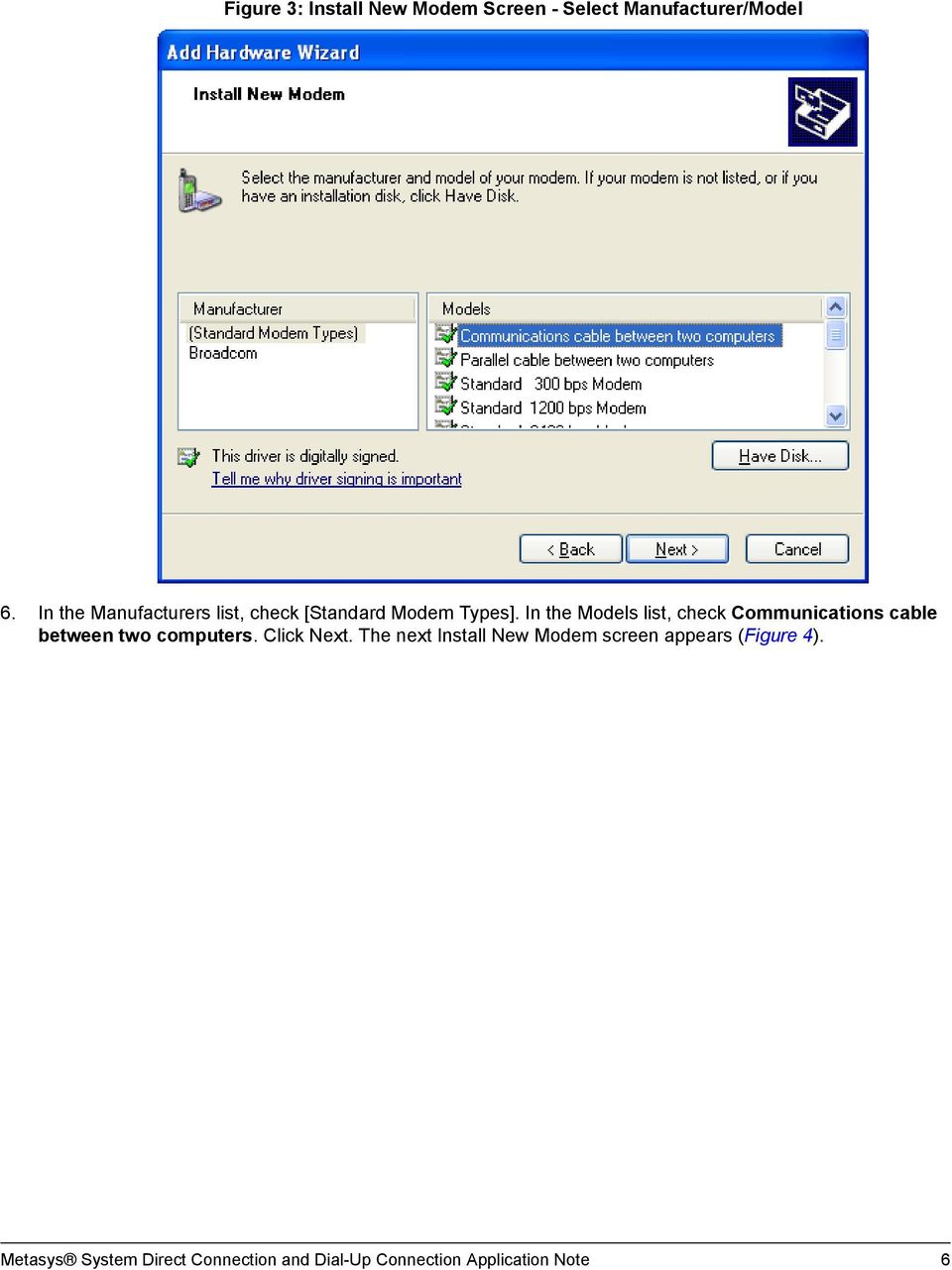
![Figure 3: Install New Modem Screen - Select Manufacturer/Model 6. In the Manufacturers list, check [Standard Modem Types].](/docs-images/27/12389904/images/6-0.png "In the Models list, check Communications cable between two computers. Click Next.")
6 Figure 3: Install New Modem Screen - Select Manufacturer/Model 6. In the Manufacturers list, check [Standard Modem Types]. In the Models list, check Communications cable between two computers. Click Next. The next Install New Modem screen appears (Figure 4). 6

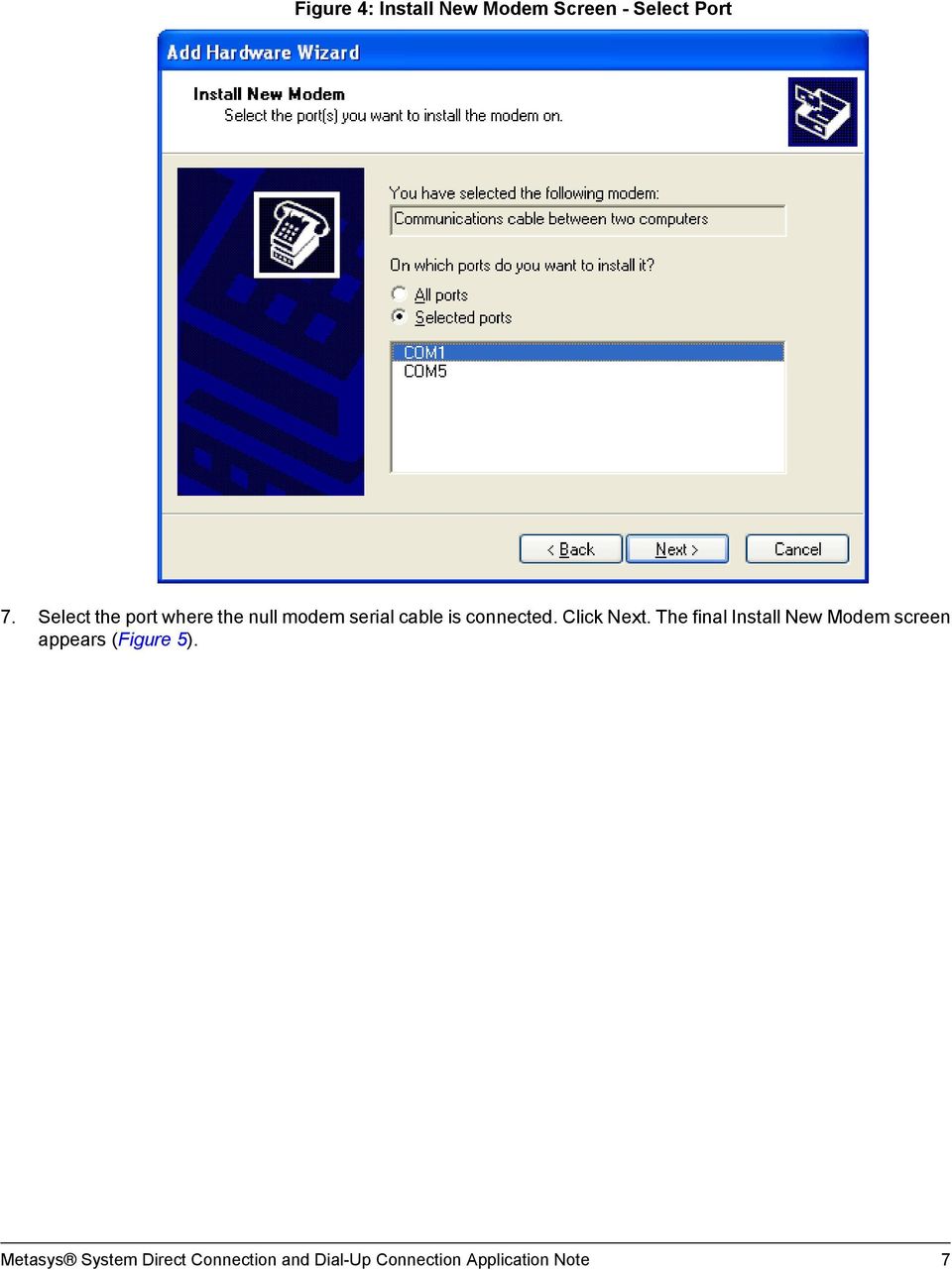
7 Figure 4: Install New Modem Screen - Select Port 7. Select the port where the null modem serial cable is connected. Click Next. The final Install New Modem screen appears (Figure 5). 7

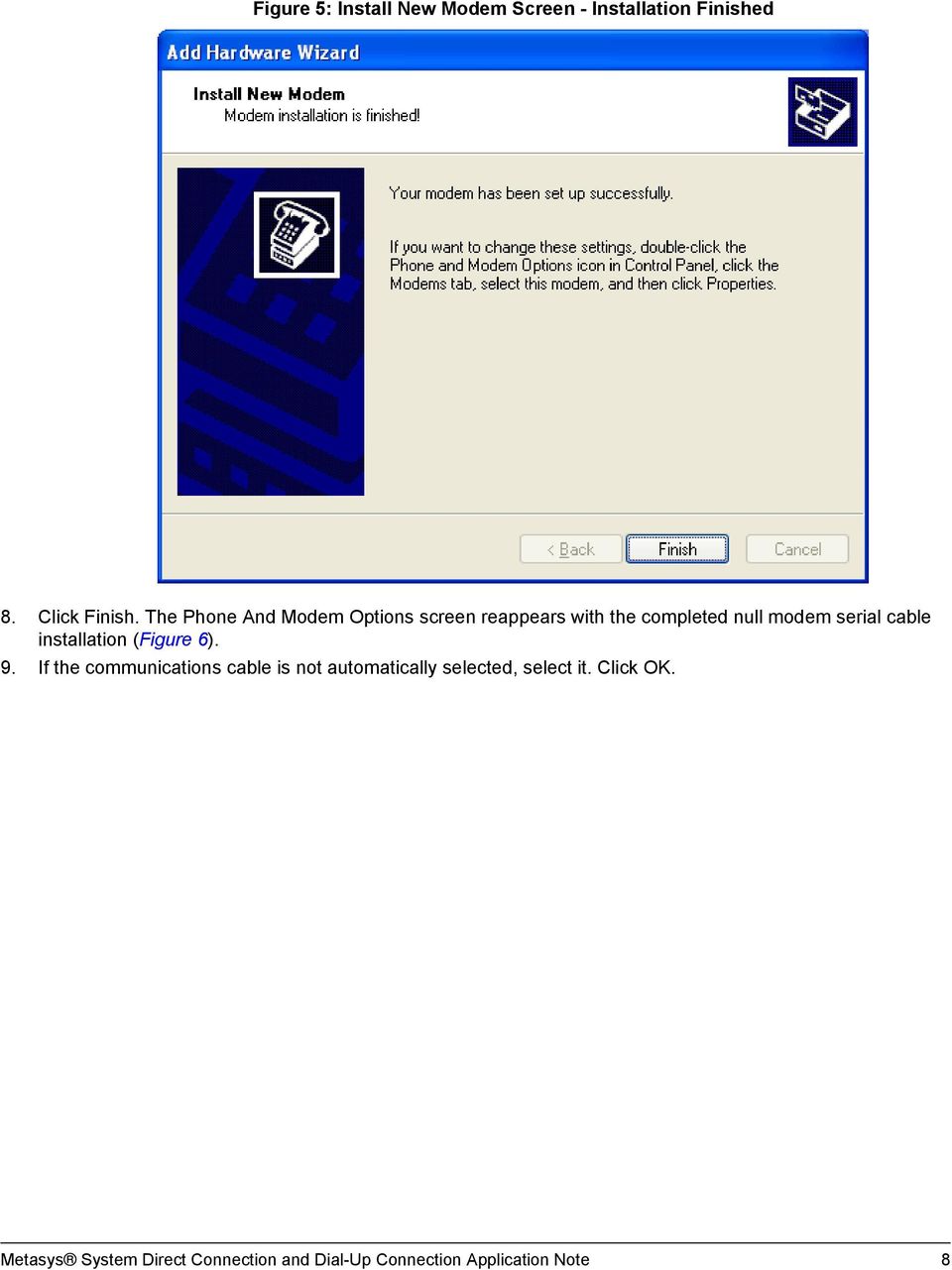
8 Figure 5: Install New Modem Screen - Installation Finished 8. Click Finish. The Phone And Modem Options screen reappears with the completed null modem serial cable installation (Figure 6). 9. If the communications cable is not automatically selected, select it. Click OK. 8
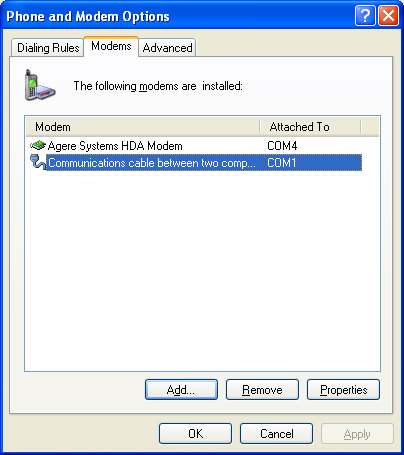
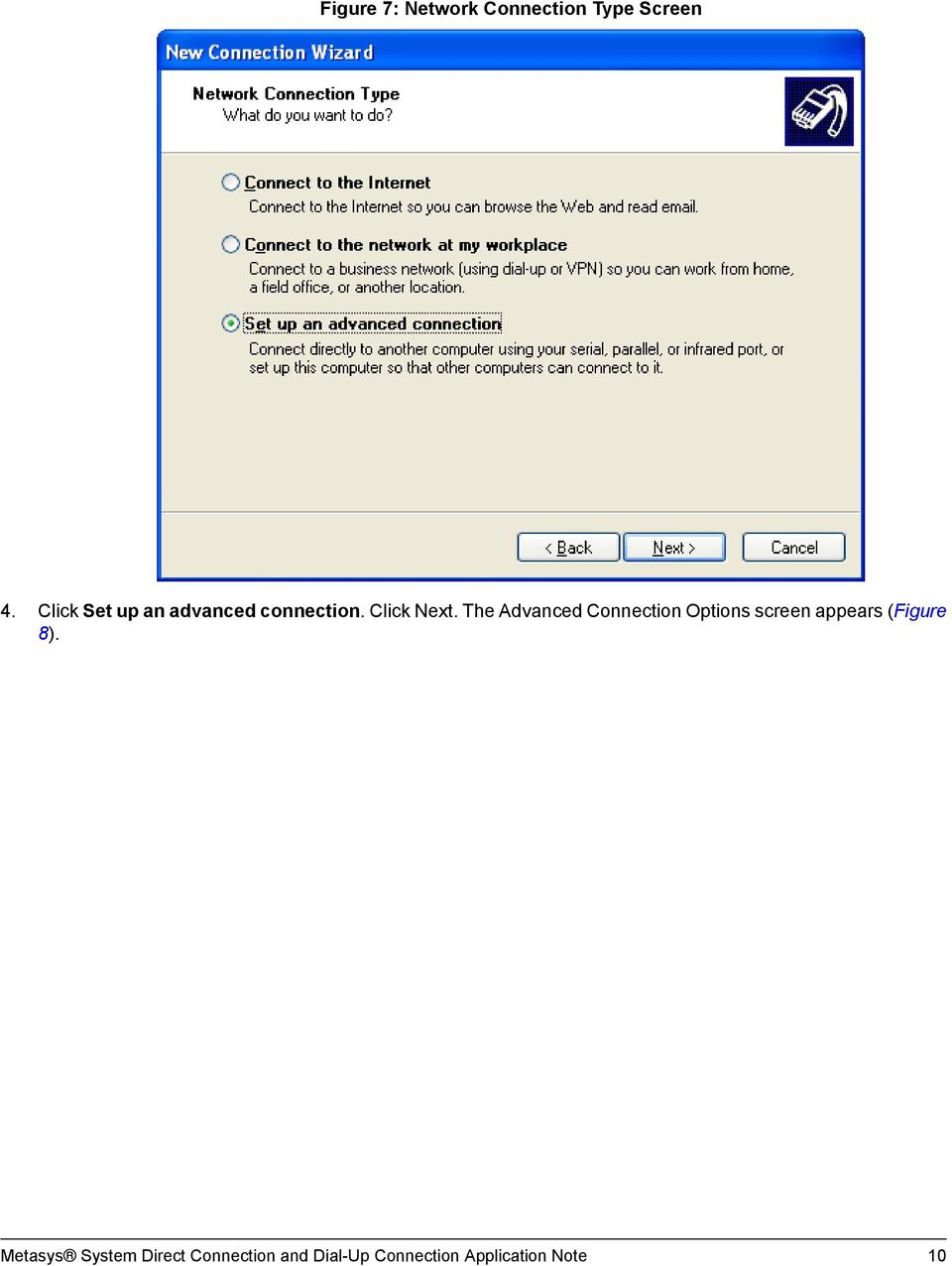
9 Figure 6: Phone and Modem Options Screen - Installation Complete 10. Close the Control Panel screen. Go to the Making a New Direct Serial Connection Using Windows XP Operating Systems section. Making a New Direct Serial Connection Using Windows XP Operating Systems Perform the tasks in this section for the Windows XP operating system. Then follow the instructions in the Completing a New Direct Serial Connection Using Windows XP Operating Systems section. To make a new direct serial connection using Windows XP: 1. On the Windows Start menu, click Settings > Control Panel. The Control Panel screen appears. 2. Double-click the Network Connections icon in Classic view or Network and Internet Connections icon in Category view. 3. Select create a new connection. The Network Connection Wizard Welcome screen appears. Click Next. The Network Connection Type screen appears (Figure 7). 9
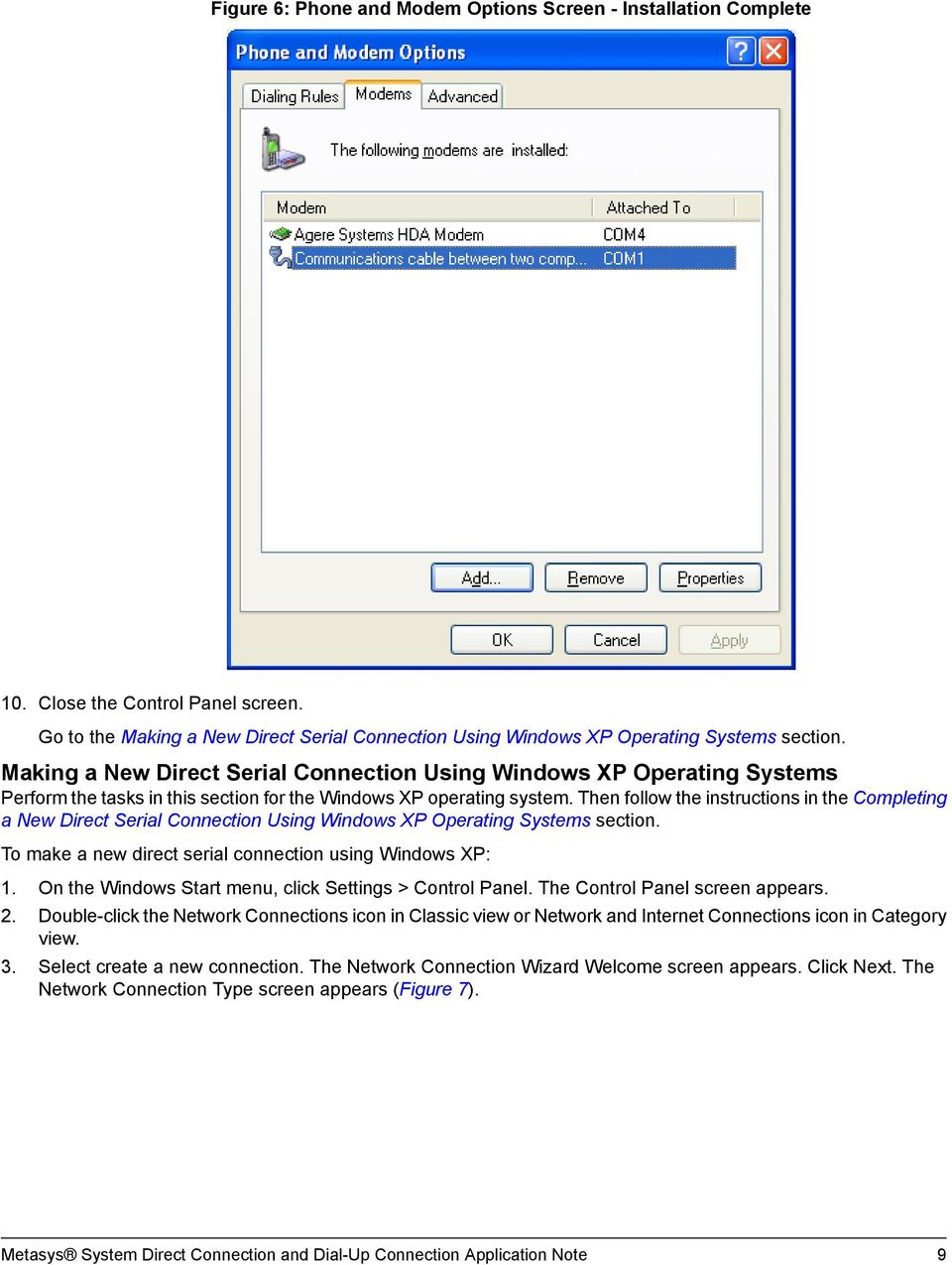
10 Figure 7: Network Connection Type Screen 4. Click Set up an advanced connection. Click Next. The Advanced Connection Options screen appears (Figure 8). 10
11 Figure 8: Advanced Connection Options Screen 5. Click Connect directly to another computer. Click Next. The Host or Guest screen appears (Figure 9). Figure 9: Host or Guest Screen 11

12 6. Click Guest. Click Next. The Connection Name screen appears (Figure 10). Figure 10: Connection Name Screen 7. Enter the name for the new connection. Click Next. The Select a Device screen appears (Figure 11). 12

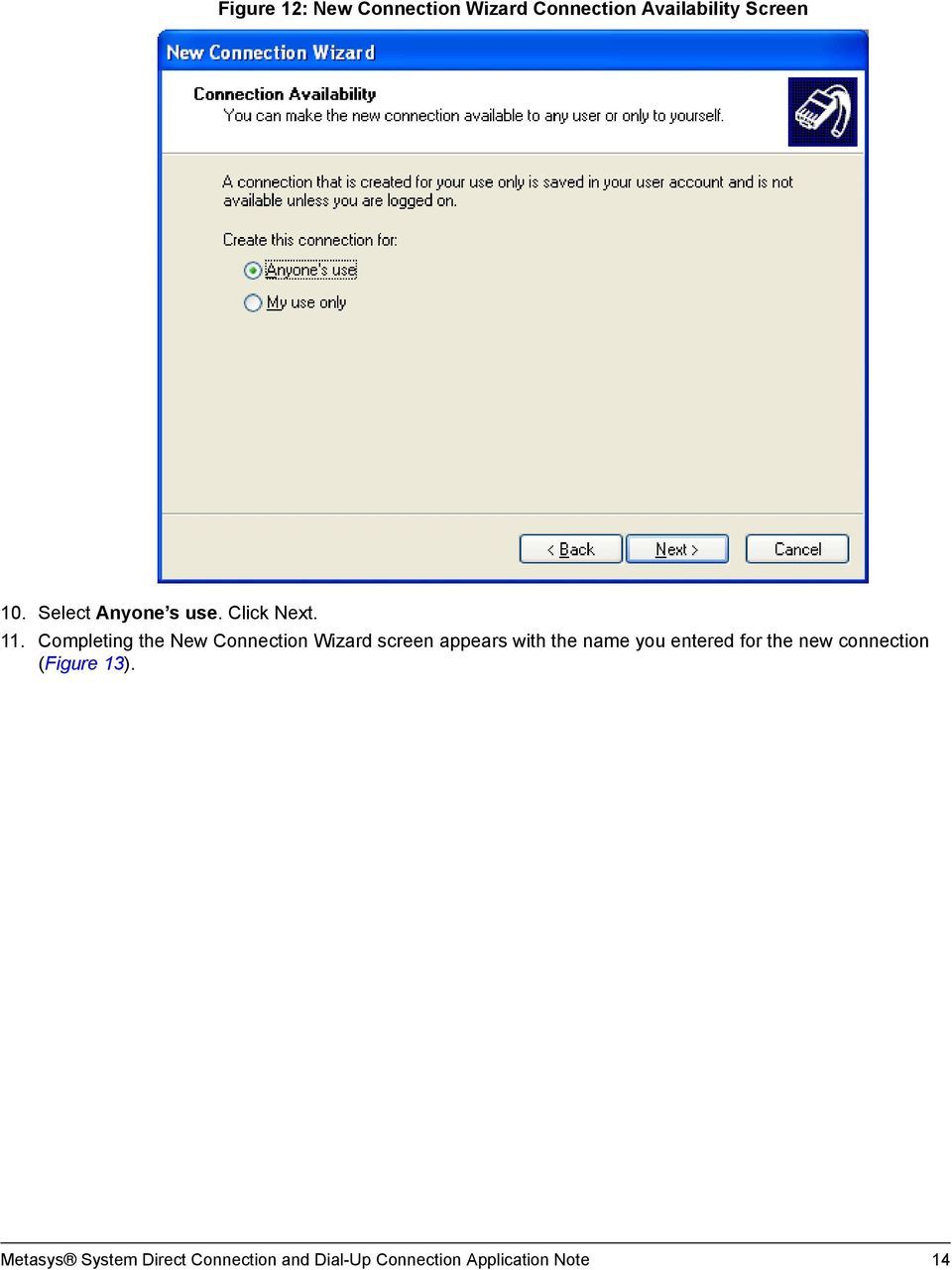
13 Figure 11: Select a Device Screen 8. Click Communications cable between two computers (COM1). Click Next. 9. The New Connection Wizard Connection Availability screen appears (Figure 12). 13


14 Figure 12: New Connection Wizard Connection Availability Screen 10. Select Anyone s use. Click Next. 11. Completing the New Connection Wizard screen appears with the name you entered for the new connection (Figure 13). 14
15 Figure 13: Completing the New Connection Wizard Screen 12. Click Finish. For some network configurations, a warning screen appears (Figure 14) after completing the Network Connection Wizard. Click OK. Figure 14: Warning Screen Continue with the Completing a New Direct Serial Connection Using Windows XP Operating Systems section. Completing a New Direct Serial Connection Using Windows XP Operating Systems Complete the Network Connection Wizard before proceeding. See the Making a New Direct Serial Connection Using Windows XP Operating Systems section. To complete a new direct serial connection using Windows XP: 1. When the Connect screen appears (Figure 15), click Properties. 15

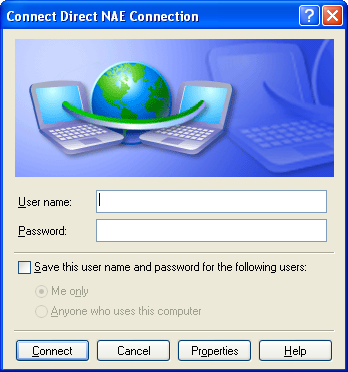
16 Figure 15: Connect Screen The Connection Properties screen appears (Figure 16), indicating Direct Connection in the title bar. 16

17 Figure 16: Connection Properties Screen 2. On the General tab, click Configure. The Modem Configuration screen appears (Figure 17). Figure 17: Modem Configuration Screen 17
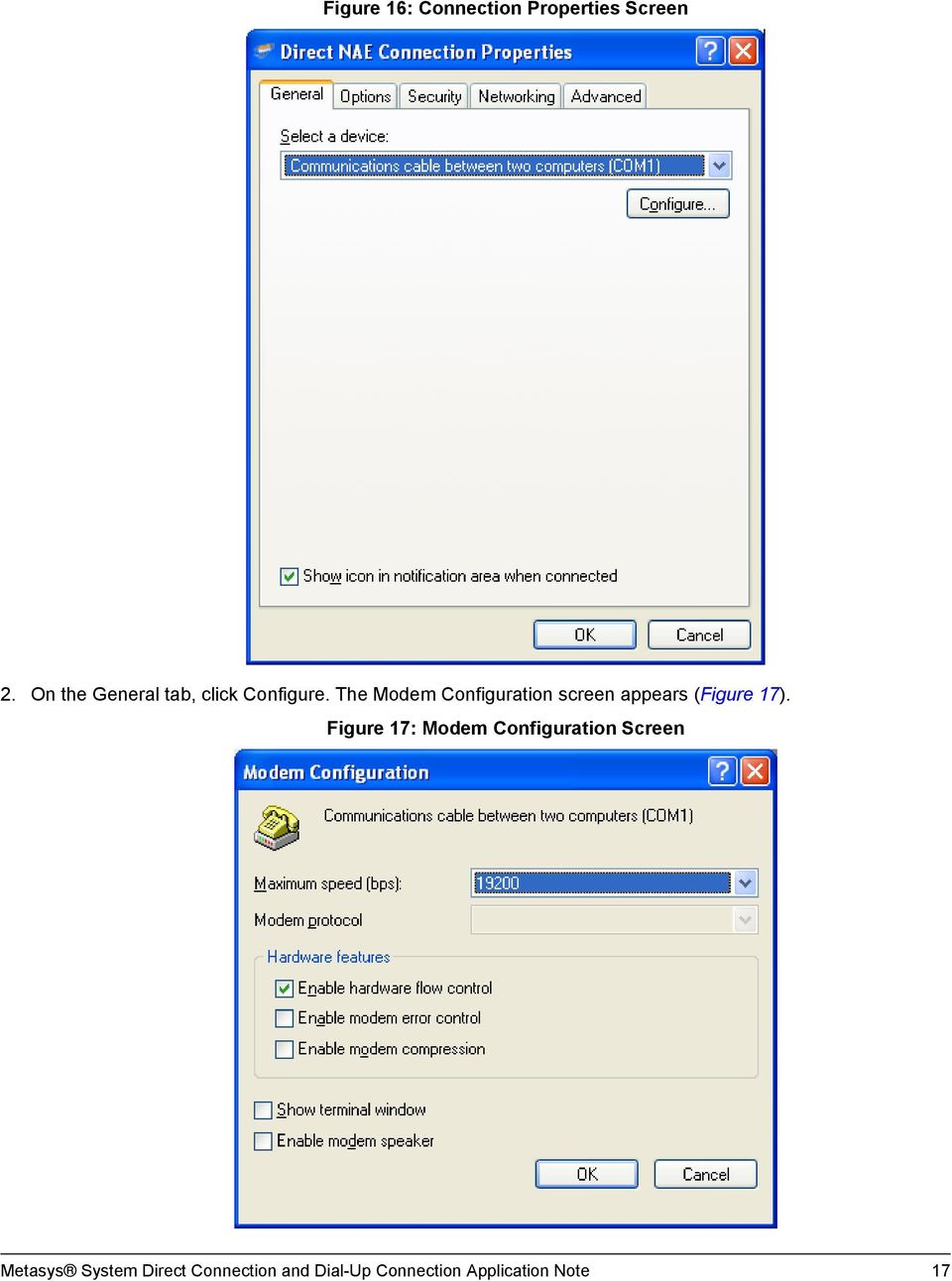

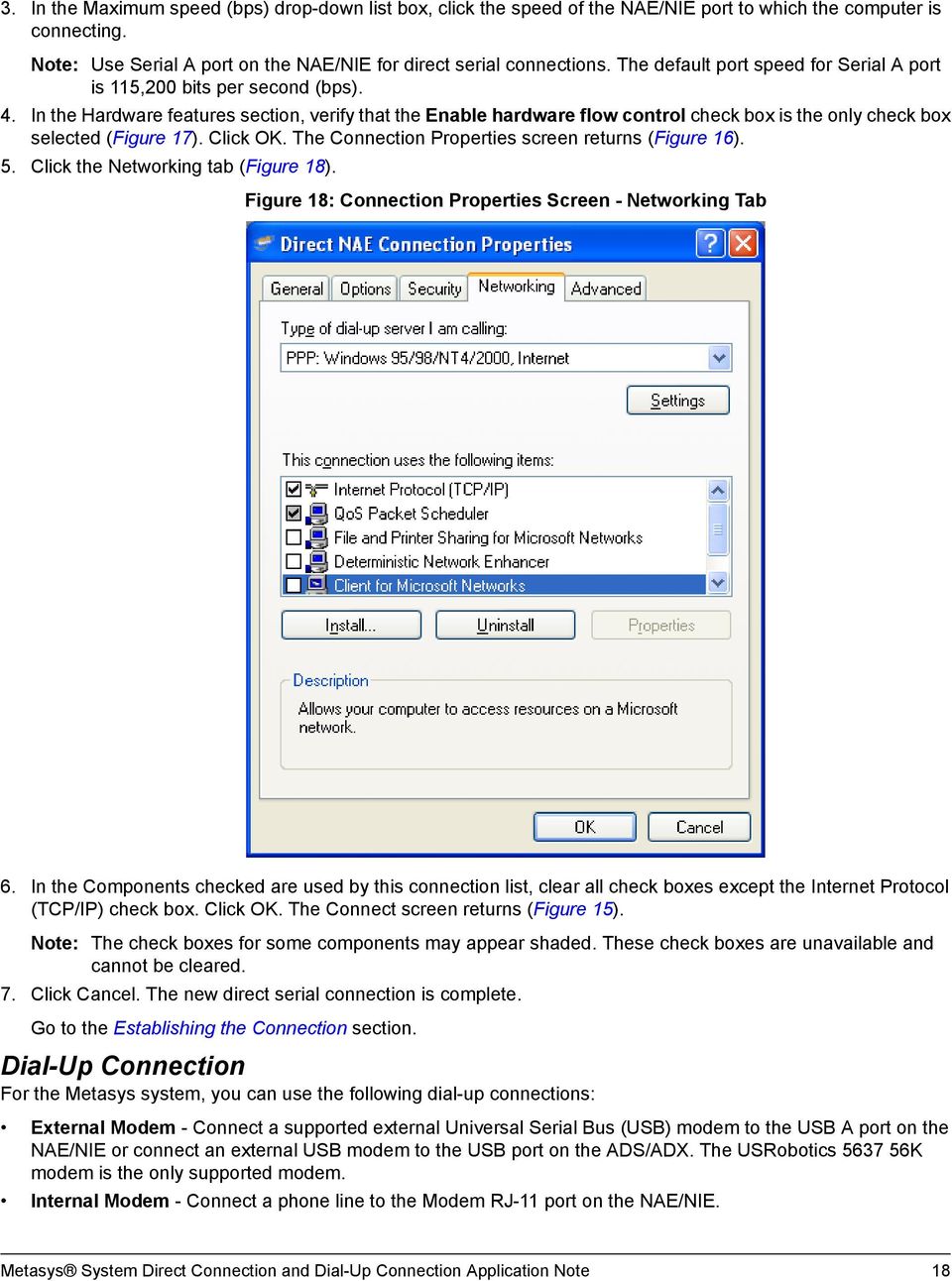
18 3. In the Maximum speed (bps) drop-down list box, click the speed of the NAE/NIE port to which the computer is connecting. Note: Use Serial A port on the NAE/NIE for direct serial connections. The default port speed for Serial A port is 115,200 bits per second (bps). 4. In the Hardware features section, verify that the Enable hardware flow control check box is the only check box selected (Figure 17). Click OK. The Connection Properties screen returns (Figure 16). 5. Click the Networking tab (Figure 18). Figure 18: Connection Properties Screen - Networking Tab 6. In the Components checked are used by this connection list, clear all check boxes except the Internet Protocol (TCP/IP) check box. Click OK. The Connect screen returns (Figure 15). Note: The check boxes for some components may appear shaded. These check boxes are unavailable and cannot be cleared. 7. Click Cancel. The new direct serial connection is complete. Go to the Establishing the Connection section. Dial-Up Connection For the Metasys system, you can use the following dial-up connections: External Modem - Connect a supported external Universal Serial Bus (USB) modem to the USB A port on the NAE/NIE or connect an external USB modem to the USB port on the ADS/ADX. The USRobotics K modem is the only supported modem. Internal Modem - Connect a phone line to the Modem RJ-11 port on the NAE/NIE. 18
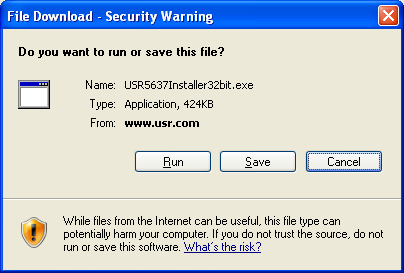
19 Refer to the Wiring section of the NAE55/NIE Installation Instructions (Part No ) or NAE35/NAE45 Installation Instructions (Part No ) for information on these connections. Dial-Up (Modem) Communications Checklist The setup of dial-up (modem) communications on a computer is a multi-step process. Table 3 is a guide to verify that all steps required for successful communications using a dial-up connection are complete. Table 3: Dial-Up (Modem) Communications Checklist Step Task Completed Verify that the modem you are using is installed. On the Windows Start menu, click Settings > Control Panel. Double-click the Phone And Modem Options icon. (Click the Printers and Other Hardware icon if you are using Category view.) If the modem you want to use is not on the Modems tab of the Phone And Modem Options screen, go to Adding a Modem in this document. Make a new dial-up connection. Each site to which you want to establish a dial-up connection must have its own connection. See the Making a New Dial-Up Connection Using Windows XP Operating Systems section in this document. To continue by generating databases for NAE/NIEs, refer to the Configuring the NAE55 Technical Bulletin (LIT ). Complete the connection. See the Making a New Direct Serial Connection Using Windows XP Operating Systems section in this document. Establish the connection. See the Establishing the Connection section in this document. Adding a Modem If available, follow the manufacturer s instructions to add a modem. Otherwise, use the following instructions. First you must download the appropriate modem driver. Downloading the USR 5637 Modem Driver To download the USR 5637 modem driver: 1. Navigate to the US Robotics 5637 USB modem web page at: 2. Select the appropriate modem driver. For Windows XP, Windows 7, and Windows Server 2008, the file is located under the Windows 2000, XP, 2003, Vista, 2008, and Win 7 32 Bit Driver section. 3. Double-click USR5637Installer32bit.exe. The File Download - Security Warning dialog box (Figure 19) appears. Figure 19: File Download - Security Warning 19

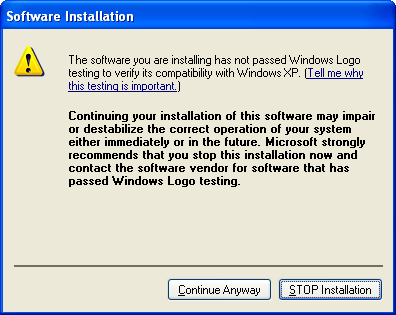
20 4. Click Save and select the location on your computer to save the file. 5. Browse to the location of the saved file. 6. Double-click USR5637Installer32bit.exe. The Welcome to the Device Driver Installation Wizard dialog box appears. 7. Click Next. The Software Installation dialog box (Figure 20) appears. Figure 20: Software Installation Dialog Box 8. Click Continue Anyway. The software installation proceeds. When the installation completes, the Completing the Device Driver installation screen (Figure 23) appears. 20

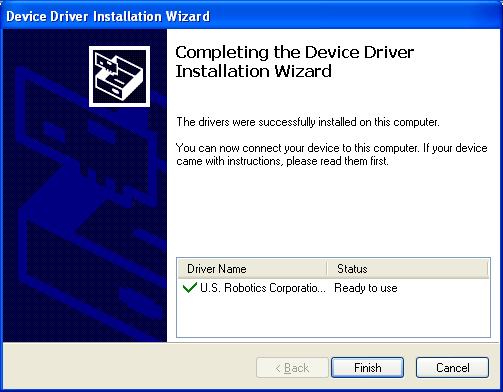
21 Figure 21: Completing the Device Driver Installation Wizard Dialog Box 9. Insert the USR 5637 modem. 10. Click Finish. The Welcome to the Found New Hardware Wizard dialog box (Figure 22) appears. 21

22 Figure 22: Welcome to the Found New Hardware Wizard Dialog Box 11. Click Next. The Completing the Found New Hardware Wizard dialog box appears Figure 23: Completing the Found New Hardware Wizard 22

23 12. Click Finish. Go to the Making a New Dial-Up Connection Using Windows XP Operating Systems section in this document. Making a New Dial-Up Connection Using Windows XP Operating Systems Perform the tasks in this section. Then follow the instructions in the Completing a New Dial-Up Connection Using Windows XP Operating Systems section. To make a new dial-up connection using Windows XP: 1. On the Windows Start menu, click Settings > Control Panel. The Control Panel screen appears. 2. Double-click the Network Connections icon in Classic view or Network and Internet Connections icon in Category view, then click on the network Connections icon. The Network Connections screen appears. 3. Select create a new connection. The Network Connection Wizard Welcome screen appears. 4. Click Next. The Network Connection Type screen appears (Figure 24). Figure 24: Network Connection Type Screen 5. Click Connect to the network at my workplace. Click Next. The Network Connection screen appears (Figure 25). 23
24 Figure 25: Network Connection Screen 6. Click Dial-up connection. Click Next. The Connection Name screen appears (Figure 26). Figure 26: Connection Name Screen 24
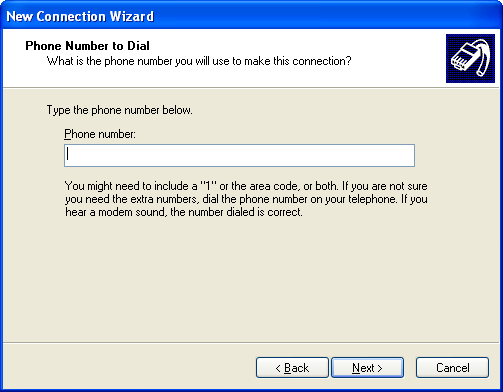
25 7. Enter a name for the new connection. Click Next. The Phone Number to Dial screen appears (Figure 27). Figure 27: Phone Number to Dial Screen 8. Enter a phone number (without hyphens) to dial for the new connection. Click Next. The Completing the New Connection Wizard screen appears (Figure 28). 25
26 Figure 28: Completing the New Connection Wizard Screen 9. Click Finish. For some network configurations, a warning screen appears (Figure 29) after completing the Network Connection Wizard. Click OK and continue to Completing a New Dial-Up Connection Using Windows XP Operating Systems. Figure 29: Warning Screen Continue with the Completing a New Dial-Up Connection Using Windows XP Operating Systems section. Completing a New Dial-Up Connection Using Windows XP Operating Systems Complete the Network Connection Wizard before proceeding. See the Making a New Dial-Up Connection Using Windows XP Operating Systems section. To complete the new dial-up connection: 26

27 1. When the Connect screen appears indicating the name of the new connection in the title bar (Figure 30), click Properties. The Connection Properties screen appears (Figure 31). Note: The standard user name is MetasysSysAgent, and it is not case sensitive. For the MetasysSysAgent default password, contact your local Johnson Controls representative. The default password is case sensitive. Figure 30: Connect Screen 27
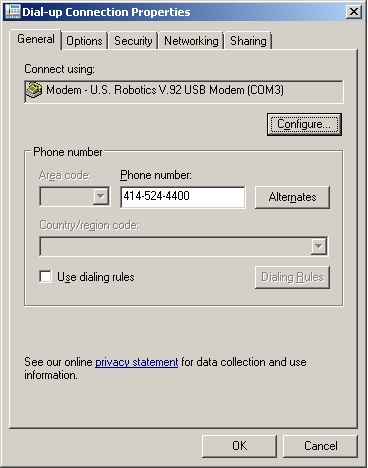
28 Figure 31: Connection Properties Screen 2. On the General tab, click Configure. The Modem Configuration screen appears (Figure 32). 28
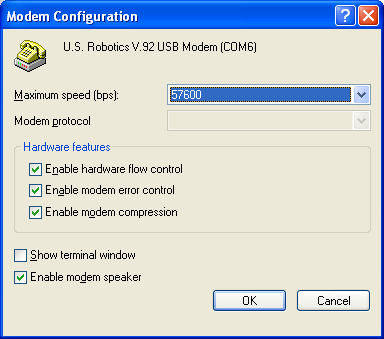
29 Figure 32: Modem Configuration Screen 3. In the Maximum speed (bps) list, select the speed of the NAE/NIE port to which the computer is connecting. Note: The default port speed for the NAE/NIE is 115,200 bps. Use this port speed for communication via a USB port. Use 57,600 bps as the maximum port speed if you are connecting to an NAE/NIE using a 56k modem. (Remember to configure the NAE/NIE to communicate at 57,600 bps for use with a 56k modem.) 4. Clear the Enable modem compression check box (Figure 32). Click OK. The Connection Properties screen returns (Figure 31). 5. Click the Networking tab (Figure 33). 29

30 Figure 33: Connection Properties Screen - Networking Tab 6. In the Components checked are used by this connection list, clear all check boxes except the Internet Protocol (TCP/IP) check box. Click OK. The Connect screen returns (Figure 30). Note: The check boxes for some components may appear shaded. These check boxes are unavailable and cannot be cleared. 7. Click OK. The new dial-up connection is complete. Go to the Enabling Communication with Multiple Internet Addresses section in this document. Enabling Communication with Multiple Internet Addresses To enable the computer to communicate with multiple Internet addresses (other than the Metasys device) 1. On the Windows Start menu, click Settings > Control Panel. The Control Panel screen appears. 2. Double-click the Network And Dial-Up Connections icon. The Network And Dial-Up Connections screen appears (Figure 34). 30
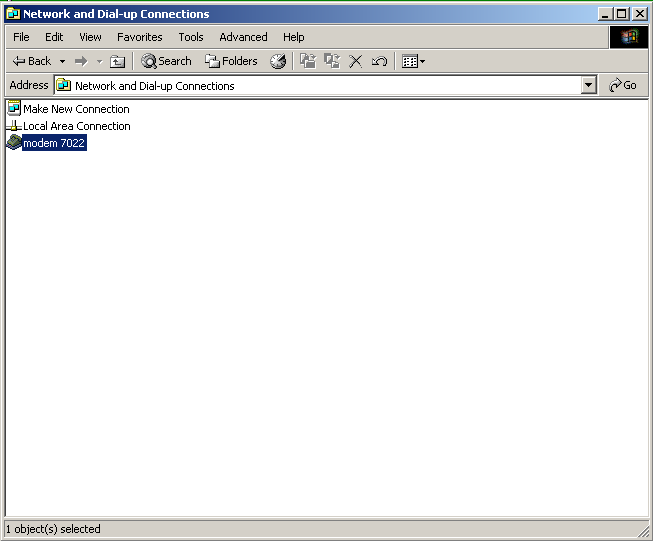
31 Figure 34: Network and Dial-Up Connections Screen 3. Double-click the modem used. The Connect Modem screen appears. 4. Select Properties. The Modem Properties screen appears (Figure 35). 31
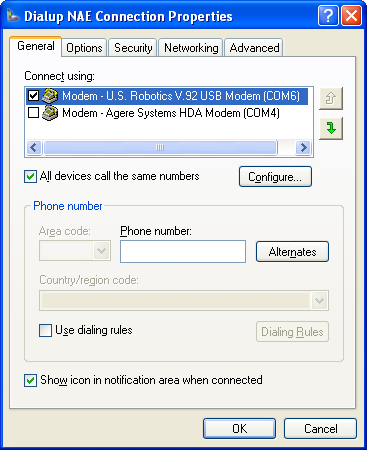
32 Figure 35: Modem Properties Screen 5. On the Networking tab, click Properties. The Internet Protocol TCP/IP Properties screen appears (Figure 37). 32

33 Figure 36: Modem Properties Screen - Networking Tab 6. Click the Advanced button (Figure 37). The Advanced TCP/IP Properties screen appears. (See Figure 38.) 33
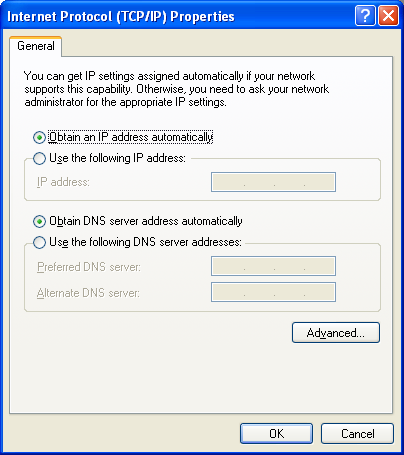
34 Figure 37: Internet Protocol (TCP/IP) Properties Screen 7. Clear the Use default gateway on remote network box (Figure 38). 34

35 Figure 38: Advanced TCP/IP Settings Screen 8. Click OK. Go to the Establishing the Connection section in this document. Establishing the Connection Important: The download process can take up to 1.5 hours. Use the Metasys Remote Access utility to reduce the time required for downloading. Refer to the Metasys System Extended Architecture Remote Access Installation Instructions (LIT ) for more information. If you are using a dial-up connection, check that the NAE/NIE is set for dial-up connections before you establish the connection. Refer to the NAE Commissioning Guide (LIT ) or the NAE85/NIE85 Commissioning Guide (LIT ) for details. To establish the connection: 1. Change the NAE/NIE to enable and allow incoming connections on the modem used for the dial-up connection. 2. Reboot the NAE/NIE to load the USB drivers if the connection uses an external modem. 3. Double-click the icon on the desktop for the connection you created. If you did not create an icon on the desktop, access the icon in the Network and Dial-Up Connections (Windows 7) folder or the Network Connections (Windows XP) folder. Use the following default user names and passwords to access the Metasys system: 35

36 Standard Access: user name: MetasysSysAgent Note: For the MetasysSysAgent default password, contact your local Johnson Controls representative. Basic Access: user name: BasicSysAgent password: For the BasicSysAgent default password, contact your local Johnson Controls representative. Note: The passwords are case sensitive. Note: The Johnson Controls disclaimer statement appears the first time you log in. Note: The Basic Access password is disabled by default and must be enabled before you use it to access the system. 4. Double-click the icon on the desktop for the connection you created and select Status (Figure 39). If you did not create an icon on the desktop, browse to and double-click the icon in the Network and Dial-Up Connections (Windows 2000) folder or the Network Connections (Windows XP) folder. Figure 39: Desktop Connection Icon 5. The Dialup to NAE Status dialog box appears (Figure 40). 36

37 Figure 40: Dialup to NAE Status Dialog Box 6. On the Details tab, note the address in the Server IP address field (Figure 41). Figure 41: Details Tab 7. Click Close. 8. Log on to the user interface of the NAE/NIE from your Web browser using the following URL: 37
![http://[insert IP address here]/metasys/ Replace [insert IP address here] with the IP address found in Step 5.](/docs-images/27/12389904/images/38-0.png "Note: The dial-up connection does not automatically disconnect when you exit Metasys software. Close the connection with the disconnect command. See Figure 39.")
38 IP address here]/metasys/ Replace [insert IP address here] with the IP address found in Step 5. Note: The dial-up connection does not automatically disconnect when you exit Metasys software. Close the connection with the disconnect command. See Figure 39. Making a New Dial-Up Connection Using Windows 7 Operating Systems Perform the tasks in this section to create a new dial-up connection using Windows 7: 1. On the Windows Start menu, click Control Panel > Network Sharing Center. On the left, click Change Adapter Settings. 2. Press the ALT key. The File menu appears on the top. 3. Select File > New Incoming Connection. The Allow connection to this computer screen appears (Figure 42). Figure 42: Allow Connections to This Computer Screen 4. Select the users that you want to grant access to the ADX configuration. You must add the each user name and password for the NAE to which you are connecting. Note: The user name and password must be identical to the user name and password on the NAE to which you are connecting. 5. Click Next. The How will people connect? screen appears (Figure 43). 38

39 Figure 43: How Will People Connect Screen 6. Select the modem. Click Next. The next Allow connections to this computer screen appears (Figure 44). 7. Select Internet Protocol Version 4 (TCP/IPv4). 8. Select Properties. The Incoming IP Properties window appears (Figure 45). 9. Select the Specify IP addresses button. Ensure the IP address range matches your network settings. Figure 44: Allow Connections to This Computer Screen 39
40 Figure 45: Incoming Properties Window Note: If your network utilizes Dynamic Host Configuration Protocol (DHCP), you can select the Assign IP address automatically using DHCP button. 10. Click OK. The Incoming IP Properties window closes. 11. Select Allow Access. 12. The next Allow connections to this computer screen appears (Figure 46). 13. Write down the computer name for future use. 14. Close the window. 15. Verify that the connection appears in the Network Connections folder (Figure 47). Figure 46: Allow Connections to This Computer Screen 40

41 Figure 47: Network Connections Folder Troubleshooting Use the information here to troubleshoot direct or dial-up connections. See Table 1 for documents that contain troubleshooting information for the NAE/NIE and ADS/ADX. Error 733 Figure 48: Error PPP Control Protocol Disagreement See Table 4 for information on causes and resolution of this error. Table 4: Error PPP Control Protocol Disagreement When using this hardware... This error results occurs because... To resolve this error... NAE/NIE IPS/IPX protocol is selected. Select a different communications protocol. 41
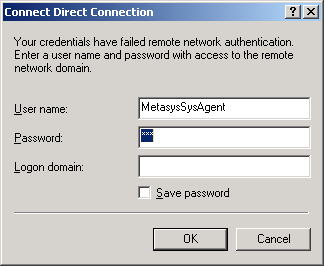

42 Error 777 Figure 49: Error Connection Device Out of Order See Table 5 for information on causes and resolution of this error. Table 5: Error 777 When using this hardware... NAE/NIE NAE/NIE This error results occurs because... Maximum communication speed is set incorrectly. The COM PORT setting is incorrect. To resolve this error... Change the communication speed to match the correct setting for the modem used. Select a different COM PORT. User Name or Password Not Accepted Figure 50: User Name or Password Not Accepted To correct this error, obtain a correct Metasys system user name or password and repeat the login procedure. Building Efficiency 507 E. Michigan Street, Milwaukee, WI Metasys and Johnson Controls are registered trademarks of Johnson Controls, Inc. All other marks herein are the marks of their respective owners Johnson Controls, Inc. Published in U.S.A. 42
Metasys Database Manager Installation Instructions Code No. LIT-12011553 Software Release 8.0 Issued June 2016
 Code No. LIT-12011553 Software Release 8.0 Issued June 2016 Refer to the QuickLIT website for the most up-to-date version of this document. Document Introduction...2 Summary of Changes...2 Metasys Database
Launcher Installation Instructions Code No. LIT-12011783 Software Release 1.5 Issued June 2016
 Code No. LIT-12011783 Software Release 1.5 Issued June 2016 Refer to the QuickLIT website for the most up-to-date version of this document. Launcher Introduction...2 Summary of Changes...2 Launcher Concepts...2
Iridium Extreme TM Satellite Phone. Data Services Manual
 Iridium Extreme TM Satellite Phone Data Services Manual Table of Contents 1 OVERVIEW... 1 2 HOW IT WORKS... 1 3 BEFORE INSTALLING... 2 4 USB DRIVER INSTALLATION... 3 5 MODEM INSTALLATION AND CONFIGURATION...
Installing the Microsoft Network Driver Interface
 Installing the Microsoft Network Driver Interface Overview This guide explains how to install the PictureTel Live200 Microsoft Network Driver Interface (NDIS) software you have downloaded from PictureTel's
Configuring the Network Automation Engine (NAE)
 Technical Bulletin Issue Date March 31, 2003 Configuring the Network Automation Engine (NAE) Configuring the Network Automation Engine (NAE)...3 Introduction... 3 Key Concepts... 5 NAE System Configuration
Palomar College Dial-up Remote Access
 Palomar College Dial-up Remote Access Instructions for Windows 95/98 and Windows 2000 Following are instructions to implement dialup access to the Palomar College network, email and Internet. The minimum
ADS/ADX Commissioning Guide
 MS-ADSxxx-x MS-ADXxxx-x Code No. LIT-1201645 Software Release 7.0 Issued December 5, 2014 Refer to the QuickLIT website for the most up-to-date version of this document. Document Introduction...4 Related
Connecting and Setting Up Your Laptop Computer
 CHAPTER 3 Connecting and Setting Up Your Laptop Computer This chapter explains how to connect your laptop to the Cisco Unified MeetingPlace system and how to set up your laptop so that you can use HyperTerminal.
Sophos UTM. Remote Access via PPTP Configuring Remote Client
 Sophos UTM Remote Access via PPTP Configuring Remote Client Product version: 9.300 Document date: Tuesday, October 14, 2014 The specifications and information in this document are subject to change without
Windows Dial Up Networking (DUN) for AirLink Modems Application Note - How To
 Windows Dial Up Networking (DUN) for AirLink Modems Application Note - How To Dial-up Networking (DUN) allows a computer or other device to use your AirLink modem to connect to the Internet or private
FX-BTCVT Bluetooth Commissioning Converter Commissioning Guide
 FX-BTCVT Bluetooth Commissioning Converter Commissioning Guide FX-BTCVT-1 (Bluetooth Commissioning Converter) Code No. LIT-12011665 Issued December 5, 2014 Refer to the QuickLIT website for the most up-to-date
Network Setup Guide. Introduction. Setting up for use over LAN
 Network Setup Guide This manual contains the setup information required to use the machine over wired LAN. If you use the machine with USB connection, refer to your setup sheet. Introduction To use the
Converting InfoPlus.21 Data to a Microsoft SQL Server 2000 Database
 Technical Bulletin Issue Date August 14, 2003 Converting InfoPlus.21 Data to a Microsoft SQL Server 2000 Database Converting InfoPlus.21 Data to a Microsoft SQL Server 2000 Database...2 Introduction...
Setup and Configuration Guide for Pathways Mobile Estimating
 Setup and Configuration Guide for Pathways Mobile Estimating Setup and Configuration Guide for Pathways Mobile Estimating Copyright 2008 by CCC Information Services Inc. All rights reserved. No part of
CANON FAX L360 SOFTWARE MANUAL
 CANON FAX L360 SOFTWARE MANUAL Before You Begin the Installation: a Checklist 2 To ensure a smooth and successful installation, take some time before you begin to plan and prepare for the installation
Omni 56K USB Lite Quick Start Guide
 Omni 56K USB Lite Quick Start Guide ZyXEL TOTAL INTERNET ACCESS SOLUTION 1. Hardware Installation Connect your modem to your analog phone or fax. Use the phone cord included to connect to the phone jack
Troubleshooting File and Printer Sharing in Microsoft Windows XP
 Operating System Troubleshooting File and Printer Sharing in Microsoft Windows XP Microsoft Corporation Published: November 2003 Updated: August 2004 Abstract File and printer sharing for Microsoft Windows
Print Server Application Guide
 Print Server Application Guide TD W8968 TD W8970 / TD W8970B TD W8980 / TD W8980B Rev: 1.0.0 1910010772 Contents Overview...1 Installation for Windows OS...2 Application for Windows OS...7 How to launch/exit
MODEM AND DIAL-UP. Installation/Configuration (Windows 95/98/Me/NT/2000/XP)
 MODEM AND DIAL-UP Installation/Configuration (Windows 95/98/Me/NT/2000/XP) Iridium Satellite LLC 1 February 22, 2006 --------------------------------------------------------------------------------------------------------------------------------------------TABLE
for Windows 7 Laplink Software, Inc. Quick Start Guide h t t p : / / w w w. l a p l i n k. c o m / h e l p MN-LLG-EN-15 (REV.
 1 for Windows 7 Laplink Software, Inc. Customer Service/Technical Support: Web: http://www.laplink.com/help E-mail: [email protected] Laplink Software, Inc. 14335 NE 24th Street, Suite 201 Bellevue,
Print Server Application Guide. This guide applies to the following models.
 Print Server Application Guide This guide applies to the following models. TL-WR842ND TL-WR1042ND TL-WR1043ND TL-WR2543ND TL-WDR4300 CONTENTS Chapter 1. Overview... 1 Chapter 2. Before Installation...
Internet for Everyone In-Room Instructions January 2011 Version 1.3
 Internet for Everyone In-Room Instructions January 2011 Version 1.3 Everywhere Internet 2006 Page 1 of 17 Connecting your computer to the Everywhere Internet network in your room 1. You need a network
USER GUIDE. Ethernet Configuration Guide (Lantronix) P/N: 2900-300321 Rev 6
 KRAMER ELECTRONICS LTD. USER GUIDE Ethernet Configuration Guide (Lantronix) P/N: 2900-300321 Rev 6 Contents 1 Connecting to the Kramer Device via the Ethernet Port 1 1.1 Connecting the Ethernet Port Directly
Option nv, Gaston Geenslaan 14, B-3001 Leuven Tel +32 16 317 411 Fax +32 16 207 164 http://www.option.com Page 1 of 14
 Page 1 of 14 ! " #!"#$ % &&' Page 2 of 14 1 INTRODUCTION One of the highly desirable features of the GlobeSurfer III device is the ability to network together Printers and External Hard Disk drives (aka
Easy Setup Guide for the Sony Network Camera
 -878-191-11 (1) Easy Setup Guide for the Sony Network Camera For setup, a computer running the Microsoft Windows Operating System is required. For monitoring camera images, Microsoft Internet Explorer
Operating Instructions Driver Installation Guide
 Operating Instructions Driver Installation Guide For safe and correct use, be sure to read the Safety Information in "Read This First" before using the machine. TABLE OF CONTENTS 1. Introduction Before
SAPIP GUI INSTALLATION. Table of Contents
 QUICK START GUIDE SAPIP GUI INSTALLATION Table of Contents 1. Install CSU cable driver for SapIP..2-3 2. Check for pre-requisite for SAPIP GUI install......2 3. Check for pre-requisite for SAPIP GUI install...2-6
Guide to Installing BBL Crystal MIND on Windows 7
 Guide to Installing BBL Crystal MIND on Windows 7 Introduction The BBL Crystal MIND software can not be directly installed on the Microsoft Windows 7 platform, however it can be installed and run via XP
Prestige 314 Read Me First
 Prestige 314 Read Me First Console WAN 10M PORT Prestige Rear Panel Connections CONNECTION Use an RS-232 console cable. Use the cable that came with your broadband modem. LAN 10/100M Port Number COMPUTER
NF5 VOIP Setup Guide (for Generic)
 NF5 VOIP Setup Guide (for Generic) Configuring your NF5 for VOIP Service The following steps will take you through the process of setting up your VOIP connection. Step 1: Checking Computer Network Settings:
Networking. General networking. Networking overview. Common home network configurations. Wired network example. Wireless network examples
 Networking General networking Networking overview A network is a collection of devices such as computers, printers, Ethernet hubs, wireless access points, and routers connected together for communication
Juniper NetScreen IPSec Dial Client. Installation Guide for Windows 2000 Windows XP Windows Vista
 Juniper NetScreen IPSec Dial Client Installation Guide for Windows 2000 Windows XP Windows Vista Revision 2.0 NetScreen is a registered trademark of Juniper, Inc. Windows is a registered trademark of Microsoft
Printing Options. Netgear FR114P Print Server Installation for Windows XP
 Netgear FR114P Print Server Installation for Windows XP January 2007 This chapter describes how to install and configure the print server in your Netgear Firewall/Print Server Model FR114P. Below, the
Global Monitoring + Support
 Use HyperTerminal to access your Global Monitoring Units View and edit configuration settings View live data Download recorded data for use in Excel and other applications HyperTerminal is one of many
Installation Instruction STATISTICA Enterprise Small Business
 Installation Instruction STATISTICA Enterprise Small Business Notes: ❶ The installation of STATISTICA Enterprise Small Business entails two parts: a) a server installation, and b) workstation installations
Graphic Generation Tool Installation Instructions Code No. LIT-12011685 Software Release 1.3 Issued December 5, 2014
 Code No. LIT-12011685 Software Release 1.3 Issued December 5, 2014 Refer to the QuickLIT website for the most up-to-date version of this document. Introduction...2 Related Documentation...2 Prerequisites...2
Important Notes for WinConnect Server VS Software Installation:
 Important Notes for WinConnect Server VS Software Installation: 1. Only Windows Vista Business, Windows Vista Ultimate, Windows 7 Professional, Windows 7 Ultimate, Windows Server 2008 (32-bit & 64-bit),
TSX ETZ Configuration of your computer for TSX ETZ direct connection by serial link. Eng V1.0
 TSX ETZ Configuration of your computer for TSX ETZ direct connection by serial link Eng V1.0 2 Table of Contents About the book.......................................5 Chapter 1 Configuration and connection
Dial Up Config & Connecting Instructions with Graphics
 Dial Up Config & Connecting Instructions with Graphics Dial Up Config & Connecting Below are the Basic Manual Configurations Connecting to the Internet for the following operating systems: Windows 2000
64-Bit Compatibility with Micromeritics Applications
 Tech Tip 7 64-Bit Compatibility with Micromeritics Applications Micromeritics products are designed to operate in most Microsoft Windows environments. However, more current versions of Microsoft Windows,
TE100-P21/TEW-P21G Windows 7 Installation Instruction
 Hardware Installation TE100-P21/TEW-P21G Windows 7 Installation Instruction 1. Go to http://www.trendnet.com/downloads/ to download the Windows 7 Utility. Save the file to your desktop. 2. Right click
STATISTICA VERSION 12 STATISTICA ENTERPRISE SMALL BUSINESS INSTALLATION INSTRUCTIONS
 STATISTICA VERSION 12 STATISTICA ENTERPRISE SMALL BUSINESS INSTALLATION INSTRUCTIONS Notes 1. The installation of STATISTICA Enterprise Small Business entails two parts: a) a server installation, and b)
1. Hardware Installation
 4 Port 10/100M Internet Broadband Router with USB Printer server Quick Installation Guide #4824904AXZZ0 1. Hardware Installation A. System Requirement Before you getting started, make sure that you meet
Centurion PLUS CPC4 Download Guide
 Centurion PLUS CPC4 Download Guide using C4 File Transfer Utility. 1010537 03 01 10 Section 50 1.0 Background: 1.1 The Centurion PLUS Control system consists of a Centurion PLUS Core (CPC4 1) and Color
CMP-102U. Quick Installation Guide
 CMP-102U Quick Installation Guide V1.0 http://www.cnet.com.tw 1 CMP-102U Supports One High-speed USB2.0 Port MFP Server Supports 10/100Mbps Fast Ethernet Network Quick Installation Guide 1 Package Contents:
Troubleshooting Sprint Mobile Broadband USB Modem by Novatel Wireless TM (Ovation TM U727)
 Troubleshooting Sprint Mobile Broadband USB Modem by Novatel Wireless TM (Ovation TM U727) If you are unable to resolve your issue using the Troubleshooting steps below, please contact Sprint Customer
QUANTIFY INSTALLATION GUIDE
 QUANTIFY INSTALLATION GUIDE Thank you for putting your trust in Avontus! This guide reviews the process of installing Quantify software. For Quantify system requirement information, please refer to the
CPEi 800/825 Series. User Manual. * Please see the Introduction Section
 CPEi 800/825 Series User Manual * Please see the Introduction Section Contents Introduction...iii Chapter 1: CPEi 800/825 User Guide Overview... 1-1 Powerful Features in a Single Unit... 1-2 Front of the
Contents. VPN Instructions. VPN Instructions... 1
 VPN Instructions Contents VPN Instructions... 1 Download & Install Check Point VPN Software... 2 Connect to FPUA by VPN... 6 Connect to Your Computer... 8 Determine Your Machine Type... 10 Identify 32-bit
HYPERLINK Internet PC setup guide. HYPERLINK Internet support helpdesk at 1-866-302-5525.
 HYPERLINK Internet support helpdesk at 1-866-302-5525. Congratulations on your new residence and welcome to HYPERLINK Internet service. In a few short moments you will be connected to one of the fastest
Maintaining the Content Server
 CHAPTER 7 This chapter includes the following Content Server maintenance procedures: Backing Up the Content Server, page 7-1 Restoring Files, page 7-3 Upgrading the Content Server, page 7-5 Shutting Down
AirStation VPN Setup Guide WZR-RS-G54
 AirStation VPN Setup Guide WZR-RS-G54 WZR-RS-G54 Introduction The WZR-RS-G54 s VPN services allows users to securely access their home or office network from anywhere in the world. All services available
Installation Guide for Windows May 2016
 Installation Guide for Windows May 2016 1 Welcome to KITE Client Software for Windows Note: The KITE Client software is supported for both 32-bit and 64-bit Windows computers. The Kansas Interactive Testing
How to create a dialup connection to an S8X00 Media Server
 How to create a dialup connection to an S8X00 Media Server Useful when customers wants to dial into their S8X00 server, however unlikely that situation is. Typically, customers will be able to access their
How to setup a VPN on Windows XP in Safari.
 How to setup a VPN on Windows XP in Safari. If you want to configure a VPN connection from a Windows XP client computer you only need what comes with the Operating System itself, it's all built right in.
ScanShell.Net Install Guide
 ScanShell.Net Install Guide Please install the software first - DO NOT PLUG IN THE SCANNER The scanner has been carefully packaged to avoid damage during transportation. Before operating the scanner, please
NETWORK SETUP INSTRUCTIONS
 NETWORK SETUP INSTRUCTIONS How to Connect AVTECH Product to Internet To connect AVTECH DVR or network camera to Internet, you need to: 1). Figure out your network environment, and have related IP information
STATISTICA VERSION 9 STATISTICA ENTERPRISE INSTALLATION INSTRUCTIONS FOR USE WITH TERMINAL SERVER
 Notes: STATISTICA VERSION 9 STATISTICA ENTERPRISE INSTALLATION INSTRUCTIONS FOR USE WITH TERMINAL SERVER 1. These instructions focus on installation on Windows Terminal Server (WTS), but are applicable
Upgrading from Call Center Reporting to Reporting for Contact Center. BCM Contact Center
 Upgrading from Call Center Reporting to Reporting for Contact Center BCM Contact Center Document Number: NN40010-400 Document Status: Standard Document Version: 02.00 Date: June 2006 Copyright Nortel Networks
RSView 32 ACTIVE DISPLAY SYSTEM GETTING RESULTS GUIDE. PUBLICATION VW32AD-GR001E-EN-E July 2011 Supersedes Publication VW32AD-GR001D-EN-E
 RSView 32 ACTIVE DISPLAY SYSTEM GETTING RESULTS GUIDE PUBLICATION VW32AD-GR001E-EN-E July 2011 Supersedes Publication VW32AD-GR001D-EN-E Contact Rockwell Copyright Notice Trademark Notices Customer Support
USB DRIVER INSTALLATION GUIDE
 USB DRIVER INSTALLATION GUIDE Use these instructions to install the USB drivers and Microsoft synchronization software for your Pathfinder 6057 printer. You need these utilities for your printer and computer
EASE Scan Tool Customers. SECTION I - Installation
 Please Install Your EASE Scan Tool DVD Before Installing Any Other Software That Came With Your Package. SECTION I - Installation ATTENTION: Do NOT connect an EASE Vehicle Interface Device to your Computer
How To Create An Easybelle History Database On A Microsoft Powerbook 2.5.2 (Windows)
 Introduction EASYLABEL 6 has several new features for saving the history of label formats. This history can include information about when label formats were edited and printed. In order to save this history,
1 Getting Started. Before you can connect to a network
 1 Getting Started This chapter contains the information you need to install either the Apple Remote Access Client or Apple Remote Access Personal Server version of Apple Remote Access 3.0. Use Apple Remote
Allworx Installation Course
 VPN Hello and welcome. In the VPN section we will cover the steps for enabling the VPN feature on the Allworx server and how to set up a VPN connection to the Allworx System from your PC. Page 1 VPN The
Dell Statistica 13.0. Statistica Enterprise Installation Instructions
 Dell Statistica 13.0 2015 Dell Inc. ALL RIGHTS RESERVED. This guide contains proprietary information protected by copyright. The software described in this guide is furnished under a software license or
File and Printer Sharing with Microsoft Windows
 Operating System File and Printer Sharing with Microsoft Windows Microsoft Corporation Published: November 2003 Abstract File and printer sharing in Microsoft Windows allows you to share the contents of
NAE/NIE Update Tool Help Code No. LIT-12011524 Software Release 7.0 Issued December 5, 2014
 Code No. LIT-12011524 Software Release 7.0 Issued December 5, 2014 Refer to the QuickLIT website for the most up-to-date version of this document. NAE/NIE Update Tool Introduction...3 Changes at This Release...3
Ethernet Radio Configuration Guide
 Ethernet Radio Configuration Guide for Gateway, Endpoint, and Repeater Radio Units April 20, 2015 Customer Service 1-866-294-5847 Baseline Inc. www.baselinesystems.com Phone 208-323-1634 FAX 208-323-1834
Connecting the DG-102S VoIP Gateway to your network
 Contents of Package: DG-102S VoIP Station Gateway Power adapter CD-ROM, including User s Manual Quick Install Guide Requirements: RS-232 Console Cable Two RJ-45 CAT-5 Straight-Through Cables For more information
DIGITAL MULTIFUNCTIONAL SYSTEM
 MODEL: MX-M283N MX-M363N MX-M453N MX-M503N DIGITAL MULTIFUNCTIONAL SYSTEM Software Setup Guide BEFORE INSTALLING THE SOFTWARE SETUP IN A WINDOWS ENVIRONMENT SETUP IN A MACINTOSH ENVIRONMENT TROUBLESHOOTING
Internet Guide. Prepared for 55 John Street
 Internet Guide Prepared for 55 John Street I. Internet Service How do I connect to the Internet? WiFi (Wireless Connectivity) is available throughout the building. In order to connect, you will need a
Chapter 2 Preparing Your Network
 Chapter 2 Preparing Your Network This document describes how to prepare your network to connect to the Internet through a router and how to verify the readiness of your broadband Internet service from
Connection and Printer Setup Guide
 Connection and Printer Setup Guide For connection issues, see the following sections of this document: "Connection Requirements" on page 1 "Log on" on page 2 "Troubleshooting Your Connection" on page 4
Table of Contents. 1. Overview... 3. 1.1 Materials Required. 3 1.2 System Requirements. 3 1.3 User Mode 3. 2. Installation Instructions..
 Table of Contents 1. Overview..... 3 1.1 Materials Required. 3 1.2 System Requirements. 3 1.3 User Mode 3 2. Installation Instructions.. 4 2.1 Installing the On Call Diabetes Management Software. 4 2.2
Software Installation Requirements
 Software Installation Guide PrintIQ TM Software Installation Requirements Please use the following guide to ensure that you're meeting all requirements prior to installing the PrintIQ TM Xerox Device Agent
Hypercom Key Loading and Management (HKLM) RS232 PPP Key Injection PC Setup Guide
 Hypercom Key Loading and Management (HKLM) RS232 PPP Key Injection PC Setup Guide Hypercom Corporation 8888 East Raintree Drive Scottsdale, Arizona 85260 USA Corporate Telephone: 480.642.5000 Corporate
Network Scanner Tool R3.1. User s Guide Version 3.0.04
 Network Scanner Tool R3.1 User s Guide Version 3.0.04 Copyright 2000-2004 by Sharp Corporation. All rights reserved. Reproduction, adaptation or translation without prior written permission is prohibited,
Chapter 1 Downloading Images to Your Computer (Windows)
 Software User Guide For the safe use of your camera, be sure to read the Safety Precautions thoroughly before use. Types of software installed on your computer varies depending on the method of installation
Prestige 650R-31/33 Read Me First
 Prestige 650R-31/33 Read Me First Prestige Rear Panel Connections PORT DSL CONSOLE LAN 10/100M POWER Connect to a telephone jack using a telephone wire. CONNECTION Connect to a serial port (COM port) on
ACT High Speed WiMAX Internet
 ACT High Speed WiMAX Internet Internet Configuration Manual This manual walks you through the steps of configuring your computer for High Speed WiMAX Internet service with Windows 7, Vista, XP, 2000, And
Andover Continuum Remote Communication Configuration Guide
 Andover Continuum Remote Communication Configuration Guide 2010, Schneider Electric All Rights Reserved No part of this publication may be reproduced, read or stored in a retrieval system, or transmitted,
Hastings & Prince Edward District School Board Windows XP Dial-Up Internet Access Configuration
 Hastings & Prince Edward District School Board Windows XP Dial-Up Internet Access Configuration Getting Started Before you begin, obtain the following:! An HPEDSB Internet (email) Account.! A 33,600-baud
Installing Novell Client Software (Windows 95/98)
 Installing Novell Client Software (Windows 95/98) Platform: Windows 95/98 Level of Difficulty: Intermediate The following procedure describes how to install the Novell Client software. This software allows
Fiery EX4112/4127. Printing from Windows
 Fiery EX4112/4127 Printing from Windows 2008 Electronics for Imaging, Inc. The information in this publication is covered under Legal Notices for this product. 45083884 01 April 2009 CONTENTS 3 CONTENTS
PREFACE http://www.okiprintingsolutions.com 07108001 iss.01 -
 Network Guide PREFACE Every effort has been made to ensure that the information in this document is complete, accurate, and up-to-date. The manufacturer assumes no responsibility for the results of errors
Network Printing In Windows 95/98/ME
 Network Printing In Windows 95/98/ME If you are using Windows 2000/ XP: To install a printer on your network using D-Link Print Server or DI-series router with built-in print server you do not need to
How to Remotely View Security Cameras Using the Internet
 How to Remotely View Security Cameras Using the Internet Introduction: The ability to remotely view security cameras is one of the most useful features of your EZWatch Pro system. It provides the ability
Additional Requirements for ARES-G2 / RSA-G2. One Ethernet 10 Base T/100 Base TX network card required for communication with the instrument.
 TA Instruments TRIOS Software Installation Instructions Installation Requirements Your TRIOS Instrument Control software includes all the components necessary to install or update the TRIOS software, as
Attachment E ACCESSING THE FCC NETWORK USING WINDOWS 95/98 FOR ULS FILING
 Attachment E ACCESSING THE FCC NETWORK USING WINDOWS 95/98 FOR ULS FILING This attachment describes how to use Windows 95/98 Dial-Up Networking to establish a direct connection from your PC to the FCC
Configuring NXT Hardware with Mercury Inside into Doors.NET TM Application Note
 1.0 Installing the Mercury SCP Gateway The MSC/SCP gateway must be installed to interface with Mercury hardware. This gateway must be chosen during the installation of the software, or it can be added
Network Installation Guide. Artisan 810 Series
 Network Installation Guide Artisan 810 Series Before You Begin Make sure you installed ink cartridges and loaded paper as described on the Start Here sheet. Then follow the instructions in this guide to
Quick Note 32. Using Digi RealPort with a Digi TransPort Router. UK Support September 2012
 Quick Note 32 Using Digi RealPort with a Digi TransPort Router UK Support September 2012 1 Contents 1 Introduction... 3 1.1 Outline... 3 1.2 Assumptions... 3 1.3 Version... 3 2 Configuration & scenario...
Guide to Setting up Internet Connection Sharing for Windows
 Guide to Setting up Internet Connection Sharing for Windows Document Date: December 20, 2005 Document Version: Version: 1.0 Disclaimer: Please note that this document is provided on an as is where is basis
VERITAS Backup Exec 9.1 for Windows Servers Quick Installation Guide
 VERITAS Backup Exec 9.1 for Windows Servers Quick Installation Guide N109548 Disclaimer The information contained in this publication is subject to change without notice. VERITAS Software Corporation makes
CLEARONE DOCUMENT 801-000-002 (REVISION 1.0) October, 2008. with Converge Pro Units
 APPLICATION NOTES Converge Pro Products CLEARONE DOCUMENT 801-000-002 (REVISION 1.0) October, 2008. Troubleshooting USB Connections with Converge Pro Units Description This document explains how to connect
If no telephone is needed, please connect the LINE port of the Modem Router to the wall jack using the telephone line directly.
 Note Please use only wired network connections to configure the Router. Power down all of your network devices, including your computer(s) and the Modem Router. If you currently use a modem, disconnect
PIGCHAMP MOBILE. PigCHAMP Knowledge Software. Installation Guide for Mobile Units
 PIGCHAMP MOBILE PigCHAMP Knowledge Software Installation Guide for Mobile Units Table of Contents: Important Note:... 4 Chapter 1: PC Setup... 5 A. Install PigCHAMP Mobile Manager on Windows XP...5 B.
Wireless Router Setup Manual
 Wireless Router Setup Manual NETGEAR, Inc. 4500 Great America Parkway Santa Clara, CA 95054 USA 208-10082-02 2006-04 2006 by NETGEAR, Inc. All rights reserved. Trademarks NETGEAR is a trademark of Netgear,