
starter guide Easy steps for getting the most from your AT&T U-verse TV, High Speed Internet, and Voice services.
|
|
|
- Rudolf Pope
- 10 years ago
- Views:
Transcription
1 starter guide Easy steps for getting the most from your AT&T U-verse TV, High Speed Internet, and Voice services. Get answers 24/7 att.com/uversesupport or talk live

2 table of contents starter guide AT&T U-verse TV... 3 How to use your remote control Direct the show with your Total Home DV ogram the DV from your mobile phone or computer AT&T U-verse Mobile SM Find shows fast with Channel Shortcuts Watch four of your favorite shows at once with My Multiview Other Multiview choices How to use Parental Controls On Demand and Pay Per View programming Options menus offer bigger convenience Interactive features for TV, Internet, and Voice Quick tips about your AT&T U-verse service AT&T U-verse High Speed Internet Access your from the Web Set up on your home computer Access the entire AT&T national Wi-Fi network Get online protection with advanced safety features AT&T U-verse Voice SM Set up your voice mailbox Access your mailbox online and by phone Turn off AT&T U-verse Messaging SM Change your PIN quick fix guide AT&T U-verse TV esolve problems with your services Switch your TV screen setting from standard to widescreen ogram your remote to control up to four devices Change your TV s input selection to match its video source Three ways to connect your receiver to your TV AT&T U-verse High Speed Internet Security for your wireless home network Connect more computers to your wireless home network AT&T U-verse Voice...26 Create sub account voice mailboxes online ink your wireless number and your voice mailbox Change your PIN our important information Support questions/additional resources For quick reference, record information here about your AT&T U-verse account, gateway, and more tv user guide How to use your remote control Direct the show with your Total Home DV ogram the DV from your mobile phone or computer AT&T U-verse Mobile Find shows fast with Channel Shortcuts Watch four of your favorite shows at once with My Multiview Other Multiview choices How to use Parental Controls On Demand and Pay Per View programming Options menus offer bigger convenience Interactive features for TV, Internet, and Voice Quick tips about your AT&T U-verse service 3

3 TV user guide How to use the AT&T U verse remote control TV like you ve never seen before Control devices with mode buttons ecord TV with one click Fast-forward in set increments eplay the last few seconds of a program Go to the On Demand library eturn to previous menu screen Go to main Menu screen PiP browsing Exit from a menu screen or return to live TV Mute the sound on your TV Edit text on the Search screen Go to recorded TV programs list Access online photos, your homepage info, games & more on TV Navigate channels, menus, and screens Go to ogram Info screen Go to Guide screen Change channel eturn to previously viewed live TV channel Access the Options menu Direct the show with your Total Home DV AT&T U-verse can advance your TV by letting you record up to four shows at once and record and play back shows in any room from a single DV.* Take advantage of your AT&T U-verse HD-ready receiver with Total Home DV. 1 Now you can: > ecord up to four shows at once on a single DV and record and play back from any receiver in your home > Schedule, update, or delete your recordings from any room in your home > Pause your recorded show in one room and pick it up where you left off in another > Pause, fast-forward, and rewind recorded shows on any TV in your home > Set Parental Controls for On Demand, Pay Per View, and live or recorded shows > To learn more, visit att.com/uversesupport Pause or rewind live TV from your DV receiver our Total Home DV stores up to 60 minutes of the live TV channel you re watching (when you change channels, it will begin storing the new program instead). While watching the TV connected to your DV receiver, you can rewind live TV by pressing EW. ou can also freeze live TV for up to 60 minutes by pressing PAUSE (press PA to restart). ecord the program you re watching from any receiver ess ECOD on your remote control to begin recording the program you re watching. The ecord light on your receiver remains lit until recording stops automatically at the program s scheduled end time. ou can also press STOP to end recording at any time; press OK to confirm. Upgrade to our rechargeable Easy Find emote Control or Point Anywhere emote Control for even more convenience and cool features. earn more at att.com/remotes. our remote can control up to four devices At the time of installation, your remote was set up to control your AT&T HD-ready receiver. ou can access step-by-step instructions on how to program your TV or other devices on page 21 of this guide, or by pressing MENU on your remote control and scrolling to Help and selecting System Setup. Schedule program or series recordings from the Guide from any receiver ess GUIDE, then use UP/DOWN arrows to scroll to the program you want to record. ess ECOD once to record a single show (one red dot appears); press ECOD twice to record the whole series (three red dots appear); press ECOD three times to cancel recording. Search for a show or series you want to record from any receiver ess MENU, select ive TV, and use the down arrow to select Search. ess OK. Choose Options to narrow your search, or type the show title (use arrows to highlight a letter, then press OK to select it). Highlight the show you want when it appears, and press INFO to record a single episode or the whole series. Watch your recordings from any receiver ess ECODED TV and select Browse ecordings to see a list of your recorded SD or HD programs and series. Highlight a show and press OK to see a ogram Info screen, then select Play to watch the program. *DV not included with U100 or U-basic packages. 1 Total Home DV functionality is available on up to eight TVs and requires a receiver for each additional TV at $7/mo. icing subject to change. Models may vary. 5

4 TV user guide ogram the DV from your mobile phone The AT&T U-verse Mobile SM App lets you manage your DV schedule and recordings, browse the TV guide, and download and watch from a library of hit TV shows on select smartphones when you have a qualifying AT&T U-verse TV plan.* Take the AT&T U-verse experience with you! earn more at att.com/getuversemobile. 1 Through the guide, browse to find the show you would like to record. 2 Select the show to bring up the Show Details page. 3 Select ecord This Episode to record only this one episode or ecord Series to record the entire series. 4 ou ll receive confirmation your recording is set when the Show Detail page updates, replacing ecord This Episode with Cancel This Episode. Watch four of your favorite shows at once with My Multiview 2 See only the channels you watch most (you ll still see all channels in the Guide screen). 1 ess MENU and use the DOWN arrow to select My Multiview and press OK. Begin watching four of your Favorites (if already set). ess INFO and select Add/emove Channels and press OK to set or change your Favorites. 2 Scroll using up/down arrows and press OK to check channels you want to see. 3 See checked channels by selecting View Checked, then press OK. (Select Uncheck All and press OK to clear the whole Favorite Channels list.) 4 Done? Select Save and then press OK. If you don t have an AT&T U-verse Mobile supported device, you can still program the DV from your mobile phone: 1 1 Go to us.m.yahoo.com/p/wra and log into AT&T Mobile emote Access using your AT&T High Speed Internet ID and password. 2 Start typing a program title in the search field on the Mobile emote screen. ess Search. 3 Use your phone s Arrows to select a program from the results list. 4 Select ecord This Episode or ecord Series and press OK to finish; you ll get a confirmation. Scheduled recording(s) can be seen in the ecorded TV and Guide screens on your TV. ogram the DV from your computer: 1 Go to uverseonline.att.net and log into your account by clicking the U-verse Member ogin button. 2 Click the What s on U-verse TV link to see the Guide screen. 3 Here, you can use the onscreen Arrows to scroll the TV listings; click Select Day or ime Time to jump to a specific day or evening-only viewing. ou can also type a title into the Search field to find a specific program. 4 Click a program to see a ogram Info screen; use the adio Buttons and Pop-Up Menus to choose recording options. 5 Click Schedule ecording to finish. Find shows fast with Channel Shortcuts Browse channels grouped by category and easily find the type of programming you like. Access Channel Shortcuts two ways: 1 ess MENU. With ive TV selected, use down arrow to select Channel Shortcuts. ess OK and use down arrow to select your category. 2 From the Guide screen, press ENTE. With Display Channels selected, use DOWN arrow to pick a category and press OK. Other Multiview 3 choices Tune to one channel to see available programming in a single genre choose News Multiview (ch-201, or 1201 HD), Kids Multiview (ch-301, or 1301 HD), or Sports Multiview (ch-601, or 1601 HD). Subscribers to ESPN GamePlan can tune to channels 620 and Multiview will display all available channels in your TV package. In any Multiview, you can: > > ess up/down arrows to scroll through the available channels or to select a channel > > ess OK to replace the channel in the viewport with the selected channel > > ecord a program by selecting one of the Multiview screens and pressing ECOD Check out ch-400 for seasonal Multiviews. Note: If you hide channels from view in the Guide screen, they will still display in Multiview windows unless you block them with Parental Controls. How to use Parental Controls Once you have a personal identification number (PIN), you can restrict viewing by TV or movie rating, all adult-only programming, who can rent On Demand, and more. 1 ess MENU, then right arrow to Options, then down to Parental ocking. ess OK. 2 Use the remote s number pad to enter your four-digit PIN and press OK (press DEETE to clear an entry). ou ll have to enter your PIN twice. The Parental ocking screen will appear with your locking options. Be sure to scroll down to the second page if you want to lock adult-only content, titles and posters from the standard channels, and On Demand. NOTE: BUE CAPITA ETTES refer to buttons on the remote control. *Download and watch capability available for select shows and requires select smartphones, Wi-Fi connection, and qualifying AT&T U-verse TV plan or monthly subscription fee. Downloaded shows are available for viewing for limited time periods. Ability to browse the TV guide and manage DV available to all AT&T U-verse TV customers. Standard data charges may apply. 1 AT&T U-verse High Speed Internet account required. Wireless phone with Internet access required, and standard data charges may apply. 2 A limited number of HD channels are not supported for display within My Multiview. 3 Channels/content available for viewing in Multiview are based on TV package and additional programming purchased. 7

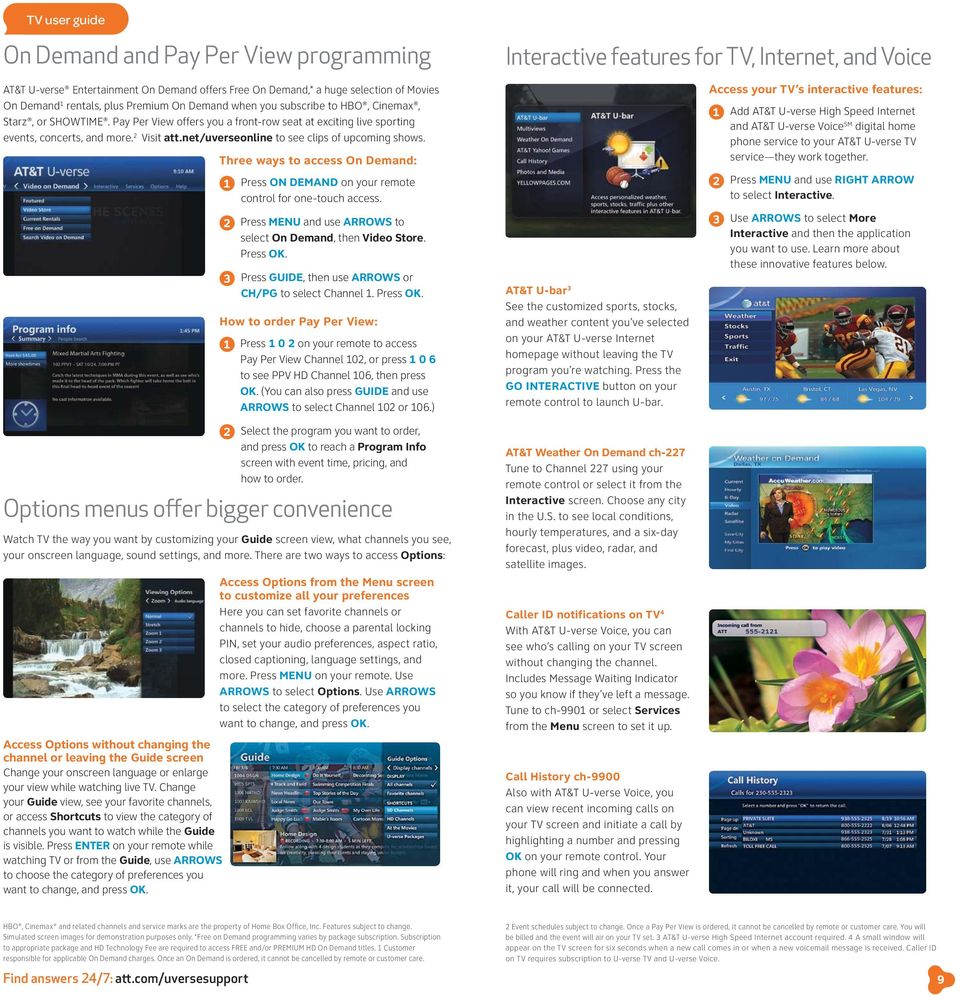
5 TV user guide On Demand and Pay Per View programming Interactive features for TV, Internet, and Voice AT&T U-verse Entertainment On Demand offers Free On Demand,* a huge selection of Movies On Demand 1 rentals, plus emium On Demand when you subscribe to HBO, Cinemax, Starz, or SHOWTIME. Pay Per View offers you a front-row seat at exciting live sporting events, concerts, and more. 2 Visit att.net/uverseonline to see clips of upcoming shows. Access Options without changing the channel or leaving the Guide screen Change your onscreen language or enlarge your view while watching live TV. Change your Guide view, see your favorite channels, or access Shortcuts to view the category of channels you want to watch while the Guide is visible. ess ENTE on your remote while watching TV or from the Guide, use AOWS to choose the category of preferences you want to change, and press OK. Three ways to access On Demand: 1 ess ON DEMAND on your remote control for one-touch access. 2 ess MENU and use arrows to select On Demand, then Video Store. ess OK. 3 ess GUIDE, then use arrows or CH/PG to select Channel 1. ess OK. How to order Pay Per View: 1 ess on your remote to access Pay Per View Channel 102, or press to see PPV HD Channel 106, then press OK. (ou can also press GUIDE and use AOWS to select Channel 102 or 106.) 2 Select the program you want to order, and press OK to reach a ogram Info screen with event time, pricing, and how to order. Options menus offer bigger convenience Watch TV the way you want by customizing your Guide screen view, what channels you see, your onscreen language, sound settings, and more. There are two ways to access Options: Access Options from the Menu screen to customize all your preferences Here you can set favorite channels or channels to hide, choose a parental locking PIN, set your audio preferences, aspect ratio, closed captioning, language settings, and more. ess MENU on your remote. Use AOWS to select Options. Use AOWS to select the category of preferences you want to change, and press OK. AT&T U-bar 3 See the customized sports, stocks, and weather content you ve selected on your AT&T U-verse Internet homepage without leaving the TV program you re watching. ess the GO INTEACTIVE button on your remote control to launch U-bar. AT&T Weather On Demand ch-227 Tune to Channel 227 using your remote control or select it from the Interactive screen. Choose any city in the U.S. to see local conditions, hourly temperatures, and a six-day forecast, plus video, radar, and satellite images. Caller ID notifications on TV 4 With AT&T U-verse Voice, you can see who s calling on your TV screen without changing the channel. Includes Message Waiting Indicator so you know if they ve left a message. Tune to ch-9901 or select Services from the Menu screen to set it up. Call History ch-9900 Also with AT&T U-verse Voice, you can view recent incoming calls on your TV screen and initiate a call by highlighting a number and pressing OK on your remote control. our phone will ring and when you answer it, your call will be connected. Access your TV s interactive features: 1 Add AT&T U-verse High Speed Internet and AT&T U-verse Voice SM digital home phone service to your AT&T U-verse TV service they work together. 2 ess MENU and use ight Arrow to select Interactive. 3 Use AOWS to select More Interactive and then the application you want to use. earn more about these innovative features below. HBO, Cinemax and related channels and service marks are the property of Home Box Office, Inc. Features subject to change. Simulated screen images for demonstration purposes only. *Free on Demand programming varies by package subscription. Subscription to appropriate package and HD Technology Fee are required to access FEE and/or PEMIUM HD On Demand titles. 1 Customer responsible for applicable On Demand charges. Once an On Demand is ordered, it cannot be cancelled by remote or customer care. 2 Event schedules subject to change. Once a Pay Per View is ordered, it cannot be cancelled by remote or customer care. ou will be billed and the event will air on your TV set. 3 AT&T U-verse High Speed Internet account required. 4 A small window will appear on the TV screen for six seconds when a new call comes in or when a new voic message is received. Caller ID on TV requires subscription to U-verse TV and U-verse Voice. 9
6 TV user guide Quick tips about your AT&T U-verse TV service Best ways to locate channels quickly: > > ess any AOW to access your onscreen Picture-in-Picture browse bar > > int a channel lineup guide for your area at att.com/channellineup See what s hot to watch now: > > ess ON DEMAND on your remote control to access your On Demand library Chat with other members online: > > Visit utalk.att.com to post messages and talk with other AT&T U-verse members about TV features, programming, and more Watch exclusive AT&T U-verse channels: > > Front ow Channel 100/102 earn what s coming up on Pay Per View > > Theatre Channel 200/1200 Watch On Demand trailers, interviews, and more > > Buzz Channel 300/1300 Go behind the scenes of your favorite TV shows > > Help Channel 411 Get AT&T U-verse TV service help > > ATTention Channel 400 See news about our latest enhancements and more internet user guide Access your from the Web Set up on your home computer Access the entire AT&T national Wi-Fi network Get online protection with advanced safety features Easy system setup ou can program your AT&T U-verse remote and set viewing aspect ratio and Parental Controls using the System Set-up Tool: > > ess MENU on your remote and use AOWS to select Help > > ess OK to select System Set-up See the complete AT&T U-verse TV Features Guide and more user guides at support.att.com/userguides. Have TV, will travel With AT&T U-verse Online SM you can watch TV shows, movies, and videos on your computer, with over 100,000 titles to choose from, at no extra charge. og on to att.net/uverseonline and you can: > > Watch hit TV shows, classic TV series, movies, trailers, and other video clips online > > Search online to learn about TV programming you can watch on AT&T U-verse TV > > Watch exclusive videos from AT&T U-verse Buzz, Front ow, Sports, and Theatre channels > > Manage your AT&T U-verse account and check your local TV listings 11

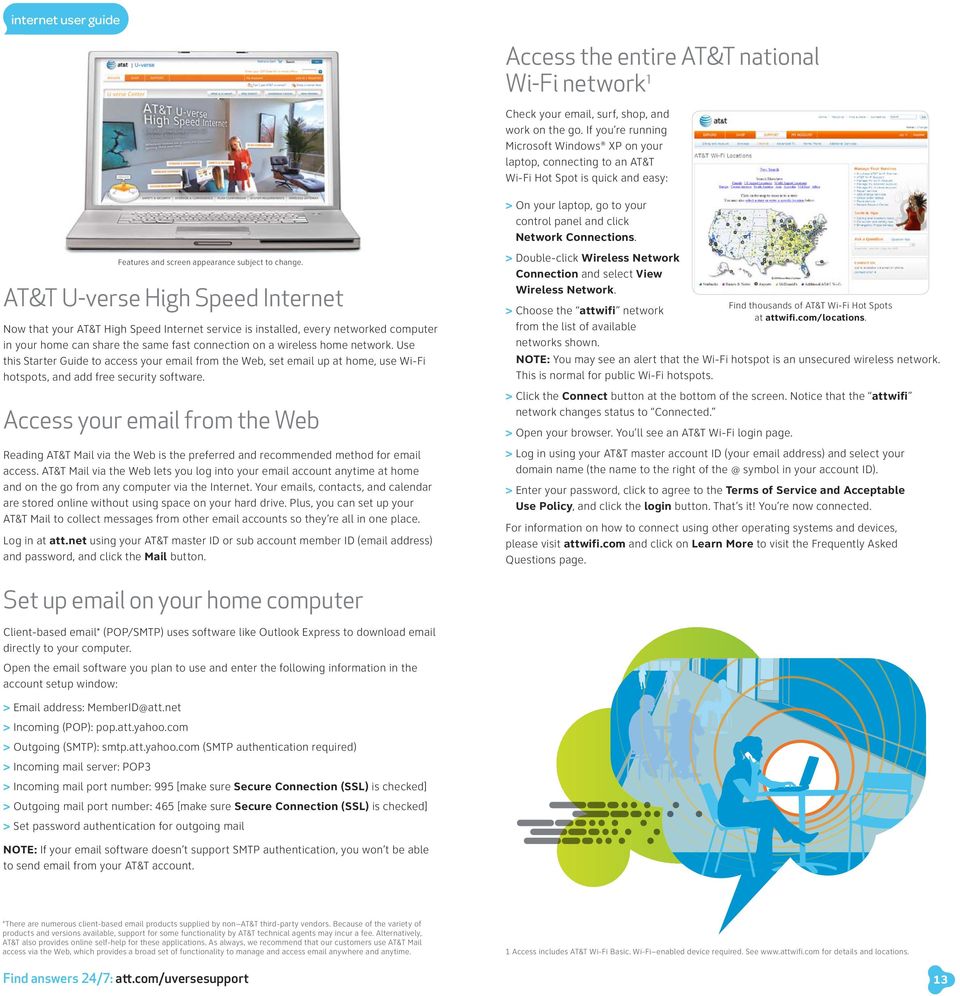
7 internet user guide Access the entire AT&T national Wi-Fi network 1 Check your , surf, shop, and work on the go. If you re running Microsoft Windows XP on your laptop, connecting to an AT&T Wi-Fi Hot Spot is quick and easy: > On your laptop, go to your control panel and click Network Connections. Features and screen appearance subject to change. AT&T U-verse High Speed Internet Now that your AT&T High Speed Internet service is installed, every networked computer in your home can share the same fast connection on a wireless home network. Use this Starter Guide to access your from the Web, set up at home, use Wi-Fi hotspots, and add free security software. Access your from the Web eading AT&T Mail via the Web is the preferred and recommended method for access. AT&T Mail via the Web lets you log into your account anytime at home and on the go from any computer via the Internet. our s, contacts, and calendar are stored online without using space on your hard drive. Plus, you can set up your AT&T Mail to collect messages from other accounts so they re all in one place. og in at att.net using your AT&T master ID or sub account member ID ( address) and password, and click the Mail button. > Double-click Wireless Network Connection and select View Wireless Network. > Choose the attwifi network from the list of available networks shown. Find thousands of AT&T Wi-Fi Hot Spots at attwifi.com/locations. Note: ou may see an alert that the Wi-Fi hotspot is an unsecured wireless network. This is normal for public Wi-Fi hotspots. > Click the Connect button at the bottom of the screen. Notice that the attwifi network changes status to Connected. > Open your browser. ou ll see an AT&T Wi-Fi login page. > og in using your AT&T master account ID (your address) and select your domain name (the name to the right of symbol in your account ID). > Enter your password, click to agree to the Terms of Service and Acceptable Use Policy, and click the login button. That s it! ou re now connected. For information on how to connect using other operating systems and devices, please visit attwifi.com and click on earn More to visit the Frequently Asked Questions page. Set up on your home computer Client-based * (POP/SMTP) uses software like Outlook Express to download directly to your computer. Open the software you plan to use and enter the following information in the account setup window: > address: [email protected] > Incoming (POP): pop.att.yahoo.com > Outgoing (SMTP): smtp.att.yahoo.com (SMTP authentication required) > Incoming mail server: POP3 > Incoming mail port number: 995 [make sure Secure Connection (SS) is checked] > Outgoing mail port number: 465 [make sure Secure Connection (SS) is checked] > Set password authentication for outgoing mail Note: If your software doesn t support SMTP authentication, you won t be able to send from your AT&T account. *There are numerous client-based products supplied by non AT&T third-party vendors. Because of the variety of products and versions available, support for some functionality by AT&T technical agents may incur a fee. Alternatively, AT&T also provides online self-help for these applications. As always, we recommend that our customers use AT&T Mail access via the Web, which provides a broad set of functionality to manage and access anywhere and anytime. 1 Access includes AT&T Wi-Fi Basic. Wi-Fi enabled device required. See for details and locations. 13
8 internet user guide Get online protection with advanced safety features Visit att.software.yahoo.com to learn more about these security features: > Anti-Spyware seeks out and removes programs that gather personal information and slow down your computer > Anti-Virus cleans and protects your computer against viruses, worms, and Trojan horses > Firewall shields your computer from unauthorized access > Pop-Up Blocker stops many types of windows that open automatically > Parental Controls let you put limits on what your children can do and see online > AT&T Mail otection prevents junk mail, UCE (unsolicited commercial ), and UBE (unsolicited bulk ) PC Health Check PC Health Check is a free, easy-to-use diagnostic tool that will quickly assess the health of your PC and its connection settings, as well as recommend solutions to fix potential performance issues. Come back often and use our spam-free PC Health Check to get peace of mind to help prevent issues and check on your computer performance. Visit us at pccheck.att.com/healthycomputer. voice user guide Set up your voice mailbox Access your mailbox online or by phone Turn off AT&T U-verse Messaging SM Change your PIN See the complete AT&T U-verse High Speed Internet Features Guide and more user guides at support.att.com/userguides. Maximize your speed Visit support.att.com/tips to learn how to maximize the speed of your AT&T U-verse High Speed Internet service. 15

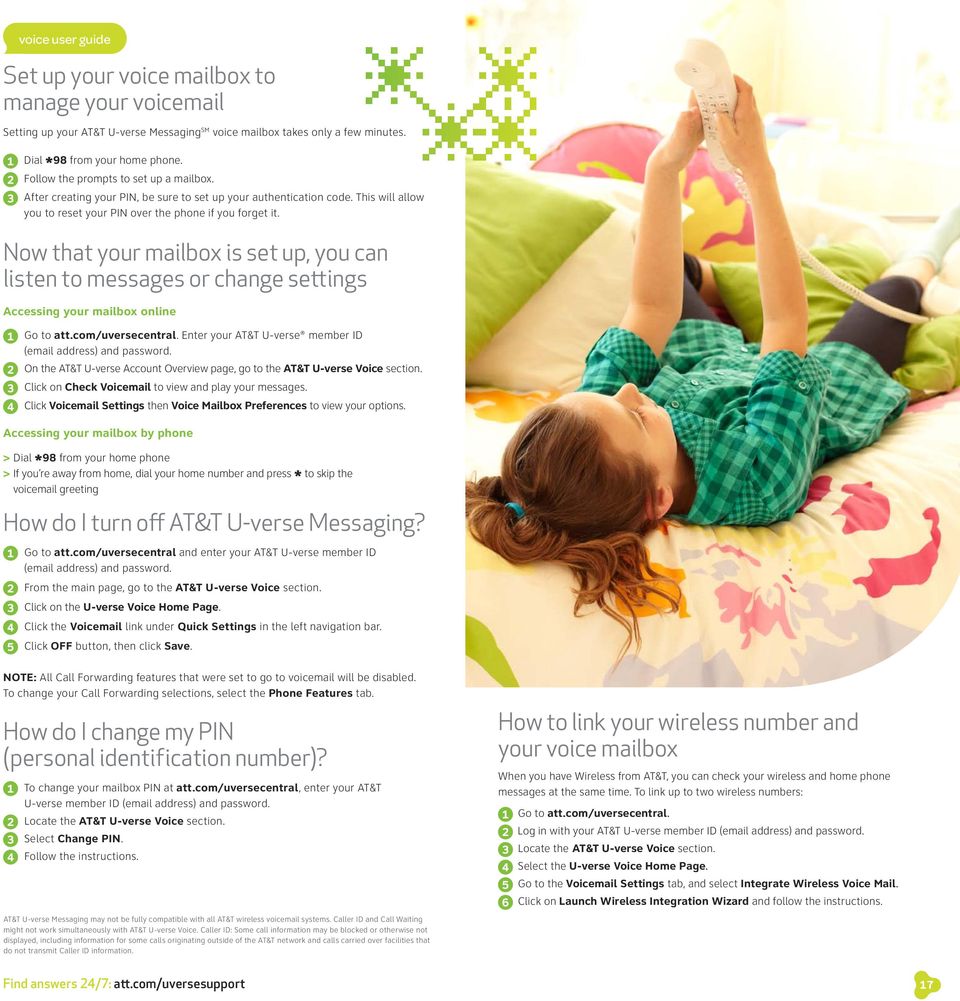
9 voice user guide Set up your voice mailbox to manage your voic Setting up your AT&T U-verse Messaging SM voice mailbox takes only a few minutes. 1 Dial 98 from your home phone. * 2 Follow the prompts to set up a mailbox. 3 After creating your PIN, be sure to set up your authentication code. This will allow you to reset your PIN over the phone if you forget it. Now that your mailbox is set up, you can listen to messages or change settings Accessing your mailbox online 1 Go to att.com/uversecentral. Enter your AT&T U-verse member ID ( address) and password. 2 On the AT&T U-verse Account Overview page, go to the AT&T U-verse Voice section. 3 Click on Check Voic to view and play your messages. 4 Click Voic Settings then Voice Mailbox eferences to view your options. Accessing your mailbox by phone > Dial 98 from your home phone * > If you re away from home, dial your home number and press to skip the * voic greeting How do I turn off AT&T U-verse Messaging? 1 Go to att.com/uversecentral and enter your AT&T U-verse member ID ( address) and password. 2 From the main page, go to the AT&T U-verse Voice section. 3 Click on the U-verse Voice Home Page. 4 Click the Voic link under Quick Settings in the left navigation bar. 5 Click OFF button, then click Save. Note: All Call Forwarding features that were set to go to voic will be disabled. To change your Call Forwarding selections, select the Phone Features tab. How do I change my PIN (personal identification number)? 1 To change your mailbox PIN at att.com/uversecentral, enter your AT&T U-verse member ID ( address) and password. 2 ocate the AT&T U-verse Voice section. 3 Select Change PIN. 4 Follow the instructions. How to link your wireless number and your voice mailbox When you have Wireless from AT&T, you can check your wireless and home phone messages at the same time. To link up to two wireless numbers: 1 Go to att.com/uversecentral. 2 og in with your AT&T U-verse member ID ( address) and password. 3 ocate the AT&T U-verse Voice section. 4 Select the U-verse Voice Home Page. 5 Go to the Voic Settings tab, and select Integrate Wireless Voice Mail. 6 Click on aunch Wireless Integration Wizard and follow the instructions. AT&T U-verse Messaging may not be fully compatible with all AT&T wireless voic systems. Caller ID and Call Waiting might not work simultaneously with AT&T U-verse Voice. Caller ID: Some call information may be blocked or otherwise not displayed, including information for some calls originating outside of the AT&T network and calls carried over facilities that do not transmit Caller ID information. 17
10 voice user guide AT&T Voic Viewer Get your AT&T U-verse Messaging SM delivered right to your desktop or smartphone, listen to messages in any order, and even forward messages as from your smartphone. AT&T Voic Viewer apps and desktop gadgets give you a simplified voice message view from iphone and BlackBerry devices, as well as igoogle Homepage and Windows Vista Sidebar. To get started, visit att.com/vmviewer. Important information remote access Although you can access your voic and manage your features while away from home, calls can be placed only from your home. AT&T U-verse Voice service SM is not currently mobile. Voic When dialing into voic remotely, you may incur additional access charges for non-local calls, hotel service charges, or cellular charges. Call forwarding/call transfer Per-minute rates apply if you forward or transfer to an international number or exceed time under a defined minutes-per-month plan. inking Wireless from AT&T to your at&t U-verse mailbox When you add a wireless number to your AT&T U-verse Messaging voice mailbox, it replaces your current wireless voice mailbox and any existing messages will be lost. epaid service cannot be added to AT&T U-verse Messaging. andline and wireless numbers must be within the same service area. The Social Security number or Tax ID provided during setup must match the one on your wireless account. AT&T U-verse Messaging may not be fully compatible with all AT&T wireless voic systems. AT&T U-verse Voice AT&T U-verse Voice, including 911 dialing, will not function during a power outage without battery backup power. AT&T U-verse service is compatible with many monitored home alarms and medical monitoring systems. quick fix guide AT&T U-verse TV AT&T U-verse High Speed Internet AT&T U-verse Voice SM See the complete AT&T U-verse Voice Features Guide and more user guides at support.att.com/userguides. earn more Visit support.att.com/voice for more information on setting up and customizing your voic . Para ver videos útiles en español por Internet, visite att.com/videosenespanol. 19

11 quick fix guide AT&T U-verse TV How to resolve problems with your AT&T U-verse TV, Internet, or Voice services Don t have picture or sound, but TV and receiver are both turned on? 1 ess TV on your remote control. 2 ess TV/VIDEO to see TV programming. If you re still having trouble with your AT&T U-verse TV, Internet, or Voice services, try resetting your TV receiver or residential/wireless gateway by unplugging it from the power outlet in the wall. (See below for details for alternate reset if you have different equipment.) NOTE: Unplugging the TV receiver or residential/wireless gateway will interrupt any recordings in progress. If the trouble is with only one TV 1 Turn off the receiver connected to that TV and unplug it. 2 Wait at least two minutes before plugging the receiver back in. Turn it on and retry what you want to do. If the trouble is with more than one TV, or with Internet or Voice service 1 Unplug the residential/wireless gateway from the power source. (See below for alternate reset.) 2 Wait at least two minutes, then plug the residential/wireless gateway back in and retry what you want to do. Alternate reset: If your service is supported with a Home Network Hub and Power Supply Unit (PSU with battery backup), then you will need to press the eset button on the left side of the PSU to reset AT&T U-verse service. The PSU may be located in the garage or a closet near an outside wall. Want more help? AT&T U-verse Getting Started has answers all in one place online at att.com/startuverse, or call and say U-verse Technical Support. How to switch your TV screen setting from standard to widescreen Aspect ratio is the relationship of the screen s width to its height. Standard TVs have a 4:3 aspect ratio; widescreen and HDTVs are 16:9. The steps below show how to switch your AT&T U-verse receiver s aspect ratio. Widescreen 1 ess MENU on your remote control, then use AOWS to select Options, then System Settings, and then Aspect atio. 2 Use UP/DOWN AOWS to choose 4:3 Standard Definition, Widescreen Standard Definition, 720p High Definition, or 1080i High Definition depending on your needs, then press OK. 3 Use AOWS to select Continue, and press OK. Standard How to program your remote to control up to four devices During installation, the AT&T button was set up to control your AT&T U-verse HD-ready receiver. ou can also control a TV plus up to two other devices such as a DVD player, stereo receiver, or home theater in a box by programming the TV, DVD, and AUX mode buttons. Once the devices are programmed, press the corresponding mode key on the remote to control that device. To watch a video on how to program your remote, visit att.com/uverseremote. NOTE: The instructions below don t require you to enter a manufacturer s device code because most codes are stored in the AT&T U-verse remote s memory. If you re unable to add a device, or want to learn about advanced features like reassigning mode buttons, refer to the remote s manual provided at installation. For more info, visit support.att.com/userguides. How to assign devices to TV-DVD-AUX mode buttons 1 Turn on the device you want to program. 2 Choose a mode button (TV, DVD, or AUX) on your remote that will be assigned to the device. Aim your remote at the device while pressing and holding that mode button. ess OK, then release both buttons. 3 After all mode buttons flash twice indicating your remote is ready to program, enter on the number keypad. The previously selected mode button will flash twice. > ou have 10 seconds to enter this programming code (9 2 2) or all the mode buttons will flash once, indicating that the remote control has exited programming mode. If this happens, just start over. 4 If you re assigning the device to the TV or DVD mode button, press and release PA. ess FF repeatedly until the device turns off. > If you re setting up the AUX button, press PA, then press 1 for VC, 2 for stereo receiver/tuner, 3 for amplifier, or 4 for home theater in a box. AUX will flash twice, indicating correct entry. ess FF repeatedly until the device turns off. 5 ess ENTE to save the settings. AT&T 6 The TV, DVD, or AUX mode button you programmed will flash three times to indicate that the programming has successfully completed. TV ECOD POWE 7 To test it, press the TV, DVD, or AUX mode button you assigned to the device, then press the POWE button to turn the device on and off. EW Want more help? If you re unable to add a device or want to learn about controlling volume on all devices using your remote, visit support.att.com/userguides. ou can also check the remote s user manual provided at installation, or watch Help On Demand on TV: ess MENU, select Help, then Help On Demand to see all program titles. STOP DVD FF PAUSE EPA ON DEMAND BACK AUX PA TV/VIDEO FWD MENU PIP BOWSE EXIT TO ECODED TV GO INTEACTIVE OK TV INFO A B C + + VO GUIDE MUTE AST CH PG ABC DEF GHI JK MNO PQS TUV WXZ ENTE DEETE SPACE ZOOM 21

12 quick fix guide ow to change your TV s input selection to H match its video source Choose one of three easy ways to connect your AT&T U-verse receiver to your TV If you re unable to see TV programs on your screen, first try pressing the TV/VIDEO button on your remote control to change from Video 1 to Video 2 or Video 3. These separate video inputs (Video 1, Video 2, and Video 3) must match the incoming video source the receiver, DVD player, orhdmi other device connected to the TV. If this doesn t DIGITA OUT GB (OPTICA) solve the problem, depending on how your devices are connected, it may be that the TV s input selection does not correspond to the input of the AT&T U-verse TV receiver. S VIDEO See two examples of how to connect the AT&T U-verse HD-ready receiver to your HDTV set below. VIDEO Check how your devices are connected to the TV (MONO) AUDIO TO WA (VIDEO OUT) TO TOWA TV (VIDEOOUT) OUT) (VIDEO HDMI HDMI NETWOK NETWOK USB AUDIO HDMI NETWOK OPTICA PC IN S-Video cable Coaxial cable HD/DVD IN 1080i/720p/480/480i VIDEO AUDIO OPTICA OPTICA TO TV TO WA USB (VIDEO IN) (VIDEO IN) AUDIO OUT VIDEO OUT S VIDEO S VIDEO VIDEO USB POWE +12V DC POWE +12V POWE DC +12V DMI 1 H DC Some HDTVs have a High-Definition Multimedia Interface (HDMI) connector that provides the digital and audio connection. This is the easiest connection if your TV has an HDMI input port (VA/FIX) If you ve connected your TV input using Composite (yellow connector), S-Video, or Coaxial, you won t get an HD picture. HD is supported only via HDMI or Component (red/green/blue). The same holds true for Dolby Digital 5.1 surround sound, which is available only via HDMI or TOS ink (optical). The Baseband (red and white connectors) delivers sound only in stereo. TO TV (VIDEO IN) AUDIO OUT VIDEO OUT AUDIO OUT To connect your AT&T U-verse HD-ready receiver to your HDTV set, the connection is generally HDMI to HDMI (the highest quality video/audio connection). ou can also use color-coded component CA cables (some HDTV sets do not have an HDMI port) that output audio/video signals from the receiver and plug into matching audio/video CA inputs on the back of your HDTV set. S VIDEO AT&T U-verse receiver output AUDIO CA cable HDMI cable Every TV is different in the way the ports are configured on the back of the TV and in the way the menus are presented on VIDEO IN the TV screen. Most devices have ports that require one or more of the cables shown at right. The manuals for your devices will have specific directions. AT&T U-verse receiver output connector NOTE: If your HDTV has an input port marked DVI (Digital Visual Interface), you will need an HDMI-to- DVI adapter and separate component CA audio connectors. HDMI Input 1 Input connector on rear of TV olor-coded component connectors 2 C If your TV doesn t have an HDMI or DVI input port, you can use color-coded component video cables (,, and ) for HD video signals. For audio, plug red and white CA connectors into the left/right audio input and output ports. AT&T U-verse receiver output connectors Check to see if the TV recognizes your video inputs correctly Many newer TVs have an auto-detection system that will automatically detect everything that s connected to the various ports on the back of the TV. However, some TVs have to be configured manually. TO WA (VIDEO OUT) HDMI NETWOK OPTICA VIDEO OUT TO TV (VIDEO IN) AUDIO OUT USB POWE +12V DC S VIDEO To change the video input selection manually, press TV/VIDEO on your remote control to locate the video input menu for your specific TV. The video input menu screen below shows checkboxes next to devices the TV is detecting. This menu must match the inputs on the back of the TV where video components are connected in order to correspond with Video 1, Video 2, or Video 3 on your remote control. Follow the screen prompts to check/uncheck boxes for correct devices. Note: efer to your TV manufacturer s guide to resolve issues specifically related to your TV. Optical Input Component Input 1 Audio Input 1 Input connectors on rear of TV -Video 3 S If your TV has an S-Video port, you can connect your receiver to your TV using an S-Video cable. For audio, you can use CA cables or plug a single optical cable into the optical ports. 23

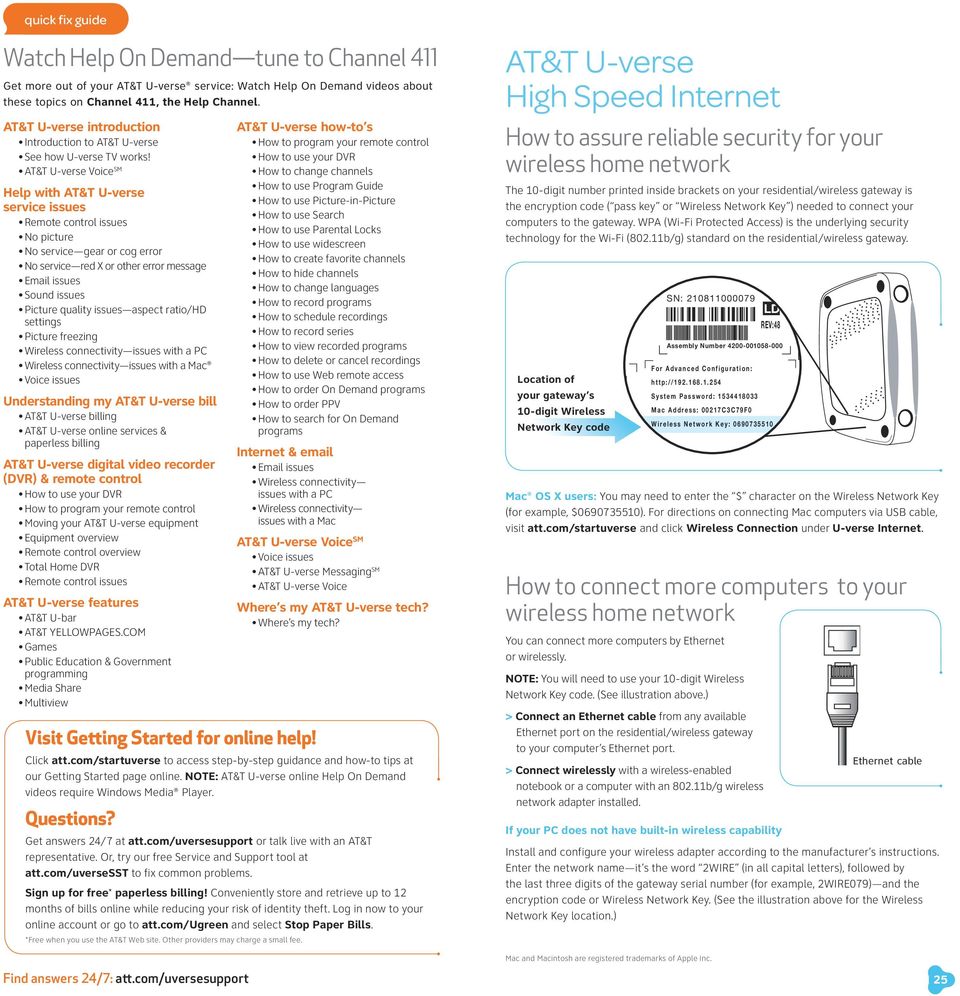
13 quick fix guide Watch Help On Demand tune to Channel 411 Get more out of your AT&T U-verse service: Watch Help On Demand videos about these topics on Channel 411, the Help Channel. AT&T U-verse introduction Introduction to AT&T U-verse See how U-verse TV works! AT&T U-verse Voice SM Help with AT&T U-verse service issues emote control issues No picture No service gear or cog error No service red X or other error message issues Sound issues Picture quality issues aspect ratio/hd settings Picture freezing Wireless connectivity issues with a PC Wireless connectivity issues with a Mac Voice issues Understanding my AT&T U-verse bill AT&T U-verse billing AT&T U-verse online services & paperless billing AT&T U-verse digital video recorder (DV) & remote control How to use your DV How to program your remote control Moving your AT&T U-verse equipment Equipment overview emote control overview Total Home DV emote control issues AT&T U-verse features AT&T U-bar AT&T EOWPAGES.COM Games Public Education & Government programming Media Share Multiview AT&T U-verse how-to s How to program your remote control How to use your DV How to change channels How to use ogram Guide How to use Picture-in-Picture How to use Search How to use Parental ocks How to use widescreen How to create favorite channels How to hide channels How to change languages How to record programs How to schedule recordings How to record series How to view recorded programs How to delete or cancel recordings How to use Web remote access How to order On Demand programs How to order PPV How to search for On Demand programs Internet & issues Wireless connectivity issues with a PC Wireless connectivity issues with a Mac AT&T U-verse Voice SM Voice issues AT&T U-verse Messaging SM AT&T U-verse Voice Visit Getting Started for online help! Where s my AT&T U-verse tech? Where s my tech? Click att.com/startuverse to access step-by-step guidance and how-to tips at our Getting Started page online. NOTE: AT&T U-verse online Help On Demand videos require Windows Media Player. Questions? Get answers 24/7 at att.com/uversesupport or talk live with an AT&T representative. Or, try our free Service and Support tool at att.com/uversesst to fix common problems. Sign up for free* paperless billing! Conveniently store and retrieve up to 12 months of bills online while reducing your risk of identity theft. og in now to your online account or go to att.com/ugreen and select Stop Paper Bills. *Free when you use the AT&T Web site. Other providers may charge a small fee. AT&T U-verse High Speed Internet How to assure reliable security for your wireless home network The 10-digit number printed inside brackets on your residential/wireless gateway is the encryption code ( pass key or Wireless Network Key ) needed to connect your computers to the gateway. WPA (Wi-Fi otected Access) is the underlying security technology for the Wi-Fi (802.11b/g) standard on the residential/wireless gateway. SN: ocation of D your gateway s EV:48 10-digit Wireless Assembly Number Network Key code SN: F o r A d v a n c e d C o n f i g u r a t i o n : h t t p : / / S y s t e m P a s s w o r d : M a c A d d r e s s : C 3 C 7 9 F 0 W i r e l e s s N e t w o r k K e y : Mac OS X users: ou may need to enter the $ character on the Wireless Network Key (for example, $ ). For directions on connecting Mac computers via USB cable, visit att.com/startuverse and click Wireless Connection under U-verse Internet. How to connect more computers to your wireless home network ou can connect more computers by Ethernet or wirelessly. Assembly Number NOTE: ou will need to use your 10-digit Wireless Network Key code. (See illustration above.) > Connect an Ethernet cable from any available Ethernet port on the residential/wireless gateway to your computer s Ethernet port. > Connect wirelessly with a wireless-enabled notebook or a computer with an b/g wireless network adapter installed. D EV:48 If your PC does not have built-in wireless capability F o r A d v a n c e d C o n f i g u r a t i o n : h t t p : / / S y s t e m P a s s w o r d : M a c A d d r e s s : C 3 C 7 9 F 0 W i r e l e s s N e t w o r k K e y : Ethernet cable Install and configure your wireless adapter according to the manufacturer s instructions. Enter the network name it s the word 2WIE (in all capital letters), followed by the last three digits of the gateway serial number (for example, 2WIE079) and the encryption code or Wireless Network Key. (See the illustration above for the Wireless Network Key location.) Mac and Macintosh are registered trademarks of Apple Inc. 25
14 quick fix guide AT&T U-verse Voice SM How to create sub account voice mailboxes online Create up to eight sub account mailboxes, one for everyone in the family each with a unique PIN, greeting, and notification options. 1 Go to att.com/uversecentral. 2 og in with your AT&T U-verse member ID ( address) and password. 3 ocate the AT&T U-verse Voice section. 4 Click on the U-verse Voice Home Page. 5 Go to the Voic Settings tab and select Voic Setup. 6 Select Create New Voice Mailbox to launch the voic setup wizard and follow the instructions for setup. How to link your wireless number and your AT&T U-verse Voice mailbox See page 17 for details. How to change your PIN (personal identification number) See page 16 for details. Questions? See the complete AT&T U-verse TV, High Speed Internet, and Voice Features Guides and more user guides at support.att.com/userguides. Here are other ways you can quickly learn more: > Tune to video tutorials on Help Channel 411 > int a channel guide at att.com/channellineup > Click att.com/uversesupport > Chat support.att.com/chat > Call , then say Order AT&T U-verse services, Pay my bill, or AT&T U-verse technical support > For current programming, visit att.net/uverseonline Esta práctica guía rápida también está en español en support.att.com/userguides (en inglés). Para ver videos útiles en español por Internet, visite att.com/videosenespanol. To watch helpful videos online in Spanish, visit att.com/videosenespanol. ecord your important AT&T U-verse information here for easy reference. AT&T U-verse products installed general information AT&T ewards for eferrals High-speed Internet service plan Date $ 500 earn over in rewards AT&T U-verse TV package Customer name on account by referring your friends!* Voice service plan Master account ID ( address) When friends and family you refer sign up for qualifying services, you ll get a reward card worth up to $50 per service! earn more at att.com/refertoday. (ou can add additional HD-ready receivers, upgrade any package, and add specialty programming to AT&T U-verse anytime.) Billing account number *Maximum amount of AT&T referrals is $599. ogram may change or end at any time without notice. Certain services and terms required for eligibility. wireless gateway information AT&T U-verse primary member ID (AT&T primary address) Upgrade or add services anytime. click att.com/uversecentral call Please have your four-digit passcode available when calling. Manufacturer AT&T U-verse password hint Note: Password is the same as your AT&T password. For your security, record account passwords separately and keep them in a safe place. SSID # Wireless key # outer access address More resources Visit these links for news, customer care, and AT&T community discussions: facebook.com/uverse twitter.com/att youtube.com/attcustomercare utalk.att.com For your own security, if you need to record account passwords, write them down separately and keep them in a safe place. We re always here to help: > Getting started: att.com/uversesupport > 24/7 care: Please have your four-digit passcode available when calling. > Help Channel: Tune your TV to ch-411

15 2010 AT&T Intellectual operty. All rights reserved. AT&T, the AT&T logo and all other AT&T marks contained herein are trademarks of AT&T Intellectual operty and/or AT&T affiliated companies. ATT (11/10)

USER GUIDE Get the most from your FrontierTV, High-Speed Internet and Frontier Voice services
 USER GUIDE Get the most from your FrontierTV, High-Speed Internet and Frontier Voice services Frontier High-Speed Internet...3 Frontiernet.net Set up email on your home computer Free PC Security Scan (ftrsecure.com)
Fi TV Gold Quick Start Guide
 Quick Start Guide Fi TV Gold Quick Start Guide Welcome to Fi TV! We re happy that you chose EPB Fiber Optics to bring the best movies, sports, news and television programming into your home and we will
Digital Cable TV. User Guide
 Digital Cable TV User Guide T a b l e o f C o n T e n T s DVR and Set-Top Box Basics............... 2 Remote Playback Controls................ 4 What s on TV.......................... 6 Using the OK Button..................
Fi TV Gold Quick Start Guide
 Quick Start Guide Fi TV Gold Quick Start Guide Welcome to Fi TV! We re happy that you chose EPB Fiber Optics to bring the best movies, sports, news and television programming into your business and we
Cable TV Quick Start Guide. Enjoy your Midco cable TV experience to the fullest with these helpful tips.
 Cable TV Quick Start Guide Enjoy your Midco cable TV experience to the fullest with these helpful tips. 1 Contents Equipment & Features.......................................................... 4 New Equipment
Hargray s. Digital Television. powered by Ericsson Mediaroom
 Hargray s Digital Television powered by Ericsson Mediaroom Hargray Digital Television powered by Ericsson Mediaroom Watch What Hargray Digital Television Service Can Do For Your Home Entertainment. Welcome
Your XFINITY. Get started with your new XFINITY services.
 Your XFINITY User Guide Get started with your new XFINITY services. The Voice available at xfinity.com/tv The Blacklist available at xfinity.com/tv A Better Entertainment Experience Starts Now Welcome
CenturyLink. Prism TV. Quick User Guide. Please keep this handy for all your Q&As. CNTL13-1042
 CenturyLink Prism TV Quick User Guide Please keep this handy for all your Q&As. CNTL13-1042 YOUR GUIDE TO WHAT S INSIDE. Enjoy your CenturyLink Prism M experience. 03 04 05 07 07 08 09 09 10 11 11 12 13
THIS IS GOING TO BE EXCITING. AND EASY.
 FiOS TV USER GUIDE 2015 WELCOME TO FiOS TV. NOW YOU CAN Record More Shows. Watch In More Places. Store More Recordings. THIS IS GOING TO BE EXCITING. AND EASY. 1 ALL YOU NEED TO KNOW ABOUT FiOS TV Your
mini box User s Manual
 mini box User s Manual Version. Updated: 0/0/4 04 Cox Communications, Inc. Table of Contents Chapter : Introduction... About This Manual... Chapter : Installing & Activating Your mini box... 4 Connecting
Welcome to a bigger, faster, more powerful world.
 Welcome to a bigger, faster, more powerful world. User Guide charter.com/welcome 1 LEGAL POLICIES & TERMS AND CONDITIONS FOR CHARTER RESIDENTIAL SERVICES You may obtain a copy of the Terms and Conditions
ENJOY ENTERTAINMENT BETTER
 TV ENJOY ENTERTAINMENT BETTER 1 2 Table Of Contents 4 Setting Up Your Remote Control 5 Find Channels/Search 7 Aspect Ratio Settings 8 Output Resolution Settings 9 Parental Control 10 Menu Bar 10 Settings
The Future of Television Entertainment has Arrived PRTC Digital TV
 The Future of Television Entertainment has Arrived PRTC Digital TV Your Guide to PRTC s Digital TV & Whole Home DVR Service P O W E R E D B Y M I C R O S O F T M E D I A R O O M TM P A L M E T T O R U
HD DVR Quick Start Guide
 HD DV Quick Start Guide Thanks for buying a Moxi HD DV. We know you want to see it in action, so let s get started. What you need for setup: Moxi HD DV Multi-Stream CableCAD * Digital Cable Subscription
WELCOME TO XFINITY TV
 WELCOME TO XFINITY TV MORE WAYS TO GET MORE ENTERTAINMENT XFINITY TV offers more ways to get more entertainment so you can enjoy shows and movies instantly on any screen. Catch up on the latest episodes
User Guide. Internet Television Telephone. and more... How-To: Setup Voice Mail
 User Guide How-To: Setup Voice Mail Setup a Wireless Router Enable TV Parental Controls Schedule Recordings with a DVR Troubleshoot Your Service and more... Internet Television Telephone Burlington Telecom
AT&T U-verse App for iphone FAQ s
 About AT&T U-verse What is AT&T U-verse for iphone? The AT&T U-verse for iphone is a service that provides all U-verse subscribers with the ability to view their U-verse TV Guide, manage their home DVR,
VIP1200 & VIP1216 Wireless IPTV Receivers
 VIP1200 & VIP1216 Wireless IPTV eceivers THIS IS AN EDITED VESION OF THE OIGINA DOCUMENT CONTENTS Intro duction...1 Your Set-top Boxes...1 Front Panel...2 ear Panel...3 Video Connectio n Opt ions...4 Audio
Quick Reference for:
 Quick Reference for: Optimum Online Boost Plus Optimum Link SM Optimum app Advanced Wireless Router Por español, vea al revérso Version 1.0 9815001CAP0311COL Table of Contents Optimum Online Boost Plus...................
DVR Guide. Dual Tuner HD-Capable DVR. You go get the popcorn. Your show waits for you.
 DVR Guide Dual Tuner HD-Capable DVR You go get the popcorn. Your show waits for you. USING YOUR REMOTE CONTROL TV: When programmed, enables control of your TV. Cable: Enables control of your digital cable
USER GUIDE 152772/6-14/8116
 USER GUIDE 152772/6-14/8116 June 2014 CONTENTS Equipment 4 Connected-Home DVR/Standard Set-Top Box Wireless Set-Top Box Wireless Access Point Remote Controls Residential Gateway Getting Started 12 Turn
RCN DIGITAL CABLE USERS GUIDE
 RCN DIGITAL CABLE USERS GUIDE WELCOME Congratulations! Thanks to your new Digital Cable Service, you now have access to the most cutting-edge cable television services available, only from RCN. At RCN,
HomeNet. Gateway User Guide
 HomeNet Gateway User Guide Gateway User Guide Table of Contents HomeNet Gateway User Guide Gateway User Guide Table of Contents... 2 Introduction... 3 What is the HomeNet Gateway (Gateway)?... 3 How do
Please click on the Table of Contents item you are interested in to go directly to the information. Connections and Devices...5
 Please click on the Table of Contents item you are interested in to go directly to the information. Connections and Devices...5 MTS HDTV Set-Top Box General Information and Maintenance... 5 Connecting
CABLE TV USER GUIDE. This is way more. than just TV.
 CABLE TV USER GUIDE This is way more than just TV. Your New Home for Entertainment Thank you for choosing Midcontinent Communications as your cable TV service provider. We ve worked hard to create an interactive
Digital Television User Guide
 Digital Television User Guide Table of Contents THE HURONTEL HOME BUNDLE >> Finally you can receive Home Phone (with Calling Features), High Speed Fibre Optic Internet and 100% Digital TV including 1 Digital
WELCOME TO XFINITY MO_USER_SIK_0414.indd 1 2/28/14 10:37 AM
 WELCOME TO XFINITY MO_USER_SIK_0414.indd 1 2 Thank you for Choosing XFINITY TV. XFINITY TV gives you more ways to get more entertainment. With XFINITY On Demand, enjoy the best selection of current TV
SET-TOP USER GUIDE SET-TOP USER GUIDE
 SET-TOP USER GUIDE SET-TOP USER GUIDE If you have more questions about your service, go to ArmstrongOneWire.com or call Customer Support at 1.877.277.5711. Table of contents WELCOME TO ARMSTRONG TELEVISION
Cox High Speed InternetSM Connect to your online world faster than you can imagine. Plus, access a whole host of tools to make your Internet
 Cox High Speed InternetSM Connect to your online world faster than you can imagine. Plus, access a whole host of tools to make your Internet experience friendlier, easier and more cutting edge. 43 Connecting
Set Top Box User Guide. Global Reach with a Local Touch
 Set Top Box User Guide Global Reach with a Local Touch Table of Contents REMOTE SET UP 3 SET TOP BOX DIAGRAM 4 SET TOP BOX SETTINGS 5 TURN ON/OFF 5 TV INPUT SETTINGS 5 ADJUSTING THE VOLUME 5 RESETTING
OPS Data Quick Start Guide
 OPS Data Quick Start Guide OPS Data Features Guide Revision: October, 2014 Technical Support (24/7) - (334) 705-1605 http://www.opelikapower.com Quick Start Guide OPS Data: Beginning today, you have access
Welcome to life on. Get started with this easy Self-Installation Guide.
 Welcome to life on Get started with this easy Self-Installation Guide. Welcome to a network that s light years ahead. Welcome to life on FiOS. Congratulations on choosing Verizon FiOS! You re just a few
Hi! Let s get started.
 Hi! Let s get started. What s in the box Roku 2 player Roku 2 enhanced remote Headphones 2 x AA batteries for remote A/V cable (RCA) Power adapter Get to know your Roku 2 A Front view B E C Back view
Setting up Digital Cable on an S1Digital Media Center
 Digital Cable Setup for Windows Media Center: User s Guide 1 Setting up Digital Cable on an S1Digital Media Center User s Guide Aug 2007 Digital Cable Setup for Windows Media Center: User s Guide 2 The
WELCOME TO. Your step-by-step guide to getting the most out of your Internet, Phone and TV services. VyveBroadband.com
 WELCOME TO Your step-by-step guide to getting the most out of your Internet, Phone and TV services. VyveBroadband.com Thank you for turning your Vyve on! We know you re pretty busy, so we went ahead and
Table of Contents. Table of Contents
 Table of Contents COPYRIGHT 2011 Entone, Inc. All rights reserved. This document contains proprietary information protected by copyright. No part of this publication may be reproduced, stored in a retrieval
Internet Quick Start Guide. Get the most out of your Midco internet service with these handy instructions.
 Internet Quick Start Guide Get the most out of your Midco internet service with these handy instructions. 1 Contents Internet Security................................................................ 4
Welcome to the Most. Personalized TV Experience
 Welcome to the Most Personalized TV Experience Meet TiVo Service from Cogeco 2 Get ready to live the TiVo experience. Welcome to TV like you ve never seen it. With TiVo Service from Cogeco, 1 you get incredible
Welcome to. User Guide for Digital Cable TV Digital Telephone and High Speed Internet. www.norwoodlight.com 781-948-1150
 Welcome to User Guide for Digital Cable TV Digital Telephone and High Speed Internet www.norwoodlight.com 781-948-1150 CONTENTS Digital Phone Features Address Book... 3 Instant Replay...13 Anonymous Call
DVR GUIDE. Using your DVR/Multi-Room DVR. 1-866-WAVE-123 wavebroadband.com
 DVR GUIDE Using your DVR/Multi-Room DVR 1-866-WAVE-123 wavebroadband.com Table of Contents Control Live TV... 4 Playback Controls... 5 Remote Control Arrow Buttons... 5 Status Bar... 5 Pause... 6 Rewind...
User Guide. Fiber TV V3-0216
 User Guide Fiber TV V3-0216 Table of contents Say Hello to Fiber TV 2 Your Fiber TV Digital Receiver 3 Your Remote Control 4 Programming Your Remote 5 Using Your Fiber TV Service 6 High Definition TV 6
Welcome to life in the fast lane!
 Welcome to life in the fast lane! TV Internet We re excited to have you in the Mstar family. As your local provider, we think you ll love being part of the nation s leading fiberoptic network and keep
HANTZ + PARTNER The Upgrade Company! www.hantz.com
 Quick Start Guide X3000 HD Network Media Player X3000 HD NETWORK MEDIA PLAYER POWER HANTZ + PARTNER The Upgrade Company! www.hantz.com A Get to know your HELIOS X3000 Thank you for purchasing the HELIOS
VAST TV. Enjoy watching the channels you love.
 VAST TV Vast is committed to providing you with quality advanced broadband services at a great value. Choose from a variety of TV packages and enjoy more entertainment with Vast OnDemand, digital music
WELCOME TO XFINITY TV
 WELCOME TO XFINITY TV MORE WAYS TO GET MORE ENTERTAINMENT XFINITY TV offers more ways to get more entertainment so you can enjoy shows and movies instantly on any screen. Catch up on the latest episodes
Manufactured under license from Dolby laboratories. Dolby and the double-d symbol are trademarks of Dolby Laboratories.
 Getting Started Thank you for selecting NETGEAR products. After installing your device, locate the serial number on the label and use it to register your product at https://my.netgear.com. You must register
Technical Support. Trademarks
 Getting Started Technical Support Thank you for selecting NETGEAR products. After installing your device, locate the serial number on the label of your product and use it to register your product at https://my.netgear.com.
BUSINESS VOICEEDGE TECHNICAL ADMINISTRATOR USER GUIDE WELCOME TO BUSINESS VOICEEDGE INTRODUCTION TO VOICEEDGE PHONES
 BUSINESS VOICEEDGE TECHNICAL ADMINISTRATOR USER GUIDE WELCOME TO BUSINESS VOICEEDGE As the technical administrator, you can manage features and passwords for all end users as well as manage key group features
DIGITAL / HD GUIDE. Using Your Interactive Digital / HD Guide. 1-866-WAVE-123 wavebroadband.com
 DIGITAL / HD GUIDE Using Your Interactive Digital / HD Guide 1-866-WAVE-123 wavebroadband.com Using Your Interactive Digital/HD Guide Wave s Digital/HD Guide unlocks a world of greater choice, convenience
Moxi Whole Home HD DVR QUICK REFERENCE GUIDE
 Moxi Whole Home HD DVR QUICK REFERENCE GUIDE Let s get started with learning more about what your Moxi System can do. This is a quick reference guide to get you up and running. Contents: Menu Quick Look
User Guide Get the most from your VantageTV
 User Guide Get the most from your VantageTV This User Guide provides you with information on how to find TV programs, rent videos, filter by your favorite channels, and take advantage of other VantageTV
BUSINESS VOICEEDGE TECHNICAL ADMINISTRATOR USER GUIDE WELCOME TO BUSINESS VOICEEDGE INTRODUCTION TO VOICEEDGE PHONES
 BUSINESS VOICEEDGE TECHNICAL ADMINISTRATOR USER GUIDE WELCOME TO BUSINESS VOICEEDGE As the technical administrator, you can manage features and passwords for all end users as well as manage key group features
REV3-16.11.19.03 TV Guide Interactive. We Make TV Better SM i
 REV3-16.11.19.03 TV Guide Interactive. We Make TV Better SM i TV Guide Interactive Reference Manual Revision Date: November 19, 2003 TV Guide Interactive, Inc. 7140 South Lewis Tulsa, Oklahoma 74136 CONFIDENTIAL
XFINITY TV DIGITAL SET-TOP BOX User Guide
 XFINITY TV DIGITAL SET-TOP BOX User Guide Contents 3 Welcome to XFINITY TV 4 XFINITY TV Quick Start Guide 5 Using Your Remote Control 6-12 Using Your On-Screen Guide Main Menu and Quick Menu TV Listings
AT&T Voicemail Viewer User Guide
 AT&T Voicemail Viewer User Guide Table of Contents iphone... 4 Requirements... 4 Installation... 4 Message Notification and Message Count... 6 Application... 8 Login... 8 Functionality Summary...10 Settings...
Big Sandy Broadband DVR Guide
 Big Sandy Broadband DVR Guide Contents Big Sandy Broadband DVR Don t Miss a Thing 3 Control Live TV 3 Playback Controls Using the Video Control Buttons 4 Playback Controls Using the Remote Control Arrow
Welcome to XFINITY TV
 Welcome to XFINITY TV XFINITY on the X1 Entertainment Operating System delivers the simplest, fastest and most complete way to access all your entertainment on all your screens. This guide will help you
MOTO. Quick Start Guide
 MOTO 9h Quick Start Guide welcome Technology promised to make things easier... but then it gave you more to do phone calls, e-mails, music, photos, videos, the Internet, and more. It s time to take back
How To Use Senior Systems Cloud Services
 Senior Systems Cloud Services In this guide... Senior Systems Cloud Services 1 Cloud Services User Guide 2 Working In Your Cloud Environment 3 Cloud Profile Management Tool 6 How To Save Files 8 How To
WELCOME TO XFINITY INT_V_USER_SIK_0413.indd 1 3/15/13 2:46 PM
 WELCOME TO XFINITY INT_V_USER_SIK_0413.indd 1 2 THANK YOU FOR CHOOSING XFINITY. You ll enjoy superfast Internet access and tons of valuable extras, such as Constant Guard (a $360 value), included with
TDSTV USER GUIDE. 1-866-44-TDSTV www.tdstv.com. Broadband. Digital TV. Phone.
 TDSTV USER GUIDE Broadband. Digital TV. Phone. 1-866-44-TDSTV www.tdstv.com WELCOME TO TDS TV! We re happy to have you as a customer. Now you can enjoy hundreds of the best television and audio channels,
Getting Started With The. Explorer
 Getting Started With The Explorer 8300 and 8300HD DVR Record your favorite programs when you re busy Record one program and watch another Record two live programs while watching a third program you recorded
VAST TV. Enjoy watching the channels you love.
 VAST TV Vast is committed to providing you with quality advanced broadband services at a great value. Choose from a variety of TV packages and enjoy more entertainment with Vast OnDemand, digital music
quick reference guide
 quick reference guide / Product Overview Product Overview Wireless (Blue) The Wireless LED lights up when the wireless feature is enabled. It flashes when the Valet sends or receives data over the wireless
Hi! Let s get started. Streaming Stick
 Hi! Let s get started. Streaming Stick 1 Know your Streaming Stick 1 2 3 4 2 1 2 3 4 [HDMI CONNECTOR] Plugs into the HDMI port on the back of your TV [STATUS LIGHT] Indicates it is on when lit, or activity
CPEi 800/825 Series. User Manual. * Please see the Introduction Section
 CPEi 800/825 Series User Manual * Please see the Introduction Section Contents Introduction...iii Chapter 1: CPEi 800/825 User Guide Overview... 1-1 Powerful Features in a Single Unit... 1-2 Front of the
HP USB Digital/Analog TV Tuner. User Guide
 HP USB Digital/Analog TV Tuner User Guide Copyright 2008 Hewlett-Packard Development Company, L.P. Windows and Windows Vista are U.S. registered trademarks of Microsoft Corporation. The information contained
DATA PROJECTOR XJ-A147/XJ-A247/XJ-A257 XJ-M146/XJ-M156 XJ-M246/XJ-M256. XJ-A Series. XJ-M Series. Network Function Guide
 DATA PROJECTOR EN XJ-A Series XJ-A147/XJ-A247/XJ-A257 XJ-M Series XJ-M146/XJ-M156 XJ-M246/XJ-M256 Network Function Guide In this manual, XJ-A Series and XJ-M Series refer only to the specific models listed
Wireless Internet Camera
 Wireless Internet Camera Wireless G Mobile USB 2.0 Adapter with 3G Video Minimum System Requirements PC with: Windows XP/2000 1GHz processor Memory Size: 512MB 100MB of available hard drive space and a
Quick Start Guide. Comwave Home Phone Adapter. iphone Connections. Home Phone Adapter. Package Contents
 Quick Start Guide Comwave Home Phone Adapter Important: This guide describes the supported configuration for Comwave Home Phone Service. When calling Comwave s Technical Support Team, your network must
DTA INSTALLATION PROCESS & USER GUIDE FOR CHARTER BUSINESS CUSTOMERS
 DTA INSTALLATION PROCESS & USER GUIDE FOR CHARTER BUSINESS CUSTOMERS This guide is intended for owners or managers and front desk personnel. This guide is not intended for guests. Customer Care 1-800-314-7195
CHARTER BUSINESS custom hosting faqs 2010 INTERNET. Q. How do I access my email? Q. How do I change or reset a password for an email account?
 Contents Page Q. How do I access my email? Q. How do I change or reset a password for an email account? Q. How do I forward or redirect my messages to a different email address? Q. How do I set up an auto-reply
RingCentral Office@Hand from AT&T Desktop App for Windows & Mac. User Guide
 RingCentral Office@Hand from AT&T Desktop App for Windows & Mac User Guide RingCentral Office@Hand from AT&T User Guide Table of Contents 2 Table of Contents 3 Welcome 4 Download and install the app 5
ABOUT YOUR SATELLITE RECEIVER
 2 Satellite Receiver ABOUT YOUR SATELLITE RECEIVER This chapter gives you an overview and a description of your satellite receiver. SATELLITE RECEIVER OVERVIEW SINGLE AND DUAL MODES REMOTE CONTROL SATELLITE
Networking. General networking. Networking overview. Common home network configurations. Wired network example. Wireless network examples
 Networking General networking Networking overview A network is a collection of devices such as computers, printers, Ethernet hubs, wireless access points, and routers connected together for communication
MEDIA SHARE Set Up Guide for PCs with Windows 7
 MEDIA SHARE Set Up Guide for PCs with Windows 7 AT&T Media Share allows you to view photos and listen to music files that are stored on your PC on your U-verse-connected TV. In order to share photo and
Evolution Digital HD Set-Top Box Important Safety Instructions
 Evolution Digital HD Set-Top Box Important Safety Instructions 1. Read these instructions. 2. Keep these instructions. 3. Heed all warnings. 4. Follow all instructions. 5. Do not use this apparatus near
CAUTION RISK OF ELECTRIC SHOCK NO NOT OPEN
 Evolution Digital HD Set-Top Box Important Safety Instructions 1. Read these instructions. 2. Keep these instructions. 3. Heed all warnings. 4. Follow all instructions. 5. Do not use this apparatus near
Internet and Email Help. Table of Contents:
 Internet and Email Help The following tips are provided to assist you in troubleshooting and managing your Plex Internet and email services. For additional issues or concerns, you may also call our Product
A25/CND. User s Reference Manual
 A25/CND. User s Reference Manual Welcome to i-guide. Introducing the new interactive program guide from Prevue and your cable system. i-guide TM is intuitive, intelligent and inspiring. It unlocks a world
ShareLink 200 Setup Guide
 ShareLink 00 Setup Guide This guide provides instructions for installing and connecting the Extron ShareLink 00. The ShareLink USB 00 Wireless Collaboration Gateway allows anyone to present content from
Welcome to Cisco ūmi telepresence. User guide
 Welcome to Cisco ūmi telepresence User guide Intellectual property notice 2011 Cisco and/or its affiliates. All rights reserved. Cisco, ūmi, and the Cisco and ūmi logos are trademarks or registered trademarks
MobileLite Wireless G2 5-in-1 Mobile Companion User Manual
 MobileLite Wireless G2 5-in-1 Mobile Companion User Manual Document No. 480-MLWG2-021315.A00 Kingston MobileLite Wireless Page 1 of 21 Table of Contents Introduction... 3 What s Included:... 3 Getting
Hi! Let s get started.
 Hi! Let s get started. What s in the box Roku player Remote control with in-ear headphone jack 2 x AA Alkaline batteries In-ear headphones Power adapter Get to know your Roku B A Front view C D E Back
Home Network. Installation Instructions
 Home Network Installation Instructions TM Installation Instructions Table of Contents Overview...2 Installation Considerations...2 Quick Installation Instructions...2 Identifying and Creating the Home
MTS Ultimate TV Service. User Guide
 MTS Ultimate TV Service User Guide MTS Ultimate TV Service Complete User Guide Welcome to MTS Ultimate TV....1 MTS Ultimate TV Set-Top Box General Information and Maintenance....2 The Remotes....3 Getting
Lync TM Phone User Guide Polycom CX600 IP Phone
 The Polycom CX600 IP (Internet Protocol) phone is a full-featured unified communications desktop phone, optimized for use with Microsoft Lync environments. It features Polycom HD Voice technology for crystal-clear
Table of Contents. Table of Contents. Table of Contents. VUDU Movies...38 Activating VUDU... 38 Browsing VUDU Catalog... 42
 COPYRIGHT 2012 Entone, Inc. All rights reserved. This document contains proprietary information protected by copyright. No part of this publication may be reproduced, stored in a retrieval system, or transmitted
Hi! Let s get started.
 Hi! Let s get started. What s in the Box Roku player Remote control 2 x AAA batteries for remote A/V cable RCA Power adapter Get to know your roku A Front view B C F Back view D E A B C D E F Status light
inside i-guidetm user reference manual
 inside i-guidetm user reference manual Copyright 2010 Rovi Corporation. All rights reserved. Rovi and the Rovi logo are trademarks of Rovi Corporation and/or its subsidiaries. This document contains confidential
User s Reference Manual
 User s Reference Manual Welcome to i-guide. Introducing the all-new interactive program guide from TV Guide and your cable system. i-guide TM is intuitive, intelligent and inspiring. It unlocks a world
Features Reference. About Unified Communication System. Before Using This Machine. Starting a Meeting. What You Can Do During the Meeting
 Features Reference About Unified Communication System Before Using This Machine Starting a Meeting What You Can Do During the Meeting Leaving a Meeting Managing Address Book Changing Network Configuration
Pocket PC Phone Quick Start Guide. Read this guide before operating your Pocket PC Phone.
 Pocket PC Phone Quick Start Guide Read this guide before operating your Pocket PC Phone. 1 Feature Maps Front Panel Components 4. 5. 2. 3. 6. 7. 1. 12. 11. 9. 8. 10. 1 Volume. Press to adjust the volume
Setup Guide. You re minutes away from a whole new way of watching TV. Of controlling TV. Of thinking about what TV can be.
 Setup Guide You re minutes away from a whole new way of watching TV. Of controlling TV. Of thinking about what TV can be. Unpack the box From HD video calling on your couch to house-of-the-future touch
This product may be protected by one or more of the following U.S. Patents: 6,418,556; 7,100,185; 5,809,204; 6,396,546; 5,940,073; and 6,239,794.
 DVR user manual Copyright 2010 Rovi Corporation. All rights reserved. Rovi and the Rovi logo are trademarks of Rovi Corporation. Passport is a registered trademark of Rovi Corporation and/or its subsidiaries.
Digital Video High-Speed Internet Phone. Customer Guide
 Digital Video High-Speed Internet Phone Customer Guide Your Digital Video Service Using Your Remote Control 4 Interactive Program Guide 5 Parental Controls 7 On Demand (in select markets only) 9 Digital
Digital telephony. Softphone Getting Started Guide. Business Edition TEL-GDA-AFF-002-0902
 Digital telephony Business Edition Softphone Getting Started Guide TEL-GDA-AFF-002-0902 Contents ABOUT THIS GUIDE 3 911 EMERGENCY SERVICES 3 DOWNLOADING THE SOFTWARE 3 CONFIGURING THE SOFTWARE 5 INITIALIZING
User Manual. 3CX VOIP client / Soft phone Version 6.0
 User Manual 3CX VOIP client / Soft phone Version 6.0 Copyright 2006-2008, 3CX ltd. http:// E-mail: [email protected] Information in this document is subject to change without notice. Companies names and data
Welcome. You re watching Apple TV. This guide contains all the information you need to get from setup to your sofa.
 Welcome. You re watching Apple TV. This guide contains all the information you need to get from setup to your sofa. Contents Chapter 1: Connect. 7 What s in the box 8 Apple TV at a glance 10 What you
BlackBerry Desktop Software User Guide
 BlackBerry Desktop Software User Guide Version: 2.4 SWD-1905381-0426093716-001 Contents Basics... 3 About the BlackBerry Desktop Software... 3 Set up your smartphone with the BlackBerry Desktop Software...