
Hi! Let s get started.
|
|
|
- Sherman Randall
- 9 years ago
- Views:
Transcription
1 Hi! Let s get started.
2

3 What s in the Box Roku player Remote control 2 x AAA batteries for remote A/V cable RCA Power adapter

4 Get to know your roku A Front view B C F Back view D E
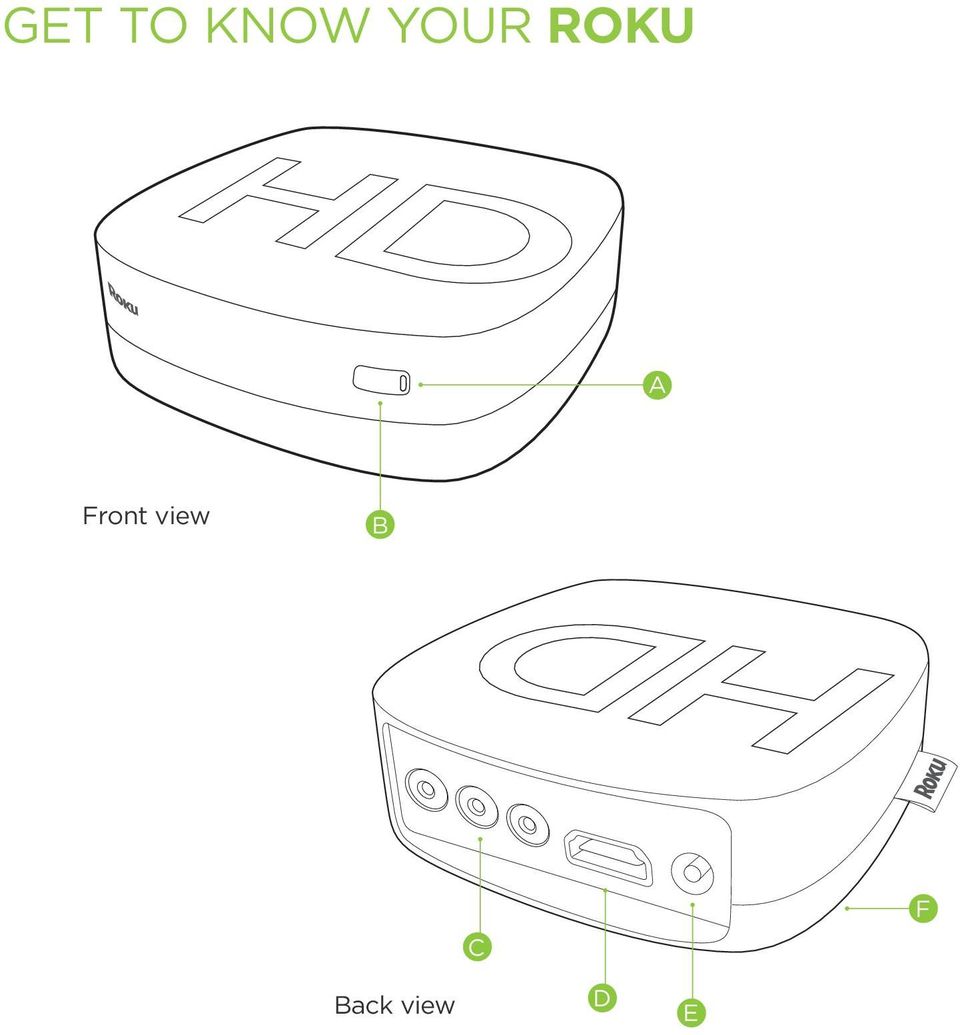
5 A B C D E F Status light Flashes slowly when the Roku player starts up. Glows when it s on. Flashes once with each press of the remote control. IR receiver Receives signal from the included Roku remote. A/V port Connects your Roku player to a TV with the included A/V cable. Provides standard definition quality only. HDMI port Connects your Roku player to an HDTV with an HDMI cable (not included). Power port Connects your Roku player to a 120V AC power source with the included power adapter. Reset button (located on bottom of Roku)- Resets your Roku player to its original factory settings when pressed and held for 10 seconds (a feature you ll rarely, if ever, use). Did you notice? Your Roku player has no on/off switch. It s simpler that way and draws very little power less than a nightlight! Keep it plugged in so that it can download the latest software updates automatically.
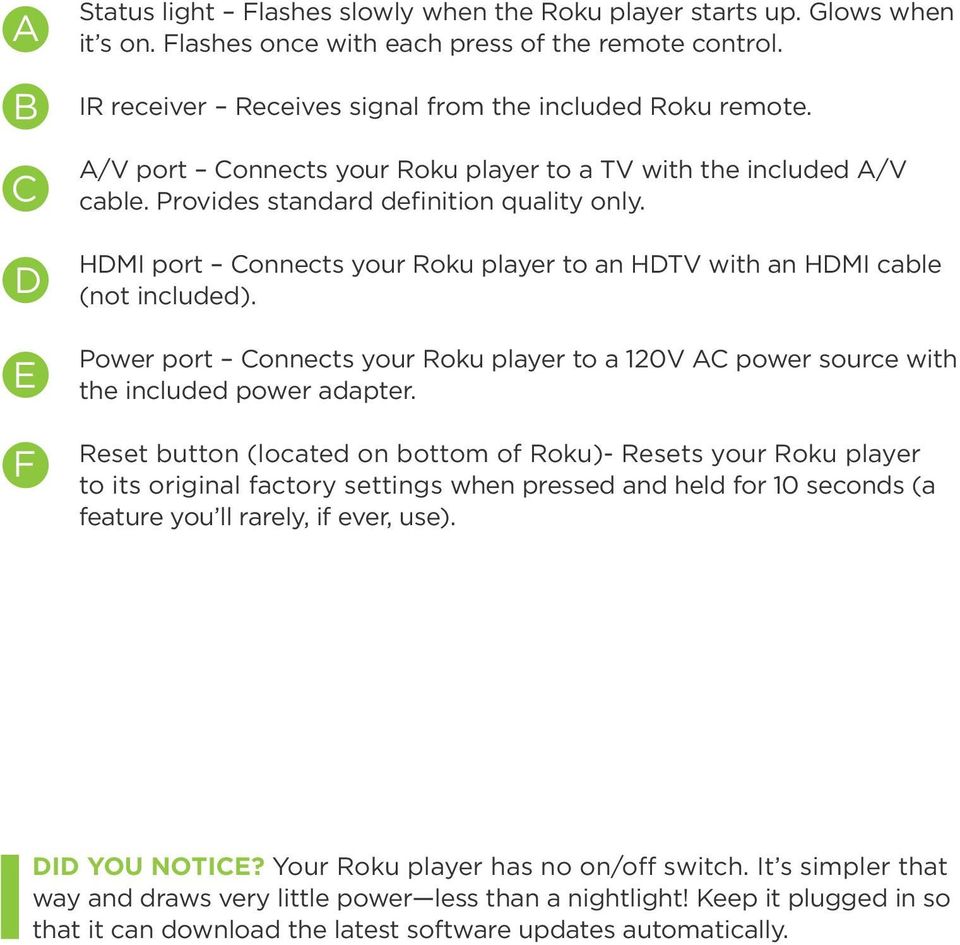
6 What You Need Roku player TV (HD or standard definition) OR A/V cable (included) HDMI cable (sold separately) Wireless router (any Wi-Fi) High-speed Internet connection (DSL or cable modem)
7 What To Do step 1 Ready for the step-by-step? We ve only got four CONNECT YOUR PLAYER Connect your Roku player to your TV in one of two ways: HIGH DEFINITION: If you have an HDTV and want the best picture quality, use an HDMI cable (not included) to make the connection depicted in the diagram below: Connect one end to the HDMI port on the back of your Roku player. Connect the other end to an open HDMI port on your TV. Did you know? Because HDMI outputs digital video and audio, you don t need a separate audio cable. HDMI also supports 5.1 surround sound (where available). GOT A RECEIVER? You can also use HDMI to route video and audio directly through your receiver if it supports HDMI video pass-through.

8 What To Do Step 1 (CONTINUED) STANDARD DEFINITION: If you have a standard-definition TV, do not have an HDMI cable or do not have a free HDMI port on your TV, use the included A/V cable to make the connection depicted in the diagram below: Connect one end to the composite video and analog audio ports on the back of your TV (look for Video IN, then match the Yellow/Red/White ports). Connect the other end to the back of your Roku player. Just match the colors and you re good to go!

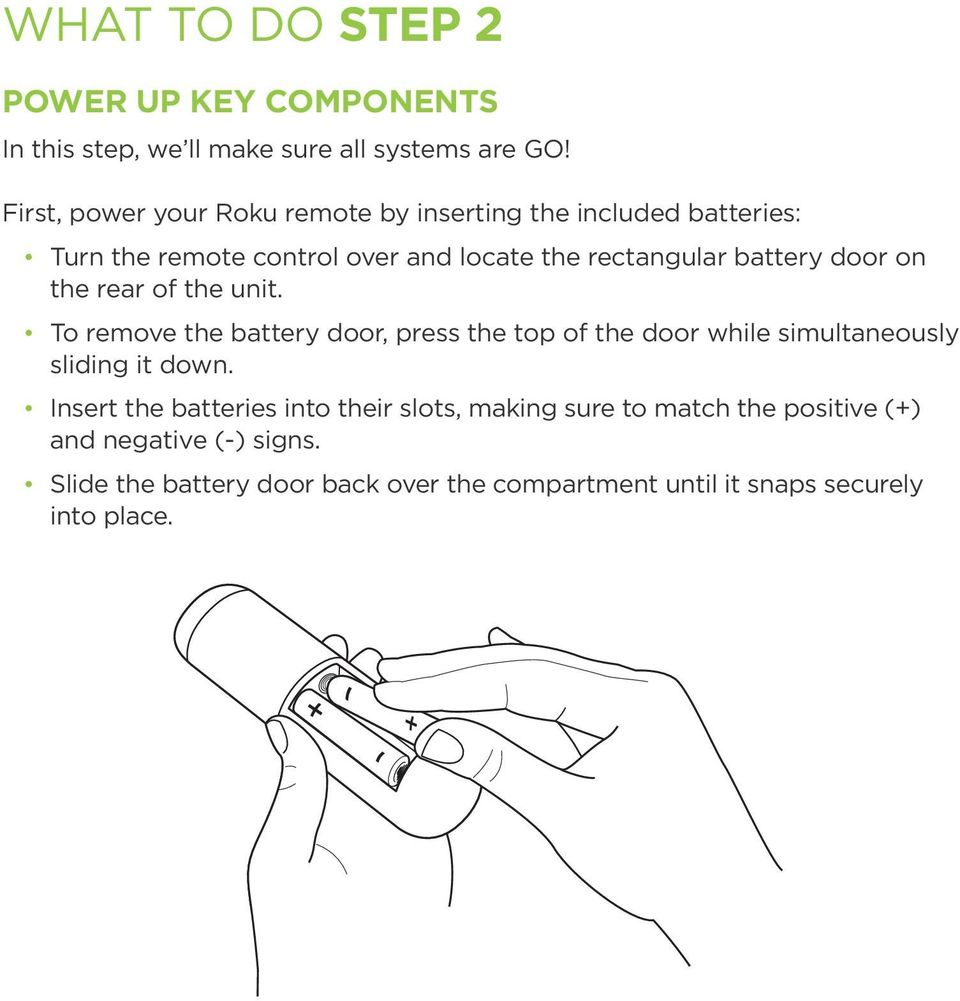
9 What To Do Step 2 POWER UP KEY COMPONENTS In this step, we ll make sure all systems are GO! First, power your Roku remote by inserting the included batteries: Turn the remote control over and locate the rectangular battery door on the rear of the unit. To remove the battery door, press the top of the door while simultaneously sliding it down. Insert the batteries into their slots, making sure to match the positive (+) and negative (-) signs. Slide the battery door back over the compartment until it snaps securely into place.
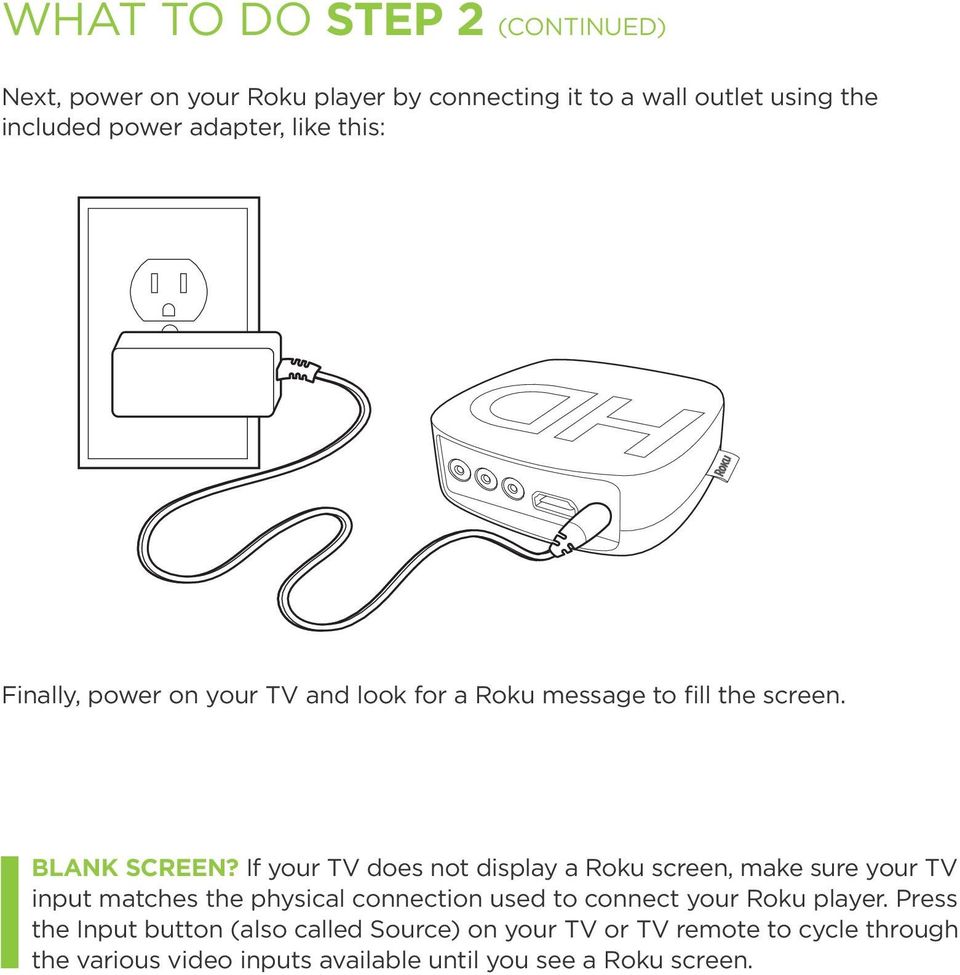
10 What To Do Step 2 (CONTINUED) Next, power on your Roku player by connecting it to a wall outlet using the included power adapter, like this: Finally, power on your TV and look for a Roku message to fill the screen. BLANK SCREEN? If your TV does not display a Roku screen, make sure your TV input matches the physical connection used to connect your Roku player. Press the Input button (also called Source) on your TV or TV remote to cycle through the various video inputs available until you see a Roku screen.
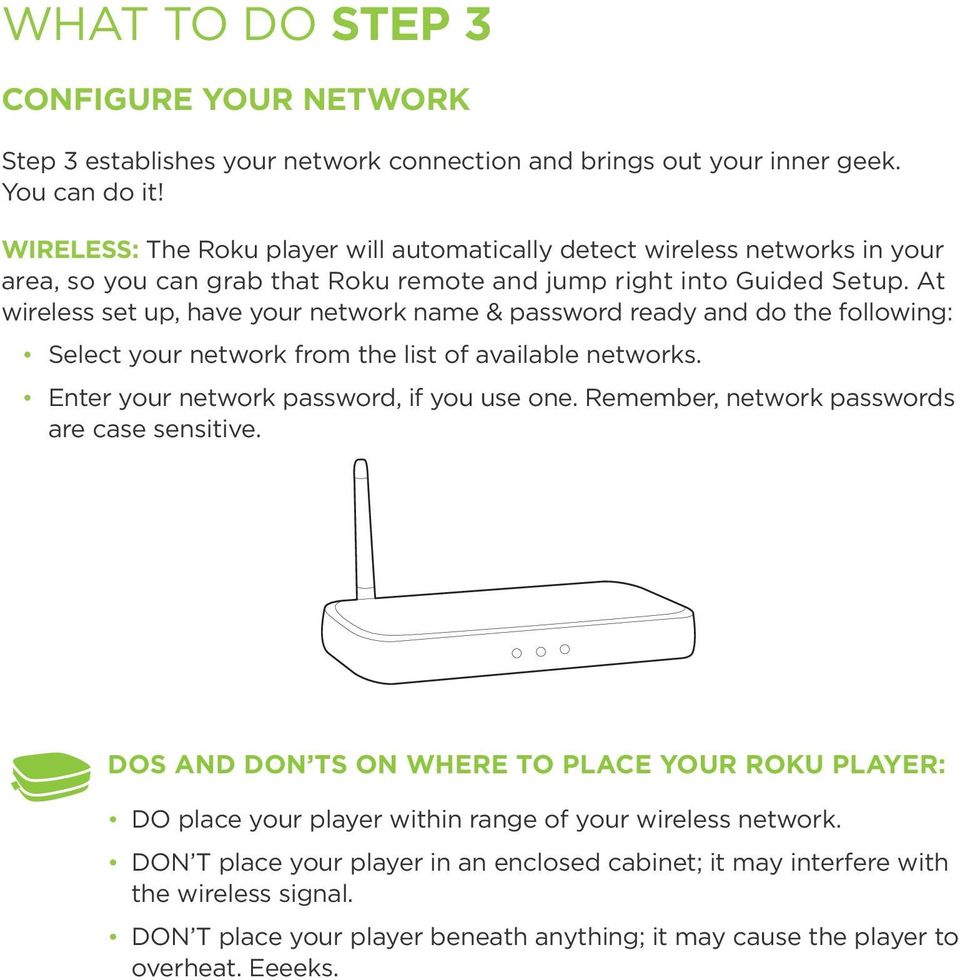
11 What To Do Step 3 CONFIGURE YOUR NETWORK Step 3 establishes your network connection and brings out your inner geek. You can do it! WIRELESS: The Roku player will automatically detect wireless networks in your area, so you can grab that Roku remote and jump right into Guided Setup. At wireless set up, have your network name & password ready and do the following: Select your network from the list of available networks. Enter your network password, if you use one. Remember, network passwords are case sensitive. DOs and DON Ts on where to place your Roku player: DO place your player within range of your wireless network. DON T place your player in an enclosed cabinet; it may interfere with the wireless signal. DON T place your player beneath anything; it may cause the player to overheat. Eeeeks.
12 What To Do Step 4 COMPLETE GUIDED SETUP It s the final stretch and hooray it s a breeze! Continue following the on-screen instructions and you ll: Get the latest software. Select the video output resolution. Link the Roku player to your Roku account on your computer. And setup is done...congratulations! Continue using that Roku remote, which you can learn more about on the following pages, to personalize your channel line-up, stream movies or play games. The fun part has just begun, we promise. YOUR ROKU ACCOUNT: During Guided Setup, you ll be prompted to create your Roku account online at roku.com/link. Your Roku player will generate a unique code that links your player to your new account. Roku accounts are free and secure. And while a valid credit card number is required to create your account, rest assured you will only be charged if you authorize purchases of apps and games from the Roku Channel Store.
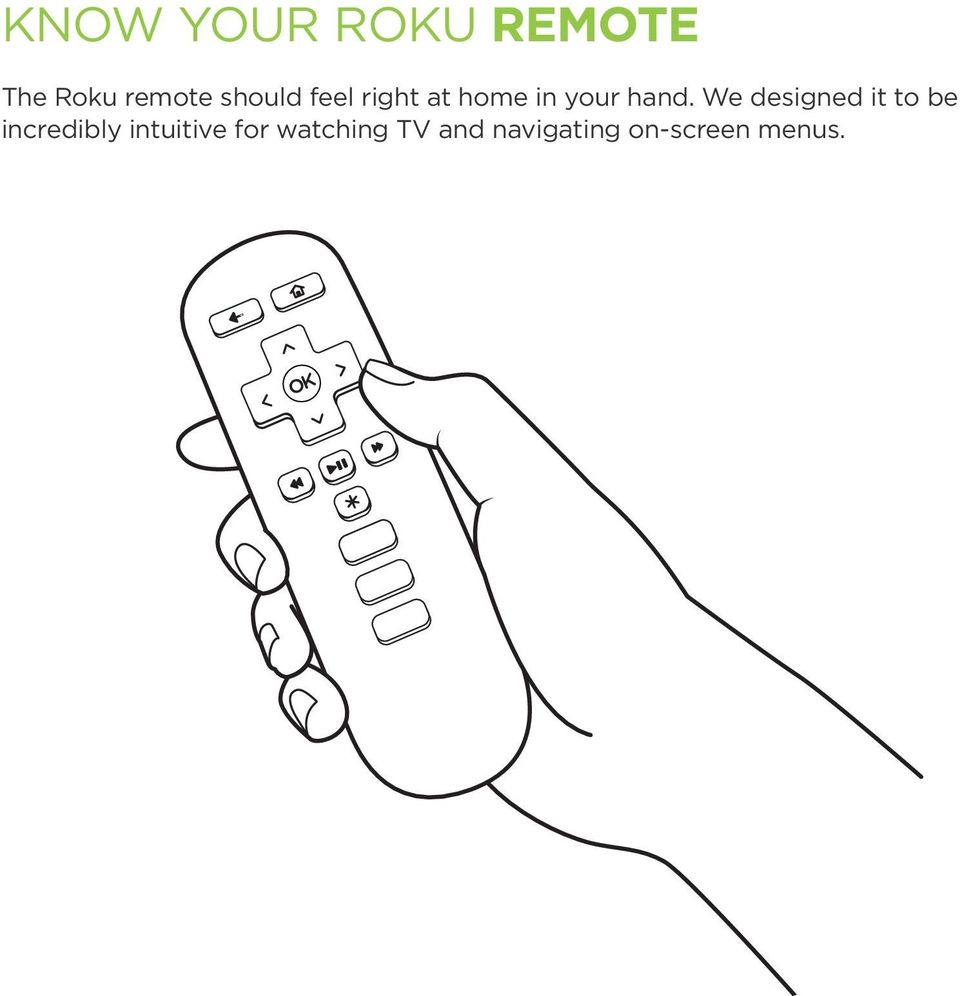
13 KNOW YOUR roku REMOTE The Roku remote should feel right at home in your hand. We designed it to be incredibly intuitive for watching TV and navigating on-screen menus.
14 KNOW YOUR roku REMOTE (CONTINUED) A B C D E G F H I J K
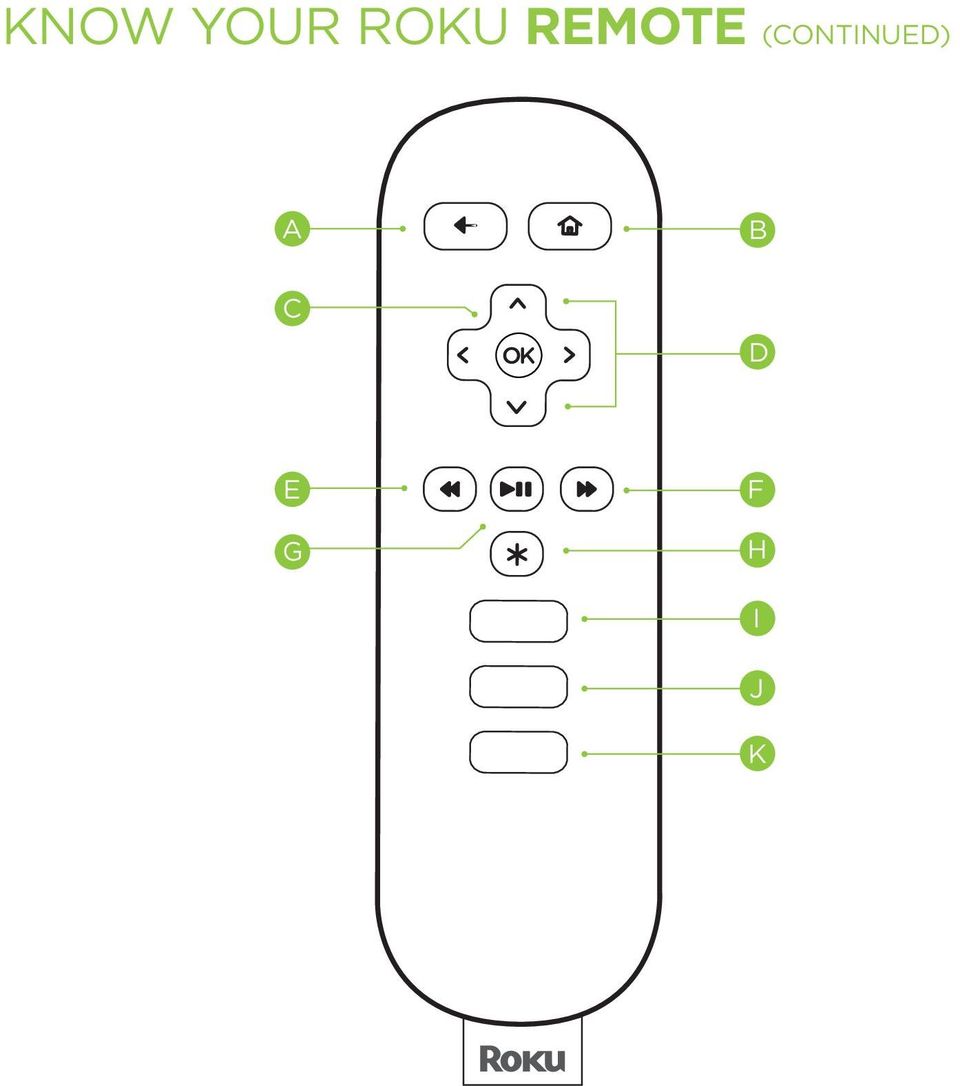
15 A B C D E F G H I J K [BACK] Return to previous screen [HOME] Return to Roku home screen [OK] Select an option from a menu [UP] or [DOWN] Move up or down; [LEFT] or [RIGHT] Move left or right [REV SCAN] Rewind, scroll left one page at a time [PLAY/PAUSE] Start or pause playback [FWD SCAN] Fast forward, scroll right one page at a time [OPTIONS] View more options Quick launch button Quick launch button Quick launch button Tip: Make sure there are no obstructions between the remote and the IR sensor on the front of the Roku player.
![pause playback [FWD SCAN] Fast forward, scroll right one page at a time [OPTIONS] View more options Quick launch button Quick launch](/docs-images/47/20987854/images/page_15.jpg "button Quick launch button Tip: Make sure there are no obstructions between the remote and the IR sensor on the front of the Roku")
16 Troubleshooting If you are having trouble completing Guided Setup, don t worry: It s usually an easy fix. If you cannot see a picture on your TV: Make sure your TV is turned on. (This tip could save you some embarrassment.) Make sure the connectors on the cables between your Roku player and your TV or home theater receiver are pushed in all the way. Make sure the video input on your TV or home theater receiver is set to match the output (usually composite video) used with the Roku player. Most TVs have an Input button on the remote control to change video inputs. Make sure the power cable for the Roku player is connected snugly to the Roku player on one end and to a working power source on the other end. If the Roku player is powered, the status light on the front of the unit will be on. If you are using HDMI with a home theater receiver, make sure the HDMI cable from your Roku player is connected to an HDMI-in port on your receiver and the HDMI cable from an HDMI-out port on your receiver is connected to your TV.
17 If you cannot connect to your wireless home network during guided setup: If you are not getting 3 or more signal-strength bars above your wireless network, adjust the location of your Roku player and/or wireless router. (See tips on DOs and DON Ts regarding Roku placement in Step 3.) Make sure there are no obstructions, like cement walls, between your Roku player and your wireless router. Make sure you select the correct wireless router on the Choose wireless network screen. Make sure you input the correct password, if your network is security-enabled (password is case sensitive). If you have turned off SSID broadcasting on your wireless router, you can add your network by selecting Add network from the Select wireless network screen. If security is enabled on your network, temporarily disable it on your router and try connecting again.

18 Troubleshooting (CONTINUED) IF YOU CAN T HEAR SOUND: Make sure the connectors on the cables between your Roku player and your TV or home theater receiver are pushed in all the way. Make sure the volume on your TV or home theater receiver is turned up and isn t on mute. If you connected your Roku player to a home theater receiver, make sure you receiver is turned on. Make sure the input on your TV or home theater receiver matches the output used with your Roku player. IF THE ROKU REMOTE CONTROL ISN T FUNCTIONING: Point the remote directly at your Roku player. Try moving closer to your Roku player. Make sure the batteries are working and inserted properly into the remote (see Step 2). Make sure the front of your Roku player is not obstructed. If the status light on the front of your Roku player flashes once each time you press a remote button, the problem is not with the remote. IF YOU COULDN T FIND WHAT YOU NEED: Visit roku.com/support for more help.

19

20 NEED MORE HELP? Get the most out of your Roku player. Check out our FAQs, instructional videos and user forums. roku.com/support by Roku, Inc. All rights reserved. Roku and the Roku logo are registered trademarks of Roku, Inc. Other brand and product names are trademarks or registered trademarks of their respective holders.
Hello! Let s get started.
 Hello! Let s get started. What s in the Box Roku player Enhanced remote control 2 x AA batteries for remote A/V Cable Power adapter Get to know your roku B A Front view C D G Back view E F H A B C D E
Hi! Let s get started.
 Hi! Let s get started. What s in the box Roku 2 player Roku 2 enhanced remote Headphones 2 x AA batteries for remote A/V cable (RCA) Power adapter Get to know your Roku 2 A Front view B E C Back view
Hi! Let s get started.
 Hi! Let s get started. What s in the box Roku player Remote control with in-ear headphone jack 2 x AA Alkaline batteries In-ear headphones Power adapter Get to know your Roku B A Front view C D E Back
Hi! Let s get started.
 Hi! Let s get started. 1 What s in the box Roku Streaming Stick TM Enhanced remote control 2 x AA Alkaline batteries What you need High speed Internet Wireless Router Roku Ready TM TV (or other device)
Hi! Let s get started. Streaming Stick
 Hi! Let s get started. Streaming Stick 1 Know your Streaming Stick 1 2 3 4 2 1 2 3 4 [HDMI CONNECTOR] Plugs into the HDMI port on the back of your TV [STATUS LIGHT] Indicates it is on when lit, or activity
Thank you for choosing mysdatv box for being your gateway to faith and family programming. I pray that this programming will be a blessing for you
 Thank you for choosing mysdatv box for being your gateway to faith and family programming. I pray that this programming will be a blessing for you and your family. 2 mysdatv M8 Quick Start Guide WHAT YOU
NeoTV Streaming Player (NTV300) Installation Guide
 NeoTV Streaming Player (NTV300) Installation Guide Technical Support Thank you for selecting NETGEAR products. After installing your device, locate the serial number on the label of your product and use
Manufactured under license from Dolby laboratories. Dolby and the double-d symbol are trademarks of Dolby Laboratories.
 Getting Started Thank you for selecting NETGEAR products. After installing your device, locate the serial number on the label and use it to register your product at https://my.netgear.com. You must register
Technical Support. Trademarks
 Getting Started Technical Support Thank you for selecting NETGEAR products. After installing your device, locate the serial number on the label of your product and use it to register your product at https://my.netgear.com.
Setup Guide. You re minutes away from a whole new way of watching TV. Of controlling TV. Of thinking about what TV can be.
 Setup Guide You re minutes away from a whole new way of watching TV. Of controlling TV. Of thinking about what TV can be. Unpack the box From HD video calling on your couch to house-of-the-future touch
NeoTV 350 HD Media Player (NTV350) Installation Guide
 NeoTV 350 HD Media Player (NTV350) Installation Guide 2010 NETGEAR, Inc. All rights reserved. Technical Support Thank you for selecting NETGEAR products. Locate the serial number on the label of your product
Welcome. You re watching Apple TV. This guide contains all the information you need to get from setup to your sofa.
 Welcome. You re watching Apple TV. This guide contains all the information you need to get from setup to your sofa. Contents Chapter 1: Connect. 7 What s in the box 8 Apple TV at a glance 10 What you
Your Digital Adapter Easy Setup Guide
 Your Digital Adapter Easy Setup Guide Connect with the future of TV You re about to step up to a world of even better picture and sound, and this Easy Setup Guide is here to help every step of the way.
CABLE ONE ALL DIGITAL
 CABLE ONE ALL DIGITAL The world is going All Digital and so is Cable ONE. With the switch from analog to digital technology, Cable ONE will be able to add new channels, especially more HD channels, and
Media Gateway Hardware
 Media Gateway Hardware Getting to Know Your Media Gateway E-1 Media Gateway Front Panel E-1 Media Gateway Back Panel E-2 Media Player Front Panel E-2 Media Player Back Panel E-3 MP 2050 Front E-3 MP 2050
Easy Connect Guide Digital Adapter. Say hello to your TV s new best friend.
 Easy Connect Guide Digital Adapter Say hello to your TV s new best friend. Connect with the future of TV You re about to step up to a world of even better picture and sound, and this Easy Connect Guide
ABOUT YOUR SATELLITE RECEIVER
 2 Satellite Receiver ABOUT YOUR SATELLITE RECEIVER This chapter gives you an overview and a description of your satellite receiver. SATELLITE RECEIVER OVERVIEW SINGLE AND DUAL MODES REMOTE CONTROL SATELLITE
Welcome to life on. Get started with this easy Self-Installation Guide.
 Welcome to life on Get started with this easy Self-Installation Guide. Welcome to a network that s light years ahead. Welcome to life on FiOS. Congratulations on choosing Verizon FiOS! You re just a few
NeoTV Streaming Player (NTV200)
 NeoTV Streaming Player (NTV200) User Manual 350 East Plumeria Drive San Jose, CA 95134 USA February 2012 202-10841-03 v1.0 2012 NETGEAR, Inc. All rights reserved No part of this publication may be reproduced,
IPTV STB QUICK GUIDE. Detailed user manual download from www.my-home-television.com
 IPTV STB QUICK GUIDE Detailed user manual download from www.my-home-television.com Dolby Digital: Manufactured under license from Dolby Laboratories. Dolby and the double-d symbol are trademarks of Dolby
Fi TV Gold Quick Start Guide
 Quick Start Guide Fi TV Gold Quick Start Guide Welcome to Fi TV! We re happy that you chose EPB Fiber Optics to bring the best movies, sports, news and television programming into your business and we
UNIVERSAL REMOTE CONTROL GUIDE
 UNIVERSAL REMOTE CONTROL GUIDE Service provided by We Keep You Connected Your new AT6400 AllTouch Infrared (IR) Universal Remote Control (remote) is a true universal remote, functioning as four remotes
FiOS Self-Installation guide for VIDEO MEDIA SERVER EQUIPMENT
 In just a few simple steps, you ll be ready to experience all the benefits of life on FiOS. 1. Install your router. You ll find installation instructions on page 2. 2. Choose a wired or wireless Internet
TIME WARNER DIGITAL CABLE
 IF IT S WORTH WATCHING IN 3D IT S ON TIME WARNER DIGITAL CABLE 3D TV FAQ & SETUP GUIDE What Equipment do I Need to View Sports in 3D? Equipment I Need Time Warner Digital Cable Set Top Box (Connected Directly
Wireless Genie Mini MODEL C41W
 Wireless Genie Mini MODEL C41W Installation Guide OVERVIEW See the panels that follow for complete instructions. This Installation Guide will show you how to connect your DIRECTV Wireless Genie Mini Client
Troubleshooting Guide
 Poor or Distorted Picture Troubleshooting Guide Poor picture quality compared to what was seen in the store. Picture is distorted. (Macroblock, small block, dots, pixelization.) Wrong or missing color
USER MANUAL. www.snr7.com [email protected] Toll Free: 844-305-4967
 USER MANUAL Introduction Cut the cord to cable TV! The Lala streaming media device will help you do that. Sick of paying the dreaded monthly cable bill? Good, so are 72% of the people out there! The average
DTA INSTALLATION PROCESS & USER GUIDE FOR CHARTER BUSINESS CUSTOMERS
 DTA INSTALLATION PROCESS & USER GUIDE FOR CHARTER BUSINESS CUSTOMERS This guide is intended for owners or managers and front desk personnel. This guide is not intended for guests. Customer Care 1-800-314-7195
Setting up your Gateway Media Center
 Setting up your Gateway Media Center Notices 2003 Gateway, Inc. All rights reserved. Gateway, Gateway Country, the Gateway stylized logo, and the black-and-white spot design are trademarks or registered
HD DVR Quick Start Guide
 HD DV Quick Start Guide Thanks for buying a Moxi HD DV. We know you want to see it in action, so let s get started. What you need for setup: Moxi HD DV Multi-Stream CableCAD * Digital Cable Subscription
Universal Push2TV HD Adapter PTVU1000 Installation Guide
 Universal Push2TV HD Adapter PTVU1000 Installation Guide 2011 NETGEAR, Inc. All rights reserved. No part of this publication may be reproduced, transmitted, transcribed, stored in a retrieval system, or
ScreenBeam Wireless Display Kit. User Manual. Solutions for the Digital Life. Model #: SBWD100KIT. Ver 1.0
 ScreenBeam Wireless Display Kit Model #: SBWD100KIT User Manual Ver 1.0 Solutions for the Digital Life Table of Contents Introduction 1 Package Contents 1 Features 2 System Requirements 2 Getting to Know
AVR 158. Audio/video receiver. Quick-Start Guide ENGLISH
 158 Audio/video receiver ENGLISH Quick-Start Guide 158 Introduction, Speaker Placement and Connection Introduction Thank you for choosing a harman kardon product! This quick-start guide contains all the
01 PLUG IT IN. Connect one end of the UHF aerial cable into your UHF Aerial wall point and the other into the TV AERIAL IN slot on IGLOO s back.
 START ME UP 01 PLUG IT IN Bring life to IGLOO. You ve only got 3 cables to plug in, easy! STEP 1 Connect one end of the UHF aerial cable into your UHF Aerial wall point and the other into the TV AERIAL
Digital Video Recorder
 EN Digital Video Recorder Hardware Quick Start Guide Welcome! Lets get started. QH16_42000914E Swann 2014 1 1 Getting to know your DVR Congratulations on your purchase of Swann s latest DVR security system!
Point of View SmartTV-500 Center - Android 4.2. General notices for use...2 Disclaimer...2 Box Contents...2
 Point of View SmartTV-500 Center - Android 4.2 English Table of Contents General notices for use...2 Disclaimer...2 Box Contents...2 1.0 Product basics...3 1.1 Buttons and connections... 3 1.2 Connecting
Wireless Internet Camera
 Wireless Internet Camera Wireless G Mobile USB 2.0 Adapter with 3G Video Minimum System Requirements PC with: Windows XP/2000 1GHz processor Memory Size: 512MB 100MB of available hard drive space and a
Important HP Media Center PC Updates
 Important HP Media Center PC Updates Your system uses Microsoft Windows XP Media Center Edition 2005. Before starting the system and using the Media Center setup wizard, please read this updated information
Notice. Reverse engineering and disassembly are prohibited.
 Notice The information in this document is subject to change without notice. Every effort has been made in the preparation of this document to ensure accuracy of the contents, but all statements, information,
M8 basics. Setting Up Your M8 Android Box... 2. Remote Essentials... 4. Using Your M8 Android Box... 6. Setting up Wireless... 6
 M8 basics Contents Setting Up Your M8 Android Box... 2 Remote Essentials... 4 Using Your M8 Android Box... 6 Setting up Wireless... 6 Changing Display Settings... 7 Setting the Time Zone... 9 Using Apps...
Breathe. Relax. Here Are the Most Commonly Asked Questions and Concerns About Setting Up and Programming the SurroundBar 3000.
 Breathe. Relax. Here Are the Most Commonly Asked Questions and Concerns About Setting Up and Programming the SurroundBar 3000. Our Customer Service Department has compiled the most commonly asked questions
Getting to Know Xsight... 3. Home Screen and Everyday Use... 9. Settings... 11. PC Setup... 17. 2 www.oneforall.com
 User Manual English English Getting to Know Xsight........................................ 3 Unpacking and Setting Up Xsight............................................................. 3 Using Xsight
User Manual Wireless HD AV Transmitter & Receiver Kit
 Ma User Manual REV.1.0 Thank you for purchasing this. Please read the following instructions carefully for your safety and prevention of property damage. Do not use the product in the extreme hot, cold,
DVB-T VERTO. User Manual HD TERRESTRIAL DIGITAL TV STB & PLAYER MT4162
 DVB-T VERTO HD TERRESTRIAL DIGITAL TV STB & PLAYER MT4162 User Manual EN 2 Index Index...2 Overview...2 Remote Control...3 Battery installation in remote control...4 Using remote control...4 Connections...4
Nighthawk AC1900 WiF Range Extender
 Nighthawk AC1900 WiF Range Extender Model EX7000 User Manual December 2014 202-11469-01 350 East Plumeria Drive San Jose, CA 95134 USA Nighthawk AC1900 WiF Range Extender Support Thank you for selecting
HP USB Digital/Analog TV Tuner. User Guide
 HP USB Digital/Analog TV Tuner User Guide Copyright 2008 Hewlett-Packard Development Company, L.P. Windows and Windows Vista are U.S. registered trademarks of Microsoft Corporation. The information contained
HP Mobile Remote Control (Select Models Only) User Guide
 HP Mobile Remote Control (Select Models Only) User Guide Copyright 2008 Hewlett-Packard Development Company, L.P. Windows and Windows Vista are either trademarks or registered trademarks of Microsoft Corporation
Lenovo Miix 2 8. User Guide. Read the safety notices and important tips in the included manuals before using your computer.
 Lenovo Miix 2 8 User Guide Read the safety notices and important tips in the included manuals before using your computer. Notes Before using the product, be sure to read Lenovo Safety and General Information
HD udta Quick-Start Guide
 HD udta Quick-Start Guide Vyve Broadband HD Set-Top Box Important Safety Instructions 1. Read these instructions. 2. Keep these instructions. 3. Heed all warnings. 4. Follow all instructions. 5. Do not
STB- 2. Installation and Operation Manual
 STB- 2 Installation and Operation Manual Index 1 Unpacking your STB- 2 2 Installation 3 WIFI connectivity 4 Remote Control 5 Selecting Video Mode 6 Start Page 7 Watching TV / TV Guide 8 Recording & Playing
7 Mini Tablet User Guide
 7 Mini Tablet User Guide MODEL NUMBER: Powered by SYTABBL7 Wireless Mobile Internet Tablet Getting to Know Your New Tablet: Front View: Back View: Side Angle View: MENU MENU Power Key ON/OFF, Back Button
Using your ios device, open the App Store, Search for, download and install the WeMo App.
 Setting up WeMo is incredibly simple. All you need is: Your WeMo Switch and WeMo Motion An appliance you'd like to control iphone, ipod Touch or ipad Wi-Fi Router Using your ios device, open the App Store,
Hargray s. Digital Television. powered by Ericsson Mediaroom
 Hargray s Digital Television powered by Ericsson Mediaroom Hargray Digital Television powered by Ericsson Mediaroom Watch What Hargray Digital Television Service Can Do For Your Home Entertainment. Welcome
DVB-T2 DIGITAL TV BOX
 DVB-T2 DIGITAL TV BOX QUALITY OF DIGITAL TELEVISION MT4159 User Manual EN 2 Index Index...2 Introduction...3 Front panel...3 Rear panel...3 Remote control...4 Hardware configuration...5 Connecting tuner
880 Harmony Remote User Manual
 880 Harmony Remote Congratulations on the purchase of your Harmony remote! True system control is now at your fingertips. This will introduce you to the basic online setup process, customizations and main
Windows 10.1 Tablet (UB-15MS10 and UB-15MS10SA) FAQ December 2014
 Windows 10.1 Tablet (UB-15MS10 and UB-15MS10SA) FAQ December 2014 Navigation... 2 Question 1: What are charms used for?... 2 Question 2: How do I navigate while using a mouse or trackpad?... 3 Question
Evolution Digital HD Set-Top Box Important Safety Instructions
 Evolution Digital HD Set-Top Box Important Safety Instructions 1. Read these instructions. 2. Keep these instructions. 3. Heed all warnings. 4. Follow all instructions. 5. Do not use this apparatus near
CAUTION RISK OF ELECTRIC SHOCK NO NOT OPEN
 Evolution Digital HD Set-Top Box Important Safety Instructions 1. Read these instructions. 2. Keep these instructions. 3. Heed all warnings. 4. Follow all instructions. 5. Do not use this apparatus near
ScreenBeam Mini 2 Wireless Display Receiver
 ScreenBeam Mini 2 Wireless Display Receiver Model #: SBWD60A User Manual Ver 1.0 Solutions for the Digital Life Table of Contents 1 Introduction 1 Package Contents 1 Features 2 System Requirements 2 2
DSTV DECODER SETUP MANUAL July 2013
 DSTV DECODER SETUP MANUAL July 2013 DSTV SINGLE VIEW AND SD PVR DECODER SETUP How to program your Single View and SD PVR DSTV Decoders STEP 1 Ensure that the DSTV decoder is connected correctly to the
MediaQ M310. Quick Start HUAWEI TECHNOLOGIES CO., LTD.
 MediaQ M310 Quick Start HUAWEI TECHNOLOGIES CO., LTD. 1 Welcome Thank you for choosing HUAWEI MediaQ M310. With your MediaQ, you can: > Integrate your home media and access a variety of applications. >
Discover Broadband. A quick guide to your Virgin Broadband service
 Discover Broadband A quick guide to your Virgin Broadband service Contents Discover the internet with Virgin Broadband 2 Getting to know your Super Hub 4 Top tips on getting the best 6 wireless connection
Welcome. You re watching Apple TV. This guide contains all the information you need to get from setup to your sofa.
 Welcome. You re watching Apple TV. This guide contains all the information you need to get from setup to your sofa. Contents. 1. Connect 7 What s in the Box 8 What You Need 10 Apple TV at a Glance 12 Setting
USING YOUR DMX PROFUSION
 Set Up Guide USING YOUR DMX PROFUSION io FOR 1 Connect 2 Set Up 3 Listen SIMPLE PERSONALIZED UNLIMITED ECONOMICAL LICENSED Welcome Thank you for choosing DMX to provide your Pandora listening experience
CINEMATE 1 SR DIGITAL HOME THEATER SPEAKER SYSTEM. Operating Guide Guía del usuario Guide d utilisation
 CINEMATE 1 SR DIGITAL HOME THEATER SPEAKER SYSTEM Operating Guide Guía del usuario Guide d utilisation Notice This equipment has been tested and found to comply with the limits for a Class B digital device,
Support. Package Contents. D6200 WiFi DSL Modem Router Installation Guide
 Support Thank you for selecting NETGEAR products. After installing your device, locate the serial number on the label of your product and use it to register your product at https://my.netgear.com. You
User Manual. Ver 1.0. Solutions for the Digital Life
 Model #: User Manual Ver 1.0 Solutions for the Digital Life Table of Contents Getting Started 3 Introduction 3 Package Contents 3 System Requirements 3 Installing the Receiver 5 Connecting the Receiver
Table of Contents. Use. Troubleshooting. Setup. Welcome. 11 How to arm/disarm system/camera(s) 19 Sync Module setup issues. 3 Installing the Blink app
 User Guide Table of Contents Welcome Setup Use Troubleshooting 2 What s in the box 2 What you need 3 Installing the Blink app 4 Setting up the Sync Module 5 Connecting the Sync Module to Your Wi-Fi 7 Adding
AC1200 WiFi Range Extender
 Model EX6200 User Manual February 2014 202-11298-01 350 East Plumeria Drive San Jose, CA 95134 USA Support Thank you for selecting NETGEAR products. After installing your device, locate the serial number
Frequently Asked Questions: Home Networking, Wireless Adapters, and Powerline Adapters for the BRAVIA Internet Video Link
 Frequently Asked Questions: Home Networking, Wireless Adapters, and Powerline Adapters for the BRAVIA Internet Video Link What is a home network? A home network is a way of connecting your BRAVIA Internet
Powerline 500 WiFi Access Point (XWN5001) Installation Guide
 Powerline 500 WiFi Access Point (XWN5001) Installation Guide Support Thank you for selecting NETGEAR products. After installing your device, locate the serial number on the label of your product and use
HANTZ + PARTNER The Upgrade Company! www.hantz.com
 Quick Start Guide X3000 HD Network Media Player X3000 HD NETWORK MEDIA PLAYER POWER HANTZ + PARTNER The Upgrade Company! www.hantz.com A Get to know your HELIOS X3000 Thank you for purchasing the HELIOS
FiOS Self-Installation guide for ADDING OR EXCHANGING EQUIPMENT
 In just a few simple steps you can add or replace FiOS TV equipment. Video Media Server To exchange, see page. To add additional units, see page 11. FiOS Self-Installation guide for ADDING OR EXCHANGING
MXQ basics. Setting Up Your MXQ Android Box... 2. Remote Essentials... 4. Using Your MXQ Android Box... 6. Setting up Wireless...
 MXQ basics Contents Setting Up Your MXQ Android Box... 2 Remote Essentials... 4 Using Your MXQ Android Box... 6 Setting up Wireless... 6 Changing Display Settings... 7 Setting the Time Zone... 9 Using
JBL CINEMA BASE. Home Cinema 2.2 all-in-one soundbase for television OWNER S MANUAL
 JBL CINEMA BASE Home Cinema 2.2 all-in-one soundbase for television OWNER S MANUAL JBL CINEMA BASE TABLE OF CONTENTS INTRODUCTION 1 DESCRIPTION AND FEATURES 1 JBL CINEMA BASE TOP PANEL CONTROLS 2 JBL CINEMA
AT&T U-verse App for iphone FAQ s
 About AT&T U-verse What is AT&T U-verse for iphone? The AT&T U-verse for iphone is a service that provides all U-verse subscribers with the ability to view their U-verse TV Guide, manage their home DVR,
Experience Next-Generation WiFi
 Do More Experience Next-Generation WiFi Your new WiFi extender supports the 802.11ac networking standard. This new standard offers better speed, improved reliability, and more range than older WiFi networking
B R O W N U N I V E R S I T Y
 B R O W N U N I V E R S I T Y Barus & Holley Auditorium Audiovisual System Reference Manual Submitted by: HB Communications Inc. 60 Dodge Ave. North Haven, Connecticut 06473-0689 (203) 234-9246 (800) 922-2776
N750 WiFi DSL Modem Router Premium Edition
 Support Thank you for purchasing this NETGEAR product. After installing your device, locate the serial number on the label of your product and use it to register your product at https://my.netgear.com.
JUSTOP Smart TV Player With Android 4.0. User Manual
 JUSTOP Smart TV Player With Android 4.0 User Manual User s Notice This manual is provided as is without warranty of any kind, either express or implied, including but not limited to the implied warranties
SwannEye HD Security Camera Wi-Fi Connections Quick Setup Guide. Welcome! Lets get started.
 EN SwannEye HD Security Camera Wi-Fi Connections Quick Setup Guide Welcome! Lets get started. 1 1 Introduction 1 2 3 4 Congratulations on your purchase of this SwannEye HD Wi-Fi Security Camera from Swann!
HP Advanced Wireless Docking Station. User Guide
 HP Advanced Wireless Docking Station User Guide Copyright 2014, 2015 Hewlett-Packard Development Company, L.P. Intel is a trademark of Intel Corporation in the U.S. and other countries. Windows and Windows
AwoX StriimSTICK. Wi-Fi smart TV stick ST-W. User guide
 AwoX StriimSTICK Wi-Fi smart TV stick ST-W User guide www.awoxstriim.com EN Contents Welcome... 2 AwoX StriimSTICK overview... 3 Air-mouse remote control... 4 AwoX StriimSTICK setup... 6 AwoX StiimSTICK
Start Here USB. (802.11) (Ethernet)
 Start Here 1 USB 802.11 Ethernet USB cable users: Do not connect the USB cable until Section A. USB A USB Wireless (802.11) or wired (Ethernet) network users : you must follow the instructions in this
Time Warner Cable TV. Easy Connect Guide. Enjoy endless ways to watch your favorite shows.
 Time Warner Cable TV Easy Connect Guide Enjoy endless ways to watch your favorite shows. You name the show. You choose the screen. Enjoy watching exactly what you want on the device you want. Your service
Harmony Remote User Manual 600 Series
 Harmony Remote User Manual 600 Series Congratulations on the purchase of your Harmony remote! True system control is now at your fingertips. This User Manual will introduce you to the basic setup, customizations
USER MANUAL ITV101E v.1.0. PlayXtreme INTERNET TV HUB
 USER MANUAL ITV101E v.1.0 PlayXtreme INTERNET TV HUB CONTENTS About the Device... 1 Package Contents... 2 Design... 2 Front Panel... 3 Back Panel... 3 Getting Started... 4 Planning Your Network... 5 Connecting
Universal WiFi Range Extender WN3000RP Installation Guide
 Universal WiFi Range Extender WN3000RP Installation Guide 2011 NETGEAR, Inc. All rights reserved. No part of this publication may be reproduced, transmitted, transcribed, stored in a retrieval system,
PC to TV Converter Box
 PC to TV Converter Box Model: 40698 Table of Contents Function 3 Features...4 Installation 5 Function Buttons on Main Unit..6 Remote Control 7 Specifications...8 Warranty Information.. 8 2 Operational
Easy Connect Guide New Modem Installation - See page 2 Replacement Modem Installation - See page 9
 Oceanic Time Warner Cable Internet Easy Connect Guide New Modem Installation - See page 2 Replacement Modem Installation - See page 9 Enjoy surfing at your own speed. Super fast. Instant access anytime
Powerline 500 WiFi Access Point (XWNB5201) Installation Guide
 Powerline 500 WiFi Access Point (XWNB5201) Installation Guide Support Thank you for selecting NETGEAR products. After installing your device, locate the serial number on the label of your product and use
Mini Box Easy Setup Guide
 University of Kentucky Mini Box Easy Setup Guide Installation Operation Troubleshooting Introduction To bring you better service now and in the future Insight is upgrading to an All-Digital network All-Digital
Harmony Smart Control. User Guide
 Harmony Smart Control User Guide Harmony Smart Control User Guide Table of Contents About this Manual... 6 Terms used in this manual:... 6 At a Glance... 6 Features... 6 Supported devices... 6 Know your
ShareLink 200 Setup Guide
 ShareLink 00 Setup Guide This guide provides instructions for installing and connecting the Extron ShareLink 00. The ShareLink USB 00 Wireless Collaboration Gateway allows anyone to present content from
The Future of Television Entertainment has Arrived PRTC Digital TV
 The Future of Television Entertainment has Arrived PRTC Digital TV Your Guide to PRTC s Digital TV & Whole Home DVR Service P O W E R E D B Y M I C R O S O F T M E D I A R O O M TM P A L M E T T O R U
SwannSecure Wi-Fi Monitoring System
 EN SwannSecure Wi-Fi Monitoring System Setup Wizard Quick Start Guide QW470KIT050115E Swann 2015 1 Welcome The Setup Wizard automatically launches the first time you turn on the Wi-Fi Monitor and walks
J6200 LED TV SPEC SHEET PRODUCT HIGHLIGHTS. Smart TV. Wi-Fi Built In. Motion Rate 120 SIZE CLASS 60" 65" 55" UN65J6200 UN55J6200 UN60J6200 50" 48" 40"
 PRODUCT HIGHLIGHTS Smart TV Wi-Fi Built In Motion Rate 120 SIZE CLASS 65" UN65J6200 60" UN60J6200 55" UN55J6200 50" UN50J6200 48" UN48J6200 40" UN40J6200 With the Samsung Smart LED TV, Smart is only the
VIP1200 & VIP1216 Wireless IPTV Receivers
 VIP1200 & VIP1216 Wireless IPTV eceivers THIS IS AN EDITED VESION OF THE OIGINA DOCUMENT CONTENTS Intro duction...1 Your Set-top Boxes...1 Front Panel...2 ear Panel...3 Video Connectio n Opt ions...4 Audio
ReSound Unite TV FREQUENTLY ASKED QUESTIONS. Setup & Configuration. Use & Operation. Troubleshooting
 Tip for use of FAQ: Click on questions to go to answer. Setup & Configuration How do I pair the hearing aids to the Unite TV?... 2 What is the latency of the streamed signal?... 2 Does the Unite TV use
USER GUIDE AC2600 MU-MIMO GIGABIT ROUTER. Model# EA8500
 USER GUIDE AC2600 MU-MIMO GIGABIT ROUTER Model# EA8500 Table of Contents Product overview EA8500.....................................1 Setting Up Your Router Where to find more help.........................