
OWNER'S MANUAL Projection Television
|
|
|
- Ann Berry
- 9 years ago
- Views:
Transcription
1 Introduction OWNE'S MANUAL Projection Television emote Control s 43H7 53H7 6H7 Owner's ecord The model number and serial number are on the back of. ecord these numbers in the spaces below. efer to these numbers whenever you communicate with your Toshiba dealer about this. Model number: Serial number: 2 TOSHIBA COPOATION All ights eserved

2 Important Information WANG TO EDUCE THE ISK OF FIE O ELECTIC SHOCK, DO NOT EXPOSE THIS APPLIANCE TO A O MOISTUE. Note to CA system installers in the USA This reminder is provided to call the CA system installer s attention to Article 82-4 of the NEC, which provides guidelines for proper grounding, and, in particular, specifies that the cable ground shall be connected to the grounding system of the building, as close to the point of cable entry as practical. 2 The lightning symbol in the triangle tells you that the voltage inside this product may be strong enough to cause an electric shock. DO NOT TY TO SEVICE THIS PODUCT YOUSELF. The exclamation mark in the triangle tells you that important operating and maintenance instructions follow this symbol. CAUTION TO PEV ELECTIC SHOCK, DO NOT USE THIS POLAIZED PLUG WITH AN EXTENSION COD ECEPTACLE O OTHE LET UNLESS THE PONGS CAN BE FULLY SETED TO THE LET TO PEV ANY EXPOSUE OF THE PONGS ON THE POLAIZED PLUG. ATTION POU PÉVENI LES OCS ÉLECTIQUES NE PAS UTILISE CETTE FIE POLAISÉE AVEC UN POLONGATEU, UNE PISE DE COUANT OU UNE AUTE SOTIE DE COUANT, SAUF SI LES LAMES PEUV ÊTE SÉÉS À FOND SANS EN LAISSE AUCUNE PATIE À DÉCOUVET. NOTICE OF POSSIBILITY OF CT BUN- Avoid displaying stationary images on the screen for extended periods of time. Stationary patterns generated by letterbox/compression displays, picture-in-picture (PIP) displays, computer displays, video games, stock market reports, and so forth, can become permanently engrained on the picture tube. This damage is not protected by your warranty because it is the result of misuse. If you use to display still images, reduce the brightness and contrast settings. Never leave a letterbox/compression, PIP, computer, or video game display unattended. CAUTION The plug has one prong wider wide prong than the other and will fit only one way into a standard electrical outlet (2 volt AC, 6 Hz). If the plug does not fit into the outlet, try turning it around. If the plug still does not fit, the outlet is probably non-standard and must be replaced by a qualified electrician. Do not tamper with the plug or try to force it into a non-standard outlet. Precautions Installing Place the on the floor or on a sturdy platform. The mounting surface should be flat and steady. If you install the on a soft floor, make sure that the floor is not damaged by the weight of the. Place the far enough away from the walls to allow proper ventilation. This will prevent the from overheating and avoid possible damage to the. Avoid dusty areas too. Damage may occur if you leave the in direct sunlight or near a heater. Avoid areas subject to extremely high temperatures or humidity, and temperatures of 4 F(5 C) or lower. Using Do not stand or climb on the. Do not put any heavy object on top of the. Do not place containers with liquids such as drinks or cosmetics on the. If any foreign material or water leaks into the, unplug the AC cord and contact your dealer. If the room temperature suddenly rises, condensation may occur on the lenses resulting in picture distortion or color fading. In such a case, simply wait a while (with the power on) and the condensation will evaporate. Avoid displaying stationary images on screen for extended periods of time. Stationary patterns generated by a PIP/double-window display, computer displays, video games, stock market reports, etc., can become permanently engrained on the picture tube. This damage is not protected by your warranty because it is the result of misuse. If you wish to use to display still images, reduce brightness and contrast settings. Never leave a PIP/double-window, computer, or video game display unattended. Sit approximately -25 feet away from the. Sitting too far to the left or right of the screen will cause the picture to appear dull as will direct sunlight and room lights. Turn the off to check for reflections on the screen. Then remove the source of any reflections while viewing. Cleaning Clean the with a soft, dry cloth. Never use strong solvents such as thinner or benzine which might damage the finish of the cabinet. If the cabinet is very dirty, use a damp cloth to wipe the cabinet clean, then finish with a dry cloth. Use this set with the Toshiba stand listed on page 48 only. Use with other stands may result in instability, causing possible injury or death.

3 Introduction... 4 Welcome to Toshiba... 4 Exploring your new a VC... 5 a cable converter box... 6 a cable converter box and VC... 6 a DVD player or satellite receiver and a VC... 7 a DVD player with component video and a VC... 8 a D receiver/set-top box with component video and a VC... 9 two VCs... a camcorder... an audio system... an A/V receiver... remote control... 2 Preparing the remote control for use... 2 Installing the remote control batteries... 2 remote control with a Toshiba VC or cable converter... 2 Programming the remote control for use with a non-toshiba VC or cable converter... 3 VC code table... 4 Cable converter code table... 5 Learning about the remote control Learning about the menu system... 7 Changing the on-screen display language... 8 Selecting the antenna input... 8 Adding channels to the s memory... 9 Programming channels automatically... 9 Adding and erasing channels manually... 2 Changing channels... 2 Adjusting the color convergence... 2 s features Adjusting the channel settings Switching between two channels Programming your favorite channels favorite channel search function Labeling channels Viewing wide-screen picture formats Selecting the image shape (picture size) PIP/double-window feature Switching the main and PIP pictures Changing the position of the small PIP picture Freezing the PIP picture strobe function LOCKS menu... 3 Entering the P code... 3 Changing the P code... 3 V-IP menu... 3 ENABLE BLOCKG... 3 ATG (Independent rating system for broadcasters)... 3 MPAA ATG (Independent rating system for movies) BLOCKG OPTION Unlocking programs temporarily Locking channels Locking video inputs front panel lock feature Adjusting the picture Selecting the picture mode Adjusting the picture qualities Saving new preference flesh tone feature Digital Noise eduction (DN) feature Selecting the cinema mode Selecting the color temperature esetting the picture adjustments Selecting the video input source Labeling the video input sources closed caption feature... 4 Setting the sleep timer... 4 Setting the clock... 4 Adjusting the sound Muting the sound Selecting stereo/sap broadcasts SS 3D surround sound feature Adjusting the sound quality esetting the audio adjustments sub-bass system (SBS) Turning off the built-in speakers Selecting the Audio sound StableSound feature Selecting the background of the menu display Displaying on-screen information Viewing the demonstration mode Understanding the auto power off feature Understanding the last mode memory feature Specifications Troubleshooting Limited United States Warranty

4 Introduction emote Control Introduction Welcome to Toshiba Congratulations! You have purchased one of the finest projection s on the market. The goal of this manual is to guide you through setting up and operating your Toshiba as quickly as possible. This manual applies to models 43H7, 53H7, and 6H7. Before you start reading, check the model number by looking at the rear of the. Instructions in this manual are based on using the remote control. You can also use the controls on the front panel if they have the same name as those on the remote control. Please read all the safety and operating instructions carefully, and keep the manual for future reference. Exploring your new You can operate the using the buttons on the front panel or remote control. The back panel and front panel (behind the door) provide all the terminal connections for connecting other equipment to the (see on page 5). Please Note On some models, the SET UP menu automatically appears onscreen the first time the is turned on. To change the menu settings, see Setting Up Your on page 7. To close the menu, either press or turn off the. 43H7 emote control sensor (Behind the screen panel) Behind the door Power indicator VC 2 3 ECALL POWE / TIME S- -3 L/MONO / TOU FOCUS POWE TN s 53H7 6H7 Video/audio inputs (Video 3) emote sensor (Behind the screen panel) Volume x POWE Channel yz TOU FOCUS / OITE STOBE STOP SOUCE PIP E PIP EC /VC EW FF CT-987 Power indicator / TOU FOCUS POWE Video/audio inputs (Video 3) Volume / POWE x Channel TOU FOCUS yz 4

5 If you have not connected electronic equipment before, or you have been frustrated in the past, you may wish to read this section. (Cables are not supplied.) A coaxial cable is the standard cable that comes in from your antenna or cable converter box. Coaxial cables use F connectors. Audio and video cables are usually color-coded according to use: yellow for video and red and white for audio. The red audio cable is for the stereo right channel, and the white audio cable is for the stereo (or mono) left channel. On the rear panel of the, the terminals are color-coded in the same manner as the cables. S-video cables provide better picture performance. S-video cables can only be used with S-video compatible components. ColorStream (component video) cables come in sets of three and provide the best picture performance. ColorStream cables can only be used with ColorStream compatible components. a VC This connection allows you to watch local channels and video programs, play or record on the VC while watching, and record from one channel while watching another channel. You will need: one coaxial cable one pair of audio cables (one single audio cable for a mono VC) one video cable (one S-video cable for an S-VHS VC) ANTENNA Coaxial Cable Cables Cable S- Cable Color Stream Cable Caution: Do not plug the in until you have finished connecting all equipment. Introduction emote Control From Cable Box or Antenna Stereo VC L CE ANNEL ON to from ANT 3 4 ANT( 75 ) ANT- If you have a mono VC, connect L/Mono to VC Audio using only one audio cable. If you have an S-VHS VC, use an S-video cable (in the S-video jacks) instead of the regular video cable. Do not connect a regular video cable and an S-video cable to Video- (or Video-2) at the same time. s S- VA L L/ MONO Y PB P L L/ MONO - -2 COLO STEAM HD COLO STEAM HD 2 Y PB P L ANT-2 5

6 Introduction a cable converter box This connection allows you to watch basic and premium cable channels. To use the s features, select ANT-. To view premium channels, select ANT-2, tune the to channel 3 or 4 (whichever channel is vacant in your area), and use the converter box to change channels. You will need: one coaxial cable CE ANNEL ANT( 75 ) From Cable When you use a converter box with, the remote control will not operate some features, such as programming your favorite channels, labeling channels, and locking channels. ON ANT- S- VA L emote Control L/ MONO Y PB P L L/ MONO - -2 COLO STEAM HD COLO STEAM HD 2 Y PB P L ANT-2 Cable converter box s a cable converter box and VC This connection allows you to watch and record basic and premium cable channels, watch videotapes, and record one channel while watching another channel. To use the s features, select ANT-. To view premium channels or record with the VC, select ANT-2, tune the to channel 3 or 4 (whichever channel is vacant in your area), and use the converter box to change channels. You will need: two coaxial cables one pair of audio cables (one single audio cable for a mono VC) one video cable (one S-video cable for an S-VHS VC) From Cable If you have a mono VC, connect L/Mono to VC Audio using only one audio cable. If you have an S-VHS VC, use an S-video cable (in the S-video jacks) instead of a regular video cable. Do not connect a regular video cable and an S-video cable to Video- (or Video-2) at the same time. When you use a converter box with, the remote control will not operate some features, such as programming your favorite channels, labeling channels, and locking channels. CE ANNEL ANT( 75 ) ON ANT- S- L/ MONO Y PB P L VA L L/ MONO Y PB P L ANT-2 Cable converter box - -2 COLO STEAM HD COLO STEAM HD 2 L to from ANT 3 L 4 Stereo VC 6

7 a DVD player or satellite receiver and a VC This connection allows you to watch DVD/satellite, VC, and programs, and record one channel while watching another channel. You will need: one coaxial cable two pairs of audio cables (one single and one pair of audio cables for a mono VC) one video cable (between the and VC) one S-video cable (between the and DVD player/satellite receiver) From Antenna Stereo VC from ANT to 3 4 S- VA L CE ANNEL ON L ANT( 75 ) ANT- For the highest possible picture quality from a non-colorstream DVD player/satellite receiver, use an S-video cable between the and DVD player/satellite receiver. (If your DVD player or satellite receiver is ColorStream-compatible, see page 8). Do not connect both an S-video cable and a regular video cable between the and DVD player/satellite receiver at the same time. Doing so will distort the picture. Do not connect the DVD player/satellite receiver and VC to the same video channel on the. (See the illustrations, which show the DVD player/satellite receiver connected to Video- on the and the VC connected to Video-2 on the.) Caution: The unauthorized recording of television programs, videotapes, and other materials may infringe upon the provisions of copyright laws. Introduction emote Control L/ MONO PB P L/ MONO - -2 COLO STEAM HD Y L COLO STEAM HD 2 Y PB P L ANT-2 From Satellite Dish S- L DVD/Player Satellite eceiver s from ANT S- L 7

8 Introduction emote Control a DVD player with component video and a VC This connection allows you to watch DVD, VC, and programs, and record DVD and programs. You can record from one source while watching a program from another source. Your has ColorStream (component video) inputs. to a component video-compatible DVD player (such as a Toshiba DVD player with ColorStream ) can greatly enhance picture quality and realism. You will need: one coaxial cable three pairs of audio cables (two single and one pair of audio cables for a mono VC) two video cables one set of ColorStream (component video) cables (one S-video cable for a non-colorstream DVD player; see notes at right) From antenna Stereo VC from ANT to 3 4 L For the highest possible picture quality, use ColorStream (component video) cables between the and DVD player. You can connect the ColorStream cables from the DVD player to either ColorStream jack on the (HD or HD2). The ColorStream HD and HD2 jacks can be used with Progressive (48p) and Interlace (48i,8i) scan systems. If your DVD player is not ColorStreamcompatible, use the S-video connections (both audio and video) instead of the ColorStream connections. Do not connect both S-video and ColorStream cables between the and DVD player at the same time. To record from the DVD player, set the VC to Line. To monitor recording from the DVD player, set the VC to Line, and set the to Video-. S- Y VA L CE ANNEL ON Y ANT( 75 ) ANT- ANT-2 Caution: The unauthorized recording of television programs, videotapes, DVDs, and other materials may infringe upon the provisions of copyright laws. L/ MONO PB L L/ MONO PB L s P - -2 COLO STEAM HD Y PB P COLO STEAM HD 2 P L L S- COMPON DVD player with component video 8

9 a D receiver/set-top box with component video and a VC This connection allows you to watch D (digital broadcast), VC, and programs, and record D and programs. You can record from one source while watching a program from another source. Your has ColorStream (component video) inputs. to a component video-compatible D receiver can greatly enhance picture quality and realism. You will need: one coaxial cable three pairs of audio cables (two single and one pair of audio cables for a mono VC) two video cables one set of ColorStream (component video) cables (one S-video cable for a non-colorstream D receiver; see notes at right) From antenna Stereo VC from ANT to S- L VA L CE ANNEL ON 3 4 ANT( 75 ) ANT- For the highest possible picture quality, use ColorStream (component video) cables between the and D receiver. You can connect the ColorStream cables from the D receiver to either ColorStream jack on the (HD or HD2). The ColorStream HD and HD2 jacks can be used with Progressive (48p) and Interlace (48i,8i) scan systems. If your D receiver is not ColorStreamcompatible, use the S-video connections (both audio and video) instead of the ColorStream connections. Do not connect both S-video and ColorStream cables between the and D receiver at the same time. To record from the D receiver, set the VC to Line. To monitor recording from the D receiver, set the VC to Line, and set the to Video-. Caution: The unauthorized recording of television programs, videotapes, DVDs, and other materials may infringe upon the provisions of copyright laws. Introduction emote Control Y Y ANT-2 L/ MONO PB L L/ MONO PB L From D antenna Satelite P - -2 COLO STEAM HD Y PB P COLO STEAM HD 2 P L L s S- COMPON D receiver with component video 9

10 Introduction emote Control two VCs This connection allows you to record (dub/edit) from one VC to another VC while watching a videotape. You can also record from one channel while watching another channel. You will need: one coaxial cable two pairs of audio cables (two single audio cables for mono VCs) two video cables (two S-video cables for S-VHS VCs) From Antenna VC from ANT to VC2 S- L/ MONO Y PB P L L VA L L/ MONO - -2 COLO STEAM HD CE ANNEL ON COLO STEAM HD 2 Y PB P L 3 4 ANT( 75 ) ANT- ANT-2 * ** Caution: The unauthorized recording of television programs, videotapes, and other materials may infringe upon the provisions of copyright laws. If you have S-VHS VCs, use S-video cables instead of regular video cables. Do not connect both a regular video cable and an S-video cable to Video- (or Video-2) at the same time. Do not connect the same VC to the output and input jacks on the at the same time. To dub or edit, VC 2 must select Line, and the must select Video-. * The Video jack does not output the PIP picture. ** The Audio jacks can output the sound of either the Main or PIP picture (see Selecting the Audio sound on page 45). L s 3 4 a camcorder This connection allows you to watch video materials recorded on a camcorder. You will need: one pair of audio cables one video cable (one S-video cable for an S-VHS camcorder) Camcorder Caution: If you have an S-VHS camcorder, use an S-video cable instead of a regular video cable for improved picture quality. L S- -3 L/MONO Video-3 (front panel)

11 an audio system This connection allows you to use an audio amplifier to adjust the audio level. This also allows you to use external speakers. To control the audio, turn on the and the stereo amplifier, and turn off the built-in speakers (see Turning off the built-in speakers on page 45). You will need: one pair of audio cables To hear sound when using an external audio amplifier, the volume of both the and the amplifier must be set above (zero). For example, if the volume of the is set to, you will not be able to hear any sound, even if the volume of the amplifier is at its highest level. S- L/ MONO Amplifier LE L Y PB P L VA L L/ MONO - -2 COLO STEAM HD CE ANNEL ON COLO STEAM HD 2 Y PB P L ANT( 75 ) ANT- ANT-2 Introduction an A/V receiver This connection allows you to use an audio/video (A/V) receiver to enhance s sound. If you have a system with Dolby Pro Logic surround sound, you can add to the realism of the sound by using the s internal speakers as center channel speakers. You will need: one pair of audio cables one single audio cable for the audio center channel one video cable Video To A/V eceiver Center From Antenna Caution: To avoid damaging the speakers, turn the off before connecting or disconnecting the Audio Center Channel audio cable. Dolby Pro Logic* surround sound system connection example emote Control S- L/ MONO Y L PB VA L L/ MONO CE ANNEL ON Y PB L ANT( 75 ) ANT- ANT-2 ON VC Audio Video Video Audio A/V receiver LDP/DVD s P P - -2 COLO STEAM HD COLO STEAM HD 2 Audio Video Audio center channel efer to the instructions provided with your A/V receiver for details about your surround sound system. When the Audio Center Channel ON/ switch is in the ON position, the speakers will function only as center channel speakers. Adjust the volume for the center channel speakers using the center level control on the A/V receiver. To use the speakers as normal speakers, set the Audio Center Channel ON/ switch to the position. Left speaker Surround speaker L T V ight speaker Surround speaker * Dolby Pro Logic is a registered trademark of Dolby Laboratories Licensing Corporation.

12 Introduction emote Control remote control Preparing the remote control for use The remote control can operate the, most VCs, and most cable converters together, even if they are different brands. If you will be using with a Toshiba VC or cable converter, your remote control is already programmed and ready to use. If you own different brands of VCs and/or converters, you must first program the remote control (see Programming the remote control for use with a non-toshiba VC or cable converter on page 3). Installing the remote control batteries To install the batteries:. Slide the battery cover off the back of the remote control. 2. Install two AA size alkaline batteries. Match the + and - signs on the batteries to the signs on the battery compartment. The remote control may not operate certain features on your VC, cable converter, or other electronic device. efer to the owner s manuals for your other devices to determine their available features. If s remote control does not operate a specific feature on a device, use the remote control that came with the device. Caution: Dispose of batteries in a designated disposal area. Do not throw batteries into a fire. Do not mix battery types or combine used batteries with new ones. If the batteries are dead or if you will not use the remote control for a long time, remove the batteries to prevent battery acid from leaking into the battery compartment. Battery life expectancy is about one year with normal use. s 3. Slide the battery cover back on to the remote control until the lock snaps. remote control with a Toshiba VC or cable converter To control a Toshiba VC: Set the //VC switch to the VC position. The shaded buttons in the illustration at right will then control the VC. The unshaded buttons will operate the as usual. If you own different brands of VCs, program the remote control to recognize your VC brand (see Programming the remote control for use with a non-toshiba VC or cable converter on page 3). To control a Toshiba cable converter: Set the //VC switch to the position. The shaded buttons shown in the top half of the illustration at right will control the cable converter. VC 2 3 OITE PIP E ECALL POWE / TN TIME //VC POWE Channel yz Chanel Numbers Enter STOBE PIP STOP SOUCE EC /VC EW FF PLAY STOP Fast Forward ewind /VC ecord 2

13 Programming the remote control for use with a non-toshiba VC or cable converter The remote control is pre-programmed to operate Toshiba VCs and cable converters. To program the remote control to operate non-toshiba VCs or cable converters:. efer to the VC code table or Cable converter code table on pages 4 5 to find the corresponding code for your VC or cable converter brand. If more than one code is listed, try each one separately until you find the one that works. 2. If you are reprogramming the remote control to operate your: VC, set the //VC switch on the remote control to VC. Cable converter, set the //VC switch on the remote control to. 3. While holding down the ECALL button, press the Channel Number buttons ( 9) to enter the three-digit code for your VC or converter. 4. Point the remote control at the VC or converter and press POWE to test the code. If the VC or converter responds, you have entered the correct code. If the VC or converter does not respond to the remote control, you may have entered the wrong code. epeat steps 4 using another code. 5. eset the //VC switch to to control the. For future reference, write down the codes you used: VC 2 3 OITE STOBE STOP SOUCE PIP E PIP ECALL POWE / TN TIME EC /VC EW FF Each time you replace the batteries, you ECALL POWE Channel yz Channel Number Enter must reprogram the remote control. Some newer VCs are capable of working on either of two remote codes. These VCs have a switch labeled VC/VC2. If your VC has this kind of switch and does not respond to any of the codes for your VC brand, set the switch to the other position (VC or VC2) and reprogram the remote control. Introduction emote Control VC code Cable code s 3

14 Introduction emote Control s VC code table Brand name Code number Adventura 9 Aiko 297 Aiwa 9 Akai 6,68,8,25, 26 American High 54 Asha 259 Audiovox 56 Beaumark 259 Bell & Howell 23 Brandt 26 Broksonic 4,23,23,34, 38 Calix 56 Canon 54 Capehart 39 Carver CCE 9,297 Citizen 56,297 Colt 9 Craig 56,66,9,259 Curtis Mathes 54,6,79 Cybernex 259 Daewoo 39,64,297 Daytron 39 Dynatech 9 Electrohome 56 Electrophonic 56 Emerex 5 Emerson 9,2,56,62, 8,87,4,23, 227,228,23,23, 297,33,34,38, 498 Fisher 66,73,85,23 Fuji 52,54 Funai 9,344 Garrard 9,344 GE 54,79,84,22 Go Video 25,298 Goldstar 37,56,57 Gradiente 9 Harley Davidson 9 Harman/Kardon 57,94 Harwood 87,9 Headquarter 65 HI-Q 66 Hitachi 6,6,84,24, 254 Jensen 6 JVC 27,6,86 Kenwood 57,6,86 KLH 9 Kodak 54,56 Lloyd 9 Lloyd s 227 Logik 9 LXI 56 Magnavox 54,58,,29, 68 Magnin 259 Marantz 54, Marta 56 Masushita 54 MEI 54 Memorex 9,54,56,58, 65,66,67,23, 259 MGA 62,8 MGN Technology 259 Minolta 6,24 Mitsubishi 62,8,86,94, 92,233,26 Motorola 54,67 MTC 9,259 Multitech 9,9 Nad 77 NEC 57,59,6,69, 86 Nikko 56 Noblex 259 Olympus 54 Optimus 56,67,77,23 Optonica 8 Orion 498 Panasonic 54,96,8,244 Penney 54,56,57,59, 6,73,259 Pentax 6,84,24 Philco 54 Philips 54,8,,29 Pilot 56 Pioneer 77,86 Portland 39 Protec 9 Pulsar 58 Quarter 65 Quartz 65 Quasar 54,96 adio Shack 9,56,344 adix 56 andex 56 CA 6,79,84,96, 24,25,68,22 ealistic 9,54,56,65, 66,67,8,85, 23,259 icoh 53 unco 58 Samsung 64,259 Sanky 58,67 Sansui 6,86 Sanyo 65,66,23,259 Scott 62,64,4,23, 229,23,23 Sears 54,56,6,65, 66,73,85,23, 24 Sharp 67,8 Shintom 9 Shogun 259 Singer 9 Sony 5,52,53,54 STS 6 Sylvania 9,54,62,, 29 Symphonic 9,344 Tatung 6 Teac 9,6 Technics 54,8 Teknika 9,54,56,7 Telefunken 6,26 TMK 227,259 Toshiba 62,64,85,229, 23,385 Totevision 56,259 Unitech 259 Vector 64 Vector esearch 57,59 Video Concepts 59,64,8 Videosonic 259 Wards 9,54,6,66, 67,8,9,68, 23,259 X- 9,54,9 Yamaha 57 Zenith 52,53,58 4

15 Cable converter code table Brand name Code number ABC 2,22,26,27, 3,32,33,36, 66 Antronix 4 Archer 4,58,72 Belcor 75 Cable Star 75 Cabletenna 4 Cableview 4 Century 72 Citizen 72 Colour Voice 44,5 Comtronics 59,79 Contec 38 Dae yung 27 Eastern 2 Focus 49 Garrard 72 GC Electronics 35,75 Gemini 34,89 General Instrument 3,295 GoldStar 59,63 Hamlin 28,39,53,278, 292 Hitachi 3 Hytex 26 Jasco 72 Jerrold 22,3,3,33, 34,43,66,295 Macom 52 Magnavox 46 Memorex 9 Movie Time 75 NSC 89,75 Oak 26,38,267 Panasonic 9,4,26 Paragon 9 Philips 44,46,47,48, 49,5,72 Pioneer 42,63,552 Popular Mechanics 49 Pulsar 9 CA 4 ecoton 49 egal 39,278,292 egency 2 embrandt 3,89 unco 9 Samsung 59,63 Scientific Atlanta 25,27,36,296 Signal 34,59 Signature 3 SL Marx 59 Sprucer 4 Standard Components 74 Starcom 22,34,66 Stargate 34,59 Starquest 34 Sylvania 2 Teleview 59 Texscan 2 Tocom 3,32,78 Toshiba 9 Tusa 34 Unika 4,72 United Artists 26 United Cable 22 Universal 4,58,75,96, 72,2 Viewstar 46,79,23 Zenith 9 Zentek 49 Introduction emote Control s 5

16 Introduction emote Control Learning about the remote control POWE turns the on and off ECALL displays information on-screen (page 46) illuminates the keypad for five seconds TIME sets the to turn off at a specific time (page 4) / selects the video input source (page 39) turns off the sound (page 42) //VC s witches between, Cable and VC (pages 2-3) Channel y z cycles through programmed channels (page 2) Channel Numbers allow direct access to channels (page 2) Volume y z adjusts the volume level TN returns to the last viewed channel (page 23) cycles through the three image shapes: Normal, Letterbox, and Compression (page 26) E accesses on-screen programming menus (page 7) and sets programmed menu information (page 7) y z x Buttons select or adjust programming menus (page 7) PIP Channel y z selects the PIP channel (page 27) z y cycles through favorite channels (page 23) VC 2 3 OITE STOBE STOP SOUCE ECALL POWE / TIME PIP E PIP TN EC /VC EW FF OITE accesses the favorite channel search function (page 24) s STOBE accesses the multi-window strobe function (page 29) closes programming menus (page 7) PIP turns the PIP/double-window feature on and off (page 27) SOUCE selects the PIP/double-window picture source (page 27) STILL freezes the PIP/double-window picture (page 28) CT-987 LOCATE moves the small PIP picture (page 28) SWAP switches the main and PIP pictures (page 28) VC Buttons access VC functions in VC mode (page 2) STOP stops a videotape The error message Not Available will appear if you press a key for a function that is not available. EC starts recording a videotape PLAY plays a videotape FF fast forwards a videotape EW rewinds a videotape /VC toggles between and VC when viewing while recording 6

17 Learning about the menu system After you have installed the batteries and programmed the remote control, you will need to set some preferences on the using the menu system. You can access the menus using the buttons on the or remote control.. Press to open the menu system. 2. Press x or to select a menu. 3. Press y or z select an item. 4. Press x or to select or adjust a setting. 43H7 PO / TOU FOCUS 53H7/6H7 / TOU FOCUS POWE Introduction P I CTUE ANTENNA MODE SPOTS CONTAST B I GHTNESS 5 COLO 5 TT SHAPNESS 5 ESET SAVE NEW PEFEENCE : SELECT : ENDMODE P I CTUE ANTENNA SPOTS FLESH TONE ON/ DN CEMA MODE COLO COOL TEMPEATUE CONVEGENCE SAVE NEW PEFEENCE AUDI O : MOVE : SELECT MTS BASS TEBLE BALANCE ESET : SELECT STEEO 5 5 AUDI O : ENDSBS SBS LEVEL SPEAKES AUDI O STABLE SOUND ON 5 / ON MAI N ON VC 2 3 ECALL POWE / TIME TN emote Control THEATE SS 3D I MAGE SHAPE HD HD2 : SELECT ON NOMAL LETTEBOX SET : LANGUAGE ENGL I SH CLOCK SET : ANT /2 ANT / POGAM ADD / EASE ADD + 7 : SELECT UP CUSTOM : END T IME CC O I TE O I TE 2 LABELG V I DEO LABEL BACKGOUND : SELECT : MOVE : SELECT LOCKS : END V-IP ENABLE BLOCK I NG AT G MPAA AT I NG BLOCK I NG OPT I ON LOCK V I DEO LOCK FONT PANEL LOCK NEW P CODE OITE STOBE STOP SOUCE PIP E PIP EC /VC EW FF E The menu illustrations in the following pages have been distorted for easy reference. You can change the background of the menu. See page 46 for details. s : SELECT : END Press E to activate the function settings in the menus. The main menus close automatically in 5 seconds if no selection is made; the other menus close automatically in 6 seconds (except the Convergence menu, which remains open until a button is pressed). To close an on-screen menu instantly, press. 7

18 Introduction Changing the on-screen display language Choose from three different languages (English, French, and Spanish) for the on-screen display of adjustment menus and messages. To select a language:. Press, and then press x or until the SET UP menu 2. Press y or z to highlight LANGUAGE. 43H7 / TOU FOCUS PO SET UP LANGUAGE ENGL I SH / FANCA I S / ESPANOL CLOCK SET : ANT /2 ANT / POGAM ADD / EASE ADD H7/6H7 / TOU FOCUS POWE 6 6 emote Control s Press x or to highlight the desired language. Selecting the antenna input You can connect to two different antenna input sources (ANT or ANT 2). To select the antenna input using the menu system:. Press, and then press x or to highlight the SET UP menu. 2. Press y or z to highlight ANT / SET UP LANGUAGE CLOCK ANT /2 SET ENGL I SH : ANT / ANT2 / POGAM ADD / EASE ADD Press x or to highlight either ANT or ANT 2, depending on the antenna terminal you wish to use. To select the antenna input using the / button: epeatedly press the / button on the to select ANT or ANT 2. The current signal source displays in purple. (For details on using the / button on the remote control, see page 39.) SOUCE SELECT ION ANT V I DEO V I DEO 2 V I DEO 3 Color St ream HD Color St ream HD2 ANT 2 / V I DEO : TO SELECT VC 2 3 OITE STOBE 43H7 STOP SOUCE PIP E PIP ECALL POWE / TN TIME EC /VC EW FF 53H7/6H7 / / / TOU FOCUS / TOU FOCUS POWE PO / 8

19 Adding channels to the s memory When you press Channel yz, the will select only the channels stored in the s channel memory. Follow the steps below and on the next page to program all active channels into the s memory. Programming channels automatically The can automatically detect all active channels in your area and store them in its memory. After the channels are stored automatically, you can manually add or erase individual channels (see page 2). To program channels automatically:. Press, and then press x or until the SET UP menu 2. Press y or z until / is highlighted. 3. Press x or to highlight either or, depending on which you use. If you use an antenna, highlight ; if you use cable, highlight. SET UP LANGUAGE CLOCK ANT /2 SET ENGL I SH : ANT / / POGAM ADD / EASE ADD To tune the to a channel not programmed in the channel memory, use the Channel Number buttons on the remote control. VC 2 3 OITE PIP E ECALL POWE / TN TIME Channel yz Channel Number Introduction emote Control 4. Press z to select POGAM. SET UP STOBE PIP LANGUAGE CLOCK ANT /2 SET ENGL I SH : ANT / POGAM ADD / EASE ADD 5. Press x or to start automatic channel programming. The will automatically cycle through all the or Cable channels (depending on which you selected), and store all active channels in the channel memory. While the is cycling through the channels, the message Programming Now Please Wait 6. When channel programming is complete, the message Completed 7. Press Channel yz to view the programmed channels. s 9

20 Introduction emote Control Adding and erasing channels manually After you have programmed the channels automatically, you can manually add or erase specific channels. To add or erase channels:. Select the channel you want to add or erase. If you are adding a channel, you must select the channel using the Channel Number buttons. 2. Press, and then press x or until the SET UP menu 3. Press y or z to highlight ADD/EASE. SET UP LANGUAGE CLOCK ANT /2 SET ENGL I SH : ANT / POGAM ADD / EASE ADD / EASE 4. Press x or to select ADD or EASE, depending on which function you want to perform. 5. Press z to add (or erase) the channel. 6. epeat steps 5 for other channels you want to add or erase. 43H7 VC 53H7/6H7 ECALL POWE / Channel yz Channel yz TIME / TOU FOCUS / TOU FOCUS POWE PO s Changing channels To change to the next programmed channel: Press Channel yz on the or remote control. To change to a specific programmed channel: Press and hold Channel yz for about one second. The will enter the channel surf mode. 6 TBS 3 ESPN 7 FOX CBS 4 CNN Upper channels Current channel Lower channels 2 3 OITE STOBE PIP E PIP TN Channel yz Channel Number Channel label (if set) epeatedly press or hold Channel yz while the channel surf mode is on-screen to scroll the channel list. elease the button to display the highlighted channel. To change to a specific channel (programmed or unprogrammed): Press the Channel Number buttons ( 9 and ). For channels and higher, press the button, then the next two numbers. For example, to select channel 25, press, 2, 5. 2

21 Adjusting the color convergence This projection uses three separate tubes: red, green, and blue. The red, green, and blue images are projected onto the screen where they converge to form a full-color picture. You can see a clear picture only when the three images converge correctly. Convergence may drift over time or if you move the. If you can see clear images on your screen, skip this procedure. Make this adjustment only after the has been on for at least 3 minutes. To use the TOU FOCUS (auto-convergence) button: Press TOU FOCUS on the once. The will enter the auto-convergence mode and adjust the convergence automatically. 43H7 PO / TOU FOCUS TOU FOCUS 53H7/6H7 / TOU FOCUS POWE Introduction TOU FOCUS Horizontal B G ECALL POWE C / TIME VC TOU FOCUS emote Control TOU FOCUS F I N I SHED Vertical When the adjustment is complete, the normal picture re If the error message Touch Focus Error appears, retry the TOU FOCUS adjustment or adjust the convergence manually, as described below. To check and adjust the color convergence manually:. Press, and then press x or until the PICTUE menu 2. Press y or z to highlight CONVEGENCE. 2 3 OITE STOBE STOP SOUCE PIP E PIP TN EC /VC EW FF s P I CTUE ANTENNA MODE SPOTS FLESH TONE ON DN C I NEMA MODE F I LM / V I DEO COLO TEMPEATUE COOL CONVEGENCE SAVE NEW PEFEENCE 2
22 Introduction 3. Press x or to display the Center Convergence menu. VC ECALL POWE / TIME emote Control ED BLUE : TO ADJUST E : TO SELECT COLO EX I T : TO SELECT POS I T I ON If you see separate red, blue, or green crossed lines (or red or blue shadows next to white lines), you need to adjust the convergence. 4. Press E to highlight ED or BLUE, depending on which color needs adjusting. If both red and blue need adjusting, you will need to perform steps 4 and 5 twice. 5. Press y (up), z (down), x (left), or (right) on the remote control to converge the red or blue line into the green line, which will turn completely white when correctly adjusted. When color convergence is correctly adjusted, you will see two single crossed white lines. 6. Press to display the Circumference Convergence menu. 7. Press the corresponding Number button ( 4 and 6 9) to select the area you want to adjust. 2 3 OITE STOBE STOP SOUCE PIP E PIP TN EC /VC EW FF Number buttons E PUSH Press E to highlight ED or BLUE, depending on which color needs adjusting. If both red and blue need adjusting, you will need to perform steps 8 and 9 twice for the selected area. s ED BLUE : TO ADJUST E : TO SELECT COLO EX I T : TO SELECT POS I T I ON 9. Press to converge the red or blue line into the green line, which will turn completely white when correctly adjusted. epeat steps 8 and 9 until you see two single crossed white lines.. Press once to select another area to adjust, and then repeat steps Press twice to close the Convergence menu. 22
23 s features Adjusting the channel settings Switching between two channels You can switch between two channels without entering an actual channel number each time. To switch between two channels:. Select the first channel you want to view. 2. Select a second channel with the Channel Number buttons ( 9 and ). 3. Press TN. The previous channel will be displayed. Each time you press TN, the will switch back and forth between the two channels. Programming your favorite channels You can preset up to 9 of your favorite channels each for the OITE and OITE 2 modes using the Favorite Channel Programming feature. Because this feature scans through only your favorite channels, it allows you to skip other channels you do not normally watch. To program your favorite channels:. Press, and then press x or until the CUSTOM menu 2. Press y or z to highlight OITE (or OITE 2). VC 2 3 OITE STOBE PIP E PIP ECALL POWE / TN TIME Channel Numbers TN / E zy The zy buttons operate as x buttons when a menu is on-screen. The favorite channel feature is not available in ANT2 mode. Introduction emote Control CUSTOM T I ME CC O I TE O I TE 2 LABELG V I DEO LABEL BACKGOUND 3. Press x or to display the OITE menu, for example. PUT will be highlighted. s CUSTOM T I ME CC O I TE I NPUT O I TE 2 LABELG V I DEO LABEL BACKGOUND CLEA ALL 4. Press the Channel Number buttons to enter one of your favorite channels. 5. Press E. 6. epeat steps 4 and 5 for other channels. To select your favorite channels: Press z or y. To quickly scan through your favorite channels in a 9-picture multi-window: Press OITE to open the favorite channel search function (see page 24). 23
24 Introduction To clear a favorite channel:. Press, and then press x or until the CUSTOM menu 2. Press y or z to highlight OITE 2, for example. 3. Press x or to display the OITE 2 menu. 4. Press to highlight the channel you want to clear, then press E. emote Control CUSTOM T I ME CC O I TE O I TE 2 LABELG V I DEO LABEL BACKGOUND I NPUT CLEA ALL CUSTOM T I ME CC O I TE O I TE 2 LABELG V I DEO LABEL BACKGOUND I NPUT CLEA ALL 5. epeat step 4 for other channels. To clear all favorite channels at once: Press y or z to highlight CLEA ALL in step 4 above, and then press or x VC 2 3 OITE PIP E ECALL POWE / TN TIME Channel Numbers E s CUSTOM T I ME CC O I TE O I TE 2 LABELG V I DEO LABEL BACKGOUND I NPUT CLEA ALL favorite channel search function. Press OITE to scan the favorite channels you programmed into the memory using the favorite channel function (page 23). The 9-picture multi-window favorite channel search will start. The first window will display as a moving picture. All others will be still. 2. Press y zx to select the channel you want to watch. The selected channel will display as a moving picture in the 9-picture multi-window. 3. Press E to display the channel you selected in step 2 as a normal picture. STOBE STOP SOUCE PIP EC /VC EW FF When the main picture source is ColorStream, the OITE function is not available. If the V-IP feature is active and you try to scan a program that exceeds the set rating limits, a black window with an X may appear; however, the V-IP operation may not always function properly during channel scanning X Each time you press OITE, the display changes in the following order: OITE OITE 2 Off To cancel the favorite channel search function: Press OITE again. 24
25 Labeling channels Channel labels appear on-screen above the channel number display each time you turn on the, change the channel, or press ECALL. You can choose any four characters to identify a channel. To create channel labels:. Press, and then press x or until the CUSTOM menu 2. Press y or z to highlight LABELG. 3. Press x or to display the CC O I TE O I TE LABELG menu. PUT LABEL V I DEO will be highlighted. 4. Press the Channel Number buttons to select a channel you want to label. CUSTOM T I ME 2 G LABEL BACKGOUND I NPUT LABEL CLEA VC 2 3 OITE PIP E ECALL POWE / TN TIME Channel Numbers E Introduction CUSTOM T I ME CC O I TE O I TE 2 LABELG V I DEO LABEL BACKGOUND I NPUT 6 LABEL ---- CLEA STOBE STOP SOUCE PIP EC /VC EW FF emote Control 5. Press z to highlight LABEL. 6. Press x or repeatedly to select a character for the first space, and then press E. CUSTOM T I ME CC O I TE O I TE 2 LABELG V I DEO LABEL BACKGOUND I NPUT LABEL A--- 6 CLEA 7. epeat step 6 to enter the rest of the characters. If you would like a blank space in the label name, you must choose an empty space from the list of characters. Otherwise, a dash will appear in that space. 8. epeat steps 4 6 for other channels. You can assign labels to a maximum of 32 channels. To erase channel labels:. Press, and then press x or until the CUSTOM menu 2. Press y or z to highlight LABELG. 3. Press x or to display the LABELG menu. 4. Press z to highlight PUT, CUSTOM then select the channel you want T I ME CC to clear with the Channel O I TE O I TE 2 Number buttons. LABELG I NPUT 6 V I DEO LABEL LABEL ABCD BACKGOUND CLEA 5. Press z to highlight CLEA. 6. Press x or to erase the channel label. 7. epeat steps 4 6 to erase other channel labels. s 25
26 Introduction Viewing wide-screen picture formats You can view programs that have the conventional picture format (4:3 aspect ratio) and the wide-screen format (6:9 aspect ratio). This feature is available for 8i digital broadcasts and 48p/48i DVD signals connected to the ColorStream HD or HD2 jacks. emote Control Selecting the image shape (picture size). The ColorStream HD or HD2 mode must be selected (see page 39 for details). 2. Press repeatedly to select either Normal, Letterbox, or Compression image shape (as described below). Or, while the menu (below) is on-screen, select the desired image shape by pressing the corresponding number button ( 2). The message Not Available will appear when the button is pressed in a mode other than ColorStream HD or HD2. HD I MAGE SHAPE : NOMAL : LETTEBOX 2 : COMPESS I ON 2 : TO SELECT C VC 2 3 OITE STOBE STOP SOUCE PIP E PIP ECALL POWE / TN TIME EC /VC EW FF s Normal image shape The Normal mode displays a wide (6:9) picture in the conventional 4:3 aspect ratio. The picture is stretched vertically to fill the screen. Letterbox image shape (recommended mode) The Letterbox mode displays a wide (6:9) picture in the 6:9 aspect ratio. The picture retains its true proportion. Gray bars appear at the top and bottom of the screen. The number of scanning lines is reduced, which reduces the picture quality; however, this also reduces the possibility of CT burn-in (less than in Compression mode). Compression image shape The Compression mode displays a wide (6:9) picture in the 6:9 aspect ratio. The picture retains its true proportion. Black bars appear at the top and bottom of the screen. The number of scanning lines is not reduced, which retains the original picture quality; however, this also increases the possibility of CT burn-in (more than in Letterbox mode). You can also change the image shape using the menu system. Select IMAGE SHAPE HD or HD2 in the THEATE menu. THEATE SS 3D ON I MAGE SHAPE HD NOMAL / LETTEBOX / COMPESS HD2 NOMAL 26
27 PIP/double-window feature The PIP/double-window feature allows you to watch two pictures at the same time. The PIP picture can come from a broadcast or an external source such as a VC. To display a broadcast in the PIP window:. Turn on the and select the program you want to watch. 2. Press PIP once to display the small PIP picture. Press PIP a second time to display the double-window PIP. Main window PIP window VC 2 3 OITE PIP ECALL POWE / TN TIME Introduction PIP 6 E PIP yz PIP mode Double-window PIP mode 3. Press PIP y z to change the PIP channel. If the V-IP feature is on and you select a program that exceeds the set rating limits, the PIP window will be blocked (see Using V-IP menu on page 3). STOBE STOP SOUCE PIP EC /VC EW FF PIP SOUCE emote Control PIP 24 BLOCKED To display a picture from an external source in the PIP window:. Check the connections on your external source equipment (see on page 5). 2. Turn on the and select the program you want to watch. 3. Press PIP once to display the small PIP picture. Press PIP a second time to display the double-window PIP. 4. Press SOUCE repeatedly to select the PIP input source (, 2, or 3). The selected source is displayed in purple. ColorStream HD and HD2 cannot be selected in PIP mode. PIP/double-window can not be turned on when the ColorStream input (HD or HD2) is being viewed. You can not display the signal sources input through the ANT-2 terminal as a subpicture. s P I P SOUCE SELECT I ON 2 3 P I P SOUCE SELECT I ON 2 3 SOUCE : TO SELECT SOUCE : TO SELECT To turn off the PIP feature: Press PIP once or twice, depending on the size of the PIP window you selected. 27
28 Introduction Switching the main and PIP pictures Press SWAP repeatedly while you are using the PIP feature to switch the main and PIP pictures. Small PIP picture mode VC ECALL POWE / TIME Double-window PIP mode 2 3 OITE PIP TN E emote Control Changing the position of the small PIP picture Press LOCATE repeatedly while you are watching the small PIP picture. The display position of the small picture will change in the following order: STOBE STOP SOUCE PIP EC /VC EW FF SWAP LOCATE STILL The LOCATE function is not available in the double-window PIP mode. s Freezing the PIP picture Press STILL to freeze the PIP picture. To restore the moving picture, press STILL again. Still 28
29 strobe function The strobe function strobes the action of the current program in a 9-picture multi-window. For example, you can watch a decisive moment of a sports program that has been recorded previously. To start the strobe function: Press STOBE. To cancel the strobe function: Press STOBE again. VC 2 3 OITE STOBE STOP SOUCE PIP E PIP ECALL POWE / TN TIME EC /VC EW FF OITE E STOBE Introduction emote Control When the main picture source is ColorStream, the STOBE function is not available. s 29
30 Introduction LOCKS menu The LOCKS menu includes the V-Chip, Lock, Video Lock, and New P Code functions. You can use these functions after entering the correct P code. Entering the P code. Press, and then press x or until the LOCKS menu ECALL POWE LOCKS V IP ENABLE BLOCK I NG AT G MPAA AT I NG BLOCK I NG OPT I ON LOCK V I DEO LOCK FONT PANEL LOCK NEW P CODE VC 2 3 / TN TIME ECALL Number emote Control 2. Press y or z to display the P code entering mode. Blocking reset status: Set the 4-digit P code by pressing the Number buttons ( 9), and then press E. When the P code is already stored: Press the Number buttons ( 9) to enter the 4-digit P code, and then press E. OITE STOBE STOP SOUCE PIP E PIP E EC /VC EW FF LOCKS BLOCK I NG ESET P I N CODE LOCKS BLOCK I NG ACTIVE P I N CODE 234 s If a wrong P code is entered, the message Incorrect Enter the code again, and then press E. If you cannot remember the P code you stored, while in the P code entering mode, press ECALL four times within 5 seconds. The P code will be returned to blocking reset status. LOCKS V-IP ENABLE BLOCK I NG ON / AT G MPAA AT I NG BLOCK I NG OPT I ON LOCK V I DEO LOCK FONT PANEL LOCK NEW P I N CODE Continue to set each item following the steps on the following pages. Changing the P code. From the LOCKS menu, select NEW P CODE. 2. Press the Number buttons ( 9) to enter a new 4-digit P code. The numbers you enter will replace the dashes in the display. 3. Press E. The new P code is now active. LOCKS V- I P ENABLE BLOCK I NG ON AT G MPAA AT I NG BLOCK I NG OPT I ON LOCK V I DEO LOCK V I DEO FONT ANEL LOCK NEW P I N CODE
31 V-IP menu Some programs and movies include signals that classify the content of the program (violence, sex, dialog, language). The V-IP control feature in the detects the signals and blocks the programs according to your selections. To use this feature, perform the following setup. ENABLE BLOCKG. From the LOCKS menu, select ENABLE BLOCKG. 2. Press x or to select ON or. ON: To enable blocking (lock). : To release blocking (unlock). The LOCK function is not affected by this selection. ATG (Independent rating system for broadcasters). From the LOCKS menu, select ATG. 2. Press x or to display the ATG menu. 3. Press z or y to select the item. 4. Press to lock (display X ). Press x to unlock (display ). VC LOCKS menu LOCKS V-IP ENABLE BLOCK I NG ON / AT G MPAA AT I NG BLOCK V I DEO LOCK I NG OPT I ON LOCK FONT PANEL LOCK NEW P I N CODE To select each item: Press z or y. 2 3 ECALL POWE / TN TIME Introduction emote Control LOCKS V-IP ENABLE BLOCK I NG AT G MPAA AT I NG BLOCK V I DEO LOCK I NG OPT I ON LOCK FONT PANEL LOCK NEW P I N CODE ON/ LOCKS AT I NG MA 4 PG G D I ALOG LANGUAGE SEX V I OLENCE NO DLSV YH AT I NG Y7FV Y7 Y V- I P OITE STOBE PIP E PIP 5. epeat steps 3 and 4 to set the next item. The age-based ratings and content themes that can be locked are listed in the table below. atings Description and Content themes MA Mature Audience Only (This program is specifically designed to be viewed by adults and therefore may be unsuitable for children under 7.) L) Crude or indecent language S) Explicit sexual activity V) Graphic violence 4 Parents Strongly Cautioned (This program contains some material that many parents would find unsuitable for children under 4 years of age.) D) Intensely suggestive dialog L) Strong, coarse language S) Intense sexual situations V) Intense violence PG Parental Guidances Suggested (This program contains material that parents may find unsuitable for younger children.) D) Some suggestive dialog L) Infrequent coarse language S) Some sexual situations V) Moderate violence G General Audience (Most parents would find this program suitable for all ages.) Y7, Directed to Older Children (This program is designed for Y7FV children age 7 and above. Programs in which fantasy violence may be more intense or more combative than other programs in this category are designated Y7FV.) Y All Children (This program is designed to be appropriate for all children) STOP SOUCE EC /VC EW FF Press ECALL STILLto LOCATE display SWAP the rating of the program you are currently watching. PG L V STEEO SAP PG L V 9:25 ANT s
32 Introduction MPAA ATG (Independent rating system for movies). From the LOCKS menu, select MPAA ATG. 2. Press x or to display the MPAA ATG menu, and then press z or y to highlight MPAA ATG. 3. Press x or to display the MPAA ATG menu. LOCKS MPAA AT I NG X NC7 PG3 PG G V- I P LOCKS menu LOCKS V-IP ENABLE BLOCK I NG ON AT G MPAA AT I NG BLOCK I NG OPT I ON LOCK V I DEO LOCK FONT PANEL LOCK NEW P I N CODE To select each item: Press z or y. emote Control s 4. Press to lock ( X ) or x to unlock ( ). The movie ratings you can lock are described as follows: X : X-rated (For adults only) NC7: Not intended for anyone 7 and under : estricted (Under 7 requires accompanying parent or adult guardian.) PG3 : Parents Strongly Cautioned (Some material may be inappropriate for children under 3) PG : Parental Guidance Suggested (Some material may not be suitable for children) G : General Audience (Appropriate for all ages) BLOCKG OPTION. From the LOCKS menu, select BLOCKG OPTION. 2. Press x or to display the BLOCKG OPTION menu, and then press y or z to select the item. MPAA UNATED: Press x or to select ON (lock) or (unlock) for unrated programs in the MPAA rating system. LOCKS V-IP ENABLE BLOCK I NG ON AT G MPAA AT I NG BLOCK I NG OPT I ON LOCK V I DEO LOCK FONT PANEL LOCK NEW P I N CODE LOCKS BLOCK I NG OPT I ON MPAA UNATED NONE ATG V-I P ON/ NONE ATG Press x or to select ON (lock) or (unlock) for programs rated NONE in the PAAL GUIDELES. VC 2 3 OITE STOBE STOP SOUCE PIP E PIP ECALL POWE / TN TIME EC /VC EW FF Caution: Setting the None ating to ON may block the broadcast of emergency information. The menu will display the note, Enabling this option may block emergency messages to warn you of this possibility. LOCKS BLOCK I NG OPT I ON MPAA UNATED ON NONE ATG ON/ V I P NOTE : ENABL G TH I S OPT I ON MAY BLOCK EMEGENCY MESSAGES V-IP : Press x or to return to the LOCKS menu. 32
33 Unlocking programs temporarily. If you try to watch a program that exceeds the rating limits you set, the enters into the program lock mode. Introduction TH I S POGAM HAS BEEN BLOCKED! - PG L V EXCEEDS SET L I M I TS PUSH TO E P 4 2. To temporarily unlock the program, press. 3. Press the Channel Number buttons ( 9) to enter your 4-digit P code. BLOCK G ACT IVE E P CODE TO TEMPOA I LY UN- BLOCK : TO SELECT E : TO SET 4. Press E. If the number is correct, the lock mode will be released and the normal picture will appear. All locking is disabled until the is turned off, and will be enabled when the is turned on again. Locking channels With the LOCK feature, you can lock specific channels. The will not be able to tune locked channels with the Channel y z buttons or Channel Number buttons unless you clear the setting. You can lock a maximum of nine channels. To lock channels:. From the LOCKS menu, select LOCK. 2. Press x or to display the LOCK menu. PUT will be highlighted. 3. Press the Channel Number buttons to enter the channel you want to lock. (The channel you are currently watching cannot be locked.) 4. Press E LOCKS V-IP ENABLE BLOCK I NG AT G MPAA AT I NG BLOCK I NG OPT I ON LOCK I NPUT 2 V I DEO LOCK FONT PANEL LOCK NEW P I N CODE CLEA ALL LOCKS V-IP ENABLE BLOCK I NG AT G MPAA AT I NG BLOCK I NG OPT I ON LOCK PUT V I DEO LOCK 2 FONT PANEL LOCK NEW P I N CODE CLEA ALL VC 2 3 OITE STOBE STOP SOUCE PIP E PIP ECALL POWE / TN TIME EC /VC EW FF LOCKS menu LOCKS V-IP ENABLE BLOCK I NG ON AT G MPAA AT I NG BLOCK I NG OPT I ON LOCK V I DEO LOCK FONT PANEL LOCK NEW P I N CODE To select each item: Press z or y. Number E emote Control s 5. epeat steps 3 and 4 for other channels. (Continued on next page) 33
34 Introduction To unlock channels:. From the LOCKS menu, select LOCK. 2. Press x or to display the LOCK menu. 3. Press to highlight the channel you want to unlock, then press E LOCKS V-IP ENABLE BLOCK I NG ON AT G MPAA AT I NG BLOCK I NG OPT I ON LOCK I NPUT V I DEO LOCK FONT PANEL LOCK 33 NEW P I N CODE CLEA ALL LOCKS V-IP ENABLE BLOCK I NG ON AT G MPAA AT I NG BLOCK I NG OPT I ON LOCK I NPUT V I DEO LOCK FONT PANEL LOCK NEW P I N CODE CLEA ALL emote Control s 4. epeat step 3 for other channels. 5. Otherwise, to clear all locked channels at once, press y or z to highlight CLEA ALL, then press or x LOCKS V-IP ENABLE BLOCK I NG ON AT G MPAA AT I NG BLOCK I NG OPT I ON LOCK I NPUT V I DEO LOCK FONT PANEL LOCK NEW P I N CODE CLEA ALL Locking video inputs With the LOCK feature, you can lock out the input sources (Video, Video 2, Video 3, ColorStream HD, ColorStream HD2) and channels 3 and 4. You will not be able to select the input sources with the / button or Channel buttons unless you clear the setting. To set up the video lock:. From the LOCKS menu, select LOCK. 2. Press x or to highlight the level of video locking you want (Video, Video+, or Off), as follows: : Locks Video, Video 2, Video 3, ColorStream HD/HD2. + : Locks Video, Video 2, Video 3, ColorStream, HD/HD2, and channels 3 and 4. This option should be used if you use the antenna terminal to play a video tape. : Unlocks all video input sources VC 2 3 OITE STOBE STOP SOUCE PIP E PIP ECALL POWE / TN TIME EC /VC EW FF E LOCKS V-IP ENABLE BLOCK I NG ON AT G MPAA AT I NG BLOCK I NG OPT I ON LOCK V I DEO LOCK VI DEO / VI DEO + / FONT PANEL LOCK NEW P I N CODE
35 front panel lock feature The front panel buttons (except POWE) can be locked to prevent the settings from being changed accidentally (by children, for example). To activate the front panel lock feature:. From the LOCKS menu, select FONT PANEL LOCK. 2. Press x or to highlight ON. LOCKS V- I P ENABLE BLOCK I NG AT G MPAA AT I NG BLOCK I NG OPT I ON LOCK V I DEO LOCK FONT ANEL LOCK ON / NEW P I N CODE 43H7 PO / TOU FOCUS Front panel buttons that can be locked 53H7/6H7 / TOU FOCUS POWE Front panel buttons that can be locked Introduction If a button on the front panel is pressed, the message Not Available To deactivate the front panel lock: Highlight in step 2 above. VC 2 3 OITE PIP E ECALL POWE / TN TIME Number E emote Control STOBE PIP STOP SOUCE EC /VC EW FF s 35
36 Introduction emote Control Adjusting the picture Selecting the picture mode Select the desired picture type from four picture modes: Sports, Standard, Movie, and Preference. Mode Sports Standard Movie Preference *(see Saving new preference on page 37.) To select the picture mode:. Press, and then press x or until the PICTUE menu 2. Press z or y to select MODE. 3. Press x or to highlight the mode you prefer. P I CTUE ANTENNA MODE SPOTS / STANDAD / MOV I E / PEFEENCE CONTAST 8 B I GHTNESS 5 COLO 5 TT SHAPNESS 5 ESET SAVE NEW PEFEENCE Picture Quality Bright and dynamic picture (factory setting) Standard picture setting (factory setting) Movie-like picture setting (factory setting) Your personal preference* If you select one of the factory-set picture modes (SPOTS, STANDAD, or MOVIE) and then change a picture quality setting (for example, increase the contrast), the picture mode automatically changes to PEFEENCE in the Picture menu. To save your new picture quality settings, you must select SAVE NEW PEFEENCE before closing the Picture menu or the will return to the previous picture mode (see page 37). 43H7 53H7/6H7 / TOU FOCUS PO / TOU FOCUS POWE Adjusting the picture qualities You can adjust the picture qualities to your personal preferences, including the contrast, brightness, color, tint, sharpness, flesh tone, noise reduction, and color temperature. s Selection x Pressing contrast lower higher brightness darker lighter color paler deeper tint reddish greenish sharpness softer sharper To adjust the picture qualities:. Press, and then press x or until the PICTUE menu 2. Press z or y until the item you want to adjust is highlighted. 3. Press x or to adjust the level. P I CTUE ANTENNA VC 2 3 OITE PIP E ECALL POWE / TN TIME MODE STANDAD CONTAST 75 B I GHTNESS 5 COLO 5 TT SHAPNESS 5 ESET SAVE NEW PEFEENCE STOBE STOP SOUCE PIP EC /VC EW FF The PICTUE qualities you adjusted can be saved in the s memory with the SAVE NEW PEFEENCE feature (see page 37). You can keep these settings or choose factory set options, as described under Selecting the picture mode above. 36
37 Saving new preference You can save the PICTUE qualities you adjusted (contrast, brightness, color, tint, and sharpness) in the Preference mode. To save your new preferences:. Press, and then press x or until the PICTUE menu 2. Press y or z to highlight SAVE NEW PEFEENCE. 3. Press x or. When complete, the menu displays DONE. P I CTUE ANTENNA MODE PEFEENCE FLESH TONE DN C I NEMA MODE V I DEO COLO TEMPEATUE MEDI UM CONVEGENCE SAVE NEW PEFEENCE DONE The mode automatically changes to PEFEENCE (see Selecting the picture mode on page 36). flesh tone feature The flesh tone feature displays natural flesh tones by correcting the tint. To turn on the flesh tone feature:. Press, and then press x or until the PICTUE menu 2. Press y or z to highlight FLESH TONE. 3. Press x or to highlight ON. VC 2 3 OITE STOBE STOP SOUCE PIP E PIP ECALL POWE / TN TIME EC /VC EW FF Introduction emote Control P I CTUE ANTENNA MODE PEFEENCE FLESH TONE ON / DN C I NEMA MODE V I DEO COLO TEMPEATUE MEDI UM CONVEGENCE SAVE NEW PEFEENCE Digital Noise eduction (DN) feature The DN reduces visible interference in the picture. This is useful when receiving a broadcast with a weak signal or playing a video cassette or disc damaged by repeated use. To turn on the DN feature:. Press, and then press x or until the PICTUE menu 2. Press y or z to highlight DN. 3. Press x or to highlight AUTO. s P I CTUE ANTENNA MODE PEFEENCE FLESH TONE ON DN AUTO / C I NEMA MODE COLO TEMPEATUE F I LM MEDIUM CONVEGENCE SAVE NEW PEFEENCE To turn off the DN feature: Highlight in step 3 above. 37
38 Introduction Selecting the cinema mode When viewing a DVD movie (3 2 pulldown processed) from a DVD player connected to the ColorStream (component video) inputs on the, a smoother picture can be obtained by setting the CEMA mode to FILM. To set the cinema mode to FILM:. Press, and then press x or until the PICTUE menu 2. Press y or z to highlight CEMA MODE. 3. Press x or to select FILM. P I CTUE ANTENNA MODE PEFEENCE VC 2 3 OITE PIP E ECALL POWE / TN TIME emote Control FLESH TONE ON DN AUTO C I NEMA MODE F I LM / V I DEO COLO TEMPEATUE MED I UM CONVEGENCE SAVE NEW PEFEENCE To turn off the cinema mode: Select in step 3 above. Selecting the color temperature You can change the quality of the picture by selecting from three preset color temperatures: cool, medium, and warm. To select the color temperature:. Press, and then press x or until the PICTUE menu 2. Press y or z to highlight COLO TEMPEATUE. 3. Press x or to highlight the mode you prefer. STOBE STOP SOUCE PIP EC /VC EW FF Mode Picture Quality s P I CTUE ANTENNA MODE PEFEENCE FLESH TONE ON DN AUTO C I NEMA MODE F I LM COLO TEMPEATUE COOL / MED I UM / WAM CONVEGENCE SAVE NEW PEFEENCE cool medium warm blueish neutral reddish esetting the picture adjustments The ESET function resets the picture qualities to the following factory settings: Contrast... max () Brightness... center (5) Color... center (5) Tint... center () Sharpness... center (5) Color temperature... cool DN... auto Mode... sports To reset the picture adjustments:. Press, and then press x or until the PICTUE menu 2. Press y or z to highlight ESET. 3. Press x or. The menu displays DONE. P I CTUE ANTENNA MODE SPOTS CONTAST B I GHTNESS 5 COLO 5 TT SHAPNESS 5 ESET SAVE NEW PEFEENCE DONE 38
39 Selecting the video input source Press the / button on the remote control (or ) to view a signal coming from another device connected to the, such as a VC or video disc player. You can select ANT,, 2, 3, ColorStream HD, ColorStream HD2, or ANT 2, depending on which input jacks are used for connecting the devices (see on page 5.) The following on-screen display appears if you press the / button on the remote control. If you press the / button on the, a different menu displays (see page 8). SOUCE SELECT ION : ANT : V I DEO 2: V I DEO 2 3: V I DEO 3 4: tream 5: Color Stream HD HD2 6: ANT 2 When ColorStream HD or HD 2 is selected, the video jack does not output a signal. To receive a video signal, use a video or S-video connection instead of the ColorStream connection. If you select ColorStream HD or HD2 while a PIP window is open, the PIP window will close. 43H7 / TOU FOCUS PO Introduction 6 : TO SELECT While the above menu is on the screen, you can select the desired signal input source by pressing the corresponding number button (-6). Labeling the video input sources The video label feature allows you to label each input source for the from the following preset list of labels: : Uses the default label name VC : Video cassette recorder DVD : DVD video D : Digital set-top box SAT : Satellite box CBL : Cable box To label the video input sources:. Press, and then press x or until the CUSTOM menu 2. Press y or z to highlight LABEL. CUSTOM T I ME CC C2 O I TE O I TE 2 LABELG V I DEO LABEL BACKGOUND 53H7/6H7 VC 2 3 ECALL POWE / TN TIME / / TOU FOCUS POWE / / emote Control s 3. Press x or to display the LABEL menu. 4. Press y or z to highlight the video source to label. 5. Press x or to select the desired label for that input source. OITE STOBE STOP SOUCE PIP E PIP CUSTOM V I DEO LABEL V I DEO V I DEO2 V I DEO3 Color Stream HD Color Stream HD2 CUSTOM VC/DVD/D /SAT / CBL EC /VC EW FF 6. Finish labeling the other video sources as desired. To return to the previous menu, press y or z to highlight CUSTOM, and then press x or. 7. To close the menu, press. 39
40 Introduction closed caption feature The closed caption feature has two options: Captions An on-screen display of the dialogue, narration, and sound effects of programs and videos that are closed captioned (usually marked as CC in listings). Text An on-screen display of information not related to the current program, such as weather or stock data (when provided by individual stations). To view captions or text:. Tune the to the desired program. 2. Press, and then press x or until the CUSTOM menu 3. Press z or y to highlight CC. VC 2 3 OITE PIP E ECALL POWE / TN TIME emote Control CUSTOM T I ME CC C / C2 / C3 / C4 / T / T2 / T3 / T4 / O I TE O I TE 2 LABELG V I DEO LABEL BACKGOUND 4. Press x or to highlight the desired closed caption mode, as follows: To view captions, highlight C, C2, C3, or C4 (C displays translation of the primary language in your area). If the program or video you selected is not closed captioned, no captions will display on-screen. STOBE STOP SOUCE PIP EC /VC EW FF A closed caption signal may not display in the following situations: when a videotape has been dubbed when the signal reception is weak when the signal reception is nonstandard s Giant pandas eat leaves. To view text, highlight T, T2, T3, or T4. If text is not available in your area, a black rectangle may appear on-screen. If this happens, turn off the Closed Caption feature. WOLD WEATHE Temps Current F C Weather LONDON 5 Clear MOSCOW 57 4 Cloudy PAIS 53 2 Clear OME 66 9 Cloudy TOKYO 65 8 ain To turn off the Closed Caption feature: Highlight in step 4. 4
41 Setting the sleep timer To set the sleep timer to turn off the automatically:. Press TIME to set the length of time until the turns off. Note : * To display the amount of time left until the turns off automatically, press TIME once. Introduction Every time you press TIME, the time display will increase by minutes, up to 8 minutes M. To cancel the sleep timer: Press TIME until it is set to. The timer can also be set using the on-screen menu:. Press, and then press x or until the SETUP menu 2. Press y or z to highlight TIME. 3. After the number position starts to blink, press the Channel Number buttons ( 9) to enter the length of time until the turns off automatically. 4. Press E to start the timer. CUSTOM T I ME CC O I TE O I TE 2 LABELG V I DEO LABEL BACKGOUND 2 C T I ME T I ME 6 VC 2 3 OITE STOBE STOP SOUCE PIP E PIP ECALL POWE / TN TIME EC /VC EW FF POWE ECALL TIME Channel Numbers E emote Control Setting the clock To set the clock:. Press, and then press x or until the SET UP menu 2. Press y or z to highlight CLOCK SET. 3. After the number position starts to blink, press the Channel Number buttons (-9) to enter the correct time. The clock operates on a 2-hour cycle. 4. Press E to start the clock. Note : If the s power source is interrupted (the power cord is unplugged or a power failure occurs), the clock must be reset. s SET UP LANGUAGE ENGL I SH CLOCK SET 9: 25 ANT /2 ANT / POGAM ADD / EASE ADD To display the time on-screen: Press ECALL. 4
42 Introduction Adjusting the sound Muting the sound Press to temporarily turn off the sound. While the sound is off, the screen will display /2 or in the lower right corner. Every time is pressed, the mute mode will change in the following order. Normal /2 When you select mode, the closed caption feature is automatically activated. To deactivate this feature, press again. This feature works only when the closed caption mode is set to. See closed caption feature on page 4 for more information. VC 2 3 ECALL POWE / TN TIME ECALL emote Control Selecting stereo/sap broadcasts The multi-channel sound (MTS) feature allows you to listen to high-fidelity stereo sound while watching. MTS can also transmit a second audio program (SAP) containing a second language, music, or other audio information (when provided by individual stations). When the receives a stereo or SAP broadcast, the word STEEO or SAP appears on-screen every time the is turned on, the channel is changed, or the ECALL button is pressed. The MTS feature is not available when the is in mode. To listen to stereo sound:. Press, and then press x or until the menu 2. Press y or z to highlight MTS. 3. Press x or to highlight STEEO. OITE STOBE 43H7 STOP SOUCE PIP E PIP EC /VC EW FF 53H7/6H7 / TOU FOCUS PO s AUDI O MTS BASS TEBLE BALANCE ESET STEEO / SAP / MONO 5 5 You can leave the in STEEO mode because it will automatically output the type of sound being broadcast (stereo or monaural). The word STEEO or SAP displays in yellow in the menu when the receives the signal. If the stereo sound is noisy, select MONO to reduce the noise. To listen to SAP (if available):. Press, and then press x or until the menu 2. Press y or z to highlight MTS. 3. Press x or to highlight SAP. You will hear the station s second audio program (if available) from the speakers, while viewing the original program s picture (see note at right). / TOU FOCUS POWE Note : A second audio program (SAP) can be heard only on those stations that offer it. For example, a station might broadcast music as a second audio program. If you have SAP on, you will see the current program on the screen but hear music instead of the program s normal audio. However, if you have SAP on, and the station you are watching is not currently broadcasting a second audio program, you will see the picture but not hear any sound. If this happens, put the in STEEO mode so you can hear the station s normal audio. 42
43 SS 3D surround sound feature The SS 3D surround sound feature expands the audio listening field wider and deeper to create exceptional sound quality from the s speakers. The feature uses stereo signals from a broadcast or video input. To turn on the SS 3D surround sound:. Select STEEO mode (see Selecting stereo/sap broadcasts on page 42). 2. Press, and then press x or until the THEATE menu 3. Press y or z to highlight SS 3D. 4. Press x or to highlight ON. If the broadcast is monaural, the SS 3D effect does not work. Introduction ECALL POWE THEATE SS 3D ON / I MAGE SHAPE HD NOMAL HD2 NOMAL To turn off the SS 3D surround sound: Highlight in step 4 above. In general, you can leave the SS 3D surround mode on because the will automatically produce the type of sound being broadcast (surround stereo or monaural). Adjusting the sound quality You can change the quality of s sound by adjusting the bass, treble, and balance. To adjust the sound quality:. Press, and then press x or until the menu 2. Press y or z to highlight the item you want to adjust. AUDI O MTS BASS TEBLE BALANCE ESET STEEO 5 5 VC 2 3 OITE STOBE STOP SOUCE PIP E PIP / TN TIME EC /VC EW FF emote Control s 3. Press x or to adjust the level. x makes the sound quality weaker or decreases the balance in the right channel, depending on the item selected. makes the sound quality stronger or decreases the balance in the left channel, depending on the item selected. SS and the symbol are trademarks of SS Labs, Inc. SS technology is incorporated under license from SS Labs, Inc. 43
44 Introduction emote Control esetting the audio adjustments The ESET function resets the audio adjustments to the following factory settings: Bass... center (5) Treble... center (5) Balance... center () To reset the audio adjustments:. Press, and then press x or until the menu 2. Press y or z to highlight ESET. 3. Press x or. The menu displays DONE. AUDI O MTS BASS TEBLE BALANCE ESET STEEO 5 5 DONE sub-bass system (SBS) The sub-bass system allows you to enhance bass performance, even when the volume is low. To turn on the SBS:. Press, and then press x or until the menu 2. Press y or z to highlight SBS. 3. Press x or to highlight ON. VC 2 3 OITE STOBE STOP SOUCE PIP E PIP ECALL POWE / TN TIME EC /VC EW FF The SBS signal does not pass through the Variable Audio jacks (see an audio system on page ); however, the menu will appear when the buttons are pressed. s AUDI O SBS SBS LEVEL SPEAKES AUDI O STABLE SOUND ON / ON MA I N To adjust the SBS level: 4. Press y or z to highlight SBS LEVEL. 5. Press x or to adjust the SBS level. AUDI O SBS SBS LEVEL SPEAKES AUDI O STABLE SOUND ON 8 ON MA I N To turn off the SBS: Highlight in step 3 above. 44
45 Turning off the built-in speakers Use this feature to turn off the speakers when an audio system is connected (see an audio system on page ). To turn off the built-in speakers:. Press, and then press x or until menu 2. Press y or z to highlight SPEAKES. 3. Press x or to highlight. AUDI O SBS SBS LEVEL SPEAKES AUDI O STABLE SOUND ON 8 MA ON/ I N Make sure the volume control of the audio amplifier is at a moderate listening level. VC 2 3 ECALL POWE / TN TIME Introduction To turn on the built-in speakers: Highlight ON in step 3 above. Selecting the Audio sound This feature allows you to select the sound source (MA or PIP) that is output from the Audio jacks. This is useful when amplifying or recording the PIP/Double-Window sound with external equipment while hearing the sound of the main picture through the built-in speakers. To select the Audio sound:. Press, and then press x or until the menu 2. Press y or z to highlight. 3. Press x or to select MA or PIP. OITE STOBE STOP SOUCE PIP E PIP EC /VC EW FF emote Control AUDI O SBS SBS LEVEL SPEAKES AUDI O STABLE SOUND ON 8 ON MA / PI P s MA : Outputs the sound of the main program. PIP : Outputs the sound of the PIP program. 45
46 Introduction StableSound feature When the signal source is changed, the stable sound feature limits the high volume level to prevent extreme changes in volume. For example, this will prevent the sudden increase in volume that often happens when a program switches to a commercial. To turn on the StableSound feature:. Press, and then press x or until the menu 2. Press y or z to highlight STABLE SOUND. 3. Press x or to select ON. AUDI O SBS SBS LEVEL SPEAKES AUDI O STABLE SOUND ON 8 ON PI P ON / When the StableSound feature is on, the SS 3D surround sound feature is automatically turned off (see page 43). VC 2 3 OITE STOBE STOP SOUCE PIP E PIP ECALL POWE / TN TIME ECALL emote Control Selecting the background of the menu display You can change the background of the menu display by selecting from two preset types: shaded and solid (gray). To select the background:. Press, and then press x or until the CUSTOM menu 2. Press y or z to highlight BACKGOUND. 3. Press x or to select either a SHADED or SOLID background. EC /VC EW FF CUSTOM s T I ME CC C O I TE O I TE 2 LABELG V I DEO LABEL BACKGOUND SHADED / SOL I D Displaying information on-screen Press ECALL to display the following information on-screen: Antenna mode (when in mode) Channel number or mode selected Time (if set) Channel label (if set) Stereo or SAP audio status V-IP rating status STEEO SAP - PG L V 9:25 ANT ABCD 6 46
47 Viewing the demonstration mode The demonstration mode is an option available in the button on the front panel that will demonstrate several of the s features. To start the demo: Press and hold on the front panel for 4 seconds. To stop the demo: Press ECALL,, or POWE. Understanding the auto power off feature The will automatically turn itself off after approximately 5 minutes if it is tuned to a vacant channel or a station that completes its broadcast for the day. This feature does not work in mode. Understanding the last mode memory feature If the power is cut off while you are viewing the, the Last Mode Memory feature turns the on automatically when the power is resupplied. If the power is going to be off for a long time and you are going to be away from the, unplug the power cord to prevent the from turning on in your absence. VC 2 3 OITE STOBE STOP SOUCE PIP E PIP ECALL POWE / TN TIME EC /VC EW FF POWE ECALL Introduction emote Control s 47
48 Introduction emote Control s Specifications Television System NTSC standard Channel Coverage VHF: 2 through 3 UHF: 4 through 69 Cable : Mid band (A-8 through A-, A through I) Super band (J through W) Hyper band (AA through ZZ, AAA, BBB) Ultra band (65 through 94, through 25) Power Source 2 V AC, 6 Hz Power Consumption 43H7: 27 W (average) 53H7: 24 W (average) 6H7: 24 W (average) Audio Power 5 W + 5 W Speaker Type 43H7: Two 4-3/4 inches (2 cm) round 53H7: Two 6-5/6 inches (6 cm) round 6H7: Two 6-5/6 inches (6 cm) round Video/Audio Terminals S- PUT Y : V(p-p), 75 ohm, negative sync. C :.286 V(p-p) (burst signal), 75 ohm / PUT : V(p-p), 75 ohm, negative sync. : 5 mv(rms) (3% modulation equivalent, 47 kohm) ColorStream (component video) PUT Y : V(p-p), 75 ohm P:.7 V(p-p), 75 ohm PB:.7 V(p-p), 75 ohm : 5 mv(rms), 47 kohm / PUT : V(p-p), 75 ohm, negative sync. : 5 mv(rms) (3% modulation equivalent, 4.7 kohm) VAIABLE PUT 3 mv(rms) (3% modulation equivalent, 4.7 kohm) CE ANNEL PUT 3 mv(rms) (3% modulation equivalent, kohm) Dimensions 43H7: Width 37-/6 inches (958 mm) Height 42-7/8 inches (89 mm) Depth 2-/6 inches (5 mm) 53H7: Width 45-/6 inches (44 mm) Height 53-7/6 inches (357 mm) Depth 22-3/6 inches (58 mm) 6H7: Width 5-/6 inches (297 mm) Height 57-3/6 inches (452 mm) Depth 25-9/6 inches (649 mm) Mass Stand 43H7: 8 lbs (53,5 kg) 53H7: 24 lbs (9 kg) 6H7: 288 lbs (3,6 kg) 43H7: ST435 53H7: 6H7: Supplied Accessories emote Control with 2 size AA alkaline batteries Design and specifications are subject to change without notice. 48
49 Troubleshooting Before calling a service technician, please check the following table for a possible cause of the problem and some solutions. Problem will not turn on Solution Make sure the power cord is plugged in, and then press POWE. The remote control batteries may be dead. eplace the batteries. Introduction No picture, no sound No sound, picture OK Check the antenna/cable connections. The sound may be muted. Press UME. The station may have broadcast difficulties. Try another channel. Check that the SPEAKES function in menu is set properly. Poor picture, sound OK Poor reception of broadcast channels Check the antenna connections. The station may have broadcast difficulties. Try another channel. Adjust the PICTUE menu. The station may have broadcast difficulties. Try another channel. Check the antenna connections. If you are using a VC, make sure the /VC button is set correctly. emote Control Cannot receive above channel 3 Black box appears on the screen Make sure the / switch is set to the mode that corresponds with the signal source type (cable company or outside antenna). The closed caption feature may be set to one of the Text modes (T, T2, T3, or T4). Turn closed captioning. Unable to select a certain channel Multiple images The channel may be locked out with the LOCK feature, or erased with the ADD/EASE feature. The station may have broadcast difficulties. Try another channel. Antenna reception may be poor. Use a highly directional outdoor antenna. s Poor color or no color The station may have broadcast difficulties. Try another channel. Adjust the TT and/or COLO in the PICTUE menu. No stereo or SAP sound from a known MTS broadcast The front panel buttons do not operate Make sure the MTS feature is set properly. Make sure the FONT PANEL LOCK feature is off. The remote control does not operate Make sure the //VC switch is set properly. emove all obstructions between the remote control and the remote control sensor in the. The remote control batteries may be dead. eplace the batteries. Cannot access signal input sources (Video, Video2, Video3, ColorStream HD/HD2) and/or Channels 3 and 4. Check the LOCK feature. 49
50 Introduction emote Control s Limited United States Warranty Toshiba America Consumer Products, Inc. ( TACP ) and Toshiba Hawaii Inc. ( THI ) make the following limited warranties. These limited warranties extend to the original consumer purchaser or any person receiving this set as a gift from the original consumer purchaser and to no other purchaser or transferee. Limited One () Year Warranty TACP and THI warrant this product and its parts against defects in materials or workmanship for a period of one () year after the date of original retail purchase. During this period, TACP and THI will repair or replace a defective part, at their option, with a new or refurbished part, without charge to you. TACP/THI Authorized Service Station personnel will come to your home when warranty service is required. Depending on the type of repair required, the service will either be performed in your home or the set will be taken to the TACP/THI authorized service station for repair and returned to your home at no cost to you. Limited Two (2) Year Warranty of Picture Tube TACP and THI further warrant the picture tube in this product against defects in materials or workmanship for a period of two (2) years after the date of original retail purchase. During this period, TACP and THI will repair or replace a defective picture tube at their option, with a new or refurbished picture tube, without charge to you, except that if a defective picture tube is replaced after one () year from the date of the original retail purchase, you pay labor charges involved in the replacement. ental Units The warranty for rental units begins with the first rental or thirty (3) days from the date of shipment to the rental firm, whichever comes first. Commercial Units Products sold and used for commercial use have a limited ninety (9) day warranty for all parts, labor and picture tube. How to Obtain Warranty Service If after following all of the operating instructions in this manual and checking the Troubleshooting section, you find that service is needed: () Call the TACP toll-free number to find the nearest TOSHIBA Authorized Service Station. In Hawaii, contact Toshiba Hawaii, Inc. 327 Kamakee Street, Honolulu, Hawaii 9684 (88) (2) Present your bill of sale or other proof to the Authorized Service Station. Authorized TACP/THI service station personnel will come to your home when warranty service is required. Depending on the type of repair required, the service will either be performed in your home or the set will be taken to the TACP/THI Authorized service station for repair and returned to your home at no cost to you. Owner s Manual and Demographic Card You should read this owner s manual thoroughly before operating this product. You should complete and mail the enclosed Demographic card within ten days after you., or the person who has given you this product as a gift, purchased this product. This is one way to enable TACP/THI to provide you with better customer service and improved products. Failure to return the Demographic card will not affect your rights under this warranty. Your esponsibility The above warranties are subject to the following conditions; () You must retain your bill of sale or provide other proof of purchase. (2) All warranty servicing of this product must be made by an Authorized TACP/THI Service Station. (3) These warranties are effective only if the product is purchased and operated in the U.S.A. or Puerto ico. (4) Labor service charges for set installation, set up, adjustment of customer controls and installation or repair of antenna systems are not covered by this warranty. eception problems caused by inadequate antenna systems are your responsibility. (5) Warranties extend only to defects in materials or workmanship as limited above and do not extend to any product or parts which have been lost or discarded by you or to damage to products or parts caused by misuse, accident, damage caused by Acts of God, such as lightning or fluctuations in electric power, improper installation, improper maintenance or use in violation of instructions furnished by us; or to units which have been modified or had the serial number removed, altered, defaced or rendered illegible. For additional information, visit our web site: All warranties implied by state law, including the implied warranties of merchantability and fitness for a particular purpose, are expressly limited to the duration of the limited warranties set forth above. With the exception of any warranties implied by state law as hereby limited, the foregoing warranty is exclusive and in lieu of all other warranties, guarantees, agreements and similar obligations of manufacturer or seller with respect to the repair or replacement of any parts. In no event shall TACP or THI be liable for consequential or incidental damages. No person, agent, distributor, dealer or company is authorized to change, modify or extend the terms of these warranties in any manner whatsoever. The time within which action must be commenced to enforce any obligation of TACP or THI arising under this warranty or under any state, or law of the United States or any state thereof, is hereby limited to 9 days from the date you discover or should have discovered, the defect. This limitation does not apply to implied warranties arising under state law. This warranty gives you specific legal rights and you may also have other rights which may vary from state to state. Some states do not allow limitation on how long an implied warranty lasts, when an action may be brought, or the exclusion or limitation of incidental or consequential damages, so the above provisions may not apply to you. ATTION CANADIAN CONSUMES: Canadian consumers are requested to complete the special Canadian Warranty egistration Form enclosed, and forward this completed form with a copy of bill of sale to TOSHIBA OF CANADA to egister and Validate their warranty. 5 Products purchased in the U.S.A. and used in Canada are not covered by these warranties. Products Purchased in Canada and used in the U.S.A. are not covered by these warranties. EV. 9-
51 A A/V receiver connection... ANT /2...8 Antenna cables... 5 Audio cables... 5 sound, selecting...45 Audio system connection... Auto convergence...2 Auto power off B BACKGOUND selection...46 Back of the... 4 C Cable converter box connection... 6 Camcorder connection... yz buttons...2 Channel surf mode...2 LABEL...24 LOCK...33 TN button...23 Channel Number buttons...2 Channel programming ADD/EASE...2 Automatic programming...9 / selection...9 Cinema mode...38 Clock, setting...4 Closed caption...4 ColorStream cables... 5 Convergence adjustment...2 Color temperature...38 D Demonstration mode Double-window...27 DN (Digital Noise eduction) D receiver connection... 9 DVD connection... 7, 8 F I zy buttons...23 OITE button...29 Favorite channels...23 Front of the... 4 Front panel lock...35 Image shape selection (picture size)...26 L M Labeling channels...24 Labeling video inputs...39 Language selection...8 Last mode memory Letterbox...26 Locking channels...33 Locking video inputs Locks menu...3 Menu system... 7 MTS feature...42 button...42 P button...26 Picture adjustments COLO TEMPEATUE...38 FLESH TONE...37 Picture mode...36 Picture quality...36 Picture size...26 PIP feature LOCATE button...28 PIP button...27 PIP yz buttons SOUCE button...27 STILL button...28 SWAP button...28 ECALL button...46 emote control Battery installation...2 Learning about the buttons...6 Programming...3 ESET... 38, 44 S SAP sound...42 Satellite receiver connection... 7 Set-top box connection... 9 Sleep timer...4 Sound quality adjustments...43 SPEAKES on/off...45 Specifications...48 SS 3D surround...43 STABLE SOUND...46 Stereo sound...42 STOBE button...29 Sub-bass system (SBS)...44 S-video cables... 5 T TIME button... 4 TOU FOCUS button...2 Troubleshooting / button... 8, 39 V V-I P BLOCKG OPTION...32 ENABLE BLOCKG... 3 MPAA ATG...32 NEW P CODE...35 ATG...3 Unlocking programs temporarily...33 VC connection... 5 Video cables... 5 LABEL LOCK...34 W Warranty Introduction emote Control s
52 HEAD ICE/82 TOTOWA OAD, WAYNE, NEW JESEY 747 NATIONAL SEVICE DIVISION:42B TOSHIBA DIVE, LEBANON, TN HEAD ICE/327 KAMAKEE STEET, HONOLULU, HAWAII 9684, U.S.A. TEL: (88) HEAD ICE/9 McNABB STEET MAKHAM, ONTAIO L3 8H2, CANADA TEL: (95) SEVICE CES/TOONTO: 9 McNABB STEET MAKHAM, ONTAIO L3 8H2, CANADA TEL: (95) MONTEAL: 643, NOTH SEVICE D., TANS-CANADA HIGHWAY, DOVAL QUEBEC, H9P J, CANADA TEL: (54) VANCOUVE: 227 FASEWOOD WAY, IMOND, B.C. V6W J5, CANADA TEL: (64) MANUFACTUED BY ColorStream is a registered trademark and Stable Sound is a trademark of Toshiba America Consumer Products, Inc. PTED USA (-8) B A
OWNER'S MANUAL Projection Television
 Introduction OWNE'S MANUAL Projection Television TM emote Control s H 0H H H Owner's ecord The model number and serial number are on the back of. ecord these numbers in the spaces below. efer to these
Watch Remote Manual.0814.qxd 8/14/01 4:49 PM Page 1. Watch Remote Control
 Watch Remote Manual.0814.qxd 8/14/01 4:49 PM Page 1 Watch Remote Control Watch Remote Manual.0814.qxd 8/14/01 4:49 PM Page 2 Watch Remote Manual.0814.qxd 8/14/01 4:49 PM Page 3 Operation range of your
TEK PARTNER TM UNIVERSAL REMOTE CONTROL USER S MANUAL
 TEK PARTNER TM UNIVERSAL REMOTE CONTROL USER S MANUAL Congratulations! Your TEK PARTNER TM Universal Remote Control is a state-of-the-art device which integrates many different infra-red remote controls.
UNIVERSAL REMOTE CONTROL
 Cox Manual 11/27/01 7:14 PM Page 1 UNIVERSAL REMOTE CONTROL User s Guide 4th Draft Cox Manual 11/27/01 7:14 PM Page 2 TABLE OF CONTENTS Introduction................................ 3 Features And Functions......................
URC 4080/4081 VIDEO EXPERT
 URC 4080/4081 VIDEO EXPERT User s Guide TABLE OF CONTENTS Introduction........................... 3 Features And Functions...................... 4 Key Charts............................... 5 Installing
Synergy V Universal / DVR Remote Control Model RT-U62CD
 Synergy V Universal / DVR Remote Control Model RT-U62CD Programming And Operating Instructions Rev. 09/04 2004 CONTEC CORPORATION - 1 - 1. Introduction Your Synergy V Universal / DVR remote control is
CONTENTS Remote Description... 2 Programming Instructions... 3 Programming Codes... 6 More Information... 10
 REMOTE MANUAL Product Type: Universal IR Remote Model Line: ZEN100-700 (all) Product Year: 1999/2000 Manual Part #: Electronic Version Only NOTE: This manual was designed to help you program your Zenith
Synergy V Universal / DVR Remote Control Model RC-U63CDR
 Synergy V Universal / DVR Remote Control Model RC-U63CDR Programming And Operating Instructions (Part # 9-542-906) 2007, Contec Holdings, LLC, Rev. 06/07-1 - 1. Introduction Your Synergy V Universal /
ABOUT YOUR SATELLITE RECEIVER
 2 Satellite Receiver ABOUT YOUR SATELLITE RECEIVER This chapter gives you an overview and a description of your satellite receiver. SATELLITE RECEIVER OVERVIEW SINGLE AND DUAL MODES REMOTE CONTROL SATELLITE
PDP TV. quick start guide. imagine the possibilities
 PDP TV quick start guide imagine the possibilities Thank you for purchasing a Samsung product. To receive a more complete service, please register your product at www.samsung.com/global/register 02134A_CMS.indd
Troubleshooting Guide
 Poor or Distorted Picture Troubleshooting Guide Poor picture quality compared to what was seen in the store. Picture is distorted. (Macroblock, small block, dots, pixelization.) Wrong or missing color
IMPORTANT SAFETY INSTRUCTIONS
 IMPORTANT SAFETY INSTRUCTIONS Before you install or use the apparatus, you must read and understand these Important Safety Instructions. At all times when using the apparatus you must follow these Important
CABLE ONE ALL DIGITAL
 CABLE ONE ALL DIGITAL The world is going All Digital and so is Cable ONE. With the switch from analog to digital technology, Cable ONE will be able to add new channels, especially more HD channels, and
INSTALLING BATTERIES IN REMOTE TYPE A
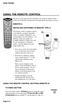 USING THE REMOTE CONTROL The next several pages provide instructions for using the remote control. Follow the instructions that pertain to the appropriate model type you have. REMOTE A INSTALLING BATTERIES
VIZIO Universal Remote Control User Guide
 Table of Contents Chapter 1 - Introduction 2 Chapter 2 - Remote Control Button Description 3 2.1 - Key Remote Control Functions 3 2.2 - Insertion of Batteries in the Remote Control 6 2.3 - Remote Control
VIP1200 & VIP1216 Wireless IPTV Receivers
 VIP1200 & VIP1216 Wireless IPTV eceivers THIS IS AN EDITED VESION OF THE OIGINA DOCUMENT CONTENTS Intro duction...1 Your Set-top Boxes...1 Front Panel...2 ear Panel...3 Video Connectio n Opt ions...4 Audio
2008 PVR Remote Functionality Guide V1.1
 2008 PVR Remote Functionality Guide V1.1 1. LED Indications 1 2. Basic Colour Button Functionality 1 3. Shift Functionality 1 4. Programming 2 4.1. Programming a Device onto your Remote Control 2 4.1.1.
Welcome to FOXTEL Digital!... 1 Your FOXTEL Digital set-top unit... 1 Updates to your digital set-top unit... 1 Getting in touch with FOXTEL...
 Welcome to FOXTEL Digital!......... 1 Your FOXTEL Digital set-top unit...... 1 Updates to your digital set-top unit..... 1 Getting in touch with FOXTEL........ 1 For your safety.................... 2 Getting
Evolution Digital HD Set-Top Box Important Safety Instructions
 Evolution Digital HD Set-Top Box Important Safety Instructions 1. Read these instructions. 2. Keep these instructions. 3. Heed all warnings. 4. Follow all instructions. 5. Do not use this apparatus near
CAUTION RISK OF ELECTRIC SHOCK NO NOT OPEN
 Evolution Digital HD Set-Top Box Important Safety Instructions 1. Read these instructions. 2. Keep these instructions. 3. Heed all warnings. 4. Follow all instructions. 5. Do not use this apparatus near
Digital Satellite Receiver
 USER GUIDE Digital Satellite Receiver Models DSR207, DSR317, DSR505, and DSR530 CONTENTS IMPORTANT SAFETY INSTRUCTIONS...1 DSR BASICS SYMBOLS/ICONS...6 Front Panel...6 Back Panel...7 CONNECTING YOUR DSR...10
/&' 79 7; /% ) &RORU 7HOHYLVLRQ (QJOLVK
 245U Using the On Screen Displays Many features available on this TV can be accessed via the On Screen Display menu system. Use the remote control as shown below to access and adjust features as desired.
LINE IN, LINE OUT TO TV, VIDEO IN, VIDEO OUT
 1 Based on the information you provided we are unable to match you with a specific hookup recommendation. For your convenience this document provides the four most common hookup configurations for the
24 Wide Screen LED Monitor with HDMI
 24 Wide Screen LED Monitor with HDMI USER MANUAL L24LE11B_MANUAL_EN_R1 Please read this manual carefully before using, and keep it for future reference. TABLE OF CONTENTS GETTING STARTED Monitor Stand
Receiver and Remote Controls
 9242_4_Ch2_eng 6/11/07 9:29 AM Page 1 2 Receiver and Remote Controls ABOUT YOUR SATELLITE RECEIVER This chapter helps you get to know your remote control, which lets you use all the functions of your receiver.
text_dishpvr.fm Page 1 Tuesday, March 2, 2004 12:35 PM Remote Control Basics... 2
 text_dishpvr.fm Page 1 Tuesday, March 2, 2004 12:35 PM TABLE OF CONTENTS Remote Control Basics... 2 Models Supported by this Guide... 2 UHF and IR Signals... 3 Installing Batteries... 3 Converting the
VideoMate V200/V200F Analog Standalone TV Box Start Up Guide
 VideoMate V200/V200F Analog Standalone TV Box Start Up Guide Compro Technology, Inc. www.comprousa.com 1 Table of Contents About This Guide... 3 VideoMate V200/V200F TV Box Contents... 4 Install V200/V200F
DTA100. Digital Transport Adapter. Quick Start Guide. Downloaded from www.manualslib.com manuals search engine
 DTA100 Digital Transport Adapter Quick Start Guide Before You Begin READ THIS FIRST Connecting Your DTA100 1. Connect the DTA100 to your cable service. Connect the coaxial cable from your wall outlet to
LINE IN, LINE OUT AUDIO IN, AUDIO OUT FIXED, VARIABLE TO TV, VIDEO IN, VIDEO OUT. 2010 Sony Electronics Inc. All rights reserved.
 This is a general recommendation based on the information you provided. You can customize the connections to suit your individual preferences and viewing habits. Some hookup recommendations have two cable
CDKN-7402. User Manual
 CDKN-7402 User Manual FCC INFORMATION This equipment has been tested and found to comply with the limits for a Class B digital device, pursuant to Part 15 of the FCC Rules. These limits are designed to
CINEMATE 1 SR DIGITAL HOME THEATER SPEAKER SYSTEM. Operating Guide Guía del usuario Guide d utilisation
 CINEMATE 1 SR DIGITAL HOME THEATER SPEAKER SYSTEM Operating Guide Guía del usuario Guide d utilisation Notice This equipment has been tested and found to comply with the limits for a Class B digital device,
Fi TV Gold Quick Start Guide
 Quick Start Guide Fi TV Gold Quick Start Guide Welcome to Fi TV! We re happy that you chose EPB Fiber Optics to bring the best movies, sports, news and television programming into your business and we
2-in-1 Universal Remote Control
 2-in-1 Universal Remote Control Owner s Manual Please read before using this equipment. ˆ Contents Features... 3 Introduction... 4 Preparation... 5 Installing Batteries... 5 Setting Up Your Remote Control...
DAB+ / FM Tuner Model: TU-201
 DAB+ / FM Tuner Model: TU-201 Instruction Manual www.pulse-audio.co.uk 1 Safety Information The lightning bolt within a triangle is intended to alert the user to the presence of dangerous voltage levels
DAR-101. GB Version 1
 DAR-101 Version 1 Table of contents Important security notice... 2-3 Introduction... 4 Controls and connections... 5-9 Battery operation... 10 Using the AC adaptor / Charging the batteries... 11 Setting
AVR 158. Audio/video receiver. Quick-Start Guide ENGLISH
 158 Audio/video receiver ENGLISH Quick-Start Guide 158 Introduction, Speaker Placement and Connection Introduction Thank you for choosing a harman kardon product! This quick-start guide contains all the
HD udta Quick-Start Guide
 HD udta Quick-Start Guide Vyve Broadband HD Set-Top Box Important Safety Instructions 1. Read these instructions. 2. Keep these instructions. 3. Heed all warnings. 4. Follow all instructions. 5. Do not
InFocus Projector Setup Guide for Digital Cable TV How to connect digital cable TV to an InFocus projector
 InFocus ojector Setup Guide for Digital Cable TV How to connect digital cable TV to an InFocus projector Digital Cable Box Coax Outlet S-232 Table of Contents Good Better - For the quickest setup using
Userʼs Manual. 7 Color LCD TV & Monitor V7000
 Userʼs Manual 7 Color LCD TV & Monitor V7000 Dear Customers Thank you for purchasing the ikan V7000 7 LCD TFT Monitor. This product employs new integrate circuitry, and a high quality TFT LCD panel. It
Getting to Know Xsight... 3. Home Screen and Everyday Use... 9. Settings... 11. PC Setup... 17. 2 www.oneforall.com
 User Manual English English Getting to Know Xsight........................................ 3 Unpacking and Setting Up Xsight............................................................. 3 Using Xsight
(2012 10 24) manual_tocomsat duo LITE.indd 20-1 2012-10-24 7:44:57
 (2012 10 24) manual_tocomsat duo LITE.indd 20-1 2012-10-24 7:44:57 TABLE OF CONTENTS Table of Contents Table of Contents Safety Warning General Information Package Contents & Features Front Panel Rear
Movie Cube N150H. User s Manual
 Movie Cube N150H User s Manual (v1.0) TABLE OF CONTENTS 1. Main Features... 4 1.1 Front panel... 4 1.2 Back panel... 4 2. Remote Control... 5 3. Welcome Page... 6 4. Installation Guide... 6 5. Program...
The Parts of the System
 2 The Parts of the System THE RECEIVER THE RECEIVER FRONT PANEL Power Light This green light on the receiver front panel lights up when the receiver is turned ON. This light flashes when the receiver memory
Charter Digital Cable and Charter HD Easy Install Guide
 Charter Digital and Charter HD Easy Install Guide Your guide to installing and setting up your Charter HD and Digital Charter Digital and Charter HD Easy Install Guide -888-GET CHARTER (-888-8-7) charter.com
AM / FM Tuner + RDS. Model: TU-101. www.pulse-audio.co.uk
 AM / FM Tuner + RDS Model: TU-101 www.pulse-audio.co.uk 1 Safety Information The lightning bolt within a triangle is intended to alert the user to the presence of dangerous voltage levels within the product
Contents of the Guide
 BeoCenter 1 Guide Contents of the Guide 3 The following is an index to the contents of the separate Reference book with page references: How to set up BeoCenter 1, 4 Connect your TV cables, 5 Connect
USER GUIDE MANUAL DCT700. One-way Application
 USER GUIDE MANUAL DCT700 One-way Application CAUTION: CAUTION RISK OF ELECTRIC SHOCK TO REDUCE THE RISK OF ELECTRIC SHOCK, DO NOT REMOVE COVER (OR BACK). NO USER-SERVICEABLE PARTS INSIDE. REFER SERVICING
ReSound Unite TV FREQUENTLY ASKED QUESTIONS. Setup & Configuration. Use & Operation. Troubleshooting
 Tip for use of FAQ: Click on questions to go to answer. Setup & Configuration How do I pair the hearing aids to the Unite TV?... 2 What is the latency of the streamed signal?... 2 Does the Unite TV use
When you switch off your system, or mute the sound, the red indicator light appears immediately, indicating that the subwoofer is not in use.
 BeoLab 11 Guide WARNING: To reduce the risk of fire or electric shock, do not expose this appliance to rain or moisture. Do not expose this equip ment to dripping or splashing and ensure that no objects
THE NEW GENERATION IN TECHNOLOGY. NI-3103A Alarm Clock w/fm Radio ipod & iphone Docking. Operating Instructions
 THE NEW GENERATION IN TECHNOLOGY NI-3103A Alarm Clock w/fm Radio ipod & iphone Docking Operating Instructions Table of Contents Important Safeguards... 3 Parts... 6 Controls... 6 To Set Up... 7 ipod/iphone
INSTRUCTION MANUAL PLEASE READ ALL THE INSTRUCTIONS COMPLETELY BEFORE USE AND SAVE THIS MANUAL FOR FUTURE REFERENCE
 INSTRUCTION MANUAL PLEASE READ ALL THE INSTRUCTIONS COMPLETELY BEFORE USE AND SAVE THIS MANUAL FOR FUTURE REFERENCE m Before Use Please read IMPORTANT SAFETY INSTRUCTIONS on page 10 before use. It is important
LINE IN, LINE OUT AUDIO IN, AUDIO OUT FIXED, VARIABLE TO TV, VIDEO IN, VIDEO OUT. 2010 Sony Electronics Inc. All rights reserved.
 Based on the information you provided we are unable to match you with a specific hookup recommendation. For your convenience this document provides the four most common hookup configurations for the devices
Part 2. Copyright 1998 Philips Consumer Communications L.P. All rights reserved. Printed in Mexico. Issue 1AT&T 848229506
 2 User's Manual for Two-Line Digital Answering System Telephone with Speakerphone 1872 Fold open this paper for information about this telephone's installation and operation. Please read Part 1 Important
ATLAS DVR/PVR 5-DEVICE Universal Remote Control
 ATLAS DVR/PVR 5-DEVICE Universal Remote Control User s Guide Atlas DVD/PVR Manual 2/14/03 5:00 PM Page 2 TABLE OF CONTENTS Introduction...................................... 3 Features And Functions............................
Hi! Let s get started.
 Hi! Let s get started. What s in the Box Roku player Remote control 2 x AAA batteries for remote A/V cable RCA Power adapter Get to know your roku A Front view B C F Back view D E A B C D E F Status light
IPTV STB QUICK GUIDE. Detailed user manual download from www.my-home-television.com
 IPTV STB QUICK GUIDE Detailed user manual download from www.my-home-television.com Dolby Digital: Manufactured under license from Dolby Laboratories. Dolby and the double-d symbol are trademarks of Dolby
DVB-T 730. User s Manual
 EPG Program Reservation There are 10 program timers to bring up reminder for a reserved program. 20 seconds before the start of the reserved program, a pop-up window will remind viewer. If no further instruction,
PR-D9W. GB Version 1
 PR-D9W Version 1 Table of contents Important safety instructions... 2-3 Introduction... 4 Controls... 5-8 Using your weather alert radio for the first time... 9 Operating your radio Search tuning AM/FM...
HOME THEATER SYSTEM. Instruction Manual. Model ASR150. Please read the instruction manual carefully before using your unit.
 SURROUND SOUND HOME THEATER SYSTEM Instruction Manual Model ASR150 Please read the instruction manual carefully before using your unit. For support visit : www.1800customersupport.com GENERAL TABLE OF
Kiva Technology User s Manual
 2009 Kiva Technology User s Manual For Support Contact Call Center (816) 235-2000: Monday Friday 7:00 am 7:00 pm ILE Support E-Mail: [email protected] URL: http://www.umkc.edu/is/cts/ilesupport/ctssupporttext.asp
High Power Receiver CR-W400U Operating Instructions
 High Power Receiver CR-W400U Operating Instructions Please read these instructions carefully before using this product and save this manual for future use. Panasonic welcomes you to our ever growing family
Digital Photo Picture Frame. Operation Manual
 Digital Photo Picture Frame Operation Manual 20070309 CONGRATULATIONS on your purchase of a Polaroid 7 LCD Digital Photo Picture Frame. Please read carefully and follow all warnings and instructions in
Using the System ORDER YOUR BELL EXPRESSVU PROGRAMMING. Page 3-1
 Using the System ORDER YOUR BELL EXPRESSVU PROGRAMMING This procedure notifies the Bell ExpressVu Customer Service Call Centre that your system is on-line and installed. You need to have your services
The Bouncer Bluetooth Stereo Speaker
 The Bouncer Bluetooth Stereo Speaker 1 Welcome to JLab! Thank you for purchasing The Bouncer Bluetooth Speaker! Enjoy your music wirelessly from any smartphone, tablet, laptop, or other Bluetooth enabled
MAINTENANCE & TROUBLESHOOTING
 MAINTENANCE & TROUBLESHOOTING This section describes how to: clean the lens clean the fan intake filter replace the projection lamp replace the batteries in the remote control use the Kensington lock feature
Single Day Alarm Clock with. Bluetooth and USB Play-through
 Single Day Alarm Clock with Bluetooth and USB Play-through MODEL : BSC 200 READ THIS INSTRUCTION MANUAL BEFORE OPERATING THE APPLIANCE. SAVE THIS MANUAL FOR FUTURE REFERENCE. TABLE OF CONTENTS IMPORTANT
1-800-SAMSUNG(1-800-726-7864)
 -800-SAMSUNG(-800-76-7864) U.S.A Samsung Electronics America Service Division 400 Valley Road, Suite 0 Mount Arlington, NJ 07856 www.samsungusa.com Canada Samsung Electronics Canada Inc. Samsung Customer
MAINTENANCE & TROUBLESHOOTING
 MAINTENANCE & TROUBLESHOOTING This section describes how to: clean the lens replace the projection lamp replace the batteries in the remote use the security lock feature troubleshoot the projector Cleaning
Connections and Setup
 9242_14_Ch12_eng 6/11/07 9:36 AM Page 1 Connections and Setup HOW TO CONNECT YOUR SATELLITE RECEIVER Do you have a handful of cables and a head full of questions? This chapter is the perfect place to find
RCN DIGITAL CABLE USERS GUIDE
 RCN DIGITAL CABLE USERS GUIDE WELCOME Congratulations! Thanks to your new Digital Cable Service, you now have access to the most cutting-edge cable television services available, only from RCN. At RCN,
UNIVERSAL REMOTE CONTROL GUIDE
 UNIVERSAL REMOTE CONTROL GUIDE Service provided by We Keep You Connected Your new AT6400 AllTouch Infrared (IR) Universal Remote Control (remote) is a true universal remote, functioning as four remotes
Please click on the Table of Contents item you are interested in to go directly to the information. Connections and Devices...5
 Please click on the Table of Contents item you are interested in to go directly to the information. Connections and Devices...5 MTS HDTV Set-Top Box General Information and Maintenance... 5 Connecting
www.seikidigital.com SC501TS
 www.seikidigital.com SC1TS CAUTION RISQUE CHOC ELECTRIQUE NE PAS OUVRIR 2 21 17-18 19 20-21 22 23-25 26 26 3 4 5 SC1GS User s manual Warranty card Initial assembly Base stand Stand support Screw(TP4 x
TROUBLESHOOTING TABLES REMOTE CONTROL DEVICE CODES
 Troubleshooting and Device Codes What you ll find in this chapter: TROUBLESHOOTING TABLES REMOTE CONTROL DEVICE CODES 119 Troubleshooting Tables TROUBLESHOOTING TABLES Use these tables if you have problems
Table of Contents Function Keys of Your RF Remote Control Quick Setup Guide Advanced Features Setup Troubleshooting
 Congratulations on your purchase of the AT&T U-verse TV Point Anywhere RF Remote Control. This product has been designed to provide many unique and convenient features to enhance your AT&T U-verse experience.
High-Definition Personal Digital Recorder. user guide
 High-Definition Personal Digital Recorder user guide Contents Welcome to MY SKY HDi................... 1 MY SKY HDi................................... 1 Updates to MY SKY HDi......................... 1
Explorer Digital Set-Top User s Guide
 Explorer Digital Set-Top User s Guide Models 4240C and 4250C with Multi-Stream CableCAD Interface POWE VO- CH+ CH- VO+ SEECT GUIDE FO EXIT SETTGS EXPOE 4250C 1 What s on the Front Panel? POWE VO- CH+ CH-
Set Top Box User Guide. Global Reach with a Local Touch
 Set Top Box User Guide Global Reach with a Local Touch Table of Contents REMOTE SET UP 3 SET TOP BOX DIAGRAM 4 SET TOP BOX SETTINGS 5 TURN ON/OFF 5 TV INPUT SETTINGS 5 ADJUSTING THE VOLUME 5 RESETTING
Radio BMR100 INSTRUCTION MANUAL. ENGLISH (Original instructions)
 ENGLISH (Original instructions) INSTRUCTION MANUAL Radio BMR00 WARNING: For your personal safety, READ and UNDERSTAND before using. SAVE THESE INSTRUCTIONS FOR FUTURE REFERENCE. Symbols The following show
mini box User s Manual
 mini box User s Manual Version. Updated: 0/0/4 04 Cox Communications, Inc. Table of Contents Chapter : Introduction... About This Manual... Chapter : Installing & Activating Your mini box... 4 Connecting
Time Warner Cable TV. Easy Connect Guide. Enjoy endless ways to watch your favorite shows.
 Time Warner Cable TV Easy Connect Guide Enjoy endless ways to watch your favorite shows. You name the show. You choose the screen. Enjoy watching exactly what you want on the device you want. Your service
SAFETY WARNINGS. Important Safety Instructions. FCC Notice. Caution
 Table of Contents SAFETY WARNINGS...2 FCC Notice...2 Caution...2 Important Safety Instructions...2 Basic Instructions...3 Equipment checklist...3 Input Voltage...3 Power Indicator Light...3 Function Keys...3
DVR GUIDE. Using your DVR/Multi-Room DVR. 1-866-WAVE-123 wavebroadband.com
 DVR GUIDE Using your DVR/Multi-Room DVR 1-866-WAVE-123 wavebroadband.com Table of Contents Control Live TV... 4 Playback Controls... 5 Remote Control Arrow Buttons... 5 Status Bar... 5 Pause... 6 Rewind...
DAB & FM RADIO Installation Manual
 Size: 105x145mm 105g copper paper DAB & FM RADIO Installation Manual Model: 10798 10799 10800 10801 Thank you for purchasing this AGK DAB/FM radio. Please read the instructions and warnings carefully before
It s here a New Breed of TV entertainment.
 Quick Start Guide 1 2 It s here a New Breed of TV entertainment. Welcome to Fetch TV an exciting new television experience that puts you in control of the best TV, great movies, and popular interactive
Digital Television User Guide
 Digital Television User Guide Table of Contents THE HURONTEL HOME BUNDLE >> Finally you can receive Home Phone (with Calling Features), High Speed Fibre Optic Internet and 100% Digital TV including 1 Digital
PROJECTION COLOR TV OPERATING GUIDE 51S500 57S500 65S500 IMPORTANT SAFETY INSTRUCTIONS 2-3 FIRST TIME USE 4-18 19-36 THE REMOTE CONTROL
 PROJECTION COLOR TV OPERATING GUIDE 51S500 57S500 65S500 IMPORTANT SAFETY INSTRUCTIONS 2-3 FIRST TIME USE 4-18 THE REMOTE CONTROL 19-36 Video Audio Aspect Ch. Manager Locks Move SEL Sel ON-SCREEN DISPLAY
SP1790JK 900MHz Wireless Indoor/Outdoor Speakers. User Manual INTRODUCTION FEATURES IMPORTANT SAFETY INFORMATION
 SP1790JK 900MHz Wireless Indoor/Outdoor Speakers INTRODUCTION This 900 MHz digital hybrid wireless speaker system uses the latest wireless technology that enables you to enjoy music and TV sound anywhere
PERSONAL music center II
 PERSONAL music center II Owner s Guide Guía de usario Notice d utilisation Français English INTRODUCTION Thank you By choosing a Bose PERSONAL music center II, you have opened the door to a variety of
IPTV. Watching TV and Educational Content. IPTV Set-Top-Box Installation Guide
 IPTV Watching TV and Educational Content IPTV Set-Top-Box Installation Guide Table of Contents PACKAGE CONTENTS...2 QUICK START: CONNECTING THE IPTV SET-TOP BOX...2 CLOSED CAPTION...3 REMOTE CONTROL...3
FPV MONITOR. User Manual
 FPV MONITOR User Manual Important Safety Instructions: Please read User Guide before using this product. Please keep User Guide for future reference. Please read the cautions to prevent possible danger
Hargray s. Digital Television. powered by Ericsson Mediaroom
 Hargray s Digital Television powered by Ericsson Mediaroom Hargray Digital Television powered by Ericsson Mediaroom Watch What Hargray Digital Television Service Can Do For Your Home Entertainment. Welcome
PAL to NTSC (NTSC to PAL) Converter with 19 inch Rack (CDM-640AR)
 PAL to NTSC (NTSC to PAL) Converter with 19 inch Rack (CDM-640AR) Operation Manual Introduction This unit will convert NTSC/PAL or VGA input signal into NTSC/PAL or VGA output. It offers premium conversion
USER GUIDE 32" 50" CLASS. Full HD LED 1080p TV LC-32LB370U/LC-50LB370U. (31.5" Diagonal) (49.7" Diagonal) 1080p
 LC-32LB370U/LC-50LB370U Full HD LED 1080p TV USER GUIDE 32" 50" CLASS (31.5" Diagonal) (49.7" Diagonal) 1080p Before using your new product, please read these instructions to prevent any damage. Contents
Hi! Let s get started.
 Hi! Let s get started. What s in the box Roku 2 player Roku 2 enhanced remote Headphones 2 x AA batteries for remote A/V cable (RCA) Power adapter Get to know your Roku 2 A Front view B E C Back view
Welcome to life on. Get started with this easy Self-Installation Guide.
 Welcome to life on Get started with this easy Self-Installation Guide. Welcome to a network that s light years ahead. Welcome to life on FiOS. Congratulations on choosing Verizon FiOS! You re just a few
DegerPipes. Electronic Bagpipe Chanter. Operating Manual. Overview. Precautions. PHONES Jack MIDI-Jack. Mouthpiece
 1 DegerPipes Electronic Bagpipe Chanter SOUND MET PITCH DRONES + - DegerPipes MIDI PHONES 2 3 4 5 6 7 Overview Operating Manual Mouthpiece PHONES Jack MIDI-Jack Front Panel Power On Sensor Thumb Contact
Video Cassette Player
 3-862-516-11 (1) Video Cassette Player Operating Instructions Owner s record The model and serial numbers are located at the rear of the unit. Record these numbers in the spaces provided below. Refer to
About the Remote Control... page 2
 TABLE OF CONTENTS About the Remote Control... page 2 Remote Control Signals: UHF or IR...page 2 Installing Batteries in the Remote Control...page 3 Remote Control Modes...page 3 Using the Remote Control