
1-800-SAMSUNG( )
|
|
|
- Damon Golden
- 10 years ago
- Views:
Transcription
1 -800-SAMSUNG( ) U.S.A Samsung Electronics America Service Division 400 Valley Road, Suite 0 Mount Arlington, NJ Canada Samsung Electronics Canada Inc. Samsung Customer Care 7037 Financial Drive Mississauga, Ontario L5N 6R3 BN A-0

2 C ONTENTS Chapter : Your New TV List of Features List of Parts Familiarizing Yourself with Your New TV Right-side Panel Buttons Rear Panel Jacks Remote Control Installing Batteries in the Remote Control If remote control doesn t work Chapter : Installation Connecting VHF and UHF Antennas Antennas with 300-ohm Flat Twin Leads Antennas with 75-ohm Round Leads Separate VHF and UHF Antennas Connecting Cable TV Connecting to a Cable Box that Descrambles All Channels Connecting to a Cable Box that Descrambles Some Channels.. 9 Connecting a VCR Connecting an S-VHS VCR Connecting a DVI-D Cable Connecting a DVD Player Connecting a Digital TV Set-Top Box Connecting a PC Chapter 3: Operation Turning the TV On and Off Changing Channels Using the Channel Buttons Using the PRE-CH Button to select the Previous Channel Adjusting the Volume Using Mute Viewing the Display Viewing the Menus Setting Up Your Remote Control Remote Control Codes Chapter 4: Special Features Plug & Play Feature Memorizing the Channels Selecting the Video Signal-source Storing Channels in Memory (Automatic Method) Adding and Erasing Channels (Manual Method) Labeling Channels To Set-up Favorite Channels To Select Source To Edit the Input Source Name Using Automatic Picture Settings Customizing the Picture Using Automatic Sound Settings Customizing the Sound Selecting a Menu Language Setting the Blue Screen Mode Fine Tuning Channels Contents-

3 C ONTENTS Viewing Picture-in-Picture Activating Picture-in-Picture PIP Settings Selecting a Signal Source (External A/V) for PIP Swapping the Contents of the PIP and Main image Changing the PIP Channel Changing the Position of the PIP Window Changing the Size of the PIP Window DNIe (Digital Natural Image engine) MCC (My Color Control) Easy Control Detail Control IC (Intelligent Image Control) IBC (Intelligent Brightness Control) Changing the Screen Size Freezing the Picture Adjusting the Color Tone Automatic volume control To select the WOW option Special Sound Options Selecting the Main or Sub Sound Adjusting the Headphone Sound Sub Woofer Setting the Clock Setting the On/Off Timer Setting the Sleep Timer Viewing Closed Captions Using the V-Chip Setting Up Your Personal ID Number (PIN) How to Enable/Disable the V-Chip How to Set up Restrictions Using the TV Parental Guidelines How to Set up Restrictions Using the MPAA Ratings: G, PG, PG-3, R, NC-7, X How to Reset the TV after the V-Chip Blocks a Channel ( Emergency Escape ) Color Weakness Selecting the Melody Chapter 5: PC Display Using Your TV as a Computer (PC) Display How to Set up Your PC Software (Windows only) How to Auto Adjust Adjusting the Screen Quality Changing the Screen Position To Initialize the Screen Position or Color Settings Chapter 6: Troubleshooting Identifying Problems Appendix Installing the Stand Installing VESA compliant mounting devices(not supplied) Cleaning and Maintaining Your TV Using Your TV in Another Country Specifications Display Modes Contents-

4 Chapter One Y OUR N EW TV List of Features MCC (My Color Control): Users can adjust colors to their preference by adjusting skin, sky and grass tones. IC (Intelligent Image Control): Automatically detects the input visual signal and adjusts to create optimum contrast. IBC (Intelligent Brightness Control): Adjusts the screen brightness automatically depending on the brightness of the surrounding environment. Color Weakness : This feature enables those with a color weakness to view images as those with normal vision. JBL high performance built-in speakers: Enables reproduction of broadband frequency sound. List of Parts Please make sure the following items are included with your LCD TV. If any items are missing, contact your dealer. Remote Control(BN B) & Batteries (AAA x ) RF Cable (AA A) Power Cord ( ) Owner s Instructions English-

5 Y OUR N EW TV Familiarizing Yourself with Your New TV Right-Side Panel Buttons The buttons on the Right-side panel control your TV s basic features, including the onscreen menu. To use the more advanced features, you must use the remote control. POWER Press to turn the TV on and off. CH Press to change channels. Also press to highlight various items on the on-screen menu. + VOL Press to increase or decrease the volume. Also used to select items on the on-screen menu. MENU Press to see an on-screen menu of your TV s features. SOURCE Displays a menu of all of the available input sources (TV, AV, S-VIDEO, Component, Component, DVI, PC). POWER INDICATOR Lights when unit is in standby mode. Lights green after setting on/off timer. REMOTE CONTROL SENSOR Aim the remote control towards this spot on the TV. LIGHT DETECTING SENSOR Adjusts brightness of screen automatically by detecting brightness of surrounding environment. This sensor works when IBC is on. SPEAKER English-

6 Y OUR N EW TV Rear Panel Jacks Use the rear panel jacks to connect an A/V component that will be connected continuously, such as a VCR or a DVD player. For more information on connecting equipment, see pages 7-4. DVI-D INPUT Connect to the digital video output jack on your DVD/Set-top Box. (DVI-D terminal does not support PC.) PC VIDEO (D-SUB) INPUT Connect to the video output port on your PC. PC AUDIO (D-SUB) INPUT Connect to the audio output jack on your PC. DVI-D AUDIO INPUT Connect to the audio output jack on your DVD/Set-top Box. COMPONENT IN Connect component video/audio from a DVD/VCR/Set-top Box. COMPONENT IN Connect component video/audio from a DVD/VCR/Set-top Box. English-3 S-VIDEO Connect an S-Video signal from a camcorder or VCR VIDEO/AUDIO INPUT Connect a Video signal from a camcorder or VCR. ANT IN Connect to an antenna or to a cable TV system. SUBWOOFER OUTPUT Connect to an active (powered) subwoofer. HEADPHONE JACK Connect a set of external headphones for private listening. POWER INPUT

7 Y OUR N EW TV Remote Control Frequently Used Buttons You can use the remote control up to a distance of about 3 feet from the TV. When using the remote, always point it directly at the TV. POWER Turns the TV on and off. (See Page 5) PC MODE Press to switch to the PC mode. (See Page 63) P.SIZE Press to change the screen size. (See Page 4) MUTE Press to temporarily cut off the sound. (See Page 5) MENU Displays the main on-screen menu.(see Page 6) MODE Selects a target device to be controlled by the Samsung remote control (TV, VCR, Cable, DVD, Samsung STB) (See pages 7~9) CH and CH (Channel UP/Down) Press CH or CH to change channels. (See Page 5) VOL + and VOL - Press to increase or decrease the volume.(see Page 5) SOURCE Press to display all of the available video sources.(see Page 5) UP / DOWN / LEFT / RIGHT / ENTER Use to select on-screen menu items and change menu values. (The remote control will only function with VCR or DVD units that are compatible with the LCD TV.) PIP FUNCTIONS Picture-in-Picture ON/OFF (See pages 34~35) English-4

8 Y OUR N EW TV Convenient Buttons You can use the remote control up to a distance of about 3 feet from the TV. When using the remote, always point it directly at the TV. +00 Press to select channels over 00. For example, to select channel, press +00, then press and. (See Page 3) SLEEP Press to select a time for the TV to turn off automatically.(see Page 5) P.MODE Adjusts the TV picture by selecting one of the preset factory settings. (See Page 7) S.MODE Adjust the TV sound by selecting one of the preset factory settings (or select your personal, customized sound settings). (See Page 9) STILL Press to stop the action during a particular scene. Press again to resume normal video. (See Page 4) AUTO PROG. Press to automatically store selected TV/cable channels. (See Page 3) ADD/DEL Use to store and delete channels to/from memory. (See Page 4) DNIe Press to improve the digital video quality. (See Page 36) MTS (Multi channel Television Stereo) Press to choose stereo, mono or Separate Audio Program (SAP broadcast). (See Page 45) FAV.CH Tunes to the channels in your favorite channel list. (See Page 5) VCR/DVD Functions - Rewind - Stop - Play/Pause - Fast/Forward English-5 PRE-CH Tunes to the previous channel. (See Page 5) INFO Use to see information on the current broadcast.(see Page 6) EXIT Press to exit the menu. SIZE Press to make the PIP window double, large or small. (See Page 35) CH Displays the available channels in sequence. (These buttons change channels in the PIP window only.) (See Page 35) RESET When your remote does not work, change the batteries and press the RESET button for -3 seconds before use. SET BUTTON SET button on TV remote control adjusts 5 separate devices - TV, VCR, Cable, DVD, or Samsung Set-top box. (See pages 7~9)

9 Y OUR N EW TV Installing Batteries in the Remote Control Slide the cover out completely. Install two AAA size batteries. Make sure to match the + and ends of the batteries with the diagram inside the compartment. 3 Replace the cover. Remove the batteries and store them in a cool, dry place if you won t be using the remote control for a long time. The remote control can be used up to about 3 feet from the TV. (Assuming typical TV usage, the batteries last for about one year.) If remote control doesn t work Check the following:. Is the TV power switch on?. Are the plus and minus ends of the batteries reversed? 3. Are the batteries drained? 4. Is there a power outage, or is the power cord unplugged? 5. Is there a special fluorescent light or a neon sign nearby? English-6

10 Chapter Two I NSTALLATION Connecting VHF and UHF Antennas If your antenna has a set of leads that look like this, see Antennas with 300-ohm Flat Twin Leads below. If your antenna has one lead that looks like this, see Antennas with 75-ohm Round Leads on page 8. If you have two antennas, see Separate VHF and UHF Antennas on page 8. Antennas with 300-ohm Flat Twin Leads If you are using an off-air antenna (such as a roof antenna or rabbit ears ) that has 300-ohm twin flat leads, follow the directions below. Place the wires from the twin leads under the screws on a ohm adaptor (not supplied). Use a screwdriver to tighten the screws. Plug the adaptor into the ANT IN terminal on the bottom of the back panel. English-7

11 I NSTALLATION Antennas with 75-ohm Round Leads Plug the antenna lead into the ANT IN terminal on the bottom of the back panel. Separate VHF and UHF Antennas If you have two separate antennas for your TV (one VHF and one UHF), you must combine the two antenna signals before connecting the antennas to the TV. This procedure requires a an optional combiner-adaptor (available at most electronics shops). Connect both antenna leads to the combiner. Plug the combiner into the ANT IN terminal on the bottom of the rear panel. Connecting Cable TV To connect to a cable TV system, follow the instructions below. Cable without a Cable Box Plug the incoming cable into the ANT IN terminal on back of the TV. Because this TV is cable-ready, you do not need a cable box to view unscrambled cable channels. English-8

12 I NSTALLATION Connecting to a Cable Box that Descrambles All Channels Find the cable that is connected to the ANT OUT terminal on your cable box. This terminal might be labeled ANT OUT, VHF OUT, or simply, OUT. Connect the other end of this cable to the ANT IN terminal on the back of the TV. Connecting to a Cable Box that Descrambles Some Channels If your cable box descrambles only some channels (such as premium channels), follow the instructions below. You will need a two-way splitter, an RF (A/B) switch, and four lengths of coaxial cable. (These items are available at most electronics stores.) Find and disconnect the cable that is connected to the ANTENNA IN terminal on your cable box. This terminal might be labeled ANT IN, VHF IN, or simply, IN. Connect this cable to a two-way splitter. 3 Connect a coaxial cable between an OUTPUT terminal on the splitter and the IN terminal on the cable box. English-9

13 I NSTALLATION 4 Connect a coaxial cable between the ANT OUT terminal on the cable box and the B IN terminal on the A/B switch. 5 Connect another cable between the other OUT terminal on the splitter and the A IN terminal on the RF (A/B) switch. 6 Connect the last coaxial cable between the OUT terminal on the RF (A/B) switch and the VHF/UHF terminal on the rear of the TV. After you ve made this connection, set the A/B switch to the A position for normal viewing. Set the A/B switch to the B position to view scrambled channels. (When you set the A/B switch to B, you will need to tune your TV to the cable box s output channel, which is usually channel 3 or 4.) English-0

14 I NSTALLATION Connecting a VCR These instructions assume that you have already connected your TV to an antenna or a cable TV system (according to the instructions on pages 7-0). Skip step if you have not yet connected to an antenna or a cable system. Unplug the cable or antenna from the back of the TV. Connect the cable or antenna to the ANT IN terminal on the back of the VCR. 3 Connect a coaxial cable between the ANT OUT terminal on the VCR and the antenna terminal on the TV. A coaxial cable is usually included with a VCR. (If not, check your local electronics store). 4 Connect a set of audio cables between the AUDIO OUT jacks on the VCR and the AUDIO jacks on the TV. If you have a mono (non-stereo) VCR, use the Y-connector (not supplied) to hook up to the left and right audio input jacks of the TV. If your VCR is stereo, you must connect two cables. 5 Connect a video cable between the VIDEO OUT jack on the VCR and the VIDEO jack on the TV. Follow the instructions in Viewing a VCR or Camcorder Tape to view your VCR tape. * Each external input source device has a different back panel configuration. English-

15 I NSTALLATION Connecting an S-VHS VCR Your Samsung TV can be connected to an S-Video signal from an S-VHS VCR. (This connection delivers a better picture as compared to a standard VHS VCR.) To begin, follow steps 3 in the previous section to connect the antenna or cable to your VCR and your TV. Connect a set of audio cables between the AUDIO OUT jacks on the VCR and the AUDIO INPUT jacks on the TV. 3 Connect an S-video cable between the S-VIDEO OUT jack on the VCR and the S-VIDEO INPUT jack on the TV. An S-video cable is usually included with an S-VHS VCR. (If not, check your local electronics store.) * Each external input source device has a different back panel configuration. Connecting a DVI-D Cable Connect a DVI-D cable between the DVI-I INPUT connector on the TV and the DVI connector on the DVD player/ Set-Top BOX. Connect a set of audio cables between the PC AUDIO INPUT jack on the TV and the AUDIO OUTPUT jacks on the DVD player/ Set-Top BOX. Note:If you are using a DVI-D cable to connect.be sure to connect the audio cable (sold separately)as shown above to get normal TV sound..see Appendix Display Modes for supported resolutions. 3.The screen may have shifted to the right or to the left after connecting the cable. The screen must be adjusted on the source(set-top box). 4.Each external input source device has a different back panel configuration. English-

16 I NSTALLATION Connecting a DVD Player The rear panel jacks on your TV make it easy to connect a DVD player to your TV. Connect a set of audio cables between the COMPONENT or COMPONENT, L, R AUDIO INPUT jacks on the TV and the AUDIO OUT jacks on the DVD player. Connect a video cable between the COMPONENT or COMPONENT (Y, PB, PR) jacks on the TV and the Y, PB, PR jacks on the DVD player. Note: For an explanation of Component video, see your DVD player owner's manual. * Each external input source device has a different back panel configuration. Connecting a Digital TV Set-Top Box The connections for a typical set-top box are shown below. Connect a set of audio cables between the L, R COMPONENT or COMPONENT AUDIO INPUT jacks on the TV and the AUDIO OUT jacks on the Set-Top Box. Connect a video cable between the COMPONENT or COMPONENT (Y, PB, PR) jacks on the TV and the Y, PB, PR jacks on the Set-Top Box. Note: For an explanation of Component video, see your Set-Top Box owner's manual. * Each external input source device has a different back panel configuration. English-3

17 I NSTALLATION Connecting a PC Note: This figure shows the Standard Connector-jack panel. The actual configuration on your TV may be different, depending on the model. - Connect the D- Sub cable to PC (PC IN) on the rear of your set. - Connect the stereo audio cable to AUDIO (PC IN) on the rear of your set and the other end to Audio Out of the sound card on your computer. TV Rear panel PC VIDEO CABLE ( D-SUB ) <Not supplied> PC AUDIO CABLE <Not supplied> English-4

18 Chapter Three O PERATION Turning the TV On and Off Press the POWER You can also use the Power button on the front panel. Changing Channels Using the Channel Buttons Press the CH / buttons to change channels. When you press the CH / buttons, the TV changes channels in sequence. You will see all the channels that the TV has memorized. (The TV must have memorized at least three channels). You will not see channels that were either erased or not memorized. Using the PRE-CH Button to select the Previous Channel Press the PRE-CH The TV will switch to the last channel viewed. To quickly switch between two channels that are far apart, tune to one channel, then use the number button to select the second channel. Then use the PRE-CH button to quickly alternate between them. Adjusting the Volume Press the VOL +/ buttons to increase or decrease the volume. Using Mute At any time, you can temporarily cut off the sound using the Mute Press MUTE and the sound cuts off. The word will appear in the lower-left corner of the screen. To turn mute off, press the MUTE button again, or simply press the VOL +/- buttons. English-5

19 S PECIAL F EATURES Viewing the Display The display identifies the current channel and the status of certain audio-video settings. Press the INFO button on the remote control. The TV will display the channel, the type of sound, and the status of certain picture and sound settings. The on-screen displays disappear after about ten seconds. Press the INFO button once more or wait approximately 0 seconds and it disappears automatically. Allows the user to adjust the settings according to his/her preference and shows the current settings. Viewing the Menus With the power on, press the MENU The main menu appears on the screen. It s left side has five icons: Input, Picture, Sound, Channel, Setup. The on-screen menus disappear from the screen after about two minutes. Use the UP/DOWN Then press ENTER 3 Press the MENU button to exit. buttons to select one of the 5 icons. to access the icon s sub-menu. You can also use the MENU( ), CH Up/Down, Volume Up/Down and SOURCE(ENTER) buttons on the TV to make selections. English-6

20 Setting Up Your Remote Control After it has been set up properly, your remote control can operate in five different modes: TV, VCR, Cable, DVD or Samsung Set-top box. Pressing the corresponding button on the remote control allows you to switch between these modes, and control whichever piece of equipment you choose. Note The remote control might not be compatible with all DVD Players, VCRs and Cable boxes. This remote control is only compatible with Samsung Set-top boxes. Setting Up the Remote to Operate Your VCR Turn off your VCR. Press the MODE button and make sure that the VCR LED is illuminated. 3 Press the SET button on your TV s remote control. 4 Using the number buttons on your remote control, enter three digits of the VCR code listed on page 0 of this manual for your brand of VCR. Make sure you enter three digits of the code, even if the first digit is a 0. (If more than one code is listed, try the first one.) 5 Press the Power button on the remote control. Your VCR should turn on if your remote is set up correctly. If your VCR does not turn on after set up, repeat steps, 3, and 4, but try one of the other codes listed for your brand of VCR. If no other codes are listed, try each VCR code, 000 through 088. Note on Using Remote Control Modes: VCR When your remote control is in VCR mode, the volume buttons still control your TV s volume. English-7

21 Setting Up the Remote to Operate Your Cable Box Turn off your cable box. Press the MODE button and make sure that the Cable LED is illuminated. 3 Press the SET button on your TV s remote control. 4 Using the number buttons on your remote control, enter three digits of the cable box code listed on page 0 of this manual for your brand of cable box. Make sure you enter three digits of the code, even if the first digit is a 0. If there is more than one code listed, try the first one. 5 Press the Power button on the remote control. Your cable box should turn on if your remote is set up correctly. If your cable box does not turn on after set up, repeat steps, 3, and 4, but try one of the other codes listed for your brand of cable box. If no other codes are listed, try each code, 000 through 077. Note on Using Remote Control Modes: Cable Box When your remote control is in Cable Box mode, the volume buttons still control your TV s volume. English-8
22 Setting Up the Remote to Operate Your DVD Turn off your DVD. Press the MODE button and make sure that the DVD LED is illuminated. 3 Press the SET button on your TV s remote control. 4Using the number buttons on your remote control, enter three digits of the DVD code listed on page 0 of this manual for your brand of DVD. Make sure you enter three digits of the code, even if the first digit is a 0. If there is more than one code listed, try the first one. 5 Press the Power button on the remote control. Your DVD should turn on if your remote is set up correctly. If your DVD does not turn on after set up, repeat steps, 3, and 4, but try one of the other codes listed for your brand of DVD. If no other codes are listed, try each code, 000 through 009. Note on Using Remote Control Modes: DVD When your remote control is in DVD mode, the volume buttons still control your TV s volume. English-9
23 English-0 Remote Control Codes Admiral Aiwa Audio Dynamics Akai Bell&Howell Broksonic Candle Canon Citizen Colortyme Craig Curtis-Mathes Daewoo DB Dimensia Dynatech Electrohome Emerson Fisher Funai GE Go Video Goldstar General Electric Harman Kardon Hitach Instant Replay JC Penny JCL JVC 05, ,05 06,03, ,08,0,054,055,06 07,06 06,08,0,054,055, ,0 009,06,07,03,04,055,06,073, ,004,005,006,007,008,0,054,085 05, ,08,09,0,04,09,03,036,043, 050,05,056,058,066,07,074,076,077,079 0,0,07,08,05,057, ,03,055, ,06,07,04, ,04,044, ,04,06,07,03,05,039,044,060,06 0,07,03,05,039,055 05,06 05, , ,03,03,03,03, 033,038,044,075,076,077 0,0,00,0,04, ,05,054 0,03,03,03,03,033,038,044,054,070, ,05 05,06,07,09,034,036,037,040,04,048, , ,035,047,069 05,06,07,09,034,036,037,040,04,048,049 06,08,05 05,06 008,035,074 0,00,0 00,04 000,0,030,05,07, , ,067 05,09,057,058, ,040, ,060 05,06,07,09,034,036,037,040,04,048, ,050,065,069 0,03,05,039, ,00, ,038,06,065 0,07,03,05,038,039,055,070 06,04 06,04,040,04 0,03,05,039,055,070, ,06,084,086 04, ,038,06,065 07,038 04,05,04, ,054, ,053 0,05,07,08,0, 04,08,036,05,06 kenwood KLH LG Lloyd Logik LXI Magnavox Marantz Marta MEI Memorex MGA Midland Minota Mitsubishi Montgomery ward MTC Multitech NEC Optimus Panasonic Pentax Pentex Reserch+ Philco Philips Pioneer Portland ProScan Quartz Quasar Radio Shack/Realistics Anvision Cable star DeaRyung DongKuk DaeHan Eagle Eastrm Int. Eastern International General Instrument GI Hamlin Hitachi Jerrold LG CurtisMathes JVC LG Philips Proscan RCA Toshiba Panasonic Sony Samsung Sharp Macom Magnavox Nawoo NSC Oak Osk Sigma Panasonic Philips Pioneer Randtek RCA Regal Regency SA Samsung SAEWOO Signature Sprucer Starcom Stargate 000 Sylvania TaePyungYang Texscan Tocom Unika Universal Viewstar Warner Amex Zenith RCA Samsung Sansui Sanyo Scott Sears Sharp Shintom Signature Sony Sylvania Symphonic Tandy Tashiko Tatung Teac Technics Temika Teknika TMK Toshiba Toshiko Totevision Unitech Vector Research Victor Video Concepts Videosonic Wards Yamaha Zenith 009,04,06,07,037,044,046,063, ,06,0,03,04, ,0 0,050,058,077 0,04,08,0,07,08,044,05,057 05,036,048,054 06,035,040, ,035,047 07,04,038,06, , ,039,078 08, ,0,08,057, ,08 VCR Codes Cable Box Codes DVD Codes
24 Chapter Four S PECIAL F EATURES Plug & Play Feature When the TV is initially powered On, two basic customer settings proceed automatically and subsequently: Setting Auto program, Clock. Press the POWER button on the remote control. The message Plug & Play is displayed. Select the appropriate Language by pressing the UP/DOWN buttons. Press the ENTER button to confirm your choice. The message Antenna Input Check, is displayed with OK selected. Press the ENTER 3 buttons to select Air, STD, HRC, or IRC, then press the ENTER Press the ENTER button to stop. 4 Press the LEFT/RIGHT buttons to move to the Hour, Minute or am/pm. Set the hour or minute by pressing the UP/DOWN buttons.(refer to Setting the Clock on page 49.) 5 Press the MENU( ) button to confirm your setting. The message Enjoy your watching. is displayed. English-
25 Memorizing the Channels Your TV can memorize and store all of the available channels for both off-air (antenna) and cable channels. After the available channels are memorized, use the CH and CH buttons to scan through the channels. This eliminates the need to change channels by entering the channel digits. There are three steps for memorizing channels: selecting a broadcast source, memorizing the channels (automatic) and adding and deleting channels (manual). Selecting the Video Signal-source Before your television can begin memorizing the available channels, you must specify the type of signal source that is connected to the TV (i.e., an antenna or a cable system). Press the MENU button to display the menu. buttons to select Channel, Press the ENTER Repeatedly press the UP/DOWN buttons to cycle through these choices: Air, STD, HRC or IRC (all cable TV). Press the EXIT button to exit. Note : STD, HRC and IRC identify various types of cable TV systems. Contact your local cable company to identify the type of cable system that exists in your particular area. At this point the signal source has been selected. Proceed to Storing Channels in Memory (next page). English-
26 Storing Channels in Memory (Automatic Method) First, select the correct signal source (Air, STD, HRC, IRC). See steps ~ on previous page. buttons to select Auto Program. Press the ENTER 3 press the ENTER button to select Start. then press the ENTER The TV will begin memorizing all of the available channels. 4 After all the available channels are stored, the Auto program menu reappears. The TV automatically cycles through all of the available channels and stores them in memory. This takes about one to two minutes. Press ENTER at any time to interrupt the memorization process and return to the Channel menu. Press the EXIT button to exit. To select channels over 00 Ex) Press to select channel 08. English-3
27 Adding and Erasing Channels (Manual Method) Use the number buttons to directly select the channel to Add or Delete. Press the MENU button to display the menu. buttons to select Channel, then press the ENTER buttons to select Add/Delete. Press the ENTER Press the ENTER to select Add or Delete (pressing ENTER toggles between the two). Press the EXIT button to exit. Alternate method: Use the number buttons to directly select the channel that will be added or erased. Press the ADD/DEL Repeatedly pressing ENTER will alternate between Add and Delete. Press the EXIT button to exit. You can view any channel (including an erased channel) by using the number buttons on the remote control. Labeling Channels Press the MENU button to display the menu. buttons to select Channel, then press the ENTER buttons to select Name, then press the ENTER buttons to select a channel. You can assign a name to a channel. Press the RIGHT button to move to Labeling and use the UP/DOWN buttons to assign a name. Repeat this procedure to enter up to four characters. Press the EXIT button to exit. English-4
28 To Set-up Favorite Channels Press the MENU button to display the menu. buttons to select Channel, buttons to select Favorite Channel, then press the ENTER buttons to select your favorite channels to watch among the labeled channels. Press the ENTER button to add a check mark to set the channel as a favorite channel. Press the EXIT button when done to exit. 3 To select the Favorite channels, you have set-up, press the FAV.CH button on the remote To Select Source Use to select TV or other external input source connected to the TV. Use to select the input source of your choice. Press the MENU button to display the on-screen menu. Press the ENTER Press the ENTER buttons to select the Input source, then press the ENTER English-5
29 To Edit the Input Source Name Name the input device connected to the input jacks to make your input source selection easier. Press the MENU button to display the on-screen menu. Press the ENTER button to select Input. buttons to select Edit Name, then press the ENTER buttons to select AV, S-Video, Component, Component, DVI, or PC input jack, then press the ENTER 3 buttons to select VCR, DVD, Cable STB, HD STB, Satellite STB, AV Receiver, DVD Receiver, Game", Camcorder, DVD Combo, DHR(DVD HDD Recoder), or PC input source, then press the ENTER Press the EXIT button to exit. English-6
30 Using Automatic Picture Settings Your TV has four automatic picture settings ( Dynamic, Standard, Movie, and Custom ) that are preset at the factory. You can activate either Dynamic, Standard, Movie, or Custom by pressing P.MODE (or by making a selection from the menu). Or, you can select Custom which automatically recalls your personalized picture settings. Press the MENU button to display the menu. buttons to select Picture, Press the ENTER buttons to select the Dynamic, Standard, Movie, or Custom picture setting. Press ENTER Press the EXIT button to exit. Alternate method: Simply press the P.MODE button on the remote control to select one of the standard picture settings. Choose Dynamic to increase the clarity and sharpness of the picture. Choose Standard for the standard factory settings. Choose Movie when viewing the Movie. Choose Custom if you want to adjust the settings according to personal preference (see Customizing the Picture, page 8). English-7
31 Customizing the Picture You can use the on-screen menus to change the contrast, brightness, sharpness, color and tint according to personal preference. (Alternatively, you can use one of the automatic settings. See the previous page.) Press the MENU button to display the menu. buttons to select Picture, buttons to select Custom, 3 Press the ENTER button to select Contrast, Brightness, Sharpness, Color, or Tint. 4 Press the LEFT/RIGHT buttons to decrease or increase the value of a particular item. For example, if you select Contrast, pressing RIGHT increases it. Press the EXIT button to exit. English-8
32 Using Automatic Sound Settings Your TV has five automatic sound settings ( Standard, Music, Movie Speech and Custom ) that are preset at the factory. You can activate any of them by pressing the S.MODE button (or by making a selection from the on-screen menu). Or, you can select Custom Sound, which automatically recalls your personalized sound settings. Press the MENU button to display the menu. buttons to select Sound, Press the ENTER buttons repeatedly to select the Standard, Music, Movie, Speech, or Custom sound settings. Press the EXIT button to exit. Alternate method: Simply press the the S.MODE button on the remote control to select one of the standard sound settings. Choose Standard for the standard factory settings. Choose Music when watching music videos or concerts. Choose Movie when watching movies. Choose Speech when watching a show that is mostly dialog (i.e., news). Choose Custom to recall your personalized settings. English-9
33 Customizing the Sound The sound settings can be adjusted to suit your personal preference. (Alternatively, you can use one of the automatic settings. See the previous page.) Press the MENU button to display the menu. buttons to select Sound, buttons to select Custom, then press the ENTER 3 Press the LEFT/RIGHT buttons to select a particular item to be changed. Press the UP/DOWN buttons to increase or decrease the value of a particular item. Press the EXIT button to exit. Note :The equalizer allows you to adjust frequencies to your preference. Note :The lowest frequency is 00 and 0K is the highest. English-30
34 Selecting a Menu Language Press the MENU button to display the menu. buttons to select Setup, buttons to select Language. Press the ENTER 3 buttons to select English, Français, Español, or Português. Press the EXIT button to exit. English-3
35 Setting the Blue Screen Mode If no signal is being received or the signal is very weak, a blue screen automatically replaces the noisy picture background. If you wish to continue viewing the poor picture, you must set the Blue screen mode to Off. Press the MENU button to display the menu. buttons to select Setup, buttons to select Blue Screen, then press the ENTER 3 buttons to set Blue Screen On or Off. Pressing the UP/DOWN buttons will alternate between On and Off. Press the EXIT button to exit. English-3
36 Fine Tuning Channels Use fine tuning to manually adjust a particular channel for optimal reception. Press the MENU button to display the menu. buttons to select Channel, buttons to select Fine Tune, then press the ENTER 3 Press the LEFT/RIGHT buttons to adjust the fine tuning. If you do not store the fine-tuned channel in memory, adjustments are not saved. 4 To store the fine tuning setting in the TV s memory, press the ENTER Press the EXIT button to exit. Fine tuned channels that have been saved are marked with an asterisk * on the right-hand side of the channel number in the channel banner. English-33
37 Viewing Picture-in-Picture This product has one built-in tuner, which does not allow PIP to function in the same mode. For example, you cannot watch one TV channel in the main screen, and a different one in the PIP screen. Please see PIP Settings below for details. You can use the PIP feature to simultaneously watch two video sources. Note: While V-Chip is in operation, the PIP function cannot be used. Activating Picture-in-Picture Press the MENU button to display the menu. buttons to select Picture, buttons to select PIP Quick way to access the PIP menu: Simply press the PIP button on the remote control. Press the ENTER buttons to select On. If you turn the TV off while watching and turn it on again, the PIP window will disappear. Press the EXIT button to exit. PIP Settings O : PIP operates X : PIP doesn t operate Sub Picture Main Picture TV TV X AV X S-Video X COMP O COMP O DVI O PC O AV X X X O O O O S-Video X X X O O O O COMP O O O X X X X COMP O O O X X X X DVI O O O X X X X PC O O O X X X X English-34
38 Selecting a Signal Source (External A/V) for PIP 3 buttons to select Source, Select a source of the sub picture by pressing the UP/DOWN buttons and press the ENTER Note :Source selection is possible only when Component, Component, DVI, or PC is connected. Swapping the Contents of the PIP and Main image 4 buttons to select Swap, Changing the PIP Channel 5 buttons to select Ch.(Channel), Changing the Position of the PIP Window 6 buttons to select Position, MAIN:PC, DVI, Component or, PIP:TV Channel is inactive and not available in TV mode. However, they become active and available in PC, DVI, Component and modes. When main picture is set to TV/AV/ S-Video, only Component/Component/ DVI/PC can be selected and when main picture is set to Component/ Component/DVI/PC, only TV/AV/ S-Video can be selected. Changing the Size of the PIP Window 7 buttons to select Size, Press the EXIT button to exit. When the PC is in energy saving mode, you cannot choose the PIP option. You may notice that the picture in the PIP window becomes slightly unnatural when you set the main screen to game or karaoke mode. Switch the main screen and the PIP window for normal viewing. You can adjust picture position only by using the size menu. English-35
39 DNIe (Digital Natural Image engine) Samsung s New Technology brings you more detailed images with contrast, white enhancement and 3D noise reduction. Press the MENU button to display the menu. buttons to select Picture, buttons to select DNIe, 3 buttons to select DNIe On, DNIe Off, DNIe Demo, Press the EXIT button to exit. DNIe On: Improved picture mode as demonstrated by DNIe Demo is activated. DNIe Off: The mode is deactivated and the screen returns to it s original condition. DNIe Demo: The screen shows the improved image on the left-hand side and the original image on the right-hand side. English-36
40 MCC (My Color Control) MCC allows users to adjust colors to their preference, by adjusting skin, sky and grass tones using the predefined settings(standard, Custom, Turkish Blue, Emerald Green, and Indian Pink) without affecting other colors on the screen. Easy Control Press the MENU button to display the menu. buttons to select Picture, buttons to select MCC then press the ENTER Press the UP/DOWN buttons to select Easy Control, This function doesn t work when Source is in PC mode, or DNIe is in off mode. 3 Press the LEFT/RIGHT buttons to select among the various picture settings, then press ENTER. The Original picture (before adjustment) is shown on the left side, while the selected mode is shown on the right. English-37
41 Detail Control Press the MENU button to display the menu. buttons to select Picture, buttons to select MCC then press the ENTER You can adjust skin, sky and grass tones without using the predefined settings in custom mode. buttons to select Detail Control, then press the ENTER This function doesn t work when the Source is in PC mode, or DNIe is in off mode. 3 buttons to select the desired MCC color and press the ENTER Press the LEFT/RIGHT buttons to increase or decrease the value of a particular item. Press the EXIT button to exit. English-38
42 IC (Intelligent Image Control) IC (Intelligent Image Control) automatically detects the inputted visual signal and adjusts to create optimum contrast. Press the MENU button todisplay the menu. buttons to select Picture, Press the UP/DOWN buttons to select IC, then press the ENTER This function doesn t work when the Source is in PC mode, or DNIe is in off mode. 3 Press the UP/DOWN buttons to select On or Off. Press the EXIT button to exit. English-39
43 IBC (Intelligent Brightness Control) The IBC (Intelligent Brightness Control) adjusts the screen brightness automatically by using a light detecting sensor. Press the MENU button to display the menu. buttons to select Picture, buttons to select IBC, This function doesn t work when the Source is in PC mode. 3 Press the LEFT/RIGHT buttons to select On or Off. Screen brightness is adjusted automatically depending on the brightness of the surrounding environment. Press the EXIT button to exit. English-40
44 Changing the Screen Size Press the P.SIZE button to change the screen size. Note :Only wide and size of 4:3 can be selected for PC Source. Wide : Sets the picture to 6:9 wide mode. Panorama : Use this mode for the wide aspect ratio of a panoramic picture. Zoom, : Magnifies the size of the picture on screen. 4:3 : Sets the picture to 4:3 normal mode. This is the standard TV screen size. Freezing the Picture Press the STILL button to freeze a moving picture. Normal sound will still be heard. Press again to cancel. English-4
45 Adjusting the Color Tone You can change the color of the entire screen according to your preference. Press the MENU button to display the menu. buttons to select Picture, Press the UP/DOWN buttons to select Color Tone, 3 Press the UP/DOWN buttons to select Cool, Cool, Normal, Warm, or Warm. Press the EXIT button to exit. Choose from the following Color Tone settings: Cool, Cool, Standard, Warm, Warm according to personal preference. English-4
46 Automatic volume control Reduces the differences in volume level among broadcasters. Press the MENU button to display the menu. buttons to select Sound, buttons to select Auto Volume, then press the ENTER 3 buttons to set Auto Volume On or Off Press the EXIT button to exit. English-43
47 To select the WOW option Emphasizes midrange and bass and provides a simulated surround-sound experience. Press the MENU button to display the menu. buttons to select Sound, buttons to select wow, 3 buttons to select Off. Press the ENTER Press the EXIT button to exit. TRADEMARK & LABEL LICENSE NOTICE is a trademark of SRS Labs,Inc. WOW technology is incorporated under license from SRS labs,inc. English-44
48 Special Sound Options Choosing a Multi-Channel Sound (MTS) Soundtrack Depending on the particular program being broadcast, you can listen to stereo, mono, or a Separate Audio Program. (SAP audio is usually a foreign-language translation. Sometimes SAP has unrelated information like news or weather). Press the MENU button to display the menu. buttons to select Sound, buttons to select MTS, 3 Press the UP/DOWN buttons to select Mono, Stereo or SAP, then press the ENTER Press the EXIT button to exit. Choose Stereo for channels that are broadcasting in stereo. Choose Mono for channels that are broadcasting in mono, or if you are having difficulty receiving a stereo signal. Choose SAP to listen to the Separate Audio Program, which is usually a foreign-language translation. You can also change the MTS setting by pressing the MTS button on the remote control. (When you change channels, MTS is set to Stereo automatically. To listen in SAP or Mono, change the MTS setting). English-45
49 Selecting the Main or Sub Sound You can select to hear sound from either the Main or Sub picture when PIP is On. Press the MENU button to display the menu. buttons to select Sound, buttons to select Sound Select, then press the ENTER 3 buttons to select Main or Sub. Select Main to hear the main TV sound and select Sub to hear the PIP window sound. Press the EXIT button to exit. English-46
50 Adjusting the Headphone Sound The headphone option is especially useful when simultaneously watching the main screen and the PIP window. Press the MENU button to display the menu. buttons to select Sound, Note :Headphones must be purchased separately. buttons to select Headphone, then press the ENTER 3 buttons to select the particular item to be changed. 4 Press the LEFT/RIGHT buttons to decrease or increase the value of a particular item. Press the EXIT button to exit. English-47
51 Sub Woofer The TV provides an output for hookup to an active(powered) subwoofer. Note : Extra sub-woofer speaker is necessary to emphasize low-key sound. Adjust cutoff frequency to emphasize the lower keys. Press the MENU button to display the on-screen menu. buttons to select Sound, buttons to select Sub Woofer, then press the ENTER 3 Press the ENTER buttons to select On, Press the UP/DOWN buttons to select the particular item to be changed. Press the LEFT/RIGHT buttons to decrease or increase the value of a particular item. Press the EXIT button to exit. English-48
52 Setting the Clock Setting the clock is necessary in order to use the various timer features of the TV. Also, you can check the time while watching the TV. (Just press the INFO button). Press the MENU button to display the on-screen menu. buttons to select Setup, Press the ENTER button to select Time, then press the ENTER button to select Clock. 3 buttons repeatedly until the correct Hour appears. After the hour is entered, press the LEFT/RIGHT buttons to select Minute. buttons until the correct Minute appears. Press the LEFT/RIGHT buttons to select am/pm and adjust with the UP/DOWN buttons. Note :You can also set the time using the numeric buttons on the remote. Press the EXIT button to exit. English-49
53 Setting the On/Off Timer Press the MENU button to display the on-screen menu. buttons to select Setup, Press the ENTER button to select Time. Before using the timer, you must set the TV s clock. (See Setting the Clock on page 49) buttons to select On Timer, then press the ENTER buttons repeatedly to select the appropriate Hour. Press the LEFT/RIGHT buttons repeatedly to select the appropriate minute (i.e., the time when the TV will turn on). When you set the hours, make sure the correct time of day (am or pm) appears to the right of the time. English-50
54 3 Press the LEFT/RIGHT buttons to select Setup. Press the UP/DOWN buttons to On Time On. (Repeatedly pressing the UP/DOWN buttons will alternate between On and Off). When finished, press the ENTER To deactivate the On Timer, select Off during this step. 4 To set the Off time, press the UP/DOWN buttons to select Off Timer. Press the ENTER button and set the hours and minutes. (Follow the same procedure as in steps and 3 above). 5 When finished setting the timer, press the EXIT button to exit. Auto Power Off When you set the timer on, your television will be turned off if you do not operate any controls for 3 hours after the TV has been turned on with the Timer On function. Auto power off operates only when the TV has been turned on by the Timer on function. English-5
55 Setting the Sleep Timer Set the timer for the TV to turn off at the preset time automatically. Sleep timer Press the MENU button to display the on-screen menu. Press the UP/DOWN buttons to select Setup, then press the ENTER Press the ENTER button to select Time. Press the UP/DOWN buttons to select Sleep Timer, then press the ENTER 3 Press the UP/DOWN buttons repeatedly until the correct time appears. Press the EXIT button to exit. Easy Way to Set the Sleep Timer Press the button on the remote. The number on the screen changes from Off Off English-5
56 Viewing Closed Captions Your TV decodes and displays the closed captions that are broadcast with certain TV shows. These captions are usually subtitles for the hearing impaired or foreign-language translations. All VCRs record the closed caption signal from television programs, so home-recorded video tapes also provide closed captions. Most pre-recorded commercial video tapes provide closed captions as well. Check for the closed caption symbol in your television schedule and on the tape s packaging :. Press the MENU button to display the on-screen menu. buttons to select Setup, buttons to select Caption, Misspellings and unusual 3characters sometimes occur during Press closed the caption ENTERtransmissions, especially those of live events. There may be a small delay before captions appear when you change channels. These are not malfunctions of the TV. In caption mode, captions appear 4 at the bottom of the screen, and Press they the usually UP/DOWN cover only a small portion buttons of to the set picture. caption Off/On, then press the In ENTER text mode, information unrelated to the program, such as news or weather, is displayed. Text often covers a large portion of the screen. 5 Depending on the particular broadcast, it might be necessary to alter the settings to Channel and Field. English-53 Different channels and fields display different information: Field carries additional information that supplements the information in Field. (For example, Channel may have subtitles in English, while Channel has subtitles in Spanish).
57 6 buttons to select Mode, buttons to set Caption or Text, then press the ENTER 7 buttons to select Channel, buttons to select or, 8 buttons to select Field, buttons to select or, Press the EXIT button to exit. English-54
58 Using the V-Chip The V-Chip feature automatically locks out programming that is deemed inappropriate for children. The user must first enter a Pin (personal ID number) before any of the V-Chip restrictions can be set up or changed. Setting Up Your Personal ID Number (PIN) Press the MENU button to display the menu. Press the UP/DOWN buttons to select Setup, then press the ENTER Press the UP/DOWN buttons to select V-Chip, then press the ENTER 3 The Enter Pin screen will appear. Enter your 4-digit Pin number. Note: The default Pin number for a new TV set is After entering a valid PIN number, the V-Chip screen will appear. Press the UP/DOWN buttons to select Change Pin. 5 Press the ENTER The Change Pin screen will appear. Choose any 4-digits for your PIN and enter them. As soon as the 4 digits are entered, the Confirm New Pin screen appears. Re-enter the same 4 digits. When the Confirm screen disappears, your Pin has been memorized. Press the EXIT button to exit. Note: If you forget the Pin, press the remote-control buttons(with the unit Off ) in the following sequence,which resets the pin to : POWER OFF MUTE 8 4 POWER ON. English-55
59 How to Enable/Disable the V-Chip Note : PIP operation is disabled when the V-chip is on. Press the MENU button to display the menu. Press the UP/DOWN buttons to select Setup, then press the ENTER Press the UP/DOWN buttons to select V-Chip, then press the ENTER 3 The Enter Pin screen will appear. Enter your 4-digit Pin number. Note: The default Pin number for a new TV set is The V-Chip screen will appear, and V-Chip Lock will be selected. To enable the V-Chip feature, press the UP/DOWN buttons so that the V-Chip Lock is set to Yes. (Pressing the UP/DOWN buttons will alternate between On and Off.) Press the EXIT button to exit. English-56
60 How to Set up Restrictions Using the TV Parental Guidelines First, set up a personal identification number (PIN), and enable the V-Chip. (See previous section.) Parental restrictions can be set up using either of two methods: The TV guidelines or the MPAA rating. Press the MENU button to display the menu. buttons to select Setup, Press the UP/DOWN buttons to select V-Chip, then press the ENTER The Enter Pin screen will appear. Enter your 4-digit Pin number. Note: The default Pin number for a new TV set is Press the UP/DOWN buttons to select TV Parental Guidelines, then press the ENTER 4 The TV Parental Guidelines screen will appear. buttons to select one of the six age-based categories: TV-Y Young children TV-Y7 Children 7 and over TV-G General audience TV-PG Parental guidance TV-4 Viewers 4 and over TV-MA Mature audience Note: These categories consist of two separate groups : TV-Y and TV-Y7 (young children through age 7), and TV-G through TV-MA (everybody else). The restrictions for these two groups work independently: If a household includes very young children as well as young adults, the TV guidelines must be set up separately for each age group. (See next step.) English-57
61 5 At this point, one of the TV-Ratings is selected. Depending on your existing setup, the color of the letter U or B will be highlighted (changed to yellow). (U= Unblocked, B= Blocked) When the color of the U or B is changed, press the ENTER( category. )button to block or unblock the To select a different TV-Rating, press the UP/DOWN buttons and then repeat the process. To EXIT this screen, press MENU( ) again. Note : The TV-Y7, TV-PG, TV-4 and TV-MA have additional options. See the next step to change any of the following sub-ratings: FV : Fantasy Violence D : Sexual suggestive Dialog L : Adult Language S : Sexual situation V : Violence Note : The V-Chip will automatically block certain categories that are more restrictive. For example, if you block TV-Y category, then TV-Y7 will automatically be blocked. Similarly, if you block the TV-G category, then all the categories in the young adult group will be blocked (TV-G, TV-PG, TV-4 and TV-MA). The sub-ratings (D, L, S, V) work together similarly. (See next section.) 6 How to set the FV, D, L, S and V sub-ratings. First, select one of these TV-Ratings: TV-Y7, TV-PG, TV-4 or TV-MA (See Step 4, on previous page). Next, while the TV-Rating is selected, repeatedly press the LEFT or RIGHT buttons. This will cycle through the available sub-ratings (FV,L, S, D or V). A highlighted letter ( U or B ) will be displayed for each sub-rating. While the U or B is highlighted, press the ENTER( ) button to change the sub-rating. Press MENU( ) once to save the TV guidelines. To select a different TV-Rating, press the UP/DOWN buttons and then repeat the process. To exit this screen, press MENU( ) once again. Note: The V-chip will automatically block certain categories that are More restrictive. For example, if you block the L sub-rating in TV-PG, then the L sub-ratings in TV-4 andtv-ma will automatically be blocked. 7 Press the MENU button to clear all the screens. (Or proceed to the next section, and set up additional restrictions based on the MPAA codes). English-58
62 How to Set up Restrictions Using the MPAA Ratings: G, PG, PG-3, R, NC-7, X The MPAA rating system uses the Motion Picture Association of America (MPAA) system, and its main application is for movies. When the V-Chip lock is on, the TV will automatically block any programs that are coded with objectionable ratings (either MPAA or TV-Ratings). Press the MENU button to display the menu. buttons to select Setup, buttons to select V-Chip, The Enter Pin screen will appear. Enter your 4-digit PIN number. Note: The default Pin number for a new TV set is Press the UP/DOWN buttons to select MPAA rating, English-59
63 4 Repeatedly press the UP/DOWN buttons to select a particular MPAA category. (When a category is selected, its color changes to yellow.) G PG PG-3 General audience (no restrictions). Parental guidance suggested. PG-3 (Parents strongly cautioned). R R (Restricted. Children under 7 should be accompanied by an adult). NC-7 No children under age 7. X NR X (Adults only). Not rated. Press the ENTER( ) button to select U or B. Press the MENU( )button four times to save the settings and to clear all screens. Note: The V-Chip will automatically block any category that is more restrictive. For example, if you block the PG-3 category, then R, NC-7, and X will automatically be blocked also. How to Reset the TV after the V-Chip Blocks a Channel ( Emergency Escape ) If the TV is tuned to a restricted channel, the V-Chip will block it. The screen will go blank and the following message will appear: Excessive rating. To resume normal viewing, tune to a different channel using the number buttons. Under certain conditions (depending on the rating of the local TV programs) the V-Chip might lock out all the channels. In this case, use the Menu button for an emergency escape : Select the V-Chip on the Menu. Enter your PIN number, and press the ENTER temporarily disable the V-Chip Lock. button to English-60
64 Color Weakness This feature enables those with a color weakness to view images as those with normal color vision do.the feature provides nine different color adjustment layers for red, green and blue. Press the MENU button to display the on-screen menu. buttons to select Setup, then press the ENTER buttons to select Color Weakness, then press the ENTER 3 Press the ENTER button and then press the UP/DOWN buttons to select On, then press the ENTER This function doesn t work when the Source is in PC mode, or DNIe is in off mode. 4 buttons to select Red, Green, Blue. Press the LEFT/RIGHT buttons to decrease or increase the value of a particular item. Press the EXIT button to exit. English-6
65 Selecting the Melody You can hear a melody sound when the television is powered on or off. Press the MENU button to display the on-screen menu. buttons to select Setup, buttons to select Melody, then press the ENTER 3 buttons to select Off or On. Press the EXIT button to exit. English-6
66 Chapter Five PC DISPLAY Using Your TV as a Computer (PC) Display How to Set up Your PC Software (Windows only) The Windows display-settings for a typical computer are shown below. However, the actual screens on your PC will probably look different, depending upon your particular version of Windows and your particular video card. Even if your actual screens look different, the same, basic set-up information will apply in most cases. (If not, contact your computer manufacturer or Samsung Dealer). First, click on Settings on the Windows start menu. While Settings is highlighted, move the cursor so that Control Panel is highlighted. When the control panel screen appears, click on Display and a display dialog-box will appear. Navigate to the settings tab on the display dialog-box. The two key variables that apply the TV-PC interface are resolution and colors. The correct settings for these two variables are: * Size (sometimes called resolution ): 80 x 768 pixels If a vertical-frequency option exists on your display settings dialog box, the correct value is 60 or 60 Hz. Otherwise, just click OK and exit the dialog box. * See Display Modes on page 74. English-63
67 PC DISPLAY How to Auto Adjust Use the Auto Adjust function to have the TV set automatically adjust the video signals the monitor receives. The function also automatically fine-tunes the settings and adjusts the frequency values and positions. Press the PC button on the remote control to select the PC mode. Press the MENU button to display the menu. buttons to select Setup, buttons to select PC, then press the ENTER buttons to select Auto Adjust, English-64
68 PC DISPLAY Adjusting the Screen Quality The purpose of the picture quality adjustment is to remove or reduce picture noise. If the noise is not removed by fine tuning alone, then do the frequency adjustments to the utmost and fine tune again. After the noise has been reduced, re-adjust the picture so that it is aligned on the center of screen. Press the PC button on the remote control to select the PC mode. Note:This function does not work in DVI-Digital mode. Press the MENU button to display the menu. buttons to select Setup, buttons to select PC then press the ENTER Press the ENTER button to select Image Lock. 3 buttons to select Coarse or Fine, then press the ENTER Press the LEFT/RIGHT buttons to adjust the screen quality, vertical stripes may appear or the picture may be blurry. Press the EXIT button to exit. <Adjusting Coarse> <Adjusting Fine> English-65
69 PC DISPLAY Changing the Screen Position Press the PC button on the remote control to select the PC mode. Press the MENU button to display the menu. buttons to select Setup, buttons to select PC, then press the ENTER buttons to select Position, then press the ENTER 3 buttons to adjust the V-Position. Press the LEFT/RIGHT buttons to adjust the H-Position. Press the EXIT button to exit. English-66
70 PC DISPLAY To Initialize the Screen Position or Color Settings Press the PC button on the remote control to select the PC mode. Press the MENU button to display the menu. buttons to select Setup, buttons to select PC, then press the ENTER buttons to select Image Reset, then press the ENTER Press the EXIT button to exit. English-67
71 Chapter Six T ROUBLESHOOTING If the TV seems to have a problem, first try this list of possible problems and solutions. If none of these troubleshooting tips apply, call your nearest Samsung service center. Identifying Problems Problem Poor picture Poor sound quality. No picture or sound. No sound or sound is too low at maximum volume. Picture rolls vertically. The TV operates erratically. The TV won t turn on. Remote control malfunctions Check Signal Cable message. Possible Solution Try another channel. Adjust the antenna. Check all wire connections. Try another channel. Adjust the antenna. Try another channel. Press the TV/VIDEO Make sure the TV is plugged in. Check the antenna connections. First, check the volume of units connected to your TV (digital broadcasting receiver, DTV, DVD, cable broadcasting receiver, VCR, etc.). Then, adjust the TV volume accordingly. Check all wire connections. Unplug the TV for 30 seconds, then try operating it again. Make sure the wall outlet is working. Replace the remote control batteries. Clean the upper edge of the remote control (transmission window). Check the battery terminals. Ensure that the signal cable is firmly connected to the PC sources. English-68
72 T ROUBLESHOOTING Problem Not Supported Mode! message. The image is too light or too dark. Horizontal bars appear to flicker, jitter or shimmer on the image. Vertical bars appear to flicker, jitter or shimmer on the image. Screen is black and power indicator light blinks steadily. Image is not stable and may appear to vibrate. Image is not centered on the screen. If a still image is displayed for an extended period of time, residual images or blurring may appear. Possible Solution Check the maximum resolution and the frequency of the Video Adapter. Compare these values with the data in the Display Modes Timing Chart. Adjust the Brightness and Contrast. Adjust the Fine tuning. Adjust the Coarse tuning and then adjust the Fine tuning. Adjust the Coarse tuning and then adjust the Fine tuning. On your computer check: Power, Signal Cable(4-pin DVI) The TV is using its power management system. Move the computer's mouse or press a key on the keyboard. If the setting is not correct, use your computer utility program to change the display settings. NOTE: Your TV supports multiscan display functions within the following frequency domain: Horizontal frequency: 30 khz ~ 68 khz Vertical frequency: 56 Hz ~ 85 Hz Maximum refresh rate: 80 x 60 Hz Adjust the horizontal and vertical position. The screen position must be adjusted on the output source(i.e.. STB) with a digital signal. When you need to leave the monitor unused for an extended period of time, adjust the settings so that the monitor automatically goes into energy saving mode or activates the screen saver to display moving images. English-69
73 A PPENDIX Installing the Stand <> <> Lower the TV set in the direction of the arrow and fix the stand. Use the four screws to tightly fix the stand. Maintenance of Your LCD TV WARNING: To avoid risk of electric shock, do not disassemble the TV cabinet (except for gaining access to the cable connectors as described on Chapter ). Users cannot service the TV. User maintenance is restricted to cleaning as explained below: Unplug the LCD TV from the power outlet before cleaning. To clean your flat panel display screen, lightly dampen a soft, clean cloth with water or mild detergent. If possible, use a special screen cleaning tissue or solution suitable for the antistatic coating. To clean the LCD TV cabinet, use a cloth lightly dampened with a mild detergent. Never use flammable cleaning material to clean your LCD TV or any other electrical apparatus. English-70
74 A PPENDIX Installing VESA compliant mounting devices(not supplied) Align the mounting interface pad with the holes in the rear cover mounting pad and secure it with the four screws that come with the arm-type base, wall mount hanger or other bases. This TV accepts a 00mm 00mm VESA-Compliant mounting interface pad. Rear cover Mounting pad English-7
75 A PPENDIX Cleaning and Maintaining Your TV With proper care, your TV unit will give you many years of service. Please follow these guidelines to get the maximum performance from your TV. Placement Do not place the TV near extremely hot, cold, humid or dusty places. Do not place the TV near appliances with electric motors that create magnetic fields, such as vacuum cleaners. Keep the ventilation openings clear; do not place the TV on a soft surface, such as cloth or paper. Place the TV in a vertical position only. Liquids Do not handle liquids near or on the TV. Liquids that spill into it can cause serious damage. Cabinet Never open the cabinet or touch the parts inside. Wipe your TV with a clean, dry cloth. Never use water, cleaning fluids, wax, or chemicals. Do not put heavy objects on top of the cabinet. Temperature If your TV is suddenly moved from a cold to a warm place, unplug the power cord, and allow at least two hours for moisture that may have formed inside the unit to dry completely. Using Your TV in Another Country If you plan to take your TV with you to a foreign country, please be aware of the different television systems that are in use around the world. A TV designed for one system may not work properly with another system due to differences in the TV channel frequencies. English-7
76 A PPENDIX Specifications Panel *Frequency Display Resolution Input Signal Video Component Model Name Size Display Size Type Pixel Pitch Viewing Angle Horizontal Vertical Display Color Maximum Mode Sync Signal Video Signal Color System Video System Video In Audio In 30 ~ 68 khz 56 ~ 85 Hz 6,94,77 colors 80 x 60 Hz LT-P66W 6 Diagonal (H) X (V) mm a-si TFT active matrix (H) X (V) mm 70/70 (H/V) H/V Separate, TTL, P. or N ohm NTSC CVBS, S-VHS.0 75 ohm 500mVrms Power Supply Input AC 0V~ 60 Hz Power Consumption Dimensions / Weight Environmental Considerations Audio Characteristics Normal Power Saving Unit (WxDxH): body With Stand Operating Temperature Operating Humidity Storage Temperature Storage Humidity Audio Input Audio Input Headphone Out Frequency Response 30 W < 5 W 9.7 x 4.68 x 6.9 inches (74.0 x 90.0 x mm) 9.7 x 0.89 x 0.70 inches /33.07 lbs (74.0 x 76.8 x 56.0 mm /5.0 kg) 50 F to 04 F (0 C to 40 C) 0% to 80% -3 F to 3 F (-5 C to 45 C) 5% to 95%, non-condensing RCA Jack (L, R), 0.5Vrms (-9dB) 3.5ø Stereo Jack, 0.5Vrms (-9dB) Max. 0mW Output (3.5ø Stereo Jack 3Ω) RF: 80Hz ~ 5kHz (at- 3dB) A/V: 80Hz ~ 0kHz (at - 3dB) * Referring to Display Modes, page 74. English-73
77 A PPENDIX Display Modes If the signal from the system equals the standard signal mode, the screen is adjusted automatically. If the signal from the system doesn t equal the standard signal mode, adjust the mode by referring to your Videocard user guide; otherwise there may be no video. For the display modes listed below, the screen image has been optimized during manufacture. Mode Resolution Horizontal Frequency (khz) Vertical Frequency (Hz) Pixel Clock Frequency (MHz) Sync Polarity (H/V) Macintosh 640 X / - 83 X / + IBM 640 X / - 70 X / - VESA 640 X / X / X / X / X / + 04 X / - 04 X / - 04 X / + GTF 80 X / + English-74
DLPTV HL-R5087W/HL-R5687W. Register your product at www.samsung.com/global/register
 DLPTV I N S T R U C T I O N M A N U A L HL-R5087W/HL-R5687W Register your product at www.samsung.com/global/register A to Digital TV What is Digital Television? Digital television (DTV) is a new way of
VideoMate V200/V200F Analog Standalone TV Box Start Up Guide
 VideoMate V200/V200F Analog Standalone TV Box Start Up Guide Compro Technology, Inc. www.comprousa.com 1 Table of Contents About This Guide... 3 VideoMate V200/V200F TV Box Contents... 4 Install V200/V200F
Synergy V Universal / DVR Remote Control Model RT-U62CD
 Synergy V Universal / DVR Remote Control Model RT-U62CD Programming And Operating Instructions Rev. 09/04 2004 CONTEC CORPORATION - 1 - 1. Introduction Your Synergy V Universal / DVR remote control is
INSTALLING BATTERIES IN REMOTE TYPE A
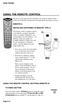 USING THE REMOTE CONTROL The next several pages provide instructions for using the remote control. Follow the instructions that pertain to the appropriate model type you have. REMOTE A INSTALLING BATTERIES
Digital Cable TV. User Guide
 Digital Cable TV User Guide T a b l e o f C o n T e n T s DVR and Set-Top Box Basics............... 2 Remote Playback Controls................ 4 What s on TV.......................... 6 Using the OK Button..................
TEK PARTNER TM UNIVERSAL REMOTE CONTROL USER S MANUAL
 TEK PARTNER TM UNIVERSAL REMOTE CONTROL USER S MANUAL Congratulations! Your TEK PARTNER TM Universal Remote Control is a state-of-the-art device which integrates many different infra-red remote controls.
PDP-MONITOR (PLASMA DISPLAY PANEL)
 PDP-MONITOR (PLASMA DISPLAY PANEL) PPM42M5S PPM42M5H PPM50M5H PPM63M5H Owner s Instructions Before operating the unit, please read this manual thoroughly, and retain it for future reference. Intended for
AVR 158. Audio/video receiver. Quick-Start Guide ENGLISH
 158 Audio/video receiver ENGLISH Quick-Start Guide 158 Introduction, Speaker Placement and Connection Introduction Thank you for choosing a harman kardon product! This quick-start guide contains all the
Troubleshooting Guide
 Poor or Distorted Picture Troubleshooting Guide Poor picture quality compared to what was seen in the store. Picture is distorted. (Macroblock, small block, dots, pixelization.) Wrong or missing color
46 FHD LED TV USER MANUAL 46GSR3000. www.polaroidhdtv.com. www.polaroidhdtv.com USA:1-888-636-8599 USA:1-888-636-8599
 46 FHD LED TV 46GSR3000 USER MANUAL USA:1-888-636-8599 www.polaroidhdtv.com USA:1-888-636-8599 www.polaroidhdtv.com 2013 Empire Electronic Corporation. www.polaroidhdtv.com www.polaroidhdtv.com User Warranty
ABOUT YOUR SATELLITE RECEIVER
 2 Satellite Receiver ABOUT YOUR SATELLITE RECEIVER This chapter gives you an overview and a description of your satellite receiver. SATELLITE RECEIVER OVERVIEW SINGLE AND DUAL MODES REMOTE CONTROL SATELLITE
Digital Television User Guide
 Digital Television User Guide Table of Contents THE HURONTEL HOME BUNDLE >> Finally you can receive Home Phone (with Calling Features), High Speed Fibre Optic Internet and 100% Digital TV including 1 Digital
DVB-T 730. User s Manual
 EPG Program Reservation There are 10 program timers to bring up reminder for a reserved program. 20 seconds before the start of the reserved program, a pop-up window will remind viewer. If no further instruction,
POWER MUTE TV/CATV PICTURE TV VIDEO COMP. PC WIDE PIP POP DIGEST - + ZOOM WINDOW DISP V-CHIP C.C. MTS R G Y B. TT INDEX Sub-Page MIX REVEAL HOLD MENU
 MUTE TV/CATV PICTURE MENU SWAP TV VIDEO COMP. PC AUTO SOUND WIDE PIP POP DIGEST - + ZOOM WINDOW DISP V-CHIP C.C. MTS R G Y B TT INDEX Sub-Page MIX HOLD VOL- REVEAL SLEEP CH+ ENTER SKIP POWER VOL+ 32 LCD
LINE IN, LINE OUT TO TV, VIDEO IN, VIDEO OUT
 1 Based on the information you provided we are unable to match you with a specific hookup recommendation. For your convenience this document provides the four most common hookup configurations for the
LINE IN, LINE OUT AUDIO IN, AUDIO OUT FIXED, VARIABLE TO TV, VIDEO IN, VIDEO OUT. 2010 Sony Electronics Inc. All rights reserved.
 Based on the information you provided we are unable to match you with a specific hookup recommendation. For your convenience this document provides the four most common hookup configurations for the devices
Using the System ORDER YOUR BELL EXPRESSVU PROGRAMMING. Page 3-1
 Using the System ORDER YOUR BELL EXPRESSVU PROGRAMMING This procedure notifies the Bell ExpressVu Customer Service Call Centre that your system is on-line and installed. You need to have your services
Charter Digital Cable and Charter HD Easy Install Guide
 Charter Digital and Charter HD Easy Install Guide Your guide to installing and setting up your Charter HD and Digital Charter Digital and Charter HD Easy Install Guide -888-GET CHARTER (-888-8-7) charter.com
Connections and Setup
 12 Connections and Setup HOW TO CONNECT YOUR SATELLITE RECEIVER Use the information in this chapter to connect your receiver to other equipment. CONNECTING TO THE NEARBY HDTV (TV1) CONNECTING TO THE REMOTE
PDP TV. quick start guide. imagine the possibilities
 PDP TV quick start guide imagine the possibilities Thank you for purchasing a Samsung product. To receive a more complete service, please register your product at www.samsung.com/global/register 02134A_CMS.indd
Big Sandy Broadband DVR Guide
 Big Sandy Broadband DVR Guide Contents Big Sandy Broadband DVR Don t Miss a Thing 3 Control Live TV 3 Playback Controls Using the Video Control Buttons 4 Playback Controls Using the Remote Control Arrow
www.seikidigital.com SC501TS
 www.seikidigital.com SC1TS CAUTION RISQUE CHOC ELECTRIQUE NE PAS OUVRIR 2 21 17-18 19 20-21 22 23-25 26 26 3 4 5 SC1GS User s manual Warranty card Initial assembly Base stand Stand support Screw(TP4 x
HP USB Digital/Analog TV Tuner. User Guide
 HP USB Digital/Analog TV Tuner User Guide Copyright 2008 Hewlett-Packard Development Company, L.P. Windows and Windows Vista are U.S. registered trademarks of Microsoft Corporation. The information contained
55" 1080p LED Television PLED5529A-B
 PROSCAN 55" 1080p LED Television PLED5529A-B Contents Contents Caution Safety Information Unit and Accessories 2 3 4 Introduction 5-9 1. Front View 5 2. Rear View 6 3. Instruction for Wall Mount 7 4.
(2012 10 24) manual_tocomsat duo LITE.indd 20-1 2012-10-24 7:44:57
 (2012 10 24) manual_tocomsat duo LITE.indd 20-1 2012-10-24 7:44:57 TABLE OF CONTENTS Table of Contents Table of Contents Safety Warning General Information Package Contents & Features Front Panel Rear
Easy Connect Guide Digital Adapter. Say hello to your TV s new best friend.
 Easy Connect Guide Digital Adapter Say hello to your TV s new best friend. Connect with the future of TV You re about to step up to a world of even better picture and sound, and this Easy Connect Guide
AV Receiver. Owner s Manual. Read the supplied booklet Safety Brochure before using the unit. English
 AV Receiver Owner s Manual Read the supplied booklet Safety Brochure before using the unit. English CONTENTS Accessories...................................................... 4 FEATURES 5 What you can
DVB-T VERTO. User Manual HD TERRESTRIAL DIGITAL TV STB & PLAYER MT4162
 DVB-T VERTO HD TERRESTRIAL DIGITAL TV STB & PLAYER MT4162 User Manual EN 2 Index Index...2 Overview...2 Remote Control...3 Battery installation in remote control...4 Using remote control...4 Connections...4
Synergy V Universal / DVR Remote Control Model RC-U63CDR
 Synergy V Universal / DVR Remote Control Model RC-U63CDR Programming And Operating Instructions (Part # 9-542-906) 2007, Contec Holdings, LLC, Rev. 06/07-1 - 1. Introduction Your Synergy V Universal /
Your Digital Adapter Easy Setup Guide
 Your Digital Adapter Easy Setup Guide Connect with the future of TV You re about to step up to a world of even better picture and sound, and this Easy Setup Guide is here to help every step of the way.
DIGITAL CABLE & DVR QUICK GUIDE. cable television made simple
 DIGITAL CABLE & DVR QUICK GUIDE Grande Communications cable television made simple Table of Contents TABLE OF CONTENTS Using Your Remote remote Control 1 programming the Remote 2 Interactive Program Guide
Please click on the Table of Contents item you are interested in to go directly to the information. Connections and Devices...5
 Please click on the Table of Contents item you are interested in to go directly to the information. Connections and Devices...5 MTS HDTV Set-Top Box General Information and Maintenance... 5 Connecting
Connections and Setup
 9242_14_Ch12_eng 6/11/07 9:36 AM Page 1 Connections and Setup HOW TO CONNECT YOUR SATELLITE RECEIVER Do you have a handful of cables and a head full of questions? This chapter is the perfect place to find
AV Receiver. Owner s Manual. Read the supplied booklet Safety Brochure before using the unit. English
 AV Receiver Owner s Manual Read the supplied booklet Safety Brochure before using the unit. English CONTENTS Accessories...................................................... 5 FEATURES 6 What you can
ENJOY ENTERTAINMENT BETTER
 TV ENJOY ENTERTAINMENT BETTER 1 2 Table Of Contents 4 Setting Up Your Remote Control 5 Find Channels/Search 7 Aspect Ratio Settings 8 Output Resolution Settings 9 Parental Control 10 Menu Bar 10 Settings
Evolution Digital HD Set-Top Box Important Safety Instructions
 Evolution Digital HD Set-Top Box Important Safety Instructions 1. Read these instructions. 2. Keep these instructions. 3. Heed all warnings. 4. Follow all instructions. 5. Do not use this apparatus near
CAUTION RISK OF ELECTRIC SHOCK NO NOT OPEN
 Evolution Digital HD Set-Top Box Important Safety Instructions 1. Read these instructions. 2. Keep these instructions. 3. Heed all warnings. 4. Follow all instructions. 5. Do not use this apparatus near
Watch Remote Manual.0814.qxd 8/14/01 4:49 PM Page 1. Watch Remote Control
 Watch Remote Manual.0814.qxd 8/14/01 4:49 PM Page 1 Watch Remote Control Watch Remote Manual.0814.qxd 8/14/01 4:49 PM Page 2 Watch Remote Manual.0814.qxd 8/14/01 4:49 PM Page 3 Operation range of your
DTA100. Digital Transport Adapter. Quick Start Guide. Downloaded from www.manualslib.com manuals search engine
 DTA100 Digital Transport Adapter Quick Start Guide Before You Begin READ THIS FIRST Connecting Your DTA100 1. Connect the DTA100 to your cable service. Connect the coaxial cable from your wall outlet to
Setting up your Gateway Media Center
 Setting up your Gateway Media Center Notices 2003 Gateway, Inc. All rights reserved. Gateway, Gateway Country, the Gateway stylized logo, and the black-and-white spot design are trademarks or registered
focus TOuCh P10 FOR DISPLAYS: 55, 70 AND 82 ENgliSh V01.3-2014-7
 focus TOuCh P10 FOR DISPLAYS: 55, 70 AND 82 ENgliSh V01.3-2014-7 Thank you for purchasing our product. Please read this manual carefully before operation your set and retain it for future reference. FT55-P10
LCD Flat Television Users Guide For Model: LT-37X987
 LCD Flat Television Users Guide For Model: LT-37X987 Illustration of LT-37X987 and RM-C18G Important Note: In the spaces below, enter the model and serial number of your television (located at the rear
HANTZ + PARTNER The Upgrade Company! www.hantz.com
 Quick Start Guide X3000 HD Network Media Player X3000 HD NETWORK MEDIA PLAYER POWER HANTZ + PARTNER The Upgrade Company! www.hantz.com A Get to know your HELIOS X3000 Thank you for purchasing the HELIOS
The Parts of the System
 2 The Parts of the System THE RECEIVER THE RECEIVER FRONT PANEL Power Light This green light on the receiver front panel lights up when the receiver is turned ON. This light flashes when the receiver memory
AV Receiver. Owner s Manual. Read the supplied booklet Safety Brochure before using the unit. English
 AV Receiver Owner s Manual Read the supplied booklet Safety Brochure before using the unit. English CONTENTS Accessories...................................................... FEATURES 6 What you can do
Welcome to life on. Get started with this easy Self-Installation Guide.
 Welcome to life on Get started with this easy Self-Installation Guide. Welcome to a network that s light years ahead. Welcome to life on FiOS. Congratulations on choosing Verizon FiOS! You re just a few
Register your product and get support at www.philips.com/welcome. User Manual
 Register your product and get support at www.philips.com/welcome User Manual Contents 1 Your new TV 3 1.1 EasyLink 3 2 Setting up 4 2.1 Read safety 4 2.2 TV stand and wall mounting 4 2.3 Tips on placement
DVB-T2 DIGITAL TV BOX
 DVB-T2 DIGITAL TV BOX QUALITY OF DIGITAL TELEVISION MT4159 User Manual EN 2 Index Index...2 Introduction...3 Front panel...3 Rear panel...3 Remote control...4 Hardware configuration...5 Connecting tuner
JBL CINEMA BASE. Home Cinema 2.2 all-in-one soundbase for television OWNER S MANUAL
 JBL CINEMA BASE Home Cinema 2.2 all-in-one soundbase for television OWNER S MANUAL JBL CINEMA BASE TABLE OF CONTENTS INTRODUCTION 1 DESCRIPTION AND FEATURES 1 JBL CINEMA BASE TOP PANEL CONTROLS 2 JBL CINEMA
RCN DIGITAL CABLE USERS GUIDE
 RCN DIGITAL CABLE USERS GUIDE WELCOME Congratulations! Thanks to your new Digital Cable Service, you now have access to the most cutting-edge cable television services available, only from RCN. At RCN,
High-Definition Microdisplay TV
 HP Pavilion md5020n/md5820n/md5880n/md6580n High-Definition Microdisplay TV User s Guide Copyright 2005 Hewlett-Packard Development Company, L.P. Reproduction, adaptation or translation without prior written
/&' 79 7; /% ) &RORU 7HOHYLVLRQ (QJOLVK
 245U Using the On Screen Displays Many features available on this TV can be accessed via the On Screen Display menu system. Use the remote control as shown below to access and adjust features as desired.
DVR Guide. Dual Tuner HD-Capable DVR. You go get the popcorn. Your show waits for you.
 DVR Guide Dual Tuner HD-Capable DVR You go get the popcorn. Your show waits for you. USING YOUR REMOTE CONTROL TV: When programmed, enables control of your TV. Cable: Enables control of your digital cable
Getting Started With The. Explorer
 Getting Started With The Explorer 8300 and 8300HD DVR Record your favorite programs when you re busy Record one program and watch another Record two live programs while watching a third program you recorded
Important HP Media Center PC Updates
 Important HP Media Center PC Updates Your system uses Microsoft Windows XP Media Center Edition 2005. Before starting the system and using the Media Center setup wizard, please read this updated information
REV3-16.11.19.03 TV Guide Interactive. We Make TV Better SM i
 REV3-16.11.19.03 TV Guide Interactive. We Make TV Better SM i TV Guide Interactive Reference Manual Revision Date: November 19, 2003 TV Guide Interactive, Inc. 7140 South Lewis Tulsa, Oklahoma 74136 CONFIDENTIAL
Video Cassette Recorder
 3-868-107-12 (1) Video Cassette Recorder Operating Instructions If you have any questions about this product, you may call: Sony Customer Information Center 1-800-222-SONY (7669) or write to: Sony Customer
mini box User s Manual
 mini box User s Manual Version. Updated: 0/0/4 04 Cox Communications, Inc. Table of Contents Chapter : Introduction... About This Manual... Chapter : Installing & Activating Your mini box... 4 Connecting
Tuning Band * DTV-Signal. Auto Ch Search Add On Ch Search Manual Ch Set Channel Labels. Menu Language *
 SETUP MENUS - SETUP Press MENU to enter the SETUP menu. In the SETUP menu, select TUNING BAND. Select AIR to scan all available channels from antenna or CABLE, CABLE HRC, CABLE IRC or CABLE AUTO to scan
text_dishpvr.fm Page 1 Tuesday, March 2, 2004 12:35 PM Remote Control Basics... 2
 text_dishpvr.fm Page 1 Tuesday, March 2, 2004 12:35 PM TABLE OF CONTENTS Remote Control Basics... 2 Models Supported by this Guide... 2 UHF and IR Signals... 3 Installing Batteries... 3 Converting the
Receiver and Remote Controls
 9242_4_Ch2_eng 6/11/07 9:29 AM Page 1 2 Receiver and Remote Controls ABOUT YOUR SATELLITE RECEIVER This chapter helps you get to know your remote control, which lets you use all the functions of your receiver.
IPTV. Watching TV and Educational Content. IPTV Set-Top-Box Installation Guide
 IPTV Watching TV and Educational Content IPTV Set-Top-Box Installation Guide Table of Contents PACKAGE CONTENTS...2 QUICK START: CONNECTING THE IPTV SET-TOP BOX...2 CLOSED CAPTION...3 REMOTE CONTROL...3
The only warranties for Hewlett-Packard products and services are set forth in the express statements accompanying such products and services.
 The only warranties for Hewlett-Packard products and services are set forth in the express statements accompanying such products and services. Nothing herein should be construed as constituting an additional
Contents of the Guide
 BeoCenter 1 Guide Contents of the Guide 3 The following is an index to the contents of the separate Reference book with page references: How to set up BeoCenter 1, 4 Connect your TV cables, 5 Connect
Time Warner Cable TV. Easy Connect Guide. Enjoy endless ways to watch your favorite shows.
 Time Warner Cable TV Easy Connect Guide Enjoy endless ways to watch your favorite shows. You name the show. You choose the screen. Enjoy watching exactly what you want on the device you want. Your service
Digital Satellite Receiver
 USER GUIDE Digital Satellite Receiver Models DSR207, DSR317, DSR505, and DSR530 CONTENTS IMPORTANT SAFETY INSTRUCTIONS...1 DSR BASICS SYMBOLS/ICONS...6 Front Panel...6 Back Panel...7 CONNECTING YOUR DSR...10
LINE IN, LINE OUT AUDIO IN, AUDIO OUT FIXED, VARIABLE TO TV, VIDEO IN, VIDEO OUT. 2010 Sony Electronics Inc. All rights reserved.
 This is a general recommendation based on the information you provided. You can customize the connections to suit your individual preferences and viewing habits. Some hookup recommendations have two cable
KTC-D500E DIGITAL TV TUNER
 KTC-D500E DIGITAL TV TUNER INSTRUCTION MANUAL C B64-3808-00/00 (E) Contents Safety precautions 3 Notes 4 Getting Started 5 Switching to Digital TV Screen ÅıÇ 5 Functions During Digital TV Screen Åı 5 Functions
Explorer HDTV Setup Wizard User s Guide
 Explorer HDTV Setup Wizard User s Guide In This Guide Introducing the Setup Wizard... 2 Picture Formats... 3 Setting Up Your HDTV With the Setup Wizard... 7 Easy Setup Instructions... 11 Advanced Setup
Movie Cube N150H. User s Manual
 Movie Cube N150H User s Manual (v1.0) TABLE OF CONTENTS 1. Main Features... 4 1.1 Front panel... 4 1.2 Back panel... 4 2. Remote Control... 5 3. Welcome Page... 6 4. Installation Guide... 6 5. Program...
AV Receiver. Owner s Manual. Read the supplied booklet Safety Brochure before using the unit. English
 AV Receiver Owner s Manual Read the supplied booklet Safety Brochure before using the unit. English CONTENTS Accessories...................................................... 4 FEATURES 5 What you can
THE NEW GENERATION IN TECHNOLOGY. NI-3103A Alarm Clock w/fm Radio ipod & iphone Docking. Operating Instructions
 THE NEW GENERATION IN TECHNOLOGY NI-3103A Alarm Clock w/fm Radio ipod & iphone Docking Operating Instructions Table of Contents Important Safeguards... 3 Parts... 6 Controls... 6 To Set Up... 7 ipod/iphone
PROJECTION COLOR TV OPERATING GUIDE 51S500 57S500 65S500 IMPORTANT SAFETY INSTRUCTIONS 2-3 FIRST TIME USE 4-18 19-36 THE REMOTE CONTROL
 PROJECTION COLOR TV OPERATING GUIDE 51S500 57S500 65S500 IMPORTANT SAFETY INSTRUCTIONS 2-3 FIRST TIME USE 4-18 THE REMOTE CONTROL 19-36 Video Audio Aspect Ch. Manager Locks Move SEL Sel ON-SCREEN DISPLAY
WELCOME TO WOW! Dear Valued Customer,
 for Cable WELCOME TO WOW! Dear Valued Customer, First of all, let me personally say thank you for choosing WOW! We believe in providing bundle choices that meet your needs at a price that won t break the
Fi TV Gold Quick Start Guide
 Quick Start Guide Fi TV Gold Quick Start Guide Welcome to Fi TV! We re happy that you chose EPB Fiber Optics to bring the best movies, sports, news and television programming into your business and we
DIRECTV Digital Satellite Receiver Operating Instructions TZ-DBS01
 DIRECTV Digital Satellite Receiver Operating Instructions TZ-DBS01 For product assistance, please call: 1-888-726-2377 or send e-mail to: [email protected] TQB2AA0366 10301 PRINTED IN MEXICO
Receiver Customization
 9242_13_Ch11_eng 6/11/07 9:36 AM Page 1 Receiver Customization PERSONALIZING YOUR SATELLITE RECEIVER Take a look through this chapter and you ll find out how to change settings on the receiver to make
LCD MONITOR. quick start guide. 460DRn 460DR
 LCD MONITOR quick start guide 460DRn 460DR ii Introduction Package Contents Please make sure the following items are included with your LCD Display. If any items are missing, contact your dealer. Contact
VAST TV. Enjoy watching the channels you love.
 VAST TV Vast is committed to providing you with quality advanced broadband services at a great value. Choose from a variety of TV packages and enjoy more entertainment with Vast OnDemand, digital music
- 1 - www.sceptre.com SCEPTRE X32 User Manual
 Dear Sceptre Customer, Congratulations on your new SCEPTRE X32 HD Display purchase. Thank you for your support. To ensure safety and many years of trouble free operation of your Sceptre Display, please
User Manual LCXW23NT4
 source + - POWER LCD MONITOR LOGIK User Manual LCXW23NT4 Copyright Copyright 2004 by Lögik Corporation. All rights reserved. No part of this publication may be reproduced, transmitted, transcribed, stored
CDKN-7402. User Manual
 CDKN-7402 User Manual FCC INFORMATION This equipment has been tested and found to comply with the limits for a Class B digital device, pursuant to Part 15 of the FCC Rules. These limits are designed to
User s Reference Manual
 User s Reference Manual Welcome to i-guide. Introducing the all-new interactive program guide from TV Guide and your cable system. i-guide TM is intuitive, intelligent and inspiring. It unlocks a world
AUDIO/VIDEO MULTI-CHANNEL RECEIVER VSX-D411 VSX-D511
 AUDIO/VIDEO MULTI-CHANNEL RECEIVER VSX-D411 VSX-D511 Operating Instructions Thank you for buying this Pioneer product. Please read through these operating instructions so you will know how to operate your
2005 by Mediacom Communications Corporation. All Rights Reserved. Mediacom Communications assumes no liability nor responsibility for the use of any
 2005 by Mediacom Communications Corporation. All Rights Reserved. Mediacom Communications assumes no liability nor responsibility for the use of any content, materials, or techniques included in this guide.
19 HD Ready Digital LCD TV. Instruction Manual L19DIGB10
 19 HD Ready Digital LCD TV Instruction Manual L19DIGB10 Contents Preparation... 4 Unpacking the TV...4 Installing / Removing the Base Stand...5 Front / Top / Side View and Controls...6 Rear View and Sockets...7
Getting to Know Xsight... 3. Home Screen and Everyday Use... 9. Settings... 11. PC Setup... 17. 2 www.oneforall.com
 User Manual English English Getting to Know Xsight........................................ 3 Unpacking and Setting Up Xsight............................................................. 3 Using Xsight
LSR4300 Control Center Software
 LSR4300 Control Center Software User Guide Updated for version 2.0 software Table Of Contents Introduction...3 System Requirements...4 Installation...4 Launching The Software...5 Reference...7 Main Screen...7
User s Reference Manual
 User s Reference Manual 1 5 6 6 6 7 9 9 10 11 11 11 13 14 14 15 16 17 17 19 21 21 21 21 21 21 21 21 23 23 24 24 24 24 Table of Contents Welcome Digital Cable Box (Set-Top Box) Motorola DCT6412 Recording
passport guide user manual
 passport guide user manual Copyright 2013 Rovi Corporation. All rights reserved. Rovi and the Rovi logo are trademarks of Rovi Corporation. Passport is a registered trademark of Rovi Corporation and/or
USER GUIDE 152772/6-14/8116
 USER GUIDE 152772/6-14/8116 June 2014 CONTENTS Equipment 4 Connected-Home DVR/Standard Set-Top Box Wireless Set-Top Box Wireless Access Point Remote Controls Residential Gateway Getting Started 12 Turn
Specifying General Settings
 The General Settings menu offers numerous options for tailoring Passport Echo to your requirements. This chapter explains how to use the General Settings menu. Passport Echo Customer Service Guide 79 ...
High Definition LCD TV. Kogan HD32 USER MANUAL
 High Definition LCD TV Kogan HD32 USER MANUAL Safety information To ensure reliable and safe operation of this equipment, please read carefully all of the instructions in this user guide, especially the
CINEMA SB100 powered soundbar speaker
 CINEMA SB100 powered soundbar speaker quick-start guide Thank You For Choosing This JBL Product The JBL Cinema SB100 powered soundbar speaker is a complete, integrated sound system that will dramatically
Controls. LCD Display. Tuning Up Time Set and Station Scan
 PR-D8 GB Revision 3 1 1 2 4 5 7 9 10 12 14 16 18 20 22 24 25 26 27 29 31 33 35 36 37 38 Controls Stereo Built-in Microphone (Left Channel) LCD Display Stereo Built-in Microphone (Right channel) Power/Auto
Fi TV Gold Quick Start Guide
 Quick Start Guide Fi TV Gold Quick Start Guide Welcome to Fi TV! We re happy that you chose EPB Fiber Optics to bring the best movies, sports, news and television programming into your home and we will
DAB+ / FM Tuner Model: TU-201
 DAB+ / FM Tuner Model: TU-201 Instruction Manual www.pulse-audio.co.uk 1 Safety Information The lightning bolt within a triangle is intended to alert the user to the presence of dangerous voltage levels
Hi! Let s get started.
 Hi! Let s get started. What s in the box Roku 2 player Roku 2 enhanced remote Headphones 2 x AA batteries for remote A/V cable (RCA) Power adapter Get to know your Roku 2 A Front view B E C Back view
Quick Connection and Setup Guide
 3-300-262-13(1) Read this first Quick Connection and Setup Guide Quick start guide to main features GB HDD Network Audio System NAS-SC55PKE 2008 Sony Corporation Printed in Malaysia Table of Contents Checking
LCD Monitor User Manual
 LCD Monitor User Manual Products: LCD17-5, LCD19-5 Please read this manual before using your monitor, and always follow instructions for proper use. Please save this manual for future reference. LCD17-19_DM