
WAGO-I/O-SYSTEM 750 WAGO-I/O-IPC-C / PROFIBUS DP Master, CoDeSys 2.3, Telecontrol
|
|
|
- April McLaughlin
- 10 years ago
- Views:
Transcription
1 Pos : 3 /Alle Serien (Allgemeine M odul e)/hinweise z ur Dokumentation/Impres sum für Standardhandbüc her - allg. Angaben, Ansc hriften, Tel efonnummer n und -Adres @ 1 Pos: 2 /Dokumentation allgemein/einband/einband Handbuch - Dec kbl att ohne Variantenfel d (Standar @ 1 WAGO-I/O-SYSTEM 750 WAGO-I/O-IPC-C / PROFIBUS DP Master, CoDeSys 2.3, Telecontrol

2 === Ende der Liste für T extmar ke Ei nband_vorne === 2 WAGO-I/O-SYSTEM by WAGO Kontakttechnik GmbH & Co. KG All rights reserved. WAGO Kontakttechnik GmbH & Co. KG Hansastraße 27 D Minden Phone: +49 (0) 571/ Fax: +49 (0) 571/ Web: [email protected] Technical Support Phone: +49 (0) 571/ Fax: +49 (0) 571/ [email protected] Every conceivable measure has been taken to ensure the accuracy and completeness of this documentation. However, as errors can never be fully excluded, we always appreciate any information or suggestions for improving the documentation. [email protected] We wish to point out that the software and hardware terms as well as the trademarks of companies used and/or mentioned in the present manual are generally protected by trademark or patent.

3 WAGO-I/O-SYSTEM 750 Table of Contents 3 Pos : 5 /D okumentati on allgemein/verzeic hnisse/inhalts verz eichnis - Ü berschrift og und Verzei @ 1 Table of Contents 1 Notes about this Documentation Validity of these Operating Instructions Copyright Symbols Number Notation Font Conventions Important Notes Legal Bases Subject to Changes Personnel Qualification Use in Compliance with Underlying Provisions Technical Condition of Specified Devices Safety Advice (Precautions) Safety Equipment Notes on Operation Special Use Conditions for ETHERNET Devices Scope of Delivery Device Description Overview of Physical Interfaces Display Elements Operating Elements Battery Labeling Technical Data Device Data System Data Supply Communication Protection and Security Runtime System Environmental Requirements Wire Connection Standards and Guidelines Electromagnetic Compatibility Approvals Description of I/O-IPC Interfaces ETHERNET Interfaces (X8, X9) Interface for Electronic Power Supply (X4) PROFIBUS Interface (X3) Integrated Inputs and Outputs (X5) USB Interfaces (X10, X11) RS-232 Serial Interface (X6) DVI-I Interface (X7) Installing and Removing the I/O-IPC... 43

4 4 Table of Contents WAGO-I/O-SYSTEM Instructions for Installation/Removal Accessories Required for Installation Acceptable Mounting Directions for the I/O-IPC Securing the I/O-IPC to a Mounting Rail Connecting the I/O Module to the I/O-IPC Dismounting the I/O-IPC Disconnecting Cables and Conductors Removing the I/O-IPC from the Mounting Rail Connecting the Supply Voltage Notes Required Accessories Power supply via Supply Module Power supply via Filter Module Connecting Sensor and Actuator Lines to I/O Modules Commissioning Turning the I/O-IPC On Determining the IP Address of a Host PC Setting Up an IP Address Assigning an IP Address Using BootP Changing an IP Address Using the Linux Console (IPC Configuration Tool) Testing the Network Connection Switch Off/Re-start Configuration Web-Based Management (WBM) User Administration of WBM "Information" Page "CODESYS" Page "TCP/IP" Page "ETHERNET" Page "NTP" Page "Clock" Page "Users" Page "HMI Settings" Page "Administration" Page "Package Server" Page "Mass Storage" Page "Downloads" Page "Port" Page "MODBUS" Page Page SNMP I/O Configuration "WebVisu" Page Configuration with a Terminal Program Configuration with Touch screen/monitor and USB Keyboard MODBUS/TCP Process Data of the MODBUS Server Accessing the Process Image via MODBUS Functions... 93

5 WAGO-I/O-SYSTEM 750 Table of Contents Register Services Bit Services Configuration Tab CODESYS 2.3 Runtime Environment Process Images Process Image for the I/O Modules Connected to the I/O-IPC Process Image for the Slaves Connected to the I/O-IPC Syntax of Logical Addresses Access to the Process Images of the Input and Output Data via CODESYS Addressing Example Installing the Programming System CODESYS The First Program with CODESYS Start the CODESYS Programming System Designing a Project and Selecting the Target System Creating the PLC Configuration Editing a Program Function Block Loading and Executing the PLC Program in Control (ETHERNET) Loading and Executing the PLC Program in Control (RS 232) Creating a Boot Project Creating a Task Configuration Cyclical Task Priorities Freewheeling Tasks System events I/O Module Synchronization Case 1: The CODESYS task interval is set as less than the I/O module cycle Case 2: The CODESYS task interval is less than double the I/O module cycle Case 3: The CODESYS task interval is greater than double the I/O module cycle Case 4: CODESYS Task interval greater than 10 ms CODESYS Visualization Incorporating Fonts Limitations of the CODESYS Visualization Eliminating CODESYS Web Visualization Errors Frequently Asked Questions About CODESYS Web Visualization PROFIBUS Master in CODESYS PROFIBUS I/O-IPC PLC Configuration PLC Configuration Setting Choices PROFIBUS-Master (I/O-IPC) PROFIBUS Slaves Access to the PROFIBUS Process Data Loading the Program in the I/O-IPC Diagnostics of the fieldbus coupler Releasing the Channel Diagnostics DiagGetBusState() and DiagGetState() Creation of Diagnostic Functions in CODESYS

6 6 Table of Contents WAGO-I/O-SYSTEM Calling the Diagnostic Block Performing Bus Diagnostics via DiagGetBusState() Performing Device Diagnostics via DiagGetState() Analyzing PROFIBUS Diagnostics of Individual I/O Modules Incorporation of C-Functions as CODESYS Library Example for Linking a Dynamic Library Developing and Compiling a Linux Shared Library Creating a Description File for the CODESYS Runtime System Copying a Library and INI File and Restarting the CODESYS Runtime System Creating an IEC Library Linking a Library to the CODESYS Project Special Features Data Types Structures Parameter Transfer by Reference or by Value Additional Applications Operating System Linux Kernel Used Grand Unified Bootloader (GRUB) Linux Startup Process Linux Console Access to the Linux Console Access over Telnet Access via RS-232 Interface and Terminal Program Access over keyboard and monitor (DVI-I and USB Interface) Installed Applications Construction of the File System Installed Shell (BASH) Busybox and Other Help Programs Drivers for Special Hardware Parts Incorporation of a USB Printer Installed Services of the ETHERNET Interface Telnet Server (telnetd) FTP Server (pure-ftpd) NFS Server FTP Client Web Server (lighttp) NTP Client NFS Client SNMP Agent Diagnostics Operational Messages Error Messages via I/O-LED Progression of Blink Sequence Example of an Error Message via Blink Code Meaning of the Blink Codes and Procedures for Troubleshooting Service

7 WAGO-I/O-SYSTEM 750 Table of Contents Replacing the Battery Disposal Use in Hazardous Environments Marking Configuration Examples Marking for Europe according to ATEX and IEC-Ex Marking for America according to NEC Installation Regulations Special conditions for safe use (ATEX Certificate TÜV 07 ATEX X) Special conditions for safe use (ATEX Certificate TÜV 12 ATEX X) Special conditions for safe use (IEC-Ex Certificate TUN X) Special conditions for safe use (IEC-Ex Certificate IECEx TUN X) ANSI/ISA I/O Modules Overview Process Data Architecture for MODBUS/TCP Digital Input Modules Channel Digital Input Module with Diagnostics Channel Digital Input Modules Channel Digital Input Module with Diagnostics Channel Digital Input Module with Diagnostics and Output Process Data Channel Digital Input Modules Channel Digital Input Modules Channel Digital Input Module PTC with Diagnostics and Output Process Data Channel Digital Input Modules Digital Output Modules Channel Digital Output Module with Input Process Data Channel Digital Output Modules Channel Digital Input Modules with Diagnostics and Input Process Data Channel Digital Output Modules Channel Digital Output Modules with Diagnostics and Input Process Data Channel Digital Output Module Channel Digital Output Modules with Diagnostics and Input Process Data Channel Digital Output Modules Channel Digital Input/Output Modules Analog Input Modules Channel Analog Input Modules Channel Analog Input Modules Channel Analog Input Modules Phase Power Measurement Module Channel Analog Input Modules Analog Output Modules

8 8 Table of Contents WAGO-I/O-SYSTEM Channel Analog Output Modules Channel Analog Output Modules Channel Analog Output Modules Specialty Modules Counter Modules Pulse Width Modules Serial Interface Modules with alternative Data Format Serial Interface Modules with Standard Data Format Data Exchange Module SSI Transmitter Interface Modules Incremental Encoder Interface Modules DC-Drive Controller Stepper Controller RTC Module DALI/DSI Master Module DALI Multi-Master Module LON FTT Module EnOcean Radio Receiver MP Bus Master Module Bluetooth RF-Transceiver Vibration Velocity/Bearing Condition Monitoring VIB I/O KNX/EIB/TP1 Module AS-interface Master Module System Modules System Modules with Diagnostics Binary Space Module Mailbox Modules Appendix WAGOConfigToolLIB.lib Calls for the "WAGOConfigToolLIB.lib" Library WagoLibNetSnmp.lib snmpregistercustomoid_int32() snmpregistercustomoid_string() snmpregistercustomoid_uint32() snmpgetvaluecustomoid_int32() snmpgetvaluecustomoid_string() snmpgetvaluecustomoid_uint32() snmpsetvaluecustomoid_int32() snmpsetvaluecustomoid_string() snmpsetvaluecustomoid_uint32() Feedback Example Program "Test.pro" WAGO_DPM_01.lib DPM_VERSION DPM_REDUNDANCY DPM_GLOBAL_CONTROL DPM_READ_INPUT W DPM_READ_OUTPUT DPM_SET_SLAVE_ADDRESS DPM_MSAC1_READ

9 === Ende der Liste für T extmar ke Verzeic hnis_vor ne === WAGO-I/O-SYSTEM 750 Table of Contents DPM_MSAC1_WRITE DPM_MSAC1_ERROR FUNCTION_CODE DPM_ERROR_CLASS APP_CODE ACC_CODE RES_CODE DPM_CONTROL MODE_INDICATION mod_com.lib SerComm.lib WagoLibTerminalDiag.lib WagoLibKBUS.lib SysLibCom.lib SysLibFile, SysLibDir, SysLibFileAsync List of Figures List of Tables

10 Pos : 8 /Seri e 758 (F unk, IPC)/Wic htige Erläuterungen/Sicherheits hinweis e- und s onstige Hi nweise/ac htung: Hinweis e z ur Betri ebs anleitung @ 1 Pos : 9 /Alle Serien (Allgemeine M odul e)/hinweise z ur Dokumentation/Hi nweis e/hi nweis : D okumentation aufbewahr @ 1 Pos : 11.2 /Dokumentation allgemei n/glieder ungselemente/---seitenwechs @ 1 10 Notes about this Documentation WAGO-I/O-SYSTEM 750 Pos : 7 /Alle Serien (Allgemeine M odul e)/übersc hriften für all e Serien/Hi nweis z ur Dokumentation/Hinweis e z ur D okumentation - Ü bersc hrift Notes about this Documentation Read the operating instructions! To avoid personal injury and property damage, only install and operating the I/O- IPC according to these operating instructions and the system description for 750- xxx. In addition, carefully follow the instructions in the "Safety" section. Local regulations must be observed! When integrating the 750 Series components in your machine or system, all currently applicable norms, regulations and guidelines shall be observed during all activities. Power layout of the WAGO-I/O-SYSTEM 750! In addition to these operating instructions, you will also need the system description "Project Planning Notes", which can be downloaded at There, you can obtain important information including information on electrical isolation, system power and supply specifications. Keep this documentation! The operating instructions are part of the product and shall be kept for the entire lifetime of the device. They shall be transferred to each subsequent owner or user of the device. Care must also be taken to ensure that any supplement to these instructions are included, if applicable. Pos: 10 /Serie 758 (Funk, IPC)/Hinweise zur Dokumentation/Gültigkeit Dokumentation Validity of these Operating Instructions These operating instructions are only valid for WAGO-I/O-IPC-C6 of the WAGO-I/O-SYSTEM 750 with item number / Pos : 11.1 /All e Seri en ( Allgemei ne Module)/Hi nweis e zur D okumentati on/urhebersc hutz Copyright This, including all figures and illustrations, is copyright-protected. Any further use of this by third parties that violate pertinent copyright provisions is prohibited. Reproduction, translation, electronic and phototechnical filing/archiving (e.g., photocopying) as well as any amendments require the written consent of WAGO Kontakttechnik GmbH & Co. KG, Minden, Germany. Non-observance will involve the right to assert damage claims.

11 Pos : /All e Serien ( Allgemei ne Module)/Wic htige Erläuterungen/Sicherheits- und sonstige Hinweise/Gefahr/Gefahr: _Warnung vor Personenschäden allgemein_ - Erl äuter @ 1 Pos : /All e Serien ( Allgemei ne Module)/Wic htige Erläuterungen/Sicherheits- und sons tige Hinweis e/gefahr/gefahr: _War nung vor Personenschäden durc h elektrisc hen Strom_ - @ 1 Pos : /All e Serien ( Allgemei ne Module)/Wic htige Erläuterungen/Sicherheits- und sons tige Hinweis e/warnung/warnung: _Warnung vor Personensc häden allgemei n_ - @ 1 Pos : /All e Serien ( Allgemei ne Module)/Wic htige Erläuterungen/Sicherheits- und sons tige Hinweis e/vorsic ht/vorsicht: _War nung vor Pers onensc häden allgemein_ - @ 1 Pos : /All e Serien ( Allgemei ne Module)/Wic htige Erläuterungen/Sicherheits- und sonstige Hinweise/Achtung/Achtung: _Warnung vor Sachschäden allgemein_ - @ 1 Pos : /All e Serien ( Allgemei ne Module)/Wic htige Erläuterungen/Sicherheits- und sonstige Hinweise/Achtung/Achtung: _Warnung vor Sachschäden durch elektrostatische Aufladung_ - @ 1 Pos : /All e Serien ( Allgemei ne Module)/Wic htige Erläuterungen/Sicherheits- und sonstige Hinweise/Hi nweis/hinweis: _Wichtiger Hi nweis allgemein_ - @ 1 Pos : /All e Serien ( Allgemei ne Module)/Wic htige Erläuterungen/Sicherheits- und sons tige Hinweis e/infor mation/infor mation: _Weiter e Infor mation allgemei n_ - Erl äuter @ 1 WAGO-I/O-SYSTEM 750 Notes about this Documentation 11 Pos : 11.3 /All e Seri en ( Allgemei ne Module)/Ü bers chriften für alle Serien/Hinweis z ur D okumentati on/symbole - Ü berschrift Symbols Personal Injury! Indicates a high-risk, imminently hazardous situation which, if not avoided, will result in death or serious injury. Personal Injury Caused by Electric Current! Indicates a high-risk, imminently hazardous situation which, if not avoided, will result in death or serious injury. Personal Injury! Indicates a moderate-risk, potentially hazardous situation which, if not avoided, could result in death or serious injury. Personal Injury! Indicates a low-risk, potentially hazardous situation which, if not avoided, may result in minor or moderate injury. Damage to Property! Indicates a potentially hazardous situation which, if not avoided, may result in damage to property. Damage to Property Caused by Electrostatic Discharge (ESD)! Indicates a potentially hazardous situation which, if not avoided, may result in damage to property. Important Note! Indicates a potential malfunction which, if not avoided, however, will not result in damage to property.

12 Pos: 11.5 /Dokumentation allgemein/gliederungselemente/---seitenwechs @ 1 12 Notes about this Documentation WAGO-I/O-SYSTEM 750 Additional Information: Refers to additional information which is not an integral part of this documentation (e.g., the Internet).

13 Pos : 12 /D okumentation allgemei n/glieder ungs elemente/---seitenwechs @ 1 WAGO-I/O-SYSTEM 750 Notes about this Documentation 13 Pos : 11.6 /All e Seri en ( Allgemei ne Module)/Hi nweis e zur D okumentati on/zahlens Number Notation Table 1: Number notation Number code Example Note Decimal 100 Normal notation Hexadecimal 0x64 C notation Binary '100' ' ' In quotation marks, nibble separated with dots (.) Pos : 11.7 /All e Seri en ( Allgemei ne Module)/Hi nweis e zur D okumentati on/sc hriftkonventi Font Conventions Table 2: Font conventions Font type Indicates italic Names of paths and data files are marked in italic-type. e.g.: C:\Programme\WAGO-I/O-CHECK Menu Menu items are marked in bold letters. e.g.: Save > A greater-than sign between two names means the selection of a menu item from a menu. e.g.: File > New Input Designation of input or optional fields are marked in bold letters, e.g.: Start of measurement range Value Input or selective values are marked in inverted commas. e.g.: Enter the value 4 ma under Start of measurement range. [Button] Pushbuttons in dialog boxes are marked with bold letters in square brackets. e.g.: [Input] [Key] Keys are marked with bold letters in square brackets. e.g.: [F5]

14 Pos : 18 /D okumentation allgemei n/glieder ungs elemente/---seitenwechs @ 1 14 Important Notes WAGO-I/O-SYSTEM 750 Pos : 13 /All e Seri en (Allgemei ne Module)/Ü berschriften für alle Serien/Wichtige Erläuterungen/Wichtige Erläuter ungen - Übersc hrift Important Notes Pos : 14 /All e Seri en (Allgemei ne Module)/Wic htige Erläuterungen/Einl eitung Wic htige @ 1 This section includes an overall summary of the most important safety requirements and notes that are mentioned in each individual section. To protect your health and prevent damage to devices as well, it is imperative to read and carefully follow the safety guidelines. Pos : 15 /All e Seri en (Allgemei ne Module)/Ü berschriften für alle Serien/Wichtige Erläuterungen/Rechtliche Grundl agen - Ü bersc hrift Legal Bases Pos : 16 /All e Seri en (Allgemei ne Module)/Wic htige Erläuterungen/Änderungs vor behalt - Ü bers chrift 3 und Subject to Changes WAGO Kontakttechnik GmbH & Co. KG reserves the right to provide for any alterations or modifications that serve to increase the efficiency of technical progress. WAGO Kontakttechnik GmbH & Co. KG owns all rights arising from the granting of patents or from the legal protection of utility patents. Third-party products are always mentioned without any reference to patent rights. Thus, the existence of such rights cannot be excluded. Pos: 17 /Serie 758 (Funk, IPC)/Wichtige Erläuterungen/Personalqualifikation/Personalqualifikation Personnel Qualification All sequences performed on the I/O-IPC shall only be carried out by electricians with appropriate knowledge in the field of automation technology. These specialists must be familiar with the current norms and guidelines for I/O-IPCs and automated environments. All changes made to the control system shall always be performed by specialists with the appropriate knowledge of PLC programming. Detailed knowledge of Linux is required when making changes to this operating system.

15 Pos : 22 /D okumentation allgemei n/glieder ungs elemente/---seitenwechs @ 1 WAGO-I/O-SYSTEM 750 Important Notes 15 Pos: 19 /Serie 758 (Funk, IPC)/Wichtige Erläuterungen/Bestimmungsgemäße Verwendung/Bestimmungsgemäße Verwendung x Use in Compliance with Underlying Provisions The I/O-IPC is used exclusively for controlling automated tasks and Linux applications. Therefore, it shall not be used for transmitting and processing security-related information; i.e., for example, emergency stops shall not be carried out on this equipment. Pos: 20 /Serie 758 (Funk, IPC)/Wichtige Erläuterungen/Bestimmungsgemäße Verwendung/Bestimmungsgemäße Verwendung x @ 1 The I/O-IPC is a class A device and can cause radio interference in residential areas. If this is the case, you shall only use the I/O-IPC after measures have been taken to reduce emitted interference. The I/O-IPC was developed for applications requiring IP20 protection. The I/O-IPC shall only be used as a unit or in combination with the 750/753 Series I/O Modules. Up to /753 series I/O modules may be connected to the I/O-IPC. The use of up to 250 I/O modules is possible with the WAGO internal data bus extension (optional). When doing so, the following system parameters shall be observed: The total length of the I/O modules behind the I/O-IPC, including the end module, shall not exceed a maximum of 780mm. The maximum size of the process image for the input and output data shall not exceed 500 bytes in each case. Applications other than those described in these instructions are not permitted. Pos : 21 /All e Seri en (Allgemei ne Module)/Wic htige Erläuterungen/T ec hnis cher Z ustand der Geräte - Übersc hrift 3 und Technical Condition of Specified Devices The devices to be supplied ex works are equipped with hardware and software configurations, which meet the individual application requirements. WAGO Kontakttechnik GmbH & Co. KG will be exempted from any liability in case of changes in hardware or software as well as to non-compliant usage of devices. Please send your request for modified and new hardware or software configurations directly to WAGO Kontakttechnik GmbH & Co. KG.

16 Pos: 27 /Serie 758 (Funk, IPC)/Wichtige Erläuterungen/Sicherheitshinweise- und s ons tige Hi nweis e/sicherheits ei nrichtungen Important Notes WAGO-I/O-SYSTEM 750 Pos : 23 /All e Seri en (Allgemei ne Module)/Ü berschriften für alle Serien/Wichtige Erläuterungen/Sic herheits hinweise - Ü bersc hrift Safety Advice (Precautions) Pos: 24 /Serie 758 (Funk, IPC)/Wichtige Erläuterungen/Sicherheitshinweise- und s ons tige Hi nweis e/sicherheits hi nweis e x allgemein @ 1 To avoid personal injury, read and observe the following safety information before using the I/O-IPC and I/O terminals of the 750/753 series. Electric voltage! Only operate the I/O-IPC with 24VDC PELV- (Protective Extra Low Voltage) or SELV (Safety Extra Low Voltage) power sources. There is a danger of electric shock if this precaution is not observed. Pos: 25 /Serie 758 (Funk, IPC)/Wichtige Erläuterungen/Sicherheitshinweise- und s ons tige Hi nweis e/sicherheits hi nweis e x H eiße Obers eite NUR T @ 1 The I/O-IPC housing may become hot during operation. If the I/O-IPC has been in operation, allow it to cool off before moving it. Pos: 26 /Serie 758 (Funk, IPC)/Wichtige Erläuterungen/Sicherheitshinweise- und s ons tige Hi nweis e/sicherheits hi nweis e x allgemein @ 1 Observe the appropriate accident prevention regulations for your system during mounting, start-up, maintenance, and repairs. For each activity, observe the corresponding personnel qualification in Section "Personnel Qualification". Read and observe the operating instructions for the WAGO I/O modules that you connect to the I/O-IPC. To avoid property damage, read and observe the following information: The 750 Series components shall not come in contact with substances having seeping and insulating properties. Otherwise, additional measures shall be taken for the devices, such as installation of an enclosure that is resistant to the above-mentioned substance properties. The 750 Series components contain electronic elements that may be destroyed during electrostatic discharge. When handling these components, make sure that everything close by is well grounded (persons, work station and packaging). Do not touch any conducting parts; e.g., data contacts and printed circuit boards. To achieve a high resistance to interference from electromagnetic emissions, maintain a sufficient distance from electromagnetic sources of interference (e.g., frequency converters, motors). Use shielded conductors only at the required sites. Observe the corresponding norms for EMC-compatible installations as well. Replace defective or damaged 750 Series components since malfunctions may otherwise occur. When laying any lines, take care that you do not place them within shear range of movable system parts.

17 WAGO-I/O-SYSTEM 750 Important Notes Safety Equipment All 750 Series components correspond to protection class IP 20. This includes complete protection against accidental contact with electrical voltage and currents. Pos : 28 /Serie 758 (Funk, IPC)/Wichtige Erläuter ungen/besti mmungsgemäß e Ver wendung/hi nweis e zum Betrieb Notes on Operation When integrating the 750 Series components in your machine or system, all the currently applicable norms, regulations and guidelines shall be observed during all activities. The emergency stop equipment shall remain effective in all operating modes of the system and machine. For protection from electromagnetic interferences Connect your system to protective earth (PE) and Ensure that the routing and installation of the supply and signal lines are correct. The following elements for 24V supply shall be present: Outer lightning protection on buildings Inner lightning protection of supply lines and signal lines Safe electrical separation of 24VDC low voltage through PELV (Protective Extra Low Voltage) or SELV (Safety Extra Low Voltage) voltage sources Pos : 29 /All e Seri en (Allgemei ne Module)/Wic htige Erläuterungen/Spezi elle Einsatzbesti mmung en für ETH ERN ET-Ger Special Use Conditions for ETHERNET Devices If not otherwise specified, ETHERNET devices are intended for use on local networks. Please note the following when using ETHERNET devices in your system: Do not connect control components and control networks to an open network such as the Internet or an office network. WAGO recommends putting control components and control networks behind a firewall. Limit physical and electronic access to all automation components to authorized personnel only. Change the default passwords before first use! This will reduce the risk of unauthorized access to your system. Regularly change the passwords used! This will reduce the risk of unauthorized access to your system.

18 Pos : 31 /D okumentation allgemei n/glieder ungs elemente/---seitenwechs @ 1 18 Scope of Delivery WAGO-I/O-SYSTEM 750 If remote access to control components and control networks is required, use a Virtual Private Network (VPN). Regularly perform threat analyses. You can check whether the measures taken meet your security requirements. Use defense-in-depth mechanisms in your system's security configuration to restrict the access to and control of individual products and networks. Pos: 30 /Serie 758 (Funk, IPC)/Lieferumfang/Lieferumfang Scope of Delivery The following components are included in the scope of delivery of the I/O-IPC: Power Supply Module (No longer included in the scope of delivery as of HW Version 11) Socket for power supply connection protective caps

19 Pos : 32.3 /Serie 758 (Funk, IPC)/Gerätebeschr eibung/besc hrei bung/quer ver weis für den Eins atz i m Ber eich der F ernwir ktec hni k @ 1 Pos: 32.9 /Dokumentation allgemei n/glieder ungs elemente/---seitenwechs @ 1 WAGO-I/O-SYSTEM 750 Device Description 19 Pos : 32.1 /All e Seri en ( Allgemei ne Module)/Ü bers chriften für alle Serien/Gerätebesc hreibungger ätebesc hrei bung - Ü berschrift Device Description Pos : 32.2 /Serie 758 (Funk, IPC)/Gerätebeschr eibung/besc hrei bung/besc hrei bung x @ 1 The I/O-IPC automation device is an industrial PC that can handle the control tasks of a PLC. It is suitable for mounting on a DIN rail and distinguishes itself with its various interfaces. Telecontrol Applications If the I/O IPC is used for telecontrol applications, observe both "IEC Solution for Programmable Telecontrollers" quickstart guide and "Quickstart Guide for ETHERNET Fieldbus Controller." These guides are available on the Internet at "IEC Quickstart Guide" and "IEC Quickstart Guide". Pos: 32.4 /Serie 758 (Funk, IPC)/Gerätebeschreibung/Beschrei bung/besc hrei bung x @ 1 You can connect all available I/O modules of the WAGO-I/O-SYSTEM 750/753 to the I/O-IPC. This allows any analog and digital signals from the automation environment to be internally processed or to be made available to other devices through one of the available interfaces. Pos : 32.5 /Serie 758 (Funk, IPC)/Gerätebeschr eibung/besc hrei bung/besc hrei bung x @ 1 Transfer rates of 10 Mbit/s or 100 Mbit/s are possible via two independent ETHERNET interfaces in both half-duplex and full-duplex operation. Pos : 32.6 /Serie 758 (Funk, IPC)/Gerätebeschr eibung/besc hrei bung/besc hrei bung x 4 @ 1 For data exchange, there are implemented MODBUS/TCP,-/UDP and -/RTU servers available, such as a PROFIBUS master. PROFIBUS master The PROFIBUS master currently does not support any DP/V1 services. Pos: 32.7 /Serie 758 (Funk, IPC)/Gerätebeschreibung/Beschreibung/Besc hrei bung x @ 1 Automation tasks can be executed in all IEC compatible languages with the programming system CODESYS 2.3 (WAGO-I/O-PRO CAA). The implementation of the CODESYS task processing is optimized with real-time extensions in order to provide maximal performance for automation tasks. For visualization, CODESYS target visualization and web visualization are also available in addition to the development environment. Pos: 32.8 /Serie 758 (Funk, IPC)/Gerätebeschr eibung/besc hrei bung/besc hrei bung x 6 Zus atz nur für D PM und C AN @ 1 The fieldbus can be configured using the PLC configuration function of CODESYS 2.3.

20 Pos : /Serie 758 (F unk, IPC)/Gerätebesc hr eibung/beschr eibung/hinweis: Speic her karte ist nic ht im Li eferumfang! Nur empfohlene Speic her karte ver wenden! @ 1 Pos : /D okumentati on allgemei n/gli ederungsel emente/---seitenwec hs @ 1 20 Device Description WAGO-I/O-SYSTEM 750 Pos : /Serie 758 (F unk, IPC)/Gerätebesc hr eibung/beschr eibung/besc hrei bung x @ 1 The I/O-IPC provides 256 MB of program and data memory and 1023 kb of nonvolatile memory. Pos : /Serie 758 (F unk, IPC)/Gerätebesc hr eibung/beschr eibung/besc hrei bung x 7 allgemei @ 1 Both clients and servers for TCP or UDP can be programmed via function blocks. An internal server is available for Web-based applications. Information regarding the configuration and status of the I/O-IPC, among other things, is already stored as dynamic HTML pages in the I/O-IPC and can be read via Internet browser. In addition, you can also save your own HTML pages or call up programs directly via an implemented file system. The firmware installed at delivery is based on Linux with special real-time extensions of the RT-Preempt patch. In addition, various user programs are already installed on the I/O-IPC. These include, for example: a SNMP server/client a Telnet server a FTP server (supports simultaneously two ftp connections) an NTP client a BootP and DHCP daemon the CODESYS runtime environment and other different help programs Memory card is not included in the scope of delivery! Note, the I/O-IPC is delivered without memory card. To use a memory card, you must order one separately. The I/O-IPC can also be operated without memory card expansion, the use of a memory card is optional. Only use recommended memory cards! Use only the CF memory card available from WAGO (order no / ) since it is suitable for industrial applications under difficult environmental conditions and for use in the I/O-IPC. The compatibility to other storage media available in trade cannot be ensured.

21 Pos : /Serie 758 (F unk, IPC)/Wic htige Erläuterungen/Sic her heitshi nweis e- und s onstige Hinweise/Achtung: Klemmenbussc hnittstelle ( Pos. @ 1 Pos : /Serie 758 (F unk, IPC)/Gerätebesc hr eibung/anschl üss e/anschl üss e x DPM - Tabell e @ 1 Pos : /D okumentati on allgemei n/gli ederungsel emente/---seitenwec hs @ 1 WAGO-I/O-SYSTEM 750 Device Description 21 Pos : /Serie 758 (F unk, IPC)/Gerätebesc hr eibung/anschl üss e/anschl üss e x DPM und CAN open Overview of Physical Interfaces Figure 1: Overview of interfaces Internal data bus interface The internal data bus interface (item 5) may not be disassembled. This I/O module is part of the I/O IPC. Pos : /Serie 758 (F unk, IPC)/Gerätebesc hr eibung/anschl üss e/anschl üss e x allgemein -Tabell e @ 1 Table 3: Legend for figure "Overview of physical interfaces" Position Description Function USB interface (X10), Type A USB interface (X11), Type A ETHERNET interface (X8), RJ-45 ETHERNET interface (X9), RJ-45 To connect USB devices such as, keyboards, USB memories, etc. Interfaces to connect the I/O-IPC to a ETHERNET Network. 5 I/O module interface Data exchange over the internal data bus Power Supply Module Infeed of the field supply (sensors/actuators). 7 Slot for CF card Slot for CF cards, type I and II. 8 PROFIBUS interface (X3), 9-pole D-sub socket Interface to connect the I/O-IPC to a PROFIBUS network.
22 Pos : /Serie 758 (F unk, IPC)/Gerätebesc hr eibung/anschl üss e/anschl üss e x - Tabelle @ 1 Pos : /D okumentati on allgemei n/gli ederungsel emente/---seitenwec hs @ 1 22 Device Description WAGO-I/O-SYSTEM DVI interface (X7), D-sub socket, Interface for electronic supply (X4) Integrated input and output (X5), 15-pole D-sub socket Serial RS-232 interface (X6), 9-pole D-sub plug To connect a digital or analog monitor. A "DVI to VGA" adapter is required to connect a monitor via a VGA cable. Power supply for the 24 V electronic supply of the I/O-IPC. The power supply is protected against reverse polarity. Interface for connecting direct digital signal generators. Physical connection to the Linux console, MODBUS/RTU, IO-Check or CODESYS. This interface can be configured via Web-based management or Linux console.
23 Pos : /Serie 758 (F unk, IPC)/Gerätebeschreibung/Anzeigeelemente/Anzeigeelemente x Feldbus - @ 1 Pos : /D okumentati on allgemei n/gli ederungsel emente/---seitenwec hs @ 1 WAGO-I/O-SYSTEM 750 Device Description 23 Pos : /Alle Serien (Allgemeine M odul e)/übersc hriften für all e Seri en/gerätebes chr eibung Anz eigeelemente - Übersc hrift Display Elements Figure 2: LEDs Pos : /Serie 758 (F unk, IPC)/Gerätebesc hr eibung/anzeigeelemente/anz eigeelemente x allgemein - Tabelle @ 1 Table 4: Legend for figure "Display elements" Position LED Color Description 30 ACT/LNK yellow/off 31 Speed green/off 32 ACT/LNK yellow/off 33 Speed green/off U2 36 U1 green/red/ yellow/off green/red/ yellow/off 37 IDE/PWR green/red Status of the X8 ETHERNET interface network connection X8. Status of the X8 ETHERNET interface transmission speed X8. Status of the X8 ETHERNET interface network connection X9. Status of the X8 ETHERNET interface transmission speed. X9. LED that can be freely programmed by the user. (two LEDs). LED that can be freely programmed by the user. (two LEDs). Power supply status of both internal flash memory and CF card. 38 IO green/red Display of malfunction messages by a blink code. Pos : /Serie 758 (F unk, IPC)/Gerätebesc hr eibung/anzeigeelemente/anzeigeelemente x Feldbus - Tabelle @ 1 39 ERR red 40 STA yellow 41 RDY yellow 42 RUN green Fieldbus Status Pos : /Serie 758 (F unk, IPC)/Gerätebesc hr eibung/anzeigeelemente/anz eigeelemente x allgemein - Tabelle @ 1 43 LED D off The I/O module interface LED is not used. 44 LED C green/off 24V supply voltage available via Power Supply Module. Detailed information regarding the LEDs can be found starting in Section "LED Signaling".
24 Pos : /Serie 758 (F unk, IPC)/Gerätebesc hr eibung/bedi enelemente/bedienel emente x FB - Bil @ 1 Pos : /Serie 758 (F unk, IPC)/Gerätebesc hr eibung/bedi enelemente/bedienel emente x @ 1 24 Device Description WAGO-I/O-SYSTEM 750 Pos : /Alle Serien (Allgemeine M odul e)/übersc hriften für all e Seri en/gerätebes chr eibung Bedienelemente - Übersc hrift Operating Elements Figure 3: Operating elements 20
25 Pos : /D okumentati on allgemei n/gli ederungsel emente/---seitenwec hs @ 1 WAGO-I/O-SYSTEM 750 Device Description 25 Table 5: Legend for figure "Operating elements" Position Description 20 Mounting rail fastener Explanation For fastening the I/O-IPC to a grounded mounting rail. 21 Marker strips For 4-character identification of the I/O-IPC via WAGO Miniature WSB Quick marking system. 34 Run/Stop switch Run: Automatic start of the boot project (CODESYS) when starting the I/O-IPC or when starting the PLC program. Stop: Stops the PLC program. 45 Reset-Taste Zur Durchführung eines Neustarts des I/O-IPC. 50 Reject button To remove the CF card, press the reject button.
26 Pos : /Serie 758 (F unk, IPC)/Gerätebesc hr eibung/batterie/batterie x - Bil @ 1 Pos : /D okumentati on allgemei n/gli ederungsel emente/---seitenwec hs @ 1 26 Device Description WAGO-I/O-SYSTEM 750 Pos : /Serie 758 (F unk, IPC)/Gerätebesc hr eibung/batterie/batterie x - Übersc hrift 10\mod_ _21.doc Battery Pos : /Serie 758 (F unk, IPC)/Gerätebesc hr eibung/batterie/batterie x @ 1 The 3 V battery (52) of type CR2025 (LiMnO 2, ca.165 mah) is located underneath the screwed down cover (51). Pos : /Serie 758 (F unk, IPC)/Gerätebesc hr eibung/batterie/batterie x @ 1 The battery continues to provide power for the real-time clock (RTC) and volatile storage (SRAM) with the CODESYS retain variables if there is a power failure. You can obtain additional information in Section "Maintenance" Figure 4: Battery
27 Pos : /Serie 758 (F unk, IPC)/Gerätebesc hr eibung/bedruc kung/bedruc kung x - @ 1 Pos : /D okumentati on allgemei n/gli ederungsel emente/---seitenwec hs @ 1 WAGO-I/O-SYSTEM 750 Device Description 27 Pos : /Alle Serien (Allgemeine M odul e)/übersc hriften für all e Seri en/gerätebes chr eibung Bedruc kung - Ü bersc hrift Labeling Pos : /Serie 758 (F unk, IPC)/Gerätebesc hreibung/bedruckung/bedruckung x allgemein ohne @ 1 There is a label on the side of the I/O-IPC with the following information: A: Name of the I/O-IPC B: Item number of the I/O-IPC C: Serial number of the device D: Hardware status at the time of delivery E: Firmware status at the time of delivery F, G: MAC addresses for X8 and X9 ETHERNET interfaces. The MAC addresses are used to identify and address ETHERNET devices. Each MAC address is unique worldwide. H: Licenses for the I/O-IPC I: Manufacturer Pos : /Serie 758 (F unk, IPC)/Gerätebesc hr eibung/bedruc kung/bedruc kung x Zusatz @ 1 J: ATEX-/IECEx marking with Ex logo A I/O-IPC-xxx C SN: xxxxxxxxx D HW xx Rev. yy F MAC ID X8: xxxxxx xxxxxx G MAC ID X9: xxxxxx xxxxxx I xxxxxxxxxxxxxxx B 758-xxx/xxx-xxx E FW x.x.x H J Figure 5: Lateral marking on the I/O-IPC
28 Pos : /D okumentati on allgemei n/gli ederungsel emente/---seitenwec hs @ 1 28 Device Description WAGO-I/O-SYSTEM 750 Pos : /Alle Serien (Allgemeine M odul e)/übersc hriften für all e Seri en/gerätebes chr eibungt echnisc he D aten - Übersc hrift Technical Data Pos : /Serie 758 (F unk, IPC)/Gerätebesc hr eibung/t ec hnis che D aten/gerätedaten Device Data Table 6: Technical data Device Data Width Height 236 mm 70 mm from upper edge of DIN 35 rail 100 mm Aluminum Length Housing material Montageart TS 35 Weight Approx g
29 Pos : /Serie 758 (F unk, IPC)/Gerätebesc hr eibung/t ec hnis che D aten/systemdaten x allgemei n @ 1 Pos : /Serie 758 (F unk, IPC)/Gerätebesc hr eibung/t ec hnis che D aten/systemdaten x allgemein @ 1 Pos : /Serie 758 (F unk, IPC)/Gerätebesc hr eibung/t ec hnis che D aten/kommuni kati on x allgemei n 1 WAGO-I/O-SYSTEM 750 Device Description 29 Pos : /Serie 758 (F unk, IPC)/Gerätebesc hr eibung/t ec hnis che D aten/systemdaten x allgemein System Data Table 7: Technical data System data Number of I/O modules that can be connected to the I/O-IPC Input process image, max. Output process image, max. 64 pieces With internal data bus extension (optional) up to 250 pieces. 500 bytes 500 bytes Pos : /Serie 758 (F unk, IPC)/Gerätebesc hr eibung/t ec hnis che D aten/systemdaten @ 1 CPU Celeron M, 600 MHz (17 W) Bios Display resolution Insyde 640x480, 256 colors 800x600, 256 colors 1024x768, 256 colors 1280x1024, 256 colors 640x480, 16 bit 800x600, 16 bit 1024x768, 16 bit 1280x1024, 16 bit Memory expansion Operating system Main memory (RAM) Internal memory (flash) Non-volatile memory (retain) Graphic User-specific, real-time support 640x480, 32 bit 800x600, 32 bit 1024x768, 32 bit 1280x1024, 32 bit CompactFlash, Type I/II Linux 2.6 with RT-Preempt patch 256 MB 512 MB 1023 kb DVI, 1280x1024; LCD/Panel link 1024 kb PLC-SRAM with battery backup; NMI timer Pos : /Serie 758 (F unk, IPC)/Gerätebesc hr eibung/t ec hnis che D aten/versorg ung Supply Table 8: Technical data Supply Voltage supply DC 24 V (-25 % + 30 %) Input current 770 ma Total current for I/O modules 1000 ma
30 Pos : /D okumentati on allgemei n/gli ederungsel emente/---seitenwec hs @ 1 30 Device Description WAGO-I/O-SYSTEM Communication Table 9: Technical Data Communication LAN I/O interface, serial I/O interface, USB Pos : /Serie 758 (F unk, IPC)/Gerätebesc hr eibung/t ec hnis che D aten/kommuni kati on x USB 10\mod_ _21.doc I/O interface, USB Pos : /Serie 758 (F unk, IPC)/Gerätebesc hr eibung/t ec hnis che D aten/kommuni kati on x DPM @ 1 Fieldbus 2 x 10Base-T/100Base-TX A 9-pole D-sub connector in accordance with EIA RS-232 Two USB interfaces in accordance with specification 2.0 Two USB interfaces in accordance with specification 2.0 PROFIBUS DP, Master Pos : /Serie 758 (F unk, IPC)/Gerätebesc hr eibung/t ec hnis che D aten/sc hutz und Sic herheit Protection and Security Table 10: Technical data Protection and Security Degree of protection IP20 in accordance with EN Pos : /Serie 758 (F unk, IPC)/Gerätebesc hr eibung/t ec hnis che D aten/laufz eits ys tem Runtime System Table 11: Technical data Runtime System Programming IEC CODESYS 2.3 (WAGO-I/O-PRO CAA) IL, LD, FBD, ST, FC Pos : /Serie 758 (F unk, IPC)/Gerätebesc hr eibung/t ec hnis che D aten/u mgebungsbedingungen x Environmental Requirements Table 12: Technical Data Environmental Requirements Vibration resistance In accordance with IEC Humidity 5 95 % without condensation Storage temperature -10 C +85 C Pos : /Serie 758 (F unk, IPC)/Gerätebesc hr eibung/t ec hnis che D aten/u mgebungsbedingungen @ 1 Operating temperature 0 C +55 C
31 Pos : /D okumentati on allgemei n/gli ederungsel emente/---seitenwec hs @ 1 WAGO-I/O-SYSTEM 750 Device Description 31 Pos : /Serie 758 (F unk, IPC)/Gerätebesc hr eibung/t ec hnis che D aten/ansc hlusstechni k Wire Connection Table 13: Technical Data Wire Connection Wire connection CAGE CLAMP Cross section 0.08 mm mm 2 /AWG Stripped lengths 8 9 mm/0.33 Inch Pos : /Alle Serien (Allgemeine M odul e)/übersc hriften für all e Seri en/gerätebes chr eibungn ormen und Ric htlini en - Ü bersc hrift Standards and Guidelines Pos : /Serie 758 (F unk, IPC)/Gerätebesc hr eibung/t ec hnis che D aten/verträglic hkei t Electromagnetic Compatibility Table 14: Technical data Electromagnetic Compatibility Thresholds for emitted interference and operation Thresholds for interference resistance and operation In accordance with DIN EN In accordance with DIN EN
32 Pos : /Serie 750 ( WAGO-I/O-SYST EM)/Gerätebeschr eibung/zul ass ung en/infor mati on: Wei ter e Informati onen z u Z ulassungen @ 1 Pos : /Alle Serien (Allgemeine D okumente) (Allgemeine M odul e)/z ulass ungen/standar dzul ass ungen/ce (Konfor mitäts kennz eic @ 1 Pos : /Alle Serien (Allgemeine D okumente) (Allgemeine M odul e)/z ulass ungen/standar dzul ass ungen/cu Lus @ 1 Pos : /D okumentati on allgemein/gli ederungsel emente/------leerzeil @ 1 Pos : /Serie 758 (F unk, IPC)/Gerätebesc hr eibung/z ulassungen/z ulassungen x Ex, ohne @ 1 Pos : /Alle Serien (Allgemeine M odul e)/z ulass ungen/ex-z ul ass ungen/tüv AT EXTÜ V 07 AT EX X: I M2 Ex d I II 3 G Ex na IIC T4 II 3 D Ex td A22 IP6X T 135 @ 1 Pos: /Alle Serien (Allgemeine Modul e)/z ulass ungen/ex-z ul ass ungen/iec Ex (TÜ V N ord)iecex TUN X: Ex d I Ex na IIC T 4 Ex td A22 IP6X T 135 @ 1 Pos : 33 /D okumentation allgemei n/glieder ungs elemente/---seitenwechs @ 1 32 Device Description WAGO-I/O-SYSTEM 750 Pos : /Alle Serien (Allgemeine M odul e)/übersc hriften für all e Seri en/gerätebes chr eibungz ulas sungen - Ü bersc hrift Approvals More Information about Approvals Detailed references to the approvals are listed in the document Overview Approvals WAGO-I/O-SYSTEM 750, which you can find via the internet under: Documentation WAGO-I/O-SYSTEM 750 System Description. Pos : /Serie 758 (F unk, IPC)/Gerätebesc hr eibung/z ulassungen/z ulassungen x, ohne @ 1 The following approvals have been granted to / I/O-IPC: / Conformity Marking CUL US UL508 The following Ex approvals have been granted to / I/O-IPC / TÜV 07 ATEX X I M2 Ex d I II 3 G Ex na IIC T4 II 3 D Ex td A22 IP6X T135 C IECEx TUN X Ex d I Ex na IIC T4 Ex td A22 IP6X T135 C
33 Pos: 34.3 /Dokumentation allgemein/gliederungselemente/---seitenwechs @ 1 WAGO-I/O-SYSTEM 750 Description of I/O-IPC Interfaces 33 Pos : 34.1 /Serie 758 (Funk, IPC)/Besc hrei bung der Sc hni ttstellen/beschr eibung der Schnittstellen x ETHERN ET Description of I/O-IPC Interfaces 5.1 ETHERNET Interfaces (X8, X9) Both ETHERNET interfaces of type RJ-45 are based on the 10/100 BASE-T transmission standard. These enable, depending on the ETHERNET network used, data exchange at a transmission rate of 10 Mbit/s or 100 Mbit/s in half-duplex and full duplex operation respectively. Pos : 34.2 /Serie 758 (Funk, IPC)/Besc hrei bung der Sc hni ttstellen/beschr eibung der Schnittstellen x - ETH ERNET @ 1 The "ACT/LNK" and "Speed" LEDs of the two Ethernet interfaces indicate the current operating status: Table 15: ACT/LNK and Speed LED LED Color/Status Cause ACT/LNK yellow Connection to a LAN available yellow flashing Data exchange is taking place. Speed off Transmission speed 10 Mbit/s green Transmission speed 100 Mbit/s You have the following possibilities for connecting the I/O-IPC to a PC using Ethernet: Directly, with the aid of a crossover cable Using a switch or hub in connection with a patch cable The following table provides information on the Ethernet interface pin assignments: Table 16: ETHERNET Interfaces: Pin Assignments Connector Pin Description 1 TD+ 2 TD- 3 RD+ 4 Not assigned 5 Not assigned 6 RD- Figure 6: RJ-45 Geode 7 Not assigned 8 Not assigned
34 Pos : 34.5 /Dokumentation allgemei n/glieder ungs elemente/---seitenwechs @ 1 34 Description of I/O-IPC Interfaces WAGO-I/O-SYSTEM 750 Pos : 34.4 /Serie 758 (Funk, IPC)/Besc hrei bung der Sc hni ttstellen/beschr eibung der Schnittstellen x El ektroni kvers Interface for Electronic Power Supply (X4) Feed the electronic power supply for the I/O-IPC and for the I/O modules connected to the internal data bus in through this interface. Electric voltage! Only operate the I/O-IPC with 24VDC PELV- (Protective Extra Low Voltage) or SELV (Safety Extra Low Voltage) power sources. There is a danger of electric shock if this precaution is not observed. Table 17: Interface for Electronic Power Supply: Pin Assignments Connector Pin Description 1 V_IN (+) 2 GND (-) 3 Shield (optional) Figure 7: Electronic Power Supply (X4)
35 Pos: 34.7 /Dokumentation @ 1 WAGO-I/O-SYSTEM 750 Description of I/O-IPC Interfaces 35 Pos : 34.6 /Serie 758 (Funk, IPC)/Besc hrei bung der Sc hni ttstellen/beschr eibung der Schnittstellen x PROFIBUS Interface (X3) The fieldbus is used for communication between the I/O-IPC and the connected PROFIBUS fieldbus couplers (slaves). Open interface! If this interface is not needed, it shall be closed by the protective cap provided with delivery in order to prevent any possible damages caused by electrostatic discharge. The following table provides information on the PROFIBUS interface pin assignments. Table 5: PROFIBUS Interface: Pin Assignments Connector Pin Description 1 NC Figure 8: Interface (X3) 2 NC 3 PB+ 4 PB_ENA 5 PB_GND 6 PB_+5V 7 NC 8 PB- 9 NC
36 Pos : /D okumentati on allgemei n/gli ederungsel emente/---seitenwec hs 3\mod_ _0.doc Description of I/O-IPC Interfaces WAGO-I/O-SYSTEM 750 Pos : 34.8 /Serie 758 (Funk, IPC)/Besc hrei bung der Sc hni ttstellen/beschr eibung der Schnittstellen x (onboard I/Os, USB,...) Integrated Inputs and Outputs (X5) The 12-pole D-sub connector provides two integrated digital inputs and two outputs. These are used to connect sensors or actuators that are to be used independently of the internal data bus. Integrated inputs and outputs for use only shielded cables! Remember when using the integrated inputs and outputs that these do not fulfill the requirements of the IEC Only the connection of screened lines is permitted. The following table provides information on the configuration of the integrated inputs and outputs: Pos : 34.9 /Serie 758 (Funk, IPC)/Besc hrei bung der Sc hni ttstellen/beschr eibung der Schnittstellen x ( onboar d I/Os, USB,...) Ansc hlus sbeleg @ 1 Table 18: Digital Inputs and Outputs: Pin Assignments Connector Pin Description 1 DIN0+ 2 DIN1+ 3 DOUT0+ 4 DOUT1+ 5 Not assigned 6 Not assigned 7 Not assigned 8 Not assigned 9 DIN0-10 DIN1-11 DOUT0-12 DOUT1-13 Not assigned 14 Not assigned 15 Not assigned
37 WAGO-I/O-SYSTEM 750 Description of I/O-IPC Interfaces 37 Pos : /Serie 758 (F unk, IPC)/Besc hreibung der Schnittstellen/Besc hrei bung der Sc hnitts tellen x (onboard I/Os, U SB,...) 1 Digital Inputs The two digital inputs are independent of the internal data bus. This means that digital signals are processed even if the internal data bus breaks down. Voltage range Low: -3 V +5 V High: +11 V +30 V (+24 V standard) Max. current per 5 ma channel Channels 2 Input impedance Min. 1.5 kohm Max. 6 kohm at 30 V Characteristics Optocoupler, 2 kv Low-pass filter, 10 khz Current limitation Surge protection Reverse voltage protection Figure 9: Connection of integrated inputs
38 38 Description of I/O-IPC Interfaces WAGO-I/O-SYSTEM 750 Digital Outputs Highest current carrying capacity of the output channels is 0.1A! Always observe the maximum current carrying capacity of 0.1A for the digital output channels. An increase in the current leads to overheating of the output driver and damage to the I/O-IPC. The two digital outputs are independent of the internal data bus. This means that digital signals are processed even if the internal data bus breaks down. External power supply, max. 24 V DC Voltage range Depends on external circuit Max. current per channel 0.1 A (typical) Channels 2 Characteristics Optocoupler 2 kv Figure 10: Connection of integrated outputs
39 WAGO-I/O-SYSTEM 750 Description of I/O-IPC Interfaces USB Interfaces (X10, X11) The USB interfaces are used to connect USB devices such as USB memory. If the connected USB device is not used, you can remove it at any time. If a USB memory is connected, it is important to remember to close any open files before removing the USB memory. The following table provides information on the USB interface pin assignments: Table 19: USB Interfaces: Pin Assignments Connector Pin Description 1 USB_VCC1 Figure 11: USB Interface 2 USB_N1 3 USB_P1 4 USB_GND Operation of an external hard drive is not possible! It is not possible to operate an external hard drive on the I/O IPC from a USB connection. It cannot be guaranteed that the USB connection can supply the external hard drive with the required power. Insufficient power can lead to internal device damage.
40 40 Description of I/O-IPC Interfaces WAGO-I/O-SYSTEM RS-232 Serial Interface (X6) The following table provides information on the RS-232 interface pin assignments: Table 20: RS-232 Interface: Pin Assignments Connector Pin Description Figure 12: RS-232 Serial Interface 1 DCD1 2 RXD1 3 TXD1 4 DTR1 5 GND 6 DSR1 7 RTS1 8 CTS1 9 RI1 Open interface! If this interface is not needed, it shall be closed by the protective cap provided with delivery in order to prevent any possible damages caused by electrostatic discharge. You can use the following applications and services through this interface: I/O-Check MODBUS-RTU CODESYS 2.3 Linux console German keyboard layout English keyboard layout Only one of these applications or services can be accessed at one time over the RS-232 interface. This unique access can only be carried out in Web-Based Management. See section "Page Administration" for more information. Boot process During the boot process, attached devices are not permitted to send data to the RS-232 interface because the firmware will not start otherwise. However, if this cannot be excluded, comment the "serial" parameter out in the menu.lst file (/boot/grub/menu.lst): 01 #serial --unit=0 --speed= terminal --timeout=2 console The boot loader then does not respond to the data input on the RS-232 interface.
41 WAGO-I/O-SYSTEM 750 Description of I/O-IPC Interfaces DVI-I Interface (X7) The DVI-I interface transmits analog and digital signals and is suitable for connecting to digital monitors. This interface also transmits analog image signals, so that it is possible to connect CRT-VGA monitors while using a DVI-to-VGA adapter. Open interface! If this interface is not needed, it shall be closed by the protective cap provided with delivery in order to prevent any possible damages caused by electrostatic discharge.
42 Pos : 35 /D okumentation allgemei n/glieder ungs elemente/---seitenwechs @ 1 42 Description of I/O-IPC Interfaces WAGO-I/O-SYSTEM 750 The following table provides information on the DVI-I interface pin assignments: Table 21: DVI-I Interface: Pin Assignments Connector Pin Description 1 TXD2-2 TXD2+ Figure 13: DVI-I Interface 3 GND 4 Not assigned 5 Not assigned 6 DDCCLK 7 DDCDATA 8 CRT_VSY C1 CRT_R C4 CRT_HSY 9 TXD1-10 TXD1+ 11 GND 12 Not assigned 13 Not assigned 14 VCC_DVI 15 GND 16 Not assigned C2 CRT_G C5 GND 17 TXD0-18 TXD0+ 19 GND 20 Not assigned 21 Not assigned 22 GND 23 TXCP 24 TXCN C3 CRT_B C5A GND
43 Pos : 36.2 /Serie 758 (Funk, IPC)/Monti eren/m ontag e x Sic her heitshi nweis Ac htung: Bel üftung des Einbauorts @ 1 Pos : 36.3 /Serie 758 (Funk, IPC)/Montieren/Montage x Sic her heitshi nweis ESD: Offene Sc hnitts tell @ 1 WAGO-I/O-SYSTEM 750 Installing and Removing the I/O-IPC 43 Pos : 36.1 /Serie 758 (Funk, IPC)/Monti eren/m ontag e x Einl eitung Installing and Removing the I/O-IPC The I/O-IPC has an elevated generation of heat. Excess heat is drawn off by passive heat dissipation (aluminum underside of the I/O-IPC and mounting rail). For this reason, the I/O-IPC shall always be mounted on a mounting rail. 6.1 Instructions for Installation/Removal The following information shall always be observed: Ventilation of the installation site When installing the I/O-IPC, leave a free space on the sides and above of 40 mm to achieve sufficient heat dissipation. The surrounding temperature at the installation site shall not exceed +55 C during operation. Open interface! Unneeded interfaces of the I/O-IPC shall be closed with the accompanying protective caps to prevent possible damage caused by electrostatic discharge. Pos : 36.4 /Serie 758 (Funk, IPC)/Monti eren/m ontag e x Einl eitungs ende 1 Select a sufficiently stable mounting rail and use several mounting points (every 20 cm), if applicable, to prevent the I/O-IPC from bending and twisting the mounting rail. When using mounting rails with a height of 7.5 mm, use flat riveting or sunken screws. Otherwise, the I/O-IPC and the connected I/O modules cannot be correctly mounted on the mounting rail. Take care that the physical interfaces are not soiled during installation. This can lead to damage and corrosion of the contacts. To avoid damage to the I/O-IPC, do not install it within the shear ranges of mobile systems or machine parts. Arrange for an appropriate potential equalization in your system. The mounting rails shall be screwed on so that they are grounded at the installation site.
44 Pos : 36.5 /Serie 758 (Funk, IPC)/Monti eren/m ontag e x FB - Bild @ 1 Pos : 36.6 /Dokumentation allgemein/gliederungselemente/---seitenwechs @ 1 44 Installing and Removing the I/O-IPC WAGO-I/O-SYSTEM Accessories Required for Installation To install the I/O-IPC, you will need perforated or non-perforated mounting rails according to EN and a End Module. 6.3 Acceptable Mounting Directions for the I/O-IPC The I/O-IPC can be mounted either horizontally or vertically on a mounting rail. For vertical installation, appropriate measures shall be taken, such as using a safeguard to prevent sliding down (B) so that the I/O-IPC does not fall down due to vibrations and shock loads. Heat dissipation In order to achieve good heat dissipation for the I/O-IPC, we recommend installing the device in mounting direction A 1 (Figure 10) on a mounting rail that has a heat dissipating connection to the fastening site. Horizontal Vertical A 1 A 2 B B Figure 14: Mounting directions for the I/O-IPC; recommended mounting direction (A 1)
45 Pos : 36.9 /Serie 758 (Funk, IPC)/Monti eren/m ontag e x @ 1 Pos : /Serie 758 (F unk, IPC)/M ontier en/montage x F B - Bild @ 1 Pos : /D okumentati on allgemei n/gli ederungsel emente/---seitenwec hs @ 1 WAGO-I/O-SYSTEM 750 Installing and Removing the I/O-IPC 45 Pos : 36.7 /Serie 758 (Funk, IPC)/Monti eren/m ontag e x - Ü berschrift Securing the I/O-IPC to a Mounting Rail Pos : 36.8 /Serie 758 (Funk, IPC)/Monti eren/m ontag e x Einl @ 1 For installing the I/O-IPC on a mounting rail, there are four clamp levers on the underside that secure the I/O-IPC to the mounting rail. Fastening the mounting rail If you use mounting rails with a height of 7.5 mm, then use flat riveting or sunken screws to fasten the mounting rail. Otherwise, the I/O-IPC and the connected I/O modules cannot be mounted correctly on the mounting rail. Pos : /Serie 758 (F unk, IPC)/M ontier en/montage x Einlei tung_h andl ung allgemei @ 1 Proceed as described below for mounting: 1. Disconnect from the power supply those parts of the system on which you wish to mount the I/O-IPC. Pos : /Serie 758 (F unk, IPC)/M ontier en/montage x @ 1 2. To set the I/O-IPC on the mounting rail (25), press the four release levers (20) together at the same time until they stop. Press the I/O-IPC onto the mounting rail and then let the release levers go. 3. Check that the I/O-IPC is securely placed on the mounting rail. All four wedges (23) must be locked behind the edge of the mounting rail. 4. If a side is not locked, press the corresponding release levers together, press the unlocked side onto the mounting rail and then let go of the release levers again Figure 15: Securing of the I/O-IPC to a mounting rail
46 46 Installing and Removing the I/O-IPC WAGO-I/O-SYSTEM 750 Pos : /Serie 758 (F unk, IPC)/M ontier en/montage x allgemei n Connecting the I/O Module to the I/O-IPC After mounting the I/O-IPC on a mounting rail, connect the I/O modules required for your application to the I/O-IPC. You can connect up to /753 Series I/O Modules to the I/O-IPC. The number is dependent on the total length of the connected I/O modules. This may amount to a maximum of 780 mm, including the end module, and the maximum size of the process image for the input and output data cannot exceed 500 bytes in each case. Example of total length: If the individual I/O modules have a width of 12 mm, 64 modules may be connected, but if they are 24 mm wide, then only 32 I/O modules may be connected. With the optional WAGO internal data bus extension (consisting of the Coupler Module and End Module), it is possible to use up to 250 I/O modules. The same limitations apply in this case as for the use of 64 I/O modules. Using the WAGO internal data bus extension Information on the use of the WAGO internal data bus extension can be found in the and documentation, which can be obtained from the WAGO internet site. Additional information and application instructions for use of WAGO Terminals Additional information and instructions for use for WAGO I/O modules can be found in the WAGO-I/O-SYSTEM 750/753 system description. The respective manuals and data sheets can be found at
47 Pos : /Serie 758 (F unk, IPC)/M ontier en/montage x F B - Bild @ 1 Pos: /Dokumentati on allgemei n/gli ederungsel emente/---seitenwec hs @ 1 WAGO-I/O-SYSTEM 750 Installing and Removing the I/O-IPC 47 To connect the I/O modules, proceed as described below: 1. Disconnect from the power supply those parts of the system on which you wish to mount the I/O-IPC. 2. Insert the slot (71) of each I/O module onto the key (70) of the previous module. Electric voltage! When using 120/230V I/O modules, observe the safety precautions in the accompanying manual. If these precautions are not observed, there is a danger of electrical shock. The highest current carrying capacity of the power contacts is 10A! The maximum current carrying capacity of the I/O module power contacts must not exceed 10 A. An increase in current can lead to overheating of the contacts and damage to the I/O modules. 3. Connect the end module as the last. When another I/O module is snapped on, the supply voltage for the sensors and actuators is automatically conducted over the power jumper contacts. The prerequisite is that the I/O modules used must also have power jumper contacts Figure 16: Connecting an I/O module to the I/O-IPC connecting clamp 70
48 Pos : /Serie 758 (F unk, IPC)/Wic htige Erläuterungen/Sic her heitshi nweis e- und sonstige Hinweise/Sicherheitshinweise x Heiß e Obersei te @ 1 Pos : /Serie 758 (F unk, IPC)/M ontier en/demontage x FB - Bild @ 1 Pos : /D okumentati on allgemei n/gli ederungsel emente/---seitenwec hs @ 1 48 Installing and Removing the I/O-IPC WAGO-I/O-SYSTEM 750 Pos : /Serie 758 (F unk, IPC)/M ontier en/demontage x allgemein Dismounting the I/O-IPC To replace an I/O-IPC (e.g., in the event of version change), proceed as described in the following section. Hot surface! The I/O-IPC housing may become hot during operation. If the I/O-IPC has been in operation, allow it to cool off before moving it. Pos : /Serie 758 (F unk, IPC)/M ontier en/demontage x Handlung Disconnecting Cables and Conductors To remove the cables and conductors, proceed as follows: 1. Disconnect from the power supply those parts of the system on which you have mounted the I/O-IPC. 2. Disconnect the plugs/sockets from the I/O-IPC interfaces and remove the data cables. 3 Remove the conductors from the first 750 Series I/O Module connected to the I/O-IPC (A). A Figure 17: I/O-IPC interfaces
49 Pos : /Serie 758 (F unk, IPC)/Wic htige Erläuterungen/Sic her heitshi nweis e- und s onstige Hinweise/Achtung: Klemmenbussc hnittstelle ( Pos. @ 1 Pos : /D okumentati on allgemei n/gli ederungsel emente/---seitenwec hs @ 1 WAGO-I/O-SYSTEM 750 Installing and Removing the I/O-IPC 49 Pos : /Serie 758 (F unk, IPC)/M ontier en/demontage x allgemein 10\mod_ _21.doc Removing the I/O-IPC from the Mounting Rail Remove the I/O-IPC from the mounting rail as described below: 1. First, disconnect from the power supply those parts of the system on which you have mounted the I/O-IPC. 2. Then, pull the orange release tab (24) to remove the first 750 Series I/O Module connected to the I/O-IPC from the mounting rail (A and B). Pos : /Serie 758 (F unk, IPC)/M ontier en/demontage x 2 @ 1 3. Press the four lever of the mounting rail fastener (20) with both hands at the same time until they stop and then remove the I/O-IPC from the mounting rail (C). Internal data bus interface The internal data bus interface (item 5) may not be disassembled. This I/O module is part of the I/O IPC.
50 Pos : /Serie 758 (F unk, IPC)/M ontier en/demontage x - FB Bild @ 1 Pos : 37 /D okumentation allgemei n/glieder ungs elemente/---seitenwechs @ 1 50 Installing and Removing the I/O-IPC WAGO-I/O-SYSTEM A 5 24 B 20 5 C Figure 18: Removing the I/O-IPC from the mounting rail 20
51 WAGO-I/O-SYSTEM 750 Connecting the Supply Voltage 51 Pos : 38.1 /Serie 758 (Funk, IPC)/Ansc hluss D aten- und Versorgungs kabel/ans chl uss D aten- und Vers orgungs kabel x Ei nlei Connecting the Supply Voltage The supply voltage is connected as follows, depending on the application area of the I/O-IPC: Scope of Delivery The Supply Module is no longer included in the scope of delivery as of HW Version 11. Table 22: Use of /626 depending on the application area of the I/O-IPC Application Area Filter Modules Power Supply Cable length < 3 m See section, Power Supply via Supply Module Pos: 38.2 /Serie 758 (Funk, IPC)/Ansc hluss D aten- und Versorgungs kabel/ans chl uss D aten- und Vers orgungs kabel x Leitungsläng e > 3 @ 1 Cable length > 3 m See section Power Supply via Filter Module Pos : 38.3 /Serie 758 (Funk, IPC)/Anschluss Daten- und Versorgungs kabel/ans chl uss D aten- und Vers orgungs kabel x Ei nlei Notes Electric voltage! Only operate the I/O-IPC with 24 V DC PELV (Protective Extra Low Voltage) or SELV (Safety Extra Low Voltage) power sources. There is a danger of electric shock if this precaution is not observed. Interruption of the supply voltage If the power supply is interrupted by more than 1ms, the I/O-IPC is backed up and automatically restarted. To ensure electrical isolation, a power supply unit each for the electronic supply and the field supply must be used. Connect the power supply lines only when they are in a de-energized state. Keep power supply lines a sufficient distance away from electromagnetic sources of interference in order to maintain a high level of interference resistance of the 750 Series components against electromagnetic emissions. When laying any lines, make sure that you do not lay them within the shear range of movable machine parts. Observe the correct layout of the potential equalization.
52 52 Connecting the Supply Voltage WAGO-I/O-SYSTEM Required Accessories To connect the supply power to the I/O-IPC potentially requires the Filter Module. It can be ordered at The customer provides the accessories (e.g. individual cables) and tools required to connect the supply power.
53 WAGO-I/O-SYSTEM 750 Connecting the Supply Voltage Power supply via Supply Module Scope of Delivery The Supply Module is no longer included in the scope of delivery as of HW Version 11. Length of the power supply cable With this type of power supply, the length of the power supply cable shall not exceed 3 meters from the voltage source to the I/O-IPC X4 connection. If a longer cable is necessary, power shall only be supplied as described in section Power Supply via Supply Module Ensure the correct conductor cross-section! Use conductor cross-sections from 0.08 mm² to 2.5 mm² (28-14 AWG) only for the X4 connection and for the CAGE CLAMP connections of the power supply module Figure 19:
54 Pos: 38.4 /Dokumentation allgemein/gliederungselemente/---seitenwechs @ 1 54 Connecting the Supply Voltage WAGO-I/O-SYSTEM 750 Table 23: Connections, contacts and supply module LEDs Position LED/Operating Element Color/ Status Meaning 60 Earth - Connection of protective earth 61 0 V DC - Ground (GND) of the supply voltage 62 Field supply, 24 V DC - 24V supply voltage for the sensors/actuators. The power supply is protected against reverse polarity. For the supply of other field potentials; e. g., 230 V AC, appropriate power supply modules are available. You can find detailed information on this in the manuals for the power supply modules and in the 750-xxx system description. 63 Power jumper contacts - Conduction of the field-side supply voltage to the connected I/O modules. 64 Data contacts - These make the supply voltage (5 V, 1 A) available for the electronics in the I/O modules connected to the internal data bus. The supply voltage is provided by the I/O- IPC (connection X4). 44 LED Green/off The LED lights up if the field supply is available (see Pos. 62). Otherwise, the LED is off. Requirements for connecting the power supply: You have connected two supply lines each to two voltage sources of +24 V DC and 0 V DC in a de-energized state. You have connected the accompanying socket for the X4 connection to the supply cable. Table 24: Connection for Electronic Supply: Terminal Layout Connector Pin Description 1 V_IN (+) 2 GND (-) Figure 20: Electronic Power Supply (X4) 3 Shield (optional)
55 Pos : 38.9 /Serie 758 (Funk, IPC)/Ansc hluss D aten- und Versorgungs kabel/ans chl uss D aten- und Vers orgungs kabel x - Bild 1 mit Fel @ 1 WAGO-I/O-SYSTEM 750 Connecting the Supply Voltage 55 Pos : 38.5 /Serie 758 (Funk, IPC)/Anschluss Daten- und Versorgungs kabel/ans chl uss D aten- und Vers orgungs kabel x allgemein @ 1 To connect the supply cable for the I/O-IPC electronic supply and for feeding in the field supply for the connected I/O modules, sensors and actuators through the power supply module, proceed as follows: 1. Disconnect from the power supply those parts of the system on which you have mounted the I/O-IPC. Pos : 38.6 /Serie 758 (Funk, IPC)/Ansc hluss D aten- und Versorgungs kabel/ans chl uss D aten- und Vers orgungs kabel x @ 1 2. Connect the electronic supply cable to the I/O-IPC by connecting power supply cable socket to the I/O-IPC X4 plug (10). Provide this supply with a 1.6 A fuse. Pos : 38.7 /Serie 758 (Funk, IPC)/Ansc hluss D aten- und Versorgungs kabel/ans chl uss D aten- und Vers orgungs kabel x allgemein @ 1 3. Then, secure the socket using the screws supplied for this purpose. Pos : 38.8 /Serie 758 (Funk, IPC)/Ansc hluss D aten- und Versorgungs kabel/ans chl uss D aten- und Vers orgungs kabel x @ 1 4. To feed in the field supply, connect the Supply Module (6) according to the illustration, with 24 V to "+" and 0 V to "-". Provide this supply with a 10 A fuse. Figure 21: Power Supply via up to HW 10 (with fieldbus)
56 Pos : /D okumentati on allgemei n/gli ederungsel emente/---seitenwec hs @ 1 56 Connecting the Supply Voltage WAGO-I/O-SYSTEM 750 Figure 22: Power Supply via as of HW 11 (with fieldbus)
57 Pos : /Serie 758 (F unk, IPC)/Ansc hluss Daten- und Vers orgungs kabel/ansc hluss D aten- und Versorgungs kabel x Ei @ 1 Pos : /D okumentati on allgemei n/gli ederungsel emente/---seitenwec hs @ 1 WAGO-I/O-SYSTEM 750 Connecting the Supply Voltage 57 Pos : /Serie 758 (F unk, IPC)/Ansc hluss Daten- und Vers orgungs kabel/ansc hluss D aten- und Versorgungs kabel x Übersc hrift Power supply via Filter Module Pos : /Serie 758 (F unk, IPC)/Ansc hluss Daten- und Vers orgungs kabel/ansc hluss D aten- und Versorgungs kabel x Einleitung @ 1 The Filter Module is required as soon as a supply line exceeds 3 m between the voltage source and the I/O-IPC. Observe current carrying capacity! For this power supply variant, you will need the Filter Module starting with hardware version 4. This is the only filter module configured for the higher current carrying capacity. You can obtain the filter module from Observe the isolation voltage! When using the Filter Module, the isolation voltage of the field and electronic power supply is reduced to 50 V against ground. Ensure the correct conductor cross-sectional area! Use conductor cross-sectionsranging from 0.08 mm² to 2.5 mm² (28-14 AWG) only for the CAGE-CLAMP connections of the filter module. Requirements for connecting the supply voltage You have connected two supply lines each to two voltage sources of +24 V DC and 0 V DC in a de-energized state. You have connected the accompanying socket for the X4 connection to the supply cable. Table 25: Connection for Electronic Supply: Terminal Layout X4 connector Pin Description 1 V_IN (+) 2 GND (-) 3 Shield (optional)
58 Pos : /Serie 758 (F unk, IPC)/Ansc hluss Daten- und Vers orgungs kabel/ansc hluss D aten- und Versorgungs kabel x Bild 2 mit @ 1 Pos : /D okumentati on allgemei n/gli ederungsel emente/---seitenwec hs @ 1 58 Connecting the Supply Voltage WAGO-I/O-SYSTEM 750 Pos : /Serie 758 (F unk, IPC)/Ansc hluss Daten- und Vers orgungs kabel/ansc hluss D aten- und Versorgungs kabel x @ 1 To connect the I/O-IPC electronic supply and the field supply for the connected I/O modules, sensors and actuators, proceed as follows: 1. Disconnect from the power supply those parts of the system on which you have mounted the I/O-IPC. Pos : /Serie 758 (F unk, IPC)/Ansc hluss Daten- und Vers orgungs kabel/ansc hluss D aten- und Versorgungs kabel x @ 1 2. To supply power to the I/O-IPC electronics, connect 24 V to the "+" and 0 V to the "-" of the filter module (6), as shown in the illustration. Provide this supply with a 1.6 A fuse. Pos : /Serie 758 (F unk, IPC)/Ansc hluss Daten- und Vers orgungs kabel/ansc hluss D aten- und Versorgungs kabel x allgemein @ 1 3. To conduct the electronic supply from the filter module (6) to the I/O-IPC, connect the power supply to the X4 connection (10). Pos : /Serie 758 (F unk, IPC)/Ansc hluss Daten- und Vers orgungs kabel/ansc hluss D aten- und Versorgungs kabel x allgemein @ 1 4. To supply power to the field, connect 24 V to "+" and 0 V to "-" of the Filter Module (6), as shown in the illustration. Provide this supply with a 10 A fuse. Figure 23: Power Supply via (with fieldbus)
59 Pos: 39 /Dokumentation allgemei n/glieder ungs elemente/---seitenwechs @ 1 WAGO-I/O-SYSTEM 750 Connecting the Supply Voltage 59 Pos : /Serie 758 (F unk, IPC)/Ansc hluss Daten- und Vers orgungs kabel/ansc hluss D aten- und Versorgungs kabel x Bus kl emmen ans chli Connecting Sensor and Actuator Lines to I/O Modules You can find additional information and instructions for wiring individual WAGO I/O modules in the WAGO-I/O SYSTEM 750 system description, and the respective manuals and data sheets at
60 60 Commissioning WAGO-I/O-SYSTEM 750 Pos : 40 /All e Seri en (Allgemei ne Module)/Ü berschriften für alle Serien/Inbetri ebnehmen - Konfigurier en - Parametri eren/in Betrieb nehmen - Ü berschrift Commissioning Pos: 41.1 /Serie 758 (Funk, IPC)/In Betrieb nehmen/in Betrieb nehmen x allgemein Turning the I/O-IPC On Before turning the I/O-IPC on, check that you have installed the I/O-IPC properly (see section "Installing and Removing the I/O-IPC"), have connected all required data cables (see section Description of I/O-IPC Interfaces ) to the corresponding interfaces and have secured the locking screws at the plugs/sockets, have connected the power supply for the electronics and field supply (see section Connecting the Power Supply ), have connected the End Module (see section "Connecting the I/O Module to the I/O-IPC"), have performed an appropriate potential equalization on your machine/system (see System Description for 750-xxx) and have performed shielding properly (see System Description for 750-xxx). Warning against personal injury! When using the /xxx, /xxx und /xxx I/O-IPC variants in potentially explosive atmospheres, carefully follow the instructions in the section Use in potentially explosive atmospheres. To turn on both I/O-IPC and connected I/O modules, switch on your power supply unit. After the initialization phase, the Linux operating system starts, and then the CODESYS 2.3 programming system. After an error-free system start, the I/O- LED of the I/O-IPC lights up green. If you update your existing firmware version, depending on the version, this can take a few minutes. Please be patient until the operating system has restarted. Do not remove I/O modules During operation, it is forbidden to insert or remove I/O modules, as this results in an error in the I/O-IPC and/or the connected I/O module.
61 WAGO-I/O-SYSTEM 750 Commissioning Determining the IP Address of a Host PC So that the host PC (e.g. notebook) can communicate with an I/O-IPC via the ETHERNET, both must be located in the same subnet. To determine the IP address of a host PC (with MS Windows operating system) using the MS-DOS prompt, proceed as follows: 1. Click on "Start" and select "Execute". 2. Enter the command cmd and press the Enter key. A prompt opens. 3. Enter the command ipconfig and press the Enter key. 4. The IP address, subnet mask and standard gateway, including the appropriate parameters, are displayed.
62 62 Commissioning WAGO-I/O-SYSTEM Setting Up an IP Address As delivered, the I/O-IPC assigns the following IP addresses to the ETHERNET interfaces X8 and X9: Pos: 41.2 /Serie 758 (Funk, IPC)/In Betrieb nehmen/in Betrieb nehmen x Tabelle @ 1 Table 26: Pre-set IP addresses for the Ethernet interfaces Ethernet interface X8 Default setting Dynamic assignment of the IP address using the bootstrap protocol (BootP) X9 Fixed IP address Pos: 41.3 /Serie 758 (Funk, IPC)/In Betrieb nehmen/in Betrieb nehmen x allgemein 1 So that a PC and the I/O-IPC can communicate with one another, use the Webbased management or the "IPC Configuration Tool" to adapt the IP addressing to your system structure (see section "Configuration"). Example for incorporating the I/O-IPC ( ) into an existing network: If the IP address of your host PC is , then the I/O-IPC must be on the same subnet. That is, with the net mask , the first three digits of the I/O-IPC must match those of your PC. From this, the following address space arises for the I/O-IPC: Table 27: Net mask Host PC Subnet address space for the I/O-IPC IP addresses You cannot assign IP addresses for both ETHERNET interfaces in the same subnet. Neither can you do this with the BootP or DHCP server Assigning an IP Address Using BootP The I/O-IPC can obtain its IP address dynamically (DHCP/BootP) from a server or be provided with a static IP address. In contrast to fixed IP addresses, dynamically assigned addresses are not stored permanently. Therefore, the presence of a BootP or DHCP server is necessary each time the I/O-IPC is restarted. The assignment of the IP address using BootP is explained here using an example with the WAGO BootP Server. Prerequisite: The WAGO BootP Server can be installed on your PC. It can be obtained at Configuring the WAGO BootP Server

63 WAGO-I/O-SYSTEM 750 Commissioning Make a note of the MAC address of the I/O-IPC's ETHERNET interface. You can find this on the label on the side of the I/O-IPC (see Section "Lateral Marking"). 2. Turn on your PC. 3. In the "Start" menu, start the WAGO BootP Server by navigating to Programs >WAGO Software > WAGO BOOTP Server. 4. Open the configuration file by clicking on the [Edit BootPtab] button in the BootP Server. In the configuration file, assign each of the MAC addresses to an IP address in the same network. 5. To do so, click in the marked line of the configuration file: Figure 24: Configuration line in the configuration file 6. Replace the MAC address consisting of twelve characters of the first ETHERNET interface behind :ha= with the one printed on the label on the side of the I/O-IPC. 7. Enter an IP address after ip=. In this example, this is To address the second ETHERNET interface, insert another line with the corresponding assignment in the file bootptabletxt. When doing so, repeat steps 5 through Save the new settings in the bootptabletxt file. To do this, click on "File" in the menu and select "Save". 10. Close the editor.
64 64 Commissioning WAGO-I/O-SYSTEM 750 Table 28: Explanations of the configuration line Parameter Node_1 ht=1 ha=0030de ip= ip= gw= Sm= Description Name of the I/O-IPC with the I/O modules. This can be freely chosen. Network hardware type. For ETHERNET, this is 1. MAC address of an ETHERNET interface. IP address for an I/O-IPC located in the same network as the host PC as well. IP address for the gateway. For a local network, you do not need to specify a gateway. Subnet mask of the subnet to which the I/O- IPC is supposed to belong.
![WAGO-I/O-SYSTEM 750 Commissioning 65 Assigning an IP Address Using the WAGO BootP Server 1. To start the BootP Server click the button [Start] in the BootP dialog window that is opened.](/docs-images/26/8944820/images/65-0.png "Various messages will be displayed in the window. The error messages indicate that some services (e. g., Port 67, Port 68) have not been defined in the operating system.")
65 WAGO-I/O-SYSTEM 750 Commissioning 65 Assigning an IP Address Using the WAGO BootP Server 1. To start the BootP Server click the button [Start] in the BootP dialog window that is opened. Various messages will be displayed in the window. The error messages indicate that some services (e. g., Port 67, Port 68) have not been defined in the operating system. You can ignore these error messages Figure 25: Dialog window of the WAGO BootP Server with messages 2. Restart the I/O-IPC by switching the supply voltage of the I/O-IPC off and then on again, or by pressing the reset button. A request from the I/O-IPC will appear. The BootP Server responds that the IP address has been accepted (no errors). The IP address is now temporarily present in the I/O-IPC, but not stored permanently. If restarted, the I/O-IPC will try again to receive a new IP address from the BootP Server. 3. Click [Stop], then [Exit] to close the BootP Server. 4. To save the IP address permanently in the I/O-IPC, select the option "Static IP" in Web-Based Management in the "TCP/IP" page.
66 Pos: 41.4 /Dokumentation allgemein/gliederungselemente/---seitenwechs @ 1 66 Commissioning WAGO-I/O-SYSTEM Changing an IP Address Using the Linux Console (IPC Configuration Tool) Using the IPC configuration tool accessible on the Linux console, you can assign the X8 and X9 ETHERNET interfaces a new IP address. For additional information about the IPC configuration tool, see section "Configuration". Preparation: You have connected a monitor to the DVI-I interface and a keyboard to the USB interface of the I/O-IPC. For more information, see section "Access over DVI-I and USB Interface". 1. Using the key combination [Alt] + [F3], open the third console of the I/O- IPC on which the IPC configuration tool is located. Figure 26: Start screen of the WAGO IPC configuration tool 2. Use the keyboard (arrow keys or number block) to select the TCP/IP entry and press the [Enter] key. Figure 27: TCP/IP
67 WAGO-I/O-SYSTEM 750 Commissioning 67 Pos : 41.5 /Serie 758 (Funk, IPC)/In Betrieb nehmen/in Betrieb nehmen x @ 1 3. To change the X8 Ethernet interface, select TCP/IP Configuration eth0 or TCP/IP Configuration eth1 for the X9 Ethernet interface. Then press the [Enter] key. In this example, the X8 Ethernet interface is selected to change the pre-set IP address: Figure 28: TCP/IP configuration eth0 (X8) 4. Select IP address and press the [Enter] key. Figure 29: IP address
68 Pos: 41.6 /Dokumentation allgemein/gliederungselemente/---seitenwechs @ 1 68 Commissioning WAGO-I/O-SYSTEM Enter the new IP address for the selected Ethernet interface and confirm it with [OK]. If you want to return to the main menu without making changes, select [Abort]. Figure 30: Enter new address Assign IP addresses You cannot assign IP addresses for both Ethernet interfaces in the same subnet. Neither can you do this with the BootP or DHCP server.

69 Pos: 41.8 /Dokumentation allgemei n/glieder ungs elemente/---seitenwechs @ 1 WAGO-I/O-SYSTEM 750 Commissioning 69 Pos: 41.7 /Serie 758 (Funk, IPC)/In Betrieb nehmen/in Betrieb nehmen x allgemein Testing the Network Connection To check whether you can reach the I/O-IPC at the IP address you have assigned in the network, carry out the ping network service. To do this, open the prompt in MS Windows by clicking on the "Start" button and selecting Programs > Execute. Enter cmd in the "Execute" dialog and click [OK]. 1. Enter the ping command and the IP address of the I/O-IPC in the DOS window: Example: ping Press the Enter key. Your PC will send a request that will be answered by the I/O-IPC. The answer appears in the DOS window. If the error message "Timeout" appears, the I/O-IPC has not reported properly. Please check your network setting. Figure 31: Example of a functional test 3. If the test is completed successfully, close the DOS window.
70 Pos : /Serie 758 (F unk, IPC)/Wic htige Erläuterungen/Sic her heitshi nweis e- und sonstige Hinweise/Sicherheitshinweise x Heiß e Obersei te PIKTOGR @ 1 Pos: /Serie 758 (Funk, IPC)/In Betrieb nehmen/in Betrieb nehmen x -FB @ 1 Pos : 42 /D okumentation allgemei n/glieder ungs elemente/---seitenwechs @ 1 70 Commissioning WAGO-I/O-SYSTEM 750 Pos: 41.9 /Serie 758 (Funk, IPC)/In Betrieb nehmen/in Betrieb nehmen x 6 -Übersc Switch Off/Re-start Hot surface! The I/O-IPC housing may become hot during operation. If the I/O-IPC has been in operation, allow it to cool off before moving it. Pos: /Serie 758 (Funk, IPC)/In Betrieb nehmen/in Betrieb nehmen x 6 @ 1 To switch the I/O-IPC off, proceed as follows: 1. Close the running software and the operating system. 2. Switch the I/O-IPC off by turning off the power supply or by disconnecting the power socket from thex4 connector (10). To restart the I/O-IPC, press the reset button (45) or switch the I/O-IPC off and then on again Figure 32: Switch off/restart of the I/O-IPC
71 WAGO-I/O-SYSTEM 750 Configuration 71 Pos : 43 /All e Seri en (Allgemei ne Module)/Ü berschriften für alle Serien/Inbetri ebnehmen - Konfigurier en - Parametri eren/konfigurier en - Ü bersc hrift Configuration Pos: 44.1 /Serie 758 (Funk, IPC)/Konfigurier en/konfigurier en x - allgemei n 1 The following methods are available for configuring the I/O-IPC: Access using the PC via Internet browser to the Web-based management (section Configuration via "Web-based Management (WBM)") Access using the PC via a terminal program (via ETHERNET and/or RS-232 interface) to the "IPC Configuration Tool" (section "Configuration with a Terminal Program") Access via the I/O-IPC using the touch screen/monitor and USB keyboard to the "IPC Configuration Tool" (section "Configuration with Touchscreen/Monitor and USB Keyboard") Access via the PLC program CODESYS using WagoConfigToolLIB.lib (section "Calling the ' WagoConfigToolLIB.lib'") The "IPC Configuration Tool" makes the same parameters available for the configuration of the I/O-IPC as the WBM. Descriptions of the parameters are available in the section "Information" Page.

72 72 Configuration WAGO-I/O-SYSTEM Web-Based Management (WBM) The implemented HTML pages (abbreviated as "pages" in the following) for Web-Based Management are used to configure the I/O-IPC. To access Web- Based Management, proceed as follows: Pos: 44.2 /Serie 758 (Funk, IPC)/Konfigurieren/Konfigurieren x @ 1 1. Connect the I/O-IPC via the X9 ETHERNET interface to the ETHERNET network. Pos: 44.3 /Serie 758 (Funk, IPC)/Konfigurieren/Konfigurieren x - allgemei n To access the pages, start your internet browser and enter the preset IP address in the address bar. Note that the PC and I/O-IPC must be on the same subnet for this (see chapter "Setting Up an IP Address"). If you have installed a BootP server on your PC and would like to access WBM through BootP, use the other interface. You can find detailed information about this in the chapter "Assigning an IP Address Using BootP". Hinweis Start page of the I/O-IPC If the I/O-IPC does not display the start page, make sure that your internet browser settings allow the circumvention of the proxy server for local addresses. Also check whether your PC is located in the same subnet as the I/O-IPC. Some WBM pages are password protected. The first time you select an item from the navigation bar, the password query appears: Figure 33: Entering the authentication
73 WAGO-I/O-SYSTEM 750 Configuration User Administration of WBM To allow settings to be made by a select number of person only, limit access to WBM functions through User Administration. Passwords Change the passwords for your own use since the standard passwords are documented in these instructions. Therefore, the standard passwords do not provide sufficient protection (see section Users Page ). Table 29: User Settings in the Initial State User user admin Password user wago Access to the WBM pages is as follows: Table 30: Access Rights for WBM Pages WBM Internet Site Information CODESYS TCP/IP ETHERNET NTP Clock Users HMI Settings Administration Firmware Update Mass Storage Downloads Port Modbus SNMP I/O Configuration WebVisu Password - user or admin user or admin user or admin user or admin admin user or admin user or admin user or admin -
74 74 Configuration WAGO-I/O-SYSTEM "Information" Page After entering the IP address, the start page "Information" for web-based management appears. This page provides information on the I/O-IPC and the ETHERNET network. Figure 34: "Information" page (Example) The following table explains the parameters listed on the page: Table 31: Description of the Parameters of the "Information" Page Coupler Details Order Number Processor Type Fieldbus Type Firmware Revision License Information Kbus FW Revision Item number for the I/O-IPC CPU used Fieldbus type used Firmware status Notification that the runtime system CODESYS is available. Firmware status of the I/O module interface Network Details Eth0 (X8)/Eth1 (X9) State Status of the ETHERNET interface (activated/deactivated). Mac Address IP Address Subnet Mask MAC address used to identify and address the I/O-IPC. Current IP address of the I/O-IPC. Current subnet mask of the I/O-IPC.
75 WAGO-I/O-SYSTEM 750 Configuration "CODESYS" Page You will all information about the PLC program created in CODESYS on that page. Table 32: Description of the Parameters of the "CODESYS" Page Project Details Date Display of project information that the programmer entered in Title the PLC program (in CODESYS under Project > Project Information...). Version The information only appears in a executed PLC program. Author Descriptive texts up to 1024 characters long are found under Description "Description". CODESYS State STOP: PLC program is not executed State RUN: PLC program is executed Tasks When running a PLC program, the following information appears for each task: - Number of tasks - Cycle count - Cycle time (mcmsec) - Cycle time min (mcmsec) - Cycle time max (mcmsec) - Cycle time avg (mcmsec) - Status - Mode - Priority - Interval (msec) - Event - Function pointer - Function index
76 76 Configuration WAGO-I/O-SYSTEM "TCP/IP" Page On the page for TCP/IP configuration, change the parameters for the ETHERNET configuration. To accept your entries, click on the [SUBMIT] button. Table 33: Description of the Parameters of the "TCP/IP" Page Common Configuration Data If you have chosen the dynamic assignment of an IP address Host Name through DHCP, enter the host name of your PC here so that your PC can connect to the ETHERNET network. Default Gateway None X8 X9 Value DNS Server Domain Name DNS-Server 1, 2, Add DNS Server TCP/IP Configuration Eth0/Eth1 State This is where you select the interface that should be used as the default gateway. The default gateway is used by the I/O-IPC if the target address lies outside of the individual network. Enter the address of the default gateway here. Set the domain name here. Set the address of the DNS server here. [CHANGE]: Accept the DNS address. [DELETE]: Deletion of the DNS address (line is removed). Add additional DNS addresses here. Enabled Activate the corresponding ETHERNET interface here. Disabled Deactivate the corresponding ETHERNET interface here. Type of Address Configuration Static IP Here, choose whether you would like to use a static or dynamic DHCP IP address. Static IP: Static IP address BootP DHCP and BootP: Dynamic IP address Configuration Data IP Address Here, enter a static IP address. This is active if "Static IP" is activated in the "Type of Address Configuration" field. Subnet Mask Here, enter the subnet mask. This is active if "Static IP" is activated in the "Type of Address Configuration" field.
77 WAGO-I/O-SYSTEM 750 Configuration "ETHERNET" Page Configure the transmission speed and communication method of the I/O-IPC ETHERNET interface on this page. To accept your entries, click on the [SUBMIT] button. Table 34: Description of the Parameters of the "ETHERNET" Page Transmission Mode Eth0 und Eth1 When the function is enabled, two ETHERNET interfaces (e.g. from a computer and I/O-IPC) connected to each other establish Autonegotiation on the maximum possible transmission speed and the duplex method together independently. Select the fixed transmission speed and communication method: Settings 10 Bit or 100 Mbit half-duplex (Half-duplex: Information can be send or received) 10 MBit or 100 Mbit full-duplex (Full-duplex: Information can be sent and received simultaneously) "NTP" Page On this page, configure the NTP parameters for setting the time clock. To accept your entries, click on the [SUBMIT] button. Table 35: Description of the Parameters of the "NTP" Page Configuration Data Enabled Disabled Activate/deactivate time update here. Port Here, enter the port number for the NTP access (base setting: 123) Time Server Enter the IP address of the time server here. Update Time (sec) Set the cycle time here to specify how often the time should be requested from the time server.
78 78 Configuration WAGO-I/O-SYSTEM "Clock" Page On this page, configure the real-time clock. To accept your entries, click on the [CHANGE] button. Enter the time zone Your time zone entries are not active until after a restart/reset of the I/O-IPC. Table 36: Description of the Parameters of the "Clock" Page Time and Date Time on device, local Time on device, UTC Date on Device 12-Hour-Format Time Zone Select Edit TZ-String Set local time here. Set GMT time here. Set the date here. Switching between 12-hour and 24-hour time display. Select the appropriate time zone for your country here. Basic setting: AST/ADT: "Atlantic Standard Time", Halifax EST/EDT: "Eastern Standard Time", New York, Toronto CST/CDT: "Central Standard Time", Chicago, Winnipeg MST/MDT: "Mountain Standard Time", Denver, Edmonton PST/PDT: "Pacific Standard Time", Los Angeles, Whitehouse GMT/BST: "Greenwich Main Time", GB, P, IRL, IS,... CET/CEST: "Central European Time", B, DK, D, F, I, CRO, NL,... EET/EEST: "East European Time", BUL, FI, GR, TR,... CST: "China Standard Time" JST: "Japan/Korea Standard Time" For time zones that cannot be selected using the "Select" parameter, enter the appropriate time zone for you here. You can obtain an overview of all time zones at Information on how to edit the time zone string in Linux can be found at
79 WAGO-I/O-SYSTEM 750 Configuration "Users" Page On this page, change the passwords of the users admin and user. To do this, you must be logged on as the user admin. An overview of passwords can be found in Section "User Administration of WBM". To accept your entries, click on the [SUBMIT] button. Passwords Change the passwords for your own use since the standard passwords are documented in these instructions. Therefore, the standard passwords do not provide sufficient protection. Table 37: Description of the Parameters of the "Users" Page Configuration Data Here, select the user (user or admin) for whom you want to Select User assign a new password. Here, enter the new password for the user selected under New Password "Select User". Confirm Password Here, enter the new password again for confirmation.
80 80 Configuration WAGO-I/O-SYSTEM "HMI Settings" Page On the "HMI Settings" page, change the graphic resolution for the DVI-I interface, configure the touch screen or monitor, and choose between a English or German keyboard layout. To save all settings made on the page, click the [SUBMIT] button. The I/O-IPC must be restarted or reset to apply the settings. Table 38: Description of the Screensaver and Cleanmode parameters on the "HMI Settings" page Screensaver Indicates whether the display is switched on or off. off: red cross and text "off" on: green check and text "on" Display The display can be switched off by the screensaver (after the corresponding wait time) or explicitly by the user. The current value is queried and indicated cyclically every two seconds on the web site (this is only queried once in Configtool instead of cyclically). The display can be switched on or off using the [Switch on] or [Switch off] buttons. These changes are effective immediately. Indicates the status of the Screensaver Function. enabled: green check and text "enabled" disabled: red cross and text "disabled" Screensaver When the screensaver is turned on (enabled), the touch screen display is turned off after the configured wait time and turned on again following touch screen or keyboard entry. When the screensaver is turned off (disabled), the display can only be explicitly switched on or off by the user (see section "Display"). By using the [Enable] or [Disable] buttons, the Screensaver Function can be immediately activated or deactivated. Wait time (sec) This does not effect the current status of the display even if the screensaver is activated, the status of the display only changes after passage of the wait time or pressing on the touch screen/keyboard. The "Wait time" parameter is only evaluated if the "Screensaver" parameter has enabled the status. If so, the value indicates the time in seconds after which the screensaver is activated. You can change the wait time by changing the value in the input field and clicking on the [Change] button. The changes immediately effect the next activation of the screensaver.
81 WAGO-I/O-SYSTEM 750 Configuration 81 Table 38: Description of the Screensaver and Cleanmode parameters on the "HMI Settings" page Cleanmode Indicates whether Cleanmode is currently active or inactive active: green check and text "on" inactive red cross and text "off" Actual State When Cleanmode is active, contacts of the touch screen are ignored. Cleanmode can be switched off by the user; at the latest, it is automatically turned off (and the touch screen is then usable again) following the set timeout time. Timeout (sec) The current value is queried and indicated cyclically every two seconds on the web site (this is only queried once in Configtool instead of cyclically). The display can be switched on or off using the [Switch on] or [Switch off] buttons. These changes are effective immediately. This indicates the Timeout time for the Cleanmode, i.e. the time, during which contacts of the touch screen are ignored due to activated Cleanmode. You can change the wait time by changing the value in the input field and clicking on the [Change] button. The changes immediately effect the next activation of Cleanmode (but not the already activated Cleanmode). VGA-Configuration Select the graphic resolution for the DVI-I interface for the monitor used here. To accept your entries, click on the [SUBMIT] button. If a dark image is displayed on the monitor/touch screen only, the resolution selected does not match the resolution of the monitor/touch screen. Choose another resolution. Show mouse pointer This is how you can hide or show the mouse pointer on the monitor.
82 82 Configuration WAGO-I/O-SYSTEM 750 Table 38: Description of the Screensaver and Cleanmode parameters on the "HMI Settings" page Touchscreen Configuration This is where you select a touch screen (mouse dev) connected via USB. The I/O-IPC does not support serially connected touch screens. Device-Name If a selected touch screen is no longer connected, the message "not available" will appear here. This is where you select a device driver for the previously-selected touch Driver-Name screen. If you activate this option, when you restart the I/O-IPC, an interface for calibrating the touch screen will appear before executing the SPS program. Execute calibration of touchscreen at next start Keyboard Layout German English Touchscreen If no touch screen is connected to the I/O-IPC, this option must remain deactivated since otherwise the SPS program will not start. Select either an English or German keyboard layout for the Linux console here. Pos: 44.4 /Serie 758 (Funk, IPC)/Konfigurieren/Konfigurier en x - allgemei n "Administration" Page The "Administration" page is used to save all settings made to a CF card, the internal memory of the I/O-IPC or USB storage.
83 Pos: 44.5 /Dokumentation allgemein/gliederungselemente/---seitenwechs @ 1 WAGO-I/O-SYSTEM 750 Configuration 83 Table 39: Description of the Parameters of the "Administration" Page Create bootable image from active partition Select the media to which you want to copy the image, either from the Select destination CF card to the internal flash memory or to USB storage or vice versa. Press the [Start Copy] button to copy. Configuration of Serial Interface CODESYS Debug I/O-Check MODBUS RTU Here, select the service that is to be executed on the serial interface. To accept your entries, click on the [SUBMIT] button. Linux Console Activating "Control Mode in WAGO-IO-CHECK! Using WAGO-IO-CHECK, you can overwrite parameters and process data in "Control Mode" regardless of whether the fieldbus or PLC functionalities are enabled or disabled. By doing so, machine components may be placed in a dangerous state and personnel and machines may be at risk. Before changing parameters and process data, ensure that the machine components are in a safe and defined state and switch off the higher-level controller. Also ensure before start-up that no personnel remain in the danger area of the machine components. Free Port (CODESYS Libs) File system Check The serial interface is available for some applications such as CODESYS (CODESYS/SysLibCom or SerComLib). This is how you execute a check of the file system for a device selected from the list. To start the check, click the [Start Check] button. If Select Device during the check a problem was detected, a corresponding error message is displayed above on the page about "Configuration of Serial Interface" ("Error while filecheck. If more..." Start Backup System Switch the boot loader to start the other system partition the next time the system is restarted. There is an older version of the firmware here if Start Backup System you previously restored the system software via the "Firmware Update" page. Reboot IPC Press the [Start Reboot] button to restart the I/O-IPC.
84 84 Configuration WAGO-I/O-SYSTEM 750 Pos: 44.6 /Serie 758 (Funk, IPC)/Konfigurieren/Konfigurieren x - allgemei n "Package Server" Page From the "Package Server" page, copy the firmware as a "backup package" from the current partition of the I/O-IPC to devices attached to the I/O-IPC. An "Update Package" may contain all or the following individual components: the CODESYS project, I/O-IPC settings, and the file system. Table 40: Description of the Parameters of the "Package Server" Page Backup You can initiate backups from the active partition of your IPC to a selected destination. In the table, an arrow illustrates the direction of the backup the packages are saved from the active partition to the selected destination. Creating the backup files takes some time on the IPC. A progress bar appears after clicking the button [SUBMIT]. Active Partition The partition of your IPC currently active appears. The backups can only be performed from this partition. Select the checkbox of the package for which you want to create a backup: All: Selection of all "backup packages" CODESYS Project: CODESYS project Packages Settings: All settings that can be made e.g. via the WVM such as IP addresses, ETHERNET settings, HMI configuration, etc. System: The complete system partition You can select the destination to which your backup should be saved. All media currently attached appear such as the CF card, internal flash memory and various USB storage. The media currently active (from which the backup is created) does not appear in the list. Destination The list also contains the "Network" item. If you select this item, the backup files are downloaded to your computer via the network; only one package can be transferred per operation. If you select the "Network" menu item, you cannot select multiple packages nor select the "All" checkbox. After clicking the [SUBMIT] button and creating the backup file, your browser displays the typical download window to save the file to the file system of your computer. When saving the file, do not remove any text from the suggested file name and add something to the end of it (numbers, etc.). The packages can be assigned in the first step (only) by the file names. The backup of the "CODESYS" and "System" packages creates compressed memory dump of complete partitions. However, the Settings backup is created using the config tools and saved in a text file. The text files can be viewed in any normal text editor and manually edited, as required. However, you must know exactly in what format the individual config tools save or need the parameter values.
85 WAGO-I/O-SYSTEM 750 Configuration 85 Table 40: Description of the Parameters of the "Package Server" Page When creating packages using this function, the packages are automatically copied from the media (CF card/usb storage) to the device when starting the device. Activate auto update feature Security question You are not prompted to save the packages when booting. All data on the media (CF card/usb storage) is automatically copied to the system and old data/programs are overwritten. Restore When restoring, the backups previously saved on the active media of the IPC are imported. The packages are saved to the active partition from the source selected. After restoring the "System" and/or "Settings" packages, the IPC is automatically restarted. If only the "CODESYS" package is installed, only the run-time system is stopped during the backup. In contrast to the other packages, the system restore has the special feature that an extra partition is available for this purpose. The backup files are copied to the partition and only activated after the IPC is automatically restarted.with the toggled boot loader. As a result, the old version of the system is still available (as long as the "Restore" function is not executed) and can be activated again using the "Start Backup System" function on the "Administration" WBM page. All possible memory media as the source of backup files are displayed. The Source currently active partition, i.e. the restore destination, does not appear in the list, rather in the table to the far right under "active partition". You can select which package(s) you want to restore by selecting the respective checkboxes. To select all packages, mark the "All" checkbox. Packages Active Partition "Network" is also a special case during the restore process, i.e. the browser sends the backup files from your computer to the IPC as an upload. You have to determine, which files should be used. If "Network" is selected, additional input fields then appear for the names of each backup file. After clicking the [BROWSE] button, the file selection menu of your browser appears, allowing you to select the required file. The name is then checked to ensure it follows the naming convention specified by the IPC during the download process. If not, a warning message appears. You can still upload the file, but to increase the security at this point, as already mentioned under Backup, it makes sense to not change the actual file names when downloading. The warning message also appears if you inadvertently select a completely inappropriate file or a backup file that does not belong to another package. Please check this carefully before executing the "Restore" function anyway. For all other selection options in the "Source" menu, the website itself will determine which are available on the source media selected. This takes some time which is why (in the box for package selection) a corresponding message appears. This process is also needed when first calling up the website. The checkboxes of the unavailable packages are grayed out. The currently active media appears. This is always the restore destination.
86 86 Configuration WAGO-I/O-SYSTEM "Mass Storage" Page The "Mass Storage" page provides information about the mass storage media available for the IPC and can perform different actions in this regard. A separate table is displayed for each media available. Table 41: Description of the Parameters of the "Mass Storage" Page Mass Storage Storage medium/active Partition Device Volume name Bootflag The media is specified in the table overview, i.e. "Internal flash", "CF card", "USB1", etc. If active, "Active Partition" appears after the media. The name of the device in the file system of the operating system. The name of the storage medium. A graphic and corresponding text display if the memory is bootable or not. Press the [SET/RESET BOOTFLAG] button to set or reset the bootflag accordingly. The internal flash memory must always be bootable and therefore the button does not appear. Press the [START FORMATTING] to start formating the media with (exactly) one partition in FAT32 format. FAT format Medium Volume Name Delete existing data Any existing data is deleted when formatting the media. The currently active partition and the internal flash memory cannot be formatted. Therefore, the button does not appear. The partition of your media just formatted receives this name. Linux uses this name, for example, to mount the partition later. Limited number of USB flash drives A maximum of 8 USB flash drives connected to the I/O-IPC can be displayed and processed. All other USB flash drives are listed/displayed as "Unknown Medium" and cannot be used by the system "Downloads" Page On this page, you can search for current fieldbus software, program licenses and update scripts using the [Browse ] button in the PC file system and import them into the I/O-IPC using [Download]. You activate the new data in the I/O-IPC by using the [Activate] button.
87 WAGO-I/O-SYSTEM 750 Configuration "Port" Page On this page for protocol configuration, select the protocol that you would like to use for communication. You have a choice between the following protocols: Telnet When using the Linux console through ETHERNET CODESYS Web server For CODESYS Web visualization FTP For transferring files CODESYS For accessing CODESYS To accept your entries, click on the [SUBMIT] button "MODBUS" Page On this page, change the MODBUS settings. Choose whether you would like to use MODBUS/UDP and/or MODBUS/TCP as a protocol for process data exchange. You also set the MODBUS/TCP timeout on this page. To accept your entries, click on the [SUBMIT] button. Table 42: Description of the Parameters of the "MODBUS" Page MODBUS/UDP Enabled/Disabled Activate or deactivate the MODBUS/UDP protocol here. MODBUS/TCP Enabled/Disabled Activate or deactivate the MODBUS/TCP protocol here. Timeout (msec) MODBUS/RTU State Here, set the time period for the MODBUS/TCP connection, after which the connection is automatically ended during a break in communication. Display of the current MODBUS connection that was selected on the "Administration" page. Node ID Selection of a MODBUS node ID in area Timeout (msec) Baud rate Databit Parity Stop Bits Flow Control Here, set the time period for the MODBUS/RTU connection after which the connection is automatically ended during a break in communication. Here, select the transmission speed of the serial interface. Selection of the databits to be transferred. Activate/deactivate transmission error recognition. Here, select the number of stop bits. Here, set the flow control for hardware and software.
88 88 Configuration WAGO-I/O-SYSTEM Page SNMP On this page, change the parameters for the "Simple Network Management Protocol" on the SNMP configuration page. To accept your entries, click on the [SUBMIT] button or delete them by clicking on [DELETE]. The "Community Name" must be transmitted in the SNMP package header. This assigns a type of access privilege. However, as this is transmitted in plaintext, SNMP in its first versions (v1 and v2c) is considered a very insecure protocol. IPC supports SNMP in versions v1, v2c, and v3. v2c offers a few additional functions in comparison with v1, and v3 introduced encryption and an improved authentication. In SNMP v3, exchanging messages is user-related. Table 43: Description of the parameters for the "SNMP" page General SNMP Configuration General SNMP information data are configured here. Name of device Device name (sysname) Description Device description (sysdescription) Physical location Device location (syslocation) Contact contact address (syscontact) SNMP v1/v2c Manager Configuration Protocol enabled Activate/deactivate the SNMP protocol for v1/v2c here. Local Community Name You specify here the community name for the SNMP manager configuration. The community name can be used to establish relationships between SNMP managers and agents who are respectively referred to as as community and who control identification and access between SNMP participants. The community name can be up to 32 characters long and may not include spaces. To use the SNMP protocol, a valid community name must always be specified. The default community name is "public" SNMP v1/v2c Trap Receiver Configuration A list with the data for all configured "Trap Receivers" for v1/v2c is indicated here. The number of Receivers is in principle not limited in the I/O-IPC. You have the opportunity to delete individually configured Receivers via [DELETE]. At the end of the list, you will find a form for compiling a completely new Trap Receiver. Individual configuration data of already existing Receivers cannot be changed. IP Address Community Name Version IP address for the Trap Receiver (Management-Station) Specify here the community name for the trap receiver configuration. The community name can be evaluated by the trap receiver. The community name can be up to 32 characters long and may not include spaces. SNMP version, via which the Traps are sent: v1 or v2c (Traps via v3 are configured in a different form).
89 WAGO-I/O-SYSTEM 750 Configuration 89 Table 43: Description of the parameters for the "SNMP" page SNMP v3 Configuration A list of all configured v3 users is indicated here. The number of users is in principle not limited by the I/O-IPC. You have the opportunity to delete individually configured Users via [DELETE]. At the end of the list, you will find a form for compiling a completely new User. Individual configuration data of already existing Users cannot be changed. User Name. This must be unique; an already present User name is not accepted by the new entry. Security Authentication Name The community name can be up to 32 characters long and may not include spaces. Authentication type for SNMP v3 packages. Possible values are: - Use no authentication ("None") Authentication Type - Message Digest 5 ("MD5") - Secure Hash Algorithm ("SHA") Authentication Key (min. 8 char.) Privacy Privacy Key (min. 8 char.) Notification Receiver IP Key string for authentication. The authentication key must be min. 8 characters and max. 32 characters without blank characters. Encryption algorithm for SNMP Messages. Possible values are: - No encryption ("None") - Data Encryption Standard ("DES") - Advanced Encryption Standard ("AES") Key string for encryption ("privacy") of the SNMP message. If nothing is entered here, the Authentication Key is automatically used. The Privacy Key must be min. 8 characters and max. 32 characters without blank characters. IP address for a Trap Receiver for v3 Traps. In case no v3 Traps should be sent for this user, the field remains empty I/O Configuration On this page, the I/O module configuration connected to the I/O-IPC is shown with the process values of the individual I/O modules. Table 44: Description of the parameters on the "I/O Configuration" page I/O configuration and vales Pos Position of the I/O module connected to the I/O-IPC. Passive I/O modules do not appear in WBM (e.g , -602, ). Module Product number of the I/O module or abbreviation. Type Description of which is the I/O module in question (8DI, 4AO, etc.). Channel Specification of the module position and channel number of the I/O module. Values Display of the process data at the time of the last update of the "I/O Configuration" page. To display the current process data, update the page.

90 90 Configuration WAGO-I/O-SYSTEM "WebVisu" Page On the "WebVisu" page, you select whether the WBM or CODESYS web visualization should appear when entering the IP address of the I/O-IPC. To save all settings made on the page, click the [SUBMIT] button. The I/O-IPC must be restarted or reset to apply the settings. To display the CODESYS Web visualization, also update the Internet browser. In order to reach the WBM again, in addition to the IP address, enter the port number "8080": (socket address). You can obtain additional information on CODESYS web visualization in the section of the same name. 9.2 Configuration with a Terminal Program You can configure the I/O-IPC both via ETHERNET using Telnet as well as via the Linux console using the RS-232 interface via the IPC Configuration Tool. To call up the IPC Configuration Tool for both variants, log into the Linux console and enter the command ipcconfig. See section "Access over Telnet" and section "Access via RS-232 Interface and Terminal Program". Figure 35: Access to the IPC Configuration Tool using Telnet
91 Pos : 45 /D okumentation allgemei n/glieder ungs elemente/---seitenwechs @ 1 WAGO-I/O-SYSTEM 750 Configuration Configuration with Touch screen/monitor and USB Keyboard Preparation: You have connected a monitor to the DVI-I interface and a keyboard to the USB interface of the I/O-IPC. For more information, see section Access over keyboard and monitor (DVI- and USB interface). Using the key combination [Alt] + [F3], open the third console of the I/O-IPC on which the IPC configuration tool is located. You cannot quit this Linux console. Therefore, "QUIT" on the navigation bar has no function. Figure 36: Start screen of the WAGO IPC configuration tool
92 92 MODBUS/TCP WAGO-I/O-SYSTEM 750 Pos : 46.1 /Serie 758 (Funk, IPC)/Fel dbus kommuni kati on/fel dbus kommuni kati on x MODBUS MODBUS/TCP The modular concept of the 750 Series makes it possible to connect up to 250 (via internal data bus extension) I/O modules to the I/O-IPC. This variable construction and the large number of different I/O modules prevent a static assignment of input and output data to fixed MODBUS addresses, however. The only exceptions are the "digital" MODBUS services. For these, the MODBUS address is identical to the channel number; i.e., the 47th digital input can always be found at MODBUS address "46". By adding or removing I/O modules, the structure of the process images is changed which also changes the MODBUS addresses of individual I/O module channels. MODBUS communication is performed via service calls, the MODBUS master (client) sending a request telegram to port 502 of the MODBUS slave (server). The MODBUS slave returns the result of the service call in a response telegram to the MODBUS master. The most important elements of a MODBUS telegram are: Table 45: Elements of a MODBUS telegram Term Description UnitID Identification of which device is to be activated (<FF) FunctionCode (FC) Service identification: read or write operation in bits or words Address Operation start address Count Number of bits or words depending on the service [Data] Process data The service identification or "FunctionCode" (FC) first determines whether the service is a read or write operation. It also determines the basic data type to which the operation is to be applied. Therefore, the meaning of the parameters "Address" and "Count" is also dependent on the function code. Thus "address :=3" can stand for a bit or a word in the input or output process image. The MODBUS/TCP protocol is largely based on the following basic data types: Table 46: Basic data types of MODBUS Data type: Length Description Discrete Inputs 1 bits Digital Inputs Coils 1 bits Digital outputs: Input Register 16 bits Analog input data Holding Register 16 bits Analog output data One or more "FunctionCodes" are defined for each basic data type.
93 WAGO-I/O-SYSTEM 750 MODBUS/TCP Process Data of the MODBUS Server The first analog output or input or the digital (if there is no analog one) is reached via the word services of the MODBUS server. A particularity of access via MODBUS is that with the "digital" MODBUS services on the I/O-IPC address 0, you always access the first digital output or input of the internal data bus process image, although digital and analog process data of the I/O-IPC and the I/O modules are combined into one process image. For information about the length of the process data, please see section "Process Data Architecture for MODBUS/TCP." Activating "Control Mode in WAGO-IO-CHECK! Using WAGO-IO-CHECK, you can overwrite parameters and process data in "Control Mode" regardless of whether the fieldbus or PLC functionalities are enabled or disabled. By doing so, machine components may be placed in a dangerous state and personnel and machines may be at risk. Before changing parameters and process data, ensure that the machine components are in a safe and defined state and switch off the higher-level controller. Also ensure before start-up that no personnel remain in the danger area of the machine components Accessing the Process Image via MODBUS Functions The following table describes the MODBUS function codes with which you can access the address ranges of the process image for the inputs and outputs connected to the internal data bus and the fieldbus: Table 47: MODBUS Function Codes FC Name Description FC1 Read coils Several digital output values are read out FC2 Read inputs discrete Several digital input values are read FC3 Read holding registers Several analog output values are read FC4 Read input registers Several analog input values are read FC5 Write coil A single digital output value is written FC6 Write single register A single analog output value is written FC15 Force multiple coils Several digital output values are written FC16 Write multiple registers Several analog output values are written FC23 Read/write multiple registers Read and write operation on analog input and output values
94 94 MODBUS/TCP WAGO-I/O-SYSTEM Register Services With the register services, determine or change the statuses of analog input and output terminals for the following address ranges: Table 48: Reading Analog Input Terminals Using FC3, FC4, FC23 MODBUS Address Addresses in CODESYS Description Reading analog or digital input values. 0x0000 0x00FF %IW0 %IW255 (0 255) Physical address space of 256 words for the input data. 0x100 0x1FF ( ) %QW256 %QW511 Read the PFC variables 0x1000 0x2FFF ( ) 0x3000 0x3FFF ( ) See MODBUS configuration register %MW0 %MW4095 MODBUS Configuration Register Retain memory (8 kb) Non-volatile PLC variables or can be set to a maximum of 0xFFFF (65534) %MW0 %MW53247 Retain memory (24 kb) Non-volatile PLC variables Table 49: Writing of Analog Output Terminals Using FC6, FC16, FC23 MODBUS Address Addresses in CODESYS Description Writing analog or digital output values. 0x0000 0x00FF %QW0 %QW255 (0 255) Physical address space of 256 words for the output data. 0x100 0x1FF ( ) %IW256 %IW511 Write the PFC variables 0x1000 0x2FFF ( ) 0x3000 0x3FFF ( ) See MODBUS configuration register %MW0 %MW4095 MODBUS Configuration Register Retain memory (8 kb) Non-volatile PLC variables or can be set to a maximum of 0xFFFF (65534) %MW0 %MW53247 Retain memory (24 kb) Non-volatile PLC variables
95 Pos: 46.2 /Dokumentation allgemein/gliederungselemente/---seitenwechs @ 1 WAGO-I/O-SYSTEM 750 MODBUS/TCP Bit Services With the digital bit services, determine or change the statuses of digital input and output terminals for the following address ranges: Table 50: Reading of Digital Input Terminals Using FC1, FC2 MODBUS Address Addresses in CODESYS Description Input process image 0x0000 0x01FF (0 511) 0x0400 0x0401 ( ) 0x3000 0x7FFF ( ) %IX %IX offset value %IX %IX %MX0.0 %MX Bit-based addressing in MODBUS begins with the first digital I/O module at the internal data bus. If analog I/O modules are used, the address range allocated by these modules is skipped over by the addressing function (offset value). Integrated digital inputs Retain memory (8 kb) Non-volatile PLC variables Table 51: Writing of Digital Output Terminals Using FC5, FC15 MODBUS Address Addresses in CODESYS Description 512 bits of digital output data. 0x0000 0x01FF (0 511) 0x0400 0x0401 ( ) 0x3000 0x7FFF ( ) %QX %QX offset value Bit-based addressing in MODBUS begins with the first digital I/O module at the internal data bus. If analog I/O modules are used, the address range allocated by these modules is skipped over by the addressing function (offset value). %QX %QX Integrated digital outputs %MX0.0 %MX Retain memory (8 kb) Non-volatile PLC variables
96 Pos: 46.4 /Dokumentation allgemein/gliederungselemente/---seitenwechs @ 1 96 MODBUS/TCP WAGO-I/O-SYSTEM 750 Pos : 46.3 /Serie 758 (Funk, IPC)/Fel dbus kommuni kati on/fel dbus kommuni kati on x M ODBU S Konfigur ati onsr Configuration Tab By using the MODBUS configuration register, you can configure the I/O-IPC and read out information through it. Table 27: Configuration Register MODBUS Adress 0x1031 (4145) 0x1034 (4148) 0x1030 (4144) Length [Word] Access Description 3 Read MAC address of ETHERNET interface X8. 3 Read MAC address of ETHERNET interface X9. 1 Read/write Here, set the time period for the MODBUS/TCP connection, after which the connection is automatically ended during a break in communication.
97 WAGO-I/O-SYSTEM 750 MODBUS/TCP 97 Pos: 46.5 /Serie 758 (Funk, IPC)/Feldbus kommuni kati on/fel dbus kommuni kati on x M ODBU S Adr essi erungsbeispi el allgemei Addressing Example The following addressing example clarifies the access to the process image: Table 52: Arrangement of the I/O modules for the addressing example I/O-IPC Table 53: Addressing example I/O Module Input Data Output Data Description Type C* FC3, FC1, FC6 FC5 FC4 FC DI, 24 V, 3 ms: 1. Digital I/O module with a data width of bits. Since the analog input modules already occupy the first 8 words of the input process image, the 2 bits occupy the lowest-value bits of the 8th word AO, 4 20 ma: 1. Analog output module with a data width of words. This module occupies the first 2 words in the output process image DI, 24 V: DO, 24 V: Digital input module with a data width of 4 bits. These are added to the 2 bits of the and stored in the 8th word of the input process image. 1. Digital output module with a data width of 4 bits. Since the analog output module already occupies the first 4 words of the output process image, the 4 bits occupy the lowestvalue bits of the 4th word. 2AI, 4 20 ma: 1. Analog input module with a data width of 2 words. This module occupies the first 2 words in the input process image RS232, C 9600/8/N/1: The serial interface module is an analog input and output module, which displays 2 words apiece both in the input process image as well as in the output process image AI, 0 10 V S.E: 2. Analog input module with a data width of words. Since the and analog input and output modules already occupy the first 4 words of the input process image, the words of this I/O module are added behind the others.
98 Pos: 46.6 /Dokumentation allgemein/gliederungselemente/---seitenwechs @ 1 98 MODBUS/TCP WAGO-I/O-SYSTEM 750 Table 53: Addressing example I/O Module Input Data Output Data Description Type C* FC3, FC1, FC6 FC5 FC4 FC2 End module The passive End Module does not transmit any data. Analog input/output modules Digital input/output modules *C: Number of the input/output
99 Pos: 46.9 /Serie 758 (Funk, IPC)/Fel dbus kommuni kati on/cod esys x allgemein ohne 1 WAGO-I/O-SYSTEM 750 CODESYS 2.3 Runtime Environment 99 Pos : 46.7 /Serie 758 (Funk, IPC)/Fel dbus kommuni kati on/cod esys x - Übersc hrift CODESYS 2.3 Runtime Environment Pos : 46.8 /Serie 758 (Funk, IPC)/Fel dbus kommuni kati on/cod esys x allgemein nur Proz ess Process Images A process image is a memory area in which the process data is stored in a defined sequence. The process image consists of the I/O modules attached to the internal bus, the PFC variables, the bit memory address area and the slaves attached to the fieldbus. Access to the process images is different with MODBUS and CODESYS. For information about access to the process data of the I/O modules connected to the I/O-IPC and slaves, please see sections Accessing the Process Image via MODBUS/TCP Functions and Access to the Process Images of the Input and Output Data via CODESYS Process Image for the I/O Modules Connected to the I/O- IPC After the I/O-IPC is started up, it automatically detects all connected I/O modules. The I/O-IPC generates a process image from this, which is divided into an input data and output data area with a maximum of 500 bytes. The analog input and output data is stored first word by word in the process image. Next, the bits of the digital input and output data are combined into words and stored behind the analog data in the process image. Data width of an I/O module The data width of an I/O module is between 0 and 48 bytes. For detailed information about the respective process data width of individual I/O modules, see section "Process Data Architecture for MODBUS/TCP". Process data of the I/O modules Check the I/O module process data whenever you add or remove the modules to/from the I/O-IPC. Changing the I/O module topology results in an adjustment of the process image since the process data addresses also change Process Image for the Slaves Connected to the I/O-IPC Up to 126 slaves can be connected to the I/O-IPC. The I/O-IPC can receive input data up to a size of 3584 bytes from the slaves and send 3584 bytes of output data to the slaves. Observer the network guidelines of the fieldbus used. You perform the fieldbus configuration together with the CODESYS controller configuration (See section "Creating the PLC Configuration").
100 100 CODESYS 2.3 Runtime Environment WAGO-I/O-SYSTEM Syntax of Logical Addresses Access to individual memory elements according to IEC is done by the use of special symbols: Table 54: Syntax of Logical Addresses Position Prefix Designation Comments 1 % Starts the absolute address - 2 I Input Q Output M Flag 3 X Single bit Data width B Byte (8 bits) W Word (16 bits) D Double word (32 bits) 4 Address Two examples: Addressing by word %QW27 (28th word) Addressing by bit %IX1.9 (10th bit in word 2) Enter the character string of the absolute address without empty spaces.
101 WAGO-I/O-SYSTEM 750 CODESYS 2.3 Runtime Environment Access to the Process Images of the Input and Output Data via CODESYS 2.3 The following table describes the possibilities with which you can access the address ranges of the process image for the inputs and outputs connected to the internal data bus and the fieldbus ** Table 55: Memory Areas for the Input and Output Data of CODESYS Memory Area Description Access via MODBUS- Access via PLC Input process image Output process image PLC input process image PLC output process image Integrated digital input Image of the local input terminals (internal data bus, I/O module 1 through 1 through 64 * ). Image of the local output terminals (internal data bus, I/O modules 1 through 64 * ). Image of the PLC input variables that can be accessed using MODBUS TCP. Image of the PLC output variables that can be accessed with MODBUS TCP. Image of the digital I/O- IPC input bits 0.1. Logical Address Space TCP Read Read Word %IW0 to %IW255 Byte %IB0 to %IB511 Write Read/ Write Read Read/ Write Read Read/ Write Word %QW0 to %QW255 Byte %QB0 to %QB511 Word %IW256 to %IW511 Byte %IB512 to %IB1023 Word %QW256 to %QW511 Byte %QB512 to %QB Read Bit %IX to %IX Integrated digital output Image of the digital I/O- IPC output bits Read/ Write Bit %QX to %QX Fieldbus Input Variables ** Fieldbus output variables ** Input variables of the configured fieldbus. Output variables of the configured fieldbus. - Read Word %IW2400 to %IW31750 Byte %IB4800 to %IB Write/ Read Word %QW2400 to %QW31750 Byte %QB4800 to %QB65535
102 102 CODESYS 2.3 Runtime Environment WAGO-I/O-SYSTEM 750 Table 55: Memory Areas for the Input and Output Data of CODESYS Memory Area Description Access via MODBUS- Access via PLC Flag variables ** 8 kb residual memory in the SRAM. Declared with "AT %M<Address>". TCP Read/ Write Read/ Write Logical Address Space Word %MW0 to %MW 4095 Byte %MB0 to %MB8190 (Expandable to 24 kb) (%MW12287) Retain Symbolic addressable Read/ variables retain memory in the Write SRAM: 1023 kbytes * The use of up to 250 I/O modules is possible with the WAGO internal data bus extension modules. ** only for I/O-IPC with fieldbus connections The total memory size for flag and retain variables is 1023 kb. Use bit-oriented addressing and observe that the base address is word-oriented. The bits are in the areas 0 to 15. Activating "Control Mode" in WAGO-IO-CHECK! Using WAGO-IO-CHECK, you can overwrite parameters and process data in "Control Mode" regardless of whether the fieldbus or PLC functionalities are enabled or disabled. By doing so, machine components may be placed in a dangerous state and personnel and machines may be at risk. Before changing parameters and process data, ensure that the machine components are in a safe and defined state and switch off the higher-level controller. Also ensure before start-up that no personnel remain in the danger area of the machine components. Adaptation of the remanent memory area When creating a project, a configuration window for the selection of the destination system appears (see Section "Designing a Project and Selecting the Target System"). 1. To adapt the remanent memory area, click on the "Memory Layout" tab in the "Target Settings" configuration window. 2. Enter the following values in the "Memory" and "Retain" field:
103 WAGO-I/O-SYSTEM 750 CODESYS 2.3 Runtime Environment 103 Remanent memory area of 8 kb Memory: 16#2000 (8 kb) Retain: 16#FDF00 (1015 kb) Sum: 16#FFF00 (1023 kb)) Remanent memory area of 16 kb Memory: 16#4000 (16 kb) Retain: 16#FBF00 (1007 kb) Sum: 16#FFF00 (1023 kb) Remanent memory area of 24 kb Memory: 16#6000 (24 kb) Retain: 16#F9F00 (999 kb) Sum: 16#FFF00 (1023 kb) Figure 37: Adaptation of the remanent memory area
104 104 CODESYS 2.3 Runtime Environment WAGO-I/O-SYSTEM Addressing Example The following addressing example clarifies the access to the process image: Table 56: Arrangement of the I/O modules for the addressing example I/O-IPC Table 57: Addressing example I/O Module Input Data Output Data Description Type C* 1 %IX8.0 2DI, 24 V, 3 ms: 1. Digital I/O module with a data width of bits. Since the analog input modules already occupy the first 8 words of the input 2 %IX8.1 process image, the 2 bits occupy the lowestvalue bits of the 8th word %QW0 2AO, 4 20 ma: 2 %QW1 1 %IX8.2 4DI, 24 V: 2 %IX8.3 3 %IX8.4 4 %IX8.5 1 %QX4.0 4DO, 24 V: 2 %QX4.1 3 %QX4.2 4 %QX4.3 1 %IW0 2AI, 4 20 ma: 2 %IW1 %IW %IW3 %QW2 %QW3 1 %IW4 4AI, 0 10 V S.E: 2 %IW %IW6 4 %IW7 1. Analog output module with a data width of 2 words. This module occupies the first 2 words in the output process image. 2. Digital input module with a data width of 4 bits. These are added to the 2 bits of the and stored in the 8th word of the input process image. 1. Digital output module with a data width of 4 bits. Since the analog output module already occupies the first 4 words of the output process image, the 4 bits occupy the lowest-value bits of the 4th word. 1. Analog input module with a data width of 2 words. This module occupies the first 2 words in the input process image. RS232, C 9600/8/N/1: The serial interface module is an analog input and output module, which displays 2 words apiece both in the input process image as well as in the output process image. 2. Analog input module with a data width of 4 words. Since the and analog input and output modules already occupy the first 4 words of the input process image, the 4 words of this I/O module are added behind the others.
105 WAGO-I/O-SYSTEM 750 CODESYS 2.3 Runtime Environment 105 Table 57: Addressing example I/O Module Input Data Output Data Description Type C* End module The passive End Module does not transmit any data. Analog input/output modules Digital input/output modules * C: Number of the input/output 11.5 Installing the Programming System CODESYS 2.3 The WAGO target files are installed during the installation of CODESYS. These contain all device-specific information for the WAGO 750/758 product series. Proceed as described below to install the programming software CODESYS 2.3 on the I/O-IPC. 1. Insert the CD-ROM "WAGO-I/O-PRO CAA" into your computer drive. 2. To install the programming system, follow the instructions that appear on your screen. A successful installation is indicated by a CODESYS icon on your desktop The First Program with CODESYS 2.3 This section explains, through examples, the relevant steps required for the creation of a CODESYS project. It is intended as a set of quick start instructions and does not address the full functional range of CODESYS 2.3. Further informations Please see the manual "Handbook for PLC Programming with CODESYS 2.3" on the CD "WAGO-I/O-PRO CAA" ( ) for a detailed description of the full functional range Start the CODESYS Programming System Start CODESYS by double clicking on the CODESYS pictogram on your desktop or through your operating system using your start menu. To do this, click on the "Start" button and choose Program > WAGO Software > CODESYS for Automation Alliance > CODESYS V2.3.
106 106 CODESYS 2.3 Runtime Environment WAGO-I/O-SYSTEM Designing a Project and Selecting the Target System 1. Click on File in the menu bar and select New. The "Set Target System" window opens. Here, all available target systems that can be programmed with CODESYS 2.3 are listed. 2. Open the selection box in the "Set Target System" window and select the I/O-IPC you are using. In this example, it is an I/O-IPC of the PROFIBUS- Master "WAGO_ " type. 3. Click on the [OK] button. The "Set Target System" configuration window opens. Figure 38: Target Settings (1) 4. To accept the default configuration for the I/O-IPC, click on the [OK] button. The "New Component" window opens. Figure 39: Target Settings (2)
107 WAGO-I/O-SYSTEM 750 CODESYS 2.3 Runtime Environment Create a program function block in the "New POU" window. In this example, a new function block, "PLC_PRG", is created in the "ST" programming language. 6. Click on [OK] to create the project. The programming interface opens. Figure 40: Designing a new function block Figure 41: Programming interface with the program function block PLC_PRG
108 108 CODESYS 2.3 Runtime Environment WAGO-I/O-SYSTEM Creating the PLC Configuration Procedure for the creation of the PLC configuration Use an I/O-IPC with a fieldbus connection, then proceed with the creation of the PLC configuration as described in Section "CANopen Master in CODESYS 2.3" or "PROFIBUS Master in CODESYS 2.3". For I/O-IPC without fieldbus connections proceed with the creation of the PLC configuration as described in this Section. The PLC configuration is used to configure the I/O-IPC along with the connected I/O modules and to declare variables for accessing the inputs and outputs of the I/O modules. Proceed as follows: 1. Click on the "Resources" tab. Figure 42: "Resources" tab"
109 WAGO-I/O-SYSTEM 750 CODESYS 2.3 Runtime Environment Double click on "PLC Configuration" in the left field. This opens the PLC configuration of the I/O-IPC. 3. Right click on the entry "K-Bus[Fix]" and select "Edit" in the context menu. Figure 43: PLC configuration: Edit 4. The "Configuration" dialog opens. Figure 44: Configuration 5. You can use the [Add] button to add new I/O modules to manually define or change the configuration. Figure 45: Add button 6. You can select a module in the new Module selection window that then appears.
110 110 CODESYS 2.3 Runtime Environment WAGO-I/O-SYSTEM 750 Figure 46: Window Module selection 7. You can change the position of an I/O module in the right window by marking it and then moving it up or down using the arrow button on the right edge of the window. Figure 47: I/O Configurator with defined I/O modules
111 WAGO-I/O-SYSTEM 750 CODESYS 2.3 Runtime Environment The individual inputs and outputs of the selected I/O module are displayed in the right half of the configuration window. Here, you can declare a dedicated variable in the Name column for each input and output, e.g., Output_1, Output_2, Input_1, Input_2. Figure 48: Variable declaration 9. To close the I/O Configurator, click [OK]. 10. The added I/O modules appear in the control configuration under K-Bus[FIX] with their associated fixed addresses and, where applicable, their previously set variable name. Figure 49: Control configuration: I/O modules with their associated addresses
112 112 CODESYS 2.3 Runtime Environment WAGO-I/O-SYSTEM Editing a Program Function Block To edit the program component PLC_PRG, change to the "POUs" tab and double click on the program function block PLC_PRG. Figure 50: Program function block The following example is intended to illustrate the editing of the program function block. To do this, an input is assigned to an output: 1. Press [F2] to open the input assistant or right click and select the "Input Assistant " context menu. Figure 51: Input assistant for selecting variables 2. Select the previously declared variable "K-Bus_Do_01" under "Global Variables" and click to on [OK] to add it. 3. Enter the assignment:= behind the variable name. 4. Repeat step 2 for the variable "K-Bus_DI_01".
113 WAGO-I/O-SYSTEM 750 CODESYS 2.3 Runtime Environment 113 Figure 52: Example of an assignment 5. To compile, click on "Project" in the menu bar and select "Rebuild all".
114 114 CODESYS 2.3 Runtime Environment WAGO-I/O-SYSTEM Loading and Executing the PLC Program in Control (ETHERNET) Prerequisite: The simulation mode is disabled (Online > Simulation). You have connected the PC to the ETHERNET interface of the I/O-IPC via an ETHERNET cable (RJ-45). 1. Click in the menu bar on Online and select Communication Parameters... The "Communication Parameters" window opens. 2. To create a communication, click on [New ] in the "Communication Parameters" window. The window for creating a new channel opens. Figure 53: Creating a new communication channel 1 3. Enter any name for your I/O-IPC in the "Name" field and click "Tcp/Ip...". Then click [OK]. Figure 54: Creating a new communication channel 2
115 WAGO-I/O-SYSTEM 750 CODESYS 2.3 Runtime Environment Enter the IP address of your I/O-IPC in the "Address" field in the "Communication Parameters" window and change the value under Port to Then press the enter key on your PC keyboard. To close the window, click in the window on [OK]. To select an already created I/O-IPC, select it in the left window and then click on [OK]. Figure 55: Creating a new communication channel 5. Transfer the PLC program by clicking on Online in the menu bar and select Login. 6. Remember that the I/O-IPC's Run/Stop switch must be in the "Run" position. 7. Start the PLC program by clicking on Online in the menu bar and selecting Run.
116 116 CODESYS 2.3 Runtime Environment WAGO-I/O-SYSTEM Loading and Executing the PLC Program in Control (RS 232) Prerequisite: The simulation mode is disabled (Online > Simulation). You have connected the PC to the serial interface of the I/O-IPC via a null modem cable. See section "Access via RS-232 Interface and Terminal Program". 1. Select the WBM or the IPC configuration tool for the RS-232 Interface CODESYS. See section "Administration". 2. Click in the menu bar on Online and select Communication Parameters... The "Communication Parameters" window opens. 3. To create a communication, click on [New ] in the "Communication Parameters" window. The window for creating a new channel opens. Figure 56: Creating a new communication channel (RS 232) 1 4. Enter any name for your I/O-IPC in the "Name" field and click "Serial (RS232)". Then click [OK]. 5. Click in the "Communication parameters" window on [Gateway] and select the parameters for the communication "local". To close the window, click [OK].
117 WAGO-I/O-SYSTEM 750 CODESYS 2.3 Runtime Environment 117 Figure 57: Creating a new communication channel (RS 232) 2 6. Enter the following communication parameters of the RS-232 interface: Baudrate: bit/sec Parity: Even Stop Bits: 1 Motorolla Byteorder: No Flow Control: Off 7. Transfer the PLC programs by clicking on Online in the menu bar and select Login. 8. Remember that the I/O-IPCs Run/Stop switch must be in the "Run" position. 9. Start the PLC program by clicking on Online in the menu bar and selecting Run.
118 118 CODESYS 2.3 Runtime Environment WAGO-I/O-SYSTEM Creating a Boot Project So that the PLC program automatically restarts after restarting the I/O-IPC, create a boot project. To do this, select Online > Create boot project in the menu bar. Make sure that you are still logged in to CODESYS. Boot project automatically load In addition, you can load the boot project automatically when starting the I/O- IPC. Click on the "Resources" tab and open the "Target settings". Select the "General" tab and then "Load boot project automatically". If a boot project (DEFAULT.PRG and DEFAULT.CHK) is present under /home/codesys and the "Run/Stop" switch of the I/O-IPC is set at "Run", the I/O- IPC automatically starts with the processing of the PLC program. If the switch is set at "Stop", the PLC program is not started. If a PLC program is running in the I/O-IPC, a PLC task starts with the reading of the fieldbus data (only for I/O-IPC with fieldbus connections), the integrated input and output data and the internal data buses. The output data changed in the PLC program is updated after the PLC task is processed. A change in operating mode ("Stop/Run") is only carried out at the end of a PLC task. The cycle time includes the time from the start of the PLC program to the next start. If a larger loop is programmed within a PLC program, the PLC task time is prolonged accordingly. The inputs and outputs are updated during processing. These updates only take place at the end of a PLC task.
119 WAGO-I/O-SYSTEM 750 CODESYS 2.3 Runtime Environment Creating a Task Configuration With task configuration, you set the time response and priority of individual program function blocks. Watchdog In an application program without task configuration, there is no watchdog that monitors the cycle time of the application program (PLC_PRG). Create a task configuration in the following manner: 1. To open task configuration, double click on "Task configuration" in the "Resources" column. Figure 58: Task configuration 2. To create a task configuration, right click on "Task configuration" and select "Append Task" in the context menu.
120 120 CODESYS 2.3 Runtime Environment WAGO-I/O-SYSTEM To assign a new name to the task (e.g. PLC_Prog), click on "NewTask". Then select the type of task. In this example, this is the "cyclic" type. Figure 59: Changing the task name 1 4. Add the previously created program function block PLC_PRG (see section "Editing a Program Function Block") by right clicking on the "hour" symbol and selecting "Append Program Call" in the context menu. Then click on [ ] button and [OK]. Figure 60: Call to add program function block 5. Compile the example program by selecting Project > Rebuild all in the context menu.
121 WAGO-I/O-SYSTEM 750 CODESYS 2.3 Runtime Environment Cyclical Task Priorities You can assign a priority for each task in order to establish the task processing sequence. All tasks that access the process image of the I/O module are synchronized with it. This means that the tasks with access to the process image of the internal data bus wait until at least one correctly completed internal data bus cycle has been executed. If there is an error on the internal data bus (e.g. defective I/O module), the tasks that access the process image of the internal data bus are no longer executed. These tasks can only be processed when there is new input data available to them. Figure 61: Changing the task name 2 Priorities of the task processing The priorities below do not specify the sequence of the task processing. The tasks are started in any sequence. Priority 0 5: Important arithmetic operations and highly synchronized accesses to I/O module process images should be carried out as tasks with the highest priorities 0-5. These tasks are fully processed according to priority and correspond to LinuxRT priorities -68 through -63. Priority 6 10: Real-time accesses such as accesses to the ETHERNET, file system, fieldbus (only for I/O-IPC with fieldbus connections) and RS-232 interface should be carried out as tasks with the average priorities The tasks are fully processed according to priority and correspond to LinuxRT priorities -50 through -46.
122 122 CODESYS 2.3 Runtime Environment WAGO-I/O-SYSTEM 750 Priority 11 15: Applications such as long-lasting arithmetic operations and non-real-time relevant accesses to the internal data bus, the ETHERNET, file system, fieldbus (only for I/O-IPC with fieldbus connections) and RS-232 interface should be carried out as tasks with the lowest priorities The programs within a priority have no difference in priority since each task is assigned the same computing time. Freewheeling Tasks If you do not undertake any task configuration, the program PLC_PRG is carried out with the lowest priority at an interval of 10 ms. The runtime of "freewheeling tasks" is not monitored by a CODESYS watchdog Freewheeling Tasks For the use of freewheeling tasks, the input field "Priority ( )" in the figure below has no function since it has the lowest priority in the operating system. For the use of several freewheeling tasks, the operating system takes over their management and assigns each one the same computing time since freewheeling tasks are not distinguished by their priority. Figure 62: Freewheeling Tasks
123 WAGO-I/O-SYSTEM 750 CODESYS 2.3 Runtime Environment System events Event tasks can be used in the CODESYS task configuration in addition to cyclical tasks. Event tasks call up certain events in the device. You can activate events in the following dialog and input a called program: Figure 63: System events
124 124 CODESYS 2.3 Runtime Environment WAGO-I/O-SYSTEM 750 The following events can be activated: Table 58: Events Name Description start The event is called directly after the user program starts. stop The event is called directly after the user program stops. before_reset The event is called directly before the user program is reset. after_reset The event is called directly after the user program is reset. shutdown The event is called directly before the user program is shutdown. excpt_watchdog The event is called if a task watchdog is recognized. excpt_access_violation The event is called if a memory access error to an invalid memory area is recognized (incorrect pointer, invalid array index, invalid data descriptor). excpt_dividebyzero The event is called if a division by zero is recognized. after_reading_inputs The event is triggered independent of the user program after reading all of the inputs. before_writing_outputs The event is triggered before writing all of the outputs independent of the user program. debug_loop This event is triggered at every task call, if a breakpoint was reached in this task and the processing of this task is therefore blocked
125 WAGO-I/O-SYSTEM 750 CODESYS 2.3 Runtime Environment I/O Module Synchronization The I/O module cycle and the CODESYS task cycle are optimally automatically synchronized: This depends on the number of I/O modules connected and the fastest CODESYS task cycle set in the I/O-IPC. The synchronization cases described below can therefore take place. In this section, CODESYS task means only tasks within CODESYS that contain an access to the I/O module. Tasks that do not access the I/O module are not synchronized in the same way as the following. Compare the section "Creating a Task Configuration" Case 1: The CODESYS task interval is set as less than the I/O module cycle The implementation of the CODESYS task is synchronized with the cycle time of the I/O module. The CODESYS task is processed parallel to the I/O module. The CODESYS task interval is lengthened to the I/O module cycle time. This is necessary so that each CODESYS task is started with new input data from the I/O module and the output values are also set at the module after each CODESYS task. Figure 64: I/O module synchronization 01 CTI: CT: KBZ: CODESYS Task Interval CODESYS Task that accesses the I/O module of the internal data bus I/O Module Cycle Example: CODESYS Task Interval (CTI): 100 µs I/O Module Cycle (KBZ): 350 µs Result: Adaptation of the CODESYS Task Intervals to the I/O module cycle: 350 µs.
126 126 CODESYS 2.3 Runtime Environment WAGO-I/O-SYSTEM Case 2: The CODESYS task interval is less than double the I/O module cycle The implementation of the I/O module is synchronized to the CODESYS Task Interval set. At the end of the CODESYS task, the I/O module cycle starts, which is processed synchronously with the fastest CODESYS task. This ensures that when starting each CODESYS Task, current input data are available from the I/O module and the output values of each CODESYS task are also output to the data bus. Figure 65: I/O module synchronization 02 CTI: CODESYS Task Interval CT: CODESYS Task that accesses the I/O module of the internal data bus KBZ: I/O Module Cycle Example: CODESYS-Task-Interval (CTI): 500 µs I/O Module Cycle (KBZ): 350 µs Result: Implementation of the I/O module cycle every 500 µs.
127 WAGO-I/O-SYSTEM 750 CODESYS 2.3 Runtime Environment Case 3: The CODESYS task interval is greater than double the I/O module cycle The I/O data from the internal data bus are actualized once prior to the CODESYS task and once after the CODESYS task. Prior to processing the CODESYS task, the I/O module cycle is implemented, which provides the current input data for the CODESYS task. After implementation of the CODESYS task, an additional I/O module cycle is started, which provides the output data to the internal data bus. This ensures that at the start of every CODESYS task, current input data are available from the internal data bus and the output data from each CODESYS task are quickly output to the internal data bus. This prevents processing of I/O module cycles that would unnecessarily use a lot of computing time on the CPU. Figure 66: I/O module synchronization 03 CTI: CODESYS Task Interval CT: CODESYS Task that accesses the I/O module of the internal data bus KBZ: I/O Module Cycle Example: CODESYS-Task-Interval (CTI): 2000 µs I/O Module Cycle (KBZ): 350 µs Result: Implementation of the I/O module cycle 350 µs before the CODESYS Task and once immediately after the CODESYS Task.
128 128 CODESYS 2.3 Runtime Environment WAGO-I/O-SYSTEM Case 4: CODESYS Task interval greater than 10 ms The synchronization takes place as in Case 3; however, the output data busses would be reset to their default state after 150 ms without an I/O module cycle. This prevents the implementation of an I/O module cycle after at least every 10 ms. The I/O data from the internal data bus are actualized once before the CODESYS task and once after the CODESYS task and, in addition, an additional I/O module cycle is implemented every 10 ms. Figure 67: I/O module synchronization 04 CTI: CODESYS Task Interval CT: CODESYS Task that accesses the I/O module of the internal data bus KBZ: I/O Module Cycle Example: CODESYS-Task-Interval (CTI): µs I/O Module Cycle (KBZ): 350 µs Result: Implementation of the I/O module cycle 350 µs before the CODESYS Task, once immediately after the CODESYS Task, and 10 ms after the last I/O module cycle.
129 WAGO-I/O-SYSTEM 750 CODESYS 2.3 Runtime Environment CODESYS Visualization The CODESYS Web visualization is based on Java technology. All Java programs require a Java runtime environment (JRE), which must be installed on the host PC along with an Internet browser. An applet (Java program) is created in the file system of a web server and made accessible through an HTML home page. You create all visualization variants (HMI, Web visualization, and target visualization) with the same CODESYS graphic editor. You define which visualization variants should be executed in the target system setting. For each of these pages a description file in the XML format is generated using the information. You can find these files in the subfolder "visu" of the CODESYS installation path. There is also the HTML start page "WebVisu.htm", the Java archive "webvisu.jar" in which the applet (webvisu.class) is stored in compressed form. After creating a visualization, the following steps are necessary so that you can execute it: 1. Click on the "Resources" tab and open the "Target Settings." Select whether you want the visualization to be displayed as "Web visualization" via an Internet browser and/or as "target visualization" via a monitor connected to the DVI-I interface. Figure 68: Selection of the visualization variants in the target setting
130 130 CODESYS 2.3 Runtime Environment WAGO-I/O-SYSTEM Generate a start page for the visualization. Use the right mouse button to click on the "Visualization" folder on the "Visualization" tab. Select Add object... from the context menu. The "New visualization" dialog box opens. Figure 69: Generating the PLC_VISU home page 3. On the "New visualization" dialog, enter PLC_VISU as name for the start visualization. If another name should be used, the file "webvisu.htm" must be adapted accordingly. If you transfer the PLC program into the I/O-IPC (Online > Log in) and you have started it (Online > Start), the target visualization is displayed automatically. To display the Web visualization, enter the following URL in the address line: Furthermore, you can also display the Web visualization via the WBM. For more information, see Section WebVisu Page. WAGO start screen with target visualization At the target visualization of the WAGO start screen only appears, if no COPDESYS project is loaded (from FW09) Further Informations You can obtain additional information (FAQ) on CODESYS Web visualization in section Frequently Asked Questions About CODESYS Web Visualization and in the CODESYS 2.3 online help.
131 WAGO-I/O-SYSTEM 750 CODESYS 2.3 Runtime Environment 131
132 132 CODESYS 2.3 Runtime Environment WAGO-I/O-SYSTEM Incorporating Fonts For the CODESYS target visualization, the Truetype fonts Arial and Courier are available upon delivery. In addition, you can also incorporate any TrueType fonts (*.ttf). Here, it may be necessary to take into account the license conditions of the fonts used. Free fonts are available on the Internet free of charge at ftp://microwindows.censoft.com/ pub/microwindows/microwindows-fonts-0.90.tar.gz. To use these fonts, the following steps must be taken: The graphics library of the CODESYS target visualization accesses a directory in the file system of the WAGO-I/O-IPC in which you must store these fonts. You must create this directory. The easiest way to do this is via FTP access from the PC. After logging in, you will be in the folder /home of the I/O-IPC file system. Copy the fonts into the directory /home/codesys/fontz/truetype. The extension of the desired font must always be *.ttf. The font name downloaded onto the I/O-IPC must always be related directly to the name as indicated in the Windows selection box (e.g. Times new Roman.ttf). Upper and lower case letters, but also spaces should be observed here. Otherwise, a substitute fonts will be used automatically. Table 59: Name convention for fonts (example) CODESYS selection box Font name for Target Visualization Arial Courier Arial.ttf Arialb.ttf (Bold) Ariali.ttf (Italic) Arialz.ttf (Bold Italic) Courier.ttf Courierb.ttf (Bold) Courieri.ttf (Italic) Courierz.ttf (Bold Italic)
133 WAGO-I/O-SYSTEM 750 CODESYS 2.3 Runtime Environment Limitations of the CODESYS Visualization The visualization integrated in CODESYS has the three variants "HMI", "TargetVisu" and "WebVisu", which are all supported by the I/O-IPC. Depending on the process variant, there are technological limitations. Representation of an ActiveX element in the "Target Visu" The representation of an ActiveX element in the "Target Visualization" is not possible. Several options of the complex visualization objects "Alarm" and "Trend" are only provided by the "HMI" version. This applies for example to the sending of s as a response to an alarm or to the navigation through historical trend data as well as the creation of the data. In comparison to "HMI", Web visualization on the I/O-IPC is carried out within significantly narrower physical limits. While "HMI" can access almost unlimited resources on a desktop PC, the following limitations must be observed when using Web visualization: Adaptation to the File System The overall size of the PLC program, visualization files, bitmaps, log files, configuration files etc. must fit into the file system. Process Data Memory Web visualization uses its own protocol for the exchange of process data between applet and control. In doing so, process data is transmitted ASCII coded. The pipe-symbol (" ") is used between two process values as a separating character. Therefore, the space requirement for a process data variable in the process data memory is dependent not only on the data type, but also on the process value itself. Thus, a variable of the "WORD" type occupies between one byte for the values 0 through 9 and five bytes for values from The selected format (ASCII + ) only permits a rough estimate of the space requirement for the individual process data in the process data buffer. If the size of the ASCII coded process data is exceeded, Web visualization no longer works according to expectations. Concurrent connections The runtime system supports a maximum of 97 (number of CODESYS tasks in the PLC program) simultaneous TCP/IP connections on port 1200.
134 134 CODESYS 2.3 Runtime Environment WAGO-I/O-SYSTEM 750 Computer Performance/Processor Time The I/O-IPC is based on a real-time operating system. This means that highpriority processes (e.g., PLC program) will interrupt or block lower priority processes. The Web server responsible for Web visualization is among these lower priority processes. Processor Time Make sure when configuring tasks that there is sufficient processor time available for all processes. Network Load The CPU of the I/O-IPC is responsible for the processing of both the PLC program and network traffic. ETHERNET communication demands that each received telegram is processed, regardless of whether it is intended for the I/O- IPC or not. A significant reduction of the network load can be achieved by using switches instead of hubs. There is no measure against broadcast telegrams that can be used on the I/O-IPC, however. These can only be curtailed by the sender, or blocked with configurable switches that have a broadcast limitation. A network monitor such as "wireshark" ( provides an overview of the current load in your network.
135 WAGO-I/O-SYSTEM 750 CODESYS 2.3 Runtime Environment Eliminating CODESYS Web Visualization Errors If problems occur when using CODESYS Web visualization, please try to find a solution in the following table first. If you cannot eliminate the problems, please contact WAGO support. Table 60: Errors and its solution Error Solution Internet Explorer Close all Internet Explorer windows and restart it. If the error continues reports the error to occur, this indicates a missing or damaged file. "APPLET NOT Check whether the Java archive "webvisu.jar" is completely available in INITIATED" the folder "/PLC" of the I/O-IPC using FTP. The original file can be found in the installation path of CODESYS (usually under C:\Programme\WAGO Software\CODESYS V2.3\Visu\webvisu.jar). If necessary, replace the damaged file using FTP or force the download of all files in CODESYS with Purge All > Compile All > Log In. Web visualization is not Have you installed the JRE? Check the firewall settings, e.g. if port 8080 displayed is open. Web visualization "freezes". Web visualization stops after a longer period of time. Web visualization cannot be loaded into the I/O-IPC The call-up intervals selected in the task configuration are too small. As a result, the I/O-IPC Web server, which is executed with a low priority, receives insufficient or no computing time. If no (explicit) task configuration has been provided, the PLC_PRG is (implicitly) executed as a free running task with Priority 1. This allows the Webserver too little computing time. Always provide a task configuration when using Web visualization. In doing so, the call-up interval should not exceed three times the average execution time. When determining the execution time, ensure that the PLC program is not "steady state." It may be that not all files fit into the file system of the I/O-IPC. Do not delete necessary data (e.g., via FTP). Bitmap is not displayed If the name of an image file contains umlauts, the Web server cannot interpret these image names. Java console reports: The JRE does not find the entry point for the class "webvisu.class" in the "Class not found" Java archive "WebVisu.jar. The Java archive is probably incomplete. Delete "WebVisu.jar" from the Java cache and/or deactivate the cache. In this case, the I/O-IPC requests the archive (applet) again. If the problem continues to exist, upload the project onto the I/O-IPC again. Web visualization is static, all process values are "0" The cause is that the process data communication has failed. If web visualization is operated over a proxy server, then a SOCKS proxy is also necessary for process data exchange in addition to the actual HTTP proxy.
136 136 CODESYS 2.3 Runtime Environment WAGO-I/O-SYSTEM Frequently Asked Questions About CODESYS Web Visualization How can I optimize the applet for special screen resolutions? In order to optimize the Web visualization for a PDA or a touch panel with a fixed resolution, you should proceed as follows: In the "Target system settings", enter the pixel width and height in the tab "Visualization". When the visualization is created, the visible area is highlighted in grey. However, the actual pixel width and height of the Web visualization is defined by the attributes "Height" and "Width" of the HTML APPLET tag in the "webvisu.htm" file. Do not forget to also adapt these parameters to the existing resolution. Which JRE should I use? It is recommended that you use Java2 standard edition Version (J2SE1.5.0_06) or higher. This is available free of charge at Microsoft's MSJVM3810 was also tested. Furthermore, for PDAs there are runtime environments available from other manufacturers (JamaicaVM, CrEme, etc.). To be considered is that for the Web visualization, these solutions can behave differently with respect to their scope of services (e.g. stability) than those mentioned above. Should the Java Cache be used? Neither yes nor no. After a standard installation the cache is enabled. If the cache is enabled, the JRE uses it to store applets and Java archives. If the Web visualization is called up a second time, it requires considerably less time to start because the applet (approx. 250 kb) does not need to be reloaded via the network, but is already available in the cache. This is especially interesting when network connections are slow. Note: The Java archives may not be transferred into the cache completely due to network failures. In this case, the cache must be cleared manually or be disabled.
137 Pos : /D okumentati on allgemei n/gli ederungsel emente/---seitenwec hs @ 1 WAGO-I/O-SYSTEM 750 CODESYS 2.3 Runtime Environment 137 Why does the visualization element "TREND" in the Web visualization only work "Online"? The following settings must be selected for the visualization projects: Resources tab > Target system settings. Activate "Web visualization" and "Trend data recording within control." Otherwise, the trend data are saved on the hard drive of the CODESYS development computer. This makes a permanent connection between the I/O-IPC and the CODESYS gateway necessary. An interruption in this connection can lead to unforeseeable behavior of the I/O-IPC. In the TREND configuration dialog, you can choose between the operating modes "Online" and "History." The I/O-IPC only supports the operating mode "Online" for visualization projects since it is not possible to configure the maximum size (quota) of the trend files (*.trd). An uncontrolled expansion of trend files can lead to unforeseeable behavior of the I/O-IPC. In most cases, the use of the "HISTOGRAM" visualization element is the better choice, as this gives full control over the time and number of measurements and thus the amount of memory required. What needs to be observed when the visualization element "ALARM TABLE" is used in the Web visualization? The status of this component is best described with "Add-On", i.e. an extra that is free of charge and without warranty. The following settings must be selected for visualization projects: Resources tab > Target system settings. Activate "Web visualization" (checkmark) and "Alarm handling within control". Otherwise, the alarm data is processed on the CODESYS development computer. This makes a permanent connection between the I/O-IPC and the CODESYS gateway necessary. An interruption of this connection can lead to unforeseeable behavior of the I/O-IPC.
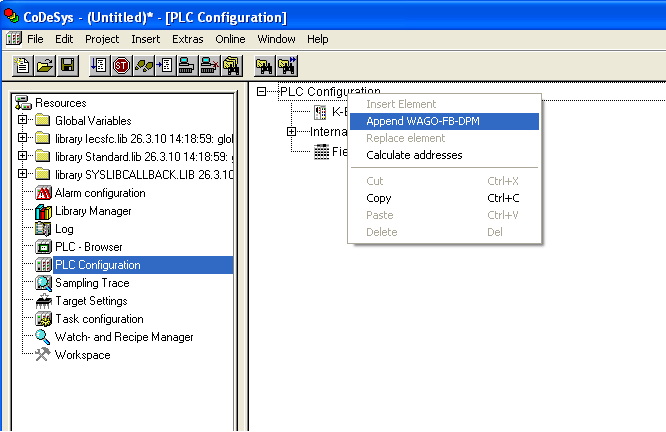
138 138 PROFIBUS Master in CODESYS 2.3 WAGO-I/O-SYSTEM 750 Pos : /Serie 758 (F unk, IPC)/F el dbus kommuni kation/profibu S-Master PROFIBUS Master in CODESYS PROFIBUS I/O-IPC PLC Configuration Calling up addresses or symbolic names of inputs and outputs Addresses or symbolic names of the inputs and outputs have to be called explicitly, because otherwise the process image is not updated. Alternatively, you can also create an array of max. 240 bytes at the memory addresses IB%4800 or QB%4800. This array has to be called in the PLC program. Before an application has access to the connected PROFIBUS network, you must configure it in CODESYS: 1. To integrate the PROFIBUS-I/O-IPC in the PLC configuration, right click on "PLC Configuration" and select "Append WAGO-FB-DPM". Figure 70: Adding the PROFIBUS master

139 WAGO-I/O-SYSTEM 750 PROFIBUS Master in CODESYS To select one (or several) PROFIBUS slaves, right click on the I/O-IPC (WAGO-FB-DPM) and select "Append Subelement". In this example, the (FW:08) was selected as the slave. Note that the firmware version of the slave must match the selected GSD file. Figure 71: Append PROFIBUS Slaves GSD file The GSD files for current WAGO-I/O-SYSTEM components are integrated in the target files for the WAGO I/O-IPC. The accompanying GSD files must be used when connecting non-wago devices. To do this, click on Extras > Add configuration file in the menu bar.
140 140 PROFIBUS Master in CODESYS 2.3 WAGO-I/O-SYSTEM Click on the "Inputs/outputs" tab. The object " No process data channel" is preset. This object may not be deleted. 4. Apply the topology of the I/O modules connected to the slave (from the coupler to the end module) to the control configuration. Click [Select>>] to add the respective I/O modules to the window on the right. 5. Click [Delete] to delete any I/O modules you may have added in error. In this example, a digital input module and a digital output module are connected to the slave. Figure 72: Selecting I/O modules I/O modules that do not provide any process data I/O modules that do not provide any process data (e.g., power supply module, end module) are not taken into consideration in the configuration and therefore also do not appear in the selection list of the GSD file. To optimize the address memory, there are also the digital 2-channel and 4- channel I/O modules in the configuration "*750-xxx". When using these labeled I/O modules, the slave adds the process data of the current I/O module to a byte (8 bit) previously captured with "750-xxx" to fill it out.
141 WAGO-I/O-SYSTEM 750 PROFIBUS Master in CODESYS Click on the "DP parameters" tab to adapt the station address of the slave. Enter the station address that you assigned to the slave in the "Station address" field. If the two station addresses do not agree, no communication connection can be established. Figure 73: DP parameters

142 142 PROFIBUS Master in CODESYS 2.3 WAGO-I/O-SYSTEM PLC Configuration Setting Choices PROFIBUS-Master (I/O-IPC) Via the tab for the I/O-IPC, you define the global settings and monitoring parameters for the PROFIBUS master. Base Parameter Figure 74: "Base Parameters" tab The following table explains the parameters listed in the register: Table 61: Description of the Parameters Base Parameters Module id Node id Parameters that use the runtime system CODESYS. Diagnostic address Comment Here, you can enter a comment

143 WAGO-I/O-SYSTEM 750 PROFIBUS Master in CODESYS DP Parameters Figure 75: "DP Parameters" tab The following table explains the parameters listed in the register: Table 62: Description of the Parameters DP Parameters Info Addresses Station address Highest station address Mode Auto Clear Mode General information on the PROFIBUS master from the GSD file. Address of the I/O-IPC in a PROFIBUS network. Highest station address in the PROFIBUS network. This value is automatically set. When errors are detected on the fieldbus, the I/O-IPC initiates the OPERATE state and switches the outputs to the "FAILSAFE" state. Connected slaves that support the DPV-1 protocol are also put in this state. Automatic startup GSD file Groups When errors are detected on the bus, the master goes into the Clear state and sends data telegrams of zero length to the slaves. A reset is required to exit this state. Here, you obtain information on the GSD file Here, you indicate whether the "Sync Mode" and/or the "Freeze Mode" are to be used for a group.

144 144 PROFIBUS Master in CODESYS 2.3 WAGO-I/O-SYSTEM 750 Bus Parameters Figure 76: "Bus Parameters" tab The following table explains the parameters listed in the register: Table 63: Description of the Parameters Bus Parameters Baud rate (kbits/s) Use defaults Parameters Slot Time (TSL) Min. Station Delay (min TSDR) Max. Station Delay (max. TSDR) Quiet Time (TQUI) Setup Time (TSET) Target Rotation Time (TTR) Gap Update Factor Max. Retry Limit Min. Slave Interval Poll Timeout Data Control Time Here, set the desired baud rate with which the data is to be transmitted to the PROFIBUS. The setting is dependent on your PROFIBUS network (line length, etc.) If the control field is activated, the settings under "Parameters" will be automatically taken over from the GSD file, depending on the baud rate. Please find the explanation of the PROFIBUS parameters in the PROFIBUS standard IEC
145 WAGO-I/O-SYSTEM 750 PROFIBUS Master in CODESYS Modul Parameters Figure 77: "Module Parameters" tab (example) The following table explains the parameters listed in the register: Table 64: Description of the Parameters Module Parameters Bus Mode Asynchronous (default): In this mode, the fieldbus process image is replaced within a fixed time frame independent of the PLC task cycle time selected. Synchronous: Wait for Profibus Slaves Redundancy In this mode, the fieldbus process image is replaced synchronously at the selected PLC task cycle time. The delay time of the I/O-IPC is set here, which specifies how long the start of the PLC application is delayed until configured slaves actively participate in bus communication. If redundancy is activated, the control function can be transferred to the passive master in the case of an error or service. The prerequisite is that your PROFIBUS network is designed for redundancy. OFF: No redundancy operation ON: The redundancy function is enabled. Specification of the active and passive master is automatically set when the I/O-IPC starts. The I/O-IPC that first receives the bus access is configured as the active master. Correct sequence of the redundancy function For the redundancy function to run correctly, activate the "Load boot project automatically" module parameter.

146 146 PROFIBUS Master in CODESYS 2.3 WAGO-I/O-SYSTEM 750 Figure 78: Target system settings

147 WAGO-I/O-SYSTEM 750 PROFIBUS Master in CODESYS PROFIBUS Slaves Using the tab described below, you define the behavior of PROFIBUS slaves. Base Parameters Figure 79: "Base Parameters1" tab The following table explains the parameters listed in the register that are automatically assigned by the target system settings (see Section "Designing a Project and Selecting the Target System"): Table 65: Description of the Parameters Base Parameters Module id Recognition of the slave. Node id Node number of the slave used in the CODESYS runtime environment. Input address Starting address for the input data: The address space always begins at %IB 4800 and is automatically assigned. You can also adjust the starting address manually. Output address Starting address for the output data: The address space always begins at %QB 4800 and is automatically assigned. You can also adjust the starting address manually. Diagnostic address Memory area for internal diagnostic processing. Comment: Here, you can assign the slave a unique name.
148 148 PROFIBUS Master in CODESYS 2.3 WAGO-I/O-SYSTEM 750 DP Parameters Figure 80: "DP Parameters1" tab The following table explains the parameters listed in the register: Table 66: Description of the Parameters DP Parameters Info Information on the manufacturer-specific GSD file. Identification Station address Station name Activation Slave active in current configuration GSD file Standard parameters Ident number TSDR (TBit) Lock/Unlock Watchdog Watchdog Control Time (ms) Enter the station address of the slave here that is set on the DIP switch. Station name from the GSD file. Here, indicate whether the slave is to be parameterized and configured. Detailed information on the GSD file. Information from GSD file. The values are automatically taken over from the GSD file. Function is not currently supported. The Watchdog is activated if the control field is activated. Here, enter the waiting time within which the master must receive a signal before a replacement value is triggered for the I/O modules. Set this replacement value using the interface [Properties] on the "Inputs/Outputs" tab.
149 WAGO-I/O-SYSTEM 750 PROFIBUS Master in CODESYS Input/Output Figure 81: "Input/Output" tab The following table explains the parameters listed in the register: Table 67: Description of the Parameters Input/Output Select >> Using this button, transfer the selected 75x components from the left window to the right window in order to copy the topology of the 750 station there. First add the object "No process data channel" to the right window. You can find the object in the left column under "Empty modules". <<Delete Use this button to remove the added 75x components from the right window. Properties Use this button to adjust certain properties of an I/O module (diagnostics, replacement values,...).

150 150 PROFIBUS Master in CODESYS 2.3 WAGO-I/O-SYSTEM 750 Use Parameters Figure 82: "User Parameters" tab (example) The following table explains the parameters listed in the register: Table 68: Description of the Parameters User Parameters Symbolic names Parameter Restart on K-Bus Failure Device Diagnosis Data Bus Extension Process Data Representation Response to PROFIBUS DP Failure Response to K-Bus Failure Startup via DP/V1 Channel Slot Allocation These are used to alter the representation of values (text coded/binary coded). Here, set the starting behavior of the slave following an error. AUTORESET: Automatic starting of the slave POWER ON RESET: The supply voltage must first be switched off and then on again so that the slave starts. Here, activate or deactivate the slave device diagnostics. Here, indicate whether the internal data bus extension is used or not. EEPROM setting is used: Activation of the internal data bus extension. EEPROM setting is not used: Deactivation of the internal data bus extension. - INTEL (LSB-MSB) - MOTOROLA (MSB-LSB) Here, set the behavior of the slave during a PROFIBUS error. - Substitute values are switched - Terminal bus stops transmission - Output image is cleared - Output image is stored Here, set the behavior of the slave during a breakdown of the internal data bus. - PROFIBUS communication stops - Input image is cleared - Input image is stored Here, activate or deactivate the DP/V1 operating mode. DP/V1-compatible: To be selected when using CODESYS. S7-compatible: To be selected when using the S7 CPU.

151 WAGO-I/O-SYSTEM 750 PROFIBUS Master in CODESYS Groups Figure 83: "Groups" tab The following table explains the parameters listed in the register: Table 69: Description of the Parameters Groups Freeze Mode Here, set whether the input data of the salve is to be practically "frozen" at a certain point in time. This function is currently not available. Sync. Mode Here, set whether the output data of the slave of a certain group is to be synchronously written into the process image during a multicast command. This function is currently not available. Group Membership Here, add the selected slave to a group for the use of multiplepoint transfers using multicast communication. Global Group Properties Here, indicate whether a group of the "Sync. Mode" and/or the "Freeze Mode" is to be used.

152 152 PROFIBUS Master in CODESYS 2.3 WAGO-I/O-SYSTEM Access to the PROFIBUS Process Data The added I/O modules appear in the PLC configuration under the "WAGO " slave along with their fixed addresses. You can declare your own variables for the inputs and outputs of these I/O modules. To declare variables, proceed as follows: 1. Click on the "Resources" tab and open the PLC configuration. 2. Double click beside the arrow on the entry "AT" and enter a variable name. In this example, the names "PB_Input_Bit" and "PB_Output_Bit" were assigned. Figure 84: PLC configuration: I/O modules with their associated addresses

153 WAGO-I/O-SYSTEM 750 PROFIBUS Master in CODESYS The following example is intended to clarify access to the variables. To do this, one input is assigned to one output: 1. Change to the "POUs" tab and double click on the program function block PLC_PRG. Figure 85: PLC_PRG 2. Press the [F2] key to open Input assistant or right click and select "Input Assistant " from the context menu. 3. Select the previously declared variable "PB_Output_Bit" under "Global Variables" and click on [OK] to add it. PB_Input_Bit (BOOL) PB_Output_Bit (BOOL) Figure 86: Input assistant for selecting variables

154 Pos : /D okumentati on allgemei n/gli ederungsel emente/---seitenwec hs @ PROFIBUS Master in CODESYS 2.3 WAGO-I/O-SYSTEM Enter the assignment := behind the variable name. 5. Repeat step 3 for the variable "PB_Input_Bit". PB_Output_Bit:=PB_Input_Bit; Figure 87: Example of an assignment of the previously created variables 6. To compile, click on Project in the menu bar and select Rebuild all Loading the Program in the I/O-IPC Transfer the program to the I/O-IPC by clicking Online in the menu bar and selecting Log in. The PROFIBUS starts automatically during the downloading of the PLC configuration into the I/O-IPC. For more information, see section Loading and Executing the PLC Program in Control (ETHERNET).

155 WAGO-I/O-SYSTEM 750 PROFIBUS Master in CODESYS Pos : /Serie 758 (F unk, IPC)/F el dbus kommuni kation/c od esys-diagnos e x Einl eitung allgemei n Diagnostics of the fieldbus coupler This section requires a good knowledge of the CODESYS programming tool. It only describes the procedure to create diagnostics using the fieldbus master as an example. Configured slaves (e.g., a fieldbus coupler or a fieldbus controller) are a prerequisite for diagnostics in fieldbus networks. Pos : /Serie 758 (F unk, IPC)/F el dbus kommuni kation/c od esys-diagnos e x DMP Kanaldiagnose Releasing the Channel Diagnostics You can release the diagnostics of the I/O modules to the slave by channel. Proceed in the following manner: 1. Click on the "Resources" tab and then double click on "PLC Configuration." 2. Click on the name of the slave. Figure 88: Release of channel diagnostics 1

156 Pos : /D okumentati on allgemei n/gli ederungsel emente/---seitenwec hs @ PROFIBUS Master in CODESYS 2.3 WAGO-I/O-SYSTEM Click on the "Input/Output" tab. There you will find the I/O modules you selected in section "Creating the PLC Configuration". 4. Select the slave I/O modules, one after the other, that provide a diagnostic function (e.g ) and then click on the [Properties] button. The "Module Properties" dialog will open. 5. "Enabled" must be indicated in the "Value" column. If this is not the case, double click on "Disabled" to release the respective diagnostic channel. Figure 89: Release of channel diagnostics 2
157 WAGO-I/O-SYSTEM 750 PROFIBUS Master in CODESYS Pos : /Serie 758 (F unk, IPC)/F el dbus kommuni kation/c od esys-diagnos e x allgemein DiagGetBusState() and DiagGetState() To evaluate the diagnostics, you will need the following function blocks from the library BusDiag.lib: DiagGetBusState() for the bus diagnostics This function block provides you with general information on each connected slave (e.g. number of slaves). DiagGetState() for the participant diagnostics This function block provides you with detailed information on each slave (e.g. information on diagnostics).
158 158 PROFIBUS Master in CODESYS 2.3 WAGO-I/O-SYSTEM Creation of Diagnostic Functions in CODESYS 2.3 To conduct bus diagnostics and participant diagnostics of the slaves, the library BusDiag.lib must be contained in CODESYS. This library contains the necessary function blocks DiagGetBusState() for bus diagnostics and DiagGetState() for participant diagnostics. Integrate the BusDiag.lib library into CODESYS as described below: 1. Click on the "Resources" tab. Figure 90: "Resources" tab 2. Double click in the left field on "Library Manager."
159 WAGO-I/O-SYSTEM 750 PROFIBUS Master in CODESYS Click on Insert > Additional Library in the menu bar. The "Open" dialog will open. Select the BusDiag.lib and click on [Open] to add it to this project. Figure 91: "Open" dialog 4. In the menu bar, click on the "Box" symbol. Figure 92: Box symbol in the menu list, FBD programming language 5. Press the [F2] key on your keyboard. The "Input Assistant" dialog will open. Click on the "Standard function block" option and select the function block DiagGetBusState(). 6. Create an instance of the function block DiagGetBusState(). Here, enter a name above the function block. In this example, it is "GeneralBusInformation". 4 Figure 93: Instance of the function block DiagGetBusState() in FBD 7. Call up the function block DiagGetBusState() for the slave diagnostics from the library BusDiag.lib.
160 160 PROFIBUS Master in CODESYS 2.3 WAGO-I/O-SYSTEM Create an instance of the DiagGetState() function block. In this example it is "DiagnosticsNode." Figure 94: Function block DiagGetState() in FBD In this example, both function blocks are called up during the program sequence. In order to not prolong the cycle times during the program sequence, do not set the input "ENABLE" of DiagGetState() to "TRUE" until you have conducted a diagnostic Calling the Diagnostic Block Call the function block as shown in the following image. Figure 95: Offline view of the variable window in CODESYS
161 WAGO-I/O-SYSTEM 750 PROFIBUS Master in CODESYS Performing Bus Diagnostics via DiagGetBusState() To perform bus diagnostics, proceed as follows: 1. Log in to CODESYS. To do this, click in the menu bar on Online > Login. Now the variable window displays the information on the variables (Online View). 2. Start the PLC program by clicking in the menu bar on Online > Run. Starting causes the call up of the function block DiagGetBusState() and the diagnostic information is output to the array EXTENDEDINFO. In the online view of the variable window, the array EXTENDEDINFO provides information on the status of the slaves. One entry is reserved for each slave in the array. The slave address is assigned to the array index. In this example, it is the slaves with the station addresses 2 and 5 that store the diagnostic information. Display the diagnostic information The diagnostic information is only displayed for the duration of one program cycle. If the diagnostic information is to be available for longer, a suitable program must be written. Array 0: No slaves or non-configured slaves 0: Configured slaves Figure 96: Online view of the variable window (upper window) in FBD
162 162 PROFIBUS Master in CODESYS 2.3 WAGO-I/O-SYSTEM The binary code facilitates the evaluation of the individual diagnostic bits. You can have the diagnostic information of the array EXTENDEDINFO displayed as binary code. To do this, right click in the variable window and select binary. Station address 4 of the I/O-IPC Three least significant bits Station address 2 of the slave Station address 5 of the slave Figure 97: Example of diagnostics 4. Compare the three lowest value bits of the diagnostic information of the slaves with station addresses 2 and 5 with the bits from the following table: Table 70: Bits of the diagnostics information 2. bit 1. bit 0. bit Diagnostic information is available on the slave. No diagnostic information is available on the slave. Slave is active. Slave is inactive. Slave projected. Slave not projected. The slave with station address 2 delivers the value 011. This means that the slave is projected and active. The slave with station address 5 delivers the value 111. This means that the slave is projected and active and contains diagnostic information. To evaluate this diagnostic information, the participant diagnostics must be carried out. See Section "Performing Device Diagnostics via DiagGetState()".
163 WAGO-I/O-SYSTEM 750 PROFIBUS Master in CODESYS Diagnostic information If READY = TRUE, then STATE indicates the current bus status by one of the following values: BUSOK: All configured slaves are in data exchange with the DP master. BUSFAULT: One or more configured slaves are not in data exchange with the DP master BUSNOTCOMMUNICATION: All configured slaves are not in data exchange with the DP master Performing Device Diagnostics via DiagGetState() If the bus diagnostics have revealed that an I/O module contains diagnostic information, then conduct participant diagnostics on the corresponding slave. To do this, proceed as follows: 1. Call up the function block DiagGetState() by setting the input ENABLE to "True." 2. Specify the slave that provides the diagnostic information at the input variable BUSMEMBERID. In this example it is the slave with the fieldbus address 5. 5 Figure 98: Diagnostics call DiagGetState() DRIVERNAME: The input parameter DRIVERNAME is specified through the instance data of the function block DiagGetBusState. DEVICENUMBER: The DEVICENUMBER for the I/O-IPC must always be 4. Pos : /Serie 758 (F unk, IPC)/F el dbus kommuni kation/c od esys-diagnos e x Auswertung Analyzing PROFIBUS Diagnostics of Individual I/O Modules The array elements [0] to [22] listed in the illustration below are reserved for the PROFIBUS standard diagnostics. From array element [23] onwards, they include diagnostic information of the WAGO I/O modules.
164 164 PROFIBUS Master in CODESYS 2.3 WAGO-I/O-SYSTEM 750 The amount of diagnostic information per channel of an I/O module (not PROFIsafe) is 3 bytes. Byte 1 Byte 2... Area for PROFIBUS specification diagnostics Area for WAGO I/O module diagnostics Figure 99: Online view of the array EXTENDEDINFO in the binary representation The diagnostic information of the EXTENDEDINFO array is described on the following page.
165 WAGO-I/O-SYSTEM 750 PROFIBUS Master in CODESYS Description of the Diagnostic Information of the Function Block DiagGetState.EXTENDEDINFO for PROFIBUS This section describes the array EXTENDEDINFO[0-22] of the PROFIBUS specification diagnostics. EXTENDEDINFO[0]: Slave address EXTENDEDINFO[1]: 0 (free) EXTENDEDINFO[2]: 0 (free) EXTENDEDINFO[3]: 0 (free) EXTENDEDINFO[4]: 0 (free) EXTENDEDINFO[5]: x, length of the diagnostics EXTENDEDINFO[6]: 10 (free) EXTENDEDINFO[7]: 1 (free) EXTENDEDINFO[8]: Station status 1 EXTENDEDINFO[9]: Station status 2 EXTENDEDINFO[10]: Station status 3 EXTENDEDINFO[11]: Master address EXTENDEDINFO[12-13]: The slave station uses the 2 bytes for its ident number. EXTENDEDINFO[14 (8+x-1)]: Ext_Diag_Data (x > 6, for x <= 6 no extended information available from the slave) Diagnostic information In this module, the first 100 bytes of diagnostic information can be read. Station status 1: Bit 1: Bit 2: Bit 3: Bit 4: Bit 5: Bit 6: Bit 7: Bit 8: Slave does not respond. Slave is not ready. Slave is incorrectly parameterized. Used for extended diagnostics. Slave detected unknown command. Response of the slave is not plausible. Last parameter telegram incorrect. Slave is parameterized from a different master.
166 166 PROFIBUS Master in CODESYS 2.3 WAGO-I/O-SYSTEM 750 Station status 2: Bit 1: Slave must be parameterized. Bit 2: Slave provides diagnostic information until this bit is zero again. Bit 3: 1 Bit 4: Watchdog enabled. Bit 5: Freeze command enabled. Bit 6: Sync command enabled. Bit 7: Reserved Bit 8: Slave not designed. Station status 3: Bit 1: Bit 2: Bit 3: Bit 4: Bit 5: Bit 6: Bit 7: Bit 8: Reserved Reserved Reserved Reserved Reserved Reserved Reserved Slave has more diagnostic data than it can send. Master Address: This byte contains the address of the master that parameterized the slave. If a slave was not parameterized, then the value is 255. Ext_Diag_Data: This is an extended diagnostic buffer. The values are defined in the manual of the slave station or can be read in the PROFIBUS specification.
167 WAGO-I/O-SYSTEM 750 PROFIBUS Master in CODESYS Description of the Diagnostic Information for WAGO I/O Modules The diagnostic information of the WAGO I/O modules is stored beginning with the array element EXTENDEDINFO[23]. Using the Input Module with two channels, you can see here, for example, the decoding of the diagnostic information. Diagnostic information of the I/O Module, 7 bytes Diagnostics of the 1st channel, 3 bytes Diagostics of the 2nd channel, 3 bytes Figure 100: Online view of the arrays EXTENDEDINFO in binary representation 1
168 Pos : /D okumentati on allgemei n/gli ederungsel emente/---seitenwec hs @ PROFIBUS Master in CODESYS 2.3 WAGO-I/O-SYSTEM 750 Figure 101: Online view of the arrays EXTENDEDINFO in binary representation 2 Channel 1 of the Input Module Diagnostics of the 1st channel, 3 bytes Diagostics of the 2nd channel, 3 bytes Tabelle 71: Kanal 1 der Eingangsklemme Array Element Content Meaning Slot for the input module. In this case, the third (slot 4). Note: Fieldbus coupler and controller, including the power supply module, reserve the 1st slot. Therefore the first I/O module is inserted in the second slot. Array Element Content Meaning The first two bits indicate the type of channel: 01 Input channel 10 Output channel 11 Input and output channel The other bits indicate the channel number The first three bits indicate the type of channel: 000 No assignment bit bit byte word words The other bits indicate I/O module errors Kanal 2 Channel 2 of the Input Module Tabelle 72: Kanal 2 der Eingangsklemme Array Element Content Meaning See channel 1 Array Element 129 The number of projected slaves is specified in the array element 129.
169 WAGO-I/O-SYSTEM 750 Incorporation of C-Functions as CODESYS Library 169 Pos : /Serie 758 (F unk, IPC)/F el dbus kommuni kation/c-funktionen als CoDeSys-Bi Incorporation of C-Functions as CODESYS Library For the use of any C- or also Linux functions in CODESYS, the import interface described in the following is available. This can be used to load and use Linux libraries dynamically into the CODESYS runtime system Example for Linking a Dynamic Library The following section will explain to you by means of an example the procedure for linking a dynamic library using a C-function in CODESYS Developing and Compiling a Linux Shared Library Before you can use C functions within a CODESYS program, you must develop and compile a Linux shared library. Proceed in the following manner: 1. Create a file with the necessary functions. In this example, the file "libmytest.c" was created for this purpose with a "MyTestFunction" function and "unsigned short" data types. #include <stdio.h> unsigned short MyTestFunction(unsigned short value) { return value+=2; } Figure 102: "libmytest.c" file 2. Compile and link the file by entering the following command in the Linux console: gcc libmytest.c -Wall -shared -o libmytest.so In Linux, the parameter "-shared" must be used when calling up the "gcc" compiler. With an error-free compilation of the file, a dynamic library "libmytest.so" is generated with the parameter "-shared" that contains the "MyTestFunction" C- function. File name of the Linux libraries The file name of the Linux libraries must begin with lib.
170 170 Incorporation of C-Functions as CODESYS Library WAGO-I/O-SYSTEM Creating a Description File for the CODESYS Runtime System Create a description file with the fixed name "extlibs.ini" in order to make the C- functions known to the CODESYS runtime system. 1. So that the runtime system can recognize the Linux library and correctly link to it during startup, you must create an INI file that contains all library names to be loaded dynamically and their function names. The INI file for the example appears as follows: [EXT_LIB_LIST] 1=mytest [mytest] 1=MyTestFunction Figure 103: "extlibs.ini" file 2. If you would like to add additional libraries under the entry EXT_LIB_LIST, add a continuous index under the corresponding library tag, followed by library names (e.g. "2 = CSV File"). It is not necessary to provide the transfer and return parameters of the functions at this point. The correspondingly expanded file would appear as follows: [EXT_LIB_LIST] 1=mytest 2=CSV-File [mytest] 1=MyTestFunction [CSV-File] 1=ReadCSVString 2=WriteCSVString Figure 104: "extlibs.ini" file
171 WAGO-I/O-SYSTEM 750 Incorporation of C-Functions as CODESYS Library Copying a Library and INI File and Restarting the CODESYS Runtime System To link the library and the INI file to the CODESYS runtime system, proceed as follows: 1. Copy both of the newly created files (libmytest.so and extlibs.ini) onto the I/O-IPC. Use a USB memory, a CF card, FTP or NFS to do this. 2. Copy the file extlibs.ini into the directory /home/codesys. 3. Copy the library into the directory /lib or /usr/lib. There is also the possibility of copying the new library to any place in the I/O-IPC. To do this, adjust the environment variable LD_LIBRARY_PATH in the Linux console you are using before each restart of CODESYS, e.g.: env LD_LIBRARY_PATH=/home/codesys./plclinux_rt 4. Before the CODESYS runtime system can be restarted, you must enter the following command in the Linux console: ps A 5. Determine the PID of the program "plclinux_rt" from the displayed list. 6. Stop the CODESYS runtime system by entering the command kill <PID> with the previously determined PID, e.g., kill To restart the runtime system, enter the following command in the Linux console: plclinux_rt &. If there is a discrepancy between the INI file and the library, an error message will be displayed on the Linux console when the CODESYS runtime system is restarted. CODESYS runtime system The CODESYS runtime system must be restarted by a user with superuser rights. Alter the library Do not alter the library while it is being used by the CODESYS runtime system since, otherwise, access violations may occur.
172 172 Incorporation of C-Functions as CODESYS Library WAGO-I/O-SYSTEM Creating an IEC Library In order to be able to use the incorporated library within CODESYS library functions, the function prototypes must be stored in an external CODESYS library. To do this, proceed as follows: 1. Open a new CODESYS project by selecting File > New in the menu bar. 2. In the window "Target Settings", select "None" and click on the [OK] button. Figure 105: "Target Settings" window 3. Make the settings listed in the "New POU" window (see figure below). The name of the POU must be the same as that of the previously created C file. In doing so, pay attention to upper and lower case letters. Figure 106: "New POU" window
173 WAGO-I/O-SYSTEM 750 Incorporation of C-Functions as CODESYS Library Then define the input parameter with value : WORD; and add a semicolon in the program part of the function (lower window). Otherwise, a CODESYS error will occur. Figure 107: "MyTestFunction" window 5. Select File > Save as in the menu bar. Enter "mytest.lib" as the file name, select the file type "External library" and click on [Save]. Figure 108: "Save File as" window If the library contains several functions, allow these functions to be linked as well. In doing so, functions with several transfer parameters are also possible.
174 174 Incorporation of C-Functions as CODESYS Library WAGO-I/O-SYSTEM Linking a Library to the CODESYS Project To link the previously created library mytest.lib to CODESYS, proceed as follows: 1. Click on File in the menu bar and select New. 2. Open the selection field for "Target Settings" and select the I/O-IPC you are using. In this example, it is the Figure 109: "Target Settings" window (1) 3. Click on the [OK] button. The "Target Settings" window opens. 4. Click on the [OK] button in the "Target Settings" window. Figure 110: "Target Settings" window (2) 5. Click on [OK] in the "New POU" window.
175 WAGO-I/O-SYSTEM 750 Incorporation of C-Functions as CODESYS Library 175 Figure 111: "New POU" window 6. Click on the "Resources" tab. Figure 112: "Resources" tab 7. Double click in the left field on "Library Manager."
176 176 Incorporation of C-Functions as CODESYS Library WAGO-I/O-SYSTEM Click on Insert > Additional library in the menu bar and select mytest.lib. 9. Click on the "POUs" tab. 10. Then call up the function in CODESYS as follows: Figure 113: "PLC_PRG(PRG)" window
177 WAGO-I/O-SYSTEM 750 Incorporation of C-Functions as CODESYS Library Special Features Data Types All CODESYS data types can be used as transfer parameters. Here, the CODESYS data types are interpreted in C as follows: Table 73: Data Types CODESYS BOOL BYTE WORD DWORD LWORD SINT USINT INT UINT DINT UDINT LINT ULINT REAL LREAL STRING C/C++ char char unsigned short unsigned int unsigned long signed char unsigned char short unsigned short int unsigned int long int unsigned long int float double char[]
178 178 Incorporation of C-Functions as CODESYS Library WAGO-I/O-SYSTEM Structures Structures can also be transferred. In doing so, it is important that the data types be maintained exactly. The structures must also be defined with the "packed" attribute. Therefore, the following CODESYS structure TYPE t_teststruct : STRUCT a : BYTE; b : WORD; c : INT; d : DWORD; e : REAL; f : POINTER TO STRING; END_STRUCT END_TYPE Figure 114: "Example.lib" file would appear in C as follows: struct t_teststruct{ char a; unsigned short b; signed short c; unsigned int d; float e; char *f; } attribute ((packed)); // Codesys-Style: // BYTE // WORD // INT // DWORD // REAL // POINTER TO STRING Figure 115: "Example.h" file Pay attention to the data types and the "packed" attribute in the "Beispiel.h" file.
179 Pos : 47 /D okumentation allgemei n/glieder ungs elemente/---seitenwechs @ 1 WAGO-I/O-SYSTEM 750 Incorporation of C-Functions as CODESYS Library 179 Furthermore, an init-function must be created in the library for each structure created in CODESYS. For the file "Beispiel.h", the init-function might look like the following: char t_teststructinit(struct t_teststruct *pteststruct, char bretain) { pteststruct->a = 0; pteststruct->b = 0; pteststruct->c = 0; pteststruct->d = 0; pteststruct->e = 0; pteststruct->f = NULL; return 1; } In doing so, the name of the function must be made up of the name of the structure and the string "init" (e.g., t_teststructinit). The function is called up one time when CODESYS is started. It has a pointer to the structure itself as the transfer parameter and a BOOL value, which is not relevant in this case Parameter Transfer by Reference or by Value It is possible to transfer the parameters by means of reference or by value. In doing so, it is important that the correct sequence and the data types of the parameters are used for transferring to the function. For this purpose, the data types from the table in section "Data types" must be adhered to. If falsely declared values are accessed within the C program, memory access errors may occur. The CODESYS runtime system will then delete (suspend) the access violating task immediately Additional Applications It is possible to start any Linux program or script using encapsulation in a C- function. C-functions can also, for example, contain an init-function, which generates its own Linux threads and therefore contains independent programs. These initfunctions can be called up through CODESYS system events such as PLC-Start or PLC-Stop. In this way, complete applications can also be encapsulated in their own thread. In init-functions, pointers to common data structures, with which a convenient data interface between CODESYS and C-applications is made possible, can also be transferred.
180 180 Operating System WAGO-I/O-SYSTEM 750 Pos: 48.1 /Serie 758 (Funk, IPC)/Betriebssystem/Betriebssystem Linux x IPC - Einl eitung, Kernel, Operating System 14.1 Linux Kernel Used For the I/O-IPC, an RT-Preempt real-time kernel is used. This is a kernel that has been provided with the corresponding real-time patch. This, as well as the kernel, is available under GPL on the Internet: This real-time extension provides the following advantages: Completely priority-controlled processes in the real-time area. Possibility for using processes in the user area with the CVS-Scheduler ("Completely Fair Scheduling"). Prioritization of interrupt processing. The system timer is based on dynamic tick. This way, reaction times in the I/O-IPC are no longer bound to a fixed time pattern. As a result, cyclic processes can be started in µs.
181 Pos: 48.2 /Dokumentation allgemein/gliederungselemente/---seitenwechs @ 1 WAGO-I/O-SYSTEM 750 Operating System Grand Unified Bootloader (GRUB) GRUB is used as the bootloader for the I/O-IPC. To change the start settings of the Linux kernel, press one of the following keys within the waiting time you have set during the start phase of GRUB: A key on the keyboard connected to the I/O-IPC In the case of an opened terminal program, a key on the PC keyboard Figure 116: Serial console "hyperterminal" In the GRUB, you have a choice of two start settings for the Linux file system: WAGO Starting of the Linux file system from the internal flash memory. WAGO_NFS Starting of the Linux file system from a remote NFS partition, to be defined. To alter the bootstring (transfer parameters in the kernel), press the E key on the keyboard. This will enable you to determine a fixed IP address under IP= or to set the resolution of the monitor connected to the I/O-IPC under VGA=. The change to the startup behavior is not saved permanently. If this behavior is to be permanently saved, the file /boot/grub/menu.lst in the Linux file system must be altered.
182 Pos: 48.4 /Dokumentation allgemein/gliederungselemente/---seitenwechs @ Operating System WAGO-I/O-SYSTEM 750 Pos: 48.3 /Serie 758 (Funk, IPC)/Betriebssystem/Betriebssystem Linux x IPC - Startabl auf von Li Linux Startup Process After switching on the I/O-IPC, the BIOS starts first. If you would like to implement the settings known to the PC there, press the keys [Entf] or [Del] simultaneously on the keyboard connected to the I/O-IPC. No other changes to the I/O-IPC are necessary at this point. Following BIOS, the bootloader GRUB starts, which starts the kernel. During the startup phase of the kernel, all the hardware is configured. This can be done through a connected monitor or with a PC connected to the serial interface X6 through a suitable terminal program. After the hardware is configured, the kernel starts the first user space process (init). As with large distribution, init starts the start scripts in /etc/rc.d/... in alphabetic and numeric sequence. If additional user programs are to be started, these can also be started in this directory using a start script, and can also be automatically stopped when powering down the I/O-IPC. CODESYS is started with the last rc.d script. The target visualization of CODESYS is displayed on the connected monitor. Using [Alt] + [F2] on the connected keyboard, change over to the Linux console and, using [Alt] + [F1], access the target visualization again. Behavior during the boot process When booting, the file system is checked. The check can delay the system startup time by several seconds.
183 WAGO-I/O-SYSTEM 750 Operating System 183 Pos : 48.5 /Serie 758 (Funk, IPC)/Betriebssystem/Betriebssystem Linux x IPC - Linux- Kons Linux Console The Linux consoles are available via keyboard as follows: 1. Linux Console 2. Linux Console 3. Linux Console Target visualization Linux IPC configuration tool [Alt] + [F1] [Alt] + [F2] [Alt] + [F3] If you want to deactivate individual consoles, you must modify the /etc/inittab file on the device. You can do this using the integrated vi editor or via an FTP upload/download. The /etc/inittab file contains the following lines: tty1:2345:respawn:/sbin/getty tty1 tty2:23:respawn:/sbin/getty tty2 tty3:23:respawn:/etc/init.d/ipcconfig start The three command lines start the three consoles described in the table. If you comment individual lines using the "#" character, the corresponding commented Linux console is not longer automatically executed during system start Access to the Linux Console Change passwords Standard passwords are documented in these instructions and therefore do not offer adequate protection. Change these passwords to meet your particular needs. You can access the Linux console through different paths. For one, through Telnet; for another through the RS-232 interface. The Linux console can also be accessed through a monitor on the DVI-I interface in combination with a USB keyboard. In the condition as delivered to the customer, the I/O-IPC is equipped with the following users: Table 74: Users for the Linux Console Name root admin user guest Password wago wago user guest
184 Pos: 48.6 /Dokumentation allgemein/gliederungselemente/---seitenwechs 3\mod_ _0.doc Operating System WAGO-I/O-SYSTEM 750 Change Password: passwd [user] You can also create and delete your own users: sudo adduser [user] sudo deluser [user] sudo Be careful when deleting users! The deluser command can be used to delete superusers. This can result in you no longer having access to the device. If you want to restore access, the device must be reset using a firmware download.
185 Pos : /D okumentati on allgemei n/gli ederungsel emente/---seitenwec hs @ 1 WAGO-I/O-SYSTEM 750 Operating System 185 Pos: 48.7 /Serie 758 (Funk, IPC)/Betriebssystem/Betriebssystem Linux x IPC - Z ugriff über T Access over Telnet In order to access the I/O-IPC over Telnet, use a terminal program such as minicom (under Linux) or hyper terminal (under Windows). For use of the hyper terminal, the following settings in the login interface have to be adapted: Host address: IP address of the ETHERNET interface of the I/O-IPC used Connect via: TCP/IP On top of that, you can also access the I/O-IPC through the textual console of Linux or MS-DOS using Telnet. This procedure is described below: Pos: 48.8 /Serie 758 (Funk, IPC)/Betriebssystem/Betriebssystem Linux x IPC - Z ugriff über T elnet, Schritt @ 1 1. Connect the X9 ETHERNET interface of the I/O-IPC to your PC through an ETHERNET patch cable. Pos: 48.9 /Serie 758 (Funk, IPC)/Betriebssystem/Betriebssystem Linux x IPC - Z ugriff über T elnet, Schritte @ 1 2. Open a console of your PC. 3. Enter the command telnet <IP-ADRESSE des I/O-IPC>. Figure 117: DOS console 1 4. Enter your user name (See chapter "Access to the Linux console"). Figure 118: DOS console 2 5. Enter the password for your user. The Linux console of the I/O-IPC opens in the HOME directory ( ~ ) of the selected user.
186 Pos : /Serie 758 (F unk, IPC)/Betriebss ys tem/betriebss ystem Linux x IPC mit F eldbus - RS-232-Sc hni ttstelle X6 - @ 1 Pos : /D okumentati on allgemei n/gli ederungsel emente/---seitenwec hs @ Operating System WAGO-I/O-SYSTEM 750 Pos : /Serie 758 (F unk, IPC)/Betriebss ys tem/betriebss ystem Linux x IPC - Zugriff über RS- 232 und Ter mi nal, Ei nleitung + Schritt Access via RS-232 Interface and Terminal Program In order to access the Linux console via RS-232 interface using a terminal program, proceed as follows: 1. In the WBM or IPC configuration tool, assign the Linux console to the RS-232 interface. For this, see section Administration. Pos : /Serie 758 (F unk, IPC)/Betriebss ys tem/betriebss ystem Linux x IPC mit F eldbus - Z ugriff über R S-232 und T ermi nal, Schritt @ 1 2. Connect the serial interface of the PC with RS-232 interface X6 (12) of the I/O-IPC using a null modem cable. 12 Figure 119: RS-232 interface X6 Pos : /Serie 758 (F unk, IPC)/Betriebss ys tem/betriebss ystem Linux x IPC - Zugriff über RS- 232 und Ter mi nal, Sc hritte @ 1 3. Open a terminal program (Linux: e.g. minicom, Windows: e.g. hyper terminal) on your PC. 4. Enter the communication parameters of the I/O-IPC serial interface set beforehand into the terminal program: Speed: bit/sec Data width: 8 Bit Parity: none Stop bits: 1 Bit Flow control: none 5. The Linux console start screen appears. 6. Enter your user name (See section "Access to the Linux console") 7. Enter the password for your user name. The Linux console of the I/O-IPC opens in the HOME directory ( ~ ) of the selected user.
187 Pos : /Serie 758 (F unk, IPC)/Betriebss ys tem/betriebss ystem Linux x IPC mit F eldbus - D VI- und USB-Sc hni ttstellen X7/X10/X11 - @ 1 Pos : /D okumentati on allgemei n/gli ederungsel emente/---seitenwec hs @ 1 WAGO-I/O-SYSTEM 750 Operating System 187 Pos : /Serie 758 (F unk, IPC)/Betriebss ys tem/betriebss ystem Linux x IPC - Zugriff über T astatur und M onitor (DVI/U Access over keyboard and monitor (DVI-I and USB Interface) In order to access the Linux console over a monitor/touch screen connected to the DVI-I interface and a USB keyboard, proceed as follows: Pos : /Serie 758 (F unk, IPC)/Betriebss ys tem/betriebss ystem Linux x IPC mit F eldbus - Z ugriff über T astatur und M onitor, Sc hritt @ 1 1. Connect a monitor to the DVI-I interface X7 (9) of the I/O-IPC. Pos : /Serie 758 (F unk, IPC)/Betriebss ys tem/betriebss ystem Linux x IPC - Z ugriff über T astatur und M onitor, Sc hritt @ 1 2. Connect a USB keyboard to one of the two USB interfaces X10 (1) or X11 (2) Figure 120: DVI-I interface X7 and USB interfaces X10/11 Pos : /Serie 758 (F unk, IPC)/Betriebss ys tem/betriebss ystem Linux x IPC - Z ugriff über T astatur und M onitor, Sc hritte @ 1 3. After starting Linux, the starting image of the target visualization appears on the monitor. Monitor/Touch screen resolution If only a dark screen is displayed, then the resolution of the monitor/touch screen may not be right. Change the resolution with WBM (see section " HMI Settings Page"). 4. Using [Alt] + [F2] on the connected keyboard, change over to the Linux console. 5. Enter your user name (See section "Access to the Linux console"). 6. Enter the password for your user name. The Linux console of the I/O-IPC opens in the HOME directory ( ~ ) of the selected user. You can display the Linux start messages again through cat /proc/kmsg (or dmesg).
188 188 Operating System WAGO-I/O-SYSTEM 750 Pos : /Serie 758 (F unk, IPC)/Betriebss ys tem/betriebss ystem Linux x IPC - Installierte Anwendungen, Aufbau des Dateis Installed Applications The I/O-IPC is delivered with a basic image that already contains the most important applications in the file system. The following applications, among others, are included: Bootloader: GRUB File system support for Ext2, Fat Console initialization: getty FTP client/server Telnet client/server SSH client/server Webserver (lighttpd) PHP5 BootP/DHCP clients NFS client Event-Manager (udevd) for automatically integrating USB memories NTP client
189 Pos : /Serie 758 (F unk, IPC)/Betriebss ys tem/betriebss ystem Linux x IPC - Aufbau des D ateis ys tems, Ergänz ung Flas h 400 @ 1 WAGO-I/O-SYSTEM 750 Operating System Construction of the File System The file system of the internal flash memory is partitioned as follows at delivery: Table 75: Construction of the file system Name Master boot record and bootloader (grub) Linux system partition 1 Linux system partition 2 Home partition Remaining flash memory, not partitioned Size about 1.5 MB about 40 MB about 40 MB about 40 MB about 400 MB Pos : /Serie 758 (F unk, IPC)/Betriebss ys tem/betriebss ystem Linux x IPC - Aufbau des D ateis ys tems, Verz eichniss 1 The file system also contains, as is customary for modern Linux distributions, the following directories with the established programs/files: bin Programs that can be executed boot Kernel image and configuration of the bootloader. dev Device driver files for the entire periphery of the I/O-IPC etc Global configuration files of the I/O-IPC configtools WAGO-specific, executable configuration tools network Configuration files for the ETHERNET interfaces. init.d Start scripts rc.d Links to start scripts. All scripts named Sxx_ are executed during booting of the I/O-IPC. home guest Home directory of a user who is logged on as a guest.
190 190 Operating System WAGO-I/O-SYSTEM 750 user Home directory of a user who is logged on as a user. codesys CODESYS directory: This contains, if applicable, the boot application and the necessary files for target or web visualization. lib Directory with all dynamic libraries (shared objects). media mnt Directory used as the mountpoint for the devices integrated through automount (udevd) (e.g., USB memories). Devices formatted using the FAT file system are integrated in /media in a subdirectory using their partition names (For further details, see chapter "SysLibFile, SysLibDir, SysLibFileAsync"). mountpoint, which can be used by the user. This directory has no function in the condition as supplied to the customer. proc Virtual directory that provides information from the kernel. root Home directory for the users root and admin sbin Executable programs that can be used by a user logged on as superuser. sys Virtual directory used as the interface to different kernel modules. tmp RAM disk that can be used for temporary files. Files stored in this directory are no longer available after restarting. The RAM disk does not reserve parts of the memory until files are written to it. usr bin Programs that can be executed sbin lib Executable programs that can be used by a user logged on as superuser. Directory with all dynamic libraries (shared objects)
191 WAGO-I/O-SYSTEM 750 Operating System 191 var www Directory that the web server has accessed. Here lie the HTML/SSI pages of the web server and the CGI parser that can be executed over the web.
192 192 Operating System WAGO-I/O-SYSTEM Installed Shell (BASH) A BASH (Bourne Again Shell) containing built in commands such as cd is installed for the I/O-IPC. In addition, the BASH makes available the environment variables and enables navigation of the file system and the starting of programs Busybox and Other Help Programs Busybox combines many programs from the standard Linux distributions into one program in order to minimize memory requirements in the file system. The program is called up through symbolic links only. Busybox evaluates names being called up and can, in this way, implement different functions in one program together. The following programs, among others, are made available by Busybox: mount Integrating drives By choosing the name (PC: format > volume label) of integrated memory media (e.g. CF card, USB memory), these are indicated in the file system (/media). reboot Restart the I/O-IPC ifconfig Indicates current ETHERNET interface settings. Use WBM or IPC- Configuration-Tool to change these settings. rmdir Delete directory Compiling Busybox When compiling from Busybox, you can determine which programs are to be integrated. In doing so, you adapt the program size according to the required function. In the I/O-IPC, all the functions necessary for a minimal system are implemented.
193 WAGO-I/O-SYSTEM 750 Operating System 193 Additional programs are also installed on the I/O-IPC, such as, for example, cp or ftp. Moreover, the programs listed in section Installed applications are also included, such as the following help programs (examples): htop, top Program for displaying priorities and used resources individual processes. sed Help program for the simple parsing of text/configuration files. gdbserver Remote debugger cyclictest Measurement program for recording the real-time capability of the system. zip, unzip For packing and unpacking zip archives.
194 194 Operating System WAGO-I/O-SYSTEM Drivers for Special Hardware Parts User space I/O drivers (UIO) can be implemented through the real-time capable kernel. This enables a memory mapping functionality to be accessed directly from the user space. In this manner, you can access the process image of the connected I/O modules as well as other hardware areas Incorporation of a USB Printer You can connect a printer for ASCII texts to the USB interface. To print the words Test0, Test1 and Test2, for example, enter the following commands: echo e \n\ntest0\n >/dev/lp0 echo e \n\ntest1\n >/dev/lp0 echo e \n\ntest2\f >/dev/lp0 The test words appear printed on a page as follows: Test0 Test1 Test2
195 WAGO-I/O-SYSTEM 750 Operating System Installed Services of the ETHERNET Interface All sorts of client/server services are activated for the ETHERNET interface in the I/O-IPC as delivered to the customer. A selection of the installed services is listed below: Telnet server The Telnet server enables the connection of several participants of a network to the Linux console of the I/O-IPC. Telnet client This is used to access the console of a remote Telnet server through a network. FTP server The FTP server enables several participants of a network to access the file system of the I/O-IPC. FTP client This enables the exchange of files with remote FTP servers. Web server Participants in the network can call up information on the settings of the I/O-IPC and configure them using an Internet browser. NTP client The NTP client allows the exact time of an NTP server to be requested. NFS client This is used to integrate released network drives from NFS servers. SNMP server The SNMP server allows you to monitor and control the I/O-IPC from a PC. You also have the option to exchange with the PLC program via SNMP data (see attachment, section "WAGO_Snmp.lib") Telnet Server (telnetd) The Telnet server of the I/O-IPC is activated when delivered to the customer. The telnetd daemon is activated over the ETHERNET with a corresponding request. This creates a new Linux console with access over Telnet. The Telnet daemon is started or stopped with the script /etc/rc.d/s07_telnetd. To log on to the Telnet server, enter your user name and the associated password. The Linux console of the I/O-IPC opens and the HOME directory of the selected user is displayed.
196 196 Operating System WAGO-I/O-SYSTEM FTP Server (pure-ftpd) "File Transfer Protocol" is used to exchange files between a PC and the I/O-IPC. To do this, Linux cannot be installed on the PC since Windows also provides FTP client functions. In the I/O-IPC as delivered to the customer, the FTP server is activated. The FTP daemon is started and stopped with the script /etc/rc.d/s09_pureftd and waits after that for corresponding requests. Exchange of FTP Files between a PC and the I/O-IPC over ETHERNET To exchange files between a PC and the I/O-IPC over ETHERNET using FTP, an FTP client is necessary. To do this, you can use both an Internet browser (Internet Explorer) and an FTP program (e.g., Filezilla, DOS Console, Linux Console). The FTP connection is carried out through port 21, which many FTP programs require you to enter. Using Windows Internet Explorer as the FTP client, for example, you would enter the following address in the address line of Windows Explorer: ftp://username:password@hostname. Example: ftp://user:user@ Information on users and passwords for the Linux console can be found in section "Access to the Linux Console". Using the DOS console as the FTP client, for example, you would enter the following command in the console: ftp <hostname/ip> Figure 121: DOS console After you have logged on, you can call up help with help, which describes the available commands of the slave's FTP console. For example: put file.html get file.gif cd/ help // Write a file to the I/O-IPC // Read a file from the I/O-IPC // Change to the root directory // Show all available commands
197 WAGO-I/O-SYSTEM 750 Operating System NFS Server The NFS ("Network File System") is a service that permits cross-network access of files. If, for example, the local directory /home is made available in the network, the following lines must be added in the file /etc/exports: /home *(rw,sync,all_squash,anonuid=<uid>,anongid=<gid>) For <uid> and <gid>, enter the Linux user number and group number through which you are logging on. These numbers can be determined as follows: > id uid=0(root) gid=0(root) For this example, the lines of the file /etc/exports are as follows: /home *(rw,sync,all_squash,anonuid=0,anongid=0) FTP Client The FTP client allows files to be loaded or written from an FTP server. The FTP client is installed in the directory /bin and can thus be used by every user from every directory. Port 21 is used for the FTP protocol. FTP Client Operation To use the FTP client, an FTP server with a known user must be available on a remote PC for FTP access. To start the FTP client, enter the following command: ftp <IP/hostname> Example: ftp The FTP server queries the user and password. After successful login, you can execute commands on the server. You can query available server commands using help. The server then shows a list with all available FTP commands. You can obtain a description of a command by using help <command>, such as. help cd.
198 198 Operating System WAGO-I/O-SYSTEM Web Server (lighttp) Lighttp is a program under GPL and is especially characterized by its speed. The configuration relies on the Apache web server and can therefore be simply configured. PHP5 support is also available to the web server, which is already used for the WBM web pages. The I/O-IPCs web server is activated when delivered. It provides a graphic interface through Web-Based Management by which you can configure the I/O- IPC. For this, see section Configuration via Web-Based Management (WBM). The already stored web pages can be found in the directory /var/www. In the directory /var/www/cgi-bin/ is a CGI parser that enables the creation of dynamic web pages. Examples using the CGI parser can be found in the directory /var/www/wbm and implement WBM for the configuration of the I/O-IPC NTP Client An NTP client functionality is provided for the I/O-IPC through the program ntpclient. With NTP, the time can be requested from a remote NTP server through port 123. If NTP servers are activated in the Internet, routing and firewalls must be suitably configured. In NTP, the time is transmitted as a 64-bit value and has a resolution of about 0.25 ns. The precision of the time transmission is given as +/-10 ms in the Internet and up to +/-200 μs in local networks. The configuration and activation / deactivation of the NTP client is done through WBM.
199 WAGO-I/O-SYSTEM 750 Operating System NFS Client An NFS client is integrated in the kernel, which enables the addition of remote drives to one's own file system. To integrate a directory from a remote system, it is assigned to the Linux directory structure like a partition of a hard drive with the command mount. To use the NFS service, an NFS server with a corresponding released directory must be available on the remote PC. The integration of the remote directory into the file system of the I/O-IPC is done with the following command: mount -t nfs -o nolock <IP/hostname>:/<Verzeichnis> /<lokales Verzeichnis> Example: > mount t nfs o nolock :/targetfs /mnt The drive /mnt is present when the I/O-IPC is delivered to the customer. It is used to incorporate foreign drives. Access to the drive incorporated through NFS is conducted as if accessing a local directory. If drives are to be automatically incorporated during system startup, these can be entered in the directory /etc/rc.d using a script SNMP Agent The "Simple Network Management Protocol" is used to monitor and control network components. During communication via SNMP, SNMP managers (clients) and SNMP agents (servers) come into use. The manager installed on a PC controls the agents installed on the I/O-IPC via a TCP/IP network. It can send queries to the I/O-IPC and receive responses. The agent is used to capture and transmit device data (name, status, OIDs, etc.). The data of a device that the agent can access or modify are called SNMP objects. The SNMP objects are posted to the manager via the MIB file (Management Information Base). OIDs (Object Identifier) are responsible for unique addressing of the individual information within an MIB. Use the Web-Based Management (WBM) to configure the SNMP agents of the I/O-IPC. The SNMP is supported in version 1, 2c and 3. The SNMP agent is disabled in the I/O-IPC as delivered. In SNMP versions 1 and 2c, the exchange of messages is device-related. This requires the IP address of the manager to be specified. This IP address makes communication between manager and network node possible. In SNMP version 3, exchanging messages is user-related. Each device that knows the passwords set via WBM may read or write values from the I/O-IPC. With SNMPv3, the data can also be transmitted encrypted. This way, the requested values and those to be written cannot be easily decoded by other on the ETHERNET. Therefore, SNMPv3 is frequently used on security-relevant networks.
200 Pos : 49 /D okumentation allgemei n/glieder ungs elemente/---seitenwechs @ Operating System WAGO-I/O-SYSTEM 750 To create customer-specific variables (OID), the CODESYS library WAGO_Snmp.lib is available. Detailed information about the data packages that allow communication via SNMP is available in the attachment, Section " WagoLibNetSnmp.lib ".
201 Pos: 51.2 /Serie 758 (Funk, IPC)/Diagnose/Diagnose LED-Signalisierung x F B - @ 1 WAGO-I/O-SYSTEM 750 Diagnostics 201 Pos : 50 /All e Seri en (Allgemei ne Module)/Ü berschriften für alle Serien/Diag nos e, Ser vice/diag nos e - Ü berschrift Diagnostics Pos: 51.1 /Serie 758 (Funk, IPC)/Diagnose/Diagnose LED-Signalisierung x allgemei Operational Messages All operational messages of the I/O-IPC are described in the table below. These messages are indicated by LEDs: Figure 122: Identification of LEDs Pos: 51.3 /Serie 758 (Funk, IPC)/Diagnose/Diagnose LED-Signalisierung x Tabelle allgemein @ 1 Table 76: I/O-IPC Operational Messages Position LED Color/Status Cause Explanation/Remedy 30/32 ACT/LNK OFF I/O-IPC has no connection to the ETHERNET network Yellow Yellow flashing Connection to the ETHERNET network is available. Data is being exchanged over ETHERNET network. 31/33 Speed Green Transmission speed 100 Mbit/s OFF Transmission speed 10 Mbit/s 35 U2 Green, red, yellow, off, - 36 U1 Green, red, yellow, off - Check the cables for ETHERNET interfaces X8/X Transmission speed is defined by the ETHERNET network participants. LED that can be freely programmed by the user (using MiscLib.lib). LED that can be freely programmed by the user (using MiscLib.lib).
202 Pos: 51.4 /Dokumentation allgemein/gliederungselemente/---seitenwechs @ Diagnostics WAGO-I/O-SYSTEM 750 Table 76: I/O-IPC Operational Messages Position LED Color/Status Cause Explanation/Remedy 37 IDE/PWR Green 24V supply voltage is available on the I/O- IPC. Red 38 IO Green-red flashing Green Red, flashing 24V supply voltage is available on the I/O- IPC and it is being accessed on the internal flash memory or the CF card. The I/O-IPC is in the startup phase. No malfunction on the I/O-IPC. Display of error message through blink code. Evaluate the error code (see Section "Error Messages via I/O- LED")
203 Pos: 51.6 /Dokumentation allgemein/gliederungselemente/---seitenwechs @ 1 WAGO-I/O-SYSTEM 750 Diagnostics 203 Pos: 51.5 /Serie 758 (Funk, IPC)/Diagnose/Diagnose LED-Signalisierung x Tabelle 1_1 @ 1 Table 77: I/O-IPC Operational Messages Position LED Color/Status Cause Explanation/Remedy 41 RDY Yellow Green flashing (irregular) There is a system error in the PROFIBUS controller. 42 RUN Green The I/O-IPC has established at least one connection to a configured PROFIBUS slave. Green flashing (5 Hz) Green flashing (irregular) - You have stopped communication with the slave (ERR LED also lights up). The I/O-IPC cannot communicate with the slaves. There is a missing or defective configuration of the PROFIBUS or a time error of the host watchdog has occurred. I/O-IPC is ready for operation. Restart the I/O-IPC. If this malfunction recurs, contact WAGO support. Check the cables to the slaves and check these for malfunctions. Check the CODESYS configuration. - -
204 Pos: 51.8 /Dokumentation allgemein/gliederungselemente/---seitenwechs @ Diagnostics WAGO-I/O-SYSTEM 750 Pos: 51.7 /Serie 758 (Funk, IPC)/Diagnose/Diagnose LED-Signalisierung x T abelle @ 1 Table 78: I/O-IPC Operational Messages Position LED Color/Status Cause Explanation/Remedy 43 I/O- IPC interface Supply Module, LED C Optional Filter Module, LED A OFF Green OFF Green OFF - 24V supply voltage to the power jumper contacts available. 24V supply voltage not available to the power jumper contacts. 24V supply voltage available. 24V supply voltage not available. LED C Green 24V supply voltage available to the power jumper contacts. OFF 24V supply voltage not available to the power jumper contacts. If the LED still lights up, you have not connected the supply voltage correctly. Use the power supply module or filter module for the power supply (see section "Power Supply"). - Connect the power supply. - Connect the power supply. - Connect the power supply.
205 Pos : /D okumentati on allgemei n/gli ederungsel emente/---seitenwec hs @ 1 WAGO-I/O-SYSTEM 750 Diagnostics 205 Pos : 51.9 /Serie 758 (Funk, IPC)/Diagnose/Diagnose LED-Signalisierung x ERR- und STA-LED D @ 1 Table 79: Operating reports of ERR and STA LEDs Position LED Color/Status Cause Explanation/Remedy 39 ERR Off PROFIBUS master is - not configured or has not received the token from the PROFIBUS network. Off PROFIBUS master - holds the token and is ready to send telegrams Red PROFIBUS master has - a short circuit. Red Communication problem between the PROFIBUS master and at least one PROFIBUS-DP slave. Off PROFIBUS master exchanges the token with another master in the PROFIBUS network. 40 STA Off PROFIBUS master is not configured or has not received the token from the PROFIBUS network. Green PROFIBUS master holds the token and is ready to send telegrams Off PROFIBUS master has a short circuit. Green Communication problem between the PROFIBUS master and at least one PROFIBUS-DP slave. Green flashing (irregular) PROFIBUS master exchanges the token with another master in the PROFIBUS network.
206 Pos : /Serie 758 (F unk, IPC)/Di agnos e/diag nos e I/O-LED x FB - @ 1 Pos : /D okumentati on allgemei n/gli ederungsel emente/---seitenwec hs @ Diagnostics WAGO-I/O-SYSTEM 750 Pos : /Serie 758 (F unk, IPC)/Di agnos e/diag nos e I/O-LED x - Ü berschrift Error Messages via I/O-LED Pos : /Serie 758 (F unk, IPC)/Di agnos e/diag nos e I/O-LED x Einl @ 1 This section describes I/O LED (38) in details. Pos : /Serie 758 (F unk, IPC)/Di agnos e/diag nos e I/O-LED x allgemei @ 1 It shows diagnostic messages of the I/O-IPC as a blink code. The number of blink pulses indicates the error code and error argument. See the following sections. If there are several error messages, the first message to occur chronologically always blinks until it is corrected. Only then will any subsequent error message be displayed. 38 Figure 123: Display of blink codes by the I/O-LED
207 WAGO-I/O-SYSTEM 750 Diagnostics 207 Pos : /Serie 758 (F unk, IPC)/Di agnos e/diag nos e Blinkcode x 10\mod_ _21.doc Progression of Blink Sequence An error is always displayed as three blink sequences in a cyclic manner: 1. The first blink sequence (flickering) introduces the error message. 2. After a short break, the second blink sequence starts. The number of blink pulses indicates the exact error code that describes the type of error. 3. After another break, the third blink sequence starts. The number of blink pulses indicates the error argument, which provides additional descriptions of the error, e.g. on which of the 750 Series components connected to the I/O-IPC the error has occurred. Figure 124: Blink sequence process diagram
208 208 Diagnostics WAGO-I/O-SYSTEM Example of an Error Message via Blink Code The following example explains the representation of an error message via blink code. A data error is displayed on the internal data bus caused by the removal of an I/O module located in the 6th position of the I/O-IPC. Initiation of the Start Phase 1. The I/O LED begins with the initiation of the start phase: one cycle of about 10 Hz (10 blinks/second). 2. This is followed by a pause of about one second. Error Code 4: Data Error in the Internal Data Bus 3. The I/O-LED blinks 4 cycles of about 1 Hz. 4. This is followed by a pause of about 1 second. Error Argument 5: I/O Module at the 6th Slot 5. The I/O-LED blinks 5 cycles of 1 Hz. This means that an interruption has occurred on the internal data bus after the 5th I/O module. 6. The blink code starts flickering when the start phase is initiated again. If there is only one error, this process repeats.
209 WAGO-I/O-SYSTEM 750 Diagnostics Meaning of the Blink Codes and Procedures for Troubleshooting In this section, all errors and warnings indicated by the I/O-LED are listed. If the following errors and warnings cannot be eliminated with the indicated measures, please contact WAGO Support, and provide them with the blink code given by your I/O-IPC. Phone: Fax: Table 80: Meaning of Blink Codes and Measures to Eliminate Errors Error Argument Cause Correction Error Code 1: Hardware and Configuration Error - Invalid parameter checksum of the internal data bus controller (I/O-IPC interface) 1 Internal buffer overflow (max. amount of data exceeded) during inline code generation 2 Data type of the I/O module(s) is not supported - Switch the supply voltage of the I/O-IPC off and change it. - Then switch the supply voltage on again. - Switch the supply voltage of the I/O-IPC off. - Reduce the number of I/O modules. - Switch the supply voltage on again. Update the I/O-IPC firmware. If the error persists, one of the I/O modules is defective. Determine this as follows: - Switch the supply voltage off. - Place the end module in the middle of the connected I/O modules. - Switch the supply voltage on again. - If the I/O-LED is still blinking red, switch the supply voltage off again and place the end module in the middle of the first half of the I/O modules (from the I/O-IPC). - If the LED is no longer blinking, switch the supply voltage off and place the end module in the middle of the second half of the I/O modules (away from the I/O-IPC). - Switch the supply voltage on again. Repeat this procedure until you have determined the defective I/O module. Then exchange the defective module.
210 210 Diagnostics WAGO-I/O-SYSTEM 750 Table 80: Meaning of Blink Codes and Measures to Eliminate Errors Error Argument Cause Correction 3 Unknown module type of the flash program memory 4 Error occurred while writing to the flash memory 5 Error occurred while erasing a flash sector 6 The I/O module configuration after an internal bus reset differs from the one after the last I/O-IPC start-up. 7 Error occurred while writing to the serial EEPROM 8 Invalid hardware/firmware combination 9 Invalid checksum in the serial EEPROM 10 Fault when initializing the serial EEPROM. 11 Error occurred while reading from the serial EEPROM 12 Time to access the serial EEPROM exceeded 14 Maximum number of gateway or mailbox modules exceeded. Error Code 2: Not Used Switch the supply voltage of the I/O-IPC off and change it. - Then switch the supply voltage on again. - Switch the supply voltage of the I/O-IPC off and exchange it. - Then switch the supply voltage on again. Restart the I/O-IPC by - switching the supply voltage off and then on again, or - press the reset button on the I/O-IPC. - Switch the supply voltage of the I/O-IPC off and exchange it. - Then switch the supply voltage on again. - Switch the supply voltage of the I/O-IPC off and reduce the number of I/O modules. - Then switch the supply voltage on again. - Switch the supply voltage of the I/O-IPC off and exchange it. - Then switch the supply voltage on again. - Switch the supply voltage of the I/O-IPC off. - Reduce the number of gateway or mailbox modules. - Then switch the supply voltage on again.
211 WAGO-I/O-SYSTEM 750 Diagnostics 211 Table 80: Meaning of Blink Codes and Measures to Eliminate Errors Error Argument Cause Correction Error Code 3: Internal Data Bus Protocol Error - Internal data bus communication error; defective I/O module cannot be determined. If a power supply module (e.g., ) is connected to the I/O-IPC, make sure that it is operating properly (see "LED Signaling" section). If this is the case,, then there is a defective I/O module. Determine this in the following manner: - Switch the supply voltage off. - Place the end module in the middle of the connected I/O modules. - Switch the supply voltage on again. - If the I/O-LED is still blinking red, switch the supply voltage off again and place the end module in the middle of the first half of the I/O modules (from the I/O-IPC). If only one I/O module is left over, but the LED is still blinking, then this module or the connecting clamp of the I/O-IPC is defective. Replace the I/O module or the I/O-IPC. - If the LED is no longer blinking, swich the supply voltage off and place the end module in the middle of the second half of the I/O modules (away from the I/O-IPC). - Switch the supply voltage on again. Repeat this procedure until you have determined the defective I/O module. Then replace it.
212 212 Diagnostics WAGO-I/O-SYSTEM 750 Table 80: Meaning of Blink Codes and Measures to Eliminate Errors Error Argument Cause Correction Error Code 4: Physical Error in the Internal Data Bus - Internal data bus communication error or interruption of the internal data bus at the I/O-IPC - Switch the supply voltage of the I/O-IPC off. - Connect an I/O module for process data to the I/O-IPC. - Connect the end module as the last to the I/O-IPC. n* Interruption of the internal data bus behind the nth process data module. If no error argument is given by the I/O-LED, the I/O-IPC interface is defective and the I/O- IPC must be replaced. - Switch the supply voltage of the I/O-IPC off. - Replace the (n+1)th process data module. - Switch the supply voltage on again. I/O modules that do not provide any data are not considered (e.g., power supply module without diagnostics). Error Code 5: Internal Data Bus Initialization Error n* Register communication error during internal data bus initialization - Switch the supply voltage of the I/O-IPC off. - Replace the (n+1)th process data module. - Switch the supply voltage on again. I/O modules that do not provide any data are not considered (e.g., power supply module without diagnostics). Error Code 6: Design Error in the Node Configuration 5 Maximum size of the process image exceeded Error Code 7: Not Used Error Code 8: Not Used Switch the supply voltage of the I/O-IPC off and reduce the number of I/O modules. - Switch the supply voltage on again.
213 Pos : 52 /D okumentation allgemei n/glieder ungs elemente/---seitenwechs @ 1 WAGO-I/O-SYSTEM 750 Diagnostics 213 Table 80: Meaning of Blink Codes and Measures to Eliminate Errors Error Argument Cause Correction Error Code 9: CPU Exception Error 1 Invalid program statement Malfunction of the program sequence. Contact WAGO Support. 2 Stack overflow Malfunction of the program sequence. Contact WAGO Support. 3 Stack underflow Malfunction of the program sequence. Contact WAGO Support. 4 Invalid event (NMI) Malfunction of the program sequence. Contact WAGO Support.
214 Pos : 54.2 /Serie 758 (Funk, IPC)/Wichtige Erläuter ung en/sic herheits hinweise- und sons tige Hi nweis e/sicherheits hinweis e x H eiße Obers eite PIKT OGR @ 1 Pos: 54.5 /Dokumentation allgemein/gliederungselemente/---seitenwechs @ Service WAGO-I/O-SYSTEM 750 Pos : 53 /All e Seri en (Allgemei ne Module)/Ü berschriften für alle Serien/Diag nos e, Ser vice/ser vic e - Ü bersc hrift Service Pos : 54.1 /Serie 758 (Funk, IPC)/Ser vic e/ser vic e x Einl eitung allgemei @ 1 This section contains information on maintenance and service. Hot surface! The I/O-IPC housing may become hot during operation. If the I/O-IPC has been in operation, allow it to cool off before moving it. Pos: 54.3 /Serie 758 (Funk, IPC)/Ser vic e/ser vic e x Replacing the Battery If you replace the battery due to a lack of power supply, make sure that you have a new battery of type CR2025 (Li/MnO 2, 165 mah). Please use batteries of the following manufactures: Varta, Sony, Renata, Mitsubishi, Sanyo oder Toshiba. Pos : 54.4 /Serie 758 (Funk, IPC)/Ser vic e/ser vic e x 1_2 @ 1 A capacitor supplies the missing power for the real-time clock for a short time. This allows the SRAM data to be retained during battery changes. Danger of explosion if the battery is incorrectly installed! Make sure that you insert the battery correctly (positive pole upwards). Otherwise, there is a danger of explosion and the possibility of injury to persons and property damage. Electrostatic discharge! Parts of the printed circuit board are accessible without the front plate. Take necessary ESD measures to prevent possible damages caused by electrostatic discharge. Charging the battery The battery cannot be recharged. Never open the battery, and never throw it in a fire. Life cycle of the battery The life cycle of the battery depends on the ambient temperature. Therefore, it is recommended that the battery be replaced annually.
215 Pos: 54.7 /Serie 758 (Funk, IPC)/Service/Service Wartung x FB - Bild @ 1 Pos: 54.8 /Serie 758 (Funk, IPC)/Service/Service Wartung x FB - Bild @ 1 WAGO-I/O-SYSTEM 750 Service 215 Pos: 54.6 /Serie 758 (Funk, IPC)/Service/Service Wartung x @ 1 To replace the battery, proceed as follows: 1. Remove the fieldbus cable from connection X3 (this step is not nessesary for versions without fieldbus connection). 2. Remove the cover (51) by removing the four screws (53) with an appropriate Torx screwdriver. In the case of a wall mount, hold the cover secure before loosening the last screw so that the cover does not fall. 3. Remove the old battery (52) by pressing it downwards against the contact (54) with your finger and then pulling it out towards you Figure 125: Changing the battery for the emergency power supply 1 53 Figure 126: Changing the battery for the emergency power supply 2 Pos: 54.9 /Serie 758 (Funk, IPC)/Service/Service Wartung x @ 1 4. Insert the new battery, type CR2025, with the positive pole upwards into the holder so that the edge of the battery is lying on the lower contact (54), and press the battery in until you feel it catch. 5. Secure the front plate with the four screws (53). Make sure that the threading is not tightened too tightly. For a vertical mounting of the I/O- IPC, hold the front plate secure until the first screw is fastened so that it does not fall down. 6. If necessary, fasten the fieldbus cable to connection X3 (this step is not nessesary for versions without fieldbus connection)..
216 Pos : 55 /D okumentation allgemei n/glieder ungs elemente/---seitenwechs @ Service WAGO-I/O-SYSTEM 750 Pos : /Serie 758 (F unk, IPC)/Ser vice/ser vice Ents orgung Disposal Dispose of the 750 Series components in accordance with the applicable laws. You can also turn to a certified disposal operation.
217 Pos : 56.3 /Dokumentation allgemein/gliederungselemente/---seitenwechs @ 1 WAGO-I/O-SYSTEM 750 Use in Hazardous Environments 217 Pos : 56.1 /All e Seri en ( Allgemei ne Module)/Eins atz in Ex- Ber eichen/eins atz in explosionsgefährdeten Bereic hen - Übersc hrift Use in Hazardous Environments Pos: 56.2 /Serie 750 (WAGO-I/O-SYST EM)/Eins atz in Ex- Ber eichen/ei ns atz ber eich Serie @ 1 The WAGO-I/O-SYSTEM 750 (electrical equipment) is designed for use in Zone 2 hazardous areas. The following sections include both the general identification of components (devices) and the installation regulations to be observed. The individual subsections of the Installation Regulations section must be taken into account if the I/O module has the required approval or is subject to the range of application of the ATEX directive.
218 Pos: 56.6 /Serie 750 (WAGO-I/O-SYST EM)/Eins atz in Ex- Ber eichen/beis piel bedruc kung der ATEX- und IEC- Ex-zug elass enen Busklemmen gemäß C ENELEC und @ Use in Hazardous Environments WAGO-I/O-SYSTEM 750 Pos: 56.4 /Serie 750 (WAGO-I/O-SYST EM)/Eins atz in Ex- Ber eichen/beis piel hafter Aufbau der Kennz eic hnung - Übersc hrift Marking Configuration Examples Pos: 56.5 /Serie 750 (WAGO-I/O-SYST EM)/Eins atz in Ex- Ber eichen/kennz eic hnung für Europa gemäß ATEX und IEC- EX - Übersc hrift Marking for Europe according to ATEX and IEC-Ex Figure 127: Side marking example for approved I/O modules according to ATEX and IECEx Figure 128: Printing Text detail Marking example for approved I/O modules according to ATEX and IECEx.
219 Pos: 56.7 /Dokumentation allgemein/gliederungselemente/---seitenwechs @ 1 WAGO-I/O-SYSTEM 750 Use in Hazardous Environments 219 Table 81: Description of marking example for approved I/O modules according to ATEX and IECEx Printing on Text Description TÜV 07 ATEX X Approving authority and certificate numbers IECEx TUN X Dust II Equipment group: All except mining 3D Category 3 (Zone 22) Ex Explosion protection mark tc Dc Type of protection and equipment protection level (EPL):protection by enclosure IIIC Explosion group of dust T 135 C Max. surface temperature of the enclosure (without a dust layer) Mining I Equipment group: Mining M2 Category: High level of protection Ex Explosion protection mark d Mb Type of protection and equipment protection level (EPL): Flameproof enclosure I Explosion group for electrical equipment for mines susceptible to firedamp Gases II Equipment group: All except mining 3G Category 3 (Zone 2) Ex Explosion protection mark na Gc Type of protection and equipment protection level (EPL): Non-sparking equipment nc Gc Type of protection and equipment protection level (EPL): Sparking apparatus with protected contacts. A device which is so constructed that the external atmosphere cannot gain access to the interior IIC Explosion group of gas and vapours T4 Temperature class: Max. surface temperature 135 C
220 Pos: 56.8 /Serie 750 (WAGO-I/O-SYST EM)/Eins atz in Ex- Ber eichen/beis piel bedruc kung der Ex-i- und IEC-Ex-i-zug elas senen Bus klemmen gemäß C ENELEC und IEC @ Use in Hazardous Environments WAGO-I/O-SYSTEM 750 Figure 129: Side marking example for approved Ex i I/O modules according to ATEX and IECEx. Figure 130: Text detail Marking example for approved Ex i I/O modules according to ATEX and IECEx.
221 WAGO-I/O-SYSTEM 750 Use in Hazardous Environments 221 Table 82: Description of marking example for approved Ex i I/O modules according to ATEX and IECEx Inscription text TÜV 07 ATEX X IECEx TUN X Description Approving authority and certificate numbers TÜV 12 ATEX X IECEx TUN X Dust II 3(1)D 3(2)D Ex tc Dc [ia Da] [ib Db] IIIC T 135 C Mining I M2 (M1) Ex d Mb [ia Ma] I Equipment group: All except mining Category 3 (Zone 22) equipment containing a safety device for a category 1 (Zone 20) equipment Category 3 (Zone 22) equipment containing a safety device for a category 2 (Zone 21) equipment Explosion protection mark Type of protection and equipment protection level (EPL): protection by enclosure Type of protection and equipment protection level (EPL): associated apparatus with intrinsic safety circuits for use in Zone 20 Type of protection and equipment protection level (EPL): associated apparatus with intrinsic safety circuits for use in Zone 21 Explosion group of dust Max. surface temperature of the enclosure (without a dust layer) Equipment Group: Mining Category: High level of protection with electrical circuits which present a very high level of protection Explosion protection mark with Type of protection and equipment protection level (EPL): Flameproof enclosure Type of protection and equipment protection level (EPL): associated apparatus with intrinsic safety electrical circuits Explosion group for electrical equipment for mines susceptible to firedamp
222 Pos: 56.9 /Dokumentation allgemein/gliederungselemente/---seitenwechs @ Use in Hazardous Environments WAGO-I/O-SYSTEM 750 Table 82: Description of marking example for approved Ex i I/O modules according to ATEX and IECEx Gases II Equipment group: All except mining 3(1)G Category 3 (Zone 2) equipment containing a safety device for a category 1 (Zone 0) equipment 3(2)G Category 3 (Zone 2) equipment containing a safety device for a category 2 (Zone 1) equipment Ex Explosion protection mark na Gc Type of protection and equipment protection level (EPL): Non-sparking equipment [ia Ga] Type of protection and equipment protection level (EPL): associated apparatus with intrinsic safety circuits for use in Zone 0 [ia Gb] Type of protection and equipment protection level (EPL): associated apparatus with intrinsic safety circuits for use in Zone 1 IIC Explosion group of gas and vapours T4 Temperature class: Max. surface temperature 135 C
223 Pos : /Serie 750 ( WAGO-I/O-SYST EM)/Ei ns atz i n Ex-Bereic hen/beispi elbedruc kung gemäß NEC @ 1 Pos : /D okumentati on allgemei n/gli ederungsel emente/---seitenwec hs @ 1 WAGO-I/O-SYSTEM 750 Use in Hazardous Environments 223 Pos : /Serie 750 ( WAGO-I/O-SYST EM)/Ei ns atz i n Ex-Bereic hen/kennz eichnung für Ameri ka gemäß N EC Übersc hrift Marking for America according to NEC 500 Figure 131: Side marking example for I/O modules according to NEC 500 Figure 132: Text detail Marking example for approved I/O modules according to NEC 500 Table 83: Description of marking example for approved I/O modules according to NEC 500 Printing on Text Description CL I Explosion protection group (condition of use category) DIV 2 Area of application Grp. ABCD Explosion group (gas group) Op temp code T4 Temperature class
224 Pos : /D okumentati on allgemei n/gli ederungsel emente/---seitenwec hs @ Use in Hazardous Environments WAGO-I/O-SYSTEM 750 Pos : /Alle Serien (Allgemeine M odul e)/ei ns atz i n Installation Regulations Pos : /Alle Serien (Allgemeine M odul e)/ei ns atz i n Ex-Bereichen/Errichtungsbestimmungen @ 1 For the installation and operation of electrical equipment in hazardous areas, the valid national and international rules and regulations which are applicable at the installation location must be carefully followed.
225 Pos : /D okumentati on allgemei n/gli ederungsel emente/---seitenwec hs @ 1 WAGO-I/O-SYSTEM 750 Use in Hazardous Environments 225 Pos : /Serie 750 ( WAGO-I/O-SYST EM)/Ei ns atz i n Ex-Bereic hen/besonder e Beding ung en für den sic her en Ex- Betrieb gem. ATEX-Z ertifi kat TÜV 07 ATEX Special conditions for safe use (ATEX Certificate TÜV 07 ATEX X) 1. For use as Gc- or Dc-apparatus (in zone 2 or 22) the Field bus Independent I/O Modules WAGO-I/O-SYSTEM 750-*** shall be erected in an enclosure that fulfils the requirements of the applicable standards (see the marking) EN , EN , EN and EN For use as group I electrical apparatus M2 the apparatus shall be erected in an enclosure that ensures a sufficient protection according to EN and EN and the degree of protection IP64. The compliance of these requirements and the correct installation into an enclosure or a control cabinet of the devices shall be certified by an ExNB. 2. Measures have to be taken outside of the device that the rating voltage is not being exceeded of more than 40 % because of transient disturbances. 3. Dip-switches, binary-switches and potentiometers, connected to the module may only be actuated when explosive atmosphere can be excluded. 4. The connecting and disconnecting of the non-intrinsically safe circuits is only permitted during installation, for maintenance or for repair purposes. The temporal coincidence of explosion hazardous atmosphere and installation, maintenance resp. repair purposes shall be excluded. This is although and in particular valid for the interfaces Memory-Card, USB, Fieldbus connection, Configuration and programming interface, antenna socket, D-Sub, DVI-port and the Ethernet interface. These interfaces are not energy limited or intrinsically safe circuits. An operating of those circuits is in the behalf of the operator. 5. For the types , / , / , and the following shall be considered: The Interface circuits shall be limited to overvoltage category I/II/III (non mains/mains circuits) as defined in EN For replaceable fuses the following shall be considered: Do not remove or replace the fuse when the apparatus is energized. 7. The following warnings shall be placed nearby the unit: WARNING DO NOT REMOVE OR REPLACE FUSE WHEN ENERGIZED WARNING DO NOT SEPARATE WHEN ENERGIZED WARNING SEPARATE ONLY IN A NON-HAZARDOUS AREA
226 Pos : /D okumentati on allgemei n/gli ederungsel emente/---seitenwec hs @ Use in Hazardous Environments WAGO-I/O-SYSTEM 750 Pos : /Serie 750 ( WAGO-I/O-SYST EM)/Ei ns atz i n Ex-Bereic hen/besonder e Beding ung en für den sic her en Ex- Betrieb gem. ATEX-Zertifikat TÜV 12 ATEX Special conditions for safe use (ATEX Certificate TÜV 12 ATEX X) 1. For use as Gc- or Dc-apparatus (in zone 2 or 22) the Field bus Independent I/O Modules WAGO-I/O-SYSTEM 750-*** Ex i shall be erected in an enclosure that fulfils the requirements of the applicable standards (see the marking) EN , EN , EN and EN For use as group I electrical apparatus M2 the apparatus shall be erected in an enclosure that ensures a sufficient protection according to EN and EN and the degree of protection IP64. The compliance of these requirements and the correct installation into an enclosure or a control cabinet of the devices shall be certified by an ExNB. 2. Measures have to be taken outside of the device that the rating voltage is not being exceeded of more than 40 % because of transient disturbances. 3. The connecting and disconnecting of the non-intrinsically safe circuits is only permitted during installation, for maintenance or for repair purposes. The temporal coincidence of explosion hazardous atmosphere and installation, maintenance resp. repair purposes shall be excluded. 4. For the type the following shall be considered: The Interface circuits shall be limited to overvoltage category I/II/III (non mains/mains circuits) as defined in EN
227 Pos : /D okumentati on allgemei n/gli ederungsel emente/---seitenwec hs @ 1 WAGO-I/O-SYSTEM 750 Use in Hazardous Environments 227 Pos : /Serie 750 ( WAGO-I/O-SYST EM)/Ei ns atz i n Ex-Bereic hen/besonder e Beding ung en für den sic her en Ex- Betrieb gem. IEC-Ex-Z ertifi kat TUN Special conditions for safe use (IEC-Ex Certificate TUN X) 1. For use as Gc- or Dc-apparatus (in zone 2 or 22) the Field bus Independent I/O Modules WAGO-I/O-SYSTEM 750-*** shall be erected in an enclosure that fulfils the requirements of the applicable standards (see the marking) IEC , IEC , IEC and IEC For use as group I electrical apparatus M2 the apparatus shall be erected in an enclosure that ensures a sufficient protection according to IEC and IEC and the degree of protection IP64. The compliance of these requirements and the correct installation into an enclosure or a control cabinet of the devices shall be certified by an ExCB. 2. Measures have to be taken outside of the device that the rating voltage is not being exceeded of more than 40 % because of transient disturbances. 3. DIP-switches, binary-switches and potentiometers, connected to the module may only be actuated when explosive atmosphere can be excluded. 4. The connecting and disconnecting of the non-intrinsically safe circuits is only permitted during installation, for maintenance or for repair purposes. The temporal coincidence of explosion hazardous atmosphere and installation, maintenance resp. repair purposes shall be excluded. This is although and in particular valid for the interfaces Memory-Card, USB, Fieldbus connection, Configuration and programming interface, antenna socket, D-Sub, DVI-port and the Ethernet interface. These interfaces are not energy limited or intrinsically safe circuits. An operating of those circuits is in the behalf of the operator. 5. For the types , / , / , and the following shall be considered: The Interface circuits shall be limited to overvoltage category I/II/III (non mains/mains circuits) as defined in IEC For replaceable fuses the following shall be considered: Do not remove or replace the fuse when the apparatus is energized. 7. The following warnings shall be placed nearby the unit: WARNING DO NOT REMOVE OR REPLACE FUSE WHEN ENERGIZED WARNING DO NOT SEPARATE WHEN ENERGIZED WARNING SEPARATE ONLY IN A NON-HAZARDOUS AREA
228 Pos : /D okumentati on allgemei n/gli ederungsel emente/---seitenwec hs @ Use in Hazardous Environments WAGO-I/O-SYSTEM 750 Pos : /Serie 750 ( WAGO-I/O-SYST EM)/Ei ns atz i n Ex-Bereic hen/besonder e Beding ung en für den sic her en Ex- Betrieb gem. IEC-Ex-Z ertifi kat TUN Special conditions for safe use (IEC-Ex Certificate IECEx TUN X) 1. For use as Gc- or Dc-apparatus (in zone 2 or 22) the Field bus independent I/O Modules WAGO-I/O-SYSTEM 750-*** Ex i shall be erected in an enclosure that fulfils the requirements of the applicable standards (see the marking) IEC , IEC , IEC , IEC For use as group I electrical apparatus M2 the apparatus shall be erected in an enclosure that ensures a sufficient protection according to IEC and IEC and the degree of protection IP64. The compliance of these requirements and the correct installation into an enclosure or a control cabinet of the devices shall be certified by an ExCB. 2. Measures have to be taken outside of the device that the rating voltage is not being exceeded of more than 40 % because of transient disturbances. 3. The connecting and disconnecting of the non-intrinsically safe circuits is only permitted during installation, for maintenance or for repair purposes. The temporal coincidence of explosion hazardous atmosphere and installation, maintenance resp. repair purposes shall be excluded. 4. For the type the following shall be considered: The Interface circuits shall be limited to overvoltage category I/II/III (non mains/mains circuits) as defined in IEC
229 Pos : /D okumentati on allgemei n/gli ederungsel emente/------leerz @ 1 Pos : /D okumentati on allgemei n/gli ederungsel emente/------leerz @ 1 Pos : /Serie 750 ( WAGO-I/O-SYST EM)/Ei ns atz i n Ex-Bereic hen/infor mati on: Zer tifizier ungs @ 1 Pos : 57 /D okumentation allgemei n/glieder ungs elemente/---seitenwechs @ 1 WAGO-I/O-SYSTEM 750 Use in Hazardous Environments 229 Pos : /Serie 750 ( WAGO-I/O-SYST EM)/Ei ns atz i n Ex-Bereic hen/errichtungsbesti mmung en AN SI ISA ANSI/ISA A. This equipment is suitable for use in Class I, Division 2, Groups A, B, C, D or non-hazardous locations only. B. This equipment is to be fitted within tool-secured enclosures only. C. WARNING Explosion hazard - substitution of components may impair suitability for Class I, Div. 2. D. WARNING Do not disconnect equipment unless power has been switched off or the area is known to be non-hazardous has to be placed near each operator accessible connector and fuse holder. E. When a fuse is provided, the following information shall be provided: A switch suitable for the location where the equipment is installed shall be provided to remove the power from the fuse. F. For devices with EtherCAT/Ethernet connectors Only for use in LAN, not for connection to telecommunication circuits. G. WARNING - Use Module only with antenna module H. For Couplers/Controllers and Economy bus modules only: The instructions shall contain the following: The configuration interface Service connector is for temporary connection only. Do not connect or disconnect unless the area is known to be non-hazardous. Connection or disconnection in an explosive atmosphere could result in an explosion. I. Modules containing fuses only: WARNING - Devices containing fuses must not be fitted into circuits subject to over loads, e.g. motor circuits. J. Modules containing SD card reader sockets only: WARNING - Do not connect or disconnect SD-Card while circuit is live unless the area is known to be free of ignitable concentrations of flammable gases or vapors. Pos : /D okumentati on allgemei n/gli ederungsel emente/------leerz @ 1 Additional Information Proof of certification is available on request. Also take note of the information given on the operating and assembly instructions. The manual, containing these special conditions for safe use, must be readily available to the user.
230 Pos : 59 /D okumentation allgemei n/glieder ungs elemente/---seitenwechs @ I/O Modules WAGO-I/O-SYSTEM 750 Pos : 58 /Serie 750 ( WAGO-I/O-SYST EM)/Ger ätebesc hrei bung/ei nlei tung/bus kl emmen - Ü berschrift 1, Ü bersicht - Ü bersc hrift 2, und allgemei ne Ei I/O Modules 18.1 Overview For modular applications with the WAGO-I/O-SYSTEM 750/753, different types of I/O modules are available Digital Input Modules Digital Output Modules Analog Input Modules Analog Output Modules Special Modules System Modules For detailed information on the I/O modules and the module variations, refer to the manuals for the I/O modules. You will find these manuals on the WAGO web pages under More Information about the WAGO-I/O-SYSTEM Current information on the modular WAGO-I/O-SYSTEM is available in the Internet under:
231 Pos: 60.3 /Dokumentation allgemein/gliederungselemente/---seitenwechs @ 1 WAGO-I/O-SYSTEM 750 I/O Modules 231 Pos: 60.1 /Serie 750 (WAGO-I/O-SYST EM)/Proz ess abbild Mapping/ETHERN ET - EtherN et/ip - MOD BUS/TCP/PA ETHERN ET - M ODBU S/TC P Einl eitung Proz ess datenaufbau ( , -830, - 842, -849, F Process Data Architecture for MODBUS/TCP With some I/O modules, the structure of the process data is fieldbus specific. MODBUS/TCP process image uses a word structure (with word alignment). The internal mapping method for data greater than one byte conforms to the Intel format. The following section describes the process image for various WAGO-I/O- SYSTEM 750 and 753 I/O modules with MODBUS/TCP. Equipment damage due to incorrect address! Depending on the specific position of an I/O module in the fieldbus node, the process data of all previous byte or bit-oriented modules must be taken into account to determine its location in the process data map. Pos: 60.2 /Serie 750 (WAGO-I/O-SYST EM)/Proz ess abbild Mapping/ETHERN ET - EtherN et/ip - MOD BUS/TCP/PA ETHERN ET - PFC-Pr oz ess @ 1 The structure of the process data mapping is identical for the PFC process image of the programmable fieldbus controller.
232 232 I/O Modules WAGO-I/O-SYSTEM 750 Pos: 60.4 /Serie 750 (WAGO-I/O-SYST EM)/Proz ess abbild Mapping/ETHERN ET - EtherN et/ip - MOD BUS/TCP/PA ETHERN ET- Digital e Klemmen MOD BUS/TCP ( , -352, -830, - 842, Digital Input Modules Digital input modules supply one bit of data per channel to specify the signal state for the corresponding channel. These bits are mapped into the Input Process Image. Some digital modules have an additional diagnostic bit per channel in the Input Process Image. The diagnostic bit is used for detecting faults that occur (e.g., wire breaks and/or short circuits). When analog input modules are also present in the node, the digital data is always appended after the analog data in the Input Process Image, grouped into bytes Channel Digital Input Module with Diagnostics Table 84: 1 Channel Digital Input Module with Diagnostics Input Process Image Bit 7 Bit 6 Bit 5 Bit 4 Bit 3 Bit 2 Bit 1 Bit 0 Diagnostic bit S 1 Data bit DI Channel Digital Input Modules , -401, -405, -406, -410, -411, -412, -427, -438, (and all variations), , -401, -405, -406, -410, -411, -412, -427 Table 85: 2 Channel Digital Input Modules Input Process Image Bit 7 Bit 6 Bit 5 Bit 4 Bit 3 Bit 2 Bit 1 Bit 0 Data bit DI 2 Channel 2 Data bit DI 1 Channel Channel Digital Input Module with Diagnostics , -421, -424, -425, , -424, -425 Table 86: 2 Channel Digital Input Module with Diagnostics Input Process Image Bit 7 Bit 6 Bit 5 Bit 4 Bit 3 Bit 2 Bit 1 Bit 0 Diagnostic bit S 2 Channel 2 Diagnostic bit S 1 Channel 1 Data bit DI 2 Channel 2 Data bit DI 1 Channel 1
233 WAGO-I/O-SYSTEM 750 I/O Modules Channel Digital Input Module with Diagnostics and Output Process Data , The digital input module supplies a diagnostic and acknowledge bit for each input channel. If a fault condition occurs, the diagnostic bit is set. After the fault condition is cleared, an acknowledge bit must be set to re-activate the input. The diagnostic data and input data bit is mapped in the Input Process Image, while the acknowledge bit is in the Output Process Image. Table 87: 2 Channel Digital Input Module with Diagnostics and Output Process Data Input Process Image Bit 7 Bit 6 Bit 5 Bit 4 Bit 3 Bit 2 Bit 1 Bit 0 Diagnostic bit S 2 Channel 2 Diagnostic bit S 1 Channel 1 Data bit DI 2 Channel 2 Data bit DI 1 Channel 1 Output Process Image Bit 7 Bit 6 Bit 5 Bit 4 Bit 3 Bit 2 Bit 1 Bit 0 Acknowledgement bit Q 2 Channel 2 Acknowledgement bit Q 1 Channel Channel Digital Input Modules , -403, -408, -409, -414, -415, -422, -423, -428, -432, -433, -1420, -1421, -1422, , -403, -408, -409, -415, -422, -423, -428, -432, -433, -440 Table 88: 4 Channel Digital Input Modules Input Process Image Bit 7 Bit 6 Bit 5 Bit 4 Bit 3 Bit 2 Bit 1 Bit 0 Data bit DI 4 Channel 4 Data bit DI 3 Channel 3 Data bit DI 2 Channel 2 Data bit DI 1 Channel Channel Digital Input Modules , -431, -436, -437, -1415, -1416, -1417, , -431, -434 Table 89: 8 Channel Digital Input Modules Input Process Image Bit 7 Bit 6 Bit 5 Bit 4 Bit 3 Bit 2 Bit 1 Bit 0 Data bit DI 8 Channel 8 Data bit DI 7 Channel 7 Data bit DI 6 Channel 6 Data bit DI 5 Channel 5 Data bit DI 4 Channel 4 Data bit DI 3 Channel 3 Data bit DI 2 Channel 2 Data bit DI 1 Channel 1
234 234 I/O Modules WAGO-I/O-SYSTEM Channel Digital Input Module PTC with Diagnostics and Output Process Data The digital input module PTC provides via one logical channel 2 byte for the input and output process image. The signal state of PTC inputs DI1 DI8 is transmitted to the fieldbus coupler/controller via input data byte D0. The fault conditions are transmitted via input data byte D1. The channels 1 8 are switched on or off via the output data byte D1. The output data byte D0 is reserved and always has the value 0. Table 90: 8 Channel Digital Input Module PTC with Diagnostics and Output Process Data Input Process Image Input Byte D0 Input Byte D1 Bit 7 Bit 6 Bit 5 Bit 4 Bit 3 Bit 2 Bit 1 Bit 0 Bit 7 Bit 6 Bit 5 Bit 4 Bit 3 Bit 2 Bit 1 Bit 0 Signal status DI 8 Channel 8 Signal status DI 7 Channel 7 Signal status DI 6 Channel 6 Signal status DI 5 Channel 5 Signal status DI 4 Channel 4 Signal status DI 3 Channel 3 Signal status DI 2 Channel 2 Signal status DI 1 Channel 1 Wire break/ short circuit DB/KS 8 Channel 8 Wire break/ short circuit DB/KS 7 Channel 7 Wire break/ short circuit DB/KS 6 Channel 6 Wire break/ short circuit DB/KS 5 Channel 5 Wire break/ short circuit DB/KS 4 Channel 4 Wire break/ short circuit DB/KS 3 Channel 3 Wire break/ short circuit DB/KS 2 Channel 2 Wire break/ short circuit DB/KS 1 Channel 1 Output Process Image Output Byte D0 Output Byte D1 Bit 7 Bit 6 Bit 5 Bit 4 Bit 3 Bit 2 Bit 1 Bit 0 Bit 7 Bit 6 Bit 5 Bit 4 Bit 3 Bit 2 Bit 1 Bit 0 DI Off 8 DI Off 7 DI Off 6 DI Off 5 DI Off 4 DI Off 3 DI Off 2 DI Off 1 Chan- Chan- Chan- Chan- Chan- Chan- Chan- Channel 8 0: nel 7 0: nel 6 0: nel 5 0: nel 4 0: nel 3 0: nel 2 0: nel 1 0: Chan- Chan- Chan- Chan- Chan- Chan- Chan- Channel nel nel nel nel nel nel nel ON 1: ON 1: ON 1: ON 1: ON 1: ON 1: ON 1: ON 1: Chan- Chan- Chan- Chan- Chan- Chan- Chan- Channel OFF nel OFF nel OFF nel OFF nel OFF nel OFF nel OFF nel OFF Channel Digital Input Modules , -1402, -1405, -1406, Table 91: 16 Channel Digital Input Modules Input Process Image Bit 15 Bit 14 Bit 13 Bit 12 Bit 11 Bit 10 Bit 9 Bit 8 Bit 7 Bit 6 Bit 5 Bit 4 Bit 3 Bit 2 Bit 1 Bit 0 Data Data Data Data Data Data bit bit bit bit bit bit DI 16 DI 15 DI 14 DI 13 DI 12 DI 11 Chann Chan Chan Chan Chan Chan el 16 nel 15 nel 14 nel 13 nel 12 nel 11 Data bit DI 10 Chann el 10 Data bit DI 9 Chan nel 9 Data bit DI 8 Chan nel 8 Data bit DI 7 Chan nel 7 Data bit DI 6 Chan nel 6 Data bit DI 5 Chan nel 5 Data bit DI 4 Chan nel 4 Data bit DI 3 Chan nel 3 Data bit DI 2 Chan nel 2 Data bit DI 1 Chan nel 1
235 WAGO-I/O-SYSTEM 750 I/O Modules Digital Output Modules Digital output modules use one bit of data per channel to control the output of the corresponding channel. These bits are mapped into the Output Process Image. Some digital modules have an additional diagnostic bit per channel in the Input Process Image. The diagnostic bit is used for detecting faults that occur (e.g., wire breaks and/or short circuits). For modules with diagnostic bit is set, also the data bits have to be evaluated. When analog output modules are also present in the node, the digital image data is always appended after the analog data in the Output Process Image, grouped into bytes Channel Digital Output Module with Input Process Data The digital output modules deliver 1 bit via a process value Bit in the output process image, which is illustrated in the input process image. This status image shows "manual mode". Table 92: 1 Channel Digital Output Module with Input Process Data Input Process Image Bit 7 Bit 6 Bit 5 Bit 4 Bit 3 Bit 2 Bit 1 Bit 0 not used Status bit Operation Output Process Image Bit 7 Bit 6 Bit 5 Bit 4 Bit 3 Bit 2 Bit 1 Bit 0 not used controls DO 1 Channel Channel Digital Output Modules , -502, -509, -512, -513, -514, -517, -535, (and all variations), , -502, -509, -512, -513, -514, -517 Table 93: 2 Channel Digital Output Modules Output Process Image Bit 7 Bit 6 Bit 5 Bit 4 Bit 3 Bit 2 Bit 1 Bit 0 controls DO 2 Channel 2 controls DO 1 Channel 1
236 236 I/O Modules WAGO-I/O-SYSTEM Channel Digital Input Modules with Diagnostics and Input Process Data (-508), -522, The digital output modules have a diagnostic bit for each output channel. When an output fault condition occurs (i.e., overload, short circuit, or broken wire), a diagnostic bit is set. The diagnostic data is mapped into the Input Process Image, while the output control bits are in the Output Process Image. Table 94: 2 Channel Digital Input Modules with Diagnostics and Input Process Data Input Process Image Bit 7 Bit 6 Bit 5 Bit 4 Bit 3 Bit 2 Bit 1 Bit 0 Diagnostic bit S 2 Channel 2 Diagnostic bit S 1 Channel 1 Output Process Image Bit 7 Bit 6 Bit 5 Bit 4 Bit 3 Bit 2 Bit 1 Bit 0 controls DO 2 Channel 2 controls DO 1 Channel , The digital output module has 2-bits of diagnostic information for each output channel. The 2-bit diagnostic information can then be decoded to determine the exact fault condition of the module (i.e., overload, a short circuit, or a broken wire). The 4-bits of diagnostic data are mapped into the Input Process Image, while the output control bits are in the Output Process Image. Table 95: 2 Channel Digital Input Modules with Diagnostics and Input Process Data 75x-506 Input Process Image Bit 7 Bit 6 Bit 5 Bit 4 Bit 3 Bit 2 Bit 1 Bit 0 Diagnostic bits S1/S0, S3/S2: = 00 Diagnostic bits S1/S0, S3/S2: = 01 Diagnostic bits S1/S0, S3/S2: = 10 Diagnostic bit S 3 Channel 2 standard mode Diagnostic bit S 2 Channel 2 Diagnostic bit S 1 Channel 1 no connected load/short circuit against +24 V Short circuit to ground/overload Diagnostic bit S 0 Channel 1 Output Process Image Bit 7 Bit 6 Bit 5 Bit 4 Bit 3 Bit 2 Bit 1 Bit 0 not used not used controls DO 2 Channel 2 controls DO 1 Channel 1
237 WAGO-I/O-SYSTEM 750 I/O Modules Channel Digital Output Modules , -516, -519, -531, , -516, -531, -540 Table 96: 4 Channel Digital Output Modules Output Process Image Bit 7 Bit 6 Bit 5 Bit 4 Bit 3 Bit 2 Bit 1 Bit 0 controls DO 4 Channel 4 controls DO 3 Channel 3 controls DO 2 Channel 2 controls DO 1 Channel Channel Digital Output Modules with Diagnostics and Input Process Data The digital output modules have a diagnostic bit for each output channel. When an output fault condition occurs (i.e., overload, short circuit, or broken wire), a diagnostic bit is set. The diagnostic data is mapped into the Input Process Image, while the output control bits are in the Output Process Image. Table 97: 4 Channel Digital Output Modules with Diagnostics and Input Process Data Input Process Image Bit 7 Bit 6 Bit 5 Bit 4 Bit 3 Bit 2 Bit 1 Bit 0 Diagnostic bit S = 0 Diagnostic bit S = 1 Diagnostic bit S 4 Channel 4 no Error overload, short circuit, or broken wire Diagnostic bit S 3 Channel 3 Diagnostic bit S 2 Channel 2 Diagnostic bit S 1 Channel 1 Output Process Image Bit 7 Bit 6 Bit 5 Bit 4 Bit 3 Bit 2 Bit 1 Bit 0 controls DO 4 Channel 4 controls DO 3 Channel 3 controls DO 2 Channel 2 controls DO 1 Channel Channel Digital Output Module , -536, -1515, , -534 Table 98: 8 Channel Digital Output Module Output Process Image Bit 7 Bit 6 Bit 5 Bit 4 Bit 3 Bit 2 Bit 1 Bit 0 controls DO 8 Channel 8 controls DO 7 Channel 7 controls DO 6 Channel 6 controls DO 5 Channel 5 controls DO 4 Channel 4 controls DO 3 Channel 3 controls DO 2 Channel 2 controls DO 1 Channel 1
238 238 I/O Modules WAGO-I/O-SYSTEM Channel Digital Output Modules with Diagnostics and Input Process Data The digital output modules have a diagnostic bit for each output channel. When an output fault condition occurs (i.e., overload, short circuit, or broken wire), a diagnostic bit is set. The diagnostic data is mapped into the Input Process Image, while the output control bits are in the Output Process Image. Table 99: 8 Channel Digital Output Modules with Diagnostics and Input Process Data Input Process Image Bit 7 Bit 6 Bit 5 Bit 4 Bit 3 Bit 2 Bit 1 Bit 0 Diagnostic bit S 8 Channel 8 Diagnostic bit S 7 Channel 7 Diagnostic bit S = 0 Diagnostic bit S = 1 Diagnostic bit S 6 Channel 6 no Error Diagnostic bit S 5 Channel 5 Diagnostic bit S 4 Channel 4 overload, short circuit, or broken wire Diagnostic bit S 3 Channel 3 Diagnostic bit S 2 Channel 2 Diagnostic bit S 1 Channel 1 Output Process Image Bit 7 Bit 6 Bit 5 Bit 4 Bit 3 Bit 2 Bit 1 Bit 0 controls DO 8 Channel 8 controls DO 7 Channel 7 controls DO 6 Channel 6 controls DO 5 Channel 5 controls DO 4 Channel 4 controls DO 3 Channel 3 controls DO 2 Channel 2 controls DO 1 Channel Channel Digital Output Modules , -1501, -1504, Table 100: 16 Channel Digital Output Modules Output Process Image Bit 15 Bit 14 Bit 13 Bit 12 Bit 11 Bit 10 Bit 9 Bit 8 Bit 7 Bit 6 Bit 5 Bit 4 Bit 3 Bit 2 Bit 1 Bit 0 controls DO 16 Channel 16 control s DO 15 Channe l 15 control s DO 14 Channe l 14 control s DO 13 Channe l 13 control s DO 12 Channe l 12 control s DO 11 Channe l 11 controls DO 10 Channel 10 control s DO 9 Channe l 9 control s DO 8 Channe l 8 control s DO 7 Channe l 7 control s DO 6 Channe l 6 control s DO 5 Channe l 5 control s DO 4 Channe l 4 control s DO 3 Channe l 3 control s DO 2 Channe l 2 control s DO 1 Channe l 1
239 Pos: 60.5 /Dokumentation allgemein/gliederungselemente/---seitenwechs @ 1 WAGO-I/O-SYSTEM 750 I/O Modules Channel Digital Input/Output Modules , Table 101: 8 Channel Digital Input/Output Modules Input Process Image Bit 7 Bit 6 Bit 5 Bit 4 Bit 3 Bit 2 Bit 1 Bit 0 Data bit DI 8 Channel 8 Data bit DI 7 Channel 7 Data bit DI 6 Channel 6 Data bit DI 5 Channel 5 Data bit DI 4 Channel 4 Data bit DI 3 Channel 3 Data bit DI 2 Channel 2 Data bit DI 1 Channel 1 Output Process Image Bit 7 Bit 6 Bit 5 Bit 4 Bit 3 Bit 2 Bit 1 Bit 0 controls DO 8 Channel 8 controls DO 7 Channel 7 controls DO 6 Channel 6 controls DO 5 Channel 5 controls DO 4 Channel 4 controls DO 3 Channel 3 controls DO 2 Channel 2 controls DO 1 Channel 1
240 Pos: 60.8 /Serie 750 (WAGO-I/O-SYST EM)/Proz ess abbild Mapping/Infor mation - Infor mationen zum @ 1 Pos: 60.9 /Serie 750 (WAGO-I/O-SYST EM)/Proz ess abbild Mapping/ETHERN ET - EtherN et/ip - MOD BUS/TCP/PA ETHERN ET - AIs (Intel, mit word I/O Modules WAGO-I/O-SYSTEM 750 Pos: 60.6 /Serie 750 (WAGO-I/O-SYST EM)/Proz ess abbild Mapping/ETHERN ET - EtherN et/ip - MOD BUS/TCP/PA ETHERN ET - AIs- Einl eitung M ODBU S/TC P (INTEL, mit wor Analog Input Modules The hardware of an analog input module has 16 bits of measured analog data per channel and 8 bits of control/status. However, the coupler/controller with MODBUS/TCP does not have access to the 8 control/status bits. Therefore, the coupler/controller with MODBUS/TCP can only access the 16 bits of analog data per channel, which are grouped as words and mapped in Intel format in the Input Process Image. Pos: 60.7 /Serie 750 (WAGO-I/O-SYST EM)/Proz ess abbild Mapping/Sofer n in dem Knoten auc h Digitalei ngangs kl emmen g estec kt, z u @ 1 When digital input modules are also present in the node, the analog input data is always mapped into the Input Process Image in front of the digital data. Information to the structure of the Control/Status byte For detailed information about the structure of a particular module s control/status byte, please refer to that module s manual. s for each module can be found on the Internet under: Channel Analog Input Modules , (and all variations) Table 102: 1 Channel Analog Input Modules Input Process Image Offset Byte Destination High Byte Low Byte Description 0 D1 D0 Measured Value U D 1 D3 D2 Measured Value U ref Channel Analog Input Modules , -454, -456, -461, -462, -465, -466, -467, -469, -472, -474, -475, 476, - 477, -478, -479, -480, -481, -483, -485, -492, (and all variations), , -454, -456, -461, -465, -466, -467, -469, -472, -474, -475, 476, -477, 478, -479, -483, -492, (and all variations) Table 103: 2 Channel Analog Input Modules Input Process Image Offset Byte Destination High Byte Low Byte Description 0 D1 D0 Measured Value Channel 1 1 D3 D2 Measured Value Channel 2
241 Pos : /D okumentati on allgemei n/gli ederungsel emente/---seitenwec hs @ 1 WAGO-I/O-SYSTEM 750 I/O Modules Channel Analog Input Modules , -455, -457, -459, -460, -468, (and all variations), , -455, -457, -459 Table 104: 4 Channel Analog Input Modules Input Process Image Offset Byte Destination High Byte Low Byte Description 0 D1 D0 Measured Value Channel 1 1 D3 D2 Measured Value Channel 2 2 D5 D4 Measured Value Channel 3 3 D7 D6 Measured Value Channel Phase Power Measurement Module Table 105: 3-Phase Power Measurement Module Input Process Image Offset Byte Destination High Byte Low Byte Description 0 - S0 Status byte 0 1 D1 D0 Input data word S1 Status byte 1 3 D3 D2 Input data word S2 Status byte 2 5 D5 D4 Input data word 3 Output Process Image Offset Byte Destination High Byte Low Byte Description 0 - C0 Control byte 0 1 D1 D0 Output data word C1 Control byte 1 3 D3 D2 Output data word C2 Control byte 2 5 D5 D4 Output data word 3
242 Pos : /D okumentati on allgemei n/gli ederungsel emente/---seitenwec hs @ I/O Modules WAGO-I/O-SYSTEM 750 Pos : /Serie 750 ( WAGO-I/O-SYST EM)/Pr ozessabbild M appi ng/eth ERNET - EtherNet/IP - M ODBU S/TC P/PA ETH ERN ET - MOD BU S/TC P z us ätzlic h 8- Kanal Channel Analog Input Modules Table 106: 8 Channel Analog Input Modules Input Process Image Offset Byte Destination High Byte Low Byte Description 0 D1 D0 Measured Value Channel 1 1 D3 D2 Measured Value Channel 2 2 D5 D4 Measured Value Channel 3 3 D7 D6 Measured Value Channel 4 4 D9 D8 Measured Value Channel 5 5 D11 D10 Measured Value Channel 6 6 D13 D12 Measured Value Channel 7 7 D15 D14 Measured Value Channel 8
243 Pos : /Serie 750 ( WAGO-I/O-SYST EM)/Pr ozessabbild M appi ng/informati on - Informati onen z um @ 1 Pos : /Serie 750 ( WAGO-I/O-SYST EM)/Pr ozessabbild M appi ng/eth ERNET - EtherNet/IP - M ODBU S/TC P/PA ETH ERN ET - AOs (INTEL, mit 1 Pos : /Serie 750 ( WAGO-I/O-SYST EM)/Pr ozessabbild M appi ng/eth ERNET - EtherNet/IP - M ODBU S/TC P/PA ETH ERN ET - MOD BU S/PA ETH ERNET - MOD BUS/TCP zusätzlich 8-Kanal 1 WAGO-I/O-SYSTEM 750 I/O Modules 243 Pos : /Serie 750 ( WAGO-I/O-SYST EM)/Pr ozessabbild M appi ng/eth ERNET - EtherNet/IP - M ODBU S/TC P/PA ETH ERN ET - AOs- Einl eitung MOD BU S/TC P (Intel, mit word Analog Output Modules The hardware of an analog output module has 16 bits of measured analog data per channel and 8 bits of control/status. However, the coupler/controller with MODBUS/TCP does not have access to the 8 control/status bits. Therefore, the coupler/controller with MODBUS/TCP can only access the 16 bits of analog data per channel, which are grouped as words and mapped in Intel format in the Output Process Image. Pos : /Serie 750 ( WAGO-I/O-SYST EM)/Pr ozessabbild M appi ng/sofern i n dem Knoten auc h Digital ausgangs kl emmen g estec kt sind, zu 8\mod_ _21.doc When digital output modules are also present in the node, the analog output data is always mapped into the Output Process Image in front of the digital data. Information to the structure of the Control/Status byte For detailed information about the structure of a particular module s control/status byte, please refer to that module s manual. s for each module can be found on the Internet under: Channel Analog Output Modules , -552, -554, -556, -560, -562, 563, -585, (and all variations), , -552, -554, -556 Table 107: 2 Channel Analog Output Modules Output Process Image Offset Byte Destination High Byte Low Byte Description 0 D1 D0 Output Value Channel 1 1 D3 D2 Output Value Channel Channel Analog Output Modules , -555, -557, -559, , -555, -557, -559 Table 108: 4 Channel Analog Output Modules Output Process Image Offset Byte Destination High Byte Low Byte Description 0 D1 D0 Output Value Channel 1 1 D3 D2 Output Value Channel 2 2 D5 D4 Output Value Channel 3 3 D7 D6 Output Value Channel 4
244 Pos : /D okumentati on allgemei n/gli ederungsel emente/---seitenwec hs @ I/O Modules WAGO-I/O-SYSTEM Channel Analog Output Modules Table 109: 8 Channel Analog Output Modules Output Process Image Offset Byte Destination High Byte Low Byte Description 0 D1 D0 Output Value Channel 1 1 D3 D2 Output Value Channel 2 2 D5 D4 Output Value Channel 3 3 D7 D6 Output Value Channel 4 4 D9 D8 Output Value Channel 5 5 D11 D10 Output Value Channel 6 6 D13 D12 Output Value Channel 7 7 D15 D14 Output Value Channel 8
245 WAGO-I/O-SYSTEM 750 I/O Modules 245 Pos : /Serie 750 ( WAGO-I/O-SYST EM)/Pr ozessabbild M appi ng/eth ERNET - EtherNet/IP - M ODBU S/TC P/PA ETH ERN ET - Sonder kl emmen (Intel, mit wor d-alignment) bis KN X-B us kl e mme-für Specialty Modules WAGO has a host of Specialty I/O modules that perform various functions. With individual modules beside the data bytes also the control/status byte is mapped in the process image. The control/status byte is required for the bidirectional data exchange of the module with the higher-ranking control system. The control byte is transmitted from the control system to the module and the status byte from the module to the control system. This allows, for example, setting of a counter with the control byte or displaying of overshooting or undershooting of the range with the status byte. The control/status byte always is in the process image in the Low byte. Information to the structure of the Control/Status byte For detailed information about the structure of a particular module s control/status byte, please refer to that module s manual. s for each module can be found on the Internet under: Counter Modules , (and all variations except of / ), , (and variation / ) The above Counter Modules have a total of 5 bytes of user data in both the Input and Output Process Image (4 bytes of counter data and 1 byte of control/status). The counter value is supplied as 32 bits. The following tables illustrate the Input and Output Process Image, which has a total of 3 words mapped into each image. Word alignment is applied. Table 110: Counter Modules , (and all variations except of / ), , (and variation / ) Input Process Image Byte Destination Offset Description High Byte Low Byte 0 - S Status byte 1 D1 D0 Counter value 2 D3 D2 Output Process Image Byte Destination Offset Description High Byte Low Byte 0 - C Control byte 1 D1 D0 Counter setting value 2 D3 D2
246 246 I/O Modules WAGO-I/O-SYSTEM / The above Counter Modules have a total of 5 bytes of user data in both the Input and Output Process Image (4 bytes of counter data and 1 byte of control/ status). The two counter values are supplied as 16 bits. The following tables illustrate the Input and Output Process Image, which has a total of 3 words mapped into each image. Word alignment is applied. Table 111: Counter Modules / Input Process Image Offset Byte Destination High Byte Low Byte Description 0 - S Status byte 1 D1 D0 Counter Value of Counter 1 2 D3 D2 Counter Value of Counter 2 Output Process Image Offset Byte Destination High Byte Low Byte Description 0 - C Control byte 1 D1 D0 Counter Setting Value of Counter 1 2 D3 D2 Counter Setting Value of Counter , The above Counter Modules have a total of 6 bytes of user data in both the Input and Output Process Image (4 bytes of counter data and 2 bytes of control/status). The two counter values are supplied as 16 bits. The following tables illustrate the Input and Output Process Image, which has a total of 4 words mapped into each image. Word alignment is applied. Table 112: Counter Modules , Input Process Image Offset Byte Destination High Byte Low Byte Description 0 - S0 Status byte von Counter 1 1 D1 D0 Counter Value von Counter S1 Status byte von Counter 2 3 D3 D2 Counter Value von Counter 2 Output Process Image Offset Byte Destination High Byte Low Byte Description 0 - C0 Control byte von Counter 1 1 D1 D0 Counter Setting Value von Counter C1 Control byte von Counter 2 3 D3 D2 Counter Setting Value von Counter 2
247 WAGO-I/O-SYSTEM 750 I/O Modules Pulse Width Modules , (and all variations /xxx-xxx) The above Pulse Width modules have a total of 6 bytes of user data in both the Input and Output Process Image (4 bytes of channel data and 2 bytes of control/ status). The two channel values are supplied as 16 bits. Each channel has its own control/status byte. The following table illustrates the Input and Output Process Image, which has a total of 4 words mapped into each image. Word alignment is applied. Table 113: Pulse Width Modules , /xxx-xxx Input and Output Process Offset Byte Destination High Byte Low Byte Description 0 - C0/S0 Control/Status byte of Channel 1 1 D1 D0 Data Value of Channel C1/S1 Control/Status byte of Channel 2 3 D3 D2 Data Value of Channel Serial Interface Modules with alternative Data Format , (and the variations / , -004, -006, -009, -010, -011, -012, -013), , (and the variations / , -002, -003), , (and the variations / , -007), , -653 The process image of the / variants depends on the parameterized operating mode! With the freely parameterizable variations / of the serial interface modules, the desired operation mode can be set. Dependent on it, the process image of these modules is then the same, as from the appropriate variation. The above Serial Interface Modules with alternative data format have a total of 4 bytes of user data in both the Input and Output Process Image (3 bytes of serial data and 1 byte of control/status). The following table illustrates the Input and Output Process Image, which have a total of 2 words mapped into each image. Word alignment is applied. Table 114: Serial Interface Modules with alternative Data Format Input and Output Process Image Byte Destination Offset Description High Byte Low Byte Control/status 0 D0 C/S Data byte byte 1 D2 D1 Data bytes
248 248 I/O Modules WAGO-I/O-SYSTEM Serial Interface Modules with Standard Data Format / , -014, -015, / , -006 The above Serial Interface Modules with Standard Data Format have a total of 6 bytes of user data in both the Input and Output Process Image (5 bytes of serial data and 1 byte of control/status). The following table illustrates the Input and Output Process Image, which have a total of 3 words mapped into each image. Word alignment is applied. Table 115: Serial Interface Modules with Standard Data Format Input and Output Process Image Byte Destination Offset High Byte Low Byte 0 D0 C/S Data byte 1 D2 D1 2 D4 D3 Description Data bytes Control/status byte Data Exchange Module , (and the variation / ) The Data Exchange modules have a total of 4 bytes of user data in both the Input and Output Process Image. The following tables illustrate the Input and Output Process Image, which has a total of 2 words mapped into each image. Word alignment is applied. Table 116: Data Exchange Module Input and Output Process Image Offset Byte Destination High Byte Low Byte 0 D1 D0 1 D3 D2 Description Data bytes SSI Transmitter Interface Modules (and all variations) The process image of the / variants depends on the parameterized operating mode! The operating mode of the configurable / I/O module versions can be set. Based on the operating mode, the process image of these I/O modules is then the same as that of the respective version.
249 WAGO-I/O-SYSTEM 750 I/O Modules 249 The above SSI Transmitter Interface modules have a total of 4 bytes of user data in the Input Process Image, which has 2 words mapped into the image. Word alignment is applied. Table 117: SSI Transmitter Interface Modules Input Process Image Offset Byte Destination High Byte Low Byte 0 D1 D0 1 D3 D2 Description Data bytes Incremental Encoder Interface Modules / , -010, -011 The above Incremental Encoder Interface modules have 5 bytes of input data and 3 bytes of output data. The following tables illustrate the Input and Output Process Image, which have 4 words into each image. Word alignment is applied. Table 118: Incremental Encoder Interface Modules / , --010, -011 Input Process Image Offset Byte Destination High Byte Low Byte Description 0 - S not used Status byte 1 D1 D0 Counter word not used 3 D4 D3 Latch word Output Process Image Offset Byte Destination High Byte Low Byte Description 0 - C not used Control byte 1 D1 D0 Counter setting word not used not used The above Incremental Encoder Interface module has 5 bytes of input data (6 bytes in cycle duration measurement mode) and 3 bytes of output data. The following tables illustrate the Input and Output Process Image, which has 4 words mapped into each image. Word alignment is applied.
250 250 I/O Modules WAGO-I/O-SYSTEM 750 Table 119: Incremental Encoder Interface Modules Input Process Image Byte Destination Offset Description High Byte Low Byte 0 - S not used Status byte 1 D1 D0 Counter word 2 - (D2) *) not used (Periodic time) 3 D4 D3 Latch word *) If cycle duration measurement mode is enabled in the control byte, the cycle duration is given as a 24-bit value that is stored in D2 together with D3/D4. Output Process Image Byte Destination Offset Description High Byte Low Byte 0 - C not used Control byte 1 D1 D0 Counter setting word not used The above Incremental Encoder Interface Module has a total of 6 bytes of user data in both the Input and Output Process Image (4 bytes of encoder data and 2 bytes of control/status). The following table illustrates the Input and Output Process Image, which have 4 words mapped into each image. Word alignment is applied. Table 120: Incremental Encoder Interface Modules Input and Output Process Image Offset Byte Destination High Byte Low Byte Description 0 - C0/S0 Control/Status byte of Channel 1 1 D1 D0 Data Value of Channel C1/S1 Control/Status byte of Channel 2 3 D3 D2 Data Value of Channel 2
251 WAGO-I/O-SYSTEM 750 I/O Modules , The above Digital Pulse Interface module has a total of 4 bytes of user data in both the Input and Output Process Image (3 bytes of module data and 1 byte of control/status). The following table illustrates the Input and Output Process Image, which have 2 words mapped into each image. Word alignment is applied. Table 121: Digital Pulse Interface Modules Input and Output Process Image Byte Destination Offset Description High Byte Low Byte Control/status 0 D0 C0/S0 Data byte byte 1 D2 D1 Data bytes DC-Drive Controller The DC-Drive Controller maps 6 bytes into both the input and output process image. The data sent and received are stored in up to 4 input and output bytes (D0... D3). Two control bytes (C0, C1) and two status bytes (S0/S1) are used to control the I/O module and the drive. In addition to the position data in the input process image (D0 D3), it is possible to display extended status information (S2 S5). Then the three control bytes (C1 C3) and status bytes (S1 S3) are used to control the data flow. Bit 3 of control byte C1 (C1.3) is used to switch between the process data and the extended status bytes in the input process image (Extended Info_ON). Bit 3 of status byte S1 (S1.3) is used to acknowledge the switching process. Table 122: DC-Drive Controller Input Process Image Offset Byte Destination High Byte Low Byte Description 0 S1 S0 Status byte S1 Status byte S0 Actual position*) Actual position 1 D1*) / S3**) D0*) / S2**) / Extended status (LSB) / Extended byte S3**) status byte S2**) 2 D3*) / S5**) D2*) / S4**) *) ExtendedInfo_ON = 0. **) ExtendedInfo_ON = 1. Actual position (MSB) / Extended status byte S3**) Actual position*) / Extended status byte S4**)
252 252 I/O Modules WAGO-I/O-SYSTEM 750 Output Process Image Offset Byte Destination High Byte Low Byte Description 0 C1 C0 Control byte C1 Control byte C0 1 D1 D0 Setpoint position Setpoint position (LSB) 2 D3 D2 Setpoint position Setpoint position (MSB) Stepper Controller The Stepper controller RS422 / 24 V / 20 ma provides the fieldbus coupler 12 bytes input and output process image via 1 logical channel. The data to be sent and received are stored in up to 7 output bytes (D0 D6) and 7 input bytes (D0 D6), depending on the operating mode. Output byte D0 and input byte D0 are reserved and have no function assigned. One I/O module control and status byte (C0, S0) and 3 application control and status bytes (C1... C3, S1... S3) provide the control of the data flow. Switching between the two process images is conducted through bit 5 in the control byte (C0 (C0.5). Activation of the mailbox is acknowledged by bit 5 of the status byte S0 (S0.5). Table 123: Stepper Controller RS 422 / 24 V / 20 ma Input Process Image Offset Byte Destination High Byte Low Byte Description 0 reserved S0 reserved Status byte S0 1 D1 D0 2 D3 D2 Process data*) / Mailbox**) 3 D5 D4 4 S3 D6 Status byte S3 Process data*) / reserved**) 5 S1 S2 Status byte S1 Status byte S2 *) Cyclic process image (Mailbox disabled) **) Mailbox process image (Mailbox activated)
253 WAGO-I/O-SYSTEM 750 I/O Modules 253 Output Process Image Offset Byte Destination High Byte Low Byte Description 0 reserved C0 reserved Control byte C0 1 D1 D0 2 D3 D2 Process data*) / Mailbox**) 3 D5 D4 4 C3 D6 Control byte C3 Process data*) / reserved**) 5 C1 C2 Control byte C1 Control byte C2 *) Cyclic process image (Mailbox disabled) **) Mailbox process image (Mailbox activated) RTC Module The RTC Module has a total of 6 bytes of user data in both the Input and Output Process Image (4 bytes of module data and 1 byte of control/status and 1 byte ID for command). The following table illustrates the Input and Output Process Image, which have 3 words mapped into each image. Word alignment is applied. Table 124: RTC Module Input and Output Process Image Byte Destination Offset High Byte Low Byte 0 ID C/S Command byte 1 D1 D0 2 D3 D2 Description Data bytes Control/status byte DALI/DSI Master Module The DALI/DSI Master module has a total of 6 bytes of user data in both the Input and Output Process Image (5 bytes of module data and 1 byte of control/status). The following tables illustrate the Input and Output Process Image, which have 3 words mapped into each image. Word alignment is applied. Table 125: DALI/DSI Master module Input Process Image Offset Byte Destination High Byte Low Byte Description 0 D0 S DALI Response Status byte 1 D2 D1 Message 3 DALI Address 2 D4 D3 Message 1 Message 2
254 254 I/O Modules WAGO-I/O-SYSTEM 750 Output Process Image Offset Byte Destination High Byte Low Byte Description 0 D0 C DALI command, DSI dimming value Control byte 1 D2 D1 Parameter 2 DALI Address 2 D4 D3 Command extension Parameter DALI Multi-Master Module The DALI Multi-Master module occupies a total of 24 bytes in the input and output range of the process image. The DALI Multi-Master module can be operated in "Easy" mode (default) and "Full" mode. "Easy" mode is used to transmit simply binary signals for lighting control. Configuration or programming via DALI master module is unnecessary in "Easy" mode. Changes to individual bits of the process image are converted directly into DALI commands for a pre-configured DALI network. 22 bytes of the 24-byte process image can be used directly for switching of electronic ballasts (ECG), groups or scenes in "Easy" mode. Switching commands are transmitted via DALI and group addresses, where each DALI and each group address is represented by a 2-bit pair. The structure of the process data is described in detail in the following tables.
255 WAGO-I/O-SYSTEM 750 I/O Modules 255 Table 126: Overview of input process image in the "Easy" mode Input process image Byte designation Offset High byte Low byte res. 0 - S Note Status, activate broadcast Bit 0: 1-/2-button mode Bit 2: Broadcast status ON/OFF Bit 1,3-7: - 1 DA4 DA7 DA0 DA3 Bitpaar für DALI-Adresse DA0: 2 DA12 DA15 DA8 DA11 Bit 1: Bit set = ON 3 DA20 DA23 DA16 DA19 Bit not set = OFF 4 DA28 DA31 DA24 DA27 Bit 2: Bit set = Error 5 DA36 DA39 DA32 DA35 Bit not set = No error 6 DA44 DA47 DA40 DA43 Bit pairs DA1 DA63 similar to DA0. 7 DA52 DA55 DA48 DA51 8 DA60 DA63 DA56 DA59 Bit pair for DALI group address GA0: 9 GA4 GA7 GA0 GA3 Bit 1: Bit set = ON Bit not set = OFF 10 GA12 GA15 GA8 GA11 Bit 2: Bit set = Error Bit not set = No error Bit pairs GA1 GA15 similar to GA Not in use DA = DALI address GA = Group address Table 127: Overview of the output process image in the "Easy" mode Output process image Offset Byte designation High byte Low byte Note res. Broadcast ON/OFF and activate: 0 - S Bit 0: Broadcast ON Bit 1: Broadcast OFF Bit 2: Broadcast ON/OFF/dimming Bit 3: Broadcast short ON/OFF Bit 4 7: reserved 1 DA4 DA7 DA0 DA3 Bit pair for DALI address DA0: 2 DA12 DA15 DA8 DA11 Bit 1: short: DA switch ON 3 DA20 DA23 DA16 DA19 long: dimming, brighter 4 DA28 DA31 DA24 DA27 Bit 2: short: DA switch OFF 5 DA36 DA39 DA32 DA35 long: dimming, darker 6 DA44 DA47 DA40 DA43 Bit pairs DA1 DA63 similar to DA0. 7 DA52 DA55 DA48 DA51 8 DA60 DA63 DA56 DA59 Bitpaar für DALI-Gruppenadresse GA0: 9 GA4 GA7 GA0 GA3 Bit 1: short: GA switch ON long: dimming, brighter 10 GA12 GA15 GA8 GA11 Bit 2: short: GA switch OFF long: dimming, darker Bit pairs GA1 GA15 similar to GA0. 11 Bit 8 15 Bit 0 7 Switch scene 0 15 DA = DALI address GA = Group address
256 256 I/O Modules WAGO-I/O-SYSTEM LON FTT Module The process image of the LON FTT module consists of a control/status byte and 23 bytes of bidirectional communication data that is processed by the WAGO-I/O-PRO function block "LON_01.lib". This function block is essential for the function of the LON FTT module and provides a user interface on the control side EnOcean Radio Receiver The EnOcean radio receiver has a total of 4 bytes of user data in both the Input and Output Process Image (3 bytes of module data and 1 byte of control/status). The following tables illustrate the Input and Output Process Image, which have 2 words mapped into each image. Word alignment is applied. Table 128: EnOcean Radio Receiver Input Process Image Byte Destination Offset Description High Byte Low Byte 0 D0 S Data byte Status byte 1 D2 D1 Data bytes Output Process Image Offset Byte Destination High Byte Low Byte Description 0 - C not used Control byte not used MP Bus Master Module The MP Bus Master Module has a total of 8 bytes of user data in both the Input and Output Process Image (6 bytes of module data and 2 bytes of control/status). The following table illustrates the Input and Output Process Image, which have 4 words mapped into each image. Word alignment is applied.
257 WAGO-I/O-SYSTEM 750 I/O Modules 257 Table 129: MP Bus Master Module Input and Output Process Image Byte Destination Offset High Byte Low Byte 0 C1/S1 C0/S0 1 D1 D0 2 D3 D2 3 D5 D4 extended Control/ Status byte Description Data bytes Control/status byte Bluetooth RF-Transceiver The size of the process image for the Bluetooth module can be adjusted to 12, 24 or 48 bytes. It consists of a control byte (input) or status byte (output); an empty byte; an overlay able mailbox with a size of 6, 12 or 18 bytes (mode 2); and the Bluetooth process data with a size of 4 to 46 bytes. Thus, each Bluetooth module uses between 12 and 48 bytes in the process image. The sizes of the input and output process images are always the same. The first byte contains the control/status byte; the second contains an empty byte. Process data attach to this directly when the mailbox is hidden. When the mailbox is visible, the first 6, 12 or 18 bytes of process data are overlaid by the mailbox data, depending on their size. Bytes in the area behind the optionally visible mailbox contain basic process data. The internal structure of the Bluetooth process data can be found in the documentation for the Bluetooth RF Transceiver. The mailbox and the process image sizes are set with the startup tool WAGO-I/O- CHECK. Table 130: Bluetooth RF-Transceiver Input and Output Process Image Byte Destination Offset High Byte Low Byte 0 - C0/S0 not used 1 D1 D0 2 D3 D2 3 D5 D max. 23 D45 D44 Description Control/status byte Mailbox (0, 3, 6 or 9 words) and Process data (2-23 words)
258 258 I/O Modules WAGO-I/O-SYSTEM Vibration Velocity/Bearing Condition Monitoring VIB I/O The Vibration Velocity/Bearing Condition Monitoring VIB I/O has a total of 12 bytes of user data in both the Input and Output Process Image (8 bytes of module data and 4 bytes of control/status). The following table illustrates the Input and Output Process Image, which have 8 words mapped into each image. Word alignment is applied. Table 131: Vibration Velocity/Bearing Condition Monitoring VIB I/O Input and Output Process Image Offset Byte Destination High Byte Low Byte Description Control/status byte 0 - C0/S0 not used (log. Channel 1, Sensor input 1) 1 D1 D0 Data bytes (log. Channel 1, Sensor input 1) Control/status byte 2 - C1/S1 not used (log. Channel 2, Sensor input 2) 3 D3 D2 Data bytes (log. Channel 2, Sensor input 2) Control/status byte 4 - C2/S2 not used (log. Channel 3, Sensor input 1) 5 D5 D4 Data bytes (log. Channel 3, Sensor input 3) Control/status byte 6 - C3/S3 not used (log. Channel 4, Sensor input 2) 7 D7 D6 Data bytes (log. Channel 4, Sensor input 2) Pos : /Serie 750 ( WAGO-I/O-SYST EM)/Pr ozessabbild M appi ng/eth ERNET - EtherNet/IP - M ODBU S/TC P/PA ETH ERN ET - MOD BU S/TC P T eil 1 KN X/EIB/TP1-Klemme (nur für , - 842, KNX/EIB/TP1 Module The KNX/TP1 module appears in router and device mode with a total of 24-byte user data within the input and output area of the process image, 20 data bytes and 2 control/status bytes. Even though the additional bytes S1 or C1 are transferred as data bytes, they are used as extended status and control bytes. The opcode is used for the read/write command of data and the triggering of specific functions of the KNX/EIB/TP1 module. Word-alignment is used to assign 12 words in the process image. Access to the process image is not possible in router mode. Telegrams can only be tunneled. In device mode, access to the KNX data can only be performed via special function blocks of the IEC application. Configuration using the ETS engineering tool software is required for KNX.
259 Pos : /Serie 750 ( WAGO-I/O-SYST EM)/Pr ozessabbild M appi ng/eth ERNET - EtherNet/IP - M ODBU S/TC P/PA ETH ERN ET - MOD BU S/TC P Teil 2 ASI- und Systemklemmen ( , - 830, -842, 1 WAGO-I/O-SYSTEM 750 I/O Modules 259 Table 132: KNX/EIB/TP1 Module Input Process Image Offset Byte Destination High Byte Low Byte Description 0 - S0 not used Status byte 1 S1 OP extended Status byte Opcode 2 D1 D0 Data byte 1 Data byte 0 3 D3 D2 Data byte 3 Data byte 2 4 D5 D4 Data byte 5 Data byte 4 5 D7 D6 Data byte 7 Data byte 6 6 D9 D8 Data byte 9 Data byte 8 7 D11 D10 Data byte 11 Data byte 10 8 D13 D12 Data byte 13 Data byte 12 9 D15 D14 Data byte 15 Data byte D17 D16 Data byte 17 Data byte D19 D18 Data byte 19 Data byte 18 Output Process Image Offset Byte Destination High Byte Low Byte Description 0 - C0 not used Control byte 1 C1 OP extended Control byte Opcode 2 D1 D0 Data byte 1 Data byte 0 3 D3 D2 Data byte 3 Data byte 2 4 D5 D4 Data byte 5 Data byte 4 5 D7 D6 Data byte 7 Data byte 6 6 D9 D8 Data byte 9 Data byte 8 7 D11 D10 Data byte 11 Data byte 10 8 D13 D12 Data byte 13 Data byte 12 9 D15 D14 Data byte 15 Data byte D17 D16 Data byte 17 Data byte D19 D18 Data byte 19 Data byte AS-interface Master Module The length of the process image of the AS-interface master module can be set to fixed sizes of 12, 20, 24, 32, 40 or 48 bytes. It consists of a control or status byte, a mailbox with a size of 0, 6, 10, 12 or 18 bytes and the AS-interface process data, which can range from 0 to 32 bytes. The AS-interface master module has a total of 6 to maximally 24 words data in both the Input and Output Process Image. Word alignment is applied. The first Input and output word, which is assigned to an AS-interface master module, contains the status / control byte and one empty byte. Subsequently the mailbox data are mapped, when the mailbox is permanently superimposed (Mode 1).
260 260 I/O Modules WAGO-I/O-SYSTEM 750 In the operating mode with suppressible mailbox (Mode 2), the mailbox and the cyclical process data are mapped next. The following words contain the remaining process dat. The mailbox and the process image sizes are set with the startup tool WAGO-I/O- CHECK. Table 133: AS-interface Master module Input and Output Process Image Byte Destination Offset High Byte Low Byte 0 - C0/S0 not used 1 D1 D0 2 D3 D2 3 D5 D max. 23 D45 D44 Description Control/status byte Mailbox (0, 3, 5, 6 or 9 words)/ Process data (0-16 words)
261 Pos : /Serie 750 ( WAGO-I/O-SYST EM)/Pr ozessabbild M appi ng/eth ERNET - EtherNet/IP - M ODBU S/TC P/PA ETH ERN ET - MOD BU S/TC P T eil 3 Bi när e Platzhalter klemmen - letzte Kl 1 Pos : 61 /D okumentation allgemei n/glieder ungs elemente/---seitenwechs @ 1 WAGO-I/O-SYSTEM 750 I/O Modules System Modules System Modules with Diagnostics , -611 The modules provide 2 bits of diagnostics in the Input Process Image for monitoring of the internal power supply. Table 134: System Modules with Diagnostics , -611 Input Process Image Bit 7 Bit 6 Bit 5 Bit 4 Bit 3 Bit 2 Bit 1 Bit 0 Diagnostic bit S 2 Fuse Diagnostic bit S 1 Fuse Binary Space Module The Binary Space Modules behave alternatively like 2 channel digital input modules or output modules and seize depending upon the selected settings 1, 2, 3 or 4 bits per channel. According to this, 2, 4, 6 or 8 bits are occupied then either in the process input or the process output image. Table 135: Binary Space Module (with behavior like 2 channel digital input) Input and Output Process Image Bit 7 Bit 6 Bit 5 Bit 4 Bit 3 Bit 2 Bit 1 Bit 0 (Data bit DI 8) (Data bit DI 7) (Data bit DI 6) (Data bit DI 5) (Data bit DI 4) (Data bit DI 3) Data bit DI 2 Data bit DI 1
262 Pos : 63 /D okumentation allgemei n/glieder ungs elemente/---seitenwechs @ I/O Modules WAGO-I/O-SYSTEM 750 Pos : 62 /Serie 758 (Funk, IPC)/Mail boxklemmen/mail boxkl emmen Mailbox Modules The I/O-IPC currently supports I/O modules that work according to the mailbox principle such as, e.g., the AS-interface master modules (process data range max. 500 byte) or the stepper controller modules.
263 WAGO-I/O-SYSTEM 750 Appendix 263 Pos : 64 /All e Seri en (Allgemei ne Module)/Ü berschriften für alle Serien/Anhang - Ü bersc hrift Appendix Pos: 65 /Serie 758 (Funk, IPC)/Anhang/Anhang x WagoC WAGOConfigToolLIB.lib With the function block of the CODESYS "WAGOConfigToolLIB.lib" library,, configure and parameterize the I/O-IPC like with the WBM and "IPC Configuration Tool". You need the calls from the next Section. These have no effect on the run time of the tasks because the functions are called asynchronsly. Figure 133: Graphical representation of the "ConfigTool" function block Table 136: "ConfigTool" function block Parameter Name Data Type Description Input benable BOOL The function block starts processing when the input registers an ascending edge. stcallstring STRING (150) Enter a call like in the Linux consol. An overview of the calls is available in section "Calls for the WAGOConfigToolLIB.lib Library". Output bdone BOOL Indicates whether the function block is executed fully or after canceled after reporting an error code. bbusy BOOL The function block processes a call. stresultstring STRING Return value displayed on the Linux console. (80) Output ifbresult INT The return values have the following meaning: 0: No error 1: Invalid input parameter, e.g. an empty string at stcallstring 2: Error at implementation of the function block 3: Unknown Configtool 4: The Configtool result string is too large for the function block return parameter stresultstring iconfigtoolresult INT stconfigtoolerror String STRING (150) The value corresponds directly to the Configtool result parameter. This parameter displays the error description if the call "wconfigtoolresult" returns a value 0.
264 264 Appendix WAGO-I/O-SYSTEM 750 Table 137: Function STRING_TO_IP Parameter Name Data Type Description Input stipaddress STRING (15) String with the IP address in the form xxx.xxx.xxx.xxx In-/Output IpAddress ARRAY [0..3] OF Arry with the values of the individual bytes of the IP address. BYTE Return Value - BYTE Status feedback of the error code. 0 = no error 255 = invalid parameter Table 138: Function IP_TO_STRING Parameter Name Data Type Description Input ipaddress ARRAY [0..3] OF BYTE Array with the values of the individual bytes of the IP address. In-/Output stipaddress STRING (15) String with the IP address in the form xxx.xxx.xxx.xxx Return Value - BYTE Status feedback of the error code. Always 0 = no error
265 WAGO-I/O-SYSTEM 750 Appendix Calls for the "WAGOConfigToolLIB.lib" Library The following table shows calls that allow you to configure and parameterize the I/O-IPC from the PLC program or Linux via the "ConfigTool" function block. In addition to WBM and the "IPC Configuration Tool", this is another variant to configure the I/O-IPC for operational requirements. The configuration directory under Linux is: /etc/config-tools/ Figure 134: Graphical representation of the "ConfigTool" function block Table 139: Description of the configuration scripts for "Information" Parameter Status Call Output/Input Validity Information Coupler Details: Identified various information of the I/O-IPC Order Number read get_coupler_details Item number of the order-number I/O-IPC. Processor Type read get_coupler_details Processor type of the processor-type I/O-IPC Fieldbus Type read get_coupler_details fieldbus-type Fielbus type of the I/O-IPC Firmware get_coupler_details Firmware version of the read Revision firmware-revision I/O-IPC immediate Licence get_coupler_details CODESYS license read Information license-information information Kbus FW get_coupler_details Firmware version of the read Revision kbus-fw-revision I/O module controller CODESYS get_coupler_details CODESYS Webserver Webserver read codesys-webserverversion version Version Network Details Eth0: Identifies the parameters of the ETHERNET interfaces currently used State read Status of the interface: get_actual_eth_config enabled eth0 state disabled Mac Address read get_actual_eth_config Display of the MAC eth0 mac-address address immediate IP Address read get_actual_eth_config Display of the current Subnet Mask read eth0 ip-address get_actual_eth_config eth0 subnet-mask Network Details Eth1 See "Network Details Eth1". When calling, replace eth0 with eth1 IP address Display of the current subnet mask
266 266 Appendix WAGO-I/O-SYSTEM 750 Table 140: Description of the configuration scripts for "CODESYS" Parameter Status Call Output/Input Validity CODESYS Project Details Date read get_rts_info project date Title Version Author Description CODESYS State State read read read read read get_rts_info project title get_rts_info project version get_rts_info project author get_rts_info project description get_rts_info state Display of the project information specified in CODESYS (Menu > Project > Project Information) Display of the CODESYS status (RUN or STOP) immediate immediate Table 141: Description of the configuration scripts for "TCP/IP" Parameter Status Call Output/Input Validity TCP/IP Common Configuration Data Hostname Default Gateway "Default Gateway" Interface Default Gateway Value DNS-Server Domain Name read write read write read write read write get_coupler_details hostname change_hostname hostname=<string> get_coupler_details default-gateway config_default_gateway interface=<value> get_eth_config eth0 default-gateway get_eth_config eth1 default-gateway config_default_gateway default-gatewayvalue=<value> get_coupler_details domain-name edit_dns_server domain-name=<string> Display of the host name Changing the host name. Input a host name for <String>. Display of the standard gateway set Select the interface you want to use as the standard gateway. eth0 eth1 none (no standard gateway selected) Display of the standard gateway address. Leads both to the same result because the value is always written for both interfaces at the same time. Enter the address of the standard gateway here. The <value> is an IP address in the format number. number. number. number. Display of the domain name. Changing the domain name. Input a domain name for <String>. immediate after restart immediate immediate after restart immediate
267 WAGO-I/O-SYSTEM 750 Appendix 267 Table 141: Description of the configuration scripts for "TCP/IP" Parameter Status Call Output/Input Validity read get_dns_server 1 DNS server address with the consecutive number 1. Set the address of the DNS server with the consecutive edit_dns_server number 1. write/ dns-server-nr=1 The <value> is an IP DNS Server 1 change change=change immediate address in the format dns-server-name=<value> number.number.number. number. DNS Server 2-n write/ delete Add DNS Server write TCP/IP Configuration Eth0 State Device ID Eth0 State Eth0 edit_dns_server dns-server-nr=1 delete=delete Delete the DNS server with the consecutive number 1. See "DNS Server" 1. When calling, adjust the server number (count up) Add additional DNS addresses here. edit_dns_server add=add The <value> is an IP dns-server-name=<value> address in the format number.number.number. number. read read write get_eth_config eth0 device-id get_eth_config eth0 state config_interfaces interface=eth0 config-type=static state=enabled Device ID of the ETHERNET interface: X8 X9 Status of the ETHERNET interface Eth0: enabled disabled Switch off interface: disabled When switching on, always specify the config type. immediate immediate immediate
268 268 Appendix WAGO-I/O-SYSTEM 750 Table 141: Description of the configuration scripts for "TCP/IP" Parameter Status Call Output/Input Validity Way be which the interface read receives its IP address: get_eth_config static (static assignment), eth0 config-type dhcp (per DHC) or bootp (per BootP) Type of IP Address Configuration Eth0 IP Address Eth0 Subnet Mask Eth0 write read write read write config_interfaces interface=eth0 config-type=<value> state=enabled get_eth_config eth0 ip-address config_interfaces interface=eth0 ip-address=<value> get_eth_config eth0 subnet-mask config_interfaces interface=eth0 subnet-mask=<value> Switch on method by which the interface receives its IP address. Entries for <value> are: static (static assignment), dhcp (per DHC) or bootp (per BootP) Address set for using a static IP address (static IP). Change IP address for static IP. The <value> must contain an IP address in the format number.number.number. number. Subnet mask set for using a static IP address (static IP). Change subnet mask for static IP. The <value> must contain an IP address in the format number.number.number. number. TCP/IP Configuration Eth1 See "TCP/IP Configuration Eth0". When calling, replace eth0 with eth1. immediate
269 WAGO-I/O-SYSTEM 750 Appendix 269 Table 142: Description of the configuration scripts for "ETHERNET" Parameter Status Call Output/Input Validity ETHERNET Transmission Mode Eth0 Autonegotiation Speed and Duplex Settings read write read read write get_eth_config eth0 autoneg config_interfaces eth0 autoneg=on config_interfaces interface=eth0 autoneg=off speedduplex=<value> get_eth_config eth0 speed get_eth_config eth0 duplex config_interfaces interface=eth0 autoneg=off speeed-duplex=<value> Query the status of the Autonegotiation function: on off Switch on Autonegotiation function: on Switch Autonegotiation function off: off Note: The speed and duplex value should be entered when switching the Autonegotiation off. Entries for <value> are: 10-half 10-full 100-half 100-full Display the ETHERNET speed. Display of the duplex value. Change the ETHERNET speed and the Duplex settings. Entries for <value> are: 10-half 10-full 100-half 100-full Transmission Mode Eth1 See "Transmission Mode Eth0". When calling, replace eth0 with eth1. immediate
270 270 Appendix WAGO-I/O-SYSTEM 750 Table 143: Description of the configuration scripts for "NTP" Parameter Status Call Output/Input Validity NTP Configuration Data State Port Time Server Update Time (seconds) read write read write read write read write get_ntp_config state config_sntp state=<value> get_ntp_config port config_sntp port=<value> get_ntp_config time-server config_sntp time-server=<value> get_ntp_config update-time config_sntp update-time=<value> Entries for <value> are: enabled disabled Entries for <value> are: enabled disabled Port number of the NTP server Specify the port number for <value>. Query the IP address of the Time server. Enter the IP address of the Time server. The <value> can contain an IP address in the format number.number.number. number or a domain name as a string. Query of the polling cycle of the Time server. Specify the time-server's query cycle (in s) for <value>. immediate
271 WAGO-I/O-SYSTEM 750 Appendix 271 Table 144: Description of the configuration scripts for "Clock" Parameter Status Call Output/Input Validity Clock Time and Date get_clock_data Date on Device, local Time on Device, UTC Time on Device, local 12-Hour Format Time zone TZ String read write read write read write read write read write date-local config_clock type=local date=<date> get_clock_data time-utc config_clock type=utc time=<time> get_clock_data time-local config_clock type=local time=<time> get_clock_data display-mode config_clock _ display_mode display-mode=<value> get_clock_data tz-string config_timezone tz-string=<string> Local time and date Change date. The format for <date> is: DD.MM.YYYY Time/UTC Change time, based on UTC time. The format for <time> is: hh:mm:ss xx Time/local time Change time, based on local time. The format for <time> is: hh:mm:ss xx Display format of the time in 12- or 24-hour format: 12-hour format or 24-hour format Set the display format of the time. Entries for <value> are: 12-hour-format 24-hour-format Currently set time zone original TZ string as stored in the operating system. Change TZ string directly. Example of <string>: CET-1CEST, M3.5.0/2,M10.5.0/3 immediate after restart
272 272 Appendix WAGO-I/O-SYSTEM 750 Table 145: Description of the configuration scripts for "HMI Settings" Parameter Status Call Output/Input Validity HMI Settings Screensaver read get_touchscreen_config display-state on display is turned on (screensaver is off). off display is switched off (screensaver is on). <value>=on switches the display on immediately. <value>=off turns the display off immediately. Display Status write change_screen_state display-state=<value> Switching the display on/off takes place independently of the screensaver activation. Whether the displace is turned off again after a wait time, or is turned on again after contact at the touch screen, depends on whether the screensaver function is activated (see next point). immediate
273 WAGO-I/O-SYSTEM 750 Appendix 273 Table 145: Description of the configuration scripts for "HMI Settings" Parameter Status Call Output/Input Validity enabled the screensaver state is actively switched on, i.e. after the configured wait time, the display is automatically turned off, and it is turned on again via user input at the touch screen or keyboard. Screensaver Status Screensaver Wait Time read write read write get_rts3scfg_value SCREENSAVER Enabled change_rts_config area=screensaver state=<value> get_rts3scfg_value SCREENSAVER WaitTime change_rts_config area=screensaver WaitTime=<value> disabled the screensaver state is not activated. The display is thus not switched off automatically after the wait time (or turned on after a keystroke); instead it remains in the state that the user explicitly set. <value>=enabled the screensaver state is not activated, i.e. after the configured wait time, the display is automatically turned off. <value>=disabled the screensaver state is turned off, i.e. the screensaver does not influence the display. However, the display can be turned on or off by the user. Returns the time value in seconds, after which the display is turned off when the screensaver is activated. Changes the time value, after which the display is turned off when the screensaver is activated. <value> = integer, time in seconds immediate
274 274 Appendix WAGO-I/O-SYSTEM 750 Table 145: Description of the configuration scripts for "HMI Settings" Parameter Status Call Output/Input Validity on Cleanmode is currently switched on, i.e. contacts on the touch screen will be ignored for the read duration of the set timeout get_touchscreen_config time. A note image is cleanmode-state displayed on the screen. off Cleanmode is currently not switched on, Cleanmode Status contacts on the touch screen will be processed. Cleanmode Timeout write read VGA-Configuration Video Mode Show Mouse Pointer write read write read write change_screen_state cleanmode-state=<value> get_rts3scfg_value CLEANMODE Timeout change_rts_config area=cleanmode Timeout=<value> show_video_mode string change_video_mode video-string=<value> get_touchscreen_config mouse-pointer config_mousepointer show-mousepointer=<value> <value>=on: cleanmode is activated for the time duration entered in timeout. <value>=off: if cleanmode is active at this time, it is switched off again without waiting for the runout of the timeout time. Returns the set timeout value of the cleanmode in seconds, i.e., when cleanmode is activated, user inputs at the touch screen will be ignored for this time duration. <value>=integer, time value in seconds. Changes the timeout value of cleanmode. immediate Display of the configured video mode (resolution and immediate color depth). Change video mode: Possible entries for <value> are e.g.: 640x color after restart 800x bit 1024x bit (according to supported resolution and color depth) Mouse pointer setting visible: immediate yes no Change mouse pointer setting. Possible entries for <value>: after restart yes no
275 WAGO-I/O-SYSTEM 750 Appendix 275 Table 145: Description of the configuration scripts for "HMI Settings" Parameter Status Call Output/Input Validity Touchscreen Configuration get_touchscreen_ Device Name read config Read device name device-name get_touchscreen_ immediate Driver Name read config driver-name Read driver name Execute Calibration of Touchscreen at Next Start Keyboard Layout Keyboard Layout read write read write get_touchscreen_config calibrate-touchscreen-flag config_touchscreen calibratetouchscreen=<value> get_coupler_details keyboard-layout change_keyboard_layout keyboard-layout=<value> Returns text checked if calibration is set. Calibration of the touchscreen when the I/O- IPC is started next. Entries for <value> are: yes no Keyboard layout: german english Entries for <value> are: German English immediate after restart immediate Table 146: Description of the configuration scripts for "Administration" Parameter Status Call Output/Input Validity Administration Configuration of Serial Interface Configuration of Serial Interface read write get_coupler_details RS232-owner Config_RS232 owner=<value> User of the serial interface (RS-232). Possible values are: CODESYS IO-Check MODBUS Linux None RS-232 user. Entries for <value> are: CODESYS IO-Check MODBUS Linux None immediate
276 276 Appendix WAGO-I/O-SYSTEM 750 Table 146: Description of the configuration scripts for "Administration" Parameter Status Call Output/Input Validity File system Check Filesystem Check write Start Backup System Start Backup System write filesystem_check device=<value> start_backup_system Check the file system of the specified device names or for all devices. Entries for <value> are: hda1 hda2 hda3 hda4 hdb1 hdb2 hdb3 hdb4 all Switch the boot loader, so that the other older version of the system firmware is started when rebooting next. immediate after restart Reboot IPC - write start_reboot Reboot the I/O-IPC. immediate
277 WAGO-I/O-SYSTEM 750 Appendix 277 Table 147: Description of the configuration scripts for "Package Server" Parameter Status Call Output/Input Validity Firmware Update Medium of the Active Partition Creating Firmware Backup read write get_filesystem_data active_partition_medium firmware_backup packagesettings=<value1> packagecodesys=<value2> packagesystem=<value3> devicemedium=<value4> autoupdate-feature=<value5> Outputs the media of the active partition cf-card, internal-flash, usb1, usb2, etc.) Creates a backup of the selected package on the media specified. Parameter: <value1> = 1, if Settings package should be selected. <value2> = 1, if System package should be selected. <value3> = 1, if System package should be selected. <value4> = Target media to save the backup (cf-card, internal-flash, usb1, usb2). <value5> = 1, if the Auto Update feature should be enabled. Parameters that should not be set (1) can be set to 0 or completely omitted immediate Table 148: Description of the configuration scripts for "Mass Storage" Parameter Status Call Output/Input Validity Mass Storage Bootflag read write get_device_data bootflag <value> change_bootflag device=<value1> bootflag=<value2> Returns the value of the bootflag of a device (0 = device is not bootable or 1 = device is bootable) Specify the device names for <value>, e.g. hda, hdb, Set or reset the bootflag of a device. <value1> = Device name (hda, hdb, etc.) <value2> = 0 (reset bootflag), 1 (set bootflag) immediate
278 278 Appendix WAGO-I/O-SYSTEM 750 Table 149: Description of the configuration scripts for "Port" Parameter Status Call Output/Input Validity Port Telnet Telnet Port read write CODESYS-Webserver CODESYS Webserver Port FTP FTP Port CODESYS CODESYS Port CODESYS-Port Number read write read write read write read write get_port_state telnet config_port port=telnet state=<value> get_port_state codesys-webserver config_port port=codesys-webserver state=<value> get_port_state ftp config_port port=ftp state=<value> get_rts3scfg_value PLC DisableTcpIp Programming change_rts_config area=plc disabletcpip=<value> get_rts3scfg_value PLC TcpIpPort change_rts_config area=plc TcpIpPort=<value> Read the status of the Telnet server: enabled disabled Entries for <value> are: enabled disabled Read status of the CODESYS web server. Entries for <value> are: enabled disabled Enable/disable the CODESYS web server. Entries for <value> are: enabled disabled Read the status of the FTP server. Entries for <value> are: enabled disabled Entries for <value> are: enabled disabled Query the status of the value for "DisableTcpIpProgrammin g" in the CODESYS configuration: YES: CODESYS port is not used. NO: CODESYS port is used. Entries for <value> are: YES: CODESYS port is not used. NO: CODESYS port is used. Value set in the CODESYS configuration for the TCP/IP port. Change the value of the TCP/IP port number. Specify the TCP/IP port number for <value>. immediate immediate immediate immediate
279 WAGO-I/O-SYSTEM 750 Appendix 279 Table 150: Description of the configuration scripts for "MODBUS" Parameter Status Call Output/Input Validity MODBUS MODBUS/UDP MODBUS/UDP Status MODBUS/TCP MODBUS/TCP Status Timeout (msec) MODBUS/RTU State Node ID Timeout (msec) read write read write read write read write read write read write get_rts3scfg_value MODBUS_UDP state change_rts_config area=modbus_udp state=<value> get_rts3scfg_value MODBUS_TCP state change_rts_config area=modbus_tcp state=<value> get_rts3scfg_value MODBUS_TCP TCPTimeout change_rts_config area=modbus_tcp timeout=<value> get_rts3scfg_value MODBUS_RTU state change_rts_config area=modbus_rtu timeout=<value> get_rts3scfg_value MODBUS_RTU Node_ID change_rts_config area=modbus_rtu node-id=<value> get_rts3scfg_value MODBUS_RTU Timeout change_rts_config area=modbus_rtu Timeout=<value> Status of MODBUS/UDP: enabled disabled Enable/disable the MODBUS/UDP server. Entries for <value> are: enabled disabled Status of MODBUS/TCP: enabled disabled Enable/disable the MODBUS/TCP server. Entries for <value> are: enabled disabled Timeout value for MODBUS/TCP Here, set the time period (timeout) for the MODBUS/TCP connection (ms), after which the connection is automatically ended during a break in communication. Status of MODBUS/RTU. Entries for <value> are: enabled disabled Enable/disable the MODBUS/RTU server. Entries for <value> are: enabled disabled Node ID for MODBUS/RTU Node ID (number) for MODBUS/RTU Specify the node-id for <value> Timeout value for MODBUS/RTU Change timeout value (ms) for MODBUS/RTU. Specify the timeout value in ms for <value>. immediate immediate immediate
280 280 Appendix WAGO-I/O-SYSTEM 750 Table 150: Description of the configuration scripts for "MODBUS" Parameter Status Call Output/Input Validity get_rts3scfg_value Baud rate for read MODBUS_RTU Baud MODBUS/RTU Change the baud rate for MODBUS/RTU. Entries for <value> are: 2400 Baudrate change_rts_config 4800 write area=modbus_rtu 9600 Baud=<value> Databit Parity Stop Bits Flow Control read read write read write read get_rts3scfg_value MODBUS_RTU Data_Bits get_rts3scfg_value MODBUS_RTU Parity hange_rts_config area=modbus_rtu Parity=<value> get_rts3scfg_value MODBUS_RTU Stop_Bits change_rts_config area=modbus_rtu Stop_Bits=<value> get_rts3scfg_value MODBUS_RTU Flow_control Data bit number for MODBUS/RTU Parity value for MODBUS/RTU Change the parity for MODBUS/RTU. Entries for <value> are: None Odd Even Stop bits for MODBUS/RTU Set the number of stop bits for MODBUS/RTU. Entries for <value> are: 1 2 Flow control value for MODBUS/RTU immediate
281 WAGO-I/O-SYSTEM 750 Appendix 281 Table 151: Description of the configuration scripts for " General SNMP information parameters " Parameter Status Call Output/Input Validity General SNMP information parameters Name of Device Description Physical Location Contact read write read write read write read write get_snmp_data device-name config_snmp device-name=<value> get_snmp_data description config_snmp description=<value> get_snmp_data physical-location config_snmp physicallocation=<value> get_snmp_data contact config_snmp contact=<value> Specify the SNMP sysname parameter Change the SNMP sysname parameter (<value> = string). * Specifies the SNMP sysdescr parameter. Changes the SNMP "sysdescr" parameter (<value> = string). * Specifies the SNMP "syslocation" parameter. Changes the SNMP "syslocation" parameter (<value> = string). * Specifies the SNMP "syscontact" parameter. Changes the SNMP "syscontact" parameter (<value> = string). immediate after restart immediate after restart immediate after restart immediate after restart * When entering values, the blank characters must be filled by either "+" or "%20". Otherwise, the input is not detected as a coherent string. SNMP Manager Configuration for v1 and v2c Protocol Status Local Community Name Protocol Status/ Community Name read read write get_snmp_data v1-v2c-state get_snmp_data v1-v2c-community-name config_snmp v1-v2c-state=<value1> v1-v2c-communityname=<value2> Returns the SNMP protocol status for v1/v2c as a string: enabled disabled Specifies the community name set for v1/v2c/ Activates/deactivates the v1/v2c protocol (<value1> = enabled or disabled) and assigns a community name. (value2> = string without blank characters, min. 1, max. 32 characters). Note: No community name is required for deactivation. Activation is only possible by entering a community name. Saving the community name is only possible if the protocol is activated. immediate after restart SNMP Trap Receiver Configuration for v1 and v2c Any number of trap receivers can be configured. A trap receiver that has been set up is always active; the data set must be completely deleted to deactivate it.
282 282 Appendix WAGO-I/O-SYSTEM 750 Table 151: Description of the configuration scripts for " General SNMP information parameters " Parameter Status Call Output/Input Validity Specifies the IP address of the trap receiver, to which the I/O-IPC should send the v1 or v2 traps. The <number> parameter serves to enable consecutive reading of the get_snmp_data related data from the IP Address of a read v1-v2c-trap-receiveraddress <number> receiver for a short period individually configured trap Trap Receiver of time (without interim changing of the data). This is a running number that is not connected to the data. If the number is not included, the data of the first receiver are read. immediate Community Name Trap Version read read get_snmp_data v1-v2c-trap-receivercommunity-name <number> get_snmp_data v1-v2c-trap-receiverversion <number> Specifies the community name that the SNMP agent of the IPC sends in the Trap Header. Parameter <number>, see section IP Address of a Trap Receiver. Specifies the SNMP version ("v1" or "v2c") via which the SNMP agent sends the traps to the associated trap receiver address. Parameter <number>, see section IP Address of a Trap Receiver. Create a new trap receiver (value1=add) or delete an already configured trap receiver (value1=delete). Creating/ deleting a trap receiver write config_snmp v1-v2c-trap-receiveredit=<value1> v1-v2c-trap-receiveraddress=<value2> v1-v2c-trap-receivercommunityname=<value3> v1-v2c-trap-receiverversion=<value4> Additional parameters: <value2> = IP address (number.number.number. number), to which the IPC should send the traps. <value3>: community string (string), which the IPC enters into the trap header. <value4>: SNMP version, via which the traps are sent (v1 or v2c). after restart Note: When deleting a trap receiver, all parameters must also be entered, as this is the only means to uniquely identify the data set.
283 WAGO-I/O-SYSTEM 750 Appendix 283 Table 151: Description of the configuration scripts for " General SNMP information parameters " Parameter Status Call Output/Input Validity Configuration of SNMP v3 Any number of SNMP v3 users can be created. A user that has been set up is always active; the complete data set must be deleted to deactivate a user. Authentication Name Authentication Encryption Type Authentication Key Privacy Encryption Type Privacy Key Trap Receiver Address read read read read read read get_snmp_data v3-auth-name <number> get_snmp_data v3-auth-type <number> get_snmp_data v3-auth-key <number> get_snmp_data v3-privacy <number> get_snmp_data v3-privacy-key <number> get_snmp_data v3-notification-receiver <number> Specifies the user name of the v3 user. The <number> parameter serves to enable consecutive reading of the related data from the individually configured trap receiver for a short period of time (without interim changing of the data). This is a running number that is not connected to the data. If the number is not included, the data of the first user are read. Specifies the type of encryption that the v3 user uses (none, MD5, or SHA). Parameter <number> see section Authentication Name. Specifies the key string for authentication. Parameter <number> see section Authentication Name. Specifies the type of privacy encryption for the v3 user (none, DES, or AES). Parameter <number> see section Authentication Name. Assigns the key string for privacy. If nothing is entered here, the SNMP agent will use the "Authentication Key" for this. Parameter <number> see section Authentication Name. IP address of an SNMP manager, to which the agent traps for this v3 user are sent. If nothing is entered here, no traps are sent for this user. Parameter <number> see section Authentication Name. immediate immediate
284 Pos : 66 /D okumentation allgemei n/glieder ungs elemente/---seitenwechs @ Appendix WAGO-I/O-SYSTEM 750 Table 151: Description of the configuration scripts for " General SNMP information parameters " Parameter Status Call Output/Input Validity Creating a new v3 user. v3-auth-name: user name, string without blank characters, maximum 32 characters. The user name may not have been previously assigned. Add new v3- User Delete v3-user write write config_snmp v3-edit=add v3-auth-name=<value1> v3-auth-type=<value2> v3-auth-key=<value3> v3-privacy=<value4> v3-privacy-key=<value5> v3-notificationreceiver=<value6> config_snmp v3-edit=delete v3-auth-name=<value> Parameters: User name (<value1> = string) Encryption type: (<value2> = none, MD5, or SHA). Key string for authentication, (<value3> = string with min. 8 and max. 32 characters). Privacy encryption type (<value4> = none, DES, or AES). Privacy key string (<value5> = string, min. 8 and max. 32 characters), can be empty, in which case the authentication key is used. The IP address of a trap receiver is transmitted as the notification receiver (<value6> = number.number.number. number). If no v3 traps are to be sent, this entry is omitted. Deleting a v3 user that has been set up. Because the doubled allocation of the same user name is prevented when creating a user, the name is sufficient to uniquely identify a data set (<value> = string). after restart
285 WAGO-I/O-SYSTEM 750 Appendix 285 Pos: 67 /Serie 758 (Funk, IPC)/Anhang/Anhang SNMP-lib WagoLibNetSnmp.lib The WagoLibNetSnmp.lib library is an external CODESYS library. It serves to create customer-specific object identifiers (OIDs) and to set/query these values from the SPS program. The following functions are therefore available: Create/Register: snmpregistercustomoid_xxxxx Query: snmpgetvaluecustomoid_xxxxx Set: snmpsetvaluecustomoid_xxxxx OID Variables Already created OID variables remain in existence until the system is restarted or the program is loaded at the control. During an "Online-Change", the OIDs remain stable. Available Variable Memory 8 kb of variable memory are available. Therefore, you can create a max. 32 OIDs of the "octet string" type or 2048 "integer" or "gauge32" OIDs.
286 286 Appendix WAGO-I/O-SYSTEM 750 Variables The following data types are supported: Table 152: Data type OID data type CODESYS data type Length (in bytes) Integer DINT 4 UInteger, Gauge32 UDINT, DWORD 4 Octet String STRING(255) 255 Functions Functions of registered, customer-specific OIDs: An OID can only be registered once, a repeated call up of these functions for the same OID returns the error: 2 (RET_ERR_OID_ALREADY_REGISTERED) snmpregistercustomoid_int32() Registers an OID for the data type: Integer (4 bytes) Table 153: Parameter snmpregistercustomoid_int32() Parameter Description soid : STRING(128) numerical OID i.e.: idefvalue : DINT default value i.e.: 2 breadonly : BOOL true, if read-only variable Table 154: Return snmpregistercustomoid_int32() Return Description WORD error number: 0 = ok FUNCTION snmpregistercustomoid_int32 : WORD VAR_INPUT soid : STRING(128) := ''; idefvalue : DINT := 0; breadonly : BOOL := FALSE; END_VAR
287 WAGO-I/O-SYSTEM 750 Appendix snmpregistercustomoid_string() Registers an OID of the data type: Octet string (255 bytes) Table 155: Parameter snmpregistercustomoid_string() Parameter Description soid : STRING(128) numerical OID i.e.: sdefvalue : default value i.e.: 'hallo world' STRING(255) breadonly : BOOL true, if read-only variable Table 156: Return snmpregistercustomoid_string() Return Description WORD error number: 0 = ok FUNCTION snmpregistercustomoid_string : WORD VAR_INPUT soid : STRING(128) := ''; sdefvalue : STRING(255) := ''; breadonly : BOOL := FALSE; END_VAR
288 288 Appendix WAGO-I/O-SYSTEM snmpregistercustomoid_uint32() Registers an OID of the data type: UInteger, Gauge32 (4 bytes) Table 157: Parameter snmpregistercustomoid_uint32() Parameter Description soid : STRING(128) numerical OID i.e.: uidefvalue : UDINT; default value i.e.: 2 breadonly : BOOL true, if read-only variable Table 158: Return snmpregistercustomoid_uint32() Return Description WORD error number: 0 = ok FUNCTION snmpregistercustomoid_uint32 : WORD VAR_INPUT soid : STRING(128) := ''; uidefvalue : UDINT := 0; breadonly : BOOL := FALSE; END_VAR
289 WAGO-I/O-SYSTEM 750 Appendix snmpgetvaluecustomoid_int32() Queries the value of an OID of the data type: Integer (4 bytes) Table 159: Parameter snmpgetvaluecustomoid_int32() Parameter Description soid : STRING(128) numerical OID i.e.: ivalue : DINT OID value Table 160: Return snmpgetvaluecustomoid_int32() Return Description WORD error number: 0 = ok ivalue : DINT OID value FUNCTION snmpgetvaluecustomoid_int32 : WORD VAR_INPUT soid : STRING(128) := ''; END_VAR VAR_IN_OUT ivalue : DINT; END_VAR
290 290 Appendix WAGO-I/O-SYSTEM snmpgetvaluecustomoid_string() Queries the value of an OID of the data type: Octet string (255 bytes) Table 161: Parameter snmpgetvaluecustomoid_string() Parameter Description soid : STRING(128) numerical OID i.e.: svalue : STRING(255); OID value Table 162: Return snmpgetvaluecustomoid_string() Return Description WORD error number: 0 = ok svalue : STRING(255); OID value FUNCTION snmpgetvaluecustomoid_string : WORD VAR_INPUT soid : STRING(128) := ''; END_VAR VAR_IN_OUT svalue : STRING(255); END_VAR
291 WAGO-I/O-SYSTEM 750 Appendix snmpgetvaluecustomoid_uint32() Queries the value of an OID of the data type: UInteger, Gauge32 (4 bytes) Table 163: Parameter snmpgetvaluecustomoid_int32() Parameter Description soid : STRING(128) numerical OID i.e.: uivalue : UDINT; OID value Table 164: Return snmpgetvaluecustomoid_int32() Return Description WORD error number: 0 = ok uivalue : UDINT; OID value FUNCTION snmpgetvaluecustomoid_int32 : WORD VAR_INPUT soid : STRING(128) := ''; END_VAR VAR_IN_OUT uivalue : UDINT.= 0; END_VAR
292 292 Appendix WAGO-I/O-SYSTEM snmpsetvaluecustomoid_int32() Sets the value of an OID of the data type: Integer (4 bytes) Table 165: Parameter snmpsetvaluecustomoid_int32() Parameter Description soid : STRING(128) numerical OID i.e.: ivalue : DINT new default value i.e.: 2 Table 166: Return snmpsetvaluecustomoid_int32() Return Description WORD error number: 0 = ok FUNCTION snmpregistercustomoid_int32 : WORD VAR_INPUT soid : STRING(128) := ''; idefvalue : DINT := 0; END_VAR
293 WAGO-I/O-SYSTEM 750 Appendix snmpsetvaluecustomoid_string() Sets the value of an OID of the data type: Octet string (255 bytes) Table 167: Parameter snmpsetvaluecustomoid_string() Parameter Description soid : STRING(128) numerical OID i.e.: sdefvalue : STRING(255) new value i.e.: 'hallo world' Table 168: Return snmpsetvaluecustomoid_string() Return Description WORD error number: 0 = ok FUNCTION snmpregistercustomoid_string : WORD VAR_INPUT soid : STRING(128) := ''; sdefvalue : STRING(255) := ''; END_VAR
294 294 Appendix WAGO-I/O-SYSTEM snmpsetvaluecustomoid_uint32() Sets the value of an OID of the data type: UInteger, Gauge32 (4 bytes) Table 169: Parameter snmpsetvaluecustomoid_uint32() Parameter Description soid : STRING(128) numerical OID i.e.: uidefvalue : UDINT; new value i.e.: 2 Table 170: Return snmpsetvaluecustomoid_uint32() Return Description WORD error number: 0 = ok FUNCTION snmpregistercustomoid_uint32 : WORD VAR_INPUT soid : STRING(128) := ''; uidefvalue : UDINT := 0; END_VAR
295 WAGO-I/O-SYSTEM 750 Appendix Feedback The following error messages can be returned by the functions: Table 171: Error messages Value Definition Description 0 RET_SUCCESS All ok, no error 1 RET_ERR_WRONG_OID Incorrect OID, only numeric variables are supported, e.g.: Max. 32 points permissible here. The highest numerical value may be 2^31-1 = RET_ERR_OID_ALREADY_REGIST OID is already registered ERED 3 RET_ERR_OID_NOT_FOUND OID is not registered -> Register OID via the snmpregisteroid_xxx function 4 RET_ERR_IPC_COMM_NOT_INITIA LIZED Communication between SPS runtime environment and the Net SNMP agent has been interrupted -> reboot system 5 RET_ERR_IPC_COMM_FAILED Insufficient variable memory available -> only 8 kb of variable memory is available
296 296 Appendix WAGO-I/O-SYSTEM Example Program "Test.pro" The "Test.pro" example program illustrates registration, querying, and setting customer-specific OIDs: Program variables PROGRAM PLC_PRG VAR END_VAR (* Flags *) bregisteroid_int32:bool := FALSE; bregisteroid_string:bool := FALSE; bregisteroid_uint32:bool := FALSE; bsetvalueoid_int32:bool := FALSE; bsetvalueoid_string:bool := FALSE; bsetvalueoid_uint32:bool := FALSE; bgetvalueoid_int32:bool := FALSE; bgetvalueoid_string:bool := FALSE; bgetvalueoid_uint32:bool := FALSE; (*CustomOIDs *) scustomoid1:string(128) := ' '; (* Integer32 *) scustomoid2:string(128) := ' '; (* OctetString *) scustomoid3:string(128) := ' '; (* UInteger32 *) (* Values *) ivalue:dint := 11; svalue:string(255) := 'test'; uivalue:udint := 33; (* Error *) werror:word := 0;
297 WAGO-I/O-SYSTEM 750 Appendix 297 Program block (* Register new OID with Integer value *) IF bregisteroid_int32 = TRUE THEN END_IF; werror := snmpregistercustomoid_int32(soid1, ivalue, FALSE); bregisteroid_int32 := FALSE; (* Register new OID with OctetString value*) IF bregisteroid_string = TRUE THEN END_IF; werror := snmpregistercustomoid_string(soid2, svalue, FALSE); bregisteroid_string := FALSE; (* Register new OID with UInteger value *) IF bregisteroid_uint32 = TRUE THEN END_IF; werror := snmpregistercustomoid_uint32(soid3, uivalue, FALSE); bregisteroid_uint32 := FALSE; (* Set Integer value *) IF bsetvalueoid_int32 = TRUE THEN END_IF; werror := snmpsetvaluecustomoid_int32(soid1, ivalue+1); bsetvalueoid_int32 := FALSE; (* Set OctetString value *) IF bsetvalueoid_string = TRUE THEN END_IF; svalue := 'hello wolrd'; werror := snmpsetvaluecustomoid_string(soid2, svalue); bsetvalueoid_string := FALSE; (* Set UInteger value *) IF bsetvalueoid_uint32 = TRUE THEN END_IF; werror := snmpsetvaluecustomoid_uint32(soid3, uivalue+1); bsetvalueoid_uint32 := FALSE; (* Get Integer value *) IF bgetvalueoid_int32 = TRUE THEN END_IF; werror := snmpgetvaluecustomoid_int32(scustomoid1, ivalue); bgetvalueoid_int32 := FALSE; (* Get OctetString value *) IF bgetvalueoid_string = TRUE THEN END_IF; werror := snmpgetvaluecustomoid_string(soid2, svalue); bgetvalueoid_string := FALSE; (* Get UInteger value *)
298 Pos : 68 /D okumentation allgemei n/glieder ungs elemente/---seitenwechs @ Appendix WAGO-I/O-SYSTEM 750 IF bgetvalueoid_uint32 = TRUE THEN END_IF; werror := snmpgetvaluecustomoid_uint32(soid3, uivalue); bgetvalueoid_uint32 := FALSE; The custom OIDs can be registered, queried, and set via the TEST visualization form: Figure 1: "TEST" visualization form
299 WAGO-I/O-SYSTEM 750 Appendix 299 Pos: 69 /Serie 758 (Funk, IPC)/Anhang/Anhang x WAGO_DPM_01.lib This library makes function blocks available with which acyclic communication on the PROFIBUS is possible.
300 300 Appendix WAGO-I/O-SYSTEM DPM_VERSION The DPM_VERSION function returns the current version number of the library. Category Name Type Name of library Required libraries Applicable to PROFIBUS function blocks DPM_VERSION Function WAGO_DPM_01.lib x-111 Input parameter Name Data Type Description ENABLE BOOL Function start Output parameters Name Data Type Description DPM_VERSION WORD Version of library Variable declaration Graphical illustration Time referenced behavior ENABLE DPM_VERSION Description This function can be used at run-time to prevent version conflicts. Version: History: 1 Version created 2 Library revised
301 WAGO-I/O-SYSTEM 750 Appendix DPM_REDUNDANCY This module supports the vice versa mechanism of the PROFIBUS redundancy function. Category Name Type Name of library Required libraries Applicable to PROFIBUS function blocks DPM_REDUNDANCY Function block WAGO_DPM_01.lib x-111 Input parameter Name Data Type Description REBOOT BOOL IPC Reboot ENABLE BOOL Function start Output parameters Name Data Type Description RESET_MASTER BOOL Enable reboot of the PROFIBUS redundancy partner MASTER_ MODE_ See section Data Type MODE INDICATION "MODE_INDICATION" Variable declaration Graphical illustration Time referenced behavior REBOOT ENABLE RESET_MASTER MASTER_MODE >100ms >100ms go passive go active
302 302 Appendix WAGO-I/O-SYSTEM 750 Description In principle, the PROFIBUS redundancy function must be enabled via the "Redundancy" module parameter in the CODESYS control configuration. In the start-up phase of the IPCs, one IPC is automatically started as an active PROFIBUS master and one IPC as a passive PROFIBUS master. The active master established communication with the slaves and the passive master monitors the communication of the active master. If the communication of the active master with the slaves fails, the passive master automatically takes over. This functionality is available even without a function block. In case of error, the DPM_REDUNDANCY function block switches between the "active" and "passive" PROFIBUS operating modes. The module must be activated via the ENABLE input. The current mode of the IPC is output to the MASTER_MODE output. If the active master fails, the passive master takes over communication and also sets the RESET_MASTER output. This output is connected to the REBOOT input of the failed master via MODBUS variables or hardwired. If this signal is present for min. 100 ms, the master executes a restart as the passive master. Communication monitoring is now performed in reverse. Please note the following during use: 1. If an internal error in processing the PLC problem leads to failure of the active master, the PLC program cannot detect the REBOOT input. In this case, the reverse monitoring mechanism is not carried out automatically. 2. Redundancy monitoring is not available via the CODESYS when the passive master is in the logged in state. 3. The monitoring mechanisms is activated 5 seconds after startup of the IPC. 4. The reboot function is executed 1 second after failure detection of the active master. If the failed master is integrated again in PROFIBUS communication within this time, bus communication will fail. 5. If an IPC is not physically connected to the PROFIBUS in the startup phase and is only integrated at a later time, PROFIBUS communication temporarily fails for a few seconds. The monitoring function is then activated. 6. When redundancy monitoring is used, a baud rate > 1500 kbit/s may not be selected.
303 WAGO-I/O-SYSTEM 750 Appendix DPM_GLOBAL_CONTROL The DPM_GLOBAL_CONTROL function block sends specific global control commands. Category Name Type Name of library Required libraries Applicable to PROFIBUS DP/V1 function blocks DPM_REDUNDANCY Function block WAGO_DPM_01.lib x-111 Input parameter Name Data Type Description CONTROL DPM_CONTROL See section Data Type "DPM_CONTROL". SLAVE_ADD BYTE PROFIBUS slave address GROUP BYTE PROFIBUS group ENABLE BOOL Function start Output parameters Name Data Type Description CONFIRM BOOL Execution confirmation Variable declaration Graphical illustration
304 304 Appendix WAGO-I/O-SYSTEM 750 Time referenced behavior CONTROL SLAVE_ADD GROUP ENABLE CONFIRM Description The global control Sync/Unsync and Freeze/Unfreeze commands can be applied to a specific slave or to all configured PROFIBUS slaves of a group. If slave address 127 is used, all configured PROFIBUS slaves are addressed. When unauthorized Sync and Unsync or Freeze and Unfreeze combinations are activated simultaneously, the global control command is not executed. The GROUP parameter can address one of the max. 8 possible PROFIBUS groups. Assignment of a slave to a group is set in the CODESYS interface on the Group Assignment tab. The CONFIRM output shows execution of the function.
305 WAGO-I/O-SYSTEM 750 Appendix DPM_READ_INPUT The DPM_READ_INPUT function block reads the input process data of a slave. Category Name Type Name of library Required libraries Applicable to PROFIBUS DP/V1 function blocks DPM_READ_INPUT Function block WAGO_DPM_01.lib x-111 Input parameter Name Data Type Description SLAVE_ADD BYTE PROFIBUS slave address ENABLE BOOL Function start Output parameters Name Data Type Description CONFIRM BOOL Execution confirmation INP_LEN BYTE Data length INPUT_DATA ARRAY [0..243] OF Input data of the slave BYTE RESPONSE FUNCTION_CODE See section Data Type "FUNCTION_CODE". Variable declaration Graphical illustration
306 306 Appendix WAGO-I/O-SYSTEM 750 Time referenced behavior SLAVE_ADD ENABLE CONFIRM INP_LEN INPUT_DATA RESPONSE Description The function is activated when ENABLE switches to TRUE. When CONFIRM = TRUE, the required input data is ready for processing. This function is independent of whether the slave is communicating with this or another master.
307 WAGO-I/O-SYSTEM 750 Appendix W DPM_READ_OUTPUT The DPM_READ_OUTPUT function block reads the output process data of a slave. Category Name Type Name of library Required libraries Applicable to PROFIBUS DP/V1 function blocks DPM_READ_OUTPUT Function block WAGO_DPM_01.lib x-111 Input parameter Name Data Type Description SLAVE_ADD BYTE PROFIBUS slave address ENABLE BOOL Function start Output parameters Name Data Type Description CONFIRM BOOL Execution confirmation OUTP_LEN BYTE Data length OUTPUT_DATA ARRAY [0..243] OF Output data of the slave BYTE RESPONSE FUNCTION_CODE See section Data Type "FUNCTION_CODE". Variable declaration Graphical illustration
308 308 Appendix WAGO-I/O-SYSTEM 750 Time referenced behavior SLAVE_ADD ENABLE CONFIRM OUTP_LEN OUTPUT_ DATA RESPONSE Description The function is activated when ENABLE switches to TRUE. When CONFIRM = TRUE, the required output data is ready for processing. This function is independent of whether the slave is communicating with this or another master.
309 WAGO-I/O-SYSTEM 750 Appendix DPM_SET_SLAVE_ADDRESS The DPM_SET_SLAVE_ADDRESS function block assigns a new PROFIBUS address to a PROFIBUS node. Category Name Type Name of library Required libraries Applicable to PROFIBUS DP/V1 function blocks DPM_SET_SLAVE_ADDRESS Function block WAGO_DPM_01.lib x-111 Input parameter Name Data Type Description ACTUAL_ADD BYTE Current PROFIBUS slave address NEW_ADD BYTE New PROFIBUS slave address IDENT_NUMBER WORD Slave ID number MODIFICATION BOOL Another change of the slave address ENABLE BOOL Function start Output parameters Name Data Type Description CONFIRM BOOL Execution confirmation RESPONSE FUNCTION_CODE See section Data Type "FUNCTION_CODE". Variable declaration Graphical illustration
310 310 Appendix WAGO-I/O-SYSTEM 750 Time referenced behavior ACTUAL_ADD NEW_ADD IDENT_ NUMBER ENABLE CONFIRM RESPONSE Description The function of slave addressing is activated when ENABLE switches to TRUE. For reliable identification of the slave, the ID number must also be given. The RESPONSE output also indicates error-free or faulty execution when CONFIRM switches to TRUE. The following states can be output on the RESPONSE output: FUNCTION_OK Function was executed without error SERVICE_NOT_ACTIVATED NO_STATION_RESPONSE The 'Address Change' service is not activated on the slave No response received from the slave NO_MASTER_TOKEN Master does not currently have the token. Bus short-circuit. The diagnostics block is also used to control active communication of the newly address slave with the master. The MODIFICATION input can be used to select whether other address changes of the slave are permitted or not. MODIFICATION = FALSE: Other address changes are permitted. MODIFICATION = TRUE: Other address changes are not permitted.
311 WAGO-I/O-SYSTEM 750 Appendix DPM_MSAC1_READ The DPM_MSAC1_READ function block requests a data block on the acyclic channel. Category Name Type Name of library Required libraries Applicable to PROFIBUS DP/V1 function blocks DPM_MSAC1_READ Function block WAGO_DPM_01.lib x-111 Input parameter Name Data Type Description SLAVE_ADD BYTE PROFIBUS slave address SLOT BYTE {0..254} Slot number of the data INDEX BYTE Index of the data LENGTH BYTE Length of the data received ENABLE BOOL Function start Output parameters Name Data Type Description CONFIRM BOOL Execution confirmation READ_DATA ARRAY [0..235] OF Data block BYTE READ_LEN BYTE Data block length ERROR Variable declaration DPM_MSAC1_ ERROR See section Data Type "DPM_MSAC1_ERROR". Graphical illustration
312 312 Appendix WAGO-I/O-SYSTEM 750 Time referenced behavior SLAVE_ADD SLOT INDEX LENGTH ENABLE CONFIRM READ_ DATA READ_LEN ERROR Description The function is activated when ENABLE switches to TRUE. The DPM_MSAC1_READ function block requests a data block of a SLAVE_ADD slave communicating with the master on the acyclic channel. The data selection is determined by SLOT and INDEX. The LENGTH indicates the length of the data block to be expected. READ_LEN outputs the length actually read. If LENGTH is smaller than READ_LEN, an error is output on the ERROR output.
313 WAGO-I/O-SYSTEM 750 Appendix DPM_MSAC1_WRITE The DPM_MSAC1_WRITE transmits data sets to the acyclic channel. Category Name Type Name of library Required libraries Applicable to PROFIBUS DP/V1 function blocks DPM_MSAC1_WRITE Function block WAGO_DPM_01.lib x-111 Input parameter Name Data Type Description SLAVE_ADD BYTE PROFIBUS slave address SLOT BYTE Slot number of the data INDEX BYTE Index of the data LENGTH BYTE Length of the date to be written WRITE_DATA ARRAY [0..235] OF Output data of the slave BYTE ENABLE BOOL Function start Output parameters Name Data Type Description CONFIRM BOOL Execution confirmation ERROR Variable declaration DPM_MSAC1_ ERROR See section Data Type "DPM_MSAC1_ERROR". Graphical illustration
314 314 Appendix WAGO-I/O-SYSTEM 750 Time referenced behavior SLAVE_ADD SLOT INDEX LENGTH WRITE_ DATA ENABLE CONFIRM WRITE_ LEN ERROR Description The function is activated when ENABLE switches to TRUE. The DPM_MSAC1_WRITE transmits data sets to the acyclic channel on a slave communicating with the master. This data is addressed by SLOT and INDEX. The LENGTH indicates the length of the data block to be written. WRITE_LEN outputs the length actually written. If the slave data block is smaller than the LENGTH input, an error is output to the ERROR output.
315 WAGO-I/O-SYSTEM 750 Appendix DPM_MSAC1_ERROR Output of PROFIBUS-complaint fault conditions. Category PROFIBUS DP/V1 function blocks Name DPM_MSAC1_ERROR Type Structure Name of library WAGO_DPM_01.lib Applicable to x-111 Structure TYPE DPM_MSAC1_ERROR : STRUCT RESPONSE FUNCTION_CODE; CODE_1 DPM_ERROR_CLASS; CODE_2 BYTE; END_STRUCT END_TYPE Element Data Type Description RESPONSE FUNCTION_CODE The possible states can be found in the FUNCTION_CODE enumeration. CODE_1 DPM_ERROR_CLASS The possible states can be found in the DPM_ERROR_CLASS structure. CODE_2 BYTE Device-specific error output Variable declaration Description If the "ACCESS_DENIED" error appears for the RESPONSE, more error conditions are returned for CODE_1 and CODE_2. These are described in detail in the "PROFIBUS DP/V1 Fieldbus Coupler" manual in the chapter "Acyclic Communication acc. DP/V1". It can be downloaded on the Internet at:
316 316 Appendix WAGO-I/O-SYSTEM FUNCTION_CODE Function status after function block activation. Category PROFIBUS DP/V1 function blocks Name FUNCTION_CODE Type Enumeration Name of library WAGO_DPM_01.lib Applicable to x-111 Structure TYPE FUNCTION_CODE : ( FUNCTION_OK:=0, RES_UNAVAILABLE:=2, SERVICE_NOT_ACTIVATED:=3, NO_ANSWER_DATA:=9, NO_STATION_RESPONSE:=17, NO_MASTER_TOKEN:=18, NO_RESOURCE_BUFFER:=21, NO_DPV1_REACTION:=25, ACCESS_DENIED:=54, NO_OPEN_DPV1_CONNECTION:=129, DEVICE_STOPPED_DPV1:=130, SERVICE_IN_PROCESS:=131, LENGTH_OVERFLOW:=132, INVALID_SLOT_NUMBER:=133, INTERNAL_ERROR:=255 ); END_TYPE
317 WAGO-I/O-SYSTEM 750 Appendix DPM_ERROR_CLASS Output of PROFIBUS-complaint fault conditions. Category PROFIBUS DP/V1 function blocks Name DPM_ERROR_CLASS Type Structure Name of library WAGO_DPM_01.lib Applicable to x-111 Structure TYPE DPM_ERROR_CLASS : STRUCT APPLICATION : APP_CODE; ACCESS : ACC_CODE; RESCOURCE : RES_CODE; END_STRUCT END_TYPE Element Value Description APPLICATION APP_CODE The possible states can be found in the APP_CODE enumeration. ACCESS ACC_CODE The possible states can be found in the ACC_CODE enumeration. RESCOURCE RES_CODE The possible states can be found in the RES_CODE enumeration.
318 318 Appendix WAGO-I/O-SYSTEM APP_CODE Category PROFIBUS DP/V1 function blocks Name APP_CODE Type Enumeration Name of library WAGO_DPM_01.lib Applicable to x-111 Structure TYPE APP_CODE : ( READ_ERROR, WRITE_ERROR, MODULE_FAILURE, APP_RESERVED_1, APP_RESERVED_2, APP_RESERVED_3, APP_RESERVED_4, APP_RESERVED_5, VERSION_CONFLICT, FEATURE_NOT_SUPPORTED, APP_USER_1, APP_USER_2, APP_USER_3, APP_USER_4, APP_USER_5, APP_USER_6, APP_NO_ERROR ); END_TYPE
319 WAGO-I/O-SYSTEM 750 Appendix ACC_CODE Category PROFIBUS DP/V1 function blocks Name ACC_CODE Type Enumeration Name of library WAGO_DPM_01.lib Applicable to x-111 Structure TYPE ACC_CODE : ( INVALID_INDEX, WRITE_LENGTH_ERROR, INVALID_SLOT, TYPE_CONFLICT, INVALID_AREA, STATE_CONFLICT, ACC_DENIED, INVALID_RANGE, INVALID_PARAMETER, INVALID_TYPE, ACC_USER_1, ACC_USER_2, ACC_USER_3, ACC_USER_4, ACC_USER_5, ACC_USER_6, ACC_NO_ERROR ); END_TYPE
320 320 Appendix WAGO-I/O-SYSTEM RES_CODE Category PROFIBUS DP/V1 function blocks Name RES_CODE Type Enumeration Name of library WAGO_DPM_01.lib Applicable to x-111 Structure TYPE RES_CODE : ( READ_CONSTRAIN_CONFLICT, WRITE_CONSTRAIN_CONFLICT, RESOURCE_BUSY, RESOURCE_UNAVAILABLE, RES_RESERVED_1, RES_RESERVED_2, RES_RESERVED_3, RES_RESERVED_4, RES_USER_1, RES_USER_2, RES_USER_3, RES_USER_4, RES_USER_5, RES_USER_6, RES_USER_7, RES_USER_8, RES_NO_ERROR ); END_TYPE
321 WAGO-I/O-SYSTEM 750 Appendix DPM_CONTROL Category Name Type Name of library Applicable to Structure PROFIBUS DP/V1 function blocks DPM_CONTROL Structure WAGO_DPM_01.lib x-111 TYPE DPM_CONTROL: STRUCT FREEZE UNFREEZE SYNC UNSYNC END_STRUCT END_TYPE : BOOL; : BOOL; : BOOL; : BOOL;
322 Pos : 70 /D okumentation allgemei n/glieder ungs elemente/---seitenwechs @ Appendix WAGO-I/O-SYSTEM MODE_INDICATION This structure is used to display the current PROFIBUS redundancy mode. Category PROFIBUS DP/V1 function blocks Name MODE_INDICATION Type Structure Name of library WAGO_DPM_01.lib Applicable to x-111 Structure TYPE MODE_INDICATION : STRUCT ACTIVE : BOOL; PASSIVE : BOOL; END_STRUCT END_TYPE
323 WAGO-I/O-SYSTEM 750 Appendix 323 Pos: 71 /Serie 758 (Funk, IPC)/Anhang/Anhang x mod_c om.li mod_com.lib You can find information about the library under in area Downloads. The following functions are not implemented: - SET_DIGITAL_INPUT_OFFSET - SET_DIGITAL_OUTPUT_OFFSET - WRITE_OUTPUT_BIT - READ_OUTPUT_BIT - READ_INPUT_BIT - WRITE_OUTPUT_WORD - READ_OUTPUT_WORD - READ_INPUT_WORD Pos: 72 /Serie 758 (Funk, IPC)/Anhang/Anhang x SerComm.lib You can find information about the library under in area Downloads. Pos: 73 /Serie 758 (Funk, IPC)/Anhang/Anhang x WagoLibTer WagoLibTerminalDiag.lib You can find information about the library under in area Downloads. Pos: 74 /Serie 758 (Funk, IPC)/Anhang/Anhang x WagoLibKBUS.lib By using the WagoLibKBUS library, you can achieve the task-synchronous, consistent access to process data via function blocks. You can find information about the library under in area Downloads. Pos: 75 /Serie 758 (Funk, IPC)/Anhang/Anhang x Sys LibC om.li SysLibCom.lib By using the SysLibCom library, you can connect an additional RS-232 interface at the I/O-IPC using the WAGO USB-to-Serial Adapter ( ). The adapter connected via the USB interface is reached via COM3(=3). You can obtain additional information about the SysLibCom.lib library in the CODESYS online help. Pos: 76 /Serie 758 (Funk, IPC)/Anhang/Anhang x Sys LibFil e, Sys LibDir, SysLi bfileas SysLibFile, SysLibDir, SysLibFileAsync The file system can be accessed in CODESYS using the following CODESYS libraries: SysLibFile, SysLibDir, and SysLibFile_Async
324 === Ende der Liste für T extmar ke Inhalt_mitte === 324 Appendix WAGO-I/O-SYSTEM 750 The following directories can be used for this: 1. Memory on the boot medium: home/codesys/ 2. Memory on a CF card/usb flash drive formatted using FAT: media/<partitionname>/ 3. Volatile memory (RAM disk): tmp/ Example: h_file:=sysfileopen(media/usbname1/data.log', 'a'); The partition name of CF cards/usb flash drives can be assigned using the WBM/Configtool during formatting. (see chapter Configuration via Web-Based Management (WBM) ). In addition, the CF card/usb flash drive can also be formatted with a different operating system. The partition name can also be assigned then. Example using WinXP: Figure 135: Formatting partname Additional information Additional information about SysLibFile.lib, SysLibDir and SysLibFileAsync can be found in the CODESYS online help.
325 WAGO-I/O-SYSTEM 750 List of Figures 325 Pos : 78 /D okumentation allgemei n/verz eic hniss e/abbil dungs verz eic hnis - Übersc hrift og und Verz @ 1 List of Figures Figure 1: Overview of interfaces Figure 2: LEDs Figure 3: Operating elements Figure 4: Battery Figure 5: Lateral marking on the I/O-IPC Figure 6: RJ-45 Geode Figure 7: Electronic Power Supply (X4) Figure 8: Interface (X3) Figure 9: Connection of integrated inputs Figure 10: Connection of integrated outputs Figure 11: USB Interface Figure 12: RS-232 Serial Interface Figure 13: DVI-I Interface Figure 14: Mounting directions for the I/O-IPC; recommended mounting direction (A 1) Figure 15: Securing of the I/O-IPC to a mounting rail Figure 16: Connecting an I/O module to the I/O-IPC connecting clamp Figure 17: I/O-IPC interfaces Figure 18: Removing the I/O-IPC from the mounting rail Figure 19: Figure 20: Electronic Power Supply (X4) Figure 21: Power Supply via up to HW 10 (with fieldbus) Figure 22: Power Supply via as of HW 11 (with fieldbus) Figure 23: Power Supply via (with fieldbus) Figure 24: Configuration line in the configuration file Figure 25: Dialog window of the WAGO BootP Server with messages Figure 26: Start screen of the WAGO IPC configuration tool Figure 27: TCP/IP Figure 28: TCP/IP configuration eth0 (X8) Figure 29: IP address Figure 30: Enter new address Figure 31: Example of a functional test Figure 32: Switch off/restart of the I/O-IPC Figure 33: Entering the authentication Figure 34: "Information" page (Example) Figure 35: Access to the IPC Configuration Tool using Telnet Figure 36: Start screen of the WAGO IPC configuration tool Figure 37: Adaptation of the remanent memory area Figure 38: Target Settings (1) Figure 39: Target Settings (2) Figure 40: Designing a new function block Figure 41: Programming interface with the program function block PLC_PRG 107 Figure 42: "Resources" tab" Figure 43: PLC configuration: Edit Figure 44: Configuration Figure 45: Add button Figure 46: Window Module selection Figure 47: I/O Configurator with defined I/O modules
326 326 List of Figures WAGO-I/O-SYSTEM 750 Figure 48: Variable declaration Figure 49: Control configuration: I/O modules with their associated addresses 111 Figure 50: Program function block Figure 51: Input assistant for selecting variables Figure 52: Example of an assignment Figure 53: Creating a new communication channel Figure 54: Creating a new communication channel Figure 55: Creating a new communication channel Figure 56: Creating a new communication channel (RS 232) Figure 57: Creating a new communication channel (RS 232) Figure 58: Task configuration Figure 59: Changing the task name Figure 60: Call to add program function block Figure 61: Changing the task name Figure 62: Freewheeling Tasks Figure 63: System events Figure 64: I/O module synchronization Figure 65: I/O module synchronization Figure 66: I/O module synchronization Figure 67: I/O module synchronization Figure 68: Selection of the visualization variants in the target setting Figure 69: Generating the PLC_VISU home page Figure 70: Adding the PROFIBUS master Figure 71: Append PROFIBUS Slaves Figure 72: Selecting I/O modules Figure 73: DP parameters Figure 74: "Base Parameters" tab Figure 75: "DP Parameters" tab Figure 76: "Bus Parameters" tab Figure 77: "Module Parameters" tab (example) Figure 78: Target system settings Figure 79: "Base Parameters1" tab Figure 80: "DP Parameters1" tab Figure 81: "Input/Output" tab Figure 82: "User Parameters" tab (example) Figure 83: "Groups" tab Figure 84: PLC configuration: I/O modules with their associated addresses Figure 85: PLC_PRG Figure 86: Input assistant for selecting variables Figure 87: Example of an assignment of the previously created variables Figure 88: Release of channel diagnostics Figure 89: Release of channel diagnostics Figure 90: "Resources" tab Figure 91: "Open" dialog Figure 92: Box symbol in the menu list, FBD programming language Figure 93: Instance of the function block DiagGetBusState() in FBD Figure 94: Function block DiagGetState() in FBD Figure 95: Offline view of the variable window in CODESYS Figure 96: Online view of the variable window (upper window) in FBD Figure 97: Example of diagnostics
327 Pos : 79 /D okumentation allgemei n/glieder ungs elemente/---seitenwechs @ 1 WAGO-I/O-SYSTEM 750 List of Figures 327 Figure 98: Diagnostics call DiagGetState() Figure 99: Online view of the array EXTENDEDINFO in the binary representation Figure 100: Online view of the arrays EXTENDEDINFO in binary representation Figure 101: Online view of the arrays EXTENDEDINFO in binary representation Figure 102: "libmytest.c" file Figure 103: "extlibs.ini" file Figure 104: "extlibs.ini" file Figure 105: "Target Settings" window Figure 106: "New POU" window Figure 107: "MyTestFunction" window Figure 108: "Save File as" window Figure 109: "Target Settings" window (1) Figure 110: "Target Settings" window (2) Figure 111: "New POU" window Figure 112: "Resources" tab Figure 113: "PLC_PRG(PRG)" window Figure 114: "Example.lib" file Figure 115: "Example.h" file Figure 116: Serial console "hyperterminal" Figure 117: DOS console Figure 118: DOS console Figure 119: RS-232 interface X Figure 120: DVI-I interface X7 and USB interfaces X10/ Figure 121: DOS console Figure 122: Identification of LEDs Figure 123: Display of blink codes by the I/O-LED Figure 124: Blink sequence process diagram Figure 125: Changing the battery for the emergency power supply Figure 126: Changing the battery for the emergency power supply Figure 127: Side marking example for approved I/O modules according to ATEX and IECEx Figure 128: Printing Text detail Marking example for approved I/O modules according to ATEX and IECEx Figure 129: Side marking example for approved Ex i I/O modules according to ATEX and IECEx Figure 130: Text detail Marking example for approved Ex i I/O modules according to ATEX and IECEx Figure 131: Side marking example for I/O modules according to NEC Figure 132: Text detail Marking example for approved I/O modules according to NEC Figure 133: Graphical representation of the "ConfigTool" function block Figure 134: Graphical representation of the "ConfigTool" function block Figure 135: Formatting partname
328 328 List of Tables WAGO-I/O-SYSTEM 750 Pos : 80 /D okumentation allgemei n/verz eic hniss e/tabell enverz eichnis - Übersc hrift og und Verz @ 1 List of Tables Table 1: Number notation Table 2: Font conventions Table 3: Legend for figure "Overview of physical interfaces" Table 4: Legend for figure "Display elements" Table 5: Legend for figure "Operating elements" Table 6: Technical data Device Data Table 7: Technical data System data Table 8: Technical data Supply Table 9: Technical Data Communication Table 10: Technical data Protection and Security Table 11: Technical data Runtime System Table 12: Technical Data Environmental Requirements Table 13: Technical Data Wire Connection Table 14: Technical data Electromagnetic Compatibility Table 15: ACT/LNK and Speed LED Table 16: ETHERNET Interfaces: Pin Assignments Table 17: Interface for Electronic Power Supply: Pin Assignments Table 18: Digital Inputs and Outputs: Pin Assignments Table 19: USB Interfaces: Pin Assignments Table 20: RS-232 Interface: Pin Assignments Table 21: DVI-I Interface: Pin Assignments Table 22: Use of /626 depending on the application area of the I/O-IPC 51 Table 23: Connections, contacts and supply module LEDs Table 24: Connection for Electronic Supply: Terminal Layout Table 25: Connection for Electronic Supply: Terminal Layout Table 26: Pre-set IP addresses for the Ethernet interfaces Table 27: Net mask Table 28: Explanations of the configuration line Table 29: User Settings in the Initial State Table 30: Access Rights for WBM Pages Table 31: Description of the Parameters of the "Information" Page Table 32: Description of the Parameters of the "CODESYS" Page Table 33: Description of the Parameters of the "TCP/IP" Page Table 34: Description of the Parameters of the "ETHERNET" Page Table 35: Description of the Parameters of the "NTP" Page Table 36: Description of the Parameters of the "Clock" Page Table 37: Description of the Parameters of the "Users" Page Table 38: Description of the Screensaver and Cleanmode parameters on the "HMI Settings" page Table 39: Description of the Parameters of the "Administration" Page Table 40: Description of the Parameters of the "Package Server" Page Table 41: Description of the Parameters of the "Mass Storage" Page Table 42: Description of the Parameters of the "MODBUS" Page Table 43: Description of the parameters for the "SNMP" page Table 44: Description of the parameters on the "I/O Configuration" page Table 45: Elements of a MODBUS telegram Table 46: Basic data types of MODBUS Table 47: MODBUS Function Codes... 93
329 WAGO-I/O-SYSTEM 750 List of Tables 329 Table 48: Reading Analog Input Terminals Using FC3, FC4, FC Table 49: Writing of Analog Output Terminals Using FC6, FC16, FC Table 50: Reading of Digital Input Terminals Using FC1, FC Table 51: Writing of Digital Output Terminals Using FC5, FC Table 52: Arrangement of the I/O modules for the addressing example Table 53: Addressing example Table 54: Syntax of Logical Addresses Table 55: Memory Areas for the Input and Output Data of CODESYS Table 56: Arrangement of the I/O modules for the addressing example Table 57: Addressing example Table 58: Events Table 59: Name convention for fonts (example) Table 60: Errors and its solution Table 61: Description of the Parameters Table 62: Description of the Parameters Table 63: Description of the Parameters Table 64: Description of the Parameters Table 65: Description of the Parameters Table 66: Description of the Parameters Table 67: Description of the Parameters Table 68: Description of the Parameters Table 69: Description of the Parameters Table 70: Bits of the diagnostics information Tabelle 71: Kanal 1 der Eingangsklemme Tabelle 72: Kanal 2 der Eingangsklemme Table 73: Data Types Table 74: Users for the Linux Console Table 75: Construction of the file system Table 76: I/O-IPC Operational Messages Table 77: I/O-IPC Operational Messages Table 78: I/O-IPC Operational Messages Table 79: Operating reports of ERR and STA LEDs Table 80: Meaning of Blink Codes and Measures to Eliminate Errors Table 81: Description of marking example for approved I/O modules according to ATEX and IECEx Table 82: Description of marking example for approved Ex i I/O modules according to ATEX and IECEx Table 83: Description of marking example for approved I/O modules according to NEC Table 84: 1 Channel Digital Input Module with Diagnostics Table 85: 2 Channel Digital Input Modules Table 86: 2 Channel Digital Input Module with Diagnostics Table 87: 2 Channel Digital Input Module with Diagnostics and Output Process Data Table 88: 4 Channel Digital Input Modules Table 89: 8 Channel Digital Input Modules Table 90: 8 Channel Digital Input Module PTC with Diagnostics and Output Process Data Table 91: 16 Channel Digital Input Modules Table 92: 1 Channel Digital Output Module with Input Process Data
330 330 List of Tables WAGO-I/O-SYSTEM 750 Table 93: 2 Channel Digital Output Modules Table 94: 2 Channel Digital Input Modules with Diagnostics and Input Process Data Table 95: 2 Channel Digital Input Modules with Diagnostics and Input Process Data 75x Table 96: 4 Channel Digital Output Modules Table 97: 4 Channel Digital Output Modules with Diagnostics and Input Process Data Table 98: 8 Channel Digital Output Module Table 99: 8 Channel Digital Output Modules with Diagnostics and Input Process Data Table 100: 16 Channel Digital Output Modules Table 101: 8 Channel Digital Input/Output Modules Table 102: 1 Channel Analog Input Modules Table 103: 2 Channel Analog Input Modules Table 104: 4 Channel Analog Input Modules Table 105: 3-Phase Power Measurement Module Table 106: 8 Channel Analog Input Modules Table 107: 2 Channel Analog Output Modules Table 108: 4 Channel Analog Output Modules Table 109: 8 Channel Analog Output Modules Table 110: Counter Modules , (and all variations except of / ), , (and variation / ) Table 111: Counter Modules / Table 112: Counter Modules , Table 113: Pulse Width Modules , /xxx-xxx Table 114: Serial Interface Modules with alternative Data Format Table 115: Serial Interface Modules with Standard Data Format Table 116: Data Exchange Module Table 117: SSI Transmitter Interface Modules Table 118: Incremental Encoder Interface Modules / , --010, Table 119: Incremental Encoder Interface Modules Table 120: Incremental Encoder Interface Modules Table 121: Digital Pulse Interface Modules Table 122: DC-Drive Controller Table 123: Stepper Controller RS 422 / 24 V / 20 ma Table 124: RTC Module Table 125: DALI/DSI Master module Table 126: Overview of input process image in the "Easy" mode Table 127: Overview of the output process image in the "Easy" mode Table 128: EnOcean Radio Receiver Table 129: MP Bus Master Module Table 130: Bluetooth RF-Transceiver Table 131: Vibration Velocity/Bearing Condition Monitoring VIB I/O Table 132: KNX/EIB/TP1 Module Table 133: AS-interface Master module Table 134: System Modules with Diagnostics ,
331 === Ende der Liste für T extmar ke Verzeic hnis_hi nten === WAGO-I/O-SYSTEM 750 List of Tables 331 Table 135: Binary Space Module (with behavior like 2 channel digital input) Table 136: "ConfigTool" function block Table 137: Function STRING_TO_IP Table 138: Function IP_TO_STRING Table 139: Description of the configuration scripts for "Information" Table 140: Description of the configuration scripts for "CODESYS" Table 141: Description of the configuration scripts for "TCP/IP" Table 142: Description of the configuration scripts for "ETHERNET" Table 143: Description of the configuration scripts for "NTP" Table 144: Description of the configuration scripts for "Clock" Table 145: Description of the configuration scripts for "HMI Settings" Table 146: Description of the configuration scripts for "Administration" Table 147: Description of the configuration scripts for "Package Server" Table 148: Description of the configuration scripts for "Mass Storage" Table 149: Description of the configuration scripts for "Port" Table 150: Description of the configuration scripts for "MODBUS" Table 151: Description of the configuration scripts for " General SNMP information parameters " Table 152: Data type Table 153: Parameter snmpregistercustomoid_int32() Table 154: Return snmpregistercustomoid_int32() Table 155: Parameter snmpregistercustomoid_string() Table 156: Return snmpregistercustomoid_string() Table 157: Parameter snmpregistercustomoid_uint32() Table 158: Return snmpregistercustomoid_uint32() Table 159: Parameter snmpgetvaluecustomoid_int32() Table 160: Return snmpgetvaluecustomoid_int32() Table 161: Parameter snmpgetvaluecustomoid_string() Table 162: Return snmpgetvaluecustomoid_string() Table 163: Parameter snmpgetvaluecustomoid_int32() Table 164: Return snmpgetvaluecustomoid_int32() Table 165: Parameter snmpsetvaluecustomoid_int32() Table 166: Return snmpsetvaluecustomoid_int32() Table 167: Parameter snmpsetvaluecustomoid_string() Table 168: Return snmpsetvaluecustomoid_string() Table 169: Parameter snmpsetvaluecustomoid_uint32() Table 170: Return snmpsetvaluecustomoid_uint32() Table 171: Error messages
332 Pos : 82 /D okumentation allgemei n/einband/einband H andbuc h - R üc @ 1 === Ende der Liste für T extmar ke Ei nband_hinten === WAGO Kontakttechnik GmbH & Co. KG Postfach 2880 D Minden Hansastraße 27 D Minden Phone: +49/5 71/ Fax: +49/5 71/ [email protected] Internet:
WAGO Software CODESYS Library WagoLibDiagnosticIDs.lib for accessing the internal diagnostics protocol
 Pos : 3 /Alle Serien (Allgemeine M odul e)/hinweise z ur Dokumentation/Impres sum für Standardhandbüc her - allg. Angaben, Ansc hriften, Tel efonnummer n und E-Mail-Adres sen @ 3\mod_1219151118203_21.docx
WAGO Software MODBUS Master Configurator. Manual. for Configuration of MODBUS Networks with WAGO-I/O-PRO (CODESYS) Version 1.0.0
 Pos : 3 /Alle Serien (Allgemeine M odul e)/hinweise z ur Dokumentation/Impres sum für Standardhandbüc her - allg. Angaben, Ansc hriften, Tel efonnummer n und E-Mail-Adres sen @ 3\mod_1219151118203_21.docx
WAGO-I/O-SYSTEM. Using library WagoLibMSSQL_03.lib in CoDeSys 2.3 for interface to Microsoft SQL Server 200x. Application Note
 Application Note Using library WagoLibMSSQL_03.lib in CoDeSys 2.3 for interface to Microsoft SQL Server 200x WAGO-I/O-SYSTEM a302510, English Version: 1.0.0 2 Impressum 2012 by WAGO Kontakttechnik GmbH
WAGO-I/O-SYSTEM 750 ETHERNET Controller 10 MBit 750-842 PLC - ETHERNET TCP/IP Programmable Fieldbus Controller
 Pos : 3 /Alle Serien (Allgemeine M odul e)/hinweise z ur Dokumentation/Impres sum für Standardhandbüc her - allg. Angaben, Ansc hriften, Tel efonnummer n und E-Mail-Adres sen @ 3\mod_1219151118203_21.docx
Application Note. WAGO 750-880 EtherNet/IP Communications with a CompactLogix PLC Using Explicit Messaging. A500620e, English Version: 1.0.
 Application Note WAGO 750-880 EtherNet/IP Communications with a CompactLogix PLC Using Explicit Messaging A500620e, English Version: 1.0.0 2 2013 by WAGO Kontakttechnik GmbH & Co. KG All rights reserved.
xepi 2 Installation Guide Diagnostic Unit and Configuration Interface Doc. Version 4.0 English
 xepi 2 Diagnostic Unit and Configuration Interface Doc. Version 4.0 Installation Guide English Dear Customer, This "Installation Guide" will help you to install the hardware. If you have any further questions,
Remote Connection to a WAGO 750-841 using a High-Speed Internet connection Application note
 Remote Connection to a WAGO 750-841 using a High-Speed Internet connection A103208, English Version 1.0.0 2 General Copyright 2005 by WAGO Kontakttechnik GmbH & Co. KG All rights reserved. WAGO Kontakttechnik
Programmable set for Ethernet Modbus/TCP in IP20 TI-BL20-PG-EN-8
 CoDeSys-programmable acc. to IEC 61131-3 Cable max. 50 m between interface and read/write head 10/100 Mbps LEDs for display of supply voltage, group and bus errors as well as status and diagnostics Connection
Modular I/O System Quick Start for WAGO-I/O-IPC 758-870/000-xxx Features
 Modular I/O System Quick Start for WAGO-I/O-IPC 758-870/000-xxx Features Version 1.0.0 ii General Allgemeines Allgeme Copyright 2005 by WAGO Kontakttechnik GmbH & Co. KG All rights reserved. WAGO Kontakttechnik
WAGO-I/O-SYSTEM 750 ETHERNET Programmable Fieldbus 750-881 10/100 Mbit/s; digital and analog signals. Version 1.1.0
 Pos : 3 /Alle Serien (Allgemeine M odule) /Hinweise zur Dokumentati on/impres sum für Standardhandbüc her - allg. Ang aben, Anschriften, Tel efonnummer n und E-Mail-Adress en @ 3\mod_1219151118203_21.doc
Operating instructions. AS-i Profibus gateway AC1411 / AC1412 7390884/00 04/2014
 Operating instructions AS-i Profibus gateway AC1411 / AC1412 7390884/00 04/2014 Contents 1 Preliminary note 4 1.1 Notes on this document 4 1.2 Symbols used 4 2 Safety instructions 4 2.1 General 4 2.2 Installation
Programmable set for Ethernet Modbus/TCP in IP67 TI-BL67-PG-EN-2
 Type code Ident no. 1545065 Number of channels 2 Dimensions (W x L x H) 108 x 145 x 77.5 mm CoDeSys-programmable acc. to IEC 61131-3 Cable max. 50 m between interface and read/write head 10/100 Mbps Male
DVPPF02-H2. PROFIBUS DP Slave Communication Module Application Manual
 DVPPF02-H2 PROFIBUS DP Slave Communication Module Application Manual Warning Please read this instruction carefully before use and follow this instruction to operate the device in order to prevent damages
SIMATIC NET. CP 243-2 AS-Interface Master B C. Preface Contents. Technical Description and Installation Instructions Interface to the User Program
 Preface Contents SIMATIC NET CP 243-2 AS-Interface Master Manual Technical Description and Installation Instructions Interface to the User Program 2 in the S7-200 CPU Access to the Data of the AS-i Slaves
Using the WAGO 750-340 PROFINET Coupler as Remote I/O with a Siemens S7 PLC
 Using the WAGO 750-340 PROFINET Coupler as Remote I/O with a Siemens S7 PLC, English Version 1.0.0 2 General Copyright 2007 by WAGO Kontakttechnik GmbH & Co. KG All rights reserved. WAGO Kontakttechnik
Set for PROFINET IO in IP20 TI-BL20-EN-PN-4
 Cable max. 50 m between interface and read/write head Connection of up to 4 read/write heads via BL ident extension cables Mixed operation of HF and UHF read/ write heads Connectors /S2500 Type code Ident
emobility WAGO Leading the Charge
 emobility WAGO Leading the Charge Six Steps to a Full Battery WAGO supports every aspect of charging from: TO-PASS GPRS Modem, VPN Router, 761-520 Identification / Registration /Authorization RFID SMS
WAGO-I/O-SYSTEM 750 Programmable Fieldbus Controller ETHERNET 750-881 10/100 Mbit/s; digital and analog Signals
 Pos: 3 /Alle Serien (Allgemeine Module)/Hinweise zur Dokumentation/Impressum - allgemeine Angaben, Anschriften, Telefonnummern und E-Mail-Adressen @ 3\mod_1219151118203_21.doc @ 21060 @ @ 1 Pos: 2 /Dokumentation
WAGO-I/O-SYSTEM 750 ETHERNET TCP/IP Programmable Fieldbus Controller 750-841 10/100 Mbit/s; digital and analog signals
 Pos: 3 /Alle Serien (Allgemeine Module)/Hinweise zur Dokumentation/Impressum - allgemeine Angaben, Anschriften, Telefonnummern und E-Mail-Adressen @ 3\mod_1219151118203_21.doc @ 21060 @ @ 1 Pos: 2 /Dokumentation
Brake module AX5021. Documentation. Please read this document carefully before installing and commissioning the brake module!
 Documentation Brake module AX5021 Please read this document carefully before installing and commissioning the brake module! Version : 1.2 : 2012.03.05 Date Article-no. : TDmlAX-5021-0000-0200 Page 2/8
WAGO-I/O-SYSTEM 750 KNX/EIB/TP1 Module 753-646 Device Mode. Manual. Version 1.1.0
 Pos : 3 /Alle Serien (Allgemeine M odul e)/hinweise z ur Dokumentation/Impres sum für Standardhandbüc her - allg. Angaben, Ansc hriften, Tel efonnummer n und E-Mail-Adres sen @ 3\mod_1219151118203_21.docx
UniOP epad33 and epad33t
 UniOP epad33 and epad33t The epad33 and epad33t are state-of-the-art HMI devices with a 10.4 graphic display and a complete keypad. The aluminum bezel offers an appealing look in a rugged and convenient
ENET-710. ENET-710 - Ethernet Module ENET-710 JAN / 06 FOUNDATION
 ENET-710 ENET-710 - Ethernet Module JAN / 06 ENET-710 FOUNDATION E N E T 7 1 0 ME smar www.smar.com Specifications and information are subject to change without notice. Up-to-date address information is
1 Safety instructions. 2 Device components. Facility Pilot Server. Art. No. : FAPV-SERVER-REG Art. No. : FAPVSERVERREGGB. Operating instructions
 Facility Pilot Server Art. No. : FAPV-SERVER-REG Facility Pilot Server Art. No. : FAPVSERVERREGGB Operating instructions 1 Safety instructions Electrical equipment may only be installed and fitted by electrically
R60 USB to CAN interface Manual (1.5 EN)
 R60 USB to CAN interface Manual (1.5 EN) General information R60 USB to CAN interface Manual Version 1.5 EN, 02/2010, DOC01586 Copyright 2010 by ; all rights reserved. Eugen-Adolff-Strasse 134, D-71522
Ethernet/IP Comms between a WAGO 750-841 and a Mettler Toledo JAGXTREME Terminal Application note
 Ethernet/IP Comms between a WAGO 750-841 and a Mettler Toledo JAGXTREME Terminal, English Version 1.0.0 2 General Copyright 2004 by WAGO Kontakttechnik GmbH All rights reserved. WAGO Kontakttechnik GmbH
Set for Profibus DPV1 in IP20 TI-BL20-DPV1-8
 Type code Ident no. 1545007 Number of channels 8 Dimensions (W x L x H) 110.3 x 128.9 x 74.4 mm Cable max. 50 m between interface and read/write head 2 decimal rotary coding switches for the adjustment
CANtrol EC Modular Control System Powerful and versatile
 Controls CANtrol EC Modular Control System Powerful and versatile CANtrol EC The modular control system Components of CANtrol EC 1 EC1000 Ethernet Controller 2 E-I/O EtherCAT I/O family communicating controlling
WAGO PFC 750-8xx Interface to Horner HMI Application note
 WAGO PFC 750-8xx Interface to Horner HMI, English Version 1.0.0 2 General Copyright 2003 by WAGO Kontakttechnik GmbH All rights reserved. WAGO Kontakttechnik GmbH Hansastraße 27 D-32423 Minden Phone: +49
Connect Ethernet-Controller to TO-PASS web portal via GPRS-Router 761-520 Application note
 Connect Ethernet-Controller to TO-PASS web portal via GPRS-Router 761-520, English Version 1.0.0 ii General Copyright 2009 by WAGO Kontakttechnik GmbH & Co. KG All rights reserved. WAGO Kontakttechnik
ModBus Server - KNX. Gateway for integration of KNX equipment into Modbus (RTU and TCP) control systems.
 IntesisBox ModBus Server - KNX Gateway for integration of KNX equipment into Modbus (RTU and TCP) control systems. Integrate KNX based lighting control into your SCADA, BMS, PLC "talking" Modbus. Master
JNIOR. Overview. Get Connected. Get Results. JNIOR Model 310. JNIOR Model 312. JNIOR Model 314. JNIOR Model 410
 The INTEG is an Ethernet I/O (digital, analog) device that monitors and controls a small set of process signals. functions as both basic I/O for integration with another application or system AND as a
SIMATIC S7-1200. It s the Interplay that makes the difference. Siemens AG 2010. All Rights Reserved.
 SIMATIC S7-1200 It s the Interplay that makes the difference SIMATIC S7-1200 Controller SIMATIC S7-1200 CPUs CPU 1211C 3 configurations per CPU Dimensions W x H x D (mm) CPU 1212C CPU 1214C DC/DC/DC, AC/DC/RLY,
User manual Compact Web PLC WP240 series IEC-line
 User manual Compact Web PLC WP240 series IEC-line update: 09-01-2014 IEC-line by OVERDIGIT overdigit.com 1. General description The WP240 device is a PLC, programmable in IEC61131-3 language using CoDeSys
Versions. Q.station Q.station T. Q.station D. Q.station DT x x
 Most important features: Very high data rates up to 100 khz each channel 100 khz at 16 channels, 10 khz at 128 channels 64 Q.bloxx modules connectable Ethernet interface for configuration and data output
IntesisBox KNX Modbus TCP master
 IntesisBox KNX TCP master Gateway for integration of TCP slave devices into KNX control systems. Integrate any TCP slave device into KNX. KNX TCP slave EIB Bus IntesisBox Ethernet slave LinkBoxEIB Configuration
Modular I/O system Rugged Modular I/O System Solutions EN-50155 certified for railway applications
 The systems and devices of the MODULAR I/O family are the Tecnint HTE solutions for industrial and technological application of automation, acquisition and management that require particularly robustness
PCS0100en 02.2008. Persy Control Services B.V. Netherlands
 P-Bus Gateway PBGW2.128 Universal gateway between the P-bus protocol and open standard protocols. The variety of available electrical interfaces on the gateway offers a wide range of possibilities for
Using the SysLibFile.lib and the WagoLibFtp.lib for file access Application note
 Using the SysLibFile.lib and the WagoLibFtp.lib for file access, English Version 1.0.0 2 General Copyright 2006 by WAGO Kontakttechnik GmbH & Co. KG All rights reserved. WAGO Kontakttechnik GmbH & Co.
Application/Connection Examples
 This Quick Start Guide is designed to familiarize the user with the connection and configuration of the DTS-305 DIN rail mounted single / 3 phase power & energy meter with RS-485 or TCP communications.
MAKING MODERN LIVING POSSIBLE. AK-SC255 On-Site Installation Guide DANFOSS ELECTRONIC CONTROLS & SENSORS
 MAKING MODERN LIVING POSSIBLE AK-SC255 On-Site Installation Guide DANFOSS ELECTRONIC CONTROLS & SENSORS How to Use This Guide Read this Guide completely as you install and start up your new AK-SC 255 controller.
Waveguide Access Point WGA631. Product Guide
 Waveguide Access Point Product Guide Waveguide Access Point Contents 1. Description............................ 3 2. Application............................ 3 3. Technical data... 4 4. Physical interfaces......................
PROFINET IO Diagnostics 1
 PROFINET IO is a very cost effective and reliable technology. However, extensive installations can have thousands of PROFINET IO devices operating on many networks. The reliable operation of these networks
Accessing EtherNet/IP Network Variables in a WAGO 750-841 with a ControlLogix PLC Application note
 Accessing EtherNet/IP Network Variables in a WAGO 750-841 with a ControlLogix PLC, English Version 1.0.0 2 General Copyright 2002 by WAGO Kontakttechnik GmbH All rights reserved. WAGO Kontakttechnik GmbH
Z-TWS4. Multifunction Straton / LINUX Controller. www.seneca.it
 Z-TWS Multifunction Straton / LINUX Controller OPC Linux High-level Control System suitable for: Energy Management (IEC 0870--0, IEC 0870--0, IEC 80) Plant automation (Straton - Soft PLC IEC -) CPU Linux-based
MicroTech II McQuay Maverick II Rooftop Unit Controller BACnet Communication Module (MS/TP)
 Installation and Maintenance Manual IM 852 Group: Controls Part Number: IM 852 Date: June 2007 Supercedes: New MicroTech II McQuay Maverick II Rooftop Unit Controller BACnet Communication Module (MS/TP)
Application note. A103202, English Version 1.0.1
 Remote support and data transfer with the WAGO 750-842 Ethernet Controller using an analog dial-up connection through the 3Com OfficeConnect Dual 56k LAN Modem, English Version 1.0.1 2 General Copyright
WAGO-I/O-SYSTEM 750 Programmable Fieldbus Controller ETHERNET 750-881 10/100 Mbit/s; digital and analog signals
 Pos: 3 /Alle Serien (Allgemeine Module)/Hinweise zur Dokumentation/Impressum - allgemeine Angaben, Anschriften, Telefonnummern und E-Mail-Adressen @ 3\mod_1219151118203_21.doc @ 21060 @ Pos: 2 /Dokumentation
Configuration a Profibus-DP node using Step7 and WAGO-I/O components Application note
 Configuration a Profibus-DP node using Step7 and WAGO-I/O components, English Version 1.0.3 ii General Copyright 2007 by WAGO Kontakttechnik GmbH & Co. KG All rights reserved. WAGO Kontakttechnik GmbH
SCADAPack E ISaGRAF 3 User Manual
 SCADAPack E ISaGRAF 3 User Manual 2 SCADAPack E ISaGRAF 3 User Manual Table of Contents Part I ISaGRAF 3 User Manual 3 1 Technical... Support 3 2 Safety... Information 4 3 Preface... 6 4 Overview... 8
Application. Characteristics RTU560. Data Sheet Communication Unit 560CMD11. Communication Unit 560CMD11
 Communication Unit 560CMD11 The SLC works as master for the RTU560 serial peripheral bus (I/O-Interface/ Wired-OR-Bus ). The MPU is responsible for the other tasks. The MPU handles the absolute time and
LS1024B / LS2024B/ LS3024B. Solar Charge Controller USER MANUAL
 EPSOLAR LS1024B / LS2024B/ LS3024B Solar Charge Controller USER MANUAL Thank you very much for selecting our product! This manual offers important information and suggestions with respect to installation,
Software User Guide UG-461
 Software User Guide UG-461 One Technology Way P.O. Box 9106 Norwood, MA 02062-9106, U.S.A. Tel: 781.329.4700 Fax: 781.461.3113 www.analog.com ezlinx icoupler Isolated Interface Development Environment
How to read this guide
 How to read this guide The following shows the symbols used in this Quick start guide with descriptions and examples. Symbol Description Example P oint Reference Caution [ ] This symbol explains information
Hardware Manual RM CANview Ethernet
 Hardware Manual RM CANview Ethernet Table of Contents 1 Legal Regulations...3 2 About the Device...4 3 Disposal...4 4 Important Information for Using CANview Ethernet...5 4.1 How to Open the Protection
Accessories SUNNY REMOTE CONTROL
 Accessories SUNNY REMOTE CONTROL Mounting Instructions SRC20-MO-IEN121010 IMEN-SRC20 Version 1.0 EN SMA Solar Technology AG 1 Information on this Document 1 Information on this Document Validity This
UniPi technical documentation REV 1.1
 technical documentation REV 1.1 Contents Overview... 2 Description... 3 GPIO port map... 4 Power Requirements... 5 Connecting Raspberry Pi to UniPi... 5 Building blocks... 5 Relays... 5 Digital Inputs...
4 non-safe digital I/O channels 2 IO-Link Master V1.1 slots. Figure 1. Figure 2. Type code. TBPN-L1-FDIO1-2IOL Ident no. 6814053.
 PROFINET slave Integrated Ethernet switch 100 Mbps supported 2 x M12, 4-pin, D-coded, Ethernet fieldbus connection Glass-fiber reinforced housing Shock and vibration tested Potted module electronics Protection
USER MANUAL V5.0 ST100
 GPS Vehicle Tracker USER MANUAL V5.0 ST100 Updated on 15 September 2009-1 - Contents 1 Product Overview 3 2 For Your Safety 3 3 ST100 Parameters 3 4 Getting Started 4 4.1 Hardware and Accessories 4 4.2
Installation and start-up guide NETA-21 remote monitoring tool
 Remote monitoring options for ABB drives, converters and inverters Installation and start-up guide NETA-21 remote monitoring tool 3AUA0000096881 REV C Effective: 2013-03-01 2013 ABB Oy. All rights reserved.
EDK 350 (868 MHz) EDK 350U (902 MHz) EnOcean Developer Kit
 EDK 350 (868 MHz) EDK 350U (902 MHz) EnOcean Developer Kit EDK 350 User Manual Important Notes This information describes the type of component and shall not be considered as assured characteristics. No
Ponto Series. A new concept for automation
 Ponto Series A new concept for automation Programmable Controller Remote I/O for Field Buses Special models of I/O modules Web connection Ponto Series Programmable Controller High connectivity CPUs Direct
IntesisBox Modbus Server Fidelio IP
 IntesisBox Server Fidelio IP Gateway for integration of Micros Fidelio Ho management system into (RTU and TCP) enabled control systems. Integrate your Micros Fidelio Ho management system into your master
KNX Panasonic Air Conditioners
 IntesisBox KNX Panasonic Air Conditioners Gateway for Panasonic ECOi and PACi system integration into KNX networks Up to 30 Outdoor units Up to 64 Indoor units PA-AC-KNX-64/128 EIA485 U1U2 line U1U2 line
SNMP-1000 Intelligent SNMP/HTTP System Manager Features Introduction Web-enabled, No Driver Needed Powerful yet Easy to Use
 SNMP-1000 Intelligent SNMP/HTTP System Manager Features Monitors system fans, temperature, voltage, power supply, CPU fan, CPU temperature, Vcore, watchdog timer etc. Stand alone system monitoring, no
SOLARCARE SERIES PRODUCT AND APPLICATION GUIDE
 SOLARCARE SERIES PRODUCT AND APPLICATION GUIDE for solar energy management LEATEC Delivering Solutions for Energy Management SOLAR ENERGY DATA CENTER BUILDING 4 to8 String Monitoring with 0.% Accuracy
Transmitting e-mails in a local network with a WAGO CONTROLLER 750-842 Application note
 Transmitting e-mails in a local network with a WAGO CONTROLLER 750-842, English Version 1.0.2 2 General Copyright 2002 by WAGO Kontakttechnik GmbH All rights reserved. WAGO Kontakttechnik GmbH Hansastraße
WAGO-I/O-SYSTEM 750 Programmable Fieldbus Controller ETHERNET 750-881 10/100 Mbit/s; digital and analog Signals
 Pos: 3 /Alle Serien (Allgemeine Module)/Hinweise zur Dokumentation/Impressum - allgemeine Angaben, Anschriften, Telefonnummern und E-Mail-Adressen @ 3\mod_1219151118203_21.doc @ 21060 @ @ 1 Pos: 2 /Dokumentation
CPUs - CPU 315-2 PN/DP
 Overview The CPU with a medium program memory and quantity framework High processing performance in binary and floating-point arithmetic Used as a central controller on production lines with central and
1 Serial RS232 to Ethernet Adapter Installation Guide
 Installation Guide 10/100 Mbps LED (amber color ) Link/Activity LED (green color ) 1. Introduction Thank you for purchasing this 1-port RS232 to Ethernet Adapter (hereinafter referred to as Adapter ).
Automation System TROVIS 6400 TROVIS 6493 Compact Controller
 Automation System TROVIS 6400 TROVIS 6493 Compact Controller For panel mounting (front frame 48 x 96 mm/1.89 x 3.78 inch) Application Digital controller to automate industrial and process plants for general
IntesisBox Modbus Server SAMSUNG Air Conditioners
 IntesisBox Modbus Server SAMSUNG Air Conditioners Gateway for monitoring and control of Samsung NASA compatible Air Conditioning Systems from any Modbus master device TCP or RTU (BMS, PLC, SCADA, HMI,
IntesisBox KNX Modbus RTU master
 IntesisBox KNX RTU master Gateway for integration of RTU devices into KNX control systems. Integrate RTU devices (Chillers, Roof Tops, electricity meters, heating floors, heat pumps, PLCs ) into KNX control
Designed for the needs of automation, telecommunications, remote supervision, and monitoring
 - Programmable automation controller (PAC) MADE IN EU is a series of industrial computers which you can easily adapt to your needs by choosing from the available options. Energy-efficient ARM11 700 MHz
AC 800M. EtherNet/IP DeviceNet Linking Device LD 800DN. Power and productivity for a better world TM SP1134
 AC 800M EtherNet/IP DeviceNet Linking Device LD 800DN SP1134 Power and productivity for a better world TM AC 800M EtherNet/IP DeviceNet Linking Device LD 800DN NOTICE This document contains information
PCAN-ISA. CAN Interface for ISA. User Manual
 PCAN-ISA CAN Interface for ISA User Manual Products taken into account Product Name Model Item Number PCAN-ISA Single Channel One CAN channel IPEH-002074 PCAN-ISA Dual Channel Two CAN channels IPEH-002075
L5354 ControlNet Communications Interface
 L5354 ControlNet Communications Interface Technical Manual HA470733 Issue 2 Copyright SSD Drives Inc 2005 All rights strictly reserved. No part of this document may be stored in a retrieval system, or
Documentation. M-Bus 130-mbx
 Documentation M-Bus 130-mbx Introduction The mx M-Bus module is part of the mx Smart Slot communications family. With the integrated SmartSlot technology, mx systems ag offers automatic consumer data read-out
Daker DK 1, 2, 3 kva. Manuel d installation Installation manual. Part. LE05334AC-07/13-01 GF
 Daker DK 1, 2, 3 kva Manuel d installation Installation manual Part. LE05334AC-07/13-01 GF Daker DK 1, 2, 3 kva Index 1 Introduction 24 2 Conditions of use 24 3 LCD Panel 25 4 Installation 28 5 UPS communicator
RN-XV-RD2 Evaluation Board
 RN-XV-RD2 Evaluation Board 2012 Roving Networks. All rights reserved. -1.01Version 1.0 9/28/2012 USER MANUAL OVERVIEW This document describes the hardware and software setup for Roving Networks RN-XV-RD2
SIMATIC S7-300, CPU 315-2DP CPU WITH MPI INTERFACE INTEGRATED 24 V DC POWER SUPPLY 128 KBYTE WORKING MEMORY 2
 6ES7315-2AG10-0AB0 Page 1 Product data sheet 6ES7315-2AG10-0AB0 SIMATIC S7-300, CPU 315-2DP CPU WITH MPI INTERFACE INTEGRATED 24 V DC POWER SUPPLY 128 KBYTE WORKING MEMORY 2. INTERFACE DP-MASTER/SLAVE
Alcalde # 1822 Col. Miraflores C.P. 44270 Guadalajara, Jal. Mexico MX 01 (33) 3854-5975 y 3823-4349 USA 001 (619)- 884-94-93 (San Diego, CA.
 Tu Sitio de Automatización! Description Modbus is very wide known protocol in the industrial manufacturing and environment monitoring fields. It is suit master-slave or query-response distributed I/O applications.
alpha DSL WTM HS Instructions for use ADSL modem alpha DSL WTM HS
 alpha DSL WTM HS Instructions for use ADSL modem alpha DSL WTM HS Safety precautions Safety precautions The DSL modem alpha DSL WTM HS complies with the European norm EN60950 safety of information technology
T3 Mux M13 Multiplexer
 T3 Mux M13 Multiplexer User Manual [Type the abstract of the document here. The abstract is typically a short summary of the contents of the document. Type the abstract of the document here. The abstract
Modular I/O System ETHERNET StarterKit 2 510 376 07 Quick Start ETHERNET Fieldbus Controller 750-841
 Modular I/O System 510 376 07 Quick Start ETHERNET Fieldbus Controller 750-841 Version 1.0.5 ii General Copyright 2008 by WAGO Kontakttechnik GmbH & Co. KG All rights reserved. WAGO Kontakttechnik GmbH
WinCON8000-R2/R8. Hardware User s Manual
 WinCON8000-R2/R8 Compact Embedded Controller Hardware User s Manual REV 1.1 2004/10/22 1 Warranty All products manufactured by ICP DAS are warranted against defective materials for a period of one year
ZC-24DO CANopen I/O Module: 24 Digital Outputs
 Z-PC Line EN ZC-24DO CANopen I/O Module: 24 Digital Outputs Installation Manual Contents: - General Specifications - Technical Specifications - Installation Rules - Electrical connections - DIP-switches
Vibration analysis and monitoring Compact. Powerful. Modern technology.
 Vibration analysis and monitoring Compact. Powerful. Modern technology. Maximum performance Vibration measurement with state of the art processor technology Expert Vibro is Delphin Technology's new device
Compact multiprotocol I/O module for Ethernet 8 digital PNP inputs and 8 digital PNP outputs 2 A TBEN-L1-8DIP-8DOP
 EtherNet/IP, Modbus TCP, or PROFINET slave Integrated Ethernet switch Supports 10 Mbps/100 Mbps 2 x M12, 4-pin, D-coded, Ethernet fieldbus connection 7/8" males, 5-pin, for power supply Separated power
Documentation for. KL2602 and KL2622. Two-channel Relay Output Terminals for 230 V AC / 30 V DC. Version: 1.4 Date: 2013-03-20
 Documentation for KL2602 and KL2622 Two-channel Relay Output Terminals for 230 V AC / 30 V DC Version: 1.4 Date: 2013-03-20 Table of contents Table of contents 1 Foreword 1 1.1 Notes on the documentation
Addendum to the Operating Instructions
 Drive Technology \ Drive Automation \ System Integration \ Services Addendum to the Operating Instructions MOVIMOT with AS-Interface and AC Motor DT/DV Unit Replacement MOVIMOT MM..C -> MM..D with MLK3A
Product Information. Gateway For Connecting EnDat Encoders to PROFIBUS-DP
 Product Information Gateway For Connecting EnDat Encoders to PROFIBUS-DP April 2012 PROFIBUS Gateway For Connecting EnDat Encoders Encoders with EnDat interface for connection via gateway All absolute
WAGO-I/O-SYSTEM in ABB robot control systems Application note
 WAGO-I/O-SYSTEM in ABB robot control systems A100500, English Version 1.0.0 ii General Copyright 2001 by WAGO Kontakttechnik GmbH All rights reserved. WAGO Kontakttechnik GmbH Hansastraße 27 D-32423 Minden
WEB log. Device connection plans
 WEB log LIGHT+ 20 BASIC 100 PRO unlimited Device connection plans Version 20151210* Copyright Copyright for this manual remains with the manufacturer. No part of this manual may be reproduced or edited,
6AV3617-1JC30-0AX1. Type of voltage. UPS connectable (serial) Backup battery. minimum backup duration Memory. Flash / RAM.
 6AV3617-1JC30-0AX1 Page 1 Product data sheet 6AV3617-1JC30-0AX1 OPERATOR PANEL OP17/DP12 LC DISPLAY, BACKLIT LED 4X20/8X40 LINESXCHARACTERS SIMATIC S5, 505, S7, M7, NATIVE DRIVERS, PROFIBUS-DP 12 MBAUD,
ABB-Welcome M22001-. M22002-. M22003-. Audio handset indoor station VER:1.0 22.04.2015
 Pos: 2 /Di na4 - Anleitung en Online/Inhalt/KN X/D oorentr y/83220- AP- xxx/titelbl att - 83220-AP- xxx - ABB @ 19\mod_1323249806476_15.docx @ 111084 @ @ 1 === Ende der Liste für T extmar ke Cover ===
CMC-PD01 PROFIBUS DP Slave Communication Card Operation Manual
 CMC-PD01 PROFIBUS DP Slave Communication Card Operation Manual CMC-0205820-01 Table of Content 1 Introduction to CMC-PD01... 2 1.1 Product Introduction... 2 1.2 Features... 2 2 Product Profile and Outline...
HARTING mcon 1000 Introduction and features
 Introduction and features HARTING mcon 1000 es, managed, for mounting onto top-hat mounting rail in control cabinets General Description Features Supporting Ethernet (10 Mbit/s), Fast Ethernet (100 Mbit/s)
SIMATIC S7-300. Getting Started for First Time Users. Order No.: 6ZB5310-0NC02-0BA0 04/2007 A5E01094750-01
 SIMATIC S7-300 Getting Started for First Time Users Order No.: 6ZB5310-0NC02-0BA0 04/2007 A5E01094750-01 Safety Guidelines This manual contains notices you have to observe in order to ensure your personal
Fiessler Programmable Safety Center. Flexible Hard- and Software concept. Available with a safe bus system or/and two counter inputs
 E L E K T R O N I K Appliance Description Programmable safety center FPSC Fiessler Programmable Safety Center Flexible Hard- and Software concept Available with a safe bus system or/and two counter inputs