
How To Control A Motorized Motorized Power Control (Motorized Motor Control) (Mft)
|
|
|
- Bethanie Sanders
- 5 years ago
- Views:
Transcription
1 Technical Documentation Multi-Function Technology (MFT) for Damper and Control Valve Applications Effective May 2010

2 Multi-Function Technology Your swiss army knife for HVAC. We set standards. Features and benefi ts only Belimo's MFT can provide. Multi-Function Technology, only from Belimo, allows you to create custom solutions for individual applications, using the same programmable actuator. Whether you need a particular control or feedback signal, or need to change running speeds, MFT is the answer. It comes standard as a 2 to 10 VDC proportional control but can be reprogrammed on-site. You can modify voltage control, time proportional control, floating point, on/off and feedback signals too. In addition, MFT makes it easy to set parameters for running time, mechanical working range, address, Feature Configurable control and feedback signal type Variable runtime Flexible angle of rotation setting Scalable operating range Min, Mid, Max override function Benefit Reduced number of actuators required in stock Flexibility to tune to each application Customized to fit application - to drive actuator less than 100% open/closed Optimized control resolution for every operating range Additional system control beyond modulation L /10 - Subject to change. Belimo Aircontrols (USA), Inc. status and diagnostics. Think of it as your Stored alarm information Ease troubleshooting all-in-one, swiss army knife for HVAC. Data logging capability Gather system data for optimization or diagnostics

3 MULTI-FUNCTION TECHNOLOGY Belimo damper actuators and control valves with Multi-Function Technology (MFT) are an excellent way to standardize your product line while reducing the number of different actuators needed. Multi- Function Technology offers a wide variety of programmable control inputs and feedback signals. Parameters can be set for voltage control (VDC), time proportional control (PWM), floating point, on-off, feedback signal, or torque output. Parameters can be changed on-site to optimize/enable application. You can also set, modify or read position, running time, mechanical working range, address, status, and diagnostics. MFT offers tailor made solutions allowing you to adapt the actuator of valve to your system for replacement and to improve system functionality. BELIMO PC-TOOL Laptop access anywhere. Universal Access to all MFT actuators. The PC-Tool is a universal software application for setting, commissioning, monitoring and evaluating communications with Belimo actuators. Actuators are normally delivered with the basic settings. They can be individually programmed using the PC-Tool and precisely adjusted to the requirements of the system. Service related diagnostics for the actuators are extremely easy with the PC-Tool. Setpoints can be specified and actual values monitored The trend recording function can output the information in a graphical format for system documentation. Table of Contents MULTI-FUNCTION TECHNOLOGY Nomenclature MFT Overview Spring Return Actuator Product Range Multi-Function Technology Non-Spring Return Actuator Product Range Multi-Function Technology Pre-Set MFT Confi gurations Pulse Width Modulation Control Flow Point Control On/Off Control MFT Operation MFT Specifi cations/descriptions Wiring Programming Codes PC-TOOL ACCESSORIES Software MFT-P US Interfaces ZIP-USB-MP US ZIP-RS232 US MFT Cables USER MANUALS PC-Tool User Manual A Introduction Confi guration PC-Tool Options Damper and Valve Actuators User Manual A Introduction Service Confi guration Controller Simulation PC-Tool Options NV/NVF Series Actuators User Manual A Introduction Service Confi guration Controller Simulation PC-Tool Options epiv Series User Manual A Introduction Service Confi guration Controller Simulation PC-Tool Options SY Series User Manual A Introduction Service Confi guration Controller Simulation PC-Tool Options

4 Multi-Function Technology Nomeclature B2 50 AR X 24 -MFT Valve B2 = 2-Way B3 = 3-Way B6 = 2-Way Flanged Valve Size = 1/2-3 Torque Rating Non-Spring Return GM = 360 in-lb AM = 180 in-lb NM = 90 in-lb LM = 45 in-lb LU = 27 in-lb AH = 220 lbf LH = 100 lbf New Generation Spring Return AF = 180 in-lb NF = 90 in-lb Original Spring Return AF = 133 in-lb NF = 60 in-lb LF = 35 in-lb TF = 18 in-lb Ordering Example 1 Choose the valve actuator combination. 2 B250+ARX24-MFT +NO +Tagging (if needed) Specify preference or confi guration. Non-Spring Models NO = Normally Open NC = Normally Closed Spring Return Models NO/FO = Normally Open/Fail Open NO/FC = Normally Open/Fail Closed NC/FO = Normally Closed/Fail Open NC/FC = Normally Closed/Fail Closed Refers to valve ports A to AB. 3 Set-Up Version X* = Customized Cable 10 ft (3m) 16 ft (5m) Run Time Variable For MFT orders only - select programming code P (A01) Power Supply 24 = 24 VAC/DC 120 = 120 to 230 VAC P-100xx (Axx) Control voltage applications P-200xx (Wxx) Pulse width modulation applications P-300xx (Fxx) Floating Point applications P-400xx (Jxx) On/Off applications X-XXXXX Create custom MFT confi guration code X-XXXXX Create custom MFT confi guration in the fi eld with MFT-actuator PC software Control -MFT = Multi- Function Technology -MFT95** = Ω Does order require tagging? Tagging: Valves may be tagged per customer specifi cation. Example: AHU-1 FCU-2 4 -S = Built-in Auxiliary Switch * Only available on New Generation Spring Return and Non-Spring ** Not Available on NF, LF and TF 5 Complete Ordering Example: B250+ARX24-MFT+NO+A01 2

5 Multi-Function Technology Overview Control Parameter Variables Description VDC Start: 0.5 to 30 VDC Stop: 2.5 to 32 VDC (Minimum 2 VDC between start and stop required) P-100 (A ) configuration types are used for VDC control applications. Pre-set configurations are listed which offer solutions for standard control applications. Additional pre-set configurations are list which offer solutions for non-standard control application for: Sequencing Actuators Adjustable Start and Stop Points Combination for Master Slave Input Pulse Width Modulation (PWM) Floating Point PWM Range 0.02 to 50 sec. range minimum interval 20 [ms] between pulses Minimum cycle duration 520 [ms] P-200 (W ) configuration types are used for pulse width modulation control outputs with four standard ranges. There must be at least one second between the min pulses allowed (0.02 sec.) and the max pulse allowed (50 sec.). (eg: 0.02 to 1.02 sec.) P-300 (F...) configuration types are used for floating point control outputs. In this application MFT actuators offer constant running time and standard feedback options. A 1N4004 diode is required for original spring return actuators. The actuator is designed to recognize the rectified voltage as an opposite control signal request. On/Off P-400 (J ) configuration types are used for on/off control outputs. The configuration allows for service replacement of on/off actuators when a true on/off actuator is not available. In addition the MFT actuator offers additional functionality in the on/off mode, such as configuration P (J03) with minimum position and 2 to 10 VDC feedback. Feedback Position Feedback Position Feedback Range Start: 0.5 to 8 VDC Selectable Stop: 2 to 10 VDC Selectable The default-operating mode of the U5 output is 2 to 10 VDC for position feedback. Control Sensitivity Normal (Default) MFT actuators are designed with a unique non-symmetrical dead band. The actuator follows an increasing control signal with a 80 mv resolution. If the signal changes in the opposite direction, the actuator will no respond until the control signal changes by 200 mv. This allows the actuator to track even the slightest deviation very accuratly, yet allowing the actuator to "wait" for a much larger change in control signal. For quick actuators the values are half. Sensitivity Reduced Upon detecting an un-stable control loop, the "reduced" setting can be manually selected via the PC software. This will reduce the sensitivity of the actuator by 50%. Meaning, control accuracy will now be 160 mv for signal changes in the same direction. And a 400 mv signal change in the opposite direction is needed for the actuator to change direction. Once driving in the opposite direction the actuator will respond in 160 mv increments. Upon improving the control loop stability you can return the actuator to the "Normal" mode. 3

6 Spring Return Actuator Product Range Multi-Function Technology Cable Options Running Rime Power Supply Power Consumption Control Input Control Input Auxiliary Switches NEMA 4 10 ft (3m) cable / 16 ft (5m) cable Motor Drive, (Default) (Fully programmable by Belimo or in field) Spring Return 24 VAC +/- 20%, VDC +/- 10%, 50/60 HZ VA Rating, Transformer Sizing Wattage Running (Holding) 2-10 VDC (Default) 4-20 ma* (w/500 Ω Resistor) 6-9 VDC, 20 VDC Output Voltage Honeywell Series 90, Ω On/Off Floating Point Start and Span adj., Start 0.5 to 30 VDC, Span 2.5 to 32 VDC PWM adj., 0.02 to 50.0 Seconds 2-10 VDC (Default) VDC Variable, Start 0 to 8, Span 2 to 10 VDC 1 SPDT, 3 A (0.5 A 250V 2 SPDT, 3 A (0.5 A 250V 2 SPDT, 7 A (2.5 A 250V Enclosure (Part Number + N4) AFX24-MFT (150) < (3.0) New Generation AFX Series 180 in-lb [20 Nm] Approx. 45 sq. ft.* AFX24-MFT-S (150) < (3.0) AFX24-MFT (150) < (3.0) AF24-MFT US (150) < (2.5) Original AF Series 133 in-lb [15 Nm] Approx. 33 sq. ft.* AF24-MFT-S US (150) < (2.5) AF24-MFT95 US (150) < (2.5) New Generation NFX Series 90 in-lb [10 Nm] Approx. 22 sq. ft.* Original NF Series 60 in-lb [7 Nm] Approx. 15 sq. ft.* LF Series 35 in-lb [4 Nm] Approx. 8 sq. ft. TF Series 18 in-lb [2 Nm] Approx. 4.5 sq. ft.* NFX24-MFT (150) < (3.0) NFX24-MFT-S (150) < (3.0) NF24-MFT US (150) < (1.8) LF24-MFT US (150) < (1.0) LF24-MFT-S US (150) < (1.0) LF24-MFT-20 US 150 < (1.5) LF24-MFT-S-20 US 150 < (1.5) TF24-MFT US (150) < (1.0) < F [-30 C]. Dual mounting on a single shaft-mft wired master slave. Please refer to page XX or call Belimo customer service for details. * Parallel blade without edge seals and 1000 FPM face velocity. NOTE: Some spring and non-spring damper actuators are also used for water applications. A linkage connects the actuators to the valve. Some of the valves, such as the PICCV use a running time of 100 seconds. Some actuators end with an X1 such as AMX24-MFTX1. 4

7 Non-Spring Return Actuator Product Range Multi-Function Technology Custom Options Running Time Power Supply Power Consumption Control Input Control Input Position Feedback Auxiliary NEMA Switches 4X 10 ft (3m) cable / 16 ft (5m) cable Terminal strip NEMA 1/IP20 / 2/IP54 Motor Drive Range, (Default) -MFT Fully Programmable 24 VAC +/- 20%, VDC +/- 10% 100 to 240 VAC VA Rating Wattage Running (Holding) 2-10 VDC (Default) 4-20 ma (w/500 Ω Resistor) Honeywell Series 90, Ω On/Off Floating Point Start and Span adj., Start 0.5 to 30 VDC, Span 2.5 to 32 VDC PWM adj., 0.02 to 50.0 Seconds 2-10 VDC (Default) VDC Variable, Start 0 to 8, Span 2 to 10 VDC Add-on Enclosure (Part No. +N4 or +N4H) GMX Series 360 in-lb [40 Nm] Approx. 90 sq. ft.** GMX24-MFT (150) (1.5) GMX24-MFT (150) (1.5) AMX24-MFT (150) (1.3) AMX Series 180 in-lb [20 Nm] Approx. 45 sq. ft.** AMCX24-MFT (35) (1.3) AMX24-MFT (150) (1.3) AMQ Series 140 in-lb [16Nm] AMQX24-MFT 7-15 (7) (1.5) NMX24-MFT (150) (1.3) NMX Series 70 in-lb [8 Nm] Approx. 22 sq. ft.** NMX24-MFT (150) (1.3) NMCX24-MFT (20) (0.6) NMQ Series 70 in-lb [8Nm] NMQX24-MFT 4-20 (4) (1.5) LMX Series 35 in-lb [4 Nm] Approx. 11 sq. ft.** LMX24-MFT (150) (1.2) LMX24-MFT (150) (1.2) LMQ Series 35 in-lb [4Nm] LMQX24-MFT (2.5) (1.5) AHX Series 101 lbf [450 N Force] 4 or 8 stroke AHX24-MFT* 150* (1.3) AHQ Series 44 lbf [200 N Force] AHQX24-MFT (7)* (1.5) LHX Series 34 lbf [150 N Force] 4 or 8 stroke LHX24-MFT* (150)* (1.2) LHQ Series 22 lbf [100 N Force] LHQX24-MFT (3.5)* (1.5) LUX Series 27 in-lb [3 Nm] LUX24-MFT (150) (1.2) * The LH and AH linear series actuators come in three different stroke lengths [4, 8 or 12 in]. The part number is followed by -100, -200, -300 respectively. The default running time is 150 seconds per 4 inches [100 mm]. Running time is adjustable depending on model: LH Series: , , , on the -100, -200, -300 models respectively. AH Series: , , , on the -100, -200, -300 models respectively. LHQ and AHQ available in 4 inch version only. Dual mounting on a single shaft is possible for higher torque (-3 and -SR wired in parallel), (-MFT wired Master-Slave). Please call Belimo customer service for details. ** Parallel blade without edge seals and 1000 FPM face velocity. 5

8 Pre-Set MFT Configurations DC Voltage Control Spring Return Actuators AFX24-MFT(-S) AF24-MFT(-S) US NFX24-MFT(-S) NF24-MFT US LF24-MFT(-S) US LF24-MFT(-S)-20 US TF24-MFT US Non-Spring Return Actuators 180 in-lb 133 in-lb 90 in-lb 60 in-lb 35 in-lb 35 in-lb 18 in-lb Application How the MFT actuator performs is determined by the configuration (P-10001, A01). The old generation actuators used a P-code (P-10001). The new generation actuators use a shorter 3 digit code. This shorter code is displayed on the reorder number. P configuration types are used for control voltage applications. Additional pre-set configurations are listed which offer solutions for nonstandard control application for: Adjustable Start and Stop points Sequencing actuators Combination for master slave (see page 19.) GMX24-MFT AMX24-MFT NMX24-MFT 360 in-lb 180 in-lb 90 in-lb Wiring Diagram 24 VAC/DC Transformer W040 LMX24-MFT AMQX24-MFT NMQX24-MFT LMQX24-MFT AHX24-MFT AHQX24-MFT-100 LHX24-MFT 45 in-lb 140 in-lb 70 in-lb 35 in-lb 101 lbf 44 lbf 34 lbf Line Volts Control Signal Position Feedback ( ) (+) ( ) (+) (1) Common (2) + Hot (3) Y Input (5) U Output CCW CW MFT LHQX24-MFT lbf LUX24-MFT 27 in-lb VDC Select Configuration Configuration Code Input Range Position Feedback Running Time Torque % Adaptation Voltage P-10001* A to 10.0 VDC 2.0 to 10.0 VDC MANUAL P A to 10.0 VDC 0.5 to 10.0 VDC MANUAL P A to 10.0 VDC 0.5 to 5.0 VDC MANUAL P A to 7.0 VDC 2.0 to 10.0 VDC MANUAL P A to 9.0 VDC 2.0 to 10.0 VDC MANUAL P A to 13.5 VDC 2.0 to 10.0 VDC MANUAL P A to 5.0 VDC 2.0 to 10.0 VDC MANUAL P A to 5.0 VDC 0.5 to 10.0 VDC MANUAL P A to 10.0 VDC 2.0 to 10.0 VDC MANUAL P A to 10.0 VDC 0.5 to 10.0 VDC MANUAL P A to 10.0 VDC 2.0 to 10.0 VDC MANUAL P A to 5.0 VDC 2.0 to 10.0 VDC MANUAL P A to 6.0 VDC 2.0 to 10.0 VDC MANUAL P A to 10.0 VDC 2.0 to 10.0 VDC MANUAL P A to 17.0 VDC 2.0 to 10.0 VDC MANUAL P A to 12.0 VDC 2.0 to 10.0 VDC MANUAL P A to 4.0 VDC 2.0 to 10.0 VDC MANUAL P A to 4.5 VDC 0.5 to 4.5 VDC MANUAL P A to 10.0 VDC 5.5 to 10.0 VDC MANUAL P A to 10.0 VDC 2.0 to 10.0 VDC ** MANUAL * P (A01) is the default configuration code. ** Reduced torque in Spring Return (see page 19) 6

9 Pre-Set MFT Configurations Pulse Width Modulation Control Spring Return Actuators AFX24-MFT(-S) AF24-MFT(-S) US NFX24-MFT(-S) NF24-MFT US LF24-MFT(-S) US LF24-MFT(-S)-20 US TF24-MFT US 180 in-lb 133 in-lb 90 in-lb 60 in-lb 35 in-lb 35 in-lb 18 in-lb Application How the MFT actuator performs is determined by the configuration (P-10001, A01). The old generation actuators used a P-code (P-10001). The new generation actuators use a shorter 3 digit code. This shorter code is displayed on the reorder number. P-2000 configuration types are used for Pulse Width Modulation control outputs. Most D.D.C. controllers have digital outputs which incorporate a default PWM range. This enables a D.O. to be used as a proportional output when needed. Simply select the appropriate configuration code according to your application. Non-Spring Return Actuators GMX24-MFT AMX24-MFT NMX24-MFT LMX24-MFT AH24-MFT LH24-MFT LUX24-MFT 360 in-lb 180 in-lb 90 in-lb 45 in-lb 101 lbf 44 lbf 27 in-lb Wiring Diagram W041MFT PWM, Triac Source and Sink Pulse Width Modulation Select Configuration Configuration Code Input Range Position Feedback Running Time Torque % Adaptation P W to 2.93 sec 2.0 to 10.0 VDC MANUAL P W to 5.00 sec 2.0 to 10.0 VDC MANUAL P W to sec 2.0 to 10.0 VDC MANUAL P W to sec 2.0 to 10.0 VDC MANUAL P W to 5.20 sec 0.5 to 5.0 VDC MANUAL P W to sec 0.5 to 10.0 VDC MANUAL P W to 2.93 sec 0.5 to 5.0 VDC MANUAL P W to sec 2.0 to 10.0 VDC MANUAL 7

10 Pre-Set MFT Configurations Floating Point Control Spring Return Actuators AFX24-MFT(-S) AF24-MFT(-S) US NFX24-MFT(-S) NF24-MFT US LF24-MFT(-S) US LF24-MFT(-S)-20 US TF24-MFT US Non-Spring Return Actuators GMX24-MFT AMX24-MFT NMX24-MFT LMX24-MFT AHX24-MFT LHX24-MFT LUX24-MFT 180 in-lb 133 in-lb 90 in-lb 60 in-lb 35 in-lb 35 in-lb 18 in-lb 360 in-lb 180 in-lb 90 in-lb 45 in-lb 101 lbf 34 lbf 27 in-lb Application How the MFT actuator performs is determined by the configuration (P-10001, A01). The old generation actuators used a P-code (P-10001). The new generation actuators use a shorter 3 digit code. This shorter code is displayed on the reorder number. P-3000 configuration types are used for floating point control outputs. In this application MFT actuators offer constant running time and standard feedback options. A IN4004 or IN4007 diode is required for original spring return actuators only. Wiring Diagram W042_08 Wiring Diagram Line Volts 24 VAC Transformer (AC only) Diode may be placed at the control panel. Reduces field wiring W042A Triac Sink Wiring 6 Hot 2 Controller COM A B 1 Position Feedback 3 (1) Common (2) + Hot (3) Y Input (5) U Output CCW CW MFT NOTE: Diode is internal on new generation spring return and non-spring return type actuators, connect to controller using wires 3 & 4. Floating Point Control 4 5 Floating Point NOTE: Diode is internal on new generation spring and non-spring return type actuators, connect to controller using wires 3 & 4. Select Configuration Configuration Code Input Range Position Feedback Running Time Torque % Adaptation P F01 Floating Point 2.0 to 10.0 VDC MANUAL P F02 Floating Point 0.5 to 10.0 VDC MANUAL P F03 Floating Point 2.0 to 10.0 VDC MANUAL P F04 Floating Point 0.5 to 5.0 VDC MANUAL P F05 Floating Point 0.5 to 10.0 VDC MANUAL P F06 Floating Point 0.5 to 5.0 VDC MANUAL P F07 Floating Point 2.0 to 10.0 VDC MANUAL P F08 Floating Point 2.0 to 10.0 VDC * MANUAL P F09 Floating Point 2.0 to 10.0 VDC * MANUAL P F10 Floating Point 0.5 to 2.5 VDC MANUAL * Reduced torque in Spring Return (see page 19) 8

11 Pre-Set MFT Configurations On/Off Control, P-4000 (J ) Spring Return Actuators AFX24-MFT(-S) AF24-MFT(-S) US NFX24-MFT(-S) NF24-MFT US LF24-MFT(-S) US TF24-MFT US 180 in-lb 133 in-lb 90 in-lb 60 in-lb 35 in-lb 18 in-lb Application How the MFT actuator performs is determined by the configuration (P-10001, A01). The old generation actuators used a P-code (P-10001). The new generation actuators use a shorter 3 digit code. This shorter code is displayed on the reorder number. P-4000 configuration types are used for on/off control outputs. The configuration allows for service replacement of on/off actuators when a true on/ off actuator is not available. In addition the MFT actuator offers additional functionality in the on/off mode, such as configuration P with minimum position and 2 to 10 VDC feedback. Non-Spring Return Actuators GMX24-MFT 360 in-lb Wiring Diagram p j y 24 VAC/DC Transformer W043 AMX24-MFT NMX24-MFT 180 in-lb 90 in-lb Line Volts (1) Common (2) Hot LMX24-MFT AMQX24-MFT NMQX24-MFT LMQX24-MFT 45 in-lb 140 in-lb 70 in-lb 35 in-lb Position ( ) Feedback VDC (+) a (3) Y Input (5) U Output CCW CW MFT AHX24-MFT 101 lbf AHQX24-MFT-100 LHX24-MFT 44 lbf 34 lbf On/Off LHQX24-MFT lbf LUX24-MFT 27 in-lb Select Configuration Configuration Code Input Range Position Feedback Running Time Torque % Adaptation P J01 On/Off 2.0 to 10.0 VDC * MANUAL On/Off Control P J02 On/Off 2.0 to 10.0 VDC MANUAL P J03 On/Off 2.0 to 10.0 VDC * MANUAL P J04 On/Off 0.5 to 5.0 VDC MANUAL P J05 On/Off 0.5 to 10.0 VDC MANUAL * Reduced torque in Spring Return (see page 19) 9

12 Multi-Function Technology Operation All MFT actuators have built-in brushless DC motors which provide better accuracy and longer service life. Control Accuracy and Stability (AF / NF / LF / TF) The MFT US actuators are designed with a unique non-symmetrical deadband. The actuator follows an increasing or decreasing control signal with a 80 mv resolution. If the signal changes in the opposite direction, the actuator will not respond until the control signal changes by 200 mv. This allows these actuators to track even the slightest deviation very accurately, yet allowing the actuator to wait for a much larger change in control signal due to control signal instability. Control Accuracy and Stability (GM / AM / NM / LM / AH / LH / LU / GR / AR / LR) Belimo non-spring return actuators are designed with a unique nonsymmetrical deadband. The actuator follows an increasing or decreasing control signal with a 75 mv resolution. If the signal changes in the opposite direction, the actuator will not respond until the control signal changes by 175 mv. This allows these actuators to track even the slightest deviation very accurately, yet allowing the actuator to wait for a much larger change in control signal due to control signal instability. Actuator responds to a 75 mv signal when not changing direction from stop position. Satisfied Control Position 75 mv Minimum Reversed Control Deadband Prior to Normal Control 175 mv Minimum Control Resolution Actuator responds to a 175 mv signal when reversing direction from stop position. Satisfied Control Position 10

13 Multi-Function Technology Operation All Belimo actuators have built-in brushless DC motors which provide better accuracy and longer service life. Control Accuracy and Stability (AMQ / NMQ / LMQ / AHQ / LHQ) Belimo Quick Running non-spring return actuators are designed with a unique non-symmetrical deadband. The actuator follows an increasing or decreasing control signal with a 40 mv resolution. If the signal changes in the opposite direction, the actuator will not respond until the control signal changes by 100 mv. This allows these actuators to track even the slightest deviation very accurately, yet allowing the actuator to wait for a much larger change in control signal due to control signal instability. Actuator responds to a 40 mv signal when not changing direction from stop position. Satisfied Control Position 40 mv Minimum Control Resolution Actuator responds to a 100 mv signal when reversing direction from stop position. Minimum Reversed Control Deadband Prior to Normal Control 100 mv Satisfied Control Position 11

14 Multi-Function Technology Operation Motion Parameter Variables Description Running Time Rotation New Generation AF 70 to 220 seconds Running time is selectable allowing for customizing the actuator for the New Generation NF 40 to 220 seconds application at hand. Adjustable running time allows for: Matching HVAC system sequence of operation. AF / NF / LF / TF 75 to 300 seconds Improving control loop stability. Reducing actuating noise (slower running). GM AM* 75 to 300 seconds 90 to 350 seconds Retrofit applications The running time is constant and independent of load. NM* 45 to 150 seconds AH* 75 to 150 seconds LM* 35 to 150 seconds LH* 75 to 150 seconds LU 75 to 150 seconds Direction of Rotation Default or Reversed The direction of rotation can be "Direct" or "Reverse" acting of the control signal. The direction of rotation is selected from a CW and CCW switch located on the actuator. An alternative method of changing the direction of rotation is to use the PC-Tool software. This option allows you to make remote set-up corrections without having the need to be at the actuator. Selection of the direction of rotation is only possible via the PC-Tool software or manually with the switch on the actuator. Selection via a preset configuration is not an option. Intermediate Position Control (Override Control) Minimum Position (Default 0%) Intermediate Position (Default 50%) Maximum Position (Default 100%) Intermediate Positions are achieved through forced override positions. SEE FIGURE A FORCED OVERRIDES. * Quicker running actuators are available. Contact Belimo Customer Service for details. FIGURE A Forced Overrides All intermediate settings are adjustable from 0 to 100%. Programmed as default, these control positions are possible by using the wiring diagram in FIGURE A. The override functions can be used as a means to test the actuator s functionality during equipment servicing or troubleshooting. Intermediate positions can also be integrated into the control circuit as a part of the sequence of operation. The Min, Mid, and Max positions can be used in any MFT control mode. VDC: For stand-alone controllers where a minimum position is needed. PWM: Eliminate add-on accessories. Floating Point: New functionality to a common application. On/Off: New functionality to a common application. Satisfy combustion air requirements or boiler sequencing with O/A damper. Eliminates secondary minimum position dampers. 12

15 Multi-Function Technology Operation Motion Parameter Variables Description Adaptation OFF When the manual override button is depressed, and released, the actuator will perform synchronization. The actuator will simply drive to the mechanical zero position and return to its last control position. ON Manual The default setting for adaptation is ON Manual. When the ON-Manual setting is selected, adaptation is initiated by: Pressing the manual override button once (GM / AM / NM / LM). Clicking the CW/CCW switch twice (AF, NF, LF and TF). When adaptation is selected, (On-Manual or Automatic) the actuator will drive one full cycle to its mechanical end stops OR the valves mechanical seats. Upon completion of this cycle the actuators working range (input, feedback and running time) will be adapted to the actual mechanical angle of rotation. ON Automatic When the ON-Automatic setting is selected at every power-up the actuator will automatically adapt to the mechanical angle of rotation. Also upon pressing the manual override button or CW/CCW switch, adaptation is initiated (See above). Mechanical Relationship Sound and Running Time Torque and Running Time All Actuators Original Spring Return (AF / NF / LF) As the speed of the actuator increases, there is an increase in the sound power level. Though the running time remains constant, at approximately the 100-second range there is a loss in output torque. This is due to the association of runtime to torque. To gain a faster running time there is a loss in torque. SEE FIGURE B. FIGURE B Torque and Run Time Torque and Run Time, LF24-MFT US TORQUE [in-lb] % torque curve Running time [s] 150 NOTE: All new generation spring return and non-spring return actuators are torque independent of speed. 13

16 Multi-Function Technology Specifi cations/descriptions Specifi cations Parameter Variables Description Alarms - Fault A fi xed voltage of 8.5 VDC is present when Alarm sounds. Alarm - Maintenance A fi xed voltage of 5.5 VDC is present when Alarm sounds. Hunting Mechanical Overload Mechanical Travel Mechanical load limit (Non-Sprlng Return Only) Alarm criteria: Actuator is hunting due to unstable control loop. This fault occurs when the ratio of Active time to Operating time exceeds 20%. Operating time: Total number of hours connected to power supply Active time: Total number of hours the actuator is in mechanical motion. Alarm criteria: Actuator is in a position and not responding to the control input. An alarm will sound when an object or circumstance is preventing the motion of the actuator, damper or valve. The actuator has initiated its own overload protection after a period of 13 seconds. Alarm criteria: Actuator is adapted to the working angle of a damper or to the stroke of a valve and is less than 95-degree actuator rotation (eg. 75 adapted angle). An alarm will sound when the actuator detects a mechanical travel difference of 10% above the adapted angle (eg ). Alarm criteria: The torque load of the application has exceeded the actuator s torque. A typical scenario the torque requirements has increased due to: Lack of lubrication Increased fl ow Improper installation Damage Dirt and debris build-up The alarm sounds when the specifi ed torque rating of the actuator has been exceeded for a period of 5 seconds. 14

17 Multi-Function Technology Specifi cations/definitions Service Parameter Variables Description Identifi cation Serial Number Displays the actuators internal serial number. Actuator Type / Software Version Assembly Location Displays the actuator nomenclature (AFX24-MFT US) and MFT software version. Displays the where the actuator was assembled. Displays Functions Setpoint Displays the actual control input position as a percentage. As signal input changes you will see the setpoint percentage change accordingly. Actual Values Actual Position Displays the actual position as a percentage. As the setpoint changes the actual position percentage will increase or decrease accordingly. If the actuator is capable of rotating the damper or valve, this can be of benefi t when troubleshooting an application. Function Control Type & Setting Displays the actual control type and operating range. Feedback Type & Setting Displays the actual feedback signal type and operating range. Torque % Setting Displays the actual torque setting, as a percentage of minimum torque. Running Time Displays the actual running time as programmed in seconds. Direction of Rotation Displays the status of the direction of rotation option (Normal or Reversed). Min, Mid, Max Position Displays the actual position setting of the Intermediate position control. Adaptation Displays the actual setting of the adaptation function (OFF, ON-Manual, ON- Automatic). Sensitivity / Hysteresis Displays the actual setting of the sensitivity (Normal or Reduced). Synchronization Displays the actual setting of the synchronization function (Normal, Sync at 0%, Sync at 100%). Data Log Total Time / Operating Time Total number of hours the actuator is connected to a power supply. Active Time Total number of hours the actuator is in motion. Stop / Go Ratio (Hunting %) Displays a percentage the total number of hours the actuator has spent in mechanical motion, comparing the total time to the active time. Sensitivity Normal, Reduced Displays the setting of the sensitivity function. Messages Function Test Displays all messages present. Messages can be deleted as well. This function enables you to check for complete opening and closing of the actuator. The test report contains: Information on the Project Identifi cation on the Actuator A list of fault messages pending before the start of the test The test steps and results The current actuator settings This is of benefi t when troubleshooting an application, as the actuator will drive the damper or valve. This gives an opportunity to observe the installation to identify any possible problems. Adaptation See Adaptation on page 13. Initiates the adaptation feature of the MFT actuator. The actuators working range (input, feedback, and running time) will be adapted to the actual angle of rotation. This is of benefi t when troubleshooting an application, as the actuator will drive the damper or valve. This gives you an opportunity to observe the installation to identify any possible problems. Synchronization Normal At initial commissioning, when the manual override button is pressed, the actuator runs to a default position defi ned by the position of the CW/CCW direction of rotation switch. Sync at 0% At each power-up (includes power failures), the actuator runs to a default position defi ned by the position of the CW/CCW direction of rotation switch. Sync at 100% At each power-up (includes power failures), the actuator runs to a default position of the CW/CCW direction of rotation switch. 15

18 Multi-Function Technology Wiring WARNING The wiring technician must be trained and experienced with electronic circuits. Disconnect power supply before attempting any wiring connections or changes. Make all connections in accordance with wiring diagrams and follow all applicable local and national codes. Provide disconnect and overload protection as required. Use copper, twisted pair, conductors only. If using electrical conduit, the attachment to the actuator must be made with flexible conduit. Always read the controller manufacturer's installation literature carefully before making any connections. Follow all instructions in this literature. If you have any questions, contact the controller manufacturer and/or Belimo. Transformer(s) Non-spring return actuators require a 24 VAC class 2 transformer and draws a maximum of 5 VA per actuator. The actuator enclosure cannot be opened in the field, there are no parts or components to be replaced or repaired. EMC directive: 89/336/EEC Software class A: Mode of operation type 1 Low voltage directive: 73/23/EEC CAUTION: It is good practice to power electronic or digital controllers from a separate power transformer than that used for actuators or other end devices. The power supply design in our actuators and other end devices use half wave rectification. Some controllers use full wave rectification. When these two different types of power supplies are connected to the same power transformer and the DC commons are connected together, a short circuit is created across one of the diodes in the full wave power supply, damaging the controller. Only use a single power transformer to power the controller and actuator if you know the controller power supply uses half wave rectification. Typical Transformer Sizing Actuator Series Voltage Required VA Per Actuator New Generation AF 24 10* Original AF New Generation NF 24 9** Original NF 24 6 LF 24 6 TF 24 4 GMB/GRB 24 7 AMB/ARB 24 6 NMB 24 6 LMB/LRB 24 5 AHB 24 6 LHB 24 5 LUB 24 5 AMQB NMQB LMQB AHQB LHQB second run time 40 second run time Multiple Actuators, One Transformer Multiple actuators may be powered from one transformer provided the following rules are followed: 1. The TOTAL current draw of the actuators (VA rating) is less than or equal to the rating of the transformer. 2. Polarity on the secondary of the transformer is strictly followed. This means that all No. 1 wires from all actuators are connected to the common leg on the transformer and all No. 2 wires from all actuators are connected to the hotleg. Switching wire No. 1 & 2 on one leg of the transformer will result in erratic operation or failure of the actuator and/or controls. Multiple Actuators, Multiple Transformers Multiple actuators positioned by the same control signal may be powered from multiple transformers provided the following rules are followed: 1. The transformers are properly sized. 2. All No. 1 wires from all actuators are tied together and tied to the negative leg of the control signal. See wiring diagram on page 11. Wire Lengths for Actuators Keep power wire runs below the lengths listed in the Figure H. If more than one actuator is powered from the same wire run, divide the allowable wire length by the number of actuators to determine the maximum run to any single actuator. Example: 3 actuators, 16 Ga wire 350 Ft 3 Actuators = 117 Ft. Maximum wire run LH-24 /LU-24 LM-24.../CM24 Wire Size Max. Feet. Wire Size Max. Feet 16 Ga 1175 Ft. 16 Ga 1125 Ft. 18 Ga 1075 Ft. 18 Ga 750 Ft. 20 Ga 575 Ft. 20 Ga 400 Ft. 22 Ga 300 Ft. 22 Ga 200 Ft. NM-24 /AH-24 /LMX120 AM Wire Size Max. Feet. Wire Size Max. Feet 12 Ga 1250 Ft. 12 Ga 1150 Ft. 14 Ga 1130 Ft. 12 Ga 925 Ft. 16 Ga 900 Ft. 16 Ga 550 Ft. 18 Ga 575 Ft. 18 Ga 375 Ft. 20 Ga 300 Ft. 20 Ga 200 Ft. 22 Ga 150 Ft. 22 Ga 100 Ft. GM /NMX120 /AMX120 Wire Size Max. Feet. Wire Size Max. Feet 12 Ga 1125 Ft. 18 Ga 325 Ft. 14 Ga 800 Ft. 20 Ga 175 Ft. 16 Ga 500 Ft. 22 Ga 90 Ft. FIGURE H Maximum Wire Lengths Wire Type and Wire Installation Tips For most installations, 18 or 16 Ga. cable works well with the non-spring return actuators. Use code-approved wire nuts, terminal strips or solderless connectors where wires are joined. It is good practice to run control wires unspliced from the actuator to the controller. If splices are unavoidable, make sure the splice can be reached for possible maintenance. Tape and/or wire-tie the splice to reduce the possibility of the splice being inadvertently pulled apart. The non-spring return proportional actuators have a digital circuit that is designed to ignore most unwanted input signals (pickup). In some situations the pickup may be severe enough to cause erratic running of the actuator. For example, a large inductive load (high voltage AC wires, motors, etc.) running near the power or control wiring may cause excessive pickup. To solve this problem, make one or more of the following changes: 1. Run the wire in metallic conduit. 2. Re-route the wiring away from the source of pickup. 3. Use shielded wire (Belden 8760 or equal). Ground the shield to an earth ground. Do not connect it to the actuator common. 16

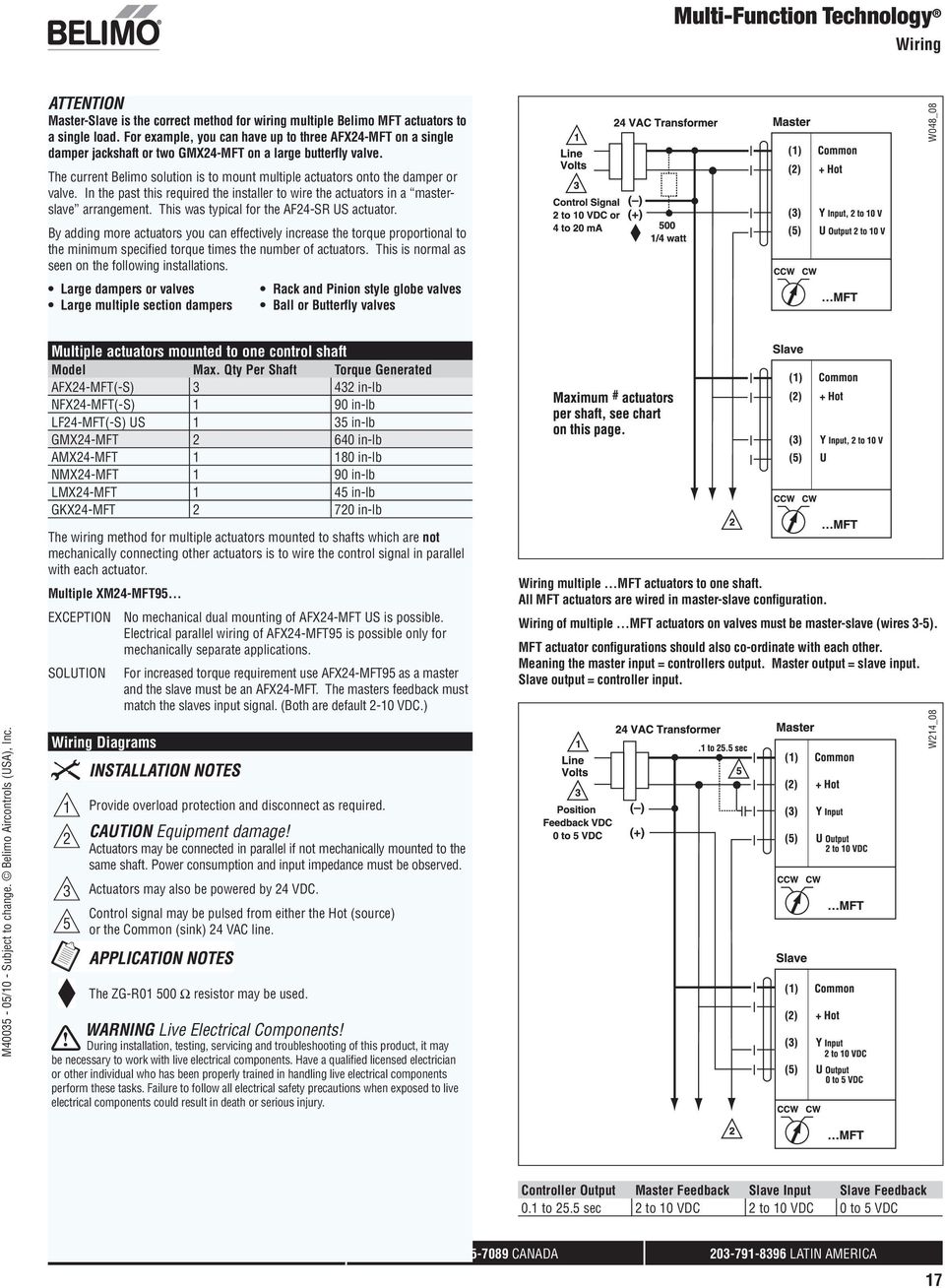
19 Multi-Function Technology Wiring ATTENTION Master-Slave is the correct method for wiring multiple Belimo MFT actuators to a single load. For example, you can have up to three AFX24-MFT on a single damper jackshaft or two GMX24-MFT on a large butterfly valve. The current Belimo solution is to mount multiple actuators onto the damper or valve. In the past this required the installer to wire the actuators in a masterslave arrangement. This was typical for the AF24-SR US actuator. By adding more actuators you can effectively increase the torque proportional to the minimum specified torque times the number of actuators. This is normal as seen on the following installations. Large dampers or valves Rack and Pinion style globe valves Large multiple section dampers Ball or Butterfly valves W048_08 Multiple actuators mounted to one control shaft Model Max. Qty Per Shaft Torque Generated AFX24-MFT(-S) in-lb NFX24-MFT(-S) 1 90 in-lb LF24-MFT(-S) US 1 35 in-lb GMX24-MFT in-lb AMX24-MFT in-lb NMX24-MFT 1 90 in-lb LMX24-MFT 1 45 in-lb GKX24-MFT in-lb The wiring method for multiple actuators mounted to shafts which are not mechanically connecting other actuators is to wire the control signal in parallel with each actuator. Multiple XM24-MFT95 EXCEPTION No mechanical dual mounting of AFX24-MFT US is possible. Electrical parallel wiring of AFX24-MFT95 is possible only for mechanically separate applications. SOLUTION For increased torque requirement use AFX24-MFT95 as a master and the slave must be an AFX24-MFT. The masters feedback must match the slaves input signal. (Both are default 2-10 VDC.) Wiring Diagrams 1 Provide overload protection and disconnect as required. 2 CAUTION Equipment damage! Actuators may be connected in parallel if not mechanically mounted to the same shaft. Power consumption and input impedance must be observed. 3 Actuators may also be powered by 24 VDC. Control signal may be pulsed from either the Hot (source) 5 or the Common (sink) 24 VAC line. The ZG-R Ω resistor may be used. WARNING Live Electrical Components! During installation, testing, servicing and troubleshooting of this product, it may be necessary to work with live electrical components. Have a qualified licensed electrician or other individual who has been properly trained in handling live electrical components perform these tasks. Failure to follow all electrical safety precautions when exposed to live electrical components could result in death or serious injury. # Wiring multiple MFT actuators to one shaft. All MFT actuators are wired in master-slave configuration. Wiring of multiple MFT actuators on valves must be master-slave (wires 3-5). MFT actuator configurations should also co-ordinate with each other. Meaning the master input = controllers output. Master output = slave input. Slave output = controller input. W214_08 Controller Output Master Feedback Slave Input Slave Feedback 0.1 to 25.5 sec 2 to 10 VDC 2 to 10 VDC 0 to 5 VDC 17
20 Multi-Function Technology Wiring Diagrams Spring Return Actuator with MFT VDC / 4 to 20mA Two Position PWM Original AF, NF, LF, TF New Generation AF, NF Floating Point Override control to min, mid, max positions W425_08 Non-Spring Return Actuator with MFT VDC / 4 to 20mA Two Position PWM Floating Point Override control to min, mid, max positions W426_08 18

21 Multi-Function Technology Wiring Diagrams 0 to 135 Ω Control (MFT95) Wiring multiple actuators to a Series 90 controller Override Low Limit Control High Limit Control Wiring multiple actuators to a Series 90 controller using a minimum position potentiometer Typical wiring diagrams for multiple actuators used with the W973, W7100 and T775 controllers. AF24-MFT95 US Wire Colors 1=Black 3=White 5=White 2=Red 4=White 6=White AFX24-MFT95 and Non-Spring Return Wire Colors 1=Black 3=White 5=Gray 2=Red 4=Pink 6=Orange 19
22 Multi-Function Technology MFT VDC Proportional Control Program Codes *Note: Not every code works with every acuator Programmable Code Running Time Control Range Feedback Feedback Range Obsolete Code MP Bus Logo Adaption A01 150s V U5 U V P NO manual A02 150s V U5 U V P NO manual A03 150s V U5 U V P NO manual A04 150s 4...7V U5 U5 2 10V P NO manual A05 150s 6...9V U5 U5 2 10V P NO manual A06 150s V U5 U5 2 10V P NO manual A07 150s V U5 U5 2 10V P NO manual A08 150s V U5 U V P NO manual A09 150s V U5 U5 2 10V P NO manual A10 150s V U5 U V P NO manual A11 150s V U5 U V P NO manual A12 150s V U5 U V P NO manual A13 150s V U5 U5 2 10V P NO manual A14 100s V U5 U V P NO manual A15 150s 2 5V U5 U5 2 10V P NO manual A16 150s 2 6V U5 U5 2 10V P NO manual A17 150s 6 10V U5 U5 2 10V P NO manual A18 150s 14 17V U5 U5 2 10V P NO manual A19 100s V U5 U V P NO manual A20 150s V U5 U V P NO manual A21 150s 2 10V U5 U V P NO manual A22 150s V U V P NO manual A23 150s V U V P NO manual A24 150s V U5 U V P NO manual A25 76s V U5 U V P NO manual A26 150s 2 9V U5 U V P NO manual A27 150s 5 9V U5 U V P NO manual A28 PICCV ONLY 100s V U5 U V P NO manual A29 150s 1 3V U5 U V P NO manual A30 150s 3 9V U5 U V P NO manual A31 150s 0.5 4V U5 U V P NO manual A32 150s 6 14V U5 U V P NO manual A33 150s 4 14V U5 U V P NO manual A34 120s V U5 U V P NO manual A35 78s V U5 U V P NO manual A37 120s V U5 U V P NO manual A38 150s V U5 U V P NO manual A39 150s V U5 U V P NO manual A40 150s V U5 U V P NO manual A41 150s 3...6V U5 U V P NO manual A42 75s V U5 U V P NO manual A43 150s V U5 U V P NO manual A44 150s 7 10V U5 U V P NO manual A45 150s V U5 U V P NO manual A46 150s V U5 U V P NO manual A47 150s V U5 U V P NO manual A48 150s 1 5V U5 U5 1 5V P NO auto-adapt. A49 150s 1 5V U5 U5 1 5V P NO auto-adapt. A51 P A52 150s V U5 U V P NO manual A53 120s V U5 U V P NO manual A54 150s V U5 U V P NO manual A55 75s 2 5V U5 U V P NO manual A56 75s 6 9V U5 U V P NO manual A57 150s 2 5.5V U5 U V P NO manual A58 150s V U5 U V P NO manual A59 150s 0.5 6V U5 U V P NO manual A60 300s 2 10V U5 U V P NO manual A61 150s 10 20V U5 U V P NO manual A62 90s 2 10V U5 U V P NO manual A63 150s V U5 U V P NO manual A64 150s V U5 U V P NO manual A65 150s 1 5V U5 U5 1 5V P NO manual 20
23 Multi-Function Technology MFT VDC Proportional Control Program Codes Programmable Code Running Time Control Range Feedback Feedback Range Obsolete Code MP Bus Logo Adaption A66 150s 2 10V U5 U5 1 5V P NO manual A67 150s 2 8V U5 U5 2 10V P NO manual A68 150s 2 13V U5 U5 2 10V P NO manual A69 150s 1..4V U5 U5 2 10V P NO manual A70 150s V U5 U5 2 10V P NO manual A71 150s 2 15V U5 U5 2 10V P NO manual A72 95s 2 10V U5 U5 2 10V P NO manual A73 150s 6 18V U5 U5 2 10V P NO manual A74 150s 2 10V U5 U5 2 10V P NO manual A76 150s 0.5 3V U5 U V P NO manual A77 76s V U5 U V P NO manual A78 150s 2 10V U5 U V P NO manual A79 150s V U5 U V P NO manual A80 150s U5 U5 2 10V P NO manual A81 150s U5 U5 2 10V P NO manual A82 150s 3 10V U5 U5 2 10V P NO manual A83 150s 5 15V U5 U5 2 10V P NO manual A84 150s 13 20V U5 U5 2 10V P NO manual A85 150s 2 10V U5 U5 2 10V P NO manual A86 150s U5 2 10V P NO manual A88 150s 2 10V U5 U5 2 10V P NO manual A89 150s V U5 U5 2 10V P NO manual A90 150s 2 5V U5 U5 2 5V P NO manual A91 95s 2 10V U5 U5 2 10V P NO manual A92 150s V U5 U V P NO manual A93 150s 2 10V U5 U5 2 10V P NO manual A94 85s 2 10V U5 U5 2 10V P NO manual A95 150s 0.5 5V U5 U V P NO manual A96 150s V U5 U5 2 10V P NO manual A97 150s U5 U5 2 10V P NO manual A98 150s 2 10V U5 U5 2 10V P NO auto-synch. A99 150s 2 10V U5 U5 2 10V P NO manual AA0 150s U5 U5 2 10V P NO manual AA1 150s 3 15V U5 U5 2 10V P NO manual AA2 150s V U5 U5 2 10V P NO manual AA4 150s V U5 U5 2 10V P NO manual AA5 150s 0.5 4V U5 U V P NO manual AA6 150s 6 10V U5 U V P NO manual AA7 150s 2 7V U5 U5 2 10V P NO manual AA8 150s 4 10V U5 U5 2 10V P NO manual AA9 P AAA 150s 2 22V U5 U5 2 10V P NO manual AAB 150s V U5 U V P NO manual AAC 150s V U5 U5 2 10V P NO manual AAD 100s V U5 U V P NO manual AAE 100s V U5 U V P NO manual AAF 150s V U5 U5 2 10V P NO manual AAG 75s V U5 U5 2 10V P NO auto-adapt. AAH 150s V U5 U5 4 5V P NO auto-adapt. AAJ 100s 2 6V U5 U5 2 10V P NO auto-adapt. AAK 100s 6 10V U5 U5 2 10V P NO manual AAL 150s 8 20V U5 U5 2 10V P NO manual AAM 120s V U5 U5 2 10V P NO auto-synch. AAN 100s V U5 U5 2 10V P NO manual AAP 150s 2 10V U5 U5 2 10V P NO manual AAR 150s 2 10V U5 U5 2 10V P NO auto-adapt. AAS 150s 2 10V U5 U5 2 10V P NO manual AAT 20s 2 10V U5 U5 2 10V --- NO manual AAU 100s 6 9V U5 U5 2 10V --- NO manual AAV 150s 1.2 6V U5 U5 2 10V --- NO manual AAW AAX 35s 2 10V U5 U V P NO manual AC0 45s 2 10V U5 U V P NO manual 21
24 Multi-Function Technology MFT VDC Proportional Control Program Codes Programmable Code Running Time Control Range Feedback Feedback Range Obsolete Code MP Bus Logo Adaption AC1 90s 2 10V U5 U V P NO manual AC2 150s V U5 U V --- NO manual s 2 10V U5 U V --- YES manual AC4 150s V U5 U V --- YES manual AC5 75s 2 10V U5 U5 2 10V P NO manual AC6 450s 2 10V U5 U5 2 10V P NO manual AC7 150s U5 U V --- NO manual AC8 35s V U5 U V --- NO manual AC9 45s V U5 U V --- NO manual ACA 90s V U5 U V --- NO manual ACX 150s V U5 U V NO manual AD0 100s V U5 U V P NO manual AD1 100s 5 10V U5 U V P NO manual AD2 90s 2 10V U5 U V --- NO auto-adapt. AD3 35s 2 10V U5 U V --- NO auto-adapt. AD4 150s 2 10V U5 U V --- NO manual AD5 100s 2...5V U5 U V P NO manual AD6 AD7 100s V U5 U V P NO manual AD8 AD9 ADA PICCV ONLY 100s V U5 U V --- NO manual ADC ADD 150s 9 13V U5 U V --- NO manual ADE ADF ADG ADH ADJ ADK ADL ADM ADN ADP ADR ADS ADT ADU ADV ADW 70s V US US V --- NO manual ADX 40s V US US V --- NO manual AE0 AE1 AE2 AE3 22
25 Multi-Function Technology MFT VDC Proportional Control Program Codes Programmable Code Running Time Control Range Feedback Feedback Range Obsolete Code MP Bus Logo Adaption AE4 AE5 AE6 AE7 AE8 AE9 AEA 120s V U5 U V --- NO manual AEC 75s V U5 U V --- NO manual AED 300s V U5 U V --- NO manual AEE 450s V U5 U V --- NO manual AEF AEG AEH AEJ AEK AEL AEM AEN AEP AER AES AET AEU AEV AEW AEX AF0 23
26 Multi-Function Technology MFT 95 (Honeywell Series 90, 0-135Ω) Program Codes Programmable Code Running Time Control Range Feedback Feedback Range Obsolete Code MP Bus Logo Adaption R01 150s Ohm U5 U5 2 10V P NO manual R02 150s Ohm U5 U V P NO manual R03 150s Ohm U5 U V P NO manual R04 75s Ohm U5 U5 2 10V P NO manual R05 100s Ohm U5 U V P NO manual R06 P R07 35s Ohm U5 U5 2 10V NO manual R08 45s Ohm U5 U5 2 10V NO manual R09 90s Ohm U5 U5 2 10V NO manual R0A 37s Ohm U5 U5 2 10V NO manual R0C R0D R0E R0F R0G R0H R0J R0K R0L R0M R0N R0P R0R R0S R0T R0U R0V R0W R0X R10 R11 24
27 Multi-Function Technology MFT PWM (Pulse Width Modulation) Program Codes Programmable Code Running Time Control Range Feedback Feedback Range Obsolete Code MP Bus Logo Adaption W01 150s s U5 U5 2 10V P NO manual W02 150s s U5 U5 2 10V P NO manual W03 150s s U5 U5 2 10V P NO manual W04 150s s U5 U5 2 10V P NO manual W05 150s s U5 U V P NO manual W06 150s s U5 U V P NO manual W07 150s s U5 U V P NO manual W08 150s s U5 U5 2 10V P NO manual W09 150s 1 11s U5 U5 2 10V P NO manual W10 150s s U5 U5 2 10V P NO manual W11 150s s U5 U5 2 10V P NO manual W12 150s s U5 U5 2 10V P NO manual W13 150s s U5 U5 2 10V P NO manual W14 150s s U5 U5 2 10V P NO manual W15 150s 1 11s U5 U5 2 10V P NO manual W16 150s s U5 U5 2 10V P NO auto-adapt. W17 150s s U5 U5 2 10V P NO auto-adapt. W18 150s s U5 U5 2 10V P NO auto-adapt. W19 150s s U5 U5 2 10V P NO manual W20 150s 2.7 5s U5 U5 2 10V P NO manual W21 150s s U5 U5 2 10V P NO manual W22 150s s U5 U5 2 10V P NO manual W23 150s s U5 U5 2 10V P NO manual W24 150s s U5 U5 2 10V P NO manual W25 150s s U5 U5 2 10V P NO manual W26 150s s U5 U5 2 10V P NO manual W27 150s s U5 U5 2 10V P NO manual W28 150s s U5 U5 2 10V P NO manual W29 150s s U5 U5 2 10V P NO manual W30 150s s U5 U5 2 10V P NO manual W31 100s s U5 U5 Ω2 10V P NO off W32 100s U5 U5 2 10V P NO off W33 150s U5 U5 2 10V P NO manual W34 100s s U5 U5 2 10V P NO off W35 150s s U5 U5 2 10V P NO manual W36 150s s U5 U5 2 10V P NO manual W37 150s s U5 U V P NO manual W38 150s s U5 U5 2 10V P NO manual W39 150s s U5 U5 2 10V P NO auto-adapt. W3A 150s s U5 U5 2 10V P NO auto-adapt. W3C 150s s U5 U V --- NO manual W3D 150s s U5 U V P NO manual W3E W3F W3G W3H W3J W3K W3L W3M W3N W3P W3R W3S W3T W3U W3V W3W W3X W40 W41 25
28 Multi-Function Technology MFT Floating Point Program Codes Programmable Code Running Time Control Range Feedback Feedback Range Obsolete Code MP Bus Logo Adaption F01 150s --- U5 U5 2 10V P NO manual F02 150s --- U5 U V P NO manual F03 100s --- U5 U5 2 10V P NO manual F04 100s --- U5 U V P NO manual F05 100s --- U5 U V P NO manual F06 150s --- U5 U V P NO manual F07 300s --- U5 U5 2 10V P NO manual F08 75s --- U5 U5 2 10V P NO manual F09 85s --- U5 U5 2 10V P NO manual F10 150s --- U5 U V P NO manual F11 75s --- U5 U V P NO manual F13 120s --- U5 U V P NO manual F14 90s --- U5 U5 2 10V P NO manual F15 150s --- U5 U V P NO manual F16 150s --- U5 U5 1 5V P NO manual F17 90s --- U5 U5 1 10V P NO manual F18 60s --- U5 U5 2 10V --- NO manual F19 45s --- U5 U5 2 10V --- NO manual F1A 35s --- U5 U5 2 10V --- NO manual F1C F1D F1E F1F F1G 120s --- U5 U V --- NO manual F1H 450s --- U5 U5 2 10V --- NO manual F1J F1K F1L F1M F1N F1P F1R F1S F1T F1U F1V F1W F1X F20 F21 26
29 Multi-Function Technology MFT On/Off Program Codes Programmable Code Running Time Control Range Feedback Feedback Range Obsolete Code MP Bus Logo Adaption J01 75s --- U5 U5 2 10V P NO manual J02 150s --- U5 U5 2 10V P NO manual J03 75s --- U5 U5 2 10V P NO manual J04 100s --- U5 U V P NO manual J05 100s --- U5 U V P NO manual J06 120s --- U5 U5 2 10V P NO manual J07 45s --- U5 U5 2 10V P NO manual J08 200s --- U5 U5 2 10V P NO manual J09 120s --- U5 U V P NO manual J10 300s --- U5 U5 2 10V P NO manual J11 150s --- U5 U V P NO manual J13 100s --- U5 U V P NO manual (off) J14 J15 J16 J17 J18 J19 J1A J1C J1D J1E J1F J1G J1H J1J J1K J1L J1M J1N J1P J1R J1S J1T J1U J1V J1W J1X J20 J21 27
30 Multi-Function Technology MFT Quick Actuators Proportional Control Program Codes Programmable Code Running Time Control Range Feedback Feedback Range Obsolete Code MP Bus Logo Adaption T01 2.5s 2 10V U5 U V --- NO manual T02 4s 2 10V U5 U V --- NO manual T03 7s 2 10V U5 U V --- NO manual T04 10s 2 10V U5 U V --- NO manual T05 15s 2 10V U5 U V --- NO manual T06 20s 2 10V U5 U V --- NO manual T07 2.5s V U5 U V --- NO manual T08 4s V U5 U V --- NO manual T09 7s V U5 U V --- NO manual T0A 10s V U5 U V --- NO manual T0C 15s V U5 U V --- NO manual T0D 20s V U5 U V --- NO manual T0E T0F T0G T0H T0J T0K T0L T0M T0N T0P T0R T0S T0T T0U T0V T0W T0X T10 T11 28
31 Multi-Function Technology MFT Special Control (Non-Spring Return Only) Program Codes Programmable Code Running Time Control Range Feedback Feedback Range Obsolete Code MP Bus Logo Adaption S01 150s Phasecut U5 U5 2 10V NO manual S02 35s Phasecut U5 U5 2 10V NO manual S03 45s Phasecut U5 U5 2 10V NO manual S04 90s Phasecut U5 U5 2 10V NO manual S05 S06 150s 4 20mA U5 U5 2 10V NO manual S07 S08 45s 4 20mA U5 U5 2 10V NO manual S09 90s 4 20mA U5 U5 2 10V NO manual S0A S0C 75s 4 20mA U5 U5 2 10V NO manual S0D 75s Phasecut U5 U5 2 10V NO manual S0E S0F S0G S0H S0J S0K S0L S0M S0N S0P S0R S0S S0T S0U S0V S0W S0X S10 S11 29
32 Multi-Function Technology MFT NV/NVF Proportional Control Program Codes Programmable Code Running Time Control Range Feedback Feedback Range Obsolete Code MP Bus Logo Adaption N01 150s 2 10V U5 U V V NO manual N02 150s V U5 U V V NO manual N03 150s 2 10V U5 U V V NO manual N04 150s 4 7V U5 U V V NO manual N05 150s 6 9V U5 U V V NO manual N06 150s V U5 U V V NO manual N07 150s 0.5 5V U5 U V V NO manual N08 150s 0.5 5V U5 U V V NO manual N09 150s 5 10V U5 U V V NO manual N10 150s 5 10V U5 U V V NO manual N11 150s 0.5 5V U5 U V V NO manual N12 150s 0.5 5V U5 U V V NO manual N13 150s V U5 U V V NO manual N14 150s V U5 U V V NO manual N15 150s 2 5V U5 U V V NO manual N16 150s 2 6V U5 U V V NO manual N17 150s 6 10V U5 U V V NO manual N18 150s 14 17V U5 U V V NO manual N19 100s 2 10V U5 U V V NO manual N1A 150s V U5 U V V NO manual N1C 75s 2 10V U5 U V V NO manual N1D 150s 5 9V U5 U V V NO manual N1E 100s V U5 U V V NO manual N1F 150s 3 6V U5 U V V NO manual N1G 150s V U5 U V V NO manual N1H 150s 7 10V U5 U V V NO manual N1J 150s V U5 U V V NO manual N1K 150s V U5 U V V NO manual N1L 150s V U5 U V V NO manual N1M 150s 2 15V U5 U V V NO manual N1N 76s V U5 U V V NO manual N1P 75s 2 6V U5 U V V NO manual N1R 75s 6 10V U5 U V V NO manual N1S 150s 3 7V U5 U V V manual N1T 150s s U5 U V V NO manual N1U 150s s U5 U V V NO manual N1V 150s s U5 U V V NO manual N1W 150s s U5 U V V NO manual N1X 150s s U5 U V V NO manual N20 150s s U5 U V V NO manual N21 150s s U5 U V V NO manual N22 150s s U5 U V V NO manual N23 150s s U5 U V V NO manual N24 150s --- U5 U V V NO manual N25 150s --- U5 U V V NO manual N26 150s --- U5 U V V NO manual N27 75s --- U5 U V V NO manual N28 75s --- U5 U V V NO manual N29 150s --- U5 U V V NO manual N30 100s --- U5 U V V NO manual N3A 100s --- U5 U V V NO manual 30
33 Multi-Function Technology SY-MFT Programmable Code Loss of Control Signal Input Signal Feedback Output Signal ACE stop 2 10V U5 U V ACF stop V U5 U V ACG stop 4 20mA U5 U5 4 20mA ACH stop 4 20mA U5 U V ACJ open 2 10V U5 U V ACK open V U5 U V ACL open 4 20mA U5 U5 4 20mA ACM open 4 20mA U5 U V ACN close 2 10V U5 U V ACP close V U5 U V ACR close 4 20mA U5 U5 4 20mA ACS close 4 20mA U5 U V W3E** stop seconds PWM U5 U V Note: Runtime is fixed based on actuator model. **Available only on -24MFT models. 31
34 Multi-Function Technology 32 This page intentionally left blank.
35 PC-Tool Accessories PC-Tool Accessories 33
36 PC-Tool Accessories 34 This page intentionally left blank.
37 MFT-P US Belimo PC-Tool Application The Belimo PC-Tool software is a graphical user interface which allows the user to set, modify and read actuator characteristics. The Belimo PC-Tool is an MFT support tool which is a practical solution for Controls distributors and Installation contractors. The Controls Distributor can: Reduce inventory levels Optimize the flexible MFT product inventory Quickly program an MFT actuator Provide MFT custom retrofit solutions same day Re-label the actuator with correct parameters The Installation contractor or field technician can: Work with PCs having a dedicated hand held tool Connect and program actuators quickly on an as needed basis Get systems up and running faster for service replacement applications Optimize flexibility of MFT product inventory for replacement applications Program actuators to your company standard configuration Required Accessory ZIP-RS232 US (required) OR ZIP-USB-MP (required) AND ZK Cable depending upon application (required) Technical Data MFT-P US Software version 3.X Compatible Operating System For Windows 2000/XP/Vista System requirements 10 MB free hard disk space Modules MFT-PC Language English / German CD contents Set-up.exe (Installation tool) Software documentation (requires Adobe Acrobat Reader) Adobe Acrobat Reader License Not required 35
38 ZIP-USB-MP US For interfacing PC with MFT US type actuators Application The ZIP-USB-MP is used with the Belimo PC-Tool software (MFT-P US) to interface all Multifunctional ( MFT US) type actuators via a USB port. Monitoring and parameterization of one MFT actuator is enabled. The ZIP-USB-MP can also be used to interface the MFT actuators functionality via the UK24LON. ZIP-RS232 Technical Data ZIP-USB-MP US Power Supply AC 24 V 50/60 Hz, DC 24V Nominal voltage range AC V, DC V Driver For Windows 2000, XP or Vista (download at call for link) Connections USB USB 2.0, 1 m cable MP device RJ11-socket Electrical Safety III safety extra-low voltage Degree of protection IP 20 Ambient temperature 0 to 122 F Storage temperature -40 to 176 F Weight <1.0 lb Connection and Operation Power Supply Power for the ZIP-USB-MP is supplied via the connected MFT actuator. The Actuator needs to be powered up in order for the unit to work. Connection and Indication A PC is connected through its USB port and the associated ZK cable. NOTE: A special driver found on the Belimo website is needed for the ZIP-USB- MP US to operate. Contact factory for details. Indication (See Accessories) LED s show the status of the interface and the flow of data between the ZIP-USB MP and the MFT actuator/vav controller. LED Initialized Data is transmitted from ZIP-USB-MP to actuator. LED Data Data transmitted from actuator to ZIP-USB-MP. LED flashes synchronously when initlaized if an actuator does not respond. LED Enable Steady light when the interface is active. Accessories ZK1-GEN Cable 16 ft, RJ11-plug Wiring Diagram Belimo PC-Tool MD MA USB Enable Data Initialized ZIP-USB MP MP BUS ZK Cable W538 ZK2-GEN ZK3-GEN ZK6-GEN ZKS-MP ZK1-VAV Cable 16 ft, RJ11-plug, open wires Cable 16 ft, diagnostic socket, plug Use with SY actuator Use with UK24LON US gateway Use with VAV actuators 36
39 ZIP-RS232 US For Interfacing PC with MFT US Type Actuators Application The ZIP-RS232 is used with the Belimo PC-Tool software (MFT-P US) to interface all Multifunctional ( MFT US) type actuators via an RS232 port. Monitoring and parameterization of one MFT actuator is enabled. The ZIP-RS232 can also be used to interface the MFT actuators functionality via the UK24LON. Technical data ZIP-RS232 US Supply voltage 24 VAC; Class II power supply Power consumption 1 W / 1.5 VA (without actuator) Electrical protection MFT-XFMR is internally protected and automatically resets Connections Power supply Stereo connector Actuator Manual push button terminals MP-Bus Orange male connector, ZKS-MP (Optional) RS232 PC cable, sub-d, 9 pin, female/female, included Ambient temperature 0 to 122 F Storage temperature -40 F to 176 F Electrical safety Class III Weight <1.0 lb. (without actuator) Wiring Diagram ZIP-RS232 ZIP-RS232WirDiagRev_08 Connection and Operation Wiring Terminals The MFT US actuator wires are connected to the terminals and correspond to the conductor wire designations. Some actuators are color coded and do not have numbered conductors. The following indications should be used: 1 = Black 2 = Red 5 = Orange (non-spring, TF) Green (LF) White (AF, NF) Switch The Actuator On/Off switch on the ZIP-RS232 applies 24 VAC power to the connected actuator. The ZIP-RS232 is powered when the MFT-XFMR is plugged into a power receptacle. RS232 Connector The ZIP-RS232 is connected via this RS232 connector to the PC with a standard female-female 9-pin sub-d cable, provided. Power Supply The MFT-XFMR accessory transformer is connected to the unit, and supplies 24 VAC power to the ZIP-RS232 and up to one connected actuator. Power LED A Green LED is lit when 24 VAC is supplied. MP-Bus Connector This connection is used only with the UK24LON or another MP-Master device. Terminal Designations U/PP: Data communications lead EN: Enabling signal for UK24LON MP-Bus LED s Tx: LED flashes when data flows from ZIP-RS232 to the MFT US actuator. Rx: LED flashes when data flows from MFT US actuator to ZIP-RS232 EN: LED is lit constantly when RS232 device is connected. (E.g. PC is connected to ZIP-RS232) Accessories MFT-XFMR ZKS-MP Power transformer MP-bus cable for use with UK24LON Standard Jumper Setting Jumper Setting for Null-Modem Cable Null modem serial cables can be used by switching the internal jumpers. 37
40 _T _T MFT Cables For Interfacing PC with MFT US Type Actuators ZK1-GEN Cable for use with ZIP USB-MP or ZIP-RS232 to connect new generation nonspring return actuators via diagnostic/programming socket Belimo PC-Tool RS232 D-Sub D-Sub Rx/Tx Enable Power ZK1-GEN ZK1-GEN Wiring 24V Com ZK2-GEN Belimo PC-Tool RS232 D-Sub D-Sub Rx/Tx Enable Power ZK2-GEN Wht (1) Common Blu (2) Hot Grn (5) Output/PP Cable to connect ZIP-RS232 with spring and non-spring return actuators not equipped with diagnostic/programming socket Note: Actuator must be powered by 24V source to enable communication. ZK2-GEN Wiring White - Ground Blue - 24V Green - MP UK...Gateway GND 24V MP Belimo PC-Tool RS232 D-Sub D-Sub Rx/Tx Enable Power ZK2-GEN ZK3-GEN Cable to connect ZIP-RS232 or UK24LON US to new generation non-spring return actuator via diagnostic/programming socket ZK6-GEN Cable to connect to ZIP USB-MP...MFT...MFT...MFT...MFT...MFT...MFT...MFT...MFT ZK2-GEN Wiring to UK24LON US AC 120V AC 230 V ZN AC 230/24 V ZIP-RS232 Actuator ON Belimo PC-Tool RS232 D-Sub RS232 lead 9-pin female/female 1:1 thru connection (included with ZIP-RS232) + ~ U PP OFF RS 232 RS232 D-Sub Supply + ~ MP-Bus U5 PP EN T ZK3 -GEN ZIP-RS232 to Actuator using ZK3-GEN 38
41 PC-Tool User Manual 1-A
42 PC-Tools User Manual 1-B This page intentionally left blank.
43 Table of Contents 1 Basics Introduction General structure of the user software Getting started with PC-Tool Connecting the computer with the actuators Driver Installation Checking Starting the program Adapting PC-Tool options Creating a new project Setting up the program Displaying actuator parameters Further actions Basic functions Program start Projects Project data Creating a new project Opening a project Changing project data Exporting a project Copying a project Deleting a project MP-Channel Serial interface Bus scan Setting the bus address Series addressing of actuators Addressing with known serial numbers Resetting actuator addresses Addressing a single actuator Selecting a module Actuator parameters Displaying actuator parameters Printing out actuator parameters Deleting maintenance/error messages C
44 3.7 Configuring an actuator Saving a parameter file Loading a parameter file Copying parameters Load factory settings Parameterizing limited lots Printing labels Setting up a configuration file Printing labels Printing labels offline Transformation tables Displaying recorded trend data PC-Tool options Log file Attachment Storage locations of files Project data Configuration files Configuration files for printing labels Storage location Format Boxes Example of a label Troubleshooting and error messages General Error messages ISO /ANSI character set Typical wiring diagrams Overview table Typical wiring diagrams D
45 1 Basics 1.1 Introduction The user manual describes the functions of the Belimo PC-Tool. The Belimo PC-Tool is a PCbased tool for parameterizing Belimo MFT via bus. This document is designed to present basic information. This booklet is based on PC-Tool 3.4. Later versions may contain more features. 1-1
46 1.2 General structure of the user software A B D C User interface PC-Tool E Menu bar [A] and toolbar [B] provide functions that affect the program as a whole. An explanatory text (tooltip) appears for each icon in the toolbar when you position the mouse pointer on it. The MP-Channels and actuators belonging to the project are displayed in the outline bar [C] in the form of a tree (as in the Explorer). The object to be worked on is marked here. Depending on the selected object, pop-up menus offer corresponding functions at a click of the right mouse button. Pop-up menu after clicking the right mouse button The detail area [D] contains all the detailed information on the highlighted actuator. The values that are displayed and changed in this area are grouped as needed and distributed over several index tabs. The status bar [E] at the lower margin shows the current status of the connected device (e.g.: the actuator is carrying out a synchronization or adaptation.) 1-2
47 Missing or invalid entries are indicated by a flashing exclamation mark. If you move the mouse pointer to the exclamation mark, an explanatory text (tooltip) appears. Inactive commands are displayed in gray letters (or as gray icons) according to the Windows standard. Texts in boxes with a black font on a gray background cannot be changed. You can mark the contents with the mouse, however, and copy them into the clipboard with CTRL+C, for example. 1-3
48 2 Getting started with PC-Tool 2.1 Connecting the computer with the actuators There are two ways to connect the computer (PC-Tool) to the actuators, via the ZIP-RS232 or by the ZIP-USB-MP US. If the ZIP-RS232 is going to be used, follow the wiring diagram that works best for your situation. ZIP-RS232 via direct connection to MFT actuator. 1-4
49 ZIP-RS232 via ZK3-GEN to Belimo actuator. ZIP-RS232 via ZK5-GEN to Belimo actuator. 1-5
50 ZIP-RS232 via direct connection to LON actuator. AC 120V 1-6
51 If the ZIP-USB-MP is going to be used, follow the directions to load the ZIP-USB-MP software and driver. Please note the ZIP-USB-MP is paired with the computer, if you move the ZIP-USB- MP the software and driver must be installed on the new computer. ZIP-USB-MP via ZK1-GEN to a Belimo actuator. ZIP-USB-MP via ZK1-GEN to a Belimo actuator. 1-7
52 ZIP-USB-MP via ZK1-GEN to a Belimo actuator. 1-8
53 2.1.1 Driver Installation A driver must be installed on the PC in order to use the ZIP-USB-MP. This driver can be downloaded from the Belimo website (Download section). Once the driver has been installed, the ZIP-USBMP is logged in on the PC as a virtual COM port. Supported operating systems Windows Vista WindowsXP Windows 2000 Windows ME Windows 98 Windows 98 SE Preparation Download the zipped Driver_ZIP-USP-MP.zip file from the Belimo website (Download section) to a folder on the hard disk of your computer. Then extract the ZIP file. The ZIP file contains the following files: 98_ME_zipUSBMP_Driver XP ZIPUsbMP- Driver ZIPUSBMP_drivinst_d.pdf ZIPUSBMP_ drivinst_e.pdf ZIPUSBMP_dok_d.pdf ZIPUSBMP_doc_e.pdf 1-9
54 Installing A) Connect the ZIP-USB-MP to the USB port on your computer. The computer reports that it has detected new hardware and opens the following screen automatically: Hardware Update Wizard. B) Click the radio button as shown in the next screenshot: Install from a list or specific location (Advanced). C) Then click Next. D) Check the box as shown in the next screenshot: Include this location in the search, then select the folder to which you extracted the driver (see step 1; in this example ZIP-USB-MP). 1-10
55 E) Select the XP_2000_ZipUsbMP_Driver folder and then click OK. F) Click Next. G) The driver is now installed. H) Click Finish. 1-11
56 I) After the driver has been installed, the USP port must be paired to a COM port. Click the radio button in the Wizard as shown in the next screenshot: Install from a list or specific location (Advanced). J) Click Next. K) The USB port is now paired to a COM port. L) Click Finish. NOTE: If a warning appears during the installation procedure, please ignore it and click continue installation. The driver is the loaded correctly. Your system is not damaged in any way. 1-12
57 2.1.2 Checking Check the USB/COM connection on your computer. You must define a COM port number under Options in order to work with Belimo PC-Tool MFT-P v3. To find out which COM port number is the correct one, you need to check which COM port the USB port was automatically connected to by the system. A) Select Settings/Control Panel/System in the Windows Start menu. On the Hardware tab, click Device Manager. B) You can see here that the USB port on the ZIP-USB-MP has been connected to COM 8, for example (a different COM number may apply on your PC). 1-13
58 Selecting the same COM port in PC-Tool Version 3.4 After selecting the COM port, for example COM=8 (a different COM number may apply on your PC), you can set to work with the Tool. 1-14
59 2.2 Starting the program Click the program icon on your desktop. A start screen appears. Click the Start button (bottom right). 2.3 Adapting PC-Tool options When you start the program for the first time, a dialog is displayed for adapting the userspecific settings. PC-Tool options Select the desired language in the combobox here. If you change the language, exit the program and restart it. 1-15
60 2.4 Creating a new project To work with the program, you have to create a "project". The dialog for entering the project data is displayed. Click the radio button "New project". Creating a new project 2.5 Setting up the program The project name, company and user ID must be filled in; all other information is optional. The project and the MP-Channel can be seen in the outline bar [C]. The bus is scanned every 10 seconds by default. Outline bar [C] If no actuators are shown after 10 seconds, you should check whether the level converter ZIP- USB-MP is connected to the right COM interface. Adjust the settings for the serial interface if necessary [ 3.3.1]. 1-16
61 2.6 Displaying actuator parameters Select the desired actuator in the outline bar [C] by clicking it with the mouse. The current settings for the actuator are displayed in the detail area [D]. Example of detail area [D] (damper actuator) 2.7 Further actions Read the descriptions for the following topics in Section 3 Basic functions Bus scan Setting the bus address Parameterization of actuators Read the details for the application areas of the actuators in the descriptions of the following modules Damper actuators (Air module) 1-17
62 3 Basic functions 3.1 Program start After the program is started, a start screen is displayed. Click Start. Determine the project with which you would like to work. You can either open one of the last projects listed, open an existing project from a file, or create a new project. The defined MP-Channel is displayed and opened. A bus scan is started for each MP-Channel. If only one actuator is connected, it is automatically selected and displayed. Option If you cancel the project selection, the program will be started without a project. In this case, only the functions Help, File New project and File Open existing project will be available. You can also start the program by means of opening a project file: In the Explorer, double-click a file with the extension.bptpj or on a corresponding file link. If you create a link to a project file on the desktop, make sure that you do not inadvertently move or copy the file instead. You can tell when a link has been created correctly by the small arrow in the bottom left-hand corner of the file icon. (If the project file itself, rather than a link to it, is on the desktop then all other files will be saved there as well.) In a network environment, the program should be installed on your workstation and started locally. Special authorizations are required to start the program on network drives. 1-18
63 3.2 Projects Project data All user-specific data of the program are administered in the framework of projects. Each project has a project directory in the file system. The project files are stored in sub-directories of the project directory. The storage place of the project files is described in the Appendix Creating a new project Select File, New Project in the main menu. Enter the new project data in the dialog. The project name, company and user ID must be filled in; all other information is optional. Click OK. Since only one project can be active at a time, the currently displayed project will be closed and the new project opened. Option You can also create a new project by clicking the New Project icon on the toolbar [B] or clicking the program icon in the outline bar [C] with the right mouse button and then selecting New Project Opening a project Option Changing project data Option Select File Open Existing Project in the main menu. A list of all project files in the storage location is displayed. Mark a project from the list in the dialog or open any given project file (*.bptpj) with Find... Click OK. Since only one project can be active at a time, the currently displayed project will be closed and the selected project opened instead. You can also create a project by clicking on the New Project icon on the toolbar [B] or clicking the program icon in the outline bar [C] with the right mouse button and then selecting Open Project. Click the project in the outline bar [C] to display the project data. The Edit button (far right) displays a dialog in which you can change the data. Click the project in the outline bar [C] with the right mouse button and select Properties. Project name and path cannot be changed within the program. However, you can rename the project file (extension.bptpj) using the Windows Explorer or move the entire project folder to another location. Afterwards, open the project again. The project folder and project file can have different names for example for backing up data. The name of the project file determines the project name. 1-19
64 3.2.5 Exporting a project Copy the entire project folder in the Explorer, for example onto a CD or thumbdrive Copying a project Copy the entire project folder to another location in the Explorer. Give the project folder a new name. Give the project file (<project>.bptpj) the same name within the new project folder Deleting a project Delete the entire project folder in the Explorer. The project to be deleted must not be currently open in the program. 3.3 MP-Channel Serial interface The ZIP converter is connected to a serial interface (COM) for connecting the MP/MFT actuator or the MP-Bus to the PC-Tool. To select the number of the serial interface used on your computer, click the MP-Channel icon in the outline bar [C] and select MP-Channel settings. For typical wiring diagrams, see 4.4 Typical wiring diagrams Now set the serial connection: If you activate the "Serial connection" box (as shown in the screenshot), you can select a serial connection. This list shows all ports on your computer (between COM=1 COM=255). Option: If you activate the "Other" box, you can enter a connection ID in the text box. Valid values are: "COMx" or "COM:x" or "COM=x" (x is is the port number between 1 and 255). "Baudrate=x" (x is the baud rate ). "Bytesize=x" (x is the number of data bits 5...8). "Stopbits=x" (x is the number of stopbits 1, 1.5 or 2). "Parity=x" (x is the the parity no, odd, even, mark or space). It is only mandatory for the COM port to be specified. Separate the values with a semicolon (;). Example: "COM1;Baudrate=9600;Stopbits=1". 1-20
65 MP-Channel settings Bus scan In the bus scan section of the "MP-Channel settings" dialog, you can enter the time interval for the periodic bus scan in seconds. Permitted values are whole numbers between 1 and The program can address actuators in two basic ways: In multi-point mode (MP), up to 8 actuators of the types MP / MFT can be individually digitally addressed. In point-to-point mode (PP) only a single actuator can be activated. In this case, the "classic" operating modes are available with response voltage at connection D5. Select the type of bus scan in the bus scan section of the "MP-Channel settings" dialog: PP Only MP / PP Periodic bus scan Connection of a single actuator in PP mode First scan address 1 to 8 in MP mode. If there is no response in MP mode, switch to PP mode. The periodic bus scan is active by default. To switch this off, click the MP-Channel with the right mouse button and select Interrupt scanning. Afterwards, you can switch the periodic scan back on again the same way with the menu item Scan Every xx Seconds. Manual bus scan Manually activate an immediate bus scan with the function button F5 ("Update") as needed. This is possible at any time, even when the periodic bus scan is active. 1-21
66 Option You can also select MP-Channel Trigger Scan in the main menu or activate the Trigger scan function by clicking the MP-Channel with the right mouse button. If more than one actuator responds at the same MP address during a bus scan or if more than one actuator is connected in PP mode, a bus jam will occur. This situation is indicated by the program with a corresponding message. Saving a bus scan overview in a file The result of a bus scan can be saved in a file for recording. Select "Channel" in the outline bar to show an enumeration of all found MP nodes with the corresponding data (address, position, type, description and serial number). Saving the bus scan overview 3.4 Setting the bus address Click the right mouse button to open the context menu and choose "Save to file" for saving the information in a text file. Each actuator with an MP-Bus interface (valid for all devices with an MP-Bus interface, e.g. I/O modules, etc.) can be assigned an address which it will use to communicate on the MP-Bus. The setting of the bus address can be disabled on certain actuators, e.g. for the actuator types...lon and...alon (for LONWORKS ). 1-22
67 NOTE: USE THIS SECTION ONLY IF THE ACTUATORS (S) MP ENABLED Series addressing of actuators Click the Address device icon in the toolbar [B]. Option Click the MP-Channel with the right mouse button and select Addressing Device. Or select MP- Channel Addressing Device in the main menu. Series addressing If one of the addresses is already assigned to another actuator, a message will be displayed: Message when an address is already assigned (series addressing) Click Yes to initially release the address. The actuator that used to occupy the address is set to PP. If you select No, the actuator will be set to the already assigned address and a bus jam can occur. Click Cancel to stop the series addressing at this point. You can now rearrange the addresses or end the entire process. 1-23
68 3.4.2 Addressing with known serial numbers Each MP/MFT actuator is delivered with a label containing its individual serial number. These serial numbers can be used to assign a PP or an MP1... MP8 address to the actuator. An additional, removable label with an identical serial number is supplied with the actuator. If the actuator is installed at a particular position in the system, this additional label can be affixed at the same position in the system diagram. This records where the actuator with the corresponding serial number is located in the building. These serial numbers can be used to assign the MP1... MP8 addresses to the actuators. You can also fill in the input boxes manually before clicking Set Address, for example when the buttons of the actuators are not accessible or you regularly take the serial numbers from your documents Resetting actuator addresses If you want to reset actuators with MP addressing to PP, click to the right of the MP-Channel and select "De-address Device" in the pop-up menu. Selection of the addresses to be reset Mark the addresses whose actuators are to be de-addressed. When the bus scan is set to MP/PP, the de-addressed actuators are no longer visible in the outline bar [C] as long as there are still actuators with addresses. If you set several actuators to PP, a bus jam will occur with the bus setting "PP only". 1-24
69 3.4.4 Addressing a single actuator Select the actuator in the outline bar [C] and click the "Change MP Address" icon in the toolbar [B]. Setting a new address Option Click the actuator with the right mouse button and select "Change MP Address" ("MP-Adresse ändern"). Select the new address in the combobox. If the address is already assigned to another actuator, a message will be displayed: Message when an address is already assigned Click Yes to initially release the address. The actuator that used to occupy the address is set to PP. If you select No, the actuator will be set to the already assigned address and a bus jam can occur. 1-25
70 3.5 Selecting a module All actuators that are active and connected to an MP-Channel are displayed in the outline bar [C]. Select the desired actuator from this display. The type of actuator is indicated by the icon: Icon Actuator type Damper actuator Valve actuator Window ventilation actuator Actuator for fire dampers VAV (Variable Air Volume) controller actuator THC24-MP UST-3 I/O module Unknown actuator When an actuator is selected for the first time, the parameters are read out and displayed in the detail area [D]. In addition, the address for communication on the MP-Channel (MP or PP mode) and the name of the actuator type are displayed in the outline bar [C]. The complete information for identifying the selected actuator is found in the header of the detail area [D]. Display of the actuator identification Note the difference between the current communication mode on the MP-Channel and the displayed address. An actuator with the address MP2 can be activated in PP mode during a bus scan, for example. 1-26
71 3.6 Actuator parameters Displaying actuator parameters The parameters of an actuator are displayed on the Service tab in the detail area [D]. Example of the "Service" tab (damper actuator) The Test, Adaptation and Synchronization functions are described for each respective module Printing out actuator parameters The displayed actuator parameters can be printed out. Click the printer icon in the toolbar [B] or select Print Actuator Parameters in the pop-up menu after clicking the actuator in the outline bar [C] with the right mouse button Deleting maintenance/error messages When an actuator has created and saved maintenance or fault messages, these are displayed on the Service tab. Message display on the Service tab Use "Reset messages", to delete the messages stored in the actuator. 1-27
72 Following messages may appear: Message Mechanical travel increased Mechanical overload Excessive utilisation Description Expected end stop value for top or bottom has been overrun. Actuator did not reach set point because an obstacle has reduced the operating range Actuator moves to often compared with the total operating time (typical relation of active time to operating time is greater than 25%) Actuators for fire & smoke dampers have provide a larger scale of messages. The specific messages are described in the Fire & Smoke module. 1-28
73 3.7 Configuring an actuator To change the parameters of an actuator, go to the Configuration tab. Example of the "Configuration" tab (damper actuator) The lower area with the basic settings can be displayed with the "More..." button and hidden again with the "Less" button. When you change a value in an input box, the box turns yellow: The status image on the right additionally shows whether all the displayed values match those stored in the actuator: Display matches actuator Status image Values have been changed 1-29
74 Save the changed values in the actuator with the "Set" button underneath the status image. You can read out the parameters currently saved in the actuator again with the "Read" button. Entries for values that you have not previously saved in the actuator will be lost as a result Saving a parameter file You can store the displayed parameters in a file (with the extension.bptpar) with "Store to file " on the "Configuration" tab. The suggested name for the file consists of the project, the actuator type, the position, the serial number, the current date and the time of day. Since the content of the file corresponds to the values displayed on the screen, you can change individual values and save Options in files without loading them on the actuator. The file can only be saved when all values on the screen are valid Loading a parameter file The values of a saved parameter file can be read back into the input screen for the configuration with "Load from file..." Copying parameters Read out the parameters of an actuator that you want to copy and save them in a file. Change the actuator, load the saved parameters from the file and program the actuator with the copied values Load factory settings When a project is created, two folders are created in the parameter directory. These folders contain the factory settings for all supported actuator types. 1-30
75 Parameter files with factory settings Open the file which matches the actuator type. The settings are loaded into the input screen for the configuration. Afterwards, store the parameters in the actuator with the "Set" button. 1-31
76 NOTE: USE THIS SECTION ONLY IF THE ACTUATORS (S) MP ENABLED. 3.8 Parameterizing limited lots You can parameterize several identical actuators with the function "Parameterize Limited Lots". The number depends on the power of the voltage supply. To parameterize limited lots, save the parameter set to be programmed in a file. With one parameter set, you can only program actuators from the same actuator family (e.g. MFT), i.e. the parameter set used must match the actuator family. Connect the devices according to the following wiring diagram (for further wiring diagrams, see clause 4.4 Typical wiring diagrams): USB Belimo PC-Tool RJ11 (6/4) Speisung Power Supply AC/DC 24V USB ZK2-GEN white/weiss = GND blue/blau = 24V green/grün = MP GND GND 24 V MP Option...A-MP D2-MP...MFT(2)...A-MP D2-MP...MFT(2)...A-MP D2-MP...MFT(2)...A-MP D2-MP...MFT(2)...A-MP D2-MP...MFT(2) Select the desired MP-Channel and click the symbol "Parameterize Limited Lots"....A-MP D2-MP...MFT(2) Click with the right mouse button on the MP-Channel and select Parameterize Limited Lots. Or select the MP-Channel Parameterize Limited Lots in the main menu. 1-32
77 Dialog for parameterizing limited lots Select the file with the saved parameters in the dialog. Position the cursor in the first input box for the serial number. Then press the acknowledge button on the first actuator which should be parameterized. If the buttons are not accessible, directly enter the serial numbers as described below. The serial number of the actuator is read out after the acknowledgement and written into the input box. The cursor jumps to the next line. Repeat the process for all actuators that are to be parameterized and mark the checkbox if you want to print labels after parameterization (see Section 3.9 "Printing labels"). Click Parameterize. The PC-Tool now asks for the file with the values to be written into the actuators. The periodic bus scan is stopped for the duration of the parameterization. The actuators are successively set to the address MP1, programmed and finally set to PP addressing. When the bus scan is set to MP/PP, the actuators in the outline bar [C] will not be visible. If the bus setting PP only is used, a bus jam will result. If an error occurs during programming, a corresponding text is displayed in the "State" column. 1-33
78 If the address MP1 is already assigned to an actuator, a message will be displayed: Message when the address MP1 is already assigned (limited lot) Click OK to initially release the address MP1. The actuator that used to be assigned to this address will be set to PP. Click Cancel to stop the parameterization at this point. Identification with known serial numbers You can also fill in the input boxes manually before you click "Parameterize", for example when the buttons of the actuator are not accessible or you regularly take the serial numbers from your documents. Programming further series The actuators that have been successfully programmed are deleted from the list. You can register further serial numbers in the list and then click "Start parameterization" again. 1-34
79 3.9 Printing labels Setting up a configuration file To identify actuators, you can write self-adhesive labels with the PC-Tool program. A special printer may be necessary, depending on the type of label. Labels are defined per project. To print labels, set place holders (number in brackets) in the configuration file for the information to be printed. The structure and storage location of the configuration files are described in the Appendix Printing labels Option Select an actuator and click the "Print Label" icon (with an orange background). Click an actuator in the outline bar [C] with the right mouse button and select "Label Printing". Label printing dialog 1-35
80 Select a printer and a configuration file. Enter the number of identical labels that are to be printed for "Number of labels per actuator". When parameterizing limited lots, the total number of printed labels is equal to this value times the number of actuators. Enter the desired texts {41} {44} that are to be printed, if necessary. A maximum of 50 characters are available per text box. In text with consecutive numbering, a number is entered instead of the place holder "#". This number is increased by one for each new actuator. If labels have already been used from a label sheet, you can specify at what label position the printing should start (for example 4 when 3 labels have been used from the first row). Your entries and the selected printer are preserved from one label printing process to the next (automatic saving). You can empty the input boxes with Reset Form. The texts {41} {44} must be present in the label configuration file in the form of place holders. Otherwise, they will not be printed out Printing labels offline Labels can still be printed even if no actuator is connected. In this case, only the information from the project data, the texts entered in the dialog and the current date can be output. The start number is always used instead of the place holder #. Click the "Print label" icon (with gray background). Option Click the project in the outline bar [C] with the right mouse button and select "Label Printing". Or select Project Print Label in the main menu. For Number of labels per actuator, enter the number of identical labels to be printed. The number with the placeholder "#" is NOT counted up. The further procedure is the same for printing actuator labels. NOTE: USE THIS SECTION ONLY IF THE ACTUATORS (S) MP ENABLED Transformation tables Transformation tables are for converting the sensor value into another physical quantity, for example from resistance (in ohms) to temperature (in C) for NTC resistors. Several frequently used transformation tables are supplied with the program. Selecting a transformation table Select a transformation table with the combobox. The corresponding converted value is displayed underneath the sensor value. The measured sensor variable in the table must match the selected sensor type: volts for active sensors, ohms for sensor resistors, on/off for switches. 1-36
81 Adapting a transformation table Click the transformation table icon. Option Click the project in the outline bar [C] with the right mouse button and select Transformation table. Or select Project Transformation table in the main menu. Dialog for editing transformation tables Select an available transformation table using the combobox. The sensor values and the converted values are displayed in the table on the left. On the right, you see a corresponding diagram with the sensor values on the horizontal axis and the converted values on the vertical axis. The table values are linearly interpolated; in other words, the points are connected by straight lines to calculate intermediate values. During conversion, the first and last connection lines are extended beyond the range of entered points (extrapolated) so that even sensor values outside of this range are valid. You can adapt each value in the table or add new value pairs in the last line, which is marked with an asterisk (*). Newly added value pairs are automatically sorted into the right place. The following holds true for switches: Off = 0, On = 1. Save the changes to the transformation table by clicking on the floppy disk icon. 1-37
82 When you change a transformation table in one project, the changes do not affect corresponding tables in other projects. However, you can return to the original project folder from all projects through the entry <Other...> in the combobox and open the changed table. Setting up a new transformation table When the dialog for editing a transformation table is open, you can create a new table with the "New" icon. Select the physical quantities for the sensor values and the converted values in the comboboxes above the table. You can also write any other quantities into the text boxes of the comboboxes. For the sensor values, only volts, ohms and on/off are meaningful input quantities, because only these sensor types are supported. Enter a description in the text box and add new value pairs in the last line of each table, which is marked with an asterisk (*). A transformation table must have at least two lines. For switches, you can define an on/off inversion table with the assignments 0 1 and 1 0. Save the new transformation table by clicking on the floppy disk icon. The name that you enter in the "Save file as" dialog will be subsequently offered as a selection in the combobox. If the name of the new table does not appear in the combobox on the "Simulation" tab, open the project again. The new transformation table is not directly available as a selection in the combobox in other projects. However, you can return to the original project folder from all projects through the entry <Other...> in the combobox and open the new table. Deleting a transformation table When the dialog for editing a transformation table is open, you can use the Delete icon to delete a table that has been selected in the combobox. If the name of the deleted table still appears on the "Simulation" tab in the combobox, open the project again. 1-38
83 3.11 Displaying recorded trend data Click the symbol Trend display. Option Click the project in the outline bar [C] with the right mouse button and select "Trend Recall". Or select Project Trend Recall in the main menu. Trend recall Select a trend file with the combobox. Keep the CTRL key pressed and pull the diagram to the left or right with the mouse in order to display values for other times. You can use the copy button to insert the diagram into other documents via the clipboard. Use the save button to fix the window size of the trend display. Printing a trend Click the Print icon or press the key combination CTRL-P. Option In addition to the Print button, you can open a menu with the "down" key. In addition to printing, this allows you to display a preview or select several files for printing with "Print multiple". 1-39
84 3.12 PC-Tool options Select Tools PC-Tool options... in the main menu. Option Click the project in the outline bar [C] with the right mouse button and select PC-Tool options... Dialog for basic settings (general) "Project base path" sets the default directory in the file system, in which the new project folder will be saved. You can override this information when creating new projects, however. When you mark the "Use default", checkbox, new projects will be saved in your user profile under "My Documents". With the operating system Microsoft Windows XP (English), this folder is located under 1-40
85 C:\Documents and Settings\<Name>\My Documents. You can open the folder "My Documents" with the "My Computer" icon. The language that you select in the combobox will be used the next time that you start the program. Under "Log file", you can define whether a separate log file should be created each month or each week. Mark the "Activate MP-Monitor" checkbox to monitor the communication with the actuators with the diagnostic tool. In addition to "General", the names of the supported modules (actuator families) are displayed on the left side. Further information on the module-specific settings is found in the corresponding sections of this manual Log file All activities with the PC-Tool software that influence the data stored in the actuator are recorded in a separate log file for every project. The time of each action is logged. Configuring the log file You can create a separate log file for each week or month of a project (default: File per month). To change this setting, select Tools PC-Tool options in the main menu. You can select either File per week' or File per month' under General'. Options Reading the log file Click the "Read log file" icon in the toolbar. Click the project icon in the outline bar [C] with the right mouse button and select Read log file. Or select Project Read log file in the main menu. Using the combo box Log file', you determine the file to read. The contents of the log file are displayed in a table in the top section (each action starts a new row). By clicking a column title, you can sort the table according to the selected column. By clicking again on the same column title, the sorting direction is reversed: increasing (A-Z) or decreasing (Z-A). Details Click a table row to display details of this action in the bottom section. You can print the text in the detail area ("Print " button) or copy it to the clipboard ("Copy" button) and then paste it into another document. 1-41
86 1-42
87 4 Attachment 4.1 Storage locations of files Project data The default project is stored as a "Default project" sub-directory in the installation directory of the program. The projects are user-specific and are stored as a sub-directory in the user profile. For an English-language version of Windows, this is C:\Documents and Settings\<Name>\My Documents\Belimo\PCTool This directory contains sub-directories with the project names Configuration files The user-specific settings are stored in the user profile under "Application data". For an Englishlanguage version of Windows, this is C:\Documents and Settings\<Name>\Application Data\Belimo\PCTool This directory can be "hidden" under Windows. If it is not present, the settings will be queried upon starting. 1-43
88 4.2 Configuration files for printing labels Storage location The filenames have the extension *.bptlb. They are saved in the "label definition" directory for each project. For an English-language version of Windows, this is C:\Documents and Settings\<Name>\My Documents\Belimo\PCTool\ <Project>\label definition Format The configuration files for label printing are stored in XML format. You can edit these files with an editor program, for example "Notepad". Configuration files for common Avery and Zweckform labels are supplied with the program. Example of a configuration file <?xml version="1.0" encoding="utf-8"?> <LabelDefinition xmlns:xsd=" xmlns:xsi=" <PageSize Height="278" Width="214" /> <PageBorder Top="18" Left="5" /> <LabelSize Height="33" Width="100" /> <LabelBorder Top="5" Left="5" /> <Lines> <Line Text="" /> <Line Text="{0} / {1}" /> <Line Text="{20}" /> <Line Text="{21}" /> <Line Text="{23}" /> <Line Text="{41} / {42}" /> </Lines> </LabelDefinition> 1-44
89 4.2.3 Boxes You can adapt the values for the page layout (values in millimeters) for new label formats. PageSize PageBorder LabelSize LabelBorder Page size (height and width) Border width (top and left) = distance from the top left corner of the first label to the page border Size of an individual label Label border width (top and left) = distance of the lettering from the label border In every line element <Line>, you can insert place holders where certain project and actuator characteristics will be added during printing. 1-45
90 {0} Company name (from project data) {1} Project name {10} Actuator type {11} OEM designation {12} Position {13} Serial number {14} MP address {20} Control type Y {21} Feedback signal U5 {22} Range of rotation min mid max {23} Running time {24} Direction of rotation (cw /ccw) {25} Bus fail position {26} Sensitivity {27} Synchronization at {28} Torque {29} Nominal range {30} Conductance {31} Vnom {32} Vmax {34} Vmin {36} Control fct. {37} Mode {40} Printing date {41} Text with consecutive numbering {42} Freely definable text 1 {43} Freely definable text 2 {44} Freely definable text 3 {50} Switching point S1 in degrees ( ) {51} Switching point S2 in degrees ( ) {52} Setting damper free running test You can define up to 50 lines. The program does not check whether the lines fit on a label. When you define a new configuration file in a project, this configuration will not be directly available in other projects. However, you can return to the original project folder from all projects by using the entry <Other...> in the combobox, and then use the file. 1-46
91 4.2.4 Example of a label The following example results in a label having the dimensions width x height = 50 mm x 20 mm. The example is intended for an endless label printer that prints labels of the size 50 mm x 20 mm. The company name, the project name, the actuator type, the type of control signal and the running time are printed on the label. This data yields the following configuration file and the subsequently displayed label: <?xml version="1.0" encoding="utf-8"?> <LabelDefinition xmlns:xsd=" xmlns:xsi=" <PageSize Height="20" Width="50" /> <PageBorder Top="0" Left="0" /> <LabelSize Height="20" Width="50" /> <LabelBorder Top="5" Left="5" /> <Lines> <Line Text="{0}" /> <Line Text="{1}" /> <Line Text="Type: {10}"/> <Line Text="{20} Running time: {23}"/> </Lines> </LabelDefinition> Label: Belimo Automation AG Sample Type: LM24A-MP Y: Open/Close Running time: 40s {20} {23} {0} {1} {10} 1-47
92 4.3 Troubleshooting and error messages General Problem Solution After the program starts, an MP-Channel is not opened but displayed with the MP-Channel icon. The MP-Channel cannot be opened, for example because the selected serial interface is assigned to another application. Check whether a modem or a communication program is using this interface Error messages Error message Start adaptation failed. Actuator locked for PC-Tool. Summary: Actuator not reachable Summary: Actuator run into timeout. Answer has too much data. Answer doesn't have enough data. Command has not enough parameters. Command parameters out of range. Belimo library error code =. Description is missing Bus Jam This field is required! There is already an instance running! Error while creating the project! Error while copying default project. Description Communication failure on the MP-Channel or faulty actuator. The drive has been configured so that it can be neither read out nor programmed with the PC-Tool. Communication failure on the MP-Channel or faulty actuator. The drive did not respond within the specified time. Conflict between the actuator and program. The program library (belipp.dll) may not be up-to-date. Conflict between actuator and program. The program library (belipp.dll) may not be up-to-date. Conflict between actuator and program. The program library (belipp.dll) may not be up-to-date. Conflict between actuator and program. The program library (belipp.dll) may not be up-to-date. Internal fault. A transformation table must have a description. Two or more devices respond to the same address. Re-address the actuators. This field must have an entry. It is not allowed to remain empty. The program cannot be started on a computer where it is already running. Check whether it is possible to write to the storage location of the project. When a new project is created, configuration files and sub-directories are normally copied from the default project in the installation directory of PC-Tool. The default project has probably been accidentally deleted, moved or renamed. 1-48
93 Error message Default project directory ' ' does not exist! Please reinstall the application. Command... unknown by the device The value must be between and. Invalid data answer from the device. The difference is smaller than. The length of the string must not exceed characters. MP-command... unknown by PP_Function A transformation table must have at least 2 points. Not all parameters written to device Label print failed. Wrong device family instead of Wrong transformation table for this sensor type. It cannot transform from unit. Wrong device connected! Wrong MP channel: '...'. Description When a new project is created, configuration files and sub-directories are normally copied from the default project in the installation directory of PC-Tool. The default project has probably been accidentally deleted, moved or renamed. Conflict between actuator and program. The program library (belipp.dll) may not be up-to-date. The entry is not in the permitted range of values. Conflict between actuator and program. The program library (belipp.dll) may not be up-to-date. A rule for the minimum difference between two values has been violated. Shorten your entry. Conflict between actuator and program. The program library (belipp.dll) may not be up-to-date. A transformation table must have at least 2 lines to be able to calculate intermediate values. (Note the detailed instructions with the message regarding the reason for the error.) (Note the detailed instructions with the message regarding the reason for the error.) When setting the parameters of small batches, an actuator from another actuator family was connected and does not match the parameter file. The transformation table does not have the measuring quantity of the sensor in the first column. Resistance sensors must convert 'ohm' into the target parameter, for example. This fault occurs when actuators are changed during parameterization. Read the parameters out again. The MP-Channel has changed. 1-49
94 Error message Error starting testscript Label printing error Error loading transformation table Error while loading project file: Error reading parameter file Error opening Channel. Error opening file explorer Error opening MP-Monitor Error while saving test report! Error while processing line of the trend file Error: Invalid code for the module release. Error: There is another device on MP1 Error: Unable to change address to MP1 Error: no answer from actuator Address... already set to this device! Module release code expired! Character ' ' is not allowed (not ISO )! No answer (possible bus jam). No answer from device. No label configuration file chosen. No or empty setup string. Could not deaddress other device Couldn't write to the device! Description The test script is invalid. (Note the detailed instructions with the message regarding the reason for the error.) (Note the detailed instructions with the message regarding the reason for the error.) (Note the detailed instructions with the message regarding the reason for the error.) (Note the detailed instructions with the message regarding the reason for the error.) (Note the detailed instructions with the message regarding the reason for the error.) File Explorer could not be started when displaying MP-Monitor files. (Note the detailed instructions with the message regarding the reason for the error.) (Note the detailed instructions with the message regarding the reason for the error.) The trend file could not be interpreted. It was probably written manually. Relates to the entry of the activation code. Please check your entry. All boxes must be filled-out according to the requirements. Address conflict. Address conflict. Communication failure on the MP-Channel or faulty actuator. Re-addressing re-assigns an already existing address. Please contact your representative for a replacement of the code. Only characters from the Western European character set are permitted for Description and Position of an actuator (see table in Section 4.3.3). Communication problem on the MP-Channel or faulty actuator. Communication failure on the MP-Channel or faulty actuator. Please choose a valid label configuration file and print a test label or uncheck print label after write. "Other" was selected when setting the communication parameters, but no connection was specified. Address problem. (Note the detailed instructions with the message regarding the reason for the error.) Communication failure on the MP-Channel or faulty actuator. 1-50
95 Error message Could not find the VRP-M Tool executable. Would you search for it now? Could not find PC-Tool V2.1. Would you search for it now? Error while loading project. MP-Command... failed. MP-Channel was closed Not all data written to the device. Could not read all data from the device. Not all fields have valid values! Can't write data OEM or BELIMO password necessary. Please contact OEM-Manufacturer Parameter file contains no series number Error opening configuration file Error storing configuration file Plausibility check: Failed. Please check the configuration dialog for further information. Problems opening the MP-Channel "...". Sending... to... returned error... Wrong format of serial number Description Concerns VRP-M controller. The corresponding program could not be found at the location specified in the PC-Tool options. Configure the path in the options (menu Tools/PC-Tool options in VRP- M). Affects VAV actuators. The old version of the program could not be found at the location specified in the PC-Tool options. (Note the detailed instructions with the message regarding the reason for the error.) Conflict between actuator and program. The program library (belipp.dll) may not be up-to-date. MP command could be password-protected. The MP-Channel was closed during an asynchronously running function. Communication problem during writing of the parameter data, possibly due to bus jam. Check the connection and addressing of the actuators. An MP command is password-protected or the actuator is not familiar with the command. Communication problem while the parameter data was read, possibly due to bus jam. Check the connection and addressing of the actuators. One or more input values in the "Configuration" tab is not valid. Look for a flashing exclamation mark. If you move the mouse pointer to the exclamation mark, an explanatory text (tooltip) with the valid range of values will usually appear. Parameters on the actuator can be protected with a password against changes. A password is necessary to overwrite them. When setting the parameters of small batches, the actuator family is checked by means of the serial number. The parameter file is old or has been changed manually. (Note the detailed instructions with the message regarding the reason for the error.) (Note the detailed instructions with the message regarding the reason for the error.) Testing is not started if there are errors in the configuration. Error at the interface. Check the communication parameters and the cabling. Conflict between actuator and program. The program library (belipp.dll) may not be up-to-date. You have made a typing error while manually entering the serial number. Check the notation of the serial number. 1-51
96 Error message Series number has a wrong format! Reset alarm messages failed Synchronization failed The test script cannot be started because some conditions are not complied. Start test run failed New address could not be verified Unknown MP-Channel '...'. Invalid or corrupted parameter file '...' Invalid Series Number Invalid value entered Invalid value! Unspecific Belimo-Lib error Must be greater than zero. Must be an integer. Summary: Test cannot be executed due to active forced control Two or more devices respond to the same address. Description You have made a typing error while manually entering the serial number. Check the notation of the serial number. Communication failure on the MP-Channel or faulty actuator. Communication failure on the MP-Channel or faulty actuator. A certain minimum air flow or system pressure is necessary for the test. Please check fan and VAV box. Communication failure on the MP-Channel or faulty actuator. The serial number is read before and after an actuator is re-addressed. These two numbers do not match. Another actuator probably answers to the programmed address. The MP-Channel could not be identified. The contents of the file could not be correctly interpreted. The format may no longer be valid. If possible, read out the parameters again and save them in a new file. The entered serial number was not found in any connected actuator. Refer to the notes about the valid range of values. Refer to the notes about the valid range of values. Internal fault. Refer to the notes about the valid range of values. Refer to the notes about the valid range of values. Remove the Y connection with the control signal for the duration of the test. Bus jam Re-address the actuators. 1-52
97 4.3.3 ISO /ANSI character set Only characters from the ISO /ANSI character set are permitted in the "Description" and "Position" box Pos Char Pos Char Pos Char Pos Char Pos Char Pos Char Pos Char ` ) 192 À 224 à 33! 65 A 97 a Á 225 á 34 " 66 B 98 b 130 1)  226 â 35 # 67 C 99 c 131 ƒ à 227 ã 36 $ 68 D 100 d 132 2) Ä 228 ä 37 % 69 E 101 e Å 229 å 38 & 70 F 102 f Æ 230 æ 39 ' 71 G 103 g Ç 231 ç 40 ( 72 H 104 h 136 ˆ È 232 è 41 ) 73 I 105 i É 233 é 42 * 74 J 106 j 138 Š 170 ª 202 Ê 234 ê K 107 k «203 Ë 235 ë 44, 76 L 108 l 140 Œ Ì 236 ì M 109 m ) 205 Í 237 í N 110 n 142 Ž Î 238 î 47 / 79 O 111 o Ï 239 ï P 112 p Ð 240 ð Q 113 q 145 3) 177 ± 209 Ñ 241 ñ R 114 r 146 ' 4) 178 ² 210 Ò 242 ò S 115 s 147 " 5) 179 ³ 211 Ó 243 ó T 116 t 148 " 6) Ô 244 ô U 117 u μ 213 Õ 245 õ V 118 v Ö 246 ö W 119 w X 120 x Ø 248 ø Y 121 y ¹ 217 Ù 249 ù 58 : 90 Z 122 z 154 š 186 º 218 Ú 250 ú 59 ; 91 [ 123 { » 219 Û 251 û 60 < 92 \ œ 188 ¼ 220 Ü 252 ü 61 = 93 ] 125 } ½ 221 Ý 253 ý 62 > 94 ^ 126 ~ 158 ž 190 ¾ 222 Þ 254 þ 63? 95 _ Ÿ ß 255 ÿ The character positions marked with are vacant. 1) Single speech mark, low 2) Double speech marks, low 3) Single left speech mark 4) Single right speech mark 5) Double left speech marks 6) Double right speech marks 7) Non-breaking space 8) Breaking hyphen 1-53
98 4.4 Typical wiring diagrams Overview table ZK1-GEN Cable MP level converters and devices Drawing Page ZIP-USB-MP Typical wiring diagram ZK2-GEN ZK6-GEN ZIP-USB-MP Typical wiring diagram Typical wiring diagram ZIP-USB-MP Typical wiring diagram ZKS-MP ZIP-USB-MP Typical wiring diagram ZK1-VAV Typical wiring diagram ZIP-USB-MP Typical wiring diagram Direct connection ZIP-RS232 Typical wiring diagram
99 4.4.2 Typical wiring diagrams Typical wiring diagram 1 USB Belimo PC-Tool RJ11 (6/4) USB...A-MF...A-MP...D2-MP...ALON...D2LON ZK1-GEN 24V GND 2 1 Typical wiring diagram 2 USB Belimo PC-Tool USB RJ11 (6/4)...MFT(2)...A-MF...A-MP...D2-MP ZK2-GEN MP GND white/weiss = GND blue/blau = not connected/nicht angeschlossen green/grün = MP...LON...ALON...D2LON ~ T _ 1 T _ + 2 ~ + AC 24 V DC 24 V 5 U5/MP 1-55
100 Typical wiring diagram 3 USB RJ11 (6/4) MP-Master DDC Controller UK...Gateway Belimo PC-Tool ZK2-GEN GND 24 V MP USB white/weiss = GND blue/blau = not connected/nicht angeschlossen green/grün = MP GND MP...A-MP D2-MP...MFT(2) Typical wiring diagram 4 USB Belimo PC-Tool RJ11 (6/4) USB RJ11 (6/4) ZK6-GEN Optimizer COU24-A-MP
101 Typical wiring diagram 5 UK24LON/EIB USB MP-Monitoring Pos. MO MFT-H LonTalk MP-Com. a b 0V 24V Y U/MP Power 0V 24V n.c. Belimo PC-Tool 3 pol USB ZKS-MP AC 24 V DC 24 V T _ ~ +...A-MP D2-MP...MFT(2) Typical wiring diagram 6 USB Belimo PC-Tool USB ZK1-VAV RJ11 (6/4) NMV-D2M 1-57
102 Typical wiring diagram 7 USB Belimo PC-Tool RJ11 (6/4) CR24.. USB ZK1-VAV Typical wiring diagram 8 AC 230 V ZN AC 230/ 24 V Belimo PC-Tool RS232 D-Sub 1 T _ 2 ~ U5 MP...MFT(2)...A-MF...A-MP ZIP-RS232 Actuator ON OFF ~ T U PP RS232 D-Sub 1-58
103 for Damper and Valve Actuators Damper and Valve Actuators User Manual 2-A
104 PC-Tools User Manual for Damper and Valve Actuators This page intentionally left blank. 2-B
105 for Damper and Valve Actuators Table of Contents 1 Introduction Service Displaying settings Adaptation Synchronization Function test Configuration Controller simulation Actuator control Reading out sensors and switches Trend recording PC-Tool options C
106 PC-Tools User Manual for Damper Actuators This page intentionally left blank. 2-D
107 for Damper and Valve Actuators 1 Introduction The "Air module" user manual describes the detail area [D] of the Air module. The documentation is divided according to the three index tabs "Service", "Configuration" and "Simulation". Air and Water Actuators are basically the same. The water actuator has a linkage that connects the actuator to the valve. The nomenclature of air and water is as follows: Air GMB AMB(Q) NMB(Q) LMB(Q) Water GRB ARB NRB LRB The actuators operate in the same manner. Examples in this document show the damper versions and all data applies to valve actuators as well. NOTE: NV/NVF actuators section starts on 3-A 2-1
108 for Damper and Valve Actuators 2 Service NOTE: This will display after successfully communicating to the actuator. 2.1 Displaying settings The Service tab gives an overview of the current settings of the actuator. Service tab for full-rotation damper actuators For linear actuators the stroke is displayed instead of the angle of rotation, and the torque instead of the positioning force. Service tab for linear actuators (excerpt) 2-2
109 for Damper and Valve Actuators Meaning of the settings Control signal Y Sensitivity Feedback U5 Range Running time Angle of rotation Stroke Direction of rotation Direction of stroke Type of control Response sensitivity and reversal hysteresis of the control function Type of feedback signal Position range within the mechanical limits related to operating range or a fixed angle/stroke of 95 /100mm (with annotation) Programmed rotation range: Min / Mid / Max (for full-rotation actuators) Programmed stroke range: Min / Mid / Max (for linear actuators) Clockwise/counterclockwise (for full-rotation actuators) Up / down (for linear actuators) Synchronization at Stop position 0 % or 100 % Torque Actuating force Behavior in the event of bus failure Power ON Manual button [once] Manual button [twice] Function table Firmware Config table ID Operating time Active time Stop & Go ratio In percent of the maximum torque (for full-rotation actuators) In percent of maximum positioning force (for linear actuators) Behavior when communication fails Behavior when the system is switched on Function when pressed once Function when pressed twice (not present in "New Generation" actuators) Assignment of override setting and override function (only for certain actuators) Software version on the actuator Identification of the configuration table Number of hours during which the actuator was connected to the power supply Number of hours during which the actuator was mechanically in motion and connected to the power supply Ratio of active time/operating time in percent. A high Stop & Go ratio indicates an unstable control. 2-3
110 for Damper and Valve Actuators 2.2 Adaptation In the adaptation, the actuator determines the range 0% % by approaching the mechanical limits. Click the "Adaptation" button on the Service tab. Option You can also trigger the adaptation directly on the actuator. The necessary buttons for this can be programmed. For example, "Manual button [once]" can be assigned the adaptation function. The progress of the adaptation is displayed in the status line. The actuator first moves against the programmed direction to the zero stop and then to the end stop at the full angle of rotation. Next, the absolute values for a programmed limited angle of rotation range (minimum, midposition, and maximum) as well as the feedback signal U5 are recalculated and displayed. 2.3 Synchronization In the case of synchronization, a mechanical limit is moved to in order to determine the absolute range. For each actuator, it is possible to program whether synchronization will take place at the zero stop (0%) or at the full angle of rotation/stroke (100%). Click the "Synchronization" button on the Service tab. Option You can also trigger the synchronization directly on the actuator. The necessary buttons for this can be programmed. For example, "Manual button [once]" can be assigned the synchronization function. The progress of the synchronization is displayed in the status line. With the setting Synchronization at: Y=0%, the actuator moves against the programmed direction to the zero stop, and with the setting Synchronization at: Y=100% to the end stop at the full angle of rotation/stroke. 2-4
111 for Damper and Valve Actuators Function test The function test checks for opening and closing. First of all, the drive moves to the mechanical stop according to the synchronization position. If the angle of rotation (or stroke) is set to "adapted", movement takes place to the other stop; with "programmed", on the other hand, to the programmed range limit. Click the "Test" button on the Service tab. The standard display is covered by the test window. Display of test progress and test report Click the "Start Test" button. The progress and the current position are continuously displayed. The test report contains information on the project, the identification of the actuator, a list of fault messages pending before the start of the test, the test steps and the test results, and the current actuator settings. 2-5
112 for Damper and Valve Actuators If the test reports an invalid actuator configuration, go to the "Configuration" tab after ending the test. The values that are not allowed are marked with a flashing exclamation point. You can save the test report as a file by clicking the floppy disk icon, and you can print it with the printer icon. End the function test with the "Close Test" button. The program asks whether you want to save an unsaved test report now. If you cancel the test early, the actuator will be reset to its original state. No test report will be created. 2-6
113 for Damper and Valve Actuators 3 Configuration On the "Configuration" tab, you can read out parameter values from the actuator, change them and save them back to the actuator. The valid ranges for the parameter values are displayed in parentheses next to the input boxes. "Configuration" tab for full-rotation damper actuators 2-7
114 for Damper and Valve Actuators For linear actuators, the stroke is displayed instead of the angle of rotation and the stroke direction instead of the direction of rotation. "Configuration" tab for linear actuators (excerpt) Actuator number Description Position 16 characters of any text 16 characters of any text Control signal Y 3-point Open / closed DC 0 10 V DC 2 10 V modulating DC variable PWM s PWM s PWM s PWM variable AC voltage, positions: Open / neutral / closed DC or AC voltage, 2-point (DC voltage) Fixed operating range DC 0 10 V (DC voltage) Fixed operating range DC 2 10 V Start (Y=0%) V Stop (Y=100%) V Range between start and stop at least 2 V Duration of the control pulse (pulse width modulation), fixed operating range Duration of the control pulse, fixed operating range Duration of the control pulse, fixed operating range Start (Y=0%) minimum 0.02 seconds Stop (Y=100%) maximum 50 seconds 2-8
115 for Damper and Valve Actuators VAV 4 +/- 6 V When this function is selected, the actuator is parameterized as a VAV actuator and can therefore be controlled by the VAV controllers VR... Note: When VAV (6 ± 4 V) is selected, the values for minimum, maximum, intermediate value, running time and angle of rotation/stroke are reset to the default values ma (Direct current) Fixed operating range DC 4 20 ma Note: This selection is only available for certain drives (e.g. "SunYeh") ma variable (Direct current) The values for start and stop are specified in the actuator and cannot be changed with the PC-Tool. Note: This selection is only available for certain drives (e.g. "Butterfly Actuators") Feedback U5 (only active when the actuator address is set to PP) Damper position, 2 10 V Damper position, V DC voltage measurement signal, fixed range DC voltage measurement signal, fixed range Damper position, variable Damper position, 4 20 ma DC voltage measurement signal Start V / Stop V Range between start and stop at least 2 V Direct current measurement signal, fixed range... Certain actuators can define further feedbacks, which you cannot change, however. U5 scaling (only with "New Generation" actuator, MFT or MP types) Start Stop Angle of rotation (for full-rotation actuators) Stroke (for linear actuators) Position in percent, corresponds to the start value of the feedback signal Position in percent which corresponds to the stop value of the feedback signal Min Mid Max Programmed lower limit of the range Mid-position of range Programmed lower limit of the range 2-9
116 for Damper and Valve Actuators An existing value for Mid is automatically adapted when Min and Max are entered: If you enter Min, Mid is always larger than or equal to this input value. If you enter Max on the other hand, Mid is always less than or equal to this value. Examples of settings for control signal Y / feedback U5 Control signal Y: V min: 30%, max : 70% Feedback U5 : V start: 20%, stop: 90% Position Open 100% 50% Closed 0% Running time In seconds Y/U5 [V] Time needed to pass through the range limited by Min and Max (the valid range of values for the running time depends on the actuator type and the passed-through range). Note: For actuators with the "constant speed" operating mode, the speed does not depend on the range passed through. The running time refers to a fixed angle of 95 for rotary actuators or a fixed stroke of 100 mm for linear actuators. 2-10
117 for Damper and Valve Actuators Angle of rotation (for full-rotation actuators) / Stroke (for linear actuators) Adapted Programmed from the mechanical limits of certain angle of rotation range/stroke Angle of rotation range (full-rotation) or stroke (linear), the valid values depend on the maximum nominal setting range of the actuator Direction of rotation (for full-rotation actuators) cw ccw Damper opening in the clockwise direction Damper opening in counterclockwise direction Stroke direction (for linear actuators) open down Upward-opening damper (relative to the orientation of the lettering on the actuator) Downward-opening damper Behavior in the event of bus failure Last setpoint Position according to control signal Y Open Move to full angle of rotation/stroke (100 %) Close Close quickly Move to zero stop Close with maximum speed Sensitivity Sensitivity Normal Actuators without spring-return: NM24-MFT(2) AM24-MFT(2) GM24-MFT(2) Actuators with spring return: TF24-MFT LF24-MFT(2) NF24-MFT AF24-MFT(2) Actuators of the new generation and linear:..mf..mp..lon Response sensitivity: 1 angle of rotation 1 angle of rotation operating range Reversal hysteresis 2.5 angle of rotation 2.5 angle of rotation Damped operating range Response sensitivity: 2 angle of rotation 2 angle of rotation operating range Reversal hysteresis 5 angle of rotation 5 angle of rotation operating range Variable (only available with release code) Response sensitivity adjustable 0%... 20% Reversal hysteresis adjustable 0%... 20% 2-11
118 for Damper and Valve Actuators Synchronization at Y = 0% Y = 100% Moves to the mechanical limit at zero stop (depending on the direction of rotation / stroke direction) Moves to the mechanical limit at full angle of rotation (depending on direction of rotation / stroke direction) Note: When the nominal setting range is set to "programmed", then the synchronization MUST be carried out at Y=0%. Torque (for full-rotation actuators) / Positioning force (for linear actuators) 25% % Can be set in increments of 25%. 100% corresponds to the maximum torque / the maximum positioning force for the actuator type (see nameplate) Power ON Synchronization Adaptation Nothing Moves to a mechanical limit (according to the setting "Synchronization at") Moves to both mechanical limits and recalculates angle-dependent parameters (This option is not available for actuators of the "TOP" performance class. When switched on, they must always be adapted or synchronized) You can programmatically limit the rotation and stroke range at one end by only changing the minimum or the maximum. If the value of Power ON is set to "Nothing", then the following holds true: The mechanical limit that can still be attained within a rotation range limited at one end will be used for synchronization. If you set the minimum to a value greater than 0%, the zero stop will no longer be in the range. In this case, synchronization will take place at the end stop of the full damper opening (Y = 100%). If, on the other hand, you set the maximum to a value smaller than 100%, synchronization will take place at the zero stop (Y = 0%). This is also valid for the case that the nominal setting range is set to "programmed" and the minimum is equal to 0%: The setting "Power ON: Nothing" is allowed. Synchronization when the angle of rotation/stroke is limited at both ends If the minimum is greater than 0% AND the maximum is smaller than 100%, then you can select where the synchronization will take place. In this case, it is necessary to perform synchronization or adaptation when you switch the device on (the setting "Power ON: Nothing" is considered an error). If the nominal setting range is set to "programmed" and the minimum is greater than 0%, then the same rule applies: At least one synchronization must be programmed. 2-12
119 for Damper and Valve Actuators Manual button [once]/[twice] Synchronization Adaptation Moves to a mechanical limit (according to the setting "Synchronization at") when the manual button is pressed once or twice respectively Moves to both mechanical limits and recalculates angle-dependent parameters when the manual button is pressed once or twice respectively Note: For "New Generation" actuators (types MFT, MP), the function Manual button [twice] is not available. 2-13
120 for Damper and Valve Actuators 4 Controller simulation Go to the "Simulation" tab. Simulation tab for damper actuators The controller simulation is not possible while the actuator is performing an adaptation or synchronization. 2-14
121 for Damper and Valve Actuators 4.1 Actuator control Select the type of setpoint definition with the radio buttons. Setpoint Y (only available in PP mode): Control signal at connection Y according to selected control type (DC, PWM, open/close, 3-point). Setpoint Tool (not available with control type open/close or 3-point): The setpoint is entered in % of the programmed range. 0% is the minimum, 100% the maximum. The input values are converted and displayed in the units of the corresponding control signal (volts, milliamps or seconds). The control is switched off when you click "Motor stop". This function is not available with the control types open/close and 3-point. Measurement values During the simulation, the current angle of rotation or stroke is displayed in % of the absolute (mechanically limited) range and converted according to the scale setting as a feedback value in volts or milliamps. 4.2 Reading out sensors and switches The values of sensors and switches can be read out in MP mode. This function, however, must be activated in advance in the PC-Tool options under "General". Select Tools Options in the main menu. Settings for reading out sensors 2-15
122 for Damper and Valve Actuators On the Service tab, a section with the sensor values is displayed to the right of the actuator control. Sensor display in MP mode Select the type of the connected sensor with the radio buttons. The value is either displayed in volts (active), ohms (passive) or as on/off (switch). The transformation table allows you to additionally convert the raw value of the sensor into the corresponding measuring quantity (temperature etc.). (See the "Transformation table" section in the General User Manual) 4.3 Trend recording During simulation, the time progress of the setpoints and actual values can be displayed in a plot. The values are saved in a trend file and can be displayed again at a later time. Furthermore, you can add any comment texts you would like. In the PC-Tool options "General", you determine whether the trend file is automatically saved when the recording is finished (checkbox not selected) or whether the program should ask you. The suggested file name can be modified before saving the file. Click the "Trend Record" button during simulation. The display changes to a "flat" button. The recording stops when you click again. The Trend View radio buttons allow you to set whether the display is given in percent of the full range (%) or in volts (V). The position is queried every second by default. You can change the query interval in an input box. The permitted values are 0 to 9999 seconds, whereby the value 0 means "no waiting time" (query as quickly as possible). 2-16
123 for Damper and Valve Actuators Trend plot The Comment button allows you to enter a text at a defined time and the text is then saved in the trend file. If you want to record a trend for more than one hour (long-term trend), enter a value of at least 2 seconds for the interval. If the interval is shorter, too many data points will result and the time for correcting the curve between the queries can become too short. 2-17
124 for Damper and Valve Actuators 5 PC-Tool options Select Tools Options in the main menu. Option Click the right mouse button on the program icon in the outline bar and select "Options". Dialog for basic settings (Air module) Select "Air module" on the left. Using the combobox "Default tab", you can select the index tab you want to open by default when starting the program PC-Tool. If you would like to show the function table in the Configuration register, activate the Show function table checkbox. 2-18
125 for NV/NVF Series Actuators NV/NVF Series Actuators User Manual 3-A
126 3-B This page intentionally left blank.
127 for NV/NVF Series Actuators Table of Contents 1 Introduction Service Displaying settings Adaptation Configuration Controller simulation Actuator control Reading out sensors and switches Trend recording PC-Tool options
128 for SY-MFT Series Actuators This page intentionally left blank. 3-2
129 for NV/NVF Series Actuators 1 Introduction The "Water module" user manual describes the detail area [D] of the Water module for globe valve actuators. The documentation is divided according to the three tabs "Service", "Configuration" and "Simulation". 3-3
130 for NV/NVF Series Actuators 2 Service 2.1 Displaying settings The Service tab gives an overview of the current settings of the actuator. Service tab for NV/NVF valve actuators 3-4
131 for NV/NVF Series Actuators Meaning of the settings Control signal Y Sensitivity Feedback U5 Range Running time Stroke Direction of rotation Direction of stroke Switching point Actuating force Behavior in the event of bus failure Firmware Config table ID Operating time Type of control Response sensitivity and reversal hysteresis of the control function Type of feedback signal Position range within the mechanical limits Time needed to pass through the position range Programmed stroke range: Max / Mid / Min Clockwise/counterclockwise (for full-rotation actuators) Plot of stroke direction to the positioning signal: Direct / inverted (in acc. with switch S3.1) Top / bottom (in acc. with switch S3.2) In percent of the maximum positioning force Behavior when communication fails Software version on the actuator Identification of the configuration table Number of hours during which the actuator was connected to the power supply 2.2 Adaptation Variant Active time Stop & Go ratio Number of hours during which the actuator was mechanically in motion and connected to the power supply Ratio of active time/operating time in percent. A high Stop & Go ratio indicates an unstable control. Running time, range, direction of rotation and stroke are not displayed on certain actuators. In the adaptation, the actuator determines the range 0% % by approaching the mechanical limits. Click the "Adaptation" button on the Service tab. You can also trigger the adaptation directly on the actuator. To do this, you have to remove the cover from the actuator. To trigger the adaptation, press the S2 button on the electronic PCB. 3-5
132 for NV/NVF Series Actuators Control element diagram with open linear actuator The progress of the adaptation is displayed in the status line. The actuator first moves against the programmed direction to the zero stop and then to the end stop at full stroke. Next, the absolute values for a programmatically limited angle of rotation range (minimum, midposition, and maximum) as well as the feedback signal U5 are recalculated and displayed. 3-6
133 for NV/NVF Series Actuators 3 Configuration On the "Configuration" tab, you can read out parameter values from the actuator, change them and save them back to the actuator. The valid ranges for the parameter values are displayed in parentheses next to the input boxes. "Configuration" tab for globe valve actuators Actuator number 1 Designation 16 characters of any text Position 16 characters of any text 1 Only characters from the Western European character set are permitted for Description and Position (see General part, table in Section 4.3.3). 3-7
134 for NV/NVF Series Actuators Control signal Y 3-point AC voltage, positions: Open / neutral / closed Open / closed DC V DC 2 10 V modulating DC variable PWM s PWM s PWM s PWM variable DC or AC voltage, 2-point (DC voltage) fixed operating range DC V (DC voltage) fixed operating range DC 2 10 V Start (Y=0%) Volt Stop (Y=100%) Volt Range between start and stop at least 2 V Duration of the control impulse (pulse width modulation), fixed operating range Duration of the control pulse, fixed operating range Duration of the control pulse, fixed operating range Start (Y=0%) minimum 0.02 seconds Stop (Y=100%) maximum 50 seconds Feedback U5 (only active when the actuator address is set to PP) Valve setting 2-10V DC voltage measurement signal, fixed range Valve setting V DC voltage measurement signal, fixed range Variable valve setting DC voltage measuring signal Start Volt / Stop V Range between start and stop at least 2 V Scaling U5 (with "New Generation" actuator only) Start Stop Stroke Min Position in percent, corresponds to the start value of the feedback signal Position in percent which corresponds to the stop value of the feedback signal Programmed lower limit of the range (cannot be changed) Mid Max Mid-position of range Programmed upper lower limit of the range An existing value for Mid is automatically adapted when Max is entered: Mid is always less than or equal to this input value. 3-8
135 for NV/NVF Series Actuators Examples of settings for control signal Y / feedback U5 Control signal Y: V min: 30%, max : 70% Feedback U5 : V start: 20%, stop: 90% Position Open 100% 50% Close 0% Y/U5 [V] Running time In seconds Stroke Adapted Programmed Stroke direction (in acc. with switch S3.1) Direct inverted Time needed to pass through the range limited by Min and Max (the valid range of values for the running time depends on the actuator type and the passed-through range) from the mechanical limits of certain stroke The valid values depend on the maximum nominal positioning range of the actuator 0% positioning signal is equivalent to 0% position feedback. 0% positioning signal is equivalent to 100% position feedback. 3-9
136 for NV/NVF Series Actuators Closing point (in acc. with switch S3.2) top bottom The linear spindle is moved into the actuator with the valve closed and the stem is moved out of the fitting. The linear spindle is moved out of the actuator with the valve closed and the stem is moved into the fitting. Behavior in the event of bus failure (currently cannot be changed) Last setpoint Position according to control signal Y Sensitivity Normal Response sensitivity: Operating range Reversal hysteresis Operating range Damped Response sensitivity: Operating range Reversal hysteresis Operating range Actuating force 25% % Can be set in increments of 25%. 100% corresponds to the maximum positioning force for the actuator type (see nameplate) 3-10
137 for NV/NVF Series Actuators 4 Controller simulation Go to the "Simulation" tab. "Simulation" tab for globe valve actuators 4.1 Actuator control The controller simulation is not possible while the actuator is performing an adaptation or synchronization. Select the type of setpoint definition with the radio buttons. Setpoint Y (only available in PP mode): Control signal at connection Y according to selected control type (DC, PWM, open/close, 3-point). Setpoint Tool (not available with control type open/close or 3-point): The setpoint is entered in % of the programmed range. 0% is the minimum, 100% the maximum. The input values are converted and displayed in the units of the corresponding control signal (volts or seconds). 3-11
138 for NV/NVF Series Actuators The control is switched off when you click Motor stop. This function is not available with the control types open/close and 3-point. Measurement values During the simulation, the stroke is displayed in % of the absolute (mechanically limited) range in millimeters and converted according to the scale setting as a feedback voltage in volts. 4.2 Reading out sensors and switches The values of sensors and switches can be read out in MP mode. This function, however, must be activated in advance in the PC-Tool options under "General". Select Tools PC-Tool options... in the main menu. Settings for reading out sensors On the Service tab, a section with the sensor values is displayed to the right of the actuator control. Sensor display in MP mode 3-12
139 for NV/NVF Series Actuators Select the type of the connected sensor with the radio buttons. The value is either displayed in volts (active), ohms (passive) or as on/off (switch). The transformation table allows you to additionally convert the raw value of the sensor into the corresponding measuring quantity (temperature etc ). (See the "Transformation table" section in the General User Manual) 4.3 Trend recording During simulation, the time progress of the setpoints and actual values can be displayed in a plot. The values are saved in a trend file and can be displayed again at a later time. Furthermore, you can add any comment texts you would like. In the PC-Tool options "General", you determine whether the trend file is automatically saved when the recording is finished (checkbox not selected) or whether the program should ask you. The suggested file name can be modified before saving the file. Click the "Trend Record" button during simulation. The display changes to a "flat" button. The recording stops when you click again. The Trend View radio buttons allow you to set whether the display is given in percent of the full rotation range (%) or in volts (V). The position is queried every second by default. You can change the query interval in an input box. The permitted values are 0 to 9999 seconds, whereby the value 0 means "no waiting time" (query as quickly as possible). Trend plot 3-13
140 for NV/NVF Series Actuators The Comment button allows you to enter a text at a defined time and the text is then saved in the trend file. If you want to record a trend for more than one hour (long-term trend), enter a value of at least 2 seconds for the interval. If the interval is shorter, too many data points will result and the time for correcting the curve between the queries can become too short. 3-14
141 for NV/NVF Series Actuators 5 PC-Tool options Select Tools PC-Tool options... in the main menu. Variant Click the project in the outline bar [C] with the right mouse button and select PC-Tool options. Dialog for basic settings (Water module) Select "Water/globe module" on the left. Using the combobox "Default tab", you can select the index tab you want to open by default when starting the program PC-Tool. If an adaptation is to be performed after every programming operation, select "Start adaption after write". 3-15
142 for NV/NVF Series Actuators 3-16
143 for epiv Series Actuators PC-Tool V3.5 epiv Module Electronic Pressure Independent Valve User Manual English 4-A
144 for epiv Series Actuators 4-B
145 for epiv Series Actuators Table of Contents 1 Introduction Service Show Settings Adaption Synchronisation Function Test Configuration Settings Controller Simulation Actuator Control (Actuator) Test Test scripts Recording Trends PC-Tool Options for epiv Module
146 for epiv Series Actuators 4-2
147 for epiv Series Actuators 1 Introduction The epiv Module User Manual describes the detail area [D] of the module for the epiv controller (Electronic Pressure Independent Valve, pressure-independent flow controller). The documentation is divided up in accordance with the tabs for "Service", "Configuration" and "Simulation". Note For function and wiring, see Product Information. 4-3
148 for epiv Series Actuators 2 Service 2.1 Show Settings The Service tab offers an overview of the current settings of the EPIV controller. Service tab for EPIV controller In the general section of this user manual, a description is given as to how you can print out the control parameters [chapter ] or delete the maintenance and error messages [chapter 3.6.3]. 4-4
149 for epiv Series Actuators Meaning of the settings Control function Control function Y Characteristic curve Feedback U5 Nominal range Valve size Volumetric flow settings Flow control or open loop operation Type of control. If the control function is interpreted as inverted, then this will be displayed. The EPIV controller works with either an equal-percentage or a linear characteristic curve. Characteristic curve off means "linear", characteristic curve on means "equal percentage". The two characteristic curves (feedback U5 and control function Y) are always either simultaneously activated or simultaneously deactivated. Type of feedback signal (conventional operation) Nominal position range within the mechanical limits Size of the valve; is set by Belimo. If the specified volumetric flow scale with respect to the valve size has been changed from the factory setting, then the label marked "Scaling adjusted" will appear. Operating volumetric flow settings: V'nom / V'max (only V'nom in open loop operation) Synchronisation at Stop position 0% or 100% Bus fail position Power ON Position in the event of MP communications failure Behaviour/Function when switching on the device or after a voltage interruption, respectively Gear release button Firmware Config table ID Operating time Active time Stop & Go ratio Function when the gear release button is pressed Software version of the EPIV controller Identification of the configuration table of the EPIV Number of hours during which the actuator was connected to the supply Number of hours during which the actuator was mechanically moving and connected to the supply Ratio of active time/operating time in percent. A high Stop & Go ratio (red) indicates that the control is unstable. The following additional settings appear when EPIV is combined with Super Cap: Power Fail-/Power off Pos. Actuator position after failure of the supply voltage Power fail Delay Power fail Count Time after the failure of the supply voltage and before the actuator begins to move to the emergency setting position. Number of voltage interruptions 4-5
150 for epiv Series Actuators Converting units for volumetric flow Select Tools PC-Tool Options in the main menu. Click on "EPIV Module" at the left. You can determine the physical units for the volumetric flow with the Combobox volume display l/min (litres per minute) m³/h (cubic metres per hour) l/s (litres per second) l/h (litres per hour) gpm (gallons per minute) This setting applies for all displays, printouts, labels and writing into the log file [see general section of this user manual]. 2.2 Adaption With adaption, the actuator determines the available range 0% % by approaching the mechanical limits. To start, click the "Adaption" button in the Service tab. The progress of the adaption is displayed in the status bar. The actuator first moves against the programmed direction to the zero end stop and then to the end stop with complete valve opening. The actuators can be configured in such a way that an adaption will be triggered automatically when the supply voltage is switched on. 2.3 Synchronisation Variant During synchronisation, one mechanical limit is approached in order to compare the position calculation. Each actuator can be programmed to determine whether synchronisation is to be carried out at the zero end stop (0%) or with full valve opening (100%). To start, click the "Synchronisation" button in the Service tab. You can also trigger the synchronisation directly at the actuator by pressing the gear release button. The progress of the synchronisation is displayed in the status bar. If synchronisation at: is set to Y=0%, the actuator will move against the programmed direction to the zero end stop; if on the other hand synchronisation at: is set to Y=100%, then it will move to the end stop with full valve opening. The actuators can be configured in such a way that a synchronisation will be triggered automatically when the plant is switched on. 4-6
151 for epiv Series Actuators 2.4 Function Test The opening and closing of the valve is checked during the function test. The actuator first moves in accordance with the synchronisation position to the mechanical end stop. If the range is set to "adapted", then the other end stop will be approached; if it is set to "programmed", on the other hand, then it will move to the programmed range limit. Click on the "Test" button in the Service tab. The normal display will then be covered over by the test window. Display of test progress and test report Click on the "Start Test" button. The progress and the current position will be displayed continuously. The test report contains information concerning the project, the identification of the EPIV controller, a list of the error messages in effect before the start of the test, the test steps and the test result, the current controller settings. 4-7
152 for epiv Series Actuators If the test reports an invalid controller configuration, switch over to the "Configuration" tab after the test has been completed. There you will find the non-permitted values marked with a flashing exclamation mark. You can save the test report as a file by clicking on the floppy disk symbol or print it out by pressing on the printer symbol. End the function test by pressing on the "Close Test" button. The program will ask whether you would now like to save a test report that has not yet been saved. If you abort the test prematurely, then no test report will be compiled. 4-8
153 for epiv Series Actuators 3 Configuration In the "Configuration" tab, you can read out the parameter values from the EPIV controller, modify them and save them as a text file. "Configuration" tab for EPIV controller The extended configuration in the lower area will become visible when you click on "Expand". 4-9
154 for epiv Series Actuators 3.1 Settings Controller ID 1 Designation Position 16 characters of any text 16 characters of any text Valve size Selection list with valve sizes Sets the valve size and thus also the nominal volumetric flow specified by the manufacturer (default nominal volumetric flow, if a release code is available, can be modified. See below: "Display scaling"). Volumetric flow, nominal V'nom Nominal volumetric flow (is set by the manufacturer) Volumetric flow range V'max U5 volumetric flow range Upper limit of the operating volumetric flow setting (in selected unit or in %) The possible range is displayed under the box, it lies between 30% - 100% of V nom. Upper limit for the U5 volumetric flow range. This value is typically the same as V'max[%]. The value only has an influence on the U5 feedback voltage value. You can change the physical units for the volumetric flow in "Tools PC-Tool Options" in the main menu [see chapter 2.2.]. An existing value for U5 volumetric flow range will automatically adjust itself to the V'max when the latter is entered. On the other hand, the V'max will not change if you change the U5 volumetric flow range yourself. Control signal Y DC V DC 2 10V DC variable Control function Y inverted Fixed operating range V Fixed operating range 2 10V Start (Y=0%) V Stop (Y=100%) V Range between start and stop at least 2V on Inverts the control function Y (lowest voltage = V'max) 1 Only characters from the Western European character set are permitted to be used for designation and position (see general section, table chap ). 4-10
155 for epiv Series Actuators off Control function Y normal (highest voltage = V max) Feedback U5 (active only if actuator address is set to PP) Volumetric flow V Volumetric flow 2 10V Volumetric flow variable Volumetric flow feedback 0 100%, V'nom = V Volumetric flow feedback 0 100%, V'nom = 2 10V Volumetric flow feedback 0 100%, V'nom Start volt / stop V Range between start and stop at least 2V Characteristic curve Equal percentage Characteristic curves for control function Y and feedback U5 switched on (input signal to volume equal percentage) Bus fail position Last setpoint Open Close Max / V max Volumetric flow in accordance with the last setpoint of the MP master received Open valve (100%, valve completely open) Close valve V max volumetric flow Synchronisation at Y = 0% Y = 100% With Power ON Adaption Synchronisation No action Gear release button Synchronisation Approaching the mechanical limit with zero end stop (valve closed) Approaching the mechanical limit with full valve opening Approaching both mechanical limits and recalculation of angle-dependent parameters Approaching one mechanical limit (in accordance with the setting "Synchronisation at") (preset for EPIV actuators) 4-11
156 for epiv Series Actuators 4 Controller Simulation Switch over to the "Simulation" tab. "Simulation" tab for VAV controllers Control simulation will be influenced if the actuator is currently carrying out an adaption or a synchronisation. The "Motor Stop" function overrides any ongoing adaption or synchronisation. 4-12
157 for epiv Series Actuators 4.1 Actuator Control (Actuator) Use the radio buttons to select the setpoint specification. Setpoint Y: Control function at connection Y. Setpoint tool: Input of the setpoint in % of the volumetric flow (100% corresponds to V'max), as volumetric flow value (e.g. l/min) or as control function (volts). Clicking on "Motor Stop" stops the actuator. The following override steps can be specified per radio button. Open: Valve completely opened Close: Valve completely closed V'nom: Nominal volumetric flow V'max: Volumetric flow V max (100%) Measured values The following are displayed: The current volumetric flow 0 100% of the V'nom The actual flow of the volumetric flow in l/min or the selected unit The feedback voltage in volt (U5 signal) The valve opening in % The current angle of rotation in angular degrees An active override step is displayed as text, independently of whether it was specified by the PC-Tool or externally (control function Y) 4.2 Test The test function is available for the structured testing of the EPIV actuator. A number of commands which follow one another in sequence [see 4.2.1] are defined in a test script file. A trend record is triggered at the start of the function. Select test file Select the desired scrip with the Combobox test file. Only test scripts for EPIV modules are displayed in the Combobox. Start test script Click on the test button. The tests will begin at once. Create test script In accordance with the templates, users can also create test scripts of their own. File name must contain the character block "EPIV" Test scripts The following test scripts are available as templates. 4-13
158 for epiv Series Actuators Name of the test file Test_EPIV_Max 3m.bptts Test_EPIV_Max-Auto-Min 9m.bptts Functions V'max 3 minutes V'max 3 minutes Auto 3 minutes V'min 3 minutes /16
159 for epiv Series Actuators 4.3 Recording Trends The progression over time of the setpoint and actual values can be displayed in a diagram during the simulation. The values are saved to a trend file and can be displayed again at a later date. In addition, commentary texts of one's choosing can be added. In the PC-Tool Options General, you define whether the trend file is saved automatically when the recording is completed (checkbox not selected) or whether the program should inquire about your preferences. During the simulation, click on the "Trend Record" button. The display changes to a "flat" button. Clicking once more will interrupt the recording. According to the presettings, measured values are queried at one-second intervals. You can change the querying interval in the interval input box. The permitted values range from 0 to 9999 seconds, for which the value "0" means "no waiting time" (querying as rapidly as possible). If you wish to record a trend for more than one hour (long-term trend), enter a value of at least 2 seconds for the interval. Shorter intervals cause too many data points to be created and the time for plotting the curve between the queries could become too short. Trend diagram You can use the comment button to enter a text at a defined point in time, which is then saved in the trend file. 4-15
160 for epiv Series Actuators 5 PC-Tool Options for EPIV Module Select Tools PC-Tool Options in the main menu. Variant Right-hand mouse click on the program symbol in the overview bar and select PC-Tool Options. Dialogue for basic settings (EPIV Module) Click on "EPIV Module" at the left. Main window In accordance with the most frequent usage, use the "Default Register" Combobox to determine which tab is to be opened in the default settings when the program is started up. You can select the physical units for the volumetric flow with the Combobox volume display l/min (litres per minute) m³/h (cubic metres per hour) l/s (litres per second) l/h (litres per hour) gpm (gallons per minute) 4-16
161 for SY-MFT Series Actuators SY-MFT Series Actuators User Manual 5-A
162 for SY-MFT Series Actuators
163 for SY-MFT Series Actuators Table of Contents 1 Introduction Service Displaying settings Adaptation Configuration Controller simulation Actuator control Trend recording PC-Tool options
164 for SY-MFT Series Actuators This page intentionally left blank. 5-2
165 for SY-MFT Series Actuators 1 Introduction This user manual describes the detail area for valves using SY actuators. The documentation is divided according to the three tabs "Service", "Configuration" and "Simulation". In April 2008, Belimo launched the new SY-MFT to replace its existing proportional actuator the SYx-P. The new electronics, designed by Belimo's engineering group, was an extension of the new generation non-spring actuator platform successfully launched years prior. The SY-MFT contains most benefits found in Belimo's tradition MFT offering except for the ability to change the running time. Typical wiring diagram USB Belimo PC-Tool RJ12 Y 1 U5 2 C1 C2 PC Tool Service Jack Adaption SYx-120MFT SYx-230MFT USB N L Address Y1 Y2 A B
166 for SY-MFT Series Actuators 2 Service 2.1 Displaying settings The Service tab gives an overview of the current settings of the actuator. Service tab for SY/MFT valve actuators 5-4
167 for SY-MFT Series Actuators Meaning of the settings Control signal Y Sensitivity Feedback U5 Range Running time Stroke Direction of rotation Direction of stroke Switching point Actuating force Behavior in the event of bus failure Firmware Config table ID Operating time Type of control Response sensitivity and reversal hysteresis of the control function Type of feedback signal Position range within the mechanical limits Time needed to pass through the position range Programmed stroke range: Max / Mid / Min Clockwise/counterclockwise (for full-rotation actuators) Plot of stroke direction to the positioning signal: Direct / inverted (in acc. with switch S3.1) Top / bottom (in acc. with switch S3.2) In percent of the maximum positioning force Behavior when communication fails Software version on the actuator Identification of the configuration table Number of hours during which the actuator was connected to the power supply 2.2 Adaptation Variant Active time Stop & Go ratio Number of hours during which the actuator was mechanically in motion and connected to the power supply Ratio of active time/operating time in percent. A high Stop & Go ratio indicates an unstable control. Running time, range, direction of rotation and stroke are not displayed on certain actuators. In the adaptation, the actuator determines the range 0% % by approaching the mechanical limits. Click the "Adaptation" button on the Service tab. You can also trigger the adaptation directly on the actuator. To do this, you have to remove the cover from the SY actuator. To trigger the adaptation, press the adaption button located on the electronic PCB. 5-5
168 for SY-MFT Series Actuators The progress of the adaptation is displayed in the status line. The actuator first moves against the programmed direction to the zero stop and then to the end stop at full stroke. Next, the absolute values for a programmatically limited angle of rotation range (minimum, mid-position, and maximum) as well as the feedback signal U5 are recalculated and displayed. 5-6
169 for SY-MFT Series Actuators 3 Configuration On the "Configuration" tab, you can read out parameter values from the actuator, change them and save them back to the actuator. The valid ranges for the parameter values are displayed in parentheses next to the input boxes. "Configuration" tab for SY-MFT actuators Control Signal Y: Selectable: Options 2-10vdc, vdc, 4-20mA, DC Variable, 3 point*, Open/Close* PWM s*, PWM s*, PWM s*, PWM Variable* Feedback U5: Selectable: Options 2-10vdc, vdc, 4-20mA, DC Variable *Available on 24MFT Actuator Models only. What is Loss of Signal functionality? This is the point at which the SY actuator interprets no input from the controller and either stops, closes or opens the valve based on the programmed control functionality. Loss of signal point is always at 0.5V. It doesn t matter if the control signal is 2-10V or V. Loss of signal point is 1mA if 4-20mA is selected. Loss of Signal Stop The actuator will stop in its last position. Loss of Signal Open The actuator will move to its 100% position. Loss of Signal Close The actuator will move to its 0% position. Loss of Signal Nothing The actuator will move to the zero position. Actuator number 1 Designation Position 16 characters of any text 16 characters of any text 1 Only characters from the Western European character set are permitted for Description and Position (refer to page 1-53). 5-7
170 for SY-MFT Series Actuators Control signal Y 3-point AC voltage, positions: Open / neutral / closed Open / closed DC V DC 2 10 V modulating DC variable PWM s PWM s PWM s PWM variable DC or AC voltage, 2-point (DC voltage) fixed operating range DC V (DC voltage) fixed operating range DC 2 10 V Start (Y=0%) Volt Stop (Y=100%) Volt Range between start and stop at least 2 V Duration of the control impulse (pulse width modulation), fixed operating range Duration of the control pulse, fixed operating range Duration of the control pulse, fixed operating range Start (Y=0%) minimum 0.02 seconds Stop (Y=100%) maximum 50 seconds Feedback U5 (only active when the actuator address is set to PP) Valve setting 2-10V DC voltage measurement signal, fixed range Valve setting V DC voltage measurement signal, fixed range Variable valve setting DC voltage measuring signal Start Volt / Stop V Range between start and stop at least 2 V Scaling U5 (with "New Generation" actuator only) Start Stop Stroke Min Position in percent, corresponds to the start value of the feedback signal Position in percent which corresponds to the stop value of the feedback signal Programmed lower limit of the range (cannot be changed) M40035 L /09 05/10 - Subject to change. Belimo Aircontrols (USA), Inc. Mid Max Mid-position of range Programmed upper lower limit of the range An existing value for Mid is automatically adapted when Max is entered: Mid is always less than or equal to this input value
171 for SY-MFT Series Actuators Examples of settings for control signal Y / feedback U5 Control signal Y: V min: 30%, max : 70% Feedback U5 : V start: 20%, stop: 90% Position Open 100% 50% Close 0% Y/U5 [V] Running time In seconds Stroke Adapted Programmed Stroke direction (in acc. with switch S3.1) Direct inverted Time needed to pass through the range limited by Min and Max (the valid range of values for the running time depends on the actuator type and the passed-through range) from the mechanical limits of certain stroke The valid values depend on the maximum nominal positioning range of the actuator 0% positioning signal is equivalent to 0% position feedback. 0% positioning signal is equivalent to 100% position feedback. 5-9
172 for SY-MFT Series Actuators Closing point (in acc. with switch S3.2) top bottom The linear spindle is moved into the actuator with the valve closed and the stem is moved out of the fitting. The linear spindle is moved out of the actuator with the valve closed and the stem is moved into the fitting. Behavior in the event of bus failure (currently cannot be changed) Last setpoint Position according to control signal Y Sensitivity Normal Response sensitivity: Operating range Reversal hysteresis Operating range Damped Response sensitivity: Operating range Reversal hysteresis Operating range Actuating force 25% % Can be set in increments of 25%. 100% corresponds to the maximum positioning force for the actuator type (see nameplate) 5-10
173 for SY-MFT Series Actuators 4 Controller simulation Go to the "Simulation" tab. "Simulation" tab for SY-MFT actuators 4.1 Actuator control The controller simulation is not possible while the actuator is performing an adaptation or synchronization. Select the type of setpoint definition with the radio buttons. Setpoint Y (only available in PP mode): Control signal at connection Y according to selected control type (DC, PWM, open/close, 3-point). Setpoint Tool (not available with control type open/close or 3-point): The setpoint is entered in % of the programmed range. 0% is the minimum, 100% the maximum. The input values are converted and displayed in the units of the corresponding control signal (volts or seconds). 5-11
174 for SY-MFT Series Actuators The control is switched off when you click Motor stop. This function is not available with the control types open/close and 3-point. Measurement values During the simulation, the stroke is displayed in % of the absolute (mechanically limited) range in millimeters and converted according to the scale setting as a feedback voltage in volts. 5-12
175 for SY-MFT Series Actuators 4.2 Trend recording During simulation, the time progress of the setpoints and actual values can be displayed in a plot. The values are saved in a trend file and can be displayed again at a later time. Furthermore, you can add any comment texts you would like. In the PC-Tool options "General", you determine whether the trend file is automatically saved when the recording is finished (checkbox not selected) or whether the program should ask you. The suggested file name can be modified before saving the file. Click the "Trend Record" button during simulation. The display changes to a "flat" button. The recording stops when you click again. The Trend View radio buttons allow you to set whether the display is given in percent of the full rotation range (%) or in volts (V). The position is queried every second by default. You can change the query interval in an input box. The permitted values are 0 to 9999 seconds, whereby the value 0 means "no waiting time" (query as quickly as possible). Trend plot 5-13
176 for SY-MFT Series Actuators The Comment button allows you to enter a text at a defined time and the text is then saved in the trend file. If you want to record a trend for more than one hour (long-term trend), enter a value of at least 2 seconds for the interval. If the interval is shorter, too many data points will result and the time for correcting the curve between the queries can become too short. 5-14
177 for SY-MFT Series Actuators 5 PC-Tool options Select Tools PC-Tool options... in the main menu. Variant Click the project in the outline bar [C] with the right mouse button and select PC-Tool options. Dialog for basic settings (Water module) Select "Air module" on the left. Using the combo box "Default tab", you can select the index tab you want to open by default when starting the program PC-Tool. Note: In PC-Tool Version 3.4, the Show function table should be selected. If this feature is not selected, the function table that is used to select the Loss of Signal position will not be available. PC-Tool Version 3.5 is available and defaults with function table. 5-15
178 for SY-MFT Series Actuators This page intentionally left blank. 5-16
179 Belimo Platnium Distributors L /10 - Subject to change. Belimo Aircontrols (USA), Inc. USA ACR Supply Company Inc Hillsborough Road Durham, NC Phone: With branches in NC Aireco Supply 9120 Washington Boulevard Savage, MD Phone: With branches in MD, VA Amcon Controls, Inc Warfield Street San Antonio,TX Phone: With a branch in Houston, TX Applied Automation A Wilson Mohr Company 3186 South Washington Street, #230 Salt Lake City, UT Phone: Boston Aircontrols, Inc. 8 Blanchard Road Burlington, MA Phone: Charles D. Jones Co. 445 Bryant Street, Unit #1 Denver, CO Phone: With branches in CO, MO, KS Climatic Control Div/ICD 5061 W. State Street Milwaukee, WI Phone: With branches in WI Cochrane Supply and Engineering, Inc Stephenson Highway Madison Heights, MI Phone: With branches in MI and Maumee, OH Columbus Temperature Control 1053 E. 5th Avenue Columbus, OH Phone: Controlco 5600 Imhoff Drive, Suite G Concord, CA Phone: With branches in CA, NV Edward C. Smyers & Co. 223 Fort Pitt Boulevard Pittsburgh, PA Phone: Engineered Control Systems 4805 N.W. 79th Avenue Suite 11 Miami, FL Phone: With branches in FL First Source Distributors, LLC 710 Peninsula Lane, Suite E Charlotte, NC Phone: G & O Thermal Supply 5435 N. Northwest Highway Chicago, IL Phone: With branches in IL Industrial Controls Distributors LLC 1776 Bloomsbury Avenue Wanamassa, NJ Phone: With branches in GA, KY, IN, MA, ME, NC, NY, OH, PA, TN Interstate HVAC Controls 30 Vineland Street Brighton, MA Phone: Jackson Controls 1708 E. 10th Street Indianapolis, IN Phone: M & M Controls 9E West Aylesbury Road Timonium, MD Phone: With a branch in Alexandria, VA MICONTROLS, Inc th Place South Seattle, WA Phone: With branches in WA, OR Meier Supply 123 Brown Street Johnson City, NY Phone: With branches in NY, PA Minvalco, Inc Gorham Avenue Minneapolis, MN Phone: With branches in MN RSD/Refrigeration Supply Distribution Atlantic Ocean Drive Lake Forest, CA Phone: With branches in CA, NV, OR, AK, AZ, ID, UT, WA, MT Saint Louis Boiler Supply, Co. 617 Hanley Industrial Court St. Louis, MO Phone: South Side Control Supply, Co. 488 N. Milwaukee Avenue Chicago, IL Phone: With branches in IL, IN Stromquist and Company 4620 Atlanta Road Smyrna, GA Phone: With a branch in Orlando, FL Temperature Control Systems Brockwood Road Dallas, TX Phone: With branches in OK, TX Tower Equipment Co., Inc West Broad Street Stratford, CT Phone: Twinco Supply Corporation 55 Craven Street Huntington Station, NY Phone: With branches in NY CANADA For a complete list of distributors in Canada, please visit our website: or call toll free:
180 Belimo worldwide: L /10 - Subject to change. Belimo Aircontrols (USA), Inc. BELIMO Americas USA Locations, 43 Old Ridgebury Road, Danbury, CT Tel , Fax , [email protected] 1049 Fortunado Loop, Sparks, NV Tel , Fax , [email protected] Canada Locations, 14/ Coopers Avenue, Mississauga, Ontario L4Z 2E8 Tel , Fax , [email protected] Latin America and The Caribbean Customer Service Tel , Fax , [email protected]
Spring Return Actuator Product Range Multi-Function Technology
 Spring Return Actuator Product Range Multi-Function Technology Cable Options Running Rime Power Supply Power Consumption Control Input Control Input Auxiliary Switches NEMA 4 10 ft (3m) cable / 16 ft (5m)
Installation Instructions
 0.1.2....6.7..9 1 0.1.2....6.7..9 1 Installation Instructions Quick-Mount Visual Instructions for Mechanical Installation Quick-Mount Visual Instructions 1. Rotate the damper to its fail-safe position.
Online Help choise of topic
 Belimo PC-Tool V2 Online Help choise of topic Module MFT-PC VAV-Module NMV-D2M Damper actuators VAV-Compact Valve actuators Please contact your local Belimo agent or representative for more information
I nstallation. M100Q Series Proportional Actuator with R81Q Controller Board for Thermistor Sensor Applications. Tools Needed.
 FANs 268.1, 1628.3 Installation Bulletin M100Q Issue Date 1099 M100Q Series Proportional Actuator with R81Q Controller Board for Thermistor Sensor Applications I nstallation Parts Included M110QGA-1 and
T7560A,B,C Digital Wall Module
 T7560A,B,C Digital Wall Module HONEYWELL EXCEL 5000 OPEN SYSTEM BEFORE INSTALLATION All wiring must comply with local electrical codes and ordinances or as specified on installation wiring diagrams. Digital
Electrical data Nominal voltage AC/DC 24 V Nominal voltage frequency
 echnical data sheet NV24A--RE Communicative globe valve actuator for 2-way and 3-way globe valves Actuating force 1000 N Nominal voltage AC/DC 24 V Control Modulating DC (0)2...10 V Variable Nominal stroke
This chart is intended for selection purposes only. For complete product application information, refer to individual product specification sheets.
 1/99 Modutrol Motors Selection Guide This chart is intended for selection purposes only. For complete product application information, refer to individual product specification sheets. 2-POSITION SPRING
Rotary actuator for 2 and 3-way (control) ball valves Torque 5 Nm Nominal voltage AC 100... 240 V Control: Open/close or 3-point Auxiliary switch
 echnical data sheet Rotary actuator LR-S Rotary actuator for and -way (control) ball valves orque 5 Nm Nominal voltage C... 4 V Control: Open/close or -point uxiliary switch echnical data Electrical data
DMX-K-DRV. Integrated Step Motor Driver + (Basic Controller) Manual
 DMX-K-DRV Integrated Step Motor Driver + (Basic Controller) Manual DMX-K-DRV Manual page 1 rev 1.33 COPYRIGHT 2007 ARCUS, ALL RIGHTS RESERVED First edition, June 2007 ARCUS TECHNOLOGY copyrights this document.
TAC I/NETTM MR-VAV-AX. Application Specific MicroRegulator TM
 TAC I/NETTM TM TAC s TM has an extensive range ofpre-engineered VAV control sequences, which combined with a fully integrated actuator and airflow transducer, makes it a low Total Installed Cost solution
Electronic Control Devices The European Product Catalogue 2007
 FX07 Field Controller (1/4) FX07 Field Controller Display Model Dimensions in mm (inches) The FX07 is a terminal unit controller in the Facility Explorer range of products. The controller is designed specifically
N20xxA, N34xxA NON-SPRING RETURN DIRECT-COUPLED DAMPER ACTUATORS FOR FLOATING AND 2-POSITION CONTROL
 N2xxA, N34xxA NON-SPRING RETURN DIRECT-COUPLED DAMPER ACTUATORS FOR FLOATING AND 2-POSITION CONTROL SPECIFICATIONS Supply voltage N224A / N3424A N223A / N3423A PRODUCT DATA 24 Vac 15%, 5/6 Hz 23 Vac 15%,
TECHNICAL DATASHEET #TD1404AX PWM CONTROLLED SOLENOID DRIVER
 TECHNICAL DATASHEET #TD1404AX PWM CONTROLLED SOLENOID DRIVER (PWM Input, 1.2A or 2A Output, Metal Box or PCB) PCB Board - P/N: PWMC-PCB-2A, PWMC-PCB-1.2A Packaged Driver (metal box with 1.5 m (5 ft.) cable)
Electronic Control Devices The European Product Catalogue 2007
 FX14 Field Controller (1/4) FX14 Field Controller The FX14 is an equipment field controller in the Facility Explorer range of products. The controller is designed specifically for commercial Heating, Ventilating,
Belimo Gateway MP to Modbus RTU - UK24MOD
 Product information UK24MOD MODBUS RTU Belimo Gateway MP to Modbus RTU - UK24MOD Contents Complete overview 2 Technical data 3 Safety notes 4 Product features 4 Installation and commissioning 4 Electrical
HERZ-Thermal Actuators
 HERZ-Thermal Actuators Data Sheet 7708-7990, Issue 1011 Dimensions in mm 1 7710 00 1 7710 01 1 7711 18 1 7710 80 1 7710 81 1 7711 80 1 7711 81 1 7990 00 1 7980 00 1 7708 11 1 7708 10 1 7708 23 1 7709 01
M9102-AGA-2S, -3S and M9104-xxA-2S, -3S Series Electric Non-Spring Return Actuators
 M9102-AGA-2S, -3S and M9104-xxA-2S, -3S Series Electric Non-Spring Return Actuators Product Bulletin Code No. LIT-1201742 Issued February 12, 2015 The M9102 and M9104 Series Actuators are directmount,
Talon and Talon SR User Manual
 Talon and Talon SR User Manual Brushed DC motor controller Version 1.3 Cross the Road Electronics, LLC www.crosstheroadelectronics.com Cross The Road Electronics, LLC Page 1 4/2/2013 Device Overview Clear,
S03, S05 Series Low-Torque Spring- Return Direct-Coupled Actuators
 S, S Series Low-Torque Spring- Return Direct-Coupled Actuators S, S, S, S, S, S INSTALLATION AND OPERATING INSTRUCTIONS S, S Series Low-Torque Spring-Return Direct-Coupled Actuators (DCA) are used for
CM705B - Universal Expander Module CM707B - Plug On Zone Expander Security Systems
 CM705B - Universal Expander Module CM707B - Plug On Zone Expander Security Systems EN Security System CM705B CM705B - Universal Expander Module The CM705B universal expander provides a cost effective way
CONNECTOR AMPLIFIER FOR PROPORTIONAL VALVES (4-20 ma Input Version)
 TECHNICAL DATASHEET #TD1102AX CONNECTOR AMPLIFIER FOR PROPORTIONAL VALVES (4-20 ma Input Version) Part Number: Connector Amplifier CAPV-H-4-20MA-x complete with cable CAPV-4C-yM Where: x = current output
Solid Core and Split Core Adjustable Current Status Switches CSS-O, CSS-C; CSP-O, CSP-C
 Solid Core and Split Core Adjustable Current Status Switches CSS-O, CSS-C; CSP-O, CSP-C DESCRIPTION FEATURES PRODUCT DATA Very low operating trip points LED status indication Integral DIN rail mounting
L5354 ControlNet Communications Interface
 L5354 ControlNet Communications Interface Technical Manual HA470733 Issue 2 Copyright SSD Drives Inc 2005 All rights strictly reserved. No part of this document may be stored in a retrieval system, or
DORMA MODEL PS-406BB POWER SUPPLY INSTALLATION INSTRUCTIONS
 Features: INSTALLATION Install in accordance with NFPA 70. DORMA MODEL PS-406BB POWER SUPPLY INSTALLATION INSTRUCTIONS Up to 1.95 Amps Load Capacity Class 2 Rated Outputs Overload, Over Voltage, and Short
Centro-Matic Automatic Lubrication Systems System Controls
 Selecting the right controls for your automated lubrication system is one of the last steps in the design process. Several different models may be chosen to control power-operated pumps, depending on the
TURBOtech srl. SED-635 Digital Excitation System. Industrial Electronics Sector FEATURES
 SED-635 Digital Excitation System SED-635 is a complete excitation system capable of adapting to control synchronous generators of any size. The integration of the TOUCH SCREEN operator interface and a
Series 71, 72, and 76 Modutrol IV Motors
 Series 7, 7, and 76 Modutrol IV Motors PRODUCT DATA FEATURES APPLICATION The Series 7, 7 and 76 Modutrol IV Motors are spring return and nonspring return motors used to control dampers and valves. The
38 Series - Relay interface modules 0.1-2 - 3-5 - 6-8 - 16 A
 38 Series - Relay interface modules 0.1-2 - 3-5 - 6-8 - 16 A 38 SERIES Common features Instant ejection of relay by plastic retaining clip Integral coil indication and protection circuit EMR Electromechanical
How To Power A Schen
 Automation / Mini Type SCH32F Hollow Shaft Encoder - Ø 32 mm Hollow Bore: Ø 6 mm to Ø 3/8 inch Resolution up to 5000 ppr IP 65 (IP 50 for IDC connector option) Electrical Specifications Code: Resolution:
Material: Weight: Bearing Life: Shaft Speed: Starting Torque: Mass Moment of Inertia: Shaft Loads:
 Automation / Mini Type SCH32F Hollow Shaft Encoder - Ø 32 mm Hollow Bore: Ø 6 mm to Ø 3/8 inch Resolution up to 5000 ppr IP 65 (IP 50 for IDC connector option) Electrical Specifications Code: Resolution:
Service Information CALIBRATION PROCEDURE AND TROUBLESHOOTING FOR LINEAR GOVERNOR CONTROLLERS NOTE
 Service Information Calibration & Adjustments CALIBRATION PROCEDURE AND TROUBLESHOOTING FOR LINEAR GOVERNOR CONTROLLERS Part Number DYN1-10752-000-0-12/24 DYN1-10752-001-0-12/24* DYN1-10753-000-0-12/24
225-230T-05-S2. Rotary drive without spring return. Technical data sheet. Description. Technical data. Actuators
 Actuators Technical data sheet 225-230T-05-S2 Rotary drive without spring return Description Actuator for adjusting air dampers of 90 angle of rotation to be used in HVAC installations. Torque Motor 5
TorqPlus TM Electric Valve Actuators and Controls
 TorqPlus TM Electric Valve Actuators and Controls Torque 150 IN/LB 600 IN/LB The Engineered Solution Bettis TorqPlus quality line of electric actuators are designed for quarter turn applications ball,
Electric Rotary Actuator - On/Off or programmable control actuator
 Electric Rotary Actuator - On/Off or programmable control actuator Direct mounting on quarter-turn valves Manual override standard Corrosion resistant Adjustable limit switches Multi-voltage version Type
Telefon (+45) 43 43 82 00 Telefax (+45) 43 43 74 75 [email protected] www.uni-valve.com. Installation and operating manual
 Uni-Valve A /S VENTILER & INSTRUMENTER Telefon (+45) 43 43 82 00 Telefax (+45) 43 43 74 75 [email protected] www.uni-valve.com UNI-EL Electric actuator Installation and operating manual Remote position
Servo Info and Centering
 Info and Centering A servo is a mechanical motorized device that can be instructed to move the output shaft attached to a servo wheel or arm to a specified position. Inside the servo box is a DC motor
 ABLOY DA60 SWING DOOR OPERATOR Installation and commissioning manual Abloy Oy An ASSA ABLOY Group company APPROVALS / STANDARDS Low Voltage directive 7//EEC as amended by the directive 9/68/EEC EMC directive
Technote. Frese OPTIMA Compact actuators DN10-DN32. Application. Features thermic actuators. Features motoric actuators. Approval. www.frese.
 Page 1 of 6 Application Proportional 0-10V or 3-position modulating or On/ Off control of Frese OPTIMA Compact valves in heating, ventilating and air conditioning systems. The actuator can be mounted on
Contents. Document information
 User Manual Contents Document information... 2 Introduction... 3 Warnings... 3 Manufacturer... 3 Description... Installation... Configuration... Troubleshooting...11 Technical data...12 Device Scope: PCB
RISH EM 3490 DS Dual Source Energy Meter RISH EM 3490 DS. Application : Product Features:
 Application : RISH Master 3490 DS measures important electrical parameters of Utility (in normal mode) & Generators (in Power back up) in three phase and single phase Network & replaces the multiple analog
IO-RM3 3-Stage Relay Module
 Page 1 of 6 IO-RM3 3-Stage Relay Module Features: Benefits: Link selectable modes binary, heat/cool, staged or sequenced On/Off/Auto links for ease of commissioning DIN Rail mounting Fault finding LED
ETC TWO STAGE ELECTRONIC TEMPERATURE CONTROL
 RANCO INSTALLATION INSTRUCTIONS ETC TWO STAGE ELECTRONIC TEMPERATURE CONTROL Relay Electrical Ratings PRODUCT DESCRIPTION The Ranco ETC is a microprocessor-based family of electronic temperature controls,
38 Series - Relay interface modules 0.1-2 - 3-5 - 6-8 A
 38 Series - Relay interface modules 0.1-2 - 3-5 - 6-8 A Common features Instant ejection of relay by plastic retaining clip Integral coil indication and protection circuit EMR Electromechanical Relays
TruPower-Portable-500W. Solar Starter kit
 TruPower-Portable-500W Solar Starter kit This Solar starter kit is an easy to use solar power supply system that is the complete solution for all your solar power needs. It is a solar generator that converts
NEXUS FX04 and FX04-1 Servo Motor Installation. Fireye DESCRIPTION SAFETY INFORMATION. FX04-1 Shown
 NEX-3004 AUGUST 4, 2015 Fireye NEXUS FX04 and FX04-1 Servo Motor Installation FX04-1 Shown DESCRIPTION This bulletin describes the installation and operating instructions for the FX04 and FX04-1, 3 lb.-ft./
INSTALLATION MANUAL 3RP / 5RP 4-BUTTON SERIES VEHICLE SECURITY SYSTEMS
 3RP / 5RP 4-BUTTON SERIES VEHICLE SECURITY SYSTEMS INSTALLATION MANUAL Before you begin the installation Read the INSTRUCTIONS! Always use a multi-meter when verifying vehicle wiring. Before mounting the
HM-W536 Install Guide
 HM-W536 Install Guide 9/13/2013 IMPORTANT SAFETY INSTRUCTIONS Warning - When using electrical devices, basic safety precautions should be followed to reduce the risk of fire, electrical shock or injury.
ABB Drives. User s Manual HTL Encoder Interface FEN-31
 ABB Drives User s Manual HTL Encoder Interface FEN-31 HTL Encoder Interface FEN-31 User s Manual 3AUA0000031044 Rev B EN EFFECTIVE: 2010-04-06 2010 ABB Oy. All Rights Reserved. 5 Safety instructions
RISH CON - Hz. Salient Features : Application : Product Features: FREQUENCY TRANSDUCER
 Application : The RISH CON - Hz transducer is used for frequency measurement. The output signal is proportional to measured frequency and is either load independent DC Current or load independent DC Voltage.
TwinCAT NC Configuration
 TwinCAT NC Configuration NC Tasks The NC-System (Numeric Control) has 2 tasks 1 is the SVB task and the SAF task. The SVB task is the setpoint generator and generates the velocity and position control
Servo Motors (SensorDAQ only) Evaluation copy. Vernier Digital Control Unit (DCU) LabQuest or LabPro power supply
 Servo Motors (SensorDAQ only) Project 7 Servos are small, relatively inexpensive motors known for their ability to provide a large torque or turning force. They draw current proportional to the mechanical
DIGITAL ALARM II FOR HOSPITALS AND LABORATORIES INSTALLATION AND OPERATING INSTRUCTIONS 52 635.0
 Form No. 74-00-4001 S168-195-001 Revision E DIGITAL ALARM II FOR HOSPITALS AND LABORATORIES INSTALLATION AND OPERATING INSTRUCTIONS 52 635.0 INTRODUCTION Allied Healthcare Products, Inc. s Digital Alarm
Modular I/O System Analog and Digital Interface Modules
 OPERATING INSTRUCTIONS Modular I/O System Analog and Digital Interface Modules Installation Operation Maintenance Document Information Document ID Title: Operating Instructions Modular I/O System Part
Ordering Part Numbers:
 TECHNICAL DATASHEET #TDAX021500 HYDRAULIC FAN CONTROLLER Application Platform 3 erature Sensors 4 Digital Command Interfaces 1 PWM Input and 1 Analog Input 1 Proportional or ON/OFF Current Output RS232
THERMAL ANEMOMETRY ELECTRONICS, SOFTWARE AND ACCESSORIES
 TSI and TSI logo are registered trademarks of TSI Incorporated. SmartTune is a trademark of TSI Incorporated. THERMAL ANEMOMETRY ELECTRONICS, SOFTWARE AND ACCESSORIES IFA 300 Constant Temperature Anemometry
A1000 Cheat Sheet (Open Loop Vector)
 A1000 Cheat Sheet (Open Loop Vector) The following procedure is a supplement to supplied with this equipment and will guide the user in properly wiring the A1000 and. It will also show the user how to
ABB i-bus EIB / KNX Analogue Input AE/S 4.2
 Product Manual ABB i-bus EIB / KNX Analogue Input AE/S 4.2 Intelligent Installation Systems This manual describes the functionality of Analogue Input AE/S 4.2. Subject to changes and errors excepted. Exclusion
FlexPak 3000 Digital DC Drive Software Reference Manual Version 4.3
 FlexPak 3000 Digital DC Drive Software Reference Manual Version 4.3 Instruction Manual D2-3405-2 The information in this manual is subject to change without notice. Throughout this manual, the following
HCS-3300/3302/3304 USB Remote Programmable Laboratory Grade Switching Mode Power Supply
 1. INTRODUCTION HCS-3300/3302/3304 USB Remote Programmable Laboratory Grade Switching Mode Power Supply User Manual This family of efficient, upgraded SMPS with small form factor, auto cross over CV CC,
T775U Series 2000 Electronic Stand-Alone Controller
 T775U Series 2000 Electronic Stand-Alone Controller INSTALLATION INSTRUCTIONS PRODUCT DESCRIPTION The T775 electronic stand-alone controllers are the next generation of universal controls capable of remote
Switch Actuator, 8-fold, 10 A, MDRC AT/S 8.10.1, GH Q631 0075 R0111
 , GH Q631 0075 R0111 The 8-fold switch actuator is a DIN rail mounted device for insertion in the distribution board. It is connected to the EIB via a bus terminal. In the event of bus voltage failure,
Retrofit with Siemens
 www.usa.siemens.com/hvac Retrofit with Our valves and damper actuators are easy on the budget and easy to install the perfect solution for your next retrofit job. Answers for infrastructure and cities.
Model SETR-50 and SETR-51 Trim Tab Control
 Model SETR-50 and SETR-51 Trim Tab Control Pictured above is the SETR-50 with black switches on a gray background. The SETR-51 is identical except for the color, wherein it has black switches on a black
ABB Drives. User s Manual. Pulse Encoder Interface Module RTAC-01
 ABB Drives User s Manual Pulse Encoder Interface Module RTAC-0 Pulse Encoder Interface Module RTAC-0 User s Manual 3AFE 64486853 REV A EN EFFECTIVE:.5.00 00 ABB Oy. All Rights Reserved. Safety instructions
Whale 3. User Manual and Installation Guide. DC Servo drive. Contents. 1. Safety, policy and warranty. 1.1. Safety notes. 1.2. Policy. 1.3. Warranty.
 Whale 3 DC Servo drive User Manual and Installation Guide Contents 1. Safety, policy and warranty. 1.1. Safety notes. 1.2. Policy. 1.3. Warranty. 2. Electric specifications. 2.1.Operation ranges. 3. Connections
Advantium 2 Plus Alarm
 ADI 9510-B Advantium 2 Plus Alarm INSTALLATION AND OPERATING INSTRUCTIONS Carefully Read These Instructions Before Operating Carefully Read These Controls Corporation of America 1501 Harpers Road Virginia
REGTRONIC OPERATING INSTRUCTIONS
 REGTRONIC OPERATING INSTRUCTIONS 1.FEATURES Electrical connection: M12 8-pin connector Preset pressure range 0.05-10 bar with possible full scale regulation. 10 100 mbar adjustable deadband Supply pressure:
Automation System TROVIS 6400 TROVIS 6493 Compact Controller
 Automation System TROVIS 6400 TROVIS 6493 Compact Controller For panel mounting (front frame 48 x 96 mm/1.89 x 3.78 inch) Application Digital controller to automate industrial and process plants for general
Analog Servo Drive 25A8
 Description Power Range NOTE: This product has been replaced by the AxCent family of servo drives. Please visit our website at www.a-m-c.com or contact us for replacement model information and retrofit
A descriptive definition of valve actuators
 A descriptive definition of valve actuators Abstract A valve actuator is any device that utilizes a source of power to operate a valve. This source of power can be a human being working a manual gearbox
APPENDIX. SureSERVO QUICK START GUIDE. In This Appendix... Quick Start for SureServo Drives...A 2. Tuning Quick Start for SureServo Drives...
 SureSERVO QUICK START GUIDE APPENDIX BA In This Appendix... Quick Start for SureServo Drives.............A 2 Spin the Motor......................................A 2 Position Mode Quick Start (Pt & Pr)......................A
Specification Requirements DBL 700MX and 1000MX Series UPS
 Specification Requirements DBL 700MX and 1000MX Series UPS Theory of Operation Upon loss of utility power, the UPS inverter shall continue to provide seamless pure sine-wave AC from the batteries without
Electronic Power Control
 Service. Self-Study Programme 210 Electronic Power Control Design and Function With the Electronic Power Control system, the throttle valve is actuated only by an electric motor. This eliminates the need
Operating Instructions
 VMD202 Vehicle Motion Detector Operating Instructions CAUTIONS AND WARNINGS Never use the VMD202 as a safety reversing or presence detection system. The VMD202 requires that a vehicle be moving for detection.
Current Loop Tuning Procedure. Servo Drive Current Loop Tuning Procedure (intended for Analog input PWM output servo drives) General Procedure AN-015
 Servo Drive Current Loop Tuning Procedure (intended for Analog input PWM output servo drives) The standard tuning values used in ADVANCED Motion Controls drives are conservative and work well in over 90%
Digital Controllers ACTUATOR COMPATABILITY
 Product Specification 36502B DESCRIPTION APECS DPG-21XX-00X Digital Controllers The DPG-21XX-00X digital controller is used primarily to govern diesel or gas fueled engines of generator sets. This microprocessor-based,
Industrial Bar Code Scanners
 DS4800 Industrial Bar Code Scanners Enhanced Connectivity Ease of use Configuration SW Tool ACR4 technology Smart focus adjustment APPLICATIONS Automated warehousing Reading on pallets Picking systems
Air damper actuators
 4 634 OpenAir TM Air damper actuators GDB...1 GLB...1 Rotary version, / AC 230 V Electronic motor driven actuators for three-position and modulating control Nominal torque 5 Nm (GDB), 10 Nm (GLB) Mechanically
WD-AMX Water Detection Controllers
 Page 1 of 5 WD-AMX Water Detection Controllers Features: Benefit: LED Status of leak status VFC output Audible alarm Auto or manual reset alarm output Uses an isolated AC signal which prevents oxidation
O C M III. Open Channel Flow Monitor
 O C M III Open Channel Flow Monitor Part 1. General 1.1 Scope A. This section describes the requirements for an ultrasonic flow transmitter with sensor and temperature compensation probe. B. Under this
Short Range Wireless Switch System Handheld 8 Installation and Operations Guide
 Phone: (866) 701-1146 Fax: (425) 216-7558 www.remotecontroltech.com Short Range Wireless Switch System Handheld 8 Installation and Operations Guide Introduction... 2 Before Installation... 2 Receiver Installation...
FX07 Field Controller
 Product Bulletin FX07 Field Controller Issue Date March 25, 2008 FX07 Field Controller The FX07 is a high performance field controller designed specifically for commercial Heating, Ventilating, Air Conditioning,
TC 1818a. Operating Guide. Control Module SWM-015.5
 TC 1818a Control Module Operating Guide SWM-015.5 This guide is intended solely for use by owners of Thermon HeatChek TM heat tracing control and monitoring units. This manual describes operation for TC
Operating Instructions
 CS101 CarSense Vehicle Motion Detector Operating Instructions CAUTIONS AND WARNINGS Never use the CS101 as a safety reversing or presence detection system. The CS101 requires that a vehicle be moving for
VP23, 3-way proportional pressure control valves Seat valve with μp-driven pressure control
 VP, -way proportional pressure control valves > > Port size: G/... G/ > > All-digital control electronics > > Variable pressure control > > Optional actuation via fieldbus (separate datasheet on request)
Specifying a Variable Frequency Drive s
 Specifying a Variable Frequency Drive s Put on by Bruce Reeves and Jeremy Gonzales Dykman Electrical Covering the Western US For all of your VFD and Soft Start and Motor Needs How To Specify a Variable
Material: Weight: Bearing Life: Shaft Loads: Operating Temp.: Storage Temp.: Shock: Vibration: Bump: Humidity: Enclosure Rating: Cable: Cable Glands:
 Oil & Gas / Heavy Industry EX-Proof Stainless Steel Shaft Encoder - Ø 68 mm Shaft - Ø 10 mm to Ø 5/8 inch Resolution up to 10,000 ppr IP 66 (IP 67 option) ATEX certified EX-Proof IECEx certified EX-Proof
SECTION 16720 - FIRE AND SMOKE ALARM SYSTEM. City of San Diego, CWP Guidelines
 PART 1 -- GENERAL 1.1 WORK OF THIS SECTION SECTION 16720 - City of San Diego, CWP Guidelines A. The WORK of this Section includes providing manual and automatic fire alarm and smoke detection systems meeting
OPL BASIC. Dosing System for Professional Laundry machines. Contents
 OPL BASIC Dosing System for Professional Laundry machines Contents 1 Getting Started. Page 2 2 Installation. Page 4 3 Set Up & Operation. Page 8 4 Maintenance & Accessories. Page 10 5 Troubleshooting Page
TIG INVERTER INSTRUCTION MANUAL
 TIG INVERTER INSTRUCTION MANUAL Contents Warning General Description Block Diagram Main Parameters Circuit Diagram Installation and Operation Caution Maintenance Spare Parts List Troubleshooting 3 4 4
1.44 kw Programmable DC Power Supplies XLN Series
 Data sheet 1.44 kw Programmable DC Power Supplies XLN Series New Family of High Density System Power Supplies The B&K Precision XLN series are compact, programmable, single-output DC power supplies, suitable
TS93 EMR T/PT/TDE. Surface applied door closer
 TS EMR T/PT/TDE Surface applied door closer Installation instructions: Pull side track mount door closer with smoke detector (EMR T) Push side track mount door closer with smoke detector (EMR PT) Double
RMM2 Heat-Tracing Remote Monitoring Module for the Raychem NGC Control System Installation Instructions
 Heat-Tracing Remote Monitoring Module for the NGC Control System Installation Instructions Tools Required 3 mm slotted screwdriver 3/8 hex key (for -4X only) Approvals Nonhazardous locations Type NM LISTED
AUTOMATIC TRANSFER SWITCH CONTROL UNIT OPERATOR S MANUAL
 ATS-220 AUTOMATIC TRANSFER SWITCH CONTROL UNIT OPERATOR S MANUAL For Use in 208 to 240 Volts Single and 3 Phase ATS Systems With 110Volt AC or DC Control Motors and selenoids 4501 NW 27 ave Miami FL 33142
Pressure Independent Characterized Control Valves (PICCV)
 Pressure Independent haracterized ontrol s (PIV) Easy direct coupling of actuator with a single screw. Perpendicular mounting ISO flange and square drive head eliminate lateral forces on the stem. Vent
Dear Customer, User Memo: Please visit us on facebook or twitter! Thank you for purchasing this product.
 Owner s Manual 1 Dear Customer, Thank you for purchasing this product. For optimum performance and safety, please read these instructions carefully. User Memo: Date of purchase: Dealer name: Dealer address:
BARDIC. 4 & 8 Zone Fire Panels Zircon range. Data, installation, operation and maintenance. by Honeywell
 Data, installation, operation and maintenance 4 & 8 Zone Fire Panels Zircon range BARDIC by Honeywell LED flashing LED Continuous FAULT DISABLE/TEST Power General Fault Sounder Fault/ Disable System Fault
8 Channel Status Input Panel model SIP-8
 Description The Sine Systems model SIP-8 Status Input Panel is to be used with the RFC-1/B Remote Facilities Controller. It consists of a long PC board mounted on a 1.75 inch (1U) rack panel. The SIP-8
SECTION 26 09 13 - POWER MONITOR FOR ELECTRICAL, STEAM CONDENSATE, AND WATER PART I - GENERAL
 SECTION 26 09 13 - POWER MONITOR FOR ELECTRICAL, STEAM CONDENSATE, AND WATER PART I - GENERAL 1.1 SUMMARY A. This section describes the requirements for the installation of Power Monitors and associated