
NCH Software FlexiServer
|
|
|
- Bernice Hoover
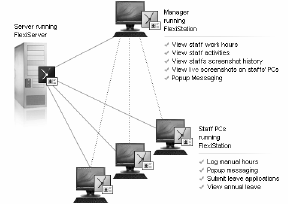
- 10 years ago
- Views:
Transcription
1 NCH Software FexiServer This user guide has been created for use with FexiServer Version 1.xx NCH Software

2 Technica Support If you have difficuties using FexiServer pease read the appicabe topic before requesting support. If your probem is not covered in this user guide pease view the up-to-date FexiServer Onine Technica Support at If that does not sove your probem, you can contact us using the technica support contacts isted on that page. Software Suggestions If you have any suggestions for improvements to FexiServer, or suggestions for other reated software that you might need, pease post it on our Suggestions page at Many of our software projects have been undertaken after suggestions from users ike you. You get a free upgrade if we foow your suggestion.

3 FexiServer Contents About FexiServer... 3 QuickStart Guide... 5 Instaation... 7 Initia Setup... 8 How to Log On Report Summary Attendance Summary Leave Summary Program Usage Summary Internet Usage Summary Categorized Usage Report Manage Categories Add New Category Manage Category Programs Manage Category Websites User Detais Deete User User Access Leve User Management Team Management User Roes Management Office Locations Management User Activity Report Teephone Activity Report Security Log User PC Configurations Emai Monitor Work Hours Report View Time Sheet User's Screen Shots Appication Usage Report Internet Usage Report Document Anaysis Report Webpage Anaysis Report Enter Work Hours Manua Time Sheet Report Enter Leave Request Form Leave Report Unexpained Absence Report Pending Leave Requests Pubic Hoidays Routing Environment Wizard Routing Options Page Password Management

4 Change Emai Address Search Time Period Search Date List Hoiday Settings System Configuration: Genera Settings System Configuration: Monitoring Options System Configuration: Reporting Options FexiServer Logs FexiServer License Terms Software License Terms Screen References Options ~ Web Access Options ~ Genera Options ~ Web Routing - URL 2

5 About FexiServer FexiServer is software for automatic empoyee time attendance ogging. It aso features additiona toos for quaity assurance monitoring and reporting, and works perfecty with homeor remote-working staff. FexiServer is the modern repacement for a timesheet, hours book or time card. For staff who work at computers, it does a hours ogging automaticay. It records og on and shut down times as worked hours. It automaticay detects unch and other ong breaks by monitoring the computer ide state. Hours can aso be entered manuay if the empoyee is not working at a computer. The way it works is ike this: The manager or bookkeeper runs FexiServer on their PC. A staff then run FexiStation on their computers. FexiStation wi run automaticay in the background, ogging hours worked. Whenever the manager or bookkeeper want to view reports they can og onto FexiServer with their web browser and use the contro pane. Empoyees can aso og on to FexiServer using a web browser to enter manua hours at any time. Benefits: Saves empoyees the chore of needing to fi out hours in their hours books every day. No more chasing staff for them to submit their hours. Bookkeeping has 24/7 immediate access to casua staff hours. Improves the way your business works by knowing exacty what tasks take your staff the most time. Reports can be used for costing reasons to estimate how much time empoyees are working in different programs. Gives management the confidence to et empoyees work at home without the fear of not being abe to see what they are working on. The QA Screen Monitor gives managers the chance to see what their team is working on at any time, just as if they were in the office. Lets you know exacty where your coeagues are at any time. This is perfect in roaming computer environments where it wi show you which computer any member of your team is working at. Gives empoyees more fexibiity. With the FexiServer accurate hours tracking, management are much more ikey to et empoyees work when they want. Features: Logs empoyees' time attendance automaticay using computer ogon times. Hours can automaticay be entered on a web form either as an aternative to computer ogging or to override computer detect times. Automaticay detects breaks using a configurabe ide time measure. Can be inked to payro software. Fies are stored in an open database friendy format. Shows the team if anyone is in the office (or working at home), which computer they are working at and (optionay) what document they are working on. Rea time screen monitoring of home empoyees (optiona). Can run on any Windows computer (XP or ater). Does not need a dedicated server. It is typicay run on the manager's or bookkeeper's computer. FexiStation keeps ogging hours even if the server computer is turned off. When it is turned on a cached data is sent to FexiServer. Works behind firewa routers and other difficut networks. 3

6 Very easy to use. No specia technica knowedge is needed. Literay, instaation wi ony take 2 minutes. Just cick "downoad" then enter your name and the ist of empoyees. System Requirements: Windows XP or ater [Optiona] Computer Network [Optiona] Internet Connection 4
7 QuickStart Guide Instaation 5

8 Instaation Instructions FexiServer initia setup When you first run FexiServer, the setup wizard page wi open using your defaut browser (or you can cick on "Open" button on the toobar to start it). View the manua topic Initia Setup for more detais. Login to server Enter your emai and password and cick "Login." View the manua topic How to ogin for more information. Add Empoyees View the manua topic How to add empoyees? for more information. Insta FexiServer Cient Software- FexiStation FexiStation is the cient-side software of FexiServer system. Every user in the system, incuding administrator users, need to insta a FexiStation cient to connect to the server. FexiStation wi og user's activity and screenshots and send them to FexiServer. FexiServer then can utiize this information to anayze a user's performance at work. FexiStation can aso enabe users to send popup messages to other users in the same team, enter manua work hours, fi out eave appication forms, and access their own persona profie. Users with manager access can see their staff's rea-time screen by ogging in to FexiStation. FexiStation can be instaed by running the FexiStation insta fie (fstasetup.exe) on each user's computer. Start Using Empoyee Management Toos View the foowing manua topics for more information on the empoyee management toos avaiabe with FexiServer. Activity Report Work Hours Screen Shots Appication Usage Manua Hours Leave Report 6

9 Instaation To insta FexiServer you need to do the foowing. 1. Run the FexiServer insta fie (fsrvsetup.exe) on the computer that wi act as the centra server of your company. 2. After the instaation process is compete, FexiServer wi automaticay probe your network condition and configure your network settings. If your router does not support UPnP protoco, it wi pop up a window asking you to configure it manuay. If your server has a pubic IP, pease enter your pubic IP address or host name in the diaog. If the FexiServer system is instaed for ony oca LAN users, you can seect "I don't use access from Internet". If you are not sure about this, you can seect "Remind me ater" then cick "OK." You can view more information about router configuration at 3. When first running FexiServer, the Setup Wizard page wi open in your defaut browser (or you can cick on "Open" button on the toobar to start the wizard). View the manua topic Initia Setup for more detais. 7

10 Initia Setup In order to use the FexiServer system, you have to create a east one administrator account. The Setup Wizard wi hep you compete the system initia configuration in two simpe steps (ess than 3 mins). Set up Administrator: To use the FexiServer system, you need to set up at east one administrator account. Enter a vaid emai address as your ogin ID, dispay name, password and cick Next. You wi receive a wecome emai from the system to test if your emai server (smtp server) works ok. Note: Emai address is the unique ID for every user within the system. Verify Emai Settings: Check to see if you received the wecome emai from FexiServer. If you received this emai, seect "Yes, I received the wecome emai" to confirm your emai server works fine, then you wi skip SMTP server settings page. If you didn't get the emai, you can seect "No, I did not received a wecome emai (Go to SMTP server setup)" and cick Next. You wi be directed to the SMTP server setup page to configure your SMTP server. You aso have the option to seect "Skip emai settings for now" to skip SMTP server setup step and save it for ater. Note: Emai sending procedure is a critica process of FexiServer system. Negecting the SMTP server settings wi disabe a the reporting functions of FexiServer. Pease refer to your ISP to get the right SMTP server parameters. SMTP Settings: Pease refer to the "Probems when sending emai" page for more information: Add Empoyees: Here you can add up to five empoyee accounts. FexiServer wi automaticay send out confirmation emais to each user with their ogon IDs and passwords and detais about how to start using it. Note: A the empoyees added here wi be assigned to norma "Staff" eve access and the "DefautTeam" team, which you can modify ater. 8

11 Finish: Cick the Finish button to compete the initia setup process. Now the ogin page wi be shown. View the manua topic How to Log On for more detais about ogging in. 9

12 How to Log On Enter your emai address and password and cick on Logon. If you have forgotten your password, cick the Forgot your password? ink beow the password fied. After fiing out your registered emai address, FexiServer wi issue a new password and send it to you by emai. 10

13 Report Summary This page summarizes the reports of a staff or seected staff. The report can be fitered for specific time period by inputting 'Start Date' and 'End Date' on the search bar, and cicking 'Search button'. The date range can not be over one year. The search bar aso provides fitering toos based on empoyees' office ocation, their assigned team and roe. If you want to search the record for empoyees at a office ocations, then seect 'A Offices...' option. The same appies for 'Team' and 'Roe' fieds. This foowing items are shown in this report: User Name User Emai Worked Hours The tota worked hours for the specified period of time. The data format is Hours:Minutes. The fied aso provides a ink to the seected user's attendance summary page for the time period. Program Usage The time spent by user on different appications for the specified period of time. This woud incude the internet browser appications. The data format is Hours:Minutes. The fied aso provides a ink to the seected user's appication usage report page for the time period. The vaue entered here does not take account of the appications with no key strokes or mouse cicks by the user. Internet Usage The time spent by user on different browser appications for the specified period of time. The data format is HH:MM (Hours:Minutes). The fied aso provides a ink to the seected user's internet usage report page for the time period. The vaue entered here does not take account of the webpages with no key strokes or mouse cicks by the user. Security Aerts The fied dispays the number of security aerts ogged for the user during the specified period of time. It aso provides a ink to the user's security event report page providing further information on the security ogs. 11

14 Attendance Summary This page summarizes the attendance records of a staff or seected staff. The report can be fitered for specific time period by inputting 'Start Date' and 'End Date' on the search bar, and cicking 'Search button'. The date range can not be over one year. The search bar aso provides fitering toos based on empoyees' office ocation, their assigned team and roe. If you want to search the record for empoyees at a office ocations, then seect 'A Offices...' option. The same appies for 'Team' and 'Roe' fieds. This foowing items are shown in this report (The data format is Hours:Minutes.): User Name User Emai Active Time The time during which there are human activities on the computer. It is accumuated together as effective work hours. Break Time The time during which there is no human actions on the computer (key strokes, mouse cicks or mouse whee movement), and it is onger than toerance time. If the user takes unch time during the day, the break time wi be subtracted by his unch duration. If the break time he took is ess than unch duration, the remaining part wi be subtracted from Ide time. Ide Time The time during which there is no human actions on the computer, but it is shorter than toerance time. Manua Time The work time that the user manuay entered via manua work hour entry on FexiStation or through the web page of FexiServer. Tota Worked Hours The summary work hours of the user during the specified period of time. When strict hours formua is used, it consists of Active Time, Ide Time and Manua Time. When none strict hours formua is used, it consists of Active Time, Ide Time, Manua Time and Break Taken (except unch break). 12

15 Days Worked The tota days worked during the specified period. Private Time The tota private hours spent on the computer during the specified period of time. Leave Time The tota eave hours taken during the specified period of time. 13

16 Leave Summary This report shows you how many hoidays the user has taken for the specified time period. The report aso cacuates each type of eave taken during that period. This report is generated according to eave forms the user submitted. Pubic hoidays and weekends are automaticay excuded from the cacuation. (P.S. Pubic hoidays can be set by admin users by going to "Set Pubic Hoidays"). The report can be fitered for specific time period by inputting 'Start Date' and 'End Date' on the search bar, and cicking 'Search button'. The date range can not be over one year. The search bar aso provides fitering toos based on empoyees' office ocation, their assigned team and roe. If you want to search the record for empoyees at a office ocations, then seect 'A Offices...' option. The same appies for 'Team' and 'Roe' fieds. This foowing items are shown in this report: User Name User Emai Tota Tota days of eave taken during the specified time period by a user. Remaining coumns ist the tota days of eave taken by their eave type during the specified time period by a user. If you cick on any of the hyper-inked entries for a user, you can see the detaied Leave Report of this user. 14

17 Program Usage Summary Program usage summary report summarizes the six most used appications by the seected group of staff. The report can be fitered for specific time period by inputting 'Start Date' and 'End Date' on the search bar, and cicking 'Search button'. The date range can not be over one year. The search bar aso provides fitering toos based on empoyees' office ocation, their assigned team and roe. If you want to search the record for empoyees at a office ocations, then seect 'A Offices...' option. The same appies for 'Team' and 'Roe' fieds. This foowing items are shown in this report: User Name User Emai Top 6 appications used by the seected group of the user. Each fied contains Hours:Minutes and percentage of time the user spent on this appication. If you cick on any of the hyper-inked entries for a user, you can see the detaied User Appication Usage Report of this user. Cick on User Appication Usage Report for more information. 15

18 Internet Usage Summary Internet usage summary report summarizes the six most visited internet domains by the seected group of staff. The report can be fitered for specific time period by inputting 'Start Date' and 'End Date' on the search bar, and cicking 'Search button'. The date range can not be over one year. The search bar aso provides fitering toos based on empoyees' office ocation, their assigned team and roe. If you want to search the record for empoyees at a office ocations, then seect 'A Offices...' option. The same appies for 'Team' and 'Roe' fieds. This foowing items are shown in this report: User Name User Emai Top 6 internet domains visited by the seected group of users. Each fied contains Hours:Minutes and percentage of time the user spent on this appication. If you cick on any of the hyper-inked entries for a user, you can see the detaied User Internet Usage Report of this user. Cick on User Appication Usage Report for more information. 16

19 Categorized Usage Report Categorized usage report presents categorized view of website and program usages reports of staffs in a seected team. This is most usefu of the reports when utiized correcty in measuring productivity of a staff. It ets you choose the websites and programs into different categories and organize in teams. The report can be fitered for specific time period by inputting 'Start Date' and 'End Date' on the search bar, and cicking 'Search button'. The date range can not be over one year. The search bar aso provides fitering based on empoyees' assigned team. Unike other reports, this requires some initia setup, which can be accessed through 'Manage Categories' button on the page. Cick on Manage Categories hep to view information on how to set it up. This foowing items are shown in this report: User Emai Categories for the seected team. Each fied contains Hours:Minutes and rounded down percentage of time the user spent on this appication. The ast 'Others' coumn ists the time spent on appications or websites that were not part of any isted categories. 17

20 Manage Categories Manage Categories page aows an administrator to add/deete categories, and add/remove programs and websites to/from the categories respectivey. Begin by seecting a desired team from the search bar and cick 'Search'. This wi ist a the categories isted under the seected team, and associated programs and websites in respective categories. Cick 'Add New Category' button to add new categories in the seected team. More hep on this can be found here. A category and its associated programs and websites can be deeted by seecting desired categories (cick on checkboxes) and cicking 'Deete Seected Category' button. A program or website can be associated to a category by cicking on respective ist of 'Appications' or 'Websites' coumn ink for desired category. 18
21 Add New Category This is the page where you enter new category for the seected team. Overapping category names are not aowed. Up to 10 categories are aowed per team. Each category name has 50 characters imit, and aowed characters are 'a-z', 'A-Z', '0-9', ' ', '-' and '_'. Enter a category name in the provided text box and cick 'OK' to add a new category. 19
22 Manage Category Programs This page aows an administrator to add and remove programs to and from the categories respectivey. The page ists a programs in different categories and some uncategorized programs used by users in the seected team in past 30 days. Seect desired programs and cick 'Add...' or 'Remove...' buttons for desired actions. If your desired programs are unisted, you can enter them in the text box at the bottom, and cick 'Add to Category' button on its right. More than one programs can be entered separated by comma (,). Finay, cick 'Return' button to go back to the 'Manage Categories' Page. 20
23 Manage Category Websites This page aows an administrator to add and remove website domains to and from the categories respectivey. The page ists a websites in different categories and some uncategorized websites used by users in the seected team in past 30 days. Seect desired websites and cick 'Add...' or 'Remove...' buttons for desired actions. If your desired websites are unisted, you can enter them in the text box at the bottom, and cick 'Add to Category' button on its right. More than one websites can be entered separated by comma (,). Finay, cick 'Return' button to go back to the 'Manage Categories' Page. 21
24 User Detais Each FexiServer user needs the foowing information. Basic Info User emai address User emai addresses act as unique user IDs in FexiServer. The address given has to be a vaid emai address. The user wi need this emai address to ogin, get server information and retrieve their password. User dispay name. The user's fu name Administrator Access Does this user have Administrator access? See User Access Leve for more detais. Accountant Access Does this user have Accountant access? See User Access Leve for more detais. Monitor Is this user a monitor ony user? See User Access Leve for more detais. Team Affiiation Which team does this user beong to? See Team Management for more detais. Managers Who is this user's Manager? A user can be assigned to mutipe managers. Use a comma-separated ist to specify mutipe managers. Empoyment Info There are three different types of empoyment in FexiServer, which are Permanent Fu-time, Permanent Part-time and Casua workers. Permanent Empoyee (incuding permanent fu-time and permanent part-time) Expected hours per week Here you can specify how many hours this empoyee is suppose to work every week. This number can hep the system to determine if this empoyee worked enough hours during the week. If you seect Defaut Fu-time, then the defaut work hours per week in company settings wi be appied to this empoyee. Work Days Expected work days - seect this to specify on which days in a week the empoyee is suppose to work Works fexibe days - seect this if the empoyee works fexibe days in a week. Casua Empoyment Casua empoyees work on fexibe days and have no reguar weeky work hours imit. Work Hours 22
25 Strict Hours Formua If this option is ticked, the system wi use strict work hours cacuation toward this empoyee. It means his/her work hours wi be stricty accumuated from the time he/she actuay worked in front of computer. Ony the time there are human actions on the computer wi be counted toward their work hours. No human action time wi be added up as breaks. If this option is unticked, then the system wi use a more fexibe cacuation formua. The work hours wi be: Last active time - first ogon time - unch break (if you ticked "Takes unch break") Takes Lunch Break If this box is ticked, the system wi excude unch break time from users' work hours Lunch time taken is dynamicay specuated according to "Lunch Start Time" and "Lunch Duration" you specify here. The more cose the "Lunch Start Time" and "Lunch Duration" are to the empoyee's break taken, the more ikey the break is a unch break. If you eave these two input fieds bank, then the company-width setting "Norma Break" wi be appied here. Prohibited Aow Normay Prohibited Programs for this User If this option is ticked, the system's Prohibited Programs configuration wi not appy to this empoyee. Aowed Sites If any webpage is entered, then it woud be aowed for the user even if the system's Prohibited Sites configuration says otherwise. Teephone Charge per minute Input the teephone charge per minute. The resut wi automaticay show in the teephone activity report. cick Teephone activity for more information. Time Zone FexiServer wi automaticay adjust this setting according to the time zone info coected from FexiStation when you connect to FexiServer. New user registration emai Whenever a new user is added to FexiServer, this user wi get an emai from FexiServer describing the user ID, password and how to configure FexiStation to connect to the server. The emai wi have a format ike this: FexiServer is a program that wi automaticay track your work attendance based on your computer usage activity. You have been issued instaation and ogon procedures beow. If you have any questions about the setup of FexiServer, pease contact the FexiServer Administrator: [name here] (Emai: [emai here]). 23
26 Connect to FexiServer Insta the FexiStation cient by cicking one of the foowing inks: (oca network) (over the Internet) After instaation, enter the ogon detais beow and cick OK: FexiServer: :89 (on the oca network) FexiServer: :89 (over the Internet) Emai: [emai address] Password: [issued password] Logon to your FexiServer web contro pane by either: Cicking on one of the foowing inks and entering your ogon emai address and password. (oca network) (over the Internet) -or- Cicking the Web icon from the FexiStation toobar. Your work hours wi be automaticay cacuated based on the time you are ogged into your computer. If for any reason you are at work but not at your computer (e.g. in a meeting), you can enter your hours manuay. Do this by cicking the Add Hours button in the FexiStation too bar and entering the times and reason you were away. FexiServer aso maintains your vacation eave record. To enter sick, vacation, or other eave, either seect the Add Leave option from the FexiStation toobar, or add eave from the ink in the FexiServer web contro pane. Your manager wi be notified of your eave appication, and they can approve or adjust the eave request as necessary. Taking eave without fiing out a eave request form wi generate an unexpained absence report received by your manager. 24
27 Privacy Notice FexiStation wi monitor your computer activities and send the data to FexiServer. Monitoring can be turned off for short periods of time by cicking the Private icon on the FexiStation toobar. Private mode wi be ogged by FexiStation, but the screen wi not be recorded and hours wi not accrue. Logons, passwords, and actua text typed are NOT recorded by FexiStation. FexiStation does record appications and documents used, the time spent in each, and the eve of genera activity (i.e. number of mouse cicks and keystrokes). Your manager can view your hours worked, screen shots, rea-time screen (uness you are in Private Mode), and your appication usage statistics. Your team members can see your onine status, ocation, and the appication name and tite you are currenty working on from the FexiStation window. 25
28 Deete User This page is for deeting a user from system. Warning: user information can not be recovered after deeting. Recommend to do a user ist backup before doing this. 26
29 User Access Leve Users in FexiServer system can be categorized as either Administrators, Accountants, Manager or Staff. Administrator Administrator has the fu access of FexiServer, incuding adding, deeting users, changing user profie, and modifying server configurations. Accountant Accountant is abe to contro a the "Staff" and "Manager" and access to a the empoyee management toos, which hep reviewing empoyees' performance and cacuating pay reated work hours. Monitor A monitor is a hidden user account in the system. A monitor cannot be seen by other users from the FexiStation user ist, and his/her activities and screenshots are not ogged by the FexiServer. Manager "Manager" is a dynamic concept. You don't have to actuay set a user to be a "Manager." If anyone ese's manager property is set to be your emai, then you are a "Manager" of them, which enabes you to use a the empoyee management toos on your staff. Staff "Staff" means genera empoyee eve access. If a user is not a "Manager" and his/her access property is not set to "Administrator" or "Accountant," then he/she is a "Staff." Staff is abe to access their individua entries, enter their work hours and communication with other staff in the same team using FexiStation cient. 27
30 User Management On this page, you can seect one or more than one users and see their reports. There are a bunch of empoyee management toos in FexiServer system. If you are a system administrator or an accountant, you can see a the toos in the system. If you are a manager, it wi ony show you the options that is avaiabe for you. On the eft coumn, there is a ist of empoyees showing who is your staff. For admin users, a the empoyees in system wi be shown to you. On the right coumn, you can see a the empoyee management toos which are avaiabe for you. Cick on the icon to see reports for each user. User Activity Report Show you the detai activities the user did on the computer during a day. Cick on User Activity Report for more information. View Screen Shots Show you the screen shots of this user. It was automaticay taken every 5 mins by FexiStation. Cick on the thumbnais you can see the fu size screen image. Cick on User's Screen Shots for more information. User Work Hours Report View users' work hours during a certain period of time. This report is cacuated according to users' activity report which is ogged by FexiStation cient. Cick on Work Hours Report for more information. Manua Work Hours View manua work hours report which is manuay inputted by the user. Cick on Manua Time Sheet Report for more information. User Appication Usage Report See how much time the user spent on each program during a certain period. You can seect mutipe users to see their comparison report. Cick on Appication Usage Report for more information. Document Anaysis Report 28
31 Show you what documents the user has been viewing for a certain appication. Cick on Document Anaysis Report for more information. User Leave Report View how many eaves the user has taken. Cick on Leave Report for more information. View User Profie View user's persona detais and settings. Cick on User Detais for more information. Edit User Profie Change this user's persona detais and settings (for ony Admin user). Deete User Deete this user (for ony Admin user). Add User Add a new user (for ony Admin user). 29
32 Team Management Users in FexiServer system are divided into severa teams. Each user's team property is set during user adding. It can modified ater, but ony by admin user. Users added during initia step wizard are set to be in "DefautTeam", which can be modified afterwards. Tota team ist is shown in "Edit team ist" on the main page of FexiServer, which can be used to add or deete a team in the system. DefautTeam is required by FexiServer system and it is not aowed to be deeted. The users in the same team can see each other's status and use popup message to communication with each other. 30
33 User Roes Management Users in FexiServer system can be assigned to different roes. Eg: Manager, Deveoper, Cerk, etc. Each user's roe property is set during user adding. It can modified ater, but ony by admin user. Users added during initia step wizard are to "Unspecified" roe, but can be modified afterwards. Tota roe ist is shown in "Edit roe ist" on the main page of FexiServer, which can be used to add or deete a roe in the system. Unspecified roe is required by FexiServer system and it is not aowed to be deeted. 31
34 Office Locations Management Users in FexiServer system can be assigned to different office ocations. Eg: Downtown, New York, etc. Each user's office property is set during user adding. It can modified ater, but ony by admin user. Users added during initia step wizard are to "Unspecified" office, but can be modified afterwards. Tota office ist is shown in "Manage office ocations" on the main page of FexiServer, which can be used to add or deete a roe in the system. Unspecified office ocation is required by FexiServer system and it is not aowed to be deeted. 32
35 User Activity Report You can check user activity report to find out what the user was doing during working. The foowing information is shown in this report: Date Time Duration Appication Name Window Caption Text Key Strokes Count Mouse Cicks Count 33
36 Teephone Activity Report You can check user teephone activity report to find out the teephone ca activity during working. The foowing information is shown in this report: Time Duration Ca number Charge(If set in the User Detais page) 34
37 Security Log You can check user's Security og activity during working. An event wi be ogged when the user Forcefuy cosed FexiStation Pug in/out a USB device at the user's computer Used an prohibited program/site and have been forciby cosed The foowing information is shown in this report: Time Event 35
38 User PC Configurations You can view and manage user's PC configurations detected by FexiServer on this page. 'Computer Security Logging' mode needs to be active in order to track user's PC configurations. The foowing information is shown in this report: Staff - Staff fu name Computer Name - Name of the PC tracked by FexiServer MAC Address - MAC address of first active Network Interface Card (NIC) detected on staff's PC. HDD Voume Info - Hard disk drive Voume information on staff's PC. IP Address - IP address of cient's FexiStation. Last Activity - The ast active date when FexiStation from this PC configuration successfuy connected to the FexiServer. Status - Approved, Pending or Unapproved. You can approve, disapprove or deete any seected PC configuration from the ist by cicking on the respective buttons from the bottom of the page. Aso, you coud turn on/off tracking of IP address of seected user(s). This is particuary usefu when a staff has dynamic IP address settings. So, if the 'Tracking IP address' feature is off for a user, ony Computer Name, MAC Address, and HDD Voume Info are used to determine the unique PC configuration for the user. 36
39 Emai Monitor By setting up the emai monitor options in the system configuration and by configuring the empoyee's emai cient for FexiServer, you can monitor a user's emai history. How to set up Emai monitoring 1. The administrator shoud begin by opening up the System Configuration page. Log in to the web interface and cick the 'Change system configuration' ink in the 'Administrator Settings' section. Cick the 'Monitoring' tab on the 'System configuration' screen.. 2. Enter the Outgoing Mai Server (SMTP), e.g., mai.mycompany.com, and the Incoming Mai Server (POP3), e.g., mai.mycompany.com, and the ports they use. Note that FexiServer supports ony one POP3 and one SMTP server, so the emai monitoring feature works best with a corporate emai system where a empoyees share one emai server. 3. If you entered different ports for SMTP and POP3, make sure the corresponding ports are specified in "The Emai cients wi connect to Fexi using these ports" section. 4. Ensure the Enabe Emai Monitor box is checked. 5. In the empoyee's emai cient, the Outgoing Mai Server and Incoming Mai Servers need to specify FexiServer. Enter the oca address for FexiServer that was sent in an emai to you during the initia program setup, e.g., With both the emai monitor options and the empoyee's emai cient configured, FexiServer wi store the empoyee's emais for viewing by the assigned managers and/or administrators. View emai reports From the web interface, cick the Emai Monitor ink under the View activity reports section under the My Staff heading. This opens the Emai Monitor page. Seect a user from the User drop-menu, specify a date for the report, and cick Search to dispay emais. Seect an emai to view the foowing information: Date User/IP Sender Receiver Subject Attachments 37
40 Work Hours Report This report tes you how many hours a user worked during a certain period of time. The work hours report is cacuated according to the user's activity og, which requires the user to keep FexiStation running whie working on their computer. If you search for an individua user's work hours, it wi show you the work hours on each individua day during this period with summaries on the bottom. If you search for severa users, it wi ony show you the summary resuts for each user. This foowing items are shown in this report: User Name Date Wi either summarize the tota days shown, or so the date for that entry. Time Start The first ogon time of a day. Time End The ast active time FexiServer has records of the user's activity in a day. Break Time The time during which there is no activity on the computer (key strokes, mouse cicks or mouse whee movement), and it is onger than toerance time. If the user takes a unch time during the day, the break time wi be subtracted by his unch duration. If the break time he took is ess than the unch duration, the remaining part wi be subtracted from Ide time. Active Time The time during which there is activity on the computer, accumuated together as the effective work hours. Ide Time The times, shorter than the toerance time, during which there is no activity on the computer. Manua Time 38 The work time that the user manuay entered work hours via manua work hour entry on FexiStation or through the webpage of FexiServer.
41 Tota Work Hours The summary of the user's work hours during a certain period of time. When the strict hours formua is used, this consists of Active Time, Ide Time and Manua Time. When the strict hours formua is not used, this consists of Active Time, Ide Time, Manua Time and Break Taken (except unch break). 39
42 View Time Sheet This page shows you which part of your work hours during the day is counted as Active, Ide, Breaks or estimated Lunch Time. Section start time. Section end time. Duration of this section. What type the system counted it as. Cick on User Work Hours Report for more information. 40
43 User's Screen Shots This report shows you the screen shots automaticay taken by FexiStation every 5 mins. It enabes managers to know what exacty the staffs were doing during a working day. Cick on thumbnais you can see fu screen size pictures. 41
44 Appication Usage Report Appication usage report tes you how much time a user spent on each appication. You can search for a certain period of time to generate this report. This foowing items are shown in this report: Appication name Time spent on Percentage of time that the user spent on this appication Tota key stroke count Tota mouse cick count If you cick on one of the appication names, you can see the Document Anaysis Report of this appication. Cick on Document Anaysis Report for more information. 42
45 Internet Usage Report Internet usage report tes you how much time a user spent on each website. You can search for a certain period of time to generate this report. This foowing items are shown in this report: Website name Time spent on the website Percentage of time that the user spent on this website Tota key stroke count Tota mouse cick count If you cick on one of the website names, you can see the Webpage Anaysis Report of this website. Cick on Webpage Anaysis Report for more information. 43
46 Document Anaysis Report This report tes you what documents the user has been viewing for a certain appication, and is accessed by cicking an appication ink from the User Appication Usage Report ist. This foowing items are shown in this report: Document name Time spent on Percentage of time that the user spent on this document Tota key stroke count Tota mouse cick count 44
47 Webpage Anaysis Report This report tes you the caption of the sub-pages the user has been viewing for a certain websites. This foowing items are shown in this report: Captions of the sub-page Time spent on the page Percentage of time that the user spent on this page Tota key stroke count Tota mouse cick count 45
48 Enter Work Hours Normay, FexiStation wi keep ogging your activities on the computer and cacuate your worked hours according to the og. But, sometime, when you were doing fied work without ogging into the system or you were in a meeting whie the system set your status to Ide, you need to manuay enter a work hour entry to compete the time sheet, which wi make sure your work hours are cacuated right. You can access to this function from FexiStation or by ogging in to FexiServer web page. On the manua time sheet entry diaog/page, there are foowing fied need to be fied: Date The date you were working (Format: YYYY-MM-DD). Since work hours are cacuated daiy, if you were working overnight, pease enter two separate time sheet entries. Time Start and End Enter the start time and end time for this entry. Work Type Seect either "Working" or "Private" to indicate if you were working on job reated things or persona stuff. Comment Any expanations reated to this entry. 46
49 Manua Time Sheet Report Here you can see a the time sheet entries that the user manuay entered. The user himsef can enter the edit mode of this report, which enabes him/her to modified the time sheet entries that he/she entered before. The foowing items are shown in this report: Date Time Start Time End Work Type Comments In edit mode, you can see these extra buttons: Add New Item - for adding a new time sheet entry. Deete Seected Items - if you want to deete an entry, just tick the box on the eft of that item and cick this button. Submit Changes - in edit mode, work type and comments are changeabe on this page. Just make your changes in these input boxes and cick "Submit Changes", it wi take effect immediatey. Discard Changes - ignore a the changes you made on this page and return to main page. 47
50 Enter Leave Request Form You can submit your eave appications by using FexiServer. Just seect your eave type, start date and end date aong with comments (reasons), cick Ok, then it is done. There are 5 types of eave: Hoiday Leave Sick Leave Unpaid Leave Maternity/Paternity Leave Other Leave Once a eave form is submitted, ony the admin user can modify it afterwards. P.S. Pubic hoidays and weekends within the period you entered wi be automaticay excuded from hoiday report cacuation. 48
51 Leave Report This report shows you how many hoidays the user has taken. This report is generated according to eave forms the user submitted. Pubic hoidays and weekends are automaticay excuded from the cacuation. (P.S. Pubic hoidays can be set by admin users by going to "Set Pubic Hoidays"). The manager of this staff can approve or disapprove his/her submitted eave appications. If "Leave form approva required" option in system settings is set, then ony approved eave appications wi be counted into tota eave taken summary. If you are an administrator user, you can enter edit mode of this report by cicking on "Edit Mode" to modify submitted items. Ony eave type and reason fieds are changeabe. If eave start date or end date has to be changed, then you need to deete the od eave form and add a new one to repace it. 49
52 Unexpained Absence Report This report is for showing a the unexpained absence occurred to your staff. When an empoyee did not show up on a working day, if a the foowing conditions are true: The empoyee works fixed days The day is one of his/her reguar working days It is not a pubic hoiday The empoyee did not submit a eave appication for it then it is an unexpained absence. 50
53 Pending Leave Requests This report shows you a the pending eave requests from your staff. You can approve or disapprove them here. 51
54 Pubic Hoidays A the items in this ist are pre-defined pubic hoidays. Admin users can edit them by using "Add Hoiday", "Edit Hoiday" and "Deete Hoiday". If you checked "Auto detect pubic hoidays" option in system settings page, whenever there are more than haf of the tota empoyees didn't show up on one day, this day wi be automaticay added as a pubic hoiday (minimum 4 empoyees are required for this option). 52
55 Routing Environment Wizard This diaog request you to choose if you aow users to access FexiServer from outside of company LAN. Ony in this office (on your oca computer network) Your empoyees wi work ony in this office and you can skip the automatic network environment probe procedure. Some staff wi work outside the network Some of your staff wi access FexiServer from outside. Later on, an automatic network probing procedure wi be executed to detect your network routing configuration. This seection can be changed ater on system configuration page. 53
56 Routing Options Page Pease refer to the foowing page for more information: Routing Options Page 54
57 Password Management How to change your password 1. First, ogin to your account and cick "change password" ink on the main page. 2. Enter your current password. 3. Enter the new password you wish to use. 4. Re-enter the new password to confirm it. 5. Cick OK to finish. Retrieve Your Password Just cick on "Forgot your password?" ink on the ogin page, enter your emai address and cick Ok. An emai containing your reissued password wi be sent to your emai box. For security reason, password wi be reset every time you request a password retrieve. 55
58 Change Emai Address In FexiServer, Emai account is the user identification key. You can change to another emai address after your FexiServer account is created. Just by simpy cick on "Change Emai Address" on the contro pane of FexiServer web page and enter your new emai address twice to confirm, then it is done. You wi be forced to reogin after emai address changed. 56
59 Search Time Period This is the genera datetime period entering box for inputting search condition. Date Fied: The start date and end date for the report. (Format: YYYY-MM-DD) Time Fied: The start time and end time for searching the records. (Format: HH:MM:SS) 57
60 Search Date List This is a genera page for seecting a singe date to create reports. Just simpy cick on one of date inks on the ist to show the report you want to see for the day. You can cick on Last Month or Next Month to show the days in other months. You can aso cick Search button on the top-right corner to enter search time period page, which enabes you to use advanced search conditions. 58
61 Hoiday Settings This is the page where you enter pubic hoiday dates for this year. Overapping dates are not aowed when entering a new pubic hoiday. This ist wi affect vacation taken report. A the pubic hoidays you added into the ist, wi be automaticay excuded from user hoiday taken cacuation. If you specify an office for a hoiday, ony the empoyees from the seected office ocation woud be affected for 'user hoiday cacuation'. If a hoiday has no specified office, a empoyees regardess of office ocation woud be accounted for the hoiday. 59
62 System Configuration: Genera Settings Work Time Options Defaut fu-time hours per week This is the defaut weeky work hours for a the fu-time permanent empoyees in your company. According to this number, system wi judge if this empoyee worked enough hours in ast week. If the user didn't work enough hours in ast week, FexiServer wi send a work hours notice emai to this user and his/her manager (Option "Send warning emai if staff do not work their expected hours" has to be set for this function). Toerance (ide mins aowed) Whenever there is a time gap (no human actions on pc) in users' work hours og and the gap is shorter than this Toerance time, FexiServer adds a time item to fi out the gap. Later on, these extra time items wi be added up together as Ide time. When there is a time gap onger than Toerance time, it wi be counted as a break. Exceptions: if you chose a non-strict work hours cacuation for a user. A the time gaps wi be fied out with Ide time except unch time. Norma Break (e.g., Lunch) FexiServer can "guess" users' unch break taken during a day according to the users' activity og. The probabiity for a time gap to be a unch break is reated to break start time and the duration. You can set these parameters respectivey for each user in their detais ("Lunch Start Time" and "Lunch Duration Minutes" option). For those who didn't set these parameters, system wi use company-wide parameters for them, which can be specified here. "Norma break time" - you can specify a different unch break start and end time. e.g., 12:30 to 13:30. "No breaks wi be taken" - defaut no unch breaks for a users. Leave form approva required Check this option, then ony approved eave appications wi be counted as eave taken. Auto detect pubic hoidays When more than 50% of staff are absent, a pubic hoiday is added. Minimum of 4 staff is required for this option. FexiServer Running Mode This is where you specify how you wi use FexiServer. Hours and Attendance Tracking and Reporting Tick this option if you wi use this software to keep track of casua empoyees hours for payment and to verify if permanent staff are not working their expected hours. Vacation, Hoiday, Leave and Absence Tracking Tick this option if you wi use this software to identify days not work, record a eave appications, notify management and HR of eave and cacuate eave totas. Anayze Computer Appication, Internet or Teephone Usage 60
63 Tick this option if you intend to use the software for any of the foowing: Screen view or monitoring, appication usage reports, document activity reports, keyboard and mouse ogs or basic verification of hours. Computer Security Logging Incuding Optiona Screen Capture Tick this option if you intend to use the software to capture screenshots from empoyees, or to be notified of security events such as the instaation of a remote drive. Connect Remote Where wi staff work? Ony in this office (on your oca computer network) Your empoyees wi work ony in this office and you can skip the automatic network environment probe procedure. Some staff wi work outside the network Some of your staff wi access FexiServer from outside. Later on, an automatic network probing procedure wi be executed to detect your network routing configuration. 61
64 System Configuration: Monitoring Options Emai Monitor Options By setting up the emai monitor options in the system configuration and by configuring the empoyee's emai cient for FexiServer, you can monitor a user's emai history. More information about setting up the emai monitor options can be found on Emai Monitor hep page. Send emai to remind user when private-ike programs have been used under working mode When staff is using a private-ike programs (e.g. icq.exe) under working mode, send him an emai notice in weeky report. Send the user's manager a copy Send the manager of this user a copy of the warning emai. Private-ike Programs Private-ike programs ist, comma-separated ist. e.g. icq.exe,triian.exe Synchronize the foowing Business-ike programs ist with user's FexiStation on insta If this option is checked, when a new user instaed FexiStation and first time connect to the server, FexiServer wi send the foowing Business-ike programs ist to FexiStation. Business-ike Programs Business-ike programs ist, comma-separated ist. e.g. icq.exe,triian.exe Prohibited and Private programs/urs. Prohibited programs/urs. Prohibited programs ist, comma-separated ist. e.g. icq.exe,triian.exe Prohibited ur ist, comma-separated ist. e.g. When the user use the prohibited programs/urs, fexistation wi forciby cose them and og the event. This configuration appy to a empoyee by defaut and can be changed at User Detais Private programs/urs. Private programs ist, comma-separated ist. e.g. icq.exe,triian.exe Private ur ist, comma-separated ist. e.g. When the user use the Private programs/urs, fexistation wi change it's status to private automaticay. This configuration appy to a empoyee by defaut and can be changed at User Detais 62
65 Screenshots Auto-deete screen shots (after days) Set this number, FexiServer wi automaticay deete the screen shot images received more than n days ago. This option is usefu for disk space contro. If you set the number to 0, then this function wi be disabed. Notice: this process runs between 2:00am to 3:00am everyday. It is a part of daiy server maintenance procedure. Log screen shots if suspicious activity is detected in private mode Normay, screenshots are not recorded in private mode. However, if you check this option, screenshots wi be ogged if any suspicious activity is detected in private mode, such as, system cock changes and externa hard drive connection. Note that, 'Computer Security Logging Incuding Optiona Screen Capture' mode in 'Genera Settings' needs to be active in order for this option to function. Captions Dispay user window caption Determines if you want to enabe user's current window caption to be seen by a other team members from FexiStation. If you seected "Show window caption on a user-by-user basis", a new option - "Show the window caption of this user on FexiStation" on each user's detai page wi appear. By ticking off this option (defaut on), you can excude a user's caption from being seen by other users. 63
66 System Configuration: Reporting Options Reporting Options Send weeky reports to manager(weeky report wi be sent between 02:00am -03:00am Tuesday) Incude hours worked Emai content incudes work hours of a the users who is under this manager's charge Incude top 5 appications usage percentage Show 5 most commony used programs. Note any days not worked (permanent staff) Show any permanent staff who was absent on a working day which he/she suppose to work on (without eave appication). Note any permanent staff who did not work enough hours Show any permanent staff who didn't work enough hours in ast week. Toerance is the percentage amount of time that a worker can work under their schedued hours without warning. For exampe, if this number is set to 5, which means 5% toerance, when an empoyee worked 36 hours or ess out of his schedued 40 hours per week, his name and hours wi be shown in the emai. Send warning emai to manager if staff ogs on from new or not-previousy authorized computer On seection of this option, the server sends warning emais to the managers and accountants, if the empoyees' FexiStation connects to the server from new or not-previousy authorized computer. Send warning emai to manager if staff changes the system cock On seection of this option, the server sends warning emais to the managers, if the empoyees' system cock does not match the FexiServer system cock. If a time difference of over 10 minutes is detected, the manager gets one warning emai every hour for each detected empoyee. Send security og emai weeky to manager On seection of this option, the server sends 'Security Log' emai to the managers once a week. The emai is ony get sent, when there is any content in security og. Note that, there won't be any content to send, if 'Computer Security Logging' modue is turned off. Send warning emai if staff do not work their expected hours On seection of this option, the server sends warning emais to empoyees, their managers and accountants, depending on the check boxes seected, if the empoyees fai to meet their expected hours of work. 64
67 Toerance is the percentage amount of time that a worker can work under their schedued hours without warning. For exampe, if this number is set to 5, which means 5% toerance, when an empoyee worked 36 hours or ess out of his schedued 40 hours per week, he wi get a warning emai from FexiServer. Send accountant (HR) casua empoyee hours reports At the end of each caendar month Send out emais on 2th of each month, reporting the resuts for ast month. On these days of the month [e.g., 14, 28] Send out emais on these specified days of each month. Statistic period wi be two days before ast period ti two days before this period. For exampe, if you specified 14, 28, the first emai of each month wi be sending out on 14th, reporting period is 27th of ast month ti 12th this month. The second emai wi be sending out on 28th, reporting period is 13th of this month ti 16th of this month. Warning: the day of month shoud be between 1 and 28. (Comma-separated ist, without space) At the end of each fortnight Send out emais fortnighty. The first emai sending date wi be Start Date and reporting period is 15 days before ti 2 days before start date. Send these reports to manager at the same time Send a copy to the manager of this staff. 65
68 FexiServer Logs You can downoad and view a the FexiServer system and user activity ogs from this page. The data are presented in raw csv or text format as it is stored by the FexiServer. The foowing information is shown in this report: System Log Dispays a the system activities ogged by FexiServer aong with the time-stamps in the text format. The og fies are organized in chronoogica order. Activity Log Dispays a the user activity archives ogged by FexiServer aong with the time-stamps in the csv format. Cick on the user's ink, and then the fie, (isted in chronoogica order) to downoad the seected user's activity og. The fieds in the csv fie are in the order: time (HH:MM:SS), duration (in seconds), activity type (0 - working), keys pressed, mouse-cicks, appication's executabe fie name, and any captured captions. 66
69 FexiServer License Terms 1. The copyrights in this software and any visua or audio work distributed with the software beong to NCH Software and others isted in the about box. A rights are reserved. Instaation of this software is icensed ony in accordance with these terms. 2. By instaing, using or distributing this software you, on your own behaf and on behaf of your empoyer or principa, agree to be bound by these terms. If you do not agree to any of these terms, you may not use, copy, transmit, distribute, nor insta this software - return it to the pace of purchase within 14 days to receive a fu refund. 3. This software, and a accompanying fies, data and materias, are distributed "as is" and with no warranties of any kind, whether express or impied except as required by aw. If you intend to rey on this software for critica purposes you must test it fuy prior to using it, insta redundant systems and assume any risk. 4. We wi not be iabe for any oss arising out of the use of this software incuding, but not imited to, any specia, incidenta or consequentia oss. Your entire remedy against us for a caims is imited to receiving a fu refund for the amount you paid for the software. 5. You may not use this software in any circumstances where there is any risk that faiure of this software might resut in a physica injury or oss of ife. You agree to indemnify us from any caims reating to such unauthorized use. 6. You may copy or distribute the instaation fie of this software in its compete unatered form but you may not, under any circumstances, distribute any software registration code for any of our programs without written permission. In the event that you do distribute a software registration code, you wi be iabe to pay the fu purchase price for each ocation where the unauthorized use occurs. 7. Use of data coected by the software is subject to the NCH Software Privacy Statement which aows automatic anonymized coection of usage data and emai addresses in imited circumstances. 8. The contract arising out of this agreement is governed by the aws and courts of the Austraian Capita Territory. 67
70 Software License Terms 1. The copyrights in this software and any visua or audio work distributed with the software beong to NCH Software and others isted in the about box. A rights are reserved. Instaation of this software and any software bunded with or instaed-on-demand from this software is icensed ony in accordance with these terms. 2. By instaing, using or distributing this software you, on your own behaf and on behaf of your empoyer or principa, agree to be bound by these terms. If you do not agree to any of these terms, you may not use, copy, transmit, distribute, nor insta this software - return it to the pace of purchase within 14 days to receive a fu refund. 3. This software, and a accompanying fies, data and materias, are distributed "as is" and with no warranties of any kind, whether express or impied except as required by aw. If you intend to rey on this software for critica purposes you must test it fuy prior to using it, insta redundant systems and assume any risk. 4. We wi not be iabe for any oss arising out of the use of this software incuding, but not imited to, any specia, incidenta or consequentia oss. Your entire remedy against us for a caims is imited to receiving a fu refund for the amount you paid for the software. 5. You may not use this software in any circumstances where there is any risk that faiure of this software might resut in a physica injury or oss of ife. You agree to indemnify us from any caims reating to such unauthorized use. 6. You may copy or distribute the instaation fie of this software in its compete unatered form but you may not, under any circumstances, distribute any software registration code for any of our programs without written permission. In the event that you do distribute a software registration code, you wi be iabe to pay the fu purchase price for each ocation where the unauthorized use occurs. 7. Use of data coected by the software is subject to the NCH Software Privacy Statement which aows automatic anonymized coection of usage data and emai addresses in imited circumstances. 8. The contract arising out of this agreement is governed by the aws and courts of the Austraian Capita Territory. 68
71 Screen References - Options ~ Web Access Browser Access For more information on setting up Browser Access, see this Knowedge Base artice: 69
72 Screen References - Options ~ Genera System Data This path specifies where activity and screen ogs of a users get put. Server Settings Service Settings... Pease refer to Knowedge Base Artices - Service Settings for more information. Emai Settings... Pease refer to Knowedge Base Artices - Probems when sending emai using our software for more information. Settings Backup Save Save FexiServer system settings to a.reg fie Load Load FexiServer system settings from a.reg fie Export Export FexiServer tota user ist to a csv fie Import Load in FexiServer user ist from a csv fie 70
NCH Software MoneyLine
 NCH Software MoneyLine This user guide has been created for use with MoneyLine Version 2.xx NCH Software Technica Support If you have difficuties using MoneyLine pease read the appicabe topic before requesting
NCH Software BroadCam Video Streaming Server
 NCH Software BroadCam Video Streaming Server This user guide has been created for use with BroadCam Video Streaming Server Version 2.xx NCH Software Technica Support If you have difficuties using BroadCam
NCH Software Express Accounts Accounting Software
 NCH Software Express Accounts Accounting Software This user guide has been created for use with Express Accounts Accounting Software Version 5.xx NCH Software Technica Support If you have difficuties using
Setting Up Your Internet Connection
 4 CONNECTING TO CHANCES ARE, you aready have Internet access and are using the Web or sending emai. If you downoaded your instaation fies or instaed esigna from the web, you can be sure that you re set
NCH Software Copper Point of Sale Software
 NCH Software Copper Point of Sae Software This user guide has been created for use with Copper Point of Sae Software Version 1.xx NCH Software Technica Support If you have difficuties using Copper Point
NCH Software Warp Speed PC Tune-up Software
 NCH Software Warp Speed PC Tune-up Software This user guide has been created for use with Warp Speed PC Tune-up Software Version 1.xx NCH Software Technica Support If you have difficuties using Warp Speed
Avaya Remote Feature Activation (RFA) User Guide
 Avaya Remote Feature Activation (RFA) User Guide 03-300149 Issue 5.0 September 2007 2007 Avaya Inc. A Rights Reserved. Notice Whie reasonabe efforts were made to ensure that the information in this document
Vision Helpdesk Client Portal User Guide
 Hepdesk Hepdesk Vision Hepdesk Cient Porta User Guide VISION HELPDESK v3 User Guide (for Cient) CLIENT PORTAL DETAILS VISION HELPDESK v3 User Guide (for Cient) Hepdesk Index Cient Porta.....................................................
NCH Software Bolt PDF Printer
 NCH Software Bot PDF Printer This user guide has been created for use with Bot PDF Printer Version 1.xx NCH Software Technica Support If you have difficuties using Bot PDF Printer pease read the appicabe
NCH Software PlayPad Media Player
 NCH Software PayPad Media Payer This user guide has been created for use with PayPad Media Payer Version 2.xx NCH Software Technica Support If you have difficuties using PayPad Media Payer pease read the
SNMP Reference Guide for Avaya Communication Manager
 SNMP Reference Guide for Avaya Communication Manager 03-602013 Issue 1.0 Feburary 2007 2006 Avaya Inc. A Rights Reserved. Notice Whie reasonabe efforts were made to ensure that the information in this
Advanced ColdFusion 4.0 Application Development - 3 - Server Clustering Using Bright Tiger
 Advanced CodFusion 4.0 Appication Deveopment - CH 3 - Server Custering Using Bri.. Page 1 of 7 [Figures are not incuded in this sampe chapter] Advanced CodFusion 4.0 Appication Deveopment - 3 - Server
DISPLAYING NASDAQ LEVEL II DATA
 14 NASDAQ LEVEL II windows et you view Leve II data for NAS- DAQ stocks. Figure 14-1 is an exampe of a NASDAQ Leve II window. Figure 14-1. NASDAQ Leve II Window Exampe Information in Leve II windows is
Eaton Intelligent Power Protector (IPP) Quick Start Installation Manual
 Eaton Inteigent Power Protector (IPP) Quick Start Instaation Manua Eaton is a registered trademarks of Eaton Corporation or its subsidiaries and affiiates. Googe Chrome is a trademark of Googe, Inc. HyperTermina
MOS 2013 Study Guide. Microsoft Excel EXAM 77-420. Microsoft IT Academy
 MOS 2013 Study Guide EXAM 77-420 Microsoft Exce Microsoft IT Academy Lambert Note This content aso pubished as MOS 2013 Study Guide for Exce spine =.39 Avaiabe at your favorite bookseers ISBN 978-0-7356-6920-8
A Description of the California Partnership for Long-Term Care Prepared by the California Department of Health Care Services
 2012 Before You Buy A Description of the Caifornia Partnership for Long-Term Care Prepared by the Caifornia Department of Heath Care Services Page 1 of 13 Ony ong-term care insurance poicies bearing any
Hyperion Enterprise. Installation Guide RELEASE 6.5.1.1.000
 Hyperion Enterprise Instaation Guide RELEASE 6.5.1.1.000 Hyperion Enterprise Instaation Guide, 6.5.1.1.000 Copyright 1991, 2012, Orace and/or its affiiates. A rights reserved. Authors: EPM Information
Eaton Power Xpert Gateway PXGX UPS Card. User's Guide
 Eaton Power Xpert Gateway PXGX UPS Card User's Guide Cass A EMC Statements FCC Part 15 This equipment has been tested and found to compy with the imits for a Cass A digita device, pursuant to part 15 of
ADVANCED ACCOUNTING SOFTWARE FOR GROWING BUSINESSES
 ADVANCED ACCOUNTING SOFTWARE FOR GROWING BUSINESSES Product Features 1. System 2. Saes Ledger Unimited companies with password protection User security Muti-user system: 1 user comes as standard, up to
Key Features of Life Insurance
 Key Features of Life Insurance Life Insurance Key Features The Financia Conduct Authority is a financia services reguator. It requires us, Aviva, to give you this important information to hep you to decide
AA Fixed Rate ISA Savings
 AA Fixed Rate ISA Savings For the road ahead The Financia Services Authority is the independent financia services reguator. It requires us to give you this important information to hep you to decide whether
NCH Software Crescendo Music Notation Editor
 NCH Software Crescendo Music Notation Editor This user guide has been created for use with Crescendo Music Notation Editor Version 1.xx NCH Software Technica Support If you have difficuties using Crescendo
Health Savings Account 2013 2014 reference guide
 Heath Savings Account 2013 2014 reference guide Information at your fingertips This ist of chapters and page numbers wi hep you find the information you need quicky. A detaied ist of sections and topics
Chapter 3: JavaScript in Action Page 1 of 10. How to practice reading and writing JavaScript on a Web page
 Chapter 3: JavaScript in Action Page 1 of 10 Chapter 3: JavaScript in Action In this chapter, you get your first opportunity to write JavaScript! This chapter introduces you to JavaScript propery. In addition,
Lucent Technologies Bell Labs Innovations. PARTNER II Communications System PARTNER Plus Communications System Release 4.1.
 Lucent Technoogies Be Labs Innovations PARTNER II Communications System PARTNER Pus Communications System Reease 4.1 System Panner 518-455-338 Issue 2 August 1996 Copyright 1996 Lucent Technoogies A Rights
Lexmark ESF Applications Guide
 Lexmark ESF Appications Guide Hep your customers bring out the fu potentia of their Lexmark soutions-enabed singe-function and mutifunction printers Lexmark Appications have been designed to hep businesses
Health Savings Account 2014-2015 reference guide
 Heath Savings Account 2014-2015 reference guide www.seectaccount.com Information at your fingertips This ist of chapters and page numbers wi hep you find the information you need quicky. A detaied ist
Operation Guide 3440 3441
 MO1504-EB 2015 CASIO COMPUTER CO., LTD. Operation Guide 3440 3441 Getting Acquainted Congratuations upon your seection of this CASIO watch. To get the most out of your purchase, be sure to read this manua
How To Make An Audio Fie On Mixpad
 NCH Software MixPad Mutitrack Recording Software This user guide has been created for use with MixPad Mutitrack Recording Software Version 3.xx NCH Software Technica Support If you have difficuties using
Early access to FAS payments for members in poor health
 Financia Assistance Scheme Eary access to FAS payments for members in poor heath Pension Protection Fund Protecting Peope s Futures The Financia Assistance Scheme is administered by the Pension Protection
ELECTRONIC FUND TRANSFERS YOUR RIGHTS AND RESPONSIBILITIES
 About ELECTRONIC FUND TRANSFERS YOUR RIGHTS AND RESPONSIBILITIES The Eectronic Fund Transfers we are capabe of handing for consumers are indicated beow, some of which may not appy your account. Some of
Oracle Hyperion Planning. User's Guide Release 11.1.2.2.300 Updated: May 2013
 Orace Hyperion Panning User's Guide Reease 11.1.2.2.300 Updated: May 2013 Panning User's Guide, 11.1.2.2.300 Copyright 2000, 2013, Orace and/or its affiiates. A rights reserved. Authors: EPM Information
Australian Bureau of Statistics Management of Business Providers
 Purpose Austraian Bureau of Statistics Management of Business Providers 1 The principa objective of the Austraian Bureau of Statistics (ABS) in respect of business providers is to impose the owest oad
Example of Credit Card Agreement for Bank of America Visa Signature and World MasterCard accounts
 Exampe of Credit Card Agreement for Bank of America Visa Signature and Word MasterCard accounts PRICING INFORMATION Actua pricing wi vary from one cardhoder to another Annua Percentage Rates for Purchases
Niagara Catholic. District School Board. High Performance. Support Program. Academic
 Niagara Cathoic District Schoo Board High Performance Academic Support Program The Niagara Cathoic District Schoo Board, through the charisms of faith, socia justice, support and eadership, nurtures an
Pay-on-delivery investing
 Pay-on-deivery investing EVOLVE INVESTment range 1 EVOLVE INVESTMENT RANGE EVOLVE INVESTMENT RANGE 2 Picture a word where you ony pay a company once they have deivered Imagine striking oi first, before
WINMAG Graphics Management System
 SECTION 10: page 1 Section 10: by Honeywe WINMAG Graphics Management System Contents What is WINMAG? WINMAG Text and Graphics WINMAG Text Ony Scenarios Fire/Emergency Management of Fauts & Disabement Historic
Business Banking. A guide for franchises
 Business Banking A guide for franchises Hep with your franchise business, right on your doorstep A true understanding of the needs of your business: that s what makes RBS the right choice for financia
INDUSTRIAL AND COMMERCIAL
 Finance TM NEW YORK CITY DEPARTMENT OF FINANCE TAX & PARKING PROGRAM OPERATIONS DIVISION INDUSTRIAL AND COMMERCIAL ABATEMENT PROGRAM PRELIMINARY APPLICATION AND INSTRUCTIONS Mai to: NYC Department of Finance,
READING A CREDIT REPORT
 Name Date CHAPTER 6 STUDENT ACTIVITY SHEET READING A CREDIT REPORT Review the sampe credit report. Then search for a sampe credit report onine, print it off, and answer the questions beow. This activity
Human Capital & Human Resources Certificate Programs
 MANAGEMENT CONCEPTS Human Capita & Human Resources Certificate Programs Programs to deveop functiona and strategic skis in: Human Capita // Human Resources ENROLL TODAY! Contract Hoder Contract GS-02F-0010J
NatWest Global Employee Banking Eastwood House Glebe Road Chelmsford Essex England CM1 1RS Depot Code 028
 To appy for this account, the printed appication must be competed and returned together with any necessary supporting documentation to the foowing address: NatWest Goba Empoyee Banking Eastwood House Gebe
Teach yourself Android application development - Part I: Creating Android products
 Teach yoursef Android appication deveopment - Part I: Creating Android products Page 1 of 7 Part of the EE Times Network A Artices Products Course TechPaper Webinars Login Register Wecome, Guest HOME DESIGN
ICAP CREDIT RISK SERVICES. Your Business Partner
 ICAP CREDIT RISK SERVICES Your Business Partner ABOUT ICAP GROUP ICAP Group with 56 miion revenues for 2008 and 1,000 empoyees- is the argest Business Services Group in Greece. In addition to its Greek
CERTIFICATE COURSE ON CLIMATE CHANGE AND SUSTAINABILITY. Course Offered By: Indian Environmental Society
 CERTIFICATE COURSE ON CLIMATE CHANGE AND SUSTAINABILITY Course Offered By: Indian Environmenta Society INTRODUCTION The Indian Environmenta Society (IES) a dynamic and fexibe organization with a goba vision
Budgeting Loans from the Social Fund
 Budgeting Loans from the Socia Fund tes sheet Pease read these notes carefuy. They expain the circumstances when a budgeting oan can be paid. Budgeting Loans You may be abe to get a Budgeting Loan if:
DOING BUSINESS WITH THE REGION OF PEEL A GUIDE FOR NEW AND CURRENT VENDORS
 DOING BUSINESS WITH THE REGION OF PEEL A GUIDE FOR NEW AND CURRENT VENDORS TABLE OF CONTENTS INTRODUCTION... 1 GOVERNANCE... 1 COMMONLY PURCHASED GOODS AND SERVICES... 1 HOW TO REGISTER YOUR COMPANY...
S E C U R I T Y A D M I N I S T R A T I O N G U I D E
 H Y P E R I O N R E L E A S E 9. 3. 1 S E C U R I T Y A D M I N I S T R A T I O N G U I D E P / N : D H 0 9 9 9 3 0 1 A Hyperion Shared Services Security Administration Guide, 9.3.1 Copyright 2006, 2009,
NCH Software WavePad Sound Editor
 NCH Software WavePad Sound Editor This user guide has been created for use with WavePad Sound Editor Version 6.xx NCH Software Technica Support If you have difficuties using WavePad Sound Editor pease
Eaton Network Card-MS. User s Guide
 Eaton Network Card-MS User s Guide Cass B EMC Statements FCC Part 15 Cass B This equipment has been tested and found to compy with the imits for a Cass B digita device, pursuant to part 15 of the FCC Rues.
Technical Support Guide for online instrumental lessons
 Technica Support Guide for onine instrumenta essons This is a technica guide for Music Education Hubs, Schoos and other organisations participating in onine music essons. The guidance is based on the technica
Remote Feature Activation Getting Started with Remote Feature Activation (RFA)
 Remote Feature Activation Getting Started with Remote Feature Activation (RFA) 03-300484 Issue 4.1 November 007 Contents Chapter 1: Remote Feature Activation Overview............. 7 RFA user requirements................................
Normalization of Database Tables. Functional Dependency. Examples of Functional Dependencies: So Now what is Normalization? Transitive Dependencies
 ISM 602 Dr. Hamid Nemati Objectives The idea Dependencies Attributes and Design Understand concepts normaization (Higher-Leve Norma Forms) Learn how to normaize tabes Understand normaization and database
Enhanced continuous, real-time detection, alarming and analysis of partial discharge events
 DMS PDMG-RH DMS PDMG-RH Partia discharge monitor for GIS Partia discharge monitor for GIS Enhanced continuous, rea-time detection, aarming and anaysis of partia discharge events Unrivaed PDM feature set
Oracle. L. Ladoga Rybinsk Res. Volga. Finland. Volga. Dnieper. Dnestr. Danube. Lesbos. Auditing Oracle Applications Peloponnesus
 N o r w e g i a n S e a White 60ûN ATLANTIC OCEAN UNITED KINGDOM Rio Douro Hebrid Bay of Biscay Garonne Faroe Isands Shetand Isands Orkney Isands North Loire ine Rhone Rhine Po Ebe Adriatic Batic Guf of
Design Considerations
 Chapter 2: Basic Virtua Private Network Depoyment Page 1 of 12 Chapter 2: Basic Virtua Private Network Depoyment Before discussing the features of Windows 2000 tunneing technoogy, it is important to estabish
 eg Enterprise vs. a Big 4 Monitoring Soution: Comparing Tota Cost of Ownership Restricted Rights Legend The information contained in this document is confidentia and subject to change without notice. No
NCH Software RecordPad Sound Recorder
 NCH Software RecordPad Sound Recorder This user guide has been created for use with RecordPad Sound Recorder Version 5.xx NCH Software Technica Support If you have difficuties using RecordPad Sound Recorder
Telephony Trainers with Discovery Software
 Teephony Trainers 58 Series Teephony Trainers with Discovery Software 58-001 Teephony Training System 58-002 Digita Switching System 58-003 Digita Teephony Training System 58-004 Digita Trunk Network System
A Conversation with [email protected] [email protected] www.enxmag.com
 The #1 Sourcing Pubication in the Document Imaging Industry The #1 Sourcing Voume 11 Pubication No.7 in the Document Imaging Industry The #1 Sourcing Pubication in the Document Imaging Industry Sourcing
How to deal with personal financial problems
 How to dea with persona financia probems D I S P U T E R E S O L U T I O N Introduction Heping you face the future with confidence In 2014, the eve of consumer debt in the UK grew to reach a seven-year
Income Protection Options
 Income Protection Options Poicy Conditions Introduction These poicy conditions are written confirmation of your contract with Aviva Life & Pensions UK Limited. It is important that you read them carefuy
mi-rm mi-recruitment Manager the recruitment solution for Talent Managers everywhere
 mi-rm mi-recruitme Manager the recruitme soution for Tae Managers everywhere mi-rm mi-recruitme Manager Your very own tae manager First Choice Software has been a eading suppier of recruitme software since
Software Solutions to help you Analyze, Take Control and Succeed
 Software Soutions to hep you Anayze, Take Contro and Succeed & Innovation + Integration www.technoogy4retaiers.com Free Onine Demo Tri-Technica Systems offers a wide range of software soutions for the
professional indemnity insurance proposal form
 professiona indemnity insurance proposa form Important Facts Reating To This Proposa Form You shoud read the foowing advice before proceeding to compete this proposa form. Duty of Discosure Before you
Sage Accounts Production Range
 Sage Accounts Production Range The abiity to dri-down from the face of the accounts makes reviewing accounts so easy. Sage Accounts Production Software As individua as you and your cients Jim O Leary,
Eaton Intelligent Power Manager (IPM) Quick Start Installation Manual
 Eaton Inteigent Power Manager (IPM) Quick Start Instaation Manua Cass A EMC Statements FCC Information This equipment has been tested and found to compy with the imits for a Cass A digita device, pursuant
CHARTER BUSINESS custom hosting faqs 2010 INTERNET. Q. How do I access my email? Q. How do I change or reset a password for an email account?
 Contents Page Q. How do I access my email? Q. How do I change or reset a password for an email account? Q. How do I forward or redirect my messages to a different email address? Q. How do I set up an auto-reply
Offices DTH UK PACKAGE & PRICING SB/PP/OFFUK/0715
 SB/PP/OFFUK/0715 Offices DTH UK PACKAGE & PRICING Give your empoyees and cients more with Sky The word of business moves fast and keeping up to speed has never been so important. With a fantastic range
APPENDIX 10.1: SUBSTANTIVE AUDIT PROGRAMME FOR PRODUCTION WAGES: TROSTON PLC
 Appendix 10.1: substantive audit programme for production wages: Troston pc 389 APPENDIX 10.1: SUBSTANTIVE AUDIT PROGRAMME FOR PRODUCTION WAGES: TROSTON PLC The detaied audit programme production wages
WHITE PAPER BEsT PRAcTIcEs: PusHIng ExcEl BEyond ITs limits WITH InfoRmATIon optimization
 Best Practices: Pushing Exce Beyond Its Limits with Information Optimization WHITE Best Practices: Pushing Exce Beyond Its Limits with Information Optimization Executive Overview Microsoft Exce is the
Teamwork. Abstract. 2.1 Overview
 2 Teamwork Abstract This chapter presents one of the basic eements of software projects teamwork. It addresses how to buid teams in a way that promotes team members accountabiity and responsibiity, and
ELECTRONIC FUND TRANSFERS. l l l. l l. l l l. l l l
 Program Organization = Number "1060" = Type "123342" = "ETM2LAZCD" For = "502859" "TCCUS" "" Name "WK Number = Name "First "1001" = "1" Eectronic = "1001" = Financia "Jane Funds Doe" Northwest Xfer PG1
I FaxMemo. Manual. Voice Processina Solutjons I. Issue 1 Release 2.0 January 1996
 Issue 1 Reease 2.0 January 1996 Voice Processina Soutjons I I FaxMemo Manua TM, @-Trademark of Mite1 Corporation 0 Copyright 1996, Mite1 Corporation A rights reserved. Printed in Canada. Tabe of Contents
Xerox Document Centre User Guide 460 DC/ST 265 DC/ST 255 DC/ST 240 DC/ST
 Xerox Document Centre User Guide February 2000 701P34104 470 DC/ST 460 DC/ST 265 DC/ST 255 DC/ST 240 DC/ST Document Centre DC Document Centre ST Document Centre 470/460/265/255/240 DC/ST User Guide February
Fast Robust Hashing. ) [7] will be re-mapped (and therefore discarded), due to the load-balancing property of hashing.
![Fast Robust Hashing. ) [7] will be re-mapped (and therefore discarded), due to the load-balancing property of hashing.](/thumbs/26/8145567.jpg "Fast Robust Hashing. ) [7] will be re-mapped (and therefore discarded), due to the load-balancing property of hashing.") Fast Robust Hashing Manue Urueña, David Larrabeiti and Pabo Serrano Universidad Caros III de Madrid E-89 Leganés (Madrid), Spain Emai: {muruenya,darra,pabo}@it.uc3m.es Abstract As statefu fow-aware services
Fast Robust Hashing Manue Urueña, David Larrabeiti and Pabo Serrano Universidad Caros III de Madrid E-89 Leganés (Madrid), Spain Emai: {muruenya,darra,pabo}@it.uc3m.es Abstract As statefu fow-aware services
ELECTRONIC FUND TRANSFERS YOUR RIGHTS AND RESPONSIBILITIES. l l
 ELECTRONIC FUND TRANSFERS YOUR RIGHTS AND RESPONSIBILITIES The Eectronic Fund Transfers we are capabe of handing for consumers are indicated beow some of which may not appy your account Some of these may
Chapter 3: e-business Integration Patterns
 Chapter 3: e-business Integration Patterns Page 1 of 9 Chapter 3: e-business Integration Patterns "Consistency is the ast refuge of the unimaginative." Oscar Wide In This Chapter What Are Integration Patterns?
INTERNATIONAL PAYMENT INSTRUMENTS
 INTERNATIONAL PAYMENT INSTRUMENTS Dr Nguyen Minh Duc 2009 1 THE INTERNATIONAL CHAMBER OF COMMERCE THE ICC AT A GLANCE represent the word business community at nationa and internationa eves promotes word
Oracle Project Financial Planning. User's Guide Release 11.1.2.2
 Orace Project Financia Panning User's Guide Reease 11.1.2.2 Project Financia Panning User's Guide, 11.1.2.2 Copyright 2012, Orace and/or its affiiates. A rights reserved. Authors: EPM Information Deveopment
On-Line Banking Application
 OnLine Banking Appication 1st Name: SSN/Tax ID #: Work Phone: City born in: Fax: Mother's Maiden Name: Emai Address: 2nd Name: SSN/ax ID#: Work Phone: City born in: Fax: Mother's Maiden Name: Emai Address:
APIS Software Training /Consulting
 APIS Software Training /Consuting IQ-Software Services APIS Informationstechnoogien GmbH The information contained in this document is subject to change without prior notice. It does not represent any
Eaton Intelligent Power Protector (IPP) User s Guide
 Eaton Inteigent Power Protector (IPP) User s Guide Eaton is a registered trademarks of Eaton Corporation or its subsidiaries and affiiates. Googe Chrome is a trademark of Googe, Inc. HyperTermina is a
Qualifications, professional development and probation
 UCU Continuing Professiona Deveopment Quaifications, professiona deveopment and probation Initia training and further education teaching quaifications Since September 2007 a newy appointed FE ecturers,
Finance 360 Problem Set #6 Solutions
 Finance 360 Probem Set #6 Soutions 1) Suppose that you are the manager of an opera house. You have a constant margina cost of production equa to $50 (i.e. each additiona person in the theatre raises your
Protection Against Income Loss During the First 4 Months of Illness or Injury *
 Protection Against Income Loss During the First 4 Months of Iness or Injury * This note examines and describes the kinds of income protection that are avaiabe to workers during the first 6 months of iness
NCH Software Doxillion Document Converter
 NCH Software Doxiion Document Converter This user guide has been created for use with Doxiion Document Converter Version 2.xx NCH Software Technica Support If you have difficuties using Doxiion Document
LADDER SAFETY Table of Contents
 Tabe of Contents SECTION 1. TRAINING PROGRAM INTRODUCTION..................3 Training Objectives...........................................3 Rationae for Training.........................................3
Hybrid IP-PBX Systems KX-TDA100 KX-TDA200 KX-TDA600. The intelligent business solution.
 Hybrid IP-PBX Systems KX-TDA100 KX-TDA200 KX-TDA600 The inteigent business soution. Hybrid IP-PBX KX-TDA Teecommunication Patform: Investment in a teecommunication system requires business communication
Advertising opportunities with the Irish National Teachers Organisation (INTO)
 Advertising opportunities with the Irish Nationa Teachers Organisation (INTO) 1. InTouch Magazine 2. Website 3. E Newsetter 4. INTO Members Diary: Advertising and sponsorship opportunities 5. Tips for