
Eaton Power Xpert Gateway PXGX UPS Card. User's Guide
|
|
|
- Kristina Cook
- 9 years ago
- Views:
Transcription
1 Eaton Power Xpert Gateway PXGX UPS Card User's Guide

2 Cass A EMC Statements FCC Part 15 This equipment has been tested and found to compy with the imits for a Cass A digita device, pursuant to part 15 of the FCC Rues. These imits are designed to provide reasonabe protection against harmfu interference when the equipment is operated in a commercia environment. This equipment generates, uses, and can radiate radio frequency energy and, if not instaed and used in accordance with the instruction manua, may cause harmfu interference to radio communications. Operation of this equipment in a residentia area is ikey to cause harmfu interference in which case the user wi be required to correct the interference at his own expense. Requesting a Decaration of Conformity Units that are abeed with a CE mark compy with the foowing harmonized standards and EU directives: Harmonized Standards: EN :2006 EN 55022:2006 Cass A, EN 55024:1998+A1:2001:A2:2003 EU Directive: 2004/108/EC, Counci Directive reating to eectromagnetic compatibiity The EC Decaration of Conformity is avaiabe upon request for products with a CE mark. For copies of the EC Decaration of Conformity, contact: Eaton Power Quaity Oy Koskeontie 13 FIN Espoo Finand Phone: Fax: Eaton, Power Xpert, and X-Sot are registered trademarks and PowerChain Management is a trademark of Eaton Corporation or its subsidiaries and affiiates. Exce, Internet Exporer, Microsoft, and Windows are registered trademarks of Microsoft Corporation in the United States and other counties. Freescae is a trademark of Freescae Semiconductor, Inc. Googe Chrome is a trademark of Googe Inc. IBM is a registered trademark of Internationa Business Machines Corporation. Linux is a registered trademark of Linus Torvads. Micre is a registered trademark of Micre, Inc. Modbus is a registered trademark of Schneider Automation. Mozia and Firefox are registered trademarks of the Mozia Foundation. NetWare is a registered trademark of Nove, Inc. OpenView is a trademark of Hewett-Packard Company. Phiips is a registered trademark of Phiips Screw Company. A other trademarks are property of their respective companies. Copyright 2010 Eaton Corporation, Raeigh, NC, USA. A rights reserved. No part of this document may be reproduced in any way without the express written approva of Eaton Corporation.

3 Tabe of Contents 1 INTRODUCTION Eaton Power Xpert Architecture GETTING STARTED Instaation Checkist Instaing the Card Connecting the Card to the Computer Instaing the USB Driver Software (Windows XP) Instaing the USB Driver Software (Windows 7) IP Address Assignments Verifying IP Addresses Assigning an IP Address IPv6 Address Assignments Network Configuration Important Security Information CONFIGURING THE CARD Navigating the Card's Web Page Identifying Monitored Equipment View and Configure Tasks Essentia to Initia Configuration Changing the Passwords Setting the Date and Time Configuring SNMP Options Community Strings and Trap Recipients Changing SNMP Access System Location and System Contact Management from an SNMP NMS Configuring Modbus TCP/IP Options Configuring HTTP and HTTPS Automatic Shutdown of UPS-Protected Computers Configuring NetWatch Shutdowns for a UPS without Load Segments Configuring NetWatch Shutdowns for UPS with Load Segments Shutdown Cients UPS Power Management Testing the UPS Battery Testing the UPS System Turning the UPS Load Segments On and Off Scheduing a UPS Shutdown and Restart Configuring E-Mai Notification Genera E-Mai Coective E-Mai Configuring EMP Settings Saving and Restoring Configuration Settings Creating a Backup Restoring a Backup OPERATION AND MAINTENANCE PXGX UPS Card Pane Detais Indicator Descriptions DIP Switch Description Open Aarms Eaton Power Xpert Gateway PXGX UPS Card User s Guide Rev 1 i

4 Tabe of Contents Generating Log Fies Data Log Interva Log Event Log System Log Erasing a Log Upgrading the Card's Firmware ROOT CERTIFICATE AUTHORITY INSTALLATION Instaing Root CA with Windows Internet Exporer 7 and Internet Exporer Instaing Root CA with Mozia Firefox Instaing Root CA with Googe Chrome MIB FILES Seecting a UPS MIB Fie Powerware UPS MIB RFC 1628 UPS MIB Eaton EMP MIB Eaton Aarms+Traps MIB Eaton OID Assignments Entity MIB Fies Seecting the UPS Trap Type MODBUS REGISTERS Obtaining the Modbus Register Map Returning Error Codes Modbus Register Addressing Modbus Function Codes Data Formats Data Addressing UPS Unit ID Numbers UPS Registers and Aarms UPS Registers (FC 04) UPS Aarms (FC 02) EMP (FC 04) Time or Date (FC 04) SPECIFICATIONS 9 SERVICE AND SUPPORT Two-Year Limited Warranty (US and Canada) Eaton Power Xpert Gateway PXGX UPS Card User s Guide Rev 1 ii

5 Chapter 1 Introduction The Eaton Power Xpert Gateway Card provides Web-enabed, rea-time monitoring of Eaton uninterruptibe power systems (UPSs) through standard Web pages, Power Xpert software, or third-party software. An integra part of the Eaton Power Xpert Architecture, which provides end-to-end PowerChain Management soutions, the PXGX UPS Card provides a centra point to connect UPSs to the Ethernet network. Network managers can view critica downstream device information, such as status, power, energy, and power quaity data with an easy-to-use interface. The PXGX UPS Card has the foowing features: Web-enabed UPSs view data from any ocation with a Web browser. Rea-time power monitoring view critica device data and make informed network management decisions. Integrated communications with Eaton s Power Xpert software monitor power devices in rea time through Power Xpert software. Simpe Network Management Protoco (SNMP) support integrate and manage your UPS with third party network management software. Power quaity data using Modbus Transmission Contro Protoco (TCP) use this open communication protoco to communicate with standard buiding management systems. Easy instaation insta the PXGX UPS Card whie the UPS is onine, maintaining the highest system avaiabiity. Fied upgradabe use the Web interface to easiy upgrade the card's firmware in the fied. Eaton Power Xpert Architecture Eaton Power Xpert Architecture provides the framework to unify the entire power system. It connects power systems with communication and management systems to provide a hoistic approach to the entire power system. This strategic system-eve focus is integra to PowerChain Management soutions. It provides increased reiabiity, cost efficiencies, enhanced safety and risk mitigation, and aows for the more effective use of capita. Eaton Power Xpert Architecture is comprised of both software and hardware components incuding meters, gateways, time servers, and connectivity devices. Eaton Power Xpert Gateway PXGX UPS Card User s Guide Rev 1 1

6 Chapter 2 Getting Started If you have competed a sections in the Power Xpert Gateway PXGX UPS Card Quick Start Instructions, proceed to Chapter 3, Configuring the Card on page 21. This section expains: Checkist items needed for instaation Instaing the card Connecting the card to the computer Instaing the USB Driver Software (Windows XP and Windows 7) Verifying or assigning the IP address Configuring the network settings Instaation Checkist 1. Verify that a of the foowing items are avaiabe: o PXGX UPS Card package contents (card, USB cabe, and quick start instructions) o Phiips screwdriver o Avaiabe USB port on a computer running Microsoft Windows o Web browser (Windows Internet Exporer, Mozia Firefox, or Googe Chrome are recommended) 2. Set your computer screen resoution to 1280 by 1024 pixes or better for optimum viewing. 3. If you are going to use Dynamic Host Configuration Protoco (DHCP), provide your oca network administrator with the card's MAC address. The MAC address is ocated on a abe on the bottom of the card. o MAC Address 4. If you are not going to use DHCP to provide any of the settings isted beow, contact your oca network administrator for the settings. Seect DHCP or enter the vaues for manua configuration in the tabe beow: Item Either Provided by DHCP* Or Manua Configuration IPv4 o Card IP Address: Netmask: Gateway: DNS Name Servers o Name Server #1: Name Server #2: Name Server #3: DNS Domain o Domain: * The network administrator normay sets up the DHCP server to provide a static IP address each time the card makes a DHCP request. 5. If you need e-mai functionaity, obtain the SMTP server IP address or host name. If using the SMTP server host name, verify that you aso have the Name Server IP address (see Step 4). o SMTP (mai) server IP Address or Host Name Eaton Power Xpert Gateway PXGX UPS Card User s Guide Rev 1 2

7 Getting Started Instaing the Card The hot-swappabe PXGX UPS Card can be instaed without turning off the UPS or disconnecting the oad. To insta the PXGX UPS Card: 1. Verify that a six DIP switches on the card are in the OFF position (see Figure 1). OFF ON Figure 1. Verify DIP Switches are OFF 2. Remove the X-Sot cover from the UPS. Retain the screws. If there is another card aready instaed with an attached communication cabe, disconnect the cabe and then remove the card. 3. If not aready done, record the MAC address for future reference (see Step 3 of the Instaation Checkist ). 4. To prevent eectrostatic discharge (ESD), pace one hand on a meta surface such as the UPS pane. Eaton Power Xpert Gateway PXGX UPS Card User s Guide Rev 1 3

8 Getting Started 5. Side the card into the open sot and secure with the screws removed in Step 2 (see Figure 2 and Figure 3). Power Xpert Gateway PXGX UPS EMP Upstream Downstream 100 Act 100 Act Setup Restart Status DHCP Ident Power Figure 2. Insta the PXGX UPS Card 6. Connect an active Ethernet cabe (not suppied) to the Upstream Ethernet connector on the PXGX UPS Card (see Figure 3). 7. If you are connecting to another PXGX UPS Card or other Ethernet device, connect an Ethernet cabe (not suppied) to the Downstream Ethernet connector on the PXGX UPS Card. Optiona Second Ethernet Cabe Connected to a Downstream Network Device Power Xpert Gateway PXGX UPS EMP Upstream Downstream 100 Act 100 Act Setup Restart Status DHCP Ident Power Figure 3. Secure the Card and Insta the Ethernet Cabe Eaton Power Xpert Gateway PXGX UPS Card User s Guide Rev 1 4


9 Getting Started Connecting the Card to the Computer To connect the card to the computer and start the configuration: 1. Go to and downoad the powerxpert.inf fie. Note the ocation of the fie. 2. Pug the suppied USB cabe into the Setup port on the card (see Figure 4). Power Xpert Gateway PXGX UPS EMP Upstream Downstream 100 Act 100 Act Setup Restart Status DHCP Ident Power Figure 4. Insta the USB Cabe 3. Pug the other end of the USB cabe into the USB port on the computer. The Windows operating system detects new hardware. 4. The steps for instaing the USB driver software are determined by the type of operating system running on your computer: For Windows XP, go to Step 5. For Windows 7, go to Step The Found New Hardware Wizard Wecome window opens (see Figure 5). Continue to Instaing the USB Driver Software (Windows XP) on page 6. Figure 5. Found New Hardware Wizard Wecome Window Eaton Power Xpert Gateway PXGX UPS Card User s Guide Rev 1 5


10 Getting Started 6. If a message dispays indicating that the device driver software was not successfuy instaed, cick Ignore. 7. Continue to Instaing the USB Driver Software (Windows 7) on page 11. Instaing the USB Driver Software (Windows XP) To insta the USB driver software on a computer running Windows XP: 1. Seect No, not this time and cick Next. The Found New Hardware Wizard Insta Software window opens (see Figure 6). Figure 6. Found New Hardware Wizard Insta Software Window 2. Seect Insta from a ist or specific ocation (Advanced) and cick Next. The Found New Hardware Wizard Instaation Options window opens (see Figure 7). Figure 7. Found New Hardware Wizard Instaation Options Window Eaton Power Xpert Gateway PXGX UPS Card User s Guide Rev 1 6


11 Getting Started 3. Seect Don t search. I wi choose the driver to insta. and cick Next. The Found New Hardware Wizard Hardware Type window opens (see Figure 8). Figure 8. Found New Hardware Wizard Hardware Type Window 4. Seect Network adapters and cick Next. The Found New Hardware Wizard Seect Network Adapter window opens (see Figure 9). Figure 9. Found New Hardware Wizard Seect Network Adapter Window Eaton Power Xpert Gateway PXGX UPS Card User s Guide Rev 1 7


12 Getting Started 5. Seect Have Disk. The Insta From Disk window opens (see Figure 10). Disregard the instruction to insert the manufacturer s instaation disk in the window. The driver is instaed from the powerxpert.inf fie downoaded in Connecting the Card to the Computer on page 5. Figure 10. Insta From Disk Window 6. Cick Browse. The Locate Fie window opens. 7. Go to the foder containing the powerxpert.inf fie that you downoaded in Step 1 of Connecting the Card to the Computer on page Seect powerxpert.inf and cick Open. The foder containing the powerxpert.inf fie dispays in the Copy manufacturer s fie from box (see Figure 11). Figure 11. Insta From Disk Window Eaton Power Xpert Gateway PXGX UPS Card User s Guide Rev 1 8


13 Getting Started 9. Cick OK. The Network Adapter dispays in The Found New Hardware Wizard Seect Network Adapter window (see Figure 12). Figure 12. Found New Hardware Wizard Seect Network Adapter Window 10. Seect Linux USB Ethernet/RNDIS Gadget and cick Next. 11. If the caution message shown in Figure 13 dispays, cick Continue Anyway. Figure 13. Caution Message Eaton Power Xpert Gateway PXGX UPS Card User s Guide Rev 1 9


14 Getting Started 12. The wizard instas the software for the USB driver. The Found New Hardware Wizard Competing the Found New Hardware Wizard window opens (see Figure 14). Figure 14. Found New Hardware Wizard Competing the Found New Hardware Wizard Window 13. Cick Finish to cose the wizard. 14. Open the Network Connections window to verify that the instaation was successfu (see Figure 15). If Linux USB Ethernet/RNDIS Gadget is isted in the Device Name coumn, the USB driver has been successfuy instaed. Figure 15. Network Connections Window 15. To verify the IP address assigned through DHCP, continue to Verifying IP Addresses on page To manuay enter a fixed IP address for the card s network connection, continue to Assigning an IP Address on page 17. By defaut, the PXGX UPS Card requests an IP address through DHCP when the card is connected to a network. Eaton Power Xpert Gateway PXGX UPS Card User s Guide Rev 1 10


15 Getting Started Instaing the USB Driver Software (Windows 7) To insta the USB driver software on a computer running Windows 7: 1. Open the Contro Pane and seect Hardware and Sound > Devices and Printers (see Figure 16). Figure 16. Contro Pane Window Hardware and Sound 2. Seect Device Manager to open the Device Manager window. Eaton Power Xpert Gateway PXGX UPS Card User s Guide Rev 1 11


16 Getting Started 3. Expand Other devices and seect RNDIS/Ethernet Gadget (see Figure 17). 4. Right-cick and seect Update Driver Software. Figure 17. Device Manager Window 5. Seect Browse my computer for driver software (see Figure 18). Figure 18. Update Driver Software Window Search Method Eaton Power Xpert Gateway PXGX UPS Card User s Guide Rev 1 12


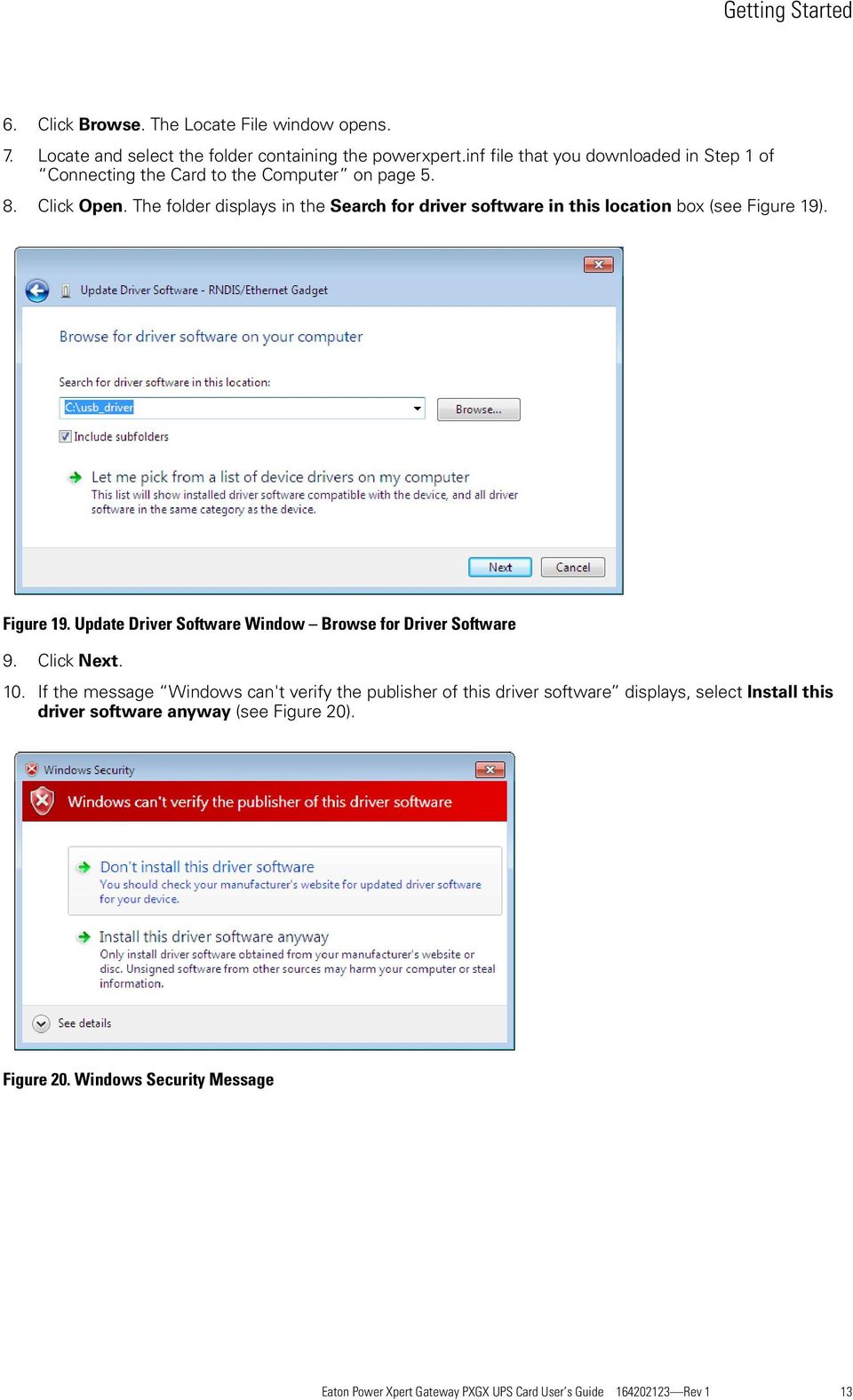
17 Getting Started 6. Cick Browse. The Locate Fie window opens. 7. Locate and seect the foder containing the powerxpert.inf fie that you downoaded in Step 1 of Connecting the Card to the Computer on page Cick Open. The foder dispays in the Search for driver software in this ocation box (see Figure 19). Figure 19. Update Driver Software Window Browse for Driver Software 9. Cick Next. 10. If the message Windows can't verify the pubisher of this driver software dispays, seect Insta this driver software anyway (see Figure 20). Figure 20. Windows Security Message Eaton Power Xpert Gateway PXGX UPS Card User s Guide Rev 1 13


18 Getting Started 11. The message Windows has successfuy updated your driver software dispays (see Figure 21). Figure 21. Update Driver Software Window Update Successfu 12. To verify the device is instaed: a. Go to Contro Pane > Hardware and Sound > Devices and Printers > Device Manager. b. Expand Network adapters. c. Verify that Linux USB Ethernet/RNDIS Gadget is isted under Network adapters (see Figure 22). Figure 22. Device Manager Window Verify Device Instaation Eaton Power Xpert Gateway PXGX UPS Card User s Guide Rev 1 14


19 Getting Started 13. From the Start menu, go to A Programs > Accessories > Command Prompt to open a Command Prompt window. 14. Enter ipconfig /a. The adapter IP addressing information dispays. Verify that the assigned IPv4 address is in the x range (where x is typicay 1 ). See Figure 23. The USB driver software instaation is compete. Figure 23. Command Prompt Window Adapter IP Address Information IP Address Assignments Many IT managers prefer the convenience of DHCP for managing the IP addresses of networked devices. With DHCP, IT managers can easiy reassign IP addresses as the network structure changes. In some cases, DHCP may not be avaiabe, or fixed IP addresses may be preferred for the PXGX UPS Card (for exampe, if some other networked device needs to reach the card at a fixed address). To verify the IP addresses assigned through DHCP, continue to Verifying IP Addresses. To manuay enter fixed IP addresses for the card's network connection, continue to Assigning an IP Address on page 17. By defaut, the PXGX UPS Card requests an IP address through DHCP when connected to a network. Verifying IP Addresses To verify the IP address assignment: 1. Connect to the card over the USB cabe: a. Open your Web browser. b. Enter: You are prompted to og on. 2. Log on as administrator. The user name and defaut password is admin. The PXGX UPS Card Web page dispays. 3. Seect Network from the Configuration menu. The Network page dispays (see Figure 24). Eaton Power Xpert Gateway PXGX UPS Card User s Guide Rev 1 15

20 Getting Started Figure 24. PXGX UPS Card Network Page Eaton Power Xpert Gateway PXGX UPS Card User s Guide Rev 1 16

21 Getting Started 4. Verify that the network settings match those on the Instaation Checkist on page 2. If you are manuay configuring the network settings, go to Assigning an IP Address on page Verify network communication: a. Cear the DHCP Enabed check box. The text fieds that were dimmed in the Manua Configuration section are now avaiabe. b. Copy the IP address. c. Open a second browser and paste the IP address in the Address bar and cick Go. If the assigned IP address is working, you wi be prompted to og on. d. Log on as administrator. The user name and password is admin. The PXGX UPS Card Web page dispays. Assigning an IP Address To manuay enter a fixed IP address for the card: 1. Open your Web browser and enter: You are prompted to og on. 2. Log on as administrator. The user name and defaut password is admin. The PXGX UPS Card Web page dispays. 3. Seect Network from the Configuration menu. The Network page dispays (see Figure 24 on page 16). 4. Cear the DHCP Enabed check box to enabe manua configuration. 5. Enter the IP, Netmask, and Gateway addresses in the Manua Configuration section and cick Appy. 6. Cick OK to confirm. 7. If you wi be using a host name, or host names, for controing access to the card, type the server IP address in the Name Server fied. Up to three IP addresses can be entered. 8. Cick Appy. 9. Cick OK to confirm. 10. Verify network communication: a. Copy the IP address you entered in Step 5. b. Open a second browser and paste the IP address in the Address bar and cick Go. You are prompted to og on. c. Log on as administrator. The user name and defaut password is admin. If the if the PXGX UPS Card Web page dispays, the fixed IP Address is correct. 11. If you ogged on as administrator, continue to Network Configuration. or Chapter 3, Configuring the Card on page 21 for additiona configuration options. You must be ogged on as admin to configure the card. To prevent unauthorized access after you are done configuring the card, cose the browser or og off as admin. To og off as admin, seect Log on as 'user' from the Configuration menu. Logging on as user sets the security eve to read-ony. Eaton Power Xpert Gateway PXGX UPS Card User s Guide Rev 1 17
22 Getting Started IPv6 Address Assignments There are four sets of IPv6 addresses that can be assigned to the card: Gateway. Manuay assigned IPv6 Gateway address. Link-Loca Address. The Link-Loca Address is a permanent address assigned to the card. Automatic Address. This address ony dispays if the card is connected to a network router that supports stateess address autoconfiguration. Static Address. Manuay assigned fixed IPv6 address. Ony the Gateway and Static addresses are user-configurabe. The Link-Loca and Automatic addresses are automaticay popuated. Dynamic Host Configuration Protoco for IPv6 (DHCPv6) is not supported. To manuay enter a fixed IP address for the card: 1. Open your Web browser and enter: You are prompted to og on. 2. Log on as administrator. The user name and defaut password is admin. The PXGX UPS Card Web page dispays. 3. Seect Network from the Configuration menu. The Network page dispays (see Figure 24 on page 16). 4. Enter the Static and Gateway addresses in the IPv6 section. 5. Cick Appy. 6. Cick OK to confirm. Eaton Power Xpert Gateway PXGX UPS Card User s Guide Rev 1 18
23 Getting Started Network Configuration If you know the card's IP address, you can configure the network settings from the card's Web page. To configure the network settings: 1. Open a Web browser, type the IP address of the card, and seect Go. 2. Log on as administrator. The user name and defaut password is admin. The PXGX UPS Card s initia page dispays (see Figure 18). Figure 25. Initia Page Device Overview and Summary 3. Seect Network from the Configuration menu to open the Network configuration page. 4. You can enabe or disabe DHCP contro by seecting or cearing the check box. The defaut is DHCP enabed. 5. If you want the card to access other network servers (such as an SMTP server) by host name, type the server IP address in the Name Server fied. Up to three IP addresses can be entered. 6. If you wi be using Simpe Network Management Protoco (SNMP), identify the physica ocation of the instaed card in the System ocation fied. This vaue aso dispays in the banner. 7. Enter the information to identify someone to contact with questions about this device in the System contact fied. For exampe, you can type a person's name, phone number, department, e-mai address, or physica ocation. Eaton Power Xpert Gateway PXGX UPS Card User s Guide Rev 1 19
24 Getting Started 8. You can aso modify the card's IP address, the subnet mask, and the gateway address (IP Address, Netmask, and Gateway fieds). 9. To test the card's network connection to other network servers, such as an SMTP server, you can ping (request acknowedgement from) the host. Enter the IP address or hostname in the Ping test fied and then cick Test. 10. Cick Appy to save the settings or Discard to cance the changes. 11. Continue to Chapter 3, Configuring the Card on page 21 for additiona configuration options. Important Security Information By defaut, the PXGX UPS Card is configured to prevent unauthorized SNMP and Modbus TCP access by computers that are not on the Trusted IPs/Hostnames ist. If you are using SNMP or Modbus TCP, see Changing SNMP Access on page 26 to add specific IP addresses or host names of trusted computers. Eaton Power Xpert Gateway PXGX UPS Card User s Guide Rev 1 20
25 Chapter 3 Configuring the Card If DHCP is disabed and you wi be using host names for servers, such as the mai server, Network Time Protoco (NTP) server, SNMP hosts, Modbus TCP hosts, or trap recipients, enter the IP address of your network DNS Server (see Network Configuration on page 19). You must be ogged on as admin to configure the card. To prevent unauthorized access after you are done configuring the card, cose the browser or og off as admin. To og off as admin, seect Log on as 'user' from the Configuration menu. Logging on as user sets the security eve to read-ony. This section expains: Navigating the card's Web page Identifying monitored equipment Configuring essentia tasks Changing the passwords Setting the date and time Configuring SNMP options and managing from an SNMP NMS Configuring Modbus TCP/IP options Configuring HTTP and HTTPS Configuring NetWatch Managing UPS power Configuring e-mai notification Configuring the Environmenta Monitoring Probe (EMP) Saving and restoring configuration settings Eaton Power Xpert Gateway PXGX UPS Card User s Guide Rev 1 21
26 Configuring the Card Navigating the Card's Web Page Figure 26 shows an exampe of the overview page that dispays when you og on to the card s interface. Gateway Time (UTC and Loca) and Equipment Location Active Aarm Warning Banner Menu Bar UPS Overview, Current Readings, Anaog Gauges Device Status Anaog Gauges Status Bar Link to 3rd Party Licensing Information Link to Eaton Web Site Atom Web Feed Figure 26. Navigating the Card's Web Page Areas and features of the card's Web page: Banner. The page banner dispays the gateway time in UTC (Coordinated Universa Time). The oca time and system ocation can be configured to aso dispay in the banner. If there is an active aarm in the hardware, a fashing aarm icon with an aarm message dispays in the banner. Cick the aarm message in the banner to dispay the Open Aarms page. The highest eve of an aarm active in the UPS dispays as foows: Red for critica Yeow for caution Bue for acknowedged, but not cosed (sti aarming) Eaton Power Xpert Gateway PXGX UPS Card User s Guide Rev 1 22
27 Configuring the Card An active aarm is different from an open aarm: Active Aarm. An aarm is active when an aarming condition exists in the UPS. Messages dispay on the UPS LCD pane and on the card interface banner when aarms go active and disappear when the aarming condition cears. Open Aarm. When an aarm goes active, it is aso considered open and remains open (even after the condition cears in the UPS hardware) unti it is cosed by an operator. Operators are required to cose aarms to ensure they are seen. Whie the UPS LCD pane and the card interface banner dispay the aarms that are active in the UPS, other areas of the card interface, (such as the Open Aarms page, device data pages, and the aarm og), dispay any aarms that have not been cosed by the operator. Since cosing an aarm that is sti active in the hardware quicky resuts in the generation of a new aarm, an operator has the option to mark an aarm as acknowedged to indicate it has been seen. To cose or acknowedge an open aarm, see Open Aarms on page 37. Menu Bar. The menu bar contains inks to additiona pages for status information and configuration options. Menus are expandabe and coapsibe. The Device Data menu is expanded when you first og on. If an aarm is active, the Open Aarms menu category turns red and the number of open aarms dispays in parentheses, so that aarms are never hidden even if the menu is coapsed. Use the menu bar to move through the card's Web pages. Anaog Gauges. Anaog gauges dispay on the Overview and Device Data pages next to metered items to show reated critica device information, such as status, power, and energy eves at a gance. Exampes of metered items are: Percent fu oad Percent battery eft Bypass, input, and output frequency Battery time remaining Power output Remote humidity and temperature (if the optiona EMP is connected to the card) The bar is green for the norma operating range (white background) and graduay changes to yeow and then red as it moves to the caution range (ight bue background) to critica (darker bue background). Pause the pointer over the information icon to dispay numerica imits. Overview. The Overview dispays a functiona status diagram of the UPS (or UPSs in a parae system). The animated yeow ine shows the direction of the energy fow. To the right of the diagram, a ist of the most reevant current readings dispays. The List tab page dispays a compete ist of current readings. Summary Tab. The Summary tab page dispays essentia data most often used to determine the overa status of the device. Aarms dispay in red text. Pause the pointer over items for additiona detai or hep. List Tab. The List tab page dispays an expanded ist of configurabe and measurabe items and aarms. The categories on the List tab page are expandabe and coapsibe. Aarms dispay in red text. Pause the pointer over items for additiona detai or hep. The Output KW Hours dispays on the Overview and aso on the Device and List tabbed pages. Because the Output KW Hours is reset to zero when the card is restarted, Eaton recommends that this feature not be used for biing purposes. If you choose to use this vaue for biing purposes, record the Output KW Hours before restarting the card. Atom Web Feed. The card supports Atom Syndication Format (Atom) for Web feeds. The orange Atom icon is in the status bar. Cick the Atom Feed icon to view new content or subscribe to the PXGX UPS Card feed data. Some browsers aso dispay the Atom Feed icon in the address bar. 3rd Party Licensing ink. The 3rd Party Licensing ink in the status bar directs you to a ist of a icenses used with the PXGX UPS Card. Each isting inks to the fu icense text. Eaton Power Xpert Gateway PXGX UPS Card User s Guide Rev 1 23
28 Configuring the Card Identifying Monitored Equipment The Device Data menu ists the monitored equipment (card, UPS, oad segments, and optiona EMP). Each equipment page has a Summary tab and a List tab. The List tab page dispays detaied information reated to the equipment. You can choose the information you want to dispay and whether you want items organized by category with headings dispayed, or a items in aphabetica order. You can modify some vaues, such as identification abes. The configurabe vaues may aso be avaiabe on other pages, such as the System Location fied on the Network Configuration page. Changes made to these fieds are updated everywhere they appear. Configurabe fieds for the card are: Dispay Name Location Who to Contact Configurabe fieds for the UPS are: Asset Identification Tag Dispay Name Attached Devices Battery Last Repaced Date Date Last Serviced Instaation Date Low Runtime Aarm Setpoint (An aarm is sent indicating the time remaining before the battery is depeted. Increasing the time aows for additiona time to shut down a system before the battery is depeted.) See Automatic Shutdown of UPS-Protected Computers on page 28 for information on power outage notification and configuring the shutdown process for registered NetWatch cients. The configurabe fied for oad segments is Dispay Name Configurabe fieds for the EMP are: Asset Identification Tag Dispay Name View and Configure Tasks Essentia to Initia Configuration The Essentia Configuration Tasks page provides a summary of important tasks reating to the card s initia setup and configuration. If essentia tasks have not been configured, the Configuration category on the menu bar dispays in red aong with the number of unconfigured essentia tasks. Other unconfigured tasks dispay in bue on the Essentia Configuration Tasks page. To configure essentia tasks: 1. Seect Essentia Configuration Tasks from the Configuration menu. The Essentia Configuration page dispays. Unconfigured tasks have inks to the associated configuration page. Configured tasks are identified as Ok. 2. Cick the ink for the task you want to configure. The associated configuration page dispays. 3. Compete the configuration and cick Appy. Refer to the reated procedure in this user s guide for detaied instructions on competing the task. Eaton Power Xpert Gateway PXGX UPS Card User s Guide Rev 1 24
29 Configuring the Card Changing the Passwords The user name and defaut password is user for read-ony privieges. The user name and defaut password is admin for configuration (read/write) options. The characters in the password fieds appear as asterisks (*). To change the passwords: 1. Cick Access Contro from the Configuration menu. The Access Contro Configuration page dispays with the password fieds. 2. To change the user password, enter the new password twice (repace existing asterisks) in the Password for the user account fieds. To change the admin password, og on as admin and enter the new password twice (repace existing asterisks) in the Password for the admin account fieds. 3. Cick Appy and then OK to save the settings. The ogon prompt dispays. 4. Log on to the card using the new password. You must be ogged on as admin to configure the card. To prevent unauthorized access after you are done configuring the card, cose the browser or og off as admin. To og off as admin, seect Log on as 'user' from the Configuration menu. Logging on as user sets the security eve to read-ony. Setting the Date and Time The PXGX UPS Card can be configured to synchronize the date and time with one or more NTP servers, or the date and time can be manuay set. In addition, temperature unit of measure can be set to dispay as Fahrenheit or Cesius. Changes made to these fieds are updated everywhere they appear. A date and time seections are automaticay converted to Coordinated Universa Time (UTC). To set the date and time, and temperature unit of measure: 1. Seect Date/Time from the Configuration menu. The defaut is to synchronize the date and time from the PC cock. 2. To synchronize the card with Network Time Protoco servers, seect Synchronize with NTP server(s) and type the IP addresses or host names. You can synchronize the card with up to three NTP servers. The NTP status dispays as one of the foowing: Not running Indicates that NTP is not running. Started, not synchronized Indicates that NTP is running, but is not yet synchronized with an NTP server or controing the oca cock. Synchronizing with NTP server Indicates that NTP has synchronized with the oca cock, but is not yet synchronized with an NTP server. Synchronized to XX, NTP stratum YY Indicates that the card is synchronized with an NTP server at IP address XX that is operating at NTP Stratum YY. When using host names, verify that the IP address of your network DNS Server is configured (see Network Configuration on page 19). When NTP status is Synchronized and there is a arge discrepancy between the PXGX UPS Card time and the actua time, it may take 5 30 minutes for NTP to reset the card to the proper time. 3. To set the time manuay, seect Set date/time manuay and type or seect the oca date in mm/dd/yyyy format and the oca time in hh/mm/ss format. 4. To customize how the date dispays in the card's data and event ogs, seect a Date format for ogs option (mm/dd/yyyy, dd/mm/yyyy, yyyy-mm-dd, or dd mmm yyyy). The defaut is mm/dd/yyyy. 5. To seect the time zone for the card, specify the Time zone for ogs, emai, and connected device. 6. To specify how the temperature dispays on the Web page, seect Fahrenheit (defaut) or Cesius. Eaton Power Xpert Gateway PXGX UPS Card User s Guide Rev 1 25
30 Configuring the Card 7. Cick Appy and then OK to save the settings. 8. Refresh the Web page to view the updated formats. Configuring SNMP Options This section describes the foowing SNMP configuration options: Configuring community strings and trap recipients Changing SNMP access Setting system ocation and system contact Managing from an SNMP NMS Community Strings and Trap Recipients The PXGX UPS Card supports severa event-reated traps that can be reported to the SNMP network management software. See Chapter 6, MIB Fies on page 54 for more information. To configure the SNMP options: 1. Seect SNMP from the Configuration menu. 2. SNMPv1 and SNMPv3 are supported and both versions are enabed by defaut. To modify, cear the check box for the version to be disabed. The fieds associated with the disabed version become unavaiabe (dimmed). 3. For SNMPv1 configuration, type a new community string in the appropriate fied to change the community strings. The defaut community strings are pubic for read-ony, private for read-write. 4. For SNMPv3 configuration, enter a new read-ony username and password and read-write username and password in the appropriate fieds. Passwords for SNMPv3 must be at east 8 characters ong. 5. To modify the Trap recipient community string fied, type a new name. The defaut is pubic. 6. Cick Add to add a new trap recipient entry to the ist. The Recipient fied popuates with the next avaiabe number. 7. Enter the trap recipient IP address or host name in the IP/hostname fied. When using host names, verify that the IP address of your network DNS Server is configured ( Network Configuration on page 19). 8. Cick Appy and then OK to save the settings. Seect the Recipient drop-down menu to view a assigned trap recipients, 9. Repeat Steps 6 through 8 for each additiona trap recipient. 10. To remove a trap recipient: a. Cick Deete Last. b. Cick OK when prompted to remove the settings for the trap recipient entered ast. Changing SNMP Access The defaut is to imit access to the card to trusted SNMP NMS hosts ony. To aow access that is unrestricted by hostname (though sti quaified by community names or SNMPv3 passwords): 1. Seect Access Contro from the Configuration menu. 2. Cear the check box for SNMP access restricted by IP/hostname. 3. Cick Appy and then OK to save the settings. Eaton Power Xpert Gateway PXGX UPS Card User s Guide Rev 1 26
31 Configuring the Card To add a host to the Trusted Host List for restricted access: 1. Seect Access Contro from the Configuration menu. 2. Verify that the check box for SNMP access restricted by IP/hostname is seected. 3. Type the trusted NMS host's IP addresses or host names, separated by a semicoon, in the Trusted IPs/ hostnames fied. When using host names, verify that the IP address of your network DNS Server is configured (see Network Configuration on page 19). 4. Cick Appy and then OK to save the settings. System Location and System Contact To set the system ocation and system contact: 1. Seect Network from the Configuration menu. 2. Enter the physica ocation of the instaed UPS/card in the System ocation fied. This vaue aso dispays in the card's Web page banner. 3. Enter the information to identify someone to contact with questions about this device in the System contact fied. For exampe, you can type a person's name, phone number, department, e-mai address, physica ocation, or combination of these items, such as John Smith x Cick Appy and then OK to save the settings. Management from an SNMP NMS To access the PXGX UPS Card using SNMP: 1. Verify that the NMS is configured for the correct community strings or SNMPv3 user names and passwords, as shown on the SNMP Web page. See Community Strings and Trap Recipients on page Verify that the NMS is a Trusted Host, or that your PXGX UPS Card is configured for unrestricted SNMP access on the Access Contro Configuration Web page. See Changing SNMP Access on page Seect the MIB Fies foder from the Documentation menu (or visit for the foowing MIB fies for the PXGX UPS Card: MIB Name Fiename Description Powerware UPS MIB XUPS-MIB.txt Meters and traps for Eaton UPSs RFC 1628 UPS MIB UPS-MIB.txt Meters and traps for vendor-independent UPSs Eaton EMP MIB EATON-EMP-MIB.txt Meters and settings for the EMP Eaton Aarms+Traps MIB EATON-PXG-MIB.txt Aarms and notifications (traps) Eaton Object Identifier (OID) assignments EATON-OIDS.txt Base document for a OID assignments for Eaton MIBs RFC 4133 Entity MIB ENTITY-MIB.txt Identification and description of each device attached to the card RFC 4268 Entity State MIB ENTITY-STATE-MIB.txt Five avaiabiity status meters for each device attached to the card RFC 4268 Entity State MIB Part 2 ENTITY-STATE-TC-MIB.txt Possibe state vaues for the Entity State MIB Add these fies to the MIB database of your SNMP management software (such as HP OpenView and IBM Systems Director). 4. Use the faciities provided by the SNMP management software to access the individua MIB objects. See Chapter 6, MIB Fies on page 54 for more information. Eaton Power Xpert Gateway PXGX UPS Card User s Guide Rev 1 27
32 Configuring the Card Configuring Modbus TCP/IP Options To imit access to the card from trusted Modbus Transmission Contro Protoco/Internet Protoco (TCP/IP) addresses ony: 1. Seect Access Contro from the Configuration menu. 2. Seect the Modbus TCP access restricted by IP/hostname check box. 3. Type the trusted host's IP addresses or host names, separated by a semicoon, in the Trusted IPs/ hostnames fied. When using host names, verify that the IP address of your network DNS Server is configured (see Network Configuration on page 19). 4. Cick Appy and then OK to save the settings. For information on Modbus registers, see Chapter 7, Modbus Registers on page 57. See Returning Error Codes on page 57 to change how error codes are returned. Configuring HTTP and HTTPS To configure the ports for Hypertext Transfer Protoco (HTTP) and HTTP over Secure Socket Layer (HTTPS): 1. Seect Access Contro from the Configuration menu. 2. Type the TCP port number for HTTP in the HTTP port fied (the defaut is 80). 3. Type the TCP port number for HTTPS in the HTTPS port fied (the defaut is 443). 4. To require a secure connection to the card, seect the Require HTTPS check box. 5. Cick Appy and then OK to save the settings. Automatic Shutdown of UPS-Protected Computers NetWatch cient software supports remote UPS monitoring and automatic shutdown of UPS-protected computer systems and is avaiabe from under Software Downoads. Cients are avaiabe for many operating systems, incuding: Microsoft Windows Nove NetWare Linux UNIX Mac OS X Check for a compete isting of supported operating systems. Each NetWatch cient uses its IP address to register with a specified PXGX UPS Card through the network. After a cient has registered, any change in UPS status is communicated to NetWatch. Depending on the operating system, NetWatch typicay aerts the user(s) whenever the UPS begins suppying AC power from its batteries (for exampe, the AC ine fais). Then, if AC ine power does not return and the remaining battery time is ow, NetWatch takes over and competes an operating system shutdown prior to the UPS running out of battery power. Settings found in the NetWatch Configuration page are reated to the automatic shutdown of the UPS-protected computer system using NetWatch. Eaton Power Xpert Gateway PXGX UPS Card User s Guide Rev 1 28
33 Configuring the Card Configuring NetWatch Shutdowns for a UPS without Load Segments To configure NetWatch cient shutdowns: 1. Expand the UPS foder on the Configuration menu and seect NetWatch. 2. The card notifies NetWatch cients when there is a power outage. To modify how ong the card waits before sending the message, enter a vaue between 10 and 600 seconds (10 seconds to 10 minutes) in the Deay before first AC fai warning message fied. The defaut is 10 seconds. 3. To modify how often the card repeats the power outage notification, enter a vaue between 30 and 600 seconds (30 seconds to 10 minutes) in the Warning interva fied, or enter 0 to receive ony the initia message. The defaut is 60 seconds. 4. To enabe NetWatch to shut down cients during a power outage, seect the Notify cient OS to shutdown on an AC faiure check box. 5. Set the appropriate Number of seconds the AC faiure must ast before cient is notified to start OS shutdown to ensure that the NetWatch cients shut down ony when there is an extended power outage. To modify, enter a vaue between 1 and seconds (1 second to 6 hours). The defaut is 600 seconds (10 minutes). 6. To turn off power to the UPS output receptaces foowing the cient shutdown: a. Seect the UPS to turn off foowing OS Shutdown check box. If the this check box is not seected, the power remains avaiabe to the UPS output receptaces unti the UPS battery power is exhausted. b. Set the appropriate number of seconds for the Deay before output turns off to ensure that any NetWatch cients and their respective operating systems have enough time to compete their shutdown. The defaut is 180 seconds (2 minutes), but you may want to increase or decrease this vaue as appropriate for your system and avaiabe battery runtime. To modify, enter a vaue between 30 and 3600 seconds (30 seconds to 1 hour). 7. To reboot the UPS and the associated oad: a. Seect the UPS to restart foowing the return of AC ine check box. If this check box is not seected, the UPS remains off (requiring oca interaction to turn it back on) when utiity power returns. b. Set the time for Deay before output restart to a vaid deay vaue to aow the UPS enough time to restart after the specified deay. To modify, enter a vaue between 10 and 3600 seconds (10 seconds to 1 hour). The defaut is 30 seconds. 8. Cick Appy and then OK to save the settings. Configuring NetWatch Shutdowns for UPS with Load Segments To configure NetWatch cient shutdowns, perform the foowing steps for each oad segment you want to modify: 1. Expand the UPS foder on the Configuration menu and seect NetWatch. The NetWatch Configuration page dispays configuration options. The UPS oad segments are shown with configuration options for each segment. 2. The card notifies NetWatch cients when there is a power outage. To modify how ong the card waits before sending the message, enter a vaue between 10 and 600 seconds (10 seconds to 10 minutes) in the Deay before first AC fai warning message fied. The defaut is 10 seconds. 3. To modify how often the card repeats the power outage notification, enter a vaue between 30 and 600 seconds (30 seconds to 10 minutes) in the Warning interva fied, or enter 0 to receive ony the initia message. The defaut is 60 seconds. You can change the name in the Load segment name fied. Changes to this fied update throughout the PXGX UPS Card Web pages when the settings are saved. Eaton Power Xpert Gateway PXGX UPS Card User s Guide Rev 1 29
34 Configuring the Card 4. To enabe NetWatch to shut down cients during a power outage, seect the Notify cient OS to shutdown on an AC faiure check box. 5. Set the appropriate Number of seconds the AC faiure must ast before cient is notified to start OS shutdown to ensure that the NetWatch cients shut down ony when there is an extended power outage. To modify, enter a vaue between 1 and seconds (1 second to 6 hours). The defaut is 600 seconds (10 minutes). 6. To turn off power to the UPS output receptaces foowing the cient shutdown: a. Seect the Load segment to turn off foowing OS Shutdown check box. If the Load segment to turn off foowing OS Shutdown check box is not seected, the power wi remain avaiabe to the UPS output receptaces unti the UPS battery power is exhausted. b. Set the appropriate number of seconds for the Deay before segment turns off to ensure that any NetWatch cients and their respective operating systems have enough time to compete their shutdown. The defaut is 180 seconds (2 minutes), but you may want to increase or decrease this vaue as appropriate for your system and avaiabe battery runtime. To modify, enter a vaue between 30 and 3600 seconds (30 seconds to 1 hour). 7. To reboot the UPS and the associated oad: a. Seect the Load segment to restart foowing the return of AC ine check box. If the Load segment to restart foowing the return of AC ine check box is not seected, the UPS wi stay off (requiring oca interaction to turn it back on) when utiity power returns. b. Set the time for Deay Before Segment Restart to a vaid deay vaue to aow the UPS enough time to restart after the specified deay. To modify, enter a vaue between 10 and 3600 seconds (10 seconds to 1 hour). The defaut is 30 seconds. To stagger the oad segment restarts (for sequencing, or to avoid a power surge), enter a different deay time for each oad segment. 8. Cick Appy and then OK to save the settings. Shutdown Cients The Registered Shutdown Cients area dispays the IP addresses of the cients that have registered for the shutdown service. Eaton recommends that each cient test the shutdown feature by cicking Shutdown Test. The Shutdown Test command shuts down the cient operating system. UPS Power Management The PXGX UPS Card supports the abiity to remotey turn off the UPS and its supported oad. You can aso reboot the UPS (cycing output power off and then back on) and schedue shutdowns and startups on a predetermined basis. In addition, you may initiate a battery or system test. Buttons on the UPS Test and Contro page are not avaiabe (dimmed) if the UPS does not support that function. Testing the UPS Battery To test the battery: 1. Expand the UPS foder on the Configuration menu and seect Test and Contro. The UPS Test and Contro page dispays. The resuts from the previous battery test dispay on the eft of the Start Battery test button. 2. Seect Start battery test and cick OK to confirm. A faied response indicates that the battery shoud be repaced. Contact your service representative to order new batteries. Eaton Power Xpert Gateway PXGX UPS Card User s Guide Rev 1 30
35 Configuring the Card Testing the UPS System To test the UPS system: 1. Expand the UPS foder on the Configuration menu and seect UPS Test and Contro. The UPS Test and Contro page dispays. 2. Seect Start system test and cick OK to confirm. For a faied response, refer to the UPS contro pane for more information. Turning the UPS Load Segments On and Off To turn on and off the oad segments on the UPS: 1. Expand the UPS foder on the Configuration menu and seect UPS Test and Contro. The UPS Test and Contro page dispays. 2. Seect the Enabe auto-refresh of UPS state check box if it is not aready seected to view changes in the UPS oad segment state as they happen. 3. Cick Shutdown Now to shut down the seected UPS oad segment. Resuts dispay to the right of the button. 4. Cick OK to cose the diaog box. The highighted text refects the UPS output state. NetWatch cients are aso shut down, so the shutdowns may be deayed to accommodate the OS shutdown times specified on the NetWatch Configuration Web page. 5. Cick Startup Now to start the seected UPS oad segment. Resuts dispay to the right of the button. 6. Cick OK to cose the diaog box. The highighted text refects the UPS output state. Scheduing a UPS Shutdown and Restart Up to seven UPS shutdown and restart events can be schedued for any time and day of the week. Times and dates for schedued shutdowns and restarts are based on the oca time and date configured for the card. The date and time is dispayed in the banner. For more information, see Setting the Date and Time on page 25. NetWatch cients are aso shut down, so the shutdowns may be deayed to accommodate the OS shutdown times specified on the NetWatch Configuration Web page. To configure schedued UPS shutdowns: 1. Expand the UPS foder on the Configuration menu and seect UPS Schedue Shutdown. 2. Seect the day, hour, and minutes for the shutdown and restart. Do not overap the schedued shutdown and restart events. 3. Repeat Step 2 for each event to be schedued. 4. Cick Appy and then OK to save the settings. If any of the schedued shutdown times are not possibe, an error message dispays on the right. 5. To disabe schedued events, you can deseect one event or seect the Disabe a schedues check box. The event fieds dim but the vaues remain for use ater. 6. Cick Appy and then OK to save the settings. Eaton Power Xpert Gateway PXGX UPS Card User s Guide Rev 1 31
36 Configuring the Card Configuring E-Mai Notification The PXGX UPS Card can be configured to send e-mai notification to seected recipients when an event is triggered: Configure genera e-mai notification to send e-mai messages when any seected event is triggered on the monitored UPS. Configure coective e-mai notification to send a singe e-mai message instead of one from each affected UPS in the network when input power-reated events are triggered. Genera E-Mai You can use the PXGX UPS Card to inform seected e-mai accounts of events and changes in status as they occur in the UPS or to provide a status message at a predetermined time. To configure e-mai notification: 1. Expand the Emai foder on the Configuration menu and seect Emai. 2. Enter the IP address or host name of the SMTP Server IP/hostname (mai server) that wi be used to send the e-mai messages. 3. If you need to enter a user name and password for the SMTP server: a. Cick Advanced SMTP configuration. If you have made changes to the Emai page, a confirmation box opens. Cick OK to save the settings; otherwise, cick Cance. The Advanced SMTP Configuration page dispays. b. Enter the user name and password in the SMTP username and SMTP password fieds. c. Specify a from e-mai address in the SMTP From address fied (for exampe, UPS_1@ ). d. Cick Appy to save the settings and return to the Genera Emai Configuration page. 4. Cick Test SMTP server connection to test the configuration for the SMTP server. The SMTP Test Resuts window opens. Cose the window when you are done viewing. If the SMTP test is successfu, the confirmation dispays immediatey. A faied test response can take onger to dispay. Cose the window if you want to terminate the test. 5. Specify events to trigger an e-mai to be sent to a recipients: a. Cick Configure to open the Emai Event Trigger Configuration page. b. Seect Seect A, Seect A Unbatched, De-seect A, or seect specific event check boxes to indicate which events are to be incuded for e-mai notification. c. Cick Appy and OK to save the settings. d. Test the event e-mai function by seecting Test Event Emai. A sampe e-mai is sent for the first trigger event that is seected and saved. e. Seect Emai in the Emai foder to return to the Emai configuration page. Input power-reated events (batched items) are identified by (Input Power Bad) appended to the event name. To avoid receiving dupicate notifications, do not seect batched items if Coective Emai is enabed and one or more gateways are configured with at east one e-mai recipient for Coective E-Mai on page To create a new recipient: a. Seect an unassigned number from the Recipients ist. b. Enter the recipient's e-mai address in the To fied. c. Cick Appy. The e-mai address is added to the Recipients ist. Up to ten recipients can be configured to receive event e-mai messages. Eaton Power Xpert Gateway PXGX UPS Card User s Guide Rev 1 32
37 Configuring the Card 7. To modify the options for a recipient, seect the e-mai address from the Recipients ist and seect options for the recipient. See Tabe 1 for a description of options. Tabe 1. E-Mai Options for Receiving Event Notification Option Send on event active Send on event cear Attach event og fie to event emais Attach data og fie to event emais Attach interva og fie to event emais Attach ID fie to event emais Send periodic status emais Days between periodic status emais Time of day (gateway time) for periodic status emai (HH:MM) Description Sends an e-mai message when an event occurs Sends an e-mai message when an event cears Attaches the event og to the event e-mai message (the og is aways attached to status e-mai messages) Attaches the data og to the event e-mai message (the og is aways attached to status e-mai messages) Attaches the interva og to the event e-mai message Attaches the identification fies to the event e-mai message Sends periodic status e-mai messages Sets the number of days between the periodic status e-mai messages Sets the time of day for periodic status e-mai messages to be send (in 24-hour format, PXGX UPS Card UTC time) 8. Cick Appy and then OK to save the settings. Appy changes before modifying or creating another e-mai recipient. Coective E-Mai Use the coective e-mai feature to imit redundant e-mai messages during input power-reated events affecting the UPS. When an input power-reated event is detected by one or more gateways, event data is shared in rea time between gateways and consoidated. Input power reated events are: Input AC Over Votage Input Under Or Over Frequency Utiity Not Present Input AC Under Votage UPS On Battery Utiity Out Of Limits After a deay of about 30 seconds with no event activity, a singe e-mai is sent, detaiing the ist of input power-reated events present and the ist of UPSs affected. Coective e-mai can be configured to send notification from one PXGX UPS Card to some or a recipients, or from severa PXGX UPS Cards to some or a recipients, in any combination. Recipients can be set up into ogica groups and e-mai addresses are dispayed so dupication can be avoided. To configure coective e-mai event messages: 1. Expand the Emai foder on the Configuration menu and seect Emai. The Emai configuration page dispays. Verify that the IP address of the SMTP server has been configured and, if appicabe, that SMTP has been configured. See Genera E-Mai on page Seect Coective Emai from the Emai menu. The Coective Emai page dispays. 3. Seect the Participate in coective notification check box. When this option is seected, your gateway is visibe to peer gateways so that redundant e-mai messages can be combined. Eaton Power Xpert Gateway PXGX UPS Card User s Guide Rev 1 33
38 Configuring the Card 4. Enter the e-mai address of one or more recipients in the Coective emai recipients fied. Verify that the recipient is not aready isted in the Visibe Peers section that dispays at the bottom of the Coective Emai page to avoid dupication. The Visibe Peers section ists a gateways in the network that are participating in coective notification (see Tabe 2 for detais). UPSs must have a PXGX UPS Card to participate in coective notification. Tabe 2. Visibe Peers Coumn IP Address Firmware Version Emai Server Emai Recipients Description IP address of the PXGX UPS Card PXGX UPS Card firmware version IP address of the SMTP server entered on the Genera Emai Configuration page E-mai addresses of recipients 5. Cick Appy and then OK to save the settings. Configuring EMP Settings The optiona Environmenta Monitoring Probe (EMP) aows remote monitoring of the UPS's environment through reguar measurements of temperature and humidity through two externa contacts. The EMP is connected to the EMP port directy on the card with a standard Ethernet cabe. Recognition is automatic. The Environmenta Monitoring Probe seection is added to the Device Data and Configuration menus of the Web interface. To configure the EMP settings: 1. Seect Environmenta Monitoring Probe from the Configuration menu. 2. For Contact #1 and #2, enter the Contact Description, such as Externa Contact #1 and Externa Contact #2. 3. For Contact #1 and #2, seect the Contact Type as Normay Open or Normay Cosed from the pu-down menu. Disabed is the defaut. The NetWatch cients shut down according to the parameters configured on the NetWatch Configuration page (see page 29 for shutdown settings). 4. If Contact #1 or Contact #2 aarms remain active for a specified amount of time, you can signa the NetWatch cients to shut down. To specify the amount of time, set the seconds for Contact #1 and #2 in the OS Shutdown Deay fied. Enter 1 to 600 seconds (1 second to 10 minutes) to enabe the shutdown. The defaut is 0, which means the NetWatch cients wi not shut down. 5. To set the temperature aarm imits of the EMP, enter 32 to 158 degrees Fahrenheit (0 to 70 degrees Cesius) for the Temperature Upper Limit and the Temperature Lower Limit. 6. Use the Temperature Hysteresis to contro the aarm when the current vaue is hovering around the imit. When the EMP temperature measure activates the aarm, it can come out of the aarm state ony by dropping beow the Temperature Hysteresis vaue. Enter a vaue between 0 and 10 percent. The defaut is 2 percent. 7. If the temperature aarm remains active for a specified amount of time, you can signa the NetWatch cients to shut down. To specify the amount of time, set the seconds for the temperature aarm in the OS Shutdown Deay. Enter 1 to 600 seconds (1 second to 10 minutes) to enabe the shutdown. The defaut is 0, which means the NetWatch cients wi not be shut down. 8. To set the humidity imits of the EMP, enter 0 to 90 percent for the Humidity Upper Limit and the Humidity Lower Limit. The defaut for the upper imit is 90; the defaut for the ower imit is Use the Humidity Hysteresis to contro the aarm when the humidity percentage is hovering around the aarm imit. When the EMP humidity measure activates the aarm, it can come out of the aarm state ony by dropping beow the Humidity Hysteresis vaue. Enter a vaue between 0 and 20 percent. Eaton Power Xpert Gateway PXGX UPS Card User s Guide Rev 1 34
39 Configuring the Card 10. If the humidity aarm remains active for a specified amount of time, you can signa the NetWatch cients to shut down. To specify the amount of time, set the seconds for the humidity aarm in the OS Shutdown Deay. Enter 1 to 600 seconds (1 second to 10 minutes) to enabe the shutdown. The defaut is 0, which means the NetWatch cients wi not be shut down. 11. Cick Appy and then OK to save the settings. Saving and Restoring Configuration Settings You can create a backup of the PXGX UPS Card settings and restore them at a ater date. Creating a Backup To create a backup: 1. Seect Save and Restore from the Configuration menu. 2. To save the PXGX UPS Card settings and preferences, cick Save gateway configuration. The card exports an XML fie containing the PXGX UPS Card configuration settings. 3. Cick Save and enter a fie name and ocation to save the XML fie. 4. If a bank browser window remains open, cose it. Restoring a Backup Restoring configuration settings overrides a changes made to the configuration settings since the backup fie was created. To restore the configuration settings from a backup fie: 1. Seect Save and Restore from the Configuration menu. 2. Cick Browse to seect the fie name and then cick Open. 3. When prompted, confirm that you want to override the configuration settings with the backup fie. Cick OK or Cance. 4. Update the Web page if the Device Data does not automaticay dispay after the backup is compete. Eaton Power Xpert Gateway PXGX UPS Card User s Guide Rev 1 35
40 Chapter 4 Operation and Maintenance This section expains: PXGX UPS Card Pane Detais PXGX UPS Card pane detais Indicator descriptions DIP switch settings Open aarms Generating og fies Firmware upgrade instructions Power Xpert Gateway PXGX UPS EMP Upstream Downstream 100 Act 100 Act Setup Restart Status DHCP Ident Power Stacked Indicators EMP Port Upstream Ethernet Cabe Port Figure 27. PXGX UPS Card Pane Detais Downstream Ethernet Cabe Port USB Port Restart Switch Indicator Descriptions The Ethernet port indicator descriptions for the PXGX UPS Card are isted in Tabe 3; the stacked indicator descriptions are isted in Tabe 4. Tabe 3. Ethernet Port Indicators Upstream Ethernet Port Downstream Ethernet Port Indicator Labe Iuminated Not Iuminated 100 Indicates a vaid 100 Mb Connection (Link). Indicates a vaid 10 Mb Connection (Link) as ong as the corresponding ACT indicator is iuminated. ACT Indicates network activity when the indicator is on or binking. Indicates no network activity. 100 Indicates a vaid 100 Mb Connection (Link). Indicates a vaid 10 Mb Connection (Link) as ong as the corresponding ACT indicator is iuminated. ACT Indicates network activity when the indicator is on or binking. Indicates no network activity. Eaton Power Xpert Gateway PXGX UPS Card User s Guide Rev 1 36
41 Operation and Maintenance Tabe 4. Stacked Indicator Descriptions Labe Coor Iuminated Not Iuminated Status Green Communication with the UPS has been estabished. DHCP Amber The PXGX UPS Card is configured for DHCP and has obtained IP address information. Ident Red A firmware update is in progress. Do not remove the card from the UPS. Power Green DC power is avaiabe to the card from the UPS. DIP Switch Description DIP switch definitions for the PXGX UPS Card are isted in Tabe 5. Communication with the UPS has not been estabished. As the card boots, the indicator remains off. However, if it remains off after two minutes, there is a communication probem between the card and the UPS. The use of DHCP has been disabed by the user, or PXGX UPS Card has faied to obtain IP address information. A firmware update is not in progress. If a indicators are not iuminated, DC power is not avaiabe from the UPS. This may indicate that the UPS is off and unpugged. During the power-on sequence, a four indicators iuminate briefy. Wait at east two minutes for the card's boot process to compete before comparing the indicators to the tabe above because indicators may turn on and off at different times in the boot process. Tabe 5. DIP Switch Definitions S1 Position Number OFF Position (Defaut) ON Position 1 Enabe previousy stored network configuration settings (Norma mode) Override the existing network settings and assign the oca IP address Reserved Reserved. 3 Norma behavior Reset the HTTP passwords to the defauts on boot (user and admin). After a successfu boot, the switch shoud be turned back off before rebooting the card. 4 Reserved Reserved. 5 Reserved Reserved. 6 Norma behavior Reset the card to factory defauts on boot (after a successfu boot, the switch shoud be turned back off before rebooting the card again). Open Aarms Aarm notices dispay in three areas of the Web interface: Banner: If there is an active aarm(s) present on the UPS (Condition Active: true), a fashing aarm icon and an aarm message dispay in the banner. The aarm icon and message refect the actua condition of the highest active aarm in the UPS. Cicking the aarm message dispays the Open Aarms page. Device Data Summary and List page: If there is an open aarm(s), the (Aarms Present) message dispays at the top of the Device Data Summary and List page and the aarmed data vaue(s) is highighted in red text and continues to dispay in the aarm state unti the aarm is cosed. Menu bar: If there is an open aarm(s), Open Aarms and the number of active aarms dispay in red under the Aarms menu. Cicking Open Aarms dispays the Open Aarms page. Eaton Power Xpert Gateway PXGX UPS Card User s Guide Rev 1 37
42 Operation and Maintenance An active aarm is different from an open aarm: Active Aarm. An aarm is active when an aarming condition exists in the UPS. Messages dispay on the UPS LCD pane and on the card interface banner when aarms go active and disappear when the aarming condition cears. Open Aarm. When an aarm goes active, it is aso considered open and remains open (even after the condition cears in the UPS hardware) unti it is cosed by an operator. Operators are required to cose aarms to ensure that they are seen. Whie the UPS LCD pane and the card interface banner dispay the aarms that are active in the UPS, other areas of the card interface (such as the Open Aarms page, device data pages, and the aarm og), dispay any aarms that have not been cosed by the operator. Since cosing an aarm that is sti active in the hardware quicky resuts in the generation of a new aarm, an operator has the option to mark an aarm as acknowedged to indicate it has been seen. The Open Aarms page dispays a ist of the atest aarms. Inactive aarms continue to dispay unti they are cosed. To view, acknowedge, or cose aarms: 1. Seect Open Aarms from the Open Aarms menu. The Open Aarms page dispays with the foowing information for each aarm: The aarm eve (caution, critica, or major). Time and date when the error occurred. The parameter that is in aarm. The aarm message that dispays on the UPS contro pane (dispays as a ink). The condition of the aarm (active is true, inactive is fase). The condition of the aarm indicates the actua condition of the UPS. 2. To view the specific aarm parameter data, cick the Aarm Message ink. The Summary page dispays and the vaue in error dispays in red text. 3. Seect the aarm or aarms you want to acknowedge, unacknowedge, or cose. Seect the top check box to seect a aarms, or seect one or more aarms individuay. If the Aarm page updates, seections coud be ost. Seecting an aarm row, or seecting Pause Auto-Update, prevents the page from automaticay updating. 4. Seect one of the foowing: a. Seect Acknowedge Seected to acknowedge that you are aware of the aarm. b. Seect Un-Acknowedge Seected to reverse a previous acknowedgement. c. Seect Cose Seected to cose the aarm and remove it from the Open Aarms ist. If a UPS aarm is sti active in the UPS (Condition Active: true) and you cose the aarm, a new aarm and event ID is entered into the Open Aarms ist. If a UPS aarm cears automaticay, cose the aarm to remove it from the Open Aarms ist. 5. You have the option to add a note when prompted. Cick OK to appy the seection. This note is optiona and is entered into the Event og and dispays in the Power Xpert software. The note appies to a seected aarms. 6. Cick Continue Auto-Update to resume page updating. Eaton Power Xpert Gateway PXGX UPS Card User s Guide Rev 1 38
43 Operation and Maintenance Generating Log Fies Log fies are comma-separated vaues (*.csv) fies that can be opened using Microsoft Exce software. Some computer configurations automaticay open the fies with the Microsoft Exce software instead of prompting you to save the fie. Exce may defaut to a date format specific to the country the product is being used in, overriding the card specified format. Data Log The data og contains a history of the data vaue changes recorded by the gateway. To generate a data og: 1. Seect Data Log from the Logs menu. 2. To imit the number of records, type or seect one or more of the foowing optiona vaues: a. Maximum number of records to return b. Start Date c. End Date 3. Cick View og. 4. Seect a name and ocation for the fie (if you chose to save the fie when prompted). Interva Log The interva og contains a set of sampes of data vaues taken at reguar intervas by the gateway. To generate an interva og: 1. Seect Interva Log from the Logs menu. 2. Seect the name of the device. 3. Seect the interva (5, 15, or 60 minutes). 4. To imit the number of records, type or seect one or more of the foowing optiona vaues: a. Maximum number of records to return b. Start Date c. End Date 5. Cick View og. The Output KW Hours is recorded on the Interva Log. Because the Output KW Hours is reset to zero when the card is restarted, Eaton recommends that this feature not be used for biing purposes. If you choose to use this vaue for biing purposes, record the Output KW Hours before restarting the card. 6. Seect a name and ocation for the fie (if you chose to save the fie when prompted). Event Log The event og contains a history of the events recorded by the gateway. To generate an event og: 1. Seect Event Log from the Logs menu. 2. To imit the number of records, enter one or more of the foowing optiona vaues: a. Maximum number of records to return b. Start Date c. End Date 3. Cick View og. 4. Seect a name and ocation for the fie (if prompted to save). Eaton Power Xpert Gateway PXGX UPS Card User s Guide Rev 1 39
44 Operation and Maintenance System Log The system og contains the history of the gateway administration activity. To generate a system og: 1. Seect System Log from the Logs menu. 2. To imit the number of records, enter one or more of the foowing optiona vaues: a. Maximum number of records to return b. Start Date c. End Date 3. Cick View og. 4. Seect a name and ocation for the fie (if prompted to save). Erasing a Log To erase a data, interva, event, or system og: 1. Cick Erase og from the Data Log, Interva Log, Event Log, or System Log page. 2. Cick OK to erase the og; otherwise, cick Cance. Upgrading the Card's Firmware The card's firmware can be updated by downoading the appropriate fie from During the upgrade process, the PXGX UPS Card does not monitor the UPS status. To upgrade the firmware: 1. Seect Firmware from the Configuration menu. 2. Seect the Reboot when compete check box to automaticay reboot after updating the firmware. If the Reboot when compete check box is not seected, you wi be prompted to seect Reboot when the update is done. 3. Cick Browse. 4. Downoad the pxgx_ups_xxx.rom firmware fie, avaiabe on the Web at The Web page reoads when the firmware upgrade is compete. Eaton Power Xpert Gateway PXGX UPS Card User s Guide Rev 1 40

45 Chapter 5 Root Certificate Authority Instaation Improve the security of your PXGX UPS Card on the Web by instaing its root certificate authority (CA) into your browser's CA cache. A CA is a trusted third party that issues digita certificates for use with encrypted digita transactions. The digita certificate guarantees the identity of the Web site of the company that hods the certificate. In this case, the PXGX UPS Card functions as both the CA and the certificate hoder. You can use the card without instaing its root CA (using HTTP), but the transactions wi not be as secure as with the root CA (using HTTPS). You can require secure transactions by configuring the card for HTTPS (see Configuring HTTP and HTTPS on page 28). The performance of the card is not impacted by using secure transactions. This section expains root CA instaation for: Windows Internet Exporer 7 and Internet Exporer 8 Mozia Firefox Googe Chrome Instaing Root CA with Windows Internet Exporer 7 and Internet Exporer 8 To insta a certificate for the PXGX UPS Card with Windows Internet Exporer 7 or Internet Exporer 8: 1. Open the browser and type the IP address of the card foowed by the path /ca.htm in the address bar. For exampe: The Root CA Instaation page dispays (see Figure 28). Figure 28. Internet Exporer Root CA Instaation Page Eaton Power Xpert Gateway PXGX UPS Card User s Guide Rev 1 41
46 Root Certificate Authority Instaation 2. Cick Root CA Certificate. A Fie Downoad warning message dispays (see Figure 29). Figure 29. Fie Downoad Warning 3. Cick Open. The Certificate Window opens (see Figure 30). Figure 30. Certificate Window for the PXGX UPS Card Eaton Power Xpert Gateway PXGX UPS Card User s Guide Rev 1 42
47 Root Certificate Authority Instaation 4. Cick Insta Certificate. The Certificate Import Wizard opens (see Figure 31). Figure 31. Certificate Import Wizard 5. Cick Next. The Certificate Store window opens, prompting you to specify a certificate store (see Figure 32). Figure 32. Certificate Store Window Eaton Power Xpert Gateway PXGX UPS Card User s Guide Rev 1 43
48 Root Certificate Authority Instaation 6. Verify that the defaut setting, Automaticay seect the certificate store..., is seected. 7. Cick Next. The Certificate Import Wizard dispays a fina verification (see Figure 33). Figure 33. Verifying the Certificate Import Settings 8. Cick Finish to compete the wizard. A message dispays informing you that Windows wi automaticay trust any certificate issued by this CA (see Figure 34). Figure 34. Security Warning Message 9. Cick Yes to insta the CA. A new message dispays to verify that the import was successfu. 10. Cick OK to cose the message. 11. Cick OK to cose the Certificate window. 12. The instaation process is compete. You can now access the card using the HTTPS protoco (for exampe, Eaton Power Xpert Gateway PXGX UPS Card User s Guide Rev 1 44
49 Root Certificate Authority Instaation 13. To view the certificate: a. Seect Internet Options from the Toos menu. b. Cick the Content tab. c. Cick Certificates. d. Cick the Trusted Root Certification Authorities tab, and then ocate and seect the certificate name on the ist (see Figure 35). The name of the certificate starts with PowerXpert foowed by the MAC address of the card. Figure 35. Trusted Root Certification Authorities Tab e. Cick View to open the Certificate window (see Figure 36). Eaton Power Xpert Gateway PXGX UPS Card User s Guide Rev 1 45

50 Root Certificate Authority Instaation Figure 36. View Certificate Window f. When you are finished viewing the information, cick OK to cose the Certificate window, cick Cose to cose the Certificates window, and cick OK to cose the Internet Options window. Instaing Root CA with Mozia Firefox To insta a certificate for the PXGX UPS Card with Mozia Firefox: 1. Open the browser and type the IP address of the card foowed by the path /ca.htm in the address bar. For exampe: The foowing window opens (see Figure 37): Figure 37. Mozia Firefox Root CA Instaation Window Eaton Power Xpert Gateway PXGX UPS Card User s Guide Rev 1 46


51 Root Certificate Authority Instaation 2. Cick Root CA Certificate. Firefox opens the Downoading Certificate window (see Figure 38). Figure 38. Downoading Certificate Window 3. If desired, cick View to manuay examine the contents of the certificate. 4. Seect the Trust this CA to identify web sites check box. 5. Cick OK to compete the instaation process. The instaation process is compete. You can now access the card using the HTTPS protoco (for exampe, Instaing Root CA with Googe Chrome To insta a certificate for the PXGX UPS Card with Googe Chrome: 1. Open the browser and type the IP address of the card foowed by the path /ca.htm in the address bar. For exampe: The foowing window opens (see Figure 39): Figure 39. Googe Chrome Root CA Instaation Window Eaton Power Xpert Gateway PXGX UPS Card User s Guide Rev 1 47
52 Root Certificate Authority Instaation 2. Cick Root CA Certificate. A Fie Downoad warning message dispays at the bottom of the window (see Figure 40). Figure 40. Fie Downoad Warning 3. Cick Save. The CRT (Security Certificate) fie name dispays at the bottom of the window (see Figure 41). Figure 41. Security Certificate Fie Eaton Power Xpert Gateway PXGX UPS Card User s Guide Rev 1 48
53 Root Certificate Authority Instaation 4. Cick gateway_ca.crt. An Open Fie warning message dispays (see Figure 42). Figure 42. Open Fie Warning 5. Cick Open. The Certificate Window opens (see Figure 43). Figure 43. Certificate Window Eaton Power Xpert Gateway PXGX UPS Card User s Guide Rev 1 49

54 Root Certificate Authority Instaation 6. Cick Insta Certificate. The Certificate Import Wizard Wecome window opens (see Figure 44). Figure 44. Certificate Import Wizard Wecome Window 7. Cick Next. The Certificate Import Wizard Certificate Store window opens, prompting you to specify a certificate store (see Figure 45). Figure 45. Certificate Import Wizard Certificate Store Window Eaton Power Xpert Gateway PXGX UPS Card User s Guide Rev 1 50

55 Root Certificate Authority Instaation 8. Verify that the defaut setting, Automaticay seect the certificate store..., is seected. 9. Cick Next. The Certificate Import Wizard Competing the Certificate Import Wizard window certificate dispays a fina verification (see Figure 46). Figure 46. Certificate Import Wizard Competing the Certificate Import Wizard Window 10. Cick Finish to compete the wizard. 11. Cick Yes to insta the CA. A new message dispays to confirm that the import was successfu. 12. Cick OK to cose the message. 13. Cick OK to cose the Certificate window. The instaation process is compete. You can now access the card using the HTTPS protoco (for exampe, Eaton Power Xpert Gateway PXGX UPS Card User s Guide Rev 1 51
56 Root Certificate Authority Instaation 14. To view the certificate: a. On the Wrench menu, cick Options, and then cick the Under the Hood tab. b. Scro to the bottom of the window and cick Manage Certificates. c. Cick the Trusted Root Certification Authorities tab and ocate and seect the certificate name on the ist (see Figure 47). The name of the certificate starts with PowerXpert foowed by the MAC address of the card. Figure 47. Certificates Window Trusted Root Certification Authorities Tab d. Cick View to open the Certificate window (see Figure 48). Eaton Power Xpert Gateway PXGX UPS Card User s Guide Rev 1 52
57 Root Certificate Authority Instaation Figure 48. Certificate Window e. When you are finished viewing the information, cick OK to cose the Certificate window, cick Cose to cose the Certificates window, and cick Cose again to cose the Googe Chrome Options window. Eaton Power Xpert Gateway PXGX UPS Card User s Guide Rev 1 53
58 Chapter 6 MIB Fies This chapter describes the Management Information Base (MIB) fies avaiabe with the card. A MIB is an information repository residing on a device in a communication network. Network management software uses a device's MIB to manage the device. Every manageabe device on a network has a MIB consisting of one or more fies that ist information about the device. Use the faciities provided by your Simpe Network Management Protoco (SNMP) management software to access the individua MIB objects. The objects define the information avaiabe about your UPS. You can configure a device so that it generates a trap if a certain condition occurs, such as an aarm cearing. The trap is sent to the management station to inform it of the occurrence. This chapter contains an overview of MIB definitions for each of the MIB fies: Powerware UPS MIB RFC 1628 UPS MIB Eaton EMP MIB Eaton Aarms+Traps MIB Eaton OID Assignments RFC 4133 Entity MIB RFC 4268 Entity State MIB RFC 4268 Entity State MIB Part 2 See the MIB fies for detaied information about each MIB object. Seecting a UPS MIB Fie You can use the Standard UPS MIB, as described in RFC-1628, or the proprietary Powerware UPS MIB with the cient SNMP management software. Eaton recommends oading both MIBs. Tabe 6 ists the advantages of both MIBs. Tabe 6. UPS MIB Comparison Standard UPS MIB Works with UPS SNMP agents from many vendors Incudes some objects not found in Powerware UPS MIB: upsbatterystatus upsconfigaudibestatus upsconfiginputfreq upsconfiglowbatttime upsconfigoutputva upsidentattacheddevices upsidentname upssecondsonbattery Enhances the Test and Contro groups Powerware UPS MIB Downward compatibe with existing ConnectUPS cards or adapters Incudes some objects not found in Standard UPS MIB: Environment Group (xupsenvironment) Receptace Group (xupsrecep) Topoogy Group (xupstopoogy) xupsbatteryabmstatus xupsbatterylastrepaceddate xupsconfiginstadate xupscontrotobypassdeay xupsheartbeatminsinterva xupssendtraptype More trap types and trap descriptions Simper battery test procedure Eaton Power Xpert Gateway PXGX UPS Card User s Guide Rev 1 54
59 MIB Fies Powerware UPS MIB Not every UPS mode impements a of the Powerware UPS MIB objects. For exampe, the Bypass objects are supported ony by arger UPSs with a separate bypass feed. The Powerware UPS MIB consists of the foowing groups: Identification the xupsident status objects provide UPS information, such as the UPS mode or UPS firmware version. Battery the xupsbattery status objects provide UPS battery information, such as battery time remaining or the percentage of battery charge. Input, Output, and Bypass the xupsinput, xupsoutput, and xupsbypass status objects aow the network manager to check or graph the condition of the UPS and its environment, such as monitoring input votage and output oad. Environment the xupsenvironment objects provide data around the UPS, such as the ambient temperature, and aso aow you to set the upper and ower imits for the ambient temperature aarm. Aarms and Traps the xupsaarm and xupstrapcontro objects aert the SNMP management station to the condition of the UPS and of significant conditions, such as Shutdown Imminent. Test the xupstest objects perform a genera UPS systems test and UPS battery test. Contro with the xupscontro objects, a network manager can remotey contro the UPS by SNMP set commands, performing such tasks as shutting down or turning on the UPS. Configuration the xupsconfig objects aow you to view UPS configuration, such as watts, votage, or frequency and configure the UPS date and time and instaation date. Receptace the xupsrecep objects provide status information about the controabe oad groups and contro objects for removing and returning power to these oad groups. Topoogy the xupstopoogy objects describe the machine type and are primariy used for machine-to-machine communication within a power management system. RFC 1628 UPS MIB The RFC 1628 standard UPS MIB consists of the foowing groups: Identification the upsident status objects provide UPS information, such as the UPS mode or UPS firmware version. Battery the upsbattery status objects provide UPS battery information, such as battery time remaining or the percentage of battery charge. Input, Output, and Bypass the upsinput, upsoutput, and upsbypass status objects aow the network manager to check or graph the condition of the UPS and its environment, such as monitoring input votage and output oad. Aarms the upsaarm objects aert the SNMP management station to the condition of the UPS and of significant conditions, such as Shutdown Imminent; this group aso ists we-known UPS aarm conditions. Test the upstest objects perform UPS diagnostic testing and provide the test resuts; this group aso ists we-known UPS diagnostic tests. Contro with the upscontro objects, a network manager can remotey contro the UPS by SNMP set commands, performing such tasks as shutting down or turning on the UPS. Configuration the upsconfig objects aow you to view UPS configuration, such as watts, votage, or frequency; for UPSs that aow read-write contro for objects in this group, you can aso remotey configure UPS parameters, such as input votage or output frequency. Eaton Power Xpert Gateway PXGX UPS Card User s Guide Rev 1 55
60 MIB Fies Eaton EMP MIB Objects in this group are provided by the Environmenta Monitoring Probe (EMP) and incude temperature and humidity readings, aarming imits, the two contacts readings, and setup information. The group contains a tabe of vaues for environmenta contact sensing (normay two digita inputs for monitoring a contacts). Traps are sent in response to EMP changes to indicate the type of aarm, aarm acknowedgement, and aarm cearing. Eaton Aarms+Traps MIB Objects in this group provide a tabe of active aarms and a count of aarms currenty active. The notification traps provided are triggered by the pubishing of an aarm or event. Eaton OID Assignments These objects document a the object identifier assignments for Eaton products. Entity MIB Fies The objects in these MIB fies provide information standard in the industry: The RFC 4133 Entity MIB provides standard objects for identifying and describing devices attached to the card. The RFC 4268 Entity State MIB provides avaiabiity status measures for each device. The RFC 4268 Entity State MIB Part 2 provides possibe state vaues for the Entity State MIB. Seecting the UPS Trap Type Use the Powerware UPS MIB xupssendtraptype object to seect the primary type of traps to be sent to the configured trapsinks when UPS aarms occur or cear. There are three types of traps: stnd(1), xups(2), and pxg(5). See Tabe 7 for trap comparison. Tabe 7. UPS Trap Type Comparison xupssendtraptype Options stnd(1) xups(2) pxg(5) MIB Fie that Sends Traps RFC 1628 UPS MIB (UPS-MIB.txt) Powerware UPS MIB (XUPS-MIB.txt) Eaton Aarms+Traps MIB (EATON-PXG-MIB.txt) Number of Defined Traps for Aarms and Notices Ony three: upstraponbattery upstrapaarmentryadded upstrapaarmentryremoved Up to 50; each we-known Powerware UPS MIB aarm is mapped to a trap. Advantages Simpest set of traps. Breaks out the aarms into individua traps, and adds a text message describing the UPS aarm. Auto-cearing aarm types. Disadvantages Traps that are Sent Regardess of Trap Type Setting You must decode the upsaarmdescr object ID to determine which aarm has occurred. upstraptestcompeted xupstdcommunicationslost Eeven, with one trap sent for each entry in the PXGX UPS Card Active Aarms tabe. Each trap indicates its severity eve. Comparabe to other Eaton Power Xpert Gateway products and paraes the BACnet/WS events ogged by the Power Xpert software. Fuest text description for each aarm. Incudes traps when you acknowedge and cose the aarms (see page 37). None. If five UPS aarms occur for an On Battery condition, it wi send five traps. Aarm Ceared traps wi not be sent unti you acknowedge and cose each aarm (see page 37). powerchainevent xupstdcommestabished (for exampe, StructureChanged events) Eaton Power Xpert Gateway PXGX UPS Card User s Guide Rev 1 56
61 Chapter 7 Modbus Registers This chapter describes the UPS data that is avaiabe through the Modbus TCP/IP protoco. The UPS monitors severa parameters, such as votage, current, power, and aarms. The vaue of each parameter is stored in a corresponding Modbus data register. The vaues of the parameters can be read over an Ethernet network by using Modbus TCP/IP buiding management programs or Modbus TCP/IP anayzer programs. If your Modbus program requires one-based addressing, add a one to the register addresses isted in Tabe 10 on page 60. For exampe, one-based addressing for the vendor name woud be 1033 ( ). Obtaining the Modbus Register Map To view a ist of the Modbus registers in your UPS: 1. Seect Modbus TCP Register Maps from the Documentation menu. 2. Seect the hardware type from the Seect a map to generate pu-down menu. 3. Most Modbus-TCP cients automaticay decrement addresses by one before using them. If your cient does not ater addresses in this way, cear the Use 1-based addressing check box. 4. Cick View Register Map. A diaog box opens. 5. Cick Open to view or Save to save the fie. The Modbus fie is a comma-separated vaues (*.csv) fie that can be opened in Microsoft Exce software. Some computer configurations automaticay open the fies in the Microsoft Exce software instead of prompting you to save the fie. 6. If you seect Save, seect a ocation for the pxgx-modbus-uid-xxx.csv fie, where XXX is the UnitID of the requested map. Some browsers eave a bank window open after you save or view the fie. Cose the window. Returning Error Codes By defaut, the PXGX UPS Card returns a Modbus error code when it receives an incoming register/discrete/ coi READ request for an address that is not currenty vaid. To improve performance in some situations, you can configure the card to disabe this error response and instead return zero-fied data in a of the invaid address ranges. To change how error codes are returned: 1. Seect Modbus TCP from the configuration menu. 2. Cear the Return (vs. zeros) error on unsupported read request check box to disabe the error code or seect the check box to enabe the error code. 3. Cick Appy and then OK to save the setting. Eaton Power Xpert Gateway PXGX UPS Card User s Guide Rev 1 57
62 Modbus Registers Modbus Register Addressing This section describes Modbus function codes, data formats, and data addressing. Modbus Function Codes The UPS registers are read using Modbus Function Codes (FC). For most UPS registers, FC 04 is used. For aarms, FC 02 is used. The UPS supports the foowing hex function codes: Tabe 8. Function Codes FC Hex Description Use 01 0x01 Read Coi Status Supported for compatibiity purposes; returns the same data as FC x02 Read Discrete Inputs Singe input data, such as aarms and discrete contacts 03 0x03 Read Hoding Registers Supported for compatibiity purposes; returns the same data as FC x04 Read Input Registers Anaog data (most string and numeric data types), such as votage 05 0x05 Write Singe Coi For future use 06 0x06 Write Singe Register For future use 07 0x0F Write Mutipe Cois For future use 08 0x10 Write Mutipe Registers For future use Data Formats Modbus programs usuay provide an option for viewing various data types. Refer to your Modbus program documentation for detaied information on viewing data options. A register is 16 bits (two bytes). The UPS supports the foowing data types: STRING A string of ASCII characters (two per register). Consut the Size parameter to find the string's ength for a given entry (it is a mutipe of two so that entries are register-aigned). FLOAT A 32-bit IEEE754 foating point number. FLOATs are aways two registers. UINT An unsigned integer. Consut the Size parameter to find the integer's size (in bytes) for a given entry (it is a mutipe of two so that entries are register-aigned). TIME The TIME type (ym dh ms) consists of six bytes specifying the year, month, day, hour, minutes, and seconds. The bytes are stored in hexadecima format. If your Modbus appication dispays the individua bytes in a register, view the bytes using the decima option. Otherwise, the bytes are best viewed by dispaying the two-byte register in a binary format and transating each byte to decima. For exampe, if today is May 17, 2010 and the time is 10:45 and 20 seconds, viewing each byte in decima woud yied the foowing data, which is viewabe as the year (10), month (05), day (17), hour (10), minutes (45), and seconds (20): See Time or Date (FC 04) on page 61 for more information. BOOL A binary (Booean) vaue of 0 or 1. BOOL is usuay assigned to discrete input aarms. Data Addressing If a data type spans mutipe registers (such as a FLOAT), ower addressed registers map to higher-order parts of the vaue. Within each register, data is in most significant bit (MSB) first format. A Modbus register contains two bytes. Therefore, the number of registers containing the information can be obtained by dividing the bytes by two. For exampe, the vendor name in Tabe 10 on page 60 can be obtained by reading 32 Modbus registers starting at register If a register is not supported in a particuar device, an exception response is returned. Eaton Power Xpert Gateway PXGX UPS Card User s Guide Rev 1 58
63 Modbus Registers UPS Unit ID Numbers The Unit IDs associated with the Modbus registers appy to specific oad groups or segments (see Tabe 9). The UPS has a Unit ID of 0, 1, or 255, whie oad groups or segments within the UPS have Unit IDs that range from 2 to 65 (for oad groups or segments 1 to 64). If there is an optiona Environmenta Monitoring Probe (EMP) instaed, use Unit ID 254 to obtain EMP data. See EMP (FC 04) on page 61 for more information. Tabe 9. UPS Unit ID Numbers Unit ID Description 0, 1, 255 UPS Summary Data 2 65 Load Groups or Segments Data 254 Environmenta Monitoring Probe UPS Registers and Aarms This section contains information for the UPS Registers (FC 04) and UPS Aarms (FC 02). UPS Registers (FC 04) Tabe 10 provides a partia ist of data registers that are avaiabe from a UPS. Not a registers may be avaiabe in your UPS or in seected oad groups. To read the vendor name in the UPS, set the Modbus program to Unit ID 1 and register 1032: IP: <IP address of UPS> Unit ID: 1 Starting Register: 1032 Number of registers: 32 Function Code: 04 The UPS returns 32 registers containing up to 64 characters. There are two ASCII characters per register, so the vendor name coud be dispayed as EATON. To read the UPS output votage from Phase C to Neutra, set the Modbus program to Unit ID 1 and register 4050: IP: <IP address of UPS> Unit ID: 1 Starting Register: 4050 Number of Registers: 2 Function Code: 04 The UPS returns a foating point vaue of the output votage from Phase C to Neutra (such as vots) of the UPS at the specified IP address. Eaton Power Xpert Gateway PXGX UPS Card User s Guide Rev 1 59
64 Modbus Registers Tabe 10. UPS Sampe Registers (FC 04) Parameter Name Dispay Name Register Discrete Units Data Type Bytes VendorName Vendor Name 1032 No No STRING 64 ModeName Mode Name 1064 No No STRING 64 idispayname Dispay Name 1096 No No STRING 64 idevicetype Device Type 1128 No No STRING 64 ideviceid Device ID 1192 No No STRING 64 ideviceguid Device GUID 1256 No No STRING 40 SeriaNumber Seria Number 1276 No No STRING 64 SoftwareVersion Software Version 1308 No No FLOAT 4 macvoutc Vcn Output 4050 No Vots FLOAT 4 macvbypassa Van Bypass 4058 No Vots FLOAT 4 macvbypassb Vbn Bypass 4060 No Vots FLOAT 4 macvbypassc Vcn Bypass 4062 No Vots FLOAT 4 mdcvbatt DCV Batt 4377 No Vots FLOAT 4 maciina IinA 5022 No Amperes FLOAT 4 maciinb IinB 5024 No Amperes FLOAT 4 maciinc IinC 5026 No Amperes FLOAT 4 maciouta IoutA 5028 No Amperes FLOAT 4 UPS Aarms (FC 02) Tabe 11 provides a partia ist of exampe UPS aarms. Your UPS may have different aarms. UPS aarms are not registers, but are discrete inputs and are read using FC 01 or FC 02. The UPS monitors the condition of severa parameters and can activate an aarm status if a parameter is out of range. For exampe, if the utiity power is too high or too ow, the UPS can set the Utiity Out of Limits aarm. To read the Utiity Out of Limits aarm, set the Modbus program to Unit ID 1 and discrete address 1057: IP: <IP address of UPS> Unit ID: 1 Starting Address: 1057 Number of Addresses: 1 Function Code: 02 The UPS returns a BOOL vaue (0 or 1), indicating if the aarm is active or not active. A return vaue of 0 (fase) indicates an inactive aarm (the utiity input is within imits). A return vaue of 1 (true) indicates an active aarm (the utiity input is out of imits). Tabe 11. UPS Sampe Aarms (FC 02) Parameter Name Dispay Name Address Discrete autiityoutoflimits Utiity Out Of Limits 1057 Yes ainternacommfai Interna Communication Faiure 1062 Yes abattvotshigh Battery Votage High 1067 Yes acheckpowersuppy Check Power Suppy 1069 Yes achecklogicsuppy Check Logic Power Suppy 1070 Yes aheatsinkovertemp Heatsink Over Temperature 1072 Yes acheckheatsinksensor Check Heatsink Temperature Sensor 1073 Yes arectifier125overi Rectifier Current Over 125% 1074 Yes ainverteroffcommand Inverter Off Command 1091 Yes Eaton Power Xpert Gateway PXGX UPS Card User s Guide Rev 1 60
65 Modbus Registers EMP (FC 04) See Configuring EMP Settings on page 34 for more information. The optiona EMP for the UPS can measure temperature and humidity. Because the device can be ocated outside the UPS, the reference is to auxiiary data. In addition, it contains two connections for monitoring the condition of auxiiary input contacts, such as a door switch. See Tabe 12 for a ist of EMP registers. An exception code is returned if the EMP is not instaed. To read the temperature at the UPS, set the Modbus program to Unit ID 254 and register address 12028: IP: <IP address of UPS> Unit ID: 254 Starting Register: Number of registers: 2 Function Code: 04 Tabe 12. EMP Registers (FC 04) Name Register Data Type Bytes Vendor Name 1032 STRING 64 Mode Name 1064 STRING 64 Dispay Name 1096 STRING 64 Seria Number 1276 STRING 64 Device ID 1192 STRING 64 Auxiiary Input UINT 2 Auxiiary Input UINT 2 Auxiiary Temperature FLOAT 4 Auxiiary Humidity FLOAT 4 Time or Date (FC 04) Some UPS modes support a time and/or date function. This format has a DATE data type and contains six bytes. Each byte represents the year, month, day, hour, minutes, or seconds (see page 58 for more information). To read the UPS date and time, set the Modbus program to Unit ID 1 and register 12203: IP: <IP address of UPS> Unit ID: 1 Starting Register: Number of registers: 3 Function Code: 04 The UPS woud return three registers containing hexadecima data in the ym dh ms format (for exampe, May 17, 2007 at 10:45 and 20 seconds) A 2D 14 Viewing each byte in decima woud yied the foowing data, which is viewabe as the year (07), month (05), day (17), hour (10), minutes (45), and seconds (20): Viewing each byte as two-byte unsigned integers woud yied the foowing data: Eaton Power Xpert Gateway PXGX UPS Card User s Guide Rev 1 61
66 Modbus Registers Viewing each byte as binary woud yied the foowing data: Tabe 13. Time or Date Register (FC 04) Parameter Name Dispay Name Register Discrete Units Data Type Bytes mcurrenttime Time No No DATE 6 Eaton Power Xpert Gateway PXGX UPS Card User s Guide Rev 1 62
67 Chapter 8 Specifications Tabe 14. Technica Specifications CPU Memory LAN Controer Network Connections UPS Protoco Network Protocos (not imited to) Supported SNMP MIBs Operating Temperature Operating Humidity Power Input Power Consumption Freescae MPC MB RAM, 1 GB NAND Fash Micre 3-port 10/100 Ethernet Switch 10/100BaseT RJ-45 Upstream port, pus 10/100BaseT RJ-45 Downstream port to optiona daisy-chained Ethernet device USB 1.0 device port (used for initia network connection through a standard RNDIS driver) Powerware Series UPS communication protoco SNMP v1 or v3 over UDP/IP Modbus TCP/IP HTTP/HTTPS BACnet/WS NTP SMTP DHCP TCP/IP (incuding IPv4 and IPv6) Powerware UPS MIB RFC 1628 UPS MIB Eaton EMP MIB Eaton Aarms+Traps MIB Eaton Object Identifier (OID) assignments RFC 4133 Entity MIB RFC 4268 Entity State MIB RFC 4268 Entity State MIB Part C ( F) 10 80%, noncondensing 7 28 Vdc unreguated (12 Vdc nomina) 3.5 watts maximum Size (L x W x H) 12 cm x 11.4 cm x 3.9 cm (4.7" x 4.5" x 1.5") Weight 113 gm (4 oz) EMC Statements Cass A: FCC Part 15 EU Standard: EN 55022:2006 Cass A, EN 55024:1998+A1:2001:A2:2003 Eaton Power Xpert Gateway PXGX UPS Card User s Guide Rev 1 63
68 Chapter 9 Service and Support If you have any questions or probems with the PXGX UPS Card, ca your Loca Distributor or the Hep Desk at one of the foowing teephone numbers and ask for a PXGX UPS Card technica representative. United States: Canada: ext 260 A other countries: Ca your oca service representative Pease have the foowing information ready when you ca the Hep Desk: Mode number Seria number Version number (if avaiabe) Date of faiure or probem Symptoms of faiure or probem Customer return address and contact information If repair is required, you wi be given a Returned Materia Authorization (RMA) Number. This number must appear on the outside of the package and on the Bi Of Lading (if appicabe). Use the origina packaging or request packaging from the Hep Desk or distributor. Units damaged in shipment as a resut of improper packaging are not covered under warranty. A repacement or repair unit wi be shipped, freight prepaid for a warrantied units. Two-Year Limited Warranty (US and Canada) For critica appications, immediate repacement may be avaiabe. Ca the Hep Desk for the deaer or distributor nearest you. Power Xpert Gateway PXGX PDP and UPS Cards WARRANTOR: The warrantor for the imited warranties set forth herein is Eaton Corporation, a Deaware Corporation company ( Company ). LIMITED WARRANTY: This imited warranty (this Warranty ) appies ony to the origina End-User (the End-User ) of the Power Xpert Gateway PXGX PDP or UPS Card (the Product ) purchased on or after June 1, 2004 and cannot be transferred. This Warranty appies even in the event that the Product is initiay sod by Company for resae to an End-User. LIMITED WARRANTY PERIOD: The period covered by this Warranty for the Product instaed [and currenty ocated] in the fifty (50) United States, the District of Coumbia, and Canada is twenty-four (24) months from the date of purchase. WHAT THIS LIMITED WARRANTY COVERS: The warrantor warrants that the Product (the Warranted Item ) is free from defects in materia and workmanship. If, in the opinion of Company, a Warranted Item is defective and the defect is within the terms of this Warranty, Company's soe obigation wi be to repair or repace such defective Warranted Item (incuding by providing service, parts and abor, as appicabe), at the option of Company. PROCEDURES FOR REPAIR OR REPLACEMENT OF WARRANTED ITEMS: The Warranted Item wi be repaired or repaced at a Company site or such other ocation as determined by Company. If the Warranted Item is to be repaced by Company, and the End-User suppies a credit card number or purchase order for the vaue of the repacement Product, Company wi use commerciay reasonabe business efforts to ship (via standard ground shipment and at no cost to the End-User) the repacement Warranted Item to the End-User within one (1) business day after Company receives notice of the warranty caim. In such case, the End-User must return (at Company's expense) the defective Warranted Item to Company in the same packaging as the repacement Warranted Item received by the End-User or as otherwise instructed by Company. If Company does not receive the defective Warranted Item, Company wi either charge the End-User's credit card, or send the End-User an invoice (which the End-User agrees to pay), for the vaue of the repacement Product. Eaton Power Xpert Gateway PXGX UPS Card User s Guide Rev 1 64
69 Service and Support If the Warranted Item is to be repaced by Company, but the End-User is unwiing or unabe to suppy a credit card number or purchase order for the vaue of the repacement Product, Company wi use commerciay reasonabe business efforts to ship (via standard ground shipment and at no cost to the End-User) the repacement Warranted Item to the End-User within one (1) business day after Company receives the defective Product from the End-User. In any case, Company wi provide shipping instructions and wi pay its designated carrier for a shipping charges for return of defective equipment and repacement of Warranted Items. Any returned Warranted Item or parts that are repaced may be new or reconditioned. A Warranted Items returned to Company and a parts repaced by Company sha become the property of Company. WHAT THIS LIMITED WARRANTY DOES NOT COVER: This Warranty does not cover any defects or damages caused by: (a) faiure to propery store the Product before instaation; (b) shipping and deivery of the Product if shipping is FOB Factory; (c) negect, accident, abuse, misuse, misappication, or incorrect instaation; (d) repair or ateration not authorized in writing by Company personne or performed by an authorized Company Customer Service Engineer or Agent; (e) improper testing, operation, maintenance, adjustment, or modification of any kind not authorized in writing by Company personne or performed by an authorized Company Customer Service Engineer or Agent; or (f) use of the Product under other than norma operating conditions or in a manner inconsistent with the Product's abes or instructions. This Warranty is not vaid if the Product's seria numbers have been removed or are iegibe. Any Warranted Items repaired or repaced pursuant to this Warranty wi be warranted for the remaining portion of the origina Warranty subject to a the terms thereof. Company sha not be responsibe for any charges for testing, checking, remova or instaation of Warranted Items. COMPANY DOES NOT WARRANT EQUIPMENT NOT MANUFACTURED BY COMPANY. IF PERMITTED BY THE APPLICABLE MANUFACTURER, COMPANY SHALL PASS THROUGH SUCH MANUFACTURER'S WARRANTIES TO END-USER. COMPANY DOES NOT WARRANT SOFTWARE (IF APPLICABLE TO THE PRODUCT), INCLUDING SOFTWARE EMBEDDED IN PRODUCTS, THAT IS NOT CREATED BY COMPANY. WITHOUT LIMITING THE FOREGOING, COMPANY SPECIFICALLY DOES NOT WARRANT SOFTWARE (SUCH AS LINUX) THAT WAS CREATED USING AN OPEN SOURCE MODEL OR IS DISTRIBUTED PURSUANT TO AN OPEN SOURCE LICENSE. THIS WARRANTY IS THE SOLE AND EXCLUSIVE WARRANTY OFFERED BY COMPANY WITH RESPECT TO THE PRODUCTS AND SERVICES AND, EXCEPT FOR SUCH FOREGOING WARRANTY COMPANY DISCLAIMS ALL OTHER WARRANTIES INCLUDING BUT NOT LIMITED TO ANY IMPLIED WARRANTIES OF MERCHANTABILITY, TITLE, NON-INFRINGEMENT, AND FITNESS FOR A PARTICULAR PURPOSE. CORRECTION OF NON-CONFORMITIES IN THE MANNER AND FOR THE PERIOD OF TIME PROVIDED ABOVE SHALL CONSTITUTE COMPANY'S SOLE LIABILITY AND END-USER'S EXCLUSIVE REMEDY FOR FAILURE OF COMPANY TO MEET ITS WARRANTY OBLIGATIONS, WHETHER CLAIMS OF THE END-USER ARE BASED IN CONTRACT, IN TORT (INCLUDING NEGLIGENCE OR STRICT LIABILITY), OR OTHERWISE. LIMITATION OF LIABILITY: The remedies of the End-User set forth herein are excusive and are the soe remedies for any faiure of Company to compy with its obigations hereunder. In no event sha Company be iabe in contract, in tort (incuding negigence or strict iabiity) or otherwise for damage to property or equipment other than the Products, incuding oss of profits or revenue, oss of use of Products, oss of data, cost of capita, caims of customers of the End-User or any specia, indirect, incidenta or consequentia damages whatsoever. The tota cumuative iabiity of Company hereunder whether the caims are based in contract (incuding indemnity), in tort (incuding negigence or strict iabiity) or otherwise, sha not exceed the price of the Product on which such iabiity is based. Company sha not be responsibe for faiure to provide service or parts due to causes beyond Company's reasonabe contro. END-USER'S OBLIGATIONS: In order to receive the benefits of this Warranty, the End-User must use the Product in a norma way; foow the Product's user's guide; and protect against further damage to the Product if there is a covered defect. Eaton Power Xpert Gateway PXGX UPS Card User s Guide Rev 1 65
70 Service and Support OTHER LIMITATIONS: Company's obigations under this Warranty are expressy conditioned upon receipt by Company of a payments due to it (incuding interest charges, if any). During such time as Company has not received payment of any amount due to it for the Product, in accordance with the contract terms under which the Product is sod, Company sha have no obigation under this Warranty. Aso during such time, the period of this Warranty sha continue to run and the expiration of this Warranty sha not be extended upon payment of any overdue or unpaid amounts. COSTS NOT RELATED TO WARRANTY: The End-User sha be invoiced for, and sha pay for, a services not expressy provided for by the terms of this Warranty, incuding without imitation, site cas invoving an inspection that determines no corrective maintenance is required. Any costs for repacement equipment, instaation, materias, freight charges, trave expenses or abor of Company representatives outside the terms of this Warranty wi be borne by the End-User. OBTAINING WARRANTY SERVICE: In the USA, ca the Customer Reiabiity Center 7x24 at Outside of the USA, contact your oca Eaton product saes or service representative, or ca the Customer Reiabiity Center in the USA at For comments or questions about this Warranty, write to the Customer Quaity Representative, 3301 Spring Forest Road, Raeigh, North Caroina USA. Eaton Power Xpert Gateway PXGX UPS Card User s Guide Rev 1 66
71
Eaton Network Card-MS. User s Guide
 Eaton Network Card-MS User s Guide Cass B EMC Statements FCC Part 15 Cass B This equipment has been tested and found to compy with the imits for a Cass B digita device, pursuant to part 15 of the FCC Rues.
Avaya Remote Feature Activation (RFA) User Guide
 Avaya Remote Feature Activation (RFA) User Guide 03-300149 Issue 5.0 September 2007 2007 Avaya Inc. A Rights Reserved. Notice Whie reasonabe efforts were made to ensure that the information in this document
Eaton Intelligent Power Manager (IPM) Quick Start Installation Manual
 Eaton Inteigent Power Manager (IPM) Quick Start Instaation Manua Cass A EMC Statements FCC Information This equipment has been tested and found to compy with the imits for a Cass A digita device, pursuant
Eaton Intelligent Power Protector (IPP) Quick Start Installation Manual
 Eaton Inteigent Power Protector (IPP) Quick Start Instaation Manua Eaton is a registered trademarks of Eaton Corporation or its subsidiaries and affiiates. Googe Chrome is a trademark of Googe, Inc. HyperTermina
SNMP Reference Guide for Avaya Communication Manager
 SNMP Reference Guide for Avaya Communication Manager 03-602013 Issue 1.0 Feburary 2007 2006 Avaya Inc. A Rights Reserved. Notice Whie reasonabe efforts were made to ensure that the information in this
NCH Software Bolt PDF Printer
 NCH Software Bot PDF Printer This user guide has been created for use with Bot PDF Printer Version 1.xx NCH Software Technica Support If you have difficuties using Bot PDF Printer pease read the appicabe
NCH Software Warp Speed PC Tune-up Software
 NCH Software Warp Speed PC Tune-up Software This user guide has been created for use with Warp Speed PC Tune-up Software Version 1.xx NCH Software Technica Support If you have difficuties using Warp Speed
NCH Software FlexiServer
 NCH Software FexiServer This user guide has been created for use with FexiServer Version 1.xx NCH Software Technica Support If you have difficuties using FexiServer pease read the appicabe topic before
Advanced ColdFusion 4.0 Application Development - 3 - Server Clustering Using Bright Tiger
 Advanced CodFusion 4.0 Appication Deveopment - CH 3 - Server Custering Using Bri.. Page 1 of 7 [Figures are not incuded in this sampe chapter] Advanced CodFusion 4.0 Appication Deveopment - 3 - Server
NCH Software MoneyLine
 NCH Software MoneyLine This user guide has been created for use with MoneyLine Version 2.xx NCH Software Technica Support If you have difficuties using MoneyLine pease read the appicabe topic before requesting
Eaton Advanced Enclosure Power Distribution Unit (epdu ) User s Guide
 Eaton Advanced Encosure Power Distribution Unit (epdu ) User s Guide Eaton and epdu are registered trademarks of Eaton Corporation or its subsidiaries and affiiates. Googe Chrome is a trademark of Googe,
Broadband Router ESG-103. User s Guide
 Broadband Router ESG-103 User s Guide FCC Warning This equipment has been tested and found to comply with the limits for Class A & Class B digital device, pursuant to Part 15 of the FCC rules. These limits
Networking Guide Redwood Manager 3.0 August 2013
 Networking Guide Redwood Manager 3.0 August 2013 Table of Contents 1 Introduction... 3 1.1 IP Addresses... 3 1.1.1 Static vs. DHCP... 3 1.2 Required Ports... 4 2 Adding the Redwood Engine to the Network...
WINMAG Graphics Management System
 SECTION 10: page 1 Section 10: by Honeywe WINMAG Graphics Management System Contents What is WINMAG? WINMAG Text and Graphics WINMAG Text Ony Scenarios Fire/Emergency Management of Fauts & Disabement Historic
Setting Up Your Internet Connection
 4 CONNECTING TO CHANCES ARE, you aready have Internet access and are using the Web or sending emai. If you downoaded your instaation fies or instaed esigna from the web, you can be sure that you re set
Eaton ConnectUPS MS Web/SNMP Card User's Guide
 Eaton ConnectUPS MS Web/SNMP Card User's Guide Class B EMC Statements FCC Part 15 Class B NOTE This equipment has been tested and found to comply with the limits for a Class B digital device, pursuant
Hyperion Enterprise. Installation Guide RELEASE 6.5.1.1.000
 Hyperion Enterprise Instaation Guide RELEASE 6.5.1.1.000 Hyperion Enterprise Instaation Guide, 6.5.1.1.000 Copyright 1991, 2012, Orace and/or its affiiates. A rights reserved. Authors: EPM Information
Network Management Card. User Manual
 User Manual 1 Contents Contents 2 Chapter 1 Overview 3 1.1 NMC package contents 4 1.2 NMC CD Resources 4 1.3 Features 4 1.4 NMC Applications 5 Chapter 2 NMC parameters setting via serial COM port 6 2.1
NCH Software Express Accounts Accounting Software
 NCH Software Express Accounts Accounting Software This user guide has been created for use with Express Accounts Accounting Software Version 5.xx NCH Software Technica Support If you have difficuties using
MULTIFUNCTIONAL DIGITAL SYSTEMS. TopAccess Guide
 MULTIFUNCTIONAL DIGITAL SYSTEMS TopAccess Guide 0 TOSHIBA TEC CORPORATION All rights reserved Under the copyright laws, this manual cannot be reproduced in any form without prior written permission of
Eaton Intelligent Power Protector (IPP) User s Guide
 Eaton Inteigent Power Protector (IPP) User s Guide Eaton is a registered trademarks of Eaton Corporation or its subsidiaries and affiiates. Googe Chrome is a trademark of Googe, Inc. HyperTermina is a
TL-PS310U Single USB 2.0 Port MFP and Storage Server
 TL-PS310U Single USB 2.0 Port MFP and Storage Server Rev: 2.0.0 1910010313 Contents Chapter 1 Introduction... 1 1.1 Product Overview...1 1.2 Network Management...1 1.3 Components and Features...1 1.4 Hardware
ReadyNAS Setup Manual
 ReadyNAS Setup Manual NETGEAR, Inc. 4500 Great America Parkway Santa Clara, CA 95054 USA October 2007 208-10163-01 v1.0 2007 by NETGEAR, Inc. All rights reserved. Trademarks NETGEAR, the NETGEAR logo,
Lexmark ESF Applications Guide
 Lexmark ESF Appications Guide Hep your customers bring out the fu potentia of their Lexmark soutions-enabed singe-function and mutifunction printers Lexmark Appications have been designed to hep businesses
User s Manual Network Management Card
 User s Manual Network Management Card RMCARD202 Intelligent Network Management Card allows a UPS system to be managed, monitored, and configured Version 1.0 E-K01-SNMP005-0 TABLE OF CONTENTS Introduction
Addonics T E C H N O L O G I E S. NAS Adapter. Model: NASU2. 1.0 Key Features
 1.0 Key Features Addonics T E C H N O L O G I E S NAS Adapter Model: NASU2 User Manual Convert any USB 2.0 / 1.1 mass storage device into a Network Attached Storage device Great for adding Addonics Storage
PREFACE http://www.okiprintingsolutions.com 07108001 iss.01 -
 Network Guide PREFACE Every effort has been made to ensure that the information in this document is complete, accurate, and up-to-date. The manufacturer assumes no responsibility for the results of errors
Zebra Ethernet. Frequently Asked Questions
 Zebra Ethernet Frequently Asked Questions Zebra Technologies Corporation Card Imaging Division 1001 Flynn Road Camarillo, CA 93012 USA Phone: (805) 579-1800 Fax: (805) 579-1808 www.cards.zebra.com 2004
>9700UPS UNINTERRUPTIBLE P O W E R SUPPLIES
 >9700UPS UNINTERRUPTIBLE P O W E R SUPPLIES Mitsubishi The Leader in UPS Technoogy, Quaity & Reiabiity ONE-LINE DIAGRAM OPERATION MENU Static Transfer Switch Superior Performance, Reiabiity and Safety
SNMP Web card. User s Manual. Management Software for Uninterruptible Power Supply Systems
 SNMP Web card User s Manual Management Software for Uninterruptible Power Supply Systems Table of Contents 1. Overview... 3 1.1 Introduction... 3 1.2 Features... 3 1.3 Overlook... 3 1.4 Installation and
Manual. IP Sensor and Watchdog IPSW2210. I P S W 2 2 1 0 M a n u a l P a g e 1. Relay Output. Power input. 12VDC adapter LED Indicators. 2 Dry.
 IP Sensor and Watchdog IPSW2210 Manual Relay Output Power input 12VDC adapter LED Indicators 1 wire 2 Dry Output Green : Power Yellow: Link temperature & humidity contact inputs LED indicator sensor input
TL-PS310U Single USB 2.0 Port MFP and Storage Server
 Single USB 2.0 Port MFP and Storage Server REV3.0.0 1910010947 COPYRIGHT & TRADEMARKS Specifications are subject to change without notice. is a registered trademark of TP-LINK TECHNOLOGIES CO., LTD. Other
NCH Software PlayPad Media Player
 NCH Software PayPad Media Payer This user guide has been created for use with PayPad Media Payer Version 2.xx NCH Software Technica Support If you have difficuties using PayPad Media Payer pease read the
NCH Software BroadCam Video Streaming Server
 NCH Software BroadCam Video Streaming Server This user guide has been created for use with BroadCam Video Streaming Server Version 2.xx NCH Software Technica Support If you have difficuties using BroadCam
Chapter 1 Installing the Gateway
 Chapter 1 Installing the Gateway This chapter describes how to set up the wireless voice gateway on your Local Area Network (LAN), connect to the Internet, and perform basic configuration. For information
1-Port Wireless USB 2.0 Print Server Model # APSUSB201W. Quick Installation Guide. Ver. 2A
 1-Port Wireless USB 2.0 Print Server Model # APSUSB201W Quick Installation Guide Ver. 2A Section 1 Step 1Connect one end of the Ethernet cable to the RJ-45 port of the Print Server and attach the other
Powerware Series. Eaton ConnectUPS Web/SNMP Card User's Guide X, BD, and E Models
 Powerware Series Eaton ConnectUPS Web/SNMP Card User's Guide X, BD, and E Models FCC Part 15 Class B EMC Statements NOTE This equipment has been tested and found to comply with the limits for a Class B
c. Securely insert the Ethernet cable from your cable or DSL modem into the Internet port (B) on the WGT634U. Broadband modem
 Start Here Follow these instructions to set up your router. Verify That Basic Requirements Are Met Assure that the following requirements are met: You have your broadband Internet service settings handy.
>2033DUPS UNINTERRUPTIBLE P O W E R SUPPLIES
 >2033DUPS UNINTERRUPTIBLE P O W E R SUPPLIES Mitsubishi The Leader in UPS Technoogy, Quaity & Reiabiity 2033D ONE-LINE DIAGRAMS Superior Performance, Reiabiity and Safety Come from Experience. Our Uninterruptibe
Installation Guide Wireless 4-Port USB Sharing Station. GUWIP204 Part No. M1172-a
 Installation Guide Wireless 4-Port USB Sharing Station 1 GUWIP204 Part No. M1172-a 2011 IOGEAR. All Rights Reserved. PKG-M1172-a IOGEAR, the IOGEAR logo, MiniView, VSE are trademarks or registered trademarks
Easy Setup Guide for the Sony Network Camera
 -878-191-11 (1) Easy Setup Guide for the Sony Network Camera For setup, a computer running the Microsoft Windows Operating System is required. For monitoring camera images, Microsoft Internet Explorer
Router Setup Manual. NETGEAR, Inc. 4500 Great America Parkway Santa Clara, CA 95054 USA 208-10060-01 2006-03-17
 NETGEAR, Inc. 4500 Great America Parkway Santa Clara, CA 95054 USA 208-10060-01 2006-03-17 2006 by NETGEAR, Inc. All rights reserved. Trademarks NETGEAR is a trademark of Netgear, Inc. Microsoft, Windows,
User s Manual UPS SERIES. Network Interface Card UPS-IPCARD. I-00453 Rev B
 User s Manual UPS SERIES Network Interface Card UPS-IPCARD I-00453 Rev B TABLE OF CONTENTS INTRODUCTION............................................................. 3-4 INSTALLATION GUIDE.......................................................
Chapter 3: JavaScript in Action Page 1 of 10. How to practice reading and writing JavaScript on a Web page
 Chapter 3: JavaScript in Action Page 1 of 10 Chapter 3: JavaScript in Action In this chapter, you get your first opportunity to write JavaScript! This chapter introduces you to JavaScript propery. In addition,
Installing and Configuring vcloud Connector
 Installing and Configuring vcloud Connector vcloud Connector 2.0.0 This document supports the version of each product listed and supports all subsequent versions until the document is replaced by a new
LabelWriter. Print Server. User Guide
 LabelWriter Print Server User Guide Copyright 2010 Sanford, L.P. All rights reserved. 08/10 No part of this document or the software may be reproduced or transmitted in any form or by any means or translated
READYNAS INSTANT STORAGE. Quick Installation Guide
 READYNAS INSTANT STORAGE Quick Installation Guide Table of Contents Step 1 Connect to FrontView Setup Wizard 3 Installing RAIDar on Windows 3 Installing RAIDar on Mac OS X 3 Installing RAIDar on Linux
3.5 EXTERNAL NETWORK HDD. User s Manual
 3.5 EXTERNAL NETWORK HDD User s Manual Table of Content Before You Use Key Features H/W Installation Illustration of Product LED Definition NETWORK HDD Assembly Setup the Network HDD Home Disk Utility
Dell Network Management Card. User's Guide. w w w. d e l l. c o m s u p p o r t. d e l l. c o m
 Dell Network Management Card User's Guide w w w. d e l l. c o m s u p p o r t. d e l l. c o m Notes and Warnings NOTE: A NOTE indicates important information that helps you make better use of your software.
Wireless Router Setup Manual
 Wireless Router Setup Manual NETGEAR, Inc. 4500 Great America Parkway Santa Clara, CA 95054 USA 208-10082-02 2006-04 2006 by NETGEAR, Inc. All rights reserved. Trademarks NETGEAR is a trademark of Netgear,
Vision Helpdesk Client Portal User Guide
 Hepdesk Hepdesk Vision Hepdesk Cient Porta User Guide VISION HELPDESK v3 User Guide (for Cient) CLIENT PORTAL DETAILS VISION HELPDESK v3 User Guide (for Cient) Hepdesk Index Cient Porta.....................................................
Iomega Home Media Network Hard Drive
 Page 1 of 75 Iomega Home Media Network Hard Drive Iomega, the stylized "i" logo, and all Iomega brand blocks are either registered trademarks or trademarks of Iomega Corporation in the United States and/or
ELECTRONIC FUND TRANSFERS YOUR RIGHTS AND RESPONSIBILITIES
 ELECTRONIC FUND TRANSFERS YOUR RIGHTS AND RESPONSIBILITIES The Eectronic Fund Transfers we are capabe of handing for consumers are indicated beow, some of which may not appy your account Some of these
Intel Active Management Technology with System Defense Feature Quick Start Guide
 Intel Active Management Technology with System Defense Feature Quick Start Guide Introduction...3 Basic Functions... 3 System Requirements... 3 Configuring the Client System...4 Intel Management Engine
HP LaserJet MFP Analog Fax Accessory 300 Send Fax Driver Guide
 HP LaserJet MFP Analog Fax Accessory 300 Send Fax Driver Guide Copyright and License 2008 Copyright Hewlett-Packard Development Company, L.P. Reproduction, adaptation, or translation without prior written
Network User's Guide for HL-2070N
 f Multi-Protocol On-board Print Server Network User's Guide for HL-2070N Please read this manual thoroughly before using the printer. You can print or view this manual from the Printer CD-ROM at any time,
Ethernet Radio Configuration Guide
 Ethernet Radio Configuration Guide for Gateway, Endpoint, and Repeater Radio Units April 20, 2015 Customer Service 1-866-294-5847 Baseline Inc. www.baselinesystems.com Phone 208-323-1634 FAX 208-323-1834
Installing and Configuring vcloud Connector
 Installing and Configuring vcloud Connector vcloud Connector 2.7.0 This document supports the version of each product listed and supports all subsequent versions until the document is replaced by a new
SevOne NMS Download Installation and Implementation Guide
 SevOne NMS Download Installation and Implementation Guide 5.3.X 530 V0002 Contents 1. Get Started... 3 2. SevOne Download Installation... 6 3. Appliance Network Configuration... 9 4. Install License and
DISPLAYING NASDAQ LEVEL II DATA
 14 NASDAQ LEVEL II windows et you view Leve II data for NAS- DAQ stocks. Figure 14-1 is an exampe of a NASDAQ Leve II window. Figure 14-1. NASDAQ Leve II Window Exampe Information in Leve II windows is
Print Server User s Manual Version: 2.0 (January, 2006)
 Print Server User s Manual Version: 2.0 (January, 2006) COPYRIGHT Copyright 2006/2007 by this company. All rights reserved. No part of this publication may be reproduced, transmitted, transcribed, stored
LADDER SAFETY Table of Contents
 Tabe of Contents SECTION 1. TRAINING PROGRAM INTRODUCTION..................3 Training Objectives...........................................3 Rationae for Training.........................................3
Intelligent Power Protector User manual extension for Microsoft Virtual architectures: Hyper-V 6.0 Manager Hyper-V Server (R1&R2)
 Intelligent Power Protector User manual extension for Microsoft Virtual architectures: Hyper-V 6.0 Manager Hyper-V Server (R1&R2) Hyper-V Manager Hyper-V Server R1, R2 Intelligent Power Protector Main
Network Storage System with 2 Bays
 USER GUIDE Network Storage System with 2 Bays Model: NAS200 About This Guide About This Guide Icon Descriptions While reading through the User Guide you may see various icons that call attention to specific
Teach yourself Android application development - Part I: Creating Android products
 Teach yoursef Android appication deveopment - Part I: Creating Android products Page 1 of 7 Part of the EE Times Network A Artices Products Course TechPaper Webinars Login Register Wecome, Guest HOME DESIGN
Dual Bay Home Media Store. User Manual
 Dual Bay Home Media Store User Manual CH3HNAS2 V1.0 CONTENTS Chapter 1: Home Page... 3 Setup Wizard... 3 Settings... 3 User Management... 3 Download Station... 3 Online User Manual... 3 Support... 3 Chapter
Management Software. Web Browser User s Guide AT-S106. For the AT-GS950/48 Gigabit Ethernet Smart Switch. Version 1.0.0. 613-001339 Rev.
 Management Software AT-S106 Web Browser User s Guide For the AT-GS950/48 Gigabit Ethernet Smart Switch Version 1.0.0 613-001339 Rev. A Copyright 2010 Allied Telesis, Inc. All rights reserved. No part of
RouteFinder SOHO. Quick Start Guide. SOHO Security Appliance. EDGE Models RF825-E, RF825-E-AP CDMA Models RF825-C-Nx, RF825-C-Nx-AP
 RouteFinder SOHO SOHO Security Appliance EDGE Models RF825-E, RF825-E-AP CDMA Models RF825-C-Nx, RF825-C-Nx-AP Quick Start Guide RouteFinder RF825 Series Quick Start Guide RouteFinder SOHO Security Appliance
SNMP Web Management. User s Manual For SNMP Web Card/Box
 SNMP Web Management User s Manual For SNMP Web Card/Box Management Software for Off-Grid Inverter Version: 1.2 Table of Contents 1. Overview... 1 1.1 Introduction... 1 1.2 Features... 1 1.3 Overlook...
ViewPower. User s Manual. Management Software for Uninterruptible Power Supply Systems
 ViewPower User s Manual Management Software for Uninterruptible Power Supply Systems Table of Contents 1. ViewPower Overview... 2 1.1. Introduction...2 1.2. Structure...2 1.3. Applications...2 1.4. Features...2
SABRe B2.1: Design & Development. Supplier Briefing Pack.
 SABRe B2.1: Design & Deveopment. Suppier Briefing Pack. 2013 Ros-Royce pc The information in this document is the property of Ros-Royce pc and may not be copied or communicated to a third party, or used
USER GUIDE WEB-BASED SYSTEM CONTROL APPLICATION. www.pesa.com August 2014 Phone: 256.726.9200. Publication: 81-9059-0703-0, Rev. C
 USER GUIDE WEB-BASED SYSTEM CONTROL APPLICATION Publication: 81-9059-0703-0, Rev. C www.pesa.com Phone: 256.726.9200 Thank You for Choosing PESA!! We appreciate your confidence in our products. PESA produces
Oracle Hyperion Planning. User's Guide Release 11.1.2.2.300 Updated: May 2013
 Orace Hyperion Panning User's Guide Reease 11.1.2.2.300 Updated: May 2013 Panning User's Guide, 11.1.2.2.300 Copyright 2000, 2013, Orace and/or its affiiates. A rights reserved. Authors: EPM Information
DOING BUSINESS WITH THE REGION OF PEEL A GUIDE FOR NEW AND CURRENT VENDORS
 DOING BUSINESS WITH THE REGION OF PEEL A GUIDE FOR NEW AND CURRENT VENDORS TABLE OF CONTENTS INTRODUCTION... 1 GOVERNANCE... 1 COMMONLY PURCHASED GOODS AND SERVICES... 1 HOW TO REGISTER YOUR COMPANY...
N300 WiFi Range Extender WN2000RPT User Manual
 N300 WiFi Range Extender WN2000RPT User Manual December 2013 202-11333-01 350 East Plumeria Drive San Jose, CA 95134 USA Support Thank you for selecting NETGEAR products. After installing your device,
User s Manual. Remote Management Card RMCARD202. Intelligent Remote Management Card allows a UPS system to be managed, monitored, and configured
 User s Manual Remote Management Card RMCARD202 Intelligent Remote Management Card allows a UPS system to be managed, monitored, and configured Version 1.2 TABLE OF CONTENTS Introduction 1 Installation
AlienVault. Unified Security Management (USM) 4.8-5.x Initial Setup Guide
 AlienVault Unified Security Management (USM) 4.8-5.x Initial Setup Guide Contents USM v4.8-5.x Initial Setup Guide Copyright AlienVault, Inc. All rights reserved. The AlienVault Logo, AlienVault, AlienVault
User Manual. Onsight Management Suite Version 5.1. Another Innovation by Librestream
 User Manual Onsight Management Suite Version 5.1 Another Innovation by Librestream Doc #: 400075-06 May 2012 Information in this document is subject to change without notice. Reproduction in any manner
Chapter 4 Management. Viewing the Activity Log
 Chapter 4 Management This chapter describes how to use the management features of your NETGEAR WG102 ProSafe 802.11g Wireless Access Point. To get to these features, connect to the WG102 as described in
1. Hardware Installation
 4 Port 10/100M Internet Broadband Router with USB Printer server Quick Installation Guide #4824904AXZZ0 1. Hardware Installation A. System Requirement Before you getting started, make sure that you meet
Network Storage Link
 A Division of Cisco Systems, Inc. WIRED Network Storage Link for USB 2.0 Disk Drives User Guide Model No. NSLU2 Copyright and Trademarks Specifications are subject to change without notice. Linksys is
Dell UPS Local Node Manager USER'S GUIDE EXTENSION FOR MICROSOFT VIRTUAL ARCHITECTURES Dellups.com
 CHAPTER: Introduction Microsoft virtual architecture: Hyper-V 6.0 Manager Hyper-V Server (R1 & R2) Hyper-V Manager Hyper-V Server R1, Dell UPS Local Node Manager R2 Main Operating System: 2008Enterprise
Chapter 2 Preparing Your Network
 Chapter 2 Preparing Your Network This document describes how to prepare your network to connect to the Internet through a router and how to verify the readiness of your broadband Internet service from
Powerware Environmental Rack Monitor User s Guide
 Powerware Environmental Rack Monitor User s Guide FCC Part 15 Class B EMC Statements NOTE This equipment has been tested and found to comply with the limits for a Class B digital device, pursuant to part
User s Manual PowerPanel Shutdown Service Graceful Shutdown and Notification service to ensure power protection of your computer
 User s Manual PowerPanel Shutdown Service Graceful Shutdown and Notification service to ensure power protection of your computer Revision 1.1 TABLE OF CONTENTS INTRODUCTION... 1 INSTALLATION GUIDE... 2
Installing, Uninstalling, and Upgrading Service Monitor
 CHAPTER 2 Installing, Uninstalling, and Upgrading Service Monitor This section contains the following topics: Preparing to Install Service Monitor, page 2-1 Installing Cisco Unified Service Monitor, page
STATIC IP SET UP GUIDE
 STATIC IP SET UP GUIDE VERIZON D-LINK 2750B & ACTIONTEC GT784 WNV WIRELESS GATEWAY Verizon High Speed Internet for Business Verizon High Speed Internet for Business YOUR NEW STATIC IP CONNECTION AND SET
The following sections describe the Gateway configuration pages in the SBG1000 Setup Program.
 Configuration Gateway > WAN Page Gateway: LAN nat config Page Gateway: LAN dhcp server config Page Gateway LOG Page Preparing the Network Preparing the Computers for TCP/IP Networking Configuring TCP/IP
technical brief Multiple Print Queues
 technical brief in HP Overview HP has the ability to create shared printer queues on a remote machine to help ease the task that administrators face on a regular basis. Print queue creation of the following
F-Secure Messaging Security Gateway. Deployment Guide
 F-Secure Messaging Security Gateway Deployment Guide TOC F-Secure Messaging Security Gateway Contents Chapter 1: Deploying F-Secure Messaging Security Gateway...3 1.1 The typical product deployment model...4
TDP43ME NetPS. Network Printer Server. Control Center. for Ethernet Module
 Panduit Corp. 2010 TDP43ME NetPS PA26306A01 Rev. 01 11-2010 Network Printer Server Control Center for Ethernet Module NOTE: In the interest of higher quality and value, Panduit products are continually
User s Manual. Copyright 2010 Vantec Thermal Technologies. All Rights Reserved.
 Copyright 2010 Vantec Thermal Technologies. All Rights Reserved. User s Manual Package Contents: 1 NextStar FX Gigabit NAS Adapter x1 2 AC Adapter x1 3 Installation Guide x1 4 Rubber Feet x4 5 User s CD
Online Help StruxureWare Data Center Expert
 Online Help StruxureWare Data Center Expert Version 7.2.1 What's New in StruxureWare Data Center Expert 7.2.x Learn more about the new features available in the StruxureWare Data Center Expert 7.2.x release.
Network Management Card
 Network Management Card AP9617 AP9618 AP9619 Installation and Quick-Start Manual How to Avoid Equipment Damage Disconnect UPS power You do not need to turn off a Symmetra or a Silcon model UPS to install
Using RAID Admin and Disk Utility
 Using RAID Admin and Disk Utility Xserve RAID Includes instructions for creating RAID arrays and monitoring Xserve RAID systems K Apple Computer, Inc. 2003 Apple Computer, Inc. All rights reserved. Under
USER GUIDE. Ethernet Configuration Guide (Lantronix) P/N: 2900-300321 Rev 6
 KRAMER ELECTRONICS LTD. USER GUIDE Ethernet Configuration Guide (Lantronix) P/N: 2900-300321 Rev 6 Contents 1 Connecting to the Kramer Device via the Ethernet Port 1 1.1 Connecting the Ethernet Port Directly
User s Manual. Remote Management Card
 User s Manual Remote Management Card RMCARD202/RMCARD203 RMCARD302/RMCARD303 Intelligent Remote Management Card allows a UPS system/environment sensor to be managed, monitored, and configured Version 1.6
Networking. General networking. Networking overview. Common home network configurations. Wired network example. Wireless network examples
 Networking General networking Networking overview A network is a collection of devices such as computers, printers, Ethernet hubs, wireless access points, and routers connected together for communication