
Version 10 ACCOUNTS PAYABLE
|
|
|
- Antony Price
- 10 years ago
- Views:
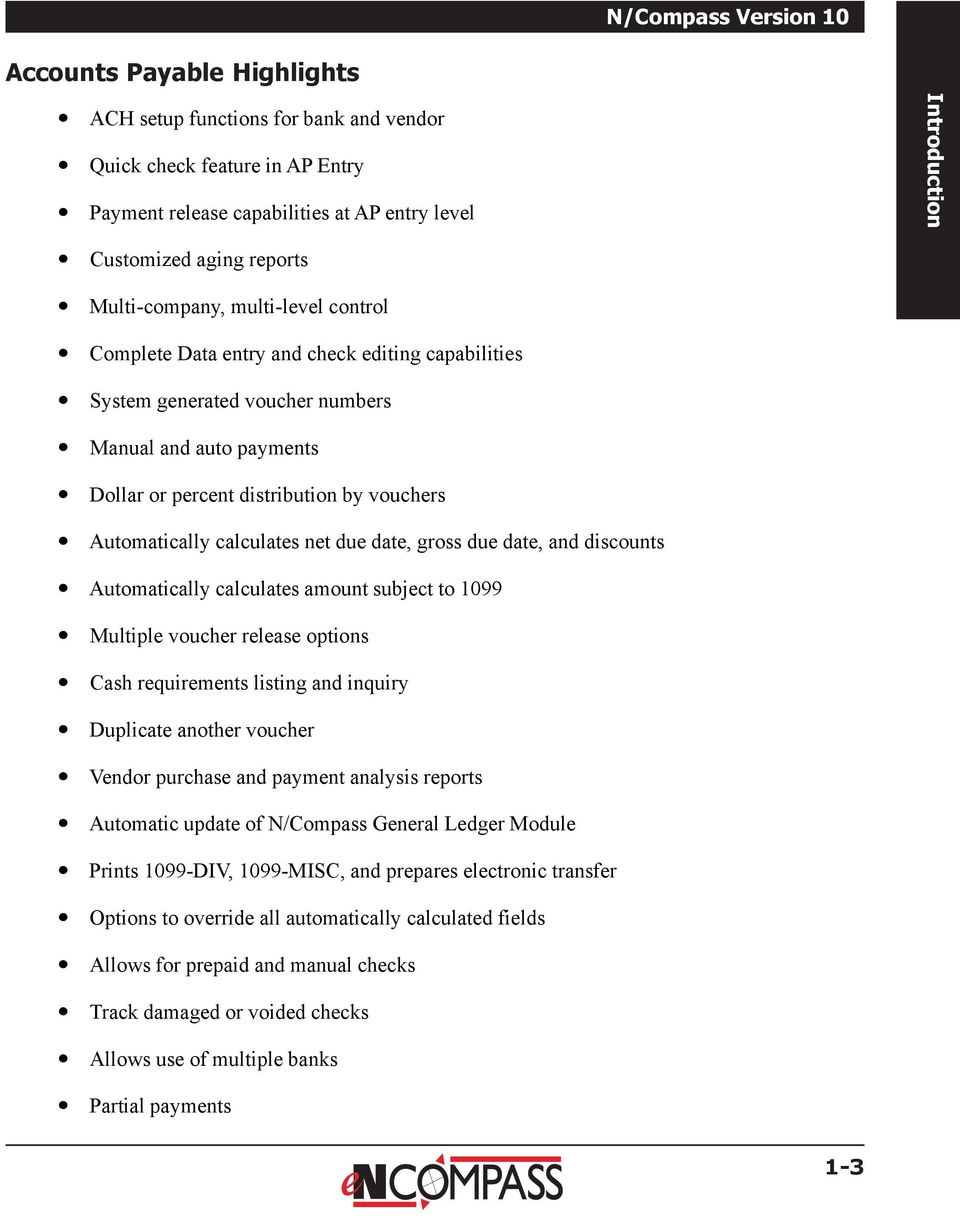
Transcription
1 Version 10 ACCOUNTS PAYABLE

2 Accounts Payable Manual Version 10 ACCOUNTS PAYABLE ACCOUNTS RECEIVABLE BILLING CONTROL FILES FIXED ASSETS GENERAL LEDGER INVENTORY PAYROLL PERSONNEL ii N/Compass Hotline

3 Contents N/Compass Version 10 Accounts Payable Highlights Accounts Payable Overview Accounts Payable Roadmap Accounts Payable Setup Guide Table Files Menu Option 1: Vendor Type File Maintenance Option 2: Vendor Terms Code File Maintenance Option 3: Bank Master Maintenance Option 4: Inter-Company Account File Maintenance Option 5: Country Code File Maintenance Option 6: Direct Deposit Control File Option 10: 1099 Company File maintenance Option 11: 1099 State Code File Maintenance Report Listings for the Table Files Option 21: Vendor Type File Listing Option 22: Vendor Terms Code File Listing Option 23: Bank Listing Option 25: Country Code File Listing Option 31: 1099 State Code File Listing Master Files Menu Option 1: Vendor Master Maintenance Option 2: Vendor Master Listing Option 3: Automatic Payment File Maintenance Option 4: Automatic Payment File Listing Option 5: Accounts Payable Inquiry (By Vendor) Option 6: Accounts Payable Detail Inquiry Option 7: Vendor Comments Reporting Option 8: Amortization Schedule Option 9: Vendor 3-UP Labels Option 10: One Time Vendor Report Option 15: Copy Vendor Masters Processing Menu Option 1: Accounts Payable Entry Option 2: Accounts Payable Voucher Edit Option 3: Post Payables and Update Master Option 4: Change to Prepaid Entry Option 5: Auto Payment Release iii

4 Accounts Payable Manual Open Accounts Payable Listing Options Option 11: Open A/P List by Voucher Option 12: Open A/P List by Vendor Option 13: Open A/P List by Net Due Date Option 14: Open A/P List by Gross Due Date Option 15: Open A/P Aging Report Option 16: Open A/P List by Period Option 21: Change Due Dates Option 22: Release by Voucher Option 23: Release by Vendor Option 24: Release by Net Due Date Option 25: Release by Gross Due Date Option 26: Display Cash Requirements (per Bank) Option 27: Print Cash Requirements Listings Option 31: Print A/P Check Register Option 32: Print A/P Check Option 33: Post Checks and Update Master Check Reconciliation Menu Option 1: Print Outstanding Checks List Option 2: Check Reconciliation Entry Option 3: Check Reconciliation/Voids Listing Option 4: Delete Reconciled/Voided Checks Option 5: Damaged/Voided Check Entry Option 6: Work With Bank Tapes Period/Year End Menu Option 1: Vendor Purchase Analysis Option 2: Vendor Payment Analysis Option 3: Vendor Calendar Year Payment Listing Option 4: Print Vendor 1099 s To Create The 1099 Diskette From The System Console Option 5: History File Reorganization Option 6: Period-End Distribution Listing Option 7: Period-Ending Activity Listing Option 8: Purchase Order Activity Listing Option Vendor Dividends Master Menu Option 6: Reorganize A/P Master Files iv N/Compass Hotline

5 Version 10 ACCOUNTS PAYABLE chapter 1 Introduction

6 Accounts Payable Manual 1-2 N/Compass Hotline

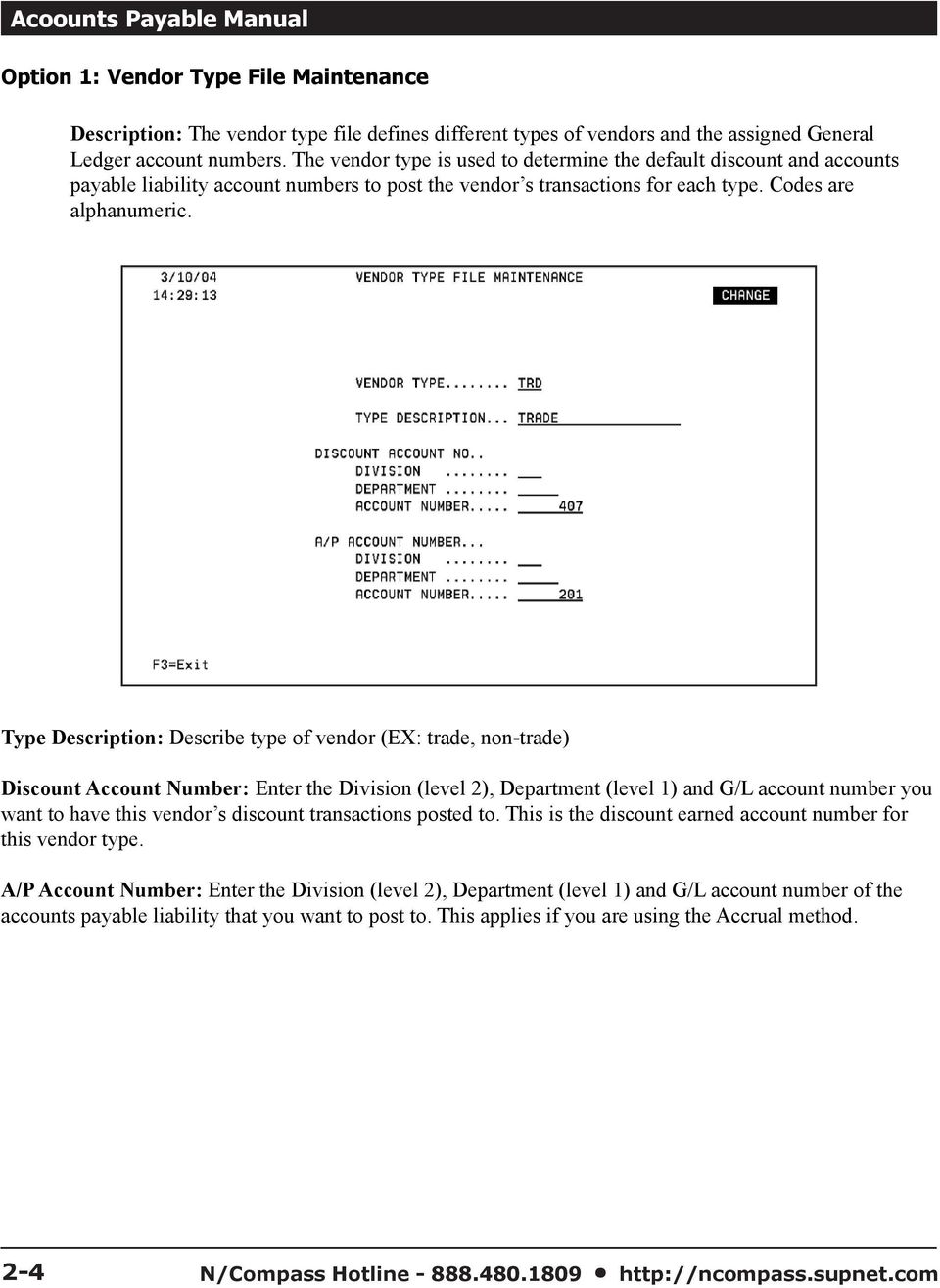
7 N/Compass Version 10 Accounts Payable Highlights ACH setup functions for bank and vendor Quick check feature in AP Entry Payment release capabilities at AP entry level Introduction Customized aging reports Multi-company, multi-level control Complete Data entry and check editing capabilities System generated voucher numbers Manual and auto payments Dollar or percent distribution by vouchers Automatically calculates net due date, gross due date, and discounts Automatically calculates amount subject to 1099 Multiple voucher release options Cash requirements listing and inquiry Duplicate another voucher Vendor purchase and payment analysis reports Automatic update of N/Compass General Ledger Module Prints 1099-DIV, 1099-MISC, and prepares electronic transfer Options to override all automatically calculated fields Allows for prepaid and manual checks Track damaged or voided checks Allows use of multiple banks Partial payments 1-3
8 Accounts Payable Manual Accounts Payable Overview This is an easy-to-use, full featured Accounts Payable module. In this module you will have the ability to enter, edit, or delete vouchers, track accounts, reconcile checks, and generate year end 1099 s. In addition to fast, accurate entry, and easy, effective methods for changes and voids, Accounts Payable offers strong management reporting and useful tools. This module is designed to provide a seamless interface between other modules in the N/Compass package. The auto-vouchering feature of the Purchasing and Requisition module generates an Accounts Payable entry automatically. The General Ledger module is automatically updated when Accounts Payable transactions are posted within the module for easy tracking. The program can also be used as a superb stand alone module if you are not using one or more of the integrated modules. A/P Entry The multi-featured Accounts Payable Entry function allows you to manage your accounts payables with the flexibility required to make any business successful. With Quick Checks you can enter and print Accounts Payable checks on the fly, providing immediate reporting and posting of your transaction. You can also choose to release Accounts Payable entries for payment right from the Accounts Payable Entry screen if desired, or through any of our payment release functions elsewhere in the processing screen. You can also customize the distribution, amount or percent of the vouchers at entry. The Entry process also allows you to duplicate and set up recurring Accounts Payable entries for quick and easy use. Prepaid and Manual checks are no problem either, simply enter the check amount, check number, and bank! Payment Release The N/Compass Accounts Payable release options allows you the flexibility to release payments in many different ways. Release by Voucher to select only the specific vouchers you wish to release. You can Release by Vendor to select payment on all vouchers for a specified vendor. If you wish to Release by Net or Gross Due Date, you can select all of the vouchers for release by a certain date for payment. Open A/P The Open Accounts Payable reporting in N/Compass provides you with useful tools to determine the status of your outstanding Accounts Payables. The many different reporting options allows you to see exactly what you want, without the hassle of customizing several different reports. You can view your Accounts Payable in open status by Voucher, Vendor, Net or Gross Due Date. You can also generate lists by posting period, and obtain fully customized Aging Reports in this section. 1-4 N/Compass Hotline

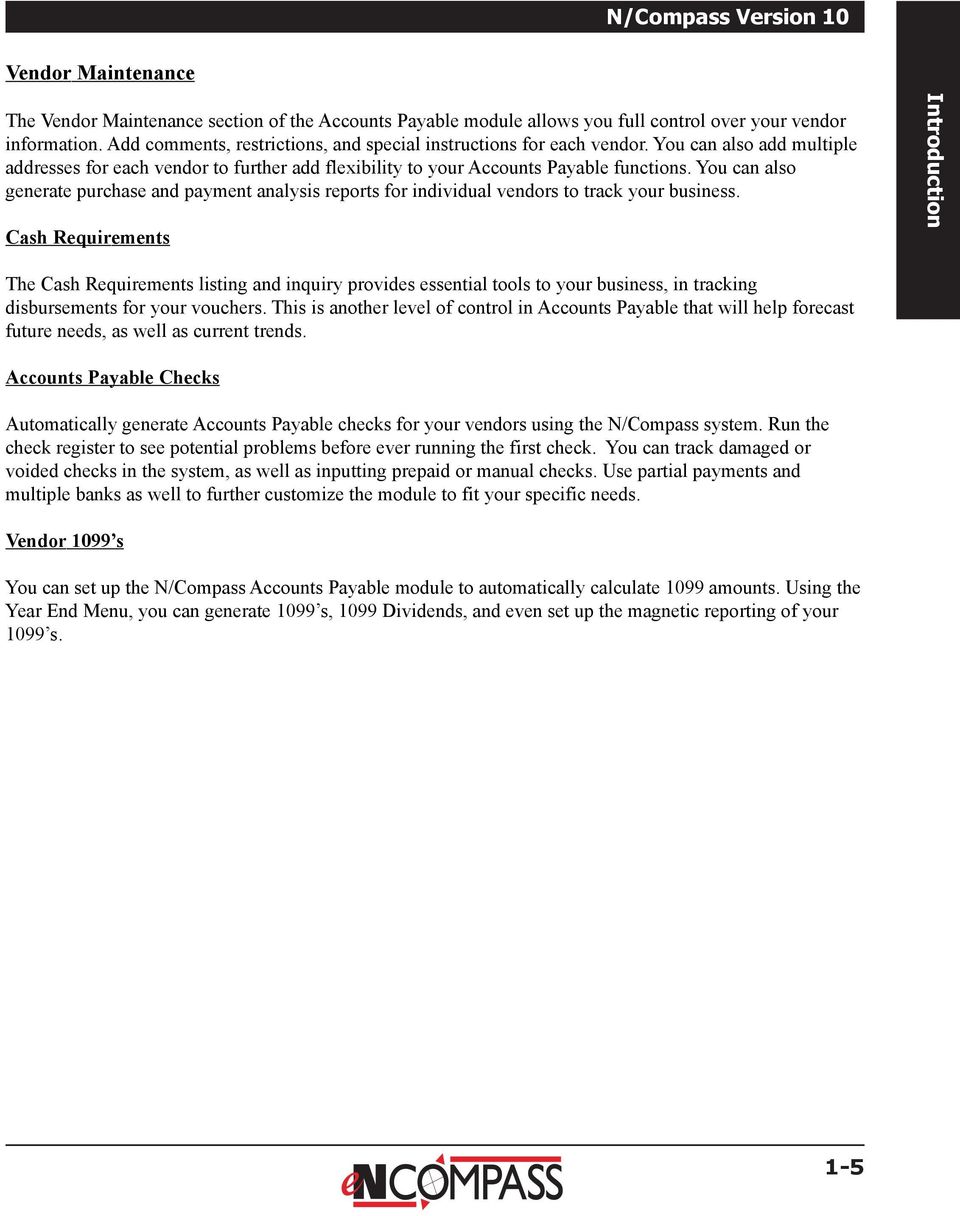
9 N/Compass Version 10 Vendor Maintenance The Vendor Maintenance section of the Accounts Payable module allows you full control over your vendor information. Add comments, restrictions, and special instructions for each vendor. You can also add multiple addresses for each vendor to further add flexibility to your Accounts Payable functions. You can also generate purchase and payment analysis reports for individual vendors to track your business. Cash Requirements Introduction The Cash Requirements listing and inquiry provides essential tools to your business, in tracking disbursements for your vouchers. This is another level of control in Accounts Payable that will help forecast future needs, as well as current trends. Accounts Payable Checks Automatically generate Accounts Payable checks for your vendors using the N/Compass system. Run the check register to see potential problems before ever running the first check. You can track damaged or voided checks in the system, as well as inputting prepaid or manual checks. Use partial payments and multiple banks as well to further customize the module to fit your specific needs. Vendor 1099 s You can set up the N/Compass Accounts Payable module to automatically calculate 1099 amounts. Using the Year End Menu, you can generate 1099 s, 1099 Dividends, and even set up the magnetic reporting of your 1099 s. 1-5
10 Accounts Payable Manual Accounts Payable Roadmap This section will guide you through the essential, yet simple steps in setting up your Accounts Payable module. If Accounts Payable is your first N/Compass module, please refer first to the N/Compass Control Files manual for detailed information on how to sign onto your system and access either your live data or the sample data library we provide. The Control Files manual also provides detailed information on how to set up your Control Files and Chart of Accounts. You must have the Control Files and Chart of Accounts set up before continuing with the Accounts Payable Setup Guide below. Accounts Payable Setup Guide 1. Start with the Vendor Type File Maintenance option in the Accounts Payable Table File menu. You will need to set up your vendor types here. This is also where you set up the accounts from your Chart of Accounts that you will associate with these types of vendors. 2. Next, set up your Vendor Terms. These will determine your net discount percentage rate, number of days before the balance is overdue, and the number of days the discount if any, is available. 3. You will need to set up the information of at least one bank to be used in the managing of your Accounts Payable. In the Bank Master Maintenance screen you will set up all of the definitions for your bank, including the cash account number, and check ranges for your A/P checks. 4. You will also need to set up your 1099 information in options 10 and 11 of the Table Files menu in order to automatically calculate 1099 amounts for your vendors, and generate 1099 Dividend reports later. 5. You will then need to move into Vendor Master Maintenance in the Accounts Payable Master menu. Here you will define your vendors. This information will determine how the vendor s checks will be processed, and how the Accounts Payable entries for that vendor will be handled in the system. You have now completed the essential steps in the Table Files, and Master Menu. You can now begin to enter Accounts Payable vouchers in the Processing Menu. The information you have entered here will be available throughout the module when entering items by utilizing the F4 Field Lookup Key. 1-6 N/Compass Hotline

11 Version 10 ACCOUNTS PAYABLE chapter 2 Table Files Menu

12 Acoounts Payable Manual 2-2 N/Compass Hotline

13 N/Compass Version 10 Table Files Menu Purpose: The Accounts Payable Table Files define the values you will use throughout the Accounts Payable System. After completing this section, you can set up the system to enter vendors, pay vouchers, and produce managerial reports. You must define the Accounts Payable Table Files before you begin any Accounts Payable processing procedures. Each table file option has Table File listings available to verify the information. See the Table File Listing Options. Using this menu, you will: Define vendor types and terms Set up your bank information Set up any inter-company accounts you may have Set up direct deposit information for bank transfers to vendors Maintain A/P 1099 information Table Files Menu 2-3

14 Acoounts Payable Manual Option 1: Vendor Type File Maintenance Description: The vendor type file defines different types of vendors and the assigned General Ledger account numbers. The vendor type is used to determine the default discount and accounts payable liability account numbers to post the vendor s transactions for each type. Codes are alphanumeric. Type Description: Describe type of vendor (EX: trade, non-trade) Discount Account Number: Enter the Division (level 2), Department (level 1) and G/L account number you want to have this vendor s discount transactions posted to. This is the discount earned account number for this vendor type. A/P Account Number: Enter the Division (level 2), Department (level 1) and G/L account number of the accounts payable liability that you want to post to. This applies if you are using the Accrual method. 2-4 N/Compass Hotline
15 N/Compass Version 10 Option 2: Vendor Terms Code File Maintenance Description: The Vendor Terms Code File contains the net discount percentage rate, the net days and gross days. This file determines the number of days the discount is available, the number of days before the invoice is overdue, and if a discount is due on a specific date. Table Files Menu Terms Code: Any valid number from Description: Used to describe the Terms Code. This will appear on various reports and inquiries. Net Discount % Rate: The percent rate of a discount. Net Days: The number of days the discount is available. Gross Days: The number of days before the invoice is overdue. End of Month: Enter a Y if invoices are due on a specific day of the month. The net days field will specify which day the invoices are due. For example: If invoices are due on the 15th of the next month, net days will be 15 and end of month will be Y. Enter an N if the date the invoices are due is not after the end of the month. 2-5

16 Acoounts Payable Manual Option 3: Bank Master Maintenance Description: The Bank Master File contains all the information for a specific bank. It contains the bank name and address, the General Ledger cash account number and the check ranges for your Accounts Payable check numbers. You may define as many banks as necessary by specifying that you want to use multiple banks in the Master Control File Maintenance. Accounts Payable Check runs may be separated by bank within each company. You may also assign multiple banks to different vendors. (See the Vendor Master Maintenance for more details). A bank cannot be deleted if history exists. Bank Name and Address: Enter the bank name and address. This information will be used for displays and reports. Name Description Abbreviation: Enter an abbreviated description of the bank name. Telephone Number: Area code, number, and extension. Fax Telephone Number: Area code, number, and extension. Contact Name: Enter the contact person s name at the bank. General: User defined field for miscellaneous information. Laser Check: Enter a Y if using laser check software, an N if not. 2-6 N/Compass Hotline
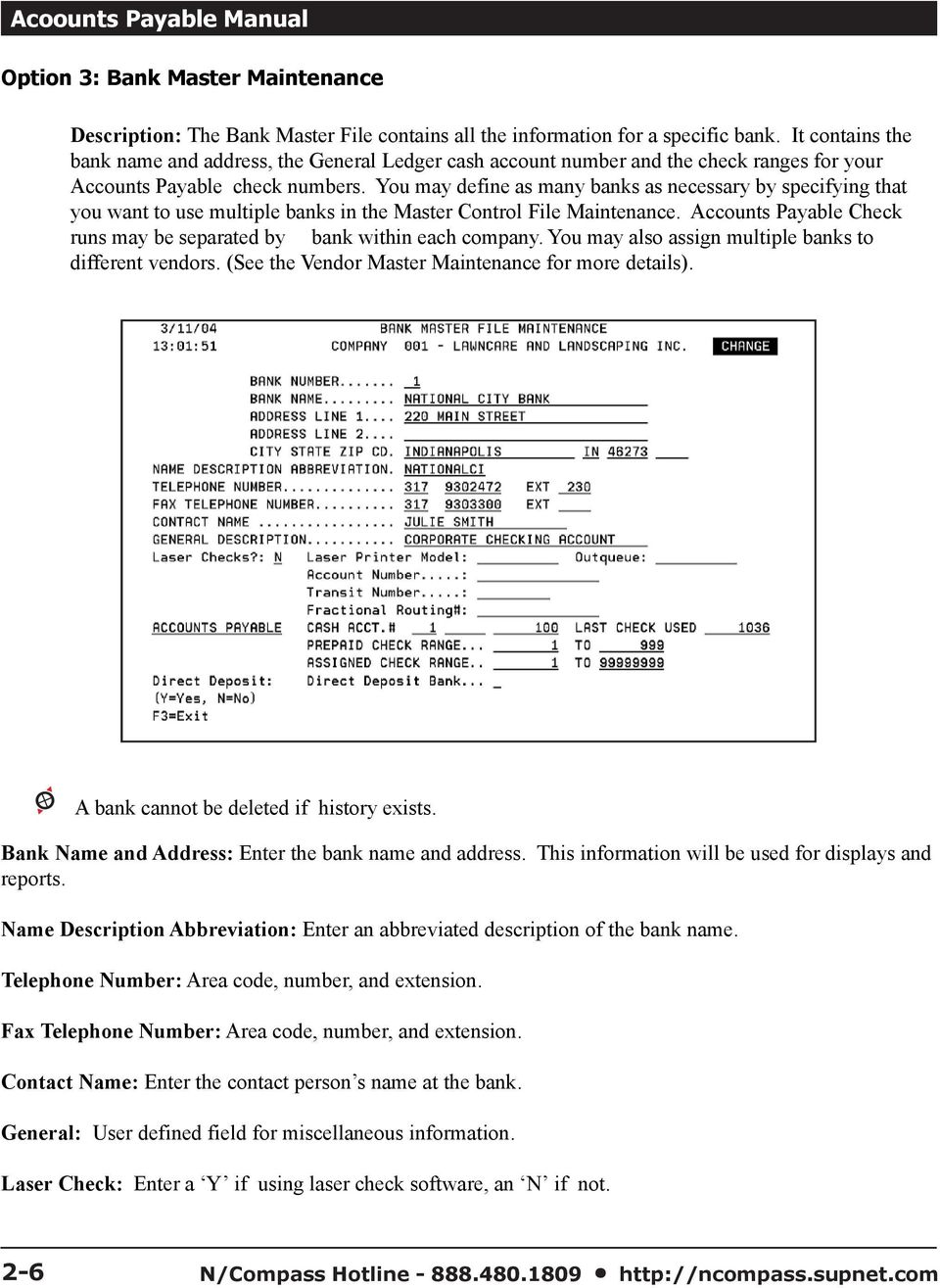
17 N/Compass Version 10 Also specify the Outqueue and Laser Printer Model Number on the lines provided. If using laser check software, the account numbers, transit numbers and fractional routing numbers are provided by the bank. Cash Account #: Enter a valid General Ledger account number that will be posted to for cash disbursements. Last Check number used: The system will automatically assign check numbers. Enter the last number that you used; the system will begin assigning with following number. This number must be within the assigned check number range. Prepaid Check Range: Enter the range for prepaid check numbers (manual checks). Assigned Check Range: Enter the range for computer assigned check numbers. Direct Deposit: Enter Y if the bank is set up as a direct deposit bank, N if it is not. Table Files Menu 2-7
18 Acoounts Payable Manual Option 4: Inter-Company Account File Maintenance Description: The Inter-Company file contains the account numbers to be used in transferring funds from one company to another. This option will only be used if you specified a Y to Inter-Company in the Control Files. To Account: Enter the Division (level 2)/Department (level 1) combination and the account number. Enter the General Ledger account number to be affected by the receiving ( TO company). This account will be credited on the TO company s records. The account will receive entries routed from A/P entry transactions when posted. From Account: Enter the Division (level 2)/Department (level 1) combination and the account number. Enter the General Ledger account number to be affected by the sending ( FROM company). This account will be debited on the FROM Company s records. This account will receive entries routed from A/P entry transactions when posted. 2-8 N/Compass Hotline

19 N/Compass Version 10 Option 5: Country Code File Maintenance Description: In this option you have the ability to define different country codes. These codes will be entered in Vendor Master Maintenance and will print on the checks, allowing you to mail checks to different countries. Only companies which have need to define countries will need to use this option. Table Files Menu Code: Enter a 3 digit (alpha or numeric) code used to define the country Country Description: Enter the name and/or description of a country (For example: USA - United States of America) 2-9
20 Acoounts Payable Manual Option 6: Direct Deposit Control File Description: The Direct Deposit Control File is used to define the last batch and last trace numbers for your direct deposit file. The setup in this screen will establish those codes for future use, and will be automatically updated in the system. Last Batch Number: Enter the batch number previous to the batch number you wish to use when creating direct deposit media files. This number will increment automatically after each direct deposit run. Last Trace Number: Enter the last trace number previous to the number you wish to use when creating direct deposit files. This number will increment automatically after each direct deposit run N/Compass Hotline
21 N/Compass Version 10 Option 10: 1099 Company File maintenance Description: The 1099 Company File is used to define the payer name for your company, the transmitter control code, and other information that is needed for printing 1099 s. If your company is required to print 1099 s for their vendors, you will need to enter this information. You may define if a vendor is to receive a 1099, in the vendor file maintenance Table Files Menu Payer Name Control: This will come with your 1099 package from the IRS. Generally the first four characters of your company name. Transmitter Code: The IRS assigns this code. Foreign Corporation Indicator: Blank if U.S., 1 if other. Combined Federal/State Filer: Blank if no state records are to be generated, 1 if state records are to be processed. 2-11
22 Acoounts Payable Manual Option 11: 1099 State Code File Maintenance Description: The 1099 State Code File Maintenance contains information for all states which require 1099 information to be reported on 1099 forms or on magnetic media. In this option you will define the state code number, and the minimum amount of vendor purchases required to generate a 1099 record. Enter the appropriate state code and press the ENTER key. The state codes are listed in the Combined Federal/State Filing section of IRS publication 1220 for Filing Forms Magnetically or Electronically. State Name: Name of state Dollar Criteria: From IRS Publication A state record will generate if your vendor purchases are at least the amount entered N/Compass Hotline
23 N/Compass Version 10 Report Listings for the Table Files The Following options (21 through 34) are to generate report listings for the previous table file maintenance options. Option 21: Vendor Type File Listing Option 22: Vendor Terms Code File Listing Option 23: Bank Listing Option 25: Country Code File Listing Option 31: 1099 State Code File Listing Table Files Menu 2-13
24 Acoounts Payable Manual 2-14 N/Compass Hotline
25 Version 10 ACCOUNTS PAYABLE chapter 3 Master Files Menu
26 Accounts Payable Manual 3-2 N/Compass Hotline
27 N/Compass Version 10 Master Files Menu Purpose: In the Master File Maintenance section, you can define and maintain all vendor information for the N/Compass Accounts Payable system. These options allow you to do the following: Add, change, and delete your company s vendor records. Schedule Automatic payments, Inquire into vendor records. Maintain vendor comment information. Produce 3-UP labels Calculate Amortization of loans. Enter, edit, and delete your accounts payable vouchers Release vouchers and print A/P checks Work with A/P checks (void, etc.) Run aging reports Print outstanding checks with your bank statement Master Files Menu 3-3
28 Accounts Payable Manual Option 1: Vendor Master Maintenance Description: This is where you will enter vendors into the Accounts Payable system. This information will determine how the vendor s checks will be processed. This process requires you to enter information about your vendors, which includes general information, check processing information, and 1099 tax information. Vendor Number: Key in the vendor number to use. This field is alphanumeric. Refer to the Master Control Files (Option 1 in the Control Files Menu) screen titled Fields Common to Accounts Payable Application to determine if you want this field to be numeric input capable. If you select Y for numeric input, the vendor numbers will be right justified in this field. Otherwise they will be left justified. F5 Lookup: Use the F5 CMD Key to look up existing vendor numbers by vendor search name. 3-4 N/Compass Hotline
29 N/Compass Version 10 Vendor Name- Address: Enter the vendor name and address. This information will be printed on the Accounts Payable check when you are not using assigned vendors or remit-to addresses. If this vendor is from a different country you will need to enter the country code, otherwise leave blank. Foreign Address Indicator: Enter a 1 if this vendor is from a different country, otherwise this field should be left blank. Our system uses this indicator during the generation of the Vendor 1099 s. Proprietor: User defined field to allow for the owner or other contact person to be listed. This line will print first on the Vendor 1099 s. Contact Name: Enter your primary contact name for this vendor. Vendor Search Field: The search word you enter here will be used for alpha searches/sequencing throughout the Accounts Payable system. Vendor Type Code: Enter the valid vendor type code for this vendor. This code must be set up in the Vendor Type Code File (Option 1 on the Accounts Payable Table Files Menu). The vendor type code will determine the default discount and A/P account. Master Files Menu Vendor Term Code: Enter the valid vendor terms code for this vendor. This code must be set up in the Vendor Terms Code File (Option 2 on the A/P Table Files Menu). This code will determine the net and gross due dates as well as discounted amounts. Phone Number: Enter the vendor s phone number and extension if applicable. 3-5
30 Accounts Payable Manual Last Purchase Date: The system will maintain this date for you once you begin to post vouchers. You are not required to enter this field. Separate Checks: This is where you will determine if the vendor should receive separate checks for each voucher that has been entered. There are 3 valid responses: N - One check will be produced that will include all released vouchers. Example: If vendor # 100 is the assigned vendor for vendors 55, 401, and 556, vendor 100 will receive 1 check that includes all the released vouchers for all 3 vendors plus released vouchers for vendor 100. Y - One check will be produced for each voucher that is released for this vendor regardless if the vendor is the assigned vendor for another vendor. V - If this vendor is an assigned vendor for other vendors, a V will produce a separate check for each vendor. Example: If vendor 100 is the assigned vendor for vendors 55, 401, and 556, vendor 100 could receive up to 4 different checks. One would be for the released vouchers for vendor 55, a second for the released vouchers for vendor 401, a third for the released vouchers for vendor 556, and a fourth check would be produced for any vouchers released directly for vendor 100 If you use a code of V and the vendor is not an assigned to vendor, the checks would print as if the code was a N and print only one check for all of the vendor s vouchers. Assigned A/P Bank: Enter the bank number that you want to generate checks from for this vendor. This bank number will default for all entry/reporting screens for this vendor. The bank must be set up as a valid bank in the Bank Master File Maintenance (Accounts Payable Table Files Option 3). You will be running most of your Accounts Payable functions using this bank number. Partial Payments: This field will determine if your vendor will accept a partial payment. Enter a Y if they will accept partial payments. Otherwise an N will default in the field during A/P entry. If this is set to N, you will get an error message if you try to make partial payment to this vendor. If you are running on a cash basis, you must have this flag set to N for all vendors. Assigned Vendor: The assigned vendor will determine who will receive the payable check for this vendor. If you work with a vendor but always send the check to another vendor, enter the vendor that is to be paid here. Each time a check is produced for this vendor, it will be sent to the assigned vendor automatically. The assigned vendor must be a valid vendor in the Accounts payable system and cannot have an assigned vendor. If this vendor does not have an assigned vendor, the original vendor number will default here for you. Comments on Checks: You will be able to key in a voucher comment for each voucher you enter. This field will determine if that comment will print on the check. Enter a Y for the comment to print on the check stub. Min/Max Amounts: If the vendor has specified that the vouchers must have a minimum or maximum amount to be entered, key in the amounts here. Otherwise, leave these fields blank. 3-6 N/Compass Hotline
31 N/Compass Version 10 Retainage: The percent of an invoice that you wish to retain from payment. This percent will be deducted from the payment amount as you enter the voucher. If you specify a retainage, you must have the partial payments field defined as Y. Fax Number: Enter the vendor s fax number. If you have a Fax product and Purchasing systems and will be faxing purchase orders to this vendor, you must enter the vendor fax num- ber here (enter it exactly how you would dial it). This field is mandatory if you have the Print/ Fax routing codes set to 2 or 3. Print/Fax Routing: If you do not have a Fax product enter a 1 here for print only. If you have a Fax product you will be able to fax purchase orders directly from our Purchasing application. To do this, enter a 2 to fax PO s only, or 3 to print and fax them. FOB Description: If you have our Purchasing application, this field will be used to describe who will absorb transportation costs for this vendor. This is usually Shipping point or Destination. Leave blank otherwise. Ship Via: If you have our Purchasing application, this field will be used to describe the method that will be used for transportation. For example: Federal Express or UPS Tax Information Print on 1099: If this vendor is a 1099 vendor select a type of compensation here. The system will maintain all 1099 dollars for you and will print a 1099-MISC for this vendor at the end of the year if the vendor has reached the minimum 1099 dollars. To see the YTD 1099 dollars, press the F2 (YTD adjustment) key. If the vendor does not require a 1099, enter an N here. The 1099 options are as follows: Y - Print 1099 N - No 1099 R - Rents H - Medical/Healthcare T - Royalties D - Dividends O - Other income Tax ID Number: Enter the ID number for this voucher. For example: If the vendor is an individual or sole proprietorship, use their social security number. If it is a corporation, use their federal ID number. Type of Tax ID Number: Specify the type of ID has been entered for this vendor. For Individual (social security number) enter a 2. For Corporations, enter a 1 here. Master Files Menu State Code: Enter a valid state code from the State Code File Maintenance (Option 11 on the A/P Table Files). This will determine the minimum 1099 amount needed to print a 1099 form. Payee Name Control: Will be used for the 1099 magnetic media reporting. Usually the first four digits of the Company name. 3-7
32 Accounts Payable Manual F2 - YTD Payment Adjustments Calendar Year: Enter the calendar year for which you wish to adjust the payment. YTD Payment Totals: Enter the year-to-date payment amount YTD 1099 Payments: Enter the year-to-date 1099 payment amount The YTD Payment Totals and YTD 1099 Payments are calculated by the system. This screen option is for manual adjustment purposes only and can be edited as necessary. This screen can be used to add YTD dollars if you are beginning your A/P system in the middle of a year, or if you need to make a correction to the yearly dollar amounts for this vendor. As you post payments throughout the year, the system will automatically add the payments to this file. If your vendor is set up as a 1099 vendor, you will see the 1099 dollars on this screen as well. To use this screen, press the F2 CMD Key from the vendor maintenance screen. 3-8 N/Compass Hotline
33 N/Compass Version 10 F6 - Comments This process will allow you to add vendor comments or perform maintenance on already existing vendor comments Comment Type Code: Enter a valid three-character comment type code to only display comments for that type code or leave blank to display all comments. Comment type codes are defined through the Control Files Menu. Date: Defaults to current date. This date is the date given to any new comments added. This date can be changed (overridden). Press ENTER to display existing comments. The last page of comments will be displayed. Use the Page Up or Page Down keys to scroll through previous and current comments The Comment function will allow you to store/print comments for each vendor and separate the comments by type of comment. Master Files Menu Type: Three-digit comment type code. The last page of comments will be displayed. Use the Page Up or Page Down keys to display previous or current comments. A comment can be deleted by blanking the line on which it appears. 3-9
34 Accounts Payable Manual Use the following function keys in the Comments screen: F5: Change date of comment being entered F6: Print all comments on record F7: Print all comments by specific type. F9: Display/remove additional fields for the comment line Press F9 to Display The Following Fields User: Defaults to current user profile for new comment entry. This option displays the ID of the user who entered the comment(s). Schedule Date: This refers to the date on which the action described on the comment line is scheduled to take place Action Date: This refers to the date on which the action described on the comment line was completed. Reports can be run showing the scheduled action dates. F13 - Customer Copy This function key will display only during add mode. To copy a Customer that currently exists in the Accounts Receivable application, press the F13 CMD key N/Compass Hotline
35 N/Compass Version 10 F14 - Employee Copy This function key will display only during add mode. To copy an employee that currently exists in the Payroll application, press the F14 CMD key. F5 - Remit to Address If you write checks to several different addresses for this vendor, you will need to set up the addresses as remit to addresses. Once an address has been set up here, you can request a specific remit to address when you are entering a voucher. You can have up to 99 different remit to addresses for each vendor. If a vendor has remit to addresses defined, you will see an * next to the remit - to field during voucher entry. Master Files Menu 3-11
36 Accounts Payable Manual F7 - Distribution The distribution option will allow you to preset G/L account numbers for posting expense transactions. This will save you time and effort if the vendor s transactions are usually posted to the same account numbers. You may enter several account numbers, and divide the expense by percentage. This percentage total must equal 100%. If you decide to set up an automatic distribution, and want to change the distribution, it may be changed on the vendor screen or at voucher entry. Use the following function key for this screen: 3-12 N/Compass Hotline
37 N/Compass Version 10 F8 - Use Tax and Project Allows the addition of a Use Tax code, and a user-defined project name or number. Master Files Menu 3-13
38 Accounts Payable Manual F8 Direct Deposit This screen allows you to set up the direct deposit account for your vendor. D/D Indicator: This field can be blank for no direct deposit. Enter 2 if you wish to have the vendor on direct deposit, and 3 if you wish to enter a pre-note. Routing #: This number will be assigned by the bank. Bank Account Number: Enter the bank account number for your vendor. Account Type: Enter 2 if the account is a checking account. Enter 3 if it is a savings account N/Compass Hotline
39 N/Compass Version 10 Option 2: Vendor Master Listing Description: This listing will display all vendor information, such as the Vendor Name, Address, Phone Number and Contact Name. Also displayed on the listing are the Vendor Type code, Terms, Search Word, Separate Checks Y/N, Last Purchase Date, Status, Minimum/ Maximum Invoice Amounts, Retainage and the Default Distribution (if applicable). If the vendor gets a 1099, the recipient ID number, type and the associated State Code will be displayed as well. Select option 1 or 2 to print the Vendor Master File Listing by Vendor Name or Number. Specify a Vendor Name or Number RANGE or leave blank for ALL vendors. Specify a range of TYPE CODES and/or LAST PURCHASE DATE or leave blank for ALL. Choose 1 of the following to be included on your report: 1. Active Vendors 2. Inactive Vendors 3. ALL Vendors Master Files Menu 3-15
40 Accounts Payable Manual Option 3: Automatic Payment File Maintenance Description: The Automatic Payment File is used to enter payments that are to be made on a regular basis. For example: weekly, monthly, etc. The information for these regular payments will be entered in this file, and at the designated time, the voucher will be automatically released and show as available for payment. Enter the vendor number and auto-payment number. Vendor Number: Vendor number carried from previous screen Vendor Name: Provided to verify that the vendor number and name records match Auto Payment Nbr: Auto payment number carried from previous screen. Used to separate all individual auto payment records. Voucher Comment: Comments set by user for identification. These comments can print on checks if set up in the Control Files to do so. Pay Frequency: This code is used to indicate the frequency of the auto payment W - Weekly M - Monthly P - Period Q - Quarterly S - Semi-annual Y - Yearly T - Semi-Monthly 3-16 N/Compass Hotline
41 N/Compass Version 10 Reference No: Key the reference number (EX: invoice number, car loan number, account number, etc.) This field is optional and user defined. Last Purchase Date: The last date a payment was made for this auto payment number. The system will maintain the dates once entered. Distribution A/P: For distribution, key an A for amount or P for percentage. You will want to use percentage if the dollar amount changes per pay period (EX: utilities, phone etc.) Fixed/Variable (F/V): Key if the amount if fixed or variable. (If variable, distribution must be percent.) Installment Plan (Y/N): If this auto pay is an installment plan, key Y. Payment Amount: Key an amount of the payment. Paid to Date: Key in the amount paid to-date. No. Of Installments: Key the total number of installments (will appear only if you responded with Y on installment plan) Installments Made: Key the number of installment payments made to date. (The system will maintain number of payments made to date) Master Files Menu Paid to Date: Key the amount that has been paid to date. (The system will maintain this amount once initially entered) Total of Payments: Key the total amount of NOTE: (for installments only) (EX: principal + interest) 3-17
42 Accounts Payable Manual Company: Only the companies set up for inter-company entry/posting will display. (Use F7 CMD key) Division: Determined by the system Control Files. This is a valid level 2 value. Department: Determined by the system Control Files. This is a valid level 1 value. Account #: Enter the valid account number that you want the expense distribution to post to the General Ledger. (Amount): Key $ amount you wish to distribute or: (Percentage): Will appear if you responded with P on distribution prompt (EX: 50% =.5000) Function Keys: F6 - Use this CMD key to view vendor comments F7 - Use this CMD key to enter the project number or for inter-company posting N/Compass Hotline
43 N/Compass Version 10 Option 4: Automatic Payment File Listing Description: This report should be printed to determine which auto payments you will process when you do A/P voucher entry. This report lists the vendor name, whether it is a fixed or variable amount, and the G/L account number to which it is posted. Master Files Menu 3-19
44 Accounts Payable Manual Option 5: Accounts Payable Inquiry (By Vendor) Description: This option allows you to generate a report of your Accounts Payable activity by vendor. Type a valid option in the OPT field to inquire about payables for a vendor. Options include: 1 General Info - Display vendor name and address, shipping information and payment defaults. 2 History - Display purchase, payments and discount history 3 Auto Payments - Display automatic payment information 4 Invoices - Display invoice information by voucher, by vendor reference, by date or by posting period, or by status 5 Comments - Access vendor comment maintenance Options 2-5 may be accessed from the General Information screen. Type a vendor number or search word in the Position to fields to bring a particular vendor record to the top of the list. Place a value next to the vendor you want to inquire about N/Compass Hotline
45 N/Compass Version 10 Function Keys F9 - One-Time Vendor Lookup - Access One-Time Vendor Information Key valid vendor number or search word in position to field and press enter. This will bring your entry to the top of the list. Place a value next to the vendor you want to inquire about. Option 1: A/P General Information To review history, enter a 1 next to year, and enter the year you wish to review. Press the ENTER key enter. History can also be reviewed by placing a 2 next to the vendor on the first screen of Accounts Payable Inquiry. You may review total year history or you may inquire into any open invoices by voucher number, reference number, invoice date, posting date, posting period, or all open invoices. You may also inquire into any auto payments for this vendor. To review auto payments, enter a 1 next to the Review Auto Payments option field and enter the number of the auto payment you wish to appear at the top of the auto payment list. If no auto payment number is entered, all auto payments for the vendor will be displayed. Master Files Menu 3-21
46 Accounts Payable Manual To review invoices, enter a 1 next to any of the 6-invoice review option fields and enter a value identifying the invoice you wish to appear at the top of the list. The list is sorted according to the option field entered. Options are as follows: Sort invoices by voucher number Sort invoices by reference number Sort invoices by invoice date Sort invoices by posting date Sort invoices by posting period All open invoices Function Keys F6 - Comments - Access Vendor Comment Maintenance F7 - Distribution - Display vendor s distribution defaults F14 - Vendor Maintenance - Allows you to make changes to the Vendor Master File. Option 2: A/P History The A/P History screen shows one year s purchase, payment and discount information by period for a vendor. To review history for a different year, type the year in the Year prompt field and press <En- ter>. Previous Year and Next Year and 1099 payment function keys are also available. Function Keys F6 - Comments - Access Vendor Comment Maintenance F7 - Previous Year - Review previous year history F8 - Next Year - Review next year history F History - Review 1099 YTD history Option 3: Vendor Automatic Payments The Automatic Payment screen lists all automatic payments set up for a vendor. It also shows the payments amount, frequency, last payment date and amount paid to date for each automatic payment listed. If further payment information is required type a 1 in the option field to review invoice history for that auto payment. Function Keys F6 - Comments - Access Vendor Comment Maintenance F8 - Additional information - View voucher comments, reference number, and total of payments 3-22 N/Compass Hotline
47 N/Compass Version 10 Option 4: Vendor Invoice Inquiry The Vendor Invoice Inquiry screen lists all vouchers created for a vendor and shows the invoice amount, invoice and posting dates, invoice status and check number (if paid) for each voucher listed. The Sort by field determines the order by which the vouchers are sorted. Valid values are as follows: VCH - Sort invoices by voucher number REF - Sort invoices by reference number IDT - Sort invoices by invoice date PDT - Sort invoices by posting date PPR - Sort invoices by posting period STS - Sort invoices by invoice status Once the sort order is determined, the starting voucher is selected according to the Position to field. Valid values for the Position to field depend on the sort order as follows: Sort Order Valid Values VCH Any voucher number REF Any reference numbers IDT Any valid invoice date PDT Any valid posting date PPR Any valid posting period STS OPEN, PAID, VOID Function Keys F6 - Comments - Access Vendor Comment Maintenance F8 - Voucher Comments - Display/Hide Voucher Comments and Posting Period F14 - Ascending/Descending - Allows you to change the displayed information to appear in Ascending or Descending order based on the specified sort order. Master Files Menu 3-23
48 Accounts Payable Manual Voucher Distribution The Voucher Distribution screen lists the G/L expense account(s) to which an individual voucher was distributed. (By division, department and account number combinations) This screen also shows the date of invoice, posting date and period, check amount/number/ date, and any comments Function Keys F6 - Comments - Access Vendor Comment Maintenance F8 - Company/Project Number - Display/Hide Project numbers Option 5: Vendor Comments File Maintenance This process will allow you to add vendor comments or perform maintenance on any existing vendor comments. Comment Type Code: Enter a valid three-character comment type code to only display comments for that type code or leave blank to display all comments. Comment type codes are entered through the Table Files Menu. Date: Defaults to current date. This date is the date given to any new comments added. This date can be changed. Press the ENTER key to display existing comments. The last page of comments will be displayed. Use the Page Up or Page Down keys to scroll through previous and current comments N/Compass Hotline
49 N/Compass Version 10 Option 6: Accounts Payable Detail Inquiry Description: Allows for the search of vendors by certain information such as check numbers, P.O. numbers, check dates, and voucher numbers, without knowing the vendor number. Check Number: Enter the number of the check you want to report on. Voucher Number: Enter the voucher number. Reference Number: Enter the reference number. Check date: Enter the check date Invoice Date: Enter the invoice date. P.O. Number: Enter the P.O. Number Master Files Menu Only one of the above fields needs to be entered 3-25
50 Accounts Payable Manual Function Keys F8 Company/Project - Press this key to view inter-company posting company numbers and project numbers F10 Inquiry by Vendor - Press this CMD key to perform an inquiry by vendor N/Compass Hotline
51 N/Compass Version 10 Option 7: Vendor Comments Reporting Description: This process will allow you to selectively print a listing of vendor comments currently on file. Enter information for one or more of the following: Comment Date: This refers to the date the comment line was entered. Schedule Date: This refers to the date on which the action described on the comment line is scheduled to be completed. Action Date: This refers to the date on which the action described on the comment line is completed. Vendor Range: The range of vendor numbers whose comments you wish to print. Comment Type: Enter a valid three-character comment type code to only print comments for that type code or leave blank to print all types. Master Files Menu User: Enter a valid user to only print comments entered by that user. 3-27
52 Accounts Payable Manual Report Sequencing: Enter selection 1-5 to print the comments in the desired sequence. This is a required entry. Select one of the following sequencing options: Vendor, Comment Date User, Schedule Date Schedule Date, User Schedule date, Vendor, User Vendor, Action Date 3-28 N/Compass Hotline
53 N/Compass Version 10 Option 8: Amortization Schedule Description: This option will allow you to display or print an amortization schedule for your loans. This amortization schedule does not interface with the installment plan in A/P Automatic Payment Entry. Principal Amount: This is the amount being borrowed. Annual percentage Rate (APR): Key in as a Percent. (i.e., = 10%) Number of Monthly Payments: Key in the total months involved in the terms of the loan. Schedule Title: This will print on the heading of your schedule. Press Enter after keying the required values to view and/or print your amortization schedule. Master Files Menu Press the F21 key to print the Amortization Schedule. 3-29
54 Accounts Payable Manual Option 9: Vendor 3-UP Labels. Description: This option generates labels in a 3-across (side-by-side, 1 inch label) format. Take option 1 or 2 to select by name or number. Include: Select 1 for Active Vendors only, 2 for Inactive Vendors only, and 3 for All Vendors N/Compass Hotline
55 N/Compass Version 10 Option 10: One Time Vendor Report Description: This option will allow you to run a one-time vendor report that will show a list of all one-time vendors and their history. Master Files Menu 3-31
56 Accounts Payable Manual Option 15: Copy Vendor Masters Description: This option allows you to copy vendor master information from one company to another. You can copy multiple vendors using the from and to entries, as well as A/P Bank information N/Compass Hotline
57 Version 10 ACCOUNTS PAYABLE chapter 4 Processing Menu
58 Accounts Payable Manual 4-2 N/Compass Hotline
59 N/Compass Version 10 Processing Menu Purpose: This section allows you to enter the vouchers for payment, edit your vouchers, print various reports to show open vouchers, print checks and post your payables. In this menu you will be able to do the following: Enter, edit and delete A/P Vouchers Release Auto-payments to be paid. Processing Menu List open payables by vender, voucher, net and gross due dates. Process partial payments for vouchers in dispute. Create Quick Checks to pay a voucher right away without going through all the steps. Print cash requirements for timely bank information. 4-3
60 Accounts Payable Manual Option 1: Accounts Payable Entry Description: In this option you will enter new vouchers, or change vouchers that have not yet been posted. You may also release transactions that are on Hold status, or are waiting for approval to be released. Vouchers are entered in batches, which will allow several Accounts Payable clerks to keep their work separate. Vendor file information can be viewed and/or deleted from this option 4-4 N/Compass Hotline
61 N/Compass Version A/P Entry Select Option 1: A/P Entry to enter vouchers. Processing Menu In this option you will add, change or delete vouchers. You may only change or delete the vouchers that have not been posted through Option 3 of the processing menu. Voucher entries are organized by batches. You can add a new batch, or change an existing batch. This gives you the ability to have multi-user entry. More than one user can enter vouchers without interfering with each other. Last Batch Number: The last batch number entered. Description: The description of the last batch. Voucher Count: The number of voucher entries entered in the last batch. Batch Total Amount: Amount entered for all voucher entries in a single batch. 4-5
62 Accounts Payable Manual To Add A New Batch Next Batch Description: Type a description and press enter. The system will assign a new batch number. To Edit an Existing Batch Press the F2 CMD key. This will bring up the following screen. To select a batch, place a 1 next to your selection and press the ENTER key to execute. Batch #: The batch number will display. Batch Description: The batch description will display. V-count: The number of voucher entries entered into that specific batch. Batch Total Amount: The total amount for all voucher entries in a single batch. 4-6 N/Compass Hotline
63 N/Compass Version 10 Both Add and Edit mode will take you to the following screen: Processing Menu The following are several types of voucher entries you can select by the function keys at the bottom of the screen: Use the function keys at the bottom of the screen to create the following types of voucher entries: F2 - Manual invoice entry F5 - Auto voiding entries F6 - Used to look up pre-existing vouchers F7 - Auto payment vouchers F8 - Duplicate vouchers F13 - Auto crediting F14 - Used to access Vendor Master File Maintenance 4-7
64 Accounts Payable Manual Manual Invoice Entry F2 The entry screen will appear in ADD MANUAL VOUCHER ENTRY MODE. To enter a manual voucher, enter the vendor number and press the ENTER key. If you can t remember the Vendor Number, use the F6 or F4 Function Key to lookup all existing vendors on the system. Vendor Number: Enter the vendor number. Press the ENTER key to receive the following screen: Vendor Number: The vendor number entered on the previous screen. Vendor name: Defaults information from the Vendor File Maintenance. Vendor Comment: Defaults to the vendor number and the vendor name. The comment can be overridden. The voucher comment will print on the check stub if selected to print on the fields common to Accounts payable screen of the Master Control Files in the system Control Files Menu. Posting Date: Enter the posting date in MMDDYY format. Posting Period: Enter the posting period in MMYY format. The posting date must be defined to be within the posting period and must also not be closed in the Posting Period File Maintenance. The posting period entered will be the date the voucher is posted in the General ledger. Invoice Date: Enter the invoice date in MMDDYY format. If the invoice date is the same as the posting date, leave this field blank and it will default to the posting date. Invoice Amount: Enter the total amount of the voucher. 4-8 N/Compass Hotline
65 N/Compass Version 10 Reference Number: Enter a reference number if available. The system will default to a blank field if no number is entered. The following message will appear at the bottom of the screen if a voucher has already been entered with the same vendor and reference number: THIS VOUCHER MAY HAVE ALREADY BEEN ENTERED. P.O. Number: Enter a Purchase Order number if applicable. Rcv #: If the voucher has a P.O. number, also enter the receiver number. Purchase order number and Receiver number, if entered, will bring in the distribution account detail from the PO and display it in the distribution section at the bottom of the screen (If you are using the Support Net Purchasing system). Processing Menu Discount Basis: The discount basis is the portion of the invoice that is subject to discount. This field will default to the invoice amount unless specified otherwise by manually changing the amount. For example, if the invoice includes freight charges and they are not discounted, then the field must be overridden Amount: Enter the portion of the invoice subject to 1099 deductions. This field defaults for 1099 vendors. Payment Amount: If there is a retainage % in the vendor master file, this field will be calculated. PAYMENT = INVOICE AMOUNT X (100% - retainage %). This may be overridden. Terms: The Terms Code assigned to the vendor. This field will default to the terms entered in the Vendor File Maintenance for the vendor. This field can be overridden but will always default to the original term if the vouchers are displayed in the entry screen. Status: Status of transaction: Blank - Active T - To-Be-Approved H - Hold Q - Quick Check R - Released A status of Blank will allow the voucher to be posted. A T will not allow a voucher to be posted until status is changed through A/P Entry Transaction Release. An H will allow a voucher to be posted but not paid until status is changed in one of the release Options (22-25). A Q will allow you to process a Quick Check through the system. An R will release the voucher at A/P Entry time. If a voucher is released here, it will not need to be released in one of the release Options (22-25). 4-9
66 Accounts Payable Manual Press the ENTER key and the following screen will be displayed. Payment Amount: This amount defaults to the invoice (voucher balance) amount. If the vendor allows partial payments, the amount can be less than the invoice amount but not less than the discount amount Bank: This defaults from the Vendor Master record(s) and may be changed as needed. This value determines how the voucher processes and may be changed during release. Assigned Vendor: The Vendor Record(s) assigned vendor defaults to this field. It can be changed as needed Remit-to: If multiple remit-to-addresses were entered in the Vendor Master Maintenance, you may select which address is to print on the check. The * indicates multiple remit-to addresses Discount Amount: This amount is calculated based on the discount basis and discount rate of the terms code selected. Disc Acct#: Defaults from the Vendor Type File. This account will be posted to at the time of payment if a discount is taken. Gross Due Date: This date is calculated from the Vendor Terms by the system N/Compass Hotline
67 N/Compass Version 10 Check Type: Choose from the following options: Blank - Leave blank for normal A/P Entry. P - Prepaid checks. The system will ask for a check number, posting date, posting period and bank number. V - Void Check. The system will ask for a check number, posting date, posting period and bank number. This option should only be used for voiding partial payments. Otherwise, AUTOVOID should be used. Processing Menu Partial: This field defaults from the Vendor File to indicate whether this voucher will allow partial payments. Accrual based companies support partial payments. A/P Acct #: Defaults from the Vendor Type File. This account will be posted to when the A/ P posting process is completed and when payments are made to the account. Net Due Date: This date is calculated from the Vendor Terms by the system. Check Posting Date And Period: (Quick check status only) The posting period and date for the check. Defaults to the A/P posting date. Source Codes: (Quick check status only) Displayed only when the General Ledger is installed. Defaults to the A/P source code on the Master Control File, but may change to any valid code on the General Ledger Source Code Master File. All of these fields may be overridden Prepaid/Void (P/V): Enter P or V. If answered P or V, the system will ask for a check number, check date, and cash posting date and period. 4-11
68 Accounts Payable Manual Press the ENTER key and the following screen will be displayed. By entering an * in the Comments/Remarks field, the previous comment will be repeated. Company: Enter the company number you wish to distribute the expense to. Division (Level 2): Enter Division for expense distribution. Department (Level 1): Enter Department or Branch for expense distribution. Account #: Enter account for expense distribution to G/L. Description: Automatically displayed with a valid account number. On completion of the distribution, press the ENTER key and the description of the account will appear. Amount: Enter the dollar amount to be distributed. Enter an amount less than or equal to the payment amount. The total distribution of expenses must equal the payment amount. Enter a debit for a payment, or a credit (with a trailing minus sign) if it is a credit voucher. Comments: This will appear for G/L auditing. By entering an asterisk ( * ) in the comments field, the previous comment will repeat. For each expense distribution, key applicable areas. If this is an Auto Pay, all will be displayed by the system N/Compass Hotline
69 N/Compass Version 10 Function Keys F5 Completes Voucher: Regardless if this is a MANUAL or AUTO PAY voucher, F5 will enter for payment and assign a voucher number. If the distribution does not equal the payment amount, then the system will display the following message: TOTAL DISTRIBUTION NOT EQUAL TO PAYMENT INVOICE AMOUNT. F6 Comments: Use this option to add, change, or view comments for vendor Processing Menu Comments may be entered to use for auditing purposes. A comment follows its correlating expense account when posted to GL. F7 Load Default Vendor Distributions: When in add mode, any vendor distribution records currently on file for the company and vendor being entered may be loaded onto the screen. F8 Company Project Number: Pressing the F8 key will fold the display to allow project number entry and/or inter-company posting. F9 A/P Inquiry: Pressing the F9 key will display A/P information by vendor 4-13
70 Accounts Payable Manual Quick Check The Quick Check feature will allow you to generate a check directly from the manual A/P entry process. This process will complete the voucher posting, release the voucher, run the check register, produce a check(s), and post the checks to the General Ledger, all from the A/P entry option. To use the Quick Check feature, all you need to do is assign the voucher a status of Q when you are entering the voucher. When you are using the status of Q you will be asked for the cash posting date and period, the G/L source codes for the postings and the starting check number. The starting check number will default to the next check number that has not been used. The last check number used is defined in the Bank Master File (Option 3 in the A/P Table Files). The screen will look like this: Enter the requested information and press the ENTER key for the next screen. After you have completed the distribution, you will receive the message CMD05 TO COMPLETE VOUCHER AND PRINT QUICK CHECK at the bottom of the screen N/Compass Hotline
71 N/Compass Version 10 Processing Menu When you press F5, the system will generate your voucher register, voucher distribution journal, voucher posting journal, A/P check register, and the A/P check. As these reports are generated you will see several messages at the bottom of the screen. You will not need to do anything about them, they are indicating that the program is working. When this is complete you will be notified of the voucher number and the check number. The message will look like the message at the bottom of the screen below. Once you receive this message, your reports have been sent to your normal output queue to be printed. 4-15
72 Accounts Payable Manual These jobs go directly to the output queue and will not show up in the work with submitted jobs screen. You will get a message on the AS400 to change forms as usual. At this point the voucher has been posted, but the check has not. After you have verified that the check and reports are accurate and correct, press the ENTER key to post the check. This will process the check completely through the A/P system and post to the A/P and G/L history files. Once the posting is complete, you will receive the message at the bottom of the screen N/Compass Hotline
73 N/Compass Version 10 One Time Vendors By entering a vendor number of zero from the first screen, you can create a one-time vendor voucher entry. This screen will appear after pressing the ENTER key. Processing Menu Enter the appropriate vendor name and address information. Vendor type and vendor terms code must be valid codes as entered in the Table Files. One-time vendors can be recognized throughout the system as being a vendor number of zero. 4-17
74 Accounts Payable Manual Auto Void Entry F5 Auto void entries are to be used for voiding checks that have been posted to the General Ledger. If the check has not been posted to the General Ledger, an auto credit voucher is recommended. Press the ENTER key and the following screen appears: Bank: Enter the bank number associated with the check. Check Number: The check that you wish to void Check Posting Period and Date: The posting period (MMYY) and the posting date (MMDDYY) for the voided check N/Compass Hotline
75 N/Compass Version 10 Processing Menu This screen will present you with the voucher(s) associated with your check. Pressing the F5 CMD key will void all vouchers for the check. To edit or delete the original voucher of a voided check, the flag in the Control Files must be set to reopen the original voucher prior to voiding that check. Once a check is voided, you can edit or delete the voucher entry by performing accounts payable entry on the new voucher (If the Control Files are set to reopen the original voucher when voiding a check). This MUST be completed prior to running Option 3 posting. 4-19
76 Accounts Payable Manual Auto Pay F7 If you have an Automatic Payment set up with a Variable amount, use this option to enter the amount for this Auto Payment. Just enter the vendor number and the Auto Pay number, and then enter the rest of the information as you would a regular voucher N/Compass Hotline
77 N/Compass Version 10 Duplicate Voucher F8 Processing Menu Vendor Number: Enter the vendor number of the voucher you wish to duplicate. Duplicate Voucher: Enter the voucher you wish to duplicate. Credit Voucher: Y or N. Y will pull in the voucher information and will negate the dollar amounts. Upon entering the required information, press the ENTER key. The values of the duplicate voucher will be pulled in for full screen manipulation, similar to a regular voucher. 4-21
78 Accounts Payable Manual Auto Credit F13 To enter an auto credit, press the F13 CMD key from the A/P entry screen. Voucher Range: Enter the voucher or voucher range you need to transfer or credit. These vouchers MUST have been posted through Option 3, Post Payables/Update Masters. To credit just one voucher, place that number in both fields. Vendor: Vendor who currently has the voucher(s). Credit Posting Period: Valid period you want to post to. Credit Posting Date: Valid period date you want to post to. Transfer to Company / Vendor: This can be used if you wish to transfer the open voucher to be credited to another vendor and company. The inter-company accounts must be set up on the Inter-Company Accounts file to perform this function, unless an intra-company transfer is taking place N/Compass Hotline
79 N/Compass Version 10 Press the ENTER key, the following screen will appear: Processing Menu This screen will present you with the voucher(s) associated with the range selected: F5 will credit all vouchers displayed. Once a voucher is credited, you can edit or delete the voucher entry by performing Accounts Payable Entry on the new voucher. This must be done prior to the Option 3 Accounts Payable posting run. Both the original voucher(s) and the credit voucher(s) will be released when you post the auto credit. This will print these vouchers on the next check register you run, but since it will result in a $0 amount, an A/P check will not be produced. 4-23
80 Accounts Payable Manual 2. A/P Entry: Transaction Release Select option 2 from the main A/P Entry screen to enter A/P Entry: Transaction Release Enter the Batch Number of A/P Entry transactions you wish to work with and the corresponding status. You may use the F4 CMD KEY to view all open batches 4-24 N/Compass Hotline
81 N/Compass Version 10 Processing Menu Status: T To Be Approved H - Hold the batch Blank Release the batch To release any transactions with a status of T, field exit through the T to give the voucher a blank status. You can also enter a T next to a transaction you wish to change to a to-be-approved status. You can release all T transactions by entering *ALL at the top of the screen. Press the ENTER key to execute 4-25
82 Accounts Payable Manual Option 2: Accounts Payable Voucher Edit Description: This option is used to give a listing of all the invoices which have been entered in option 1, but have not been posted. This is a good cross-referencing tool that can be used to verify that the correct information has been entered into A/P entry. Once the invoices have been posted in option 3 the invoices will no longer show on this listing. Enter the From and To batch numbers to get a specific range of the listing. Or leave the fields blank and press the ENTER key to receive all the open batches with entered vouchers which have not been posted. Batch #: The batch number will be displayed before the detailed information on the vouchers. If only one batch was specified then only one batch number will appear N/Compass Hotline
83 N/Compass Version 10 Option 3: Post Payables and Update Master Posting in option 3 will credit the accounts payable account and debit the expense account if on an accrual basis. If cash basis accounting, then no debits or credits will take place at this option. The Accounts Payable account is set up by vendor type in the Accounts Payable Table Files or overridden at A/P entry and the expense accounts are entered in at time of voucher entry. This option will post entries to the Master Files in Accounts Payable and update General Ledger depending on the above information. Processing Menu Enter FROM and TO range numbers to select vouchers for posting. Leave the fields blank if posting all the batches entered. Source Code: This field is only displayed when General Ledger is installed. The value entered on the Control Files menu will default. The code entered must exist on the General Ledger Source code master file. Reserved Batch Numbers 9999: If any voucher transfers were entered, batch number 9999 will be created during the post. Voucher transfers refer to transferring vouchers from one vendor to another in separate companies. 9998: If the Auto Payment Release function is used, batch number 9998 will be created during the auto payment Create A/P Transactions option. 9997: If you have N/Compass Purchasing and utilize the A/P Vouchers with Receipts option, batch number 9997 will be created during Receipts Posting. These batch numbers can be edited and posted separately. 4-27
84 Accounts Payable Manual Option 4: Change to Prepaid Entry Use this option is you have already posted a voucher through Option 3 and you wish to change the voucher to a prepaid status. Check Bank: The bank check will be processed from. Check Number: The check number of the prepaid check. Check Posting Date: Enter the date in MMDDYY format. This is usually the check date. Period: Enter the period in MMYY format. This is the period the prepaid check will post to when updating General Ledger. You must use this option if you want to have more than one prepaid voucher on a check. Enter all the vouchers through A/P entry, post the vouchers using Option 3, POST PAYABLES/UPDATE MASTERS, then change all of the vouchers to prepaid status N/Compass Hotline
85 N/Compass Version 10 Press the ENTER key to Display the Following Screen Processing Menu Make sure that you enter ALL of the vouchers that should be on this prepaid check BEFORE pressing the ENTER key. You cannot add vouchers to a check once the ENTER key has been pressed. Voucher Number: Enter as many voucher numbers that are to be included on your prepaid check. Vouchers must be of the same vendor. Discount Taken: Enter the discount amount (only if you take the discount). The system will calculate your check amount. Press the ENTER key to Update Upon pressing the ENTER key, you will receive a prepaid check register and a G/L Posting Journal if General Ledger is installed. 4-29
86 Accounts Payable Manual Option 5: Auto Payment Release Description: In this screen you may release auto payment records to create A/P Entry transactions. The Auto Payment Release function is comprised of three steps. 1. Auto Payment Release Entry: This option allows you to selectively choose which auto- payment records to create A/P entry transactions. 2. Auto Payment Release Edit: This option will generate an edit listing of all auto payments you have chosen to release. 3. Create A/P Entry Transactions: This option will automatically create A/P entry transactions from your release selections, just as if you entered them manually through A/P Entry. These transactions will be placed into Batch 9998 and may be edited and/or posted through the standard A/P Entry/Edit/ Posting process. The Auto Payment records released will be updated with a new schedule date based on the frequency code. These dates may be changed through Auto Payment Maintenance N/Compass Hotline
87 N/Compass Version Auto Payment Release Menu: Auto Payment Release Entry Processing Menu Schedule Date: Enter the schedule date limit of auto payments you wish to work with. Frequency: To see a specific auto payment frequency, enter the frequency code. To see all auto payments, leave blank. Enter one of the following next to the auto payment(s): R - Release for payment T - Qualifies the auto payment as a to-be-approved transaction. This status can be changed in A/P Entry H - Identifies the auto payment as on Hold and will not allow you to release until the (H) is replaced with an (R) Release ALL *ALL: Enter *ALL to release all auto payments displayed. (An Auto Payment with the (H) status will not be released by the *ALL option). 2. Auto Payment Release Menu: Auto Payment Release Edit Take Option 2 to see a printed edit listing of the auto payments you released in Option
88 Accounts Payable Manual 3. Auto Payment Release Menu: Create A/P Entry Transactions Invoice Posting Date and Period: Enter the Invoice Posting Date in (MMDDYY) format and the Period in (MMYY) format. These dates will appear in the transaction(s) records. This option will automatically create A/P entry transactions from your release selections, just as if you entered them manually through A/P Entry. These transactions will be placed into Batch 9998 and may be edited and/or posted through the standard A/P Entry/Edit/Posting process. The Auto Payment records released will be updated with a new schedule date based on the frequency code. These dates may be changed through Auto Payment Maintenance N/Compass Hotline
89 N/Compass Version 10 Open Accounts Payable Listing Options Option 11: Open A/P List by Voucher Description: Lists all open Accounts Payable vouchers in ascending order. You can choose to either display, print, or print and display the report. Option 12: Open A/P List by Vendor Processing Menu Description: Lists all open Accounts Payable vouchers by the vendor you specify. If an asterisk is visible between the Balance Amount and Invoice Amount fields, it means the invoice has aged beyond the discount allowance period, and it has been lost. If the asterisk is between Invoice Amount and Net Amount, the discount is still available to be taken. All options allow entry of a range (examples): Vendor # s and names Vendor Type Codes Search words To view a range of information (multiple records), enter different information in the TO and FROM fields. To view an individual record, enter the same information in both fields. When selecting a range, the TO value must be greater than the FROM value. 4-33
90 Accounts Payable Manual Option 13: Open A/P List by Net Due Date Description: Lists all open Accounts Payable vouchers based upon the cutoff date you specify. Mainly used to show vouchers that need to be paid in order to take a discount. You may also select a single vendor, or a range of vendors instead of all vendors. Enter Cutoff Date: Enter a valid date in MMDDYY format. Discount Amount Sequence: Select a Y to see the largest discount vouchers first within a due date grouping. Select N if this option is not desired. Subtotal By Due Date: Select a Y if you want subtotals printed by net due date. Select an N if this option is not desired. Vendor Number / Search Word: Specify a range of vendors you want to report on by entering different values in the TO and FROM fields. Enter the same value in both TO and FROM fields to view only one vendor. When selecting a range, the TO value must be greater than the FROM value. Option 14: Open A/P List by Gross Due Date Description: Lists all open Accounts Payable vouchers based upon the cutoff date you specify. Cutoff Date: Enter a valid date in MMDDYY format Subtotal By Due Date: N Enter to omit subtotals by due dates Y Enter to include subtotals by due dates w/daily Sub-Totals 4-34 N/Compass Hotline
91 N/Compass Version 10 Option 15: Open A/P Aging Report Description: This report will analyze historical data, thereby allowing the reporting of open, A/P as of a date in time. The fields common to Accounts Payable screen in the Master Control Files will allow you to set up the column headings and days. Enter the AGING CUTOFF DATE: The date that aging is to be based on. Select order for report to print: Processing Menu 1 = Vendor Number Order 2 = Vendor Name Order An example of Column Headings: Current Days Over Over Over Over Option 16: Open A/P List by Period Description: This report will analyze historical data, thereby allowing the reporting of open A/P as of a period in history. Enter Cutoff Period: Enter valid period in MMYY format Selection: Sort the report by the following: 1 - Vendor number 2 - Vendor name 3 - Voucher 4-35
92 Accounts Payable Manual Option 21: Change Due Dates Description: This option will allow you to change the due dates for your open vouchers. Voucher Number: Enter the voucher you wish to change the due dates on, and press the ENTER key. You may change the Net and Gross due dates to force a discount. The system automatically takes discounts if the check date is on or before the net due date. To take the discount after the net due date, you need to change the net due date N/Compass Hotline
93 N/Compass Version 10 Option 22: Release by Voucher Description: This option will allow you to release A/P Vouchers for payment by Voucher number. Processing Menu Voucher Number: Enter the voucher you wish to release and press the ENTER key. Release for Payment: Enter an R to release or H to hold (leave blank if you do not want to release for payment). If the voucher is allowed partial payment, the amount may be changed to less than the balance. The voucher may be changed to allow partial payment by entering the desired amount and accepting the override message. If multiple banks are allowed, the bank number may be changed to any valid company bank. Function Keys F7 - Press to perform an A/P Inquiry F8 - Press to enter the Vendor Maintenance option. This will allow you to make any changes to the vendor s Master File F6 - Press to view/enter comments for the vendor 4-37
94 Accounts Payable Manual Option 23: Release by Vendor Description: This option will allow you to release accounts payable vouchers for payment by vendor. Record Type: Blank - Leave blank to view all records R - Enter to see released records only H - Enter to see records on hold only Maximum Amount: Enter the maximum amount you want to release or leave at.00 for no maximum amount. Total Selection: The dollar amount of the selected vouchers will be displayed here. Release All Vouchers: Enter *ALL to release all vouchers 4-38 N/Compass Hotline
95 N/Compass Version 10 Release Amount: If the voucher is allowed partial payment, the amount may be changed to less than the balance. If a particular voucher needs to be changed to allow partial payment, an override is available using Option 22 (Release by voucher) Bank: If multiple banks are allowed, the bank number may be changed to any valid company bank Remit To: Select a Remit-to (if applicable) from the Vendor Master File PA / RV: The PR column indicates whether partial payments are allowed. The RV column identifies assigned vendor vouchers. Different amounts and reference information can be selectively displayed using different command keys. Processing Menu Function Keys F6 - Displays due dates F7 - Press to access A/P inquiry option F8 - View assigned vendor discount F9 - Views Vendor reference information F10 - View discount amount information of voucher(s) F11 - View balance amount information of voucher(s) F12 - View original amount of voucher(s) F14 - Press to access Vendor Maintenance. This can be used to make changes to the Vendor Master File. Accounts Payable Payment Hold Code: You can code a payment, as on hold, until future payment release is desired. A payment can be coded with a H through any of the A/P release options (By voucher, by net due date, and by gross due date). This H code will identify held payments for the next payment run. You can leave held payments on hold or release them as desired. A payment coded with an H will not be released by the *ALL option. By using command key options: Balance and discount amounts can be selectively displayed. The same is possible between the voucher reference information and assigned vendors. 4-39
96 Accounts Payable Manual Option 24: Release by Net Due Date Description: This option allows you to view open vouchers in net due date sequence and release them for payment. Enter the net due date limit of open vouchers you wish to work with, and the corresponding bank number. Record Type: Enter an R to see released records, an H for held records, or leave blank to view all. Maximum Amount: Enter the maximum dollar amount you want to release or leave at.00 for no maximum amount. Total Selection: The dollar amount of all the selected vouchers will display. Release All Vouchers: To release all vouchers, enter *ALL. Type: Enter an R to release a voucher, or an H to hold the voucher. Enter a 1 to display the Accounts Payable Inquiry function. Payment Amount: If the voucher is allowed partial payment, the amount may be changed to less than the balance but greater than the discount amount. If a particular voucher needs to be changed to allow partial payments, an override is available using Option 22 (Release by voucher). Bank: If multiple banks are allowed, the bank number may be changed to any valid company bank N/Compass Hotline
97 N/Compass Version 10 PA / RV: The PA column indicates whether partial payments are allowed. The RV column identifies assigned vendor vouchers. Different amount and reference information can be selectively displayed using different Function Keys. F8 - View assigned vendor information for voucher(s) F9 - Vendor reference information F10 - Views voucher(s) discount amount F11 - Views voucher(s) balance amount F12 - Views voucher(s) original amount before discount, etc. F13 - Displays all vouchers with a discount amount Processing Menu 4-41
98 Accounts Payable Manual Option 25: Release by Gross Due Date Description: This option will allow you to release A/P vouchers by gross due date. Record Type: Enter an R to see released records, an H for held records, or leave blank to view all. Maximum Amount: Enter the maximum dollar amount you want to release or leave at.00 for no maximum amount. Total Selection: The dollar amount of all the selected vouchers will display. Release All Vouchers: To release all vouchers, enter *ALL. Type: Enter an R to release a voucher, or an H to hold the voucher. Enter a 1 to display the Accounts Payable Inquiry function. Payment Amount: If the voucher is allowed partial payment, the amount may be changed to less than the balance but greater than the discount amount. If a particular voucher needs to be changed to allow partial payments, an override is available using Option 22 (Release by voucher). Bank: If multiple banks are allowed, the bank number may be changed to any valid company bank. PA / RV: The PA column indicates whether partial payments are allowed. The RV column identifies assigned vendor vouchers N/Compass Hotline
99 N/Compass Version 10 Different amount and reference information can be selectively displayed using different command keys. F8 - View assigned vendor information for voucher(s) F9 - Vendor reference information F10 - Views voucher(s) discount amount F11 - Views voucher(s) balance amount F12 - Views voucher(s) original amount before discount, etc. F13 - Displays all vouchers with a discount amount If you wish to release all vouchers with a few exceptions, enter *ALL, press enter. Return to screen and remove R from applicable HOLD vouchers. You may also enter an H to hold a voucher and prevent release. This H will remain until removed. Processing Menu 4-43
100 Accounts Payable Manual Option 26: Display Cash Requirements (per Bank) Description: This option will show you the total vouchers released, total invoice amount, any discounts lost or taken and the total cash requirements. Display cash requirements based on accumulating all released vouchers. This option displays the following information: Total vouchers released Total invoice amount Total discounts taken and lost Total cash requirements Total vendors released with credit memos (and credit amount) 4-44 N/Compass Hotline
101 N/Compass Version 10 Option 27: Print Cash Requirements Listings Description: Lists voucher numbers and descriptions released for payment, invoice amount, discounts, and total amount due by bank. Processing Menu 4-45
102 Accounts Payable Manual Option 31: Print A/P Check Register Description: This screen allows you to print your check register. This will allow you to verify check amounts, check numbers, and vendor payments prior to posting. Enter the bank number, posting date and period, and the next check number. The next check number defaults from the bank control file and can be changed. More than one check run can be processed at a time as long as the bank being processed is different. This report can also be sorted by three ways - (Select a Y for vendor alpha search, an N to sort by vendor number, and an A to sort by check amount. The Print Check Register option takes all released vouchers and assigns check numbers. The check number assignment is NOT PERMANENT until the Post Checks and Update Masters program (Option 33) is run. Vouchers may be changed/released and checks reprinted as many times as necessary, until the checks are posted. If changes are made to vouchers, the check register must be re-run before any changes will be included. If checks have been run previously, but were NOT POSTED, the following message will appear, WARNING - UNPOSTED CHECKS EXIST. Press the F3 CMD key and post the previous checks. If you need to RE-PRINT checks press the F3 CMD key and reprint using the Option 32-reprint feature. A revised check register will be generated AFTER the new checks have been printed. If the check register is correct, POST those checks using Option 33. You may then go back to Option 31 and print the check register for the newly released vouchers N/Compass Hotline
103 N/Compass Version 10 Option 32: Print A/P Check Description: This will print A/P checks, for the bank code entered. The check register for the bank must be run before this option is processed. Processing Menu Bank Code: The default bank code for the company is displayed but can be changed. All checks for the bank code entered will be printed. The code entered must exist on the Bank Code master file. To restart a check run, enter the values in the following fields: Reprint Check #: Enter the check number that needs to be reprinted. A check number that has been posted cannot be reprinted. The check number entered and any following checks will be reprinted. Restart Check #: If the reprinted check number is going to be printed on a different check, enter the new check number here. The system will automatically increment the following checks to also print on new check numbers. Be sure to generate a new Check Register for reprinted checks Any check stub flow will print on a separate 8 1/2" x 11" sheet. Check form numbers will be subscripted by the bank number. 4-47
104 Accounts Payable Manual If you have not posted a previous check run, you will get a message stating, Unposted checks exist, Press F3 to Exit or Enter to continue printing checks. Call SUPPORT for help. If you need to reprint checks in the middle of a run, place the new start check number in the field, and then place the new starting check number in the next field provided. A new check register with the new checks will be printed N/Compass Hotline
105 N/Compass Version 10 Option 33: Post Checks and Update Master Description: This will update A/P masters, G/L (if installed) and print a G/L posting journal. Processing Menu Bank Code: The default bank code for the company is displayed but can be changed. All checks for the bank code entered will be posted. The code entered must exist on the Bank Code master file. Source Code: This field is only displayed when General Ledger is installed. The value entered on the Control Files menu is defaulted. The code entered must exist on the General Ledger Source code master file. This will print a G/L posting journal. If you have not printed checks, you will receive a message stating that Checks have not been run, Press F3 to Exit or ENTER to continue. CHECKS CANNOT BE PRINTED ONCE POSTING PROCESS IS COMPLETED. 4-49
106 Accounts Payable Manual 4-50 N/Compass Hotline
107 Version 10 ACCOUNTS PAYABLE chapter 5 Check Reconciliation Menu
108 Accounts Payable Manual 5-2 N/Compass Hotline
109 N/Compass Version 10 Check Reconciliation Menu Purpose: The Accounts Payable Check Reconciliation Menu is designed to provide you with a variety of detailed information about your checks, and the ability to reconcile and add voided checks. You can run any of these reports, or enter any of the necessary information as soon as you have entered vouchers in the Accounts Payable system and ran checks for them. See below for some of the information that is available to you: Outstanding Checks List: Provides you with all checks that are outstanding by check number and date. Check Reconciliation and Void Listing: Provides you with voided and reconciled checks. Check Reconciliation Menu 5-3
110 Accounts Payable Manual Option 1: Print Outstanding Checks List Description: Use this option to print all checks that have been posted, but not reconciled. You can sequence the report by check number or check date within a specified check range. 5-4 N/Compass Hotline
111 N/Compass Version 10 Option 2: Check Reconciliation Entry Description: This option will list all posted, but not reconciled checks, within the range you specify. Check Reconciliation Menu 5-5
112 Accounts Payable Manual You will be prompted to select a sequence by check number or check date. Bank: The bank you wish to reconcile. From Check Number and to Check Number: The range of checks that you wish to work with. By default, you will get all checks. 1 - Reconcile, 2 - Unreconcile: Enter 1 or 2 Reconcile: Check numbers, dates and vendors will be listed allowing you to enter the check amount from your bank statement. A reconciled check is one that has an amount entered. If you press F5, all checks will automatically reconciled by pulling the original check amount. You may then change specific entries, if so desired. Unreconcile: Zero-out (field exit) an amount to unreconcile a check. Pressing F5 can zero all checks (on the display). You can only reconcile a check for the amount of the check or less. 5-6 N/Compass Hotline
113 N/Compass Version 10 Option 3: Check Reconciliation/Voids Listing Description: This option should be run before taking Option 4 - Delete Reconciled/Voided Checks. Any checks that have been reconciled in Option 2: Check Reconciliation Entry, or voided in the system will show on this listing. Check Reconciliation Menu You can sequence the listing by check number or check date with subtotals. 5-7
114 Accounts Payable Manual Option 4: Delete Reconciled/Voided Checks Description: This will delete the reconciled and voided checks. Check history is still available for the vendor. Make sure the edit listing does not contain any checks you want to keep. 5-8 N/Compass Hotline
115 N/Compass Version 10 Option 5: Damaged/Voided Check Entry Description: This option is used to account for checks that are damaged or have been discarded and do not exist in the system. Bank: Enter the bank number of the check. Check Reconciliation Menu From Check Number: Enter the beginning check number. To Check Number: If entering a range of checks, enter the ending number of the range. If the entry is for only one check, this can be left blank. These entries will show as voided entries with a zero vendor, zero amounts, zero periods, and the date that they were entered. 5-9
116 Accounts Payable Manual Option 6: Work With Bank Tapes Description: Work with Bank tapes is where you define, load, and process bank reconciliation tapes. There is help within each option. Short Status Descriptions: ERR-Tape/O: Tape load error. An error occurred when performing the OVRTAPF com- mand. ERR-Tape/C: Tape load error. An error occurred when copying the tape data to the Support Net file. Loaded: The tape data has been successfully stored in the Support Net file. All status definitions after Loaded refer to data errors in the bank tape file. Edited-OK: The bank data was compared to the reconciled check file and all data matched. The file can now be reconciled. Edited-ERR: The bank data contained errors. Missing transactions or transactions that did not match were found. Refer to the Bank Tape Edit Report. This report is printed when running the ED - Edit Report option. Transaction totals can also be found in the report. Reconciled: The data successfully updated the Support Net bank file. The status will remain Reconciled until a new tape is loaded N/Compass Hotline
117 N/Compass Version 10 ERR/Recon: Not all transactions were matched. Refer to the Reconciliation Report for information on what transactions were and were not reconciled. The transactions in error will remain until corrected and reconciled or a new tape is loaded. 2 - Edit / Change the tape parameters 3 - Copy / Create a new blank tape record based upon selection 4 - Delete / Delete the bank tape record The TO file will not be deleted or changed when deleting a bank tape record. 5 - View / Display the tape parameters Bank Tape Flow: 1. Create a bank tape record. The bank tape record contains the tape parameters needed for loading the tape. The bank tape record also specifies in what file to store the data from the tape. Specific values for the tape processing must match the format of your bank tape. Use F4 CMD key and Help on the Edit screen for additional information. You should also have data specifications from your bank. Support Net provides two standard formats for accepting bank checking data. If the data specification does not match one of supplied formats, refer to customizing the tape file on the edit screen. 2. Use either option LB (Load batch) or LI (Load online) to load the tape. A tape mount message will be sent to your system operator. The tape must be loaded and ready. Answer the message with G and the tape data will be copied to the Support Net file. If the status remains Tape-ERR refer to the job log or history log for info. Check Reconciliation Menu 3. Edit the data with option ED (Edit Report). This will generate a report indicating any errors and totals. This option will also update the status. 4. Reconcile the data with option RC (Reconcile). This option will update your bank files. Any transactions in error will remain in the tape file. Options: 2 - Edit - change the tape parameters. 3 - Copy - create a new bank tape record based upon selection. 4 - Delete - Delete the bank tape record. Note: The To file will not be deleted or changed when deleting a bank tape record. 5 - View - display the tape parameters. 5-11
118 Accounts Payable Manual Bank Tape Record Defines the tape values for a specific bank or bank account. Also, specifies the data file to store the bank tape transactions. Company Number, Bank Number, and Sequence Number: The index key to the bank tape number. They can be changed to any valid values except when the combination already exists in the file. Tape File: Many values of tape commands default to the values found in a tape file. The following fields define most of the values needed in tape commands. If additional changes are needed the values in this tape file name can be changed. Before changing the values of a system supplied tape file such as QTAPE you should make a duplicate of the tape file and refer to that tape file name. Tape Sequence: Specifies the location of the file on the tape. The default is *NEXT. When the tape is first loaded *NEXT will copy the first file on the tape. Tape Label: A data file identifier. The file identifier must be found at the sequence number listed above. *NONE is the default and will not make a check for a matching data file label. Tape Device: The physical tape device name. On systems with one tape unit the default TAP01 will usually be correct. Volume: Specifies that specific volumes are to be checked. The volume s names and the sequence of volumes must match the tapes N/Compass Hotline
119 N/Compass Version 10 Form Tape Reels: Specifies the type of labeling used on the tape reels. Valid values are *TAPF, F*SL=Standard labels, *NL=No labels, *BLP=Bypass standard label process- ing, *LTM=The volumes have no labels but have a single leading tape mark before the first file on the tape. *SL is the default. Number of Reels: Specifies the maximum number of reels used when coping with *NL, *NS, *BLP, or *LTM tape reels when there is no list of volumes specified. Record Length: Specifies the length (in bytes) of records contained in the file. This parameter should be specified for *NS, *NL, *BLP, and *LTM reels. *CALC is the default and will calculate the record length for a *SL reel or form the block length. If calculated from block length the record block format must not be blocked or spanned. Block Length: Specifies the length (in bytes) of data blocks transferred from the tape. This parameter should be specified for *NS or non-labeled tapes, for tapes whose label processing has been bypassed or for tapes that do not have HDR2 labels. *CALC is the default. Block Format: Specifies the record block format. This parameter should be specified for nonstandard or non-labeled tapes. *TAPF is the default. Other values are: *D= Variable-length unblocked records in ASCII type D format *DB= Variable-length blocked records in ASCII type D format *F= Fixed length unblocked records in either EBCDIC or ASCII format *FB= Fixed length blocked records in either EBCDIC or ASCII format *U= Undefined format *V= Variable length unblocked records in EBCDIC format *VB= Variable length blocked records in EBCDIC format *VBS= Variable length spanned blocked records *VS= Variable length spanned records Check Reconciliation Menu Tape Density: 1600, 3200, 6250, 10000, 16000, or *DEVTYPE may also be specified is the default. Data Format: *EBCDIC or *ASCII. Data Type: A= Alpha or N= Numeric. This value determines what program will be used for copying the tape transactions into the Support Net files. If numeric data such as check number and check amounts are sent in the alpha format, specify A. To File: The name of the file that the data will be copied to. There are two defaults: If ran from the Accounts Payable system CBAPTOP will be the default. If run from the Payroll system CBPRTOP will be the default. Both files are 80 byte flat records and will accept any data 80 bytes or less. 5-13
120 Accounts Payable Manual The data type A or N in combination with the application determines what program to run. See Custom Modification later in this section. Member Option: *ADD or *REPLACE records in the T file. You will normally want to leave the default *REPLACE. The tape transactions are first copied to CBPRTOP or CBAPTOP. Then the transactions are read and ADDED to CBPRCKP or CBAPCKP with the company number, bank number, and sequence number. As the records are added to the work check file they are deleted from the To file. End Option: *TAPF=Use tape file, *REWIND=Rewind and unload the tape, *LEAVE-Leave the tape at the end of the current sequence. Status: The status of the tape transactions: ERR-Tape/C, ERR-Tape/O, Loaded, Edited-OK, Edited-ERR, Reconciled, or Recon/ERR. There is a description of the status in Help from screen 1. Last Change: Every time the status is changed this field is updated with the current date N/Compass Hotline
121 N/Compass Version 10 Customizing the Tape Load Process Support Net supports two basic formats for bank check data. The following outlines the steps performed when using the supplied formats. 1. Data is copied from the tape to the To file (CBAPTOP or CBPRTOP). Depending upon the application and the data format one of the following programs are run: CBP003R - AP with alpha data format CBP003R1 - PR with alpha data format CBP004R - AP with numeric data format CBP004R1 - PR with numeric data format These programs define the format of the tape records internally. If your data is not in one of the two standard formats you will have to modify the appropriate program. Alpha data format: Account number 1 10 CBACCT Check number CBCKNO Check amount CBCAMT Date CBDATE Payee or user data CBPAYE Blank or V for void CBRVCD Check Reconciliation Menu Numeric format: Account number P 1 6 CBACCT Check number P 7 11 CBCKNO Check amount P CBCAMT Date P CBDATE Payee or user data CBPAYE Blank or V for void CBRVCD The programs output to either CBAPCKP or CBPRCKP (check work files) and com- pany, bank, and sequence numbers to each record. Once the transactions are in the check work files the Work with Bank Tapes program will be able to edit and reconcile the transactions. 5-15
122 Accounts Payable Manual Modification, if needed, will only be needed in the loading of data and format of the data. 1. Tape modifications: Your bank has tape parameters that are not listed in the Bank Tape Record. You will need to make those modifications to the tape file. Create a duplicate object of QTAPE or another tape file. Make the modifications with the CHGTAPF file command. Specify the tape file name in the Bank Tape record. Data format modifications: Your bank is sending the data with the check amount field at the end of the record. Determine if the data is for AP or PR and if it is Alpha or Numeric formats. Modify the appropriate program listed above by changing the FROM and TO positions of check amount. Recompile the program N/Compass Hotline
123 Version 10 ACCOUNTS PAYABLE chapter 6 Period/Year End Menu
124 Accounts Payable Manual 6-2 N/Compass Hotline
125 N/Compass Version 10 Period/Year End Menu Purpose: The Year End menu has vendor payment and purchase analysis, payment listings, 1099 processing, period end listings and history file reorganization. Period/Year End Menu 6-3
126 Accounts Payable Manual Option 1: Vendor Purchase Analysis Description: This report will list all vendors showing amounts for purchases period-to-date this year vs. last year and year-to-date this year vs. last year. Lists totals by company. You will be prompted to enter the company number, period, range of vendor numbers, and type codes. 6-4 N/Compass Hotline
127 N/Compass Version 10 Option 2: Vendor Payment Analysis Description: This report will list all vendors showing payment amounts, discounts lost and taken for period-to-date, this year vs. last year and year-to-date, this year vs. last year. This report lists the totals by company. You will be prompted to enter the company number, period and a range of vendor numbers and type codes. Period/Year End Menu 6-5
128 Accounts Payable Manual Option 3: Vendor Calendar Year Payment Listing Description: This report lists all vendors and shows year-to-date payments. You will be prompted to enter the year, a range of vendor numbers and type codes, whether or not you want to display one time vendors, and if you want to only print 1099 vendors. 6-6 N/Compass Hotline
129 N/Compass Version 10 Option 4: Print Vendor 1099 s Description: The system will prompt for company number. Enter the company you want to process 1099 s for. Calendar Year: Two-digit year. Enter the calendar year (YY) Create magnetic media: (Y) Enter for yes / (N) Enter for no Contact person: Enter the name of an individual to contact with 1099 questions or concerns (contact numbers, etc.) To Create The 1099 Diskette From The System Console As/400 Only; Enter Commands: Period/Year End Menu ADDLIBLE NETOBJ ADDLIBLE NETFIL CALL CPY
130 Accounts Payable Manual Option 5: History File Reorganization Description: All records in the detail files will be deleted for the periods and files you specify. Make sure you back up appropriate files before continuing. 6-8 N/Compass Hotline
131 N/Compass Version 10 Option 6: Period-End Distribution Listing Description: This report will show all accounts that have been debited and credited for the period. This report generates by voucher number, check number, posting period range, invoice status, and check date and is subtotaled by account number. Period/Year End Menu 6-9
132 Accounts Payable Manual Option 7: Period-Ending Activity Listing Description: This report will list all vouchers created for the period that have been entered and the vendors that correspond with those vouchers. It also shows checks that were paid to the vendors selected. The report is totaled by invoice amount N/Compass Hotline
133 N/Compass Version 10 Option 8: Purchase Order Activity Listing Description: This report will list all vouchers for the period, vendors, and type codes chosen. It also will list any purchase orders that are part of the vouchers. Period/Year End Menu 6-11
134 Accounts Payable Manual Option Vendor Dividends Description: The system will prompt for company number. Enter the company number you want to process 1099 dividends for. Enter the Calendar year (YY) Enter the diskette device name. Typical names are QDKT for the S/38 and DKT01 for the AS/400. Press the ENTER key. You will be prompted to place the appropriate number of diskettes in a magazine for a S/38. Multiple diskettes will be processed one at a time on the AS/ N/Compass Hotline
135 N/Compass Version 10 Master Menu Option 6: Reorganize A/P Master Files Select option 6 from A/P master menu. Deleted records are no longer available to the user, but they still take up physical space on the disk. This option will free up that space taken by deleted records from the A/P files. This option must be run when no other A/P activity is occurring. Period/Year End Menu 6-13
136 Accounts Payable Manual 6-14 N/Compass Hotline
Version 10 ACCOUNTS RECEIVABLE
 Version 10 ACCOUNTS RECEIVABLE Accounts Receivable Manual Version 10 ACCOUNTS PAYABLE ACCOUNTS RECEIVABLE BILLING CONTROL FILES FIXED ASSETS GENERAL LEDGER INVENTORY PAYROLL PERSONNEL ii N/Compass Hotline
Accounts Payable. Cash Projections Reports - 3-tiered Pay on Dates show what is due in the next 30/60/90 days.
 The Accounts Payable module can process multiple Companies and Locations and is fully integrated to the General Ledger module. With the Reporting and Query capabilities of the AP module, you can increase
for Sage 100 ERP Accounts Payable Overview Document
 for Sage 100 ERP Accounts Payable Document 2012 Sage Software, Inc. All rights reserved. Sage Software, Sage Software logos, and the Sage Software product and service names mentioned herein are registered
PRMS Accounts Payable. Version 8.4. RMS/Present. Master Production Schedule. Material Requirements Plan. Soft Bill Maintenance.
 PRMS Accounts Payable Version 8.4 RMS/Present SHOP FLOOR CONTROL Work Order/ FPO Maintenance Auto Allocation to Lots Pick Slip Print Master Production Schedule Material Requirements Plan Soft Bill Maintenance
Accounts Payable User Manual
 Accounts Payable User Manual Confidential Information This document contains proprietary and valuable, confidential trade secret information of APPX Software, Inc., Richmond, Virginia Notice of Authorship
Hierarchy of a Standard PEO. Company
 Client Maintenance This section details the procedures necessary to create a PEO client and describes the fields and options that appear on the Client Maintenance window. For details on setting up an ASO
Accounts Payable. MaddenCo Inc. Revised October, 2015. Copyright 2015 by MaddenCo, Inc All rights reserved.
 Accounts Payable MaddenCo Inc. Revised October, 2015 Copyright 2015 by MaddenCo, Inc All rights reserved. 1 Please understand that MaddenCo has expended substantial sums in developing and maintaining its
ACS Version 10.6 - Accounts Payable
 ACS Version 10.6 - Accounts Payable Table Of Contents 1. Accounts Payable... 1 Accounts Payable Overview... 1 Accounts Payable Startup Outline... 2 Procedures Outline... 2 Customizing Program Defaults...
Vendors. Procedure To access the Vendors screen: 1. Select Financials. 2. Select Accounts Payable. 3. Select Vendor Processing. 4. Select Vendors.
 Vendors Objective The Vendors screen is used to maintain the vendor file used throughout the financial system. If vendors are to be categorized by type, those types must first be defined by using the Accounts
Recurring Payments. Navigate to: Accounts Payable>File Maintenance/Lists>Recurring Payments
 Recurring Payments Overview Recurring payments can be created for payments that should be generated on a user-defined periodic basis. Recurring payments are typically set up for payments that are a fixed
Accounts Payable System Administration Manual
 Accounts Payable System Administration Manual Confidential Information This document contains proprietary and valuable, confidential trade secret information of APPX Software, Inc., Richmond, Virginia
Invoice Entry. Field Descriptions. A number used to identify the batch. This number must be unique for each user. Batch
 Invoice Entry Objective The Invoice Entry screen allows the entry of invoices, credit memos, wire transfers, and direct disbursements in batch mode. When batches are complete, they are proofed, posted,
Release Notes: BUSINESS PRO GENERAL LEDGER VERSION 3.0 BUSINESS PRO ACCOUNTS PAYABLE VERSION 4.0
 Release Notes: HISTORICAL JE BATCH REPORT Allows retrieval of batches for all source types that are posted to the General Ledger. The Historical Journal Entry Batch selections are by Company, Branch, Dept,
Product. Prologue Accounts Payable Automate Your Accounts Payable Processing
 Product Prologue Accounts Payable Automate Your Accounts Payable Processing Product The foundation of effective enterprise performance management is sound business intelligence intelligence that requires
Microsoft Dynamics GP. Payables Management
 Microsoft Dynamics GP Payables Management Copyright Copyright 2010 Microsoft. All rights reserved. Limitation of liability This document is provided as-is. Information and views expressed in this document,
NEXTGEN BUDGETARY ACCOUNTING TRAINING
 NEXTGEN BUDGETARY ACCOUNTING TRAINING TRANSACTIONS I. Vendor Maintenance II. III. IV. Requisition Entry - Routing Purchase Order Entry Accounts Payable - Invoice Entry V. Accounts Payable - Cash Disbursements
Accounts Payable Sample Reports
 Accounts Payable Sample Reports Copyright 1987-2014 Software Technology, Inc. 1721 Cushman Drive Lincoln, NE 68512 (402) 423-1440 http://www.tabs3.com Tabs3, PracticeMaster, and the pinwheel symbol ( )
for Sage 100 ERP Purchase Order Overview Document
 for Sage 100 ERP Purchase Order Document 2012 Sage Software, Inc. All rights reserved. Sage Software, Sage Software logos, and the Sage Software product and service names mentioned herein are registered
EnterpriseOne B73.3.1 IRS Form 1099 Processing (1998) PeopleBook
 EnterpriseOne B73.3.1 IRS Form 1099 Processing (1998) PeopleBook June 1999 J.D. Edwards World Source Company One Technology Way Denver, CO 80237 Portions of this document were reproduced from material
Payments & Transfers ACH
 Payments & Transfers ACH Online Banking Payments & Transfers ACH Online Banking / 2 Module Outline Introduction... 1 Slide 1: Module Overview... 3 Payments & Transfers - ACH... 4 Slide 2: ACH General Information...
Distribution Training Guide. D110 Sales Order Management: Basic
 Distribution Training Guide D110 Sales Order Management: Basic Certification Course Prerequisites The combined D110 Sales Order Management certification course consists of a hands- on guide that will walk
Accounts Payable. Reference Guide
 Accounts Payable Reference Guide Last Updated: January 19, 2009 About this Guide This Guide is for use by SedonaOffice customers only. This guide is not meant to serve as an operating or training manual,
for Sage 100 ERP Accounts Receivable Overview Document
 for Sage 100 ERP Accounts Receivable Document 2012 Sage Software, Inc. All rights reserved. Sage Software, Sage Software logos, and the Sage Software product and service names mentioned herein are registered
Accounts Payable. Highlights
 Accounts Payable With Blackbaud s Accounts Payable, paying bills is now easier and more efficient. Make payments any way you want by system-generated or handwritten check, bank draft or electronic funds
M O N T H E N D / Q U A R T E R L Y / Y E A R E N D C H E C K L I S T S & P R O C E D U R E S ACCOUNTS RECEIVABLE ACCOUNTS PAYABLE
 M O N T H E N D / Q U A R T E R L Y / Y E A R E N D C H E C K L I S T S & P R O C E D U R E S ACCOUNTS RECEIVABLE ACCOUNTS PAYABLE PAYROLL GENERAL LEDGER PROCOM SOLUTIONS, INC. OAKLAND CENTER 8980-A ROUTE
Microsoft Dynamics GP. Cashbook Bank Management
 Microsoft Dynamics GP Cashbook Bank Management Copyright Copyright 2010 Microsoft. All rights reserved. Limitation of liability This document is provided as-is. Information and views expressed in this
Year End Closing Procedures for Sage 100 ERP. Martin & Associates
 Year End Closing Procedures for Sage 100 ERP 2014 Martin & Associates Period End/Year End FAQs Page 1 of 2 Period End/Year End FAQs Home FAQs & Troubleshooting Show/Hide All Click a question below to
CORE Oklahoma. State of Oklahoma COR118 Accounts Payable Inquiry and Reporting Manual. Revised: October 1, 2007
 State of Oklahoma COR118 Accounts Payable Inquiry and Reporting Manual COR118 Accounts Payable Inquiry and Reporting Page 1 of 48 Authorized by: [_CORE_] Original Issue: [11/17/2003] Maintained by: [ Accounts
Solar Eclipse Accounts Receivable. Release 8.7.2
 Solar Eclipse Accounts Receivable Release 8.7.2 Legal Notices 2011 Epicor Software Corporation. All rights reserved. Unauthorized reproduction is a violation of applicable laws. Epicor and the Epicor logo
Accounts Payable User s Guide. Version 7.6 2210.AP76
 Accounts Payable User s Guide Version 7.6 2210.AP76 1995, 1997, 2000, 2003 2010 by Open Systems Holdings Corp. All rights reserved. No part of this manual may be reproduced by any means without the written
How To Manage A Pom.Net Account Book
 ACCOUNTS PAYABLE This manual walks you through entering different types of vouchers, approving, budget checking, closing, deleting and finalizing PO vouchers as well as inquiring on payment information
Dynamics GP Year End Closing Processes
 Dynamics GP Year End Closing Processes FOLLOWING ARE THE COMBINED STEPS FROM THE MICROSOFT DYNAMICS GP YEAR END CLOSING PROCEDURES. WHEN TO CLOSE AND THE ORDER FOR CLOSING MODULES (1) Inventory Fiscal
Accounts Payable Guide
 Accounts Payable Guide 2006 Sage Software, Inc. All Rights Reserved. This document contains proprietary information which is protected by copyright. No part of this document may be photocopied, reproduced,
Year End Closing 2013 Procedures for Sage 100 ERP. Martin & Associates
 Year End Closing 2013 Procedures for Sage 100 ERP Martin & Associates MENU MAS 90 MAS 200 Order of Closing Order Own Closed Module 1 System Wide Backup 2 B/M Bill of materials 3 W/o Work order processing
ACCOUNTS PAYABLE VOUCHER ADJUSTMENT
 ACCOUNTS PAYABLE VOUCHER ADJUSTMENT TRANSACTION ENTRY OVERVIEW Use Vision Transaction Center to enter and maintain data on various types of transactions, such as disbursements, expenses, invoices, and
Microsoft Dynamics GP. Cashbook Bank Management
 Microsoft Dynamics GP Cashbook Bank Management Copyright Copyright 2007 Microsoft Corporation. All rights reserved. Complying with all applicable copyright laws is the responsibility of the user. Without
Microsoft Dynamics GP. Receivables Management
 Microsoft Dynamics GP Receivables Management Copyright Copyright 2010 Microsoft. All rights reserved. Limitation of liability This document is provided as-is. Information and views expressed in this document,
Accounts Payable Workbook
 H A R D G O O D S Accounts Payable Workbook with reference information Personalized By: (your name) for: (store name) This manual contains reference information about Triad s hardgoods line of software
Accounts Receivable. Chapter
 Chapter 7 Accounts Receivable The Accounts Receivable module displays information about individual outstanding income sources. Use this screen to verify that invoice receipts, cash receipts, and other
Solar Eclipse Accounts Payable. Release 8.7.2
 Solar Eclipse Accounts Payable Release 8.7.2 Legal Notices 2011 Epicor Software Corporation. All rights reserved. Unauthorized reproduction is a violation of applicable laws. Epicor and the Epicor logo
Florida A & M University
 Florida A & M University AP PROCEDURES 3-8-2013 TABLE OF CONTENTS 1.0 OVERVIEW... 1 2.0 DEFINITIONS... 1 3.0 RESPONSIBILITIES... 2 4.0 GENERAL PROCEDURES... 3 4.1 DEPARTMENTAL FISCAL REPRESENTATIVES...
CLIENT BOOKKEEPING SOLUTION ACCOUNTS PAYABLE. Getting Started. version 2007.x.x
 CLIENT BOOKKEEPING SOLUTION ACCOUNTS PAYABLE Getting Started version 2007.x.x TL 20745 (06/08/09) Copyright Information Text copyright 1997 2009 by Thomson Reuters/Tax & Accounting. All rights reserved.
NEXTGEN TRAINING TRANSACTIONS. I. Vendor Maintenance. Purchase Order Entry. Invoice Entry. Cash Disbursements. V. Journal Entry Cash Receipts
 TRANSACTIONS I. Vendor Maintenance II. Purchase Order Entry III. Invoice Entry NEXTGEN TRAINING IV. Cash Disbursements V. Journal Entry Cash Receipts Janet Cowart VI. VII. Queries/Reports Bank Statement
Table of Contents (click on menu option link)
 Table of Contents (click on menu option link) A/P INVOICE PROCESSING MENU (APINV)... 2 Invoice Entry (INVENTRY)... 4 Convert Invoice Upload File (INVUPLOAD) or... 20 Convert Invoice Upload File 2 (INVUPLOAD2)
Accounts Receivable User Manual
 Accounts Receivable User Manual Confidential Information This document contains proprietary and valuable, confidential trade secret information of APPX Software, Inc., Richmond, Virginia Notice of Authorship
for Sage 100 ERP Bank Reconciliation Overview Document
 for Sage 100 ERP Bank Reconciliation Document 2012 Sage Software, Inc. All rights reserved. Sage Software, Sage Software logos, and the Sage Software product and service names mentioned herein are registered
New Check Print Options in edocuments
 in edocuments Modules affected: edocuments Versions affected: Version 6 and 7 This document describes new types of Accounts Payable and Payroll checks that you may print through edocuments. Contents 1.
Accounts Payable Version 6.1 Release Notes
 Applied Solutions Inc. PO Box 1075 Gold Hill OR 97525 USA 541-855-9891 Voice [email protected] Support Email Accounts Payable Version 6.1 Release Notes Highlights Multiple User Defined Payment types:
TIPS AND TRICKS for the CORE ACCOUNTING MODULES REMINDER:
 REMINDER: Please remember that this document is meant to be a guideline with some ideas of ways you can use MAS 90 / 200 core accounting modules more fully. However, your settings or process may not work
TOPS PROFESSIONAL ACCOUNTS PAYABLE MANUAL. By TOPS Software, LLC Clearwater, FL
 TOPS PROFESSIONAL ACCOUNTS PAYABLE MANUAL By TOPS Software, LLC Clearwater, FL Document History Version Edition Date Document Software Version 1 10-2011 TOPS-AP 10-10-11 Professional Version 4 Trademark
MSI Payroll Version 6.0
 MSI Payroll Version 6.0 User s Guide Municipal Software, Inc. 1850 W. Winchester Road, Ste 209 Libertyville, IL 60048 Phone: (847) 362-2803 Fax: (847) 362-3347 Contents are the exclusive property of Municipal
Updating Microsoft Dynamics SL 1099 and W-2 Reporting for Tax Year 2013
 Updating Microsoft Dynamics SL 1099 and W-2 Reporting for Tax Year 2013 Copyright 2013 Microsoft Corporation. All rights reserved. This document does not provide you with any legal rights to any intellectual
Sentric, Inc. Web Pay User Guide
 Sentric, Inc. Web Pay User Guide Thank you for choosing Sentric, Inc as your payroll service provider! This User Guide, in combination with Web Pay training by one of our Implementation Specialists, will
Accounts Payable Back Office Reference Guide
 Accounts Payable Back Office Reference Guide Version 4 Copyright Orion Law Management Systems, Inc. All rights reserved Printed in the United States of America www.orionlaw.com All Rights Reserved. No
Chapter 7. Banner Introduction... 7-3. Menu Navigation Tables... 7-4. Automated Clearing House Forms... 7-5
 Chapter 7 Automated Clearing House Banner Introduction......... 7-3 7 Automated Clearing House Standards. 7-3 National Automated Clearing House Association Standards. 7-3 Canadian Payment Association Standards..........
for Sage 100 ERP General Ledger Overview Document
 for Sage 100 ERP General Ledger Document 2012 Sage Software, Inc. All rights reserved. Sage Software, Sage Software logos, and the Sage Software product and service names mentioned herein are registered
Microsoft Dynamics GP. Bank Reconciliation
 Microsoft Dynamics GP Bank Reconciliation Copyright Copyright 2007 Microsoft Corporation. All rights reserved. Complying with all applicable copyright laws is the responsibility of the user. Without limiting
State of North Dakota. Module 5 Accounts Receivable PeopleSoft Financials 9.0
 State of North Dakota Module 5 Accounts Receivable PeopleSoft Financials 9.0 Office of Management & Budget - Fiscal Management 01/01/2011 Introduction The PeopleSoft Financials Training Guide was produced
Solution-IV TM Accounting Accounts Receivable
 Solution-IV TM Accounting Accounts Receivable Version 8.71 285 Davidson Ave. Suite 302 Somerset, J 08873-4153 Telephone: 732-560-1377 Outside J 800-524-0430 Fax: 732-560-1594 Internet address: http://www.tbred.com
Accounts Receivable. Features. Parameterized. Multiple Divisions
 Accounts Receivable Solution-IV Accounts Receivable is a flexible and complete accounting software package designed to help you manage your customer base and incoming cash flow. Your sales and profit information,
AP Invoice Processing AP Invoice Entry MUNIS Version 8
 Module: Topic: Accounts Payable AP Invoice Processing Objective This document provides step-by-step instructions on how to enter an invoice into MUNIS. This document is intended for Intermediate MUNIS
We recommend that you create seven binders: one each for each SAGE PRO module you own:
 We recommend that you create seven binders: one each for each SAGE PRO module you own: General Ledger Inventory Control Accounts Receivable Accounts Payable Order Entry Purchase Orders Payroll If you have
Sarbanes-Oxley Compliance A Checklist for Evaluating Internal Controls
 Sarbanes-Oxley Compliance A Checklist for Evaluating Internal Controls Companies today are immersed in audits of their internal controls and financial processes in an effort to comply with Section 404
The End of Month Closing process cuts off all sub-journal postings for the month and should be performed at the conclusion of each month.
 End of Month Closing The End of Month Closing process cuts off all sub-journal postings for the month and should be performed at the conclusion of each month. Closing the month involves up to five steps:
9.2 AP Inquiries, Queries, and Reports
 AP Inquires 9.2 AP Inquiries, Queries, and s Reviewing Voucher Information Accounts Payable > Review Accounts Payable Info > Vouchers > Voucher Use voucher information to access payment details Search
Invoice Matching User Guide
 Invoice Matching User Guide Version 8.1 November 2004 Document Number MAUG-81UW-04 Procurement Lawson does not warrant the content of this document or the results of its use. Lawson may change this document
NETWORK BUSINESS SYSTEMS SOFTWARE SYSTEM DOCUMENTATION ----------------------------------------------------------------- ACCOUNTS PAYABLE FEATURES
 NETWORK BUSINESS SYSTEMS SOFTWARE SYSTEM DOCUMENTATION ----------------------------------------------------------------- ACCOUNTS PAYABLE FEATURES * You can use the same check as the NBS Payroll System
Chapter 15 Auditing the Expenditure Cycle
 Chapter 15 Auditing the Expenditure Cycle Expenditure cycle consists of activities related to the acquisition of and payment for plant assets and goods and services. Two major transaction classes: 1 purchases
PROPRIETARY RIGHTS NOTICE:
 Copyright 2014 by Samco Software Inc. PROPRIETARY RIGHTS NOTICE: All rights reserved. No part of this material may be reproduced or transmitted in any form or by any means, electronic, mechanical, or otherwise,
EMAS EXECUTIVE MANAGEMENT ACCOUNTING SYSTEM Financial and Distribution application solutions PRODUCT OVERVIEW
 EXECUTIVE MANAGEMENT ACCOUNTING SYSTEM Financial and Distribution application solutions INDEX GENERAL INFORMATION Common Features Page 3 Technical Information Page 3 Product Objectives.. Page 3 MODULE
Need help? The Accounts Payable Help Documentation is designed to make your Accounts Payable experience as efficient as possible.
 Need help? The Accounts Payable Help Documentation is designed to make your Accounts Payable experience as efficient as possible. All you have to do to navigate through this document is simply use the
Sage MAS 90 and MAS 200 Version 4.4 Product Update 4 Release Notes
 Accounts Payable 1 No longer receive message that the check information is not on file when drilling down on transaction information from GL account transactions after running the "Remove Voided Checks"
for Sage 100 ERP Payroll Overview Document
 for Sage 100 ERP Payroll Document 2012 Sage Software, Inc. All rights reserved. Sage Software, Sage Software logos, and the Sage Software product and service names mentioned herein are registered trademarks
COURSE OUTLINE. Special Training for Creditors Clerks Accounting Basics Interlinking to Sage 300 ERP Sage 300 ERP Accounts Payable & Purchase Orders
 COURSE OUTLINE Special Training for Creditors Clerks Accounting Basics Interlinking to Sage 300 ERP Sage 300 ERP Accounts Payable & Purchase Orders Course Outline This course is specially designed for
Tabs3 Accounts Payable Guide
 Tabs3 Accounts Payable Guide Tabs3 Accounts Payable Guide Copyright 2013-2015 Software Technology, Inc. 1621 Cushman Drive Lincoln, NE 68512 (402) 423-1440 Tabs3.com Tabs3, PracticeMaster, and the "pinwheel"
Accounts Receivable System Administration Manual
 Accounts Receivable System Administration Manual Confidential Information This document contains proprietary and valuable, confidential trade secret information of APPX Software, Inc., Richmond, Virginia
Bank Reconciliation. MaddenCo Inc. Revised October, 2015. Copyright 2015 by MaddenCo, Inc All rights reserved.
 Bank Reconciliation MaddenCo Inc. Revised October, 2015 Copyright 2015 by MaddenCo, Inc All rights reserved. 1 Please understand that MaddenCo has expended substantial sums in developing and maintaining
Copyright 2011 Business Management Systems. Web Based ERP/CRM Software
 Web Based ERP/CRM Software INTRODUCTION... 7 Features... 8 Services... 9 INSTALLATION... 10 CUSTOMER FILE... 11 Add Customer... 11 Modify Customer... 13 Add Ship To... 14 Modify Ship To... 15 Reports...
Fusion Financials White Paper Manage Payments Business Process Prepare and Record Payments
 Fusion Financials White Paper Manage Payments Business Process Prepare and Record Payments An Overview of Payments Process Author: Vijaya Gudipati Version: 1.0 Created: 14th June 2011 1 1. Table of Contents
Accounts Payable Reference Guide
 Create a New Vendor Vendors supply you with goods or services you need to run your business. Vendor records must be created prior to processing bills or other payable transactions. 1 Before entering in
8.0.0.0.0 Accounts Receivable. I. Overview Definitions and Abbreviations. Equipment and Supplies Required
 8.0.0.0.0 Accounts Receivable I. Overview Definitions and Abbreviations Equipment and Supplies Required Page 1 of 36 Revised October 2015 Version 4 II. Job Position(s) Accounts Receivable Clerk Page 2
CHAPTER 1: END-OF-CHAPTER QUESTIONS
 PLEASE NOTE: You do not have permission to share the following information with anyone who is not currently registered for BUS 93 at Chabot College. Such permission must be obtained from the publisher
EnterpriseOne Xe Property Management PeopleBook
 EnterpriseOne Xe Property Management PeopleBook September 2000 J.D. Edwards World Source Company 7601 Technology Way Denver, CO 80237 Portions of this document were reproduced from material prepared by
Feature List. Freight.Ware for Brokers. Included Features: 1 P a g e. 5501 NE 109 th Court Suite H Vancouver, Wa 98662 * (360) 896-6699 *
 Freight.Ware for Brokers Included Features: Explorer Style menu system Menu-Level Security SQL Server 2005 / 2008 based Full-charge integrated Accounting Management Information Center Optional Mileage
1. Invoice Maintenance
 1. Invoice Maintenance Table of Contents Invoice Maintenance... 2 The Invoice tab... 3 The General Ledger Reference Accounts tab... 6 Click on 1. Invoice Maintenance from the Main Menu and the following
Inform Upgrade Version 20.0.77.77. New Features Improved Google Calendar Synchronization
 **The latest Inform upgrade includes features and fixes from all previous upgrades. Please review the upgrade notes for any additional versions that fall between your current version and this upgrade.**
Training Guide. Accounts Payable Training. Mover s Suite users training on the Accounts Payable functionality within Microsoft Dynamics GP
 Training Guide Accounts Payable Training Mover s Suite users training on the Accounts Payable functionality within Microsoft Dynamics GP Version 3.7 (Fall 2008) Accounts Payable Training Copyright Copyright
Microsoft Dynamics GP. Intercompany Processing
 Microsoft Dynamics GP Intercompany Processing Copyright Copyright 2010 Microsoft. All rights reserved. Limitation of liability This document is provided as-is. Information and views expressed in this document,
BILLING. State of Vermont Department of Finance & Management As of 08/01/2008
 BILLING Manual walks you through adding and Maintaining Customers, entering and maintaining Standard Bill, Recurring Bill Templates, Charge Codes, Reviewing, Errors, Reports, and Generate Invoices processes.
AFN-AccountsPayableEFTGuide-120506
 120506 2006 Blackbaud, Inc. This publication, or any part thereof, may not be reproduced or transmitted in any form or by any means, electronic, or mechanical, including photocopying, recording, storage
Accounts Payable. Best Practices: Existing Control: Control Gap: Controls Evaluation and Gap Analysis. Purchasing
 Accounts Payable Gap Analysis: POS identifies the following Best Practices as efficient and effective control processes for the above risk. Listed for comparison are the controls currently in place, if
Creditor Manual User Guide
 Creditor Manual User Guide Page 1 of 20 Table of Contents Introduction... 3 Set Up Control Files :... 4 Entity Codes... 4 Control Account Bank Account... 5 Create the Model Account... 5 Create the Posting
North Dakota University System
 PO Vouchers Training Manual 3130 Kilgore Road, Suite 400 Rancho Cordova, CA 95670 916.669.3720 www.maximus.com PO VOUCHERS OVERVIEW...3 PO VOUCHER CREATION...5 Step 1 Copy PO/Receiver Data to Voucher...5
Payroll Documentation
 Payroll Documentation Contents Payroll Introduction... 3 Direct Deposit Authorization Form... 9 Employee Lookups... 10 New Custom Report/Routine... 12 Custom Reports and Routines:... 13 PRCUSS92... 13
Payment Processing in SFMA. What you always wanted to know about making a payment!
 Payment Processing in SFMA What you always wanted to know about making a payment! Topics Covered Vendors and Vendor Numbers What they are How to find them How to find vendor payment history Payment Information