
User's Manual. (en) tiptel Ergophone 6020/6021. tiptel
|
|
|
- Michael Sims
- 10 years ago
- Views:
Transcription
1 User's Manual (en) tiptel Ergophone 6020/6021 tiptel

2 Important notice This telephone is set up for easy operation. Factory settings include only those functions which as a rule are most frequently used. These are the functions principally described in this manual. You can switch the telephone from "Beginner mode" to "Advanced mode" via menu item "User level setting" in the "Settings" menu. Additional functions then become available. Note: If you modify telephone settings in the "Advanced mode" setting, these changes remain available even if you later switch back to "Beginner mode". All menu items of the main menu described in the present manual are visible in the factory settings of the device. You can mask those menu items of the main menu which you do not intend to use via menu item "Main Menu Settings" in the "Settings" menu.

3 Contents Contents Important notice... 1 Contents... 3 Safety notes... 7 Bringing into service... 8 Check packing contents... 8 Installing the SIM card(s), memory card and battery... 8 Switching on the telephone Setting date and time Charging the battery Telephone controls Keyboard controls Controls on back side Features on the front side Controls on the left side Features on the right side Features on the underside General operating information Symbols in the display Calling Accepting calls Rejecting calls Calling with direct dialling Dialling with redial function Calling with speed dial Dialling from contacts Functions while calling

4 Contents Contacts Options Dial Send message Add new contact Delete Additional options Messages (SMS) View received messages Sending messages Writing message text Additional message options Silent mode Call history Display of missed messages Camera Memory medium Image viewer Transferring photos to the computer Magnifier function Radio Radio options Channel list Auto search Loudspeaker Additional options Recorder Recorder options New record List Settings Additional options

5 Contents Alarm clock Calculator Tasks Services Settings Phone settings Time and date Tone settings Volume Alert type Language Font size Additional telephone settings User level settings Main menu settings Security settings Additional settings Call settings Emergency settings Network settings Connectivity Factory settings Connection to the computer Emergency call The answering machine problem Testing the emergency call function Configuring the emergency call Active Numbers list Send SMS Breaking off the emergency call Important information on emergency call functions

6 Contents Appendix Service Warranty CE sign

7 Safety notes Safety notes Only use the telephone at locations where calling is allowed. As a rule, use of mobile phones is prohibited in hospitals, aircrafts and at filling stations. Do not open the device yourself, and do not attempt repairs on your own. Repairs may only be performed by qualified specialists. Do not expose the telephone to smoke, chemicals, humidity, dust or excessive heat (direct sunlight). Keep the telephone and accessories away from children. This telephone's speaker can be set very loud. Check volume before use to avoid damaging your hearing. While driving, use this telephone only with an approved hands-free set. Observe specific national legislation governing use of mobile telephones. If applicable, keep a 20 cm distance between the telephone and any implanted pacemaker. Immediately switch off the telephone if you feel or suspect any impairment. Use only the provided power supply unit, and none other. Use only original accessories and batteries. The telephone is not water-tight. Avoid contact with liquids. In case of emergency, do not rely exclusively on your mobile telephone's emergency call function. For technical reasons, an emergency connection cannot always be guaranteed. Dispose of the device and the battery according to environmental guidelines. Your local waste disposal provider offers collection points for electronic waste. Do not dispose of the device and the battery in household rubbish or in a fire. Please dispose of packaging materials according to local regulations. 7

8 Bringing into service Bringing into service Check packing contents Included in the scope of delivery: tiptel Ergophone 6020/6021 mobile telephone Power supply unit Desktop charger Li-Ion 3.7 V/800mAh battery pack Operating instructions Installing the SIM card(s), memory card and battery Before bringing into service, the SIM card, battery and any memory card must be installed. Neither SIM card nor memory card are included in the device scope of delivery. You can obtain the SIM card from your service provider. The Ergophone 6020/6021 supports Micro SD memory cards up to 4 GB, which can be purchased on the accessories market and in electronics shops. Illustration 1 Illustration 2 Illustration 3 Illustration 4 8

9 Bringing into service To insert the SIM card, any memory card and the battery, the casing cover at the back of the device must be removed. Press the casing cover while sliding it downward until it can be removed (illustration 1). Slide the metal catch toward the top of the device, then fold open upward (illustration 2). Carefully install the SIM card in the card holder. After the card is inserted, the metal holder is pushed forward, so that it secures the card and can no longer slide upward (Illustration 3). Exercise extra care here. When the metal holder does not slide easily, it's usually an indication that the card is not correctly inserted. Next, the battery is inserted, which is only possible in the correct position (illustration 4). Then replace the casing cover and slide it in the direction of the SOS button until it engages. Note: The telephone can be operated without a memory card. In this case, however, the memory is limited. If you wish to take a lot of photos or record many vocal messages, the use of a memory card is recommended. The device supports Micro SD memory cards up to 4 GB. 9

10 Bringing into service Switching on the telephone To switch on the telephone, press the red hang-up key for 3 5 seconds. Your SIM card PIN is then queried (if enabled for the SIM card). Enter the PIN via the keyboard, then press the OK key. Note: In Settings Safety Settings, you can modify the SIM card PIN and enable or disable its query. Setting date and time After initial switching on (and battery removal for longer periods), the telephone automatically synchronises date and time from the service provider network. If your service provider does not support this functionality, date and time must be set manually. For this, press left display key under "Menu", then repeatedly the "Arrow Down" key, until "Settings" is displayed. Next press the key under the "OK" display three times to call up "Settings", then "Phone Settings", as well as "Time and Date". Next, successively select "Set time" and "Set date", and enter the current time and date with the keyboard. Note: Date entry occurs in international format, i.e. first the year, then the month, and then the day. You can close Settings by repeatedly pressing the "Back", but also by pressing the red hang up key key under once. The correct time and date then appear in the display. 10

11 Bringing into service Charging the battery Your telephone is delivered with a charger and the corresponding power supply unit. Insert the small connector of the power supply unit into the jack at the rear of the charger, then connect the power supply unit to the wall socket. Place the telephone in its closed position in the charger; the battery now charges. During the charging process, the red battery LED at the front of the device blinks. When the charging process is complete, the battery LED goes out. Note: Instead of charging via the charger, the power supply plug can also be connected directly to the jack on the underside of the telephone. The battery can also be charged via a computer USB jack. Before initial operation, completely charge the battery. To preserve the battery, thereafter only place the telephone in the charger once the battery is almost empty. Over time, battery performance diminishes. If you notice after a time that you have to recharge you telephone more frequently, replace the battery. 11

12 Telephone controls Telephone controls The telephone has controls and displays on the front and back, along with the left, right and lower sides, and on the keyboard when in the open position. Keyboard controls Left display key Confirms entries on the display Selector key Dialling and call acceptance, Opens call log SMS Key Opens short messages Camera key Opens camera function Key 1 Extended press accesses answering machine Star key Extended press switches silent mode on/off Right display key Confirms entries on the display Control keys Arrow up and down keys to select in menus. Hang up key Ends a call, returns to standby Switches on/off Magnifier key Enables the magnifier function Hash key Toggles between upper and lower case characters 0 Key Space, e.g. in SMS 12

13 Telephone controls Controls on back side Features on the front side Here, you have the emergency call button and the loudspeaker. The emergency call function is triggered if the emergency call button is pressed for about 2 seconds. You'll find a description of this function in the "Emergency call" chapter. Here, you'll find four LEDs, and above these the integrated camera. The red LED at top left blinks when the telephone is charging. The green LED at top right blinks for incoming calls, the blue LED at bottom left for incoming short messages (SMS). Both blinking LEDs indicate calls and messages received in your absence. The LED at right bottom blinks when a configured alarm rings. Controls on the left side Here is a rocker switch marked with + and. It allows you to control the volume while calling. It also adjusts the volume of the integrated radio and recorder. 13

14 Telephone controls Features on the right side On the right side, you'll find the connection jack for the headset, along with the micro USB jack. This micro USB jack is used to charge the battery with the power supply unit or via USB cable at the computer. Features on the underside The underside has the contacts for the charger. General operating information The left and right display keys perform varying functions according to the status of the device. The function currently available for the keys is indicated above the keys in the display. In menus, the right display key is mostly used to break off the function, or to move back a step; the left display key confirms functions or opens the option menu In standby, the left display key calls up the main menu, the right display key opens the contacts. Keys and are used to select entries in menu lists. The red hang up key is used to end a call, reject a call and (with a long press) to switch the device on and off. Within menus, settings can be broken off with this key. The green selector key is used to call after entering a number, or to select a contact. If you press this key in standby, the list of the latest number is opened for redial. 14

15 Telephone controls Extended pressing of the key switches silent mode on and off. The key allows you to toggle between upper and lower cases during text entry, e.g. for an SMS or a name into the contacts. Symbols in the display The wireless network signal strength is displayed at top left of the display, the battery charge status on the right. In addition, indicators for new SMS, missed calls, enabled silent mode or alarm and connected headset can be displayed here. Symbol Description Indicates wireless network strength. Battery charge status. Unread text message(s) (SMS). Missed call(s). Silent profile enabled. Silent profile disabled. Alarm on. Headset connected. 15

16 Calling Calling Accepting calls With an incoming call, the telephone rings (provided silent mode is not enabled) and vibrates (provided vibration is enabled in alert type). The calling number appears in the display. If the caller for that number is saved in the contacts, the name of the caller is displayed instead of the number. The call is accepted by pressing the green selector key. With the right display key the call Rejecting calls, you can disable the ringtone during If you press the red hang up key with an incoming call, the call is rejected. The caller hears the engaged tone. Instead of the red hang up key, you can press the right display key twice. Calling with direct dialling For direct dialling, enter the desired call number with the numeric keys, then press the green selector key. The call is made to your desired subscriber. Note: Don't forget that with mobile networks you must always dial a prefix. Via Menu Settings Phone settings Tone settings Keypad Speaking keys, you can set up the telephone to announce the corresponding digit while dialling. 16

17 Calling Dialling with redial function If you press the green selector key without first entering a number while the telephone is in standby, the call log is opened. It will indicate your recently dialled numbers, along with the numbers for calls you have accepted or missed. With the and keys, you can scroll up and down the call log. Press the green selector key once more to select the desired number. Calling with speed dial This telephone features speed dial keys on which frequently-dialled numbers can be saved. When the phone is in standby, these speed dial keys are called up by pressing digits - for about 2 seconds. The corresponding saved number is then automatically dialled. By extended pressing of the key, you call the answering machine. Note: To use the speed dial keys, these must first be enabled and configured in the Call settings Speed dial settings. This configuration is only possible in the Advanced mode user levels. The answering machine number is automatically queried after extended pressing of the key, if it is not already saved. 17

18 Calling Dialling from contacts In standby, if you press the right display key ("Contacts" in the display), contacts are called up and the first entry is displayed. With arrow keys and, you scroll up and down. If one of the keys is quickly pressed, also in quick succession, the first entry starting with the corresponding letter is displayed. For example, to display the first entry beginning with L, the key must be pressed three times in quick succession. to directly select the desired num- Press the green selector key ber. Functions while calling While calling, you can toggle between hands-free and receiver operation using the display key. With the left display key, you access the options menu with the "Mute" function (disable microphone). In the "Advanced mode" user level, under Options, "Record" and "DTMF" are also available. 18

19 Contacts Contacts A contact consists of a name and the corresponding call number; it structures your phone book for calling subscribers and sending short text messages. To call contacts, in standby press the right display key. The contacts are directly opened. You can also open the contacts via the main menu, then the "Contacts" item. All saved contacts are displayed, the first contact is selected. Using keys and you can select another contact within the contact list. If you select a numerical key (where applicable, in quick succession) on the keyboard, the contact beginning with the corresponding letter is selected from the contact list For example, if you select once, the first contact beginning with the letter "M" opens. If you select three times in quick succession, the first contact beginning with the letter "O" opens. If you press the green selector key called. Options, the selected contact is If you press the left display key in the contact list, the options menu opens. Dial Dials the contact number. Instead of selecting this menu item, you can also simply press the green selector key once the contact is open. 19

20 Contacts Send message From the option menu, select "Send Message" to write a short message (SMS) to the contact: Add new contact You can create a new entry via "Add New Contact". "Name" and "Number" opens. First, select "Name" and press the left display key "Edit". Then enter the name of the subscriber via the numerical keys. Pressing the numerical key once selects the first letter which appears upon it; successive pressing selects the following letters. To enter a space, press. With -you toggle between upper and lower case letters, initial letter of a word in upper case and the rest in lower case, or numerical entry only. Press the key for a selection of special characters. Once you've finished entering the name, press the left display key, then select the "Ready" entry. Next, select "Number" with the key, and press the left display key. Enter the call number over the numerical keys. To insure that dialling of entries also works when you're calling on a foreign network, make sure to enter the numbers in international format, i.e. including country code. Call number would thus be entered as , with +49 as country code for Germany first, then the dialling code without the initial nought. For the + sign, press the key twice in quick succession. Then confirm with the left display key, and select the "Done" entry. Once the name and number are entered, press the right display key "Done", and confirm saving the new entry. Delete Delete the selected contact. 20

21 Contacts Additional options In the "Advanced mode" user level, you have the additional options of delete all contacts, copying one or more contacts and making settings for the contact memory (SIM card or telephone). 21
22 Messages (SMS) Messages (SMS) With your telephone, you can receive and send short text messages (SMS). View received messages When you receive a message (SMS), it's announced to you on the display, and the blue LED with the envelop at the front of the telephone begins to blink. Press the left display key to get an overview of received messages; the latest message is displayed at the top. To view messages, press the left display key. If you press the left display key while displaying the message, the Options menu opens, allowing you to reply to the sender per SMS, to call back the sender or to delete the message. As long as you have not deleted them, received messages remain available via the "Messages" menu item from the main menu under "Inbox". Sending messages Besides answering a received message, you can also compose and send a message on your own. For this, call up "Messages", then "Write Message" from the main menu. A window opens in which you can enter the message text with the keyboard. Quickly pressing the right display key deletes the latest entered character, extended pressing, the entire text. 22
23 Messages (SMS) When your text is ready, press the left display key options, then select the "Send to" item. to call up the The recipient window opens, in which you may chose, at the top, to enter the recipient number manually, or to add it from the contacts or the caller list. Selected recipients are displayed at the bottom. To send, select the recipient, or one of the selected recipients, press the left "Options" display key, then select "Send". As additional options, you can edit or delete the selected, or all, recipients. Note: If you wish to write a message to a recipient who is saved as a contact, you can also open the Contacts, select the contact, then select via the left display key in the "Send message" options. Writing message text Write the message text with the numerical keys. Three to four letters are imprinted next to numerical keys to. If you press the respective key once, the first letter is displayed, twice in quick succession, the second letter, etc. For the word Hello you would thus twice press, then twice, then three times, then three times and then three times. To enter a space, press. With -you toggle between upper and lower case letters, initial letter of a word in upper case and the rest in lower case, or numerical entry only. Press the key for a selection of special characters. Additional message options In the "Advanced mode" user level, besides writing text messages, you can also compose Multimedia Messages (MMS) and access incoming as well as outgoing mail, drafts, saved messages, templates and message settings for SMS and MMS. 23
24 Silent Mode Silent mode You can switch the silent mode on and off via the "Silent Mode" item in the main menu. In silent mode you receive calls and messages, but the telephone does not ring. This setting should always be chosen when the phone ringing would disturb others. Note: Enable and disable silent operation even more simply with an extended pressing of. 24
25 Call History Call history Pressing the green selector key while the telephone is in standby calls up the call log, which displays all calls (dialled, received and missed calls) in a list. You can view individual call logs for "Missed Calls", "Dialled Calls" and "Received Calls" via menu item "Call History" in the main menu. Using the and keys, you can scroll through the respective call logs. Press the green selector key to call the chosen number. Press the left display key to open the call log options. Here, besides dialling numbers, you can also send a message, delete the selected call or view call details. In the "Advanced mode" user level, you can also delete entire call logs and display call durations. Display of missed messages If you've received calls in your absence, this is notified on your display, and the green LED with the telephone symbol at the front of the telephone blinks. You can void the indicator with the right display key. With the left display key, you open missed calls from the missed calls log. 25
26 Camera Camera Open the camera function via the "Camera" item in the main menu, or directly via the camera key on the keyboard. After opening the camera, you'll see the image on the display. Make sure you don't cover the camera lens on the front of the device while using this function. The integrated camera possesses a zoom function with which to magnify the object to be photographed. Press the key to magnify the object, or the key to reduce it. Press the key to take a picture. The photo is saved automatically. If you press the left display key while in camera mode, you can select between "Image Viewer" and "Storage". Memory medium Here you set whether photos are saved in the internal camera memory, or on an installed memory card. The telephone memory is limited to only a few photos. If you wish to take more photos, a memory card must be installed. The Ergophone 6020/6021 supports Micro SD memory cards up to 4 GB. Image viewer Select "Image Viewer" to display all saved photographs with the name and size of the file. Use the and keys to select an image from the list. Pressing the left display key allows you, via the Options, to view or delete the image, to delete all files and to select the storage (phone memory or memory card) from which you wish to display the images. 26
27 Camera When one of the images appears on the display, you can show the next with the key, or the previous with the key. You can delete the currently displayed image with the left display key, or end the display with the right display key. In the "Advanced mode" user level, you also have the option of sending an image as MMS, or of using it as wallpaper for the display in standby. Transferring photos to the computer Photos saved with the telephone are either saved on the internal telephone memory or on an inserted memory card, depending on the setting. You can connect the telephone to a computer via USB cable to transfer the photos onto the computer. You'll find additional information on the subject in the "Connecting to a Computer" chapter. 27
28 Magnifier function Magnifier function Your telephone features an integrated magnifier, which is opened with the magnifier key on the keyboard. Hold the camera at the front of the device close to the object which you wish to show magnified. Make sure not to cover the camera lens. Use the and keys, to represent the object as larger or smaller. The magnifier function is switched off by pressing the red hang up key. 28
29 Radio Radio Your telephone features an integrated FM radio. It can be opened via the "FM Radio" item in the main menu. A headset must be connected to listen to the radio. When you turn the radio on, the station last tuned returns. You select the previous or next saved station with the or key. In radio mode, you control the loudspeaker volume with the +/- rocker on the left side of the device. With the key, you can switch playback on and off (muting). Exit radio mode by pressing the right display key up key. or the red hang Call up radio options with the left display key. Radio options Press the left display key Channel list to open the options in radio mode. Lists saved radio channels and offers the option of setting up the channels manually, or of editing/deleting channels after automatic search. Auto search This function searches for radio channels and saves these automatically in the channel list. Note: With automatic search, the station list is overwritten. 29
30 Radio Loudspeaker With this function, in addition to the headset, sound can be reproduced over the speaker integrated in the telephone. Additional options You also have the option of manually entering a radio frequency via the "Advanced mode" user level. 30
31 Recorder Recorder With the recorder you can record memos, to be saved in the device memory or on a memory card. For this, select "Sound Recorder" from the main menu. With the key, you can start, pause or resume a recording While a recording is in progress, it can also be paused and resumed with the left display key. You stop recording with the right display key. After the recording is concluded, you are prompted as to whether you wish to save it. Recorder options as long as nei- The options are available via the left display key ther recording nor playback is in progress. New record Starts a new recording. List Opens the list of saved recordings. The selected recording can be played back or deleted via Options. Playback can be paused and resumed with the key. Settings In Settings, you can select the storage for recordings (Phone memory or memory card), the file format (AMR or WAV) and the audio quality (high or low). 31
32 Recorder Note: The internal device memory is limited to only a few short recordings. If you wish to make more recordings, you should insert a memory card. If a memory card is inserted in the telephone, set file format to "WAV" and audio quality to "high". Additional options In the Advanced mode user level, you also have the option of sending a recording as MMS, renaming files and deleting all files simultaneously. 32
33 Alarm clock Alarm clock To use your telephone as an alarm, open "Alarm" from the main menu. Five alarms are displayed. With the and keys, you can select an alarm and edit its settings by pressing the left display key. In Settings, you can switch the alarm on and off and set wake-up time, ringtone and type (ringing, vibrating, or both). When an alarm is enabled, this is indicated with an alarm-clock symbol at top left of the display. At wake-up, the telephone rings and/or vibrates and the display indicates the time and date. In addition, "Stop" and "Snooze", controlled with the left and right display keys, are displayed. "Stop" terminates the wake-up function. "Snooze" delays the wake-up call by about 5 minutes. As with a conventional alarm, the device automatically turns off if you select "Stop", and must be turned back on if, for example, you wish to be woken again the next morning. In the Advanced mode user level, you also have the option of setting the alarm to ring on a daily basis, or on certain weekdays. 33
34 Calculator Calculator To use your telephone as a pocket calculator, open "Calculator" from the main menu. Enter the figures for the calculation via the keyboard numerals. For number of decimals, you enter a point with the key. Arithmetical operators +, -, x, / and = are selected with the and keys. The selected arithmetic operation is performed with the left display key. Actuating the right display key first deletes the calculation product; pressing it a second time closes the calculator. 34
35 Tasks Tasks Over this main menu item, you can configure tasks of which the telephone can later remind you. After opening this menu item, you'll see a list of configured tasks. Via Options, you can add new tasks and edit or delete existing tasks. If you add a new task or edit an existing task, enter a date, time and reference. At the programmed time, the telephone will display the date, time and reference while emitting a ringtone. With the left display key, you confirm the task, with the right display key, you can choose to be reminded of the task again 5 minutes later. In the Advanced mode user level, in addition to adding, editing and deleting, you can view and search tasks, delete all tasks, select tasks according to date and display unfinished tasks. When creating or editing a task, in addition to the date, time and reference, reminder time before task, automatic repeat and priority level are available. 35
36 Services Services In this main menu item, services offered by your provider are available. Which services are offered depends on your service provider. There, you can also obtain a description of the functionality and costs of offered services. 36
37 Settings Settings With this menu item, you can perform most of your telephone settings. The settings menu features several submenus which in turn possess subcategories for settings. We've delivered your telephone with convenient presets, so that you need only customize settings where needed and as a rule only on a case-by-case basis. In the "Beginner mode" user level, only few setting options are available. If you switch the user setting to "Advanced mode", the telephone offers considerably more setting options. Settings which you have performed in the "Advanced mode" user level are preserved if you return to "Beginner mode". Phone settings Here, you can set the time, date, volumes, language and font size. Time and date Enter the current time and date here. Time must be entered in international format, i.e. first the year, then the date and then the day, even if the time is represented on the display in a Day -- Month -- Year format. If you select "Auto update of date and time" to "On", the telephone automatically draws date and time from the service provider network, while also automatically adjusting for transitions between summer and winter time and changes in time-zones while travelling. However, this service is not offered by all service providers. In addition, setting of time and date format is available in the Advanced mode user level 37
38 Settings Tone settings Here, you set the tones produced by the telephone for incoming calls, switching on/off of the device, folding the telephone open/closed, incoming messages and key press. Speaking keys A special function of this device are "Speaking Keys", which can be enabled via tone settings keypad. If Speaking Keys is enabled, the telephone "speaks" when keys to, and are pressed on the keyboard. Volume Here, you set the volume for ringer and key tone. Alert type Here, you specify whether the telephone shall ring, vibrate, do both simultaneously, or first ring, then vibrate. Language Set the language of display notifications here. In the "Automatic" setting, the telephone automatically adjusts to the language of the installed SIM card. Font size Here, you can choose between normal and large lettering. This font setting applies to all menus and submenus. Display font sizes in standby, and lettering of both display keys cannot be modified. 38
39 Settings Additional telephone settings Additional telephone settings are available via the Advanced mode user level. Ring type Here, you can select whether the telephone signals incoming calls by ringing repeatedly, once only or with rising intensity (first quietly, then increasingly louder). Extra tone Here, you can enable and disable warning and connection tones. Answer mode Here, you can specify whether the telephone should automatically accept incoming calls when cover is opened, or if any key is pressed. Display settings Here, you can select your own image as display background (wallpaper) in standby, and specify whether date, time and your own number appear. LCD backlight Here, you can adjust the duration and brightness of display lighting. 39
40 Settings User level settings In the "Beginner mode" setting, for all menus and settings, the telephone only offers those functions which as a rule are actually and frequently used. Foregoing infrequently-used functions makes operating in this setting very simple. All functions supported by the telephone remain available within all menus and settings through the "Advanced mode" settings. If you modify settings in "Advanced mode", these changes persist even if you later switch back to "Beginner mode". Thus, if you wish to modify a setting not available in the "Beginner mode", you can temporarily enable the "Advanced mode" in order to perform the setting adjustment. Main menu settings The main menu offers functions for which certain users have absolutely no use. For example, if you never intend to use the alarm, tasks, or the calculator, it's not necessary that these functions should be included at all in the main menu. Under the "Main Menu Settings" item, you thus have the ability to show/hide all main menu items, apart from "Settings". When you open this menu item, all main menu items are displayed to be individually activated or deactivated. However, even after deactivating items in the main menu, the corresponding functionalities remain partly available. For example, if you deactivated "Messages" in the main menu, the telephone still receives short messages, notifies you of this, and lets you read and answer messages. If you deactivate "Contacts", for example, your contacts remain available via the right display key. 40
41 Settings Security settings Here, you specify whether the PIN saved on the SIM card (code number, password) should be queried when the telephone starts up; you can also modify the PIN. What's more, in the Advanced mode user level, in addition to locking the SIM card, you can set up a block on the phone. Additional settings In the Advanced mode user level, additional complete menu items with submenus are available via the settings menu; these are not available in the "Beginner mode" setting. Call settings All additional settings are available here: Hide/Send caller ID Enable/disable call waiting Enable/disable call diversion Configure speed dial on keys 2-9 Emergency settings Here, you make settings for the emergency call function. You'll find a description in the "Emergency Call" chapter. 41
42 Settings Network settings Here, you specify whether connection to the GSM network occurs automatically or manually, and whether a GPRS connection is always set up, or only as needed. Connectivity Here, you'll find the GPRS connection setting data accounts required for MMS, and you can manually transmit these to your provider. Factory settings Here, the telephone can be reset to factory settings. Please note that here only settings are reset; functions that you have set up, e.g. contacts, alarms or tasks, or files saved in the telephone memory, such as photos or recordings, are not deleted. 42
43 Connection to the computer Connection to the computer Connect the telephone's micro USB jack to your computer's USB connection. "Mass Storage" appears on the display. Press the left display key. Now, the memory integrated in your telephone and any inserted memory card is (are) displayed on your computer as new device(s) with exchangeable media. This includes, among others, the "Photos" and "Audio" folders. The "Photos" folder contains photos taken with the camera, the "Audio" folder, voice messages saved with the recorder and recordings of telephone calls. If you wish to use your own ringtones or background image, copy the relevant audio or image file to the telephone memory or memory card. These files are selected in the telephone as ringer tones or background images, though they are stored in the memory. We thus recommend creating a folder for such files in the memory, so as not to delete them accidentally. 43
44 Emergency call Emergency call Your telephone features an emergency call function which is triggered by pressing the SOS button at the back of the device for about 2 seconds. If at least one emergency number has been configured and the emergency call button is enabled, the telephone initiates the emergency call when the SOS key is pressed for approximately 2 seconds. The telephone will then emit an alarm tone and (if activated) send an SMS with an individually configurable text to the (up to 5) saved emergency number(s). Next, the telephone will call the first of the saved emergency numbers. If the call is accepted, the telephone automatically switches to hands-free mode. If the called party hangs up, the emergency call function stops but afterwards the phone automatically answers incoming calls and switch to hands free mode. If the call is not accepted, the telephone calls the next saved emergency number. If none of the emergency calls goes, the telephone repeats the cycle of calls to all emergency numbers three times. While the telephone is calling one of the emergency numbers, the number is displayed; as the call occurs in hands-free mode, you can hear whether the called party picks up. While the SMS are being sent, and the calls are being attempted, the telephone continues to emit the alarm tone. Once a call goes through and the emergency number is rung, or the called party picks up, the alarm tone stops; however, it starts anew if dialling resumes. After an outgoing emergency call (regardless of whether accepted, unsuccessful or interrupted), the telephone automatically accepts incoming calls and switches into hands-free mode. This allows contact with an incapacitated person, even if the emergency call has already 44
45 Emergency call ended. To close this function the telephone must be completely turned off, then back on again. The answering machine problem The telephone cannot differentiate whether the emergency call is accepted by a person, an answering machine, fax machine or an automated voice system. Should an emergency call be accepted by an answering machine, you can end the current call by quickly pressing the red hang up key. The telephone then dials the next emergency number. Testing the emergency call function After configuration, thoroughly test the emergency call function. This process should include both the owner of the Ergophone device and the persons whose call numbers are saved. While testing, please consider that when making an emergency call the user of the device will experience a stressful situation. Persons receiving the emergency call should thus become familiar with using the emergency call function so as to be able to give instructions, as the case arises. 45
46 Emergency call Configuring the emergency call To configure the emergency call it must be enabled, and the emergency text and numbers must be entered. With the telephone in standby, select the display key, next "Settings" in the main menu, then "Emergency Settings". Here, you will find all settings for configuration of the emergency call. Note: Emergency call settings are only available in the Advanced mode user level. If the emergency call has been set up in this user setting, it remains available even if the user settings have been reset to "Beginner mode". Active Here, you determine whether the emergency call button at the back of the device is enabled or disabled. With the button enabled, the emergency call function is active as described. With the button disabled, the emergency call function is not available, even if you have saved the emergency numbers and text. Numbers list Enter your emergency numbers (up to five) under "Numbers List". In an emergency, the first number is called first, then the second, etc. When you open the menu item, you will see the five memory fields for emergency numbers. Press the left memory key and select the emergency number from the contacts, or enter it manually. Under the item "Message Edit", you can modify the emergency call SMS. 46
47 Emergency call Send SMS With this menu item, you can specify whether to send an emergency SMS before dialling the emergency call numbers. Note: If you enable the SMS for numbers of telephones which are not SMS-capable, the service provider calls the subscriber and reads him/her the SMS. This call would engage the emergency number telephone at the very moment when the mobile telephone is trying to make the emergency call. Hence, only enable sending of emergency SMS if the telephones of all emergency call numbers are capable of receiving SMS as text messages. Breaking off the emergency call If an emergency call has been accidentally triggered, it can be broken off by extended pressing of the hang up key. To close the emergency call function completely, the telephone must be turned off, then back on again. 47
48 Emergency call Important information on emergency call functions Do not rely exclusively on this emergency call function. In certain situations (e.g. no network coverage or no credit for outgoing calls), the emergency call function might not operate. Make sure that no answering machines are associated with emergency call numbers. Absolutely discuss entering of emergency call numbers with the subscribers of these numbers so that they know exactly what to do in case of emergency. The general emergency number for mobile networks (112) may not be entered as an emergency call number; this also applies to 110 and other official emergency numbers. After setting up the emergency call function, test from end to end to detect and correct any errors in configuration. Please note that an emergency call can be unintentionally triggered by contact with other objects, i.e. in a handbag; thus handle and transport your telephone with appropriate care while the emergency call function is enabled. 48
49 Appendix Appendix Service You have purchased a modern product of Tiptel.com GmbH Business Solutions. Our high-tech manufacturing facilities grant a continuous level of highest quality. If, however, problems occur or you have any questions on operating the device please contact your local dealer. During the warranty period this is your contact partner. For technical support of specialist dealers Tiptel.com GmbH Business Solutions has set up a special phone number so that they can provide you with high quality consulting service. In case your dealer is not able to help you, you can contact Tiptel.com GmbH Business Solutions directly. First information you will find on our internet pages as shown below. In addition to that you can contact our experienced technical support staff by telephone at the times shown below: In Germany In Austria In Switzerland to (Mo - Fr) to (Mo - Th), Fr until Telephone * Vanity Tel TIPTEL* *subject to charges Telephone , Fax to (Mo - Fr) Telephone Fax For questions regarding your GSM connection please contact your service provider. 49
50 Appendix Warranty Your contact partner for any warranty issues is the specialist dealer you purchased the device from. Tiptel.com GmbH will grant a warranty of 2 years from the date of handover for the material and for the manufacturing of the device. Initially, the purchaser shall have only the right of subsequent performance. Subsequent performance entails either repair or the supply of an alternative product. Exchanged devices or parts shall become the property of the dealer. If the subsequent performance fails, the purchaser can either demand a reduction in the purchase price or withdraw from the contract. The purchaser shall notify the dealer immediately of any defects found. Proof of the warranty entitlement shall be furnished by standard proof of purchase (receipt or invoice). The warranty entitlement shall expire if the purchaser or an unauthorised third party interferes with the device. Damage caused by inappropriate handling, operation, storage or by force majeure or other external influences shall not be covered by the warranty. The warranty shall not cover any consumable material (e.g. batteries) or defects that only slightly impair the value or the usability of the device. Claims for damage caused by transport shall be asserted to the delivery company. 50
51 Appendix Notes on settlement: Repairs can only be conducted by the Service Department of Tiptel.com GmbH Business Solutions. We offer a 48 hours repair service which makes sure that you will usually receive your repaired device or a replacement back after 2 days plus standard shipment time. A warranty repair does not prolong the warranty period - neither for the replaced parts nor for the device. This warranty is not transferable and shall expire if the device is sold on to another party. It shall also expire if the device is interfered with by third parties or if the serial number on the device has been removed or made illegible. There is a warranty seal on the device. Please do not damage or remove this seal because otherwise your warranty will expire. The General Terms and Conditions of Tiptel.com GmbH Business Solutions, which are part of the contract for a dealer, shall also apply. In the event of a complaint, the defective product shall be sent to the relevant Tiptel subsidiary, the importer or dealer along with a description of the defect and the proof of purchase. For warranty handling please contact your specialist dealer or send the device directly to the following address: In Germany In Austria In Switzerland Tiptel.com GmbH Business Solutions Tiptel GmbH Tiptel AG Service Service Service Halskestraße 1 Ricoweg 30/B1 Bahnstrasse Ratingen 2351 Wiener Neudorf 8105 Regensdorf 51
52 Appendix CE sign This device is approved for the connection and use within the analogue public telephone networks in all EC countries according to the European Requirements. Due to technical deviations in individual countries, we cannot grant an unlimited guarantee for the successful operation at all types of telephone accesses. Tiptel hereby declares that the device complies with all fundamental requirements of the European directive 1999/5/EC. This conformity is confirmed by the CE sign on the device. Further details on the declaration of conformity can be found under the following internet address: 52
53
54
55
56 Tiptel.com GmbH Business Solutions Halskestraße 1 D Ratingen Tel.: * Vanity Tel: Internet: International: Internet: TIPTEL* Tiptel GmbH Ricoweg 30/B1 A Wiener Neudorf Tel.: 02236/ Fax: 02236/ [email protected] Internet: Tiptel AG Bahnstrasse 46 CH Regensdorf Tel.: Fax: [email protected] Internet: Tiptel B.V. Camerastraat 2 NL 1322 BC Almere Telefoon: Fax: [email protected] Internet: Tiptel NV Leuvensesteenweg 510 bus 4 B 1930 Zaventem Telefoon: (1.12 euro / min.) Fax: [email protected] Internet: *(1.49 euro/min. from the fixed network of Deutsche Telekom; divergent mobile network prices are possible) Tiptel sarl 23, avenue René Duguay-Trouin F Voisins-Le-Bretonneux Tél. : 01 / Fax: 01 / [email protected] Internet : (de) 09/2011 EDP
User's Manual (EN) tiptel Ergophone 6010/6011 GSM. tiptel
 User's Manual (EN) tiptel Ergophone 6010/6011 GSM tiptel Table of contents Table of contents Table of contents... 3 Safety notes... 6 First operation... 8 Checking the contents of the gift box... 8 Installing
GLOBAL. The world s local mobile phone. Quick Start Guide
 GLOBAL The world s local mobile phone Quick Start Guide 1 SAR This mobile phone meets applicable national SAR limits of 2.0 W/Kg. The specific maximum SAR values can be found in the SAR information section
User's Manual (UK) ISDN Telephone System
 User's Manual (UK) ISDN Telephone System tiptel.com 410 tiptel.com 810 tiptel.com 411 tiptel.com 811 tiptel.com 822 XT/Rack tiptel.compact 42/82 IP 8 tiptel.compact 84 Up4/Rack tiptel Table of Contents
Professional answering machine with time control, SMS service and message transfer. Retell 540 office
 Manual (UK) Professional answering machine with time control, SMS service and message transfer Retell 540 office Safety instructions Safety instructions When installing, connecting and operating the Retell
User s Guide 9357246 Issue 5
 Electronic user's guide released subject to "Nokia User's Guides Terms and Conditions, 7th June, 1998" User s Guide 9357246 Issue 5 DECLARATION OF CONFORMITY We, NOKIA CORPORATION declare under our sole
User's Manual for installation of expansion module. tiptel.com 2FXO. tiptel
 User's Manual for installation of expansion module (UK) tiptel.com 2FXO tiptel Table of Contents Table of Contents... 3 Notes... 4 Product package... 4 Introduction... 4 Assembling the module... 5 Configuration...
BT Freestyle 750. User Guide
 BT Freestyle 750 User Guide Welcome to your BT Freestyle 750 Digital Cordless Telephone Answering Machine Answering machine with up to 15 minutes digital recording time and helpful voice prompts. 50 Name
Primo 413 by Doro. Operating Instructions. by Doro
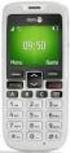 Primo 413 by Doro Operating Instructions by Doro 23 U2 i 1. Receiver loudspeaker Making phone calls holding the cell phone to the ear 2. Display 3. Speed-dial buttons Speed-dialling of the numbers saved
Doro PhoneEasy 607. English
 Doro PhoneEasy 607 English 1 13 2 3 4 5 12 11 14 15 16 17 18 19 20 6 10 7 9 8 1. Earpiece 2. Microphone 3. Arrow buttons 4. Left selection button 5. Call button 6. Speed dial 7. Voice mail 8. Silent /
BT Paragon 550. User Guide
 BT Paragon 550 User Guide Section Welcome to your BT Paragon 550 corded digital telephone and answering machine Directory lets you store up to 100 names and numbers for easy dialling. Send and receive
User s Guide EKT-824
 User s Guide EKT-824 The Communiqué Telephone Station Table of Contents Introduction 3 About This Guide 3 The Basics Answering and Making Calls 4 Answering an External Call 4 Answering an Internal Call
UK s best selling phone brand. Quick Set-up and User Guide. BT3510 Digital Cordless Phone with Answering Machine
 UK s best selling phone brand Quick Set-up and User Guide BT3510 Digital Cordless Phone with Answering Machine 2 Important please read first Only use the line cord, power supply and rechargeable batteries
BT Synergy 5500 User Guide
 BT Synergy 5500 User Guide Welcome to your BT Synergy 5500 Digital Cordless Telephone Answering Machine Display with blue backlight. 250 Name and number phonebook. Copy phonebook entries between other
Instruction Manual GSM Cell phone Easiphone MM910
 Instruction Manual GSM Cell phone Easiphone MM910 If you need technical assistance, call the following hotline (+48) 32 325 07 00 or [email protected] Our website: http://www.maxcom.pl/ Set content: GSM
Thank you for choosing our mobile phone! Please read this manual before use.
 Thank you for choosing our mobile phone! Please read this manual before use. We reserve the right to upgrade the software and product and/or to make changes to this user manual without prior notice. from
Doro PhoneEasy 606. English
 Doro PhoneEasy 606 English 1 2 14 15 3 4 5 6 7 12 11 10 9 13 16 17 18 19 8 1. Earpiece 2. Display 3. Arrow buttons 4. Left selection button 5. Call button 6. Speed dial 7. Voice mail 8. Silent / Input
Motorola C12A. Digital Cordless Telephone with Digital Answering Machine. For C1211A, C1212A, C1213A and C1214A
 Digital Cordless Telephone with Digital Answering Machine Motorola C12A For C1211A, C1212A, C1213A and C1214A Warning: Charge the handset for 24 hours before use. Welcome... to your new Motorola C12A Digital
VoIP Wireless Handset 7921 & 7925
 VoIP Wireless Handset 7921 & 7925 User Guide UCLA INFORMATION TECHNOLOGY SERVICES Introduction This guide covers the features that are available with the VoIP wireless telephone system. IT Services supports
Doro PhoneEasy 612. English
 Doro PhoneEasy 612 English 17 18 19 1. Earpiece 2. Camera shortcut 3. Left selection button 4. Call button 5. Speed dial 6. Voice mail 7. Silent/Input method 8. Microphone 9. SMS shortcut 10. Arrow buttons
The Innovative IP Telephone Family Made in Germany. tiptel 3110, 3120, 3130, KM 27. tiptel
 The Innovative IP Telephone Family Made in Germany tiptel 3110, 3120, 3130, KM 27 tiptel State of the Art: Regarding telecommunication technology with Tiptel you are always up to date A high demand on
2.4 GHz Dual Handset Cordless Telephone Answering System 2255 with Caller ID/Call Waiting
 USER S MANUAL Part 2 2.4 GHz Dual Handset Cordless Telephone Answering System 2255 with Caller ID/Call Waiting Please also read Part 1 Important Product Information AT&T and the globe symbol are registered
Comfortable phones. analogue and ISDN. tiptel
 Comfortable phones analogue and ISDN tiptel tiptel 274 tiptel 275 tiptel 1010 tiptel 1020 Analogue professional phones with answering machine and USB interface tiptel 274 Large, illuminated graphic display
TELEPHONE BUTTONS & ICONS TOUCHSCREEN OVERVIEW
 This Telephone Guide describes the various features available to you. Telephone Buttons and Icons describe the physical buttons and keys on the phone, the Touchscreen Overview outlines basic functions,
User Manual. Vogue2.8-D6
 User Manual Vogue2.8-D6 S L E E C Index 1. iball Vogue2.8-D6...1 1.1 Phone Overview...1 1.2 Functions of Keys...2 2. Getting Started...3 2.1 Installing the SIM Cards and the Battery...3 2.2 Installing
UK s best selling phone brand. User Guide. BT3710 Digital Cordless Phone With Answering Machine
 UK s best selling phone brand User Guide BT3710 Digital Cordless Phone With Answering Machine 2 This User Guide provides you with all the information you need to get the most from your phone You must set
Home Phone with Answering Machine Aura 1500. Quick set-up and user guide
 Home Phone with Answering Machine Aura 1500 Quick set-up and user guide 2 Important please read first Only use the line cord, power supply and rechargeable batteries supplied with your phone. Make sure
Home Phone with Answering Machine Sonus 1500. Quick set-up and user guide
 Home Phone with Answering Machine Sonus 1500 Quick set-up and user guide 2 Important please read first Only use the line cord, power supply and rechargeable batteries supplied with your phone. Make sure
Doro PhoneEasy 612. English
 Doro PhoneEasy 612 English 17 18 19 1. Earpiece 2. Camera shortcut 3. Left selection button 4. Call button 5. Speed dial 6. Voice mail 7. Silent/Input method 8. Microphone 9. SMS shortcut 10. Arrow buttons
Aastra 673xi / 675xi. Telephony with SIP Phones at the Aastra 800/OpenCom 100 Communications System User Guide
 Aastra 673xi / 675xi Telephony with SIP Phones at the Aastra 800/OpenCom 100 Communications System User Guide Welcome to Aastra Thank you for choosing this Aastra product. Our product meets the strictest
User Guide. BT Concero 1500. Think before you print!
 BT Concero 1500 User Guide This new interactive user guide lets you navigate easily through the pages and allows you to be directed straight to any websites or email addresses that are referenced. Simply
Doro PhoneEasy 626. English (US)
 Doro PhoneEasy 626 English (US) 1 2 3 4 5 6 7 8 14 13 12 11 10 9 15 20 19 18 17 16 25 24 23 22 21 Note! All illustrations are for illustrative purposes only and may not accurately depict the actual device.
User Guide. BT Graphite 2500. Think before you print!
 BT Graphite 2500 User Guide This new interactive user guide lets you navigate easily through the pages and allows you to be directed straight to any websites or email addresses that are referenced Simply
UK s best selling phone brand. User Guide. BT Decor 2500 Corded Phone
 UK s best selling phone brand User Guide BT Decor 2500 Corded Phone 2 This User Guide provides you with all the information you need to get the most from your phone. Before you make your first call you
How To Use A Telephone In European Europe
 ISDN-Telephone Integral TS 13 connected to Integral 33 systems Operating Instructions We give you the edge. Familiarise yourself with your telephone Important notes What you should definitely read -- Your
User Guide. Response 75. Digital Answering Machine
 Response 75 Plus Digital Answering Machine User Guide This product is intended for connection to analogue public switched telephone networks and private switchboards in the United Kingdom. At a glance
User guide. T250i. This is the Internet version of the User's guide. Print only for private use.
 User guide T250i Congratulations on your purchase of the Sony Ericsson T250i. For additional phone content, go to www.sonyericsson.com/fun. Register now to get free online storage and special offers at
GSM Desktop phone DPH101. User manual v1.00
 GSM Desktop phone DPH101 User manual v1.00 LEGAL NOTICE Copyright 2011 TELTONIKA Ltd. All rights reserved. Reproduction, transfer, distribution or storage of part or all of the contents in this document
User's Manual. Professional telephone with USB interface, SMS function and answering machine. tiptel 274. tiptel
 User's Manual (UK) Professional telephone with USB interface, SMS function and answering machine tiptel 274 tiptel Safety instructions Safety instructions When installing, connecting and operating the
AGRI-ALERT 800T / AGRI-ALERT 800 ALARM SYSTEM USER MANUAL
 AGRI-ALERT 800T / AGRI-ALERT 800 ALARM SYSTEM USER MANUAL Manufacturer: Viatron Electronics 3514 1st Street, St-Hubert (Quebec) Canada J3Y 8Y5 WARNING: the warranty can be void if the Agri-Alert 800T or
UK s best selling phone brand. User Guide. BT Decor 2200 Corded Phone
 UK s best selling phone brand User Guide BT Decor 2200 Corded Phone 2 This User Guide provides you with all the information you need to get the most from your phone. Before you make your first call you
User Guide for the Orchid Key Phones KP416 & KP832
 User Guide for the Orchid Key Phones KP416 & KP832 Contents Page Introduction 2 Setting Up 2 Setting Date & Time 2 Making & Answering Calls 2 Call Pick 3 Call Transfer 3 Calls On Hold 3 Caller Display
Model No. KX-TGP500. Model No. KX-TGP550
 Panasonic Telephone Systems KX-TGP500/KX-TGP550 KX-TGP500, KXTGP500, TGP500, KX-TGP550, KXTGP550, TGP550 www.voicesonic.com Phone 877-289-2829 User Guide SIP Cordless Phone Model No. KX-TGP500 Model No.
Dialog 4220 Lite/Dialog 4222 Office
 Dialog 4220 Lite/Dialog 4222 Office System telephones for MD110 Communication System User Guide Flinders University Table of Contents Description 2 Incoming Calls... 10 Outgoing Calls... 12 During Calls
User s Guide for Nokia 1108
 User s Guide for Nokia 1108 DECLARATION OF CONFORMITY We, NOKIA CORPORATION declare under our sole responsibility that the product Rh-18 is in conformity with the provisions of the following Council Directive:
using your Orange user guide for the Ericsson er100 phone
 using your Orange phone user guide for the Ericsson er100 phone Antenna The antenna is supplied with the phone and will need to be attached before the phone is switched on. Indicator Light The indicator
SGH-S275. User Manual Please read this manual before operating your phone and keep it for future reference.
 SGH-S275 M O B I L E P H O N E User Manual Please read this manual before operating your phone and keep it for future reference. Intellectual Property All Intellectual Property, as defined below, owned
WiFi Phone WP589 User Guide
 WiFi Phone WP589 User Guide 001.001.024 2010/06/22 1 n CONTENTS For your safety...5 Getting Started...6 Phone Overview...6 To insert the battery...6 Charging the battery...7 Turn on and turn off the phone...7
User Guide. BlackBerry Storm 9530 Smartphone. Version: 4.7
 BlackBerry Storm 9530 Smartphone Version: 4.7 SWD-490426-0909090640-001 Contents Shortcuts... 9 BlackBerry basics shortcuts... 9 Phone shortcuts... 9 Camera shortcuts... 9 Media shortcuts... 9 Typing shortcuts...
User Guide. Orion Pro X500. www.poshmobile.com
 User Guide Orion Pro X500 www.poshmobile.com 1 Introduction... 3 2 Safety & Notice... 4 3 Start to use... 5 3.1 Touch & type... 5 3.2 Assemble & charge... 5 3.2.1 Switch On and Off... 6 3.2.2 Unlock SIM
Konftel 300M Quick Reference Guide
 Conference phones for every situation Konftel 300M Quick Reference Guide ENGLISH Description The Konftel 300M is a battery-operated wireless conference phone that can be connected to mobile networks (GSM/3G)
Designed to block nuisance calls. Quick Set-up and User Guide. BT6500 Digital Cordless Phone with Answering Machine
 Designed to block nuisance calls Quick Set-up and User Guide BT6500 Digital Cordless Phone with Answering Machine 2 Important please read first Only use the line cord, power supply and rechargeable batteries
Mobile MessageBank Standard User Guide
 1. Now Everyone Gets The Message 2. MessageBank Stard Set Up 3. Using MessageBank 4. Options 5. Pricing 6. Billing 7. Troubleshooting 8. Helpful Hints 9. Tips 10. More Information Mobile MessageBank Stard
i560 TELUS Handset User s Guide
 i560 TELUS Handset User s Guide Contents Getting Started... 1 Battery... 3 Activating your Mike Account... 6 Powering On and Off... 6 Finding Your Phone Number and Private ID... 7 Handset Basics... 7
PowerTel M7500. mobile phone. Operating Instructions
 PowerTel M7500 mobile phone Operating Instructions M7500 Hearing aid compatibility This telephone is equipped with T Coil coupler making it compatible with most popular hearing aids. Due to the wide range
 Doro 6030 English 1 2 3 4 5 6 7 8 14 13 12 11 10 9 15 16 17 18 19 20 21 22 The items supplied with your phone might vary depending on the software and accessories available in your region or offered by
Model No. KX-TGP500. Model No. KX-TGP550
 User Guide SIP Cordless Phone Model No. KX-TGP500 Model No. KX-TGP550 Model shown is KX-TGP500. Model shown is KX-TGP550. Thank you for purchasing a Panasonic product. You can configure some of the features
Firmware version: 1.10 Issue: 7 AUTODIALER GD30.2. Instruction Manual
 Firmware version: 1.10 Issue: 7 AUTODIALER GD30.2 Instruction Manual Firmware version: 2.0.1 Issue: 0.6 Version of the GPRS transmitters configurator: 1.3.6.3 Date of issue: 07.03.2012 TABLE OF CONTENTS
Your Phone This section introduces you to the hardware of the device.
 Your Phone This section introduces you to the hardware of the device. No. Items Functions 1 Earphone jack 2 Strap hole 3 LED / Speaker Use a headset for hands-free conversation or listening to music. It
Version: 01310310 Printed in Poland
 1 Content List 1. Security...3 2. Enjoy Your Cell Phone Trip...9 2.1. Install/remove the battery...9 2.1.1. Install the battery...9 2.1.2. Remove the battery...10 2.2. Install/Remove SIM Card (phone card)...12
Optional. The Rugged Phone RUGGED MOBILE PHONE. Language. Type of product
 The Rugged Phone RUGGED MOBILE PHONE Language Type of product WELCOME Thank you for choosing the WORKZONE mobile phone. The phone is shockproof, waterproof and dustproof. Please take some time to read
Quick Set-up and User Guide. BT8500 Advanced Call Blocker Digital Cordless Phone with Answering Machine 100% Block. Nuisance Calls
 Block up to 100% Nuisance Calls Call Guardian Block up to 100% of Nuisance Calls Quick Set-up and User Guide BT8500 Advanced Call Blocker Digital Cordless Phone with Answering Machine PQ RS PQ RS Volume
UK s best selling phone brand. User Guide. BT Big Button 200 Corded Phone
 UK s best selling phone brand User Guide BT Big Button 200 Corded Phone 2 Welcome. to your BT Big Button 200 telephone Large buttons for easy, accurate and more comfortable dialling Large display to assist
Ascotel IntelliGate Communications Systems A150 A300 2025 2045 2065. Office 60IP User s Guide
 Ascotel IntelliGate Communications Systems A150 A300 2025 2045 2065 Office 60IP User s Guide Operating and Display Elements Operating and Display Elements 1 4 5 6 7 2 8 9 10 16 11 12 13 17 14 15 3 Operating
Mobile MessageBank Standard User Guide
 Mobile MessageBank Stard User Guide 1. The World Of Mobile MessageBank 2. MessageBank Stard Set Up 3. Using MessageBank 4. Options 5. How to use the features within MessageBank 6. Pricing 7. Billing 8.
OfficeSuite Mitel IP Phone User Reference Guide Release 4.1
 OfficeSuite Mitel IP Phone User Reference Guide Release 4.1 2004-2009 Broadview Networks & Natural Convergence Inc. All rights reserved. Table of Contents TABLE OF CONTENTS...I INTRODUCTION...4 WHAT'S
FMT600BT Transmitter
 Technaxx FMT600BT Transmitter User Manual Transfer of music and calls directly from your Bluetooth device to your car radio This device complies with the requirements of the standards referred to the Directive
Cisco 7941 / 7961 IP Phone User Guide
 Cisco 7941 / 7961 IP Phone User Guide Emergency To dial 911 for emergency service, you must dial the Outside Access Digit first (usually 9) + 911. Customer Service / Technical Support (919) 459-2300, option
USER GUIDE. Cisco Small Business Pro. SPA 500 Series IP Phones Models 504G, 508G, and 509G. Provided by
 USER GUIDE Cisco Small Business Pro SPA 500 Series IP Phones Models 504G, 508G, and 509G Provided by Understanding Your Phoneʼs Lines and Buttons Use the following graphic and table to identify the parts
How To Use A Sim Sim Sims 3.2 On A Cell Phone On A Pc Or Mac Or Ipa (For A Sims) On A Simmer (For An Ipa) Or Ipb (For Mac) On An Ip
 Telephone and Voice Mail Quick Reference Guide ADTRAN IP 712 and IP 706 Phones ADTRAN Polycom IP 650, IP 601, IP 501, and IP 430 Phones Table of Contents 4 5 6 10 15 16 17 19 20 21 22 Voice Mail Quick
Operating Instructions
 PLEASE READ BEFORE USE AND SAVE. Integrated Telephone System Model No. KX-T7FXW Pulse-or-tone dialing capability Operating Instructions Preparation Basic Operation Advanced Operation Useful Information
IP Phone System: Cisco 7960G and 7940G
 IP Phone System: Cisco 7960G and 7940G Table of Contents: IP Phone System 7940G and 7960G CISCO IP PHONE ROAD MAP...1 NAVIGATE THE PHONE SYSTEM AND USE THE LCD SCREEN...2 SOFT KEYS... 2 USE THE NAVIGATION
BUSINESS COMMUNICATIONS DIVISION. IP4100 SIP DECT User Guide
 BUSINESS COMMUNICATIONS DIVISION IP4100 SIP DECT User Guide TOSHIBA IP4100 DECT HANDSET END USER GUIDE FEATURES Toshiba IP4100 DECT Handset Features 2.0 inch colour TFT back-lit display Li-ion battery
Welcome to the GreatCall Family.
 pms2603 pms1235 pms226 pms298 How-To Guide Welcome to the GreatCall Family. Thank you for choosing the Jitterbug. At GreatCall, we ve made it easy for you to stay Orange - pms 143 connected to friends
Android Mobile Phone User Manual
 Android Mobile Phone User Manual The manual is applicable for the Grand X mobile phone. Contents Let s get started... 1 Getting to know your phone... 2 Screen control... 2 Open and switch applications...
UK s best selling phone brand. User Guide. BT Response 75+ Answering Machine
 UK s best selling phone brand User Guide BT Response 75+ Answering Machine Welcome to your BT Response 75+ Digital Answering Machine 50 minutes recording capacity Offers the benefits of digital recording.
Otium Gear S Smart Watch User Guide Please read the manual before use. * For further information, please visit www.otiumobile.com
 Otium Gear S Smart Watch User Guide Please read the manual before use. * For further information, please visit www.otiumobile.com 1 About this manual You can use this Gear S as a companion device to some
How To Use A Cell Phone On A Cellphone On A Kx-Tvm Series 2 (Kx) (Kox-Tvp) ( Kx) Series 2.5 (Kuk) Series (Kq) Series 1
 Model No. KX-DT321 Thank you for purchasing a Digital Proprietary Telephone (DPT). Please read this manual carefully before using this product and save this manual for future use. For more details, please
8200/8200a. Cordless telephone User Guide
 8200/8200a Cordless telephone User Guide This telephone has been designed for ease of use. Please read the instructions and keep it handy for future reference. If you have any problems with your phone,
KYOCERA Kona. User Guide
 KYOCERA Kona User Guide Table of Contents Phone Basics... 1 Battery... 1 Install the Battery... 1 Charge the Battery... 2 Turn Your Phone On and Off... 2 Turn Your Phone On... 2 Turn Your Phone Off...
User s Guide for Nokia 6510
 User s Guide for Nokia 6510 List of menu functions 1. Messages 1. Write message 2. Inbox 3. Outbox 4. Archive 5. Templates 6. My folders 7. Erase messages 8. Voice messages 9. Info messages 10.Service
PT2508/3508 VHF/UHF HANDHELD TRANSCEIVER INSTRUCTION MANUAL
 PT2508/3508 VHF/UHF HANDHELD TRANSCEIVER INSTRUCTION MANUAL 0681 0681 TO THE USER THANK YOU! We are grateful you have chosen application. for your land mobile We believe this easy to use transceiver will
BT Big Button 100. User Guide
 BT Big Button 100 User Guide Welcome to your BT Big Button 100 phone Large buttons for easy dialling. Handsfree make and receive calls using the loudspeaker. One-touch 1571 button dials your network answering
User s Guide for Nokia 3530
 User s Guide for Nokia 3530 List of menu functions 1. Phone book 1. Search 2. Add name 3. Edit name 4. Delete 5. Copy 6. Add number 7. Settings 1. Memory in use 2. Phone book view 3. Memory status 8. Speed
How To Use A Cell Phone On A Sim Sims 2.2 (Sprinting) And Sims 1 (Cell Phone) With A Sims 3.2.2 On A Iphone Or Ipod) With An Ipod
 LINKSYS SPA941 / SPA942 User Guide Emergency To dial 911 for emergency service, you must dial the Outside Access Digit first (usually 9) + 911. Customer Service / Technical Support (919) 459-2300, option
Mitel IP Phone User Reference Guide Release 5.0
 830 Parkview Drive North, El Segundo, CA 90245 Tel: 310 747 3232 Fax: 310 747 3233 WWW.UNIVOIP.COM OfficeConnect Mitel IP Phone User Reference Guide Release 5.0 Note: The information contained in this
BLU Vivo 4.3 User Manual
 BLU Vivo 4.3 User Manual 1 Table of Contents Phone Safety Information... 3 Appearance and Key Functions... 4 Installation and Charging... 5 Phone Operation... 7 Communication... 10 Camera... 11 Gallery...
BT Granite User Guide
 BT Granite User Guide Think before you print! This new interactive user guide lets you navigate easily through the pages and allows you to be directed straight to any websites or email addresses that are
DIGITAL WIRELESS TELEPHONE. Reference Guide
 DIGITAL WIRELESS TELEPHONE Reference Guide Welcome Welcome to the world of Motorola digital wireless communications! Motorola is a global leader in communications technology. We are pleased that you have
Operating Instructions. Telephone System tiptel 1/8 fax clip tiptel 2/8 clip. (Release 2) tiptel
 Operating Instructions (UK) Telephone System tiptel 1/8 fax clip tiptel 2/8 clip (Release 2) tiptel Table of Contents Connection of 8 extensions..........3 Connection of 7 extensions and 1 door intercom................4
Gigaset DX800A all in one New and updated functions
 Gigaset DX800A all in one / en / A31008-xxxx-xxxx-x-xxxx / DX800A-aio-III-ReleaseNotesIVZ.fm / 08.11.2011 Gigaset DX800A all in one New and updated functions Gigaset DX800A all in one New and updated functions
Primo 305 by Doro User Manual
 Primo 305 by Doro User Manual U2 1. Speaker Phone with the mobile phone at the ear. 2. Navigation buttons For navigating in menus and text input. In addition by default quick access (see also page 58):
TOSHIBA. 1. While on a call, press the Cnf/Trn button. 2. Dial another station or outside number. 3. After the called party answers, press the
 Telephone User Instructions Your phone is programmed with a Direct Dial Number, which is. Your 4-digit extension is. You may also have a rollover line. If your first line is busy, calls to your main number
3102 Business Telephone Guide for 3Com Asterisk. Part Number 900-0469-01 Rev AB Published January 2008 http://www.3com.com/
 3102 Business Telephone Guide for 3Com Asterisk Part Number 900-0469-01 Rev AB Published January 2008 http://www.3com.com/ 3Com Corporation 350 Campus Drive Marlborough, MA 01752-3064 Copyright 2007-2008,
Information Systems Cisco 7965 IP Phone Quick Reference Guide
 Information Systems Cisco 7965 IP Phone Quick Reference Guide Contents Cisco 7965 IP Phone Quick Reference Guide Contents Page 2 Introduction 3 Overview of Phone 3 How Do I: 4 Place a Call? 4 Put a Call
Doro PhoneEasy 508. English
 Doro PhoneEasy 508 English 1 14 15 2 3 4 5 13 12 11 10 9 8 6 7 16 17 18 19 The items supplied with your phone might vary depending on the software and accessories available in your region or offered by
En g l i s h. Bluetooth Headset for Motorcycle. VOX Technology Intercom Technology Multi-Point Connection
 En g l i s h TOOTH Bluetooth Headset for Motorcycle VOX Technology Intercom Technology Multi-Point Connection Features Auto-Volume Level Adjusting Stereo (A2DP) Audio GPS A. PRODUCT DESCRIPTION: SHARKTOOTH
Samsung T199. User Manual Please read this manual before operating your phone and keep it for future reference. GH68_40686A Printed in Mexico
 Samsung T199 M O B I L E P H O N E User Manual Please read this manual before operating your phone and keep it for future reference. GH68_40686A Printed in Mexico Warning! This product contains chemicals
Alcatel-Lucent OmniTouch 8082 My IC Phone
 First Alcatel-Lucent OmniTouch 8082 My IC Phone OmniPCX Enterprise 8AL90835USAAed01 User manual Introduction Thank you for choosing an Alcatel-Lucent phone.. This model offers enhanced ergonomical features