
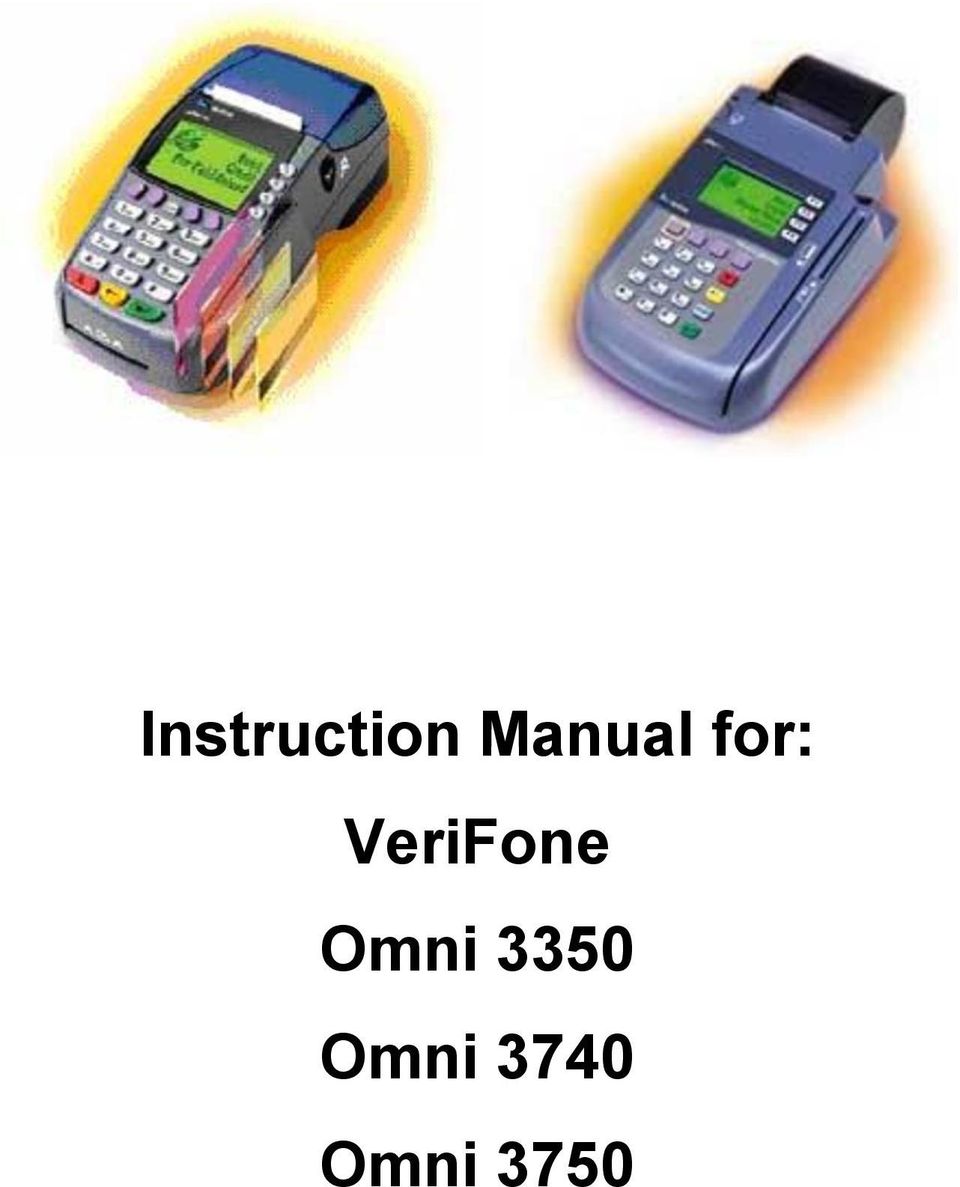
Instruction Manual for: VeriFone Omni 3350 Omni 3740 Omni 3750
|
|
|
- Buddy Hood
- 10 years ago
- Views:
Transcription
1 Instruction Manual for: VeriFone Omni 3350 Omni 3740 Omni 3750
2 Index Instructions for Omni 3740/ Telephone Line Connections... 3 Connection with electricity... 3 To Install a Paper Roll... 4 Omni 37xx Terminal Features (Front Panel)... 5 To Conduct a Credit/Debit Card Transaction (Magnetic Cards)... 6 Omni Telephone Line Connections... 7 Connection with electricity... 7 To Install a Paper Roll... 8 Omni 3350 Terminal Features (Front Panel)... 9 To Conduct a Credit/Debit Card Transaction (Magnetic Cards)... 9 Processing Sale Special incidents in sale Call for authorisation (Icelandic: Hringið handvirkt ) Authorisation rejected (Icelandic:Heimild hafnað) Process voiding Process sending Process Refund Copy of last transaction Print receipt according to transaction number Print sum list of every type of cards Print transaction list Processing sale through phone Collecting Authorisation Instalment payments Explanation Possible solutions Password/ (Icelandic: Lykilorð): Contract nr.: VISA Contract nr.: Europay Page 2 of 33

3 Instructions for The Equipment Omni 3740/3750 Omni 3740/3750 terminal from VeriFone enables you to accept following cards: MAESTRO debet card MASTERCARD credit card VISA credit card VISA ELECTRON debet card If you want the terminal to work properly you have to have 240V~ electricity outlet and phone line (analog). The terminal has internal printer and the accessories that goes with the terminal are electric cable and phone line cable. You have to plug the terminal with electricity and phone-line before you start to use your terminal. Telephone Line Connections Back Panel: Connect the telephone cord to the communication port on the terminal then route it directly to a telephone wall jack. This is a direct connection, and the line is dedicated to the terminal. Connection with electricity Omni 3740/3750 Omni 3740/3750 Back Panel: Insert the round barrel connector into the power port. The round barrel connector on the power pack cable has a plastic lock tab that secures the power cable to the terminal. To lock the connector into the power port, align the plastic lock tab so it points up. Insert the connector, and then twist it to the left. To unlock the connector, twist it to the right. Insert the power cable into the power pack. Plug the power pack cable into a wall outlet or surge protector. When the terminal has power, the LCD screen lights and the green LED indicator flashes on and off if the printer has no paper, or stays lit if paper is loaded. Page 3 of 33

4 The Equpment Instructions for Paper The paper for Omni 3740/3750 printer has to be thermal paper. You can get it in nearest bookstore. The width of the paper can not be more than 58 mm. The paper can not be more than 48 mm across. (ca. 30 metres, 55 gr paper). Minimum diameter is 12 mm. To Install a Paper Roll Turn on the terminal. The green LED indicator will blink on and off, indicating that the printer needs paper. Press the button on the side of the terminal to unlatch the paper roll cover, and then rotate the cover up back on its hinges. Loosen the glued leading edge of the paper, or remove the protective strip from the new roll of paper and cut a straight edge across its leading end. Hold the roll so the paper feeds from the bottom of the roll. Drop the paper roll into the printer tray, leaving 7 centimetres (about two inches) of paper sticking up past the serrated metal tear strip Close the cover by gently pressing directly on the paper roll cover until it clicks shut. Allow a small amount of paper to extend outside the cover. To prevent damage to the print roller on the paper roll cover, always close the cover by gently pressing down on the paper roll cover. Page 4 of 33

5 Instructions for The Equpment Omni 37xx Terminal Features (Front Panel) Page 5 of 33

6 The Equpment Instructions for To Conduct a Credit/Debit Card Transaction (Magnetic Cards) Position a magnetic card with the stripe facing down and inward, toward the keypad. Swipe it through the magnetic card reader. Page 6 of 33

7 Instructions for The Equipment Omni 3350 Omni 3740/3750 terminal from VeriFone enables you to accept following cards: MAESTRO debet card MASTERCARD credit card VISA credit card VISA ELECTRON debet card If you want the terminal to work properly you have to have 240V~ electricity outlet and phone line (analog). The terminal has internal printer and the accessories that goes with the terminal are electric cable and phone line cable. You have to plug the terminal with electricity and phone-line before you start to use your terminal. Telephone Line Connections Back Panel: Connect the telephone cord to the communication port on the terminal (second from left) then route it directly to a telephone wall jack. This is a direct connection, and the line is dedicated to the terminal. (mynd 1) You can connect phone/fax to the port farthest to left (but it is not recomended). If you have ISDN connection you use the port farthest to left.(mynd 2). Connection with electricity Back Panel: Insert the round barrel connector into the power port. The round barrel connector on the power pack cable has a plastic lock tab that secures the power cable to the terminal. To lock the connector into the power port, align the plastic lock tab so it points up. Insert the connector, and then twist it to the left. To unlock the connector, twist it to the right. Insert the power cable into the power pack. Plug the power pack cable into a wall outlet or surge protector. When the terminal has power, the LCD screen lights and the green LED indicator flashes on and off if the printer has no paper, or stays lit if paper is loaded. On the left side of the terminal is a switch to turn the power on and off. It is prefered the terminal is switched on all the time. Page 7 of 33

8 The Equpment Instructions for Paper The paper for Omni 3350 printer has to be thermal paper. You can get it in nearest bookstore. The width of the paper can not be more than 58 mm. The paper can not be more than 48 mm across. (ca. 30 metres, 55 gr paper). Minimum diameter is 12 mm. To Install a Paper Roll Loosen the glued leading edge of the paper, or remove the protective strip from the new roll of paper and cut a straight edge across its leading end. Loosen the paper-cover (as shown on picture below). It is good to use the paperfeed button when the paper is thread. Hold the roll so the paper feeds from the bottom of the roll. Drop the paper roll into the printer tray. Thread the paper as shown on picture below. When you have threaded the paper, put the pin in the middle of the roll. Close the cover by gently pressing directly on the paper roll cover until it clicks shut. Do not throw away the pin. Page 8 of 33

9 Instructions for The Equipment Omni 3350 Terminal Features (Front Panel) Green light = terminal is switched on. Blinking green ligt = Terminal needs paper. Paper feed Switch ON/OFF LCD screen Internal printer Magnetic card reader Smart card reader Function keys Function keys Telephone-style keypad Color-coded function keys To Conduct a Credit/Debit Card Transaction (Magnetic Cards) Position a magnetic card with the stripe facing down and outward. Swipe it through the magnetic card reader. Page 9 of 33

10 Sale (Icelandic:Sala) Instructions for Processing Sale Starting menu Swipe the card through the magnetic card reader. V OGILDA A 16:06 L PRENTA 1 ENDURGREIÐA Or SIMGREIDSLA Press HANDSKRÁ if you have to type the creditcard number manual HANDSKRAÐ UPPHÆÐ: 1.000, SKRAIÐ INN KORTNUMER: Type the creditcard number and press GILDISTIMI 0901 Type card expiration date and press HANDSKRAÐ Type amount and press HRINGI EFTIR HEIMILD UPPHÆÐ: 1.000, TENGIST TILRAUN 1 continues next page... Page 10 of 33

11 Instructions for Sale (Icel.: Sala) HRINGI EFTIR HEIMILD TENGING KOMIN A TENGING KOMIN A TENGING KOMIN A SENDI GOGN MOTTEK GOGN PRENTA HEIMILD YTID A HREINSA TIL AD SLEPPA VID AD PRENTA AFRITIÐ. ÝTID A ANNAN TAKKA TIL AD PRENTA AFRITID. PRENTA HEIMILD If the sale is accepted, the terminal prints out receipt that the costumer signs and you keep... If you do not push HREINSA, then the terminal prints out a receipt for the costumer Page 11 of 33

12 Sale (Icel.:Sala) Instructions for Special incidents in sale Call for authorisation (Icelandic: Hringið handvirkt ) If the authorisation system requests manual authorisation, the authorised retailer has to call for authorisation for the transaction. The phone number that you should call appears on the terminal screen. All the information that you need also appears on the screen, your contract number, credit card number and the amount. HRINGIÐ HANDVIRKT SIMI SAMNINGSNUMER GILDISTIMI 09/01 UPPHÆÐ INNSL. SKRA HEIMILD / HREINSA EKKI HEIMILD If the authorisation is accepted by credit card company, you press INNSLÁTTUR to proceed HANDVIRK HEIMILD HEIMILDANUMER: If the authorisation is rejected by the credit card company, you press HREINSA to cancel the transaction. Type authorisation number from the credit card company and press INNSLÁTTUR to verify authorisation number and finish the sale Authorisation rejected (Icelandic:Heimild hafnað) If authorisation is rejected it appears on the screen, and the terminal prints out receipt. See details on page 32. (Icelandic Ekki heimilað ) authorisation rejected also means that nothing is taken from the card account. Examples of receipt if authorisation is rejected. (Icelandic: Ekki heimilað). Not enough money on account (Icelandic: Vákort taka kort). Retailer must take the card from costumer. (details page 29). (Icelandic: Kerfi svara ekki). Try again. Contact help desk if it is not succesful. RÁS ÞJÓNUSTAN (Help desk) - Álfabakka Reykjavík Tel Fax Page 12 of 33

13 Instructions for Voiding (Icel.:Ógilding) Void (Icelandic:Ógilding) is used when you are voiding debet- or credit card transaction. E.g. if wrong amount has been typed or the costumer cancel his buying. You can only void the transaction the on same day it took place. You can not void transaction if you have sent the transactions from the terminal to the credit card companies. Check out the function refund (Icelandic: ENDURGREIÐA ) on page 17, if more than one day is from transaction took place or you have sent the transactions. Process voiding Starting menu V OGILDA A 16:06 L PRENTA 1 ENDURGREIÐA SIMGREIDSLA Press F1 (Icelandic: ÓGILDA) to start voiding transacion OGILDA SOLUAÐILA LYKILORÐ: **** Type your password (icelandic: lykilorð) and press OGILDA SKRAIÐ INN KORTNUMER: Type the creditcard number and press GILDISTIMI 0901 Type card expiration date and press Swipe the card through the magnetic card reader. Or OGILDA FÆRSLUNUMER: Transaction number is on the receipt you are voiding Type the transaction number and press continues on next page Page 13 of 33

14 Voiding (icel.:ógilding) Instructions for OGILDA UPPHÆÐ: 1.000, The amount has to be the same as on the receipt. You can not void part of the amount. Type in the amount and press HRINGI EFTIR HEIMILD TENGIST TILRAUN 1 HRINGI EFTIR HEIMILD TENGING KOMIN A TENGING KOMIN A TENGING KOMIN A SENDI GOGN MOTTEK GOGN PRENTA HEIMILD If voiding is authorised the terminal prints out receipt that retailer signs Along with retailers receipt Page 14 of 33

15 Instructions for VeriFone Omni 3350, 3740 og 3750 terminals Sending (icel.:senda bunka) The action Sending (Icelandic: SENDA BUNKA ) is used to send the transactions from the terminal to the credit card companies. When you have finished this action, the terminal memory is empty and it is ready to take with transactions again. The transactions are sent to Reiknistofu Bankanna were the are allocate to retailers account. It is preferred that you send every day, (if you use the terminal daily). The sending process can be done in two ways: Automatic, on time decided by the RÁS-þjónustan (help desk), when the terminal is programmed. Nonetheless you have to go through the sending process, but instead of choosing send now (Icelandic: SENDA BUNKA NUNA ) you choose send later (Icelandic: SENDA BUNKA SEINNA.) Manual, you choose send now (Icelandic: SENDA BUNKA NUNA ) to send whenever you like. Process sending Starting menu V OGILDA A 16:06 L PRENTA 1 ENDURGREIÐA SIMGREIDSLA Press Senda SENDA BUNKA SOLUAÐILA LYKILORÐ: **** Type your password (icelandic: lykilorð) and press B U N EKKI SENDA K A SENDA BUNKA SEINNA S E SENDA BUNKA NUNA N Press F2 to stop sending Press F3 to send later... Press F4 to start sending A F R I T AUKA AFRIT EKKERT AFRIT Press F2 to get extra copy Press F4 for no extra copy SENDI BUNKA SENDI BUNKA SENDI BUNKA TENGIST TILRAUN 1 TENGING KOMIN A SENDI GOGN SENDI BUNKA MOTTEK GOGN When you have finished the sending, the terminal prints out a list. Continues on next page... Page 15 of 33

16 Sending (Icel. Senda Bunka) Instructions forverifone Omni 3350, 3740 og 3750 terminals E.g. of lists after you have sent the transactions: Transactions acceppted HOST SVARAR EKKI try again later Innsending tókst ekki call help desk Important!!! Check that the receipt says GB.ACCEPTED. It means that your transactions has been accepted. If not, call help desk. Page 16 of 33

17 Instructions for VeriFone Omni 3350, 3740 og 3750 terminals Refund (Icel.:Endurgreiða) The action refund is used when you have to pay back goods or service to costumers. You can also use this action if you have can t use the void action (Icelandic: ÓGILDING). This action can only been used on credit cards. Process Refund Starting menu V OGILDA A 16:06 L PRENTA 1 ENDURGREIÐA SIMGREIDSLA Press F3 to choose Refund (Icelandic: ENDURGREIÐA ) ENDURGREIÐSLA SOLUAÐILA LYKILORÐ: **** Type your password (icelandic: lykilorð) and press ENDURGREIÐSLA SKRAIÐ INN KORTNUMER: Swipe the card through the magnetic card reader. Or Type the creditcard number and press GILDISTIMI 0901 ENDURGREIÐSLA UPPHÆÐ: 1.000, Type card expiration date and press Type in the amount and press Continues on next page Page 17 of 33

18 Refund (Icel.:Endurgreiða) Instructions for VeriFone Omni 3350, 3740 og 3750 terminals PRENTA HEIMILD The terminal prints out receipt that retailer signs Along with retailer receipt Page 18 of 33

19 Instructions for Print (Icel.:Prenta) The action Print (Icelandic: PRENTA ) offers four actions: AFRIT AF NOTU copy of last transaction. EFTIR FÆRSLUNR receipt according to transaction number. HEILDARLISTI prints sum list of every type of cards in the terminal. FÆRSLULISTI prints list of every transactions in the terminal. There you can see transaction number, card number, card type, date and amount for every transaction. Copy of last transaction V OGILDA A 16:06 L PRENTA 1 ENDURGREIÐA SIMGREIDSLA Press F2 to get printing options P R E N T A AFRIT AF NOTU EFTIR FÆRSLUNR. HEILDARLISTI FÆRSLULISTI Press F1 to get copy of last transaction E.g. of receipt. The only difference is that this line is printed on the copy. Page 19 of 33

20 Print (Icel.:Prenta) Instructions for Print receipt according to transaction number This action allows you to print copy of special transaction, voided transaction or refund according to transaction number. Take notice that you can not print transaction after you have sent the transactions. V OGILDA A 16:06 L PRENTA 1 ENDURGREIÐA SIMGREIDSLA Press F2 to get printing options P R E N T A AFRIT AF NOTU EFTIR FÆRSLUNR. HEILDARLISTI FÆRSLULISTI Press F2 to print copy according to transaction number... PRENTA ELDRA AFTRIT FÆRSLUNÚMER: Type the transaction number and press Continues on next page You can read the transaction number from the receipt that you want to copy or from the transaction list (Icelandic: færslulista; page 23) Normal receipt Transaction list Page 20 of 33

21 Instructions for Print (Icel.:Prenta) E.g. of receipt: Page 21 of 33
22 Print (Icel.:Prenta) Instructions for Print sum list of every type of cards Take notice that you can not print sum list after you have sent the transactions. V OGILDA A 16:06 L PRENTA 1 ENDURGREIÐA SIMGREIDSLA Press F2 to get printing options P R E N T A AFRIT AF NOTU EFTIR FÆRSLUNR. HEILDARLISTI FÆRSLULISTI Press F3 to print sumlist E.g of sumlist (Icelandic: heildarlisti). PRENTA HEILDARLISTA SOLUAÐILA LYKILORÐ: **** Type your password (icelandic: lykilorð) and press Attention. The sumlist does not equal the process of sending transactions. It is necessary to send the transactions even if you have printed out the sumlist. Page 22 of 33
23 Instructions for Print (Icel.:Prenta) Print transaction list Take notice that you can not print transaction list after you have sent the transactions. V OGILDA A 16:06 L PRENTA 1 ENDURGREIÐA SIMGREIDSLA Press F2 to get printing options P R E N T A AFRIT AF NOTU EFTIR FÆRSLUNR. HEILDARLISTI FÆRSLULISTI Press F4 to print transaction list PRENTA FÆRSLULISTA E.g. of transaction list (Icelandic:færslulista) heildarlista SOLUAÐILA LYKILORÐ: **** Type your password (icelandic: lykilorð) and press Page 23 of 33
24 PhoneSale (Ice:Símgreiðsla) Instructions for VeriFone Omni 3350, 3740 og 3750 terminals The process Phone Sale (Icelandic: SIMGREIÐSLA ) can be used when product or service is bought by phone, that is the costumer is not able to pay e.g. in your store. You can only do Phone Sale with credit cards. Processing sale through phone Starting Menu V OGILDA A 16:06 L PRENTA 1 ENDURGREIÐA SIMGREIDSLA Press F4 to start PhoneSale SIMGREIÐSLA SKRAIÐ INN KORTNUMER: Type the creditcard number and press SIMGREIÐSLA GILDISTIMI 0901 Type card expiration date and press UPPHÆÐ: 1.000, Type in the amount and press HRINGI EFTIR HEIMILD HRINGI EFTIR HEIMILD TENGING KOMIN A TENGIST TILRAUN 1 TENGING KOMIN A SENDI GOGN TENGING KOMIN A MOTTEK GOGN Continues on next page Page 24 of 33
25 Instructions for VeriFone Omni 3350, 3740 og 3750 terminals PhoneSale (Ice:Símgreiðsla) PRENTA HEIMILD YTID A TAKKA TIL AÐ PRENTA AFRITIÐ. PRENTA HEIMILD If PhoneSale is authorised, the terminal print out receipt for the retailer Along with costumers receipt Page 25 of 33
26 Late Registration (Icel.:Eftiráskráning) The action Late Registration (Icelandic EFTIRASKRANING ) can only be used for emergency. If the terminal fails or the phone lines or authorisation system is down. You have to notify the RÁS þjónusta (help desk) if you have to use this action. The help desk will distribute daily password that is necessary for Late Registration. During failures, the retailer uses the terminal for credit cards only. You can not process Late Registration with debet cards. Starting menu V OGILDA A 16:06 L PRENTA 1 ENDURGREIÐA SIMGREIDSLA Press violet button (arrow down) to get menu 2 V A L 2 SÆKJA HEIMILD EFTIRASKRANING Press F2 for late registration EFTIRASKRANING DAGLEGT LYKILORÐ: Type daily password and press Daily password is distributed by RÁS-þjónustan (help desk) tel EFTIRASKRANING SKRAIÐ INN KORTNUMER: Type the creditcard number and press GILDISTIMI 0901 Type card expiration date and press Swipe the card through the magnetic card reader. Or EFTIRASKRANING UPPHÆÐ: 1.000, Type in the amount and press Continues on next page Page 26 of 33
27 Late Registartion (Icel.:Eftiráskráning) E F T HEIMILDARN. I R A S EKKERT HEIMILDARN. K Press F2 to type authorisation number, if you have called for authorisation number... EFTIRASKRANING HEIMILDARNUMER: Type authorisation number and press Press F4 to let the terminal give authorisation number PRENTA HEIMILD YTID A TAKKA TIL AÐ PRENTA AFRITIÐ. PRENTA HEIMILD Then you get receipt from the terminal that costumer signs Along with costumers receipt... Page 27 of 33
28 Collecting Authorisation(Ice:Sækjaheimild) The action Collecting Authorisation (Icelandic: SÆKJA HEIMILD ) is double-barrelled. You can search authorisation for specific amount and you can search authorisation for instalment payments (Icelandic: Raðgreiðsla). You can only collect authorisations for credit cards. Attention. This action does not withdraw from costumers account. Collecting Authorisation This action can be used to test the terminal (phone line and whether or not your contract is open). You can use your own credit card to test the terminal. This action does not withdraw from your account. Starting menu V OGILDA A 16:06 L PRENTA 1 ENDURGREIÐA SIMGREIDSLA Press violet arrow down to get menu 2 V A L 2 SÆKJA HEIMILD EFTIRASKRANING Press F1 to collect authorisation H E I M I L D AÐEINS HEIMILD RAÐGREIÐSLUR Press F1 to get authorisation only (Icelandic: AÐEINS HEIMILD) AÐEINS HEIMILD SÖLUAÐILA LYKILORÐ: Type your password (icelandic: lykilorð) and press AÐEINS HEIMILD SKRAIÐ INN KORTNUMER: Type the creditcard number and press GILDISTIMI 0901 Type card expiration date and press Swipe the card through the magnetic card reader. Or Continues on next page Page 28 of 33
29 Collecting Authorisation(Ice:Sækjaheimild) AÐEINS HEIMILD UPPHÆÐ: 1.000, Type in the amount and press HRINGI EFTIR HEIMILD TENGIST TILRAUN 1 HRINGI EFTIR HEIMILD TENGING KOMIN A TENGING KOMIN A TENGING KOMIN A PRENTA SENDI GOGN MOTTEK GOGN HEIMILD The terminal prints receipt that the retailer keeps... E.g. of receipt NO AUTHORISATION (ICELANDIC: EKKI HEIMILAÐ) If you don t get authorisation, the terminal prints out receipt that says EKKI HEIMILAÐ (details page 32). Page 29 of 33
30 Collecting Authorisation(Ice:Sækjaheimild) Instalment payments This action is used to get authorisation for instalment payments. The retailer has to have instalment payments contract with credit card companies to be able to do this action. This action only gives you authorisation. The retailer has to fill out form for instalment payments and send it to the credit card company. Starting menu V OGILDA A 16:06 L PRENTA 1 ENDURGREIÐA SIMGREIDSLA Press violet arrow down to get menu 2... V A L 2 SÆKJA HEIMILD EFTIRASKRANING Press F1 to collect authorisation H E I M I L D AÐEINS HEIMILD RAÐGREIÐSLUR Press F2 to choose installment payments (Icelandic: RAÐGREIÐSLUR RAÐGREIÐSLUHEIMILD SKRAIÐ INN KORTNUMER: Type the creditcard number and press GILDISTIMI 0901 Type card expiration date and press Swipe the card through the magnetic card reader. Or Continues on next page Page 30 of 33
31 Collecting Authorisation(Ice:Sækjaheimild) RAÐGREIÐSLUHEIMILD UPPHÆÐ: , Type the whole amount and press RAÐGREIÐSLUHEIMILD AFBORGANAFJOLDI: 10 Type the number of months and press RAÐGREIÐSLUHEIMILD BYRJUNARMANUÐUR: 7 Type the number of month when you want to start the payments and press HRINGI EFTIR HEIMILD TENGIST TILRAUN 1 HRINGI EFTIR HEIMILD TENGING KOMIN A TENGING KOMIN A TENGING KOMIN A PRENTA SENDI GOGN MOTTEK GOGN HEIMILD The terminal prints receipt that the retailer keeps... E.g. of receipt Authorisation numer is registered on installment payment contract as (Icel.:Leyfisnúmer) if you have Eurocard creditcard or (Icel.:Staðfestingarnúmer) if you have VISA creditcard. Page 31 of 33
32 Explanation Instructions for Explanation A TALI English = LINE BUSY AÐEINS HEIMILD EKKI LEYFÐ English = AÐEINS HEIMILD IS NOT AUTHORISED AÐGERÐ LOKUÐ English = ACTION CLOSED BIÐ EFTIR LINU English = WATING FOR PHONE-LINE BUNKI FULLUR SENDIÐ INN BUNKA English = TERMINAL FULL - SEND BUNKI LÆSTUR English = TERMINAL LOCKED BUNKI OF GAMALL SENDIÐ INN BUNKA English = OLD TRANSACTIONS - SEND DAGSETNING BREYST SENDIÐ INN BUNKA English = OLD DAY - SEND DINERS CLUB Possible solutions All the lines in the system are busy. It can also mean that the phone line is closed. Try again. Call help desk if that doesn t work. The action (Icelandic: AÐENS HEIMILD ) can not be done with Debet cards. You can only use credit cards for this action. The action you were trying to do is not open for the retailer. Contact help desk if you need more assistant. The terminal doesn t find the line. Check if there is any other device using the phone line. Also check the plug-ins (page 3 Omni 3740/3750 or page. 7 Omni 3350). You should also check the line for dial tone or whether it is closed. You can not put more transactions in the terminal. You have to send the transactions. (See page 15 for more details). You can not use the terminal. Call help desk ( ). You can not put more transactions in the terminal. You have to send the transactions. (See page 15 for more details). The date in the terminal is not right. You have to send the transactions. (See page 15 for more details). When you have finished sending, the date will be correct. You can add Diners cards to your contract. Contact Europay. EKKERT SVAR The system that accepts the authorisation or transactions does not answer. English = NO ANSWER Try again. Contact help desk if nothing happens. EKKI HEIMILAÐ The transaction was not authorised. English = NOT AUTHORISED ENGINN SONN The terminal doesn t find the phone line. Check the line with regular phone. English = NO DIAL TONE Contact your phone company. FÆRSLUNUMER FINNST EKKI The transaction could not be found. Print transaction list (page. 23) to check if the English = TRANSACTION NUMBER transaction is on the list. Was the transaction number type in right? CAN NOT BE FOUND GAT EKKI LESIÐ KORTIÐ Could not read card. Try to swipe it again. If that doesn t work press English = COULD NOT READ CARD HANDSKRÁ to type inn the card number. HRINGIÐ HANDVIRKT The authorisation system has not accepted the transaction. You have to call the English = CALL FOR AUTHORISATION credit card company to get authorisation (see page 12). ISDN SAMBAND Í ÓLAGI ISDN lines, sometimes fall a sleep. Then you have to turn the terminal off, and English = ISDN CONNECTION IS NOT then on again. WORKING PROPERLY KORT UTRUNNIÐ Card expiration day has passed. You can not make transaction with this card. English = CARD HAS EXPIRED KORTI HAFNAÐ You can not use this card in this action. English = CARD REJECTED OGILD DAGSETNING Check if the date in the terminal is right. Call help desk to change date. English = WRONG DAY POSINN VILL EKKERT GERA English = TERMINAL DOESN T WANT TO DO ANYTHING POSI LÆSTUR English = TERMINAL LOCKED PRENTARI PRENTAR EKKERT English = PRINTER DOESN T PRINT PRENTARA VILLA LITIÐ EFTIR AF PAPPIR English = CHANGE PAPER When the terminal doesn t wont to do anything you could try to turn it off, and then on again. If nothing happens, call help desk. The terminal has been locked by help desk. Contact help desk. Nothing prints on the receipt. Check if the paper is right in the terminal. Then try to print copy. Change paper (see page 4 Omni 3740/3750 or page 8 Omni 3350). Page 32 of 33
33 Instructions for PRENTARA VILLA PAPPIR BUINN English = PAPER FINISHED UPPHÆÐ FINNST EKKI English = AMOUNT COULD NOT BE FOUND UPPHÆÐ OF HA English = AMOUNT TO HIGH UPPHÆÐ OF LAG English = AMOUNT TO LOW UTRUNNIÐ KORT English = THE CARD HAS EXPIRED VAKORT TAKA KORT English = TAKE THE CARD Explanation Change paper (see page 4 Omni 3740/3750 or page 8 Omni 3350). The amount of void transaction doesn t fit with the receipt. You can only void exactly the same amount as the receipt, but not part of it. The amount is too high. Check if you have typed in right amount. Contact help desk if nothing happens. The amount is too high. Check if you have typed in right amount. Contact help desk if nothing happens. Card expiration day has passed. You can not make transaction with this card. The costumer can not use his card any longer and cardholder s bank has demand the card. The card could also be in hands of a person who has got it illegally. You should cut the card in half and return it to nearest bank or credit card company. For card like this you ll get reward if you have the receipt from the terminal. Page 33 of 33
POS/Internet Help Desk: 1-800-541-5555
 1 This section addresses problems that may arise while using the device. In all cases, if the prescribed procedures do not correct the problem, call the /Internet Help Desk at 1-800-427-1295 for assistance.
The easy way to accept EFTPOS, Visa and MasterCard payments on the spot. Mobile Users... 2. Charging your PayClip. 2. Downloading the PayClip app.
 PayClip User Guide The easy way to accept EFTPOS, Visa and MasterCard payments on the spot. Contents Getting started made easy 2 Information for Merchants....................................................2
VX 520 Troubleshooting
 1 This section addresses problems that may arise while using the VX 520 Point of Service () device. In all cases, if the prescribed procedures do not correct the problem, call the /Internet Help Desk at
EFTPOS Merchant Facilities Quick Reference Guide (VX520/VX680)
 EFTPOS Merchant Facilities Quick Reference Guide (VX520/VX680) How to Use this Guide This handy Quick Reference Guide has been designed to give you step-by-step, easy-to-follow instructions on how to correctly
3M SelfCheck System C-Series Optional Receipt Printer. User s Guide
 3M SelfCheck System C-Series Optional Receipt Printer User s Guide Copyright 2009 3M. All rights reserved. 3M SelfCheck System C-Series Optional Receipt Printer 78-8129-3994-6B 3M and SelfCheck are trademarks
VX 520 Assembly and Installation
 1 The Medi-Cal Point of Service () system was designed and implemented by Xerox State Healthcare, LLC (Xerox) in conjunction with the Department of Health Care Services (DHCS). The device with internal
Colorado. Provider POS Device User Manual 1-877-779-1932. Where to call for POS device troubleshooting: Version: 2.0
 Colorado Provider POS Device User Manual Where to call for POS device troubleshooting: 1-877-779-1932 Version: 2.0 Provider POS Device User Manual Table of Contents Section Page 1.0 General Information
EFTPOS Merchant Facilities Quick Reference Guide
 EFTPOS Merchant Facilities Quick Reference Guide How to Use this Guide This handy Quick Reference Guide has been designed to give you step-by-step, easy-to-follow instructions on how to correctly use your
Installation Guide (No Router)
 Installation Guide (No Router) This installation guide will show you how to get your voip phone service working. This installation guide should be used if you have a standard DSL or cable modem and no
NAB EFTPOS User Guide. for Countertop & Mobile Terminals
 NAB EFTPOS User Guide for Countertop & Mobile Terminals About your NAB EFTPOS Terminal NAB EFTPOS Mobile NAB EFTPOS Countertoptop Table of Contents Getting to know your NAB EFTPOS VeriFone terminal...5
How To Use Payclip On A Credit Card On A Payclip
 TM PayClip User Guide The easy way to accept Visa and MasterCard credit and debit card payments on the spot. Getting started made easy This User Guide gives you all the information you need on how to use
PORTABLE PA SYSTEM #1 LAST UPDATED: FEBRUARY 2011
 PORTABLE PA SYSTEM # LAST UPDATED: FEBRUARY 20 The portable PA system has been created to offer student groups an easy to use solution for self-operated sound needs. The system has the capability for:
FD40 User Guide. Version 16.0 June 2015
 FD40 User Guide Version 16.0 June 2015 First Data Merchant Solutions is a trading name of First Data Europe Limited, a private limited company incorporated in England (company number 02012925) with a registered
Wireless epay Configuration and User Guide (Jave version)
 Wireless epay Configuration and User Guide (Jave version) INDEX 1 Section 1 - Installing Cradle/Card Reader to Phone... Page 04 Section 2 - Settings... Page 06 Section 3 - Starting and Login in to Wireless
VX-670 Series APACS 40 User Guide
 VX-670 Series APACS 40 User Guide 2006 VeriFone. All rights reserved. VeriFone, the VeriFone logo, Vx are either trademarks or registered trademarks of VeriFone. No part of the contents of this document
Ingenico iwl250. Product Release Kit PAGE 1. Ingenico iwl250-user
 Ingenico iwl250 Product Release Kit PAGE 1 Table of Contents Product Overview... 3 Getting Started... 4 Quick Reference... 6 Credit Transactions... 7 Debit Transactions... 8 Receipts & Reports... 9 Apriva
Digital Postage Meter. Quick Install Guide US English Version
 Digital Postage Meter Quick Install Guide US English Version Lock. Lock Class *#_ Funds GHI Menu ABC JKL PQRS DEF TUV Back MNO WXYZ Space Shift. Review no Enter yes Contents mailstation 2 Scale (optional)
Verifone User Guide. VX 820 VX 680.
 Verifone User Guide. VX 820 VX 680. Table of contents. Terminal layout 3 Purchase transactions 4 Purchase transactions Restaurants only. 5 Pre-authorisation 7 Processing a void transaction 8 Processing
Omni 37xx. Installation Guide VERIX OPERATING ENVIRONMENT SOFTPAY E-PAYMENT APPLICATION DEVELOPER TOOLKIT VERISHIELD SECURITY ARCHITECTURE
 VERIX OPERATING ENVIRONMENT Omni 37xx Installation Guide SOFTPAY E-PAYMENT APPLICATION VERIX DEVELOPER TOOLKIT DEVELOPMENT TOOLS VERISHIELD SECURITY ARCHITECTURE OMNI 37XX HAND-OVER-COUNTER MULTI-APPLICATION
XD1000 Terminal User s Guide
 XD1000 Terminal User s Guide Printer compartment Holds the printer head mechanism and large capacity paper roll. Printer cover release Press button to release the printer cover and refill the paper roll.
Virginia ECC. Vendor POS User Manual. Vendor Help Desk: 1-877-918-2776 Cardholder Call Center: 1-877-918-2322
 Virginia ECC Vendor POS User Manual Vendor Help Desk: 1-877-918-2776 Cardholder Call Center: 1-877-918-2322 Contents I. General Information... 4 II. Glossary... 5 III. Call Centers... 6 Vendor Help Line...
Leo (for any device) User Guide. 1. Important information to protect your business
 User Guide 1. Important information to protect your business The following steps should be followed at all times to protect you and your customers from fraud. You must ensure that the software application
Integrated EFTPOS User Guide
 business Integrated EFTPOS User Guide www.bendigobank.com.au Table of contents Keypad layout....3 Debit card purchase...4 Credit and charge card purchase...5 Processing a tip (restaurants only)...6 Pre-authorisation
Alabama 1-866-316-5450. Provider POS Device User Manual. Where to call for POS device troubleshooting:
 Alabama Provider POS Device User Manual Where to call for POS device troubleshooting: 1-866-316-5450 Contents I. General Information... 4 II. Glossary... 5 III. Help Desks... 6 Provider Help Desk... 6
Vermont WIC. Xerox WIC Retailer Manual. WIC Retailer Help Desk 1-855-769-8857
 Xerox WIC Retailer Manual WIC Retailer Help Desk 1-855-769-8857 Table of Contents Introduction...2 I. How to Use this Manual...3 Format and Organization... 3 II. Overview of the WIC Program...4 III. The
Mobile credit & debit card acceptance for your Smart Phone or Tablet. MobilePAY Shuttle
 Mobile credit & debit card acceptance for your Smart Phone or Tablet MobilePAY Shuttle User Information Record your Merchant Account and other useful information here. From time to time, you may need quick
ES&S AutoMARK. Pre-Election Day Checklist
 ES&S AutoMARK Pre-Election Day Checklist Rear Access Door Touch Screen Monitor Lid Compact Flash Access Door Lid Latches Key-Operated Mode Switch Keypad Ballot Feed Tray ADA Port Headphone Jacks 1 Checking
Sync Guide. Sync Overview. Before the Event. During the Event. After the Event. Greater Giving Event Software
 Sync Guide Sync Overview Timeline Equipment Terms + This guide will instruct you on how to transfer data between Greater Giving Event Software and Auctionpay Master terminal Before, During and After your
PA500II Enterprise Mobile Computer
 PA500II Enterprise Mobile Computer - PA500II - Quick Reference Guide 400891G Version 1.0 PA500II Product Introduction & Accessory Kit After opening the box, ensure the following accessories for the PA500II
Payment Card Security Elements and Card Acceptance. Instruction
 Payment Card Security Elements and Card Acceptance Instruction Content Internetbank. General requirements.... Use of Card in payment terminal.... Transaction cancellation.... Personal identification....
CHARGE Anywhere. Mobile POS. User s Guide
 CHARGE Anywhere Palm Treo Mobile POS User s Guide 1 PURPOSE... 4 2 SCOPE... 4 3 DEFINITIONS... 4 3.1 Quick Sale... 4 3.2 Sale... 4 3.3 Auth Only... 4 3.4 Force... 4 3.5 Void... 4 3.6 Retry... 4 3.7 Return...
User manual. CCV Budget
 User manual CCV Budget Malfunctions caused by non-compliance with the user manual are not covered by the service agreement. The definition of service provided by CCV and the conditions that apply to this
Quick start Stand alone card terminal (WestPOS)
 Quick start Stand alone card terminal (WestPOS) Version: 1.20.6.8 WEST INTERNATIONAL AB 1. Version History... 2 2. Terminal Components... 3 2.1. WestInt T013... 3 2.2. WestInt T103P... 4 3. Important information...
5CHAPTER. Setting Up the Polling Place. IMPORTANT: The electronic poll book MUST be set up first and you MUST begin the update by 5:15 am.
 5CHAPTER Setting Up the Polling Place Election Day - 5:00 AM TO 6:00 AM 14 IMPORTANT: The electronic poll book MUST be set up first and you MUST begin the update by 5:15 am. n All judges of election and
PC-EFTPOS i5100 Merchant Operating Guide
 PC-EFTPOS i5100 Merchant Operating Guide PHONE NUMBERS. THE FOLLOWING HELP DESK S AND AUTHORISATION CENTRE S ARE AVAILABLE TO YOU 24 HOURS A DAY, 7 DAYS A WEEK. ST.GEORGE ELECTRONIC BANKING SERVICE CENTRE
RETAILER POLICY & PROCEDURES MANUAL FOR EBT PROGRAM USING OMNI 3200 POS DEVICES
 RETAILER POLICY & PROCEDURES MANUAL FOR EBT PROGRAM USING OMNI 3200 POS DEVICES Retailer Customer Service Call Center Refer to the Quick Reference Guide provided with your POS device Table of Contents
Connecting to an AC Power Outlet (Optional) General Description. a Connect the AC adapter to the printer. b Connect the AC power cord to the AC
 QUICK SETUP GUIDE PJ-6/PJ-63/ PJ-66/PJ-663 Mobile Printer For more information on using this printer, be sure to read the Pocket Jet User s Guide, which is included on the CD-ROM. Warranty information,
MNF VPBX Quickstart Guide (using PoE Switch)
 MNF VPBX Quickstart Guide (using PoE Switch) - 1 - 1. Setting up the PoE Switch Upon taking delivery of the MNF Virtual PBX the first task is to connect the AC power cord to the Power Port of the Linksys
A guide to Barclaycard Anywhere
 A guide to Barclaycard Anywhere Contents Barclaycard Anywhere components Card reader specifications Getting started Payments Getting the most out of Barclaycard Anywhere Checking how your business is doing
Mobile PayWay. User guide
 Mobile PayWay User guide The following help desks and authorisation centres are available to you 24 hours a day, 7 days a week. St.George Electronic Banking Service Centre Service and Sales Support Help
VX 680 USER GUIDE. 001 Rev 1. VeriFone www.verifone.com
 VX 680 USER GUIDE 001 Rev 1. VeriFone www.verifone.com W2P VX 680 KEYPAD SIGNAL STRENGTH BATTERY STRENGTH MOVEABLE HIGHLIGHT TO SELECT OPTIONS UP AND DOWN ARROW BUTTONS DISPLAY ON MULTI- OPTION SELECTION
mypos Frequently asked questions
 mypos Frequently asked questions End user guide Document version 1.2 Intercard Finance AD 2007 2014 VERSION CONTROL Date posted Document revision Description Author Approving managers 30.05.2014 draft
Mobile PayWay User guide
 Mobile PayWay User guide Phone numbers Westpac Merchant Business Solutions Help Desk Service, Sales and Support Card reader difficulties Westpac Key Auth Service Cardholder Behaving Suspiciously Note:
User Manual. CCV Smart
 User Manual CCV Smart Faults caused by a failure to adhere to the instructions in this User Manual are not covered by the Service Agreement. The scope of the services provided by CCV and the applicable
Table of Contents. www.scholastic.com/bookfairs/easyscan
 Quick Start Guide Table of Contents Equipment Setup and Break-Down 1-2 Processing a Sale 3 Payment Types 3 Tax Change 3 Scanning Items 4 Price Checks 4 Voids 4 Returns 4 Reprints 4 Gift Certificates 5
Hotline 0800 068 5949
 Optimum M4230 Quick reference guide Description of functions Thermal printer paper compartment Hotline 0800 068 5949 Direct selection function keys Direct selection function keys Battery charge status
FCC COMPLIANCE STATEMENT FOR AMERICAN USERS
 FCC COMPLIANCE STATEMENT FOR AMERICAN USERS This equipment has been tested and found to comply with the limits for a CLASS A digital device, pursuant to Part 15 of the FCC Rules. These limits are designed
Manual. Start accepting card payments with payleven
 Manual Start accepting card payments with payleven The Chip & PIN card reader Top Magnetic stripe card reader Front Bluetooth symbol Battery life 0-button (pairing button) Cancel Back Confirmation Bottom
User Guide: Apple devices
 1 User Guide: Apple devices Your details You may need these details from time to time. So it can be handy to have them here. But if you do record them, make sure you keep this guide somewhere safe. Your
EFTPOS Professional Hypercom Mobile User Guide.
 EFTPOS Professional Hypercom Mobile User Guide. Phone Numbers Westpac Merchant Business Solutions Help Desk Service, Sales and Support Terminal Difficulties Stationery Orders Manual Credit Card Authorisations
Quick Start Guide. Vonage Device Motorola VT2142
 Quick Start Guide Vonage Device Motorola VT2142 Before you begin 1. If you purchased your Vonage Device from a retail store, you must first activate your Vonage phone service. (You will need to provide
*ROAMpay powered by ROAM
 *ROAMpay powered by ROAM Table of Contents 1. Introduction 2. Setting up Service 3. Supporting ROAMpay Customers 4. Helpful Links and Contacts 5. ROAMpay User s Guide Welcome to ROAMpay powered by ROAM!
APPENDIX A: ERROR CODES
 APPENDIX A: ERROR 20001 Unable to load a Remove and replace cassette Check the micro-switch located on the inside left wall of the 20002 Low Cash. Replenish the cash If using less than 75 bills, disable
Commonwealth Bank. CommBank. Payment app User Guide. Including Split Bill app. Version 2.0
 Commonwealth Bank CommBank Payment app User Guide Including Split Bill app Version 2.0 Updated Wednesday, 11 March 2015 2 Contents 1. Getting started... 4 Getting to know the Payment app... 4 2. Customising
Verifone Terminal FAQs (version D413):
 Verifone Terminal FAQs (version D413): Processing Transactions: 1. Why can t I find the product that I want to sell? To view your products on your terminal: a. Enter your clerk ID b. Choose the product
SuperWiper Quick Connect (SWP-0001)
 1 SuperWiper Quick Connect (SWP-0001) Contact Tel: 1-818-654-6286 Fax: 1-818-301-2110 Email: [email protected] http://www.media-clone.net 1 MediaClone, Inc. 6914 Canby Ave, Unit 111, Reseda, CA 91335
Credit Card Processing. Processing Credit Cards STX & First Data Merchant Account
 Credit Card Processing Processing Credit Cards STX & First Data Merchant Account STX can process credit cards and debit cards directly through the program, with the help of a high-speed Internet connection.
Features Phone Access... 1. Features Web Access... 3. emta Quick Reference Guide...14. Troubleshooting...15. Quick Reference Guide...
 Phone TABLE OF CONTENTS Features Phone Access... 1 Features Web Access... 3 emta Quick Reference Guide...14 Troubleshooting...15 Quick Reference Guide...16 Features Phone Access Caller ID Feature that
2 Scroll button 8 Power button
 PAX User Guide. 1 Table of contents. Keypad layout 3 Debit card purchase 4 Credit and charge card purchase 5 Processing a purchase when tipping is enabled 6 Processing a purchase with cash out when tipping
-Helping to make your life betterwww.person-to-person.net
 Household Telephone Management System Built on Interceptor ID Technology Owner/Operation Manual Telephone Management System- Model P2P101 Call Receiver - Model P2P301 (Receiver may be sold separately)
Quick set-up and fast facts guide
 BCD112079FCTB23 04/06/2013 23:19 Page 1 C M Y K Banking How to print a transaction log Banking must be carried out at the end of each business day. Just follow these simple steps: To help with reconciliation
ALARM SYSTEM INSTALLATION GUIDE
 ALARM SYSTEM INSTALLATION GUIDE Congratulations on the purchase of your Egardia alarm system. Egardia's website www.egardia.com Customer services Please visit www.egardia.com if you would like further
Quick Merchant Operator Guide IPP350
 Quick Merchant Operator Guide IPP350 IPP350 Terminal Features USB PORT Location INTEGRATED CONTACTLESS reader MAGNETIC STRIP reader Yellow OPTION buttons ALPHANUMERIC keys MENU button Red CANCEL button
Contents. ST9612 Model WIC Printer. Get the original printer s information. Edited 11/04/15
 Printer - Replacement The following is a guide on how to swap out a WIC printer with another. A scenario where this might happen is when getting a service replacement for faulty hardware from Source Technologies.
Processor Cage Fans, Front and Rear Replacement Instructions
 apple Mac Pro Processor Cage Fans, Front and Rear Replacement Instructions First Steps 1 Shut down computer. Note: Follow these instructions carefully. Failure to do so could damage your equipment and
Quick IWL255 Merchant Operator Guide
 Quick IWL255 Merchant Operator Guide Easy loading printer IWL255 Terminal Features Integrated contactless reader USB connector Magnetic card reader Navigation keys Smart card reader Key Functions Power
EFTPOS Merchant Facilities Quick Reference Guide (T4220/M4230)
 EFTPOS Merchant Facilities Quick Reference Guide (T4220/M4230) How to Use this Guide This handy Quick Reference Guide has been designed to give you step-by-step, easy-to-follow instructions on how to correctly
Wind River Financial iprocess Setup Guide for IOS Devices
 Wind River Financial iprocess Setup Guide for IOS Devices (Requires ios 4.3 or later. Compatible with iphone, ipad, and ipod touch. This app is optimized for iphone 5.) Table of Contents (Clickable Links):
How to use your terminal
 ict/iwl Terminal How to use your terminal The basics Chip and PIN cards Insert the card with the chip facing up and towards the terminal. If the card has been inserted the wrong way or there is a problem
QUICK REFERENCE. Connecting the Cables The power supply automatically switches between 115V and 230V.
 QUICK REFERENCE This Quick Reference contains supply loading and general care and maintenance procedures for the Monarch 9906 printer. For more detailed information, refer to the Operator s Handbook available
Breathe. Relax. Here Are the Most Commonly Asked Questions and Concerns About Setting Up and Programming the SurroundBar 3000.
 Breathe. Relax. Here Are the Most Commonly Asked Questions and Concerns About Setting Up and Programming the SurroundBar 3000. Our Customer Service Department has compiled the most commonly asked questions
A complete guide to your EFTPOS Terminal.
 A complete guide to your EFTPOS Terminal. EFTPOS Terminal User Guide. Phone Numbers Westpac Merchant Business Solutions Help Desk Service, Sales and Support Terminal Difficulties Stationery Orders Manual
MagIC 6100. Installation Manual. Point of Sales Terminals TD06014B
 MagIC 6100 Installation Manual Point of Sales Terminals TD06014B Contents Description 3 Introduction 3 Presentation of the MagIC 6100 terminal 3 Technical Data 4 Installation 5 Unpacking 5 Safety recommendations
Credit & Debit Application
 USER MANUAL ALL TERMINAL PRODUCTS Credit & Debit Application Magic Models: C5, X5, X8, M3, M8 V Series Models: V5, V8, V9, V8 Plus, V9 Plus 1 Dejavoo Systems Instruction Manual V429.12 Instruction Manual
GateKeeper: Barcode Scanner Setup. Rev. 20130410
 GateKeeper: Barcode Scanner Setup Table of Contents I. Introduction...3 A. Why Use a Serial Interface Barcode Scanner?...3 B. Adding a Serial Port to your computer...3 C. GateKeeper and Member Check-In...3
Step by step guide to installing your own Ku Band satellite dish
 Step by step guide to installing your own Ku Band satellite dish If you don't feel comfortable installing your own system, your local TV Aerial or Handyman can easily follow these helpful guidelines for
Maksekaartide vastuvõtmise nõuded. Requirements for accepting bankcards
 Maksekaartide vastuvõtmise nõuded Requirements for accepting bankcards Contents General Requirements Using Cards in Payment Terminals Returning Purchases Identification of Persons Terminal Response Codes
Omni 5xxx and V x 5xx/V x 6xx
 Omni 5xxx and V x 5xx/V x 6xx Installation Guide VeriFone Part Number 23216, Revision B Omni 5xxx and V x 5xx/V x 6xx Installation Guide 2005 VeriFone, Inc. All rights reserved. No part of the contents
Enter your email address and mobile number that is registered with the school
 Parents guide to School Gateway Web Account activation Navigate to www.schoolgateway.com Select the New user tab Enter your email address and mobile number that is registered with the school Select Send
Table of Contents. www.scholastic.com/bookfairs/easyscan
 Quick Start Guide Table of Contents Equipment Setup and Break-Down 1-2 Processing a Sale 3 Payment Types 3 Tax Change 3 Scanning Items 4 Price Checks 4 Voids 4 Returns 4 Reprints 4 Gift Certificates 5
snom 370 Quick Installation Kurzanleitung VoIP Business Phone www.snom.com 2007 snom technology AG All rights reserved. Version 1.
 snom 370 VoIP Business Phone Quick Installation Kurzanleitung 2007 snom technology AG All rights reserved. Version 1.0 www.snom.com snom technology AG Gradestr. 46 D-12347 Berlin, Germany Note to the reader
Installation Guide. EarthLink
 Installation Guide EarthLink Welcome to EarthLink DSL & Home Phone Service Congratulations! You ve made the smart choice for super-fast DSL and super-simple phone service. Follow the instructions in this
Wind River Financial iprocess Setup Guide for Android Devices
 Wind River Financial iprocess Setup Guide for Android Devices Contents: iprocess account setup 2 Installing iprocess on your Android device 3 Configuring the iprocess app 8 Attaching the iprocess card
Madi, The Little Paper Pantry
 Madi, The Little Paper Pantry In this guide: Getting started Applying for PayPal Here Logging in to the app Setting up your business profile Setting up an item list Your card reader Your card reader Your
QUICK REFERENCE CHIP CARD TRANSACTION
 QUICK REFERENCE CHIP CARD TRANSACTION Hypercom/Verifone T-42 POS Point of Sale Terminal Ver. 0413.1 PROCESS A WITH CHIP CARD The terminal screen will display The terminal is ready to process a different
Version 15.3 (October 2009)
 Copyright 2008-2010 Software Technology, Inc. 1621 Cushman Drive Lincoln, NE 68512 (402) 423-1440 www.tabs3.com Portions copyright Microsoft Corporation Tabs3, PracticeMaster, and the pinwheel symbol (
Dialog 4220 Lite/Dialog 4222 Office
 Dialog 4220 Lite/Dialog 4222 Office System telephones for MD110 Communication System User Guide Flinders University Table of Contents Description 2 Incoming Calls... 10 Outgoing Calls... 12 During Calls
 DO NOT RETURN THIS PRODUCT TO THE STORE! Please read the following important information For Siemens Customer Care, product operation information, or for problem resolution, call toll-free 1-888-777-0211
Quick Start Guide. Vonage VWR Device
 Quick Start Guide Vonage VWR Device Before you begin 1. If you purchased your Vonage Device from a retail store, you must first activate your Vonage phone service. (You will need to provide the MAC ID
Quick Merchant Operator Guide Emmy
 Quick Merchant Operator Guide Emmy 1. Emmy Terminal Features ❶ ❶ Magnetic Strip Reader ❿ Bluetooth is not connected ❷ Integrated Contactless Reader ❷ ❿ Bluetooth is connected and ready ❸ Battery Indicator
VinNOW/TSYS Integration Setup. Overview
 Overview TSYS credit card processing communications to the gateway are all done via LAN internet linked PAX payment terminals. The terminals supplied by TSYS have the client s merchant account information
Wireless VoIP Phone. Table of Contents. User s Manual
 Wireless VoIP Phone User s Manual Table of Contents Chapter 1 Overview the WiFi Phone... 6 1.1 Front Panel and Keypad... 6 1.2 Removing and Installing the Battery... 8 1.4 Powering the WiFi Phone On and
Credit & Debit Application
 USER MANUAL ALL TERMINAL PRODUCTS Credit & Debit Application Magic Models: C5, X5, X8, M3, M8 V Series Models: V5, V8, V9, V8 Plus, V9 Plus 1 Dejavoo Systems Instruction Manual V429.12 Instruction Manual
EFTPOS PLUS & EFTPOS MOBILE
 INGENICO 5110 & 7910 TERMINAL SUPPLEMENTARY TERMINAL OPERATOR GUIDE v2.59 PLUS & MOBILE EPEMV2.59.0408 Commonwealth Bank of Australia ABN 48 123 123 124 Contents IMPORTANT NOTES...2 MOBILE USING THE TERMINAL...3
PaySaber User Guide - 1.0.11
 PaySaber User Guide - 1.0.11 Operating & Storage Precautions Please follow the precautions below to enjoy and maintain the full performance of the PaySaber. 1. Before using the PaySaber for the first time,
quick reference guide Edge 605/705 GPS-ENABLED BIKE COMPUTER
 quick reference guide Edge 605/705 GPS-ENABLED BIKE COMPUTER MB Warning: This product contains a lithium-ion battery. See the Important Safety and Product Information guide in the product box for important
V x 810 DUET. Reference Guide
 V x 810 DUET Reference Guide Copyright Statement Copyright 2010 by Amex Bank of Canada. All rights reserved. No part of this document may be reproduced in any form or by any electronic or mechanical means,