
Please read the Product Safety Guide first before you set up your machine. Then, read this Quick Setup Guide for the correct setup and installation.
|
|
|
- Evangeline Snow
- 9 years ago
- Views:
Transcription
1 Quik Setup Guie Strt Here MFC-J6520DW MFC-J6720DW Plese re the Prout Sfety Guie first efore you set up your mhine. Then, re this Quik Setup Guie for the orret setup n instlltion. WARNING CAUTION IMPORTANT WARNING inites potentilly hzrous sitution whih, if not voie, oul result in eth or serious injuries. CAUTION inites potentilly hzrous sitution whih, if not voie, my result in minor or moerte injuries. IMPORTANT inites potentilly hzrous sitution whih, if not voie, my result in mge to property or loss of prout funtionlity. Notes tell you how to respon to sitution tht my rise or give tips out how the opertion works with other fetures. 1 Unpk the mhine n hek the omponents Most of the illustrtions in this Quik Setup Guie show the MFC-J6720DW. The omponents inlue in the ox my iffer epening on your ountry. Upper try Lower try 2 1 Introutory Ink Crtriges Blk Yellow Cyn Mgent (Approx. 65% yiel of the replement rtrige (High Yiel)) uubsi User s Guie: Consumle items Quik Setup Guie Bsi User s Guie Prout Sfety Guie (for UK) (for others) CD-ROM* Power Cor Telephone Line Cor * If your omputer oes not hve CD-ROM rive, the supplie CD-ROM oes not ontin rivers for your omputer operting system, or you wnt to ownlo mnuls n utilities, visit your moel s home pge t WARNING Plsti gs re use in the pking of your mhine. To voi the nger of suffotion, keep these plsti gs wy from ies n hilren. Plsti gs re not toys. CAUTION (For MFC-J6720DW) To prevent possile injuries, t lest two people shoul lift the prout. One person shoul hol the front of the prout, n one person shoul hol the k. Be reful not to trp your fingers when you put the prout own. Remove the protetive tpe n film overing the mhine, n lso from the Touhsreen. Mke sure you hve ll the omponents. UK/IRE/GEN Version 0 1

2 Sve ll pking mterils n the ox in se for ny reson you must ship your mhine. You nee to purhse the orret interfe le for the interfe you wnt to use (for USB or network onnetion). USB le We reommen using USB 2.0 le (Type A/B) tht is no more thn five metres long. Network le Use stright-through Ctegory5 (or greter) twiste-pir le for 10BASE-T or 100BASE-TX Fst Ethernet Network. Connet the power or. (Exmple for UK) 2 Connet the power or n telephone line WARNING The mhine must e fitte with n erthe plug. Sine the mhine is groune through the power outlet, you n protet yourself from potentilly hzrous eletril onitions on the telephone network y keeping the power or onnete to your mhine when you onnet it to telephone line. Similrly, you n protet yourself when you wnt to move your mhine y isonneting the telephone line first n then the power or. DO NOT onnet the USB le yet (if you re using USB le). If you o not pln to use the fx feture on this mhine, go to step 3 on pge 4. To prolong the life of the print he, provie the est ink rtrige eonomy n mintin print qulity, we o not reommen unplugging the mhine frequently n/or leving the mhine unplugge for extene perios of time. Eh time you plug the mhine in, it utomtilly lens the print hes, whih uses some of your ink. We reommen using to power own the mhine. Using llows miniml power to the mhine, resulting in perioi, ut less frequent, lening of the print hes. Lift the snner over until it loks seurely into the open position. 2

3 Connet the telephone line or. Connet one en of the telephone line or to the soket mrke LINE on the mhine. Crefully guie the telephone line or into the le hnnel n out the k of the mhine. Connet the other en to moulr wll soket. If you re shring one telephone line with n externl telephone, onnet it s shown elow. 1 2 Extension telephone Externl telephone Plese mke sure you use n externl telephone with le no more thn three metres long. If you re shring one telephone line with n externl telephone nswering mhine, onnet it s shown elow. (Exmple for UK) IMPORTANT The telephone line or MUST e onnete to the soket mrke LINE on the mhine. Gently lose the snner over using the finger hols on eh sie. Set the reeive moe to Externl TAD if you hve n externl nswering mhine. See Choose Reeive Moe on pge 10. Detile informtion uubsi User s Guie: Conneting n externl TAD (telephone nswering evie) CAUTION Be reful not to pinh your fingers when you lose the snner over. Alwys use the finger hols provie on eh sie of the snner over when opening n losing it. 3

4 3 Instll the ink rtriges Remove the ornge protetive prt. CAUTION If ink gets in your eyes, wsh it out with wter t one n ll otor if you re onerne. Mke sure you instll the Introutory Ink Crtriges inlue with your mhine first. Mke sure tht the power is turne on. The Touhsreen will show No Ink Crtrige. You n just the ngle of the ontrol pnel y lifting it. To lower this ontrol pnel, push the relese utton tht is lote ehin the ontrol pnel, s shown in the illustrtion. Do not throw wy the ornge protetive prt. You will nee it if you trnsport the mhine. 1 Lift the snner over into the open position. Open the ink rtrige over. 1 4

5 e Store the ornge protetive prt in the holer insie the mhine s shown. Mke sure tht the two projetions on the ottom of the ornge protetive prt fit into the two slots in the holer. g Unpk the ink rtrige. Turn the green relese lever on the ornge protetive pking ounterlokwise until it liks to relese the vuum sel. Then remove the ornge protetive pking s shown. IMPORTANT DO NOT shke the ink rtriges. If ink stins your skin or lothing, wsh with sop or etergent t one. DO NOT touh the rtrige in the re inite, s this n use the mhine not to funtion with the rtrige. f Gently lose the snner over using the finger hols on eh sie CAUTION Be reful not to pinh your fingers when you lose the snner over. Alwys use the finger hols provie on eh sie of the snner over when opening n losing it. 5

6 h Tke re to mth the stiker olour with the rtrige olour s shown in the igrm elow. Instll eh ink rtrige in the iretion of the rrow on the lel Lo plin A4 pper Pull the pper try (for MFC-J6720DW, pper try #1), ompletely out of the mhine. 1 i Gently push the k of the ink rtrige mrke PUSH until the rtrige lever lifts. After ll the ink rtriges re instlle, lose the ink rtrige over. Gently press n slie the pper sie guies to fit the pper size. Mke sure tht the tringulr mrk on the pper sie guie lines up with the mrk for the pper size you re using. 2 1 The mhine will prepre the ink tue system for printing. This proess will tke pproximtely four minutes. Do not turn off the mhine. We reommen you perform the next step while witing. Open the output pper try over. 1 6

7 Gently press n slie the pper length guie to fit the pper size. Mke sure tht the tringulr mrks on the pper length guie lines up with the mrk for the pper size you re using. 2 1 g Gently put the pper into the pper try (for MFC-J6720DW, try #1). IMPORTANT Mke sure the pper is flt in the try. If the pper is pushe ginst the k of the try, it my use pper fee prolems. e f Close the output pper try over. Fn the stk of pper well to voi pper jms n misfees. h Gently just the pper sie guies to fit the pper with oth hns. Mke sure tht the pper sie guies touh the sies of the pper. Alwys mke sure tht the pper is not urle or wrinkle. i Chek tht the pper is flt in the try n elow the mximum pper mrk. 1 7

8 j Slowly push the pper try ompletely into the mhine. 5 Chek the print qulity If your mhine hs two pper trys, mke sure there is pper in try #1, the upper try, when heking the print qulity. k While holing the pper try in ple, pull out the pper support until it liks, n then unfol the pper support flp. 2 When the preprtion proess hs finishe, the Touhsreen shows Lo pper n press [OK]. Press OK. Chek the qulity of the four olour loks on the sheet (lk/yellow/yn/mgent). If ll lines re ler n visile, press Yes to finish the qulity hek n go to the next step. OK 1 For printing n opying on speil print mei, open the mnul fee slot on the k of the mhine. Fee only one sheet t time. For more informtion uubsi User s Guie: Loing pper in the mnul fee slot 1 If lines re missing, press No n follow the steps on the Touhsreen. Poor (MFC-J6720DW) For informtion out try #2 uubsi User s Guie: Loing pper in pper try #2 8

9 6 Set the te n time 7 Set the pper settings The Touhsreen isplys the te n time. You n lso the urrent te n time to eh fx you sen y setting your Sttion ID (see step 9). Enter the lst two igits of the yer on the Touhsreen, n then press OK. Repet for month n y. Enter the time on the Touhsreen in 24-hour formt. Press OK. (e.g. Enter 1 3 for 2013.) You n hnge the te n time if neee. For more informtion uubsi User s Guie: Setting the te n time For your mhine to proue the est print qulity n to fee the orret pper size, the pper type n size must e set to mth the pper in the try. For more informtion on the types n sizes of pper supporte uubsi User s Guie: Pper Size n Type (For MFC-J6720DW) You n hnge the efult try tht the mhine will use for printing opies or reeive fxes. (uubsi User s Guie: Try use in Copy moe or Try use in Fx moe) (For MFC-J6720DW) When Try Setting ppers on the Touhsreen, press Try Setting to set the pper size n pper type. (For MFC-J6520DW) Press Pper Setting. Go to step. Press Try #1 to set pper size n pper type for try #1, or press Try #2 to set pper size for try #2. Press the size n type of pper you re using. Press OK. 9

10 8 Choose Reeive Moe There re four possile reeive moes: Fx Only, Fx/Tel, Mnul n Externl TAD. uubsi User s Guie: Using Reeive Moes If you re not using this mhine for fxing, go to the next step. Do you wnt to use the telephone fetures of your mhine (if ville), n externl telephone or externl telephone nswering evie onnete on the sme line s the mhine? Press (Settings). e f Yes Are you using the voie messge funtion of n externl telephone nswering evie? No Do you wnt the mhine to nswer fx n telephone lls utomtilly? Press All Settings. Press Fx. Press Setup Reeive. Press Reeive Moe. Press your preferre reeive moe. g Press. Yes No Yes Fx Only No Your mhine utomtilly nswers every ll s fx. Fx/Tel Your mhine ontrols the line n utomtilly nswers every ll. If the ll is not fx, the telephone will ring for you to pik up the ll. Mnul You ontrol the telephone line n must nswer every ll yourself. Externl TAD Your externl telephone nswering evie (TAD) utomtilly nswers every ll. Voie messges re store on the externl TAD. Fx messges re printe. 9 Enter personl informtion (Sttion ID) Set your mhine s Sttion ID so tht the te n time pper on eh fx you sen. If you re not using this mhine for fxing, go to the next step. Press (Settings). e f g h Press All Settings. Press or to isply Initil Setup. Press Initil Setup. Press Sttion ID. Press Fx. Enter your fx numer (up to 20 igits) on the Touhsreen, n then press OK. Press Nme. Enter your nme (up to 20 hrters) using the Touhsreen, n then press OK. Press to yle etween lower se n upper se. Press to yle etween letters, numers n speil hrters. (The hrters ville my iffer epening on your ountry.) If you entere numer or hrter inorretly n wnt to hnge it, press or to move the ursor to the inorret one. Press n then enter the orret hrter. To enter spe, press Spe. Or, you n press to move the ursor. i Press. 10

11 10 Trnsmission Verifition Report 12 Set the telephone line type Your Brother mhine is equippe with Trnsmission Verifition Report tht n e use s onfirmtion tht you sent fx. This report lists the nme or fx numer of the reeiving prty, the te, time, n urtion of the trnsmission, the numer of pges trnsmitte, n whether or not the trnsmission ws suessful. Instrutions on using this feture uubsi User s Guie: Trnsmission Verifition Report 11 Set Tone or Pulse illing moe Your mhine omes set for Tone illing servie. If you hve Pulse illing (rotry) servie, you nee to hnge the illing moe. Press (Settings). e Press All Settings. Press or to isply Initil Setup. Press Initil Setup. Press Tone/Pulse. Press Pulse (or Tone). f Press. If you re onneting the mhine to line tht fetures PBX or ISDN to sen n reeive fxes, it is neessry to hnge the telephone line type oringly. Press (Settings). e Press All Settings. Press or to isply Initil Setup. Press Initil Setup. Press or to isply Phone Line Set. Press Phone Line Set. Press Norml, PBX or ISDN. Press the esire telephone line type. If you hoose PBX the mhine will then sk you to set the Dil Prefix. uubsi User s Guie: Setting the Telephone Line Type f Press. PBX n TRANSFER The mhine is initilly set to Norml, whih lets the mhine onnet to stnr PSTN (Puli Swithe Telephone Network) line. However, mny offies use entrl telephone system or Privte Brnh Exhnge (PBX). Your mhine n e onnete to most types of PBX. The mhine s rell feture supports time rek rell only (TBR). TBR will work with most PBX systems llowing you to gin ess to n outsie line, or trnsfer lls to nother extension. The feture works when the R on the Touhsreen is presse. 11

12 13 Set the telephone line omptiility (VoIP) 15 Set the Time Zone If you re onneting the mhine to VoIP servie (over the Internet), you nee to hnge the omptiility setting. If you re using n nlogue telephone line, you n skip this step. Press (Settings). e Press All Settings. Press or to isply Initil Setup. Press Initil Setup. Press or to isply Comptiility. Press Comptiility. Press Bsi(for VoIP). You n set the time zone for your lotion on the mhine. Press (Settings). e f Press All Settings. Press or to isply Initil Setup. Press Initil Setup. Press Dte & Time. Press or to isply Time Zone. Press Time Zone. Enter your time zone. Press OK. g Press. f Press. 14 Automti Dylight Sving Time You n set the mhine to hnge utomtilly for Dylight Sving Time. It will reset itself forwr one hour in the spring n kwr one hour in the utumn. Press (Settings). e f Press All Settings. Press or to isply Initil Setup. Press Initil Setup. Press Dte & Time. Press or to isply Auto Dylight. Press Auto Dylight. Press On (or Off). g Press. 12

13 16 Choose your onnetion type These instlltion instrutions re for Winows XP Home, XP Professionl, XP Professionl x64 Eition, Winows Vist, Winows 7, Winows 8, n M OS X v10.6.8, 10.7.x, 10.8.x. If your omputer oes not hve CD-ROM rive, the supplie CD-ROM oes not ontin rivers for your omputer operting system, or you wnt to ownlo mnuls n utilities, visit your moel s home pge t Some softwre pplitions inlue on the CD-ROM my not e ville s ownlo. For USB interfe le Winows, go to pge 14 Mintosh, go to pge 17 For Wire Network Winows, go to pge 20 Mintosh, go to pge 24 USB Wire Network Winows Mintosh Winows Mintosh For Wireless Network Winows, Mintosh n moile evies go to pge 27 Wireless Network 13

14 USB Winows For Winows USB interfe users (Winows XP Home/XP Professionl/Winows Vist /Winows 7/Winows 8) 17 Before you instll Clik Instll MFL-Pro Suite n lik Yes if you ept the liense greements. Follow the on-sreen instrutions. Mke sure tht your omputer is ON n you re logge on with Aministrtor rights. DO NOT onnet the USB le yet. If there re ny progrms running, lose them. The sreens my iffer epening on your operting system. The CD-ROM inlues Nune PperPort 12SE. This softwre supports Winows XP Home (SP3 or greter), XP Professionl (SP3 or greter), XP Professionl x64 Eition (SP2 or greter), Winows Vist (SP2 or greter), Winows 7 n Winows 8. Upte to the ltest Winows Servie Pk efore instlling MFL-Pro Suite. If the Winows Seurity sreen ppers, lik the hek ox n lik Instll to omplete the instlltion orretly. 18 Instll MFL-Pro Suite Choose Lol Connetion (USB), n then lik Next. Follow the on-sreen instrutions until the Plug in the USB le sreen ppers. Put the CD-ROM into your CD-ROM rive. If the moel nme sreen ppers, hoose your mhine. If the lnguge sreen ppers, hoose your lnguge. If the Brother sreen oes not pper utomtilly, go to Computer (My Computer). (For Winows 8: lik the (File Explorer) ion on the tskr, n then go to Computer.) Doule-lik the CD-ROM ion, n then oule-lik strt.exe. If the User Aount Control sreen ppers, lik Allow or Yes. 14

15 USB Winows 19 Connet the USB le Gently lose the snner over using the finger hols on eh sie. Lift the snner over until it loks seurely into the open position. Connet the USB le to the USB port mrke with symol. You will fin the USB port insie the mhine, s shown in the llout elow. 1 e CAUTION Be reful not to pinh your fingers when you lose the snner over. Alwys use the finger hols provie on eh sie of the snner over when opening n losing it. The instlltion will ontinue utomtilly. The instlltion sreens pper one fter nother. DO NOT nel ny of the sreens uring the instlltion. It my tke few seons for ll sreens to pper. USB Winows Mintosh Crefully guie the USB le into the le hnnel n out the k of the mhine. Connet the le to your omputer. f g h i If the Environmentl Avie for Imging Equipment sreen ppers, lik Next. When the On-Line Registrtion sreen ppers, follow the on-sreen instrutions. Clik Next. If you o not wnt to set your mhine s the efult printer, ler the Set s Defult Printer hek ox, n then lik Next. When the Setup is Complete winow ppers, onfirm the settings, n then lik Next. IMPORTANT Mke sure tht the le oes not restrit the over from losing, or n error my our. 15

16 20 USB Finish n restrt Clik Finish to restrt your omputer. After restrting the omputer, you must log on with Aministrtor rights. Winows The following sreens will pper. When the Softwre Upte Setting sreen ppers, hoose the softwre upte setting you wnt n lik OK. When the Brother Prout Reserh n Support Progrm sreen ppers, selet your preferene n follow the on-sreen instrutions. If n error messge ppers uring the softwre instlltion, o one of the following: - Winows XP, Winows Vist n Winows 7 users: Run the Instlltion Dignostis lote in (Strt) > All Progrms > Brother > MFC-XXXX (where XXXX is your moel nme). - Winows 8 users: To run the Instlltion Dignostis, oule-lik (Brother Utilities) on the esktop, n then lik the rop-own list n selet your moel nme (if not lrey selete). Clik Tools in the left nvigtion r. Depening on your seurity settings, Winows Seurity or ntivirus softwre winow my pper when using the mhine or its softwre. Plese llow or permit the winow to ontinue. Internet ess is require for the softwre upte n the Brother Prout Reserh n Support Progrm. When you instll MFL-Pro Suite, Brother Help will lso e instlle utomtilly. Brother Help llows you to ess the Brother Solutions Center when you lik in the tsk try. Finish To instll optionl pplitions: Now go to Pge 41 The instlltion is now omplete. Winows 8 users: If the Brother mnuls inlue on the CD-ROM re in PDF formt, use Aoe Reer to open them. If Aoe Reer is instlle on your omputer ut you nnot open the files in Aoe Reer, hnge the file ssoition for PDF (see How to open PDF file in Aoe Reer (Winows 8) on pge 43). 16

17 USB Mintosh For Mintosh USB interfe users (M OS X v10.6.8, 10.7.x, 10.8.x) 17 Before you instll Connet the USB le to the USB port mrke with symol. You will fin the USB port insie the mhine, s shown in the llout elow. Mke sure your mhine is onnete to the power n your Mintosh is ON. You must e logge on with Aministrtor rights. 1 For M OS X v to users, upgre to M OS X v x. 18 Connet the USB le DO NOT onnet the mhine to USB port on keyor or non-powere USB hu. Connet the mhine iretly to your Mintosh. Lift the snner over until it loks seurely into the open position. Crefully guie the USB le into the le hnnel n out the k of the mhine. Connet the le to your Mintosh. USB Winows Mintosh IMPORTANT Mke sure tht the le oes not restrit the over from losing, or n error my our. 17

18 USB Mintosh Gently lose the snner over using the finger hols on eh sie. e Choose your mhine from the list, n then lik Next. f g When the A Printer sreen ppers, lik A Printer. Choose your mhine from the list. Clik A n then lik Next. CAUTION Be reful not to pinh your fingers when you lose the snner over. Alwys use the finger hols provie on eh sie of the snner over when opening n losing it. 19 Instll MFL-Pro Suite Put the CD-ROM into your CD-ROM rive. Doule-lik the Strt Here OSX ion to instll. If the moel nme sreen ppers, hoose your mhine. h When the support sreen ppers, follow the on-sreen instrutions if you wnt to ownlo Presto! PgeMnger. You n lso ownlo Presto! PgeMnger lter from the Brother Support sreen. Clik Next. When this sreen ppers, lik Close. Choose Lol Connetion (USB), n then lik Next. Follow the on-sreen instrutions. The instlltion of MFL-Pro Suite is now omplete. Go to step After the instlltion, the Brother softwre will serh for the Brother evie. This will tke few moments to omplete.

19 USB Mintosh 20 Downlo n instll Presto! PgeMnger When Presto! PgeMnger is instlle, OCR pility is e to Brother ControlCenter2. You n esily sn, shre n orgnize photos n ouments using Presto! PgeMnger. On the Brother Support sreen, lik the Presto! PgeMnger ion to go to the Presto! PgeMnger ownlo site, n follow the on-sreen instrutions. Finish The instlltion is now omplete. USB Winows Mintosh 19

20 Wire Network Winows For Winows wire network interfe users (Winows XP Home/XP Professionl/Winows Vist /Winows 7/Winows 8) 17 Before you instll Mke sure tht your omputer is ON n you re logge on with Aministrtor rights. 18 Connet the network le Lift the snner over until it loks seurely into the open position. If there re ny progrms running, lose them. The sreens my iffer epening on your operting system. The CD-ROM inlues Nune PperPort 12SE. This softwre supports Winows XP Home (SP3 or greter), XP Professionl (SP3 or greter), XP Professionl x64 Eition (SP2 or greter), Winows Vist (SP2 or greter), Winows 7 n Winows 8. Upte to the ltest Winows Servie Pk efore instlling MFL-Pro Suite. If you hve previously set up your mhine for wireless network n then wnt to set it up on wire network, mke sure the mhine s Network I/F is set to Wire LAN. The wireless network interfe will eome intive with this setting. On your mhine, press (Settings). Press All Settings. Press or to isply Network. Press Network. Press or to isply Network I/F. Press Network I/F. Press Wire LAN. Press. Connet the network le to the Ethernet port mrke with symol. You will fin the Ethernet port insie the mhine, s shown in the llout elow. Remove the ornge protetive p efore onneting the le

21 Wire Network Winows Crefully guie the network le into the le hnnel n out the k of the mhine. Connet the le to your network. 19 Instll MFL-Pro Suite Put the CD-ROM into your CD-ROM rive. If the moel nme sreen ppers, hoose your mhine. If the lnguge sreen ppers, hoose your lnguge. IMPORTANT Mke sure tht the le oes not restrit the over from losing, or n error my our. If oth the USB n the network les re eing use, guie oth les through the le hnnel with one on top of the other. Gently lose the snner over using the finger hols on eh sie. If the Brother sreen oes not pper utomtilly, go to Computer (My Computer). (For Winows 8: lik the (File Explorer) ion on the tskr, n then go to Computer.) Doule-lik the CD-ROM ion, n then oule-lik strt.exe. If the User Aount Control sreen ppers, lik Allow or Yes. Clik Instll MFL-Pro Suite n lik Yes if you ept the liense greements. Follow the on-sreen instrutions. Choose Wire Network Connetion (Ethernet), n then lik Next. Wire Network Winows Mintosh CAUTION Be reful not to pinh your fingers when you lose the snner over. Alwys use the finger hols provie on eh sie of the snner over when opening n losing it. 21
22 Wire Network Winows When the Firewll/AntiVirus etete sreen ppers, hoose Chnge the Firewll port settings to enle network onnetion n ontinue with the instlltion. (Reommene), n then lik Next. f g h i If the Environmentl Avie for Imging Equipment sreen ppers, lik Next. When the On-Line Registrtion sreen ppers, follow the on-sreen instrutions. Clik Next. If you o not wnt to set your mhine s the efult printer, ler the Set s Defult Printer hek ox, n then lik Next. When the Setup is Complete winow ppers, onfirm the settings, n then lik Next. If you re not using the Winows Firewll, see the instrutions provie with your firewll softwre for informtion on how to the following network ports. 20 Finish n restrt For network snning, UDP port For network PC-Fx reeiving, UDP port If you still hve troule with your network onnetion, UDP ports 137 n 161. Clik Finish to restrt your omputer. After restrting the omputer, you must log on with Aministrtor rights. If there is more thn one mhine onnete to the network, hoose your mhine from the list, n then lik Next. This winow will not pper if there is only one mhine onnete to the network, the mhine will e hosen utomtilly. e If your mhine is not foun over the network, onfirm your settings y following the on-sreen instrutions. The instlltion of the Brother rivers will utomtilly strt. The instlltion sreens pper one fter nother. DO NOT nel ny of the sreens uring the instlltion. It my tke few seons for ll sreens to pper. If the Winows Seurity sreen ppers, lik the hek ox n lik Instll to omplete the instlltion orretly. If n error messge ppers uring the softwre instlltion, o one of the following: - Winows XP, Winows Vist n Winows 7 users: Run the Instlltion Dignostis lote in (Strt) > All Progrms > Brother > MFC-XXXX LAN (where XXXX is your moel nme). - Winows 8 users: To run the Instlltion Dignostis, oule-lik (Brother Utilities) on the esktop, n then lik the rop-own list n selet your moel nme (if not lrey selete). Clik Tools in the left nvigtion r. Depening on your seurity settings, Winows Seurity or ntivirus softwre winow my pper when using the mhine or its softwre. Plese llow or permit the winow to ontinue. 22
23 Wire Network The following sreens will pper. When the Softwre Upte Setting sreen ppers, hoose the softwre upte setting you wnt n lik OK. When the Brother Prout Reserh n Support Progrm sreen ppers, selet your preferene n follow the on-sreen instrutions. Internet ess is require for the softwre upte n the Brother Prout Reserh n Support Progrm. When you instll MFL-Pro Suite, Brother Help will lso e instlle utomtilly. Brother Help llows you to ess the Brother Solutions Center when you lik in the tsk try. Winows To use moile evie with your Brother mhine, see the User s Guie y visiting the Brother Solutions Center t n liking Mnuls on your moel s pge. Winows 8 users: If the Brother mnuls inlue on the CD-ROM re in PDF formt, use Aoe Reer to open them. If Aoe Reer is instlle on your omputer ut you nnot open the files in Aoe Reer, hnge the file ssoition for PDF (see How to open PDF file in Aoe Reer (Winows 8) on pge 43). 21 Instll MFL-Pro Suite on itionl omputers (if neee) If you wnt to use your mhine with multiple omputers on the network, instll MFL-Pro Suite on eh omputer. Go to step 19 on pge 21. Also see step 17 on pge 20 efore you instll. Network liense (Winows ) This prout inlues PC liense for up to two users. This liense supports the instlltion of the MFL-Pro Suite inluing Nune PperPort 12SE on up to two PCs on the network. If you wnt to use more thn two PCs with Nune PperPort 12SE instlle, plese purhse the Brother NL-5 pk whih is multiple PC liense greement pk for up to five itionl users. To purhse the NL-5 pk, ontt Brother ustomer servie or your lol Brother eler. Wire Network Winows Mintosh Finish The instlltion is now omplete. To instll optionl pplitions: Now go to Pge 41 23
24 Wire Network Mintosh For Mintosh wire network interfe users (M OS X v10.6.8, 10.7.x, 10.8.x) 17 Before you instll Mke sure your mhine is onnete to the power n your Mintosh is ON. You must e logge on with Aministrtor rights. For M OS X v to users, upgre to M OS X v x. If you hve previously set up your mhine for wireless network n then wnt to set it up on wire network, mke sure the mhine s Network I/F is set to Wire LAN. The wireless network interfe will eome intive with this setting. On your mhine, press (Settings). Press All Settings. Press or to isply Network. Press Network. Press or to isply Network I/F. Press Network I/F. Press Wire LAN. Press. Connet the network le to the Ethernet port mrke with symol. You will fin the Ethernet port insie the mhine, s shown in the llout elow. Remove the ornge protetive p efore onneting the le. 1 2 Crefully guie the network le into the le hnnel n out the k of the mhine. Connet the le to your network. 18 Connet the network le Lift the snner over until it loks seurely into the open position. IMPORTANT Mke sure tht the le oes not restrit the over from losing, or n error my our. If oth the USB n the network les re eing use, guie oth les through the le hnnel with one on top of the other. 24
25 Wire Network Mintosh Gently lose the snner over using the finger hols on eh sie. e After the instlltion, the Brother softwre will serh for the Brother evie. This will tke few moments to omplete. Choose your mhine from the list, n then lik Next. CAUTION Be reful not to pinh your fingers when you lose the snner over. Alwys use the finger hols provie on eh sie of the snner over when opening n losing it. 19 Instll MFL-Pro Suite If your mhine is not foun over the network, onfirm your network settings. You n fin your mhine s MAC Aress (Ethernet Aress) n IP Aress y printing out the Network Configurtion Report. uusoftwre n Network User s Guie If the Setup Network Sn to nme sreen ppers, follow the instrutions elow. Put the CD-ROM into your CD-ROM rive. Doule-lik the Strt Here OSX ion to instll. If the moel nme sreen ppers, hoose your mhine. Choose Wire Network Connetion (Ethernet), n then lik Next. Follow the on-sreen instrutions. 1) Enter nme for your Mintosh (up to 15 hrters long). 2) Clik Next. Go to f. The nme you enter will pper on the mhine s Touhsreen when you press Sn n hoose sn option. uusoftwre n Network User s Guie Wire Network Winows Mintosh 25
26 f g Wire Network When the A Printer sreen ppers, lik A Printer. Choose your mhine from the list. Clik A n then lik Next. 20 Mintosh Downlo n instll Presto! PgeMnger When Presto! PgeMnger is instlle, OCR pility is e to Brother ControlCenter2. You n esily sn, shre n orgnize photos n ouments using Presto! PgeMnger. On the Brother Support sreen, lik the Presto! PgeMnger ion to go to the Presto! PgeMnger ownlo site, n follow the on-sreen instrutions. (OS X v10.8.x) Selet Brother MFC-XXXX CUPS (where XXXX is your moel nme) river from the Use pop-up menu. h When the support sreen ppers, follow the on-sreen instrutions if you wnt to ownlo Presto! PgeMnger. You n lso ownlo Presto! PgeMnger lter from the Brother Support sreen. Clik Next. When this sreen ppers, lik Close. 21 Instll MFL-Pro Suite on itionl omputers (if neee) If you wnt to use your mhine with multiple omputers on the network, instll MFL-Pro Suite on eh omputer. Go to step 19 on pge 25. Also see step 17 on pge 24 efore you instll. Finish The instlltion is now omplete. The instlltion of MFL-Pro Suite is now omplete. Go to step 20. To use moile evie with your Brother mhine, see the User s Guie y visiting the Brother Solutions Center t n liking Mnuls on your moel s pge. 26
27 For Wireless Network Users For wireless network interfe users 17 Before you egin First you must onfigure the wireless network settings of your mhine to ommunite with your ess point/router. After the mhine is onfigure to ommunite with your ess point/router, omputers on your network will hve ess to the mhine. To use the mhine from these omputers, you will nee to instll the rivers n softwre. The following steps will guie you through the onfigurtion n instlltion proess. To hieve optimum results with norml everyy oument printing, ple the Brother mhine s lose to the network ess point/router s possile with miniml ostrutions. Lrge ojets n wlls etween the two evies s well s interferene from other eletroni evies n ffet the t trnsfer spee of your ouments. Due to these ftors, wireless my not e the est metho of onnetion for ll types of ouments n pplitions. If you re printing lrge files, suh s multi-pge ouments with mixe text n lrge grphis, you my wnt to onsier hoosing wire Ethernet for fster t trnsfer or USB for the fstest throughput spee. Although your Brother mhine n e use in oth wire n wireless network, only one of the onnetion methos n e use t time. If you hve previously onfigure the wireless settings of the mhine, you must reset the network settings efore you n onfigure the wireless settings gin. On your mhine, press (Settings). Press All Settings. Press or to isply Network. Press Network. Press or to isply Network Reset. Press Network Reset. Press Yes to ept. Hol own Yes for 2 seons to onfirm. The following instrutions re for infrstruture moe (onnete to omputer through n ess point/router). Infrstruture Moe Aess point/router Wireless network mhine (your mhine) onnete to the ess point/router Wireless-ple omputer onnete to the ess point/router Wire omputer onnete to the ess point/router e Moile evie onnete to the ess point/router Plese mke sure the wireless network settings of the mhine mth the ess point/router. To set up your mhine in A-ho moe (onnete to wireless-ple omputer without n ess point/router), see instrutions in the Softwre n Network User s Guie on the CD-ROM. To view the Softwre n Network User s Guie: 1 Turn on your omputer. Insert the CD-ROM into your CD-ROM rive. For Winows : 2 Choose your moel n the lnguge. The CD-ROM top menu will pper. 3 Clik User s Guies, n then lik PDF/HTML ouments. 4 Clik Softwre n Network User s Guie. For Mintosh: 2 Doule-lik User s Guies. Choose your moel n the lnguge. 3 Clik User s Guies, n then lik Softwre n Network User s Guie. Wireless Network 27
28 For Wireless Network Users 18 Choose your wireless setup metho The following instrutions will offer three methos for setting up your Brother mhine on wireless network. Choose the metho you prefer for your environment. Metho is the reommene wy to onnet (Winows or Mintosh). Setup using the CD-ROM (Winows n Mintosh) We reommen using omputer wirelessly onnete to your network for this metho. A USB le might e neee in some ses. Now go to pge 30 28
29 For Wireless Network Users For methos n, strt your wireless setup y pressing the Wi-Fi utton on the Touhsreen. Mnul setup from the ontrol pnel using the Setup Wizr (Winows, Mintosh n moile evies) If your wireless ess point/router oes not support WPS (Wi-Fi Protete Setup ) or AOSS, write own the wireless network settings of your wireless ess point/router in the re elow. If you nee ssistne uring setup n wnt to ontt Brother Customer Servie, mke sure you hve your SSID (Network Nme) n Network Key rey. We nnot ssist you in loting this informtion. Item Reor the urrent wireless network settings SSID (Network Nme) Network Key* * The Network Key my lso e esrie s the Psswor, Seurity Key, or Enryption Key. If you o not know this informtion (SSID n Network Key), you nnot ontinue the wireless setup. How n I fin this informtion? 1) Chek the oumenttion provie with your wireless ess point/router. 2) The initil SSID oul e the mnufturer s nme or the moel nme. 3) If you o not know the seurity informtion, plese onsult the router mnufturer, your system ministrtor, or your Internet provier. Now go to pge 31 One-push setup using WPS or AOSS (Winows, Mintosh n moile evies) Use this metho if your wireless ess point/router supports utomti wireless (one-push) setup (WPS or AOSS ). Now go to pge 33 Wireless Network 29
30 For Wireless Network Users 19 Setup using the CD-ROM (Winows n Mintosh) For Mintosh Users: Put the CD-ROM into your CD-ROM rive n oule-lik Strt Here OSX. Selet Wireless Network Connetion n follow the Wireless Devie Setup instrutions on your omputer sreen. When setup is omplete, go to step 21-e on pge 39. When the Firewll/AntiVirus etete sreen ppers, hoose Chnge the Firewll port settings to enle network onnetion n ontinue with the instlltion. (Reommene), n then lik Next. For Winows Users: Put the supplie instlltion CD-ROM into your CD-ROM rive. If the moel nme sreen ppers, hoose your mhine. If the lnguge sreen ppers, hoose your lnguge. If the Brother sreen oes not pper utomtilly, go to Computer (My Computer). (For Winows 8: lik the (File Explorer) ion on the tskr, n then go to Computer.) Doule-lik the CD-ROM ion, n then oule-lik strt.exe. If the User Aount Control sreen ppers, lik Allow or Yes. Clik Instll MFL-Pro Suite n lik Yes if you ept the liense greements. Follow the on-sreen instrutions. e f If you re not using the Winows Firewll, see the instrutions provie with your firewll softwre for informtion on how to the following network ports. For network snning, UDP port For network PC-Fx reeiving, UDP port If you still hve troule with your network onnetion, UDP ports 137 n 161. Follow the on-sreen instrutions to set up the Brother mhine. Your mhine will now try to onnet to your wireless network. It my tke few minutes. If the onnetion file, hek the error oe on the printe report (or on the sreen), n refer to Trouleshooting on pge 34. Wireless setup is now omplete. The Wi-Fi LED on the ontrol pnel lights up, initing tht the mhine s Network I/F is set to WLAN. To instll MFL-Pro Suite For Winows users: Choose Wireless Network Connetion, n then lik Next. Now go to Step 21-e on pge 37 30
31 For Wireless Network Users 19 Mnul setup from the ontrol pnel using the Setup Wizr (Winows, Mintosh n moile evies) Press. Press Setup Wizr. When Swith Network interfe to wireless? is isplye, press Yes to ept. This will strt the wireless setup wizr. To nel, press No. The mhine will serh for ville SSIDs. It will tke severl seons to isply list of ville SSIDs. If list of SSIDs is isplye, press or to hoose the SSID you wrote own in step 18- on pge 29. Press OK. If the wireless ess point/router of the selete SSID supports WPS n the mhine sks to use WPS, go to. If the mhine sks you to enter Network Key, go to. Otherwise, go to e. If the list is lnk, hek tht the wireless ess point/router hs power n is rosting the SSID. Move your mhine loser to the wireless ess point/router n try strting from gin. If your ess point is set to not rost the SSID, you will hve to mnully the SSID nme. For etils, see the Softwre n Network User s Guie. e Press Yes to onnet your mhine using WPS. (If you hoose No (Mnul) to ontinue mnul onfigurtion, go to to enter Network Key.) When the Touhsreen instruts you to strt WPS, press the WPS utton on your wireless ess point/router, n then press Next to proee. Go to e. Enter the Network Key you wrote own in step 18- on pge 29 using the Touhsreen. Press to yle etween lower se n upper se. Press to yle etween letters, numers n speil hrters. (The hrters ville my iffer epening on your ountry.) To move the ursor to the left or right, press or. (For etils, see Entering Text on pge 42.) Press OK when you hve entere ll the hrters, then press Yes to pply your settings. Your mhine will now try to onnet to your wireless network. It my tke few minutes. Press OK. If the onnetion file, hek the error oe on the printe report n refer to Trouleshooting on pge 34. Wireless setup is now omplete. The Wi-Fi LED on the ontrol pnel lights up, initing tht the mhine s Network I/F is set to WLAN. Wireless Network 31
32 For Wireless Network Users For moile evie users: Connet your moile evie to wireless ess point/router using Wi-Fi onnetion. Downlo n instll Brother iprint&sn (Anroi /ios/winows Phone) from your moile evie s pplition ownlo site. You n lso use AirPrint (ios) with this mhine. To ownlo the User s Guie for the pplition you re using (Brother iprint&sn/airprint), visit the Brother Solutions Center n lik Mnuls on your moel s pge. Now go to To instll MFL-Pro Suite, ontinue to step 20. For Winows users: Now go to Pge 36 For Mintosh users: Now go to Pge 39 32
33 For Wireless Network Users 19 One-push setup using WPS or AOSS (Winows, Mintosh n moile evies) Confirm your wireless ess point/router hs the WPS or AOSS symol s shown elow. Ple the Brother mhine within rnge of your WPS or AOSS ess point/router. The rnge my iffer epening on your environment. Refer to the instrutions provie with your ess point/router. For moile evie users: Connet your moile evie to wireless ess point/router using Wi-Fi onnetion. Downlo n instll Brother iprint&sn (Anroi /ios/winows Phone) from your moile evie s pplition ownlo site. You n lso use AirPrint (ios) with this mhine. To ownlo the User s Guie for the pplition you re using (Brother iprint&sn/airprint), visit the Brother Solutions Center n lik Mnuls on your moel s pge. Now go to Press. Press WPS/AOSS. To instll MFL-Pro Suite, ontinue to step 20. When Swith Network interfe to wireless? is isplye, press Yes to ept. This will strt the wireless setup wizr. To nel, press No. If your wireless ess point/router supports WPS, you n lso onfigure your mhine using the PIN (Personl Ientifition Numer) Metho. uusoftwre n Network User s Guie When the Touhsreen instruts you to strt WPS or AOSS, press the WPS or AOSS utton on your wireless ess point/router (for more informtion, see the instrutions provie with your wireless ess point/router), n then press OK on your mhine. For Winows users: Now go to Pge 36 For Mintosh users: Now go to Pge 39 This feture will utomtilly etet whih moe (WPS or AOSS ) your wireless ess point/router uses to onfigure your mhine. Press OK. If the onnetion file, hek the error oe on the printe report n refer to Trouleshooting on pge 34. Wireless setup is now omplete. The Wi-Fi LED on the ontrol pnel lights up, initing tht the mhine s Network I/F is set to WLAN. 33 Wireless Network
34 For Wireless Network Users Trouleshooting If you nee ssistne uring setup n wnt to ontt Brother Customer Servie, mke sure you hve your SSID (Network Nme) n Network Key rey. We nnot ssist you in loting this informtion. How n I fin the wireless seurity informtion (SSID n Network Key*) 1) Chek the oumenttion provie with your wireless ess point/router. 2) The initil SSID oul e the mnufturer s nme or the moel nme. 3) If you o not know the seurity informtion, plese onsult the router mnufturer, your system ministrtor, or your Internet provier. * The Network Key my lso e esrie s the Psswor, Seurity Key or Enryption Key. Wireless LAN report If the wireless LAN report tht printe shows tht the onnetion file, hek the error oe on the printe report n refer to the following instrutions. Error oe Reommene Solutions The wireless setting is not tivte, turn the wireless setting to ON. - If network le is onnete to your mhine, isonnet it n turn the wireless setting of your mhine to ON. TS-01 On your mhine, press (Settings). Press All Settings. Press or to isply Network. Press Network. Press or to isply Network I/F. Press Network I/F. Press WLAN. Press. The wireless ess point/router nnot e etete. 1. Chek the following 4 points. TS-02 - Mke sure tht the wireless ess point/router is powere on. - Move your mhine to n ostrution-free re, or loser to the wireless ess point/router. - Temporrily ple your mhine within out one metre from the wireless ess point when you re onfiguring the wireless settings. - If your wireless ess point/router is using MAC ress filtering, onfirm the MAC ress of the Brother mhine is llowe in the filter. 2. If you mnully entere the SSID n seurity informtion (SSID/uthentition metho/enryption metho/network Key), the informtion my e inorret. Reonfirm the SSID n seurity informtion n re-enter the orret informtion s neessry. See How n I fin the wireless seurity informtion (SSID n Network Key*) on pge 34 to onfirm. 34
35 For Wireless Network Users The Authentition/Enryption methos use y the selete wireless ess point/router re not supporte y your mhine. For infrstruture moe, hnge the uthentition n enryption methos of the wireless ess point/router. Your mhine supports the following uthentition methos: TS-04 Authentition metho Enryption metho WPA-Personl TKIP AES WPA2-Personl AES Open WEP None (without enryption) Shre key WEP If your prolem is not solve, the SSID or network settings you entere my e inorret. Reonfirm the wireless network settings. See How n I fin the wireless seurity informtion (SSID n Network Key*) on pge 34 to onfirm. For -ho moe, hnge the uthentition n enryption methos of your omputer for the wireless setting. Your mhine supports Open uthentition metho only, with optionl WEP enryption. The seurity informtion (SSID/Network Key) is inorret. TS-05 Reonfirm the SSID n seurity informtion (Network Key). See How n I fin the wireless seurity informtion (SSID n Network Key*) on pge 34 to onfirm. If your router uses WEP enryption, enter the key use s the first WEP key. Your Brother mhine supports the use of the first WEP key only. The wireless seurity informtion (Authentition metho/enryption metho/network Key) is inorret. TS-06 Reonfirm the wireless seurity informtion (Authentition metho/enryption metho/ Network Key) in the tle of TS-04. See How n I fin the wireless seurity informtion (SSID n Network Key*) on pge 34 to onfirm. If your router uses WEP enryption, enter the key use s the first WEP key. Your Brother mhine supports the use of the first WEP key only. The mhine nnot etet wireless ess point/router tht hs WPS or AOSS enle. TS-07 If you woul like to onfigure your wireless settings using WPS or AOSS, you must operte oth your mhine n the wireless ess point/router. Confirm your wireless ess point/router supports WPS or AOSS n try strting gin. If you o not know how to operte your wireless ess point/router using WPS or AOSS see the oumenttion provie with your wireless ess point/router, sk the mnufturer of your wireless ess point/router or sk your network ministrtor. TS-08 Two or more wireless ess points tht hve WPS or AOSS enle re etete. - Confirm tht only one wireless ess point/router within rnge hs the WPS or AOSS metho tive n try gin. - Try strting gin fter few minutes in orer to voi interferene from other ess points. Wireless Network 35
36 Wireless Network Winows Instll the rivers n softwre (Winows XP Home/XP Professionl/Winows Vist /Winows 7/Winows 8) 20 Before you instll Clik Instll MFL-Pro Suite n lik Yes if you ept the liense greements. Follow the on-sreen instrutions. Mke sure tht your omputer is ON n you re logge on with Aministrtor rights. If there re ny progrms running, lose them. The sreens my iffer epening on your operting system. The CD-ROM inlues Nune PperPort 12SE. This softwre supports Winows XP Home (SP3 or greter), XP Professionl (SP3 or greter), XP Professionl x64 Eition (SP2 or greter), Winows Vist (SP2 or greter), Winows 7 n Winows 8. Upte to the ltest Winows Servie Pk efore instlling MFL-Pro Suite. Choose Wireless Network Connetion, n then lik Next. 21 Instll MFL-Pro Suite Put the CD-ROM into your CD-ROM rive. If the moel nme sreen ppers, hoose your mhine. If the lnguge sreen ppers, hoose your lnguge. If the Brother sreen oes not pper utomtilly, go to Computer (My Computer). (For Winows 8: lik the (File Explorer) ion on the tskr, n then go to Computer.) Doule-lik the CD-ROM ion, n then oule-lik strt.exe. If the User Aount Control sreen ppers, lik Allow or Yes. When the Firewll/AntiVirus etete sreen ppers, hoose Chnge the Firewll port settings to enle network onnetion n ontinue with the instlltion. (Reommene), n then lik Next. If you re not using the Winows Firewll, see the instrutions provie with your firewll softwre for informtion on how to the following network ports. For network snning, UDP port For network PC-Fx reeiving, UDP port If you still hve troule with your network onnetion, UDP ports 137 n
37 Wireless Network Winows e Choose your mhine from the list, n then lik Next. 22 Finish n restrt Clik Finish to restrt your omputer. After restrting the omputer, you must log on with Aministrtor rights. If your mhine is not foun over the network, onfirm your settings y following the on-sreen instrutions. If you enounter this filure, go to step 18- on pge 29 n set up the wireless onnetion gin. If you re using WEP n the Touhsreen isplys Connete ut your mhine is not foun on the network, mke sure you entere the WEP key orretly. The WEP key is se-sensitive. f g h i j The instlltion of the Brother rivers will utomtilly strt. The instlltion sreens pper one fter nother. DO NOT nel ny of the sreens uring the instlltion. It my tke few seons for ll sreens to pper. If the Winows Seurity sreen ppers, lik the hek ox n lik Instll to omplete the instlltion orretly. If the Environmentl Avie for Imging Equipment sreen ppers, lik Next. When the On-Line Registrtion sreen ppers, follow the on-sreen instrutions. Clik Next. If you o not wnt to set your mhine s the efult printer, ler the Set s Defult Printer hek ox, n then lik Next. When the Setup is Complete winow ppers, onfirm the settings, n then lik Next. If n error messge ppers uring the softwre instlltion, o one of the following: - Winows XP, Winows Vist n Winows 7 users: Run the Instlltion Dignostis lote in (Strt) > All Progrms > Brother > MFC-XXXX LAN (where XXXX is your moel nme). - Winows 8 users: To run the Instlltion Dignostis, oule-lik (Brother Utilities) on the esktop, n then lik the rop-own list n selet your moel nme (if not lrey selete). Clik Tools in the left nvigtion r. Depening on your seurity settings, Winows Seurity or ntivirus softwre winow my pper when using the mhine or its softwre. Plese llow or permit the winow to ontinue. Wireless Network Winows Mintosh 37
38 Wireless Network Winows The following sreens will pper. When the Softwre Upte Setting sreen ppers, hoose the softwre upte setting you wnt n lik OK. When the Brother Prout Reserh n Support Progrm sreen ppers, selet your preferene n follow the on-sreen instrutions. Internet ess is require for the softwre upte n the Brother Prout Reserh n Support Progrm. When you instll MFL-Pro Suite, Brother Help will lso e instlle utomtilly. Brother Help llows you to ess the Brother Solutions Center when you lik in the tsk try. Winows 8 users: If the Brother mnuls inlue on the CD-ROM re in PDF formt, use Aoe Reer to open them. If Aoe Reer is instlle on your omputer ut you nnot open the files in Aoe Reer, hnge the file ssoition for PDF (see How to open PDF file in Aoe Reer (Winows 8) on pge 43). 23 Instll MFL-Pro Suite on itionl omputers (if neee) If you wnt to use your mhine with multiple omputers on the network, instll MFL-Pro Suite on eh omputer. Go to step 20 on pge 36. Network liense (Winows ) This prout inlues PC liense for up to two users. This liense supports the instlltion of the MFL-Pro Suite inluing Nune PperPort 12SE on up to two PCs on the network. If you wnt to use more thn two PCs with Nune PperPort 12SE instlle, plese purhse the Brother NL-5 pk whih is multiple PC liense greement pk for up to five itionl users. To purhse the NL-5 pk, ontt Brother ustomer servie or your lol Brother eler. Finish The instlltion is now omplete. To instll optionl pplitions: Now go to Pge 41 38
39 Wireless Network Mintosh Instll the rivers n softwre (M OS X v10.6.8, 10.7.x, 10.8.x) 20 Before you instll e Choose your mhine from the list, n then lik Next. Mke sure your mhine is onnete to the power n your Mintosh is ON. You must e logge on with Aministrtor rights. For M OS X v to users, upgre to M OS X v x. 21 Instll MFL-Pro Suite If your wireless settings fil, the Wireless Devie Setup Wizr sreen ppers. Follow the on-sreen instrutions to omplete the wireless onfigurtion. Put the CD-ROM into your CD-ROM rive. Doule-lik the Strt Here OSX ion to instll. If the moel nme sreen ppers, hoose your mhine. f The instlltion of the Brother rivers will utomtilly strt. Plese wit for the softwre to instll. Choose Wireless Network Connetion, n then lik Next. You n fin your mhine s MAC Aress (Ethernet Aress) n IP Aress y printing out the Network Configurtion Report. uusoftwre n Network User s Guie If the Setup Network Sn to nme sreen ppers, follow the instrutions elow. After the instlltion, the Brother softwre will serh for the Brother evie. This will tke few moments to omplete. 1) Enter nme for your Mintosh (up to 15 hrters long). 2) Clik Next. Go to g. The nme you enter will pper on the mhine s Touhsreen when you press Sn n hoose sn option. uusoftwre n Network User s Guie 39 Wireless Network Winows Mintosh
40 Wireless Network Mintosh g h When the A Printer sreen ppers, lik A Printer. Choose your mhine from the list. Clik A n then lik Next. 22 Downlo n instll Presto! PgeMnger When Presto! PgeMnger is instlle, OCR pility is e to Brother ControlCenter2. You n esily sn, shre n orgnize photos n ouments using Presto! PgeMnger. On the Brother Support sreen, lik the Presto! PgeMnger ion to go to the Presto! PgeMnger ownlo site, n follow the on-sreen instrutions. (OS X v10.8.x) Selet Brother MFC-XXXX CUPS (where XXXX is your moel nme) river from the Use pop-up menu. i When the support sreen ppers, follow the on-sreen instrutions if you wnt to ownlo Presto! PgeMnger. You n lso ownlo Presto! PgeMnger lter from the Brother Support sreen. Clik Next. When this sreen ppers, lik Close. 23 Instll MFL-Pro Suite on itionl omputers (if neee) If you wnt to use your mhine with multiple omputers on the network, instll MFL-Pro Suite on eh omputer. Go to step 20 on pge 39. Finish The instlltion is now omplete. The instlltion of MFL-Pro Suite is now omplete. Go to step
41 Instll Optionl Applitions Winows 1 Instll optionl pplitions Clik the utton for the pplition you wnt to instll. BookSn&Whiteor Suite supporte y Rellusion, In The BookSn Enhner softwre n orret your snne ook imges utomtilly. The Whiteor Enhner softwre lens up n enhnes text n imges from photos tken of your whiteor. The mhine must e ON n onnete to the omputer. Some pplitions require Internet ess. Mke sure you re logge on with Aministrtor rights. This pplition is not ville for Winows Server 2003/2008/2012 series. When instlltion is omplete, lik the utton for the next pplition you wnt to instll. To exit, lik Exit. To strt BookSn&Whiteor Suite, oule-lik the shortut ion on your esktop. Open the top menu gin y ejeting n then reinserting the CD-ROM or y oule-liking the strt.exe progrm from the root foler. If the lnguge sreen ppers, hoose your lnguge. The CD-ROM Top Menu will pper. Clik Aitionl Applitions. 41
42 For Network Users Reset the network settings to ftory efult To restore ll network settings of the internl Print/Sn server to the ftory efult, plese follow the steps elow: Mke sure the mhine is ile, then isonnet ll the les from the mhine (exept the power or). Press (Settings). e f g h Press All Settings. Press or to isply Network. Press Network. Press or to isply Network Reset. Press Network Reset. Press Yes. Hol own Yes for two seons to onfirm. The mhine will restrt, re-onnet the les one this is omplete. Entering Text Press to yle etween lower se n upper se. Press to yle etween letters, numers n speil hrters. (The hrters ville my iffer epening on your ountry.) To move the ursor to the left or right, press or. Inserting spes To enter spe, press Spe. Mking orretions If you entere numer or hrter inorretly n wnt to hnge it, press or move the ursor uner the inorret hrter, n then press. Enter the orret hrter. Use or to go k or forwr to insert hrter. 42
43 Other Informtion How to open PDF file in Aoe Reer (Winows 8) Brother CretiveCenter Move your mouse to the lower right orner of your esktop. When the menu r ppers, lik Settings, n then lik Control Pnel. Clik Progrms, lik Defult Progrms, n then lik Assoite file type or protool with progrm. Selet.pf, n then lik the Chnge progrm... utton. Clik Aoe Reer. The ion next to.pf hnges to the Aoe Reer ion. Aoe Reer is now the efult pplition for reing.pf files until you hnge this file ssoition. Get inspire. If you re using Winows, oule-lik the Brother CretiveCenter ion on your esktop to ess our FREE wesite with mny ies n resoures for personl n professionl use. M users n ess Brother CretiveCenter t 43
44 Consumles Replement onsumles When the time omes to reple ink rtriges, n error messge will e inite on the Touhsreen. For more informtion out the ink rtriges for your mhine, visit or ontt your lol Brother re-seller. Ink rtrige Mgent Cyn Yellow Blk LC123M (High Yiel) LC123C (High Yiel) LC123Y (High Yiel) LC123BK (High Yiel) LC125XLM (Super High Yiel) LC125XLC (Super High Yiel) LC125XLY (Super High Yiel) LC129XLBK (Super High Yiel) Wht is Innoell? Innoell is rnge of genuine onsumles offere y Brother. The nme Innoell erives from the wors Innovtion n Bell (mening Beutiful in Itlin) n is representtion of the innovtive tehnology proviing you with eutiful n long lsting print results. Tremrks The Brother logo is registere tremrk of Brother Inustries, Lt. Brother is tremrk of Brother Inustries, Lt. Winows, Winows Vist n Winows Server re either registere tremrks or tremrks of Mirosoft Corportion in the Unite Sttes n/or other ountries. Apple, Mintosh, M OS n OS X re tremrks of Apple In., registere in the Unite Sttes n other ountries. AirPrint is tremrk of Apple In. Anroi is tremrk of Google In. Use of this tremrk is sujet to Google Permissions. Aoe n Reer re either registere tremrks or tremrks of Aoe Systems Inorporte in the Unite Sttes n/or other ountries. Nune, the Nune logo, PperPort n SnSoft re tremrks or registere tremrks of Nune Communitions, In. or its ffilites in the Unite Sttes n/or other ountries. AOSS is tremrk of Bufflo In. Wi-Fi n Wi-Fi Protete Aess re registere tremrks of the Wi-Fi Alline. WPA, WPA2, Wi-Fi Protete Setup n Wi-Fi Protete Setup logo re tremrks of the Wi-Fi Alline. Eh ompny whose softwre title is mentione in this mnul hs Softwre Liense Agreement speifi to its proprietry progrms. Any tre nmes n prout nmes of ompnies ppering on Brother prouts, relte ouments n ny other mterils re ll tremrks or registere tremrks of those respetive ompnies. Compiltion n Pulition Uner the supervision of Brother Inustries, Lt., this mnul hs een ompile n pulishe, overing the ltest prout esriptions n speifitions. The ontents of this mnul n the speifitions of this prout re sujet to hnge without notie. Brother reserves the right to mke hnges without notie in the speifitions n mterils ontine herein n shll not e responsile for ny mges (inluing onsequentil) use y reline on the mterils presente, inluing ut not limite to typogrphil n other errors relting to the pulition. Copyright n Liense 2013 Brother Inustries, Lt. All rights reserve. This prout inlues softwre evelope y the following venors: PACIFIC SOFTWORKS, INC. ALL RIGHTS RESERVED Deviespe Softwre, In. All rights reserve. This prout inlues the KASAGO TCP/IP softwre evelope y ZUKEN ELMIC,In.
the machine and check the components Starter Ink Cartridges Basic User s Guide Product Safety Guide Telephone Line Cord
 Quik Setup Guie Strt Here MFC-J6520DW MFC-J6720DW Thnk you for hoosing Brother, your support is importnt to us n we vlue your usiness. Your Brother prout is engineere n mnufture to the highest stnrs to
the machine and check the components Starter Ink Cartridges Basic User s Guide Product Safety Guide Telephone Line Cord
 Quik Setup Guie Strt Here MFC-J450DW MFC-J470DW MFC-J475DW Thnk you for hoosing Brother, your support is importnt to us n we vlue your usiness. Your Brother prout is engineere n mnufture to the highest
the machine and check the components Black Yellow Cyan Magenta
 Quik Setup Guie Strt Here MFC-J425W MFC-J430W MFC-J435W Thnk you for hoosing Brother, your support is importnt to us n we vlue your usiness. Your Brother prout is engineere n mnufture to the highest stnrs
Start Here. Quick Setup Guide. the machine and check the components DCP-9020CDW
 Quik Setup Guide Strt Here DCP-9020CDW Plese red the Produt Sfety Guide first, then red this Quik Setup Guide for the orret setup nd instlltion proedure. To view the Quik Setup Guide in other lnguges,
Before you can use the machine, read this Quick Setup Guide for the correct setup and installation.
 Quik Setup Guide Strt Here MFC-490CW Before you n use the mhine, red this Quik Setup Guide for the orret setup nd instlltion. WARNING Wrnings tell you wht to do to prevent possile personl injury. Importnt
the machine and check the components
 Quik Setup Guide Strt Here MFC-7360N MFC-7460DN Plese red the Sfety nd Legl ooklet first efore you set up your mhine. Then, plese red this Quik Setup Guide for the orret setup nd instlltion. To view the
Start Here. Quick Setup Guide. the machine and check the components. NOTE Not all models are available in all countries.
 Quik Setup Guide Strt Here HL-3140CW / HL-3150CDN HL-3150CDW / HL-3170CDW Thnk you for hoosing Brother, your support is importnt to us nd we vlue your usiness. Your Brother produt is engineered nd mnuftured
Before you can use the machine, please read this Quick Setup Guide for the correct setup and installation.
 Quik Setup Guide Strt Here DCP-365CN DCP-373CW DCP-375CW DCP-377CW Before you n use the mhine, plese red this Quik Setup Guide for the orret setup nd instlltion. WARNING CAUTION Wrnings tell you wht to
GENERAL OPERATING PRINCIPLES
 KEYSECUREPC USER MANUAL N.B.: PRIOR TO READING THIS MANUAL, YOU ARE ADVISED TO READ THE FOLLOWING MANUAL: GENERAL OPERATING PRINCIPLES Der Customer, KeySeurePC is n innovtive prout tht uses ptente tehnology:
Student Access to Virtual Desktops from personally owned Windows computers
 Student Aess to Virtul Desktops from personlly owned Windows omputers Mdison College is plesed to nnoune the ility for students to ess nd use virtul desktops, vi Mdison College wireless, from personlly
OxCORT v4 Quick Guide Revision Class Reports
 OxCORT v4 Quik Guie Revision Clss Reports This quik guie is suitble for the following roles: Tutor This quik guie reltes to the following menu options: Crete Revision Clss Reports pg 1 Crete Revision Clss
ORGANIZER QUICK START GUIDE
 NOTES ON USING GOTOWEBINAR GoToWeinr orgnizers my hol Weinrs for up to 1,000 ttenees. The Weinr proess n e roken into three stges: Weinr Plnning, Weinr Presenttion n Weinr Follow-up. Orgnizers nee to first
How To Organize A Meeting On Gotomeeting
 NOTES ON ORGANIZING AND SCHEDULING MEETINGS Individul GoToMeeting orgnizers my hold meetings for up to 15 ttendees. GoToMeeting Corporte orgnizers my hold meetings for up to 25 ttendees. GoToMeeting orgnizers
JCM TRAINING OVERVIEW Multi-Download Module 2
 Multi-Downlo Moule 2 JCM Trining Overview Mrh, 2012 Mrh, 2012 CLOSING THE MDM2 APPLICATION To lose the MDM2 Applition proee s follows: 1. Mouse-lik on the 'File' pullown Menu (See Figure 35 ) on the MDM2
McAfee Network Security Platform
 XC-240 Lod Blner Appline Quik Strt Guide Revision D MAfee Network Seurity Pltform This quik strt guide explins how to quikly set up nd tivte your MAfee Network Seurity Pltform XC-240 Lod Blner. The SFP+
the machine and check the components
 Quik Setup Guide Start Here MFC-7860DW Please read the Safety and Legal ooklet first efore you set up your mahine. Then, please read this Quik Setup Guide for the orret setup and installation. To view
Start Here. IMPORTANT: To ensure that the software is installed correctly, do not connect the USB cable until step 17. Remove tape and cardboard
 Strt Here 1 IMPORTANT: To ensure tht the softwre is instlled correctly, do not connect the USB cle until step 17. Follow the steps in order. If you hve prolems during setup, see Trouleshooting in the lst
Application Note Configuring Integrated Windows Authentication as a McAfee Firewall Enterprise Authenticator. Firewall Enterprise
 Applition Note Configuring Integrte Winows Authentition s MAfee Firewll Enterprise Authentitor MAfee version 7.x n 8.x Firewll Enterprise Use this Applition Note to implement trnsprent rowser uthentition
2. Use of Internet attacks in terrorist activities is termed as a. Internet-attack b. National attack c. Cyberterrorism d.
 Moule2.txt 1. Choose the right ourse of tion one you feel your mil ount is ompromise?. Delete the ount b. Logout n never open gin. Do nothing, sine no importnt messge is there. Chnge psswor immeitely n
Introductory Information. Setup Guide. Introduction. Space Required for Installation. Overview of Setup. The Manuals Supplied with This Printer ENG
 Introdutory Informtion Introdution Setup Guide ENG Red this mnul efore ttempting to operte the printer. Keep this mnul in hndy lotion for future referene. Overview of Setup These re the steps in printer
StyleView SV32 Change Power System Batteries
 F the ltest User Instlltion Guie n StyleLink Softwre Downlo plese visit: Enontrrá l versión más reiente el mnul e instlión el usurio y el softwre e StyleLink en: Si vous souhitez téléhrger le ernier mnuel
The art of Paperarchitecture (PA). MANUAL
 The rt of Pperrhiteture (PA). MANUAL Introution Pperrhiteture (PA) is the rt of reting three-imensionl (3D) ojets out of plin piee of pper or ror. At first, esign is rwn (mnully or printe (using grphil
Architecture and Data Flows Reference Guide
 Arhiteture nd Dt Flows Referene Guide BES12 Version 12.3 Pulished: 2015-10-14 SWD-20151014125318579 Contents Aout this guide... 5 Arhiteture: BES12 EMM solution... 6 Components used to mnge BlkBerry 10,
VMware Horizon FLEX Administration Guide
 VMwre Horizon FLEX Administrtion Guide Horizon FLEX 1.0 This doument supports the version of eh produt listed nd supports ll susequent versions until the doument is repled y new edition. To hek for more
TL93* Digital Series ML93* Digital Series
 TL93* Digitl Series ML93* Digitl Series Contents INSTALLING YOUR TV Sfety Preutions... 4 Instlltion n importnt informtion... 5 The remote ontrol... 9 Inserting tteries n effetive rnge... 9 CONNECTING YOUR
USER MANUAL. L74** Digital Series. Register your TV online at www.toshiba.co.uk/registration
 USER MANUAL L74** Digitl Series Register your TV online t www.toshi.o.uk/registrtion Contents INSTALLING YOUR TV Sfety Preutions...5 Instlltion n importnt informtion...6 The remote ontrol...8 Inserting
National Firefighter Ability Tests And the National Firefighter Questionnaire
 Ntionl Firefighter Aility Tests An the Ntionl Firefighter Questionnire PREPARATION AND PRACTICE BOOKLET Setion One: Introution There re three tests n questionnire tht mke up the NFA Tests session, these
VMware Horizon FLEX Administration Guide
 VMwre Horizon FLEX Administrtion Guide Horizon FLEX 1.1 This doument supports the version of eh produt listed nd supports ll susequent versions until the doument is repled y new edition. To hek for more
Enterprise Digital Signage Create a New Sign
 Enterprise Digitl Signge Crete New Sign Intended Audiene: Content dministrtors of Enterprise Digitl Signge inluding stff with remote ess to sign.pitt.edu nd the Content Mnger softwre pplition for their
Angles 2.1. Exercise 2.1... Find the size of the lettered angles. Give reasons for your answers. a) b) c) Example
 2.1 Angles Reognise lternte n orresponing ngles Key wors prllel lternte orresponing vertilly opposite Rememer, prllel lines re stright lines whih never meet or ross. The rrows show tht the lines re prllel
Wireless Networking Guide 2007 www.lexmark.com
 Wireless Networking Guide 2007 www.lexmark.om P/N 13L0828 E.C. 3L0101 Contents Installing the printer on a wireless network...4 Wireless network ompatiility...4 Information you will need to set up the
KEY SKILLS INFORMATION TECHNOLOGY Level 3. Question Paper. 29 January 9 February 2001
 KEY SKILLS INFORMATION TECHNOLOGY Level 3 Question Pper 29 Jnury 9 Ferury 2001 WHAT YOU NEED This Question Pper An Answer Booklet Aess to omputer, softwre nd printer You my use ilingul ditionry Do NOT
Active Directory Service
 In order to lern whih questions hve een nswered orretly: 1. Print these pges. 2. Answer the questions. 3. Send this ssessment with the nswers vi:. FAX to (212) 967-3498. Or. Mil the nswers to the following
Lesson 1: Getting started
 Answer key 0 Lesson 1: Getting strte 1 List the three min wys you enter t in QuikBooks. Forms, lists, registers 2 List three wys to ess fetures in QuikBooks. Menu r, Ion Br, Centers, Home pge 3 Wht ookkeeping
License Manager Installation and Setup
 The Network License (concurrent-user) version of e-dpp hs hrdwre key plugged to the computer running the License Mnger softwre. In the e-dpp terminology, this computer is clled the License Mnger Server.
1 Fractions from an advanced point of view
 1 Frtions from n vne point of view We re going to stuy frtions from the viewpoint of moern lger, or strt lger. Our gol is to evelop eeper unerstning of wht n men. One onsequene of our eeper unerstning
Maximum area of polygon
 Mimum re of polygon Suppose I give you n stiks. They might e of ifferent lengths, or the sme length, or some the sme s others, et. Now there re lots of polygons you n form with those stiks. Your jo is
Welch Allyn CardioPerfect Workstation Installation Guide
 Welch Allyn CrdioPerfect Worksttion Instlltion Guide INSTALLING CARDIOPERFECT WORKSTATION SOFTWARE & ACCESSORIES ON A SINGLE PC For softwre version 1.6.5 or lter For network instlltion, plese refer to
MATH PLACEMENT REVIEW GUIDE
 MATH PLACEMENT REVIEW GUIDE This guie is intene s fous for your review efore tking the plement test. The questions presente here my not e on the plement test. Although si skills lultor is provie for your
Data Security 1. 1 What is the function of the Jump instruction? 2 What are the main parts of the virus code? 3 What is the last act of the virus?
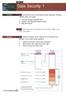 UNIT 18 Dt Seurity 1 STARTER Wht stories do you think followed these hedlines? Compre nswers within your group. 1 Love ug retes worldwide hos. 2 Hkers rk Mirosoft softwre odes. 3 We phone sm. Wht other
New Internet Radio Feature
 XXXXX XXXXX XXXXX /XW-SMA3/XW-SMA4 New Internet Rdio Feture EN This wireless speker hs een designed to llow you to enjoy Pndor*/Internet Rdio. In order to ply Pndor/Internet Rdio, however, it my e necessry
- DAY 1 - Website Design and Project Planning
 Wesite Design nd Projet Plnning Ojetive This module provides n overview of the onepts of wesite design nd liner workflow for produing wesite. Prtiipnts will outline the sope of wesite projet, inluding
DiaGen: A Generator for Diagram Editors Based on a Hypergraph Model
 DiGen: A Genertor for Digrm Eitors Bse on Hypergrph Moel G. Viehstet M. Mins Lehrstuhl für Progrmmiersprhen Universität Erlngen-Nürnerg Mrtensstr. 3, 91058 Erlngen, Germny Emil: fviehste,[email protected]
Series. Setup Guide. (P.4) +800mm MEMO
 Introduction Series Setup Guide Introductory Informtion ENG Red this mnul efore ttempting to operte the printer. Keep this mnul in hndy loction for future reference. Overview of Setup These re the steps
INSTALLATION, OPERATION & MAINTENANCE
 DIESEL PROTECTION SYSTEMS Exhust Temperture Vlves (Mehnil) INSTALLATION, OPERATION & MAINTENANCE Vlve Numer TSZ-135 TSZ-150 TSZ-200 TSZ-275 TSZ-392 DESCRIPTION Non-eletril temperture vlves mnuftured in
Revised products from the Medicare Learning Network (MLN) ICD-10-CM/PCS Myths and Facts, Fact Sheet, ICN 902143, downloadable.
 DEPARTMENT OF HEALTH AND HUMAN SERVICES Centers for Meire & Meii Servies Revise prouts from the Meire Lerning Network (MLN) ICD-10-CM/PCS Myths n Fts, Ft Sheet, ICN 902143, ownlole. MLN Mtters Numer: SE1325
How To Get A Usb Power Button On Your Computer (For A Free) For A Year (For Free) (For An Ipad) (Free) (Apple) (Mac) (Windows) (Power) (Net) (Winows
 Quik Stup Gui Strt Hr DCP-9270CDN Pls r Sfty n Lgl Booklt first for you st up your mhin. Thn, pls r this Quik Stup Gui for th orrt stup n instlltion. To viw th Quik Stup Gui in othr lngugs, pls visit http://solutions.rothr.om/.
Reasoning to Solve Equations and Inequalities
 Lesson4 Resoning to Solve Equtions nd Inequlities In erlier work in this unit, you modeled situtions with severl vriles nd equtions. For exmple, suppose you were given usiness plns for concert showing
AntiSpyware Enterprise Module 8.5
 AntiSpywre Enterprise Module 8.5 Product Guide Aout the AntiSpywre Enterprise Module The McAfee AntiSpywre Enterprise Module 8.5 is n dd-on to the VirusScn Enterprise 8.5i product tht extends its ility
the machine and check the components Black Yellow Cyan Magenta
 Quik Stup Gui Strt Hr MFC-J6510DW MFC-J6710DW Pls r Sfty n Lgl ooklt first for you st up your mhin. Thn, pls r this Quik Stup Gui for th orrt stup n instlltion. WARNING CAUTION WARNING inits potntilly
KNOWING YOUR SEWING MACHINE SEWING BASICS VARIOUS STITCHES APPENDIX
 KNOWING YOUR SEWING MACHINE SEWING BASICS VARIOUS STITCHES APPENDIX Plese visit us t http://solutions.rother.om where you n get produt support nd nswers to frequently sked questions (FAQs). INTRODUCTION
Lesson 2.1 Inductive Reasoning
 Lesson.1 Inutive Resoning Nme Perio Dte For Eerises 1 7, use inutive resoning to fin the net two terms in eh sequene. 1. 4, 8, 1, 16,,. 400, 00, 100, 0,,,. 1 8, 7, 1, 4,, 4.,,, 1, 1, 0,,. 60, 180, 10,
BEC TESTS Gli ascolti sono disponibili all indirizzo www.loescher.it/business
 Gli solti sono disponiili ll indirizzo www.loesher.it/usiness SURNAME AND NAME CLASS DATE BEC TEST Prt one Questions 1-8 For questions 1-8 you will her eight short reordings. For eh question, hoose one
Chapter. Contents: A Constructing decimal numbers
 Chpter 9 Deimls Contents: A Construting deiml numers B Representing deiml numers C Deiml urreny D Using numer line E Ordering deimls F Rounding deiml numers G Converting deimls to frtions H Converting
S-Scrum: a Secure Methodology for Agile Development of Web Services
 Worl of Computer Siene n Informtion Tehnology Journl (WCSIT) ISSN: 2221-0741 Vol. 3, No. 1, 15-19, 2013 S-Srum: Seure Methoology for Agile Development of We Servies Dvou Mougouei, Nor Fzli Moh Sni, Mohmm
OUTLINE SYSTEM-ON-CHIP DESIGN. GETTING STARTED WITH VHDL August 31, 2015 GAJSKI S Y-CHART (1983) TOP-DOWN DESIGN (1)
 August 31, 2015 GETTING STARTED WITH VHDL 2 Top-down design VHDL history Min elements of VHDL Entities nd rhitetures Signls nd proesses Dt types Configurtions Simultor sis The testenh onept OUTLINE 3 GAJSKI
NETWORK USER S GUIDE. Multi-Protocol On-board Ethernet Multi-function Print Server and Wireless Ethernet Multi-function Print Server
 Multi-Protocol On-board Ethernet Multi-function Print Server and Wireless Ethernet Multi-function Print Server NETWORK USER S GUIDE This Network User's Guide provides useful information of wired and wireless
Section 5.2, Commands for Configuring ISDN Protocols. Section 5.3, Configuring ISDN Signaling. Section 5.4, Configuring ISDN LAPD and Call Control
 Chpter 5 Configurtion of ISDN Protocols This chpter provides instructions for configuring the ISDN protocols in the SP201 for signling conversion. Use the sections tht reflect the softwre you re configuring.
1 GSW IPv4 Addressing
 1 For s long s I ve een working with the Internet protools, people hve een sying tht IPv6 will e repling IPv4 in ouple of yers time. While this remins true, it s worth knowing out IPv4 ddresses. Even when
Words Symbols Diagram. abcde. a + b + c + d + e
 Logi Gtes nd Properties We will e using logil opertions to uild mhines tht n do rithmeti lultions. It s useful to think of these opertions s si omponents tht n e hooked together into omplex networks. To
NETWORK USER S GUIDE. Multi-Protocol On-board Ethernet Multi-function Print Server and Wireless Ethernet Multi-function Print Server
 Multi-Protocol On-board Ethernet Multi-function Print Server and Wireless Ethernet Multi-function Print Server NETWORK USER S GUIDE This Network User's Guide provides useful information of wired and wireless
End-to-end development solutions
 TECHNICAL SERVICES Endtoend development solutions Mnged y TFE HOTELS TFE Hotels re the only Austrlin Hotel group with inhouse end to end development solutions. We hve expertise in Arhiteturl nd Interior
Quick Guide to Lisp Implementation
 isp Implementtion Hndout Pge 1 o 10 Quik Guide to isp Implementtion Representtion o si dt strutures isp dt strutures re lled S-epressions. The representtion o n S-epression n e roken into two piees, the
EasyMP Network Projection Operation Guide
 EsyMP Network Projection Opertion Guide Contents 2 About EsyMP Network Projection Functions of EsyMP Network Projection... 5 Vrious Screen Trnsfer Functions... 5 Instlling the Softwre... 6 Softwre Requirements...6
SECTION 7-2 Law of Cosines
 516 7 Additionl Topis in Trigonometry h d sin s () tn h h d 50. Surveying. The lyout in the figure t right is used to determine n inessile height h when seline d in plne perpendiulr to h n e estlished
Quick Setup Guide MFC-685CW STEP 1 STEP 2. Setup is Complete! Setting Up the Machine. Installing the Driver & Software
 MFC-685CW Quick Setup Guide Before you can use the machine, you must set up the hardware and install the software. Please read this Quick Setup Guide for the correct setup procedure and installation instructions.
Interior and exterior angles add up to 180. Level 5 exterior angle
 22 ngles n proof Ientify interior n exterior ngles in tringles n qurilterls lulte interior n exterior ngles of tringles n qurilterls Unerstn the ie of proof Reognise the ifferene etween onventions, efinitions
Unit 5 Section 1. Mortgage Payment Methods & Products (20%)
 Unit 5 Setion 1 Mortgge Pyment Methos & Prouts (20%) There re tully only 2 mortgge repyment methos ville CAPITAL REPAYMENT n INTEREST ONLY. Cpitl Repyment Mortgge Also lle Cpitl & Interest mortgge or repyment
U-BLHB-2 SIZE: C SHEET 1 OF 1
 POST TOP ULLHORN RKET TLOG # ESRIPTION EP (SQ. FT.) U-LH- IN LINE FLOO MOUNT.0 7.00 7.00 IN SHE 0 PIPE (Ø.8 O X Ø.07 I) REMOVLE P 5.56 / SHE 0 PIPE (Ø.88 O X Ø.7 I).00.00 () /8-6 UN SET SREWS T. ~ THRU
Network User s Guide
 Network User s Guide Multi-Protocol On-board Ethernet Multi-function Print Server and Wireless Multi-function Print Server This Network User s Guide provides useful information of wired and wireless network
CHAPTER 31 CAPACITOR
 . Given tht Numer of eletron HPTER PITOR Net hrge Q.6 9.6 7 The net potentil ifferene L..6 pitne v 7.6 8 F.. r 5 m. m 8.854 5.4 6.95 5 F... Let the rius of the is R re R D mm m 8.85 r r 8.85 4. 5 m.5 m
FUEL SYSTEMS ROCHESTER 4 BARREL CARBURETOR 5 C
 FUEL SYSTEMS 72085 ROCHESTER 4 BARREL CARBURETOR 5 C Tle of Contents Pge Rohester 4 Brrel Cruretor............. 5C-1 Torque Speifitions.................. 5C-1 Tools................................. 5C-1
Quick Reference Guide: One-time Account Update
 Quick Reference Guide: One-time Account Updte How to complete The Quick Reference Guide shows wht existing SingPss users need to do when logging in to the enhnced SingPss service for the first time. 1)
50 MATHCOUNTS LECTURES (10) RATIOS, RATES, AND PROPORTIONS
 0 MATHCOUNTS LECTURES (0) RATIOS, RATES, AND PROPORTIONS BASIC KNOWLEDGE () RATIOS: Rtios re use to ompre two or more numers For n two numers n ( 0), the rtio is written s : = / Emple : If 4 stuents in
LISTENING COMPREHENSION
 PORG, přijímí zkoušky 2015 Angličtin B Reg. číslo: Inluded prts: Points (per prt) Points (totl) 1) Listening omprehension 2) Reding 3) Use of English 4) Writing 1 5) Writing 2 There re no extr nswersheets
How do I configure the wireless printer using Wi-Fi Protected Setup or AOSS and install the printer driver in Windows?
 How do I configure the wireless printer using Wi-Fi Protected Setup or AOSS and install the printer driver in Windows? 1. Confirm your WLAN access point/router has the Wi-Fi Protected Setup or AOSS symbol
Experiment 6: Friction
 Experiment 6: Friction In previous lbs we studied Newton s lws in n idel setting, tht is, one where friction nd ir resistnce were ignored. However, from our everydy experience with motion, we know tht
CallPilot 100/150 Upgrade Addendum
 CllPilot 100/150 Relese 3.0 Softwre Upgrde Addendum Instlling new softwre onto the CllPilot 100/150 Feture Crtridge CllPilot 100/150 Upgrde Addendum Prerequisites lptop or desktop computer tht cn ccept
European Convention on Social and Medical Assistance
 Europen Convention on Soil nd Medil Assistne Pris, 11.XII.1953 Europen Trety Series - No. 14 The governments signtory hereto, eing memers of the Counil of Europe, Considering tht the im of the Counil of