
User guide. yomani AUTONOM yomani COMPACT yomani PINPAD
|
|
|
- Howard Rice
- 9 years ago
- Views:
Transcription
1 User guide yomani AUTONOM yomani COMPACT yomani PINPAD

2 Table of contents 1 Security requirements Electromagnetic compatibility Where wireless technologies are used 3 2 Product info Customer terminal Cash register terminal (yomani AUTONOM) Abbreviations/Information Payment procedure with ep Technical information 8 3 Start-up Installation Configuration/Initialization 10 4 Menu tree (illustration) Main menu Transactions 12 5 Transactions Purchase Purchase authorized per phone Cancellation Credit Additional transactions 21 6 Balances Start user shift/end user shift, daily closing, data transmission 22 7 Queries (totals), settings 23 8 Setup 24 9 Additional services Maintenance and handling Identifying and solving errors Changing the paper roll 27 2

3 1 Security requirements 1.1 Electromagnetic compatibility When connecting additional or other components the Electromagnetic Compatibility Directive (EMC) must be adhered to. 1.2 Where wireless technologies are used While driving Radio frequencies can interfere with electronic systems in vehicles, such as car radios or security devices, etc. Vehicles equipped with airbags An enormous force is released when airbags are activated. Therefore, do not place the terminal in the area above the airbag or in the space in which the airbag could deploy. Terminals that are improperly installed can cause serious injury upon deployment of an airbag. Electronic devices Most morn electronic devices, such as those used in hospitals and vehicles, are protected against radio frequencies. However, this is not the case with all electronic devices. Do not use your terminal in the proximity of medical equipment without obtaining prior permission. Heart pacemaker/other medical devices Terminals can affect the functioning of implanted heart pacemakers and other medically implanted devices. Patients with a heart pacemaker should be informed that the use of terminals in the immediate vicinity of a pacemaker can lead to malfunctions. Do not pass the terminal over the pacemaker. The risk of a malfunction however, is minor if a minimum distance of 15 cm between the terminal and the pacemaker is maintained. If you suspect that malfunctions are occurring, put the terminal aside. If necessary, consult your cardiologist. If other medical devices are used in or on the body, then the equipment manufacturer should be consulted as to whether such devices are sufficiently protected against radio frequency signals. Do not use the terminal where the devices are implanted. Hearing aids Under certain circumstances, terminals can cause some hearing aids to malfunction. Contact the dealer/manufacturer of your hearing aid. Other medical equipment If you use a medical device, please contact the manufacturer to determine whether it is sufficiently protected against electromagnetic waves. If necessary, your attending physician could be helpful in obtaining this information. Equipment is often used in hospitals, medical offices and other facilities which is highly sensitive to external electromagnetic waves. Do not use the terminal in such locations. Aeroplanes To avoid interfering with the communication systems, do not use the terminal during the flight. Only activate the terminal on the ground with permission from the ground personnel. Potentially explosive areas Do not use the terminal in explosive zones or areas bearing signs with Switch off sending/ receiving devices. Do not use the terminal in such potentially explosive locations. Appropriately marked locations Follow instructions and do not use the terminal in locations with obvious signs and instructions prohibiting such use. 3

4 Every effort has been made to ensure that the information in this document is complete and exact at the date of printing. Further developments in the field of electronic payment traffic and technological progress could result in changes that might deviate from the description in this user guide. Consequently, SIX Payment Services Ltd accepts no responsibility for the information provided in the operating instructions being current, complete or correct. Further more, to the extent permitted under the relevant legal provisions, SIX Payment Services Ltd accepts no responsibility in connection with the operating instructions. The menu navigation on the terminal has been designed to be self-explanatory, making this document necessary only in case of emergency. The latest version of the user guide, together with any updates, can be found on our homepage at: 4

5 2 Product info 2.1 Customer terminal Thermal printer (yomani COMPACT only) Chip reader For chip cards. Magnetic strip reader For cards with magnetic strips. Display The next step to be taken is always shown on the display. Navigation buttons You can use these three buttons to navigate through the menu (up/down/confirm). <OK> button All entries must be confirmed using the <OK> button. <CORR> button Incorrect entries can be corrected using the <CORR> button. <STOP> button Active procedures can be stopped using this button. Contactless reader (RFID) For contactless paying. 5

6 2.2 Cash register terminal (yomani AUTONOM) Thermal printer Screen The next step to be taken is always shown on the screen. Navigation buttons You can use these buttons to move up and down in the menu. <STOP> button Active procedures can be stopped using this button. <CORR> button Incorrect entries can be corrected using the <CORR> button. <OK> button All entries must be confirmed using the <OK> button. 6

7 2.3 Abbreviations/Information Cards with a chip Cards with a contactless chip Cards with a magnetic stripe CC CCC CLP CrC CVC/CVV DCC EFT/POS EMV ep2 GPRS GSM Online transaction Offline transaction PF PIN PIN-based transaction PW PUK RFID SPS TFP TFS TIP Trm Trx WLAN Cards which store the information needed for electronic payment on a chip must be inserted in a chip reader, depending on the terminal model. If the terminal is equipped with a motor reader, then the card is automatically drawn in and read. Cards that have a chip featuring a contactless function can be held up to contactless readers to speed up the payment process. Cards which store the information needed for electronic payment on a magnetic stripe must be pulled through the swipe reader, depending on the terminal model. If the terminal is equipped with a motor reader, then the card is automatically drawn in and read. Computer center Credit card company Contactless payment Credit cards Card Verification Code /Card Verification Value number used to identify the card. Dynamic Currency Conversion. Foreign cardholders can pay in their domestic currency. Electronic Funds Transfer at the Point Of Sale Global specifications from Eurocard, MasterCard and Visa based on a chip card. <EFT/POS 2000>, Swiss standard based on the EMV standard in electronic payment traffic. General Packet Radio Service (GPRS) is a packet-oriented transmission service that is used in the field of mobile telephone systems. Global Standard for Mobile Communications An online transaction is always directly authorised at the CCC. An offline transaction is authorised in interdependence with the card and terminal risk management (e.g. if the amount of the previous transactions is less than the card limit or if the amount is less than the terminal floor limit on the card, etc.). PostFinance (Switzerland) Personal Identification Number For a PIN-based transaction, the customer must enter his/her PIN at the point of sale during the payment process. Password Personal Unblocking Key radio-frequency identification SIX Payment Services Ltd Tax-Free Provider with whom the retailer uses the optional Tax-Free Service. The Tax-Free Service, which is optionally performed by one of the supported Tax-Free Providers. Tip Terminal Transaction A Wireless Local Area Network is a wireless local radio network, which generally refers to a standard within the IEEE family. 7

8 2.4 Payment procedure with ep2 The payment process at the point of sale is standardised for all cards with ep2. A variety of card types are in cir culation today. Payment functions ep2 offers a full range of transaction modes and functions. The transactions activated on your terminal are determined by the settings in the service centre as global parameters and by the individual card processors. e.g. Tip: This transaction type is often used in the hotel and restaurant industry. In the retail business, however, it is unnecessary. Depending on the payment function and credit card processor, different minimum/ maximum amounts, day limits, etc. can be defined. Functions are described in general in the sections that follow. Please note that some transaction modes and functions may be inactive on your terminal. Caution for offline transactions! Offline transactions are stored in the security section of your terminal and submitted to the card processor by means of the daily closing. This can be carried out manually by the terminal operator or automatically. Should the security section of the device be defective, intentionally damaged or stolen, the transactions that have not been stored will be lost. For this reason, we recommend that you: Meticulously retain all sales slips. Carry out a daily closing every day or more often. Always carry out a daily closing before making installation changes, etc. Always carry out a daily closing for anticipated longer absences from the business. A closing must be carried out for seasonal operations, at the end of the season. 2.5 Technical information Operating temperature 0 C to 50 C Humidity (not condensing) 20% to 85% Power supply via power supply unit VAC, Hz Power supply through USB (except for yomani XR) 5 V, 500 ma Storage 20 C to 70 C 8

9 3 Start-up 3.1 Installation Position the device at its intended location Connect the device. Always plug in the power supply last! Cable:! Only the original cables delivered with the product should be used. Customer terminal Port for NFC antenna (for contactless paying) Serial RS-232 port USB port yomani XR PINPAD and COMPACT only Ethernet/LAN port Cash register terminal (yomani AUTONOM) Cable guides Power supply port Customer terminal port Completed installation The terminal starts up und reports with an acoustic signal when it is ready to operate. 9

10 3.2 Configuration/Initialization First initialisation The yomani will generally already have been commissioned by the SIX production facility. Additional instructions are provided to you in the Configuration instructions for yomani delivered along with the terminal. Subsequent initialisation Should it be necessary to re-initialise a device for any reason, proceed as outlined on page 24. Key The following symbols are used in the descriptions in this document.... Function selection by choosing the corresponding number or using the cursor and the <OK> button. Insert card. Depending on the card type, it must be inserted in the chip card reader, held up to the contactless reader or pulled through the magnetic swipe reader. Remove card. Sales slip printout. Request the customer s signature. Processing and/or communication. Manual entry of the card data. Press function button. 10

11 4 Menu tree (illustration) 4.1 Main menu To enter the menu tree below, press the <STOP> button. Main menu <1> Transactions <2> Balances <3> Queries <4> Settings <5> Setup <6> Additional services 1 Balances <1> Begin shift <2> End user shift <3> Daily closing <4> Transmit. trx data Queries <1> Shift counter <2> Daily counter <3> Trx log info <4> Print DCC rates 2 <5> Print last ticket Settings <1> Trm lanuage <4> Service PW <7> Keypad tones Setup <1> Configuration <2> Initialisation <3> SW Update <4> Trm reset <5> Info <6> Print. config. <8> Print HW Info <9> System Additional services 1 <1> TFS <2> TFS Settings Access only with your password. You can find this on the configuration sheet delivered with your terminal. Access only for service technicians. 1 Additional services» makes other optional services available. 2 This function may not be activated depending on the CCC 11

12 4.2 Transactions Transactions <1> Purchase <2> Purch. phone auth. <3> Reversal <4> Credit <5> Reservation <6> Purchase reserv. <7> Purchase w. Cashback <8> Cash advance <9> Purch. mail order <10> Other transact. Other transactions <1> Phone ordered <2> Purch. forced acc. <3> Reserv. adjustm. <4> Conf. Phone auth. <5> Mobile Voucher <6> Mobile Coupon <7> GiftCard/VM <8> Cancel Reserv. Access only with your password. You can find this on the configuration sheet delivered with your terminal. 12

13 5 Transactions 5.1 Purchase <1> Purchase The purchase is the most common transaction type in electronic payment traffic. Depending on the CCC, minimum/maximum amounts, day limits, etc. may vary. The manual recording of card data and sub sequent cancellation functions are either activated or deactivated, depending on the CCC. yomani COMPACT: If a transaction is not successful, then you will hear three short, acoustic signals that repeat every 2 seconds. This prompts the customer to give the terminal to the cashier. The reason for the problem is displayed by pressing on the special signals function button. Cashier handling 1. Press 1. Purchase will be activated. 1: Purchase 2.* If the foreign currency function is activated on your terminal, you must select the desired currency. * Menu only appears if 2 or more currencies are activated. 3. Enter the amount and confirm with <OK>. The amount must be separated with a decimal point. For amounts below CHF/EUR 1.00, a zero 0 must be entered first (e.g., CHF/EUR 0.55). <Currency> Amount 3a (DCC) 1 If the cardholder prefers to make a transaction in CHF/EUR, this can be selected with the CHF/EUR function button. 4. Proceed with card processing as detailed on pages 16 and 17, or enter manually as detailed on page This menu item is only shown if DCC is activated. The terminal automatically recognizes if the card is one that is in a DCC-capable foreign currency and automatically chooses DCC. Otherwise, the transaction will be processed in CHF/EUR. If the cardholder prefers to make a transaction in CHF/EUR, this can be selected with the CHF/EUR function button. As soon as the card has been read in, CHF/EUR can no longer be selected! Sample sales slip: Certain fields may differ according to the purchase type. COMPANY EXAMPLE EXAMPLE STREET EXAMPLE Purchase Processing company XXXX DD.MM.YYYY HH.MM.SS Your company data, which will be printed out on the sales slip. Transaction date. Transaction time. Transaction information for unambiguous identification of the transaction. Trm-Id: Akt-Id: AID: A Trx. Seq-Nr.: Trx. Ref-No: Aut. Code: EPF: ABC123ABC123ABC Total-EFT CHF: Amount 13

14 Cashier: Manual card data entry Should a credit card be unreadable, the card data can be entered manually. To do so, you need the card number, the expiry date, and for newer cards, the CVC/CVV (Card Verification Code/Card Verification Value). This 3-digit code is printed on the reverse side of the card (the last three numbers). After you have chosen the transaction mode and confirmed this by pressing <OK>, manual entry can be activated using the corresponding function button. yomani AUTONOM/yomani COMPACT 1.* If the foreign currency function is activated on your terminal, you must select the desired currency. * Menu appears only if two or more currencies are activated. 2. Enter the amount and confirm with <OK>. The amount must be separated with a decimal point. For amounts below CHF/EUR 1.00, a zero 0. must be entered first. <Currency> Amount 3. Press the Manual button for manual recording. 4. Enter the card number and press <OK>. Card number 5. Enter the card expiry date and confirm with <OK>. Expiry date 6. Enter the CVC2 respectively CVV2 and confirm with <OK>. Tip! For cards without a CVC, press <OK> without entering the CVC. CVC2/CVV2 if present 7. Payment is recorded and authorised online, if this function is activated. 8. A sales slip is printed out. The sales slip must be signed by the customer. 9. If a copy is desired press 1. If no copy is desired press 2. If no button is pressed, the copy will be automatically printed out after 10 seconds. 1 : Copy or 2 : No copy 14

15 yomani PINPAD 1. Enter the transaction on the cash register as usual. 2. On the customer terminal, press the <Corr> and <Menu> buttons in quick succession within half a second. 3. A request to enter the card details manually will be shown on the yomani screen. Example: Credit card John Example Card number Expiry date CVC2/CVV2 Reverse side of card

16 After the cashier enters the amount, the customer is prompted by the terminal to use his or her card. Depending on the card type, the two following procedures are possible: Customer handling: card without PIN. Customer handling: card with PIN (see p. 17). Customer handling: Card without PIN 1. The amount is shown. 2. Depending on the card type, it must be inserted in the chip card reader, held up to the contactless reader or pulled through the magnetic swipe reader. If the customer uses the wrong reader for his or her card, that person is instructed to use the proper reader. 2a (TIP) 1 If the TIP function is activated, after the original amount is confirmed, the option of entering a tip is also offered and confirmed by pressing <OK>. If the guest does not wish to give a tip, he/she can continue without entering an amount by pressing <OK>. Tip: 2b (DCC) 2 The customer chooses whether he or she wants to pay with DCC or in the local currency. 1. CHF EUR Choice? ex. rate: The amount is shown. Confirm the amount with <OK>. 4. Payment is recorded and authorized online if necessary. 5. Remove the card. 6. The sales slip is printed out. The sales slip must be signed by the customer. 7. If a copy is desired press 1. If no copy is desired press 2. If no button is pressed, the copy will be automatically printed out after 10 seconds. 1 : Copy or 2 : No copy 1 This menu item is only shown if TIP is activated. This function is only activated for hotels and restaurants by the card organizations. In addition to the adjustments in the payment procedure, this modification also has an impact upon the payment receipt and the daily closing printout. 2 This menu item is only shown if DCC is activated. The terminal automatically recognizes if the card is one that is in a DCC-capable foreign currency and automatically chooses DCC. Otherwise, the transaction will be processed in CHF/EUR. If the cardholder prefers to make a transaction in CHF/EUR, this can be selected with the CHF/EUR function button. As soon as the card has been read in, CHF/EUR can no longer be selected! 16

17 Customer handling: Card with PIN 1. The amount is shown. 2. Depending on the card type, it must be inserted in the chip card reader, held up to the contactless reader or pulled through the magnetic swipe reader. If the customer uses the wrong reader for his or her card, that person is instructed to use the proper reader. 2a (TIP) 1 If the TIP function is activated, after the original amount is confirmed, the option of entering a tip is also offered and confirmed by pressing <OK>. If the guest does not wish to give a tip, he/she can continue without entering an amount by pressing <OK>. Tip: 2b (DCC) 2 The customer chooses whether he or she wants to pay with DCC or in the local currency. 1. CHF EUR Choice? ex. rate: (CLP) 3 The total is displayed and the customer is requested to enter the PIN code (4- to 6-digit) and to confirm with <OK>. If the amount is incorrect, the transaction can be aborted using <STOP>. Timeout: The process will be aborted if the processing does not occur within 30 seconds. <PIN> 4. Payment is recorded and authorized online if necessary. 5. Remove the card. 6. The sales slip is printed out. The sales slip must be signed by the customer. 7. If a copy is desired press 1. If no copy is desired press 2. If no button is pressed, the copy will be automatically printed out after 10 seconds. 1 : Copy or 2 : No copy 1 This menu item is only shown if TIP is activated. This function is only activated for hotels and restaurants by the card organizations. In addition to the adjustments in the payment procedure, this modification also has an impact upon the payment receipt and the daily closing printout. 2 This menu item is only shown if DCC is activated. The terminal automatically recognizes if the card is one that is in a DCC-capable foreign currency and automatically chooses DCC. Otherwise, the transaction will be processed in CHF/EUR. If the cardholder prefers to make a transaction in CHF/EUR, this can be selected with the CHF/EUR function button. As soon as the card has been read in, CHF/EUR can no longer be selected! 3 Generally, customers need do nothing further for a contactless payment below CHF 40 (~ EUR 35). 17

18 5.2 Purchase authorized per phone <2> Phone authorised This purchase mode is used when the authorisation cannot be made automatically. The authorisation code is issued by a CCC representative by telephone. With the function Phone authorised, the transaction will be recorded later. Cashier handling 1. Press 2. The Phone authorized function is activated. 2: Phone authorized 2.* If the foreign currency function is activated on this terminal, then the desired currency must be select. * Menu only appears if 2 or more currencies are activated. 3. Enter the amount and confirm with <OK>. The amount must be separated with a decimal point. For amounts below CHF/EUR 1.00, a zero 0 must be entered first (e.g., CHF/EUR 0.55). <Currency> Amount 3a (DCC) 1 If the cardholder prefers to make a transaction in CHF/EUR, this can be selected with the CHF/EUR function button. 4. Enter the authorization code and confirm with <OK>. Authorization code 5. Card handling according to pages 16 and 17, or page 14 for manual entry. 1 This menu item is only shown if DCC is activated. The terminal automatically recognizes if the card is one that is in a DCC-capable foreign currency and automatically chooses DCC. Otherwise, the transaction will be processed in CHF/EUR. If the cardholder prefers to make a transaction in CHF/EUR, this can be selected with the CHF/EUR function button. As soon as the card has been read in, CHF/EUR can no longer be selected! 18

19 5.3 Cancellation <3> Cancellation The purchase which has just been made can be cancelled using the Cancellation function. With some CCC s this function may not be activated. If a daily closing or shift-end has been carried out in the meantime, or if the data has been transmitted, then cancellation is no longer possible. Cashier handling 1. Press 3 to activate the Cancellation function. 3: Cancellation 2. Enter the terminal s password and confirm with <OK>. (See configuration sheet for the password.) Password 3. The amount of the last transaction is shown. If the amount of the last transaction is correct, then confirm this by pressing the <OK> button. 4. Cancellation is recorded and, if necessary, authorised online. 5. A sales slip is printed out. 6. If a copy is desired press 1. If no copy is desired press 2. If no button is pressed, the copy will be automatically printed out after 10 seconds. 1 : Copy or 2 : No copy 19

20 5.4 Credit <4> Credit A purchase that has been made can be corrected using the Credit function. This is used if a cancellation is no longer possible. Cashier handling 1. Press 4. Credit will be activated. 4 : Credit 2. Enter the password and confirm with <OK>. (See the configuration sheet for the password) 3.* If the foreign currency function is activated on this terminal, then the desired currency must be selected. * Menu only appears if 2 or more currencies are activated. 4. Enter the amount and confirm with <OK>. The amount must be separated with a decimal point. For amounts below CHF/EUR 1.00, a zero 0 must be entered first (e.g., CHF/EUR 0.55). 4a (DCC) If DCC is activated, then the date of the original transaction must also be entered. Password <Currency> Amount Orig. Trx date (YYYYMMDD) 5. The amount is shown and the card requested. 6. Card handling according to pages 16 and 17, or page 14 for manual entry. The cashier signs the sales slip! 20

21 5.5 Additional transactions In addition to the payment types described, your terminal also contains other functions that are generally only used very rarely. The operation of these additional functions corresponds to the same logic as that used for the standard func- tions. Please follow the instructions issued by the terminal. Some examples are detailed below. Contact our hotline if you have difficulties with a function. <5> Reservation and <6> Purchase reserv. (purchase of a previously made reservation) With <5> Reservation (e.g., hotel, rental car, flight ticket, etc.) an amount can be booked to the credit card. The entire amount or even just a partial amount can be subsequently purchased with <6>. <8> Mail Order Distance payment purchases are handled with Mail Order. In this case, the customer provides the card number, the expiry date (and the CVC, if needed) to the merchant by fax, mail or the Internet shop. If a contract for Mail Order has been signed, then the merchant generally can no longer carry out any normal bookings (<1> function). SIX Payment Services Ltd offers an ideal virtual solution for mail order under the Saferpay brand. 21
22 6 Balances 6.1 Start user shift/end user shift, daily closing, data transmission <STOP> <2> Balances You can enter the terminal s main menu using the <STOP> button. Select the Balances function <2>. You then have the following options: <STOP> <2> <1> Begin user shift (o) You can start a user shift autonomously when you begin working. If you attempt to make a transaction after the end of a shift or daily closing, then the terminal automatically starts a new shift. <STOP> <2> <2> End user shift (o) With the End user shift function you end the current shift. Delivery of the transactions is carried out automatically. The daily closing, however, remains open. No further cancellations can be made after a shift end. No further tips can be recorded after a shift end. <STOP> <2> <3> Daily closing (m) With the Daily closing function, all transactions that have been made are delivered to the card processors and completed. All amounts are credited to you after daily closing. A daily closing should be carried out at least once a day preferably after the establishment has closed. The day and shift counter is set to 0. No further cancellations can be made after a daily closing. No further tips can be recorded after a daily closing. <STOP> <2> <4> Transmit trx data (o) With the Transmit trx data function, all transactions that have been conducted and stored in the terminal are transmitted. This function should always be used if a large number of offline transactions has been made. No further cancellations can be made after a Transmit trx data. No further tips can be recorded after a Transmit trx data. o = Optional: You can use this function according to your requirements. m = Mandatory 22
23 7 Queries (totals), settings <STOP> <3> Queries You can enter the terminal s main menu using the <STOP> button. Select the Queries function <3>. You then have the following options: <STOP> <3> <1> The current status of the active shift is printed out. <STOP> <3> <2> The current status since the last daily closing is printed out. <STOP> <3> <3> The current status of transactions since the last data transmission is listed. <STOP> <3> <4> The current DCC exchange rate will be inquired online and then printed out. <STOP> <3> <5> A copy of the last sales slip is printed out. Shift counter Daily counter Trx log info Print DCC rates Print last ticket <STOP> <4> Settings You can enter the terminal s main menu using the <STOP> button. Select the Settings function <4>. You then have the following options: <STOP> <4> <1> The terminal language can be adjusted. Trm language This language setting is only applicable until the next service call. During the service call, the service host s language setting will be reactivated. If you prefer a permanent adjustment of the language setting, then this can be set by calling our hotline. The customer language corresponds to the card s language code. <STOP> <4> <4> Set the service password for other transactions (e.g. Mobile Voucher). Service PW <STOP> <4> <7> Keypad tones Adjust the volume of the keypad tones. The adjustment must be confirmed with <OK>. 23
24 8 Setup <STOP> <5> Setup Password is requested You can enter the terminal s main menu using the <STOP> button. Select the <Setup> function <5>. The following terminal-specific functions can be carried out. The following functions require a password. You can find your password in the Configuration instructions for yomani. <STOP> <5> <1> Configuration The terminal calls the service centre and obtains the latest configuration parameters in the event that they have changed. <STOP> <5> <2> You can re-initialise individual or all activated card products. Initialisation <STOP> <5> <3> SW update The terminal calls the service host and downloads the latest software version, if one exists. The software download may require several minutes. Please connect the terminal to the power supply for this purpose. <STOP> <5> <4> Trm reset This function is only available to the service technicians and is protected by a separate password. <STOP> <5> <5> The terminal ID and the current software version are displayed. <STOP> <5> <6> The current configuration can be printed out. Please note that the detailed printout may require a great deal of paper. Info Print config <STOP> <5> <8> Print hardware info This function is only available to service technicians and is protected by a separate password. <STOP> <5> <9> System This function is only available to the service technicians, and we recommend that you only use the function if requested to do so by our hotline. 24
25 9 Additional services <STOP> <6> Additional services Pressing the <STOP> button takes you to the main menu of the terminal. Select function <6> Additional services. The terminal-specific functions indicated can be executed. <STOP> <6> <1> This menu leads to the Tax-Free Service settings. TFS settings <STOP> <6> <2> <1> Activate Tax-Free In this sub-menu, the Tax-Free Service of the desired provider can be activated. <STOP> <6> <2> <5> In this sub-menu, the Tax-Free Service of the provider used can be deactivated. Deactivate TFS 25
26 10 Maintenance and handling 10.1 Identifying and solving errors No display Check that all the leads are properly connected. Important: Always connect the power supply last. Terminated, no connection Check that the terminal is properly connected. Check that the telephone line is active. Host timeout The corresponding computer center does not reply. Possible reason: network overload. Reading error, card cannot be read Clean the reading unit. Card information can also be entered manually. Status display and tool 1. Screen messages must be confirmed using the <OK> button. 2. Special signal = 3 short acoustic signals in a row. All screen messages on the terminal must be confirmed with <OK>. These must be confirmed by the cashier using the special signalling function button pin telephone connector (analogue) The four designated pins on the phone jack must be plugged in facing up. PLEASE NOTE! SIX carries out software updates at night in order to enable you to use your payment terminal without interruption during the day. For this reason, your payment terminal must be left switched on at night with a constant Internet connection. 26
27 10.2 Changing the paper roll yomani AUTONOM yomani COMPACT Troubleshooting If printing is impossible, check whether the paper roll has been inserted backwards. Do not pull the paper out if the printer cover is closed. Ordering paper rolls (for Switzerland) order form terminal hotline INT_EN/ Your local point of contact can be found at: SIX Payment Services Ltd Hardturmstrasse Zurich Switzerland SIX Payment Services (Europe) S.A. 10, rue Gabriel Lippmann 5365 Munsbach Luxembourg SIX Payment Services (Austria) GmbH Marxergasse 1B 1030 Vienna Austria 27
User guide. xentissimo mobile GPRS/WLAN
 User guide xentissimo mobile GPRS/WLAN Table of contents 1 Security requirements 3 1.1 Electromagnetic compatibility 3 1.2 Where wireless technologies are used 3 1.3 CE declaration of conformity 4 2 Product
The most important Ingenico ict220, ict250 and iwl250 functions
 The most important Ingenico ict220, ict250 and iwl250 functions Prerequisites All operations described in this guide are related to the payment application (ep2). It is activated automatically in case
Payment terminals for your point of sale
 Payment Services Payment terminals for your point of sale SIX Payment Services offers nationally and internationally active customers tailored solutions in both the presence and distance businesses. 2
FD40 User Guide. Version 16.0 June 2015
 FD40 User Guide Version 16.0 June 2015 First Data Merchant Solutions is a trading name of First Data Europe Limited, a private limited company incorporated in England (company number 02012925) with a registered
How to connect your D200 using Bluetooth. How to connect your D200 using GPRS (SIM Card)
 D200 En User Guide Content 3 Introduction 3 Scope 3 Related Documentation 4 Internet Connectivity 4 Using D200 with Mobile Phone 5 Using D200 with wireless (Wi-Fi) router 6 Using D200 with GPRS (requires
Quick IWL255 Merchant Operator Guide
 Quick IWL255 Merchant Operator Guide Easy loading printer IWL255 Terminal Features Integrated contactless reader USB connector Magnetic card reader Navigation keys Smart card reader Key Functions Power
User manual. CCV Budget
 User manual CCV Budget Malfunctions caused by non-compliance with the user manual are not covered by the service agreement. The definition of service provided by CCV and the conditions that apply to this
Mobile PayWay. User guide
 Mobile PayWay User guide The following help desks and authorisation centres are available to you 24 hours a day, 7 days a week. St.George Electronic Banking Service Centre Service and Sales Support Help
Using Your Terminal for UnionPay Cards (05/15)
 Using Your Terminal for UnionPay Cards (05/15) Contents IMPORTANT: READ FIRST... 2 UnionPay overview... 3 How to identify UnionPay cards... 4 Card entry and card verification methods... 5 Processing UnionPay
mypos Frequently asked questions
 mypos Frequently asked questions End user guide Document version 1.2 Intercard Finance AD 2007 2014 VERSION CONTROL Date posted Document revision Description Author Approving managers 30.05.2014 draft
Mobile PayWay User guide
 Mobile PayWay User guide Phone numbers Westpac Merchant Business Solutions Help Desk Service, Sales and Support Card reader difficulties Westpac Key Auth Service Cardholder Behaving Suspiciously Note:
NFC technology user guide. Contactless payment by mobile
 Contactless payment by mobile Table of contents 1. What is contactless payment by mobile? 2. What do I need to shop with my mobile phone? 3. How can I manage a Mobile Card? 4. How do I shop with my mobile
Credit & Debit Application
 USER MANUAL ALL TERMINAL PRODUCTS Credit & Debit Application Instruction Manual V525.15 Dejavoo Systems Instruction Manual V525.15 1 ABOUT THIS MANUAL This manual provides basic instructions for user of
Credit & Debit Application
 USER MANUAL ALL TERMINAL PRODUCTS Credit & Debit Application Magic Models: C5, X5, X8, M3, M8 V Series Models: V5, V8, V9, V8 Plus, V9 Plus 1 Dejavoo Systems Instruction Manual V429.12 Instruction Manual
PC-EFTPOS Reference Guide
 PC-EFTPOS Reference Guide Vx810 Version 2.05 Sept 2013 Page 1 20-Sep-13 Table of Contents PC-EFTPOS Contact Details... 2 Introduction... 2 Using PC-EFTPOS with a POS... 3 BWA Merchant Services Specific
FUTURE PROOF TERMINAL QUICK REFERENCE GUIDE. Review this Quick Reference Guide to. learn how to run a sale, settle your batch
 QUICK REFERENCE GUIDE FUTURE PROOF TERMINAL Review this Quick Reference Guide to learn how to run a sale, settle your batch and troubleshoot terminal responses. INDUSTRY Retail and Restaurant APPLICATION
User Manual. CCV Mobile
 User Manual CCV Mobile Faults caused by a failure to adhere to the instructions in this User Manual are not covered by the Service Agreement. The scope of the services provided by CCV and the applicable
Integrated EFTPOS User Guide
 business Integrated EFTPOS User Guide www.bendigobank.com.au Table of contents Keypad layout....3 Debit card purchase...4 Credit and charge card purchase...5 Processing a tip (restaurants only)...6 Pre-authorisation
Frequently asked questions - Visa paywave
 Frequently asked questions - Visa paywave What is Visa paywave? Visa paywave is a new contactless method of payment - the latest evolution in Visa payments. It is a simple, secure and quick payment method
How to connect your D210 using Bluetooth. How to connect your D210 using GPRS (SIM Card)
 D210 En User Guide Content 3 Introduction 3 Scope 3 Related Documentation 4 Internet Connectivity 4 Using D210 with Mobile Phone 5 Using D210 with wireless (Wi-Fi) router 6 Using D210 with GPRS (requires
2 Scroll button 8 Power button
 PAX User Guide. 1 Table of contents. Keypad layout 3 Debit card purchase 4 Credit and charge card purchase 5 Processing a purchase when tipping is enabled 6 Processing a purchase with cash out when tipping
Hotline 0800 068 5949
 Optimum M4230 Quick reference guide Description of functions Thermal printer paper compartment Hotline 0800 068 5949 Direct selection function keys Direct selection function keys Battery charge status
User Guide ICP BIA desk/complete
 User Guide ICP BIA desk/complete 22339 Hamburg Version 2.01 www.icp-companies.com Introduction The BIA desk/complete terminal is designed for the electronic processing of transactions that are initiated
Quick Merchant Operator Guide IPP350
 Quick Merchant Operator Guide IPP350 IPP350 Terminal Features USB PORT Location INTEGRATED CONTACTLESS reader MAGNETIC STRIP reader Yellow OPTION buttons ALPHANUMERIC keys MENU button Red CANCEL button
EFTPOS 1. User guide
 EFTPOS 1 User guide Contact Details Westpac Merchant Helpdesk Service, Sales and Support Terminal Difficulties Stationary Orders Cardholder Behaving Suspiciously Note: If one of our operators asks you
A complete guide to your EFTPOS Terminal.
 A complete guide to your EFTPOS Terminal. EFTPOS Terminal User Guide. Phone Numbers Westpac Merchant Business Solutions Help Desk Service, Sales and Support Terminal Difficulties Stationery Orders Manual
mcashier User Guide To accept payments To cancel a payment
 mcashier User Guide To accept payments 1. Enter the purchase amount in the app. If desired, you can enter a reference under the amount (e.g. the product name). The reference will appear on the receipt.
User Manual. CCV Smart
 User Manual CCV Smart Faults caused by a failure to adhere to the instructions in this User Manual are not covered by the Service Agreement. The scope of the services provided by CCV and the applicable
The easy way to accept EFTPOS, Visa and MasterCard payments on the spot. Mobile Users... 2. Charging your PayClip. 2. Downloading the PayClip app.
 PayClip User Guide The easy way to accept EFTPOS, Visa and MasterCard payments on the spot. Contents Getting started made easy 2 Information for Merchants....................................................2
NAB EFTPOS User Guide. for Countertop & Mobile Terminals
 NAB EFTPOS User Guide for Countertop & Mobile Terminals About your NAB EFTPOS Terminal NAB EFTPOS Mobile NAB EFTPOS Countertoptop Table of Contents Getting to know your NAB EFTPOS VeriFone terminal...5
EFTPOS Professional Hypercom Mobile User Guide.
 EFTPOS Professional Hypercom Mobile User Guide. Phone Numbers Westpac Merchant Business Solutions Help Desk Service, Sales and Support Terminal Difficulties Stationery Orders Manual Credit Card Authorisations
Wireless epay Configuration and User Guide (Jave version)
 Wireless epay Configuration and User Guide (Jave version) INDEX 1 Section 1 - Installing Cradle/Card Reader to Phone... Page 04 Section 2 - Settings... Page 06 Section 3 - Starting and Login in to Wireless
Quick Reference Guide
 First National Bank - a division of FirstRand Bank Limited. An Authorised Financial Services and Credit Provider (NCRCP20). Merchant Services Making card transaction faster. Quick Reference Guide Gemalto
EFTPOS Merchant Facilities Quick Reference Guide (VX520/VX680)
 EFTPOS Merchant Facilities Quick Reference Guide (VX520/VX680) How to Use this Guide This handy Quick Reference Guide has been designed to give you step-by-step, easy-to-follow instructions on how to correctly
Credit & Debit Application
 USER MANUAL ALL TERMINAL PRODUCTS Credit & Debit Application Magic Models: C5, X5, X8, M3, M8 V Series Models: V5, V8, V9, V8 Plus, V9 Plus 1 Dejavoo Systems Instruction Manual V429.12 Instruction Manual
Mobile credit & debit card acceptance for your iphone
 Mobile credit & debit card acceptance for your iphone Datecs Bluepad50 PIN pad Contents Content. Page. User Information...... 1. CardEase Mobile - Introduction......... 2. Basic requirements........3.
Quick Reference Guide. ict200 Series
 Quick Reference Guide ict200 Series Hotkey Support Pressing one of the numeric keys (0-9) from the Idle Screen will take the user directly to certain pre-assigned transactions or tasks. Should any of those
User Guide: Apple devices
 1 User Guide: Apple devices Your details You may need these details from time to time. So it can be handy to have them here. But if you do record them, make sure you keep this guide somewhere safe. Your
Quick Merchant Operator Guide Emmy
 Quick Merchant Operator Guide Emmy 1. Emmy Terminal Features ❶ ❶ Magnetic Strip Reader ❿ Bluetooth is not connected ❷ Integrated Contactless Reader ❷ ❿ Bluetooth is connected and ready ❸ Battery Indicator
CHARGE Anywhere. Mobile POS. User s Guide
 CHARGE Anywhere Palm Treo Mobile POS User s Guide 1 PURPOSE... 4 2 SCOPE... 4 3 DEFINITIONS... 4 3.1 Quick Sale... 4 3.2 Sale... 4 3.3 Auth Only... 4 3.4 Force... 4 3.5 Void... 4 3.6 Retry... 4 3.7 Return...
VinNOW-TSYS Integration Setup
 VinNOW-TSYS Integration Setup Once your account is established with TSYS, and installation appoint should have been arranged. If not, contact your sales representative as these steps should be done for
Read me next. Mobile card machine. Get ready to trade
 1 Read me next Mobile card machine Get ready to trade 2 Useful numbers: (Call charges apply) Customer services: 0844 822 2011 Authorisation: 0844 822 2000 / 0844 824 5092 Chargebacks: 0844 755 0094 American
Credit Card Conditions of Use. Credit Guide.
 Credit Card Conditions of Use. Credit Guide. Effective Date: 20 May 2016 This document does not contain all the terms of this agreement or all of the information we are required by law to give you before
Integrated Payment Solutions
 Payment Services Integrated Payment Solutions for hospitality, parking and web Tailor-made payment solutions for your business. 2 SIX Payment Services The right choice SIX Payment Services provides financial
VinNOW/TSYS Integration Setup. Overview
 Overview TSYS credit card processing communications to the gateway are all done via LAN internet linked PAX payment terminals. The terminals supplied by TSYS have the client s merchant account information
How to use your terminal
 ict/iwl Terminal How to use your terminal The basics Chip and PIN cards Insert the card with the chip facing up and towards the terminal. If the card has been inserted the wrong way or there is a problem
Manual. Start accepting card payments with payleven
 Manual Start accepting card payments with payleven The Chip & PIN card reader Top Magnetic stripe card reader Front Bluetooth symbol Battery life 0-button (pairing button) Cancel Back Confirmation Bottom
Sync Guide. Sync Overview. Before the Event. During the Event. After the Event. Greater Giving Event Software
 Sync Guide Sync Overview Timeline Equipment Terms + This guide will instruct you on how to transfer data between Greater Giving Event Software and Auctionpay Master terminal Before, During and After your
Leo (for any device) User Guide. 1. Important information to protect your business
 User Guide 1. Important information to protect your business The following steps should be followed at all times to protect you and your customers from fraud. You must ensure that the software application
EFTPOS Merchant Facilities Quick Reference Guide
 EFTPOS Merchant Facilities Quick Reference Guide How to Use this Guide This handy Quick Reference Guide has been designed to give you step-by-step, easy-to-follow instructions on how to correctly use your
Virtual Terminal & Online Portal
 Authipay Gateway Virtual Terminal & Online Portal User Guide Version 5 (EMEA) Virtual Terminal & Online Portal User Guide Version 5 (EMEA) CONTENTS 1 Introduction... 5 2 Processing Transactions... 6 2.1
HOW TO OPTIMIZE THE CONSUMER CONTACTLESS EXPERIENCE? THE PERFECT TAP
 HOW TO OPTIMIZE THE CONSUMER CONTACTLESS EXPERIENCE? THE PERFECT TAP CONTACTLESS PAYMENTS COULD BE 50-60% FASTER THAN PAYING WITH CASH.* By accepting contactless payments, merchants open the door to the
PC-EFTPOS i5100 Merchant Operating Guide
 PC-EFTPOS i5100 Merchant Operating Guide PHONE NUMBERS. THE FOLLOWING HELP DESK S AND AUTHORISATION CENTRE S ARE AVAILABLE TO YOU 24 HOURS A DAY, 7 DAYS A WEEK. ST.GEORGE ELECTRONIC BANKING SERVICE CENTRE
NFC technology user guide. Contactless payment by mobile
 Contactless payment by mobile Table of contents 1. What is contactless payment by mobile? 2. What do I need to shop with my mobile phone? 3. How can I manage a Mobile Card? 4. How do I shop with my mobile
Read me next. Portable card machine. Get ready to trade
 1 Read me next Portable card machine Get ready to trade 2 Useful numbers: (Call charges apply) Customer Services: 0844 811 6666 Authorisation: 0844 822 2000 / 0844 824 5092 Chargebacks: 0844 755 0094 American
Card & Intesa Sanpaolo Bank Albania Network Frequently Asked Questions
 Card & Intesa Sanpaolo Bank Albania Network Frequently Asked Questions What is a card? A card is any VISA or MasterCard card issued by Intesa Sanpaolo Bank Albania. A card bearing the VISA logo can be
Card Sales & Refunds Quick Guide VeriFone Vx520
 Card s & Refunds Quick Guide VeriFone Vx520 1. Chip & PIN s 2. Contactless (Where active) 3. Card Not Present (CNP) s 4. Refund Process 5. Receipts For full details, also refer to your main Vx520 User
PC-EFTPOS i3070 Merchant Operating Guide
 PC-EFTPOS i3070 Merchant Operating Guide Phone Numbers THE FOLLOWING HELP DESKS AND AUTHORISATION CENTRES ARE AVAILABLE TO YOU 24 HOURS A DAY, 7 DAYS A WEEK. Bank of Melbourne Electronic Banking Service
Terminal Guide. Ingenico ICT220, ICT250, IWL220 & IWL250 Retail & Restaurant POS
 Terminal Guide Ingenico ICT220, ICT250, IWL220 & IWL250 Retail & Restaurant POS This Quick Reference Guide will guide you through understanding your terminal s functionality, for both countertop and wireless
TD Generation Merchant Guide with PINPad
 TD Generation Merchant Guide with PINPad 534004 V1.1 10/15 (EN) CALL CENTRE INFORMATION Please call the TD Merchant Services Help Desk at 1-800-363-1163. We would be happy to answer any questions you may
HSBC Visa Debit Card. Making the most of your card. HSBC Customer Service Centre. Go to hsbc.com.au/debit
 HSBC Customer Service Centre Go to hsbc.com.au/debit Call 1300 308 008 from Australia +61 2 9005 8131 from Overseas 24 hours a day, 7 days a week ^Visa Zero Liability subject to investigation of unauthorised
DPS POS Integration Certification Request and Test Scripts
 DPS POS Integration Certification Request and Test Scripts 1 DOCUMENT HISTORY Version Author Date 3.0.0 David Merry 01/2012 3.0.1 Grant Shannon 01/2012 3.0.2 David Merry 01/2012 3.0.3 James Rees 06/2013
American Express Contactless Payments
 PRODUCT CAPABILITY GUIDE American Express Contactless Payments American Express Contactless Payments Help Enable Increased Convenience For Card Members At The Point Of Sale American Express contactless
VX-670 Series APACS 40 User Guide
 VX-670 Series APACS 40 User Guide 2006 VeriFone. All rights reserved. VeriFone, the VeriFone logo, Vx are either trademarks or registered trademarks of VeriFone. No part of the contents of this document
Introductions 1 min 4
 1 2 1 Minute 3 Introductions 1 min 4 5 2 Minutes Briefly Introduce the topics for discussion. We will have time for Q and A following the webinar. 6 Randy - EMV History / Chip Cards /Terminals 5 Minutes
FAQ on EMV Chip Debit Card and Online Usage
 FAQ on EMV Chip Debit Card and Online Usage Security enhancement on HSBC India Debit Card A Secure Debit Card HSBC India Debit Cards are more secure and enabled with the Chip and PIN technology? You can
EMV and Chip Cards Key Information On What This Is, How It Works and What It Means
 EMV and Chip Cards Key Information On What This Is, How It Works and What It Means Document Purpose This document is intended to provide information about the concepts behind and the processes involved
EFTPOS Merchant Facilities Quick Reference Guide (T4220/M4230)
 EFTPOS Merchant Facilities Quick Reference Guide (T4220/M4230) How to Use this Guide This handy Quick Reference Guide has been designed to give you step-by-step, easy-to-follow instructions on how to correctly
PayWithIt for Android Devices User Guide Version 1.0.0
 PayWithIt for Android Devices User Guide Table of Contents About PayWithIt... 1 Installing PayWithIt... 1 Logging on to PayWithIt... 2 Logging Off from PayWithIt... 2 Configuring PayWithIt Settings...
Refer to the Integration Guides for the Connect solution and the Web Service API for integration instructions and issues.
 Contents 1 Introduction 4 2 Processing Transactions 5 2.1 Transaction Terminology 5 2.2 Using Your Web Browser as a Virtual Point of Sale Machine 6 2.2.1 Processing Sale transactions 6 2.2.2 Selecting
Business Vantage Visa Credit Card. Conditions of Use. Effective Date: 20 May 2016
 Business Vantage Visa Credit Card Conditions of Use 1 Effective Date: 20 May 2016 Business Vantage Visa Conditions of Use Bank of Melbourne This document does not contain all the terms of this agreement
T55003. TPMS Tool Manual 1. T55003 INTRODUCTION 2. KEYPAD SUMMARY AND FUNCTIONS
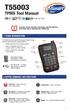 T55003 TPMS Tool Manual To ensure correct operation and service, read the following instructions before operating the T55003 Tool. 1. T55003 INTRODUCTION The T55003 interacts with the tire pressure sensor
EFTPOS 1i Terminal User Guide. Learn how to use your new terminal with this easy-to-follow guide.
 EFTPOS 1i Terminal User Guide Learn how to use your new terminal with this easy-to-follow guide. Get in touch Merchant Help Desk Service, Sales and Support Terminal Difficulties Stationery Orders 1300
VERIFONE VX QUICK REFERENCE GUIDE. Review this Quick Reference Guide to. learn how to run a sale, settle your batch
 QUICK REFERENCE GUIDE VERIFONE VX Review this Quick Reference Guide to learn how to run a sale, settle your batch and troubleshoot terminal responses. INDUSTRY Retail and Restaurant APPLICATION Chase Paymentech
February 2010 Version 6.1
 HansaWorld University Point Of Sales (POS) Training Material HansaWorld Ltd. February 2010 Version 6.1 Table Of Contents INTRODUCTION...5 What is Point Of Sales?...5 THE 4 DIFFERENT WAYS OF USING POS...6
*ROAMpay powered by ROAM
 *ROAMpay powered by ROAM Table of Contents 1. Introduction 2. Setting up Service 3. Supporting ROAMpay Customers 4. Helpful Links and Contacts 5. ROAMpay User s Guide Welcome to ROAMpay powered by ROAM!
EMV PAYMENT TERMINAL SYSTEM FUNCTIONAL DESCRIPTION 21 October 2011 / V 4.2
 1(19) table of contents 1. Introduction... 2 2. Definitions... 3 3. Payment terminal system... 6 4. Agreements and accepted cards... 6 5. Identifying cards and verifying their authenticity... 7 6. Purchases
SAS EuroBonus. Travel Cash. Frequently Asked Questions
 SAS EuroBonus Travel Cash Frequently Asked Questions YOUR MOST COMMON QUESTIONS ABOUT TRAVEL CASH 5 Q. How can I request a EuroBonus member Card with Travel Cash? 5 Q. Does it cost anything to get Travel
Quick set-up and fast facts guide
 BCD112079FCTB23 04/06/2013 23:19 Page 1 C M Y K Banking How to print a transaction log Banking must be carried out at the end of each business day. Just follow these simple steps: To help with reconciliation
S80 Users Manual v1.00.01 PAX Technology, Inc. All Rights Reserved.
 General Information S80 Users Manual v1.00.01 PAX Technology, Inc. All Rights Reserved. Preface Preface S80 Users Manual Version: v1.00.01 Status: [ ]Draft [ ]Release [ ]Modify Copyright 2013, PAX Technology,
Credit Card Conditions of Use. Credit Guide.
 Credit Card Conditions of Use Credit Guide. Effective Date: September 2015 This document contains the terms and conditions that apply to St.George Bank Business Visa Debit Card cardholders and to all transactions
Moneris HiSpeed 6200 OPERATING MANUAL For Credit, Chip and Debit Card Processing
 Moneris HiSpeed 6200 OPERATING MANUAL For Credit, Chip and Debit Card Processing Software Version: 3.17 Documentation Version: 1.05a Documentation Date: October 31, 2005 Copyright Moneris Solutions, 2005.
Skipjack VPOS User Guide
 Skipjack VPOS User Guide Skipjack 2230 Park Avenue Cincinnati, OH 45206 www.skipjack.com User Guide Table of Contents Click on a topic below to view its contents. Logging in to Your Account p. 3 Launch
How To Use Topas Pms 200 On A Pc Or Macbook Or Macromax On A Computer Or Macramade On A Macromodeo On A Microsoft Computer On A Web Browser On A Pc Or Macrocessor On
 Financial management for card-based payment transactions Our financial management tool saves you from burdensome overtime. So that you too can shut off the lights at the end of the day. Does this sound
EFT930 Mobile GPRS Terminal. Quick Reference Guide
 EFT930 Mobile GPRS Terminal Quick Reference Guide 0 123 Send Mobile GPRS Terminal INDEX PAGE Glossary of Terms 2 Getting Started 3 Terminal Layout 4 Till Rolls 5 Changing Your Passwords 6 Taking Card Payments
MySagePay. User Manual. Page 1 of 48
 MySagePay User Manual Page 1 of 48 Contents About this guide... 4 Getting started... 5 Online help... 5 Accessing MySagePay... 5 Supported browsers... 5 The Administrator account... 5 Creating user accounts...
ROAMpay powered by ROAM
 ROAMpay powered by ROAM Table of Contents 1. Introduction 2. Setting up Service 3. Supporting ROAMpay Customers 4. Helpful Links and Contacts 5. ROAMpay User s Guide Welcome to ROAMpay powered by ROAM!
S90 Portable Terminal User Manual
 General Information S90 Portable Terminal User Manual V1.00.01 PAX Technology, Inc. All Rights Reserved. Preface Preface BroadPOS Terminal for S90 V1.00.01 User Manual Version: V20120308 Document No: BT
Terminal User Guide. ict220 & ML30
 Terminal User Guide ict220 & ML30 Contents Section Title Page Introduction 2 Important Safety Instructions 2 Declaration of Conformity 5 4. Installing the Terminal 6 5. Using the Terminal 9 6. Starting
NFC technology user guide. Contactless payment by mobile
 Contactless payment by mobile Table of contents 1. What is contactless payment by mobile? 2. What do I need to shop with my mobile phone? 3. How can I manage a Mobile Card? 4. How do I shop with my mobile
Payment solutions for unattended points of sale and special applications
 Payment Services Payment solutions for unattended points of sale and special applications SIX Payment Services offers customized solutions for attended and unattended points of sale. As your loyal partner,
Integrated Credit Card and Debit Card Processing
 Integrated Credit Card and Debit Card Processing DVMAX offers fully integrated credit and debit card processing capabilities that allow for the automatic capture of all payment information. The easy-to-use
Assign Security Group Access for Users
 228 Processing Credit and Debit Card Payments in DVMAX You must complete three steps to set up for accepting credit and debit card payments in DVMAX, as follows: Assign users security access to allow them
PCI PA - DSS. Point BKX Implementation Guide. Version 2.01. Atos Xenta, Atos Xenteo and Atos Yomani using the Point BKX Payment Core
 PCI PA - DSS Point BKX Implementation Guide Atos Xenta, Atos Xenteo and Atos Yomani using the Point BKX Payment Core Version 2.01 POINT TRANSACTION SYSTEMS AB Box 92031, 120 06 Stockholm, Tel. +46 8 566
Ericsson W25. Mobile Networks. Quick Installation Guide
 Ericsson W25 Fixed Wireless Terminal for WCDMA/HSDPA Mobile Networks Quick Installation Guide Table of Contents INTRODUCTION... 3 Package Contents... 3 Requirements... 3 INSTALLATION... 4 Unit Preparation...
PRORAE REMOTE HOST CONTROLLER: COMMUNICATION TROUBLESHOOTING GUIDE
 PRORAE REMOTE HOST CONTROLLER: COMMUNICATION TROUBLESHOOTING GUIDE INTRODUCTION This technical note provides simple procedures that can be performed in the field to help identify and correct the cause
DIAMOND NAIRA VISA DEBIT CARD. Your Bank
 DIAMOND NAIRA VISA DEBIT CARD Your Bank Overview The Diamond Naira Visa Debit Card is an international payment card issued by Diamond Bank in partnership with the VISA Card Association. It is denominated
Using Your Terminal. Moneris Vx810 Duet
 Using Your Terminal Moneris Vx810 Duet Need help? Call 1-866-319-7450 Record your Moneris merchant number here: 2 Contents Moneris Vx810 Duet... 2 Optional devices............................... 4 Card