
NORTHWESTEL CABLE S HIGH SPEED INTERNET. Trouble Resolution Guide For Windows 9x Win 95, Win 98, Win ME. Northwestel Cable Inc.
|
|
|
- Blanche Anderson
- 9 years ago
- Views:
Transcription
1 NORTHWESTEL CABLE S HIGH SPEED INTERNET Trouble Resolution Guide For Windows 9x Win 95, Win 98, Win ME Northwestel Cable Inc.

2 TABLE OF CONTENTS Introduction 2-3 Security and the Internet 3 Cable Modem Trouble Isolation and Resolution Procedures 4-5 Trouble Isolation and Resolution Detail Step by Step No Internet Connection and No Cable Signal No Internet Connection, but Cable TV Service OK Cable Internet Service OK, but no Cable Tv Signal Intermittent Problems with Cable Modem Service Problems with Accounts 6-12 Types of Splitters 13 Establishing LAN Connection Checking Internet Adapter Status Renewing IP Address 22 Checking Your Modem Helpful Contact Numbers and Web-sites 25 Cable Modem Installation and Report Log 26 Northwestel Cable Inc. Page 1

3 This is your modem serial number. This number is used as Internet Service Code, this number is needed when calling our Internet Help Desk. Record your important information here: NCI. Account # : Internet Service Code : (this code is found on the bar code located on the back of your modem) NCI Cable Packages : Red Green Blue Gold Internet Please record your login (username) and password for your mailboxes and store in a safe place. Northwestel Cable Inc. Page 2

4 INTRODUCTION Thank you for choosing Northwestel s Cable High Speed Internet Service. The purpose of this document is to give you: 1. Information regarding security and your High Speed Internet account; 2. Simple trouble shooting steps and trouble resolution procedures; 3. Some useful web sites and information regarding the Internet; SECURITY AND THE INTERNET Just as you protect other things you value, your computer and the data on it should be protected from unauthorized access. You should be aware that web pages, , chat and third party programs can all be used to gain access to your computer. Also, "always on" connections to the internet such as Cable, ADSL and SDSL modems used for High Speed Internet service make your system somewhat more vulnerable. These connections allow those with criminal intent more time to determine your Internet address and attempt to do damage. If you are concerned about securing your personal computer, we suggest you use anti-virus and/or firewall software while your computer is operating. For further information regarding Internet security, refer to the list of web-sites on Page 25. Northwestel Cable Inc. Page 3

5 TROUBLE ISOLATION AND RESOLUTION DETAIL BY STEP NO INTERNET CONNECTION AND NO CABLE TV SIGNAL For Internet problems please call For Cable Tv Problems please call NO INTERNET CONNECTION, BUT CABLE TV SIGNAL IS OK Step #1 Check to ensure that the cable from the tv splitter or the wall plate between the Cable Modem is firmly attached to the splitter or the wall plate. Also ensure that the network cable from your Cable modem to you computer is firmly seated at both ends including the network card. To see that the cable is firmly attached once the cable is firmly seated there should be green lights at both ends. This means that a positive link status is positive. If cables are firmly attached, proceed to step 2. Step #2 If it appears that your computer is attempting to access the network by dial up, please refer to Pages of this document. The instructions will be able to help you change your computer from dial up to network settings. Step #3 Refer to pages of this manual, and check the status of your internet adapter card. If the message "This device is working properly appears, proceed to step 4. If the message is not seen, indicating that the adapter card is not working properly, contact your computer supplier or the manufacturer of the card. Please note that we cannot provide technical support for the Ethernet card, including the complimentary card that may have been supplied with your installation. Step #4 Refer to page 22 of this manual, and follow the steps to renew your IP address. If a release and a renew is successful your internet should be working. This means that you should have successfully picked up an IP address. ( xxx.xx) If a release and renew is not successful or if it hangs or fails to complete the process, or if the new IP address starts with (126.xxx.xxx.xxx) please call our help desk at ). Northwestel Cable Inc. Page 4

6 Step #5 Following regular shut down procedures, turn your computer off. Once turned off, remove power from the Cable modem for 15 seconds. Re-apply power to the modem and wait for it to synchronize. This may take 2-3 minutes. Start the computer. You must wait for the modem to be online before starting the computer. When it is online, the modem will display a single steady green online light. If there is still no Internet service, contact Northwestel Cable by dialing (EDGE). INTERMITTENT PROBLEMS OR SLOWDOWNS ON CABLE MODEM CONNECTIONS Test the Speed of your connection, Contact Northwestel Cable Help Desk by dialing (EDGE). Northwestel Cable Inc. Page 5

7 PROBLEMS WITH ACCOUNTS AND SETTINGS Please note that we can provide assistance with Outlook Express but do not support other mail Programs. Follow the guide below making sure all of your information is correct. If you are still having problems please call the help desk or consult your mail programs help system or manual. Open outlook express, and choose tools from the task bar, then choose accounts. Northwestel Cable Inc. Page 6

8 Choose the mail tab, remove the account that is causing problems (highlight and click remove), and then choose add. By choosing add it creates a new mail account. Northwestel Cable Inc. Page 7

9 Enter the name that you want people to see when they receive your mail. Northwestel Cable Inc. Page 8

10 Then enter your address Northwestel Cable Inc. Page 9

11 Enter the server information as seen below. Incoming mail will be (pop3.theedge.ca) and outgoing mail settings will be (smtp.theedge.ca) Note there are signs used in this box. If you are having problems with the mail settings please check our web site for further instructions or call our help 766-EDGE. Northwestel Cable Inc. Page 10

12 Enter your user name and password. This is your address with The password is the password that you used when signing up for our service Checking remember password will allow you to check your mail without re-entering your password. Remember that other users on your computer can also check your mail without the password. If you share your computer, you may want to leave this unchecked. If you check it, please record your password and keep it in a safe place for reference. Northwestel Cable Inc. Page 11

13 That is it. Choose finish, your account should now be working correctly. If it is not please record any error message you receive and call the help desk at (EDGE). Northwestel Cable Inc. Page 12

14 TYPES OF SPLITTERS At the present time, Northwestel cable uses many different types of cable splitters for the provision of Cable Modem service. Your splitter will be one of the following: Cable Signal Splitters Make sure that the input of the splitter is coming from the source, and make sure the modem is hooked up to the output of the splitter Input Output High Pass Filter (These filters block the return path needed to access the servers) At Northwestel Cable Inc we use a High Pass Filter on non modem lines. What this filter does is stop unnecessary noise from back feeding on the modem line which will interrupt data signal. These filters are placed on the outputs of the cable splitters which run to the TV and FM Stereo hookups. If you happen to place one of these filters on your modem line it will result in an orange light and the modem will not work. Northwestel Cable Inc. Page 13

15 ESTABLISHING A LAN CONNECTION Establishing LAN connection Windows 95, Windows 98, and Windows ME Click on Start, highlight Settings, click on Control Panel and double click on Internet Options to get to this point. Click on Setup to start Installation Wizard Click on Connections tab Northwestel Cable Inc. Page 14

16 Click on..local area network (LAN), and then click Next Click on local area network (LAN), and then click Next Northwestel Cable Inc. Page 15

17 Click on Automatic Discovery, and then click Next Click Yes and then proceed to the section in this manual or choose no and set up mail at a different time. Northwestel Cable Inc. Page 16

18 Click on Finish Northwestel Cable Inc. Page 17

19 CHECK INTERNET ADAPTER STATUS (Windows 95, Windows 98, Windows ME) Step #1 -Click on Start Highlight Settings and click on Control Panel Northwestel Cable Inc. Page 18

20 Step #4 Double click on System Step #5 -Click on Device Manager Northwestel Cable Inc. Page 19

21 Step #6 Click on the + sign on Network Adapter Step #7 Click on the Network Interface Card that is installed in your computer Step#8 Click on Properties Box Northwestel Cable Inc. Page 20
22 You should see the message that This device is working properly in this page. If you do not see this message, contact your computer supplier. Northwestel Cable Inc. Page 21
23 Northwestel Cable High Speed Internet Trouble RENEWING Resolution IP Guide ADDRESS - Windows 9X (Windows 95, Windows 98, Windows ME) Step #1 Click on Start Step #2 Click on Run Step #3 type in winipcfg and click on OK Step #4 Select Ethernet Adaptor type If no other device other than PPP Adapter shows up in this drag down window, it would appear that your network interface card is not properly installed. Contact your computer supplier Step #5 Click on Release All IP Address should change to Northwestel Cable Inc. Page 22 Step #6 Click on Renew All and new IP Address should appear. This address should start with xxx.xxx
24 CHECKING YOUR MODEM Terayon Cable Modem Cable Modem with online light showing green Online Light (should be green) Message light Send Light Receive Light 1. The online light should be steady green when the modem is connected and operating. If not, check to ensure there is power to the transformer and that the power cord is properly connected to the modem. If these items appear to be OK, and there is still no green light, try using a different power source. The outlet you are trying to use may not be working. If the Online light still will not come on please call our Help Desk The message light is a special feature that should not normally light up unless activated by a Helpdesk Technician. If your message light is on please call the help desk service. 3. The send and receive lights will blink as data is sent and received over your Cable connection. If your lights are constantly blinking, this is normal. It means you are accessing the network and transferring data. 4. If you have Red or Orange lights on your modem there is something wrong. Reset the modem by unplugging the modem from the power source and plugging it back in after 15 seconds. After it goes through the startup cycle, (if the light is orange or red again) please call our help desk. Northwestel Cable Inc. Page 23
25 This is where the coax cable plugs into the modem. The Cable Modem gets its signal from the wall plate or the cable splitter. This is where the power cord plugs into the Modem. This is the Link Status Light. If this light id green it means the Modem is talking to the computer. This is where the Network Cable is connected from the computer to the modem. When this Cable is connected properly, the link Status Light will be green. Northwestel Cable Inc. Page 24
26 HELPFUL CONTACT NUMBERS AND WEB-SITES Contact Numbers Northwestel s Cable Internet Help Desk General Internet Web-sites Frequently Asked Questions (FAQ) and tutorials Internet Tips Windows, Explorer Browser and Internet Netscape browser and Internet Tools for testing the speed of your Internet connection Internet Security Web-sites Black Ice firewall software site Zone Alarm firewall software site Firewall hardware and software site Anti Virus and Internet security site *Note: Northwestel Cable is not affiliated with any of the companies on the web-sites listed above, and does not endorse any of the products contained therein with exception to Internet Billing Policy Please check our Web Sight for current Internet Billing Policies and service policies. Northwestel Cable Inc. Page 25
27 CABLE MODEM INSTALLATION AND REPAIR LOG Internet Service # NCI Account # Resolution Date Tech Problem (A Brief Description of Problem) Yes No Northwestel Cable Inc. Page 26
NORTHWESTEL CABLE S HIGH SPEED INTERNET. Trouble Resolution Guide For Windows XP. Northwestel Cable Inc.
 NORTHWESTEL CABLE S HIGH SPEED INTERNET Trouble Resolution Guide For Windows XP Northwestel Cable Inc. TABLE OF CONTENTS Introduction 2-3 Security and the Internet 3 Cable Modem Trouble Isolation and Resolution
High-Speed Broadband Internet Guide
 High-Speed Broadband Internet Guide Welcome Welcome to SkyBest High-Speed Broadband Internet. SkyBest High-Speed Broadband Internet allows for rapid downloading of large files, such as music and graphics.
Quick Start Guide. Vonage Device Motorola VT2142
 Quick Start Guide Vonage Device Motorola VT2142 Before you begin 1. If you purchased your Vonage Device from a retail store, you must first activate your Vonage phone service. (You will need to provide
Quick Start Guide. Vonage VWR Device
 Quick Start Guide Vonage VWR Device Before you begin 1. If you purchased your Vonage Device from a retail store, you must first activate your Vonage phone service. (You will need to provide the MAC ID
TCC INTERNET. Setup and Configuration. Comtrend DSL Modem with built-in Wireless Router
 TCC INTERNET Setup and Configuration Comtrend DSL Modem with built-in Wireless Router Guide Contents The Basics: Lights & Plug-ins Security: WEP Setup USB Driver Installation Troubleshooting & Support
Welcome to our self-diagnosis guide. Your offline interactive assistant for Telkom s fixed voice and Broadband services.
 Welcome to our self-diagnosis guide. Your offline interactive assistant for Telkom s fixed voice and Broadband services. This tool was built to help you resolve the most common faults encountered when
Installation Guide (No Router)
 Installation Guide (No Router) This installation guide will show you how to get your voip phone service working. This installation guide should be used if you have a standard DSL or cable modem and no
(606) 785-3450 Knott County (606) 439-3167 Perry County (606) 633-0778 Letcher County. [email protected]
 TVS CableNet Technical Support Guide Effective August 15, 2006 All materials 2006 TV Service, Inc. This material may not be reproduced in any form except for personal private use by TV Service Cable Internet
ADSL2+ BROABDAND INTERNET
 ADSL2+ BROABDAND INTERNET Your modem comes pre-configured, so simply plug it in as per the instructions received with the modem and it should be working. A diagram of what a typical set up might look like
High-Speed Broadband Internet Guide
 High-Speed Broadband Internet Guide Welcome Welcome to SkyBest High-Speed Broadband Internet. SkyBest High-Speed Broadband Internet allows for rapid downloading of large files, such as music and graphics.
Business Wireless Internet quick install guide
 Read me first Business Wireless Internet quick install guide Wi-Fi and email set-up instructions included Actiontec Wireless Gateway TELUS Internet account information Record your personal account information
TELUS Internet set up guide. Read me first
 TELUS Internet set up guide Read me first Welcome Thank you for choosing TELUS. The 8 simple steps in this guide will help you set up your wireless gateway and quickly connect to the Internet. If you have
P-660R-T1 v3 QUICK START GUIDE. ADSL2+ Access Router DEFAULT LOGIN DETAILS. Firmware v3.40 Edition 1, 09/2008. IP Address: http://192.168.1.
 P-660R-T1 v3 QUICK START GUIDE ADSL2+ Access Router Firmware v3.40 Edition 1, 09/2008 DEFAULT LOGIN DETAILS IP Address: http://192.168.1.1 Username: admin Password: 1234 www.zyxel.com Copyright C 2008
ADSL Router Quick Installation Guide Revised, edited and illustrated by Neo
 ADSL Router Quick Installation Guide Revised, edited and illustrated by Neo A typical set up for a router PCs can be connected to the router via USB or Ethernet. If you wish to use a telephone with the
How to setup EW-7438RPn with a Windows computer to extend an existing Wi-Fi network
 2 How to setup EW-7438RPn with a Windows computer to extend an existing Wi-Fi network Note: 1. This instruction use pictures from EW-7438RPn firmware v1.13. 2. If you need to restore to the default settings,
Frontier DSL SelfConnect Guide
 Frontier DSL SelfConnect Guide Frontier DSL Self-Installation Guide Table of Contents Getting Started...2 Customer and Computer Requirements...2...3 STEP 1: Install Microfilters...3 STEP 2: Install Your
TELSTRA BUSINESS BROADBAND SE T UP GUIDE
 TELSTRA BUSINESS BROADBAND SE T UP GUIDE CHAPTER 1 TBB OVERVIEW OVERVIEW To help you easily set up your Telstra Business Broadband; we have developed this guide that will take you through the set up steps.
Table of Contents. The Welcome Letter...4. Filters Why are they Needed?...4. Getting Connected...4. Configuring your ADSL modem...
 ADSL/2+ Getting the Most out of your Aussie Broadband ADSL Service Netgear DG834 This guide is also suitable for: WGR614 WGT624 FWG114p DG834T DG834V WPN824 Included: Getting Connected Configuring your
For assistance with your computer, software or router we have supplied the following information: Tech Support 1-855-546-5000, press 1
 For assistance with your computer, software or router we have supplied the following information: Tech Support 1-855-546-5000, press 1 Talk America Services Customer Service 1-855-546-5000, press 3 TALK
If you are unable to set up your Linksys Router by using one of the above options, use the steps below to manually configure your router.
 This article describes how to manually configure a Linksys Router for broadband DSL that uses PPPoE (Point-to-Point Protocol over Ethernet) for authentication. For automatic configuration options, please
Actiontec GT784WN Router
 Table of Contents General Information...1 Verify Computer Settings...1 Router Installation...3 Configuring Your Router...3 Configuring Your Computer...7 Configuring Your Email...9 General Information Router
P-660R-D Series. ADSL2+ Router. Quick Start Guide. Version 3.40 6/2006 Edition 1
 P-660R-D Series ADSL2+ Router Quick Start Guide Version 3.40 6/2006 Edition 1 Copyright 2006 ZyXEL Communications Corporation. All rights reserved. Overview The P-660R-D is an ADSL router. See your User
How To Connect To A Wireless Network On Your Computer (Wired) Or Ipv) On A Computer (Wireless) On Your Ipv Or Ipa (Wired Or Wireless) On An Ipv (Wired/Wired) On Pc Or Mac
 HI-SPEED INTERNET USER GUIDE Wireless Modem Router - 2704R 2013-11 VERSION 1-800-360-8555 TABLE OF CONTENTS 1. Installing Your Wireless Modem Router...4 1.1 Hardware Provided...4 1.2 Connecting Your Modem
DSL Self-Install Kit Instructions
 DSL Self-Install Kit Instructions Please follow these instructions carefully. Pacific Online assumes no responsibility for any personal injury or property damage which may result form your installation
ZyXEL VoIP 2602HWL - Setup guide
 POWER A/C Adapter 4 3 2 1 PHONE 2 PHONE 1 LINE 2.0 Setup Network 2.1 Click on the Start button on the bottom left hand corner, and then choose Control Panel. ZyXEL VoIP 2602HWL - Setup guide Contents 1.
Installing Your Vonage Device in Front of an Existing Router for customers with DSL INTERNET SERVICE
 Installing Your Vonage Device in Front of an Existing Router for customers with DSL INTERNET SERVICE Figure 1. Sample Installation Setup - Vonage phone adapter in front of router 1. Determine Internet
P-2612HNU-Fx. 802.11n ADSL2+ VoIP IAD DEFAULT LOGIN DETAILS. Firmware V3.00 Edition 1, 1/2010. Password: 1234 User Name: admin Password: 1234
 P-2612HNU-Fx 802.11n ADSL2+ VoIP IAD Firmware V3.00 Edition 1, 1/2010 DEFAULT LOGIN DETAILS IP Address: User Login: Administrator Login: http://192.168.1.1 User Name: user Password: 1234 User Name: admin
Quick Start Guide. Comwave Home Phone Adapter. iphone Connections. Home Phone Adapter. Package Contents
 Quick Start Guide Comwave Home Phone Adapter Important: This guide describes the supported configuration for Comwave Home Phone Service. When calling Comwave s Technical Support Team, your network must
Installation Guide. EarthLink
 Installation Guide EarthLink Welcome to EarthLink DSL & Home Phone Service Congratulations! You ve made the smart choice for super-fast DSL and super-simple phone service. Follow the instructions in this
PSC Defective Customer Equipment Return Policy
 Copyright 2010 PSC PSC Defective Customer Equipment Return Policy Customer Equipment purchased from PSC can be returned with proof of purchase for identical or comparable equipment, at no cost to you within
Chapter 1 Connecting the Router to the Internet
 Chapter 1 Connecting the Router to the Internet This chapter describes how to set up the router on your Local Area Network (LAN) and connect to the Internet. It describes how to set up your wireless ADSL
DVG-2101SP VoIP Telephone Adapter
 This product can be set up using any current web browser, i.e., Internet Explorer 6 or Netscape Navigator 6.2.3. DVG-2101SP VoIP Telephone Adapter Before You Begin 1. If you purchased this VoIP Telephone
P-2602HWNLI. Quick Start Guide. 802.11g Wireless ADSL2+ 4-port VoIP IAD. Version 3.40 09/2007 Edition 2
 P-2602HWNLI 802.11g Wireless ADSL2+ 4-port VoIP IAD Quick Start Guide Version 3.40 09/2007 Edition 2 Overview Your P-2602HWNLI Integrated Access Device allows you to make phone calls over the Internet
Business Broadband Kit Quick Installation Guide
 Business Broadband Kit Quick Installation Guide Business Broadband Kit Quick Installation Guide 1 Thank you for choosing the Business Broadband Kit from Telecom New Zealand. Our new broadband is designed
High Speed Internet, Welcome Kit. If your apartment is served by Ethernet: How do I connect to the network if not using a router?:
 High Speed Internet, Welcome Kit We provide a WIRED High Speed Internet connection to your apartment. Your apartment will be served by a DSL modem or Ethernet jack. If you have multiple users in your apartment
V.I.P. Kit. Video Insight Pilot Kit. (Video Insight Pilot Kit).
 V.I.P. Kit (Video Insight Pilot Kit). Video Insight Pilot Kit Please follow these instructions and everything should go very smoothly. Before you begin, you will need to establish (or obtain from your
Features Phone Access... 1. Features Web Access... 3. emta Quick Reference Guide...14. Troubleshooting...15. Quick Reference Guide...
 Phone TABLE OF CONTENTS Features Phone Access... 1 Features Web Access... 3 emta Quick Reference Guide...14 Troubleshooting...15 Quick Reference Guide...16 Features Phone Access Caller ID Feature that
How To Remotely View Your Security Cameras Through An Ezwatch Pro Dvr/Camera Server On A Pc Or Ipod (For A Small Charge) On A Network (For An Extra $20) On Your Computer Or Ipo (For Free
 How to Remotely View Security Cameras Using the Internet Introduction: The ability to remotely view security cameras is one of the most useful features of your EZWatch Pro system. It provides the ability
CPEi 800/825 Series. User Manual. * Please see the Introduction Section
 CPEi 800/825 Series User Manual * Please see the Introduction Section Contents Introduction...iii Chapter 1: CPEi 800/825 User Guide Overview... 1-1 Powerful Features in a Single Unit... 1-2 Front of the
Quick Reference Guide: Business Mail
 : Business Mail TABLE OF CONTENTS GENERAL INFORMATION...2 DETAILED STEPS ON CONFIGURING WINDOWS FOR E-MAIL...2 Set-up For Microsoft Outlook Express...7 Set-up Of Microsoft Outlook On Windows XP...9 PROBLEMS
RAPID BROADBAND INSTALLATION RAPID BROADBAND SUPPORT CONTACT DETAILS. [email protected] AND TROUBLESHOOTING GUIDE. Email: Tel: 076 6708787
 RAPID BROADBAND INSTALLATION AND TROUBLESHOOTING GUIDE RAPID BROADBAND SUPPORT CONTACT DETAILS Email: [email protected] Tel: 076 6708787 January 2008 1 INTERNET CONNECTION TROUBLESHOOTING GUIDE
Beggs Telephone Company, Inc. Internet Services P.O. Box 749 Beggs, OK 74421 Phone: 918-267-3636 Fax: 918-267-3605 Internet Services
 Beggs Telephone Company, Inc. Internet Services P.O. Box 749 Beggs, OK 74421 Phone: 918-267-3636 Fax: 918-267-3605 Internet Services Installation Guide Beggs Telephone Company, Inc. Internet Service Dear
Get connected with your TELSTRA GATEWAY MAX. Quick start guide Fold out to get started
 Get connected with your TELSTRA GATEWAY MAX Quick start guide Fold out to get started 2.4GHz Wi-Fi Network Name: TelstraXXXX 5GHz Wi-Fi Network Name: TelstraXXXX-5G Network Key (WPA2): 1234567890 WHAT
Business Broadband Kit Quick Installation Guide
 Business Broadband Kit Quick Installation Guide Business Broadband Kit Quick Installation Guide 1 Thank you for choosing the Business Broadband Kit from Telecom New Zealand. Our new broadband is designed
Medical Alarm Unit. Instruction Manual. TEST Your Medical Button Weekly. Traditional Installation USING BASIC LANDLINE
 Medical Alarm Unit Instruction Manual Power Light Normally STEADY GREEN Blinks SLOWLY when back-up battery is charging Blinks QUICKLY if AC is absent (Console is on battery power) TEST Your Medical Button
P-2602HWNLI. Quick Start Guide. 802.11g Wireless ADSL2+ 4-port VoIP IAD. Version 3.40 5/2006 Edition 1
 P-2602HWNLI 802.11g Wireless ADSL2+ 4-port VoIP IAD Quick Start Guide Version 3.40 5/2006 Edition 1 P-2602HWNLI Quick Start Guide Overview Your P-2602HWNLI Integrated Access Device allows you to make phone
Prestige 2302R Series
 VoIP Station Gateway Quick Start Guide Version 3.60 6/2005 Overview This Quick Start Guide covers the Prestige (P2302R) and (P2302RL) models. It explains how to use your Prestige to make phone calls through
Ericsson W25. Mobile Networks. Quick Installation Guide
 Ericsson W25 Fixed Wireless Terminal for WCDMA/HSDPA Mobile Networks Quick Installation Guide Table of Contents INTRODUCTION... 3 Package Contents... 3 Requirements... 3 INSTALLATION... 4 Unit Preparation...
Point to Point Broadband Internet Service Business
 Point to Point Broadband Internet Service Business [Type the company name] USER GUIDE VERSION 1.012010 [Type the document subtitle] Table of Contents Welcome to Point to Point Broadband!... 2 Disclaimer.
Let s go. Get your Ultra Broadband ready modem up and running
 Let s go Get your Ultra Broadband ready modem up and running Contents TELECOM HOME MODEM ULTRA BROADBAND READY 1 2 3 4 5 6 7 8 9 10 11 12 13 14 15 16 Equipment Check 2 Getting Started 3 Setting Up Fibre
Internet Services DSL INTERNET TROUBLESHOOTING GUIDE. 320.834.5151 888.236.3574 www.gctel.com. Help Desk 320.834.5155
 Internet Services DSL INTERNET TROUBLESHOOTING GUIDE 320.834.5151 888.236.3574 www.gctel.com Help Desk 320.834.5155 Table of Contents Modem Troubleshooting Checklist - Page 2 Identify Your Modem - Page
P-2302HWUDL-P1. Quick Start Guide. 802.11g Wireless VoIP Station Gateway. with Built-in DECT Base Station
 P-2302HWUDL-P1 802.11g Wireless VoIP Station Gateway with Built-in DECT Base Station Quick Start Guide Version 3.60 Edition 1 3/2007 Overview The P-2302HWUDL-P1 model is a router with IEEE 802.11g wireless
Verizon Remote Access User Guide
 Version 17.12 Last Updated: August 2012 2012 Verizon. All Rights Reserved. The Verizon names and logos and all other names, logos, and slogans identifying Verizon s products and services are trademarks
P-660R-T1/T3 v2 Quick Start Guide
 P-660R-T1/T3 v2 ADSL2+ Access Router Quick Start Guide Version 3.40 Edition 1 12/2006 0 Overview P-660R-T1/T3 v2 Quick Start Guide This Quick Start Guide shows you how to: 1 Connect the Hardware 2 Set
WIRELESS INTERNET TROUBLESHOOTING GUIDE. 320.834.5151 888.236.3574 www.gctel.com. Help Desk 320.834.5155
 WIRELESS INTERNET TROUBLESHOOTING GUIDE 320.834.5151 888.236.3574 www.gctel.com Help Desk 320.834.5155 Table of Contents Check Physical Connection Connection Diagram - Page 1 Power Inserter - Page 2 Identify
Quick-Start Guide 007-SE01-001. Gigaset. Residential Wireless Gateway SE567/SE568. Gigaset Communications GmbH is a trademark licensee of Siemens AG
 Quick-Start Guide 007-SE01-001 Gigaset Residential Wireless Gateway SE567/SE568 Gigaset Communications GmbH is a trademark licensee of Siemens AG Before you begin... Verify that the following items came
IMPORTANT NOTICE CONCERNING EMERGENCY 911 SERVICES
 IMPORTANT NOTICE CONCERNING EMERGENCY 911 SERVICES Your service provider, not the manufacturer of the equipment, is responsible for the provision of phone services through this equipment. Any services
BiPAC 7800NL. Wireless-N ADSL2+ Firewall Router. Quick Start Guide
 BiPAC 7800NL Wireless-N ADSL2+ Firewall Router Quick Start Guide BiPAC 7800NL Wireless-N ADSL2+ Firewall Router Billion BiPAC 7800NL Wireless-N ADSL2+ Firewall Router PLEASE READ THE QUICK START GUIDE
CONTENTS ACTIONTEC DSL MODEM: 3. DSL Kit Contents 3 CONFIGURING YOUR COMPUTER: 5. Static IP Address Setup 5 Dynamic IP Address Setup 7
 CONTENTS ACTIONTEC DSL MODEM: 3 DSL Kit Contents 3 CONFIGURING YOUR COMPUTER: 5 Static IP Address Setup 5 Dynamic IP Address Setup 7 ACTIONTEC DSL MODEM INSTALLATION: 9 Actiontec DSL Modem Installation
Microsoft Office 365 Exchange Online Cloud
 5-9-2014 A.Bueter Set up an Exchange connection to your email in Outlook 2010 or Outlook 2013 Note: Outlook 2007 is not supported with Office 365/Exchange Online- only Outlook 2010 & 2013 will work. 1.
Diamante and CaseViewNet WiFi Wireless Communication. User Guide
 Diamante and CaseViewNet WiFi Wireless Communication User Guide Release: January 2013 Patent Pending. Copyright 2013, Stenograph, L.L.C. All Rights Reserved. Printed in U.S.A. Stenograph, L.L.C. Adjustable
How to Remotely View Security Cameras Using the Internet
 How to Remotely View Security Cameras Using the Internet Introduction: The ability to remotely view security cameras is one of the most useful features of your EZWatch Pro system. It provides the ability
Trouble shooting in Broadband (Dataone)
 Trouble shooting in Broadband (Dataone) Error-678 This is most common problem. It is due to poor connectivity or no connectivity. Switch off / Switch on Modem (Power Switch is at the back of modem) and
Here s your guide to easy installation. Get the most out of Verizon High Speed Internet.
 Here s your guide to easy installation. Get the most out of Verizon High Speed Internet. Congratulations on choosing Verizon High Speed Internet. In this guide, you ll find everything you need to set up
Chapter 7 Troubleshooting
 Chapter 7 Troubleshooting This chapter provides troubleshooting tips and information for your ProSafe VPN Firewall 200. After each problem description, instructions are provided to help you diagnose and
Self Help Guide IMPORTANT! Configuring Your Router With Your Modem. Please read the following carefully; This Guide refers to the following Products:
 IMPORTANT! This Guide refers to the following Products: Configuring Your Router With Your Modem Please read the following carefully; Synopsis: A standard (Wireless) Router does not come equipped with the
Chapter 3 Connecting the Router to the Internet
 Chapter 3 Connecting the Router to the Internet This chapter describes how to set up the router on your Local Area Network (LAN) and connect to the Internet. It describes how to configure your DG834GT
All existing accounts will be listed. 2. Click Add and select Mail to add a new E-mail account (see Figure 2). Figure 1. Figure 2
 Microsoft Outlook Express 5.x, 6.0 This section describes how to configure Outlook Express to access POP E-mail. 1. Click Tools and select Accounts from the pull-down menu (see Figure 1). Figure 1 All
Quick & Easy Set-Up of Packet8 Internet Phone Service
 For the Way You Live & Work Quick & Easy Set-Up of Packet8 Internet Phone Service Welcome to Packet8 Internet Phone Service. Soon, you ll be able to make all your calls over the Internet and save a bundle
Linksys Gateway SPA2100-SU Manual
 Linksys Gateway SPA2100-SU Manual Manuel de l'utilisateur Table of Contents Looking for Basic Setup Instructions?... 3 Most Recent Version of this Manual... 3 Advanced Setup Instructions... 4 Wiring Your
Troubleshoot your ADSL Router/Modem Setup
 Troubleshoot your ADSL Router/Modem Setup Cannot open configuration screen: Power down your equipment for 30 seconds, then retry. Disable your firewall software. Ensure your Web browser is not configured
DSL Troubleshooting Guide
 Below are the steps to troubleshoot a non-functioning DSL connection. It is best to print a copy of these instructions and keep them near the computer so that if the internet goes down you will still have
Wireless Router Setup Manual
 Wireless Router Setup Manual NETGEAR, Inc. 4500 Great America Parkway Santa Clara, CA 95054 USA 208-10082-02 2006-04 2006 by NETGEAR, Inc. All rights reserved. Trademarks NETGEAR is a trademark of Netgear,
Ethernet Radio Configuration Guide
 Ethernet Radio Configuration Guide for Gateway, Endpoint, and Repeater Radio Units April 20, 2015 Customer Service 1-866-294-5847 Baseline Inc. www.baselinesystems.com Phone 208-323-1634 FAX 208-323-1834
TE100-P21/TEW-P21G Windows 7 Installation Instruction
 Hardware Installation TE100-P21/TEW-P21G Windows 7 Installation Instruction 1. Go to http://www.trendnet.com/downloads/ to download the Windows 7 Utility. Save the file to your desktop. 2. Right click
Prestige 2002 Series. VoIP Analog Telephone Adaptor. Quick Start Guide
 VoIP Analog Telephone Adaptor Quick Start Guide Version 3.60 5/2005 Overview The Prestige allows you to use an analog telephone to make phone calls over the Internet (Voice over IP or VoIP). It uses SIP
If you need additional assistance please contact our Technical Support Center at 24 hours a day, 7 days a week.
 Cisco SPA 2100 Phone Adapter Installation Manual Index Installation of the Cisco SPA 2100 Phone Adapter to NationPhone P. 1 Index, before you begin, and what is included P.2 Installing the NationPhone
P-870HN-51b. 802.11n VDSL2 4-port Gateway DEFAULT LOGIN DETAILS. Firmware v1.00 Edition 1, 9/2009. IP Address: http://192.168.1.1.
 P-870HN-51b 802.11n VDSL2 4-port Gateway Firmware v1.00 Edition 1, 9/2009 DEFAULT LOGIN DETAILS IP Address: http://192.168.1.1 Username: admin Password: 1234 www.zyxel.com Copyright 2009 ZyXEL Communications
Broadband DSL Quick Start Set Up Guide
 Broadband DSL Quick Start Set Up Guide Index What s in the box?... 1 Applying the DSL filters... 2 What devices must be filtered... 3 Connecting the DSL modem... 3-5 Connecting a computer... 5 Setting
CM500 High Speed Cable Modem User Manual
 User Manual February 2015 202-11472-04 350 East Plumeria Drive San Jose, CA 95134 USA Support Thank you for selecting NETGEAR products. After installing your device, locate the serial number on the label
How To Set Up An Optus Wireless Broadband Connection On A Pc Or Mac Or Ipad (For Pc Or Ipa) For A Small Money (For Mac) Or Ipo (For Ipo) For Free (For A Small Amount)
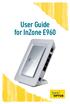 User Guide for InZone E960 Thank you for choosing Optus Wireless This guide is here to help you set-up your Optus Wireless service. Contents 1 About the InZone E960 device 3 2 6 Step set-up guide 4 3 Setting
Comtrend 4 Port Router Installation Guide CT-5361T
 Comtrend 4 Port Router Installation Guide CT-5361T 1 Installing Access Point s DSL Service with a Comtrend Router Thank you for selecting Access Point, Inc. to be your Internet service provider. This guide
Comtrend 1 Port Router Installation Guide CT-5072T
 Comtrend 1 Port Router Installation Guide CT-5072T 1 Installing Access Point s DSL Service with a Comtrend Router Thank you for selecting Access Point, Inc. to be your Internet service provider. This guide
ON HOLD ANNOUNCER. Once you receive your audio announcer, check the packaging to ensure that all of the following items are enclosed:
 ON HOLD ANNOUNCER The is a high quality digital on-hold announcer. It is designed to be attached to a 100BASE-T Ethernet network to receive audio production updates via the Internet. These instructions
Digital Phone @ Home Tutorial
 Digital Phone @ Home Tutorial 2 Table of Contents Quick Start Guide... 4 Making Phone Calls... 5 Voicemail Setup... 6 Setup instructions:... 6 To Check Messages:... 6 Quick Key Reference:... 6 Customer
Welcome to life on. Get started with this easy Self-Installation Guide.
 Welcome to life on Get started with this easy Self-Installation Guide. Welcome to a network that s light years ahead. Welcome to life on FiOS. Congratulations on choosing Verizon FiOS! You re just a few
NHA Help Desk Online. Version: 5.00.3103.100. Introduction
 NHA Help Desk Online Introduction The NHA Technology department is devoted to the pursuit of continuous improvement. In this pursuit, we have developed a system that provides you with an alternate way
Prestige 2602HW-C Series. Prestige 2602HWL-C Series
 Prestige 2602HW-C Series 802.11g Wireless ADSL VoIP IAD Prestige 2602HWL-C Series 802.11g Wireless ADSL VoIP IAD with Lifeline Quick Start Guide Version 3.40 3/2005 Prestige 2602HW Series Quick Start Guide
Technical and Troubleshooting. Guide AIRAVE 2.5
 Technical and Troubleshooting Guide AIRAVE 2.5 Welcome! Sprint is committed to developing technologies addressing in-home coverage and ensuring you have a great wireless experience. This booklet provides
IMPORTANT NOTICE CONCERNING EMERGENCY 911 SERVICES
 IMPORTANT NOTICE CONCERNING EMERGENCY 911 SERVICES Your service provider, not the manufacturer of the equipment, is responsible for the provision of phone services through this equipment. Any services
Support Package Contents AC1600 WiFi VDSL/ADSL Ethernet cable Trademarks Modem Router Compliance Phone cable Modem router
 Support Thank you for purchasing this NETGEAR product. After installing your device, locate the serial number on the label of your product and use it to register your product at https://my.netgear.com.
TPG Technical Support. Troubleshooting Help Slow Browsing
 Troubleshooting Help Slow Browsing Connection speeds vary depending on some factors; your distance from your local telephone exchange, the quality of your copper phone line, electromagnetic interference
Connecting the DG-102S VoIP Gateway to your network
 Contents of Package: DG-102S VoIP Station Gateway Power adapter CD-ROM, including User s Manual Quick Install Guide Requirements: RS-232 Console Cable Two RJ-45 CAT-5 Straight-Through Cables For more information
TP-LINK TD-W8901G. Wireless Modem Router. Advanced Troubleshooting Guide
 TP-LINK TD-W8901G Wireless Modem Router Advanced Troubleshooting Guide Released on 2009.09.25 Version 1.0 Content Summary... 3 Troubleshooting Flow Chart and Resolutions... 3 Check 1... 3 Check 2... 4
Student Halls Network. Connection Guide
 Student Halls Network Connection Guide Contents: Page 3 Page 4 Page 6 Page 10 Page 17 Page 18 Page 19 Page 20 Introduction Network Connection Policy Connecting to the Student Halls Network Connecting to
Get connected with your TELSTRA. Quick start guide Fold out to get started
 Get connected with your TELSTRA Quick start guide Fold out to get started Wireless Network Name (SSID): Telstra123A45 Wireless Security Key (WPA): WHAT S IN THE BOX To set up the T-Gateway, make sure you