
CubeX. 3D printer User guide. See inside for use and safety information.
|
|
|
- Kory Sherman
- 10 years ago
- Views:
Transcription
1 CubeX TM 3D printer User guide See inside for use and safety information.

2 INTRODUCTION Copyright... 3 FCC notice Warranty... 3 Limitation of liability... 3 IMPORTANT SAFETY INFORMATION Safety symbols and definitions Safety guidelines... 4 CUBEX 3D PRINTER FEATURES AND BENEFITS CubeX 3D printer properties Print materials Material color choices At a glance Requirements for your CubeX... 7 UNPACKING AND SETTING UP THE CUBEX What s included... 7 Unpacking your CubeX Activate your CubeX and link to your Cubify account Removing the remaining packing materials CubeX main menu overview Installing the Print Pad Checking the XYZ axis Checking the Z-gap between the Print Jet tip and the Print Pad Installing Material Cartridge Replacing a Material Cartridge Create a test print INSTALL YOUR CUBIFY INVENT SOFTWARE DOWNLOADING AND INSTALLING CUBEX SOFTWARE CubeX software overview CubeX software user interface Home Tab View Tab Settings Tab CREATION FILE PREPARATION & PRINTING YOUR CREATIONS How to open files in the CubeX software Opening a single part file Opening multiple single part files Positioning multiple parts Opening a multi-part assembly file Using the shell selector tool Rotating a part Scaling a part Using the CubeX software to build a.cubex file Saving a.cubex file for printing Printing your creation FINISHING YOUR CREATION Removing your creation from the Print Pad Removing rafts Removing supports with wire cutters

3 Removing supports with the Ultrasonic Support Removal Tank Hot water method Caustic soda method CUBEX MAINTENANCE Restoring roughness to the Print Pad Leveling the Jet Wiper height Leveling the Aluminum Print Plate Fine-tuning your Print Pad Unblocking the CubeX Print Jet tip Unblocking the CubeX Print Jet Setting the Print Jet gap Updating CubeX firmware Restoring the settings your CubeX 3D printer firmware from v How to contact Cubify support Setting up the CubeX Print Jet offsets

4 INTRODUCTION Thank you for purchasing the CubeX 3D Printer. This printer enables everybody in the family to express their creativity like never before. With eighteen different material colors to choose from, enjoy the freedom to print in color or mix it up. CubeX 3D Printer s ready-to-print technology, provides a new dimension to your imagination and helps you share your creations with others in the Cubify community at Cubify.com. At Cubify.com you can: Upload your creations for sale Purchase creations from others Get your creations 3D printed and shipped to you Buy the CubeX 3D Printer and CubeX Cartridges Engage with other creative partners COPYRIGHT 2013 by 3D Systems, Inc. All rights reserved. This document is subject to change without notice. This document is copyrighted and contains proprietary information that is the property of 3D Systems, Inc. Cubify, CubeX, and the 3D Systems logo are registered trademarks of 3D Systems, Inc. Use of the Cubify.com website constitutes acceptance of its Terms of Service and Privacy Policy. FCC NOTICE This equipment has been tested and found to comply with the limits for a class B digital device, pursuant to Part 15 of the FCC Rules. These limits are designed to provide reasonable protection against harmful interference. This equipment generates, uses, and can radiate radio frequency energy and, if not installed and used in accordance with the instruction manual, may cause harmful interference to radio communications. Operation of this equipment in a residential area is likely to cause harmful interference in which case the user will be required to correct the interference at their expense. WARRANTY 3D Systems warrants that the CubeX 3D Printer will be free from defects in materials and workmanship, during the applicable warranty period, when used under the normal conditions described in the documentation provided to you, including this User Guide. 3D Systems will promptly repair or replace the CubeX 3D Printer, if required, to make it free of defects during the warranty period. This warranty excludes (i) normal consumable or expendable parts (such as Material Cartridges), (ii) repairs required during the warranty period because of abnormal use or conditions (such as riots, floods, misuse, neglect or improper service by anyone except 3D Systems or its authorized service provider), and (iii) repairs required during the warranty period because of the use of non-integrated, non-approved or non-licensed materials with the CubeX 3D Printer. The warranty period for the CubeX 3D printer is the shorter of (i) 90 days from the date your CubeX 3D printer is activated or (ii) 24 months after the CubeX 3D Printer is shipped from 3D Systems to the end customer or intermediary. For consumers who are covered by consumer protection laws or regulations in their country of purchase or, if different, their country of residence, the benefits conferred by our ninety (90) day warranty are in addition to, and operate concurrently with, all rights and remedies conveyed by such consumer protection laws and regulations, including but not limited to these additional rights. THIS WARRANTY IS THE ONLY WARRANTY PROVIDED FOR THE CUBEX 3D PRINTER. TO THE MAXIMUM EXTENT PERMITTED BY LAW, 3D SYSTEMS EXPRESSLY DISCLAIMS ALL OTHER WARRANTIES FOR THE CUBEX 3D PRINTER AND EACH OF ITS COMPONENTS, WHETHER THOSE WARRANTIES ARE EXPRESS, IMPLIED OR STATUTORY, INCLUDING WARRANTIES OF MERCHANTABILITY AND FITNESS FOR INTENDED OR PARTICULAR PURPOSES. LIMITATION OF LIABILITY 3D SYSTEMS WILL NOT BE RESPONSIBLE FOR INDIRECT, SPECIAL, CONSEQUENTIAL, EXEMPLARY OR INCIDENTAL DAMAGES (SUCH AS LOSS OF PROFIT OR EMPLOYEE S TIME) REGARDLESS OF THE REASON. IN NO EVENT SHALL THE LIABILITY AND/OR OBLIGATIONS OF 3D SYSTEMS ARISING OUT OF THE PURCHASE, LEASE, LICENSE AND/OR USE OF THE EQUIPMENT BY YOU OR OTHERS EXCEED THE PURCHASE PRICE OF THE CUBEX 3D PRINTER. 3

5 IMPORTANT SAFETY INFORMATION SAFETY SYMBOLS AND DEFINITIONS Hot Surface Hazard: A hot surface is accessible in the vicinity of this sign or at the Print Jet; avoid contact. Hot surfaces can cause severe burns.! Caution: Indicates something may happen that could cause loss of data, damage to equipment, or could cause personal injury. Caution: Indicates a pinch point hazard that could cause person injury. SAFETY GUIDELINES Follow all safety rules in this section and observe all cautions and warnings in this guide. Do not modify any safety features or make modifications to the CubeX. Doing so is prohibited and voids the warranty. Use of print materials other than genuine 3D Systems components may void the warranty. Adult supervision is required; observe children closely and intervene as necessary to prevent potential safety problems and ensure the CubeX s appropriate use. Ensure small 3D prints are not accessible to young children. 3D prints are potential choking hazards for young children. When the CubeX is operating, the tip of the material dispenser (Print Jet) becomes hot; avoid touching this area until it has cooled down. 4

6 CUBEX 3D PRINTER FEATURES AND BENEFITS The CubeX 3D Printer creates the model by pulling filament from the cartridge through the print jets via the delivery tubes. The filament is then jetted through the print jet tip in a thin string of molten plastic. The print jet movement is coordinated by the print plate, which lowers incrementally after each layer is deposited so a new layer can be drawn on top of the last, building the part up. CUBEX 3D PRINTER PROPERTIES Plastic Jet Printing technology Houses up to three print jets for multi-color and multi-material prints Choice between ABS and PLA plastic, both recyclable Prints objects up to 275 x 265 x 240 mm (10.75 x10.5 x9.5 ) EZ load print cartridge Fully automated supports: peel off supports for ABS and PLA; PLA supports can also be removed using the Ultrasonic Support Removal Tank available at Cubify.com/cubex/store_parts.aspx PRINT MATERIALS The CubeX can use two different types of print materials: PLA and ABS. Each material has unique benefits and you can guide your selection based on the properties your part requires. PLA ABS This is a hard plastic that has a low environmental impact. It is derived from renewable, starch-based resources. We recommend using PLA when printing extra-large parts on CubeX as it is a more stable print material. PLA is the optimal support material for industrial ABS parts. PLA has the ability to dissolve away in caustic soda solutions supported by an ultra-sonic tank. (see page 36 for more information) This is a well-known plastic known for its strength and industrial properties. As a build material, ABS is good for both small and large parts. ABS works as an excellent support material for extra-large PLA parts. MATERIAL COLOR CHOICES Glow-in-thedark Neon Green Glow-in-thedark Neon Blue White Black Silver Industrial Grey Natural* Magenta Red Neon Orange Tan Yellow Neon Green Green Blue Teal Purple Brown * Natural is only available in PLA plastic, not ABS. 5

7 AT A GLANCE Get acquainted with your CubeX 3D Printer before you begin printing. This section identifies the important areas that will be discussed throughout this guide. CubeX Duo is depicted for illustration purposes only. Locations of important areas are the same for the Cube X and Cube X Trio. A B H I J C Underneath top cover D E H I J F K L M Front Top area, inside printer G N O P Bottom Bottom area, inside printer A Touchscreen I Print Jet 2 B Function button J Print Jet 3 C Jet Wiper K Print Jet Tip 1 D Z-axis L Print Jet Tip 2 E Print Pad & Print Plate M Print Jet Tip 3 F Memory stick USB port and PC connection USB port N Material Cartridge Bay 1 (for Print Jet 1) G Power supply O Material Cartridge Bay 2 (for Print Jet 2) H Print Jet 1 P Material Cartridge Bay 3 (for Print Jet 3) 6

8 REQUIREMENTS FOR YOUR CUBEX Weight and dimensions: 515mm (w) x 515mm (l) x 598mm (h) (20 ¼ x 20 ¼ x 23 ½ inches) 36kg (79 lbs) 37kg (81.5 lbs) Duo 38kg (84 lbs) Trio Minimum hardware requirements (a PC with these minimum requirements will be required to run the software): Processor: Multi-core processor - 2GHz or faster per core System RAM: 2 GB Screen Resolution: 1024x768 PC requirements: Microsoft Windows 7 Microsoft Windows XP (SP3 or higher) Microsoft Windows 8 Software: CubeX Client Software, available at Cubify.com Electrical requirements: v AC Material storage (although all polymers degrade with time, the following conditions help ensure that the material remains of high quality): Unpack material only as needed Store material at C Use within 12 months of receipt UNPACKING AND SETTING UP THE CUBEX WHAT S INCLUDED CubeX printer Material cartridge CubeStick (x2) Print Pad Jet Wiper Power cord Toolkit USB Stick Snips Needle nose pliers Wrench Print Pad cleaner (scraper) Hex screwdrivers (x3) Sandpaper Allen Wrench Drillbit 7

9 UNPACKING YOUR CUBEX 1. Open the box and remove the top acrylic lid located between two layers of foam. Set aside the two foam inserts for future packing. (Fig. 1) Fig With two people, remove CubeX from the box, lift from the metal frame on both sides of the printer. Place CubeX on a table. (Fig. 2) Fig Remove the material cartridges and tool kit from the bottom of box. (Fig. 3) Fig Using the snips located in the tool kit, cut blue straps away from cardboard. Cut away all blue zip ties securing the printer carriage. (Fig. 4) Fig Using the snips, cut away all yellow zip ties securing the foam parts in place. Remove foam packing material. (Fig. 5) Fig Remove all foam fittings. (Fig. 6) Fig. 6 8

10 7. Lift the cardboard piece from the foam package and remove the foam package. This package includes your power cord, Cube Stick glue and the jet wiper. (Fig. 7) Fig Remove print pad from CubeX. (Fig. 8) Fig Using the 4 x 100 hex screwdriver (located in tool kit), remove plexiglass Z-Axis guard by unbolting the 4 screws holding it in place and remove plexiglass and bolts. (Fig. 9) Fig To power on, plug the power cord into the power supply located underneath the printer base. Lift the right side of the printer to gain access to the power supply. (Fig. 10) Fig The LED on the control panel should light up indicating the printer has power. Remove the Warning label from the touchscreen. (Fig. 11) Fig Press the Control button, the CubeX Activation Screen will appear. You will need to register and activate your CubeX to unlock the printer. (Fig. 12) Fig. 12 9


11 ACTIVATE YOUR CUBEX AND LINK TO YOUR CUBIFY ACCOUNT Creating an account on Cubify.com is easy and gives you access to all of the great designs and collections that will drive and inspire your creativity. To create an account, type in Cubify.com in your web browser and click on Sign Up to open the registration form. If you already have an account, click on Log In and provide your User ID and Password. (Fig. 13) Fig. 13 In My Cubify drop down menu, Click on Activate my CubeX. (Fig. 14) Fig. 14 Enter the SERIAL NUMBER; the serial number is located on the interior back wall and on the back of the CubeX frame. (Fig. 15) Enter the CubeX ID; this ID can be found on the upper right corner of the CubeX touchscreen and click ACTIVATE. (Fig. 15) Fig. 15 Congratulation, Your CubeX is now activated in Cubify.com. To unlock your CubeX, the four digit Activation Code that appears on the screen will be needed. (Fig. 16) Also, an will be sent to you with your Activation Code. Click on Marketplace drop down menu and click on Free Files. Download the free creation files to your USB stick or save them on your computer. Enter the Activation ID into your CubeX using the numbers on your touchscreen and select the check box (Fig. 17); your CubeX is now unlocked. Make a note of your activation code as this may be required in the future. Click on the check box again to return to the touchscreen menu. Fig. 16 Fig

12 REMOVING THE REMAINING PACKAGING MATERIALS 1. Using left / right arrows on the touch screen, navigate to the MOVE menu. (Fig. 18) Fig Using the up arrow on the right side of screen, move the print plate up far enough to remove the foam. (Fig. 19) Fig Remove the last foam piece underneath the build plate. (Fig. 20) Fig Move the Print Pad all the way down to install the Jet Wiper. (Fig. 21) Fig To install the Print Wiper, insert the wiper s two key holes onto the two rods located at the back, right side of printer. The wiper s white plastic piece and spring should be facing the front. (Fig. 22) Fig

13 CUBEX MAIN MENU OVERVIEW TOUCHSCREEN Tap on the touchscreen to navigate to the main menus using the arrows on the bottom corners of the touchscreen. To return to the touch screen, pressing the control button. PRINT PRINT View the.cubex files that are saved on your memory stick and select a.cubex file to print. INFO INFO Provides Material Cartridge status and printing status during the printing process. PJ-MAP PJ-MAP Allows you to re-map your print jets. PJ-CON PJ-CON Allows you to manually jet your print jets, giving you control of temperature and RPM. MOVE MOVE Manually moves your print jet carriage in the X, Y and Z directions. HOME HOME Sends the print jet carriage to its home position located in the back left corner of the printer. LEVEL LEVEL Level your print pad in relation to the print tips. Z GAP Z-GAP Set the distance between the print pad and print tips during the first layer of printing. Z OFFSET OFFSET Set the relative distance between each print tip.! Do not use the offset menu unless you have been advised to do so by Cubify support, changing this may affect the quality of multi-material prints. UPDATE UPDATE Used to update CubeX firmware. 12


14 INSTALLING THE PRINT PAD 1. Scroll to the MOVE function screen located on the CubeX control panel. (Fig. 23) MOVE Fig Using the Up and Down arrows on the right side of the screen, move the Aluminum Print Plate to its lowest position.(fig. 24) Fig To install the Print Pad, align the aluminum foot with front slot on the Print Plate base. (Fig. 25) 4. Place the Print Pad into position, when properly installed the magnet will lock it in place. Ensure that print pad is fully seated. (Fig. 25) Fig. 25 CHECKING THE X,Y,Z AXIS During shipping your CubeX, the X, Y and Z axes may have come out of alignment. Before starting your first creation, please verify that the X, Y and Z axes are aligned. X, Y, Z Axis Movements: X Axis: Print Jet moves front to back and back to front. Y Axis: Print Jet moves left to right and right to left.! CAUTION: Always move the print plate (Z Axis) down first to avoid collision with the print jet tips. When moving the print jet (X and Y axis), make sure you do not stray too far from the home switches (left rear of the printer) as this can cause collision with the printer frame. Excessive collisions will damage the printer. 1. Scroll to the LEVEL menu and select. (Fig. 26) Tap on the clockwise and counterclockwise position and observe the print jet s print jet tip moves around the print pad from the side of pad. (Fig. 27) 2. After checking that all axes are functioning properly, use the control button to go back to the main menu. If adjustments are required to the print plate or the print jet tips, refer to CubeX Maintenance: Leveling Print Plate. LEVEL Z GAP Z Fig. 26 OFFSET LEVEL BED Fig

15 CHECKING THE Z-GAP BETWEEN THE PRINT JET TIP AND THE PRINT PAD! CAUTION: Do not overdrive the print jet tip into the print pad. Doing so can cause damage to the print jet. NOTE: If more than one print jet is equipped on your CubeX, use the first print jet to set the gap. 1. Scroll to Z GAP using the arrows on the touchscreen. Select Z GAP and using the Up / Down arrows, move the print pad up so that it is just touching the tip of the print jet. (Fig. 28 & 29) Z GAP Z SET Z HEIGHT Offset: Fig. 28 Fig Using the Down arrow, lower the printpad down by 0.1 from the print jet tip. Click on the Control button, the next screen will allow you to save the setting. Click on the check mark to save or the X to cancel the setting. (Fig. 30) Fig. 30 INSTALLING MATERIAL CARTRIDGE NOTE: The REPLACE functions will take you through the process of installing the material cartridge. 1. Press REPLACE on the touchscreen and select the bay that the cartridge will be installed. Print Jet 1 represents bay 1, Print Jet 2 represents bay 2 and Print Jet 3 represents bay 3. Press Next on the touchscreen, a message Heating Print Jet Please Wait will appear on the control panel. (Fig. 31) Fig If the top cover is on, remove cover from the CubeX by lifting up. (Fig. 32) Fig Remove the thumbscrew from the new cartridge and retain thumbscrew to use when storing the used cartridge that has material inside. This will prevent the material from unraveling when stored. (Fig. 33) Fig Pull 300mm (11 ) of material from the new cartridge. 5. Cut 50mm (1.5 ) from the end of the filament. (Fig. 34) Fig

16 6. Thread the filament under the cartridge clamp bar and into the feed tube. (Fig. 35) Fig Install the new cartridge from the side of CubeX and into the cartridge bay. (Fig. 36) Fig Push filament between the front of cartridge and the eyelet, through the feed tube and up to the printjet. (Fig. 37) Fig When the material jets from the print jet tip, the next screen will ask if you want to replace another cartridge. If replacing another or adding cartridge, select the print jet s material cartridge to be replaced / added and repeat LOADING MATERIAL CARTRIDGE instructions. (Fig. 38) NOTE: Test creations have been printed on your CubeX before leaving our factory. A different material and / or color may have been used for the test creation and may have a small amount of this test material in the print jet. Therefore, when the material jets for the first time, the color may be different until the test material is completely jetted from the print jet and your choice of material will become visible during this process. Fig Once cartridge is installed, press Next on the touchscreen. A message Would you like to load a new Print Jet will appear on the touchscreen. If you are adding another cartridge, select the check box and repeat Steps 1-9. Otherwise select X to return to the main menu. REPLACING A MATERIAL CARTRIDGE NOTE: The REPLACE functions will take you through the process of installing the material cartridge. 1. Press REPLACE on the touchscreen and select the bay that the cartridge be installed. Print Jet 1 represents bay 1, Print Jet 2 represents bay 2 and Print Jet 3 represents bay 3. Press Next on the touchscreen, a message Heating Print Jet Please Wait will appear on the control panel. (Fig. 39) 2. After the print jet is heated, the next message will appear asking to Gently Pull Filament From Feed Tube. Gently pull the filament in between the cartridge front holder and eyelet as shown. Press Next on the touchscreen. (Fig. 40) 1 2 Fig. 39 Fig

17 3. A message Install Thumbscrew into Cartridge will appear. If a cartridge is being replaced, ensure that the thumbscrew is installed into cartridge if it is to be stored. (Fig. 41) Fig Press Next on the touchscreen. A message Would you like to load a new Print Jet will appear on the touchscreen. Select the check box and refer to INSTALLING MATERIAL CARTRIDGE to install the new cartridge. CREATE A TEST PRINT! PLEASE ENSURE YOU HAVE FOLLOWED ALL CUBEX SETUP INSTRUCTIONS BEFORE STARTING A PRINT. FAILURE TO DO SO MAY DAMAGE THE CUBEX. Print a test print using one of the creation files that you downloaded from Cubify.com to ensure that your printer is functioning properly. 1. Insert the USB stick containing your.cubex file (creation files) into the USB port on the CubeX. (Fig. 42) Fig Use the Magic CubeX Glue to coat the Print Pad with a layer of glue. Turn the CubeX Glue upside down so the glue flows to the tip. (Fig. 43) 3. Remove print pad from print plate and apply three layers of Magic CubeX Glue using a slow circular motion. If the print is large, ensure that the glue covers the Print Pad surface where the creation will print. If it is a smaller print, cover the middle of Print Pad with the glue. Install print pad on to print plate. (Fig. 44) Fig. 43 Fig Select the Print option from the main menu. (Fig. 45) 5. Using the arrows at the bottom of the screen, scroll to the.cubex file you wish to print and tap on the file name. Your creation will begin to print. (Fig. 46) Fig. 45 Fig. 46 NOTE: After your creation is printed, please refer to Finishing Your Creation in the guide, for instructions on how to remove your print from the print pad. 16

18 INSTALL YOUR CUBIFY INVENT SOFTWARE Your Cubify Invent license code is on the Your Cubify Invent card located in the Cubify toolkit. Your USB stick can also be found in the toolkit. 1. Plug the USB provided with your CubeX into your computer and click on Cubify_ Invent.exe to download the software to your computer. (Fig. 47) Fig Follow the instructions. (Fig. 48) Fig Once set up is completed, open Cubify Invent and click on Enter License Key; the license key can be found on the Installation Card (located in the toolkit). (Fig. 49) 4. Enter the license key in the key field and select Finish. (Fig. 50) Fig. 49 Fig Congratulations! You now have access to Cubify Invent. DOWNLOADING AND INSTALLING CUBEX SOFTWARE Go to Cubify.com/cubex/index.aspx and click on DOWNLOAD SOFTWARE FOR WINDOWS to your USB stick or save on your computer. (Fig. 51) 1. Go to the directory where the CubeX software was downloaded and unzip the CubeX software folder. Fig

19 2. Run the CubeX Setup file. (Fig. 52) Fig Follow the installer wizard. (Fig. 53) Fig Select a destination for the installation. (Fig. 54) Fig Click next to begin the installation. A message if you want to let the CubeX software make changes to your computer will appear, select yes. (Fig. 55 & 56) Fig. 55 Fig The installation is now complete, you can open the CubeX software from the icon located on your desktop. (Fig. 57) Fig. 57 CUBEX SOFTWARE OVERVIEW The CubeX software is used to create the.cubex files that your CubeX will use to create your parts. The software allows you to orient, scale, re-size and rotate the part before printing. (Fig. 58) Fig. 58 When you first open the CubeX software you will be greeted with a message asking you to configure your printer in the CubeX software. (Fig. 59) Fig

20 Once the printer configuration window opens, select the number of Print Jets that is installed and the material types that are loaded into the Print Jets. Click OK to save these settings. (Fig. 60) Fig. 60 CUBEX SOFTWARE USER INTERFACE HOME TAB STL FILE Open Opens a.stl file Open Model Assembly Close Save As Auto Place Single Shell Open a multi-part assembly of.stl files Close the open.stl file Save the current open.stl file Automatically places.stl files which are already open When checked will automatically select all parts as one shell PRINT FILE Open Opens a.cubex file Close Save Print File Close the open.cubex file Save the current open.cubex file SCALE GEOMETRY % Scale Scale your part before creating the.cubex file To mm To inches Revert Change a part from inches to mm Change a part from mm to inches Undo changes made using the Scale Geometry options ROTATE GEOMETRY X / Y / Z Rotate the part in the X, Y, or Z axis Revert Undo changes made using the Rotate Geometry options PICK SHELLS BUILD Select which Print Jets print which parts. The available options will vary depending on how many Print Jets you have active and what colors are loaded into them. Opens the build settings window. 19

21 VIEW TAB ZOOM Zoom In Press to zoom in Zoom Out Press to zoom out VIEW Top View Press to view the part from above Front View Left View Right View Press to view the part from the front Press to view the part from the left Press to view the part from the right PRINT PATHS Show Print Jet 1 Toggle to show the print paths for print jet 1 in a.cubex file Show Print Jet 2 Show Print Jet 3 Show All Layers Toggle to show the print paths for print jet 2 in a.cubex file Toggle to show the print paths for print jet 3 in a.cubex file Toggle to show all layers or to show one layer at a time. Scroll through the layers using the scroll bar found down the right hand side of the window SETTINGS TAB PRINTER CONFIGURATION BUILD SETTINGS FIRMWARE UPDATE Opens the printer configuration window. Opens the build settings window. Used to update the CubeX 3D Printer firmware. CREATION FILE PREPARATION & PRINTING YOUR CREATIONS! WARNING: PRINT JET TIPS BECOME EXTREMELY HOT DURING SET-UP AND OPERATION. DO NOT TOUCH PRINT JET TIP. DO NOT CHANGE CARTRIDGE COLOR OR MATERIAL TYPE DURING PRINTING; DOING SO MAY DAMAGE THE CUBEX. HOW TO OPEN FILES IN THE CUBEX SOFTWARE The CubeX software has three different possible ways to open.stl files. A single part file, multiple single part files on one Print Pad and a multi-part file assembly. A single part file consists of one.stl file with one shell on a Print Pad. 20
22 A multiple single part file consist of multiple.stl files opened onto one Print Pad, these can be selected as one, two or three shells. A multi-part assembly file consist of multiple.stl files designed to create one assembly part. These can be treated as one, two or three shells. OPENING A SINGLE PART FILE 1. Click on Open Model. (Fig. 61) Fig Select your.stl file or.creation file and click open. (Fig. 62) Fig The file will appear in the middle of the bed in the software. (Fig. 63) Fig When printing in a single material be sure to keep Single Shell selected. (Fig. 64) Fig. 64 OPENING MULTIPLE SINGLE PART FILES 1. With your first.stl file open, return to the open option. (Fig. 65) Fig Open your next.stl file. (Fig. 66) Fig
23 3. The second part will open in the center of the bed and appear to be merged with the first part. (Fig. 67) Fig. 67 POSITIONING MULTIPLE PARTS Manual positioning: Right click and hold on one of the parts, you can now drag it around the bed (when using this method the bed will automatically switch to top view). (Fig. 68 & 69) Fig. 68 Fig. 69 Autoplace: Clicking the auto place button will automatically position your parts on the bed for you. (Fig. 70 & 71) Fig. 70 Fig. 71 OPENING A MULTI-PART ASSEMBLY FILE 1. Select the Open Model Assembly. (Fig. 72) Fig Open the first part of your.stl assembly file, a screen will appear asking if you wish to add an additional assembly model. Selecting OK will bring back the open file window. (Fig. 73) Fig Continue following this process until all of your.stl files are open. (Fig. 74) Fig
24 4. When all the.stl files are open, click the done button to finish the assembly file. This file can now be treated as one.stl file with multiple shells. (Fig. 75) Fig. 75 USING THE SHELL SELECTOR TOOL The Shell Selector tool is used to select which Print Jets print which parts of a multi-material part/multiple parts on a Print Pad. The color options available will correspond to the material colors you have set in printer configuration. (Fig. 76) Fig Select the shell color you wish to use. (Fig. 77) Fig Hover over the shell you wish to select. (Fig. 78) Fig Left click to color the shell. (Fig. 79) Fig Continue this process until all the shells are colored as desired. (Fig. 80) Fig When you have finished using the Shell Selector tool press the done button. Some features of the software may not be available with the shell selector tool active. (Fig. 81) Fig
25 ROTATING A PART Use the rotate buttons to rotate the part in the desired axis. The amount the part will be turned is defaulted to 90. This can be changed to suit your needs. (Fig. 82) Fig. 82 SCALING A PART You can scale a part by pressing the scale button. The amount your part will be scaled by is defaulted to 50%. This can be changed to suit your needs. You can also use the to mm and + to inch to scale by unit conversion. (Fig. 83) Fig. 83 USING THE CUBEX SOFTWARE TO BUILD A.CUBEX FILE (Fig. 84) Fig. 84 BUILD STYLE PROFILE LAYER THICKNESS PART DENSITY RAFT MATERIAL SUPPORT MATERIAL SUPPORT TYPE FINE DETAIL PRESERVATION Use this to select previously saved print settings. To save print settings you are using for future quick selection, press the save as button and give the profile a name. This is the resolution your part will be printed at. 0.1mm: The CubeX 3D Printers finest resolution. This layer height takes the longest to print but gives the best quality parts. 0.25mm: A middle ground between 0.1mm and 0.5mm: This layer height is faster than 0.1mm but is slightly lower quality. 0.5mm: The CubeX 3D Printers fastest resolution. This layer height has a lower quality than 0.1mm and 0.25mm but has a much faster print time. This is how much solid fill your part will contain. Hollow: The part will have no internal structure. Thin: The part will have a small amount of internal structure to give it support. Medium: The part will have a good internal structure supporting it. Heavy: A heavy part with a strong internal structure. Use this to select which material will print your raft or the raftless option. We recommend printing raftless but some larger parts may require a raft. Use this to select your support material or the no support option. Support material may be required when printing parts with overhangs greater than 50. Before printing with supports try rotating your model in the software to see if this can eliminate the overhangs. If this is not possible then supports may be required. Choose between points and lines for your support material. Does not affect the print if no support is selected. Enabling this will preserve finer details of your part, but may affect accuracy. 24
26 PART MATERIAL BUILD Similar to Printer Configuration, this tells the software which materials are loaded into which print jets. Part materials works in a similar way to Printer Configuration, telling the software which materials are loaded into which print jets. Please be sure that the materials selected in part materials correspond to the print jets the materials are allocated too. Once you have selected all of your preferences, press the build button to create the.cubex file. SAVING A.CUBEX FILE FOR PRINTING 1. Click the Save Print File button. (Fig. 85) Fig Your file can be saved on the USB stick or your computer. Choose the location you wish to save the.cubex file, give it a suitable name and click Save. Transfer the.cubex file to your USB stick for printing or save it on your USB stick. (Fig. 86) Fig. 86 PRINTING YOUR CREATION 1. When you are ready to print your creation, insert the USB stick containing your.cubex file into the USB port on the CubeX. (Fig. 87) Fig Use the Magic CubeX Glue to coat the Print Pad with a layer of glue. Turn the CubeX Glue upside down so the glue flows to the tip. (Fig. 88) 3. Apply 3 layers of Magic CubeX Glue using a slow circular motion. If the print is large, ensure that the glue covers the Print Pad surface where the creation will print. If it is a smaller print, cover the middle of Print Pad with the glue. (Fig. 89) Fig. 88 Fig Select the Print option from the main menu. (Fig. 90) 5. Using the arrows at the bottom of the screen, scroll to the.cubex file you wish to print and tap on the file name. Your creation will start printing. (Fig. 91) Fig. 90 Fig
27 FINISHING YOUR CREATION REMOVING YOUR CREATION FROM THE PRINT PAD! Before you attempt to remove your creation from the Print Pad, please ensure that the CubeX has finished printing and that the Print Pad has moved to the bottom of the CubeX. 1. Lift the Print Pad from the side and pull up to remove the Print Pad from the CubeX. 2. Submerge Print Pad and the base of the part in warm water for five minutes. (Fig. 92) If you do not have the ability to submerge the Print Pad place Print Pad in sink and let hot water run over the base of the part for about 5 minutes. Fig Using the scraper (included in tool kit), gently release your creation from the glass. (Fig. 93) Fig Rinse your creation under hot water to ensure all of the Magic CubeX Glue paste has been removed. 5. To clean the Print Pad, rinse the pad under hot water to clean off any remaining Magic CubeX Glue paste. 6. Dry the Print Pad thoroughly before reinstalling it into CubeX. REMOVING RAFTS A raft is the flat support structure that is attached to your creation. Though we recommend printing without a raft, some larger or more complicated parts may require one. If you print with a raft, the following instructions will help you remove it: ABS RAFT / PLA PART - PLA RAFT / ABS PART ABS RAFT / ABS PART - PLA RAFT / PLA PART ABS rafts can be peeled away from PLA parts. Use pliers to pull away as much of the raft as possible. Then use a rough-grade sandpaper to remove the remaining raft, followed by a fine-grade wet and dry sandpaper to achieve a smoother finish. REMOVING SUPPORTS WITH WIRE CUTTERS Use wire cutters to cut away the support structure from your model. You should cut the supports at the point where they touch the model. 26
28 REMOVING SUPPORTS WITH THE ULTRASONIC SUPPORT REMOVAL TANK (sold separately)! Caustic soda can burn if handled improperly. Never handle caustic soda without using all of the supplied Personal Protective Equipment (PPE): gloves, goggles and tongs. If caustic soda touches the skin, wash it away immediately. If caustic soda touches the eyes, immediately use an eyewash treatment. Never operate the unit without water in the cleaning tank. Damage may occur. Never use boiling water. Damage may occur. The Ultrasonic Support Removal Tank automatically removes PLA support material from ABS models. The tank uses one of two methods to remove or weaken the material: Use caustic soda solution in the Ultrasonic Support Removal tank for 3 hours to dissolve the PLA material. Weakening the PLA material for manual removal by lightly scraping or by hot water soak for 48 hours METHOD ADVANTAGES DISADVANTAGES Hot water Avoid use of corrosive chemicals Support material requires slight physical force to crumble away. Support material in hidden cavities may remain if user is unable to reach them. Process is relatively extended. Caustic soda Quick removal. Support material in hidden cavities will be dissolved without physical force, provided the solution can reach the cavity Requires health and safety procedures. HOT WATER METHOD! This process uses hot water (approximately 80 C). Wear all Personal Protective Equipment (PPE). Do not operate without water in the cleaning tank. Damage may occur. Never use boiling water. Damage may occur. 1. Position the unit on a flat and stable work surface. Do not knock or move the tank during operation. This risks splashing water onto electrical components. 2. Pour 0.75 liters of water into the tank. 3. Place the models to be cleaned in the tank. 4. Close the lid, connect the power supply and press the power button to turn on the tank. 5. Use the -5 and +5 buttons to set the temperature. For best results, set the temperature to 80 C. 6. Set an alarm for 48 hours. Do not use the timer on the tank when using the hot water method. This is intended for the ultrasonic operation used with the caustic soda method and will only run for 180 minutes. 7. After 48 hours, remove your model from the tank using the provided plastic tongs and immediately run under cold water for 1-2 minutes. 8. Make sure you turned off the Ultrasonic Support Removal Tank. 9. After the model has been washed, the PLA support material should crumble away easily. You can use a blunt knife to scrape the support away from the model. Additional rinsing may help flush remaining support material fragments from the model. 27
29 CAUSTIC SODA METHOD! Caustic soda can burn if handled improperly. Never handle caustic soda without using all of the supplied Personal Protective Equipment (PPE): gloves, goggles and tongs. If caustic soda touches the skin, wash it away immediately. If caustic soda touches the eyes, immediately use an eyewash treatment. Never operate the unit without water in the cleaning tank. Damage may occur. Never use boiling water. Damage may occur. 1. Position the unit on a flat and stable work surface. Do not knock or move the tank during operation. This risks splashing water onto electrical components. 2. Fill the tank with 0.75 liters of cold water. The caustic soda will create an exothermic reaction when added, which will elevate the temperature of the solution.! Caustic soda is a harmful substance and can cause permanent damage if it touches the skin or eyes. Use of personal protective equipment is essential. Never handle caustic soda without using the supplied gloves and eye protection. Ensure that the area is cleaned down immediately after use, and lock the caustic soda away to prevent misuse. Do not engage the ultrasonic feature while stirring in the caustic soda. This will encourage the solution to vaporize. Ensure the area is well ventilated, and do not directly inhale the vapor from the tank. 3. Using scales and a measuring bowl, measure out 200 grams of caustic soda. 4. Pour the caustic soda into the tank in approximately 40-gram increments, stirring thoroughly after each addition. Stirring is essential to make sure the caustic soda granules do not collect at the bottom of the tank. 5. Immediately clean measuring bowl and scales to ensure removal of all caustic soda. 6. Using the plastic tongs and all the personal protection equipment provided, gently lower the model into the caustic soda solution being very careful not to spill any of the solution. 7. Close the lid, connect the power supply and press the power button to turn on the tank. 8. Use the -5 and +5 buttons to set the temperature. For best results, set the temperature to 60 C.! Do not set the temperature above 60 C as the reaction between the caustic soda and the water is exothermic, and will continue to elevate the temperature. Actual temperature should never exceed 80 C. 9. Once the tank has reached 60 C, use the -5 and +5 buttons to set the timer for 180 minutes. The ultrasonic process will begin as soon as you have set the time. 10. After 180 minutes, remove your model from the tank using the plastic tongs and wearing the personal protection equipment provided. Immediately run under cold water for 1-2 minutes.! Continue wearing your personal protection equipment when handling the model until the manual tells you it is safe to do otherwise. 11. All support material should have dissolved. Any remaining supports can be crumbled or scraped away with a knife, or rinsed off in the sink. 12. Empty the caustic solution from your Ultrasonic Support Removal Tank. It is safe to pour it in the sink as caustic soda can be used as a drain cleaner. 13. Rinse the tank and refill it with 0.75 liters of water. 14. Using the plastic tongs, place the model back in the tank. 15. Once you have cleaned all caustic soda from the area, you may remove your personal protection equipment. 16. Repeat the ultrasonic process with the clean water for 30 minutes at 60 C to remove any caustic soda residue that may remain on the model. 17. Once you have completed the ultrasonic process for the second time, use the provided tongs to remove the model from the ultrasonic tank and rinse it under cold water for 1-2 minutes. 28
30 CUBEX MAINTENANCE RESTORING ROUGHNESS TO THE PRINT PAD To restore roughness to the Print Pad, run the sandpaper included in your toolkit diagonally across the bed corner to corner in both directions. (Fig. 94) Fig. 94 LEVELING THE JET WIPER HEIGHT If your Jet Wiper is set too low or too high, you can adjust it using the orange capped bolt located under the print jet, screwing it into the floor to set the Jet wipe lower and unscrewing it to set the Jet Wipe higher. (Fig. 95) It is important that the Print Pad is level in order to get a good print. To help you out, we make every effort to ensure that the Print Pad is level when the machine leaves our factory. However, the Print Pad may move in transit, making it necessary to check that it is still level when it reaches you. You will first need to ensure that your aluminum pad support is level. After this you can install the Print Pad and fine-tune the leveling. NOTE: When leveling the Print Pad, always use print tip 1 as your reference. Fig. 95 LEVELING THE PRINT PAD Make sure the Print Pad is securely installed onto the Aluminum Print Plate. Do not perform leveling function without the Print Pad correctly installed. The aluminum print plate is mounted on three sprung bolts which allow you to adjust the height of the Print Plate in three places. The Level function moves the extruder carriage around the corners of the print area so the operator can adjust the Print Pad support bolts for leveling. 1. Select Level on the touchscreen. (Fig. 96) LEVEL Fig Use the Up and Down arrows to raise and lower the print plate to adjust the gap between the print jet tip and Print Plate. Start with approximately 10 mm between the tip and the Print Pad. This distance will enable rough leveling. (Fig. 97) Fig
31 3. Touch the Clockwise and Counter-clockwise buttons to automatically move the carriage around the corners of the print area. (Fig. 98) LEVEL BED Fig From the side of the printer, observe any changes in distance between the Print Plate and the Print Jet during each movement along the side of the Print Plate. (Fig ) Fig. 99 Fig. 100 Fig. 101 Fig Using the 3mm hex driver from the tool kit, adjust the height of the Print Pad bolts (Fig. 103) to make each side level. Fig There is a locking nut beneath each of the 3 bed bolts that must be loosened with the 8mm spanner wrench before the bolt can be adjusted. (Fig. 104) 7. It may take several Print Jet movements and bolt adjustments to ensure that the Print Plate is level. Fig Ensure that axes have been checked from the appropriate side of the printer (to better gauge flatness). 30
32 FINE-TUNING YOUR PRINT PAD 1. Re-install the Print Pad before fine tuning. 2. Use the Up and Down arrows to reduce the gap between the print jet and Print Pad to approximately 2 mm. This will enable finer leveling. (Fig. 105) 3. Use the two remaining visible bolts to repeat the leveling process. 4. Click the Function button to leave the Level menu, and return to the main menu.! CAUTION: Observe each axis movement and ensure the print jet is not touching the Print Pad. Moving the axis when the print jet is touching the Print Pad will damage both the print jet and the Print Pad. If the print jet touches the Print Pad, immediately lower the Print Pad using the Down arrow. Fig. 105 NOTE: Remember to lock the 3 Print Pad bolts into position by tightening the lock nut under each with the 8mm spanner wrench. To stop the bolt from spinning while you tighten the nut, hold it in position with the 3mm hex driver found on the top side of the Print Pad. UNBLOCKING THE CUBEX PRINT JET TIP If your CubeX will not jet material, you can unblock the print jet tip by going into PJ-CONN from the main menu and heating the tip to 260 C. Using the 0.5mm drill bit from the tool kit (a drill is not needed), feed the drill bit into the print jet tip, being careful not to bend the drill bit. Remove the drill bit and set the motor to 3RPM. Repeat this process until the print jet tip jets.! WARNING: THE DRILL BIT AND THE PRINT JET TIP CAN BECOME HOT WHEN UNBLOCKING THE PRINT JET TIP. USE HEAT RESISTANT GLOVES WHEN UNBLOCKING THE CUBEX PRINT JET TIP. UNBLOCKING THE CUBEX PRINT JET If the print jet tip still won t jet material after unblocking it, you may need to unblock the print jet. First remove the delivery tube face plate and take out the cartridge, removing all filament from the corresponding cartridge bay, delivery tube and print jet. Then go into PJ-CONN from the main menu and set the print jet temperature to 260 C. Once this temperature has been reached, insert an unfolded paper clip into the print jet through the filament loading hole and push it in as far as possible. Run the print jet at 2RPM and gently push down on the paper clip until you feel resistance. Start reversing the print jet at -2RPM and slowly pull the paper clip back out of the print jet. Reload the cartridge and filament back into the print jet and try to jet material again. If your print jet still won t jet material at this point, contact Cubify support.! WARNING: PRINT JET TIP BECOMES EXTREMELY HOT DURING SET-UP AND OPERATION. DO NOT TOUCH PRINT JET TIP. SETTING THE PRINT JET GAP After leveling the Print Pad, the print jet must be set to the correct height to ensure that the first printed layer sticks properly (if the print jet is too high, the filament will not stick to the Print Pad; if the print jet is too low, the Print Pad may obstruct the print jet). Use the Z Gap function to accurately adjust the height of the print jet for the first layer. Select the Z-Gap function on the touchscreen. (Fig. 106) Z GAP Z Fig
33 Observe the gap between the print jet and Print Pad from the front of the machine. (Fig. 107) Press and hold the Z +/- buttons to move the Print Pad. (Fig. 108) SET Z HEIGHT Offset: Fig. 107 Fig. 108 Make sure the print jet is clean. For cleaning instructions, see MAINTAINING YOUR CUBEX > Cleaning the Print Jet ). Starting with a gap between the Print Pad and the print jet, move the Print Pad towards the print jet using the up (+) SET Z HEIGHT touchscreen. Observe the Print Pad as it approaches the print jet. Stop raising the Print Pad as soon as the print jet touches the Print Pad s surface. If the Print Pad goes too far, simply move the Print Pad back and repeat the approach. Lower the Print Pad by 0.1 to produce a large enough Z gap for printing.! CAUTION: IF THE PRINT JET PUSHES AGAINST THE PRINT PAD TOO HARD, THE PRINT JET WILL BE FORCED INTO THE PRINT PAD FOR THE ENTIRE FIRST LAYER OF PRINTING. THIS WILL DAMAGE BOTH THE PRINT PAD AND THE PRINT JET. MAKE SURE THE PRINT PAD SPRINGS ARE NOT COMPROMISED WHEN SETTING THE PRINT JET AGAINST THE PRINT PAD. Clicking the Function button gives the option to save the gap setting to the printer s memory, which will be retained even after the printer is powered off. This Z gap value will be applied for each subsequent print. UPDATING CUBEX FIRMWARE If you are unsure what version of firmware is currently installed on your CubeX 3D Printer, navigate to the UPDATE button on the main menu and the version number will be located beneath it. (Fig. 109) Fig Plug your USB stick into the CubeX 3D Printer. (Fig. 110) Fig Navigate to the Update button on the main menu. Press and hold the function button. (Fig. 111) Fig
34 7. Press the tick on the screen to put the CubeX 3D Printer into boot loader mode. (Fig. 112 & 113). Release the function button after Setting saved message disappears. Your printer is now in firmware mode. Fig. 112 Fig Remove the USB stick from the CubeX 3D Printer. (Fig. 114) 9. Open the CubeX software on your computer. (Fig. 115) Fig. 114 Fig Plug your CubeX into the computer using the PC connection USB port. (Fig. 116 & 117) Fig. 116 Fig Navigate to the settings tab to the CubeX software and press the Firmware update button. (Fig. 118) Fig The CubeX software will then open windows explorer. Navigate to the firmware you wish to install and open it. (Fig. 119) 13. The CubeX software will now install the firmware onto the CubeX printer. (Fig. 120) 14. Once the firmware is installed unplug the printer from the main power for 30 seconds and unplug the USB from the computer. (If you are upgrading from firmware version 1.01, please skip to the section RESTORING THE SETTINGS TO YOUR CUBEX 3D PRINTER FIRMWARE FROM V1.01) Fig. 119 Fig
35 15. Plug the USB stick into the CubeX 3D Printer and press the control button; you will receive a notification of your settings being restored. (Fig. 121) Fig Your firmware has now been upgraded. (Fig. 122) Fig. 122 RESTORING THE SETTINGS YOUR CUBEX PRINTER FIRMWARE FROM V1.01 Before following these instructions, please follow instruction 1-9 in the section UPGRADING YOUR CUBEX PRINTER FIRMWARE. 1. Turn on the CubeX 3D Printer. You will see the activation screen. 2. Re-activate your printer using your activation code. (if you do not have your activation code, you can locate it be going to Cubify.com > MY ACCOUNT > MY DEVICES and then viewing your registered CubeX). 3. Once it is re-activated turn off the CubeX 3D Printer. 4. Plug the USB stick into the CubeX 3D Printer and turn it on, touch the screen and you will receive a notification of your settings being restored. 5. Your firmware has now been upgraded. HOW TO CONTACT CUBIFY SUPPORT If you have any problems with your CubeX that cannot be solved using this manual, please contact [email protected] for your support related issues. SETTING THE CUBEX PRINT JET OFFSETS! CAUTION: Do not use the offset menu unless you have been advised to do so by Cubify Support, as changes to this may affect the quality of multi-material prints. Fig
36 PRINTING THE CALIBRATION FILE READING THE CALIBRATION FILE HOW TO ADJUST THE OFFSETS PRINT JET 2 Y OFFSET PRINT JET 3 Y OFFSET PRINT JET 2 X OFFSET PRINT JET 3 X OFFSET Download the CubeX calibration file from Cubify.com. Print the CubeX calibration file as you would any other print file. The lines on the calibration print are offset by 0.1 mm. The amount of misalignment can be calculated by counting the amount Scale 2 or 3 is offset from Scale 1. Scale 1 is printed by Print Jet 1. This is the reference print jet. All offsets are relative to Print Jet 1. Scale 2 is printed by Print Jet 2. This error amount is the amount Print Jet 2 needs its offsets to be adjusted. Scale 3 is printed by Print Jet 3. This error amount is the amount Print Jet 3 needs its offsets to be adjusted. Touch the relative offset to activate it, a plus and a minus will appear at the side of the screen. Use this plus and minus to adjust the offset. Compare the lines on Y scale 1 and Y scale 2 to find the ones that most accurately line up. Because variation is small, it may be easiest to spot 3 that look like they all line up. If this is the case, use the middle one as the correct one. Mark this line with a pen for easier identification. On Y scale 2 count from the center line (with the arrow) to the marked line. If you are counting down, the scale the number is negative. If you are counting up, the scale the number is positive. Write down the offset. In the example shown in Figure 123, the Y offset for extruder 2 is -0.4mm. Compare the lines on Y scale 1 and Y scale 3 to find the ones that most accurately line up. Because variation is small, it may be easiest to spot 3 that look like they all line up. If this is the case, use the middle one as the correct one. Mark this line with a pen for easier identification. On Y scale 3 count from the center line (with the arrow) to the marked line. If you are counting down, the scale the number is negative. If you are counting up, the scale the number is positive.write down the offset. In the example shown in Figure 123, the Y offset for extruder 3 is +0.6mm. Compare the lines on X scale 1 and X scale 2 to find the ones that most accurately line up. Because variation is small, it may be easiest to spot 3 that look like they all line up. If this is the case, use the middle one as the correct one. Mark this line with a pen for easier identification. On X scale 2 count from the center line (with the arrow) to the marked line. If you are counting left, the scale the number is negative. If you are counting right, the scale the number is positive. Write down the offset. In the example shown in Figure 123, the X offset for extruder 2 is +0.9mm. Compare the lines on X scale 1 and X scale 3 to find the ones that most accurately line up. Because variation is small, it may be easiest to spot 3 that look like they all line up. If this is the case, use the middle one as the correct one. Mark this line with a pen for easier identification. On X scale 3 count from the center line (with the arrow) to the marked line. If you are counting left, the scale the number is negative. If you are counting right, the scale the number is positive. Write down the offset. In the example shown in Figure 123, the X offset for extruder 3 is +1.1mm. 35
37 3D Systems, Inc. 333 Three D Systems Circle Rock Hill, SC Cubify.com D Systems, Inc. All rights reserved. The 3D Systems logo, CubeX and Cubify are registered trademarks of 3D Systems, Inc. pn: Rev. C
Quick Start Guide See Inside for Use and Safety Information
 3 rd Generation Personal 3D Printer Quick Start Guide See Inside for Use and Safety Information The USB Mass Storage Device Contains the User Guide and Quick Start Guide in other Languages Congratulations
Ultrasonic support removal tank
 Ultrasonic support removal tank User guide and safety manual See inside for use and safety information. The Ultrasonic support removal tank automatically removes PLA support material from a printed ABS
Sense. 3D Scanner. User Guide. See inside for use and safety information.
 Sense 3D Scanner User Guide See inside for use and safety information. 1 CONTENTS INTRODUCTION.... 3 IMPORTANT SAFETY INFORMATION... 4 Safety Guidelines....4 SENSE 3D SCANNER FEATURES AND PROPERTIES....
Creator Start-up Guide
 www.ff3dp.com Creator Start-up Guide Zhejiang Flashforge 3D Technology Co., Ltd. www.ff3dp.com Contents Precautions:... 1 1. What's in the box?...1 2. Unboxing... 2 3. Initial Hardware Installation...5
Sense. 3D Scanner. User Guide
 Sense 3D Scanner User Guide COPYRIGHT NOTICE 2014 by 3D Systems, Inc. All rights reserved. This document is subject to change without notice. This document is copyrighted and contains proprietary information
Printrbot Getting Started Guide. For models: Printrbot Plus (v2) Printrbot LC (v2) Printrbot jr
 Printrbot Getting Started Guide For models: Printrbot Plus (v2) Printrbot LC (v2) Printrbot jr Contents 4 Chapter 1: Welcome 4 Overview 4 Support 5 Chapter 2: Your Printrbot has arrived... now what? 5
ROTOR LOADER OWNER S MANUAL
 ROTOR LOADER OWNER S MANUAL ROTOR LOADER OWNER S MANUAL WARNING IMPORTANT SAFETY INSTRUCTIONS AND GUIDELINES. Misuse of paintball equipment may cause serious injury or death. QUICK SET-UP GUIDE BATTERY
7 High-Resolution Digital Photo Frame
 TM 16-1003 User s Guide 7 High-Resolution Digital Photo Frame One demo photo included, as illustrated Please read this user s guide before using your new photo frame. Package contents Photo Frame AC Adapter
reflecta Super 8 Scanner
 reflecta Super 8 Scanner User Manual 1 FEDERAL COMMUNICATIONS COMMISSION (FCC) STATEMENT This Equipment has been tested and found to comply with the limits for a class B digital device, pursuant to Part
Printrbot Getting Started Guide. For models: Simple
 Printrbot Getting Started Guide For models: Simple Contents 4 4 4 5 5 5 6 6 6 6 7 8 Chapter 1: Welcome Overview Support Chapter 2: Your Printrbot has arrived... now what? Printrbot Kits Pre-Assembled Printrbots
Start Here. 3200 Series. All-in-One Printer. Print Copy Scan. Includes Information on the: ESP 3250 All-in-One Printer ESP 3260 All-in-One Printer
 Start Here All-in-One Printer 3200 Series MS SD/HC MMC Print Copy Scan Includes Information on the: ESP 3250 All-in-One Printer ESP 3260 All-in-One Printer Note: A USB 2.0 cable is required to connect
Checking the Package Contents. Installing the Printer Software. Connecting. Unpacking the. the Printer. Printer. Attaching
 Installing the Printer Software Checking the Package Contents Connecting the Printer Unpacking the Printer Installing the Ink Cartridges Plugging in the Printer Attaching the Printer Parts 4032216-00 EUL
Elo Touch Solutions Wall-mounting Kit for the 5501L IDS Touchmonitors
 Installation Manual Elo Touch Solutions Wall-mounting Kit for the 5501L IDS Touchmonitors SW602206 Rev B Table of Contents Chapter 1: Safety Warning... 3 Chapter 2: Kit Contents... 4 Included in Kit...
Express5800/120Ed. Rack Mount Kit Installation Procedures PN: 455-01607-001
 Express5800/120Ed Rack Mount Kit Installation Procedures PN: 455-01607-001 Proprietary Notice and Liability Disclaimer The information disclosed in this document, including all designs and related materials,
PRODUCT: WASHER / WASHER-DRYER COMBO MODEL: AW 120 / AW 122 / AW 125 AWD 120 / AWD 121 / AWD 129
 PRODUCT: WASHER / WASHER-DRYER COMBO MODEL: The information included in this Splendide Repair Manual may change without notice. Please see our web site www.splendide.com/service/docs.html for updates,
Guide for Modified Assembly: Lightning McQueen. By: Collin Patterson, University of Delaware. Materials and Tools:
 Guide for Modified Assembly: Lightning McQueen By: Collin Patterson, University of Delaware Materials and Tools: PVC o 40 inches of 1 in diameter PVC o 25 inches of ¾ in PVC o 4 x 1 in elbows o 2 x ¾ in
User s Guide. Oreck Air Purifier with HEPA Filtration. Important! Read this manual carefully, and keep for future reference.
 User s Guide Oreck Air Purifier with HEPA Filtration Important! Read this manual carefully, and keep for future reference. Enjoy Congratulations on your purchase of the Oreck Air Purifier with HEPA Filtration.
Instruction Manual. Image of SP-3015 & SP-3815. Important Safeguards. Automatic Dispensing Hot Water Pot with Reboil Function
 Important Safeguards READ ALL INSTRUCTIONS BEFORE USE. Instruction Manual Automatic Dispensing Hot Water Pot with Reboil Function Image of SP-3015 & SP-3815 SP-3015: 3.0L SP-3815: 3.8L SP-3017: 3.0L (Stainless
FOLGER TECHNOLOGIES, LLC 2020 i3 3D Printer Kit
 FOLGER TECHNOLOGIES, LLC 2020 i3 3D Printer Kit CONFIG GUIDE Rev. A http://www.folgertech.com 2020 Prusa i3 Config Guide Page: 1 / 15 You did it! You built your Folger Tech 2020 i3 Printer and now you
Solstice/Sky Water Pump Replacement
 Solstice/Sky Water Pump Replacement The water pump on the Solstice/Sky is starting to need replacement on some vehicles. This guide will help in replacing the water pump while the engine is still in the
UPLIFT Height Adjustable Standing Desk (T-Frame) DIRECTIONS FOR ASSEMBLY AND USE - - ALSO - - Watch our assembly video
 UPLIFT Height Adjustable Standing Desk (T-Frame) DIRECTIONS FOR ASSEMBLY AND USE - - ALSO - - Watch our assembly video http://bit.ly/9ywwh! CAUTION MAKE SURE NO OBSTACLES ARE IN THE DESK S PATH AND ALL
WINDOWS 7/8 instruction guide for your Printrbot printer and computer software
 Software To start printing with your Printrbot Simple 3d printer, you need to download 3 pieces of software and two digital models (STL files). 1. The teensy Serial Driver. This connects the printer to
Win 7 - STIMA CLS / CMP Driver Installation Quick Guide
 Win 7 - STIMA CLS / CMP Driver Installation Quick Guide This guide is intended to demonstrate a quick installation and setup of ticket alignment under Windows 7 for the Stima CLS and CMP printers using
Unpacking, Installation, and Customization
 Unpacking, Installation, and Customization NetShelter WX Enclosure AR100 AR100HD Contents Unpacking... 1 How to Unpack the Enclosure............................... 1 Please Recycle..........................................
3. SEISCO PARTS & SERVICE REMOVAL AND REPAIR GUIDE
 4 3. SEISCO PARTS & SERVICE REMOVAL AND REPAIR GUIDE A. Changing the Control Board B. Replacing a Heating Element C. Thermistor Replacement D. High Limit Switch Replacement E. Level Detector Replacement
mysensors mysensors Wireless Sensors and Ethernet Gateway Quick Start Guide Information to Users Inside the Box mysensors Ethernet Gateway Quick Start
 mysensors Information to Users mysensors Wireless Sensors and Ethernet Gateway Quick Start Guide This equipment has been tested and found to comply with the limits for a Class B digital devices, pursuant
Bottom Loading Water Dispenser
 Bottom Loading Water Dispenser Model # 601000 TO REDUCE THE RISK OF INJURY AND PROPERTY DAMAGE, USER MUST READ THIS MANUAL BEFORE ASSEMBLING, INSTALLING & OPERATING DISPENSER. SAVE THIS MANUAL FOR FUTURE
Hot-End Replacement Guide. BFB 3000 plus & 3D Touch
 Hot-End Replacement Guide BFB 3000 plus & 3D Touch Pre assembly checks: Testing the hot-end before fitting: Check the heating cable: Set the multi-meter to read resistance (2000 ohms) Test the two outside
Processor Cage Fans, Front and Rear Replacement Instructions
 apple Mac Pro Processor Cage Fans, Front and Rear Replacement Instructions First Steps 1 Shut down computer. Note: Follow these instructions carefully. Failure to do so could damage your equipment and
Cura for Type A Machines Quick Start Guide
 Cura for Type A Machines Quick Start Guide 1 Table of Contents About Cura for Type A Machines Downloading Cura for Type A Machines Installing Cura for Type A Machines Mac Windows Linux About the Configuration
OWNER S MANUAL Table Tennis Table Patent Pending
 OWNER S MANUAL Table Tennis Table Patent Pending Be sure to write your model number and serial number here for future reference. You can find these numbers printed on the bottom of the table. MODEL # T8179
AKRAPOVIC SLIP-ON EXHAUST SYSTEM for the HONDA CB1000R
 Installation instructions: *502131* AKRAPOVIC SLIP-ON EXHAUST SYSTEM for the HONDA CB1000R Congratulations on purchasing an Akrapovic exhaust system. Please read these installation instructions carefully.
Installation Guide. Wyse C Class Conversion to WES7. Wyse USB Firmware Tool TM Release 1.10. Issue: 102910 PN: 883887-17L Rev. B
 Installation Guide Wyse C Class Conversion to WES7 Wyse USB Firmware Tool TM Release 1.10 Issue: 102910 PN: 883887-17L Rev. B Copyright Notices 2010, Wyse Technology Inc. All rights reserved. This manual
LabelWriter. Print Server. User Guide
 LabelWriter Print Server User Guide Copyright 2010 Sanford, L.P. All rights reserved. 08/10 No part of this document or the software may be reproduced or transmitted in any form or by any means or translated
Laser Wireless Rechargeable Mouse. User s Manual
 Laser Wireless Rechargeable Mouse Model #: LM8000WR User s Manual Rev. 060801 User s Record: To provide quality customer service and technical support, it is suggested that you keep the following information
User Manual. Instructions for installing the Sure Stitch on the Next Generation Quilting Frame. Parts Included:
 User Manual Instructions for installing the Sure Stitch on the Next Generation Quilting Frame. Parts Included: 1: Display Console 1: Control Box 2: Encoder (Wires attached) (Not Shown) 1: 5v Power Supply
Using the enclosed installation diagram, drill three holes in the wall with the lower hole 1150mm from the floor.
 Terminal Installation When choosing the location of the terminal, care should be taken to select an area with consistent light levels throughout the day and avoid areas where the unit may be subjected
Support Cleaning Apparatus. Operation, Cleaning, & Safety Manual
 Support Cleaning Apparatus Operation, Cleaning, & Safety Manual Revision 1.1 31 May 2014 WARNING: The instructions and precautionary statements contained herein are intended for the Support Cleaning Apparatus
Portable Air Conditioner. OWNER S MANUAL Read these instructions before use. Model: MM14CCS. Voltage rating: 115V~60Hz Power rating : 1400W
 Portable Air Conditioner OWNER S MANUAL Read these instructions before use Model: MM14CCS Customer Support : 1-800-474-2147 Voltage rating: 115V~60Hz Power rating : 1400W For product inquiries or support
Installing Your 960 or 980 Server into a Rackmount Cabinet
 Installing Your 960 or 980 Server into a Rackmount Cabinet 1 2 Contents Installing Your Gateway Server into a Rackmount Cabinet...1 Identifyingpartsintheaccessorykit...2 Rackmounthandlekit... 2 Rackmountrailkit...
Digital Photo Picture Frame. Operation Manual
 Digital Photo Picture Frame Operation Manual 20070309 CONGRATULATIONS on your purchase of a Polaroid 7 LCD Digital Photo Picture Frame. Please read carefully and follow all warnings and instructions in
Oceanscience Cable Chimp II Cableway ROV System User Guide and Warranty
 Oceanscience Cable Chimp II Cableway ROV System User Guide and Warranty Page 1 Table of Contents Introduction Page 3 Overview Page 3 Setup and Operation Page 5 Remote Control Page 6 Power Management Page
ECM-D70T / ECM-D70T1.5
 Elliptical Ceiling Dual Mount for 37 to 50 Flat Panels INSTALLATION INSTRUCTIONS CREATING POSITIVE CUSTOMER EXPERIENCES 9531-041-001-01 Contents ECM-D70T / ECM-D70T1.5 Installation Tools... 3 Parts List...
Overview PARTS LIST. B. Lever mounting base C. Flush handle assembly D. Grey/Blue float stop E. Grey float (Full Flush) F. Flush valve washer
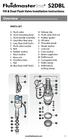 Overview READ ENTIRE INSTRUCTIONS BEFORE STARTING INSTALLATION PARTS LIST A. Flush valve B. Lever mounting base C. Flush handle assembly D. Grey/Blue float stop E. Grey float (Full Flush) F. Flush valve
Hot, Warm and Cold Mineral Water Cooler [Models Cool18, Cool25, Cool36, Cool50, Cool75, Cool100]
![Hot, Warm and Cold Mineral Water Cooler [Models Cool18, Cool25, Cool36, Cool50, Cool75, Cool100]](/thumbs/26/7741864.jpg "Hot, Warm and Cold Mineral Water Cooler [Models Cool18, Cool25, Cool36, Cool50, Cool75, Cool100]") Hot, Warm and Cold Mineral Water Cooler [Models Cool18, Cool25, Cool36, Cool50, Cool75, Cool100] PLEASE READ BEFORE INSTALLATION TO PREVENT DAMAGE TO THE COOLER HOT WATER TANK STEAM EXAUST VENT (CAUTION!)
Hot, Warm and Cold Mineral Water Cooler [Models Cool18, Cool25, Cool36, Cool50, Cool75, Cool100] PLEASE READ BEFORE INSTALLATION TO PREVENT DAMAGE TO THE COOLER HOT WATER TANK STEAM EXAUST VENT (CAUTION!)
ATS Overhead Table Shelf System INSTRUCTION MANUAL
 ATS Overhead Table Shelf System INSTRUCTION MANUAL ATS Overhead Table Shelf System Instruction Manual Warranty Newport Corporation warrants this product to be free of defects in material and workmanship
FCC COMPLIANCE STATEMENT FOR AMERICAN USERS
 FCC COMPLIANCE STATEMENT FOR AMERICAN USERS This equipment has been tested and found to comply with the limits for a CLASS A digital device, pursuant to Part 15 of the FCC Rules. These limits are designed
IMATION SECURE SCAN. ck Start Guide. Imation Secure Scan
 IMATION SECURE SCAN Quick ck Start Guide Imation Corp 2012 Imation Secure Scan page 1 of 6 1 Unpacking your Imation Secure Scan The following items are contained inside the case: 1 2 Imation Secure Scan
Portable Air Conditioner. OWNER S MANUAL Read these instructions before use. Model: MN12CES / MN10CESWW
 Portable Air Conditioner OWNER S MANUAL Read these instructions before use 8 Model: MN12CES / MN10CESWW Voltage rating: 120V~60Hz Power rating : 1100W (MN12CES) Power rating : 900W (MN10CESWW) Customer
WARNING: FAILURE TO FOLLOW THESE RULES MAY RESULT IN SERIOUS PERSONAL INJURY CAUTION: INSTALLATION LOCATION:
 Revision Level: 01 Revision Date: 07/07/2011 Please read all instructions carefully to help ensure a correct and SAFE installation of your Second Wind Ultraviolet Germicidal Air Purifier. Failure to do
Wall-Mounting your HP computer. User Guide
 Wall-Mounting your HP computer User Guide The only warranties for Hewlett-Packard products and services are set forth in the express statements accompanying such products and services. Nothing herein should
MOD-t. & New Matter Store User Guide. 2015 by New Matter Inc. All rights reserved.
 MOD-t & New Matter Store User Guide 2015 by New Matter Inc. All rights reserved. 1 TABLE OF CONTENTS Introduction... 3 MOD-t 3D Printer Technical Specifications... 4 What s in the Box?... 5 MOD-t Diagram...6
LBP-1210 Laser Printer
 LBP-1210 Laser Printer Getting Started Guide IMPORTANT: Read this manual carefully before using your printer. Save this manual for future reference. Copyright Copyright 2002 Canon Inc. All information
MTX-D, Oil Temperature/Pressure Gauge
 MTX-D, Oil Temperature/Pressure Gauge 1 Mounting and Sensor Installation... 3 1.1 Mounting the Gauge... 3 1.2 Oil Temp Sensor... 3 1.3 Oil Pressure Sensor... 3 2 Wiring... 3 2.1 Main Gauge Wiring... 4
StorTrends 3400 Hardware Guide for Onsite Support
 StorTrends 3400 Hardware Guide for Onsite Support MAN-3400-SS 11/21/2012 Copyright 1985-2012 American Megatrends, Inc. All rights reserved. American Megatrends, Inc. 5555 Oakbrook Parkway, Building 200
Mercury Helios 2 ASSEMBLY MANUAL & USER GUIDE
 Mercury Helios 2 ASSEMBLY MANUAL & USER GUIDE TABLE OF CONTENTS INTRODUCTION...1 1.1 MINIMUM SYSTEM REQUIREMENTS 1.1.1 Apple Mac Requirements 1.1.2 PC Requirements 1.1.3 Supported PCIe Cards 1.2 PACKAGE
INSTALLATION AND OPERATING INSTRUCTIONS For Model GL1 Gate Locks
 Securitron Magnalock Corp. www.securitron.com ASSA ABLOY, the global leader Tel 800.624.5625 [email protected] in door opening solutions INSTALLATION AND OPERATING INSTRUCTIONS For Model GL1 Gate
Active and Passive Sash Replacement
 for Andersen Gliding Windows Read all instructions carefully before attempting this procedure. If you have any questions about your ability to complete the procedure, call Andersen at 1-888-888-7020 for
LED Security Spotlight User Manual
 MOT ION-TR ACKING LED Security Spotlight User Manual www.jascoproducts.com 1-800-654-8483 2 TABLE OF CONTENTS Parts List 3 Questions? Missing Parts? 4 Installation (Wall mount) 6-9 Installation (Eave mount)
Foodservice Equipment Specialists P.O. Box 880 Saco, ME. / U.S.A. 04072 877-854-8006 * FAX (207) 283-8080
 Foodservice Equipment Specialists P.O. Box 880 Saco, ME. / U.S.A. 04072 877-854-8006 * FAX (207) 283-8080 FOR SERVICE ASSISTANCE U.S. AND CANADA CALL: 1-877-854-8006 24 HOURS/DAY 7 DAYS/WEEK TABLE OF CONTENTS
POSEIDON 2-29, 2-25 & 2-22 POSEIDON 2-29, 2-25 & 2-22 XT
 POSEION 2-29, 2-25 & 2-22 POSEION 2-29, 2-25 & 2-22 XT Repair Manual Index A. Safety precautions 3 B. Technical data 4 C. Structure 5-6. Service / Repair 7-23 E. Tools 24 F. Function 25-26 G. Electric
2 Bay FireWire 800/400/USB RAID Solution RAID 0, RAID 1, & JBOD. User Manual
 2 Bay FireWire 800/400/USB RAID Solution RAID 0, RAID 1, & JBOD User Manual CalDigit, Inc. 1941 Miraloma Ave, Unit B Placentia, CA 92870 USA www.caldigit.com The information of the products in this manual
Trillium 40 Axis Spring Tensioner Wire Replacement Instructions
 Trillium 40 Axis Spring Tensioner Wire Replacement Instructions 1 Overview The objective is to replace the broken axis spring tensioner wire. This requires the following tasks: 1. Remove the seismometer
User s Manual. Bluetooth Calculator Keypad. Page
 User s Manual Bluetooth Calculator Keypad Page Regulatory Compliance This device complies with Part 15 of the FCC Rules. Operation is subject to the following two conditions: (1) This device may not cause
IMPORTANT SAFETY RULES TO FOLLOW
 WARNING FLOOR & CARPET CLEANER Any piece of equipment can be dangerous if not operated properly. YOU are responsible for the safe operation of this equipment. The operator must carefully read and follow
Auto Sentry-eXP Maintenance
 Auto Sentry-eXP Maintenance Maintenance Procedures for Auto Sentry exp Bill Dispenser Credit Card Reader Bill Acceptor Bill Dispenser Maintenance Bill Dispenser Problem / Cause Bill Dispenser Error Codes
HP Laser Jet 4200/4240/4250/4300/4350 Swing Plate
 HP Laser Jet 4200/4240/4250/4300/4350 Swing Plate 1 Swing Plate Assembly-RM1-0043 1 Swing Plate Kit-5851-2766 (RM1-0043 plus RM1-1091 gear) CAUTION: Fuser may be hot. Turn off printer, unplug it and allow
AXIS Camera Station Quick Installation Guide
 AXIS Camera Station Quick Installation Guide Copyright Axis Communications AB April 2005 Rev. 3.5 Part Number 23997 1 Table of Contents Regulatory Information.................................. 3 AXIS Camera
Ink Bag Solution for Seiko/HP9000 Installation and Operation Manual
 Ink Bag Solution for Seiko/HP9000 Installation and Operation Manual Cartridge Solution for Seiko Colorpainter, Oce CS 6060 and HP9000 Revised 27 August 2009 TABLE OF CONTENTS: Introduction...2 Package
LED MOTION ACTIVATED FLOOD LIGHT
 Utilitech & UT Design are registered trademarks of LF, LLC. All Rights Reserved. ITEM #0460794, 0459228 LED MOTION ACTIVATED FLOOD LIGHT MODEL #SE1019-WH3-02LF0-U, SE1019-TBZ-02LF0-U Français p. 8 Español
Portable Air Conditioner. OWNER S MANUAL Read these instructions before use. Model: MF08CESWW. Voltage rating: 115V~60Hz Power rating : 800W
 MODE ALARM Portable Air Conditioner OWNER S MANUAL Read these instructions before use 8 Model: MF08CESWW Voltage rating: 115V~60Hz Power rating : 800W Customer Support : 1-800-474-2147 For product inquiries
WARNING CANADIAN D.O.C. WARNING
 Each product and program carries a respective written warranty, the only warranty on which the customer can rely. Avery Dennison Corp. reserves the right to make changes in the product, the programs, and
INSTALL/REMOVAL INSTRUCTIONS: WINDOW REGULATOR
 REMOVAL/INSTALL OF WINDOW REGULATOR (741-306) Honda Accord 2003 07 General Tech Tips: Use painter s tape rather than duct tape to secure window. It will not damage paint or leave sticky residue. A plastic
Leapfrog 3D Printers - Manual Xeed 1
 Leapfrog 3D Printers - Manual Xeed 1 Leapfrog 3D Printers - Manual Xeed 2 Dear customer, Congratulations with the purchase of your very own Leapfrog Xeed 3d-printer. We want to help you make your first
Survival Laser SL-001BB Laser Parts Bundle Assembly & Operation Instructions
 Survival Laser SL-001BB Laser Parts Bundle Assembly & Operation Instructions WARNING: READ ALL INSTRUCTIONS AND THE ENCLOSED SAFETY PRECAUTIONS BEFORE ASSEMBLY AND USE Assemble and use these parts ONLY
MGB Chrome Bumper Conversion
 MGB Chrome Bumper Conversion Installation Instructions For 1974 1/2-1980 MGB This kit requires cutting, welding, and painting. Professional installation recommended. Note: Every MGB body is slightly different
ITC-BTTN Cellular Bluetooth Gateway. Owner s Manual 1
 ITC-BTTN Cellular Bluetooth Gateway Owner s Manual 1 2 Table of Contents Introduction...3 Package Contents...3 XLink Connections Diagram...4 Setup...5 Pairing your Bluetooth Cell Phone to the XLink...6
Tablet PC Tutorial for Windows 7
 VIRGINIA TECH Tablet PC Tutorial for Windows 7 Getting Started Guide Instructional Technology Team, College of Engineering Last Updated: Fall 2013 Email [email protected] if you need additional assistance
PA500II Enterprise Mobile Computer
 PA500II Enterprise Mobile Computer - PA500II - Quick Reference Guide 400891G Version 1.0 PA500II Product Introduction & Accessory Kit After opening the box, ensure the following accessories for the PA500II
INSTALLATION INSTRUCTIONS for Bifold Doors (JII103)
 Thank you for selecting JELD-WEN products. Attached are JELD-WEN s recommended installation instructions for premium composite, hollow and solid core molded Bifold Doors. Bifolds are designed for fast
110244-003. PrintPAD CN3/4/3e/4e. User Guide
 110244-003 PrintPAD CN3/4/3e/4e User Guide TABLE OF CONTENTS PrintPAD CN3/4 & PrintPAD CN3e/4e Printer Views...1 Open View...1 Closed View...1 Using Batteries: General Guidelines...1 Installing and/or
Installation Instructions 6028.801
 DAZZLE Installation Instructions 08.80 Spread Lavatory Faucet with Speed Connect Drain* Congratulations on purchasing your American Standard faucet with Speed Connect drain, a feature found only on American
Copyright. Trademarks
 Copyright 2015 Sanford, L.P. All rights reserved. No part of this document or the software may be reproduced or transmitted in any form or by any means or translated into another language without the prior
TABLE OF CONTENTS QUICK START... 1 DIAGRAM OF THE DIGITAL PHOTO FRAME... 2 KEYPAD BUTTON FUNCTIONS... 3 REMOTE CONTROL FUNCTIONS..
 TABLE OF CONTENTS QUICK START........ 1 DIAGRAM OF THE DIGITAL PHOTO FRAME... 2 KEYPAD BUTTON FUNCTIONS..... 3 REMOTE CONTROL FUNCTIONS..4 DIGITAL PHOTO FRAME NAVIGATION........5 OSD MENU FUNCTIONS..6
AW10 All-in-One Printer
 START OK All-in-One Printer AW10 User Guide AW10 All-in-One Printer ADVENT AW10 All-in-One Printer Your ADVENT Printer combines ease of use and KODAK Color Technology to print crisp-looking documents and
Installation Guide Wireless 4-Port USB Sharing Station. GUWIP204 Part No. M1172-a
 Installation Guide Wireless 4-Port USB Sharing Station 1 GUWIP204 Part No. M1172-a 2011 IOGEAR. All Rights Reserved. PKG-M1172-a IOGEAR, the IOGEAR logo, MiniView, VSE are trademarks or registered trademarks
P3000 Printer Guide. 566372-001 Rev A. January 2006
 P3000 Printer Guide 566372-001 Rev A January 2006 Information resources for the P3000 ID Card Printer Installation Message Help To install one printer to a PC using a USB cable, see the Installation Map,
Installation Instructions: (Part # SB76880) XRC Armor Front Fender Kit
 WARNING: Check with Local and State laws before installing this accessory! NOTE: Carefully read entire instructions thoroughly before attempting to install this part. Parts Included: Qty Parts Included:
MicroTech II McQuay Maverick II Rooftop Unit Controller BACnet Communication Module (MS/TP)
 Installation and Maintenance Manual IM 852 Group: Controls Part Number: IM 852 Date: June 2007 Supercedes: New MicroTech II McQuay Maverick II Rooftop Unit Controller BACnet Communication Module (MS/TP)
INSTALL GUIDE Making Your Mobile Life Easier.
 Targus USB Bluetooth Adapter Making Your Mobile Life Easier. Visit our Web site at: www.targus.com Features and specifications are subject to change without notice 2005 Targus Group International, Inc.
PN 100-06843L, Revision B, October 2013. Epic 950 TM. Master Programmer User s Guide
 PN 100-06843L, Revision B, October 2013 Epic 950 TM Master Programmer User s Guide This page intentionally left blank Change History Rev A Initial release Feb 2007 Rev B Update Oct 2013 100-06843L Rev
SMART Board 8070i-SMP and 8070i
 SMART Board 8070i-SMP and 8070i Interactive flat panel Installation guide Product registration If you register your SMART product, we ll notify you of new features and software upgrades. Register online
OxySense Gen III Operations Manual
 OxySense Gen III Operations Manual OxySense GEN III 300 Series OxySense GEN III 5000 Series COMPLIES WITH ASTM 2714-08 OxySense, Inc. 13111 North Central Expressway, Suite 440 Dallas, Texas 75243 Phone
Multi-Pitch Pitching Machine USER MANUAL
 Multi-Pitch Pitching Machine USER MANUAL TABLE OF CONTENTS Thank you for purchasing the Cimarron Multi-Pitch Pitching Machine. The Cimarron Multi-Pitch Pitching Machine is a high performance pitching machine
15 Digital Photo Frame Instructional Manual
 15 Digital Photo Frame Instructional Manual aluratek.com mnl M10054 ADMPF315F Copyright 2011 Aluratek, Inc. All Rights Reserved. Table of Contents Frame Close-up... Remote Control Close-up... Package Contents...
Inspiron 13. Service Manual. 7000 Series. Computer Model: Inspiron 13 7348 Regulatory Model: P57G Regulatory Type: P57G001
 Inspiron 13 7000 Series Service Manual Computer Model: Inspiron 13 7348 Regulatory Model: P57G Regulatory Type: P57G001 Notes, Cautions, and Warnings NOTE: A NOTE indicates important information that helps
You're reading an excerpt. Click here to read official BH FITNESS T1 BASIC user guide http://yourpdfguides.com/dref/2696507
 You can read the recommendations in the user guide, the technical guide or the installation guide for BH FITNESS T1 BASIC. You'll find the answers to all your questions on the BH FITNESS T1 BASIC in the
OPERATION MANUAL. MV-410RGB Layout Editor. Version 2.1- higher
 OPERATION MANUAL MV-410RGB Layout Editor Version 2.1- higher Table of Contents 1. Setup... 1 1-1. Overview... 1 1-2. System Requirements... 1 1-3. Operation Flow... 1 1-4. Installing MV-410RGB Layout