
mysensors mysensors Wireless Sensors and Ethernet Gateway Quick Start Guide Information to Users Inside the Box mysensors Ethernet Gateway Quick Start
|
|
|
- Arleen Foster
- 10 years ago
- Views:
Transcription


1 mysensors Information to Users mysensors Wireless Sensors and Ethernet Gateway Quick Start Guide This equipment has been tested and found to comply with the limits for a Class B digital devices, pursuant to Part 15 of the FCC Rules. These limits are designed to provide reasonable protection against harmful interference in a residential installation. This equipment generates, uses, and can radiate radio frequency energy and, if not installed and used in accordance with the instruction manual, may cause harmful interference to radio communications. However, there is no guarantee that interference will not occur in a particular installation. If this equipment does cause harmful interference to radio or television reception, which can be determined by turning the equipment off and on, the user is encouraged to try to correct the interference by one of more of the following measures: Reorient or relocate the receiving antenna Increase the separation between the equipment and receiver Connect the equipment into an outlet on a circuit different from that to which the receiver is connected. Consult the dealer or an experienced radio/tv technician for help. WARNING: Changes or modifications not expressly approved by mysensor could void the user s authority to operate the equipment. RF EXPOSURE WARNING: To satisfy FCC RF exposure requirements for mobile transmitting devices, a separation distance of 20 cm or more should be maintained between the antenna of this device and persons during device operation. To ensure compliance, operations at closer than this distance are not recommended. The antenna used for this transmitter must not be co-located in conjunction with any other antenna or transmitter. Inside the Box You should find the following items in the box: mysensor Wireless Sensors mysensor Wireless Ethernet Gateway Power Supply Antenna 6 ft. Ethernet Cable Mounting Hardware Quick Start Guide Batteries mysensors Ethernet Gateway Quick Start Create a mysensors user account with assigned wireless gateways and sensors. Plug an Ethernet cable with internet connectivity into the gateway. Plug the power supply into a power outlet then connect to the gateway. Once all three lights turn green, your network is ready to bring sensors online.

2 1. Creating an Account on mysensors Online Wireless Sensor System - New Users / Create an Account If this is your first time using the mysensors online system site, you will need to create a new account. If you have already created an account you can skip to the Logging into the Online System section. The following instructions will guide you through the account creation process. 1. In a web browser, navigate to 2. Click the Get Started Here button. 3. Complete all fields in Account Information section. Key Fields: Time Zone- All data is recorded using Universal Coordinated Time (UTC) also known as Greenwich Mean Time (GMT). Selecting the time zone will translate the time stamps in the system to display in your chosen time zone. This can be updated later if needed. 4. Complete all fields for Primary Contact Information. Key Fields: Cell Phone and Cell Carrier(mySensors) are optional unless you would like to receive SMS Notifications. 5. Create a new network to hold your gateway and sensors. Key Fields: Network Name - Enter a name for your first network. Gateway ID - Numerical serial number located on the bottom of your gateway. Gateway Code - 6 digit code on back of sensor, below the serial number. Note: Additional gateways and sensors can be added to your account in later steps. 6. Once all information has been entered, click the Create Account button. Note: We recommend writing down your username and password to keep in a secure location. -- Login to mysensors Online System Enter your username and password in the login fields and click the Login button. PAGE 2

3 2. Adding Networks, Gateways and Sensors These steps will allow you to configure additional networks and gateways and sensors to your account. If you have additional gateways you can either set them up as their own networks or add them to your existing network. 1. Creating a New Network. Choose Manage from the main navigation. Press the button Create Network. Enter a name for the new network. Enter the Gateway ID and Security Code from the gateway you want to add. Press the Create Network button. 2. Adding Gateways. Choose Manage from the main navigation. Select the network you would like to add the gateway to. Press the button Network Settings. Enter the Gateway ID and Security Code from the gateway you want to add. Press the Assign Gateway button. 3. Adding Sensors. Choose Manage from the main navigation. Select the network you would like to add the sensor to. Find the bottom of the section Add Sensor. Enter the Sensor ID and Security Code from the sensor you want to add. Press the Assign Sensor button. Repeat this process to add more sensors to this network. _ PAGE 3

4 3. Using the mysensors Ethernet Gateway - Understanding the Ethernet Gateway Lights Front of Ethernet Gateway Light 1 - Indicates the Ethernet cable is plugged in. A green light indicates ready and working, a red light indicates there is a problem. Light 2 - Indicates the Ethernet has internet connectivity and can reach the online monitoring system. A green light indicates ready and working, a red light indicates there is a problem. A flashing green light indicates network traffic to the internet. Light 3 - Indicates sensor network activity. A green light indicates ready and working, a red light indicates there is a problem. A flashing green light indicates radio traffic from the sensors. - Ethernet Gateway Controls Back Panel Power Plug Control Button Ethernet Port RP SMA Antenna Connector Using the Control Button: 1) A short press will trigger the gateway to immediately send all stored sensor messages to the online system and download any pending system messages to deliver to the sensors. (The default heartbeat for the Ethernet gateway is 5 minutes.) 2) Press and hold to reset the gateway to factory settings. This resets the gateway heartbeat to 5 minutes and changes the heartbeat in the online system as well. You will need to login to the online system after resetting the gateway to reconfigure the gateway to your desired settings. Note: If your gateway powers up with the lights scrolling from left to right, it has entered into boot loader mode accidentally. Make sure the button is free from obstruction and reboot the gateway by removing the power plug, waiting for 10 seconds then reinserting the power plug. PAGE 4

5 - Configuring The Ethernet Gateway The Ethernet Gateway collects data from all sensors within range and is preconfigured to batch deliver the sensor messages to the online system every 5 minutes. The Ethernet Gateway uses DHCP (Dynamic Host Configuration Protocol) to automatically acquire a network address from the LAN (Local Area Network). In the event that it needs to have an address manually assigned to it, you can assign an IP address as well as a gateway mask and default DNS through the online interface. For more information on configuring the mysensors Ethernet Gateway please view the support documentation at mysensors support site documentation Ethernet_Gateway_Configuration.pdf. Note: This advanced configuration is NOT required in most instances. In the event that it is required, you will need to initialize it on a network that can reach the online system with the default DHCP settings allowing your configuration settings to be downloaded to the device. Upon logging into the online system as an administrator, select Overview and then press View Gateway then choose the edit tab. From there you can alter the heartbeat of the Ethernet Gateway as well as edit any other configurations available. There is also a quick link to reset all gateway settings to factory defaults. 4. Bringing mysensor Lite Wireless Sensors Online - Insert Batteries Into Wireless Sensors Important: Make sure your sensors are at least 3ft. away from Ethernet Gateway. Peel back the black sticker cover of the battery slot and slide the coin cell battery into the sensor as shown in fig.1. It will power on within seconds. Once online, your sensor is ready to be deployed. If you wish to change a sensor configuration, change the parameter in the software. The new parameters will be transmitted to the sensor on the next heartbeat. If you need a more immediate response from the sensor, power cycle the sensor by removing, then re-inserting the battery. Notes: - If the sensor status indicator does not change, reset the sensor by removing the battery. - Wait 60 seconds then re-insert the battery. - When inserting the battery, make sure to push the battery all the way back using a paper clip. - Note the proper orientation of battery in fig.1 Battery Insertion fig.1 Warning: Your sensors ship with a 10 minute heartbeat. It is recommended that unless you are using the AA battery solution, you should set the heartbeat to no faster than one hour to preserve battery life. When changing a sensor s heartbeat, the new configuration information will be sent to the sensor on it s next heartbeat. If you want to update the sensors immediately you can reset them manually. + _ Manual Sensor Reset Process: 1 - Using the end of a paper clip, push the batteries out of the sensors through the small hole in the top of the sensor 2 - Change the sensor heartbeat through the online system 3 - Re-insert the batteries into the sensors PAGE 5


6 5. Using mysensors Online Wireless Sensor System - TheOnline Interface When you have logged into the online system this is the default view. 1. Menu System 2. Sensor Network At a Glance 4. Sensor List 3. Sensor Health Indicators 1. Menu System Network Overview My Account Notifications Manage - Click to return to Home view. - Click to display and edit account information. - Click setup notifications. - Click to networks/gateways and sensors. 2. Sensor Network At a Glance Displays the most current readings for every sensor in the selected networkand last time they checked in. 3. Sensor List Displays all sensors that are assigned to your sensor network their status currently. Clicking on the sensor names allows you to view information for that specific sensor. Clicking the edit button by a sensor s name allows you to change the sensor specific settings such as sensor name and heartbeat (report interval). Note: All information stored on the sensor will be downloaded to the sensor on the next sensor heartbeat (Check-in). If you make a change to any setting, you will need to wait until the sensor has downloaded the new information before you can edit the configuration settings again. Sensor status and Icon Sensor is checking in and within user defined safe parameters. Sensor has met or exceeded a user defined threshold or triggered event. Sensor has not checked in (inactivity alert sent). No sensor readings since shipping No sensor readings will be recorded (Inactive) Not Used Not Used PAGE 6

7 4. Sensor Health Indicators and Icons. Displays the health of the sensors Signal health for the sensor. Health of battery. When you click on a sensor name in the Sensor List the right panel will change to this view. 5. Sensor Menu Tabs 8. Date Range Selector 6. Sensor Data Window 5. Sensor Menu Tabs Select a tab to change between: 7. Sensor Charts History Notifications Chart Export Edit - Displays a history of the selected sensor s data. - Allows you to view, add, edit or delete notifications for the sensor. - Displays a graphical view of the selected sensor s data. - Allows you to archive data by exporting as a.csv file. - Allows you to archive data by exporting as a.csv file. heartbeat. The tab highlighted in blue is your current selection. 6. Sensor Data Window (History) Displays the history of the selected sensor, including: timestamp, signal strength, battery power and last sensor reading. 7. Sensor Charts Displays visual charts / graphs for the selected sensor(s) during a specific time period. Charts and graphs can be printed from this view. 8. Date Range Selector Allows you to choose the date range for viewable information such as sensor history, notifications sent, charts and sensor data export. PAGE 7

8 - Configuring Sensors From the Sensor Menu Tabs click on the Edit tab to access this area. The sensor configuration window allows you to set the primary configurations for each sensor. Within this window you can change the name of the sensor, set the heartbeat (how often the sensor checks-in with the software - default is every 10 minutes), and change the unit of measurement. When you have finished making changes, press the Save button at the bottom of this section. Note: Be sure to click the Save button anytime you make a change to any of the sensor parameters. All changes made to the sensor settings will be downloaded to the sensor on the next sensor heartbeat (check-in). Once a change has been made and Saved, you will not be able to edit that sensor s configurations again until the sensor has downloaded the new setting. - Setting Up Notifications Automated notifications can be set up to alert you via SMS text or if a wireless sensor meets a set threshold or condition. To create a new notification or edit/delete an existing notification, click on the Notifications tab on the Sensor Menu Tabs. The same thing can be found on the main menu and Notifications Create a New Notification View Notification Edit an Existing Notification PAGE 8

9 2. Creating a New Notification Create a New Notification Title Allows you to name your notification. Class of Notification There are four notification options available when creating a new notification. Application - Application notifications are sensor specific (i.e. water sensor = trigger alert when water present, temp sensor = trigger alert when temp is above 70F, etc.). If creating an application specific notification, you will need to choose what sensor type you are creating the alert for. The system will automatically populate a list of sensor types that are currently being used within the network. The notificatiion you create will be based on the selected sensor type. Inactivity - Set-up Inactivity notifications to alert you when your sensors have stopped communicating with the servers. Failure to set up an Inactivity notification will result in no /sms txt being sent should your sensors stop communicating with the servers. Low battery - Allows users to define a battery power percentage level that will trigger an alert from the system, warning them to replace batteries. Advanced Notifications - Allows the user to set notifications based on more advanced rules, such as comparing past data points with the current one to determine if the notification should be sent. 3. Setting and Editing Notification Settings People to Notify Start typing a name into the box and the system will automatically populate the name of a user within your sensor network. If there are already multiple users on the network, a drop down list of names will appear. Select the name of the user for the notification. If the person to be notified does not have an account on the network, you may quick add them by selecting the Add Recipient link and entering in their contact information. Notification Parameters This area allows the user to set notification parameters such as the name, the notification message and sensor data conditions that will trigger the notification. Assigned Devices Allows you to tell the system which sensors will trigger the notification being created. When a notifications is sent from the system, it will automatically include the sensor name and data that caused the notification to be sent. PAGE 9


10 - History and Chart Views Clicking on the History or Chart tabs within the Sensor Menu Tabs allows you to view the sensor data history as text or in a graphical chart. Note: To change the date range of the viewable information, click on the date range box at the top right of the sensor data window. PAGE 10

11 - Exporting Data Clicking on the Export tab within Sensor Menu Tabs allows you to export sensor data to a comma separated value (.csv) file or send the sensor data to an external web source. To export sensor data you must first select the date range for the data you want to export. Once the date range is selected, determine whether you want sensor data from the selected sensor only, from all sensors in the network or all sensors assigned to the account. When you are finished, click on Export Data at the bottom of this window. The data will be exported to a comma separated value (.csv) file for use in spreadsheet software such as Microsoft Excel. Depending on your browser settings you may be prompted for a save location. If not, the file will be downloaded to your browser s default download directory. Note: Only the first 2,500 records within the selected date range will be exported. You can alternately send your sensors incoming data to a 3rd party by clicking on the Configure data push link at the bottom of the window. From this area you can pass data from your wireless sensor network devices to another service in real time. This is done by coding the data into a url query then sending the data via http get request at the time data is received. There is an extensive list of parameters that can be passed, as listed in the viewed window, that allow you to send detailed information about both the data and the sensor. For additional information or more detailed instructions on how to use your mysensors Wireless Sensors or the mysensors Online System, please visit us on the web at mysensors support site. Rejoin Telematics AB Ärlestigen Örebro Sweden mysensors are trademark of Rejoin Telematics AB. T (1/13) All other trademarks are property of their respective owners Rejoin Telematics AB All Rights Reserved. PAGE 1111

mysensors mysensors Wireless Sensors and and Cellular Gateway Quick Start Guide Information to Users Inside the Box
 mysensors mysensors Wireless Sensors and and Cellular Gateway Quick Start Guide Information to Users The mysensors wireless products referenced in this Quick Start Guide have been tested to comply with
Online Monitoring User Guide
 High Resolution Temperature Sensing Strip Online Monitoring User Guide 888.637.3282 www.nerdata.com Page 1 of 26 Contents The Aurora Online Monitoring System... 3 1. Creating an Account on the Aurora Online
Monnit Wi-Fi Sensors. Quick Start Guide
 Monnit Wi-Fi Sensors Quick Start Guide Inside the Box You should find the following items in the box: Monnit Wi-Fi (MoWi ) Sensors 2 x AA Batteries for Each MoWi Sensor Quick Start Guide Note: A MoWi USB
Ethernet Radio Configuration Guide
 Ethernet Radio Configuration Guide for Gateway, Endpoint, and Repeater Radio Units April 20, 2015 Customer Service 1-866-294-5847 Baseline Inc. www.baselinesystems.com Phone 208-323-1634 FAX 208-323-1834
What is Bitdefender BOX?
 Quick Setup Guide What is Bitdefender BOX? Think about Bitdefender BOX like an antivirus for your network. It s a hardware device that sits next to your Wi-Fi router and protects all Internet connected
Wireless Travel Mouse with 5-Buttons User Manual
 Wireless Travel Mouse with 5-Buttons User Manual Product Features 1. Radio frequency 27MHz wireless transmission 2. Use of 256 ID codes to prevent interference between several wireless mice being used
WLAN600 Wireless IP Phone Administrator s Guide
 WLAN600 Wireless IP Phone Administrator s Guide Trademark Acknowledgement All brand names are trademarks or registered trademarks of their respective companies. Disclaimer This document is supplied by
User Manual. PePWave Surf / Surf AP Indoor Series: Surf 200, E200, AP 200, AP 400. PePWave Mesh Connector Indoor Series: MC 200, E200, 400
 User Manual PePWave Surf / Surf AP Indoor Series: Surf 200, E200, AP 200, AP 400 PePWave Mesh Connector Indoor Series: MC 200, E200, 400 PePWave Surf AP Series: Surf AP 200-X, E200-X, 400-X PePWave Surf
QUICK START GUIDE CX-MC200LE-VZ
 QUICK START GUIDE CX-MC200LE-VZ LTE/EV-DO Business-Grade Modem For use with Juniper Networks CX111 3G/4G Bridge with Enhanced Performance and Reliability GETTING READY TO USE YOUR CX-MC200LE-VZ MODEM Thank
WLAN660 Wireless IP Phone Administrator s Guide
 FEDERAL COMMUNICATIONS COMMISSION This device complies with Part 15 of the FCC Rules. Operation is subject to the following two conditions: (1) this device may not cause harmful interference, and (2) this
P-660HN-51. 802.11n Wireless ADSL2+ 4-port Gateway DEFAULT LOGIN DETAILS. Firmware Version 1.10 Edition 1, 9/2010. IP Address: http://192.168.1.
 P-660HN-51 802.11n Wireless ADSL2+ 4-port Gateway Firmware Version 1.10 Edition 1, 9/2010 DEFAULT LOGIN DETAILS IP Address: http://192.168.1.1 User Name: admin Password: 1234 www.zyxel.com Copyright 2010
Congratulations on your HomePortal purchase. To install your HomePortal and configure your home network, follow these steps.
 Notice to Users 2003 2Wire, Inc. All rights reserved. This manual in whole or in part, may not be reproduced, translated, or reduced to any machine-readable form without prior written approval. 2WIRE PROVIDES
1.3 MEGAPIXEL WIRELESS NETWORK CAMERA SERIES
 1.3 MEGAPIXEL WIRELESS NETWORK CAMERA SERIES ADVANCED NETWORK SETUP Please read instructions thoroughly before operation and retain it for future reference. n812_813_network_v1.3 IMPORTANT SAFEGUARD All
Wireless Mouse USER GUIDE. for Mac. www.targus.com/us/formac ONE YEAR LIMITED WARRANTY N2953
 AMW43US / 410-1514-001C N2953 www.targus.com/us/formac 2008 Manufactured or imported by Targus Group International, Inc. (for U.S. sales: 1211 North Miller Street, Anaheim, CA 92806 USA, for Australia
NEC SIP DECT SOLUTIONS ADMINISTRATOR GUIDE
 NEC SIP DECT SOLUTIONS ADMINISTRATOR GUIDE INT-2047 (GEN) Issue 1.0 NEC Unified Solutions, Inc. reserves the right to change the specifications, functions, or features at any time without notice. NEC
TL-PS310U Single USB 2.0 Port MFP and Storage Server
 TL-PS310U Single USB 2.0 Port MFP and Storage Server Rev: 2.0.0 1910010313 Contents Chapter 1 Introduction... 1 1.1 Product Overview...1 1.2 Network Management...1 1.3 Components and Features...1 1.4 Hardware
WBSn Family. FW Upgrade
 WBSn Family FW Upgrade WBSn-2400 and WBSn-2450 Software Version: 1.3.2 Doc version: v1 Jan 2013 WBSn Family FW Upgrade Procedure Copyright 2013 Alvarion All rights reserved. FCC Statement Federal Communication
C24-CAMANL Video Server/Encoder
 C24-CAMANL Video Server/Encoder User s Guide Table of Contents CHAPTER 1 INTRODUCTION... 1 Overview... 1 Physical Details - Video Server... 2 Package Contents... 3 CHAPTER 2 BASIC SETUP... 4 System Requirements...
FB-500A User s Manual
 Megapixel Day & Night Fixed Box Network Camera FB-500A User s Manual Quality Service Group Product name: Network Camera (FB-500A Series) Release Date: 2011/7 Manual Revision: V1.0 Web site: Email: www.brickcom.com
Disclaimers. Important Notice
 Disclaimers Disclaimers Important Notice Copyright SolarEdge Inc. All rights reserved. No part of this document may be reproduced, stored in a retrieval system, or transmitted, in any form or by any means,
Use the 12 digit serial numbers on your Ethernet Tag Manager to create a login. Keep the serial number in a safe place.
 Web/Android App User Manual For Android devices, install our Android app from Google Play by searching "WirelessTag", follow this direct link, or download the APK file directly. For web access on PC/Mac,
WUA-0605 300Mbps Wireless USB Network Adapter
 WUA-0605 300Mbps Wireless USB Network Adapter User Manual V1.0 Certification FCC CE FCC Statement This equipment has been tested and found to comply with the limits for a Class B digital device, pursuant
10/2011 - English Edition 1. Quick Start Guide. NWA1100N-CE CloudEnabled Business N Wireless Access Point
 10/2011 - English Edition 1 Quick Start Guide NWA1100N-CE CloudEnabled Business N Wireless Access Point Package Contents - 1 x ZyXEL NWA1100N-CE Access Point - 2 x Detachable Antennas - 1 x Power Adapter
Bank. Wireless Portable Hard Drive. User s Manual
 Bank Wireless Portable Hard Drive User s Manual REGULATORY AND SAFETY INFORMATION FCC Compliance and Advisory Statement This device complies with Part 15 of the FCC rules. Operation is subject to the following
User Manual Version 4.0.0.5. User Manual A20 / A50 / A100 / A250 / A500 / A1000 / A2000 / A4000
 User Manual Version 4.0.0.5 User Manual A20 / A50 / A100 / A250 / A500 / A1000 / A2000 / A4000 I Endpoint Protector Appliance User Manual Table of Contents 1. Endpoint Protector Appliance Setup... 1 1.1.
WAM Remote Wireless Asset Monitoring. Website User Guide
 WAM Remote Wireless Asset Monitoring Website User Guide Table of Contents Overview... 2 Login Page... 2 Quick Start Guide...3-4 Locations Page... 5 Devices Page... 5 Register Devices Page... 6 Temp or
Cloud Traveler. Manual. Portable Wireless Router/Hotspot APP
 Manual FREE APP Tablet PC Portable Wireless Router/Hotspot 1. Extends the coverage of wireless networks 2. Wireless access to storage devices 3. High Power charger for Smartphones/Tablets 4. Can be controlled
LabelWriter. Print Server. User Guide
 LabelWriter Print Server User Guide Copyright 2010 Sanford, L.P. All rights reserved. 08/10 No part of this document or the software may be reproduced or transmitted in any form or by any means or translated
LevelOne User Manual WPC-0600 N_One Wireless CardBus Adapter
 LevelOne User Manual WPC-0600 N_One Wireless CardBus Adapter V2.0.0-0712 Safety FCC WARNING This equipment has been tested and found to comply with the limits for a Class B digital device, pursuant to
RC8021 Indoor Camera Installation Guide
 RC8021 Indoor Camera Installation Guide P/N: 957YL502GJ Document Version: 1.0 Copyright 2011. All Rights Reserved. All trademarks and trade names are the properties of their respective owners i Package
2Wire Gateway Installation Guide. For 1000 Series
 2Wire Gateway Installation Guide For 1000 Series Notice to Users 2005 2Wire, Inc. All rights reserved. This manual in whole or in part, may not be reproduced, translated, or reduced to any machinereadable
PCMCIA Wireless LAN Card User s Manual
 PCMCIA Wireless LAN Card User s Manual Rev 1.0 Regulatory compliance FCC Warning This equipment has been tested and found to comply with the limits for a Class B digital device, pursuant to part 15 of
HLWLAN 802.11b/g/n Transceiver Kit
 092524 RevB HLWLAN 802.11b/g/n Transceiver Kit Wireless Communications for OmniLogic Owner s Manual Contents Introduction...1 Installation...2 Configuration...6 Operation...8 Troubleshooting...9 HLWLAN
AIRAVE 2.5 User Guide
 AIRAVE 2.5 User Guide 2012 Sprint. Sprint and the logo are trademarks of Sprint. Other marks are trademarks of their respective owners. 911702 Rev. 51.13 Important Messages IMPORTANT: Sprint s policies
Creatix 802.11g Adapter CTX405 V.1/V.2 User Manual
 Creatix 802.11g Adapter CTX405 V.1/V.2 User Manual 1 Safety instructions for Creatix 802.11g Adapter This equipment has been designed and tested in accordance with the requirements of Standard EN60950.
Installation Guide 1-port USB 2.0 Print Server 1 GPSU21
 Installation Guide 1-port USB 2.0 Print Server 1 GPSU21 2 Welcome Thank you for purchasing this 1-port USB 2.0 Print Server that allows any networked computer to share a USB printer. It complies with USB
Wireless 802.11g CF Card User Manual
 Wireless 802.11g CF Card User Manual Version 1.0 Copyright statement No part of this publication may be reproduced, stored in a retrieval system, or transmitted in any form or by any means, whether electronic,
USER GUIDE. Access to the Server is via the following webpage: www.admin.airgoosignage.co.uk
 USER GUIDE The A+K Airgoo Digital Signage MicroPlayer is a totally new generation of product with wireless capabilities and innovative features. It is designed to operate with our Digital Signage Server
OC810 Outdoor Camera Setup Guide
 OC810 Outdoor Camera Setup Guide P/N: 957YU60001 Document Version: 1.0 Copyright 2010. All Rights Reserved. All trademarks and trade names are the properties of their respective owner i Package Contents
ACRS 2.0 User Manual 1
 ACRS 2.0 User Manual 1 FCC Regulatory Information This device complies with part 15 of the FCC Rules. Operation is subject to the following two conditions: (1) This device may not cause harmful interference,
10 Magni Tablet User Guide
 10 Magni Tablet User Guide MODEL NUMBER: Wireless Mobile Internet Tablet Powered by SYTAB10ST Top View Front View Bottom View Side View SYTAB10ST Getting to Know Your New Tablet: MINI Micro SD Micro SD
InnoMedia ESBC 9380-4B. Quick Install Guide. www.innomedia.com 1
 InnoMedia ESBC 9380-4B Quick Install Guide www.innomedia.com 1 Table of Contents Introduction 2 Package Contents 2 CAUTION 2 Installation 3 Wall-Mounting Instructions 5 Troubleshooting 6 Appendix A. LED
Pebble. E-Paper Watch for iphone and Android. 1 Button A. 4 Button B. 5 Button C. 2 Display. 6 Button D. 3 Charge Port
 2 4 4 5 3 6 Button A 2 Display 4 Button B 5 Button C 3 Charge Port 6 Button D Page of 4 Certifications and Safety Approvals FCC Compliance Statement This device complies with Part 5 of the FCC Rules. Operation
ST815 Illumination Sensor with LCD
 ST815 Illumination Sensor with LCD The Illumination Sensor with LCD (refer to as Illumination Sensor hereafter) is a Z-Wave TM enabled device which is fully compatible with any Z-Wave TM enabled network.
Addonics T E C H N O L O G I E S. NAS Adapter. Model: NASU2. 1.0 Key Features
 1.0 Key Features Addonics T E C H N O L O G I E S NAS Adapter Model: NASU2 User Manual Convert any USB 2.0 / 1.1 mass storage device into a Network Attached Storage device Great for adding Addonics Storage
Model: 616-146v2 Quick Setup Guide DC: 071015 Atomic Projection Alarm with Indoor and Outdoor Temperature
 Model: 616-146v2 Quick Setup Guide DC: 071015 Atomic Projection Alarm with Indoor and Outdoor Temperature Snooze/Backlight BUTTONS Time, Alarm with Snooze, & Calendar Projection Arm Rotates 180 Indoor/Outdoor
EPSON Network Image Express Card User s Guide
 Network Scan Server English EPSON Network Image Express Card User s Guide All rights reserved. No part of this publication may be reproduced, stored in a retrieval system, or transmitted in any form or
RADIO CONTROLLED DIGITAL CLOCK MODELS 88905 / 88906
 RADIO CONTROLLED DIGITAL CLOCK MODELS 88905 / 88906 QUICK SETUP GUIDE IMPORTANT! INSTALL BATTERIES IN THE OUTDOOR TRANSMITTER BEFORE INSTALLING BATTERIES IN THE RADIO-CONTROLLED CLOCK. ALKALINE BATTERIES
Quick Start Guide. Version: 1.01 Date: 19/03/2010
 Vigor 2710e/ne ADSL2/2+ Router Quick Start Guide Version: 1.01 Date: 19/03/2010 Warranty We warrant to the original end user (purchaser) that the router will be free from any defects in workmanship or
USER MANUAL. PingBrother EPIW104 managed passive poe switch & IP watchdog
 USER MANUAL PingBrother EPIW104 managed passive poe switch & IP watchdog CONTENT Content... 2 Chapter 1... 3 1.1 Preface... 3 1.2 CE mark warning... 3 1.3 FCC warning... 4 Chapter 2... 5 2.1 Physical description...
TD-8610/TD-8610B External ADSL2+ MODEM
 TD-8610/TD-8610B External ADSL2+ MODEM Rev: 1.0.2 1910010011 COPYRIGHT & TRADEMARKS Specifications are subject to change without notice. is a registered trademark of TP-LINK TECHNOLOGIES CO., LTD. Other
300Mbps Wireless-N Access Point/Repeater
 300Mbps Wireless-N Access Point/Repeater WFREPEAT300N *actual product may vary from photos DE: Bedienungsanleitung - de.startech.com FR: Guide de l'utilisateur - fr.startech.com ES: Guía del usuario -
OC810 Outdoor Camera Installation Guide
 OC810 Outdoor Camera Installation Guide P/N: 957YU601GJ Document Version: 1.0 Copyright 2011. All Rights Reserved. All trademarks and trade names are the properties of their respective owner i Package
User Guide. Guide d utilisation Guida dell'utente Benutzerhandbuch Guía del usuario Guia do Usuário WNA-100. Wireless Network Adapter
 WNA-100 Wireless Network Adapter User Guide Guide d utilisation Guida dell'utente Benutzerhandbuch Guía del usuario Guia do Usuário www.xerox.com/office/wna Copyright 2007 Xerox Corporation. All Rights
Chapter 1 Installing the Gateway
 Chapter 1 Installing the Gateway This chapter describes how to set up the wireless voice gateway on your Local Area Network (LAN), connect to the Internet, and perform basic configuration. For information
56-A11A-10511. Plantronics Calisto Headset with Bluetooth USB Adapter. User Guide
 56-A11A-10511 Plantronics Calisto Headset with Bluetooth USB Adapter User Guide Table of Contents Package Contents... 1 Product Features... 2 Wearing Your Headset... 3 Powering... 4 Charging... 5 Indicator
Chapter 2 Preparing Your Network
 Chapter 2 Preparing Your Network This document describes how to prepare your network to connect to the Internet through a router and how to verify the readiness of your broadband Internet service from
ES-3305P V2 / ES-3308P V2. Quick Installation Guide. 09-2013 / v1.0
 ES-3305P V2 / ES-3308P V2 Quick Installation Guide 09-2013 / v1.0 1 COPYRIGHT Copyright Edimax Technology Co., Ltd. all rights reserved. No part of this publication may be reproduced, transmitted, transcribed,
User Manual 821121-ATA-PAK
 User Manual 821121-ATA-PAK IMPORTANT SAFETY INSTRUCTIONS When using your telephone equipment, basic safety precautions should always be followed to reduce the risk of fire, electric shock and injury to
Getting started guide Turbo Hub
 Getting started guide Turbo Hub NETGEAR MVBR1210C Welcome and thanks for choosing Bell. Your new Turbo Hub will enable you to connect to the Internet and make voice calls using a landline phone. This guide
Getting Started. Table of Contents. Quick User Guide - English
 Getting Started This Quick User Guide helps you get started with the IRIScan TM Anywhere Wifi. Please read this guide before operating this scanner and its software. All information is subject to change
Quick Installation Guide
 V48.01 Model: FI8919W Quick Installation Guide Outdoor Pan/Tilt Wireless IP Camera For Windows OS ------- Page 1 For MAC OS ------- Page 15 ShenZhen Foscam Intelligent Technology Co., Ltd Quick Installation
WIRELESS WATER LEAK DETECTOR
 ITEM #0422362 WIRELESS WTER LEK DETECTOR MODEL #ST812-2 Español p. XX REQUIRES: IRIS Smart Hub FOR FUTURE REFERENCE TTCH YOUR RECEIPT HERE ND SVE THIS MNUL Z-Wave is a registered trademark of Sigma Designs
SCREENLOGIC INTERFACE WIRELESS CONNECTION KIT
 SCREENLOGIC INTERFACE WIRELESS CONNECTION KIT FOR INTELLITOUCH AND EASYTOUCH CONTROL SYSTEMS INSTALLATION GUIDE IMPORTANT SAFETY INSTRUCTIONS READ AND FOLLOW ALL INSTRUCTIONS SAVE THESE INSTRUCTIONS Technical
Chapter 6 Using Network Monitoring Tools
 Chapter 6 Using Network Monitoring Tools This chapter describes how to use the maintenance features of your Wireless-G Router Model WGR614v9. You can access these features by selecting the items under
DVG-2101SP VoIP Telephone Adapter
 This product can be set up using any current web browser, i.e., Internet Explorer 6 or Netscape Navigator 6.2.3. DVG-2101SP VoIP Telephone Adapter Before You Begin 1. If you purchased this VoIP Telephone
Legal Disclaimers. For C-UL Listed applications, the unit shall be installed in accordance with Part 1 of the Canadian Electrical Code.
 ACS5000 Networking Admin Interface Guide 1/21/2015 Legal Disclaimers Federal Communications Commission (FCC) Compliancy This equipment has been tested and found to comply with the limits for a Class B
TL-PS310U Single USB 2.0 Port MFP and Storage Server
 Single USB 2.0 Port MFP and Storage Server REV3.0.0 1910010947 COPYRIGHT & TRADEMARKS Specifications are subject to change without notice. is a registered trademark of TP-LINK TECHNOLOGIES CO., LTD. Other
STRM Log Manager Administration Guide
 Security Threat Response Manager Release 2013.1 Juniper Networks, Inc. 1194 North Mathilda Avenue Sunnyvale, CA 94089 USA 408-745-2000 www.juniper.net Published: 2013-03-15 Copyright Notice Copyright 2013
Quick Start Guide. RV 120W Wireless-N VPN Firewall. Cisco Small Business
 Quick Start Guide Cisco Small Business RV 120W Wireless-N VPN Firewall Package Contents Wireless-N VPN Firewall Ethernet Cable Power Adapter Quick Start Guide Documentation and Software on CD-ROM Welcome
OC821 Iris Outdoor Camera Set-Up Guide. RC8221 Iris. Camera Set-Up Guide
 Outdoor Camera Set-Up Guide RC8221 Iris Camera Set-Up Guide 2 2 A B Package Contents Basic A. Outdoor Setup Camera This B. chapter Power provides Adapter details on how to setup and mount the camera. C.
Aeroqual Connect and Cloud
 Aeroqual Connect and Cloud Page 1 Contents 1. Introduction to Aeroqual Connect and Cloud... 3 1.2. Aeroqual Connect... 3 1.3. Aeroqual Cloud... 3 2. How to Connect... 4 2.1. Aeroqual Connect... 4 2.1.1.
Amcrest 960H DVR Quick Start Guide
 Amcrest 960H DVR Quick Start Guide Welcome Thank you for purchasing our Amcrest 960H DVR! This quick start guide will help you become familiar with our DVR in a very short time. Before installation and
25 Code GTO Digital Keypad
 2 Code GTO Digital Keypad Instructions for Wired and Wireless Installations (FM1-G only) Thank you for purchasing the GTO Digital Keypad. Be sure to read the directions carefully and completely. Before
xpico Wi-Fi Embedded Device Server Evaluation Kit Quick Start Guide
 xpico Wi-Fi Embedded Device Server Evaluation Kit Quick Start Guide Part Number 900-685 Revision A June 2013 Copyright and Trademark Contacts 2013 Lantronix, Inc.. All rights reserved. No part of the contents
Atomic Projection Alarm with Indoor and Outdoor Temperature
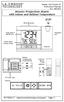 Model: WS-5220U-IT Instruction Manual DC: 082415 Atomic Projection Alarm with Indoor and Outdoor Temperature SNOOZE button Time, Alarm + WWVB Icon Projection arm Indoor Temp., Outdoor Temp. Battery Compartment
Get to Know Your Device 4G LTE BROADBAND ROUTER WITH VOICE
 Get to Know Your Device 4G LTE BROADBAND ROUTER WITH VOICE FRONT VIEW The Verizon 4G LTE Broadband Router with Voice is a wireless device that delivers Internet connectivity and telephone service. You
Pad. Quick Start Guide
 Pad Quick Start Guide Copyright 2008 Mimio Congratulations on your mimio Pad purchase! mimio Pad is a 4 GHz wireless pad. To configure mimio Pad for use, install the mimio Studio software and plug the
56-K61A-15000. Plantronics Calisto Headset with Bluetooth USB Adapter. User Guide
 56-K61A-15000 Plantronics Calisto Headset with Bluetooth USB Adapter User Guide Table of Contents Package Contents... 1 Product Features... 2 Wearing Your Headset... 3 Powering... 4 Charging... 5 Indicator
Wireless Router Setup Manual
 Wireless Router Setup Manual NETGEAR, Inc. 4500 Great America Parkway Santa Clara, CA 95054 USA 208-10082-02 2006-04 2006 by NETGEAR, Inc. All rights reserved. Trademarks NETGEAR is a trademark of Netgear,
IEEE 802.11b WLAN PC Card
 IEEE 802.11b WLAN PC Card User s Guide Version: 1.3 August 2001 Please install the Utility/Driver first before inserting the PCMCIA Card. FCC Class B Radio Frequency Interference Statement The manufacturer
Installation Guide Wireless 4-Port USB Sharing Station. GUWIP204 Part No. M1172-a
 Installation Guide Wireless 4-Port USB Sharing Station 1 GUWIP204 Part No. M1172-a 2011 IOGEAR. All Rights Reserved. PKG-M1172-a IOGEAR, the IOGEAR logo, MiniView, VSE are trademarks or registered trademarks
Ericsson W25. Mobile Networks. Quick Installation Guide
 Ericsson W25 Fixed Wireless Terminal for WCDMA/HSDPA Mobile Networks Quick Installation Guide Table of Contents INTRODUCTION... 3 Package Contents... 3 Requirements... 3 INSTALLATION... 4 Unit Preparation...
Net USER GUIDE MEDIA SHARING DEVICE
 FCC DECLARATION OF CONFORMANCE This device complies with Part 15 of the FCC Rules. Operation is subject to the following two conditions: (1) this device may not cause harmful interference, and (2) this
Infinity C Reference Guide
 1 2! Infinity C Reference Guide Table of Contents Components... 1 Hardware Setup... 5 SmartDrive Configuration... 12 Startup... 15 Login... 16 System Configuration... 19 DICOM Setup... 20 Monitoring Status...
3.5 EXTERNAL NETWORK HDD. User s Manual
 3.5 EXTERNAL NETWORK HDD User s Manual Table of Content Before You Use Key Features H/W Installation Illustration of Product LED Definition NETWORK HDD Assembly Setup the Network HDD Home Disk Utility
USB Dual Handset Adapter for Nortel 1100-Series IP Phones
 1021 USB Dual Handset Adapter for Nortel 1100-Series IP Phones User Guide Document#: 90-00039 [email protected] [email protected] www.algosolutions.com Table of Contents Algo 1021 USB Dual
Open Networking Adapter 1101GT Quick Install Guide
 Open Networking Adapter 1101GT Quick Install Guide 2016 Avaya Inc. 1 NN48800-300 01-07 2016 Avaya Inc. All Rights Reserved. Notice While reasonable efforts have been made to ensure that the information
Quick Installation Guide
 V2.01 Model: FI9821W Quick Installation Guide Indoor HD Pan/Tilt Wireless IP Camera Black White For Windows OS ------- Page 1 For MAC OS ------- Page 16 ShenZhen Foscam Intelligent Technology Co., Ltd
2Wire Gateway Installation Guide. For 2070 Series
 2Wire Gateway Installation Guide For 2070 Series Notice to Users 2006 2Wire, Inc. All rights reserved. This manual in whole or in part, may not be reproduced, translated, or reduced to any machinereadable
Application & Quick-Start Guide
 Model: CRMWIC Web Intelligent Controller 1 This document will illustrate various ways to connect and use a CRM-WIC as well as programming examples. When connecting CRM-WIC, the installer has several interface
SanDisk Connect Wireless Flash Drive QUICK START GUIDE
 SanDisk Connect Wireless Flash Drive QUICK START GUIDE GET STARTED 1. Charge your Wireless Drive Plug the Drive into a computer or USB-AC adaptor. A full charge can take up to 2 hours. 2) Turn on the
Shield Pro. Quick Start Guide
 Shield Pro In the box: Power Adapter Shield Network Cables Let s get started! Before installing Shield you will first need to determine which operating mode best fits your needs. To help with this process,
nual ature Monitoring System N) manual New Brunswick TCA-3 Temperature Monitoring System Operating manual
 nual ature Monitoring System N) manual New Brunswick TCA-3 Temperature Monitoring System Operating manual Copyright Copyright 2014 Eppendorf AG, Germany. No part of this publication may be reproduced without
Cellular Edition TM- CELL400 User Guide. 1 TM- CELL400 Rev 1.2 http://www.temperaturealert.com/ 2012 Temperature@lert
 Cellular Edition TM- CELL400 User Guide 1 TM- CELL400 Rev 1.2 http://www.temperaturealert.com/ 2012 Temperature@lert User Guide Thank you for choosing Temperature@lert to protect your highly valuable belongings
Barracuda Link Balancer Administrator s Guide
 Barracuda Link Balancer Administrator s Guide Version 1.0 Barracuda Networks Inc. 3175 S. Winchester Blvd. Campbell, CA 95008 http://www.barracuda.com Copyright Notice Copyright 2008, Barracuda Networks
Quick Installation Guide
 Quick Installation Guide (For Windows & Mac OS) Outdoor Wireless IP Camera Package Contents V1.1 IP Camera Power Adapter Resource CD Ethernet Cable Mounting Bracket(except FI8919) Wi-Fi Antenna Quick Installation
PCS300 Universal IP Reporting Module V1.0
 PCS300 Universal IP Reporting Module V1.0 Reference and Installation Manual Patents: One or more of the following US patents may apply: 7046142, 6215399, 6111256, 6104319, 5920259, 5886632, 5721542, 5287111,
Chapter 6 Using Network Monitoring Tools
 Chapter 6 Using Network Monitoring Tools This chapter describes how to use the maintenance features of your RangeMax Wireless-N Gigabit Router WNR3500. You can access these features by selecting the items