
CCBill Traffic Manager
|
|
|
- Jane May
- 9 years ago
- Views:
Transcription
1 CCBill Traffic Manager User s Guide V.2, AUGUST 2010

2 CONTENTS Introduction... 3 Overview... 3 Accessing Traffic Manager... 3 Price Points... 3 Regional Pricing... 4 Basic Mode... 5 Advanced Mode... 5 Initial Price... 5 Recurring Price... 6 Applying a Blanket Rule Set... 7 Saving Regional Pricing... 7 Currency Conversion Calculator... 7 Multi-Currency... 7 Multi-Currency Display Options... 8 Configurations... 8 Creating a Configuration... 8 Saving the Configuration Traffic Flows General Information Configurations Saving a Traffic Flow Generate Code Copying and Editing a Traffic Flow Support Information V.2, AUGUST 2010 PAGE 2 OF 12

3 INTRODUCTION This document is provided as a technical resource for CCBill clients. It is written for programmers, technicians, and other individuals with advanced programming skills. This document will outline the processes and procedures involved in configuring the CCBill Traffic Manager functionality. For a fast setup, refer to the Traffic Manager Quick Start Guide. Further support information will be provided at the end of the document. OVERVIEW CCBill Traffic Manager uses cascading payment options to allow consumers additional options when the first payment attempt is declined. This functionality can incorporate multiple payment methods as well as payment processors. For example, if a transaction is declined when the consumer attempts to pay using a credit card with CCBill, the consumer can be presented with an option to pay using CCBill online check or a credit card through SegPay. These are only a few examples of the many different ways to configure Traffic Manager. The goal of Traffic Manager is to increase sales opportunities for CCBill clients. If limited payment options are given to consumers, they may be blocked from making a purchase on your site due to a declined transaction. Traffic Manager attempts to alleviate this issue by offering additional payment options while offering clients the flexibility of using multiple payment processors to handle the transactions. Each payment option is known as a Configuration, and multiple Configurations make up a Traffic Flow. Traffic Flows allow configurations to cascade to one another when a payment option is declined. Configurations and traffic flows are explained in later in this document. ACCESSING TRAFFIC MANAGER Access Traffic Manager using the following steps: Log in to the CCBill Admin Portal at Click the Account Info menu. Click Account Admin. Click the Traffic Manager link on the left. You will be taken to the Traffic Manager Start page. The Traffic Manager Start page lists the components of Traffic Manager, each of which is explained in detail below. PRICE POINTS This section discusses the creation, use, and maintenance of Price Points to be used within Traffic Manager. Price points are the pricing amounts that consumers will pay when making a purchase on your site. Price Points will be used in the creation of Configurations, explained later in this document. To create a new Price Point, click the Create New Price Point button on the Traffic Manager home page or click the Price Points tab at the top of the browser window. You will be taken to the price point creation screen. V.2, AUGUST 2010 PAGE 3 OF 12
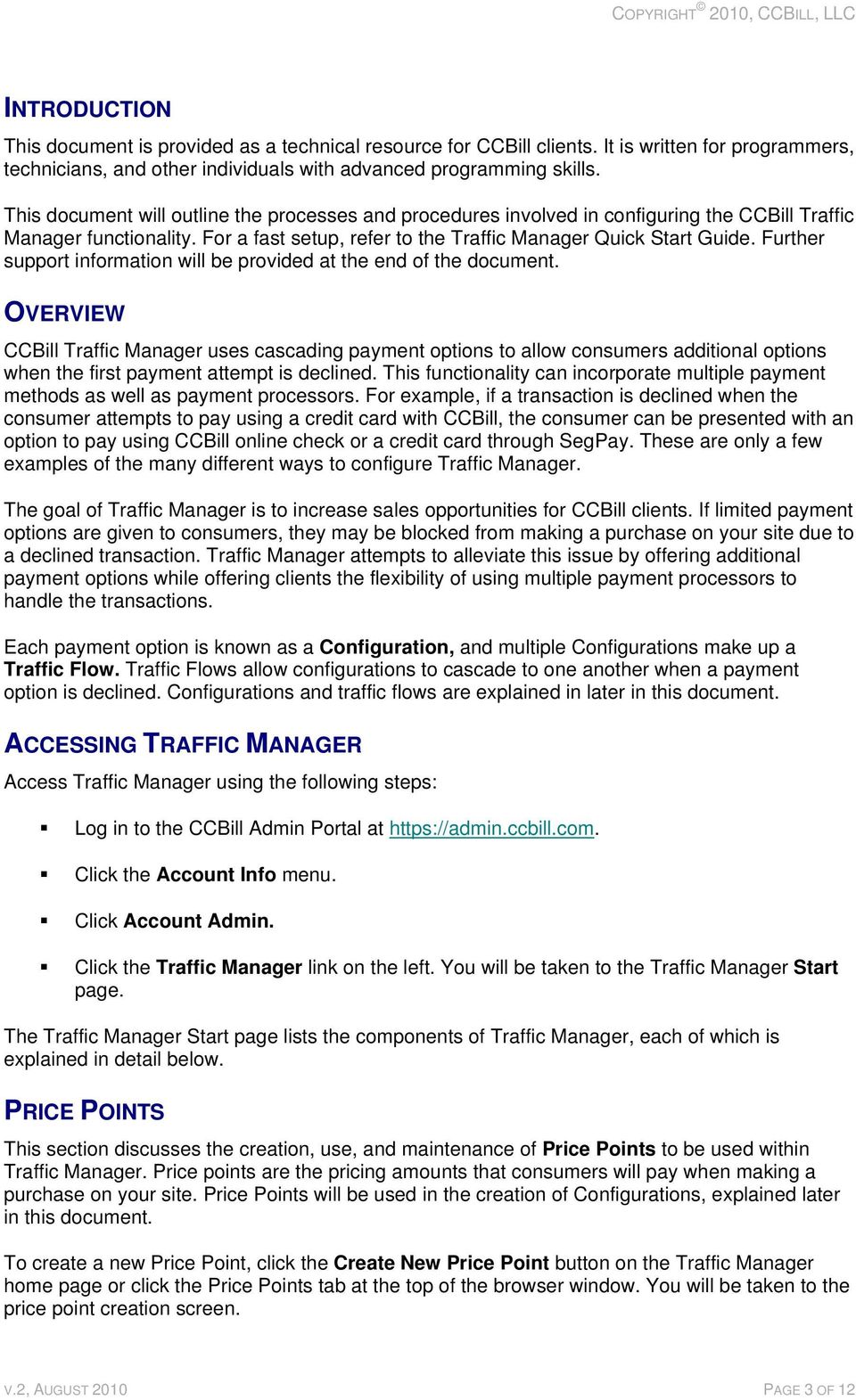
4 Fill out the following fields on the form to create a Price Point: Billing Type. The type of billing that will occur. Single Billing means the consumer will be billed only once, and Recurring Billing means the consumer will be rebilled after a specified number of days. The total number of rebills can be defined later in the form. Base Currency. The base currency type in which the amount will be shown to the consumer. Initial Price. The price for the first billing period. If Single Billing is selected above, this will be the only payment made by the consumer. If offering Trial subscriptions, the Initial Price will be the Trial price. This amount is due the moment the consumer s payment information is accepted. Initial Billing Period. The length of the first billing period. If using Trial subscriptions, enter the length of the trial. This field does not apply to Single Billing transactions. Recurring Price. The amount the consumer will pay after the Initial Billing Period has expired. This field does not apply to Single Billing transactions. Recurring Billing Period. The length of time between rebills. This field does not apply to Single Billing transactions. Rebills. The total number of times the subscription will rebill. You may select one of two options: Indefinitely means rebills will continue until the consumer cancels the subscription. To rebill a specific number of times, click the Times option and enter the desired number in the field. Click the Save Price Point button to save your price point. When the save is complete, you will see a confirmation dialog box confirming the save. Click OK. You may now choose to create additional price points or continue configuring Traffic Manager. Note: Once a Price Point has been created, it cannot be modified or deleted. REGIONAL PRICING Regional Pricing is a feature that allows you to utilize the international currency market to increase sales opportunities. Pricing values can be converted to different forms of currency at custom or pre-determined rates, allowing customized pricing options in the native currency of consumers. This also enables you to charge a flat base amount that stays consistent in all regions. For example: Suppose that without using Regional Pricing, you charge $19.95 USD for a monthly subscription. A consumer from Europe views the signup form, is presented with the $19.95 USD pricing, and signs up. You earn $19.95 (gross) for that transaction. Now, suppose that with Regional Pricing, you charge $19.95 USD monthly for all subscriptions that originate from countries that use the US dollar for their currency. You charge to consumers that originate from European Union countries. When consumers from the US subscribe, you earn a gross total of $19.95 USD for that transaction. But when a consumer from the EU subscribes you earn a gross total of $31.27 USD (figure based on the currency exchange rate as of April 3 rd, 2008). Several different options are available for Regional Pricing currency conversion rates, explained in the following sections. Two setup modes are also available: Basic and Advanced. V.2, AUGUST 2010 PAGE 4 OF 12

5 BASIC MODE Regional Pricing can be enabled in Basic Mode without going through Traffic Manager. From the Account Admin screen, simply click the Accept Regional Pricing button. This will automatically update your pricing options to reflect Regional Pricing using the CCBill Recommended currency conversion rates, explained in greater detail below. This is the only required step to enable Regional Pricing. Optionally, you may choose to automatically update your rates when the CCBill Recommended rates are updated. To do this, click the Opt In box prior to clicking the Accept Regional Pricing button. You will see the Status field change to Enabled, signifying that Regional Pricing is enabled on the account. The CCBill Recommended rates are updated frequently. If you choose to accept Regional Pricing but not Opt In for automatic updates, you will receive an notifying you when the CCBill Recommended rates are updated. The will also contain additional instructions on how to accept the new rates. If you prefer to keep the current rates and not accept the update, you may do so. You may also view the result of the updated rates prior to accepting them. From the Account Admin page, select a pricing option from the drop-down menu. The table will update to show the new prices. Note that changes have not yet been made at this time; changes will go into effect only after clicking the Accept Regional Pricing button. ADVANCED MODE Regional Pricing can be fine-tuned through Traffic Manager by using the Advanced Mode features. To begin, click the Regional Pricing tab from the Traffic Manager Start page. Please note that CCBill is NOT responsible for loss of revenue that might occur when using the advanced features of Regional Pricing. Please make sure that you understand the Regional Pricing feature thoroughly before enabling any of these advanced features. If you do not, please use the "Basic Mode" of Regional Pricing. After clicking the Regional Pricing tab from the Traffic Manager Start page, you will be taken to the Regional Pricing setup page. In the Create Regional Pricing field, enter a name for your Regional Pricing profile. Profiles can later be edited by selecting them from the Edit Regional Pricing menu on this page. Select a Base Currency and Price Point from the list. This will be the Price Point for which the advanced options are configured. You may also choose to apply a Blanket Rule Set that will affect all price points on the subaccount; this feature will be explained in an upcoming section. INITIAL PRICE After selecting a Price Point, the Initial Price section will appear for you to define currency conversion settings on the Initial Price. The tables that appear are organized as follows: CCBill Recommended CCBill Recommended Rates are currency conversion rates recommended by CCBill. These rates are considered by CCBill to be stable in an ever-changing currency market. The table shows a flag representing each region s currency, with the first row showing the equivalent conversion to the US dollar. The second row shows the inverse, meaning the equivalent US V.2, AUGUST 2010 PAGE 5 OF 12
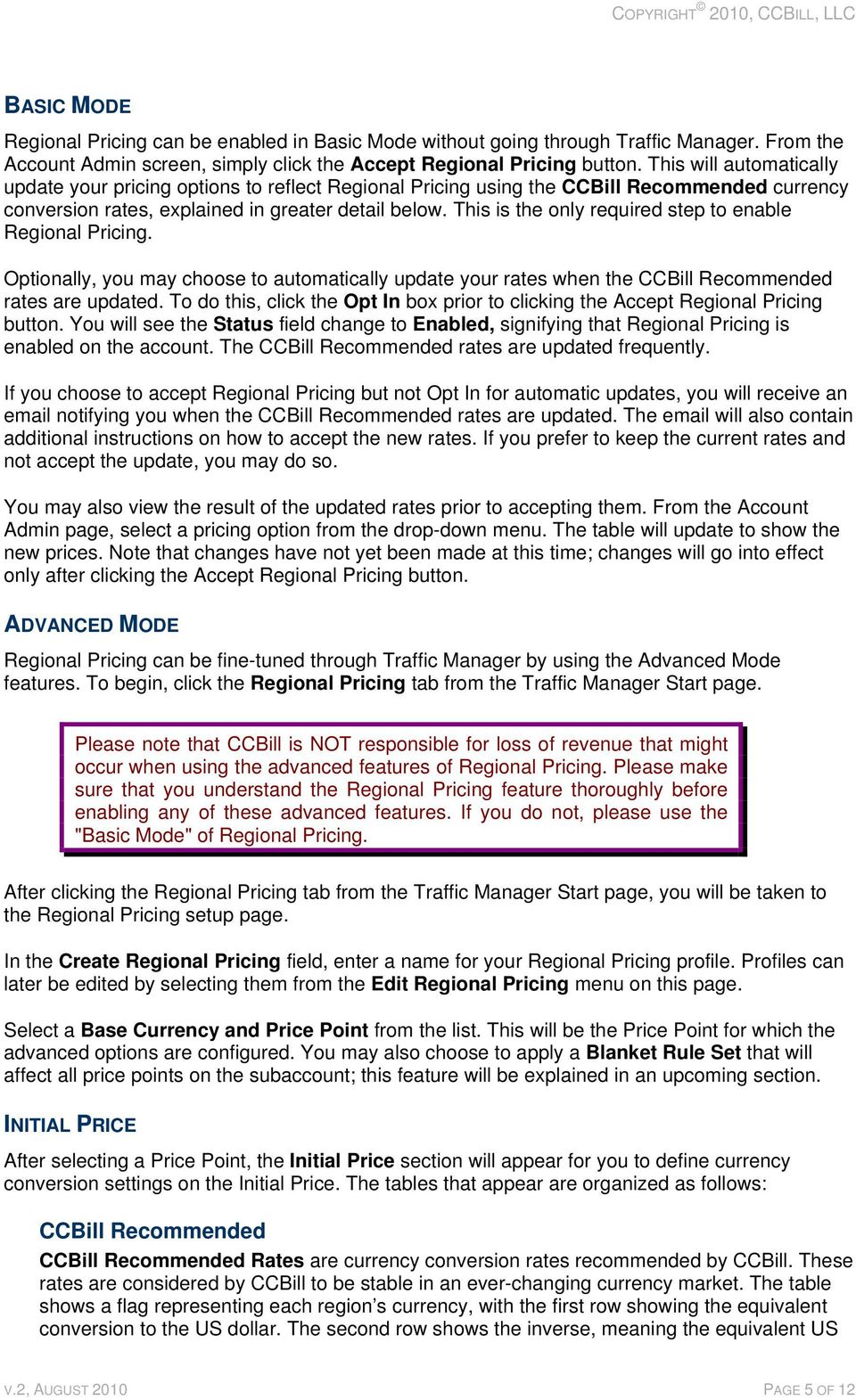
6 dollar value of a single unit of that region s currency. Click the Apply button next to the CCBill Recommended Rates table header to apply the rates to the selected Price Point. This will enter the CCBill Recommended Rates into the Custom Conversion Price fields in the Regional Pricing table, explained in greater detail below. Because the CCBill Recommended rates are updated on occasion, you can choose to automatically update your currency conversion rates whenever the CCBill Recommended rates are updated. To do so, return to the Account Admin screen, check the box to Opt In, and click Accept Regional Pricing. See the Basic Mode section above for more information. If Regional Pricing is already enabled but you have not opted in for automatic updates and would like to do so, click Decline Regional Pricing. Once the Status has changed to Disabled, click Opt In, and then click the Accept Regional Pricing button. (Regional Pricing must be declined and re-accepted for the Opt In to take effect.) Daily Dynamic Rates Daily Dynamic Rates change dynamically throughout the day depending on the current state of the currency market. Values are updated automatically by CCBill as new rates become available. Click the Apply button next to the Daily Dynamic Rates table header to apply these rates to the selected Price Point. Custom Currency conversion rates can be customized by using the Regional Pricing table. The columns are organized as follows: Currency Regions. A flag represents each currency region, with the symbol and 3- letter code for that currency appearing next to the flag. Each row describes how that form of currency will be used to convert the selected Price Point. Daily Dynamic. A radio button will appear for each form of currency using the Daily Dynamic Rates option. Custom Fixed Price. You may select the radio button and enter a custom fixed price for any form of currency listed. This amount will not be subject to any conversion rate. Custom Conversion Price. You may select the radio button next to each currency option and enter a custom currency conversion rate. Click the Auto Rate option to recalculate the final values in the Final Price field. Final Price. This field shows the price the consumer will see on the signup form for the selected Price Point once Regional Pricing is implemented. You may also choose to round values using the options at the top of the Regional Pricing table. Values can be rounded up or down to the nearest whole number, or the nearest value ending in.00,.95, or.99. This option is typically used to make prices look more familiar or aesthetically-pleasing on the form. RECURRING PRICE The same options are available for the Recurring Price section as the Initial Price section. You can enter custom values or click the Apply same settings as above check box to keep your settings consistent with the Initial Price. V.2, AUGUST 2010 PAGE 6 OF 12
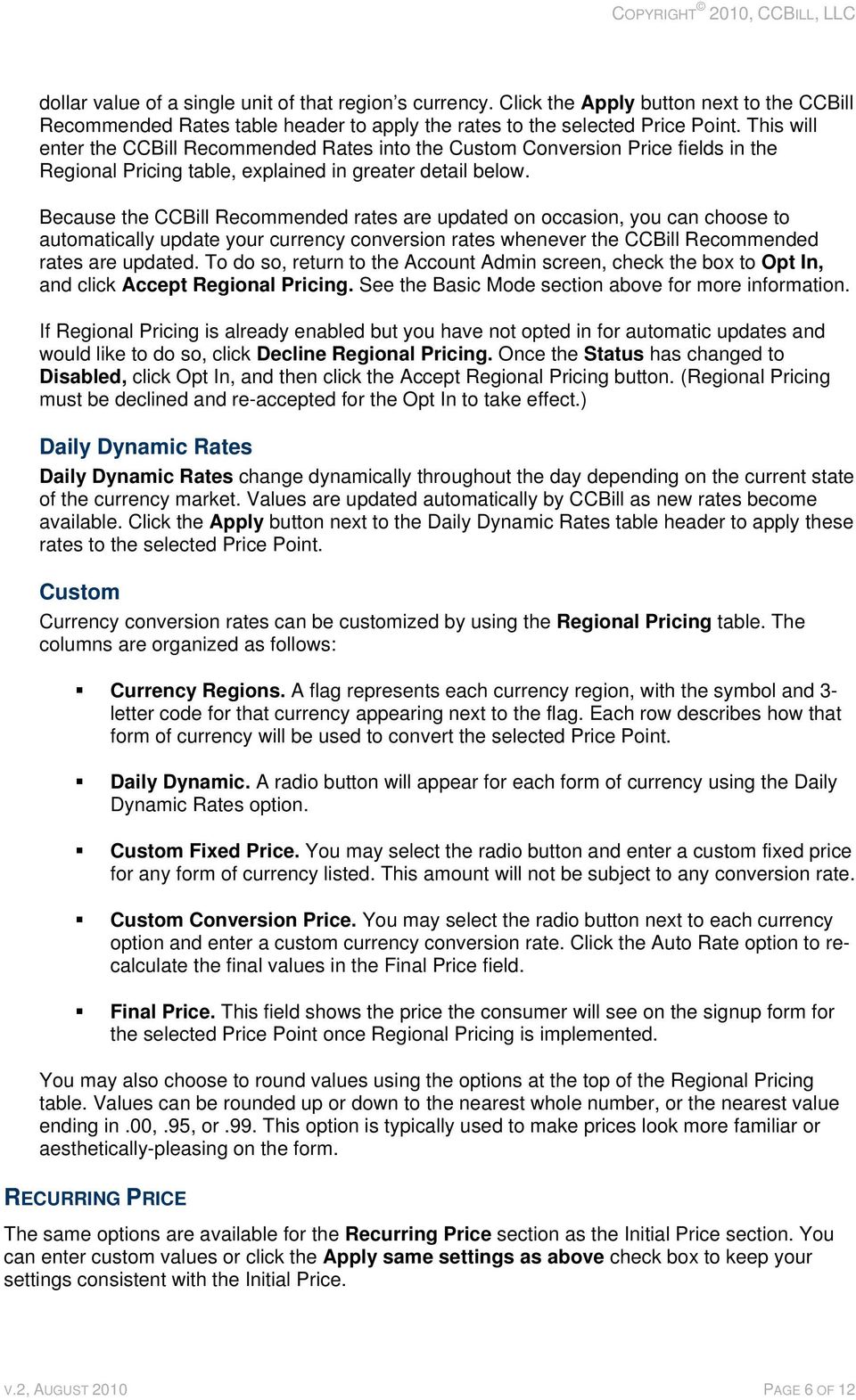
7 APPLYING A BLANKET RULE SET This option is used to apply settings to all Price Points on an account. When the radio button is clicked, different sections will appear for each currency to be fine-tuned. The options work primarily the same way, with some subtle differences. In a Blanket Rule Set, options are set for each individual base currency, rather than just the base currency for a selected Price Point. Because Blanket Rule Sets apply to all Price Points, no individual Price Point will be selected. In the Regional Pricing table, use the radio buttons in the Custom Conversion Method field to set each form of currency to use the Daily Dynamic or Custom Conversion rate. Clicking the Apply button in the Daily Dynamic Rates table will apply that rate to each form of currency in that region, while clicking Apply in the CCBill Recommended table will apply those rates to the Custom Conversion setting. You may also enter a custom value in the box. The Alert Values field applies to Daily Dynamic Rates. Because these values fluctuate, sudden drops in the value of a currency can potentially result in a substantial loss of revenue. Alert Values are used to alert you via if a currency value changes to go above or below a specified threshold. Values are calculated by percentage. To receive these alerts, click the left radio button and enter your preferred minimum and maximum percentages in the appropriate boxes. This will allow you to be alerted when a value increases or decreases by your specified percentage; for example, if you enter a minimum of 5% and a maximum of 10%, you will be alerted when the value of that currency decreases by 5% or increases by 10%. Note that when alerts are sent, no changes to your settings will be made; any desired updates must be made manually. You may also choose to not receive alerts by clicking the Stop Alerts radio button. SAVING REGIONAL PRICING Click the Save Regional Pricing button to save your changes. (You may also click the Reset button to undo the changes you have made.) When the save is complete, a confirmation dialog will appear. Click OK to continue and return to Regional Pricing. You can now continue setting up Traffic Manager. CURRENCY CONVERSION CALCULATOR For ease of reference, a currency conversion calculator is available at the bottom of the Regional Pricing page. Enter the amount in the field, select a currency to convert from, select a currency to convert to, and click the Go button. The new value will appear in the table. Note that using this tool will not cause any changes to be made to your Regional Pricing settings. MULTI-CURRENCY This section will discuss the use of Multi-Currency within Traffic Manger. Multi-Currency is a method of localizing payment options for consumers in various geographical regions of the world; this means displaying the payment form in the consumer s local language and currency. Multi- Currency is optional and not required to use Traffic Manager, but is required to use Regional Pricing. Multi-Currency can, however, be used without Traffic Manager. For more information about using Multi-Currency outside Traffic Manager, please consult the CCBill help file at the online support center. Note: Multi-Currency is enabled by default on all CCBill accounts. If you have disabled Multi-Currency on your account and wish to use Regional Pricing, please call Client Support to re-enable Multi-Currency. V.2, AUGUST 2010 PAGE 7 OF 12

8 To use Multi-Currency within Traffic Manager, a Multi-Currency profile must be created; this profile will later be applied to Configurations. To begin, click the Multi-Currency tab at the top of the screen. This will take you to the Multi-Currency setup screen. Enter a name for the profile in the Create field. You may optionally set the current profile to be the Subaccount Default by selecting the Yes option in that field. If No is selected, the profile can still be used, but must be selected manually when creating Configurations. MULTI-CURRENCY DISPLAY OPTIONS The Multi-Currency Display Options table shows which forms of currency are available to each geographical region. The first column, labeled Currency Regions, shows the applicable regions. Each row shows the currencies available for those regions. Forms of currency that are checked are available for that region. To enable or disable a form of currency for that region, simply click the corresponding check box. Checked means the currency is available and unchecked means it is not. When the consumer views the payment form, only the enabled currencies for the consumer s region will be available. When finished, click the Save Multi-Currency button. When the save is complete, a dialog box will appear, confirming the save. Click OK to continue. You may edit your Multi-Currency options by selecting a profile from the list in the Edit field. You may also, at any time during the creation or editing process, restore your changes back to the previous saved settings by clicking the Reset button. No changes will be confirmed until the Save Multi-Currency button is clicked. CONFIGURATIONS Configurations are the individual payment options available to consumers and form each step in the cascading traffic flow process. To begin, click the Configurations tab from the Traffic Manager Start page. CREATING A CONFIGURATION Click the Create New Configuration button to create a new Configuration. You will be taken to the Configuration setup screen. Several sections will need to be completed, as described below. General Information Fill in the following fields: Name. A name to identify the configuration; for example, CCBill_Credit or SegPay Credit. The name can be anything you choose. Description. A brief description of the Configuration. This value can also be anything you choose. Processor. The company that will process the transaction. Several options are available, and CCBill is not required to be selected as a processor. Please note that you must have an account with that processor in order to process through them using Traffic Manager. Payment Type. The type of payment that will be offered to the consumer. Additional information may be required depending on the processor selected; for example, selecting Epoch/Paycom as a processor will require a CO and PI code, while V.2, AUGUST 2010 PAGE 8 OF 12
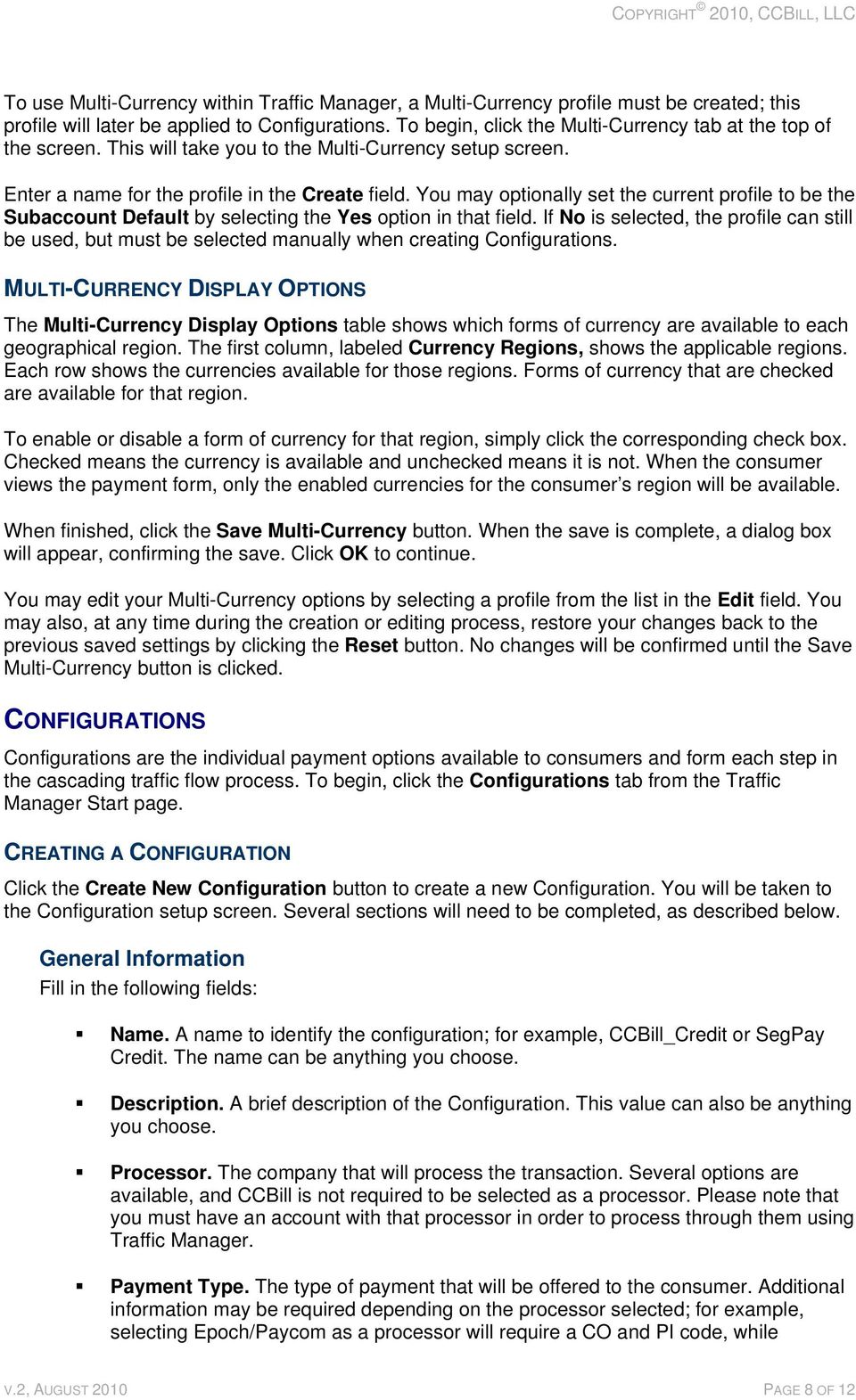
9 selecting SegPay will require an E-Ticket ID. This information must be obtained from that processor in accordance with you account information with that processor. Status. Setting the Configuration as Active will enable the Configuration to be used in a Traffic Flow; Inactive will prevent it from being used. Next, you will need to create the form that consumers will use to make purchases using this configuration. Form Design This section designs the form in which the consumer will enter payment information. This section is only shown when using CCBill as a processor; using other processors will use the default form configured on your account with that processor. To configure a form, make the following selections from each list: Form Type. Choose a Standard or Customizable form. Additional form options not related to Traffic Manager can be accessed by clicking the Form Options button. Form Layout. This setting is purely aesthetic and does not affect the functionality of the form. A thumbnail preview of the form will show in the form selector below the list. Form Theme. This setting is also aesthetic and allows you to pick a color scheme that fits within your site design. Form Selector. This section shots thumbnail previews of all forms available with the settings you have selected. Click the left and right arrows to cycle through available forms. Clicking the Form Options button will open the Form Admin screen, outside of Traffic Manager. Additional modifications using the Form Admin are not required to use Traffic Manager. Next, pricing options must be selected for the Configuration. Pricing This section of the setup process defines which pricing options will be displayed on the form. Two pricing types are available: Regional Pricing. This option allows you to use Price Points created earlier in the Traffic Manager setup process. Standard Pricing. This option allows you to use pricing options that were created outside Traffic Manager, using the Pricing Admin feature of the CCBill Admin. Below the Pricing field, two lists are shown. The Available Pricing list shows each Price Point available under the selected pricing type, while the Selected Pricing list shows each Price Point that is currently showing on the form. Click and drag Price Points from the Available list to the Selected list to add them to the form. Consumers will be able to select from each option shown in the Selected list. At this time, you may optionally choose to create additional Price Points by clicking the Create New Pricing button. A window will appear for you to enter the new pricing information; when finished, click the Submit button in the popup window. The pricing option will appear in the list. Note that Price Points created this way will only appear when Standard V.2, AUGUST 2010 PAGE 9 OF 12

10 Pricing is selected; if you would like to use Regional Pricing with this Price Point, you will need to configure that Price Point in the Regional Pricing section of Traffic Manager. Multi-Currency Select a Multi-Currency profile from the list. This profile was created in the Multi-Currency section of Traffic Manager; if you are using Regional Pricing, Multi-Currency must be used. If you intend to use Regional Pricing and have not yet created a Multi-Currency profile, you must do so before continuing. Advanced Parameters Advanced Parameters are optional additional tracking parameters. These are used by clients who wish to use additional tracking mechanisms. These values may be required by other processors, or optional to allow additional functionality. The value will be passed through to the processor s tracking system whenever that particular Configuration is loaded, or comes up in the cascade. The value will still be passed even if the consumer chooses not to pay and closes the form. CCBill does not require the use of this feature; however, other processors may require additional parameters. If you are not sure whether or not you should use this feature, consult the company who will be processing the transaction. To configure an Advanced Parameter, enter the following values: Key. This value is the name of the variable being tracked. Value. This is the value of the variable being tracked. Click the Add button to add the Advanced Parameter. You may edit a parameter by clicking the Edit button next to that parameter, or delete it by clicking the X. SAVING THE CONFIGURATION When finished creating the Configuration, click the Save button at the bottom of the screen. When the save is complete, a dialog box will appear to confirm the save. Click OK. You may now create additional Configurations by clicking the Create New Configuration button, if desired. To begin using your Configurations, you must now set up a Traffic Flow. TRAFFIC FLOWS A Traffic Flow is comprised of one or more Configurations, each cascading to the next when a consumer s payment is declined. To begin, click the Traffic Flows tab from the Traffic Manager Start page. Traffic Flows are created in a similar fashion as Configurations. Complete the following sections: GENERAL INFORMATION Name. A descriptive identifier for the Traffic Flow; for example, Spring This name can be anything you choose. Description. A brief description of the Traffic Flow. This value can also be anything you choose. V.2, AUGUST 2010 PAGE 10 OF 12

11 Post Proxy URL. This value is optional. If you wish to receive Postback information from Traffic Manager transactions, enter the URL where this data is to be sent. For more information regarding this feature, consult the Background Post User s Guide. Filter. This feature is currently in development. Select the DEFAULT option. Status. Select Active to enable the Traffic Flow or Inactive to disable it. Next you will define which configurations will be used for the Traffic Flow. CONFIGURATIONS This area allows you to define the cascade sequence of your Traffic Flow. In this section, two lists are shown. The Available list shows each Configuration you have created, and the Selected list shows each Configuration currently used in the Traffic Flow (the Selected list will be empty when the Traffic Flow is first created). Click and drag a Configuration from the Available list to the Selected list. You can change the order in which the Configurations cascade by dragging them up or down in the list. The cascade will begin with the Configuration at the top of the list and continue downward. SAVING A TRAFFIC FLOW When finished creating the Traffic Flow, click the Save button. When the save is complete, a confirmation dialog will appear to confirm the save. Click OK. You now have the option of creating additional Traffic Flows by clicking the Create New Traffic Flow button, or implementing the one you just finished. To implement a Traffic Flow on your site, you must first generate HTML code for the Traffic Flow. GENERATE CODE Utilizing a Traffic Flow is as simple as pasting a line of HTML link code on your Web site. The code will appear in the Generate Code field once the Traffic Flow is saved, but you can also click the Generate Code button to get the code if the field is currently empty. Clicking the Copy Code button will copy the code directly to your computer s clipboard. The code can now be pasted on your site. The HTML code is an URL that takes the consumer to the payment form and can be used anywhere you would post a Join link. The following HTML would be one example of how to use the code: <a href= clientaccnum=900100&clientsubacc=0002&cascadeid=571 title= Join Today! >Join Today!</a> Once the code has been placed on your site and the Traffic Flow s Status has been set to Active, the Traffic Flow is enabled on your site. The rest of the process is handled automatically. Additionally, once the code is generated, you will never have to re-generate the code when changes are made to the Traffic Flow. Any changes you make will be handled automatically. V.2, AUGUST 2010 PAGE 11 OF 12

12 COPYING AND EDITING A TRAFFIC FLOW Traffic Flows can be edited at any time by returning to the Traffic Flows tab and clicking the Edit button next to the Traffic Flow you wish to modify. You may also create a Traffic Flow similar to an existing one by clicking the Copy button; this will create a new Traffic Flow identical to the one copied. The new Traffic Flow can then be changed and saved with a new name while keeping the original Traffic Flow intact. SUPPORT INFORMATION CCBill 24/7 Client Support: [email protected] Online Support Center: V.2, AUGUST 2010 PAGE 12 OF 12

EC SUITE TRAFFIC MANAGER
 p. 800.467.0253 f. 480.449.8801 [email protected] EC Suite, LLC. 2353 W. University Dr. Tempe, AZ 85281-7223 EC SUITE TRAFFIC MANAGER Quick Start Guide 2010 EC Suite, LLC v.2 2007, EC Suite LLC
TABLE OF CONTENTS. ipay / Magento Implementation Guide 2 Copyright 2012 Planet Payment, Inc. All Rights Reserved.
 TABLE OF CONTENTS INTRODUCTION... 3 Purpose... 3 Downloading the Magento Extension... 3 Configuring the Magento Extension... 3 Exhibit: Magento Admin Login Screen... 3 Payment Processing Options with ipay
Appointment Scheduler
 EZClaim Appointment Scheduler User Guide Last Update: 11/19/2008 Copyright 2008 EZClaim This page intentionally left blank Contents Contents... iii Getting Started... 5 System Requirements... 5 Installing
ICP Data Entry Module Training document. HHC Data Entry Module Training Document
 HHC Data Entry Module Training Document Contents 1. Introduction... 4 1.1 About this Guide... 4 1.2 Scope... 4 2. Step for testing HHC Data Entry Module.. Error! Bookmark not defined. STEP 1 : ICP HHC
SEGPAY SUITE MERCHANT SETUP CONFIGURATION REPORTS
 SEGPAY SUITE MERCHANT SETUP CONFIGURATION REPORTS AUGUST 27, 2013 VERSION 1.01 TABLE OF CONTENTS 1 MERCHANT SETUP CONFIGURATION REPORTS...3 1.1 HOW TO GET THE MERCHANT SETUP CONFIGURATIONS REPORT... 3
Payco, Inc. Evolution and Employee Portal. Payco Services, Inc.., 2013. 1 Home
 Payco, Inc. Evolution and Employee Portal Payco Services, Inc.., 2013 1 Table of Contents Payco Services, Inc.., 2013 Table of Contents Installing Evolution... 4 Commonly Used Buttons... 5 Employee Information...
Power Monitoring Expert 7.2
 Power Monitoring Expert 7.2 PDF version of the Web Applications online help 7ENxx-00xx-00 07/2013 PDF version of the Web Applications online help Safety information Safety information Important information
ACHieve Access 4.3 User Guide for Corporate Customers
 ACHieve Access 4.3 User Guide for Corporate Customers January 2015 Citizens Bank 1 February 2015 Table of Contents SECTION 1: OVERVIEW... 4 Chapter 1: Introduction... 5 How to Use This Manual... 5 Overview
emarketing Manual- Creating a New Email
 emarketing Manual- Creating a New Email Create a new email: You can create a new email by clicking the button labeled Create New Email located at the top of the main page. Once you click this button, a
EMC Documentum Webtop
 EMC Documentum Webtop Version 6.5 User Guide P/N 300 007 239 A01 EMC Corporation Corporate Headquarters: Hopkinton, MA 01748 9103 1 508 435 1000 www.emc.com Copyright 1994 2008 EMC Corporation. All rights
WebSphere Business Monitor V6.2 Business space dashboards
 Copyright IBM Corporation 2009 All rights reserved IBM WEBSPHERE BUSINESS MONITOR 6.2 LAB EXERCISE WebSphere Business Monitor V6.2 What this exercise is about... 2 Lab requirements... 2 What you should
Shasta College SharePoint Tutorial. Create an HTML Form
 Create an HTML Form SharePoint HTML forms are based on Lists. Lists are like mini-databases inside of SharePoint that define the form s fields and stores the data submitted from the form. Before you can
EMAIL CAMPAIGNS...5 LIST BUILDER FORMS...
 Basic User Guide Table of Contents INTRODUCTION...1 CAMPAIGNER FEATURES...1 WHO SHOULD READ THIS GUIDE?...1 GETTING STARTED...2 LOGGING IN TO CAMPAIGNER...2 DASHBOARD...3 Modify Your Dashboard...4 EMAIL
Outlook Profile Setup Guide Exchange 2010 Quick Start and Detailed Instructions
 HOSTING Administrator Control Panel / Quick Reference Guide Page 1 of 9 Outlook Profile Setup Guide Exchange 2010 Quick Start and Detailed Instructions Exchange 2010 Outlook Profile Setup Page 2 of 9 Exchange
WEB TRADER USER MANUAL
 WEB TRADER USER MANUAL Web Trader... 2 Getting Started... 4 Logging In... 5 The Workspace... 6 Main menu... 7 File... 7 Instruments... 8 View... 8 Quotes View... 9 Advanced View...11 Accounts View...11
HDAccess Administrators User Manual. Help Desk Authority 9.0
 HDAccess Administrators User Manual Help Desk Authority 9.0 2011ScriptLogic Corporation ALL RIGHTS RESERVED. ScriptLogic, the ScriptLogic logo and Point,Click,Done! are trademarks and registered trademarks
DarwiNet Client Level
 DarwiNet Client Level Table Of Contents Welcome to the Help area for your online payroll system.... 1 Getting Started... 3 Welcome to the Help area for your online payroll system.... 3 Logging In... 4
Liferay Portal 4.0 - User Guide. Joseph Shum Alexander Chow
 Liferay Portal 4.0 - User Guide Joseph Shum Alexander Chow Liferay Portal 4.0 - User Guide Joseph Shum Alexander Chow Table of Contents Preface... viii User Administration... 1 Overview... 1 Administration
Netigate User Guide. Setup... 2. Introduction... 5. Questions... 6. Text box... 7. Text area... 9. Radio buttons...10. Radio buttons Weighted...
 Netigate User Guide Setup... 2 Introduction... 5 Questions... 6 Text box... 7 Text area... 9 Radio buttons...10 Radio buttons Weighted...12 Check box...13 Drop-down...15 Matrix...17 Matrix Weighted...18
1. Introduction 3 Overview 1.1 Profiles
 QUICK START GUIDE In this guide, you will find a brief summary of the steps needed to begin using your FingerCheck Workforce Management Solution. To see detailed instructions on all of the features available,
Working with Templates. Schoolwires Centricity2
 Working with Templates Schoolwires Centricity2 Trademark Notice Schoolwires, the Schoolwires logos, and the unique trade dress of Schoolwires are the trademarks, service marks, trade dress and logos of
TDS6 SOFTWARE USER MANUAL
 TDS6 SOFTWARE USER MANUAL Ta b l e o f C o n t e n t s T D S 6 U S E R M A N U A L SECTION I. INTRODUCTION TO TDS 6 1 1.1 POWER AND EASE OF USE 1 1.2 FEATURES SECTION II. USER ACTIVITIES 1 2.1 USER ACTIVITIES
Timeless Time and Expense Version 3.0. Copyright 1997-2009 MAG Softwrx, Inc.
 Timeless Time and Expense Version 3.0 Timeless Time and Expense All rights reserved. No parts of this work may be reproduced in any form or by any means - graphic, electronic, or mechanical, including
Hatco Lead Management System: http://hatco.scangroup.net/
 Hatco Lead Management System User Guide General Notes: The Hatco Lead Management System (HLMS) is designed to work with modern web browsers, such as Internet Explorer 9 or newer, Firefox, Chrome & Safari.
How to Update Bill Pay to Reflect a New Checking Account Type
 How to Update Bill Pay to Reflect a New Checking Account Type If you have changed checking account types, you will need to update your Home Banking Bill Pay Pay bills from: account if you have any scheduled
PORTAL ADMINISTRATION
 1 Portal Administration User s Guide PORTAL ADMINISTRATION GUIDE Page 1 2 Portal Administration User s Guide Table of Contents Introduction...5 Core Portal Framework Concepts...5 Key Items...5 Layouts...5
NDSU Technology Learning & Media Center. Introduction to Google Sites
 NDSU Technology Learning & Media Center QBB 150C 231-5130 www.ndsu.edu/its/tlmc Introduction to Google Sites Get Help at the TLMC 1. Get help with class projects on a walk-in basis; student learning assistants
TriCore Secure Web Email Gateway User Guide 1
 TriCore Secure Web Email Gateway User Guide This document provides information about TriCore Secure Web Email Gateway. This document is for users who are authorized to send and receive encrypted email
TM SysAid Chat Guide Document Updated: 10 November 2009
 SysAidTM Chat Guide Document Updated: 10 November 2009 Introduction 2 Quick Access to SysAid Chat 3 Enable / Disable the SysAid Chat from the End User Portal. 4 Edit the Chat Settings 5 Chat Automatic
How To Build An Online Store On Ecwid
 Using Ecwid to Build an Online Store Ecwid provides all you need for a one-stop online shop, including a built-in 'drag and drop' shopping cart, the recording of customer registration details, destination
Table of Contents INTRODUCTION...2 HOME PAGE...3. Announcements... 6 Personalize... 7 Reminders... 9 Recent Items... 11 SERVICE CATALOG...
 Table of Contents INTRODUCTION...2 HOME PAGE...3 Announcements... 6 Personalize... 7 Reminders... 9 Recent Items... 11 SERVICE CATALOG...12 REQUEST...14 Request List View... 15 Creating a New Incident...
WebSphere Business Monitor V7.0 Business space dashboards
 Copyright IBM Corporation 2010 All rights reserved IBM WEBSPHERE BUSINESS MONITOR 7.0 LAB EXERCISE WebSphere Business Monitor V7.0 What this exercise is about... 2 Lab requirements... 2 What you should
Does the GC have an online document management solution?
 This FAQ contains: Web File Services definition Access web file services Create a WFS folder Upload a document Email a link to a document folder Create WFS subscription Cancel existing subscription Create
UOFL SHAREPOINT ADMINISTRATORS GUIDE
 UOFL SHAREPOINT ADMINISTRATORS GUIDE WOW What Power! Learn how to administer a SharePoint site. [Type text] SharePoint Administrator Training Table of Contents Basics... 3 Definitions... 3 The Ribbon...
Salesforce-Wrike Integration Setup Manual
 Salesforce-Wrike Integration Setup Manual This document has been designed for Salesforce administrators. It will guide you through the setup process for the integration between your Salesforce instance
Sample Table. Columns. Column 1 Column 2 Column 3 Row 1 Cell 1 Cell 2 Cell 3 Row 2 Cell 4 Cell 5 Cell 6 Row 3 Cell 7 Cell 8 Cell 9.
 Working with Tables in Microsoft Word The purpose of this document is to lead you through the steps of creating, editing and deleting tables and parts of tables. This document follows a tutorial format
Microsoft Outlook 2013 -And- Outlook Web App (OWA) Using Office 365
 1 C H A P T E R Microsoft Outlook 2013 -And- Outlook Web App (OWA) Using Office 365 1 MICROSOFT OUTLOOK 2013 AND OUTLOOK WEB ACCESS (OWA) Table of Contents Chapter 1: Signing Into the Microsoft Email System...
Skype Manager User Guide
 Skype Manager User Guide Version 3.0 Copyright Skype Limited 2011 About this guide Skype Manager is a web-based management tool that lets you centrally manage Skype for businesses of any size. This guide
A quick guide to... Creating Custom Web Forms
 A quick guide to... Creating Custom Web Forms In this guide... Learn how to create well-designed web forms in seconds. Pick your favorite template then color and shape every aspect of your form until you
Page 1 of 14. MyAerospace. Order Status. E-mail Notifications
 Page 1 of 14 MyAerospace Order Status E-mail Notifications Honeywell Services and Technology Team January 2014 Page 2 of 14 Table of Contents Table of Contents... 2 Introduction... 3 I. Subscribing to
Note: With v3.2, the DocuSign Fetch application was renamed DocuSign Retrieve.
 Quick Start Guide DocuSign Retrieve 3.2.2 Published April 2015 Overview DocuSign Retrieve is a windows-based tool that "retrieves" envelopes, documents, and data from DocuSign for use in external systems.
CoreCommerce Administrator Guide
 Welcome to CoreCommerce, an E-Commerce Software Solution for your business. Whether you are creating a small catalog, or you are looking to upgrade to a newer solution, CoreCommerce is the solution for
Hubcase for Salesforce Installation and Configuration Guide
 Hubcase for Salesforce Installation and Configuration Guide Note: This document is intended for system administrator, and not for end users. Installation and configuration require understanding of both
Decision Support AITS University Administration. Web Intelligence Rich Client 4.1 User Guide
 Decision Support AITS University Administration Web Intelligence Rich Client 4.1 User Guide 2 P age Web Intelligence 4.1 User Guide Web Intelligence 4.1 User Guide Contents Getting Started in Web Intelligence
Client Quick Start Guide. A User Guide for New ihomefinder Partners
 Client Quick Start Guide A User Guide for New ihomefinder Partners Introduction Congratulations on your decision to integrate ihomefinder tools into your Website. Customers increasingly turn to the Internet
Custom Reporting System User Guide
 Citibank Custom Reporting System User Guide April 2012 Version 8.1.1 Transaction Services Citibank Custom Reporting System User Guide Table of Contents Table of Contents User Guide Overview...2 Subscribe
Website Editor User Guide
 CONTENTS Minimum System Requirements... 3 Design Your Website... 3 Choosing your Theme... 4 Choosing your Header Style... 4-5 Website Content Editor... 6 Text Editor Toolbar features... 6 Main Menu Items...
First Financial Bank Online Banking Quick Reference. February, 2013
 February, 2013 PURPOSE... 2 SUPPORT... 2 ACCESSING ONLINE BANKING... 2 Getting to the Online Banking Site... 2 Requesting Enrollment in Online Banking... 2 Logging in for the First Time... 2 Registering
Microsoft Outlook 2003 Basic Guide
 Microsoft Outlook 2003 Basic Guide Table of Contents Introduction... 2 Getting Help... 2 Exploring Outlook... 3 Drop-Down Menus... 3 Navigation Pane... 4 Folder Pane... 7 Reading Pane... 7 Toolbars...
DataPA OpenAnalytics End User Training
 DataPA OpenAnalytics End User Training DataPA End User Training Lesson 1 Course Overview DataPA Chapter 1 Course Overview Introduction This course covers the skills required to use DataPA OpenAnalytics
Installation & Configuration Guide Professional Edition
 Installation & Configuration Guide Professional Edition Version 2.3 Updated January 2014 Table of Contents Getting Started... 3 Introduction... 3 Requirements... 3 Support... 4 Recommended Browsers...
Organizing and Managing Email
 Organizing and Managing Email Outlook provides several tools for managing email, including folders, rules, and categories. You can use these tools to help organize your email. Using folders Folders can
for 740 N. Plankinton Ave 12463 Rancho Bernardo Rd Suite 730 PMB #157 Milwaukee, Wisconsin 53203 San Diego, CA 92128 (800) 654-0441 (866) 402-8901
 for Integrated Time Systems Advanced Time Concepts 740 N. Plankinton Ave 12463 Rancho Bernardo Rd Suite 730 PMB #157 Milwaukee, Wisconsin 53203 San Diego, CA 92128 www.integratedtime.com www.timesystems.biz
Business Reports. ARUP Connect
 Business Reports ARUP Connect User Manual November 2015 Table of Contents Business Reports... 4 Quick Reference... 4 View Reports... 5 My Reports Tab... 5 Open a Report... 5 Save a Report... 5 Modify My
Table of Contents INTRODUCTION... 2 HOME PAGE... 3. Announcements... 7 Personalize & Change Password... 8 Reminders... 9 SERVICE CATALOG...
 Table of Contents INTRODUCTION... 2 HOME PAGE... 3 Announcements... 7 Personalize & Change Password... 8 Reminders... 9 SERVICE CATALOG... 11 Raising a Service Request... 12 Edit the Service Request...
Overview Settings Creating Events New Calendars, Granting Permissions and Ownership Subscribing to Other Calendars Help
 Saint Louis University Google Apps Calendar Overview Settings Creating Events New Calendars, Granting Permissions and Ownership Subscribing to Other Calendars Help Information Technology Services IT Training
DirectTrack CrossPublication Users Guide
 DirectTrack CrossPublication Users Guide Table of Contents Introduction...1 Getting Started...2 Do-It-Direct Enabling CrossPublication... 2 CrossPublication Setup... 3 Do-It-Direct CrossPublication Profile
Unleash the Power of e-learning
 Unleash the Power of e-learning Version 1.5 November 2011 Edition 2002-2011 Page2 Table of Contents ADMINISTRATOR MENU... 3 USER ACCOUNTS... 4 CREATING USER ACCOUNTS... 4 MODIFYING USER ACCOUNTS... 7 DELETING
Release Notes DAISY 4.0
 2010 Release Notes DAISY 4.0 NEW FEATURES Inactivate/Reactivate accounts and patients Enhanced treatment planning AutoRemind electronic appointment confirmation Copyright 2010. DAISY is a registered trademark
Composite.Community.Newsletter - User Guide
 Composite.Community.Newsletter - User Guide Composite 2015-11-09 Composite A/S Nygårdsvej 16 DK-2100 Copenhagen Phone +45 3915 7600 www.composite.net Contents 1 INTRODUCTION... 4 1.1 Who Should Read This
Webmail Instruction Guide
 Webmail Instruction Guide This document is setup to guide your through the use of the many features of our Webmail system. You may either visit www.safeaccess.com or webmail.safeaccess.com to login with
Migrating to Excel 2010 from Excel 2003 - Excel - Microsoft Office 1 of 1
 Migrating to Excel 2010 - Excel - Microsoft Office 1 of 1 In This Guide Microsoft Excel 2010 looks very different, so we created this guide to help you minimize the learning curve. Read on to learn key
Microsoft Office Access 2007 Basics
 Access(ing) A Database Project PRESENTED BY THE TECHNOLOGY TRAINERS OF THE MONROE COUNTY LIBRARY SYSTEM EMAIL: [email protected] MONROE COUNTY LIBRARY SYSTEM 734-241-5770 1 840 SOUTH ROESSLER
CONTRACT MANAGEMENT SYSTEM USER S GUIDE VERSION 2.7 (REVISED JULY 2012)
 CONTRACT MANAGEMENT SYSTEM USER S GUIDE VERSION 2.7 (REVISED JULY 2012) VERSION 2.6 (REVISED APRIL 2012)... I INTRODUCTION... 5 Helpful Hints... 5 Pop-Up Blockers... 5 Users... 6 CPUC Staff Administrator...
Document Manager 2.0. Corporate Administrator Guide
 Document Manager 2.0 Corporate Administrator Guide Introduction to the Corporate Administrator Guide Document Manager 2.0 is the Web to Print ordering application for OfficeMax ImPress. Many features and
Virtual Exhibit 5.0 requires that you have PastPerfect version 5.0 or higher with the MultiMedia and Virtual Exhibit Upgrades.
 28 VIRTUAL EXHIBIT Virtual Exhibit (VE) is the instant Web exhibit creation tool for PastPerfect Museum Software. Virtual Exhibit converts selected collection records and images from PastPerfect to HTML
How to Edit an Email. Here are some of the things you can do to customize your email:
 How to Edit an Email Editing a new email created during the Create an Email wizard or editing an existing email in the Edit Email section of the Manage Emails tab is easy, using editing tools you re probably
How To Create A Campaign On Facebook.Com
 Seriously powerful email marketing, made easy Table of Contents DOTMAILER QUICK START GUIDE... 3 Main Screen... 4 Getting Started... 6 STEP 1: CAMPAIGN SETTINGS... 7 STEP 2: CAMPAIGN CONTENT... 8 Editing
Banana is a native application for Windows, Linux and Mac and includes functions that allow the user to manage different types of accounting files:
 banana Accounting 7 TECHNICA NICAL DATA Applications and accounting types Banana is a native application for Windows, Linux and Mac and includes functions that allow the user to manage different types
Outlook. Getting Started Outlook vs. Outlook Express Setting up a profile Outlook Today screen Navigation Pane
 Outlook Getting Started Outlook vs. Outlook Express Setting up a profile Outlook Today screen Navigation Pane Composing & Sending Email Reading & Sending Mail Messages Set message options Organizing Items
User Guide. Opening secure email from the State of Oregon Viewing birth certificate edits reports in MS Excel
 User Guide Opening secure email from the State of Oregon Viewing birth certificate edits reports in MS Excel Birth Certifier Edition Last Revised: August, 0 PUBLIC HEALTH DIVISION Center for Public Health
Registration to Single Sign-On (SSO) & Subscription to Radiation Safety Section Online Registration System
 Registration to Single Sign-On (SSO) & Subscription to Radiation Safety Section Online Registration System The Michigan Department of Licensing and Regulatory Affairs requires all users of its online payment
Authorize.net for WordPress
 Authorize.net for WordPress Authorize.net for WordPress 1 Install and Upgrade 1.1 1.2 Install The Plugin 5 Upgrading the plugin 8 2 General Settings 2.1 2.2 2.3 2.4 2.5 2.6 2.7 2.8 2.9 2.10 2.11 Connecting
Concur Expense Quick Reference Guide
 Content Section 1: Section 2: Section 3: Section 4: Section 4a: Section 4b: Section 4c: Getting Started, Login Explore My Concur tab Update Your Profile, Add an Expense Delegate Create a New Expense Report
ExDesk s Quick Start Account Configuration Guide
 ExDesk s Quick Start Account Configuration Guide 1. Some Quick Definitions 2. Account Creation 3. The Decisions 4. Customizing your ExDesk account 5. Creating Admins 6. Creating additional Clients 7. Sharing
Training Module for Customer Portal & Customer Care. Enabling the Next Wave of Connectivity
 Training Module for Customer Portal & Customer Care Customer Portal Interface used by the registered end user to interact with the network End user can modify Information, change Password & check the account,billing
Configuring Outlook 2010 Anywhere for UNSW Exchange system.
 Introduction Prerequisites 1. You must have a valid znumber and its associated zpass. If you are unsure about this: please call the Service Desk. 2. Your email account on the UNSW IT Services Exchange
Single Sign-On Instructions (SSO) Registration for the SSO
 Single Sign-On Instructions (SSO) Registration for the SSO Step 1: Registration to Single Sign-On (SSO) Skip this section if you ve already registered for a SSO account. Open your web browser (Internet
Setting Up Your Online ecommerce Shopping Cart
 Setting Up Your Online ecommerce Shopping Cart Setting Up Your Online ecommerce Shopping Cart Contents o Building Your ecommerce Shopping Cart o Creating Products o Configuring Shipping & Verifying Taxes
Cloud. Hosted Exchange Administration Manual
 Cloud Hosted Exchange Administration Manual Table of Contents Table of Contents... 1 Table of Figures... 4 1 Preface... 6 2 Telesystem Hosted Exchange Administrative Portal... 7 3 Hosted Exchange Service...
Single Sign-On (SSO) for Applications
 Single Sign-On (SSO) for Applications User Guide October 2008 1 Contents Introduction... 3 Overview... 3 Extra Information... 3 1. Registering for an SSO Account... 4 SSO Registration... 4 2. Configuring
Health Indicators Advancing Healthy Aging in Your Community. Database Instructions for Managers
 Health Indicators Advancing Healthy Aging in Your Community Database Instructions for Managers Getting to the Database Website You can access the Health Indicators online database in two different ways.
Microsoft Access 2010 handout
 Microsoft Access 2010 handout Access 2010 is a relational database program you can use to create and manage large quantities of data. You can use Access to manage anything from a home inventory to a giant
Online Statements. About this guide. Important information
 Online Statements About this guide This guide shows you how to: View online statements, including CommBiz Activity Statements (Billing summaries) and online statements for Transaction Accounts, Credit
GP REPORTS VIEWER USER GUIDE
 GP Reports Viewer Dynamics GP Reporting Made Easy GP REPORTS VIEWER USER GUIDE For Dynamics GP Version 2015 (Build 5) Dynamics GP Version 2013 (Build 14) Dynamics GP Version 2010 (Build 65) Last updated
Version 10.3. End User Help Files. GroupLink Corporation 2014 GroupLink Corporation. All rights reserved
 Version 10.3 End User Help Files GroupLink Corporation 2014 GroupLink Corporation. All rights reserved GroupLink and everything HelpDesk are registered trademarks of GroupLink Corporation. The information
Version 11.0.1. End User Help Files. GroupLink Corporation 2015 GroupLink Corporation. All rights reserved
 Version 11.0.1 End User Help Files GroupLink Corporation 2015 GroupLink Corporation. All rights reserved GroupLink and everything HelpDesk are registered trademarks of GroupLink Corporation. The information
Word 2007: Basics Learning Guide
 Word 2007: Basics Learning Guide Exploring Word At first glance, the new Word 2007 interface may seem a bit unsettling, with fat bands called Ribbons replacing cascading text menus and task bars. This
Administration: General Overview. Astra Schedule VII Training Manual
 Last Update: August 2009 Release 7.3 Administration: General Overview This lesson is specifically designed to introduce system users to the look and feel of the web based application. This lesson will
PRACTICE CS. Billing WalkThrough. version 2014.x.x
 PRACTICE CS Billing WalkThrough version 2014.x.x TL 28049 5/30/14 Copyright Information Text copyright 2004 2014 by Thomson Reuters. All rights reserved. Video display images copyright 2004 2014 by Thomson
Module One: Getting Started... 6. Opening Outlook... 6. Setting Up Outlook for the First Time... 7. Understanding the Interface...
 2 CONTENTS Module One: Getting Started... 6 Opening Outlook... 6 Setting Up Outlook for the First Time... 7 Understanding the Interface...12 Using Backstage View...14 Viewing Your Inbox...15 Closing Outlook...17
Uplink GPS Vehicle Tracking User Guide
 Uplink GPS Vehicle Tracking User Guide UM1086 Draft October 8, 2014 Contents Introduction... 1 Abbreviations and Definitions... 1 Scope... 1 Logging In... 2 User Interface and Application Navigation...
If you re reading this appendix, you ve probably decided to use Intuit s Basic or
 Running Payroll with an Intuit Payroll Service APPENDIX D If you re reading this appendix, you ve probably decided to use Intuit s Basic or Enhanced Payroll service. (Page 419 of QuickBooks 2016: The Missing
If you re reading this appendix, you ve probably decided to use Intuit s Basic or
 Running Payroll with an Intuit Payroll Service APPENDIX D If you re reading this appendix, you ve probably decided to use Intuit s Basic or Enhanced Payroll service. (Pages 416 417 of QuickBooks 2015:
Use Find & Replace Commands under Home tab to search and replace data.
 Microsoft Access 2: Managing Data in Tables and Creating Relationships You have created tables in an Access database. Data in Access tables can be added, deleted, and updated to be current (practiced in
LETTERS, LABELS & EMAIL
 22 LETTERS, LABELS & EMAIL Now that we have explored the Contacts and Contact Lists sections of the program, you have seen how to enter your contacts and group contacts on lists. You are ready to generate
Alfresco Online Collaboration Tool
 Alfresco Online Collaboration Tool USER MANUAL BECOMING FAMILIAR WITH THE USER INTERFACE... 4 MY DASHBOARD... 4 MY PROFILE... 6 VIEWING YOUR FULL PROFILE... 6 EDITING YOUR PROFILE... 7 CHANGING YOUR PASSWORD...
All Rights Reserved. March 2012
 All Rights Reserved The use, disclosure, modification, transfer or transmittal of this work for any purpose, in any form, or by any means, without the written permission from IDT/Net2Phone is strictly
Virtual Communities Operations Manual
 Virtual Communities Operations Manual The Chapter Virtual Communities (VC) have been developed to improve communication among chapter leaders and members, to facilitate networking and communication among