
Federal Client Tool Data Entry Tool, NFIRS V594
|
|
|
- Posy O’Brien’
- 9 years ago
- Views:
Transcription
1 Federal Client Tool Data Entry Tool, NFIRS V594 Important Note: this manual was written 1/1/2014 and has information specific to KS. The field use and explanation remains the same for any State but please contact your state NFIRS Program Manager if you are outside KS. Different states may have stricter or looser requirements than KS as well as different s for contacts. Topic Page # How it Works 2 User Account 2 Downloading/Installing the DET 2 Department Setup 4 Starting a New Incident 6 Basic Module 8 Fire Service Casualty Module 17 Fire Module 20 Structure Fire Module 24 Wildland Module 28 Arson Module 31 Civilian Fire Casualty Module 34 EMS Module 37 HazMat Module 39 Apparatus/Personnel Module 40 Searching for Incidents 45 Validation Errors 48 Printing Reports 49

2 How it works This manual is for the downloaded version of the Federal Client Tool, often called the Data Entry Tool, or DET. The DET requires an internet connection and saves your reports directly to the NFIRS database. You must have an account to access the Federal Client Tools and can obtain an account from the State NFIRS Program Manager. You will not need to send your NFIRS reports to the State Program Manager as you are working directly into the National Fire Data Center database. This means you do not need to print, mail, or files to the State. This manual shows a screenshot of the software and then the corresponding paper version of the same fields. This is to help those transitioning from paper to understand where the fields are placed in the software. You can edit the report after saving it any time you need to change/add information. You should! If you find out that a fire under investigation is an arson you need to go back in and provide that information. User Account Contact your State NFIRS Program Manager to obtain a user account. Passwords are changed every 90 days and must be 8 characters long with a numeral and special character. Login at least once a month to avoid your password expiring or your account becoming Inactive. If your account becomes Inactive you must contact your State NFIRS Program Manager for an account reset. Downloading/Installing the DET Note: you must have a user account in prior to downloading. Go to Click on User Section in the navigation bar. This is the green ribbon running horizontally. Click on User Home in the blue box (upper left corner) to get to the User Login Page. Log in with your credentials and agree to the Federal System warning. Once the new page loads, click Download Software in the blue box (upper left corner. Once the new page loads click on the NFIRS 5.0 version executable link. (Single File 20 MB) Once the new page loads Right Click on the Download Now link and choose Save Target As or Save Link As. Save the executable to your desktop. Once the download ends, you can close Internet Explorer. You must be logged in as a PC Administrator prior to moving forward. Double click on the executable icon on your desktop and install the software utilizing all of the default settings. Windows XP users should install the software using all of the default settings, performing a typical install. Windows Vista users should download and install the software using all of the default settings, performing a typical install, and then follow the steps below to change the settings on the cache and logs folders. Windows 7 & 8 users should download and install the software using all of the default settings, performing a typical install and then follow these steps as the NFIRS software will not run in the standard configuration of Windows 7 or Windows 8. To change these settings: Windows 7 Click on your Start Button Click on computer control panel Click on system & security Click on system Click advanced systems settings Click system performance OR performance settings Click "adjust for best performance" Click apply Close the control panel

3 Windows 8 Click on your Start Button Click on all apps Click on control panel Click on system & security Click on system Click advanced systems settings Click system performance OR performance settings Click "adjust for best performance" Click apply Close the control panel NOTE: This will set your computer to run at best performance for ALL programs being used. If you are a "power user" and run multiple programs at the same time on a laptop while on battery power you will most likely see a drop in battery time. When installing on Windows 7, Windows 8 and Windows Vista machines the current version of NFIRS also installs two folders as read only instead of full control, which prohibits the software from running. The following instructions will walk you through the steps to change these settings. Changing the NFIRS Software Read Only Permissions to Full Control on Windows Vista, 7 & 8 Computers Make all changes to the computer outlined in the first, then: Click on Start Click on Computer (Win 7 & Windows Vista) OR Libraries (Win 8) Double Click on your C Drive ( C: ) Double Click on Program Files(x86) for Windows 7 & 8 OR Program Files For Windows Vista. Double Click on NFIRSv594 Right click on the CACHE folder and select the properties option. Click on the tab labeled Security. Find the line that says Users (Your Computer Name\Users) under the Group or user names area and click on it to highlight it. Click on edit button. On this permissions screen find the line that says Users (Your Computer Name\Users) under the Group or user names area and click on it to highlight it. (Please note though the step is similar to the one before, it is a different screen) On the permissions area make sure Full Control is checked under the allow column. Click on apply and make sure the information is saved. Click ok and exit the pop up screens. This takes you back to the main list of folders in the NFIRSv594 directory. Right click on the LOGS folder and select the properties option. Click on the tab labeled Security. Find the line that says Users (Your Computer Name\Users) under the Group or user names area and click on it to highlight it. Click on edit button. On this permissions screen find the line that says Users (Your Computer Name\Users) under the Group or user names area and click on it to highlight it. (Please note though the step is similar to the one before, it is a different screen) On the permissions area make sure Full Control is checked under the allow column. Click on apply and make sure the information is saved. Click ok and exit the pop up screens. This takes you back to the main list of folders in the NFIRSv594 directory. Close all of the open windows. Start the NFIRS Software.

4 Windows Vista and 7 users should click on the Start Button and then All Programs and then NFIRSv594. Click on the DET Icon and start the software. Windows 8 users should go to the Windows 8 Start screen and RIGHT CLICK on the start screen and select All Apps. Search for NFIRS in the list and click on the DET Icon to start the software. You can also Pin the DET Icon to the Start Screen. You should see a quick black flash and then the log in screen should appear. If the log in screen does not appear then one of the permissions you changed did not take effect. Go through the steps again ensuring that all of the proper permissions have been saved. For further assistance you can contact your state program manager for NFIRS (a list of state contacts can be found on the USFA web page: OR you may contact the NFIRS Support Center between the hours of 8:00 AM Eastern and 4:30 PM Eastern, Monday through Friday at or [email protected] Department Setup To open the DET, you can use either the icon on your desktop that says Data Entry Tool or you can click Start> All Programs> NFIRSV592> Data Entry Tool. Enter your username, state, and password. Click OK. You will get a new window that opens with a Federal System warning. It is the same warning you received when downloading the program from the website. After logging in you will see the screen pictured below. Your username is programmed for specific departments. Those will be located in the left window Groups pane, OS408 Agency Township for this example. If you are set up for multiple departments you may need to click the different department names and should be careful not to choose the wrong department when you are working on reports. Take some time to set up the Fire Department portion of the Data Entry Tool first. This will help you when it comes to Apparatus and the information will be handy. Open the Fire department info portion by clicking Fire Dept and then Open Fire Dept (pictured below).

5 The window opens to Department and lists the Department Name, the address of the department (please use the physical location of the department, not the mailing address), phone number, fax, , etc. Enter as much detail as you can and please keep the information up to date. The address is used for GIS and the Paid FF, Vol FF, and Vol PPC numbers are often requested by legislation. When you are finished with the Department info, click the Personnel tab. Note: the pictures below have blue lines across information only because the screenshots were taken from an existing department and the info is covered for dissemination. This department is also inactive, making the FIPS code red. You can enter the members of your department on Personnel tab. None of this information is released by NFIRS and is not used to contact any personnel. You can keep adding personnel by clicking New next to Delete. After finishing Personnel, you can add Apparatus.

6 Adding apparatus is quick and easy. Simply enter the Apparatus ID, Apparatus Name, and Apparatus Type. The Apparatus Type will give you a list to choose from once you click the box. You can add the First in Service Date if you know that information and it can be used to determine the age of apparatus and needs of departments across the state. Click New to keep adding apparatus until you re finished. You can enter POV s in the apparatus module. Make sure to choose the right Apparatus Type. Click Ok when you re finished to save the information. Starting a New Incident Before starting the report remember that the NFIRS report reflects what you find, not what you were paged out for. NFIRS is designed to provide a comprehensive study of what and how much a fire department does to include false alarms, canceled en-route, non-hostile fires, etc. It is not simply how many fires you fight in a year. Anything your department does (except for drills/training) is reported to NFIRS. Exception to that rule would be if a member of your department is injured. See the Fire Service Casualty Module for more explanation. Coded Fields Many fields appear blank but are actually loaded with the NFIRS codes. Simply double click on the field and a drop down list might appear or a Multiple Selection Window pops open. For the Multipe Selection Window (pictured below), choose the codes you want and click the right facing arrow. This moves the code from Available Codes to the Selected Codes window. To remove a code from selections, click that code to highlight it and then the left facing arrow. Click ok when you are finished. Many fields work this way. Try double clicking a field prior to typing into it freeform. Most fields are already loaded with codes just waiting to be used. This makes it easier as you don t have to pull open the Complete Reference Guide for codes unless you want. Stories vs Floor Floors are the levels of a building. Stories are 12ft in the structure. Example: a silo that is 36ft is 3 stories.

7 Yellow Fields The yellow fields are the minimally required fields but not the only required fields. Just because a field is white doesn t mean you should skip it. Many times white fields are truly necessary to the report in addition to being required for certain situations. So why aren t they yellow? Because the fire service wears a lot of hats, honestly. NFIRS is designed to try to be a good catalogue for all those hats, but you don t wear every hat at the same time. Property Loss and Contents Loss are valuable fields for a fire call, but they re irrelevant to an EMS call. That s why Property and Contents Loss are white. They can t be yellow because you re not always wearing that hat. You don t always have Property Loss. Yellow fields are the things you are going to have/do no matter the type of call you get. You re always going to be in a zip code, so it s yellow. You re not always going to be in an apartment, so it s white. Yellow fields are great but they re just the start, not the end of the report. As a general rule, if the field you re looking at applies to your incident but is reported as None, choose None. Example: a structure fire with a home that doesn t have smoke detectors should have Detector Presence reported as None. A blank field tells the system that A) you forgot to complete the field or B) you didn t collect the information. Choosing None for the field definitively says this structure does not have detectors and is highly valuable information. That principle applies to many of the NFIRS fields. Try not to leave fields blank if there s a None choice. If you find yourself missing a lot of information when you sit down to write the report your department may benefit from utilizing the NFIRS Field Notes form. The field notes form is a front/back sheet that can be stocked in the apparatus on a clipboard and quickly available on-scene. This tool can help get the information you need for the report and creates less headaches later on, especially if the NFIRS report isn t written right after the call. If you would like a copy of the field notes form please contact the State NFIRS Program Manager. Section A-Key Information When starting a new incident, click New under Incident at the right side of the screen (pictured below). The screen opens to Section A (Key Information), pictured below. Your FDID, State, and Fire Department Name show up automatically. Enter the Incident date, the Incident number, and the Exposure number. Exposure Number is generally 000. Click Ok and then Save. It s a good idea to hit Save after each module to ensure your work isn t lost. If you have a fire that started another fire then you have an exposure. Enter the first fire with Exposure # as 000 and complete the NFIRS Report. Enter the exposure fire(s) with the same Incident Number as the original but increase the Exposure # one numeral (001, 002, etc) and complete the NFIRS report(s) with all information about the exposure fire(s). One NFIRS report for each of the fires should be submitted but all will have the same Incident Number.

8 On paper, Section A looks like the below. It s the same band of information that is at the top of every module for paper reports. With the program you capture the information once and don t have to worry about it for the rest of the modules. No Activity Report No Activity is used for departments that do not have any runs for a particular month. To enter a No Activity report, enter the Incident Number as all zeroes (0), enter the Incident Date as the last date of the month that no runs occurred in (example 10/31/2013 if no runs occurred in October), and check the No Activity box. Click OK which will close the window and then click Save on the right side. No other modules will be added to the report. Entering No Activity reports is important because you must log in to the Federal Client Tool periodically to keep your account in Active status. You must also account for every month during a year and the No Activity report tells the system not to expect any NFIRS reports. If adding more No Activity Reports make sure to hit New after saving the previous one. After Clicking Ok (unless it s a no activity report) you will get the below screen. Section A-key Information and Basic Module will show in the modules box. A No Activity Report will only have a Section A-Key Information listed.

9 Basic Module Every report except No Activity reports will have a Basic Module. To open the Basic Module, double click on its name. Notice that the Basic Module has several tabs horizontally at the top of the window. Each module in the Data Entry Tool has tabs. The Basic Module automatically opens to Sections B-E. These correspond to the same fields on the paper reports. B Location If you are completing the Wildland module you may check the Address Provided on Wildland Form box at the top of the screen. You must choose the Address Type before you should enter any address information, ensuring the correct fields are utilized. Be as specific as you can. Do not just complete the yellow fields if you have more information. If you are at a house, report the house number, street, city, state, and zip. If you re in an apartment add that information, too. Make sure to use the line Cross Street, Directions, National Grid for addresses if you choose Directions from the Address Type dropdown. C Incident Type describes the call and impacts the entire NFIRS report. Using the wrong incident type may mean not all modules or information is collected that should be. If you have a call that fits several different incident types you can only report one here. Report the smaller numerical incident type, in that case. For example, let s say you have a house fire and provide EMS services. The incident type would be 111-Structure Fire instead of 321 EMS Call because 111 is smaller than 321. That doesn t mean you can t collect the EMS information and make an EMS module. In fact, you probably should. This is just choosing the most specific Incident Type to start with. Additional modules can be added, even if the incident type shows something different. 611-Canceled En-Route would be used if you do not make it to the scene after disregard. Your Action Taken would be 93-Canceled en-route. Yes! You report even if you are cancelled enroute. If you arrive on scene that had a fire but was extinguished prior to your arrival, you would still report using a fire Incident Type (100 s). Your Action Taken would be 87-Investigate, fire out on arrival. You have to find evidence of the fire existing before reporting this way. If you find no evidence, use one of the Service Calls/False Calls incident types. Note: try not to use 100-Other Fire or the incident types that are Other category. You are doing yourself no favors by using generic codes like this. D Aid Given or Received would be reported as None unless two criteria are met. Your department must be assisting another fire department and both fire departments must be on scene. If you are assisting police, ambulance services, etc do not report the field as aid given. If you are canceled en route (Incident type 611-Dispatched and Canceled en route) and do not make the scene with the other fire department, report Mutual Aid as None or 5 Other Aid. If you are the department giving aid you only need to complete Section A and the Basic Module through G1 Resources. You can complete the Apparatus/Personnel Module and if someone from your department is injured you must complete the Fire

10 Service Casualty module and H1 Casualties of the Basic module. You would not complete any other modules. On the Basic Module you do need to collect the FDID and Incident number from the other department that you are aiding. If your department received the aid, complete an entire NFIRS Report with any applicable modules (Fire, Structure Fire, Civilian Casualty, etc). You should also ask for the FDID and the Incident Number from the aiding department. It is important that both departments get this information and report it. This allows the NFIRS database to link both reports together in the system and provide an accurate number of total resources, time spent on the call, and all around makes a more complete program. If the other departments never made the scene with you, report Mutual Aid as None or 5 Other Aid. E1 Dates and Times are all required. Utilize the check boxes for the date to save you some data entry when possible. You would still enter the times for each. Be careful that the times are logical, meaning your apparatus times aren t before the alarm time. You will get a critical error when the times aren t in logical order.

11 After completing the first tab you can either click Next tab or manually click on the tab you want along the top of the screen. Continue completing the blocks of information if they apply. Make every effort to submit a complete report. Completing only yellow fields is not a complete report. F-Actions Taken describes what your department did, as a whole, at the scene. You can enter several. 11-Extinguish is common when reporting fire calls whereas you may use 32-Provide BLS for EMS calls. Double click the field to open the codes and use the window to select those that apply. There are several different modules which have Actions Taken. On the Apparatus/Personnel module, there is an Actions Taken field that reflects what that particular apparatus or person did at the scene. The Wildland Fire module has more Actions Taken specific to fighting wildland fires. If you extinguished a fire, report Extinguish instead of Incident Command. Use specific codes that provide detail. G1-Resources can be completed if you do not want to use the Apparatus/Personnel module. If you enter the Apparatus/Personnel module then check the box Local Forms Used under G1 Resources. The Suppression, EMS, and Other yellow boxes will then grey out and cannot be altered. Information would be captured on the Apparatus/Personnel Module instead. Report POV s as Other. G2-Estimated Dollar Loss/Value shows Property Loss and Contents Loss as well as Property Value and Contents Value. Value describes how much everything was worth prior to the fire and Loss would show how much value was destroyed. This statistic is useful to show the large positive impact the fire service can have. If a home is worth $100,000 and sustains $25,000 worth of damage, rather than burning to the ground, that is a win of $75,000 for the fire service. There are several tools that are available for determining Value and Loss available. This block does not impact insurance and a KS Statute specifically indemnifies a department from civil litigation based on the report (excludes malicious falsehoods). Use Kelly Blue Book for vehicles. Utilize your county appraiser for houses/businesses. You can also estimate based on International Code Council s Building Validation Tool at H1-Casualties are both injuries and deaths. Civilian casualties are only entered in this block for fires only. Do not enter civilian casualties for EMS calls in this block. Fire Service casualties should be entered no matter the type of call. If nobody was injured or died, check the None box. Note: see the Civilian Fire Casualty Module for an explanation on casualties of explosions. H2 Detector is important information to obtain for structure fires to judge the problem of missing, ineffective, inoperative detectors. Structure fires also require both the Fire Module and Structure Fire module to be completed. More information regarding the detectors is captured on the Structure Fire module. H3 HazMat Released can include propane, gasoline, paint, etc. If the release is over 55 gallons and/or HazMat equipment is utilized the HazMat module should also be completed. I Mixed Use indicate the main use of the property where the call took place if that location has multiple uses. Example: apartment complex with a business office in the building. J Property Use does not only pertain to buildings, but also to open land, roads, water, specific business types, etc. Use the most specific Property use code possible.

12 On paper, this tab looks like the below picture. Completed Modules (middle left of the form) is not needed on the software because the incident itself will list the completed modules for you. Many check box lists are converted to drop down menus instead which will contain the most up-to-date codes you need.

13 Section K1-Person/Entity Involved is used to identify the company or person that is occupying, managing, or leasing the location where the call was located. This information is incredibly valuable for fire runs to establish patterns and possibly link older fires to newer fires for arsonists. It can also develop information for HazMat conditions. If a company is repeatedly involved in a release then there might be a problem. Patterns like that are so very dependant upon the information being available which is where complete NFIRS information matters. Get as specific as you can with this information and obtain the identifying information of all parties involved. After entering one subject, you can add another by clicking New in the center lower portion of the screen. Any entered names will appear in the box directly above the New/Delete buttons. Clicking on a name will open the information for that subject/entity. Utilize the Same as Incident Location checkbox when applicable to save yourself data entry duplication. Note: this information is not used for publications/public stastistics. It may be requested through KORA for investigation reasons but is not generally open to the public. K2 Owner is used to show if there is actually another person/entity that owns the property. Both the owner and occupier information is valuable to NFIRS. If the person is the same as Person/Entity Involved check the box Same as Previous. Utilize the Same as Incident Location checkbox when applicable to save yourself data entry duplication. Note: this information is not used for publications/public stastistics. It may be requested through KORA for investigation reasons but is not generally open to the public.

14 Advance to the next tab when all your information is entered. L Remarks offer incredible insight into the report. Reports can be checked for accuracy based on the remarks which helps departments and the remarks can also provide specific information that the general NFIRS fields cannot include. Remarks are not used for statistics or released to the general public. The Office of the State Fire Marshal does not offer copies of NFIRS reports directly to any entity. While this field is not mandatory it is very effective at presenting information. When fire service casualties occur, a completed Remarks section will save you time since a detailed report of the circumstances will be requested at the end of the year anyway. The NFIRS Report is a legal document and every effort should be made to document what your department did at the call. Remarks help you collect all those details that don t fit someplace else. M Authorization provides the officer in charge of the incident. The second set of identifying fields should be used for the person completing the NFIRS report (member making report).

15 The last tab of the Basic module is generally not used. Special studies are used for specific information that the state program wants to capture, such as the number of lives saved by a smoke detector. Special Studies used to be located on block E3 of the paper reports. When special studies are being conducted instructions will be released from the State NFIRS Program Manager as to what the study is, what the codes will be, and when to use the fields. After completing the Basic module click Ok. You should then hit Save to make sure your hard work is not lost. Hit Save after completing any module, as good practice. Your main screen will not have any other modules automatically populated. You must choose to manually add any additional modules for the report.

16 Often times your report doesn t stop at the Basic Module but it might. Remember to use the lowest Incident Type number applicable to your call. If you have a search and rescue that involved EMS treatment, use the Incident type for EMS instead of the search and rescue. If you have no fire service injuries and are canceled en-route (611), offering aid to another fire department working HazMat with less than 55 gallons and no EMS running a false alarm (incident type in the 700 s) offering a service call/standby (Incident Type in the 500 s) working a search and rescue, extrication, Water/Ice rescue, or electrical rescue without EMS ( incident types) working Severe Weather or Natural Disaster (Incident Type in the 800 s) responding to a controlled burn ( ), a false smoke alarm, patient that has already left, etc (incident types 600 s) then. you can only complete the Basic module and the Apparatus/Personnel Module. If you have other types of calls, you need to add additional modules. To add a module click Add Module and then choose the appropriate module for addition. From here, you will build the NFIRS Report upon the Basic Module.

17 FIRE SERVICE CASUALTY Module Use the Fire Service Casualty Module whenever a member of your department is injured, killed, or exposed to HazMat (even exposures without physical symptoms). The Fire Service Casualty module is required no matter what type of call is being run. Any time there is an injury, death, or exposure you are required to report that even if the firefighter was at drill and there was no call. If the casualty occurs at drill, training, truck checks, pump days, or any situation that wasn t actually paged out enter the Incident Type as 321-EMS Call. Don t enter the EMS Module, but instead enter the Fire Service Casualty Module. Note: personnel at home are not included. The person must be on duty, en-route (even POV s), and/or at the station. Each casualty would have a separate Fire Service Casualty module entered. Don t forget to complete the Remarks section of the Basic module for any incident with a Fire Service Casualty. Be as specific as possible in reporting the details. Each year, intense study is given to what injures firefighters and how the Fire Service can improve the safety and practices. The more accurate and complete the Fire Service Casualty module is completed the better that study can be. This directly impacts you as Fire Service. B Injured Person captures information about the personnel. ID Number is assigned by your department. You can use the social security number as this is not used for publications but generally their call number works fine, too. ID Numbers are up to 9 characters and can include letters and numbers. Enter whether the personnel is volunteer or career in the Career box. Complete the name and gender fields accordingly. Enter either the age or the date of birth. You do not need to enter both. Do not skip age and gender fields. E Date and Time of Injury are self-explanatory. Both are required. F Responses indicates how many calls the person had responded to in the last 24-hour period prior to being injured. Do not skip. G1 Usual Assignment may not be what the firefighter was actually doing when injured but should reflect the official assignment of the person (eg what they do on a regular basis). G2 Physical Condition Prior describes if the firefighter was sick, fatigued, injured, rested, other, or undetermined. G3 Severity reports the severity of the injury and cannot be left blank. G4 Taken To tells whether the firefighter was transported or not and where he/she was transported to. G5 Activity at Time of Injury should be as accurate as possible to describe what the firefighter was doing when they were injured. There are many codes to choose from which can accurately describe the situation. Do not skip. H1 Primary Apparent symptom should be specific and reflect the most serious apparent injury. H2 Primary Area of Body describes the location of the injury on the body and is important when developing protective clothing and equipment. I1 Cause of Firefighter Injury reports the action or lack of action that directly resulted in the injury. I2 Factor Contributing to Injury could be None but most likely there was a significant factor that led to the injury such as being lost in the building slowing their escape from collapse, flashover, icy services, etc. Be as specific as you can. I3 Object Involved in Injury allows the report to get even more specific by describing any object that caused the injury. Advance to the next tab once B-I are completed.

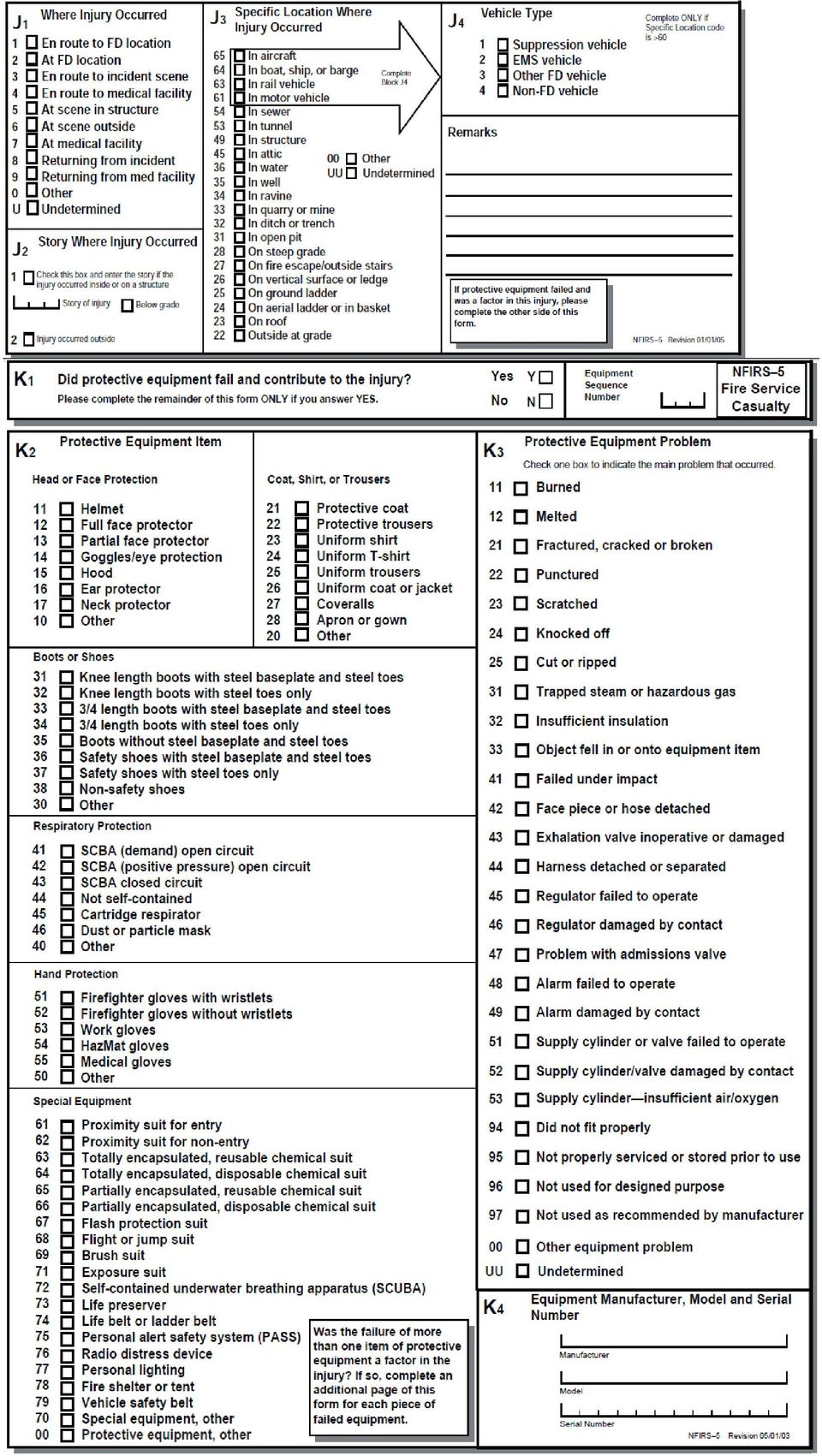
18 Sections J-K are not yellow but complete any fields that are applicable to the circumstances.

19 J1 Where Injury Occurred describes the location the firefighter was at when the injury occurred such as en-route, on scene, returning, etc. This field is particularly important as it gives insight about fireground injuries or wrecks on the way to the scene. J2 Story Where Injury Occurred may not be completed for every incident since the firefighter may not be in a structure when injured. Remember 12ft is a story. J3 Specific Location describes the setting of the location such as ditch, aerial ladder, roof, attic, etc. J4 Vehicle Type is used if the firefighter was inside a vehicle when injured and is important especially for response wrecks. K Protective Equipment block is essential for developing better safety equipment and identifying faulty items which lead to injuries. Only complete this block if the equipment was a factor. K1 Protective Equipment Was a Factor reports yes or no and then will turn the grey fields white after reporting Yes. K2 Protective Equipment Item describes the faulty protective equipment and should be as specific as the codes allow. K3 Protective Equipment Problem reports the most serious problem with the piece. K4 Equipment Information lists Manufacturer, model, and serial number. All are very important fields and could lead to product recalls/developments if the same piece consistently fails in the same way. If more than one piece of equipment fails, click New next to delete and add the rest of the equipment. Click Ok to close the window and then hit Save. If the incident involved multiple Fire Service Casualties, click Add Module and choose Fire Service Casualty to add additional casualties. One Fire Service Casualty Module is completed per person. Your report can have as many Fire Service Casualty modules as needed.

20
21 FIRE Module The Fire Module is required for incident types that start with a 1, for example 111-Building Fire, 130 vehicle fire, 151- Outside Trash Fire, etc. Exceptions to this are Wildland or vegetation/crop fires ( , 160, ). You can make the choice to complete the Fire Module or the Wildland Fire Module but you cannot enter both. The Wildland Module has many extra fields that can offer a detailed analysis of that particular type of fire. Read the section about Wildland Fires and make the choice for the specific incident you are reporting. You may decide Fire Module better suits the vegetation fire you are working or that Wildland will give you an opportunity to capture the detail you need. The Fire module opens to sections B-D and has three tabs of possible information for you to enter. B Property Details is arranged differently than the paper version. If the property was not residential, check the Not Residential box. If the property was residential, enter 1 if for 1-family unit. For apartments, enter the number of apartments at the building under Residential Units. Buildings not involved would be checked if multiple buildings were not on fire. If more than one building caught fire, enter the total number of buildings directly involved in the fire. The different buildings would be entered as exposures but the total number of buildings would be entered here. Check none if no acres were burned during the fire. If less than an acre was burned, check the box Less than 1 Acre. If more than 1 acre was involved enter the total number in # Acres Burned. The Wildland module has more detailed increments for acres burned than the Fire module. This means if you have a backyard fire where a smaller area burned, check Less than 1 Acre or use the Wildland Module for smaller amounts. Don t check No Acres Burned. C On-Site Materials is required for Property Use 500 s, 600 s, 700 s, and 800 s. If the Property Use on the Basic Module fits into one of those categories, use this field to describe significant amounts of commercial, industrial, energy, or agriculture products that are on-site at your location. There is a very detailed list that will show when you click Add. Enter the Material Storage Use to show one of the following: Bulk Storage/Warehouse, Processing/Manufacturing, Packaged Goods for Sale, Repair/Service, None, or Undetermined. D Ignition is a very important block and should not be skipped. It s also required. Area of Fire Origin describes the property/room itself where the fire started, like the Kitchen, code 24. This information is extremely valuable in public education. Heat Source describes what ignited the first item. Was it a cigarette-61 or an engine in a running car that caught stray papers on fire-12? Operating Equipment (codes 10-13) indicates something that was in use like a car, a heater, stove, etc. There are several other categories like Fireworks, Open Flame, Hot Objects which contain more coding to get specific. Item First Ignited would indicate what caught fire first. Did the carpet catch on fire first from the heater? Or was it the Christmas tree? Note: Christmas trees catch on fire so often that they have their own code of 41 for Item First Ignited. Type of Material Ignited allows you to get even more specific about the Item First Ignited. Enter the applicable Confined to Object of Origin field. Note: you must mark confined for structure fires that are contained to one building (in the Structure Fire Module) or you will get a critical error.
22 Advance to the next tab and complete further fields. You can click the tab or click Next Tab.
23 E1-Cause of Ignition can record if the fire was arson, accidental, unintentional, natural, etc. After the Cause enter E2 Contributing Factors. This field describes what allowed the heat source and the combustible material to first ignite. The category for Misuse of Product can indicate cigarettes being left out, welding in an inappropriate location, improper storage, etc. The category for Mechanical Failure/Malfunction is very useful for product recalls. If a piece of product is continuously setting fires then there might be a problem. There are more categories with specific codes than what are mentioned here. You can enter at least two contributing factors. E3 Human Factors can indicate how a person influenced the ignition. Were they asleep? Drinking? Unstable? If the person involved possibly started the fire due to age you can enter that as well. After choosing 7-Age was a factor, enter the estimated age and gender of the person. If there were no Human Factors, you can enter None. F1 Equipment Involved allows detailed information about the product to be collected. Dishwashing machines that are shorting out and causing fires is useful knowledge but knowing exactly what brand and model is the powerful information. Choose a fitting code for Equipment Involved in Ignition and then provide the specific brand, model and any other specific information you can. Equipment Power indicates the type of power that the equipment requires. This does not indicate the power that is produced by the equipment. Equipment portability is either portable or stationary. Portable generally means a person or two can move the equipment and it s designed to be used in multiple places. Stationary could be thought of more easily as installed equipment.
24 Sometimes there are factors that impact the growth, spread, complexity, and creation of hazardous conditions. These are captured under G-Suppression Factors, on the next tab of the Fire Module. You can enter several as long as they are applicable. Trouble finding the location, wall collapses, and tiny windows can all impact the attack. Drought can have a huge impact on what would normally be a tiny trash fire. H1-Mobile Property can be used to describe both the mobile property that started the fire and the mobile property that burned. Other Associated Report can indicate pre-existing fire plans or other types of reports that are available for the incident such as an arson report. Click Ok and Save when finished. Only one Fire Module may be completed per NFIRS Report. Look in the section regarding Exposures for more.
25 STRUCTURE FIRE Module Required for incident types 111-Building Fires 112-Structure fires (man-made constructs that are not buildings) (mobile property fires) Optional for incident types (confined fires) Confined fires have no flame damage to the actual structure and occur in a non-combustible container. This doesn t mean there wasn t smoke damage and water damage. It s specific to flame damage itself. Since the Structure Fire module is optional for confined fires you can decide if the module is going to give better information than the Fire module alone. Note: dishwashers, dryers, microwaves, etc are NOT considered non-combustible. If it s not meant to get hot and smoky, it s combustible. To add the structure fire module, click Add Module and then click Structure Fire Module. 112-Structure doesn t mean building. Choose I1-Structure Type accordingly. If the structure type is 1-Enclosed Building or 2-Portable/Mobile Structure, continue with the module. If the structure type is 3-8 or 0-Other, the module is complete and you should not enter any other fields here. Note: if you choose other than 1 or 2, your incident type should not be 111-Building Fire. Alternatively, if you do choose 1 or 2, your incident type should be 111-Building Fire and not 112-Structure Fire. Remember 112-Structure Fire applies to non-building constructs made by man only. I2-Structure Status indicates operational status of the building. Is it under construction or possibly normal use? I3-Structure Height indicates how many stories the building has above and below grade (ground). If the building is a two-story slab construction, enter 2 under # Stories at or Above Grade. If the 2 story building also has a basement, enter 2 under # Stories at or Above Grade and 1 under # Stories Below Grade. I4-Main Floor Size is an estimation and useful for examining the operational needs for similar calls. A good resource (if you didn t measure the scene) can be the appraiser s website if they have one. Often times square footage is listed with the house and a footprint of the house is available. Enter either total square footage or the house s length x width. J1 Fire Origin indicates the floor where the fire first started, if determined. If the fire was in the basement, use -1. J2 Fire Spread allows you to report the extent of the flame damage which includes the area actually burned or charred. This does not include heat, smoke, and water damaged areas. The fire can either be confined to the room, floor or building of the origin. The last choice is beyond building of origin. J3 Number of Stories Damaged breaks the damage into percentages, 0-25% (Minor), 25-50% (Significant), 50-75% (Heavy), or 75%-100% (Extreme). For each of the areas enter the number of stories that sustained that percentage of damage. All stories can sustain the same level of damage or maybe a 4 story home sustains differing levels for each floor. It all depends on the fire call you have. Important example: do not put 25 in the minor damage field thinking you are reporting 25% damage. You are, in fact, reporting 25 stories with minor damage. K Material Contributing Most to Flame Spread is reported if the item is different than the Item First Ignited. Maybe an item would have caught fire and flamed out on concrete but it was sitting on a highly flammable pile of rags instead. Those rags would have contributed to the spread and longevity of the flame. Choose the appropriate code (there are a lot) after clicking the field. Type of Material Contributing Most to Flame Spread is only required if the Item Contributing Most to Flame Spread is between 0 and 70. It is not needed for any other types of items.
26 The paper field is a good visual for remembering when you have to move forward with completing the module or when you can stop at I1 Structure Type. If your structure type isn t inside the big right arrow, you don t need to complete any other fields. Sections L-M can be incredibly educational fields. Do not skip them because they are white. L2-L6 start as grey until L1 Presence of Detectors is completed. The same is true for M2-M5 being grey until M1 Presence of AES is completed. If there are no detectors present, mark None Present. If there were detectors present mark Present and complete the rest of the fields through L5 Detector Effectiveness. Only complete L6 Detector Failure Reason if the detectors failed to operate. Do the same for AES (Automatic Extinguishing System). Do not to leave blanks; instead report as None when applicable. This helps ensure that the system has the most accurate information. If the field is left blank we assume that you didn t check for detectors.
27 Once the Structure Fire module is complete, click Ok and then click Save. Only one Structure Fire Module is completed per NFIRS Report
28 WILDLAND Module One incident can only have the Wildland module or the Fire module; not both. Wildland is an optional module that can be used in place of the Fire module for vegetation fires. It is up to your department which module you use. Every year, analysis of wildland fires is completed by several entities and impacts grants in Kansas. If the Wildland Module is going to give more information about your incident than the Fire Module use the Wildland Module. Available incident types are (vegetation) (crops) 561 (unauthorized burns) (authorized controlled burns) A prescribed fire ( ) that gets out of control would be reported as one of the 100 fire incident codes. If you are helping to manage an authorized controlled burn make sure to use the appropriate Actions Taken that reflect management of controlled burns. B Alternate Location Specification can provide more detailed, pinpointed locations of the fires. This can be useful in rural areas where the location is not normally an address. C Area Type describes the general surroundings of the location, rural, urban, rural/urban, urban/wildland. D1 Wildland Fire Cause is the Wildland equivalent of the Fire module s cause of ignition but has more codes on Wildland. Use the most appropriate possible. D2 Human Factors include the same factors as the Fire module. If there were no human factors, enter none. D3 Contributing Factors show the factors contributing to ignition. The name of the field was shortened from the paper forms to the software version. This field shows the contributing factors that allowed the heat source and combustible materials to ignite such as a bird flying into a power line causing a downed-line with a resulting fire (66-Animal). D4 Suppression Factors is the same field as the Suppression Factors on the Fire module and can explain why a fire grew, spread, or became a more complicated incident.
29 E Heat Source describes the specific source of the heat energy that started the fire such as cigarettes. F Mobile Property Type reports if there was a vehicle which might have caused the fire such as a lawn mower setting grass on fire. G Equipment Involved in Ignition is the same field as the Fire module s Equipment Involved in Ignition and is reported if the equipment was malfunctioning or improperly used. This can be especially valuable information for product recalls and public education. Enter NNN for None if no equipment malfunctioned or was used improperly. H Weather Information can be valuable in understanding the spread of Wildland fires and conditions that effect suppression and severity. Consult the Complete Reference Guide for detailed information regarding these fields. I1 Number of Buildings Involved reports how many buildings were ignited by the fire. If no buildings were involved, mark None. I2 Number of Buildings Threatened reports the buildings that were saved by the suppression and reflects the number of buildings located within threat of the fire but not ignited. How many buildings might have burned down if you weren t there? The public should know that kind of thing. I3 Total Acres Burned reports the total number to the best estimation. If there was less than one acre burned, use only one decimal place such as 0.1, 0.5, 0.7 etc. I4 Primary Crops Burned allows for three separate types of crops to be entered. Once you click on the field a list of available choices will open.
30 J Property Management reports the principle entity responsible for the property where the fire started. Enter the Ownership type and then provide the % acres burned owned by that manager. Fields L1-L4 Person Responsible are used to report if a person was responsible for the fire. If no person was responsible for starting the fire use Fire not caused by person in L1 Person Responsible. If a person was responsible continue entering L2-L4. K NDFRS Fuel Model at Origin indicates the type of vegetation found on the property and helps collect information for what types of fires result from which types of fuels. Consult the Complete Reference Guide for the descriptions of each type of fuel model. M Right of Way is completed for fires that started on or near rights-of-way (99 feet) of roads, railroads, and power lines. This can be useful to identify a possible fire bug throwing lit matches out of car windows to the ditches below or similar situations. Discarded cigarettes may start fires when thrown from cars. N Fire Behavior are used to report specific descriptions of the fire upon initial attack. The white field next to feet indicates the Elevation from sea level in feet. Relative position on slope can help study the risks of different positions of fires on hills. Aspect reports which compass direction the slope faces. Flame Length is calculated from flame tip to the flame s base by drawing a point from the tip to the ground in roughly the middle of the flame spread. Rate of spread is calculated in chains (66ft) per hour and can provide valuable insight to how fast wildland fires spread given the fuel models, ignition, and weather conditions. Click OK and Save when finished.
31 ARSON Module If any fire has a Cause of Ignition as Incendiary or Under Investigation then an Arson module should be completed. Here s where your impressions of a scene can really make a different. Complete the module to the best of your abilities and understand that you can go in later to edit the report when more information becomes available. It doesn t matter who does the investigation. If it was your fire, you file an NFIRS report on it. The investigator is not going to do this for you! Certified Fire Investigators enter information into BATS (Bomb Arson Tracking System). BATS does not convert into NFIRS databases and those reports are not currently linked at the state or national level. Remember in KS you can always call the Office of the State Fire Marshal and request an investigator. It is state statute that the chief of a fire department is responsible for assigning a cause of fire to each call, but that doesn t mean you can t have help. To add an Arson module click on Add Module then click Arson module. The Arson module opens to Sections B-F and has three tabs with different fields. B Agency Referred To will show what agency picked up the investigation, either fire department or law enforcement. Mark None if your department did not pass the incident on for investigation. Enter as much information as possible about the agency. ORI is an identifying number given to law enforcement agencies, assigned by the FBI. The ORI should be the following format: KS####### where # is an actual numeric. Some departments have a letter on the end of their ORI, too. If you need an ORI you can contact me ([email protected]) if the LEA (law enforcement agency) did not provide you with it. C Case Status will show one of 5 choices: open, closed, inactive, closed with arrest, and closed with exceptional clearance. Exceptional Clearance is usually a law enforcement term based upon the circumstances that happen after a suspect is identified which keep the suspect from being arrested/charged. D Availability of Material First Ignited helps understand the methodology of arsonists. Are they bringing materials from home that could possibly be tracked or are the materials already on-scene? Maybe the arsonist is targeting areas simply because the materials needed are present? This could lead to better ways to fight arson before it even starts. E Suspected Motivational Factors offers a look into the mind of the arsonist and can provide arson trends. As domestic violence surges so can arson. As property crimes (criminal damage, theft, burglary, etc) rise arson increases might be just around the corner. Many factors you are collecting can be added to other database/studies and create a more accurate, complete picture of the problem. F Apparent Group Involvement is always a topic that is a hot button issue: gangs, hate groups, terrorists. Be sure to complete this field. If there was no group involvement mark None.
32 After completing the first tab, advance to G-L. G1 Entry Method describes how the subject gained access to the property. Common methods of entry can be combined with other methods of operation to identify possible serial arsonists. If many fires have the same pattern, catching one subject might clear them all. G2 Extent of Fire Involvement on Arrival may show how quickly the fires are caught or how quickly the fires advance. This may provide better information on how much accelerant the subject is using. Observations on arrival can give just as much insight as the scene afterwards, sometimes more. H Incendiary Devices has several fields to complete. Container can be a bottle, can, fuel can, box, other, etc. It can also be No Container. Consider fuel just poured on the ground as opposed to a gas can left at the scene. Ignition/Delay Device can show how complex the subject is or how low-tech. Mechanical devices often take much more preparation while a book of matches can be impulsive. Fuel may be unknown until a lab has returned results. I Other Investigative Information can go even further into the incident and deals with the structure itself. Was it for sale, vacant, under new insurance, etc? Is it possibly a meth lab with illicit drug activity? Did the owner recently suffer financial problems? All that information is important and creates a robust report. J Property Ownership should always be completed. More specific names would be reported on the Basic module under Owner. Do not forget to complete that information, too. Property Ownership indicates the type of entity that owns the property such as city, private, federal, etc. K Initial Observations should not be overlooked. Report all that apply. Was the door already open or did someone have to force it open from your department? Security system present? Doors unlocked that shouldn t be? Remember, your initial scene impressions are always important. Remind your staff to always be on the lookout for these types of factors, even if you don t immediately suspect arson. L Laboratory Used identifies the type of lab you used for evidence analysis. The last tab is only completed for juvenile fire setters and every field should be completed to the best of your ability.
33 Complete the subject identifiers for M2-M5. Enter either the age or date of birth for M2 Age. Do not skip if you know it. M6 Family Type indicates the structure of the subject s family at the time of the incident. While having a certain family type is not implied to create an arsonist, knowing trends and childhoods may help to find a serial arsonist later, should the subject continue setting fires. M7 Motivation/Risk offers a look at why the juvenile was setting fires. Adults and juveniles have very different motivations. Juveniles rarely burn a house down because they want the insurance money and just got a new policy. However, a juvenile may burn a house down out of escalation from lower crimes like property damage. Check any that apply for codes 4-9, Other, and Unknown. Check only one for Mild, Moderate, or Extreme Curiosity about Fire. If you have multiple juveniles to report, click the New button towards the bottom center and continue adding any needed individuals.
34 Subject Number of the paper form is no longer used as the program itself keeps track. Click Ok and click Save after completing the module.
35 CIVILIAN FIRE CASUALTY Module Civilian Fire Casualty is required whenever there is an injury or death to a civilian as a result of a fire. If there was no fire would the person have been hurt or killed? If the answer is no, complete this module. Please note that casualty does not mean only death. It also includes injuries. A separate Civilian Fire Casualty module is required for each subject injured/killed. If the incident is not an incident type (fires) then report it as an EMS call. KS requires a report to be submitted for injuries/deaths from explosions. If you have an explosion with a casualty, complete a Basic module and the EMS module. Do not use Civilian Fire Casualty for explosions. B Injured Person should not be skipped. This information is not used for reports or publications but hospitals are required to submit a Kansas Burn Injury Report (KBIR) for anybody that suffered burns. NFIRS and KBIRS can be used to cross check each other, though not all KBIR reports will have an NFIRS report since not everyone calls for assistance when burned. C Gender is a required field, although E1 and E2 should be completed additionally. D Age or Date of Birth is required and you only need to complete age or the date of birth. F Affiliation details what kind of civilian is involved. G Date and Time of Injury should be as specific as possible. H Severity would be reported between Minor to Death or undetermined. If the patient severity worsens go back and update this information. This is especially important if a civilian passed away later from the injuries sustained in the fire. I Cause of Injury details what actually happened during the fire that injured the civilian. The injury doesn t have to be burns; it must only take place because of/during the fire. J Human Factors can be reported as None if there were no factors leading the civilian to become injured. A drunken person unable to get out of the structure would be a good example of Human Factors. Add any that apply using the Multiple Selection Window.
36 K Factors Contributing to Injury offers an important look at why the subject may have been injured, beyond the presence of the fire. This field should show the most significant factors that contributed. There is a long list of codes that can be very specific such as trapped, lost, and clothing that caught fire. You can enter up to three codes. L Activity When Injured is reported as the activity in which the person was engaged at the time of injury. Sleeping numbers can show the sedative properties of smoke upon individuals and the field should not be skipped. M1 Location at Time of Incident reports where the subject was in relation to the area of fire origin (in area, not in area, involved, not involved, other location, etc). M2 General Location at Injury shows where the subject was at the time of injury (inside, outside, etc). If the general location is outside but not in area skip to M5 Specific Location at Injury. If the general location is in area of fire origin skip to section N Primary Apparent Symptom. If the casualty was inside the building report M3 and M4. M3 Story at Start of Incident indicates where the subject was when the fire started, not where they were injured. M4 indicates the story where the subject was injured. M5 Specific Location at Injury indicates a detailed location like hallway, bedroom, closet, etc. N Primary Apparent Symptom should reflect the most serious symptom. O Primary Area of Body indicates where the most serious injury is on the person s body (or inside). P Disposition indicates if the subject was transported for care. Click Ok and then click Save after completing the module. If additional subjects were injured or killed continue adding Civilian Fire Casualty modules for each person. The number of casualty modules should match the number of casualties reported on the Basic module. If you reported 3 casualties on the Basic module but only completed two casualty modules then you need to add the third.
37 EMS Module The EMS module is not allowed for all incident types and should only be completed when your fire department offers emergency medical services. If an independent provider performs all EMS you would not complete the EMS module. The allowable incident types are: If a firefighter is injured during training you would make a report for the injury. Training isn t reported to NFIRS unless there are casualties. Enter Section A, Basic, and Fire Service Casualty modules. All three are required. You do not need an EMS module. The incident type would be 321 EMS Call or 311-Assist EMS since there is no incident type for training. Each patient gets his/her own EMS module. Start with the date and time that you arrived at the patient. It s important to capture that information especially if factors mitigated the time lapse. Enter the date/time of patient transfer as this information helps understand how long patient care was given. D Provider Impression explains the provider s primary clinical assessment. This field is important to show that treatment and medication were consistent with protocols. You may enter the Age or Date of birth. It is not necessary to enter both. If the patient is an infant, check the Months box when entering age. E2 Gender, F1 Race, and F2 Ethnicity are not required fields but you may fill them in if desired. None of the personal identifiers of the patient are used for publications or reports by the State Fire Marshal. G1 Human Factors was called Condition before Injury in previous NFIRS programs and reflects the physical or mental state of the person shortly before becoming a patient. This field is useful for understanding the relationship between human factors and the incident itself, especially drunk drivers. If no factors contributed to the injury/illness, mark None from the drop down. G2 Other Factors can cover more specific information about injuries: Accidental, self-inflicted and inflicted not by self provide further insight into the incident and injury. Animal attacks as well as human violence would count as inflicted not by self. H1 Body Site of Injury reports the area of the body that sustained the injury and is used in conjunction with H2 Injury Type. This helps provide useful information about patient injuries which most commonly require EMS intervention. H2 Injury Types provides the clinical description of the injury such as burn or laceration. If the patient is sick instead of injured skip both H1 and H2. Use H3 Cause of Illness/Injury to describe the physical even that caused the injury/illness.
38 Note that the paper version of EMS starts with Number of Patients and then Patient Number. These fields are irrelevant to the software as you would simply add another EMS module for each patient and do not need to number them. The next tab has fields that pertain not only to the patient but to what the department did at the incident. I Procedures Used reports what procedures were performed or attempted by the department s EMS personnel. Double click the small white add button and add the necessary procedures. J Safety Equipment is only used for injuries and describes if the patient was using any type of safety equipment prior to the incident, like wearing a helmet before falling off a bike. This is useful information in determining the effectiveness (and use) of safety equipment and can provide educational information to the public. K Cardiac Arrest is completed only if the patient went into or was found in cardiac arrest. Use Pre-arrival or post-arrival arrest. If you mark Pre-Arrival Arrest, then Pre-Arrival Arrest Details will become white. In Pre-Arrival Arrest Details it is important to show if a bystander provided CPR. This information is useful in determining the effectiveness of bystander CPR on morbidity. Enter the Initial Arrest Rhythm as V-Fib/V-Tach, Initial arrest rhythm, other, or undetermined. L1 Initial Level of Provider provides the certified training level of the first person to give care. L2 Highest Level of Provider on Scene provides the certified training level of the highest level fire department personnel that responded. These fields help provide insight into the effectiveness of pre-hospital care according to current regulations. M Patient Status records the overall change in status of the patient when he/she is transferred to another agency/ending of the incident. Status on Transfer shows whether the patient had a pulse or not. N Disposition shows if the patient was transported and by whom. If the patient did not require transport make sure to mark Not Transported. This field is used to determine how often EMS services are activated for patients who require no treatment or transport. Click Ok when you are finished with the module and Save on the main screen. If you have more than one EMS patient, add another EMS module for each additional patient by choosing Add EMS Module from the main incident screen.
39
40 HAZMAT Module If there is a spill of hazardous materials over 55 gallons or specialized equipment had to be dispatched to handle the situation, the HazMat module should be completed. Like the EMS Module, the HazMat module cannot be entered for all incident types. If you find yourself with an incident type not included in the list, check to be sure if a smaller numbered incident type would apply. Example: you re assisting police at the scene for containment of a gasoline spill. You could use 551-Assist Police but 411-Gasoline/flammable liquid spill would be more specific, and the incident type number is lower. (411 is a smaller number than 551.) Allowable Incident types are: The HazMat module is useful for a large variety of studies and can help understand the needed policies for storage, use, and transportation of hazardous materials. Great gains in public safety and the reduction of accidents is gleaned from information exactly like this. Chemical Name should be the standard or trade name of the hazardous material. Different manufacturers may have slightly different trade names. Add the UN# from the applicable list. If there is no UN number assigned, leave the field blank. Choose the DOT Hazard Classification from the correct category. Each category has its own first number and is then followed by a specific # to show the accurate representation of the hazardous material. The CAS Reg # (Chemical Abstract Service) does not apply to all materials. Check the list to see if yours is listed but you might have to leave it blank. C1 Container Type should be reported as the type or configuration of the container, equipment, or facility involved. If the container was inside another container, use the container closest to the material. Example: a drum leaking inside a silo would be reported as the drum because it is closer to the material than the silo. C2 Estimated Container Capacity is reported in two parts: the amount and the measurement unit. D1 Estimated Amount Released is reported to the best of your abilities and should not be skipped. Both the capacity and release are useful when determining future prevention. If a certain container catastrophically fails and releases the majority of containment capacity that important is information to know. E1 Physical State When Released can be solid, liquid, gas, or undetermined and can help identify patterns or trends of spills for particular states of materials. Gaseous leak vs a liquid leak of the same material can have very different containment needs. E2 Released Into should not be skipped and helps understand the extent and impact of releases. Choices range from air, water, water & air, confined, etc. If more than one chemical is involved click the New button and complete the information. Advance to the next tab once all chemicals are added.
41 F1 Released From indicates if the material was released inside or outside a structure. If the release happened inside a structure report the Story of release. For below grade enter the number with as negative, like -1 for the basement. F2 Population Density is an estimate of the population in the area of the release: Urban, Suburban, or Rural. G1 Area Affected reports the amount of area or space directly affected by the release. Enter the number and the unit of measure. You can measure in square feet, blocks, or square miles. G2 Area Evacuated can be much larger than the area affected and helps with future releases. Did a past release not evacuate a large enough area for a similar release and should you evacuate a larger area this time? Questions like that may mean the difference between successful containment and loss of life. G3 Estimated People Evacuated should be reported to the best of your abilities. G4 Buildings Evacuated is reported as the total number of buildings in the evacuation zone. The HazMat module has specific codes for Action Taken. Since the HazMat module is not so widely used, look the list over here for codes that may apply under H HazMat Action Taken.
42 I Fire/HazMat Sequence is reported to indicate if a fire occurred first or the release of materials. If there was no fire, skip this field. J Cause of Release should not be skipped, especially in cases of intentional releases or containment failure. Even acts of nature help develop new ways to prevent releases. K Contributing Factors should be as specific as possible. Double click on the field and use the Multiple Selection Window to choose the most serious factors that contributed to the release. If there were conditions or problems containing the release, enter them under L Mitigating Factors. It could be something as simple as traffic delay or as massive as release into water table. Winds and extremely dangerous agents can turn a small leak into a massive containment effort. M Equipment Involved in Release is important for developing better methods at prevention. Choose from the available codes and then, if possible, provide specific brands and models of the equipment. The Year of the equipment is valuable in determining if equipment has a shorter safe usable lifetime than previously thought. The information you capture here could lead to policy and requirement developments that prevent another spill from ever happening. If no equipment malfunction or allowed the release, check the None box.
43 N Mobile Property Involved In Release would be completed if there was mobile property involved in the release. This information can guide prevention, enforcement, and product designs of carriers or create new policies for transporting hazardous materials. If no mobile property was involved, check the None box. O HazMat Disposition indicates if the materials were contained or the incident released to another entity for containment. This helps indicate the extent to which the fire department is needed/utilized in mitigation. P HazMat Civilian Casualties indicates the total number of people that were either injured or killed from the release. Injuries can include physical damage that requires treatment within 1 year of the incident or at least 1 day of restricted activity immediately following the incident. Optional EMS modules can be completed for those injured. Do not use the Civilian Fire Casualty module unless there was a fire that caused those casualties. Do not include Fire Service personnel in this number. Those would be captured on the Fire Service Casualty Module.
44 Apparatus/Personnel Module The Apparatus/Personnel Module can be added to any incident report (no matter the type of call or what happens at the call) and you are encouraged to complete it. The Apparatus/Personnel Module is very helpful in keeping track of which personnel ran what call and which apparatus you used on that call. It is important information for studies, also. It helps the Fire Service understand just how many resources it takes to fight certain calls and how much manpower is needed. Add an Apparatus/Personnel Module to an existing incident by clicking Add Module and Apparatus. Because you took the time to set up the Fire Dept info, you can easily complete the Apparatus information by clicking Copy from Fire Department and using the drop down list to select the apparatus that went on the call. Click Apply after making your selection. If the apparatus was dispatched/arrived/cleared on the same date as the alarm, utilize the check boxes. Enter the times for each: Dispatch, Arrival, and Clear. This information is useful for showing how long the apparatus was needed during the call. Enter the Apparatus Actions Taken. Click the Add box and the list of possible actions will open. If the apparatus was cancelled prior to arriving, there will not be an Arrival or Clear time. Enter the action as 93-Cancelled. To add more apparatus click the New button in the middle of the screen. Before adding other apparatus, click the Personnel tab and add the personnel that were on that apparatus. Personnel are added to the report to a specific apparatus, not as a whole. When viewing apparatus, the personnel showing on the Personnel tab will be different for each apparatus.
45 Personnel can be completed just as easily by clicking the drop down Copy from Fire Department, selecting the person, and clicking Apply. Enter the Personnel Actions Taken by clicking the small white Add box and choosing from the dropdown menu. Add more personnel that were on that apparatus by clicking New. Now you can add another apparatus and more personnel specifically to that apparatus. Click OK and then Save when finished.
46 Searching for an Incident You can find specific incidents for your department by clicking Open Incident under the Incident menu or clicking the Open button under Incidents at the right of the screen (above New Exposure). Your department s name will display at the top of the window. You can search by time periods or a specific incident if you know the number. You can also search for all your invalid reports by choosing Invalid from the Validity drop down. Use Incident From Date and Incident To Date to narrow your search results or the system will take a great deal of time returning results. After entering your criteria click Search (lower left).
47 You will then get search results in the tiny white window. To open a report, double click on its row. Your window will flash back to the main windows with modules. You can then look at each module by opening them. *Note: white boxes are covering some of the results here because these are live reports. The Search options are perfect for locating your Invalid reports. Under Validity, choose Invalid and enter a date range. After clicking Search you ll be given a list of only reports that have critical errors. Do this periodically to ensure your reports will count. Invalid reports are not included in National statistics.
48 Viewing Validation Errors If your report gives you an error stating that critical errors exist, click on the Incident menu and then click Validation Errors. A window will open showing the errors for that report. The Form column tells you which module has an error. The Field column is the name of the actual field with the error. Error Message gives you a short description of why you received the error. Level says either Warning or Critical. Critical errors must be corrected. Warnings will say that your data quality is not very high. Work towards not having any Warning errors, even though the report will validate when all Critical errors are gone. You can also click affirmatively to view the errors when the error message pops up. Remember, invalid reports are not counted at the National level. You want every report you do to count so pay attention to critical errors.
49 Print Reports While you are keying directly into the National Fire Data Center, you may still need a paper report. To print a report, first open the report. With the report open click the Incident menu at the top right and choose Generate Report. A pop up window will ask you to choose a location for saving the report as a PDF. Unless you have a file created specifically for this, saving to your desktop works fine. After you choose the location and click through the windows, the DET will create a pdf version of your report and save it to your location. You can then find the PDF and open it. You can attach a PDF to or print it.
OFFICE OF THE STATE FIRE MARSHAL DELAWARE
 OFFICE OF THE STATE FIRE MARSHAL DELAWARE Data Entry in NFIRS 5.0 Step by Step Instructions State NFIRS Program Manager Lily Medina Office of the State Fire Marshal Delaware Fire Service Center 1537 Chestnut
CODING QUESTIONS MANUAL
 June 2014 NFIRS 5.0 CODING QUESTIONS MANUAL United States Fire Administration NATIONAL FIRE DATA CENTER Table of Contents NFIRS 1: BASIC MODULE... 3 General Questions... 3 Exposures... 4 Dates and Times...
NFIRS 5.0 Coding Questions and Answers A Reference Guide
 Office of Education and Data Management Division of Fire and Building Services State of Connecticut Department of Construction Services NFIRS 5.0 Coding Questions and Answers A Reference Guide THIS PAGE
National Fire Incident Reporting System (NFIRS 5.0) Configuration Tool User's Guide
 National Fire Incident Reporting System (NFIRS 5.0) Configuration Tool User's Guide NFIRS 5.0 Software Version 5.6 1/7/2009 Department of Homeland Security Federal Emergency Management Agency United States
NFIRS Incident Reporting. For ECFR Firehouse Web
 NFIRS Incident Reporting For ECFR Firehouse Web NFIRS Incident Reporting As stated in SOG 1230.010, the OIC for all dispatched incidents must complete an Incident report including all companies responding
ETS. Major Field Tests. Proctor Administrator Manual
 ETS Major Field Tests Proctor Administrator Manual Updated: December 2010 Table of Contents Contents 1.0 WELCOME... 1 1.1 INTRODUCTION... 1 1.2 SYSTEM REQUIREMENTS AND SETTING-UP STUDENT WORKSTATIONS...
Hosting Users Guide 2011
 Hosting Users Guide 2011 eofficemgr technology support for small business Celebrating a decade of providing innovative cloud computing services to small business. Table of Contents Overview... 3 Configure
Payco, Inc. Evolution and Employee Portal. Payco Services, Inc.., 2013. 1 Home
 Payco, Inc. Evolution and Employee Portal Payco Services, Inc.., 2013 1 Table of Contents Payco Services, Inc.., 2013 Table of Contents Installing Evolution... 4 Commonly Used Buttons... 5 Employee Information...
St. John s University
 St. John s University Fire Safety Plan Founder s Village Townhouses Page 1 St. John s University Fire Safety Plan Part 1-Building Information Section Founder s Village Townhouses 8000 Utopia Parkway Jamaica
NEW JERSEY WORKERS COMPENSATION INSURANCE PLAN
 NEW JERSEY WORKERS COMPENSATION INSURANCE PLAN MANUAL FOR ONLINE APPLICATION FOR DESIGNATION OF AN INSURANCE COMPANY IMPORTANT: This Procedure Guide is designed to ease your navigation through the New
educ Office 365 email: Remove & create new Outlook profile
 Published: 29/01/2015 If you have previously used Outlook the with the SCC/SWO service then once you have been moved into Office 365 your Outlook will need to contact the SCC/SWO servers one last time
Outlook Web App User Guide
 Outlook Web App User Guide Outlook Web App (OWA) is the new version of the webmail system that enables you to access your email from home, or wherever you have an Internet connected computer. There are
FLA S FIRE SAFETY INITIATIVE
 Improving Workers Lives Worldwide FLA S FIRE SAFETY INITIATIVE Preventing fires and saving lives by empowering workers and factory managers SCENARIO 1 OCCURS AT FACTORY ABC, WHICH HAS NOT IMPLEMENTED NECESSARY
THE TOP TEN TIPS FOR USING QUALTRICS AT BYU
 THE TOP TEN TIPS FOR USING QUALTRICS AT BYU TIP #1: CREATING A SURVEY FROM A COPY AND COLLABORATING ON SURVEYS TIP #2: CREATING AND USING PANELS TIP #3: LIBRARIES AND HOW TO USE THEM TIP #4: BASIC SKIP
13 Managing Devices. Your computer is an assembly of many components from different manufacturers. LESSON OBJECTIVES
 LESSON 13 Managing Devices OBJECTIVES After completing this lesson, you will be able to: 1. Open System Properties. 2. Use Device Manager. 3. Understand hardware profiles. 4. Set performance options. Estimated
KANSAS TRUCK ROUTING INTELLIGENT PERMITTING SYSTEM
 KANSAS TRUCK ROUTING INTELLIGENT PERMITTING SYSTEM KS Company User Guide This user guide describes the operational procedures for K-TRIPS and the screens encountered by users during those procedures. Motor
Seagate Manager. User Guide. For Use With Your FreeAgent TM Drive. Seagate Manager User Guide for Use With Your FreeAgent Drive 1
 Seagate Manager User Guide For Use With Your FreeAgent TM Drive Seagate Manager User Guide for Use With Your FreeAgent Drive 1 Seagate Manager User Guide for Use With Your FreeAgent Drive Revision 1 2008
Getting Started. Getting Started with Time Warner Cable Business Class. Voice Manager. A Guide for Administrators and Users
 Getting Started Getting Started with Time Warner Cable Business Class Voice Manager A Guide for Administrators and Users Table of Contents Table of Contents... 2 How to Use This Guide... 3 Administrators...
Learning Management System (LMS) Guide for Administrators
 Learning Management System (LMS) Guide for Administrators www.corelearningonline.com Contents Core Learning Online LMS Guide for Administrators Overview...2 Section 1: Administrator Permissions...3 Assigning
How To Use Senior Systems Cloud Services
 Senior Systems Cloud Services In this guide... Senior Systems Cloud Services 1 Cloud Services User Guide 2 Working In Your Cloud Environment 3 Cloud Profile Management Tool 6 How To Save Files 8 How To
Virtual Heart User Manual Username Password
 Virtual Heart User Manual Username Password These instructions are meant to help you use the Virtual Heart website. Please write down your username and password and store them in a safe place in case you
National Fire Incident Reporting System (NFIRS 5.0) NFIRS Data Entry/Validation Tool Users Guide
 National Fire Incident Reporting System (NFIRS 5.0) NFIRS Data Entry/Validation Tool Users Guide NFIRS 5.0 Software Version 5.3 Prepared for: Directorate of Preparedness and Response (FEMA) Prepared by:
HOSTED DESKTOP MANUAL
 HOSTED DESKTOP MANUAL TABLE OF CONTENTS REMOTE DESKTOP MANUAL Last revision August 18, 2005 WHAT IS A REMOTE DESKTOP... 1 Security... 1 Terminals...2 SETTING UP YOUR REMOTE DESKTOP... 2 Installing Remote
National Fire Incident Reporting System (NFIRS 5.0) NFIRS Data Entry/Validation Tool Users Guide
 National Fire Incident Reporting System (NFIRS 5.0) NFIRS Data Entry/Validation Tool Users Guide NFIRS 5.0 Software Version 5.6 1/7/2009 Department of Homeland Security Federal Emergency Management Agency
FrontDesk Installation And Configuration
 Chapter 2 FrontDesk Installation And Configuration FrontDesk v4.1.25 FrontDesk Software Install Online Software Activation Installing State Related Databases Setting up a Workstation Internet Transfer
Working with the Ektron Content Management System
 Working with the Ektron Content Management System Table of Contents Creating Folders Creating Content 3 Entering Text 3 Adding Headings 4 Creating Bullets and numbered lists 4 External Hyperlinks and e
Would You Like To Earn $1000 s With The Click Of A Button?
 Would You Like To Earn $1000 s With The Click Of A Button? (Follow these easy step by step instructions and you will) This Version of the ebook is for all countries other than the USA. If you need the
The Social Accelerator Setup Guide
 The Social Accelerator Setup Guide Welcome! Welcome to the Social Accelerator setup guide. This guide covers 2 ways to setup SA. Most likely, you will want to use the easy setup wizard. In that case, you
Evoko Room Manager. System Administrator s Guide and Manual
 Evoko Room Manager System Administrator s Guide and Manual 1 1. Contents 1. Contents... 2 2. Read this first! Introduction to this Guide... 6 3. User Guide... 6 4. System Architecture Overview... 8 ----
How to Configure Outlook 2003 to connect to Exchange 2010
 How to Configure Outlook 2003 to connect to Exchange 2010 Outlook 2003 will install and work correctly on any version of Windows XP, Vista, Windows 7 or Windows 8. These instructions describe how to setup
RevTrak Software Training Guide
 RevTrak Software Training Guide Introduction: There should be two icons on your desktop: 1. This is the shortcut for the regular RevTrak Software. 2. This is the shortcut for RevTrak Express. If you do
Vtiger CRM Outlook Plugin Documentation
 Vtiger CRM Outlook Plugin Documentation Outlook Plugin Version 1.0.04 Different Solutions GmbH [email protected] http://www.different-solutions.com Support Forum: http://forum.vtiger.de Date:
ARIBA Contract Management System. User Guide to Accompany Training
 ARIBA Contract Management System User Guide to Accompany Training Technical Training Team 6/29/2010 Table of Contents How to use this Guide... 4 Contract Management Process... 5 ARIBA- Getting Started...
NJCU WEBSITE TRAINING MANUAL
 NJCU WEBSITE TRAINING MANUAL Submit Support Requests to: http://web.njcu.edu/its/websupport/ (Login with your GothicNet Username and Password.) Table of Contents NJCU WEBSITE TRAINING: Content Contributors...
Fundamentals of Great Plains & Reporting Tools
 Fundamentals of Great Plains & Reporting Tools Accessing GP... 1 Accessing the terminal server... 1 Creating a shortcut to the Remote Desktop Connection command... 2 Configuration options for your terminal
GO!Enterprise MDM Device Application User Guide Installation and Configuration for BlackBerry
 GO!Enterprise MDM Device Application User Guide Installation and Configuration for BlackBerry GO!Enterprise MDM Version 4.11.x GO!Enterprise MDM for BlackBerry 1 Table of Contents GO!Enterprise MDM for
Institution/Department Administrator Manual
 ETS Major Field Tests Institution/Department Administrator Manual Updated: December 2010 Table of Contents 1.0 WELCOME... 1 1.1 INTRODUCTION... 1 1.2 COMPUTER HARDWARE AND SOFTWARE REQUIREMENTS... 1 2.0
Appointments: Calendar Window
 Appointments Appointments: Calendar Window Purpose The Appointment Calendar window is the automated equivalent of a paper appointment book. You can make appointments, confirm appointments, and view appointments
Standard User Quick-Start Guide
 Just getting started with ClickTime s easy-to-use Web Timesheet? Start tracking your time and expenses like a pro with the. Introduction This guide will introduce you to the ClickTime Web Timesheet. It
Access Control and Audit Trail Software
 Varian, Inc. 2700 Mitchell Drive Walnut Creek, CA 94598-1675/USA Access Control and Audit Trail Software Operation Manual Varian, Inc. 2002 03-914941-00:3 Table of Contents Introduction... 1 Access Control
NotifyMDM Device Application User Guide Installation and Configuration for Windows Mobile 6 Devices
 NotifyMDM Device Application User Guide Installation and Configuration for Windows Mobile 6 Devices End-of-Life Notice Please note that GO!Enterprise MDM server version 3.6.3 is the last to officially
Introduction to MS WINDOWS XP
 Introduction to MS WINDOWS XP Mouse Desktop Windows Applications File handling Introduction to MS Windows XP 2 Table of Contents What is Windows XP?... 3 Windows within Windows... 3 The Desktop... 3 The
An Introduction to K12 s Online School (OLS)
 An Introduction to K12 s Online School (OLS) 1 Introducing the Online School (OLS)... 6 Logging In... 6 OLS Home page... 8 My Account Menu... 9 To Edit Basic Account Information for Yourself... 9 Tip:
First Time On-Campus Remote Desktop Connection ipad Edition
 First Time On-Campus Remote Desktop Connection ipad Edition General: This guide is a step-by-step guide for configuring and using an ipad to remotely connect to a work computer from on campus. This guide
Setting Up Monthly Reporter
 Setting Up Monthly Reporter April 11, 2014 I. HOW IT WORKS A QUICK OVERVIEW A. AuditWare Development Company maintains a powerful, sophisticated server on which a portion of memory is assigned to each
Version 4.1 USER S MANUAL Technical Support (800) 870-1101
 ESSENTIAL FORMS Version 4.1 USER S MANUAL Technical Support (800) 870-1101 401 Francisco St., San Francisco, CA 94133 (800) 286-0111 www.essentialpublishers.com (c) Copyright 2004 Essential Publishers,
In this Tutorial you will learn how to: Overview of this Tutorial Important
 2 - Tutorial FotoBiz is about your images, your clients and paperwork. FotoBiz has many features but the primary function of the program is to help you keep track of your images, so you can make a sale.
Revealing the Secrets of Microsoft Project
 2 Revealing the Secrets of Microsoft Project To know that one has a secret is to know half the secret itself. Henry Ward Beecher Topics Covered in This Chapter Recognizing the Underlying Rules of Project
Contact Treasury Management Support: 866-563-1010 (toll free) Monday through Friday, 7:30 am 5:30 pm (Pacific Time) TreasuryManagement@umpquabank.
 Contact Treasury Management Support: 866-563-1010 (toll free) Monday through Friday, 7:30 am 5:30 pm (Pacific Time) [email protected] Updated October 2013 - TreasuryPro 3.8 Contents Welcome...
Simple Computer Backup
 Title: Simple Computer Backup (Win 7 and 8) Author: Nancy DeMarte Date Created: 11/10/13 Date(s) Revised: 1/20/15 Simple Computer Backup This tutorial includes these methods of backing up your PC files:
So you want to create an Email a Friend action
 So you want to create an Email a Friend action This help file will take you through all the steps on how to create a simple and effective email a friend action. It doesn t cover the advanced features;
The terms hazard and risk are often used, which we define as the following:
 Fire Safety Last updated in October 2010 This information sheet aims to give safety reps a basic understanding of fire safety and fire risk assessments under the current law. More detailed information
Remote Access Enhancements
 Remote Access Enhancements Citrix/Epic Set-up Instructions Provided By: Akron Children s IT Department Date: 7/11/2012 Version: v6 2012 Children s Hospital Medical Center of Akron Table of Contents 1.
SA-9600 Surface Area Software Manual
 SA-9600 Surface Area Software Manual Version 4.0 Introduction The operation and data Presentation of the SA-9600 Surface Area analyzer is performed using a Microsoft Windows based software package. The
Council of Ontario Universities. COFO Online Reporting System. User Manual
 Council of Ontario Universities COFO Online Reporting System User Manual Updated September 2014 Page 1 Updated September 2014 Page 2 Table of Contents 1. Security... 5 Security Roles Defined in the Application...
POLARIS INSTALLATION
 POLARIS INSTALLATION BELS runs the Polaris 4.1 Integrated Library System (ILS)- the same system as BCCLS. BELS users will connect to Polaris via a terminal server using Remote Desktop Connection (RDC).
OSP User Guide. 1 P a g e
 Online School Payments (OSP) User Guide February, 2014 OSP User Guide Table of Contents Overview...3 Site Information...3 Login to Portal...4 Activity Setup...6 OSP Activity Setup Form...6 Add Activity...7
Mapping ITS s File Server Folder to Mosaic Windows to Publish a Website
 Mapping ITS s File Server Folder to Mosaic Windows to Publish a Website April 16 2012 The following instructions are to show you how to map your Home drive using ITS s Network in order to publish a website
Clickfree Software User Guide
 Clickfree Software User Guide Last Revised: Nov 2, 2011 Clickfree_backup_software_user_guide_v1.0 Clickfree and the Clickfree logo are trademarks or registered trademarks of Storage Appliance Corporation.
For Mac User Directions, see page 5
 Windows Vista, Windows 7, and Windows XP with Service Pack 3 Remote Desktop Access For Mac User Directions, see page 5 This instruction allows district staff and students to access the Commack UFSD network
CITY OF BURLINGTON PUBLIC SCHOOLS MICROSOFT EXCHANGE 2010 OUTLOOK WEB APP USERS GUIDE
 CITY OF BURLINGTON PUBLIC SCHOOLS MICROSOFT EXCHANGE 2010 OUTLOOK WEB APP USERS GUIDE INTRODUCTION You can access your email account from any workstation at your school using Outlook Web Access (OWA),
User Manual for Web. Help Desk Authority 9.0
 User Manual for Web Help Desk Authority 9.0 2011ScriptLogic Corporation ALL RIGHTS RESERVED. ScriptLogic, the ScriptLogic logo and Point,Click,Done! are trademarks and registered trademarks of ScriptLogic
Netigate User Guide. Setup... 2. Introduction... 5. Questions... 6. Text box... 7. Text area... 9. Radio buttons...10. Radio buttons Weighted...
 Netigate User Guide Setup... 2 Introduction... 5 Questions... 6 Text box... 7 Text area... 9 Radio buttons...10 Radio buttons Weighted...12 Check box...13 Drop-down...15 Matrix...17 Matrix Weighted...18
Cherwell Training: Help Desk Consultant
 Cherwell Training: Help Desk Consultant About Cherwell This course will introduce you to the Cherwell Service Management (CSM) desktop client. Topics covered in this class will include accessing Cherwell,
Introduction to Computers
 Introduction to Computers Parts of a computer Monitor CPU 3 Keyboard 3 4 4 Mouse 3 4 Monitor The monitor displays the content and operations of the computer. It is the visual display of what the computer
MANUAL USER GUIDE FOR EMR PRIMARY HEALTH CARE SYSTEM
 MANUAL USER GUIDE FOR EMR PRIMARY HEALTH CARE SYSTEM By Faustin GASHAYIJA Version 1.0 1 Table of contents Contents Table of contents... 2 Browser... 4 Log in openmrs website... 4 OpenMRS welcome page...
CAS CLOUD WEB USER GUIDE. UAB College of Arts and Science Cloud Storage Service
 CAS CLOUD WEB USER GUIDE UAB College of Arts and Science Cloud Storage Service Windows Version, April 2014 Table of Contents Introduction... 1 UAB Software Policies... 1 System Requirements... 2 Supported
The Reverse Mortgage Analyst
 The Reverse Mortgage Analyst Illustrated User Manual May 26, 2009 version Christena Schafale, Consultant, AARP Foundation Table of Contents Using this Manual... 1 Getting Started... 1 The Navigator...
Residential Fire Safety Policies
 Residential Fire Safety Policies Introduction University Housing and Campus Code Compliance and Fire Safety at the City University of New York at Queens College in compliance with the Higher Education
University of Colorado Denver Anschutz Medical Campus Virtual EMS User s Guide
 University of Colorado Denver Anschutz Medical Campus Virtual EMS User s Guide Updated August 28, 2015 1 Table of Contents Getting Started... 3 Requesting an Account in Virtual EMS... 3 Logging in to Virtual
Table of Contents. 1. Overview... 3. 1.1 Materials Required. 3 1.2 System Requirements. 3 1.3 User Mode 3. 2. Installation Instructions..
 Table of Contents 1. Overview..... 3 1.1 Materials Required. 3 1.2 System Requirements. 3 1.3 User Mode 3 2. Installation Instructions.. 4 2.1 Installing the On Call Diabetes Management Software. 4 2.2
User Guidelines for QFES e-lodgement
 Guidelines to assist with electronically registering, submitting, receiving and viewing applications for QFES Referral Agency Advice under the Sustainable Planning Act 2009. State of Queensland (Queensland
Dial-up Installation for CWOPA Users (Windows Operating System)
 Dial-up Installation for CWOPA Users (Windows Operating System) 1 Table of Contents Download and Install Digital Certificates... 3 Internet Explorer 8/9 Certificate Installation.3 Windows XP Instructions
MEETINGONE ONLINE ACCOUNT MANAGEMENT PORTAL ACCOUNT ADMIN USER GUIDE
 MEETINGONE ONLINE ACCOUNT MANAGEMENT PORTAL ACCOUNT ADMIN USER GUIDE CONTENTS Description of Roles... 4 How to Login... 4 Select a Role... 5 Overview of Tabs... 6 Home Tab... 7 Account Profile Tab... 7
Intellect Platform - Tables and Templates Basic Document Management System - A101
 Intellect Platform - Tables and Templates Basic Document Management System - A101 Interneer, Inc. 4/12/2010 Created by Erika Keresztyen 2 Tables and Templates - A101 - Basic Document Management System
CORE K-Nect Web Portal
 CORE K-Nect Web Portal Training October 2015 KIOSK Information Systems www.kiosk.com October 2015 Table of Contents Table of Contents 1 Getting Started 2 Logging In 2 Your Account Settings 3 My Profile
Document Manager 2.0. User Guide
 Document Manager 2.0 User Guide Document Manager 2.0 Introduction Document Manager 2.0 is the Web to Print ordering application for OfficeMax ImPress. Many features and functionality are available to you
Connecting to Delta College Exchange services off-campus
 Connecting to Delta College Exchange services off-campus The following instructions are provided to document the client configuration used to connect to Microsoft Exchange services at Delta College from
Job Seeker Guide Step by Step
 Job Seeker Guide Step by Step EDJOIN is a free, web-based application for any person who wishes to apply for jobs posted on EDJOIN. To apply for a job on EDJOIN, you only need to follow the steps outlined
Email Basics. For more information on the Library and programs, visit www.bcpls.org BCPLS 08/10/2010 PEMA
 Email Basics Email, short for Electronic Mail, consists of messages which are sent and received using the Internet. There are many different email services available that allow you to create an email account
webkpi SaaS ETL Connector Installation & Configuration Guide
 webkpi SaaS ETL Connector Installation & Configuration Guide SaaS ETL Version 2.5.0.12 Version 1.6 September 2013 webkpi SaaS ETL Connector Version 2.5.0.12 V 1.6 Page 1 Table of Contents Table of Contents
Samsung Xchange for Mac User Guide. Winter 2013 v2.3
 Samsung Xchange for Mac User Guide Winter 2013 v2.3 Contents Welcome to Samsung Xchange IOS Desktop Client... 3 How to Install Samsung Xchange... 3 Where is it?... 4 The Dock menu... 4 The menu bar...
Ministry of Education User Guide for the School Facilities Inventory System Application
 Ministry of Education User Guide for the School Facilities Inventory System Application Version 3.0 November 2009 Table of Contents Purpose of this Guide... 1 Overview... 2 Connecting to the SFIS Application...
Single Sign-On (SSO) for Applications
 Single Sign-On (SSO) for Applications User Guide October 2008 1 Contents Introduction... 3 Overview... 3 Extra Information... 3 1. Registering for an SSO Account... 4 SSO Registration... 4 2. Configuring
APPENDIX B: FEMA 452: Risk Assessment Database V5.0. User Guide
 APPENDIX B: FEMA 452: Risk Assessment Database V5.0 User Guide INTRODUCTION... 5 DATABASE ADMINISTRATOR INFORMATION... 6 INSTALLATION PROCESS... 8 USE OF THE DATABASE... 10 OPENING THE DATABASE... 12 FACILITY
Terminal Server Guide
 Terminal Server Guide Contents What is Terminal Server?... 2 How to use Terminal Server... 2 Remote Desktop Connection Client... 2 Logging in... 3 Important Security Information... 4 Logging Out... 4 Closing
1-Step Appraisals Jewelry Appraisal Software
 User Guide for 1-Step Appraisals Jewelry Appraisal Software Version 5.02 Page Table of Contents Installing 1-Step Appraisals... Page 3 Getting Started... Page 4 Upgrading from a Previous Version... Page
RealTAG User Documentation ABOUT REALTAG... 4 HOW TO ACCESS REALTAG... 4 HOW TO RETRIEVE YOUR USERNAME AND PASSWORD... 5
 Office Edition RealTAG User Documentation ABOUT REALTAG... 4 HOW TO ACCESS REALTAG... 4 HOW TO RETRIEVE YOUR USERNAME AND PASSWORD... 5 LOGGING IN FOR THE FIRST TIME... 5 HOW TO SETUP AGENTS... 6 HOW TO
First Time Off-Campus Remote Desktop Connection ipad Edition
 First Time Off-Campus Remote Desktop Connection ipad Edition General: This guide is a step-by-step guide for configuring and using an ipad to remotely connect to a work computer from off campus. This guide
Quick Start Program Advanced Manual ContactWise 9.0
 Quick Start Program Advanced Manual ContactWise 9.0 Copyright 2010 GroupLink Corporation. All Rights Reserved. ContactWise is a registered trademark of GroupLink Corporation. All other trademarks are the
Data Management Guide
 AGENCY FOR TOXIC SUBSTANCES AND DISEASE REGISTRY Data Management Guide Using Epi Info 7 for Assessments of Chemical Exposure (ACE) National Toxic Substance Incidents Program April 2013 Introduction This
Virtual Office Remote Installation Guide
 Virtual Office Remote Installation Guide Table of Contents VIRTUAL OFFICE REMOTE INSTALLATION GUIDE... 3 UNIVERSAL PRINTER CONFIGURATION INSTRUCTIONS... 12 CHANGING DEFAULT PRINTERS ON LOCAL SYSTEM...
CONTENTS PAGE. c) Our Recommended Settings... 14. d) Overview...7. i. Check Out and Download a book... 27
 USER GUIDE CONTENTS PAGE Top Tip: Hold down the Ctrl key on your keyboard and using your mouse click on the heading below to be taken to the page Introduction... 3 1. How to create a new account... 3 2.
Section 9 Major Urban Fire
 Section 9 Major Urban Fire Table of Contents WHY MAJOR URBAN FIRES ARE A THREAT...9-2 HAZARD PROFILE...9-3 HISTORY OF MAJOR URBAN FIRES...9-4 POTENTIAL DAMAGES AND LOSSES...9-5 MAJOR URBAN FIRE MITIGATION
Cyberex BCM-SFCM Configurator/Monitor User's Manual
 BRANCH/SUBFEED CIRCUIT MANAGEMENT Cyberex BCM-SFCM Configurator/Monitor User's Manual Updated: 04/01/13 Thomas & Betts Power Solutions 5900 Eastport Boulevard Richmond, VA 23231-4453 Tel: 800-238-5000
CLIENT PORTAL USER GUIDE
 CLIENT PORTAL USER GUIDE JULY 28, 2011 At Gelman, Rosenberg & Freedman, CPAs we take the privacy and security of your information seriously. That's why we've introduced the Client Portal for sharing your
How to set up your Secure Email in Outlook 2010*
 How to set up your Secure Email in Outlook 2010* This guide is for hosting clients who are hosting their email with us. If you are using a third party email, you should not use these instructions. 1. Open
Easy-claim. + Oranges have long been. Operating guide for providers. September 2012
 Easy-claim Operating guide for providers + Oranges have long been popular as a rich source of vitamin C that can help ward off colds, assist healing and bolster the immune system. September 2012 Copyright
Check current version of Remote Desktop Connection for Mac.. Page 2. Remove Old Version Remote Desktop Connection..Page 8
 CONTENTS SECTION 1 Check current version of Remote Desktop Connection for Mac.. Page 2 SECTION 2 Remove Old Version Remote Desktop Connection..Page 8 SECTION 3 Download and Install Remote Desktop Connection