
First Time On-Campus Remote Desktop Connection ipad Edition
|
|
|
- Sherilyn May Berry
- 10 years ago
- Views:
Transcription
1 First Time On-Campus Remote Desktop Connection ipad Edition General: This guide is a step-by-step guide for configuring and using an ipad to remotely connect to a work computer from on campus. This guide assumes you have already completed the Initial Remote Access Setup guide. This is guide covers the following sections: Installing the Remote Desktop App Configuring the Remote Desktop App Using the Remote Desktop App o Deleting Remote Desktop Profiles o Troubleshooting Novell Issues (If you can t access the U or Q Drive) Guide Requirements: Completed Initial Remote Access Setup guide Internet access (Securewireless)
2 Installing the Remote Desktop App Click the circled icon on your ipad Home screen to enter the App store, as shown in the screenshot. Click this icon to enter the App Store

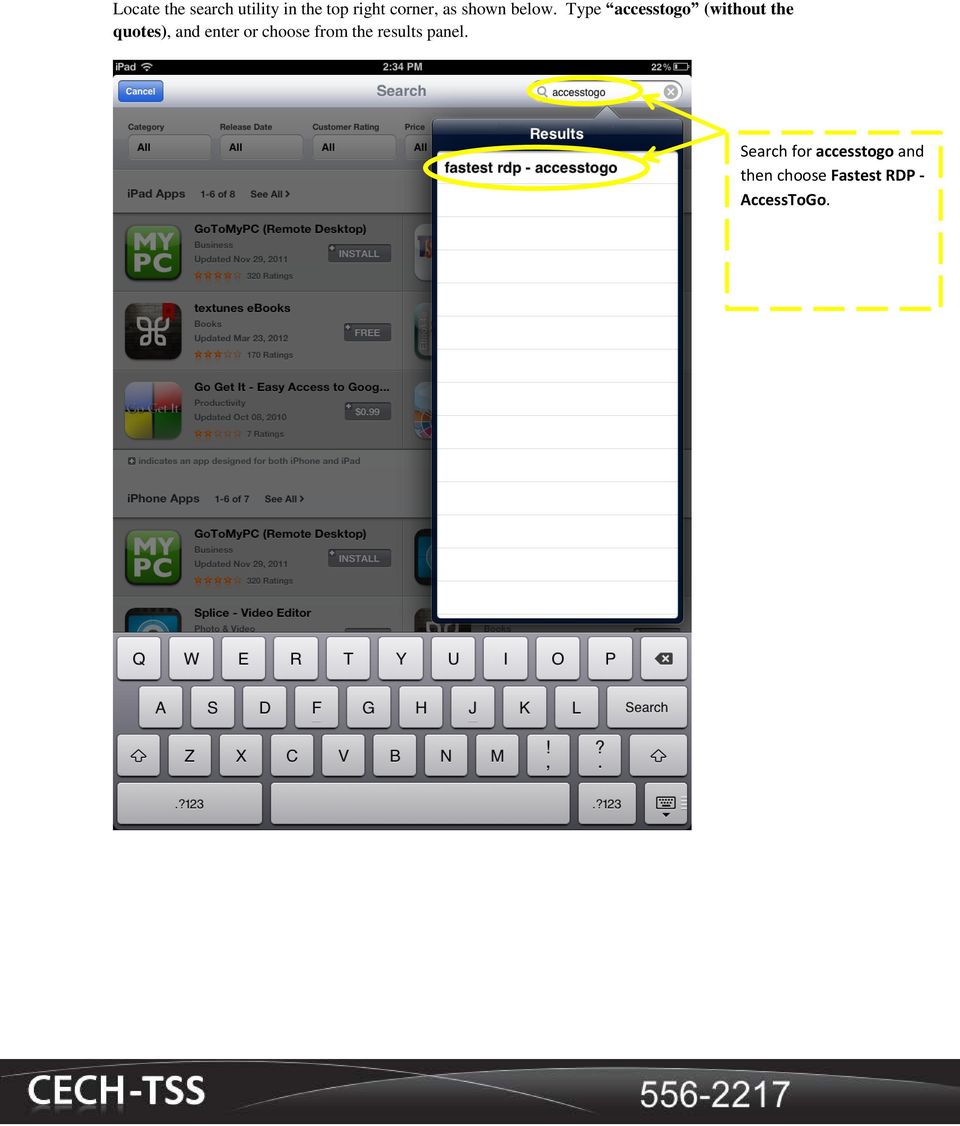
3 Locate the search utility in the top right corner, as shown below. Type accesstogo (without the quotes), and enter or choose from the results panel. Search for accesstogo and then choose Fastest RDP - AccessToGo.

4 Now we should see the results from our search. Click the button labeled, INSTALL. On your ipad, it may say FREE instead. Either way, it will be free, and you need to click this button. If you have an App store account, it will ask for your password. If you do not have an account, one will need to be setup. NOTE: A credit card is required to created an App Store account, but this card will not be charged in this case because AccessToGo is free! Click here to install the App

5 Configuring the Remote Desktop App On one of your ipad Homescreens, click on our newly installed app- AccessToGo. Click AccessToGo

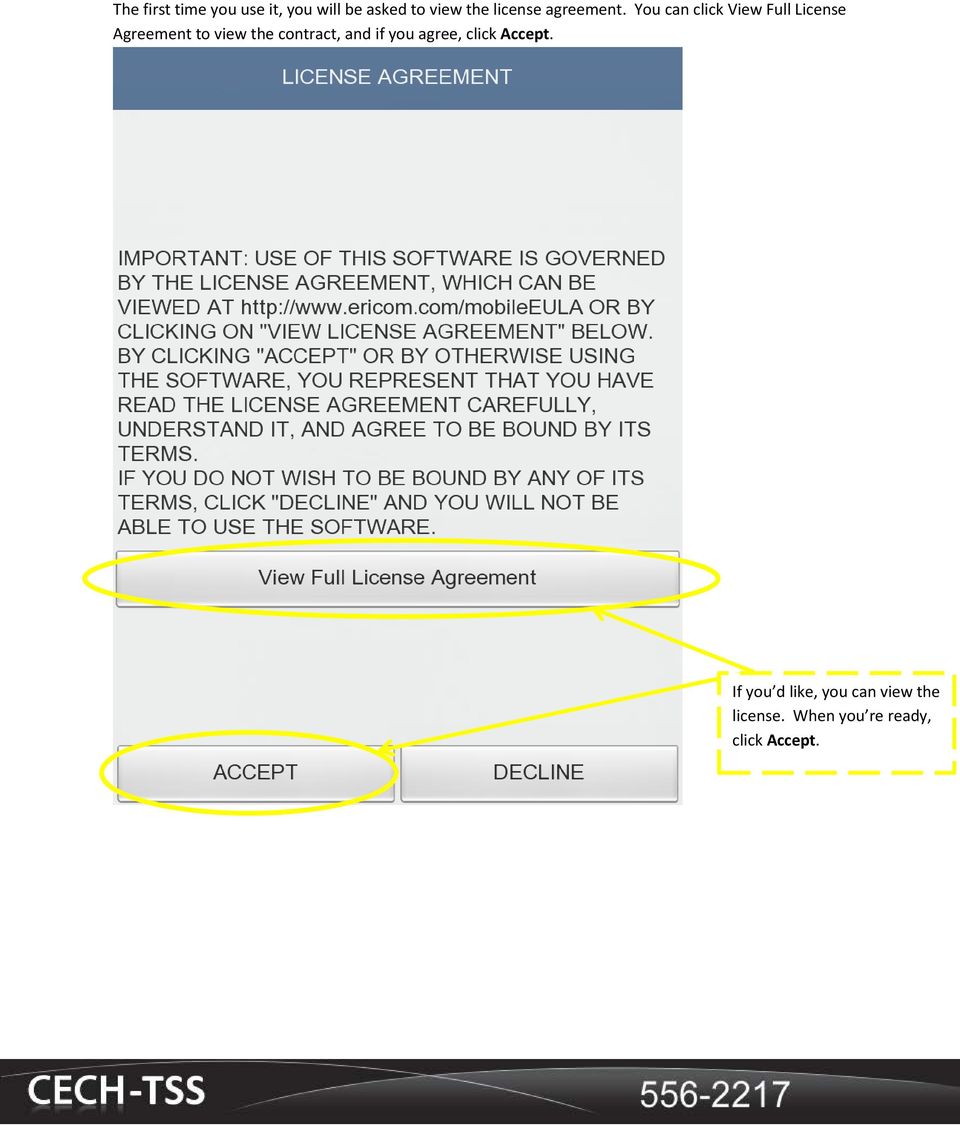
6 The first time you use it, you will be asked to view the license agreement. You can click View Full License Agreement to view the contract, and if you agree, click Accept. If you d like, you can view the license. When you re ready, click Accept.
7 This is the main menu of AccessToGo. We need to setup a profile to access our work computer. Click New Connection. NOTE: By default, two demo profiles are set up. These really do nothing for us. If you d prefer, you can delete these profiles (instructions to do this are presented at the end of this guide). Click New Connection


8 Click RDP (Free Client) Click RDP (Free Client)


9 The field labeled Connection Name can be any name you want to identify the computer that you will be remotely accessing. The field labeled Computer is where you need to put the IP address. The User Name field requires your University username (UC 6+2). You should leave the password blank; so if the ipad is lost or stolen, someone using this profile won t be able to gain access to your work computer. This is just a name for the new profile. This is the IP address of your Work computer. This is the UC 6+2 username If you fill in your password, it will automatically log you in. This means anyone with access to the ipad has access to your Work PC. It s suggested you DO NOT type in your password here. After you have filled out the information, click OK.

10 Using the Remote Desktop App Now the profile you createed appears on the Main Menu. Click on your newly created profile named My Work Computer Click here

11 The picture below shows the login screen at my work computer. Across the bottom of the picture is a black toolbar with some icons. These icons are features built into AcessToGo. Take a minute to read the descriptions of each icon below. This arrow icon will bring up a virtual mouse, making navigation on the ipad far easier. Your finger will also work as a mouse, but this feature can help give you more control. This icon will adjust the screen size to fit the ipad s screen. This icon will bring up the touch keyboard. This will end the remote desktop connection. This icon sets any mouse clicks to be a Right click. It is not the only way to right click,. This will hide the black toolbar.

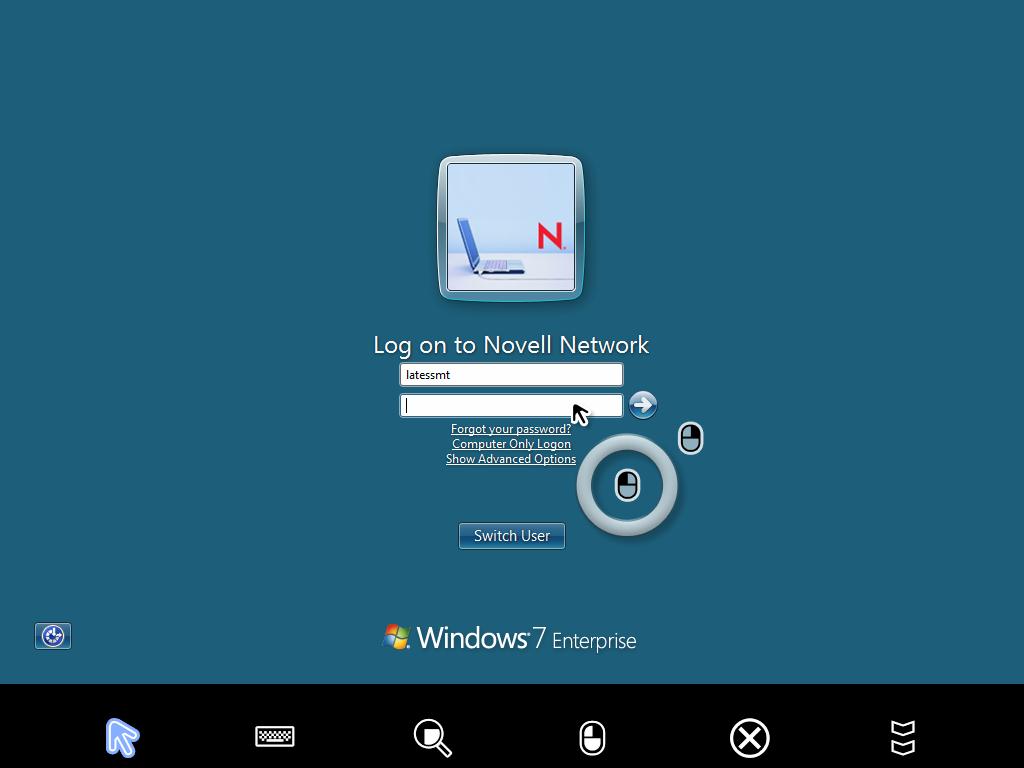
12 The picture below shows that the virtual mouse is active. This is indicated by the icon highlighted blue. Click the password texbox, and then hit the keyboard icon. Use the virtual mouse to click the password textbox After clicking the textbox, click the keyboard icon.


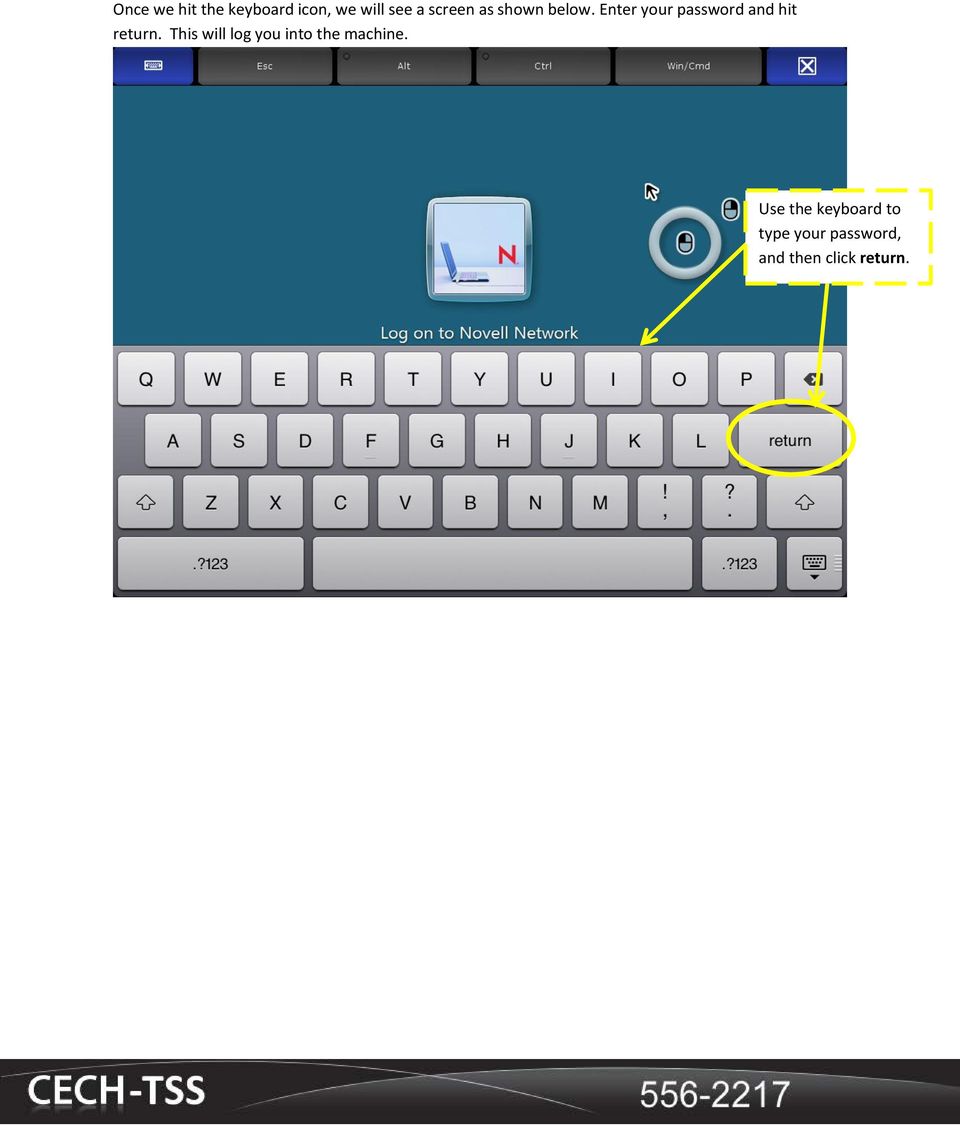
13 Once we hit the keyboard icon, we will see a screen as shown below. Enter your password and hit return. This will log you into the machine. Use the keyboard to type your password, and then click return.
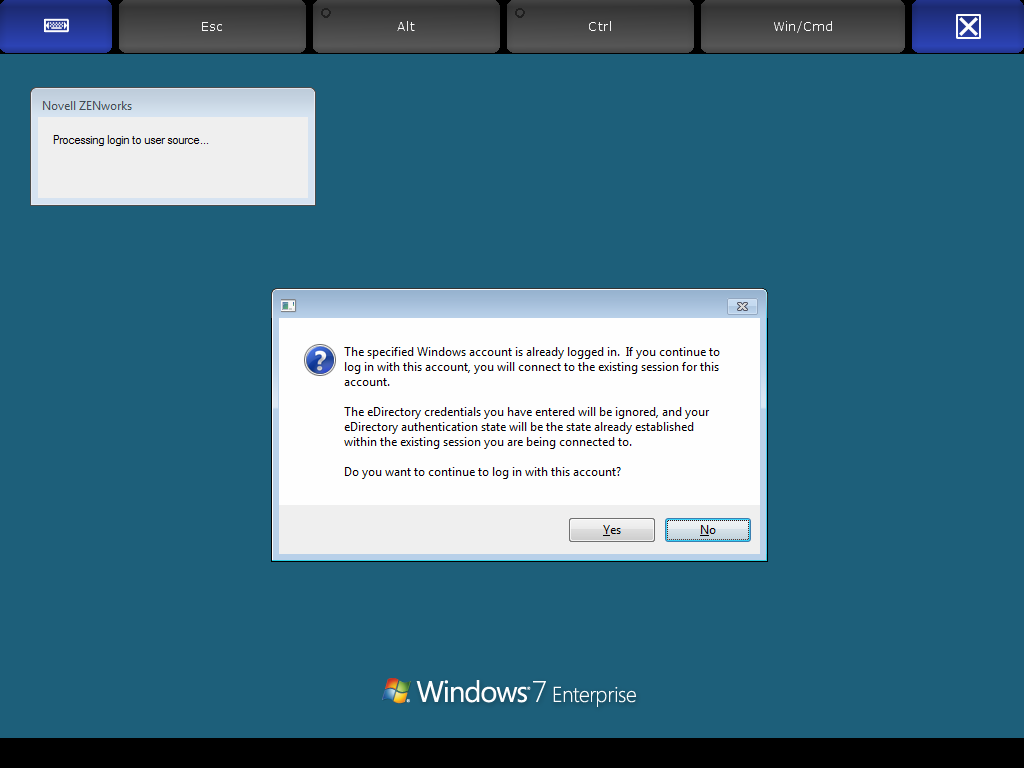
14 You may get a window like the one below when you log in. This indicates that you are already logged into the machine, and it wants to join the session. This may happen if you left your Work computer without logging out, or restarting. Just click Yes. Click Yes, if you see this window.


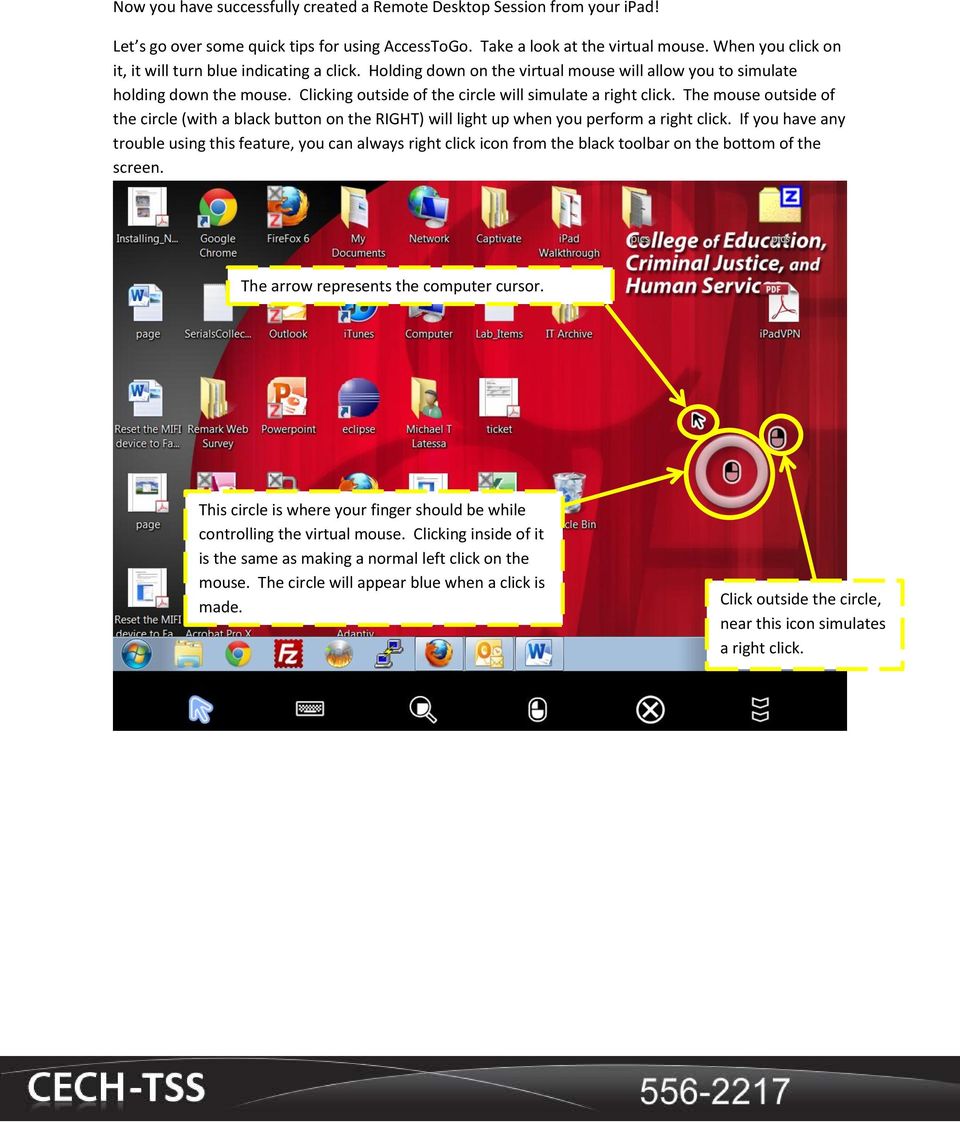
15 Now you have successfully created a Remote Desktop Session from your ipad! Let s go over some quick tips for using AccessToGo. Take a look at the virtual mouse. When you click on it, it will turn blue indicating a click. Holding down on the virtual mouse will allow you to simulate holding down the mouse. Clicking outside of the circle will simulate a right click. The mouse outside of the circle (with a black button on the RIGHT) will light up when you perform a right click. If you have any trouble using this feature, you can always right click icon from the black toolbar on the bottom of the screen. The arrow represents the computer cursor. This circle is where your finger should be while controlling the virtual mouse. Clicking inside of it is the same as making a normal left click on the mouse. The circle will appear blue when a click is made. Click outside the circle, near this icon simulates a right click.
16 When you click the keyboard icon on the black toolbar, the screen will appear similar to the picture below. Across the top of the screen are some extra buttons. Also at the top right corner of the screen is a blue button with an X on it. This will close the keyboard. Another important thing to remember is that sometimes when you have both the keyboard and virtual mouse active, the virtual mouse may have some issues. Closing the keyboard will fix any issues you may have. To find more keyboard symbols, click this icon. These are additional keyboard inputs not found on the ipad keyboard This closes the keyboard This hides, but doesn t close the keyboard.

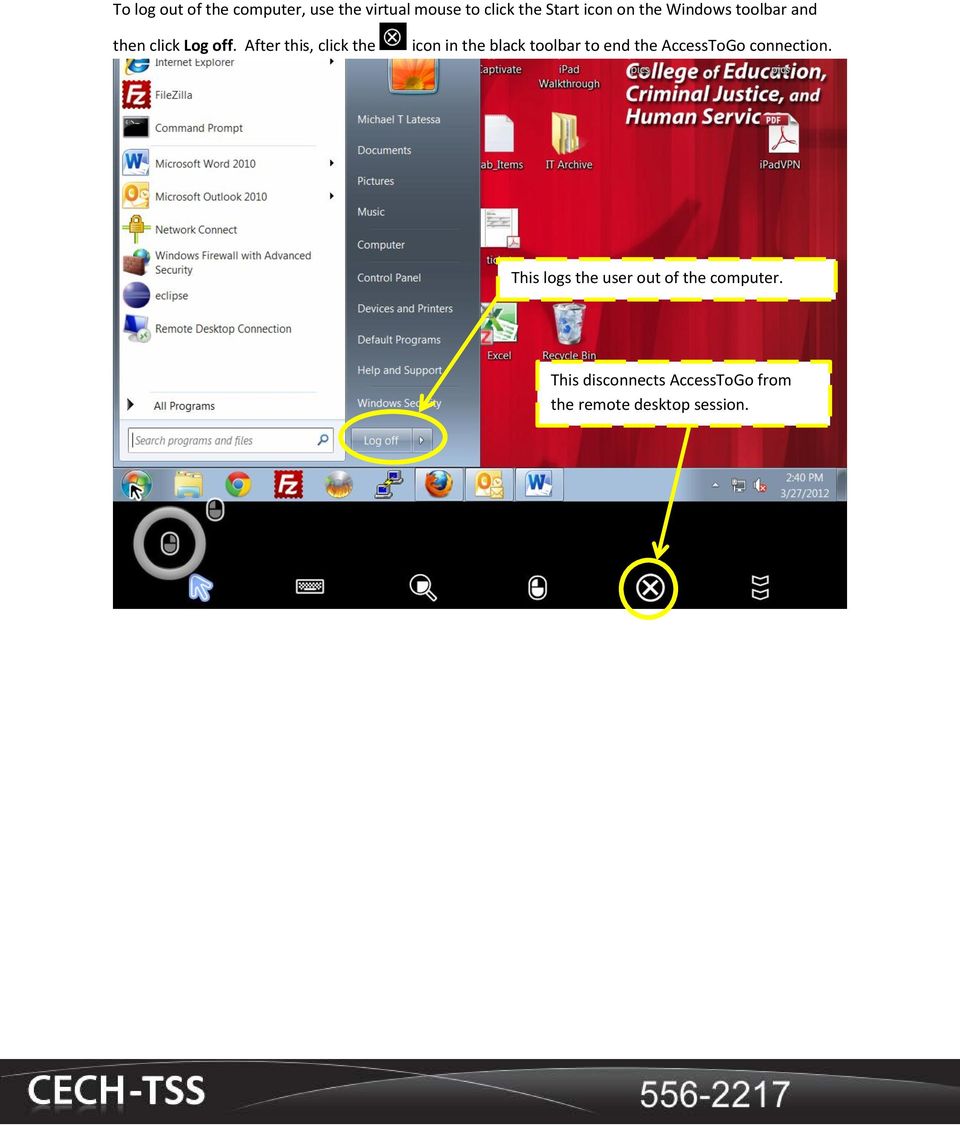
17 To log out of the computer, use the virtual mouse to click the Start icon on the Windows toolbar and then click Log off. After this, click the icon in the black toolbar to end the AccessToGo connection. This logs the user out of the computer. This disconnects AccessToGo from the remote desktop session.
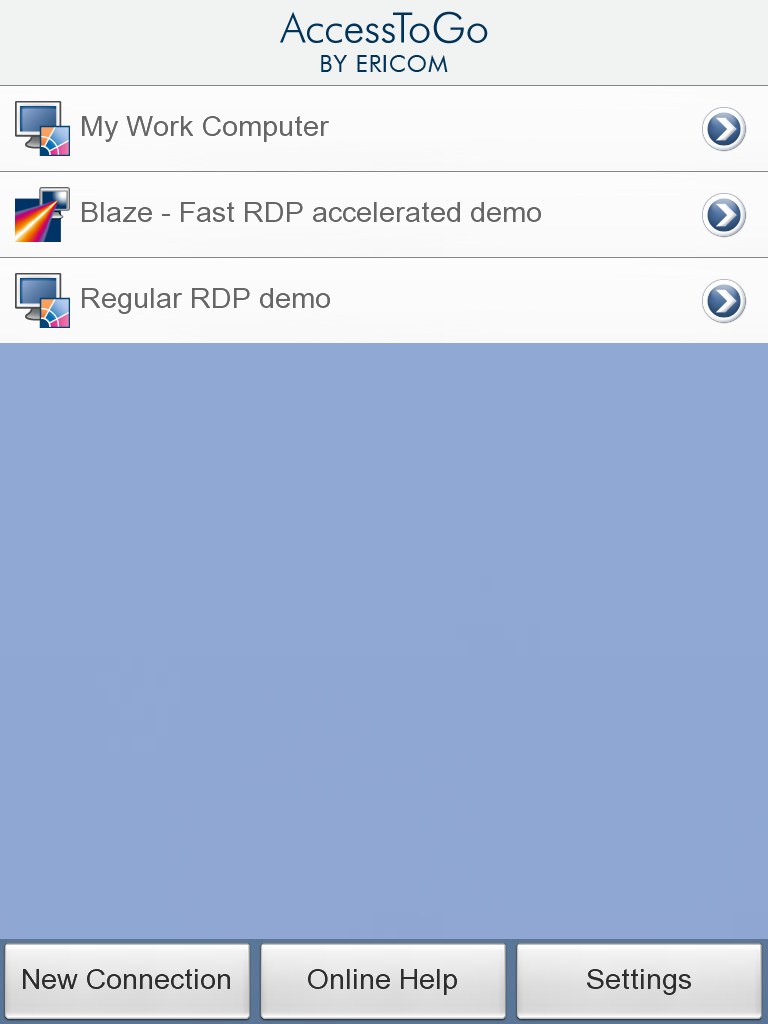
18 Removing a Profile Click the blue arrow of the profile you want to delete. In this example, the Regular RDP demo profile. Click this arrow.


19 Click Delete. Clicking this will delete the profile.


20 Now click OK. You have now removed the profile. Click OK to confirm the deletion..

21 Novell Problems Locate the system tray in the bottom right corner of the windows toolbar. Click the arrow to expand the tray. Click this arrow to expand the system tray.
22 Inside the system tray, you should see a red N, like in the picture below. Right-click on the N icon. Right-click on the N.
23 Choose the top option, Novell Login Click Novell Login
24 A window will appear. Type in your password, and click OK. Now you will have access to the Q and U drives. Type your password here, and then click OK
First Time Off-Campus Remote Desktop Connection ipad Edition
 First Time Off-Campus Remote Desktop Connection ipad Edition General: This guide is a step-by-step guide for configuring and using an ipad to remotely connect to a work computer from off campus. This guide
Note: This documentation was written using the Samsung Galaxy S5 and Android version 5.0. Configuration may be slightly different.
 University Information Technology Services Training, Outreach, Learning Technologies & Video Production HallPass Instructions for Connecting to PC with an Android Device Note: This documentation was written
HallPass Instructions for Connecting to your Campus PC Using the ipad
 University Information Technology Services Training, Outreach, Learning Technologies & Video Production HallPass Instructions for Connecting to your Campus PC Using the ipad The following explains how
BEFORE YOU START... 1 Set Up Your PC Desktop Computer/Laptop... 1 Set Up Remote Desktop on Your ipad... 3
 Quick Reference Guide Using Remote Desktop With Your ipad and PC This user guide is for users connecting their ipad to a PC computer or laptop. This user guide covers how to set up your ipad to connect
Undergraduate Academic Affairs \ Student Affairs IT Services. VPN and Remote Desktop Access from a Windows 7 PC
 Undergraduate Academic Affairs \ Student Affairs IT Services VPN and Remote Desktop Access from a Windows 7 PC Last edited: 4 December 2015 Contents Inform IT Staff... 1 Things to Note... 1 Setting Up
MiraCosta College now offers two ways to access your student virtual desktop.
 MiraCosta College now offers two ways to access your student virtual desktop. We now feature the new VMware Horizon View HTML access option available from https://view.miracosta.edu. MiraCosta recommends
POLARIS INSTALLATION
 POLARIS INSTALLATION BELS runs the Polaris 4.1 Integrated Library System (ILS)- the same system as BCCLS. BELS users will connect to Polaris via a terminal server using Remote Desktop Connection (RDC).
Setting up RDP on your ipad
 This document will show you how to set up RDP (Remote Desktop Protocol) on your ipad. It will cover the following: Step 1: Creating an itunes account (if necessary) Step 2: Using the App Store Step 3:
Setting up Wireless ipad Control of your DEWETRON Computer-based System
 Setting up Wireless ipad Control of your DEWETRON Computer-based System There are a few important things that you need to do in order to use remote desktop applications, such as the itap RDP on the new
educ Office 365 email: Remove & create new Outlook profile
 Published: 29/01/2015 If you have previously used Outlook the with the SCC/SWO service then once you have been moved into Office 365 your Outlook will need to contact the SCC/SWO servers one last time
Steps for using MagicConnect
 Getting Started Getting Started MagicConnect is a remote access service that allows you safe remote access to a target device from your remote device. What is a remote device? It is a Windows device, iphone/ipad,
Install FileZilla Client. Connecting to an FTP server
 Install FileZilla Client Secure FTP is Middle Georgia State College s supported sftp client for accessing your Web folder on Webdav howeve you may use FileZilla or other FTP clients so long as they support
Remote Online Support
 Remote Online Support STRONGVON Tournament Management System 1 Overview The Remote Online Support allow STRONGVON support personnel to log into your computer over the Internet to troubleshoot your system
Setting up Remote Desktop
 Setting up Remote Desktop Terminology: Host PC the computer you want to access remotely; the destination Client PC the computer you are actually using to access another PC; the source IP Address the numerical
How to Access Coast Wi-Fi
 How to Access Coast Wi-Fi Below is a summary of the information required to configure your device to connect to the coast-wifi network. For further assistance in configuring your specific device, continue
REMOTE DESKTOP SETUP INSTRUCTIONS
 REMOTE DESKTOP SETUP INSTRUCTIONS 1. Setting up your work desktop to allow Remote Desktop connectivity Windows does not have this feature enabled by default, so we will go through the steps on how to enable
SMART Ink 1.5. Windows operating systems. Scan the following QR code to view the SMART Ink Help on your smart phone or other mobile device.
 SMART Ink 1.5 Windows operating systems User s guide Scan the following QR code to view the SMART Ink Help on your smart phone or other mobile device. Trademark notice SMART Ink, SMART Notebook, SMART
LEARNING RESOURCE CENTRE. Guide to Microsoft Office Online and One Drive
 LEARNING RESOURCE CENTRE Guide to Microsoft Office Online and One Drive LEARNING RESOURCE CENTRE JULY 2015 Table of Contents Microsoft Office Online... 3 How to create folders... 6 How to change the document
Remote Desktop Services
 Remote Desktop Services AMERICAN INSTITUTES FOR RESEARCH AIR REMOTE DESKTOP SERVICES (RDS) GUIDE Overview Welcome to AIR Remote Desktop Services! AIR Remote Desktop Services can be accessed from a Windows
Setting up VPN and Remote Desktop for Home Use
 Setting up VPN and Remote Desktop for Home Use Contents I. Prepare Your Work Computer... 1 II. Prepare Your Home Computer... 2 III. Run the VPN Client... 3-4 IV. Remote Connect to Your Work Computer...
Using Remote Desktop with the Cisco AnyConnect VPN Client in Windows Vista
 Using Remote Desktop with the Cisco AnyConnect VPN Client in Windows Vista 1. In order to use Remote Desktop and the VPN client, users must first complete the Blackboard Remote Users training course and
Remote Access in Windows XP
 Remote Access in Windows XP Overview Sections: Page: Security Precautions to Consider When Connecting Remotely 2 1. Check for Operating System updates 2 2. Install Antivirus 2 3. Run a Full System Scan
Macs are not directly compatible with Noetix.
 Those that use Macintosh computers to access Noetix cannot directly access Noetix through http://www.sandiego.edu/noetix. If one is on a Mac and goes to Noetix directly in a web browser, the page is likely
Steps for using MagicConnect
 Getting Started Getting Started MagicConnect is a remote access service that allows you safe remote access to a target device from your remote device. What is a remote device? It is a Windows device, iphone/ipad,
Remote Desktop Instructions for the Remote PC Running Windows Vista
 USC Marshall School of Business Academic Information Services Remote Desktop Instructions for the Remote PC Running Windows Vista Remote Desktop allows you to access the files and programs on a computer
How to remotely access your Virtual Desktop from outside the college using VMware View Client. How to guide
 How to remotely access your Virtual Desktop from outside the college using VMware View Client How to guide Author: ICT Services Version: 1.0 Date: November 2015 Contents What is the VMware View Client?...
How to use SURA in three simple steps:
 How to use SURA in three simple steps: Most of SURA s functionality can be accessed through these three steps. 1) Download SURA to your computer Go to the SU Downloads page to obtain the SURA utility.
TM Online Storage: StorageSync
 TM Online Storage: StorageSync 1 Part A: Backup Your Profile 1: How to download and install StorageSync? Where to download StorageSync? You may download StorageSync from your e-storage account. Please
Installation and Setup
 Installation and Setup Xoom INDEX Xoom Features/Pictures. Page 2 Accessories.. Page 2 Accessing Users Guides... Page 3 itap RDP mouse modes... Page 3 Setup for Xoom use in the office (Office wireless network)
How To Use Senior Systems Cloud Services
 Senior Systems Cloud Services In this guide... Senior Systems Cloud Services 1 Cloud Services User Guide 2 Working In Your Cloud Environment 3 Cloud Profile Management Tool 6 How To Save Files 8 How To
Hosting Users Guide 2011
 Hosting Users Guide 2011 eofficemgr technology support for small business Celebrating a decade of providing innovative cloud computing services to small business. Table of Contents Overview... 3 Configure
Installing the VMware Horizon View Client to Access Hoag Virtual Desktops
 Installing the VMware Horizon View Client to Access Hoag Virtual Desktops Hoag IT Department For questions or further assistance, please contact the Service Desk: 949-764-8600, option 2 1 Table of Contents
Citrix Client Install Instructions
 Citrix Client Install Instructions If you are using Citrix remotely, Information Technology Services recommends updating Citrix client to the newest version available online. You must be an administrator
VPS Hosting. The Guide to Bet Angel VPS. Getting started with Bet Angel VPS. Revised August 2013. Page 1
 The Guide to Bet Angel VPS Getting started with Bet Angel VPS Revised August 2013 Page 1 Contents VPS Hosting Connecting to a Windows Server for the first time... 3 1 Ensuring that your Server has been
Joining an XP workstation to a domain Version 1.00
 Joining an XP workstation to a domain Version 1.00 All Windows XP Professional workstations need to be joined to a domain to function as part of the domain security environment. Need to Know TM 1. To join
Mariemont City Schools
 Mariemont City Schools Citrix Virtual Desktop Environment Citrix is a virtual desktop system that allows users to access their Mariemont Windows 7 desktop from anywhere with an Internet connection. Once
E-mail Encryption. How do I send my e-mail encryption key?
 E-mail Encryption SecurenCrypt e-mail encryption was designed to work as a plug-in with Microsoft Outlook. The following instructions are geared toward users encrypting e-mail with Outlook. However, throughout
Remote Desktop Windows 7 & Windows XP
 Remote Desktop Windows 7 & Windows XP First you will need to know the Computer Name of the computer in your office at Dickinson College that you are trying to remote to. You will also need to contact the
This guide provides all of the information necessary to connect to MoFo resources from outside of the office.
 REMOTE ACCESS GUIDE INTRODUCTION This guide provides all of the information necessary to connect to MoFo resources from outside of the office. Connect remotely from your firm notebook using VPN Connect
Citrix Virtual Classroom. Deliver file sharing and synchronization services using Citrix ShareFile. Self-paced exercise guide
 Deliver file sharing and synchronization services using Citrix ShareFile Self-paced exercise guide Table of Contents Table of Contents... 2 Overview... 3 Exercise 1: Setting up a ShareFile Account... 6
Instructions for using VPN and accessing your files remotely
 Instructions for using VPN and accessing your files remotely Be sure that you have the latest version of JAVA installed on your computer. Go to https://sslvpn.uco.edu and sign in using your domain username
Akin Gump Strauss Hauer & Feld LLP Remote Access Resources
 Akin Gump Strauss Hauer & Feld LLP Remote Access Resources Firm Laptop Windows Home PC Mac Computer Apple ipad Android Devices Exit akingump.com 2013 Akin Gump Strauss Hauer & Feld LLP Checkpoint VPN (Firm
LRDC Computing Services
 LRDC Computing Services Remote Access to the LRDC Fileservers Windows XP* April 5, 2005 *While these instructions have been created for and tested on a Windows XP computer, they may also work for your
2. Manage the power of the target device
 Please have "MagicConnect user account list" that we sent you upon delivery time be ready at your hand Here, we take OS: Windows 7 Ultimate, Display method: category as a sample for describing this Quick
Getting Started with VMware Horizon View (Remote Desktop Access)
 Getting Started with VMware Horizon View (Remote Desktop Access) Use The Links Below To Navigate This Document Using VMware Horizon View with Tablet and Smartphone APP or Mobile Web Browser Walk Through
VoIP Quick Start Guide
 VoIP Quick Start Guide VoIP is made up of three elements: The Phone The Software (optional) The Web Version of the software (optional) Your new voice mail can be accessed by calling (971-722) 8988. Or,
TAMUS Terminal Server Setup BPP SQL/Alva
 We have a new method of connecting to the databases that does not involve using the Texas A&M campus VPN. The new way of gaining access is via Remote Desktop software to a terminal server running here
One of the following messages will appear in red when DisplayStudio is not properly connected to a media player on the wireless network.
 DisplayStudio Software Failure Connecting to Media Player on Wifi Network February 23, 2015 Introduction This document troubleshoots a failed wireless network connection between Roland DisplayStudio software
Apple Mac VPN Service Setting up Remote Desktop
 Apple Mac VPN Service Setting up Remote Desktop After you have successfully connected via the VPN client to the University network you will then need to make the connection to your machine. To do this
Windows 7 Hula POS Server Installation Guide
 Windows 7 Hula POS Server Installation Guide Step-by-step instructions for installing the Hula POS Server on a PC running Microsoft Windows 7 1 Table of Contents Introduction... 3 Getting Started... 3
How to Use Remote Access Using Internet Explorer
 Introduction Welcome to the Mount s Remote Access service. The following documentation is intended to assist first time or active users with connecting, authenticating and properly logging out of Remote
Check current version of Remote Desktop Connection for Mac.. Page 2. Remove Old Version Remote Desktop Connection..Page 8
 CONTENTS SECTION 1 Check current version of Remote Desktop Connection for Mac.. Page 2 SECTION 2 Remove Old Version Remote Desktop Connection..Page 8 SECTION 3 Download and Install Remote Desktop Connection
HP ilo mobile app for Android
 HP ilo mobile app for Android User Guide Abstract The HP ilo mobile app provides access to the remote console and scripting features of HP ProLiant servers. HP Part Number: 690350-003 Published: March
Secure Global Desktop (SGD)
 Secure Global Desktop (SGD) Table of Contents Checking your Java Version...3 Preparing Your Desktop Computer...3 Accessing SGD...5 Logging into SGD...6 Using SGD to Access Your Desktop...7 Using SGD to
Hallpass Instructions for Connecting to Mac with a Mac
 Hallpass Instructions for Connecting to Mac with a Mac The following instructions explain how to enable screen sharing with your Macintosh computer using another Macintosh computer. Note: You must leave
Vess A2000 Series. NVR Storage Appliance. Windows Recovery Instructions. Version 1.0. 2014 PROMISE Technology, Inc. All Rights Reserved.
 Vess A2000 Series NVR Storage Appliance Windows Recovery Instructions Version 1.0 2014 PROMISE Technology, Inc. All Rights Reserved. Contents Introduction 1 Different ways to backup the system disk 2 Before
Configuring WPA2 for Windows XP
 Configuring WPA2 for Windows XP Requirements for wireless using WPA2 on Windows XP with Service Pack 2 Your wireless card must support 802.1x, AES, and WPA2. Windows XP with service pack 2, it is recommended
Internet Setup Manual for Windows 95/98
 Step 1 On your Windows 95/ 98 desktop, click on Start, then click on Settings, then click on Control Panel. Step 2 Inside of the Control Panel, find the icon labeled Network. Now double-click on the Network
Setting up VPN and Remote Desktop for Home Use
 Setting up VPN and Remote Desktop for Home Use Contents I. Prepare Your Work Computer... 1 II. Prepare Your Home Computer... 2 III. Run the VPN Client... 3 IV. Remote Connect to Your Work Computer... 4
Virtual Heart User Manual Username Password
 Virtual Heart User Manual Username Password These instructions are meant to help you use the Virtual Heart website. Please write down your username and password and store them in a safe place in case you
This guide provides all of the information necessary to connect to MoFo resources from outside of the office
 REMOTE ACCESS GUIDE INTRODUCTION This guide provides all of the information necessary to connect to MoFo resources from outside of the office Links to topics in this document Connect remotely from your
Faculty/Staff instructions for connecting to the Hood College VPN to gain access to your office computer
 Faculty/Staff instructions for connecting to the Hood College VPN to gain access to your office computer Note: These instructions were written for Windows 7 Professional. Some screens may be different
Setting Up groov Mobile Apps. Introduction. Setting Up groov Mobile Apps. Using the ios Mobile App
 Introduction Using the ios Mobile App Opto 22 s free groov View apps for ios and Android allow you to use View for one or more groovs on your smartphone or tablet in full-screen mode without the address
LogMeIn Ignition for Android User Guide
 LogMeIn Ignition for Android User Guide Contents About LogMeIn Ignition...3 Getting Started with LogMeIn Ignition...3 How to Create a LogMeIn Account for Use with Ignition...4 How to Add Computers to your
Where do you go to get started? Please see the table below to find the web address for your division.
 hcare Access Upgraded We have heard the call of physicians and providers across HCA and are pleased to introduce you to the new, improved hcare Access. Enjoy login times reduced by nearly 70% as you access
Pentagon Message Exchange Setup Guide: All Devices
 Pentagon Message Exchange Setup Guide: All Devices This guide has been sent to you to help you set up Pentagon Message Exchange on your equipment. In this guide, you will find the details required for
1. Set Daylight Savings Time... 3. 2. Create Migrator Account... 3. 3. Assign Migrator Account to Administrator group... 4
 1. Set Daylight Savings Time... 3 a. Have client log into Novell/Local Machine with Administrator Account...3 b. Access Adjust Date/Time...3 c. Make sure the time zone is set to Central Time...3 2. Create
Passport Installation. Windows 8 + Internet Explorer 10
 Passport Installation Windows 8 + Internet Explorer 10 OS Version Windows 8 System Type 32bit and 64bit Browser Name & version Internet Explorer 10 Before you begin Make sure you have Anti Virus software
Installing Remote Desktop Connection
 SETTING UP YOUR REMOTE DESKTOP This section will assist you in setting you Remote Desktop Connection. This will allow you to create an icon for easy access to your virtual desktop. DISCLAIMER: All images
VIRTUAL SOFTWARE LIBRARY REFERENCE GUIDE
 VIRTUAL SOFTWARE LIBRARY REFERENCE GUIDE INTRODUCTION The Virtual Software Library (VSL) provides remote and on-campus access to lab/course software. This approach is intended to simplify access for all
First Time On-Campus VLab Setup Windows XP Edition
 First Time On-Campus VLab Setup Windows XP Edition General: This guide is a step-by-step walkthrough of downloading, installing and configuring VMware View Client for the University of Cincinnati s VLab
Akin Gump Strauss Hauer & Feld LLP Remote Access Resources (DUO)
 Akin Gump Strauss Hauer & Feld LLP Remote Access Resources (DUO) Firm Laptop Windows Home PC Mac Computer Apple ipad Android Devices Exit akingump.com 2015 Akin Gump Strauss Hauer & Feld LLP Check Point
Logging into Citrix (Epic) using an RSA Soft Token - New RSA User
 Logging into Citrix (Epic) using an RSA Soft Token - New RSA User Soft Token Installation and Logging into Citrix (Epic) using an RSA Soft Token A. For new RSA users: downloading & importing your RSA Soft
Web Manual: Go To Meeting April 2015
 Web Manual: Go To Meeting Table of Contents Getting Started... 3 What is GoToMeeting?... 3 Activating Your Account... 3 What You Need for Set-up... 3 Changing Account Details (Name, Email, Time Zone, Password)...
TWO WAYS TO SCHEDULE A SCOPIA VIDEO CONFERENCE BASED MEETING. 1- SCOPIA USER PORTAL 2- OUTLOOK SCOPIA MEETING PLUG-IN
 TWO WAYS TO SCHEDULE A SCOPIA VIDEO CONFERENCE BASED MEETING. 1- SCOPIA USER PORTAL 2- OUTLOOK SCOPIA MEETING PLUG-IN USING IVIEW SCOPIA USER PORTAL TO SCHEDULE A MEETING: GO TO: http://iview.utoledo.edu:8080/
NextGen Setup Guide First-time Workstation Setup & Logging In
 This guide will help you get setup on NextGen for the first time you log onto a City or SBC computer. It will also help if you are a first-time user and need to create your password. I. Setting up Desktop
Contents. VPN Instructions. VPN Instructions... 1
 VPN Instructions Contents VPN Instructions... 1 Download & Install Check Point VPN Software... 2 Connect to FPUA by VPN... 6 Connect to Your Computer... 8 Determine Your Machine Type... 10 Identify 32-bit
Fundamentals of Great Plains & Reporting Tools
 Fundamentals of Great Plains & Reporting Tools Accessing GP... 1 Accessing the terminal server... 1 Creating a shortcut to the Remote Desktop Connection command... 2 Configuration options for your terminal
From a Finder window choose Applications (shown circled in red) and then double click the Tether icon (shown circled in green).
 From a Finder window choose Applications (shown circled in red) and then double click the Tether icon (shown circled in green). You will be presented with a dialog box asking for you to enter an ad-hoc
The initial set up takes a few steps, but then each time you want to connect it is just a two set process.
 Remote Access to your Desktop using VPN Overview VPN is a tool that enables you to access one computer from another. Typical uses for Pop Center members would be 1) access their pop center computer from
Mikogo User Guide Windows Version
 Mikogo User Guide Windows Version Table of Contents Registration 3 Download & Installation 4 Start a Session 4 Join a Session 5 Features 6 Participant List 6 Switch Presenter 7 Remote Control 7 Whiteboard
Beginners Guide to CQG FX
 Beginners Guide to CQG FX Table of Contents Logging into CQG FX................................................................. pg. 2 Logging in for the first time (if previously traded on demo)..........................pg.4
How Do I Remove My Office 365 Account From An iphone, ipad or ipod Touch?... 1
 How Do I Remove My Office 365 Account From An iphone, ipad or ipod Touch?... 1 How Do I Set Up My Office 365 Account On An iphone, ipad or ipod Touch?... 3 How Do I Remove My Office 365 Account From A
Passport installation Windows 8 + Firefox
 Passport installation Windows 8 + Firefox OS Version Windows 8 System Type 32-bit and 64-bit Browser name & version Firefox 23 Before you begin Check you have Anti Virus software installed on your computer
To download the latest version of TurboTick Pro go to http://www.turnkeybroker.com/download/turbotickpro/publish.html
 TurboTick PRO manual version 1.211 updated 12.7.2011 Getting started in TurboTick Pro TurboTick Pro is an advanced trading platform built for the active trader. With easy-to-use customizable screens, integrated
LEARNING RESOURCE CENTRE GUIDE TO OFFICE 365
 LEARNING RESOURCE CENTRE GUIDE TO OFFICE 365 LEARNING RESOURCE CENTRE OCTOBER 2014/2015 Table of Contents Explanation of One Drive and Microsoft Office Online... 3 How to create a document and folder...
Contents First Time Setup... 2 Setting up the Legal Vault Client (KiteDrive)... 3 Setting up the KiteDrive Outlook Plugin... 10 Using the Legal Vault
 Contents First Time Setup... 2 Setting up the Legal Vault Client (KiteDrive)... 3 Setting up the KiteDrive Outlook Plugin... 10 Using the Legal Vault Outlook Plugin... 13 Using KiteDrive to Send Large
Windows 8.1 Tips and Tricks
 Windows 8.1 Tips and Tricks Table of Contents Tiles... 2 Removing, Resizing and Moving Existing Tiles... 2 Adding New Tiles... 2 Returning to the Start Screen (Charms)... 3 The Search Feature... 3 Switching
How to Remotely View Security Cameras Using the Internet
 How to Remotely View Security Cameras Using the Internet Introduction: The ability to remotely view security cameras is one of the most useful features of your EZWatch Pro system. It provides the ability
Introduction to Windows 8
 Introduction to Windows 8 Windows 8 is a completely redesigned operating system developed from the ground up with touchscreen use in mind as well as near instant-on capabilities that enable a Windows 8
Remote Desktop access via Faculty Terminal Server Using Internet Explorer (versions 5.x-7.x)
 Remote Desktop access via Faculty Terminal Server Using Internet Explorer (versions 5.x-7.x) Start your Internet Explorer browser and direct it to the faculty home page. Click on the link Remote Access,
Virtual Private Network (VPN)
 Virtual Private Network (VPN) Creating a Virtual Private Network (VPN) environment and using it to connect machines to each other is another way of accessing Roll Call remotely. A VPN establishes a secure
Instructions for Connecting to PACS outside of a Regional Facility
 Instructions for Connecting to PACS outside of a Regional Facility For support, please contact the ehealth Saskatchewan Helpdesk at 1-888-316-7446 Recommended options provide optimal performance 1 The
How do I use Citrix Staff Remote Desktop
 How do I use Citrix Staff Remote Desktop September 2014 Initial Log On In order to login into the new Citrix system, you need to go to the following web address. https://remotets.tees.ac.uk/ Be sure to
TECHNICAL TRAINING LAB INSTRUCTIONS
 In this lab you will learn how to login to the TotalAgility Designer and navigate around it. You will also learn how to set common Server Settings, create a simple capture workflow business process, save,
If you already have Uninstalled SonicWALL Global VPN client, or never had it installed you can skip this step.
 Remote Access This manual is divided into three main sections. If you already have Uninstalled SonicWALL Global VPN client, or never had it installed you can skip this step. Index Uninstall SonicWall Global